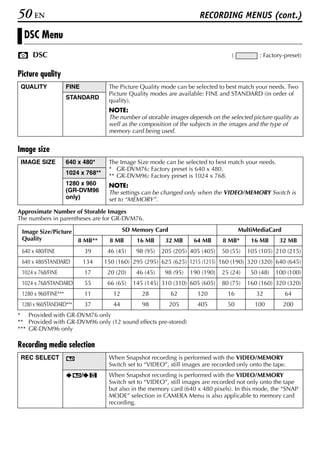
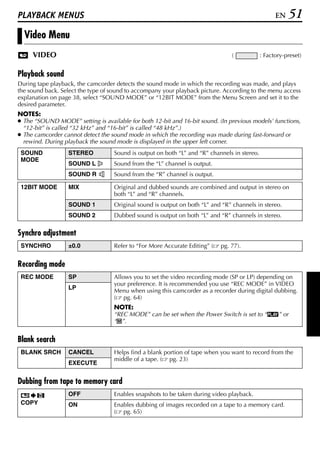
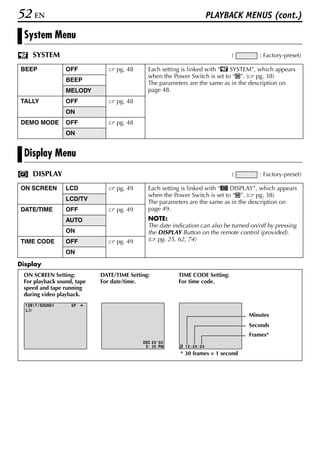
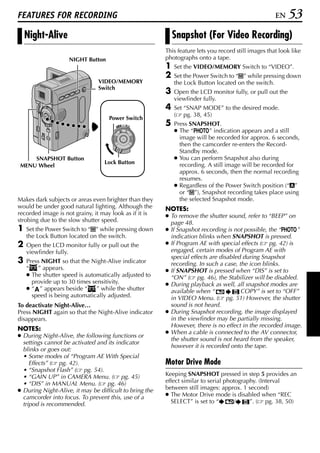
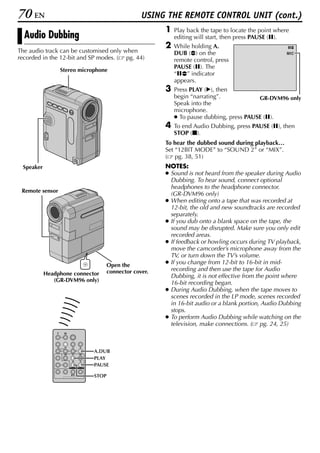
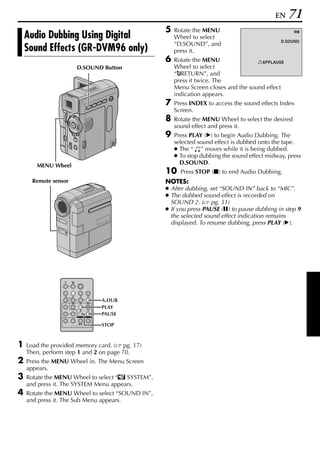
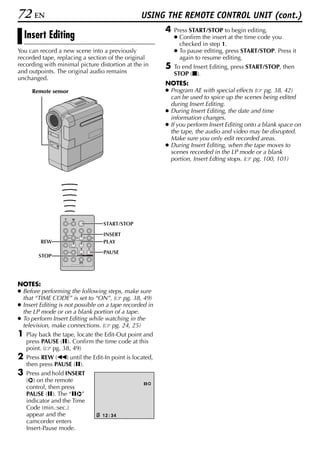
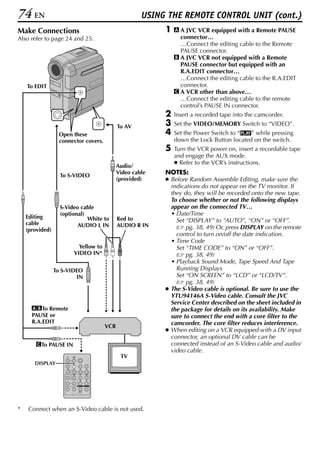
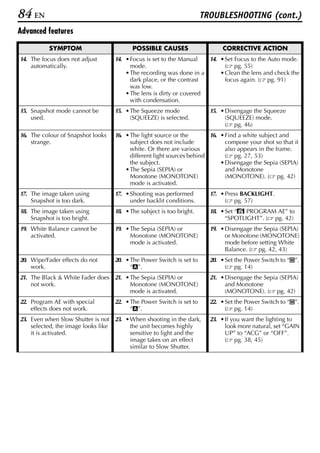
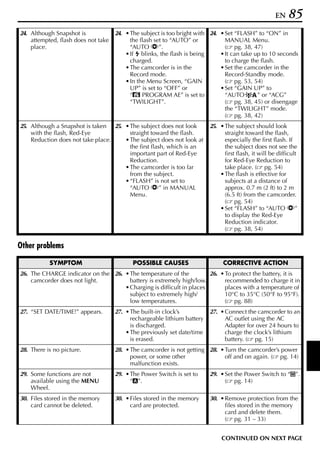
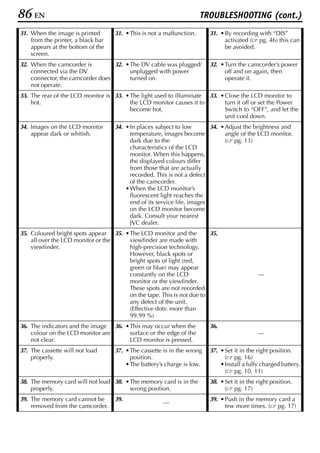
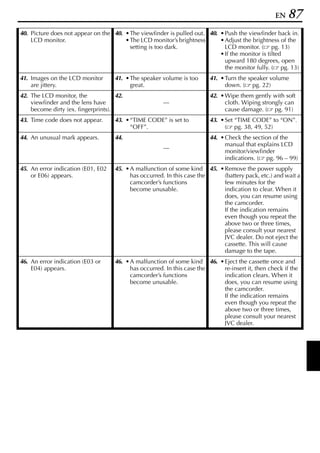
ENGLISH


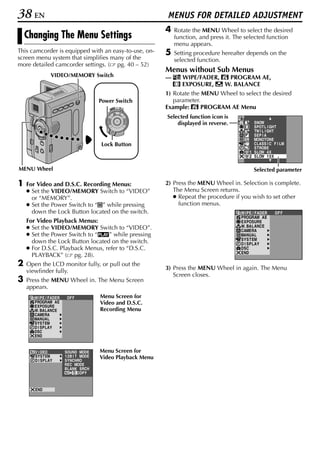
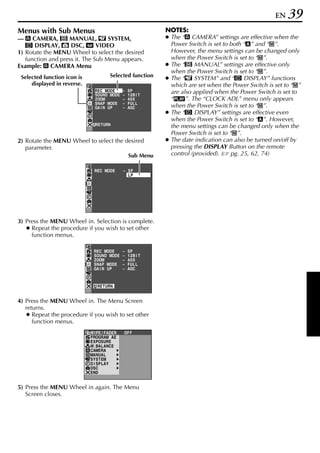
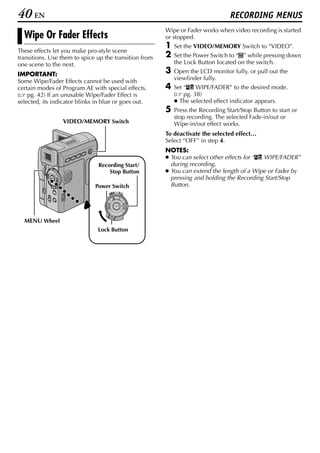
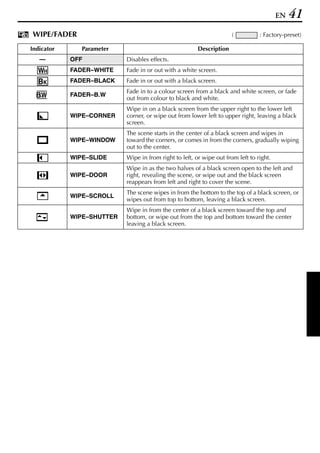
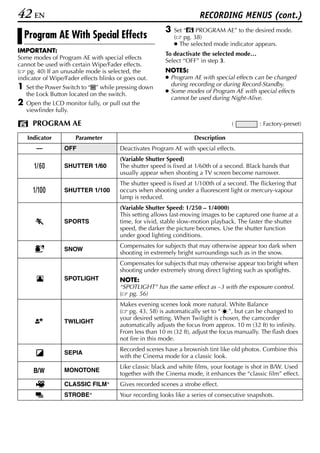
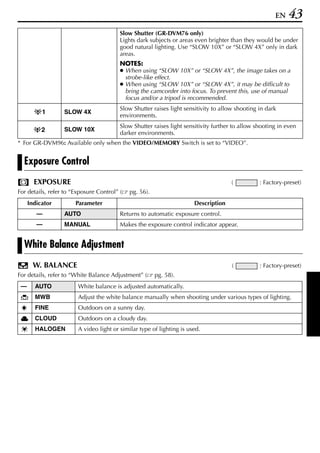
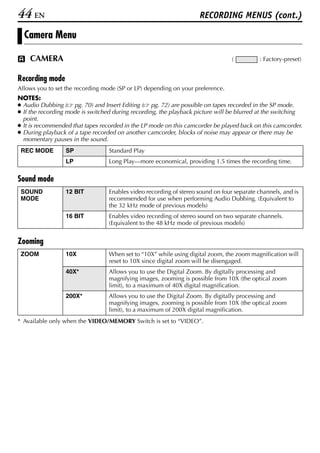
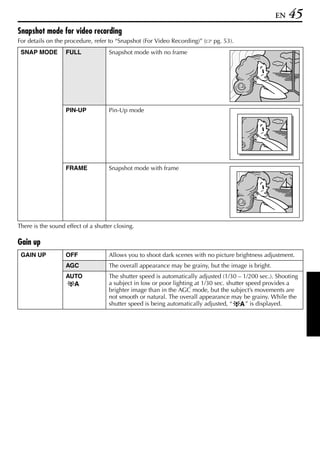
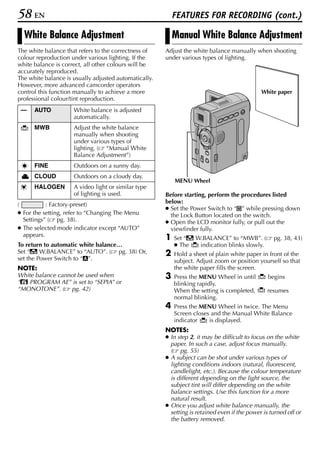
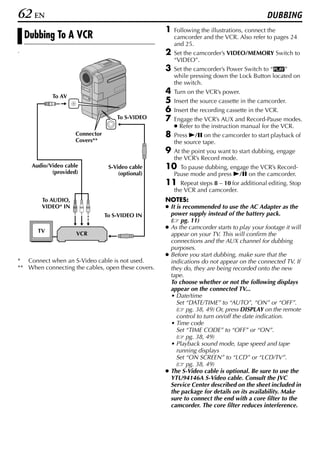
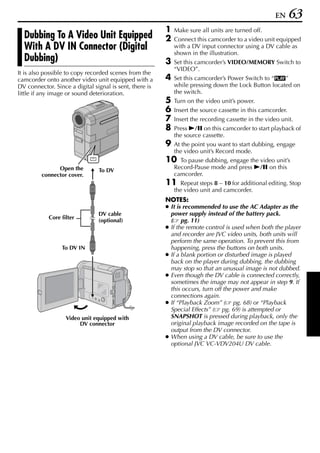
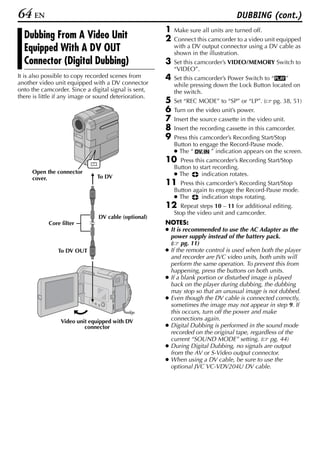
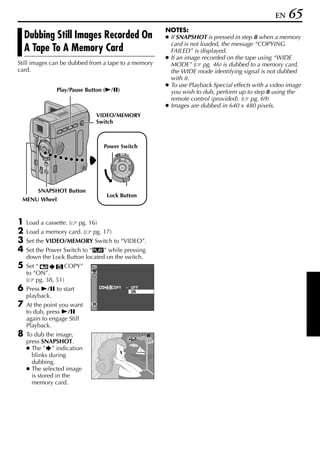
                                                             Automatic Demonstration             8


DIGITAL VIDEO CAMERA
                                                             GETTING STARTED                     9

GR-DVM96
GR-DVM76
Please visit our Homepage on the World Wide                  VIDEO RECORDING &
                                                                                                18
Web and answer our Consumer Survey (in                       PLAYBACK
English only):
http://www.jvc-victor.co.jp/english/index-e.html
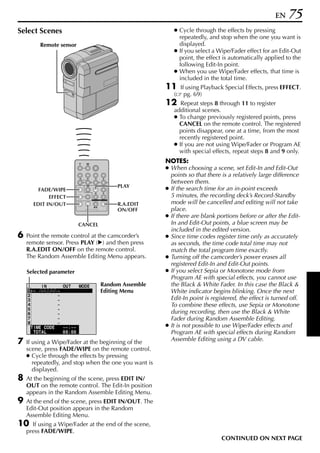
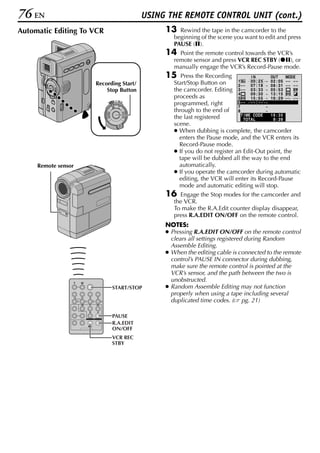
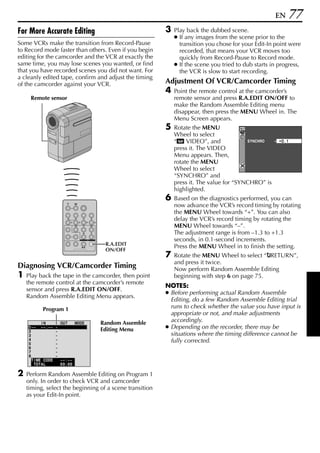
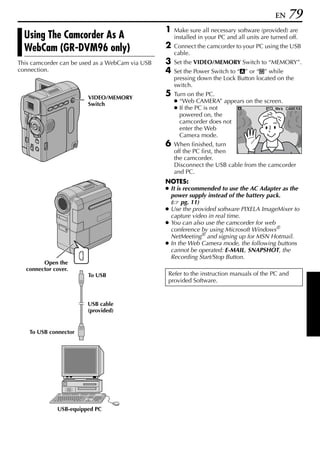
For Accessories:
http://www.jvc-victor.co.jp/english/accessory
                                                             DIGITAL STILL CAMERA
                                                             (D.S.C.) RECORDING &               26
                                                             PLAYBACK


                                                             ADVANCED FEATURES                  37
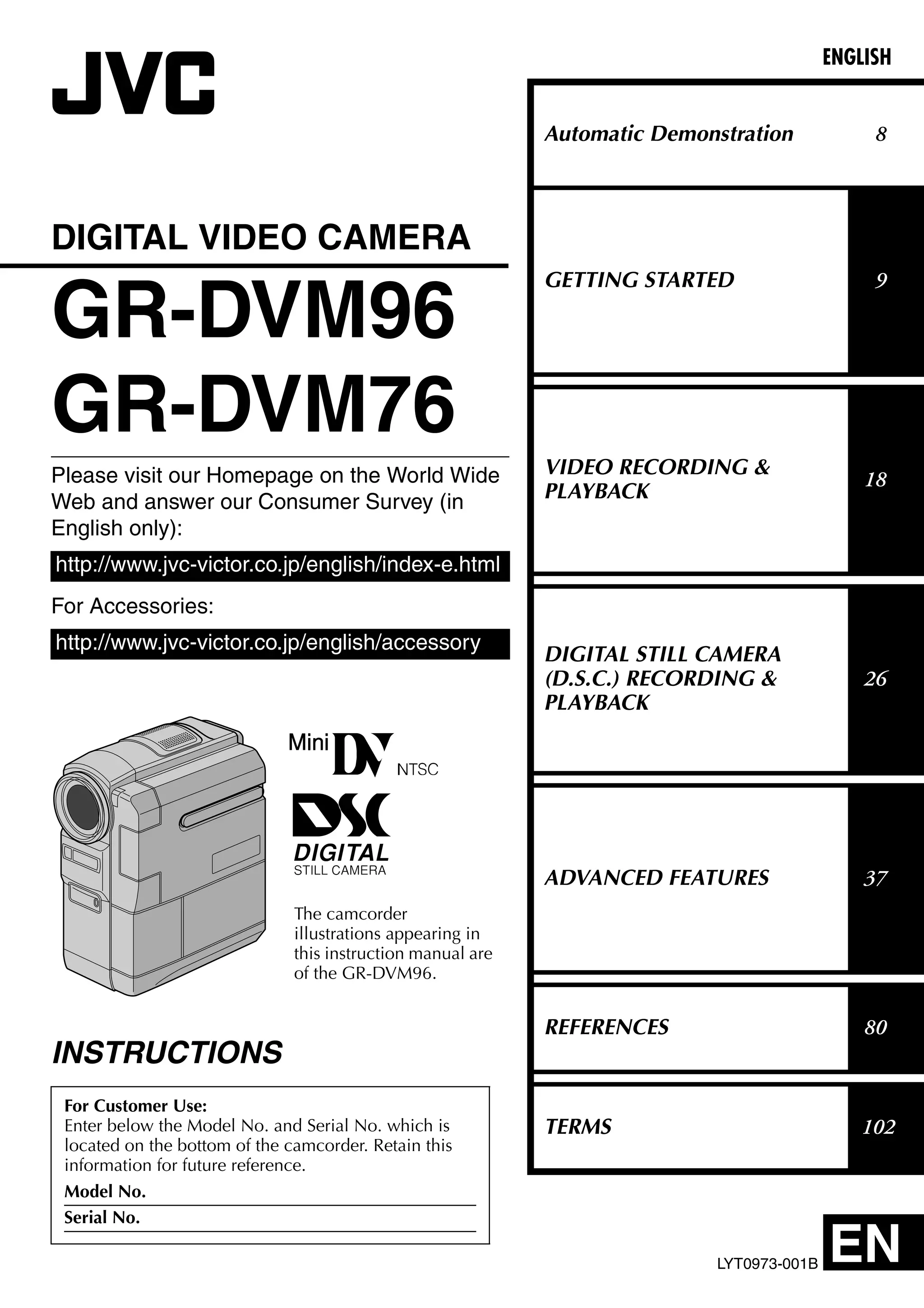
                               The camcorder
                               illustrations appearing in
                               this instruction manual are
                               of the GR-DVM96.


                                                             REFERENCES                         80
INSTRUCTIONS
 For Customer Use:
 Enter below the Model No. and Serial No. which is           TERMS                             102
 located on the bottom of the camcorder. Retain this
 information for future reference.
 Model No.
 Serial No.

                                                                             LYT0973-001B   EN
2 EN
 Dear Customer,
 Thank you for purchasing this digital video camera. Before use, please read the safety information and
 precautions contained in the following pages to ensure safe use of this product.
Using This Instruction Manual
● All major sections are listed in the Table Of Contents on the cover page.
● Notes appear after most subsections. Be sure to read these as well.
● Basic and advanced features/operation are separated for easier reference.
It is recommended that you…
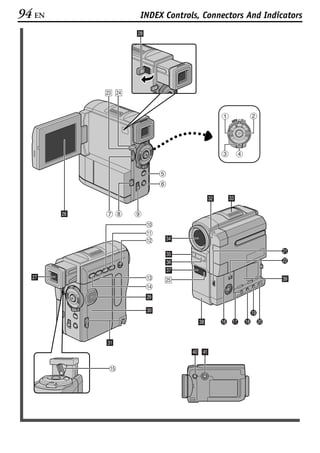
…refer to the Index ( pg. 94 – 101) and familiarize yourself with button locations, etc. before use.
…read thoroughly the Safety Precautions and Safety Instructions that follow. They contain extremely
   important information regarding the safe use of this product.
 You are recommended to carefully read the cautions on pages 88 through 90 before use.


SAFETY PRECAUTIONS                                                        NOTES:
                                                                          ● The rating plate (serial number plate) and safety
                         CAUTION                                            caution are on the bottom and/or the back of
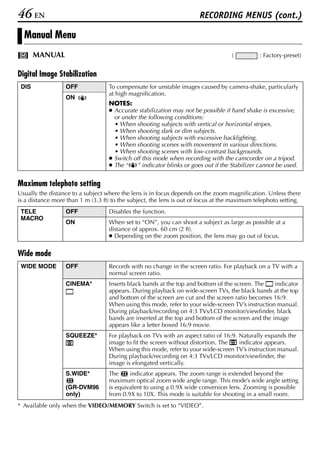
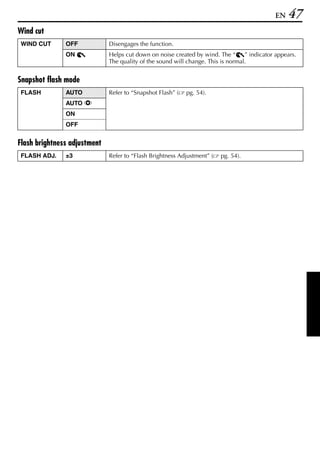
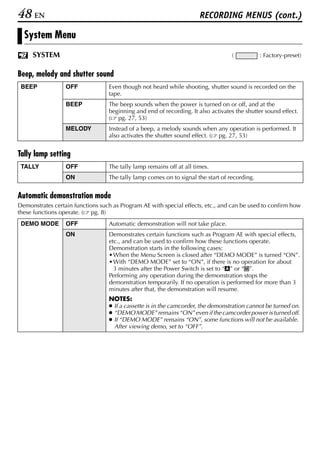
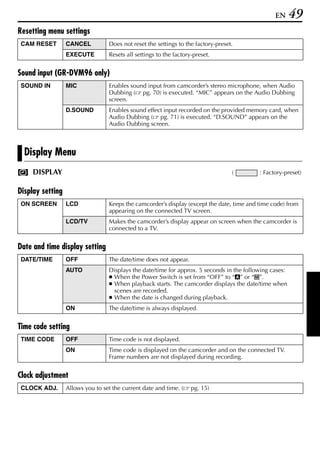
                    RISK OF ELECTRIC SHOCK                                  the main unit.
                         DO NOT OPEN
                                                                          ● The rating information and safty caution of the
  CAUTION:  TO REDUCE THE RISK OF ELECTRIC SHOCK,
                                                                            AC Adapter are on its upper and lower sides.
           DO NOT REMOVE COVER (OR BACK).
         NO USER-SERVICEABLE PARTS INSIDE.                                CAUTIONS:
  REFER SERVICING TO QUALIFIED SERVICE PERSONNEL.
                                                                          ● This camcorder is designed to be used with
                                                                            NTSC-type color television signals. It cannot be
             The lightning flash with arrowhead symbol, within an
             equilateral triangle, is intended to alert the user to the
                                                                            used for playback with a television of a different
             presence of uninsulated "dangerous voltage" within the         standard. However, live recording and LCD
             product's enclosure that may be of sufficient magnitude        monitor/viewfinder playback are possible
             to constitute a risk of electric shock to persons.
                                                                            anywhere.
             The exclamation point within an equilateral triangle is      ● Use the JVC BN-V306U/V312U battery packs
             intended to alert the user to the presence of important        and, to recharge them or to supply power to the
             operating and maintenance (servicing) instructions in
             the literature accompanying the appliance.
                                                                            camcorder from an AC outlet, use the provided
                                                                            multi-voltage AC Adapter. (An appropriate
                                                                            conversion adapter may be necessary to
 WARNING:
                                                                            accommodate different designs of AC outlets in
 TO REDUCE THE RISK OF FIRE OR ELECTRIC
                                                                            different countries.)
 SHOCK, DO NOT EXPOSE THIS APPARATUS TO
 RAIN OR MOISTURE.
EN    3
When the equipment is installed in a cabinet or on a shelf, make sure that it has sufficient space on all sides
to allow for ventilation (10 cm (3-15/16”) or more on both sides, on top and at the rear).
Do not block the ventilation holes.
(If the ventilation holes are blocked by a newspaper, or cloth etc. the heat may not be able to get out.)
No naked flame sources, such as lighted candles, should be placed on the apparatus.
When discarding batteries, environmental problems must be considered and the local rules or laws
governing the disposal of these batteries must be followed strictly.
The apparatus shall not be exposed to dripping or splashing.
Do not use this equipment in a bathroom or places with water.
Also do not place any containers filled with water or liquids (such as cosmetics or medicines, flower vases,
potted plants, cups etc.) on top of this unit.
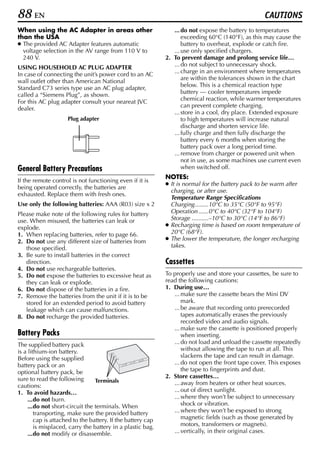
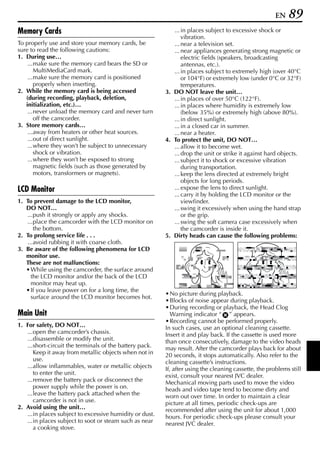
(If water or liquid is allowed to enter this equipment, fire or electric shock may be caused.)


This product has a fluorescent lamp that contains a small amount of mercury. Disposal of these materials
may be regulated in your community due to environmental considerations.
For disposal or recycling information please contact your local authorities, or the Electronics Industries
Alliance:
<http://www.eiae.org>


                          IMPORTANT SAFTY INSTRUCTIONS
1) Read these instructions.                              10)Use only with the cart,
2) Keep these instructions.                                stand, tripod, bracket, or
                                                           table specified by the
3) Heed all warnings.                                      manufacturer, or sold
4) Follow all instructions.                                with the apparatus.
                                                           When a cart is used, use
5) Do not use this apparatus near water.                   caution when moving
6) Clean only with dry cloth.                              the cart/apparatus
                                                           combination to avoid
7) Do not block any ventilation openings. Install in       injury from tip-over..
   accordance with the manufacturer’s instructions.
                                                         11)Unplug this apparatus during lightning storms or
8) Do not install near any heat sources such as            when unused for long periods of time.
   radiators, heat registers, stoves, or other
   apparatus (including amplifiers) that produce         12)Refer all servicing to qualified service personnel.
   heat.                                                   Servicing is required when the apparatus has
                                                           been damaged in any way, such as power-supply
9) Only use attachments/accessories specified by           cord or plug is damaged, liquid has been spilled
   the manufacturer.                                       or objects have fallen into the apparatus, the
                                                           apparatus has been exposed to rain or moisture,
                                                           does not operate normally, or has been dropped.
4 EN
SAFETY PRECAUTIONS
Do not point the lens or the viewfinder directly into the sun. This can cause eye injuries, as well as lead to the
malfunctioning of internal circuitry. There is also a risk of fire or electric shock.
CAUTION!
The following notes concern possible physical damage to the camcorder and to the user.
When carrying, be sure to hold the camcorder firmly in your hand, with the grip strap securely around your
wrist. Carrying or holding the camcorder by the viewfinder and/or the LCD monitor can result in dropping the
unit, or in a malfunction.
Take care not to get your finger caught in the cassette holder cover. Do not let children operate the
camcorder, as they are particularly susceptible to this type of injury.
Do not use a tripod on unsteady or unlevel surfaces. It could tip over, causing serious damage to the
camcorder.
CAUTION!
Connecting cables (Audio/Video, S-Video, etc.) to the camcorder and leaving it on top of the TV is not
recommended, as tripping on the cables will cause the camcorder to fall, resulting in damage.


  This camcorder is designed exclusively for the digital video cassette, SD Memory Card and
  MultiMediaCard. Only cassettes marked “          ” and memory cards marked “         ” or
  “                  ” can be used with this unit.
Before recording an important scene…
… make sure you only use cassettes with the Mini DV mark           .
… make sure you only use memory cards with the mark               or                  .
… remember that this camcorder is not compatible with other digital video formats.
… remember that this camcorder is intended for private consumer use only. Any commercial use without
  proper permission is prohibited. (Even if you record an event such as a show, performance or exhibition for
  personal enjoyment, it is strongly recommended that you obtain permission beforehand.)
EN   5
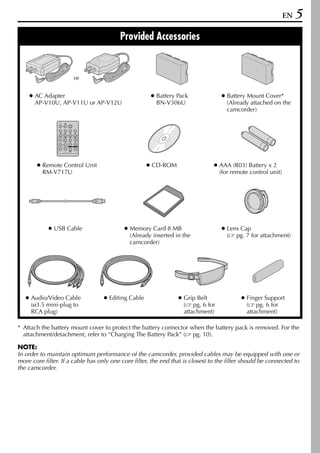
                                         Provided Accessories


                      or

    ● AC Adapter                                      ● Battery Pack               ● Battery Mount Cover*
      AP-V10U, AP-V11U or AP-V12U                       BN-V306U                     (Already attached on the
                                                                                     camcorder)


       ● Remote Control Unit                         ● CD-ROM                   ● AAA (R03) Battery x 2
         RM-V717U                                                                 (for remote control unit)


            ● USB Cable                    ● Memory Card 8 MB                      ● Lens Cap
                                             (Already inserted in the                ( pg. 7 for attachment)
                                             camcorder)


   ● Audio/Video Cable             ● Editing Cable               ● Grip Belt               ● Finger Support
     (ø3.5 mini-plug to                                            ( pg. 6 for               ( pg. 6 for
     RCA plug)                                                     attachment)               attachment)

* Attach the battery mount cover to protect the battery connector when the battery pack is removed. For the
  attachment/detachment, refer to “Charging The Battery Pack” ( pg. 10).

NOTE:
In order to maintain optimum performance of the camcorder, provided cables may be equipped with one or
more core filter. If a cable has only one core filter, the end that is closest to the filter should be connected to
the camcorder.
6 EN
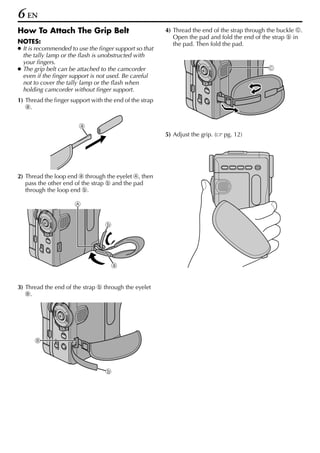
How To Attach The Grip Belt                              4) Thread the end of the strap through the buckle c.
                                                            Open the pad and fold the end of the strap h in
NOTES:                                                      the pad. Then fold the pad.
● It is recommended to use the finger support so that
  the tally lamp or the flash is unobstructed with
  your fingers.
● The grip belt can be attached to the camcorder                                                c
  even if the finger support is not used. Be careful
  not to cover the tally lamp or the flash when
  holding camcorder without finger support.
1) Thread the finger support with the end of the strap
   g.


                        g
                                                         5) Adjust the grip. (   pg. 12)


2) Thread the loop end g through the eyelet a, then
   pass the other end of the strap h and the pad
   through the loop end h.

                      a


                                  h


                                      g


3) Thread the end of the strap h through the eyelet
   b.


      b


                                   h
EN   7
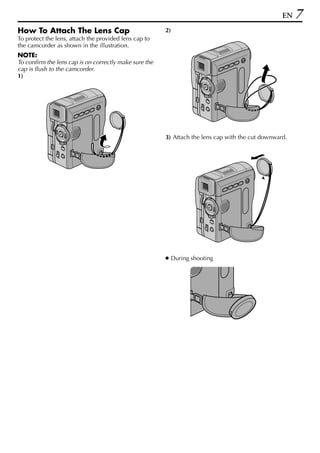
How To Attach The Lens Cap                              2)
To protect the lens, attach the provided lens cap to
the camcorder as shown in the illustration.
NOTE:
To confirm the lens cap is on correctly make sure the
cap is flush to the camcorder.
1)


                                                        3) Attach the lens cap with the cut downward.


                                                        ● During shooting
8 EN
                                   Automatic Demonstration
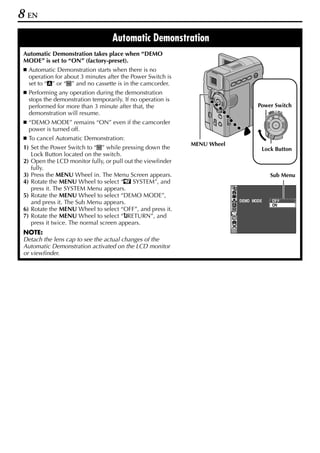
 Automatic Demonstration takes place when “DEMO
 MODE” is set to “ON” (factory-preset).
   Automatic Demonstration starts when there is no
   operation for about 3 minutes after the Power Switch is
   set to “A” or “M” and no cassette is in the camcorder.
   Performing any operation during the demonstration
   stops the demonstration temporarily. If no operation is
   performed for more than 3 minute after that, the                              Power Switch
   demonstration will resume.                                                         PLAY
                                                                                           OFF A M


   “DEMO MODE” remains “ON” even if the camcorder
   power is turned off.
   To cancel Automatic Demonstration:
                                                             MENU Wheel
 1) Set the Power Switch to “M” while pressing down the                           Lock Button
    Lock Button located on the switch.
 2) Open the LCD monitor fully, or pull out the viewfinder
    fully.
 3) Press the MENU Wheel in. The Menu Screen appears.                                 Sub Menu
 4) Rotate the MENU Wheel to select “s SYSTEM”, and
    press it. The SYSTEM Menu appears.
 5) Rotate the MENU Wheel to select “DEMO MODE”,
    and press it. The Sub Menu appears.                                   DEMO MODE     OF F
                                                                                        ON
 6) Rotate the MENU Wheel to select “OFF”, and press it.
 7) Rotate the MENU Wheel to select “BRETURN”, and
    press it twice. The normal screen appears.
 NOTE:
 Detach the lens cap to see the actual changes of the
 Automatic Demonstration activated on the LCD monitor
 or viewfinder.
EN      9

                          GETTING STARTED
                                        CONTENTS
Power ..................................................................................................10
Grip Adjustment .....................................................................................12
Viewfinder Adjustment ...........................................................................12
Tripod Mounting .....................................................................................13
LCD Monitor And Viewfinder ...................................................................13
Brightness Adjustment Of The Display ......................................................13
Operation Mode .....................................................................................14
Date/Time Settings ................................................................................15
Loading A Cassette/Unloading A Cassette .................................................16
Loading A Memory Card/Unloading A Memory Card ...................................17
10 EN                                                                              GETTING STARTED
                                                       To detach the battery pack...
    Power                                              While sliding and holding the BATT.RELEASE tab to
                                                       the right, remove it.
This camcorder’s 2-way power supply system lets
you choose the most appropriate source of power.            Battery pack               Charging time
Do not use provided power supply units with other       BN-V306U                 Approx. 1 hr. 30 min.
equipment.
                                                        BN-V312U                 Approx. 2 hr. 40 min.
                                                        (optional)
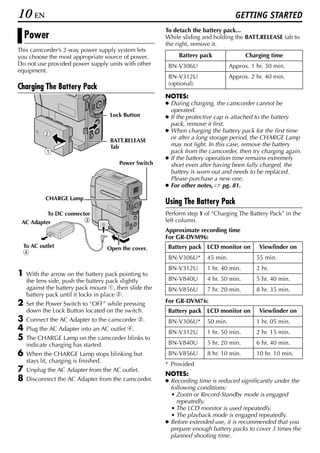
Charging The Battery Pack
                                                       NOTES:
                                                       ● During charging, the camcorder cannot be
                                                         operated.
                                    Lock Button        ● If the protective cap is attached to the battery
                                                         pack, remove it first.
                                                       ● When charging the battery pack for the first time
                                    BATT.RELEASE
                                                         or after a long storage period, the CHARGE Lamp
                                    Tab                  may not light. In this case, remove the battery
                                                         pack from the camcorder, then try charging again.
                                                       ● If the battery operation time remains extremely
                                       Power Switch      short even after having been fully charged, the
                                                         battery is worn out and needs to be replaced.
                                                         Please purchase a new one.
                                                       ● For other notes,     pg. 81.

           CHARGE Lamp
                                                       Using The Battery Pack
            To DC connector                            Perform step 1 of “Charging The Battery Pack” in the
 AC Adapter               c                            left column.
                                                       Approximate recording time
                                                       For GR-DVM96:
  To AC outlet                    Open the cover.       Battery pack LCD monitor on         Viewfinder on
  d
                                                        BN-V306U*      45 min.             55 min.
                                                        BN-V312U       1 hr. 40 min.       2 hr.
1   With the arrow on the battery pack pointing to
    the lens side, push the battery pack slightly       BN-V840U       4 hr. 50 min.       5 hr. 40 min.
    against the battery pack mount a, then slide the    BN-V856U       7 hr. 20 min.       8 hr. 35 min.
    battery pack until it locks in place b.
2   Set the Power Switch to “OFF” while pressing       For GR-DVM76:
    down the Lock Button located on the switch.         Battery pack LCD monitor on         Viewfinder on
3   Connect the AC Adapter to the camcorder c.          BN-V306U*      50 min.             1 hr. 05 min.
4   Plug the AC Adapter into an AC outlet d.
                                                        BN-V312U       1 hr. 50 min.       2 hr. 15 min.
5   The CHARGE Lamp on the camcorder blinks to
    indicate charging has started.                      BN-V840U       5 hr. 20 min.       6 hr. 40 min.
6   When the CHARGE Lamp stops blinking but             BN-V856U       8 hr. 10 min.       10 hr. 10 min.
    stays lit, charging is finished.
                                                       * Provided
7   Unplug the AC Adapter from the AC outlet.
                                                       NOTES:
8   Disconnect the AC Adapter from the camcorder.      ● Recording time is reduced significantly under the
                                                         following conditions:
                                                         • Zoom or Record-Standby mode is engaged
                                                           repeatedly.
                                                         • The LCD monitor is used repeatedly.
                                                         • The playback mode is engaged repeatedly.
                                                       ● Before extended use, it is recommended that you
                                                         prepare enough battery packs to cover 3 times the
                                                         planned shooting time.
EN      11
INFORMATION:                                            About Batteries
The optional extended-use battery pack kit is a set
composed of a battery pack and AC Power Adapter/
Charger:
VU-V840 KIT: BN-V840U battery pack & AA-V15U
                AC Power Adapter/Charger
VU-V856 KIT: BN-V856U battery pack & AA-V80U
                AC Power Adapter/Charger
Read the kit’s instruction manual before using.
Also, by using the optional JVC VC-VBN856U DC           Lithium-ion is vulnerable in colder temperatures.
Cord, it will be possible to connect BN-V840U or
BN-V856U battery packs to the camcorder and
supply power directly to the camcorder.

 ATTENTION:
 Before detaching the power source, make sure
 that the camcorder’s power is turned off. Failure to
 do so can result in a camcorder malfunction.
                                                        DANGER! Do not attempt to take the batteries apart,
                                                        or expose them to flame or excessive heat, as it may
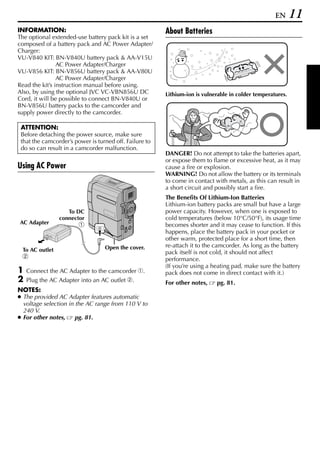
Using AC Power                                          cause a fire or explosion.
                                                        WARNING! Do not allow the battery or its terminals
                                                        to come in contact with metals, as this can result in
                                                        a short circuit and possibly start a fire.
                                                        The Benefits Of Lithium-Ion Batteries
                                                        Lithium-ion battery packs are small but have a large
                   To DC                                power capacity. However, when one is exposed to
                connector                               cold temperatures (below 10°C/50°F), its usage time
AC Adapter              a                               becomes shorter and it may cease to function. If this
                                                        happens, place the battery pack in your pocket or
                                                        other warm, protected place for a short time, then
                                  Open the cover.       re-attach it to the camcorder. As long as the battery
 To AC outlet                                           pack itself is not cold, it should not affect
 b                                                      performance.
                                                        (If you’re using a heating pad, make sure the battery
1   Connect the AC Adapter to the camcorder a.          pack does not come in direct contact with it.)
2   Plug the AC Adapter into an AC outlet b.            For other notes,    pg. 81.
NOTES:
● The provided AC Adapter features automatic
  voltage selection in the AC range from 110 V to
  240 V.
● For other notes,     pg. 81.
12 EN                                                                   GETTING STARTED (cont.)

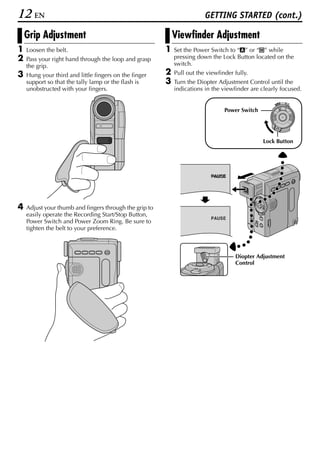
    Grip Adjustment                                         Viewfinder Adjustment
1   Loosen the belt.                                    1   Set the Power Switch to “A” or “M” while
2   Pass your right hand through the loop and grasp         pressing down the Lock Button located on the
    the grip.                                               switch.
3   Hung your third and little fingers on the finger    2   Pull out the viewfinder fully.
    support so that the tally lamp or the flash is      3   Turn the Diopter Adjustment Control until the
    unobstructed with your fingers.                         indications in the viewfinder are clearly focused.

                                                                                                          OFF A M
                                                                                                   PLAY


                                                                                Power Switch


                                                                                               Lock Button


4   Adjust your thumb and fingers through the grip to
    easily operate the Recording Start/Stop Button,
                                                                           PAUSE
    Power Switch and Power Zoom Ring. Be sure to
    tighten the belt to your preference.


                                                                                    Diopter Adjustment
                                                                                    Control
EN   13
  Tripod Mounting                                           LCD Monitor And Viewfinder
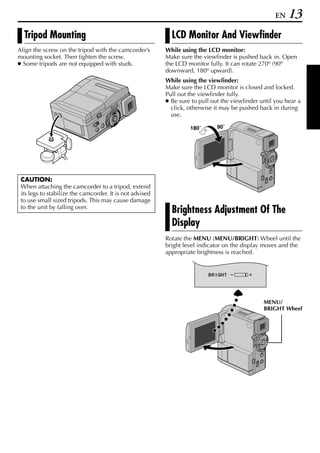
Align the screw on the tripod with the camcorder’s        While using the LCD monitor:
mounting socket. Then tighten the screw.                  Make sure the viewfinder is pushed back in. Open
● Some tripods are not equipped with studs.               the LCD monitor fully. It can rotate 270º (90º
                                                          downward, 180º upward).
                                                          While using the viewfinder:
                                                          Make sure the LCD monitor is closed and locked.
                                                          Pull out the viewfinder fully.
                                                          ● Be sure to pull out the viewfinder until you hear a
                                                            click, otherwise it may be pushed back in during
                                                            use.

                                                                   180˚       90˚


 CAUTION:
 When attaching the camcorder to a tripod, extend
 its legs to stabilize the camcorder. It is not advised
 to use small sized tripods. This may cause damage
 to the unit by falling over.
                                                            Brightness Adjustment Of The
                                                            Display
                                                          Rotate the MENU (MENU/BRIGHT) Wheel until the
                                                          bright level indicator on the display moves and the
                                                          appropriate brightness is reached.


                                                                          BR I GHT


                                                                                                MENU/
                                                                                                BRIGHT Wheel
14 EN                                                                GETTING STARTED (cont.)

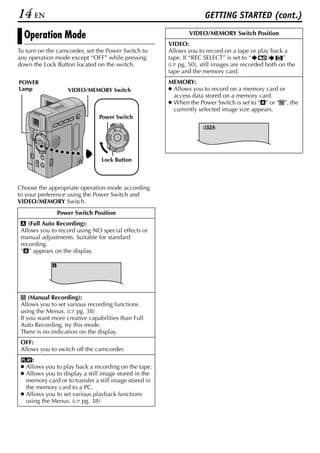
  Operation Mode                                               VIDEO/MEMORY Switch Position
                                                        VIDEO:
To turn on the camcorder, set the Power Switch to       Allows you to record on a tape or play back a
any operation mode except “OFF” while pressing          tape. If “REC SELECT” is set to “     /    ”
down the Lock Button located on the switch.             ( pg. 50), still images are recorded both on the
                                                        tape and the memory card.
POWER                                                   MEMORY:
Lamp               VIDEO/MEMORY Switch                  ● Allows you to record on a memory card or
                                                          access data stored on a memory card.
                                                        ● When the Power Switch is set to “A” or “M”, the
                                                          currently selected image size appears.
                                Power Switch
                                         OFF A M
                                    PLAY
                                                                     1024


                                 Lock Button


Choose the appropriate operation mode according
to your preference using the Power Switch and
VIDEO/MEMORY Switch.
               Power Switch Position
 A (Full Auto Recording):
 Allows you to record using NO special effects or
 manual adjustments. Suitable for standard
 recording.
 “A” appears on the display.


 M (Manual Recording):
 Allows you to set various recording functions
 using the Menus. ( pg. 38)
 If you want more creative capabilities than Full
 Auto Recording, try this mode.
 There is no indication on the display.
 OFF:
 Allows you to switch off the camcorder.
 P:
 ● Allows you to play back a recording on the tape.
 ● Allows you to display a still image stored in the
   memory card or to transfer a still image stored in
   the memory card to a PC.
 ● Allows you to set various playback functions
   using the Menus. ( pg. 38)
EN      15
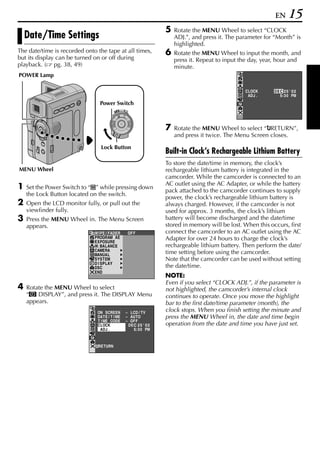
                                                                    5   Rotate the MENU Wheel to select “CLOCK
    Date/Time Settings                                                  ADJ.”, and press it. The parameter for “Month” is
                                                                        highlighted.
The date/time is recorded onto the tape at all times,               6   Rotate the MENU Wheel to input the month, and
but its display can be turned on or off during                          press it. Repeat to input the day, year, hour and
playback. ( pg. 38, 49)                                                 minute.
POWER Lamp

                                                                                                   CLOCK       D E C 25 ' 02
                                                                                                    ADJ .          5: 3 0 PM
                                 Power Switch
                                              OFF A M
                                         PLAY


                                                                    7   Rotate the MENU Wheel to select “BRETURN”,
                                                                        and press it twice. The Menu Screen closes.
                                 Lock Button
                                                                    Built-in Clock’s Rechargeable Lithium Battery
                                                                    To store the date/time in memory, the clock’s
MENU Wheel                                                          rechargeable lithium battery is integrated in the
                                                                    camcorder. While the camcorder is connected to an
                                                                    AC outlet using the AC Adapter, or while the battery
1   Set the Power Switch to “M” while pressing down
                                                                    pack attached to the camcorder continues to supply
    the Lock Button located on the switch.
                                                                    power, the clock’s rechargeable lithium battery is
2   Open the LCD monitor fully, or pull out the                     always charged. However, if the camcorder is not
    viewfinder fully.                                               used for approx. 3 months, the clock’s lithium
3   Press the MENU Wheel in. The Menu Screen                        battery will become discharged and the date/time
    appears.                                                        stored in memory will be lost. When this occurs, first
                              W I PE / FADER            OF F        connect the camcorder to an AC outlet using the AC
                              PROGRAM AE
                              EXPOSURE
                                                                    Adapter for over 24 hours to charge the clock’s
                              W. BAL ANC E                          rechargeable lithium battery. Then perform the date/
                              CAMERA                                time setting before using the camcorder.
                              MANUA L
                              SYSTEM                                Note that the camcorder can be used without setting
                              D I SPL AY
                              DSC                                   the date/time.
                              END
                                                                    NOTE:
                                                                    Even if you select “CLOCK ADJ.”, if the parameter is
4   Rotate the MENU Wheel to select                                 not highlighted, the camcorder’s internal clock
    “n DISPLAY”, and press it. The DISPLAY Menu                     continues to operate. Once you move the highlight
    appears.                                                        bar to the first date/time parameter (month), the
                               ON SCRE E N         – LCD / TV
                                                                    clock stops. When you finish setting the minute and
                               DATE / T I ME       – AU T O         press the MENU Wheel in, the date and time begin
                               T I ME CODE         – OF F
                               CLOCK                D E C 25 ' 02   operation from the date and time you have just set.
                                ADJ .                   5: 3 0 PM


                                RETURN
16 EN                                                                   GETTING STARTED (cont.)
                                                        To protect valuable recordings…
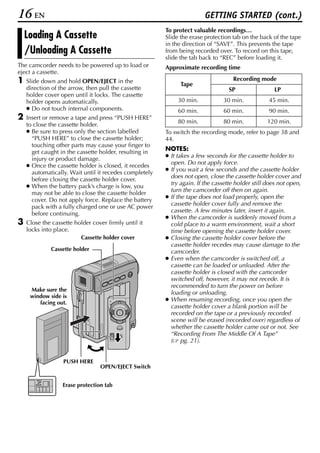
    Loading A Cassette                                  Slide the erase protection tab on the back of the tape
                                                        in the direction of “SAVE”. This prevents the tape
    /Unloading A Cassette                               from being recorded over. To record on this tape,
                                                        slide the tab back to “REC” before loading it.
The camcorder needs to be powered up to load or         Approximate recording time
eject a cassette.
1   Slide down and hold OPEN/EJECT in the
                                                              Tape
                                                                                    Recording mode
    direction of the arrow, then pull the cassette                                SP                 LP
    holder cover open until it locks. The cassette
    holder opens automatically.                              30 min.            30 min.           45 min.
    ● Do not touch internal components.                      60 min.            60 min.           90 min.
2   Insert or remove a tape and press “PUSH HERE”
                                                             80 min.            80 min.           120 min.
    to close the cassette holder.
    ● Be sure to press only the section labelled        To switch the recording mode, refer to page 38 and
      “PUSH HERE” to close the cassette holder;         44.
      touching other parts may cause your finger to
                                                        NOTES:
      get caught in the cassette holder, resulting in
                                                        ● It takes a few seconds for the cassette holder to
      injury or product damage.
                                                          open. Do not apply force.
    ● Once the cassette holder is closed, it recedes
                                                        ● If you wait a few seconds and the cassette holder
      automatically. Wait until it recedes completely
                                                          does not open, close the cassette holder cover and
      before closing the cassette holder cover.
                                                          try again. If the cassette holder still does not open,
    ● When the battery pack’s charge is low, you
                                                          turn the camcorder off then on again.
      may not be able to close the cassette holder
                                                        ● If the tape does not load properly, open the
      cover. Do not apply force. Replace the battery
                                                          cassette holder cover fully and remove the
      pack with a fully charged one or use AC power
                                                          cassette. A few minutes later, insert it again.
      before continuing.
                                                        ● When the camcorder is suddenly moved from a
3   Close the cassette holder cover firmly until it       cold place to a warm environment, wait a short
    locks into place.                                     time before opening the cassette holder cover.
                          Cassette holder cover         ● Closing the cassette holder cover before the
                                                          cassette holder recedes may cause damage to the
             Cassette holder                              camcorder.
                                                        ● Even when the camcorder is switched off, a
                                                          cassette can be loaded or unloaded. After the
                                                          cassette holder is closed with the camcorder
                                                          switched off, however, it may not recede. It is
                                                          recommended to turn the power on before
     Make sure the
                                                          loading or unloading.
     window side is
        facing out.
                                                        ● When resuming recording, once you open the
                                                          cassette holder cover a blank portion will be
                                                          recorded on the tape or a previously recorded
                                                          scene will be erased (recorded over) regardless of
                                                          whether the cassette holder came out or not. See
                                                          “Recording From The Middle Of A Tape”
                                                          ( pg. 21).


                  PUSH HERE
                                 OPEN/EJECT Switch


                  Erase protection tab
EN     17
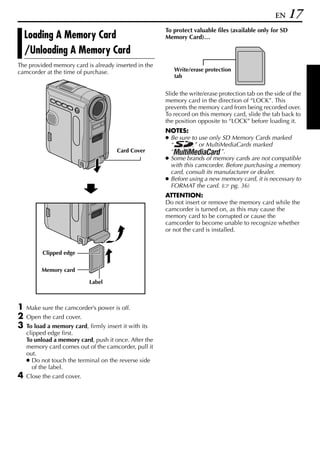
                                                       To protect valuable files (available only for SD
    Loading A Memory Card                              Memory Card)…

    /Unloading A Memory Card
The provided memory card is already inserted in the
camcorder at the time of purchase.                        Write/erase protection
                                                          tab


                                                       Slide the write/erase protection tab on the side of the
                                                       memory card in the direction of “LOCK”. This
                                                       prevents the memory card from being recorded over.
                                                       To record on this memory card, slide the tab back to
                                                       the position opposite to “LOCK” before loading it.
                                                       NOTES:
                                                       ● Be sure to use only SD Memory Cards marked
                                                         “         ” or MultiMediaCards marked
                                      Card Cover         “                   ”.
                                                       ● Some brands of memory cards are not compatible
                                                         with this camcorder. Before purchasing a memory
                                                         card, consult its manufacturer or dealer.
                                                       ● Before using a new memory card, it is necessary to
                                                         FORMAT the card. ( pg. 36)
                                                       ATTENTION:
                                                       Do not insert or remove the memory card while the
                                                       camcorder is turned on, as this may cause the
                                                       memory card to be corrupted or cause the
                                                       camcorder to become unable to recognize whether
                                                       or not the card is installed.


          Clipped edge


         Memory card

                            Label


1   Make sure the camcorder’s power is off.
2   Open the card cover.
3   To load a memory card, firmly insert it with its
    clipped edge first.
    To unload a memory card, push it once. After the
    memory card comes out of the camcorder, pull it
    out.
    ● Do not touch the terminal on the reverse side
      of the label.
4   Close the card cover.
18 EN

         VIDEO RECORDING & PLAYBACK
                                           CONTENTS
VIDEO RECORDING ..................................................................................... 19
  Basic Recording ....................................................................................... 19
  Tape Remaining Time ............................................................................... 19
  Zooming ................................................................................................ 20
  Journalistic Shooting ................................................................................ 20
  Self-Recording ........................................................................................ 20
  Time Code .............................................................................................. 21
  Recording From The Middle Of A Tape ....................................................... 21
VIDEO PLAYBACK ....................................................................................... 22
  Normal Playback ..................................................................................... 22
  Still Playback .......................................................................................... 22
  Shuttle Search ......................................................................................... 22
  Frame-By-Frame Playback ........................................................................ 22
  Blank Search ........................................................................................... 23
  Connections To A TV Or VCR .................................................................... 24
VIDEO RECORDING                                                                                     EN      19
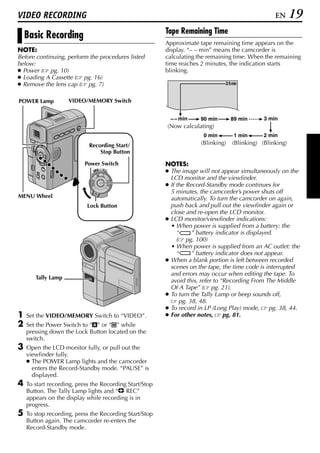
                                                         Tape Remaining Time
    Basic Recording
                                                         Approximate tape remaining time appears on the
NOTE:                                                    display. “– – min” means the camcorder is
Before continuing, perform the procedures listed         calculating the remaining time. When the remaining
below:                                                   time reaches 2 minutes, the indication starts
● Power ( pg. 10)                                        blinking.
● Loading A Cassette ( pg. 16)
● Remove the lens cap ( pg. 7)                                                  25 min


POWER Lamp          VIDEO/MEMORY Switch


                                                             min      90 min        89 min      3 min
                                                         (Now calculating)
                                                                        0 min        1 min      2 min
                            Recording Start/                           (Blinking)   (Blinking) (Blinking)
                                Stop Button

                           Power Switch                  NOTES:
                              PLAY
                                     OFF A M
                                                         ● The image will not appear simultaneously on the
                                                           LCD monitor and the viewfinder.
                                                         ● If the Record-Standby mode continues for
                                                           5 minutes, the camcorder’s power shuts off
MENU Wheel                                                 automatically. To turn the camcorder on again,
                            Lock Button                    push back and pull out the viewfinder again or
                                                           close and re-open the LCD monitor.
                                                         ● LCD monitor/viewfinder indications:
                                                           • When power is supplied from a battery: the
                                                              “     ” battery indicator is displayed.
                                                              ( pg. 100)
                                                           • When power is supplied from an AC outlet: the
                                                              “     ” battery indicator does not appear.
                                                         ● When a blank portion is left between recorded
                                                           scenes on the tape, the time code is interrupted
                                                           and errors may occur when editing the tape. To
       Tally Lamp
                                                           avoid this, refer to “Recording From The Middle
                                                           Of A Tape” ( pg. 21).
                                                         ● To turn the Tally Lamp or beep sounds off,
                                                               pg. 38, 48.
                                                         ● To record in LP (Long Play) mode,       pg. 38, 44.
1   Set the VIDEO/MEMORY Switch to “VIDEO”.              ● For other notes,      pg. 81.
2   Set the Power Switch to “A” or “M” while
    pressing down the Lock Button located on the
    switch.
3   Open the LCD monitor fully, or pull out the
    viewfinder fully.
    ● The POWER Lamp lights and the camcorder
      enters the Record-Standby mode. “PAUSE” is
      displayed.
4   To start recording, press the Recording Start/Stop
    Button. The Tally Lamp lights and “T REC”
    appears on the display while recording is in
    progress.
5   To stop recording, press the Recording Start/Stop
    Button again. The camcorder re-enters the
    Record-Standby mode.
20 EN                                                                        VIDEO RECORDING (cont.)
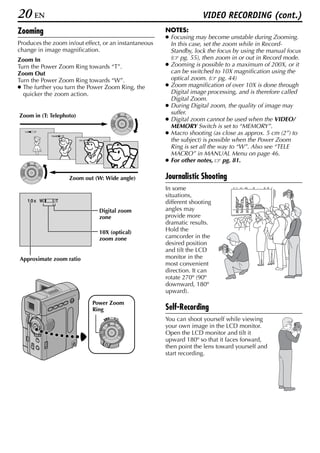
Zooming                                                        NOTES:
                                                               ● Focusing may become unstable during Zooming.
Produces the zoom in/out effect, or an instantaneous             In this case, set the zoom while in Record-
change in image magnification.                                   Standby, lock the focus by using the manual focus
Zoom In                                                          ( pg. 55), then zoom in or out in Record mode.
Turn the Power Zoom Ring towards “T”.                          ● Zooming is possible to a maximum of 200X, or it
Zoom Out                                                         can be switched to 10X magnification using the
Turn the Power Zoom Ring towards “W”.                            optical zoom. ( pg. 44)
● The further you turn the Power Zoom Ring, the                ● Zoom magnification of over 10X is done through
  quicker the zoom action.                                       Digital image processing, and is therefore called
                                                                 Digital Zoom.
                                                               ● During Digital zoom, the quality of image may
                                                                 suffer.
Zoom in (T: Telephoto)
                                                               ● Digital zoom cannot be used when the VIDEO/
                                                                 MEMORY Switch is set to “MEMORY”.
  1 xW   T
             1 0 xW   T
                                                               ● Macro shooting (as close as approx. 5 cm (2”) to
                             20xW   T                            the subject) is possible when the Power Zoom
                                              40xW         T
                                                                 Ring is set all the way to “W”. Also see “TELE
                                                                 MACRO” in MANUAL Menu on page 46.
                                                               ● For other notes,      pg. 81.

                          Zoom out (W: Wide angle)             Journalistic Shooting
                                                               In some
                                                               situations,
    10x W        T                                             different shooting
                                          Digital zoom         angles may
                                          zone                 provide more
                                                               dramatic results.
                                          10X (optical)        Hold the
                                          zoom zone            camcorder in the
                                                               desired position
                                                               and tilt the LCD
Approximate zoom ratio                                         monitor in the
                                                               most convenient
                                                               direction. It can
                                                               rotate 270º (90º
                                                               downward, 180º
                                                               upward).
                                        Power Zoom
                                        Ring                   Self-Recording
                                            PLAY
                                                 OFF A M
                                                               You can shoot yourself while viewing
                                                               your own image in the LCD monitor.
                                                               Open the LCD monitor and tilt it
                                                               upward 180º so that it faces forward,
                                                               then point the lens toward yourself and
                                                               start recording.
EN   21
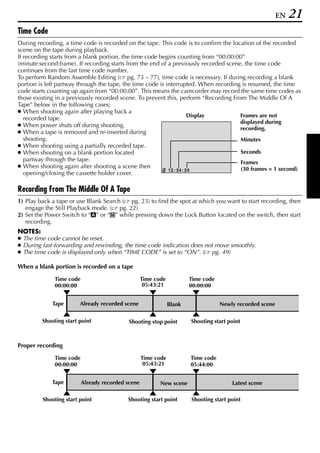
Time Code
During recording, a time code is recorded on the tape. This code is to confirm the location of the recorded
scene on the tape during playback.
If recording starts from a blank portion, the time code begins counting from “00:00:00”
(minute:second:frame). If recording starts from the end of a previously recorded scene, the time code
continues from the last time code number.
To perform Random Assemble Editing ( pg. 73 – 77), time code is necessary. If during recording a blank
portion is left partway through the tape, the time code is interrupted. When recording is resumed, the time
code starts counting up again from “00:00:00”. This means the camcorder may record the same time codes as
those existing in a previously recorded scene. To prevent this, perform “Recording From The Middle Of A
Tape” below in the following cases;
● When shooting again after playing back a
                                                                       Display        Frames are not
   recorded tape.
                                                                                      displayed during
● When power shuts off during shooting.
                                                                                      recording.
● When a tape is removed and re-inserted during
   shooting.                                                                          Minutes
● When shooting using a partially recorded tape.
● When shooting on a blank portion located                                            Seconds
   partway through the tape.                                                          Frames
● When shooting again after shooting a scene then                                     (30 frames = 1 second)
                                                            12 : 34 : 24
   opening/closing the cassette holder cover.

Recording From The Middle Of A Tape
1) Play back a tape or use Blank Search ( pg. 23) to find the spot at which you want to start recording, then
   engage the Still Playback mode. ( pg. 22)
2) Set the Power Switch to “A” or “M” while pressing down the Lock Button located on the switch, then start
   recording.
NOTES:
● The time code cannot be reset.
● During fast-forwarding and rewinding, the time code indication does not move smoothly.
● The time code is displayed only when “TIME CODE” is set to “ON”. ( pg. 49)

When a blank portion is recorded on a tape

              Time code                            Time code           Time code
              00:00:00                              05:43:21           00:00:00


             Tape       Already recorded scene                 Blank               Newly recorded scene

         Shooting start point               Shooting stop point        Shooting start point


Proper recording

              Time code                            Time code           Time code
              00:00:00                              05:43:21           05:44:00


             Tape         Already recorded scene          New scene                    Latest scene

         Shooting start point              Shooting start point        Shooting start point
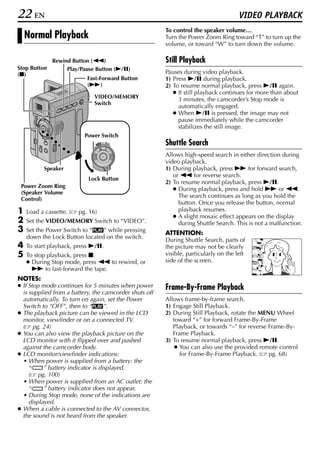
22 EN                                                                                 VIDEO PLAYBACK
                                                        To control the speaker volume…
    Normal Playback                                     Turn the Power Zoom Ring toward “T” to turn up the
                                                        volume, or toward “W” to turn down the volume.

              Rewind Button (3)                         Still Playback
Stop Button        Play/Pause Button (4/9)
(8)                                                     Pauses during video playback.
                            Fast-Forward Button         1) Press 4/9 during playback.
                            (5)                         2) To resume normal playback, press 4/9 again.
                                                           ● If still playback continues for more than about
                               VIDEO/MEMORY                  3 minutes, the camcorder’s Stop mode is
                               Switch
                                                             automatically engaged.
                                                           ● When 4/9 is pressed, the image may not
                                                             pause immediately while the camcorder
                                                             stabilizes the still image.
                           Power Switch
                               PLAY
                                      OFF A M
                                                        Shuttle Search
                                                        Allows high-speed search in either direction during
                                                        video playback.
           Speaker                                      1) During playback, press 5 for forward search,
                                                           or 3 for reverse search.
                            Lock Button
                                                        2) To resume normal playback, press 4/9.
 Power Zoom Ring
                                                           ● During playback, press and hold 5 or 3.
 (Speaker Volume
                                                             The search continues as long as you hold the
 Control)
                                                             button. Once you release the button, normal
1   Load a cassette. (   pg. 16)                             playback resumes.
                                                           ● A slight mosaic effect appears on the display
2   Set the VIDEO/MEMORY Switch to “VIDEO”.                  during Shuttle Search. This is not a malfunction.
3   Set the Power Switch to “P” while pressing          ATTENTION:
    down the Lock Button located on the switch.         During Shuttle Search, parts of
4   To start playback, press 4/9.                       the picture may not be clearly
5   To stop playback, press 8.                          visible, particularly on the left
    ● During Stop mode, press 3 to rewind, or           side of the screen.
      5 to fast-forward the tape.
NOTES:
● If Stop mode continues for 5 minutes when power       Frame-By-Frame Playback
  is supplied from a battery, the camcorder shuts off
  automatically. To turn on again, set the Power        Allows frame-by-frame search.
  Switch to “OFF”, then to “P”.                         1) Engage Still Playback.
● The playback picture can be viewed in the LCD         2) During Still Playback, rotate the MENU Wheel
  monitor, viewfinder or on a connected TV.                toward “+” for forward Frame-By-Frame
  ( pg. 24)                                                Playback, or towards “–” for reverse Frame-By-
● You can also view the playback picture on the            Frame Playback.
  LCD monitor with it flipped over and pushed           3) To resume normal playback, press 4/9.
  against the camcorder body.                               ● You can also use the provided remote control
● LCD monitor/viewfinder indications:                         for Frame-By-Frame Playback. ( pg. 68)
  • When power is supplied from a battery: the
     “     ” battery indicator is displayed.
     ( pg. 100)
  • When power is supplied from an AC outlet: the
     “     ” battery indicator does not appear.
  • During Stop mode, none of the indications are
     displayed.
● When a cable is connected to the AV connector,
  the sound is not heard from the speaker.
EN     23
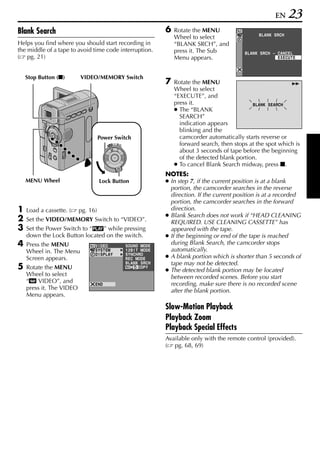
Blank Search                                                         6   Rotate the MENU
                                                                                                          BLANK SRCH
                                                                         Wheel to select
Helps you find where you should start recording in                       “BLANK SRCH”, and
the middle of a tape to avoid time code interruption.                    press it. The Sub          BLANK SRCH – CANCEL
( pg. 21)                                                                Menu appears.                           EXECUTE


    Stop Button (8)       VIDEO/MEMORY Switch
                                                                     7   Rotate the MENU                              5
                                                                         Wheel to select
                                                                         “EXECUTE”, and
                                                                         press it.                     BLANK SEARCH
                                                                         ● The “BLANK
                                                                           SEARCH”
                                                                           indication appears
                                                                           blinking and the
                                    Power Switch                           camcorder automatically starts reverse or
                                       PLAY
                                            OFF A M
                                                                           forward search, then stops at the spot which is
                                                                           about 3 seconds of tape before the beginning
                                                                           of the detected blank portion.
                                                                         ● To cancel Blank Search midway, press 8.
                                                                     NOTES:
    MENU Wheel                      Lock Button                      ● In step 7, if the current position is at a blank
                                                                       portion, the camcorder searches in the reverse
                                                                       direction. If the current position is at a recorded
                                                                       portion, the camcorder searches in the forward
1   Load a cassette. (    pg. 16)                                      direction.
                                                                     ● Blank Search does not work if “HEAD CLEANING
2   Set the VIDEO/MEMORY Switch to “VIDEO”.                            REQUIRED. USE CLEANING CASSETTE” has
3   Set the Power Switch to “P” while pressing                         appeared with the tape.
    down the Lock Button located on the switch.                      ● If the beginning or end of the tape is reached
4   Press the MENU              V I DEO               SOUND MODE
                                                                       during Blank Search, the camcorder stops
    Wheel in. The Menu          SYSTEM                12B I T MODE     automatically.
    Screen appears.
                                D I SPL AY            SYNCHRO
                                                      REC MODE       ● A blank portion which is shorter than 5 seconds of
                                                      BLANK S RCH      tape may not be detected.
5   Rotate the MENU                                          COPY
                                                                     ● The detected blank portion may be located
    Wheel to select                                                    between recorded scenes. Before you start
    “t VIDEO”, and              END                                    recording, make sure there is no recorded scene
    press it. The VIDEO                                                after the blank portion.
    Menu appears.

                                                                     Slow-Motion Playback
                                                                     Playback Zoom
                                                                     Playback Special Effects
                                                                     Available only with the remote control (provided).
                                                                     ( pg. 68, 69)
24 EN                                                                     VIDEO PLAYBACK (cont.)

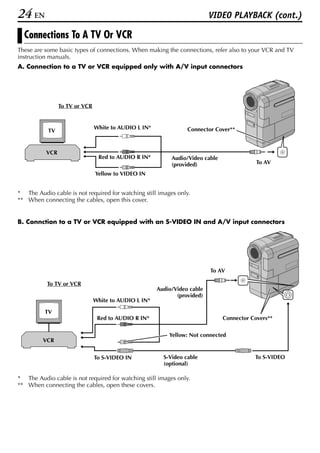
  Connections To A TV Or VCR
These are some basic types of connections. When making the connections, refer also to your VCR and TV
instruction manuals.
A. Connection to a TV or VCR equipped only with A/V input connectors


                To TV or VCR


                               White to AUDIO L IN*              Connector Cover**
           TV


          VCR
                                Red to AUDIO R IN*         Audio/Video cable
                                                           (provided)                      To AV

                               Yellow to VIDEO IN


* The Audio cable is not required for watching still images only.
** When connecting the cables, open this cover.


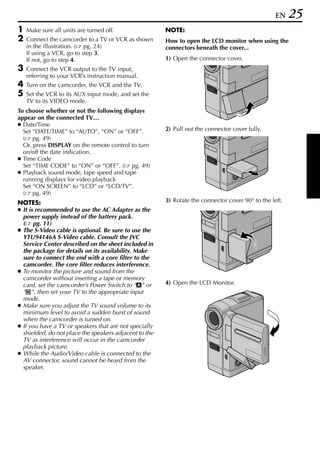
B. Connction to a TV or VCR equipped with an S-VIDEO IN and A/V input connectors


                                                                          To AV

           To TV or VCR
                                                      Audio/Video cable
                                                             (provided)
                               White to AUDIO L IN*

          TV
                                Red to AUDIO R IN*                             Connector Covers**

                                                          Yellow: Not connected
         VCR


                               To S-VIDEO IN            S-Video cable                     To S-VIDEO
                                                        (optional)

* The Audio cable is not required for watching still images only.
** When connecting the cables, open these covers.
EN    25
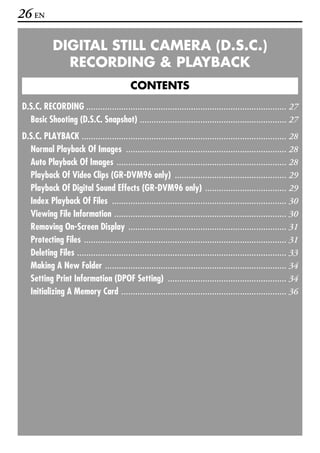
1   Make sure all units are turned off.                 NOTE:
2   Connect the camcorder to a TV or VCR as shown       How to open the LCD monitor when using the
    in the illustration. ( pg. 24)                      connectors beneath the cover...
    If using a VCR, go to step 3.
    If not, go to step 4.                               1) Open the connector cover.
3   Connect the VCR output to the TV input,
    referring to your VCR’s instruction manual.
4   Turn on the camcorder, the VCR and the TV.
5   Set the VCR to its AUX input mode, and set the
    TV to its VIDEO mode.
To choose whether or not the following displays
appear on the connected TV…
● Date/Time
  Set “DATE/TIME” to “AUTO”, “ON” or “OFF”.             2) Pull out the connector cover fully.
  ( pg. 49)
  Or, press DISPLAY on the remote control to turn
  on/off the date indication.
● Time Code
  Set “TIME CODE” to “ON” or “OFF”. ( pg. 49)
● Playback sound mode, tape speed and tape
  running displays for video playback
  Set “ON SCREEN” to “LCD” or “LCD/TV”.
  ( pg. 49)
NOTES:                                                  3) Rotate the connector cover 90° to the left.
● It is recommended to use the AC Adapter as the
  power supply instead of the battery pack.
  ( pg. 11)
● The S-Video cable is optional. Be sure to use the
  YTU94146A S-Video cable. Consult the JVC
  Service Center described on the sheet included in
  the package for details on its availability. Make
  sure to connect the end with a core filter to the
  camcorder. The core filter reduces interference.
● To monitor the picture and sound from the
  camcorder without inserting a tape or memory
  card, set the camcorder’s Power Switch to “A” or      4) Open the LCD Monitor.
  “M”, then set your TV to the appropriate input
  mode.
● Make sure you adjust the TV sound volume to its
  minimum level to avoid a sudden burst of sound
  when the camcorder is turned on.
● If you have a TV or speakers that are not specially
  shielded, do not place the speakers adjacent to the
  TV as interference will occur in the camcorder
  playback picture.
● While the Audio/Video cable is connected to the
  AV connector, sound cannot be heard from the
  speaker.
26 EN

            DIGITAL STILL CAMERA (D.S.C.)
              RECORDING & PLAYBACK
                                           CONTENTS
D.S.C. RECORDING ...................................................................................... 27
  Basic Shooting (D.S.C. Snapshot) ............................................................... 27
D.S.C. PLAYBACK ........................................................................................ 28
  Normal Playback Of Images ..................................................................... 28
  Auto Playback Of Images ......................................................................... 28
  Playback Of Video Clips (GR-DVM96 only) ................................................ 29
  Playback Of Digital Sound Effects (GR-DVM96 only) ................................... 29
  Index Playback Of Files ........................................................................... 30
  Viewing File Information .......................................................................... 30
  Removing On-Screen Display .................................................................... 31
  Protecting Files ....................................................................................... 31
  Deleting Files .......................................................................................... 33
  Making A New Folder .............................................................................. 34
  Setting Print Information (DPOF Setting) ................................................... 34
  Initializing A Memory Card ....................................................................... 36
D.S.C. RECORDING                                                                                 EN   27
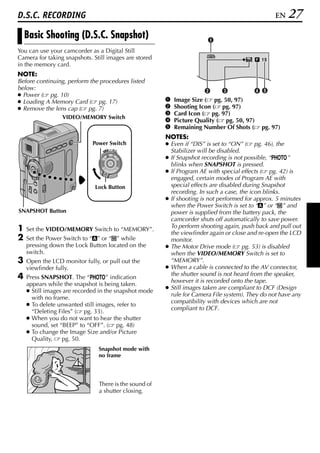
    Basic Shooting (D.S.C. Snapshot)                                   A
You can use your camcorder as a Digital Still
                                                                       1024
Camera for taking snapshots. Still images are stored                                       15
in the memory card.
NOTE:
Before continuing, perform the procedures listed
below:                                                                B      C          DE
● Power ( pg. 10)
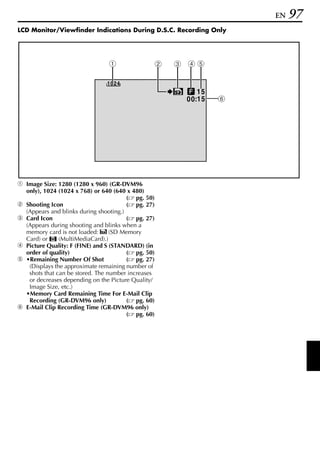
● Loading A Memory Card ( pg. 17)                      A   Image Size ( pg. 50, 97)
● Remove the lens cap ( pg. 7)                         B   Shooting Icon ( pg. 97)
                                                       C   Card Icon ( pg. 97)
                 VIDEO/MEMORY Switch
                                                       D   Picture Quality ( pg. 50, 97)
                                                       E   Remaining Number Of Shots ( pg. 97)
                                                       NOTES:
                             Power Switch              ● Even if “DIS” is set to “ON” ( pg. 46), the
                                 PLAY
                                      OFF A M
                                                         Stabilizer will be disabled.
                                                       ● If Snapshot recording is not possible, “O”
                                                         blinks when SNAPSHOT is pressed.
                                                       ● If Program AE with special effects ( pg. 42) is
                                                         engaged, certain modes of Program AE with
                              Lock Button                special effects are disabled during Snapshot
                                                         recording. In such a case, the icon blinks.
                                                       ● If shooting is not performed for approx. 5 minutes
                                                         when the Power Switch is set to “A” or “M” and
SNAPSHOT Button                                          power is supplied from the battery pack, the
                                                         camcorder shuts off automatically to save power.
                                                         To perform shooting again, push back and pull out
1   Set the VIDEO/MEMORY Switch to “MEMORY”.
                                                         the viewfinder again or close and re-open the LCD
2   Set the Power Switch to “A” or “M” while             monitor.
    pressing down the Lock Button located on the       ● The Motor Drive mode ( pg. 53) is disabled
    switch.                                              when the VIDEO/MEMORY Switch is set to
3   Open the LCD monitor fully, or pull out the          “MEMORY”.
    viewfinder fully.                                  ● When a cable is connected to the AV connector,
                                                         the shutter sound is not heard from the speaker,
4   Press SNAPSHOT. The “O” indication
                                                         however it is recorded onto the tape.
    appears while the snapshot is being taken.
                                                       ● Still images taken are compliant to DCF (Design
    ● Still images are recorded in the snapshot mode
                                                         rule for Camera File system). They do not have any
      with no frame.
                                                         compatibility with devices which are not
    ● To delete unwanted still images, refer to
                                                         compliant to DCF.
      “Deleting Files” ( pg. 33).
    ● When you do not want to hear the shutter
      sound, set “BEEP” to “OFF”. ( pg. 48)
    ● To change the Image Size and/or Picture
      Quality,    pg. 50.
                               Snapshot mode with
                               no frame


                               There is the sound of
                               a shutter closing.
28 EN                                                                               D.S.C. PLAYBACK
                                                       ● Images shot in a file size other than “640 x 480”,
    Normal Playback Of Images                            “1024 x 768” and “1280 x 960” (GR-DVM96
                                                         only) with another devices will be displayed
Images shot with the camcorder are automatically         thumbnail images. These thumbnail images
numbered, then stored in numerical order in the          cannot be transferred to a PC.
memory card. You can view the stored images, one       ● Images shot with devices (such as
at a time, much like flipping through a photo album.     JVC GR-DVM70) that are not compatible with
Stop Button (8)/                                         DCF cannot be viewed with this
                 Rewind Button (3)
SELECT Button                                            camcorder; “UNSUPPORTED FILES” will be
(GR-DVM96 only)                                          displayed.
                   Play/Pause Button (4/9)
                           Fast-Forward Button
                           (5)                             Auto Playback Of Images
                                 VIDEO/MEMORY          You can run through all the images stored in
                                 Switch                memory card automatically.
                                                       1   Perform steps 1 – 6 in “Normal Playback Of
                                                           Images”.
                                                       2   Press 4/9 to start Auto Playback.
                              Power Switch                 ● If you press 3 during Auto Playback, files
                                     OFF A M
                                PLAY
                                                             are displayed in descending order.
                                                           ● If you press 5 during Auto Playback, files
                                                             are displayed in ascending order.
 MENU Wheel                                            3   To end Auto Playback, press 8.
                             Lock Button                [For Normal Playback]
                                                        To display the next image     [For Auto Playback]
                                                                      Image playback screen
1   Load a memory card. (    pg. 17)                                        (IMAGE)
2   Set the VIDEO/MEMORY Switch to “MEMORY”.
3   Set the Power Switch to “P” while pressing
    down the Lock Button located on the switch.
4   Open the LCD monitor fully, or pull out the
    viewfinder fully.
    ● The type of file (IMAGE, E-MAIL CLIP or
      SOUND) which has been played back at the
      last time is displayed.
5   If the video clip playback (E-MAIL CLIP,
    ( pg. 29)) or the digital sound playback
    (SOUND, ( pg. 29)) screen appears, press
    SELECT. The MEMORY SELECT screen appears.
6   Rotate the MENU Wheel to select “IMAGE”, and
    press it. The image playback screen (IMAGE)
    appears.
7   Press 3 to display the previous file. Press 5
    to display the next file.
    ● Pressing INFO gives you details on the
      displayed file. ( pg. 30)
    ● You can also look for the desired file using
      Index Screen. ( pg. 30)
    ● You can turn off the on-screen playback
      display. ( pg. 31)
NOTES:
● Even if you shoot a new image after playing back a    To display the previous
  low-numbered one, this will not overwrite an          image
  existing image, because new images are
  automatically stored after the last-recorded one.
EN   29
    Playback Of Video Clips                                Playback Of Digital Sound Effects
    (GR-DVM96 only)                                        (GR-DVM96 only)
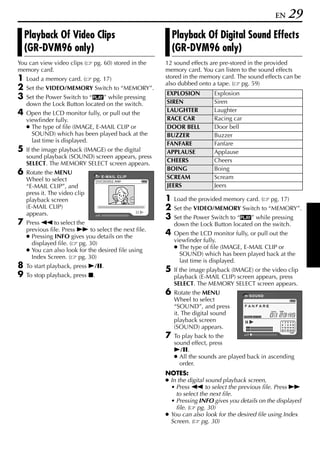
You can view video clips (     pg. 60) stored in the   12 sound effects are pre-stored in the provided
memory card.                                           memory card. You can listen to the sound effects
1   Load a memory card. (      pg. 17)                 stored in the memory card. The sound effects can be
                                                       also dubbed onto a tape. ( pg. 59)
2   Set the VIDEO/MEMORY Switch to “MEMORY”.
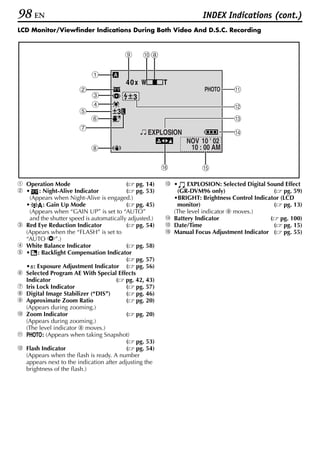
                                                       EXPLOSION          Explosion
3   Set the Power Switch to “P” while pressing
    down the Lock Button located on the switch.        SIREN              Siren
4   Open the LCD monitor fully, or pull out the        LAUGHTER           Laughter
    viewfinder fully.                                  RACE CAR           Racing car
    ● The type of file (IMAGE, E-MAIL CLIP or          DOOR BELL          Door bell
      SOUND) which has been played back at the         BUZZER             Buzzer
      last time is displayed.                          FANFARE            Fanfare
5   If the image playback (IMAGE) or the digital       APPLAUSE           Applause
    sound playback (SOUND) screen appears, press
                                                       CHEERS             Cheers
    SELECT. The MEMORY SELECT screen appears.
                                                       BOING              Boing
6   Rotate the MENU
    Wheel to select
                                  E- M A I L C L I P   SCREAM             Scream
    “E-MAIL CLIP”, and                                 JEERS              Jeers
    press it. The video clip
    playback screen                                    1   Load the provided memory card. (    pg. 17)
    (E-MAIL CLIP)                                      2   Set the VIDEO/MEMORY Switch to “MEMORY”.
    appears.
                                                       3   Set the Power Switch to “P” while pressing
7   Press 3 to select the                                  down the Lock Button located on the switch.
    previous file. Press 5 to select the next file.
    ● Pressing INFO gives you details on the
                                                       4   Open the LCD monitor fully, or pull out the
                                                           viewfinder fully.
      displayed file. ( pg. 30)
                                                           ● The type of file (IMAGE, E-MAIL CLIP or
    ● You can also look for the desired file using
                                                             SOUND) which has been played back at the
      Index Screen. ( pg. 30)
                                                             last time is displayed.
8   To start playback, press 4/9.
                                                       5   If the image playback (IMAGE) or the video clip
9   To stop playback, press 8.                             playback (E-MAIL CLIP) screen appears, press
                                                           SELECT. The MEMORY SELECT screen appears.
                                                       6   Rotate the MENU             SOUND
                                                           Wheel to select
                                                           “SOUND”, and press
                                                           it. The digital sound
                                                           playback screen
                                                           (SOUND) appears.
                                                       7   To play back to the
                                                           sound effect, press
                                                           4/9.
                                                           ● All the sounds are played back in ascending
                                                             order.
                                                       NOTES:
                                                       ● In the digital sound playback screen,
                                                         • Press 3 to select the previous file. Press 5
                                                           to select the next file.
                                                         • Pressing INFO gives you details on the displayed
                                                           file. ( pg. 30)
                                                       ● You can also look for the desired file using Index
                                                         Screen. ( pg. 30)
30 EN                                                                           D.S.C. PLAYBACK (cont.)

    Index Playback Of Files                              Viewing File Information
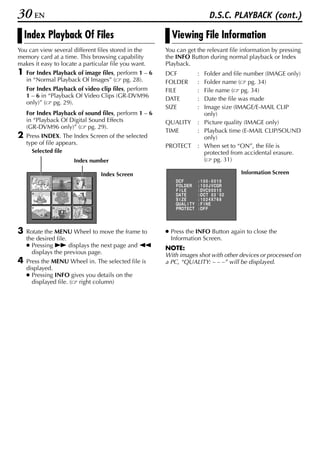
You can view several different files stored in the     You can get the relevant file information by pressing
memory card at a time. This browsing capability        the INFO Button during normal playback or Index
makes it easy to locate a particular file you want.    Playback.
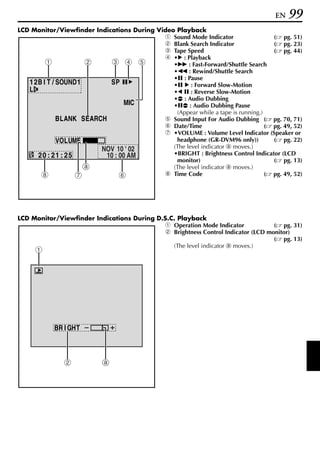
1   For Index Playback of image files, perform 1 – 6   DCF                : Folder and file number (IMAGE only)
    in “Normal Playback Of Images” ( pg. 28).          FOLDER             : Folder name ( pg. 34)
    For Index Playback of video clip files, perform    FILE               : File name ( pg. 34)
    1 – 6 in “Playback Of Video Clips (GR-DVM96
                                                       DATE               : Date the file was made
    only)” ( pg. 29).
                                                       SIZE               : Image size (IMAGE/E-MAIL CLIP
    For Index Playback of sound files, perform 1 – 6                        only)
    in “Playback Of Digital Sound Effects              QUALITY            : Picture quality (IMAGE only)
    (GR-DVM96 only)” ( pg. 29).
                                                       TIME               : Playback time (E-MAIL CLIP/SOUND
2   Press INDEX. The Index Screen of the selected                           only)
    type of file appears.                              PROTECT            : When set to “ON”, the file is
      Selected file                                                         protected from accidental erasure.
                      Index number                                          ( pg. 31)

                                 Index Screen                                               Information Screen
      1       2       3
                                                           DCF            : 100 - 0010
                                                           FOL DER        : 1 0 0 J V CGR
                                                           F I LE         : DVC 0 0 0 1 0
      4       5       6                                    DA T E         : OCT 0 3 ' 0 2
                                                           S I ZE         : 1 0 2 4X7 6 8
                                                           QUA L I T Y    : F I NE
      7       8       9                                    P RO T E C T   : OF F


3   Rotate the MENU Wheel to move the frame to         ● Press the INFO Button again to close the
    the desired file.                                    Information Screen.
    ● Pressing 5 displays the next page and 3          NOTE:
      displays the previous page.                      With images shot with other devices or processed on
4   Press the MENU Wheel in. The selected file is      a PC, “QUALITY: – – –” will be displayed.
    displayed.
    ● Pressing INFO gives you details on the
      displayed file. ( right column)
EN   31
    Removing On-Screen Display                            Protecting Files
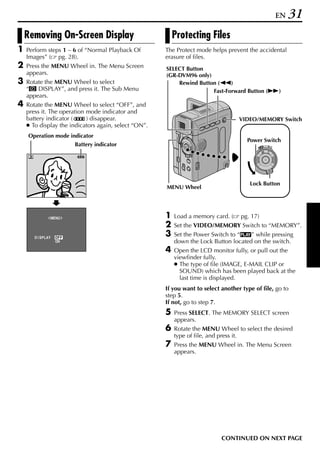
1   Perform steps 1 – 6 of “Normal Playback Of        The Protect mode helps prevent the accidental
    Images” ( pg. 28).                                erasure of files.
2   Press the MENU Wheel in. The Menu Screen          SELECT Button
    appears.                                          (GR-DVM96 only)
3   Rotate the MENU Wheel to select                       Rewind Button (3)
    “n DISPLAY”, and press it. The Sub Menu                           Fast-Forward Button (5)
    appears.
4   Rotate the MENU Wheel to select “OFF”, and
    press it. The operation mode indicator and
    battery indicator (     ) disappear.                                           VIDEO/MEMORY Switch
    ● To display the indicators again, select “ON”.
    Operation mode indicator
                                                                                      Power Switch
                               Battery indicator                                           PLAY
                                                                                                OFF A M


                                                                                       Lock Button
                                                      MENU Wheel


               ME NU                                  1   Load a memory card. (     pg. 17)
                                                      2   Set the VIDEO/MEMORY Switch to “MEMORY”.
       D I SPLAY   OF F
                                                      3   Set the Power Switch to “P” while pressing
                   ON                                     down the Lock Button located on the switch.
                      RETURN
                                                      4   Open the LCD monitor fully, or pull out the
                                                          viewfinder fully.
                                                          ● The type of file (IMAGE, E-MAIL CLIP or
                                                            SOUND) which has been played back at the
                                                            last time is displayed.
                                                      If you want to select another type of file, go to
                                                      step 5.
                                                      If not, go to step 7.
                                                      5   Press SELECT. The MEMORY SELECT screen
                                                          appears.
                                                      6   Rotate the MENU Wheel to select the desired
                                                          type of file, and press it.
                                                      7   Press the MENU Wheel in. The Menu Screen
                                                          appears.


                                                                            CONTINUED ON NEXT PAGE
32 EN                                                                         D.S.C. PLAYBACK (cont.)
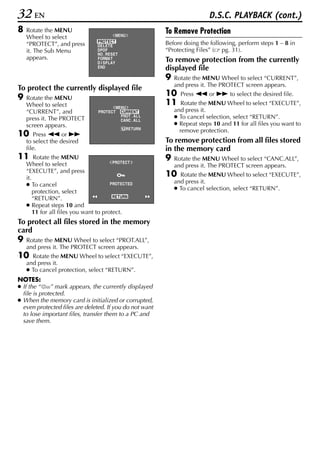
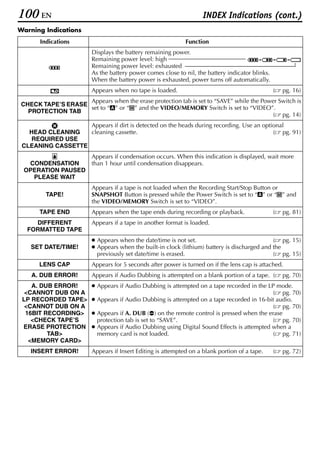
8   Rotate the MENU                                          To Remove Protection
    Wheel to select                        MENU
                                  PROTECT                    Before doing the following, perform steps 1 – 8 in
    “PROTECT”, and press          DELETE
    it. The Sub Menu              DPOF                       “Protecting Files” ( pg. 31).
                                  NO . RESET
    appears.                      FORMAT                     To remove protection from the currently
                                  D I SPLAY
                                  END                        displayed file
                                                             9   Rotate the MENU Wheel to select “CURRENT”,
                                                                 and press it. The PROTECT screen appears.
To protect the currently displayed file
9   Rotate the MENU
                                                             10    Press 3 or 5 to select the desired file.
    Wheel to select                         ME NU
                                                             11     Rotate the MENU Wheel to select “EXECUTE”,
    “CURRENT”, and                PROTECT      CURRENT           and press it.
    press it. The PROTECT                      PROT . AL L
                                               CANC . AL L
                                                                 ● To cancel selection, select “RETURN”.
    screen appears.                                              ● Repeat steps 10 and 11 for all files you want to
                                                  RETURN
                                                                   remove protection.
10     Press 3 or 5
    to select the desired                                    To remove protection from all files stored
    file.                                                    in the memory card
11      Rotate the MENU                                      9   Rotate the MENU Wheel to select “CANC.ALL”,
                                         P ROTECT
    Wheel to select                                              and press it. The PROTECT screen appears.
    “EXECUTE”, and press
    it.
                                                             10    Rotate the MENU Wheel to select “EXECUTE”,
                                                                 and press it.
    ● To cancel                         PROTECTED
                                                                 ● To cancel selection, select “RETURN”.
        protection, select
        “RETURN”.                        RETURN

    ● Repeat steps 10 and
        11 for all files you want to protect.
To protect all files stored in the memory
card
9   Rotate the MENU Wheel to select “PROT.ALL”,
    and press it. The PROTECT screen appears.
10    Rotate the MENU Wheel to select “EXECUTE”,
    and press it.
    ● To cancel protection, select “RETURN”.
NOTES:
● If the “    ” mark appears, the currently displayed
  file is protected.
● When the memory card is initialized or corrupted,
  even protected files are deleted. If you do not want
  to lose important files, transfer them to a PC and
  save them.
EN       33
                                                         To delete the currently displayed file
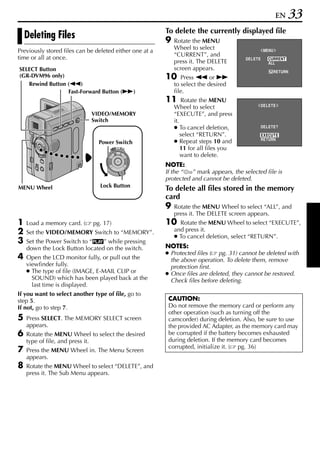
    Deleting Files                                       9   Rotate the MENU
                                                             Wheel to select
Previously stored files can be deleted either one at a                                            ME NU
                                                             “CURRENT”, and
time or all at once.                                                                    DELETE      CURRENT
                                                             press it. The DELETE                   ALL
SELECT Button                                                screen appears.                              RETURN
(GR-DVM96 only)                                          10     Press 3 or 5
   Rewind Button (3)                                         to select the desired
                 Fast-Forward Button (5)                     file.
                                                         11      Rotate the MENU
                                                             Wheel to select                     D ELETE

                             VIDEO/MEMORY                    “EXECUTE”, and press
                             Switch                          it.
                                                             ● To cancel deletion,               DELETE?
                                                                 select “RETURN”.                EXECUTE
                                Power Switch                 ● Repeat steps 10 and               RETURN

                                     PLAY
                                          OFF A M
                                                                 11 for all files you
                                                                 want to delete.
                                                         NOTE:
                                                         If the “  ” mark appears, the selected file is
                                                         protected and cannot be deleted.
                                Lock Button
MENU Wheel                                               To delete all files stored in the memory
                                                         card
                                                         9   Rotate the MENU Wheel to select “ALL”, and
                                                             press it. The DELETE screen appears.
1   Load a memory card. (     pg. 17)                    10    Rotate the MENU Wheel to select “EXECUTE”,
2   Set the VIDEO/MEMORY Switch to “MEMORY”.                 and press it.
                                                             ● To cancel deletion, select “RETURN”.
3   Set the Power Switch to “P” while pressing
    down the Lock Button located on the switch.          NOTES:
                                                         ● Protected files ( pg. 31) cannot be deleted with
4   Open the LCD monitor fully, or pull out the            the above operation. To delete them, remove
    viewfinder fully.                                      protection first.
    ● The type of file (IMAGE, E-MAIL CLIP or            ● Once files are deleted, they cannot be restored.
      SOUND) which has been played back at the             Check files before deleting.
      last time is displayed.
If you want to select another type of file, go to
step 5.                                                   CAUTION:
If not, go to step 7.                                     Do not remove the memory card or perform any
                                                          other operation (such as turning off the
5   Press SELECT. The MEMORY SELECT screen                camcorder) during deletion. Also, be sure to use
    appears.                                              the provided AC Adapter, as the memory card may
6   Rotate the MENU Wheel to select the desired           be corrupted if the battery becomes exhausted
    type of file, and press it.                           during deletion. If the memory card becomes
                                                          corrupted, initialize it. ( pg. 36)
7   Press the MENU Wheel in. The Menu Screen
    appears.
8   Rotate the MENU Wheel to select “DELETE”, and
    press it. The Sub Menu appears.
34 EN                                                                    D.S.C. PLAYBACK (cont.)

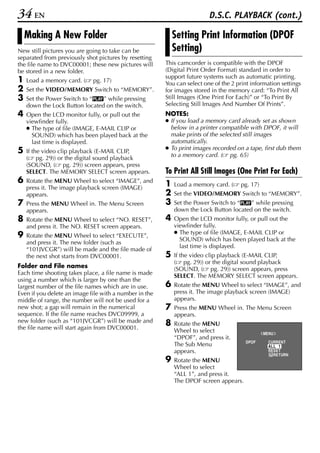
    Making A New Folder                                     Setting Print Information (DPOF
New still pictures you are going to take can be             Setting)
separated from previously shot pictures by resetting
the file name to DVC00001; these new pictures will      This camcorder is compatible with the DPOF
be stored in a new folder.                              (Digital Print Order Format) standard in order to
                                                        support future systems such as automatic printing.
1   Load a memory card. (    pg. 17)                    You can select one of the 2 print information settings
2   Set the VIDEO/MEMORY Switch to “MEMORY”.            for images stored in the memory card: “To Print All
3   Set the Power Switch to “P” while pressing          Still Images (One Print For Each)” or “To Print By
    down the Lock Button located on the switch.         Selecting Still Images And Number Of Prints”.
4   Open the LCD monitor fully, or pull out the         NOTES:
    viewfinder fully.                                   ● If you load a memory card already set as shown
    ● The type of file (IMAGE, E-MAIL CLIP or             below in a printer compatible with DPOF, it will
      SOUND) which has been played back at the            make prints of the selected still images
      last time is displayed.                             automatically.
                                                        ● To print images recorded on a tape, first dub them
5   If the video clip playback (E-MAIL CLIP,
                                                          to a memory card. ( pg. 65)
    ( pg. 29)) or the digital sound playback
    (SOUND, ( pg. 29)) screen appears, press
    SELECT. The MEMORY SELECT screen appears.           To Print All Still Images (One Print For Each)
6   Rotate the MENU Wheel to select “IMAGE”, and
                                                        1   Load a memory card. (     pg. 17)
    press it. The image playback screen (IMAGE)
    appears.                                            2   Set the VIDEO/MEMORY Switch to “MEMORY”.
7   Press the MENU Wheel in. The Menu Screen            3   Set the Power Switch to “P” while pressing
    appears.                                                down the Lock Button located on the switch.
8   Rotate the MENU Wheel to select “NO. RESET”,        4   Open the LCD monitor fully, or pull out the
    and press it. The NO. RESET screen appears.             viewfinder fully.
                                                            ● The type of file (IMAGE, E-MAIL CLIP or
9   Rotate the MENU Wheel to select “EXECUTE”,
                                                              SOUND) which has been played back at the
    and press it. The new folder (such as
                                                              last time is displayed.
    “101JVCGR”) will be made and the file made of
    the next shot starts from DVC00001.                 5   If the video clip playback (E-MAIL CLIP,
                                                            ( pg. 29)) or the digital sound playback
Folder and File names                                       (SOUND, ( pg. 29)) screen appears, press
Each time shooting takes place, a file name is made         SELECT. The MEMORY SELECT screen appears.
using a number which is larger by one than the
largest number of the file names which are in use.      6   Rotate the MENU Wheel to select “IMAGE”, and
Even if you delete an image file with a number in the       press it. The image playback screen (IMAGE)
middle of range, the number will not be used for a          appears.
new shot; a gap will remain in the numerical            7   Press the MENU Wheel in. The Menu Screen
sequence. If the file name reaches DVC09999, a              appears.
new folder (such as “101JVCGR”) will be made and        8   Rotate the MENU
the file name will start again from DVC00001.               Wheel to select                     ME NU
                                                            “DPOF”, and press it.
                                                                                        DPOF      CURRENT
                                                            The Sub Menu                          AL L 1
                                                            appears.                              RESET
                                                                                                     RETURN
                                                        9   Rotate the MENU
                                                            Wheel to select
                                                            “ALL 1”, and press it.
                                                            The DPOF screen appears.
EN    35
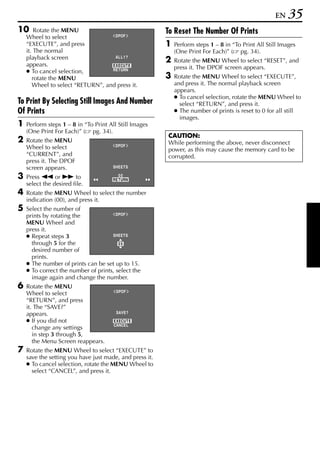
10      Rotate the MENU                                  To Reset The Number Of Prints
    Wheel to select                 DPOF

    “EXECUTE”, and press                                 1   Perform steps 1 – 8 in “To Print All Still Images
    it. The normal                                           (One Print For Each)” ( pg. 34).
    playback screen                 AL L 1 ?
                                                         2   Rotate the MENU Wheel to select “RESET”, and
    appears.                       EXECUTE
                                                             press it. The DPOF screen appears.
    ● To cancel selection,         RETURN

       rotate the MENU                                   3   Rotate the MENU Wheel to select “EXECUTE”,
       Wheel to select “RETURN”, and press it.               and press it. The normal playback screen
                                                             appears.
                                                             ● To cancel selection, rotate the MENU Wheel to
To Print By Selecting Still Images And Number                  select “RETURN”, and press it.
Of Prints                                                    ● The number of prints is reset to 0 for all still
                                                               images.
1   Perform steps 1 – 8 in “To Print All Still Images
    (One Print For Each)” ( pg. 34).
                                                         CAUTION:
2   Rotate the MENU                                      While performing the above, never disconnect
    Wheel to select                    DPOF
                                                         power, as this may cause the memory card to be
    “CURRENT”, and                                       corrupted.
    press it. The DPOF
    screen appears.                   SHEETS

3   Press 3 or 5 to                     00
                                      RETURN
    select the desired file.
4   Rotate the MENU Wheel to select the number
    indication (00), and press it.
5   Select the number of
    prints by rotating the             DPOF

    MENU Wheel and
    press it.
    ● Repeat steps 3                 SHEETS
      through 5 for the                 05
      desired number of
      prints.
    ● The number of prints can be set up to 15.
    ● To correct the number of prints, select the
      image again and change the number.
6   Rotate the MENU
                                        DPOF
    Wheel to select
    “RETURN”, and press
    it. The “SAVE?”
    appears.                            SAVE?

    ● If you did not                   EXECUTE
                                       CANCEL
       change any settings
       in step 3 through 5,
       the Menu Screen reappears.
7   Rotate the MENU Wheel to select “EXECUTE” to
    save the setting you have just made, and press it.
    ● To cancel selection, rotate the MENU Wheel to
      select “CANCEL”, and press it.
36 EN                                                                     D.S.C. PLAYBACK (cont.)
                                                          6   Rotate the MENU Wheel to select “EXECUTE”,
    Initializing A Memory Card                                and press it. The memory card is initialized.
                                                              ● When initialization is finished, “NO IMAGES
You can initialize a memory card anytime.                       STORED”, “NO E-MAIL CLIP STORED” or
After initializing, all files and data stored in the            “NO SOUND FILES” appears.
memory card, including those which have been                  ● To cancel initialization, rotate the MENU
protected, are cleared.                                         Wheel to select “RETURN” and press it.
                                                          CAUTION:
                      VIDEO/MEMORY Switch                 Do not perform any other operation (such as
                                                          turning off the camcorder) during initialization.
                                                          Also, be sure to use the provided AC Adapter, as
                                                          the memory card may be corrupted if the battery
                                                          becomes exhausted during initialization. If the
                                                          memory card becomes corrupted initialize it.
                                    Power Switch
                                                OFF A M
                                           PLAY


                                     Lock Button

 MENU Wheel


1   Set the VIDEO/MEMORY Switch to “MEMORY”.
2   Set the Power Switch to “P” while pressing
    down the Lock Button located on the switch.
3   Open the LCD monitor fully, or pull out the
    viewfinder fully.
4   Press the MENU
    Wheel in. The Menu                     MENU
                                 PROTECT
    Screen appears.              DELETE
                                 DPOF
                                 NO . RESET
                                 FORMAT
                                 D I SPLAY
                                 END


5   Rotate the MENU                      F ORMAT
    Wheel to select
    “FORMAT”, and press                ERASE AL L
                                     EX I ST I NG DATA?
    it. The FORMAT
    screen appears.
                                        EXECUTE
                                        RETURN
EN    37

                         ADVANCED FEATURES
                                            CONTENTS
MENUS FOR DETAILED ADJUSTMENT ............................................................ 38
  Changing The Menu Settings ........................................................................ 38
RECORDING MENUS .................................................................................... 40
  Wipe Or Fader Effects ................................................................................ 40
  Program AE With Special Effects ................................................................... 42
  Exposure Control ....................................................................................... 43
  White Balance Adjustment ........................................................................... 43
PLAYBACK MENUS ...................................................................................... 51
FEATURES FOR RECORDING ......................................................................... 53
  Night-Alive .............................................................................................. 53
  Snapshot (For Video Recording) .................................................................... 53
  Snapshot Flash ......................................................................................... 54
  Flash Brightness Adjustment ........................................................................ 54
  Auto Focus ............................................................................................... 55
  Manual Focus ........................................................................................... 55
  Exposure Control ....................................................................................... 56
  Iris Lock .................................................................................................. 57
  Backlight Compensation .............................................................................. 57
  White Balance Adjustment ........................................................................... 58
  Manual White Balance Adjustment ................................................................ 58
  Recording Digital Sound Effects (GR-DVM96 only) ............................................ 59
  E-Mail Clip Recording (GR-DVM96 only) ......................................................... 60
DUBBING ................................................................................................... 62
  Dubbing To A VCR ..................................................................................... 62
  Dubbing To A Video Unit Equipped With A DV IN Connector (Digital Dubbing) .......... 63
  Dubbing From A Video Unit Equipped With A DV OUT Connector (Digital Dubbing) .... 64
  Dubbing Still Images Recorded On A Tape To A Memory Card .............................. 65
USING THE REMOTE CONTROL UNIT ............................................................. 66
  Audio Dubbing .......................................................................................... 70
  Audio Dubbing Using Digital Sound Effects (GR-DVM96 only) .............................. 71
  Insert Editing ............................................................................................ 72
  Random Assemble Editing [R.A.Edit] .............................................................. 73
SYSTEM CONNECTIONS ............................................................................... 78
  Connection To A Personal Computer ............................................................... 78
  Using The Camcorder As A WebCam (GR-DVM96 only) ...................................... 79
38 EN                                                         MENUS FOR DETAILED ADJUSTMENT
                                                             4   Rotate the MENU Wheel to select the desired
    Changing The Menu Settings                                   function, and press it. The selected function
                                                                 menu appears.
This camcorder is equipped with an easy-to-use, on-          5   Setting procedure hereafter depends on the
screen menu system that simplifies many of the                   selected function.
more detailed camcorder settings. ( pg. 40 – 52)
                                                             Menus without Sub Menus
                VIDEO/MEMORY Switch                          — v WIPE/FADER, r PROGRAM AE,
                                                               p EXPOSURE, u W. BALANCE
                                                             1) Rotate the MENU Wheel to select the desired
                                       Power Switch             parameter.
                                           PLAY
                                                  OFF A M    Example: r PROGRAM AE Menu
                                                             Selected function icon is
                                                                 displayed in reverse.          SNOW
                                                                                                SPOT L I GHT
                                                                                                TW I L I GHT
                                                                                                SEP I A
                                                                                                MONOT ONE
                                       Lock Button                                              CLASS I C F I LM
                                                                                                STROB E
                                                                                                SL OW 4 X
                                                                                                SL OW 10 X


MENU Wheel                                                                                      Selected parameter

1   For Video and D.S.C. Recording Menus:                    2) Press the MENU Wheel in. Selection is complete.
    ● Set the VIDEO/MEMORY Switch to “VIDEO”                    The Menu Screen returns.
      or “MEMORY”.                                              ● Repeat the procedure if you wish to set other
    ● Set the Power Switch to “M” while pressing                  function menus.
      down the Lock Button located on the switch.                                         W I PE / FADER   OF F
                                                                                          PROGRAM AE
    For Video Playback Menus:                                                             EXPOSURE
    ● Set the VIDEO/MEMORY Switch to “VIDEO”.                                             W. BAL ANC E
                                                                                          CAMERA
    ● Set the Power Switch to “P” while pressing                                          MANUA L
                                                                                          SYSTEM
      down the Lock Button located on the switch.                                         D I SPL AY
    ● For D.S.C. Playback Menus, refer to “D.S.C.                                         DSC
                                                                                          END
      PLAYBACK” ( pg. 28).
2   Open the LCD monitor fully, or pull out the
                                                             3) Press the MENU Wheel in again. The Menu
    viewfinder fully.
                                                                Screen closes.
3   Press the MENU Wheel in. The Menu Screen
    appears.
       W I PE / FADER    OF F          Menu Screen for
       PROGRAM AE                      Video and D.S.C.
       EXPOSURE
       W. BAL ANC E                    Recording Menu
       CAMERA
       MANUA L
       SYSTEM
       D I SPL AY
       DSC
       END


       V I DEO          SOUND MODE     Menu Screen for
       SYSTEM           12B I T MODE   Video Playback Menu
       D I SPL AY       SYNCHRO
                        REC MODE
                        BLANK S RCH
                               COPY


       END
EN   39
Menus with Sub Menus                                         NOTES:
— m CAMERA, q MANUAL, s SYSTEM,                              ● The “m CAMERA” settings are effective when the
   n DISPLAY, o DSC, t VIDEO                                   Power Switch is set to both “A” and “M”.
1) Rotate the MENU Wheel to select the desired                 However, the menu settings can be changed only
   function and press it. The Sub Menu appears.                when the Power Switch is set to “M”.
Example: m CAMERA Menu                                       ● The “q MANUAL” settings are effective only
                                                               when the Power Switch is set to “M”.
                                       Selected function
 Selected function icon is                                   ● The “s SYSTEM” and “n DISPLAY” functions
     displayed in reverse.                                     which are set when the Power Switch is set to “M”
                               REC MODE       –   SP           are also applied when the Power Switch is set to
                               SOUND MODE     –   12B I T
                               ZOOM           –   40X          “P”. The “CLOCK ADJ.” menu only appears
                               SNAP MODE      –   FUL L
                               GA I N UP      –   AGC          when the Power Switch is set to “M”.
                                                             ● The “n DISPLAY” settings are effective even
                                                               when the Power Switch is set to “A”. However,
                               RETURN                          the menu settings can be changed only when the
                                                               Power Switch is set to “M”.
2) Rotate the MENU Wheel to select the desired               ● The date indication can also be turned on/off by
   parameter.                                                  pressing the DISPLAY Button on the remote
                                                  Sub Menu     control (provided). ( pg. 25, 62, 74)

                               REC MODE       – SP
                                                LP


3) Press the MENU Wheel in. Selection is complete.
   ● Repeat the procedure if you wish to set other
     function menus.

                              REC MODE        –   SP
                              SOUND MODE      –   12B I T
                              ZOOM            –   40X
                              SNAP MODE       –   FUL L
                              GA I N UP       –   AGC


                                RETURN


4) Press the MENU Wheel in. The Menu Screen
   returns.
    ● Repeat the procedure if you wish to set other
      function menus.
                             W I PE / FADER   OF F
                             PROGRAM AE
                             EXPOSURE
                             W. BAL ANC E
                             CAMERA
                             MANUA L
                             SYSTEM
                             D I SPL AY
                             DSC
                             END


5) Press the MENU Wheel in again. The Menu
   Screen closes.
40 EN                                                                             RECORDING MENUS
                                                        Wipe or Fader works when video recording is started
  Wipe Or Fader Effects                                 or stopped.
                                                        1   Set the VIDEO/MEMORY Switch to “VIDEO”.
These effects let you make pro-style scene
transitions. Use them to spice up the transition from   2   Set the Power Switch to “M” while pressing down
one scene to the next.                                      the Lock Button located on the switch.

IMPORTANT:                                              3   Open the LCD monitor fully, or pull out the
Some Wipe/Fader Effects cannot be used with                 viewfinder fully.
certain modes of Program AE with special effects.       4   Set “v WIPE/FADER” to the desired mode.
( pg. 42) If an unusable Wipe/Fader Effect is               ( pg. 38)
selected, its indicator blinks in blue or goes out.         ● The selected effect indicator appears.
                                                        5   Press the Recording Start/Stop Button to start or
                                                            stop recording. The selected Fade-in/out or
                 VIDEO/MEMORY Switch                        Wipe-in/out effect works.
                                                        To deactivate the selected effect…
                                                        Select “OFF” in step 4.
                                                        NOTES:
                                                        ● You can select other effects for “v WIPE/FADER”
                               Recording Start/           during recording.
                                   Stop Button          ● You can extend the length of a Wipe or Fader by
                                                          pressing and holding the Recording Start/Stop
                              Power Switch                Button.
                                           OFF A M
                                    PLAY


  MENU Wheel
                               Lock Button
EN   41
WIPE/FADER                                                            (          : Factory-preset)

Indicator      Parameter                                Description
   —        OFF            Disables effects.
            FADER–WHITE    Fade in or out with a white screen.
            FADER–BLACK    Fade in or out with a black screen.
                           Fade in to a colour screen from a black and white screen, or fade
            FADER–B.W
                           out from colour to black and white.
                           Wipe in on a black screen from the upper right to the lower left
            WIPE–CORNER    corner, or wipe out from lower left to upper right, leaving a black
                           screen.
                           The scene starts in the center of a black screen and wipes in
            WIPE–WINDOW    toward the corners, or comes in from the corners, gradually wiping
                           out to the center.
            WIPE–SLIDE     Wipe in from right to left, or wipe out from left to right.
                           Wipe in as the two halves of a black screen open to the left and
            WIPE–DOOR      right, revealing the scene, or wipe out and the black screen
                           reappears from left and right to cover the scene.
                           The scene wipes in from the bottom to the top of a black screen, or
            WIPE–SCROLL
                           wipes out from top to bottom, leaving a black screen.
                           Wipe in from the center of a black screen toward the top and
            WIPE–SHUTTER   bottom, or wipe out from the top and bottom toward the center
                           leaving a black screen.
42 EN                                                                  RECORDING MENUS (cont.)
                                                          3   Set “r PROGRAM AE” to the desired mode.
    Program AE With Special Effects                           ( pg. 38)
                                                              ● The selected mode indicator appears.
IMPORTANT:                                                To deactivate the selected mode…
Some modes of Program AE with special effects             Select “OFF” in step 3.
cannot be used with certain Wipe/Fader effects.
( pg. 40) If an unusable mode is selected, the            NOTES:
indicator of Wipe/Fader effects blinks or goes out.       ● Program AE with special effects can be changed
                                                            during recording or during Record-Standby.
1   Set the Power Switch to “M” while pressing down
                                                          ● Some modes of Program AE with special effects
    the Lock Button located on the switch.
                                                            cannot be used during Night-Alive.
2   Open the LCD monitor fully, or pull out the
    viewfinder fully.

      PROGRAM AE                                                                    (          : Factory-preset)

    Indicator         Parameter                                      Description
       —          OFF                   Deactivates Program AE with special effects.
                                        (Variable Shutter Speed)
        6         SHUTTER 1/60          The shutter speed is fixed at 1/60th of a second. Black bands that
                                        usually appear when shooting a TV screen become narrower.
                                        The shutter speed is fixed at 1/100th of a second. The flickering that
                  SHUTTER 1/100         occurs when shooting under a fluorescent light or mercury-vapour
                                        lamp is reduced.
                                        (Variable Shutter Speed: 1/250 – 1/4000)
                                        This setting allows fast-moving images to be captured one frame at a
                  SPORTS                time, for vivid, stable slow-motion playback. The faster the shutter
                                        speed, the darker the picture becomes. Use the shutter function
                                        under good lighting conditions.
                                        Compensates for subjects that may otherwise appear too dark when
                  SNOW
                                        shooting in extremely bright surroundings such as in the snow.
                                        Compensates for subjects that may otherwise appear too bright when
                                        shooting under extremely strong direct lighting such as spotlights.
                  SPOTLIGHT             NOTE:
                                        “SPOTLIGHT” has the same effect as –3 with the exposure control.
                                        ( pg. 56)
                                        Makes evening scenes look more natural. White Balance
                                        ( pg. 43, 58) is automatically set to “ ”, but can be changed to
                                        your desired setting. When Twilight is chosen, the camcorder
                  TWILIGHT
                                        automatically adjusts the focus from approx. 10 m (32 ft) to infinity.
                                        From less than 10 m (32 ft), adjust the focus manually. The flash does
                                        not fire in this mode.
                                        Recorded scenes have a brownish tint like old photos. Combine this
                  SEPIA
                                        with the Cinema mode for a classic look.
                                        Like classic black and white films, your footage is shot in B/W. Used
                  MONOTONE
                                        together with the Cinema mode, it enhances the “classic film” effect.
                  CLASSIC FILM*         Gives recorded scenes a strobe effect.
                  STROBE*               Your recording looks like a series of consecutive snapshots.
EN   43
                                         Slow Shutter (GR-DVM76 only)
                                         Lights dark subjects or areas even brighter than they would be under
                                         good natural lighting. Use “SLOW 10X” or “SLOW 4X” only in dark
                                         areas.
                                         NOTES:
                                         ● When using “SLOW 10X” or “SLOW 4X”, the image takes on a
                                           strobe-like effect.
                                         ● When using “SLOW 10X” or “SLOW 4X”, it may be difficult to
                                           bring the camcorder into focus. To prevent this, use of manual
                                           focus and/or a tripod is recommended.
                                         Slow Shutter raises light sensitivity to allow shooting in dark
                  SLOW 4X
                                         environments.
                                         Slow Shutter raises light sensitivity further to allow shooting in even
                  SLOW 10X
                                         darker environments.
* For GR-DVM96: Available only when the VIDEO/MEMORY Switch is set to “VIDEO”.


  Exposure Control
       EXPOSURE                                                                       (          : Factory-preset)
For details, refer to “Exposure Control” (   pg. 56).
     Indicator         Parameter                                       Description
        —         AUTO                   Returns to automatic exposure control.
        —         MANUAL                 Makes the exposure control indicator appear.


  White Balance Adjustment
       W. BALANCE                                                                     (          : Factory-preset)
For details, refer to “White Balance Adjustment” (      pg. 58).
 —     AUTO             White balance is adjusted automatically.
       MWB              Adjust the white balance manually when shooting under various types of lighting.
       FINE             Outdoors on a sunny day.
       CLOUD            Outdoors on a cloudy day.
       HALOGEN          A video light or similar type of lighting is used.
44 EN                                                                RECORDING MENUS (cont.)

  Camera Menu

    CAMERA                                                                       (          : Factory-preset)


Recording mode
Allows you to set the recording mode (SP or LP) depending on your preference.
NOTES:
● Audio Dubbing ( pg. 70) and Insert Editing ( pg. 72) are possible on tapes recorded in the SP mode.
● If the recording mode is switched during recording, the playback picture will be blurred at the switching
  point.
● It is recommended that tapes recorded in the LP mode on this camcorder be played back on this camcorder.
● During playback of a tape recorded on another camcorder, blocks of noise may appear or there may be
  momentary pauses in the sound.
 REC MODE         SP              Standard Play
                  LP              Long Play—more economical, providing 1.5 times the recording time.


Sound mode
 SOUND            12 BIT          Enables video recording of stereo sound on four separate channels, and is
 MODE                             recommended for use when performing Audio Dubbing. (Equivalent to
                                  the 32 kHz mode of previous models)
                  16 BIT          Enables video recording of stereo sound on two separate channels.
                                  (Equivalent to the 48 kHz mode of previous models)


Zooming
 ZOOM             10X             When set to “10X” while using digital zoom, the zoom magnification will
                                  reset to 10X since digital zoom will be disengaged.
                  40X*            Allows you to use the Digital Zoom. By digitally processing and
                                  magnifying images, zooming is possible from 10X (the optical zoom
                                  limit), to a maximum of 40X digital magnification.
                  200X*           Allows you to use the Digital Zoom. By digitally processing and
                                  magnifying images, zooming is possible from 10X (the optical zoom
                                  limit), to a maximum of 200X digital magnification.
* Available only when the VIDEO/MEMORY Switch is set to “VIDEO”.
EN   45
Snapshot mode for video recording
For details on the procedure, refer to “Snapshot (For Video Recording)” (   pg. 53).
 SNAP MODE         FULL             Snapshot mode with no frame


                   PIN-UP           Pin-Up mode


                   FRAME            Snapshot mode with frame


There is the sound effect of a shutter closing.

Gain up
 GAIN UP           OFF              Allows you to shoot dark scenes with no picture brightness adjustment.
                   AGC              The overall appearance may be grainy, but the image is bright.
                   AUTO             The shutter speed is automatically adjusted (1/30 – 1/200 sec.). Shooting
                                    a subject in low or poor lighting at 1/30 sec. shutter speed provides a
                                    brighter image than in the AGC mode, but the subject’s movements are
                                    not smooth or natural. The overall appearance may be grainy. While the
                                    shutter speed is being automatically adjusted, “       ” is displayed.
46 EN                                                                  RECORDING MENUS (cont.)

  Manual Menu
       MANUAL                                                                       (         : Factory-preset)


Digital Image Stabilization
 DIS              OFF              To compensate for unstable images caused by camera-shake, particularly
                                   at high magnification.
                  ON
                                   NOTES:
                                   ● Accurate stabilization may not be possible if hand shake is excessive,
                                     or under the following conditions:
                                     • When shooting subjects with vertical or horizontal stripes.
                                     • When shooting dark or dim subjects.
                                     • When shooting subjects with excessive backlighting.
                                     • When shooting scenes with movement in various directions.
                                     • When shooting scenes with low-contrast backgrounds.
                                   ● Switch off this mode when recording with the camcorder on a tripod.
                                   ● The “   ” indicator blinks or goes out if the Stabilizer cannot be used.


Maximum telephoto setting
Usually the distance to a subject where the lens is in focus depends on the zoom magnification. Unless there
is a distance more than 1 m (3.3 ft) to the subject, the lens is out of focus at the maximum telephoto setting.
 TELE             OFF              Disables the function.
 MACRO
                  ON               When set to “ON”, you can shoot a subject as large as possible at a
                                   distance of approx. 60 cm (2 ft).
                                   ● Depending on the zoom position, the lens may go out of focus.


Wide mode
 WIDE MODE        OFF              Records with no change in the screen ratio. For playback on a TV with a
                                   normal screen ratio.
                  CINEMA*          Inserts black bands at the top and bottom of the screen. The    indicator
                                   appears. During playback on wide-screen TVs, the black bands at the top
                                   and bottom of the screen are cut and the screen ratio becomes 16:9.
                                   When using this mode, refer to your wide-screen TV’s instruction manual.
                                   During playback/recording on 4:3 TVs/LCD monitor/viewfinder, black
                                   bands are inserted at the top and bottom of the screen and the image
                                   appears like a letter boxed 16:9 movie.
                  SQUEEZE*         For playback on TVs with an aspect ratio of 16:9. Naturally expands the
                                   image to fit the screen without distortion. The   indicator appears.
                                   When using this mode, refer to your wide-screen TV’s instruction manual.
                                   During playback/recording on 4:3 TVs/LCD monitor/viewfinder, the
                                   image is elongated vertically.
                  S.WIDE*          The     indicator appears. The zoom range is extended beyond the
                                   maximum optical zoom wide angle range. This mode’s wide angle setting
                  (GR-DVM96        is equivalent to using a 0.9X wide conversion lens. Zooming is possible
                  only)            from 0.9X to 10X. This mode is suitable for shooting in a small room.
* Available only when the VIDEO/MEMORY Switch is set to “VIDEO”.
EN   47
Wind cut
WIND CUT       OFF            Disengages the function.
               ON             Helps cut down on noise created by wind. The “ ” indicator appears.
                              The quality of the sound will change. This is normal.


Snapshot flash mode
FLASH          AUTO           Refer to “Snapshot Flash” (   pg. 54).
               AUTO C
               ON
               OFF


Flash brightness adjustment
FLASH ADJ.     ±3             Refer to “Flash Brightness Adjustment” (   pg. 54).
48 EN                                                                 RECORDING MENUS (cont.)

  System Menu
     SYSTEM                                                                       (           : Factory-preset)


Beep, melody and shutter sound
 BEEP             OFF             Even though not heard while shooting, shutter sound is recorded on the
                                  tape.
                  BEEP            The beep sounds when the power is turned on or off, and at the
                                  beginning and end of recording. It also activates the shutter sound effect.
                                  ( pg. 27, 53)
                  MELODY          Instead of a beep, a melody sounds when any operation is performed. It
                                  also activates the shutter sound effect. ( pg. 27, 53)


Tally lamp setting
 TALLY            OFF             The tally lamp remains off at all times.
                  ON              The tally lamp comes on to signal the start of recording.


Automatic demonstration mode
Demonstrates certain functions such as Program AE with special effects, etc., and can be used to confirm how
these functions operate. ( pg. 8)
 DEMO MODE        OFF             Automatic demonstration will not take place.
                  ON              Demonstrates certain functions such as Program AE with special effects,
                                  etc., and can be used to confirm how these functions operate.
                                  Demonstration starts in the following cases:
                                  • When the Menu Screen is closed after “DEMO MODE” is turned “ON”.
                                  • With “DEMO MODE” set to “ON”, if there is no operation for about
                                    3 minutes after the Power Switch is set to “A” or “M”.
                                  Performing any operation during the demonstration stops the
                                  demonstration temporarily. If no operation is performed for more than 3
                                  minutes after that, the demonstration will resume.
                                  NOTES:
                                  ● If a cassette is in the camcorder, the demonstration cannot be turned on.
                                  ● “DEMO MODE” remains “ON” even if the camcorder power is turned off.
                                  ● If “DEMO MODE” remains “ON”, some functions will not be available.
                                    After viewing demo, set to “OFF”.
EN      49
Resetting menu settings
 CAM RESET        CANCEL          Does not reset the settings to the factory-preset.
                  EXECUTE         Resets all settings to the factory-preset.


Sound input (GR-DVM96 only)
 SOUND IN         MIC             Enables sound input from camcorder’s stereo microphone, when Audio
                                  Dubbing ( pg. 70) is executed. “MIC” appears on the Audio Dubbing
                                  screen.
                  D.SOUND         Enables sound effect input recorded on the provided memory card, when
                                  Audio Dubbing ( pg. 71) is executed. “D.SOUND” appears on the
                                  Audio Dubbing screen.


  Display Menu
     DISPLAY                                                                       (       : Factory-preset)


Display setting
 ON SCREEN        LCD             Keeps the camcorder’s display (except the date, time and time code) from
                                  appearing on the connected TV screen.
                  LCD/TV          Makes the camcorder’s display appear on screen when the camcorder is
                                  connected to a TV.


Date and time display setting
 DATE/TIME        OFF             The date/time does not appear.
                  AUTO            Displays the date/time for approx. 5 seconds in the following cases:
                                  ● When the Power Switch is set from “OFF” to “A” or “M”.
                                  ● When playback starts. The camcorder displays the date/time when
                                    scenes are recorded.
                                  ● When the date is changed during playback.
                  ON              The date/time is always displayed.


Time code setting
 TIME CODE        OFF             Time code is not displayed.
                  ON              Time code is displayed on the camcorder and on the connected TV.
                                  Frame numbers are not displayed during recording.


Clock adjustment
 CLOCK ADJ.       Allows you to set the current date and time. (    pg. 15)
50 EN                                                                     RECORDING MENUS (cont.)

  DSC Menu
     DSC                                                                              (          : Factory-preset)


Picture quality
 QUALITY              FINE             The Picture Quality mode can be selected to best match your needs. Two
                                       Picture Quality modes are available: FINE and STANDARD (in order of
                      STANDARD         quality).
                                       NOTE:
                                       The number of storable images depends on the selected picture quality as
                                       well as the composition of the subjects in the images and the type of
                                       memory card being used.


Image size
 IMAGE SIZE           640 x 480*       The Image Size mode can be selected to best match your needs.
                                       * GR-DVM76: Factory preset is 640 x 480.
                      1024 x 768**     ** GR-DVM96: Factory preset is 1024 x 768.
                      1280 x 960       NOTE:
                      (GR-DVM96        The settings can be changed only when the VIDEO/MEMORY Switch is
                      only)            set to “MEMORY”.

Approximate Number of Storable Images
The numbers in parentheses are for GR-DVM76.

 Image Size/Picture                           SD Memory Card                              MultiMediaCard
 Quality                  8 MB**        8 MB      16 MB      32 MB      64 MB      8 MB*      16 MB      32 MB
 640 x 480/FINE                  39    46 (45)    98 (95)   205 (205) 405 (405)    50 (55)   105 (105) 210 (215)
 640 x 480/STANDARD          134      150 (160) 295 (295) 625 (625) 1215 (1215) 160 (190) 320 (320) 640 (645)
 1024 x 768/FINE                 17    20 (20)    46 (45)    98 (95)   190 (190)   25 (24)    50 (48)   100 (100)
 1024 x 768/STANDARD             55    66 (65)   145 (145) 310 (310) 605 (605)     80 (75)   160 (160) 320 (320)
 1280 x 960/FINE***              11      12         28         62        120         16         32         64
 1280 x 960/STANDARD***          37      44         98         205       405         50        100         200
* Provided with GR-DVM76 only
** Provided with GR-DVM96 only (12 sound effects pre-stored)
*** GR-DVM96 only

Recording media selection
 REC SELECT                            When Snapshot recording is performed with the VIDEO/MEMORY
                                       Switch set to “VIDEO”, still images are recorded only onto the tape.
                             /         When Snapshot recording is performed with the VIDEO/MEMORY
                                       Switch set to “VIDEO”, still images are recorded not only onto the tape
                                       but also in the memory card (640 x 480 pixels). In this mode, the “SNAP
                                       MODE” selection in CAMERA Menu is also applicable to memory card
                                       recording.
PLAYBACK MENUS                                                                                     EN   51
  Video Menu
     VIDEO                                                                      (            : Factory-preset)


Playback sound
During tape playback, the camcorder detects the sound mode in which the recording was made, and plays
the sound back. Select the type of sound to accompany your playback picture. According to the menu access
explanation on page 38, select “SOUND MODE” or “12BIT MODE” from the Menu Screen and set it to the
desired parameter.
NOTES:
● The “SOUND MODE” setting is available for both 12-bit and 16-bit sound. (In previous models’ functions,
  “12-bit” is called “32 kHz” and “16-bit” is called “48 kHz”.)
● The camcorder cannot detect the sound mode in which the recording was made during fast-forward or
  rewind. During playback the sound mode is displayed in the upper left corner.
 SOUND            STEREO           Sound is output on both “L” and “R” channels in stereo.
 MODE
                  SOUND L          Sound from the “L” channel is output.
                  SOUND R          Sound from the “R” channel is output.

 12BIT MODE       MIX              Original and dubbed sounds are combined and output in stereo on
                                   both “L” and “R” channels.
                  SOUND 1          Original sound is output on both “L” and “R” channels in stereo.
                  SOUND 2          Dubbed sound is output on both “L” and “R” channels in stereo.


Synchro adjustment
 SYNCHRO          ±0.0             Refer to “For More Accurate Editing” (   pg. 77).


Recording mode
 REC MODE         SP               Allows you to set the video recording mode (SP or LP) depending on
                                   your preference. It is recommended you use “REC MODE” in VIDEO
                  LP               Menu when using this camcorder as a recorder during digital dubbing.
                                   ( pg. 64)
                                   NOTE:
                                   “REC MODE” can be set when the Power Switch is set to “P” or
                                   “M”.


Blank search
 BLANK SRCH       CANCEL           Helps find a blank portion of tape when you want to record from the
                                   middle of a tape. ( pg. 23)
                  EXECUTE


Dubbing from tape to memory card
                  OFF              Enables snapshots to be taken during video playback.
 COPY             ON               Enables dubbing of images recorded on a tape to a memory card.
                                   ( pg. 65)
52 EN                                                                            PLAYBACK MENUS (cont.)

 System Menu
      SYSTEM                                                                           (      : Factory-preset)

BEEP                  OFF            pg. 48       Each setting is linked with “s SYSTEM”, which appears
                                                  when the Power Switch is set to “M”. ( pg. 38)
                      BEEP
                                                  The parameters are the same as in the description on
                      MELODY                      page 48.
TALLY                 OFF            pg. 48
                      ON
DEMO MODE             OFF            pg. 48
                      ON


 Display Menu
      DISPLAY                                                                          (      : Factory-preset)

ON SCREEN             LCD            pg. 49       Each setting is linked with “n DISPLAY”, which appears
                                                  when the Power Switch is set to “M”. ( pg. 38)
                      LCD/TV                      The parameters are the same as in the description on
DATE/TIME             OFF            pg. 49       page 49.
                      AUTO                        NOTE:
                                                  The date indication can also be turned on/off by pressing
                      ON                          the DISPLAY Button on the remote control (provided).
TIME CODE             OFF            pg. 49       ( pg. 25, 62, 74)

                      ON

Display
 ON SCREEN Setting:             DATE/TIME Setting:              TIME CODE Setting:
 For playback sound, tape       For date/time.                  For time code.
 speed and tape running
 during video playback.
  1 2B I T / SOUND1    SP   4
  L
                                                                                           Minutes
                                                                                           Seconds
                                                                                           Frames*
                                               D EC 2 5 ' 0 2
                                                 5 : 3 0 PM       12 : 34 : 24
                                                                * 30 frames = 1 second
FEATURES FOR RECORDING                                                                                EN   53
    Night-Alive                                              Snapshot (For Video Recording)
                                                         This feature lets you record still images that look like
                    NIGHT Button                         photographs onto a tape.
                                                         1   Set the VIDEO/MEMORY Switch to “VIDEO”.
                                                         2   Set the Power Switch to “M” while pressing down
                                VIDEO/MEMORY                 the Lock Button located on the switch.
                                Switch
                                                         3   Open the LCD monitor fully, or pull out the
                                                             viewfinder fully.
                                                         4   Set “SNAP MODE” to the desired mode.
                                                             ( pg. 38, 45)
                                    Power Switch
                                       PLAY
                                            OFF A M      5   Press SNAPSHOT.
                                                             ● The “O” indication appears and a still
                                                               image will be recorded for approx. 6 seconds,
                                                               then the camcorder re-enters the Record-
                                                               Standby mode.
     SNAPSHOT Button                                         ● You can perform Snapshot also during
                                  Lock Button                  recording. A still image will be recorded for
 MENU Wheel
                                                               approx. 6 seconds, then the normal recording
                                                               resumes.
                                                             ● Regardless of the Power Switch position (“A”
                                                               or “M”), Snapshot recording takes place using
Makes dark subjects or areas even brighter than they           the selected Snapshot mode.
would be under good natural lighting. Although the       NOTES:
recorded image is not grainy, it may look as if it is    ● To remove the shutter sound, refer to “BEEP” on
strobing due to the slow shutter speed.                    page 48.
1   Set the Power Switch to “M” while pressing down      ● If Snapshot recording is not possible, the “O”
    the Lock Button located on the switch.                 indication blinks when SNAPSHOT is pressed.
2   Open the LCD monitor fully or pull out the           ● If Program AE with special effects ( pg. 42) is
    viewfinder fully.                                      engaged, certain modes of Program AE with
                                                           special effects are disabled during Snapshot
3   Press NIGHT so that the Night-Alive indicator          recording. In such a case, the icon blinks.
    “   ” appears.                                       ● If SNAPSHOT is pressed when “DIS” is set to
    ● The shutter speed is automatically adjusted to       “ON” ( pg. 46), the Stabilizer will be disabled.
      provide up to 30 times sensitivity.                ● During playback as well, all snapshot modes are
    ● “ ” appears beside “     ” while the shutter         available when “            COPY” is set to “OFF”
      speed is being automatically adjusted.               in VIDEO Menu. ( pg. 51) However, the shutter
To deactivate Night-Alive…                                 sound is not heard.
Press NIGHT again so that the Night-Alive indicator      ● During Snapshot recording, the image displayed
disappears.                                                in the viewfinder may be partially missing.
                                                           However, there is no effect in the recorded image.
NOTES:
                                                         ● When a cable is connected to the AV connector,
● During Night-Alive, the following functions or
                                                           the shutter sound is not heard from the speaker,
  settings cannot be activated and its indicator
                                                           however it is recorded onto the tape.
  blinks or goes out:
  • Some modes of “Program AE With Special
     Effects” ( pg. 42).                                 Motor Drive Mode
  • “Snapshot Flash” ( pg. 54).
  • “GAIN UP” in CAMERA Menu. ( pg. 45)                  Keeping SNAPSHOT pressed in step 5 provides an
  • “DIS” in MANUAL Menu. ( pg. 46)                      effect similar to serial photography. (Interval
● During Night-Alive, it may be difficult to bring the   between still images: approx. 1 second)
  camcorder into focus. To prevent this, use of a        ● The Motor Drive mode is disabled when “REC
  tripod is recommended.                                   SELECT” is set to “        /    ”. ( pg. 38, 50)
54 EN                                                       FEATURES FOR RECORDING (cont.)
                                                          prevent the picture from becoming too dark or
  Snapshot Flash                                          becoming too tinted.
                                                        ● The colour tone changes depending on the
                                                          background lighting conditions, such as under
                                                          fluorescent or halogen lamps.
                                                        ● While charging the flash, blinks and the flash
                                                          will not fire. Although noise may appear, this is
                                                          not a malfunction and is not recorded. It can take
                               VIDEO/MEMORY
                                                          up to 10 seconds to charge the flash.
                               Switch

                                                            Flash Brightness Adjustment
                                   Power Switch
                                        PLAY
                                             OFF A M
                                                        When a snapshot ( pg. 27, 53) is taken in the dark
                                                        the camcorder fires the flash and adjusts the
                                                        brightness automatically. You can also adjust the
                                                        flash brightness manually. When you find that the
                                                        snapshots you took look too bright or too dark,
     SNAPSHOT Button                                    adjust it manually.
 MENU Wheel                         Lock Button
                                                        1   Select “FLASH ADJ.” in MANUAL Menu, and
                                                            press the MENU Wheel in.
                                                            ● The parameter appears.
The flash can be used when a snapshot is taken in       2   To intensify the flash, rotate the MENU Wheel
Record-Standby mode. ( pg. 27, 53)                          towards “+”. To weaken the flash, rotate the
● When the Power Switch is set to “A”, the flash            MENU Wheel towards “–”.
  automatically fires if it is dark ( appears).             ● Adjustment range: –3 to +3.
● When the Power Switch is set to “M”, you can          3   Press the MENU Wheel in. Rotate the MENU
  select the flash setting as follows:                      Wheel to select “BRETURN”, and press it twice
  AUTO : Fires automatically if it is dark (                to close the Menu Screen.
            appears).                                   NOTE:
  AUTO : Fires automatically if it is dark (
                                                        When you change the subject you are shooting or
  C         appears) and reduces the Red-Eye effect
                                                        the shooting location, set it back to ±0 as described
            in the subject’s eyes.
  ON      : Always fires.                               in step 2 and take a snapshot to check the flash
  OFF : Will not fire.                                  brightness. After doing this adjust to your desired
                                                        brightness.
● For the setting, refer to “Changing The Menu
  Settings” ( pg. 38).
If “AUTO C” is selected...
The C Red-Eye reduction indicator lights. Press
SNAPSHOT. The flash fires twice. The first flash is
for reduction of the human eye’s red reflection and
the second flash is for the actual recording.
NOTES:
● Do not fire the flash at a person at short range.
● The flash does not fire when the flash is set to
  “OFF” or when Night-Alive mode ( pg. 53) is
  engaged, and also when the battery remaining
  power is low. Moreover, the flash does not fire
  when it is set to “AUTO” with GAIN UP set to
  “OFF” ( pg. 45) and with Program AE with
  special effects set to “TWILIGHT”. ( pg. 42)
● Although images shot with a flash tend to look
  whiter than they actually are, to compensate for
  this the camcorder automatically darkens the
  picture when using the flash. When shooting a
  subject at a distance where the flash light cannot
  reach (over approx. 2 m), set the flash to “OFF” to
EN   55
  Auto Focus                                                 Manual Focus
The camcorder’s Full Range AF system offers              NOTE:
continuous shooting ability from close-up (as close      If you are using the viewfinder, you should already
as approx. 5 cm (2”) to the subject) to infinity.        have performed “Viewfinder Adjustment”
                 Focus detection zone                    ( pg. 12).
                                                         1   Set the Power Switch to “M” while pressing down
                                                             the Lock Button located on the switch.
                                                         2   Press FOCUS. The manual focus indicator
                                                             appears.
                                                         3   To focus on a further subject, rotate the MENU
                                                             Wheel towards “+”. The “ ” indicator appears
                                                             and blinks.
                                                             While focusing on a
However, correct focus may not be obtainable in the
                                                             further subject
situations listed below (in these cases perform
“Manual Focus”):
● When two subjects overlap in the same scene.
● When illumination is low.*                                      Manual focus
● When the subject has no contrast (difference in                    indicator
   brightness and darkness), such as a flat, one-
   colour wall, or a clear, blue sky.*
● When a dark object is barely visible in the
                                                             To focus on a nearer subject, rotate the MENU
   viewfinder.*
                                                             Wheel towards “–”. The “ ” indicator appears
● When the scene contains minute patterns or
                                                             and blinks.
   identical patterns that are regularly repeated.
● When the scene is affected by sunbeams or light            While focusing on a
   reflecting off the surface of a body of water.            nearer subject
● When shooting a scene with a high-contrast
   background.
   * The following low-contrast warnings appear
     blinking:     , , and                                          Manual focus
                                                                       indicator
NOTES:
● If the lens is smeared or blurred, accurate focusing
  is not possible. Keep the lens clean. ( pg. 91)        4   Press the MENU Wheel in. Focus adjustment is
  When condensation occurs, wipe with a soft cloth           complete.
  or wait for it to dry naturally.                           ● To reset to Auto Focus, press FOCUS twice or
● When shooting a subject close to the lens, zoom              set the Power Switch to “A”.
  out first. ( pg. 20) If zoomed-in in the auto focus        ● If FOCUS is pressed once, the camcorder will
  mode, the camcorder may automatically zoom                   enter the focus adjustment mode again.
  out depending on the distance between the              NOTES:
  camcorder and the subject. This will not occur         ● Be sure to focus the lens in the maximum
  when “TELE MACRO” is set to “ON”.                        telephoto position when you use the Manual
  ( pg. 38, 46)                                            Focus mode. If you focus in on a subject in the
                                                           wide-angle position, sharply focused images
                                                           cannot be obtained when zoomed up because the
                                                           depth-of-field is reduced at longer focal lengths.
                                                         ● When the focus level cannot be adjusted any
                                                           further or closer, “ ” or “ ” will blink.
56 EN                                                   FEATURES FOR RECORDING (cont.)
                                                      To return to automatic exposure control...
 MENU Wheel                                           Set “p EXPOSURE” to “AUTO”. ( pg. 43) Or, set
                                                      the Power Switch to “A”.
                                                      ● If EXPOSURE is pressed once, the camcorder will
                                                        enter the exposure control mode again.
                              VIDEO/MEMORY
                              Switch                  NOTE:
                                                      You cannot use the manual exposure control at the
                                                      same time when “r PROGRAM AE” is set to
                                                      “SPOTLIGHT” or “SNOW” ( pg. 38, 42), or with
                                                      the backlight compensation. ( pg. 57)
                                 Power Switch
                                           OFF A M
                                      PLAY


                                  Lock Button


    Exposure Control
Manual exposure control is recommended in the
following situations:
● When shooting using reverse lighting or when the
  background is too bright.
● When shooting on a reflective natural background
  such as at the beach or when skiing.
● When the background is overly dark or the subject
  is bright.
Before starting, perform the procedures listed
below:
● Set the Power Switch to “M” while pressing down
  the Lock Button located on the switch.
● Open the LCD monitor fully, or pull out the
  viewfinder fully.
1   Set “p EXPOSURE” to “MANUAL”. ( pg. 43)
    ● The exposure control indicator appears.
2   To brighten the image, rotate the MENU Wheel
    towards “+”. To darken the image, rotate the
    MENU Wheel towards “–”. (maximum ±6)
    ● +3 exposure has the same effect as the
      backlight compensation. ( pg. 57)
    ● –3 exposure has the same effect as when
      “r PROGRAM AE” is set to “SPOTLIGHT”.
      ( pg. 42)
3   Press the MENU Wheel in. Exposure adjustment
    is complete.
EN    57
                                                         2   Adjust zoom so that the subject fills the LCD
    Iris Lock                                                monitor or the viewfinder, then press and hold
                                                             the MENU Wheel for over 2 seconds. The
                                                             exposure control indicator and the “ ”
MENU Wheel       BACKLIGHT Button                            indication appear.
                                                             Press the MENU Wheel in. The “ ” indication
                                                             changes to “ ” and the iris is locked.
                             VIDEO/MEMORY
                             Switch

                                                                         3


                                Power Switch
                                           OFF A M
                                      PLAY


                                                                    Iris Lock Indicator

                                                         To return to automatic iris control...
                                                         Set “p EXPOSURE” to “AUTO”. ( pg. 43) Or, set
                                Lock Button              the Power Switch to “A”.
                                                         ● The exposure control indicator and “ ”
                                                           disappear.
Like the pupil of the human eye, the iris contracts in   To lock the exposure control and the iris…
well-lit environments to keep too much light from        After step 1 of “Exposure Control”, adjust the
entering, and dilates in dim environments to allow       exposure by rotating the MENU Wheel. Then lock
in more light.                                           the iris in step 2 of “Iris Lock”. For automatic
Use this function in the following situations:           locking, select “AUTO” in step 1. The iris becomes
● When shooting a moving subject.                        automatic after about 2 seconds.
● When the distance to the subject changes (so its
  size in the LCD monitor or the viewfinder
  changes), such as when the subject is backing              Backlight Compensation
  away.
● When shooting on a reflective natural background       Backlight compensation brightens the subject
  such as at the beach or when skiing.                   quickly.
● When shooting objects under a spotlight.               Press BACKLIGHT. The        indicator is displayed
● When zooming.                                          and the subject is brightened. If pressed again,
When the subject is close, keep the iris locked. Even    disappears and the brightness returns to the previous
when the subject moves away from you, the image          level.
will not darken or brighten.                             ● Using BACKLIGHT Button may cause the light
                                                           around the subject to become too bright and the
Before starting, perform the procedures listed
                                                           subject to become white.
below:
                                                         ● Backlight compensations is also available when
● Set the Power Switch to “M” while pressing down
                                                           the Power Switch is set to “A”.
  the Lock Button located on the switch.
● Open the LCD monitor fully, or pull out the
  viewfinder fully.
1   Set “p EXPOSURE” to “MANUAL”. ( pg. 43)
    ● The exposure control indicator appears.
58 EN                                                      FEATURES FOR RECORDING (cont.)

  White Balance Adjustment                                 Manual White Balance Adjustment
The white balance that refers to the correctness of    Adjust the white balance manually when shooting
colour reproduction under various lighting. If the     under various types of lighting.
white balance is correct, all other colours will be
accurately reproduced.
The white balance is usually adjusted automatically.
However, more advanced camcorder operators
control this function manually to achieve a more                                              White paper
professional colour/tint reproduction.
 —    AUTO           White balance is adjusted
                     automatically.
      MWB            Adjust the white balance
                     manually when shooting
                     under various types of
                     lighting. ( “Manual White
                     Balance Adjustment”)
      FINE           Outdoors on a sunny day.
      CLOUD          Outdoors on a cloudy day.
                                                           MENU Wheel
      HALOGEN        A video light or similar type
                     of lighting is used.              Before starting, perform the procedures listed
(          : Factory-preset)                           below:
                                                       ● Set the Power Switch to “M” while pressing down
● For the setting, refer to “Changing The Menu           the Lock Button located on the switch.
  Settings” ( pg. 38).                                 ● Open the LCD monitor fully, or pull out the
● The selected mode indicator except “AUTO”              viewfinder fully.
  appears.
                                                       1   Set “u W.BALANCE” to “MWB”. (           pg. 38, 43)
To return to automatic white balance…                      ● The   indication blinks slowly.
Set “u W.BALANCE” to “AUTO”. ( pg. 38) Or,             2   Hold a sheet of plain white paper in front of the
set the Power Switch to “A”.                               subject. Adjust zoom or position yourself so that
NOTE:                                                      the white paper fills the screen.
White balance cannot be used when                      3   Press the MENU Wheel in until         begins
“r PROGRAM AE” is set to “SEPIA” or                        blinking rapidly.
“MONOTONE”. ( pg. 42)                                      When the setting is completed,        resumes
                                                           normal blinking.
                                                       4   Press the MENU Wheel in twice. The Menu
                                                           Screen closes and the Manual White Balance
                                                           indicator    is displayed.
                                                       NOTES:
                                                       ● In step 2, it may be difficult to focus on the white
                                                         paper. In such a case, adjust focus manually.
                                                         ( pg. 55)
                                                       ● A subject can be shot under various types of
                                                         lighting conditions indoors (natural, fluorescent,
                                                         candlelight, etc.). Because the colour temperature
                                                         is different depending on the light source, the
                                                         subject tint will differ depending on the white
                                                         balance settings. Use this function for a more
                                                         natural result.
                                                       ● Once you adjust white balance manually, the
                                                         setting is retained even if the power is turned off or
                                                         the battery removed.
EN   59
                                                            8   Press the MENU Wheel in. Selection is complete.
    Recording Digital Sound Effects                             ● Pressing D.SOUND                        S P 10min
                                                                  starts playback of the                       REC
    (GR-DVM96 only)                                               currently selected
                                                                  sound effect. You can
                                                                  check it without
MENU Wheel
                                                                  recording it onto the        EXPLOS ION
             D.SOUND Button                                       tape. Press D.SOUND
                                                                  again to stop the
                                                                  sound effect playback midway.
                                                            9   Press D.SOUND during recording. The selected
                                VIDEO/MEMORY                    sound effect indication with a “ ” mark appears
                                Switch                          moving and the sound effect is recorded onto the
                                                                tape.
                                                                ● The sound effect cannot be heard from the
                                                                  speaker during recording. Connect a
                                     Power Switch                 headphone to the headphone connector to
                                              OFF A M
                                         PLAY
                                                                  hear the sound effect.
                                                            To cancel recording the sound effect midway...
                                                            Press D.SOUND again. The camcorder stops
                                                            recording the sound effect and the sound effect
      INDEX Button                   Lock Button            indication disappears.

                                                            Downloading sound data from Web Site
The sound effects pre-stored in the provided                You can download sound data available at our Web
memory card can be dubbed onto a tape.                      Site (see below for URL) and transfer them from your
                                                            PC to the memory card using a USB cable to create
1   Load a cassette. (     pg. 16)
                                                            more sound effects.
2   Load the provided memory card. (              pg. 17)
                                                            http://www.jvc-victor.co.jp/english/download/
3   Set the VIDEO/MEMORY Switch to “VIDEO”.                 d-sound/index.html
4   Set the Power Switch to “A” or “M” while                ● You can also use the PC card adapter
    pressing down the Lock Button located on the              CU-VPSD60, floppy adapter CU-VFSD50 or USB
    switch.                                                   reader/writer CU-VUSD70 to transfer sound data
5   Open the LCD monitor fully, or pull out the               from a PC to the memory card.
    viewfinder fully.                                       ● Sound data should be copied into the memory
6   Press INDEX. The Index Screen for sound effects           card’s DCSD100JVCGR folder.
    ( pg. 30) appears.                                      ● The file names should be in numerical sequence
                                                              starting from DVC00001.mp3. If you are using the
                 I NDEX
                                                              provided memory card, file names should be from
                                                              DVC00013.mp3 since 12 sound effects are pre-
         E X P L OS I ON             Selected Sound           stored as DVC00001.mp3 through
         S I REN
         L AUGH T E R
         RAC E CAR
                                                              DVC00012.mp3.
         DOOR B E L L
         BU Z Z E R                                         NOTES:
         F AN F AR E                                        ● Sound effects can also be used for Audio Dubbing.
                                                              ( pg. 71)
7   Rotate the MENU Wheel to select the desired             ● Sound effects can also be selected during D.S.C.
    sound effect.                                             playback mode. ( pg. 29, 30)
                                                            ● Sound effects created on a PC can be transferred
                                                              to a memory card by copying them into the
                                                              memory card’s sound folder with the specified file
                                                              name. For details, refer to the instruction manual
                                                              of the provided software. However, some sound
                                                              (effects) created on a PC cannot be played back
                                                              with this camcorder.
60 EN                                                                   FEATURES FOR RECORDING (cont.)
                                                                    To make video clips from real-time camera
  E-Mail Clip Recording
                                                                    image
  (GR-DVM96 only)                                                   1   Load a memory card. (     pg. 17)
You can make video clips in 160 x 120 pixels from                   2   Set the VIDEO/MEMORY Switch to “MEMORY”.
real-time camera image or recorded video footage                    3   Set the Power Switch to “A” or “M” while
and store them in a memory card as files which can                      pressing down the Lock Button located on the
be conveniently sent via E-Mail.                                        switch.
                                                                    4   Press E-MAIL to engage the E-Mail Clip Record-
MENU Wheel                                                              Standby mode.
                                    VIDEO/MEMORY Switch                 ● “E-MAIL CLIP” appears.
                                                                    5   Press the Recording Start/Stop Button to start
                                                                        recording.
                                                                    6   Press the Recording Start/Stop Button to stop
                                               Recording Start/         recording.
                                               Stop Button              ● “COMPLETED” is displayed, then the
                                                                          camcorder re-enters the E-Mail Clip Record-
                                                  Power Switch            Standby mode.
                                                     PLAY
                                                          OFF A M   7   Press E-MAIL to end E-Mail Clip Recording. The
                                                                        normal screen reappears.
                                                                    To view video clips stored in a memory card…
                                                                    Refer to “Playback Of Video Clips (GR-DVM96
    E-MAIL Button                                                   only)” ( pg. 29).
                                                Lock Button
                                                                    To delete unwanted video clips stored in a memory
                                                                    card…
                                                                    Refer to “Deleting Files” ( pg. 33).
  160   E-MA I L CL I P       35
                              35m i n     Remaining time
                              00 : 00
                              STANDBY


                                         Shooting starts when the
                                         Recording Start/Stop
  160
  160   E-MA I L CL I P       3 5m i n
                              35m        Button is pressed.
                          e   00 : 15
                                 REC


                                         Shooting stops when the
                                         Recording Start/Stop
                                         Button is pressed again.
                      COMPLET E D


                                         Recording is complete.
EN   61
To make video clips from recorded video                 NOTES:
                                                        ● Approximate maximum recording time per video
footage                                                   clip is 3 minutes.
                                                        ● Playback operation cannot be performed during
MENU Wheel        Play/Pause Button (4/9)                 E-Mail Clip Recording.
                                                        ● If the end of the tape is reached during E-Mail Clip
                                                          Recording, that portion will be automatically
                                                          stored in the memory card.
                              VIDEO/MEMORY              ● If the end of the tape is reached in step 6, the
                              Switch                      E-Mail Clip Record-Standby mode will be
                                                          automatically cancelled.
                                                        ● The video clip files stored with this camcorder are
                                   Recording Start/
                                   Stop Button            compatible with MPEG4. Some MPEG4 files
                                                          stored with other devices cannot be played back
                                       Power Switch       with this camcorder.
                                        PLAY
                                             OFF A M
                                                        ● Video noise may appear while viewing video clips
                                                          in the LCD monitor or viewfinder, however, this
                                                          noise is not present in the actual video clips stored
                                                          in the memory card.
    E-MAIL Button                                       ● You can also view video clips on your PC by using
                                     Lock Button          Windows® Media Player version 6.4 or later. Refer
                                                          to the instructions of PC and software.


1   Load a cassette. (   pg. 16)
2   Load a memory card. (     pg. 17)
3   Set the VIDEO/MEMORY Switch to “VIDEO”.
4   Set the Power Switch to “P” while pressing
    down the Lock Button located on the switch.
5   Press 4/9 to start video playback.
6   Press E-MAIL to engage the E-Mail Clip Record-
    Standby mode.
    ● “E-MAIL CLIP” appears.
    ● To cancel E-Mail Clip Recording, press E-MAIL
      again or press 8 to stop video playback.
7   At the point you want to start dubbing, press the
    Recording Start/Stop Button to start E-Mail Clip
    Recording.
8   Press the Recording Start/Stop Button to stop
    E-Mail Clip Recording.
    ● “COMPLETED” is displayed, then the
      camcorder re-enters the E-Mail Clip Record-
      Standby mode.
9   Press E-MAIL to end E-Mail Clip Recording. The
    normal screen reappears.
To view video clips stored in a memory card…
Refer to “Playback Of Video Clips (GR-DVM96
only)” ( pg. 29).
To delete unwanted video clips stored in a memory
card…
Refer to “Deleting Files” ( pg. 33).
62 EN                                                                                       DUBBING
                                                    1   Following the illustrations, connect the
    Dubbing To A VCR                                    camcorder and the VCR. Also refer to pages 24
                                                        and 25.
.                                                   2   Set the camcorder’s VIDEO/MEMORY Switch to
                                                        “VIDEO”.
                                                    3   Set the camcorder’s Power Switch to “P”
                                                        while pressing down the Lock Button located on
                                                        the switch.
                                                    4   Turn on the VCR’s power.
            To AV
                                                    5   Insert the source cassette in the camcorder.
                                                    6   Insert the recording cassette in the VCR.
                                     To S-VIDEO     7   Engage the VCR’s AUX and Record-Pause modes.
                                                        ● Refer to the instruction manual for the VCR.
                     Connector                      8   Press 4/9 on the camcorder to start playback of
                     Covers**                           the source tape.
                                                    9   At the point you want to start dubbing, engage
                                                        the VCR’s Record mode.
     Audio/Video cable            S-Video cable     10    To pause dubbing, engage the VCR’s Record-
            (provided)                (optional)        Pause mode and press 4/9 on the camcorder.
                                                    11    Repeat steps 8 – 10 for additional editing. Stop
                                                        the VCR and camcorder.
        To AUDIO,                                   NOTES:
        VIDEO* IN                                   ● It is recommended to use the AC Adapter as the
                                 To S-VIDEO IN        power supply instead of the battery pack.
                                                      ( pg. 11)
                                                    ● As the camcorder starts to play your footage it will
       TV            VCR                              appear on your TV. This will confirm the
                                                      connections and the AUX channel for dubbing
                                                      purposes.
                                                    ● Before you start dubbing, make sure that the
* Connect when an S-Video cable is not used.          indications do not appear on the connected TV. If
** When connecting the cables, open these covers.     they do, they are being recorded onto the new
                                                      tape.
                                                      To choose whether or not the following displays
                                                      appear on the connected TV...
                                                      • Date/time
                                                         Set “DATE/TIME” to “AUTO”, “ON” or “OFF”.
                                                         ( pg. 38, 49) Or, press DISPLAY on the remote
                                                         control to turn on/off the date indication.
                                                      • Time code
                                                         Set “TIME CODE” to “OFF” or “ON”.
                                                         ( pg. 38, 49)
                                                      • Playback sound mode, tape speed and tape
                                                         running displays
                                                         Set “ON SCREEN” to “LCD” or “LCD/TV”.
                                                         ( pg. 38, 49)
                                                    ● The S-Video cable is optional. Be sure to use the
                                                      YTU94146A S-Video cable. Consult the JVC
                                                      Service Center described on the sheet included in
                                                      the package for details on its availability. Make
                                                      sure to connect the end with a core filter to the
                                                      camcorder. The core filter reduces interference.
EN      63
                                                         1   Make sure all units are turned off.
  Dubbing To A Video Unit Equipped                       2   Connect this camcorder to a video unit equipped
  With A DV IN Connector (Digital                            with a DV input connector using a DV cable as
                                                             shown in the illustration.
  Dubbing)                                               3   Set this camcorder’s VIDEO/MEMORY Switch to
                                                             “VIDEO”.
It is also possible to copy recorded scenes from the
camcorder onto another video unit equipped with a        4   Set this camcorder’s Power Switch to “P”
DV connector. Since a digital signal is sent, there is       while pressing down the Lock Button located on
little if any image or sound deterioration.                  the switch.
                                                         5   Turn on the video unit’s power.
                                                         6   Insert the source cassette in this camcorder.
                                                         7   Insert the recording cassette in the video unit.
                                                         8   Press 4/9 on this camcorder to start playback of
                                                             the source cassette.
                                                         9   At the point you want to start dubbing, engage
                                                             the video unit’s Record mode.
                                                         10    To pause dubbing, engage the video unit’s
               Open the                                      Record-Pause mode and press 4/9 on this
                                To DV
         connector cover.                                    camcorder.
                                                         11    Repeat steps 8 – 10 for additional editing. Stop
                                                             the video unit and camcorder.
                                                         NOTES:
                                                         ● It is recommended to use the AC Adapter as the
                                DV cable                   power supply instead of the battery pack.
            Core filter
                                (optional)                 ( pg. 11)
                                                         ● If the remote control is used when both the player
                                                           and recorder are JVC video units, both units will
                                                           perform the same operation. To prevent this from
                 To DV IN                                  happening, press the buttons on both units.
                                                         ● If a blank portion or disturbed image is played
                                                           back on the player during dubbing, the dubbing
                                                           may stop so that an unusual image is not dubbed.
                                                         ● Even though the DV cable is connected correctly,
                                                           sometimes the image may not appear in step 9. If
                                                           this occurs, turn off the power and make
                                                           connections again.
                                                         ● If “Playback Zoom” ( pg. 68) or “Playback
                                                           Special Effects” ( pg. 69) is attempted or
                   Video unit equipped with                SNAPSHOT is pressed during playback, only the
                        DV connector                       original playback image recorded on the tape is
                                                           output from the DV connector.
                                                         ● When using a DV cable, be sure to use the
                                                           optional JVC VC-VDV204U DV cable.
64 EN                                                                               DUBBING (cont.)
                                                       1   Make sure all units are turned off.
  Dubbing From A Video Unit                            2   Connect this camcorder to a video unit equipped
  Equipped With A DV OUT                                   with a DV output connector using a DV cable as
                                                           shown in the illustration.
  Connector (Digital Dubbing)                          3   Set this camcorder’s VIDEO/MEMORY Switch to
                                                           “VIDEO”.
It is also possible to copy recorded scenes from       4   Set this camcorder’s Power Switch to “P”
another video unit equipped with a DV connector            while pressing down the Lock Button located on
onto the camcorder. Since a digital signal is sent,        the switch.
there is little if any image or sound deterioration.
                                                       5   Set “REC MODE” to “SP” or “LP”. (       pg. 38, 51)
                                                       6   Turn on the video unit’s power.
                                                       7   Insert the source cassette in the video unit.
                                                       8   Insert the recording cassette in this camcorder.
                                                       9   Press this camcorder’s Recording Start/Stop
                                                           Button to engage the Record-Pause mode.
                                                           ● The “ DV. IN ” indication appears on the screen.
                                                       10    Press this camcorder’s Recording Start/Stop
                                                           Button to start recording.
     Open the connector                                    ● The      indication rotates.
     cover.                    To DV
                                                       11    Press this camcorder’s Recording Start/Stop
                                                           Button again to engage the Record-Pause mode.
                                                           ● The      indication stops rotating.
                                                       12     Repeat steps 10 – 11 for additional editing.
                                                           Stop the video unit and camcorder.
                                DV cable (optional)
            Core filter                                NOTES:
                                                       ● It is recommended to use the AC Adapter as the
                                                         power supply instead of the battery pack.
                                                         ( pg. 11)
                To DV OUT                              ● If the remote control is used when both the player
                                                         and recorder are JVC video units, both units will
                                                         perform the same operation. To prevent this from
                                                         happening, press the buttons on both units.
                                                       ● If a blank portion or disturbed image is played
                                                         back on the player during dubbing, the dubbing
                                                         may stop so that an unusual image is not dubbed.
                                                       ● Even though the DV cable is connected correctly,
                                                         sometimes the image may not appear in step 9. If
                                                         this occurs, turn off the power and make
                 Video unit equipped with DV             connections again.
                          connector                    ● Digital Dubbing is performed in the sound mode
                                                         recorded on the original tape, regardless of the
                                                         current “SOUND MODE” setting. ( pg. 44)
                                                       ● During Digital Dubbing, no signals are output
                                                         from the AV or S-Video output connector.
                                                       ● When using a DV cable, be sure to use the
                                                         optional JVC VC-VDV204U DV cable.
EN   65
                                                                 NOTES:
    Dubbing Still Images Recorded On                             ● If SNAPSHOT is pressed in step 8 when a memory
                                                                   card is not loaded, the message “COPYING
    A Tape To A Memory Card                                        FAILED” is displayed.
                                                                 ● If an image recorded on the tape using “WIDE
Still images can be dubbed from a tape to a memory                 MODE” ( pg. 46) is dubbed to a memory card,
card.                                                              the WIDE mode identifying signal is not dubbed
                                                                   with it.
                                                                 ● To use Playback Special effects with a video image
                Play/Pause Button (4/9)                            you wish to dub, perform up to step 8 using the
                                                                   remote control (provided). ( pg. 69)
                                                                 ● Images are dubbed in 640 x 480 pixels.
                               VIDEO/MEMORY
                               Switch


                                   Power Switch
                                              OFF A M
                                         PLAY


        SNAPSHOT Button
                                    Lock Button
 MENU Wheel


1   Load a cassette. (   pg. 16)
2   Load a memory card. (     pg. 17)
3   Set the VIDEO/MEMORY Switch to “VIDEO”.
4   Set the Power Switch to “P” while pressing
    down the Lock Button located on the switch.
5   Set “         COPY”
    to “ON”.
    ( pg. 38, 51)
6   Press 4/9 to start                  COPY       – OF F
                                                     ON
    playback.
7   At the point you want
    to dub, press 4/9
    again to engage Still
    Playback.
8   To dub the image,                                       SP
    press SNAPSHOT.
    ● The ” ” indication
      blinks during
      dubbing.
    ● The selected image
      is stored in the
      memory card.
66 EN                                                    USING THE REMOTE CONTROL UNIT
The Full-Function Remote Control Unit can operate this camcorder from a distance as well as the basic
operations (Playback, Stop, Pause, Fast-Forward and Rewind) of your VCR. It also makes additional playback
functions possible. ( pg. 68)

Installing The Batteries                               Beam Effective Area (indoor use)
The remote control uses two “AAA (R03)” size           When using the remote control, be sure to point it at
batteries. Refer to “General Battery Precautions”      the remote sensor. The transmitted beam’s
( pg. 88).                                             approximate effective distance for indoor use is 5 m
1   Remove the battery compartment cover while         (16 ft).
    pushing up the tab as illustrated.                 NOTE:
2   Insert two “AAA (R03)” size batteries in the       The transmitted beam may not be effective or may
    correct direction.                                 cause incorrect operation when the remote sensor is
                                                       directly exposed to sunlight or powerful lighting.
3   Re-attach the battery compartment cover.
                                                                Remote sensor
           1
                 3    Tab        2     +

                                               –
                                   –       +


Buttons And Functions
                                   A                                  J
                            B                                                 K
                                   C                                  L
                            D                                                 M
                                   E                                  N
                                                                              O
                            F                                         P
                                   G                                          Q
                            H                                         R
                                   I                                          S
                                                                      T
EN   67
                                                                   Functions
               Buttons                With the camcorder’s Power      With the camcorder’s Power
                                      Switch set to “A” or “M”.       Switch set to “P”.
A Infrared beam transmitting window   Transmits the beam signal.
B Zoom (T/W) Buttons                  Zoom in/out (   pg. 20)         Zoom in/out (       pg. 68)
C DISPLAY Button                                                         pg. 25, 62, 74
D SHIFT Button                                                           pg. 68, 73
E SLOW Rewind/Forward Buttons                                            pg. 68
  Left/Right Buttons                                                     pg. 68
F REW Button                                                          ● Rewind/Reverse Shuttle Search
                                                                        on a tape ( pg. 22)
                                                                      ● Displays previous file in a
                                                                        memory card ( pg. 28)
G FADE/WIPE Button                                                       pg. 75
H EFFECT ON/OFF Button                                                   pg. 69
I EFFECT Button                                                          pg. 69
J PAUSE IN Connector                                                     pg. 74
K START/STOP Button                   Functions the same as the Recording Start/Stop Button on the
                                      camcorder.
L MBR SET Button                                                         pg. 73
M SNAPSHOT Button                     Functions the same as SNAPSHOT on the camcorder.
N Up Button                                                              pg. 68
  INSERT Button                                                          pg. 72
O Down Button                                                            pg. 68
  A. DUB Button                                                          pg. 70
P PLAY Button                                                         ● Starts Playback of a tape
                                                                        ( pg. 22)
                                                                      ● Starts Auto Playback of images
                                                                        in a memory card ( pg. 28)
Q FF Button                                                           ● Forward/Forward Shuttle
                                                                        Search on a tape ( pg. 22)
                                                                      ● Displays next file in a memory
                                                                        card ( pg. 28)
R STOP Button                                                         ● Stops the tape ( pg. 22)
                                                                      ● Stops Auto Playback
                                                                        ( pg. 28)
S PAUSE Button                                                        Pauses the tape (     pg. 68)
T R.A.EDIT Buttons                                                       pg. 73 – 77
68 EN                                             USING THE REMOTE CONTROL UNIT (cont.)
                                                         Frame-By-Frame Playback
.


           Remote sensor
                                                         Allows frame-by-frame search during video
                                                         playback.
                                                         During normal or still playback, press SLOW (IU)
                                                         repeatedly for forward or SLOW (YI) repeatedly for
                                                         reverse. Each time SLOW (YI or IU) is pressed, the
                                                         frame is played back.

                                                         Playback Zoom
                                                         Magnifies the recorded image up to 20X at any time
                                                         during video playback.
                                                         1) Press PLAY (U) to start playback.


    Zoom Buttons                      Up Button
                                                         2) At the point you want to zoom
             SHIFT                    Down Button           in, press the Zoom Button (T).
     Left or SLOW                                           ● To zoom out, press the Zoom
    Rewind Button                                             Button (W).
                                      PLAY
                                      PAUSE              3) You can move the image on the
    Right or SLOW                     STOP                  screen around to find a particular
           Forward                                          portion of the picture. While
             Button                                         holding down SHIFT, press L
                                                            (Left), F (Right), U (Up) and E
                                                            (Down).
                                                            ● To end zoom, press and hold W until
Slow-Motion Playback                                          magnification returns to normal. Or, press
Allows slow-speed search in either direction during           STOP (8) and then press PLAY (U).
video playback.                                          NOTES:
                                                         ● Zoom can also be used during slow-motion and
During normal video playback, press SLOW (YI or            still playback.
IU) more than approx. 2 seconds.                         ● Due to digital image processing, the quality of the
● After approx. 1 minute in Slow Rewind or                 image may suffer.
  approx. 2 minutes in Slow Forward, normal
  playback resumes.
● To pause Slow-Motion playback, press PAUSE (9).
● To stop Slow-Motion playback, press PLAY (U).
NOTES:
● You can also engage Slow-Motion Playback from
  Still Playback by pressing SLOW (YI or IU) more
  than approx. 2 seconds.
● During Slow-Motion Playback, due to digital
  image processing, the picture may take on a
  mosaic effect.
● After SLOW (YI or IU) is pressed and held, the still
  image may be displayed for a few seconds,
  followed by a blue screen for a few seconds. This
  is not a malfunction.
● There may be a small margin between the slow-
  motion playback start point you chose and the
  actual start point for Slow-Motion Playback.
● During Slow-Motion Playback, there will be
  disturbances in video and the picture may seem
  unstable, especially with steady images. This is not
  a malfunction.
EN    69
Playback Special Effects                               1) To start playback, press PLAY (U).
                                                       2) Press EFFECT. The          PLA Y BACK E F F E C T
                                                          PLAYBACK EFFECT
          Remote sensor                                   Select Menu appears.         OF F
                                                                                       1      C L A S S I C F I LM
                                                       3) Press EFFECT repeatedly      2      MONO T ON E
                                                                                       3      SEP I A
                                                          to move the highlight        4      S T ROB E
                                                          bar to the desired effect.
                                                          ● The selected function
                                                            is activated and after
                                                            2 seconds the menu disappears.
                                                          ● To deactivate the selected effect, press EFFECT
                                                            ON/OFF. To reactivate the selected effect press
                                                            EFFECT ON/OFF again.
                                                          ● To change the selected effect, repeat from
                                                            step 2 above.


           PLAY

         EFFECT

EFFECT ON/OFF


Allows you to add creative effects to the video
playback image.
The effects that can be used during playback are
CLASSIC FILM, MONOTONE, SEPIA and STROBE.
The effects work the same in playback as they did in
recording. ( pg. 42)
         CLASSIC FILM       Gives recorded scenes
                            a strobe effect.
         MONOTONE           Like classic black and
                            white films, your
                            footage is shot in B/W.
                            Used together with the
                            Cinema mode, it
                            enhances the “classic
                            film” effect.
         SEPIA              Recorded scenes have
                            a brownish tint like
                            old photos. Combine
                            this with the Cinema
                            mode for a classic
                            look.
         STROBE             Your recording looks
                            like a series of
                            consecutive
                            snapshots.
70 EN                                            USING THE REMOTE CONTROL UNIT (cont.)
                                                       1   Play back the tape to locate the point where
  Audio Dubbing                                            editing will start, then press PAUSE (9).
                                                       2   While holding A.                           9D
The audio track can be customised only when                DUB (D) on the                             MIC
recorded in the 12-bit and SP modes. ( pg. 44)             remote control, press
                                                           PAUSE (9). The
                 Stereo microphone
                                                           “9D” indicator
                                                           appears.
                                                       3   Press PLAY (U), then
                                                           begin “narrating”.            GR-DVM96 only
                                                           Speak into the
                                                           microphone.
                                                           ● To pause dubbing, press PAUSE (9).
                                                       4   To end Audio Dubbing, press PAUSE (9), then
                                                           STOP (8).
                                                       To hear the dubbed sound during playback…
                                                       Set “12BIT MODE” to “SOUND 2” or “MIX”.
                                                       ( pg. 38, 51)
 Speaker                                               NOTES:
                                                       ● Sound is not heard from the speaker during Audio
                                                         Dubbing. To hear sound, connect optional
                                                         headphones to the headphone connector.
 Remote sensor
                                                         (GR-DVM96 only)
                                                       ● When editing onto a tape that was recorded at
                                                         12-bit, the old and new soundtracks are recorded
                                                         separately.
                                                       ● If you dub onto a blank space on the tape, the
                                                         sound may be disrupted. Make sure you only edit
                                                         recorded areas.
                                                       ● If feedback or howling occurs during TV playback,
                                                         move the camcorder’s microphone away from the
                                                         TV, or turn down the TV’s volume.
                                    Open the           ● If you change from 12-bit to 16-bit in mid-
                                    connector cover.     recording and then use the tape for Audio
           Headphone connector                           Dubbing, it is not effective from the point where
              (GR-DVM96 only)                            16-bit recording began.
                                                       ● During Audio Dubbing, when the tape moves to
                                                         scenes recorded in the LP mode, scenes recorded
                                                         in 16-bit audio or a blank portion, Audio Dubbing
                                                         stops.
                                                       ● To perform Audio Dubbing while watching on the
                                                         television, make connections. ( pg. 24, 25)


                             A.DUB
                             PLAY
                             PAUSE

                             STOP
EN   71
                                                  5   Rotate the MENU
    Audio Dubbing Using Digital                       Wheel to select
                                                                                                    9D

                                                                                              D.SOUND
                                                      “D.SOUND”, and
    Sound Effects (GR-DVM96 only)                     press it.
                                                  6   Rotate the MENU                APPLAUSE
                      D.SOUND Button                  Wheel to select
                                                      “BRETURN”, and
                                                      press it twice. The
                                                      Menu Screen closes and the sound effect
                                                      indication appears.
                                                  7   Press INDEX to access the sound effects Index
                                                      Screen.
                                                  8   Rotate the MENU Wheel to select the desired
                                                      sound effect and press it.
                                                  9   Press PLAY (U) to begin Audio Dubbing. The
                                                      selected sound effect is dubbed onto the tape.
                                                      ● The “ ” moves while it is being dubbed.
                                                      ● To stop dubbing the sound effect midway, press
       MENU Wheel                                       D.SOUND.
                                                  10    Press STOP (8) to end Audio Dubbing.
      Remote sensor                               NOTES:
                                                  ● After dubbing, set “SOUND IN” back to “MIC”.
                                                  ● The dubbed sound effect is recorded on
                                                    SOUND 2. ( pg. 51)
                                                  ● If you press PAUSE (9) to pause dubbing in step 9
                                                    the selected sound effect indication remains
                                                    displayed. To resume dubbing, press PLAY (U).


                              A.DUB
                              PLAY
                              PAUSE

                              STOP


1   Load the provided memory card. ( pg. 17)
    Then, perform step 1 and 2 on page 70.
2   Press the MENU Wheel in. The Menu Screen
    appears.
3   Rotate the MENU Wheel to select “s SYSTEM”,
    and press it. The SYSTEM Menu appears.
4   Rotate the MENU Wheel to select “SOUND IN”,
    and press it. The Sub Menu appears.
72 EN                                            USING THE REMOTE CONTROL UNIT (cont.)
                                                         4   Press START/STOP to begin editing.
    Insert Editing                                           ● Confirm the insert at the time code you
                                                               checked in step 1.
You can record a new scene into a previously                 ● To pause editing, press START/STOP. Press it
recorded tape, replacing a section of the original             again to resume editing.
recording with minimal picture distortion at the in      5   To end Insert Editing, press START/STOP, then
and outpoints. The original audio remains                    STOP (8).
unchanged.
                                                         NOTES:
      Remote sensor                                      ● Program AE with special effects ( pg. 38, 42)
                                                           can be used to spice up the scenes being edited
                                                           during Insert Editing.
                                                         ● During Insert Editing, the date and time
                                                           information changes.
                                                         ● If you perform Insert Editing onto a blank space on
                                                           the tape, the audio and video may be disrupted.
                                                           Make sure you only edit recorded areas.
                                                         ● During Insert Editing, when the tape moves to
                                                           scenes recorded in the LP mode or a blank
                                                           portion, Insert Edting stops. ( pg. 100, 101)


                                  START/STOP

                                  INSERT
         REW                      PLAY
                                  PAUSE
        STOP


NOTES:
● Before performing the following steps, make sure
  that “TIME CODE” is set to “ON”. ( pg. 38, 49)
● Insert Editing is not possible on a tape recorded in
  the LP mode or on a blank portion of a tape.
● To perform Insert Editing while watching in the
  television, make connections. ( pg. 24, 25)
1   Play back the tape, locate the Edit-Out point and
    press PAUSE (9). Confirm the time code at this
    point. ( pg. 38, 49)
2   Press REW (3) until the Edit-In point is located,
    then press PAUSE (9).
3   Press and hold INSERT
    (I) on the remote
                                                  9I
    control, then press
    PAUSE (9). The “9I”
    indicator and the Time
    Code (min.:sec.)
    appear and the               12 : 34
    camcorder enters
    Insert-Pause mode.
EN   73
                                                         NOTES:
    Random Assemble Editing                              ● If the VCR’s power does not come on in step 1, try
                                                           another code from the VCR CODE LIST.
    [R.A.Edit]                                           ● Some brands of VCR do not come on
                                                           automatically. In this case, turn the power on
Create edited videos easily using your camcorder as        manually and try step 2.
the source player. You can select up to 8 “cuts” for     ● If the remote control is not able to control the
automatic editing, in any order you like. R.A.Edit is      VCR, use the controls on the VCR.
more easily performed when the MBR (Multi-Brand          ● When the remote control’s batteries run out, the
Remote) is set to operate with your brand of VCR           VCR brand you have set will be erased. In that
(see “VCR CODE LIST”), but can also be performed           case, replace the old battery with a new one to
by operating the VCR manually.                             reset the VCR brand.
Before operation, make sure the batteries are
installed in the remote control. ( pg. 66)               VCR CODE LIST

                                                          VCR BRAND        CODE      VCR BRAND         CODE
                       VCR                                NAME                       NAME
                                                          DAEWOO           A H       PANASONIC         A   C
                                                                                                       A   G
                                                          GE               A A                         A   A
                                                                           I B                         I   D
                                                                           I                           A   H
                                                                           I D
                                                                                     RCA               I   B
                                                          HITACHI          F F
                                                                                                       I   D
                                                                           F C
         SHIFT                        MBR SET                                                          F   F
                                                          JVC A            I A                         F   C
                                                              B            I F                         I
                                                              C            I C
                                                                                     SAMSUNG           I D
                                                          LG/GOLDSTAR A A            SANYO             C F
                                                          MAGNAVOX         I   E                       C E
                                                                           A   A
                                                                                     SHARP             A E
                                                                           G   A
                                                                                                       A
                                                                           G   F
                                                                                     SONY              F E
                                                          MITSUBISHI       F G
                                                                                                       F
                                                                           F H
Set Remote/VCR Code                                                                                    C I
                                                          NEC              C G                         C A
1   Turn off the power to the VCR and point the
    remote towards the VCR’s infrared sensor. Then,                        C H       TOSHIBA           F I
    referring to the VCR CODE LIST, press and hold        PHILIPS          A   I                       F A
    MBR SET, and enter the brand code.                                     I   E
    The code is automatically set once you release                                   ZENITH            A F
                                                                           A   A
    MBR SET, and the VCR’s power comes on.                                 I   D
2   Make sure the VCR’s power is on. Then, while                           I   A
    holding SHIFT, press the button on the remote                          I   F
    for the desired function. The functions the remote                     A   B
    can control are PLAY, STOP, PAUSE, FF, REW                             C   C
    and VCR REC STBY (you do not need to press                             G   B
    SHIFT for this one).
    You are now ready to try Random Assemble
    Editing.
IMPORTANT
Although the MBR is compatible with JVC VCRs
and those of many other makers, it may not work
with yours or may offer limited functions.


                                                                               CONTINUED ON NEXT PAGE
74 EN                                                USING THE REMOTE CONTROL UNIT (cont.)
Make Connections                                          1   A A JVC VCR equipped with a Remote PAUSE
Also refer to page 24 and 25.                                   connector…
                                                                …Connect the editing cable to the Remote
                                                                PAUSE connector.
                                                              B A JVC VCR not equipped with a Remote
                                                                PAUSE connector but equipped with an
                                                                R.A.EDIT connector…
                                                                …Connect the editing cable to the R.A.EDIT
    To EDIT                                                     connector.
                                                              C A VCR other than above…
                                                                …Connect the editing cable to the remote
                                                                control’s PAUSE IN connector.
                                                          2   Insert a recorded tape into the camcorder.
                                            To AV         3   Set the VIDEO/MEMORY Switch to “VIDEO”.
                  Open these                              4   Set the Power Switch to “P” while pressing
                  connector covers.                           down the Lock Button located on the switch.
                                                          5   Turn the VCR power on, insert a recordable tape
                                                              and engage the AUX mode.
                                                              ● Refer to the VCR’s instructions.
                                            Audio/
                   To S-VIDEO
                                            Video cable   NOTES:
                                            (provided)    ● Before Random Assemble Editing, make sure the
                                                            indications do not appear on the TV monitor. If
                                                            they do, they will be recorded onto the new tape.
                                                            To choose whether or not the following displays
                   S-Video cable                            appear on the connected TV…
                   (optional)                               • Date/Time
    Editing                   White to      Red to
    cable                                                     Set “DISPLAY” to “AUTO”, “ON” or “OFF”.
                          AUDIO L IN        AUDIO R IN        ( pg. 38, 49) Or, press DISPLAY on the remote
    (provided)
                                                              control to turn on/off the date indication.
                                                            • Time Code
                          Yellow to                           Set “TIME CODE” to “ON” or “OFF”.
                        VIDEO IN*                             ( pg. 38, 49)
                                                            • Playback Sound Mode, Tape Speed And Tape
                 To S-VIDEO                                   Running Displays
                         IN                                   Set “ON SCREEN” to “LCD” or “LCD/TV”.
                                                              ( pg. 38, 49)
                                                          ● The S-Video cable is optional. Be sure to use the
                                                            YTU94146A S-Video cable. Consult the JVC
                                                            Service Center described on the sheet included in
      ABTo Remote                                           the package for details on its availability. Make
      PAUSE or                                              sure to connect the end with a core filter to the
      R.A.EDIT                                              camcorder. The core filter reduces interference.
                                      VCR
                                                          ● When editing on a VCR equipped with a DV input
                                                            connector, an optional DV cable can be
        CTo PAUSE IN                                        connected instead of an S-Video cable and audio/
                                                            video cable.
                                             TV
       DISPLAY


*    Connect when an S-Video cable is not used.
EN    75
Select Scenes                                                    ● Cycle through the effects by pressing
                                                                   repeatedly, and stop when the one you want is
         Remote sensor                                             displayed.
                                                                 ● If you select a Wipe/Fader effect for an Edit-Out
                                                                   point, the effect is automatically applied to the
                                                                   following Edit-In point.
                                                                 ● When you use Wipe/Fader effects, that time is
                                                                   included in the total time.
                                                              11     If using Playback Special Effects, press EFFECT.
                                                                 (     pg. 69)
                                                              12    Repeat steps 8 through 11 to register
                                                                 additional scenes.
                                                                 ● To change previously registered points, press
                                                                   CANCEL on the remote control. The registered
                                                                   points disappear, one at a time, from the most
                                                                   recently registered point.
                                                                 ● If you are not using Wipe/Fader or Program AE
                                                                   with special effects, repeat steps 8 and 9 only.
                                                              NOTES:
                                                              ● When choosing a scene, set Edit-In and Edit-Out
                                                                points so that there is a relatively large difference
                                                                between them.
                                                 PLAY         ● If the search time for an in-point exceeds
        FADE/WIPE
            EFFECT                                              5 minutes, the recording deck’s Record-Standby
      EDIT IN/OUT                                R.A.EDIT       mode will be cancelled and editing will not take
                                                 ON/OFF         place.
                                                              ● If there are blank portions before or after the Edit-
                                   CANCEL                       In and Edit-Out points, a blue screen may be
                                                                included in the edited version.
6   Point the remote control at the camcorder’s               ● Since time codes register time only as accurately
    remote sensor. Press PLAY (U) and then press                as seconds, the time code total time may not
    R.A.EDIT ON/OFF on the remote control.                      match the total program time exactly.
    The Random Assemble Editing Menu appears.                 ● Turning off the camcorder’s power erases all
                                                                registered Edit-In and Edit-Out points.
    Selected parameter                                        ● If you select Sepia or Monotone mode from
                                                                Program AE with special effects, you cannot use
            IN          OUT        MODE     Random Assemble     the Black & White Fader. In this case the Black &
    1–– –– : ––     ~                       Editing Menu        White indicator begins blinking. Once the next
    2               ~
    3               ~                                           Edit-In point is registered, the effect is turned off.
    4               ~                                           To combine these effects, use Sepia or Monotone
    5               ~
    6               ~                                           during recording, then use the Black & White
    7               ~                                           Fader during Random Assemble Editing.
    8               ~
      T I ME CODE       –– : ––                               ● It is not possible to use Wipe/Fader effects and
       TOTAL            0 0 : 00                                Program AE with special effects during Random
7   If using a Wipe/Fader at the beginning of the               Assemble Editing using a DV cable.
    scene, press FADE/WIPE on the remote control.
    ● Cycle through the effects by pressing
       repeatedly, and stop when the one you want is
       displayed.
8   At the beginning of the scene, press EDIT IN/
    OUT on the remote control. The Edit-In position
    appears in the Random Assemble Editing Menu.
9   At the end of the scene, press EDIT IN/OUT. The
    Edit-Out position appears in the Random
    Assemble Editing Menu.
10    If using a Wipe/Fader at the end of the scene,
    press FADE/WIPE.
                                                                                     CONTINUED ON NEXT PAGE
76 EN                                     USING THE REMOTE CONTROL UNIT (cont.)
Automatic Editing To VCR                       13   Rewind the tape in the camcorder to the
                                                  beginning of the scene you want to edit and press
                                                  PAUSE (9).
                                               14   Point the remote control towards the VCR’s
                                                  remote sensor and press VCR REC STBY (79), or
                                                  manually engage the VCR’s Record-Pause mode.
                                               15    Press the Recording            IN         OUT     MODE
                                                  Start/Stop Button on      1       00 : 2 5 ~ 02 : 05 – – – –
                     Recording Start/                                       2 – – 07 : 18 ~ 08 : 31 – – – –
                         Stop Button              the camcorder. Editing 3 – – 0 3 : 33 ~ 05 : 53
                                                                            4       09 : 30 ~ 13 : 15
                                                  proceeds as               5       15 : 55 ~ 16 : 29 – – – –
                                OFF A M
                           PLAY
                                                  programmed, right         6–– –– : –– ~
                                                                            7                ~
                                                  through to the end of 8                    ~
                                                                              T I ME CODE      16 : 30
                                                  the last registered           TOTAL           9 : 39
                                                  scene.
                                                  ● When dubbing is complete, the camcorder
                                                    enters the Pause mode, and the VCR enters its
                                                    Record-Pause mode.
                                                  ● If you do not register an Edit-Out point, the
                                                    tape will be dubbed all the way to the end
     Remote sensor                                  automatically.
                                                  ● If you operate the camcorder during automatic
                                                    editing, the VCR will enter its Record-Pause
                                                    mode and automatic editing will stop.
                                               16   Engage the Stop modes for the camcorder and
                                                  the VCR.
                                                  To make the R.A.Edit counter display disappear,
                                                  press R.A.EDIT ON/OFF on the remote control.
                                               NOTES:
                                               ● Pressing R.A.EDIT ON/OFF on the remote control
                                                 clears all settings registered during Random
                                                 Assemble Editing.
                                               ● When the editing cable is connected to the remote
                                                 control’s PAUSE IN connector during dubbing,
                                                 make sure the remote control is pointed at the
                                                 VCR’s sensor, and the path between the two is
                                                 unobstructed.
                             START/STOP        ● Random Assemble Editing may not function
                                                 properly when using a tape including several
                                                 duplicated time codes. ( pg. 21)

                             PAUSE
                             R.A.EDIT
                             ON/OFF
                             VCR REC
                             STBY
EN         77
For More Accurate Editing                                    3   Play back the dubbed scene.
                                                                 ● If any images from the scene prior to the
Some VCRs make the transition from Record-Pause                    transition you chose for your Edit-In point were
to Record mode faster than others. Even if you begin               recorded, that means your VCR moves too
editing for the camcorder and the VCR at exactly the               quickly from Record-Pause to Record mode.
same time, you may lose scenes you wanted, or find               ● If the scene you tried to dub starts in progress,
that you have recorded scenes you did not want. For                the VCR is slow to start recording.
a cleanly edited tape, confirm and adjust the timing
of the camcorder against your VCR.                           Adjustment Of VCR/Camcorder Timing
                                                             4   Point the remote control at the camcorder’s
      Remote sensor                                              remote sensor and press R.A.EDIT ON/OFF to
                                                                 make the Random Assemble Editing menu
                                                                 disappear, then press the MENU Wheel in. The
                                                                 Menu Screen appears.
                                                             5   Rotate the MENU
                                                                 Wheel to select
                                                                 “t VIDEO”, and              SYNCHRO     –   O. 1
                                                                 press it. The VIDEO
                                                                 Menu appears. Then,
                                                                 rotate the MENU
                                                                 Wheel to select
                                                                 “SYNCHRO” and
                                                                 press it. The value for “SYNCHRO” is
                                                                 highlighted.
                                                             6   Based on the diagnostics performed, you can
                                                                 now advance the VCR’s record timing by rotating
                                                                 the MENU Wheel towards “+”. You can also
                                                                 delay the VCR’s record timing by rotating the
                                                                 MENU Wheel towards “–”.
                                                                 The adjustment range is from –1.3 to +1.3
                                                                 seconds, in 0.1-second increments.
                                            R.A.EDIT             Press the MENU Wheel in to finish the setting.
                                            ON/OFF
                                                             7   Rotate the MENU Wheel to select “BRETURN”,
                                                                 and press it twice.
Diagnosing VCR/Camcorder Timing                                  Now perform Random Assemble Editing
1   Play back the tape in the camcorder, then point              beginning with step 6 on page 75.
    the remote control at the camcorder’s remote
                                                             NOTES:
    sensor and press R.A.EDIT ON/OFF.
                                                             ● Before performing actual Random Assemble
    Random Assemble Editing Menu appears.
                                                               Editing, do a few Random Assemble Editing trial
            Program 1                                          runs to check whether the value you have input is
                                                               appropriate or not, and make adjustments
             IN          OUT        MODE   Random Assemble     accordingly.
     1–– –– : ––     ~
                                           Editing Menu      ● Depending on the recorder, there may be
     2               ~
     3               ~                                         situations where the timing difference cannot be
     4
     5
                     ~
                     ~
                                                               fully corrected.
     6               ~
     7               ~
     8               ~
       T I ME CODE       –– : ––
        TOTAL            0 0 : 00

2   Perform Random Assemble Editing on Program 1
    only. In order to check VCR and camcorder
    timing, select the beginning of a scene transition
    as your Edit-In point.
78 EN                                                                                   SYSTEM CONNECTIONS

    Connection To A Personal Computer

 [A] Using USB cable


                           To USB                                         To USB connector

                                                        USB cable (provided)
 Open the
 connector
 cover.                                                                                            PC

                                                            OR
 [B] Using DV cable


                                                             DV cable                 To DV
                           To DV                             (optional)            connector


                                                   Core filter            Core filter
                                                                                               PC with DV
                                                                                                connector
 Open the connector cover.


[A] Using USB cable                                          ● Never connect the USB cable and the DV cable
                                                               simultaneously to the camcorder. Connect only
This camcorder can transfer still images to a PC by            the cable you wish to use to the camcorder.
using the provided software.                                 ● When using a DV cable, be sure to use the
                                                               optional JVC VC-VDV206U or VC-VDV204U DV
[B] Using DV cable                                             cable depending on the type of DV connector (4
It is also possible to transfer still images to a PC with      or 6 pins) on the PC, or use the DV cable
a DV connector by using software equipped with the             provided with the capture board.
PC or commercially available software.                       ● If the PC connected to the camcorder via the USB
                                                               cable is not powered, the camcorder does not
1   Connect the camcorder to your PC using the                 enter the USB mode.
    appropriate cable as shown in the illustration.          ● The date/time information cannot be captured into
2   If you are using the USB connection, set the               the PC.
    VIDEO/MEMORY switch to “MEMORY”.                         ● Refer to the instruction manuals of the PC and
3   Turn the camcorder’s Power Switch to “P”                   Software.
    while pressing down the Lock Button located on           ● The still images can also be transferred to a PC
    the switch and turn on the PC.                             with a DV connector-equipped capture board.
    ● Refer to the instruction manual of the software        ● The system may not work properly depending on
      on how to transfer a still image to the PC.              the PC or capture board you are using.
NOTES:                                                           “USB MODE” and/or “ACCESSING FILES”
● Refer to “SOFTWARE INSTALLATION AND USB                        appears on the LCD monitor while the PC is
  CONNECTION GUIDE” for the installation of the                  accessing data in the camcorder or the camcorder
  bundled software and drivers.                                  is transferring a file to the PC.
● It is recommended to use the AC Adapter as the                 NEVER disconnect the USB cable while
  power supply instead of the battery pack. ( pg. 11)            “ACCESSING FILES” is displayed on the LCD
                                                                 monitor since this can result in product damage.
EN    79
                                                 1   Make sure all necessary software (provided) are
  Using The Camcorder As A                           installed in your PC and all units are turned off.

  WebCam (GR-DVM96 only)                         2   Connect the camcorder to your PC using the USB
                                                     cable.
This camcorder can be used as a WebCam via USB   3   Set the VIDEO/MEMORY Switch to “MEMORY”.
connection.                                      4   Set the Power Switch to “A” or “M” while
                                                     pressing down the Lock Button located on the
                                                     switch.

                        VIDEO/MEMORY
                                                 5   Turn on the PC.
                        Switch
                                                     ● “Web CAMERA” appears on the screen.
                                                     ● If the PC is not             P C We b      CAMERA
                                                       powered on, the
                                                       camcorder does not
                                                       enter the Web
                                                       Camera mode.
                                                 6   When finished, turn
                                                     off the PC first, then
                                                     the camcorder.
                                                     Disconnect the USB cable from the camcorder
                                                     and PC.
                                                 NOTES:
                                                 ● It is recommended to use the AC Adapter as the
                                                   power supply instead of the battery pack.
                                                   ( pg. 11)
                                                 ● Use the provided software PIXELA ImageMixer to
                                                   capture video in real time.
                                                 ● You can also use the camcorder for web
                                                   conference by using Microsoft Windows®
                                                   NetMeeting® and signing up for MSN Hotmail.
                                                 ● In the Web Camera mode, the following buttons
                                                   cannot be operated: E-MAIL, SNAPSHOT, the
                                                   Recording Start/Stop Button.
        Open the
  connector cover.
                        To USB                    Refer to the instruction manuals of the PC and
                                                  provided Software.


                        USB cable
                        (provided)


    To USB connector


             USB-equipped PC
80 EN

                                      REFERENCES
                                            CONTENTS
DETAILS ..................................................................................................... 81
TROUBLESHOOTING .................................................................................... 82
CAUTIONS ................................................................................................. 88
USER MAINTENANCE ................................................................................... 91
SPECIFICATIONS ......................................................................................... 92
INDEX ........................................................................................................ 94
  Controls ................................................................................................. 94
  Connectors ............................................................................................. 94
  Indicators ............................................................................................... 94
  Other Parts ............................................................................................ 94
  Indications .............................................................................................. 96
TERMS .................................................................................................... 102
DETAILS                                                                                          EN    81
      ITEMS                                                 NOTES
V Power (   pg. 10)   ● Perform charging where the temperature is between 10°C and 35°C (50°F and
                        95°F). 20°C to 25°C (68°F to 77°F) is the ideal temperature range for charging. If
                        the environment is too cold, charging may be incomplete.
                      ● Charging times noted above are for a fully discharged battery pack.
                      ● Charging time varies according to the ambient temperature and the status of the
                        battery pack.
                      ● To avoid interference with reception, do not use the AC Adapter near a radio.
                      ● Since the AC Adapter processes electricity internally, it becomes warm during
                        use. Be sure to use it only in well-ventilated areas.
                      ● The following operation stops charging:
                         • Set the Power Switch to “P”, “A” or “M”.
                         • Disconnect the AC Adapter from the camcorder.
                         • Unplug the AC Adapter from the AC outlet.
                         • Detach the battery from the camcorder.
V VIDEO               ● When you use the LCD monitor outdoors in direct sunlight, the LCD monitor
RECORDING               may be difficult to see. If this happens, use the viewfinder instead.
( pg. 19, 20)         ● The cassette holder cannot be opened unless a power supply is attached.
                      ● There may be a delay after you open the cassette holder cover until the cassette
                        holder opens. Do not use force.
                      ● Once the cassette holder is closed, it recedes automatically. Wait until it recedes
                        completely before closing the cassette holder cover.
                      ● When the Recording Start/Stop button is pressed, it may take a few seconds
                        before actual recording starts. The “T” indicator starts rotating when the
                        camcorder actually starts recording.
                      ● The time required to calculate and display the remaining tape length, and the
                        accuracy of the calculation, may vary according to the type of tape used.
                      ● “TAPE END” appears when the tape reaches its end, and the power goes off
                        automatically if left in this condition for 5 minutes. “TAPE END” also appears
                        when a cassette at its end is loaded.
                      ● During recording, sound is not heard from the speaker. To hear the sound,
                        connect optional headphones to the headphone connector. (GR-DVM96 only)
                        The sound volume is at the level it was adjusted to during playback. ( pg. 22)
82 EN                                                                                TROUBLESHOOTING
If, after following the steps in the chart below, the problem still exists, please consult your nearest JVC dealer.
 The camcorder is a microcomputer-controlled device. External noise and interference (from a TV, a radio,
 etc.) might prevent it from functioning properly. In such cases, first disconnect its power supply unit (battery
 pack, AC Adapter, etc.) and wait a few minutes; and then re-connect it and proceed as usual from the
 beginning.


Power
            SYMPTOM                           POSSIBLE CAUSES                      CORRECTIVE ACTION
1. No power is supplied.               1. • The power is not connected 1. • Connect the AC Adapter
                                            properly.                        securely. ( pg. 11)
                                          • The battery is dead.           • Replace the dead battery
                                          • The LCD monitor is not open      with a fully charged one.
                                            fully or the viewfinder is not   ( pg. 10, 11)
                                            pulled out when recording.     • Open the LCD monitor fully
                                                                             or pull out the viewfinder.


Video and D.S.C. Recording

            SYMPTOM                           POSSIBLE CAUSES                      CORRECTIVE ACTION
2. Recording cannot be                 2. • The Power Switch is set to       2. • Set the Power Switch to “A”
   performed.                               “P” or “OFF”.                         or “M”. ( pg. 14)
                                          — For Video Recording —               — For Video Recording —
                                          • The tape’s erase protection         • Set the tape’s erase
                                            tab is set to “SAVE”.                 protection tab to “REC”.
                                          • The VIDEO/MEMORY                      ( pg. 16)
                                            Switch is set to “MEMORY”.          • Set the VIDEO/MEMORY
                                          • “TAPE END” appears.                   Switch to “VIDEO”.
                                          • The cassette holder cover is        • Replace with new cassette.
                                            open.                                 ( pg. 16)
                                          — For D.S.C. Recording —              • Close the cassette holder
                                          • The VIDEO/MEMORY                      cover.
                                            Switch is set to “VIDEO”.           — For D.S.C. Recording —
                                                                                • Set the VIDEO/MEMORY
                                                                                  Switch to “MEMORY”.
3. When shooting a subject             3. • This is a result of exceedingly 3.
   illuminated by bright light,             high contrast, and is not a                          —
   vertical lines appear.                   malfunction.
4. When the screen is under         4. • This is not a malfunction.          4.
   direct sunlight during shooting,
                                                                                                 —
   the screen becomes red or
   black for an instant.
5. During recording, the date/         5. • “DATE/TIME” is set to “OFF”. 5. • Set “DATE/TIME” to “ON”.
   time does not appear.                                                      ( pg. 38, 49)
EN   83
6. During recording, sound           6. • The optional headphones are 6. • Connect the optional
   cannot be heard.                       not connected to the             headphones to the
                                          headphones connector.            headphone connector
                                          (GR-DVM96 only)                  (GR-DVM96 only).
                                        • The sound volume of the          ( pg. 95)
                                          headphones connector           • Adjust the sound volume
                                          (GR-DVM96 only) was not          during playback. ( pg. 22)
                                          adjusted appropriately. The
                                          sound volume at this point is
                                          the same as the level it was
                                          adjusted to during playback.
7. The LCD monitor or                7. • Certain Wipe/Fader effects, 7. • Re-read the sections covering
   viewfinder indications blink.          certain modes of Program AE      Wipe/Fader effects, Program
                                          with special effects, “DIS”      AE with special effects and
                                          and other functions that         “DIS”. ( pg. 38, 40 –
                                          cannot be used together are       43, 46)
                                          selected at the same time.
8. Digital Zoom does not work.       8. • 10X optical zoom is selected. 8. • Set “ZOOM” to “40X” or
                                        • The VIDEO/MEMORY                   “200X”. ( pg. 44)
                                          Switch is set to “MEMORY”.       • Set the VIDEO/MEMORY
                                                                             Switch to “VIDEO”.

Video and D.S.C. Playback

           SYMPTOM                          POSSIBLE CAUSES                    CORRECTIVE ACTION
9. Play, Rewind and Fast-Forward 9. • The Power Switch is set to          9. • Set the Power Switch to
   functions do not work.             “A” or “M”.                              “P”. ( pg. 22)
                                    • VIDEO/MEMORY Switch is                 • Set the VIDEO/MEMORY
                                      set to “MEMORY”.                         Switch to “VIDEO”.
10. The LCD monitor image is         10. • During playback of the        10.
    distorted.                             unrecorded portion, High-
                                           speed Search and still
                                                                                             —
                                           playback, LCD monitor
                                           indications appear distorted.
                                           This is not a defect.
11. The tape is moving, but there is 11. • Your TV has AV input             11. • Set the TV to the mode or
    no picture.                            terminals, but is not set to its       channel appropriate for
                                           VIDEO mode.                            video playback.
                                         • The cassette holder cover is           ( pg. 24, 25)
                                           open.                                • Close the cassette holder
                                                                                  cover. ( pg. 16)
12. Blocks of noise appear during    12.                                  12. • Clean the video heads with
    playback, or there is no                                                    an optional cleaning
                                                        —
    playback picture and the                                                    cassette. ( pg. 91)
    screen becomes blue.
13. A memory card cannot be          13. • The Power Switch is set to     13. • Set the Power Switch to
    played back.                           “A” or “M”.                          “P”. ( pg. 28)
                                         • The VIDEO/MEMORY                   • Set the VIDEO/MEMORY
                                           Switch is set to “VIDEO”.            Switch to “MEMORY”.


                                                                               CONTINUED ON NEXT PAGE
84 EN                                                                 TROUBLESHOOTING (cont.)
Advanced features

           SYMPTOM                        POSSIBLE CAUSES                   CORRECTIVE ACTION
14. The focus does not adjust      14. • Focus is set to the Manual   14. • Set Focus to the Auto mode.
    automatically.                       mode.                              ( pg. 55)
                                       • The recording was done in a      • Clean the lens and check the
                                         dark place, or the contrast        focus again. ( pg. 91)
                                         was low.
                                       • The lens is dirty or covered
                                         with condensation.
15. Snapshot mode cannot be        15. • The Squeeze mode               15. • Disengage the Squeeze
    used.                                (SQUEEZE) is selected.               (SQUEEZE) mode.
                                                                              ( pg. 46)
16. The colour of Snapshot looks   16. • The light source or the        16. • Find a white subject and
    strange.                             subject does not include             compose your shot so that it
                                         white. Or there are various          also appears in the frame.
                                         different light sources behind       ( pg. 27, 53)
                                         the subject.                       • Disengage the Sepia (SEPIA)
                                       • The Sepia (SEPIA) or                 and Monotone
                                         Monotone (MONOTONE)                  (MONOTONE). ( pg. 42)
                                         mode is activated.
17. The image taken using          17. • Shooting was performed         17. • Press BACKLIGHT.
    Snapshot is too dark.                under backlit conditions.            ( pg. 57)
18. The image taken using          18. • The subject is too bright.     18. • Set “r PROGRAM AE” to
    Snapshot is too bright.                                                   “SPOTLIGHT”. ( pg. 42)
19. White Balance cannot be        19. • The Sepia (SEPIA) or           19. • Disengage the Sepia (SEPIA)
    activated.                           Monotone (MONOTONE)                  or Monotone (MONOTONE)
                                         mode is activated.                   mode before setting White
                                                                              Balance. ( pg. 42, 43)
20. Wipe/Fader effects do not      20. • The Power Switch is set to     20. • Set the Power Switch to “M”.
    work.                                “A”.                                 ( pg. 14)
21. The Black & White Fader does 21. • The Sepia (SEPIA) or             21. • Disengage the Sepia (SEPIA)
    not work.                          Monotone (MONOTONE)                    and Monotone
                                       mode is activated.                     (MONOTONE). ( pg. 42)
22. Program AE with special        22. • The Power Switch is set to     22. • Set the Power Switch to “M”.
    effects does not work.               “A”.                                 ( pg. 14)
23. Even when Slow Shutter is not 23. • When shooting in the dark,      23. • If you want the lighting to
    selected, the image looks like      the unit becomes highly               look more natural, set “GAIN
    it is activated.                    sensitive to light and the            UP” to “ACG” or “OFF”.
                                        image takes on an effect              ( pg. 38, 45)
                                        similar to Slow Shutter.
EN   85
24. Although Snapshot is           24. • The subject is too bright with 24. • Set “FLASH” to “ON” in
    attempted, flash does not take       the flash set to “AUTO” or           MANUAL Menu.
    place.                               “AUTO C”.                            ( pg. 38, 47)
                                       • If blinks, the flash is being      • It can take up to 10 seconds
                                         charged.                             to charge the flash.
                                       • The camcorder is in the            • Set the camcorder in the
                                         Record mode.                         Record-Standby mode.
                                       • In the Menu Screen, “GAIN            ( pg. 53, 54)
                                         UP” is set to “OFF” or             • Set “GAIN UP” to
                                         “r PROGRAM AE” is set to             “AUTO        ” or “ACG”
                                         “TWILIGHT”.                          ( pg. 38, 45) or disengage
                                                                              the “TWILIGHT” mode.
                                                                              ( pg. 38, 42)
25. Although a Snapshot is taken 25. • The subject does not look         25. • The subject should look
    with the flash, Red-Eye            straight toward the flash.              straight toward the flash,
    Reduction does not take place.   • The subject does not look at            especially the first flash. If
                                       the first flash, which is an            the subject does not see the
                                       important part of Red-Eye               first flash, it will be difficult
                                       Reduction.                              for Red-Eye Reduction to
                                     • The camcorder is too far                take place. ( pg. 54)
                                       from the subject.                     • The flash is effective for
                                     • “FLASH” is not set to                   subjects at a distance of
                                       “AUTO C” in MANUAL                      approx. 0.7 m (2 ft) to 2 m
                                       Menu.                                   (6.5 ft) from the camcorder.
                                                                               ( pg. 54)
                                                                             • Set “FLASH” to “AUTO C”
                                                                               to display the Red-Eye
                                                                               Reduction indicator.
                                                                               ( pg. 38, 54)

Other problems

           SYMPTOM                         POSSIBLE CAUSES                    CORRECTIVE ACTION
26. The CHARGE indicator on the 26. • The temperature of the          26. • To protect the battery, it is
    camcorder does not light.         battery is extremely high/low.        recommended to charge it in
                                    • Charging is difficult in places       places with a temperature of
                                      subject to extremely high/            10°C to 35°C (50°F to 95°F).
                                      low temperatures.                     ( pg. 88)
27. “SET DATE/TIME!” appears.       27. • The built-in clock’s           27. • Connect the camcorder to an
                                          rechargeable lithium battery         AC outlet using the AC
                                          is discharged.                       Adapter for over 24 hours to
                                        • The previously set date/time         charge the clock’s lithium
                                          is erased.                           battery. ( pg. 15)
28. There is no picture.            28. • The camcorder is not getting 28. • Turn the camcorder’s power
                                          power, or some other               off and on again. ( pg. 14)
                                          malfunction exists.
29. Some functions are not          29. • The Power Switch is set to     29. • Set the Power Switch to “M”.
    available using the MENU              “A”.                                 ( pg. 14)
    Wheel.
30. Files stored in the memory      30. • Files stored in the memory     30. • Remove protection from the
    card cannot be deleted.               card are protected.                  files stored in the memory
                                                                               card and delete them.
                                                                               ( pg. 31 – 33)


                                                                              CONTINUED ON NEXT PAGE
86 EN                                                                  TROUBLESHOOTING (cont.)
31. When the image is printed       31. • This is not a malfunction.     31. • By recording with “DIS”
    from the printer, a black bar                                              activated ( pg. 46) this can
    appears at the bottom of the                                               be avoided.
    screen.
32. When the camcorder is         32. • The DV cable was plugged/        32. • Turn the camcorder’s power
    connected via the DV                unplugged with power                   off and on again, then
    connector, the camcorder does       turned on.                             operate it.
    not operate.
33. The rear of the LCD monitor is 33. • The light used to illuminate 33. • Close the LCD monitor to
    hot.                                 the LCD monitor causes it to       turn it off or set the Power
                                         become hot.                        Switch to “OFF”, and let the
                                                                            unit cool down.
34. Images on the LCD monitor       34. • In places subject to low        34. • Adjust the brightness and
    appear dark or whitish.               temperature, images become            angle of the LCD monitor.
                                          dark due to the                       ( pg. 13)
                                          characteristics of the LCD
                                          monitor. When this happens,
                                          the displayed colours differ
                                          from those that are actually
                                          recorded. This is not a defect
                                          of the camcorder.
                                        • When the LCD monitor’s
                                          fluorescent light reaches the
                                          end of its service life, images
                                          on the LCD monitor become
                                          dark. Consult your nearest
                                          JVC dealer.
35. Coloured bright spots appear 35. • The LCD monitor and the         35.
    all over the LCD monitor or the    viewfinder are made with
    viewfinder.                        high-precision technology.
                                       However, black spots or
                                       bright spots of light (red,
                                       green or blue) may appear
                                       constantly on the LCD                                 —
                                       monitor or the viewfinder.
                                       These spots are not recorded
                                       on the tape. This is not due to
                                       any defect of the unit.
                                       (Effective dots: more than
                                       99.99 %)
36. The indicators and the image 36. • This may occur when the           36.
    colour on the LCD monitor are      surface or the edge of the                            —
    not clear.                         LCD monitor is pressed.
37. The cassette will not load      37. • The cassette is in the wrong   37. • Set it in the right position.
    properly.                             position.                            ( pg. 16)
                                        • The battery’s charge is low.       • Install a fully charged battery.
                                                                               ( pg. 10, 11)
38. The memory card will not load 38. • The memory card is in the        38. • Set it in the right position.
    properly.                           wrong position.                        ( pg. 17)
39. The memory card cannot be       39.                                  39. • Push in the memory card a
                                                       —
    removed from the camcorder.                                                few more times. ( pg. 17)
EN   87
40. Picture does not appear on the 40. • The viewfinder is pulled out. 40. • Push the viewfinder back in.
    LCD monitor.                       • The LCD monitor’s brightness      • Adjust the brightness of the
                                         setting is too dark.                LCD monitor. ( pg. 13)
                                                                           • If the monitor is tilted
                                                                             upward 180 degrees, open
                                                                             the monitor fully. ( pg. 13)
41. Images on the LCD monitor       41. • The speaker volume is too     41. • Turn the speaker volume
    are jittery.                          great.                              down. ( pg. 22)
42. The LCD monitor, the             42.                                42. • Wipe them gently with soft
    viewfinder and the lens have                      —                       cloth. Wiping strongly can
    become dirty (ex. fingerprints).                                          cause damage. ( pg. 91)
43. Time code does not appear.      43. • “TIME CODE” is set to         43. • Set “TIME CODE” to “ON”.
                                          “OFF”.                              ( pg. 38, 49, 52)
44. An unusual mark appears.        44.                                 44. • Check the section of the
                                                                              manual that explains LCD
                                                      —
                                                                              monitor/viewfinder
                                                                              indications. ( pg. 96 – 99)
45. An error indication (E01, E02   45. • A malfunction of some kind 45. • Remove the power supply
    or E06) appears.                      has occurred. In this case the   (battery pack, etc.) and wait a
                                          camcorder’s functions            few minutes for the
                                          become unusable.                 indication to clear. When it
                                                                           does, you can resume using
                                                                           the camcorder.
                                                                           If the indication remains
                                                                           even though you repeat the
                                                                           above two or three times,
                                                                           please consult your nearest
                                                                           JVC dealer. Do not eject the
                                                                           cassette. This will cause
                                                                           damage to the tape.
46. An error indication (E03 or     46. • A malfunction of some kind 46. • Eject the cassette once and
    E04) appears.                         has occurred. In this case the   re-insert it, then check if the
                                          camcorder’s functions            indication clears. When it
                                          become unusable.                 does, you can resume using
                                                                           the camcorder.
                                                                           If the indication remains
                                                                           even though you repeat the
                                                                           above two or three times,
                                                                           please consult your nearest
                                                                           JVC dealer.
88 EN                                                                                              CAUTIONS
When using the AC Adapter in areas other                        ... do not expose the battery to temperatures
than the USA                                                        exceeding 60°C (140°F), as this may cause the
● The provided AC Adapter features automatic                        battery to overheat, explode or catch fire.
  voltage selection in the AV range from 110 V to               ... use only specified chargers.
  240 V.                                                     2. To prevent damage and prolong service life…
USING HOUSEHOLD AC PLUG ADAPTER                                 ... do not subject to unnecessary shock.
In case of connecting the unit’s power cord to an AC            ... charge in an environment where temperatures
wall outlet other than American National                            are within the tolerances shown in the chart
Standard C73 series type use an AC plug adapter,                    below. This is a chemical reaction type
called a “Siemens Plug”, as shown.                                  battery — cooler temperatures impede
For this AC plug adapter consult your neareat JVC                   chemical reaction, while warmer temperatures
dealer.                                                             can prevent complete charging.
                                                                ... store in a cool, dry place. Extended exposure
                     Plug adapter                                   to high temperatures will increase natural
                                                                    discharge and shorten service life.
                                                                ... fully charge and then fully discharge the
                                                                    battery every 6 months when storing the
                                                                    battery pack over a long period time.
                                                                ... remove from charger or powered unit when
                                                                    not in use, as some machines use current even
General Battery Precautions                                         when switched off.
                                                             NOTES:
If the remote control is not functioning even if it is
                                                             ● It is normal for the battery pack to be warm after
being operated correctly, the batteries are
                                                               charging, or after use.
exhausted. Replace them with fresh ones.
                                                               Temperature Range Specifications
Use only the following batteries: AAA (R03) size x 2           Charging........10°C to 35°C (50°F to 95°F)
Please make note of the following rules for battery            Operation ......0°C to 40°C (32°F to 104°F)
use. When misused, the batteries can leak or                   Storage ..........–10°C to 30°C (14°F to 86°F)
explode.                                                     ● Recharging time is based on room temperature of
1. When replacing batteries, refer to page 66.                 20°C (68°F).
2. Do not use any different size of batteries from           ● The lower the temperature, the longer recharging
   those specified.                                            takes.
3. Be sure to install batteries in the correct
   direction.                                                Cassettes
4. Do not use rechargeable batteries.
5. Do not expose the batteries to excessive heat as          To properly use and store your cassettes, be sure to
   they can leak or explode.                                 read the following cautions:
6. Do not dispose of the batteries in a fire.                1. During use…
7. Remove the batteries from the unit if it is to be            ... make sure the cassette bears the Mini DV
   stored for an extended period to avoid battery                   mark.
   leakage which can cause malfunctions.                        ... be aware that recording onto prerecorded
8. Do not recharge the provided batteries.                          tapes automatically erases the previously
                                                                    recorded video and audio signals.
                                                                ... make sure the cassette is positioned properly
Battery Packs                                                       when inserting.
The supplied battery pack                                       ... do not load and unload the cassette repeatedly
is a lithium-ion battery.                                           without allowing the tape to run at all. This
Before using the supplied                                           slackens the tape and can result in damage.
battery pack or an                                              ... do not open the front tape cover. This exposes
optional battery pack, be                                           the tape to fingerprints and dust.
sure to read the following                                   2. Store cassettes…
                                 Terminals                      ... away from heaters or other heat sources.
cautions:
1. To avoid hazards…                                            ... out of direct sunlight.
     ...do not burn.                                            ... where they won’t be subject to unnecessary
     ...do not short-circuit the terminals. When                    shock or vibration.
        transporting, make sure the provided battery            ... where they won’t be exposed to strong
        cap is attached to the battery. If the battery cap          magnetic fields (such as those generated by
        is misplaced, carry the battery in a plastic bag.           motors, transformers or magnets).
     ...do not modify or disassemble.                           ... vertically, in their original cases.
EN   89
Memory Cards                                                ... in places subject to excessive shock or
                                                                vibration.
To properly use and store your memory cards, be             ... near a television set.
sure to read the following cautions:                        ... near appliances generating strong magnetic or
1. During use…                                                  electric fields (speakers, broadcasting
    ...make sure the memory card bears the SD or                antennas, etc.).
       MultiMediaCard mark.                                 ... in places subject to extremely high (over 40°C
    ...make sure the memory card is positioned                  or 104°F) or extremely low (under 0°C or 32°F)
       properly when inserting.                                 temperatures.
2. While the memory card is being accessed               3. DO NOT leave the unit…
   (during recording, playback, deletion,                   ... in places of over 50°C (122°F).
   initialization, etc.)…                                   ... in places where humidity is extremely low
    ...never unload the memory card and never turn              (below 35%) or extremely high (above 80%).
       off the camcorder.                                   ... in direct sunlight.
3. Store memory cards…                                      ... in a closed car in summer.
    ...away from heaters or other heat sources.             ... near a heater.
    ...out of direct sunlight.                           4. To protect the unit, DO NOT…
    ...where they won’t be subject to unnecessary           ... allow it to become wet.
       shock or vibration.                                  ... drop the unit or strike it against hard objects.
    ...where they won’t be exposed to strong                ... subject it to shock or excessive vibration
       magnetic fields (such as those generated by              during transportation.
       motors, transformers or magnets).                    ... keep the lens directed at extremely bright
                                                                objects for long periods.
LCD Monitor                                                 ... expose the lens to direct sunlight.
                                                            ... carry it by holding the LCD monitor or the
1. To prevent damage to the LCD monitor,                        viewfinder.
   DO NOT…                                                  ... swing it excessively when using the hand strap
   ...push it strongly or apply any shocks.                     or the grip.
   ...place the camcorder with the LCD monitor on           ... swing the soft camera case excessively when
      the bottom.                                               the camcorder is inside it.
2. To prolong service life . . .                         5. Dirty heads can cause the following problems:
   ...avoid rubbing it with coarse cloth.
3. Be aware of the following phenomena for LCD
   monitor use.
   These are not malfunctions:
   • While using the camcorder, the surface around
     the LCD monitor and/or the back of the LCD
     monitor may heat up.
   • If you leave power on for a long time, the
                                                         • No picture during playback.
     surface around the LCD monitor becomes hot.
                                                         • Blocks of noise appear during playback.
                                                         • During recording or playback, the Head Clog
Main Unit                                                   Warning indicator “ ” appears.
                                                         • Recording cannot be performed properly.
1. For safety, DO NOT…                                   In such cases, use an optional cleaning cassette.
   ...open the camcorder’s chassis.                      Insert it and play back. If the cassette is used more
   ...disassemble or modify the unit.                    than once consecutively, damage to the video heads
   ...short-circuit the terminals of the battery pack.   may result. After the camcorder plays back for about
      Keep it away from metallic objects when not in     20 seconds, it stops automatically. Also refer to the
      use.                                               cleaning cassette’s instructions.
   ...allow inflammables, water or metallic objects      If, after using the cleaning cassette, the problems still
      to enter the unit.                                 exist, consult your nearest JVC dealer.
   ...remove the battery pack or disconnect the          Mechanical moving parts used to move the video
      power supply while the power is on.                heads and video tape tend to become dirty and
   ...leave the battery pack attached when the           worn out over time. In order to maintain a clear
      camcorder is not in use.                           picture at all times, periodic check-ups are
2. Avoid using the unit…                                 recommended after using the unit for about 1,000
   ...in places subject to excessive humidity or dust.   hours. For periodic check-ups please consult your
   ...in places subject to soot or steam such as near    nearest JVC dealer.
      a cooking stove.
90 EN                                                                                CAUTIONS (cont.)
How To Handle A CD-ROM                                    Declaration of Conformity
• Take care not to soil or scratch the mirror surface     Model Number          : GR-DVM96U
  (opposite to the printed surface). Do not write                                 GR-DVM76U
  anything or put a sticker on either the front or back   Trade Name            : JVC
  surface. If the CD-ROM gets dirty, gently wipe it       Responsible party : JVC AMERICAS CORP.
  with a soft cloth outward from the center hole          Address               : 1700 Valley Road Wayne,
  using a circular motion.                                                        N. J. 07470
• Do not use conventional disc cleaners or cleaning       Telephone Number : 973-317–5000
  spray.                                                  This device complies with Part 15 of FCC Rules.
• Do not bend the CD-ROM or touch its mirror              Operation is subject to the following two
  surface.                                                conditions: (1) This device may not cause harmful
• Do not store your CD-ROM in a dusty, hot or             interference, and (2) this device must accept any
  humid environment. Keep it away from direct             interference received, including interference that
  sunlight.                                               may cause undesired operation.

                                                          Change or modifications not approved by the
 About moisture condensation...                           party responsible for compliance could void the
 ● You have observed that pouring a cold liquid           user’s authority to operate the equipment. This
   into a glass will cause drops of water to form on      equipment has been tested and found to comply
   the glass’ outer surface. This same phenomenon         with the limits for a Class B digital device,
   occurs on the head drum of a camcorder when            pursuant to Part 15 of the FCC Rules. These limits
   it is moved from a cool place to a warm place,         are designed to provide reasonable protection
   after heating a cold room, under extremely             against harmful interference in a residential
   humid conditions or in a place directly                installation. This equipment generates, uses, and
   subjected to the cool air from an air conditioner.     can radiate radio frequency energy and, if not
 ● Moisture on the head drum can cause severe             installed and used in accordance with the
   damage to the video tape, and can lead to              instructions, may cause harmful interference to
   internal damage to the camcorder itself.               radio communications. However, there is no
                                                          guarantee that interference will not occur in a
Serious malfunctioning                                    particular installation. If this equipment does
 If malfunctioning occurs, stop using the unit            cause harmful interference to radio or television
 immediately and consult your local JVC dealer.           reception, which can be determined by turning
                                                          the equipment off and on, the user is encouraged
                                                          to try to correct the interference by one or more of
 The camcorder is a microcomputer-controlled              the following measures:
 device. External noise and interference (from a TV,        Reorient or relocate the receiving antenna.
 a radio, etc.) might prevent it from functioning           Increase the separation between the equipment
 properly. In such cases, first disconnect its power        and receiver.
 supply unit (battery pack, AC Adapter, etc.) and           Connect the equipment into an outlet on a
 wait a few minutes and then re-connect it and              circuit different from that to which the receiver is
 proceed as usual from the beginning.                       connected.
                                                            Consult the dealer or an experienced radio/ TV
                                                            technician for help.

                                                          This Class B digital apparatus complies with
                                                          Canadian ICES-003.
                                                          Cet appareil numérique de la classe B est
                                                          conforme à la norme NMB-003 du Canada.
USER MAINTENANCE                                                                                    EN    91
    After Use                                               Cleaning The Camcorder
1   Turn off the camcorder.                             1   To clean the exterior, wipe gently with a soft
2   Slide down and hold OPEN/EJECT in the                   cloth.
    direction of the arrow, then pull the cassette          Put the cloth in diluted mild soap and wring it
    holder cover open until it locks. The cassette          well to wipe off heavy dirt. Then wipe again with
    holder opens automatically. Remove the cassette.        a dry cloth.
3   Press “PUSH HERE” to close the cassette holder.     2   Open the LCD monitor. Wipe gently with a soft
    ● Once the cassette holder is closed, it recedes        cloth. Be careful not to damage the monitor.
      automatically. Wait until it recedes completely       Close the LCD monitor.
      before closing the cassette holder cover.         3   To clean the lens, blow it with a blower brush,
4   Slide and hold the BATT.RELEASE tab to the right        then wipe gently with lens cleaning paper.
    1 and remove the battery pack 2.                    4   Pull out the viewfinder fully.
.                                                       5   Open the viewfinder cleaning hatch in the
                       Cassette holder cover                direction of the arrow A.
                                                            Insert a lens blower or soft cloth into the gap at
            Cassette holder                                 the side of the viewfinder and clean the interior
                                                            of the viewfinder with it B.
                                                        6   Close the hatch until it locks in place and push
                                                            the viewfinder back in.
                                                        NOTES:
                                                        ● Avoid using strong cleaning agents such as
          Remove.                                         benzine or alcohol.
                                                        ● Cleaning should be done only after the battery
                                                          pack has been removed or other power units have
                                                          been disconnected.
                                                        ● Mould may form if the lens is left dirty.
                                                        ● When using a cleaner or chemically treated cloth
                                                          refer to the cautions of each product.


                    PUSH HERE                            Hatch                        Lens blower
                             OPEN/EJECT
                                 Switch


                              BATT.RELEASE Tab
92 EN                                                                            SPECIFICATIONS

                                             Camcorder
For General
Power supply                     :   DC 11.0 V (Using AC Adapter)
                                     DC 7.2 V (Using battery pack)
Power consumption
  LCD monitor off, viewfinder on :   Approx. 4.5 W (GR-DVM96)/Approx. 3.8 W (GR-DVM76)
  LCD monitor on, viewfinder off :   Approx. 5.4 W (GR-DVM96)/Approx. 4.7 W (GR-DVM76)
Dimensions (W x H x D)           :   54 mm x 113.5 mm x 96 mm (2-3/16” x 4-1/2” x 3-13/16”)
                                     (with the LCD monitor closed and the viewfinder pushed back in)
Weight                           :   Approx. 490 g (1.1 lbs)
                                     (incl. grip belt)
Operating temperature            :   0°C to 40°C (32°F to 104°F)
Operating humidity               :   35% to 80%
Storage temperature              :   –20°C to 50°C (–4°F to 122°F)
Pickup                           :   1/3.8” CCD (GR-DVM96)
                                     1/4” CCD (GR-DVM76)
Lens                             :   F 1.8, f = 3.8 mm to 38 mm, 10:1 power zoom lens (GR-DVM96)
                                     F 1.8, f = 3.6 mm to 36 mm, 10:1 power zoom lens (GR-DVM76)
Filter diameter                  :   ø27 mm
LCD monitor                      :   2.5” diagonally measured, LCD panel/TFT active matrix system
Viewfinder                       :   Electronic viewfinder with 0.44” black/white LCD
Speaker                          :   Monaural

For Digital Video Camera
Format                           :   DV format (SD mode)
Signal format                    :   NTSC standard
Recording/Playback format        :   Video : Digital component recording
                                     Audio : PCM digital recording, 32 kHz 4-channel (12-bit), 48 kHz
                                             2-channel (16-bit)
Cassette                         :   Mini DV cassette
Tape speed                       :   SP: 18.8 mm/s
                                     LP: 12.5 mm/s
Maximum recording time           :   SP: 80 min.
(using 80 min. cassette)             LP: 120 min.

For Digital Still Camera
Storage media                    :   SD Memory Card/MultiMediaCard
Compression system               :   Still image  : JPEG (compatible)
                                     Moving image*: MPEG4 (compatible)
File size
   Still Image                   : 3 modes (1280 x 960 pixels*/1024 x 768 pixels/640 x 480 pixels)
   Moving Image*                 : 1 mode (160 x 120 pixels)
Picture quality                  : 2 modes (FINE/STANDARD)
Approximate number of storable images
                                 :    pg. 50

* GR-DVM96 only
EN   93
For Connectors
AV
  Video output                     :   1 V (p-p), 75 Ω, analog
  Audio output                     :   300 mV (rms), 1 kΩ, analog, stereo
Headphone output                   :   Stereo
(GR-DVM96 only)
S-VIDEO                            :   Y: 1 V (p-p), 75 Ω, analog output
                                       C: 0.29 V (p-p), 75 Ω, analog output
DV
  Input/output                     :   4-pin, IEEE 1394 compliant
USB                                :   5-pin
EDIT                               :   ø3.5 mm, 2-pole


                                               AC Adapter
For General
Power requirement
  U.S.A. and Canada                :   AC 120 Vd, 60 Hz
  Other countries                  :   AC 110 V to 240 Vd, 50 Hz/60 Hz
Output                             :   DC 11.0 V G, 1.0 A
Specifications shown are for SP mode unless otherwise indicated. E & O.E. Design and specifications subject
to change without notice.
94 EN        INDEX Controls, Connectors And Indicators


                                 1   PLAY
                                          OFF A M
                                                    2


                                 3 4

                     5
                     6


        78   9
                 0
                 q
                 w


                 e
                 r


        t
EN    95
Controls                                                           Indicators
a •Power Zoom Ring [T/W].................... pg. 20                A Power Lamp [POWER].................... pg. 14, 19
  •Speaker Volume Control.................... pg. 22               B Charge Lamp [CHARGE] ...................... pg. 10
b Recording Start/Stop Button ................            pg. 19   C Tally Lamp ...................................... pg. 19, 48
c Power Switch [A, M, P, OFF]..........                   pg. 14
d Lock Button ......................................... pg. 14
e •Snapshot Button [SNAPSHOT] ....                    pg. 27, 53
                                                                   Other Parts
  •Information Button [INFO] ...............              pg. 30   a   LCD Monitor .................................. pg. 13, 20
f •E-Mail Clip Recording Button [E-MAIL]                           b   Viewfinder............................................ pg. 12
   (GR-DVM96 only)........................            pg. 60, 61   c   Viewfinder Cleaning Hatch .................. pg. 91
  •Index Button [INDEX] .......... pg. 30, 59, 71                  d   Speaker ................................................ pg. 22
g •Menu Wheel [MENU, +,–] .................               pg. 38   e   Cassette Holder Cover.......................... pg. 16
  •LCD Monitor Brightness Control                                  f   Grip Belt Eyelet ...................................... pg. 6
   [BRIGHT, +,–]....................................      pg. 13   g   Camera Sensor
h Battery Release Tab [BATT.RELEASE]....                  pg. 10       Be careful not to cover this area, a sensor
i Cassette Open/Eject Switch                                           necessary for shooting is built-in here.
  [OPEN/EJECT]......................................      pg. 16   h   Stereo Microphone............................... pg. 70
j •Play/Pause Button [4/9] ..................             pg. 22   i   Lens
  •Backlight Compensation Button                                   j   Flash Sensor
   [BACKLIGHT] ....................................       pg. 57       Be careful not to cover this area, as it contains a
k •Fast-Forward Button [5]................                pg. 22       sensor required by the flash.
  •Night-Alive Button [NIGHT]..............               pg. 53   k   Flash..................................................... pg. 54
l VIDEO/MEMORY Switch                                              l   Remote Sensor ..................................... pg. 66
  [VIDEO/MEMORY] ............................. pg. 14              m   Card Cover [MEMORY CARD] ............ pg. 17
m •Rewind Button [3] ........................ pg. 22               n   Battery Pack Mount .............................. pg. 10
  •Focus Adjustment Button                                         o   Stud Hole
   [FOCUS] ............................................ pg. 55     p   Tripod Mounting Socket ....................... pg. 13
n •Stop Button [8] .................................      pg. 22
  •Digital Sound Button [D.SOUND]
   (GR-DVM96 only)..............................          pg. 59
  •D.S.C. Playback Select Button [SELECT]
   (GR-DVM96 only)......................             pg. 28 – 34
o Diopter Adjustment Control ................             pg. 12

Connectors
The connectors are located beneath the covers.
P S-Video Output Connector
   [S-VIDEO]................................ pg. 24, 62, 74
Q Headphone Connector [ ]
   (GR-DVM96 only)................................        pg. 70
   No sound is output from the speaker when
   headphones are connected to this connector.
R Edit Connector [EDIT] ........................ pg. 74
S Audio/Video Output Connector
   [AV] ......................................... pg. 24, 62, 74
T DC Input Connector [DC] ............. pg. 10, 11
U USB (Universal Serial Bus)
    Connector .......................................... pg. 78
V Digital Video Connector [DV IN/OUT]
   (i.Link*).................................... pg. 63, 64, 78
   * i.Link refers to the IEEE1394-1995 industry
     specification and extensions thereof. The logo
     is used for products compliant with the i.Link
     standard.
96 EN                                                                      INDEX Indications
Indications
LCD Monitor/Viewfinder Indications During Video Recording Only


                                    1        2       3   4    5

                                                         L P1 00 min

                                                                REC    6
                                                                       7


                                                                       8
                               SOUND 12B IT
                                    15:55


                                     0               9
a Selected Wipe/Fader Effect Indicator
                                     ( pg. 40, 41)
b Selected Wide Mode Indicator           ( pg. 46)
c Tape Running Indicator                 ( pg. 19)
  (Rotates while tape is running.)
d Recording Speed Mode (SP/LP)           ( pg. 44)
e Tape Remaining Time                    ( pg. 19)
f •REC: (Appears during recording)       ( pg. 19)
  •PAUSE: (Appears during Record-Standby mode)
                                         ( pg. 19)
g Insert Editing/Insert Editing Pause Mode
                                         ( pg. 72)
h Wind Cut Indicator                     ( pg. 47)
i Sound Mode Indicator                   ( pg. 44)
  (Appears for approx. 5 seconds after turning on
  the camcorder)
j Time Code                          ( pg. 49, 52)
EN   97
LCD Monitor/Viewfinder Indications During D.S.C. Recording Only


                                1                   2   3 45

                                1024
                                                             15
                                                         0 0:1 5   6


a Image Size: 1280 (1280 x 960) (GR-DVM96
  only), 1024 (1024 x 768) or 640 (640 x 480)
                                        ( pg. 50)
b Shooting Icon                         ( pg. 27)
  (Appears and blinks during shooting.)
c Card Icon                             ( pg. 27)
  (Appears during shooting and blinks when a
  memory card is not loaded:      (SD Memory
  Card) or     (MultiMediaCard).)
d Picture Quality: F (FINE) and S (STANDARD) (in
  order of quality)                     ( pg. 50)
e •Remaining Number Of Shot             ( pg. 27)
   (Displays the approximate remaining number of
   shots that can be stored. The number increases
   or decreases depending on the Picture Quality/
   Image Size, etc.)
  •Memory Card Remaining Time For E-Mail Clip
   Recording (GR-DVM96 only)            ( pg. 60)
f E-Mail Clip Recording Time (GR-DVM96 only)
                                        ( pg. 60)
98 EN                                                               INDEX Indications (cont.)
LCD Monitor/Viewfinder Indications During Both Video And D.S.C. Recording


                                          9       0g

                            1
                                          40 x W        T
                        2                                            O         q
                            3                 3
                            4                                                  w
                        5             3
                            6                                                  e
                        7                          EXPLOSION                   r
                                                               NOV 10 ' 02
                            8                                   10 : 00 AM

                                                        y           t
a Operation Mode                          ( pg. 14)     m •    EXPLOSION: Selected Digital Sound Effect
b •     : Night-Alive Indicator           ( pg. 53)        (GR-DVM96 only)                   ( pg. 59)
    (Appears when Night-Alive is engaged.)                •BRIGHT: Brightness Control Indicator (LCD
  •       : Gain Up Mode                  ( pg. 45)        monitor)                          ( pg. 13)
    (Appears when “GAIN UP” is set to “AUTO”              (The level indicator g moves.)
    and the shutter speed is automatically adjusted.)   n Battery Indicator                 ( pg. 100)
c Red Eye Reduction Indicator             ( pg. 54)     o Date/Time                          ( pg. 15)
  (Appears when the “FLASH” is set to                   p Manual Focus Adjustment Indicator ( pg. 55)
  “AUTO C”.)
d White Balance Indicator                 ( pg. 58)
e • : Backlight Compensation Indicator
                                          ( pg. 57)
  •±: Exposure Adjustment Indicator ( pg. 56)
f Selected Program AE With Special Effects
  Indicator                           ( pg. 42, 43)
g Iris Lock Indicator                     ( pg. 57)
h Digital Image Stabilizer (“DIS”)        ( pg. 46)
i Approximate Zoom Ratio                  ( pg. 20)
  (Appears during zooming.)
j Zoom Indicator                          ( pg. 20)
  (Appears during zooming.)
  (The level indicator g moves.)
k O: (Appears when taking Snapshot)
                                          ( pg. 53)
l Flash Indicator                         ( pg. 54)
  (Appears when the flash is ready. A number
  appears next to the indication after adjusting the
  brightness of the flash.)
EN   99
LCD Monitor/Viewfinder Indications During Video Playback
                                             a Sound Mode Indicator                 ( pg. 51)
                                             b Blank Search Indicator               ( pg. 23)
                                             c Tape Speed                           ( pg. 44)
                                             d •U : Playback
         1             2       3 4 5           •5 : Fast-Forward/Shuttle Search
                                               •3 : Rewind/Shuttle Search
                                               •9 : Pause
   1 2B I T / SOUND 1         SP               •9 U : Forward Slow-Motion
   L                                           •Y 9 : Reverse Slow-Motion
                                               •D : Audio Dubbing
                                    MIC        •9D : Audio Dubbing Pause
                                                (Appear while a tape is running.)
              B L ANK SEARCH                 e Sound Input For Audio Dubbing ( pg. 70, 71)
                                             f Date/Time                          ( pg. 49, 52)
                                             g •VOLUME : Volume Level Indicator (Speaker or
              VO L UME                          headphone (GR-DVM96 only))          ( pg. 22)
                           NOV 10 ' 02         (The level indicator g moves.)
      20 : 21 : 25           10 : 00 AM        •BRIGHT : Brightness Control Indicator (LCD
                                                monitor)                            ( pg. 13)
                       g                       (The level indicator g moves.)
       8             7            6          h Time Code                          ( pg. 49, 52)


LCD Monitor/Viewfinder Indications During D.S.C. Playback
                                             a Operation Mode Indicator            ( pg. 31)
                                             b Brightness Control Indicator (LCD monitor)
                                                                                   ( pg. 13)
                                               (The level indicator g moves.)
     1


            BR I GHT


               2            g
100 EN                                                               INDEX Indications (cont.)
Warning Indications
       Indications                                            Function
                         Displays the battery remaining power.
                         Remaining power level: high
                         Remaining power level: exhausted
                         As the battery power comes close to nil, the battery indicator blinks.
                         When the battery power is exhausted, power turns off automatically.
                         Appears when no tape is loaded.                                          (   pg. 16)
                   Appears when the erase protection tab is set to “SAVE” while the Power Switch is
CHECK TAPE’S ERASE
                   set to “A” or “M” and the VIDEO/MEMORY Switch is set to “VIDEO”.
  PROTECTION TAB
                                                                                        ( pg. 14)
                   Appears if dirt is detected on the heads during recording. Use an optional
   HEAD CLEANING   cleaning cassette.                                                    ( pg. 91)
   REQUIRED USE
 CLEANING CASSETTE
                         Appears if condensation occurs. When this indication is displayed, wait more
  CONDENSATION           than 1 hour until condensation disappears.
 OPERATION PAUSED
   PLEASE WAIT
                         Appears if a tape is not loaded when the Recording Start/Stop Button or
         TAPE!           SNAPSHOT Button is pressed while the Power Switch is set to “A” or “M” and
                         the VIDEO/MEMORY Switch is set to “VIDEO”.
       TAPE END          Appears when the tape ends during recording or playback.                 (   pg. 81)
    DIFFERENT            Appears if a tape in another format is loaded.
  FORMATTED TAPE
                         ● Appears when the date/time is not set.                              ( pg. 15)
    SET DATE/TIME!       ● Appears when the built-in clock (lithium) battery is discharged and the
                           previously set date/time is erased.                                 ( pg. 15)
       LENS CAP          Appears for 5 seconds after power is turned on if the lens cap is attached.
    A. DUB ERROR!        Appears if Audio Dubbing is attempted on a blank portion of a tape. (        pg. 70)
    A. DUB ERROR!        ● Appears if Audio Dubbing is attempted on a tape recorded in the LP mode.
  <CANNOT DUB ON A                                                                           ( pg. 70)
 LP RECORDED TAPE>       ● Appears if Audio Dubbing is attempted on a tape recorded in 16-bit audio.
  <CANNOT DUB ON A                                                                           ( pg. 70)
  16BIT RECORDING>       ● Appears if A. DUB (D) on the remote control is pressed when the erase
    <CHECK TAPE’S          protection tab is set to “SAVE”.                                  ( pg. 70)
 ERASE PROTECTION        ● Appears if Audio Dubbing using Digital Sound Effects is attempted when a
         TAB>              memory card is not loaded.                                        ( pg. 71)
   <MEMORY CARD>
    INSERT ERROR!        Appears if Insert Editing is attempted on a blank portion of a tape.     (   pg. 72)
EN   101
      Indications                                           Function
  INSERT ERROR!   ● Appears if Insert Editing is attempted on a tape recorded in the LP mode.
<CANNOT EDIT ON A                                                                       ( pg. 72)
LP RECORDED TAPE> ● Appears if INSERT (I) on the remote control is pressed when the erase
  <CHECK TAPE’S     protection tab is set to “SAVE”.                                    ( pg. 72)
ERASE PROTECTION
       TAB>
  MEMORY IS FULL        Appears when the memory card’s memory is full and shooting is not possible.
                        ● Appears if dubbing of copyguarded signals is attempted while this camcorder
                          is being used as a recorder.
                        ● Appears in the following cases when dubbing from a tape to a memory card
                          (as digital stills or video clips):
  COPYING FAILED
                          – when no memory card is loaded.
                          – when the memory card’s memory is full.
                          – when the memory card is not formatted.
                          – when a write-protected SD Memory Card is loaded.            ( pg. 61, 65)
  MEMORY CARD!          Appears if there are no sound files stored on the memory card loaded when you
 or PLEASE INSERT       attempt to record on a memory card or access data on a memory card.
       CARD
                        Appears when there is a problem with a memory card and its memory is
  PLEASE FORMAT
                        corrupt, or it has not been initialized. Initialize the memory card. ( pg. 36)
                        Appears if there are no sound files stored in the memory card when you attempt
  NO SOUND FILES
                        to use digital sound effects.
                        Appears if there are no image files stored in the memory card when you attempt
 NO IMAGE STORED
                        memory card playback.
   NO E-MAIL CLIP       Appears if there are no video clip files stored in the memory card when you
      STORED            attempt memory card playback.
                        Appears when the camcorder does not recognise the loaded memory card.
                        Remove the memory card once and insert it again. Repeat these procedures
   CARD ERROR!
                        until no indication appears. If the indication still appears, the memory card is
                        corrupted.
                        ● Appears when a file in a format other than MP3 is selected.
   UNSUPPORTED
                        ● Appears when playing back a file that is not compatible with DCF or a file
      FILES
                          with a size that is not compatible with this camcorder.
                        ● Appears when you attempt to shoot digital still images when the write
 CHECK CARD’S
                          protection tab on the SD Memory Card is set to the “LOCK” position.
WRITE PROTECTION
                        ● Appears when you attempt MEMORY SELECT menu operation with a write-
     SWITCH
                          protected SD Memory Card loaded.
                        The error indications (E01, E02 or E06) show what type of malfunction has
  E01, E02 or E06
                        occurred. When an error indication appears, the camcorder turns off
UNIT IN SAFEGUARD
                        automatically. Remove the power supply (battery, etc.) and wait a few minutes
MODE REMOVE AND
                        for the indication to clear. When it does, you can resume using the camcorder. If
REATTACH BATTERY
                        the indication remains, consult your nearest JVC dealer.
                        The error indications (E03 or E04) show what type of malfunction has occurred.
     E03 or E04
                        When an error indication appears, the camcorder turns off automatically. Eject
UNIT IN SAFEGUARD
                        the cassette once and re-insert it, then check if the indication clears. When it
 MODE EJECT AND
                        does, you can resume using the camcorder. If the indication remains, consult
  REINSERT TAPE
                        your nearest JVC dealer.
102 EN                                                                                                                                        TERMS
A                                                                             E
AC Adapter ...................................................10, 11          E-Mail Clip Recording ................................... 60, 61
Audio Dubbing ...................................................70           Erase Protection ............................................ 16, 17
Auto Focus ..........................................................55       Exposure Control ................................................ 56
Auto Playback Of Images ....................................28
                                                                              F
Auto Shut Off ................................................19, 27
                                                                              Fade-In/Out .................................................. 40, 41
B                                                                             Fast-Forward The Tape ........................................ 22
Backlight Compensation ......................................57               Flash (FLASH) ..................................................... 54
Battery Pack ............................................10, 11, 88           Flash Brightness Adjustment (FLASH ADJ.) .......... 54
Beep (BEEP) .........................................................48       Frame-By-Frame Playback ............................ 22, 68
Blank search (BLANK SRCH) .........................23, 51
                                                                              G
Brightness Adjustment Of The Display ................13
                                                                              Gain Up (GAIN UP) ............................................ 45
Built-in Clock’s Rechargeable Lithium
                                                                              Grip Adjustment ................................................. 12
Battery .................................................................15
                                                                              I
C
                                                                              Image Size (IMAGE SIZE) .................................... 50
Changing The Menu Settings ...............................38
                                                                              Index Playback Of Files ...................................... 30
Channels (Left/Right) ...........................................51
                                                                              Indications on the LCD Monitor/
Charging The Battery Pack ..................................10
                                                                              Viewfinder .................................................. 96 – 99
Cleaning The Camcorder .....................................91
                                                                              Indicators .................................................... 41 – 52
Clock adjustment (CLOCK ADJ.) .........................15
                                                                              Initialising A Memory Card ................................. 36
Connections
                                                                              Insert Editing ....................................................... 72
    Charging .......................................................10
                                                                              Iris ...................................................................... 57
    Dubbing ............................................... 62 – 65
                                                                              Iris Lock .............................................................. 57
    Random Assemble Editing ..................... 73 – 77
    To A Personal Computer ...............................78                  J
    To A TV Or VCR ...........................................24              Journalistic Shooting ........................................... 20
    WebCam ......................................................79
                                                                              L
D                                                                             Loading A Cassette .............................................. 16
Date/Time                                                                     Loading A Memory Card ..................................... 17
    Display ...................................................49, 52
                                                                              M
    Settings .........................................................15
                                                                              Manual Focus ..................................................... 55
DCF (Design rule for Camera File system) .....27, 28
                                                                              Memory Card ................................................ 17, 89
Deleting Files ......................................................33
                                                                              Menu Screen
Demonstration Mode (DEMO MODE) .............8, 48
                                                                                 CAMERA ................................................ 44, 45
Digital Image Stabilisation (DIS) ..........................46
                                                                                 D.S.C. Playback .................................... 31 – 36
Digital Sound Effects ...............................29, 59, 71
                                                                                 DISPLAY ................................................. 49, 52
Display setting (ON SCREEN) ..............................49
                                                                                 DSC .............................................................. 50
DPOF Setting (Digital Print Order
                                                                                 MANUAL ............................................... 46, 47
Format) ..........................................................34, 35
                                                                                 SYSTEM ............................................ 48, 49, 52
Dubbing ...................................................... 62 – 65
                                                                                 VIDEO .......................................................... 51
Dubbing from tape to memory card
                                                                              Motor Drive Mode .............................................. 53
(           COPY) .........................................51, 65
                                                                              MultiMediaCard ............................................ 17, 89
EN    103
N                                                                          S
Night-Alive ..........................................................53   SD Memory Card .......................................... 17, 89
                                                                           Self-Recording .................................................... 20
P
                                                                           Set Remote/VCR Code ........................................ 73
Picture Quality (QUALITY) ..................................50
                                                                           Shuttle Search ..................................................... 22
Playback sound (SOUND MODE,
                                                                           Slow-Motion Playback ........................................ 68
12BIT MODE) .....................................................51
                                                                           Snapshot ....................................................... 27, 53
Playback Special Effects ......................................69
                                                                           Snapshot Mode (SNAP MODE) ........................... 45
Playback Zoom ...................................................68
                                                                           Sound input (SOUND IN) ....................... 49, 70, 71
Power Switch Position .........................................14
                                                                           Sound Mode (SOUND MODE) ..................... 44, 51
Program AE With Special Effects
                                                                           Speaker Volume .................................................. 22
(PROGRAM AE)
                                                                           Specifications ................................................ 92, 93
    Classic Film (CLASSIC FILM) .........................42
                                                                           Still Playback ...................................................... 22
    Monotone (MONOTONE) ............................42
                                                                           Synchro adjustment (SYNCHRO) ........................ 77
    Sepia (SEPIA) .................................................42
    Shutter Speed (SHUTTER) .............................42                T
    Slow Shutter (SLOW) ....................................43             Tally Lamp (TALLY) ....................................... 19, 48
    Snow (SNOW) ..............................................42           Telephoto Setting (TELE MACRO) ....................... 46
    Sports (SPORTS) ............................................42         Time Code (TIME CODE) ........................ 21, 49, 52
    Spotlight (SPOTLIGHT) .................................42              Tripod Mounting ................................................. 13
    Strobe (STROBE) ...........................................42
                                                                           U
    Twilight (TWILIGHT) ....................................42
                                                                           Unloading A Cassette .......................................... 16
Protecting Files ..............................................31, 32
                                                                           Unloading A Memory Card ................................. 17
Provided Accessories .............................................5
R                                                                          V
                                                                           VIDEO/MEMORY Switch Position ....................... 14
Random Assemble Editing ........................... 73 – 77
                                                                           Viewfinder Adjustment ....................................... 12
Recording media selection (REC SELECT) ............50
Recording Mode (REC MODE) ......................44, 51                     W
Recording Time                                                             WebCam ............................................................ 79
    Battery Pack ..................................................10      White Balance (W.BALANCE) ....................... 43, 58
    Tape .............................................................16   Wide Mode (WIDE MODE)
Record-Standby ...................................................19          Cinema (CINEMA) ........................................ 46
Remaining Power Level .....................................100                Squeeze (SQUEEZE) ..................................... 46
Remote Control ...................................................66          Wide (S.WIDE) ............................................. 46
Resetting Menu Settings (CAM RESET) .................49                    Wind Cut (WIND CUT) ....................................... 47
Rewind The Tape ................................................22         Wipe In/Out .................................................. 40, 41
                                                                           Z
                                                                           Zooming (ZOOM) ......................................... 20, 44
EN


                                                                   GR-DVM76
                                                                   GR-DVM96


                                                    Printed in Japan
COPYRIGHT© 2002 VICTOR COMPANY OF JAPAN, LTD.   U
                                                            * *
                                                    0202HOV ID VP

Camera Manual

  • 1.
    ENGLISH Automatic Demonstration 8 DIGITAL VIDEO CAMERA GETTING STARTED 9 GR-DVM96 GR-DVM76 Please visit our Homepage on the World Wide VIDEO RECORDING & 18 Web and answer our Consumer Survey (in PLAYBACK English only): http://www.jvc-victor.co.jp/english/index-e.html For Accessories: http://www.jvc-victor.co.jp/english/accessory DIGITAL STILL CAMERA (D.S.C.) RECORDING & 26 PLAYBACK ADVANCED FEATURES 37 The camcorder illustrations appearing in this instruction manual are of the GR-DVM96. REFERENCES 80 INSTRUCTIONS For Customer Use: Enter below the Model No. and Serial No. which is TERMS 102 located on the bottom of the camcorder. Retain this information for future reference. Model No. Serial No. LYT0973-001B EN
  • 2.
    2 EN DearCustomer, Thank you for purchasing this digital video camera. Before use, please read the safety information and precautions contained in the following pages to ensure safe use of this product. Using This Instruction Manual ● All major sections are listed in the Table Of Contents on the cover page. ● Notes appear after most subsections. Be sure to read these as well. ● Basic and advanced features/operation are separated for easier reference. It is recommended that you… …refer to the Index ( pg. 94 – 101) and familiarize yourself with button locations, etc. before use. …read thoroughly the Safety Precautions and Safety Instructions that follow. They contain extremely important information regarding the safe use of this product. You are recommended to carefully read the cautions on pages 88 through 90 before use. SAFETY PRECAUTIONS NOTES: ● The rating plate (serial number plate) and safety CAUTION caution are on the bottom and/or the back of RISK OF ELECTRIC SHOCK the main unit. DO NOT OPEN ● The rating information and safty caution of the CAUTION: TO REDUCE THE RISK OF ELECTRIC SHOCK, AC Adapter are on its upper and lower sides. DO NOT REMOVE COVER (OR BACK). NO USER-SERVICEABLE PARTS INSIDE. CAUTIONS: REFER SERVICING TO QUALIFIED SERVICE PERSONNEL. ● This camcorder is designed to be used with NTSC-type color television signals. It cannot be The lightning flash with arrowhead symbol, within an equilateral triangle, is intended to alert the user to the used for playback with a television of a different presence of uninsulated "dangerous voltage" within the standard. However, live recording and LCD product's enclosure that may be of sufficient magnitude monitor/viewfinder playback are possible to constitute a risk of electric shock to persons. anywhere. The exclamation point within an equilateral triangle is ● Use the JVC BN-V306U/V312U battery packs intended to alert the user to the presence of important and, to recharge them or to supply power to the operating and maintenance (servicing) instructions in the literature accompanying the appliance. camcorder from an AC outlet, use the provided multi-voltage AC Adapter. (An appropriate conversion adapter may be necessary to WARNING: accommodate different designs of AC outlets in TO REDUCE THE RISK OF FIRE OR ELECTRIC different countries.) SHOCK, DO NOT EXPOSE THIS APPARATUS TO RAIN OR MOISTURE.
  • 3.
    EN 3 When the equipment is installed in a cabinet or on a shelf, make sure that it has sufficient space on all sides to allow for ventilation (10 cm (3-15/16”) or more on both sides, on top and at the rear). Do not block the ventilation holes. (If the ventilation holes are blocked by a newspaper, or cloth etc. the heat may not be able to get out.) No naked flame sources, such as lighted candles, should be placed on the apparatus. When discarding batteries, environmental problems must be considered and the local rules or laws governing the disposal of these batteries must be followed strictly. The apparatus shall not be exposed to dripping or splashing. Do not use this equipment in a bathroom or places with water. Also do not place any containers filled with water or liquids (such as cosmetics or medicines, flower vases, potted plants, cups etc.) on top of this unit. (If water or liquid is allowed to enter this equipment, fire or electric shock may be caused.) This product has a fluorescent lamp that contains a small amount of mercury. Disposal of these materials may be regulated in your community due to environmental considerations. For disposal or recycling information please contact your local authorities, or the Electronics Industries Alliance: <http://www.eiae.org> IMPORTANT SAFTY INSTRUCTIONS 1) Read these instructions. 10)Use only with the cart, 2) Keep these instructions. stand, tripod, bracket, or table specified by the 3) Heed all warnings. manufacturer, or sold 4) Follow all instructions. with the apparatus. When a cart is used, use 5) Do not use this apparatus near water. caution when moving 6) Clean only with dry cloth. the cart/apparatus combination to avoid 7) Do not block any ventilation openings. Install in injury from tip-over.. accordance with the manufacturer’s instructions. 11)Unplug this apparatus during lightning storms or 8) Do not install near any heat sources such as when unused for long periods of time. radiators, heat registers, stoves, or other apparatus (including amplifiers) that produce 12)Refer all servicing to qualified service personnel. heat. Servicing is required when the apparatus has been damaged in any way, such as power-supply 9) Only use attachments/accessories specified by cord or plug is damaged, liquid has been spilled the manufacturer. or objects have fallen into the apparatus, the apparatus has been exposed to rain or moisture, does not operate normally, or has been dropped.
  • 4.
    4 EN SAFETY PRECAUTIONS Donot point the lens or the viewfinder directly into the sun. This can cause eye injuries, as well as lead to the malfunctioning of internal circuitry. There is also a risk of fire or electric shock. CAUTION! The following notes concern possible physical damage to the camcorder and to the user. When carrying, be sure to hold the camcorder firmly in your hand, with the grip strap securely around your wrist. Carrying or holding the camcorder by the viewfinder and/or the LCD monitor can result in dropping the unit, or in a malfunction. Take care not to get your finger caught in the cassette holder cover. Do not let children operate the camcorder, as they are particularly susceptible to this type of injury. Do not use a tripod on unsteady or unlevel surfaces. It could tip over, causing serious damage to the camcorder. CAUTION! Connecting cables (Audio/Video, S-Video, etc.) to the camcorder and leaving it on top of the TV is not recommended, as tripping on the cables will cause the camcorder to fall, resulting in damage. This camcorder is designed exclusively for the digital video cassette, SD Memory Card and MultiMediaCard. Only cassettes marked “ ” and memory cards marked “ ” or “ ” can be used with this unit. Before recording an important scene… … make sure you only use cassettes with the Mini DV mark . … make sure you only use memory cards with the mark or . … remember that this camcorder is not compatible with other digital video formats. … remember that this camcorder is intended for private consumer use only. Any commercial use without proper permission is prohibited. (Even if you record an event such as a show, performance or exhibition for personal enjoyment, it is strongly recommended that you obtain permission beforehand.)
  • 5.
    EN 5 Provided Accessories or ● AC Adapter ● Battery Pack ● Battery Mount Cover* AP-V10U, AP-V11U or AP-V12U BN-V306U (Already attached on the camcorder) ● Remote Control Unit ● CD-ROM ● AAA (R03) Battery x 2 RM-V717U (for remote control unit) ● USB Cable ● Memory Card 8 MB ● Lens Cap (Already inserted in the ( pg. 7 for attachment) camcorder) ● Audio/Video Cable ● Editing Cable ● Grip Belt ● Finger Support (ø3.5 mini-plug to ( pg. 6 for ( pg. 6 for RCA plug) attachment) attachment) * Attach the battery mount cover to protect the battery connector when the battery pack is removed. For the attachment/detachment, refer to “Charging The Battery Pack” ( pg. 10). NOTE: In order to maintain optimum performance of the camcorder, provided cables may be equipped with one or more core filter. If a cable has only one core filter, the end that is closest to the filter should be connected to the camcorder.
  • 6.
    6 EN How ToAttach The Grip Belt 4) Thread the end of the strap through the buckle c. Open the pad and fold the end of the strap h in NOTES: the pad. Then fold the pad. ● It is recommended to use the finger support so that the tally lamp or the flash is unobstructed with your fingers. ● The grip belt can be attached to the camcorder c even if the finger support is not used. Be careful not to cover the tally lamp or the flash when holding camcorder without finger support. 1) Thread the finger support with the end of the strap g. g 5) Adjust the grip. ( pg. 12) 2) Thread the loop end g through the eyelet a, then pass the other end of the strap h and the pad through the loop end h. a h g 3) Thread the end of the strap h through the eyelet b. b h
  • 7.
    EN 7 How To Attach The Lens Cap 2) To protect the lens, attach the provided lens cap to the camcorder as shown in the illustration. NOTE: To confirm the lens cap is on correctly make sure the cap is flush to the camcorder. 1) 3) Attach the lens cap with the cut downward. ● During shooting
  • 8.
    8 EN Automatic Demonstration Automatic Demonstration takes place when “DEMO MODE” is set to “ON” (factory-preset). Automatic Demonstration starts when there is no operation for about 3 minutes after the Power Switch is set to “A” or “M” and no cassette is in the camcorder. Performing any operation during the demonstration stops the demonstration temporarily. If no operation is performed for more than 3 minute after that, the Power Switch demonstration will resume. PLAY OFF A M “DEMO MODE” remains “ON” even if the camcorder power is turned off. To cancel Automatic Demonstration: MENU Wheel 1) Set the Power Switch to “M” while pressing down the Lock Button Lock Button located on the switch. 2) Open the LCD monitor fully, or pull out the viewfinder fully. 3) Press the MENU Wheel in. The Menu Screen appears. Sub Menu 4) Rotate the MENU Wheel to select “s SYSTEM”, and press it. The SYSTEM Menu appears. 5) Rotate the MENU Wheel to select “DEMO MODE”, and press it. The Sub Menu appears. DEMO MODE OF F ON 6) Rotate the MENU Wheel to select “OFF”, and press it. 7) Rotate the MENU Wheel to select “BRETURN”, and press it twice. The normal screen appears. NOTE: Detach the lens cap to see the actual changes of the Automatic Demonstration activated on the LCD monitor or viewfinder.
  • 9.
    EN 9 GETTING STARTED CONTENTS Power ..................................................................................................10 Grip Adjustment .....................................................................................12 Viewfinder Adjustment ...........................................................................12 Tripod Mounting .....................................................................................13 LCD Monitor And Viewfinder ...................................................................13 Brightness Adjustment Of The Display ......................................................13 Operation Mode .....................................................................................14 Date/Time Settings ................................................................................15 Loading A Cassette/Unloading A Cassette .................................................16 Loading A Memory Card/Unloading A Memory Card ...................................17
  • 10.
    10 EN GETTING STARTED To detach the battery pack... Power While sliding and holding the BATT.RELEASE tab to the right, remove it. This camcorder’s 2-way power supply system lets you choose the most appropriate source of power. Battery pack Charging time Do not use provided power supply units with other BN-V306U Approx. 1 hr. 30 min. equipment. BN-V312U Approx. 2 hr. 40 min. (optional) Charging The Battery Pack NOTES: ● During charging, the camcorder cannot be operated. Lock Button ● If the protective cap is attached to the battery pack, remove it first. ● When charging the battery pack for the first time BATT.RELEASE or after a long storage period, the CHARGE Lamp Tab may not light. In this case, remove the battery pack from the camcorder, then try charging again. ● If the battery operation time remains extremely Power Switch short even after having been fully charged, the battery is worn out and needs to be replaced. Please purchase a new one. ● For other notes, pg. 81. CHARGE Lamp Using The Battery Pack To DC connector Perform step 1 of “Charging The Battery Pack” in the AC Adapter c left column. Approximate recording time For GR-DVM96: To AC outlet Open the cover. Battery pack LCD monitor on Viewfinder on d BN-V306U* 45 min. 55 min. BN-V312U 1 hr. 40 min. 2 hr. 1 With the arrow on the battery pack pointing to the lens side, push the battery pack slightly BN-V840U 4 hr. 50 min. 5 hr. 40 min. against the battery pack mount a, then slide the BN-V856U 7 hr. 20 min. 8 hr. 35 min. battery pack until it locks in place b. 2 Set the Power Switch to “OFF” while pressing For GR-DVM76: down the Lock Button located on the switch. Battery pack LCD monitor on Viewfinder on 3 Connect the AC Adapter to the camcorder c. BN-V306U* 50 min. 1 hr. 05 min. 4 Plug the AC Adapter into an AC outlet d. BN-V312U 1 hr. 50 min. 2 hr. 15 min. 5 The CHARGE Lamp on the camcorder blinks to indicate charging has started. BN-V840U 5 hr. 20 min. 6 hr. 40 min. 6 When the CHARGE Lamp stops blinking but BN-V856U 8 hr. 10 min. 10 hr. 10 min. stays lit, charging is finished. * Provided 7 Unplug the AC Adapter from the AC outlet. NOTES: 8 Disconnect the AC Adapter from the camcorder. ● Recording time is reduced significantly under the following conditions: • Zoom or Record-Standby mode is engaged repeatedly. • The LCD monitor is used repeatedly. • The playback mode is engaged repeatedly. ● Before extended use, it is recommended that you prepare enough battery packs to cover 3 times the planned shooting time.
  • 11.
    EN 11 INFORMATION: About Batteries The optional extended-use battery pack kit is a set composed of a battery pack and AC Power Adapter/ Charger: VU-V840 KIT: BN-V840U battery pack & AA-V15U AC Power Adapter/Charger VU-V856 KIT: BN-V856U battery pack & AA-V80U AC Power Adapter/Charger Read the kit’s instruction manual before using. Also, by using the optional JVC VC-VBN856U DC Lithium-ion is vulnerable in colder temperatures. Cord, it will be possible to connect BN-V840U or BN-V856U battery packs to the camcorder and supply power directly to the camcorder. ATTENTION: Before detaching the power source, make sure that the camcorder’s power is turned off. Failure to do so can result in a camcorder malfunction. DANGER! Do not attempt to take the batteries apart, or expose them to flame or excessive heat, as it may Using AC Power cause a fire or explosion. WARNING! Do not allow the battery or its terminals to come in contact with metals, as this can result in a short circuit and possibly start a fire. The Benefits Of Lithium-Ion Batteries Lithium-ion battery packs are small but have a large To DC power capacity. However, when one is exposed to connector cold temperatures (below 10°C/50°F), its usage time AC Adapter a becomes shorter and it may cease to function. If this happens, place the battery pack in your pocket or other warm, protected place for a short time, then Open the cover. re-attach it to the camcorder. As long as the battery To AC outlet pack itself is not cold, it should not affect b performance. (If you’re using a heating pad, make sure the battery 1 Connect the AC Adapter to the camcorder a. pack does not come in direct contact with it.) 2 Plug the AC Adapter into an AC outlet b. For other notes, pg. 81. NOTES: ● The provided AC Adapter features automatic voltage selection in the AC range from 110 V to 240 V. ● For other notes, pg. 81.
  • 12.
    12 EN GETTING STARTED (cont.) Grip Adjustment Viewfinder Adjustment 1 Loosen the belt. 1 Set the Power Switch to “A” or “M” while 2 Pass your right hand through the loop and grasp pressing down the Lock Button located on the the grip. switch. 3 Hung your third and little fingers on the finger 2 Pull out the viewfinder fully. support so that the tally lamp or the flash is 3 Turn the Diopter Adjustment Control until the unobstructed with your fingers. indications in the viewfinder are clearly focused. OFF A M PLAY Power Switch Lock Button 4 Adjust your thumb and fingers through the grip to easily operate the Recording Start/Stop Button, PAUSE Power Switch and Power Zoom Ring. Be sure to tighten the belt to your preference. Diopter Adjustment Control
  • 13.
    EN 13 Tripod Mounting LCD Monitor And Viewfinder Align the screw on the tripod with the camcorder’s While using the LCD monitor: mounting socket. Then tighten the screw. Make sure the viewfinder is pushed back in. Open ● Some tripods are not equipped with studs. the LCD monitor fully. It can rotate 270º (90º downward, 180º upward). While using the viewfinder: Make sure the LCD monitor is closed and locked. Pull out the viewfinder fully. ● Be sure to pull out the viewfinder until you hear a click, otherwise it may be pushed back in during use. 180˚ 90˚ CAUTION: When attaching the camcorder to a tripod, extend its legs to stabilize the camcorder. It is not advised to use small sized tripods. This may cause damage to the unit by falling over. Brightness Adjustment Of The Display Rotate the MENU (MENU/BRIGHT) Wheel until the bright level indicator on the display moves and the appropriate brightness is reached. BR I GHT MENU/ BRIGHT Wheel
  • 14.
    14 EN GETTING STARTED (cont.) Operation Mode VIDEO/MEMORY Switch Position VIDEO: To turn on the camcorder, set the Power Switch to Allows you to record on a tape or play back a any operation mode except “OFF” while pressing tape. If “REC SELECT” is set to “ / ” down the Lock Button located on the switch. ( pg. 50), still images are recorded both on the tape and the memory card. POWER MEMORY: Lamp VIDEO/MEMORY Switch ● Allows you to record on a memory card or access data stored on a memory card. ● When the Power Switch is set to “A” or “M”, the currently selected image size appears. Power Switch OFF A M PLAY 1024 Lock Button Choose the appropriate operation mode according to your preference using the Power Switch and VIDEO/MEMORY Switch. Power Switch Position A (Full Auto Recording): Allows you to record using NO special effects or manual adjustments. Suitable for standard recording. “A” appears on the display. M (Manual Recording): Allows you to set various recording functions using the Menus. ( pg. 38) If you want more creative capabilities than Full Auto Recording, try this mode. There is no indication on the display. OFF: Allows you to switch off the camcorder. P: ● Allows you to play back a recording on the tape. ● Allows you to display a still image stored in the memory card or to transfer a still image stored in the memory card to a PC. ● Allows you to set various playback functions using the Menus. ( pg. 38)
  • 15.
    EN 15 5 Rotate the MENU Wheel to select “CLOCK Date/Time Settings ADJ.”, and press it. The parameter for “Month” is highlighted. The date/time is recorded onto the tape at all times, 6 Rotate the MENU Wheel to input the month, and but its display can be turned on or off during press it. Repeat to input the day, year, hour and playback. ( pg. 38, 49) minute. POWER Lamp CLOCK D E C 25 ' 02 ADJ . 5: 3 0 PM Power Switch OFF A M PLAY 7 Rotate the MENU Wheel to select “BRETURN”, and press it twice. The Menu Screen closes. Lock Button Built-in Clock’s Rechargeable Lithium Battery To store the date/time in memory, the clock’s MENU Wheel rechargeable lithium battery is integrated in the camcorder. While the camcorder is connected to an AC outlet using the AC Adapter, or while the battery 1 Set the Power Switch to “M” while pressing down pack attached to the camcorder continues to supply the Lock Button located on the switch. power, the clock’s rechargeable lithium battery is 2 Open the LCD monitor fully, or pull out the always charged. However, if the camcorder is not viewfinder fully. used for approx. 3 months, the clock’s lithium 3 Press the MENU Wheel in. The Menu Screen battery will become discharged and the date/time appears. stored in memory will be lost. When this occurs, first W I PE / FADER OF F connect the camcorder to an AC outlet using the AC PROGRAM AE EXPOSURE Adapter for over 24 hours to charge the clock’s W. BAL ANC E rechargeable lithium battery. Then perform the date/ CAMERA time setting before using the camcorder. MANUA L SYSTEM Note that the camcorder can be used without setting D I SPL AY DSC the date/time. END NOTE: Even if you select “CLOCK ADJ.”, if the parameter is 4 Rotate the MENU Wheel to select not highlighted, the camcorder’s internal clock “n DISPLAY”, and press it. The DISPLAY Menu continues to operate. Once you move the highlight appears. bar to the first date/time parameter (month), the ON SCRE E N – LCD / TV clock stops. When you finish setting the minute and DATE / T I ME – AU T O press the MENU Wheel in, the date and time begin T I ME CODE – OF F CLOCK D E C 25 ' 02 operation from the date and time you have just set. ADJ . 5: 3 0 PM RETURN
  • 16.
    16 EN GETTING STARTED (cont.) To protect valuable recordings… Loading A Cassette Slide the erase protection tab on the back of the tape in the direction of “SAVE”. This prevents the tape /Unloading A Cassette from being recorded over. To record on this tape, slide the tab back to “REC” before loading it. The camcorder needs to be powered up to load or Approximate recording time eject a cassette. 1 Slide down and hold OPEN/EJECT in the Tape Recording mode direction of the arrow, then pull the cassette SP LP holder cover open until it locks. The cassette holder opens automatically. 30 min. 30 min. 45 min. ● Do not touch internal components. 60 min. 60 min. 90 min. 2 Insert or remove a tape and press “PUSH HERE” 80 min. 80 min. 120 min. to close the cassette holder. ● Be sure to press only the section labelled To switch the recording mode, refer to page 38 and “PUSH HERE” to close the cassette holder; 44. touching other parts may cause your finger to NOTES: get caught in the cassette holder, resulting in ● It takes a few seconds for the cassette holder to injury or product damage. open. Do not apply force. ● Once the cassette holder is closed, it recedes ● If you wait a few seconds and the cassette holder automatically. Wait until it recedes completely does not open, close the cassette holder cover and before closing the cassette holder cover. try again. If the cassette holder still does not open, ● When the battery pack’s charge is low, you turn the camcorder off then on again. may not be able to close the cassette holder ● If the tape does not load properly, open the cover. Do not apply force. Replace the battery cassette holder cover fully and remove the pack with a fully charged one or use AC power cassette. A few minutes later, insert it again. before continuing. ● When the camcorder is suddenly moved from a 3 Close the cassette holder cover firmly until it cold place to a warm environment, wait a short locks into place. time before opening the cassette holder cover. Cassette holder cover ● Closing the cassette holder cover before the cassette holder recedes may cause damage to the Cassette holder camcorder. ● Even when the camcorder is switched off, a cassette can be loaded or unloaded. After the cassette holder is closed with the camcorder switched off, however, it may not recede. It is recommended to turn the power on before Make sure the loading or unloading. window side is facing out. ● When resuming recording, once you open the cassette holder cover a blank portion will be recorded on the tape or a previously recorded scene will be erased (recorded over) regardless of whether the cassette holder came out or not. See “Recording From The Middle Of A Tape” ( pg. 21). PUSH HERE OPEN/EJECT Switch Erase protection tab
  • 17.
    EN 17 To protect valuable files (available only for SD Loading A Memory Card Memory Card)… /Unloading A Memory Card The provided memory card is already inserted in the camcorder at the time of purchase. Write/erase protection tab Slide the write/erase protection tab on the side of the memory card in the direction of “LOCK”. This prevents the memory card from being recorded over. To record on this memory card, slide the tab back to the position opposite to “LOCK” before loading it. NOTES: ● Be sure to use only SD Memory Cards marked “ ” or MultiMediaCards marked Card Cover “ ”. ● Some brands of memory cards are not compatible with this camcorder. Before purchasing a memory card, consult its manufacturer or dealer. ● Before using a new memory card, it is necessary to FORMAT the card. ( pg. 36) ATTENTION: Do not insert or remove the memory card while the camcorder is turned on, as this may cause the memory card to be corrupted or cause the camcorder to become unable to recognize whether or not the card is installed. Clipped edge Memory card Label 1 Make sure the camcorder’s power is off. 2 Open the card cover. 3 To load a memory card, firmly insert it with its clipped edge first. To unload a memory card, push it once. After the memory card comes out of the camcorder, pull it out. ● Do not touch the terminal on the reverse side of the label. 4 Close the card cover.
  • 18.
    18 EN VIDEO RECORDING & PLAYBACK CONTENTS VIDEO RECORDING ..................................................................................... 19 Basic Recording ....................................................................................... 19 Tape Remaining Time ............................................................................... 19 Zooming ................................................................................................ 20 Journalistic Shooting ................................................................................ 20 Self-Recording ........................................................................................ 20 Time Code .............................................................................................. 21 Recording From The Middle Of A Tape ....................................................... 21 VIDEO PLAYBACK ....................................................................................... 22 Normal Playback ..................................................................................... 22 Still Playback .......................................................................................... 22 Shuttle Search ......................................................................................... 22 Frame-By-Frame Playback ........................................................................ 22 Blank Search ........................................................................................... 23 Connections To A TV Or VCR .................................................................... 24
  • 19.
    VIDEO RECORDING EN 19 Tape Remaining Time Basic Recording Approximate tape remaining time appears on the NOTE: display. “– – min” means the camcorder is Before continuing, perform the procedures listed calculating the remaining time. When the remaining below: time reaches 2 minutes, the indication starts ● Power ( pg. 10) blinking. ● Loading A Cassette ( pg. 16) ● Remove the lens cap ( pg. 7) 25 min POWER Lamp VIDEO/MEMORY Switch min 90 min 89 min 3 min (Now calculating) 0 min 1 min 2 min Recording Start/ (Blinking) (Blinking) (Blinking) Stop Button Power Switch NOTES: PLAY OFF A M ● The image will not appear simultaneously on the LCD monitor and the viewfinder. ● If the Record-Standby mode continues for 5 minutes, the camcorder’s power shuts off MENU Wheel automatically. To turn the camcorder on again, Lock Button push back and pull out the viewfinder again or close and re-open the LCD monitor. ● LCD monitor/viewfinder indications: • When power is supplied from a battery: the “ ” battery indicator is displayed. ( pg. 100) • When power is supplied from an AC outlet: the “ ” battery indicator does not appear. ● When a blank portion is left between recorded scenes on the tape, the time code is interrupted and errors may occur when editing the tape. To Tally Lamp avoid this, refer to “Recording From The Middle Of A Tape” ( pg. 21). ● To turn the Tally Lamp or beep sounds off, pg. 38, 48. ● To record in LP (Long Play) mode, pg. 38, 44. 1 Set the VIDEO/MEMORY Switch to “VIDEO”. ● For other notes, pg. 81. 2 Set the Power Switch to “A” or “M” while pressing down the Lock Button located on the switch. 3 Open the LCD monitor fully, or pull out the viewfinder fully. ● The POWER Lamp lights and the camcorder enters the Record-Standby mode. “PAUSE” is displayed. 4 To start recording, press the Recording Start/Stop Button. The Tally Lamp lights and “T REC” appears on the display while recording is in progress. 5 To stop recording, press the Recording Start/Stop Button again. The camcorder re-enters the Record-Standby mode.
  • 20.
    20 EN VIDEO RECORDING (cont.) Zooming NOTES: ● Focusing may become unstable during Zooming. Produces the zoom in/out effect, or an instantaneous In this case, set the zoom while in Record- change in image magnification. Standby, lock the focus by using the manual focus Zoom In ( pg. 55), then zoom in or out in Record mode. Turn the Power Zoom Ring towards “T”. ● Zooming is possible to a maximum of 200X, or it Zoom Out can be switched to 10X magnification using the Turn the Power Zoom Ring towards “W”. optical zoom. ( pg. 44) ● The further you turn the Power Zoom Ring, the ● Zoom magnification of over 10X is done through quicker the zoom action. Digital image processing, and is therefore called Digital Zoom. ● During Digital zoom, the quality of image may suffer. Zoom in (T: Telephoto) ● Digital zoom cannot be used when the VIDEO/ MEMORY Switch is set to “MEMORY”. 1 xW T 1 0 xW T ● Macro shooting (as close as approx. 5 cm (2”) to 20xW T the subject) is possible when the Power Zoom 40xW T Ring is set all the way to “W”. Also see “TELE MACRO” in MANUAL Menu on page 46. ● For other notes, pg. 81. Zoom out (W: Wide angle) Journalistic Shooting In some situations, 10x W T different shooting Digital zoom angles may zone provide more dramatic results. 10X (optical) Hold the zoom zone camcorder in the desired position and tilt the LCD Approximate zoom ratio monitor in the most convenient direction. It can rotate 270º (90º downward, 180º upward). Power Zoom Ring Self-Recording PLAY OFF A M You can shoot yourself while viewing your own image in the LCD monitor. Open the LCD monitor and tilt it upward 180º so that it faces forward, then point the lens toward yourself and start recording.
  • 21.
    EN 21 Time Code During recording, a time code is recorded on the tape. This code is to confirm the location of the recorded scene on the tape during playback. If recording starts from a blank portion, the time code begins counting from “00:00:00” (minute:second:frame). If recording starts from the end of a previously recorded scene, the time code continues from the last time code number. To perform Random Assemble Editing ( pg. 73 – 77), time code is necessary. If during recording a blank portion is left partway through the tape, the time code is interrupted. When recording is resumed, the time code starts counting up again from “00:00:00”. This means the camcorder may record the same time codes as those existing in a previously recorded scene. To prevent this, perform “Recording From The Middle Of A Tape” below in the following cases; ● When shooting again after playing back a Display Frames are not recorded tape. displayed during ● When power shuts off during shooting. recording. ● When a tape is removed and re-inserted during shooting. Minutes ● When shooting using a partially recorded tape. ● When shooting on a blank portion located Seconds partway through the tape. Frames ● When shooting again after shooting a scene then (30 frames = 1 second) 12 : 34 : 24 opening/closing the cassette holder cover. Recording From The Middle Of A Tape 1) Play back a tape or use Blank Search ( pg. 23) to find the spot at which you want to start recording, then engage the Still Playback mode. ( pg. 22) 2) Set the Power Switch to “A” or “M” while pressing down the Lock Button located on the switch, then start recording. NOTES: ● The time code cannot be reset. ● During fast-forwarding and rewinding, the time code indication does not move smoothly. ● The time code is displayed only when “TIME CODE” is set to “ON”. ( pg. 49) When a blank portion is recorded on a tape Time code Time code Time code 00:00:00 05:43:21 00:00:00 Tape Already recorded scene Blank Newly recorded scene Shooting start point Shooting stop point Shooting start point Proper recording Time code Time code Time code 00:00:00 05:43:21 05:44:00 Tape Already recorded scene New scene Latest scene Shooting start point Shooting start point Shooting start point
  • 22.
    22 EN VIDEO PLAYBACK To control the speaker volume… Normal Playback Turn the Power Zoom Ring toward “T” to turn up the volume, or toward “W” to turn down the volume. Rewind Button (3) Still Playback Stop Button Play/Pause Button (4/9) (8) Pauses during video playback. Fast-Forward Button 1) Press 4/9 during playback. (5) 2) To resume normal playback, press 4/9 again. ● If still playback continues for more than about VIDEO/MEMORY 3 minutes, the camcorder’s Stop mode is Switch automatically engaged. ● When 4/9 is pressed, the image may not pause immediately while the camcorder stabilizes the still image. Power Switch PLAY OFF A M Shuttle Search Allows high-speed search in either direction during video playback. Speaker 1) During playback, press 5 for forward search, or 3 for reverse search. Lock Button 2) To resume normal playback, press 4/9. Power Zoom Ring ● During playback, press and hold 5 or 3. (Speaker Volume The search continues as long as you hold the Control) button. Once you release the button, normal 1 Load a cassette. ( pg. 16) playback resumes. ● A slight mosaic effect appears on the display 2 Set the VIDEO/MEMORY Switch to “VIDEO”. during Shuttle Search. This is not a malfunction. 3 Set the Power Switch to “P” while pressing ATTENTION: down the Lock Button located on the switch. During Shuttle Search, parts of 4 To start playback, press 4/9. the picture may not be clearly 5 To stop playback, press 8. visible, particularly on the left ● During Stop mode, press 3 to rewind, or side of the screen. 5 to fast-forward the tape. NOTES: ● If Stop mode continues for 5 minutes when power Frame-By-Frame Playback is supplied from a battery, the camcorder shuts off automatically. To turn on again, set the Power Allows frame-by-frame search. Switch to “OFF”, then to “P”. 1) Engage Still Playback. ● The playback picture can be viewed in the LCD 2) During Still Playback, rotate the MENU Wheel monitor, viewfinder or on a connected TV. toward “+” for forward Frame-By-Frame ( pg. 24) Playback, or towards “–” for reverse Frame-By- ● You can also view the playback picture on the Frame Playback. LCD monitor with it flipped over and pushed 3) To resume normal playback, press 4/9. against the camcorder body. ● You can also use the provided remote control ● LCD monitor/viewfinder indications: for Frame-By-Frame Playback. ( pg. 68) • When power is supplied from a battery: the “ ” battery indicator is displayed. ( pg. 100) • When power is supplied from an AC outlet: the “ ” battery indicator does not appear. • During Stop mode, none of the indications are displayed. ● When a cable is connected to the AV connector, the sound is not heard from the speaker.
  • 23.
    EN 23 Blank Search 6 Rotate the MENU BLANK SRCH Wheel to select Helps you find where you should start recording in “BLANK SRCH”, and the middle of a tape to avoid time code interruption. press it. The Sub BLANK SRCH – CANCEL ( pg. 21) Menu appears. EXECUTE Stop Button (8) VIDEO/MEMORY Switch 7 Rotate the MENU 5 Wheel to select “EXECUTE”, and press it. BLANK SEARCH ● The “BLANK SEARCH” indication appears blinking and the Power Switch camcorder automatically starts reverse or PLAY OFF A M forward search, then stops at the spot which is about 3 seconds of tape before the beginning of the detected blank portion. ● To cancel Blank Search midway, press 8. NOTES: MENU Wheel Lock Button ● In step 7, if the current position is at a blank portion, the camcorder searches in the reverse direction. If the current position is at a recorded portion, the camcorder searches in the forward 1 Load a cassette. ( pg. 16) direction. ● Blank Search does not work if “HEAD CLEANING 2 Set the VIDEO/MEMORY Switch to “VIDEO”. REQUIRED. USE CLEANING CASSETTE” has 3 Set the Power Switch to “P” while pressing appeared with the tape. down the Lock Button located on the switch. ● If the beginning or end of the tape is reached 4 Press the MENU V I DEO SOUND MODE during Blank Search, the camcorder stops Wheel in. The Menu SYSTEM 12B I T MODE automatically. Screen appears. D I SPL AY SYNCHRO REC MODE ● A blank portion which is shorter than 5 seconds of BLANK S RCH tape may not be detected. 5 Rotate the MENU COPY ● The detected blank portion may be located Wheel to select between recorded scenes. Before you start “t VIDEO”, and END recording, make sure there is no recorded scene press it. The VIDEO after the blank portion. Menu appears. Slow-Motion Playback Playback Zoom Playback Special Effects Available only with the remote control (provided). ( pg. 68, 69)
  • 24.
    24 EN VIDEO PLAYBACK (cont.) Connections To A TV Or VCR These are some basic types of connections. When making the connections, refer also to your VCR and TV instruction manuals. A. Connection to a TV or VCR equipped only with A/V input connectors To TV or VCR White to AUDIO L IN* Connector Cover** TV VCR Red to AUDIO R IN* Audio/Video cable (provided) To AV Yellow to VIDEO IN * The Audio cable is not required for watching still images only. ** When connecting the cables, open this cover. B. Connction to a TV or VCR equipped with an S-VIDEO IN and A/V input connectors To AV To TV or VCR Audio/Video cable (provided) White to AUDIO L IN* TV Red to AUDIO R IN* Connector Covers** Yellow: Not connected VCR To S-VIDEO IN S-Video cable To S-VIDEO (optional) * The Audio cable is not required for watching still images only. ** When connecting the cables, open these covers.
  • 25.
    EN 25 1 Make sure all units are turned off. NOTE: 2 Connect the camcorder to a TV or VCR as shown How to open the LCD monitor when using the in the illustration. ( pg. 24) connectors beneath the cover... If using a VCR, go to step 3. If not, go to step 4. 1) Open the connector cover. 3 Connect the VCR output to the TV input, referring to your VCR’s instruction manual. 4 Turn on the camcorder, the VCR and the TV. 5 Set the VCR to its AUX input mode, and set the TV to its VIDEO mode. To choose whether or not the following displays appear on the connected TV… ● Date/Time Set “DATE/TIME” to “AUTO”, “ON” or “OFF”. 2) Pull out the connector cover fully. ( pg. 49) Or, press DISPLAY on the remote control to turn on/off the date indication. ● Time Code Set “TIME CODE” to “ON” or “OFF”. ( pg. 49) ● Playback sound mode, tape speed and tape running displays for video playback Set “ON SCREEN” to “LCD” or “LCD/TV”. ( pg. 49) NOTES: 3) Rotate the connector cover 90° to the left. ● It is recommended to use the AC Adapter as the power supply instead of the battery pack. ( pg. 11) ● The S-Video cable is optional. Be sure to use the YTU94146A S-Video cable. Consult the JVC Service Center described on the sheet included in the package for details on its availability. Make sure to connect the end with a core filter to the camcorder. The core filter reduces interference. ● To monitor the picture and sound from the camcorder without inserting a tape or memory card, set the camcorder’s Power Switch to “A” or 4) Open the LCD Monitor. “M”, then set your TV to the appropriate input mode. ● Make sure you adjust the TV sound volume to its minimum level to avoid a sudden burst of sound when the camcorder is turned on. ● If you have a TV or speakers that are not specially shielded, do not place the speakers adjacent to the TV as interference will occur in the camcorder playback picture. ● While the Audio/Video cable is connected to the AV connector, sound cannot be heard from the speaker.
  • 26.
    26 EN DIGITAL STILL CAMERA (D.S.C.) RECORDING & PLAYBACK CONTENTS D.S.C. RECORDING ...................................................................................... 27 Basic Shooting (D.S.C. Snapshot) ............................................................... 27 D.S.C. PLAYBACK ........................................................................................ 28 Normal Playback Of Images ..................................................................... 28 Auto Playback Of Images ......................................................................... 28 Playback Of Video Clips (GR-DVM96 only) ................................................ 29 Playback Of Digital Sound Effects (GR-DVM96 only) ................................... 29 Index Playback Of Files ........................................................................... 30 Viewing File Information .......................................................................... 30 Removing On-Screen Display .................................................................... 31 Protecting Files ....................................................................................... 31 Deleting Files .......................................................................................... 33 Making A New Folder .............................................................................. 34 Setting Print Information (DPOF Setting) ................................................... 34 Initializing A Memory Card ....................................................................... 36
  • 27.
    D.S.C. RECORDING EN 27 Basic Shooting (D.S.C. Snapshot) A You can use your camcorder as a Digital Still 1024 Camera for taking snapshots. Still images are stored 15 in the memory card. NOTE: Before continuing, perform the procedures listed below: B C DE ● Power ( pg. 10) ● Loading A Memory Card ( pg. 17) A Image Size ( pg. 50, 97) ● Remove the lens cap ( pg. 7) B Shooting Icon ( pg. 97) C Card Icon ( pg. 97) VIDEO/MEMORY Switch D Picture Quality ( pg. 50, 97) E Remaining Number Of Shots ( pg. 97) NOTES: Power Switch ● Even if “DIS” is set to “ON” ( pg. 46), the PLAY OFF A M Stabilizer will be disabled. ● If Snapshot recording is not possible, “O” blinks when SNAPSHOT is pressed. ● If Program AE with special effects ( pg. 42) is engaged, certain modes of Program AE with Lock Button special effects are disabled during Snapshot recording. In such a case, the icon blinks. ● If shooting is not performed for approx. 5 minutes when the Power Switch is set to “A” or “M” and SNAPSHOT Button power is supplied from the battery pack, the camcorder shuts off automatically to save power. To perform shooting again, push back and pull out 1 Set the VIDEO/MEMORY Switch to “MEMORY”. the viewfinder again or close and re-open the LCD 2 Set the Power Switch to “A” or “M” while monitor. pressing down the Lock Button located on the ● The Motor Drive mode ( pg. 53) is disabled switch. when the VIDEO/MEMORY Switch is set to 3 Open the LCD monitor fully, or pull out the “MEMORY”. viewfinder fully. ● When a cable is connected to the AV connector, the shutter sound is not heard from the speaker, 4 Press SNAPSHOT. The “O” indication however it is recorded onto the tape. appears while the snapshot is being taken. ● Still images taken are compliant to DCF (Design ● Still images are recorded in the snapshot mode rule for Camera File system). They do not have any with no frame. compatibility with devices which are not ● To delete unwanted still images, refer to compliant to DCF. “Deleting Files” ( pg. 33). ● When you do not want to hear the shutter sound, set “BEEP” to “OFF”. ( pg. 48) ● To change the Image Size and/or Picture Quality, pg. 50. Snapshot mode with no frame There is the sound of a shutter closing.
  • 28.
    28 EN D.S.C. PLAYBACK ● Images shot in a file size other than “640 x 480”, Normal Playback Of Images “1024 x 768” and “1280 x 960” (GR-DVM96 only) with another devices will be displayed Images shot with the camcorder are automatically thumbnail images. These thumbnail images numbered, then stored in numerical order in the cannot be transferred to a PC. memory card. You can view the stored images, one ● Images shot with devices (such as at a time, much like flipping through a photo album. JVC GR-DVM70) that are not compatible with Stop Button (8)/ DCF cannot be viewed with this Rewind Button (3) SELECT Button camcorder; “UNSUPPORTED FILES” will be (GR-DVM96 only) displayed. Play/Pause Button (4/9) Fast-Forward Button (5) Auto Playback Of Images VIDEO/MEMORY You can run through all the images stored in Switch memory card automatically. 1 Perform steps 1 – 6 in “Normal Playback Of Images”. 2 Press 4/9 to start Auto Playback. Power Switch ● If you press 3 during Auto Playback, files OFF A M PLAY are displayed in descending order. ● If you press 5 during Auto Playback, files are displayed in ascending order. MENU Wheel 3 To end Auto Playback, press 8. Lock Button [For Normal Playback] To display the next image [For Auto Playback] Image playback screen 1 Load a memory card. ( pg. 17) (IMAGE) 2 Set the VIDEO/MEMORY Switch to “MEMORY”. 3 Set the Power Switch to “P” while pressing down the Lock Button located on the switch. 4 Open the LCD monitor fully, or pull out the viewfinder fully. ● The type of file (IMAGE, E-MAIL CLIP or SOUND) which has been played back at the last time is displayed. 5 If the video clip playback (E-MAIL CLIP, ( pg. 29)) or the digital sound playback (SOUND, ( pg. 29)) screen appears, press SELECT. The MEMORY SELECT screen appears. 6 Rotate the MENU Wheel to select “IMAGE”, and press it. The image playback screen (IMAGE) appears. 7 Press 3 to display the previous file. Press 5 to display the next file. ● Pressing INFO gives you details on the displayed file. ( pg. 30) ● You can also look for the desired file using Index Screen. ( pg. 30) ● You can turn off the on-screen playback display. ( pg. 31) NOTES: ● Even if you shoot a new image after playing back a To display the previous low-numbered one, this will not overwrite an image existing image, because new images are automatically stored after the last-recorded one.
  • 29.
    EN 29 Playback Of Video Clips Playback Of Digital Sound Effects (GR-DVM96 only) (GR-DVM96 only) You can view video clips ( pg. 60) stored in the 12 sound effects are pre-stored in the provided memory card. memory card. You can listen to the sound effects 1 Load a memory card. ( pg. 17) stored in the memory card. The sound effects can be also dubbed onto a tape. ( pg. 59) 2 Set the VIDEO/MEMORY Switch to “MEMORY”. EXPLOSION Explosion 3 Set the Power Switch to “P” while pressing down the Lock Button located on the switch. SIREN Siren 4 Open the LCD monitor fully, or pull out the LAUGHTER Laughter viewfinder fully. RACE CAR Racing car ● The type of file (IMAGE, E-MAIL CLIP or DOOR BELL Door bell SOUND) which has been played back at the BUZZER Buzzer last time is displayed. FANFARE Fanfare 5 If the image playback (IMAGE) or the digital APPLAUSE Applause sound playback (SOUND) screen appears, press CHEERS Cheers SELECT. The MEMORY SELECT screen appears. BOING Boing 6 Rotate the MENU Wheel to select E- M A I L C L I P SCREAM Scream “E-MAIL CLIP”, and JEERS Jeers press it. The video clip playback screen 1 Load the provided memory card. ( pg. 17) (E-MAIL CLIP) 2 Set the VIDEO/MEMORY Switch to “MEMORY”. appears. 3 Set the Power Switch to “P” while pressing 7 Press 3 to select the down the Lock Button located on the switch. previous file. Press 5 to select the next file. ● Pressing INFO gives you details on the 4 Open the LCD monitor fully, or pull out the viewfinder fully. displayed file. ( pg. 30) ● The type of file (IMAGE, E-MAIL CLIP or ● You can also look for the desired file using SOUND) which has been played back at the Index Screen. ( pg. 30) last time is displayed. 8 To start playback, press 4/9. 5 If the image playback (IMAGE) or the video clip 9 To stop playback, press 8. playback (E-MAIL CLIP) screen appears, press SELECT. The MEMORY SELECT screen appears. 6 Rotate the MENU SOUND Wheel to select “SOUND”, and press it. The digital sound playback screen (SOUND) appears. 7 To play back to the sound effect, press 4/9. ● All the sounds are played back in ascending order. NOTES: ● In the digital sound playback screen, • Press 3 to select the previous file. Press 5 to select the next file. • Pressing INFO gives you details on the displayed file. ( pg. 30) ● You can also look for the desired file using Index Screen. ( pg. 30)
  • 30.
    30 EN D.S.C. PLAYBACK (cont.) Index Playback Of Files Viewing File Information You can view several different files stored in the You can get the relevant file information by pressing memory card at a time. This browsing capability the INFO Button during normal playback or Index makes it easy to locate a particular file you want. Playback. 1 For Index Playback of image files, perform 1 – 6 DCF : Folder and file number (IMAGE only) in “Normal Playback Of Images” ( pg. 28). FOLDER : Folder name ( pg. 34) For Index Playback of video clip files, perform FILE : File name ( pg. 34) 1 – 6 in “Playback Of Video Clips (GR-DVM96 DATE : Date the file was made only)” ( pg. 29). SIZE : Image size (IMAGE/E-MAIL CLIP For Index Playback of sound files, perform 1 – 6 only) in “Playback Of Digital Sound Effects QUALITY : Picture quality (IMAGE only) (GR-DVM96 only)” ( pg. 29). TIME : Playback time (E-MAIL CLIP/SOUND 2 Press INDEX. The Index Screen of the selected only) type of file appears. PROTECT : When set to “ON”, the file is Selected file protected from accidental erasure. Index number ( pg. 31) Index Screen Information Screen 1 2 3 DCF : 100 - 0010 FOL DER : 1 0 0 J V CGR F I LE : DVC 0 0 0 1 0 4 5 6 DA T E : OCT 0 3 ' 0 2 S I ZE : 1 0 2 4X7 6 8 QUA L I T Y : F I NE 7 8 9 P RO T E C T : OF F 3 Rotate the MENU Wheel to move the frame to ● Press the INFO Button again to close the the desired file. Information Screen. ● Pressing 5 displays the next page and 3 NOTE: displays the previous page. With images shot with other devices or processed on 4 Press the MENU Wheel in. The selected file is a PC, “QUALITY: – – –” will be displayed. displayed. ● Pressing INFO gives you details on the displayed file. ( right column)
  • 31.
    EN 31 Removing On-Screen Display Protecting Files 1 Perform steps 1 – 6 of “Normal Playback Of The Protect mode helps prevent the accidental Images” ( pg. 28). erasure of files. 2 Press the MENU Wheel in. The Menu Screen SELECT Button appears. (GR-DVM96 only) 3 Rotate the MENU Wheel to select Rewind Button (3) “n DISPLAY”, and press it. The Sub Menu Fast-Forward Button (5) appears. 4 Rotate the MENU Wheel to select “OFF”, and press it. The operation mode indicator and battery indicator ( ) disappear. VIDEO/MEMORY Switch ● To display the indicators again, select “ON”. Operation mode indicator Power Switch Battery indicator PLAY OFF A M Lock Button MENU Wheel ME NU 1 Load a memory card. ( pg. 17) 2 Set the VIDEO/MEMORY Switch to “MEMORY”. D I SPLAY OF F 3 Set the Power Switch to “P” while pressing ON down the Lock Button located on the switch. RETURN 4 Open the LCD monitor fully, or pull out the viewfinder fully. ● The type of file (IMAGE, E-MAIL CLIP or SOUND) which has been played back at the last time is displayed. If you want to select another type of file, go to step 5. If not, go to step 7. 5 Press SELECT. The MEMORY SELECT screen appears. 6 Rotate the MENU Wheel to select the desired type of file, and press it. 7 Press the MENU Wheel in. The Menu Screen appears. CONTINUED ON NEXT PAGE
  • 32.
    32 EN D.S.C. PLAYBACK (cont.) 8 Rotate the MENU To Remove Protection Wheel to select MENU PROTECT Before doing the following, perform steps 1 – 8 in “PROTECT”, and press DELETE it. The Sub Menu DPOF “Protecting Files” ( pg. 31). NO . RESET appears. FORMAT To remove protection from the currently D I SPLAY END displayed file 9 Rotate the MENU Wheel to select “CURRENT”, and press it. The PROTECT screen appears. To protect the currently displayed file 9 Rotate the MENU 10 Press 3 or 5 to select the desired file. Wheel to select ME NU 11 Rotate the MENU Wheel to select “EXECUTE”, “CURRENT”, and PROTECT CURRENT and press it. press it. The PROTECT PROT . AL L CANC . AL L ● To cancel selection, select “RETURN”. screen appears. ● Repeat steps 10 and 11 for all files you want to RETURN remove protection. 10 Press 3 or 5 to select the desired To remove protection from all files stored file. in the memory card 11 Rotate the MENU 9 Rotate the MENU Wheel to select “CANC.ALL”, P ROTECT Wheel to select and press it. The PROTECT screen appears. “EXECUTE”, and press it. 10 Rotate the MENU Wheel to select “EXECUTE”, and press it. ● To cancel PROTECTED ● To cancel selection, select “RETURN”. protection, select “RETURN”. RETURN ● Repeat steps 10 and 11 for all files you want to protect. To protect all files stored in the memory card 9 Rotate the MENU Wheel to select “PROT.ALL”, and press it. The PROTECT screen appears. 10 Rotate the MENU Wheel to select “EXECUTE”, and press it. ● To cancel protection, select “RETURN”. NOTES: ● If the “ ” mark appears, the currently displayed file is protected. ● When the memory card is initialized or corrupted, even protected files are deleted. If you do not want to lose important files, transfer them to a PC and save them.
  • 33.
    EN 33 To delete the currently displayed file Deleting Files 9 Rotate the MENU Wheel to select Previously stored files can be deleted either one at a ME NU “CURRENT”, and time or all at once. DELETE CURRENT press it. The DELETE ALL SELECT Button screen appears. RETURN (GR-DVM96 only) 10 Press 3 or 5 Rewind Button (3) to select the desired Fast-Forward Button (5) file. 11 Rotate the MENU Wheel to select D ELETE VIDEO/MEMORY “EXECUTE”, and press Switch it. ● To cancel deletion, DELETE? select “RETURN”. EXECUTE Power Switch ● Repeat steps 10 and RETURN PLAY OFF A M 11 for all files you want to delete. NOTE: If the “ ” mark appears, the selected file is protected and cannot be deleted. Lock Button MENU Wheel To delete all files stored in the memory card 9 Rotate the MENU Wheel to select “ALL”, and press it. The DELETE screen appears. 1 Load a memory card. ( pg. 17) 10 Rotate the MENU Wheel to select “EXECUTE”, 2 Set the VIDEO/MEMORY Switch to “MEMORY”. and press it. ● To cancel deletion, select “RETURN”. 3 Set the Power Switch to “P” while pressing down the Lock Button located on the switch. NOTES: ● Protected files ( pg. 31) cannot be deleted with 4 Open the LCD monitor fully, or pull out the the above operation. To delete them, remove viewfinder fully. protection first. ● The type of file (IMAGE, E-MAIL CLIP or ● Once files are deleted, they cannot be restored. SOUND) which has been played back at the Check files before deleting. last time is displayed. If you want to select another type of file, go to step 5. CAUTION: If not, go to step 7. Do not remove the memory card or perform any other operation (such as turning off the 5 Press SELECT. The MEMORY SELECT screen camcorder) during deletion. Also, be sure to use appears. the provided AC Adapter, as the memory card may 6 Rotate the MENU Wheel to select the desired be corrupted if the battery becomes exhausted type of file, and press it. during deletion. If the memory card becomes corrupted, initialize it. ( pg. 36) 7 Press the MENU Wheel in. The Menu Screen appears. 8 Rotate the MENU Wheel to select “DELETE”, and press it. The Sub Menu appears.
  • 34.
    34 EN D.S.C. PLAYBACK (cont.) Making A New Folder Setting Print Information (DPOF New still pictures you are going to take can be Setting) separated from previously shot pictures by resetting the file name to DVC00001; these new pictures will This camcorder is compatible with the DPOF be stored in a new folder. (Digital Print Order Format) standard in order to support future systems such as automatic printing. 1 Load a memory card. ( pg. 17) You can select one of the 2 print information settings 2 Set the VIDEO/MEMORY Switch to “MEMORY”. for images stored in the memory card: “To Print All 3 Set the Power Switch to “P” while pressing Still Images (One Print For Each)” or “To Print By down the Lock Button located on the switch. Selecting Still Images And Number Of Prints”. 4 Open the LCD monitor fully, or pull out the NOTES: viewfinder fully. ● If you load a memory card already set as shown ● The type of file (IMAGE, E-MAIL CLIP or below in a printer compatible with DPOF, it will SOUND) which has been played back at the make prints of the selected still images last time is displayed. automatically. ● To print images recorded on a tape, first dub them 5 If the video clip playback (E-MAIL CLIP, to a memory card. ( pg. 65) ( pg. 29)) or the digital sound playback (SOUND, ( pg. 29)) screen appears, press SELECT. The MEMORY SELECT screen appears. To Print All Still Images (One Print For Each) 6 Rotate the MENU Wheel to select “IMAGE”, and 1 Load a memory card. ( pg. 17) press it. The image playback screen (IMAGE) appears. 2 Set the VIDEO/MEMORY Switch to “MEMORY”. 7 Press the MENU Wheel in. The Menu Screen 3 Set the Power Switch to “P” while pressing appears. down the Lock Button located on the switch. 8 Rotate the MENU Wheel to select “NO. RESET”, 4 Open the LCD monitor fully, or pull out the and press it. The NO. RESET screen appears. viewfinder fully. ● The type of file (IMAGE, E-MAIL CLIP or 9 Rotate the MENU Wheel to select “EXECUTE”, SOUND) which has been played back at the and press it. The new folder (such as last time is displayed. “101JVCGR”) will be made and the file made of the next shot starts from DVC00001. 5 If the video clip playback (E-MAIL CLIP, ( pg. 29)) or the digital sound playback Folder and File names (SOUND, ( pg. 29)) screen appears, press Each time shooting takes place, a file name is made SELECT. The MEMORY SELECT screen appears. using a number which is larger by one than the largest number of the file names which are in use. 6 Rotate the MENU Wheel to select “IMAGE”, and Even if you delete an image file with a number in the press it. The image playback screen (IMAGE) middle of range, the number will not be used for a appears. new shot; a gap will remain in the numerical 7 Press the MENU Wheel in. The Menu Screen sequence. If the file name reaches DVC09999, a appears. new folder (such as “101JVCGR”) will be made and 8 Rotate the MENU the file name will start again from DVC00001. Wheel to select ME NU “DPOF”, and press it. DPOF CURRENT The Sub Menu AL L 1 appears. RESET RETURN 9 Rotate the MENU Wheel to select “ALL 1”, and press it. The DPOF screen appears.
  • 35.
    EN 35 10 Rotate the MENU To Reset The Number Of Prints Wheel to select DPOF “EXECUTE”, and press 1 Perform steps 1 – 8 in “To Print All Still Images it. The normal (One Print For Each)” ( pg. 34). playback screen AL L 1 ? 2 Rotate the MENU Wheel to select “RESET”, and appears. EXECUTE press it. The DPOF screen appears. ● To cancel selection, RETURN rotate the MENU 3 Rotate the MENU Wheel to select “EXECUTE”, Wheel to select “RETURN”, and press it. and press it. The normal playback screen appears. ● To cancel selection, rotate the MENU Wheel to To Print By Selecting Still Images And Number select “RETURN”, and press it. Of Prints ● The number of prints is reset to 0 for all still images. 1 Perform steps 1 – 8 in “To Print All Still Images (One Print For Each)” ( pg. 34). CAUTION: 2 Rotate the MENU While performing the above, never disconnect Wheel to select DPOF power, as this may cause the memory card to be “CURRENT”, and corrupted. press it. The DPOF screen appears. SHEETS 3 Press 3 or 5 to 00 RETURN select the desired file. 4 Rotate the MENU Wheel to select the number indication (00), and press it. 5 Select the number of prints by rotating the DPOF MENU Wheel and press it. ● Repeat steps 3 SHEETS through 5 for the 05 desired number of prints. ● The number of prints can be set up to 15. ● To correct the number of prints, select the image again and change the number. 6 Rotate the MENU DPOF Wheel to select “RETURN”, and press it. The “SAVE?” appears. SAVE? ● If you did not EXECUTE CANCEL change any settings in step 3 through 5, the Menu Screen reappears. 7 Rotate the MENU Wheel to select “EXECUTE” to save the setting you have just made, and press it. ● To cancel selection, rotate the MENU Wheel to select “CANCEL”, and press it.
  • 36.
    36 EN D.S.C. PLAYBACK (cont.) 6 Rotate the MENU Wheel to select “EXECUTE”, Initializing A Memory Card and press it. The memory card is initialized. ● When initialization is finished, “NO IMAGES You can initialize a memory card anytime. STORED”, “NO E-MAIL CLIP STORED” or After initializing, all files and data stored in the “NO SOUND FILES” appears. memory card, including those which have been ● To cancel initialization, rotate the MENU protected, are cleared. Wheel to select “RETURN” and press it. CAUTION: VIDEO/MEMORY Switch Do not perform any other operation (such as turning off the camcorder) during initialization. Also, be sure to use the provided AC Adapter, as the memory card may be corrupted if the battery becomes exhausted during initialization. If the memory card becomes corrupted initialize it. Power Switch OFF A M PLAY Lock Button MENU Wheel 1 Set the VIDEO/MEMORY Switch to “MEMORY”. 2 Set the Power Switch to “P” while pressing down the Lock Button located on the switch. 3 Open the LCD monitor fully, or pull out the viewfinder fully. 4 Press the MENU Wheel in. The Menu MENU PROTECT Screen appears. DELETE DPOF NO . RESET FORMAT D I SPLAY END 5 Rotate the MENU F ORMAT Wheel to select “FORMAT”, and press ERASE AL L EX I ST I NG DATA? it. The FORMAT screen appears. EXECUTE RETURN
  • 37.
    EN 37 ADVANCED FEATURES CONTENTS MENUS FOR DETAILED ADJUSTMENT ............................................................ 38 Changing The Menu Settings ........................................................................ 38 RECORDING MENUS .................................................................................... 40 Wipe Or Fader Effects ................................................................................ 40 Program AE With Special Effects ................................................................... 42 Exposure Control ....................................................................................... 43 White Balance Adjustment ........................................................................... 43 PLAYBACK MENUS ...................................................................................... 51 FEATURES FOR RECORDING ......................................................................... 53 Night-Alive .............................................................................................. 53 Snapshot (For Video Recording) .................................................................... 53 Snapshot Flash ......................................................................................... 54 Flash Brightness Adjustment ........................................................................ 54 Auto Focus ............................................................................................... 55 Manual Focus ........................................................................................... 55 Exposure Control ....................................................................................... 56 Iris Lock .................................................................................................. 57 Backlight Compensation .............................................................................. 57 White Balance Adjustment ........................................................................... 58 Manual White Balance Adjustment ................................................................ 58 Recording Digital Sound Effects (GR-DVM96 only) ............................................ 59 E-Mail Clip Recording (GR-DVM96 only) ......................................................... 60 DUBBING ................................................................................................... 62 Dubbing To A VCR ..................................................................................... 62 Dubbing To A Video Unit Equipped With A DV IN Connector (Digital Dubbing) .......... 63 Dubbing From A Video Unit Equipped With A DV OUT Connector (Digital Dubbing) .... 64 Dubbing Still Images Recorded On A Tape To A Memory Card .............................. 65 USING THE REMOTE CONTROL UNIT ............................................................. 66 Audio Dubbing .......................................................................................... 70 Audio Dubbing Using Digital Sound Effects (GR-DVM96 only) .............................. 71 Insert Editing ............................................................................................ 72 Random Assemble Editing [R.A.Edit] .............................................................. 73 SYSTEM CONNECTIONS ............................................................................... 78 Connection To A Personal Computer ............................................................... 78 Using The Camcorder As A WebCam (GR-DVM96 only) ...................................... 79
  • 38.
    38 EN MENUS FOR DETAILED ADJUSTMENT 4 Rotate the MENU Wheel to select the desired Changing The Menu Settings function, and press it. The selected function menu appears. This camcorder is equipped with an easy-to-use, on- 5 Setting procedure hereafter depends on the screen menu system that simplifies many of the selected function. more detailed camcorder settings. ( pg. 40 – 52) Menus without Sub Menus VIDEO/MEMORY Switch — v WIPE/FADER, r PROGRAM AE, p EXPOSURE, u W. BALANCE 1) Rotate the MENU Wheel to select the desired Power Switch parameter. PLAY OFF A M Example: r PROGRAM AE Menu Selected function icon is displayed in reverse. SNOW SPOT L I GHT TW I L I GHT SEP I A MONOT ONE Lock Button CLASS I C F I LM STROB E SL OW 4 X SL OW 10 X MENU Wheel Selected parameter 1 For Video and D.S.C. Recording Menus: 2) Press the MENU Wheel in. Selection is complete. ● Set the VIDEO/MEMORY Switch to “VIDEO” The Menu Screen returns. or “MEMORY”. ● Repeat the procedure if you wish to set other ● Set the Power Switch to “M” while pressing function menus. down the Lock Button located on the switch. W I PE / FADER OF F PROGRAM AE For Video Playback Menus: EXPOSURE ● Set the VIDEO/MEMORY Switch to “VIDEO”. W. BAL ANC E CAMERA ● Set the Power Switch to “P” while pressing MANUA L SYSTEM down the Lock Button located on the switch. D I SPL AY ● For D.S.C. Playback Menus, refer to “D.S.C. DSC END PLAYBACK” ( pg. 28). 2 Open the LCD monitor fully, or pull out the 3) Press the MENU Wheel in again. The Menu viewfinder fully. Screen closes. 3 Press the MENU Wheel in. The Menu Screen appears. W I PE / FADER OF F Menu Screen for PROGRAM AE Video and D.S.C. EXPOSURE W. BAL ANC E Recording Menu CAMERA MANUA L SYSTEM D I SPL AY DSC END V I DEO SOUND MODE Menu Screen for SYSTEM 12B I T MODE Video Playback Menu D I SPL AY SYNCHRO REC MODE BLANK S RCH COPY END
  • 39.
    EN 39 Menus with Sub Menus NOTES: — m CAMERA, q MANUAL, s SYSTEM, ● The “m CAMERA” settings are effective when the n DISPLAY, o DSC, t VIDEO Power Switch is set to both “A” and “M”. 1) Rotate the MENU Wheel to select the desired However, the menu settings can be changed only function and press it. The Sub Menu appears. when the Power Switch is set to “M”. Example: m CAMERA Menu ● The “q MANUAL” settings are effective only when the Power Switch is set to “M”. Selected function Selected function icon is ● The “s SYSTEM” and “n DISPLAY” functions displayed in reverse. which are set when the Power Switch is set to “M” REC MODE – SP are also applied when the Power Switch is set to SOUND MODE – 12B I T ZOOM – 40X “P”. The “CLOCK ADJ.” menu only appears SNAP MODE – FUL L GA I N UP – AGC when the Power Switch is set to “M”. ● The “n DISPLAY” settings are effective even when the Power Switch is set to “A”. However, RETURN the menu settings can be changed only when the Power Switch is set to “M”. 2) Rotate the MENU Wheel to select the desired ● The date indication can also be turned on/off by parameter. pressing the DISPLAY Button on the remote Sub Menu control (provided). ( pg. 25, 62, 74) REC MODE – SP LP 3) Press the MENU Wheel in. Selection is complete. ● Repeat the procedure if you wish to set other function menus. REC MODE – SP SOUND MODE – 12B I T ZOOM – 40X SNAP MODE – FUL L GA I N UP – AGC RETURN 4) Press the MENU Wheel in. The Menu Screen returns. ● Repeat the procedure if you wish to set other function menus. W I PE / FADER OF F PROGRAM AE EXPOSURE W. BAL ANC E CAMERA MANUA L SYSTEM D I SPL AY DSC END 5) Press the MENU Wheel in again. The Menu Screen closes.
  • 40.
    40 EN RECORDING MENUS Wipe or Fader works when video recording is started Wipe Or Fader Effects or stopped. 1 Set the VIDEO/MEMORY Switch to “VIDEO”. These effects let you make pro-style scene transitions. Use them to spice up the transition from 2 Set the Power Switch to “M” while pressing down one scene to the next. the Lock Button located on the switch. IMPORTANT: 3 Open the LCD monitor fully, or pull out the Some Wipe/Fader Effects cannot be used with viewfinder fully. certain modes of Program AE with special effects. 4 Set “v WIPE/FADER” to the desired mode. ( pg. 42) If an unusable Wipe/Fader Effect is ( pg. 38) selected, its indicator blinks in blue or goes out. ● The selected effect indicator appears. 5 Press the Recording Start/Stop Button to start or stop recording. The selected Fade-in/out or VIDEO/MEMORY Switch Wipe-in/out effect works. To deactivate the selected effect… Select “OFF” in step 4. NOTES: ● You can select other effects for “v WIPE/FADER” Recording Start/ during recording. Stop Button ● You can extend the length of a Wipe or Fader by pressing and holding the Recording Start/Stop Power Switch Button. OFF A M PLAY MENU Wheel Lock Button
  • 41.
    EN 41 WIPE/FADER ( : Factory-preset) Indicator Parameter Description — OFF Disables effects. FADER–WHITE Fade in or out with a white screen. FADER–BLACK Fade in or out with a black screen. Fade in to a colour screen from a black and white screen, or fade FADER–B.W out from colour to black and white. Wipe in on a black screen from the upper right to the lower left WIPE–CORNER corner, or wipe out from lower left to upper right, leaving a black screen. The scene starts in the center of a black screen and wipes in WIPE–WINDOW toward the corners, or comes in from the corners, gradually wiping out to the center. WIPE–SLIDE Wipe in from right to left, or wipe out from left to right. Wipe in as the two halves of a black screen open to the left and WIPE–DOOR right, revealing the scene, or wipe out and the black screen reappears from left and right to cover the scene. The scene wipes in from the bottom to the top of a black screen, or WIPE–SCROLL wipes out from top to bottom, leaving a black screen. Wipe in from the center of a black screen toward the top and WIPE–SHUTTER bottom, or wipe out from the top and bottom toward the center leaving a black screen.
  • 42.
    42 EN RECORDING MENUS (cont.) 3 Set “r PROGRAM AE” to the desired mode. Program AE With Special Effects ( pg. 38) ● The selected mode indicator appears. IMPORTANT: To deactivate the selected mode… Some modes of Program AE with special effects Select “OFF” in step 3. cannot be used with certain Wipe/Fader effects. ( pg. 40) If an unusable mode is selected, the NOTES: indicator of Wipe/Fader effects blinks or goes out. ● Program AE with special effects can be changed during recording or during Record-Standby. 1 Set the Power Switch to “M” while pressing down ● Some modes of Program AE with special effects the Lock Button located on the switch. cannot be used during Night-Alive. 2 Open the LCD monitor fully, or pull out the viewfinder fully. PROGRAM AE ( : Factory-preset) Indicator Parameter Description — OFF Deactivates Program AE with special effects. (Variable Shutter Speed) 6 SHUTTER 1/60 The shutter speed is fixed at 1/60th of a second. Black bands that usually appear when shooting a TV screen become narrower. The shutter speed is fixed at 1/100th of a second. The flickering that SHUTTER 1/100 occurs when shooting under a fluorescent light or mercury-vapour lamp is reduced. (Variable Shutter Speed: 1/250 – 1/4000) This setting allows fast-moving images to be captured one frame at a SPORTS time, for vivid, stable slow-motion playback. The faster the shutter speed, the darker the picture becomes. Use the shutter function under good lighting conditions. Compensates for subjects that may otherwise appear too dark when SNOW shooting in extremely bright surroundings such as in the snow. Compensates for subjects that may otherwise appear too bright when shooting under extremely strong direct lighting such as spotlights. SPOTLIGHT NOTE: “SPOTLIGHT” has the same effect as –3 with the exposure control. ( pg. 56) Makes evening scenes look more natural. White Balance ( pg. 43, 58) is automatically set to “ ”, but can be changed to your desired setting. When Twilight is chosen, the camcorder TWILIGHT automatically adjusts the focus from approx. 10 m (32 ft) to infinity. From less than 10 m (32 ft), adjust the focus manually. The flash does not fire in this mode. Recorded scenes have a brownish tint like old photos. Combine this SEPIA with the Cinema mode for a classic look. Like classic black and white films, your footage is shot in B/W. Used MONOTONE together with the Cinema mode, it enhances the “classic film” effect. CLASSIC FILM* Gives recorded scenes a strobe effect. STROBE* Your recording looks like a series of consecutive snapshots.
  • 43.
    EN 43 Slow Shutter (GR-DVM76 only) Lights dark subjects or areas even brighter than they would be under good natural lighting. Use “SLOW 10X” or “SLOW 4X” only in dark areas. NOTES: ● When using “SLOW 10X” or “SLOW 4X”, the image takes on a strobe-like effect. ● When using “SLOW 10X” or “SLOW 4X”, it may be difficult to bring the camcorder into focus. To prevent this, use of manual focus and/or a tripod is recommended. Slow Shutter raises light sensitivity to allow shooting in dark SLOW 4X environments. Slow Shutter raises light sensitivity further to allow shooting in even SLOW 10X darker environments. * For GR-DVM96: Available only when the VIDEO/MEMORY Switch is set to “VIDEO”. Exposure Control EXPOSURE ( : Factory-preset) For details, refer to “Exposure Control” ( pg. 56). Indicator Parameter Description — AUTO Returns to automatic exposure control. — MANUAL Makes the exposure control indicator appear. White Balance Adjustment W. BALANCE ( : Factory-preset) For details, refer to “White Balance Adjustment” ( pg. 58). — AUTO White balance is adjusted automatically. MWB Adjust the white balance manually when shooting under various types of lighting. FINE Outdoors on a sunny day. CLOUD Outdoors on a cloudy day. HALOGEN A video light or similar type of lighting is used.
  • 44.
    44 EN RECORDING MENUS (cont.) Camera Menu CAMERA ( : Factory-preset) Recording mode Allows you to set the recording mode (SP or LP) depending on your preference. NOTES: ● Audio Dubbing ( pg. 70) and Insert Editing ( pg. 72) are possible on tapes recorded in the SP mode. ● If the recording mode is switched during recording, the playback picture will be blurred at the switching point. ● It is recommended that tapes recorded in the LP mode on this camcorder be played back on this camcorder. ● During playback of a tape recorded on another camcorder, blocks of noise may appear or there may be momentary pauses in the sound. REC MODE SP Standard Play LP Long Play—more economical, providing 1.5 times the recording time. Sound mode SOUND 12 BIT Enables video recording of stereo sound on four separate channels, and is MODE recommended for use when performing Audio Dubbing. (Equivalent to the 32 kHz mode of previous models) 16 BIT Enables video recording of stereo sound on two separate channels. (Equivalent to the 48 kHz mode of previous models) Zooming ZOOM 10X When set to “10X” while using digital zoom, the zoom magnification will reset to 10X since digital zoom will be disengaged. 40X* Allows you to use the Digital Zoom. By digitally processing and magnifying images, zooming is possible from 10X (the optical zoom limit), to a maximum of 40X digital magnification. 200X* Allows you to use the Digital Zoom. By digitally processing and magnifying images, zooming is possible from 10X (the optical zoom limit), to a maximum of 200X digital magnification. * Available only when the VIDEO/MEMORY Switch is set to “VIDEO”.
  • 45.
    EN 45 Snapshot mode for video recording For details on the procedure, refer to “Snapshot (For Video Recording)” ( pg. 53). SNAP MODE FULL Snapshot mode with no frame PIN-UP Pin-Up mode FRAME Snapshot mode with frame There is the sound effect of a shutter closing. Gain up GAIN UP OFF Allows you to shoot dark scenes with no picture brightness adjustment. AGC The overall appearance may be grainy, but the image is bright. AUTO The shutter speed is automatically adjusted (1/30 – 1/200 sec.). Shooting a subject in low or poor lighting at 1/30 sec. shutter speed provides a brighter image than in the AGC mode, but the subject’s movements are not smooth or natural. The overall appearance may be grainy. While the shutter speed is being automatically adjusted, “ ” is displayed.
  • 46.
    46 EN RECORDING MENUS (cont.) Manual Menu MANUAL ( : Factory-preset) Digital Image Stabilization DIS OFF To compensate for unstable images caused by camera-shake, particularly at high magnification. ON NOTES: ● Accurate stabilization may not be possible if hand shake is excessive, or under the following conditions: • When shooting subjects with vertical or horizontal stripes. • When shooting dark or dim subjects. • When shooting subjects with excessive backlighting. • When shooting scenes with movement in various directions. • When shooting scenes with low-contrast backgrounds. ● Switch off this mode when recording with the camcorder on a tripod. ● The “ ” indicator blinks or goes out if the Stabilizer cannot be used. Maximum telephoto setting Usually the distance to a subject where the lens is in focus depends on the zoom magnification. Unless there is a distance more than 1 m (3.3 ft) to the subject, the lens is out of focus at the maximum telephoto setting. TELE OFF Disables the function. MACRO ON When set to “ON”, you can shoot a subject as large as possible at a distance of approx. 60 cm (2 ft). ● Depending on the zoom position, the lens may go out of focus. Wide mode WIDE MODE OFF Records with no change in the screen ratio. For playback on a TV with a normal screen ratio. CINEMA* Inserts black bands at the top and bottom of the screen. The indicator appears. During playback on wide-screen TVs, the black bands at the top and bottom of the screen are cut and the screen ratio becomes 16:9. When using this mode, refer to your wide-screen TV’s instruction manual. During playback/recording on 4:3 TVs/LCD monitor/viewfinder, black bands are inserted at the top and bottom of the screen and the image appears like a letter boxed 16:9 movie. SQUEEZE* For playback on TVs with an aspect ratio of 16:9. Naturally expands the image to fit the screen without distortion. The indicator appears. When using this mode, refer to your wide-screen TV’s instruction manual. During playback/recording on 4:3 TVs/LCD monitor/viewfinder, the image is elongated vertically. S.WIDE* The indicator appears. The zoom range is extended beyond the maximum optical zoom wide angle range. This mode’s wide angle setting (GR-DVM96 is equivalent to using a 0.9X wide conversion lens. Zooming is possible only) from 0.9X to 10X. This mode is suitable for shooting in a small room. * Available only when the VIDEO/MEMORY Switch is set to “VIDEO”.
  • 47.
    EN 47 Wind cut WIND CUT OFF Disengages the function. ON Helps cut down on noise created by wind. The “ ” indicator appears. The quality of the sound will change. This is normal. Snapshot flash mode FLASH AUTO Refer to “Snapshot Flash” ( pg. 54). AUTO C ON OFF Flash brightness adjustment FLASH ADJ. ±3 Refer to “Flash Brightness Adjustment” ( pg. 54).
  • 48.
    48 EN RECORDING MENUS (cont.) System Menu SYSTEM ( : Factory-preset) Beep, melody and shutter sound BEEP OFF Even though not heard while shooting, shutter sound is recorded on the tape. BEEP The beep sounds when the power is turned on or off, and at the beginning and end of recording. It also activates the shutter sound effect. ( pg. 27, 53) MELODY Instead of a beep, a melody sounds when any operation is performed. It also activates the shutter sound effect. ( pg. 27, 53) Tally lamp setting TALLY OFF The tally lamp remains off at all times. ON The tally lamp comes on to signal the start of recording. Automatic demonstration mode Demonstrates certain functions such as Program AE with special effects, etc., and can be used to confirm how these functions operate. ( pg. 8) DEMO MODE OFF Automatic demonstration will not take place. ON Demonstrates certain functions such as Program AE with special effects, etc., and can be used to confirm how these functions operate. Demonstration starts in the following cases: • When the Menu Screen is closed after “DEMO MODE” is turned “ON”. • With “DEMO MODE” set to “ON”, if there is no operation for about 3 minutes after the Power Switch is set to “A” or “M”. Performing any operation during the demonstration stops the demonstration temporarily. If no operation is performed for more than 3 minutes after that, the demonstration will resume. NOTES: ● If a cassette is in the camcorder, the demonstration cannot be turned on. ● “DEMO MODE” remains “ON” even if the camcorder power is turned off. ● If “DEMO MODE” remains “ON”, some functions will not be available. After viewing demo, set to “OFF”.
  • 49.
    EN 49 Resetting menu settings CAM RESET CANCEL Does not reset the settings to the factory-preset. EXECUTE Resets all settings to the factory-preset. Sound input (GR-DVM96 only) SOUND IN MIC Enables sound input from camcorder’s stereo microphone, when Audio Dubbing ( pg. 70) is executed. “MIC” appears on the Audio Dubbing screen. D.SOUND Enables sound effect input recorded on the provided memory card, when Audio Dubbing ( pg. 71) is executed. “D.SOUND” appears on the Audio Dubbing screen. Display Menu DISPLAY ( : Factory-preset) Display setting ON SCREEN LCD Keeps the camcorder’s display (except the date, time and time code) from appearing on the connected TV screen. LCD/TV Makes the camcorder’s display appear on screen when the camcorder is connected to a TV. Date and time display setting DATE/TIME OFF The date/time does not appear. AUTO Displays the date/time for approx. 5 seconds in the following cases: ● When the Power Switch is set from “OFF” to “A” or “M”. ● When playback starts. The camcorder displays the date/time when scenes are recorded. ● When the date is changed during playback. ON The date/time is always displayed. Time code setting TIME CODE OFF Time code is not displayed. ON Time code is displayed on the camcorder and on the connected TV. Frame numbers are not displayed during recording. Clock adjustment CLOCK ADJ. Allows you to set the current date and time. ( pg. 15)
  • 50.
    50 EN RECORDING MENUS (cont.) DSC Menu DSC ( : Factory-preset) Picture quality QUALITY FINE The Picture Quality mode can be selected to best match your needs. Two Picture Quality modes are available: FINE and STANDARD (in order of STANDARD quality). NOTE: The number of storable images depends on the selected picture quality as well as the composition of the subjects in the images and the type of memory card being used. Image size IMAGE SIZE 640 x 480* The Image Size mode can be selected to best match your needs. * GR-DVM76: Factory preset is 640 x 480. 1024 x 768** ** GR-DVM96: Factory preset is 1024 x 768. 1280 x 960 NOTE: (GR-DVM96 The settings can be changed only when the VIDEO/MEMORY Switch is only) set to “MEMORY”. Approximate Number of Storable Images The numbers in parentheses are for GR-DVM76. Image Size/Picture SD Memory Card MultiMediaCard Quality 8 MB** 8 MB 16 MB 32 MB 64 MB 8 MB* 16 MB 32 MB 640 x 480/FINE 39 46 (45) 98 (95) 205 (205) 405 (405) 50 (55) 105 (105) 210 (215) 640 x 480/STANDARD 134 150 (160) 295 (295) 625 (625) 1215 (1215) 160 (190) 320 (320) 640 (645) 1024 x 768/FINE 17 20 (20) 46 (45) 98 (95) 190 (190) 25 (24) 50 (48) 100 (100) 1024 x 768/STANDARD 55 66 (65) 145 (145) 310 (310) 605 (605) 80 (75) 160 (160) 320 (320) 1280 x 960/FINE*** 11 12 28 62 120 16 32 64 1280 x 960/STANDARD*** 37 44 98 205 405 50 100 200 * Provided with GR-DVM76 only ** Provided with GR-DVM96 only (12 sound effects pre-stored) *** GR-DVM96 only Recording media selection REC SELECT When Snapshot recording is performed with the VIDEO/MEMORY Switch set to “VIDEO”, still images are recorded only onto the tape. / When Snapshot recording is performed with the VIDEO/MEMORY Switch set to “VIDEO”, still images are recorded not only onto the tape but also in the memory card (640 x 480 pixels). In this mode, the “SNAP MODE” selection in CAMERA Menu is also applicable to memory card recording.
  • 51.
    PLAYBACK MENUS EN 51 Video Menu VIDEO ( : Factory-preset) Playback sound During tape playback, the camcorder detects the sound mode in which the recording was made, and plays the sound back. Select the type of sound to accompany your playback picture. According to the menu access explanation on page 38, select “SOUND MODE” or “12BIT MODE” from the Menu Screen and set it to the desired parameter. NOTES: ● The “SOUND MODE” setting is available for both 12-bit and 16-bit sound. (In previous models’ functions, “12-bit” is called “32 kHz” and “16-bit” is called “48 kHz”.) ● The camcorder cannot detect the sound mode in which the recording was made during fast-forward or rewind. During playback the sound mode is displayed in the upper left corner. SOUND STEREO Sound is output on both “L” and “R” channels in stereo. MODE SOUND L Sound from the “L” channel is output. SOUND R Sound from the “R” channel is output. 12BIT MODE MIX Original and dubbed sounds are combined and output in stereo on both “L” and “R” channels. SOUND 1 Original sound is output on both “L” and “R” channels in stereo. SOUND 2 Dubbed sound is output on both “L” and “R” channels in stereo. Synchro adjustment SYNCHRO ±0.0 Refer to “For More Accurate Editing” ( pg. 77). Recording mode REC MODE SP Allows you to set the video recording mode (SP or LP) depending on your preference. It is recommended you use “REC MODE” in VIDEO LP Menu when using this camcorder as a recorder during digital dubbing. ( pg. 64) NOTE: “REC MODE” can be set when the Power Switch is set to “P” or “M”. Blank search BLANK SRCH CANCEL Helps find a blank portion of tape when you want to record from the middle of a tape. ( pg. 23) EXECUTE Dubbing from tape to memory card OFF Enables snapshots to be taken during video playback. COPY ON Enables dubbing of images recorded on a tape to a memory card. ( pg. 65)
  • 52.
    52 EN PLAYBACK MENUS (cont.) System Menu SYSTEM ( : Factory-preset) BEEP OFF pg. 48 Each setting is linked with “s SYSTEM”, which appears when the Power Switch is set to “M”. ( pg. 38) BEEP The parameters are the same as in the description on MELODY page 48. TALLY OFF pg. 48 ON DEMO MODE OFF pg. 48 ON Display Menu DISPLAY ( : Factory-preset) ON SCREEN LCD pg. 49 Each setting is linked with “n DISPLAY”, which appears when the Power Switch is set to “M”. ( pg. 38) LCD/TV The parameters are the same as in the description on DATE/TIME OFF pg. 49 page 49. AUTO NOTE: The date indication can also be turned on/off by pressing ON the DISPLAY Button on the remote control (provided). TIME CODE OFF pg. 49 ( pg. 25, 62, 74) ON Display ON SCREEN Setting: DATE/TIME Setting: TIME CODE Setting: For playback sound, tape For date/time. For time code. speed and tape running during video playback. 1 2B I T / SOUND1 SP 4 L Minutes Seconds Frames* D EC 2 5 ' 0 2 5 : 3 0 PM 12 : 34 : 24 * 30 frames = 1 second
  • 53.
    FEATURES FOR RECORDING EN 53 Night-Alive Snapshot (For Video Recording) This feature lets you record still images that look like NIGHT Button photographs onto a tape. 1 Set the VIDEO/MEMORY Switch to “VIDEO”. 2 Set the Power Switch to “M” while pressing down VIDEO/MEMORY the Lock Button located on the switch. Switch 3 Open the LCD monitor fully, or pull out the viewfinder fully. 4 Set “SNAP MODE” to the desired mode. ( pg. 38, 45) Power Switch PLAY OFF A M 5 Press SNAPSHOT. ● The “O” indication appears and a still image will be recorded for approx. 6 seconds, then the camcorder re-enters the Record- Standby mode. SNAPSHOT Button ● You can perform Snapshot also during Lock Button recording. A still image will be recorded for MENU Wheel approx. 6 seconds, then the normal recording resumes. ● Regardless of the Power Switch position (“A” or “M”), Snapshot recording takes place using Makes dark subjects or areas even brighter than they the selected Snapshot mode. would be under good natural lighting. Although the NOTES: recorded image is not grainy, it may look as if it is ● To remove the shutter sound, refer to “BEEP” on strobing due to the slow shutter speed. page 48. 1 Set the Power Switch to “M” while pressing down ● If Snapshot recording is not possible, the “O” the Lock Button located on the switch. indication blinks when SNAPSHOT is pressed. 2 Open the LCD monitor fully or pull out the ● If Program AE with special effects ( pg. 42) is viewfinder fully. engaged, certain modes of Program AE with special effects are disabled during Snapshot 3 Press NIGHT so that the Night-Alive indicator recording. In such a case, the icon blinks. “ ” appears. ● If SNAPSHOT is pressed when “DIS” is set to ● The shutter speed is automatically adjusted to “ON” ( pg. 46), the Stabilizer will be disabled. provide up to 30 times sensitivity. ● During playback as well, all snapshot modes are ● “ ” appears beside “ ” while the shutter available when “ COPY” is set to “OFF” speed is being automatically adjusted. in VIDEO Menu. ( pg. 51) However, the shutter To deactivate Night-Alive… sound is not heard. Press NIGHT again so that the Night-Alive indicator ● During Snapshot recording, the image displayed disappears. in the viewfinder may be partially missing. However, there is no effect in the recorded image. NOTES: ● When a cable is connected to the AV connector, ● During Night-Alive, the following functions or the shutter sound is not heard from the speaker, settings cannot be activated and its indicator however it is recorded onto the tape. blinks or goes out: • Some modes of “Program AE With Special Effects” ( pg. 42). Motor Drive Mode • “Snapshot Flash” ( pg. 54). • “GAIN UP” in CAMERA Menu. ( pg. 45) Keeping SNAPSHOT pressed in step 5 provides an • “DIS” in MANUAL Menu. ( pg. 46) effect similar to serial photography. (Interval ● During Night-Alive, it may be difficult to bring the between still images: approx. 1 second) camcorder into focus. To prevent this, use of a ● The Motor Drive mode is disabled when “REC tripod is recommended. SELECT” is set to “ / ”. ( pg. 38, 50)
  • 54.
    54 EN FEATURES FOR RECORDING (cont.) prevent the picture from becoming too dark or Snapshot Flash becoming too tinted. ● The colour tone changes depending on the background lighting conditions, such as under fluorescent or halogen lamps. ● While charging the flash, blinks and the flash will not fire. Although noise may appear, this is not a malfunction and is not recorded. It can take VIDEO/MEMORY up to 10 seconds to charge the flash. Switch Flash Brightness Adjustment Power Switch PLAY OFF A M When a snapshot ( pg. 27, 53) is taken in the dark the camcorder fires the flash and adjusts the brightness automatically. You can also adjust the flash brightness manually. When you find that the snapshots you took look too bright or too dark, SNAPSHOT Button adjust it manually. MENU Wheel Lock Button 1 Select “FLASH ADJ.” in MANUAL Menu, and press the MENU Wheel in. ● The parameter appears. The flash can be used when a snapshot is taken in 2 To intensify the flash, rotate the MENU Wheel Record-Standby mode. ( pg. 27, 53) towards “+”. To weaken the flash, rotate the ● When the Power Switch is set to “A”, the flash MENU Wheel towards “–”. automatically fires if it is dark ( appears). ● Adjustment range: –3 to +3. ● When the Power Switch is set to “M”, you can 3 Press the MENU Wheel in. Rotate the MENU select the flash setting as follows: Wheel to select “BRETURN”, and press it twice AUTO : Fires automatically if it is dark ( to close the Menu Screen. appears). NOTE: AUTO : Fires automatically if it is dark ( When you change the subject you are shooting or C appears) and reduces the Red-Eye effect the shooting location, set it back to ±0 as described in the subject’s eyes. ON : Always fires. in step 2 and take a snapshot to check the flash OFF : Will not fire. brightness. After doing this adjust to your desired brightness. ● For the setting, refer to “Changing The Menu Settings” ( pg. 38). If “AUTO C” is selected... The C Red-Eye reduction indicator lights. Press SNAPSHOT. The flash fires twice. The first flash is for reduction of the human eye’s red reflection and the second flash is for the actual recording. NOTES: ● Do not fire the flash at a person at short range. ● The flash does not fire when the flash is set to “OFF” or when Night-Alive mode ( pg. 53) is engaged, and also when the battery remaining power is low. Moreover, the flash does not fire when it is set to “AUTO” with GAIN UP set to “OFF” ( pg. 45) and with Program AE with special effects set to “TWILIGHT”. ( pg. 42) ● Although images shot with a flash tend to look whiter than they actually are, to compensate for this the camcorder automatically darkens the picture when using the flash. When shooting a subject at a distance where the flash light cannot reach (over approx. 2 m), set the flash to “OFF” to
  • 55.
    EN 55 Auto Focus Manual Focus The camcorder’s Full Range AF system offers NOTE: continuous shooting ability from close-up (as close If you are using the viewfinder, you should already as approx. 5 cm (2”) to the subject) to infinity. have performed “Viewfinder Adjustment” Focus detection zone ( pg. 12). 1 Set the Power Switch to “M” while pressing down the Lock Button located on the switch. 2 Press FOCUS. The manual focus indicator appears. 3 To focus on a further subject, rotate the MENU Wheel towards “+”. The “ ” indicator appears and blinks. While focusing on a However, correct focus may not be obtainable in the further subject situations listed below (in these cases perform “Manual Focus”): ● When two subjects overlap in the same scene. ● When illumination is low.* Manual focus ● When the subject has no contrast (difference in indicator brightness and darkness), such as a flat, one- colour wall, or a clear, blue sky.* ● When a dark object is barely visible in the To focus on a nearer subject, rotate the MENU viewfinder.* Wheel towards “–”. The “ ” indicator appears ● When the scene contains minute patterns or and blinks. identical patterns that are regularly repeated. ● When the scene is affected by sunbeams or light While focusing on a reflecting off the surface of a body of water. nearer subject ● When shooting a scene with a high-contrast background. * The following low-contrast warnings appear blinking: , , and Manual focus indicator NOTES: ● If the lens is smeared or blurred, accurate focusing is not possible. Keep the lens clean. ( pg. 91) 4 Press the MENU Wheel in. Focus adjustment is When condensation occurs, wipe with a soft cloth complete. or wait for it to dry naturally. ● To reset to Auto Focus, press FOCUS twice or ● When shooting a subject close to the lens, zoom set the Power Switch to “A”. out first. ( pg. 20) If zoomed-in in the auto focus ● If FOCUS is pressed once, the camcorder will mode, the camcorder may automatically zoom enter the focus adjustment mode again. out depending on the distance between the NOTES: camcorder and the subject. This will not occur ● Be sure to focus the lens in the maximum when “TELE MACRO” is set to “ON”. telephoto position when you use the Manual ( pg. 38, 46) Focus mode. If you focus in on a subject in the wide-angle position, sharply focused images cannot be obtained when zoomed up because the depth-of-field is reduced at longer focal lengths. ● When the focus level cannot be adjusted any further or closer, “ ” or “ ” will blink.
  • 56.
    56 EN FEATURES FOR RECORDING (cont.) To return to automatic exposure control... MENU Wheel Set “p EXPOSURE” to “AUTO”. ( pg. 43) Or, set the Power Switch to “A”. ● If EXPOSURE is pressed once, the camcorder will enter the exposure control mode again. VIDEO/MEMORY Switch NOTE: You cannot use the manual exposure control at the same time when “r PROGRAM AE” is set to “SPOTLIGHT” or “SNOW” ( pg. 38, 42), or with the backlight compensation. ( pg. 57) Power Switch OFF A M PLAY Lock Button Exposure Control Manual exposure control is recommended in the following situations: ● When shooting using reverse lighting or when the background is too bright. ● When shooting on a reflective natural background such as at the beach or when skiing. ● When the background is overly dark or the subject is bright. Before starting, perform the procedures listed below: ● Set the Power Switch to “M” while pressing down the Lock Button located on the switch. ● Open the LCD monitor fully, or pull out the viewfinder fully. 1 Set “p EXPOSURE” to “MANUAL”. ( pg. 43) ● The exposure control indicator appears. 2 To brighten the image, rotate the MENU Wheel towards “+”. To darken the image, rotate the MENU Wheel towards “–”. (maximum ±6) ● +3 exposure has the same effect as the backlight compensation. ( pg. 57) ● –3 exposure has the same effect as when “r PROGRAM AE” is set to “SPOTLIGHT”. ( pg. 42) 3 Press the MENU Wheel in. Exposure adjustment is complete.
  • 57.
    EN 57 2 Adjust zoom so that the subject fills the LCD Iris Lock monitor or the viewfinder, then press and hold the MENU Wheel for over 2 seconds. The exposure control indicator and the “ ” MENU Wheel BACKLIGHT Button indication appear. Press the MENU Wheel in. The “ ” indication changes to “ ” and the iris is locked. VIDEO/MEMORY Switch 3 Power Switch OFF A M PLAY Iris Lock Indicator To return to automatic iris control... Set “p EXPOSURE” to “AUTO”. ( pg. 43) Or, set Lock Button the Power Switch to “A”. ● The exposure control indicator and “ ” disappear. Like the pupil of the human eye, the iris contracts in To lock the exposure control and the iris… well-lit environments to keep too much light from After step 1 of “Exposure Control”, adjust the entering, and dilates in dim environments to allow exposure by rotating the MENU Wheel. Then lock in more light. the iris in step 2 of “Iris Lock”. For automatic Use this function in the following situations: locking, select “AUTO” in step 1. The iris becomes ● When shooting a moving subject. automatic after about 2 seconds. ● When the distance to the subject changes (so its size in the LCD monitor or the viewfinder changes), such as when the subject is backing Backlight Compensation away. ● When shooting on a reflective natural background Backlight compensation brightens the subject such as at the beach or when skiing. quickly. ● When shooting objects under a spotlight. Press BACKLIGHT. The indicator is displayed ● When zooming. and the subject is brightened. If pressed again, When the subject is close, keep the iris locked. Even disappears and the brightness returns to the previous when the subject moves away from you, the image level. will not darken or brighten. ● Using BACKLIGHT Button may cause the light around the subject to become too bright and the Before starting, perform the procedures listed subject to become white. below: ● Backlight compensations is also available when ● Set the Power Switch to “M” while pressing down the Power Switch is set to “A”. the Lock Button located on the switch. ● Open the LCD monitor fully, or pull out the viewfinder fully. 1 Set “p EXPOSURE” to “MANUAL”. ( pg. 43) ● The exposure control indicator appears.
  • 58.
    58 EN FEATURES FOR RECORDING (cont.) White Balance Adjustment Manual White Balance Adjustment The white balance that refers to the correctness of Adjust the white balance manually when shooting colour reproduction under various lighting. If the under various types of lighting. white balance is correct, all other colours will be accurately reproduced. The white balance is usually adjusted automatically. However, more advanced camcorder operators control this function manually to achieve a more White paper professional colour/tint reproduction. — AUTO White balance is adjusted automatically. MWB Adjust the white balance manually when shooting under various types of lighting. ( “Manual White Balance Adjustment”) FINE Outdoors on a sunny day. CLOUD Outdoors on a cloudy day. MENU Wheel HALOGEN A video light or similar type of lighting is used. Before starting, perform the procedures listed ( : Factory-preset) below: ● Set the Power Switch to “M” while pressing down ● For the setting, refer to “Changing The Menu the Lock Button located on the switch. Settings” ( pg. 38). ● Open the LCD monitor fully, or pull out the ● The selected mode indicator except “AUTO” viewfinder fully. appears. 1 Set “u W.BALANCE” to “MWB”. ( pg. 38, 43) To return to automatic white balance… ● The indication blinks slowly. Set “u W.BALANCE” to “AUTO”. ( pg. 38) Or, 2 Hold a sheet of plain white paper in front of the set the Power Switch to “A”. subject. Adjust zoom or position yourself so that NOTE: the white paper fills the screen. White balance cannot be used when 3 Press the MENU Wheel in until begins “r PROGRAM AE” is set to “SEPIA” or blinking rapidly. “MONOTONE”. ( pg. 42) When the setting is completed, resumes normal blinking. 4 Press the MENU Wheel in twice. The Menu Screen closes and the Manual White Balance indicator is displayed. NOTES: ● In step 2, it may be difficult to focus on the white paper. In such a case, adjust focus manually. ( pg. 55) ● A subject can be shot under various types of lighting conditions indoors (natural, fluorescent, candlelight, etc.). Because the colour temperature is different depending on the light source, the subject tint will differ depending on the white balance settings. Use this function for a more natural result. ● Once you adjust white balance manually, the setting is retained even if the power is turned off or the battery removed.
  • 59.
    EN 59 8 Press the MENU Wheel in. Selection is complete. Recording Digital Sound Effects ● Pressing D.SOUND S P 10min starts playback of the REC (GR-DVM96 only) currently selected sound effect. You can check it without MENU Wheel recording it onto the EXPLOS ION D.SOUND Button tape. Press D.SOUND again to stop the sound effect playback midway. 9 Press D.SOUND during recording. The selected VIDEO/MEMORY sound effect indication with a “ ” mark appears Switch moving and the sound effect is recorded onto the tape. ● The sound effect cannot be heard from the speaker during recording. Connect a Power Switch headphone to the headphone connector to OFF A M PLAY hear the sound effect. To cancel recording the sound effect midway... Press D.SOUND again. The camcorder stops recording the sound effect and the sound effect INDEX Button Lock Button indication disappears. Downloading sound data from Web Site The sound effects pre-stored in the provided You can download sound data available at our Web memory card can be dubbed onto a tape. Site (see below for URL) and transfer them from your PC to the memory card using a USB cable to create 1 Load a cassette. ( pg. 16) more sound effects. 2 Load the provided memory card. ( pg. 17) http://www.jvc-victor.co.jp/english/download/ 3 Set the VIDEO/MEMORY Switch to “VIDEO”. d-sound/index.html 4 Set the Power Switch to “A” or “M” while ● You can also use the PC card adapter pressing down the Lock Button located on the CU-VPSD60, floppy adapter CU-VFSD50 or USB switch. reader/writer CU-VUSD70 to transfer sound data 5 Open the LCD monitor fully, or pull out the from a PC to the memory card. viewfinder fully. ● Sound data should be copied into the memory 6 Press INDEX. The Index Screen for sound effects card’s DCSD100JVCGR folder. ( pg. 30) appears. ● The file names should be in numerical sequence starting from DVC00001.mp3. If you are using the I NDEX provided memory card, file names should be from DVC00013.mp3 since 12 sound effects are pre- E X P L OS I ON Selected Sound stored as DVC00001.mp3 through S I REN L AUGH T E R RAC E CAR DVC00012.mp3. DOOR B E L L BU Z Z E R NOTES: F AN F AR E ● Sound effects can also be used for Audio Dubbing. ( pg. 71) 7 Rotate the MENU Wheel to select the desired ● Sound effects can also be selected during D.S.C. sound effect. playback mode. ( pg. 29, 30) ● Sound effects created on a PC can be transferred to a memory card by copying them into the memory card’s sound folder with the specified file name. For details, refer to the instruction manual of the provided software. However, some sound (effects) created on a PC cannot be played back with this camcorder.
  • 60.
    60 EN FEATURES FOR RECORDING (cont.) To make video clips from real-time camera E-Mail Clip Recording image (GR-DVM96 only) 1 Load a memory card. ( pg. 17) You can make video clips in 160 x 120 pixels from 2 Set the VIDEO/MEMORY Switch to “MEMORY”. real-time camera image or recorded video footage 3 Set the Power Switch to “A” or “M” while and store them in a memory card as files which can pressing down the Lock Button located on the be conveniently sent via E-Mail. switch. 4 Press E-MAIL to engage the E-Mail Clip Record- MENU Wheel Standby mode. VIDEO/MEMORY Switch ● “E-MAIL CLIP” appears. 5 Press the Recording Start/Stop Button to start recording. 6 Press the Recording Start/Stop Button to stop Recording Start/ recording. Stop Button ● “COMPLETED” is displayed, then the camcorder re-enters the E-Mail Clip Record- Power Switch Standby mode. PLAY OFF A M 7 Press E-MAIL to end E-Mail Clip Recording. The normal screen reappears. To view video clips stored in a memory card… Refer to “Playback Of Video Clips (GR-DVM96 E-MAIL Button only)” ( pg. 29). Lock Button To delete unwanted video clips stored in a memory card… Refer to “Deleting Files” ( pg. 33). 160 E-MA I L CL I P 35 35m i n Remaining time 00 : 00 STANDBY Shooting starts when the Recording Start/Stop 160 160 E-MA I L CL I P 3 5m i n 35m Button is pressed. e 00 : 15 REC Shooting stops when the Recording Start/Stop Button is pressed again. COMPLET E D Recording is complete.
  • 61.
    EN 61 To make video clips from recorded video NOTES: ● Approximate maximum recording time per video footage clip is 3 minutes. ● Playback operation cannot be performed during MENU Wheel Play/Pause Button (4/9) E-Mail Clip Recording. ● If the end of the tape is reached during E-Mail Clip Recording, that portion will be automatically stored in the memory card. VIDEO/MEMORY ● If the end of the tape is reached in step 6, the Switch E-Mail Clip Record-Standby mode will be automatically cancelled. ● The video clip files stored with this camcorder are Recording Start/ Stop Button compatible with MPEG4. Some MPEG4 files stored with other devices cannot be played back Power Switch with this camcorder. PLAY OFF A M ● Video noise may appear while viewing video clips in the LCD monitor or viewfinder, however, this noise is not present in the actual video clips stored in the memory card. E-MAIL Button ● You can also view video clips on your PC by using Lock Button Windows® Media Player version 6.4 or later. Refer to the instructions of PC and software. 1 Load a cassette. ( pg. 16) 2 Load a memory card. ( pg. 17) 3 Set the VIDEO/MEMORY Switch to “VIDEO”. 4 Set the Power Switch to “P” while pressing down the Lock Button located on the switch. 5 Press 4/9 to start video playback. 6 Press E-MAIL to engage the E-Mail Clip Record- Standby mode. ● “E-MAIL CLIP” appears. ● To cancel E-Mail Clip Recording, press E-MAIL again or press 8 to stop video playback. 7 At the point you want to start dubbing, press the Recording Start/Stop Button to start E-Mail Clip Recording. 8 Press the Recording Start/Stop Button to stop E-Mail Clip Recording. ● “COMPLETED” is displayed, then the camcorder re-enters the E-Mail Clip Record- Standby mode. 9 Press E-MAIL to end E-Mail Clip Recording. The normal screen reappears. To view video clips stored in a memory card… Refer to “Playback Of Video Clips (GR-DVM96 only)” ( pg. 29). To delete unwanted video clips stored in a memory card… Refer to “Deleting Files” ( pg. 33).
  • 62.
    62 EN DUBBING 1 Following the illustrations, connect the Dubbing To A VCR camcorder and the VCR. Also refer to pages 24 and 25. . 2 Set the camcorder’s VIDEO/MEMORY Switch to “VIDEO”. 3 Set the camcorder’s Power Switch to “P” while pressing down the Lock Button located on the switch. 4 Turn on the VCR’s power. To AV 5 Insert the source cassette in the camcorder. 6 Insert the recording cassette in the VCR. To S-VIDEO 7 Engage the VCR’s AUX and Record-Pause modes. ● Refer to the instruction manual for the VCR. Connector 8 Press 4/9 on the camcorder to start playback of Covers** the source tape. 9 At the point you want to start dubbing, engage the VCR’s Record mode. Audio/Video cable S-Video cable 10 To pause dubbing, engage the VCR’s Record- (provided) (optional) Pause mode and press 4/9 on the camcorder. 11 Repeat steps 8 – 10 for additional editing. Stop the VCR and camcorder. To AUDIO, NOTES: VIDEO* IN ● It is recommended to use the AC Adapter as the To S-VIDEO IN power supply instead of the battery pack. ( pg. 11) ● As the camcorder starts to play your footage it will TV VCR appear on your TV. This will confirm the connections and the AUX channel for dubbing purposes. ● Before you start dubbing, make sure that the * Connect when an S-Video cable is not used. indications do not appear on the connected TV. If ** When connecting the cables, open these covers. they do, they are being recorded onto the new tape. To choose whether or not the following displays appear on the connected TV... • Date/time Set “DATE/TIME” to “AUTO”, “ON” or “OFF”. ( pg. 38, 49) Or, press DISPLAY on the remote control to turn on/off the date indication. • Time code Set “TIME CODE” to “OFF” or “ON”. ( pg. 38, 49) • Playback sound mode, tape speed and tape running displays Set “ON SCREEN” to “LCD” or “LCD/TV”. ( pg. 38, 49) ● The S-Video cable is optional. Be sure to use the YTU94146A S-Video cable. Consult the JVC Service Center described on the sheet included in the package for details on its availability. Make sure to connect the end with a core filter to the camcorder. The core filter reduces interference.
  • 63.
    EN 63 1 Make sure all units are turned off. Dubbing To A Video Unit Equipped 2 Connect this camcorder to a video unit equipped With A DV IN Connector (Digital with a DV input connector using a DV cable as shown in the illustration. Dubbing) 3 Set this camcorder’s VIDEO/MEMORY Switch to “VIDEO”. It is also possible to copy recorded scenes from the camcorder onto another video unit equipped with a 4 Set this camcorder’s Power Switch to “P” DV connector. Since a digital signal is sent, there is while pressing down the Lock Button located on little if any image or sound deterioration. the switch. 5 Turn on the video unit’s power. 6 Insert the source cassette in this camcorder. 7 Insert the recording cassette in the video unit. 8 Press 4/9 on this camcorder to start playback of the source cassette. 9 At the point you want to start dubbing, engage the video unit’s Record mode. 10 To pause dubbing, engage the video unit’s Open the Record-Pause mode and press 4/9 on this To DV connector cover. camcorder. 11 Repeat steps 8 – 10 for additional editing. Stop the video unit and camcorder. NOTES: ● It is recommended to use the AC Adapter as the DV cable power supply instead of the battery pack. Core filter (optional) ( pg. 11) ● If the remote control is used when both the player and recorder are JVC video units, both units will perform the same operation. To prevent this from To DV IN happening, press the buttons on both units. ● If a blank portion or disturbed image is played back on the player during dubbing, the dubbing may stop so that an unusual image is not dubbed. ● Even though the DV cable is connected correctly, sometimes the image may not appear in step 9. If this occurs, turn off the power and make connections again. ● If “Playback Zoom” ( pg. 68) or “Playback Special Effects” ( pg. 69) is attempted or Video unit equipped with SNAPSHOT is pressed during playback, only the DV connector original playback image recorded on the tape is output from the DV connector. ● When using a DV cable, be sure to use the optional JVC VC-VDV204U DV cable.
  • 64.
    64 EN DUBBING (cont.) 1 Make sure all units are turned off. Dubbing From A Video Unit 2 Connect this camcorder to a video unit equipped Equipped With A DV OUT with a DV output connector using a DV cable as shown in the illustration. Connector (Digital Dubbing) 3 Set this camcorder’s VIDEO/MEMORY Switch to “VIDEO”. It is also possible to copy recorded scenes from 4 Set this camcorder’s Power Switch to “P” another video unit equipped with a DV connector while pressing down the Lock Button located on onto the camcorder. Since a digital signal is sent, the switch. there is little if any image or sound deterioration. 5 Set “REC MODE” to “SP” or “LP”. ( pg. 38, 51) 6 Turn on the video unit’s power. 7 Insert the source cassette in the video unit. 8 Insert the recording cassette in this camcorder. 9 Press this camcorder’s Recording Start/Stop Button to engage the Record-Pause mode. ● The “ DV. IN ” indication appears on the screen. 10 Press this camcorder’s Recording Start/Stop Button to start recording. Open the connector ● The indication rotates. cover. To DV 11 Press this camcorder’s Recording Start/Stop Button again to engage the Record-Pause mode. ● The indication stops rotating. 12 Repeat steps 10 – 11 for additional editing. Stop the video unit and camcorder. DV cable (optional) Core filter NOTES: ● It is recommended to use the AC Adapter as the power supply instead of the battery pack. ( pg. 11) To DV OUT ● If the remote control is used when both the player and recorder are JVC video units, both units will perform the same operation. To prevent this from happening, press the buttons on both units. ● If a blank portion or disturbed image is played back on the player during dubbing, the dubbing may stop so that an unusual image is not dubbed. ● Even though the DV cable is connected correctly, sometimes the image may not appear in step 9. If this occurs, turn off the power and make Video unit equipped with DV connections again. connector ● Digital Dubbing is performed in the sound mode recorded on the original tape, regardless of the current “SOUND MODE” setting. ( pg. 44) ● During Digital Dubbing, no signals are output from the AV or S-Video output connector. ● When using a DV cable, be sure to use the optional JVC VC-VDV204U DV cable.
  • 65.
    EN 65 NOTES: Dubbing Still Images Recorded On ● If SNAPSHOT is pressed in step 8 when a memory card is not loaded, the message “COPYING A Tape To A Memory Card FAILED” is displayed. ● If an image recorded on the tape using “WIDE Still images can be dubbed from a tape to a memory MODE” ( pg. 46) is dubbed to a memory card, card. the WIDE mode identifying signal is not dubbed with it. ● To use Playback Special effects with a video image Play/Pause Button (4/9) you wish to dub, perform up to step 8 using the remote control (provided). ( pg. 69) ● Images are dubbed in 640 x 480 pixels. VIDEO/MEMORY Switch Power Switch OFF A M PLAY SNAPSHOT Button Lock Button MENU Wheel 1 Load a cassette. ( pg. 16) 2 Load a memory card. ( pg. 17) 3 Set the VIDEO/MEMORY Switch to “VIDEO”. 4 Set the Power Switch to “P” while pressing down the Lock Button located on the switch. 5 Set “ COPY” to “ON”. ( pg. 38, 51) 6 Press 4/9 to start COPY – OF F ON playback. 7 At the point you want to dub, press 4/9 again to engage Still Playback. 8 To dub the image, SP press SNAPSHOT. ● The ” ” indication blinks during dubbing. ● The selected image is stored in the memory card.
  • 66.
    66 EN USING THE REMOTE CONTROL UNIT The Full-Function Remote Control Unit can operate this camcorder from a distance as well as the basic operations (Playback, Stop, Pause, Fast-Forward and Rewind) of your VCR. It also makes additional playback functions possible. ( pg. 68) Installing The Batteries Beam Effective Area (indoor use) The remote control uses two “AAA (R03)” size When using the remote control, be sure to point it at batteries. Refer to “General Battery Precautions” the remote sensor. The transmitted beam’s ( pg. 88). approximate effective distance for indoor use is 5 m 1 Remove the battery compartment cover while (16 ft). pushing up the tab as illustrated. NOTE: 2 Insert two “AAA (R03)” size batteries in the The transmitted beam may not be effective or may correct direction. cause incorrect operation when the remote sensor is directly exposed to sunlight or powerful lighting. 3 Re-attach the battery compartment cover. Remote sensor 1 3 Tab 2 + – – + Buttons And Functions A J B K C L D M E N O F P G Q H R I S T
  • 67.
    EN 67 Functions Buttons With the camcorder’s Power With the camcorder’s Power Switch set to “A” or “M”. Switch set to “P”. A Infrared beam transmitting window Transmits the beam signal. B Zoom (T/W) Buttons Zoom in/out ( pg. 20) Zoom in/out ( pg. 68) C DISPLAY Button pg. 25, 62, 74 D SHIFT Button pg. 68, 73 E SLOW Rewind/Forward Buttons pg. 68 Left/Right Buttons pg. 68 F REW Button ● Rewind/Reverse Shuttle Search on a tape ( pg. 22) ● Displays previous file in a memory card ( pg. 28) G FADE/WIPE Button pg. 75 H EFFECT ON/OFF Button pg. 69 I EFFECT Button pg. 69 J PAUSE IN Connector pg. 74 K START/STOP Button Functions the same as the Recording Start/Stop Button on the camcorder. L MBR SET Button pg. 73 M SNAPSHOT Button Functions the same as SNAPSHOT on the camcorder. N Up Button pg. 68 INSERT Button pg. 72 O Down Button pg. 68 A. DUB Button pg. 70 P PLAY Button ● Starts Playback of a tape ( pg. 22) ● Starts Auto Playback of images in a memory card ( pg. 28) Q FF Button ● Forward/Forward Shuttle Search on a tape ( pg. 22) ● Displays next file in a memory card ( pg. 28) R STOP Button ● Stops the tape ( pg. 22) ● Stops Auto Playback ( pg. 28) S PAUSE Button Pauses the tape ( pg. 68) T R.A.EDIT Buttons pg. 73 – 77
  • 68.
    68 EN USING THE REMOTE CONTROL UNIT (cont.) Frame-By-Frame Playback . Remote sensor Allows frame-by-frame search during video playback. During normal or still playback, press SLOW (IU) repeatedly for forward or SLOW (YI) repeatedly for reverse. Each time SLOW (YI or IU) is pressed, the frame is played back. Playback Zoom Magnifies the recorded image up to 20X at any time during video playback. 1) Press PLAY (U) to start playback. Zoom Buttons Up Button 2) At the point you want to zoom SHIFT Down Button in, press the Zoom Button (T). Left or SLOW ● To zoom out, press the Zoom Rewind Button Button (W). PLAY PAUSE 3) You can move the image on the Right or SLOW STOP screen around to find a particular Forward portion of the picture. While Button holding down SHIFT, press L (Left), F (Right), U (Up) and E (Down). ● To end zoom, press and hold W until Slow-Motion Playback magnification returns to normal. Or, press Allows slow-speed search in either direction during STOP (8) and then press PLAY (U). video playback. NOTES: ● Zoom can also be used during slow-motion and During normal video playback, press SLOW (YI or still playback. IU) more than approx. 2 seconds. ● Due to digital image processing, the quality of the ● After approx. 1 minute in Slow Rewind or image may suffer. approx. 2 minutes in Slow Forward, normal playback resumes. ● To pause Slow-Motion playback, press PAUSE (9). ● To stop Slow-Motion playback, press PLAY (U). NOTES: ● You can also engage Slow-Motion Playback from Still Playback by pressing SLOW (YI or IU) more than approx. 2 seconds. ● During Slow-Motion Playback, due to digital image processing, the picture may take on a mosaic effect. ● After SLOW (YI or IU) is pressed and held, the still image may be displayed for a few seconds, followed by a blue screen for a few seconds. This is not a malfunction. ● There may be a small margin between the slow- motion playback start point you chose and the actual start point for Slow-Motion Playback. ● During Slow-Motion Playback, there will be disturbances in video and the picture may seem unstable, especially with steady images. This is not a malfunction.
  • 69.
    EN 69 Playback Special Effects 1) To start playback, press PLAY (U). 2) Press EFFECT. The PLA Y BACK E F F E C T PLAYBACK EFFECT Remote sensor Select Menu appears. OF F 1 C L A S S I C F I LM 3) Press EFFECT repeatedly 2 MONO T ON E 3 SEP I A to move the highlight 4 S T ROB E bar to the desired effect. ● The selected function is activated and after 2 seconds the menu disappears. ● To deactivate the selected effect, press EFFECT ON/OFF. To reactivate the selected effect press EFFECT ON/OFF again. ● To change the selected effect, repeat from step 2 above. PLAY EFFECT EFFECT ON/OFF Allows you to add creative effects to the video playback image. The effects that can be used during playback are CLASSIC FILM, MONOTONE, SEPIA and STROBE. The effects work the same in playback as they did in recording. ( pg. 42) CLASSIC FILM Gives recorded scenes a strobe effect. MONOTONE Like classic black and white films, your footage is shot in B/W. Used together with the Cinema mode, it enhances the “classic film” effect. SEPIA Recorded scenes have a brownish tint like old photos. Combine this with the Cinema mode for a classic look. STROBE Your recording looks like a series of consecutive snapshots.
  • 70.
    70 EN USING THE REMOTE CONTROL UNIT (cont.) 1 Play back the tape to locate the point where Audio Dubbing editing will start, then press PAUSE (9). 2 While holding A. 9D The audio track can be customised only when DUB (D) on the MIC recorded in the 12-bit and SP modes. ( pg. 44) remote control, press PAUSE (9). The Stereo microphone “9D” indicator appears. 3 Press PLAY (U), then begin “narrating”. GR-DVM96 only Speak into the microphone. ● To pause dubbing, press PAUSE (9). 4 To end Audio Dubbing, press PAUSE (9), then STOP (8). To hear the dubbed sound during playback… Set “12BIT MODE” to “SOUND 2” or “MIX”. ( pg. 38, 51) Speaker NOTES: ● Sound is not heard from the speaker during Audio Dubbing. To hear sound, connect optional headphones to the headphone connector. Remote sensor (GR-DVM96 only) ● When editing onto a tape that was recorded at 12-bit, the old and new soundtracks are recorded separately. ● If you dub onto a blank space on the tape, the sound may be disrupted. Make sure you only edit recorded areas. ● If feedback or howling occurs during TV playback, move the camcorder’s microphone away from the TV, or turn down the TV’s volume. Open the ● If you change from 12-bit to 16-bit in mid- connector cover. recording and then use the tape for Audio Headphone connector Dubbing, it is not effective from the point where (GR-DVM96 only) 16-bit recording began. ● During Audio Dubbing, when the tape moves to scenes recorded in the LP mode, scenes recorded in 16-bit audio or a blank portion, Audio Dubbing stops. ● To perform Audio Dubbing while watching on the television, make connections. ( pg. 24, 25) A.DUB PLAY PAUSE STOP
  • 71.
    EN 71 5 Rotate the MENU Audio Dubbing Using Digital Wheel to select 9D D.SOUND “D.SOUND”, and Sound Effects (GR-DVM96 only) press it. 6 Rotate the MENU APPLAUSE D.SOUND Button Wheel to select “BRETURN”, and press it twice. The Menu Screen closes and the sound effect indication appears. 7 Press INDEX to access the sound effects Index Screen. 8 Rotate the MENU Wheel to select the desired sound effect and press it. 9 Press PLAY (U) to begin Audio Dubbing. The selected sound effect is dubbed onto the tape. ● The “ ” moves while it is being dubbed. ● To stop dubbing the sound effect midway, press MENU Wheel D.SOUND. 10 Press STOP (8) to end Audio Dubbing. Remote sensor NOTES: ● After dubbing, set “SOUND IN” back to “MIC”. ● The dubbed sound effect is recorded on SOUND 2. ( pg. 51) ● If you press PAUSE (9) to pause dubbing in step 9 the selected sound effect indication remains displayed. To resume dubbing, press PLAY (U). A.DUB PLAY PAUSE STOP 1 Load the provided memory card. ( pg. 17) Then, perform step 1 and 2 on page 70. 2 Press the MENU Wheel in. The Menu Screen appears. 3 Rotate the MENU Wheel to select “s SYSTEM”, and press it. The SYSTEM Menu appears. 4 Rotate the MENU Wheel to select “SOUND IN”, and press it. The Sub Menu appears.
  • 72.
    72 EN USING THE REMOTE CONTROL UNIT (cont.) 4 Press START/STOP to begin editing. Insert Editing ● Confirm the insert at the time code you checked in step 1. You can record a new scene into a previously ● To pause editing, press START/STOP. Press it recorded tape, replacing a section of the original again to resume editing. recording with minimal picture distortion at the in 5 To end Insert Editing, press START/STOP, then and outpoints. The original audio remains STOP (8). unchanged. NOTES: Remote sensor ● Program AE with special effects ( pg. 38, 42) can be used to spice up the scenes being edited during Insert Editing. ● During Insert Editing, the date and time information changes. ● If you perform Insert Editing onto a blank space on the tape, the audio and video may be disrupted. Make sure you only edit recorded areas. ● During Insert Editing, when the tape moves to scenes recorded in the LP mode or a blank portion, Insert Edting stops. ( pg. 100, 101) START/STOP INSERT REW PLAY PAUSE STOP NOTES: ● Before performing the following steps, make sure that “TIME CODE” is set to “ON”. ( pg. 38, 49) ● Insert Editing is not possible on a tape recorded in the LP mode or on a blank portion of a tape. ● To perform Insert Editing while watching in the television, make connections. ( pg. 24, 25) 1 Play back the tape, locate the Edit-Out point and press PAUSE (9). Confirm the time code at this point. ( pg. 38, 49) 2 Press REW (3) until the Edit-In point is located, then press PAUSE (9). 3 Press and hold INSERT (I) on the remote 9I control, then press PAUSE (9). The “9I” indicator and the Time Code (min.:sec.) appear and the 12 : 34 camcorder enters Insert-Pause mode.
  • 73.
    EN 73 NOTES: Random Assemble Editing ● If the VCR’s power does not come on in step 1, try another code from the VCR CODE LIST. [R.A.Edit] ● Some brands of VCR do not come on automatically. In this case, turn the power on Create edited videos easily using your camcorder as manually and try step 2. the source player. You can select up to 8 “cuts” for ● If the remote control is not able to control the automatic editing, in any order you like. R.A.Edit is VCR, use the controls on the VCR. more easily performed when the MBR (Multi-Brand ● When the remote control’s batteries run out, the Remote) is set to operate with your brand of VCR VCR brand you have set will be erased. In that (see “VCR CODE LIST”), but can also be performed case, replace the old battery with a new one to by operating the VCR manually. reset the VCR brand. Before operation, make sure the batteries are installed in the remote control. ( pg. 66) VCR CODE LIST VCR BRAND CODE VCR BRAND CODE VCR NAME NAME DAEWOO A H PANASONIC A C A G GE A A A A I B I D I A H I D RCA I B HITACHI F F I D F C SHIFT MBR SET F F JVC A I A F C B I F I C I C SAMSUNG I D LG/GOLDSTAR A A SANYO C F MAGNAVOX I E C E A A SHARP A E G A A G F SONY F E MITSUBISHI F G F F H Set Remote/VCR Code C I NEC C G C A 1 Turn off the power to the VCR and point the remote towards the VCR’s infrared sensor. Then, C H TOSHIBA F I referring to the VCR CODE LIST, press and hold PHILIPS A I F A MBR SET, and enter the brand code. I E The code is automatically set once you release ZENITH A F A A MBR SET, and the VCR’s power comes on. I D 2 Make sure the VCR’s power is on. Then, while I A holding SHIFT, press the button on the remote I F for the desired function. The functions the remote A B can control are PLAY, STOP, PAUSE, FF, REW C C and VCR REC STBY (you do not need to press G B SHIFT for this one). You are now ready to try Random Assemble Editing. IMPORTANT Although the MBR is compatible with JVC VCRs and those of many other makers, it may not work with yours or may offer limited functions. CONTINUED ON NEXT PAGE
  • 74.
    74 EN USING THE REMOTE CONTROL UNIT (cont.) Make Connections 1 A A JVC VCR equipped with a Remote PAUSE Also refer to page 24 and 25. connector… …Connect the editing cable to the Remote PAUSE connector. B A JVC VCR not equipped with a Remote PAUSE connector but equipped with an R.A.EDIT connector… …Connect the editing cable to the R.A.EDIT To EDIT connector. C A VCR other than above… …Connect the editing cable to the remote control’s PAUSE IN connector. 2 Insert a recorded tape into the camcorder. To AV 3 Set the VIDEO/MEMORY Switch to “VIDEO”. Open these 4 Set the Power Switch to “P” while pressing connector covers. down the Lock Button located on the switch. 5 Turn the VCR power on, insert a recordable tape and engage the AUX mode. ● Refer to the VCR’s instructions. Audio/ To S-VIDEO Video cable NOTES: (provided) ● Before Random Assemble Editing, make sure the indications do not appear on the TV monitor. If they do, they will be recorded onto the new tape. To choose whether or not the following displays S-Video cable appear on the connected TV… (optional) • Date/Time Editing White to Red to cable Set “DISPLAY” to “AUTO”, “ON” or “OFF”. AUDIO L IN AUDIO R IN ( pg. 38, 49) Or, press DISPLAY on the remote (provided) control to turn on/off the date indication. • Time Code Yellow to Set “TIME CODE” to “ON” or “OFF”. VIDEO IN* ( pg. 38, 49) • Playback Sound Mode, Tape Speed And Tape To S-VIDEO Running Displays IN Set “ON SCREEN” to “LCD” or “LCD/TV”. ( pg. 38, 49) ● The S-Video cable is optional. Be sure to use the YTU94146A S-Video cable. Consult the JVC Service Center described on the sheet included in ABTo Remote the package for details on its availability. Make PAUSE or sure to connect the end with a core filter to the R.A.EDIT camcorder. The core filter reduces interference. VCR ● When editing on a VCR equipped with a DV input connector, an optional DV cable can be CTo PAUSE IN connected instead of an S-Video cable and audio/ video cable. TV DISPLAY * Connect when an S-Video cable is not used.
  • 75.
    EN 75 Select Scenes ● Cycle through the effects by pressing repeatedly, and stop when the one you want is Remote sensor displayed. ● If you select a Wipe/Fader effect for an Edit-Out point, the effect is automatically applied to the following Edit-In point. ● When you use Wipe/Fader effects, that time is included in the total time. 11 If using Playback Special Effects, press EFFECT. ( pg. 69) 12 Repeat steps 8 through 11 to register additional scenes. ● To change previously registered points, press CANCEL on the remote control. The registered points disappear, one at a time, from the most recently registered point. ● If you are not using Wipe/Fader or Program AE with special effects, repeat steps 8 and 9 only. NOTES: ● When choosing a scene, set Edit-In and Edit-Out points so that there is a relatively large difference between them. PLAY ● If the search time for an in-point exceeds FADE/WIPE EFFECT 5 minutes, the recording deck’s Record-Standby EDIT IN/OUT R.A.EDIT mode will be cancelled and editing will not take ON/OFF place. ● If there are blank portions before or after the Edit- CANCEL In and Edit-Out points, a blue screen may be included in the edited version. 6 Point the remote control at the camcorder’s ● Since time codes register time only as accurately remote sensor. Press PLAY (U) and then press as seconds, the time code total time may not R.A.EDIT ON/OFF on the remote control. match the total program time exactly. The Random Assemble Editing Menu appears. ● Turning off the camcorder’s power erases all registered Edit-In and Edit-Out points. Selected parameter ● If you select Sepia or Monotone mode from Program AE with special effects, you cannot use IN OUT MODE Random Assemble the Black & White Fader. In this case the Black & 1–– –– : –– ~ Editing Menu White indicator begins blinking. Once the next 2 ~ 3 ~ Edit-In point is registered, the effect is turned off. 4 ~ To combine these effects, use Sepia or Monotone 5 ~ 6 ~ during recording, then use the Black & White 7 ~ Fader during Random Assemble Editing. 8 ~ T I ME CODE –– : –– ● It is not possible to use Wipe/Fader effects and TOTAL 0 0 : 00 Program AE with special effects during Random 7 If using a Wipe/Fader at the beginning of the Assemble Editing using a DV cable. scene, press FADE/WIPE on the remote control. ● Cycle through the effects by pressing repeatedly, and stop when the one you want is displayed. 8 At the beginning of the scene, press EDIT IN/ OUT on the remote control. The Edit-In position appears in the Random Assemble Editing Menu. 9 At the end of the scene, press EDIT IN/OUT. The Edit-Out position appears in the Random Assemble Editing Menu. 10 If using a Wipe/Fader at the end of the scene, press FADE/WIPE. CONTINUED ON NEXT PAGE
  • 76.
    76 EN USING THE REMOTE CONTROL UNIT (cont.) Automatic Editing To VCR 13 Rewind the tape in the camcorder to the beginning of the scene you want to edit and press PAUSE (9). 14 Point the remote control towards the VCR’s remote sensor and press VCR REC STBY (79), or manually engage the VCR’s Record-Pause mode. 15 Press the Recording IN OUT MODE Start/Stop Button on 1 00 : 2 5 ~ 02 : 05 – – – – Recording Start/ 2 – – 07 : 18 ~ 08 : 31 – – – – Stop Button the camcorder. Editing 3 – – 0 3 : 33 ~ 05 : 53 4 09 : 30 ~ 13 : 15 proceeds as 5 15 : 55 ~ 16 : 29 – – – – OFF A M PLAY programmed, right 6–– –– : –– ~ 7 ~ through to the end of 8 ~ T I ME CODE 16 : 30 the last registered TOTAL 9 : 39 scene. ● When dubbing is complete, the camcorder enters the Pause mode, and the VCR enters its Record-Pause mode. ● If you do not register an Edit-Out point, the tape will be dubbed all the way to the end Remote sensor automatically. ● If you operate the camcorder during automatic editing, the VCR will enter its Record-Pause mode and automatic editing will stop. 16 Engage the Stop modes for the camcorder and the VCR. To make the R.A.Edit counter display disappear, press R.A.EDIT ON/OFF on the remote control. NOTES: ● Pressing R.A.EDIT ON/OFF on the remote control clears all settings registered during Random Assemble Editing. ● When the editing cable is connected to the remote control’s PAUSE IN connector during dubbing, make sure the remote control is pointed at the VCR’s sensor, and the path between the two is unobstructed. START/STOP ● Random Assemble Editing may not function properly when using a tape including several duplicated time codes. ( pg. 21) PAUSE R.A.EDIT ON/OFF VCR REC STBY
  • 77.
    EN 77 For More Accurate Editing 3 Play back the dubbed scene. ● If any images from the scene prior to the Some VCRs make the transition from Record-Pause transition you chose for your Edit-In point were to Record mode faster than others. Even if you begin recorded, that means your VCR moves too editing for the camcorder and the VCR at exactly the quickly from Record-Pause to Record mode. same time, you may lose scenes you wanted, or find ● If the scene you tried to dub starts in progress, that you have recorded scenes you did not want. For the VCR is slow to start recording. a cleanly edited tape, confirm and adjust the timing of the camcorder against your VCR. Adjustment Of VCR/Camcorder Timing 4 Point the remote control at the camcorder’s Remote sensor remote sensor and press R.A.EDIT ON/OFF to make the Random Assemble Editing menu disappear, then press the MENU Wheel in. The Menu Screen appears. 5 Rotate the MENU Wheel to select “t VIDEO”, and SYNCHRO – O. 1 press it. The VIDEO Menu appears. Then, rotate the MENU Wheel to select “SYNCHRO” and press it. The value for “SYNCHRO” is highlighted. 6 Based on the diagnostics performed, you can now advance the VCR’s record timing by rotating the MENU Wheel towards “+”. You can also delay the VCR’s record timing by rotating the MENU Wheel towards “–”. The adjustment range is from –1.3 to +1.3 seconds, in 0.1-second increments. R.A.EDIT Press the MENU Wheel in to finish the setting. ON/OFF 7 Rotate the MENU Wheel to select “BRETURN”, and press it twice. Diagnosing VCR/Camcorder Timing Now perform Random Assemble Editing 1 Play back the tape in the camcorder, then point beginning with step 6 on page 75. the remote control at the camcorder’s remote NOTES: sensor and press R.A.EDIT ON/OFF. ● Before performing actual Random Assemble Random Assemble Editing Menu appears. Editing, do a few Random Assemble Editing trial Program 1 runs to check whether the value you have input is appropriate or not, and make adjustments IN OUT MODE Random Assemble accordingly. 1–– –– : –– ~ Editing Menu ● Depending on the recorder, there may be 2 ~ 3 ~ situations where the timing difference cannot be 4 5 ~ ~ fully corrected. 6 ~ 7 ~ 8 ~ T I ME CODE –– : –– TOTAL 0 0 : 00 2 Perform Random Assemble Editing on Program 1 only. In order to check VCR and camcorder timing, select the beginning of a scene transition as your Edit-In point.
  • 78.
    78 EN SYSTEM CONNECTIONS Connection To A Personal Computer [A] Using USB cable To USB To USB connector USB cable (provided) Open the connector cover. PC OR [B] Using DV cable DV cable To DV To DV (optional) connector Core filter Core filter PC with DV connector Open the connector cover. [A] Using USB cable ● Never connect the USB cable and the DV cable simultaneously to the camcorder. Connect only This camcorder can transfer still images to a PC by the cable you wish to use to the camcorder. using the provided software. ● When using a DV cable, be sure to use the optional JVC VC-VDV206U or VC-VDV204U DV [B] Using DV cable cable depending on the type of DV connector (4 It is also possible to transfer still images to a PC with or 6 pins) on the PC, or use the DV cable a DV connector by using software equipped with the provided with the capture board. PC or commercially available software. ● If the PC connected to the camcorder via the USB cable is not powered, the camcorder does not 1 Connect the camcorder to your PC using the enter the USB mode. appropriate cable as shown in the illustration. ● The date/time information cannot be captured into 2 If you are using the USB connection, set the the PC. VIDEO/MEMORY switch to “MEMORY”. ● Refer to the instruction manuals of the PC and 3 Turn the camcorder’s Power Switch to “P” Software. while pressing down the Lock Button located on ● The still images can also be transferred to a PC the switch and turn on the PC. with a DV connector-equipped capture board. ● Refer to the instruction manual of the software ● The system may not work properly depending on on how to transfer a still image to the PC. the PC or capture board you are using. NOTES: “USB MODE” and/or “ACCESSING FILES” ● Refer to “SOFTWARE INSTALLATION AND USB appears on the LCD monitor while the PC is CONNECTION GUIDE” for the installation of the accessing data in the camcorder or the camcorder bundled software and drivers. is transferring a file to the PC. ● It is recommended to use the AC Adapter as the NEVER disconnect the USB cable while power supply instead of the battery pack. ( pg. 11) “ACCESSING FILES” is displayed on the LCD monitor since this can result in product damage.
  • 79.
    EN 79 1 Make sure all necessary software (provided) are Using The Camcorder As A installed in your PC and all units are turned off. WebCam (GR-DVM96 only) 2 Connect the camcorder to your PC using the USB cable. This camcorder can be used as a WebCam via USB 3 Set the VIDEO/MEMORY Switch to “MEMORY”. connection. 4 Set the Power Switch to “A” or “M” while pressing down the Lock Button located on the switch. VIDEO/MEMORY 5 Turn on the PC. Switch ● “Web CAMERA” appears on the screen. ● If the PC is not P C We b CAMERA powered on, the camcorder does not enter the Web Camera mode. 6 When finished, turn off the PC first, then the camcorder. Disconnect the USB cable from the camcorder and PC. NOTES: ● It is recommended to use the AC Adapter as the power supply instead of the battery pack. ( pg. 11) ● Use the provided software PIXELA ImageMixer to capture video in real time. ● You can also use the camcorder for web conference by using Microsoft Windows® NetMeeting® and signing up for MSN Hotmail. ● In the Web Camera mode, the following buttons cannot be operated: E-MAIL, SNAPSHOT, the Recording Start/Stop Button. Open the connector cover. To USB Refer to the instruction manuals of the PC and provided Software. USB cable (provided) To USB connector USB-equipped PC
  • 80.
    80 EN REFERENCES CONTENTS DETAILS ..................................................................................................... 81 TROUBLESHOOTING .................................................................................... 82 CAUTIONS ................................................................................................. 88 USER MAINTENANCE ................................................................................... 91 SPECIFICATIONS ......................................................................................... 92 INDEX ........................................................................................................ 94 Controls ................................................................................................. 94 Connectors ............................................................................................. 94 Indicators ............................................................................................... 94 Other Parts ............................................................................................ 94 Indications .............................................................................................. 96 TERMS .................................................................................................... 102
  • 81.
    DETAILS EN 81 ITEMS NOTES V Power ( pg. 10) ● Perform charging where the temperature is between 10°C and 35°C (50°F and 95°F). 20°C to 25°C (68°F to 77°F) is the ideal temperature range for charging. If the environment is too cold, charging may be incomplete. ● Charging times noted above are for a fully discharged battery pack. ● Charging time varies according to the ambient temperature and the status of the battery pack. ● To avoid interference with reception, do not use the AC Adapter near a radio. ● Since the AC Adapter processes electricity internally, it becomes warm during use. Be sure to use it only in well-ventilated areas. ● The following operation stops charging: • Set the Power Switch to “P”, “A” or “M”. • Disconnect the AC Adapter from the camcorder. • Unplug the AC Adapter from the AC outlet. • Detach the battery from the camcorder. V VIDEO ● When you use the LCD monitor outdoors in direct sunlight, the LCD monitor RECORDING may be difficult to see. If this happens, use the viewfinder instead. ( pg. 19, 20) ● The cassette holder cannot be opened unless a power supply is attached. ● There may be a delay after you open the cassette holder cover until the cassette holder opens. Do not use force. ● Once the cassette holder is closed, it recedes automatically. Wait until it recedes completely before closing the cassette holder cover. ● When the Recording Start/Stop button is pressed, it may take a few seconds before actual recording starts. The “T” indicator starts rotating when the camcorder actually starts recording. ● The time required to calculate and display the remaining tape length, and the accuracy of the calculation, may vary according to the type of tape used. ● “TAPE END” appears when the tape reaches its end, and the power goes off automatically if left in this condition for 5 minutes. “TAPE END” also appears when a cassette at its end is loaded. ● During recording, sound is not heard from the speaker. To hear the sound, connect optional headphones to the headphone connector. (GR-DVM96 only) The sound volume is at the level it was adjusted to during playback. ( pg. 22)
  • 82.
    82 EN TROUBLESHOOTING If, after following the steps in the chart below, the problem still exists, please consult your nearest JVC dealer. The camcorder is a microcomputer-controlled device. External noise and interference (from a TV, a radio, etc.) might prevent it from functioning properly. In such cases, first disconnect its power supply unit (battery pack, AC Adapter, etc.) and wait a few minutes; and then re-connect it and proceed as usual from the beginning. Power SYMPTOM POSSIBLE CAUSES CORRECTIVE ACTION 1. No power is supplied. 1. • The power is not connected 1. • Connect the AC Adapter properly. securely. ( pg. 11) • The battery is dead. • Replace the dead battery • The LCD monitor is not open with a fully charged one. fully or the viewfinder is not ( pg. 10, 11) pulled out when recording. • Open the LCD monitor fully or pull out the viewfinder. Video and D.S.C. Recording SYMPTOM POSSIBLE CAUSES CORRECTIVE ACTION 2. Recording cannot be 2. • The Power Switch is set to 2. • Set the Power Switch to “A” performed. “P” or “OFF”. or “M”. ( pg. 14) — For Video Recording — — For Video Recording — • The tape’s erase protection • Set the tape’s erase tab is set to “SAVE”. protection tab to “REC”. • The VIDEO/MEMORY ( pg. 16) Switch is set to “MEMORY”. • Set the VIDEO/MEMORY • “TAPE END” appears. Switch to “VIDEO”. • The cassette holder cover is • Replace with new cassette. open. ( pg. 16) — For D.S.C. Recording — • Close the cassette holder • The VIDEO/MEMORY cover. Switch is set to “VIDEO”. — For D.S.C. Recording — • Set the VIDEO/MEMORY Switch to “MEMORY”. 3. When shooting a subject 3. • This is a result of exceedingly 3. illuminated by bright light, high contrast, and is not a — vertical lines appear. malfunction. 4. When the screen is under 4. • This is not a malfunction. 4. direct sunlight during shooting, — the screen becomes red or black for an instant. 5. During recording, the date/ 5. • “DATE/TIME” is set to “OFF”. 5. • Set “DATE/TIME” to “ON”. time does not appear. ( pg. 38, 49)
  • 83.
    EN 83 6. During recording, sound 6. • The optional headphones are 6. • Connect the optional cannot be heard. not connected to the headphones to the headphones connector. headphone connector (GR-DVM96 only) (GR-DVM96 only). • The sound volume of the ( pg. 95) headphones connector • Adjust the sound volume (GR-DVM96 only) was not during playback. ( pg. 22) adjusted appropriately. The sound volume at this point is the same as the level it was adjusted to during playback. 7. The LCD monitor or 7. • Certain Wipe/Fader effects, 7. • Re-read the sections covering viewfinder indications blink. certain modes of Program AE Wipe/Fader effects, Program with special effects, “DIS” AE with special effects and and other functions that “DIS”. ( pg. 38, 40 – cannot be used together are 43, 46) selected at the same time. 8. Digital Zoom does not work. 8. • 10X optical zoom is selected. 8. • Set “ZOOM” to “40X” or • The VIDEO/MEMORY “200X”. ( pg. 44) Switch is set to “MEMORY”. • Set the VIDEO/MEMORY Switch to “VIDEO”. Video and D.S.C. Playback SYMPTOM POSSIBLE CAUSES CORRECTIVE ACTION 9. Play, Rewind and Fast-Forward 9. • The Power Switch is set to 9. • Set the Power Switch to functions do not work. “A” or “M”. “P”. ( pg. 22) • VIDEO/MEMORY Switch is • Set the VIDEO/MEMORY set to “MEMORY”. Switch to “VIDEO”. 10. The LCD monitor image is 10. • During playback of the 10. distorted. unrecorded portion, High- speed Search and still — playback, LCD monitor indications appear distorted. This is not a defect. 11. The tape is moving, but there is 11. • Your TV has AV input 11. • Set the TV to the mode or no picture. terminals, but is not set to its channel appropriate for VIDEO mode. video playback. • The cassette holder cover is ( pg. 24, 25) open. • Close the cassette holder cover. ( pg. 16) 12. Blocks of noise appear during 12. 12. • Clean the video heads with playback, or there is no an optional cleaning — playback picture and the cassette. ( pg. 91) screen becomes blue. 13. A memory card cannot be 13. • The Power Switch is set to 13. • Set the Power Switch to played back. “A” or “M”. “P”. ( pg. 28) • The VIDEO/MEMORY • Set the VIDEO/MEMORY Switch is set to “VIDEO”. Switch to “MEMORY”. CONTINUED ON NEXT PAGE
  • 84.
    84 EN TROUBLESHOOTING (cont.) Advanced features SYMPTOM POSSIBLE CAUSES CORRECTIVE ACTION 14. The focus does not adjust 14. • Focus is set to the Manual 14. • Set Focus to the Auto mode. automatically. mode. ( pg. 55) • The recording was done in a • Clean the lens and check the dark place, or the contrast focus again. ( pg. 91) was low. • The lens is dirty or covered with condensation. 15. Snapshot mode cannot be 15. • The Squeeze mode 15. • Disengage the Squeeze used. (SQUEEZE) is selected. (SQUEEZE) mode. ( pg. 46) 16. The colour of Snapshot looks 16. • The light source or the 16. • Find a white subject and strange. subject does not include compose your shot so that it white. Or there are various also appears in the frame. different light sources behind ( pg. 27, 53) the subject. • Disengage the Sepia (SEPIA) • The Sepia (SEPIA) or and Monotone Monotone (MONOTONE) (MONOTONE). ( pg. 42) mode is activated. 17. The image taken using 17. • Shooting was performed 17. • Press BACKLIGHT. Snapshot is too dark. under backlit conditions. ( pg. 57) 18. The image taken using 18. • The subject is too bright. 18. • Set “r PROGRAM AE” to Snapshot is too bright. “SPOTLIGHT”. ( pg. 42) 19. White Balance cannot be 19. • The Sepia (SEPIA) or 19. • Disengage the Sepia (SEPIA) activated. Monotone (MONOTONE) or Monotone (MONOTONE) mode is activated. mode before setting White Balance. ( pg. 42, 43) 20. Wipe/Fader effects do not 20. • The Power Switch is set to 20. • Set the Power Switch to “M”. work. “A”. ( pg. 14) 21. The Black & White Fader does 21. • The Sepia (SEPIA) or 21. • Disengage the Sepia (SEPIA) not work. Monotone (MONOTONE) and Monotone mode is activated. (MONOTONE). ( pg. 42) 22. Program AE with special 22. • The Power Switch is set to 22. • Set the Power Switch to “M”. effects does not work. “A”. ( pg. 14) 23. Even when Slow Shutter is not 23. • When shooting in the dark, 23. • If you want the lighting to selected, the image looks like the unit becomes highly look more natural, set “GAIN it is activated. sensitive to light and the UP” to “ACG” or “OFF”. image takes on an effect ( pg. 38, 45) similar to Slow Shutter.
  • 85.
    EN 85 24. Although Snapshot is 24. • The subject is too bright with 24. • Set “FLASH” to “ON” in attempted, flash does not take the flash set to “AUTO” or MANUAL Menu. place. “AUTO C”. ( pg. 38, 47) • If blinks, the flash is being • It can take up to 10 seconds charged. to charge the flash. • The camcorder is in the • Set the camcorder in the Record mode. Record-Standby mode. • In the Menu Screen, “GAIN ( pg. 53, 54) UP” is set to “OFF” or • Set “GAIN UP” to “r PROGRAM AE” is set to “AUTO ” or “ACG” “TWILIGHT”. ( pg. 38, 45) or disengage the “TWILIGHT” mode. ( pg. 38, 42) 25. Although a Snapshot is taken 25. • The subject does not look 25. • The subject should look with the flash, Red-Eye straight toward the flash. straight toward the flash, Reduction does not take place. • The subject does not look at especially the first flash. If the first flash, which is an the subject does not see the important part of Red-Eye first flash, it will be difficult Reduction. for Red-Eye Reduction to • The camcorder is too far take place. ( pg. 54) from the subject. • The flash is effective for • “FLASH” is not set to subjects at a distance of “AUTO C” in MANUAL approx. 0.7 m (2 ft) to 2 m Menu. (6.5 ft) from the camcorder. ( pg. 54) • Set “FLASH” to “AUTO C” to display the Red-Eye Reduction indicator. ( pg. 38, 54) Other problems SYMPTOM POSSIBLE CAUSES CORRECTIVE ACTION 26. The CHARGE indicator on the 26. • The temperature of the 26. • To protect the battery, it is camcorder does not light. battery is extremely high/low. recommended to charge it in • Charging is difficult in places places with a temperature of subject to extremely high/ 10°C to 35°C (50°F to 95°F). low temperatures. ( pg. 88) 27. “SET DATE/TIME!” appears. 27. • The built-in clock’s 27. • Connect the camcorder to an rechargeable lithium battery AC outlet using the AC is discharged. Adapter for over 24 hours to • The previously set date/time charge the clock’s lithium is erased. battery. ( pg. 15) 28. There is no picture. 28. • The camcorder is not getting 28. • Turn the camcorder’s power power, or some other off and on again. ( pg. 14) malfunction exists. 29. Some functions are not 29. • The Power Switch is set to 29. • Set the Power Switch to “M”. available using the MENU “A”. ( pg. 14) Wheel. 30. Files stored in the memory 30. • Files stored in the memory 30. • Remove protection from the card cannot be deleted. card are protected. files stored in the memory card and delete them. ( pg. 31 – 33) CONTINUED ON NEXT PAGE
  • 86.
    86 EN TROUBLESHOOTING (cont.) 31. When the image is printed 31. • This is not a malfunction. 31. • By recording with “DIS” from the printer, a black bar activated ( pg. 46) this can appears at the bottom of the be avoided. screen. 32. When the camcorder is 32. • The DV cable was plugged/ 32. • Turn the camcorder’s power connected via the DV unplugged with power off and on again, then connector, the camcorder does turned on. operate it. not operate. 33. The rear of the LCD monitor is 33. • The light used to illuminate 33. • Close the LCD monitor to hot. the LCD monitor causes it to turn it off or set the Power become hot. Switch to “OFF”, and let the unit cool down. 34. Images on the LCD monitor 34. • In places subject to low 34. • Adjust the brightness and appear dark or whitish. temperature, images become angle of the LCD monitor. dark due to the ( pg. 13) characteristics of the LCD monitor. When this happens, the displayed colours differ from those that are actually recorded. This is not a defect of the camcorder. • When the LCD monitor’s fluorescent light reaches the end of its service life, images on the LCD monitor become dark. Consult your nearest JVC dealer. 35. Coloured bright spots appear 35. • The LCD monitor and the 35. all over the LCD monitor or the viewfinder are made with viewfinder. high-precision technology. However, black spots or bright spots of light (red, green or blue) may appear constantly on the LCD — monitor or the viewfinder. These spots are not recorded on the tape. This is not due to any defect of the unit. (Effective dots: more than 99.99 %) 36. The indicators and the image 36. • This may occur when the 36. colour on the LCD monitor are surface or the edge of the — not clear. LCD monitor is pressed. 37. The cassette will not load 37. • The cassette is in the wrong 37. • Set it in the right position. properly. position. ( pg. 16) • The battery’s charge is low. • Install a fully charged battery. ( pg. 10, 11) 38. The memory card will not load 38. • The memory card is in the 38. • Set it in the right position. properly. wrong position. ( pg. 17) 39. The memory card cannot be 39. 39. • Push in the memory card a — removed from the camcorder. few more times. ( pg. 17)
  • 87.
    EN 87 40. Picture does not appear on the 40. • The viewfinder is pulled out. 40. • Push the viewfinder back in. LCD monitor. • The LCD monitor’s brightness • Adjust the brightness of the setting is too dark. LCD monitor. ( pg. 13) • If the monitor is tilted upward 180 degrees, open the monitor fully. ( pg. 13) 41. Images on the LCD monitor 41. • The speaker volume is too 41. • Turn the speaker volume are jittery. great. down. ( pg. 22) 42. The LCD monitor, the 42. 42. • Wipe them gently with soft viewfinder and the lens have — cloth. Wiping strongly can become dirty (ex. fingerprints). cause damage. ( pg. 91) 43. Time code does not appear. 43. • “TIME CODE” is set to 43. • Set “TIME CODE” to “ON”. “OFF”. ( pg. 38, 49, 52) 44. An unusual mark appears. 44. 44. • Check the section of the manual that explains LCD — monitor/viewfinder indications. ( pg. 96 – 99) 45. An error indication (E01, E02 45. • A malfunction of some kind 45. • Remove the power supply or E06) appears. has occurred. In this case the (battery pack, etc.) and wait a camcorder’s functions few minutes for the become unusable. indication to clear. When it does, you can resume using the camcorder. If the indication remains even though you repeat the above two or three times, please consult your nearest JVC dealer. Do not eject the cassette. This will cause damage to the tape. 46. An error indication (E03 or 46. • A malfunction of some kind 46. • Eject the cassette once and E04) appears. has occurred. In this case the re-insert it, then check if the camcorder’s functions indication clears. When it become unusable. does, you can resume using the camcorder. If the indication remains even though you repeat the above two or three times, please consult your nearest JVC dealer.
  • 88.
    88 EN CAUTIONS When using the AC Adapter in areas other ... do not expose the battery to temperatures than the USA exceeding 60°C (140°F), as this may cause the ● The provided AC Adapter features automatic battery to overheat, explode or catch fire. voltage selection in the AV range from 110 V to ... use only specified chargers. 240 V. 2. To prevent damage and prolong service life… USING HOUSEHOLD AC PLUG ADAPTER ... do not subject to unnecessary shock. In case of connecting the unit’s power cord to an AC ... charge in an environment where temperatures wall outlet other than American National are within the tolerances shown in the chart Standard C73 series type use an AC plug adapter, below. This is a chemical reaction type called a “Siemens Plug”, as shown. battery — cooler temperatures impede For this AC plug adapter consult your neareat JVC chemical reaction, while warmer temperatures dealer. can prevent complete charging. ... store in a cool, dry place. Extended exposure Plug adapter to high temperatures will increase natural discharge and shorten service life. ... fully charge and then fully discharge the battery every 6 months when storing the battery pack over a long period time. ... remove from charger or powered unit when not in use, as some machines use current even General Battery Precautions when switched off. NOTES: If the remote control is not functioning even if it is ● It is normal for the battery pack to be warm after being operated correctly, the batteries are charging, or after use. exhausted. Replace them with fresh ones. Temperature Range Specifications Use only the following batteries: AAA (R03) size x 2 Charging........10°C to 35°C (50°F to 95°F) Please make note of the following rules for battery Operation ......0°C to 40°C (32°F to 104°F) use. When misused, the batteries can leak or Storage ..........–10°C to 30°C (14°F to 86°F) explode. ● Recharging time is based on room temperature of 1. When replacing batteries, refer to page 66. 20°C (68°F). 2. Do not use any different size of batteries from ● The lower the temperature, the longer recharging those specified. takes. 3. Be sure to install batteries in the correct direction. Cassettes 4. Do not use rechargeable batteries. 5. Do not expose the batteries to excessive heat as To properly use and store your cassettes, be sure to they can leak or explode. read the following cautions: 6. Do not dispose of the batteries in a fire. 1. During use… 7. Remove the batteries from the unit if it is to be ... make sure the cassette bears the Mini DV stored for an extended period to avoid battery mark. leakage which can cause malfunctions. ... be aware that recording onto prerecorded 8. Do not recharge the provided batteries. tapes automatically erases the previously recorded video and audio signals. ... make sure the cassette is positioned properly Battery Packs when inserting. The supplied battery pack ... do not load and unload the cassette repeatedly is a lithium-ion battery. without allowing the tape to run at all. This Before using the supplied slackens the tape and can result in damage. battery pack or an ... do not open the front tape cover. This exposes optional battery pack, be the tape to fingerprints and dust. sure to read the following 2. Store cassettes… Terminals ... away from heaters or other heat sources. cautions: 1. To avoid hazards… ... out of direct sunlight. ...do not burn. ... where they won’t be subject to unnecessary ...do not short-circuit the terminals. When shock or vibration. transporting, make sure the provided battery ... where they won’t be exposed to strong cap is attached to the battery. If the battery cap magnetic fields (such as those generated by is misplaced, carry the battery in a plastic bag. motors, transformers or magnets). ...do not modify or disassemble. ... vertically, in their original cases.
  • 89.
    EN 89 Memory Cards ... in places subject to excessive shock or vibration. To properly use and store your memory cards, be ... near a television set. sure to read the following cautions: ... near appliances generating strong magnetic or 1. During use… electric fields (speakers, broadcasting ...make sure the memory card bears the SD or antennas, etc.). MultiMediaCard mark. ... in places subject to extremely high (over 40°C ...make sure the memory card is positioned or 104°F) or extremely low (under 0°C or 32°F) properly when inserting. temperatures. 2. While the memory card is being accessed 3. DO NOT leave the unit… (during recording, playback, deletion, ... in places of over 50°C (122°F). initialization, etc.)… ... in places where humidity is extremely low ...never unload the memory card and never turn (below 35%) or extremely high (above 80%). off the camcorder. ... in direct sunlight. 3. Store memory cards… ... in a closed car in summer. ...away from heaters or other heat sources. ... near a heater. ...out of direct sunlight. 4. To protect the unit, DO NOT… ...where they won’t be subject to unnecessary ... allow it to become wet. shock or vibration. ... drop the unit or strike it against hard objects. ...where they won’t be exposed to strong ... subject it to shock or excessive vibration magnetic fields (such as those generated by during transportation. motors, transformers or magnets). ... keep the lens directed at extremely bright objects for long periods. LCD Monitor ... expose the lens to direct sunlight. ... carry it by holding the LCD monitor or the 1. To prevent damage to the LCD monitor, viewfinder. DO NOT… ... swing it excessively when using the hand strap ...push it strongly or apply any shocks. or the grip. ...place the camcorder with the LCD monitor on ... swing the soft camera case excessively when the bottom. the camcorder is inside it. 2. To prolong service life . . . 5. Dirty heads can cause the following problems: ...avoid rubbing it with coarse cloth. 3. Be aware of the following phenomena for LCD monitor use. These are not malfunctions: • While using the camcorder, the surface around the LCD monitor and/or the back of the LCD monitor may heat up. • If you leave power on for a long time, the • No picture during playback. surface around the LCD monitor becomes hot. • Blocks of noise appear during playback. • During recording or playback, the Head Clog Main Unit Warning indicator “ ” appears. • Recording cannot be performed properly. 1. For safety, DO NOT… In such cases, use an optional cleaning cassette. ...open the camcorder’s chassis. Insert it and play back. If the cassette is used more ...disassemble or modify the unit. than once consecutively, damage to the video heads ...short-circuit the terminals of the battery pack. may result. After the camcorder plays back for about Keep it away from metallic objects when not in 20 seconds, it stops automatically. Also refer to the use. cleaning cassette’s instructions. ...allow inflammables, water or metallic objects If, after using the cleaning cassette, the problems still to enter the unit. exist, consult your nearest JVC dealer. ...remove the battery pack or disconnect the Mechanical moving parts used to move the video power supply while the power is on. heads and video tape tend to become dirty and ...leave the battery pack attached when the worn out over time. In order to maintain a clear camcorder is not in use. picture at all times, periodic check-ups are 2. Avoid using the unit… recommended after using the unit for about 1,000 ...in places subject to excessive humidity or dust. hours. For periodic check-ups please consult your ...in places subject to soot or steam such as near nearest JVC dealer. a cooking stove.
  • 90.
    90 EN CAUTIONS (cont.) How To Handle A CD-ROM Declaration of Conformity • Take care not to soil or scratch the mirror surface Model Number : GR-DVM96U (opposite to the printed surface). Do not write GR-DVM76U anything or put a sticker on either the front or back Trade Name : JVC surface. If the CD-ROM gets dirty, gently wipe it Responsible party : JVC AMERICAS CORP. with a soft cloth outward from the center hole Address : 1700 Valley Road Wayne, using a circular motion. N. J. 07470 • Do not use conventional disc cleaners or cleaning Telephone Number : 973-317–5000 spray. This device complies with Part 15 of FCC Rules. • Do not bend the CD-ROM or touch its mirror Operation is subject to the following two surface. conditions: (1) This device may not cause harmful • Do not store your CD-ROM in a dusty, hot or interference, and (2) this device must accept any humid environment. Keep it away from direct interference received, including interference that sunlight. may cause undesired operation. Change or modifications not approved by the About moisture condensation... party responsible for compliance could void the ● You have observed that pouring a cold liquid user’s authority to operate the equipment. This into a glass will cause drops of water to form on equipment has been tested and found to comply the glass’ outer surface. This same phenomenon with the limits for a Class B digital device, occurs on the head drum of a camcorder when pursuant to Part 15 of the FCC Rules. These limits it is moved from a cool place to a warm place, are designed to provide reasonable protection after heating a cold room, under extremely against harmful interference in a residential humid conditions or in a place directly installation. This equipment generates, uses, and subjected to the cool air from an air conditioner. can radiate radio frequency energy and, if not ● Moisture on the head drum can cause severe installed and used in accordance with the damage to the video tape, and can lead to instructions, may cause harmful interference to internal damage to the camcorder itself. radio communications. However, there is no guarantee that interference will not occur in a Serious malfunctioning particular installation. If this equipment does If malfunctioning occurs, stop using the unit cause harmful interference to radio or television immediately and consult your local JVC dealer. reception, which can be determined by turning the equipment off and on, the user is encouraged to try to correct the interference by one or more of The camcorder is a microcomputer-controlled the following measures: device. External noise and interference (from a TV, Reorient or relocate the receiving antenna. a radio, etc.) might prevent it from functioning Increase the separation between the equipment properly. In such cases, first disconnect its power and receiver. supply unit (battery pack, AC Adapter, etc.) and Connect the equipment into an outlet on a wait a few minutes and then re-connect it and circuit different from that to which the receiver is proceed as usual from the beginning. connected. Consult the dealer or an experienced radio/ TV technician for help. This Class B digital apparatus complies with Canadian ICES-003. Cet appareil numérique de la classe B est conforme à la norme NMB-003 du Canada.
  • 91.
    USER MAINTENANCE EN 91 After Use Cleaning The Camcorder 1 Turn off the camcorder. 1 To clean the exterior, wipe gently with a soft 2 Slide down and hold OPEN/EJECT in the cloth. direction of the arrow, then pull the cassette Put the cloth in diluted mild soap and wring it holder cover open until it locks. The cassette well to wipe off heavy dirt. Then wipe again with holder opens automatically. Remove the cassette. a dry cloth. 3 Press “PUSH HERE” to close the cassette holder. 2 Open the LCD monitor. Wipe gently with a soft ● Once the cassette holder is closed, it recedes cloth. Be careful not to damage the monitor. automatically. Wait until it recedes completely Close the LCD monitor. before closing the cassette holder cover. 3 To clean the lens, blow it with a blower brush, 4 Slide and hold the BATT.RELEASE tab to the right then wipe gently with lens cleaning paper. 1 and remove the battery pack 2. 4 Pull out the viewfinder fully. . 5 Open the viewfinder cleaning hatch in the Cassette holder cover direction of the arrow A. Insert a lens blower or soft cloth into the gap at Cassette holder the side of the viewfinder and clean the interior of the viewfinder with it B. 6 Close the hatch until it locks in place and push the viewfinder back in. NOTES: ● Avoid using strong cleaning agents such as Remove. benzine or alcohol. ● Cleaning should be done only after the battery pack has been removed or other power units have been disconnected. ● Mould may form if the lens is left dirty. ● When using a cleaner or chemically treated cloth refer to the cautions of each product. PUSH HERE Hatch Lens blower OPEN/EJECT Switch BATT.RELEASE Tab
  • 92.
    92 EN SPECIFICATIONS Camcorder For General Power supply : DC 11.0 V (Using AC Adapter) DC 7.2 V (Using battery pack) Power consumption LCD monitor off, viewfinder on : Approx. 4.5 W (GR-DVM96)/Approx. 3.8 W (GR-DVM76) LCD monitor on, viewfinder off : Approx. 5.4 W (GR-DVM96)/Approx. 4.7 W (GR-DVM76) Dimensions (W x H x D) : 54 mm x 113.5 mm x 96 mm (2-3/16” x 4-1/2” x 3-13/16”) (with the LCD monitor closed and the viewfinder pushed back in) Weight : Approx. 490 g (1.1 lbs) (incl. grip belt) Operating temperature : 0°C to 40°C (32°F to 104°F) Operating humidity : 35% to 80% Storage temperature : –20°C to 50°C (–4°F to 122°F) Pickup : 1/3.8” CCD (GR-DVM96) 1/4” CCD (GR-DVM76) Lens : F 1.8, f = 3.8 mm to 38 mm, 10:1 power zoom lens (GR-DVM96) F 1.8, f = 3.6 mm to 36 mm, 10:1 power zoom lens (GR-DVM76) Filter diameter : ø27 mm LCD monitor : 2.5” diagonally measured, LCD panel/TFT active matrix system Viewfinder : Electronic viewfinder with 0.44” black/white LCD Speaker : Monaural For Digital Video Camera Format : DV format (SD mode) Signal format : NTSC standard Recording/Playback format : Video : Digital component recording Audio : PCM digital recording, 32 kHz 4-channel (12-bit), 48 kHz 2-channel (16-bit) Cassette : Mini DV cassette Tape speed : SP: 18.8 mm/s LP: 12.5 mm/s Maximum recording time : SP: 80 min. (using 80 min. cassette) LP: 120 min. For Digital Still Camera Storage media : SD Memory Card/MultiMediaCard Compression system : Still image : JPEG (compatible) Moving image*: MPEG4 (compatible) File size Still Image : 3 modes (1280 x 960 pixels*/1024 x 768 pixels/640 x 480 pixels) Moving Image* : 1 mode (160 x 120 pixels) Picture quality : 2 modes (FINE/STANDARD) Approximate number of storable images : pg. 50 * GR-DVM96 only
  • 93.
    EN 93 For Connectors AV Video output : 1 V (p-p), 75 Ω, analog Audio output : 300 mV (rms), 1 kΩ, analog, stereo Headphone output : Stereo (GR-DVM96 only) S-VIDEO : Y: 1 V (p-p), 75 Ω, analog output C: 0.29 V (p-p), 75 Ω, analog output DV Input/output : 4-pin, IEEE 1394 compliant USB : 5-pin EDIT : ø3.5 mm, 2-pole AC Adapter For General Power requirement U.S.A. and Canada : AC 120 Vd, 60 Hz Other countries : AC 110 V to 240 Vd, 50 Hz/60 Hz Output : DC 11.0 V G, 1.0 A Specifications shown are for SP mode unless otherwise indicated. E & O.E. Design and specifications subject to change without notice.
  • 94.
    94 EN INDEX Controls, Connectors And Indicators 1 PLAY OFF A M 2 3 4 5 6 78 9 0 q w e r t
  • 95.
    EN 95 Controls Indicators a •Power Zoom Ring [T/W].................... pg. 20 A Power Lamp [POWER].................... pg. 14, 19 •Speaker Volume Control.................... pg. 22 B Charge Lamp [CHARGE] ...................... pg. 10 b Recording Start/Stop Button ................ pg. 19 C Tally Lamp ...................................... pg. 19, 48 c Power Switch [A, M, P, OFF].......... pg. 14 d Lock Button ......................................... pg. 14 e •Snapshot Button [SNAPSHOT] .... pg. 27, 53 Other Parts •Information Button [INFO] ............... pg. 30 a LCD Monitor .................................. pg. 13, 20 f •E-Mail Clip Recording Button [E-MAIL] b Viewfinder............................................ pg. 12 (GR-DVM96 only)........................ pg. 60, 61 c Viewfinder Cleaning Hatch .................. pg. 91 •Index Button [INDEX] .......... pg. 30, 59, 71 d Speaker ................................................ pg. 22 g •Menu Wheel [MENU, +,–] ................. pg. 38 e Cassette Holder Cover.......................... pg. 16 •LCD Monitor Brightness Control f Grip Belt Eyelet ...................................... pg. 6 [BRIGHT, +,–].................................... pg. 13 g Camera Sensor h Battery Release Tab [BATT.RELEASE].... pg. 10 Be careful not to cover this area, a sensor i Cassette Open/Eject Switch necessary for shooting is built-in here. [OPEN/EJECT]...................................... pg. 16 h Stereo Microphone............................... pg. 70 j •Play/Pause Button [4/9] .................. pg. 22 i Lens •Backlight Compensation Button j Flash Sensor [BACKLIGHT] .................................... pg. 57 Be careful not to cover this area, as it contains a k •Fast-Forward Button [5]................ pg. 22 sensor required by the flash. •Night-Alive Button [NIGHT].............. pg. 53 k Flash..................................................... pg. 54 l VIDEO/MEMORY Switch l Remote Sensor ..................................... pg. 66 [VIDEO/MEMORY] ............................. pg. 14 m Card Cover [MEMORY CARD] ............ pg. 17 m •Rewind Button [3] ........................ pg. 22 n Battery Pack Mount .............................. pg. 10 •Focus Adjustment Button o Stud Hole [FOCUS] ............................................ pg. 55 p Tripod Mounting Socket ....................... pg. 13 n •Stop Button [8] ................................. pg. 22 •Digital Sound Button [D.SOUND] (GR-DVM96 only).............................. pg. 59 •D.S.C. Playback Select Button [SELECT] (GR-DVM96 only)...................... pg. 28 – 34 o Diopter Adjustment Control ................ pg. 12 Connectors The connectors are located beneath the covers. P S-Video Output Connector [S-VIDEO]................................ pg. 24, 62, 74 Q Headphone Connector [ ] (GR-DVM96 only)................................ pg. 70 No sound is output from the speaker when headphones are connected to this connector. R Edit Connector [EDIT] ........................ pg. 74 S Audio/Video Output Connector [AV] ......................................... pg. 24, 62, 74 T DC Input Connector [DC] ............. pg. 10, 11 U USB (Universal Serial Bus) Connector .......................................... pg. 78 V Digital Video Connector [DV IN/OUT] (i.Link*).................................... pg. 63, 64, 78 * i.Link refers to the IEEE1394-1995 industry specification and extensions thereof. The logo is used for products compliant with the i.Link standard.
  • 96.
    96 EN INDEX Indications Indications LCD Monitor/Viewfinder Indications During Video Recording Only 1 2 3 4 5 L P1 00 min REC 6 7 8 SOUND 12B IT 15:55 0 9 a Selected Wipe/Fader Effect Indicator ( pg. 40, 41) b Selected Wide Mode Indicator ( pg. 46) c Tape Running Indicator ( pg. 19) (Rotates while tape is running.) d Recording Speed Mode (SP/LP) ( pg. 44) e Tape Remaining Time ( pg. 19) f •REC: (Appears during recording) ( pg. 19) •PAUSE: (Appears during Record-Standby mode) ( pg. 19) g Insert Editing/Insert Editing Pause Mode ( pg. 72) h Wind Cut Indicator ( pg. 47) i Sound Mode Indicator ( pg. 44) (Appears for approx. 5 seconds after turning on the camcorder) j Time Code ( pg. 49, 52)
  • 97.
    EN 97 LCD Monitor/Viewfinder Indications During D.S.C. Recording Only 1 2 3 45 1024 15 0 0:1 5 6 a Image Size: 1280 (1280 x 960) (GR-DVM96 only), 1024 (1024 x 768) or 640 (640 x 480) ( pg. 50) b Shooting Icon ( pg. 27) (Appears and blinks during shooting.) c Card Icon ( pg. 27) (Appears during shooting and blinks when a memory card is not loaded: (SD Memory Card) or (MultiMediaCard).) d Picture Quality: F (FINE) and S (STANDARD) (in order of quality) ( pg. 50) e •Remaining Number Of Shot ( pg. 27) (Displays the approximate remaining number of shots that can be stored. The number increases or decreases depending on the Picture Quality/ Image Size, etc.) •Memory Card Remaining Time For E-Mail Clip Recording (GR-DVM96 only) ( pg. 60) f E-Mail Clip Recording Time (GR-DVM96 only) ( pg. 60)
  • 98.
    98 EN INDEX Indications (cont.) LCD Monitor/Viewfinder Indications During Both Video And D.S.C. Recording 9 0g 1 40 x W T 2 O q 3 3 4 w 5 3 6 e 7 EXPLOSION r NOV 10 ' 02 8 10 : 00 AM y t a Operation Mode ( pg. 14) m • EXPLOSION: Selected Digital Sound Effect b • : Night-Alive Indicator ( pg. 53) (GR-DVM96 only) ( pg. 59) (Appears when Night-Alive is engaged.) •BRIGHT: Brightness Control Indicator (LCD • : Gain Up Mode ( pg. 45) monitor) ( pg. 13) (Appears when “GAIN UP” is set to “AUTO” (The level indicator g moves.) and the shutter speed is automatically adjusted.) n Battery Indicator ( pg. 100) c Red Eye Reduction Indicator ( pg. 54) o Date/Time ( pg. 15) (Appears when the “FLASH” is set to p Manual Focus Adjustment Indicator ( pg. 55) “AUTO C”.) d White Balance Indicator ( pg. 58) e • : Backlight Compensation Indicator ( pg. 57) •±: Exposure Adjustment Indicator ( pg. 56) f Selected Program AE With Special Effects Indicator ( pg. 42, 43) g Iris Lock Indicator ( pg. 57) h Digital Image Stabilizer (“DIS”) ( pg. 46) i Approximate Zoom Ratio ( pg. 20) (Appears during zooming.) j Zoom Indicator ( pg. 20) (Appears during zooming.) (The level indicator g moves.) k O: (Appears when taking Snapshot) ( pg. 53) l Flash Indicator ( pg. 54) (Appears when the flash is ready. A number appears next to the indication after adjusting the brightness of the flash.)
  • 99.
    EN 99 LCD Monitor/Viewfinder Indications During Video Playback a Sound Mode Indicator ( pg. 51) b Blank Search Indicator ( pg. 23) c Tape Speed ( pg. 44) d •U : Playback 1 2 3 4 5 •5 : Fast-Forward/Shuttle Search •3 : Rewind/Shuttle Search •9 : Pause 1 2B I T / SOUND 1 SP •9 U : Forward Slow-Motion L •Y 9 : Reverse Slow-Motion •D : Audio Dubbing MIC •9D : Audio Dubbing Pause (Appear while a tape is running.) B L ANK SEARCH e Sound Input For Audio Dubbing ( pg. 70, 71) f Date/Time ( pg. 49, 52) g •VOLUME : Volume Level Indicator (Speaker or VO L UME headphone (GR-DVM96 only)) ( pg. 22) NOV 10 ' 02 (The level indicator g moves.) 20 : 21 : 25 10 : 00 AM •BRIGHT : Brightness Control Indicator (LCD monitor) ( pg. 13) g (The level indicator g moves.) 8 7 6 h Time Code ( pg. 49, 52) LCD Monitor/Viewfinder Indications During D.S.C. Playback a Operation Mode Indicator ( pg. 31) b Brightness Control Indicator (LCD monitor) ( pg. 13) (The level indicator g moves.) 1 BR I GHT 2 g
  • 100.
    100 EN INDEX Indications (cont.) Warning Indications Indications Function Displays the battery remaining power. Remaining power level: high Remaining power level: exhausted As the battery power comes close to nil, the battery indicator blinks. When the battery power is exhausted, power turns off automatically. Appears when no tape is loaded. ( pg. 16) Appears when the erase protection tab is set to “SAVE” while the Power Switch is CHECK TAPE’S ERASE set to “A” or “M” and the VIDEO/MEMORY Switch is set to “VIDEO”. PROTECTION TAB ( pg. 14) Appears if dirt is detected on the heads during recording. Use an optional HEAD CLEANING cleaning cassette. ( pg. 91) REQUIRED USE CLEANING CASSETTE Appears if condensation occurs. When this indication is displayed, wait more CONDENSATION than 1 hour until condensation disappears. OPERATION PAUSED PLEASE WAIT Appears if a tape is not loaded when the Recording Start/Stop Button or TAPE! SNAPSHOT Button is pressed while the Power Switch is set to “A” or “M” and the VIDEO/MEMORY Switch is set to “VIDEO”. TAPE END Appears when the tape ends during recording or playback. ( pg. 81) DIFFERENT Appears if a tape in another format is loaded. FORMATTED TAPE ● Appears when the date/time is not set. ( pg. 15) SET DATE/TIME! ● Appears when the built-in clock (lithium) battery is discharged and the previously set date/time is erased. ( pg. 15) LENS CAP Appears for 5 seconds after power is turned on if the lens cap is attached. A. DUB ERROR! Appears if Audio Dubbing is attempted on a blank portion of a tape. ( pg. 70) A. DUB ERROR! ● Appears if Audio Dubbing is attempted on a tape recorded in the LP mode. <CANNOT DUB ON A ( pg. 70) LP RECORDED TAPE> ● Appears if Audio Dubbing is attempted on a tape recorded in 16-bit audio. <CANNOT DUB ON A ( pg. 70) 16BIT RECORDING> ● Appears if A. DUB (D) on the remote control is pressed when the erase <CHECK TAPE’S protection tab is set to “SAVE”. ( pg. 70) ERASE PROTECTION ● Appears if Audio Dubbing using Digital Sound Effects is attempted when a TAB> memory card is not loaded. ( pg. 71) <MEMORY CARD> INSERT ERROR! Appears if Insert Editing is attempted on a blank portion of a tape. ( pg. 72)
  • 101.
    EN 101 Indications Function INSERT ERROR! ● Appears if Insert Editing is attempted on a tape recorded in the LP mode. <CANNOT EDIT ON A ( pg. 72) LP RECORDED TAPE> ● Appears if INSERT (I) on the remote control is pressed when the erase <CHECK TAPE’S protection tab is set to “SAVE”. ( pg. 72) ERASE PROTECTION TAB> MEMORY IS FULL Appears when the memory card’s memory is full and shooting is not possible. ● Appears if dubbing of copyguarded signals is attempted while this camcorder is being used as a recorder. ● Appears in the following cases when dubbing from a tape to a memory card (as digital stills or video clips): COPYING FAILED – when no memory card is loaded. – when the memory card’s memory is full. – when the memory card is not formatted. – when a write-protected SD Memory Card is loaded. ( pg. 61, 65) MEMORY CARD! Appears if there are no sound files stored on the memory card loaded when you or PLEASE INSERT attempt to record on a memory card or access data on a memory card. CARD Appears when there is a problem with a memory card and its memory is PLEASE FORMAT corrupt, or it has not been initialized. Initialize the memory card. ( pg. 36) Appears if there are no sound files stored in the memory card when you attempt NO SOUND FILES to use digital sound effects. Appears if there are no image files stored in the memory card when you attempt NO IMAGE STORED memory card playback. NO E-MAIL CLIP Appears if there are no video clip files stored in the memory card when you STORED attempt memory card playback. Appears when the camcorder does not recognise the loaded memory card. Remove the memory card once and insert it again. Repeat these procedures CARD ERROR! until no indication appears. If the indication still appears, the memory card is corrupted. ● Appears when a file in a format other than MP3 is selected. UNSUPPORTED ● Appears when playing back a file that is not compatible with DCF or a file FILES with a size that is not compatible with this camcorder. ● Appears when you attempt to shoot digital still images when the write CHECK CARD’S protection tab on the SD Memory Card is set to the “LOCK” position. WRITE PROTECTION ● Appears when you attempt MEMORY SELECT menu operation with a write- SWITCH protected SD Memory Card loaded. The error indications (E01, E02 or E06) show what type of malfunction has E01, E02 or E06 occurred. When an error indication appears, the camcorder turns off UNIT IN SAFEGUARD automatically. Remove the power supply (battery, etc.) and wait a few minutes MODE REMOVE AND for the indication to clear. When it does, you can resume using the camcorder. If REATTACH BATTERY the indication remains, consult your nearest JVC dealer. The error indications (E03 or E04) show what type of malfunction has occurred. E03 or E04 When an error indication appears, the camcorder turns off automatically. Eject UNIT IN SAFEGUARD the cassette once and re-insert it, then check if the indication clears. When it MODE EJECT AND does, you can resume using the camcorder. If the indication remains, consult REINSERT TAPE your nearest JVC dealer.
  • 102.
    102 EN TERMS A E AC Adapter ...................................................10, 11 E-Mail Clip Recording ................................... 60, 61 Audio Dubbing ...................................................70 Erase Protection ............................................ 16, 17 Auto Focus ..........................................................55 Exposure Control ................................................ 56 Auto Playback Of Images ....................................28 F Auto Shut Off ................................................19, 27 Fade-In/Out .................................................. 40, 41 B Fast-Forward The Tape ........................................ 22 Backlight Compensation ......................................57 Flash (FLASH) ..................................................... 54 Battery Pack ............................................10, 11, 88 Flash Brightness Adjustment (FLASH ADJ.) .......... 54 Beep (BEEP) .........................................................48 Frame-By-Frame Playback ............................ 22, 68 Blank search (BLANK SRCH) .........................23, 51 G Brightness Adjustment Of The Display ................13 Gain Up (GAIN UP) ............................................ 45 Built-in Clock’s Rechargeable Lithium Grip Adjustment ................................................. 12 Battery .................................................................15 I C Image Size (IMAGE SIZE) .................................... 50 Changing The Menu Settings ...............................38 Index Playback Of Files ...................................... 30 Channels (Left/Right) ...........................................51 Indications on the LCD Monitor/ Charging The Battery Pack ..................................10 Viewfinder .................................................. 96 – 99 Cleaning The Camcorder .....................................91 Indicators .................................................... 41 – 52 Clock adjustment (CLOCK ADJ.) .........................15 Initialising A Memory Card ................................. 36 Connections Insert Editing ....................................................... 72 Charging .......................................................10 Iris ...................................................................... 57 Dubbing ............................................... 62 – 65 Iris Lock .............................................................. 57 Random Assemble Editing ..................... 73 – 77 To A Personal Computer ...............................78 J To A TV Or VCR ...........................................24 Journalistic Shooting ........................................... 20 WebCam ......................................................79 L D Loading A Cassette .............................................. 16 Date/Time Loading A Memory Card ..................................... 17 Display ...................................................49, 52 M Settings .........................................................15 Manual Focus ..................................................... 55 DCF (Design rule for Camera File system) .....27, 28 Memory Card ................................................ 17, 89 Deleting Files ......................................................33 Menu Screen Demonstration Mode (DEMO MODE) .............8, 48 CAMERA ................................................ 44, 45 Digital Image Stabilisation (DIS) ..........................46 D.S.C. Playback .................................... 31 – 36 Digital Sound Effects ...............................29, 59, 71 DISPLAY ................................................. 49, 52 Display setting (ON SCREEN) ..............................49 DSC .............................................................. 50 DPOF Setting (Digital Print Order MANUAL ............................................... 46, 47 Format) ..........................................................34, 35 SYSTEM ............................................ 48, 49, 52 Dubbing ...................................................... 62 – 65 VIDEO .......................................................... 51 Dubbing from tape to memory card Motor Drive Mode .............................................. 53 ( COPY) .........................................51, 65 MultiMediaCard ............................................ 17, 89
  • 103.
    EN 103 N S Night-Alive ..........................................................53 SD Memory Card .......................................... 17, 89 Self-Recording .................................................... 20 P Set Remote/VCR Code ........................................ 73 Picture Quality (QUALITY) ..................................50 Shuttle Search ..................................................... 22 Playback sound (SOUND MODE, Slow-Motion Playback ........................................ 68 12BIT MODE) .....................................................51 Snapshot ....................................................... 27, 53 Playback Special Effects ......................................69 Snapshot Mode (SNAP MODE) ........................... 45 Playback Zoom ...................................................68 Sound input (SOUND IN) ....................... 49, 70, 71 Power Switch Position .........................................14 Sound Mode (SOUND MODE) ..................... 44, 51 Program AE With Special Effects Speaker Volume .................................................. 22 (PROGRAM AE) Specifications ................................................ 92, 93 Classic Film (CLASSIC FILM) .........................42 Still Playback ...................................................... 22 Monotone (MONOTONE) ............................42 Synchro adjustment (SYNCHRO) ........................ 77 Sepia (SEPIA) .................................................42 Shutter Speed (SHUTTER) .............................42 T Slow Shutter (SLOW) ....................................43 Tally Lamp (TALLY) ....................................... 19, 48 Snow (SNOW) ..............................................42 Telephoto Setting (TELE MACRO) ....................... 46 Sports (SPORTS) ............................................42 Time Code (TIME CODE) ........................ 21, 49, 52 Spotlight (SPOTLIGHT) .................................42 Tripod Mounting ................................................. 13 Strobe (STROBE) ...........................................42 U Twilight (TWILIGHT) ....................................42 Unloading A Cassette .......................................... 16 Protecting Files ..............................................31, 32 Unloading A Memory Card ................................. 17 Provided Accessories .............................................5 R V VIDEO/MEMORY Switch Position ....................... 14 Random Assemble Editing ........................... 73 – 77 Viewfinder Adjustment ....................................... 12 Recording media selection (REC SELECT) ............50 Recording Mode (REC MODE) ......................44, 51 W Recording Time WebCam ............................................................ 79 Battery Pack ..................................................10 White Balance (W.BALANCE) ....................... 43, 58 Tape .............................................................16 Wide Mode (WIDE MODE) Record-Standby ...................................................19 Cinema (CINEMA) ........................................ 46 Remaining Power Level .....................................100 Squeeze (SQUEEZE) ..................................... 46 Remote Control ...................................................66 Wide (S.WIDE) ............................................. 46 Resetting Menu Settings (CAM RESET) .................49 Wind Cut (WIND CUT) ....................................... 47 Rewind The Tape ................................................22 Wipe In/Out .................................................. 40, 41 Z Zooming (ZOOM) ......................................... 20, 44
  • 104.
    EN GR-DVM76 GR-DVM96 Printed in Japan COPYRIGHT© 2002 VICTOR COMPANY OF JAPAN, LTD. U * * 0202HOV ID VP