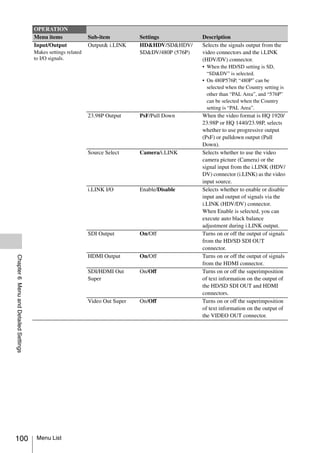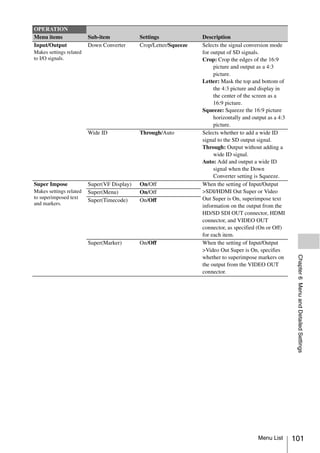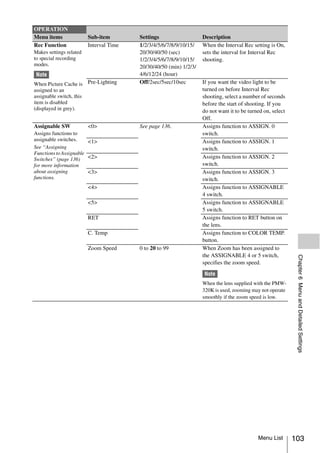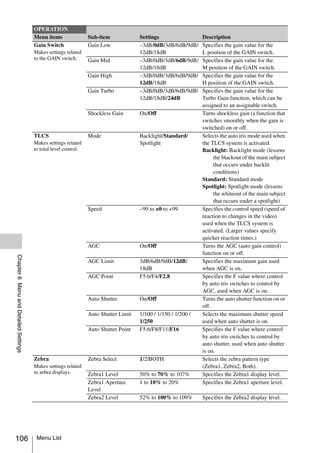
4-198-307-12 (1)


Solid-State Memory
Camcorder


Operating Instructions
Before operating the unit, please read this manual thoroughly
and retain it for future reference.


PMW-320K
PMW-320L


© 2010 Sony Corporation
WARNING
    To reduce the risk of fire or
                                                       • Unplug this apparatus during lightning
    electric shock, do not                               storms or when unused for long periods of
    expose this apparatus to                             time.
                                                       • Refer all servicing to qualified service
    rain or moisture.                                    personnel. Servicing is required when the
                                                         apparatus has been damaged in any way,
    To avoid electrical shock,                           such as power-supply cord or plug is
                                                         damaged, liquid has been spilled or
    do not open the cabinet.                             objects have fallen into the apparatus, the
    Refer servicing to qualified                         apparatus has been exposed to rain or
                                                         moisture, does not operate normally, or
    personnel only.                                      has been dropped.

    Important Safety Instructions                      WARNING
    •   Read these instructions.                       Excessive sound pressure from earphones
    •   Keep these instructions.                       and headphones can cause hearing loss.
    •   Heed all warnings.                             In order to use this product safely, avoid
    •   Follow all instructions.                       prolonged listening at excessive sound
    •   Do not use this apparatus near water.          pressure levels.
    •   Clean only with dry cloth.
    •   Do not block any ventilation openings.         For the customers in the U.S.A.
        Install in accordance with the                 This equipment has been tested and found
        manufacturer’s instructions.                   to comply with the limits for a Class A digital
    •   Do not install near any heat sources such      device, pursuant to Part 15 of the FCC
        as radiators, heat registers, stoves, or       Rules. These limits are designed to provide
        other apparatus (including amplifiers) that    reasonable protection against harmful
        produce heat.                                  interference when the equipment is operated
    •   Do not defeat the safety purpose of the        in a commercial environment. This
        polarized or grounding-type plug. A            equipment generates, uses, and can radiate
        polarized plug has two blades with one         radio frequency energy and, if not installed
        wider than the other. A grounding-type         and used in accordance with the instruction
        plug has two blades and a third grounding      manual, may cause harmful interference to
        prong. The wide blade or the third prong       radio communications. Operation of this
        are provided for your safety. If the           equipment in a residential area is likely to
        provided plug does not fit into your outlet,   cause harmful interference in which case the
        consult an electrician for replacement of      user will be required to correct the
        the obsolete outlet.                           interference at his own expense.
    •   Protect the power cord from being walked
        on or pinched particularly at plugs,           You are cautioned that any changes or
        convenience receptacles, and the point         modifications not expressly approved in this
        where they exit from the apparatus.            manual could void your authority to operate
    •   Only use attachments/accessories               this equipment.
        specified by the manufacturer.
    •   Use only with the cart, stand, tripod,         All interface cables used to connect
        bracket, or table specified by the             peripherals must be shielded in order to
        manufacturer, or sold with the apparatus.      comply with the limits for a digital device
        When a cart is used, use caution when          pursuant to Subpart B of Part 15 of FCC
        moving the cart/apparatus combination to       Rules.
        avoid injury from tip-over.


2
This device complies with Part 15 of the FCC    For the customers in Taiwan only
Rules. Operation is subject to the following
two conditions: (1) this device may not cause
harmful interference, and (2) this device
must accept any interference received,
including interference that may cause
undesired operation.
For the customers in Canada
This Class A digital apparatus complies with
Canadian ICES-003.

For the customers in Europe
This product with the CE marking complies
with the EMC Directive issued by the
Commission of the European Community.
Compliance with this directive implies
conformity to the following European
standards:
• EN55103-1: Electromagnetic Interference
   (Emission)
• EN55103-2: Electromagnetic
   Susceptibility (Immunity)
This product is intended for use in the
following Electromagnetic Environments: E1
(residential), E2 (commercial and light
industrial), E3 (urban outdoors), E4
(controlled EMC environment, ex. TV
studio).

The manufacturer of this product is Sony
Corporation, 1-7-1 Konan, Minato-ku,
Tokyo, Japan.
The Authorized Representative for EMC and
product safety is Sony Deutschland GmbH,
Hedelfinger Strasse 61, 70327 Stuttgart,
Germany. For any service or guarantee
matters please refer to the addresses given
in separate service or guarantee documents.


For the State of California, USA only
Perchlorate Material - special handling may
apply, See
www.dtsc.ca.gov/hazardouswaste/
perchlorate
Perchlorate Material : Lithium battery
contains perchlorate.


                                                                                   3
Table of Contents

                   Foreword .................................................................................................... 10
                         Before Use....................................................................................... 10


    Chapter 1 : Overview

                   Features ...................................................................................................... 11
                   Using the Software ..................................................................................... 13
                   Reading the CD-ROM Manuals ............................................................... 13
                   Locations and Functions of Parts and Controls......................................                           14
                          Power Supply ..................................................................................        14
                          Accessory Attachments...................................................................               15
                          Operating and Connectors Section..................................................                     16
                          Monochrome LCD Panel ................................................................                  25
                          Auto Focus Lens (Supplied with the PMW-320K).........................                                  26
                          Viewfinder.......................................................................................      28
                   Viewfinder Screen Display........................................................................ 29


    Chapter 2 : Preparations

                   Preparing a Power Supply ........................................................................ 34
                          Using a Battery Pack....................................................................... 34
                          Using AC Power ............................................................................. 35
                   Attaching the Viewfinder ..........................................................................           35
                          Attaching the Supplied Viewfinder.................................................                     35
                          Adjusting the Viewfinder Position..................................................                    36
                          Adjusting the Viewfinder Angle .....................................................                   36
                          Lifting Up the Viewfinder Barrel and Eyepiece .............................                            36
                          Adjusting the Viewfinder Focus and Screen...................................                           38
                          Using the BKW-401 Viewfinder Rotation Bracket ........................                                 38
                          Attaching a 5-inch Electronic Viewfinder ......................................                        39
                   Setting the Area of Use .............................................................................. 40
                   Setting the Date/Time of the Internal Clock ........................................... 41
                   Mounting and Adjusting the Lens............................................................ 41
                         Adjusting the Flange Focal Length ................................................. 42
                   Preparing the Audio Input System .......................................................... 43
                          Connecting a Microphone to the MIC IN Connector...................... 43

4    Table of Contents
Connecting Microphones to the AUDIO IN Connectors................ 44
                        Attaching a UHF Portable Tuner (for a UHF Wireless Microphone
                            System) ..................................................................................... 45
             Tripod Mounting ....................................................................................... 46
             Connecting a Video Light ......................................................................... 47
             Using the Shoulder Strap .......................................................................... 47
             Adjusting the Shoulder Pad Position ....................................................... 48


Chapter 3 : Adjustments and Settings

             Setting the Video Format .......................................................................... 49
                     Changing the Video Format ............................................................ 50
             Adjusting the Black Balance and the White Balance ............................. 50
                    Adjusting the Black Balance........................................................... 50
                    Adjusting the White Balance .......................................................... 51
             Setting the Electronic Shutter................................................................... 53
                     Shutter Modes ................................................................................. 53
                     Selecting the Shutter Mode and Shutter Speed ............................... 54
             Changing the Reference Value for Automatic Iris Adjustment ............ 55
             Zooming ......................................................................................................   56
                   Switching between Zoom Modes....................................................                           56
                   Using Manual Zoom .......................................................................                  56
                   Using Servo Zoom ..........................................................................                56
             Adjusting the Focus ...................................................................................          57
                    Adjusting in Full MF Mode ............................................................                    57
                    Adjusting in MF Mode....................................................................                  57
                    Adjusting in AF Mode ....................................................................                 58
                    Using Macro Mode .........................................................................                58
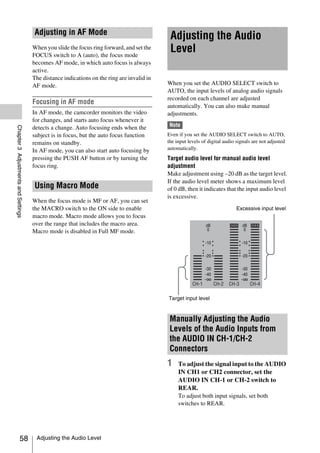
             Adjusting the Audio Level ........................................................................ 58
                    Manually Adjusting the Audio Levels of the Audio Inputs from the
                        AUDIO IN CH-1/CH-2 Connectors ......................................... 58
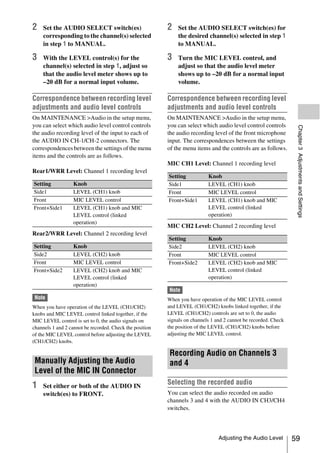
                    Manually Adjusting the Audio Level of the MIC IN Connector .... 59
                    Recording Audio on Channels 3 and 4 ........................................... 59
             Setting the Time Data ................................................................................           61
                     Setting the Timecode.......................................................................              61
                     Setting the User Bits........................................................................            61
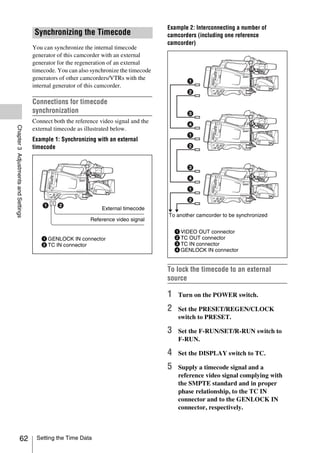
                     Synchronizing the Timecode...........................................................                    62
             Checking Camcorder Settings and Status Information (Status Screens)
                ............................................................................................................... 63


                                                                                                      Table of Contents              5
Chapter 4 : Shooting

                   Handling SxS Memory Cards...................................................................                  65
                         About SxS Memory Cards ..............................................................                   65
                         Loading and Ejecting SxS Memory Cards......................................                             66
                         Selecting the SxS Memory Card to Use..........................................                          67
                         Formatting (Initializing) SxS Memory Cards .................................                            67
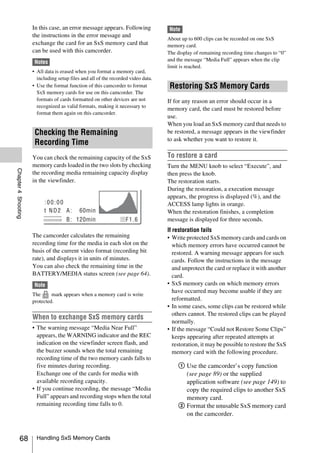
                         Checking the Remaining Recording Time......................................                             68
                         Restoring SxS Memory Cards.........................................................                     68
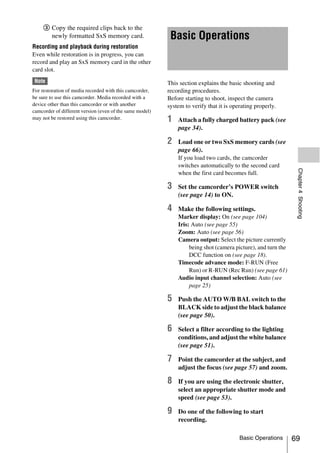
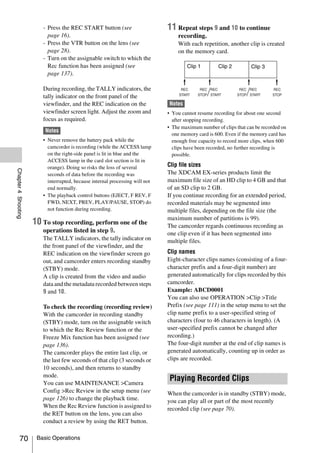
                   Basic Operations ........................................................................................ 69
                          Playing Recorded Clips................................................................... 70
                          Deleting Recorded Clips ................................................................. 71
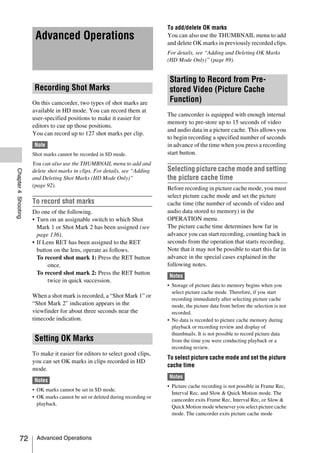
                   Advanced Operations ................................................................................ 72
                         Recording Shot Marks..................................................................... 72
                         Setting OK Marks ........................................................................... 72
                         Starting to Record from Pre-stored Video (Picture Cache Function)
                              .................................................................................................. 72
                         Recording Time-lapse Video (Interval Rec Function).................... 73
                         Shooting Stop Motion Animations (Frame Rec Function) ............. 75
                         Shooting with Slow & Quick Motion ............................................. 76
                         Framing Shots with the Freeze Mix Function................................. 77
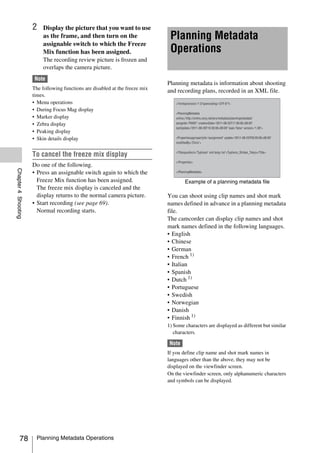
                   Planning Metadata Operations ................................................................ 78
                          Loading a Planning Metadata File into Camcorder’s Internal Memory
                              .................................................................................................. 79
                          Defining Clip Names in Planning Metadata ................................... 80
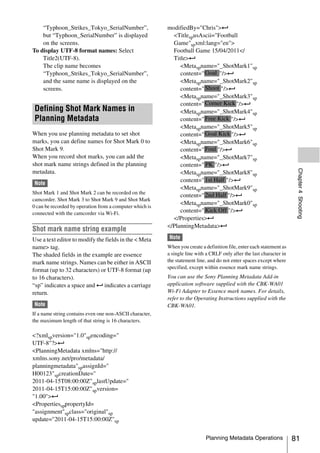
                          Defining Shot Mark Names in Planning Metadata ......................... 81


    Chapter 5 : Clip Operations

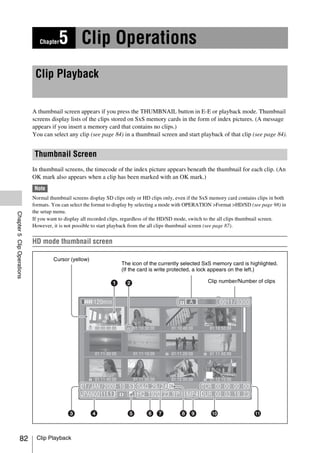
                   Clip Playback .............................................................................................   82
                          Thumbnail Screen ...........................................................................           82
                          Playing Clips ...................................................................................      84
                          Using Thumbnails to Search Inside Clips.......................................                         85
                   Thumbnail Operations ..............................................................................           86
                        THUMBNAIL Menu Configuration ...............................................                             86
                        Basic THUMBNAIL Menu Operations ..........................................                               87
                        Changing the Thumbnail Screen Type............................................                           87
                        Displaying Clip Properties ..............................................................                88
                        Adding and Deleting OK Marks (HD Mode Only) ........................                                     89
                        Copying Clips .................................................................................          89
                        Deleting Clips..................................................................................         90
                        Displaying the Expand Thumbnail Screen......................................                             91
                        Displaying the Shot Mark Thumbnail Screen (HD Mode Only) ....                                            92


6    Table of Contents
Adding and Deleting Shot Marks (HD Mode Only)....................... 92
                        Changing Clip Index Pictures (HD Mode Only)............................. 93
                        Dividing Clips (HD Mode Only) .................................................... 93


Chapter 6 : Menu and Detailed Settings

             Setup Menu Organization and Levels...................................................... 94
                   Setup Menu Organization ............................................................... 94
                   Setup Menu Levels.......................................................................... 94
             Basic Setup Menu Operations .................................................................. 96
             Menu List.................................................................................................... 98
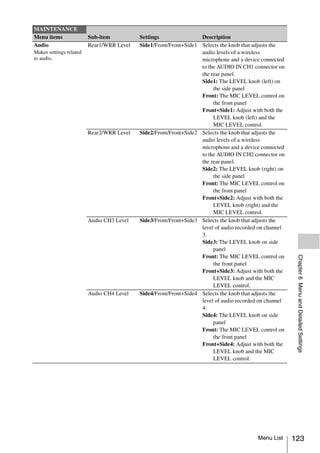
                   OPERATION Menu........................................................................ 98
                   PAINT Menu................................................................................. 113
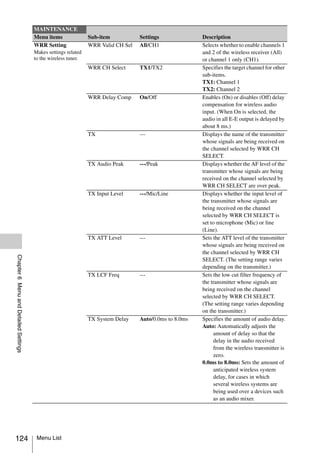
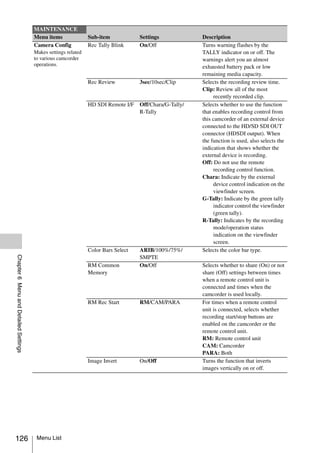
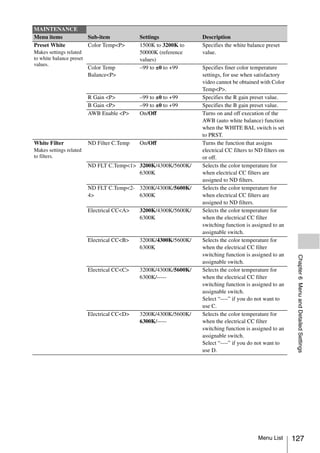
                   MAINTENANCE Menu ............................................................... 119
                   FILE Menu .................................................................................... 132
             Assigning Functions to Assignable Switches ......................................... 136
                    Functions That Can Be Assigned to the ASSIGN. 0 Switch ........ 136
                    Functions That can Be Assigned to the ASSIGN. 2 Switch ......... 137
                    Functions That Can Be Assigned to the ASSIGN. 1 and 3 Switches,
                        the ASSIGNABLE 4 and 5 Switches, and the COLOR TEMP.
                        Button...................................................................................... 137
                    Functions That Can Be Assigned to the RET Button on the Lens 139
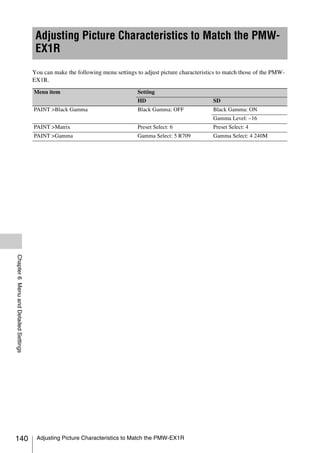
             Adjusting Picture Characteristics to Match the PMW-EX1R ............ 140


Chapter 7 : Saving and Loading User Setting Data

             Saving and Loading Settings...................................................................            141
                    Saving Setting Data.......................................................................         141
                    Loading Setting Data.....................................................................          142
                    Resetting a File after Changing Its Contents.................................                      142
             Saving and Loading Scene Files ............................................................. 143
                    Saving Scene Files ........................................................................ 143
                    Loading Scene Files ...................................................................... 143
             Saving and Loading Lens Files...............................................................              144
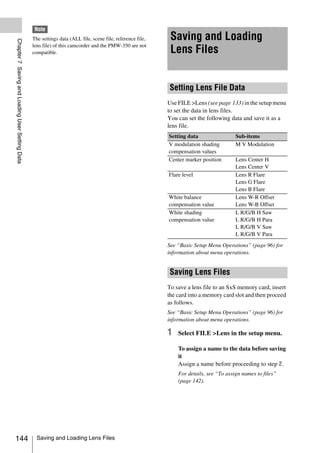
                    Setting Lens File Data...................................................................          144
                    Saving Lens Files ..........................................................................       144
                    Loading Lens Files........................................................................         145
                    Loading Lens Files Automatically ................................................                  145


                                                                                                  Table of Contents             7
Chapter 8 : Connecting External Devices

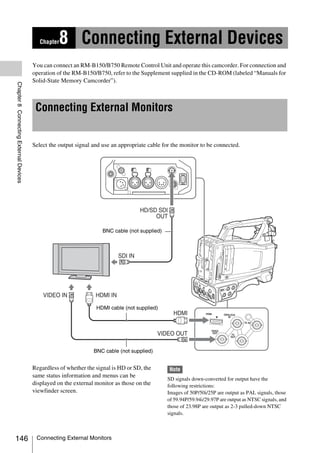
                   Connecting External Monitors ............................................................... 146
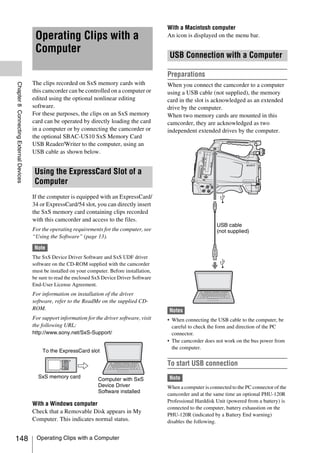
                   Operating Clips with a Computer.......................................................... 148
                         Using the ExpressCard Slot of a Computer .................................. 148
                         USB Connection with a Computer................................................ 148
                   Connecting an External Device (i.LINK Connection)..........................                                  150
                         Recording the Camera Picture on an External Device..................                                   150
                         Nonlinear Editing ..........................................................................           151
                         Recording External Input Signals .................................................                     151
                   Configuring a Shooting and Recording System .................................... 152


    Chapter 9 : Maintenance

                   Testing the Camcorder............................................................................ 153
                   Maintenance ............................................................................................. 153
                         Cleaning the Viewfinder ............................................................... 153
                         Note about the Battery Terminal................................................... 153
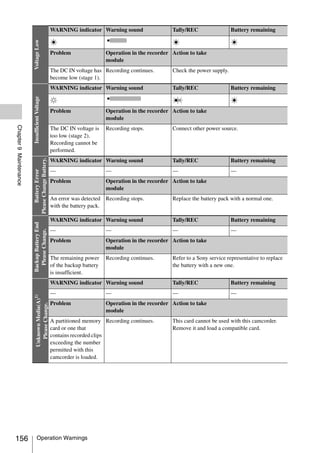
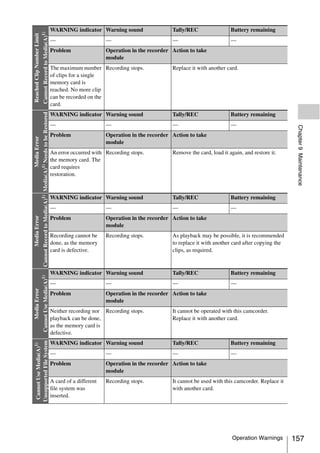
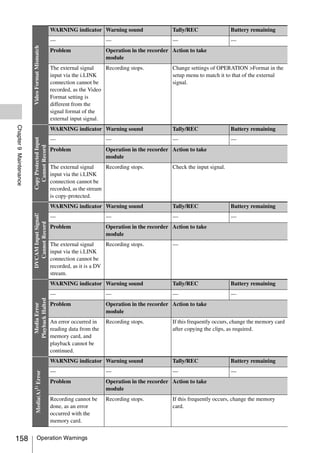
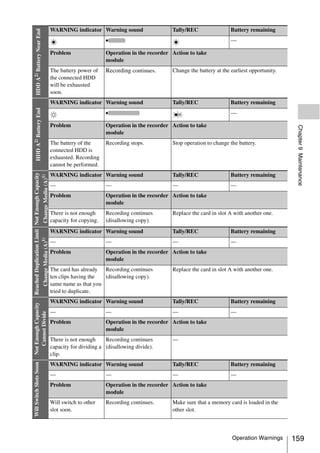
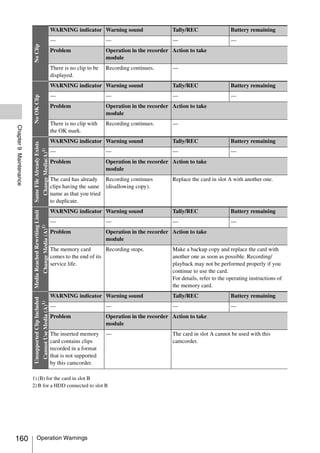
                   Operation Warnings ................................................................................ 154
                         Error Indication ............................................................................. 154
                         Warning Indication........................................................................ 155


    Appendix
                   Important Notes on Operation ............................................................... 161
                   Exchanging the Battery of the Internal Clock ...................................... 163
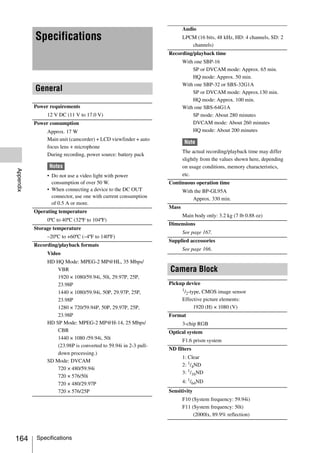
                   Specifications............................................................................................   164
                           General ..........................................................................................   164
                           Camera Block................................................................................         164
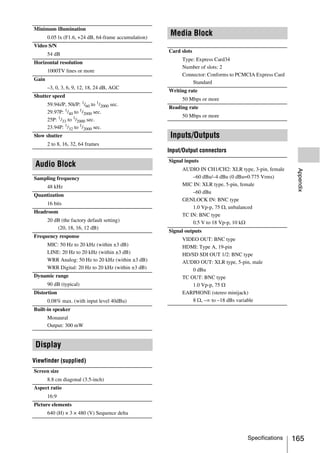
                           Audio Block ..................................................................................       165
                           Display ..........................................................................................   165
                           Media Block ..................................................................................       165
                           Inputs/Outputs ...............................................................................       165
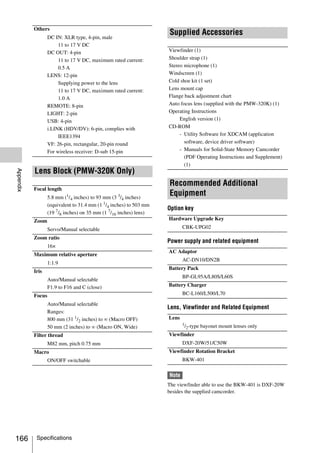
                           Lens Block (PMW-320K Only) ....................................................                      166
                           Supplied Accessories ....................................................................            166
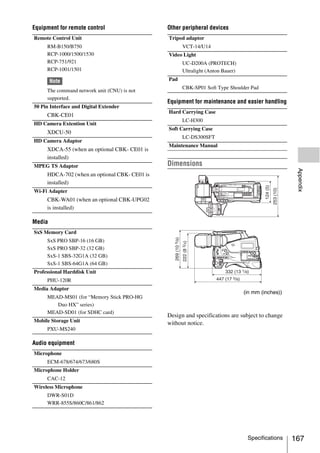
                           Recommended Additional Equipment ..........................................                          166
                   Chart of Optional Components and Accessories .................................. 169
                   About i.LINK ........................................................................................... 170
                   MPEG-2 Video Patent Portfolio License ............................................... 171
                   About Bitmap Fonts ................................................................................ 171


8    Table of Contents
About OpenSSL ....................................................................................... 172
Index.......................................................................................................... 175


                                                                                        Table of Contents             9
Foreword


      Before Use
     After purchasing the PMW-320K/320L Solid-
     State Memory Camcorder, before operating, it is
     necessary to set the area of use.
     (Unless this setting is made, the camcorder will
     not operate.)
     For details of these settings, see “Setting the Area of
     Use” (page 40).
      Note
     Before attaching/removing optional components or
     accessories to/from the PMW-320K/320L (referred to as
     “the camcorder”), be sure to turn the power of the
     camcorder off.


10    Foreword
1 Overview


                                                                                                           Chapter 1 Overview
     Chapter


                                                     Multi-format support
 Features                                            The camcorder supports interlace format
                                                     recording (1080/59.94i or 1080/50i), progressive
                                                     format recording (1080/29.97P, 1080/23.98P,
                                                     720/59.94P, 720/29.97P, 720/23.98P, or 1080/
                                                     25P, 720/50P, 720/25P), thus offering the
The camcorder is a shoulder-mount HD memory          flexibility needed for worldwide HD recording.
camcorder. It is provided with three 1/2-type        (For 23.98P, native frequency recording is
(diagonal 8 mm (11/32 inches)) full-HD               possible.)
(1920×1080) “Exmor” CMOS image sensors.              It also supports recording and playback of SD
                                                     signals (both NTSC and PAL). The camcorder
1/                                                   has an optional capability to record and play back
  2-type bayonet mount                               SD signals in DVCAM-AVI format, and can
The camcorder is provided with a 1/2-type            output HD signals down-converted to SD.
bayonet mount (flange focal length 38 mm (1/2
inches), allowing you to use Sony 1/2-type           A special auto focus lens
bayonet mount exchangeable lenses.
                                                     The camcorder is provided with the 1/2-type auto
                                                     focus lens, which ensures high-quality shooting
SxS memory cards as recording media                  in all situations from wide angle to telephoto
Using SxS memory cards, the camcorder offers         (PMW-320K only).
nonlinear capabilities such as instant random
access and file-based operation.                     A variety of functions for improved
                                                     performance under various shooting
Light weight, low power consumption                  conditions
Design features such as CMOS image sensors,
                                                     •   Picture Cache function
custom video signal processing ICs, and SxS
                                                     •   Optical ND filters and electrical CC filters
memory card recording enable fanless operation
                                                     •   Hyper gamma
and power consumption of 15 W or less. The
                                                     •   Slow shutter function
camcorder’s light weight (3.2 kg (7 lb 0.88 oz))
                                                     •   Frame Recording function
and low center of gravity make it easy to carry on
                                                     •   Time lapse function (interval recording)
the shoulder while ensuring superior stability.
                                                     •   Slow & quick motion function
                                                     •   Freeze mix function
HD recording using the “MPEG-2 Long                  •   Focus magnification function
GOP” codec                                           •   Digital extender function 1)
The camcorder records 1920 × 1080, 1440 ×            •   Image inversion function
1080, and 1280 × 720 HD images using “MPEG-          •   Assignable switches
2 Long GOP” codec compression. It offers a           •   3.5-inch high-resolution color LCD viewfinder
choice of bit rates: either 35 Mbps (HQ mode) or     •   Remote control
25 Mbps (SP mode).                                   1) When the optional CBK-CE01 50 Pin Interface and
                                                        Digital Extender is installed
By utilizing an efficient compression format, the
camcorder records high-quality HD images for
long recording time of approx. 100 minutes at 35     Wireless LAN support
Mbps (HQ mode) or approx. 140 minutes at 25          You can connect this camcorder to a computer
Mbps (SP mode) on a single 32-GB SxS memory          over a wireless LAN (Wi-Fi connection) by
card.                                                installing the optional CBK-UPG02 Hardware

                                                                                             Features     11
Upgrade Key and connecting the optional CBK-        When the CBK-CE01 is installed, you can also
                     WA01 Wi-Fi Adapter to the external device           connect the HDCA-702 MPEG TS Adaptor
Chapter 1 Overview


                     connector.                                          instead of the camera adaptor. This allows you to
                     A Wi-Fi connection allows you to transfer           convert this camcorder’s HDSDI output to a
                     planning metadata from a computer to this           MPEG HD transport stream.
                     camcorder, and to transfer clips and other files
                     from this camcorder to a computer. You can also
                     use the Live Logging function to transfer proxy
                     AV data to a computer as you shoot, for logging
                     of the video currently being shot.

                     Inherits unique features of XDCAM EX
                     series
                     The camcorder inherits the workflow features of
                     the XDCAM EX series, including thumbnail
                     display and metadata management, and improves
                     them by introducing an improved man-machine
                     interface.

                     XDCAM EX web sites
                     For information on XDCAM EX, visit the
                     following web sites:
                     United States
                     http://www.sony.com/xdcamex
                     Canada
                     http://www.sony.ca/xdcamex
                     Europe, Middle East, Africa, and Russia
                     http://www.sonybiz.net/xdcamex
                     Latin America
                     http://www.sonypro-latin.com/xdcamex
                     Australia
                     http://www.sony.com.au/xdcamex
                     Asia (except Korea, China, and Japan)
                     http://pro.sony-asia.com
                     Korea
                     http://bp.sony.co.kr/xdcamex
                     China
                     http://pro.sony.com.cn/minisite/XDCAMEX
                     Japan
                     http://www.sony.co.jp/XDCAMEX

                     Camcorder system configuration
                     When you install the optional CBK-CE01 50 Pin
                     Interface and Digital Extender, you can mount the
                     XDCA-55 HD Camera Adaptor and connect the
                     XDCU-50 HD Camera Extension Unit to
                     configure a system for shooting and recording.


          12          Features
Using the Software                                         Reading the CD-ROM


                                                                                                                       Chapter 1 Overview
                                                            Manuals

The supplied CD-ROM (labeled “Utility
Software for Solid-State Memory Camcorder and
                                                           Preparations
Recorder”) contains application and device driver          The following program must be installed on your
software required to access to SxS memory cards            computer in order to read the documents
from a computer and to manage material shot                contained on the CD-ROM.
with the camcorder.                                        Adobe Reader Version 6.0 or higher
Information about how to install the software is
                                                            Memo
provided in PDF format.
                                                           If Adobe Reader is not installed, you can download it
 Note                                                      from the following URL:
You must install the SxS device driver on your computer    http://www.adobe.com/
if your computer is equipped with an ExpressCard slot      Adobe and Adobe Reader are trademarks of Adobe
and you want to use it to access SxS memory cards.         Systems Incorporated in the United States and/or other
                                                           countries.


                                                           To read the documents
                                                           Do the following:

                                                           1    Insert the CD-ROM in your CD-ROM
                                                                drive.
                                                                A cover page appears automatically in your
                                                                browser.
                                                                If it does not appear automatically in the
                                                                browser, double-click on the index.htm file
                                                                on the CD-ROM.

                                                           2    Select and click on the manual that you
                                                                wish to read.
                                                                This opens the PDF file.
                                                            Memo
                                                           The files may not be displayed properly, depending on
                                                           the version of Adobe Reader. In such a case, install the
                                                           latest version you can download from the URL
                                                           mentioned in “Preparations” above.

                                                            Note
                                                           If you have lost or damaged the CD-ROM, you can
                                                           purchase a new one to replace it. Contact a Sony service
                                                           representative.


                                                      Using the Software / Reading the CD-ROM Manuals                 13
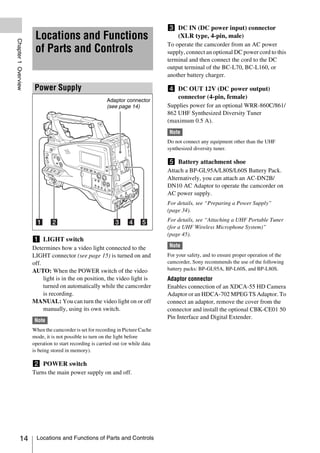
c DC IN (DC power input) connector
                      Locations and Functions                                       (XLR type, 4-pin, male)
Chapter 1 Overview


                                                                                  To operate the camcorder from an AC power
                      of Parts and Controls                                       supply, connect an optional DC power cord to this
                                                                                  terminal and then connect the cord to the DC
                                                                                  output terminal of the BC-L70, BC-L160, or
                                                                                  another battery charger.

                      Power Supply                                                d DC OUT 12V (DC power output)
                                                                                    connector (4-pin, female)
                                                         Adaptor connector
                                                         (see page 14)            Supplies power for an optional WRR-860C/861/
                                                                                  862 UHF Synthesized Diversity Tuner
                                                                                  (maximum 0.5 A).
                                                                                  Note
                                                                                  Do not connect any equipment other than the UHF
                                                                                  synthesized diversity tuner.

                                                                                  e Battery attachment shoe
                                                                                  Attach a BP-GL95A/L80S/L60S Battery Pack.
                                                                                  Alternatively, you can attach an AC-DN2B/
                                                                                  DN10 AC Adaptor to operate the camcorder on
                                                                                  AC power supply.
                                                                                  For details, see “Preparing a Power Supply”
                                                                                  (page 34).
                                                                                  For details, see “Attaching a UHF Portable Tuner
                                                                                  (for a UHF Wireless Microphone System)”
                                                                                  (page 45).
                     a LIGHT switch
                     Determines how a video light connected to the                Note
                     LIGHT connector (see page 15) is turned on and               For your safety, and to ensure proper operation of the
                     off.                                                         camcorder, Sony recommends the use of the following
                     AUTO: When the POWER switch of the video                     battery packs: BP-GL95A, BP-L60S, and BP-L80S.
                          light is in the on position, the video light is         Adaptor connector
                          turned on automatically while the camcorder             Enables connection of an XDCA-55 HD Camera
                          is recording.                                           Adaptor or an HDCA-702 MPEG TS Adaptor. To
                     MANUAL: You can turn the video light on or off               connect an adaptor, remove the cover from the
                          manually, using its own switch.                         connector and install the optional CBK-CE01 50
                                                                                  Pin Interface and Digital Extender.
                      Note
                     When the camcorder is set for recording in Picture Cache
                     mode, it is not possible to turn on the light before
                     operation to start recording is carried out (or while data
                     is being stored in memory).

                     b POWER switch
                     Turns the main power supply on and off.


          14           Locations and Functions of Parts and Controls
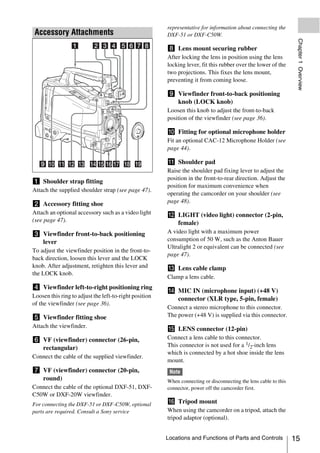
representative for information about connecting the
 Accessory Attachments                                  DXF-51 or DXF-C50W.


                                                                                                                   Chapter 1 Overview
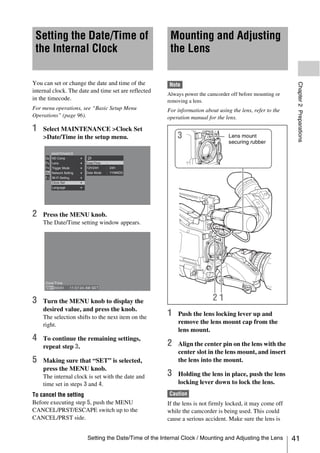
                                                        h Lens mount securing rubber
                                                        After locking the lens in position using the lens
                                                        locking lever, fit this rubber over the lower of the
                                                        two projections. This fixes the lens mount,
                                                        preventing it from coming loose.

                                                        i Viewfinder front-to-back positioning
                                                          knob (LOCK knob)
                                                        Loosen this knob to adjust the front-to-back
                                                        position of the viewfinder (see page 36).

                                                        j Fitting for optional microphone holder
                                                        Fit an optional CAC-12 Microphone Holder (see
                                                        page 44).

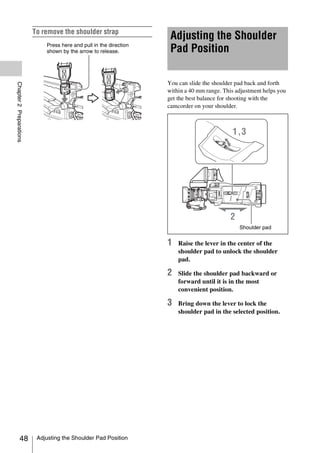
                                                        k Shoulder pad
                                                        Raise the shoulder pad fixing lever to adjust the
                                                        position in the front-to-rear direction. Adjust the
a Shoulder strap fitting
                                                        position for maximum convenience when
Attach the supplied shoulder strap (see page 47).
                                                        operating the camcorder on your shoulder (see
b Accessory fitting shoe                                page 48).
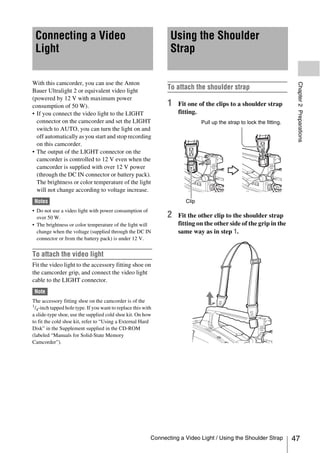
Attach an optional accessory such as a video light      l LIGHT (video light) connector (2-pin,
(see page 47).                                            female)
c Viewfinder front-to-back positioning                  A video light with a maximum power
  lever                                                 consumption of 50 W, such as the Anton Bauer
                                                        Ultralight 2 or equivalent can be connected (see
To adjust the viewfinder position in the front-to-
                                                        page 47).
back direction, loosen this lever and the LOCK
knob. After adjustment, retighten this lever and        m Lens cable clamp
the LOCK knob.
                                                        Clamp a lens cable.
d Viewfinder left-to-right positioning ring
                                                        n MIC IN (microphone input) (+48 V)
Loosen this ring to adjust the left-to-right position     connector (XLR type, 5-pin, female)
of the viewfinder (see page 36).
                                                        Connect a stereo microphone to this connector.
e Viewfinder fitting shoe                               The power (+48 V) is supplied via this connector.
Attach the viewfinder.
                                                        o LENS connector (12-pin)
f VF (viewfinder) connector (26-pin,                    Connect a lens cable to this connector.
  rectangular)                                          This connector is not used for a 1/2-inch lens
                                                        which is connected by a hot shoe inside the lens
Connect the cable of the supplied viewfinder.
                                                        mount.
g VF (viewfinder) connector (20-pin,                     Note
  round)                                                When connecting or disconnecting the lens cable to this
Connect the cable of the optional DXF-51, DXF-          connector, power off the camcorder first.
C50W or DXF-20W viewfinder.
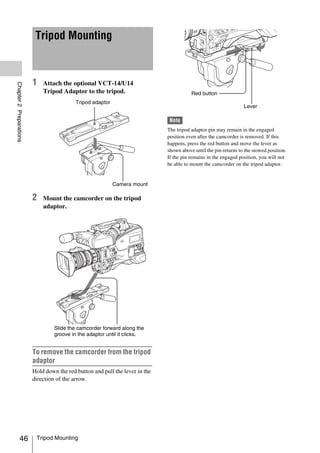
For connecting the DXF-51 or DXF-C50W, optional         p Tripod mount
parts are required. Consult a Sony service              When using the camcorder on a tripod, attach the
                                                        tripod adaptor (optional).


                                                        Locations and Functions of Parts and Controls             15
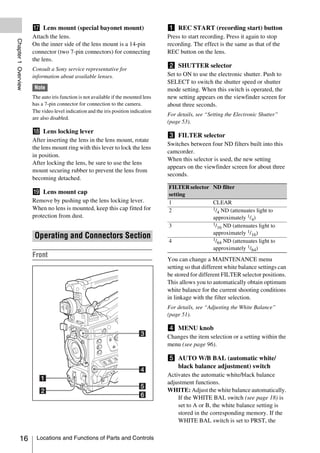
q Lens mount (special bayonet mount)                          a REC START (recording start) button
                     Attach the lens.                                              Press to start recording. Press it again to stop
Chapter 1 Overview


                     On the inner side of the lens mount is a 14-pin               recording. The effect is the same as that of the
                     connector (two 7-pin connectors) for connecting               REC button on the lens.
                     the lens.
                                                                                   b SHUTTER selector
                     Consult a Sony service representative for
                     information about available lenses.                           Set to ON to use the electronic shutter. Push to
                                                                                   SELECT to switch the shutter speed or shutter
                      Note                                                         mode setting. When this switch is operated, the
                     The auto iris function is not available if the mounted lens   new setting appears on the viewfinder screen for
                     has a 7-pin connector for connection to the camera.           about three seconds.
                     The video level indication and the iris position indication
                                                                                   For details, see “Setting the Electronic Shutter”
                     are also disabled.
                                                                                   (page 53).
                     r Lens locking lever
                                                                                   c FILTER selector
                     After inserting the lens in the lens mount, rotate
                                                                                   Switches between four ND filters built into this
                     the lens mount ring with this lever to lock the lens
                                                                                   camcorder.
                     in position.
                                                                                   When this selector is used, the new setting
                     After locking the lens, be sure to use the lens
                                                                                   appears on the viewfinder screen for about three
                     mount securing rubber to prevent the lens from
                                                                                   seconds.
                     becoming detached.
                                                                                   FILTER selector ND filter
                     s Lens mount cap                                              setting
                     Remove by pushing up the lens locking lever.                  1               CLEAR
                     When no lens is mounted, keep this cap fitted for             2               1/ ND (attenuates light to
                                                                                                     4
                     protection from dust.                                                         approximately 1/4)
                                                                                   3               1/ ND (attenuates light to
                                                                                                     16
                                                                                                   approximately 1/16)
                      Operating and Connectors Section                                             1/ ND (attenuates light to
                                                                                   4                 64
                                                                                                   approximately 1/64)
                     Front
                                                                                   You can change a MAINTENANCE menu
                                                                                   setting so that different white balance settings can
                                                                                   be stored for different FILTER selector positions.
                                                                                   This allows you to automatically obtain optimum
                                                                                   white balance for the current shooting conditions
                                                                                   in linkage with the filter selection.
                                                                                   For details, see “Adjusting the White Balance”
                                                                                   (page 51).

                                                                                   d MENU knob
                                                                                   Changes the item selection or a setting within the
                                                                                   menu (see page 96).

                                                                                   e AUTO W/B BAL (automatic white/
                                                                                     black balance adjustment) switch
                                                                                   Activates the automatic white/black balance
                                                                                   adjustment functions.
                                                                                   WHITE: Adjust the white balance automatically.
                                                                                       If the WHITE BAL switch (see page 18) is
                                                                                       set to A or B, the white balance setting is
                                                                                       stored in the corresponding memory. If the
                                                                                       WHITE BAL switch is set to PRST, the


          16           Locations and Functions of Parts and Controls
automatic white balance adjustment function    You can assign the desired functions to these
     does not operate.                              switches on OPERATION >Assignable SW in


                                                                                                            Chapter 1 Overview
BLACK: Adjust the black set and black balance       the setup menu (see page 136).
     automatically.                                 EZ Mode is assigned to the ASSIGN. 1 switch,
You can use the AUTO W/B BAL switch even            and Off is assigned to the ASSIGN. 2/3 switches
when the ATW (Auto Tracing White Balance)           as the factory default setting.
function is operating.                              The ASSIGN.1/3 switches are provided with an
If you push the switch to the WHITE side once       indicator to show whether a function is assigned
more during the automatic white balance             to the switch (ON) or not (OFF).
adjustment, the adjustment is cancelled and the
white balance setting returns to the original       b COLOR TEMP. (color temperature)
setting.                                              button
If you push the switch to the BLACK side once       Press to light the button and change the color
more during the automatic black balance             temperature for shooting (factory default setting).
adjustment, the adjustment is cancelled and the     You can use this as an assignable switch (see
black balance setting returns to the original       page 136).
setting.
                                                    c ALARM (alarm tone volume
f MIC (microphone) LEVEL control                      adjustment) knob
Adjusts the input level of audio channels 1, 2, 3   Controls the volume of the warning tone that is
and 4 (see page 58).                                output via the built-in speaker or optional
                                                    earphones. When the knob is turned to the
Right side (near the front)                         minimum position, no sound can be heard.
                                                    However, if MAINTENANCE >Audio >Min
                                                    Alarm Volume in the setup menu is set to [Set],
                                                    the alarm tone is audible even when this volume
                                                    control is at the minimum position.


                                                                                     ALARM

                                                                Minimum         Maximum

                                                    d MONITOR (monitor volume
                                                      adjustment) knob
                                                    Controls the volume of the sound other than the
                                                    warning tone that is output via the built-in speaker
                                                    or earphones. When the knob is turned to the
                                                    minimum position, no sound can be heard.

                                                    e MONITOR (audio monitor selection)
                                                      switches
                                                    By means of combinations of the two switches,
                                                    you can select audio that you want to hear through
                                                    the built-in speaker or earphones.

                                                    Position of down-side switch: CH-1/2
                                                     Position of up-side   Audio output
                                                     switch
                                                     CH-1/CH-3             Channel 1 audio
                                                     MIX                   Channels 1 and 2 mixed
a ASSIGN. (assignable) 1/2/3 switches                                      audio (stereo) a)

                                                    Locations and Functions of Parts and Controls          17
Position of up-side      Audio output                          • Shooting a subject indoors, against a background
                     switch                                                           through a window
Chapter 1 Overview


                                                                                    • Any high contrast scene
                     CH-2/CH-4                Channel 2 audio

                     Position of down-side switch: CH-3/4                         i WHITE BAL (white balance memory)
                     Position of up-side      Audio output
                                                                                    switch
                     switch                                                       Controls adjustment of the white balance.
                     CH-1/CH-3                Channel 3 audio                     PRST: Adjust the color temperature to the preset
                     MIX                      Channels 3 and 4 mixed                  value (the factory default setting: 3200K).
                                              audio (stereo) a)                       Use this setting when you have no time to
                     CH-2/CH-4                Channel 4 audio                         adjust the white balance.
                                                                                  A or B: Recall the white balance adjustment
                     a) By connecting stereo headphones to the EARPHONE               settings already stored in A or B. Push the
                        jack, you can hear the audio in stereo. (Under                AUTO W/B BAL switch (see page 16) on
                        MAINTENANCE >Audio in the setup menu,                         the WHITE side, to automatically adjust the
                        Headphone Out must be set to STEREO.)                         white balance, and save the adjustment
                                                                                      settings in memory A or memory B.
                     f ASSIGN. (assignable) 0 switch
                     You can assign the desired function to this switch           B (ATW 1)): When this switch is set to B and
                     on OPERATION >Assignable SW in the setup                         OPERATION >White Setting >White
                     menu (see page 137).                                             Switch<B> is set to [ATW] in the setup
                     Off is assigned to this switch when the camcorder                menu, ATW is activated.
                     is shipped from the factory.                                     You can use the AUTO W/B BAL switch
                     This is a momentary type switch. Each press of                   even when ATW is in use.
                     the switch turns the function assigned to this               When this switch is adjusted, the new setting
                     switch on or off.                                            appears on the viewfinder screen for about three
                                                                                  seconds.
                     g GAIN selector
                                                                                  1) ATW (Auto Tracing White Balance): The white
                     Switches the gain of the video amplifier to match               balance of the picture being shot is adjusted
                     the lighting conditions during shooting. The gains              automatically for varying lighting conditions.
                     corresponding to the L, M, and H settings can be
                     selected on OPERATION >Gain Switch in the                    j MENU ON/OFF switch
                     setup menu (see page 106). (The factory settings             To use this switch, open the cover.
                     are L=0 dB, M=6 dB, and H=12 dB.)                            This switch is used to display the menu on the
                     When this switch is adjusted, the new setting                viewfinder screen or the test signal screen. Each
                     appears on the viewfinder screen for about three             time the switch is pushed down, the menu screen
                     seconds.                                                     is turned on and off.
                                                                                  The function of this switch is the same as that of
                     h OUTPUT/DCC (output signal/dynamic                          the MENU button in the thumbnail screen
                       contrast control) switch                                   operations section.
                     Switches the video signal output from the camera
                     module, between the following two.                           k STATUS ON/SEL/OFF (menu display
                     BARS: Output the color bar signal.                             on/page selection/display off) switch
                     CAM: Output the video signal being shot. When
                                                                                       MENU CANCEL/PRST (preset) /
                         this is selected, you can switch DCC 1) on and                ESCAPE switch
                         off.
                                                                                  When the menu is not displayed, this switch
                     1) DCC (Dynamic Contrast Control): Against a very
                                                                                  functions as the STATUS ON/SEL/OFF switch.
                        bright background with the iris opening adjusted to the
                        subject, objects in the background will be lost in the
                                                                                  When the menu is displayed, the switch functions
                        glare. The DCC function will suppress the high            as the MENU CANCEL/PRST/ESCAPE switch.
                        intensity and restore much of the lost detail and is      (To use the MENU CANCEL/PRST/ESCAPE
                        particularly effective in the following cases.            switch, open the cover.)
                        • Shooting people in the shade on a sunny day


          18           Locations and Functions of Parts and Controls
Use the STATUS ON/SEL/OFF switch in the
following way.
                                                        Right side (near the rear)


                                                                                                                      Chapter 1 Overview
ON/SEL: Each time this switch is pushed
     upward, a window to confirm the menu
     settings and status of the camcorder appears
     on the viewfinder screen (see page 63). The
     window consists of five pages, which are
     switched each time the switch is pushed
     upward. Each page is displayed for about 10
     seconds.
OFF: To clear the page immediately after
     display, push this switch down to the OFF
     position.

Use the MENU CANCEL/PRST/ESCAPE in the
following way.
CANCEL/PRST: Pushing this switch up to this
     position after a setting is changed in the setup
     menu displays the message to confirm
     whether the previous settings are cancelled.
     Pushing this switch up to this position again
     cancels the previous settings.
     Pushing this switch up to this position before
     a setting is changed in the setup menu or after
     a setting change is cancelled in the setup
     menu displays the message to confirm
     whether the setting is reset to the initial
     value.
     Pushing this switch up to this position again
     resets the settings to the initial value.
ESCAPE: Use this switch when the menu page,
     which has a hierarchical structure, is opened.
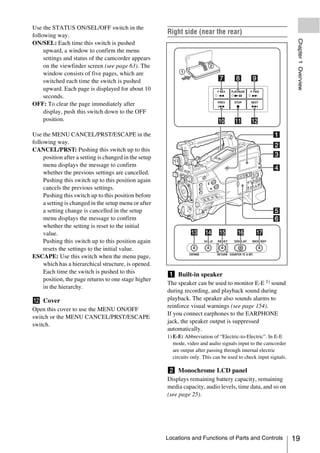
     Each time the switch is pushed to this             a Built-in speaker
     position, the page returns to one stage higher
                                                        The speaker can be used to monitor E-E 1) sound
     in the hierarchy.
                                                        during recording, and playback sound during
l Cover                                                 playback. The speaker also sounds alarms to
                                                        reinforce visual warnings (see page 154).
Open this cover to use the MENU ON/OFF
                                                        If you connect earphones to the EARPHONE
switch or the MENU CANCEL/PRST/ESCAPE
                                                        jack, the speaker output is suppressed
switch.
                                                        automatically.
                                                        1) E-E: Abbreviation of “Electric-to-Electric”. In E-E
                                                           mode, video and audio signals input to the camcorder
                                                           are output after passing through internal electric
                                                           circuits only. This can be used to check input signals.

                                                        b Monochrome LCD panel
                                                        Displays remaining battery capacity, remaining
                                                        media capacity, audio levels, time data, and so on
                                                        (see page 25).


                                                        Locations and Functions of Parts and Controls                19
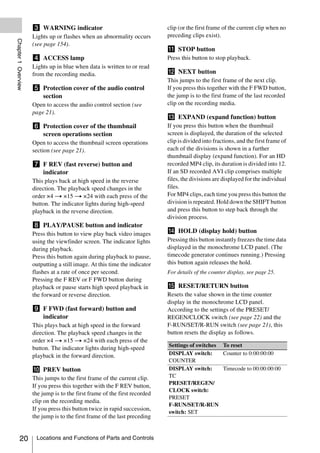
c WARNING indicator                                    clip (or the first frame of the current clip when no
                     Lights up or flashes when an abnormality occurs        preceding clips exist).
Chapter 1 Overview


                     (see page 154).
                                                                            k STOP button
                     d ACCESS lamp                                          Press this button to stop playback.
                     Lights up in blue when data is written to or read
                     from the recording media.                              l NEXT button
                                                                            This jumps to the first frame of the next clip.
                     e Protection cover of the audio control                If you press this together with the F FWD button,
                       section                                              the jump is to the first frame of the last recorded
                     Open to access the audio control section (see          clip on the recording media.
                     page 21).
                                                                            m EXPAND (expand function) button
                     f Protection cover of the thumbnail                    If you press this button when the thumbnail
                       screen operations section                            screen is displayed, the duration of the selected
                     Open to access the thumbnail screen operations         clip is divided into fractions, and the first frame of
                     section (see page 21).                                 each of the divisions is shown in a further
                                                                            thumbnail display (expand function). For an HD
                     g F REV (fast reverse) button and                      recorded MP4 clip, its duration is divided into 12.
                       indicator                                            If an SD recorded AVI clip comprises multiple
                     This plays back at high speed in the reverse           files, the divisions are displayed for the individual
                     direction. The playback speed changes in the           files.
                     order ×4 t ×15 t ×24 with each press of the            For MP4 clips, each time you press this button the
                     button. The indicator lights during high-speed         division is repeated. Hold down the SHIFT button
                     playback in the reverse direction.                     and press this button to step back through the
                                                                            division process.
                     h PLAY/PAUSE button and indicator
                     Press this button to view play back video images       n HOLD (display hold) button
                     using the viewfinder screen. The indicator lights      Pressing this button instantly freezes the time data
                     during playback.                                       displayed in the monochrome LCD panel. (The
                     Press this button again during playback to pause,      timecode generator continues running.) Pressing
                     outputting a still image. At this time the indicator   this button again releases the hold.
                     flashes at a rate of once per second.                  For details of the counter display, see page 25.
                     Pressing the F REV or F FWD button during
                     playback or pause starts high speed playback in        o RESET/RETURN button
                     the forward or reverse direction.                      Resets the value shown in the time counter
                                                                            display in the monochrome LCD panel.
                     i F FWD (fast forward) button and                      According to the settings of the PRESET/
                       indicator                                            REGEN/CLOCK switch (see page 22) and the
                     This plays back at high speed in the forward           F-RUN/SET/R-RUN switch (see page 21), this
                     direction. The playback speed changes in the           button resets the display as follows.
                     order ×4 t ×15 t ×24 with each press of the
                                                                            Settings of switches To reset
                     button. The indicator lights during high-speed
                     playback in the forward direction.                     DISPLAY switch:      Counter to 0:00:00:00
                                                                            COUNTER
                     j PREV button                                          DISPLAY switch:      Timecode to 00:00:00:00
                     This jumps to the first frame of the current clip.     TC
                                                                            PRESET/REGEN/
                     If you press this together with the F REV button,
                                                                            CLOCK switch:
                     the jump is to the first frame of the first recorded
                                                                            PRESET
                     clip on the recording media.
                                                                            F-RUN/SET/R-RUN
                     If you press this button twice in rapid succession,
                                                                            switch: SET
                     the jump is to the first frame of the last preceding


          20          Locations and Functions of Parts and Controls
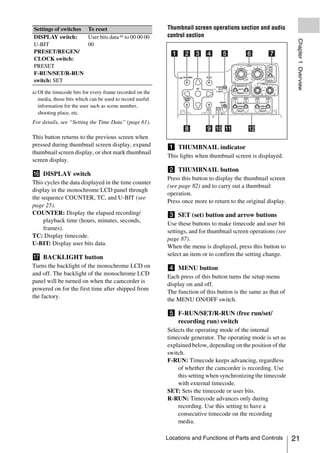
Settings of switches To reset                             Thumbnail screen operations section and audio
DISPLAY switch:      User bits data a) to 00 00 00        control section


                                                                                                                Chapter 1 Overview
U-BIT                00
PRESET/REGEN/
CLOCK switch:
PRESET
F-RUN/SET/R-RUN
switch: SET

a) Of the timecode bits for every frame recorded on the
   media, those bits which can be used to record useful
   information for the user such as scene number,
   shooting place, etc.
For details, see “Setting the Time Data” (page 61).

This button returns to the previous screen when
pressed during thumbnail screen display, expand           a THUMBNAIL indicator
thumbnail screen display, or shot mark thumbnail
                                                          This lights when thumbnail screen is displayed.
screen display.
                                                          b THUMBNAIL button
p DISPLAY switch
                                                          Press this button to display the thumbnail screen
This cycles the data displayed in the time counter
                                                          (see page 82) and to carry out a thumbnail
display in the monochrome LCD panel through
                                                          operation.
the sequence COUNTER, TC, and U-BIT (see
                                                          Press once more to return to the original display.
page 25).
COUNTER: Display the elapsed recording/                   c SET (set) button and arrow buttons
     playback time (hours, minutes, seconds,
                                                          Use these buttons to make timecode and user bit
     frames).
                                                          settings, and for thumbnail screen operations (see
TC: Display timecode.
                                                          page 87).
U-BIT: Display user bits data.
                                                          When the menu is displayed, press this button to
                                                          select an item or to confirm the setting change.
q BACKLIGHT button
Turns the backlight of the monochrome LCD on              d MENU button
and off. The backlight of the monochrome LCD
                                                          Each press of this button turns the setup menu
panel will be turned on when the camcorder is
                                                          display on and off.
powered on for the first time after shipped from
                                                          The function of this button is the same as that of
the factory.
                                                          the MENU ON/OFF switch.

                                                          e F-RUN/SET/R-RUN (free run/set/
                                                            recording run) switch
                                                          Selects the operating mode of the internal
                                                          timecode generator. The operating mode is set as
                                                          explained below, depending on the position of the
                                                          switch.
                                                          F-RUN: Timecode keeps advancing, regardless
                                                              of whether the camcorder is recording. Use
                                                              this setting when synchronizing the timecode
                                                              with external timecode.
                                                          SET: Sets the timecode or user bits.
                                                          R-RUN: Timecode advances only during
                                                              recording. Use this setting to have a
                                                              consecutive timecode on the recording
                                                              media.

                                                          Locations and Functions of Parts and Controls        21
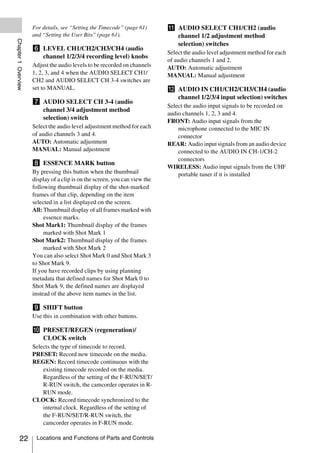
For details, see “Setting the Timecode” (page 61)      k AUDIO SELECT CH1/CH2 (audio
                     and “Setting the User Bits” (page 61).                   channel 1/2 adjustment method
Chapter 1 Overview


                                                                              selection) switches
                     f LEVEL CH1/CH2/CH3/CH4 (audio
                                                                            Select the audio level adjustment method for each
                       channel 1/2/3/4 recording level) knobs
                                                                            of audio channels 1 and 2.
                     Adjust the audio levels to be recorded on channels     AUTO: Automatic adjustment
                     1, 2, 3, and 4 when the AUDIO SELECT CH1/              MANUAL: Manual adjustment
                     CH2 and AUDIO SELECT CH 3-4 switches are
                     set to MANUAL.                                         l AUDIO IN CH1/CH2/CH3/CH4 (audio
                                                                              channel 1/2/3/4 input selection) switches
                     g AUDIO SELECT CH 3-4 (audio
                                                                            Select the audio input signals to be recorded on
                       channel 3/4 adjustment method
                                                                            audio channels 1, 2, 3 and 4.
                       selection) switch
                                                                            FRONT: Audio input signals from the
                     Select the audio level adjustment method for each          microphone connected to the MIC IN
                     of audio channels 3 and 4.                                 connector
                     AUTO: Automatic adjustment                             REAR: Audio input signals from an audio device
                     MANUAL: Manual adjustment                                  connected to the AUDIO IN CH-1/CH-2
                                                                                connectors
                     h ESSENCE MARK button
                                                                            WIRELESS: Audio input signals from the UHF
                     By pressing this button when the thumbnail                 portable tuner if it is installed
                     display of a clip is on the screen, you can view the
                     following thumbnail display of the shot-marked
                     frames of that clip, depending on the item
                     selected in a list displayed on the screen.
                     All: Thumbnail display of all frames marked with
                          essence marks.
                     Shot Mark1: Thumbnail display of the frames
                          marked with Shot Mark 1
                     Shot Mark2: Thumbnail display of the frames
                          marked with Shot Mark 2
                     You can also select Shot Mark 0 and Shot Mark 3
                     to Shot Mark 9.
                     If you have recorded clips by using planning
                     metadata that defined names for Shot Mark 0 to
                     Shot Mark 9, the defined names are displayed
                     instead of the above item names in the list.

                     i SHIFT button
                     Use this in combination with other buttons.

                     j PRESET/REGEN (regeneration)/
                       CLOCK switch
                     Selects the type of timecode to record.
                     PRESET: Record new timecode on the media.
                     REGEN: Record timecode continuous with the
                         existing timecode recorded on the media.
                         Regardless of the setting of the F-RUN/SET/
                         R-RUN switch, the camcorder operates in R-
                         RUN mode.
                     CLOCK: Record timecode synchronized to the
                         internal clock. Regardless of the setting of
                         the F-RUN/SET/R-RUN switch, the
                         camcorder operates in F-RUN mode.

          22          Locations and Functions of Parts and Controls
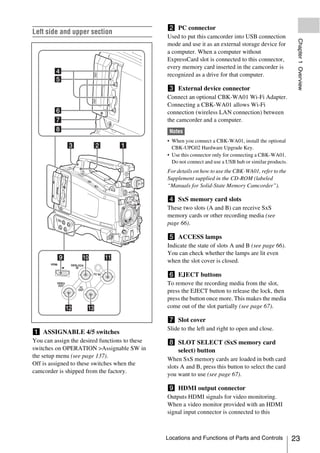
b PC connector
Left side and upper section
                                                Used to put this camcorder into USB connection


                                                                                                           Chapter 1 Overview
                                                mode and use it as an external storage device for
                                                a computer. When a computer without
                                                ExpressCard slot is connected to this connector,
                                                every memory card inserted in the camcorder is
                                                recognized as a drive for that computer.

                                                c External device connector
                                                Connect an optional CBK-WA01 Wi-Fi Adapter.
                                                Connecting a CBK-WA01 allows Wi-Fi
                                                connection (wireless LAN connection) between
                                                the camcorder and a computer.
                                                 Notes
                                                • When you connect a CBK-WA01, install the optional
                                                  CBK-UPG02 Hardware Upgrade Key.
                                                • Use this connector only for connecting a CBK-WA01.
                                                  Do not connect and use a USB hub or similar products.
                                                For details on how to use the CBK-WA01, refer to the
                                                Supplement supplied in the CD-ROM (labeled
                                                “Manuals for Solid-State Memory Camcorder”).

                                                d SxS memory card slots
                                                These two slots (A and B) can receive SxS
                                                memory cards or other recording media (see
                                                page 66).

                                                e ACCESS lamps
                                                Indicate the state of slots A and B (see page 66).
                                                You can check whether the lamps are lit even
       HDMI
                                                when the slot cover is closed.
                  GENLOCK
                     IN

                            TC IN
                                                f EJECT buttons
          VIDEO
           OUT
                                                To remove the recording media from the slot,
                       TC
                      OUT
                                                press the EJECT button to release the lock, then
                                                press the button once more. This makes the media
                                                come out of the slot partially (see page 67).

                                                g Slot cover
                                                Slide to the left and right to open and close.
a ASSIGNABLE 4/5 switches
You can assign the desired functions to these   h SLOT SELECT (SxS memory card
switches on OPERATION >Assignable SW in           select) button
the setup menu (see page 137).
                                                When SxS memory cards are loaded in both card
Off is assigned to these switches when the
                                                slots A and B, press this button to select the card
camcorder is shipped from the factory.
                                                you want to use (see page 67).

                                                i HDMI output connector
                                                Outputs HDMI signals for video monitoring.
                                                When a video monitor provided with an HDMI
                                                signal input connector is connected to this


                                                Locations and Functions of Parts and Controls             23
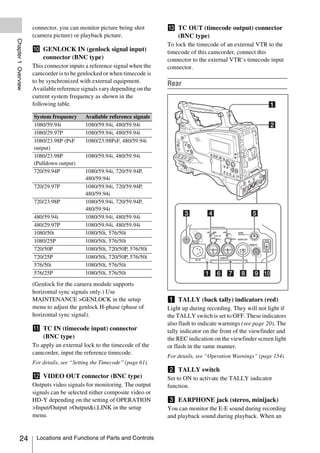
connector, you can monitor picture being shot        m TC OUT (timecode output) connector
                     (camera picture) or playback picture.                  (BNC type)
Chapter 1 Overview


                                                                          To lock the timecode of an external VTR to the
                     j GENLOCK IN (genlock signal input)                  timecode of this camcorder, connect this
                       connector (BNC type)                               connector to the external VTR’s timecode input
                     This connector inputs a reference signal when the    connector.
                     camcorder is to be genlocked or when timecode is
                     to be synchronized with external equipment.          Rear
                     Available reference signals vary depending on the
                     current system frequency as shown in the
                     following table.

                     System frequency      Available reference signals
                     1080/59.94i           1080/59.94i, 480/59.94i
                     1080/29.97P           1080/59.94i, 480/59.94i
                     1080/23.98P (PsF      1080/23.98PsF, 480/59.94i
                     output)
                     1080/23.98P           1080/59.94i, 480/59.94i
                     (Pulldown output)
                     720/59.94P            1080/59.94i, 720/59.94P,
                                           480/59.94i
                     720/29.97P            1080/59.94i, 720/59.94P,
                                           480/59.94i
                     720/23.98P            1080/59.94i, 720/59.94P,
                                           480/59.94i
                     480/59.94i            1080/59.94i, 480/59.94i
                     480/29.97P            1080/59.94i, 480/59.94i
                     1080/50i              1080/50i, 576/50i
                     1080/25P              1080/50i, 576/50i
                     720/50P               1080/50i, 720/50P, 576/50i
                     720/25P               1080/50i, 720/50P, 576/50i
                     576/50i               1080/50i, 576/50i
                     576/25P               1080/50i, 576/50i
                     (Genlock for the camera module supports
                     horizontal sync signals only.) Use
                     MAINTENANCE >GENLOCK in the setup                    a TALLY (back tally) indicators (red)
                     menu to adjust the genlock H-phase (phase of         Light up during recording. They will not light if
                     horizontal sync signal).                             the TALLY switch is set to OFF. These indicators
                                                                          also flash to indicate warnings (see page 20). The
                     k TC IN (timecode input) connector                   tally indicator on the front of the viewfinder and
                       (BNC type)                                         the REC indication on the viewfinder screen light
                     To apply an external lock to the timecode of the     or flash in the same manner.
                     camcorder, input the reference timecode.
                                                                          For details, see “Operation Warnings” (page 154).
                     For details, see “Setting the Timecode” (page 61).
                                                                          b TALLY switch
                     l VIDEO OUT connector (BNC type)                     Set to ON to activate the TALLY indicator
                     Outputs video signals for monitoring. The output     function.
                     signals can be selected either composite video or
                     HD-Y depending on the setting of OPERATION           c EARPHONE jack (stereo, minijack)
                     >Input/Output >Output&i.LINK in the setup            You can monitor the E-E sound during recording
                     menu.                                                and playback sound during playback. When an


          24          Locations and Functions of Parts and Controls
alarm is indicated, you can hear the alarm sound       Note
through the earphone. Plugging an earphone into
                                                      Before connecting/disconnecting the Remote Control


                                                                                                             Chapter 1 Overview
the jack automatically cuts off the built-in          Unit to/from the camcorder, be sure to turn off the
speaker.                                              camcorder POWER switch.
You can select monaural or stereo on
MAINTENANCE >Audio in the setup menu.                 j i.LINK (HDV/DV) connector (6-pin,
                                                        IEEE1394 compliant, S400)
d AUDIO IN selectors                                  To input and output HDV/DV streams, connect to
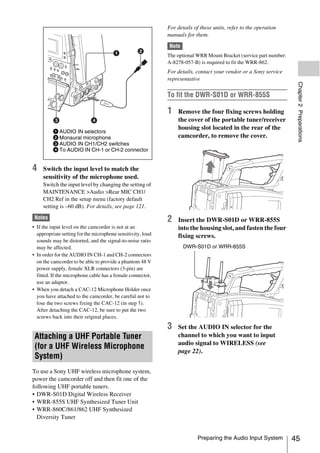
Select the audio source you connect to the            an HDV/DV device.
AUDIO IN CH-1/CH-2 connectors.
LINE: When connecting a stereo amplifier or
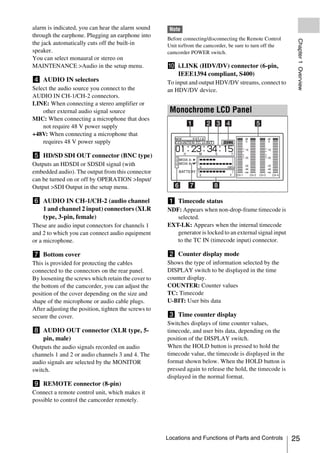
    other external audio signal source                 Monochrome LCD Panel
MIC: When connecting a microphone that does
    not require 48 V power supply
+48V: When connecting a microphone that
    requires 48 V power supply

e HD/SD SDI OUT connector (BNC type)
Outputs an HDSDI or SDSDI signal (with
embedded audio). The output from this connector
can be turned on or off by OPERATION >Input/
Output >SDI Output in the setup menu.

f AUDIO IN CH-1/CH-2 (audio channel                   a Timecode status
  1 and channel 2 input) connectors (XLR              NDF: Appears when non-drop-frame timecode is
  type, 3-pin, female)                                   selected.
These are audio input connectors for channels 1       EXT-LK: Appears when the internal timecode
and 2 to which you can connect audio equipment           generator is locked to an external signal input
or a microphone.                                         to the TC IN (timecode input) connector.

g Bottom cover                                        b Counter display mode
This is provided for protecting the cables            Shows the type of information selected by the
connected to the connectors on the rear panel.        DISPLAY switch to be displayed in the time
By loosening the screws which retain the cover to     counter display.
the bottom of the camcorder, you can adjust the       COUNTER: Counter values
position of the cover depending on the size and       TC: Timecode
shape of the microphone or audio cable plugs.         U-BIT: User bits data
After adjusting the position, tighten the screws to
secure the cover.                                     c Time counter display
                                                      Switches displays of time counter values,
h AUDIO OUT connector (XLR type, 5-                   timecode, and user bits data, depending on the
  pin, male)                                          position of the DISPLAY switch.
Outputs the audio signals recorded on audio           When the HOLD button is pressed to hold the
channels 1 and 2 or audio channels 3 and 4. The       timecode value, the timecode is displayed in the
audio signals are selected by the MONITOR             format shown below. When the HOLD button is
switch.                                               pressed again to release the hold, the timecode is
                                                      displayed in the normal format.
i REMOTE connector (8-pin)
Connect a remote control unit, which makes it
possible to control the camcorder remotely.


                                                      Locations and Functions of Parts and Controls         25
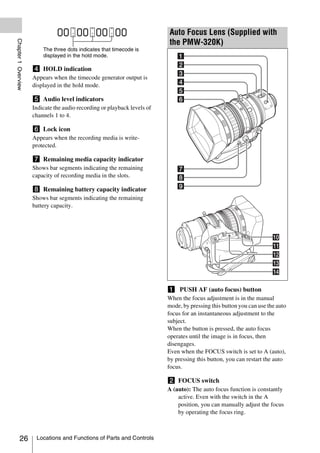
Auto Focus Lens (Supplied with
Chapter 1 Overview


                                                                          the PMW-320K)
                         The three dots indicates that timecode is
                         displayed in the hold mode.

                     d HOLD indication
                     Appears when the timecode generator output is
                     displayed in the hold mode.

                     e Audio level indicators
                     Indicate the audio recording or playback levels of
                     channels 1 to 4.

                     f Lock icon
                     Appears when the recording media is write-
                     protected.

                     g Remaining media capacity indicator
                     Shows bar segments indicating the remaining
                     capacity of recording media in the slots.

                     h Remaining battery capacity indicator
                     Shows bar segments indicating the remaining
                     battery capacity.


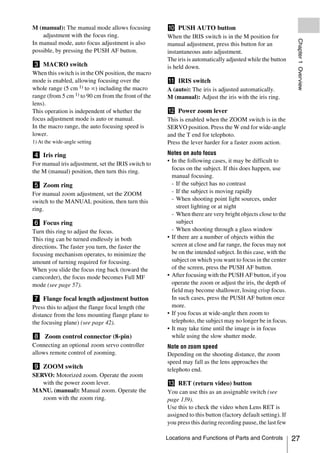
                                                                          a PUSH AF (auto focus) button
                                                                          When the focus adjustment is in the manual
                                                                          mode, by pressing this button you can use the auto
                                                                          focus for an instantaneous adjustment to the
                                                                          subject.
                                                                          When the button is pressed, the auto focus
                                                                          operates until the image is in focus, then
                                                                          disengages.
                                                                          Even when the FOCUS switch is set to A (auto),
                                                                          by pressing this button, you can restart the auto
                                                                          focus.

                                                                          b FOCUS switch
                                                                          A (auto): The auto focus function is constantly
                                                                              active. Even with the switch in the A
                                                                              position, you can manually adjust the focus
                                                                              by operating the focus ring.


          26          Locations and Functions of Parts and Controls
M (manual): The manual mode allows focusing          j PUSH AUTO button
    adjustment with the focus ring.                  When the IRIS switch is in the M position for


                                                                                                              Chapter 1 Overview
In manual mode, auto focus adjustment is also        manual adjustment, press this button for an
possible, by pressing the PUSH AF button.            instantaneous auto adjustment.
                                                     The iris is automatically adjusted while the button
c MACRO switch                                       is held down.
When this switch is in the ON position, the macro
mode is enabled, allowing focusing over the          k IRIS switch
whole range (5 cm 1) to ∞) including the macro       A (auto): The iris is adjusted automatically.
range (from 5 cm 1) to 90 cm from the front of the   M (manual): Adjust the iris with the iris ring.
lens).
This operation is independent of whether the         l Power zoom lever
focus adjustment mode is auto or manual.             This is enabled when the ZOOM switch is in the
In the macro range, the auto focusing speed is       SERVO position. Press the W end for wide-angle
lower.                                               and the T end for telephoto.
1) At the wide-angle setting                         Press the lever harder for a faster zoom action.

d Iris ring                                          Notes on auto focus
                                                     • In the following cases, it may be difficult to
For manual iris adjustment, set the IRIS switch to
the M (manual) position, then turn this ring.          focus on the subject. If this does happen, use
                                                       manual focusing.
e Zoom ring                                            - If the subject has no contrast
For manual zoom adjustment, set the ZOOM               - If the subject is moving rapidly
switch to the MANUAL position, then turn this          - When shooting point light sources, under
ring.                                                    street lighting or at night
                                                       - When there are very bright objects close to the
f Focus ring                                             subject
Turn this ring to adjust the focus.                    - When shooting through a glass window
This ring can be turned endlessly in both            • If there are a number of objects within the
directions. The faster you turn, the faster the        screen at close and far range, the focus may not
focusing mechanism operates, to minimize the           be on the intended subject. In this case, with the
amount of turning required for focusing.               subject on which you want to focus in the center
When you slide the focus ring back (toward the         of the screen, press the PUSH AF button.
camcorder), the focus mode becomes Full MF           • After focusing with the PUSH AF button, if you
mode (see page 57).                                    operate the zoom or adjust the iris, the depth of
                                                       field may become shallower, losing crisp focus.
g Flange focal length adjustment button                In such cases, press the PUSH AF button once
Press this to adjust the flange focal length (the      more.
distance from the lens mounting flange plane to      • If you focus at wide-angle then zoom to
the focusing plane) (see page 42).                     telephoto, the subject may no longer be in focus.
                                                     • It may take time until the image is in focus
h Zoom control connector (8-pin)                       while using the slow shutter mode.
Connecting an optional zoom servo controller         Note on zoom speed
allows remote control of zooming.                    Depending on the shooting distance, the zoom
                                                     speed may fall as the lens approaches the
i ZOOM switch                                        telephoto end.
SERVO: Motorized zoom. Operate the zoom
   with the power zoom lever.                        m RET (return video) button
MANU. (manual): Manual zoom. Operate the             You can use this as an assignable switch (see
   zoom with the zoom ring.                          page 139).
                                                     Use this to check the video when Lens RET is
                                                     assigned to this button (factory default setting). If
                                                     you press this during recording pause, the last few

                                                     Locations and Functions of Parts and Controls           27
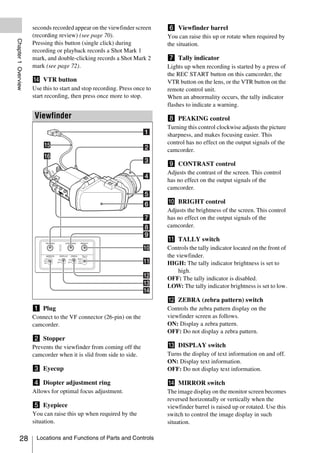
seconds recorded appear on the viewfinder screen      f Viewfinder barrel
                     (recording review) (see page 70).                     You can raise this up or rotate when required by
Chapter 1 Overview


                     Pressing this button (single click) during            the situation.
                     recording or playback records a Shot Mark 1
                     mark, and double-clicking records a Shot Mark 2       g Tally indicator
                     mark (see page 72).                                   Lights up when recording is started by a press of
                                                                           the REC START button on this camcorder, the
                     n VTR button                                          VTR button on the lens, or the VTR button on the
                     Use this to start and stop recording. Press once to   remote control unit.
                     start recording, then press once more to stop.        When an abnormality occurs, the tally indicator
                                                                           flashes to indicate a warning.
                     Viewfinder                                            h PEAKING control
                                                                           Turning this control clockwise adjusts the picture
                                                                           sharpness, and makes focusing easier. This
                                                                           control has no effect on the output signals of the
                                                                           camcorder.

                                                                           i CONTRAST control
                                                                           Adjusts the contrast of the screen. This control
                                                                           has no effect on the output signals of the
                                                                           camcorder.

                                                                           j BRIGHT control
                                                                           Adjusts the brightness of the screen. This control
                                                                           has no effect on the output signals of the
                                                                           camcorder.

                                                                           k TALLY switch
                                                                           Controls the tally indicator located on the front of
                                                                           the viewfinder.
                                                                           HIGH: The tally indicator brightness is set to
                                                                                high.
                                                                           OFF: The tally indicator is disabled.
                                                                           LOW: The tally indicator brightness is set to low.

                                                                           l ZEBRA (zebra pattern) switch
                     a Plug                                                Controls the zebra pattern display on the
                     Connect to the VF connector (26-pin) on the           viewfinder screen as follows.
                     camcorder.                                            ON: Display a zebra pattern.
                                                                           OFF: Do not display a zebra pattern.
                     b Stopper
                     Prevents the viewfinder from coming off the           m DISPLAY switch
                     camcorder when it is slid from side to side.          Turns the display of text information on and off.
                                                                           ON: Display text information.
                     c Eyecup                                              OFF: Do not display text information.

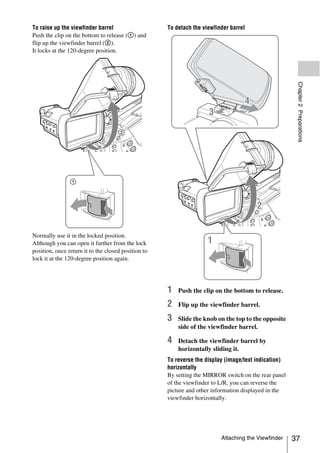
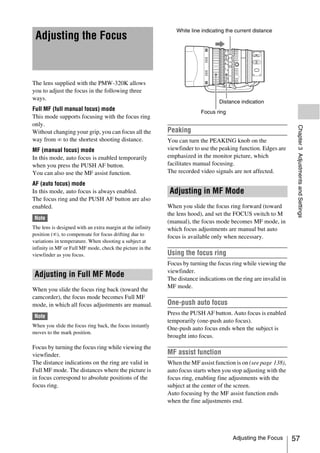
                     d Diopter adjustment ring                             n MIRROR switch
                     Allows for optimal focus adjustment.                  The image display on the monitor screen becomes
                                                                           reversed horizontally or vertically when the
                     e Eyepiece                                            viewfinder barrel is raised up or rotated. Use this
                     You can raise this up when required by the            switch to control the image display in such
                     situation.                                            situation.

          28          Locations and Functions of Parts and Controls
L/R: Reverse the image horizontally.
OFF: Do not reverse the image.          Viewfinder Screen


                                                                                              Chapter 1 Overview
B/T: Reverse the image vertically.
                                        Display
o Viewfinder cable

p Microphone holder                    The viewfinder screen displays not only the video
                                       picture but also characters and messages
                                       indicating the camcorder settings and operating
                                       status, a center marker, a safety zone marker, etc.
                                       When the menu screen is not displayed and the
                                       DISPLAY switch is set to ON, the items for
                                       which an ON setting was made with
                                       OPERATION >Super Impose in the setup menu
                                       or with related switches are displayed at the top
                                       and bottom of the screen.
                                       Caution messages are indicated for three seconds
                                       when you carry out operations to change
                                       camcorder settings. Adjustment execution
                                       messages are indicated while adjustments
                                       proceed. When adjustments are finished,
                                       messages showing the results of adjustments
                                       appear for three seconds.
                                       Not only these indications are displayed on the
                                       viewfinder screen, but a menu setting enables
                                       them to be output as video signals.
                                       All items that can be displayed on the viewfinder
                                       screen are shown below.

                                       Top of viewfinder screen


                                       a Extender settings
                                       Indicates the setting of the digital extender
                                       function (when optional CBK-CE01 is installed)
                                       of this camcorder and the setting of the lens
                                       extender.
                                       EX: The lens extender is on.
                                       08: The lens shrinker is on.


                                                           Viewfinder Screen Display         29
x2D: The optional digital extender function of        Indication Meaning
                          this camcorder is on.                            zS&Q REC Recording in progress in Slow &
Chapter 1 Overview


                     Ex2D: The lens extender and the optional digital                 Quick Motion mode
                          extender function of this camcorder are both     S&Q STBY Standby in Slow & Quick Motion
                          on.                                                         mode
                     Digital extender function can be turned on or off     zCALL      Being called from a connected
                     by an assignable switch to which Digital Extender                device
                     is assigned.                                          BREVIEW During recording review

                     b Zoom position (when the serial lens is              g Wireless receiver reception level
                       mounted)                                            When a wireless receiver is installed in the
                     Indicates the zoom position of the zoom lens in       camcorder, “W” appears together with four
                     the range from 0 to 99.                               segment reception level indicators for each of the
                                                                           channels (1 to 4) that can be used by the receiver.
                     c Focus position (when the serial lens is             The indications are as follows.
                       mounted)                                            In normal situation: The number of white
                     Indicates the focus position as distance to the           segments indicates the strength of the signal
                     subject (in units of m).                                  level.
                                                                           Muting (for an analog receiver) or error rate
                     d Green tally                                             aggravation (for a digital receiver): The
                     Lights when the camcorder is the following                number of gray segments indicates the
                     states.                                                   strength of the signal level.
                     • MAINTENANCE >Camera Config >HD-SDI                  Reception level over peak: “P” is displayed
                       Remote I/F is set to [G-Tally] in the setup menu        instead of the indicators. 1)
                       and a recording control signal is output from the   Tuner battery is low: The channel number and
                       HD/SD SDI OUT connector.                                indicator of the corresponding channel
                     • Green tally signal received (when a camera              flash. 1)
                       adaptor is mounted on the camcorder and a           1) When an optional DWR-S01D is used
                       camera extension unit is connected)
                                                                           h Battery remaining/voltage capacity
                     e Media status                                        The following is displayed depending on the type
                     Displays the name of the currently active media       of power source.
                     slot (A or B).
                                                                           Type of power     What is displayed
                     f Recording mode/operation status                     source
                     Indicates the current recording mode/operation        InfoLithium       Remaining battery capacity icon
                     status as follows.                                    battery           and remaining recording time
                                                                           Anton Bauer       Remaining battery capacity (%
                     IndicationMeaning                                     battery           indication)
                     zREC      Recording in progress                       Other type than   Input voltage
                     STBY      Standby for recording                       above
                     zCACHE    Standby in Picture Cache mode
                                                                           i External power input
                     zINT REC  Recording in progress in Interval
                               Recording mode                              Appears when power is supplied from an external
                                                                           power source connected to the DC IN connector.
                     zINT STBY Standby for next recording in
                               Interval Recording mode
                                                                           j Color temperature
                     INT STBY  Standby in Interval Recording
                                                                           Displays a color temperature calculated from the
                               mode
                                                                           gain of R and B, in the range 1.5 K to 50.0 K (in
                     zFRM REC Recording in progress in Frame
                                                                           steps of 0.1 K). The +/– signs may be displayed
                               Recording mode
                                                                           depending on the Offset White setting (see
                     zFRM      Standby for next recording in
                                                                           page 110).
                     STBY      Frame Recording mode
                                                                           No display: Offset White is OFF
                     FRM STBY Standby in Frame Recording mode


          30          Viewfinder Screen Display
+: The value of Offset White is greater than
    3200K.
                                                       Bottom of viewfinder screen


                                                                                                            Chapter 1 Overview
–: The value of Offset White is less than 3200K.

k Number of system lines
Indicates the number of system lines (1080/720/
576/480) of video currently being recorded or
played back.

l Video format
Indicates the format of video being currently
played back or recorded (see page 49).
The video aspect ratio (16:9 or 4:3) can also be
displayed when the recording format is set to
DVCAM.

m Depth of field indication (when the                  a TLCS iris control mode
  serial lens is mounted)
                                                       The following icons are displayed to indicate the
  Error/warning indication                             video level control modes based on the Total
A bar indicates the depth of field. The display unit   Level Control System (TLCS).
is meters or feet, as selected by OPERATION
>Display On/Off >Lens Info in the setup menu.          Icon           TLCS control mode
An error or warning message is displayed here                         Backlight mode
depending on the situation.
                                                                      Standard mode
Under this area, you can also display the name of       STD
the next clip to be recorded (see page 112).                          Spotlight mode

n Special recording mode indication
                                                       b Focus adjustment mode (when the auto
The following is displayed when the camcorder is
in a special recording mode.                             focus lens is mounted)
• Frame Rec (Frame Recording mode)                     Indicates the current focus adjustment mode of
• Interval Rec (Interval Recording mode)               the camcorder.
• S&Q Motion (Slow & Quick Motion mode)                • AF (Auto Focus mode)
                                                       • MF (Manual Focus mode)
o Special recording mode settings                      • MF* (Manual Focus mode when the MF Assist
  indication                                             function is on)
Appears when the camcorder is in a special             • Full MF (Full Manual Focus mode)
recording mode.
                                                       c External device control
                                                       “REC2” is displayed when MAINTENANCE
                                                       >Camera Config >HD-SDI Remote I/F is set to
                                                       [Chara] in the setup menu and a recording control
                                                       signal is output from the HD/SD SDI OUT
                                                       connector.

                                                       d Operation status of connected i.LINK
                                                         device
                                                       The operating format (HDV or DV) and operation
                                                       status of that device are indicated as follows.

                                                       Indication     Meaning
                                                       zREC           HDV recording in progress


                                                                           Viewfinder Screen Display       31
Indication      Meaning                                 5600: When the assignable switch to which Color
                     STBY            Standby for HDV recording                   Temp SW 5600K has been assigned is on
Chapter 1 Overview


                     zREC            DV recording in progress                6300: When the assignable switch to which Color
                     STBY            Standby for DV recording                    Temp SW 6300K has been assigned is on

                     e Video level indication                                m Gain value
                     An indication is displayed together with an             Indicates the gain value (in dB) of the video
                     appropriate ND filter position number when the          amplifier, as set by the GAIN selector.
                     light level of the subject is too high or too low.
                                                                             n Shutter
                     f Timecode                                              Indicates the shutter speed or the shutter mode.
                       Caution message                                       For details, see “Setting the Electronic Shutter”
                     Indicates the elapsed recording/playback time,          (page 53).
                     timecode, user bits data or other information
                     selected by the DISPLAY switch (see page 21).           o Audio level meters
                     Also indicates a caution message when caution is        Indicate the audio levels of channel 1 and channel
                     required such as when you try to change settings.       2.

                     g Brightness level                                      p Remaining media capacity
                     Indicates the average brightness level (%) of the       Indicates the recording time remaining for each of
                     detection area.                                         the media loaded in the slots. The available time
                                                                             for recording with the current video format
                     h External input source                                 (recording bit rate) is calculated according to the
                     Indicates the type of external input signal (HDV)       remaining space of each media and indicated in
                     to be recorded.                                         time units of minutes. A lock icon appears if the
                                                                             media is write-protected.
                     i Recording of external input
                     Indicates “EXT” when an external input is               q Histogram
                     recorded.                                               Shows a pixel distribution of video luminance
                                                                             (HD mode only).
                     j Electric color temperature filter
                     Appears when the CC 5600K function is set to on.        r Iris position (when the lens is mounted)
                                                                             Indicates the iris position and the setting for iris
                     k Filter position                                       override (reference value for the lens iris) (see
                     Indicates the currently selected ND filter position     page 55).
                     number. (see page 16).                                  The iris override setting is indicated by four
                     When ELECTRICAL CC is assigned to an                    segments indicator as follows.
                     assignable switch, the electrical filter position (A/
                     B/C/D) appears to the right of the ND filter            Reference Indicator
                                                                             value
                     position (1 to 4), as shown on the previous page.
                                                                             +0.25           Lower left segment is lit in grey.
                                                                                       x
                     l White balance memory
                                                                             +0.5      x     Left two segments are lit in grey.
                     Indicates the currently selected white balance                    x
                     automatic adjustment memory.
                                                                             +0.75        x  Left two segments and lower
                     ATW: ATW (Auto Tracing White Balance) mode                           xx right segment are lit in grey.
                     W:A: Memory A mode
                                                                             +1           xx All segments are lit in grey.
                     W:B: Memory B mode                                                   xx
                     W:P: Preset mode                                        –0.25           Lower left segment is lit in
                     3200: When the assignable switch to which Color                      s  white.
                         Temp SW 3200K has been assigned is on               –0.5         s  Left two segments are lit in
                     4300: When the assignable switch to which Color                      s  white.
                         Temp SW 4300K has been assigned is on


          32          Viewfinder Screen Display
Reference Indicator
value


                                                                            Chapter 1 Overview
–0.75     s     Left two segments and lower
          ss right segment are lit in white.
–1        ss All segments are lit in white.
          ss


                                               Viewfinder Screen Display   33
Chapter   2 Preparations
                                                                                    Note on using the battery pack
                          Preparing a Power                                         A warm battery pack may not be able to be fully
                                                                                    recharged.
Chapter 2 Preparations


                          Supply
                                                                                    To attach the battery pack

                                                                                    1   Press the battery pack against the back
                         For safety, use only the Sony battery packs and                of the camcorder, aligning the line on
                         AC adaptors listed below.                                      the side of the battery pack with the
                         • BP-GL95A/L60S/L80S Lithium-ion Battery                       matching line on the camcorder.
                           Pack
                         • AC power using the AC-DN2B/DN10 AC
                           Adaptor
                          CAUTION
                         Danger of explosion if battery is incorrectly replaced.
                         Replace only with the same or equivalent type
                         recommended by the manufacturer.
                         When you dispose of the battery, you must obey the law
                         in the relative area or country.


                          Using a Battery Pack
                         When a BP-GL95A/L60S/L80S Battery Pack is                           1 BP-GL95A/L60S/L80S
                         used, the camcorder will operate continuously for                   2 Align these lines.
                         the time shown below.

                         Model name                Operating time
                         BP-GL95A                  Approx. 310 minutes              2   Slide the battery pack down until its
                         BP-L60S                   Approx. 210 minutes                  “LOCK” arrow points at the matching
                         BP-L80S                   Approx. 270 minutes                  line on the camcorder.

                          WARNING
                         Batteries shall not be exposed to excessive heat such as
                         sunshine, fire or the like.

                          Note
                         The battery pack operating time depends on the
                         frequency of use of the battery pack, and the ambient
                         temperature when used.

                         Before use, charge the battery pack with a charger
                         suitable for each battery.
                         For details on the battery charging procedure, refer
                         to the battery charger operation manual.                          1 “LOCK” arrow
                                                                                           2 Matching line on the camcorder


            34             Preparing a Power Supply
Note
If the battery pack is not attached correctly, the terminal    Attaching the Viewfinder
may be damaged.


To detach the battery pack
Holding the release button in, pull the battery
pack up.


                                                                                                                          Chapter 2 Preparations
                                                              CAUTION
                                                              When the viewfinder is attached, do not leave the
                                                              camcorder with the eyepiece facing the sun.
                                                              Direct sunlight can enter through the eyepiece, be
                                                              focused in the viewfinder and cause fire.


                                                               Attaching the Supplied Viewfinder
                                                              Note
                                                              When attaching the viewfinder, make notes of the
                                                              following points.
                                                              • Be sure to power off the camcorder before coupling the
                                                                viewfinder connector to the camcorder’s VF connector
                                   Release button               (26-pin). If you make this connection when the
                                                                camcorder power is on, the viewfinder may not
 Notes                                                          function properly.
• During recording and playback (while the ACCESS             • Couple the viewfinder connector firmly to the
  lamp on the right-side panel is lit in blue and the           camcorder’s VF connector (26-pin). If the coupling is
  ACCESS lamp in the card slot section is lit in orange),       loose, noise may appear on the video or the tally
  be careful never to remove the battery pack.                  indicator may not operate properly.
• Make sure to power the camcorder off before replacing
  the battery pack.
                                                              1    1 Loosen the viewfinder left-to-right
                                                                   positioning ring, 2 attach the
                                                                   viewfinder to the viewfinder fitting
 Using AC Power                                                    shoe, and 3 tighten the viewfinder left-
                                                                   to-right positioning ring.
Mount an AC-DN2B/DN10 on the camcorder in
                                                                                      Stopper
the same way as a battery pack, then connect to
the AC power supply.                                                                                 Viewfinder left-
The AC-DN2B/DN10 can supply up to 100 W of                                                           to-right
power.                                                                                               positioning ring


                          To an AC outlet


                                                                                       Attaching the Viewfinder          35
2   Couple the viewfinder connector to the
                             VF connector (26-pin).                             Adjusting the Viewfinder Angle
                               VF connector (26-pin)                            You can adjust the angle of the viewfinder.
Chapter 2 Preparations


                                                                                To reverse the display (image/text indication)
                                                                                vertically
                                                                                The viewfinder can be rotated as much as 180
                                                                                degrees toward the direction facing the subject.
                                                                                When you do this, the picture and other
                         Detaching the viewfinder                               information displayed in the viewfinder appear
                         You can detach the viewfinder by following the         upside down. To restore the normal display, set
                         attaching procedure in reverse order, but there is     the MIRROR switch on the rear panel of the
                         an additional action to take: when detaching the       viewfinder to B/T.
                         viewfinder from the fitting shoe, pull up the
                         stopper.
                                                                                Lifting Up the Viewfinder Barrel
                                                                                and Eyepiece
                         Adjusting the Viewfinder Position
                                                                                You can view the LCD screen inside the
                         To adjust the viewfinder left-to-right position,       viewfinder or its mirrored image by lifting up the
                         loosen the left-to-right positioning ring, and to      viewfinder barrel or the eyepiece.
                         adjust the front-to-back position, loosen the front-   This section describes how to lift up the
                         to-back positioning knob.                              viewfinder barrel and detach it. The eyepiece can
                                    Viewfinder left-to-right positioning ring   also be lifted up and detached in the same way.


                                Viewfinder front-to-back positioning knob


                                                                                              LCD screen


            36            Attaching the Viewfinder
To raise up the viewfinder barrel                    To detach the viewfinder barrel
Push the clip on the bottom to release (1) and
flip up the viewfinder barrel (2).
It locks at the 120-degree position.


                                                                                                       Chapter 2 Preparations
Normally use it in the locked position.
Although you can open it farther from the lock
position, once return it to the closed position to
lock it at the 120-degree position again.


                                                     1   Push the clip on the bottom to release.

                                                     2   Flip up the viewfinder barrel.

                                                     3   Slide the knob on the top to the opposite
                                                         side of the viewfinder barrel.

                                                     4   Detach the viewfinder barrel by
                                                         horizontally sliding it.
                                                     To reverse the display (image/text indication)
                                                     horizontally
                                                     By setting the MIRROR switch on the rear panel
                                                     of the viewfinder to L/R, you can reverse the
                                                     picture and other information displayed in the
                                                     viewfinder horizontally.


                                                                          Attaching the Viewfinder    37
1   Loosen the front-to-back viewfinder
                         Adjusting the Viewfinder Focus                            positioning levers and the front-to-back
                         and Screen                                                viewfinder positioning knobs, and then
                                                                                   pull the viewfinder slide assembly
                         To adjust the viewfinder focus                            forward.
                         Turn the diopter adjustment ring until the
                         viewfinder image is sharpest.
Chapter 2 Preparations


                                                                               2   Using a 2.5 mm diameter hexagonal
                                                                                   wrench, detach the viewfinder slide
                                                                                   assembly.


                                                                                                                 Bolts with
                               Diopter adjustment ring
                                                                                                                 hexagonal
                                                                                                                 hole
                         To adjust the viewfinder screen
                         Adjust the brightness, contrast, and peaking of the
                         viewfinder screen with the controls shown below.


                                                                                          Viewfinder slide assembly


                                                                               3   Attach the BKW-401 with the supplied
                                                                                   bolts.


                                   1 PEAKING control
                                   2 CONTRAST control
                                   3 BRIGHT control


                         Using the BKW-401 Viewfinder
                         Rotation Bracket
                         By fitting an optional BKW-401 Viewfinder                          Bolts supplied with the BKW-401
                         Rotation Bracket, you can rotate the viewfinder
                         out of the way so that your right leg does not hit
                         the viewfinder while you are carrying the
                         camcorder.


            38            Attaching the Viewfinder
4    Adjust the front-to-back position so
     that the arm of the BKW-401 does not
     touch the handle when it is raised.
                          Adjust position so that arm
                          does not touch handle


                                                                                                                      Chapter 2 Preparations
 Attaching a 5-inch Electronic Viewfinder
You can attach an optional DXF-51or DXF-C50W (5-inch) Electronic Viewfinder. To attach it, an
Accessory Shoe Kit (service part number: A-8274-968-B) is required.
For details, consult a Sony service representative.

 Note
It is not possible to use the supplied viewfinder and a 5-inch viewfinder at the same time.

Remove the cover of the grip, and attach the shoe and stopper screw of the Accessory Shoe Kit.
                                                         Fixing ring

                               VF cable                            Guide plate


                                                                                       Shoe a)

                                                                                       Stopper screw a)


                            a) Supplied with the Accessory Shoe Kit


                                                                                          Attaching the Viewfinder   39
2   Press the MENU knob.
                          Setting the Area of Use                                  The settings for selectable areas of use are
                                                                                   displayed.
Chapter 2 Preparations


                         When using the camcorder for the first
                         time
                         The area of use is not factory preset. Before using
                         the camcorder, you need to set this item. (You
                         cannot use the camcorder without setting this         3   Turn the MENU knob to select the
                         item.)                                                    desired area of use.

                                                                                   Setting              Area of use
                         To set the area of use
                                                                                   NTSC Area            NTSC area (for areas other
                                                                                                        than Japan) a)
                                                                                   NTSC(J) Area         NTSC area (Japan) b)
                                                                                   PAL Area             PAL area c)
                                                                                   a) The composite signal output from this camcorder
                                                                                      is an NTSC signal with a black setup (7.5 IRE).
                                                                                      The system frequency is 59.94i.
                                                                                   b) The composite signal output from this camcorder
                                                                                      is an NTSC signal with no black setup. The
                                                   POWER switch                       system frequency is 59.94i.
                                         MENU knob                                 c) The composite signal output from this camcorder
                                                                                      is a PAL signal. The system frequency is 50i.
                         1   Set the POWER switch to the ON
                                                                               4   Set the following items.
                             position.
                                                                                   • Time Zone
                             The screen for setting the area of use appears
                                                                                   • Date/Time
                             in the viewfinder.
                                                                                   See “Basic Setup Menu Operations” (page 96).

                                                                               5   Turn the MENU knob to select
                                                                                   “Finish”, then press the MENU knob.
                                                                                   The camcorder is now ready for use.


            40            Setting the Area of Use
Setting the Date/Time of                              Mounting and Adjusting
 the Internal Clock                                    the Lens

You can set or change the date and time of the


                                                                                                            Chapter 2 Preparations
                                                       Note
internal clock. The date and time set are reflected
                                                      Always power the camcorder off before mounting or
in the timecode.                                      removing a lens.
For menu operations, see “Basic Setup Menu            For information about using the lens, refer to the
Operations” (page 96).                                operation manual for the lens.

1   Select MAINTENANCE >Clock Set
    >Date/Time in the setup menu.                                                Lens mount
                                                                                 securing rubber


2   Press the MENU knob.
    The Date/Time setting window appears.


3   Turn the MENU knob to display the
    desired value, and press the knob.
    The selection shifts to the next item on the
                                                      1   Push the lens locking lever up and
    right.                                                remove the lens mount cap from the
                                                          lens mount.
4   To continue the remaining settings,
    repeat step 3.                                    2   Align the center pin on the lens with the
                                                          center slot in the lens mount, and insert
5   Making sure that “SET” is selected,                   the lens into the mount.
    press the MENU knob.
    The internal clock is set with the date and       3   Holding the lens in place, push the lens
    time set in steps 3 and 4.                            locking lever down to lock the lens.
To cancel the setting                                  Caution
Before executing step 5, push the MENU                If the lens is not firmly locked, it may come off
CANCEL/PRST/ESCAPE switch up to the                   while the camcorder is being used. This could
CANCEL/PRST side.                                     cause a serious accident. Make sure the lens is


                       Setting the Date/Time of the Internal Clock / Mounting and Adjusting the Lens       41
firmly locked. It is recommended that the lens                   1   Open the iris, position the supplied
                         mount securing rubber be put on the lens locking                     flange focal length adjustment chart
                         lever as illustrated above.                                          approximately 3 meters (10 ft) away
                         If you have attached an aberration correction                        from the camcorder, and arrange the
                         lens                                                                 lighting to obtain a satisfactory video
                         The aberration correction function is activated                      output.
                         automatically. Starting the camcorder with an
                                                                                          2   Set the ZOOM switch to SERVO
Chapter 2 Preparations


                         aberration correction lens may require more time
                         than normally because of data loading at start-up.                   (power zoom mode).
                         The lens supplied with the PMW-320K is an
                         aberration correction lens. Contact a Sony service               3   Hold down the flange focal length
                         representative for information about other                           adjustment button for 3 seconds.
                         aberration correction lenses.
                                                                                              The flange focal length adjustment starts.
                                                                                              During adjustment
                          Adjusting the Flange Focal Length                                   The message “AUTO FB Adjust
                                                                                              EXECUTING” appears on the viewfinder
                         If the lens does not stay in focus properly as you                   screen.
                         zoom from telephoto to wide angle, adjust the
                         flange focal length (the distance from the plane of                  If the adjustment completes correctly
                         the lens mounting flange to the imaging plane).                      The message on the viewfinder screen
                         Make this adjustment just one time after                             changes to “Auto FB Adjust: OK”.
                         mounting or changing the lens.                                       If the flange focal length adjustment does
                         When carrying out the adjustment, use the                            not complete correctly
                         supplied flange focal length adjustment chart as                     Check the subject and lighting conditions,
                         the subject.                                                         and repeat the adjustment.
                                                                                          When using a non-auto focus lens

                                                                                          1   Set the iris to manual.

                                                                                          2   Open the iris, position the supplied
                                                                                              flange focal length adjustment chart
                                                             About 3 m (10 ft)                approximately 3 meters (10 ft) away
                                                                                              from the camcorder, and arrange the
                                                                                              lighting to obtain a satisfactory video
                                                                                              output.

                          Notes                                                           3   Loosen the fixing screws on the F.f or
                         • If you use a subject with insufficient contrast, or move           F.B ring (flange focal length adjustment
                           the camcorder or subject during adjustment, this will              ring).
                           cause an adjustment error.
                         • Place the subject (the flange focal length adjustment          4   Use manual or power zoom to set the
                           chart) so that it appears at the center of the screen at the       lens to telephoto.
                           telephoto end. Arrange so that no nearby object (no
                           object closer to the camera than the chart) enters the
                           screen at the wide-angle end.
                                                                                          5   Point the camcorder at the chart by
                                                                                              turning the focus ring and focus on it.
                         Carrying out the adjustment                                      6   Set the zoom ring to wide angle.
                         When using the auto focus lens                                   7   Turn the F.f or F.B ring until the chart
                         With the lens supplied with the PMW-320K,                            is in focus, being careful not to disturb
                         zoom and focus operations automatically adjust
                                                                                              the focus ring.
                         the flange focal length.


            42             Mounting and Adjusting the Lens
8   Repeat steps 4 to 7 until the chart stays
    in focus all the way from wide angle to      Preparing the Audio
    telephoto.
                                                 Input System
9   Tighten the F.f or F.B ring fixing
    screws.


                                                                                                 Chapter 2 Preparations
                                                Connecting a Microphone to the
                                                MIC IN Connector
                                                Attach the supplied microphone to the
                                                microphone holder of the supplied viewfinder.

                                                1   Loosen the screw (1) and open the
                                                    microphone holder clamp (2).


                                                       Microphone holder clamp


                                                2   Place the microphone in the
                                                    microphone holder.

                                                    1 Place the microphone in the holder so
                                                      that “UP” is at the top.
                                                    2 Close the microphone holder.
                                                    3 Tighten the screw.


                                                3   Plug the microphone cable into the MIC
                                                    IN connector, then set the AUDIO IN
                                                    CH1/CH2/CH3/CH4 switch for the


                                                           Preparing the Audio Input System     43
channel on which you want to record
                             the audio from this microphone to
                             FRONT.
Chapter 2 Preparations


                                                                                                              Microphone


                         4   Secure the microphone cable with the
                             cable clamp.


                         Connecting Microphones to the
                         AUDIO IN Connectors
                         You can connect up to two monaural
                         microphones to the AUDIO IN CH1/CH2
                         connectors, using an optional CAC-12
                         Microphone Holder.
                         The following is the procedure for attaching an
                                                                               2   Connect the microphone cable to the
                                                                                   AUDIO IN CH-1 or CH-2 connector.
                         electret condenser microphone such as the ECM-
                         674/678.                                              3   Set the switches as follows.
                         On how to attach the CAC-12, refer to the operation       • Set the AUDIO IN selectors indicated
                         manual for the CAC-12.                                      below, depending on the power supply type
                                                                                     of the microphone.
                         1   Attach the electret condenser                           Internal power supply: MIC
                             microphone.                                             External power supply: +48V
                                                                                   • Set the AUDIO IN CH-1/CH-2 switch for
                             1 Loosen the ball joint lock lever.
                                                                                     the channel to which the microphone is
                             2 Wind the microphone spacer (sheet
                                                                                     connected to REAR.
                               type, supplied with the microphone)
                               around the microphone, while peeling
                               off the protective sheets on both sides
                               of the microphone spacer.
                             3 Place the microphone in the holder so
                               that “UP” is at the top.
                             4 Close the microphone holder.
                             5 Tighten the screw.
                             6 Position so that the microphone does
                               not interfere with the viewfinder and
                               tighten the ball joint lock lever.


            44            Preparing the Audio Input System
For details of these units, refer to the operation
                                                             manuals for them.

                                                             Note
                                                             The optional WRR Mount Bracket (service part number:
                                                             A-8278-057-B) is required to fit the WRR-862.
                                                             For details, contact your vendor or a Sony service
                                                             representative


                                                                                                                     Chapter 2 Preparations
                                                             To fit the DWR-S01D or WRR-855S

                                                             1   Remove the four fixing screws holding
                                                                 the cover of the portable tuner/receiver
                                                                 housing slot located in the rear of the
          1 AUDIO IN selectors
          2 Monaural microphone                                  camcorder, to remove the cover.
          3 AUDIO IN CH1/CH2 switches
          4 To AUDIO IN CH-1 or CH-2 connector


4    Switch the input level to match the
     sensitivity of the microphone used.
     Switch the input level by changing the setting of
     MAINTENANCE >Audio >Rear MIC CH1/
     CH2 Ref in the setup menu (factory default
     setting is –60 dB). For details, see page 121.

 Notes                                                       2   Insert the DWR-S01D or WRR-855S
• If the input level on the camcorder is not at an               into the housing slot, and fasten the four
  appropriate setting for the microphone sensitivity, loud       fixing screws.
  sounds may be distorted, and the signal-to-noise ratio
  may be affected.                                                  DWR-S01D or WRR-855S
• In order for the AUDIO IN CH-1 and CH-2 connectors
  on the camcorder to be able to provide a phantom 48 V
  power supply, female XLR connectors (3-pin) are
  fitted. If the microphone cable has a female connector,
  use an adaptor.
• When you detach a CAC-12 Microphone Holder once
  you have attached to the camcorder, be careful not to
  lose the two screws fixing the CAC-12 (in step 1).
  After detaching the CAC-12, be sure to put the two
  screws back into their original places.
                                                             3   Set the AUDIO IN selector for the
 Attaching a UHF Portable Tuner                                  channel to which you want to input
                                                                 audio signal to WIRELESS (see
 (for a UHF Wireless Microphone
                                                                 page 22).
 System)
To use a Sony UHF wireless microphone system,
power the camcorder off and then fit one of the
following UHF portable tuners.
• DWR-S01D Digital Wireless Receiver
• WRR-855S UHF Synthesized Tuner Unit
• WRR-860C/861/862 UHF Synthesized
  Diversity Tuner


                                                                          Preparing the Audio Input System          45
Tripod Mounting


                         1   Attach the optional VCT-14/U14
Chapter 2 Preparations


                             Tripod Adaptor to the tripod.                               Red button
                                           Tripod adaptor
                                                                                                                  Lever

                                                                               Note
                                                                              The tripod adaptor pin may remain in the engaged
                                                                              position even after the camcorder is removed. If this
                                                                              happens, press the red button and move the lever as
                                                                              shown above until the pin returns to the stowed position.
                                                                              If the pin remains in the engaged position, you will not
                                                                              be able to mount the camcorder on the tripod adaptor.


                                                            Camera mount

                         2   Mount the camcorder on the tripod
                             adaptor.


                                  Slide the camcorder forward along the
                                  groove in the adaptor until it clicks.


                         To remove the camcorder from the tripod
                         adaptor
                         Hold down the red button and pull the lever in the
                         direction of the arrow.


            46            Tripod Mounting
Connecting a Video                                              Using the Shoulder
 Light                                                           Strap

With this camcorder, you can use the Anton


                                                                                                                        Chapter 2 Preparations
Bauer Ultralight 2 or equivalent video light
                                                                To attach the shoulder strap
(powered by 12 V with maximum power
consumption of 50 W).                                           1   Fit one of the clips to a shoulder strap
• If you connect the video light to the LIGHT                       fitting.
  connector on the camcorder and set the LIGHT                                Pull up the strap to lock the fitting.
  switch to AUTO, you can turn the light on and
  off automatically as you start and stop recording
  on this camcorder.
• The output of the LIGHT connector on the
  camcorder is controlled to 12 V even when the
  camcorder is supplied with over 12 V power
  (through the DC IN connector or battery pack).
  The brightness or color temperature of the light
  will not change according to voltage increase.
 Notes                                                                 Clip
• Do not use a video light with power consumption of
  over 50 W.                                                    2   Fit the other clip to the shoulder strap
• The brightness or color temperature of the light will             fitting on the other side of the grip in the
  change when the voltage (supplied through the DC IN               same way as in step 1.
  connector or from the battery pack) is under 12 V.


To attach the video light
Fit the video light to the accessory fitting shoe on
the camcorder grip, and connect the video light
cable to the LIGHT connector.
 Note
The accessory fitting shoe on the camcorder is of the
1/ -inch tapped hole type. If you want to replace this with
  4
a slide-type shoe, use the supplied cold shoe kit. On how
to fit the cold shoe kit, refer to “Using a External Hard
Disk” in the Supplement supplied in the CD-ROM
(labeled “Manuals for Solid-State Memory
Camcorder”).


                                                          Connecting a Video Light / Using the Shoulder Strap          47
To remove the shoulder strap
                                                                     Adjusting the Shoulder
                             Press here and pull in the direction
                             shown by the arrow to release.          Pad Position

                                                                    You can slide the shoulder pad back and forth
Chapter 2 Preparations


                                                                    within a 40 mm range. This adjustment helps you
                                                                    get the best balance for shooting with the
                                                                    camcorder on your shoulder.


                                                                                                Shoulder pad


                                                                    1   Raise the lever in the center of the
                                                                        shoulder pad to unlock the shoulder
                                                                        pad.

                                                                    2   Slide the shoulder pad backward or
                                                                        forward until it is in the most
                                                                        convenient position.

                                                                    3   Bring down the lever to lock the
                                                                        shoulder pad in the selected position.


            48            Adjusting the Shoulder Pad Position
Chapter   3 Adjustments and Settings
For menu operations, see “Basic Setup Menu Operations” (page 96).


 Setting the Video Format


                                                                                                              Chapter 3 Adjustments and Settings
The following recording formats can be selected for different combinations of video resolution and system
frequency.

OPERATION >Format menu settings                                   Video format (recording      Frame size
HD/SD HD System Line Rec Format System Frequency a)               format/system frequency)
HD    1080           HQ 1920    59.94i                            HQ 1920/59.94i               1920×1080
                                50i                               HQ 1920/50i
                                29.97P                            HQ 1920/29.97P
                                25P                               HQ 1920/25P
                                23.98P                            HQ 1920/23.98P
                     HQ 1440    59.94i                            HQ 1440/59.94i               1440×1080
                                50i                               HQ 1440/50i
                                29.97P                            HQ 1440/29.97P
                                25P                               HQ 1440/25P
                                23.98P                            HQ 1440/23.98P
                     SP 1440    59.94i                            SP 1440/59.94i
                                50i                               SP 1440/50i
                                           23.98P b)              SP 1440/23.98P
           720                  HQ 1280    59.94P                 HQ 1280/59.94P               720×1280
                                           50P                    HQ 1280/50P
                                           29.97P                 HQ 1280/29.97P
                                           25P                    HQ 1280/25P
                                           23.98P                 HQ 1280/23.98P
SD         —                    DVCAM      59.94i                 DVCAM/59.94i                 720×480
                                           50i                    DVCAM/50i                    720×576
                                           29.97P c)              DVCAM/29.97P                 720×480
                                           25P c)                 DVCAM/25P                    720×576

a) 59.94i/29.97P/59.94P/23.98P: When OPERATION >Format >Country in the setup menu is set to [NTSC Area] or
   [NTSC(J) Area]
   50i/25P/50P: When OPERATION >Format >Country in the setup menu is set to [PAL Area]
b) 59.94i after 2-3 pulldown is recorded
c) Converted to PsF and recorded


                                                                               Setting the Video Format      49
Changing the Video Format
                                                                                            Adjusting the Black
                                     Refer to the above table and change the settings of
                                     the relevant items.
                                                                                            Balance and the White
                                                                                            Balance
                                     1   Select OPERATION >Format in the
                                         setup menu (see page 98).
                                                                                           To ensure excellent image quality when using this
                                                                                           camcorder, conditions may require that both the
                                                                                           black balance and the white balance be adjusted.
                                                                                           Black balance and white balance adjustment
                                                                                           values that are automatically set by the camcorder
                                                                                           and the various settings are stored in the
Chapter 3 Adjustments and Settings


                                                                                           camcorder memory and retained even when the
                                                                                           power is turned off.


                                     2   Turn the MENU knob to select the item             Black balance adjustment
                                         to change, and press the knob.                    The black balance will require adjustment in the
                                                                                           following cases.
                                     3   Turn the MENU knob to change the                  • When the camcorder is used for the first time
                                         setting, and press the knob.                      • When the camcorder has not been used for a
                                         A confirmation message appears.                     long time
                                                                                           • When the camcorder is used under conditions in
                                     4   Select [Execute] to execute, or select              which the surrounding temperature has changed
                                         [Cancel] to cancel, and then press the              greatly
                                         MENU knob.                                        • When the GAIN selector (L/M/H/Turbo) values
                                                                                             have been changed by using OPERATION
                                     5   When the setting of HD/SD or Country                >Gain Switch in the setup menu.
                                         was changed, power the camcorder off              It is not usually necessary to adjust the black
                                         and on again.                                     balance when using the camcorder after it has
                                                                                           been off.

                                                                                           White balance adjustment
                                                                                           Always readjust the white balance when the
                                                                                           lighting conditions change.


                                                                                            Adjusting the Black Balance
                                                                                           In automatic black balance mode, adjustments are
                                                                                           performed in the following order: black set and
                                                                                           black balance. Manual black balance adjustment
                                                                                           can be selected from the setup menu.
                                                                                           Note
                                                                                           Automatic black balance adjustment is disabled in the
                                                                                           following case.
                                                                                           • During recording
                                                                                           • In a special recording modes (Picture Cache Rec,
                                                                                             Interval Rec, Frame Rec, Slow & Quick)
                                                                                           • When the shutter mode is SLS


                   50                 Adjusting the Black Balance and the White Balance
1    Set the OUTPUT/DCC switch to CAM.
                                                                      Adjusting the White Balance
2    Push the AUTO W/B BAL switch to
     BLACK and release the switch.                                   1   Set the switches and selectors as shown
     The message “Executing...” appears during                           below.
     execution, and changes to “Done” when the                           • GAIN switch: L (set to a gain value that is
     adjustment finishes. Adjustment values are                            as small as possible)
     saved to memory automatically.                                      • OUTPUT/DCC switch: CAM
                                                                         • WHITE BAL switch: A or B 1)
 Notes                                                                   1) Adjustment values are saved to memory B only
• During the black balance adjustment, the iris is                          when OPERATION >White Setting >White
  automatically closed.                                                     Switch<B> in the setup menu, is set to
• During the black balance adjustment, the gain                             [Memory].
  selection circuit is automatically activated so you may
                                                                     2


                                                                                                                            Chapter 3 Adjustments and Settings
  see flickering on the viewfinder screen, but this is not               Set the FILTER selector to suit the
  a fault.                                                               lighting conditions as follows.
• Output from the i.LINK connector stops temporarily if
  you execute black balance adjustment during i.LINK                 3   Place a white test card under the same
  output. Output from the connector resumes when black                   lighting conditions as for the subject to
  balance adjustment finishes.                                           be shot and zoom up to it.
                                                                         Alternatively, any white object such as a
If automatic black balance adjustment                                    cloth or a wall can be used.
cannot be made                                                           The absolute minimum white area is as
If the black balance adjustment cannot be                                follows.
completed normally, an error message will appear                            Rectangle centered on the screen. The
for about three seconds on the viewfinder screen.                           lengths of the sides are 70% of the length
                                                                            and width of the screen.
Possible messages are listed below.

Error message        Meaning
NG: Iris Not         The lens iris did not close;
Closed               adjustment was impossible.
NG: Timeout          Adjustment could not be
                     completed within the standard
                     number of attempts.
NG: Out of           The difference between the
Range                reference value and the current                      Note
                     value is so great that it exceeds                   Make sure there are not bright spots in the
                     the range. Adjustment was                           rectangle.
                     impossible.

If any of the above error messages is displayed,
                                                                     4   Adjust the lens iris.
                                                                         Manually adjusted lens: set the iris to an
retry the black balance adjustment.
                                                                            appropriate setting.
If the error message occurs again, an internal
                                                                         Lens with automatic iris: set the automatic/
check is necessary.
                                                                            manual switch on the lens to automatic.
For information about this internal check, refer to
the Maintenance Manual.                                              5   Push the AUTO W/B BAL switch to
 Note                                                                    WHITE and then release the switch.
                                                                         The message “Executing...” appears during
If the lens cable is not firmly connected to the LENS
                                                                         execution, and changes to “OK: (color
connector, it may not be possible to adjust the lens iris. If
this happens, the black balance will be incorrect.
                                                                         temperature of subject)” when the
                                                                         adjustment finishes.


                                                                Adjusting the Black Balance and the White Balance          51
The adjustment values are saved
                                         automatically in the memory selected in
                                                                                                 To change the color temperature when
                                         step 1 (A or B).                                        the ND filter is switched
                                                                                                 You can assign electrical CC (color correction)
                                          Note
                                                                                                 filters to ND filters (see page 16). This allows you
                                         If the camcorder has a zoom lens with an automatic
                                                                                                 to change the color temperature automatically
                                         iris, the iris may hunt 1) during the adjustment. To
                                                                                                 when the ND filter is switched.
                                         prevent this, adjust the iris gain knob (indicated as
                                         IG, IS, or S) on the lens.
                                                                                                 1   Set MAINTENANCE >White Filter
                                         For details, refer to the lens operation manual.            >ND Filter C.Temp in the setup menu
                                                                                                     (see page 127) to On.
                                         1) Hunting: Repeated brightening and darkening of
                                            the image, resulting from repeated response to
                                            automatic iris control.
                                                                                                 2   To assign an electrical CC filter to
                                                                                                     FILTER selector position number 1,
Chapter 3 Adjustments and Settings


                                     If the automatic white balance adjustment                       select [ND FLT C.Temp<1>]. To assign
                                     cannot be made                                                  it to positions 2 to 4, select [ND FLT
                                     If the white balance adjustment cannot be
                                                                                                     C.Temp<2-4>].
                                     completed normally, an error message will appear
                                     for about three seconds on the viewfinder screen.           3   Turn the MENU knob to select the
                                     Possible messages are listed below.                             desired color temperature.
                                     Error message       Meaning                                     As you turn the MENU knob, the color
                                     NG: Low Light       The white video level is too low.
                                                                                                     temperature changes as follows: 3200K y
                                                         Either open the lens iris or                4300K y 5600K y 6300K.
                                                         increase the gain.
                                     NG: Timeout         Adjustment could not be
                                                                                                 4   Repeat steps 2 and 3 as required.
                                                         completed within the standard
                                                         number of attempts.                     To switch between electrical CC filters
                                     NG: High Light      The white video level is too            with an assignable switch
                                                         high. Either stop down the lens         You can assign the function that switches
                                                         iris or change the ND filter.           between electrical CC filters to an assignable
                                     If any of the above error messages is displayed,            switch. This allows you to switch between color
                                     retry the white balance adjustment. If the error            temperatures (3200K/4300K/5600K/6300K) that
                                     message occurs again, an internal check is                  have been assigned to up to four positions (A to
                                     necessary.                                                  D) with each press of the assignable switch.
                                                                                                 Regardless of assignments to assignable
                                     For information about this internal check, refer to
                                     the Maintenance Manual.                                     switches, you can also switch between the color
                                                                                                 temperatures assigned to each position from a
                                                                                                 RM-B150/B750 Remote Control Unit.
                                     If you have no time to adjust the white
                                     balance                                                     1   Select MAINTENANCE >White Filter
                                     Set the WHITE BAL switch to PRST.                               in the setup menu (see page 127).
                                     This makes it possible to automatically set the
                                     white balance to 5600K (factory default value) by           2   Select the position to which to assign a
                                     pressing the COLOR TEMP. button.                                CC filter by selecting one of [Electrical
                                     The color temperature to which the white balance                CC<A>] to [Electrical CC <D>], and
                                     is set when the COLOR TEMP. button is pressed                   then turn the MENU knob to select the
                                     can be selected from among 3200K, 4300K,                        desired color temperature.
                                     5600K, and 6300K on OPERATION                                   As you turn the MENU knob, the color
                                     >Assignable SW in the setup menu. You can also                  temperature changes as follows: 3200K y
                                     assign color temperatures to the ASSIGN. 1/3                    4300K y 5600K y 6300K.
                                     switches or ASSIGNABLE 4/5 switches.


                   52                 Adjusting the Black Balance and the White Balance
To set no color temperature
    Select “-----” with Electrical CC<C> or <D>
    selected.
                                                         Setting the Electronic
    When the assignable switch is pressed, the           Shutter
    setting for that position is not displayed. For
    example, if “-----” is set for one position, then
    switching between the remaining three
    positions is carried out.
                                                         Shutter Modes
3   Repeat step 2 as required.
                                                        The shutter modes that can be used with the
4   Assign the electrical CC filter switching           electronic shutter and the shutter speeds that can
    function (ELECTRICAL CC) to an                      be selected are listed below.
    assignable switch (see page 139).


                                                                                                                    Chapter 3 Adjustments and Settings
                                                        Standard mode
White balance memory                                    Select this mode for shooting fast-moving
Values stored in memory are held until the white        subjects with little blurring.
balance is next adjusted even when the camcorder        You can set the shutter speed in one of two shutter
power is turned off.                                    modes: Speed mode, in which the speed is set in
The camcorder has two white balance memories,           seconds, and Angle mode, in which the speed is
A and B. You can automatically save adjustment          set in degrees.
values for each ND filter in the memory that
                                                        Speed mode
corresponds to the WHITE BAL switch setting
(A or B). The camcorder has four built-in ND            System           Shutter speed (unit: seconds)
filters, allowing you to save a total of eight          frequency
adjustment values (4 × 2). However, the contents        59.94i           1/ 1/     1     1     1     1
                                                                           60, 100, /120, /125, /250, /500,
of the memories are not linked to ND filter             59.94P           1/     1/
                                                        50i                1000, 2000
settings in the following cases.
• When the number of memories allocated to              50P
                                                        29.97P           1/ a), 1/ a) 1/ , 1/      1    1
  each of A and B is limited to one by setting                             40     50 , 60 100, /120, /125,
  OPERATION >White Setting >Filter White                                 1/ , 1/      1/      1/
                                                                           250 500, 1000, 2000
  Memory in the setup menu to Off.
                                                        25P              1/ a), 1/ a), 1/ 1/ , 1/       1
• When the electrical CC filter switching function                         33     50     60, 100 120, /125,
                                                                         1/ , 1/      1       1
  has been assigned to an assignable switch, or                            250 500, /1000, /2000
  when a remote control unit has been connected.        23.98P           1/ a), 1/ a), 1/ a), 1/ , 1/ , 1/ ,
                                                                           32     48     50      60 96 100
  (In these cases, the contents of white balance                         1/    1     1      1     1     1
  memory are linked to electrical CC filter                                120, /125, /250, /500, /1000, /2000

  positions (A to D).)                                  a) This speed cannot be selected when the camcorder is
                                                           in Slow & Quick Motion mode and OPERATION
Also, when OPERATION >White Setting                        >Rec Function >Frame Rate in the setup menu is set
>White Switch<B> in the setup menu is set to               to a value that is greater than the system frequency.
[ATW (Auto Tracing White Balance)], and the             Angle mode
WHITE BAL switch is set to B, the ATW                   180°, 90°, 45°, 22.5°, and 11.25°
function is activated to automatically adjust the
white balance of the picture being shot for             ECS (Extended Clear Scan) mode
varying lighting conditions.
                                                        Select this mode for obtaining images with no
                                                        horizontal bands of noise when shooting subjects
                                                        such as monitor screens.


                                                                           Setting the Electronic Shutter          53
As shown in the following tables, the range of
                                     shutter speeds that can be set varies depending on
                                                                                                     To switch between Speed mode and
                                     whether the Slow & Quick Motion (S&Q)                           Angle mode
                                     function is on or off.
                                     System lines: 1080
                                                                                                     1    Select OPEARTION >Shutter Select
                                                                                                          >Shutter Select in the setup menu (see
                                     System                 Shutter speed (unit: Hz)                      page 110).
                                     frequency              S&Q: Off       S&Q: On
                                     59.94i                 60.00 to 3800 —                          2    Turn the MENU knob to select Second
                                     50i                    50.00 to 3500 —                               or Degree, and then press the knob.
                                     29.97P                 29.99 to 4100 32.01 to 4100
                                     23.98P                 23.99 to 3700 32.02 to 3700              To set the shutter mode and standard-
                                     25P                    25.00 to 3900 32.03 to 3900              mode shutter speed
Chapter 3 Adjustments and Settings


                                     System lines: 720                                               Once the shutter speed is selected, it is retained
                                                                                                     even when the camcorder power is turned off.
                                     System                 Shutter speed (unit: Hz)
                                     frequency              S&Q: Off       S&Q: On                   1    Push the SHUTTER selector from ON
                                     59.94P                 60.07 to 4100 32.01 to 4100                   to SELECT.
                                     50P                    50.03 to 3900 32.03 to 3900                   The current shutter setting indication appears
                                     29.97P                 29.99 to 4100 32.01 to 4100                   for about three seconds.
                                     23.98P                 23.99 to 3700 32.02 to 3700
                                     25P                    25.00 to 3900 32.03 to 3900
                                                                                                     2    Before the shutter setting indication
                                                                                                          disappears, push the SHUTTER
                                                                                                          selector down to SELECT again and
                                     SLS (slow speed shutter) mode
                                                                                                          repeat this until the desired mode or
                                     Select this mode for shooting subjects in low level                  speed appears.
                                     lighting conditions.                                                 When all modes and speeds are displayed,
                                     Number of accumulated frames                                         the display changes in the following order.
                                     2, 3, 4, 5, 6, 7, 8, 16, 32, 64                                        Speed Mode (with system frequency 59.94i)

                                      Notes
                                     • SLS mode cannot be used when the video format is SP
                                       1440/23.98P or when the camcorder is in Slow &                             SLS Mode              ECS Mode
                                       Quick Motion mode.
                                     • It is not possible to output the color bar signal, turn the   Note
                                       SLS mode on or off, or change the number of
                                                                                                     Depending on the frame rate setting (see page 77), some
                                       accumulated frames when the number of accumulated
                                                                                                     shutter speeds cannot be selected in Slow & Quick
                                       frames is set to 16, 32 or 64.
                                                                                                     Motion mode. These speeds are replaced by the slowest
                                                                                                     selectable shutter speed.
                                      Selecting the Shutter Mode and                                 Example: If you perform Slow & Quick Motion
                                                                                                     shooting when setting the frame rate to 60 and the video
                                      Shutter Speed                                                  format to HQ1280/29.97P
                                                                                                     The shutter speed is indicated as follows.
                                      Notes
                                     • When the automatic iris is used, the iris opens wider as      When Slow & Quick Motion mode is off
                                       the shutter speed increases, thus reducing the depth of       1/40t1/50t1/60t1/100t...
                                       field.
                                     • The selectable shutter speeds vary depending on the           When Slow & Quick Motion mode is on
                                       current system frequency.                                     1/60t1/60t1/60t1/100t...


                   54                  Setting the Electronic Shutter
To set the shutter speed in ECS or SLS
mode                                              Changing the Reference
                                                  Value for Automatic Iris
1   Set the shutter mode to ECS or SLS (see
    the previous item).                           Adjustment
2   Turn the MENU knob to select the
                                                 The reference value for automatic iris adjustment
    desired frequency or number of frames.
                                                 can be changed to aid the shooting of clear
                                                 pictures of back-lit subjects, or to prevent blown-
                                                 out highlights. The reference value for the lens
                                                 iris can be set within the following range with
                                                 respect to the standard value.


                                                                                                            Chapter 3 Adjustments and Settings
                                                 • 0.25 to 1 (increasing by increments of 0.25):
                                                   About 0.25 to 1 stop further open
                                                 • –0.25 to –1 (decreasing by increments of 0.25):
                                                   About 0.25 to 1 stop further close
                                                 Also you can set the area where light detection
                                                 occurs.

                                                 To change the reference value

                                                 1   Set OPERATION >Auto Iris >Iris
                                                     Override in the setup menu to On (see
                                                     page 108).

                                                 2   Set the MENU ON/OFF switch to OFF.

                                                 3   Turn the MENU knob to change the
                                                     reference value.
                                                      Note
                                                     Be sure to confirm that the current shutter mode is
                                                     not ECS.

                                                     An indicator of the current reference value is
                                                     shown at the iris position indication (see
                                                     page 32) on the viewfinder screen.
                                                     To make the iris more open
                                                     Turn the MENU knob counterclockwise as
                                                     seen from the front of the camcorder.
                                                     Select one of 0.25, 0.5, 0.75, or 1.
                                                     To stop down the iris
                                                     Turn the MENU knob clockwise as seen
                                                     from the front of the camcorder.
                                                     Select one of –0.25, –0.5, –0.75, or –1.

                                                     The changed reference value is retained until
                                                     the power of the camcorder is turned off.
                                                     Even if the reference value is changed, it
                                                     reverts to the standard value every time the
                                                     power is turned on.

                                   Changing the Reference Value for Automatic Iris Adjustment              55
To set the automatic iris window
                                                                                             Zooming
                                     1   Set OPERATION >Auto Iris >Iris
                                         Window Indication in the setup menu to
                                         On.
                                         The current automatic iris window appears
                                         on the viewfinder screen.
                                                                                            The lens supplied with the PMW-320K allows
                                         If it is not necessary to display the auto iris
                                                                                            you to shoot with manual and servo zooming.
                                         window on the screen, set to Off.

                                     2   Turn the MENU knob to select Iris                  Switching between Zoom Modes
                                         Window, and then press the knob.
                                                                                            Set the ZOOM switch to SERVO (servo zoom) or
Chapter 3 Adjustments and Settings


                                     3   Turn the MENU knob until the desired               MANU (manual zoom).
                                         auto iris window appears, and then
                                         press the knob.
                                                                                            Using Manual Zoom
                                                                                            With the ZOOM switch set to MANU, turn the
                                                   The shaded parts indicate the            zoom ring.
                                                   area where light detection

                                         If you select “Var”, the following items
                                                                                            Using Servo Zoom
                                         become effective and you can set the window
                                                                                            With the ZOOM switch set to SERVO, operate
                                         of the desired size. Set the following items
                                                                                            the power zoom lever. The current lens zoom
                                         with MAINTENANCE >Auto Iris2.
                                                                                            position appears in the viewfinder, over the range
                                          Item              Setting                         0 (wide-angle) to 99 (telephoto) (see page 30).
                                          Iris Var Width    The width of the window         Push to the W (wide) side when you want wide-
                                          Iris Var Height   The height of the window        angle, and push to the T (telephoto) side when
                                          Iris Var H Pos    The position of the window      you want telephoto. The zoom speed increases
                                                            in the horizontal direction     when you push the lever deeply, and decreases
                                          Iris Var V Pos.   The position of the window      when you push less deeply.
                                                            in the vertical direction.

                                     When you exit the menu, the auto iris window
                                     selected in step 3 appears.
                                     Unless you need to keep this window displayed,
                                     set OPERATION >Auto Iris >Iris Window
                                     Indication in the setup menu to Off.

                                     To counter problems with very bright
                                     highlights
                                     If the subject is too bright, the iris may close too
                                     much, leaving the overall image dark, or the
                                     highlights may be blown out. In such cases,
                                     setting the highlight clip function on reduces the
                                     luminance range, avoiding problems from the
                                     automatic iris correction.
                                     Set OPERATION >Auto Iris >Clip High Light in
                                     the setup menu to On.


                   56                 Zooming
White line indicating the current distance
 Adjusting the Focus


The lens supplied with the PMW-320K allows
you to adjust the focus in the following three
ways.
                                                                                  Distance indication
Full MF (full manual focus) mode                                          Focus ring
This mode supports focusing with the focus ring
only.


                                                                                                                   Chapter 3 Adjustments and Settings
Without changing your grip, you can focus all the           Peaking
way from ∞ to the shortest shooting distance.               You can turn the PEAKING knob on the
MF (manual focus) mode                                      viewfinder to use the peaking function. Edges are
In this mode, auto focus is enabled temporarily             emphasized in the monitor picture, which
when you press the PUSH AF button.                          facilitates manual focusing.
You can also use the MF assist function.                    The recorded video signals are not affected.

AF (auto focus) mode
In this mode, auto focus is always enabled.                 Adjusting in MF Mode
The focus ring and the PUSH AF button are also
enabled.                                                    When you slide the focus ring forward (toward
                                                            the lens hood), and set the FOCUS switch to M
 Note
                                                            (manual), the focus mode becomes MF mode, in
The lens is designed with an extra margin at the infinity   which focus adjustments are manual but auto
position (∞), to compensate for focus drifting due to       focus is available only when necessary.
variations in temperature. When shooting a subject at
infinity in MF or Full MF mode, check the picture in the
viewfinder as you focus.                                    Using the focus ring
                                                            Focus by turning the focus ring while viewing the
                                                            viewfinder.
 Adjusting in Full MF Mode                                  The distance indications on the ring are invalid in
                                                            MF mode.
When you slide the focus ring back (toward the
camcorder), the focus mode becomes Full MF
mode, in which all focus adjustments are manual.            One-push auto focus
                                                            Press the PUSH AF button. Auto focus is enabled
 Note
                                                            temporarily (one-push auto focus).
When you slide the focus ring back, the focus instantly
                                                            One-push auto focus ends when the subject is
moves to the mark position.
                                                            brought into focus.
Focus by turning the focus ring while viewing the
viewfinder.                                                 MF assist function
The distance indications on the ring are valid in           When the MF assist function is on (see page 138),
Full MF mode. The distances where the picture is            auto focus starts when you stop adjusting with the
in focus correspond to absolute positions of the            focus ring, enabling fine adjustments with the
focus ring.                                                 subject at the center of the screen.
                                                            Auto focusing by the MF assist function ends
                                                            when the fine adjustments end.


                                                                                        Adjusting the Focus       57
Adjusting in AF Mode
                                                                                            Adjusting the Audio
                                     When you slide the focus ring forward, and set the
                                     FOCUS switch to A (auto), the focus mode
                                                                                            Level
                                     becomes AF mode, in which auto focus is always
                                     active.
                                     The distance indications on the ring are invalid in
                                     AF mode.                                              When you set the AUDIO SELECT switch to
                                                                                           AUTO, the input levels of analog audio signals
                                                                                           recorded on each channel are adjusted
                                     Focusing in AF mode
                                                                                           automatically. You can also make manual
                                     In AF mode, the camcorder monitors the video          adjustments.
                                     for changes, and starts auto focus whenever it
                                                                                            Note
Chapter 3 Adjustments and Settings


                                     detects a change. Auto focusing ends when the
                                     subject is in focus, but the auto focus function      Even if you set the AUDIO SELECT switch to AUTO,
                                     remains on standby.                                   the input levels of digital audio signals are not adjusted
                                     In AF mode, you can also start auto focusing by       automatically.
                                     pressing the PUSH AF button or by turning the         Target audio level for manual audio level
                                     focus ring.                                           adjustment
                                                                                           Make adjustment using –20 dB as the target level.
                                                                                           If the audio level meter shows a maximum level
                                     Using Macro Mode                                      of 0 dB, then it indicates that the input audio level
                                                                                           is excessive.
                                     When the focus mode is MF or AF, you can set
                                     the MACRO switch to the ON side to enable                                               Excessive input level
                                     macro mode. Macro mode allows you to focus
                                     over the range that includes the macro area.
                                     Macro mode is disabled in Full MF mode.


                                                                                           Target input level


                                                                                            Manually Adjusting the Audio
                                                                                            Levels of the Audio Inputs from
                                                                                            the AUDIO IN CH-1/CH-2
                                                                                            Connectors
                                                                                           1    To adjust the signal input to the AUDIO
                                                                                                IN CH1 or CH2 connector, set the
                                                                                                AUDIO IN CH-1 or CH-2 switch to
                                                                                                REAR.
                                                                                                To adjust both input signals, set both
                                                                                                switches to REAR.


                   58                 Adjusting the Audio Level
2   Set the AUDIO SELECT switch(es)                       2   Set the AUDIO SELECT switch(es) for
    corresponding to the channel(s) selected                  the desired channel(s) selected in step 1
    in step 1 to MANUAL.                                      to MANUAL.

3   With the LEVEL control(s) for the                     3   Turn the MIC LEVEL control, and
    channel(s) selected in step 1, adjust so                  adjust so that the audio level meter
    that the audio level meter shows up to                    shows up to –20 dB for a normal input
    –20 dB for a normal input volume.                         volume.

Correspondence between recording level                    Correspondence between recording level
adjustments and audio level controls                      adjustments and audio level controls
On MAINTENANCE >Audio in the setup menu,                  On MAINTENANCE >Audio in the setup menu,
you can select which audio level control controls         you can select which audio level control controls


                                                                                                                   Chapter 3 Adjustments and Settings
the audio recording level of the input to each of         the audio recording level of the front microphone
the AUDIO IN CH-1/CH-2 connectors. The                    input. The correspondences between the settings
correspondences between the settings of the menu          of the menu items and the controls are as follows.
items and the controls are as follows.
                                                          MIC CH1 Level: Channel 1 recording level
Rear1/WRR Level: Channel 1 recording level
                                                          Setting           Knob
Setting           Knob                                    Side1             LEVEL (CH1) knob
Side1             LEVEL (CH1) knob                        Front             MIC LEVEL control
Front             MIC LEVEL control                       Front+Side1       LEVEL (CH1) knob and MIC
Front+Side1       LEVEL (CH1) knob and MIC                                  LEVEL control (linked
                  LEVEL control (linked                                     operation)
                  operation)
                                                          MIC CH2 Level: Channel 2 recording level
Rear2/WRR Level: Channel 2 recording level
                                                          Setting           Knob
Setting           Knob                                    Side2             LEVEL (CH2) knob
Side2             LEVEL (CH2) knob                        Front             MIC LEVEL control
Front             MIC LEVEL control                       Front+Side2       LEVEL (CH2) knob and MIC
Front+Side2       LEVEL (CH2) knob and MIC                                  LEVEL control (linked
                  LEVEL control (linked                                     operation)
                  operation)
                                                          Note
 Note                                                     When you have operation of the MIC LEVEL control
When you have operation of the LEVEL (CH1/CH2)            and LEVEL (CH1/CH2) knobs linked together, if the
knobs and MIC LEVEL control linked together, if the       LEVEL (CH1/CH2) controls are set to 0, the audio
MIC LEVEL control is set to 0, the audio signals on       signals on channels 1 and 2 cannot be recorded. Check
channels 1 and 2 cannot be recorded. Check the position   the position of the LEVEL (CH1/CH2) knobs before
of the MIC LEVEL control before adjusting the LEVEL       adjusting the MIC LEVEL control.
(CH1/CH2) knobs.

                                                           Recording Audio on Channels 3
 Manually Adjusting the Audio                              and 4
 Level of the MIC IN Connector
1   Set either or both of the AUDIO IN
                                                          Selecting the recorded audio
    switch(es) to FRONT.                                  You can select the audio recorded on audio
                                                          channels 3 and 4 with the AUDIO IN CH3/CH4
                                                          switches.


                                                                                 Adjusting the Audio Level        59
CH3 switch      Channel 3 recording target        Setting        Knob
                                     FRONT           Front microphone audio            Side4          LEVEL (CH4) knob
                                     REAR            Audio signal input to AUDIO IN    Front          MIC LEVEL control
                                                     CH-1 connector                    Front+Side4    LEVEL (CH4) knob and
                                     WIRELESS        Wireless microphone audio                        MIC LEVEL control (linked
                                                                                                      operation)
                                     CH4 switch      Channel 4 recording target       You can now adjust the levels of audio
                                     FRONT           Front microphone audio           channels 3 and 4 with the knobs selected
                                     REAR            Audio signal input to AUDIO IN   here.
                                                     CH-2 connector
                                     WIRELESS        Wireless microphone audio

                                     You can have the selection made automatically,
Chapter 3 Adjustments and Settings


                                     as follows.
                                     To automatically select the same audio as on
                                     channels 1 and 2
                                     Set MAINTENANCE >Audio >Audio CH3/4
                                     Mode of the setup menu to [Ch 1/2].

                                     Adjusting the audio recording levels
                                     To adjust automatically
                                     Set the AUDIO SELECT CH 3-4 switch to
                                     AUTO.
                                     To adjust manually

                                     1   Set the AUDIO SELECT CH 3-4 switch
                                         to MANUAL.

                                     2   Select the knobs that adjust the audio
                                         levels with the Audio CH3 Level and
                                         Audio CH4 Level items under
                                         MAINTENANCE >Audio in the setup
                                         menu.

                                         Audio CH3 Level: Channel 3 recording
                                            level

                                          Setting         Knob
                                          Side3           LEVEL (CH3) knob
                                          Front           MIC LEVEL control
                                          Front+Side3     LEVEL (CH3) knob and
                                                          MIC LEVEL control (linked
                                                          operation)

                                         Audio CH4 Level: Channel 4 recording
                                            level


                   60                 Adjusting the Audio Level
To make the timecode consecutive
 Setting the Time Data                                      When the F-RUN/SET/R-RUN switch is set to
                                                            R-RUN, recording a number of scenes on the
                                                            media normally produces consecutive timecode.
                                                            However, once you remove the media and record
                                                            on another media, the timecode will no longer be
                                                            consecutive when you use the original media
                                                            again for recording. In this case, to make the
 Note
                                                            timecode consecutive, set the PRESET/REGEN/
When picture cache mode is enabled, it is not possible to   CLOCK switch to REGEN.
set time data, even if you set the F-RUN/SET/R-RUN
switch to SET. If you want to set time data, first exit     Saving the real Time in the Timecode
picture cache mode.                                         Setting the PRESET/REGEN/CLOCK switch to
                                                            CLOCK saves the real time in the timecode.


                                                                                                                  Chapter 3 Adjustments and Settings
                                                            When it is necessary to set the actual time, use
 Setting the Timecode                                       MAINTENANCE >Clock Set >Date/Time in the
                                                            setup menu.
The timecode setting range is from 00 : 00 : 00 :
00 to 23 : 59 : 59 : 29 (hours : minutes : seconds :        For details, see “Setting the Date/Time of the
frames).                                                    Internal Clock” (page 41).

1    Set the DISPLAY switch to TC.
                                                             Setting the User Bits
2    Set the PRESET/REGEN/CLOCK
                                                            By setting the user bits (up to 8 hexadecimal
     switch to PRESET.
                                                            digits), you can record user information such as
3    Set the F-RUN/SET/R-RUN switch to                      the date, time, or scene number on the timecode
     SET.                                                   track.
     The first (leftmost) digit of timecode flashes.
                                                            1   Set the DISPLAY switch to U-BIT.
4    Use the up and down arrow buttons to
                                                            2   Set the F-RUN/SET/R-RUN switch to
     change values, and use the left and right
                                                                SET.
     arrow buttons to move the flashing                         The first (leftmost) digit flashes.
     digit. Repeat until all digits are set.
     To reset the timecode value to 00:00:00:00             3   Use the up and down arrow buttons to
     Press the RESET/RETURN button.                             change values, and use the left and right
                                                                arrow buttons to move the flashing
5    Set the F-RUN/SET/R-RUN switch to                          digit. Repeat until all digits are set.
     F-RUN or R-RUN.
                                                                To reset the user bit data to 00 00 00 00
     F-RUN: Free run. The timecode generator
                                                                Press the RESET/RETURN button.
        keeps running.
     R-RUN: Recording run. The timecode                     4   Set the F-RUN/SET/R-RUN switch to
        generator runs only while recording.                    F-RUN or R-RUN, corresponding to the
To set the drop frame mode/non-drop frame                       desired operating mode for the
mode                                                            timecode generator.
You can select the drop frame (DF) mode or non-
                                                            To store the user bit setting in memory
drop frame (NDF) mode on MAINTENANCE
                                                            The user bit setting (apart from the real time) is
>Timecode in the setup menu.
                                                            automatically retained in memory even when the
                                                            power is turned off.


                                                                                      Setting the Time Data      61
Example 2: Interconnecting a number of
                                     Synchronizing the Timecode                        camcorders (including one reference
                                                                                       camcorder)
                                     You can synchronize the internal timecode
                                     generator of this camcorder with an external
                                     generator for the regeneration of an external
                                     timecode. You can also synchronize the timecode
                                     generators of other camcorders/VTRs with the
                                     internal generator of this camcorder.

                                     Connections for timecode
                                     synchronization
                                     Connect both the reference video signal and the
Chapter 3 Adjustments and Settings


                                     external timecode as illustrated below.
                                     Example 1: Synchronizing with an external
                                     timecode


                                                                 External timecode
                                                                                       To another camcorder to be synchronized
                                                            Reference video signal

                                                                                           1 VIDEO OUT connector
                                        1 GENLOCK IN connector                             2 TC OUT connector
                                        2 TC IN connector                                  3 TC IN connector
                                                                                           4 GENLOCK IN connector


                                                                                       To lock the timecode to an external
                                                                                       source

                                                                                       1    Turn on the POWER switch.

                                                                                       2    Set the PRESET/REGEN/CLOCK
                                                                                            switch to PRESET.

                                                                                       3    Set the F-RUN/SET/R-RUN switch to
                                                                                            F-RUN.

                                                                                       4    Set the DISPLAY switch to TC.

                                                                                       5    Supply a timecode signal and a
                                                                                            reference video signal complying with
                                                                                            the SMPTE standard and in proper
                                                                                            phase relationship, to the TC IN
                                                                                            connector and to the GENLOCK IN
                                                                                            connector, respectively.


                   62                 Setting the Time Data
This operation synchronizes the internal
     timecode generator with the external
     timecode. After about 10 seconds, you can
                                                               Checking Camcorder
     disconnect the external timecode without                  Settings and Status
     losing the synchronization.
                                                               Information (Status
 Notes
• When you finish the above procedure, the internal
                                                               Screens)
  timecode is immediately synchronized with the
  external timecode and the counter display will show
  the value of the external timecode. However, wait for       The status screens allow you to check camcorder
  a few seconds until the sync generator stabilizes before    settings and various types of status information.
  recording.                                                  There are five status screens, listed below.
• If the frequency of the reference video signal is not the
                                                              Status screen       Information displayed


                                                                                                                     Chapter 3 Adjustments and Settings
  same as the system frequency of the camcorder, the
  camcorder cannot be correctly genlocked. In such a          CAMERA status       Settings and status information
  case, the internal timecode is not correctly                                    related to shooting
  synchronized with the external timecode.                    AUDIO status        Settings and status information
User bit settings during timecode                                                 related to audio input and
synchronization                                                                   output
When the timecode is synchronized, only the time              VIDEO status        Settings and status information
data is synchronized with the external timecode                                   related to recording and
value.                                                                            playback
                                                              ASSIGN              Names of functions assigned
To release the timecode synchronization                       SWITCH status       to assignable switches
First disconnect the external timecode, then set              BATTERY/            Status of the battery mounted
the F-RUN/SET/R-RUN switch to R-RUN.                          MEDIA status        on the camcorder and the
To change the power supply from the battery                                       media status
pack to an external power supply during                       To display status screens
timecode synchronization                                      With no menu is displayed, push the STATUS
To maintain a continuous power supply, connect                ON/SEL/OFF switch up to the ON/SEL side.
the external power supply to the DC IN connector              Each push selects the next status screen, in the
before removing the battery pack. You may lose                order given in the table above.
timecode synchronization if you remove the
battery pack first.
                                                              CAMERA status screen
Camcorder synchronization during timecode                     This screen displays settings and status
synchronization                                               information related to shooting.
During timecode synchronization, the camcorder
is genlocked to the reference video signal input
from the GENLOCK IN connector.


                                                              White Bal: White balance status
                                                              Gain: GAIN switch status
                                                              Zoom Speed: Zoom speed set with the lens
                                                                  ZOOM button
                                                              Zebra: Zebra status
                                                              Skin Detail: Skin details status


                                   Checking Camcorder Settings and Status Information (Status Screens)              63
AUDIO status screen                               BATTERY/MEDIA status screen
                                     This screen displays settings and status          This screen displays the status of the battery
                                     information related to audio input and output.    mounted on the camcorder and the media status.


                                     CH-1/CH-2/CH-3/CH-4: Audio level meters           Battery: The remaining battery capacity
                                        and input sources                              Charge Count: The number of times the battery
                                     Wind Filter: Wind filter settings                     has been charged
                                                                                       HDD A/HDD B: Remaining battery capacity of
Chapter 3 Adjustments and Settings


                                                                                           PHU-120R
                                     VIDEO status screen
                                                                                       Media A/Media B:
                                     This screen displays settings and status              • Remaining capacity of media
                                     information related to recording and playback.        • Recordable time
                                                                                           • Approximate writable lifetime (Life)
                                                                                             “Life 100%” is shown for unused media.


                                     Video Format: Video format
                                     Rec Mode: Recording bit rate (HD mode only)
                                     Output&i.LINK: Output&i.LINK setting and
                                         i.LINK usage status
                                     SDI Output: HD/SD SDI OUT connector output
                                         setting
                                     HDMI Output: HDMI connector output setting
                                     Down Converter: SD output down converter
                                         setting (HD mode only)

                                     ASSIGN SWITCH status screen
                                     This screen displays the names of the functions
                                     assigned to assignable switches


                   64                 Checking Camcorder Settings and Status Information (Status Screens)
Chapter   4 Shooting
                                                   Notes on the use of SxS memory cards
 Handling SxS Memory                               • Recorded data may be lost or corrupted in the
 Cards                                               following cases.
                                                     - When the camcorder is subjected to shock or
                                                       vibrations during reading, writing, or
                                                       formatting of an SxS memory card, and when
This camcorder records video and audio on SxS          the camcorder is powered off or an SxS
memory cards (not supplied) loaded into one or         memory card is removed during reading,
both of its memory card slots.                         writing, or formatting
                                                     - When the camcorder is used in an
The PHU-120R Professional Harddisk Unit or             environment subject to static electricity or
MEAD-MS01/SD01 Media Adaptor can also be               electric noise
used for recording. For details, refer to the      • Do not use or store SxS memory cards in


                                                                                                          Chapter 4 Shooting
Supplement supplied in the CD-ROM (labeled           locations that are:
“Manuals for Solid-State Memory Camcorder”).         - Outside the specified environmental ranges
                                                     - Very hot, such in as vehicles parked in the sun
                                                       during summer, or exposed to direct sunlight,
About SxS Memory Cards                                 or near heaters
                                                     - Subject to high humidity and corrosion
                                                   • When inserting a memory card, insert with the
SxS memory cards that can be used with               label side facing the correct direction.
this camcorder                                     • Carry and store SxS memory cards in their
Use the following Sony SxS memory cards (SxS         cases, and lock the cases securely.
PRO or SxS-1) with this camcorder.
SxS PRO
• SBP-16 (16 GB)
• SBP-32 (32 GB)
SxS-1
• SBS-32G1A (32 GB)
• SBS-64G1A (64 GB)
                                                   • Guard against accidents and inadvertent data
Proper operation cannot be guaranteed when
                                                     loss by backing up the data stored on SxS
memory cards other than SxS PRO and SxS-1 are
                                                     memory cards. Sony cannot be responsible for
used.
                                                     any consequences of damage to or loss of data
                                                     stored on SxS memory cards.
The memory cards listed above comply with the
                                                   • Do not attach anything other than the supplied
ExpressCard memory card standard.
                                                     labels in the designated label space. When
• SxS, SxS PRO and SxS-1 are trademarks of
                                                     attaching a label, make sure it does not protrude
  Sony Corporation.
                                                     beyond the label space.
• The ExpressCard label and logo are property of
  the Personal Computer Memory Card
  International Association (PCMCIA) and are
  licensed to Sony Corporation. Other trademarks
  and trade names are the property of their
  respective owners.


                                                                     Handling SxS Memory Cards           65
Loading and Ejecting SxS Memory


                                           SxS PRO
                                                                            Cards


                                           8GB
                                                                            To load SxS memory cards
                        Label space
                                                                            1   Slide the cover to the left to open.
                     • Use this camcorder to format SxS memory
                       cards that will be used with this camcorder.
                                                                            2   Insert an SxS memory card into a card
                                                                                slot.
                       When memory cards are formatted on another
                       unit, the format is regarded as an invalid format,
                       making it necessary to format the memory cards
                       again.
                       However, note that the format and delete
                       functions of this camcorder do not completely
                       remove data from memory cards. Before
                       discarding or disposing of a memory card, erase
                       it using commercial data erasure software, or
Chapter 4 Shooting


                       physically destroy it. Sony cannot be
                       responsible for any failure to erase data
                       completely.
                     • Clip operations may not be possible when the
                       remaining capacity of the media is low. In this            Insert with the label
                       case, use a computer to delete unneeded files              side facing right.
                       and try again.
                                                                                The ACCESS lamp lights in orange, and then
                     • Open the memory card case completely before
                                                                                lights in green to indicate that the memory
                       storing a card in the case or removing a card
                                                                                card is usable.
                       from the case.
                                                                            3   Close the cover.
                                                                            ACCESS lamp status indications
                                                                            Card slots A and B each have an ACCESS lamp
                                                                            to indicate the slot status.

                                                                            Lamp             Slot status
                     Preventing accidental erasure                          Lights in orange Accessing the SxS memory card
                     You can prevent accidental recording, editing,                          (lights during data reading and
                     and deletion of data on an SxS memory card by                           writing)
                     setting the write protect switch to the WP side.       Lights in green Standby (the loaded SxS
                                                                                             memory card is ready for
                                                     Write protect switch                    recording or playback)
                                                                            Not lit          • No SxS memory card is loaded.
                                                                                              • An unusable card is loaded.
                                                                                              • An SxS memory card is loaded,
                                                                                                but the other slot is selected.


                      Note
                     Do not touch the write protect switch while an SxS
                     memory card is loaded in a card slot. Eject the card
                     before setting the write protect switch.


          66           Handling SxS Memory Cards
The camcorder switches automatically to the
To eject SxS memory cards                                    other card if the selected card becomes full during
                                                             recording.
1    Open the cover, and then press the
     EJECT button to release the lock and                    Note
     pull the button out.                                    The SLOT SELECT button is disabled during playback.
                                                             Even when pressed, it does not change the selected slot.
                                                             Button operations are enabled when a thumbnail screen
                                                             (see page 82) is displayed.


                                                              Formatting (Initializing) SxS
                                                              Memory Cards
                                                             When you load an unformatted SxS memory card,
                                                             or load an SxS memory card that has been
                                                             formatted to other specifications, a message
                                                             “Cannot Use Media(A)/Unsupported File
                                                             System” appears in the viewfinder. In this case,
     Press the button once                                   format the memory card in the following way.


                                                                                                                         Chapter 4 Shooting
     to release the lock.
                                                             Note

2    Press the EJECT button again to eject                   SxS memory cards must be formatted on an XDCAM
                                                             EX device. Cards in other formats cannot be used.
     the card.

                                                             To format (initialize) a memory card

                                                             1    Select OPERATION >Format Media in
                                                                  the setup menu (see page 99).

                                                             2    Select [Media(A)] (slot A) or [Media(B)]
                                                                  (slot B).

                                                             3    Turn the MENU knob to select
                                                                  [Execute], and then press the knob.
                                                                  The confirmation message for formatting is
                                                                  displayed on the viewfinder screen.
 Note                                                        4    Turn the MENU knob to select
Data integrity cannot be guaranteed if you power the              “Execute”, and press the knob.
camcorder off or remove a memory card while the card              Execution of the format starts.
is being accessed. Doing so may corrupt all data recorded
                                                             During execution of the format, a progress
on the card. Always make sure that the ACCESS lamp is
lit green or not lit before you power the camcorder off or
                                                             indication appears (%), and the ACCESS lamp
remove a memory card.                                        lights in orange.
                                                             Recording and playback during format execution
                                                             Even during execution of a format, recording and
 Selecting the SxS Memory Card to                            playback are possible using an SxS memory card
 Use                                                         loaded into the other card slot.

When SxS memory cards are loaded in both slot                If the format operation fails
A and slot B, you can press the SLOT SELECT                  A format operation may fail because the SxS
button to select the SxS memory card to use.                 memory card is write protected, or because it is
                                                             not the type of card specified for use with this
                                                             camcorder.

                                                                                Handling SxS Memory Cards               67
In this case, an error message appears. Following             Note
                     the instructions in the error message and
                                                                                   About up to 600 clips can be recorded on one SxS
                     exchange the card for an SxS memory card that                 memory card.
                     can be used with this camcorder.                              The display of remaining recording time changes to “0”
                      Notes                                                        and the message “Media Full” appears when the clip
                                                                                   limit is reached.
                     • All data is erased when you format a memory card,
                       including setup files and all of the recorded video data.
                     • Use the format function of this camcorder to format          Restoring SxS Memory Cards
                       SxS memory cards for use on this camcorder. The
                       formats of cards formatted on other devices are not         If for any reason an error should occur in a
                       recognized as valid formats, making it necessary to
                                                                                   memory card, the card must be restored before
                       format them again on this camcorder.
                                                                                   use.
                                                                                   When you load an SxS memory card that needs to
                      Checking the Remaining                                       be restored, a message appears in the viewfinder
                                                                                   to ask whether you want to restore it.
                      Recording Time
                     You can check the remaining capacity of the SxS               To restore a card
                     memory cards loaded in the two slots by checking              Turn the MENU knob to select “Execute”, and
Chapter 4 Shooting


                     the recording media remaining capacity display                then press the knob.
                     in the viewfinder.                                            The restoration starts.
                                                                                   During the restoration, a execution message
                                                                                   appears, the progress is displayed (%), and the
                                                                                   ACCESS lamp lights in orange.
                                                                                   When the restoration finishes, a completion
                                                                                   message is displayed for three seconds.
                                                                                   If restoration fails
                     The camcorder calculates the remaining                        • Write protected SxS memory cards and cards on
                     recording time for the media in each slot on the                 which memory errors have occurred cannot be
                     basis of the current video format (recording bit                 restored. A warning message appears for such
                     rate), and displays it in units of minutes.                      cards. Follow the instructions in the message
                     You can also check the remaining time in the                     and unprotect the card or replace it with another
                     BATTERY/MEDIA status screen (see page 64).                       card.
                      Note                                                         • SxS memory cards on which memory errors
                                                                                      have occurred may become usable if they are
                     The      mark appears when a memory card is write
                     protected.                                                       reformatted.
                                                                                   • In some cases, some clips can be restored while
                                                                                      others cannot. The restored clips can be played
                     When to exchange SxS memory cards
                                                                                      normally.
                     • The warning message “Media Near Full”                       • If the message “Could not Restore Some Clips”
                       appears, the WARNING indicator and the REC                     keeps appearing after repeated attempts at
                       indication on the viewfinder screen flash, and                 restoration, it may be possible to restore the SxS
                       the buzzer sounds when the total remaining                     memory card with the following procedure.
                       recording time of the two memory cards falls to
                       five minutes during recording.                                  1 Use the camcorder’s copy function
                       Exchange one of the cards for media with                          (see page 89) or the supplied
                       available recording capacity.                                     application software (see page 149) to
                     • If you continue recording, the message “Media                     copy the required clips to another SxS
                       Full” appears and recording stops when the total                  memory card.
                       remaining recording time falls to 0.                            2 Format the unusable SxS memory card
                                                                                         on the camcorder.


          68           Handling SxS Memory Cards
3 Copy the required clips back to the
       newly formatted SxS memory card.                    Basic Operations
Recording and playback during restoration
Even while restoration is in progress, you can
record and play an SxS memory card in the other
card slot.
 Note                                                     This section explains the basic shooting and
For restoration of media recorded with this camcorder,    recording procedures.
be sure to use this camcorder. Media recorded with a      Before starting to shoot, inspect the camera
device other than this camcorder or with another          system to verify that it is operating properly.
camcorder of different version (even of the same model)
may not be restored using this camcorder.                 1   Attach a fully charged battery pack (see
                                                              page 34).

                                                          2   Load one or two SxS memory cards (see
                                                              page 66).
                                                              If you load two cards, the camcorder
                                                              switches automatically to the second card


                                                                                                                Chapter 4 Shooting
                                                              when the first card becomes full.

                                                          3   Set the camcorder’s POWER switch
                                                              (see page 14) to ON.

                                                          4   Make the following settings.
                                                              Marker display: On (see page 104)
                                                              Iris: Auto (see page 55)
                                                              Zoom: Auto (see page 56)
                                                              Camera output: Select the picture currently
                                                                   being shot (camera picture), and turn the
                                                                   DCC function on (see page 18).
                                                              Timecode advance mode: F-RUN (Free
                                                                   Run) or R-RUN (Rec Run) (see page 61)
                                                              Audio input channel selection: Auto (see
                                                                   page 25)

                                                          5   Push the AUTO W/B BAL switch to the
                                                              BLACK side to adjust the black balance
                                                              (see page 50).

                                                          6   Select a filter according to the lighting
                                                              conditions, and adjust the white balance
                                                              (see page 51).

                                                          7   Point the camcorder at the subject, and
                                                              adjust the focus (see page 57) and zoom.

                                                          8   If you are using the electronic shutter,
                                                              select an appropriate shutter mode and
                                                              speed (see page 53).

                                                          9   Do one of the following to start
                                                              recording.

                                                                                         Basic Operations      69
- Press the REC START button (see                     11 Repeat steps 9 and 10 to continue
                          page 16).                                               recording.
                        - Press the VTR button on the lens (see                   With each repetition, another clip is created
                          page 28).                                               on the memory card.
                        - Turn on the assignable switch to which the
                          Rec function has been assigned (see                         Clip 1        Clip 2         Clip 3
                          page 137).

                        During recording, the TALLY indicators, the
                        tally indicator on the front panel of the
                        viewfinder, and the REC indication on the             Notes
                        viewfinder screen light. Adjust the zoom and          • You cannot resume recording for about one second
                        focus as required.                                      after stopping recording.
                                                                              • The maximum number of clips that can be recorded on
                         Notes
                                                                                one memory card is 600. Even if the memory card has
                        • Never remove the battery pack while the               enough free capacity to record more clips, when 600
                          camcorder is recording (while the ACCESS lamp         clips have been recorded, no further recording is
                          on the right-side panel is lit in blue and the        possible.
                          ACCESS lamp in the card slot section is lit in
                          orange). Doing so risks the loss of several         Clip file sizes
Chapter 4 Shooting


                          seconds of data before the recording was            The XDCAM EX-series products limit the
                          interrupted, because internal processing will not   maximum file size of an HD clip to 4 GB and that
                          end normally.                                       of an SD clip to 2 GB.
                        • The playback control buttons (EJECT, F REV, F       If you continue recording for an extended period,
                          FWD, NEXT, PREV, PLAY/PAUSE, STOP) do               recorded materials may be segmented into
                          not function during recording.                      multiple files, depending on the file size (the
                                                                              maximum number of partitions is 99).
                     10 To stop recording, perform one of the                 The camcorder regards continuous recording as
                        operations listed in step 9.                          one clip even if it has been segmented into
                        The TALLY indicators, the tally indicator on          multiple files.
                        the front panel of the viewfinder, and the
                        REC indication on the viewfinder screen go            Clip names
                        out, and camcorder enters recording standby           Eight-character clips names (consisting of a four-
                        (STBY) mode.                                          character prefix and a four-digit number) are
                        A clip is created from the video and audio            generated automatically for clips recorded by this
                        data and the metadata recorded between steps          camcorder.
                        9 and 10.                                             Example: ABCD0001
                                                                              You can also use OPERATION >Clip >Title
                        To check the recording (recording review)             Prefix (see page 111) in the setup menu to set the
                        With the camcorder in recording standby               clip name prefix to a user-specified string of
                        (STBY) mode, turn on the assignable switch            characters (four to 46 characters in length). (A
                        to which the Rec Review function or the               user-specified prefix cannot be changed after
                        Freeze Mix function has been assigned (see            recording.)
                        page 136).                                            The four-digit number at the end of clip names is
                        The camcorder plays the entire last clip, or          generated automatically, counting up in order as
                        the last few seconds of that clip (3 seconds or       clips are recorded.
                        10 seconds), and then returns to standby
                        mode.
                        You can use MAINTENANCE >Camera
                                                                               Playing Recorded Clips
                        Config >Rec Review in the setup menu (see             When the camcorder is in standby (STBY) mode,
                        page 126) to change the playback time.                you can play all or part of the most recently
                        When the Rec Review function is assigned to           recorded clip (see page 70).
                        the RET button on the lens, you can also
                        conduct a review by using the RET button.

          70          Basic Operations
1   Insert the SxS memory card to play (see            2   Turn the MENU knob to select
    page 66).                                              [Execute], and then press the knob.

2   Press the PREV button (see page 20) or
    the F REV button (see page 20) to cue
    up the clip to play.

3   Press the PLAY/PAUSE button.
    The PLAY/PAUSE indicator lights, and the
    playback picture appears in the viewfinder.
To pause the playback
Press the PLAY/PAUSE button.
The PLAY/PAUSE indicator flashes during
pause.
Press the button again to return to playback mode.
To play at high speed
Press the F FWD button (see page 20) or the
F REV button (see page 20).
To return to normal playback, press the PLAY/


                                                                                                     Chapter 4 Shooting
PAUSE button.
To switch between memory cards
When two memory cards are loaded, press the
SLOT SELECT button (see page 23) to select the
active slot.
It is not possible to switch between memory cards
during playback.
To end playback
Press the STOP button: Playback stops, and the
    camcorder enters E-E mode.
Press the THUMBNAIL button: Playback
    stops, and a thumbnail screen (see page 82)
    appears in the viewfinder.
Playback also stops and the timecode screen
appears in the viewfinder when you start
recording during playback, and when you eject an
SxS memory card.


 Deleting Recorded Clips
You can use the assignable switches to delete the
last recorded clips (Last Clip DEL function).
You can also use the THUMBNAIL menu to delete all
recorded clips (All Clips DEL function) or to delete
selected clips. For details, see “Deleting Clips”
(page 90).

1   Turn on the assignable switch to which
    the Last Clip DEL function has been
    assigned (see page 137).
    A confirmation message appears.


                                                                                 Basic Operations   71
To add/delete OK marks
                      Advanced Operations                                      You can also use the THUMBNAIL menu to add
                                                                               and delete OK marks in previously recorded clips.
                                                                               For details, see “Adding and Deleting OK Marks
                                                                               (HD Mode Only)” (page 89).


                                                                                Starting to Record from Pre-
                      Recording Shot Marks                                      stored Video (Picture Cache
                     On this camcorder, two types of shot marks are             Function)
                     available in HD mode. You can record them at
                                                                               The camcorder is equipped with enough internal
                     user-specified positions to make it easier for
                                                                               memory to pre-store up to 15 seconds of video
                     editors to cue up those positions.
                                                                               and audio data in a picture cache. This allows you
                     You can record up to 127 shot marks per clip.
                                                                               to begin recording a specified number of seconds
                      Note                                                     in advance of the time when you press a recording
                     Shot marks cannot be recorded in SD mode.                 start button.
                     You can also use the THUMBNAIL menu to add and
                                                                               Selecting picture cache mode and setting
Chapter 4 Shooting


                     delete shot marks in clips. For details, see “Adding
                     and Deleting Shot Marks (HD Mode Only)”                   the picture cache time
                     (page 92).
                                                                               Before recording in picture cache mode, you must
                                                                               select picture cache mode and set the picture
                     To record shot marks                                      cache time (the number of seconds of video and
                     Do one of the following.                                  audio data stored to memory) in the
                     • Turn on an assignable switch to which Shot              OPERATION menu.
                       Mark 1 or Shot Mark 2 has been assigned (see            The picture cache time determines how far in
                       page 136).                                              advance you can start recording, counting back in
                     • If Lens RET has been assigned to the RET                seconds from the operation that starts recording.
                       button on the lens, operate as follows.                 Note that it may not be possible to start this far in
                       To record shot mark 1: Press the RET button             advance in the special cases explained in the
                            once.                                              following notes.
                       To record shot mark 2: Press the RET button              Notes
                            twice in quick succession.
                                                                               • Storage of picture data to memory begins when you
                                                                                 select picture cache mode. Therefore, if you start
                     When a shot mark is recorded, a “Shot Mark 1” or
                                                                                 recording immediately after selecting picture cache
                     “Shot Mark 2” indication appears in the                     mode, the picture data from before the selection is not
                     viewfinder for about three seconds near the                 recorded.
                     timecode indication.                                      • No data is recorded to picture cache memory during
                                                                                 playback or recording review and display of
                                                                                 thumbnails. It is not possible to record picture data
                      Setting OK Marks                                           from the time you were conducting playback or a
                                                                                 recording review.
                     To make it easier for editors to select good clips,
                                                                               To select picture cache mode and set the picture
                     you can set OK marks in clips recorded in HD
                                                                               cache time
                     mode.
                                                                                Notes
                      Notes
                                                                               • Picture cache recording is not possible in Frame Rec,
                     • OK marks cannot be set in SD mode.
                                                                                 Interval Rec, and Slow & Quick Motion mode. The
                     • OK marks cannot be set or deleted during recording or
                                                                                 camcorder exits Frame Rec, Interval Rec, or Slow &
                       playback.
                                                                                 Quick Motion mode whenever you select picture cache
                                                                                 mode. The camcorder exits picture cache mode


          72          Advanced Operations
automatically whenever you select Frame Rec,              • In picture cache mode, you cannot set time data
  Interval Rec, or Slow & Quick Motion mode.                  by setting the F-RUN/SET/R-RUN switch to
• The data stored in picture cache memory is cleared          SET.
  when you change the system settings, for example by         To set time data, exit picture cache mode.
  selecting a different video format. Picture data from
                                                            • If the remaining free capacity of the media in
  before the change is not recorded even if you start
  recording immediately after the change. The
                                                              the currently selected slot is less than the picture
  camcorder exits picture cache mode automatically.           cache time, and the media in the other slot has
• It is not possible to set the picture cache time during     enough remaining capacity, then data is
  recording.                                                  recorded to the media in the other slot.
                                                              However, no data is recorded when there is no
1    In the setup menu, select OPERATION                      media in the other slot, and when the media in
     >Rec Function >Picture Cache Rec.                        the other slot does not have enough remaining
     For menu operations, see “Basic Setup Menu               capacity. (A message appears in the viewfinder
     Operations” (page 96).                                   to inform you that there is not enough remaining
                                                              capacity.)
2    Turn the MENU knob to select [On],                     • Shot marks are not recorded if they are set
     and then press the knob.                                 before the recording start operation.
                                                            • When you select a video format that supports
3    Select [P. Cache Rec Time], turn the                     i.LINK HDV output and play a clip that was


                                                                                                                      Chapter 4 Shooting
     MENU knob to select the desired                          recorded in picture cache mode, two or more
     picture cache time, and then press the                   frames with the same picture and timecode may
     knob.                                                    follow on each other.
     You can select from 0-2sec, 2-4sec, 4-6sec,            • i.LINK output is possible during picture cache
     6-8sec, 8-10sec, 10-12sec, 12-14sec, and                 recording. However, the picture cache time is
     13-15sec.                                                limited.
                                                            If power is lost during recording
Once made, picture cache mode settings remain               • If you set the camcorder’s POWER switch to
in effect until changed.                                       OFF, the camcorder is powered off
Instead of carrying out steps 1 and 2, you can also            automatically after a few seconds, during which
select picture cache mode by using an assignable               the media is accessed to record the video and
switch to which the Picture Cache function has                 audio data stored in the camcorder’s memory up
been assigned (see page 136).                                  to that point.
Camcorder data handling while recording in                  • If power is lost because the battery was
picture cache mode                                             removed, the DC cable was disconnected, or the
Recording procedures in picture cache mode are                 power was turned off on the AC adaptor side,
basically the same as normal recording                         then the video and audio data stored in memory
procedures. However, note the following                        is lost. The data stored in memory is not
differences with respect to how the camcorder                  recorded. Be careful to avoid this when
handles video, time, and output data.                          exchanging the battery.
• If you start recording while the media is being
  accessed, the start point of the video that is
  actually recorded may be later than the
                                                             Recording Time-lapse Video
  currently specified picture cache time. Because            (Interval Rec Function)
  the delay increases as the number of recorded
  clips increases, you should avoid rapid start-            The camcorder’s Interval Rec function allows
  and-stop recording operations in picture cache            you to capture time-lapse video to the
  mode.                                                     camcorder’s internal memory. This function is an
• Regardless of the setting of the F-RUN/SET/               effective way to shoot slow-moving subjects.
  R-RUN switch, the advance mode of the                     When you start recording, the camcorder
  internal timecode generator is always F-RUN.              automatically records a specified number of
                                                            frames at a specified interval time.


                                                                                       Advanced Operations           73
Interval time                                    2    Turn the MENU knob to select [On],
                                                                                    and then press the knob.
                                                                                    The camcorder enters Interval Rec mode, the
                                                                                    “Interval” indication on the viewfinder
                                                                                    screen flashes.

                                                                               3    Select [Number of Frames], turn the
                                                                                    MENU knob to select the number of
                                                                                    frames to record in one take, and then
                                                                                    press the knob.
                                                                                    You can select from 1, 3, 6, 9 (or from 2, 6,
                                                                                    12 when the video format setting is 720/
                                                                                    59.94P or 720/50P).
                     Number of frames in one take

                     A pre-lighting function is available when Interval        4    Select [Interval Time], turn the MENU
                     Rec is enabled. This function automatically turns              knob to select the desired interval, and
                     on a video light before recording starts, which                then press the knob.
                     allows you to record pictures under stable light               You can select 1 to 10/15/20/30/40/50 sec,
                     and color temperature conditions.                              1 to 10/15/20/30/40/50 min, 1 to 4/6/12/24
Chapter 4 Shooting


                                                                                    hour.
                     Interval Rec settings and shooting                        5    As required, select [Pre-Lighting], turn
                      Notes                                                         the MENU knob to select the length of
                                                                                    lighting time before recording starts,
                     • The Interval Rec function cannot be used at the same
                       time as the picture cache, Frame Rec, or Slow & Quick
                                                                                    and then press the knob.
                       Motion function. When you select Interval Rec mode,          You can select 1 to 10/15/20/30/40/50 sec,
                       the picture cache, Frame Rec, and Slow & Quick               1 to 10/15/20/30/40/50 min, 1 to 4/6/12/24
                       Motion functions are disabled. When you select               hour.
                       picture cache, Frame Rec, or Slow & Quick Motion
                       mode, the Interval Rec function is disabled.             Notes
                     • The data stored in picture cache memory is cleared      • If you want to turn the video light on before the start of
                       when you change the system settings, for example by       recording, set the camcorder’s LIGHT switch to
                       selecting a different video format. Picture data from     [AUTO]. The video light’s switch must also be turned
                       before the change is not recorded even if you start       on. When this is done, the video light turns on and off
                       recording immediately after the change. The               automatically. However, the video light remains lit
                       camcorder exits picture cache mode automatically.         when the time that it is off is five seconds or less.
                     • Interval Rec settings cannot be changed during          • If you set the LIGHT switch to [MANUAL] and turn
                       recording.                                                the video light’s switch on, the video light is always lit.
                     • Interval Rec is disabled when the following formats       (It does not go on and off automatically.)
                       are selected.
                       - SP 1440/59.94i or SP 1440/50i, when the output        The camcorder exits Interval Rec mode when it is
                         setting is HD and OPERATION >Input/Output             powered off, but the number of frames, interval
                         >i.LINK I/O in the setup menu is set to [Enable]      time, and pre-lighting settings are maintained.
                       - SP 1440/23.98P (pull-down recording)                  You do not need to set them again the next time
                       - Other than HQ 1920/23.98P or HQ 1280/23.98P,          you shoot in Interval Rec mode.
                         when the output setting is SD and OPERATION
                         >Input/Output >i.LINK I/O in the setup menu is set    To shoot in Interval Rec mode
                         to [Enable]                                           Make the settings and preparations described in
                     To make Interval Rec settings                             “Basic Operations” (page 69), secure the
                                                                               camcorder so that it does not move, and begin
                     1   Select OPERATION >Rec Function                        shooting.
                         >Interval Rec in the setup menu.
                                                                               When recording starts, the “Interval” indication
                         For menu operations, see “Basic Setup Menu
                                                                               in the viewfinder changes from flashing to lit, and
                         Operations” (page 96).

          74          Advanced Operations
“INT REC” and “INT STBY” appear
alternatively at the position of the REC                Shooting Stop Motion Animations
indication. The TALLY indicators and the tally          (Frame Rec Function)
indicator on the front panel of the viewfinder light
as they do during normal recording.                    The Frame Rec function is useful for shooting
If you are using the pre-lighting function, the        stop motion animations, such as animations with
video light comes on before recording starts.          puppets or clay figures.
                                                       Each time that you press the recording start
To stop shooting
                                                       button, the camcorder shoots a specified number
Stop the recording.
                                                       of frames and then stops.
When shooting ends, the video data stored in
memory up to that point is written to the media.       Frame Rec settings and shooting
To exit Interval Rec mode                              Notes
Do one of the following.                               • The Frame Rec function cannot be used at the same
• Set the POWER switch to OFF.                           time as the picture cache, Interval Rec, or Slow &
• With the camcorder in recording standby mode,          Quick Motion function. When you select Frame Rec
  set OPERATION >Rec Function >Interval Rec              mode, the picture cache, Interval Rec, and Slow &
  in the setup menu to “Off”.                            Quick Motion functions are disabled. When you select
                                                         picture cache, Interval Rec, or Slow & Quick Motion


                                                                                                                 Chapter 4 Shooting
Limitations during recording                             mode, the Frame Rec function is disabled.
• The i.LINK (HDV/DV) connector cannot be              • The data stored in memory is cleared when you change
  used.                                                  the system settings, for example by selecting a
• Regardless of the setting of the F-RUN/SET/            different video format. Picture data from before the
  R-RUN switch, the advance mode of the                  change is not recorded even if you start recording
  internal timecode generator is always F-RUN.           immediately after the change. The camcorder exits
• Audio cannot be recorded.                              Frame Rec mode automatically.
• Recording review is not possible.                    • Frame Rec settings cannot be changed during
                                                         recording.
• If you press the SLOT SELECT button, the
                                                       • Frame Rec is disabled when the following formats are
  camcorder completes recording of the specified
                                                         selected.
  number of frames, creates a clip, and switches
                                                         - SP 1440/59.94i or SP 1440/50i, when the output
  to the other media.                                      setting is HD and OPERATION >Input/Output
• Genlock is not possible.                                 >i.LINK I/O in the setup menu is set to Enable
If power is lost during recording                        - SP 1440/23.98P (pull-down recording)
• If you set the camcorder’s POWER switch to             - Other than HQ 1920/23.98P or HQ 1280/23.98P,
                                                           when the output setting is SD and OPERATION
   OFF, the camcorder is powered off
                                                           >Input/Output >i.LINK I/O in the setup menu is set
   automatically after a few seconds, during which
                                                           to Enable
   the media is accessed to record the video and
   audio data stored in the camcorder’s memory up      To make Frame Rec settings
   to that point.
• If power is lost because the battery was             1   Select OPERATION >Rec Function
   removed, the DC cable was disconnected, or the          >Frame Rec in the setup menu.
   power was turned off on the AC adaptor side,            For menu operations, see “Basic Setup Menu
   then the video and audio data shot up to that           Operations” (page 96).
   point may be lost (maximum 10 seconds). Be
   careful to avoid this when exchanging the           2   Turn the MENU knob to select [On],
   battery.                                                and then press the knob.
                                                           The camcorder enters Frame Rec mode, the
                                                           “Frame Rec” indication on the viewfinder
                                                           screen flashes.

                                                       3   Select [Number of Frames], turn the
                                                           MENU knob to select the number of


                                                                                  Advanced Operations           75
frames to record in one take, and then             If power is lost during recording
                         press the knob.                                    • If you set the camcorder’s POWER switch to
                         You can select from 1, 3, 6, 9 (or from 2, 6,         OFF, the camcorder is powered off
                         12 when the video format setting is 720/              automatically after a few seconds, during which
                         59.94P or 720/50P).                                   the media is accessed to record the video and
                                                                               audio data stored in the camcorder’s memory up
                     The camcorder exits Frame Rec mode when it is             to that point.
                     powered off, but the setting for the number of         • If power is lost because the battery was
                     frames setting is maintained. You do not need to          removed, the DC cable was disconnected, or the
                     set it again the next time you shoot in Frame Rec         power was turned off on the AC adaptor side,
                     mode.                                                     then the video and audio data shot up to that
                                                                               point may be lost (maximum 10 seconds). Be
                     To shoot in Frame Rec mode
                                                                               careful to avoid this when exchanging the
                     Make the settings and preparations described in
                                                                               battery.
                     “Basic Operations” (page 69), secure the
                     camcorder so that it does not move, and begin
                     shooting.                                               Shooting with Slow & Quick
                     When recording starts, the “Frame Rec”
                                                                             Motion
                     indication in the viewfinder changes from
Chapter 4 Shooting


                                                                            When the camcorder is in HD mode and the video
                     flashing to lit, and “FRM REC” and “FRM
                                                                            format (see page 49) is set to one of the formats
                     STBY” appear alternatively at the position of the
                                                                            listed below, you can specify a recording frame
                     REC indication. The TALLY indicators and the
                                                                            rate that is different from the playback frame rate.
                     tally indicator on the front panel of the viewfinder
                                                                            When the Country setting is [NTSC Area]/
                     light as they do during normal recording.
                                                                                 [NTSC Area(J)]: HQ 1920/29.97P, HQ
                     To stop shooting                                            1920/23.98P, HQ 1280/59.94P, HQ 1280/
                     Stop the recording.                                         29.97P, HQ 1280/23.98P
                                                                            When the Country setting is [PAL Area]: HQ
                     When shooting ends, the video data stored in                1920/25P, HQ 1280/50P, HQ 1280/25P
                     memory up to that point is written to the media.
                     To exit Interval Rec mode                              By shooting with a frame rate that differs from the
                     Do one of the following.                               playback frame rate, you can obtain slow and
                     • Set the POWER switch to OFF                          quick motion effects that are smoother than low-
                     • With the camcorder in recording standby mode,        speed or high-speed playback of content recorded
                       set OPERATION >Rec Function >Interval Rec            at the normal frame rate.
                       in the setup menu to [Off].                          Example
                     Limitations during recording                           When the video format is HQ 1280/23.98P, you
                     • The i.LINK (HDV/DV) connector cannot be              can obtain quick-motion effects by setting the
                       used.                                                frame rate to 1 to 23, and obtain slow-motion
                     • Regardless of the setting of the F-RUN/SET/          effects by setting the frame rate to 25 to 60.
                       R-RUN switch, the advance mode of the
                       internal timecode generator is always R-RUN.         Slow & Quick Motion settings and
                     • Audio cannot be recorded.                            shooting
                     • Recording review is not possible.
                     • If you press the SLOT SELECT button, the             Notes
                       camcorder completes recording of the specified       • The Slow & Quick Motion function cannot be used at
                       number of frames, creates a clip, and switches         the same time as the picture cache, Interval Rec, or
                       to the other media.                                    Frame Rec function. When you select Slow & Quick
                     • Genlock is not possible.                               Motion mode, the picture cache, Interval Rec, and
                                                                              Frame Rec functions are disabled. When you select
                                                                              picture cache, Frame Rec, or Interval Rec mode, the
                                                                              Slow & Quick Motion function is disabled.


          76          Advanced Operations
• Slow & Quick Motion is disabled when the slow              Note
  shutter function (viewfinder display “SLS”) function is
  enabled. The slow shutter function is disabled when       It takes longer than normal for recording to stop when
  the Slow & Quick Motion function is enabled.              Frame Rate is set to a low value (for a slow frame rate).
• Slow & Quick Motion is disabled when OPERATION            To exit Slow & Quick Motion mode
  >Input/Output >i.LINK I/O in the setup menu is set to     With the camcorder in recording standby mode,
  [Enable]. When Slow & Quick Motion is enabled,            set OPERATION >Rec Function > Slow & Quick
  i.LINK I/O is fixed as [Disable].
                                                            in the setup menu to “Off”.
• Slow & Quick Motion settings cannot be changed
  during recording.                                         Limitations during recording
                                                            • The i.LINK (HDV/DV) connector cannot be
To make Slow & Quick Motion settings
                                                              used.
1    Select OPERATION >Rec Function >                       • Regardless of the setting of the F-RUN/SET/
     Slow & Quick in the setup menu.                          R-RUN switch, the advance mode of the
                                                              internal timecode generator is always R-RUN.
     For menu operations, see “Basic Setup Menu
                                                            • Audio cannot be recorded when the recording
     Operations” (page 96).
                                                              and playback frame rates differ.
2    Turn the MENU knob to select [On],                     • Recording review is not possible.
     and then press the knob.                               • If you change the recording frame rate to a value
                                                              faster than the current shutter speed, the shutter
     The camcorder enters Slow & Quick Motion


                                                                                                                         Chapter 4 Shooting
                                                              speed is changed to the slowest value for which
     mode, and the “S&Q STBY” indication in
                                                              shooting is possible.
     the viewfinder lights.
                                                              Example: If the frame rate is 32 and the shutter
3    Select [Frame Rate], turn the MENU                       speed is 1/40, and you change the frame rate to
     knob to select the recording frame rate,                 55, then the shutter speed is changed to 1/60.
     and then press the knob.                                 If is not possible to select a shutter speed that is
     The setting range for the frame rate is as               slower than the recording frame rate.
     follows.                                               • Genlock is not possible.

     System lines               Frame rate
     1080                       1 to 30
                                                             Framing Shots with the Freeze
     720                        1 to 60                      Mix Function
When you finish making these settings, the                  The freeze mix function allows you to
system frequency and the frame rate appear at the           temporarily overlap a still image (freeze picture)
top of the viewfinder screen. You can change the            from a clip shot in HD mode onto the current
frame rate while viewing the display in the                 camera picture. This makes it easier to frame the
viewfinder by turning the MENU knob.                        shot.
The Slow & Quick Motion mode setting and the
frame rate are retained even after the camcorder is          Note
powered off.                                                The freeze mix function is not available in the following
                                                            cases.
To shoot in Slow & Quick Motion mode
                                                            • When the recording format is SP 1440/23.98P
Shoot as described in “Basic Operations”
                                                            • When the video formats of the recorded picture and the
(page 69).                                                    camera picture differ
                                                            • When you are shooting in Slow & Quick Motion mode
When recording starts, the “S&Q STBY”                         or slow shutter mode
indication in the viewfinder changes to the                 • When there is i.LINK input
“z S&Q REC” indication. The TALLY
indicators and the tally indicator on the front             To display a freeze mix picture
panel of the viewfinder light as they do during
normal recording.
                                                            1    Play a clip or conduct a recording
To stop shooting                                                 review of a clip with the same format as
Stop the recording.                                              the camera picture.

                                                                                         Advanced Operations            77
2    Display the picture that you want to use
                          as the frame, and then turn on the                   Planning Metadata
                          assignable switch to which the Freeze
                          Mix function has been assigned.                      Operations
                          The recording review picture is frozen and
                          overlaps the camera picture.
                      Note
                                                                              Planning metadata is information about shooting
                     The following functions are disabled at the freeze mix
                                                                              and recording plans, recorded in an XML file.
                     times.
                     • Menu operations
                     • During Focus Mag display
                     • Marker display
                     • Zebra display
                     • Peaking display
                     • Skin details display


                     To cancel the freeze mix display
                     Do one of the following.
Chapter 4 Shooting


                     • Press an assignable switch again to which the
                       Freeze Mix function has been assigned.                         Example of a planning metadata file
                       The freeze mix display is canceled and the
                       display returns to the normal camera picture.          You can shoot using clip names and shot mark
                     • Start recording (see page 69).                         names defined in advance in a planning metadata
                       Normal recording starts.                               file.
                                                                              The camcorder can display clip names and shot
                                                                              mark names defined in the following languages.
                                                                              • English
                                                                              • Chinese
                                                                              • German
                                                                              • French 1)
                                                                              • Italian
                                                                              • Spanish
                                                                              • Dutch 1)
                                                                              • Portuguese
                                                                              • Swedish
                                                                              • Norwegian
                                                                              • Danish
                                                                              • Finnish 1)
                                                                              1) Some characters are displayed as different but similar
                                                                                 characters.

                                                                               Note
                                                                              If you define clip name and shot mark names in
                                                                              languages other than the above, they may not be
                                                                              displayed on the viewfinder screen.
                                                                              On the viewfinder screen, only alphanumeric characters
                                                                              and symbols can be displayed.


          78           Planning Metadata Operations
information that it contains, such as file names,
 Loading a Planning Metadata File                           date and time of creation, and titles.
 into Camcorder’s Internal Memory
                                                            1   Under OPERATION >Plan.Metadata
To record planning metadata together with                       >Properties in the setup menu, select
recording clips, you need to load a planning                    [Execute].
metadata file into the camcorder’s memory before
starting to shoot.                                          2   Turn the MENU knob to select
There are two ways to load files.                               [Execute], and then press the knob.
• Load a file that has been written to the following            The PLANNING METADATA
  directories on an SxS memory card.                            PROPERTIES list appears.
                                                                The list contains the following information.
Media      Directory to which files are
           written                                               Item          Information
SxS memory BPAV/General/Sony/Planning                            File Name     File name
card                                                             Assign ID     Assign ID
SDHC       PRIVATE/SONY/BPAV/General/                            Created       Date and time of creation
           Sony/Planning                                         Modified      Date and time of most recent
• When a Wi-Fi connection is made between the                                  modification


                                                                                                                     Chapter 4 Shooting
  camcorder and a computer, operate the Web                      Modified by   Name of person who
  menu built in the camcorder from the computer                                modified the file
  to transfer a file.                                            Title         Title1 specified in file (ASCII
                                                                               format clip name)
 For details on how to use the Web menu to load a
                                                                 Title2        Title2 specified in file (UTF-8
 planning metadata file, refer to the Supplement
                                                                               format clip name)
 supplied in the CD-ROM (labeled “Manuals for
                                                                 Material Gp   Number of clips in material
 Solid-State Memory Camcorder”).
                                                                               group a)
                                                                 Shot Mark0 to Names defined in file for Shot
To load a planning metadata file by menu                         Shot Mark9    Mark 0 to Shot Mark 9
operation
                                                                a) Material group: A group of clips recorded with
Do the following procedures with OPERAION                          the same planning metadata.
>Planning Metadata in the setup menu.
                                                                You can turn the MENU knob to scroll the
1   Insert an SxS memory card into the                          list.
    memory card slot A or B, and set Load/                      After turning the MENU knob to select an
    Slot(A) or Load/Slot(B) to [Execute].                       item, you can press the SET button to display
    A file list appears.                                        the selected item only.
     Note
    The file list displays up to 64 files.
                                                            To clear the planning metadata loaded
    Even if the total number of planning metadata files
    is 64 or less, all of the planning metadata files may   1   Under OPERATION >Plan.Metadata
    not appear if the directory where they are located on       >Clear in the setup menu, select
    the SxS memory card (General/Sony/Planning)                 [Execute].
    contains 512 or more files.
                                                            2   Turn the MENU knob to select
2   Turn the MENU knob to select a file to                      [Execute], and then press the knob.
    load and press the knob.                                    Deletion of the file starts.
                                                                The message “Clear Planning Metadata File
To display detailed information in                              OK” appears when the deletion finishes.
planning metadata
After loading planning metadata into the
camcorder, you can check the detailed

                                                                             Planning Metadata Operations           79
</Properties>3
                      Defining Clip Names in Planning                               </PlanningMetadata>3
                      Metadata                                                       Notes
                     The following two types of clip name strings can               • When you create a file, enter each statement as a single
                     be written in a planning metadata file.                          line with a CRLF only after the last character in the
                                                                                      statement line, and do not enter spaces except where
                     • The ASCII format name that appears in the
                                                                                      specified.
                       viewfinder
                                                                                    • Up to 44 bytes (or characters) string is available for the
                     • The UTF-8 format name that is actually                         clip name.
                       registered as the clip name                                    If the UTF-8 format string exceeds 44 bytes, 44 bytes
                                                                                      string is used as the clip name.
                     You can select which type of clip name is                        If only ASCII format name is specified, 44 characters
                     displayed with OPERAION >Planning Metadata                       string is used as the clip name.
                     >Clip Name Disp in the setup menu.                               When neither an ASCII format name string nor UTF-8
                     When a clip name is set with planning metadata,                  format name string can be used, the standard format
                     the name is displayed under the depth of field                   clip name is used.
                     indication on the viewfinder screen.                           You can use the Sony Planning Metadata Add-in
                                                                                    application software supplied with the CBK-WA01
                      Note                                                          Wi-Fi Adapter to define clip names. For details, refer
                     When you define both of ASCII format name and UTF-             to the Operating Instructions supplied with the CBK-
Chapter 4 Shooting


                     8 format name with planning metadata, the UTF-8                WA01.
                     format string is used as the clip name string. If you define
                     either of ASCII format name and UTF-8 format name
                     with planning metadata, the defined format name is
                                                                                    To set clip names
                     displayed though it is not selected by menu setting.
                                                                                    1    Load a planning metadata file that
                     Clip name string example                                            contains clip names into this
                                                                                         camcorder.
                     Use a text editor to modify the two fields in the
                     <Title> tag that contain the clip name strings.                2    Set OPERATION >Clip >Auto Naming
                     The shaded fields in the example are clip name                      in the setup menu to [Plan].
                     strings. “Typhoon” is described in ASCII format                     Each time that you record a clip, the unit
                     (up to 44 characters). “Typhoon_Strikes_Tokyo”                      automatically generates a name consisting of
                     is described in UTF-8 format (up to 44 bytes).                      the clip name defined in the planning
                     “sp” indicates a space and 3 indicates a carriage                   metadata file, with the addition of an
                     return.                                                             underbar (_) and a five-digit serial number
                                                                                         (00001 to 99999).
                     <?xmlspversion="1.0"spencoding="                                    Examples:
                     UTF-8"?>3                                                                Typhoon_Strikes_Tokyo_00001,
                     <PlanningMetadataspxmlns="http://                                        Typhoon_Strikes_Tokyo_00002, ...
                     xmlns.sony.net/pro/metadata/
                     planningmetadata"spassignId="                                   Note
                     P0001"spcreationDate="                                         When you load another planning metadata file, the serial
                     2011-08-20T17:00:00+09:00"sp                                   number returns to 00001 with the next recording
                     lastUpdate="                                                   operation.
                     2011-09-28T10:30:00+09:00"sp                                   To select the clip name display format
                     version="1.00">3                                               When names are defined in both ASCII format
                        <PropertiessppropertyId="                                   and UTF-8 format, you can use OPERATION
                        assignment"spupdate="                                       >Clip >Clip Name Disp in the setup menu to
                        2011-09-20T10:30:00+09:00"sp                                select which of the names to display on the
                        modifiedBy="Chris">3                                        viewfinder screen.
                           <TitlespusAscii=" Typhoon "sp                            To display ASCII format names: Select
                           xml:lang="en"> Typhoon_Strikes_Tokyo                         Title1(ASCII).
                           </Title>3                                                    The clip name becomes

          80           Planning Metadata Operations
“Typhoon_Strikes_Tokyo_SerialNumber”,                 modifiedBy="Chris">3
    but “Typhoon_SerialNumber” is displayed                 <TitlespusAscii="Football
    on the screens.                                         Game"spxml:lang="en">
To display UTF-8 format names: Select                       Football Game 15/04/2011</
    Title2(UTF-8).                                          Title>3
    The clip name becomes                                      <Metaspname="_ShotMark1"sp
    “Typhoon_Strikes_Tokyo_SerialNumber”,                      content=" Goal "/>3
    and the same name is displayed on the                      <Metaspname="_ShotMark2"sp
    screens.                                                   content=" Shoot "/>3
                                                               <Metaspname="_ShotMark3"sp
                                                               content=" Corner Kick "/>3
 Defining Shot Mark Names in                                   <Metaspname="_ShotMark4"sp
 Planning Metadata                                             content=" Free Kick "/>3
                                                               <Metaspname="_ShotMark5"sp
When you use planning metadata to set shot                     content=" Goal Kick "/>3
marks, you can define names for Shot Mark 0 to                 <Metaspname="_ShotMark6"sp
Shot Mark 9.                                                   content=" Foul "/>3
When you record shot marks, you can add the                    <Metaspname="_ShotMark7"sp
shot mark name strings defined in the planning                 content=" PK "/>3


                                                                                                                        Chapter 4 Shooting
metadata.                                                      <Metaspname="_ShotMark8"sp
                                                               content=" 1st Half "/>3
 Note
                                                               <Metaspname="_ShotMark9"sp
Shot Mark 1 and Shot Mark 2 can be recorded on the
                                                               content=" 2nd Half "/>3
camcorder. Shot Mark 3 to Shot Mark 9 and Shot Mark
                                                               <Metaspname="_ShotMark0"sp
0 can be recorded by operation from a computer which is
connected with the camcorder via Wi-Fi.                        content=" Kick Off "/>3
                                                            </Properties>3
                                                          </PlanningMetadata>3
Shot mark name string example
Use a text editor to modify the fields in the < Meta       Note
name> tag.                                                When you create a definition file, enter each statement as
The shaded fields in the example are essence              a single line with a CRLF only after the last character in
mark name strings. Names can be either in ASCII           the statement line, and do not enter spaces except where
                                                          specified, except within essence mark name strings.
format (up to 32 characters) or UTF-8 format (up
to 16 characters).                                        You can use the Sony Planning Metadata Add-in
“sp” indicates a space and 3 indicates a carriage         application software supplied with the CBK-WA01
return.                                                   Wi-Fi Adapter to Essence mark names. For details,
                                                          refer to the Operating Instructions supplied with the
 Note                                                     CBK-WA01.
If a name string contains even one non-ASCII character,
the maximum length of that string is 16 characters.

<?xmlspversion="1.0"spencoding="
UTF-8"?>3
<PlanningMetadata xmlns="http://
xmlns.sony.net/pro/metadata/
planningmetadata"spassignId="
H00123"spcreationDate="
2011-04-15T08:00:00Z"splastUpdate="
2011-04-15T15:00:00Z"spversion=
"1.00">3
<PropertiessppropertyId=
"assignment"spclass="original"sp
update="2011-04-15T15:00:00Z"sp


                                                                            Planning Metadata Operations               81
Chapter   5 Clip Operations
                             Clip Playback


                            A thumbnail screen appears if you press the THUMBNAIL button in E-E or playback mode. Thumbnail
                            screens display lists of the clips stored on SxS memory cards in the form of index pictures. (A message
                            appears if you insert a memory card that contains no clips.)
                            You can select any clip (see page 84) in a thumbnail screen and start playback of that clip (see page 84).


                             Thumbnail Screen
                            In thumbnail screens, the timecode of the index picture appears beneath the thumbnail for each clip. (An
                            OK mark also appears when a clip has been marked with an OK mark.)
                            Note
                            Normal thumbnail screens display SD clips only or HD clips only, even if the SxS memory card contains clips in both
                            formats. You can select the format to display by selecting a mode with OPERATION >Format >HD/SD (see page 98) in
                            the setup menu.
Chapter 5 Clip Operations


                            If you want to display all recorded clips, regardless of the HD/SD mode, switch to the all clips thumbnail screen.
                            However, it is not possible to start playback from the all clips thumbnail screen (see page 87).


                            HD mode thumbnail screen

                                     Cursor (yellow)
                                                                    The icon of the currently selected SxS memory card is highlighted.
                                                                    (If the card is write protected, a lock appears on the left.)

                                                                                                           Clip number/Number of clips


              82             Clip Playback
a Index picture                                           f Video format of recording
When a clip is recorded, its first frame is set
automatically as the index picture. You can               g Special recording information
change to index picture to any frame (see                 This displays the mode of clips that have been
page 93).                                                 recorded in a special mode (Slow & Quick
                                                          Motion, Interval Rec, Frame Rec).
b Lock mark                                               For Slow & Quick Motion clips, the frame rates
Indicates the selected clip is marked with an OK          are displayed to the right as [Recording frame
mark and protected.                                       rate/Playback frame rate] fps.

c Date and start time of recording                        h OK mark
                                                          An OK mark appears only when the clip has been
d Clip name                                               marked with an OK mark (see page 89).

e Independent AV file icon                                i File format
This appears only when a clip is an independent           Indicates the file format of the selected clip
AV file. SxS memory cards may contain                     (MP4).
independent files that have been added directly
from a computer. Because independent files lack           j Clip duration
the associated management files, some operations
and information displays may not be available.            k Timecode
                                                          This is the timecode of the index picture.

SD mode thumbnail screen


                                                                                                              Chapter 5 Clip Operations
                                 The icon of the currently selected SxS memory card is highlighted.
     Cursor (yellow)             (If the card is write protected, a lock appears on the left.)

                                                                     Clip number/Number of components


a Take mark                                               b Index picture
Indicates that the file size is larger than 2 GB, and     When a clip is recorded, its first frame is set
that the clip has been split before being saved.          automatically as the index picture.
You can check the segment files on the expand
thumbnail screen (see page 91).


                                                                                             Clip Playback   83
c Date and start time of recording
                                                                                   To play clips sequentially starting from a
                            d Clip name/Number of components                       selected clip
                            The number after the clip name (delimited by /) is
                            the number of components. This appears only for        1    Select the thumbnail of the clip that you
                            clips larger than 2 GB in size, which have been             want to play first.
                            split into smaller files for storage.
                                                                                   2    Press the PLAY/PAUSE button.
                            e Video format of recording                                 Play begins from the top of the selected clip.

                            f File format                                          Play continues through all clips after the selected
                            Indicates the file format of the selected clip         clip.
                            (AVI).                                                 When the last clip has been played to the end, the
                                                                                   camcorder enters pause (still image) mode at the
                            g Clip duration                                        last frame of the last clip.
                                                                                   Press the THUMBNAIL button to return to the
                            h Timecode                                             thumbnail screen.
                            This is the timecode of the index picture.
                                                                                    Notes
                            To switch between SxS memory cards                     • There may be momentary picture breakup or still
                                                                                     image display at the transition from one clip to another.
                            When two SxS memory cards are loaded, you can            During this time, the playback controls and the
                            switch between them by pressing the SLOT                 THUMBNAIL button cannot be operated.
                            SELECT button.                                         • When you select a clip in the thumbnail screen and
                                                                                     begin playback, there may be momentary picture
                            Note                                                     breakup at the top of the clip. To view the top of the
Chapter 5 Clip Operations


                            While an expand thumbnail screen (see page 91) or an     clip without breakup, put the camcorder into playback
                            essence mark thumbnail screen (see page 92) is           mode, pause, use the PREV button to return to the top
                            displayed, SxS memory cards cannot be switched.          of the clip, and start playback again.
                                                                                   • On SxS memory cards that contain both HD-mode and
                                                                                     SD-mode clips, you cannot play all clips in sequence.
                            To hide the thumbnail screen                             For example, while an HD mode thumbnail screen is
                            Press the THUMBNAIL button.                              displayed, only HD mode clips are played in sequence.
                                                                                   To pause playback
                                                                                   Press the PLAY/PAUSE button.
                             Playing Clips
                                                                                   The PLAY/PAUSE indicator flashes while
                                                                                   playback is paused.
                            To select clip thumbnails                              Press the button again to return to playback mode.
                            Do one of the following to move the yellow             To play at high speed
                            cursor to the clip that you want to select.            Press the F FWD button (see page 20) or the
                            • Press an arrow button (J, j, K, k).                  F REV button (see page 20).
                            • Turn the MENU knob.                                  To return to normal playback, press the PLAY/
                            • Press the PREV or NEXT button.                       PAUSE button.
                            To select the first thumbnail                          To stop playback
                            With the F REV button held down, press the             Press the STOP button: Playback stops and the
                            PREV button.                                               camcorder enters E-E mode.
                            To select the last thumbnail                           Press the THUMBNAIL button: Playback stops
                            With the F FWD button held down, press the                 and the thumbnail screen (see page 82)
                            NEXT button.                                               appears in the viewfinder.

                                                                                   Playback also stops if you eject the memory card.
                                                                                   In this case, the camera picture appears in the
                                                                                   viewfinder.


              84             Clip Playback
select clip thumbnails (see page 84) and to start
To cue up clips                                           clip playback (see page 84).
To return to the top of the current clip
Press the PREV button.                                    To search for scenes in clips with the
• During playback or F FWD, this jumps to the             expand thumbnail screen
  top of the current clip and starts playback.            The expand thumbnail screen is convenient when
• During F REV or pause, this jumps to the top of         you want to find and cue up a specific scene in a
  the current clip and displays a still image.            long clip.
• Each subsequent press of the button moves to            To display the expand thumbnail screen, select a
  the previous clip.                                      clip in the thumbnail screen and press the
To play from the top of the first clip                    EXPAND button (see page 20) or select
Simultaneously press the PREV and F REV                   THUMBNAIL >Thumbnail View >Forward
buttons. This jumps to the top of the first clip on       Expansion in the setup menu. The selected clip is
the SxS memory card.                                      displayed as follows.
                                                          HD mode: The clip is divided into 12 equally-
To jump to the top of the next clip
                                                               sized blocks, and a thumbnail of the first
Press the NEXT button.
                                                               frame in each block is displayed.
• During playback or F FWD, this jumps to the
                                                          SD mode: Only in the case of clips that have been
  top of the next clip and starts playback.
                                                               split into partial files because the file size was
• During F REV or pause, this jumps to the top of
                                                               larger than 2 GB, a thumbnail of the first
  the next clip and displays a still image.
                                                               frame of each partial file is displayed.
• Each subsequent press of the button moves to
  the next clip.
                                                          This helps you to quickly cue up to a desired
To play from the top of the last clip                     scene in a clip of long duration.


                                                                                                                     Chapter 5 Clip Operations
Simultaneously press the NEXT and F FWD
                                                          See “Displaying the Expand Thumbnail Screen”
buttons. This jumps to the top of the last clip on        (page 91) for more information about the expand
the SxS memory card.                                      thumbnail screen.

To add a shot mark during play (HD mode                   To search for shot marks in clips with the
only)                                                     shot mark thumbnail screen (HD mode
You can add shot marks to clips during play by            only)
using the same method used during recording (see
                                                          When a clip contains one or more shot marks, you
page 72).
                                                          can easily find them with the shot mark thumbnail
 Notes                                                    screen. The shot mark thumbnail screen displays
• Shot marks cannot be recorded when the SxS memory       a thumbnail of each shot mark frame in the clip.
  card is write protected.                                To display the shot mark thumbnail screen, press
• Shot marks cannot be added at the first frame of each   the ESSENCE MARK button (see page 22) or
  clip or last frame of the last clip.                    select THUMBNAIL >Thumbnail View >
                                                          Essence Mark Thumbnail in the setup menu.
                                                          See “Displaying the Shot Mark Thumbnail Screen
 Using Thumbnails to Search                               (HD Mode Only)” (page 92) for more information
 Inside Clips                                             about the shot mark thumbnail screen.

You can switch a thumbnail screen to the
following thumbnail search screens, which allow
you quickly find the clips you want.
• Expand thumbnail screen
• Shot mark thumbnail screen (HD mode only)

Like the normal thumbnail screen and the OK clip
thumbnail screen, these screens allow you to

                                                                                               Clip Playback        85
Thumbnail Operations


                            You can use the THUMBNAIL menu to perform various operations on clips, to check clip properties, and
                            to change clip metadata.


                             THUMBNAIL Menu Configuration

                            Menu items               Sub-items                   Description
                            Clip Properties          —                           Displays detailed properties (see page 88).
                            Set Index Picture   a)   —                           Changes index pictures in the expand thumbnail screen or
                                                                                 the shot mark thumbnail screen (see page 93).
                            Thumbnail View           Forward Expansion           • Displays the expand thumbnail screen (see page 91).
                                                                                 • In the expand thumbnail screen, increases the number of
                                                                                   divisions (see page 91).
                                                     Back Expansion              In the expand thumbnail screen, decreases the number of
                                                                                 divisions.
                                                     Essence Mark Thumbnail a) Displays the shot mark thumbnail screen (see page 92).
                                                     Clip Thumbnail              Displays the normal thumbnail screen.
                                                     All Clip Thumbnail          Displays the all clips thumbnail screen (see page 87).
Chapter 5 Clip Operations


                            Set Shot Mark a)         Add Shot Mark1              In the expand thumbnail screen or the shot mark thumbnail
                                                                                 screen, adds a Shot Mark1 mark (see page 92).
                                                     Delete Shot Mark1           In the expand thumbnail screen or the shot mark thumbnail
                                                                                 screen, deletes a Shot Mark1 mark (see page 93).
                                                     Add Shot Mark2              In the expand thumbnail screen or the shot mark thumbnail
                                                                                 screen, adds a Shot Mark2 mark (see page 92).
                                                     Delete Shot Mark2           In the expand thumbnail screen or the shot mark thumbnail
                                                                                 screen, deletes a Shot Mark2 mark (see page 93).
                            Add OK Mark a)           —                           Adds an OK mark and protects a clip (see page 89).
                                                a)   —                           Deletes an OK mark and unprotects a clip (see page 89).
                            Delete OK Mark
                            Copy Clip                —                           Copies a clip (see page 89).
                            Delete Clip              —                           Deletes a clip (see page 90).
                            Divide Clip a)           —                           Divides a clip (see page 93).

                            Filter Clips a)          —                           Displays the OK clip thumbnail screen (see page 87).
                            Copy All                 All Clips                   Batch copies groups of clips/files (see page 90).
                                                     General Files
                                                     All Clips & General Files
                            Delete All Clips         Execute/Cancel              Deletes all unprotected clips (see page 90).
                            a) HD mode only


              86             Thumbnail Operations
Basic THUMBNAIL Menu                                       To hide the clip properties screen
Operations                                                 Do one of the following.
                                                           Press the RESET/RETURN button: This
See “Basic Setup Menu Operations” (page 96) for                returns to the THUMBNAIL menu.
information about menu operations.                         Press the THUMBNAIL button: The
                                                               camcorder enters E-E mode, and the camera
To display the THUMBNAIL menu                                  picture appears.
                                                           Press the PLAY/PAUSE button: Playback from
1    Press the THUMBNAIL button to                             the selected clip starts.
     display the thumbnail screen.

2    Set the MENU ON/OFF switch to ON,
                                                            Changing the Thumbnail Screen
     or press the MENU button.                              Type
3    Turn the MENU knob to select “TH”,
                                                           To display OK clip thumbnails (HD mode
     and then press the knob. Or press the J
                                                           only)
     or j button to select “TH”, and then
     press the SET button.                                 From among all clips stored on the currently
     The THUMBNAIL menu appears.                           selected SxS memory card, the OK clip thumbnail
                                                           screen displays only clips which have been
                                                           marked with an OK mark.
                                                           When the normal thumbnail screen is displayed,
                                                           you can select THUMBNAIL >Filter Clips to
                                                           switch to the OK clip thumbnail screen.


                                                                                                                     Chapter 5 Clip Operations
                                                           See “Adding and Deleting OK Marks (HD Mode
                                                           Only)” (page 89) for information about how to add
To hide the THUMBNAIL menu, press the                      OK marks.
MENU button again.
                                                           To display the all clips thumbnail screen
To select menu items and sub-items                         The all clips thumbnail screen displays
Do one of the following.                                   thumbnails of all of the clips on the selected
• Turn the MENU knob to select an item or sub-             memory card, including both HD-mode and
  item, and then press the knob.                           SD-mode clips. This is useful when you want to
• Press the arrow buttons (J, j, K, k) to                  check whether the memory card contains clips in
  select an item or sub-item, and then press the           another mode.
  SET button.                                              You can switch to the all clips thumbnail screen
According to the selected item or sub-item, a              by selecting THUMBNAIL >All Clip Thumbnail
selection list or a clip properties screen appears         in the setup menu in the normal thumbnails
(see page 88).                                             screen.
To return to the previous state, push the MENU
CANCEL/PRST/ESCAPE switch down to the                      Pressing the RESET/RETURN button returns
ESCAPE side.                                               you to the normal thumbnails screen, where you
                                                           can perform playback and other clip operations.
 Notes
• When an SxS memory card is write protected, it is not    Note
  possible to copy, delete, or divide clips, to change
                                                           You cannot start playback from the all clips thumbnail
  index pictures, or to add and delete OK marks and shot
                                                           screen.
  marks.
• Some items cannot be selected, depending on the state
  of the camcorder when the menu was displayed.


                                                                                      Thumbnail Operations          87
Displaying Clip Properties
                            The clip properties screen appears when you select Clip Properties in the THUMBNAIL menu.


                              HD mode


                              SD mode
Chapter 5 Clip Operations


                            a Image of the current clip                          When clip names are 12 characters or longer, only
                                                                                 the first five characters and the last five characters
                            b Image of the previous clip                         are displayed. If you want to check the
                            Press the PREV button to display the properties of   abbreviated characters, press the MENU knob to
                            the previous clip.                                   switch to long display mode. In long display
                                                                                 mode, up to 53 characters are displayed in clip
                            c Image of the next clip                             names.
                            Press the NEXT button to display the properties      Press the MENU knob again to exit long display
                            of the next clip.                                    mode. Pressing the PREV or NEXT button to
                                                                                 display the previous or next clip also exists long
                            d Clip name                                          display mode.
                            In SD mode, only for clips that have been divided
                            because the file size was greater than 2 GB, the     e Lock mark (HD mode only)
                            number of component clips appears after the clip     This appears when the clip is marked with an OK
                            name.                                                mark and protected.


              88             Thumbnail Operations
f OK mark (HD mode only)                            An OK mark is added to the selected clip.
This appears only when an OK mark has been
added.                                              To delete an OK mark
                                                    A Delete OK Mark item appears in the
g Date and start time of recording
                                                    THUMBNAIL menu when you have selected a
h File format                                       clip that has an OK mark.
The file format of the clip (MP4 or AVI) appears.   1    In the thumbnail screen, select
i Special recording information (HD                      THUMBNAIL >Delete OK Mark.
                                                         The screen changes to the clip properties
  mode only)
                                                         screen, and a confirmation message appears
This displays the mode of clips that have been
                                                         beneath the index picture.
recorded in a special mode (Slow & Quick
Motion, Interval Rec, Frame Rec).                   2    Select [Execute], and press the MENU
For Slow & Quick Motion clips, the frame rates           knob.
are displayed to the right as [Recording frame
rate/Playback frame rate].                          The OK mark is deleted from the selected clip.
j Timecode of the displayed image

k Timecode of the recording start point
                                                     Copying Clips
                                                    You can copy clips to other SxS memory cards.
l Timecode of the recording end point
                                                    Clips are copied to destination SxS memory cards
m Duration                                          using the same names as the original clips.


                                                                                                                   Chapter 5 Clip Operations
                                                     Notes
n Recorded audio channels
                                                    • If a clip with the same name already exists at the copy
                                                      destination SxS memory card, a one-digit number in
o Video format of recording
                                                      parentheses is added to the original name.
                                                      The number in parentheses is the smallest number that
                                                      does not exist at the copy destination.
 Adding and Deleting OK Marks
                                                      Examples:
 (HD Mode Only)                                       ABCD0002tABCD0002(1)
                                                      ABCD0002(1)tABCD0002(2)
You can add OK marks to clips. This makes it
                                                      ABCD0005(3)tABCD0005(4)
possible to display thumbnails of only the clips    • If the parenthetical numbers (1) to (9) already exist at
that you need by pressing the THUMBNAIL               the copy destination, it is not possible to copy any more
button.                                               clips under that name. (A tenth clip cannot be copied.)
Clips with OK marks cannot be deleted or            • A message appears if there is not enough free capacity
divided. If you want to delete or divide such a       at the copy destination SxS memory card. Exchange
clip, delete the OK mark first.                       the card for one with more free capacity.
                                                    • When multiple clips are recorded in a source SxS
                                                      memory card, it may not be possible to copy all clips
To add an OK mark
                                                      to the end. Depending on memory characteristics and
                                                      usage of the memory cards, this can occur even when
1   In the thumbnail screen, select                   the source and destination memory cards have the
    THUMBNAIL >Add OK Mark.                           same capacity.
    The screen changes to the clip properties
    screen, and a confirmation message appears      1    In the thumbnail screen, select the
    beneath the index picture.                           thumbnail of the clip to copy, and then
                                                         select THUMBNAIL >Copy Clip.
2   Select [Execute], and press the MENU                 The screen changes to the properties screen
    knob.                                                of that clip, and a confirmation message
                                                         appears beneath the index picture.


                                                                                 Thumbnail Operations             89
2   Select [Execute], and press the MENU             To copy all files together with all clips, select
                                knob.                                            THUMBNAIL >Copy All >All Clips & General
                                The copy starts.                                 Files in step 1.

                            During the copy, an execution message and
                            progress bar are displayed.                           Deleting Clips
                            When the copy finishes, the display returns to the
                                                                                 You can delete clips from SxS memory cards.
                            thumbnail screen.
                            To cancel a copy operation                            Note
                            Press the RESET/RETURN button.                       HD clips with OK marks cannot be deleted.
                            The copy is cancelled, and the display returns to    If you want to delete such clips, first delete the OK marks
                            the thumbnail screen.                                (see page 89).


                            To batch copy groups of clips/files                  1    In the thumbnail screen, select the
                                                                                      thumbnail of the clip to delete, and then
                            You can batch copy groups of clips from one SxS           select THUMBNAIL >Delete Clip.
                            memory card to another SxS memory card.                   The screen changes to the properties screen
                            When both HD-mode and SD-mode clips exist on              of that clip, and a confirmation message
                            the source SxS memory card, only clips in the             appears beneath the index picture.
                            currently selected mode are copied. This is a
                            convenient way to extract clips in one of the        2    Select [Execute], and press the MENU
                            modes.                                                    knob.
                            You can also copy of the files in the General             The clip is deleted.
                            directory, either together with or separately from
                            clips.                                               In the thumbnail screen, the clips that followed
Chapter 5 Clip Operations


                                                                                 the deleted clip move up one position.
                            1   In the thumbnail screen, select the
                                thumbnails of the clips to copy and then
                                                                                 To batch delete groups of clips
                                select THUMBNAIL >Copy All >All
                                Clips.                                           You can batch delete groups of clips from an SxS
                                The confirmation message “Copy All Clip?”        memory card.
                                appears.                                          Notes

                            2   Select [Execute], and press the MENU             • When both HD-mode and SD-mode clips exist on the
                                                                                   SxS memory card, only clips in the currently selected
                                knob.                                              mode are deleted.
                                The copy starts.                                 • In HD mode, clips with OK marks are not deleted,
                                During the copy, the progress of the copy is       even when a deletion is executed for a group of clips
                                displayed.                                         that includes them.
                                If you executed the copy in HD mode, only
                                HD-mode clips are copied.                        1    In the thumbnail screen, select the
                                If you executed the copy in SD mode, only             thumbnails of the clips to delete and
                                SD-mode clips are copied.                             then select THUMBNAIL >Delete All
                            To cancel the copy operation                              Clips.
                            Press the RESET/RETURN button.                            The confirmation message “Delete All
                                                                                      Clips?” appears.
                            When the copy finishes
                            A completion message appears, and the                2    Select [Execute], and press the MENU
                            THUMBNAIL menu screen appears again.                      knob.
                            To copy all files in the General directory                The deletion starts.
                            To copy all files only, without copying clips,            During the deletion, the progress of the
                            select THUMBNAIL >Copy All >General Files                 deletion is displayed.
                            in step 1.


              90             Thumbnail Operations
If you executed the deletion in HD mode,      This displays frame information using icons.
        only HD-mode clips are deleted.
        If you executed the deletion in SD mode,                       Index picture
        only SD-mode clips are deleted.
                                                                       Frame with Shot Mark1
To cancel the deletion
                                                            S1
Press the RESET/RETURN button.                              S2         Frame with Shot Mark2

When the deletion finishes
A completion message appears, and the                 The same icons are also displayed beneath the
THUMBNAIL menu screen appears again.                  thumbnails. However, when several icons could
                                                      be displayed for the same frame, one icon is
                                                      selected for display, in the order of priority Index
 Displaying the Expand Thumbnail                      picture > Shot Mark1 > Shot Mark2.
 Screen                                               b Timecode
The expand thumbnail screen allows you to             This displays the timecode of the selected frame
search inside clips by using thumbnails (see          in the expand thumbnail screen.
page 85), to change index pictures (see page 93),
and to add and delete shot marks (see page 92).       Expand thumbnail screen in SD mode
To display the screen                                 In SD mode, only in the case of clips that have
In the thumbnail screen, select a thumbnail and       been split into partial files because the file size
press the EXPAND button (see page 20) or select       was larger than 2 GB, a thumbnail of the first
THUMBNAIL >Thumbnail View >Forward                    frame of each partial file is displayed.
Expansion.
                                                                          Number of the selected frame
An expand thumbnail screen for the selected clip


                                                                                                              Chapter 5 Clip Operations
appears.

Expand thumbnail screen in HD mode
In HD mode, the selected clip is divided into 12
equally-sized blocks, and a thumbnail of the first
frame in each block is displayed.

                       Number of the selected frame


                                                      Clip properties are displayed at the bottom of the
                                                      screen.
   S1            S2
                                                      Except for the items listed below, the information
                                                      displayed here is the same as the information
                                                      displayed in the normal thumbnail screen.
                           S2         S1


                                                      a Timecode
                                                      This is the timecode of the selected partial file.

                                                      b Duration
Clip properties are shown at the bottom of the
                                                      This is the duration of the selected partial file.
screen.
Except for the items listed below, the information
displayed here is the same as the information         To increase the number of divisions
displayed in the normal thumbnail screen.             When you press the EXPAND button, or select
                                                      THUMBNAIL >Thumbnail View >Forward
a Frame information                                   Expansion, the divided clip or file is further

                                                                                Thumbnail Operations         91
divided into 12 equally-sized blocks (a clip or file
                            that has been divided into 12 is further divided
                                                                                   Example shot mark thumbnail screen
                            into 12, for 12 × 12 = 144 divisions). You can         (with Shot Mark1 selected)
                            repeat the same operation to increase the number
                            of division.
                            To return to the previous division level
                            Press the EXPAND button with the SHIFT button              S1             S2          S2          S1


                            held down, or select THUMBNAIL >Thumbnail
                            View >Back Expansion. The expand thumbnail                 S1             S1

                            screen returns to the previous division level.


                             Displaying the Shot Mark
                             Thumbnail Screen (HD Mode
                             Only)
                                                                                   The properties of the clip appear at the bottom of
                            In the shot mark thumbnail screen (shown only in       the screen.
                            HD mode), you can search for shot marks in clips       Except for the following item, the information
                            (see page 85), change index pictures (see              displayed here is the same as the information
                            page 93), and add and delete shot marks (see           displayed in the expand thumbnail screen.
                            page 92).
                                                                                   a Timecode
                            1   In the thumbnail screen, select the                         This is the timecode of the selected frame in the
                                thumbnail of a clip, and press the                          shot mark thumbnail screen.
Chapter 5 Clip Operations


                                ESSENCE MARK button (see page 22)
                                or select THUMBNAIL >Thumbnail
                                View >Essence Mark Thumbnail.                       Adding and Deleting Shot Marks
                                The shot mark thumbnail screen appears, and         (HD Mode Only)
                                a selection list is displayed.
                                                                                   In the shot mark thumbnail screen (see page 92)
                            2   Select the type of the essence mark                or the expand thumbnail screen (see page 91),
                                thumbnail screen.                                  you can add thumbnails to any frame of clips
                                All: Thumbnail display of all frames marked        recorded in HD mode, and delete recorded shot
                                     with essence marks.                           marks.
                                Shot Mark1: Display only frames marked
                                     with Shot Mark1 marks.                        To add shot marks
                                Shot Mark2: Display only frames marked
                                     with Shot Mark2 marks.                        1        Select the frame where you want to add
                                You can also select Shot Mark 0 and Shot
                                                                                            a shot mark, and then select
                                Mark 3 to Shot Mark 9.
                                                                                            THUMBNAIL > Set Shot Mark > Add
                                If you have recorded clips by using planning
                                                                                            Shot Mark1 (or Add Shot Mark2).
                                metadata that defined names for Shot Mark 0
                                                                                            The properties screen of the selected frame
                                to Shot Mark 9, the defined names are
                                                                                            appears, and a confirmation message appears
                                displayed instead of the above item names in
                                                                                            below the image.
                                the list.
                                                                                   2        Select [Execute], and press the MENU
                                                                                            knob.


              92             Thumbnail Operations
The properties screen of the selected frame
To delete shot marks                                                appears, and a confirmation message appears
                                                                    below the image.
1    Select the frame where you want to
     delete a shot mark, and then select                       2    Select [Execute], and press the MENU
     THUMBNAIL > Set Shot Mark >                                    knob.
     Delete Shot Mark1 (or Delete Shot                              The clip is divided at the selected frame, and
     Mark2).                                                        two clips with different names are created.
     The properties screen of the selected frame
     appears, and a confirmation message appears               The first four characters of the clip name are
     below the image.                                          taken from the name of the original clips, and the
                                                               last four characters are new serial numbers.
2    Select [Execute], and press the MENU
                                                               Example: When the name of a newly recorded
     knob.
                                                                  clip would be EFGH0100, and a clip named
                                                                  ABCD0002 is divided, the names of the two
 Changing Clip Index Pictures                                     newly created clips are ABCD0100 and
                                                                  ABCD0101.
 (HD Mode Only)
                                                               Note
In the shot mark thumbnail screen (see page 92)                When there is not enough remaining capacity on the SxS
or the expand thumbnail screen (see page 91),                  memory cards to store the divided clips, a message
you can set the selected frame as the clip index               appears to inform you that there is not enough capacity.
picture in HD mode.

1    Select the thumbnail of the frame that


                                                                                                                           Chapter 5 Clip Operations
     you want to use as the index picture,
     and then select THUMBNAIL >Set
     Index Picture.
     The properties screen of the selected frame
     appears, and a confirmation message appears
     below the image.

2    Select [Execute], and press the MENU
     knob.

 Note
Even if you set the index picture to a frame that is not the
first frame of a clip, playback of that clip from a
thumbnail screen always begins at the first frame.


 Dividing Clips (HD Mode Only)
In the expand thumbnail screen (see page 91) and
the shot mark thumbnail screen (see page 92) ,
HD-mode clips can be divided into two clips at
the selected frame.

1    Select the thumbnail of the frame where
     you want to divide the clip, and then
     select THUMBNAIL >Divide Clip.


                                                                                          Thumbnail Operations            93
Chapter   6 Menu and Detailed Settings
                                                                                                   OPERATION Menu (see page 98)
                                        Setup Menu                                                 OPERATION
                                        Organization and Levels                                                Format
                                                                                                               Format Media
                                                                                                               Input/Output
                                                                                                               Super Impose
                                       On this camcorder, settings for shooting and                            Rec Function
                                       playback are made in the setup menu, which                              Assignable SW
                                       appears in the viewfinder.                                              VF Setting
                                       The setup menu can also be displayed on an                              Marker
                                       external video monitor (see page 146).                                  Gain Switch
                                                                                                               TLCS
                                        Setup Menu Organization                                                Zebra
                                                                                                               Display On/Off
                                       The setup menu consists of the following menus.                         Auto Iris
                                       Op: OPERATION menu                                                      White Setting
                                       Settings related to shooting, except settings                           Offset White
                                       related to picture quality (see page 98)                                Shutter Select
                                       Pa: PAINT menu                                                          Time Zone
                                       Settings related to picture quality (see page 113)                      Clip
                                                                                                               Plan.Metadata
                                       Th: THUMBNAIL menu
                                       Settings related to clip thumbnails (see page 86)
Chapter 6 Menu and Detailed Settings


                                        Note
                                       The THUMBNAIL menu is used only when a thumbnail
                                       screen (see page 82) is displayed. It is disabled when no
                                       thumbnail screen is displayed.
                                       Ma: MAINTENANCE menu
                                       Settings related to audio and timecode (see
                                       page 119)
                                       Fi: FILE menu
                                       Settings related to file operations (see page 132)


                                        Setup Menu Levels
                                       See “THUMBNAIL Menu Configuration” (page 86)
                                       for the organization of the THUMBNAIL menu.


                    94                   Setup Menu Organization and Levels
PAINT Menu (see page 113)          FILE Menu (see page 132)
PAINT                              FILE
         Switch Status                    All
         White                            Scene
         Black                            Reference
         Flare                            Lens
         Gamma
         Black Gamma
         Knee
         White Clip
         Detail(HD Mode)
         Detail(SD Mode)
         Aperture
         Skin Detail
         Matrix
         Multi Matrix
         V Modulation
         Low Key Saturation

MAINTENANCE Menu (see page 119)
MAINTENANCE
                 White Shading
                 Battery
                 Audio
                 WRR Setting
                 Timecode
                 Essence Mark
                 Camera Config


                                                                                Chapter 6 Menu and Detailed Settings
                 Preset White
                 White Filter
                 Auto Iris2
                 Flicker Reduce
                 Genlock
                 ND Comp
                 Lens
                 Trigger Mode
                 Network Setting
                 Wi-Fi Setting
                 Clock set
                 Language
                 Hours Meter
                 Version


                                          Setup Menu Organization and Levels   95
• The menu item selection area displays a
                                        Basic Setup Menu                                              maximum of seven lines. You can scroll
                                                                                                      through menus with more than seven lines
                                        Operations                                                    by moving the cursor up and down.
                                                                                                      Triangles appear at the upper right and
                                                                                                      lower right of the menu item selection area
                                                                                                      to indicate that a menu is scrollable.

                                       To display the setup menu
                                       Set the MENU ON/OFF switch to ON, or press
                                       the MENU button.
                                       The camcorder enters menu mode and the menu
                                       list appears on the screen.
                                       A cursor appears over the first two characters of the
                                       most recently used menu, and the corresponding                         Appears when more menu items
                                                                                                              are available below the last line.
                                       menu item selection area appears to the right.                         (v appears when more menu items
                                       Example: When the cursor is positioned at the                          are available above the first line.)
                                          OPERATION menu                                            Menu item selection area
                                                                                                    • B appears to the right when more detailed
                                        Menu list                                                     sub-items are available.
                                                                                                    • Settings appear to the right when a menu
                                                                                                      item has no sub-items.
                                                                                                    • You can select      to return to the
                                                                                                      previous level.

                                                                                                3   Turn the MENU knob, or press the J or
                                                                                                    j button, to move the cursor to the item
                                                                                                    that you want to set, and then confirm
                                           Menu item selection area                                 by pressing the MENU knob or the SET
                                       Note                                                         button.
                                                                                                    The sub-items area appears to the right of the
                                       The setup menu cannot be used when the camcorder is in
Chapter 6 Menu and Detailed Settings


                                       focus magnification mode. Exit focus magnification           menu item selection area, and the cursor
                                       mode by pressing the assignable switch to which the          moves to the first sub-item.
                                       Focus Mag function has been assigned.


                                       To make menu settings

                                       1    Turn the MENU knob, or press the J or
                                            j button, to move the cursor to the item
                                            that you want to set.                                   Sub-items area
                                            A list of selectable menu items appears in the          • Displays sub-items and their current
                                            menu item selection area to the right of the              settings
                                                                                                    • To return to the previous level, select ,
                                            icon.                                                     press the K button, or push the MENU
                                                                                                      CANCEL/PRST/ESCAPE switch down to
                                       2    Press the MENU knob or the SET                            the ESCAPE side.
                                            button.
                                            The cursor moves to the menu item selection
                                            area.
                                            You can also move the cursor to the menu
                                            item selection area by pressing the k
                                            button.


                    96                  Basic Setup Menu Operations
4   Turn the MENU knob, or press the J or               1   Turn the MENU knob, or press the J or
    j button, to move the cursor to the sub-                j button, to select a character, and then
    item that you want to set, and then                     confirm by pressing the MENU knob or
    confirm the selection by pressing the                   the SET button.
    MENU knob or the SET button.                            The cursor moves to the next position.
    The settings of the selected sub-item appear,           To return to the previous position, push the
    and the cursor moves to the currently                   MENU CANCEL/PRST/ESCAPE switch
    selected value.                                         down to the ESCAPE side.

                                                        2   Select characters for all positions up to
                                                            the last.
                                                            The cursor moves to “SET”.


                                        NTSC Area
                                                        3   Press the MENU knob or the SET
                                                            button.
                                   Settings area            This confirms the setting.

    • The settings area displays a maximum of           To cancel the setting change
      seven lines. You can scroll through menus
                                                        Push the MENU CANCEL/PRST/ESCAPE
      with more than seven sub-items by moving
                                                        switch down to the ESCAPE side.
      the cursor up and down. Triangles appear at
      the upper right and lower right of the
      settings area to indicate that a sub-item         To reset a setting to the initial value
      menu is scrollable.
    • For sub-items with a large settings range         1   Before a setting is changed or after a
      (for example, –99 to +99), the settings area          setting change is cancelled, push the
      is not displayed. Instead, the sub-item name          MENU CANCEL/PRST/ESCAPE
      is highlighted to indicate that the sub-item          switch up to the CANCEL/PRST side.
      can be set.
                                                        2   When the message to confirm whether
5   Turn the MENU knob, or press the J or                   the current setting is reset to the initial


                                                                                                                  Chapter 6 Menu and Detailed Settings
    j button, to select the value to set, and               value, push the MENU CANCEL/
    then confirm by pressing the MENU                       PRST/ESCAPE switch up to the
    knob or the SET button.                                 CANCEL/PRST side again.
    The setting is changed, and the display is              The current setting is reset to the initial value.
    updated to show the new setting.
    If you select [Execute] for an executable           To exit the menu
    item, the corresponding function is executed.
                                                        Set the MENU ON/OFF switch to OFF or press
Items that require confirmation before execution        the MENU button.
In step 3, the menu disappears and a confirmation       The normal camera picture reappears.
message appears if you select an item that
requires confirmation before execution. Follow
the instructions in the message to execute or
cancel the operation.

To enter text
Some items, such as time data or file names, must
be set by entering text. When you select one of
these items, the text entry area is highlighted, with
“SET” displayed to the right.


                                                                         Basic Setup Menu Operations             97
Menu List


                                       OPERATION Menu
                                       Settings in bold are the factory default values.

                                       OPERATION
                                       Menu items              Sub-item             Settings                 Description
                                       Format                  HD/SD                HD/SD                    Switches between HD or SD as the
                                       Specifies the                                                         operating mode (execute by
                                       camcorder’s operating                                                 selecting Execute).
                                       mode and recording
                                                               HD System Line       1080/720                 When the operating mode is HD,
                                       format.
                                                                                                             sets the number of system lines to
                                                                                                             1080 or 720 (execute by selecting
                                                                                                             Execute).
                                                               System Frequency     The available settings   Selects the system frequency
                                                                                    vary depending on the    (execute by selecting Execute).
                                                                                    settings in HD/SD, HD
                                                                                    System Line, and
                                                                                    Country.
                                                                                    59.94i/29.97P/23.98P     When the HD/SD setting is [HD],
                                                                                                             the HD System Line setting is
                                                                                                             [1080], and the Country setting is
                                                                                                             other than [PAL Area].
                                                                                    59.94P/29.97P/23.98P     When the HD/SD setting is [HD],
                                                                                                             the HD System Line setting is [720],
                                                                                                             and the Country setting is other than
Chapter 6 Menu and Detailed Settings


                                                                                                             [PAL Area].
                                                                                    59.94i/29.97P            When the HD/SD setting is [SD],
                                                                                                             and the Country setting is other than
                                                                                                             [PAL Area].
                                                                                    50i/25P                  • When the HD/SD setting is [HD], the
                                                                                                               HD System Line setting is [1080],
                                                                                                               and the Country setting is [PAL
                                                                                                               Area].
                                                                                                             • When the HD/SD setting is [SD], and
                                                                                                               the Country setting is [PAL Area].
                                                                                    50P/25P                  When the HD/SD setting is [HD],
                                                                                                             the HD System Line setting is [720],
                                                                                                             and the Country setting is [PAL
                                                                                                             Area].


                    98                  Menu List
OPERATION
Menu items              Sub-item            Settings                  Description
Format                  Rec Format          The available settings    Selects the recording format
Specifies the                               vary depending on the     (execute by selecting Execute).
camcorder’s operating                       settings in HD/SD, HD
mode and recording                          System Line, and System
format.
                                            Frequency.
                                            HQ 1920/HQ 1440           When the HD/SD setting is [HD],
                                                                      the HD System Line setting is
                                                                      [1080], and the System Frequency
                                                                      setting is [29.97P] or [25P].
                                            HQ 1920/HQ 1440/          When the HD/SD setting is [HD],
                                            SP 1440                   the HD System Line setting is
                                                                      [1080], and the System Frequency
                                                                      setting is other than [29.97P] and
                                                                      [25P].
                                            HQ 1280                   When the HD/SD setting is [HD],
                                                                      and the HD System Line setting is
                                                                      [720].
                                            DVCAM                     When the HD/SD setting is [SD].
                        Aspect Ratio (SD)   16:9/4:3                  Selects the aspect ratio when SD
                                                                      mode (recording format: DVCAM)
                                                                      is selected (execute by selecting
                                                                      Execute).
                        Country             NTSC Area/NTSC(J)         Selects the area of use (execute by
                                            Area/PAL Area             selecting Execute).
Format Media            Media(A)            Execute/Cancel            Initializes the SxS memory card in
Executes a media                                                      slot A (execute by selecting
format.                                                               Execute).
                        Media(B)            Execute/Cancel            Initializes the SxS memory card in
                                                                      slot B (execute by selecting


                                                                                                             Chapter 6 Menu and Detailed Settings
                                                                      Execute).


                                                                                              Menu List     99
OPERATION
                                       Menu items               Sub-item          Settings            Description
                                       Input/Output             Output& i.LINK    HD&HDV/SD&HDV/      Selects the signals output from the
                                       Makes settings related                     SD&DV/480P (576P)   video connectors and the i.LINK
                                       to I/O signals.                                                (HDV/DV) connector.
                                                                                                      • When the HD/SD setting is SD,
                                                                                                        “SD&DV” is selected.
                                                                                                      • On 480P576P, “480P” can be
                                                                                                        selected when the Country setting is
                                                                                                        other than “PAL Area”, and “576P”
                                                                                                        can be selected when the Country
                                                                                                        setting is “PAL Area”.
                                                                23.98P Output     PsF/Pull Down       When the video format is HQ 1920/
                                                                                                      23.98P or HQ 1440/23.98P, selects
                                                                                                      whether to use progressive output
                                                                                                      (PsF) or pulldown output (Pull
                                                                                                      Down).
                                                                Source Select     Camera/i.LINK       Selects whether to use the video
                                                                                                      camera picture (Camera) or the
                                                                                                      signal input from the i.LINK (HDV/
                                                                                                      DV) connector (i.LINK) as the video
                                                                                                      input source.
                                                                i.LINK I/O        Enable/Disable      Selects whether to enable or disable
                                                                                                      input and output of signals via the
                                                                                                      i.LINK (HDV/DV) connector.
                                                                                                      When Enable is selected, you can
                                                                                                      execute auto black balance
                                                                                                      adjustment during i.LINK output.
                                                                SDI Output        On/Off              Turns on or off the output of signals
                                                                                                      from the HD/SD SDI OUT
                                                                                                      connector.
                                                                HDMI Output       On/Off              Turns on or off the output of signals
Chapter 6 Menu and Detailed Settings


                                                                                                      from the HDMI connector.
                                                                SDI/HDMI Out      On/Off              Turns on or off the superimposition
                                                                Super                                 of text information on the output of
                                                                                                      the HD/SD SDI OUT and HDMI
                                                                                                      connectors.
                                                                Video Out Super   On/Off              Turns on or off the superimposition
                                                                                                      of text information on the output of
                                                                                                      the VIDEO OUT connector.


100                                     Menu List
OPERATION
Menu items               Sub-item            Settings              Description
Input/Output             Down Converter      Crop/Letter/Squeeze   Selects the signal conversion mode
Makes settings related                                             for output of SD signals.
to I/O signals.                                                    Crop: Crop the edges of the 16:9
                                                                        picture and output as a 4:3
                                                                        picture.
                                                                   Letter: Mask the top and bottom of
                                                                        the 4:3 picture and display in
                                                                        the center of the screen as a
                                                                        16:9 picture.
                                                                   Squeeze: Squeeze the 16:9 picture
                                                                        horizontally and output as a 4:3
                                                                        picture.
                         Wide ID             Through/Auto          Selects whether to add a wide ID
                                                                   signal to the SD output signal.
                                                                   Through: Output without adding a
                                                                        wide ID signal.
                                                                   Auto: Add and output a wide ID
                                                                        signal when the Down
                                                                        Converter setting is Squeeze.
Super Impose             Super(VF Display)   On/Off                When the setting of Input/Output
Makes settings related   Super(Menu)         On/Off                >SDI/HDMI Out Super or Video
to superimposed text                                               Out Super is On, superimpose text
                         Super(Timecode)     On/Off
and markers.                                                       information on the output from the
                                                                   HD/SD SDI OUT connector, HDMI
                                                                   connector, and VIDEO OUT
                                                                   connector, as specified (On or Off)
                                                                   for each item.
                         Super(Marker)       On/Off                When the setting of Input/Output
                                                                   >Video Out Super is On, specifies


                                                                                                            Chapter 6 Menu and Detailed Settings
                                                                   whether to superimpose markers on
                                                                   the output from the VIDEO OUT
                                                                   connector.


                                                                                           Menu List       101
OPERATION
                                       Menu items                Sub-item            Settings                   Description
                                       Rec Function              Slow & Quick        On/Off                     Turns the Slow & Quick Motion
                                       Makes settings related                                                   function on or off. (When this is set
                                       to special recording                                                     to On, the Picture Cache Rec,
                                       modes.                                                                   Interval Rec, and Frame Rec sub-
                                        Note                                                                    items are set to Off.)
                                       When Picture Cache is     Frame Rate          The available settings     When the Slow & Quick setting is
                                       assigned to an                                vary depending on the      On, sets the frame rate for Slow &
                                       assignable switch, this                       Format >HD System Line Quick Motion shooting.
                                       item is disabled                              setting.
                                       (displayed in grey).
                                                                                     When Format >Country When the HD System Line setting is
                                                                                     is set to other than [PAL 1080.
                                                                                     Area]: 1 to 30
                                                                                     When Format >Country
                                                                                     is set to [PAL Area]: 1 to
                                                                                     25 to 30
                                                                                     When Format >Country When the HD System Line setting is
                                                                                     is set to other than [PAL 720.
                                                                                     Area]: 1 to 30 to 60
                                                                                     When Format >Country
                                                                                     is set to [PAL Area]: 1 to
                                                                                     25 to 60
                                                                 Picture Cache Rec   On/Off                     Turns the picture cache function on
                                                                                                                or off. (When this is set to On, the
                                                                                                                Slow & Quick, Interval Rec, Frame
                                                                                                                Rec sub-items are set to Off.)
                                                                 P. Cache Rec Time   0-2sec/2-4sec/4-6sec/      When the Picture Cache Rec setting
                                                                                     6-8sec/8-10sec/10-12sec/ is On, set the picture cache time.
                                                                                     12-14sec/13-15sec
                                                                 Interval Rec        On/Off                     Turns the Interval Rec function on or
Chapter 6 Menu and Detailed Settings


                                                                                                                off. (When this is set to On, the Slow
                                                                                                                & Quick, Picture Cache Rec, and
                                                                                                                Frame Rec sub-items are set to Off.)
                                                                 Frame Rec           On/Off                     Turns the Frame Rec function on or
                                                                                                                off. (When this is set to On, the Slow
                                                                                                                & Quick, Picture Cache Rec, and
                                                                                                                Interval Rec sub-items are set to
                                                                                                                Off.)
                                                                 Number of Frames    The available settings     When Interval Rec or Frame Rec is
                                                                                     vary depending on the      set to On, specifies the number of
                                                                                     settings in Format >HD     frames to shoot in one Interval Rec
                                                                                     System Line and Format or Frame Rec take.
                                                                                     >System Frequency.
                                                                                     2frame/6frame/12frame When the HD System Line setting is
                                                                                                                720, and the System Frequency
                                                                                                                setting is 59.94P or 50P.
                                                                                     1frame/3frame/6frame/ When the HD System Line setting is
                                                                                     9frame                     other than 720, or the System
                                                                                                                Frequency setting is other than
                                                                                                                59.94P or 50P.


102                                     Menu List
OPERATION
Menu items                Sub-item        Settings                   Description
Rec Function              Interval Time   1/2/3/4/5/6/7/8/9/10/15/   When the Interval Rec setting is On,
Makes settings related                    20/30/40/50 (sec)          sets the interval for Interval Rec
to special recording                      1/2/3/4/5/6/7/8/9/10/15/   shooting.
modes.                                    20/30/40/50 (min) 1/2/3/
 Note                                     4/6/12/24 (hour)
When Picture Cache is     Pre-Lighting    Off/2sec/5sec/10sec        If you want the video light to be
assigned to an                                                       turned on before Interval Rec
assignable switch, this                                              shooting, select a number of seconds
item is disabled                                                     before the start of shooting. If you
(displayed in grey).                                                 do not want it to be turned on, select
                                                                     Off.
Assignable SW             <0>             See page 136.              Assigns function to ASSIGN. 0
Assigns functions to                                                 switch.
assignable switches.    <1>                                          Assigns function to ASSIGN. 1
See “Assigning                                                       switch.
Functions to Assignable
Switches” (page 136) <2>                                             Assigns function to ASSIGN. 2
for more information                                                 switch.
about assigning         <3>                                          Assigns function to ASSIGN. 3
functions.                                                           switch.
                          <4>                                        Assigns function to ASSIGNABLE
                                                                     4 switch.
                          <5>                                        Assigns function to ASSIGNABLE
                                                                     5 switch.
                          RET                                        Assigns function to RET button on
                                                                     the lens.
                          C. Temp                                    Assigns function to COLOR TEMP.
                                                                     button.
                          Zoom Speed      0 to 20 to 99              When Zoom has been assigned to
                                                                     the ASSIGNABLE 4 or 5 switch,


                                                                                                               Chapter 6 Menu and Detailed Settings
                                                                     specifies the zoom speed.

                                                                     Note
                                                                     When the lens supplied with the PMW-
                                                                     320K is used, zooming may not operate
                                                                     smoothly if the zoom speed is low.


                                                                                              Menu List       103
OPERATION
                                       Menu items                 Sub-item            Settings                Description
                                       VF Setting                 Color               –99 to ±0 to +99        Adjusts the density of the colors
                                       Makes settings related                                                 displayed in the viewfinder screen.
                                       to the viewfinder          Mode                Color/B&W               Selects Color or B&W as the display
                                       screen.
                                                                                                              mode of the viewfinder screen.
                                                                                                              (Even when B&W is selected, some
                                                                                                              indications are always displayed in
                                                                                                              color. Examples include tally
                                                                                                              indications, thumbnails, and the skin
                                                                                                              gate area.)
                                                                  Peaking Type        Normal/Color/Both       Selects the peaking type.
                                                                                                              Normal: Normal peaking
                                                                                                              Color: Color peaking
                                                                                                              Both: Both
                                                                  Peaking Frequency   Normal/High             Selects Normal or High as the
                                                                                                              peaking frequency.
                                                                  Peaking Color       White/Red/Yellow/Blue   When the Peaking Type setting is
                                                                                                              Color, selects the peaking color from
                                                                                                              among White, Red, Yellow, and
                                                                                                              Blue.
                                                                  Peaking Level       Low/Mid/High            When the Peaking Type setting is
                                                                                                              Both, selects the color peaking level
                                                                                                              from among Low, Mid, and High.
                                                                  DXF Rec Tally       Upper/Both              When a separately sold viewfinder is
                                                                                                              installed, specified whether to light
                                                                                                              the tally indicator on the upper side
                                                                                                              only (Upper), or on both the upper
                                                                                                              and lower sides (Both).
                                       Marker                     Setting             On/Off                  Turns all markers on or off.
                                       Makes settings related
Chapter 6 Menu and Detailed Settings


                                       to marker display in the                                               Note
                                       viewfinder screen.                                                     When Marker is assigned to the
                                                                                                              ASSIGN. 2 switch, this setting is
                                                                                                              disabled.
                                                                  Center Marker       1/2/3/4/Off             When the center marker is
                                                                                                              displayed, selects the type. Select
                                                                                                              Off if you do not want to display the
                                                                                                              marker.

                                                                                                              Note
                                                                                                              When Safety Zone, User Box, and
                                                                                                              Guide Frame are set to [On], this
                                                                                                              setting cannot be turned on.
                                                                  Center H Position   –40 to 0 to 40          Specifies the horizontal position of
                                                                                                              the center marker.
                                                                  Center V Position   –40 to 0 to 40          Specifies the vertical position of the
                                                                                                              center marker.


104                                     Menu List
OPERATION
Menu items                 Sub-item            Settings                 Description
Marker                     Safety Zone         On/Off                   Turns the safety zone display on or
Makes settings related                                                  off.
to marker display in the
viewfinder screen.                                                       Note
                                                                        When Center Marker, User Box, and
                                                                        Guide Frame are set to [On], this
                                                                        setting cannot be turned on.
                           Safety Area         80%/90%/92.5%/95%        Selects the safety zone range.
                           Aspect Marker       Line/Mask/Off            When an aspect marker is to be
                                                                        displayed, selects the display
                                                                        method. Select Off if you do not
                                                                        want to display the marker.
                                                                        Line: Show as white lines.
                                                                        Mask: Display by lowering the
                                                                             video signal level of areas
                                                                             outside the marker range.
                           Aspect Select       15:9/14:9/13:9/4:3/      Selects the aspect ratio of the
                                               1.66:1/1.85:1/2.35:1/    marker.
                                               2.4:1
                           Aspect Mask         0% to 30% to 90% (10% When the Aspect Marker setting is
                                               step)                 Mask, specifies the video signal
                                                                     level of areas outside the marker
                                                                     range as a percentage value relative
                                                                     to the video signal level of areas
                                                                     inside the marker range.
                           User Box            On/Off                Turns the box cursor display on or
                                                                     off.

                                                                         Note


                                                                                                                  Chapter 6 Menu and Detailed Settings
                                                                        When Center Marker, Safety Zone,
                                                                        and Guide Frame are set to [On],
                                                                        this setting cannot be turned on.
                           User Box Width      40 to 500 to 999         Specifies the box cursor width
                                                                        (distance from the center to the left
                                                                        and right edges).
                           User Box Height     70 to 500 to 999         Specifies the box cursor height
                                                                        (distance from the center to the top
                                                                        and bottom edges).
                           User Box H Position –479 to 0 to 479         Specifies the horizontal position of
                                                                        the box cursor center.
                           User Box V Position –464 to 0 to 464         Specifies the vertical position of the
                                                                        box cursor center.
                           Guide Frame         On/Off                   Turns display of the guide frame on
                                                                        or off.

                                                                         Note
                                                                        When Center Marker, Safety Zone,
                                                                        and User Box are set to [On], this
                                                                        setting cannot be turned on.


                                                                                                 Menu List       105
OPERATION
                                       Menu items                Sub-item             Settings                  Description
                                       Gain Switch               Gain Low             –3dB/0dB/3dB/6dB/9dB/     Specifies the gain value for the
                                       Makes settings related                         12dB/18dB                 L position of the GAIN switch.
                                       to the GAIN switch.       Gain Mid             –3dB/0dB/3dB/6dB/9dB/     Specifies the gain value for the
                                                                                      12dB/18dB                 M position of the GAIN switch.
                                                                 Gain High            –3dB/0dB/3dB/6dB/9dB/     Specifies the gain value for the
                                                                                      12dB/18dB                 H position of the GAIN switch.
                                                                 Gain Turbo           –3dB/0dB/3dB/6dB/9dB/     Specifies the gain value for the
                                                                                      12dB/18dB/24dB            Turbo Gain function, which can be
                                                                                                                assigned to an assignable switch.
                                                                 Shockless Gain       On/Off                    Turns shockless gain (a function that
                                                                                                                switches smoothly when the gain is
                                                                                                                switched) on or off.
                                       TLCS                      Mode                 Backlight/Standard/       Selects the auto iris mode used when
                                       Makes settings related                         Spotlight                 the TLCS system is activated.
                                       to total level control.                                                  Backlight: Backlight mode (lessens
                                                                                                                     the blackout of the main subject
                                                                                                                     that occurs under backlit
                                                                                                                     conditions)
                                                                                                                Standard: Standard mode
                                                                                                                Spotlight: Spotlight mode (lessens
                                                                                                                     the whiteout of the main subject
                                                                                                                     that occurs under a spotlight)
                                                                 Speed                –99 to ±0 to +99          Specifies the control speed (speed of
                                                                                                                reaction to changes in the video)
                                                                                                                used when the TLCS system is
                                                                                                                activated. (Larger values specify
                                                                                                                quicker reaction times.)
                                                                 AGC                  On/Off                    Turns the AGC (auto gain control)
                                                                                                                function on or off.
Chapter 6 Menu and Detailed Settings


                                                                 AGC Limit            3dB/6dB/9dB/12dB/         Specifies the maximum gain used
                                                                                      18dB                      when AGC is on.
                                                                 AGC Point            F5.6/F4/F2.8              Specifies the F value where control
                                                                                                                by auto iris switches to control by
                                                                                                                AGC, used when AGC is on.
                                                                 Auto Shutter         On/Off                    Turns the auto shutter function on or
                                                                                                                off.
                                                                 Auto Shutter Limit   1/100 / 1/150 / 1/200 /   Selects the maximum shutter speed
                                                                                      1/250                     used when auto shutter is on.
                                                                 Auto Shutter Point   F5.6/F8/F11/F16           Specifies the F value where control
                                                                                                                by auto iris switches to control by
                                                                                                                auto shutter, used when auto shutter
                                                                                                                is on.
                                       Zebra                     Zebra Select         1/2/BOTH                  Selects the zebra pattern type
                                       Makes settings related                                                   (Zebra1, Zebra2, Both).
                                       to zebra displays.        Zebra1 Level         50% to 70% to 107%        Specifies the Zebra1 display level.
                                                                 Zebra1 Aperture      1 to 10% to 20%           Specifies the Zebra1 aperture level.
                                                                 Level
                                                                 Zebra2 Level         52% to 100% to 109%       Specifies the Zebra2 display level.


106                                     Menu List
OPERATION
Menu items             Sub-item             Settings         Description
Display On/Off         Video Level          On/Off           Turns the warnings that appear when
Selects the items to   Warnings                              the video level is too bright or too
display in the                                               dark on or off.
viewfinder screen.
                       Brightness Display   On/Off           Turns the numerical indication of the
                                                             video brightness on or off.
                       Histogram Display    On/Off           Turns the histogram display of video
                                                             signal levels on or off (in HD mode
                                                             only).
                       Lens Info            Off/Meter/Feet   Selects whether or not to display the
                                                             depth of field indication and the unit
                                                             for display of the depth of field.
                                                             Meter: Displayed in meters
                                                             Feet: Displayed in feet
                                                             Off: Do not display
                       Focus Position       On/Off           Turns the indication of the lens focus
                                                             position on or off.
                       Zoom Position        On/Off           Turns the indication of the lens
                                                             zoom position on or off.
                       Audio Level Meter    On/Off           Turns the display of the audio level
                                                             meters on or off.
                       Timecode             On/Off           Turns the display of time data
                                                             (timecode, user bits, counter,
                                                             duration) on or off.
                       Battery Remain       On/Off           Turns the indications of the
                                                             remaining battery time and input
                                                             voltage on or off.
                       Media Remain         On/Off           Turns the indication of the
                                                             remaining media capacity on or off.
                       TLCS Mode            On/Off           Turns the indication of the TLCS


                                                                                                       Chapter 6 Menu and Detailed Settings
                                                             operating mode on or off.
                       Focus Mode           On/Off           Turns the indication of the focus
                                                             operating mode on or off.
                       White Balance Mode On/Off             Turns the indication of the white
                                                             balance mode on or off.
                       Filter Position      On/Off           Turns the indication of the ND filter
                                                             setting on or off.
                       Iris Position        On/Off           Turns the indication of the iris
                                                             position on or off.
                       Gain Setting         On/Off           Turns the indication of the gain
                                                             setting on or off.
                       Shutter Setting      On/Off           Turns the indications of the shutter
                                                             mode and shutter speed on or off.
                       Color Temp           On/Off           Turns the indication of the color
                                                             temperature on or off.
                       Video Format         On/Off           Turns the indication of the video
                                                             format on or off.


                                                                                      Menu List       107
OPERATION
                                       Menu items               Sub-item          Settings           Description
                                       Display On/Off           System Line       On/Off             Turns the indication of the system
                                       Selects the items to                                          lines on or off.
                                       display in the           Rec Mode          On/Off             Turns the indication of special
                                       viewfinder screen.
                                                                                                     recording modes (S&Q, Interval,
                                                                                                     Frame Rec, Picture Cache Rec) on
                                                                                                     or off.
                                                                Extender          On/Off             Turns the lens extender indication on
                                                                                                     or off.
                                                                WRR RF Level      On/Off             Turns the indication of the digital
                                                                                                     wireless receiver reception level on
                                                                                                     or off.
                                                                Clip Number(PB)   On/Off             Turns the indication of clip
                                                                                                     information on or off.
                                       Auto Iris                Iris Override     On/Off             Turns iris override (a setting that
                                       Makes settings related                                        opens or closes the iris more than
                                       to auto iris.                                                 normal) on or off.
                                                                Iris Speed        –99 to ±0 to +99   Specifies the iris control speed
                                                                                                     (speed of reaction to changes in the
                                                                                                     video). (Larger values specify
                                                                                                     quicker reaction times.)
                                                                Clip High light   On/Off             Turns on or off the function that
                                                                                                     disregards highlights and forces a
                                                                                                     flatter reaction to high luminance.
                                                                Iris Window       1/2/3/4/5/6/Var    Selects the auto iris detection
                                                                                                     window type.
                                                                                                     Var: Variable
                                                                Iris Window       On/Off             Turns the indication of the auto iris
                                                                Indication                           detection window frame on or off.
Chapter 6 Menu and Detailed Settings


108                                     Menu List
OPERATION
Menu items               Sub-item           Settings     Description
White Setting            White Switch<B>    Memory/ATW   Specifies the operating mode
Makes settings related                                   selected by the B position of the
to auto white balance                                    WHITE BAL switch.
adjustments.                                             Memory: Auto white balance
                                                         ATW: Auto tracing white balance
                         Shockless White    Off/1/2/3    Specifies the reaction speed when
                                                         the WHITE BAL switch setting is
                                                         changed. Off is an instant reaction,
                                                         and 1 is faster than 2 or 3.
                         ATW Speed          1/2/3/4/5    Specifies the reaction speed when
                                                         the White Switch<B> setting is
                                                         [ATW]. 1 is the fastest reaction.
                         AWB Fixed Area     On/Off       Specifies whether auto white
                                                         balance is executed at the center of
                                                         the screen.
                                                         On: Execute in an area
                                                              corresponding to 25% of the
                                                              height and width of the screen.
                                                         Off: Execute in an area
                                                              corresponding to 70% of the
                                                              height and width of the screen.
                         Filter White Memory On/Off      Specifies whether to allocate a white
                                                         balance memory area for each
                                                         FILTER knob position.
                                                         On: Allocation a white balance
                                                              memory area for each FILTER
                                                              knob position.
                                                         Off: Use A/B memory regardless of
                                                              the filter position.


                                                                                                  Chapter 6 Menu and Detailed Settings


                                                                                 Menu List       109
OPERATION
                                       Menu items                 Sub-item           Settings              Description
                                       Offset White               Offset White <A>   On/Off                Specifies whether to add (On) or not
                                       Makes settings related                                              to add (Off) an offset value to the
                                       to white balance offset                                             white balance value in memory A.
                                       values.
                                                                  Warm Cool <A>      Approximate color     When the setting of Offset
                                                                                     temperature           White<A> is [On], specifies (as a
                                                                                                           color temperature) the offset to add
                                                                                                           to the white balance value in
                                                                                                           memory A. (Note that the error
                                                                                                           range becomes larger for higher
                                                                                                           offset color temperatures. Adjust
                                                                                                           while viewing the actual video.)
                                                                  Warm Cool          –99 to ±0 to +99      Specifies a more precise color
                                                                  Balance<A>                               temperature, for use when
                                                                                                           satisfactory video cannot be
                                                                                                           obtained with the Warm Cool <A>
                                                                                                           setting.
                                                                  Offset White <B>   On/Off                When this is set to [On], the offset
                                                                                                           adjusted set with this item is added
                                                                                                           to the white balance of channel B.
                                                                  Warm Cool <B>      Approximate color     When the setting of Offset
                                                                                     temperature           White<B> is [On], specifies (as a
                                                                                                           color temperature) the offset to add
                                                                                                           to the white balance value in
                                                                                                           memory B. (Note that the error
                                                                                                           range becomes larger for higher
                                                                                                           offset color temperatures. Adjust
                                                                                                           while viewing the actual video.)
                                                                  Warm Cool          –99 to ±0 to +99      Specifies a more precise color
                                                                  Balance<B>                               temperature, for use when
Chapter 6 Menu and Detailed Settings


                                                                                                           satisfactory video cannot be
                                                                                                           obtained with the Warm Cool <B>
                                                                                                           setting.
                                       Shutter Select             Shutter Select     Second/Degree         Specifies the unit used to select
                                       Makes settings related                                              shutter speeds.
                                       to shutter speed                                                    Second: Select in units of seconds.
                                       selection.                                                          Degree: Select in units of degrees.
                                       Time Zone                  Zone               –12:00 to +0:00 to    Specifies a difference from UTC
                                       Specifies the time zone.                      +14:00 (in steps of   (Greenwich Mean Time) in units of
                                                                                     30 minutes)           30 minutes.
                                       Clip                       Auto Naming        Title/Plan            Selects the clip naming format.
                                       Make settings for clip                                              Title: Name specified by Title Prefix
                                       name or clip                                                        Plan: Name specified in planning
                                       management.                                                              metadata (if no name is
                                        Note                                                                    specified in planning metadata,
                                       Do not assign clip
                                                                                                                the name specified by Title
                                       names that begin with                                                    Prefix is selected.)
                                       the “.” (period) symbol.
                                       Clips with names in
                                       which the first
                                       character is “.” cannot
                                       be viewed on the
                                       application software for
                                       computers.


110                                     Menu List
OPERATION
Menu items                 Sub-item       Settings     Description
Clip                       Title Prefix   Text input   Specifies the title part (4 to 46
Make settings for clip                                 alphanumeric characters) of clip
name or clip                                           titles.
management.                                            When the currently specified title is
 Note                                                  eight characters or fewer in length,
Do not assign clip
                                                       the entire title appears. When the
names that begin with                                  title is longer than eight characters,
the “.” (period) symbol.                               the first seven characters appear and
Clips with names in                                    a “···” symbol appears in place of the
which the first                                        eighth character.
character is “.” cannot
                                                       Displays the Character Set screen.
be viewed on the
application software for                               Character Set screen configuration
computers.                                             • Character selection area (three
                                                          lines)
                                                       Select the character to insert at the
                                                       title prefix cursor position.
                                                       !#$%()+.-.;=@[]^_~0123456789
                                                       abcdefghijklmnopqrstuvwxyz
                                                       ABCDEFGHIJKLMNOPQRSTUV
                                                       WXYZ
                                                       • Cursor operation area (one line)
                                                       Space: Changes the character at the
                                                             cursor position to a space
                                                       INS: Inserts a space at the cursor
                                                             position
                                                       DEL: Deletes the character at the
                                                             cursor position
                                                       T: Moves the cursor to the left
                                                       t: Moves the cursor to the right


                                                                                                 Chapter 6 Menu and Detailed Settings
                                                       ESC: Cancels the change and return
                                                             to the normal menu
                                                       END: Executes the change and
                                                             return to the normal menu
                                                       • Title prefix area (one line)
                                                       An area to enter the title
                                                       To set titles
                                                       1 Turn the MENU knob or press the
                                                         arrow buttons to select a
                                                         character, highlighting it, in the
                                                         character selection area, and then
                                                         press the MENU knob or the SET
                                                         button to insert it at the cursor
                                                         position in the title prefix area.
                                                         (The cursor moves to the right.)
                                                       2 Repeat step 1 to add more
                                                         characters to the title (using
                                                         Space, INS, and DEL as
                                                         required).
                                                       3 When you have finished entering
                                                         the title, select END to close the
                                                         Character Set screen.


                                                                                Menu List       111
OPERATION
                                       Menu items               Sub-item         Settings            Description
                                       Clip                     Number Set       0001 to 9999        Specifies the initial value of the
                                       Make settings for clip                                        numeric part (four digits) of clip
                                       name or clip                                                  names (unless the name specified in
                                       management.                                                   planning metadata with Auto
                                        Note                                                         Naming set to [Plan]).
                                       Do not assign clip       Name Display     Off/On              Selects whether to display the name
                                       names that begin with                                         of the next clips to be recorded in E-
                                       the “.” (period) symbol.                                      E mode (On) or not (Off).
                                       Clips with names in      Update           Media<A>/Media<B>   Updates the management files on the
                                       which the first
                                       character is “.” cannot
                                                                                                     media in the selected slot (execute
                                       be viewed on the                                              by selecting Execute).
                                       application software for
                                       computers.
                                       Plan.Metadata            Load/Slot(A)     Execute/Cancel      Executes load of planning metadata
                                       Makes settings for                                            from the SxS memory card in slot A.
                                       operating planning                                            Select [Execute] to show the list of the
                                       metadata.                                                     planning metadata files stored in the
                                                                                                     slot A SxS memory card and select a
                                                                                                     file to execute the load.
                                                                Load/Slot(B)     Execute/Cancel      Executes load of planning metadata
                                                                                                     from the SxS memory card in slot B.
                                                                                                     Select [Execute] to show the list of
                                                                                                     the planning metadata files stored in
                                                                                                     the slot B SxS memory card and
                                                                                                     select a file to execute the load.
                                                                Properties       Execute/Cancel      Displays the detailed information in
                                                                                                     the planning metadata loaded on the
                                                                                                     camcorder (execute by selecting
                                                                                                     [Execute]).
                                                                Clear            Execute/Cancel      Clears the planning metadata loaded
Chapter 6 Menu and Detailed Settings


                                                                                                     on the camcorder (execute by
                                                                                                     selecting [Execute]).
                                                                Clip Name Disp   Title1(ASCII)       Selects the display mode of the clip
                                                                                 Title2(UTF-8)       name specified in planning metadata
                                                                                                     (see page 80).


112                                     Menu List
PAINT Menu
Settings in bold are the factory default values.

PAINT
Menu items                Sub-item           Settings            Description
Switch Status             Gamma              On/Off              Turns gamma correction on or off.
Turns various signal      Black Gamma        On/Off              Turns black gamma correction on or
correction functions                                             off.
and a test signal on or
off.                      Matrix             On/Off              Turns linear matrix correction and
                                                                 user matrix correction on or off.
                          Knee               On/Off              Turns knee correction on or off.
                          White Clip         On/Off              Turns white clip correction on or
                                                                 off.
                          Detail             On/Off              Turns detail correction on or off.
                          Aperture           On/Off              Turns aperture correction on or off.
                          Flare              On/Off              Turns flare correction on or off.
                          Test Saw           On/Off              Turns the test saw signal on or off.
White                     Color Temp <A>     1500K to 3200K to   Displays the white balance color
Sets the color                               50000K (reference   temperature saved in memory A.
temperature, and                             values)
performs manual white
                      Color Temp BAL         –99 to ±0 to +99    Specifies the white balance gain
balance adjustment.
                          <A>                                    values saved in memory A (linked R
                                                                 gain and B gain).
                          R Gain <A>         –99 to ±0 to +99    Specifies the white balance R gain
                                                                 value saved in memory A.
                          B Gain <A>         –99 to ±0 to +99    Specifies the white balance B gain
                                                                 value saved in memory A.
                          Color Temp <B>     1500K to 3200K to   Displays the white balance color
                                             50000K (reference   temperature saved in memory B.


                                                                                                         Chapter 6 Menu and Detailed Settings
                                             values)
                          Color Temp BAL     –99 to ±0 to +99    Specifies the white balance gain
                          <B>                                    values saved in memory B (linked R
                                                                 gain and B gain).
                          R Gain <B>         –99 to ±0 to +99    Specifies the white balance R gain
                                                                 value saved in memory B.
                          B Gain <B>         –99 to ±0 to +99    Specifies the white balance B gain
                                                                 value saved in memory B.
Black                     Master Black       –99 to ±0 to +99    Specifies the master black level.
Specifies the black       R Black            –99 to ±0 to +99    Specifies the R black level.
level (level of the
                          B Black            –99 to ±0 to +99    Specifies the B black level.
unilluminated parts of
the video).
You can achieve a
desired look by
adjusting the black
level for deeper or
shallower blacks.


                                                                                         Menu List      113
PAINT
                                       Menu items                Sub-item         Settings                     Description
                                       Flare                     Flare            On/Off                       Turns flare correction on or off.
                                       Makes settings related    Master Flare     –99 to ±0 to +99             Sets the master flare correction
                                       to flare.                                                               level.
                                       Flare is light generated
                                       from a bright image      R Flare           –99 to ±0 to +99             Sets the R flare correction level.
                                       region that spreads      G Flare           –99 to ±0 to +99             Sets the G flare correction level.
                                       broadly across the       B Flare           –99 to ±0 to +99             Sets the B flare correction level.
                                       image, adding light to
                                       dark regions and
                                       reducing contrast. It is
                                       caused by reflection
                                       inside the lens system.
                                       Gamma                     Gamma            On/Off                       Turns gamma correction on or off.
                                       Makes settings related    Step Gamma       0.35 to 0.45 to 0.90 (0.05   Specifies a gamma correction value
                                       to gamma.                                  step)                        in steps of 0.05
                                       Gamma correction
                                       allows you to             Master Gamma     –99 to ±0 to +99             Specifies the master gamma level.
                                       significantly alter the   R Gamma          –99 to ±0 to +99             Specifies the R gamma level.
                                       impression made by the    G Gamma          –99 to ±0 to +99             Specifies the G gamma level.
                                       video by adjusting the
                                       contrast.                 B Gamma          –99 to ±0 to +99             Specifies the B gamma level.
                                                                 Gamma Select     The available settings       Select the gamma table to use in
                                                                                  vary depending on the        gamma correction.
                                                                                  setting in Gamma             When Gamma Category is STD:
                                                                                  Category (see                1 DVW: DVW camcorder
                                                                                  “Description”).                   equivalent
                                                                                                               2 ×4.5: ×4.5 gain
                                                                                                               3 ×3.5: ×3.5 gain
                                                                                                               4 240M: SMPTE-240M equivalent
                                                                                                               5 R709: ITU-R709 equivalent
                                                                                                                    (default setting)
                                                                                                               6 ×5.0: ×5.0 gain
                                                                                                               When Gamma Category is HG:
Chapter 6 Menu and Detailed Settings


                                                                                                               1 3250: Condense 325% video input
                                                                                                                    to 100% video output
                                                                                                               2 4600: Condense 460% video input
                                                                                                                    to 100% video output
                                                                                                               3 3259: Condense 325% video input
                                                                                                                    to 109% video output
                                                                                                               4 4609: Condense 460% video input
                                                                                                                    to 109% video output (default
                                                                                                                    setting)
                                                                 Gamma Category   STD/HG                       Selects use of standard gamma
                                                                                                               (STD) or HyperGamma (HG).
                                       Black Gamma               Black Gamma      On/Off                       Turns black gamma correction on or
                                       Makes settings related                                                  off.
                                       to black gamma          Gamma Level        –99 to ±0 to +99             Specifies the master black gamma
                                       correction.
                                       Black gamma
                                                                                                               level.
                                       correction allows you   Range              Low/L.Mid/H.Mid/High         Selects the black gamma correction
                                       to reproduce gradations                                                 effective range.
                                       and color nuances in                                                    LOW: 0 to 3.6%
                                       black or near-black                                                     L.MID: 0 to 7.2%
                                       (dark) parts of the
                                       picture.                                                                H.MID: 0 to 14.4%
                                                                                                               HIGH: 0 to 28.8%


114                                     Menu List
PAINT
Menu items                 Sub-item          Settings            Description
Knee                       Knee              On/Off              Turns knee correction on or off.
Makes settings related     Knee Point        50.0% to 90.0% to   Specifies the knee point.
to knee correction.                          109.0%
Knee correction is
processing that            Knee Slope        –99 to ±0 to +99    Specifies the knee slope.
prevents washout by        Knee Saturation   On/Off              Turns the knee saturation function
compressing the bright                                           on or off.
parts of the video
                           Knee Saturation   –99 to ±0 to +99    Specifies the knee saturation level.
according to an upper
limit for the dynamic      Level
range of the recorded
and output picture. The
signal level where knee
processing begins is
called the “knee point”,
and the slope of knee
compression is called
the “knee slope”.
White Clip                 White Clip        On/Off              Turns white clipping adjustment on
Makes settings related                                           or off.
to white clipping          Level             90.0% to 109.0%     Specifies the white clip level.
adjustments.
White clipping is
processing that limits
the maximum level of
video output signals.
The maximum video
signal output value is
called the “white clip
level”.


                                                                                                         Chapter 6 Menu and Detailed Settings


                                                                                          Menu List     115
PAINT
                                       Menu items                Sub-item            Settings           Description
                                       Detail(HD Mode)/          Detail              On/Off             Turns detail adjustment on or off.
                                       Detail(SD Mode)           Level               –99 to ±0 to +99   Specifies the detail level.
                                       Makes settings related    H/V Ratio           –99 to ±0 to +99   Specifies the mix ratio between the
                                       to details adjustments
                                                                                                        H detail level and the V detail level.
                                       in HD mode and SD
                                       mode.                     Crispening          –99 to ±0 to +99   Specifies the crispening level.
                                       Detail adjustment is      Level Depend        On/Off             Turns the level depend adjustment
                                       processing that                                                  function on or off.
                                       improves the clarity of
                                       the video by adding       Level Depend Level –99 to ±0 to +99    Specifies the level depend level.
                                       detail signals to the     Frequency          –99 to ±0 to +99    Specifies the central frequency for H
                                       edges of the subject.                                            detail signals. Larger values give
                                                                                                        finer details.
                                                                 Knee Aperture       On/Off             Turns the knee aperture function on
                                                                                                        or off.
                                                                 Knee Aperture Level –99 to ±0 to +99   Specifies the knee aperture level.
                                                                 Limit               –99 to ±0 to +99   Specifies the detail limiter values for
                                                                                                        both the white-side and black-side
                                                                                                        direction.
                                                                 White Limit         –99 to ±0 to +99   Specifies the white-side detail
                                                                                                        limiter value.
                                                                 Black Limit         –99 to ±0 to +99   Specifies the black-side detail
                                                                                                        limiter value.
                                                                 V-BLK Limit         –99 to ±0 to +99   Specifies the black-side V detail
                                                                                                        limiter value.
                                                                 V Detail Creation   NAM/G/R+G/Y        Selects the source signal used to
                                                                                                        generate the V detail signal.
                                                                                                        NAM: A V detail signal created
                                                                                                             from the R signal, or a V detail
                                                                                                             signal created from the G
Chapter 6 Menu and Detailed Settings


                                                                                                             signal, or a V detail signal
                                                                                                             created from the B signal,
                                                                                                             whichever is the signal with the
                                                                                                             highest level
                                                                                                        G: G signal
                                                                                                        G+R: Composite signal comprising
                                                                                                             the G signal and R signal in a
                                                                                                             1:1 ratio
                                                                                                        Y: Y signal
                                       Aperture                  Aperture            On/Off             Turns aperture correction on or off.
                                       Makes settings related    Level               –99 to ±0 to +99   Sets the aperture level.
                                       to aperture correction.
                                       Aperture correction is
                                       processing to improve
                                       resolution by adding
                                       high-frequency
                                       aperture signals to the
                                       video signal, which
                                       corrects degeneration
                                       due to high-frequency
                                       characteristics.


116                                     Menu List
PAINT
Menu items                  Sub-item          Settings                 Description
Skin Detail                 Skin Detail       On/Off                   Turns skin detail correction on or
Makes settings related                                                 off.
to skin detail              Area Detection    Color detection screen   Detects the color to be targeted by
correction.
Skin detail correction is
                                                                       skin detail correction.
processing that             Area Indication   On/Off                   Turns on or off the function that
increases or decreases                                                 displays a zebra pattern in the area
the detail level of a                                                  targeted by skin detail correction.
specified color range
                            Level             –99 to ±0 to +99         Specifies the skin detail level.
(skin tone range), for
the purpose of              Saturation        –99 to ±0 to +99         Specifies the saturation of the color
obtaining attractive                                                   targeted by skin detail correction.
reproduction of skin        Hue               0 to 359                 Specifies the hue of the color
tones.
                                                                       targeted by skin detail correction.
                            Width             0 to 40 to 90            Specifies a range for the hue of the
                                                                       color targeted by skin detail
                                                                       correction.
Matrix                      Matrix            On/Off                   Turns the matrix correction function
Makes settings related                                                 on or off.
to matrix correction.    Preset Matrix        On/Off                   Turns the preset matrix function on
Matrix correction
allows you to adjust the
                                                                       or off.
color and vividness of Preset Select          1/2/3/4/5/6              Selects a preset matrix.
the video. Depending                                                   1: SMPTE-240M equivalent
on the effect you want,                                                2: ITU-709 equivalent
you can select one from                                                3: SMPTE WIDE equivalent
among a number of
preset matrixes, which                                                 4: SD equivalent
define different                                                       5: EBU equivalent
parameter sets. Or you                                                 6: Standard
can select a user matrix User Matrix          On/Off                   Turns the user matrix function on or
with your own
                                                                       off.
parameters.
                            User Matrix R-G   –99 to ±0 to +99         Specifies a freely defined R-G user


                                                                                                                Chapter 6 Menu and Detailed Settings
                                                                       matrix.
                            User Matrix R-B   –99 to ±0 to +99         Specifies a freely defined R-B user
                                                                       matrix.
                            User Matrix G-R   –99 to ±0 to +99         Specifies a freely defined G-R user
                                                                       matrix.
                            User Matrix G-B   –99 to ±0 to +99         Specifies a freely defined G-B user
                                                                       matrix.
                            User Matrix B-R   –99 to ±0 to +99         Specifies a freely defined B-R user
                                                                       matrix.
                            User Matrix B-G   –99 to ±0 to +99         Specifies a freely defined B-G user
                                                                       matrix.


                                                                                                Menu List      117
PAINT
                                       Menu items                 Sub-item             Settings                 Description
                                       Multi Matrix               Multi Matrix         On/Off                   Turns the multi matrix correction
                                       Makes settings related                                                   function on or off.
                                       to multi matrix          Area Indication        On/Off                   Turns on or off the function that
                                       correction.
                                       Multi-matrix correction
                                                                                                                displays a zebra pattern in the color
                                       allows specific colors                                                   area targeted by multi matrix
                                       to be selected for                                                       correction.
                                       saturation correction in Color Detection        Color detection screen   Detects colors targeted by multi
                                       a 16-axis hue space.                                                     matrix correction.
                                                                  Axis                 B/B+/MG–/MG/MG+/         Specifies a color targeted by multi
                                                                                       R/R+/YL–/YL/YL+/G–/      matrix correction (16-axis mode)
                                                                                       G/G+/CY/CY+/B–
                                                                  Hue                  –99 to ±0 to +99         Specifies the hue of the color
                                                                                                                targeted by multi matrix correction
                                                                                                                for each 16-axis mode.
                                                                  Saturation           –99 to ±0 to +99         Specifies the saturation of the color
                                                                                                                targeted by multi matrix correction
                                                                                                                for each 16-axis mode.
                                       V Modulation               V Modulation         On/Off                   Turns V modulation shading on or
                                       Makes settings related                                                   off.
                                       to V modulation            Master V             –99 to ±0 to +99         Specifies the master V modulation
                                       shading.
                                       V modulation shading
                                                                  Modulation                                    level.
                                       corrects vertical          R V Modulation       –99 to ±0 to +99         Specifies the V modulation level of
                                       imbalances in                                                            R signals.
                                       sensitivity arising from   G V Modulation       –99 to ±0 to +99         Specifies the V modulation level of
                                       the relationship
                                                                                                                G signals.
                                       between a lens and
                                       prism.                     B V Modulation       –99 to ±0 to +99         Specifies the V modulation level of
                                                                                                                B signals.
                                       Low Key Sat.               Low Key Saturation   On/Off                   Turns low key saturation correction
                                       Makes settings related                                                   on or off.
Chapter 6 Menu and Detailed Settings


                                       to low key saturation      Level                –99 to ±0 to +99         Specifies the saturation of colors in
                                       correction.
                                                                                                                low luminance areas.
                                       You can correct the
                                       saturation of colors in    Range                Low/L.Mid/H.Mid/High     Specifies the luminance level for
                                       dark parts of the video                                                  which low key saturation is enabled.
                                       only.


118                                     Menu List
MAINTENANCE Menu
Settings in bold are the factory default values.

MAINTENANCE
Menu items               Sub-item              Settings                 Description
White Shading            Channel Select        Red/Green/Blue           Selects the target of white shading
Makes settings related                                                  correction.
to white shading.         R/G/B White H Saw    –99 to ±0 to +99         Specifies a SAW white shading
White shading is
                                                                        correction value for the horizontal
required for each
different lens to correct                                               direction.
irregularities arising    R/G/B White H Para   –99 to ±0 to +99         Specifies a parabola white shading
from lens                                                               correction value for the horizontal
characteristics. It                                                     direction.
corrects luminance and
color irregularities in   R/G/B White V Saw    –99 to ±0 to +99         Specifies a SAW white shading
bright areas.                                                           correction value for the vertical
                                                                        direction.
                         R/G/B White V Para    –99 to ±0 to +99         Specifies a parabola white shading
                                                                        correction value for the vertical
                                                                        direction.
                         White Saw/Para        On/Off                   Turns the white shading SAW and
                                                                        parabola correction functions on or
                                                                        off.
Battery                  Info Before End       5%/10%/15%...95%/        Specifies a threshold value that
Makes settings related                         100%                     triggers a “Battery Near End”
to batteries.                                                           warning when a BP-GL95A battery
                                                                        pack is used.
                         Info End              0%/1%/2%/3%/4%/5% Specifies a threshold value that
                                                                        triggers a “Battery End” warning
                                                                        when a BP-GL95A battery pack is
                                                                        used.


                                                                                                               Chapter 6 Menu and Detailed Settings
                         Sony Before End       11.5V to 17V (0.1V step) Specifies a threshold value that
                                                                        triggers a “Battery Near End”
                                                                        warning when a BP-L60S/L80S
                                                                        battery pack is used.
                         Sony End              11.0V to 11.5V (0.1V     Specifies a threshold value that
                                               step)                    triggers a “Battery End” warning
                                                                        when a BP-L60S/L80S battery pack
                                                                        is used.
                         Other Before End      11.5V to 11.8V to 17.0V Specifies a threshold value that
                                               (0.1V step)              triggers a “Battery Near End”
                                                                        warning when a non-Sony battery
                                                                        pack is used.
                         Other End             11.0V to 14.0V (0.1V     Specifies a threshold value that
                                               step)                    triggers a “Battery End” warning
                                                                        when a non-Sony battery pack is
                                                                        used.
                         DC In Before End      11.5V to 11.8V to 17.0V Specifies a threshold value that
                                               (0.1V step)              triggers a “Battery Near End”
                                                                        warning when an external power
                                                                        source is connected to the DC IN
                                                                        connector.


                                                                                                Menu List     119
MAINTENANCE
                                       Menu items               Sub-item           Settings                  Description
                                       Battery                  DC In End          11.0V to 14.0V (0.1V      Specifies a threshold value that
                                       Makes settings related                      step)                     triggers a “Battery End” warning
                                       to batteries.                                                         when an external power source is
                                                                                                             connected to the DC IN connector.
                                                                Detected Battery   Info/Sony/Other/DC IN     Displays the results of automatic
                                                                                                             battery pack type detection.
                                                                Type Detection     Auto/Other                Auto: Detect the battery type
                                                                                                                  automatically.
                                                                                                             Other: Fix battery type detection as
                                                                                                                  “Other”.
                                                                Segment No.10      11.0V to 17.0V (0.1V      Specify voltage threshold values
                                                                                   step)                     that cause remaining capacity
                                                                Segment No.9       11.0V to 16.0V to 17.0V   segments to go off in the display of
                                                                                   (0.1V step)               remaining battery capacity (see
                                                                Segment No.8       11.0V to 15.0V to 17.0V   page 30). (The segments go off
                                                                                   (0.1V step)               below the specified value.)
                                                                Segment No.7       11.0V to 14.0V to 17.0V   These values are used when the
                                                                                   (0.1V step)               battery type has been found to be
                                                                                                             “Other”.
                                                                Segment No.6       11.0V to 13.5V to 17.0V
                                                                                   (0.1V step)
                                                                Segment No.5       11.0V to 13.0V to 17.0V
                                                                                   (0.1V step)
                                                                Segment No.4       11.0V to 12.5V to 17.0V
                                                                                   (0.1V step)
                                                                Segment No.3       11.0V to 12.0V to 17.0V
                                                                                   (0.1V step)
                                                                Segment No.2       11.0V to 11.5V to 17.0V
                                                                                   (0.1V step)
Chapter 6 Menu and Detailed Settings


                                                                Segment No.1       11.0V to 17.0V (0.1V
                                                                                   step)


120                                     Menu List
MAINTENANCE
Menu items               Sub-item            Settings               Description
Audio                    Front MIC Select    Mono/Stereo            Selects whether the front
Makes settings related                                              microphone is monaural (Mono) or
to audio.                                                           stereo (Stereo).
                         Audio CH3/4 Mode    Ch1/2 / Switch         Selects the input signals for the
                                                                    AUDIO IN CH3/CH4 connectors.
                                                                    Ch1/2: The same signals as the
                                                                          AUDIO IN CH1/ CH2
                                                                          connectors.
                                                                    Switch: The signals selected with
                                                                          the AUDIO IN CH3/CH4
                                                                          switches.
                         Front MIC CH1 Ref –70dB/–60dB/–50dB/       Selects the reference level for
                                           –40dB/–30dB/–20dB        channel 1 of the front microphone.
                         Front MIC CH2 Ref –70dB/–60dB/–50dB/       Selects the reference level for
                                           –40dB/–30dB/–20dB        channel 2 of the front microphone.
                         Rear MIC CH1 Ref –70dB/–60dB/–50dB/        Selects the reference input level
                                           –40dB/–30dB/–20dB        when the setting of the AUDIO IN
                                                                    CH1 switch is MIC.
                         Rear MIC CH2 Ref    –70dB/–60dB/–50dB/     Selects the reference input level
                                             –40dB/–30dB/–20dB      when the setting of the AUDIO IN
                                                                    CH2 switch is MIC.
                         Line Input Ref      +4dB/0dB/–3dB/EBUL     Selects the reference input level
                                                                    when the AUDIO IN CH1 and
                                                                    AUDIO IN CH2 switches are set to
                                                                    LINE.
                         Min Alarm Volume    Off/Set                Selects the volume when the
                                                                    ALARM knob is turned all the way
                                                                    down.
                                                                    Off: Almost inaudible


                                                                                                             Chapter 6 Menu and Detailed Settings
                                                                    Set: Fairly audible
                         Speaker Attenuate   Off/3dB/6dB/9dB/12dB   Selects the volume from the monitor
                                                                    speaker (does not affect earphone
                                                                    volume).
                         Headphone Out       Mono/Stereo            Selects whether the earphones are
                                                                    monaural (Mono) or stereo (Stereo).
                         Reference Level     –20dB/–18dB/–16dB/     Selects the output level of the 1 kHz
                                             –12dB/EBUL             test signal.
                         Reference Out       0dB/+4dB/–3dB/EBUL     Specifies the output level with
                                                                    respect to the reference input level.
                         CH1&2 AGC Mode      Mono/Stereo            For automatic adjustment of the
                                                                    input level of analog audio signals
                                                                    recorded on channels 1 and 2,
                                                                    specifies whether to make the
                                                                    adjustments separately for each
                                                                    channel (Mono) or in stereo mode
                                                                    (Stereo).


                                                                                            Menu List       121
MAINTENANCE
                                       Menu items               Sub-item          Settings                  Description
                                       Audio                    CH3&4 AGC Mode    Mono/Stereo               For automatic adjustment of the
                                       Makes settings related                                               input level of analog audio signals
                                       to audio.                                                            recorded on channels 3 and 4,
                                                                                                            specifies whether to make the
                                                                                                            adjustments separately for each
                                                                                                            channel (Mono) or in stereo mode
                                                                                                            (Stereo).
                                                                AGC Spec          –6dB/–9dB/–12dB/          Selects the AGC saturation level.
                                                                                  –15dB/–17dB
                                                                Limiter Mode      Off/–6dB/–9dB/–12dB/    For manual audio level adjustments,
                                                                                  –15dB/–17dB             selects the saturation level for the
                                                                                                          limiter applied to loud input signals.
                                                                                                          Select Off if you do not wish to use
                                                                                                          the limiter.
                                                                Output Limiter    On/Off                  Turns the audio output limiter on or
                                                                                                          off.
                                                                CH1 Wind Filter   On/Off                  Turns the channel 1 wind filter on or
                                                                                                          off.
                                                                CH2 Wind Filter   On/Off                  Turns the channel 2 wind filter on or
                                                                                                          off.
                                                                CH3 Wind Filter   On/Off                  Turns the channel 3 wind filter on or
                                                                                                          off.
                                                                CH4 Wind Filter   On/Off                  Turns the channel 4 wind filter on or
                                                                                                          off.
                                                                Audio SG (1KHz)   On/Off/Auto             Selects whether to output (On) or
                                                                                                          not output (Off) a 1 kHz test signal
                                                                                                          in color bar mode.
                                                                                                          Auto: Output a test signal only
                                                                                                               when the AUDIO SELECT
Chapter 6 Menu and Detailed Settings


                                                                                                               CH1 switch is set to AUTO.
                                                                MIC CH1 Level     Side1/Front/Front+Side1 For recording input audio from the
                                                                                                          front microphone on channel 1,
                                                                                                          selects the knob that adjusts the
                                                                                                          audio level.
                                                                                                          Side1: The LEVEL knob (left) on
                                                                                                               the side panel
                                                                                                          Front: The MIC LEVEL control on
                                                                                                               the front panel
                                                                                                          Front+Side1: Adjust with both the
                                                                                                               LEVEL knob (left) and the
                                                                                                               MIC LEVEL control.
                                                                MIC CH2 Level     Side2/Front/Front+Side2 For recording input audio from the
                                                                                                          front microphone on channel 2,
                                                                                                          selects the knob that adjusts the
                                                                                                          audio level.
                                                                                                          Side2: The LEVEL knob (right) on
                                                                                                               the side panel
                                                                                                          Front: The MIC LEVEL control on
                                                                                                               the front panel
                                                                                                          Front+Side2: Adjust with both the
                                                                                                               LEVEL knob (right) and the
                                                                                                               MIC LEVEL control.


122                                     Menu List
MAINTENANCE
Menu items               Sub-item          Settings                Description
Audio                    Rear1/WRR Level   Side1/Front/Front+Side1 Selects the knob that adjusts the
Makes settings related                                             audio levels of a wireless
to audio.                                                          microphone and a device connected
                                                                   to the AUDIO IN CH1 connector on
                                                                   the rear panel.
                                                                   Side1: The LEVEL knob (left) on
                                                                        the side panel
                                                                   Front: The MIC LEVEL control on
                                                                        the front panel
                                                                   Front+Side1: Adjust with both the
                                                                        LEVEL knob (left) and the
                                                                        MIC LEVEL control.
                         Rear2/WRR Level   Side2/Front/Front+Side2 Selects the knob that adjusts the
                                                                   audio levels of a wireless
                                                                   microphone and a device connected
                                                                   to the AUDIO IN CH2 connector on
                                                                   the rear panel.
                                                                   Side2: The LEVEL knob (right) on
                                                                        the side panel
                                                                   Front: The MIC LEVEL control on
                                                                        the front panel
                                                                   Front+Side2: Adjust with both the
                                                                        LEVEL knob (right) and the
                                                                        MIC LEVEL control.
                         Audio CH3 Level   Side3/Front/Front+Side3 Selects the knob that adjusts the
                                                                   level of audio recorded on channel
                                                                   3.
                                                                   Side3: The LEVEL knob on side
                                                                        panel
                                                                   Front: The MIC LEVEL control on


                                                                                                         Chapter 6 Menu and Detailed Settings
                                                                        the front panel
                                                                   Front+Side3: Adjust with both the
                                                                        LEVEL knob and the MIC
                                                                        LEVEL control.
                         Audio CH4 Level   Side4/Front/Front+Side4 Selects the knob that adjusts the
                                                                   level of audio recorded on channel
                                                                   4.
                                                                   Side4: The LEVEL knob on side
                                                                        panel
                                                                   Front: The MIC LEVEL control on
                                                                        the front panel
                                                                   Front+Side4: Adjust with both the
                                                                        LEVEL knob and the MIC
                                                                        LEVEL control.


                                                                                          Menu List     123
MAINTENANCE
                                       Menu items               Sub-item           Settings              Description
                                       WRR Setting              WRR Valid CH Sel   All/CH1               Selects whether to enable channels 1
                                       Makes settings related                                            and 2 of the wireless receiver (All)
                                       to the wireless tuner.                                            or channel 1 only (CH1).
                                                                WRR CH Select      TX1/TX2               Specifies the target channel for other
                                                                                                         sub-items.
                                                                                                         TX1: Channel 1
                                                                                                         TX2: Channel 2
                                                                WRR Delay Comp     On/Off                Enables (On) or disables (Off) delay
                                                                                                         compensation for wireless audio
                                                                                                         input. (When On is selected, the
                                                                                                         audio in all E-E output is delayed by
                                                                                                         about 8 ms.)
                                                                TX                 ---                   Displays the name of the transmitter
                                                                                                         whose signals are being received on
                                                                                                         the channel selected by WRR CH
                                                                                                         SELECT.
                                                                TX Audio Peak      ---/Peak              Displays whether the AF level of the
                                                                                                         transmitter whose signals are being
                                                                                                         received on the channel selected by
                                                                                                         WRR CH SELECT are over peak.
                                                                TX Input Level     ---/Mic/Line          Displays whether the input level of
                                                                                                         the transmitter whose signals are
                                                                                                         being received on the channel
                                                                                                         selected by WRR CH SELECT is
                                                                                                         set to microphone (Mic) or line
                                                                                                         (Line).
                                                                TX ATT Level       ---                   Sets the ATT level of the transmitter
                                                                                                         whose signals are being received on
                                                                                                         the channel selected by WRR CH
Chapter 6 Menu and Detailed Settings


                                                                                                         SELECT. (The setting range varies
                                                                                                         depending on the transmitter.)
                                                                TX LCF Freq        ---                   Sets the low cut filter frequency of
                                                                                                         the transmitter whose signals are
                                                                                                         being received on the channel
                                                                                                         selected by WRR CH SELECT.
                                                                                                         (The setting range varies depending
                                                                                                         on the transmitter.)
                                                                TX System Delay    Auto/0.0ms to 8.0ms   Specifies the amount of audio delay.
                                                                                                         Auto: Automatically adjusts the
                                                                                                              amount of delay so that the
                                                                                                              delay in the audio received
                                                                                                              from the wireless transmitter is
                                                                                                              zero.
                                                                                                         0.0ms to 8.0ms: Sets the amount of
                                                                                                              anticipated wireless system
                                                                                                              delay, for cases in which
                                                                                                              several wireless systems are
                                                                                                              being used over a devices such
                                                                                                              as an audio mixer.


124                                     Menu List
MAINTENANCE
Menu items               Sub-item          Settings           Description
Timecode                 TC Out            Auto/Generator     Selects the source for timecode
Makes settings related                                        output.
to timecode.                                                  Auto: During recording, output
                                                                   values generated by the
                                                                   timecode generator, and during
                                                                   playback output values
                                                                   obtained by the timecode
                                                                   reader.
                                                              Generator: Output values
                                                                   generated by the timecode
                                                                   generator during both recording
                                                                   and playback.
                         DF/NDF            DF/NDF             When the Country setting is other
                                                              than [PAL Area], selects drop-frame
                                                              mode (DF) or non-drop-frame mode
                                                              (NDF).
                         LTC UBIT          Fix/Time           Specifies the data recorded in LTC
                                                              user bits.
                                                              Fix: Record user-specified data.
                                                              Time: Record the current time.
                         Counter Display   Counter/Duration   Select the method used to reset the
                                                              counter value displayed on the
                                                              viewfinder screen.
                                                              Counter: Continue to increment
                                                                   until the RESET button is
                                                                   pressed.
                                                              Duration: Reset each time that
                                                                   recording is started.
Essence Mark             Ret Shot Mark 1   On/Off             Specify whether to input Shot


                                                                                                      Chapter 6 Menu and Detailed Settings
Makes settings related                                        Mark1 marks using the RET button
to shot marks and clip                                        on the lens.
index picture
thumbnails.
                         Ret Shot Mark 2   On/Off             Specify whether to input Shot
                                                              Mark2 marks using the RET button
                                                              on the lens.


                                                                                      Menu List      125
MAINTENANCE
                                       Menu items               Sub-item            Settings             Description
                                       Camera Config            Rec Tally Blink     On/Off               Turns warning flashes by the
                                       Makes settings related                                            TALLY indicator on or off. The
                                       to various camcorder                                              warnings alert you an almost
                                       operations.                                                       exhausted battery pack or low
                                                                                                         remaining media capacity.
                                                                Rec Review          3sec/10sec/Clip      Selects the recording review time.
                                                                                                         Clip: Review all of the most
                                                                                                              recently recorded clip.
                                                                HD SDI Remote I/F   Off/Chara/G-Tally/   Selects whether to use the function
                                                                                    R-Tally              that enables recording control from
                                                                                                         this camcorder of an external device
                                                                                                         connected to the HD/SD SDI OUT
                                                                                                         connector (HDSDI output). When
                                                                                                         the function is used, also selects the
                                                                                                         indication that shows whether the
                                                                                                         external device is recording.
                                                                                                         Off: Do not use the remote
                                                                                                              recording control function.
                                                                                                         Chara: Indicate by the external
                                                                                                              device control indication on the
                                                                                                              viewfinder screen.
                                                                                                         G-Tally: Indicate by the green tally
                                                                                                              indicator control the viewfinder
                                                                                                              (green tally).
                                                                                                         R-Tally: Indicates by the recording
                                                                                                              mode/operation status
                                                                                                              indication on the viewfinder
                                                                                                              screen.
                                                                Color Bars Select   ARIB/100%/75%/       Selects the color bar type.
Chapter 6 Menu and Detailed Settings


                                                                                    SMPTE
                                                                RM Common           On/Off               Selects whether to share (On) or not
                                                                Memory                                   share (Off) settings between times
                                                                                                         when a remote control unit is
                                                                                                         connected and times when the
                                                                                                         camcorder is used locally.
                                                                RM Rec Start        RM/CAM/PARA          For times when a remote control
                                                                                                         unit is connected, selects whether
                                                                                                         recording start/stop buttons are
                                                                                                         enabled on the camcorder or the
                                                                                                         remote control unit.
                                                                                                         RM: Remote control unit
                                                                                                         CAM: Camcorder
                                                                                                         PARA: Both
                                                                Image Invert        On/Off               Turns the function that inverts
                                                                                                         images vertically on or off.


126                                     Menu List
MAINTENANCE
Menu items                Sub-item           Settings             Description
Preset White              Color Temp<P>      1500K to 3200K to    Specifies the white balance preset
Makes settings related                       50000K (reference    value.
to white balance preset                      values)
values.
                          Color Temp         –99 to ±0 to +99     Specifies finer color temperature
                          Balance<P>                              settings, for use when satisfactory
                                                                  video cannot be obtained with Color
                                                                  Temp<P>.
                          R Gain <P>         –99 to ±0 to +99     Specifies the R gain preset value.
                          B Gain <P>         –99 to ±0 to +99     Specifies the B gain preset value.
                          AWB Enable <P>     On/Off               Turns on and off execution of the
                                                                  AWB (auto white balance) function
                                                                  when the WHITE BAL switch is set
                                                                  to PRST.
White Filter              ND Filter C.Temp   On/Off               Turns the function that assigns
Makes settings related                                            electrical CC filters to ND filters on
to filters.                                                       or off.
                          ND FLT C.Temp<1> 3200K/4300K/5600K/     Selects the color temperature for
                                           6300K                  when electrical CC filters are
                                                                  assigned to ND filters.
                          ND FLT C.Temp<2- 3200K/4300K/5600K/     Selects the color temperature for
                          4>               6300K                  when electrical CC filters are
                                                                  assigned to ND filters.
                          Electrical CC<A>   3200K/4300K/5600K/   Selects the color temperature for
                                             6300K                when the electrical CC filter
                                                                  switching function is assigned to an
                                                                  assignable switch.
                          Electrical CC<B>   3200K/4300K/5600K/   Selects the color temperature for
                                             6300K                when the electrical CC filter
                                                                  switching function is assigned to an


                                                                                                            Chapter 6 Menu and Detailed Settings
                                                                  assignable switch.
                          Electrical CC<C>   3200K/4300K/5600K/   Selects the color temperature for
                                             6300K/-----          when the electrical CC filter
                                                                  switching function is assigned to an
                                                                  assignable switch.
                                                                  Select “----” if you do not want to
                                                                  use C.
                          Electrical CC<D>   3200K/4300K/5600K/   Selects the color temperature for
                                             6300K/-----          when the electrical CC filter
                                                                  switching function is assigned to an
                                                                  assignable switch.
                                                                  Select “----” if you do not want to
                                                                  use D.


                                                                                           Menu List       127
MAINTENANCE
                                       Menu items               Sub-item              Settings             Description
                                       Auto Iris2               Iris Window           1/2/3/4/5/6/Var      Selects the type of iris detection
                                       Makes settings related                                              window.
                                       to auto iris.                                                       Var: Variable
                                                                Iris Window Ind       On/Off               Turns on or off the function that
                                                                                                           displays a frame marker for the auto
                                                                                                           iris detection window.
                                                                Iris Level            –99 to ±0 to +99     Adjusts the level of the auto iris
                                                                                                           target value.
                                                                Iris APL Ratio        –99 to ±0 to +99     Adjusts the mix ratio of auto iris
                                                                                                           detection peak value and average
                                                                                                           value (available when OPERATION
                                                                                                           >TLCS >Mode is set to [Standard]).
                                                                Iris Var Width        40 to 500 to 999     Adjusts the width of the detection
                                                                                                           window when the setting of Iris
                                                                                                           Window is VAR.
                                                                Iris Var Height       70 to 500 to 999     Adjusts the height of the detection
                                                                                                           window when the setting of Iris
                                                                                                           Window is VAR.
                                                                Iris Var H Position   –249 to 0 to +249    Specifies the horizontal position of
                                                                                                           the detection window when the
                                                                                                           setting of Iris Window is VAR.
                                                                Iris Var V Position   –249 to 0 to +249    Specifies the vertical position of the
                                                                                                           detection window when the setting
                                                                                                           of Iris Window is VAR.
                                                                Iris Speed            –99 to ±0 to +99     Specifies the control speed (speed of
                                                                                                           reaction to changes in the video).
                                                                                                           (Larger values specify quicker
                                                                                                           reaction times.)
                                                                Clip High Light       On/Off               Turns on or off the function that
Chapter 6 Menu and Detailed Settings


                                                                                                           disregards highlights and forces a
                                                                                                           flatter reaction to high luminance.
                                       Flicker Reduce           Mode                  Auto/On/Off          Enables or disables flicker
                                       Makes settings related                                              reduction.
                                       to flicker reduction.                                               On: Always enabled.
                                       Reduces the flicker that                                            Auto: Enabled when flicker is
                                       can occur when a
                                       subject is shot under a                                                   detected.
                                       light source with a                                                 Off: Disabled
                                       periodically varying     Frequency             60Hz/50Hz            Set to the frequency of the lighting
                                       brightness, such as                                                 fixture that is causing the flicker.
                                       fluorescent lights, due
                                                                                                           (The factory default setting is 50 Hz
                                       to the relationship with
                                       the camcorder’s                                                     when the Country setting is
                                       recording frame rate.                                               “PAL Area”, 60 Hz when it is other
                                                                                                           than “PAL Area”.)
                                       Genlock                  H Phase(HD)           –999 to ±0 to +999   Specifies the H phase of HD output
                                       Makes settings related                                              when genlock is enabled.
                                       to genlock.              H Phase(SD)           –99 to ±0 to +99     Specifies the H phase of SD output
                                                                                                           when genlock is enabled.
                                                                Reference             Internal/Genlock     Displays the type of reference signal
                                                                                                           used by the camcorder.


128                                     Menu List
MAINTENANCE
Menu items              Sub-item             Settings                 Description
ND Comp                 ND Offset Adjust     On/Off                   ND filter color compensation
Makes settings related                                                function.
to ND filter color         Clear ND Offset   Execute/Cancel           Clears ND filter color compensation
compensation.
Although the
                                                                      values (execute by selecting
differences are very                                                  Execute).
slight, each of the built-
in ND filters has
different color
characteristics. When
you switch between ND
filters, the white
balance may be
disturbed. You can
correct for these slight
color differences
automatically by
registering
compensation values
for each filter.
Lens                    Auto FB Adjust       Execute/Cancel           Executes auto flange back
Executes auto flange                                                  adjustment, only for supported
back adjustment.                                                      lenses (execute by selecting
                                                                      Execute).
Trigger Mode            i.LINK Trigger       Internal/Both/External   Select Internal when recording start
Makes settings related Mode                                           and stop operations target SxS
to triggers for starting                                              memory cards only. Select External
and stopping recording.                                               when they target only devices
                                                                      connected to the i.LINK (HDV/DV)
                                                                      or HD/SD SDI OUT connectors.
                                                                      Select Both when they target both
                                                                      memory cards and external devices.


                                                                                                              Chapter 6 Menu and Detailed Settings
Network Setting a)      DHCP                 Enable/Disable           Selects whether to acquire the IP
Makes settings for                                                    address automatically from a DHCP
network connection.                                                   server (Enable) or not (Disable).
                        IP Address           0.0.0.0 to               When DHCP is set to [Disable], sets
 Notes
                                             255.255.255.255          the IP address.
• The CBK-WA01                               (192.168.1.10)
  Wi-Fi Adapter is    Subnet Mask            0.0.0.0 to               When DHCP is set to [Disable], sets
  required.                                  255.255.255.255          the subnet mask.
• This item is
                      Default Gateway        0.0.0.0 to               When DHCP is set to [Disable], sets
  disabled (displayed
                                             255.255.255.255          the default gateway.
  in grey) during
                      User Name              admin                    Sets a desired user name in 1 to 31
  recording and play.
                                                                      alphanumeric characters.
For details on          Password             pmw-320 (model name)     Sets a password (model name) in 0
network connection,                                                   to 31 alphanumeric characters.
refer to the
                        Set                  Execute/Cancel           Confirms the settings in Network
Supplement supplied
                                                                      Settings (execute by selecting
in the CD-ROM
                                                                      [Execute]).
(labeled “Manuals for
                        MAC Address                                   Displays the MAC address.
Solid-State Memory
Camcorder”).            Net Config Reset     Execute/Cancel           Resets the settings in Network
                                                                      Settings to the preset values
                                                                      (execute by selecting [Execute]).


                                                                                              Menu List      129
MAINTENANCE
                                       Menu items             Sub-item        Settings                  Description
                                       Wi-Fi Setting a)       Scan Networks   Execute/Cancel            When Wi-Fi is set to [Enable], scan
                                       Makes settings for                                               the available network connection.
                                       Wi-Fi connection.      SSID            Network connection        Sets the network connection name
                                                                              name                      of up to 32 characters.
                                       Notes
                                                             Network Type     Infra/Adhoc               Selects the connection mode.
                                       • The CBK-WA01                                                   Infra: Infrastructure mode
                                         Wi-Fi Adapter is                                               Adhoc: Ad hoc mode
                                         required.
                                                             Ch               1 to 11                   When Network Type is set to
                                       • This item is
                                                                                                        [Adhoc], set the wireless channel.
                                         disabled (displayed
                                                             Authentication   Open/Shared/WPA/          Selects the network authentication.
                                         in grey) during
                                                                              WPA2                      OPEN: Open system authentication
                                         recording and play.
                                                                                                        SHARED: Shared key
                                       For details on Wi-Fi                                                  authentication
                                       connection, refer to                                             WPA: WPA (Wi-Fi Protected
                                       the Supplement                                                        Access) authentication
                                       supplied in the CD-                                              WPA2: WPA2 (Wi-Fi Protected
                                       ROM (labeled                                                          Access 2) authentication
                                       “Manuals for Solid-    Encryption      Disable/WEP/TKIP/AES Selects whether to apply data
                                       State Memory                                                     encryption and the type of data
                                       Camcorder”).                                                     encryption.
                                                                                                        Disable: Do not apply data
                                                                                                             encryption.
                                                                                                        WEP: Apply WEP (Wired
                                                                                                             Equivalent Privacy) when
                                                                                                             Authentication is set to [Open]
                                                                                                             or [Shared]
                                                                                                        TKIP: Apply TKIP (Temporal Key
                                                                                                             Integrity Protocol) when
                                                                                                             Authentication is set to [WPA]
Chapter 6 Menu and Detailed Settings


                                                                                                             or [WPA2]
                                                                                                        AES: Apply AES (Advanced
                                                                                                             Encryption Standard) when
                                                                                                             Authentication is set to [WPA]
                                                                                                             or [WPA2]
                                                              WEP Key Index   1/2/3/4                   When Encryption is [WEP], selects
                                                                                                        the key index.
                                                              Input Select    When Encryption is set to Selects the input format depending
                                                                                   [WEP]: ASCII5,       on the network key (or security key).
                                                                                   ASCII13, HEX10,      ASCII5: Five characters ASCII
                                                                                   HEX26                     format
                                                                              When Encryption is set to ASCII13: 13 characters ASCII
                                                                                   [TKIP] or [AES]:          format
                                                                                   ASCII8-63, HEX64 HEX10: 10 hexadecimal digits
                                                                                                        HEX26: 26 hexadecimal digits
                                                                                                        ASCII8-63: 8 to 63 characters
                                                                                                             ASCII 8-bit format
                                                                                                        HEX64: 64 hexadecimal digits
                                                                                                             (characters)
                                                              Key                                       Sets the network key (or security
                                                                                                        key).


130                                     Menu List
MAINTENANCE
Menu items                 Sub-item            Settings                Description
Wi-Fi Setting a)           Set                                         Enables settings for Wi-Fi Setting
Makes settings for                                                     when Wi-Fi is set to [Enable]
Wi-Fi connection.                                                      (execute by selecting [Execute]).
                           Wi-Fi Status        xxxxx                   Displays “Connecting” while
 Notes
                                               Connecting              connection is being attempted.
• The CBK-WA01                                                         Displays black squares to show the
  Wi-Fi Adapter is                                                     connection status by the number of
  required.                                                            squares when the camcorder is
• This item is                                                         connected to a computer or a LAN.
  disabled (displayed Wireless Mode            802.11b/802.11g/802.11n Displays an IEEE802.11 standard.
  in grey) during
                      Wi-Fi                    Enable/Disable          Selects whether to enable or disable
  recording and play.
                                                                       Wi-Fi connection.
For details on Wi-Fi
connection, refer to
the Supplement
supplied in the CD-
ROM (labeled
“Manuals for Solid-
State Memory
Camcorder”).
Clock Set                  Date/Time                                     Sets the current date and time.
Sets the internal clock.   12H/24H             12H/24H                   Selects the 12-hour format (12H) or
                                                                         the 24-hour format (24H) for
                                                                         display of times.
                           Date Mode           YYMMDD/MMDDYY/            Selects the display format for dates.
                                               DDMMYY                    YYMMDD: Year, Month, Day
                                                                         MMDDYY: Month, Day, Year
                                                                         DDMMYY: Day, Month Year
Language                   Language            English/Chinese           Selects the language for messages


                                                                                                                  Chapter 6 Menu and Detailed Settings
Selects the language for                                                 from English or Chinese.
messages.
Hours Meter                Hours(Sys)                                    Displays the cumulative hours of
Makes settings related                                                   use (cannot be reset).
to the digital hours       Hours(Reset)                                  Displays the hours of use (can be
meter.
                                                                         reset).
                           Reset               Execute/Cancel            Resets Hours(Reset) to 0.
                                                                         (Execute by selecting Execute.)
Version                    Version                                       Displays the software version of the
Displays the version of                                                  camcorder (Vx.xx).
the camcorder, and      Version Up             Execute/Cancel            Updates the camcorder (execute by
updates the camcorder.
                                                                         selecting Execute).

                                                                         Note
                                                                         This cannot be selected unless an SxS
                                                                         memory card is inserted.

a) When the optional CBK-UPG02 is installed.


                                                                                                  Menu List      131
FILE Menu
                                       Settings in bold are the factory default values.

                                       FILE
                                       Menu items                Sub-item           Settings          Description
                                       All                       Display Mode       Date&Time/Model   Selects the items to be displayed in
                                       Makes settings related                       Name              the list box that appears when a file
                                       to ALL file operations.                                        is saved or loaded.
                                                                 All File Load      Execute/Cancel    Loads an ALL file (execute by
                                                                                                      selecting Execute).
                                                                 All File Save      Execute/Cancel    Stores an ALL file (execute by
                                                                                                      selecting Execute).
                                                                 File ID                              Assigns a name to a file. Names can
                                                                                                      be up to 16 characters in length.
                                                                 All Preset         Execute/Cancel    Return all items to their preset
                                                                                                      values (execute by selecting
                                                                                                      Execute).
                                                                 Store All Preset   Execute/Cancel    Store the current settings of all items
                                                                                                      as the preset values (execute by
                                                                                                      selecting Execute).
                                                                 Clear All Preset   Execute/Cancel    Clear the preset values of all items
                                                                                                      (execute by selecting Execute).
                                                                 3Sec Clr Preset    On/Off            Turns on or off the function that
                                                                                                      clears each preset value when the
                                                                                                      MENU CANCEL/PRST/ESCAPE
                                                                                                      switch is pushed up and held for
                                                                                                      three seconds on the CANCEL/
                                                                                                      PRST side.
                                                                 Network Data       Off/On            Selects whether to load (On) or not
                                                                                                      load (Off) network settings when
Chapter 6 Menu and Detailed Settings


                                                                                                      loading an ALL file.
                                       Scene                     s1                 Standard          File number and file ID
                                       Makes settings related s2                    Standard          File number and file ID
                                       to scene file operations.
                                                                 s3                 Standard          File number and file ID
                                                                 s4                 Standard          File number and file ID
                                                                 s5                 Standard          File number and file ID
                                                                 sStandard                            Standard settings
                                                                 Display Mode       Date&Time/Model   Selects the items to be displayed in
                                                                                    Name              the list box that appears when a file
                                                                                                      is saved or loaded.
                                                                 Scene Recall Mem   Execute/Cancel    Loads a file from internal memory
                                                                                                      (execute by selecting Execute).
                                                                 Scene Store Mem    Execute/Cancel    Stores a file in internal memory
                                                                                                      (execute by selecting Execute).
                                                                 Scene Recall SxS   Execute/Cancel    Loads a file from an SxS memory
                                                                                                      card (execute by selecting Execute).
                                                                 Scene Store SxS    Execute/Cancel    Stores a file to an SxS memory card
                                                                                                      (execute by selecting Execute).
                                                                 File ID                              Assigns a name to a file. Names can
                                                                                                      be up to 16 characters in length.


132                                     Menu List
FILE
Menu items                 Sub-item           Settings          Description
Reference                  Reference Store    Execute/Cancel    Stores the current settings of
Makes settings related                                          reference file items in the reference
to reference file                                               file that is maintained in internal
operations.                                                     memory (execute by selecting
                                                                Execute).
                           Reference Clear    Execute/Cancel    Clear the reference file (execute by
                                                                selecting Execute).
                           Reference Load     Execute/Cancel    Load a reference file from an SxS
                                                                memory card (execute by selecting
                                                                Execute).
                           Reference Save     Execute/Cancel    Store a reference file to an SxS
                                                                memory card (execute by selecting
                                                                Execute).
                           File ID                              Assigns a name to a file. Names can
                                                                be up to 16 characters in length.
                           Scene White Data   On/Off            Selects whether to load (On) or not
                                                                load (Off) white balance data when
                                                                Scene >Scene Recall or Scene
                                                                >Standard is executed.
Lens                       Display Mode       Date&Time/Model   Selects the items to be displayed in
Makes settings related                        Name              the list box that appears when a file
to lens file operations.                                        is saved or loaded.
                           Lens Recall Mem    Execute/Cancel    Loads a file from internal memory
                                                                (execute by selecting Execute).
                           Lens Store Mem     Execute/Cancel    Stores a file in internal memory
                                                                (execute by selecting Execute).
                           Lens Recall SxS    Execute/Cancel    Loads a file from an SxS memory
                                                                card (execute by selecting Execute).
                           Lens Store SxS     Execute/Cancel    Stores a file to an SxS memory card


                                                                                                         Chapter 6 Menu and Detailed Settings
                                                                (execute by selecting Execute).
                           File ID                              Assigns a name to the most recently
                                                                loaded file. Names can be up to 16
                                                                characters in length.
                           Source                               Displays the number of the selected
                                                                file.
                           Lens No Offset     Execute/Cancel    Clears a file (execute by selecting
                                                                Execute).


                                                                                         Menu List      133
FILE
                                       Menu items                 Sub-item           Settings               Description
                                       Lens                       Lens Auto Recall   Off/On/Serial Number   When the installed lens supports
                                       Makes settings related                                               serial communication, specifies
                                       to lens file operations.                                             whether to automatically load that
                                                                                                            reference file.
                                                                                                            Off: Do not use this function.
                                                                                                            On: Load the reference for the
                                                                                                                 model name and reflect the
                                                                                                                 contents of the file.
                                                                                                            Serial Number: For lenses that
                                                                                                                 support serial number
                                                                                                                 communication, load the lens
                                                                                                                 file that corresponds to the
                                                                                                                 serial number and model name,
                                                                                                                 and reflect the contents of that
                                                                                                                 file. For lenses that do not
                                                                                                                 support serial number
                                                                                                                 communication, load the
                                                                                                                 reference for the model name
                                                                                                                 (in the same way as when On is
                                                                                                                 selected).
                                                                  Serial Number                             Displays the serial number of the
                                                                                                            installed lens (only for lenses that
                                                                                                            support serial communication).
                                                                  Lens ID                                   Displays the model name of the
                                                                                                            installed lens (only for lenses that
                                                                                                            support serial communication).
                                                                  L Manufacturer                            Displays the name of the
                                                                                                            manufacturer of the installed lens
                                                                                                            (only for lenses that support serial
Chapter 6 Menu and Detailed Settings


                                                                                                            communication).
                                                                  M V Modulation     –99 to ±0 to +99       Sets a vertical SAW shading
                                                                                                            compensation value in the lens file.
                                                                  Lens Center H      –40 to 0 to 40         Sets a center marker horizontal
                                                                                                            position in the lens file.
                                                                  Lens Center V      –40 to 0 to 40         Sets a center marker vertical
                                                                                                            position in the lens file.
                                                                  Lens R Flare       –99 to ±0 to +99       Sets a R flare level in the lens file.
                                                                  Lens G Flare       –99 to ±0 to +99       Sets a G flare level in the lens file.
                                                                  Lens B Flare       –99 to ±0 to +99       Sets a B flare level in the lens file.
                                                                  Lens W-R Offset    –99 to ±0 to +99       Sets a R white balance
                                                                                                            compensation value in the lens file.
                                                                  Lens W-B Offset    –99 to ±0 to +99       Sets a B white balance
                                                                                                            compensation value in the lens file.
                                                                  Shading Ch Sel     Red/Green/Blue         Selects the white shading
                                                                                                            compensation target.
                                                                  L R/G/B H Saw      –99 to ±0 to +99       Sets a horizontal SAW white
                                                                                                            shading compensation value in the
                                                                                                            lens file.
                                                                  L R/G/B H Para     –99 to ±0 to +99       Sets a horizontal parabola white
                                                                                                            shading compensation value in the
                                                                                                            lens file.


134                                     Menu List
FILE
Menu items                 Sub-item         Settings           Description
Lens                       L R/G/B V Saw    –99 to ±0 to +99   Sets a vertical SAW white shading
Makes settings related                                         compensation value in the lens file.
to lens file operations.   L R/G/B V Para   –99 to ±0 to +99   Sets a vertical parabola white
                                                               shading compensation value in the
                                                               lens file.


                                                                                                       Chapter 6 Menu and Detailed Settings


                                                                                       Menu List      135
Assigning Functions to Assignable Switches


                                       Using the Assignable SW item of the OPERATION menu, you can assign user-specified functions to the
                                       ASSIGN. 0 to 3 switches, the ASSIGNABLE 4 and 5 switches, the COLOR TEMP. button, and the RET
                                       button on the lens.
                                       The following tables lists the functions that are assigned when the camcorder is shipped from the factory.
                                       Switch or button           Function                                            Assignable SW setting
                                       ASSIGN. 0 switch           No assignment                                       Off
                                       ASSIGN. 1 switch           Execute EZ mode, according to the setting of        EZ Mode
                                                                  OPERATION >TLCS.
                                       ASSIGN. 2 switch           No assignment                                       Off
                                       ASSIGN. 3 switch           No assignment                                       Off
                                       ASSIGNABLE 4 switch        No assignment                                       Off
                                       ASSIGNABLE 5 switch        No assignment                                       Off
                                       RET button                 During recording or playback: Write a shot mark.    Lens RET
                                                                  In the other states: Conduct a recording review
                                                                       (if playback is allowed).
                                       COLOR TEMP. button         Adjust the white balance with the preset white      Color Temp SW 5600K
                                                                  balance value of 5600K.


                                       Functions That Can Be Assigned to the ASSIGN. 0 Switch

                                       Assignable switch setting Function                                                   State when camcorder
                                                                                                                            is next powered on
Chapter 6 Menu and Detailed Settings


                                       Off                        No assignment                                             —
                                       Marker                     Turn the display of all markers on or off.                Setting retained
                                       ATW Hold                   Hold the white balance setting in the ATW (auto-tracking —
                                                                  white balance) mode
                                       Picture Cache              Turn the picture cache function on or off.                Setting retained
                                       Freeze Mix                 Execute the freeze mix function.                          —
                                       Focus Mag                  Turn the focus magnification function on or off.          Setting not retained
                                       Zebra                      Turn zebra display on or off.                             Setting not retained
                                       Shot Mark1                 Write Shot Mark1.                                         —
                                       Shot Mark2                 Write Shot Mark2.                                         —
                                       OK Mark                    Add or delete an OK mark.                                 —


136                                     Assigning Functions to Assignable Switches
Functions That can Be Assigned to the ASSIGN. 2 Switch
 Note
Immediately after you assign a function to the ASSIGN. 2 switch or you switch the recording format, the setting of the
switch at that point may not match the camcorder’s internal state. After assigning a function, switch the ASSIGN. 2
switch or power the camcorder off and on again.

Assignable switch setting Function
Off                            No assignment
Front Mic                      Switch between stereo and monaural when a stereo microphone is connected.
Marker                         Turn the display of all markers on or off.
Picture Cache a)               Turn the picture cache function on or off.
Zebra                          Turn zebra display on or off.
Digital Extender b)            Turn the screen magnification function on or off Turn the screen magnification
                               function on or off when the optional CBK-CE01 50 Pin Interface and Digital
                               Extender is installed.

 Note                                                          b) When the digital extender function is turned on, it is
                                                                  not possible to show the return video.
a) Immediately after you assign a functionThe
   OPERATION >Rec Function item in the setup menu
   is disabled (displayed in grey) and cannot be set when
   the Picture Cache function is turned on.


 Functions That Can Be Assigned to the ASSIGN. 1 and 3 Switches, the
 ASSIGNABLE 4 and 5 Switches, and the COLOR TEMP. Button

Assignable switch setting Function                                                           State when camcorder
                                                                                             is next powered on


                                                                                                                            Chapter 6 Menu and Detailed Settings
Off                            No assignment                                                 —
Front Mic                      Switch between stereo (On) and monaural (Off) when a          Setting retained
                               stereo microphone is connected.
Marker                         Turn the display of all markers on or off.                    Setting retained
Last Clip Delete               Delete the most recently recorded clip.                       —
ATW                            Turn ATW (auto tracing white balance) mode on or off.         Setting not retained

ATW Hold                       Hold the white balance setting in the ATW mode.               —
EZ Mode                        Execute EZ mode according to the setting of                   Setting retained
                               OPERATION >TLCS.
Turbo Gain                     Execute Turbo Gain according to the setting of                Setting not retained
                               OPERATION >Gain Switch >Gain Turbo.
Rec Review                     Conduct a recording review.                                   —
Rec                            Start or stop recording.                                      —
Picture Cache                  Turn the picture cache function on or off.                    Setting retained
Freeze Mix                     Execute the freeze mix function.                              Setting not retained
Spotlight                      Turn the spotlight function in auto iris mode on or off.      Setting retained

Backlight                      Turn the backlight function in auto iris mode on or off.      Setting retained
EVF Mode                       Switch the viewfinder screen between B&W (On) and             Setting retained
                               color (Off).

                                                                 Assigning Functions to Assignable Switches                137
Assignable switch setting Function                                             State when camcorder
                                                                                                                      is next powered on
                                       BRT Disp                 Turn the display of the brightness level on or off.   Setting retained
                                       Histogram                Turn the histogram display on or off.                 Setting retained
                                       Lens Info                Switch the depth of field indication between off,     Setting retained
                                                                displayed in meters, and displayed in feet.
                                       Zoom Tele/Wide           When a lens that supports serial communication is  —
                                                                installed, assign the Zoom Tele function to
                                                                ASSIGNABLE 4, and assign the Zoom Wide function to
                                                                ASSIGNABLE 5 (displayed only when <4> and <5> are
                                                                set).
                                       Zoom Wide/Tele           When a lens that supports serial communication is  —
                                                                installed, assign the Zoom Wide function to
                                                                ASSIGNABLE 4, and assign the Zoom Tele function to
                                                                ASSIGNABLE 5 (displayed only when <4> and <5> are
                                                                set).
                                       Manual Focus Assist      Turn the manual focus assist function on or off.      Setting retained
                                       Focus Mag                Turn the focus magnification function on or off.      Setting not retained
                                       Zebra                    Turn zebra display on or off.                         Setting not retained
                                       Lens RET                 Display return video signals when the optional CBK-     —
                                                                CE01 is installed and a camera extension unit is
                                                                connected.
                                                                When a camera extension unit is not connected, function
                                                                as follows.
                                                                During recording or playback: Write a shot mark.
                                                                In the other states: Conduct a recording review
                                                                     (if playback is allowed).
                                       Return Video a)          Display return video signals when the optional CBK-   —
                                                                CE01 is installed and a camera extension unit is
                                                                connected.
Chapter 6 Menu and Detailed Settings


                                       Shot Mark1               Write Shot Mark1.                                     —
                                       Shot Mark2               Write Shot Mark2.                                     —
                                       OK Mark                  Add or delete an OK mark.                             —
                                       Color Temp SW 3200K      Adjust the white balance with a 3200K preset value.   Setting retained

                                       Color Temp SW 4300K      Adjust the white balance with a 4300K preset value.   Setting retained

                                       Color Temp SW 5600K      Adjust the white balance with a 5600K preset value.   Setting retained

                                       Color Temp SW 6300K      Adjust the white balance with a 6300K preset value.   Setting retained


138                                     Assigning Functions to Assignable Switches
Assignable switch setting Function                                                        State when camcorder
                                                                                          is next powered on
Electrical CC                  Function that switches the electrical CC filter (3200K/    Setting retained
                               4300K/5600K/6300K) applied to white balance
                               adjustment values.
                               Each press of the switch or button switches in the order
                               3200Kt4300Kt5600Kt6300K.
                               These can also be applied from a menu (apply with
                               Electrical CC<A><B><C><D>).

                                Note
                               This function is not available when White Filter >ND
                               Filter C.Temp in the Maintenance menu is set to On.
                               If you set ND Filter C.Temp to On after assigning the
                               function, the assignable switch ceases to function.
CC5600K                        Apply a 5600K electrical CC filter to white balance        Setting retained
                               adjustment values.
Digital Extender a)            Turn the screen magnification function on or off Turn the Setting not retained
                               screen magnification function on or off when the optional
                               CBK-CE01 50 Pin Interface and Digital Extender is
                               installed.

a) When the digital extender function is turned on, it is
   not possible to show the return video.


 Functions That Can Be Assigned to the RET Button on the Lens

Assignable switch setting Function                                                        State when camcorder
                                                                                          is next powered on
Off                            No assignment                                              —


                                                                                                                  Chapter 6 Menu and Detailed Settings
Lens RET                       Display return video signals when the optional CBK-     —
                               CE01 is installed and a camera extension unit is
                               connected.
                               When a camera extension unit is not connected, function
                               as follows.
                               During recording or playback: Write a shot mark.
                               In the other states: Conduct a recording review (if
                                    playback is allowed).
Return Video a)                Display return video signals when the optional CBK-        —
                               CE01 is installed and a camera extension unit is
                               connected.
Rec Review                     Execute recording review.                                  —
Shot Mark1                     Write Shot Mark1.                                          —
Shot Mark2                     Write Shot Mark2.                                          —
OK Mark                        Add or delete an OK mark.                                  —
Focus Mag                      Turn the focus magnification function on or off.           Setting not retained

a) When the digital extender function is turned on, it is
   not possible to show the return video.


                                                               Assigning Functions to Assignable Switches        139
Adjusting Picture Characteristics to Match the PMW-
                                        EX1R
                                       You can make the following menu settings to adjust picture characteristics to match those of the PMW-
                                       EX1R.
                                       Menu item                                 Setting
                                                                                 HD                            SD
                                       PAINT >Black Gamma                        Black Gamma: OFF              Black Gamma: ON
                                                                                                               Gamma Level: –16
                                       PAINT >Matrix                             Preset Select: 6              Preset Select: 4
                                       PAINT >Gamma                              Gamma Select: 5 R709          Gamma Select: 4 240M
Chapter 6 Menu and Detailed Settings


140                                     Adjusting Picture Characteristics to Match the PMW-EX1R
7 Saving and Loading User Setting Data


                                                                                                                    Chapter 7 Saving and Loading User Setting Data
   Chapter


                                                            Saving Setting Data
 Saving and Loading
 Settings                                                  This section explains how to save setting data in
                                                           an ALL file.
                                                           Before starting, insert a writable SxS memory
                                                           card into a memory card slot.
                                                           See “Basic Setup Menu Operations” (page 96) for
You can save setup menu settings in the
                                                           information about menu operations.
camcorder’s internal memory and on SxS
memory cards. This allows you to quickly recall            1   Select FILE >All in the setup menu.
an appropriate set of menu settings for the current
situation.                                                     To assign a name to the data before saving
Setting data is saved in the following categories.             it
ALL files: ALL files save the setting data of all              Assign a name before proceeding to step 2.
     menus. You can save up to 64 ALL files on
     an SxS memory card.                                       For details, see “To assign names to files”
                                                               (page 142).
     Note
    Device specific data (shading, output levels, and      2   Select All File Save >Execute.
    other data that requires adjustment for the specific       An ALL file list box appears.
    device) is not saved.                                      File numbers where “No File” is displayed
Scene files: Scene file save adjustments to                    are empty file numbers. File numbers with a
    PAINT menu items for the purpose of                        file name or a date and time are the number
    shooting a particular scene. You can save up               of files that already contain data.
    to five scene files in the camcorder’s internal
    memory and up to 64 scene files on an SxS              3   Turn the MENU knob to select the
    memory card.                                               desired file number.
Reference files: Reference files save the
    reference values that are set when you                 4   Press the MENU knob.
    execute FILE >Scene > Standard in the setup                A confirmation message appears.
    menu. You can save one reference file in the
    camcorder’s internal memory and one on an
                                                           5   To execute the save, select [Execute],
                                                               and then press the MENU knob.
    SxS memory card.
Lens files: Lens files save the setting data used to           To cancel the save, select [Cancel], and
    compensate for lens characteristics, such as               then press the MENU knob.
    flare, white shading, white balance and                    If you choose to execute the save, the
    center markers. You can save up to 32 lens                 ACCESS lamp lights (in blue on the right-
    files in the camcorder’s internal memory and               side panel and in orange in the card slot
    up to 64 lens files on an SxS memory card.                 section). A completion message appears and
                                                               the ACCESS lamp goes out when the data
The first settings stored in a file are called                 has been saved to the SxS memory card.
“preset” values.                                           If an error message appears
Even after loading files to set up the camcorder,          One of the following error messages may appear
and overwriting original files with new settings,          during execution of the save, or as soon as you
you can still recover preset values and reset files        select [Execute]. In this case, the file is not saved
to their initial states (see page 142).                    to the SxS memory card.


                                                                              Saving and Loading Settings          141
3   Turn the MENU knob to select the
                                                 Error message Problem                  What to do
                                                                                                                desired file number.
Chapter 7 Saving and Loading User Setting Data


                                                 NG:Cannot Save No recordable           Insert
                                                                media is                recordable          4   Press the MENU knob.
                                                                inserted.               media.                  A confirmation message appears.
                                                 NG:Media Full The media is             Use media with
                                                                full.                   free capacity       5   To execute the load, select [Execute],
                                                                                        remaining.              and then press the MENU knob.
                                                                                                                To cancel the load, select [Cancel], and
                                                 To assign names to files                                       then press the MENU knob.
                                                 Assigning a name before you save data in an ALL                If you choose to execute the load, the
                                                 file can make it easier to distinguish your files.             ACCESS lamp lights (in blue on the right-
                                                 The following characters can be used in file                   side panel and in orange in the card slot
                                                 names.                                                         section). The ACCESS lamp goes out and a
                                                 Alphanumeric characters (a–z, A–Z, 0–9) and                    completion message appears when the data
                                                 special characters ( ! # $ % & ' ( ) * + , - . / : ; < =       has been loaded from the SxS memory card.
                                                 > ? @ [  ] ~)                                             If an error message appears
                                                                                                            One of the following error messages may appear
                                                 1    Select FILE >All >File ID in the setup
                                                                                                            during execution of the load, or as soon as you
                                                      menu.
                                                                                                            select [Execute]. In this case, the file is not loaded
                                                 2    Turn the MENU knob to select a                        from the SxS memory card.
                                                      character, and then press the MENU                    Error message      Problem             What to do
                                                      knob.                                                 NG:No Data         • There is no       Insert the
                                                                                                                                 readable media    media that
                                                 3    Repeat step 3.                                                           • The specified     contains the
                                                                                                                                 file does not     file you want.
                                                 4    When you have finished entering                                            exist on the
                                                      characters, press the MENU knob to                                         media
                                                      move the cursor to “SET”, and then
                                                      press the MENU knob.                                   Resetting a File after Changing Its
                                                      The specified name is displayed.                       Contents
                                                      When you save the file (see page 141), the
                                                      data will be saved under this name.                   See “Basic Setup Menu Operations” (page 96) for
                                                                                                            information about menu operations.

                                                  Loading Setting Data                                      1   Select FILE >All in the setup menu.

                                                  Note                                                      2   Select [All Preset], and then press the
                                                 When you load a file from an SxS memory card, the data         MENU knob.
                                                 saved in the camcorder’s internal memory is overwritten.
                                                 See “Basic Setup Menu Operations” (page 96) for
                                                                                                            3   To execute the reset, select [Execute],
                                                 information about menu operations.                             and then press the MENU knob.
                                                                                                                To cancel the reset, select [Cancel], and
                                                 1    Select FILE >All in the setup menu.                       then press the MENU knob.
                                                                                                                If you choose to execute the reset, all settings
                                                 2    Select All File Load >Execute.                            in the ALL file are reset to preset values.
                                                      A list box of ALL files appears.
                                                      File numbers where “No File” is displayed
                                                      are empty file numbers. File numbers with a
                                                      file name or a date and time are the number
                                                      of files that already contain data.


142                                                Saving and Loading Settings
5   To execute the save, select [Execute],
 Saving and Loading                                      and then press the MENU knob.


                                                                                                           Chapter 7 Saving and Loading User Setting Data
                                                         To cancel the save, select [Cancel], and
 Scene Files                                             then press the MENU knob.
                                                         If you selected Scene Store SxS in step 2, the
                                                         ACCESS lamp lights when you execute the
                                                         save (in blue on the right-side panel and in
Scene files allow you to save the following types        orange in the card slot section).
of data.                                                 When the data has been saved to the SxS
• Values set in the PAINT menu                           memory card, a completion message appears
• Shutter speeds set in standard mode or ECS             and the ACCESS lamp goes out.
  mode
• White balance data
  The data that is saved and loaded depends on the   Loading Scene Files
  setting of FILE >Reference >Scene White Data
                                                     To load a scene file from an SxS memory card,
  in the setup menu.
                                                     insert the SxS memory card into a memory card
                                                     slot, and then proceed as follows.
Saving Scene Files                                   See “Basic Setup Menu Operations” (page 96) for
                                                     information about menu operations.
To save a scene file to an SxS memory card, insert
the card into a memory card slot and then proceed    1   Select FILE >Scene in the setup menu.
as follows.
See “Basic Setup Menu Operations” (page 96) for
                                                     2   Select Scene Recall Mem or Scene
information about menu operations.                       Recall SxS.
                                                         Select Scene Recall Mem if you want to load
1   Select FILE >Scene in the setup menu.                the file from the camcorder’s internal
                                                         memory, and select Scene Recall (SxS) if
    To assign a name to the data before saving           you want to load the file from an SxS
    it                                                   memory card.
    Assign a name before proceeding to step 2.
                                                     3   Press the MENU knob.
    For details, see “To assign names to files”
                                                         A list box of scene files appears. File
    (page 142).
                                                         numbers where “No File” is displayed are
2   Select Scene Store Mem or Scene Store                empty file numbers.
    SxS.
    Select Scene Store Mem if you want to save
                                                     4   Select the desired file number, and then
                                                         press the MENU knob.
    the data in the camcorder’s internal memory,
                                                         A confirmation message appears.
    and select Scene Store SxS if you want to
    save the data on an SxS memory card.             5   To execute the load, select [Execute],
                                                         and then press the MENU knob.
3   Press the MENU knob.
                                                         To cancel the load, select [Cancel], and
    A list box of scene files appears.
    File numbers where “No File” is displayed
                                                         then press the MENU knob.
    are empty file numbers                               If you selected Scene Recall SxS in step 2,
                                                         the ACCESS lamp lights when you execute
4   Select the file number under which you               the load (in blue on the right-side panel and
    want to save the data, and then press the            in orange in the card slot section).
    MENU knob.                                           When the data has been loaded from the SxS
    A confirmation message appears.                      memory card, a completion message appears
                                                         and the ACCESS lamp goes out.


                                                                  Saving and Loading Scene Files          143
Note
                                                 The settings data (ALL file, scene file, reference file,    Saving and Loading
Chapter 7 Saving and Loading User Setting Data


                                                 lens file) of this camcorder and the PMW-350 are not
                                                 compatible.                                                 Lens Files


                                                                                                            Setting Lens File Data
                                                                                                            Use FILE >Lens (see page 133) in the setup menu
                                                                                                            to set the data in lens files.
                                                                                                            You can set the following data and save it as a
                                                                                                            lens file.
                                                                                                            Setting data                 Sub-items
                                                                                                            V modulation shading         M V Modulation
                                                                                                            compensation values
                                                                                                            Center marker position       Lens Center H
                                                                                                                                         Lens Center V
                                                                                                            Flare level                  Lens R Flare
                                                                                                                                         Lens G Flare
                                                                                                                                         Lens B Flare
                                                                                                            White balance                Lens W-R Offset
                                                                                                            compensation value           Lens W-B Offset
                                                                                                            White shading                L R/G/B H Saw
                                                                                                            compensation value           L R/G/B H Para
                                                                                                                                         L R/G/B V Saw
                                                                                                                                         L R/G/B V Para
                                                                                                            See “Basic Setup Menu Operations” (page 96) for
                                                                                                            information about menu operations.


                                                                                                            Saving Lens Files
                                                                                                            To save a lens file to an SxS memory card, insert
                                                                                                            the card into a memory card slot and then proceed
                                                                                                            as follows.
                                                                                                            See “Basic Setup Menu Operations” (page 96) for
                                                                                                            information about menu operations.

                                                                                                            1   Select FILE >Lens in the setup menu.

                                                                                                                To assign a name to the data before saving
                                                                                                                it
                                                                                                                Assign a name before proceeding to step 2.
                                                                                                                For details, see “To assign names to files”
                                                                                                                (page 142).


144                                                Saving and Loading Lens Files
2   Select Lens Store Mem or Lens Store                    To cancel the load, select [Cancel], and
    SxS, and press the MENU knob.                          then press the MENU knob.


                                                                                                                Chapter 7 Saving and Loading User Setting Data
    Select Lens Store Mem if you want to save              If you select [Execute], a list box of lens files
    the data in the camcorder’s internal memory,           appears. File numbers where “No File” is
    and select Lens Store SxS if you want to save          displayed are empty file numbers.
    the data on an SxS memory card.
                                                       4   Select the desired file number, and then
3   To execute the save, select [Execute],                 press the MENU knob.
    and then press the MENU knob.                          A confirmation message appears.
    To cancel the save, select [Cancel], and
    then press the MENU knob.                          5   To execute the load, select [Execute],
    If you select [Execute], a list box of lens file       and then press the MENU knob.
    number appears. File numbers where “No                 To cancel the load, select [Cancel], and
    File” is displayed are empty file numbers.             then press the MENU knob.
                                                           If you selected Lens Recall SxS in step 2, the
4   Select the file number under which you                 ACCESS lamp lights when you execute the
    want to save the data, and then press the              load (in blue on the right-side panel and in
    MENU knob.                                             orange in the card slot section).
    A confirmation message appears.                        When the specified lens file has been loaded
                                                           from the SxS memory card, a completion
5   To execute the save, select [Execute],                 message appears and the ACCESS lamp goes
    and then press the MENU knob.                          out.
    To cancel the save, select [Cancel], and
    then press the MENU knob.
    If you selected Lens Store SxS in step 2, the       Loading Lens Files Automatically
    ACCESS lamp lights when you execute the
                                                       When you are using a lens that support serial
    save (in blue on the right-side panel and in
                                                       communication, you can set up the camcorder by
    orange in the card slot section).
                                                       automatically loading the lens file that
    When the data has been saved to the SxS
                                                       corresponds to the lens settings (Lens Auto Recall
    memory card, a completion message appears
                                                       function).
    and the ACCESS lamp goes out.
                                                       To use the Lens Auto Recall function, set FILE
                                                       >Lens >Lens Auto Recall in the setup menu to
Loading Lens Files                                     one of the following.
                                                       On: Load the lens file that corresponds to the
To load a lens file from an SxS memory card,                model name.
insert the SxS memory card into a memory card          Off: Do not use the Lens Auto Recall function.
slot, and then proceed as follows.                     Serial Number: Load the lens file that
See “Basic Setup Menu Operations” (page 96) for             corresponds to the model name and serial
information about menu operations.                          number (when the lens supports
                                                            communication of the serial number).
1   Select FILE >Lens in the setup menu.               If the lens does not support communication of the
                                                       serial number, both settings load the lens file that
2   Select Lens Recall Mem or Lens Recall              corresponds to the model name.
    SxS, and press the MENU knob.
    Select Lens Recall Mem if you want to load
    the file from the camcorder’s internal
    memory, and select Lens Recall SxS if you
    want to load the file from an SxS memory
    card.

3   To execute the load, select [Execute],
    and then press the MENU knob.

                                                                       Saving and Loading Lens Files           145
Chapter   8 Connecting External Devices
                                        You can connect an RM-B150/B750 Remote Control Unit and operate this camcorder. For connection and
                                        operation of the RM-B150/B750, refer to the Supplement supplied in the CD-ROM (labeled “Manuals for
                                        Solid-State Memory Camcorder”).
Chapter 8 Connecting External Devices


                                         Connecting External Monitors


                                        Select the output signal and use an appropriate cable for the monitor to be connected.


                                                                     BNC cable (not supplied)


                                                                  HDMI cable (not supplied)


                                                                 BNC cable (not supplied)


                                        Regardless of whether the signal is HD or SD, the       Note
                                        same status information and menus can be
                                                                                                SD signals down-converted for output have the
                                        displayed on the external monitor as those on the       following restrictions:
                                        viewfinder screen.                                      Images of 50P/50i/25P are output as PAL signals, those
                                                                                                of 59.94P/59.94i/29.97P are output as NTSC signals, and
                                                                                                those of 23.98P are output as 2-3 pulled-down NTSC
                                                                                                signals.


146                                      Connecting External Monitors
HD/SD SDI OUT connector (BNC)                        i.LINK (HDV/DV) connector
The HD/SD SDI OUT connector can be used to           The i.LINK (HDV/DV) connector supports HDV
connect a device that supports SDI. The device       and DV input/output. However, DV streams
type can be a monitor, switcher, or VTR or other     cannot be recorded on this camcorder.
recording device.                                    This connector can be used to connect a device
The output from this connector can be turned on      that supports i.LINK (HDV). The device type can
and off with OPERATION >Input/Output >SDI            be a monitor, read/write device such as VTR or


                                                                                                         Chapter 8 Connecting External Devices
Output in the setup menu (see page 100).             HDD, or computer.
For connection, use a BNC cable (not supplied).
                                                     To input/output HDV signals
                                                     HDV input/output is supported when the video
HDMI connector                                       format is an HDV compatible format (SP 1440/
The HDMI connector can be used to connect a          59.94i, SP 1440/50i, or SP 1440/23.98P), Input/
device that supports HDMI. The device type can       Output >Output&i.LINK in the OPERATION
be a monitor or VTR or other recording device.       menu is set to [HD&HDV] or [SD&HDV], and
The output from this connector can be turned on      Input/Output >i.LINK I/O is set to [Enable].
and off with OPERATION >Input/Output                 When the video format is SP 1440/23.98P, a
>HDMI Output in the setup menu (see page 100).       59.94i HDV signal subjected to 2-3 pulldown
For connection, use an HDMI cable (not               processing is output.
supplied).                                           To input/output DV signals
                                                     DV input/output is supported under either of the
VIDEO OUT connector                                  following conditions.
The VIDEO OUT connector can be used to               • Input/Output >i.LINK I/O in the OPERATION
connect a device that supports analog composite        menu is set to [Enable] on SD mode.
signal. The device type can be a monitor or VTR      • On HD mode, the video format is other than DV
or other recording device.                             incompatible formats (HQ 1920/23.98P, HQ
The analog composite signal output from this           1440/23.98P, and HQ 1280/23.98P), Input/
connector is the same as the NTSC or PAL               Output >Output&i.LINK is set to [SD&DV],
encoded signal that is output from the HD/SD           and Input/Output >i.LINK I/O is set to
SDI OUT connector when the setting of output is        [Enable].
SD signal (you can switch between NTSC and
PAL with OPERATION >Format >Country in
the setup menu (see page 98)).
To input the VIDEO OUT connector output
signal to an external analog composite device, it
may be necessary to change the input signal
setting of that external device to be matched with
the analog composite signal setting for the
VIDEO OUT connector.
To input camcorder output audio to an external
device such as a monitor or VTR or other
recording device, connect the audio output of the
AUDIO OUT connector to the audio input of that
external device.
For connection, use a BNC cable (not supplied).


                                                                     Connecting External Monitors       147
With a Macintosh computer
                                         Operating Clips with a                                    An icon is displayed on the menu bar.

                                         Computer                                                   USB Connection with a Computer

                                                                                                   Preparations
                                        The clips recorded on SxS memory cards with
Chapter 8 Connecting External Devices


                                                                                                   When you connect the camcorder to a computer
                                        this camcorder can be controlled on a computer or          using a USB cable (not supplied), the memory
                                        edited using the optional nonlinear editing                card in the slot is acknowledged as an extended
                                        software.                                                  drive by the computer.
                                        For these purposes, the clips on an SxS memory             When two memory cards are mounted in this
                                        card can be operated by directly loading the card          camcorder, they are acknowledged as two
                                        in a computer or by connecting the camcorder or            independent extended drives by the computer.
                                        the optional SBAC-US10 SxS Memory Card
                                        USB Reader/Writer to the computer, using an
                                        USB cable as shown below.


                                         Using the ExpressCard Slot of a
                                         Computer
                                        If the computer is equipped with an ExpressCard/
                                        34 or ExpressCard/54 slot, you can directly insert
                                        the SxS memory card containing clips recorded
                                        with this camcorder and access to the files.
                                                                                                                         USB cable
                                        For the operating requirements for the computer, see                             (not supplied)
                                        “Using the Software” (page 13).

                                         Note
                                        The SxS Device Driver Software and SxS UDF driver
                                        software on the CD-ROM supplied with the camcorder
                                        must be installed on your computer. Before installation,
                                        be sure to read the enclosed SxS Device Driver Software
                                        End-User License Agreement.
                                        For information on installation of the driver
                                        software, refer to the ReadMe on the supplied CD-
                                        ROM.                                                       Notes
                                        For support information for the driver software, visit     • When connecting the USB cable to the computer, be
                                        the following URL:                                           careful to check the form and direction of the PC
                                        http://www.sony.net/SxS-Support/                             connector.
                                                                                                   • The camcorder does not work on the bus power from
                                                                                                     the computer.
                                            To the ExpressCard slot

                                                                                                   To start USB connection
                                                      SxS PRO
                                                      8GB


                                          SxS memory card             Computer with SxS            Note
                                                                      Device Driver                When a computer is connected to the PC connector of the
                                                                      Software installed
                                                                                                   camcorder and at the same time an optional PHU-120R
                                                                                                   Professional Harddisk Unit (powered from a battery) is
                                        With a Windows computer
                                                                                                   connected to the computer, battery exhaustion on the
                                        Check that a Removable Disk appears in My
                                                                                                   PHU-120R (indicated by a Battery End warning)
                                        Computer. This indicates normal status.                    disables the following.


148                                       Operating Clips with a Computer
• To guard the PHU-120R against access from the             Disabling the USB connection
  computer                                                  To disable the USB connection, follow the same
• To disconnect the PHU-120R’s cable from the               procedure as that for removing a device from the
  memory card slot or plug again the cable into the slot    computer.
• To turn on the tally indicator on the viewfinder screen
                                                            To enable the USB connection again, first
  to warn the operator
                                                            disconnect the USB cable and then reconnect it.
                                                            The message “Connect USB Now?” appears
When you connect a computer to the USB
                                                            again.


                                                                                                                       Chapter 8 Connecting External Devices
connector with a USB cable (not supplied), the
message “Connect USB Now?” is displayed to                  Note
prompt you to confirm that you wish to enable the           If you connect the camcorder to the computer using an
USB connection.                                             i.LINK cable, you cannot use the computer to operate
If you select “Cancel” or push the MENU                     files stored in a recording media loaded in the memory
CANCEL/PRST/ESCAPE down to the ESCAPE                       card slot of this camcorder.
side or if you disconnect the USB cable, the
message “Connect USB Now?” disappears.                      To remove an SxS memory card
                                                            Windows

                                                            1    Click on the icon of “Safely Remove
                                                                 Hardware” on the task bar of the
                                                                 computer.
If you select “Execute” and press the MENU
knob, the USB connection is enabled and this                2    Select “Safely remove SxS Memory
camcorder is recognized as an extension drive.                   Card - Drive(X:)” from the displayed
You can carry out the same operations by using
                                                                 menu.
the arrow buttons (J, j, K, k) (see page 21).
                                                            3    Check that the Safe To Remove
                                                                 Hardware message appears then
                                                                 remove the card.
                                                            Macintosh
                                                            Drag the SxS memory card icon on the desktop to
If the USB connection is enabled during                     Trash.
recording/playback operation, the operation is              If the SxS memory card icon is located on Finder,
stopped and the message “USB Connecting”                    click on the eject icon on its side.
appears on the viewfinder screen.
At this time, the output signal from the VIDEO
                                                            To use the supplied application software
OUT connector, HDMI connector, and HD/SD
SDI OUT connector changes to a black signal.                To copy clips to the local disk of your computer
                                                            and perform other management tasks, install the
 Notes                                                      application software on the supplied CD-ROM.
• The camcorder cannot be operated for recording,           Install the application software on the supplied
  playback, and so on while the message “USB                CD-ROM to your computer.
  Connecting” is displayed.                                 Although the data regarding recorded materials
• When the computer accesses the media loaded in the        are stored over multiple files and folders, you can
  camcorder, do not try to carry out the following
                                                            easily handle the clips without considering such
  operations.
                                                            data and directory structure by using the
  - Operating the camcorder (turning the power on/off,
    switching the operation mode, etc.)                     application software.
  - Removing or loading a media from an active slot         Note
    (being accessed from the computer)
                                                            If you operate, e.g. copy the clips on the SxS memory
  - Removing or connecting the USB cable
                                                            card by using the Explorer (Windows) or Finder
                                                            (Macintosh), the subsidiary data contained by the clips


                                                                           Operating Clips with a Computer            149
may not be maintained. To avoid such a problem, use the
                                        application software.
                                                                                                   Connecting an External
                                        For the operating requirements, see “Camcorder
                                        system configuration” (page 12), and for installation      Device (i.LINK
                                        and operations, refer to the “XDCAM EX web sites”
                                        (page 12) or User’s Guide contained in the CD-             Connection)
                                        ROM.
                                        For support information on the application software,
Chapter 8 Connecting External Devices


                                                                                                  You can record the same images as those
                                        visit the web sites shown in “XDCAM EX web sites”
                                                                                                  recorded on the memory card in this camcorder
                                        (page 12) or the web sites shown in “Camcorder
                                                                                                  on an external device connected to the i.LINK
                                        system configuration” (page 12) or on the cover
                                                                                                  (HDV/DV) connector, or record the playback
                                        page of the supplied CD-ROM.
                                                                                                  picture of the external device on the memory card
                                                                                                  in the camcorder.
                                        To use a nonlinear editing system                         When you connect the camcorder to a non-linear
                                        For a nonlinear editing system, optional editing          editing system that supports HDV format, you
                                        software that corresponds to the recording                can edit the images recorded on the memory card
                                        formats used with this camcorder is required.             in the camcorder.
                                        Store the clips to be edited on the HDD of your
                                                                                                  Notes
                                        computer in advance, using the supplied
                                        application software.                                     • When you set OPERATION >Input/Output
                                        Some editing software may not operate properly.             >Output&i.LINK in the setup menu to [480P (570P)],
                                                                                                    no signal is output from the HD/SD SDI OUT
                                        Be sure to confirm before use that it conforms to
                                                                                                    connector.
                                        the recording formats used with this camcorder.
                                                                                                  • Use the i.LINK (HDV/DV) connector only for one-to-
                                                                                                    one i.LINK connection.
                                                                                                  • When you change a setting which affects output
                                                                                                    signals from the i.LINK (HDV/DV) connector, such as
                                                                                                    HD/SD, HD System Line, System Frequency, and Rec
                                                                                                    Format under OPERATION >Format in the setup
                                                                                                    menu or i.LINK I/O and Down Converter under
                                                                                                    OPERATION >Input/Output in the setup menu,
                                                                                                    disconnect the i.LINK cable and change the setting.
                                                                                                    Changing such a setting with the i.LINK cable
                                                                                                    connected may cause improper operation of the
                                                                                                    connected i.LINK device.
                                                                                                  • The external signal input via the i.LINK connection
                                                                                                    that can be recorded on the camcorder is HDV streams
                                                                                                    only. You cannot record DV streams via the i.LINK
                                                                                                    connection.


                                                                                                  Recording the Camera Picture on
                                                                                                  an External Device
                                                                                                  The picture being shot with this camcorder is
                                                                                                  output as an HDV or DV stream via the i.LINK
                                                                                                  (HDV/DV) connector. It can be recorded on a
                                                                                                  connected HDV or DVCAM recorder in
                                                                                                  synchronization with a recording start/stop
                                                                                                  operation on this camcorder.

                                                                                                  1   Perform the preparatory settings of the
                                                                                                      camcorder.


150                                      Connecting an External Device (i.LINK Connection)
• Set OPERATION >Input/Output >Output
       & i.LINK in the setup menu (see                             Nonlinear Editing
       page 100) to “HD & HDV” or “SD &
       HDV”.                                                      You can transfer an HDV stream to a nonlinear
       HD & HDV or SD & HDV: To output an                         editing system connected via the i.LINK (HDV/
            HDV stream in HD mode when the                        DV) connector.
            video format is set to an HDV                          Notes
            compatible format (SP 1440/59.94i,


                                                                                                                                Chapter 8 Connecting External Devices
                                                                  • The i.LINK (HDV/DV) connector of this camcorder is
            SP 1440/50i, or SP 1440/23.94P)                         a 6-pin connector. Check the number of pins of the
       SD & DV: To output a DV stream                               i.LINK connector on your computer and use an
     • Set OPERATION >Input/Output >i.LINK                          appropriate i.LINK cable.
       I/O in the setup menu to [Enable].                         • In searching pictures of this camcorder on the
     • Set MAINTENANCE >Trigger Mode                                computer, it may take some time until the display is
       >i.LINK Trigger Mode in the setup menu                       reflected on the computer.
       (see page 129) to [Both] or [External].                    • If the playback clip is short or the playback starting
       Both: To perform recording both on the                       point is near the end of the clip, the i.LINK signal may
                                                                    be interrupted between the clip and the next clip. When
            memory card in this camcorder and on
                                                                    you try to capture such a signal using the nonlinear
            the external device
                                                                    editing system, a malfunction may occur, depending
       External: To perform recording only on                       on the nonlinear editing software in use.
            the external device                                   • If you specify a search speed other than 4, 15, or 24
                                                                    times normal with the nonlinear editing system, no
2    Set the external device to recording                           i.LINK signal is fed out. In such a case, the picture on
     standby status.                                                the viewfinder monitor may stay frozen.
     For operations of the external device, refer to              • High-speed playback picture may not be displayed on
     the operation manual of that device.                           the computer screen, depending on the nonlinear
                                                                    editing software in use.
3    Start recording.                                             Setting on this camcorder
     The external device starts recording in                      Set OPERATION >Input/Output >i.LINK I/O in
     synchronization.                                             the setup menu to [Enable].
                                                                  For operations of the nonlinear editing software,
The status of the external device is displayed in                 refer to the operation manual of the software.
the i.LINK status indication area (see page 31) on
the viewfinder screen.
Indication             Status of the external device               Recording External Input Signals
STBY       HDV         In HDV recording standby
                                                                  The HDV stream input from a device connected
zREC HDV               In HDV recording                           via the i.LINK (HDV/DV) connector can be
STBY       DV          In DV recording standby                    recorded on an SxS memory card in this
                       In DV recording                            camcorder.
zREC       DV
                                                                  The timecodes superimposed on the i.LINK input
                                                                  are recorded regardless of the settings of the
 Notes
                                                                  camcorder.
• Operation may be different depending on the type of
  external device.                                                 Note
• When you execute the operation to make a recording              DV stream cannot be recorded.
  on the recording media loaded in the camcorder while
  HDV signals are output from the i.LINK (HDV/DV)                 1    Set the external signal to a format that
  connector, HDV signal output stops for about one                     can be recorded on the camcorder.
  second before the recording starts, and then it resumes.
                                                                       Select an HDV compatible format (SP 1440/
• While you can record shot marks on the memory card
                                                                       59.94i, SP 1440/50i, or SP 1440/23.94P) for
  during recording, they are not added to the pictures
  recorded on the external device.                                     the video format.


                                                             Connecting an External Device (i.LINK Connection)                 151
2    Make the following settings with
                                             OPERATION >Input/Output in the                          Configuring a Shooting
                                             setup menu (see page 100).
                                             • Set Output&i.LINK to [HD&HDV] or                      and Recording System
                                               [SD&HDV].
                                             • Set i.LINK I/O to [Enable].
                                             • Set Source Select to [i.LINK].                       If you install the optional CBK-CE01 on this
                                             The input video is displayed on the                    camcorder, you can attach the XDCA-55 HD
Chapter 8 Connecting External Devices


                                             viewfinder screen or the monitor connected             Camera Adaptor and connect the XDCU-50 HD
                                             to the VIDEO OUT connector.                            Camera Extension Unit.
                                             Audio signals are output through the built-in          This allows you to configure a shooting and
                                             speaker, the headphones connected to the               recording system consisting of multiple
                                             EARPHONE connector, and the speaker of                 camcorders with camera extension units
                                             the monitor connected to the VIDEO OUT                 connected to a remote control unit. For more
                                             connector.                                             information about the XDCA-55 and XDCU-50,
                                                                                                    refer to their respective operation manuals.
                                        3    Start the recording.                                   Note
                                         Notes                                                      When using the camcorder in this system, do not connect
                                        • An error is generated in the following cases. In such a   a video light to the camcorder.
                                          case, cancel Recording mode.
                                          - The video format of input signal does not match that
                                             specified on the camcorder.
                                          - A copy-protected stream is being fed in.
                                        • If the input to the camcorder becomes no signal during
                                          recording, the TALLY indicators, the tally indicator on
                                          the front of the viewfinder, and the REC indication
                                          (zREC) on the viewfinder screen flash, indicating that
                                          no signal is being recorded on the SxS memory card.
                                          When an input signal is resumed, recording is
                                          restarted, incrementing the clip number on the memory
                                          card.


152                                       Configuring a Shooting and Recording System
Chapter   9 Maintenance
 Testing the Camcorder                               Maintenance


Check the functions of the camcorder before
                                                     Cleaning the Viewfinder


                                                                                                            Chapter 9 Maintenance
setting out for a shooting session, preferably by
recording and playing back video and audio
signals.                                            Use a dust blower to clean the lens, the LCD
                                                    screen, and mirror inside the viewfinder barrel.
                                                    Note
                                                    Never use organic solvents such as thinners.


                                                     Note about the Battery Terminal
                                                    The battery terminal of this unit (the connector for
                                                    battery packs and AC adaptors) is a consumable
                                                    part.
                                                    Power may not be supplied to the unit properly if
                                                    the pins of the battery terminal are bent or
                                                    deformed by shock or vibrations, or if they
                                                    become corroded due to prolonged outdoor use.
                                                    Periodic inspections are recommended to keep
                                                    the unit working properly and to prolong its
                                                    usable lifetime.
                                                    Contact a Sony service or sales representative for
                                                    more information about inspections.


                                                             Testing the Camcorder / Maintenance           153
Operation Warnings


                        If a problem occurs when the camcorder is powered or is being operated, a warning is issued by various
                        visible and audible indicators. These visible and audible indicators are:
                        • Error/warning message (“A” in the “Layout of the table of warning messages” below)
                        • WARNING indicator (“B”), warning sound from the speaker and earphones (“C”), tally/REC indication
                          (“D”), and battery remaining indicator (“E”).
                        A warning message, and the REC indication appear on the viewfinder screen.
                        The volume of the warning sound can be adjusted with the ALARM knob. Set the ALARM knob to the
                        minimum position to suppress the sound.
Chapter 9 Maintenance


                        Layout of the table of warning messages
                                  WARNING indicator Warning sound               Tally/REC                Battery remaining
                                  B                  C                          D                        E
                        A


                                  Problem            Operation in the recorder Action to take
                                                     module


                        • The operation of the WARNING indicator, the tally/REC indication, and the battery indicator is
                          represented by graphic symbols as follows.
                                : Continuous
                                : 1 flash/s
                                  : 4 flashes/s
                        • The warning sounds are represented by graphic symbols as follows.
                                             : Continuous beep
                                       : 1 beep/s


                        Error Indication

                                  WARNING indicator Warning sound               Tally/REC                Battery remaining
                                  —                                                                      —
                                  Problem            Operation in the recorder Action to take
                                                     module
                                  The camcorder is   Recording stops.           Turn off the power and confirm whether an error
                        E-*****


                                  abnormal.                                     occurs on the connected devices, the cables, and
                                                                                the media or not.
                                                                                (If power cannot be turned off by setting the
                                                                                POWER switch to OFF, remove the battery pack
                                                                                or the AC power source.)
                                                                                If the problem continues after the camcorder is
                                                                                restarted, contact your Sony service
                                                                                representative.


154                       Operation Warnings
Warning Indication

                   WARNING indicator Warning sound                  Tally/REC                  Battery remaining
                                                                                               —
Media Near Full


                   Problem                Operation in the recorder Action to take
                                          module
                   Free space on the SxS Recording continues.       Replace it with another at the earliest opportunity.
                   memory card has
                   become insufficient.
                   WARNING indicator Warning sound                  Tally/REC                  Battery remaining


                                                                                                                            Chapter 9 Maintenance
                                                                                               —

                   Problem                Operation in the recorder Action to take
Media Full


                                          module
                   No space is left on the Recording stops.         Replace it with another.
                   SxS memory card.
                   Recording, clip
                   copying and clip
                   division cannot be
                   performed.
                   WARNING indicator Warning sound                  Tally/REC                  Battery remaining
Battery Near End


                   Problem                Operation in the recorder Action to take
                                          module
                   The battery power will Recording continues.      Charge the battery pack at the earliest
                   be exhausted soon.                               opportunity.
                   WARNING indicator Warning sound                  Tally/REC                  Battery remaining
Battery End


                   Problem                Operation in the recorder Action to take
                                          module
                   The battery pack is    Recording stops.          Connect a power source via the DC IN connector
                   exhausted. Recording                             or stop operation to charge the battery pack.
                   cannot be performed.
                   WARNING indicator Warning sound                  Tally/REC                  Battery remaining
                                                                                               —
Temperature High


                   Problem                Operation in the recorder Action to take
                                          module
                   The internal           Recording continues.      Suspend operation, turn off the power, and wait
                   temperature has risen                            until the temperature falls.
                   above a safe operation
                   limit.


                                                                                               Operation Warnings          155
WARNING indicator Warning sound                   Tally/REC                 Battery remaining
                        Voltage Low

                                                 Problem                 Operation in the recorder Action to take
                                                                         module
                                                 The DC IN voltage has Recording continues.        Check the power supply.
                                                 become low (stage 1).
                                                 WARNING indicator Warning sound                   Tally/REC                 Battery remaining
                        Insufficient Voltage


                                                 Problem                 Operation in the recorder Action to take
                                                                         module
Chapter 9 Maintenance


                                                 The DC IN voltage is    Recording stops.          Connect other power source.
                                                 too low (stage 2).
                                                 Recording cannot be
                                                 performed.
                        Please Change Battery.


                                                 WARNING indicator Warning sound                   Tally/REC                 Battery remaining
                                                 —                       —                         —                         —
                            Battery Error


                                                 Problem                 Operation in the recorder Action to take
                                                                         module
                                                 An error was detected Recording stops.            Replace the battery pack with a normal one.
                                                 with the battery pack.

                                                 WARNING indicator Warning sound                   Tally/REC                 Battery remaining
                        Backup Battery End


                                                 —                       —                         —                         —
                          Please Change.


                                                 Problem                 Operation in the recorder Action to take
                                                                         module
                                                 The remaining power     Recording continues.      Refer to a Sony service representative to replace
                                                 of the backup battery                             the battery with a new one.
                                                 is insufficient.
                                                 WARNING indicator Warning sound                   Tally/REC                 Battery remaining
                                                 —                       —                         —                         —
                        Unknown Media(A)1)


                                                 Problem                 Operation in the recorder Action to take
                          Please Change.


                                                                         module
                                                 A partitioned memory Recording continues.         This card cannot be used with this camcorder.
                                                 card or one that                                  Remove it and load a compatible card.
                                                 contains recorded clips
                                                 exceeding the number
                                                 permitted with this
                                                 camcorder is loaded.


156                             Operation Warnings
WARNING indicator Warning sound                   Tally/REC                 Battery remaining

                            Cannot Record to Media(A)1)
Reached Clip Number Limit
                                                                                          —                       —                         —                         —
                                                                                          Problem                 Operation in the recorder Action to take
                                                                                                                  module
                                                                                          The maximum number Recording stops.               Replace it with another card.
                                                                                          of clips for a single
                                                                                          memory card is
                                                                                          reached. No more clip
                                                                                          can be recorded on the
                                                                                          card.
                            Cannot Record to Media(A)1) Media(A)1) Needs to be Restored


                                                                                          WARNING indicator Warning sound                   Tally/REC                 Battery remaining
                                                                                          —                       —                         —                         —


                                                                                                                                                                                                 Chapter 9 Maintenance
                                                                                          Problem                 Operation in the recorder Action to take
Media Error


                                                                                                                  module
                                                                                          An error occurred with Recording stops.           Remove the card, load it again, and restore it.
                                                                                          the memory card. The
                                                                                          card requires
                                                                                          restoration.


                                                                                          WARNING indicator Warning sound                   Tally/REC                 Battery remaining
                                                                                          —                       —                         —                         —
Media Error


                                                                                          Problem                 Operation in the recorder Action to take
                                                                                                                  module
                                                                                          Recording cannot be     Recording stops.          As playback may be possible, it is recommended
                                                                                          done, as the memory                               to replace it with another card after copying the
                                                                                          card is defective.                                clips, as required.


                                                                                          WARNING indicator Warning sound                   Tally/REC                 Battery remaining
                            Cannot Use Media(A)1)


                                                                                          —                       —                         —                         —
Media Error


                                                                                          Problem                 Operation in the recorder Action to take
                                                                                                                  module
                                                                                          Neither recording nor Recording stops.            It cannot be operated with this camcorder.
                                                                                          playback can be done,                             Replace it with another card.
                                                                                          as the memory card is
                                                                                          defective.
Unsupported File System


                                                                                          WARNING indicator Warning sound                   Tally/REC                 Battery remaining
 Cannot Use Media(A)1)


                                                                                          —                       —                         —                         —
                                                                                          Problem                 Operation in the recorder Action to take
                                                                                                                  module
                                                                                          A card of a different   Recording stops.          It cannot be used with this camcorder. Replace it
                                                                                          file system was                                   with another card.
                                                                                          inserted.


                                                                                                                                                                       Operation Warnings       157
WARNING indicator Warning sound                   Tally/REC                 Battery remaining
                                                —                       —                         —                         —
                        Video Format Mismatch

                                                Problem                 Operation in the recorder Action to take
                                                                        module
                                                The external signal    Recording stops.           Change settings of OPERATION >Format in the
                                                input via the i.LINK                              setup menu to match it to that of the external
                                                connection cannot be                              signal.
                                                recorded, as the Video
                                                Format setting is
                                                different from the
                                                signal format of the
                                                external input signal.
Chapter 9 Maintenance


                                                WARNING indicator Warning sound                   Tally/REC                 Battery remaining
                        Copy Protected Input


                                                —                       —                         —                         —
                          Cannot Record


                                                Problem                 Operation in the recorder Action to take
                                                                        module
                                                The external signal     Recording stops.          Check the input signal.
                                                input via the i.LINK
                                                connection cannot be
                                                recorded, as the stream
                                                is copy-protected.
                                                WARNING indicator Warning sound                   Tally/REC                 Battery remaining
                        DVCAM Input Signal!


                                                —                       —                         —                         —
                          Cannot Record


                                                Problem                 Operation in the recorder Action to take
                                                                        module
                                                The external signal     Recording stops.          —
                                                input via the i.LINK
                                                connection cannot be
                                                recorded, as it is a DV
                                                stream.
                                                WARNING indicator Warning sound                   Tally/REC                 Battery remaining
                                                —                       —                         —                         —
                        Playback Halted


                                                Problem                 Operation in the recorder Action to take
                          Media Error


                                                                        module
                                                An error occurred in    Recording stops.          If this frequently occurs, change the memory card
                                                reading data from the                             after copying the clips, as required.
                                                memory card, and
                                                playback cannot be
                                                continued.
                                                WARNING indicator Warning sound                   Tally/REC                 Battery remaining
                                                —                       —                         —                         —
                        Media(A)1) Error


                                                Problem                 Operation in the recorder Action to take
                                                                        module
                                                Recording cannot be     Recording stops.          If this frequently occurs, change the memory
                                                done, as an error                                 card.
                                                occurred with the
                                                memory card.


158                             Operation Warnings
WARNING indicator Warning sound                   Tally/REC                 Battery remaining
HDD A2) Battery Near End                                                                                                                         —

                                                                     Problem                 Operation in the recorder Action to take
                                                                                             module
                                                                     The battery power of    Recording continues.      Change the battery at the earliest opportunity.
                                                                     the connected HDD
                                                                     will be exhausted
                                                                     soon.
                                                                     WARNING indicator Warning sound                   Tally/REC                 Battery remaining
HDD A2) Battery End


                                                                                                                                                 —

                                                                     Problem                 Operation in the recorder Action to take


                                                                                                                                                                          Chapter 9 Maintenance
                                                                                             module
                                                                     The battery of the      Recording stops.          Stop operation to change the battery.
                                                                     connected HDD is
                                                                     exhausted. Recording
                                                                     cannot be performed.
Reached Duplication Limit Not Enough Capacity


                                                                     WARNING indicator Warning sound                   Tally/REC                 Battery remaining
                                                Change Media (A)1)


                                                                     —                       —                         —                         —
                                                                     Problem                 Operation in the recorder Action to take
                                                                                             module
                                                                     There is not enough     Recording continues       Replace the card in slot A with another one.
                                                                     capacity for copying.   (disallowing copy).
                                                                     WARNING indicator Warning sound                   Tally/REC                 Battery remaining
                                                Change Media (A)1)


                                                                     —                       —                         —                         —
                                                                     Problem                 Operation in the recorder Action to take
                                                                                             module
                                                                     The card has already Recording continues          Replace the card in slot A with another one.
                                                                     ten clips having the  (disallowing copy).
                                                                     same name as that you
                                                                     tried to duplicate.
                                                                     WARNING indicator Warning sound                   Tally/REC                 Battery remaining
Not Enough Capacity


                                                                     —                       —                         —                         —
   Cannot Divide


                                                                     Problem                 Operation in the recorder Action to take
                                                                                             module
                                                                     There is not enough     Recording continues       —
                                                                     capacity for dividing a (disallowing divide).
                                                                     clip.
Will Switch Slots Soon


                                                                     WARNING indicator Warning sound                   Tally/REC                 Battery remaining
                                                                     —                       —                         —                         —
                                                                     Problem                 Operation in the recorder Action to take
                                                                                             module
                                                                     Will switch to other    Recording continues.      Make sure that a memory card is loaded in the
                                                                     slot soon.                                        other slot.


                                                                                                                                                 Operation Warnings      159
WARNING indicator Warning sound                    Tally/REC                  Battery remaining
                                                                                 —                        —                         —                          —
                        No Clip

                                                                                 Problem                  Operation in the recorder Action to take
                                                                                                          module
                                                                                 There is no clip to be   Recording continues.      —
                                                                                 displayed.
                                                                                 WARNING indicator Warning sound                    Tally/REC                  Battery remaining
                                                                                 —                        —                         —                          —
                        No OK Clip


                                                                                 Problem                  Operation in the recorder Action to take
                                                                                                          module
                                                                                 There is no clip with    Recording continues.      —
Chapter 9 Maintenance


                                                                                 the OK mark.
                                                                                 WARNING indicator Warning sound                    Tally/REC                  Battery remaining
                        Same File Already Exists
                                                        Change Media(A)1)


                                                                                 —                        —                         —                          —
                                                                                 Problem                  Operation in the recorder Action to take
                                                                                                          module
                                                                                 The card has already Recording continues           Replace the card in slot A with another one.
                                                                                 clips having the same (disallowing copy).
                                                                                 name as that you tried
                                                                                 to duplicate.
                                                                                 WARNING indicator Warning sound                    Tally/REC                  Battery remaining
                        Media Reached Rewriting Limit


                                                                                 —                        —                         —                          —
                                                        Change Media (A)1)


                                                                                 Problem                  Operation in the recorder Action to take
                                                                                                          module
                                                                                 The memory card         Recording stops.           Make a backup copy and replace the card with
                                                                                 comes to the end of its                            another one as soon as possible. Recording/
                                                                                 service life.                                      playback may not be performed properly if you
                                                                                                                                    continue to use the card.
                                                                                                                                    For details, refer to the operating instructions of
                                                                                                                                    the memory card.
                                                                                 WARNING indicator Warning sound                    Tally/REC                  Battery remaining
                        Unsupported Clip Included
                                                        Cannot Use Media (A)1)


                                                                                 —                        —                         —                          —
                                                                                 Problem                  Operation in the recorder Action to take
                                                                                                          module
                                                                                 The inserted memory      —                         The card in slot A cannot be used with this
                                                                                 card contains clips                                camcorder.
                                                                                 recorded in a format
                                                                                 that is not supported
                                                                                 by this camcorder.

                        1) (B) for the card in slot B
                        2) B for a HDD connected to slot B


160                                 Operation Warnings
Appendix
                                                        Use and storage locations
 Important Notes on                                     Store in a level, ventilated place. Avoid using or
 Operation                                              storing the camcorder in the following places.
                                                        • In excessive heat or cold (operating temperature
                                                          range: 0°C to 40°C (32°F to 104°F))
                                                        • Remember that in summer in warm climates the
                                                          temperature inside a car with the windows
Use and storage                                           closed can easily exceed 50°C (122°F).
                                                        • In damp or dusty locations
Do not subject the camcorder to severe shocks           • Locations where the camcorder may be exposed
• The internal mechanism may be damaged or the            to rain
  body warped.                                          • Locations subject to violent vibration
• If an accessory mounted on the accessory shoe         • Near strong magnetic fields


                                                                                                               Appendix
  is subjected to severe shock, the accessory shoe      • Close to radio or TV transmitters producing
  may be damaged. In such a case, stop using it           strong electromagnetic fields.
  and contact your dealer or a Sony service             • In direct sunlight or close to heaters for
  representative.                                         extended periods
Do not cover the camcorder while operating              To prevent electromagnetic interference from
Putting a cloth, for example, over the camcorder        portable communications devices
can cause excessive internal heat build-up.             The use of portable telephones and other
After use                                               communications devices near this camcorder can
Always turn off the POWER switch.                       result in malfunctions and interference with audio
                                                        and video signals.
Before storing the camcorder for a long period
                                                        It is recommended that the portable
Remove the battery pack.
                                                        communications devices near this camcorder be
Shipping                                                powered off.
• Remove the media before transporting the
                                                        Note on laser beams
  camcorder.
                                                        Laser beams may damage the CMOS image
• If sending the camcorder by truck, ship, air or
                                                        sensors.
  other transportation service, pack it in the
                                                        If you shoot a scene that includes a laser beam, be
  shipping carton of the camcorder.
                                                        careful not to let the laser beam be directed into
Care of the camcorder                                   the lens of the camcorder.
Remove dust and dirt from the surfaces of the
lenses or optical filters using a blower.               Fitting the zoom lens
If the body of the camcorder is dirty, clean it with
a soft, dry cloth. In extreme cases, use a cloth        It is important to fit the lens correctly, as
steeped in a little neutral detergent, then wipe dry.   otherwise damage may result. Be sure to refer to
Do not use organic solvents such as alcohol or          the section “Mounting and Adjusting the Lens”
thinners, as these may cause discoloration or           (page 41).
other damage to the finish of the camcorder.
                                                        Viewfinder
In the event of operating problems
If you should experience problems with the              Do not leave the camcorder with the eyepiece
camcorder, contact a Sony service representative.       pointing directly at the sun.
                                                        The eyepiece lens can concentrate the sun’s rays
                                                        and melt the interior of the viewfinder.


                                                                         Important Notes on Operation         161
About the LCD panels
           The LCD panel fitted to this unit is manufactured
           with high precision technology, giving a
           functioning pixel ratio of at least 99.99%. Thus a
           very small proportion of pixels maybe “stuck”,
           either always off (black), always on (red, green,
           or blue), or flashing. In addition, over a long
           period of use, because of the physical
           characteristics of the liquid crystal display, such    In such cases, set the flicker-reduction function to
           “stuck” pixels may appear spontaneously. These         auto mode (see page 128).
           problems are not a malfunction. Note that any          If the frame rate selected for recording is close to
           such problems have no effect on recorded data.         the power-supply frequency, flicker may not be
                                                                  reduced sufficiently even if you activate the
           Phenomena specific to CMOS image                       Flicker-Reduction function. In such cases, use the
           sensors                                                electronic shutter.

           The following phenomena that may appear in             Focal plane
           images are specific to CMOS (Complementary             Owing to the characteristics of the pickup
           Metal Oxide Semiconductor) image sensors.              elements (CMOS image sensors) for reading
Appendix


           They do not indicate malfunctions.                     video signals, subjects that quickly move across
                                                                  the screen may appear slightly skewed.
           White flecks
           Although the CMOS image sensors are produced           Flash band
           with high-precision technologies, fine white           The luminance at the top and bottom of the screen
           flecks may be generated on the screen in rare          may change when shooting a flashlight beam or a
           cases, caused by cosmic rays, etc. This is related     light source that quickly flashes.
           to the principle of CMOS image sensors and is          You can use the supplied application software to
           not a malfunction.                                     correct clips that contain frames with flash bands.
           The white flecks especially tend to be seen in the
           following cases:                                       Note on data compatibility with other
           • when operating at a high environmental               XDCAM EX-series products
             temperature
                                                                  When you use a PMW-EX1/EX3/EX30 to play
           • when you have raised the master gain
                                                                  materials recorded on the camcorder, any media
             (sensitivity)
                                                                  in which clips of formats not supported by the
           • when operating in Slow-Shutter mode
                                                                  PMW-EX1/EX3/EX30 have been recorded
           The problem may be alleviated by executing
                                                                  cannot be used.
           automatic black balance adjustment.
                                                                  The PMW-EX1/EX3/EX30 cannot divide a clip
           Aliasing                                               recorded on this camcorder, even if the clip is in a
           When fine patterns, stripes, or lines are shot, they   video format supported by the PMW-EX1/EX3/
           may appear jagged or flicker.                          EX30.
           Flicker
           If recording is made under lighting produced by        Fragmentation
           discharge tubes, such as fluorescent, sodium, or       If pictures cannot be recorded/reproduced
           mercury-vapor lamps, the screen may flicker,           properly, try formatting the recording medium.
           colors may vary, or horizontal stripes may appear      While repeating picture recording/playback with
           distorted.                                             a certain recording medium for an extended
                                                                  period, files in the medium may be fragmented,
                                                                  disabling proper recording/storage. In such a
                                                                  case, make a backup of clips in the medium then
                                                                  perform formatting of the medium using


162         Important Notes on Operation
OPERATION >Format Media (see page 99) in
the setup menu.                             Exchanging the Battery
                                            of the Internal Clock

                                           The camcorder’s internal clock is powered by a
                                           lithium battery. If the message “BackUp Battery
                                           End” appears in the viewfinder, this battery must
                                           be exchanged. Contact a Sony service
                                           representative.


                                                                                                Appendix


                                            Exchanging the Battery of the Internal Clock       163
Audio
           Specifications                                                LPCM (16 bits, 48 kHz, HD: 4 channels, SD: 2
                                                                            channels)
                                                                  Recording/playback time
                                                                         With one SBP-16
                                                                             SP or DVCAM mode: Approx. 65 min.
                                                                             HQ mode: Approx. 50 min.
                                                                         With one SBP-32 or SBS-32G1A
           General                                                           SP or DVCAM mode: Approx.130 min.
                                                                             HQ mode: Approx. 100 min.
           Power requirements                                            With one SBS-64G1A
                12 V DC (11 V to 17.0 V)                                     SP mode: About 280 minutes
           Power consumption                                                 DVCAM mode: About 260 minutes
                Approx. 17 W                                                 HQ mode: About 200 minutes
                Main unit (camcorder) + LCD viewfinder + auto
                                                                         Note
                focus lens + microphone
                                                                         The actual recording/playback time may differ
                During recording, power source: battery pack
                                                                         slightly from the values shown here, depending
                 Notes                                                   on usage conditions, memory characteristics,
Appendix


                • Do not use a video light with power                    etc.
                  consumption of over 50 W.                       Continuous operation time
                • When connecting a device to the DC OUT                 With the BP-GL95A
                  connector, use one with current consumption                Approx. 330 min.
                  of 0.5 A or more.
                                                                  Mass
           Operating temperature
                                                                         Main body only: 3.2 kg (7 lb 0.88 oz)
                0ºC to 40ºC (32ºF to 104ºF)
                                                                  Dimensions
           Storage temperature
                                                                         See page 167.
                –20ºC to +60ºC (–4ºF to 140ºF)
                                                                  Supplied accessories
           Recording/playback formats
                                                                         See page 166.
                Video
                HD HQ Mode: MPEG-2 MP@HL, 35 Mbps/
                    VBR                                           Camera Block
                    1920 × 1080/59.94i, 50i, 29.97P, 25P,
                    23.98P                                        Pickup device
                                                                         1/ -type, CMOS image sensor
                    1440 × 1080/59.94i, 50P, 29.97P, 25P,                  2
                    23.98P                                               Effective picture elements:
                    1280 × 720/59.94P, 50P, 29.97P, 25P,                       1920 (H) × 1080 (V)
                    23.98P                                        Format
                HD SP Mode: MPEG-2 MP@H-14, 25 Mbps/                     3-chip RGB
                    CBR                                           Optical system
                    1440 × 1080 /59.94i, 50i                             F1.6 prism system
                    (23.98P is converted to 59.94i in 2-3 pull-
                                                                  ND filters
                    down processing.)
                                                                         1: Clear
                SD Mode: DVCAM
                                                                         2: 1/4ND
                    720 × 480/59.94i
                                                                         3: 1/16ND
                    720 × 576/50i
                    720 × 480/29.97P                                     4: 1/64ND
                    720 × 576/25P                                 Sensitivity
                                                                         F10 (System frequency: 59.94i)
                                                                         F11 (System frequency: 50i)
                                                                              (2000lx, 89.9% reflection)


164         Specifications
Minimum illumination
       0.05 lx (F1.6, +24 dB, 64-frame accumulation)
                                                        Media Block
Video S/N
                                                       Card slots
       54 dB
                                                            Type: Express Card34
Horizontal resolution
                                                            Number of slots: 2
       1000TV lines or more
                                                            Connector: Conforms to PCMCIA Express Card
Gain
                                                                Standard
       –3, 0, 3, 6, 9, 12, 18, 24 dB, AGC
                                                       Writing rate
Shutter speed
                                                            50 Mbps or more
       59.94i/P, 50i/P: 1/60 to 1/2000 sec.
                                                       Reading rate
       29.97P: 1/40 to 1/2000 sec.
                                                            50 Mbps or more
       25P: 1/33 to 1/2000 sec.
       23.94P: 1/32 to 1/2000 sec.
Slow shutter                                            Inputs/Outputs
       2 to 8, 16, 32, 64 frames
                                                       Input/Output connectors
                                                       Signal inputs
 Audio Block                                                AUDIO IN CH1/CH2: XLR type, 3-pin, female


                                                                                                          Appendix
Sampling frequency                                              –60 dBu/–4 dBu (0 dBu=0.775 Vrms)
       48 kHz                                               MIC IN: XLR type, 5-pin, female
                                                                –60 dBu
Quantization
                                                            GENLOCK IN: BNC type
       16 bits
                                                                1.0 Vp-p, 75 Ω, unbalanced
Headroom
                                                            TC IN: BNC type
       20 dB (the factory default setting)                      0.5 V to 18 Vp-p, 10 kΩ
           (20, 18, 16, 12 dB)
                                                       Signal outputs
Frequency response
                                                            VIDEO OUT: BNC type
       MIC: 50 Hz to 20 kHz (within ±3 dB)                  HDMI: Type A, 19-pin
       LINE: 20 Hz to 20 kHz (within ±3 dB)                 HD/SD SDI OUT 1/2: BNC type
       WRR Analog: 50 Hz to 20 kHz (within ±3 dB)           AUDIO OUT: XLR type, 5-pin, male
       WRR Digital: 20 Hz to 20 kHz (within ±3 dB)              0 dBu
Dynamic range                                               TC OUT: BNC type
       90 dB (typical)                                          1.0 Vp-p, 75 Ω
Distortion                                                  EARPHONE (stereo minijack)
       0.08% max. (with input level 40dBu)                      8 Ω, –∞ to –18 dBs variable
Built-in speaker
       Monaural
       Output: 300 mW


 Display
Viewfinder (supplied)
Screen size
       8.8 cm diagonal (3.5-inch)
Aspect ratio
       16:9
Picture elements
       640 (H) × 3 × 480 (V) Sequence delta


                                                                                      Specifications     165
Others
                   DC IN: XLR type, 4-pin, male
                                                                     Supplied Accessories
                        11 to 17 V DC
                   DC OUT: 4-pin                                     Viewfinder (1)
                        11 to 17 V DC, maximum rated current:        Shoulder strap (1)
                        0.5 A                                        Stereo microphone (1)
                   LENS: 12-pin                                      Windscreen (1)
                        Supplying power to the lens                  Cold shoe kit (1 set)
                        11 to 17 V DC, maximum rated current:        Lens mount cap
                        1.0 A                                        Flange back adjustment chart
                   REMOTE: 8-pin                                     Auto focus lens (supplied with the PMW-320K) (1)
                   LIGHT: 2-pin                                      Operating Instructions
                   USB: 4-pin                                             English version (1)
                   i.LINK (HDV/DV): 6-pin, complies with             CD-ROM
                        IEEE1394                                          - Utility Software for XDCAM (application
                   VF: 26-pin, rectangular, 20-pin round                    software, device driver software)
                   For wireless receiver: D-sub 15-pin                    - Manuals for Solid-State Memory Camcorder
                                                                            (PDF Operating Instructions and Supplement)
                                                                            (1)
           Lens Block (PMW-320K Only)
Appendix


                                                                     Recommended Additional
           Focal length
                           (1/
                   5.8 mm 4 inches) to 93 mm (3    3/   inches)
                                                                     Equipment
                                                     4
                   (equivalent to 31.4 mm (1 1/4 inches) to 503 mm
                                                                     Option key
                   (19 7/8 inches) on 35 mm (1 7/16 inches) lens)
           Zoom                                                      Hardware Upgrade Key

                   Servo/Manual selectable                                  CBK-UPG02

           Zoom ratio
                                                                     Power supply and related equipment
                   16×
                                                                     AC Adaptor
           Maximum relative aperture
                                                                            AC-DN10/DN2B
                   1:1.9
                                                                     Battery Pack
           Iris
                                                                            BP-GL95A/L80S/L60S
                   Auto/Manual selectable
                   F1.9 to F16 and C (close)                         Battery Charger

           Focus                                                            BC-L160/L500/L70

                   Auto/Manual selectable
                                                                     Lens, Viewfinder and Related Equipment
                   Ranges:
                   800 mm (31 1/2 inches) to ∞ (Macro OFF)           Lens
                                                                            1/ -type
                   50 mm (2 inches) to ∞ (Macro ON, Wide)                     2        bayonet mount lenses only
           Filter thread                                             Viewfinder
                   M82 mm, pitch 0.75 mm                                    DXF-20W/51/C50W
           Macro                                                     Viewfinder Rotation Bracket
                   ON/OFF switchable                                        BKW-401

                                                                     Note
                                                                     The viewfinder able to use the BKW-401 is DXF-20W
                                                                     besides the supplied camcorder.


166         Specifications
Equipment for remote control                   Other peripheral devices
Remote Control Unit                            Tripod adaptor
     RM-B150/B750                                    VCT-14/U14
     RCP-1000/1500/1530                        Video Light
     RCP-751/921                                     UC-D200A (PROTECH)
     RCP-1001/1501                                   Ultralight (Anton Bauer)
        Note                                   Pad
                                                     CBK-SP01 Soft Type Shoulder Pad
     The command network unit (CNU) is not
     supported.
                                               Equipment for maintenance and easier handling
50 Pin Interface and Digital Extender
                                               Hard Carrying Case
     CBK-CE01
                                                     LC-H300
HD Camera Extention Unit
                                               Soft Carrying Case
     XDCU-50
                                                     LC-DS300SFT
HD Camera Adaptor
                                               Maintenance Manual
     XDCA-55 (when an optional CBK- CE01 is
     installed)
MPEG TS Adaptor                                Dimensions


                                                                                                    Appendix
     HDCA-702 (when an optional CBK- CE01 is
     installed)
Wi-Fi Adapter
     CBK-WA01 (when an optional CBK-UPG02
     is installed)

Media
SxS Memory Card
     SxS PRO SBP-16 (16 GB)
     SxS PRO SBP-32 (32 GB)
     SxS-1 SBS-32G1A (32 GB)
     SxS-1 SBS-64G1A (64 GB)
Professional Harddisk Unit
     PHU-120R
Media Adaptor
                                                                                (in mm (inches))
     MEAD-MS01 (for “Memory Stick PRO-HG
        Duo HX” series)
     MEAD-SD01 (for SDHC card)
                                               Design and specifications are subject to change
Mobile Storage Unit                            without notice.
     PXU-MS240

Audio equipment
Microphone
     ECM-678/674/673/680S
Microphone Holder
     CAC-12
Wireless Microphone
     DWR-S01D
     WRR-855S/860C/861/862


                                                                                 Specifications    167
Notes
           • Always make a test recording, and verify that it was
             recorded successfully.
             SONY WILL NOT BE LIABLE FOR DAMAGES
             OF ANY KIND INCLUDING, BUT NOT
             LIMITED TO, COMPENSATION OR
             REIMBURSEMENT ON ACCOUNT OF
             FAILURE OF THIS UNIT OR ITS RECORDING
             MEDIA, EXTERNAL STORAGE SYSTEMS OR
             ANY OTHER MEDIA OR STORAGE SYSTEMS
             TO RECORD CONTENT OF ANY TYPE.
           • Always verify that the unit is operating properly
             before use. SONY WILL NOT BE LIABLE FOR
             DAMAGES OF ANY KIND INCLUDING, BUT
             NOT LIMITED TO, COMPENSATION OR
             REIMBURSEMENT ON ACCOUNT OF THE
             LOSS OF PRESENT OR PROSPECTIVE
             PROFITS DUE TO FAILURE OF THIS UNIT,
Appendix


             EITHER DURING THE WARRANTY PERIOD
             OR AFTER EXPIRATION OF THE
             WARRANTY, OR FOR ANY OTHER REASON
             WHATSOEVER.


168        Specifications
Chart of Optional Components and Accessories


      ECM-680S/678/                           HD monitor/SD monitor
      674/673
      Microphone
     CAC-12
     Microphone Holder
                                                              XDCAM HD series recorder
      DXF-51                                                  PDW-F1600/HD1500, PDW-F75
      Viewfinder
                                                              HDCAM series recorder
          DXF-20W                                             HDW-2000 series recorder, HDW-S280
          Viewfinder
                                                    WRR-855S UHF Synthesized Tuner Unit
                                                    WRR-860C/861/862 UHF Synthesized Diversity Tuner
       DXF-C50W                                     DWR-S01D Digital Wireless Receiver
       Viewfinder                                     SBP-16/32


                                                                                                              Appendix
                                                      SBS-32G1A/64G1A
                                                      SxS memory card
                                                 MEAD-MS01, MEAD-SD01 Media Adaptor

                                                 CBK-CE01 50 Pin Interface and Digital Extender
                                                 PXU-MS240 Mobile Storage Unit

                                                        PHU-120R
   PMW-320 a)                                           Professional Harddisk Unit

     RM-B150/B750                               CBK-UPG02 Hardware Upgrade Key + CBK-WA01
     RCP-751/921                                Wi-Fi Adapter
     RCP-1001/1501
     Remote Control Unit                                       CBK-CE01 50 Pin Interface and Digital
            VCT-14/U14                                         Extender +HDCA-702 MPEG TS Adapter
            Tripod adaptor
                                                  CBK-CE01 50 Pin Interface and Digital Extender +
                                                  XDCA-55 HD Camera Adaptor
         Tripod
                                                       XDCU-50 HD Camera Extension Unit


         LC-DS300 SFT b)
         Soft carrying case
                                      BP-GL95A/L80S/L60S                    BC-L70
                                      Battery Pack                                           BC-M150
                                                                            Battery          Battery
                                                                            Charger          Charger

         LC-H300
         Hard carrying case
                                    AC-DN10/DN2B                            BC-L500 Battery
                                    AC Adaptor                              Charger


     a) The PMW-320L requires a separately sold lens.
     b) The carrying case is large enough to hold the camcorder with lens and microphone mounted. However,
        remove them if they protrude more than 25 cm (9 7/8 inches) from the front of the main unit.


                                                    Chart of Optional Components and Accessories             169
About data transfer speed of i.LINK
            About i.LINK                                              i.LINK defines a maximum data transfer speed of
                                                                      approximately 100, 200 and 400 Mbps 1) that are
                                                                      described as S100, S200 and S400 respectively.
                                                                      For i.LINK devices, a maximum data transfer
                                                                      speed that the device supports is identified on
           This section explains the specifications and               “Specifications” page of the operating
           features of i.LINK.                                        instructions supplied with the device or near its
                                                                      i.LINK connector.
                                                                      1) When connecting with the device that support
           What is i.LINK?                                               different data transfer speed, the actual data transfer
           i.LINK is a digital serial interface designed to              speed may be different from those described on the
           integrate devices equipped with i.LINK                        i.LINK connectors.
           connectors. i.LINK allows your device to:                  What is Mbps?
           • Perform two-way transmission and reception of            Mega bits per second. A measure of the rate at
             data such as digital audio and digital video             which data is transmitted per second. In case of
             signals.                                                 100 Mbps, 100 Mega bits of data can be
           • Control other i.LINK devices.                            transmitted per second.
Appendix


           • Easily connect multiple devices with a single
             i.LINK cable.                                            i.LINK operation with your camcorder
           Your i.LINK device is capable of connecting to a
           wide range of digital AV devices for data transfer         For details on operation when other equipment
           and other operations.                                      with i.LINK (HDV or DV) connector is
           Other advantages include the following feature.            connected, see page 150.
           When connected to multiple i.LINK devices,                 For details on connection with i.LINK cable and
           your i.LINK device can perform data transfer and           necessary software, refer to the operating
           other operations not only                                  instructions supplied with the connected device.
           with the directly connected devices but also with
           any of the devices that are connected to those             About the required i.LINK cable
           devices. Therefore, you do not need to be                  Use the Sony 6-pin-to-4-pin or 6-pin-to-6-pin
           concerned with device connection order.                    i.LINK cable to connect the i.LINK devices.
           However, depending on the features and
           specifications of the connected devices, you may           i.LINK and       are trademarks.
           need to use certain functions differently, and you
           may not be able to transfer data or perform certain
           operations.

           i.LINK, a nickname for IEEE 1394 proposed by
           Sony, is a trademark supported by many
           companies worldwide.
           IEEE 1394 is an international standard defined by
           IEEE, the Institute of Electrical and Electronics
           Engineers, Inc.
            Note
           The camcorder can be connected to one device with the
           i.LINK cable (DV cable). When you connect with an
           HDV or DV device that has two or more i.LINK
           connectors, refer to the operating instructions supplied
           with the connected device.


170          About i.LINK
MPEG-2 Video Patent                                About Bitmap Fonts
 Portfolio License

ANY USE OF THIS PRODUCT OTHER THAN                 This product uses RICOH Bitmap Fonts
CONSUMER PERSONAL USE IN ANY                       produced and sold by Ricoh Company, Ltd.
MANNER THAT COMPLIES WITH THE
MPEG-2 STANDARD FOR ENCODING
VIDEO INFORMATION FOR PACKAGED
MEDIA IS EXPRESSLY PROHIBITED
WITHOUT A LICENSE UNDER
APPLICABLE PATENTS IN THE MPEG-2
PATENT PORTFOLIO, WHICH LICENSE IS
AVAILABLE FROM MPEG LA, L.L.C., 250
STEELE STREET, SUITE 300, DENVER,
COLORADO 80206.


                                                                                                   Appendix
“PACKAGED MEDIA” means any storage
media storing MPEG-2 video information such as
DVD movie which are sold/distributed to general
consumers. Disc replicators or sellers of the
PACKAGED MEDIA need to obtain licenses for
their own business from MPEG LA. Please
contact MPEG LA for any further information.
MPEG LA. L.L.C., 250 STEELE STREET,
SUITE 300, DENVER, COLORADO 80206
http://www.mpegla.com


                                     MPEG-2 Video Patent Portfolio License / About Bitmap Fonts   171
About OpenSSL


           Because it uses the OpenSSL Toolkit, this product uses software developed by the OpenSSL Project
           (http://www.openssl.org/).

           OpenSSL License
            ---------------

           /* ====================================================================
            * Copyright (c) 1998-2008 The OpenSSL Project. All rights reserved.
            *
            * Redistribution and use in source and binary forms, with or without
            * modification, are permitted provided that the following conditions
            * are met:
            *
Appendix


            * 1. Redistributions of source code must retain the above copyright
            * notice, this list of conditions and the following disclaimer.
            *
            * 2. Redistributions in binary form must reproduce the above copyright
            * notice, this list of conditions and the following disclaimer in
            * the documentation and/or other materials provided with the
            * distribution.
            *
            * 3. All advertising materials mentioning features or use of this
            * software must display the following acknowledgment:
            * "This product includes software developed by the OpenSSL Project
            * for use in the OpenSSL Toolkit. (http://www.openssl.org/)"
            *
            * 4. The names "OpenSSL Toolkit" and "OpenSSL Project" must not be used to
            * endorse or promote products derived from this software without
            * prior written permission. For written permission, please contact
            * openssl-core@openssl.org.
            *
            * 5. Products derived from this software may not be called "OpenSSL"
            * nor may "OpenSSL" appear in their names without prior written
            * permission of the OpenSSL Project.
            *
            * 6. Redistributions of any form whatsoever must retain the following
            * acknowledgment:
            * "This product includes software developed by the OpenSSL Project
            * for use in the OpenSSL Toolkit (http://www.openssl.org/)"
            *
            * THIS SOFTWARE IS PROVIDED BY THE OpenSSL PROJECT ``AS IS'' AND ANY
            * EXPRESSED OR IMPLIED WARRANTIES, INCLUDING, BUT NOT LIMITED TO, THE
            * IMPLIED WARRANTIES OF MERCHANTABILITY AND FITNESS FOR A PARTICULAR
            * PURPOSE ARE DISCLAIMED. IN NO EVENT SHALL THE OpenSSL PROJECT OR
            * ITS CONTRIBUTORS BE LIABLE FOR ANY DIRECT, INDIRECT, INCIDENTAL,
            * SPECIAL, EXEMPLARY, OR CONSEQUENTIAL DAMAGES (INCLUDING, BUT


172         About OpenSSL
* NOT LIMITED TO, PROCUREMENT OF SUBSTITUTE GOODS OR SERVICES;
* LOSS OF USE, DATA, OR PROFITS; OR BUSINESS INTERRUPTION)
* HOWEVER CAUSED AND ON ANY THEORY OF LIABILITY, WHETHER IN CONTRACT,
* STRICT LIABILITY, OR TORT (INCLUDING NEGLIGENCE OR OTHERWISE)
* ARISING IN ANY WAY OUT OF THE USE OF THIS SOFTWARE, EVEN IF ADVISED
* OF THE POSSIBILITY OF SUCH DAMAGE.
* ====================================================================
*
* This product includes cryptographic software written by Eric Young
* (eay@cryptsoft.com). This product includes software written by Tim
* Hudson (tjh@cryptsoft.com).
*
*/

Original SSLeay License
-----------------------

/* Copyright (C) 1995-1998 Eric Young (eay@cryptsoft.com)
 * All rights reserved.


                                                                                                   Appendix
 *
 * This package is an SSL implementation written
 * by Eric Young (eay@cryptsoft.com).
 * The implementation was written so as to conform with Netscapes SSL.
 *
 * This library is free for commercial and non-commercial use as long as
 * the following conditions are aheared to. The following conditions
 * apply to all code found in this distribution, be it the RC4, RSA,
 * lhash, DES, etc., code; not just the SSL code. The SSL documentation
 * included with this distribution is covered by the same copyright terms
 * except that the holder is Tim Hudson (tjh@cryptsoft.com).
 *
 * Copyright remains Eric Young's, and as such any Copyright notices in
 * the code are not to be removed.
 * If this package is used in a product, Eric Young should be given attribution
 * as the author of the parts of the library used.
 * This can be in the form of a textual message at program startup or
 * in documentation (online or textual) provided with the package.
 *
 * Redistribution and use in source and binary forms, with or without
 * modification, are permitted provided that the following conditions
 * are met:
 * 1. Redistributions of source code must retain the copyright
 * notice, this list of conditions and the following disclaimer.
 * 2. Redistributions in binary form must reproduce the above copyright
 * notice, this list of conditions and the following disclaimer in the
 * documentation and/or other materials provided with the distribution.
 * 3. All advertising materials mentioning features or use of this software
 * must display the following acknowledgement:
 * "This product includes cryptographic software written by
 * Eric Young (eay@cryptsoft.com)"
 * The word 'cryptographic' can be left out if the rouines from the library
 * being used are not cryptographic related :-).


                                                                                  About OpenSSL   173
* 4. If you include any Windows specific code (or a derivative thereof) from
           * the apps directory (application code) you must include an acknowledgement:
           * "This product includes software written by Tim Hudson (tjh@cryptsoft.com)"
           *
           * THIS SOFTWARE IS PROVIDED BY ERIC YOUNG ``AS IS'' AND
           * ANY EXPRESS OR IMPLIED WARRANTIES, INCLUDING, BUT NOT LIMITED TO, THE
           * IMPLIED WARRANTIES OF MERCHANTABILITY AND FITNESS FOR A PARTICULAR PURPOSE
           * ARE DISCLAIMED. IN NO EVENT SHALL THE AUTHOR OR CONTRIBUTORS BE LIABLE
           * FOR ANY DIRECT, INDIRECT, INCIDENTAL, SPECIAL, EXEMPLARY, OR CONSEQUENTIAL
           * DAMAGES (INCLUDING, BUT NOT LIMITED TO, PROCUREMENT OF SUBSTITUTE GOODS
           * OR SERVICES; LOSS OF USE, DATA, OR PROFITS; OR BUSINESS INTERRUPTION)
           * HOWEVER CAUSED AND ON ANY THEORY OF LIABILITY, WHETHER IN CONTRACT, STRICT
           * LIABILITY, OR TORT (INCLUDING NEGLIGENCE OR OTHERWISE) ARISING IN ANY WAY
           * OUT OF THE USE OF THIS SOFTWARE, EVEN IF ADVISED OF THE POSSIBILITY OF
           * SUCH DAMAGE.
           *
           * The licence and distribution terms for any publically available version or
           * derivative of this code cannot be changed. i.e. this code cannot simply be
           * copied and put under another distribution licence
Appendix


           * [including the GNU Public Licence.]
           */


174        About OpenSSL
C
 Index                                         Camera adaptor 14
                                               Clip(s)
                                                    batch copy 90
                                                    copying 89
                                                    cue up 85
                                                    defining names 80
A
                                                    deleting 71, 90
AC power 35                                         displaying properties 88
ACCESS lamps 20, 23                                 dividing 93
Accessories (optional) 169                          operating with a computer   148
Accessory fitting shoe 15                           operations 82
Adaptor connector 14                                playing 70, 84
ALARM knob 17                                       selecting 84
Application software 149                       Clock setting 41
Area setting 40                                Color LCD 19
Arrow buttons (K, k, J, j) 21                  COLOR TEMP. button 17
ASSIGN. 0 switch 18                            Color temperature 30
ASSIGN. 1/2/3 switches 17                      Computer, connecting 148
ASSIGNABLE 4/5 switches 23                     Connection 146
Assignable switches, assigning functions 136        computer 148
ATW (Auto Tracing White Balance) 18                 monitors 146
Audio control section 21                            using i.LINK 150


                                                                                                 Index
AUDIO IN CH1/CH2 connectors 25                      using USB 148
AUDIO IN CH-1/CH-2/CH-3/CH-4                   CONTRAST control 28
  switches 22                                  Cover 19
AUDIO IN selectors 25
Audio input system 43
Audio level
                                               D
    adjusting 58                               Date, setting 41
    adjusting playback level 17                DC IN connector 14
    meters 32                                  DC OUT 12V connector 14
AUDIO OUT connector 25                         DCC (Dynamic Contrast Control)      18
AUDIO SELECT CH-1/CH-2 switches 22             Depth of field 31
AUTO W/B BAL switch 16                         Diopter adjustment ring 28
                                               DISPLAY switches 21, 28
B
BACKLIGHT button 21                            E
Battery                                        EARPHONE jack 24
     attachment shoe 14                        EJECT buttons 23
     of the internal clock, exchanging   163   Electric color temperature filter 32
     pack 34                                   ESSENCE MARK button 22
     remaining 30                              EXPAND button 20
BKW-401 38                                     Expand thumbnail screen
Black balance, adjusting 50                         displaying 91
BRIGHT control 28                                   to increase the number of divisions    91
                                               Extender 29
                                               External device connector 23


                                                                                        Index   175
External devices 146                          Interval Rec 73
             control 31                               Iris
        External input 32                                  position 32
        External power source 30                           ring 27
        Eyecup 28                                     IRIS switch 27


        F                                             L
        F FWD button/indicator 20                     LCD panel 19
        F REV button/indicator 20                     Lens
        Filter position 32                                 cable clamp 15
        FILTER selector 16                                 locking lever 16
        Fitting for optional microphone holder   15        mount 16
        Flange focal length, adjusting 27, 42              mount cap 16
        Focus                                              mount securing rubber 15
              adjusting 57                                 mounting 41
              adjustment mode 31                      LENS connector 15
              position 30                             Lens file(s)
              ring 27                                      loading 145
        FOCUS switch 26                                    loading automatically 145
        Frame Rec 75                                       saving 144
        Framing shots 77                                   setting data 144
        Freeze Mix 77                                 LEVEL CH-1/CH-2/CH-3/CH-4 knobs   22
        F-RUN/SET/R-RUN switch 21                     LIGHT connector 15
Index


                                                      LIGHT switch 14
        G
                                                      M
        GAIN selector 18
        Gain value 32                                 MACRO switch 27
        GENLOCK IN connector       24                 Maintenance 153
        Green tally 30                                Media
                                                          remaining capacity 26, 32
                                                          status 30
        H
                                                      MENU button 21
        HD/SD SDI OUT connector 25                    MENU CANCEL/PRST/ESCAPE switch 18
        HDMI output connector 23                      MENU knob 16
        Histogram 32                                  MENU ON/OFF switch 18
        HOLD button 20                                MIC IN (+48 V) connector 15
                                                      MIC LEVEL control 17
                                                      Microphone holder 29
        I                                                 fitting 15
        i.LINK 170                                    Microphone, connecting 43
              cable 170                               MIRROR switch 28
              connection 150                          MONITOR knob 17
        i.LINK (HDV/DV) connector       25            MONITOR switches 17
        Index picture 83                              Monitor, connecting 146
              changing 93                             Monochrome LCD Panel 25
        Initial value 97                              MPEG TS adaptor 14
        Input source 32
        Internal clock 41

176         Index
N                                        RESET/RETURN button      20
                                         RET button 27
ND filter 16
NEXT button 20
Nonlinear editing 150, 151               S
Number of system lines 31
                                         Scene files
                                              loading 143
O                                             saving 143
                                         Search
OK mark(s) 83, 89                             with the expand thumbnail screen 85
    adding 89                                 with the shot mark thumbnail screen 85
    deleting 89                          SET button 21
    setting 72                           Setup menu 94
Operation status 30                           basic operations 96
    of i.LINK device 31                       FILE menu 132
Optional components 169                       MAINTENANCE menu 119
OUTPUT/DCC switch 18                          menu list 98
                                              OPERATION menu 98
P                                             PAINT menu 113
                                         SHIFT button 22
PC connector 23                          Shooting 65
PEAKING control 28                            basic operations 69
Picture Cache 72                              stop motion animations 75
Planning metadata 78                          with Slow & Quick motion 76


                                                                                        Index
PLAY/PAUSE button/indicator 20           Shot mark thumbnail screen 92
Plug 28                                  Shot mark(s)
Power source voltage/battery remaining        adding 92
  capacity 30                                 adding during playback 85
Power supply 34                               defining names 81
POWER switch 14                               deleting 93
Preset values, resetting 142                  recording 72
PRESET/REGEN/CLOCK switch 22             Shoulder pad 15
PREV button 20                                adjusting the position 48
PUSH AF button 26                        Shoulder strap fitting 15
PUSH AUTO button 27                      Shoulder strap, using 47
                                         Shutter
R                                             setting 53
                                              speed 54
REC START button 16                      SHUTTER selector 16
Recording                                Slot cover 23
    external input signals 151           SLOT SELECT button 23
    from pre-stored video 72             Speaker 19
    on an external device 150            Specifications 164
    remaining time 68                    Status information 63
    review 70                            STATUS ON/SEL/OFF switch 18
    time-lapse video 73                  Status screens 63
Recording mode 30                             ASSIGN SWITCH 64
    special settings indication 31            AUDIO 64
REMOTE connector 25                           BATTERY/MEDIA 64
Reset 97, 142                                 CAMERA 63

                                                                             Index     177
VIDEO 64                                 Video format 31, 89
        STOP button 20                                    setting 49
        Stopper 28                                   Video level indication 32
        SxS memory card slots 23                     Video light, connecting 47
        SxS memory cards 65                          VIDEO OUT connector 24
            ejecting 67                              Viewfinder 28
            formatting 67                                 adjusting focus 38
            loading 66                                    adjusting position 36
            restoring 68                                  adjusting screen 38
            selecting 67                                  adjusting the angle 36
                                                          attaching 35
                                                          attaching a 5-inch viewfinder 39
        T
                                                          cable 29
        TALLY indicators 24                               cleaning 153
        Tally indicators 28                               connectors 15
        TALLY switch 24, 28                               fitting shoe 15
        TC IN connector 24                                positioning knob 15
        TC OUT connector 24                               positioning lever 15
        Testing 153                                       positioning ring 15
        THUMBNAIL button 21                               raising up the barrel and eyepiece 36
        THUMBNAIL indicator 21                            screen display 29
        THUMBNAIL menu 86                            Voltage capacity 30
             operations 87
        Thumbnail screen 82
Index


                                                     W
             displaying OK clip thumbnails only 87
             displaying the all clips thumbnail 87   WARNING indicator 20
        Thumbnail(s)                                 Warnings 154
             changing the screen type 87             WHITE BAL switch 18
             operations 86                           White balance memory 32
        Time, setting 41                             White balance, adjusting 51
        Timecode 32                                  Wi-Fi adapter 23
             setting 61                              Wireless microphone reception level   30
             synchronizing 62                        Write protect 26, 66
        TLCS automatic adjustment 55
        TLCS control mode 31
                                                     X
        Tripod mount 15
        Tripod, mounting 46                          XDCAM EX web sites      12


        U                                            Z
        UHF portable tuner, attaching   45           ZEBRA switch 28
        USB connection 148                           Zoom 56
        User bits setting 61                            control connector 27
        User setting data                               position 30
            loading 142                                 power zoom lever 27
            saving 141                                  ring 27
                                                     ZOOM switch 27
        V
        VF connector   15

178         Index
Sony PMW-320K Operation Manual

Sony PMW-320K Operation Manual

  • 1.
    4-198-307-12 (1) Solid-State Memory Camcorder OperatingInstructions Before operating the unit, please read this manual thoroughly and retain it for future reference. PMW-320K PMW-320L © 2010 Sony Corporation
  • 2.
    WARNING To reduce the risk of fire or • Unplug this apparatus during lightning electric shock, do not storms or when unused for long periods of expose this apparatus to time. • Refer all servicing to qualified service rain or moisture. personnel. Servicing is required when the apparatus has been damaged in any way, To avoid electrical shock, such as power-supply cord or plug is damaged, liquid has been spilled or do not open the cabinet. objects have fallen into the apparatus, the Refer servicing to qualified apparatus has been exposed to rain or moisture, does not operate normally, or personnel only. has been dropped. Important Safety Instructions WARNING • Read these instructions. Excessive sound pressure from earphones • Keep these instructions. and headphones can cause hearing loss. • Heed all warnings. In order to use this product safely, avoid • Follow all instructions. prolonged listening at excessive sound • Do not use this apparatus near water. pressure levels. • Clean only with dry cloth. • Do not block any ventilation openings. For the customers in the U.S.A. Install in accordance with the This equipment has been tested and found manufacturer’s instructions. to comply with the limits for a Class A digital • Do not install near any heat sources such device, pursuant to Part 15 of the FCC as radiators, heat registers, stoves, or Rules. These limits are designed to provide other apparatus (including amplifiers) that reasonable protection against harmful produce heat. interference when the equipment is operated • Do not defeat the safety purpose of the in a commercial environment. This polarized or grounding-type plug. A equipment generates, uses, and can radiate polarized plug has two blades with one radio frequency energy and, if not installed wider than the other. A grounding-type and used in accordance with the instruction plug has two blades and a third grounding manual, may cause harmful interference to prong. The wide blade or the third prong radio communications. Operation of this are provided for your safety. If the equipment in a residential area is likely to provided plug does not fit into your outlet, cause harmful interference in which case the consult an electrician for replacement of user will be required to correct the the obsolete outlet. interference at his own expense. • Protect the power cord from being walked on or pinched particularly at plugs, You are cautioned that any changes or convenience receptacles, and the point modifications not expressly approved in this where they exit from the apparatus. manual could void your authority to operate • Only use attachments/accessories this equipment. specified by the manufacturer. • Use only with the cart, stand, tripod, All interface cables used to connect bracket, or table specified by the peripherals must be shielded in order to manufacturer, or sold with the apparatus. comply with the limits for a digital device When a cart is used, use caution when pursuant to Subpart B of Part 15 of FCC moving the cart/apparatus combination to Rules. avoid injury from tip-over. 2
  • 3.
    This device complieswith Part 15 of the FCC For the customers in Taiwan only Rules. Operation is subject to the following two conditions: (1) this device may not cause harmful interference, and (2) this device must accept any interference received, including interference that may cause undesired operation. For the customers in Canada This Class A digital apparatus complies with Canadian ICES-003. For the customers in Europe This product with the CE marking complies with the EMC Directive issued by the Commission of the European Community. Compliance with this directive implies conformity to the following European standards: • EN55103-1: Electromagnetic Interference (Emission) • EN55103-2: Electromagnetic Susceptibility (Immunity) This product is intended for use in the following Electromagnetic Environments: E1 (residential), E2 (commercial and light industrial), E3 (urban outdoors), E4 (controlled EMC environment, ex. TV studio). The manufacturer of this product is Sony Corporation, 1-7-1 Konan, Minato-ku, Tokyo, Japan. The Authorized Representative for EMC and product safety is Sony Deutschland GmbH, Hedelfinger Strasse 61, 70327 Stuttgart, Germany. For any service or guarantee matters please refer to the addresses given in separate service or guarantee documents. For the State of California, USA only Perchlorate Material - special handling may apply, See www.dtsc.ca.gov/hazardouswaste/ perchlorate Perchlorate Material : Lithium battery contains perchlorate. 3
  • 4.
    Table of Contents Foreword .................................................................................................... 10 Before Use....................................................................................... 10 Chapter 1 : Overview Features ...................................................................................................... 11 Using the Software ..................................................................................... 13 Reading the CD-ROM Manuals ............................................................... 13 Locations and Functions of Parts and Controls...................................... 14 Power Supply .................................................................................. 14 Accessory Attachments................................................................... 15 Operating and Connectors Section.................................................. 16 Monochrome LCD Panel ................................................................ 25 Auto Focus Lens (Supplied with the PMW-320K)......................... 26 Viewfinder....................................................................................... 28 Viewfinder Screen Display........................................................................ 29 Chapter 2 : Preparations Preparing a Power Supply ........................................................................ 34 Using a Battery Pack....................................................................... 34 Using AC Power ............................................................................. 35 Attaching the Viewfinder .......................................................................... 35 Attaching the Supplied Viewfinder................................................. 35 Adjusting the Viewfinder Position.................................................. 36 Adjusting the Viewfinder Angle ..................................................... 36 Lifting Up the Viewfinder Barrel and Eyepiece ............................. 36 Adjusting the Viewfinder Focus and Screen................................... 38 Using the BKW-401 Viewfinder Rotation Bracket ........................ 38 Attaching a 5-inch Electronic Viewfinder ...................................... 39 Setting the Area of Use .............................................................................. 40 Setting the Date/Time of the Internal Clock ........................................... 41 Mounting and Adjusting the Lens............................................................ 41 Adjusting the Flange Focal Length ................................................. 42 Preparing the Audio Input System .......................................................... 43 Connecting a Microphone to the MIC IN Connector...................... 43 4 Table of Contents
  • 5.
    Connecting Microphones tothe AUDIO IN Connectors................ 44 Attaching a UHF Portable Tuner (for a UHF Wireless Microphone System) ..................................................................................... 45 Tripod Mounting ....................................................................................... 46 Connecting a Video Light ......................................................................... 47 Using the Shoulder Strap .......................................................................... 47 Adjusting the Shoulder Pad Position ....................................................... 48 Chapter 3 : Adjustments and Settings Setting the Video Format .......................................................................... 49 Changing the Video Format ............................................................ 50 Adjusting the Black Balance and the White Balance ............................. 50 Adjusting the Black Balance........................................................... 50 Adjusting the White Balance .......................................................... 51 Setting the Electronic Shutter................................................................... 53 Shutter Modes ................................................................................. 53 Selecting the Shutter Mode and Shutter Speed ............................... 54 Changing the Reference Value for Automatic Iris Adjustment ............ 55 Zooming ...................................................................................................... 56 Switching between Zoom Modes.................................................... 56 Using Manual Zoom ....................................................................... 56 Using Servo Zoom .......................................................................... 56 Adjusting the Focus ................................................................................... 57 Adjusting in Full MF Mode ............................................................ 57 Adjusting in MF Mode.................................................................... 57 Adjusting in AF Mode .................................................................... 58 Using Macro Mode ......................................................................... 58 Adjusting the Audio Level ........................................................................ 58 Manually Adjusting the Audio Levels of the Audio Inputs from the AUDIO IN CH-1/CH-2 Connectors ......................................... 58 Manually Adjusting the Audio Level of the MIC IN Connector .... 59 Recording Audio on Channels 3 and 4 ........................................... 59 Setting the Time Data ................................................................................ 61 Setting the Timecode....................................................................... 61 Setting the User Bits........................................................................ 61 Synchronizing the Timecode........................................................... 62 Checking Camcorder Settings and Status Information (Status Screens) ............................................................................................................... 63 Table of Contents 5
  • 6.
    Chapter 4 :Shooting Handling SxS Memory Cards................................................................... 65 About SxS Memory Cards .............................................................. 65 Loading and Ejecting SxS Memory Cards...................................... 66 Selecting the SxS Memory Card to Use.......................................... 67 Formatting (Initializing) SxS Memory Cards ................................. 67 Checking the Remaining Recording Time...................................... 68 Restoring SxS Memory Cards......................................................... 68 Basic Operations ........................................................................................ 69 Playing Recorded Clips................................................................... 70 Deleting Recorded Clips ................................................................. 71 Advanced Operations ................................................................................ 72 Recording Shot Marks..................................................................... 72 Setting OK Marks ........................................................................... 72 Starting to Record from Pre-stored Video (Picture Cache Function) .................................................................................................. 72 Recording Time-lapse Video (Interval Rec Function).................... 73 Shooting Stop Motion Animations (Frame Rec Function) ............. 75 Shooting with Slow & Quick Motion ............................................. 76 Framing Shots with the Freeze Mix Function................................. 77 Planning Metadata Operations ................................................................ 78 Loading a Planning Metadata File into Camcorder’s Internal Memory .................................................................................................. 79 Defining Clip Names in Planning Metadata ................................... 80 Defining Shot Mark Names in Planning Metadata ......................... 81 Chapter 5 : Clip Operations Clip Playback ............................................................................................. 82 Thumbnail Screen ........................................................................... 82 Playing Clips ................................................................................... 84 Using Thumbnails to Search Inside Clips....................................... 85 Thumbnail Operations .............................................................................. 86 THUMBNAIL Menu Configuration ............................................... 86 Basic THUMBNAIL Menu Operations .......................................... 87 Changing the Thumbnail Screen Type............................................ 87 Displaying Clip Properties .............................................................. 88 Adding and Deleting OK Marks (HD Mode Only) ........................ 89 Copying Clips ................................................................................. 89 Deleting Clips.................................................................................. 90 Displaying the Expand Thumbnail Screen...................................... 91 Displaying the Shot Mark Thumbnail Screen (HD Mode Only) .... 92 6 Table of Contents
  • 7.
    Adding and DeletingShot Marks (HD Mode Only)....................... 92 Changing Clip Index Pictures (HD Mode Only)............................. 93 Dividing Clips (HD Mode Only) .................................................... 93 Chapter 6 : Menu and Detailed Settings Setup Menu Organization and Levels...................................................... 94 Setup Menu Organization ............................................................... 94 Setup Menu Levels.......................................................................... 94 Basic Setup Menu Operations .................................................................. 96 Menu List.................................................................................................... 98 OPERATION Menu........................................................................ 98 PAINT Menu................................................................................. 113 MAINTENANCE Menu ............................................................... 119 FILE Menu .................................................................................... 132 Assigning Functions to Assignable Switches ......................................... 136 Functions That Can Be Assigned to the ASSIGN. 0 Switch ........ 136 Functions That can Be Assigned to the ASSIGN. 2 Switch ......... 137 Functions That Can Be Assigned to the ASSIGN. 1 and 3 Switches, the ASSIGNABLE 4 and 5 Switches, and the COLOR TEMP. Button...................................................................................... 137 Functions That Can Be Assigned to the RET Button on the Lens 139 Adjusting Picture Characteristics to Match the PMW-EX1R ............ 140 Chapter 7 : Saving and Loading User Setting Data Saving and Loading Settings................................................................... 141 Saving Setting Data....................................................................... 141 Loading Setting Data..................................................................... 142 Resetting a File after Changing Its Contents................................. 142 Saving and Loading Scene Files ............................................................. 143 Saving Scene Files ........................................................................ 143 Loading Scene Files ...................................................................... 143 Saving and Loading Lens Files............................................................... 144 Setting Lens File Data................................................................... 144 Saving Lens Files .......................................................................... 144 Loading Lens Files........................................................................ 145 Loading Lens Files Automatically ................................................ 145 Table of Contents 7
  • 8.
    Chapter 8 :Connecting External Devices Connecting External Monitors ............................................................... 146 Operating Clips with a Computer.......................................................... 148 Using the ExpressCard Slot of a Computer .................................. 148 USB Connection with a Computer................................................ 148 Connecting an External Device (i.LINK Connection).......................... 150 Recording the Camera Picture on an External Device.................. 150 Nonlinear Editing .......................................................................... 151 Recording External Input Signals ................................................. 151 Configuring a Shooting and Recording System .................................... 152 Chapter 9 : Maintenance Testing the Camcorder............................................................................ 153 Maintenance ............................................................................................. 153 Cleaning the Viewfinder ............................................................... 153 Note about the Battery Terminal................................................... 153 Operation Warnings ................................................................................ 154 Error Indication ............................................................................. 154 Warning Indication........................................................................ 155 Appendix Important Notes on Operation ............................................................... 161 Exchanging the Battery of the Internal Clock ...................................... 163 Specifications............................................................................................ 164 General .......................................................................................... 164 Camera Block................................................................................ 164 Audio Block .................................................................................. 165 Display .......................................................................................... 165 Media Block .................................................................................. 165 Inputs/Outputs ............................................................................... 165 Lens Block (PMW-320K Only) .................................................... 166 Supplied Accessories .................................................................... 166 Recommended Additional Equipment .......................................... 166 Chart of Optional Components and Accessories .................................. 169 About i.LINK ........................................................................................... 170 MPEG-2 Video Patent Portfolio License ............................................... 171 About Bitmap Fonts ................................................................................ 171 8 Table of Contents
  • 9.
    About OpenSSL .......................................................................................172 Index.......................................................................................................... 175 Table of Contents 9
  • 10.
    Foreword Before Use After purchasing the PMW-320K/320L Solid- State Memory Camcorder, before operating, it is necessary to set the area of use. (Unless this setting is made, the camcorder will not operate.) For details of these settings, see “Setting the Area of Use” (page 40). Note Before attaching/removing optional components or accessories to/from the PMW-320K/320L (referred to as “the camcorder”), be sure to turn the power of the camcorder off. 10 Foreword
  • 11.
    1 Overview Chapter 1 Overview Chapter Multi-format support Features The camcorder supports interlace format recording (1080/59.94i or 1080/50i), progressive format recording (1080/29.97P, 1080/23.98P, 720/59.94P, 720/29.97P, 720/23.98P, or 1080/ 25P, 720/50P, 720/25P), thus offering the The camcorder is a shoulder-mount HD memory flexibility needed for worldwide HD recording. camcorder. It is provided with three 1/2-type (For 23.98P, native frequency recording is (diagonal 8 mm (11/32 inches)) full-HD possible.) (1920×1080) “Exmor” CMOS image sensors. It also supports recording and playback of SD signals (both NTSC and PAL). The camcorder 1/ has an optional capability to record and play back 2-type bayonet mount SD signals in DVCAM-AVI format, and can The camcorder is provided with a 1/2-type output HD signals down-converted to SD. bayonet mount (flange focal length 38 mm (1/2 inches), allowing you to use Sony 1/2-type A special auto focus lens bayonet mount exchangeable lenses. The camcorder is provided with the 1/2-type auto focus lens, which ensures high-quality shooting SxS memory cards as recording media in all situations from wide angle to telephoto Using SxS memory cards, the camcorder offers (PMW-320K only). nonlinear capabilities such as instant random access and file-based operation. A variety of functions for improved performance under various shooting Light weight, low power consumption conditions Design features such as CMOS image sensors, • Picture Cache function custom video signal processing ICs, and SxS • Optical ND filters and electrical CC filters memory card recording enable fanless operation • Hyper gamma and power consumption of 15 W or less. The • Slow shutter function camcorder’s light weight (3.2 kg (7 lb 0.88 oz)) • Frame Recording function and low center of gravity make it easy to carry on • Time lapse function (interval recording) the shoulder while ensuring superior stability. • Slow & quick motion function • Freeze mix function HD recording using the “MPEG-2 Long • Focus magnification function GOP” codec • Digital extender function 1) The camcorder records 1920 × 1080, 1440 × • Image inversion function 1080, and 1280 × 720 HD images using “MPEG- • Assignable switches 2 Long GOP” codec compression. It offers a • 3.5-inch high-resolution color LCD viewfinder choice of bit rates: either 35 Mbps (HQ mode) or • Remote control 25 Mbps (SP mode). 1) When the optional CBK-CE01 50 Pin Interface and Digital Extender is installed By utilizing an efficient compression format, the camcorder records high-quality HD images for long recording time of approx. 100 minutes at 35 Wireless LAN support Mbps (HQ mode) or approx. 140 minutes at 25 You can connect this camcorder to a computer Mbps (SP mode) on a single 32-GB SxS memory over a wireless LAN (Wi-Fi connection) by card. installing the optional CBK-UPG02 Hardware Features 11
  • 12.
    Upgrade Key andconnecting the optional CBK- When the CBK-CE01 is installed, you can also WA01 Wi-Fi Adapter to the external device connect the HDCA-702 MPEG TS Adaptor Chapter 1 Overview connector. instead of the camera adaptor. This allows you to A Wi-Fi connection allows you to transfer convert this camcorder’s HDSDI output to a planning metadata from a computer to this MPEG HD transport stream. camcorder, and to transfer clips and other files from this camcorder to a computer. You can also use the Live Logging function to transfer proxy AV data to a computer as you shoot, for logging of the video currently being shot. Inherits unique features of XDCAM EX series The camcorder inherits the workflow features of the XDCAM EX series, including thumbnail display and metadata management, and improves them by introducing an improved man-machine interface. XDCAM EX web sites For information on XDCAM EX, visit the following web sites: United States http://www.sony.com/xdcamex Canada http://www.sony.ca/xdcamex Europe, Middle East, Africa, and Russia http://www.sonybiz.net/xdcamex Latin America http://www.sonypro-latin.com/xdcamex Australia http://www.sony.com.au/xdcamex Asia (except Korea, China, and Japan) http://pro.sony-asia.com Korea http://bp.sony.co.kr/xdcamex China http://pro.sony.com.cn/minisite/XDCAMEX Japan http://www.sony.co.jp/XDCAMEX Camcorder system configuration When you install the optional CBK-CE01 50 Pin Interface and Digital Extender, you can mount the XDCA-55 HD Camera Adaptor and connect the XDCU-50 HD Camera Extension Unit to configure a system for shooting and recording. 12 Features
  • 13.
    Using the Software Reading the CD-ROM Chapter 1 Overview Manuals The supplied CD-ROM (labeled “Utility Software for Solid-State Memory Camcorder and Preparations Recorder”) contains application and device driver The following program must be installed on your software required to access to SxS memory cards computer in order to read the documents from a computer and to manage material shot contained on the CD-ROM. with the camcorder. Adobe Reader Version 6.0 or higher Information about how to install the software is Memo provided in PDF format. If Adobe Reader is not installed, you can download it Note from the following URL: You must install the SxS device driver on your computer http://www.adobe.com/ if your computer is equipped with an ExpressCard slot Adobe and Adobe Reader are trademarks of Adobe and you want to use it to access SxS memory cards. Systems Incorporated in the United States and/or other countries. To read the documents Do the following: 1 Insert the CD-ROM in your CD-ROM drive. A cover page appears automatically in your browser. If it does not appear automatically in the browser, double-click on the index.htm file on the CD-ROM. 2 Select and click on the manual that you wish to read. This opens the PDF file. Memo The files may not be displayed properly, depending on the version of Adobe Reader. In such a case, install the latest version you can download from the URL mentioned in “Preparations” above. Note If you have lost or damaged the CD-ROM, you can purchase a new one to replace it. Contact a Sony service representative. Using the Software / Reading the CD-ROM Manuals 13
  • 14.
    c DC IN(DC power input) connector Locations and Functions (XLR type, 4-pin, male) Chapter 1 Overview To operate the camcorder from an AC power of Parts and Controls supply, connect an optional DC power cord to this terminal and then connect the cord to the DC output terminal of the BC-L70, BC-L160, or another battery charger. Power Supply d DC OUT 12V (DC power output) connector (4-pin, female) Adaptor connector (see page 14) Supplies power for an optional WRR-860C/861/ 862 UHF Synthesized Diversity Tuner (maximum 0.5 A). Note Do not connect any equipment other than the UHF synthesized diversity tuner. e Battery attachment shoe Attach a BP-GL95A/L80S/L60S Battery Pack. Alternatively, you can attach an AC-DN2B/ DN10 AC Adaptor to operate the camcorder on AC power supply. For details, see “Preparing a Power Supply” (page 34). For details, see “Attaching a UHF Portable Tuner (for a UHF Wireless Microphone System)” (page 45). a LIGHT switch Determines how a video light connected to the Note LIGHT connector (see page 15) is turned on and For your safety, and to ensure proper operation of the off. camcorder, Sony recommends the use of the following AUTO: When the POWER switch of the video battery packs: BP-GL95A, BP-L60S, and BP-L80S. light is in the on position, the video light is Adaptor connector turned on automatically while the camcorder Enables connection of an XDCA-55 HD Camera is recording. Adaptor or an HDCA-702 MPEG TS Adaptor. To MANUAL: You can turn the video light on or off connect an adaptor, remove the cover from the manually, using its own switch. connector and install the optional CBK-CE01 50 Pin Interface and Digital Extender. Note When the camcorder is set for recording in Picture Cache mode, it is not possible to turn on the light before operation to start recording is carried out (or while data is being stored in memory). b POWER switch Turns the main power supply on and off. 14 Locations and Functions of Parts and Controls
  • 15.
    representative for informationabout connecting the Accessory Attachments DXF-51 or DXF-C50W. Chapter 1 Overview h Lens mount securing rubber After locking the lens in position using the lens locking lever, fit this rubber over the lower of the two projections. This fixes the lens mount, preventing it from coming loose. i Viewfinder front-to-back positioning knob (LOCK knob) Loosen this knob to adjust the front-to-back position of the viewfinder (see page 36). j Fitting for optional microphone holder Fit an optional CAC-12 Microphone Holder (see page 44). k Shoulder pad Raise the shoulder pad fixing lever to adjust the position in the front-to-rear direction. Adjust the a Shoulder strap fitting position for maximum convenience when Attach the supplied shoulder strap (see page 47). operating the camcorder on your shoulder (see b Accessory fitting shoe page 48). Attach an optional accessory such as a video light l LIGHT (video light) connector (2-pin, (see page 47). female) c Viewfinder front-to-back positioning A video light with a maximum power lever consumption of 50 W, such as the Anton Bauer Ultralight 2 or equivalent can be connected (see To adjust the viewfinder position in the front-to- page 47). back direction, loosen this lever and the LOCK knob. After adjustment, retighten this lever and m Lens cable clamp the LOCK knob. Clamp a lens cable. d Viewfinder left-to-right positioning ring n MIC IN (microphone input) (+48 V) Loosen this ring to adjust the left-to-right position connector (XLR type, 5-pin, female) of the viewfinder (see page 36). Connect a stereo microphone to this connector. e Viewfinder fitting shoe The power (+48 V) is supplied via this connector. Attach the viewfinder. o LENS connector (12-pin) f VF (viewfinder) connector (26-pin, Connect a lens cable to this connector. rectangular) This connector is not used for a 1/2-inch lens which is connected by a hot shoe inside the lens Connect the cable of the supplied viewfinder. mount. g VF (viewfinder) connector (20-pin, Note round) When connecting or disconnecting the lens cable to this Connect the cable of the optional DXF-51, DXF- connector, power off the camcorder first. C50W or DXF-20W viewfinder. For connecting the DXF-51 or DXF-C50W, optional p Tripod mount parts are required. Consult a Sony service When using the camcorder on a tripod, attach the tripod adaptor (optional). Locations and Functions of Parts and Controls 15
  • 16.
    q Lens mount(special bayonet mount) a REC START (recording start) button Attach the lens. Press to start recording. Press it again to stop Chapter 1 Overview On the inner side of the lens mount is a 14-pin recording. The effect is the same as that of the connector (two 7-pin connectors) for connecting REC button on the lens. the lens. b SHUTTER selector Consult a Sony service representative for information about available lenses. Set to ON to use the electronic shutter. Push to SELECT to switch the shutter speed or shutter Note mode setting. When this switch is operated, the The auto iris function is not available if the mounted lens new setting appears on the viewfinder screen for has a 7-pin connector for connection to the camera. about three seconds. The video level indication and the iris position indication For details, see “Setting the Electronic Shutter” are also disabled. (page 53). r Lens locking lever c FILTER selector After inserting the lens in the lens mount, rotate Switches between four ND filters built into this the lens mount ring with this lever to lock the lens camcorder. in position. When this selector is used, the new setting After locking the lens, be sure to use the lens appears on the viewfinder screen for about three mount securing rubber to prevent the lens from seconds. becoming detached. FILTER selector ND filter s Lens mount cap setting Remove by pushing up the lens locking lever. 1 CLEAR When no lens is mounted, keep this cap fitted for 2 1/ ND (attenuates light to 4 protection from dust. approximately 1/4) 3 1/ ND (attenuates light to 16 approximately 1/16) Operating and Connectors Section 1/ ND (attenuates light to 4 64 approximately 1/64) Front You can change a MAINTENANCE menu setting so that different white balance settings can be stored for different FILTER selector positions. This allows you to automatically obtain optimum white balance for the current shooting conditions in linkage with the filter selection. For details, see “Adjusting the White Balance” (page 51). d MENU knob Changes the item selection or a setting within the menu (see page 96). e AUTO W/B BAL (automatic white/ black balance adjustment) switch Activates the automatic white/black balance adjustment functions. WHITE: Adjust the white balance automatically. If the WHITE BAL switch (see page 18) is set to A or B, the white balance setting is stored in the corresponding memory. If the WHITE BAL switch is set to PRST, the 16 Locations and Functions of Parts and Controls
  • 17.
    automatic white balanceadjustment function You can assign the desired functions to these does not operate. switches on OPERATION >Assignable SW in Chapter 1 Overview BLACK: Adjust the black set and black balance the setup menu (see page 136). automatically. EZ Mode is assigned to the ASSIGN. 1 switch, You can use the AUTO W/B BAL switch even and Off is assigned to the ASSIGN. 2/3 switches when the ATW (Auto Tracing White Balance) as the factory default setting. function is operating. The ASSIGN.1/3 switches are provided with an If you push the switch to the WHITE side once indicator to show whether a function is assigned more during the automatic white balance to the switch (ON) or not (OFF). adjustment, the adjustment is cancelled and the white balance setting returns to the original b COLOR TEMP. (color temperature) setting. button If you push the switch to the BLACK side once Press to light the button and change the color more during the automatic black balance temperature for shooting (factory default setting). adjustment, the adjustment is cancelled and the You can use this as an assignable switch (see black balance setting returns to the original page 136). setting. c ALARM (alarm tone volume f MIC (microphone) LEVEL control adjustment) knob Adjusts the input level of audio channels 1, 2, 3 Controls the volume of the warning tone that is and 4 (see page 58). output via the built-in speaker or optional earphones. When the knob is turned to the Right side (near the front) minimum position, no sound can be heard. However, if MAINTENANCE >Audio >Min Alarm Volume in the setup menu is set to [Set], the alarm tone is audible even when this volume control is at the minimum position. ALARM Minimum Maximum d MONITOR (monitor volume adjustment) knob Controls the volume of the sound other than the warning tone that is output via the built-in speaker or earphones. When the knob is turned to the minimum position, no sound can be heard. e MONITOR (audio monitor selection) switches By means of combinations of the two switches, you can select audio that you want to hear through the built-in speaker or earphones. Position of down-side switch: CH-1/2 Position of up-side Audio output switch CH-1/CH-3 Channel 1 audio MIX Channels 1 and 2 mixed a ASSIGN. (assignable) 1/2/3 switches audio (stereo) a) Locations and Functions of Parts and Controls 17
  • 18.
    Position of up-side Audio output • Shooting a subject indoors, against a background switch through a window Chapter 1 Overview • Any high contrast scene CH-2/CH-4 Channel 2 audio Position of down-side switch: CH-3/4 i WHITE BAL (white balance memory) Position of up-side Audio output switch switch Controls adjustment of the white balance. CH-1/CH-3 Channel 3 audio PRST: Adjust the color temperature to the preset MIX Channels 3 and 4 mixed value (the factory default setting: 3200K). audio (stereo) a) Use this setting when you have no time to CH-2/CH-4 Channel 4 audio adjust the white balance. A or B: Recall the white balance adjustment a) By connecting stereo headphones to the EARPHONE settings already stored in A or B. Push the jack, you can hear the audio in stereo. (Under AUTO W/B BAL switch (see page 16) on MAINTENANCE >Audio in the setup menu, the WHITE side, to automatically adjust the Headphone Out must be set to STEREO.) white balance, and save the adjustment settings in memory A or memory B. f ASSIGN. (assignable) 0 switch You can assign the desired function to this switch B (ATW 1)): When this switch is set to B and on OPERATION >Assignable SW in the setup OPERATION >White Setting >White menu (see page 137). Switch<B> is set to [ATW] in the setup Off is assigned to this switch when the camcorder menu, ATW is activated. is shipped from the factory. You can use the AUTO W/B BAL switch This is a momentary type switch. Each press of even when ATW is in use. the switch turns the function assigned to this When this switch is adjusted, the new setting switch on or off. appears on the viewfinder screen for about three seconds. g GAIN selector 1) ATW (Auto Tracing White Balance): The white Switches the gain of the video amplifier to match balance of the picture being shot is adjusted the lighting conditions during shooting. The gains automatically for varying lighting conditions. corresponding to the L, M, and H settings can be selected on OPERATION >Gain Switch in the j MENU ON/OFF switch setup menu (see page 106). (The factory settings To use this switch, open the cover. are L=0 dB, M=6 dB, and H=12 dB.) This switch is used to display the menu on the When this switch is adjusted, the new setting viewfinder screen or the test signal screen. Each appears on the viewfinder screen for about three time the switch is pushed down, the menu screen seconds. is turned on and off. The function of this switch is the same as that of h OUTPUT/DCC (output signal/dynamic the MENU button in the thumbnail screen contrast control) switch operations section. Switches the video signal output from the camera module, between the following two. k STATUS ON/SEL/OFF (menu display BARS: Output the color bar signal. on/page selection/display off) switch CAM: Output the video signal being shot. When MENU CANCEL/PRST (preset) / this is selected, you can switch DCC 1) on and ESCAPE switch off. When the menu is not displayed, this switch 1) DCC (Dynamic Contrast Control): Against a very functions as the STATUS ON/SEL/OFF switch. bright background with the iris opening adjusted to the subject, objects in the background will be lost in the When the menu is displayed, the switch functions glare. The DCC function will suppress the high as the MENU CANCEL/PRST/ESCAPE switch. intensity and restore much of the lost detail and is (To use the MENU CANCEL/PRST/ESCAPE particularly effective in the following cases. switch, open the cover.) • Shooting people in the shade on a sunny day 18 Locations and Functions of Parts and Controls
  • 19.
    Use the STATUSON/SEL/OFF switch in the following way. Right side (near the rear) Chapter 1 Overview ON/SEL: Each time this switch is pushed upward, a window to confirm the menu settings and status of the camcorder appears on the viewfinder screen (see page 63). The window consists of five pages, which are switched each time the switch is pushed upward. Each page is displayed for about 10 seconds. OFF: To clear the page immediately after display, push this switch down to the OFF position. Use the MENU CANCEL/PRST/ESCAPE in the following way. CANCEL/PRST: Pushing this switch up to this position after a setting is changed in the setup menu displays the message to confirm whether the previous settings are cancelled. Pushing this switch up to this position again cancels the previous settings. Pushing this switch up to this position before a setting is changed in the setup menu or after a setting change is cancelled in the setup menu displays the message to confirm whether the setting is reset to the initial value. Pushing this switch up to this position again resets the settings to the initial value. ESCAPE: Use this switch when the menu page, which has a hierarchical structure, is opened. Each time the switch is pushed to this a Built-in speaker position, the page returns to one stage higher The speaker can be used to monitor E-E 1) sound in the hierarchy. during recording, and playback sound during l Cover playback. The speaker also sounds alarms to reinforce visual warnings (see page 154). Open this cover to use the MENU ON/OFF If you connect earphones to the EARPHONE switch or the MENU CANCEL/PRST/ESCAPE jack, the speaker output is suppressed switch. automatically. 1) E-E: Abbreviation of “Electric-to-Electric”. In E-E mode, video and audio signals input to the camcorder are output after passing through internal electric circuits only. This can be used to check input signals. b Monochrome LCD panel Displays remaining battery capacity, remaining media capacity, audio levels, time data, and so on (see page 25). Locations and Functions of Parts and Controls 19
  • 20.
    c WARNING indicator clip (or the first frame of the current clip when no Lights up or flashes when an abnormality occurs preceding clips exist). Chapter 1 Overview (see page 154). k STOP button d ACCESS lamp Press this button to stop playback. Lights up in blue when data is written to or read from the recording media. l NEXT button This jumps to the first frame of the next clip. e Protection cover of the audio control If you press this together with the F FWD button, section the jump is to the first frame of the last recorded Open to access the audio control section (see clip on the recording media. page 21). m EXPAND (expand function) button f Protection cover of the thumbnail If you press this button when the thumbnail screen operations section screen is displayed, the duration of the selected Open to access the thumbnail screen operations clip is divided into fractions, and the first frame of section (see page 21). each of the divisions is shown in a further thumbnail display (expand function). For an HD g F REV (fast reverse) button and recorded MP4 clip, its duration is divided into 12. indicator If an SD recorded AVI clip comprises multiple This plays back at high speed in the reverse files, the divisions are displayed for the individual direction. The playback speed changes in the files. order ×4 t ×15 t ×24 with each press of the For MP4 clips, each time you press this button the button. The indicator lights during high-speed division is repeated. Hold down the SHIFT button playback in the reverse direction. and press this button to step back through the division process. h PLAY/PAUSE button and indicator Press this button to view play back video images n HOLD (display hold) button using the viewfinder screen. The indicator lights Pressing this button instantly freezes the time data during playback. displayed in the monochrome LCD panel. (The Press this button again during playback to pause, timecode generator continues running.) Pressing outputting a still image. At this time the indicator this button again releases the hold. flashes at a rate of once per second. For details of the counter display, see page 25. Pressing the F REV or F FWD button during playback or pause starts high speed playback in o RESET/RETURN button the forward or reverse direction. Resets the value shown in the time counter display in the monochrome LCD panel. i F FWD (fast forward) button and According to the settings of the PRESET/ indicator REGEN/CLOCK switch (see page 22) and the This plays back at high speed in the forward F-RUN/SET/R-RUN switch (see page 21), this direction. The playback speed changes in the button resets the display as follows. order ×4 t ×15 t ×24 with each press of the Settings of switches To reset button. The indicator lights during high-speed playback in the forward direction. DISPLAY switch: Counter to 0:00:00:00 COUNTER j PREV button DISPLAY switch: Timecode to 00:00:00:00 This jumps to the first frame of the current clip. TC PRESET/REGEN/ If you press this together with the F REV button, CLOCK switch: the jump is to the first frame of the first recorded PRESET clip on the recording media. F-RUN/SET/R-RUN If you press this button twice in rapid succession, switch: SET the jump is to the first frame of the last preceding 20 Locations and Functions of Parts and Controls
  • 21.
    Settings of switchesTo reset Thumbnail screen operations section and audio DISPLAY switch: User bits data a) to 00 00 00 control section Chapter 1 Overview U-BIT 00 PRESET/REGEN/ CLOCK switch: PRESET F-RUN/SET/R-RUN switch: SET a) Of the timecode bits for every frame recorded on the media, those bits which can be used to record useful information for the user such as scene number, shooting place, etc. For details, see “Setting the Time Data” (page 61). This button returns to the previous screen when pressed during thumbnail screen display, expand a THUMBNAIL indicator thumbnail screen display, or shot mark thumbnail This lights when thumbnail screen is displayed. screen display. b THUMBNAIL button p DISPLAY switch Press this button to display the thumbnail screen This cycles the data displayed in the time counter (see page 82) and to carry out a thumbnail display in the monochrome LCD panel through operation. the sequence COUNTER, TC, and U-BIT (see Press once more to return to the original display. page 25). COUNTER: Display the elapsed recording/ c SET (set) button and arrow buttons playback time (hours, minutes, seconds, Use these buttons to make timecode and user bit frames). settings, and for thumbnail screen operations (see TC: Display timecode. page 87). U-BIT: Display user bits data. When the menu is displayed, press this button to select an item or to confirm the setting change. q BACKLIGHT button Turns the backlight of the monochrome LCD on d MENU button and off. The backlight of the monochrome LCD Each press of this button turns the setup menu panel will be turned on when the camcorder is display on and off. powered on for the first time after shipped from The function of this button is the same as that of the factory. the MENU ON/OFF switch. e F-RUN/SET/R-RUN (free run/set/ recording run) switch Selects the operating mode of the internal timecode generator. The operating mode is set as explained below, depending on the position of the switch. F-RUN: Timecode keeps advancing, regardless of whether the camcorder is recording. Use this setting when synchronizing the timecode with external timecode. SET: Sets the timecode or user bits. R-RUN: Timecode advances only during recording. Use this setting to have a consecutive timecode on the recording media. Locations and Functions of Parts and Controls 21
  • 22.
    For details, see“Setting the Timecode” (page 61) k AUDIO SELECT CH1/CH2 (audio and “Setting the User Bits” (page 61). channel 1/2 adjustment method Chapter 1 Overview selection) switches f LEVEL CH1/CH2/CH3/CH4 (audio Select the audio level adjustment method for each channel 1/2/3/4 recording level) knobs of audio channels 1 and 2. Adjust the audio levels to be recorded on channels AUTO: Automatic adjustment 1, 2, 3, and 4 when the AUDIO SELECT CH1/ MANUAL: Manual adjustment CH2 and AUDIO SELECT CH 3-4 switches are set to MANUAL. l AUDIO IN CH1/CH2/CH3/CH4 (audio channel 1/2/3/4 input selection) switches g AUDIO SELECT CH 3-4 (audio Select the audio input signals to be recorded on channel 3/4 adjustment method audio channels 1, 2, 3 and 4. selection) switch FRONT: Audio input signals from the Select the audio level adjustment method for each microphone connected to the MIC IN of audio channels 3 and 4. connector AUTO: Automatic adjustment REAR: Audio input signals from an audio device MANUAL: Manual adjustment connected to the AUDIO IN CH-1/CH-2 connectors h ESSENCE MARK button WIRELESS: Audio input signals from the UHF By pressing this button when the thumbnail portable tuner if it is installed display of a clip is on the screen, you can view the following thumbnail display of the shot-marked frames of that clip, depending on the item selected in a list displayed on the screen. All: Thumbnail display of all frames marked with essence marks. Shot Mark1: Thumbnail display of the frames marked with Shot Mark 1 Shot Mark2: Thumbnail display of the frames marked with Shot Mark 2 You can also select Shot Mark 0 and Shot Mark 3 to Shot Mark 9. If you have recorded clips by using planning metadata that defined names for Shot Mark 0 to Shot Mark 9, the defined names are displayed instead of the above item names in the list. i SHIFT button Use this in combination with other buttons. j PRESET/REGEN (regeneration)/ CLOCK switch Selects the type of timecode to record. PRESET: Record new timecode on the media. REGEN: Record timecode continuous with the existing timecode recorded on the media. Regardless of the setting of the F-RUN/SET/ R-RUN switch, the camcorder operates in R- RUN mode. CLOCK: Record timecode synchronized to the internal clock. Regardless of the setting of the F-RUN/SET/R-RUN switch, the camcorder operates in F-RUN mode. 22 Locations and Functions of Parts and Controls
  • 23.
    b PC connector Leftside and upper section Used to put this camcorder into USB connection Chapter 1 Overview mode and use it as an external storage device for a computer. When a computer without ExpressCard slot is connected to this connector, every memory card inserted in the camcorder is recognized as a drive for that computer. c External device connector Connect an optional CBK-WA01 Wi-Fi Adapter. Connecting a CBK-WA01 allows Wi-Fi connection (wireless LAN connection) between the camcorder and a computer. Notes • When you connect a CBK-WA01, install the optional CBK-UPG02 Hardware Upgrade Key. • Use this connector only for connecting a CBK-WA01. Do not connect and use a USB hub or similar products. For details on how to use the CBK-WA01, refer to the Supplement supplied in the CD-ROM (labeled “Manuals for Solid-State Memory Camcorder”). d SxS memory card slots These two slots (A and B) can receive SxS memory cards or other recording media (see page 66). e ACCESS lamps Indicate the state of slots A and B (see page 66). You can check whether the lamps are lit even HDMI when the slot cover is closed. GENLOCK IN TC IN f EJECT buttons VIDEO OUT To remove the recording media from the slot, TC OUT press the EJECT button to release the lock, then press the button once more. This makes the media come out of the slot partially (see page 67). g Slot cover Slide to the left and right to open and close. a ASSIGNABLE 4/5 switches You can assign the desired functions to these h SLOT SELECT (SxS memory card switches on OPERATION >Assignable SW in select) button the setup menu (see page 137). When SxS memory cards are loaded in both card Off is assigned to these switches when the slots A and B, press this button to select the card camcorder is shipped from the factory. you want to use (see page 67). i HDMI output connector Outputs HDMI signals for video monitoring. When a video monitor provided with an HDMI signal input connector is connected to this Locations and Functions of Parts and Controls 23
  • 24.
    connector, you canmonitor picture being shot m TC OUT (timecode output) connector (camera picture) or playback picture. (BNC type) Chapter 1 Overview To lock the timecode of an external VTR to the j GENLOCK IN (genlock signal input) timecode of this camcorder, connect this connector (BNC type) connector to the external VTR’s timecode input This connector inputs a reference signal when the connector. camcorder is to be genlocked or when timecode is to be synchronized with external equipment. Rear Available reference signals vary depending on the current system frequency as shown in the following table. System frequency Available reference signals 1080/59.94i 1080/59.94i, 480/59.94i 1080/29.97P 1080/59.94i, 480/59.94i 1080/23.98P (PsF 1080/23.98PsF, 480/59.94i output) 1080/23.98P 1080/59.94i, 480/59.94i (Pulldown output) 720/59.94P 1080/59.94i, 720/59.94P, 480/59.94i 720/29.97P 1080/59.94i, 720/59.94P, 480/59.94i 720/23.98P 1080/59.94i, 720/59.94P, 480/59.94i 480/59.94i 1080/59.94i, 480/59.94i 480/29.97P 1080/59.94i, 480/59.94i 1080/50i 1080/50i, 576/50i 1080/25P 1080/50i, 576/50i 720/50P 1080/50i, 720/50P, 576/50i 720/25P 1080/50i, 720/50P, 576/50i 576/50i 1080/50i, 576/50i 576/25P 1080/50i, 576/50i (Genlock for the camera module supports horizontal sync signals only.) Use MAINTENANCE >GENLOCK in the setup a TALLY (back tally) indicators (red) menu to adjust the genlock H-phase (phase of Light up during recording. They will not light if horizontal sync signal). the TALLY switch is set to OFF. These indicators also flash to indicate warnings (see page 20). The k TC IN (timecode input) connector tally indicator on the front of the viewfinder and (BNC type) the REC indication on the viewfinder screen light To apply an external lock to the timecode of the or flash in the same manner. camcorder, input the reference timecode. For details, see “Operation Warnings” (page 154). For details, see “Setting the Timecode” (page 61). b TALLY switch l VIDEO OUT connector (BNC type) Set to ON to activate the TALLY indicator Outputs video signals for monitoring. The output function. signals can be selected either composite video or HD-Y depending on the setting of OPERATION c EARPHONE jack (stereo, minijack) >Input/Output >Output&i.LINK in the setup You can monitor the E-E sound during recording menu. and playback sound during playback. When an 24 Locations and Functions of Parts and Controls
  • 25.
    alarm is indicated,you can hear the alarm sound Note through the earphone. Plugging an earphone into Before connecting/disconnecting the Remote Control Chapter 1 Overview the jack automatically cuts off the built-in Unit to/from the camcorder, be sure to turn off the speaker. camcorder POWER switch. You can select monaural or stereo on MAINTENANCE >Audio in the setup menu. j i.LINK (HDV/DV) connector (6-pin, IEEE1394 compliant, S400) d AUDIO IN selectors To input and output HDV/DV streams, connect to Select the audio source you connect to the an HDV/DV device. AUDIO IN CH-1/CH-2 connectors. LINE: When connecting a stereo amplifier or other external audio signal source Monochrome LCD Panel MIC: When connecting a microphone that does not require 48 V power supply +48V: When connecting a microphone that requires 48 V power supply e HD/SD SDI OUT connector (BNC type) Outputs an HDSDI or SDSDI signal (with embedded audio). The output from this connector can be turned on or off by OPERATION >Input/ Output >SDI Output in the setup menu. f AUDIO IN CH-1/CH-2 (audio channel a Timecode status 1 and channel 2 input) connectors (XLR NDF: Appears when non-drop-frame timecode is type, 3-pin, female) selected. These are audio input connectors for channels 1 EXT-LK: Appears when the internal timecode and 2 to which you can connect audio equipment generator is locked to an external signal input or a microphone. to the TC IN (timecode input) connector. g Bottom cover b Counter display mode This is provided for protecting the cables Shows the type of information selected by the connected to the connectors on the rear panel. DISPLAY switch to be displayed in the time By loosening the screws which retain the cover to counter display. the bottom of the camcorder, you can adjust the COUNTER: Counter values position of the cover depending on the size and TC: Timecode shape of the microphone or audio cable plugs. U-BIT: User bits data After adjusting the position, tighten the screws to secure the cover. c Time counter display Switches displays of time counter values, h AUDIO OUT connector (XLR type, 5- timecode, and user bits data, depending on the pin, male) position of the DISPLAY switch. Outputs the audio signals recorded on audio When the HOLD button is pressed to hold the channels 1 and 2 or audio channels 3 and 4. The timecode value, the timecode is displayed in the audio signals are selected by the MONITOR format shown below. When the HOLD button is switch. pressed again to release the hold, the timecode is displayed in the normal format. i REMOTE connector (8-pin) Connect a remote control unit, which makes it possible to control the camcorder remotely. Locations and Functions of Parts and Controls 25
  • 26.
    Auto Focus Lens(Supplied with Chapter 1 Overview the PMW-320K) The three dots indicates that timecode is displayed in the hold mode. d HOLD indication Appears when the timecode generator output is displayed in the hold mode. e Audio level indicators Indicate the audio recording or playback levels of channels 1 to 4. f Lock icon Appears when the recording media is write- protected. g Remaining media capacity indicator Shows bar segments indicating the remaining capacity of recording media in the slots. h Remaining battery capacity indicator Shows bar segments indicating the remaining battery capacity. a PUSH AF (auto focus) button When the focus adjustment is in the manual mode, by pressing this button you can use the auto focus for an instantaneous adjustment to the subject. When the button is pressed, the auto focus operates until the image is in focus, then disengages. Even when the FOCUS switch is set to A (auto), by pressing this button, you can restart the auto focus. b FOCUS switch A (auto): The auto focus function is constantly active. Even with the switch in the A position, you can manually adjust the focus by operating the focus ring. 26 Locations and Functions of Parts and Controls
  • 27.
    M (manual): Themanual mode allows focusing j PUSH AUTO button adjustment with the focus ring. When the IRIS switch is in the M position for Chapter 1 Overview In manual mode, auto focus adjustment is also manual adjustment, press this button for an possible, by pressing the PUSH AF button. instantaneous auto adjustment. The iris is automatically adjusted while the button c MACRO switch is held down. When this switch is in the ON position, the macro mode is enabled, allowing focusing over the k IRIS switch whole range (5 cm 1) to ∞) including the macro A (auto): The iris is adjusted automatically. range (from 5 cm 1) to 90 cm from the front of the M (manual): Adjust the iris with the iris ring. lens). This operation is independent of whether the l Power zoom lever focus adjustment mode is auto or manual. This is enabled when the ZOOM switch is in the In the macro range, the auto focusing speed is SERVO position. Press the W end for wide-angle lower. and the T end for telephoto. 1) At the wide-angle setting Press the lever harder for a faster zoom action. d Iris ring Notes on auto focus • In the following cases, it may be difficult to For manual iris adjustment, set the IRIS switch to the M (manual) position, then turn this ring. focus on the subject. If this does happen, use manual focusing. e Zoom ring - If the subject has no contrast For manual zoom adjustment, set the ZOOM - If the subject is moving rapidly switch to the MANUAL position, then turn this - When shooting point light sources, under ring. street lighting or at night - When there are very bright objects close to the f Focus ring subject Turn this ring to adjust the focus. - When shooting through a glass window This ring can be turned endlessly in both • If there are a number of objects within the directions. The faster you turn, the faster the screen at close and far range, the focus may not focusing mechanism operates, to minimize the be on the intended subject. In this case, with the amount of turning required for focusing. subject on which you want to focus in the center When you slide the focus ring back (toward the of the screen, press the PUSH AF button. camcorder), the focus mode becomes Full MF • After focusing with the PUSH AF button, if you mode (see page 57). operate the zoom or adjust the iris, the depth of field may become shallower, losing crisp focus. g Flange focal length adjustment button In such cases, press the PUSH AF button once Press this to adjust the flange focal length (the more. distance from the lens mounting flange plane to • If you focus at wide-angle then zoom to the focusing plane) (see page 42). telephoto, the subject may no longer be in focus. • It may take time until the image is in focus h Zoom control connector (8-pin) while using the slow shutter mode. Connecting an optional zoom servo controller Note on zoom speed allows remote control of zooming. Depending on the shooting distance, the zoom speed may fall as the lens approaches the i ZOOM switch telephoto end. SERVO: Motorized zoom. Operate the zoom with the power zoom lever. m RET (return video) button MANU. (manual): Manual zoom. Operate the You can use this as an assignable switch (see zoom with the zoom ring. page 139). Use this to check the video when Lens RET is assigned to this button (factory default setting). If you press this during recording pause, the last few Locations and Functions of Parts and Controls 27
  • 28.
    seconds recorded appearon the viewfinder screen f Viewfinder barrel (recording review) (see page 70). You can raise this up or rotate when required by Chapter 1 Overview Pressing this button (single click) during the situation. recording or playback records a Shot Mark 1 mark, and double-clicking records a Shot Mark 2 g Tally indicator mark (see page 72). Lights up when recording is started by a press of the REC START button on this camcorder, the n VTR button VTR button on the lens, or the VTR button on the Use this to start and stop recording. Press once to remote control unit. start recording, then press once more to stop. When an abnormality occurs, the tally indicator flashes to indicate a warning. Viewfinder h PEAKING control Turning this control clockwise adjusts the picture sharpness, and makes focusing easier. This control has no effect on the output signals of the camcorder. i CONTRAST control Adjusts the contrast of the screen. This control has no effect on the output signals of the camcorder. j BRIGHT control Adjusts the brightness of the screen. This control has no effect on the output signals of the camcorder. k TALLY switch Controls the tally indicator located on the front of the viewfinder. HIGH: The tally indicator brightness is set to high. OFF: The tally indicator is disabled. LOW: The tally indicator brightness is set to low. l ZEBRA (zebra pattern) switch a Plug Controls the zebra pattern display on the Connect to the VF connector (26-pin) on the viewfinder screen as follows. camcorder. ON: Display a zebra pattern. OFF: Do not display a zebra pattern. b Stopper Prevents the viewfinder from coming off the m DISPLAY switch camcorder when it is slid from side to side. Turns the display of text information on and off. ON: Display text information. c Eyecup OFF: Do not display text information. d Diopter adjustment ring n MIRROR switch Allows for optimal focus adjustment. The image display on the monitor screen becomes reversed horizontally or vertically when the e Eyepiece viewfinder barrel is raised up or rotated. Use this You can raise this up when required by the switch to control the image display in such situation. situation. 28 Locations and Functions of Parts and Controls
  • 29.
    L/R: Reverse theimage horizontally. OFF: Do not reverse the image. Viewfinder Screen Chapter 1 Overview B/T: Reverse the image vertically. Display o Viewfinder cable p Microphone holder The viewfinder screen displays not only the video picture but also characters and messages indicating the camcorder settings and operating status, a center marker, a safety zone marker, etc. When the menu screen is not displayed and the DISPLAY switch is set to ON, the items for which an ON setting was made with OPERATION >Super Impose in the setup menu or with related switches are displayed at the top and bottom of the screen. Caution messages are indicated for three seconds when you carry out operations to change camcorder settings. Adjustment execution messages are indicated while adjustments proceed. When adjustments are finished, messages showing the results of adjustments appear for three seconds. Not only these indications are displayed on the viewfinder screen, but a menu setting enables them to be output as video signals. All items that can be displayed on the viewfinder screen are shown below. Top of viewfinder screen a Extender settings Indicates the setting of the digital extender function (when optional CBK-CE01 is installed) of this camcorder and the setting of the lens extender. EX: The lens extender is on. 08: The lens shrinker is on. Viewfinder Screen Display 29
  • 30.
    x2D: The optionaldigital extender function of Indication Meaning this camcorder is on. zS&Q REC Recording in progress in Slow & Chapter 1 Overview Ex2D: The lens extender and the optional digital Quick Motion mode extender function of this camcorder are both S&Q STBY Standby in Slow & Quick Motion on. mode Digital extender function can be turned on or off zCALL Being called from a connected by an assignable switch to which Digital Extender device is assigned. BREVIEW During recording review b Zoom position (when the serial lens is g Wireless receiver reception level mounted) When a wireless receiver is installed in the Indicates the zoom position of the zoom lens in camcorder, “W” appears together with four the range from 0 to 99. segment reception level indicators for each of the channels (1 to 4) that can be used by the receiver. c Focus position (when the serial lens is The indications are as follows. mounted) In normal situation: The number of white Indicates the focus position as distance to the segments indicates the strength of the signal subject (in units of m). level. Muting (for an analog receiver) or error rate d Green tally aggravation (for a digital receiver): The Lights when the camcorder is the following number of gray segments indicates the states. strength of the signal level. • MAINTENANCE >Camera Config >HD-SDI Reception level over peak: “P” is displayed Remote I/F is set to [G-Tally] in the setup menu instead of the indicators. 1) and a recording control signal is output from the Tuner battery is low: The channel number and HD/SD SDI OUT connector. indicator of the corresponding channel • Green tally signal received (when a camera flash. 1) adaptor is mounted on the camcorder and a 1) When an optional DWR-S01D is used camera extension unit is connected) h Battery remaining/voltage capacity e Media status The following is displayed depending on the type Displays the name of the currently active media of power source. slot (A or B). Type of power What is displayed f Recording mode/operation status source Indicates the current recording mode/operation InfoLithium Remaining battery capacity icon status as follows. battery and remaining recording time Anton Bauer Remaining battery capacity (% IndicationMeaning battery indication) zREC Recording in progress Other type than Input voltage STBY Standby for recording above zCACHE Standby in Picture Cache mode i External power input zINT REC Recording in progress in Interval Recording mode Appears when power is supplied from an external power source connected to the DC IN connector. zINT STBY Standby for next recording in Interval Recording mode j Color temperature INT STBY Standby in Interval Recording Displays a color temperature calculated from the mode gain of R and B, in the range 1.5 K to 50.0 K (in zFRM REC Recording in progress in Frame steps of 0.1 K). The +/– signs may be displayed Recording mode depending on the Offset White setting (see zFRM Standby for next recording in page 110). STBY Frame Recording mode No display: Offset White is OFF FRM STBY Standby in Frame Recording mode 30 Viewfinder Screen Display
  • 31.
    +: The valueof Offset White is greater than 3200K. Bottom of viewfinder screen Chapter 1 Overview –: The value of Offset White is less than 3200K. k Number of system lines Indicates the number of system lines (1080/720/ 576/480) of video currently being recorded or played back. l Video format Indicates the format of video being currently played back or recorded (see page 49). The video aspect ratio (16:9 or 4:3) can also be displayed when the recording format is set to DVCAM. m Depth of field indication (when the a TLCS iris control mode serial lens is mounted) The following icons are displayed to indicate the Error/warning indication video level control modes based on the Total A bar indicates the depth of field. The display unit Level Control System (TLCS). is meters or feet, as selected by OPERATION >Display On/Off >Lens Info in the setup menu. Icon TLCS control mode An error or warning message is displayed here Backlight mode depending on the situation. Standard mode Under this area, you can also display the name of STD the next clip to be recorded (see page 112). Spotlight mode n Special recording mode indication b Focus adjustment mode (when the auto The following is displayed when the camcorder is in a special recording mode. focus lens is mounted) • Frame Rec (Frame Recording mode) Indicates the current focus adjustment mode of • Interval Rec (Interval Recording mode) the camcorder. • S&Q Motion (Slow & Quick Motion mode) • AF (Auto Focus mode) • MF (Manual Focus mode) o Special recording mode settings • MF* (Manual Focus mode when the MF Assist indication function is on) Appears when the camcorder is in a special • Full MF (Full Manual Focus mode) recording mode. c External device control “REC2” is displayed when MAINTENANCE >Camera Config >HD-SDI Remote I/F is set to [Chara] in the setup menu and a recording control signal is output from the HD/SD SDI OUT connector. d Operation status of connected i.LINK device The operating format (HDV or DV) and operation status of that device are indicated as follows. Indication Meaning zREC HDV recording in progress Viewfinder Screen Display 31
  • 32.
    Indication Meaning 5600: When the assignable switch to which Color STBY Standby for HDV recording Temp SW 5600K has been assigned is on Chapter 1 Overview zREC DV recording in progress 6300: When the assignable switch to which Color STBY Standby for DV recording Temp SW 6300K has been assigned is on e Video level indication m Gain value An indication is displayed together with an Indicates the gain value (in dB) of the video appropriate ND filter position number when the amplifier, as set by the GAIN selector. light level of the subject is too high or too low. n Shutter f Timecode Indicates the shutter speed or the shutter mode. Caution message For details, see “Setting the Electronic Shutter” Indicates the elapsed recording/playback time, (page 53). timecode, user bits data or other information selected by the DISPLAY switch (see page 21). o Audio level meters Also indicates a caution message when caution is Indicate the audio levels of channel 1 and channel required such as when you try to change settings. 2. g Brightness level p Remaining media capacity Indicates the average brightness level (%) of the Indicates the recording time remaining for each of detection area. the media loaded in the slots. The available time for recording with the current video format h External input source (recording bit rate) is calculated according to the Indicates the type of external input signal (HDV) remaining space of each media and indicated in to be recorded. time units of minutes. A lock icon appears if the media is write-protected. i Recording of external input Indicates “EXT” when an external input is q Histogram recorded. Shows a pixel distribution of video luminance (HD mode only). j Electric color temperature filter Appears when the CC 5600K function is set to on. r Iris position (when the lens is mounted) Indicates the iris position and the setting for iris k Filter position override (reference value for the lens iris) (see Indicates the currently selected ND filter position page 55). number. (see page 16). The iris override setting is indicated by four When ELECTRICAL CC is assigned to an segments indicator as follows. assignable switch, the electrical filter position (A/ B/C/D) appears to the right of the ND filter Reference Indicator value position (1 to 4), as shown on the previous page. +0.25 Lower left segment is lit in grey. x l White balance memory +0.5 x Left two segments are lit in grey. Indicates the currently selected white balance x automatic adjustment memory. +0.75 x Left two segments and lower ATW: ATW (Auto Tracing White Balance) mode xx right segment are lit in grey. W:A: Memory A mode +1 xx All segments are lit in grey. W:B: Memory B mode xx W:P: Preset mode –0.25 Lower left segment is lit in 3200: When the assignable switch to which Color s white. Temp SW 3200K has been assigned is on –0.5 s Left two segments are lit in 4300: When the assignable switch to which Color s white. Temp SW 4300K has been assigned is on 32 Viewfinder Screen Display
  • 33.
    Reference Indicator value Chapter 1 Overview –0.75 s Left two segments and lower ss right segment are lit in white. –1 ss All segments are lit in white. ss Viewfinder Screen Display 33
  • 34.
    Chapter 2 Preparations Note on using the battery pack Preparing a Power A warm battery pack may not be able to be fully recharged. Chapter 2 Preparations Supply To attach the battery pack 1 Press the battery pack against the back For safety, use only the Sony battery packs and of the camcorder, aligning the line on AC adaptors listed below. the side of the battery pack with the • BP-GL95A/L60S/L80S Lithium-ion Battery matching line on the camcorder. Pack • AC power using the AC-DN2B/DN10 AC Adaptor CAUTION Danger of explosion if battery is incorrectly replaced. Replace only with the same or equivalent type recommended by the manufacturer. When you dispose of the battery, you must obey the law in the relative area or country. Using a Battery Pack When a BP-GL95A/L60S/L80S Battery Pack is 1 BP-GL95A/L60S/L80S used, the camcorder will operate continuously for 2 Align these lines. the time shown below. Model name Operating time BP-GL95A Approx. 310 minutes 2 Slide the battery pack down until its BP-L60S Approx. 210 minutes “LOCK” arrow points at the matching BP-L80S Approx. 270 minutes line on the camcorder. WARNING Batteries shall not be exposed to excessive heat such as sunshine, fire or the like. Note The battery pack operating time depends on the frequency of use of the battery pack, and the ambient temperature when used. Before use, charge the battery pack with a charger suitable for each battery. For details on the battery charging procedure, refer to the battery charger operation manual. 1 “LOCK” arrow 2 Matching line on the camcorder 34 Preparing a Power Supply
  • 35.
    Note If the batterypack is not attached correctly, the terminal Attaching the Viewfinder may be damaged. To detach the battery pack Holding the release button in, pull the battery pack up. Chapter 2 Preparations CAUTION When the viewfinder is attached, do not leave the camcorder with the eyepiece facing the sun. Direct sunlight can enter through the eyepiece, be focused in the viewfinder and cause fire. Attaching the Supplied Viewfinder Note When attaching the viewfinder, make notes of the following points. • Be sure to power off the camcorder before coupling the viewfinder connector to the camcorder’s VF connector Release button (26-pin). If you make this connection when the camcorder power is on, the viewfinder may not Notes function properly. • During recording and playback (while the ACCESS • Couple the viewfinder connector firmly to the lamp on the right-side panel is lit in blue and the camcorder’s VF connector (26-pin). If the coupling is ACCESS lamp in the card slot section is lit in orange), loose, noise may appear on the video or the tally be careful never to remove the battery pack. indicator may not operate properly. • Make sure to power the camcorder off before replacing the battery pack. 1 1 Loosen the viewfinder left-to-right positioning ring, 2 attach the viewfinder to the viewfinder fitting Using AC Power shoe, and 3 tighten the viewfinder left- to-right positioning ring. Mount an AC-DN2B/DN10 on the camcorder in Stopper the same way as a battery pack, then connect to the AC power supply. Viewfinder left- The AC-DN2B/DN10 can supply up to 100 W of to-right power. positioning ring To an AC outlet Attaching the Viewfinder 35
  • 36.
    2 Couple the viewfinder connector to the VF connector (26-pin). Adjusting the Viewfinder Angle VF connector (26-pin) You can adjust the angle of the viewfinder. Chapter 2 Preparations To reverse the display (image/text indication) vertically The viewfinder can be rotated as much as 180 degrees toward the direction facing the subject. When you do this, the picture and other Detaching the viewfinder information displayed in the viewfinder appear You can detach the viewfinder by following the upside down. To restore the normal display, set attaching procedure in reverse order, but there is the MIRROR switch on the rear panel of the an additional action to take: when detaching the viewfinder to B/T. viewfinder from the fitting shoe, pull up the stopper. Lifting Up the Viewfinder Barrel and Eyepiece Adjusting the Viewfinder Position You can view the LCD screen inside the To adjust the viewfinder left-to-right position, viewfinder or its mirrored image by lifting up the loosen the left-to-right positioning ring, and to viewfinder barrel or the eyepiece. adjust the front-to-back position, loosen the front- This section describes how to lift up the to-back positioning knob. viewfinder barrel and detach it. The eyepiece can Viewfinder left-to-right positioning ring also be lifted up and detached in the same way. Viewfinder front-to-back positioning knob LCD screen 36 Attaching the Viewfinder
  • 37.
    To raise upthe viewfinder barrel To detach the viewfinder barrel Push the clip on the bottom to release (1) and flip up the viewfinder barrel (2). It locks at the 120-degree position. Chapter 2 Preparations Normally use it in the locked position. Although you can open it farther from the lock position, once return it to the closed position to lock it at the 120-degree position again. 1 Push the clip on the bottom to release. 2 Flip up the viewfinder barrel. 3 Slide the knob on the top to the opposite side of the viewfinder barrel. 4 Detach the viewfinder barrel by horizontally sliding it. To reverse the display (image/text indication) horizontally By setting the MIRROR switch on the rear panel of the viewfinder to L/R, you can reverse the picture and other information displayed in the viewfinder horizontally. Attaching the Viewfinder 37
  • 38.
    1 Loosen the front-to-back viewfinder Adjusting the Viewfinder Focus positioning levers and the front-to-back and Screen viewfinder positioning knobs, and then pull the viewfinder slide assembly To adjust the viewfinder focus forward. Turn the diopter adjustment ring until the viewfinder image is sharpest. Chapter 2 Preparations 2 Using a 2.5 mm diameter hexagonal wrench, detach the viewfinder slide assembly. Bolts with Diopter adjustment ring hexagonal hole To adjust the viewfinder screen Adjust the brightness, contrast, and peaking of the viewfinder screen with the controls shown below. Viewfinder slide assembly 3 Attach the BKW-401 with the supplied bolts. 1 PEAKING control 2 CONTRAST control 3 BRIGHT control Using the BKW-401 Viewfinder Rotation Bracket By fitting an optional BKW-401 Viewfinder Bolts supplied with the BKW-401 Rotation Bracket, you can rotate the viewfinder out of the way so that your right leg does not hit the viewfinder while you are carrying the camcorder. 38 Attaching the Viewfinder
  • 39.
    4 Adjust the front-to-back position so that the arm of the BKW-401 does not touch the handle when it is raised. Adjust position so that arm does not touch handle Chapter 2 Preparations Attaching a 5-inch Electronic Viewfinder You can attach an optional DXF-51or DXF-C50W (5-inch) Electronic Viewfinder. To attach it, an Accessory Shoe Kit (service part number: A-8274-968-B) is required. For details, consult a Sony service representative. Note It is not possible to use the supplied viewfinder and a 5-inch viewfinder at the same time. Remove the cover of the grip, and attach the shoe and stopper screw of the Accessory Shoe Kit. Fixing ring VF cable Guide plate Shoe a) Stopper screw a) a) Supplied with the Accessory Shoe Kit Attaching the Viewfinder 39
  • 40.
    2 Press the MENU knob. Setting the Area of Use The settings for selectable areas of use are displayed. Chapter 2 Preparations When using the camcorder for the first time The area of use is not factory preset. Before using the camcorder, you need to set this item. (You cannot use the camcorder without setting this 3 Turn the MENU knob to select the item.) desired area of use. Setting Area of use To set the area of use NTSC Area NTSC area (for areas other than Japan) a) NTSC(J) Area NTSC area (Japan) b) PAL Area PAL area c) a) The composite signal output from this camcorder is an NTSC signal with a black setup (7.5 IRE). The system frequency is 59.94i. b) The composite signal output from this camcorder is an NTSC signal with no black setup. The POWER switch system frequency is 59.94i. MENU knob c) The composite signal output from this camcorder is a PAL signal. The system frequency is 50i. 1 Set the POWER switch to the ON 4 Set the following items. position. • Time Zone The screen for setting the area of use appears • Date/Time in the viewfinder. See “Basic Setup Menu Operations” (page 96). 5 Turn the MENU knob to select “Finish”, then press the MENU knob. The camcorder is now ready for use. 40 Setting the Area of Use
  • 41.
    Setting the Date/Timeof Mounting and Adjusting the Internal Clock the Lens You can set or change the date and time of the Chapter 2 Preparations Note internal clock. The date and time set are reflected Always power the camcorder off before mounting or in the timecode. removing a lens. For menu operations, see “Basic Setup Menu For information about using the lens, refer to the Operations” (page 96). operation manual for the lens. 1 Select MAINTENANCE >Clock Set >Date/Time in the setup menu. Lens mount securing rubber 2 Press the MENU knob. The Date/Time setting window appears. 3 Turn the MENU knob to display the desired value, and press the knob. The selection shifts to the next item on the 1 Push the lens locking lever up and right. remove the lens mount cap from the lens mount. 4 To continue the remaining settings, repeat step 3. 2 Align the center pin on the lens with the center slot in the lens mount, and insert 5 Making sure that “SET” is selected, the lens into the mount. press the MENU knob. The internal clock is set with the date and 3 Holding the lens in place, push the lens time set in steps 3 and 4. locking lever down to lock the lens. To cancel the setting Caution Before executing step 5, push the MENU If the lens is not firmly locked, it may come off CANCEL/PRST/ESCAPE switch up to the while the camcorder is being used. This could CANCEL/PRST side. cause a serious accident. Make sure the lens is Setting the Date/Time of the Internal Clock / Mounting and Adjusting the Lens 41
  • 42.
    firmly locked. Itis recommended that the lens 1 Open the iris, position the supplied mount securing rubber be put on the lens locking flange focal length adjustment chart lever as illustrated above. approximately 3 meters (10 ft) away If you have attached an aberration correction from the camcorder, and arrange the lens lighting to obtain a satisfactory video The aberration correction function is activated output. automatically. Starting the camcorder with an 2 Set the ZOOM switch to SERVO Chapter 2 Preparations aberration correction lens may require more time than normally because of data loading at start-up. (power zoom mode). The lens supplied with the PMW-320K is an aberration correction lens. Contact a Sony service 3 Hold down the flange focal length representative for information about other adjustment button for 3 seconds. aberration correction lenses. The flange focal length adjustment starts. During adjustment Adjusting the Flange Focal Length The message “AUTO FB Adjust EXECUTING” appears on the viewfinder If the lens does not stay in focus properly as you screen. zoom from telephoto to wide angle, adjust the flange focal length (the distance from the plane of If the adjustment completes correctly the lens mounting flange to the imaging plane). The message on the viewfinder screen Make this adjustment just one time after changes to “Auto FB Adjust: OK”. mounting or changing the lens. If the flange focal length adjustment does When carrying out the adjustment, use the not complete correctly supplied flange focal length adjustment chart as Check the subject and lighting conditions, the subject. and repeat the adjustment. When using a non-auto focus lens 1 Set the iris to manual. 2 Open the iris, position the supplied flange focal length adjustment chart About 3 m (10 ft) approximately 3 meters (10 ft) away from the camcorder, and arrange the lighting to obtain a satisfactory video output. Notes 3 Loosen the fixing screws on the F.f or • If you use a subject with insufficient contrast, or move F.B ring (flange focal length adjustment the camcorder or subject during adjustment, this will ring). cause an adjustment error. • Place the subject (the flange focal length adjustment 4 Use manual or power zoom to set the chart) so that it appears at the center of the screen at the lens to telephoto. telephoto end. Arrange so that no nearby object (no object closer to the camera than the chart) enters the screen at the wide-angle end. 5 Point the camcorder at the chart by turning the focus ring and focus on it. Carrying out the adjustment 6 Set the zoom ring to wide angle. When using the auto focus lens 7 Turn the F.f or F.B ring until the chart With the lens supplied with the PMW-320K, is in focus, being careful not to disturb zoom and focus operations automatically adjust the focus ring. the flange focal length. 42 Mounting and Adjusting the Lens
  • 43.
    8 Repeat steps 4 to 7 until the chart stays in focus all the way from wide angle to Preparing the Audio telephoto. Input System 9 Tighten the F.f or F.B ring fixing screws. Chapter 2 Preparations Connecting a Microphone to the MIC IN Connector Attach the supplied microphone to the microphone holder of the supplied viewfinder. 1 Loosen the screw (1) and open the microphone holder clamp (2). Microphone holder clamp 2 Place the microphone in the microphone holder. 1 Place the microphone in the holder so that “UP” is at the top. 2 Close the microphone holder. 3 Tighten the screw. 3 Plug the microphone cable into the MIC IN connector, then set the AUDIO IN CH1/CH2/CH3/CH4 switch for the Preparing the Audio Input System 43
  • 44.
    channel on whichyou want to record the audio from this microphone to FRONT. Chapter 2 Preparations Microphone 4 Secure the microphone cable with the cable clamp. Connecting Microphones to the AUDIO IN Connectors You can connect up to two monaural microphones to the AUDIO IN CH1/CH2 connectors, using an optional CAC-12 Microphone Holder. The following is the procedure for attaching an 2 Connect the microphone cable to the AUDIO IN CH-1 or CH-2 connector. electret condenser microphone such as the ECM- 674/678. 3 Set the switches as follows. On how to attach the CAC-12, refer to the operation • Set the AUDIO IN selectors indicated manual for the CAC-12. below, depending on the power supply type of the microphone. 1 Attach the electret condenser Internal power supply: MIC microphone. External power supply: +48V • Set the AUDIO IN CH-1/CH-2 switch for 1 Loosen the ball joint lock lever. the channel to which the microphone is 2 Wind the microphone spacer (sheet connected to REAR. type, supplied with the microphone) around the microphone, while peeling off the protective sheets on both sides of the microphone spacer. 3 Place the microphone in the holder so that “UP” is at the top. 4 Close the microphone holder. 5 Tighten the screw. 6 Position so that the microphone does not interfere with the viewfinder and tighten the ball joint lock lever. 44 Preparing the Audio Input System
  • 45.
    For details ofthese units, refer to the operation manuals for them. Note The optional WRR Mount Bracket (service part number: A-8278-057-B) is required to fit the WRR-862. For details, contact your vendor or a Sony service representative Chapter 2 Preparations To fit the DWR-S01D or WRR-855S 1 Remove the four fixing screws holding the cover of the portable tuner/receiver housing slot located in the rear of the 1 AUDIO IN selectors 2 Monaural microphone camcorder, to remove the cover. 3 AUDIO IN CH1/CH2 switches 4 To AUDIO IN CH-1 or CH-2 connector 4 Switch the input level to match the sensitivity of the microphone used. Switch the input level by changing the setting of MAINTENANCE >Audio >Rear MIC CH1/ CH2 Ref in the setup menu (factory default setting is –60 dB). For details, see page 121. Notes 2 Insert the DWR-S01D or WRR-855S • If the input level on the camcorder is not at an into the housing slot, and fasten the four appropriate setting for the microphone sensitivity, loud fixing screws. sounds may be distorted, and the signal-to-noise ratio may be affected. DWR-S01D or WRR-855S • In order for the AUDIO IN CH-1 and CH-2 connectors on the camcorder to be able to provide a phantom 48 V power supply, female XLR connectors (3-pin) are fitted. If the microphone cable has a female connector, use an adaptor. • When you detach a CAC-12 Microphone Holder once you have attached to the camcorder, be careful not to lose the two screws fixing the CAC-12 (in step 1). After detaching the CAC-12, be sure to put the two screws back into their original places. 3 Set the AUDIO IN selector for the Attaching a UHF Portable Tuner channel to which you want to input audio signal to WIRELESS (see (for a UHF Wireless Microphone page 22). System) To use a Sony UHF wireless microphone system, power the camcorder off and then fit one of the following UHF portable tuners. • DWR-S01D Digital Wireless Receiver • WRR-855S UHF Synthesized Tuner Unit • WRR-860C/861/862 UHF Synthesized Diversity Tuner Preparing the Audio Input System 45
  • 46.
    Tripod Mounting 1 Attach the optional VCT-14/U14 Chapter 2 Preparations Tripod Adaptor to the tripod. Red button Tripod adaptor Lever Note The tripod adaptor pin may remain in the engaged position even after the camcorder is removed. If this happens, press the red button and move the lever as shown above until the pin returns to the stowed position. If the pin remains in the engaged position, you will not be able to mount the camcorder on the tripod adaptor. Camera mount 2 Mount the camcorder on the tripod adaptor. Slide the camcorder forward along the groove in the adaptor until it clicks. To remove the camcorder from the tripod adaptor Hold down the red button and pull the lever in the direction of the arrow. 46 Tripod Mounting
  • 47.
    Connecting a Video Using the Shoulder Light Strap With this camcorder, you can use the Anton Chapter 2 Preparations Bauer Ultralight 2 or equivalent video light To attach the shoulder strap (powered by 12 V with maximum power consumption of 50 W). 1 Fit one of the clips to a shoulder strap • If you connect the video light to the LIGHT fitting. connector on the camcorder and set the LIGHT Pull up the strap to lock the fitting. switch to AUTO, you can turn the light on and off automatically as you start and stop recording on this camcorder. • The output of the LIGHT connector on the camcorder is controlled to 12 V even when the camcorder is supplied with over 12 V power (through the DC IN connector or battery pack). The brightness or color temperature of the light will not change according to voltage increase. Notes Clip • Do not use a video light with power consumption of over 50 W. 2 Fit the other clip to the shoulder strap • The brightness or color temperature of the light will fitting on the other side of the grip in the change when the voltage (supplied through the DC IN same way as in step 1. connector or from the battery pack) is under 12 V. To attach the video light Fit the video light to the accessory fitting shoe on the camcorder grip, and connect the video light cable to the LIGHT connector. Note The accessory fitting shoe on the camcorder is of the 1/ -inch tapped hole type. If you want to replace this with 4 a slide-type shoe, use the supplied cold shoe kit. On how to fit the cold shoe kit, refer to “Using a External Hard Disk” in the Supplement supplied in the CD-ROM (labeled “Manuals for Solid-State Memory Camcorder”). Connecting a Video Light / Using the Shoulder Strap 47
  • 48.
    To remove theshoulder strap Adjusting the Shoulder Press here and pull in the direction shown by the arrow to release. Pad Position You can slide the shoulder pad back and forth Chapter 2 Preparations within a 40 mm range. This adjustment helps you get the best balance for shooting with the camcorder on your shoulder. Shoulder pad 1 Raise the lever in the center of the shoulder pad to unlock the shoulder pad. 2 Slide the shoulder pad backward or forward until it is in the most convenient position. 3 Bring down the lever to lock the shoulder pad in the selected position. 48 Adjusting the Shoulder Pad Position
  • 49.
    Chapter 3 Adjustments and Settings For menu operations, see “Basic Setup Menu Operations” (page 96). Setting the Video Format Chapter 3 Adjustments and Settings The following recording formats can be selected for different combinations of video resolution and system frequency. OPERATION >Format menu settings Video format (recording Frame size HD/SD HD System Line Rec Format System Frequency a) format/system frequency) HD 1080 HQ 1920 59.94i HQ 1920/59.94i 1920×1080 50i HQ 1920/50i 29.97P HQ 1920/29.97P 25P HQ 1920/25P 23.98P HQ 1920/23.98P HQ 1440 59.94i HQ 1440/59.94i 1440×1080 50i HQ 1440/50i 29.97P HQ 1440/29.97P 25P HQ 1440/25P 23.98P HQ 1440/23.98P SP 1440 59.94i SP 1440/59.94i 50i SP 1440/50i 23.98P b) SP 1440/23.98P 720 HQ 1280 59.94P HQ 1280/59.94P 720×1280 50P HQ 1280/50P 29.97P HQ 1280/29.97P 25P HQ 1280/25P 23.98P HQ 1280/23.98P SD — DVCAM 59.94i DVCAM/59.94i 720×480 50i DVCAM/50i 720×576 29.97P c) DVCAM/29.97P 720×480 25P c) DVCAM/25P 720×576 a) 59.94i/29.97P/59.94P/23.98P: When OPERATION >Format >Country in the setup menu is set to [NTSC Area] or [NTSC(J) Area] 50i/25P/50P: When OPERATION >Format >Country in the setup menu is set to [PAL Area] b) 59.94i after 2-3 pulldown is recorded c) Converted to PsF and recorded Setting the Video Format 49
  • 50.
    Changing the VideoFormat Adjusting the Black Refer to the above table and change the settings of the relevant items. Balance and the White Balance 1 Select OPERATION >Format in the setup menu (see page 98). To ensure excellent image quality when using this camcorder, conditions may require that both the black balance and the white balance be adjusted. Black balance and white balance adjustment values that are automatically set by the camcorder and the various settings are stored in the Chapter 3 Adjustments and Settings camcorder memory and retained even when the power is turned off. 2 Turn the MENU knob to select the item Black balance adjustment to change, and press the knob. The black balance will require adjustment in the following cases. 3 Turn the MENU knob to change the • When the camcorder is used for the first time setting, and press the knob. • When the camcorder has not been used for a A confirmation message appears. long time • When the camcorder is used under conditions in 4 Select [Execute] to execute, or select which the surrounding temperature has changed [Cancel] to cancel, and then press the greatly MENU knob. • When the GAIN selector (L/M/H/Turbo) values have been changed by using OPERATION 5 When the setting of HD/SD or Country >Gain Switch in the setup menu. was changed, power the camcorder off It is not usually necessary to adjust the black and on again. balance when using the camcorder after it has been off. White balance adjustment Always readjust the white balance when the lighting conditions change. Adjusting the Black Balance In automatic black balance mode, adjustments are performed in the following order: black set and black balance. Manual black balance adjustment can be selected from the setup menu. Note Automatic black balance adjustment is disabled in the following case. • During recording • In a special recording modes (Picture Cache Rec, Interval Rec, Frame Rec, Slow & Quick) • When the shutter mode is SLS 50 Adjusting the Black Balance and the White Balance
  • 51.
    1 Set the OUTPUT/DCC switch to CAM. Adjusting the White Balance 2 Push the AUTO W/B BAL switch to BLACK and release the switch. 1 Set the switches and selectors as shown The message “Executing...” appears during below. execution, and changes to “Done” when the • GAIN switch: L (set to a gain value that is adjustment finishes. Adjustment values are as small as possible) saved to memory automatically. • OUTPUT/DCC switch: CAM • WHITE BAL switch: A or B 1) Notes 1) Adjustment values are saved to memory B only • During the black balance adjustment, the iris is when OPERATION >White Setting >White automatically closed. Switch<B> in the setup menu, is set to • During the black balance adjustment, the gain [Memory]. selection circuit is automatically activated so you may 2 Chapter 3 Adjustments and Settings see flickering on the viewfinder screen, but this is not Set the FILTER selector to suit the a fault. lighting conditions as follows. • Output from the i.LINK connector stops temporarily if you execute black balance adjustment during i.LINK 3 Place a white test card under the same output. Output from the connector resumes when black lighting conditions as for the subject to balance adjustment finishes. be shot and zoom up to it. Alternatively, any white object such as a If automatic black balance adjustment cloth or a wall can be used. cannot be made The absolute minimum white area is as If the black balance adjustment cannot be follows. completed normally, an error message will appear Rectangle centered on the screen. The for about three seconds on the viewfinder screen. lengths of the sides are 70% of the length and width of the screen. Possible messages are listed below. Error message Meaning NG: Iris Not The lens iris did not close; Closed adjustment was impossible. NG: Timeout Adjustment could not be completed within the standard number of attempts. NG: Out of The difference between the Range reference value and the current Note value is so great that it exceeds Make sure there are not bright spots in the the range. Adjustment was rectangle. impossible. If any of the above error messages is displayed, 4 Adjust the lens iris. Manually adjusted lens: set the iris to an retry the black balance adjustment. appropriate setting. If the error message occurs again, an internal Lens with automatic iris: set the automatic/ check is necessary. manual switch on the lens to automatic. For information about this internal check, refer to the Maintenance Manual. 5 Push the AUTO W/B BAL switch to Note WHITE and then release the switch. The message “Executing...” appears during If the lens cable is not firmly connected to the LENS execution, and changes to “OK: (color connector, it may not be possible to adjust the lens iris. If this happens, the black balance will be incorrect. temperature of subject)” when the adjustment finishes. Adjusting the Black Balance and the White Balance 51
  • 52.
    The adjustment valuesare saved automatically in the memory selected in To change the color temperature when step 1 (A or B). the ND filter is switched You can assign electrical CC (color correction) Note filters to ND filters (see page 16). This allows you If the camcorder has a zoom lens with an automatic to change the color temperature automatically iris, the iris may hunt 1) during the adjustment. To when the ND filter is switched. prevent this, adjust the iris gain knob (indicated as IG, IS, or S) on the lens. 1 Set MAINTENANCE >White Filter For details, refer to the lens operation manual. >ND Filter C.Temp in the setup menu (see page 127) to On. 1) Hunting: Repeated brightening and darkening of the image, resulting from repeated response to automatic iris control. 2 To assign an electrical CC filter to FILTER selector position number 1, Chapter 3 Adjustments and Settings If the automatic white balance adjustment select [ND FLT C.Temp<1>]. To assign cannot be made it to positions 2 to 4, select [ND FLT If the white balance adjustment cannot be C.Temp<2-4>]. completed normally, an error message will appear for about three seconds on the viewfinder screen. 3 Turn the MENU knob to select the Possible messages are listed below. desired color temperature. Error message Meaning As you turn the MENU knob, the color NG: Low Light The white video level is too low. temperature changes as follows: 3200K y Either open the lens iris or 4300K y 5600K y 6300K. increase the gain. NG: Timeout Adjustment could not be 4 Repeat steps 2 and 3 as required. completed within the standard number of attempts. To switch between electrical CC filters NG: High Light The white video level is too with an assignable switch high. Either stop down the lens You can assign the function that switches iris or change the ND filter. between electrical CC filters to an assignable If any of the above error messages is displayed, switch. This allows you to switch between color retry the white balance adjustment. If the error temperatures (3200K/4300K/5600K/6300K) that message occurs again, an internal check is have been assigned to up to four positions (A to necessary. D) with each press of the assignable switch. Regardless of assignments to assignable For information about this internal check, refer to the Maintenance Manual. switches, you can also switch between the color temperatures assigned to each position from a RM-B150/B750 Remote Control Unit. If you have no time to adjust the white balance 1 Select MAINTENANCE >White Filter Set the WHITE BAL switch to PRST. in the setup menu (see page 127). This makes it possible to automatically set the white balance to 5600K (factory default value) by 2 Select the position to which to assign a pressing the COLOR TEMP. button. CC filter by selecting one of [Electrical The color temperature to which the white balance CC<A>] to [Electrical CC <D>], and is set when the COLOR TEMP. button is pressed then turn the MENU knob to select the can be selected from among 3200K, 4300K, desired color temperature. 5600K, and 6300K on OPERATION As you turn the MENU knob, the color >Assignable SW in the setup menu. You can also temperature changes as follows: 3200K y assign color temperatures to the ASSIGN. 1/3 4300K y 5600K y 6300K. switches or ASSIGNABLE 4/5 switches. 52 Adjusting the Black Balance and the White Balance
  • 53.
    To set nocolor temperature Select “-----” with Electrical CC<C> or <D> selected. Setting the Electronic When the assignable switch is pressed, the Shutter setting for that position is not displayed. For example, if “-----” is set for one position, then switching between the remaining three positions is carried out. Shutter Modes 3 Repeat step 2 as required. The shutter modes that can be used with the 4 Assign the electrical CC filter switching electronic shutter and the shutter speeds that can function (ELECTRICAL CC) to an be selected are listed below. assignable switch (see page 139). Chapter 3 Adjustments and Settings Standard mode White balance memory Select this mode for shooting fast-moving Values stored in memory are held until the white subjects with little blurring. balance is next adjusted even when the camcorder You can set the shutter speed in one of two shutter power is turned off. modes: Speed mode, in which the speed is set in The camcorder has two white balance memories, seconds, and Angle mode, in which the speed is A and B. You can automatically save adjustment set in degrees. values for each ND filter in the memory that Speed mode corresponds to the WHITE BAL switch setting (A or B). The camcorder has four built-in ND System Shutter speed (unit: seconds) filters, allowing you to save a total of eight frequency adjustment values (4 × 2). However, the contents 59.94i 1/ 1/ 1 1 1 1 60, 100, /120, /125, /250, /500, of the memories are not linked to ND filter 59.94P 1/ 1/ 50i 1000, 2000 settings in the following cases. • When the number of memories allocated to 50P 29.97P 1/ a), 1/ a) 1/ , 1/ 1 1 each of A and B is limited to one by setting 40 50 , 60 100, /120, /125, OPERATION >White Setting >Filter White 1/ , 1/ 1/ 1/ 250 500, 1000, 2000 Memory in the setup menu to Off. 25P 1/ a), 1/ a), 1/ 1/ , 1/ 1 • When the electrical CC filter switching function 33 50 60, 100 120, /125, 1/ , 1/ 1 1 has been assigned to an assignable switch, or 250 500, /1000, /2000 when a remote control unit has been connected. 23.98P 1/ a), 1/ a), 1/ a), 1/ , 1/ , 1/ , 32 48 50 60 96 100 (In these cases, the contents of white balance 1/ 1 1 1 1 1 memory are linked to electrical CC filter 120, /125, /250, /500, /1000, /2000 positions (A to D).) a) This speed cannot be selected when the camcorder is in Slow & Quick Motion mode and OPERATION Also, when OPERATION >White Setting >Rec Function >Frame Rate in the setup menu is set >White Switch<B> in the setup menu is set to to a value that is greater than the system frequency. [ATW (Auto Tracing White Balance)], and the Angle mode WHITE BAL switch is set to B, the ATW 180°, 90°, 45°, 22.5°, and 11.25° function is activated to automatically adjust the white balance of the picture being shot for ECS (Extended Clear Scan) mode varying lighting conditions. Select this mode for obtaining images with no horizontal bands of noise when shooting subjects such as monitor screens. Setting the Electronic Shutter 53
  • 54.
    As shown inthe following tables, the range of shutter speeds that can be set varies depending on To switch between Speed mode and whether the Slow & Quick Motion (S&Q) Angle mode function is on or off. System lines: 1080 1 Select OPEARTION >Shutter Select >Shutter Select in the setup menu (see System Shutter speed (unit: Hz) page 110). frequency S&Q: Off S&Q: On 59.94i 60.00 to 3800 — 2 Turn the MENU knob to select Second 50i 50.00 to 3500 — or Degree, and then press the knob. 29.97P 29.99 to 4100 32.01 to 4100 23.98P 23.99 to 3700 32.02 to 3700 To set the shutter mode and standard- 25P 25.00 to 3900 32.03 to 3900 mode shutter speed Chapter 3 Adjustments and Settings System lines: 720 Once the shutter speed is selected, it is retained even when the camcorder power is turned off. System Shutter speed (unit: Hz) frequency S&Q: Off S&Q: On 1 Push the SHUTTER selector from ON 59.94P 60.07 to 4100 32.01 to 4100 to SELECT. 50P 50.03 to 3900 32.03 to 3900 The current shutter setting indication appears 29.97P 29.99 to 4100 32.01 to 4100 for about three seconds. 23.98P 23.99 to 3700 32.02 to 3700 25P 25.00 to 3900 32.03 to 3900 2 Before the shutter setting indication disappears, push the SHUTTER selector down to SELECT again and SLS (slow speed shutter) mode repeat this until the desired mode or Select this mode for shooting subjects in low level speed appears. lighting conditions. When all modes and speeds are displayed, Number of accumulated frames the display changes in the following order. 2, 3, 4, 5, 6, 7, 8, 16, 32, 64 Speed Mode (with system frequency 59.94i) Notes • SLS mode cannot be used when the video format is SP 1440/23.98P or when the camcorder is in Slow & SLS Mode ECS Mode Quick Motion mode. • It is not possible to output the color bar signal, turn the Note SLS mode on or off, or change the number of Depending on the frame rate setting (see page 77), some accumulated frames when the number of accumulated shutter speeds cannot be selected in Slow & Quick frames is set to 16, 32 or 64. Motion mode. These speeds are replaced by the slowest selectable shutter speed. Selecting the Shutter Mode and Example: If you perform Slow & Quick Motion shooting when setting the frame rate to 60 and the video Shutter Speed format to HQ1280/29.97P The shutter speed is indicated as follows. Notes • When the automatic iris is used, the iris opens wider as When Slow & Quick Motion mode is off the shutter speed increases, thus reducing the depth of 1/40t1/50t1/60t1/100t... field. • The selectable shutter speeds vary depending on the When Slow & Quick Motion mode is on current system frequency. 1/60t1/60t1/60t1/100t... 54 Setting the Electronic Shutter
  • 55.
    To set theshutter speed in ECS or SLS mode Changing the Reference Value for Automatic Iris 1 Set the shutter mode to ECS or SLS (see the previous item). Adjustment 2 Turn the MENU knob to select the The reference value for automatic iris adjustment desired frequency or number of frames. can be changed to aid the shooting of clear pictures of back-lit subjects, or to prevent blown- out highlights. The reference value for the lens iris can be set within the following range with respect to the standard value. Chapter 3 Adjustments and Settings • 0.25 to 1 (increasing by increments of 0.25): About 0.25 to 1 stop further open • –0.25 to –1 (decreasing by increments of 0.25): About 0.25 to 1 stop further close Also you can set the area where light detection occurs. To change the reference value 1 Set OPERATION >Auto Iris >Iris Override in the setup menu to On (see page 108). 2 Set the MENU ON/OFF switch to OFF. 3 Turn the MENU knob to change the reference value. Note Be sure to confirm that the current shutter mode is not ECS. An indicator of the current reference value is shown at the iris position indication (see page 32) on the viewfinder screen. To make the iris more open Turn the MENU knob counterclockwise as seen from the front of the camcorder. Select one of 0.25, 0.5, 0.75, or 1. To stop down the iris Turn the MENU knob clockwise as seen from the front of the camcorder. Select one of –0.25, –0.5, –0.75, or –1. The changed reference value is retained until the power of the camcorder is turned off. Even if the reference value is changed, it reverts to the standard value every time the power is turned on. Changing the Reference Value for Automatic Iris Adjustment 55
  • 56.
    To set theautomatic iris window Zooming 1 Set OPERATION >Auto Iris >Iris Window Indication in the setup menu to On. The current automatic iris window appears on the viewfinder screen. The lens supplied with the PMW-320K allows If it is not necessary to display the auto iris you to shoot with manual and servo zooming. window on the screen, set to Off. 2 Turn the MENU knob to select Iris Switching between Zoom Modes Window, and then press the knob. Set the ZOOM switch to SERVO (servo zoom) or Chapter 3 Adjustments and Settings 3 Turn the MENU knob until the desired MANU (manual zoom). auto iris window appears, and then press the knob. Using Manual Zoom With the ZOOM switch set to MANU, turn the The shaded parts indicate the zoom ring. area where light detection If you select “Var”, the following items Using Servo Zoom become effective and you can set the window With the ZOOM switch set to SERVO, operate of the desired size. Set the following items the power zoom lever. The current lens zoom with MAINTENANCE >Auto Iris2. position appears in the viewfinder, over the range Item Setting 0 (wide-angle) to 99 (telephoto) (see page 30). Iris Var Width The width of the window Push to the W (wide) side when you want wide- Iris Var Height The height of the window angle, and push to the T (telephoto) side when Iris Var H Pos The position of the window you want telephoto. The zoom speed increases in the horizontal direction when you push the lever deeply, and decreases Iris Var V Pos. The position of the window when you push less deeply. in the vertical direction. When you exit the menu, the auto iris window selected in step 3 appears. Unless you need to keep this window displayed, set OPERATION >Auto Iris >Iris Window Indication in the setup menu to Off. To counter problems with very bright highlights If the subject is too bright, the iris may close too much, leaving the overall image dark, or the highlights may be blown out. In such cases, setting the highlight clip function on reduces the luminance range, avoiding problems from the automatic iris correction. Set OPERATION >Auto Iris >Clip High Light in the setup menu to On. 56 Zooming
  • 57.
    White line indicatingthe current distance Adjusting the Focus The lens supplied with the PMW-320K allows you to adjust the focus in the following three ways. Distance indication Full MF (full manual focus) mode Focus ring This mode supports focusing with the focus ring only. Chapter 3 Adjustments and Settings Without changing your grip, you can focus all the Peaking way from ∞ to the shortest shooting distance. You can turn the PEAKING knob on the MF (manual focus) mode viewfinder to use the peaking function. Edges are In this mode, auto focus is enabled temporarily emphasized in the monitor picture, which when you press the PUSH AF button. facilitates manual focusing. You can also use the MF assist function. The recorded video signals are not affected. AF (auto focus) mode In this mode, auto focus is always enabled. Adjusting in MF Mode The focus ring and the PUSH AF button are also enabled. When you slide the focus ring forward (toward the lens hood), and set the FOCUS switch to M Note (manual), the focus mode becomes MF mode, in The lens is designed with an extra margin at the infinity which focus adjustments are manual but auto position (∞), to compensate for focus drifting due to focus is available only when necessary. variations in temperature. When shooting a subject at infinity in MF or Full MF mode, check the picture in the viewfinder as you focus. Using the focus ring Focus by turning the focus ring while viewing the viewfinder. Adjusting in Full MF Mode The distance indications on the ring are invalid in MF mode. When you slide the focus ring back (toward the camcorder), the focus mode becomes Full MF mode, in which all focus adjustments are manual. One-push auto focus Press the PUSH AF button. Auto focus is enabled Note temporarily (one-push auto focus). When you slide the focus ring back, the focus instantly One-push auto focus ends when the subject is moves to the mark position. brought into focus. Focus by turning the focus ring while viewing the viewfinder. MF assist function The distance indications on the ring are valid in When the MF assist function is on (see page 138), Full MF mode. The distances where the picture is auto focus starts when you stop adjusting with the in focus correspond to absolute positions of the focus ring, enabling fine adjustments with the focus ring. subject at the center of the screen. Auto focusing by the MF assist function ends when the fine adjustments end. Adjusting the Focus 57
  • 58.
    Adjusting in AFMode Adjusting the Audio When you slide the focus ring forward, and set the FOCUS switch to A (auto), the focus mode Level becomes AF mode, in which auto focus is always active. The distance indications on the ring are invalid in AF mode. When you set the AUDIO SELECT switch to AUTO, the input levels of analog audio signals recorded on each channel are adjusted Focusing in AF mode automatically. You can also make manual In AF mode, the camcorder monitors the video adjustments. for changes, and starts auto focus whenever it Note Chapter 3 Adjustments and Settings detects a change. Auto focusing ends when the subject is in focus, but the auto focus function Even if you set the AUDIO SELECT switch to AUTO, remains on standby. the input levels of digital audio signals are not adjusted In AF mode, you can also start auto focusing by automatically. pressing the PUSH AF button or by turning the Target audio level for manual audio level focus ring. adjustment Make adjustment using –20 dB as the target level. If the audio level meter shows a maximum level Using Macro Mode of 0 dB, then it indicates that the input audio level is excessive. When the focus mode is MF or AF, you can set the MACRO switch to the ON side to enable Excessive input level macro mode. Macro mode allows you to focus over the range that includes the macro area. Macro mode is disabled in Full MF mode. Target input level Manually Adjusting the Audio Levels of the Audio Inputs from the AUDIO IN CH-1/CH-2 Connectors 1 To adjust the signal input to the AUDIO IN CH1 or CH2 connector, set the AUDIO IN CH-1 or CH-2 switch to REAR. To adjust both input signals, set both switches to REAR. 58 Adjusting the Audio Level
  • 59.
    2 Set the AUDIO SELECT switch(es) 2 Set the AUDIO SELECT switch(es) for corresponding to the channel(s) selected the desired channel(s) selected in step 1 in step 1 to MANUAL. to MANUAL. 3 With the LEVEL control(s) for the 3 Turn the MIC LEVEL control, and channel(s) selected in step 1, adjust so adjust so that the audio level meter that the audio level meter shows up to shows up to –20 dB for a normal input –20 dB for a normal input volume. volume. Correspondence between recording level Correspondence between recording level adjustments and audio level controls adjustments and audio level controls On MAINTENANCE >Audio in the setup menu, On MAINTENANCE >Audio in the setup menu, you can select which audio level control controls you can select which audio level control controls Chapter 3 Adjustments and Settings the audio recording level of the input to each of the audio recording level of the front microphone the AUDIO IN CH-1/CH-2 connectors. The input. The correspondences between the settings correspondences between the settings of the menu of the menu items and the controls are as follows. items and the controls are as follows. MIC CH1 Level: Channel 1 recording level Rear1/WRR Level: Channel 1 recording level Setting Knob Setting Knob Side1 LEVEL (CH1) knob Side1 LEVEL (CH1) knob Front MIC LEVEL control Front MIC LEVEL control Front+Side1 LEVEL (CH1) knob and MIC Front+Side1 LEVEL (CH1) knob and MIC LEVEL control (linked LEVEL control (linked operation) operation) MIC CH2 Level: Channel 2 recording level Rear2/WRR Level: Channel 2 recording level Setting Knob Setting Knob Side2 LEVEL (CH2) knob Side2 LEVEL (CH2) knob Front MIC LEVEL control Front MIC LEVEL control Front+Side2 LEVEL (CH2) knob and MIC Front+Side2 LEVEL (CH2) knob and MIC LEVEL control (linked LEVEL control (linked operation) operation) Note Note When you have operation of the MIC LEVEL control When you have operation of the LEVEL (CH1/CH2) and LEVEL (CH1/CH2) knobs linked together, if the knobs and MIC LEVEL control linked together, if the LEVEL (CH1/CH2) controls are set to 0, the audio MIC LEVEL control is set to 0, the audio signals on signals on channels 1 and 2 cannot be recorded. Check channels 1 and 2 cannot be recorded. Check the position the position of the LEVEL (CH1/CH2) knobs before of the MIC LEVEL control before adjusting the LEVEL adjusting the MIC LEVEL control. (CH1/CH2) knobs. Recording Audio on Channels 3 Manually Adjusting the Audio and 4 Level of the MIC IN Connector 1 Set either or both of the AUDIO IN Selecting the recorded audio switch(es) to FRONT. You can select the audio recorded on audio channels 3 and 4 with the AUDIO IN CH3/CH4 switches. Adjusting the Audio Level 59
  • 60.
    CH3 switch Channel 3 recording target Setting Knob FRONT Front microphone audio Side4 LEVEL (CH4) knob REAR Audio signal input to AUDIO IN Front MIC LEVEL control CH-1 connector Front+Side4 LEVEL (CH4) knob and WIRELESS Wireless microphone audio MIC LEVEL control (linked operation) CH4 switch Channel 4 recording target You can now adjust the levels of audio FRONT Front microphone audio channels 3 and 4 with the knobs selected REAR Audio signal input to AUDIO IN here. CH-2 connector WIRELESS Wireless microphone audio You can have the selection made automatically, Chapter 3 Adjustments and Settings as follows. To automatically select the same audio as on channels 1 and 2 Set MAINTENANCE >Audio >Audio CH3/4 Mode of the setup menu to [Ch 1/2]. Adjusting the audio recording levels To adjust automatically Set the AUDIO SELECT CH 3-4 switch to AUTO. To adjust manually 1 Set the AUDIO SELECT CH 3-4 switch to MANUAL. 2 Select the knobs that adjust the audio levels with the Audio CH3 Level and Audio CH4 Level items under MAINTENANCE >Audio in the setup menu. Audio CH3 Level: Channel 3 recording level Setting Knob Side3 LEVEL (CH3) knob Front MIC LEVEL control Front+Side3 LEVEL (CH3) knob and MIC LEVEL control (linked operation) Audio CH4 Level: Channel 4 recording level 60 Adjusting the Audio Level
  • 61.
    To make thetimecode consecutive Setting the Time Data When the F-RUN/SET/R-RUN switch is set to R-RUN, recording a number of scenes on the media normally produces consecutive timecode. However, once you remove the media and record on another media, the timecode will no longer be consecutive when you use the original media again for recording. In this case, to make the Note timecode consecutive, set the PRESET/REGEN/ When picture cache mode is enabled, it is not possible to CLOCK switch to REGEN. set time data, even if you set the F-RUN/SET/R-RUN switch to SET. If you want to set time data, first exit Saving the real Time in the Timecode picture cache mode. Setting the PRESET/REGEN/CLOCK switch to CLOCK saves the real time in the timecode. Chapter 3 Adjustments and Settings When it is necessary to set the actual time, use Setting the Timecode MAINTENANCE >Clock Set >Date/Time in the setup menu. The timecode setting range is from 00 : 00 : 00 : 00 to 23 : 59 : 59 : 29 (hours : minutes : seconds : For details, see “Setting the Date/Time of the frames). Internal Clock” (page 41). 1 Set the DISPLAY switch to TC. Setting the User Bits 2 Set the PRESET/REGEN/CLOCK By setting the user bits (up to 8 hexadecimal switch to PRESET. digits), you can record user information such as 3 Set the F-RUN/SET/R-RUN switch to the date, time, or scene number on the timecode SET. track. The first (leftmost) digit of timecode flashes. 1 Set the DISPLAY switch to U-BIT. 4 Use the up and down arrow buttons to 2 Set the F-RUN/SET/R-RUN switch to change values, and use the left and right SET. arrow buttons to move the flashing The first (leftmost) digit flashes. digit. Repeat until all digits are set. To reset the timecode value to 00:00:00:00 3 Use the up and down arrow buttons to Press the RESET/RETURN button. change values, and use the left and right arrow buttons to move the flashing 5 Set the F-RUN/SET/R-RUN switch to digit. Repeat until all digits are set. F-RUN or R-RUN. To reset the user bit data to 00 00 00 00 F-RUN: Free run. The timecode generator Press the RESET/RETURN button. keeps running. R-RUN: Recording run. The timecode 4 Set the F-RUN/SET/R-RUN switch to generator runs only while recording. F-RUN or R-RUN, corresponding to the To set the drop frame mode/non-drop frame desired operating mode for the mode timecode generator. You can select the drop frame (DF) mode or non- To store the user bit setting in memory drop frame (NDF) mode on MAINTENANCE The user bit setting (apart from the real time) is >Timecode in the setup menu. automatically retained in memory even when the power is turned off. Setting the Time Data 61
  • 62.
    Example 2: Interconnectinga number of Synchronizing the Timecode camcorders (including one reference camcorder) You can synchronize the internal timecode generator of this camcorder with an external generator for the regeneration of an external timecode. You can also synchronize the timecode generators of other camcorders/VTRs with the internal generator of this camcorder. Connections for timecode synchronization Connect both the reference video signal and the Chapter 3 Adjustments and Settings external timecode as illustrated below. Example 1: Synchronizing with an external timecode External timecode To another camcorder to be synchronized Reference video signal 1 VIDEO OUT connector 1 GENLOCK IN connector 2 TC OUT connector 2 TC IN connector 3 TC IN connector 4 GENLOCK IN connector To lock the timecode to an external source 1 Turn on the POWER switch. 2 Set the PRESET/REGEN/CLOCK switch to PRESET. 3 Set the F-RUN/SET/R-RUN switch to F-RUN. 4 Set the DISPLAY switch to TC. 5 Supply a timecode signal and a reference video signal complying with the SMPTE standard and in proper phase relationship, to the TC IN connector and to the GENLOCK IN connector, respectively. 62 Setting the Time Data
  • 63.
    This operation synchronizesthe internal timecode generator with the external timecode. After about 10 seconds, you can Checking Camcorder disconnect the external timecode without Settings and Status losing the synchronization. Information (Status Notes • When you finish the above procedure, the internal Screens) timecode is immediately synchronized with the external timecode and the counter display will show the value of the external timecode. However, wait for The status screens allow you to check camcorder a few seconds until the sync generator stabilizes before settings and various types of status information. recording. There are five status screens, listed below. • If the frequency of the reference video signal is not the Status screen Information displayed Chapter 3 Adjustments and Settings same as the system frequency of the camcorder, the camcorder cannot be correctly genlocked. In such a CAMERA status Settings and status information case, the internal timecode is not correctly related to shooting synchronized with the external timecode. AUDIO status Settings and status information User bit settings during timecode related to audio input and synchronization output When the timecode is synchronized, only the time VIDEO status Settings and status information data is synchronized with the external timecode related to recording and value. playback ASSIGN Names of functions assigned To release the timecode synchronization SWITCH status to assignable switches First disconnect the external timecode, then set BATTERY/ Status of the battery mounted the F-RUN/SET/R-RUN switch to R-RUN. MEDIA status on the camcorder and the To change the power supply from the battery media status pack to an external power supply during To display status screens timecode synchronization With no menu is displayed, push the STATUS To maintain a continuous power supply, connect ON/SEL/OFF switch up to the ON/SEL side. the external power supply to the DC IN connector Each push selects the next status screen, in the before removing the battery pack. You may lose order given in the table above. timecode synchronization if you remove the battery pack first. CAMERA status screen Camcorder synchronization during timecode This screen displays settings and status synchronization information related to shooting. During timecode synchronization, the camcorder is genlocked to the reference video signal input from the GENLOCK IN connector. White Bal: White balance status Gain: GAIN switch status Zoom Speed: Zoom speed set with the lens ZOOM button Zebra: Zebra status Skin Detail: Skin details status Checking Camcorder Settings and Status Information (Status Screens) 63
  • 64.
    AUDIO status screen BATTERY/MEDIA status screen This screen displays settings and status This screen displays the status of the battery information related to audio input and output. mounted on the camcorder and the media status. CH-1/CH-2/CH-3/CH-4: Audio level meters Battery: The remaining battery capacity and input sources Charge Count: The number of times the battery Wind Filter: Wind filter settings has been charged HDD A/HDD B: Remaining battery capacity of Chapter 3 Adjustments and Settings PHU-120R VIDEO status screen Media A/Media B: This screen displays settings and status • Remaining capacity of media information related to recording and playback. • Recordable time • Approximate writable lifetime (Life) “Life 100%” is shown for unused media. Video Format: Video format Rec Mode: Recording bit rate (HD mode only) Output&i.LINK: Output&i.LINK setting and i.LINK usage status SDI Output: HD/SD SDI OUT connector output setting HDMI Output: HDMI connector output setting Down Converter: SD output down converter setting (HD mode only) ASSIGN SWITCH status screen This screen displays the names of the functions assigned to assignable switches 64 Checking Camcorder Settings and Status Information (Status Screens)
  • 65.
    Chapter 4 Shooting Notes on the use of SxS memory cards Handling SxS Memory • Recorded data may be lost or corrupted in the Cards following cases. - When the camcorder is subjected to shock or vibrations during reading, writing, or formatting of an SxS memory card, and when This camcorder records video and audio on SxS the camcorder is powered off or an SxS memory cards (not supplied) loaded into one or memory card is removed during reading, both of its memory card slots. writing, or formatting - When the camcorder is used in an The PHU-120R Professional Harddisk Unit or environment subject to static electricity or MEAD-MS01/SD01 Media Adaptor can also be electric noise used for recording. For details, refer to the • Do not use or store SxS memory cards in Chapter 4 Shooting Supplement supplied in the CD-ROM (labeled locations that are: “Manuals for Solid-State Memory Camcorder”). - Outside the specified environmental ranges - Very hot, such in as vehicles parked in the sun during summer, or exposed to direct sunlight, About SxS Memory Cards or near heaters - Subject to high humidity and corrosion • When inserting a memory card, insert with the SxS memory cards that can be used with label side facing the correct direction. this camcorder • Carry and store SxS memory cards in their Use the following Sony SxS memory cards (SxS cases, and lock the cases securely. PRO or SxS-1) with this camcorder. SxS PRO • SBP-16 (16 GB) • SBP-32 (32 GB) SxS-1 • SBS-32G1A (32 GB) • SBS-64G1A (64 GB) • Guard against accidents and inadvertent data Proper operation cannot be guaranteed when loss by backing up the data stored on SxS memory cards other than SxS PRO and SxS-1 are memory cards. Sony cannot be responsible for used. any consequences of damage to or loss of data stored on SxS memory cards. The memory cards listed above comply with the • Do not attach anything other than the supplied ExpressCard memory card standard. labels in the designated label space. When • SxS, SxS PRO and SxS-1 are trademarks of attaching a label, make sure it does not protrude Sony Corporation. beyond the label space. • The ExpressCard label and logo are property of the Personal Computer Memory Card International Association (PCMCIA) and are licensed to Sony Corporation. Other trademarks and trade names are the property of their respective owners. Handling SxS Memory Cards 65
  • 66.
    Loading and EjectingSxS Memory SxS PRO Cards 8GB To load SxS memory cards Label space 1 Slide the cover to the left to open. • Use this camcorder to format SxS memory cards that will be used with this camcorder. 2 Insert an SxS memory card into a card slot. When memory cards are formatted on another unit, the format is regarded as an invalid format, making it necessary to format the memory cards again. However, note that the format and delete functions of this camcorder do not completely remove data from memory cards. Before discarding or disposing of a memory card, erase it using commercial data erasure software, or Chapter 4 Shooting physically destroy it. Sony cannot be responsible for any failure to erase data completely. • Clip operations may not be possible when the remaining capacity of the media is low. In this Insert with the label case, use a computer to delete unneeded files side facing right. and try again. The ACCESS lamp lights in orange, and then • Open the memory card case completely before lights in green to indicate that the memory storing a card in the case or removing a card card is usable. from the case. 3 Close the cover. ACCESS lamp status indications Card slots A and B each have an ACCESS lamp to indicate the slot status. Lamp Slot status Preventing accidental erasure Lights in orange Accessing the SxS memory card You can prevent accidental recording, editing, (lights during data reading and and deletion of data on an SxS memory card by writing) setting the write protect switch to the WP side. Lights in green Standby (the loaded SxS memory card is ready for Write protect switch recording or playback) Not lit • No SxS memory card is loaded. • An unusable card is loaded. • An SxS memory card is loaded, but the other slot is selected. Note Do not touch the write protect switch while an SxS memory card is loaded in a card slot. Eject the card before setting the write protect switch. 66 Handling SxS Memory Cards
  • 67.
    The camcorder switchesautomatically to the To eject SxS memory cards other card if the selected card becomes full during recording. 1 Open the cover, and then press the EJECT button to release the lock and Note pull the button out. The SLOT SELECT button is disabled during playback. Even when pressed, it does not change the selected slot. Button operations are enabled when a thumbnail screen (see page 82) is displayed. Formatting (Initializing) SxS Memory Cards When you load an unformatted SxS memory card, or load an SxS memory card that has been formatted to other specifications, a message “Cannot Use Media(A)/Unsupported File System” appears in the viewfinder. In this case, Press the button once format the memory card in the following way. Chapter 4 Shooting to release the lock. Note 2 Press the EJECT button again to eject SxS memory cards must be formatted on an XDCAM EX device. Cards in other formats cannot be used. the card. To format (initialize) a memory card 1 Select OPERATION >Format Media in the setup menu (see page 99). 2 Select [Media(A)] (slot A) or [Media(B)] (slot B). 3 Turn the MENU knob to select [Execute], and then press the knob. The confirmation message for formatting is displayed on the viewfinder screen. Note 4 Turn the MENU knob to select Data integrity cannot be guaranteed if you power the “Execute”, and press the knob. camcorder off or remove a memory card while the card Execution of the format starts. is being accessed. Doing so may corrupt all data recorded During execution of the format, a progress on the card. Always make sure that the ACCESS lamp is lit green or not lit before you power the camcorder off or indication appears (%), and the ACCESS lamp remove a memory card. lights in orange. Recording and playback during format execution Even during execution of a format, recording and Selecting the SxS Memory Card to playback are possible using an SxS memory card Use loaded into the other card slot. When SxS memory cards are loaded in both slot If the format operation fails A and slot B, you can press the SLOT SELECT A format operation may fail because the SxS button to select the SxS memory card to use. memory card is write protected, or because it is not the type of card specified for use with this camcorder. Handling SxS Memory Cards 67
  • 68.
    In this case,an error message appears. Following Note the instructions in the error message and About up to 600 clips can be recorded on one SxS exchange the card for an SxS memory card that memory card. can be used with this camcorder. The display of remaining recording time changes to “0” Notes and the message “Media Full” appears when the clip limit is reached. • All data is erased when you format a memory card, including setup files and all of the recorded video data. • Use the format function of this camcorder to format Restoring SxS Memory Cards SxS memory cards for use on this camcorder. The formats of cards formatted on other devices are not If for any reason an error should occur in a recognized as valid formats, making it necessary to memory card, the card must be restored before format them again on this camcorder. use. When you load an SxS memory card that needs to Checking the Remaining be restored, a message appears in the viewfinder to ask whether you want to restore it. Recording Time You can check the remaining capacity of the SxS To restore a card memory cards loaded in the two slots by checking Turn the MENU knob to select “Execute”, and Chapter 4 Shooting the recording media remaining capacity display then press the knob. in the viewfinder. The restoration starts. During the restoration, a execution message appears, the progress is displayed (%), and the ACCESS lamp lights in orange. When the restoration finishes, a completion message is displayed for three seconds. If restoration fails The camcorder calculates the remaining • Write protected SxS memory cards and cards on recording time for the media in each slot on the which memory errors have occurred cannot be basis of the current video format (recording bit restored. A warning message appears for such rate), and displays it in units of minutes. cards. Follow the instructions in the message You can also check the remaining time in the and unprotect the card or replace it with another BATTERY/MEDIA status screen (see page 64). card. Note • SxS memory cards on which memory errors have occurred may become usable if they are The mark appears when a memory card is write protected. reformatted. • In some cases, some clips can be restored while others cannot. The restored clips can be played When to exchange SxS memory cards normally. • The warning message “Media Near Full” • If the message “Could not Restore Some Clips” appears, the WARNING indicator and the REC keeps appearing after repeated attempts at indication on the viewfinder screen flash, and restoration, it may be possible to restore the SxS the buzzer sounds when the total remaining memory card with the following procedure. recording time of the two memory cards falls to five minutes during recording. 1 Use the camcorder’s copy function Exchange one of the cards for media with (see page 89) or the supplied available recording capacity. application software (see page 149) to • If you continue recording, the message “Media copy the required clips to another SxS Full” appears and recording stops when the total memory card. remaining recording time falls to 0. 2 Format the unusable SxS memory card on the camcorder. 68 Handling SxS Memory Cards
  • 69.
    3 Copy therequired clips back to the newly formatted SxS memory card. Basic Operations Recording and playback during restoration Even while restoration is in progress, you can record and play an SxS memory card in the other card slot. Note This section explains the basic shooting and For restoration of media recorded with this camcorder, recording procedures. be sure to use this camcorder. Media recorded with a Before starting to shoot, inspect the camera device other than this camcorder or with another system to verify that it is operating properly. camcorder of different version (even of the same model) may not be restored using this camcorder. 1 Attach a fully charged battery pack (see page 34). 2 Load one or two SxS memory cards (see page 66). If you load two cards, the camcorder switches automatically to the second card Chapter 4 Shooting when the first card becomes full. 3 Set the camcorder’s POWER switch (see page 14) to ON. 4 Make the following settings. Marker display: On (see page 104) Iris: Auto (see page 55) Zoom: Auto (see page 56) Camera output: Select the picture currently being shot (camera picture), and turn the DCC function on (see page 18). Timecode advance mode: F-RUN (Free Run) or R-RUN (Rec Run) (see page 61) Audio input channel selection: Auto (see page 25) 5 Push the AUTO W/B BAL switch to the BLACK side to adjust the black balance (see page 50). 6 Select a filter according to the lighting conditions, and adjust the white balance (see page 51). 7 Point the camcorder at the subject, and adjust the focus (see page 57) and zoom. 8 If you are using the electronic shutter, select an appropriate shutter mode and speed (see page 53). 9 Do one of the following to start recording. Basic Operations 69
  • 70.
    - Press theREC START button (see 11 Repeat steps 9 and 10 to continue page 16). recording. - Press the VTR button on the lens (see With each repetition, another clip is created page 28). on the memory card. - Turn on the assignable switch to which the Rec function has been assigned (see Clip 1 Clip 2 Clip 3 page 137). During recording, the TALLY indicators, the tally indicator on the front panel of the viewfinder, and the REC indication on the Notes viewfinder screen light. Adjust the zoom and • You cannot resume recording for about one second focus as required. after stopping recording. • The maximum number of clips that can be recorded on Notes one memory card is 600. Even if the memory card has • Never remove the battery pack while the enough free capacity to record more clips, when 600 camcorder is recording (while the ACCESS lamp clips have been recorded, no further recording is on the right-side panel is lit in blue and the possible. ACCESS lamp in the card slot section is lit in orange). Doing so risks the loss of several Clip file sizes Chapter 4 Shooting seconds of data before the recording was The XDCAM EX-series products limit the interrupted, because internal processing will not maximum file size of an HD clip to 4 GB and that end normally. of an SD clip to 2 GB. • The playback control buttons (EJECT, F REV, F If you continue recording for an extended period, FWD, NEXT, PREV, PLAY/PAUSE, STOP) do recorded materials may be segmented into not function during recording. multiple files, depending on the file size (the maximum number of partitions is 99). 10 To stop recording, perform one of the The camcorder regards continuous recording as operations listed in step 9. one clip even if it has been segmented into The TALLY indicators, the tally indicator on multiple files. the front panel of the viewfinder, and the REC indication on the viewfinder screen go Clip names out, and camcorder enters recording standby Eight-character clips names (consisting of a four- (STBY) mode. character prefix and a four-digit number) are A clip is created from the video and audio generated automatically for clips recorded by this data and the metadata recorded between steps camcorder. 9 and 10. Example: ABCD0001 You can also use OPERATION >Clip >Title To check the recording (recording review) Prefix (see page 111) in the setup menu to set the With the camcorder in recording standby clip name prefix to a user-specified string of (STBY) mode, turn on the assignable switch characters (four to 46 characters in length). (A to which the Rec Review function or the user-specified prefix cannot be changed after Freeze Mix function has been assigned (see recording.) page 136). The four-digit number at the end of clip names is The camcorder plays the entire last clip, or generated automatically, counting up in order as the last few seconds of that clip (3 seconds or clips are recorded. 10 seconds), and then returns to standby mode. You can use MAINTENANCE >Camera Playing Recorded Clips Config >Rec Review in the setup menu (see When the camcorder is in standby (STBY) mode, page 126) to change the playback time. you can play all or part of the most recently When the Rec Review function is assigned to recorded clip (see page 70). the RET button on the lens, you can also conduct a review by using the RET button. 70 Basic Operations
  • 71.
    1 Insert the SxS memory card to play (see 2 Turn the MENU knob to select page 66). [Execute], and then press the knob. 2 Press the PREV button (see page 20) or the F REV button (see page 20) to cue up the clip to play. 3 Press the PLAY/PAUSE button. The PLAY/PAUSE indicator lights, and the playback picture appears in the viewfinder. To pause the playback Press the PLAY/PAUSE button. The PLAY/PAUSE indicator flashes during pause. Press the button again to return to playback mode. To play at high speed Press the F FWD button (see page 20) or the F REV button (see page 20). To return to normal playback, press the PLAY/ Chapter 4 Shooting PAUSE button. To switch between memory cards When two memory cards are loaded, press the SLOT SELECT button (see page 23) to select the active slot. It is not possible to switch between memory cards during playback. To end playback Press the STOP button: Playback stops, and the camcorder enters E-E mode. Press the THUMBNAIL button: Playback stops, and a thumbnail screen (see page 82) appears in the viewfinder. Playback also stops and the timecode screen appears in the viewfinder when you start recording during playback, and when you eject an SxS memory card. Deleting Recorded Clips You can use the assignable switches to delete the last recorded clips (Last Clip DEL function). You can also use the THUMBNAIL menu to delete all recorded clips (All Clips DEL function) or to delete selected clips. For details, see “Deleting Clips” (page 90). 1 Turn on the assignable switch to which the Last Clip DEL function has been assigned (see page 137). A confirmation message appears. Basic Operations 71
  • 72.
    To add/delete OKmarks Advanced Operations You can also use the THUMBNAIL menu to add and delete OK marks in previously recorded clips. For details, see “Adding and Deleting OK Marks (HD Mode Only)” (page 89). Starting to Record from Pre- Recording Shot Marks stored Video (Picture Cache On this camcorder, two types of shot marks are Function) available in HD mode. You can record them at The camcorder is equipped with enough internal user-specified positions to make it easier for memory to pre-store up to 15 seconds of video editors to cue up those positions. and audio data in a picture cache. This allows you You can record up to 127 shot marks per clip. to begin recording a specified number of seconds Note in advance of the time when you press a recording Shot marks cannot be recorded in SD mode. start button. You can also use the THUMBNAIL menu to add and Selecting picture cache mode and setting Chapter 4 Shooting delete shot marks in clips. For details, see “Adding and Deleting Shot Marks (HD Mode Only)” the picture cache time (page 92). Before recording in picture cache mode, you must select picture cache mode and set the picture To record shot marks cache time (the number of seconds of video and Do one of the following. audio data stored to memory) in the • Turn on an assignable switch to which Shot OPERATION menu. Mark 1 or Shot Mark 2 has been assigned (see The picture cache time determines how far in page 136). advance you can start recording, counting back in • If Lens RET has been assigned to the RET seconds from the operation that starts recording. button on the lens, operate as follows. Note that it may not be possible to start this far in To record shot mark 1: Press the RET button advance in the special cases explained in the once. following notes. To record shot mark 2: Press the RET button Notes twice in quick succession. • Storage of picture data to memory begins when you select picture cache mode. Therefore, if you start When a shot mark is recorded, a “Shot Mark 1” or recording immediately after selecting picture cache “Shot Mark 2” indication appears in the mode, the picture data from before the selection is not viewfinder for about three seconds near the recorded. timecode indication. • No data is recorded to picture cache memory during playback or recording review and display of thumbnails. It is not possible to record picture data Setting OK Marks from the time you were conducting playback or a recording review. To make it easier for editors to select good clips, To select picture cache mode and set the picture you can set OK marks in clips recorded in HD cache time mode. Notes Notes • Picture cache recording is not possible in Frame Rec, • OK marks cannot be set in SD mode. Interval Rec, and Slow & Quick Motion mode. The • OK marks cannot be set or deleted during recording or camcorder exits Frame Rec, Interval Rec, or Slow & playback. Quick Motion mode whenever you select picture cache mode. The camcorder exits picture cache mode 72 Advanced Operations
  • 73.
    automatically whenever youselect Frame Rec, • In picture cache mode, you cannot set time data Interval Rec, or Slow & Quick Motion mode. by setting the F-RUN/SET/R-RUN switch to • The data stored in picture cache memory is cleared SET. when you change the system settings, for example by To set time data, exit picture cache mode. selecting a different video format. Picture data from • If the remaining free capacity of the media in before the change is not recorded even if you start recording immediately after the change. The the currently selected slot is less than the picture camcorder exits picture cache mode automatically. cache time, and the media in the other slot has • It is not possible to set the picture cache time during enough remaining capacity, then data is recording. recorded to the media in the other slot. However, no data is recorded when there is no 1 In the setup menu, select OPERATION media in the other slot, and when the media in >Rec Function >Picture Cache Rec. the other slot does not have enough remaining For menu operations, see “Basic Setup Menu capacity. (A message appears in the viewfinder Operations” (page 96). to inform you that there is not enough remaining capacity.) 2 Turn the MENU knob to select [On], • Shot marks are not recorded if they are set and then press the knob. before the recording start operation. • When you select a video format that supports 3 Select [P. Cache Rec Time], turn the i.LINK HDV output and play a clip that was Chapter 4 Shooting MENU knob to select the desired recorded in picture cache mode, two or more picture cache time, and then press the frames with the same picture and timecode may knob. follow on each other. You can select from 0-2sec, 2-4sec, 4-6sec, • i.LINK output is possible during picture cache 6-8sec, 8-10sec, 10-12sec, 12-14sec, and recording. However, the picture cache time is 13-15sec. limited. If power is lost during recording Once made, picture cache mode settings remain • If you set the camcorder’s POWER switch to in effect until changed. OFF, the camcorder is powered off Instead of carrying out steps 1 and 2, you can also automatically after a few seconds, during which select picture cache mode by using an assignable the media is accessed to record the video and switch to which the Picture Cache function has audio data stored in the camcorder’s memory up been assigned (see page 136). to that point. Camcorder data handling while recording in • If power is lost because the battery was picture cache mode removed, the DC cable was disconnected, or the Recording procedures in picture cache mode are power was turned off on the AC adaptor side, basically the same as normal recording then the video and audio data stored in memory procedures. However, note the following is lost. The data stored in memory is not differences with respect to how the camcorder recorded. Be careful to avoid this when handles video, time, and output data. exchanging the battery. • If you start recording while the media is being accessed, the start point of the video that is actually recorded may be later than the Recording Time-lapse Video currently specified picture cache time. Because (Interval Rec Function) the delay increases as the number of recorded clips increases, you should avoid rapid start- The camcorder’s Interval Rec function allows and-stop recording operations in picture cache you to capture time-lapse video to the mode. camcorder’s internal memory. This function is an • Regardless of the setting of the F-RUN/SET/ effective way to shoot slow-moving subjects. R-RUN switch, the advance mode of the When you start recording, the camcorder internal timecode generator is always F-RUN. automatically records a specified number of frames at a specified interval time. Advanced Operations 73
  • 74.
    Interval time 2 Turn the MENU knob to select [On], and then press the knob. The camcorder enters Interval Rec mode, the “Interval” indication on the viewfinder screen flashes. 3 Select [Number of Frames], turn the MENU knob to select the number of frames to record in one take, and then press the knob. You can select from 1, 3, 6, 9 (or from 2, 6, 12 when the video format setting is 720/ 59.94P or 720/50P). Number of frames in one take A pre-lighting function is available when Interval 4 Select [Interval Time], turn the MENU Rec is enabled. This function automatically turns knob to select the desired interval, and on a video light before recording starts, which then press the knob. allows you to record pictures under stable light You can select 1 to 10/15/20/30/40/50 sec, and color temperature conditions. 1 to 10/15/20/30/40/50 min, 1 to 4/6/12/24 Chapter 4 Shooting hour. Interval Rec settings and shooting 5 As required, select [Pre-Lighting], turn Notes the MENU knob to select the length of lighting time before recording starts, • The Interval Rec function cannot be used at the same time as the picture cache, Frame Rec, or Slow & Quick and then press the knob. Motion function. When you select Interval Rec mode, You can select 1 to 10/15/20/30/40/50 sec, the picture cache, Frame Rec, and Slow & Quick 1 to 10/15/20/30/40/50 min, 1 to 4/6/12/24 Motion functions are disabled. When you select hour. picture cache, Frame Rec, or Slow & Quick Motion mode, the Interval Rec function is disabled. Notes • The data stored in picture cache memory is cleared • If you want to turn the video light on before the start of when you change the system settings, for example by recording, set the camcorder’s LIGHT switch to selecting a different video format. Picture data from [AUTO]. The video light’s switch must also be turned before the change is not recorded even if you start on. When this is done, the video light turns on and off recording immediately after the change. The automatically. However, the video light remains lit camcorder exits picture cache mode automatically. when the time that it is off is five seconds or less. • Interval Rec settings cannot be changed during • If you set the LIGHT switch to [MANUAL] and turn recording. the video light’s switch on, the video light is always lit. • Interval Rec is disabled when the following formats (It does not go on and off automatically.) are selected. - SP 1440/59.94i or SP 1440/50i, when the output The camcorder exits Interval Rec mode when it is setting is HD and OPERATION >Input/Output powered off, but the number of frames, interval >i.LINK I/O in the setup menu is set to [Enable] time, and pre-lighting settings are maintained. - SP 1440/23.98P (pull-down recording) You do not need to set them again the next time - Other than HQ 1920/23.98P or HQ 1280/23.98P, you shoot in Interval Rec mode. when the output setting is SD and OPERATION >Input/Output >i.LINK I/O in the setup menu is set To shoot in Interval Rec mode to [Enable] Make the settings and preparations described in To make Interval Rec settings “Basic Operations” (page 69), secure the camcorder so that it does not move, and begin 1 Select OPERATION >Rec Function shooting. >Interval Rec in the setup menu. When recording starts, the “Interval” indication For menu operations, see “Basic Setup Menu in the viewfinder changes from flashing to lit, and Operations” (page 96). 74 Advanced Operations
  • 75.
    “INT REC” and“INT STBY” appear alternatively at the position of the REC Shooting Stop Motion Animations indication. The TALLY indicators and the tally (Frame Rec Function) indicator on the front panel of the viewfinder light as they do during normal recording. The Frame Rec function is useful for shooting If you are using the pre-lighting function, the stop motion animations, such as animations with video light comes on before recording starts. puppets or clay figures. Each time that you press the recording start To stop shooting button, the camcorder shoots a specified number Stop the recording. of frames and then stops. When shooting ends, the video data stored in memory up to that point is written to the media. Frame Rec settings and shooting To exit Interval Rec mode Notes Do one of the following. • The Frame Rec function cannot be used at the same • Set the POWER switch to OFF. time as the picture cache, Interval Rec, or Slow & • With the camcorder in recording standby mode, Quick Motion function. When you select Frame Rec set OPERATION >Rec Function >Interval Rec mode, the picture cache, Interval Rec, and Slow & in the setup menu to “Off”. Quick Motion functions are disabled. When you select picture cache, Interval Rec, or Slow & Quick Motion Chapter 4 Shooting Limitations during recording mode, the Frame Rec function is disabled. • The i.LINK (HDV/DV) connector cannot be • The data stored in memory is cleared when you change used. the system settings, for example by selecting a • Regardless of the setting of the F-RUN/SET/ different video format. Picture data from before the R-RUN switch, the advance mode of the change is not recorded even if you start recording internal timecode generator is always F-RUN. immediately after the change. The camcorder exits • Audio cannot be recorded. Frame Rec mode automatically. • Recording review is not possible. • Frame Rec settings cannot be changed during recording. • If you press the SLOT SELECT button, the • Frame Rec is disabled when the following formats are camcorder completes recording of the specified selected. number of frames, creates a clip, and switches - SP 1440/59.94i or SP 1440/50i, when the output to the other media. setting is HD and OPERATION >Input/Output • Genlock is not possible. >i.LINK I/O in the setup menu is set to Enable If power is lost during recording - SP 1440/23.98P (pull-down recording) • If you set the camcorder’s POWER switch to - Other than HQ 1920/23.98P or HQ 1280/23.98P, when the output setting is SD and OPERATION OFF, the camcorder is powered off >Input/Output >i.LINK I/O in the setup menu is set automatically after a few seconds, during which to Enable the media is accessed to record the video and audio data stored in the camcorder’s memory up To make Frame Rec settings to that point. • If power is lost because the battery was 1 Select OPERATION >Rec Function removed, the DC cable was disconnected, or the >Frame Rec in the setup menu. power was turned off on the AC adaptor side, For menu operations, see “Basic Setup Menu then the video and audio data shot up to that Operations” (page 96). point may be lost (maximum 10 seconds). Be careful to avoid this when exchanging the 2 Turn the MENU knob to select [On], battery. and then press the knob. The camcorder enters Frame Rec mode, the “Frame Rec” indication on the viewfinder screen flashes. 3 Select [Number of Frames], turn the MENU knob to select the number of Advanced Operations 75
  • 76.
    frames to recordin one take, and then If power is lost during recording press the knob. • If you set the camcorder’s POWER switch to You can select from 1, 3, 6, 9 (or from 2, 6, OFF, the camcorder is powered off 12 when the video format setting is 720/ automatically after a few seconds, during which 59.94P or 720/50P). the media is accessed to record the video and audio data stored in the camcorder’s memory up The camcorder exits Frame Rec mode when it is to that point. powered off, but the setting for the number of • If power is lost because the battery was frames setting is maintained. You do not need to removed, the DC cable was disconnected, or the set it again the next time you shoot in Frame Rec power was turned off on the AC adaptor side, mode. then the video and audio data shot up to that point may be lost (maximum 10 seconds). Be To shoot in Frame Rec mode careful to avoid this when exchanging the Make the settings and preparations described in battery. “Basic Operations” (page 69), secure the camcorder so that it does not move, and begin shooting. Shooting with Slow & Quick When recording starts, the “Frame Rec” Motion indication in the viewfinder changes from Chapter 4 Shooting When the camcorder is in HD mode and the video flashing to lit, and “FRM REC” and “FRM format (see page 49) is set to one of the formats STBY” appear alternatively at the position of the listed below, you can specify a recording frame REC indication. The TALLY indicators and the rate that is different from the playback frame rate. tally indicator on the front panel of the viewfinder When the Country setting is [NTSC Area]/ light as they do during normal recording. [NTSC Area(J)]: HQ 1920/29.97P, HQ To stop shooting 1920/23.98P, HQ 1280/59.94P, HQ 1280/ Stop the recording. 29.97P, HQ 1280/23.98P When the Country setting is [PAL Area]: HQ When shooting ends, the video data stored in 1920/25P, HQ 1280/50P, HQ 1280/25P memory up to that point is written to the media. To exit Interval Rec mode By shooting with a frame rate that differs from the Do one of the following. playback frame rate, you can obtain slow and • Set the POWER switch to OFF quick motion effects that are smoother than low- • With the camcorder in recording standby mode, speed or high-speed playback of content recorded set OPERATION >Rec Function >Interval Rec at the normal frame rate. in the setup menu to [Off]. Example Limitations during recording When the video format is HQ 1280/23.98P, you • The i.LINK (HDV/DV) connector cannot be can obtain quick-motion effects by setting the used. frame rate to 1 to 23, and obtain slow-motion • Regardless of the setting of the F-RUN/SET/ effects by setting the frame rate to 25 to 60. R-RUN switch, the advance mode of the internal timecode generator is always R-RUN. Slow & Quick Motion settings and • Audio cannot be recorded. shooting • Recording review is not possible. • If you press the SLOT SELECT button, the Notes camcorder completes recording of the specified • The Slow & Quick Motion function cannot be used at number of frames, creates a clip, and switches the same time as the picture cache, Interval Rec, or to the other media. Frame Rec function. When you select Slow & Quick • Genlock is not possible. Motion mode, the picture cache, Interval Rec, and Frame Rec functions are disabled. When you select picture cache, Frame Rec, or Interval Rec mode, the Slow & Quick Motion function is disabled. 76 Advanced Operations
  • 77.
    • Slow &Quick Motion is disabled when the slow Note shutter function (viewfinder display “SLS”) function is enabled. The slow shutter function is disabled when It takes longer than normal for recording to stop when the Slow & Quick Motion function is enabled. Frame Rate is set to a low value (for a slow frame rate). • Slow & Quick Motion is disabled when OPERATION To exit Slow & Quick Motion mode >Input/Output >i.LINK I/O in the setup menu is set to With the camcorder in recording standby mode, [Enable]. When Slow & Quick Motion is enabled, set OPERATION >Rec Function > Slow & Quick i.LINK I/O is fixed as [Disable]. in the setup menu to “Off”. • Slow & Quick Motion settings cannot be changed during recording. Limitations during recording • The i.LINK (HDV/DV) connector cannot be To make Slow & Quick Motion settings used. 1 Select OPERATION >Rec Function > • Regardless of the setting of the F-RUN/SET/ Slow & Quick in the setup menu. R-RUN switch, the advance mode of the internal timecode generator is always R-RUN. For menu operations, see “Basic Setup Menu • Audio cannot be recorded when the recording Operations” (page 96). and playback frame rates differ. 2 Turn the MENU knob to select [On], • Recording review is not possible. and then press the knob. • If you change the recording frame rate to a value faster than the current shutter speed, the shutter The camcorder enters Slow & Quick Motion Chapter 4 Shooting speed is changed to the slowest value for which mode, and the “S&Q STBY” indication in shooting is possible. the viewfinder lights. Example: If the frame rate is 32 and the shutter 3 Select [Frame Rate], turn the MENU speed is 1/40, and you change the frame rate to knob to select the recording frame rate, 55, then the shutter speed is changed to 1/60. and then press the knob. If is not possible to select a shutter speed that is The setting range for the frame rate is as slower than the recording frame rate. follows. • Genlock is not possible. System lines Frame rate 1080 1 to 30 Framing Shots with the Freeze 720 1 to 60 Mix Function When you finish making these settings, the The freeze mix function allows you to system frequency and the frame rate appear at the temporarily overlap a still image (freeze picture) top of the viewfinder screen. You can change the from a clip shot in HD mode onto the current frame rate while viewing the display in the camera picture. This makes it easier to frame the viewfinder by turning the MENU knob. shot. The Slow & Quick Motion mode setting and the frame rate are retained even after the camcorder is Note powered off. The freeze mix function is not available in the following cases. To shoot in Slow & Quick Motion mode • When the recording format is SP 1440/23.98P Shoot as described in “Basic Operations” • When the video formats of the recorded picture and the (page 69). camera picture differ • When you are shooting in Slow & Quick Motion mode When recording starts, the “S&Q STBY” or slow shutter mode indication in the viewfinder changes to the • When there is i.LINK input “z S&Q REC” indication. The TALLY indicators and the tally indicator on the front To display a freeze mix picture panel of the viewfinder light as they do during normal recording. 1 Play a clip or conduct a recording To stop shooting review of a clip with the same format as Stop the recording. the camera picture. Advanced Operations 77
  • 78.
    2 Display the picture that you want to use as the frame, and then turn on the Planning Metadata assignable switch to which the Freeze Mix function has been assigned. Operations The recording review picture is frozen and overlaps the camera picture. Note Planning metadata is information about shooting The following functions are disabled at the freeze mix and recording plans, recorded in an XML file. times. • Menu operations • During Focus Mag display • Marker display • Zebra display • Peaking display • Skin details display To cancel the freeze mix display Do one of the following. Chapter 4 Shooting • Press an assignable switch again to which the Freeze Mix function has been assigned. Example of a planning metadata file The freeze mix display is canceled and the display returns to the normal camera picture. You can shoot using clip names and shot mark • Start recording (see page 69). names defined in advance in a planning metadata Normal recording starts. file. The camcorder can display clip names and shot mark names defined in the following languages. • English • Chinese • German • French 1) • Italian • Spanish • Dutch 1) • Portuguese • Swedish • Norwegian • Danish • Finnish 1) 1) Some characters are displayed as different but similar characters. Note If you define clip name and shot mark names in languages other than the above, they may not be displayed on the viewfinder screen. On the viewfinder screen, only alphanumeric characters and symbols can be displayed. 78 Planning Metadata Operations
  • 79.
    information that itcontains, such as file names, Loading a Planning Metadata File date and time of creation, and titles. into Camcorder’s Internal Memory 1 Under OPERATION >Plan.Metadata To record planning metadata together with >Properties in the setup menu, select recording clips, you need to load a planning [Execute]. metadata file into the camcorder’s memory before starting to shoot. 2 Turn the MENU knob to select There are two ways to load files. [Execute], and then press the knob. • Load a file that has been written to the following The PLANNING METADATA directories on an SxS memory card. PROPERTIES list appears. The list contains the following information. Media Directory to which files are written Item Information SxS memory BPAV/General/Sony/Planning File Name File name card Assign ID Assign ID SDHC PRIVATE/SONY/BPAV/General/ Created Date and time of creation Sony/Planning Modified Date and time of most recent • When a Wi-Fi connection is made between the modification Chapter 4 Shooting camcorder and a computer, operate the Web Modified by Name of person who menu built in the camcorder from the computer modified the file to transfer a file. Title Title1 specified in file (ASCII format clip name) For details on how to use the Web menu to load a Title2 Title2 specified in file (UTF-8 planning metadata file, refer to the Supplement format clip name) supplied in the CD-ROM (labeled “Manuals for Material Gp Number of clips in material Solid-State Memory Camcorder”). group a) Shot Mark0 to Names defined in file for Shot To load a planning metadata file by menu Shot Mark9 Mark 0 to Shot Mark 9 operation a) Material group: A group of clips recorded with Do the following procedures with OPERAION the same planning metadata. >Planning Metadata in the setup menu. You can turn the MENU knob to scroll the 1 Insert an SxS memory card into the list. memory card slot A or B, and set Load/ After turning the MENU knob to select an Slot(A) or Load/Slot(B) to [Execute]. item, you can press the SET button to display A file list appears. the selected item only. Note The file list displays up to 64 files. To clear the planning metadata loaded Even if the total number of planning metadata files is 64 or less, all of the planning metadata files may 1 Under OPERATION >Plan.Metadata not appear if the directory where they are located on >Clear in the setup menu, select the SxS memory card (General/Sony/Planning) [Execute]. contains 512 or more files. 2 Turn the MENU knob to select 2 Turn the MENU knob to select a file to [Execute], and then press the knob. load and press the knob. Deletion of the file starts. The message “Clear Planning Metadata File To display detailed information in OK” appears when the deletion finishes. planning metadata After loading planning metadata into the camcorder, you can check the detailed Planning Metadata Operations 79
  • 80.
    </Properties>3 Defining Clip Names in Planning </PlanningMetadata>3 Metadata Notes The following two types of clip name strings can • When you create a file, enter each statement as a single be written in a planning metadata file. line with a CRLF only after the last character in the statement line, and do not enter spaces except where • The ASCII format name that appears in the specified. viewfinder • Up to 44 bytes (or characters) string is available for the • The UTF-8 format name that is actually clip name. registered as the clip name If the UTF-8 format string exceeds 44 bytes, 44 bytes string is used as the clip name. You can select which type of clip name is If only ASCII format name is specified, 44 characters displayed with OPERAION >Planning Metadata string is used as the clip name. >Clip Name Disp in the setup menu. When neither an ASCII format name string nor UTF-8 When a clip name is set with planning metadata, format name string can be used, the standard format the name is displayed under the depth of field clip name is used. indication on the viewfinder screen. You can use the Sony Planning Metadata Add-in application software supplied with the CBK-WA01 Note Wi-Fi Adapter to define clip names. For details, refer When you define both of ASCII format name and UTF- to the Operating Instructions supplied with the CBK- Chapter 4 Shooting 8 format name with planning metadata, the UTF-8 WA01. format string is used as the clip name string. If you define either of ASCII format name and UTF-8 format name with planning metadata, the defined format name is To set clip names displayed though it is not selected by menu setting. 1 Load a planning metadata file that Clip name string example contains clip names into this camcorder. Use a text editor to modify the two fields in the <Title> tag that contain the clip name strings. 2 Set OPERATION >Clip >Auto Naming The shaded fields in the example are clip name in the setup menu to [Plan]. strings. “Typhoon” is described in ASCII format Each time that you record a clip, the unit (up to 44 characters). “Typhoon_Strikes_Tokyo” automatically generates a name consisting of is described in UTF-8 format (up to 44 bytes). the clip name defined in the planning “sp” indicates a space and 3 indicates a carriage metadata file, with the addition of an return. underbar (_) and a five-digit serial number (00001 to 99999). <?xmlspversion="1.0"spencoding=" Examples: UTF-8"?>3 Typhoon_Strikes_Tokyo_00001, <PlanningMetadataspxmlns="http:// Typhoon_Strikes_Tokyo_00002, ... xmlns.sony.net/pro/metadata/ planningmetadata"spassignId=" Note P0001"spcreationDate=" When you load another planning metadata file, the serial 2011-08-20T17:00:00+09:00"sp number returns to 00001 with the next recording lastUpdate=" operation. 2011-09-28T10:30:00+09:00"sp To select the clip name display format version="1.00">3 When names are defined in both ASCII format <PropertiessppropertyId=" and UTF-8 format, you can use OPERATION assignment"spupdate=" >Clip >Clip Name Disp in the setup menu to 2011-09-20T10:30:00+09:00"sp select which of the names to display on the modifiedBy="Chris">3 viewfinder screen. <TitlespusAscii=" Typhoon "sp To display ASCII format names: Select xml:lang="en"> Typhoon_Strikes_Tokyo Title1(ASCII). </Title>3 The clip name becomes 80 Planning Metadata Operations
  • 81.
    “Typhoon_Strikes_Tokyo_SerialNumber”, modifiedBy="Chris">3 but “Typhoon_SerialNumber” is displayed <TitlespusAscii="Football on the screens. Game"spxml:lang="en"> To display UTF-8 format names: Select Football Game 15/04/2011</ Title2(UTF-8). Title>3 The clip name becomes <Metaspname="_ShotMark1"sp “Typhoon_Strikes_Tokyo_SerialNumber”, content=" Goal "/>3 and the same name is displayed on the <Metaspname="_ShotMark2"sp screens. content=" Shoot "/>3 <Metaspname="_ShotMark3"sp content=" Corner Kick "/>3 Defining Shot Mark Names in <Metaspname="_ShotMark4"sp Planning Metadata content=" Free Kick "/>3 <Metaspname="_ShotMark5"sp When you use planning metadata to set shot content=" Goal Kick "/>3 marks, you can define names for Shot Mark 0 to <Metaspname="_ShotMark6"sp Shot Mark 9. content=" Foul "/>3 When you record shot marks, you can add the <Metaspname="_ShotMark7"sp shot mark name strings defined in the planning content=" PK "/>3 Chapter 4 Shooting metadata. <Metaspname="_ShotMark8"sp content=" 1st Half "/>3 Note <Metaspname="_ShotMark9"sp Shot Mark 1 and Shot Mark 2 can be recorded on the content=" 2nd Half "/>3 camcorder. Shot Mark 3 to Shot Mark 9 and Shot Mark <Metaspname="_ShotMark0"sp 0 can be recorded by operation from a computer which is connected with the camcorder via Wi-Fi. content=" Kick Off "/>3 </Properties>3 </PlanningMetadata>3 Shot mark name string example Use a text editor to modify the fields in the < Meta Note name> tag. When you create a definition file, enter each statement as The shaded fields in the example are essence a single line with a CRLF only after the last character in mark name strings. Names can be either in ASCII the statement line, and do not enter spaces except where specified, except within essence mark name strings. format (up to 32 characters) or UTF-8 format (up to 16 characters). You can use the Sony Planning Metadata Add-in “sp” indicates a space and 3 indicates a carriage application software supplied with the CBK-WA01 return. Wi-Fi Adapter to Essence mark names. For details, refer to the Operating Instructions supplied with the Note CBK-WA01. If a name string contains even one non-ASCII character, the maximum length of that string is 16 characters. <?xmlspversion="1.0"spencoding=" UTF-8"?>3 <PlanningMetadata xmlns="http:// xmlns.sony.net/pro/metadata/ planningmetadata"spassignId=" H00123"spcreationDate=" 2011-04-15T08:00:00Z"splastUpdate=" 2011-04-15T15:00:00Z"spversion= "1.00">3 <PropertiessppropertyId= "assignment"spclass="original"sp update="2011-04-15T15:00:00Z"sp Planning Metadata Operations 81
  • 82.
    Chapter 5 Clip Operations Clip Playback A thumbnail screen appears if you press the THUMBNAIL button in E-E or playback mode. Thumbnail screens display lists of the clips stored on SxS memory cards in the form of index pictures. (A message appears if you insert a memory card that contains no clips.) You can select any clip (see page 84) in a thumbnail screen and start playback of that clip (see page 84). Thumbnail Screen In thumbnail screens, the timecode of the index picture appears beneath the thumbnail for each clip. (An OK mark also appears when a clip has been marked with an OK mark.) Note Normal thumbnail screens display SD clips only or HD clips only, even if the SxS memory card contains clips in both formats. You can select the format to display by selecting a mode with OPERATION >Format >HD/SD (see page 98) in the setup menu. Chapter 5 Clip Operations If you want to display all recorded clips, regardless of the HD/SD mode, switch to the all clips thumbnail screen. However, it is not possible to start playback from the all clips thumbnail screen (see page 87). HD mode thumbnail screen Cursor (yellow) The icon of the currently selected SxS memory card is highlighted. (If the card is write protected, a lock appears on the left.) Clip number/Number of clips 82 Clip Playback
  • 83.
    a Index picture f Video format of recording When a clip is recorded, its first frame is set automatically as the index picture. You can g Special recording information change to index picture to any frame (see This displays the mode of clips that have been page 93). recorded in a special mode (Slow & Quick Motion, Interval Rec, Frame Rec). b Lock mark For Slow & Quick Motion clips, the frame rates Indicates the selected clip is marked with an OK are displayed to the right as [Recording frame mark and protected. rate/Playback frame rate] fps. c Date and start time of recording h OK mark An OK mark appears only when the clip has been d Clip name marked with an OK mark (see page 89). e Independent AV file icon i File format This appears only when a clip is an independent Indicates the file format of the selected clip AV file. SxS memory cards may contain (MP4). independent files that have been added directly from a computer. Because independent files lack j Clip duration the associated management files, some operations and information displays may not be available. k Timecode This is the timecode of the index picture. SD mode thumbnail screen Chapter 5 Clip Operations The icon of the currently selected SxS memory card is highlighted. Cursor (yellow) (If the card is write protected, a lock appears on the left.) Clip number/Number of components a Take mark b Index picture Indicates that the file size is larger than 2 GB, and When a clip is recorded, its first frame is set that the clip has been split before being saved. automatically as the index picture. You can check the segment files on the expand thumbnail screen (see page 91). Clip Playback 83
  • 84.
    c Date andstart time of recording To play clips sequentially starting from a d Clip name/Number of components selected clip The number after the clip name (delimited by /) is the number of components. This appears only for 1 Select the thumbnail of the clip that you clips larger than 2 GB in size, which have been want to play first. split into smaller files for storage. 2 Press the PLAY/PAUSE button. e Video format of recording Play begins from the top of the selected clip. f File format Play continues through all clips after the selected Indicates the file format of the selected clip clip. (AVI). When the last clip has been played to the end, the camcorder enters pause (still image) mode at the g Clip duration last frame of the last clip. Press the THUMBNAIL button to return to the h Timecode thumbnail screen. This is the timecode of the index picture. Notes To switch between SxS memory cards • There may be momentary picture breakup or still image display at the transition from one clip to another. When two SxS memory cards are loaded, you can During this time, the playback controls and the switch between them by pressing the SLOT THUMBNAIL button cannot be operated. SELECT button. • When you select a clip in the thumbnail screen and begin playback, there may be momentary picture Note breakup at the top of the clip. To view the top of the Chapter 5 Clip Operations While an expand thumbnail screen (see page 91) or an clip without breakup, put the camcorder into playback essence mark thumbnail screen (see page 92) is mode, pause, use the PREV button to return to the top displayed, SxS memory cards cannot be switched. of the clip, and start playback again. • On SxS memory cards that contain both HD-mode and SD-mode clips, you cannot play all clips in sequence. To hide the thumbnail screen For example, while an HD mode thumbnail screen is Press the THUMBNAIL button. displayed, only HD mode clips are played in sequence. To pause playback Press the PLAY/PAUSE button. Playing Clips The PLAY/PAUSE indicator flashes while playback is paused. To select clip thumbnails Press the button again to return to playback mode. Do one of the following to move the yellow To play at high speed cursor to the clip that you want to select. Press the F FWD button (see page 20) or the • Press an arrow button (J, j, K, k). F REV button (see page 20). • Turn the MENU knob. To return to normal playback, press the PLAY/ • Press the PREV or NEXT button. PAUSE button. To select the first thumbnail To stop playback With the F REV button held down, press the Press the STOP button: Playback stops and the PREV button. camcorder enters E-E mode. To select the last thumbnail Press the THUMBNAIL button: Playback stops With the F FWD button held down, press the and the thumbnail screen (see page 82) NEXT button. appears in the viewfinder. Playback also stops if you eject the memory card. In this case, the camera picture appears in the viewfinder. 84 Clip Playback
  • 85.
    select clip thumbnails(see page 84) and to start To cue up clips clip playback (see page 84). To return to the top of the current clip Press the PREV button. To search for scenes in clips with the • During playback or F FWD, this jumps to the expand thumbnail screen top of the current clip and starts playback. The expand thumbnail screen is convenient when • During F REV or pause, this jumps to the top of you want to find and cue up a specific scene in a the current clip and displays a still image. long clip. • Each subsequent press of the button moves to To display the expand thumbnail screen, select a the previous clip. clip in the thumbnail screen and press the To play from the top of the first clip EXPAND button (see page 20) or select Simultaneously press the PREV and F REV THUMBNAIL >Thumbnail View >Forward buttons. This jumps to the top of the first clip on Expansion in the setup menu. The selected clip is the SxS memory card. displayed as follows. HD mode: The clip is divided into 12 equally- To jump to the top of the next clip sized blocks, and a thumbnail of the first Press the NEXT button. frame in each block is displayed. • During playback or F FWD, this jumps to the SD mode: Only in the case of clips that have been top of the next clip and starts playback. split into partial files because the file size was • During F REV or pause, this jumps to the top of larger than 2 GB, a thumbnail of the first the next clip and displays a still image. frame of each partial file is displayed. • Each subsequent press of the button moves to the next clip. This helps you to quickly cue up to a desired To play from the top of the last clip scene in a clip of long duration. Chapter 5 Clip Operations Simultaneously press the NEXT and F FWD See “Displaying the Expand Thumbnail Screen” buttons. This jumps to the top of the last clip on (page 91) for more information about the expand the SxS memory card. thumbnail screen. To add a shot mark during play (HD mode To search for shot marks in clips with the only) shot mark thumbnail screen (HD mode You can add shot marks to clips during play by only) using the same method used during recording (see When a clip contains one or more shot marks, you page 72). can easily find them with the shot mark thumbnail Notes screen. The shot mark thumbnail screen displays • Shot marks cannot be recorded when the SxS memory a thumbnail of each shot mark frame in the clip. card is write protected. To display the shot mark thumbnail screen, press • Shot marks cannot be added at the first frame of each the ESSENCE MARK button (see page 22) or clip or last frame of the last clip. select THUMBNAIL >Thumbnail View > Essence Mark Thumbnail in the setup menu. See “Displaying the Shot Mark Thumbnail Screen Using Thumbnails to Search (HD Mode Only)” (page 92) for more information Inside Clips about the shot mark thumbnail screen. You can switch a thumbnail screen to the following thumbnail search screens, which allow you quickly find the clips you want. • Expand thumbnail screen • Shot mark thumbnail screen (HD mode only) Like the normal thumbnail screen and the OK clip thumbnail screen, these screens allow you to Clip Playback 85
  • 86.
    Thumbnail Operations You can use the THUMBNAIL menu to perform various operations on clips, to check clip properties, and to change clip metadata. THUMBNAIL Menu Configuration Menu items Sub-items Description Clip Properties — Displays detailed properties (see page 88). Set Index Picture a) — Changes index pictures in the expand thumbnail screen or the shot mark thumbnail screen (see page 93). Thumbnail View Forward Expansion • Displays the expand thumbnail screen (see page 91). • In the expand thumbnail screen, increases the number of divisions (see page 91). Back Expansion In the expand thumbnail screen, decreases the number of divisions. Essence Mark Thumbnail a) Displays the shot mark thumbnail screen (see page 92). Clip Thumbnail Displays the normal thumbnail screen. All Clip Thumbnail Displays the all clips thumbnail screen (see page 87). Chapter 5 Clip Operations Set Shot Mark a) Add Shot Mark1 In the expand thumbnail screen or the shot mark thumbnail screen, adds a Shot Mark1 mark (see page 92). Delete Shot Mark1 In the expand thumbnail screen or the shot mark thumbnail screen, deletes a Shot Mark1 mark (see page 93). Add Shot Mark2 In the expand thumbnail screen or the shot mark thumbnail screen, adds a Shot Mark2 mark (see page 92). Delete Shot Mark2 In the expand thumbnail screen or the shot mark thumbnail screen, deletes a Shot Mark2 mark (see page 93). Add OK Mark a) — Adds an OK mark and protects a clip (see page 89). a) — Deletes an OK mark and unprotects a clip (see page 89). Delete OK Mark Copy Clip — Copies a clip (see page 89). Delete Clip — Deletes a clip (see page 90). Divide Clip a) — Divides a clip (see page 93). Filter Clips a) — Displays the OK clip thumbnail screen (see page 87). Copy All All Clips Batch copies groups of clips/files (see page 90). General Files All Clips & General Files Delete All Clips Execute/Cancel Deletes all unprotected clips (see page 90). a) HD mode only 86 Thumbnail Operations
  • 87.
    Basic THUMBNAIL Menu To hide the clip properties screen Operations Do one of the following. Press the RESET/RETURN button: This See “Basic Setup Menu Operations” (page 96) for returns to the THUMBNAIL menu. information about menu operations. Press the THUMBNAIL button: The camcorder enters E-E mode, and the camera To display the THUMBNAIL menu picture appears. Press the PLAY/PAUSE button: Playback from 1 Press the THUMBNAIL button to the selected clip starts. display the thumbnail screen. 2 Set the MENU ON/OFF switch to ON, Changing the Thumbnail Screen or press the MENU button. Type 3 Turn the MENU knob to select “TH”, To display OK clip thumbnails (HD mode and then press the knob. Or press the J only) or j button to select “TH”, and then press the SET button. From among all clips stored on the currently The THUMBNAIL menu appears. selected SxS memory card, the OK clip thumbnail screen displays only clips which have been marked with an OK mark. When the normal thumbnail screen is displayed, you can select THUMBNAIL >Filter Clips to switch to the OK clip thumbnail screen. Chapter 5 Clip Operations See “Adding and Deleting OK Marks (HD Mode Only)” (page 89) for information about how to add To hide the THUMBNAIL menu, press the OK marks. MENU button again. To display the all clips thumbnail screen To select menu items and sub-items The all clips thumbnail screen displays Do one of the following. thumbnails of all of the clips on the selected • Turn the MENU knob to select an item or sub- memory card, including both HD-mode and item, and then press the knob. SD-mode clips. This is useful when you want to • Press the arrow buttons (J, j, K, k) to check whether the memory card contains clips in select an item or sub-item, and then press the another mode. SET button. You can switch to the all clips thumbnail screen According to the selected item or sub-item, a by selecting THUMBNAIL >All Clip Thumbnail selection list or a clip properties screen appears in the setup menu in the normal thumbnails (see page 88). screen. To return to the previous state, push the MENU CANCEL/PRST/ESCAPE switch down to the Pressing the RESET/RETURN button returns ESCAPE side. you to the normal thumbnails screen, where you can perform playback and other clip operations. Notes • When an SxS memory card is write protected, it is not Note possible to copy, delete, or divide clips, to change You cannot start playback from the all clips thumbnail index pictures, or to add and delete OK marks and shot screen. marks. • Some items cannot be selected, depending on the state of the camcorder when the menu was displayed. Thumbnail Operations 87
  • 88.
    Displaying Clip Properties The clip properties screen appears when you select Clip Properties in the THUMBNAIL menu. HD mode SD mode Chapter 5 Clip Operations a Image of the current clip When clip names are 12 characters or longer, only the first five characters and the last five characters b Image of the previous clip are displayed. If you want to check the Press the PREV button to display the properties of abbreviated characters, press the MENU knob to the previous clip. switch to long display mode. In long display mode, up to 53 characters are displayed in clip c Image of the next clip names. Press the NEXT button to display the properties Press the MENU knob again to exit long display of the next clip. mode. Pressing the PREV or NEXT button to display the previous or next clip also exists long d Clip name display mode. In SD mode, only for clips that have been divided because the file size was greater than 2 GB, the e Lock mark (HD mode only) number of component clips appears after the clip This appears when the clip is marked with an OK name. mark and protected. 88 Thumbnail Operations
  • 89.
    f OK mark(HD mode only) An OK mark is added to the selected clip. This appears only when an OK mark has been added. To delete an OK mark A Delete OK Mark item appears in the g Date and start time of recording THUMBNAIL menu when you have selected a h File format clip that has an OK mark. The file format of the clip (MP4 or AVI) appears. 1 In the thumbnail screen, select i Special recording information (HD THUMBNAIL >Delete OK Mark. The screen changes to the clip properties mode only) screen, and a confirmation message appears This displays the mode of clips that have been beneath the index picture. recorded in a special mode (Slow & Quick Motion, Interval Rec, Frame Rec). 2 Select [Execute], and press the MENU For Slow & Quick Motion clips, the frame rates knob. are displayed to the right as [Recording frame rate/Playback frame rate]. The OK mark is deleted from the selected clip. j Timecode of the displayed image k Timecode of the recording start point Copying Clips You can copy clips to other SxS memory cards. l Timecode of the recording end point Clips are copied to destination SxS memory cards m Duration using the same names as the original clips. Chapter 5 Clip Operations Notes n Recorded audio channels • If a clip with the same name already exists at the copy destination SxS memory card, a one-digit number in o Video format of recording parentheses is added to the original name. The number in parentheses is the smallest number that does not exist at the copy destination. Adding and Deleting OK Marks Examples: (HD Mode Only) ABCD0002tABCD0002(1) ABCD0002(1)tABCD0002(2) You can add OK marks to clips. This makes it ABCD0005(3)tABCD0005(4) possible to display thumbnails of only the clips • If the parenthetical numbers (1) to (9) already exist at that you need by pressing the THUMBNAIL the copy destination, it is not possible to copy any more button. clips under that name. (A tenth clip cannot be copied.) Clips with OK marks cannot be deleted or • A message appears if there is not enough free capacity divided. If you want to delete or divide such a at the copy destination SxS memory card. Exchange clip, delete the OK mark first. the card for one with more free capacity. • When multiple clips are recorded in a source SxS memory card, it may not be possible to copy all clips To add an OK mark to the end. Depending on memory characteristics and usage of the memory cards, this can occur even when 1 In the thumbnail screen, select the source and destination memory cards have the THUMBNAIL >Add OK Mark. same capacity. The screen changes to the clip properties screen, and a confirmation message appears 1 In the thumbnail screen, select the beneath the index picture. thumbnail of the clip to copy, and then select THUMBNAIL >Copy Clip. 2 Select [Execute], and press the MENU The screen changes to the properties screen knob. of that clip, and a confirmation message appears beneath the index picture. Thumbnail Operations 89
  • 90.
    2 Select [Execute], and press the MENU To copy all files together with all clips, select knob. THUMBNAIL >Copy All >All Clips & General The copy starts. Files in step 1. During the copy, an execution message and progress bar are displayed. Deleting Clips When the copy finishes, the display returns to the You can delete clips from SxS memory cards. thumbnail screen. To cancel a copy operation Note Press the RESET/RETURN button. HD clips with OK marks cannot be deleted. The copy is cancelled, and the display returns to If you want to delete such clips, first delete the OK marks the thumbnail screen. (see page 89). To batch copy groups of clips/files 1 In the thumbnail screen, select the thumbnail of the clip to delete, and then You can batch copy groups of clips from one SxS select THUMBNAIL >Delete Clip. memory card to another SxS memory card. The screen changes to the properties screen When both HD-mode and SD-mode clips exist on of that clip, and a confirmation message the source SxS memory card, only clips in the appears beneath the index picture. currently selected mode are copied. This is a convenient way to extract clips in one of the 2 Select [Execute], and press the MENU modes. knob. You can also copy of the files in the General The clip is deleted. directory, either together with or separately from clips. In the thumbnail screen, the clips that followed Chapter 5 Clip Operations the deleted clip move up one position. 1 In the thumbnail screen, select the thumbnails of the clips to copy and then To batch delete groups of clips select THUMBNAIL >Copy All >All Clips. You can batch delete groups of clips from an SxS The confirmation message “Copy All Clip?” memory card. appears. Notes 2 Select [Execute], and press the MENU • When both HD-mode and SD-mode clips exist on the SxS memory card, only clips in the currently selected knob. mode are deleted. The copy starts. • In HD mode, clips with OK marks are not deleted, During the copy, the progress of the copy is even when a deletion is executed for a group of clips displayed. that includes them. If you executed the copy in HD mode, only HD-mode clips are copied. 1 In the thumbnail screen, select the If you executed the copy in SD mode, only thumbnails of the clips to delete and SD-mode clips are copied. then select THUMBNAIL >Delete All To cancel the copy operation Clips. Press the RESET/RETURN button. The confirmation message “Delete All Clips?” appears. When the copy finishes A completion message appears, and the 2 Select [Execute], and press the MENU THUMBNAIL menu screen appears again. knob. To copy all files in the General directory The deletion starts. To copy all files only, without copying clips, During the deletion, the progress of the select THUMBNAIL >Copy All >General Files deletion is displayed. in step 1. 90 Thumbnail Operations
  • 91.
    If you executedthe deletion in HD mode, This displays frame information using icons. only HD-mode clips are deleted. If you executed the deletion in SD mode, Index picture only SD-mode clips are deleted. Frame with Shot Mark1 To cancel the deletion S1 Press the RESET/RETURN button. S2 Frame with Shot Mark2 When the deletion finishes A completion message appears, and the The same icons are also displayed beneath the THUMBNAIL menu screen appears again. thumbnails. However, when several icons could be displayed for the same frame, one icon is selected for display, in the order of priority Index Displaying the Expand Thumbnail picture > Shot Mark1 > Shot Mark2. Screen b Timecode The expand thumbnail screen allows you to This displays the timecode of the selected frame search inside clips by using thumbnails (see in the expand thumbnail screen. page 85), to change index pictures (see page 93), and to add and delete shot marks (see page 92). Expand thumbnail screen in SD mode To display the screen In SD mode, only in the case of clips that have In the thumbnail screen, select a thumbnail and been split into partial files because the file size press the EXPAND button (see page 20) or select was larger than 2 GB, a thumbnail of the first THUMBNAIL >Thumbnail View >Forward frame of each partial file is displayed. Expansion. Number of the selected frame An expand thumbnail screen for the selected clip Chapter 5 Clip Operations appears. Expand thumbnail screen in HD mode In HD mode, the selected clip is divided into 12 equally-sized blocks, and a thumbnail of the first frame in each block is displayed. Number of the selected frame Clip properties are displayed at the bottom of the screen. S1 S2 Except for the items listed below, the information displayed here is the same as the information displayed in the normal thumbnail screen. S2 S1 a Timecode This is the timecode of the selected partial file. b Duration Clip properties are shown at the bottom of the This is the duration of the selected partial file. screen. Except for the items listed below, the information displayed here is the same as the information To increase the number of divisions displayed in the normal thumbnail screen. When you press the EXPAND button, or select THUMBNAIL >Thumbnail View >Forward a Frame information Expansion, the divided clip or file is further Thumbnail Operations 91
  • 92.
    divided into 12equally-sized blocks (a clip or file that has been divided into 12 is further divided Example shot mark thumbnail screen into 12, for 12 × 12 = 144 divisions). You can (with Shot Mark1 selected) repeat the same operation to increase the number of division. To return to the previous division level Press the EXPAND button with the SHIFT button S1 S2 S2 S1 held down, or select THUMBNAIL >Thumbnail View >Back Expansion. The expand thumbnail S1 S1 screen returns to the previous division level. Displaying the Shot Mark Thumbnail Screen (HD Mode Only) The properties of the clip appear at the bottom of In the shot mark thumbnail screen (shown only in the screen. HD mode), you can search for shot marks in clips Except for the following item, the information (see page 85), change index pictures (see displayed here is the same as the information page 93), and add and delete shot marks (see displayed in the expand thumbnail screen. page 92). a Timecode 1 In the thumbnail screen, select the This is the timecode of the selected frame in the thumbnail of a clip, and press the shot mark thumbnail screen. Chapter 5 Clip Operations ESSENCE MARK button (see page 22) or select THUMBNAIL >Thumbnail View >Essence Mark Thumbnail. Adding and Deleting Shot Marks The shot mark thumbnail screen appears, and (HD Mode Only) a selection list is displayed. In the shot mark thumbnail screen (see page 92) 2 Select the type of the essence mark or the expand thumbnail screen (see page 91), thumbnail screen. you can add thumbnails to any frame of clips All: Thumbnail display of all frames marked recorded in HD mode, and delete recorded shot with essence marks. marks. Shot Mark1: Display only frames marked with Shot Mark1 marks. To add shot marks Shot Mark2: Display only frames marked with Shot Mark2 marks. 1 Select the frame where you want to add You can also select Shot Mark 0 and Shot a shot mark, and then select Mark 3 to Shot Mark 9. THUMBNAIL > Set Shot Mark > Add If you have recorded clips by using planning Shot Mark1 (or Add Shot Mark2). metadata that defined names for Shot Mark 0 The properties screen of the selected frame to Shot Mark 9, the defined names are appears, and a confirmation message appears displayed instead of the above item names in below the image. the list. 2 Select [Execute], and press the MENU knob. 92 Thumbnail Operations
  • 93.
    The properties screenof the selected frame To delete shot marks appears, and a confirmation message appears below the image. 1 Select the frame where you want to delete a shot mark, and then select 2 Select [Execute], and press the MENU THUMBNAIL > Set Shot Mark > knob. Delete Shot Mark1 (or Delete Shot The clip is divided at the selected frame, and Mark2). two clips with different names are created. The properties screen of the selected frame appears, and a confirmation message appears The first four characters of the clip name are below the image. taken from the name of the original clips, and the last four characters are new serial numbers. 2 Select [Execute], and press the MENU Example: When the name of a newly recorded knob. clip would be EFGH0100, and a clip named ABCD0002 is divided, the names of the two Changing Clip Index Pictures newly created clips are ABCD0100 and ABCD0101. (HD Mode Only) Note In the shot mark thumbnail screen (see page 92) When there is not enough remaining capacity on the SxS or the expand thumbnail screen (see page 91), memory cards to store the divided clips, a message you can set the selected frame as the clip index appears to inform you that there is not enough capacity. picture in HD mode. 1 Select the thumbnail of the frame that Chapter 5 Clip Operations you want to use as the index picture, and then select THUMBNAIL >Set Index Picture. The properties screen of the selected frame appears, and a confirmation message appears below the image. 2 Select [Execute], and press the MENU knob. Note Even if you set the index picture to a frame that is not the first frame of a clip, playback of that clip from a thumbnail screen always begins at the first frame. Dividing Clips (HD Mode Only) In the expand thumbnail screen (see page 91) and the shot mark thumbnail screen (see page 92) , HD-mode clips can be divided into two clips at the selected frame. 1 Select the thumbnail of the frame where you want to divide the clip, and then select THUMBNAIL >Divide Clip. Thumbnail Operations 93
  • 94.
    Chapter 6 Menu and Detailed Settings OPERATION Menu (see page 98) Setup Menu OPERATION Organization and Levels Format Format Media Input/Output Super Impose On this camcorder, settings for shooting and Rec Function playback are made in the setup menu, which Assignable SW appears in the viewfinder. VF Setting The setup menu can also be displayed on an Marker external video monitor (see page 146). Gain Switch TLCS Setup Menu Organization Zebra Display On/Off The setup menu consists of the following menus. Auto Iris Op: OPERATION menu White Setting Settings related to shooting, except settings Offset White related to picture quality (see page 98) Shutter Select Pa: PAINT menu Time Zone Settings related to picture quality (see page 113) Clip Plan.Metadata Th: THUMBNAIL menu Settings related to clip thumbnails (see page 86) Chapter 6 Menu and Detailed Settings Note The THUMBNAIL menu is used only when a thumbnail screen (see page 82) is displayed. It is disabled when no thumbnail screen is displayed. Ma: MAINTENANCE menu Settings related to audio and timecode (see page 119) Fi: FILE menu Settings related to file operations (see page 132) Setup Menu Levels See “THUMBNAIL Menu Configuration” (page 86) for the organization of the THUMBNAIL menu. 94 Setup Menu Organization and Levels
  • 95.
    PAINT Menu (seepage 113) FILE Menu (see page 132) PAINT FILE Switch Status All White Scene Black Reference Flare Lens Gamma Black Gamma Knee White Clip Detail(HD Mode) Detail(SD Mode) Aperture Skin Detail Matrix Multi Matrix V Modulation Low Key Saturation MAINTENANCE Menu (see page 119) MAINTENANCE White Shading Battery Audio WRR Setting Timecode Essence Mark Camera Config Chapter 6 Menu and Detailed Settings Preset White White Filter Auto Iris2 Flicker Reduce Genlock ND Comp Lens Trigger Mode Network Setting Wi-Fi Setting Clock set Language Hours Meter Version Setup Menu Organization and Levels 95
  • 96.
    • The menuitem selection area displays a Basic Setup Menu maximum of seven lines. You can scroll through menus with more than seven lines Operations by moving the cursor up and down. Triangles appear at the upper right and lower right of the menu item selection area to indicate that a menu is scrollable. To display the setup menu Set the MENU ON/OFF switch to ON, or press the MENU button. The camcorder enters menu mode and the menu list appears on the screen. A cursor appears over the first two characters of the most recently used menu, and the corresponding Appears when more menu items are available below the last line. menu item selection area appears to the right. (v appears when more menu items Example: When the cursor is positioned at the are available above the first line.) OPERATION menu Menu item selection area • B appears to the right when more detailed Menu list sub-items are available. • Settings appear to the right when a menu item has no sub-items. • You can select to return to the previous level. 3 Turn the MENU knob, or press the J or j button, to move the cursor to the item that you want to set, and then confirm Menu item selection area by pressing the MENU knob or the SET Note button. The sub-items area appears to the right of the The setup menu cannot be used when the camcorder is in Chapter 6 Menu and Detailed Settings focus magnification mode. Exit focus magnification menu item selection area, and the cursor mode by pressing the assignable switch to which the moves to the first sub-item. Focus Mag function has been assigned. To make menu settings 1 Turn the MENU knob, or press the J or j button, to move the cursor to the item that you want to set. Sub-items area A list of selectable menu items appears in the • Displays sub-items and their current menu item selection area to the right of the settings • To return to the previous level, select , icon. press the K button, or push the MENU CANCEL/PRST/ESCAPE switch down to 2 Press the MENU knob or the SET the ESCAPE side. button. The cursor moves to the menu item selection area. You can also move the cursor to the menu item selection area by pressing the k button. 96 Basic Setup Menu Operations
  • 97.
    4 Turn the MENU knob, or press the J or 1 Turn the MENU knob, or press the J or j button, to move the cursor to the sub- j button, to select a character, and then item that you want to set, and then confirm by pressing the MENU knob or confirm the selection by pressing the the SET button. MENU knob or the SET button. The cursor moves to the next position. The settings of the selected sub-item appear, To return to the previous position, push the and the cursor moves to the currently MENU CANCEL/PRST/ESCAPE switch selected value. down to the ESCAPE side. 2 Select characters for all positions up to the last. The cursor moves to “SET”. NTSC Area 3 Press the MENU knob or the SET button. Settings area This confirms the setting. • The settings area displays a maximum of To cancel the setting change seven lines. You can scroll through menus Push the MENU CANCEL/PRST/ESCAPE with more than seven sub-items by moving switch down to the ESCAPE side. the cursor up and down. Triangles appear at the upper right and lower right of the settings area to indicate that a sub-item To reset a setting to the initial value menu is scrollable. • For sub-items with a large settings range 1 Before a setting is changed or after a (for example, –99 to +99), the settings area setting change is cancelled, push the is not displayed. Instead, the sub-item name MENU CANCEL/PRST/ESCAPE is highlighted to indicate that the sub-item switch up to the CANCEL/PRST side. can be set. 2 When the message to confirm whether 5 Turn the MENU knob, or press the J or the current setting is reset to the initial Chapter 6 Menu and Detailed Settings j button, to select the value to set, and value, push the MENU CANCEL/ then confirm by pressing the MENU PRST/ESCAPE switch up to the knob or the SET button. CANCEL/PRST side again. The setting is changed, and the display is The current setting is reset to the initial value. updated to show the new setting. If you select [Execute] for an executable To exit the menu item, the corresponding function is executed. Set the MENU ON/OFF switch to OFF or press Items that require confirmation before execution the MENU button. In step 3, the menu disappears and a confirmation The normal camera picture reappears. message appears if you select an item that requires confirmation before execution. Follow the instructions in the message to execute or cancel the operation. To enter text Some items, such as time data or file names, must be set by entering text. When you select one of these items, the text entry area is highlighted, with “SET” displayed to the right. Basic Setup Menu Operations 97
  • 98.
    Menu List OPERATION Menu Settings in bold are the factory default values. OPERATION Menu items Sub-item Settings Description Format HD/SD HD/SD Switches between HD or SD as the Specifies the operating mode (execute by camcorder’s operating selecting Execute). mode and recording HD System Line 1080/720 When the operating mode is HD, format. sets the number of system lines to 1080 or 720 (execute by selecting Execute). System Frequency The available settings Selects the system frequency vary depending on the (execute by selecting Execute). settings in HD/SD, HD System Line, and Country. 59.94i/29.97P/23.98P When the HD/SD setting is [HD], the HD System Line setting is [1080], and the Country setting is other than [PAL Area]. 59.94P/29.97P/23.98P When the HD/SD setting is [HD], the HD System Line setting is [720], and the Country setting is other than Chapter 6 Menu and Detailed Settings [PAL Area]. 59.94i/29.97P When the HD/SD setting is [SD], and the Country setting is other than [PAL Area]. 50i/25P • When the HD/SD setting is [HD], the HD System Line setting is [1080], and the Country setting is [PAL Area]. • When the HD/SD setting is [SD], and the Country setting is [PAL Area]. 50P/25P When the HD/SD setting is [HD], the HD System Line setting is [720], and the Country setting is [PAL Area]. 98 Menu List
  • 99.
    OPERATION Menu items Sub-item Settings Description Format Rec Format The available settings Selects the recording format Specifies the vary depending on the (execute by selecting Execute). camcorder’s operating settings in HD/SD, HD mode and recording System Line, and System format. Frequency. HQ 1920/HQ 1440 When the HD/SD setting is [HD], the HD System Line setting is [1080], and the System Frequency setting is [29.97P] or [25P]. HQ 1920/HQ 1440/ When the HD/SD setting is [HD], SP 1440 the HD System Line setting is [1080], and the System Frequency setting is other than [29.97P] and [25P]. HQ 1280 When the HD/SD setting is [HD], and the HD System Line setting is [720]. DVCAM When the HD/SD setting is [SD]. Aspect Ratio (SD) 16:9/4:3 Selects the aspect ratio when SD mode (recording format: DVCAM) is selected (execute by selecting Execute). Country NTSC Area/NTSC(J) Selects the area of use (execute by Area/PAL Area selecting Execute). Format Media Media(A) Execute/Cancel Initializes the SxS memory card in Executes a media slot A (execute by selecting format. Execute). Media(B) Execute/Cancel Initializes the SxS memory card in slot B (execute by selecting Chapter 6 Menu and Detailed Settings Execute). Menu List 99
  • 100.
    OPERATION Menu items Sub-item Settings Description Input/Output Output& i.LINK HD&HDV/SD&HDV/ Selects the signals output from the Makes settings related SD&DV/480P (576P) video connectors and the i.LINK to I/O signals. (HDV/DV) connector. • When the HD/SD setting is SD, “SD&DV” is selected. • On 480P576P, “480P” can be selected when the Country setting is other than “PAL Area”, and “576P” can be selected when the Country setting is “PAL Area”. 23.98P Output PsF/Pull Down When the video format is HQ 1920/ 23.98P or HQ 1440/23.98P, selects whether to use progressive output (PsF) or pulldown output (Pull Down). Source Select Camera/i.LINK Selects whether to use the video camera picture (Camera) or the signal input from the i.LINK (HDV/ DV) connector (i.LINK) as the video input source. i.LINK I/O Enable/Disable Selects whether to enable or disable input and output of signals via the i.LINK (HDV/DV) connector. When Enable is selected, you can execute auto black balance adjustment during i.LINK output. SDI Output On/Off Turns on or off the output of signals from the HD/SD SDI OUT connector. HDMI Output On/Off Turns on or off the output of signals Chapter 6 Menu and Detailed Settings from the HDMI connector. SDI/HDMI Out On/Off Turns on or off the superimposition Super of text information on the output of the HD/SD SDI OUT and HDMI connectors. Video Out Super On/Off Turns on or off the superimposition of text information on the output of the VIDEO OUT connector. 100 Menu List
  • 101.
    OPERATION Menu items Sub-item Settings Description Input/Output Down Converter Crop/Letter/Squeeze Selects the signal conversion mode Makes settings related for output of SD signals. to I/O signals. Crop: Crop the edges of the 16:9 picture and output as a 4:3 picture. Letter: Mask the top and bottom of the 4:3 picture and display in the center of the screen as a 16:9 picture. Squeeze: Squeeze the 16:9 picture horizontally and output as a 4:3 picture. Wide ID Through/Auto Selects whether to add a wide ID signal to the SD output signal. Through: Output without adding a wide ID signal. Auto: Add and output a wide ID signal when the Down Converter setting is Squeeze. Super Impose Super(VF Display) On/Off When the setting of Input/Output Makes settings related Super(Menu) On/Off >SDI/HDMI Out Super or Video to superimposed text Out Super is On, superimpose text Super(Timecode) On/Off and markers. information on the output from the HD/SD SDI OUT connector, HDMI connector, and VIDEO OUT connector, as specified (On or Off) for each item. Super(Marker) On/Off When the setting of Input/Output >Video Out Super is On, specifies Chapter 6 Menu and Detailed Settings whether to superimpose markers on the output from the VIDEO OUT connector. Menu List 101
  • 102.
    OPERATION Menu items Sub-item Settings Description Rec Function Slow & Quick On/Off Turns the Slow & Quick Motion Makes settings related function on or off. (When this is set to special recording to On, the Picture Cache Rec, modes. Interval Rec, and Frame Rec sub- Note items are set to Off.) When Picture Cache is Frame Rate The available settings When the Slow & Quick setting is assigned to an vary depending on the On, sets the frame rate for Slow & assignable switch, this Format >HD System Line Quick Motion shooting. item is disabled setting. (displayed in grey). When Format >Country When the HD System Line setting is is set to other than [PAL 1080. Area]: 1 to 30 When Format >Country is set to [PAL Area]: 1 to 25 to 30 When Format >Country When the HD System Line setting is is set to other than [PAL 720. Area]: 1 to 30 to 60 When Format >Country is set to [PAL Area]: 1 to 25 to 60 Picture Cache Rec On/Off Turns the picture cache function on or off. (When this is set to On, the Slow & Quick, Interval Rec, Frame Rec sub-items are set to Off.) P. Cache Rec Time 0-2sec/2-4sec/4-6sec/ When the Picture Cache Rec setting 6-8sec/8-10sec/10-12sec/ is On, set the picture cache time. 12-14sec/13-15sec Interval Rec On/Off Turns the Interval Rec function on or Chapter 6 Menu and Detailed Settings off. (When this is set to On, the Slow & Quick, Picture Cache Rec, and Frame Rec sub-items are set to Off.) Frame Rec On/Off Turns the Frame Rec function on or off. (When this is set to On, the Slow & Quick, Picture Cache Rec, and Interval Rec sub-items are set to Off.) Number of Frames The available settings When Interval Rec or Frame Rec is vary depending on the set to On, specifies the number of settings in Format >HD frames to shoot in one Interval Rec System Line and Format or Frame Rec take. >System Frequency. 2frame/6frame/12frame When the HD System Line setting is 720, and the System Frequency setting is 59.94P or 50P. 1frame/3frame/6frame/ When the HD System Line setting is 9frame other than 720, or the System Frequency setting is other than 59.94P or 50P. 102 Menu List
  • 103.
    OPERATION Menu items Sub-item Settings Description Rec Function Interval Time 1/2/3/4/5/6/7/8/9/10/15/ When the Interval Rec setting is On, Makes settings related 20/30/40/50 (sec) sets the interval for Interval Rec to special recording 1/2/3/4/5/6/7/8/9/10/15/ shooting. modes. 20/30/40/50 (min) 1/2/3/ Note 4/6/12/24 (hour) When Picture Cache is Pre-Lighting Off/2sec/5sec/10sec If you want the video light to be assigned to an turned on before Interval Rec assignable switch, this shooting, select a number of seconds item is disabled before the start of shooting. If you (displayed in grey). do not want it to be turned on, select Off. Assignable SW <0> See page 136. Assigns function to ASSIGN. 0 Assigns functions to switch. assignable switches. <1> Assigns function to ASSIGN. 1 See “Assigning switch. Functions to Assignable Switches” (page 136) <2> Assigns function to ASSIGN. 2 for more information switch. about assigning <3> Assigns function to ASSIGN. 3 functions. switch. <4> Assigns function to ASSIGNABLE 4 switch. <5> Assigns function to ASSIGNABLE 5 switch. RET Assigns function to RET button on the lens. C. Temp Assigns function to COLOR TEMP. button. Zoom Speed 0 to 20 to 99 When Zoom has been assigned to the ASSIGNABLE 4 or 5 switch, Chapter 6 Menu and Detailed Settings specifies the zoom speed. Note When the lens supplied with the PMW- 320K is used, zooming may not operate smoothly if the zoom speed is low. Menu List 103
  • 104.
    OPERATION Menu items Sub-item Settings Description VF Setting Color –99 to ±0 to +99 Adjusts the density of the colors Makes settings related displayed in the viewfinder screen. to the viewfinder Mode Color/B&W Selects Color or B&W as the display screen. mode of the viewfinder screen. (Even when B&W is selected, some indications are always displayed in color. Examples include tally indications, thumbnails, and the skin gate area.) Peaking Type Normal/Color/Both Selects the peaking type. Normal: Normal peaking Color: Color peaking Both: Both Peaking Frequency Normal/High Selects Normal or High as the peaking frequency. Peaking Color White/Red/Yellow/Blue When the Peaking Type setting is Color, selects the peaking color from among White, Red, Yellow, and Blue. Peaking Level Low/Mid/High When the Peaking Type setting is Both, selects the color peaking level from among Low, Mid, and High. DXF Rec Tally Upper/Both When a separately sold viewfinder is installed, specified whether to light the tally indicator on the upper side only (Upper), or on both the upper and lower sides (Both). Marker Setting On/Off Turns all markers on or off. Makes settings related Chapter 6 Menu and Detailed Settings to marker display in the Note viewfinder screen. When Marker is assigned to the ASSIGN. 2 switch, this setting is disabled. Center Marker 1/2/3/4/Off When the center marker is displayed, selects the type. Select Off if you do not want to display the marker. Note When Safety Zone, User Box, and Guide Frame are set to [On], this setting cannot be turned on. Center H Position –40 to 0 to 40 Specifies the horizontal position of the center marker. Center V Position –40 to 0 to 40 Specifies the vertical position of the center marker. 104 Menu List
  • 105.
    OPERATION Menu items Sub-item Settings Description Marker Safety Zone On/Off Turns the safety zone display on or Makes settings related off. to marker display in the viewfinder screen. Note When Center Marker, User Box, and Guide Frame are set to [On], this setting cannot be turned on. Safety Area 80%/90%/92.5%/95% Selects the safety zone range. Aspect Marker Line/Mask/Off When an aspect marker is to be displayed, selects the display method. Select Off if you do not want to display the marker. Line: Show as white lines. Mask: Display by lowering the video signal level of areas outside the marker range. Aspect Select 15:9/14:9/13:9/4:3/ Selects the aspect ratio of the 1.66:1/1.85:1/2.35:1/ marker. 2.4:1 Aspect Mask 0% to 30% to 90% (10% When the Aspect Marker setting is step) Mask, specifies the video signal level of areas outside the marker range as a percentage value relative to the video signal level of areas inside the marker range. User Box On/Off Turns the box cursor display on or off. Note Chapter 6 Menu and Detailed Settings When Center Marker, Safety Zone, and Guide Frame are set to [On], this setting cannot be turned on. User Box Width 40 to 500 to 999 Specifies the box cursor width (distance from the center to the left and right edges). User Box Height 70 to 500 to 999 Specifies the box cursor height (distance from the center to the top and bottom edges). User Box H Position –479 to 0 to 479 Specifies the horizontal position of the box cursor center. User Box V Position –464 to 0 to 464 Specifies the vertical position of the box cursor center. Guide Frame On/Off Turns display of the guide frame on or off. Note When Center Marker, Safety Zone, and User Box are set to [On], this setting cannot be turned on. Menu List 105
  • 106.
    OPERATION Menu items Sub-item Settings Description Gain Switch Gain Low –3dB/0dB/3dB/6dB/9dB/ Specifies the gain value for the Makes settings related 12dB/18dB L position of the GAIN switch. to the GAIN switch. Gain Mid –3dB/0dB/3dB/6dB/9dB/ Specifies the gain value for the 12dB/18dB M position of the GAIN switch. Gain High –3dB/0dB/3dB/6dB/9dB/ Specifies the gain value for the 12dB/18dB H position of the GAIN switch. Gain Turbo –3dB/0dB/3dB/6dB/9dB/ Specifies the gain value for the 12dB/18dB/24dB Turbo Gain function, which can be assigned to an assignable switch. Shockless Gain On/Off Turns shockless gain (a function that switches smoothly when the gain is switched) on or off. TLCS Mode Backlight/Standard/ Selects the auto iris mode used when Makes settings related Spotlight the TLCS system is activated. to total level control. Backlight: Backlight mode (lessens the blackout of the main subject that occurs under backlit conditions) Standard: Standard mode Spotlight: Spotlight mode (lessens the whiteout of the main subject that occurs under a spotlight) Speed –99 to ±0 to +99 Specifies the control speed (speed of reaction to changes in the video) used when the TLCS system is activated. (Larger values specify quicker reaction times.) AGC On/Off Turns the AGC (auto gain control) function on or off. Chapter 6 Menu and Detailed Settings AGC Limit 3dB/6dB/9dB/12dB/ Specifies the maximum gain used 18dB when AGC is on. AGC Point F5.6/F4/F2.8 Specifies the F value where control by auto iris switches to control by AGC, used when AGC is on. Auto Shutter On/Off Turns the auto shutter function on or off. Auto Shutter Limit 1/100 / 1/150 / 1/200 / Selects the maximum shutter speed 1/250 used when auto shutter is on. Auto Shutter Point F5.6/F8/F11/F16 Specifies the F value where control by auto iris switches to control by auto shutter, used when auto shutter is on. Zebra Zebra Select 1/2/BOTH Selects the zebra pattern type Makes settings related (Zebra1, Zebra2, Both). to zebra displays. Zebra1 Level 50% to 70% to 107% Specifies the Zebra1 display level. Zebra1 Aperture 1 to 10% to 20% Specifies the Zebra1 aperture level. Level Zebra2 Level 52% to 100% to 109% Specifies the Zebra2 display level. 106 Menu List
  • 107.
    OPERATION Menu items Sub-item Settings Description Display On/Off Video Level On/Off Turns the warnings that appear when Selects the items to Warnings the video level is too bright or too display in the dark on or off. viewfinder screen. Brightness Display On/Off Turns the numerical indication of the video brightness on or off. Histogram Display On/Off Turns the histogram display of video signal levels on or off (in HD mode only). Lens Info Off/Meter/Feet Selects whether or not to display the depth of field indication and the unit for display of the depth of field. Meter: Displayed in meters Feet: Displayed in feet Off: Do not display Focus Position On/Off Turns the indication of the lens focus position on or off. Zoom Position On/Off Turns the indication of the lens zoom position on or off. Audio Level Meter On/Off Turns the display of the audio level meters on or off. Timecode On/Off Turns the display of time data (timecode, user bits, counter, duration) on or off. Battery Remain On/Off Turns the indications of the remaining battery time and input voltage on or off. Media Remain On/Off Turns the indication of the remaining media capacity on or off. TLCS Mode On/Off Turns the indication of the TLCS Chapter 6 Menu and Detailed Settings operating mode on or off. Focus Mode On/Off Turns the indication of the focus operating mode on or off. White Balance Mode On/Off Turns the indication of the white balance mode on or off. Filter Position On/Off Turns the indication of the ND filter setting on or off. Iris Position On/Off Turns the indication of the iris position on or off. Gain Setting On/Off Turns the indication of the gain setting on or off. Shutter Setting On/Off Turns the indications of the shutter mode and shutter speed on or off. Color Temp On/Off Turns the indication of the color temperature on or off. Video Format On/Off Turns the indication of the video format on or off. Menu List 107
  • 108.
    OPERATION Menu items Sub-item Settings Description Display On/Off System Line On/Off Turns the indication of the system Selects the items to lines on or off. display in the Rec Mode On/Off Turns the indication of special viewfinder screen. recording modes (S&Q, Interval, Frame Rec, Picture Cache Rec) on or off. Extender On/Off Turns the lens extender indication on or off. WRR RF Level On/Off Turns the indication of the digital wireless receiver reception level on or off. Clip Number(PB) On/Off Turns the indication of clip information on or off. Auto Iris Iris Override On/Off Turns iris override (a setting that Makes settings related opens or closes the iris more than to auto iris. normal) on or off. Iris Speed –99 to ±0 to +99 Specifies the iris control speed (speed of reaction to changes in the video). (Larger values specify quicker reaction times.) Clip High light On/Off Turns on or off the function that disregards highlights and forces a flatter reaction to high luminance. Iris Window 1/2/3/4/5/6/Var Selects the auto iris detection window type. Var: Variable Iris Window On/Off Turns the indication of the auto iris Indication detection window frame on or off. Chapter 6 Menu and Detailed Settings 108 Menu List
  • 109.
    OPERATION Menu items Sub-item Settings Description White Setting White Switch<B> Memory/ATW Specifies the operating mode Makes settings related selected by the B position of the to auto white balance WHITE BAL switch. adjustments. Memory: Auto white balance ATW: Auto tracing white balance Shockless White Off/1/2/3 Specifies the reaction speed when the WHITE BAL switch setting is changed. Off is an instant reaction, and 1 is faster than 2 or 3. ATW Speed 1/2/3/4/5 Specifies the reaction speed when the White Switch<B> setting is [ATW]. 1 is the fastest reaction. AWB Fixed Area On/Off Specifies whether auto white balance is executed at the center of the screen. On: Execute in an area corresponding to 25% of the height and width of the screen. Off: Execute in an area corresponding to 70% of the height and width of the screen. Filter White Memory On/Off Specifies whether to allocate a white balance memory area for each FILTER knob position. On: Allocation a white balance memory area for each FILTER knob position. Off: Use A/B memory regardless of the filter position. Chapter 6 Menu and Detailed Settings Menu List 109
  • 110.
    OPERATION Menu items Sub-item Settings Description Offset White Offset White <A> On/Off Specifies whether to add (On) or not Makes settings related to add (Off) an offset value to the to white balance offset white balance value in memory A. values. Warm Cool <A> Approximate color When the setting of Offset temperature White<A> is [On], specifies (as a color temperature) the offset to add to the white balance value in memory A. (Note that the error range becomes larger for higher offset color temperatures. Adjust while viewing the actual video.) Warm Cool –99 to ±0 to +99 Specifies a more precise color Balance<A> temperature, for use when satisfactory video cannot be obtained with the Warm Cool <A> setting. Offset White <B> On/Off When this is set to [On], the offset adjusted set with this item is added to the white balance of channel B. Warm Cool <B> Approximate color When the setting of Offset temperature White<B> is [On], specifies (as a color temperature) the offset to add to the white balance value in memory B. (Note that the error range becomes larger for higher offset color temperatures. Adjust while viewing the actual video.) Warm Cool –99 to ±0 to +99 Specifies a more precise color Balance<B> temperature, for use when Chapter 6 Menu and Detailed Settings satisfactory video cannot be obtained with the Warm Cool <B> setting. Shutter Select Shutter Select Second/Degree Specifies the unit used to select Makes settings related shutter speeds. to shutter speed Second: Select in units of seconds. selection. Degree: Select in units of degrees. Time Zone Zone –12:00 to +0:00 to Specifies a difference from UTC Specifies the time zone. +14:00 (in steps of (Greenwich Mean Time) in units of 30 minutes) 30 minutes. Clip Auto Naming Title/Plan Selects the clip naming format. Make settings for clip Title: Name specified by Title Prefix name or clip Plan: Name specified in planning management. metadata (if no name is Note specified in planning metadata, Do not assign clip the name specified by Title names that begin with Prefix is selected.) the “.” (period) symbol. Clips with names in which the first character is “.” cannot be viewed on the application software for computers. 110 Menu List
  • 111.
    OPERATION Menu items Sub-item Settings Description Clip Title Prefix Text input Specifies the title part (4 to 46 Make settings for clip alphanumeric characters) of clip name or clip titles. management. When the currently specified title is Note eight characters or fewer in length, Do not assign clip the entire title appears. When the names that begin with title is longer than eight characters, the “.” (period) symbol. the first seven characters appear and Clips with names in a “···” symbol appears in place of the which the first eighth character. character is “.” cannot Displays the Character Set screen. be viewed on the application software for Character Set screen configuration computers. • Character selection area (three lines) Select the character to insert at the title prefix cursor position. !#$%()+.-.;=@[]^_~0123456789 abcdefghijklmnopqrstuvwxyz ABCDEFGHIJKLMNOPQRSTUV WXYZ • Cursor operation area (one line) Space: Changes the character at the cursor position to a space INS: Inserts a space at the cursor position DEL: Deletes the character at the cursor position T: Moves the cursor to the left t: Moves the cursor to the right Chapter 6 Menu and Detailed Settings ESC: Cancels the change and return to the normal menu END: Executes the change and return to the normal menu • Title prefix area (one line) An area to enter the title To set titles 1 Turn the MENU knob or press the arrow buttons to select a character, highlighting it, in the character selection area, and then press the MENU knob or the SET button to insert it at the cursor position in the title prefix area. (The cursor moves to the right.) 2 Repeat step 1 to add more characters to the title (using Space, INS, and DEL as required). 3 When you have finished entering the title, select END to close the Character Set screen. Menu List 111
  • 112.
    OPERATION Menu items Sub-item Settings Description Clip Number Set 0001 to 9999 Specifies the initial value of the Make settings for clip numeric part (four digits) of clip name or clip names (unless the name specified in management. planning metadata with Auto Note Naming set to [Plan]). Do not assign clip Name Display Off/On Selects whether to display the name names that begin with of the next clips to be recorded in E- the “.” (period) symbol. E mode (On) or not (Off). Clips with names in Update Media<A>/Media<B> Updates the management files on the which the first character is “.” cannot media in the selected slot (execute be viewed on the by selecting Execute). application software for computers. Plan.Metadata Load/Slot(A) Execute/Cancel Executes load of planning metadata Makes settings for from the SxS memory card in slot A. operating planning Select [Execute] to show the list of the metadata. planning metadata files stored in the slot A SxS memory card and select a file to execute the load. Load/Slot(B) Execute/Cancel Executes load of planning metadata from the SxS memory card in slot B. Select [Execute] to show the list of the planning metadata files stored in the slot B SxS memory card and select a file to execute the load. Properties Execute/Cancel Displays the detailed information in the planning metadata loaded on the camcorder (execute by selecting [Execute]). Clear Execute/Cancel Clears the planning metadata loaded Chapter 6 Menu and Detailed Settings on the camcorder (execute by selecting [Execute]). Clip Name Disp Title1(ASCII) Selects the display mode of the clip Title2(UTF-8) name specified in planning metadata (see page 80). 112 Menu List
  • 113.
    PAINT Menu Settings inbold are the factory default values. PAINT Menu items Sub-item Settings Description Switch Status Gamma On/Off Turns gamma correction on or off. Turns various signal Black Gamma On/Off Turns black gamma correction on or correction functions off. and a test signal on or off. Matrix On/Off Turns linear matrix correction and user matrix correction on or off. Knee On/Off Turns knee correction on or off. White Clip On/Off Turns white clip correction on or off. Detail On/Off Turns detail correction on or off. Aperture On/Off Turns aperture correction on or off. Flare On/Off Turns flare correction on or off. Test Saw On/Off Turns the test saw signal on or off. White Color Temp <A> 1500K to 3200K to Displays the white balance color Sets the color 50000K (reference temperature saved in memory A. temperature, and values) performs manual white Color Temp BAL –99 to ±0 to +99 Specifies the white balance gain balance adjustment. <A> values saved in memory A (linked R gain and B gain). R Gain <A> –99 to ±0 to +99 Specifies the white balance R gain value saved in memory A. B Gain <A> –99 to ±0 to +99 Specifies the white balance B gain value saved in memory A. Color Temp <B> 1500K to 3200K to Displays the white balance color 50000K (reference temperature saved in memory B. Chapter 6 Menu and Detailed Settings values) Color Temp BAL –99 to ±0 to +99 Specifies the white balance gain <B> values saved in memory B (linked R gain and B gain). R Gain <B> –99 to ±0 to +99 Specifies the white balance R gain value saved in memory B. B Gain <B> –99 to ±0 to +99 Specifies the white balance B gain value saved in memory B. Black Master Black –99 to ±0 to +99 Specifies the master black level. Specifies the black R Black –99 to ±0 to +99 Specifies the R black level. level (level of the B Black –99 to ±0 to +99 Specifies the B black level. unilluminated parts of the video). You can achieve a desired look by adjusting the black level for deeper or shallower blacks. Menu List 113
  • 114.
    PAINT Menu items Sub-item Settings Description Flare Flare On/Off Turns flare correction on or off. Makes settings related Master Flare –99 to ±0 to +99 Sets the master flare correction to flare. level. Flare is light generated from a bright image R Flare –99 to ±0 to +99 Sets the R flare correction level. region that spreads G Flare –99 to ±0 to +99 Sets the G flare correction level. broadly across the B Flare –99 to ±0 to +99 Sets the B flare correction level. image, adding light to dark regions and reducing contrast. It is caused by reflection inside the lens system. Gamma Gamma On/Off Turns gamma correction on or off. Makes settings related Step Gamma 0.35 to 0.45 to 0.90 (0.05 Specifies a gamma correction value to gamma. step) in steps of 0.05 Gamma correction allows you to Master Gamma –99 to ±0 to +99 Specifies the master gamma level. significantly alter the R Gamma –99 to ±0 to +99 Specifies the R gamma level. impression made by the G Gamma –99 to ±0 to +99 Specifies the G gamma level. video by adjusting the contrast. B Gamma –99 to ±0 to +99 Specifies the B gamma level. Gamma Select The available settings Select the gamma table to use in vary depending on the gamma correction. setting in Gamma When Gamma Category is STD: Category (see 1 DVW: DVW camcorder “Description”). equivalent 2 ×4.5: ×4.5 gain 3 ×3.5: ×3.5 gain 4 240M: SMPTE-240M equivalent 5 R709: ITU-R709 equivalent (default setting) 6 ×5.0: ×5.0 gain When Gamma Category is HG: Chapter 6 Menu and Detailed Settings 1 3250: Condense 325% video input to 100% video output 2 4600: Condense 460% video input to 100% video output 3 3259: Condense 325% video input to 109% video output 4 4609: Condense 460% video input to 109% video output (default setting) Gamma Category STD/HG Selects use of standard gamma (STD) or HyperGamma (HG). Black Gamma Black Gamma On/Off Turns black gamma correction on or Makes settings related off. to black gamma Gamma Level –99 to ±0 to +99 Specifies the master black gamma correction. Black gamma level. correction allows you Range Low/L.Mid/H.Mid/High Selects the black gamma correction to reproduce gradations effective range. and color nuances in LOW: 0 to 3.6% black or near-black L.MID: 0 to 7.2% (dark) parts of the picture. H.MID: 0 to 14.4% HIGH: 0 to 28.8% 114 Menu List
  • 115.
    PAINT Menu items Sub-item Settings Description Knee Knee On/Off Turns knee correction on or off. Makes settings related Knee Point 50.0% to 90.0% to Specifies the knee point. to knee correction. 109.0% Knee correction is processing that Knee Slope –99 to ±0 to +99 Specifies the knee slope. prevents washout by Knee Saturation On/Off Turns the knee saturation function compressing the bright on or off. parts of the video Knee Saturation –99 to ±0 to +99 Specifies the knee saturation level. according to an upper limit for the dynamic Level range of the recorded and output picture. The signal level where knee processing begins is called the “knee point”, and the slope of knee compression is called the “knee slope”. White Clip White Clip On/Off Turns white clipping adjustment on Makes settings related or off. to white clipping Level 90.0% to 109.0% Specifies the white clip level. adjustments. White clipping is processing that limits the maximum level of video output signals. The maximum video signal output value is called the “white clip level”. Chapter 6 Menu and Detailed Settings Menu List 115
  • 116.
    PAINT Menu items Sub-item Settings Description Detail(HD Mode)/ Detail On/Off Turns detail adjustment on or off. Detail(SD Mode) Level –99 to ±0 to +99 Specifies the detail level. Makes settings related H/V Ratio –99 to ±0 to +99 Specifies the mix ratio between the to details adjustments H detail level and the V detail level. in HD mode and SD mode. Crispening –99 to ±0 to +99 Specifies the crispening level. Detail adjustment is Level Depend On/Off Turns the level depend adjustment processing that function on or off. improves the clarity of the video by adding Level Depend Level –99 to ±0 to +99 Specifies the level depend level. detail signals to the Frequency –99 to ±0 to +99 Specifies the central frequency for H edges of the subject. detail signals. Larger values give finer details. Knee Aperture On/Off Turns the knee aperture function on or off. Knee Aperture Level –99 to ±0 to +99 Specifies the knee aperture level. Limit –99 to ±0 to +99 Specifies the detail limiter values for both the white-side and black-side direction. White Limit –99 to ±0 to +99 Specifies the white-side detail limiter value. Black Limit –99 to ±0 to +99 Specifies the black-side detail limiter value. V-BLK Limit –99 to ±0 to +99 Specifies the black-side V detail limiter value. V Detail Creation NAM/G/R+G/Y Selects the source signal used to generate the V detail signal. NAM: A V detail signal created from the R signal, or a V detail signal created from the G Chapter 6 Menu and Detailed Settings signal, or a V detail signal created from the B signal, whichever is the signal with the highest level G: G signal G+R: Composite signal comprising the G signal and R signal in a 1:1 ratio Y: Y signal Aperture Aperture On/Off Turns aperture correction on or off. Makes settings related Level –99 to ±0 to +99 Sets the aperture level. to aperture correction. Aperture correction is processing to improve resolution by adding high-frequency aperture signals to the video signal, which corrects degeneration due to high-frequency characteristics. 116 Menu List
  • 117.
    PAINT Menu items Sub-item Settings Description Skin Detail Skin Detail On/Off Turns skin detail correction on or Makes settings related off. to skin detail Area Detection Color detection screen Detects the color to be targeted by correction. Skin detail correction is skin detail correction. processing that Area Indication On/Off Turns on or off the function that increases or decreases displays a zebra pattern in the area the detail level of a targeted by skin detail correction. specified color range Level –99 to ±0 to +99 Specifies the skin detail level. (skin tone range), for the purpose of Saturation –99 to ±0 to +99 Specifies the saturation of the color obtaining attractive targeted by skin detail correction. reproduction of skin Hue 0 to 359 Specifies the hue of the color tones. targeted by skin detail correction. Width 0 to 40 to 90 Specifies a range for the hue of the color targeted by skin detail correction. Matrix Matrix On/Off Turns the matrix correction function Makes settings related on or off. to matrix correction. Preset Matrix On/Off Turns the preset matrix function on Matrix correction allows you to adjust the or off. color and vividness of Preset Select 1/2/3/4/5/6 Selects a preset matrix. the video. Depending 1: SMPTE-240M equivalent on the effect you want, 2: ITU-709 equivalent you can select one from 3: SMPTE WIDE equivalent among a number of preset matrixes, which 4: SD equivalent define different 5: EBU equivalent parameter sets. Or you 6: Standard can select a user matrix User Matrix On/Off Turns the user matrix function on or with your own off. parameters. User Matrix R-G –99 to ±0 to +99 Specifies a freely defined R-G user Chapter 6 Menu and Detailed Settings matrix. User Matrix R-B –99 to ±0 to +99 Specifies a freely defined R-B user matrix. User Matrix G-R –99 to ±0 to +99 Specifies a freely defined G-R user matrix. User Matrix G-B –99 to ±0 to +99 Specifies a freely defined G-B user matrix. User Matrix B-R –99 to ±0 to +99 Specifies a freely defined B-R user matrix. User Matrix B-G –99 to ±0 to +99 Specifies a freely defined B-G user matrix. Menu List 117
  • 118.
    PAINT Menu items Sub-item Settings Description Multi Matrix Multi Matrix On/Off Turns the multi matrix correction Makes settings related function on or off. to multi matrix Area Indication On/Off Turns on or off the function that correction. Multi-matrix correction displays a zebra pattern in the color allows specific colors area targeted by multi matrix to be selected for correction. saturation correction in Color Detection Color detection screen Detects colors targeted by multi a 16-axis hue space. matrix correction. Axis B/B+/MG–/MG/MG+/ Specifies a color targeted by multi R/R+/YL–/YL/YL+/G–/ matrix correction (16-axis mode) G/G+/CY/CY+/B– Hue –99 to ±0 to +99 Specifies the hue of the color targeted by multi matrix correction for each 16-axis mode. Saturation –99 to ±0 to +99 Specifies the saturation of the color targeted by multi matrix correction for each 16-axis mode. V Modulation V Modulation On/Off Turns V modulation shading on or Makes settings related off. to V modulation Master V –99 to ±0 to +99 Specifies the master V modulation shading. V modulation shading Modulation level. corrects vertical R V Modulation –99 to ±0 to +99 Specifies the V modulation level of imbalances in R signals. sensitivity arising from G V Modulation –99 to ±0 to +99 Specifies the V modulation level of the relationship G signals. between a lens and prism. B V Modulation –99 to ±0 to +99 Specifies the V modulation level of B signals. Low Key Sat. Low Key Saturation On/Off Turns low key saturation correction Makes settings related on or off. Chapter 6 Menu and Detailed Settings to low key saturation Level –99 to ±0 to +99 Specifies the saturation of colors in correction. low luminance areas. You can correct the saturation of colors in Range Low/L.Mid/H.Mid/High Specifies the luminance level for dark parts of the video which low key saturation is enabled. only. 118 Menu List
  • 119.
    MAINTENANCE Menu Settings inbold are the factory default values. MAINTENANCE Menu items Sub-item Settings Description White Shading Channel Select Red/Green/Blue Selects the target of white shading Makes settings related correction. to white shading. R/G/B White H Saw –99 to ±0 to +99 Specifies a SAW white shading White shading is correction value for the horizontal required for each different lens to correct direction. irregularities arising R/G/B White H Para –99 to ±0 to +99 Specifies a parabola white shading from lens correction value for the horizontal characteristics. It direction. corrects luminance and color irregularities in R/G/B White V Saw –99 to ±0 to +99 Specifies a SAW white shading bright areas. correction value for the vertical direction. R/G/B White V Para –99 to ±0 to +99 Specifies a parabola white shading correction value for the vertical direction. White Saw/Para On/Off Turns the white shading SAW and parabola correction functions on or off. Battery Info Before End 5%/10%/15%...95%/ Specifies a threshold value that Makes settings related 100% triggers a “Battery Near End” to batteries. warning when a BP-GL95A battery pack is used. Info End 0%/1%/2%/3%/4%/5% Specifies a threshold value that triggers a “Battery End” warning when a BP-GL95A battery pack is used. Chapter 6 Menu and Detailed Settings Sony Before End 11.5V to 17V (0.1V step) Specifies a threshold value that triggers a “Battery Near End” warning when a BP-L60S/L80S battery pack is used. Sony End 11.0V to 11.5V (0.1V Specifies a threshold value that step) triggers a “Battery End” warning when a BP-L60S/L80S battery pack is used. Other Before End 11.5V to 11.8V to 17.0V Specifies a threshold value that (0.1V step) triggers a “Battery Near End” warning when a non-Sony battery pack is used. Other End 11.0V to 14.0V (0.1V Specifies a threshold value that step) triggers a “Battery End” warning when a non-Sony battery pack is used. DC In Before End 11.5V to 11.8V to 17.0V Specifies a threshold value that (0.1V step) triggers a “Battery Near End” warning when an external power source is connected to the DC IN connector. Menu List 119
  • 120.
    MAINTENANCE Menu items Sub-item Settings Description Battery DC In End 11.0V to 14.0V (0.1V Specifies a threshold value that Makes settings related step) triggers a “Battery End” warning to batteries. when an external power source is connected to the DC IN connector. Detected Battery Info/Sony/Other/DC IN Displays the results of automatic battery pack type detection. Type Detection Auto/Other Auto: Detect the battery type automatically. Other: Fix battery type detection as “Other”. Segment No.10 11.0V to 17.0V (0.1V Specify voltage threshold values step) that cause remaining capacity Segment No.9 11.0V to 16.0V to 17.0V segments to go off in the display of (0.1V step) remaining battery capacity (see Segment No.8 11.0V to 15.0V to 17.0V page 30). (The segments go off (0.1V step) below the specified value.) Segment No.7 11.0V to 14.0V to 17.0V These values are used when the (0.1V step) battery type has been found to be “Other”. Segment No.6 11.0V to 13.5V to 17.0V (0.1V step) Segment No.5 11.0V to 13.0V to 17.0V (0.1V step) Segment No.4 11.0V to 12.5V to 17.0V (0.1V step) Segment No.3 11.0V to 12.0V to 17.0V (0.1V step) Segment No.2 11.0V to 11.5V to 17.0V (0.1V step) Chapter 6 Menu and Detailed Settings Segment No.1 11.0V to 17.0V (0.1V step) 120 Menu List
  • 121.
    MAINTENANCE Menu items Sub-item Settings Description Audio Front MIC Select Mono/Stereo Selects whether the front Makes settings related microphone is monaural (Mono) or to audio. stereo (Stereo). Audio CH3/4 Mode Ch1/2 / Switch Selects the input signals for the AUDIO IN CH3/CH4 connectors. Ch1/2: The same signals as the AUDIO IN CH1/ CH2 connectors. Switch: The signals selected with the AUDIO IN CH3/CH4 switches. Front MIC CH1 Ref –70dB/–60dB/–50dB/ Selects the reference level for –40dB/–30dB/–20dB channel 1 of the front microphone. Front MIC CH2 Ref –70dB/–60dB/–50dB/ Selects the reference level for –40dB/–30dB/–20dB channel 2 of the front microphone. Rear MIC CH1 Ref –70dB/–60dB/–50dB/ Selects the reference input level –40dB/–30dB/–20dB when the setting of the AUDIO IN CH1 switch is MIC. Rear MIC CH2 Ref –70dB/–60dB/–50dB/ Selects the reference input level –40dB/–30dB/–20dB when the setting of the AUDIO IN CH2 switch is MIC. Line Input Ref +4dB/0dB/–3dB/EBUL Selects the reference input level when the AUDIO IN CH1 and AUDIO IN CH2 switches are set to LINE. Min Alarm Volume Off/Set Selects the volume when the ALARM knob is turned all the way down. Off: Almost inaudible Chapter 6 Menu and Detailed Settings Set: Fairly audible Speaker Attenuate Off/3dB/6dB/9dB/12dB Selects the volume from the monitor speaker (does not affect earphone volume). Headphone Out Mono/Stereo Selects whether the earphones are monaural (Mono) or stereo (Stereo). Reference Level –20dB/–18dB/–16dB/ Selects the output level of the 1 kHz –12dB/EBUL test signal. Reference Out 0dB/+4dB/–3dB/EBUL Specifies the output level with respect to the reference input level. CH1&2 AGC Mode Mono/Stereo For automatic adjustment of the input level of analog audio signals recorded on channels 1 and 2, specifies whether to make the adjustments separately for each channel (Mono) or in stereo mode (Stereo). Menu List 121
  • 122.
    MAINTENANCE Menu items Sub-item Settings Description Audio CH3&4 AGC Mode Mono/Stereo For automatic adjustment of the Makes settings related input level of analog audio signals to audio. recorded on channels 3 and 4, specifies whether to make the adjustments separately for each channel (Mono) or in stereo mode (Stereo). AGC Spec –6dB/–9dB/–12dB/ Selects the AGC saturation level. –15dB/–17dB Limiter Mode Off/–6dB/–9dB/–12dB/ For manual audio level adjustments, –15dB/–17dB selects the saturation level for the limiter applied to loud input signals. Select Off if you do not wish to use the limiter. Output Limiter On/Off Turns the audio output limiter on or off. CH1 Wind Filter On/Off Turns the channel 1 wind filter on or off. CH2 Wind Filter On/Off Turns the channel 2 wind filter on or off. CH3 Wind Filter On/Off Turns the channel 3 wind filter on or off. CH4 Wind Filter On/Off Turns the channel 4 wind filter on or off. Audio SG (1KHz) On/Off/Auto Selects whether to output (On) or not output (Off) a 1 kHz test signal in color bar mode. Auto: Output a test signal only when the AUDIO SELECT Chapter 6 Menu and Detailed Settings CH1 switch is set to AUTO. MIC CH1 Level Side1/Front/Front+Side1 For recording input audio from the front microphone on channel 1, selects the knob that adjusts the audio level. Side1: The LEVEL knob (left) on the side panel Front: The MIC LEVEL control on the front panel Front+Side1: Adjust with both the LEVEL knob (left) and the MIC LEVEL control. MIC CH2 Level Side2/Front/Front+Side2 For recording input audio from the front microphone on channel 2, selects the knob that adjusts the audio level. Side2: The LEVEL knob (right) on the side panel Front: The MIC LEVEL control on the front panel Front+Side2: Adjust with both the LEVEL knob (right) and the MIC LEVEL control. 122 Menu List
  • 123.
    MAINTENANCE Menu items Sub-item Settings Description Audio Rear1/WRR Level Side1/Front/Front+Side1 Selects the knob that adjusts the Makes settings related audio levels of a wireless to audio. microphone and a device connected to the AUDIO IN CH1 connector on the rear panel. Side1: The LEVEL knob (left) on the side panel Front: The MIC LEVEL control on the front panel Front+Side1: Adjust with both the LEVEL knob (left) and the MIC LEVEL control. Rear2/WRR Level Side2/Front/Front+Side2 Selects the knob that adjusts the audio levels of a wireless microphone and a device connected to the AUDIO IN CH2 connector on the rear panel. Side2: The LEVEL knob (right) on the side panel Front: The MIC LEVEL control on the front panel Front+Side2: Adjust with both the LEVEL knob (right) and the MIC LEVEL control. Audio CH3 Level Side3/Front/Front+Side3 Selects the knob that adjusts the level of audio recorded on channel 3. Side3: The LEVEL knob on side panel Front: The MIC LEVEL control on Chapter 6 Menu and Detailed Settings the front panel Front+Side3: Adjust with both the LEVEL knob and the MIC LEVEL control. Audio CH4 Level Side4/Front/Front+Side4 Selects the knob that adjusts the level of audio recorded on channel 4. Side4: The LEVEL knob on side panel Front: The MIC LEVEL control on the front panel Front+Side4: Adjust with both the LEVEL knob and the MIC LEVEL control. Menu List 123
  • 124.
    MAINTENANCE Menu items Sub-item Settings Description WRR Setting WRR Valid CH Sel All/CH1 Selects whether to enable channels 1 Makes settings related and 2 of the wireless receiver (All) to the wireless tuner. or channel 1 only (CH1). WRR CH Select TX1/TX2 Specifies the target channel for other sub-items. TX1: Channel 1 TX2: Channel 2 WRR Delay Comp On/Off Enables (On) or disables (Off) delay compensation for wireless audio input. (When On is selected, the audio in all E-E output is delayed by about 8 ms.) TX --- Displays the name of the transmitter whose signals are being received on the channel selected by WRR CH SELECT. TX Audio Peak ---/Peak Displays whether the AF level of the transmitter whose signals are being received on the channel selected by WRR CH SELECT are over peak. TX Input Level ---/Mic/Line Displays whether the input level of the transmitter whose signals are being received on the channel selected by WRR CH SELECT is set to microphone (Mic) or line (Line). TX ATT Level --- Sets the ATT level of the transmitter whose signals are being received on the channel selected by WRR CH Chapter 6 Menu and Detailed Settings SELECT. (The setting range varies depending on the transmitter.) TX LCF Freq --- Sets the low cut filter frequency of the transmitter whose signals are being received on the channel selected by WRR CH SELECT. (The setting range varies depending on the transmitter.) TX System Delay Auto/0.0ms to 8.0ms Specifies the amount of audio delay. Auto: Automatically adjusts the amount of delay so that the delay in the audio received from the wireless transmitter is zero. 0.0ms to 8.0ms: Sets the amount of anticipated wireless system delay, for cases in which several wireless systems are being used over a devices such as an audio mixer. 124 Menu List
  • 125.
    MAINTENANCE Menu items Sub-item Settings Description Timecode TC Out Auto/Generator Selects the source for timecode Makes settings related output. to timecode. Auto: During recording, output values generated by the timecode generator, and during playback output values obtained by the timecode reader. Generator: Output values generated by the timecode generator during both recording and playback. DF/NDF DF/NDF When the Country setting is other than [PAL Area], selects drop-frame mode (DF) or non-drop-frame mode (NDF). LTC UBIT Fix/Time Specifies the data recorded in LTC user bits. Fix: Record user-specified data. Time: Record the current time. Counter Display Counter/Duration Select the method used to reset the counter value displayed on the viewfinder screen. Counter: Continue to increment until the RESET button is pressed. Duration: Reset each time that recording is started. Essence Mark Ret Shot Mark 1 On/Off Specify whether to input Shot Chapter 6 Menu and Detailed Settings Makes settings related Mark1 marks using the RET button to shot marks and clip on the lens. index picture thumbnails. Ret Shot Mark 2 On/Off Specify whether to input Shot Mark2 marks using the RET button on the lens. Menu List 125
  • 126.
    MAINTENANCE Menu items Sub-item Settings Description Camera Config Rec Tally Blink On/Off Turns warning flashes by the Makes settings related TALLY indicator on or off. The to various camcorder warnings alert you an almost operations. exhausted battery pack or low remaining media capacity. Rec Review 3sec/10sec/Clip Selects the recording review time. Clip: Review all of the most recently recorded clip. HD SDI Remote I/F Off/Chara/G-Tally/ Selects whether to use the function R-Tally that enables recording control from this camcorder of an external device connected to the HD/SD SDI OUT connector (HDSDI output). When the function is used, also selects the indication that shows whether the external device is recording. Off: Do not use the remote recording control function. Chara: Indicate by the external device control indication on the viewfinder screen. G-Tally: Indicate by the green tally indicator control the viewfinder (green tally). R-Tally: Indicates by the recording mode/operation status indication on the viewfinder screen. Color Bars Select ARIB/100%/75%/ Selects the color bar type. Chapter 6 Menu and Detailed Settings SMPTE RM Common On/Off Selects whether to share (On) or not Memory share (Off) settings between times when a remote control unit is connected and times when the camcorder is used locally. RM Rec Start RM/CAM/PARA For times when a remote control unit is connected, selects whether recording start/stop buttons are enabled on the camcorder or the remote control unit. RM: Remote control unit CAM: Camcorder PARA: Both Image Invert On/Off Turns the function that inverts images vertically on or off. 126 Menu List
  • 127.
    MAINTENANCE Menu items Sub-item Settings Description Preset White Color Temp<P> 1500K to 3200K to Specifies the white balance preset Makes settings related 50000K (reference value. to white balance preset values) values. Color Temp –99 to ±0 to +99 Specifies finer color temperature Balance<P> settings, for use when satisfactory video cannot be obtained with Color Temp<P>. R Gain <P> –99 to ±0 to +99 Specifies the R gain preset value. B Gain <P> –99 to ±0 to +99 Specifies the B gain preset value. AWB Enable <P> On/Off Turns on and off execution of the AWB (auto white balance) function when the WHITE BAL switch is set to PRST. White Filter ND Filter C.Temp On/Off Turns the function that assigns Makes settings related electrical CC filters to ND filters on to filters. or off. ND FLT C.Temp<1> 3200K/4300K/5600K/ Selects the color temperature for 6300K when electrical CC filters are assigned to ND filters. ND FLT C.Temp<2- 3200K/4300K/5600K/ Selects the color temperature for 4> 6300K when electrical CC filters are assigned to ND filters. Electrical CC<A> 3200K/4300K/5600K/ Selects the color temperature for 6300K when the electrical CC filter switching function is assigned to an assignable switch. Electrical CC<B> 3200K/4300K/5600K/ Selects the color temperature for 6300K when the electrical CC filter switching function is assigned to an Chapter 6 Menu and Detailed Settings assignable switch. Electrical CC<C> 3200K/4300K/5600K/ Selects the color temperature for 6300K/----- when the electrical CC filter switching function is assigned to an assignable switch. Select “----” if you do not want to use C. Electrical CC<D> 3200K/4300K/5600K/ Selects the color temperature for 6300K/----- when the electrical CC filter switching function is assigned to an assignable switch. Select “----” if you do not want to use D. Menu List 127
  • 128.
    MAINTENANCE Menu items Sub-item Settings Description Auto Iris2 Iris Window 1/2/3/4/5/6/Var Selects the type of iris detection Makes settings related window. to auto iris. Var: Variable Iris Window Ind On/Off Turns on or off the function that displays a frame marker for the auto iris detection window. Iris Level –99 to ±0 to +99 Adjusts the level of the auto iris target value. Iris APL Ratio –99 to ±0 to +99 Adjusts the mix ratio of auto iris detection peak value and average value (available when OPERATION >TLCS >Mode is set to [Standard]). Iris Var Width 40 to 500 to 999 Adjusts the width of the detection window when the setting of Iris Window is VAR. Iris Var Height 70 to 500 to 999 Adjusts the height of the detection window when the setting of Iris Window is VAR. Iris Var H Position –249 to 0 to +249 Specifies the horizontal position of the detection window when the setting of Iris Window is VAR. Iris Var V Position –249 to 0 to +249 Specifies the vertical position of the detection window when the setting of Iris Window is VAR. Iris Speed –99 to ±0 to +99 Specifies the control speed (speed of reaction to changes in the video). (Larger values specify quicker reaction times.) Clip High Light On/Off Turns on or off the function that Chapter 6 Menu and Detailed Settings disregards highlights and forces a flatter reaction to high luminance. Flicker Reduce Mode Auto/On/Off Enables or disables flicker Makes settings related reduction. to flicker reduction. On: Always enabled. Reduces the flicker that Auto: Enabled when flicker is can occur when a subject is shot under a detected. light source with a Off: Disabled periodically varying Frequency 60Hz/50Hz Set to the frequency of the lighting brightness, such as fixture that is causing the flicker. fluorescent lights, due (The factory default setting is 50 Hz to the relationship with the camcorder’s when the Country setting is recording frame rate. “PAL Area”, 60 Hz when it is other than “PAL Area”.) Genlock H Phase(HD) –999 to ±0 to +999 Specifies the H phase of HD output Makes settings related when genlock is enabled. to genlock. H Phase(SD) –99 to ±0 to +99 Specifies the H phase of SD output when genlock is enabled. Reference Internal/Genlock Displays the type of reference signal used by the camcorder. 128 Menu List
  • 129.
    MAINTENANCE Menu items Sub-item Settings Description ND Comp ND Offset Adjust On/Off ND filter color compensation Makes settings related function. to ND filter color Clear ND Offset Execute/Cancel Clears ND filter color compensation compensation. Although the values (execute by selecting differences are very Execute). slight, each of the built- in ND filters has different color characteristics. When you switch between ND filters, the white balance may be disturbed. You can correct for these slight color differences automatically by registering compensation values for each filter. Lens Auto FB Adjust Execute/Cancel Executes auto flange back Executes auto flange adjustment, only for supported back adjustment. lenses (execute by selecting Execute). Trigger Mode i.LINK Trigger Internal/Both/External Select Internal when recording start Makes settings related Mode and stop operations target SxS to triggers for starting memory cards only. Select External and stopping recording. when they target only devices connected to the i.LINK (HDV/DV) or HD/SD SDI OUT connectors. Select Both when they target both memory cards and external devices. Chapter 6 Menu and Detailed Settings Network Setting a) DHCP Enable/Disable Selects whether to acquire the IP Makes settings for address automatically from a DHCP network connection. server (Enable) or not (Disable). IP Address 0.0.0.0 to When DHCP is set to [Disable], sets Notes 255.255.255.255 the IP address. • The CBK-WA01 (192.168.1.10) Wi-Fi Adapter is Subnet Mask 0.0.0.0 to When DHCP is set to [Disable], sets required. 255.255.255.255 the subnet mask. • This item is Default Gateway 0.0.0.0 to When DHCP is set to [Disable], sets disabled (displayed 255.255.255.255 the default gateway. in grey) during User Name admin Sets a desired user name in 1 to 31 recording and play. alphanumeric characters. For details on Password pmw-320 (model name) Sets a password (model name) in 0 network connection, to 31 alphanumeric characters. refer to the Set Execute/Cancel Confirms the settings in Network Supplement supplied Settings (execute by selecting in the CD-ROM [Execute]). (labeled “Manuals for MAC Address Displays the MAC address. Solid-State Memory Camcorder”). Net Config Reset Execute/Cancel Resets the settings in Network Settings to the preset values (execute by selecting [Execute]). Menu List 129
  • 130.
    MAINTENANCE Menu items Sub-item Settings Description Wi-Fi Setting a) Scan Networks Execute/Cancel When Wi-Fi is set to [Enable], scan Makes settings for the available network connection. Wi-Fi connection. SSID Network connection Sets the network connection name name of up to 32 characters. Notes Network Type Infra/Adhoc Selects the connection mode. • The CBK-WA01 Infra: Infrastructure mode Wi-Fi Adapter is Adhoc: Ad hoc mode required. Ch 1 to 11 When Network Type is set to • This item is [Adhoc], set the wireless channel. disabled (displayed Authentication Open/Shared/WPA/ Selects the network authentication. in grey) during WPA2 OPEN: Open system authentication recording and play. SHARED: Shared key For details on Wi-Fi authentication connection, refer to WPA: WPA (Wi-Fi Protected the Supplement Access) authentication supplied in the CD- WPA2: WPA2 (Wi-Fi Protected ROM (labeled Access 2) authentication “Manuals for Solid- Encryption Disable/WEP/TKIP/AES Selects whether to apply data State Memory encryption and the type of data Camcorder”). encryption. Disable: Do not apply data encryption. WEP: Apply WEP (Wired Equivalent Privacy) when Authentication is set to [Open] or [Shared] TKIP: Apply TKIP (Temporal Key Integrity Protocol) when Authentication is set to [WPA] Chapter 6 Menu and Detailed Settings or [WPA2] AES: Apply AES (Advanced Encryption Standard) when Authentication is set to [WPA] or [WPA2] WEP Key Index 1/2/3/4 When Encryption is [WEP], selects the key index. Input Select When Encryption is set to Selects the input format depending [WEP]: ASCII5, on the network key (or security key). ASCII13, HEX10, ASCII5: Five characters ASCII HEX26 format When Encryption is set to ASCII13: 13 characters ASCII [TKIP] or [AES]: format ASCII8-63, HEX64 HEX10: 10 hexadecimal digits HEX26: 26 hexadecimal digits ASCII8-63: 8 to 63 characters ASCII 8-bit format HEX64: 64 hexadecimal digits (characters) Key Sets the network key (or security key). 130 Menu List
  • 131.
    MAINTENANCE Menu items Sub-item Settings Description Wi-Fi Setting a) Set Enables settings for Wi-Fi Setting Makes settings for when Wi-Fi is set to [Enable] Wi-Fi connection. (execute by selecting [Execute]). Wi-Fi Status xxxxx Displays “Connecting” while Notes Connecting connection is being attempted. • The CBK-WA01 Displays black squares to show the Wi-Fi Adapter is connection status by the number of required. squares when the camcorder is • This item is connected to a computer or a LAN. disabled (displayed Wireless Mode 802.11b/802.11g/802.11n Displays an IEEE802.11 standard. in grey) during Wi-Fi Enable/Disable Selects whether to enable or disable recording and play. Wi-Fi connection. For details on Wi-Fi connection, refer to the Supplement supplied in the CD- ROM (labeled “Manuals for Solid- State Memory Camcorder”). Clock Set Date/Time Sets the current date and time. Sets the internal clock. 12H/24H 12H/24H Selects the 12-hour format (12H) or the 24-hour format (24H) for display of times. Date Mode YYMMDD/MMDDYY/ Selects the display format for dates. DDMMYY YYMMDD: Year, Month, Day MMDDYY: Month, Day, Year DDMMYY: Day, Month Year Language Language English/Chinese Selects the language for messages Chapter 6 Menu and Detailed Settings Selects the language for from English or Chinese. messages. Hours Meter Hours(Sys) Displays the cumulative hours of Makes settings related use (cannot be reset). to the digital hours Hours(Reset) Displays the hours of use (can be meter. reset). Reset Execute/Cancel Resets Hours(Reset) to 0. (Execute by selecting Execute.) Version Version Displays the software version of the Displays the version of camcorder (Vx.xx). the camcorder, and Version Up Execute/Cancel Updates the camcorder (execute by updates the camcorder. selecting Execute). Note This cannot be selected unless an SxS memory card is inserted. a) When the optional CBK-UPG02 is installed. Menu List 131
  • 132.
    FILE Menu Settings in bold are the factory default values. FILE Menu items Sub-item Settings Description All Display Mode Date&Time/Model Selects the items to be displayed in Makes settings related Name the list box that appears when a file to ALL file operations. is saved or loaded. All File Load Execute/Cancel Loads an ALL file (execute by selecting Execute). All File Save Execute/Cancel Stores an ALL file (execute by selecting Execute). File ID Assigns a name to a file. Names can be up to 16 characters in length. All Preset Execute/Cancel Return all items to their preset values (execute by selecting Execute). Store All Preset Execute/Cancel Store the current settings of all items as the preset values (execute by selecting Execute). Clear All Preset Execute/Cancel Clear the preset values of all items (execute by selecting Execute). 3Sec Clr Preset On/Off Turns on or off the function that clears each preset value when the MENU CANCEL/PRST/ESCAPE switch is pushed up and held for three seconds on the CANCEL/ PRST side. Network Data Off/On Selects whether to load (On) or not load (Off) network settings when Chapter 6 Menu and Detailed Settings loading an ALL file. Scene s1 Standard File number and file ID Makes settings related s2 Standard File number and file ID to scene file operations. s3 Standard File number and file ID s4 Standard File number and file ID s5 Standard File number and file ID sStandard Standard settings Display Mode Date&Time/Model Selects the items to be displayed in Name the list box that appears when a file is saved or loaded. Scene Recall Mem Execute/Cancel Loads a file from internal memory (execute by selecting Execute). Scene Store Mem Execute/Cancel Stores a file in internal memory (execute by selecting Execute). Scene Recall SxS Execute/Cancel Loads a file from an SxS memory card (execute by selecting Execute). Scene Store SxS Execute/Cancel Stores a file to an SxS memory card (execute by selecting Execute). File ID Assigns a name to a file. Names can be up to 16 characters in length. 132 Menu List
  • 133.
    FILE Menu items Sub-item Settings Description Reference Reference Store Execute/Cancel Stores the current settings of Makes settings related reference file items in the reference to reference file file that is maintained in internal operations. memory (execute by selecting Execute). Reference Clear Execute/Cancel Clear the reference file (execute by selecting Execute). Reference Load Execute/Cancel Load a reference file from an SxS memory card (execute by selecting Execute). Reference Save Execute/Cancel Store a reference file to an SxS memory card (execute by selecting Execute). File ID Assigns a name to a file. Names can be up to 16 characters in length. Scene White Data On/Off Selects whether to load (On) or not load (Off) white balance data when Scene >Scene Recall or Scene >Standard is executed. Lens Display Mode Date&Time/Model Selects the items to be displayed in Makes settings related Name the list box that appears when a file to lens file operations. is saved or loaded. Lens Recall Mem Execute/Cancel Loads a file from internal memory (execute by selecting Execute). Lens Store Mem Execute/Cancel Stores a file in internal memory (execute by selecting Execute). Lens Recall SxS Execute/Cancel Loads a file from an SxS memory card (execute by selecting Execute). Lens Store SxS Execute/Cancel Stores a file to an SxS memory card Chapter 6 Menu and Detailed Settings (execute by selecting Execute). File ID Assigns a name to the most recently loaded file. Names can be up to 16 characters in length. Source Displays the number of the selected file. Lens No Offset Execute/Cancel Clears a file (execute by selecting Execute). Menu List 133
  • 134.
    FILE Menu items Sub-item Settings Description Lens Lens Auto Recall Off/On/Serial Number When the installed lens supports Makes settings related serial communication, specifies to lens file operations. whether to automatically load that reference file. Off: Do not use this function. On: Load the reference for the model name and reflect the contents of the file. Serial Number: For lenses that support serial number communication, load the lens file that corresponds to the serial number and model name, and reflect the contents of that file. For lenses that do not support serial number communication, load the reference for the model name (in the same way as when On is selected). Serial Number Displays the serial number of the installed lens (only for lenses that support serial communication). Lens ID Displays the model name of the installed lens (only for lenses that support serial communication). L Manufacturer Displays the name of the manufacturer of the installed lens (only for lenses that support serial Chapter 6 Menu and Detailed Settings communication). M V Modulation –99 to ±0 to +99 Sets a vertical SAW shading compensation value in the lens file. Lens Center H –40 to 0 to 40 Sets a center marker horizontal position in the lens file. Lens Center V –40 to 0 to 40 Sets a center marker vertical position in the lens file. Lens R Flare –99 to ±0 to +99 Sets a R flare level in the lens file. Lens G Flare –99 to ±0 to +99 Sets a G flare level in the lens file. Lens B Flare –99 to ±0 to +99 Sets a B flare level in the lens file. Lens W-R Offset –99 to ±0 to +99 Sets a R white balance compensation value in the lens file. Lens W-B Offset –99 to ±0 to +99 Sets a B white balance compensation value in the lens file. Shading Ch Sel Red/Green/Blue Selects the white shading compensation target. L R/G/B H Saw –99 to ±0 to +99 Sets a horizontal SAW white shading compensation value in the lens file. L R/G/B H Para –99 to ±0 to +99 Sets a horizontal parabola white shading compensation value in the lens file. 134 Menu List
  • 135.
    FILE Menu items Sub-item Settings Description Lens L R/G/B V Saw –99 to ±0 to +99 Sets a vertical SAW white shading Makes settings related compensation value in the lens file. to lens file operations. L R/G/B V Para –99 to ±0 to +99 Sets a vertical parabola white shading compensation value in the lens file. Chapter 6 Menu and Detailed Settings Menu List 135
  • 136.
    Assigning Functions toAssignable Switches Using the Assignable SW item of the OPERATION menu, you can assign user-specified functions to the ASSIGN. 0 to 3 switches, the ASSIGNABLE 4 and 5 switches, the COLOR TEMP. button, and the RET button on the lens. The following tables lists the functions that are assigned when the camcorder is shipped from the factory. Switch or button Function Assignable SW setting ASSIGN. 0 switch No assignment Off ASSIGN. 1 switch Execute EZ mode, according to the setting of EZ Mode OPERATION >TLCS. ASSIGN. 2 switch No assignment Off ASSIGN. 3 switch No assignment Off ASSIGNABLE 4 switch No assignment Off ASSIGNABLE 5 switch No assignment Off RET button During recording or playback: Write a shot mark. Lens RET In the other states: Conduct a recording review (if playback is allowed). COLOR TEMP. button Adjust the white balance with the preset white Color Temp SW 5600K balance value of 5600K. Functions That Can Be Assigned to the ASSIGN. 0 Switch Assignable switch setting Function State when camcorder is next powered on Chapter 6 Menu and Detailed Settings Off No assignment — Marker Turn the display of all markers on or off. Setting retained ATW Hold Hold the white balance setting in the ATW (auto-tracking — white balance) mode Picture Cache Turn the picture cache function on or off. Setting retained Freeze Mix Execute the freeze mix function. — Focus Mag Turn the focus magnification function on or off. Setting not retained Zebra Turn zebra display on or off. Setting not retained Shot Mark1 Write Shot Mark1. — Shot Mark2 Write Shot Mark2. — OK Mark Add or delete an OK mark. — 136 Assigning Functions to Assignable Switches
  • 137.
    Functions That canBe Assigned to the ASSIGN. 2 Switch Note Immediately after you assign a function to the ASSIGN. 2 switch or you switch the recording format, the setting of the switch at that point may not match the camcorder’s internal state. After assigning a function, switch the ASSIGN. 2 switch or power the camcorder off and on again. Assignable switch setting Function Off No assignment Front Mic Switch between stereo and monaural when a stereo microphone is connected. Marker Turn the display of all markers on or off. Picture Cache a) Turn the picture cache function on or off. Zebra Turn zebra display on or off. Digital Extender b) Turn the screen magnification function on or off Turn the screen magnification function on or off when the optional CBK-CE01 50 Pin Interface and Digital Extender is installed. Note b) When the digital extender function is turned on, it is not possible to show the return video. a) Immediately after you assign a functionThe OPERATION >Rec Function item in the setup menu is disabled (displayed in grey) and cannot be set when the Picture Cache function is turned on. Functions That Can Be Assigned to the ASSIGN. 1 and 3 Switches, the ASSIGNABLE 4 and 5 Switches, and the COLOR TEMP. Button Assignable switch setting Function State when camcorder is next powered on Chapter 6 Menu and Detailed Settings Off No assignment — Front Mic Switch between stereo (On) and monaural (Off) when a Setting retained stereo microphone is connected. Marker Turn the display of all markers on or off. Setting retained Last Clip Delete Delete the most recently recorded clip. — ATW Turn ATW (auto tracing white balance) mode on or off. Setting not retained ATW Hold Hold the white balance setting in the ATW mode. — EZ Mode Execute EZ mode according to the setting of Setting retained OPERATION >TLCS. Turbo Gain Execute Turbo Gain according to the setting of Setting not retained OPERATION >Gain Switch >Gain Turbo. Rec Review Conduct a recording review. — Rec Start or stop recording. — Picture Cache Turn the picture cache function on or off. Setting retained Freeze Mix Execute the freeze mix function. Setting not retained Spotlight Turn the spotlight function in auto iris mode on or off. Setting retained Backlight Turn the backlight function in auto iris mode on or off. Setting retained EVF Mode Switch the viewfinder screen between B&W (On) and Setting retained color (Off). Assigning Functions to Assignable Switches 137
  • 138.
    Assignable switch settingFunction State when camcorder is next powered on BRT Disp Turn the display of the brightness level on or off. Setting retained Histogram Turn the histogram display on or off. Setting retained Lens Info Switch the depth of field indication between off, Setting retained displayed in meters, and displayed in feet. Zoom Tele/Wide When a lens that supports serial communication is — installed, assign the Zoom Tele function to ASSIGNABLE 4, and assign the Zoom Wide function to ASSIGNABLE 5 (displayed only when <4> and <5> are set). Zoom Wide/Tele When a lens that supports serial communication is — installed, assign the Zoom Wide function to ASSIGNABLE 4, and assign the Zoom Tele function to ASSIGNABLE 5 (displayed only when <4> and <5> are set). Manual Focus Assist Turn the manual focus assist function on or off. Setting retained Focus Mag Turn the focus magnification function on or off. Setting not retained Zebra Turn zebra display on or off. Setting not retained Lens RET Display return video signals when the optional CBK- — CE01 is installed and a camera extension unit is connected. When a camera extension unit is not connected, function as follows. During recording or playback: Write a shot mark. In the other states: Conduct a recording review (if playback is allowed). Return Video a) Display return video signals when the optional CBK- — CE01 is installed and a camera extension unit is connected. Chapter 6 Menu and Detailed Settings Shot Mark1 Write Shot Mark1. — Shot Mark2 Write Shot Mark2. — OK Mark Add or delete an OK mark. — Color Temp SW 3200K Adjust the white balance with a 3200K preset value. Setting retained Color Temp SW 4300K Adjust the white balance with a 4300K preset value. Setting retained Color Temp SW 5600K Adjust the white balance with a 5600K preset value. Setting retained Color Temp SW 6300K Adjust the white balance with a 6300K preset value. Setting retained 138 Assigning Functions to Assignable Switches
  • 139.
    Assignable switch settingFunction State when camcorder is next powered on Electrical CC Function that switches the electrical CC filter (3200K/ Setting retained 4300K/5600K/6300K) applied to white balance adjustment values. Each press of the switch or button switches in the order 3200Kt4300Kt5600Kt6300K. These can also be applied from a menu (apply with Electrical CC<A><B><C><D>). Note This function is not available when White Filter >ND Filter C.Temp in the Maintenance menu is set to On. If you set ND Filter C.Temp to On after assigning the function, the assignable switch ceases to function. CC5600K Apply a 5600K electrical CC filter to white balance Setting retained adjustment values. Digital Extender a) Turn the screen magnification function on or off Turn the Setting not retained screen magnification function on or off when the optional CBK-CE01 50 Pin Interface and Digital Extender is installed. a) When the digital extender function is turned on, it is not possible to show the return video. Functions That Can Be Assigned to the RET Button on the Lens Assignable switch setting Function State when camcorder is next powered on Off No assignment — Chapter 6 Menu and Detailed Settings Lens RET Display return video signals when the optional CBK- — CE01 is installed and a camera extension unit is connected. When a camera extension unit is not connected, function as follows. During recording or playback: Write a shot mark. In the other states: Conduct a recording review (if playback is allowed). Return Video a) Display return video signals when the optional CBK- — CE01 is installed and a camera extension unit is connected. Rec Review Execute recording review. — Shot Mark1 Write Shot Mark1. — Shot Mark2 Write Shot Mark2. — OK Mark Add or delete an OK mark. — Focus Mag Turn the focus magnification function on or off. Setting not retained a) When the digital extender function is turned on, it is not possible to show the return video. Assigning Functions to Assignable Switches 139
  • 140.
    Adjusting Picture Characteristicsto Match the PMW- EX1R You can make the following menu settings to adjust picture characteristics to match those of the PMW- EX1R. Menu item Setting HD SD PAINT >Black Gamma Black Gamma: OFF Black Gamma: ON Gamma Level: –16 PAINT >Matrix Preset Select: 6 Preset Select: 4 PAINT >Gamma Gamma Select: 5 R709 Gamma Select: 4 240M Chapter 6 Menu and Detailed Settings 140 Adjusting Picture Characteristics to Match the PMW-EX1R
  • 141.
    7 Saving andLoading User Setting Data Chapter 7 Saving and Loading User Setting Data Chapter Saving Setting Data Saving and Loading Settings This section explains how to save setting data in an ALL file. Before starting, insert a writable SxS memory card into a memory card slot. See “Basic Setup Menu Operations” (page 96) for You can save setup menu settings in the information about menu operations. camcorder’s internal memory and on SxS memory cards. This allows you to quickly recall 1 Select FILE >All in the setup menu. an appropriate set of menu settings for the current situation. To assign a name to the data before saving Setting data is saved in the following categories. it ALL files: ALL files save the setting data of all Assign a name before proceeding to step 2. menus. You can save up to 64 ALL files on an SxS memory card. For details, see “To assign names to files” (page 142). Note Device specific data (shading, output levels, and 2 Select All File Save >Execute. other data that requires adjustment for the specific An ALL file list box appears. device) is not saved. File numbers where “No File” is displayed Scene files: Scene file save adjustments to are empty file numbers. File numbers with a PAINT menu items for the purpose of file name or a date and time are the number shooting a particular scene. You can save up of files that already contain data. to five scene files in the camcorder’s internal memory and up to 64 scene files on an SxS 3 Turn the MENU knob to select the memory card. desired file number. Reference files: Reference files save the reference values that are set when you 4 Press the MENU knob. execute FILE >Scene > Standard in the setup A confirmation message appears. menu. You can save one reference file in the camcorder’s internal memory and one on an 5 To execute the save, select [Execute], and then press the MENU knob. SxS memory card. Lens files: Lens files save the setting data used to To cancel the save, select [Cancel], and compensate for lens characteristics, such as then press the MENU knob. flare, white shading, white balance and If you choose to execute the save, the center markers. You can save up to 32 lens ACCESS lamp lights (in blue on the right- files in the camcorder’s internal memory and side panel and in orange in the card slot up to 64 lens files on an SxS memory card. section). A completion message appears and the ACCESS lamp goes out when the data The first settings stored in a file are called has been saved to the SxS memory card. “preset” values. If an error message appears Even after loading files to set up the camcorder, One of the following error messages may appear and overwriting original files with new settings, during execution of the save, or as soon as you you can still recover preset values and reset files select [Execute]. In this case, the file is not saved to their initial states (see page 142). to the SxS memory card. Saving and Loading Settings 141
  • 142.
    3 Turn the MENU knob to select the Error message Problem What to do desired file number. Chapter 7 Saving and Loading User Setting Data NG:Cannot Save No recordable Insert media is recordable 4 Press the MENU knob. inserted. media. A confirmation message appears. NG:Media Full The media is Use media with full. free capacity 5 To execute the load, select [Execute], remaining. and then press the MENU knob. To cancel the load, select [Cancel], and To assign names to files then press the MENU knob. Assigning a name before you save data in an ALL If you choose to execute the load, the file can make it easier to distinguish your files. ACCESS lamp lights (in blue on the right- The following characters can be used in file side panel and in orange in the card slot names. section). The ACCESS lamp goes out and a Alphanumeric characters (a–z, A–Z, 0–9) and completion message appears when the data special characters ( ! # $ % & ' ( ) * + , - . / : ; < = has been loaded from the SxS memory card. > ? @ [ ] ~) If an error message appears One of the following error messages may appear 1 Select FILE >All >File ID in the setup during execution of the load, or as soon as you menu. select [Execute]. In this case, the file is not loaded 2 Turn the MENU knob to select a from the SxS memory card. character, and then press the MENU Error message Problem What to do knob. NG:No Data • There is no Insert the readable media media that 3 Repeat step 3. • The specified contains the file does not file you want. 4 When you have finished entering exist on the characters, press the MENU knob to media move the cursor to “SET”, and then press the MENU knob. Resetting a File after Changing Its The specified name is displayed. Contents When you save the file (see page 141), the data will be saved under this name. See “Basic Setup Menu Operations” (page 96) for information about menu operations. Loading Setting Data 1 Select FILE >All in the setup menu. Note 2 Select [All Preset], and then press the When you load a file from an SxS memory card, the data MENU knob. saved in the camcorder’s internal memory is overwritten. See “Basic Setup Menu Operations” (page 96) for 3 To execute the reset, select [Execute], information about menu operations. and then press the MENU knob. To cancel the reset, select [Cancel], and 1 Select FILE >All in the setup menu. then press the MENU knob. If you choose to execute the reset, all settings 2 Select All File Load >Execute. in the ALL file are reset to preset values. A list box of ALL files appears. File numbers where “No File” is displayed are empty file numbers. File numbers with a file name or a date and time are the number of files that already contain data. 142 Saving and Loading Settings
  • 143.
    5 To execute the save, select [Execute], Saving and Loading and then press the MENU knob. Chapter 7 Saving and Loading User Setting Data To cancel the save, select [Cancel], and Scene Files then press the MENU knob. If you selected Scene Store SxS in step 2, the ACCESS lamp lights when you execute the save (in blue on the right-side panel and in Scene files allow you to save the following types orange in the card slot section). of data. When the data has been saved to the SxS • Values set in the PAINT menu memory card, a completion message appears • Shutter speeds set in standard mode or ECS and the ACCESS lamp goes out. mode • White balance data The data that is saved and loaded depends on the Loading Scene Files setting of FILE >Reference >Scene White Data To load a scene file from an SxS memory card, in the setup menu. insert the SxS memory card into a memory card slot, and then proceed as follows. Saving Scene Files See “Basic Setup Menu Operations” (page 96) for information about menu operations. To save a scene file to an SxS memory card, insert the card into a memory card slot and then proceed 1 Select FILE >Scene in the setup menu. as follows. See “Basic Setup Menu Operations” (page 96) for 2 Select Scene Recall Mem or Scene information about menu operations. Recall SxS. Select Scene Recall Mem if you want to load 1 Select FILE >Scene in the setup menu. the file from the camcorder’s internal memory, and select Scene Recall (SxS) if To assign a name to the data before saving you want to load the file from an SxS it memory card. Assign a name before proceeding to step 2. 3 Press the MENU knob. For details, see “To assign names to files” A list box of scene files appears. File (page 142). numbers where “No File” is displayed are 2 Select Scene Store Mem or Scene Store empty file numbers. SxS. Select Scene Store Mem if you want to save 4 Select the desired file number, and then press the MENU knob. the data in the camcorder’s internal memory, A confirmation message appears. and select Scene Store SxS if you want to save the data on an SxS memory card. 5 To execute the load, select [Execute], and then press the MENU knob. 3 Press the MENU knob. To cancel the load, select [Cancel], and A list box of scene files appears. File numbers where “No File” is displayed then press the MENU knob. are empty file numbers If you selected Scene Recall SxS in step 2, the ACCESS lamp lights when you execute 4 Select the file number under which you the load (in blue on the right-side panel and want to save the data, and then press the in orange in the card slot section). MENU knob. When the data has been loaded from the SxS A confirmation message appears. memory card, a completion message appears and the ACCESS lamp goes out. Saving and Loading Scene Files 143
  • 144.
    Note The settings data (ALL file, scene file, reference file, Saving and Loading Chapter 7 Saving and Loading User Setting Data lens file) of this camcorder and the PMW-350 are not compatible. Lens Files Setting Lens File Data Use FILE >Lens (see page 133) in the setup menu to set the data in lens files. You can set the following data and save it as a lens file. Setting data Sub-items V modulation shading M V Modulation compensation values Center marker position Lens Center H Lens Center V Flare level Lens R Flare Lens G Flare Lens B Flare White balance Lens W-R Offset compensation value Lens W-B Offset White shading L R/G/B H Saw compensation value L R/G/B H Para L R/G/B V Saw L R/G/B V Para See “Basic Setup Menu Operations” (page 96) for information about menu operations. Saving Lens Files To save a lens file to an SxS memory card, insert the card into a memory card slot and then proceed as follows. See “Basic Setup Menu Operations” (page 96) for information about menu operations. 1 Select FILE >Lens in the setup menu. To assign a name to the data before saving it Assign a name before proceeding to step 2. For details, see “To assign names to files” (page 142). 144 Saving and Loading Lens Files
  • 145.
    2 Select Lens Store Mem or Lens Store To cancel the load, select [Cancel], and SxS, and press the MENU knob. then press the MENU knob. Chapter 7 Saving and Loading User Setting Data Select Lens Store Mem if you want to save If you select [Execute], a list box of lens files the data in the camcorder’s internal memory, appears. File numbers where “No File” is and select Lens Store SxS if you want to save displayed are empty file numbers. the data on an SxS memory card. 4 Select the desired file number, and then 3 To execute the save, select [Execute], press the MENU knob. and then press the MENU knob. A confirmation message appears. To cancel the save, select [Cancel], and then press the MENU knob. 5 To execute the load, select [Execute], If you select [Execute], a list box of lens file and then press the MENU knob. number appears. File numbers where “No To cancel the load, select [Cancel], and File” is displayed are empty file numbers. then press the MENU knob. If you selected Lens Recall SxS in step 2, the 4 Select the file number under which you ACCESS lamp lights when you execute the want to save the data, and then press the load (in blue on the right-side panel and in MENU knob. orange in the card slot section). A confirmation message appears. When the specified lens file has been loaded from the SxS memory card, a completion 5 To execute the save, select [Execute], message appears and the ACCESS lamp goes and then press the MENU knob. out. To cancel the save, select [Cancel], and then press the MENU knob. If you selected Lens Store SxS in step 2, the Loading Lens Files Automatically ACCESS lamp lights when you execute the When you are using a lens that support serial save (in blue on the right-side panel and in communication, you can set up the camcorder by orange in the card slot section). automatically loading the lens file that When the data has been saved to the SxS corresponds to the lens settings (Lens Auto Recall memory card, a completion message appears function). and the ACCESS lamp goes out. To use the Lens Auto Recall function, set FILE >Lens >Lens Auto Recall in the setup menu to Loading Lens Files one of the following. On: Load the lens file that corresponds to the To load a lens file from an SxS memory card, model name. insert the SxS memory card into a memory card Off: Do not use the Lens Auto Recall function. slot, and then proceed as follows. Serial Number: Load the lens file that See “Basic Setup Menu Operations” (page 96) for corresponds to the model name and serial information about menu operations. number (when the lens supports communication of the serial number). 1 Select FILE >Lens in the setup menu. If the lens does not support communication of the serial number, both settings load the lens file that 2 Select Lens Recall Mem or Lens Recall corresponds to the model name. SxS, and press the MENU knob. Select Lens Recall Mem if you want to load the file from the camcorder’s internal memory, and select Lens Recall SxS if you want to load the file from an SxS memory card. 3 To execute the load, select [Execute], and then press the MENU knob. Saving and Loading Lens Files 145
  • 146.
    Chapter 8 Connecting External Devices You can connect an RM-B150/B750 Remote Control Unit and operate this camcorder. For connection and operation of the RM-B150/B750, refer to the Supplement supplied in the CD-ROM (labeled “Manuals for Solid-State Memory Camcorder”). Chapter 8 Connecting External Devices Connecting External Monitors Select the output signal and use an appropriate cable for the monitor to be connected. BNC cable (not supplied) HDMI cable (not supplied) BNC cable (not supplied) Regardless of whether the signal is HD or SD, the Note same status information and menus can be SD signals down-converted for output have the displayed on the external monitor as those on the following restrictions: viewfinder screen. Images of 50P/50i/25P are output as PAL signals, those of 59.94P/59.94i/29.97P are output as NTSC signals, and those of 23.98P are output as 2-3 pulled-down NTSC signals. 146 Connecting External Monitors
  • 147.
    HD/SD SDI OUTconnector (BNC) i.LINK (HDV/DV) connector The HD/SD SDI OUT connector can be used to The i.LINK (HDV/DV) connector supports HDV connect a device that supports SDI. The device and DV input/output. However, DV streams type can be a monitor, switcher, or VTR or other cannot be recorded on this camcorder. recording device. This connector can be used to connect a device The output from this connector can be turned on that supports i.LINK (HDV). The device type can and off with OPERATION >Input/Output >SDI be a monitor, read/write device such as VTR or Chapter 8 Connecting External Devices Output in the setup menu (see page 100). HDD, or computer. For connection, use a BNC cable (not supplied). To input/output HDV signals HDV input/output is supported when the video HDMI connector format is an HDV compatible format (SP 1440/ The HDMI connector can be used to connect a 59.94i, SP 1440/50i, or SP 1440/23.98P), Input/ device that supports HDMI. The device type can Output >Output&i.LINK in the OPERATION be a monitor or VTR or other recording device. menu is set to [HD&HDV] or [SD&HDV], and The output from this connector can be turned on Input/Output >i.LINK I/O is set to [Enable]. and off with OPERATION >Input/Output When the video format is SP 1440/23.98P, a >HDMI Output in the setup menu (see page 100). 59.94i HDV signal subjected to 2-3 pulldown For connection, use an HDMI cable (not processing is output. supplied). To input/output DV signals DV input/output is supported under either of the VIDEO OUT connector following conditions. The VIDEO OUT connector can be used to • Input/Output >i.LINK I/O in the OPERATION connect a device that supports analog composite menu is set to [Enable] on SD mode. signal. The device type can be a monitor or VTR • On HD mode, the video format is other than DV or other recording device. incompatible formats (HQ 1920/23.98P, HQ The analog composite signal output from this 1440/23.98P, and HQ 1280/23.98P), Input/ connector is the same as the NTSC or PAL Output >Output&i.LINK is set to [SD&DV], encoded signal that is output from the HD/SD and Input/Output >i.LINK I/O is set to SDI OUT connector when the setting of output is [Enable]. SD signal (you can switch between NTSC and PAL with OPERATION >Format >Country in the setup menu (see page 98)). To input the VIDEO OUT connector output signal to an external analog composite device, it may be necessary to change the input signal setting of that external device to be matched with the analog composite signal setting for the VIDEO OUT connector. To input camcorder output audio to an external device such as a monitor or VTR or other recording device, connect the audio output of the AUDIO OUT connector to the audio input of that external device. For connection, use a BNC cable (not supplied). Connecting External Monitors 147
  • 148.
    With a Macintoshcomputer Operating Clips with a An icon is displayed on the menu bar. Computer USB Connection with a Computer Preparations The clips recorded on SxS memory cards with Chapter 8 Connecting External Devices When you connect the camcorder to a computer this camcorder can be controlled on a computer or using a USB cable (not supplied), the memory edited using the optional nonlinear editing card in the slot is acknowledged as an extended software. drive by the computer. For these purposes, the clips on an SxS memory When two memory cards are mounted in this card can be operated by directly loading the card camcorder, they are acknowledged as two in a computer or by connecting the camcorder or independent extended drives by the computer. the optional SBAC-US10 SxS Memory Card USB Reader/Writer to the computer, using an USB cable as shown below. Using the ExpressCard Slot of a Computer If the computer is equipped with an ExpressCard/ 34 or ExpressCard/54 slot, you can directly insert the SxS memory card containing clips recorded with this camcorder and access to the files. USB cable For the operating requirements for the computer, see (not supplied) “Using the Software” (page 13). Note The SxS Device Driver Software and SxS UDF driver software on the CD-ROM supplied with the camcorder must be installed on your computer. Before installation, be sure to read the enclosed SxS Device Driver Software End-User License Agreement. For information on installation of the driver software, refer to the ReadMe on the supplied CD- ROM. Notes For support information for the driver software, visit • When connecting the USB cable to the computer, be the following URL: careful to check the form and direction of the PC http://www.sony.net/SxS-Support/ connector. • The camcorder does not work on the bus power from the computer. To the ExpressCard slot To start USB connection SxS PRO 8GB SxS memory card Computer with SxS Note Device Driver When a computer is connected to the PC connector of the Software installed camcorder and at the same time an optional PHU-120R Professional Harddisk Unit (powered from a battery) is With a Windows computer connected to the computer, battery exhaustion on the Check that a Removable Disk appears in My PHU-120R (indicated by a Battery End warning) Computer. This indicates normal status. disables the following. 148 Operating Clips with a Computer
  • 149.
    • To guardthe PHU-120R against access from the Disabling the USB connection computer To disable the USB connection, follow the same • To disconnect the PHU-120R’s cable from the procedure as that for removing a device from the memory card slot or plug again the cable into the slot computer. • To turn on the tally indicator on the viewfinder screen To enable the USB connection again, first to warn the operator disconnect the USB cable and then reconnect it. The message “Connect USB Now?” appears When you connect a computer to the USB again. Chapter 8 Connecting External Devices connector with a USB cable (not supplied), the message “Connect USB Now?” is displayed to Note prompt you to confirm that you wish to enable the If you connect the camcorder to the computer using an USB connection. i.LINK cable, you cannot use the computer to operate If you select “Cancel” or push the MENU files stored in a recording media loaded in the memory CANCEL/PRST/ESCAPE down to the ESCAPE card slot of this camcorder. side or if you disconnect the USB cable, the message “Connect USB Now?” disappears. To remove an SxS memory card Windows 1 Click on the icon of “Safely Remove Hardware” on the task bar of the computer. If you select “Execute” and press the MENU knob, the USB connection is enabled and this 2 Select “Safely remove SxS Memory camcorder is recognized as an extension drive. Card - Drive(X:)” from the displayed You can carry out the same operations by using menu. the arrow buttons (J, j, K, k) (see page 21). 3 Check that the Safe To Remove Hardware message appears then remove the card. Macintosh Drag the SxS memory card icon on the desktop to If the USB connection is enabled during Trash. recording/playback operation, the operation is If the SxS memory card icon is located on Finder, stopped and the message “USB Connecting” click on the eject icon on its side. appears on the viewfinder screen. At this time, the output signal from the VIDEO To use the supplied application software OUT connector, HDMI connector, and HD/SD SDI OUT connector changes to a black signal. To copy clips to the local disk of your computer and perform other management tasks, install the Notes application software on the supplied CD-ROM. • The camcorder cannot be operated for recording, Install the application software on the supplied playback, and so on while the message “USB CD-ROM to your computer. Connecting” is displayed. Although the data regarding recorded materials • When the computer accesses the media loaded in the are stored over multiple files and folders, you can camcorder, do not try to carry out the following easily handle the clips without considering such operations. data and directory structure by using the - Operating the camcorder (turning the power on/off, switching the operation mode, etc.) application software. - Removing or loading a media from an active slot Note (being accessed from the computer) If you operate, e.g. copy the clips on the SxS memory - Removing or connecting the USB cable card by using the Explorer (Windows) or Finder (Macintosh), the subsidiary data contained by the clips Operating Clips with a Computer 149
  • 150.
    may not bemaintained. To avoid such a problem, use the application software. Connecting an External For the operating requirements, see “Camcorder system configuration” (page 12), and for installation Device (i.LINK and operations, refer to the “XDCAM EX web sites” (page 12) or User’s Guide contained in the CD- Connection) ROM. For support information on the application software, Chapter 8 Connecting External Devices You can record the same images as those visit the web sites shown in “XDCAM EX web sites” recorded on the memory card in this camcorder (page 12) or the web sites shown in “Camcorder on an external device connected to the i.LINK system configuration” (page 12) or on the cover (HDV/DV) connector, or record the playback page of the supplied CD-ROM. picture of the external device on the memory card in the camcorder. To use a nonlinear editing system When you connect the camcorder to a non-linear For a nonlinear editing system, optional editing editing system that supports HDV format, you software that corresponds to the recording can edit the images recorded on the memory card formats used with this camcorder is required. in the camcorder. Store the clips to be edited on the HDD of your Notes computer in advance, using the supplied application software. • When you set OPERATION >Input/Output Some editing software may not operate properly. >Output&i.LINK in the setup menu to [480P (570P)], no signal is output from the HD/SD SDI OUT Be sure to confirm before use that it conforms to connector. the recording formats used with this camcorder. • Use the i.LINK (HDV/DV) connector only for one-to- one i.LINK connection. • When you change a setting which affects output signals from the i.LINK (HDV/DV) connector, such as HD/SD, HD System Line, System Frequency, and Rec Format under OPERATION >Format in the setup menu or i.LINK I/O and Down Converter under OPERATION >Input/Output in the setup menu, disconnect the i.LINK cable and change the setting. Changing such a setting with the i.LINK cable connected may cause improper operation of the connected i.LINK device. • The external signal input via the i.LINK connection that can be recorded on the camcorder is HDV streams only. You cannot record DV streams via the i.LINK connection. Recording the Camera Picture on an External Device The picture being shot with this camcorder is output as an HDV or DV stream via the i.LINK (HDV/DV) connector. It can be recorded on a connected HDV or DVCAM recorder in synchronization with a recording start/stop operation on this camcorder. 1 Perform the preparatory settings of the camcorder. 150 Connecting an External Device (i.LINK Connection)
  • 151.
    • Set OPERATION>Input/Output >Output & i.LINK in the setup menu (see Nonlinear Editing page 100) to “HD & HDV” or “SD & HDV”. You can transfer an HDV stream to a nonlinear HD & HDV or SD & HDV: To output an editing system connected via the i.LINK (HDV/ HDV stream in HD mode when the DV) connector. video format is set to an HDV Notes compatible format (SP 1440/59.94i, Chapter 8 Connecting External Devices • The i.LINK (HDV/DV) connector of this camcorder is SP 1440/50i, or SP 1440/23.94P) a 6-pin connector. Check the number of pins of the SD & DV: To output a DV stream i.LINK connector on your computer and use an • Set OPERATION >Input/Output >i.LINK appropriate i.LINK cable. I/O in the setup menu to [Enable]. • In searching pictures of this camcorder on the • Set MAINTENANCE >Trigger Mode computer, it may take some time until the display is >i.LINK Trigger Mode in the setup menu reflected on the computer. (see page 129) to [Both] or [External]. • If the playback clip is short or the playback starting Both: To perform recording both on the point is near the end of the clip, the i.LINK signal may be interrupted between the clip and the next clip. When memory card in this camcorder and on you try to capture such a signal using the nonlinear the external device editing system, a malfunction may occur, depending External: To perform recording only on on the nonlinear editing software in use. the external device • If you specify a search speed other than 4, 15, or 24 times normal with the nonlinear editing system, no 2 Set the external device to recording i.LINK signal is fed out. In such a case, the picture on standby status. the viewfinder monitor may stay frozen. For operations of the external device, refer to • High-speed playback picture may not be displayed on the operation manual of that device. the computer screen, depending on the nonlinear editing software in use. 3 Start recording. Setting on this camcorder The external device starts recording in Set OPERATION >Input/Output >i.LINK I/O in synchronization. the setup menu to [Enable]. For operations of the nonlinear editing software, The status of the external device is displayed in refer to the operation manual of the software. the i.LINK status indication area (see page 31) on the viewfinder screen. Indication Status of the external device Recording External Input Signals STBY HDV In HDV recording standby The HDV stream input from a device connected zREC HDV In HDV recording via the i.LINK (HDV/DV) connector can be STBY DV In DV recording standby recorded on an SxS memory card in this In DV recording camcorder. zREC DV The timecodes superimposed on the i.LINK input are recorded regardless of the settings of the Notes camcorder. • Operation may be different depending on the type of external device. Note • When you execute the operation to make a recording DV stream cannot be recorded. on the recording media loaded in the camcorder while HDV signals are output from the i.LINK (HDV/DV) 1 Set the external signal to a format that connector, HDV signal output stops for about one can be recorded on the camcorder. second before the recording starts, and then it resumes. Select an HDV compatible format (SP 1440/ • While you can record shot marks on the memory card 59.94i, SP 1440/50i, or SP 1440/23.94P) for during recording, they are not added to the pictures recorded on the external device. the video format. Connecting an External Device (i.LINK Connection) 151
  • 152.
    2 Make the following settings with OPERATION >Input/Output in the Configuring a Shooting setup menu (see page 100). • Set Output&i.LINK to [HD&HDV] or and Recording System [SD&HDV]. • Set i.LINK I/O to [Enable]. • Set Source Select to [i.LINK]. If you install the optional CBK-CE01 on this The input video is displayed on the camcorder, you can attach the XDCA-55 HD Chapter 8 Connecting External Devices viewfinder screen or the monitor connected Camera Adaptor and connect the XDCU-50 HD to the VIDEO OUT connector. Camera Extension Unit. Audio signals are output through the built-in This allows you to configure a shooting and speaker, the headphones connected to the recording system consisting of multiple EARPHONE connector, and the speaker of camcorders with camera extension units the monitor connected to the VIDEO OUT connected to a remote control unit. For more connector. information about the XDCA-55 and XDCU-50, refer to their respective operation manuals. 3 Start the recording. Note Notes When using the camcorder in this system, do not connect • An error is generated in the following cases. In such a a video light to the camcorder. case, cancel Recording mode. - The video format of input signal does not match that specified on the camcorder. - A copy-protected stream is being fed in. • If the input to the camcorder becomes no signal during recording, the TALLY indicators, the tally indicator on the front of the viewfinder, and the REC indication (zREC) on the viewfinder screen flash, indicating that no signal is being recorded on the SxS memory card. When an input signal is resumed, recording is restarted, incrementing the clip number on the memory card. 152 Configuring a Shooting and Recording System
  • 153.
    Chapter 9 Maintenance Testing the Camcorder Maintenance Check the functions of the camcorder before Cleaning the Viewfinder Chapter 9 Maintenance setting out for a shooting session, preferably by recording and playing back video and audio signals. Use a dust blower to clean the lens, the LCD screen, and mirror inside the viewfinder barrel. Note Never use organic solvents such as thinners. Note about the Battery Terminal The battery terminal of this unit (the connector for battery packs and AC adaptors) is a consumable part. Power may not be supplied to the unit properly if the pins of the battery terminal are bent or deformed by shock or vibrations, or if they become corroded due to prolonged outdoor use. Periodic inspections are recommended to keep the unit working properly and to prolong its usable lifetime. Contact a Sony service or sales representative for more information about inspections. Testing the Camcorder / Maintenance 153
  • 154.
    Operation Warnings If a problem occurs when the camcorder is powered or is being operated, a warning is issued by various visible and audible indicators. These visible and audible indicators are: • Error/warning message (“A” in the “Layout of the table of warning messages” below) • WARNING indicator (“B”), warning sound from the speaker and earphones (“C”), tally/REC indication (“D”), and battery remaining indicator (“E”). A warning message, and the REC indication appear on the viewfinder screen. The volume of the warning sound can be adjusted with the ALARM knob. Set the ALARM knob to the minimum position to suppress the sound. Chapter 9 Maintenance Layout of the table of warning messages WARNING indicator Warning sound Tally/REC Battery remaining B C D E A Problem Operation in the recorder Action to take module • The operation of the WARNING indicator, the tally/REC indication, and the battery indicator is represented by graphic symbols as follows. : Continuous : 1 flash/s : 4 flashes/s • The warning sounds are represented by graphic symbols as follows. : Continuous beep : 1 beep/s Error Indication WARNING indicator Warning sound Tally/REC Battery remaining — — Problem Operation in the recorder Action to take module The camcorder is Recording stops. Turn off the power and confirm whether an error E-***** abnormal. occurs on the connected devices, the cables, and the media or not. (If power cannot be turned off by setting the POWER switch to OFF, remove the battery pack or the AC power source.) If the problem continues after the camcorder is restarted, contact your Sony service representative. 154 Operation Warnings
  • 155.
    Warning Indication WARNING indicator Warning sound Tally/REC Battery remaining — Media Near Full Problem Operation in the recorder Action to take module Free space on the SxS Recording continues. Replace it with another at the earliest opportunity. memory card has become insufficient. WARNING indicator Warning sound Tally/REC Battery remaining Chapter 9 Maintenance — Problem Operation in the recorder Action to take Media Full module No space is left on the Recording stops. Replace it with another. SxS memory card. Recording, clip copying and clip division cannot be performed. WARNING indicator Warning sound Tally/REC Battery remaining Battery Near End Problem Operation in the recorder Action to take module The battery power will Recording continues. Charge the battery pack at the earliest be exhausted soon. opportunity. WARNING indicator Warning sound Tally/REC Battery remaining Battery End Problem Operation in the recorder Action to take module The battery pack is Recording stops. Connect a power source via the DC IN connector exhausted. Recording or stop operation to charge the battery pack. cannot be performed. WARNING indicator Warning sound Tally/REC Battery remaining — Temperature High Problem Operation in the recorder Action to take module The internal Recording continues. Suspend operation, turn off the power, and wait temperature has risen until the temperature falls. above a safe operation limit. Operation Warnings 155
  • 156.
    WARNING indicator Warningsound Tally/REC Battery remaining Voltage Low Problem Operation in the recorder Action to take module The DC IN voltage has Recording continues. Check the power supply. become low (stage 1). WARNING indicator Warning sound Tally/REC Battery remaining Insufficient Voltage Problem Operation in the recorder Action to take module Chapter 9 Maintenance The DC IN voltage is Recording stops. Connect other power source. too low (stage 2). Recording cannot be performed. Please Change Battery. WARNING indicator Warning sound Tally/REC Battery remaining — — — — Battery Error Problem Operation in the recorder Action to take module An error was detected Recording stops. Replace the battery pack with a normal one. with the battery pack. WARNING indicator Warning sound Tally/REC Battery remaining Backup Battery End — — — — Please Change. Problem Operation in the recorder Action to take module The remaining power Recording continues. Refer to a Sony service representative to replace of the backup battery the battery with a new one. is insufficient. WARNING indicator Warning sound Tally/REC Battery remaining — — — — Unknown Media(A)1) Problem Operation in the recorder Action to take Please Change. module A partitioned memory Recording continues. This card cannot be used with this camcorder. card or one that Remove it and load a compatible card. contains recorded clips exceeding the number permitted with this camcorder is loaded. 156 Operation Warnings
  • 157.
    WARNING indicator Warningsound Tally/REC Battery remaining Cannot Record to Media(A)1) Reached Clip Number Limit — — — — Problem Operation in the recorder Action to take module The maximum number Recording stops. Replace it with another card. of clips for a single memory card is reached. No more clip can be recorded on the card. Cannot Record to Media(A)1) Media(A)1) Needs to be Restored WARNING indicator Warning sound Tally/REC Battery remaining — — — — Chapter 9 Maintenance Problem Operation in the recorder Action to take Media Error module An error occurred with Recording stops. Remove the card, load it again, and restore it. the memory card. The card requires restoration. WARNING indicator Warning sound Tally/REC Battery remaining — — — — Media Error Problem Operation in the recorder Action to take module Recording cannot be Recording stops. As playback may be possible, it is recommended done, as the memory to replace it with another card after copying the card is defective. clips, as required. WARNING indicator Warning sound Tally/REC Battery remaining Cannot Use Media(A)1) — — — — Media Error Problem Operation in the recorder Action to take module Neither recording nor Recording stops. It cannot be operated with this camcorder. playback can be done, Replace it with another card. as the memory card is defective. Unsupported File System WARNING indicator Warning sound Tally/REC Battery remaining Cannot Use Media(A)1) — — — — Problem Operation in the recorder Action to take module A card of a different Recording stops. It cannot be used with this camcorder. Replace it file system was with another card. inserted. Operation Warnings 157
  • 158.
    WARNING indicator Warningsound Tally/REC Battery remaining — — — — Video Format Mismatch Problem Operation in the recorder Action to take module The external signal Recording stops. Change settings of OPERATION >Format in the input via the i.LINK setup menu to match it to that of the external connection cannot be signal. recorded, as the Video Format setting is different from the signal format of the external input signal. Chapter 9 Maintenance WARNING indicator Warning sound Tally/REC Battery remaining Copy Protected Input — — — — Cannot Record Problem Operation in the recorder Action to take module The external signal Recording stops. Check the input signal. input via the i.LINK connection cannot be recorded, as the stream is copy-protected. WARNING indicator Warning sound Tally/REC Battery remaining DVCAM Input Signal! — — — — Cannot Record Problem Operation in the recorder Action to take module The external signal Recording stops. — input via the i.LINK connection cannot be recorded, as it is a DV stream. WARNING indicator Warning sound Tally/REC Battery remaining — — — — Playback Halted Problem Operation in the recorder Action to take Media Error module An error occurred in Recording stops. If this frequently occurs, change the memory card reading data from the after copying the clips, as required. memory card, and playback cannot be continued. WARNING indicator Warning sound Tally/REC Battery remaining — — — — Media(A)1) Error Problem Operation in the recorder Action to take module Recording cannot be Recording stops. If this frequently occurs, change the memory done, as an error card. occurred with the memory card. 158 Operation Warnings
  • 159.
    WARNING indicator Warningsound Tally/REC Battery remaining HDD A2) Battery Near End — Problem Operation in the recorder Action to take module The battery power of Recording continues. Change the battery at the earliest opportunity. the connected HDD will be exhausted soon. WARNING indicator Warning sound Tally/REC Battery remaining HDD A2) Battery End — Problem Operation in the recorder Action to take Chapter 9 Maintenance module The battery of the Recording stops. Stop operation to change the battery. connected HDD is exhausted. Recording cannot be performed. Reached Duplication Limit Not Enough Capacity WARNING indicator Warning sound Tally/REC Battery remaining Change Media (A)1) — — — — Problem Operation in the recorder Action to take module There is not enough Recording continues Replace the card in slot A with another one. capacity for copying. (disallowing copy). WARNING indicator Warning sound Tally/REC Battery remaining Change Media (A)1) — — — — Problem Operation in the recorder Action to take module The card has already Recording continues Replace the card in slot A with another one. ten clips having the (disallowing copy). same name as that you tried to duplicate. WARNING indicator Warning sound Tally/REC Battery remaining Not Enough Capacity — — — — Cannot Divide Problem Operation in the recorder Action to take module There is not enough Recording continues — capacity for dividing a (disallowing divide). clip. Will Switch Slots Soon WARNING indicator Warning sound Tally/REC Battery remaining — — — — Problem Operation in the recorder Action to take module Will switch to other Recording continues. Make sure that a memory card is loaded in the slot soon. other slot. Operation Warnings 159
  • 160.
    WARNING indicator Warningsound Tally/REC Battery remaining — — — — No Clip Problem Operation in the recorder Action to take module There is no clip to be Recording continues. — displayed. WARNING indicator Warning sound Tally/REC Battery remaining — — — — No OK Clip Problem Operation in the recorder Action to take module There is no clip with Recording continues. — Chapter 9 Maintenance the OK mark. WARNING indicator Warning sound Tally/REC Battery remaining Same File Already Exists Change Media(A)1) — — — — Problem Operation in the recorder Action to take module The card has already Recording continues Replace the card in slot A with another one. clips having the same (disallowing copy). name as that you tried to duplicate. WARNING indicator Warning sound Tally/REC Battery remaining Media Reached Rewriting Limit — — — — Change Media (A)1) Problem Operation in the recorder Action to take module The memory card Recording stops. Make a backup copy and replace the card with comes to the end of its another one as soon as possible. Recording/ service life. playback may not be performed properly if you continue to use the card. For details, refer to the operating instructions of the memory card. WARNING indicator Warning sound Tally/REC Battery remaining Unsupported Clip Included Cannot Use Media (A)1) — — — — Problem Operation in the recorder Action to take module The inserted memory — The card in slot A cannot be used with this card contains clips camcorder. recorded in a format that is not supported by this camcorder. 1) (B) for the card in slot B 2) B for a HDD connected to slot B 160 Operation Warnings
  • 161.
    Appendix Use and storage locations Important Notes on Store in a level, ventilated place. Avoid using or Operation storing the camcorder in the following places. • In excessive heat or cold (operating temperature range: 0°C to 40°C (32°F to 104°F)) • Remember that in summer in warm climates the temperature inside a car with the windows Use and storage closed can easily exceed 50°C (122°F). • In damp or dusty locations Do not subject the camcorder to severe shocks • Locations where the camcorder may be exposed • The internal mechanism may be damaged or the to rain body warped. • Locations subject to violent vibration • If an accessory mounted on the accessory shoe • Near strong magnetic fields Appendix is subjected to severe shock, the accessory shoe • Close to radio or TV transmitters producing may be damaged. In such a case, stop using it strong electromagnetic fields. and contact your dealer or a Sony service • In direct sunlight or close to heaters for representative. extended periods Do not cover the camcorder while operating To prevent electromagnetic interference from Putting a cloth, for example, over the camcorder portable communications devices can cause excessive internal heat build-up. The use of portable telephones and other After use communications devices near this camcorder can Always turn off the POWER switch. result in malfunctions and interference with audio and video signals. Before storing the camcorder for a long period It is recommended that the portable Remove the battery pack. communications devices near this camcorder be Shipping powered off. • Remove the media before transporting the Note on laser beams camcorder. Laser beams may damage the CMOS image • If sending the camcorder by truck, ship, air or sensors. other transportation service, pack it in the If you shoot a scene that includes a laser beam, be shipping carton of the camcorder. careful not to let the laser beam be directed into Care of the camcorder the lens of the camcorder. Remove dust and dirt from the surfaces of the lenses or optical filters using a blower. Fitting the zoom lens If the body of the camcorder is dirty, clean it with a soft, dry cloth. In extreme cases, use a cloth It is important to fit the lens correctly, as steeped in a little neutral detergent, then wipe dry. otherwise damage may result. Be sure to refer to Do not use organic solvents such as alcohol or the section “Mounting and Adjusting the Lens” thinners, as these may cause discoloration or (page 41). other damage to the finish of the camcorder. Viewfinder In the event of operating problems If you should experience problems with the Do not leave the camcorder with the eyepiece camcorder, contact a Sony service representative. pointing directly at the sun. The eyepiece lens can concentrate the sun’s rays and melt the interior of the viewfinder. Important Notes on Operation 161
  • 162.
    About the LCDpanels The LCD panel fitted to this unit is manufactured with high precision technology, giving a functioning pixel ratio of at least 99.99%. Thus a very small proportion of pixels maybe “stuck”, either always off (black), always on (red, green, or blue), or flashing. In addition, over a long period of use, because of the physical characteristics of the liquid crystal display, such In such cases, set the flicker-reduction function to “stuck” pixels may appear spontaneously. These auto mode (see page 128). problems are not a malfunction. Note that any If the frame rate selected for recording is close to such problems have no effect on recorded data. the power-supply frequency, flicker may not be reduced sufficiently even if you activate the Phenomena specific to CMOS image Flicker-Reduction function. In such cases, use the sensors electronic shutter. The following phenomena that may appear in Focal plane images are specific to CMOS (Complementary Owing to the characteristics of the pickup Metal Oxide Semiconductor) image sensors. elements (CMOS image sensors) for reading Appendix They do not indicate malfunctions. video signals, subjects that quickly move across the screen may appear slightly skewed. White flecks Although the CMOS image sensors are produced Flash band with high-precision technologies, fine white The luminance at the top and bottom of the screen flecks may be generated on the screen in rare may change when shooting a flashlight beam or a cases, caused by cosmic rays, etc. This is related light source that quickly flashes. to the principle of CMOS image sensors and is You can use the supplied application software to not a malfunction. correct clips that contain frames with flash bands. The white flecks especially tend to be seen in the following cases: Note on data compatibility with other • when operating at a high environmental XDCAM EX-series products temperature When you use a PMW-EX1/EX3/EX30 to play • when you have raised the master gain materials recorded on the camcorder, any media (sensitivity) in which clips of formats not supported by the • when operating in Slow-Shutter mode PMW-EX1/EX3/EX30 have been recorded The problem may be alleviated by executing cannot be used. automatic black balance adjustment. The PMW-EX1/EX3/EX30 cannot divide a clip Aliasing recorded on this camcorder, even if the clip is in a When fine patterns, stripes, or lines are shot, they video format supported by the PMW-EX1/EX3/ may appear jagged or flicker. EX30. Flicker If recording is made under lighting produced by Fragmentation discharge tubes, such as fluorescent, sodium, or If pictures cannot be recorded/reproduced mercury-vapor lamps, the screen may flicker, properly, try formatting the recording medium. colors may vary, or horizontal stripes may appear While repeating picture recording/playback with distorted. a certain recording medium for an extended period, files in the medium may be fragmented, disabling proper recording/storage. In such a case, make a backup of clips in the medium then perform formatting of the medium using 162 Important Notes on Operation
  • 163.
    OPERATION >Format Media(see page 99) in the setup menu. Exchanging the Battery of the Internal Clock The camcorder’s internal clock is powered by a lithium battery. If the message “BackUp Battery End” appears in the viewfinder, this battery must be exchanged. Contact a Sony service representative. Appendix Exchanging the Battery of the Internal Clock 163
  • 164.
    Audio Specifications LPCM (16 bits, 48 kHz, HD: 4 channels, SD: 2 channels) Recording/playback time With one SBP-16 SP or DVCAM mode: Approx. 65 min. HQ mode: Approx. 50 min. With one SBP-32 or SBS-32G1A General SP or DVCAM mode: Approx.130 min. HQ mode: Approx. 100 min. Power requirements With one SBS-64G1A 12 V DC (11 V to 17.0 V) SP mode: About 280 minutes Power consumption DVCAM mode: About 260 minutes Approx. 17 W HQ mode: About 200 minutes Main unit (camcorder) + LCD viewfinder + auto Note focus lens + microphone The actual recording/playback time may differ During recording, power source: battery pack slightly from the values shown here, depending Notes on usage conditions, memory characteristics, Appendix • Do not use a video light with power etc. consumption of over 50 W. Continuous operation time • When connecting a device to the DC OUT With the BP-GL95A connector, use one with current consumption Approx. 330 min. of 0.5 A or more. Mass Operating temperature Main body only: 3.2 kg (7 lb 0.88 oz) 0ºC to 40ºC (32ºF to 104ºF) Dimensions Storage temperature See page 167. –20ºC to +60ºC (–4ºF to 140ºF) Supplied accessories Recording/playback formats See page 166. Video HD HQ Mode: MPEG-2 MP@HL, 35 Mbps/ VBR Camera Block 1920 × 1080/59.94i, 50i, 29.97P, 25P, 23.98P Pickup device 1/ -type, CMOS image sensor 1440 × 1080/59.94i, 50P, 29.97P, 25P, 2 23.98P Effective picture elements: 1280 × 720/59.94P, 50P, 29.97P, 25P, 1920 (H) × 1080 (V) 23.98P Format HD SP Mode: MPEG-2 MP@H-14, 25 Mbps/ 3-chip RGB CBR Optical system 1440 × 1080 /59.94i, 50i F1.6 prism system (23.98P is converted to 59.94i in 2-3 pull- ND filters down processing.) 1: Clear SD Mode: DVCAM 2: 1/4ND 720 × 480/59.94i 3: 1/16ND 720 × 576/50i 720 × 480/29.97P 4: 1/64ND 720 × 576/25P Sensitivity F10 (System frequency: 59.94i) F11 (System frequency: 50i) (2000lx, 89.9% reflection) 164 Specifications
  • 165.
    Minimum illumination 0.05 lx (F1.6, +24 dB, 64-frame accumulation) Media Block Video S/N Card slots 54 dB Type: Express Card34 Horizontal resolution Number of slots: 2 1000TV lines or more Connector: Conforms to PCMCIA Express Card Gain Standard –3, 0, 3, 6, 9, 12, 18, 24 dB, AGC Writing rate Shutter speed 50 Mbps or more 59.94i/P, 50i/P: 1/60 to 1/2000 sec. Reading rate 29.97P: 1/40 to 1/2000 sec. 50 Mbps or more 25P: 1/33 to 1/2000 sec. 23.94P: 1/32 to 1/2000 sec. Slow shutter Inputs/Outputs 2 to 8, 16, 32, 64 frames Input/Output connectors Signal inputs Audio Block AUDIO IN CH1/CH2: XLR type, 3-pin, female Appendix Sampling frequency –60 dBu/–4 dBu (0 dBu=0.775 Vrms) 48 kHz MIC IN: XLR type, 5-pin, female –60 dBu Quantization GENLOCK IN: BNC type 16 bits 1.0 Vp-p, 75 Ω, unbalanced Headroom TC IN: BNC type 20 dB (the factory default setting) 0.5 V to 18 Vp-p, 10 kΩ (20, 18, 16, 12 dB) Signal outputs Frequency response VIDEO OUT: BNC type MIC: 50 Hz to 20 kHz (within ±3 dB) HDMI: Type A, 19-pin LINE: 20 Hz to 20 kHz (within ±3 dB) HD/SD SDI OUT 1/2: BNC type WRR Analog: 50 Hz to 20 kHz (within ±3 dB) AUDIO OUT: XLR type, 5-pin, male WRR Digital: 20 Hz to 20 kHz (within ±3 dB) 0 dBu Dynamic range TC OUT: BNC type 90 dB (typical) 1.0 Vp-p, 75 Ω Distortion EARPHONE (stereo minijack) 0.08% max. (with input level 40dBu) 8 Ω, –∞ to –18 dBs variable Built-in speaker Monaural Output: 300 mW Display Viewfinder (supplied) Screen size 8.8 cm diagonal (3.5-inch) Aspect ratio 16:9 Picture elements 640 (H) × 3 × 480 (V) Sequence delta Specifications 165
  • 166.
    Others DC IN: XLR type, 4-pin, male Supplied Accessories 11 to 17 V DC DC OUT: 4-pin Viewfinder (1) 11 to 17 V DC, maximum rated current: Shoulder strap (1) 0.5 A Stereo microphone (1) LENS: 12-pin Windscreen (1) Supplying power to the lens Cold shoe kit (1 set) 11 to 17 V DC, maximum rated current: Lens mount cap 1.0 A Flange back adjustment chart REMOTE: 8-pin Auto focus lens (supplied with the PMW-320K) (1) LIGHT: 2-pin Operating Instructions USB: 4-pin English version (1) i.LINK (HDV/DV): 6-pin, complies with CD-ROM IEEE1394 - Utility Software for XDCAM (application VF: 26-pin, rectangular, 20-pin round software, device driver software) For wireless receiver: D-sub 15-pin - Manuals for Solid-State Memory Camcorder (PDF Operating Instructions and Supplement) (1) Lens Block (PMW-320K Only) Appendix Recommended Additional Focal length (1/ 5.8 mm 4 inches) to 93 mm (3 3/ inches) Equipment 4 (equivalent to 31.4 mm (1 1/4 inches) to 503 mm Option key (19 7/8 inches) on 35 mm (1 7/16 inches) lens) Zoom Hardware Upgrade Key Servo/Manual selectable CBK-UPG02 Zoom ratio Power supply and related equipment 16× AC Adaptor Maximum relative aperture AC-DN10/DN2B 1:1.9 Battery Pack Iris BP-GL95A/L80S/L60S Auto/Manual selectable F1.9 to F16 and C (close) Battery Charger Focus BC-L160/L500/L70 Auto/Manual selectable Lens, Viewfinder and Related Equipment Ranges: 800 mm (31 1/2 inches) to ∞ (Macro OFF) Lens 1/ -type 50 mm (2 inches) to ∞ (Macro ON, Wide) 2 bayonet mount lenses only Filter thread Viewfinder M82 mm, pitch 0.75 mm DXF-20W/51/C50W Macro Viewfinder Rotation Bracket ON/OFF switchable BKW-401 Note The viewfinder able to use the BKW-401 is DXF-20W besides the supplied camcorder. 166 Specifications
  • 167.
    Equipment for remotecontrol Other peripheral devices Remote Control Unit Tripod adaptor RM-B150/B750 VCT-14/U14 RCP-1000/1500/1530 Video Light RCP-751/921 UC-D200A (PROTECH) RCP-1001/1501 Ultralight (Anton Bauer) Note Pad CBK-SP01 Soft Type Shoulder Pad The command network unit (CNU) is not supported. Equipment for maintenance and easier handling 50 Pin Interface and Digital Extender Hard Carrying Case CBK-CE01 LC-H300 HD Camera Extention Unit Soft Carrying Case XDCU-50 LC-DS300SFT HD Camera Adaptor Maintenance Manual XDCA-55 (when an optional CBK- CE01 is installed) MPEG TS Adaptor Dimensions Appendix HDCA-702 (when an optional CBK- CE01 is installed) Wi-Fi Adapter CBK-WA01 (when an optional CBK-UPG02 is installed) Media SxS Memory Card SxS PRO SBP-16 (16 GB) SxS PRO SBP-32 (32 GB) SxS-1 SBS-32G1A (32 GB) SxS-1 SBS-64G1A (64 GB) Professional Harddisk Unit PHU-120R Media Adaptor (in mm (inches)) MEAD-MS01 (for “Memory Stick PRO-HG Duo HX” series) MEAD-SD01 (for SDHC card) Design and specifications are subject to change Mobile Storage Unit without notice. PXU-MS240 Audio equipment Microphone ECM-678/674/673/680S Microphone Holder CAC-12 Wireless Microphone DWR-S01D WRR-855S/860C/861/862 Specifications 167
  • 168.
    Notes • Always make a test recording, and verify that it was recorded successfully. SONY WILL NOT BE LIABLE FOR DAMAGES OF ANY KIND INCLUDING, BUT NOT LIMITED TO, COMPENSATION OR REIMBURSEMENT ON ACCOUNT OF FAILURE OF THIS UNIT OR ITS RECORDING MEDIA, EXTERNAL STORAGE SYSTEMS OR ANY OTHER MEDIA OR STORAGE SYSTEMS TO RECORD CONTENT OF ANY TYPE. • Always verify that the unit is operating properly before use. SONY WILL NOT BE LIABLE FOR DAMAGES OF ANY KIND INCLUDING, BUT NOT LIMITED TO, COMPENSATION OR REIMBURSEMENT ON ACCOUNT OF THE LOSS OF PRESENT OR PROSPECTIVE PROFITS DUE TO FAILURE OF THIS UNIT, Appendix EITHER DURING THE WARRANTY PERIOD OR AFTER EXPIRATION OF THE WARRANTY, OR FOR ANY OTHER REASON WHATSOEVER. 168 Specifications
  • 169.
    Chart of OptionalComponents and Accessories ECM-680S/678/ HD monitor/SD monitor 674/673 Microphone CAC-12 Microphone Holder XDCAM HD series recorder DXF-51 PDW-F1600/HD1500, PDW-F75 Viewfinder HDCAM series recorder DXF-20W HDW-2000 series recorder, HDW-S280 Viewfinder WRR-855S UHF Synthesized Tuner Unit WRR-860C/861/862 UHF Synthesized Diversity Tuner DXF-C50W DWR-S01D Digital Wireless Receiver Viewfinder SBP-16/32 Appendix SBS-32G1A/64G1A SxS memory card MEAD-MS01, MEAD-SD01 Media Adaptor CBK-CE01 50 Pin Interface and Digital Extender PXU-MS240 Mobile Storage Unit PHU-120R PMW-320 a) Professional Harddisk Unit RM-B150/B750 CBK-UPG02 Hardware Upgrade Key + CBK-WA01 RCP-751/921 Wi-Fi Adapter RCP-1001/1501 Remote Control Unit CBK-CE01 50 Pin Interface and Digital VCT-14/U14 Extender +HDCA-702 MPEG TS Adapter Tripod adaptor CBK-CE01 50 Pin Interface and Digital Extender + XDCA-55 HD Camera Adaptor Tripod XDCU-50 HD Camera Extension Unit LC-DS300 SFT b) Soft carrying case BP-GL95A/L80S/L60S BC-L70 Battery Pack BC-M150 Battery Battery Charger Charger LC-H300 Hard carrying case AC-DN10/DN2B BC-L500 Battery AC Adaptor Charger a) The PMW-320L requires a separately sold lens. b) The carrying case is large enough to hold the camcorder with lens and microphone mounted. However, remove them if they protrude more than 25 cm (9 7/8 inches) from the front of the main unit. Chart of Optional Components and Accessories 169
  • 170.
    About data transferspeed of i.LINK About i.LINK i.LINK defines a maximum data transfer speed of approximately 100, 200 and 400 Mbps 1) that are described as S100, S200 and S400 respectively. For i.LINK devices, a maximum data transfer speed that the device supports is identified on This section explains the specifications and “Specifications” page of the operating features of i.LINK. instructions supplied with the device or near its i.LINK connector. 1) When connecting with the device that support What is i.LINK? different data transfer speed, the actual data transfer i.LINK is a digital serial interface designed to speed may be different from those described on the integrate devices equipped with i.LINK i.LINK connectors. connectors. i.LINK allows your device to: What is Mbps? • Perform two-way transmission and reception of Mega bits per second. A measure of the rate at data such as digital audio and digital video which data is transmitted per second. In case of signals. 100 Mbps, 100 Mega bits of data can be • Control other i.LINK devices. transmitted per second. Appendix • Easily connect multiple devices with a single i.LINK cable. i.LINK operation with your camcorder Your i.LINK device is capable of connecting to a wide range of digital AV devices for data transfer For details on operation when other equipment and other operations. with i.LINK (HDV or DV) connector is Other advantages include the following feature. connected, see page 150. When connected to multiple i.LINK devices, For details on connection with i.LINK cable and your i.LINK device can perform data transfer and necessary software, refer to the operating other operations not only instructions supplied with the connected device. with the directly connected devices but also with any of the devices that are connected to those About the required i.LINK cable devices. Therefore, you do not need to be Use the Sony 6-pin-to-4-pin or 6-pin-to-6-pin concerned with device connection order. i.LINK cable to connect the i.LINK devices. However, depending on the features and specifications of the connected devices, you may i.LINK and are trademarks. need to use certain functions differently, and you may not be able to transfer data or perform certain operations. i.LINK, a nickname for IEEE 1394 proposed by Sony, is a trademark supported by many companies worldwide. IEEE 1394 is an international standard defined by IEEE, the Institute of Electrical and Electronics Engineers, Inc. Note The camcorder can be connected to one device with the i.LINK cable (DV cable). When you connect with an HDV or DV device that has two or more i.LINK connectors, refer to the operating instructions supplied with the connected device. 170 About i.LINK
  • 171.
    MPEG-2 Video Patent About Bitmap Fonts Portfolio License ANY USE OF THIS PRODUCT OTHER THAN This product uses RICOH Bitmap Fonts CONSUMER PERSONAL USE IN ANY produced and sold by Ricoh Company, Ltd. MANNER THAT COMPLIES WITH THE MPEG-2 STANDARD FOR ENCODING VIDEO INFORMATION FOR PACKAGED MEDIA IS EXPRESSLY PROHIBITED WITHOUT A LICENSE UNDER APPLICABLE PATENTS IN THE MPEG-2 PATENT PORTFOLIO, WHICH LICENSE IS AVAILABLE FROM MPEG LA, L.L.C., 250 STEELE STREET, SUITE 300, DENVER, COLORADO 80206. Appendix “PACKAGED MEDIA” means any storage media storing MPEG-2 video information such as DVD movie which are sold/distributed to general consumers. Disc replicators or sellers of the PACKAGED MEDIA need to obtain licenses for their own business from MPEG LA. Please contact MPEG LA for any further information. MPEG LA. L.L.C., 250 STEELE STREET, SUITE 300, DENVER, COLORADO 80206 http://www.mpegla.com MPEG-2 Video Patent Portfolio License / About Bitmap Fonts 171
  • 172.
    About OpenSSL Because it uses the OpenSSL Toolkit, this product uses software developed by the OpenSSL Project (http://www.openssl.org/). OpenSSL License --------------- /* ==================================================================== * Copyright (c) 1998-2008 The OpenSSL Project. All rights reserved. * * Redistribution and use in source and binary forms, with or without * modification, are permitted provided that the following conditions * are met: * Appendix * 1. Redistributions of source code must retain the above copyright * notice, this list of conditions and the following disclaimer. * * 2. Redistributions in binary form must reproduce the above copyright * notice, this list of conditions and the following disclaimer in * the documentation and/or other materials provided with the * distribution. * * 3. All advertising materials mentioning features or use of this * software must display the following acknowledgment: * "This product includes software developed by the OpenSSL Project * for use in the OpenSSL Toolkit. (http://www.openssl.org/)" * * 4. The names "OpenSSL Toolkit" and "OpenSSL Project" must not be used to * endorse or promote products derived from this software without * prior written permission. For written permission, please contact * openssl-core@openssl.org. * * 5. Products derived from this software may not be called "OpenSSL" * nor may "OpenSSL" appear in their names without prior written * permission of the OpenSSL Project. * * 6. Redistributions of any form whatsoever must retain the following * acknowledgment: * "This product includes software developed by the OpenSSL Project * for use in the OpenSSL Toolkit (http://www.openssl.org/)" * * THIS SOFTWARE IS PROVIDED BY THE OpenSSL PROJECT ``AS IS'' AND ANY * EXPRESSED OR IMPLIED WARRANTIES, INCLUDING, BUT NOT LIMITED TO, THE * IMPLIED WARRANTIES OF MERCHANTABILITY AND FITNESS FOR A PARTICULAR * PURPOSE ARE DISCLAIMED. IN NO EVENT SHALL THE OpenSSL PROJECT OR * ITS CONTRIBUTORS BE LIABLE FOR ANY DIRECT, INDIRECT, INCIDENTAL, * SPECIAL, EXEMPLARY, OR CONSEQUENTIAL DAMAGES (INCLUDING, BUT 172 About OpenSSL
  • 173.
    * NOT LIMITEDTO, PROCUREMENT OF SUBSTITUTE GOODS OR SERVICES; * LOSS OF USE, DATA, OR PROFITS; OR BUSINESS INTERRUPTION) * HOWEVER CAUSED AND ON ANY THEORY OF LIABILITY, WHETHER IN CONTRACT, * STRICT LIABILITY, OR TORT (INCLUDING NEGLIGENCE OR OTHERWISE) * ARISING IN ANY WAY OUT OF THE USE OF THIS SOFTWARE, EVEN IF ADVISED * OF THE POSSIBILITY OF SUCH DAMAGE. * ==================================================================== * * This product includes cryptographic software written by Eric Young * (eay@cryptsoft.com). This product includes software written by Tim * Hudson (tjh@cryptsoft.com). * */ Original SSLeay License ----------------------- /* Copyright (C) 1995-1998 Eric Young (eay@cryptsoft.com) * All rights reserved. Appendix * * This package is an SSL implementation written * by Eric Young (eay@cryptsoft.com). * The implementation was written so as to conform with Netscapes SSL. * * This library is free for commercial and non-commercial use as long as * the following conditions are aheared to. The following conditions * apply to all code found in this distribution, be it the RC4, RSA, * lhash, DES, etc., code; not just the SSL code. The SSL documentation * included with this distribution is covered by the same copyright terms * except that the holder is Tim Hudson (tjh@cryptsoft.com). * * Copyright remains Eric Young's, and as such any Copyright notices in * the code are not to be removed. * If this package is used in a product, Eric Young should be given attribution * as the author of the parts of the library used. * This can be in the form of a textual message at program startup or * in documentation (online or textual) provided with the package. * * Redistribution and use in source and binary forms, with or without * modification, are permitted provided that the following conditions * are met: * 1. Redistributions of source code must retain the copyright * notice, this list of conditions and the following disclaimer. * 2. Redistributions in binary form must reproduce the above copyright * notice, this list of conditions and the following disclaimer in the * documentation and/or other materials provided with the distribution. * 3. All advertising materials mentioning features or use of this software * must display the following acknowledgement: * "This product includes cryptographic software written by * Eric Young (eay@cryptsoft.com)" * The word 'cryptographic' can be left out if the rouines from the library * being used are not cryptographic related :-). About OpenSSL 173
  • 174.
    * 4. Ifyou include any Windows specific code (or a derivative thereof) from * the apps directory (application code) you must include an acknowledgement: * "This product includes software written by Tim Hudson (tjh@cryptsoft.com)" * * THIS SOFTWARE IS PROVIDED BY ERIC YOUNG ``AS IS'' AND * ANY EXPRESS OR IMPLIED WARRANTIES, INCLUDING, BUT NOT LIMITED TO, THE * IMPLIED WARRANTIES OF MERCHANTABILITY AND FITNESS FOR A PARTICULAR PURPOSE * ARE DISCLAIMED. IN NO EVENT SHALL THE AUTHOR OR CONTRIBUTORS BE LIABLE * FOR ANY DIRECT, INDIRECT, INCIDENTAL, SPECIAL, EXEMPLARY, OR CONSEQUENTIAL * DAMAGES (INCLUDING, BUT NOT LIMITED TO, PROCUREMENT OF SUBSTITUTE GOODS * OR SERVICES; LOSS OF USE, DATA, OR PROFITS; OR BUSINESS INTERRUPTION) * HOWEVER CAUSED AND ON ANY THEORY OF LIABILITY, WHETHER IN CONTRACT, STRICT * LIABILITY, OR TORT (INCLUDING NEGLIGENCE OR OTHERWISE) ARISING IN ANY WAY * OUT OF THE USE OF THIS SOFTWARE, EVEN IF ADVISED OF THE POSSIBILITY OF * SUCH DAMAGE. * * The licence and distribution terms for any publically available version or * derivative of this code cannot be changed. i.e. this code cannot simply be * copied and put under another distribution licence Appendix * [including the GNU Public Licence.] */ 174 About OpenSSL
  • 175.
    C Index Camera adaptor 14 Clip(s) batch copy 90 copying 89 cue up 85 defining names 80 A deleting 71, 90 AC power 35 displaying properties 88 ACCESS lamps 20, 23 dividing 93 Accessories (optional) 169 operating with a computer 148 Accessory fitting shoe 15 operations 82 Adaptor connector 14 playing 70, 84 ALARM knob 17 selecting 84 Application software 149 Clock setting 41 Area setting 40 Color LCD 19 Arrow buttons (K, k, J, j) 21 COLOR TEMP. button 17 ASSIGN. 0 switch 18 Color temperature 30 ASSIGN. 1/2/3 switches 17 Computer, connecting 148 ASSIGNABLE 4/5 switches 23 Connection 146 Assignable switches, assigning functions 136 computer 148 ATW (Auto Tracing White Balance) 18 monitors 146 Audio control section 21 using i.LINK 150 Index AUDIO IN CH1/CH2 connectors 25 using USB 148 AUDIO IN CH-1/CH-2/CH-3/CH-4 CONTRAST control 28 switches 22 Cover 19 AUDIO IN selectors 25 Audio input system 43 Audio level D adjusting 58 Date, setting 41 adjusting playback level 17 DC IN connector 14 meters 32 DC OUT 12V connector 14 AUDIO OUT connector 25 DCC (Dynamic Contrast Control) 18 AUDIO SELECT CH-1/CH-2 switches 22 Depth of field 31 AUTO W/B BAL switch 16 Diopter adjustment ring 28 DISPLAY switches 21, 28 B BACKLIGHT button 21 E Battery EARPHONE jack 24 attachment shoe 14 EJECT buttons 23 of the internal clock, exchanging 163 Electric color temperature filter 32 pack 34 ESSENCE MARK button 22 remaining 30 EXPAND button 20 BKW-401 38 Expand thumbnail screen Black balance, adjusting 50 displaying 91 BRIGHT control 28 to increase the number of divisions 91 Extender 29 External device connector 23 Index 175
  • 176.
    External devices 146 Interval Rec 73 control 31 Iris External input 32 position 32 External power source 30 ring 27 Eyecup 28 IRIS switch 27 F L F FWD button/indicator 20 LCD panel 19 F REV button/indicator 20 Lens Filter position 32 cable clamp 15 FILTER selector 16 locking lever 16 Fitting for optional microphone holder 15 mount 16 Flange focal length, adjusting 27, 42 mount cap 16 Focus mount securing rubber 15 adjusting 57 mounting 41 adjustment mode 31 LENS connector 15 position 30 Lens file(s) ring 27 loading 145 FOCUS switch 26 loading automatically 145 Frame Rec 75 saving 144 Framing shots 77 setting data 144 Freeze Mix 77 LEVEL CH-1/CH-2/CH-3/CH-4 knobs 22 F-RUN/SET/R-RUN switch 21 LIGHT connector 15 Index LIGHT switch 14 G M GAIN selector 18 Gain value 32 MACRO switch 27 GENLOCK IN connector 24 Maintenance 153 Green tally 30 Media remaining capacity 26, 32 status 30 H MENU button 21 HD/SD SDI OUT connector 25 MENU CANCEL/PRST/ESCAPE switch 18 HDMI output connector 23 MENU knob 16 Histogram 32 MENU ON/OFF switch 18 HOLD button 20 MIC IN (+48 V) connector 15 MIC LEVEL control 17 Microphone holder 29 I fitting 15 i.LINK 170 Microphone, connecting 43 cable 170 MIRROR switch 28 connection 150 MONITOR knob 17 i.LINK (HDV/DV) connector 25 MONITOR switches 17 Index picture 83 Monitor, connecting 146 changing 93 Monochrome LCD Panel 25 Initial value 97 MPEG TS adaptor 14 Input source 32 Internal clock 41 176 Index
  • 177.
    N RESET/RETURN button 20 RET button 27 ND filter 16 NEXT button 20 Nonlinear editing 150, 151 S Number of system lines 31 Scene files loading 143 O saving 143 Search OK mark(s) 83, 89 with the expand thumbnail screen 85 adding 89 with the shot mark thumbnail screen 85 deleting 89 SET button 21 setting 72 Setup menu 94 Operation status 30 basic operations 96 of i.LINK device 31 FILE menu 132 Optional components 169 MAINTENANCE menu 119 OUTPUT/DCC switch 18 menu list 98 OPERATION menu 98 P PAINT menu 113 SHIFT button 22 PC connector 23 Shooting 65 PEAKING control 28 basic operations 69 Picture Cache 72 stop motion animations 75 Planning metadata 78 with Slow & Quick motion 76 Index PLAY/PAUSE button/indicator 20 Shot mark thumbnail screen 92 Plug 28 Shot mark(s) Power source voltage/battery remaining adding 92 capacity 30 adding during playback 85 Power supply 34 defining names 81 POWER switch 14 deleting 93 Preset values, resetting 142 recording 72 PRESET/REGEN/CLOCK switch 22 Shoulder pad 15 PREV button 20 adjusting the position 48 PUSH AF button 26 Shoulder strap fitting 15 PUSH AUTO button 27 Shoulder strap, using 47 Shutter R setting 53 speed 54 REC START button 16 SHUTTER selector 16 Recording Slot cover 23 external input signals 151 SLOT SELECT button 23 from pre-stored video 72 Speaker 19 on an external device 150 Specifications 164 remaining time 68 Status information 63 review 70 STATUS ON/SEL/OFF switch 18 time-lapse video 73 Status screens 63 Recording mode 30 ASSIGN SWITCH 64 special settings indication 31 AUDIO 64 REMOTE connector 25 BATTERY/MEDIA 64 Reset 97, 142 CAMERA 63 Index 177
  • 178.
    VIDEO 64 Video format 31, 89 STOP button 20 setting 49 Stopper 28 Video level indication 32 SxS memory card slots 23 Video light, connecting 47 SxS memory cards 65 VIDEO OUT connector 24 ejecting 67 Viewfinder 28 formatting 67 adjusting focus 38 loading 66 adjusting position 36 restoring 68 adjusting screen 38 selecting 67 adjusting the angle 36 attaching 35 attaching a 5-inch viewfinder 39 T cable 29 TALLY indicators 24 cleaning 153 Tally indicators 28 connectors 15 TALLY switch 24, 28 fitting shoe 15 TC IN connector 24 positioning knob 15 TC OUT connector 24 positioning lever 15 Testing 153 positioning ring 15 THUMBNAIL button 21 raising up the barrel and eyepiece 36 THUMBNAIL indicator 21 screen display 29 THUMBNAIL menu 86 Voltage capacity 30 operations 87 Thumbnail screen 82 Index W displaying OK clip thumbnails only 87 displaying the all clips thumbnail 87 WARNING indicator 20 Thumbnail(s) Warnings 154 changing the screen type 87 WHITE BAL switch 18 operations 86 White balance memory 32 Time, setting 41 White balance, adjusting 51 Timecode 32 Wi-Fi adapter 23 setting 61 Wireless microphone reception level 30 synchronizing 62 Write protect 26, 66 TLCS automatic adjustment 55 TLCS control mode 31 X Tripod mount 15 Tripod, mounting 46 XDCAM EX web sites 12 U Z UHF portable tuner, attaching 45 ZEBRA switch 28 USB connection 148 Zoom 56 User bits setting 61 control connector 27 User setting data position 30 loading 142 power zoom lever 27 saving 141 ring 27 ZOOM switch 27 V VF connector 15 178 Index