Build Your Own Portfolio Website Inner Ear’s Step-by-step Guide to  Building a Website in Wordpress
Introduction Who are we?   Have you heard of Wordpress? Who’s got a blog? Who’s on Facebook? Who’s on Twitter? Who’s on MySpace? Who’s heard of Audioboo? SoundCloud? Mixcloud? Tunited? BandCamp?
Blogging What is blogging?   Wikipedia entry:  http://en.wikipedia.org/wiki/Blog Dictionary.com  definition:  http://dictionary.reference.com/browse/blog   Blog: Stand alone website Section of a website Place to host multimedia files
Setting Up Your Own Portfolio Website Using Worpress.com Some examples... Recommended reading "why a website is like a restaurant" http://innerear.posterous.com/why-a-website-is-like-a-restaurant   Step 1: Sign up  at  www.wordpress.com Tip: Consider the name you choose carefully Step 2 :  Go to  the Dashboard of your new blog Step 3: Open the blog in a new tab  to see what it looks like, note the example post and comment Step 4: Go back to the Dashboard
Introduction to Posts  Step 5: Edit the "Hello World" post Step 6: Now to write your first blog post Tip: Keep your blog post title under 10 words.   Step 7: Edit the URL  Step 8: Change the blog post content Tip: Use a plain text editor
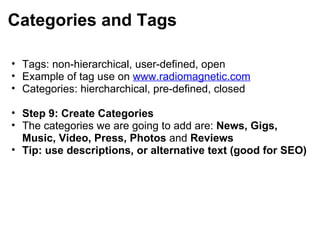
Categories and Tags Tags: non-hierarchical, user-defined, open Example of tag use on  www.radiomagnetic.com   Categories: hiercharchical, pre-defined, closed   Step 9: Create Categories The categories we are going to add are:  News, Gigs, Music, Video, Press, Photos  and  Reviews Tip: use descriptions, or alternative text (good for SEO)
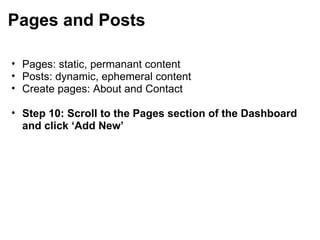
Pages and Posts Pages: static, permanant content Posts: dynamic, ephemeral content Create pages: About and Contact   Step 10: Scroll to the Pages section of the Dashboard and click ‘Add New’
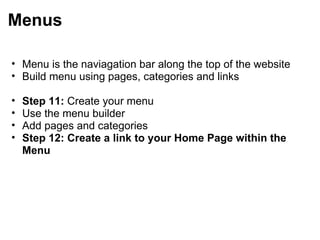
Menus Menu is the naviagation bar along the top of the website Build menu using pages, categories and links   Step 11:  Create your menu Use the menu builder Add pages and categories Step 12: Create a link to your Home Page within the Menu
Adding Media to Posts  
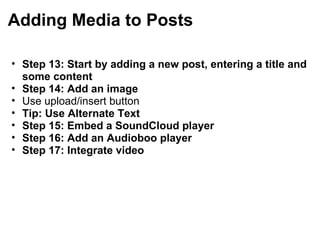
Adding Media to Posts Step 13: Start by adding a new post, entering a title and some content Step 14: Add an image Use upload/insert button Tip: Use Alternate Text Step 15:   Embed a SoundCloud player Step 16: Add an Audioboo player Step 17: Integrate video
Schedule Publication In Wordpress (and many blogging platforms) you can post-date content so that it is published at a specified time in the future Time saving, efficient way of adding content   Step 18: schedule a post for future publication
Appearance Step 19: Customise the Header in the default theme Tip: choose your own image, or one of the default images Crop the image if you want to Step 20: Edit the theme Step 21: Add a text widget to the sidebar
Links Step 22: Edit and Define Link Categories  Links to external sites The "blogroll" Tip: link are good for SEO Step 23: Add some links. Step 24: Add a links widget to the sidebar.
Social Media Sharing Step 23: Allow visitors to your website to share your content. Step 24: Automate posting to your Facebook and Twitter. Step 25: Add a Twitter Feed. Make use of RSS feeds. Add an RSS widget to your sidebar.
Settings Step 26: Explore your website’s settings. General settings. Date, time, title, tagline, etc. Writing settings. How posts are controlled. Reading settings. How posts are displayed. Media settings. Images, audio and video. Domain settings. If you buy your own domain, point it to your blog here. Privacy settings. Make your blog private. Discussion settings. Control comments.
Further Reference Online help support for Wordpress.com: http://en.support.wordpress.com Inner Ear’s Delicious Bookmarks: http://www.delicious.com/innerear  (see ie-digital-media-workshop tag) Inner Ear’s Website: http://www.innerear.co.uk   Contact us for more info and to find out how Inner Ear can deliver workshops, training, content creation and communications for you. Email addresses: [email_address] [email_address]

Build Your Own Portfolio Website

  • 1.
    Build Your OwnPortfolio Website Inner Ear’s Step-by-step Guide to  Building a Website in Wordpress
  • 2.
    Introduction Who arewe?   Have you heard of Wordpress? Who’s got a blog? Who’s on Facebook? Who’s on Twitter? Who’s on MySpace? Who’s heard of Audioboo? SoundCloud? Mixcloud? Tunited? BandCamp?
  • 3.
    Blogging What isblogging?   Wikipedia entry: http://en.wikipedia.org/wiki/Blog Dictionary.com definition: http://dictionary.reference.com/browse/blog   Blog: Stand alone website Section of a website Place to host multimedia files
  • 4.
    Setting Up YourOwn Portfolio Website Using Worpress.com Some examples... Recommended reading "why a website is like a restaurant" http://innerear.posterous.com/why-a-website-is-like-a-restaurant   Step 1: Sign up at www.wordpress.com Tip: Consider the name you choose carefully Step 2 :  Go to the Dashboard of your new blog Step 3: Open the blog in a new tab to see what it looks like, note the example post and comment Step 4: Go back to the Dashboard
  • 5.
    Introduction to Posts Step 5: Edit the "Hello World" post Step 6: Now to write your first blog post Tip: Keep your blog post title under 10 words. Step 7: Edit the URL Step 8: Change the blog post content Tip: Use a plain text editor
  • 6.
    Categories and TagsTags: non-hierarchical, user-defined, open Example of tag use on www.radiomagnetic.com Categories: hiercharchical, pre-defined, closed   Step 9: Create Categories The categories we are going to add are: News, Gigs, Music, Video, Press, Photos and Reviews Tip: use descriptions, or alternative text (good for SEO)
  • 7.
    Pages and PostsPages: static, permanant content Posts: dynamic, ephemeral content Create pages: About and Contact   Step 10: Scroll to the Pages section of the Dashboard and click ‘Add New’
  • 8.
    Menus Menu isthe naviagation bar along the top of the website Build menu using pages, categories and links   Step 11: Create your menu Use the menu builder Add pages and categories Step 12: Create a link to your Home Page within the Menu
  • 9.
  • 10.
    Adding Media toPosts Step 13: Start by adding a new post, entering a title and some content Step 14: Add an image Use upload/insert button Tip: Use Alternate Text Step 15: Embed a SoundCloud player Step 16: Add an Audioboo player Step 17: Integrate video
  • 11.
    Schedule Publication InWordpress (and many blogging platforms) you can post-date content so that it is published at a specified time in the future Time saving, efficient way of adding content   Step 18: schedule a post for future publication
  • 12.
    Appearance Step 19:Customise the Header in the default theme Tip: choose your own image, or one of the default images Crop the image if you want to Step 20: Edit the theme Step 21: Add a text widget to the sidebar
  • 13.
    Links Step 22:Edit and Define Link Categories Links to external sites The "blogroll" Tip: link are good for SEO Step 23: Add some links. Step 24: Add a links widget to the sidebar.
  • 14.
    Social Media SharingStep 23: Allow visitors to your website to share your content. Step 24: Automate posting to your Facebook and Twitter. Step 25: Add a Twitter Feed. Make use of RSS feeds. Add an RSS widget to your sidebar.
  • 15.
    Settings Step 26:Explore your website’s settings. General settings. Date, time, title, tagline, etc. Writing settings. How posts are controlled. Reading settings. How posts are displayed. Media settings. Images, audio and video. Domain settings. If you buy your own domain, point it to your blog here. Privacy settings. Make your blog private. Discussion settings. Control comments.
  • 16.
    Further Reference Onlinehelp support for Wordpress.com: http://en.support.wordpress.com Inner Ear’s Delicious Bookmarks: http://www.delicious.com/innerear (see ie-digital-media-workshop tag) Inner Ear’s Website: http://www.innerear.co.uk   Contact us for more info and to find out how Inner Ear can deliver workshops, training, content creation and communications for you. Email addresses: [email_address] [email_address]