

Browser Developer Tools
for APEX Developers
Christian Rokitta
Berlin 2017
1993
today
1996 1999 2009 20152010 2011 2014
Oracle
Database
Version 6
Hoechst AG
Clinical Research
Frankfurt, Germany
Custom Development
Utrecht, Netherlands
<HTML>
Oracle Consultant/Product Development Manager
Utrecht, Netherlands
mod_plsql
Oracle Web Toolkit
JavaScript();
HTML DB
APEX
Speaker
Oracle Database & Application Express Consultant
Utrecht, Netherlands
{CSS}
proud member of
APEX UI Customization
Reporting Plug-in
Christian Rokitta
Oracle APEX Architecture
Browser Mid Tier Database Tier
Oracle APEX
Engine
Oracle
Database
Data
Schemas
App Development IDE is a web
browser.
No client software needed
IDE’s for Oracle Database
• Develop
• Testing
• Debug
• Tuning
• Formatting
• …
PLSQL Developer
TOAD
SQL DeveloperSQL*Plus
Additional Skillset for APEX Developers
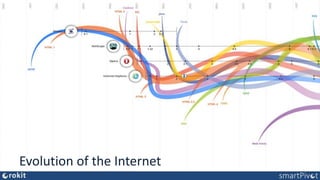
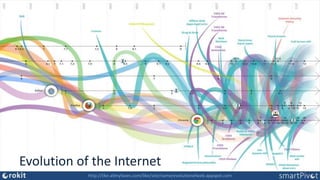
Evolution of the Internet
http://like.allmyfaves.com/like/site/name/evolutionofweb.appspot.com
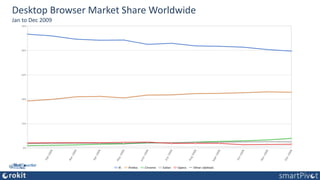
Desktop Browser Market Share Worldwide
Jan to Dec 2009
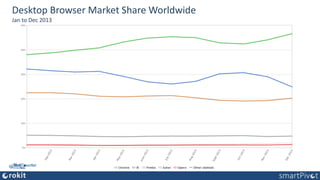
Desktop Browser Market Share Worldwide
Jan to Dec 2013
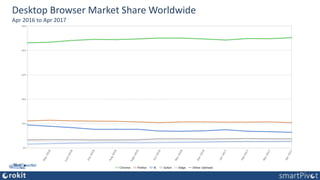
Desktop Browser Market Share Worldwide
Apr 2016 to Apr 2017
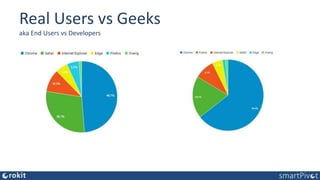
Real Users vs Geeks
aka End Users vs Developers
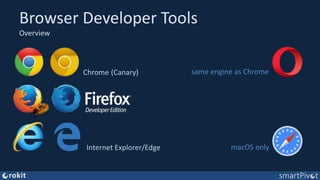
Browser Developer Tools
Overview
Chrome
Internet Explorer/Edge macOS only
same engine as Chrome(Canary)
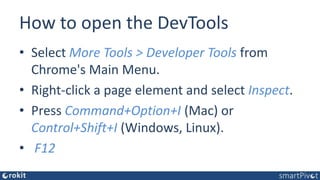
How to open the DevTools
• Select More Tools > Developer Tools from
Chrome's Main Menu.
• Right-click a page element and select Inspect.
• Press Command+Option+I (Mac) or
Control+Shift+I (Windows, Linux).
• F12
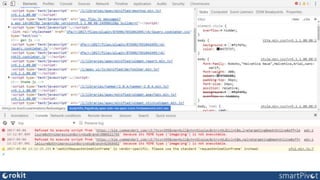
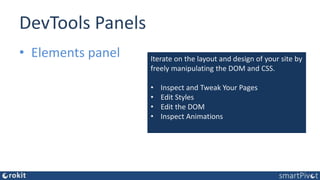
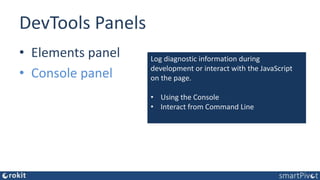
DevTools Panels
• Elements panel Iterate on the layout and design of your site by
freely manipulating the DOM and CSS.
• Inspect and Tweak Your Pages
• Edit Styles
• Edit the DOM
• Inspect Animations
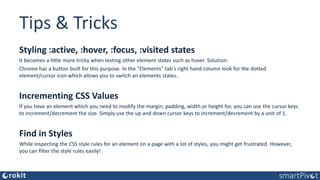
Tips & Tricks
Styling :active, :hover, :focus, :visited states
It becomes a little more tricky when testing other element states such as hover. Solution:
Chrome has a button built for this purpose. In the "Elements" tab's right hand column look for the dotted
element/cursor icon which allows you to switch an elements states.
Incrementing CSS Values
If you have an element which you need to modify the margin, padding, width or height for, you can use the cursor keys
to increment/decrement the size. Simply use the up and down cursor keys to increment/decrement by a unit of 1.
Find in Styles
While inspecting the CSS style rules for an element on a page with a lot of styles, you might get frustrated. However,
you can filter the style rules easily!
DevTools Panels
• Elements panel
• Console panel
Log diagnostic information during
development or interact with the JavaScript
on the page.
• Using the Console
• Interact from Command Line
Tips & Tricks
Snippets
Snippets allow you to write multi-line JavaScript code, save them in the dev tools memory (they are preserved
forever, until you delete them), have a git style version history.
Inspecting <iframes> from the console
If one of your scripts are in an iframe, which you wish to inspect in the console, you might find that directly
typing the variable names defined for the iframe won’t work. You can change the window frame you are
inspecting from the console!
Tips & Tricks
The console API
The console has a very nice API. Here are 5 quick tips for the Chrome Web Console:
• $ is an alias to document.querySelector, and $$ is an alias to document.querySelectorAll.
• $0, $1... $4 give reference to the last 4 DOM elements selected from the DOM inspector.
(So when you have to select an element, right click, and inspect element, then type $0 in the console!)
• $_ holds the value for the last expression evaluated in the console. Useful when you are running a lot of
expressions simultaneously.
• debug(function), typing this in the console would watch for the function passed as the first parameter to
be called. When it is called, the debugger will be invoked, and the script would be paused.
• getEventListeners(domElement) would list all the event listeners attached to the DOM element.
DevTools Panels
• Elements panel
• Console panel
• Sources panel
Debug your JavaScript using breakpoints or
connect your local files via Workspaces to use
DevTools as a code editor.
• Debugging JavaScript
• Pause Your Code With Breakpoints
• DevTools Workspaces
• Source mapping
DevTools Panels
• Elements panel
• Console panel
• Sources panel
• Network panel
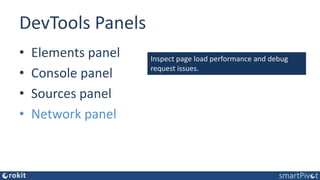
Inspect page load performance and debug
request issues.
DevTools Panels
• Elements panel
• Console panel
• Sources panel
• Network panel
• Performance panel
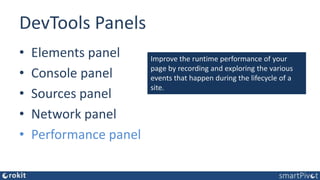
Improve the runtime performance of your
page by recording and exploring the various
events that happen during the lifecycle of a
site.
DevTools Panels
• Elements panel
• Console panel
• Sources panel
• Network panel
• Performance panel
• Memory panel
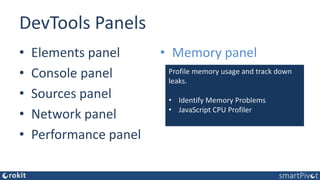
Profile memory usage and track down
leaks.
• Identify Memory Problems
• JavaScript CPU Profiler
DevTools Panels
• Elements panel
• Console panel
• Sources panel
• Network panel
• Performance panel
• Memory panel
• Application panel
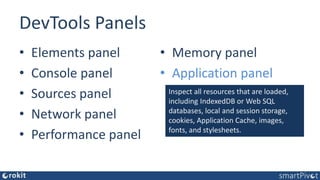
Inspect all resources that are loaded,
including IndexedDB or Web SQL
databases, local and session storage,
cookies, Application Cache, images,
fonts, and stylesheets.
DevTools Panels
• Elements panel
• Console panel
• Sources panel
• Network panel
• Performance panel
• Memory panel
• Application panel
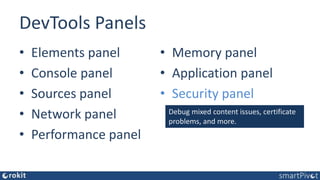
• Security panel
Debug mixed content issues, certificate
problems, and more.
DevTools Panels
• Elements panel
• Console panel
• Sources panel
• Network panel
• Performance panel
• Memory panel
• Application panel
• Security panel
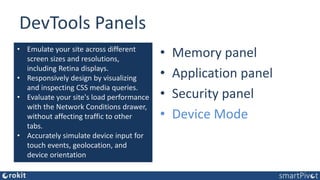
• Device Mode
• Emulate your site across different
screen sizes and resolutions,
including Retina displays.
• Responsively design by visualizing
and inspecting CSS media queries.
• Evaluate your site's load performance
with the Network Conditions drawer,
without affecting traffic to other
tabs.
• Accurately simulate device input for
touch events, geolocation, and
device orientation
DevTools Panels
• Elements panel
• Console panel
• Sources panel
• Network panel
• Performance panel
• Memory panel
• Application panel
• Security panel
• Device Mode
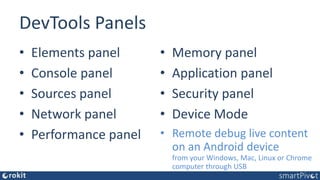
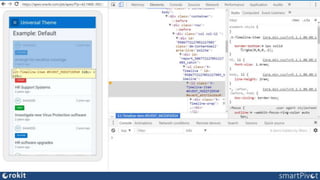
• Remote debug live content
on an Android device
from your Windows, Mac, Linux or Chrome
computer through USB
Conclusion
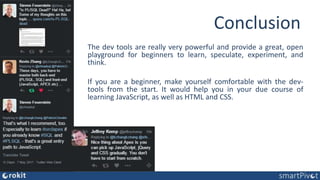
The dev tools are really very powerful and provide a great, open
playground for beginners to learn, speculate, experiment, and
think.
If you are a beginner, make yourself comfortable with the dev-
tools from the start. It would help you in your due course of
learning JavaScript, as well as HTML and CSS.
Q&A
www.rokit.nl
www.themes4apex.com
www.apexsmartpivot.com
blog.rokit.nl
@crokitta @themes4apex @apexsmartpivot
www.linkedin.com/in/rokit

Browser Developer Tools for APEX Developers

  • 1.
    Browser Developer Tools forAPEX Developers Christian Rokitta Berlin 2017
  • 2.
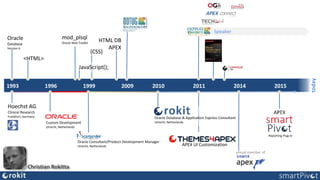
    1993 today 1996 1999 200920152010 2011 2014 Oracle Database Version 6 Hoechst AG Clinical Research Frankfurt, Germany Custom Development Utrecht, Netherlands <HTML> Oracle Consultant/Product Development Manager Utrecht, Netherlands mod_plsql Oracle Web Toolkit JavaScript(); HTML DB APEX Speaker Oracle Database & Application Express Consultant Utrecht, Netherlands {CSS} proud member of APEX UI Customization Reporting Plug-in Christian Rokitta
  • 3.
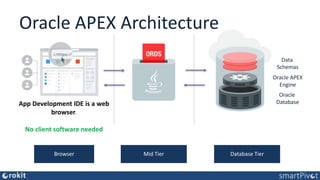
    Oracle APEX Architecture BrowserMid Tier Database Tier Oracle APEX Engine Oracle Database Data Schemas App Development IDE is a web browser. No client software needed
  • 4.
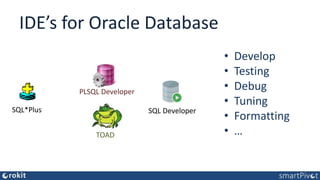
    IDE’s for OracleDatabase • Develop • Testing • Debug • Tuning • Formatting • … PLSQL Developer TOAD SQL DeveloperSQL*Plus
  • 5.
    Additional Skillset forAPEX Developers
  • 6.
  • 7.
    Evolution of theInternet http://like.allmyfaves.com/like/site/name/evolutionofweb.appspot.com
  • 8.
    Desktop Browser MarketShare Worldwide Jan to Dec 2009
  • 9.
    Desktop Browser MarketShare Worldwide Jan to Dec 2013
  • 10.
    Desktop Browser MarketShare Worldwide Apr 2016 to Apr 2017
  • 11.
    Real Users vsGeeks aka End Users vs Developers
  • 12.
    Browser Developer Tools Overview Chrome InternetExplorer/Edge macOS only same engine as Chrome(Canary)
  • 13.
    How to openthe DevTools • Select More Tools > Developer Tools from Chrome's Main Menu. • Right-click a page element and select Inspect. • Press Command+Option+I (Mac) or Control+Shift+I (Windows, Linux). • F12
  • 15.
    DevTools Panels • Elementspanel Iterate on the layout and design of your site by freely manipulating the DOM and CSS. • Inspect and Tweak Your Pages • Edit Styles • Edit the DOM • Inspect Animations
  • 16.
    Tips & Tricks Styling:active, :hover, :focus, :visited states It becomes a little more tricky when testing other element states such as hover. Solution: Chrome has a button built for this purpose. In the "Elements" tab's right hand column look for the dotted element/cursor icon which allows you to switch an elements states. Incrementing CSS Values If you have an element which you need to modify the margin, padding, width or height for, you can use the cursor keys to increment/decrement the size. Simply use the up and down cursor keys to increment/decrement by a unit of 1. Find in Styles While inspecting the CSS style rules for an element on a page with a lot of styles, you might get frustrated. However, you can filter the style rules easily!
  • 17.
    DevTools Panels • Elementspanel • Console panel Log diagnostic information during development or interact with the JavaScript on the page. • Using the Console • Interact from Command Line
  • 18.
    Tips & Tricks Snippets Snippetsallow you to write multi-line JavaScript code, save them in the dev tools memory (they are preserved forever, until you delete them), have a git style version history. Inspecting <iframes> from the console If one of your scripts are in an iframe, which you wish to inspect in the console, you might find that directly typing the variable names defined for the iframe won’t work. You can change the window frame you are inspecting from the console!
  • 19.
    Tips & Tricks Theconsole API The console has a very nice API. Here are 5 quick tips for the Chrome Web Console: • $ is an alias to document.querySelector, and $$ is an alias to document.querySelectorAll. • $0, $1... $4 give reference to the last 4 DOM elements selected from the DOM inspector. (So when you have to select an element, right click, and inspect element, then type $0 in the console!) • $_ holds the value for the last expression evaluated in the console. Useful when you are running a lot of expressions simultaneously. • debug(function), typing this in the console would watch for the function passed as the first parameter to be called. When it is called, the debugger will be invoked, and the script would be paused. • getEventListeners(domElement) would list all the event listeners attached to the DOM element.
  • 20.
    DevTools Panels • Elementspanel • Console panel • Sources panel Debug your JavaScript using breakpoints or connect your local files via Workspaces to use DevTools as a code editor. • Debugging JavaScript • Pause Your Code With Breakpoints • DevTools Workspaces • Source mapping
  • 21.
    DevTools Panels • Elementspanel • Console panel • Sources panel • Network panel Inspect page load performance and debug request issues.
  • 22.
    DevTools Panels • Elementspanel • Console panel • Sources panel • Network panel • Performance panel Improve the runtime performance of your page by recording and exploring the various events that happen during the lifecycle of a site.
  • 23.
    DevTools Panels • Elementspanel • Console panel • Sources panel • Network panel • Performance panel • Memory panel Profile memory usage and track down leaks. • Identify Memory Problems • JavaScript CPU Profiler
  • 24.
    DevTools Panels • Elementspanel • Console panel • Sources panel • Network panel • Performance panel • Memory panel • Application panel Inspect all resources that are loaded, including IndexedDB or Web SQL databases, local and session storage, cookies, Application Cache, images, fonts, and stylesheets.
  • 25.
    DevTools Panels • Elementspanel • Console panel • Sources panel • Network panel • Performance panel • Memory panel • Application panel • Security panel Debug mixed content issues, certificate problems, and more.
  • 26.
    DevTools Panels • Elementspanel • Console panel • Sources panel • Network panel • Performance panel • Memory panel • Application panel • Security panel • Device Mode • Emulate your site across different screen sizes and resolutions, including Retina displays. • Responsively design by visualizing and inspecting CSS media queries. • Evaluate your site's load performance with the Network Conditions drawer, without affecting traffic to other tabs. • Accurately simulate device input for touch events, geolocation, and device orientation
  • 27.
    DevTools Panels • Elementspanel • Console panel • Sources panel • Network panel • Performance panel • Memory panel • Application panel • Security panel • Device Mode • Remote debug live content on an Android device from your Windows, Mac, Linux or Chrome computer through USB
  • 29.
    Conclusion The dev toolsare really very powerful and provide a great, open playground for beginners to learn, speculate, experiment, and think. If you are a beginner, make yourself comfortable with the dev- tools from the start. It would help you in your due course of learning JavaScript, as well as HTML and CSS.
  • 30.

Editor's Notes

  • #4 The Oracle Application Express architecture requires some form of Web server to proxy requests between a client Web browser and the Oracle Application Express engine. The Web server options include: Oracle REST Data Services: Oracle REST Data Services (ORDS) is a Java based, free tool that is fully supported when used with Oracle WebLogic Server, Oracle Glassfish Server, and Tomcat. Embedded PL/SQL Gateway: The Embedded PL/SQL Gateway (EPG) runs in the Oracle XML DB Protocol Server within the Oracle Database and includes the core features of mod_plsql. Oracle HTTP Server: The Oracle HTTP Server (Apache) with mod_plsql plugin can be placed on the same physical machine as the database, or on a separate physical machine. Please note that mod_plsql is deprecated as of Oracle HTTP Server 12c (12.1.3).