



Google Chrome
DevTools features
_by Oleksii Prohonnyi
OVERVIEW
Chrome Developer Tools
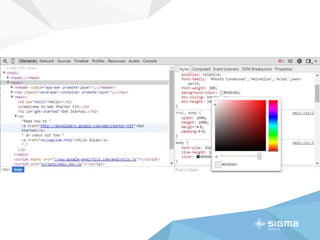
 The Chrome Developer Tools (DevTools for short), are a set of web
authoring and debugging tools built into Google Chrome. The DevTools
provide web developers deep access into the internals of the browser and
their web application. Use the DevTools to efficiently track down layout
issues, set JavaScript breakpoints, and get insights for code optimization.
 Sections: Elements, Resources, Network, Sources, Timeline, Profiles,
Audits, Console
 https://developer.chrome.com/devtools
 Latest version of Chrome Canary:
https://www.google.com/intl/en/chrome/browser/canary.html
SHORTCUTS
Keyboard Shortcuts
 The DevTools has several built-in shortcut keys that developers can use to
save time in their day to day workflow. Outlined below is each shortcut and
the corresponding key for each on Windows/Linux and Mac. While some
shortcuts are globally available across all of the DevTools, others are
specific to a single panel, and are broken up based on where it can be
used.
 https://developer.chrome.com/devtools/docs/shortcuts
 Categories: Opening DevTools, All Panels, Elements Panel, Styles Sidebar,
Sources Panel, Code Editor Shortcuts, Timeline Panel, Profiles Panel,
Console, Screencasting, Emulation, Other Chrome Shortcuts
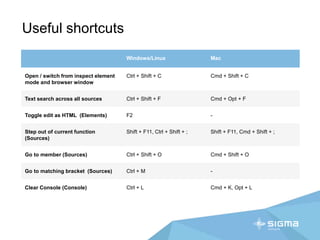
Useful shortcuts
Windows/Linux Mac
Open / switch from inspect element
mode and browser window
Ctrl + Shift + C Cmd + Shift + C
Text search across all sources Ctrl + Shift + F Cmd + Opt + F
Toggle edit as HTML (Elements) F2 -
Step out of current function
(Sources)
Shift + F11, Ctrl + Shift + ; Shift + F11, Cmd + Shift + ;
Go to member (Sources) Ctrl + Shift + O Cmd + Shift + O
Go to matching bracket (Sources) Ctrl + M -
Clear Console (Console) Ctrl + L Cmd + K, Opt + L
ELEMENTS
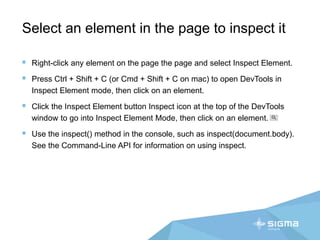
Select an element in the page to inspect it
 Right-click any element on the page the page and select Inspect Element.
 Press Ctrl + Shift + C (or Cmd + Shift + C on mac) to open DevTools in
Inspect Element mode, then click on an element.
 Click the Inspect Element button Inspect icon at the top of the DevTools
window to go into Inspect Element Mode, then click on an element.
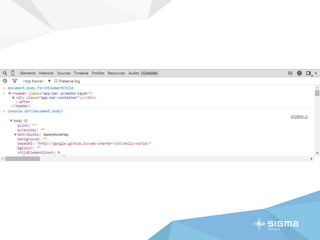
 Use the inspect() method in the console, such as inspect(document.body).
See the Command-Line API for information on using inspect.
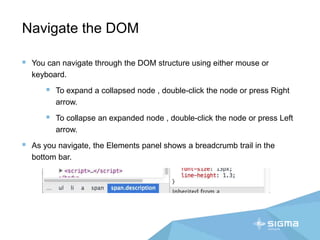
Navigate the DOM
 You can navigate through the DOM structure using either mouse or
keyboard.
 To expand a collapsed node , double-click the node or press Right
arrow.
 To collapse an expanded node , double-click the node or press Left
arrow.
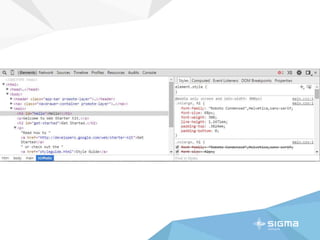
 As you navigate, the Elements panel shows a breadcrumb trail in the
bottom bar.
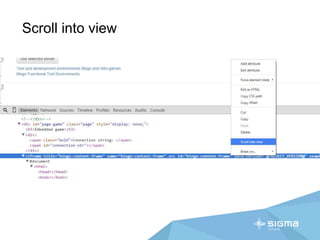
Scroll into view
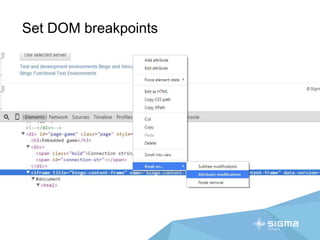
Set DOM breakpoints
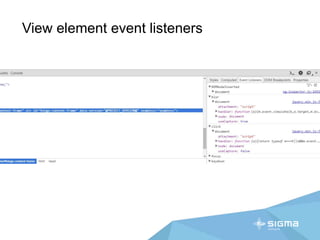
View element event listeners
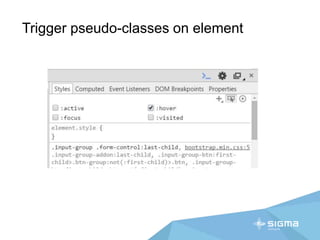
Trigger pseudo-classes on element
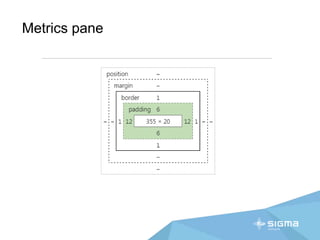
Metrics pane
Even more
 Edit DOM nodes.
 Edit attributes.
 Edit DOM nodes as HTML.
 Move elements.
 Delete elements.
 Edit and create styles through styles pane.
 Edit css animations speed.
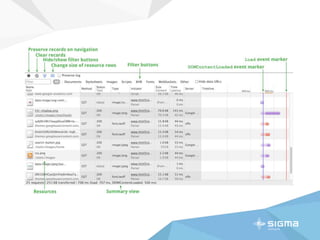
NETWORK
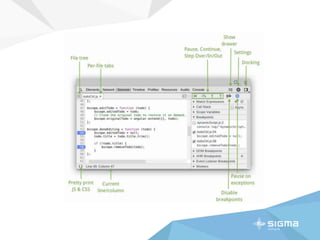
SOURCES
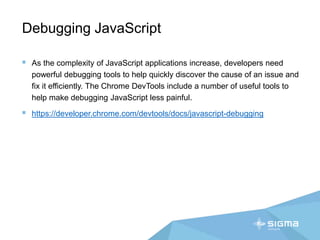
Debugging JavaScript
 As the complexity of JavaScript applications increase, developers need
powerful debugging tools to help quickly discover the cause of an issue and
fix it efficiently. The Chrome DevTools include a number of useful tools to
help make debugging JavaScript less painful.
 https://developer.chrome.com/devtools/docs/javascript-debugging
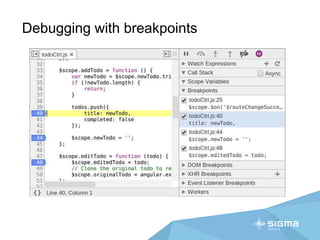
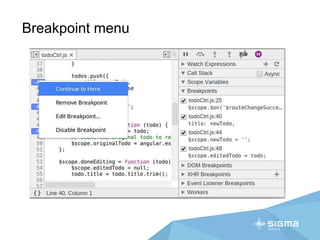
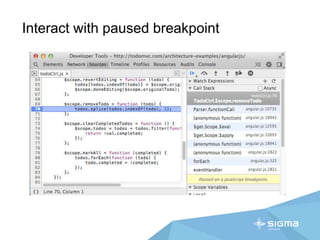
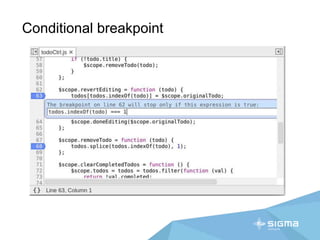
Debugging with breakpoints
Breakpoint menu
Interact with paused breakpoint
Conditional breakpoint
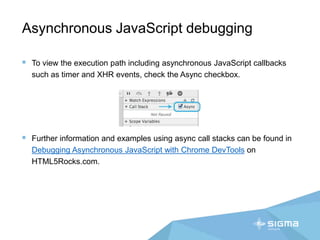
Asynchronous JavaScript debugging
 To view the execution path including asynchronous JavaScript callbacks
such as timer and XHR events, check the Async checkbox.
 Further information and examples using async call stacks can be found in
Debugging Asynchronous JavaScript with Chrome DevTools on
HTML5Rocks.com.
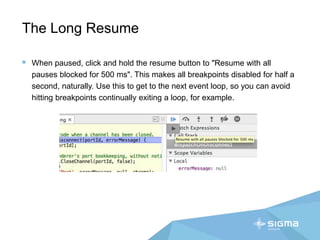
The Long Resume
 When paused, click and hold the resume button to "Resume with all
pauses blocked for 500 ms". This makes all breakpoints disabled for half a
second, naturally. Use this to get to the next event loop, so you can avoid
hitting breakpoints continually exiting a loop, for example.
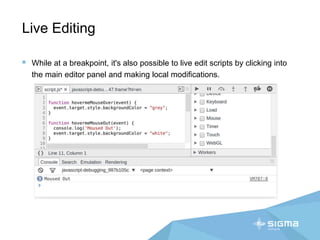
Live Editing
 While at a breakpoint, it's also possible to live edit scripts by clicking into
the main editor panel and making local modifications.
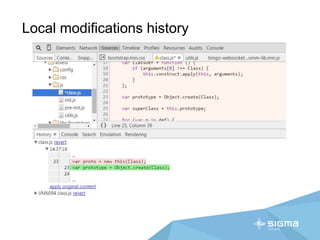
Local modifications history
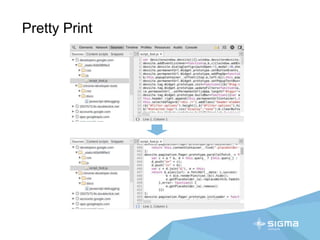
Pretty Print
Even more
 Console drawer.
 Breakpoints in Dynamic JavaScript.
 Pause on Next JavaScript Statement.
 Pause on Exceptions.
 Pause on Uncaught Exceptions.
 Breakpoints on DOM Mutation Events.
 Breakpoints on XHR.
 Breakpoints on JavaScript Event Listeners.
 Source maps.
TIMELINE
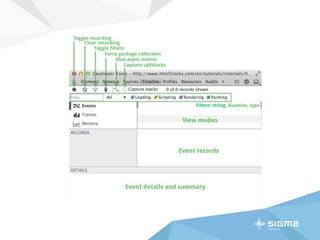
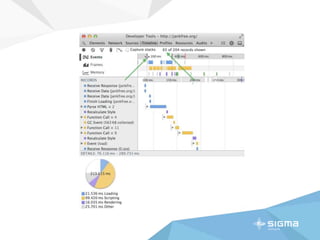
Timeline modes
In addition to the detailed Records view, you can inspect recordings in one of
three modes:
 Events mode shows all recorded events by event category.
 Frames mode shows your page's rendering performance.
 Memory mode shows your page's memory usage over time.
Tips for making recordings
 Keep recordings as short as possible. Shorter recordings generally make
analysis easier.
 Avoid unnecessary actions. Try to avoid actions (mouse clicks, network loads,
and so forth) that are extraneous to the activity you want to record and analyze.
For instance, if you want to record events that occur after you click a “Login”
button, don’t also scroll the page, load an image and so forth.
 Disable the browser cache. When recording network operations, it’s a good
idea to disable the browser’s cache in the DevTools Settings panel.
 Disable extensions. Chrome extensions can add unrelated noise to Timeline
recordings of your application. You can do one of the following:
 Open a Chrome window in incognito mode (Ctrl + Shift + N).
 Create a new Chrome user profile for testing.
PROFILES
JavaScript & CSS performance
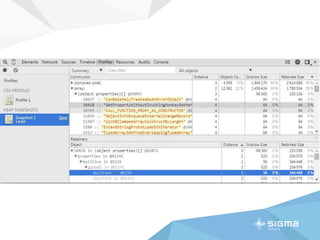
The Profiles panel lets you profile the execution time and memory usage of a
web app or page. These help you to understand where resources are being
spent, and so help you to optimize your code. The provided profilers are:
 The CPU profiler shows where execution time is spent in your page's
JavaScript functions. Read more
 The Heap profiler shows memory distribution by your page's JavaScript
objects and related DOM nodes. Read more
 The JavaScript profile shows where execution time is spent in your scripts.
RESOURCES
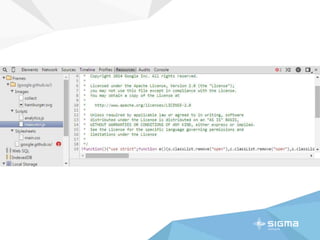
Managing application storage
The Resources panel lets you inspect your application's local data sources,
including IndexedDB, Web SQL databases, local and session storage,
cookies, and Application Cache resources. You can also quickly inspect your
application's visual resources, including images, fonts, and stylesheets.
Read more
AUDITS
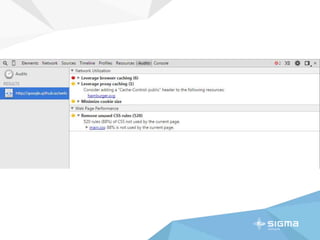
Page audit
 The Audit panel can analyze a page as it loads. Then provides suggestions
and optimizations for decreasing page load time and increase perceived
(and real) responsiveness.
 For further insight, it is recommended to use PageSpeed Insights.
CONSOLE
Working with the Console
 The JavaScript Console provides two primary functions for developers
testing web pages and applications. It is a place to:
 Log diagnostic information in the development process.
 A shell prompt which can be used to interact with the document and
DevTools.
 https://developer.chrome.com/devtools/docs/console-api
 https://developer.chrome.com/devtools/docs/commandline-api
console.log(object [, object, ...])
Format Specifier Description
%s Formats the value as a string.
%d or %i Formats the value as an integer.
%f Formats the value as a floating point value.
%o Formats the value as an expandable DOM element (as in
the Elements panel).
%O Formats the value as an expandable JavaScript object.
%c Formats the output string according to CSS styles you
provide.
console.log(object [, object, ...])
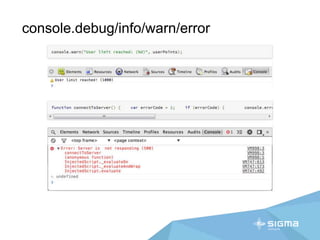
console.debug/info/warn/error
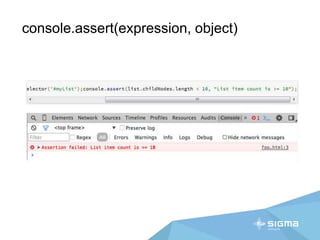
console.assert(expression, object)
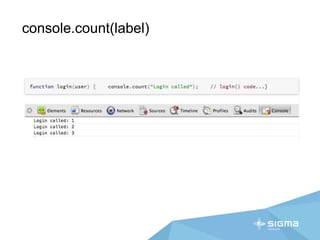
console.count(label)
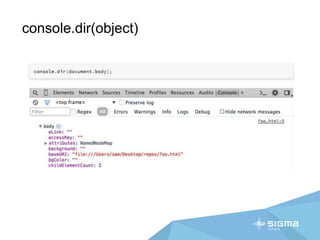
console.dir(object)
console.group(object[, object, ...])
console.groupCollapsed(object[, object, ...])
console.groupEnd()
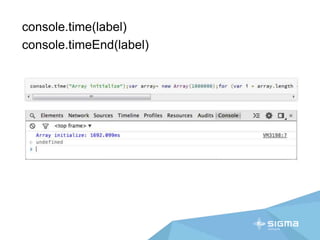
console.time(label)
console.timeEnd(label)
Even more
 debugger;
 console.clear();
 console.dirxml(object);
 console.trace(object)
 console.profile([label]);
 console.profileEnd();
 console.timeStamp([label]);
EXTRAS
Further reading
 Device Mode & Mobile Emulation
 Remote Debugging
 DevTools Videos
 Developing and Debugging extensions
Oleksii Prohonnyi
facebook.com/oprohonnyi
linkedin.com/in/oprohonnyi

Google Chrome DevTools features overview

  • 1.
  • 2.
  • 4.
    Chrome Developer Tools The Chrome Developer Tools (DevTools for short), are a set of web authoring and debugging tools built into Google Chrome. The DevTools provide web developers deep access into the internals of the browser and their web application. Use the DevTools to efficiently track down layout issues, set JavaScript breakpoints, and get insights for code optimization.  Sections: Elements, Resources, Network, Sources, Timeline, Profiles, Audits, Console  https://developer.chrome.com/devtools  Latest version of Chrome Canary: https://www.google.com/intl/en/chrome/browser/canary.html
  • 5.
  • 6.
    Keyboard Shortcuts  TheDevTools has several built-in shortcut keys that developers can use to save time in their day to day workflow. Outlined below is each shortcut and the corresponding key for each on Windows/Linux and Mac. While some shortcuts are globally available across all of the DevTools, others are specific to a single panel, and are broken up based on where it can be used.  https://developer.chrome.com/devtools/docs/shortcuts  Categories: Opening DevTools, All Panels, Elements Panel, Styles Sidebar, Sources Panel, Code Editor Shortcuts, Timeline Panel, Profiles Panel, Console, Screencasting, Emulation, Other Chrome Shortcuts
  • 7.
    Useful shortcuts Windows/Linux Mac Open/ switch from inspect element mode and browser window Ctrl + Shift + C Cmd + Shift + C Text search across all sources Ctrl + Shift + F Cmd + Opt + F Toggle edit as HTML (Elements) F2 - Step out of current function (Sources) Shift + F11, Ctrl + Shift + ; Shift + F11, Cmd + Shift + ; Go to member (Sources) Ctrl + Shift + O Cmd + Shift + O Go to matching bracket (Sources) Ctrl + M - Clear Console (Console) Ctrl + L Cmd + K, Opt + L
  • 8.
  • 10.
    Select an elementin the page to inspect it  Right-click any element on the page the page and select Inspect Element.  Press Ctrl + Shift + C (or Cmd + Shift + C on mac) to open DevTools in Inspect Element mode, then click on an element.  Click the Inspect Element button Inspect icon at the top of the DevTools window to go into Inspect Element Mode, then click on an element.  Use the inspect() method in the console, such as inspect(document.body). See the Command-Line API for information on using inspect.
  • 11.
    Navigate the DOM You can navigate through the DOM structure using either mouse or keyboard.  To expand a collapsed node , double-click the node or press Right arrow.  To collapse an expanded node , double-click the node or press Left arrow.  As you navigate, the Elements panel shows a breadcrumb trail in the bottom bar.
  • 12.
  • 13.
  • 14.
  • 15.
  • 16.
  • 17.
    Even more  EditDOM nodes.  Edit attributes.  Edit DOM nodes as HTML.  Move elements.  Delete elements.  Edit and create styles through styles pane.  Edit css animations speed.
  • 18.
  • 20.
  • 22.
    Debugging JavaScript  Asthe complexity of JavaScript applications increase, developers need powerful debugging tools to help quickly discover the cause of an issue and fix it efficiently. The Chrome DevTools include a number of useful tools to help make debugging JavaScript less painful.  https://developer.chrome.com/devtools/docs/javascript-debugging
  • 23.
  • 24.
  • 25.
  • 26.
  • 27.
    Asynchronous JavaScript debugging To view the execution path including asynchronous JavaScript callbacks such as timer and XHR events, check the Async checkbox.  Further information and examples using async call stacks can be found in Debugging Asynchronous JavaScript with Chrome DevTools on HTML5Rocks.com.
  • 28.
    The Long Resume When paused, click and hold the resume button to "Resume with all pauses blocked for 500 ms". This makes all breakpoints disabled for half a second, naturally. Use this to get to the next event loop, so you can avoid hitting breakpoints continually exiting a loop, for example.
  • 29.
    Live Editing  Whileat a breakpoint, it's also possible to live edit scripts by clicking into the main editor panel and making local modifications.
  • 30.
  • 31.
  • 32.
    Even more  Consoledrawer.  Breakpoints in Dynamic JavaScript.  Pause on Next JavaScript Statement.  Pause on Exceptions.  Pause on Uncaught Exceptions.  Breakpoints on DOM Mutation Events.  Breakpoints on XHR.  Breakpoints on JavaScript Event Listeners.  Source maps.
  • 33.
  • 36.
    Timeline modes In additionto the detailed Records view, you can inspect recordings in one of three modes:  Events mode shows all recorded events by event category.  Frames mode shows your page's rendering performance.  Memory mode shows your page's memory usage over time.
  • 37.
    Tips for makingrecordings  Keep recordings as short as possible. Shorter recordings generally make analysis easier.  Avoid unnecessary actions. Try to avoid actions (mouse clicks, network loads, and so forth) that are extraneous to the activity you want to record and analyze. For instance, if you want to record events that occur after you click a “Login” button, don’t also scroll the page, load an image and so forth.  Disable the browser cache. When recording network operations, it’s a good idea to disable the browser’s cache in the DevTools Settings panel.  Disable extensions. Chrome extensions can add unrelated noise to Timeline recordings of your application. You can do one of the following:  Open a Chrome window in incognito mode (Ctrl + Shift + N).  Create a new Chrome user profile for testing.
  • 38.
  • 40.
    JavaScript & CSSperformance The Profiles panel lets you profile the execution time and memory usage of a web app or page. These help you to understand where resources are being spent, and so help you to optimize your code. The provided profilers are:  The CPU profiler shows where execution time is spent in your page's JavaScript functions. Read more  The Heap profiler shows memory distribution by your page's JavaScript objects and related DOM nodes. Read more  The JavaScript profile shows where execution time is spent in your scripts.
  • 41.
  • 43.
    Managing application storage TheResources panel lets you inspect your application's local data sources, including IndexedDB, Web SQL databases, local and session storage, cookies, and Application Cache resources. You can also quickly inspect your application's visual resources, including images, fonts, and stylesheets. Read more
  • 44.
  • 46.
    Page audit  TheAudit panel can analyze a page as it loads. Then provides suggestions and optimizations for decreasing page load time and increase perceived (and real) responsiveness.  For further insight, it is recommended to use PageSpeed Insights.
  • 47.
  • 49.
    Working with theConsole  The JavaScript Console provides two primary functions for developers testing web pages and applications. It is a place to:  Log diagnostic information in the development process.  A shell prompt which can be used to interact with the document and DevTools.  https://developer.chrome.com/devtools/docs/console-api  https://developer.chrome.com/devtools/docs/commandline-api
  • 50.
    console.log(object [, object,...]) Format Specifier Description %s Formats the value as a string. %d or %i Formats the value as an integer. %f Formats the value as a floating point value. %o Formats the value as an expandable DOM element (as in the Elements panel). %O Formats the value as an expandable JavaScript object. %c Formats the output string according to CSS styles you provide.
  • 51.
  • 52.
  • 53.
  • 54.
  • 55.
  • 56.
  • 57.
  • 58.
    Even more  debugger; console.clear();  console.dirxml(object);  console.trace(object)  console.profile([label]);  console.profileEnd();  console.timeStamp([label]);
  • 59.
  • 60.
    Further reading  DeviceMode & Mobile Emulation  Remote Debugging  DevTools Videos  Developing and Debugging extensions
  • 62.