BootStrap
Introduction
• Bootstrap is the most popular HTML, CSS, and
JavaScript framework for developing
responsive, mobile-first web sites.
Where to Get Bootstrap?
There are two ways to start using Bootstrap on
your own web site.
You can:
• Download Bootstrap from getbootstrap.com
• Include Bootstrap from a CDN
• <!-- Latest compiled and minified CSS -->
<link rel="stylesheet"href="http://maxcdn.bootstrapcdn.com/boots
trap/3.3.6/css/bootstrap.min.css">
<!-- jQuery library -->
<script src="https://ajax.googleapis.com/ajax/libs/jquery/1.12.2/jq
uery.min.js"></script>
<!-- Latest compiled JavaScript -->
<script src="http://maxcdn.bootstrapcdn.com/bootstrap/3.3.6/js/b
ootstrap.min.js"></script>
Create First Web Page With Bootstrap
1. Add the HTML5 doctype
2. Bootstrap 3 is mobile-first
3. Containers
4. Grid System
5. Collapse
6. Jumbotron
7. Page Header
8. Navigation bar
1. Add the HTML5 doctype
• Bootstrap uses HTML elements and CSS
properties that require the HTML5 doctype.
• Always include the HTML5 doctype at the
beginning of the page, along with the lang
attribute and the correct character set:
• <!DOCTYPE html>
<html lang="en">
<head>
<meta charset="utf-8">
</head>
</html>
2. Bootstrap 3 is mobile-first
• Bootstrap 3 is designed to be responsive to
mobile devices. Mobile-first styles are part of
the core framework.
• To ensure proper rendering and touch
zooming, add the following <meta> tag inside
the <head> element:
• <meta name="viewport" content="width=devi
ce-width, initial-scale=1">
3. Containers
• Bootstrap also requires a containing element to
wrap site contents.
• There are two container classes to choose from:
• The .container class provides a responsive fixed
width container
• The .container-fluid class provides a full width
container, spanning the entire width of the
viewport
• Demo
Bootstrap Grid System
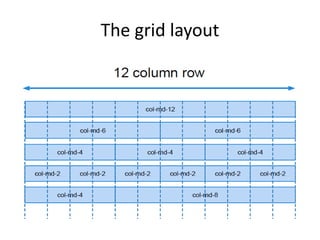
Bootstrap's grid system allows up to 12 columns
across the page.
The Bootstrap grid system has four classes:
• xs (for phones)
• sm (for tablets)
• md (for desktops)
• lg (for larger desktops)
The grid layout
Bootstrap Grid System Example
• <div class="row">
<div class="col-sm-4">.col-sm-4</div>
<div class="col-sm-8">.col-sm-8</div>
</div>
• Demo
Bootstrap Collapse
• Collapsibles are useful when you want to hide
and show large amount of content:
• <button data-toggle="collapse" data-
target="#demo">Collapsible</button>
<div id="demo" class="collapse">
Write some text....
</div>
• Demo
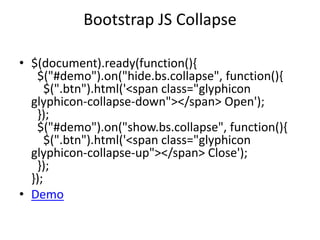
Bootstrap JS Collapse
• $(document).ready(function(){
$("#demo").on("hide.bs.collapse", function(){
$(".btn").html('<span class="glyphicon
glyphicon-collapse-down"></span> Open');
});
$("#demo").on("show.bs.collapse", function(){
$(".btn").html('<span class="glyphicon
glyphicon-collapse-up"></span> Close');
});
});
• Demo
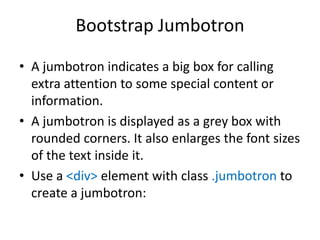
Bootstrap Jumbotron
• A jumbotron indicates a big box for calling
extra attention to some special content or
information.
• A jumbotron is displayed as a grey box with
rounded corners. It also enlarges the font sizes
of the text inside it.
• Use a <div> element with class .jumbotron to
create a jumbotron:
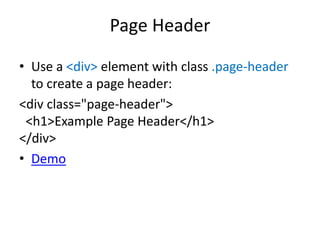
Page Header
• Use a <div> element with class .page-header
to create a page header:
<div class="page-header">
<h1>Example Page Header</h1>
</div>
• Demo
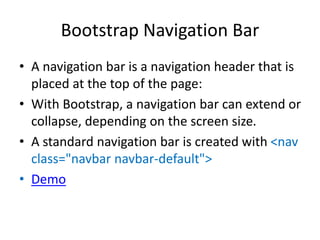
Bootstrap Navigation Bar
• A navigation bar is a navigation header that is
placed at the top of the page:
• With Bootstrap, a navigation bar can extend or
collapse, depending on the screen size.
• A standard navigation bar is created with <nav
class="navbar navbar-default">
• Demo
Bootstrap Inverted Navigation Bar
• If you don't like the style of the default
navigation bar, Bootstrap provides an
alternative, black navbar:
• Just change the .navbar-default class into
.navbar-inverse:
• Demo
Bootstrap Fixed Navigation Bar
• The navigation bar can also be fixed at the top or
at the bottom of the page.
• A fixed navigation bar stays visible in a fixed
position (top or bottom) independent of the page
scroll.
• The .navbar-fixed-top class makes the navigation
bar fixed at the top:
• The .navbar-fixed-bottom class makes the
navigation bar stay at the bottom:
• Demo
Bootstrap Navigation Bar with
Dropdown
• Navigation bars can also hold dropdown
menus.
• Demo
Bootstrap Right Aligned Navigation Bar
• The .navbar-right class is used to right-align
navigation bar buttons.
• In the following example we insert a "Sign Up"
button and a "Login" button to the right in the
navigation bar. We also add a glyphicon on
each of the two new buttons:
• Demo
Collapsing The Navigation Bar
• The navigation bar takes up too much space
on a small screen.
• We should hide the navigation bar; and only
show it when it is needed.
• In the following example the navigation bar is
replaced by a button in the top right corner.
Only when the button is clicked, the
navigation bar will be displayed:
• Demo
Online Resources
• http://www.w3schools.com/bootstrap/bootst
rap_navbar.asp
• http://getbootstrap.com/
• https://bootstrapdocs.com/

Boot strap

  • 1.
  • 2.
    Introduction • Bootstrap isthe most popular HTML, CSS, and JavaScript framework for developing responsive, mobile-first web sites.
  • 3.
    Where to GetBootstrap? There are two ways to start using Bootstrap on your own web site. You can: • Download Bootstrap from getbootstrap.com • Include Bootstrap from a CDN • <!-- Latest compiled and minified CSS --> <link rel="stylesheet"href="http://maxcdn.bootstrapcdn.com/boots trap/3.3.6/css/bootstrap.min.css"> <!-- jQuery library --> <script src="https://ajax.googleapis.com/ajax/libs/jquery/1.12.2/jq uery.min.js"></script> <!-- Latest compiled JavaScript --> <script src="http://maxcdn.bootstrapcdn.com/bootstrap/3.3.6/js/b ootstrap.min.js"></script>
  • 4.
    Create First WebPage With Bootstrap 1. Add the HTML5 doctype 2. Bootstrap 3 is mobile-first 3. Containers 4. Grid System 5. Collapse 6. Jumbotron 7. Page Header 8. Navigation bar
  • 5.
    1. Add theHTML5 doctype • Bootstrap uses HTML elements and CSS properties that require the HTML5 doctype. • Always include the HTML5 doctype at the beginning of the page, along with the lang attribute and the correct character set: • <!DOCTYPE html> <html lang="en"> <head> <meta charset="utf-8"> </head> </html>
  • 6.
    2. Bootstrap 3is mobile-first • Bootstrap 3 is designed to be responsive to mobile devices. Mobile-first styles are part of the core framework. • To ensure proper rendering and touch zooming, add the following <meta> tag inside the <head> element: • <meta name="viewport" content="width=devi ce-width, initial-scale=1">
  • 7.
    3. Containers • Bootstrapalso requires a containing element to wrap site contents. • There are two container classes to choose from: • The .container class provides a responsive fixed width container • The .container-fluid class provides a full width container, spanning the entire width of the viewport • Demo
  • 8.
    Bootstrap Grid System Bootstrap'sgrid system allows up to 12 columns across the page. The Bootstrap grid system has four classes: • xs (for phones) • sm (for tablets) • md (for desktops) • lg (for larger desktops)
  • 9.
  • 10.
    Bootstrap Grid SystemExample • <div class="row"> <div class="col-sm-4">.col-sm-4</div> <div class="col-sm-8">.col-sm-8</div> </div> • Demo
  • 11.
    Bootstrap Collapse • Collapsiblesare useful when you want to hide and show large amount of content: • <button data-toggle="collapse" data- target="#demo">Collapsible</button> <div id="demo" class="collapse"> Write some text.... </div> • Demo
  • 12.
    Bootstrap JS Collapse •$(document).ready(function(){ $("#demo").on("hide.bs.collapse", function(){ $(".btn").html('<span class="glyphicon glyphicon-collapse-down"></span> Open'); }); $("#demo").on("show.bs.collapse", function(){ $(".btn").html('<span class="glyphicon glyphicon-collapse-up"></span> Close'); }); }); • Demo
  • 13.
    Bootstrap Jumbotron • Ajumbotron indicates a big box for calling extra attention to some special content or information. • A jumbotron is displayed as a grey box with rounded corners. It also enlarges the font sizes of the text inside it. • Use a <div> element with class .jumbotron to create a jumbotron:
  • 14.
    Page Header • Usea <div> element with class .page-header to create a page header: <div class="page-header"> <h1>Example Page Header</h1> </div> • Demo
  • 15.
    Bootstrap Navigation Bar •A navigation bar is a navigation header that is placed at the top of the page: • With Bootstrap, a navigation bar can extend or collapse, depending on the screen size. • A standard navigation bar is created with <nav class="navbar navbar-default"> • Demo
  • 16.
    Bootstrap Inverted NavigationBar • If you don't like the style of the default navigation bar, Bootstrap provides an alternative, black navbar: • Just change the .navbar-default class into .navbar-inverse: • Demo
  • 17.
    Bootstrap Fixed NavigationBar • The navigation bar can also be fixed at the top or at the bottom of the page. • A fixed navigation bar stays visible in a fixed position (top or bottom) independent of the page scroll. • The .navbar-fixed-top class makes the navigation bar fixed at the top: • The .navbar-fixed-bottom class makes the navigation bar stay at the bottom: • Demo
  • 18.
    Bootstrap Navigation Barwith Dropdown • Navigation bars can also hold dropdown menus. • Demo
  • 19.
    Bootstrap Right AlignedNavigation Bar • The .navbar-right class is used to right-align navigation bar buttons. • In the following example we insert a "Sign Up" button and a "Login" button to the right in the navigation bar. We also add a glyphicon on each of the two new buttons: • Demo
  • 20.
    Collapsing The NavigationBar • The navigation bar takes up too much space on a small screen. • We should hide the navigation bar; and only show it when it is needed. • In the following example the navigation bar is replaced by a button in the top right corner. Only when the button is clicked, the navigation bar will be displayed: • Demo
  • 21.
    Online Resources • http://www.w3schools.com/bootstrap/bootst rap_navbar.asp •http://getbootstrap.com/ • https://bootstrapdocs.com/