Component 4:
Introduction to Information and
       Computer Science
           BCC PPT 2
What is a Network?

• According to Wikipedia, a network is:
      – “…a collection of computers and devices connected
        by communications channels that facilitates
        communications among users and allows users to
        share resources with other users.”
• In English please…
      – A network is made up of computers, printers, other
        devices, and some sort of media (cabling, wireless)
        that allows all of these devices to communicate with
        each other.


Component 4                                                    2
Modern Network Example

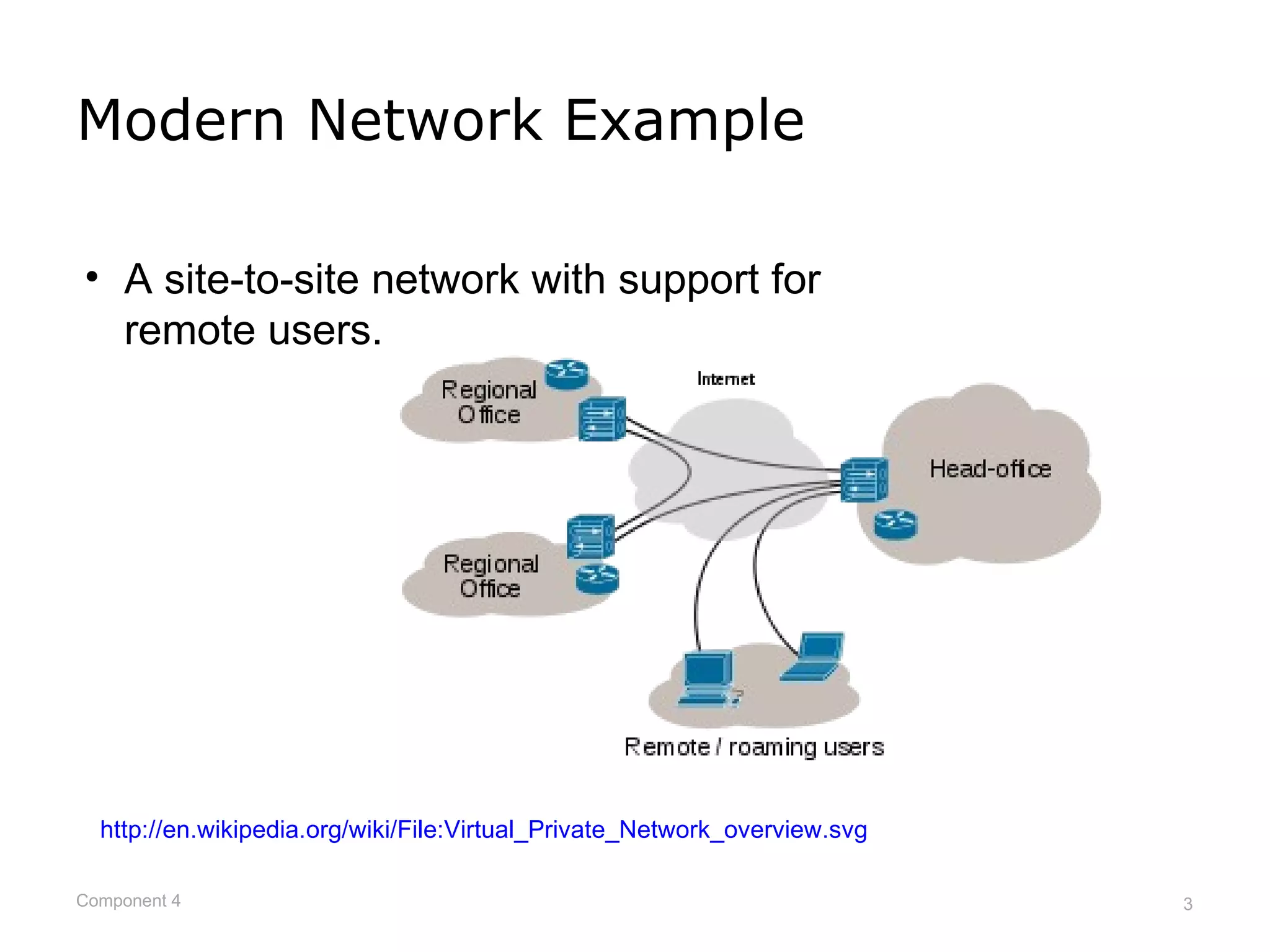
• A site-to-site network with support for
  remote users.


  http://en.wikipedia.org/wiki/File:Virtual_Private_Network_overview.svg

Component 4                                                                3
Why Networks?

• Share hardware –
      – Printer, scanner, data storage devices.
• Share software –
      – Software installed on a server to reduce cost.
• Share files –
      – Images, spreadsheets, documents.
• Communicate –
      – E-mail, network phones, live chat, instant messaging.


Component 4                                                     4
How Devices Connect to a Network

• Wired or wireless connections.
• Network may be connected to the Internet.
      – An Internet connection requires the use of an ISP.
      – An intranet connection does not connect a device to
        the Internet.
              • However, it may connect various offices together, regardless
                of their location (Chicago to Portland) and not provide
                Internet access.


Component 4                                                                    5
It’s All About Speed

• Networks measure speed using the terms
  bandwidth and throughput.
      – Bandwidth is the highest number of bits that can be
        sent at any one time.
      – Throughput is the amount of bandwidth you can use
        for actual network communications.
• Example:
      – Bandwidth on your cabled network is 100 Mbps.
      – Because of physical limitations and other required network
        traffic, throughput is usually approx. 70 Mbps.


Component 4                                                          6
It’s All About Speed (cont’d)

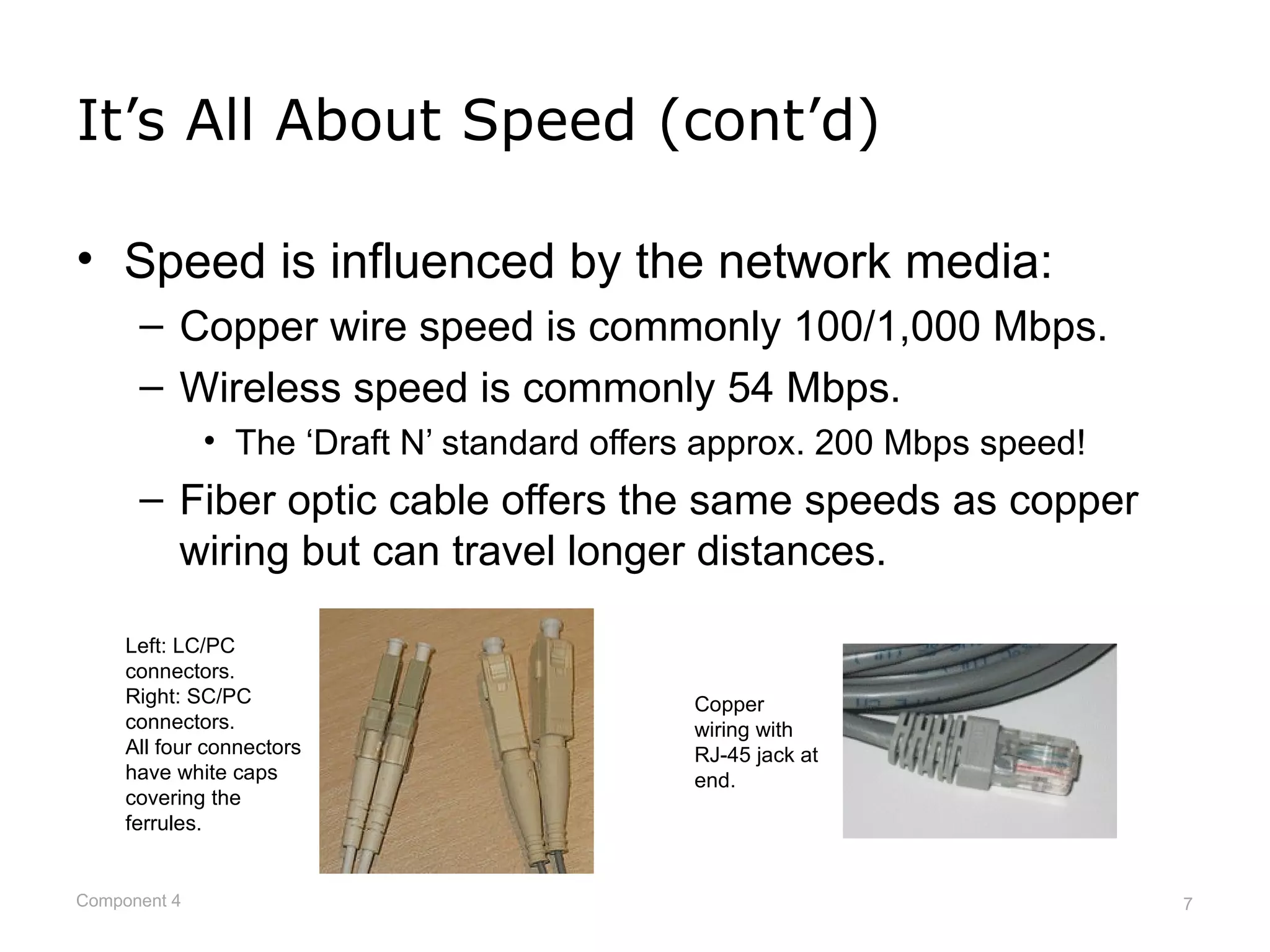
• Speed is influenced by the network media:
      – Copper wire speed is commonly 100/1,000 Mbps.
      – Wireless speed is commonly 54 Mbps.
              • The ‘Draft N’ standard offers approx. 200 Mbps speed!
      – Fiber optic cable offers the same speeds as copper
        wiring but can travel longer distances.

     Left: LC/PC
     connectors.
     Right: SC/PC                           Copper
     connectors.                            wiring with
     All four connectors                    RJ-45 jack at
     have white caps                        end.
     covering the
     ferrules.


Component 4                                                             7
Service Providers and You
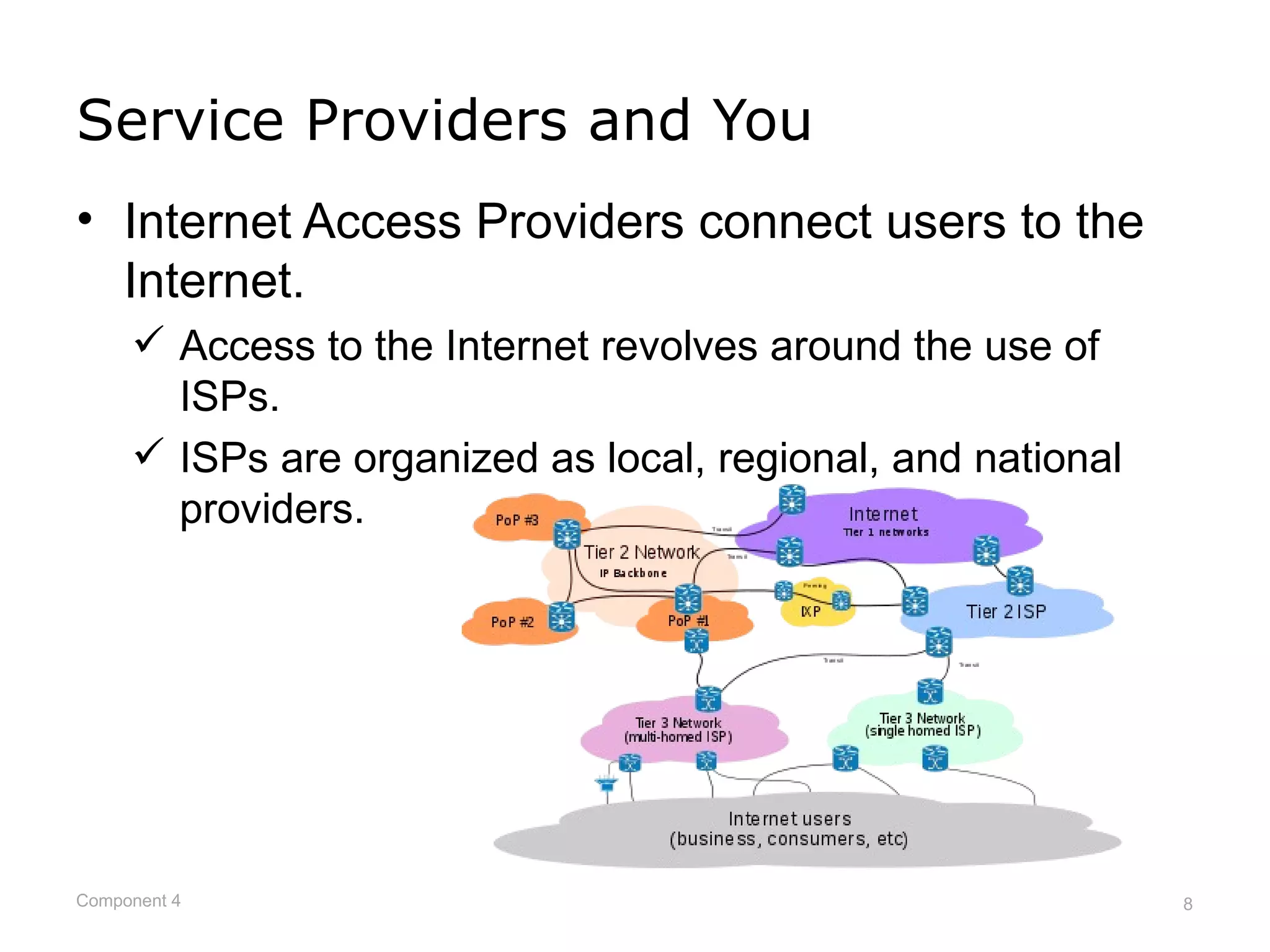
• Internet Access Providers connect users to the
  Internet.
      Access to the Internet revolves around the use of
       ISPs.
      ISPs are organized as local, regional, and national
       providers.


Component 4                                                  8
Connecting to the Internet
• Devices commonly connect to the Internet via
  dialup, broadband, Wi-Fi, satellite, and 3G.
      Dialup – copper phone lines to connect to an ISP’s
       modem. Limited to a speed of 56 Kbps.
               The slowest connection type!
      Broadband – higher quality copper phone lines,
       coaxial cable, or fiber optic connection type.
               Faster than dialup and in the approximate range of 768
                Kbps and higher.


Component 4                                                              9
Connecting to the Internet (cont’d)
• Wi-Fi – wireless (radio frequency) connection
  type.
      Wi-Fi refers to the IEEE 802.11 standard governing
       wireless technologies.
      Typically used to connect laptops to WAPs. The WAP
       is connected to the wired network to gain access to
       the Internet.
      Also used extensively by hotels and airports.
      Wireless speeds range from 1 Mbps to 200+ Mbps,
       depending on a variety of factors.


Component 4                                              10
Network Types
• Wired or wireless network types.
• Wired network governed by IEEE 802.3 standard.
• Wireless network governed by IEEE 802.11
  standard.
• Easy to remember which standard governs which
  technology:
     • Take the “3” in 802.3 and flip it around so it looks like an
       “E”. 802.3 sets the standard for Ethernet, which usually
       applies to wired networks.
     • Take the “11” in 802.11 and hold up two fingers to
       emulate the antennae on a WAP or wireless NIC.
Component 4                                                     11
Local Area Networks - LANs
• Network with small geographical area of coverage.
     • Term “small” is arbitrary!
     • Usually one company with one site.
• Wireless LAN called a WLAN.
• LAN examples:
         Home
         Office
         Building
         Small school with three buildings


Component 4                                     12
Wide Area Networks - WANs
• Network with large geographical area of coverage.
     • Term “large” is arbitrary!
• WAN usually made up of > 1 LAN.
     • Same company, multiple sites..
     • May or may not have Internet access.
• WAN examples:
     • Offices in Chicago and London need to share servers.
     • Five Portland offices (same city) need to share files.
     • Intel, Dell, and Microsoft need to collaborate on the
       creation of a new product.
              – WAN facilitates inter-company communications.
Component 4                                                     13
Network Topologies
• Topology refers to network layout.
     • Two types of network topologies exist.
• Physical topology details how the network is
  physically designed.
• Logical topology diagrams illustrate how data
  flows through the network regardless of physical
  design.
• Some topologies represent both logical and
  physical networks using the same name.


Component 4                                      14
Mitigating Security Issues
•   Create a security policy
•   Authenticate users
•   Firewalls
•   Antivirus software
•   Intrusion Protection Systems
•   Encrypt communications & stored data
•   Audit adherence to security policies


Component 4                                15
Encryption
• Makes communication unreadable to
  unauthorized viewers.
      – Uses electronic private and public key set.
• Authorized viewers provided with encryption key,
  with ability to encrypt and decrypt messages.
      – Medical office encrypts data using its private key.
      – Patient decrypts data using the medical office’s public
        key.
• Encryption keeps data confidential.
      – Entities never share their private key.
Component 4                                                   16
Encryption Example


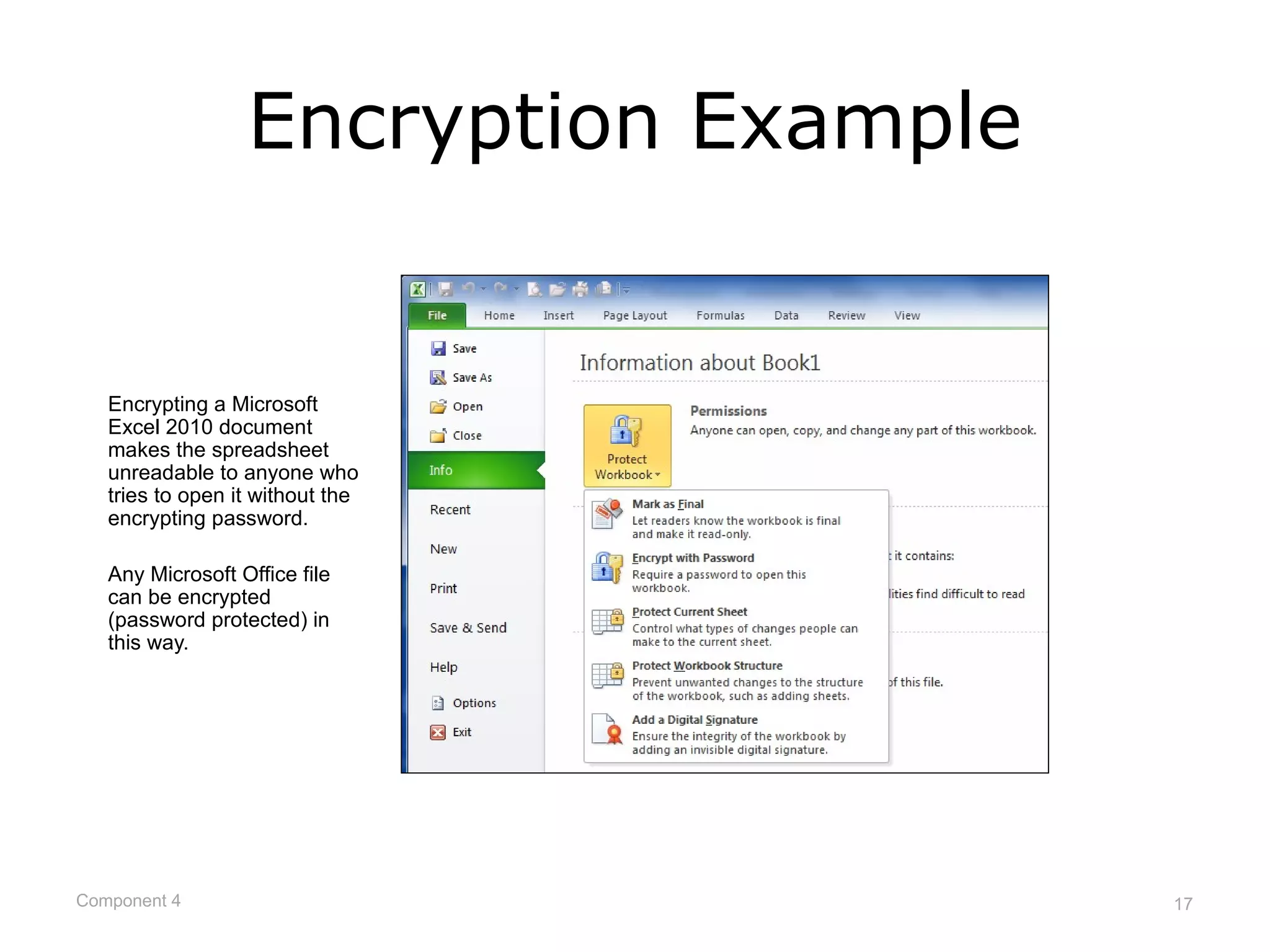
   Encrypting a Microsoft
   Excel 2010 document
   makes the spreadsheet
   unreadable to anyone who
   tries to open it without the
   encrypting password.

   Any Microsoft Office file
   can be encrypted
   (password protected) in
   this way.


Component 4                            17
Encryption Example (cont’d)

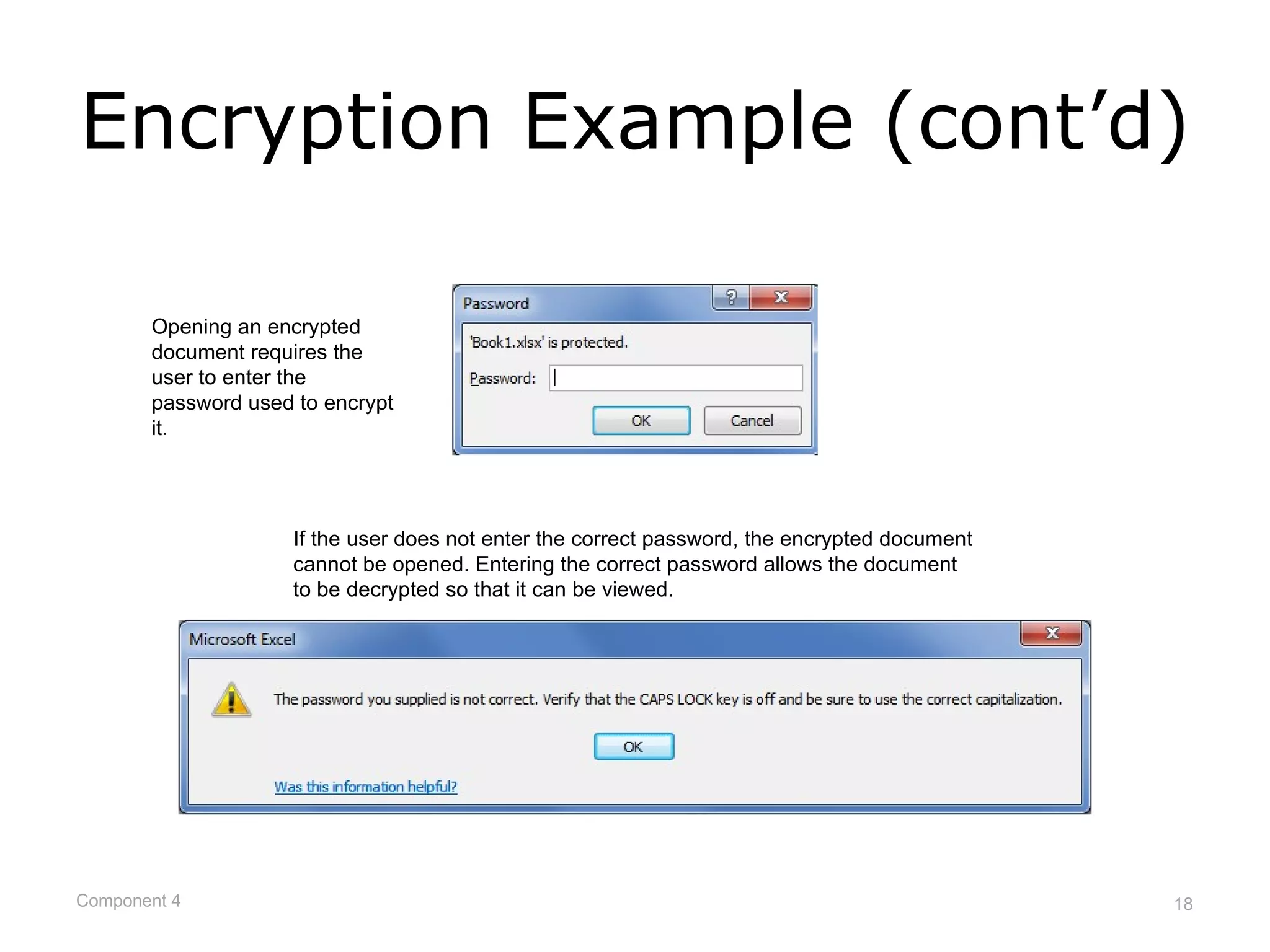
       Opening an encrypted
       document requires the
       user to enter the
       password used to encrypt
       it.


                     If the user does not enter the correct password, the encrypted document
                     cannot be opened. Entering the correct password allows the document
                     to be decrypted so that it can be viewed.


Component 4                                                                                    18
Encryption Example (cont’d)


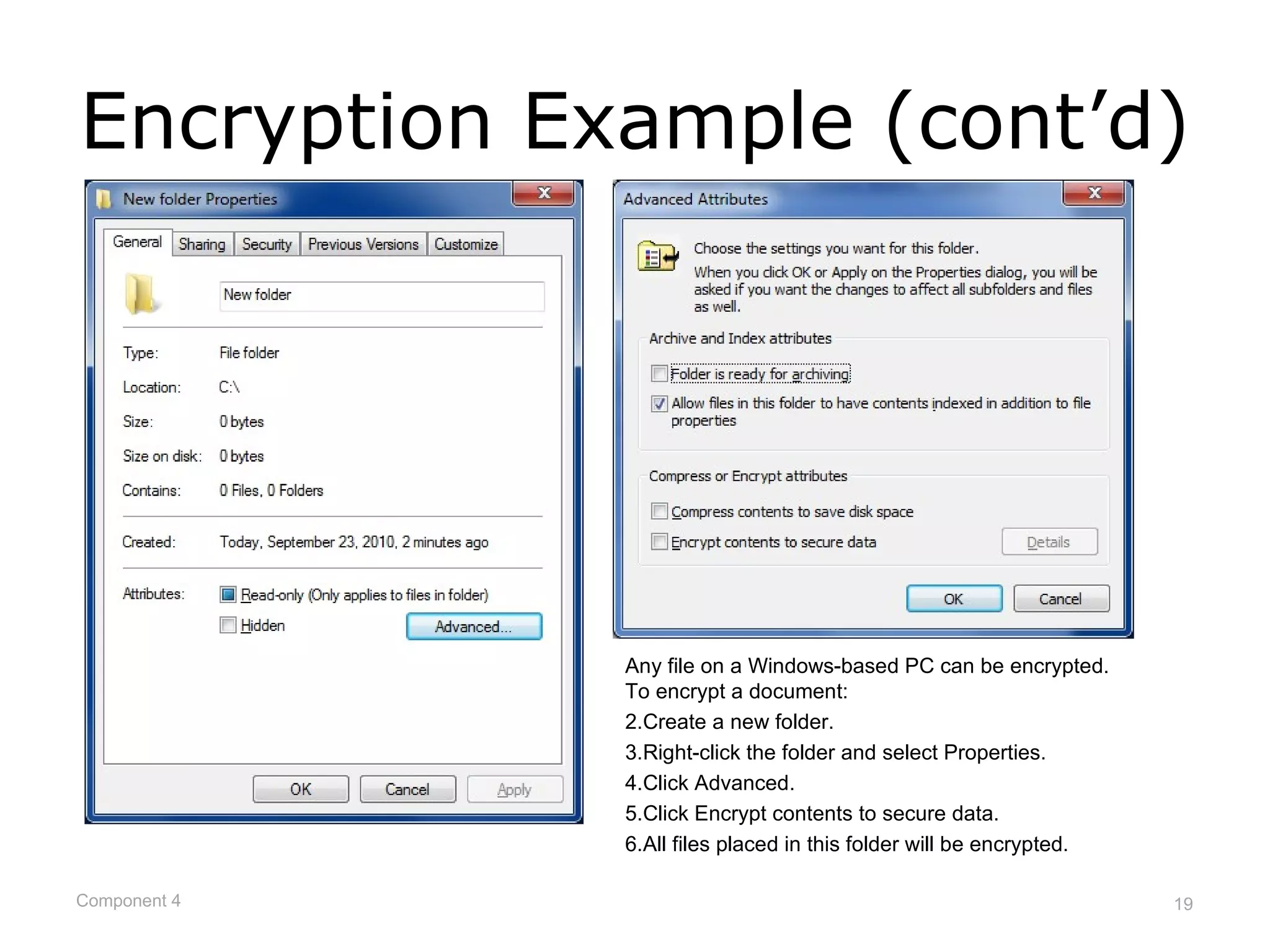
              Any file on a Windows-based PC can be encrypted.
              To encrypt a document:
              2.Create a new folder.
              3.Right-click the folder and select Properties.
              4.Click Advanced.
              5.Click Encrypt contents to secure data.
              6.All files placed in this folder will be encrypted.

Component 4                                                          19
Audit Security Policy
                    Practices
• Is organization doing what it says it will do?
      – If nurses are to log off nursing stations when they
        leave the station, is this being done?
      – Is the database server kept up to date with critical
        updates?
      – Is all access of medical records logged?
      – Are backups being done regularly and stored
        according to the security policy?
      – Do employees adhere to e-mail policies?
      – Others?

Component 4                                                    20
Additional Steps to Take...
• Educate employees
      –   Don’t open unsolicited attachments.
      –   Users lock screens when not at station.
      –   Don’t click on popup ads while surfing.
      –   Report strange activity to network admins.
• Create secure software applications
      – Only authenticated & authorized use of software.
      – Non-repudiation of network actions.
              • Means that a user or device cannot deny having done
                something.

Component 4                                                           21
Additional Steps to Take...
• Use of password policies
      –   Password complexity.
      –   Passwords changed regularly (60 days, etc.).
      –   No reuse of old passwords.
      –   Passwords not written down anywhere.
• Domain-based network environment
      – Server manages users, devices, and policies.
      – No use of network assets unless part of domain.
      – Restricted number of network administrators.


Component 4                                               22
Additional Steps to Take...
• Physical security of assets
      –   Servers bolted to floor/wall in locked room.
      –   No unauthorized physical access of equipment.
      –   Devices password protected at all times.
      –   UPS and power surge equipment utilized.
      –   No access to data without authentication.
• Validation of data entered into database
      – All database entries validated before stored in
        database.
      – Test for expected and unexpected database entries.
Component 4                                                  23
Health Care Applications
              and Security
• U. S. Government’s stated goal:
      – Most American’s to have access to electronic health
        records by 2014.
• Why EHRs? Mainly to...
      – Improve quality of care.
      – Decrease cost.
      – Ensure privacy and security.
• Outsourcing introduces risk
      – Medical transcriptionists in countries with different
        cultural values & EHR regulations.
Component 4                                                     24
Concerned About Security
         of Health Data?
• Incorrect health data recorded.
      – Someone else’s information in your record.
• Job discrimination.
      – Denied employment or health coverage based on pre-
        existing condition.
• Personal privacy violated.
      – Friends & family find out about embarrassing but non-
        infectious condition.
• Sharing of data between providers adds risk.
      – Use of Internet always introduces risk.

Component 4                                                 25
What is an EHR System?
• Collection of health data about the business,
  patients, doctors, nurses, etc.
• Health data stored as records in database
  system.
• Records represent a complete event.
      – What is stored in a database as one record?
              •   A patient’s personal information
              •   An office visit to your doctor.
              •   A blood test.
              •   An x-ray.
              •   Etc.
Component 4                                           26
EHRs Used by Health Care
           Providers
• EHRs are maintained by health care providers.
• EHRs are covered by HIPAA rules.
• EHRs utilize centralized database systems to
  integrate patient intake, medical care, pharmacy,
  billing, etc. into one system.
• Departments/entities may not be in same
  physical location, so patient data must travel
  over the Internet.
• People can view their own health record, taking
  ownership of its contents, ensuring accuracy,
  etc.
Component 4                                       27
EHR Security Q & A
• How is my data sent over the Internet?
      It should be sent in an encrypted, secure manner over
       the Internet.
• Is my data safe?
     • Much depends on each organization’s physical record
       and network security practices.
     • No data is 100% secure against theft or misuse.
• Who can view my health records?
      Only those who need to know or view the contents of
       your health record should be able to view it.
      You must authorize all other access.
Component 4                                                  28
Federal Regulations
• HIPAA (Health Insurance Portability and
  Accountability Act) was enacted in 1996 by the
  federal government.
• HIPAA requires that health care providers,
  insurance companies, and employers abide by
  privacy and security standards.


Component 4                                        29
HIPAA and Privacy
• Privacy Rule
      HIPAA requires those covered by the act to provide
       patients a “Notice of Privacy Practices” when care is
       first provided.
      The Privacy Rule covers paper and electronic private
       health information.
• Security Rule
      Covers administrative, physical, and technical data
       safeguards that secure electronic health record data.


Component 4                                                    30
What is Privacy?
• Most privacy law revolves around privacy
  between a person and the government.
• According to Wikipedia, “The law of privacy
  regulates the type of information which may be
  collected and how this information may be used
  and stored.”
      i.e., privacy relates to people.


Component 4                                        31
What is Confidentiality?
• Not the same as privacy.
• According to Wikipedia, “Confidentiality is
  commonly applied to conversations between
  doctors and patients. Legal protections prevent
  physicians from revealing certain discussions
  with patients, even under oath in court. The rule
  only applies to secrets shared between
  physician and patient during the course of
  providing medical care.”
      i.e., confidentiality relates to data.

Component 4                                           32
Steps to Secure EHR &
                     Records
• Authenticate & authorize all record access
      –   Only those with ‘need to know’ can view.
      –   Only pertinent people can change records.
      –   Limit who can print electronic documents.
      –   All views and changes recorded for audit trail.
• Examples:
      – A clerk can view the dates and charges related to an
        office visit but nothing about treatment.
      – Nurses and doctors can view medical records for
        patients under their care and no one else.

Component 4                                                    33
Steps to Secure EHR &
                 Records (cont’d)
• Device security
      –   Apply OS critical updates immediately.
      –   AV definitions always current.
      –   Restrict physical access to servers.
      –   Allow only authenticated device access.
• Secure electronic communications
      –   Encrypt all EHR communications.
      –   Client-server environment.
      –   Configure user accounts and groups.
      –   Implement network access protection mechanisms.
Component 4                                                 34
Steps to Secure EHR &
                 Records (cont’d)
• Web environment considerations
      – Implement HTTPS for all Web transactions.
      – Validate all data entered into Web forms.
• Perform regular audits of access and changes
• Implement redundant devices
      – Ensures that devices are available as expected.
      – Load balance heavily used hardware devices.
• Prosecute security violations vigorously
• Backup EHR data with secure storage

Component 4                                               35
Cloud Computing
• “Cloud computing is a model for enabling convenient,
  on-demand network access to a shared pool of
  configurable computing resources (e.g., networks,
  servers, storage, applications, and services) that can be
  rapidly provisioned and released with minimal
  management effort or service provider interaction. This
  cloud model promotes availability and is composed of
  five essential characteristics, three service models, and
  four deployment models.”


Component 4                                                   36
Distributed computing
• Sharing the processing workload between
  connected computer systems
• One well-known example is SETI@home to
  examine radio telescope data for signs of
  intelligence using computers connected over the
  Internet


Component 4                                     37
Characteristics
•   On-demand self-service
•   Broad network access
•   Resource pooling
•   Rapid elasticity
•   Measured service


Component 4                       38
Service models
• Cloud Software as a Service (SaaS)
• Cloud Platform as a Service (PaaS)
• Cloud Infrastructure as a Service (IaaS)


Component 4                                  39
Deployment models
•   Private cloud
•   Community cloud
•   Public cloud
•   Hybrid cloud


Component 4                       40
Virtualization
• Multiple virtual computer systems running on a
  single physical system
• Component of cloud computing
• Not a new idea; IBM’s Virtual Machine
  Facility/370 released in 1972
• Each user appeared to have a dedicated system


Component 4                                        41
Cloud computing issues
• Access
• Security


Component 4                            42

Bcc comp4 ppt2

  • 1.
    Component 4: Introduction toInformation and Computer Science BCC PPT 2
  • 2.
    What is aNetwork? • According to Wikipedia, a network is: – “…a collection of computers and devices connected by communications channels that facilitates communications among users and allows users to share resources with other users.” • In English please… – A network is made up of computers, printers, other devices, and some sort of media (cabling, wireless) that allows all of these devices to communicate with each other. Component 4 2
  • 3.
    Modern Network Example •A site-to-site network with support for remote users. http://en.wikipedia.org/wiki/File:Virtual_Private_Network_overview.svg Component 4 3
  • 4.
    Why Networks? • Sharehardware – – Printer, scanner, data storage devices. • Share software – – Software installed on a server to reduce cost. • Share files – – Images, spreadsheets, documents. • Communicate – – E-mail, network phones, live chat, instant messaging. Component 4 4
  • 5.
    How Devices Connectto a Network • Wired or wireless connections. • Network may be connected to the Internet. – An Internet connection requires the use of an ISP. – An intranet connection does not connect a device to the Internet. • However, it may connect various offices together, regardless of their location (Chicago to Portland) and not provide Internet access. Component 4 5
  • 6.
    It’s All AboutSpeed • Networks measure speed using the terms bandwidth and throughput. – Bandwidth is the highest number of bits that can be sent at any one time. – Throughput is the amount of bandwidth you can use for actual network communications. • Example: – Bandwidth on your cabled network is 100 Mbps. – Because of physical limitations and other required network traffic, throughput is usually approx. 70 Mbps. Component 4 6
  • 7.
    It’s All AboutSpeed (cont’d) • Speed is influenced by the network media: – Copper wire speed is commonly 100/1,000 Mbps. – Wireless speed is commonly 54 Mbps. • The ‘Draft N’ standard offers approx. 200 Mbps speed! – Fiber optic cable offers the same speeds as copper wiring but can travel longer distances. Left: LC/PC connectors. Right: SC/PC Copper connectors. wiring with All four connectors RJ-45 jack at have white caps end. covering the ferrules. Component 4 7
  • 8.
    Service Providers andYou • Internet Access Providers connect users to the Internet.  Access to the Internet revolves around the use of ISPs.  ISPs are organized as local, regional, and national providers. Component 4 8
  • 9.
    Connecting to theInternet • Devices commonly connect to the Internet via dialup, broadband, Wi-Fi, satellite, and 3G.  Dialup – copper phone lines to connect to an ISP’s modem. Limited to a speed of 56 Kbps.  The slowest connection type!  Broadband – higher quality copper phone lines, coaxial cable, or fiber optic connection type.  Faster than dialup and in the approximate range of 768 Kbps and higher. Component 4 9
  • 10.
    Connecting to theInternet (cont’d) • Wi-Fi – wireless (radio frequency) connection type.  Wi-Fi refers to the IEEE 802.11 standard governing wireless technologies.  Typically used to connect laptops to WAPs. The WAP is connected to the wired network to gain access to the Internet.  Also used extensively by hotels and airports.  Wireless speeds range from 1 Mbps to 200+ Mbps, depending on a variety of factors. Component 4 10
  • 11.
    Network Types • Wiredor wireless network types. • Wired network governed by IEEE 802.3 standard. • Wireless network governed by IEEE 802.11 standard. • Easy to remember which standard governs which technology: • Take the “3” in 802.3 and flip it around so it looks like an “E”. 802.3 sets the standard for Ethernet, which usually applies to wired networks. • Take the “11” in 802.11 and hold up two fingers to emulate the antennae on a WAP or wireless NIC. Component 4 11
  • 12.
    Local Area Networks- LANs • Network with small geographical area of coverage. • Term “small” is arbitrary! • Usually one company with one site. • Wireless LAN called a WLAN. • LAN examples:  Home  Office  Building  Small school with three buildings Component 4 12
  • 13.
    Wide Area Networks- WANs • Network with large geographical area of coverage. • Term “large” is arbitrary! • WAN usually made up of > 1 LAN. • Same company, multiple sites.. • May or may not have Internet access. • WAN examples: • Offices in Chicago and London need to share servers. • Five Portland offices (same city) need to share files. • Intel, Dell, and Microsoft need to collaborate on the creation of a new product. – WAN facilitates inter-company communications. Component 4 13
  • 14.
    Network Topologies • Topologyrefers to network layout. • Two types of network topologies exist. • Physical topology details how the network is physically designed. • Logical topology diagrams illustrate how data flows through the network regardless of physical design. • Some topologies represent both logical and physical networks using the same name. Component 4 14
  • 15.
    Mitigating Security Issues • Create a security policy • Authenticate users • Firewalls • Antivirus software • Intrusion Protection Systems • Encrypt communications & stored data • Audit adherence to security policies Component 4 15
  • 16.
    Encryption • Makes communicationunreadable to unauthorized viewers. – Uses electronic private and public key set. • Authorized viewers provided with encryption key, with ability to encrypt and decrypt messages. – Medical office encrypts data using its private key. – Patient decrypts data using the medical office’s public key. • Encryption keeps data confidential. – Entities never share their private key. Component 4 16
  • 17.
    Encryption Example Encrypting a Microsoft Excel 2010 document makes the spreadsheet unreadable to anyone who tries to open it without the encrypting password. Any Microsoft Office file can be encrypted (password protected) in this way. Component 4 17
  • 18.
    Encryption Example (cont’d) Opening an encrypted document requires the user to enter the password used to encrypt it. If the user does not enter the correct password, the encrypted document cannot be opened. Entering the correct password allows the document to be decrypted so that it can be viewed. Component 4 18
  • 19.
    Encryption Example (cont’d) Any file on a Windows-based PC can be encrypted. To encrypt a document: 2.Create a new folder. 3.Right-click the folder and select Properties. 4.Click Advanced. 5.Click Encrypt contents to secure data. 6.All files placed in this folder will be encrypted. Component 4 19
  • 20.
    Audit Security Policy Practices • Is organization doing what it says it will do? – If nurses are to log off nursing stations when they leave the station, is this being done? – Is the database server kept up to date with critical updates? – Is all access of medical records logged? – Are backups being done regularly and stored according to the security policy? – Do employees adhere to e-mail policies? – Others? Component 4 20
  • 21.
    Additional Steps toTake... • Educate employees – Don’t open unsolicited attachments. – Users lock screens when not at station. – Don’t click on popup ads while surfing. – Report strange activity to network admins. • Create secure software applications – Only authenticated & authorized use of software. – Non-repudiation of network actions. • Means that a user or device cannot deny having done something. Component 4 21
  • 22.
    Additional Steps toTake... • Use of password policies – Password complexity. – Passwords changed regularly (60 days, etc.). – No reuse of old passwords. – Passwords not written down anywhere. • Domain-based network environment – Server manages users, devices, and policies. – No use of network assets unless part of domain. – Restricted number of network administrators. Component 4 22
  • 23.
    Additional Steps toTake... • Physical security of assets – Servers bolted to floor/wall in locked room. – No unauthorized physical access of equipment. – Devices password protected at all times. – UPS and power surge equipment utilized. – No access to data without authentication. • Validation of data entered into database – All database entries validated before stored in database. – Test for expected and unexpected database entries. Component 4 23
  • 24.
    Health Care Applications and Security • U. S. Government’s stated goal: – Most American’s to have access to electronic health records by 2014. • Why EHRs? Mainly to... – Improve quality of care. – Decrease cost. – Ensure privacy and security. • Outsourcing introduces risk – Medical transcriptionists in countries with different cultural values & EHR regulations. Component 4 24
  • 25.
    Concerned About Security of Health Data? • Incorrect health data recorded. – Someone else’s information in your record. • Job discrimination. – Denied employment or health coverage based on pre- existing condition. • Personal privacy violated. – Friends & family find out about embarrassing but non- infectious condition. • Sharing of data between providers adds risk. – Use of Internet always introduces risk. Component 4 25
  • 26.
    What is anEHR System? • Collection of health data about the business, patients, doctors, nurses, etc. • Health data stored as records in database system. • Records represent a complete event. – What is stored in a database as one record? • A patient’s personal information • An office visit to your doctor. • A blood test. • An x-ray. • Etc. Component 4 26
  • 27.
    EHRs Used byHealth Care Providers • EHRs are maintained by health care providers. • EHRs are covered by HIPAA rules. • EHRs utilize centralized database systems to integrate patient intake, medical care, pharmacy, billing, etc. into one system. • Departments/entities may not be in same physical location, so patient data must travel over the Internet. • People can view their own health record, taking ownership of its contents, ensuring accuracy, etc. Component 4 27
  • 28.
    EHR Security Q& A • How is my data sent over the Internet?  It should be sent in an encrypted, secure manner over the Internet. • Is my data safe? • Much depends on each organization’s physical record and network security practices. • No data is 100% secure against theft or misuse. • Who can view my health records?  Only those who need to know or view the contents of your health record should be able to view it.  You must authorize all other access. Component 4 28
  • 29.
    Federal Regulations • HIPAA(Health Insurance Portability and Accountability Act) was enacted in 1996 by the federal government. • HIPAA requires that health care providers, insurance companies, and employers abide by privacy and security standards. Component 4 29
  • 30.
    HIPAA and Privacy •Privacy Rule  HIPAA requires those covered by the act to provide patients a “Notice of Privacy Practices” when care is first provided.  The Privacy Rule covers paper and electronic private health information. • Security Rule  Covers administrative, physical, and technical data safeguards that secure electronic health record data. Component 4 30
  • 31.
    What is Privacy? •Most privacy law revolves around privacy between a person and the government. • According to Wikipedia, “The law of privacy regulates the type of information which may be collected and how this information may be used and stored.”  i.e., privacy relates to people. Component 4 31
  • 32.
    What is Confidentiality? •Not the same as privacy. • According to Wikipedia, “Confidentiality is commonly applied to conversations between doctors and patients. Legal protections prevent physicians from revealing certain discussions with patients, even under oath in court. The rule only applies to secrets shared between physician and patient during the course of providing medical care.”  i.e., confidentiality relates to data. Component 4 32
  • 33.
    Steps to SecureEHR & Records • Authenticate & authorize all record access – Only those with ‘need to know’ can view. – Only pertinent people can change records. – Limit who can print electronic documents. – All views and changes recorded for audit trail. • Examples: – A clerk can view the dates and charges related to an office visit but nothing about treatment. – Nurses and doctors can view medical records for patients under their care and no one else. Component 4 33
  • 34.
    Steps to SecureEHR & Records (cont’d) • Device security – Apply OS critical updates immediately. – AV definitions always current. – Restrict physical access to servers. – Allow only authenticated device access. • Secure electronic communications – Encrypt all EHR communications. – Client-server environment. – Configure user accounts and groups. – Implement network access protection mechanisms. Component 4 34
  • 35.
    Steps to SecureEHR & Records (cont’d) • Web environment considerations – Implement HTTPS for all Web transactions. – Validate all data entered into Web forms. • Perform regular audits of access and changes • Implement redundant devices – Ensures that devices are available as expected. – Load balance heavily used hardware devices. • Prosecute security violations vigorously • Backup EHR data with secure storage Component 4 35
  • 36.
    Cloud Computing • “Cloudcomputing is a model for enabling convenient, on-demand network access to a shared pool of configurable computing resources (e.g., networks, servers, storage, applications, and services) that can be rapidly provisioned and released with minimal management effort or service provider interaction. This cloud model promotes availability and is composed of five essential characteristics, three service models, and four deployment models.” Component 4 36
  • 37.
    Distributed computing • Sharingthe processing workload between connected computer systems • One well-known example is SETI@home to examine radio telescope data for signs of intelligence using computers connected over the Internet Component 4 37
  • 38.
    Characteristics • On-demand self-service • Broad network access • Resource pooling • Rapid elasticity • Measured service Component 4 38
  • 39.
    Service models • CloudSoftware as a Service (SaaS) • Cloud Platform as a Service (PaaS) • Cloud Infrastructure as a Service (IaaS) Component 4 39
  • 40.
    Deployment models • Private cloud • Community cloud • Public cloud • Hybrid cloud Component 4 40
  • 41.
    Virtualization • Multiple virtualcomputer systems running on a single physical system • Component of cloud computing • Not a new idea; IBM’s Virtual Machine Facility/370 released in 1972 • Each user appeared to have a dedicated system Component 4 41
  • 42.
    Cloud computing issues •Access • Security Component 4 42

Editor's Notes

  • #2 Welcome to Component 4, which, as you know, is entitled "Introduction to Information and Computer Science."   This is specifically Unit 7, Part 1, which has the title "Networks and Networking.”
  • #3 Wikipedia link: http://en.wikipedia.org/wiki/Computer_network
  • #6 The network at your place of work is an example of an intranet. If your company has more than one location and, for example, you are able to access file stored at the other location, this is an example of a real world intranet. The Internet (which is capitalized!) connects different entities, such as companies and people, so they can communicate.
  • #7 Physical limitations include things like quality of copper, moving an electronic signal from your computer to the wire and from the wire to the router’s port, etc. In addition, overhead added to each piece of communication by the technology governing the media decreases available bandwidth. Dialup bandwidth is 54 Kbps but its throughput never reaches its maximum (bandwidth) because the technology itself reserves 4 Kbps for its own use.
  • #8 1000 Mbps = 1 Gbps  
  • #9 ISPs are Internet Service Providers. The terms ISP and IAP are synonymous in our discussion!
  • #11 IEEE = Institute of Electrical and Electronics Engineers, a global standards organization. WAPs are wireless access points. Wi-Fi stands for wireless fidelity.
  • #15 Information source: http://en.wikipedia.org/wiki/Network_topology
  • #20 Any file on a Windows-based PC can be encrypted. To encrypt a document: Create a new folder and name it to fit your needs. Right-click the folder and select Properties from the menu. Click Advanced to open the Advanced Attributes window. Click Encrypt contents to secure data . Click OK to apply this setting to the folder. All files placed in this folder will be encrypted. This means that files in this folder can only be viewed when you are logged into the computer with your username and password that encrypted the folder. All other user accounts will receive an Access is denied message when they try to open any file in the encrypted folder.
  • #21 http://www.itsecurity.com/features/it-security-audit-010407/
  • #23 A complex password is at least six characters long and is made up of at least: 1 – upper-case character 1 – lower-case character 1 – number 1 – special character
  • #25 HHS, “HHS Announces Project to Help 3.6 Million Consumers Reap Benefits of Electronic Health Records”. Online: http://www.hhs.gov/news/press/2007pres/10/pr20071030a.html. Informatics Professor, “Meaningful Use: A Highly Useful Construct for Informatics”. Online: http://informaticsprofessor.blogspot.com/2010/05/meaningful-use-highly-useful-construct.html .
  • #27 An EHR is an electronic health record system. It represents a wide collection of data which includes electronic medical records.   An EMR is an electronic medical record. Basically, an EMR is not an EHR because an EHR is made up of many EMRs.   An EHR then provides the ability to accumulate EMR and other data to improve quality of care, reduce cost, etc.  
  • #28 Patient data must travel over the Internet, such as when a doctor's office bills an insurance company. HIPAA is the Health Insurance Portability and Accountability Act of 1996 (including subsequent amendments). Healthcare providers, healthcare clearinghouses, and health plan providers are subject to federal rules governing security and other rules related to electronic health records. The primary federal rule governing EHRs is known as HIPAA [hip-uh]; HIPAA being the “Health Insurance Portability and Accountability Act” of 1996, including its subsequent amendments. Organizations that must adhere to HIPAA rules are called “covered entities.” Data in EHRs are also subject to HIPAA rules when they are maintained by covered entities. Google Health, a free, online, electronic, personal health record, offered by Google, is not a covered entity. Data you enter in Google’s health record system are not protected by HIPAA rules.
  • #29 In some cases, courts can force a health care provider to disclose health record information.  
  • #30 Wikipedia, Online: http://en.wikipedia.org/wiki/Hipaa, 2010. Information about HIPAA. Retrieved: July 6, 2010.
  • #31 Governs who views data, how data is transported electronically, security measures, etc.
  • #32 Wikipedia, Online: http://en.wikipedia.org/wiki/Privacy_law, 2010. Information about privacy law. Retrieved: July 6, 2010. Privacy, in this context, means that the fact that I visited my doctor is nobody’s business. This is a private matter.
  • #33 Wikipedia, Online: http://en.wikipedia.org/wiki/Confidentiality, 2010. Confidentiality. Retrieved: July 6, 2010. Confidentiality, in this context, means that the things discussed with my doctor is between me and my doctor. One could say that the fact that you visited your doctor is private and what you and your doctor discuss is confidential! Note that privacy and confidentiality are not mutually exclusive.
  • #37 This topic discusses cloud computing, a popular buzz-word of today. Cloud computing is often thought of using computers and services “out there” somewhere on the Internet without being well-defined. Fortunately, the National Institute of Standards and Technology has a working definition to help clarify the concept and identify the requirements for cloud computing.   Reference:   http://csrc.nist.gov/groups/SNS/cloud-computing/    
  • #38 Before we go into the details of cloud computing, we need to realize that the pieces of cloud computing, like so many pieces of computer science, build on previous technology. The idea of using a shared pool of resources is not a new concept; significant previous work was done on distributed computing to share the processing workload between connected computer systems. One well-known example was used in SETI – the search for extra-terrestrial intelligence. In 1995, David Gedye proposed a virtual super-computer to examine radio telescope data for signs of intelligent life elsewhere in the universe using large numbers of Internet-connected computers. The computers would receive the radio-telescope data, look for narrow-bandwidth signals which do not occur in nature, and return the results to a managing system. SETI@home was launched for this purpose in 1999, and there are now over 2 1/2 million host systems in 234 countries that have helped to examine the radio telescope data. Reference: http://setiathome.ssl.berkeley.edu
  • #39 Now that we’ve seen a little of what we can do with shared resources, let’s look into the details of what cloud computing is, starting with the five characteristics.   The first is on-demand self service. This means that a user can provision the systems to match their requirements, such as system storage, without requiring human interaction with the service provider.   Another is broad network access – the system is easily available over a network from a variety of platforms, possibly including mobile devices and portable computers.   We also have resource pooling, similar to what we saw with SETI. Here the resources are available to multiple consumers with the resources dynamically assigned based on demand.   Rapid elasticity is also a requirement, meaning that the capabilities can easily be increased or decreased to meet demand. To the user, the capabilities may be viewed as infinite.   Finally, it must be a measured service – a cloud system measures, monitors and reports on services such as storage, processing and bandwidth.
  • #40 Cloud computing has three service models. The first, software as a service, is perhaps the best known. It simply means that the application is running on a system, or systems - remember the rapid elasticity characteristic! – remote from the user, and may be accessed by an application such as a web browser.   Another model is the cloud platform as a service. Here the user has the option to deploy applications into the cloud, rather than using applications that have been previously deployed.   Finally, there’s the cloud infrastructure as a service. In this case, we’re down to management of resources, such as processing, storage and networks, rather than the applications themselves.
  • #41 The deployment model lets us know who owns the physical resources used to host the cloud. A private cloud means that the cloud is operated for a single organization. It may be managed by the organization, or a third party may manage it for the organization. A community cloud is shared by several organizations that may have interests in common, such as several hospitals in a region. There are also public clouds, made available to those who require services for a fee. There are a number of commercial organizations which offer these services today. Finally, there's the hybrid cloud, which combines multiple clouds.
  • #42 So how is a cloud possible? What makes it possible for resources to be elastic and appear to be infinite? One technology is virtualization, which permits multiple systems to appear to be running on a single hardware system.   As with most items that we’ve seen, this builds on existing technology. Virtualization is not a new concept; one example that was available in 1972 is IBM’s Virtual Machine Facility/370. From the user’s point of view, they had a system that was dedicated to their use.   When we combine virtualization with distributed computing, which permits multiple systems to appear to be a single resource, we have the requisite components for elasticity.   Reference   Gum, P. H. 1983. System/370 extended architecture: facilities for virtual machines. IBM J. Res. Dev. 27, 6 (Nov. 1983), 530-544. DOI= http://dx.doi.org/10.1147/rd.276.0530
  • #43 While cloud computing has potential advantages, it also has its own set of issues that need to be considered. One issue is access – what happens when the network is down? What happens to access to the service if your provider is undergoing a denial of service attack? If you depend on an application that’s software as a service running somewhere in the cloud, there will be times that it may not be accessible. If the network is congested, performance may be unacceptable, even though the service is still reachable. Another issue is security. If your deployment model is not a private cloud, the data exists on a physical system outside of your control. Think of medical records – how do you guarantee that they are available as needed and are kept secure? Cloud computing has potential in the right circumstances, but the risks also need to be considered.