Battling the WSOD
A Tech Support Tale
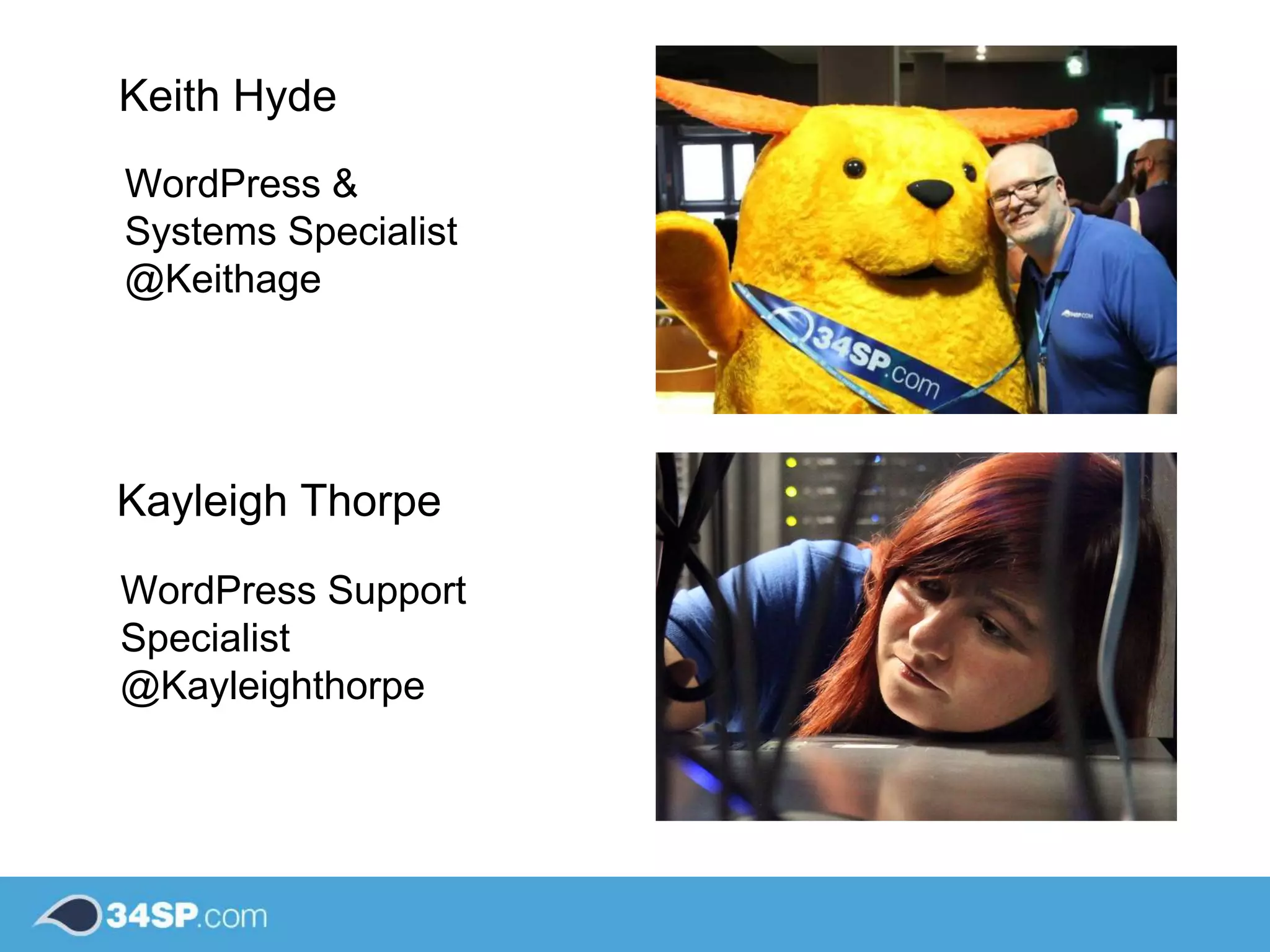
Keith Hyde
Kayleigh Thorpe
WordPress &
Systems Specialist
@Keithage
WordPress Support
Specialist
@Kayleighthorpe
Coming up
• White Screen of Death
• Plugin issues
• Theme issues
• Useful tools
• Hacked Sites & Restoration
• Additional common support queries
• Handy wp-cli commands
WP-CLI
http://wp-cli.org
Have you ever visited your website to see this?
We call this the ‘White Screen of Death’.
Plugin Issues
• The first step when faced with the WSOD is to check
your error logs. These usually provide helpful insights
to where the issue is coming from.
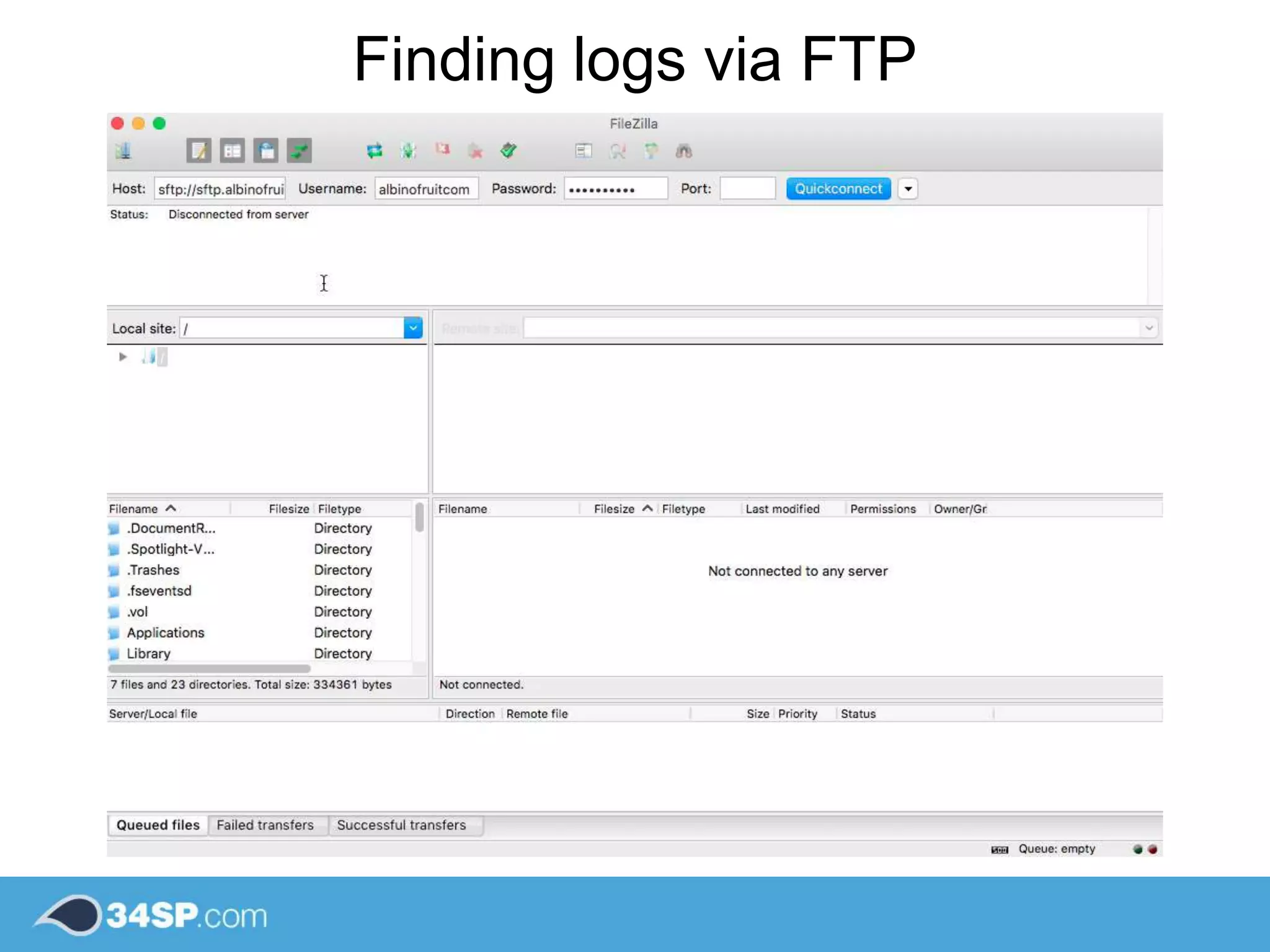
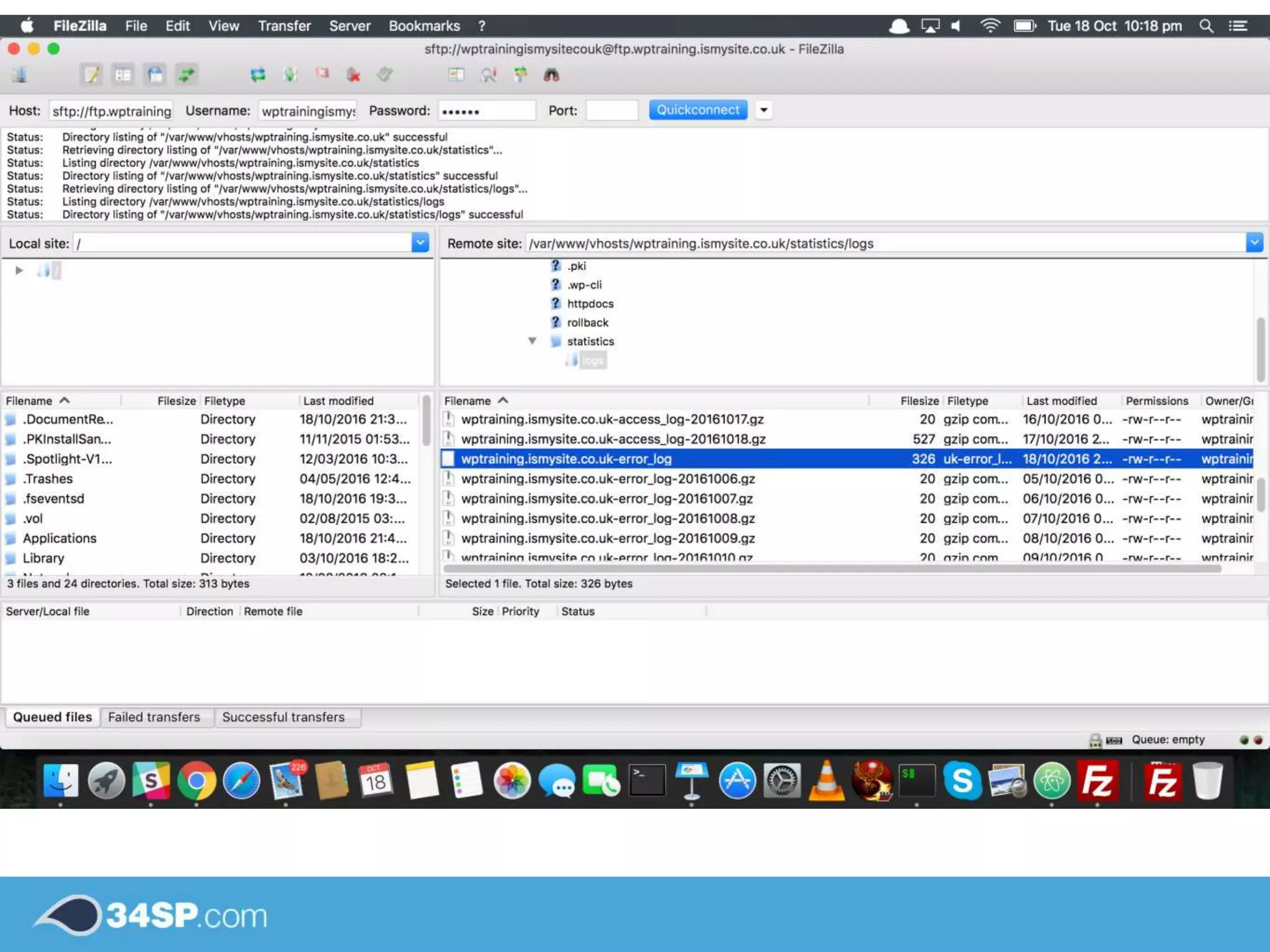
• They are usually accessible via FTP - in most cases
you can find error logs stored in a folder just below your
site’s root directory.
• Example log entry:
Searching Error Logs
Finding logs via FTP
How do I fix a plugin issue?
• Check for updates - updates may have been made to
fix some plugin issues you may be having.
• Disable the plugin - disabling plugins with coding errors
in them usually fixes the problem, from there it may be
worth re-installing the plugin.
• In case of WSOD where there is no access to the
WordPress admin panel - you want to know how to
safely remove the plugin.
Safely removing plugins
>
Disable a plugin by renaming it via FTP / File Manager:
Disable a plugin via WP-CLI:
wp plugin deactivate plugin-name --skip-plugins
After disabling the offending plugin:
Theme Issues
Theme Issues
Changing your theme FTP / File Manager:
>
If you rename your theme via FTP this will disable the theme - but it will
cause your site to display a white screen on all pages except the wp-
admin section. You can go directly to the wp-admin section and enable a
safe theme after doing this.
Theme Issues
Changing your theme via WP-CLI:
wp theme activate theme-name --skip-themes
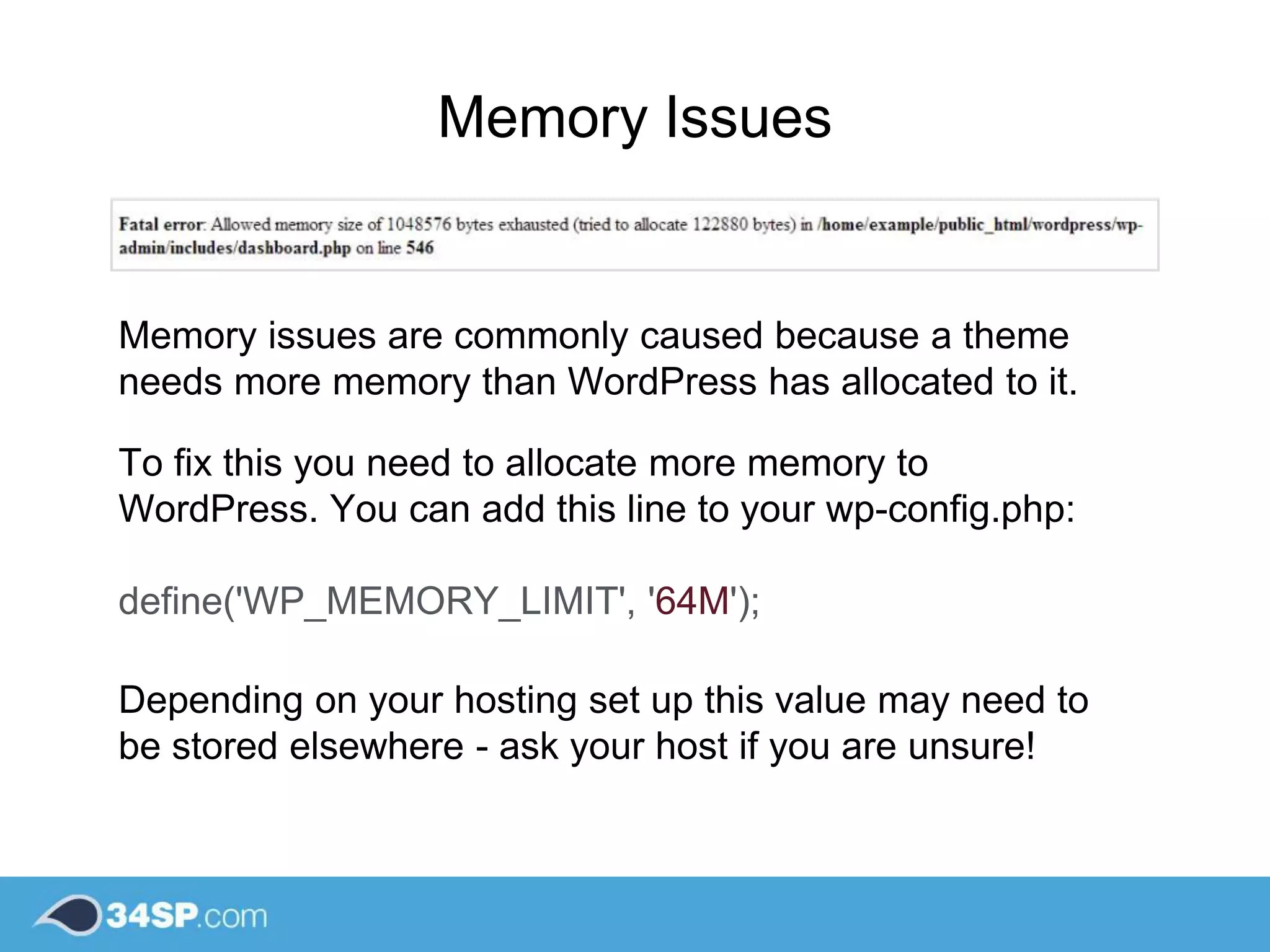
Memory Issues
Memory issues are commonly caused because a theme
needs more memory than WordPress has allocated to it.
To fix this you need to allocate more memory to
WordPress. You can add this line to your wp-config.php:
define('WP_MEMORY_LIMIT', '64M');
Depending on your hosting set up this value may need to
be stored elsewhere - ask your host if you are unsure!
The Nastier Problems:
Hacked Sites
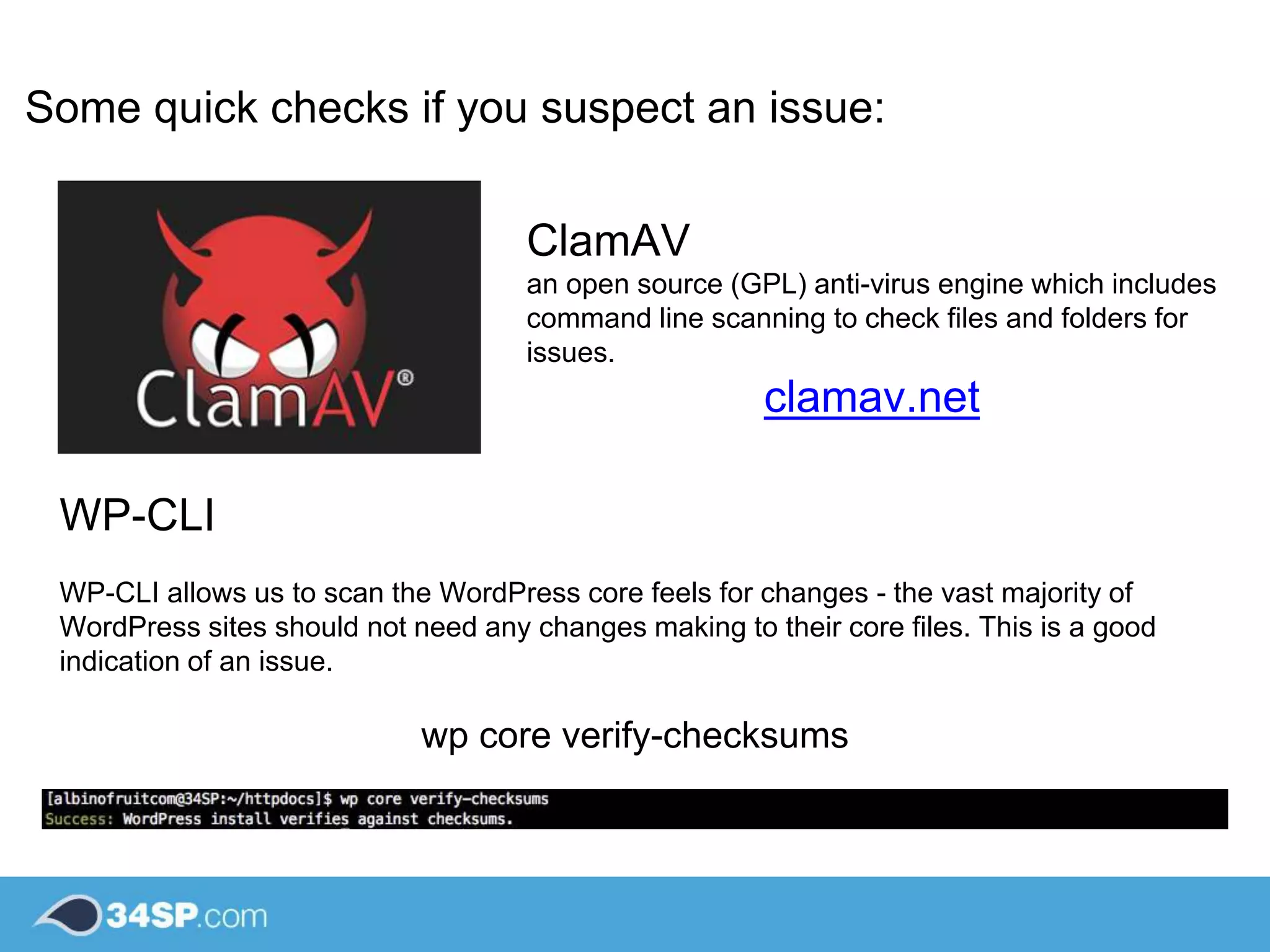
ClamAV
an open source (GPL) anti-virus engine which includes
command line scanning to check files and folders for
issues.
clamav.net
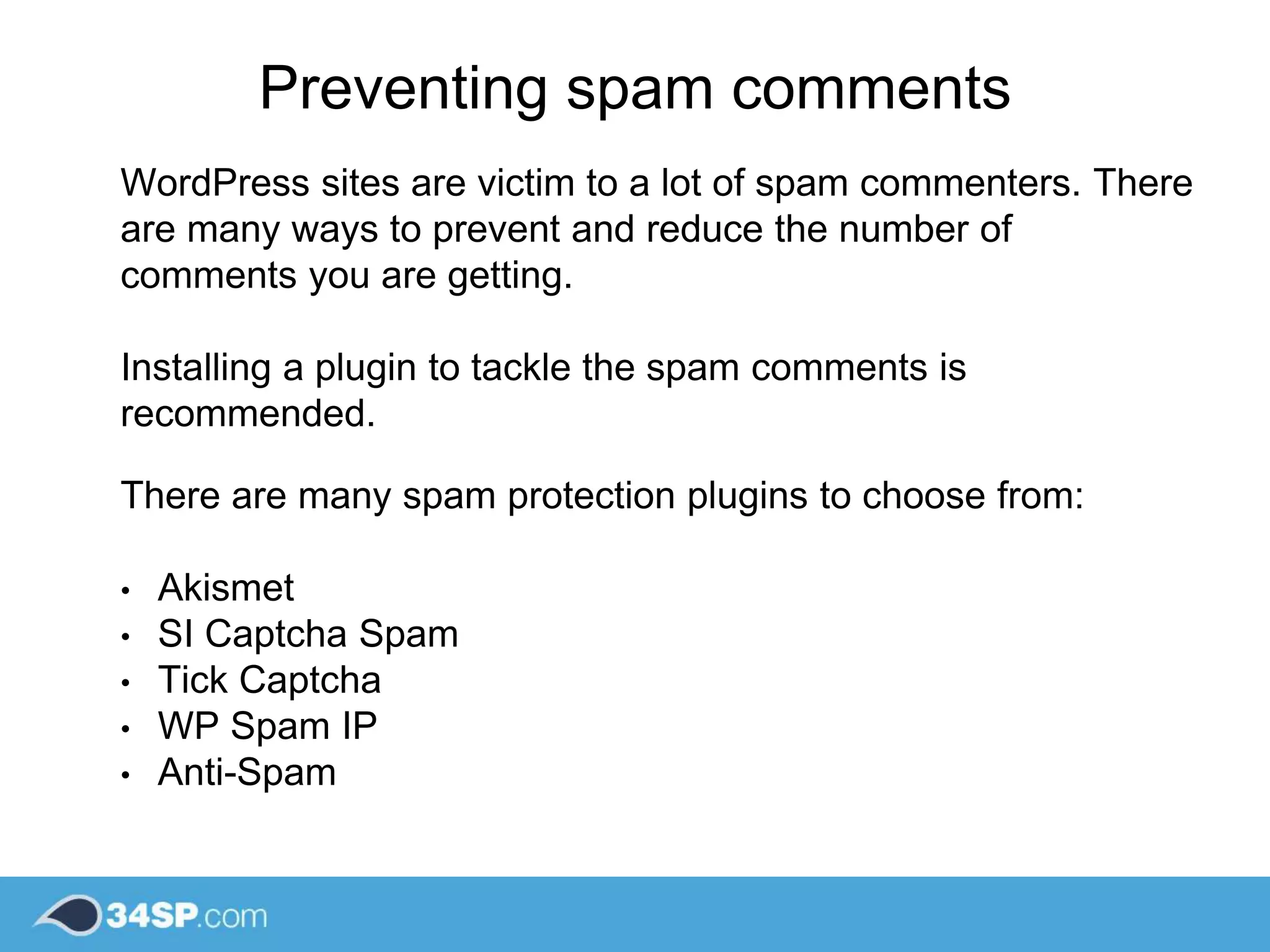
WP-CLI
WP-CLI allows us to scan the WordPress core feels for changes - the vast majority of
WordPress sites should not need any changes making to their core files. This is a good
indication of an issue.
wp core verify-checksums
Some quick checks if you suspect an issue:
Creating a clean WordPress Install
1. Use the WordPress Export tool to create a copy of
your custom content - your posts, pages, comments,
meta data and media. This will store the content in a
.XML file for later import.
2. Create a brand new WordPress installation - new
database, users and no theme/plugins.
3. Create your users - they are not backed up.
4. Run the import tool from within WordPress - this will
restore your custom content on to the new site.
5. You will then be given the option to assign imported
authors to existing authors on your website.
6. Re-install your plugins and theme
from the WordPress repository.
Repairing a hacked site
Many times simply removing hacked files will not protect
your site from future attacks. This is why it is important to
keep regular backups of your site.
Popular backup plugins include:
• BackWPup
• Backup WordPress
• Updraft
• VaultPress
Try to make sure you store your backups somewhere
external to your site’s hosting server.
WPScan
wpscan.org
WPScan is a command line tool you can install on your server which scans
WordPress websites for known vulnerabilities, as well as offering advice on
how you can make security improvements to your WordPress install.
Other common support queries
Changing your user’s passwords
1. Login to the WordPress admin dashboard
2. Select ‘Users’ then ‘All Users’ from the side
menu.
3. Click on the username you wish to edit.
4. Scroll down to ‘Account Management’ to set
a new password, change it, and hit ‘Update
Profile’.
Preventing spam comments
WordPress sites are victim to a lot of spam commenters. There
are many ways to prevent and reduce the number of
comments you are getting.
Installing a plugin to tackle the spam comments is
recommended.
There are many spam protection plugins to choose from:
• Akismet
• SI Captcha Spam
• Tick Captcha
• WP Spam IP
• Anti-Spam
define('WP_DEBUG',true);
[06-Sep-2016 19:58:10 UTC] PHP Notice: Trying to get property of non-object in
/var/www/vhosts/mr-badger.co.uk/httpdocs/wp-content/plugins/akismet/class.akismet.php
on line 173
Enabling WP_Debug
Sometimes you will encounter issues where your error logs
may not be offering any clear insights. A good extra check is to
enable WP_Debug - this will enable extra error logs to display
directly on your WordPress pages.
Additional Safety Tips
• Enable automatic updates
• Security plugins such as ‘Securi’, ’Limit Login Attempts’
• xmlrpc.php protection
• Host security - Fail2ban
• Use passphrases and two factor authentication
• Make sure you are setting the correct user roles
Additional Support
Queries and Tips
Running out of disk space
Only backup wp-content
Try to use a remote storage solution -
Dropbox, Google Drive.
Set a reasonable backup schedule
Common backup plugin
issues & tips
Fixing broken permalinks
1. Login to your WordPress
Dashboard
2. Click on ‘Settings’ > ‘Permalinks’
3. Switch permalinks to default
4. Switch permalinks back
Note: Ensure .htaccess is writable by the
server.
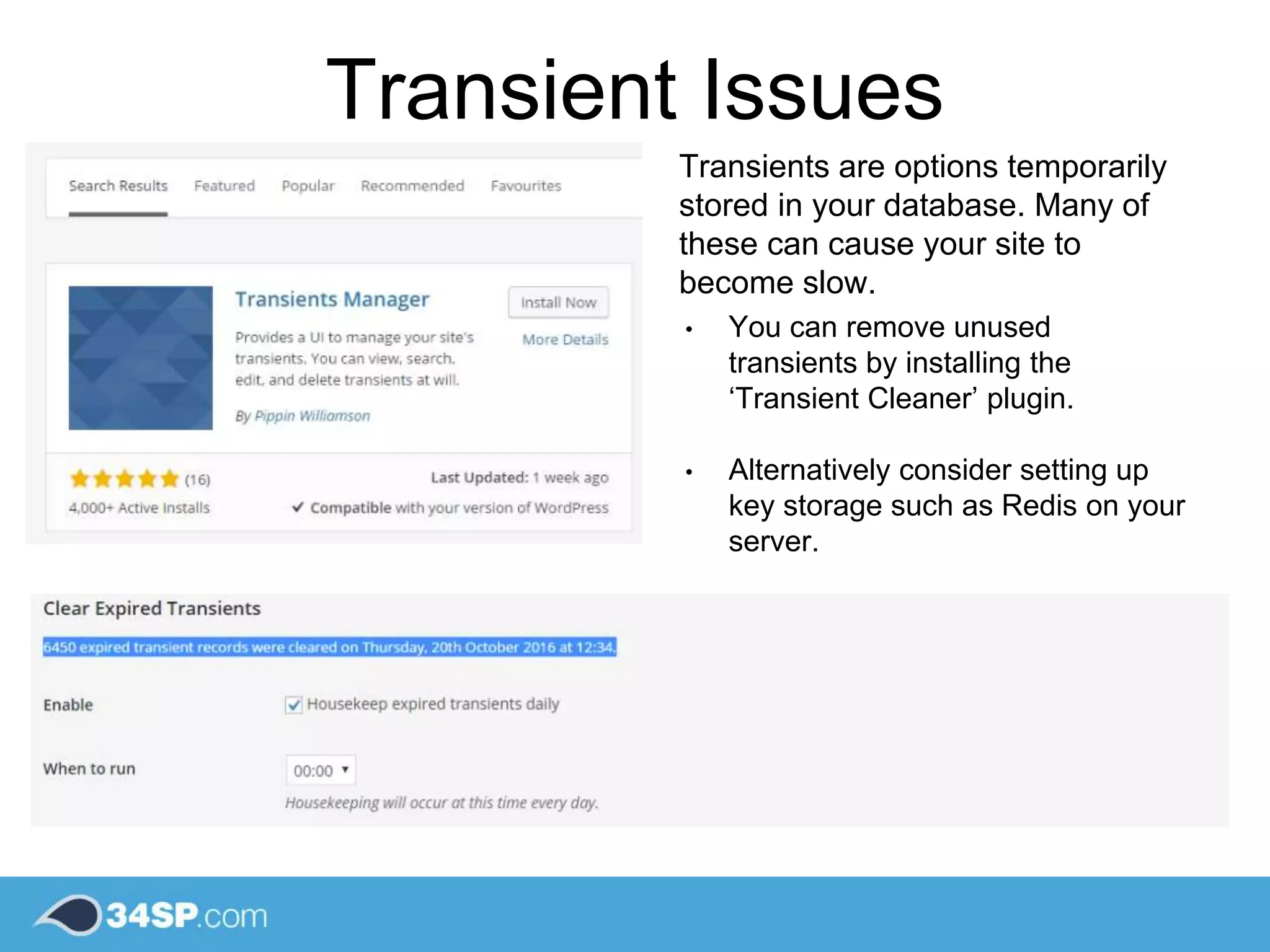
Transient Issues
Transients are options temporarily
stored in your database. Many of
these can cause your site to
become slow.
• You can remove unused
transients by installing the
‘Transient Cleaner’ plugin.
• Alternatively consider setting up
key storage such as Redis on your
server.
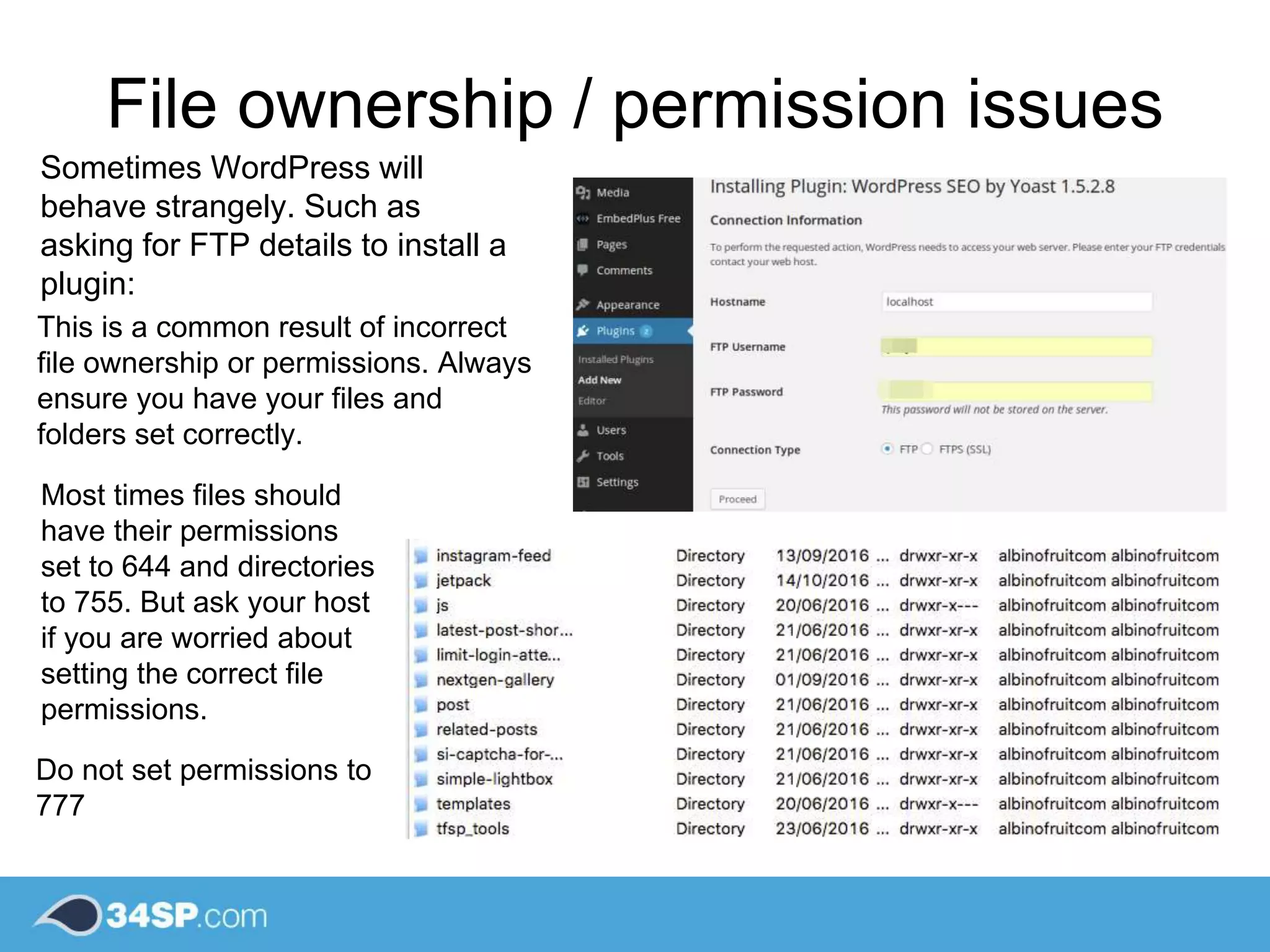
File ownership / permission issues
Sometimes WordPress will
behave strangely. Such as
asking for FTP details to install a
plugin:
This is a common result of incorrect
file ownership or permissions. Always
ensure you have your files and
folders set correctly.
Most times files should
have their permissions
set to 644 and directories
to 755. But ask your host
if you are worried about
setting the correct file
permissions.
Do not set permissions to
777
Always disable caching on your site
when you are developing or regularly
flush the cache to see your updated
content.
You can flush your cache using WP-
CLI:
wp cache flush
Caching
Useful WP-CLI
commands
wp core
wp core offers commands related
to the core WordPress file setup.
Favourite useful
commands:
• wp core update
• wp core download
• wp core version
• wp core verify-checksums
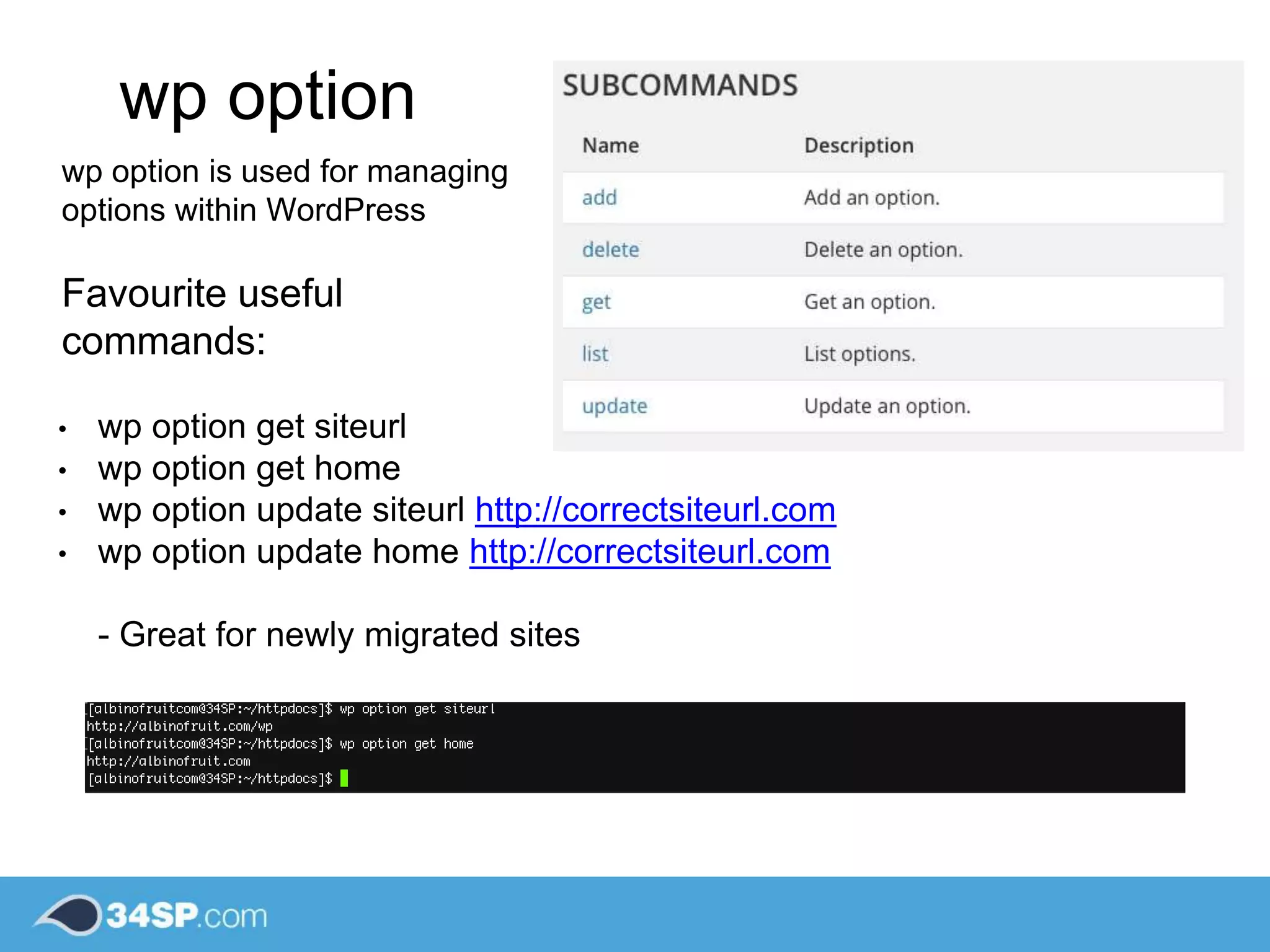
wp option
wp option is used for managing
options within WordPress
Favourite useful
commands:
• wp option get siteurl
• wp option get home
• wp option update siteurl http://correctsiteurl.com
• wp option update home http://correctsiteurl.com
- Great for newly migrated sites
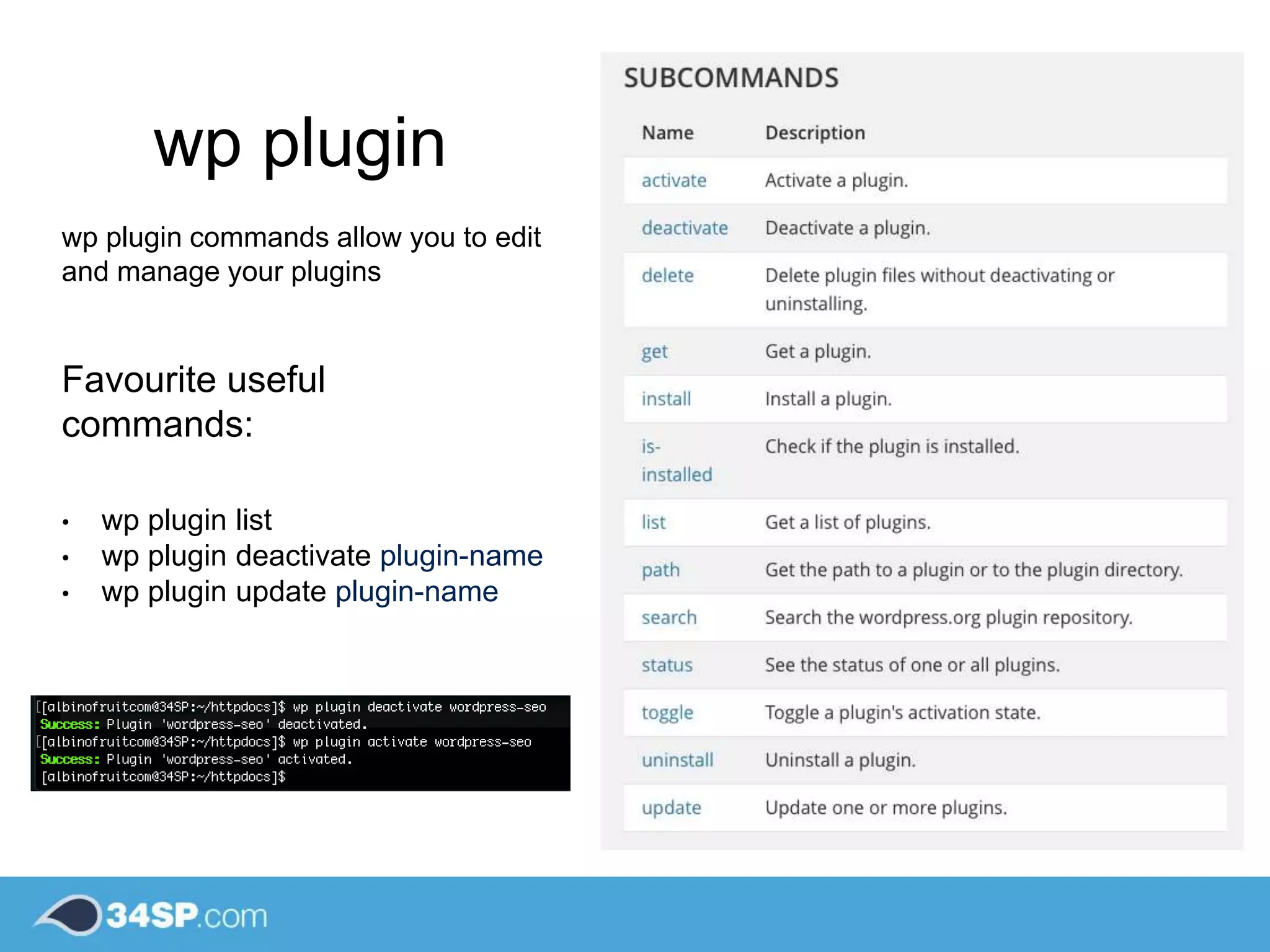
wp plugin
wp plugin commands allow you to edit
and manage your plugins
Favourite useful
commands:
• wp plugin list
• wp plugin deactivate plugin-name
• wp plugin update plugin-name
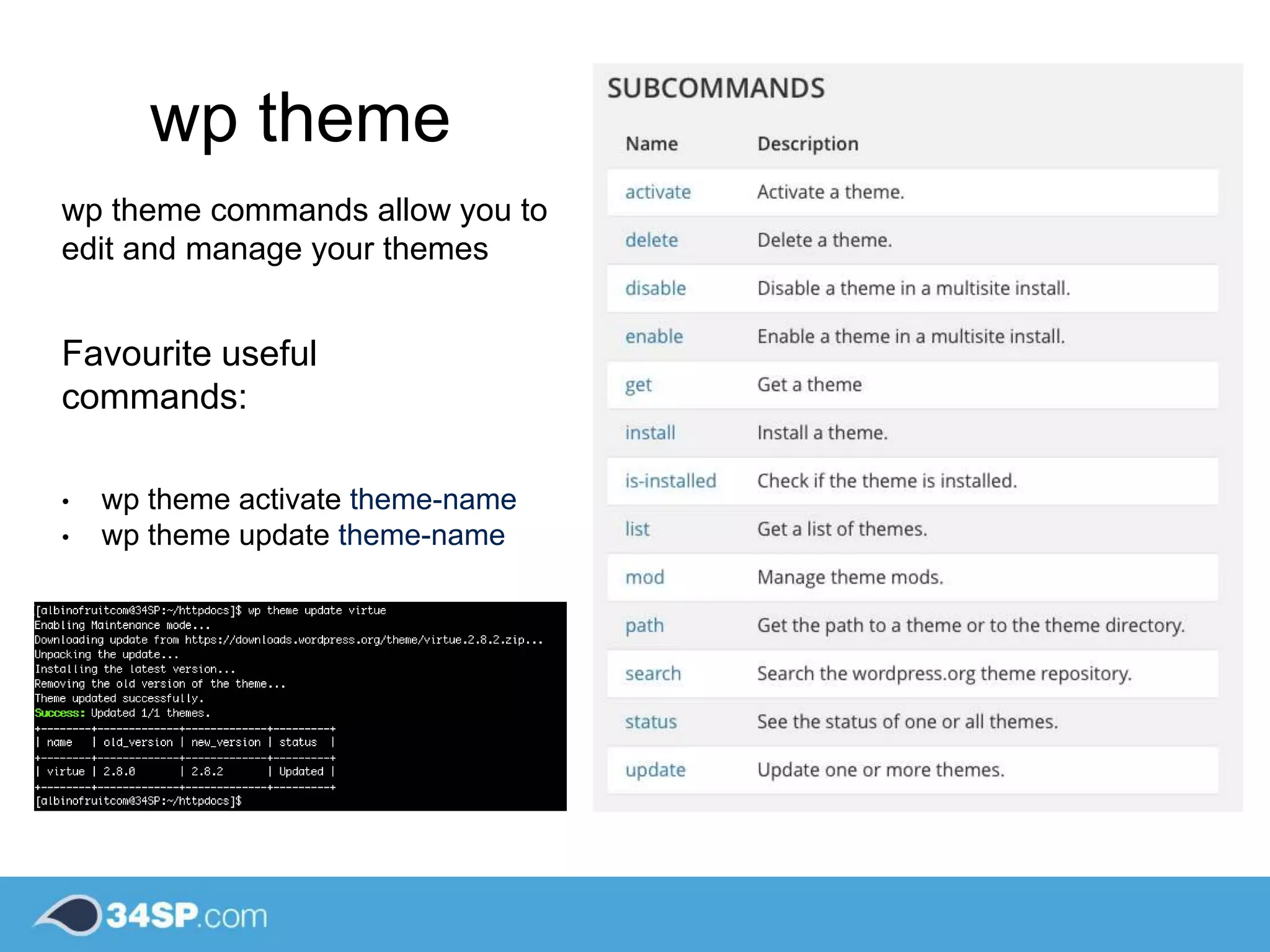
wp theme
wp theme commands allow you to
edit and manage your themes
Favourite useful
commands:
• wp theme activate theme-name
• wp theme update theme-name
wp db
wp db allows you to manage
your database using WP-CLI
Favourite useful
commands:
• wp db import mydatabase.sql
• wp db repair
• wp db cli
wp user
wp user allows you to
manage your WordPress
site’s users
Favourite useful
commands:
• wp user list
• wp user delete #
Creating a new administrator
account:
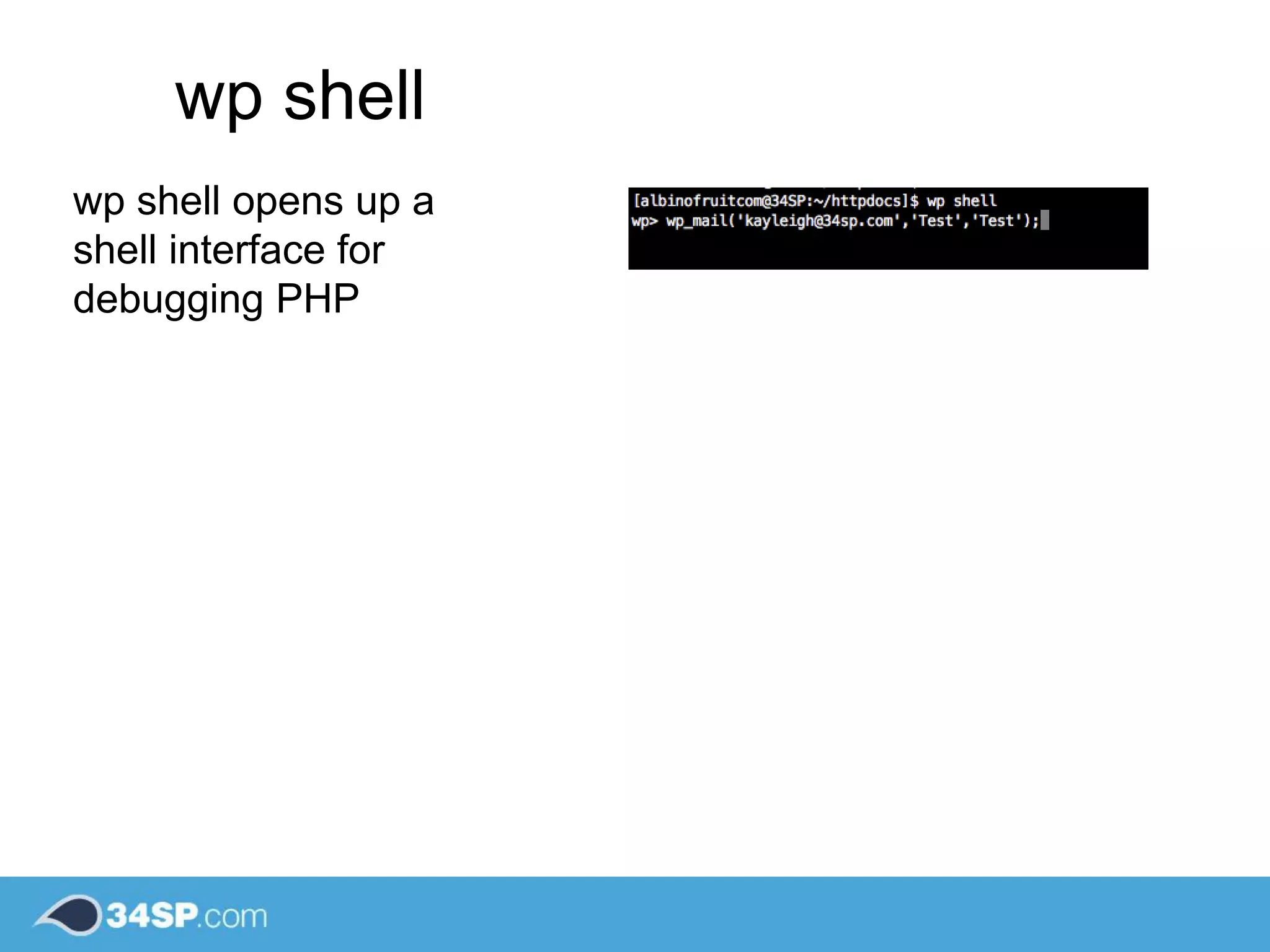
wp shell
wp shell opens up a
shell interface for
debugging PHP
Thank you!
Link Credits
http://wp-cli.org
https://www.clamav.net
https://codex.wordpress.or
g
https://www.34sp.com
@Kayleighthorpe
@Keithage
Any thoughts or questions?

Battling the WSOD - A Tech Support Tale

  • 1.
    Battling the WSOD ATech Support Tale
  • 2.
    Keith Hyde Kayleigh Thorpe WordPress& Systems Specialist @Keithage WordPress Support Specialist @Kayleighthorpe
  • 3.
    Coming up • WhiteScreen of Death • Plugin issues • Theme issues • Useful tools • Hacked Sites & Restoration • Additional common support queries • Handy wp-cli commands WP-CLI http://wp-cli.org
  • 4.
    Have you evervisited your website to see this? We call this the ‘White Screen of Death’.
  • 5.
  • 6.
    • The firststep when faced with the WSOD is to check your error logs. These usually provide helpful insights to where the issue is coming from. • They are usually accessible via FTP - in most cases you can find error logs stored in a folder just below your site’s root directory. • Example log entry: Searching Error Logs
  • 7.
  • 8.
    How do Ifix a plugin issue? • Check for updates - updates may have been made to fix some plugin issues you may be having. • Disable the plugin - disabling plugins with coding errors in them usually fixes the problem, from there it may be worth re-installing the plugin. • In case of WSOD where there is no access to the WordPress admin panel - you want to know how to safely remove the plugin.
  • 9.
    Safely removing plugins > Disablea plugin by renaming it via FTP / File Manager: Disable a plugin via WP-CLI: wp plugin deactivate plugin-name --skip-plugins
  • 10.
    After disabling theoffending plugin:
  • 11.
  • 15.
    Theme Issues Changing yourtheme FTP / File Manager: > If you rename your theme via FTP this will disable the theme - but it will cause your site to display a white screen on all pages except the wp- admin section. You can go directly to the wp-admin section and enable a safe theme after doing this.
  • 16.
    Theme Issues Changing yourtheme via WP-CLI: wp theme activate theme-name --skip-themes
  • 17.
    Memory Issues Memory issuesare commonly caused because a theme needs more memory than WordPress has allocated to it. To fix this you need to allocate more memory to WordPress. You can add this line to your wp-config.php: define('WP_MEMORY_LIMIT', '64M'); Depending on your hosting set up this value may need to be stored elsewhere - ask your host if you are unsure!
  • 18.
  • 19.
    ClamAV an open source(GPL) anti-virus engine which includes command line scanning to check files and folders for issues. clamav.net WP-CLI WP-CLI allows us to scan the WordPress core feels for changes - the vast majority of WordPress sites should not need any changes making to their core files. This is a good indication of an issue. wp core verify-checksums Some quick checks if you suspect an issue:
  • 20.
    Creating a cleanWordPress Install 1. Use the WordPress Export tool to create a copy of your custom content - your posts, pages, comments, meta data and media. This will store the content in a .XML file for later import. 2. Create a brand new WordPress installation - new database, users and no theme/plugins. 3. Create your users - they are not backed up. 4. Run the import tool from within WordPress - this will restore your custom content on to the new site. 5. You will then be given the option to assign imported authors to existing authors on your website. 6. Re-install your plugins and theme from the WordPress repository.
  • 21.
    Repairing a hackedsite Many times simply removing hacked files will not protect your site from future attacks. This is why it is important to keep regular backups of your site. Popular backup plugins include: • BackWPup • Backup WordPress • Updraft • VaultPress Try to make sure you store your backups somewhere external to your site’s hosting server.
  • 22.
    WPScan wpscan.org WPScan is acommand line tool you can install on your server which scans WordPress websites for known vulnerabilities, as well as offering advice on how you can make security improvements to your WordPress install.
  • 23.
  • 24.
    Changing your user’spasswords 1. Login to the WordPress admin dashboard 2. Select ‘Users’ then ‘All Users’ from the side menu. 3. Click on the username you wish to edit. 4. Scroll down to ‘Account Management’ to set a new password, change it, and hit ‘Update Profile’.
  • 25.
    Preventing spam comments WordPresssites are victim to a lot of spam commenters. There are many ways to prevent and reduce the number of comments you are getting. Installing a plugin to tackle the spam comments is recommended. There are many spam protection plugins to choose from: • Akismet • SI Captcha Spam • Tick Captcha • WP Spam IP • Anti-Spam
  • 26.
    define('WP_DEBUG',true); [06-Sep-2016 19:58:10 UTC]PHP Notice: Trying to get property of non-object in /var/www/vhosts/mr-badger.co.uk/httpdocs/wp-content/plugins/akismet/class.akismet.php on line 173 Enabling WP_Debug Sometimes you will encounter issues where your error logs may not be offering any clear insights. A good extra check is to enable WP_Debug - this will enable extra error logs to display directly on your WordPress pages.
  • 27.
    Additional Safety Tips •Enable automatic updates • Security plugins such as ‘Securi’, ’Limit Login Attempts’ • xmlrpc.php protection • Host security - Fail2ban • Use passphrases and two factor authentication • Make sure you are setting the correct user roles
  • 28.
  • 29.
    Running out ofdisk space Only backup wp-content Try to use a remote storage solution - Dropbox, Google Drive. Set a reasonable backup schedule Common backup plugin issues & tips
  • 30.
    Fixing broken permalinks 1.Login to your WordPress Dashboard 2. Click on ‘Settings’ > ‘Permalinks’ 3. Switch permalinks to default 4. Switch permalinks back Note: Ensure .htaccess is writable by the server.
  • 31.
    Transient Issues Transients areoptions temporarily stored in your database. Many of these can cause your site to become slow. • You can remove unused transients by installing the ‘Transient Cleaner’ plugin. • Alternatively consider setting up key storage such as Redis on your server.
  • 32.
    File ownership /permission issues Sometimes WordPress will behave strangely. Such as asking for FTP details to install a plugin: This is a common result of incorrect file ownership or permissions. Always ensure you have your files and folders set correctly. Most times files should have their permissions set to 644 and directories to 755. But ask your host if you are worried about setting the correct file permissions. Do not set permissions to 777
  • 33.
    Always disable cachingon your site when you are developing or regularly flush the cache to see your updated content. You can flush your cache using WP- CLI: wp cache flush Caching
  • 34.
  • 35.
    wp core wp coreoffers commands related to the core WordPress file setup. Favourite useful commands: • wp core update • wp core download • wp core version • wp core verify-checksums
  • 36.
    wp option wp optionis used for managing options within WordPress Favourite useful commands: • wp option get siteurl • wp option get home • wp option update siteurl http://correctsiteurl.com • wp option update home http://correctsiteurl.com - Great for newly migrated sites
  • 37.
    wp plugin wp plugincommands allow you to edit and manage your plugins Favourite useful commands: • wp plugin list • wp plugin deactivate plugin-name • wp plugin update plugin-name
  • 38.
    wp theme wp themecommands allow you to edit and manage your themes Favourite useful commands: • wp theme activate theme-name • wp theme update theme-name
  • 39.
    wp db wp dballows you to manage your database using WP-CLI Favourite useful commands: • wp db import mydatabase.sql • wp db repair • wp db cli
  • 40.
    wp user wp userallows you to manage your WordPress site’s users Favourite useful commands: • wp user list • wp user delete # Creating a new administrator account:
  • 41.
    wp shell wp shellopens up a shell interface for debugging PHP
  • 42.