Basic of web Design and Basic
Fundamentals of HTML

Devendra Shukla (Senior web designer)
Definition of Web Design
Web Design is a skill of creating presentations of content (usually hypertext or hypermedia
that is delivered to an end-user through the World Wide Web, by way of a Web browser or
either Web-enabled software like Internet clients, microblogging and RSS feeders.
Web Design Basics
What is a good Web site from a design standpoint?
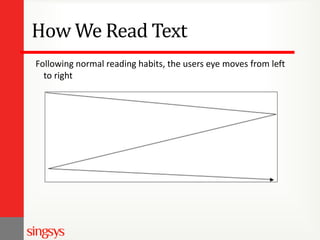
How We Read Text
Following normal reading habits, the users eye moves from left
to right
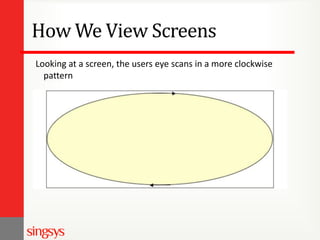
How We View Screens
Looking at a screen, the users eye scans in a more clockwise
pattern
How Will Your Users Read/View?
If a page uses a lot of text, the user will read in a more
traditional, left to right manner.
If a page has more graphical elements, the user is more likely
to take in the whole page.
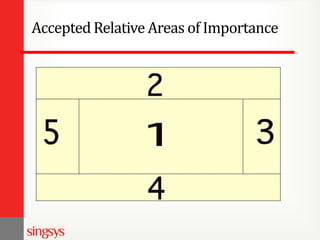
Accepted Relative Areas of Importance
Think
Before you do anything else, you need to spend time thinking about
the 4w’s.

What is the purpose of the web page/site?
Who is your target audience?
What will bring your audience back?
Where will your audience be using the site?
Research WebSites
This is a very important part in the creation of a web site, and
usually very useful.
Spend time looking at other internet sites, particularlly your
competitores

You can get any ideas you can use and improve on
Sites with lots of animation are not always the best.
You must also keep in mind that not everyone has a fast
Internet connection.
Principles of good web design
Visitor-centric, clear purpose
Progressive disclosure
Displays quickly
Browser compatible
Intuitive navigation
Spelling, grammar, writing
Attractive design, easy to read
Cultural bias? (Regional? Domestic? International?)
No technical problems (broken links, buggy scripts)
Search Engine Accessible
Creating a Web Site
Once you have decided to establish a web site there are three
steps to getting it online.
1 - Get a domain name - This is your personal/private address
on the Web.

2 - Find a web hosting service- Here is where your website will
reside.
Free vs Private Web Hosting
3 - Design, build and upload your website - The process of
website creation.
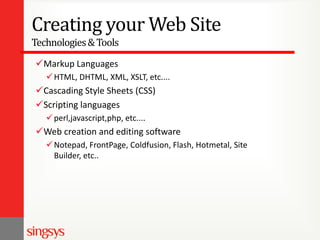
Creating your Web Site
Technologies & Tools
Markup Languages
 HTML, DHTML, XML, XSLT, etc....

Cascading Style Sheets (CSS)
Scripting languages
 perl,javascript,php, etc....

Web creation and editing software
 Notepad, FrontPage, Coldfusion, Flash, Hotmetal, Site
Builder, etc..
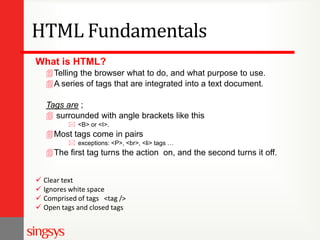
HTML Fundamentals
What is HTML?
Telling the browser what to do, and what purpose to use.
A series of tags that are integrated into a text document.
Tags are ;
 surrounded with angle brackets like this
 <B> or <I>.

Most tags come in pairs
 exceptions: <P>, <br>, <li> tags …

The first tag turns the action on, and the second turns it off.
 Clear text
 Ignores white space
 Comprised of tags <tag />
 Open tags and closed tags
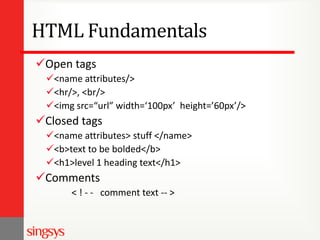
HTML Fundamentals
Open tags
<name attributes/>
<hr/>, <br/>
<img src=“url” width=‘100px’ height=’60px’/>

Closed tags
<name attributes> stuff </name>
<b>text to be bolded</b>
<h1>level 1 heading text</h1>

Comments
< ! - - comment text -- >
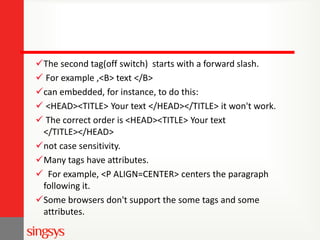
The second tag(off switch) starts with a forward slash.
 For example ,<B> text </B>
can embedded, for instance, to do this:
 <HEAD><TITLE> Your text </HEAD></TITLE> it won't work.
 The correct order is <HEAD><TITLE> Your text
</TITLE></HEAD>
not case sensitivity.
Many tags have attributes.
 For example, <P ALIGN=CENTER> centers the paragraph
following it.
Some browsers don't support the some tags and some
attributes.
Tags in head
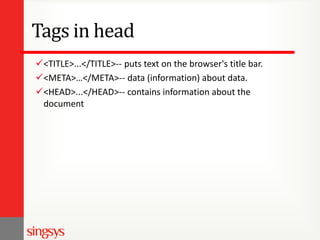
<TITLE>...</TITLE>-- puts text on the browser's title bar.
<META>…</META>-- data (information) about data.
<HEAD>...</HEAD>-- contains information about the
document
Tags in Body
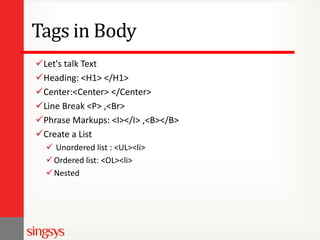
Let's talk Text
Heading: <H1> </H1>
Center:<Center> </Center>
Line Break <P> ,<Br>
Phrase Markups: <I></I> ,<B></B>
Create a List
 Unordered list : <UL><li>
 Ordered list: <OL><li>
 Nested
Add some Link
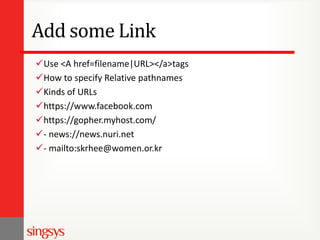
Use <A href=filename|URL></a>tags
How to specify Relative pathnames
Kinds of URLs
https://www.facebook.com
https://gopher.myhost.com/
- news://news.nuri.net
- mailto:skrhee@women.or.kr
How to make colors changes?
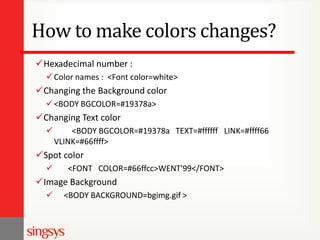
Hexadecimal number :
 Color names : <Font color=white>

Changing the Background color
 <BODY BGCOLOR=#19378a>

Changing Text color


<BODY BGCOLOR=#19378a TEXT=#ffffff LINK=#ffff66
VLINK=#66ffff>

Spot color


<FONT COLOR=#66ffcc>WENT'99</FONT>

Image Background


<BODY BACKGROUND=bgimg.gif >
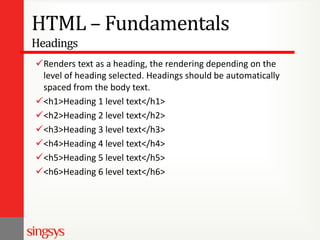
HTML – Fundamentals
Headings
Renders text as a heading, the rendering depending on the
level of heading selected. Headings should be automatically
spaced from the body text.
<h1>Heading 1 level text</h1>
<h2>Heading 2 level text</h2>
<h3>Heading 3 level text</h3>
<h4>Heading 4 level text</h4>
<h5>Heading 5 level text</h5>
<h6>Heading 6 level text</h6>
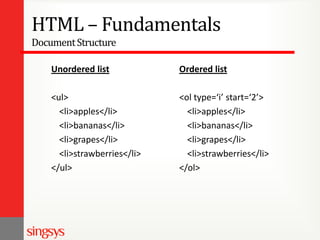
HTML – Fundamentals
Document Structure
Unordered list

Ordered list

<ul>
<li>apples</li>
<li>bananas</li>
<li>grapes</li>
<li>strawberries</li>
</ul>

<ol type=‘i’ start=‘2’>
<li>apples</li>
<li>bananas</li>
<li>grapes</li>
<li>strawberries</li>
</ol>
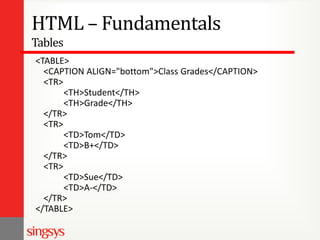
HTML – Fundamentals
Tables
<TABLE>
<CAPTION ALIGN="bottom">Class Grades</CAPTION>
<TR>
<TH>Student</TH>
<TH>Grade</TH>
</TR>
<TR>
<TD>Tom</TD>
<TD>B+</TD>
</TR>
<TR>
<TD>Sue</TD>
<TD>A-</TD>
</TR>
</TABLE>
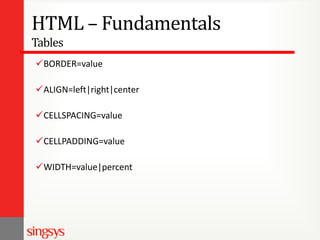
HTML – Fundamentals
Tables
BORDER=value
ALIGN=left|right|center
CELLSPACING=value

CELLPADDING=value
WIDTH=value|percent
HTML – Fundamentals
Tables
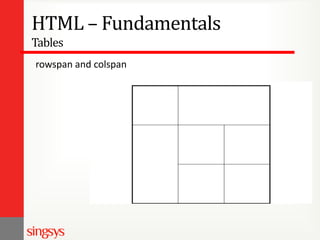
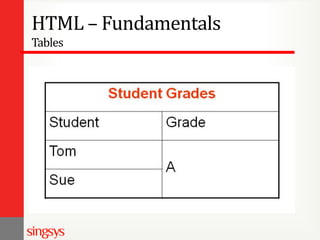
rowspan and colspan
HTML – Fundamentals
Tables
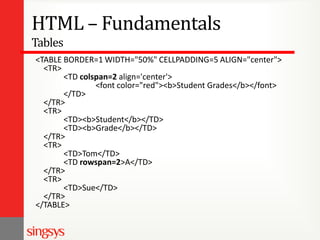
<TABLE BORDER=1 WIDTH="50%" CELLPADDING=5 ALIGN="center">
<TR>
<TD colspan=2 align='center'>
<font color="red"><b>Student Grades</b></font>
</TD>
</TR>
<TR>
<TD><b>Student</b></TD>
<TD><b>Grade</b></TD>
</TR>
<TR>
<TD>Tom</TD>
<TD rowspan=2>A</TD>
</TR>
<TR>
<TD>Sue</TD>
</TR>
</TABLE>
HTML – Fundamentals
Tables
HTML – Fundamentals
Div
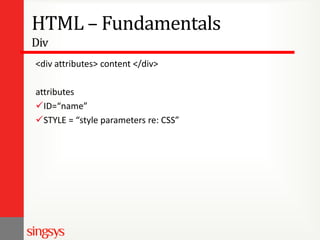
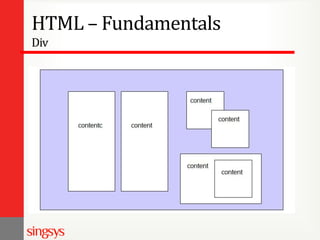
<div attributes> content </div>
attributes
ID=“name”
STYLE = “style parameters re: CSS”
HTML – Fundamentals
Div
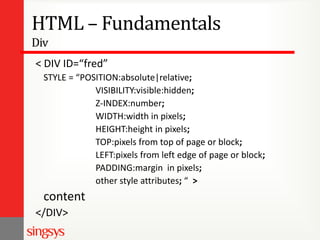
< DIV ID=“fred”
STYLE = “POSITION:absolute|relative;
VISIBILITY:visible:hidden;
Z-INDEX:number;
WIDTH:width in pixels;
HEIGHT:height in pixels;
TOP:pixels from top of page or block;
LEFT:pixels from left edge of page or block;
PADDING:margin in pixels;
other style attributes; “ >

content
</DIV>
HTML – Fundamentals
Div
HTML – Fundamentals
Div
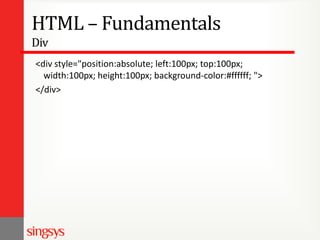
<div style="position:absolute; left:100px; top:100px;
width:100px; height:100px; background-color:#ffffff; ">
</div>
Happy Webbing
Thank You!
Devendra Shukla (Senior web designer)

Basic of web design

  • 1.
    Basic of webDesign and Basic Fundamentals of HTML Devendra Shukla (Senior web designer)
  • 2.
    Definition of WebDesign Web Design is a skill of creating presentations of content (usually hypertext or hypermedia that is delivered to an end-user through the World Wide Web, by way of a Web browser or either Web-enabled software like Internet clients, microblogging and RSS feeders.
  • 3.
    Web Design Basics Whatis a good Web site from a design standpoint?
  • 4.
    How We ReadText Following normal reading habits, the users eye moves from left to right
  • 5.
    How We ViewScreens Looking at a screen, the users eye scans in a more clockwise pattern
  • 6.
    How Will YourUsers Read/View? If a page uses a lot of text, the user will read in a more traditional, left to right manner. If a page has more graphical elements, the user is more likely to take in the whole page.
  • 7.
  • 8.
    Think Before you doanything else, you need to spend time thinking about the 4w’s. What is the purpose of the web page/site? Who is your target audience? What will bring your audience back? Where will your audience be using the site?
  • 9.
    Research WebSites This isa very important part in the creation of a web site, and usually very useful. Spend time looking at other internet sites, particularlly your competitores You can get any ideas you can use and improve on Sites with lots of animation are not always the best. You must also keep in mind that not everyone has a fast Internet connection.
  • 10.
    Principles of goodweb design Visitor-centric, clear purpose Progressive disclosure Displays quickly Browser compatible Intuitive navigation Spelling, grammar, writing Attractive design, easy to read Cultural bias? (Regional? Domestic? International?) No technical problems (broken links, buggy scripts) Search Engine Accessible
  • 11.
    Creating a WebSite Once you have decided to establish a web site there are three steps to getting it online. 1 - Get a domain name - This is your personal/private address on the Web. 2 - Find a web hosting service- Here is where your website will reside. Free vs Private Web Hosting 3 - Design, build and upload your website - The process of website creation.
  • 12.
    Creating your WebSite Technologies & Tools Markup Languages  HTML, DHTML, XML, XSLT, etc.... Cascading Style Sheets (CSS) Scripting languages  perl,javascript,php, etc.... Web creation and editing software  Notepad, FrontPage, Coldfusion, Flash, Hotmetal, Site Builder, etc..
  • 13.
    HTML Fundamentals What isHTML? Telling the browser what to do, and what purpose to use. A series of tags that are integrated into a text document. Tags are ;  surrounded with angle brackets like this  <B> or <I>. Most tags come in pairs  exceptions: <P>, <br>, <li> tags … The first tag turns the action on, and the second turns it off.  Clear text  Ignores white space  Comprised of tags <tag />  Open tags and closed tags
  • 14.
    HTML Fundamentals Open tags <nameattributes/> <hr/>, <br/> <img src=“url” width=‘100px’ height=’60px’/> Closed tags <name attributes> stuff </name> <b>text to be bolded</b> <h1>level 1 heading text</h1> Comments < ! - - comment text -- >
  • 15.
    The second tag(offswitch) starts with a forward slash.  For example ,<B> text </B> can embedded, for instance, to do this:  <HEAD><TITLE> Your text </HEAD></TITLE> it won't work.  The correct order is <HEAD><TITLE> Your text </TITLE></HEAD> not case sensitivity. Many tags have attributes.  For example, <P ALIGN=CENTER> centers the paragraph following it. Some browsers don't support the some tags and some attributes.
  • 16.
    Tags in head <TITLE>...</TITLE>--puts text on the browser's title bar. <META>…</META>-- data (information) about data. <HEAD>...</HEAD>-- contains information about the document
  • 17.
    Tags in Body Let'stalk Text Heading: <H1> </H1> Center:<Center> </Center> Line Break <P> ,<Br> Phrase Markups: <I></I> ,<B></B> Create a List  Unordered list : <UL><li>  Ordered list: <OL><li>  Nested
  • 18.
    Add some Link Use<A href=filename|URL></a>tags How to specify Relative pathnames Kinds of URLs https://www.facebook.com https://gopher.myhost.com/ - news://news.nuri.net - mailto:skrhee@women.or.kr
  • 19.
    How to makecolors changes? Hexadecimal number :  Color names : <Font color=white> Changing the Background color  <BODY BGCOLOR=#19378a> Changing Text color  <BODY BGCOLOR=#19378a TEXT=#ffffff LINK=#ffff66 VLINK=#66ffff> Spot color  <FONT COLOR=#66ffcc>WENT'99</FONT> Image Background  <BODY BACKGROUND=bgimg.gif >
  • 20.
    HTML – Fundamentals Headings Renderstext as a heading, the rendering depending on the level of heading selected. Headings should be automatically spaced from the body text. <h1>Heading 1 level text</h1> <h2>Heading 2 level text</h2> <h3>Heading 3 level text</h3> <h4>Heading 4 level text</h4> <h5>Heading 5 level text</h5> <h6>Heading 6 level text</h6>
  • 21.
    HTML – Fundamentals DocumentStructure Unordered list Ordered list <ul> <li>apples</li> <li>bananas</li> <li>grapes</li> <li>strawberries</li> </ul> <ol type=‘i’ start=‘2’> <li>apples</li> <li>bananas</li> <li>grapes</li> <li>strawberries</li> </ol>
  • 22.
    HTML – Fundamentals Tables <TABLE> <CAPTIONALIGN="bottom">Class Grades</CAPTION> <TR> <TH>Student</TH> <TH>Grade</TH> </TR> <TR> <TD>Tom</TD> <TD>B+</TD> </TR> <TR> <TD>Sue</TD> <TD>A-</TD> </TR> </TABLE>
  • 23.
  • 24.
  • 25.
    HTML – Fundamentals Tables <TABLEBORDER=1 WIDTH="50%" CELLPADDING=5 ALIGN="center"> <TR> <TD colspan=2 align='center'> <font color="red"><b>Student Grades</b></font> </TD> </TR> <TR> <TD><b>Student</b></TD> <TD><b>Grade</b></TD> </TR> <TR> <TD>Tom</TD> <TD rowspan=2>A</TD> </TR> <TR> <TD>Sue</TD> </TR> </TABLE>
  • 26.
  • 27.
    HTML – Fundamentals Div <divattributes> content </div> attributes ID=“name” STYLE = “style parameters re: CSS”
  • 28.
    HTML – Fundamentals Div <DIV ID=“fred” STYLE = “POSITION:absolute|relative; VISIBILITY:visible:hidden; Z-INDEX:number; WIDTH:width in pixels; HEIGHT:height in pixels; TOP:pixels from top of page or block; LEFT:pixels from left edge of page or block; PADDING:margin in pixels; other style attributes; “ > content </DIV>
  • 29.
  • 30.
    HTML – Fundamentals Div <divstyle="position:absolute; left:100px; top:100px; width:100px; height:100px; background-color:#ffffff; "> </div>
  • 31.
  • 32.
    Thank You! Devendra Shukla(Senior web designer)