: www.hoorijani.ir
: hoorijani.h@gmail.com, hoorijani@ut.ac.ir
: hamed hoorijani
: Hamed Hoorijani
Tutorial Aspen HYSIS v8.8- Dynamic mode
Dynamic process 1
Author: Hamed Hoorijani
: www.hoorijani.ir
: hoorijani.h@gmail.com, hoorijani@ut.ac.ir
: hamed hoorijani
: Hamed Hoorijani
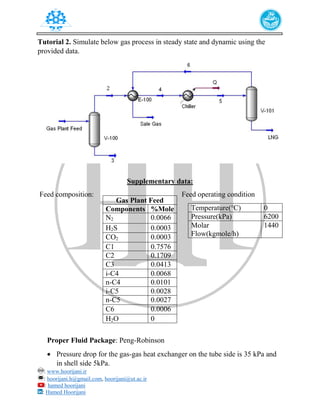
Tutorial 2. Simulate below gas process in steady state and dynamic using the
provided data.
Supplementary data:
Feed composition: Feed operating condition
Proper Fluid Package: Peng-Robinson
 Pressure drop for the gas-gas heat exchanger on the tube side is 35 kPa and
in shell side 5kPa.
Temperature(℃) 0
Pressure(kPa) 6200
Molar
Flow(kgmole/h)
1440
Gas Plant Feed
Components %Mole
N2 0.0066
H2S 0.0003
CO2 0.0003
C1 0.7576
C2 0.1709
C3 0.0413
i-C4 0.0068
n-C4 0.0101
i-C5 0.0028
n-C5 0.0027
C6 0.0006
H2O 0
: www.hoorijani.ir
: hoorijani.h@gmail.com, hoorijani@ut.ac.ir
: hamed hoorijani
: Hamed Hoorijani
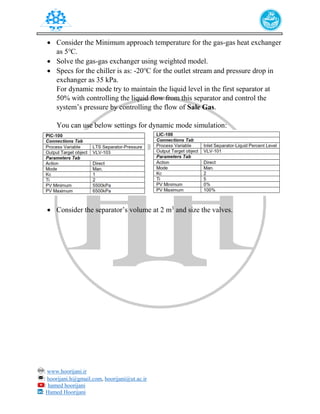
 Consider the Minimum approach temperature for the gas-gas heat exchanger
as 5℃.
 Solve the gas-gas exchanger using weighted model.
 Specs for the chiller is as: -20℃ for the outlet stream and pressure drop in
exchanger as 35 kPa.
For dynamic mode try to maintain the liquid level in the first separator at
50% with controlling the liquid flow from this separator and control the
system’s pressure by controlling the flow of Sale Gas.
You can use below settings for dynamic mode simulation:
 Consider the separator’s volume at 2 m3
and size the valves.
: www.hoorijani.ir
: hoorijani.h@gmail.com, hoorijani@ut.ac.ir
: hamed hoorijani
: Hamed Hoorijani
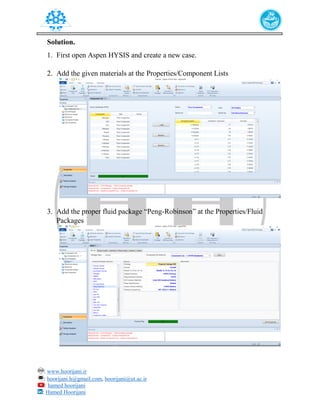
Solution.
1. First open Aspen HYSIS and create a new case.
2. Add the given materials at the Properties/Component Lists
3. Add the proper fluid package “Peng-Robinson” at the Properties/Fluid
Packages
: www.hoorijani.ir
: hoorijani.h@gmail.com, hoorijani@ut.ac.ir
: hamed hoorijani
: Hamed Hoorijani
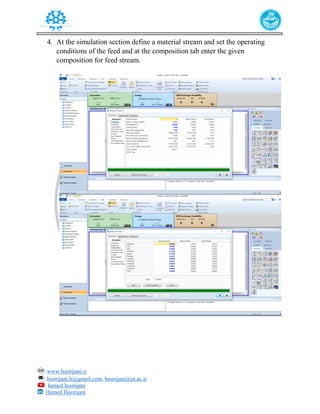
4. At the simulation section define a material stream and set the operating
conditions of the feed and at the composition tab enter the given
composition for feed stream.
: www.hoorijani.ir
: hoorijani.h@gmail.com, hoorijani@ut.ac.ir
: hamed hoorijani
: Hamed Hoorijani
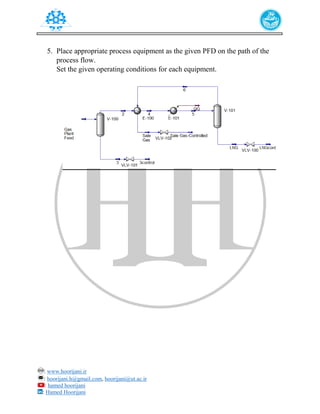
5. Place appropriate process equipment as the given PFD on the path of the
process flow.
Set the given operating conditions for each equipment.
: www.hoorijani.ir
: hoorijani.h@gmail.com, hoorijani@ut.ac.ir
: hamed hoorijani
: Hamed Hoorijani
Separators
V-100 (1st
Separator)
Feed stream: Gas Plant Feed
Gas Product stream: 2 Liquid Product stream: 3
(No need for any specific settings for steady state simulation.)
V-101 (2nd
Separator)
Feed stream: 5
Gas Product stream: 6 Liquid Product stream: LNG
(No need for any specific settings for steady state simulation.)
Heat Exchangers
E-100 (gas-gas heat exchanger)
Tube side inlet stream: 2 Shell side inlet stream: 6
Tube side outlet stream: 4 Shell side outlet stream: Sale
Gas
Tube side pressure drop: 35 kPa Shell side pressure drop: 5 kPa
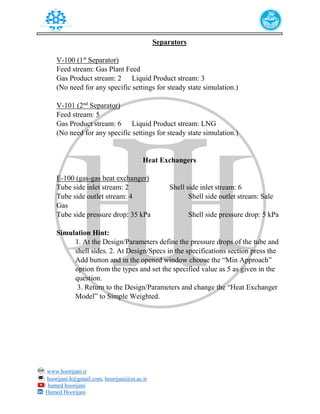
Simulation Hint:
1. At the Design/Parameters define the pressure drops of the tube and
shell sides. 2. At Design/Specs in the specifications section press the
Add button and in the opened window choose the “Min Approach”
option from the types and set the specified value as 5 as given in the
question.
3. Return to the Design/Parameters and change the “Heat Exchanger
Model” to Simple Weighted.
: www.hoorijani.ir
: hoorijani.h@gmail.com, hoorijani@ut.ac.ir
: hamed hoorijani
: Hamed Hoorijani
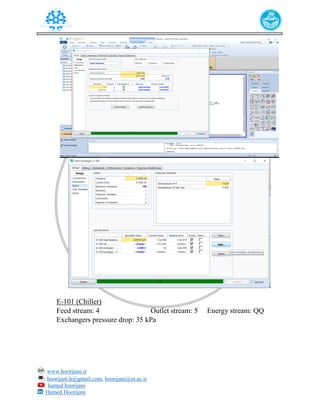
E-101 (Chiller)
Feed stream: 4 Outlet stream: 5 Energy stream: QQ
Exchangers pressure drop: 35 kPa
: www.hoorijani.ir
: hoorijani.h@gmail.com, hoorijani@ut.ac.ir
: hamed hoorijani
: Hamed Hoorijani
Valves
VLV-100, 101, 102
Consider pressure drop for each valve in its process stream as: 5 kPa
Simulation Hint:
As the Aspen HYSIS have backward calculations for solving the
mathematical models there shouldn’t be any problems for getting results
after setting each equipment in the PFD.
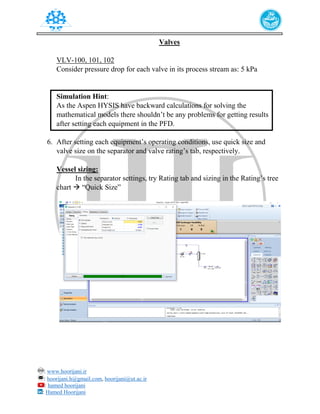
6. After setting each equipment’s operating conditions, use quick size and
valve size on the separator and valve rating’s tab, respectively.
Vessel sizing:
In the separator settings, try Rating tab and sizing in the Rating’s tree
chart  “Quick Size”
: www.hoorijani.ir
: hoorijani.h@gmail.com, hoorijani@ut.ac.ir
: hamed hoorijani
: Hamed Hoorijani
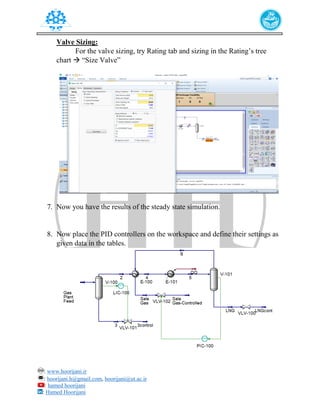
Valve Sizing:
For the valve sizing, try Rating tab and sizing in the Rating’s tree
chart  “Size Valve”
7. Now you have the results of the steady state simulation.
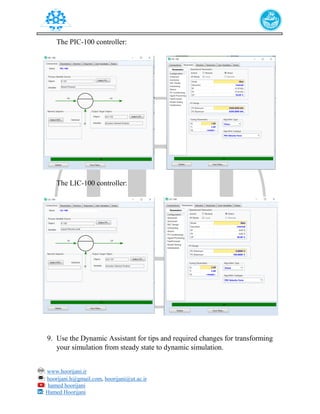
8. Now place the PID controllers on the workspace and define their settings as
given data in the tables.
: www.hoorijani.ir
: hoorijani.h@gmail.com, hoorijani@ut.ac.ir
: hamed hoorijani
: Hamed Hoorijani
The PIC-100 controller:
The LIC-100 controller:
9. Use the Dynamic Assistant for tips and required changes for transforming
your simulation from steady state to dynamic simulation.
: www.hoorijani.ir
: hoorijani.h@gmail.com, hoorijani@ut.ac.ir
: hamed hoorijani
: Hamed Hoorijani
Press the Make Changes on the Dynamic assistant’s window to make that
happens.
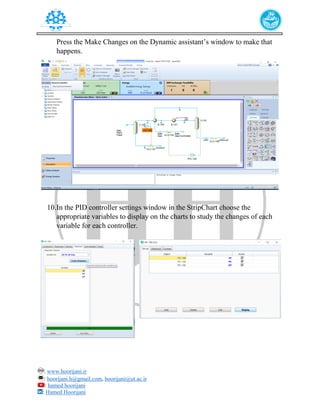
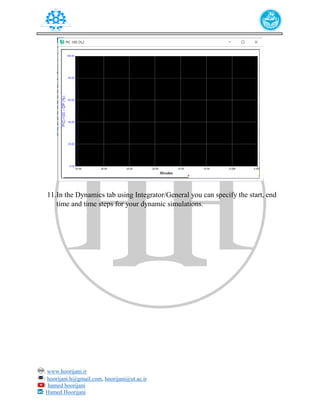
10.In the PID controller settings window in the StripChart choose the
appropriate variables to display on the charts to study the changes of each
variable for each controller.
: www.hoorijani.ir
: hoorijani.h@gmail.com, hoorijani@ut.ac.ir
: hamed hoorijani
: Hamed Hoorijani
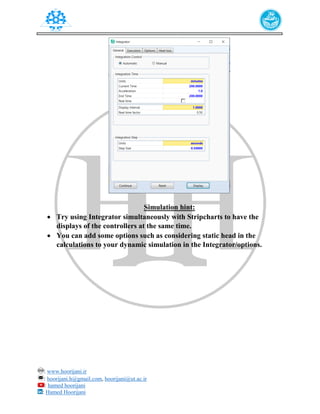
11.In the Dynamics tab using Integrator/General you can specify the start, end
time and time steps for your dynamic simulations.
: www.hoorijani.ir
: hoorijani.h@gmail.com, hoorijani@ut.ac.ir
: hamed hoorijani
: Hamed Hoorijani
Simulation hint:
 Try using Integrator simultaneously with Stripcharts to have the
displays of the controllers at the same time.
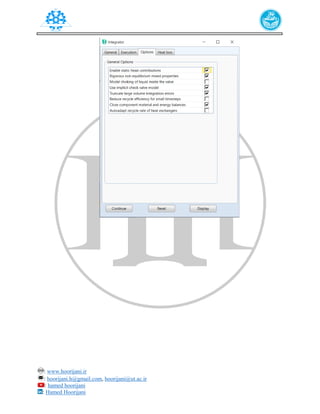
 You can add some options such as considering static head in the
calculations to your dynamic simulation in the Integrator/options.
: www.hoorijani.ir
: hoorijani.h@gmail.com, hoorijani@ut.ac.ir
: hamed hoorijani
: Hamed Hoorijani

Basic Tutorial on Aspen HYSYS Dynamics - Process Control

  • 1.
    : www.hoorijani.ir : hoorijani.h@gmail.com,hoorijani@ut.ac.ir : hamed hoorijani : Hamed Hoorijani Tutorial Aspen HYSIS v8.8- Dynamic mode Dynamic process 1 Author: Hamed Hoorijani
  • 2.
    : www.hoorijani.ir : hoorijani.h@gmail.com,hoorijani@ut.ac.ir : hamed hoorijani : Hamed Hoorijani Tutorial 2. Simulate below gas process in steady state and dynamic using the provided data. Supplementary data: Feed composition: Feed operating condition Proper Fluid Package: Peng-Robinson  Pressure drop for the gas-gas heat exchanger on the tube side is 35 kPa and in shell side 5kPa. Temperature(℃) 0 Pressure(kPa) 6200 Molar Flow(kgmole/h) 1440 Gas Plant Feed Components %Mole N2 0.0066 H2S 0.0003 CO2 0.0003 C1 0.7576 C2 0.1709 C3 0.0413 i-C4 0.0068 n-C4 0.0101 i-C5 0.0028 n-C5 0.0027 C6 0.0006 H2O 0
  • 3.
    : www.hoorijani.ir : hoorijani.h@gmail.com,hoorijani@ut.ac.ir : hamed hoorijani : Hamed Hoorijani  Consider the Minimum approach temperature for the gas-gas heat exchanger as 5℃.  Solve the gas-gas exchanger using weighted model.  Specs for the chiller is as: -20℃ for the outlet stream and pressure drop in exchanger as 35 kPa. For dynamic mode try to maintain the liquid level in the first separator at 50% with controlling the liquid flow from this separator and control the system’s pressure by controlling the flow of Sale Gas. You can use below settings for dynamic mode simulation:  Consider the separator’s volume at 2 m3 and size the valves.
  • 4.
    : www.hoorijani.ir : hoorijani.h@gmail.com,hoorijani@ut.ac.ir : hamed hoorijani : Hamed Hoorijani Solution. 1. First open Aspen HYSIS and create a new case. 2. Add the given materials at the Properties/Component Lists 3. Add the proper fluid package “Peng-Robinson” at the Properties/Fluid Packages
  • 5.
    : www.hoorijani.ir : hoorijani.h@gmail.com,hoorijani@ut.ac.ir : hamed hoorijani : Hamed Hoorijani 4. At the simulation section define a material stream and set the operating conditions of the feed and at the composition tab enter the given composition for feed stream.
  • 6.
    : www.hoorijani.ir : hoorijani.h@gmail.com,hoorijani@ut.ac.ir : hamed hoorijani : Hamed Hoorijani 5. Place appropriate process equipment as the given PFD on the path of the process flow. Set the given operating conditions for each equipment.
  • 7.
    : www.hoorijani.ir : hoorijani.h@gmail.com,hoorijani@ut.ac.ir : hamed hoorijani : Hamed Hoorijani Separators V-100 (1st Separator) Feed stream: Gas Plant Feed Gas Product stream: 2 Liquid Product stream: 3 (No need for any specific settings for steady state simulation.) V-101 (2nd Separator) Feed stream: 5 Gas Product stream: 6 Liquid Product stream: LNG (No need for any specific settings for steady state simulation.) Heat Exchangers E-100 (gas-gas heat exchanger) Tube side inlet stream: 2 Shell side inlet stream: 6 Tube side outlet stream: 4 Shell side outlet stream: Sale Gas Tube side pressure drop: 35 kPa Shell side pressure drop: 5 kPa Simulation Hint: 1. At the Design/Parameters define the pressure drops of the tube and shell sides. 2. At Design/Specs in the specifications section press the Add button and in the opened window choose the “Min Approach” option from the types and set the specified value as 5 as given in the question. 3. Return to the Design/Parameters and change the “Heat Exchanger Model” to Simple Weighted.
  • 8.
    : www.hoorijani.ir : hoorijani.h@gmail.com,hoorijani@ut.ac.ir : hamed hoorijani : Hamed Hoorijani E-101 (Chiller) Feed stream: 4 Outlet stream: 5 Energy stream: QQ Exchangers pressure drop: 35 kPa
  • 9.
    : www.hoorijani.ir : hoorijani.h@gmail.com,hoorijani@ut.ac.ir : hamed hoorijani : Hamed Hoorijani Valves VLV-100, 101, 102 Consider pressure drop for each valve in its process stream as: 5 kPa Simulation Hint: As the Aspen HYSIS have backward calculations for solving the mathematical models there shouldn’t be any problems for getting results after setting each equipment in the PFD. 6. After setting each equipment’s operating conditions, use quick size and valve size on the separator and valve rating’s tab, respectively. Vessel sizing: In the separator settings, try Rating tab and sizing in the Rating’s tree chart  “Quick Size”
  • 10.
    : www.hoorijani.ir : hoorijani.h@gmail.com,hoorijani@ut.ac.ir : hamed hoorijani : Hamed Hoorijani Valve Sizing: For the valve sizing, try Rating tab and sizing in the Rating’s tree chart  “Size Valve” 7. Now you have the results of the steady state simulation. 8. Now place the PID controllers on the workspace and define their settings as given data in the tables.
  • 11.
    : www.hoorijani.ir : hoorijani.h@gmail.com,hoorijani@ut.ac.ir : hamed hoorijani : Hamed Hoorijani The PIC-100 controller: The LIC-100 controller: 9. Use the Dynamic Assistant for tips and required changes for transforming your simulation from steady state to dynamic simulation.
  • 12.
    : www.hoorijani.ir : hoorijani.h@gmail.com,hoorijani@ut.ac.ir : hamed hoorijani : Hamed Hoorijani Press the Make Changes on the Dynamic assistant’s window to make that happens. 10.In the PID controller settings window in the StripChart choose the appropriate variables to display on the charts to study the changes of each variable for each controller.
  • 13.
    : www.hoorijani.ir : hoorijani.h@gmail.com,hoorijani@ut.ac.ir : hamed hoorijani : Hamed Hoorijani 11.In the Dynamics tab using Integrator/General you can specify the start, end time and time steps for your dynamic simulations.
  • 14.
    : www.hoorijani.ir : hoorijani.h@gmail.com,hoorijani@ut.ac.ir : hamed hoorijani : Hamed Hoorijani Simulation hint:  Try using Integrator simultaneously with Stripcharts to have the displays of the controllers at the same time.  You can add some options such as considering static head in the calculations to your dynamic simulation in the Integrator/options.
  • 15.
    : www.hoorijani.ir : hoorijani.h@gmail.com,hoorijani@ut.ac.ir : hamed hoorijani : Hamed Hoorijani