Basic Formatting
Basic Formatting
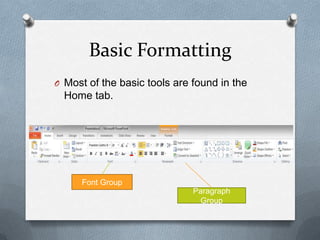
O Most of the basic tools are found in the
  Home tab.


     Font Group
                              Paragraph
                               Group
Using fonts and sizes
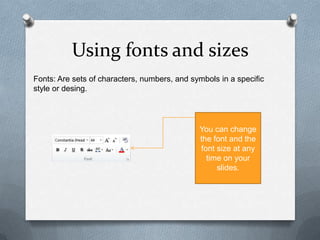
Fonts: Are sets of characters, numbers, and symbols in a specific
style or desing.


                                              You can change
                                              the font and the
                                              font size at any
                                                time on your
                                                   slides.
Using autofit to change size
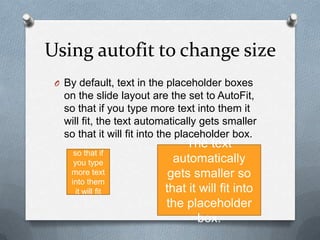
 O By default, text in the placeholder boxes
   on the slide layout are the set to AutoFit,
   so that if you type more text into them it
   will fit, the text automatically gets smaller
   so that it will fit into the placeholder box.
                              The text
     so that if
     you type               automatically
    more text              gets smaller so
    into them
      it will fit         that it will fit into
                          the placeholder
                                  box.
Changing Font Color
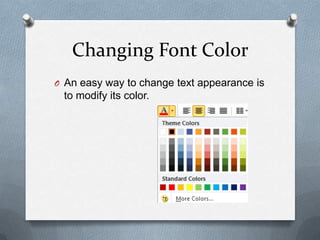
O An easy way to change text appearance is
 to modify its color.
Applying Font Styles and
          Effects
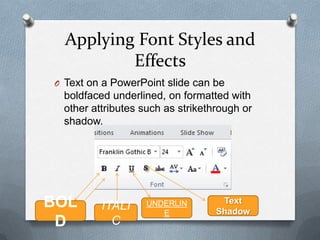
O Text on a PowerPoint slide can be
 boldfaced underlined, on formatted with
 other attributes such as strikethrough or
 shadow.


BOL      ITALI    UNDERLIN         Text
                                  Shadow
                     E
 D         C
Copying Character Formats
 with the Format Painter
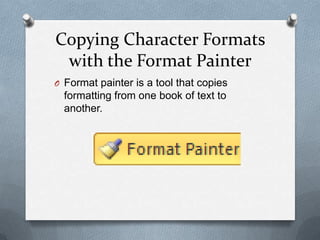
O Format painter is a tool that copies
  formatting from one book of text to
  another.
Set Indentation
O Indentation controls the horizontal spacing
  of a paragraph, much as line spacing
  controls its vertical spacing.
O Determines how far from the text box´s
  left and right margins the text appears.
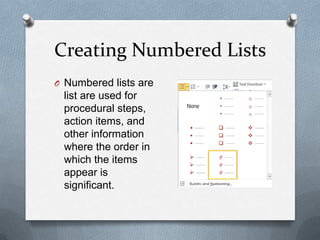
Creating Numbered Lists
O Numbered lists are
 list are used for
 procedural steps,
 action items, and
 other information
 where the order in
 which the items
 appear is
 significant.
Inserting a WordArt Graphic
O You can change the style from the
 WordArt gallery, you can modify the fill or
 the outline, or you can apply a number of
 interesting special effects. You can also
 modify the text of the graphic at any time.
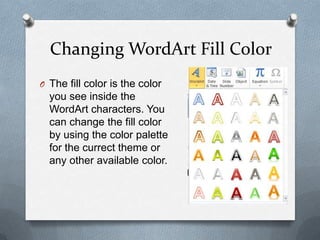
Changing WordArt Fill Color
O The fill color is the color
  you see inside the
  WordArt characters. You
  can change the fill color
  by using the color palette
  for the currect theme or
  any other available color.
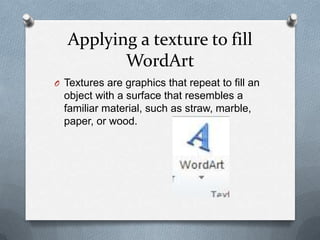
Applying a texture to fill
         WordArt
O Textures are graphics that repeat to fill an
  object with a surface that resembles a
  familiar material, such as straw, marble,
  paper, or wood.
Changing WordArt outline
         color
O You can change the outline color to texts
  you´ve made with Word Art.
Applying special effects to
         WordArt
O You can apply special effects to your
  WordArt objects, such as shadows,
  reflections, glows and more.
Formatting text with WordArt
           Styles
 O You can apply Word Art styles to any texts
   in a slide.

 O Text fill
 O Text outline
 O Text Effects
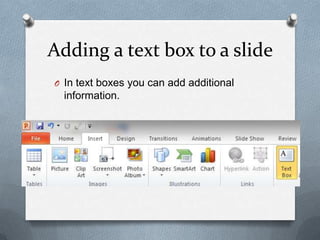
Adding a text box to a slide
O In text boxes you can add additional
  information.
Resizing a Text Box
Text boxes can be resized to make room for
the addition of the other text boxes or objects.
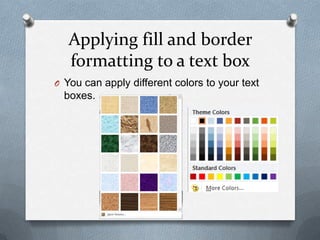
Applying fill and border
   formatting to a text box
O You can apply different colors to your text
  boxes.
Applying special fills to a text
            box


O You can fill using gradients, patterns,
  textures, and pictures to create special
  effect.
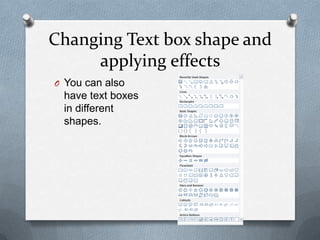
Changing Text box shape and
     applying effects
O You can also
 have text boxes
 in different
 shapes.
Changing the default
formatting for new text boxes
O If you are going to create lots of text
  boxes in a presentation.
O One way is to redefine the default for new
  text boxes to match your desire settings.
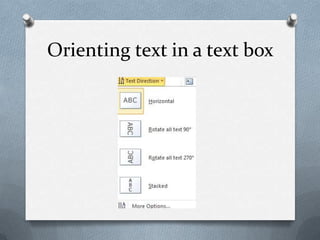
Orienting text in a text box
Setting the margins in a text
            box
O Power point enables you to set margins in
 a text box.
Changing the text wrap setting
       for a text box
 O Depending on the type of text box and the
  way it was created, it may or may not be
  set to wrap the text automatically to the
  next line when the right margin is reached.
Aligning text boxes on a slide
O You can align everything on the slide
  specially the textboxes.
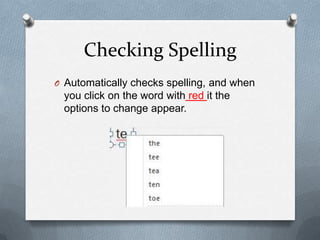
Checking Spelling
O Automatically checks spelling, and when
 you click on the word with red it the
 options to change appear.
Using the Thesaurus
O Is a reference book or utility that offers
  suggestions for words that are similar in
  meaning to the word you are looking up
  (Pritt, glue stick) or that the opposite in
  meaning (Black, white)

Basic formatting

  • 1.
  • 2.
    Basic Formatting O Mostof the basic tools are found in the Home tab. Font Group Paragraph Group
  • 3.
    Using fonts andsizes Fonts: Are sets of characters, numbers, and symbols in a specific style or desing. You can change the font and the font size at any time on your slides.
  • 4.
    Using autofit tochange size O By default, text in the placeholder boxes on the slide layout are the set to AutoFit, so that if you type more text into them it will fit, the text automatically gets smaller so that it will fit into the placeholder box. The text so that if you type automatically more text gets smaller so into them it will fit that it will fit into the placeholder box.
  • 5.
    Changing Font Color OAn easy way to change text appearance is to modify its color.
  • 6.
    Applying Font Stylesand Effects O Text on a PowerPoint slide can be boldfaced underlined, on formatted with other attributes such as strikethrough or shadow. BOL ITALI UNDERLIN Text Shadow E D C
  • 7.
    Copying Character Formats with the Format Painter O Format painter is a tool that copies formatting from one book of text to another.
  • 8.
    Set Indentation O Indentationcontrols the horizontal spacing of a paragraph, much as line spacing controls its vertical spacing. O Determines how far from the text box´s left and right margins the text appears.
  • 9.
    Creating Numbered Lists ONumbered lists are list are used for procedural steps, action items, and other information where the order in which the items appear is significant.
  • 10.
    Inserting a WordArtGraphic O You can change the style from the WordArt gallery, you can modify the fill or the outline, or you can apply a number of interesting special effects. You can also modify the text of the graphic at any time.
  • 11.
    Changing WordArt FillColor O The fill color is the color you see inside the WordArt characters. You can change the fill color by using the color palette for the currect theme or any other available color.
  • 12.
    Applying a textureto fill WordArt O Textures are graphics that repeat to fill an object with a surface that resembles a familiar material, such as straw, marble, paper, or wood.
  • 13.
    Changing WordArt outline color O You can change the outline color to texts you´ve made with Word Art.
  • 14.
    Applying special effectsto WordArt O You can apply special effects to your WordArt objects, such as shadows, reflections, glows and more.
  • 15.
    Formatting text withWordArt Styles O You can apply Word Art styles to any texts in a slide. O Text fill O Text outline O Text Effects
  • 16.
    Adding a textbox to a slide O In text boxes you can add additional information.
  • 17.
    Resizing a TextBox Text boxes can be resized to make room for the addition of the other text boxes or objects.
  • 18.
    Applying fill andborder formatting to a text box O You can apply different colors to your text boxes.
  • 19.
    Applying special fillsto a text box O You can fill using gradients, patterns, textures, and pictures to create special effect.
  • 20.
    Changing Text boxshape and applying effects O You can also have text boxes in different shapes.
  • 21.
    Changing the default formattingfor new text boxes O If you are going to create lots of text boxes in a presentation. O One way is to redefine the default for new text boxes to match your desire settings.
  • 22.
  • 23.
    Setting the marginsin a text box O Power point enables you to set margins in a text box.
  • 24.
    Changing the textwrap setting for a text box O Depending on the type of text box and the way it was created, it may or may not be set to wrap the text automatically to the next line when the right margin is reached.
  • 25.
    Aligning text boxeson a slide O You can align everything on the slide specially the textboxes.
  • 26.
    Checking Spelling O Automaticallychecks spelling, and when you click on the word with red it the options to change appear.
  • 27.
    Using the Thesaurus OIs a reference book or utility that offers suggestions for words that are similar in meaning to the word you are looking up (Pritt, glue stick) or that the opposite in meaning (Black, white)