Valeria Llanderal #19 8ª
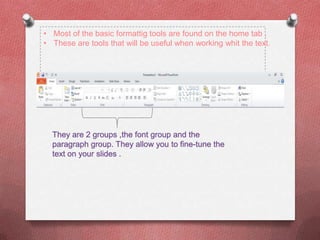
• Most of the basic formattig tools are found on the home tab .
• These are tools that will be useful when working whit the text.
Choosing font
 and font sizes
O Fonts are sets of characters ,numbers,and symbols in a
  specific style or design .
O They are two fonts .one font for the headings and one for
  the body text. These font choices are result of the theme
O The theme :is a set of formatting specifications ,including
  colors ,fonts ,graphic effects and slide layouts available.

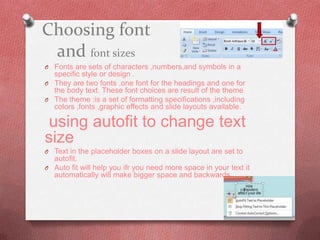
 using autofit to change text
size
O Text in the placeholder boxes on a slide layout are set to
  autofit.
O Auto fit will help you ifr you need more space in your text it
  automatically will make bigger space and backwards .
Applying font sizes and effects

O Use font size and effects to emphasize text on a slide .

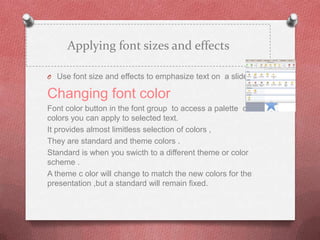
Changing font color
Font color button in the font group to access a palette of
colors you can apply to selected text.
It provides almost limitless selection of colors ,
They are standard and theme colors .
Standard is when you swicth to a different theme or color
scheme .
A theme c olor will change to match the new colors for the
presentation ,but a standard will remain fixed.
Copying character formats
 whit the format painter
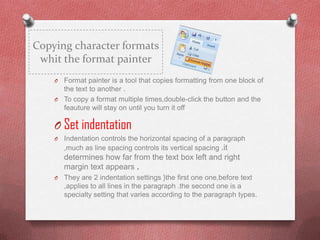
    O Format painter is a tool that copies formatting from one block of
      the text to another .
    O To copy a format multiple times,double-click the button and the
      feauture will stay on until you turn it off

    O Set indentation
    O   Indentation controls the horizontal spacing of a paragraph
        ,much as line spacing controls its vertical spacing .it
        determines how far from the text box left and right
        margin text appears .
    O   They are 2 indentation settings }the first one one,before text
        ,applies to all lines in the paragraph .the second one is a
        specialty setting that varies according to the paragraph types.
Creating no. list
O Powerpoint enables you to create numberedd list to
    place a list in numeric order.


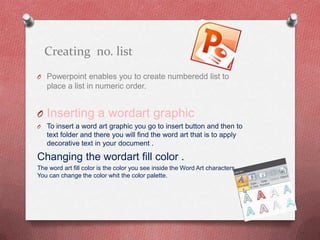
O Inserting a wordart graphic
O   To insert a word art graphic you go to insert button and then to
    text folder and there you will find the word art that is to apply
    decorative text in your document .

Changing the wordart fill color .
The word art fill color is the color you see inside the Word Art characters .
You can change the color whit the color palette.
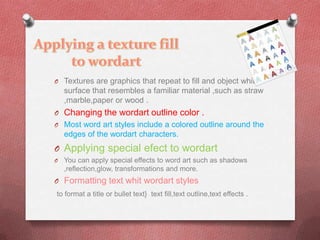
O Textures are graphics that repeat to fill and object whit a
    surface that resembles a familiar material ,such as straw
    ,marble,paper or wood .
O Changing the wordart outline color .
O Most word art styles include a colored outline around the
    edges of the wordart characters.
O Applying special efect to wordart
O   You can apply special effects to word art such as shadows
    ,reflection,glow, transformations and more.
O Formatting text whit wordart styles
to format a title or bullet text} text fill,text outline,text effects .
Adding a text box
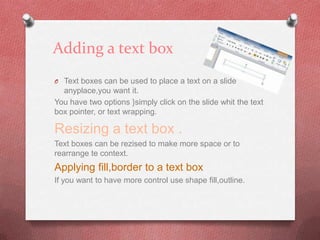
O Text boxes can be used to place a text on a slide
  anyplace,you want it.
You have two options }simply click on the slide whit the text
box pointer, or text wrapping.

Resizing a text box .
Text boxes can be rezised to make more space or to
rearrange te context.
Applying fill,border to a text box
If you want to have more control use shape fill,outline.
Applying special
fills to a text box
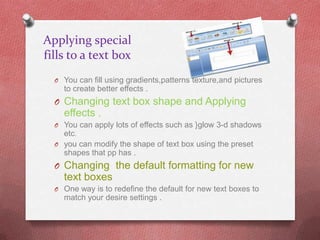
  O You can fill using gradients,patterns texture,and pictures
    to create better effects .
  O Changing text box shape and Applying
    effects .
  O You can apply lots of effects such as }glow 3-d shadows
    etc.
  O you can modify the shape of text box using the preset
    shapes that pp has .
  O Changing the default formatting for new
    text boxes
  O One way is to redefine the default for new text boxes to
    match your desire settings .
Orienting text in
   a text box
 O You can change the text direction ,you can change it by
   rotating the text box itself .
 O Setting the margings in a text box
 O Margins control the distance between text and outer
   border.
 O Changing text grap setting
 O Depending on the type of text boxand the way is created
   it may be not set to wrap the text automatically .
 O Aligning text boxes
 O In addition you can align the text box itself whit other
   objects on the slide .
Checking
 spelling
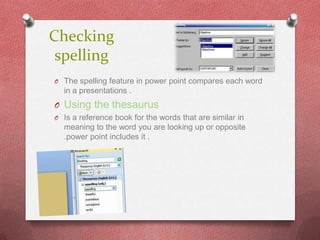
O The spelling feature in power point compares each word
  in a presentations .
O Using the thesaurus
O Is a reference book for the words that are similar in
  meaning to the word you are looking up or opposite
  .power point includes it .

Basic formatting

  • 1.
  • 2.
    • Most ofthe basic formattig tools are found on the home tab . • These are tools that will be useful when working whit the text.
  • 3.
    Choosing font andfont sizes O Fonts are sets of characters ,numbers,and symbols in a specific style or design . O They are two fonts .one font for the headings and one for the body text. These font choices are result of the theme O The theme :is a set of formatting specifications ,including colors ,fonts ,graphic effects and slide layouts available. using autofit to change text size O Text in the placeholder boxes on a slide layout are set to autofit. O Auto fit will help you ifr you need more space in your text it automatically will make bigger space and backwards .
  • 4.
    Applying font sizesand effects O Use font size and effects to emphasize text on a slide . Changing font color Font color button in the font group to access a palette of colors you can apply to selected text. It provides almost limitless selection of colors , They are standard and theme colors . Standard is when you swicth to a different theme or color scheme . A theme c olor will change to match the new colors for the presentation ,but a standard will remain fixed.
  • 5.
    Copying character formats whit the format painter O Format painter is a tool that copies formatting from one block of the text to another . O To copy a format multiple times,double-click the button and the feauture will stay on until you turn it off O Set indentation O Indentation controls the horizontal spacing of a paragraph ,much as line spacing controls its vertical spacing .it determines how far from the text box left and right margin text appears . O They are 2 indentation settings }the first one one,before text ,applies to all lines in the paragraph .the second one is a specialty setting that varies according to the paragraph types.
  • 6.
    Creating no. list OPowerpoint enables you to create numberedd list to place a list in numeric order. O Inserting a wordart graphic O To insert a word art graphic you go to insert button and then to text folder and there you will find the word art that is to apply decorative text in your document . Changing the wordart fill color . The word art fill color is the color you see inside the Word Art characters . You can change the color whit the color palette.
  • 7.
    O Textures aregraphics that repeat to fill and object whit a surface that resembles a familiar material ,such as straw ,marble,paper or wood . O Changing the wordart outline color . O Most word art styles include a colored outline around the edges of the wordart characters. O Applying special efect to wordart O You can apply special effects to word art such as shadows ,reflection,glow, transformations and more. O Formatting text whit wordart styles to format a title or bullet text} text fill,text outline,text effects .
  • 8.
    Adding a textbox O Text boxes can be used to place a text on a slide anyplace,you want it. You have two options }simply click on the slide whit the text box pointer, or text wrapping. Resizing a text box . Text boxes can be rezised to make more space or to rearrange te context. Applying fill,border to a text box If you want to have more control use shape fill,outline.
  • 9.
    Applying special fills toa text box O You can fill using gradients,patterns texture,and pictures to create better effects . O Changing text box shape and Applying effects . O You can apply lots of effects such as }glow 3-d shadows etc. O you can modify the shape of text box using the preset shapes that pp has . O Changing the default formatting for new text boxes O One way is to redefine the default for new text boxes to match your desire settings .
  • 10.
    Orienting text in a text box O You can change the text direction ,you can change it by rotating the text box itself . O Setting the margings in a text box O Margins control the distance between text and outer border. O Changing text grap setting O Depending on the type of text boxand the way is created it may be not set to wrap the text automatically . O Aligning text boxes O In addition you can align the text box itself whit other objects on the slide .
  • 11.
    Checking spelling O Thespelling feature in power point compares each word in a presentations . O Using the thesaurus O Is a reference book for the words that are similar in meaning to the word you are looking up or opposite .power point includes it .