Michelle Brunell 8°A #2
Microsoft PowerPoint Basic
  Text Formatting Tools
 O Power Point´s basic text formatting tools
   are fond on the Home tab of the Ribbon.
 O There are two groups of text formatting:
 O The Font group and the Paragraph group.
Formatting Characters
O The term formatting refers to the
  appearance of text or objects on a slide.
O All PowerPoint presentations are
  formatted with specifics fonts, font sizes,
  and font attributes such as style and color.
O The format Painter can save you time by
  allowing you to copy formats from
  selected text to other items.
Choosing Font Size
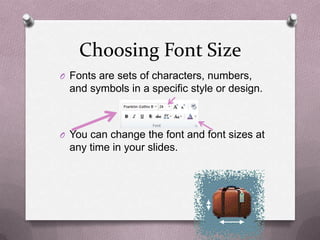
O Fonts are sets of characters, numbers,
  and symbols in a specific style or design.


O You can change the font and font sizes at
  any time in your slides.
Using Autofit to change Text
           size.
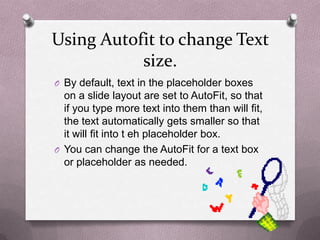
O By default, text in the placeholder boxes
  on a slide layout are set to AutoFit, so that
  if you type more text into them than will fit,
  the text automatically gets smaller so that
  it will fit into t eh placeholder box.
O You can change the AutoFit for a text box
  or placeholder as needed.
Applying Font Styles And
          Effects
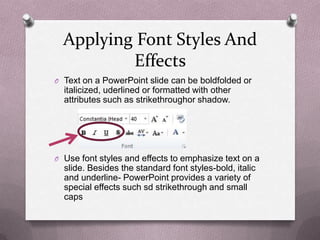
O Text on a PowerPoint slide can be boldfolded or
  italicized, uderlined or formatted with other
  attributes such as strikethroughor shadow.


O Use font styles and effects to emphasize text on a
  slide. Besides the standard font styles-bold, italic
  and underline- PowerPoint provides a variety of
  special effects such sd strikethrough and small
  caps
Changing Font Color
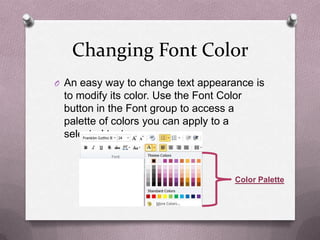
O An easy way to change text appearance is
 to modify its color. Use the Font Color
 button in the Font group to access a
 palette of colors you can apply to a
 selected text.


                                      Color Palette
Copying Character Formats
 With The Format Painter.
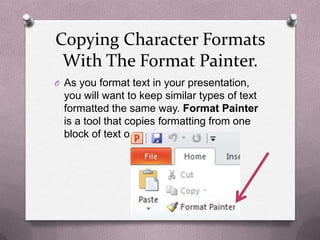
O As you format text in your presentation,
  you will want to keep similar types of text
  formatted the same way. Format Painter
  is a tool that copies formatting from one
  block of text o another.
Set Indentation
O Indentation controls the horizontal spacing of a
    paragraph, much as line spacing controls its vertical
    spacing. Indentation determines how far from the text
    box´s left and right margins the text appears.
O   There are two indentation settings. The first one, Before
    Text, applies to all lines in the paragraph. The second
    one is a specially setting that varies according to the
    paragraph type:
O   Hanging
O   First line
O   (none)
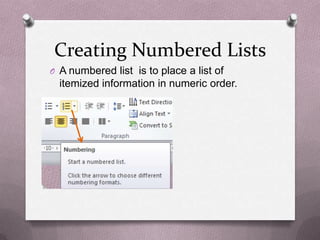
Creating Numbered Lists
O A numbered list is to place a list of
  itemized information in numeric order.
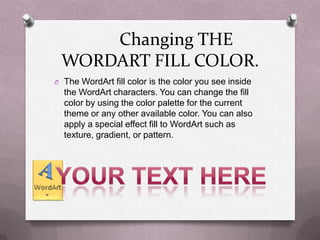
Changing THE
 WORDART FILL COLOR.
O The WordArt fill color is the color you see inside
  the WordArt characters. You can change the fill
  color by using the color palette for the current
  theme or any other available color. You can also
  apply a special effect fill to WordArt such as
  texture, gradient, or pattern.
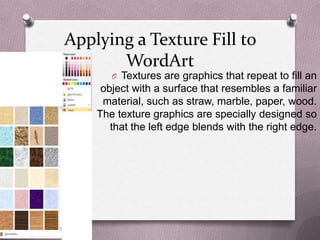
Applying a Texture Fill to
       WordArt
       O Textures are graphics that repeat to fill an
     object with a surface that resembles a familiar
     material, such as straw, marble, paper, wood.
    The texture graphics are specially designed so
       that the left edge blends with the right edge.
CHANGING WORDART
    OUTLINE COLOR
O Most WordArt styles include a colored
 outline around the edges of the WordArt
 characters. Just as with a WordArt
 object´s fill color, you can fine-tune the
 outline color of the object
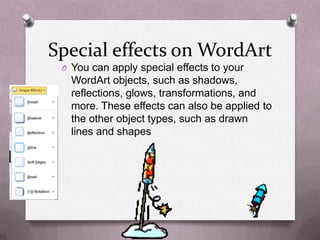
Special effects on WordArt
 O You can apply special effects to your
   WordArt objects, such as shadows,
   reflections, glows, transformations, and
   more. These effects can also be applied to
   the other object types, such as drawn
   lines and shapes
Formatting text with word art
           styles
O You do not have to insert a WordArt
  graphic to use the WordArt styles. You can
  apply WordArt styles to any text in a slide.
  Applying WordArt styles to regular text in
  a presentation is an additional way to
  format the text to customize the
  presentation.
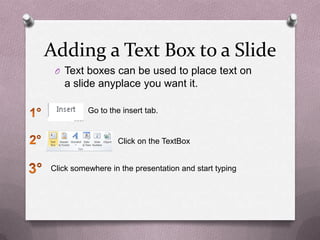
Adding a Text Box to a Slide
 O Text boxes can be used to place text on
   a slide anyplace you want it.

          Go to the insert tab.


                  Click on the TextBox


Click somewhere in the presentation and start typing
Resizing a Text Box
O Text boxes can be resized to make room
 for the addition of other text boxes or
 objects or to rearrange a text box’s
 contents.
Applying fill and border
   formatting to a text box
O If you want more control over formatting
  applied to a text box, you can use the
  Shape Fill and Shape Outline tools to set
  the formatting for a text box on your own.
Apply special fills to a Text
           Box.
O      You are not limited to plain solid
  colors fo text box fills. You can fill using
  gradients, patterns, textures, and pictures
  to create interesting special effects.
O You can choose from several preset color
  combinations in the Format Shape dialog
  box, or create your own color
  combinations.
Applying texture and Pattern
            Fills
O Texture and pattern fills are alternatives to
  plain colored fills. A texture fill repeats a
  small graphic to fill the area; texture
  graphics are specially designed so that
  the edges blend together and it looks like
  a single graphic
Changing text box shape and
     applying effects.
O You can apply the same special effects to
  text boxes as you can to WordArt, drawn
  shapes, and other objects. These special
  effects include reflection, glow, 3-D
  effects, shadows, soft edges and
  believing.
Changing the Default
Formatting for news text boxes.
 O If you are going to create lots of text
   boxes in a presentation, there are ways
   you can save time in formatting them.
Orienting Text in a text box.
 O You can change the text direction in a
   atext box so that text runs from bottom to
   top or stacks one letter atop the other.
   This can make text in the text box more
   visually interesting.
 O Orientating text boxes can be a design
   enhancement for your slides for example,
   you might create a text box that includes
   your company name in it.
Setting the margins in a text
            box .
O PowerPoint enables you to set the
 margins in a text box. Margins control the
 distane between the text and the outer
 border of the text box.
Changing the text wrap setting
       for a text box.
 O Depending in the type of text box and the
   way i9t was created, it may or may not be
   set to wrap the text automatically to the
   next line when the right margin is reached.
Aligning text boxes on a slide.
 O In addition to aligning the text within a text
   box, you can align the text box itself with
   other objects on the slide, including other
   text boxes, Doing so ensures that the
   items on a slide align precisely and neatly
   with one another when it is appropriate for
   them to do so.
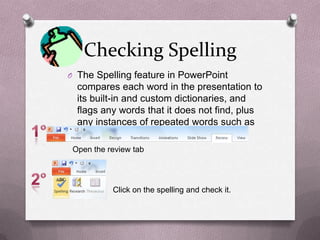
Checking Spelling
O The Spelling feature in PowerPoint
  compares each word in the presentation to
  its built-in and custom dictionaries, and
  flags any words that it does not find, plus
  any instances of repeated words such as
  the the.
 Open the review tab


           Click on the spelling and check it.
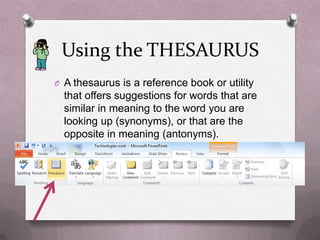
Using the THESAURUS
O A thesaurus is a reference book or utility
  that offers suggestions for words that are
  similar in meaning to the word you are
  looking up (synonyms), or that are the
  opposite in meaning (antonyms).
Technologies work

Technologies work

  • 1.
  • 2.
    Microsoft PowerPoint Basic Text Formatting Tools O Power Point´s basic text formatting tools are fond on the Home tab of the Ribbon. O There are two groups of text formatting: O The Font group and the Paragraph group.
  • 3.
    Formatting Characters O Theterm formatting refers to the appearance of text or objects on a slide. O All PowerPoint presentations are formatted with specifics fonts, font sizes, and font attributes such as style and color. O The format Painter can save you time by allowing you to copy formats from selected text to other items.
  • 4.
    Choosing Font Size OFonts are sets of characters, numbers, and symbols in a specific style or design. O You can change the font and font sizes at any time in your slides.
  • 5.
    Using Autofit tochange Text size. O By default, text in the placeholder boxes on a slide layout are set to AutoFit, so that if you type more text into them than will fit, the text automatically gets smaller so that it will fit into t eh placeholder box. O You can change the AutoFit for a text box or placeholder as needed.
  • 6.
    Applying Font StylesAnd Effects O Text on a PowerPoint slide can be boldfolded or italicized, uderlined or formatted with other attributes such as strikethroughor shadow. O Use font styles and effects to emphasize text on a slide. Besides the standard font styles-bold, italic and underline- PowerPoint provides a variety of special effects such sd strikethrough and small caps
  • 7.
    Changing Font Color OAn easy way to change text appearance is to modify its color. Use the Font Color button in the Font group to access a palette of colors you can apply to a selected text. Color Palette
  • 8.
    Copying Character Formats With The Format Painter. O As you format text in your presentation, you will want to keep similar types of text formatted the same way. Format Painter is a tool that copies formatting from one block of text o another.
  • 9.
    Set Indentation O Indentationcontrols the horizontal spacing of a paragraph, much as line spacing controls its vertical spacing. Indentation determines how far from the text box´s left and right margins the text appears. O There are two indentation settings. The first one, Before Text, applies to all lines in the paragraph. The second one is a specially setting that varies according to the paragraph type: O Hanging O First line O (none)
  • 10.
    Creating Numbered Lists OA numbered list is to place a list of itemized information in numeric order.
  • 11.
    Changing THE WORDARTFILL COLOR. O The WordArt fill color is the color you see inside the WordArt characters. You can change the fill color by using the color palette for the current theme or any other available color. You can also apply a special effect fill to WordArt such as texture, gradient, or pattern.
  • 12.
    Applying a TextureFill to WordArt O Textures are graphics that repeat to fill an object with a surface that resembles a familiar material, such as straw, marble, paper, wood. The texture graphics are specially designed so that the left edge blends with the right edge.
  • 13.
    CHANGING WORDART OUTLINE COLOR O Most WordArt styles include a colored outline around the edges of the WordArt characters. Just as with a WordArt object´s fill color, you can fine-tune the outline color of the object
  • 14.
    Special effects onWordArt O You can apply special effects to your WordArt objects, such as shadows, reflections, glows, transformations, and more. These effects can also be applied to the other object types, such as drawn lines and shapes
  • 15.
    Formatting text withword art styles O You do not have to insert a WordArt graphic to use the WordArt styles. You can apply WordArt styles to any text in a slide. Applying WordArt styles to regular text in a presentation is an additional way to format the text to customize the presentation.
  • 16.
    Adding a TextBox to a Slide O Text boxes can be used to place text on a slide anyplace you want it. Go to the insert tab. Click on the TextBox Click somewhere in the presentation and start typing
  • 17.
    Resizing a TextBox O Text boxes can be resized to make room for the addition of other text boxes or objects or to rearrange a text box’s contents.
  • 18.
    Applying fill andborder formatting to a text box O If you want more control over formatting applied to a text box, you can use the Shape Fill and Shape Outline tools to set the formatting for a text box on your own.
  • 19.
    Apply special fillsto a Text Box. O You are not limited to plain solid colors fo text box fills. You can fill using gradients, patterns, textures, and pictures to create interesting special effects. O You can choose from several preset color combinations in the Format Shape dialog box, or create your own color combinations.
  • 20.
    Applying texture andPattern Fills O Texture and pattern fills are alternatives to plain colored fills. A texture fill repeats a small graphic to fill the area; texture graphics are specially designed so that the edges blend together and it looks like a single graphic
  • 21.
    Changing text boxshape and applying effects. O You can apply the same special effects to text boxes as you can to WordArt, drawn shapes, and other objects. These special effects include reflection, glow, 3-D effects, shadows, soft edges and believing.
  • 22.
    Changing the Default Formattingfor news text boxes. O If you are going to create lots of text boxes in a presentation, there are ways you can save time in formatting them.
  • 23.
    Orienting Text ina text box. O You can change the text direction in a atext box so that text runs from bottom to top or stacks one letter atop the other. This can make text in the text box more visually interesting. O Orientating text boxes can be a design enhancement for your slides for example, you might create a text box that includes your company name in it.
  • 24.
    Setting the marginsin a text box . O PowerPoint enables you to set the margins in a text box. Margins control the distane between the text and the outer border of the text box.
  • 25.
    Changing the textwrap setting for a text box. O Depending in the type of text box and the way i9t was created, it may or may not be set to wrap the text automatically to the next line when the right margin is reached.
  • 26.
    Aligning text boxeson a slide. O In addition to aligning the text within a text box, you can align the text box itself with other objects on the slide, including other text boxes, Doing so ensures that the items on a slide align precisely and neatly with one another when it is appropriate for them to do so.
  • 27.
    Checking Spelling O TheSpelling feature in PowerPoint compares each word in the presentation to its built-in and custom dictionaries, and flags any words that it does not find, plus any instances of repeated words such as the the. Open the review tab Click on the spelling and check it.
  • 28.
    Using the THESAURUS OA thesaurus is a reference book or utility that offers suggestions for words that are similar in meaning to the word you are looking up (synonyms), or that are the opposite in meaning (antonyms).