The 2 groups
O There are two groups of formatting text
O The font group and the paragraph group
Choosing fonts and font sizes
O Fonts are sets of
  characthers, numbers, and symbols in a
  specific style or design.
Using autofit to change style
O autoFIT, SO that if
  you type more text it
  would automatically
  get smaller so they
  can fit into the
  placeholder box.
Applying effects
O Use font styles and effects to emphasize
  text on a slide. Besides the standard font
  styles-bold,italic, and underline.
Changing font color
O Each powerpoint theme includes a pallete
 of colors if you want to change it you
 could choose a standard color or create a
 custom color.
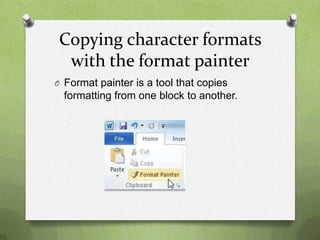
Copying character formats
  with the format painter
O Format painter is a tool that copies
  formatting from one block to another.
Set indentation
O Indentation controls the horizontal spacing
  of the paragraph, much as a line spacing
  controls its vertical spacing.
O hanging: a reverse indent
O First line: a standard indent
O None indent
Creating numbered lists
O Powerpoint enables you to create
 numbered lists to place a list of itemzied
 information in numeric order.
Inserting a wordart graphic
O After you inserted the wordart
  graphic, you can modify the
  style, outline, graphic, or body text.
Changing the wordart fill color
 O The wordart fill
   color is the color
   you see inside the
   wordart.
Aplying a texture fill to
            wordart
O Texture are graphics
 that repeat to fill an
 object with a surface
 that resembles a
 familiar material. Such
 as
 paper, wood, marble,
 or straw.
Changing the wordart outline
           color.
O Most wordart styles
 include a colored
 outline aruond the
 edges you can change
 that.
Applying special effects to
             wordart
1. You can apply
   special effects such
   as
   shadows, reflection
   s, glows,
2. transformations and
   more.
Formatting text with wordart
           styles
O You can use the same features you used
 to format the wordart graphic to format a
 title or bulleted text: text fill, text
 outline,and text effects.
Adding a text box to a slide
O Text box can be used to place text on a
  slide anyplace you want.
Resizing a text box
O Text boxes can be resized to arrange text
  or objects in it.
Applying fill and border
     formatting to a text
O If you want more control over formatting a
  text box, you can use shape fill.
Applying speacial fills to a text
            box
 O You are not limited to place solid colors for
   text box fills.
Applying texture and pattern
            fills
O Texture graphics usually simulates some
 type of texture or pattern.
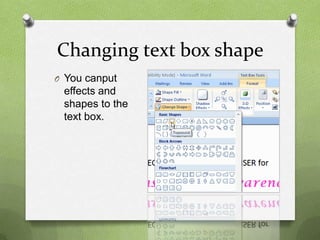
Changing text box shape
O You canput
 effects and
 shapes to the
 text box.
Changing the default
formatting for new text boxes
Orienting text in a text box
O You can change the direction of the text.
Setting the margens in a text
            box
O Margins control the
  distance between
  the text and the
  uoter border of the
  text box.
Text wrap for a text box
O It may or may not wrap the text.
Aligning text boxes on a slide.
 O To get neatness aling the text boxes.
Checking spelling
O It is to check the mispelling words in the
  text of thedialog boxes.

Exam presentation

  • 2.
    The 2 groups OThere are two groups of formatting text O The font group and the paragraph group
  • 3.
    Choosing fonts andfont sizes O Fonts are sets of characthers, numbers, and symbols in a specific style or design.
  • 4.
    Using autofit tochange style O autoFIT, SO that if you type more text it would automatically get smaller so they can fit into the placeholder box.
  • 5.
    Applying effects O Usefont styles and effects to emphasize text on a slide. Besides the standard font styles-bold,italic, and underline.
  • 6.
    Changing font color OEach powerpoint theme includes a pallete of colors if you want to change it you could choose a standard color or create a custom color.
  • 7.
    Copying character formats with the format painter O Format painter is a tool that copies formatting from one block to another.
  • 8.
    Set indentation O Indentationcontrols the horizontal spacing of the paragraph, much as a line spacing controls its vertical spacing. O hanging: a reverse indent O First line: a standard indent O None indent
  • 9.
    Creating numbered lists OPowerpoint enables you to create numbered lists to place a list of itemzied information in numeric order.
  • 10.
    Inserting a wordartgraphic O After you inserted the wordart graphic, you can modify the style, outline, graphic, or body text.
  • 11.
    Changing the wordartfill color O The wordart fill color is the color you see inside the wordart.
  • 12.
    Aplying a texturefill to wordart O Texture are graphics that repeat to fill an object with a surface that resembles a familiar material. Such as paper, wood, marble, or straw.
  • 13.
    Changing the wordartoutline color. O Most wordart styles include a colored outline aruond the edges you can change that.
  • 14.
    Applying special effectsto wordart 1. You can apply special effects such as shadows, reflection s, glows, 2. transformations and more.
  • 15.
    Formatting text withwordart styles O You can use the same features you used to format the wordart graphic to format a title or bulleted text: text fill, text outline,and text effects.
  • 16.
    Adding a textbox to a slide O Text box can be used to place text on a slide anyplace you want.
  • 17.
    Resizing a textbox O Text boxes can be resized to arrange text or objects in it.
  • 18.
    Applying fill andborder formatting to a text O If you want more control over formatting a text box, you can use shape fill.
  • 19.
    Applying speacial fillsto a text box O You are not limited to place solid colors for text box fills.
  • 20.
    Applying texture andpattern fills O Texture graphics usually simulates some type of texture or pattern.
  • 21.
    Changing text boxshape O You canput effects and shapes to the text box.
  • 22.
  • 23.
    Orienting text ina text box O You can change the direction of the text.
  • 24.
    Setting the margensin a text box O Margins control the distance between the text and the uoter border of the text box.
  • 25.
    Text wrap fora text box O It may or may not wrap the text.
  • 26.
    Aligning text boxeson a slide. O To get neatness aling the text boxes.
  • 27.
    Checking spelling O Itis to check the mispelling words in the text of thedialog boxes.