

Microsoft
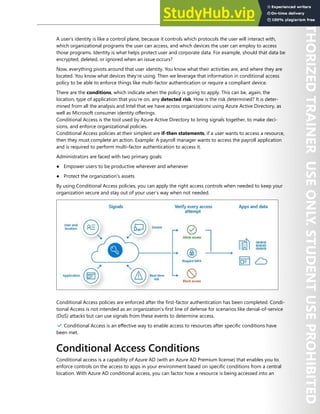
Official
Course
AZ-500T00
Microsoft Azure Security
Technologies
AZ-500T00
Microsoft Azure Security
Technologies
II Disclaimer
Information in this document, including URL and other Internet Web site references, is subject to change
without notice. Unless otherwise noted, the example companies, organizations, products, domain names,
e-mail addresses, logos, people, places, and events depicted herein are fictitious, and no association with
any real company, organization, product, domain name, e-mail address, logo, person, place or event is
intended or should be inferred. Complying with all applicable copyright laws is the responsibility of the
user. Without limiting the rights under copyright, no part of this document may be reproduced, stored in
or introduced into a retrieval system, or transmitted in any form or by any means (electronic, mechanical,
photocopying, recording, or otherwise), or for any purpose, without the express written permission of
Microsoft Corporation.
Microsoft may have patents, patent applications, trademarks, copyrights, or other intellectual property
rights covering subject matter in this document. Except as expressly provided in any written license
agreement from Microsoft, the furnishing of this document does not give you any license to these
patents, trademarks, copyrights, or other intellectual property.
The names of manufacturers, products, or URLs are provided for informational purposes only and
Microsoft makes no representations and warranties, either expressed, implied, or statutory, regarding
these manufacturers or the use of the products with any Microsoft technologies. The inclusion of a
manufacturer or product does not imply endorsement of Microsoft of the manufacturer or product. Links
may be provided to third party sites. Such sites are not under the control of Microsoft and Microsoft is
not responsible for the contents of any linked site or any link contained in a linked site, or any changes or
updates to such sites. Microsoft is not responsible for webcasting or any other form of transmission
received from any linked site. Microsoft is providing these links to you only as a convenience, and the
inclusion of any link does not imply endorsement of Microsoft of the site or the products contained
therein.
© 2019 Microsoft Corporation. All rights reserved.
Microsoft and the trademarks listed at http://www.microsoft.com/trademarks 1
are trademarks of the
Microsoft group of companies. All other trademarks are property of their respective owners.
1 http://www.microsoft.com/trademarks
EULA III
MICROSOFT LICENSE TERMS
MICROSOFT INSTRUCTOR-LED COURSEWARE
These license terms are an agreement between Microsoft Corporation (or based on where you live, one
of its affiliates) and you. Please read them. They apply to your use of the content accompanying this
agreement which includes the media on which you received it, if any. These license terms also apply to
Trainer Content and any updates and supplements for the Licensed Content unless other terms accompa-
ny those items. If so, those terms apply.
BY ACCESSING, DOWNLOADING OR USING THE LICENSED CONTENT, YOU ACCEPT THESE TERMS.
IF YOU DO NOT ACCEPT THEM, DO NOT ACCESS, DOWNLOAD OR USE THE LICENSED CONTENT.
If you comply with these license terms, you have the rights below for each license you acquire.
1. DEFINITIONS.
1. “Authorized Learning Center” means a Microsoft Imagine Academy (MSIA) Program Member,
Microsoft Learning Competency Member, or such other entity as Microsoft may designate from
time to time.
2. “Authorized Training Session” means the instructor-led training class using Microsoft Instruc-
tor-Led Courseware conducted by a Trainer at or through an Authorized Learning Center.
3. “Classroom Device” means one (1) dedicated, secure computer that an Authorized Learning Center
owns or controls that is located at an Authorized Learning Center’s training facilities that meets or
exceeds the hardware level specified for the particular Microsoft Instructor-Led Courseware.
4. “End User” means an individual who is (i) duly enrolled in and attending an Authorized Training
Session or Private Training Session, (ii) an employee of an MPN Member (defined below), or (iii) a
Microsoft full-time employee, a Microsoft Imagine Academy (MSIA) Program Member, or a
Microsoft Learn for Educators – Validated Educator.
5. “Licensed Content” means the content accompanying this agreement which may include the
Microsoft Instructor-Led Courseware or Trainer Content.
6. “Microsoft Certified Trainer” or “MCT” means an individual who is (i) engaged to teach a training
session to End Users on behalf of an Authorized Learning Center or MPN Member, and (ii) current-
ly certified as a Microsoft Certified Trainer under the Microsoft Certification Program.
7. “Microsoft Instructor-Led Courseware” means the Microsoft-branded instructor-led training course
that educates IT professionals, developers, students at an academic institution, and other learners
on Microsoft technologies. A Microsoft Instructor-Led Courseware title may be branded as MOC,
Microsoft Dynamics, or Microsoft Business Group courseware.
8. “Microsoft Imagine Academy (MSIA) Program Member” means an active member of the Microsoft
Imagine Academy Program.
9. “Microsoft Learn for Educators – Validated Educator” means an educator who has been validated
through the Microsoft Learn for Educators program as an active educator at a college, university,
community college, polytechnic or K-12 institution.
10. “Microsoft Learning Competency Member” means an active member of the Microsoft Partner
Network program in good standing that currently holds the Learning Competency status.
11. “MOC” means the “Official Microsoft Learning Product” instructor-led courseware known as
Microsoft Official Course that educates IT professionals, developers, students at an academic
institution, and other learners on Microsoft technologies.
12. “MPN Member” means an active Microsoft Partner Network program member in good standing.
IV EULA
13. “Personal Device” means one (1) personal computer, device, workstation or other digital electronic
device that you personally own or control that meets or exceeds the hardware level specified for
the particular Microsoft Instructor-Led Courseware.
14. “Private Training Session” means the instructor-led training classes provided by MPN Members for
corporate customers to teach a predefined learning objective using Microsoft Instructor-Led
Courseware. These classes are not advertised or promoted to the general public and class attend-
ance is restricted to individuals employed by or contracted by the corporate customer.
15. “Trainer” means (i) an academically accredited educator engaged by a Microsoft Imagine Academy
Program Member to teach an Authorized Training Session, (ii) an academically accredited educator
validated as a Microsoft Learn for Educators – Validated Educator, and/or (iii) a MCT.
16. “Trainer Content” means the trainer version of the Microsoft Instructor-Led Courseware and
additional supplemental content designated solely for Trainers’ use to teach a training session
using the Microsoft Instructor-Led Courseware. Trainer Content may include Microsoft PowerPoint
presentations, trainer preparation guide, train the trainer materials, Microsoft One Note packs,
classroom setup guide and Pre-release course feedback form. To clarify, Trainer Content does not
include any software, virtual hard disks or virtual machines.
2. USE RIGHTS. The Licensed Content is licensed, not sold. The Licensed Content is licensed on a one
copy per user basis, such that you must acquire a license for each individual that accesses or uses the
Licensed Content.
● 2.1 Below are five separate sets of use rights. Only one set of rights apply to you.
1. If you are a Microsoft Imagine Academy (MSIA) Program Member:
1. Each license acquired on behalf of yourself may only be used to review one (1) copy of the
Microsoft Instructor-Led Courseware in the form provided to you. If the Microsoft Instruc-
tor-Led Courseware is in digital format, you may install one (1) copy on up to three (3)
Personal Devices. You may not install the Microsoft Instructor-Led Courseware on a device
you do not own or control.
2. For each license you acquire on behalf of an End User or Trainer, you may either:
1. distribute one (1) hard copy version of the Microsoft Instructor-Led Courseware to one
(1) End User who is enrolled in the Authorized Training Session, and only immediately
prior to the commencement of the Authorized Training Session that is the subject matter
of the Microsoft Instructor-Led Courseware being provided, or
2. provide one (1) End User with the unique redemption code and instructions on how they
can access one (1) digital version of the Microsoft Instructor-Led Courseware, or
3. provide one (1) Trainer with the unique redemption code and instructions on how they
can access one (1) Trainer Content.
3. For each license you acquire, you must comply with the following:
1. you will only provide access to the Licensed Content to those individuals who have
acquired a valid license to the Licensed Content,
2. you will ensure each End User attending an Authorized Training Session has their own
valid licensed copy of the Microsoft Instructor-Led Courseware that is the subject of the
Authorized Training Session,
3. you will ensure that each End User provided with the hard-copy version of the Microsoft
Instructor-Led Courseware will be presented with a copy of this agreement and each End
EULA V
User will agree that their use of the Microsoft Instructor-Led Courseware will be subject
to the terms in this agreement prior to providing them with the Microsoft Instructor-Led
Courseware. Each individual will be required to denote their acceptance of this agree-
ment in a manner that is enforceable under local law prior to their accessing the Micro-
soft Instructor-Led Courseware,
4. you will ensure that each Trainer teaching an Authorized Training Session has their own
valid licensed copy of the Trainer Content that is the subject of the Authorized Training
Session,
5. you will only use qualified Trainers who have in-depth knowledge of and experience with
the Microsoft technology that is the subject of the Microsoft Instructor-Led Courseware
being taught for all your Authorized Training Sessions,
6. you will only deliver a maximum of 15 hours of training per week for each Authorized
Training Session that uses a MOC title, and
7. you acknowledge that Trainers that are not MCTs will not have access to all of the trainer
resources for the Microsoft Instructor-Led Courseware.
2. If you are a Microsoft Learning Competency Member:
1. Each license acquire may only be used to review one (1) copy of the Microsoft Instruc-
tor-Led Courseware in the form provided to you. If the Microsoft Instructor-Led Course-
ware is in digital format, you may install one (1) copy on up to three (3) Personal Devices.
You may not install the Microsoft Instructor-Led Courseware on a device you do not own or
control.
2. For each license you acquire on behalf of an End User or MCT, you may either:
1. distribute one (1) hard copy version of the Microsoft Instructor-Led Courseware to one
(1) End User attending the Authorized Training Session and only immediately prior to
the commencement of the Authorized Training Session that is the subject matter of the
Microsoft Instructor-Led Courseware provided, or
2. provide one (1) End User attending the Authorized Training Session with the unique
redemption code and instructions on how they can access one (1) digital version of the
Microsoft Instructor-Led Courseware, or
3. you will provide one (1) MCT with the unique redemption code and instructions on how
they can access one (1) Trainer Content.
3. For each license you acquire, you must comply with the following:
1. you will only provide access to the Licensed Content to those individuals who have
acquired a valid license to the Licensed Content,
2. you will ensure that each End User attending an Authorized Training Session has their
own valid licensed copy of the Microsoft Instructor-Led Courseware that is the subject of
the Authorized Training Session,
3. you will ensure that each End User provided with a hard-copy version of the Microsoft
Instructor-Led Courseware will be presented with a copy of this agreement and each End
User will agree that their use of the Microsoft Instructor-Led Courseware will be subject
to the terms in this agreement prior to providing them with the Microsoft Instructor-Led
Courseware. Each individual will be required to denote their acceptance of this agree-
ment in a manner that is enforceable under local law prior to their accessing the Micro-
soft Instructor-Led Courseware,
VI EULA
4. you will ensure that each MCT teaching an Authorized Training Session has their own
valid licensed copy of the Trainer Content that is the subject of the Authorized Training
Session,
5. you will only use qualified MCTs who also hold the applicable Microsoft Certification
credential that is the subject of the MOC title being taught for all your Authorized
Training Sessions using MOC,
6. you will only provide access to the Microsoft Instructor-Led Courseware to End Users,
and
7. you will only provide access to the Trainer Content to MCTs.
3. If you are a MPN Member:
1. Each license acquired on behalf of yourself may only be used to review one (1) copy of the
Microsoft Instructor-Led Courseware in the form provided to you. If the Microsoft Instruc-
tor-Led Courseware is in digital format, you may install one (1) copy on up to three (3)
Personal Devices. You may not install the Microsoft Instructor-Led Courseware on a device
you do not own or control.
2. For each license you acquire on behalf of an End User or Trainer, you may either:
1. distribute one (1) hard copy version of the Microsoft Instructor-Led Courseware to one
(1) End User attending the Private Training Session, and only immediately prior to the
commencement of the Private Training Session that is the subject matter of the Micro-
soft Instructor-Led Courseware being provided, or
2. provide one (1) End User who is attending the Private Training Session with the unique
redemption code and instructions on how they can access one (1) digital version of the
Microsoft Instructor-Led Courseware, or
3. you will provide one (1) Trainer who is teaching the Private Training Session with the
unique redemption code and instructions on how they can access one (1) Trainer
Content.
3. For each license you acquire, you must comply with the following:
1. you will only provide access to the Licensed Content to those individuals who have
acquired a valid license to the Licensed Content,
2. you will ensure that each End User attending an Private Training Session has their own
valid licensed copy of the Microsoft Instructor-Led Courseware that is the subject of the
Private Training Session,
3. you will ensure that each End User provided with a hard copy version of the Microsoft
Instructor-Led Courseware will be presented with a copy of this agreement and each End
User will agree that their use of the Microsoft Instructor-Led Courseware will be subject
to the terms in this agreement prior to providing them with the Microsoft Instructor-Led
Courseware. Each individual will be required to denote their acceptance of this agree-
ment in a manner that is enforceable under local law prior to their accessing the Micro-
soft Instructor-Led Courseware,
4. you will ensure that each Trainer teaching an Private Training Session has their own valid
licensed copy of the Trainer Content that is the subject of the Private Training Session,
EULA VII
5. you will only use qualified Trainers who hold the applicable Microsoft Certification
credential that is the subject of the Microsoft Instructor-Led Courseware being taught
for all your Private Training Sessions,
6. you will only use qualified MCTs who hold the applicable Microsoft Certification creden-
tial that is the subject of the MOC title being taught for all your Private Training Sessions
using MOC,
7. you will only provide access to the Microsoft Instructor-Led Courseware to End Users,
and
8. you will only provide access to the Trainer Content to Trainers.
4. If you are an End User:
For each license you acquire, you may use the Microsoft Instructor-Led Courseware solely for
your personal training use. If the Microsoft Instructor-Led Courseware is in digital format, you
may access the Microsoft Instructor-Led Courseware online using the unique redemption code
provided to you by the training provider and install and use one (1) copy of the Microsoft
Instructor-Led Courseware on up to three (3) Personal Devices. You may also print one (1) copy
of the Microsoft Instructor-Led Courseware. You may not install the Microsoft Instructor-Led
Courseware on a device you do not own or control.
5. If you are a Trainer.
1. For each license you acquire, you may install and use one (1) copy of the Trainer Content in
the form provided to you on one (1) Personal Device solely to prepare and deliver an
Authorized Training Session or Private Training Session, and install one (1) additional copy
on another Personal Device as a backup copy, which may be used only to reinstall the
Trainer Content. You may not install or use a copy of the Trainer Content on a device you do
not own or control. You may also print one (1) copy of the Trainer Content solely to prepare
for and deliver an Authorized Training Session or Private Training Session.
2. If you are an MCT, you may customize the written portions of the Trainer Content that are
logically associated with instruction of a training session in accordance with the most recent
version of the MCT agreement.
3. If you elect to exercise the foregoing rights, you agree to comply with the following: (i)
customizations may only be used for teaching Authorized Training Sessions and Private
Training Sessions, and (ii) all customizations will comply with this agreement. For clarity, any
use of “customize” refers only to changing the order of slides and content, and/or not using
all the slides or content, it does not mean changing or modifying any slide or content.
● 2.2 Separation of Components. The Licensed Content is licensed as a single unit and you
may not separate their components and install them on different devices.
● 2.3 Redistribution of Licensed Content. Except as expressly provided in the use rights
above, you may not distribute any Licensed Content or any portion thereof (including any permit-
ted modifications) to any third parties without the express written permission of Microsoft.
● 2.4 Third Party Notices. The Licensed Content may include third party code that Micro-
soft, not the third party, licenses to you under this agreement. Notices, if any, for the third party
code are included for your information only.
● 2.5 Additional Terms. Some Licensed Content may contain components with additional
terms, conditions, and licenses regarding its use. Any non-conflicting terms in those conditions
and licenses also apply to your use of that respective component and supplements the terms
described in this agreement.
VIII EULA
3. LICENSED CONTENT BASED ON PRE-RELEASE TECHNOLOGY. If the Licensed Content’s subject
matter is based on a pre-release version of Microsoft technology (“Pre-release”), then in addition to
the other provisions in this agreement, these terms also apply:
1. Pre-Release Licensed Content. This Licensed Content subject matter is on the Pre-release
version of the Microsoft technology. The technology may not work the way a final version of the
technology will and we may change the technology for the final version. We also may not release a
final version. Licensed Content based on the final version of the technology may not contain the
same information as the Licensed Content based on the Pre-release version. Microsoft is under no
obligation to provide you with any further content, including any Licensed Content based on the
final version of the technology.
2. Feedback. If you agree to give feedback about the Licensed Content to Microsoft, either directly
or through its third party designee, you give to Microsoft without charge, the right to use, share
and commercialize your feedback in any way and for any purpose. You also give to third parties,
without charge, any patent rights needed for their products, technologies and services to use or
interface with any specific parts of a Microsoft technology, Microsoft product, or service that
includes the feedback. You will not give feedback that is subject to a license that requires Micro-
soft to license its technology, technologies, or products to third parties because we include your
feedback in them. These rights survive this agreement.
3. Pre-release Term. If you are an Microsoft Imagine Academy Program Member, Microsoft Learn-
ing Competency Member, MPN Member, Microsoft Learn for Educators – Validated Educator, or
Trainer, you will cease using all copies of the Licensed Content on the Pre-release technology upon
(i) the date which Microsoft informs you is the end date for using the Licensed Content on the
Pre-release technology, or (ii) sixty (60) days after the commercial release of the technology that is
the subject of the Licensed Content, whichever is earliest (“Pre-release term”). Upon expiration or
termination of the Pre-release term, you will irretrievably delete and destroy all copies of the
Licensed Content in your possession or under your control.
4. SCOPE OF LICENSE. The Licensed Content is licensed, not sold. This agreement only gives you some
rights to use the Licensed Content. Microsoft reserves all other rights. Unless applicable law gives you
more rights despite this limitation, you may use the Licensed Content only as expressly permitted in
this agreement. In doing so, you must comply with any technical limitations in the Licensed Content
that only allows you to use it in certain ways. Except as expressly permitted in this agreement, you
may not:
● access or allow any individual to access the Licensed Content if they have not acquired a valid
license for the Licensed Content,
● alter, remove or obscure any copyright or other protective notices (including watermarks), brand-
ing or identifications contained in the Licensed Content,
● modify or create a derivative work of any Licensed Content,
● publicly display, or make the Licensed Content available for others to access or use,
● copy, print, install, sell, publish, transmit, lend, adapt, reuse, link to or post, make available or
distribute the Licensed Content to any third party,
● work around any technical limitations in the Licensed Content, or
● reverse engineer, decompile, remove or otherwise thwart any protections or disassemble the
Licensed Content except and only to the extent that applicable law expressly permits, despite this
limitation.
5. RESERVATION OF RIGHTS AND OWNERSHIP. Microsoft reserves all rights not expressly granted to
you in this agreement. The Licensed Content is protected by copyright and other intellectual property
EULA IX
laws and treaties. Microsoft or its suppliers own the title, copyright, and other intellectual property
rights in the Licensed Content.
6. EXPORT RESTRICTIONS. The Licensed Content is subject to United States export laws and regula-
tions. You must comply with all domestic and international export laws and regulations that apply to
the Licensed Content. These laws include restrictions on destinations, end users and end use. For
additional information, see www.microsoft.com/exporting.
7. SUPPORT SERVICES. Because the Licensed Content is provided “as is”, we are not obligated to
provide support services for it.
8. TERMINATION. Without prejudice to any other rights, Microsoft may terminate this agreement if you
fail to comply with the terms and conditions of this agreement. Upon termination of this agreement
for any reason, you will immediately stop all use of and delete and destroy all copies of the Licensed
Content in your possession or under your control.
9. LINKS TO THIRD PARTY SITES. You may link to third party sites through the use of the Licensed
Content. The third party sites are not under the control of Microsoft, and Microsoft is not responsible
for the contents of any third party sites, any links contained in third party sites, or any changes or
updates to third party sites. Microsoft is not responsible for webcasting or any other form of trans-
mission received from any third party sites. Microsoft is providing these links to third party sites to
you only as a convenience, and the inclusion of any link does not imply an endorsement by Microsoft
of the third party site.
10. ENTIRE AGREEMENT. This agreement, and any additional terms for the Trainer Content, updates and
supplements are the entire agreement for the Licensed Content, updates and supplements.
11. APPLICABLE LAW.
1. United States. If you acquired the Licensed Content in the United States, Washington state law
governs the interpretation of this agreement and applies to claims for breach of it, regardless of
conflict of laws principles. The laws of the state where you live govern all other claims, including
claims under state consumer protection laws, unfair competition laws, and in tort.
2. Outside the United States. If you acquired the Licensed Content in any other country, the laws of
that country apply.
12. LEGAL EFFECT. This agreement describes certain legal rights. You may have other rights under the
laws of your country. You may also have rights with respect to the party from whom you acquired the
Licensed Content. This agreement does not change your rights under the laws of your country if the
laws of your country do not permit it to do so.
13. DISCLAIMER OF WARRANTY. THE LICENSED CONTENT IS LICENSED "AS-IS" AND "AS AVAILA-
BLE." YOU BEAR THE RISK OF USING IT. MICROSOFT AND ITS RESPECTIVE AFFILIATES GIVES NO
EXPRESS WARRANTIES, GUARANTEES, OR CONDITIONS. YOU MAY HAVE ADDITIONAL CON-
SUMER RIGHTS UNDER YOUR LOCAL LAWS WHICH THIS AGREEMENT CANNOT CHANGE. TO
THE EXTENT PERMITTED UNDER YOUR LOCAL LAWS, MICROSOFT AND ITS RESPECTIVE AFFILI-
ATES EXCLUDES ANY IMPLIED WARRANTIES OF MERCHANTABILITY, FITNESS FOR A PARTICU-
LAR PURPOSE AND NON-INFRINGEMENT.
14. LIMITATION ON AND EXCLUSION OF REMEDIES AND DAMAGES. YOU CAN RECOVER FROM
MICROSOFT, ITS RESPECTIVE AFFILIATES AND ITS SUPPLIERS ONLY DIRECT DAMAGES UP TO
US$5.00. YOU CANNOT RECOVER ANY OTHER DAMAGES, INCLUDING CONSEQUENTIAL, LOST
PROFITS, SPECIAL, INDIRECT OR INCIDENTAL DAMAGES.
X EULA
This limitation applies to
● anything related to the Licensed Content, services, content (including code) on third party Internet
sites or third-party programs; and
● claims for breach of contract, breach of warranty, guarantee or condition, strict liability, negligence,
or other tort to the extent permitted by applicable law.
It also applies even if Microsoft knew or should have known about the possibility of the damages. The
above limitation or exclusion may not apply to you because your country may not allow the exclusion
or limitation of incidental, consequential, or other damages.
Please note: As this Licensed Content is distributed in Quebec, Canada, some of the clauses in this
agreement are provided below in French.
Remarque : Ce le contenu sous licence étant distribué au Québec, Canada, certaines des clauses
dans ce contrat sont fournies ci-dessous en français.
EXONÉRATION DE GARANTIE. Le contenu sous licence visé par une licence est offert « tel quel ». Toute
utilisation de ce contenu sous licence est à votre seule risque et péril. Microsoft n’accorde aucune autre
garantie expresse. Vous pouvez bénéficier de droits additionnels en vertu du droit local sur la protection
dues consommateurs, que ce contrat ne peut modifier. La ou elles sont permises par le droit locale, les
garanties implicites de qualité marchande, d’adéquation à un usage particulier et d’absence de contre-
façon sont exclues.
LIMITATION DES DOMMAGES-INTÉRÊTS ET EXCLUSION DE RESPONSABILITÉ POUR LES DOMMAG-
ES. Vous pouvez obtenir de Microsoft et de ses fournisseurs une indemnisation en cas de dommages
directs uniquement à hauteur de 5,00 $ US. Vous ne pouvez prétendre à aucune indemnisation pour les
autres dommages, y compris les dommages spéciaux, indirects ou accessoires et pertes de bénéfices.
Cette limitation concerne:
● tout ce qui est relié au le contenu sous licence, aux services ou au contenu (y compris le code)
figurant sur des sites Internet tiers ou dans des programmes tiers; et.
● les réclamations au titre de violation de contrat ou de garantie, ou au titre de responsabilité stricte, de
négligence ou d’une autre faute dans la limite autorisée par la loi en vigueur.
Elle s’applique également, même si Microsoft connaissait ou devrait connaître l’éventualité d’un tel
dommage. Si votre pays n’autorise pas l’exclusion ou la limitation de responsabilité pour les dommages
indirects, accessoires ou de quelque nature que ce soit, il se peut que la limitation ou l’exclusion ci-dessus
ne s’appliquera pas à votre égard.
EFFET JURIDIQUE. Le présent contrat décrit certains droits juridiques. Vous pourriez avoir d’autres droits
prévus par les lois de votre pays. Le présent contrat ne modifie pas les droits que vous confèrent les lois
de votre pays si celles-ci ne le permettent pas.
Revised April 2019
Contents
■ Module 0 Welcome  .  .  .  .  .  .  .  .  .  .  .  .  .  .  .  .  .  .  .  .  .  .  .  .  .  .  .  .  .  .  .  .  .  .  .  .  .  .  .  .  .  .  .  .  .  .  .  .  .  .  .  .  .  .  .  .  .  .  .  .  .  .  .  . 1
Start Here  .  .  .  .  .  .  .  .  .  .  .  .  .  .  .  .  .  .  .  .  .  .  .  .  .  .  .  .  .  .  .  .  .  .  .  .  .  .  .  .  .  .  .  .  .  .  .  .  .  .  .  .  .  .  .  .  .  .  .  .  .  .  .  .  .  .  .  .  .  .  .  .  .  . 1
■ Module 1 Manage identity and access  .  .  .  .  .  .  .  .  .  .  .  .  .  .  .  .  .  .  .  .  .  .  .  .  .  .  .  .  .  .  .  .  .  .  .  .  .  .  .  .  .  .  .  .  .  .  . 7
Azure Active Directory  .  .  .  .  .  .  .  .  .  .  .  .  .  .  .  .  .  .  .  .  .  .  .  .  .  .  .  .  .  .  .  .  .  .  .  .  .  .  .  .  .  .  .  .  .  .  .  .  .  .  .  .  .  .  .  .  .  .  .  .  .  .  .  . 7
Azure AD Identity Protection  .  .  .  .  .  .  .  .  .  .  .  .  .  .  .  .  .  .  .  .  .  .  .  .  .  .  .  .  .  .  .  .  .  .  .  .  .  .  .  .  .  .  .  .  .  .  .  .  .  .  .  .  .  .  .  .  .  .  . 22
Enterprise Governance  .  .  .  .  .  .  .  .  .  .  .  .  .  .  .  .  .  .  .  .  .  .  .  .  .  .  .  .  .  .  .  .  .  .  .  .  .  .  .  .  .  .  .  .  .  .  .  .  .  .  .  .  .  .  .  .  .  .  .  .  .  .  .  . 35
Azure AD Privileged Identity Management  .  .  .  .  .  .  .  .  .  .  .  .  .  .  .  .  .  .  .  .  .  .  .  .  .  .  .  .  .  .  .  .  .  .  .  .  .  .  .  .  .  .  .  .  .  .  . 53
Hybrid Identity  .  .  .  .  .  .  .  .  .  .  .  .  .  .  .  .  .  .  .  .  .  .  .  .  .  .  .  .  .  .  .  .  .  .  .  .  .  .  .  .  .  .  .  .  .  .  .  .  .  .  .  .  .  .  .  .  .  .  .  .  .  .  .  .  .  .  .  .  .  . 69
Hands-on Labs  .  .  .  .  .  .  .  .  .  .  .  .  .  .  .  .  .  .  .  .  .  .  .  .  .  .  .  .  .  .  .  .  .  .  .  .  .  .  .  .  .  .  .  .  .  .  .  .  .  .  .  .  .  .  .  .  .  .  .  .  .  .  .  .  .  .  .  .  .  . 78
■ Module 2 Implement platform protection  .  .  .  .  .  .  .  .  .  .  .  .  .  .  .  .  .  .  .  .  .  .  .  .  .  .  .  .  .  .  .  .  .  .  .  .  .  .  .  .  .  .  .  . 91
Perimeter Security  .  .  .  .  .  .  .  .  .  .  .  .  .  .  .  .  .  .  .  .  .  .  .  .  .  .  .  .  .  .  .  .  .  .  .  .  .  .  .  .  .  .  .  .  .  .  .  .  .  .  .  .  .  .  .  .  .  .  .  .  .  .  .  .  .  .  .  . 91
Network Security  .  .  .  .  .  .  .  .  .  .  .  .  .  .  .  .  .  .  .  .  .  .  .  .  .  .  .  .  .  .  .  .  .  .  .  .  .  .  .  .  .  .  .  .  .  .  .  .  .  .  .  .  .  .  .  .  .  .  .  .  .  .  .  .  .  .  .  . 109
Host Security  .  .  .  .  .  .  .  .  .  .  .  .  .  .  .  .  .  .  .  .  .  .  .  .  .  .  .  .  .  .  .  .  .  .  .  .  .  .  .  .  .  .  .  .  .  .  .  .  .  .  .  .  .  .  .  .  .  .  .  .  .  .  .  .  .  .  .  .  .  .  .  . 132
Container Security  .  .  .  .  .  .  .  .  .  .  .  .  .  .  .  .  .  .  .  .  .  .  .  .  .  .  .  .  .  .  .  .  .  .  .  .  .  .  .  .  .  .  .  .  .  .  .  .  .  .  .  .  .  .  .  .  .  .  .  .  .  .  .  .  .  .  . 156
Hands-on Labs  .  .  .  .  .  .  .  .  .  .  .  .  .  .  .  .  .  .  .  .  .  .  .  .  .  .  .  .  .  .  .  .  .  .  .  .  .  .  .  .  .  .  .  .  .  .  .  .  .  .  .  .  .  .  .  .  .  .  .  .  .  .  .  .  .  .  .  .  .  . 175
■ Module 3 Secure data and applications  .  .  .  .  .  .  .  .  .  .  .  .  .  .  .  .  .  .  .  .  .  .  .  .  .  .  .  .  .  .  .  .  .  .  .  .  .  .  .  .  .  .  .  .  .  . 185
Azure Key Vault  .  .  .  .  .  .  .  .  .  .  .  .  .  .  .  .  .  .  .  .  .  .  .  .  .  .  .  .  .  .  .  .  .  .  .  .  .  .  .  .  .  .  .  .  .  .  .  .  .  .  .  .  .  .  .  .  .  .  .  .  .  .  .  .  .  .  .  .  .  . 185
Application Security  .  .  .  .  .  .  .  .  .  .  .  .  .  .  .  .  .  .  .  .  .  .  .  .  .  .  .  .  .  .  .  .  .  .  .  .  .  .  .  .  .  .  .  .  .  .  .  .  .  .  .  .  .  .  .  .  .  .  .  .  .  .  .  .  .  . 202
Storage Security  .  .  .  .  .  .  .  .  .  .  .  .  .  .  .  .  .  .  .  .  .  .  .  .  .  .  .  .  .  .  .  .  .  .  .  .  .  .  .  .  .  .  .  .  .  .  .  .  .  .  .  .  .  .  .  .  .  .  .  .  .  .  .  .  .  .  .  .  . 218
Database Security  .  .  .  .  .  .  .  .  .  .  .  .  .  .  .  .  .  .  .  .  .  .  .  .  .  .  .  .  .  .  .  .  .  .  .  .  .  .  .  .  .  .  .  .  .  .  .  .  .  .  .  .  .  .  .  .  .  .  .  .  .  .  .  .  .  .  .  . 234
Hands-on Labs  .  .  .  .  .  .  .  .  .  .  .  .  .  .  .  .  .  .  .  .  .  .  .  .  .  .  .  .  .  .  .  .  .  .  .  .  .  .  .  .  .  .  .  .  .  .  .  .  .  .  .  .  .  .  .  .  .  .  .  .  .  .  .  .  .  .  .  .  .  . 256
■ Module 4 Manage security operations  .  .  .  .  .  .  .  .  .  .  .  .  .  .  .  .  .  .  .  .  .  .  .  .  .  .  .  .  .  .  .  .  .  .  .  .  .  .  .  .  .  .  .  .  .  .  . 267
Azure Monitor  .  .  .  .  .  .  .  .  .  .  .  .  .  .  .  .  .  .  .  .  .  .  .  .  .  .  .  .  .  .  .  .  .  .  .  .  .  .  .  .  .  .  .  .  .  .  .  .  .  .  .  .  .  .  .  .  .  .  .  .  .  .  .  .  .  .  .  .  .  .  . 267
Azure Security Center  .  .  .  .  .  .  .  .  .  .  .  .  .  .  .  .  .  .  .  .  .  .  .  .  .  .  .  .  .  .  .  .  .  .  .  .  .  .  .  .  .  .  .  .  .  .  .  .  .  .  .  .  .  .  .  .  .  .  .  .  .  .  .  . 283
Azure Sentinel  .  .  .  .  .  .  .  .  .  .  .  .  .  .  .  .  .  .  .  .  .  .  .  .  .  .  .  .  .  .  .  .  .  .  .  .  .  .  .  .  .  .  .  .  .  .  .  .  .  .  .  .  .  .  .  .  .  .  .  .  .  .  .  .  .  .  .  .  .  .  . 300
Hands-on Labs  .  .  .  .  .  .  .  .  .  .  .  .  .  .  .  .  .  .  .  .  .  .  .  .  .  .  .  .  .  .  .  .  .  .  .  .  .  .  .  .  .  .  .  .  .  .  .  .  .  .  .  .  .  .  .  .  .  .  .  .  .  .  .  .  .  .  .  .  .  . 312
Module 0 Welcome
Start Here
About this Course
Course Description
This course provides IT Security Professionals with the knowledge and skills needed to implement
security controls, maintain an organization’s security posture, and identify and remediate security vulner-
abilities. This course includes security for identity and access, platform protection, data and applications,
and security operations. Topics include Azure Active Directory, Azure AD Identity Protection, Azure AD
Privileged Identity Management, Perimeter Security, Network Security, Host Security, Container Security,
Key Vault, Application Security, Storage Security, Database Security, Azure Monitor, Azure Security Center,
and Azure Sentinel.
Certification Exam
This course is associated with a certification exam. Certification exams measure your ability to accomplish
certain technical tasks for a job role. Each study area has a percentage indicating the relative weight of
the area on the exam. The higher the percentage, the more questions you are likely to have in that area.
Study Area Percentage
Manage identity and access 20-25%
Implement platform protection 35-40%
Secure data and applications 30-35%
Manage security operations 15-20%
Audience
This course is for Azure Security Engineers who are planning to take the associated certification exam, or
who are performing security tasks in their day-to-day job. This course would also be helpful to an
engineer that wants to specialize in providing security for Azure-based digital platforms and plays an
integral role in protecting an organization's data.
Azure Security Engineers
2 Module 0 Welcome
The courseware and associated certification exam are based on the Azure Security Engineer role. Azure
Security Engineers:
● Implement security controls, maintain the organization’s security posture, manage identity and access,
and protect data, applications, and networks.
● Identify and remediate vulnerabilities by using a variety of security tools, implement threat protection,
and respond to security incident escalations.
● Work as part of a larger team dedicated to cloud-based management and security and may also
secure hybrid environments as part of an end-to-end infrastructure.
● Are familiar with scripting and automation, and have a deep understanding of networking, and virtual-
ization.
● Have some experience with cloud capabilities and Azure products and services.
Prerequisites
To get the most out of this course students should:
● Understand security best practices and industry security requirements such as defense in depth, least
privileged access, role-based access control, multi-factor authentication, shared responsibility, and
zero trust model.
● Be familiar with security protocols such as Virtual Private Networks (VPN), Internet Security Protocol
(IPSec), Secure Socket Layer (SSL), disk and data encryption methods.
● Have some experience deploying Azure workloads. This course does not cover the basics of Azure
administration, instead the course content builds on that knowledge by adding security specific
information.
● Have experience with Windows and Linux operating systems and scripting languages. This course will
use PowerShell and the CLI.
Course Objectives
After completing the course, students will be able to:
● Implement enterprise governance strategies including role-based access control, Azure policies, and
resource locks.
● Implement an Azure AD infrastructure including users, groups, and multi-factor authentication.
● Implement Azure AD Identity Protection including risk policies, conditional access, and access reviews.
● Implement Azure AD Privileged Identity Management including Azure AD roles and Azure resources.
● Implement Azure AD Connect including authentication methods and on-premises directory synchro-
nization.
● Implement perimeter security strategies including Azure Firewall.
● Implement network security strategies including Network Security Groups and Application Security
Groups.
● Implement host security strategies including endpoint protection, remote access management,
update management, and disk encryption.
● Implement container security strategies including Azure Container Instances, Azure Container Regis-
try, and Azure Kubernetes.
● Implement Azure Key Vault including certificates, keys, and secretes.
Start Here 3
● Implement application security strategies including app registration, managed identities, and service
endpoints.
● Implement storage security strategies including shared access signatures, blob retention policies, and
Azure Files authentication.
● Implement database security strategies including authentication, data classification, dynamic data
masking, and always encrypted.
● Implement Azure Monitor including connected sources, log analytics, and alerts.
● Implement Azure Security Center including policies, recommendations, and just in time virtual
machine access.
● Implement Azure Sentinel including workbooks, incidents, and playbooks.
✔️ For more information, on the skills measured in the exam, please visit the AZ-500 Microsoft Azure
Administrator certification page1
.
Course Syllabus
Module 01: Manage Identity and Access
In this module, you will learn about Azure security features for identity and access.
Identity Security
● Azure Active Directory (AD). Implement an Azure AD infrastructure including users, groups, and
multi-factor authentication.
● Azure Identity Protection. Implement Azure AD Identity Protection including risk policies, condition-
al access, and access reviews.
● Labs: Identity Security (MFA, Conditional Access, Identity Protection)
Access Security
● Enterprise Governance. Implement enterprise governance strategies including role-based access
control, Azure policies, and resource locks.
● Azure AD Privileged Identity Management. Implement Azure AD Privileged Identity Management
including Azure AD roles and Azure resources.
● Hybrid Identity. Implement Azure AD Connect including authentication methods and on-premises
directory synchronization.
● Labs: RBAC, Azure Policy, Resource Manager Locks, Privileged Identity Management, Implement
Directory Synchronization
Module 02: Implement Platform Protection
In this module, you will learn about virtual networking and compute security strategies.
Virtual Networking Security
● Perimeter Security. Implement perimeter security strategies including Azure Firewall.
● Network Security. Implement network security strategies including Network Security Groups and
Application Security Groups.
1 https://docs.microsoft.com/en-us/learn/certifications/exams/az-500
4 Module 0 Welcome
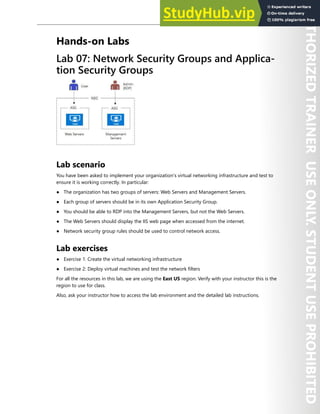
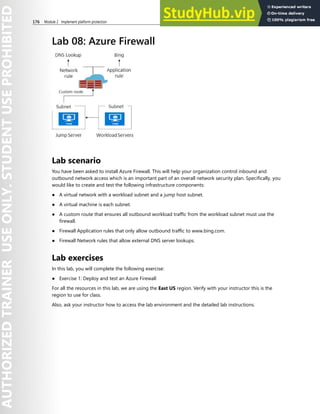
● Labs: Azure Firewall, Network and Application Security Groups
Compute Security
● Host Security. Implement host security strategies including endpoint protection, remote access
management, update management, and disk encryption.
● Container Security. Implement container security strategies including Azure Container Instances,
Azure Container Registry, and Azure Kubernetes.
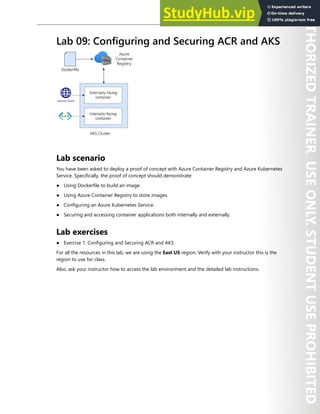
● Lab: Azure Container Registry and Azure Kubernetes Service
Module 03: Secure Data and Applications
In this module, you will learn about application and data security.
Application security
● Key Vault. Implement Azure Key Vault including certificates, keys, and secretes.
● App security. Implement application security strategies including app registration, managed identi-
ties, and service endpoints.
● Lab: Key Vault and App registration
Data Security
● Storage Security. Implement storage security strategies including shared access signatures,
blob retention policies, and Azure Files authentication.
● Database Security. Implement database security strategies including authentication, data classifica-
tion, dynamic data masking, and always encrypted.
● Labs: Storage Security, Database Security
Module 04: Manage Security Operations
In this module, you will learn about monitoring and threat assessment.
Monitoring
● Azure Monitor. Implement Azure Monitor including connected sources, log analytics, and alerts.
● Azure Security Center. Implement Azure Security Center including policies, recommendations, and
just in time virtual machine access.
● Labs: Azure Monitor, Azure Security Center
Threat assessment
● Sentinel. Implement Azure Sentinel including workbooks, incidents, and playbooks
● Lab: Sentinel
Additional resources
There are a lot of additional resources to help you learn about Azure. We recommend you bookmark
these pages.
● MS Learn2
provides searchable learning paths and modules for a variety of roles and levels.
2 https://docs.microsoft.com/en-us/learn/
Start Here 5
● Azure Documentation3
. Stay informed on the latest products, tools, and features. Get information on
pricing, partners, support, and solutions.
● Azure forums4
. The Azure forums are very active. You can search the threads for a specific area of
interest. You can also browse categories like Azure Storage, Pricing and Billing, Azure Virtual Machines,
and Azure Migrate.
● Microsoft Learning Community Blog5
. Get the latest information about the certification tests and
exam study groups.
● Channel 96
. Channel 9 provides a wealth of informational videos, shows, and events.
● Azure Tuesdays with Corey7
. Corey Sanders answers your questions about Microsoft Azure - Virtual
Machines, Web Sites, Mobile Services, Dev/Test etc.
● Azure Fridays8
. Join Scott Hanselman as he engages one-on-one with the engineers who build the
services that power Microsoft Azure, as they demo capabilities, answer Scott's questions, and share
their insights.
● Microsoft Azure Blog9
. Keep current on what's happening in Azure, including what's now in preview,
generally available, news & updates, and more.
3 https://docs.microsoft.com/en-us/azure/
4 https://social.msdn.microsoft.com/Forums/en-US/home?category=windowsazureplatform
5 https://www.microsoft.com/en-us/learning/community-blog.aspx
6 https://channel9.msdn.com/
7 https://channel9.msdn.com/Shows/Tuesdays-With-Corey/
8 https://channel9.msdn.com/Shows/Azure-Friday
9 https://azure.microsoft.com/en-us/blog/
Module 1 Manage identity and access
Azure Active Directory
Azure Active Directory (Azure AD)
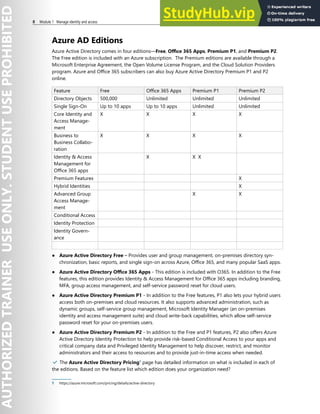
Azure Active Directory (Azure AD) is Microsoft’s multi-tenant cloud-based directory and identity
management service. For IT Admins, Azure AD provides an affordable, easy to use solution to give
employees and business partners single sign-on (SSO) access to thousands of cloud SaaS Applications
like Office365, Salesforce, DropBox, and Concur.
For application developers, Azure AD lets you focus on building your application by making it fast and
simple to integrate with a world class identity management solution used by millions of organizations
around the world.
Identity manage capabilities and integration
Azure AD also includes a full suite of identity management capabilities including multi-factor authentica-
tion, device registration, self-service password management, self-service group management, privileged
account management, role-based access control, application usage monitoring, rich auditing and security
monitoring, and alerting. These capabilities can help secure cloud-based applications, streamline IT
processes, cut costs, and help assure corporate compliance goals are met.
Additionally, Azure AD can be integrated with an existing Windows Server Active Directory, giving
organizations the ability to leverage their existing on-premises identity investments to manage access to
cloud based SaaS applications.
8 Module 1 Manage identity and access
Azure AD Editions
Azure Active Directory comes in four editions—Free, Office 365 Apps, Premium P1, and Premium P2.
The Free edition is included with an Azure subscription. The Premium editions are available through a
Microsoft Enterprise Agreement, the Open Volume License Program, and the Cloud Solution Providers
program. Azure and Office 365 subscribers can also buy Azure Active Directory Premium P1 and P2
online.
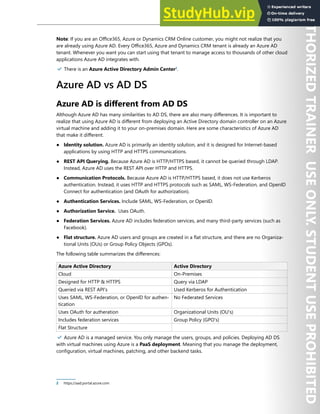
Feature Free Office 365 Apps Premium P1 Premium P2
Directory Objects 500,000 Unlimited Unlimited Unlimited
Single Sign-On Up to 10 apps Up to 10 apps Unlimited Unlimited
Core Identity and
Access Manage-
ment
X X X X
Business to
Business Collabo-
ration
X X X X
Identity & Access
Management for
Office 365 apps
X X X
Premium Features X
Hybrid Identities X
Advanced Group
Access Manage-
ment
X X
Conditional Access
Identity Protection
Identity Govern-
ance
● Azure Active Directory Free – Provides user and group management, on-premises directory syn-
chronization, basic reports, and single sign-on across Azure, Office 365, and many popular SaaS apps.
● Azure Active Directory Office 365 Apps - This edition is included with O365. In addition to the Free
features, this edition provides Identity & Access Management for Office 365 apps including branding,
MFA, group access management, and self-service password reset for cloud users.
● Azure Active Directory Premium P1 - In addition to the Free features, P1 also lets your hybrid users
access both on-premises and cloud resources. It also supports advanced administration, such as
dynamic groups, self-service group management, Microsoft Identity Manager (an on-premises
identity and access management suite) and cloud write-back capabilities, which allow self-service
password reset for your on-premises users.
● Azure Active Directory Premium P2 - In addition to the Free and P1 features, P2 also offers Azure
Active Directory Identity Protection to help provide risk-based Conditional Access to your apps and
critical company data and Privileged Identity Management to help discover, restrict, and monitor
administrators and their access to resources and to provide just-in-time access when needed.
✔️ The Azure Active Directory Pricing1
page has detailed information on what is included in each of
the editions. Based on the feature list which edition does your organization need?
1 https://azure.microsoft.com/pricing/details/active-directory
Azure Active Directory 9
Note: If you are an Office365, Azure or Dynamics CRM Online customer, you might not realize that you
are already using Azure AD. Every Office365, Azure and Dynamics CRM tenant is already an Azure AD
tenant. Whenever you want you can start using that tenant to manage access to thousands of other cloud
applications Azure AD integrates with.
✔️ There is an Azure Active Directory Admin Center2
.
Azure AD vs AD DS
Azure AD is different from AD DS
Although Azure AD has many similarities to AD DS, there are also many differences. It is important to
realize that using Azure AD is different from deploying an Active Directory domain controller on an Azure
virtual machine and adding it to your on-premises domain. Here are some characteristics of Azure AD
that make it different.
● Identity solution. Azure AD is primarily an identity solution, and it is designed for Internet-based
applications by using HTTP and HTTPS communications.
● REST API Querying. Because Azure AD is HTTP/HTTPS based, it cannot be queried through LDAP.
Instead, Azure AD uses the REST API over HTTP and HTTPS.
● Communication Protocols. Because Azure AD is HTTP/HTTPS based, it does not use Kerberos
authentication. Instead, it uses HTTP and HTTPS protocols such as SAML, WS-Federation, and OpenID
Connect for authentication (and OAuth for authorization).
● Authentication Services. Include SAML, WS-Federation, or OpenID.
● Authorization Service. Uses OAuth.
● Federation Services. Azure AD includes federation services, and many third-party services (such as
Facebook).
● Flat structure. Azure AD users and groups are created in a flat structure, and there are no Organiza-
tional Units (OUs) or Group Policy Objects (GPOs).
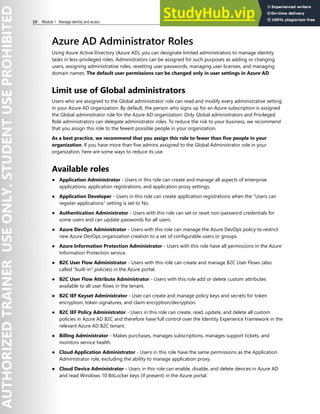
The following table summarizes the differences:
Azure Active Directory Active Directory
Cloud On-Premises
Designed for HTTP & HTTPS Query via LDAP
Queried via REST API's Used Kerberos for Authentication
Uses SAML, WS-Federation, or OpenID for authen-
tication
No Federated Services
Uses OAuth for autheration Organizational Units (OU's)
Includes federation services Group Policy (GPO's)
Flat Structure
✔️ Azure AD is a managed service. You only manage the users, groups, and policies. Deploying AD DS
with virtual machines using Azure is a PaaS deployment. Meaning that you manage the deployment,
configuration, virtual machines, patching, and other backend tasks.
2 https://aad.portal.azure.com
10 Module 1 Manage identity and access
Azure AD Administrator Roles
Using Azure Active Directory (Azure AD), you can designate limited administrators to manage identity
tasks in less-privileged roles. Administrators can be assigned for such purposes as adding or changing
users, assigning administrative roles, resetting user passwords, managing user licenses, and managing
domain names. The default user permissions can be changed only in user settings in Azure AD.
Limit use of Global administrators
Users who are assigned to the Global administrator role can read and modify every administrative setting
in your Azure AD organization. By default, the person who signs up for an Azure subscription is assigned
the Global administrator role for the Azure AD organization. Only Global administrators and Privileged
Role administrators can delegate administrator roles. To reduce the risk to your business, we recommend
that you assign this role to the fewest possible people in your organization.
As a best practice, we recommend that you assign this role to fewer than five people in your
organization. If you have more than five admins assigned to the Global Administrator role in your
organization, here are some ways to reduce its use.
Available roles
● Application Administrator - Users in this role can create and manage all aspects of enterprise
applications, application registrations, and application proxy settings.
● Application Developer - Users in this role can create application registrations when the “Users can
register applications” setting is set to No.
● Authentication Administrator - Users with this role can set or reset non-password credentials for
some users and can update passwords for all users.
● Azure DevOps Administrator - Users with this role can manage the Azure DevOps policy to restrict
new Azure DevOps organization creation to a set of configurable users or groups.
● Azure Information Protection Administrator - Users with this role have all permissions in the Azure
Information Protection service.
● B2C User Flow Administrator - Users with this role can create and manage B2C User Flows (also
called “built-in” policies) in the Azure portal.
● B2C User Flow Attribute Administrator - Users with this role add or delete custom attributes
available to all user flows in the tenant.
● B2C IEF Keyset Administrator - User can create and manage policy keys and secrets for token
encryption, token signatures, and claim encryption/decryption.
● B2C IEF Policy Administrator - Users in this role can create, read, update, and delete all custom
policies in Azure AD B2C and therefore have full control over the Identity Experience Framework in the
relevant Azure AD B2C tenant.
● Billing Administrator - Makes purchases, manages subscriptions, manages support tickets, and
monitors service health.
● Cloud Application Administrator - Users in this role have the same permissions as the Application
Administrator role, excluding the ability to manage application proxy.
● Cloud Device Administrator - Users in this role can enable, disable, and delete devices in Azure AD
and read Windows 10 BitLocker keys (if present) in the Azure portal.
Azure Active Directory 11
● Compliance Administrator - Users with this role have permissions to manage compliance-related
features in the Microsoft 365 compliance center, Microsoft 365 admin center, Azure, and Office 365
Security & Compliance Center.
● Compliance Data Administrator - Users with this role have permissions to track data in the Micro-
soft 365 compliance center, Microsoft 365 admin center, and Azure. Users can also track compliance
data within the Exchange admin center,
● Conditional Access Administrator - Users with this role have the ability to manage Azure Active
Directory Conditional Access settings
● Exchange Administrator - Users with this role have global permissions within Microsoft Exchange
Online, when the service is present.
● Directory Readers - Users in this role can read basic directory information.
● Global Administrator / Company Administrator - Users with this role have access to all administra-
tive features in Azure Active Directory, as well as services that use Azure Active Directory identities like
Microsoft 365 security center, Microsoft 365 compliance center, Exchange Online, SharePoint Online,
and Skype for Business Online.
● Groups Administrator - Users in this role can create/manage groups and its settings like naming and
expiration policies.
● Security Administrator - Users with this role have permissions to manage security-related features in
the Microsoft 365 security center, Azure Active Directory Identity Protection, Azure Information
Protection, and Office 365 Security & Compliance Center.
For most organizations, the security of business assets depends on the integrity of the privileged ac-
counts that administer and manage IT systems. Cyber-attackers focus on privileged access to infrastruc-
ture systems (such as Active Directory and Azure Active Directory) to gain access to an organization’s
sensitive data.
Traditional approaches that focus on securing the entrance and exit points of a network as the primary
security perimeter are less effective due to the rise in the use of SaaS apps and personal devices on the
Internet. The natural replacement for the network security perimeter in a complex modern enterprise is
the authentication and authorization controls in an organization's identity layer.
Privileged administrative accounts are effectively in control of this new security perimeter. It's critical to
protect privileged access, regardless of whether the environment is on-premises, cloud, or hybrid
on-premises and cloud hosted services. Protecting administrative access against determined adversaries
requires you to take a complete and thoughtful approach to isolating your organization’s systems from
risks.
Azure Active Directory Domain Services
Azure Active Directory Domain Services (Azure AD DS) provides managed domain services such as
domain join, group policy, lightweight directory access protocol (LDAP), and Kerberos / NTLM authentica-
tion that is fully compatible with Windows Server Active Directory. You use these domain services without
the need to deploy, manage, and patch domain controllers in the cloud. Azure AD DS integrates with
your existing Azure AD tenant, which makes it possible for users to sign in using their existing credentials.
You can also use existing groups and user accounts to secure access to resources, which provides a
smoother lift-and-shift of on-premises resources to Azure.
12 Module 1 Manage identity and access
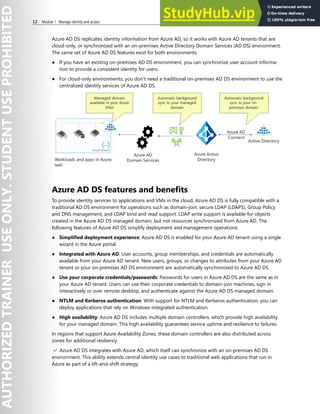
Azure AD DS replicates identity information from Azure AD, so it works with Azure AD tenants that are
cloud-only, or synchronized with an on-premises Active Directory Domain Services (AD DS) environment.
The same set of Azure AD DS features exist for both environments.
● If you have an existing on-premises AD DS environment, you can synchronize user account informa-
tion to provide a consistent identity for users.
● For cloud-only environments, you don't need a traditional on-premises AD DS environment to use the
centralized identity services of Azure AD DS.
Azure AD DS features and benefits
To provide identity services to applications and VMs in the cloud, Azure AD DS is fully compatible with a
traditional AD DS environment for operations such as domain-join, secure LDAP (LDAPS), Group Policy
and DNS management, and LDAP bind and read support. LDAP write support is available for objects
created in the Azure AD DS managed domain, but not resources synchronized from Azure AD. The
following features of Azure AD DS simplify deployment and management operations:
● Simplified deployment experience: Azure AD DS is enabled for your Azure AD tenant using a single
wizard in the Azure portal.
● Integrated with Azure AD: User accounts, group memberships, and credentials are automatically
available from your Azure AD tenant. New users, groups, or changes to attributes from your Azure AD
tenant or your on-premises AD DS environment are automatically synchronized to Azure AD DS.
● Use your corporate credentials/passwords: Passwords for users in Azure AD DS are the same as in
your Azure AD tenant. Users can use their corporate credentials to domain-join machines, sign in
interactively or over remote desktop, and authenticate against the Azure AD DS managed domain.
● NTLM and Kerberos authentication: With support for NTLM and Kerberos authentication, you can
deploy applications that rely on Windows-integrated authentication.
● High availability: Azure AD DS includes multiple domain controllers, which provide high availability
for your managed domain. This high availability guarantees service uptime and resilience to failures.
In regions that support Azure Availability Zones, these domain controllers are also distributed across
zones for additional resiliency.
✔️ Azure AD DS integrates with Azure AD, which itself can synchronize with an on-premises AD DS
environment. This ability extends central identity use cases to traditional web applications that run in
Azure as part of a lift-and-shift strategy.
Azure Active Directory 13
Azure AD User Accounts
In Azure AD, every user who needs access to resources needs a user account. A user account is a synced
Active Directory Domain Services (AD DS) object or an Azure AD user object that contains all the informa-
tion needed to authenticate and authorize the user during the sign-on process and to build the user's
access token.
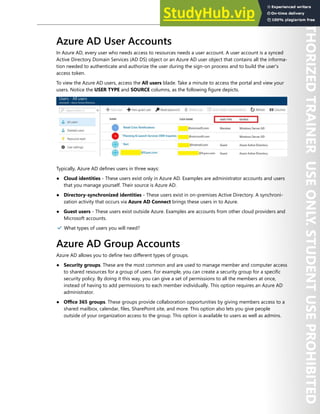
To view the Azure AD users, access the All users blade. Take a minute to access the portal and view your
users. Notice the USER TYPE and SOURCE columns, as the following figure depicts.
Typically, Azure AD defines users in three ways:
● Cloud identities - These users exist only in Azure AD. Examples are administrator accounts and users
that you manage yourself. Their source is Azure AD.
● Directory-synchronized identities - These users exist in on-premises Active Directory. A synchroni-
zation activity that occurs via Azure AD Connect brings these users in to Azure.
● Guest users - These users exist outside Azure. Examples are accounts from other cloud providers and
Microsoft accounts.
✔️ What types of users you will need?
Azure AD Group Accounts
Azure AD allows you to define two different types of groups.
● Security groups. These are the most common and are used to manage member and computer access
to shared resources for a group of users. For example, you can create a security group for a specific
security policy. By doing it this way, you can give a set of permissions to all the members at once,
instead of having to add permissions to each member individually. This option requires an Azure AD
administrator.
● Office 365 groups. These groups provide collaboration opportunities by giving members access to a
shared mailbox, calendar, files, SharePoint site, and more. This option also lets you give people
outside of your organization access to the group. This option is available to users as well as admins.
14 Module 1 Manage identity and access
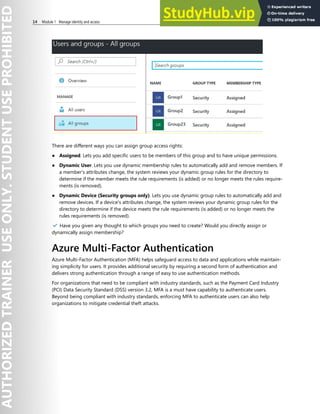
There are different ways you can assign group access rights:
● Assigned. Lets you add specific users to be members of this group and to have unique permissions.
● Dynamic User. Lets you use dynamic membership rules to automatically add and remove members. If
a member's attributes change, the system reviews your dynamic group rules for the directory to
determine if the member meets the rule requirements (is added) or no longer meets the rules require-
ments (is removed).
● Dynamic Device (Security groups only). Lets you use dynamic group rules to automatically add and
remove devices. If a device's attributes change, the system reviews your dynamic group rules for the
directory to determine if the device meets the rule requirements (is added) or no longer meets the
rules requirements (is removed).
✔️ Have you given any thought to which groups you need to create? Would you directly assign or
dynamically assign membership?
Azure Multi-Factor Authentication
Azure Multi-Factor Authentication (MFA) helps safeguard access to data and applications while maintain-
ing simplicity for users. It provides additional security by requiring a second form of authentication and
delivers strong authentication through a range of easy to use authentication methods.
For organizations that need to be compliant with industry standards, such as the Payment Card Industry
(PCI) Data Security Standard (DSS) version 3.2, MFA is a must have capability to authenticate users.
Beyond being compliant with industry standards, enforcing MFA to authenticate users can also help
organizations to mitigate credential theft attacks.
Azure Active Directory 15
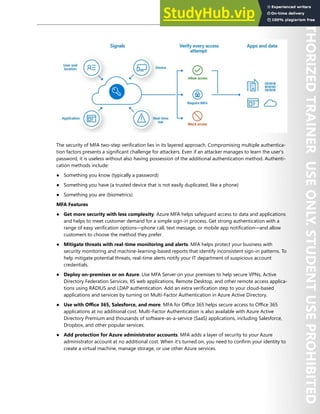
The security of MFA two-step verification lies in its layered approach. Compromising multiple authentica-
tion factors presents a significant challenge for attackers. Even if an attacker manages to learn the user's
password, it is useless without also having possession of the additional authentication method. Authenti-
cation methods include:
● Something you know (typically a password)
● Something you have (a trusted device that is not easily duplicated, like a phone)
● Something you are (biometrics)
MFA Features
● Get more security with less complexity. Azure MFA helps safeguard access to data and applications
and helps to meet customer demand for a simple sign-in process. Get strong authentication with a
range of easy verification options—phone call, text message, or mobile app notification—and allow
customers to choose the method they prefer.
● Mitigate threats with real-time monitoring and alerts. MFA helps protect your business with
security monitoring and machine-learning-based reports that identify inconsistent sign-in patterns. To
help mitigate potential threats, real-time alerts notify your IT department of suspicious account
credentials.
● Deploy on-premises or on Azure. Use MFA Server on your premises to help secure VPNs, Active
Directory Federation Services, IIS web applications, Remote Desktop, and other remote access applica-
tions using RADIUS and LDAP authentication. Add an extra verification step to your cloud-based
applications and services by turning on Multi-Factor Authentication in Azure Active Directory.
● Use with Office 365, Salesforce, and more. MFA for Office 365 helps secure access to Office 365
applications at no additional cost. Multi-Factor Authentication is also available with Azure Active
Directory Premium and thousands of software-as-a-service (SaaS) applications, including Salesforce,
Dropbox, and other popular services.
● Add protection for Azure administrator accounts. MFA adds a layer of security to your Azure
administrator account at no additional cost. When it's turned on, you need to confirm your identity to
create a virtual machine, manage storage, or use other Azure services.
16 Module 1 Manage identity and access
MFA Authentication Options
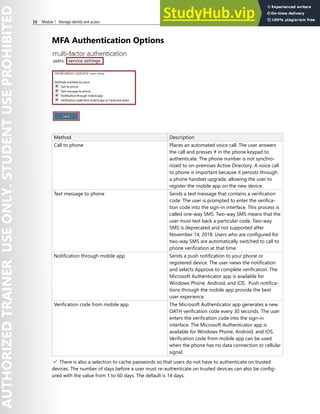
Method Description
Call to phone Places an automated voice call. The user answers
the call and presses # in the phone keypad to
authenticate. The phone number is not synchro-
nized to on-premises Active Directory. A voice call
to phone is important because it persists through
a phone handset upgrade, allowing the user to
register the mobile app on the new device.
Text message to phone Sends a text message that contains a verification
code. The user is prompted to enter the verifica-
tion code into the sign-in interface. This process is
called one-way SMS. Two-way SMS means that the
user must text back a particular code. Two-way
SMS is deprecated and not supported after
November 14, 2018. Users who are configured for
two-way SMS are automatically switched to call to
phone verification at that time.
Notification through mobile app Sends a push notification to your phone or
registered device. The user views the notification
and selects Approve to complete verification. The
Microsoft Authenticator app is available for
Windows Phone, Android, and iOS. Push notifica-
tions through the mobile app provide the best
user experience.
Verification code from mobile app The Microsoft Authenticator app generates a new
OATH verification code every 30 seconds. The user
enters the verification code into the sign-in
interface. The Microsoft Authenticator app is
available for Windows Phone, Android, and iOS.
Verification code from mobile app can be used
when the phone has no data connection or cellular
signal.
✔️ There is also a selection to cache passwords so that users do not have to authenticate on trusted
devices. The number of days before a user must re-authenticate on trusted devices can also be config-
ured with the value from 1 to 60 days. The default is 14 days.
Azure Active Directory 17
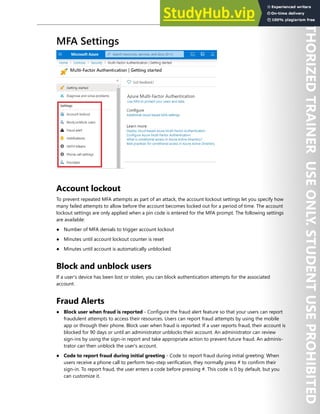
MFA Settings
Account lockout
To prevent repeated MFA attempts as part of an attack, the account lockout settings let you specify how
many failed attempts to allow before the account becomes locked out for a period of time. The account
lockout settings are only applied when a pin code is entered for the MFA prompt. The following settings
are available:
● Number of MFA denials to trigger account lockout
● Minutes until account lockout counter is reset
● Minutes until account is automatically unblocked
Block and unblock users
If a user's device has been lost or stolen, you can block authentication attempts for the associated
account.
Fraud Alerts
● Block user when fraud is reported - Configure the fraud alert feature so that your users can report
fraudulent attempts to access their resources. Users can report fraud attempts by using the mobile
app or through their phone. Block user when fraud is reported: If a user reports fraud, their account is
blocked for 90 days or until an administrator unblocks their account. An administrator can review
sign-ins by using the sign-in report and take appropriate action to prevent future fraud. An adminis-
trator can then unblock the user's account.
● Code to report fraud during initial greeting - Code to report fraud during initial greeting: When
users receive a phone call to perform two-step verification, they normally press # to confirm their
sign-in. To report fraud, the user enters a code before pressing #. This code is 0 by default, but you
can customize it.
18 Module 1 Manage identity and access
Notifications
Email notifications can be configured when users report fraud alerts. These notifications are typically sent
to identity administrators, as the user's account credentials are likely compromised.
OATH tokens
Azure AD supports the use of OATH-TOTP SHA-1 tokens that refresh codes every 30 or 60 seconds.
Customers can purchase these tokens from the vendor of their choice.
Trusted IPs
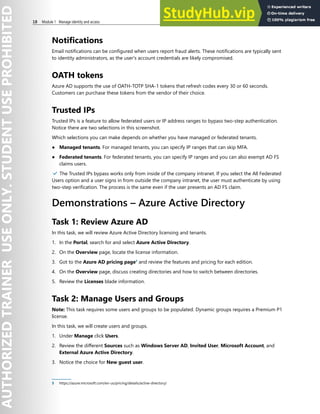
Trusted IPs is a feature to allow federated users or IP address ranges to bypass two-step authentication.
Notice there are two selections in this screenshot.
Which selections you can make depends on whether you have managed or federated tenants.
● Managed tenants. For managed tenants, you can specify IP ranges that can skip MFA.
● Federated tenants. For federated tenants, you can specify IP ranges and you can also exempt AD FS
claims users.
✔️ The Trusted IPs bypass works only from inside of the company intranet. If you select the All Federated
Users option and a user signs in from outside the company intranet, the user must authenticate by using
two-step verification. The process is the same even if the user presents an AD FS claim.
Demonstrations – Azure Active Directory
Task 1: Review Azure AD
In this task, we will review Azure Active Directory licensing and tenants.
1. In the Portal, search for and select Azure Active Directory.
2. On the Overview page, locate the license information.
3. Got to the Azure AD pricing page3
and review the features and pricing for each edition.
4. On the Overview page, discuss creating directories and how to switch between directories.
5. Review the Licenses blade information.
Task 2: Manage Users and Groups
Note: This task requires some users and groups to be populated. Dynamic groups requires a Premium P1
license.
In this task, we will create users and groups.
1. Under Manage click Users.
2. Review the different Sources such as Windows Server AD, Invited User, Microsoft Account, and
External Azure Active Directory.
3. Notice the choice for New guest user.
3 https://azure.microsoft.com/en-us/pricing/details/active-directory/
Azure Active Directory 19
4. Click New user.
5. Review the two ways to create a user: Create user and Invite user.
6. Create a new user. Review Identity, Groups and roles, Settings, and Job Info.
7. Going back to Azure AD, under Manage click Groups.
8. Review the Group types: Security and Office 365.
9. Create a new group by clicking “New Group” with the Membership type as Assigned.
10. Add a user to the same group.
11. Create another new group with Membership type as Dynamic user.
12. Review the details to construct dynamic group membership rules.
Task 3 - Multi-Factor Authentication
Note: This task requires a user account, AZ500User1.
In this demonstration, we will configure and test MFA.
Configure MFA
In this task, we will enable MFA for a user.
1. In the Portal, search for and select Azure Active Directory.
2. Under Manage select Security.
3. Under Manage select MFA.
4. In the center pane, under Configure select Additional cloud-based MFA settings.
5. Select the Users tab.
6. Select AZ500User1. Make a note of their user name in the form user@domain.com.
7. On the far right click Enable.
8. Read the information about enabling multi-factor authentication.
9. Click enable multi-factor auth.
10. Wait for update. AZ500User1 will not be required to provide two factor authentication.
Test MFA
Note: To test MFA a phone number is required.
In this task, we will test the MFA requirement.
1. Sign in to the Portal as AZ500User1. Use their user name from a previous step.
2. Provide the password, click Next.
3. Note that more information is required. Click Next.
4. Review the **Additional security verification page.
5. In Step 1, enter your phone number and ensure the send me a code by text message is selected.
6. Click Next.
7. In Step 2, enter the verification code from the text message.
8. Click Verify.
20 Module 1 Manage identity and access
9. In Step 3, read about how to keep your existing applications working.
10. Click Get started with this app password.
11. If prompted, Allow access.
12. Click Done.
13. On the Update password screen provide and confirm a new password.
14. Click Sign-in.
15. Confirm that you can now access the Portal.
Additional Study
Microsoft Learn4
provides a large number of self-paced learning paths. For this lesson, we recommend
the following modules. You may search and find other modules that are of interest to you.
● Secure your identities by using Azure Active Directory5
● Manage users and groups in Azure Active Directory6
● Create Azure users and groups in Azure Active Directory7
● Secure Azure Active Directory users with Multi-Factor Authentication8
● Secure your cloud resources with access control9
Review Questions
Review Question 1
Your organization is considering Azure Multi-Factor Authentication. Your manager asks about secondary
verification methods. Which of the following options is not valid? Select one.
† Automated phone call.
† Emailed link to verification website.
† Microsoft Authenticator app with OATH verification code.
† Push notification to the phone.
† Text message with authentication code.
4 https://docs.microsoft.com/en-us/learn/
5 https://docs.microsoft.com/en-us/learn/modules/intro-to-azure-ad/
6 https://docs.microsoft.com/en-us/learn/modules/manage-users-and-groups-in-aad/
7 https://docs.microsoft.com/en-us/learn/modules/create-users-and-groups-in-azure-active-directory/
8 https://docs.microsoft.com/en-us/learn/modules/secure-aad-users-with-mfa/
9 https://docs.microsoft.com/en-us/learn/modules/cmu-secure-cloud-resources/
Azure Active Directory 21
Review Question 2
Your organization has implemented Azure Multi-Factor Authentication. You need to provide a status report
by user account. Which of the following is not a valid MFA status? Select one.
† Disabled
† Enabled
† Enforced
† Required
Review Question 3
You are configuring Azure Multi-Factor Authentication. You can configure all the following options, except?
Select one.
† Block a user if fraud is suspected.
† Configure IP addresses outside the company intranet that should be blocked.
† One time bypass for a user that is locked out.
† User self-reporting for fraud attempts on their account.
Review Question 4
You are assigning Azure AD roles. Which role will allow the user to manage all the groups in a tenant, and
would be able to assign other admin roles? Select one.
† Global administrator
† Password administrator
† Security administrator
† User administrator
Review Question 5
You are creating an Azure AD security group. All the following are ways you can assign group membership,
except? Select one.
† Assigned
† Dynamic device
† Dynamic user
† Office 365 user
22 Module 1 Manage identity and access
Azure AD Identity Protection
Identity Protection is a tool that allows organizations to accomplish three key tasks:
● Automate the detection and remediation of identity-based risks.
● Investigate risks using data in the portal.
● Export risk detection data to third-party utilities for further analysis.
Identity Protection uses the learnings Microsoft has acquired from their position in organizations with
Azure AD, the consumer space with Microsoft Accounts, and in gaming with Xbox to protect your users.
Microsoft analyses 6.5 trillion signals per day to identify and protect customers from threats.
Risk detections in Azure AD Identity Protection include any identified suspicious actions related to user
accounts in the directory.
The signals generated that are fed to Identity Protection, can be further fed into tools like Conditional
Access to make access decisions, or fed back to a security information and event management (SIEM)
tool for further investigation based on your organization's enforced policies.
Identity Protection provides organizations access to powerful resources so they can quickly respond to
suspicious activities.
Identity Protection policies
Azure Active Directory Identity Protection includes three default policies that administrators can choose
to enable. These policies include limited customization but are applicable to most organizations. All the
policies allow for excluding users such as your emergency access or break-glass administrator accounts.
Azure MFA registration policy
Identity Protection can help organizations roll out Azure Multi-Factor Authentication (MFA) using a
Conditional Access policy requiring registration at sign-in. Enabling this policy is a great way to ensure
Azure AD Identity Protection 23
new users in your organization have registered for MFA on their first day. Multi-factor authentication is
one of the self-remediation methods for risk events within Identity Protection. Self-remediation allows
your users to act on their own to reduce helpdesk call volume.
Sign-in risk policy
Identity Protection analyzes signals from each sign-in, both real-time and offline, and calculates a risk
score based on the probability that the sign-in wasn't performed by the user. Administrators can decide
based on this risk score signal to enforce organizational requirements. Administrators can choose to
block access, allow access, or allow access but require multi-factor authentication.
If risk is detected, users can perform multi-factor authentication to self-remediate and close the risky
sign-in event to prevent unnecessary noise for administrators.
Custom Conditional Access policy
Administrators can also choose to create a custom Conditional Access policy including sign-in risk as an
assignment condition.
Risk Events
The majority of security breaches take place when attackers gain access to an environment by stealing a
user’s identity. Discovering compromised identities is no easy task. Azure Active Directory uses adaptive
machine learning algorithms and heuristics to detect suspicious actions that are related to your user
accounts.
Each detected suspicious action is stored in a record called a risk detection.
There are two places where you review reported risk detections:
● Azure AD reporting - Risk detections are part of Azure AD's security reports.
● Azure AD Identity Protection - Risk detections are also part of the reporting capabilities of Azure
Active Directory Identity Protection.
In addition, you can use the Identity Protection risk detections API to gain programmatic access to
security detections using Microsoft Graph.
Currently, Azure Active Directory detects six types of risk detections:
● Users with leaked credentials - When cybercriminals compromise valid passwords of legitimate
users, they often share those credentials.
● Sign-ins from anonymous IP addresses - This risk detection type identifies users who have success-
fully signed in from an IP address that has been identified as an anonymous proxy IP address.
● Impossible travel to atypical locations - This risk detection type identifies two sign-ins originating
from geographically distant locations, where at least one of the locations may also be atypical for the
user, given past behavior.
● Sign-ins from infected devices - This risk detection type identifies sign-ins from devices infected
with malware, that are known to actively communicate with a bot server.
● Sign-in from unfamiliar locations - This risk detection type considers past sign-in locations (IP,
Latitude / Longitude and ASN) to determine new / unfamiliar locations.
● Sign-ins from IP addresses with suspicious activity - This risk detection type identifies IP addresses
from which a high number of failed sign-in attempts were seen, across multiple user accounts, over a
short period of time.
24 Module 1 Manage identity and access
The insight you get for a detected risk detection is tied to your Azure AD subscription.
● With the Azure AD Premium P2 edition, you get the most detailed information about all underlying
detections.
● With the Azure AD Premium P1 edition, advanced detections (such as unfamiliar sign-in properties)
are not covered by your license, and will appear under the name Sign-in with additional risk detected.
Additionally, the risk level and risk detail fields are hidden.
✔️ While the detection of risk detections already represents an important aspect of protecting your
identities, you also have the option to either manually address them or implement automated responses
by configuring Conditional Access policies.
User Risk Policy
Identity Protection can calculate what it believes is normal for a user's behavior and use that to base
decisions for their risk. User risk is a calculation of probability that an identity has been compromised. Ad-
ministrators can decide based on this risk score signal to enforce organizational requirements. Adminis-
trators can choose to block access, allow access, or allow access but require a password change using
Azure AD self-service password reset.
The above image shows the configuration of User Risk Policy applied
● To user sign-ins
● Automatically respond based on a specific user’s risk level
● Provide the condition (risk level) and action (block or allow)
● Use a high threshold during policy roll out
● Use a low threshold for greater security
Azure AD Identity Protection 25
Risky users
With the information provided by the risky users report, administrators can find:
● Which users are at risk, have had risk remediated, or have had risk dismissed?
● Details about detections
● History of all risky sign-ins
● Risk history
Administrators can then choose to act on these events. Administrators can choose to:
● Reset the user password
● Confirm user compromise
● Dismiss user risk
● Block user from signing in
● Investigate further using Azure ATP
Sign-in Risk Policy
Sign-in risk represents the probability that a given authentication request isn't authorized by the identity
owner.
For users of Azure Identity Protection, sign-in risk can be evaluated as part of a Conditional Access policy.
Sign-in Risk Policy supports the following conditions:
Location
When configuring location as a condition, organizations can choose to include or exclude locations.
These named locations may include the public IPv4 network information, country or region, or even
unknown areas that don't map to specific countries or regions. Only IP ranges can be marked as a trusted
location.
When including any location, this option includes any IP address on the internet not just configured
named locations. When selecting any location, administrators can choose to exclude all trusted or
selected locations.
Client apps
Conditional Access policies by default apply to browser-based applications and applications that utilize
modern authentication protocols. In addition to these applications, administrators can choose to include
Exchange ActiveSync clients and other clients that utilize legacy protocols.
● Browser - These include web-based applications that use protocols like SAML, WS-Federation,
OpenID Connect, or services registered as an OAuth confidential client.
● Mobile apps and desktop clients - These access policies are commonly used when requiring a
managed device, blocking legacy authentication, and blocking web applications but allowing mobile
or desktop app.
Risky sign-ins
The risky sign-ins report contains filterable data for up to the past 30 days (1 month).
26 Module 1 Manage identity and access
With the information provided by the risky sign-ins report, administrators can find:
● Which sign-ins are classified as at risk, confirmed compromised, confirmed safe, dismissed, or remedi-
ated.
● Real-time and aggregate risk levels associated with sign-in attempts.
● Detection types triggered
● Conditional Access policies applied
● MFA details
● Device information
● Application information
● Location information
Administrators can then choose to take action on these events. Administrators can choose to:
● Confirm sign-in compromise
● Confirm sign-in safe
Azure AD Conditional Access
The old world of security behind a corporate firewall, having your secure network perimeter just doesn’t
work anymore, not with people wanting to
work from anywhere, being able to connect to all sorts of cloud applications.
Conditional Access is the tool used by Azure Active Directory to bring signals together, to make deci-
sions, and enforce organizational policies. Conditional Access is at the heart of the new identity driven
control plane.
Conditional access policy is really a next generation policy that’s built for the cloud. It’s able to consider
massive amounts of data, as well as contextual data from a user sign in flow and make sure that the right
controls are enforced.
Identity as a Service—the new control plane
What is the basis for saying that identity management is the new control plane? First, what is the control
plane? In a switch or router, the control plane is the part that controls where the traffic is to go, but it’s
not responsible for the movement of the traffic. The control plane learns the routes, either static or
dynamic. The part responsible for moving the traffic is the forwarding plane. The following figure depicts
a simple switch diagram.
Azure AD Identity Protection 27
A user’s identity is like a control plane, because it controls which protocols the user will interact with,
which organizational programs the user can access, and which devices the user can employ to access
those programs. Identity is what helps protect user and corporate data. For example, should that data be
encrypted, deleted, or ignored when an issue occurs?
Now, everything pivots around that user identity. You know what their activities are, and where they are
located. You know what devices they’re using. Then we leverage that information in conditional access
policy to be able to enforce things like multi-factor authentication or require a compliant device.
There are the conditions, which indicate when the policy is going to apply. This can be, again, the
location, type of application that you’re on, any detected risk. How is the risk determined? It is deter-
mined from all the analysis and Intel that we have across organizations using Azure Active Directory, as
well as Microsoft consumer identity offerings.
Conditional Access is the tool used by Azure Active Directory to bring signals together, to make deci-
sions, and enforce organizational policies.
Conditional Access policies at their simplest are if-then statements, if a user wants to access a resource,
then they must complete an action. Example: A payroll manager wants to access the payroll application
and is required to perform multi-factor authentication to access it.
Administrators are faced with two primary goals:
● Empower users to be productive wherever and whenever
● Protect the organization's assets
By using Conditional Access policies, you can apply the right access controls when needed to keep your
organization secure and stay out of your user’s way when not needed.
Conditional Access policies are enforced after the first-factor authentication has been completed. Condi-
tional Access is not intended as an organization's first line of defense for scenarios like denial-of-service
(DoS) attacks but can use signals from these events to determine access.
✔️ Conditional Access is an effective way to enable access to resources after specific conditions have
been met.
Conditional Access Conditions
Conditional access is a capability of Azure AD (with an Azure AD Premium license) that enables you to
enforce controls on the access to apps in your environment based on specific conditions from a central
location. With Azure AD conditional access, you can factor how a resource is being accessed into an
28 Module 1 Manage identity and access
access control decision. By using conditional access policies, you can apply the correct access controls
under the required conditions.
Conditional access comes with six conditions: user/group, cloud application, device state, location (IP
range), client application, and sign-in risk. You can use combinations of these conditions to get the exact
conditional access policy you need. Notice on this image the conditions determine the access control
from the previous topic.
With access controls, you can either Block Access altogether or Grant Access with additional requirements
by selecting the desired controls. You can have several options:
● Require MFA from Azure AD or an on-premises MFA (combined with AD FS).
● Grant access to only trusted devices.
● Require a domain-joined device.
● Require mobile devices to use Intune app protection policies.
Requiring additional account verification through MFA is a common conditional access scenario. While
users may be able to sign-in to most of your organization’s cloud apps, you may want that additional
verification for things like your email system, or apps that contain personnel records or sensitive informa-
tion. In Azure AD, you can accomplish this with a conditional access policy
✔️ The Users and Groups condition is mandatory in a conditional access policy. In your policy, you can
either select All users or select specific users and groups.
Azure AD Access Reviews
Azure Active Directory (Azure AD) access reviews enable organizations to efficiently manage group
memberships, access to enterprise applications, and role assignments. User's access can be reviewed on a
regular basis to make sure only the right people have continued access.
Why are access reviews important?
Azure AD enables you to collaborate internally within your organization and with users from external
organizations, such as partners. Users can join groups, invite guests, connect to cloud apps, and work
Azure AD Identity Protection 29
remotely from their work or personal devices. The convenience of leveraging the power of self-service
has led to a need for better access management capabilities.
● As new employees join, how do you ensure they have the right access to be productive?
● As people move teams or leave the company, how do you ensure their old access is removed, espe-
cially when it involves guests?
● Excessive access rights can lead to audit findings and compromises as they indicate a lack of control
over access.
● You must proactively engage with resource owners to ensure they regularly review who has access to
their resources.
Use access reviews in the following cases
● Too many users in privileged roles: It's a good idea to check how many users have administrative
access, how many of them are Global Administrators, and if there are any invited guests or partners
that have not been removed after being assigned to do an administrative task. You can recertify the
role assignment users in Azure AD roles such as Global Administrators, or Azure resources roles such
as User Access Administrator in the Azure AD Privileged Identity Management (PIM) experience.
● When automation is infeasible: You can create rules for dynamic membership on security groups or
Office 365 Groups, but what if the HR data is not in Azure AD or if users still need access after leaving
the group to train their replacement? You can then create a review on that group to ensure those who
still need access should have continued access.
● When a group is used for a new purpose: If you have a group that is going to be synced to Azure
AD, or if you plan to enable a sales management application for everyone in the Sales team group, it
would be useful to ask the group owner to review the group membership prior to the group being
used in a different risk content.
● Business critical data access: for certain resources, it might be required to ask people outside of IT to
regularly sign out and give a justification on why they need access for auditing purposes.
● To maintain a policy's exception list: In an ideal world, all users would follow the access policies to
secure access to your organization's resources. However, sometimes there are business cases that
require you to make exceptions. As the IT admin, you can manage this task, avoid oversight of policy
exceptions, and provide auditors with proof that these exceptions are reviewed regularly.
● Ask group owners to confirm they still need guests in their groups: Employee access might be
automated with some on premises IAM, but not invited guests. If a group gives guests access to
business sensitive content, then it's the group owner's responsibility to confirm the guests still have a
legitimate business need for access.
● Have reviews recur periodically: You can set up recurring access reviews of users at set frequencies
such as weekly, monthly, quarterly or annually, and the reviewers will be notified at the start of each
review. Reviewers can approve or deny access with a friendly interface and with the help of smart
recommendations.
Depending on what you want to review, you will create your access review in Azure AD access reviews,
Azure AD enterprise apps (in preview), or Azure AD PIM.
Using this feature requires an Azure AD Premium P2 license.
✔️ Azure AD Premium P2 licenses are not required for users with the Global Administrator or User
Administrator roles that set up access reviews, configure settings, or apply the decisions from the reviews.
30 Module 1 Manage identity and access
Demonstrations – Azure AD Identity Protection
In this demonstration, we will test conditonal access.
Task 1 - Configure Conditional Access (require MFA)
Note: This task requires a user account, AZ500User. This user requires xxx permissions. If you want to
show the MFA verification, the user account must have a phone number.
In this task, we will review conditional access policy settings and create a policy that requires MFA when
signing in to the Portal.
Configure the policy
1. In the Portal search for and select Azure Active Directory.
2. Under Manage select Security.
3. Under Protect select Conditional access.
4. Click New Policy.
● Name: AZ500Policy1
● Users and groups > Select users and groups > Users and Groups > Select: AZ500User1
● Cloud apps or actions > Select apps > Select: Microsoft Azure Management
● Review the warning that this policy impacts Portal access.
● Conditions > Sign-in risk > Review the risk levels
● Device platforms > Review the devices that can included, such as Android and iOS.
● Locations > Review the physical location selections.
● Under Access controls click Grant.
● Review the Grant options such as MFA. You may require one or more of the controls.
● Select Require multi-factor authentication.
● For Enable policy select On.
5. Click Create.
Test the policy
1. Sign-in to the Portal as the AZ500User1.
2. Before you can sign in a second authentication is required.
3. If you have a phone number associated with the user, provide and verify the text code. You should be
able to successfully sign in to the Portal.
4. If you do not have a phone number associated with the user, this demonstrates that MFA is in effect.
5. You may want to return to the AZ500Policy1 and turn the policy Off.
Task 2 - Access Review
In this task, we will configure an access review.
Azure AD Identity Protection 31
Configure an access review
1. In the Portal, search for and select Identity Governance.
2. Under Access Reviews select Access Reviews.
3. Click New Access Review.
4. We will create an access review to ensure the validate the AZ500Admin group membership.
5. Complete the required information and discuss each setting. Configuration settings are added as you
make your selections. For example, if you select a weekly access review, you will be prompted for the
duration.
● Review name: AZ500Review
● Start date: current date
● Frequency: One-time
● Users to review: Members of a group
● Scope: Everyone
● Select a group: AZ500Admins
● Reviewers: Selected user
● Select reviewers: *add yourself as a reviewer
● Review the Upon completion settings, specifically the action if a reviewer doesn't respond.
● Review Advanced settings.
6. Start the access review.
7. On the Access review page ensure the new access review is listed.
8. The Status will change from Not started to Initializing.
Conduct an access review
In this task, we will conduct an access review.
1. When the access review is complete you will receive an email. This is the email associated with your
reviewer account.
2. View the email and discuss the review instructions. Note when the review period will end.
3. In the email, click Start review.
4. On the Access reviews page, click the AZ500Review.
5. Notice you are reviewing the AZ500Admin group members. There are two members.
6. Use the Details link to view information about the user.
7. Select Approve for one user and Deny for the other. Be sure to provide a Reason.
8. Submit your reviews.
Review the access review results
In this task, we will review the access review results.
1. Return to the Portal.
2. Click the AZ500Review.
32 Module 1 Manage identity and access
3. From the Overview blade review the results.
4. There should be one member approved and one member denied.
5. Click Results for more detailed information about the reviewer and their reasons.
6. From the Overview blade, click Stop and confirm you want to stop the review.
7. The Review status should now be Complete.
Apply the access review
In this task, we will apply the review results.
1. In the Portal, search for and select Azure Active Directory.
2. Under Manage select Groups.
3. Locate the AZ500Admins group.
4. Review the members of the group.
5. Confirm there are two members.
6. Return to the AZ500Review.
7. Click Apply.
8. Confirm that you want to remove the denied member.
9. The Review status will change from Applying to Result applied.
10. Verify the AZ500Admins group now only has one member.
Additional Study
Microsoft Learn10
provides a large number of self-paced learning paths. For this lesson, we recommend
the following modules. You may search and find other modules that are of interest to you.
● Overview of identity and access management in Microsoft 36511
● Secure Azure Active Directory users with Multi-Factor Authentication12
● Protect your identities with Azure AD Identity Protection13
10 https://docs.microsoft.com/en-us/learn/
11 https://docs.microsoft.com/en-us/learn/modules/m365-identity-overview/
12 https://docs.microsoft.com/en-us/learn/modules/secure-aad-users-with-mfa/
13 https://docs.microsoft.com/en-us/learn/modules/protect-identities-with-aad-idp/
Azure AD Identity Protection 33
Review Questions
Review Question 1
Your Compliance auditors wants to ensure as employees change jobs or leave the company that their
privileges are also changed or revoked. They are especially concerned about the Administrator group. To
address their concerns. you implement which of the following? Select one.
† Access reviews
† Azure time-based policies
† JIT virtual machine access
† Management groups
Review Question 2
Identity Protection has reported that a user’s credentials have been leaked. According to policy, the user’s
password must be reset. Which Azure AD role can reset the password? Select one.
† Global Administrator
† Security Administrator
† Security Operator
† Security Reader
Review Question 3
Identity Protection identifies risks in the following classifications, except? Select one.
† Anonymous IP address
† Atypical travel
† Unfamiliar sign-in properties
† Unregistered device
Review Question 4
You have implemented Identity Protection and are reviewing the Risky users report. For each reported event
you can choose any of the following actions, except? Select one.
† Block user from signing in
† Confirm user compromise
† Delete the risk event
† Dismiss user risk
34 Module 1 Manage identity and access
Review Question 5
Conditional access policies can help with all the following, except? Select one.
† Block or grant access from specific locations
† Designate privileged user accounts.
† Require multi-factor authentication.
† Require trusted locations.
Review Question 6
Which licensing plan supports Identity Protection?
† Azure Active Directory Free
† Azure Active Directory Premium P1
† Azure Active Directory Premium P2
Enterprise Governance 35
Enterprise Governance
The Shared Responsibility Model
Organizations face many challenges with securing their datacenters, including recruiting and keeping
security experts, using many security tools, and keeping pace with the volume and complexity of threats.
As computing environments move from customer-controlled datacenters to the cloud, the responsibility
of security also shifts. Security of the operational environment is now a concern shared by both cloud
providers and customers. By shifting these responsibilities to a cloud service like Azure, organizations can
reduce focus on activities that aren't core business competencies. Depending on the specific technology
choices, some security protections will be built into the service, while others will remain the customer’s
responsibility. To ensure that the proper security controls are provided, a careful evaluation of the
services and technology choices becomes necessary.
The first thing to understand about cloud security is that different scopes of responsibility exist, depend-
ing on the kinds of services you use.
For example, if you use virtual machines (VMs) in Azure, which provide Infrastructure as a Service (IaaS),
Microsoft will be responsible for helping secure the physical network, physical storage, and virtualization
platform, which includes updating the virtualization hosts. But you’ll need to take care of helping secure
your virtual network and public endpoints and updating the guest operating system (OS) of your VMs.
The following figure depicts the various responsibility zones.
For all cloud deployment types, you own your data and identities. You are responsible for helping secure
your data and identities, your on-premises resources, and the cloud components you control (which vary
by service type).
Regardless of the deployment type, you always retain responsibility for the following:
● Data
● Endpoints
● Accounts
● Access management
36 Module 1 Manage identity and access
✔️ It’s important to understand the division of responsibility between you and Microsoft in a Software as
a Service (SaaS), Platform as a Service (PaaS), or Infrastructure as a Service (IaaS) deployment.
Azure Cloud Security Advantages
The cloud offers significant advantages for solving long standing information security challenges. In an
on-premises environment, organizations likely have unmet responsibilities and limited resources available
to invest in security, which creates an environment where attackers can exploit vulnerabilities at all layers.
The following diagram shows a traditional approach where many security responsibilities are unmet due
to limited resources. In the cloud-enabled approach, you can shift day to day security responsibilities to
your cloud provider and reallocate your resources.
In the cloud-enabled approach, you are also able to leverage cloud-based security capabilities for more
effectiveness and use cloud intelligence to improve your threat detection and response time. By shifting
responsibilities to the cloud provider, organizations can get more security coverage, which enables them
to reallocate security resources and budget to other business priorities.
✔️ What security advantages are you expecting from leveraging the cloud?
Azure Hierarchy
Azure Resource Manager
Azure Resource Manager (ARM) is the deployment and management service for Azure. It provides a
consistent management layer that allows you to create, update, and delete resources in your Azure
subscription. You can use its access control, auditing, and tagging features to help secure and organize
your resources after deployment.
When you take actions through the portal, Azure PowerShell, the Azure CLI, REST APIs, or client software
development kits (SDKs), the Resource Manager API handles your request. Because the same API handles
all requests, you get consistent results and capabilities from all the different tools. Functionality initially
released through APIs should be represented in the portal within 180 days of the initial release.
Enterprise Governance 37
The Azure Resource Manager uses APIs and authentication to allow access to resources.
Understand Scope
Azure provides four levels of scope: management groups, subscriptions, resource groups, and resources.
The following image shows an example of these layers. Though not labeled as such, the blue cubes are
resources.
You apply management settings at any of these levels of scope. The level you select determines how
widely the setting is applied. Lower levels inherit settings from higher levels. For example, when you apply
a policy to the subscription, the policy is applied to all resource groups and resources in your subscrip-
tion. When you apply a policy on the resource group, that policy is applied to the resource group and all
its resources. However, another resource group doesn't have that policy assignment.
You can deploy templates to management groups, subscriptions, or resource groups.
Resource Groups
There are some important factors to consider when defining your resource group:
● All the resources in your group should share the same lifecycle. You deploy, update, and delete them
together. If one resource, such as a database server, needs to exist on a different deployment cycle it
should be in another resource group.
● Each resource can only exist in one resource group.
38 Module 1 Manage identity and access
● You can add or remove a resource to a resource group at any time.
● You can move a resource from one resource group to another group.
● A resource group can contain resources that are located in different regions.
● A resource group can be used to scope access control for administrative actions.
● A resource can interact with resources in other resource groups. This interaction is common when the
two resources are related but don't share the same lifecycle (for example, web apps connecting to a
database).
When creating a resource group, you need to provide a location for that resource group. You may be
wondering, "Why does a resource group need a location? And, if the resources can have different
locations than the resource group, why does the resource group location matter at all?" The
resource group stores metadata about the resources. Therefore, when you specify a location for the
resource group, you're specifying where that metadata is stored. For compliance reasons, you may need
to ensure that your data is stored in a particular region.
If the resource group's region is temporarily unavailable, you can't update resources in the resource
group because the metadata is unavailable. The resources in other regions will still function as expected,
but you can't update them.
Management Groups
Management groups are an Azure resource to create flexible and very maintainable hierarchies within the
structure of your environment. Management groups exist above the subscription level thus allowing
subscriptions to be grouped together. This grouping facilitates applying policies and RBAC permissions
to those management groups. Policies and RBAC permissions are inherited to all resources in the man-
agement group. Management groups give you enterprise-grade management at a large scale no matter
what type of subscriptions you might have. All subscriptions within a single management group must
trust the same Azure Active Directory tenant.
Management group hierarchies can be up to six levels deep. This provides you with the flexibility to
create a hierarchy that combines several of these strategies to meet your organizational needs. For
example, the diagram below shows an organizational hierarchy that combines a business unit strategy
with a geographic strategy.
Enterprise Governance 39
The value of management groups
Group your subscriptions.
● Provide user access to multiple subscriptions
● Allows for new organizational models and logically grouping of resources.
● Allows for single assignment of controls that applies to all subscriptions.
● Provides aggregated views above the subscription level.
Mirror your organization's structure.
● Create a flexible hierarchy that can be updated quickly.
● The hierarchy does not need to model the organization's billing hierarchy.
● The structure can easily scale up or down depending on your needs.
Apply policies or access controls to any service.
● Create one RBAC assignment on the management group, which will inherit that access to all the
subscriptions.
● Use Azure Resource Manager (ARM) integrations that allow integrations with other Azure services:
Azure Cost Management, Privleged Identity Management, and Azure Security Center.
40 Module 1 Manage identity and access
✔️ By using management groups, you can reduce your workload and reduce the risk of error by avoiding
duplicate assignments. Instead of applying multiple assignments across numerous resources and sub-
scriptions, you can apply the one assignment on the one management group that contains the target
resources. This will save time in the application of assignments, creates one point for maintenance, and
allows for better controls on who can control the assignment.
Azure Policies
Azure Policy is a service you use to create, assign, and manage policies. These policies enforce different
rules and effects over your resources so that those resources stay compliant with your corporate stand-
ards and service level agreements. Azure Policy meets this need by evaluating your resources for non-
compliance with assigned policies. For example, you might have a policy that allows virtual machines of
only a certain size in your environment. After this policy is implemented, new and existing resources are
evaluated for compliance. With the right type of policy, existing resources can be brought into compli-
ance.
There are three main pillars in the functionalities of Azure policy.
The first pillar is around real-time enforcement and compliance assessment. For example, a policy
would block the creation of resources that are located outside of US regions. Each policy also provides
compliance assessment on all your existing resources to bring a state of compliance for each resource.
The data then powers the compliance view which aggregates results across all of the applied policies.
Policies can be used to ensure that resource groups are getting tagged properly and automatically
inheriting those tags from the resource group down to the resources.
The second pillar of policy is applying policies at scale by leveraging Management Groups. By assign-
ing policy to a management group one can impact hundreds of subscriptions and all its reach resources
through a single policy assignment. There also is the concept called policy initiative that allows you to
group policies together so that you can view the aggregated compliance result. At the initiative level
there's also a concept called exclusion where one can exclude either the child management group
subscription resource group or resources from the policy assignment.
The third pillar of your policy is remediation by leveraging a remediation policy that will automatical-
ly remediate the non-compliant resource so that your environment always stays compliant. For existing
resources, they will be flagged as non-compliant but they won't automatically be changed because there
can be impact to the environment. For these cases you can create a remediation task to bring these
resources to compliance. Azure policy is a free service to use.
Enterprise Governance 41
Policy permissions and custom policies
Azure Policy has several permissions, known as operations, in two resource providers:
● Microsoft.Authorization
● Microsoft.PolicyInsights
Many built-in roles grant permissions to Azure Policy resources. The Resource Policy Contributor role
includes most Azure Policy operations. The Owner role has full rights. Both Contributor and Reader can
use all Azure Policy read operations, but Contributor can also trigger remediation.
If none of the built-in roles have the required permissions, create a custom role.
Azure has by default, security policies that work across subscriptions or on management groups. If these
policies need to be augmented with your own organizational policies, new policies can be created.
Whatever the business driver for creating a custom policy, the steps are the same for defining the new
custom policy.
Before creating a custom policy, check the policy samples to determine if a policy that matches your
needs already exists.
The approach to creating a custom policy follows these steps:
● Identify your business requirements
● Map each requirement to an Azure resource property
● Map the property to an alias
● Determine which effect to use
● Compose the policy definition
Composing an Azure Policy
The steps for composing an implementing a policy in Azure Policy begins with creating:
● Policy definition - Every policy definition has conditions under which it's enforced. And, it has a
defined effect that takes place if the conditions are met.
● Policy assignment - A policy definition that has been assigned to take place within a specific scope.
This scope could range from a management group to an individual resource. The term scope refers to
all the resources, resource groups, subscriptions, or management groups that the policy definition is
assigned to.
● Policy parameters - They help simplify your policy management by reducing the number of policy
definitions you must create. You can define parameters when creating a policy definition to make it
more generic.
Create and assign an Initiative definition
In order to easily track compliance for multiple resources, create and assign an Initiative definition.
With an initiative definition, you can group several policy definitions to achieve one overarching goal. An
initiative evaluates resources within scope of the assignment for compliance to the included policies.
To implement these policy definitions (both built-in and custom definitions), you'll need to assign them.
You can assign any of these policies through the Azure portal, PowerShell, or Azure CLI.
42 Module 1 Manage identity and access
Azure Role Based Access Control (RBAC)
When it comes to identity and access, most organizations that are considering using the public cloud are
concerned about two things:
● Ensuring that when people leave the organization, they lose access to resources in the cloud.
● Striking the right balance between autonomy and central governance—for example, giving project
teams the ability to create and manage virtual machines in the cloud while centrally controlling the
networks to which those virtual machines connect.
RBAC is an authorization system built on Azure Resource Manager that provides fine-grained access
management of Azure resources.
Azure AD and Role Based Access Control (RBAC) make it simple for you to carry out these goals. After
you extend your on-premises Active Directory to the cloud by using Azure AD Connect, your employees
can use and manage their Azure subscriptions by using their existing work identities. These Azure
subscriptions automatically connect to Azure AD for SSO and access management. When you disable an
on-premises Active Directory account, it automatically loses access to all Azure subscriptions connected
with Azure AD.
Additionally, synchronizing passwords to the cloud to support these checks also add resiliency during
some attacks. Customers affected by (Not)Petya attacks were able to continue business operations when
password hashes were synced to Azure AD (vs. near zero communications and IT services for customers
affected organizations that had not synchronized passwords).
RBAC enables fine-grained access management for Azure. Using RBAC, you can grant just the amount of
access that users need to perform their jobs. For example, you can use RBAC to let one employee
manage virtual machines in a subscription while another manages SQL databases within the same
subscription.
Each Azure subscription is associated with one Azure AD directory. Users, groups, and applications in
that directory can manage resources in the Azure subscription. Grant access by assigning the appropriate
RBAC role to users, groups, and applications at a certain scope. The scope of a role assignment can be a
subscription, a resource group, or a single resource. A role assigned at a parent scope also grants access
to the child scopes contained within it. For example, a user with access to a resource group can manage
all the resources it contains, like websites, virtual machines, and subnets. The RBAC role that you assign
dictates what resources the user, group, or application can manage within that scope.
The following diagram depicts how the classic subscription administrator roles, RBAC roles, and Azure AD
administrator roles are related at a high level. Roles assigned at a higher scope, like a subscription, are
inherited by child scopes, like service instances.
Enterprise Governance 43
✔️ Note that a subscription is associated with only one Azure AD tenant. Also note that a resource group
can have multiple resources but is associated with only one subscription. Lastly, a resource can be bound
to only one resource group.
For more information:
Azure Resource Manager14
Azure RBAC vs Azure Policies
A few key differences between Azure Policy and RBAC exist. RBAC focuses on user actions at different
scopes. You might be added to the contributor role for a resource group, allowing you to make changes
to that resource group. Azure Policy focuses on resource properties during deployment and for al-
ready-existing resources. Azure Policy controls properties such as the types or locations of resources.
Unlike RBAC, Azure Policy is a default-allow-and-explicit-deny system.
RBAC
Azure Role Based Access Control and Azure Policies play an important role in governance to ensure
everyone and every resource stays within the required boundaries. They are controls put in place to meet
an organizations standards for resource utilization and creation.
RBAC manages who has access to Azure resources, what areas they have access to and what they can do
with those resources. RBAC can be used to assign duties within a team and grant only the amount of
access needed to allow the assigned user the ability to perform their job instead of giving everybody
unrestricted permissions in an Azure subscription or resource.
Examples of Role Based Access Control (RBAC) include:
● Allowing a user, the ability to only manage virtual machines in a subscription and not the ability to
manage virtual networks
14 https://docs.microsoft.com/azure/azure-resource-manager/management/overview
44 Module 1 Manage identity and access
● Allowing a user, the ability to manage all resources, such as virtual machines, websites, and subnets,
within a specified resource group
● Allowing an app, to access all resources in a resource group
● Allowing a DBA group, to manage SQL databases in a subscription
RBAC achieves the ability to grant users the least amount privilege to get their work done without
affecting other aspects of an instance or subscription as set by the governance plan
Policies
Policies on the other hand play a slightly different role in governance. Azure Policies focus on resource
properties during deployment and for already existing resources. As an example, a policy can be issued
to ensure users can only deploy DS series VMs within a specified resource should the user have the
permission to deploy the VMs. In an existing resource, a policy could be implemented to add or append
tags to resources that do not currently have tags to make reporting on costs easier and provide a better
way to assign resources to business cost centers.
✔️ RBAC and Polices in Azure play a vital role in a governance strategy. While different, they both work
together to ensure organizational business rules are followed be ensuring proper access and resource
creation guidelines are met.
Azure Built-in Roles
Azure role-based access control (RBAC) has several Azure built-in roles that you can assign to users,
groups, service principals, and managed identities. Role assignments are the way you control access to
Azure resources. If the built-in roles don't meet the specific needs of your organization, you can create
your own Azure custom roles.
The four general built-in roles are:
Enterprise Governance 45
Built-in Role Description
Contributor Lets you manage everything except granting
access to resources.
Owner Lets you manage everything, including access to
resources.
Reader Lets you view everything, but not make any
changes.
User Access Administrator Lets you manage user access to Azure resources.
Custom roles for Azure resources
If the built-in roles for Azure resources don't meet the specific needs of your organization, you can create
your own custom roles. Just like built-in roles, you can assign custom roles to users, groups, and service
principals at management group, subscription, and resource group scopes.
Custom roles can be shared between subscriptions that trust the same Azure AD directory. There is a limit
of 5,000 custom roles per directory. (For Azure Germany and Azure China 21Vianet, the limit is 2,000
custom roles.) Custom roles can be created using the Azure portal, Azure PowerShell, Azure CLI, or the
REST API.
Custom role limits
The following list describes the limits for custom roles.
● Each directory can have up to 5000 custom roles.
● Azure Germany and Azure China 21Vianet can have up to 2000 custom roles for each directory.
● You cannot set AssignableScopes to the root scope ("/").
● You can only define one management group in AssignableScopes of a custom role. Adding a manage-
ment group to AssignableScopes is currently in preview.
● Custom roles with DataActions cannot be assigned at the management group scope.
● Azure Resource Manager doesn't validate the management group's existence in the role definition's
assignable scope.
Resource Locks
As an administrator, you may need to lock a subscription, resource group, or resource to prevent other
users in your organization from accidentally deleting or modifying critical resources. You can set the lock
level to CanNotDelete or ReadOnly. In the portal, the locks are called Delete and Read-only respective-
ly.
46 Module 1 Manage identity and access
● CanNotDelete means authorized users can still read and modify a resource, but they can't delete the
resource.
● ReadOnly means authorized users can read a resource, but they can't delete or update the resource.
Applying this lock is similar to restricting all authorized users to the permissions granted by the
Reader role.
Once a resource has been locked, the resource lock must first be removed before the resource can be
modified or deleted.
✔️ Not every Azure user should have permission to create or remove locks. The role a user is a member
of should have permission to set and remove locks. This requires access to one of the following RBAC
permissions: Microsoft.Authorization/, Microsoft.Authorization/locks/ action. The Owner and User
Access Administrator roles have access to those actions. However, these actions can be added to custom
roles as required.
Azure Blueprints
Just as a blueprint allows an engineer or an architect to sketch a project's design parameters, Azure
Blueprints enables cloud architects and central information technology groups to define a repeatable set
of Azure resources that implements and adheres to an organization's standards, patterns, and require-
ments. Azure Blueprints makes it possible for development teams to rapidly build and stand up new
environments with trust they're building within organizational compliance with a set of built-in compo-
nents – such as networking – to speed up development and delivery.
Blueprints are a declarative way to orchestrate the deployment of various resource templates and other
artifacts such as:
● Role Assignments
● Policy Assignments
● Azure Resource Manager templates
● Resource Groups
The Azure Blueprints service is backed by the globally distributed Azure Cosmos DB. Blueprint objects are
replicated to multiple Azure regions. This replication provides low latency, high availability, and consistent
access to your blueprint objects, regardless of which region Blueprints deploys your resources to.
Enterprise Governance 47
How is it different from Resource Manager templates?
The service is designed to help with environment setup. This setup often consists of a set of resource
groups, policies, role assignments, and Resource Manager template deployments. A blueprint is a
package to bring each of these artifact types together and allow you to compose and version that
package – including through a CI/CD pipeline. Ultimately, each is assigned to a subscription in a single
operation that can be audited and tracked.
Nearly everything that you want to include for deployment in Blueprints can be accomplished with a
Resource Manager template. However, a Resource Manager template is a document that doesn't exist
natively in Azure – each is stored either locally or in source control. The template gets used for deploy-
ments of one or more Azure resources, but once those resources deploy there's no active connection or
relationship to the template.
With Blueprints, the relationship between the blueprint definition (what should be deployed) and the
blueprint assignment (what was deployed) is preserved. This connection supports improved tracking and
auditing of deployments. Blueprints can also upgrade several subscriptions at once that are governed by
the same blueprint.
There's no need to choose between a Resource Manager template and a blueprint. Each blueprint can
consist of zero or more Resource Manager template artifacts. This support means that previous efforts to
develop and maintain a library of Resource Manager templates are reusable in Blueprints.
How it's different from Azure Policy
A blueprint is a package or container for composing focus-specific sets of standards, patterns, and
requirements related to the implementation of Azure cloud services, security, and design that can be
reused to maintain consistency and compliance.
A policy is a default allow and explicit deny system focused on resource properties during deployment
and for already existing resources. It supports cloud governance by validating that resources within a
subscription adhere to requirements and standards.
Including a policy in a blueprint enables the creation of the right pattern or design during assignment of
the blueprint. The policy inclusion makes sure that only approved or expected changes can be made to
the environment to protect ongoing compliance to the intent of the blueprint.
A policy can be included as one of many artifacts in a blueprint definition. Blueprints also support using
parameters with policies and initiatives.
Example
The following example illustrates the power of Azure Blueprints to deploy a complex solution and secure
it.
Azure Security and Compliance Blueprint: PaaS Web Ap-
plication for PCI DSS
● This Azure Security and Compliance Blueprint Automation provides guidance for the deployment of a
Payment Card Industry Data Security Standards (PCI DSS 3.2) compliant platform as a service (PaaS)
environment suitable for the collection, storage, and retrieval of cardholder data.
● This Azure Security and Compliance Blueprint Automation automatically deploys a PaaS web applica-
tion reference architecture with pre-configured security controls to help customers achieve compli-
48 Module 1 Manage identity and access
ance with PCI DSS 3.2 requirements. The solution consists of Azure Resource Manager templates and
PowerShell scripts that guide resource deployment and configuration.
● This Blueprint uses Azure Resource Manager, Bastion Host, App Service Environment, Azrue Web App,
Network Security Groups, Subnets, Azure DNS, Azure Load Balancer, Azure encryption, Azure Storage,
Azure SQL DB, Identity Management, Azure Key Vault, Azure Security Center, Azure Application
Gateway, Azure Monitor logs, Azure Monitor, Azure Automation, and Application Insights.
● This Azure Security and Compliance Blueprint Automation is comprised of JSON configuration files
and PowerShell scripts that are handled by Azure Resource Manager's API service to deploy resources
within Azure.
Azure Subscription Management
An Azure Active Directory (AD) tenant is created for you when you sign up for Azure. The tenant repre-
sents your account. You use the tenant to manage access to your subscriptions and resources.
When you create a new subscription, it's hosted in your account's Azure AD tenant. If you want to give
others access to your subscription or its resources, you need to invite them to join your tenant. Doing so
helps you control access to your subscriptions and resources.
You can create additional subscriptions for your account in Azure. You might want an additional subscrip-
tion to avoid reaching subscription limits, to create separate environments for billing and security, or to
isolate data for compliance reasons.
If you want to create Azure subscriptions under your organization's Enterprise Agreement (EA), you need
to have the Account Owner role for your organization.
If you need to transfer billing ownership of your Azure subscription if you're leaving your organization, or
you want your subscription to be billed to another account. Transferring billing ownership to another
account provides the administrators in the new account permission for billing tasks. They can change the
payment method, view charges, and cancel the subscription.
An Azure Active Directory (AD) tenant is created for you when you sign up for Azure. The tenant repre-
sents your account. You use the tenant to manage access to your subscriptions and resources.
Manage API access to Azure subscriptions and resources
When you publish APIs through API Management, it's easy and common to gain access to those APIs by
using subscription keys. Client applications that consume the published APIs need to include a valid
subscription key in HTTP requests when they make calls to those APIs. To get a subscription key for
accessing APIs, a subscription is required. A subscription is essentially a named container for a pair of
subscription keys. Developers who need to consume the published APIs can get subscriptions, and they
don't need approval from API publishers. API publishers can also directly create subscriptions for API
consumers.
API Management supports additional mechanisms for gaining access to APIs, including:
● OAuth 2.0
● Client certificates
● IP allow lists
Azure policies encapsulate common API management functions, like those for access control, protection,
transformation, and caching. You can chain these policies together into a pipeline that mutates a re-
quest’s context or changes the API behavior. You can apply these policies to a variety of scopes, trigger
them on an error, and set them in the inbound and outbound directions.
Enterprise Governance 49
Who can transfer a subscription?
A billing administrator or the account administrator is a person who has permission to manage billing for
an account. They're authorized to access billing on the Azure portal and do various billing tasks like
create subscriptions, view and pay invoices, or update payment methods.
If you're an Enterprise Agreement (EA) customer, your enterprise administrators can transfer billing
ownership of your subscriptions between accounts.
To identify accounts for which you're a billing administrator, use the following steps:
● Visit the Cost Management + Billing page in Azure portal.
● Select All billing scopes from the left-hand pane.
● The subscriptions page lists all subscriptions where you're a billing administrator.
Demonstrations - Enterprise Governance
Task 1 - Navigating Azure
In this task, you will learn how to access and use the Azure portal.
Locate the Azure portal
In this task, you will access the lab environment and the Azure portal.
1. Ask your instructor how to access the lab environment.
2. After accessing the lab environment, navigate to the Azure Portal15
.
3. Bookmark this page. You will use the Portal throughout the course labs and demonstrations.
4. In the top right corner of the Portal, select your user account.
5. Notice you can View account and Switch directory.
6. Switch directory lets you view My permissions and View my bill.
7. Select the Settings icon (top right menu bar - cog icon).
8. Review the Portal settings including the General and Language & region settings.
9. Use the Search resources, services, and docs textbox to search for Virtual machines.
10. You can search for not only general Azure resources but specifically named resources.
11. Select Use the Portal menu (left corner three bars icon).
12. Notice you can Create a resource, view All services, and view All resources.
13. Take some time to browse around the interface, search and explore different areas.
14. Launch the Cloud Shell (first icon top menu bar).
15. Notice the drop-down for PowerShell or Bash.
Task 2 - Azure RBAC Role Assignments
In this task, we will learn about role assignments.
15 https://portal.azure.com
50 Module 1 Manage identity and access
Locate Access Control blade
1. Access the Azure portal, and select a resource group. Make a note of what resource group you use.
2. Select the Access Control (IAM) blade.
3. This blade will be available for many different resources so you can control access.
Review role permissions
1. Select the Roles tab (top).
2. Review the large number of built-in roles that are available.
3. Double-click a role, and then select Permissions (top).
4. Continue drilling into the role until you can view the Read, Write, and Delete actions for that role.
5. Return to the Access Control (IAM) blade.
Task 3 - Manage resource locks
Note: This task requires a resource group.
In this task, we will create resource locks.
1. In the Portal navigate to a resource group.
2. In the Settings section, click Locks, and then click + Add.
3. Discuss the different types of locks and applying the locks at different levels.
4. Create a new lock with a Lock type of Delete.
5. From the Overview blade, click **Delete resource group. Type the name of the resource group and
click OK.
6. You should receive an error message stating the resource group is locked and can't be deleted.
7. Add a Storage Account to the resource group.
8. After the storage account is created, try to delete the storage account.
9. You receive an error message stating the resource or its parent has a delete lock.
10. Review how the storage account inherits the lock from the parent and cannot be deleted.
11. Return to the resource group blade and, in the Settings section, click Locks.
12. Scroll all the way to the right, then click the Delete link to the right of the lock.
13. Return to the storage account and confirm you can now delete the resource.
Additional Study
Microsoft Learn16
provides a large number of self-paced learning paths. For this lesson, we recommend
the following modules. You may search and find other modules that are of interest to you.
● Control and organize Azure resources with Azure Resource Manager17
● Secure your Azure resources with role-based access control18
16 https://docs.microsoft.com/en-us/learn/
17 https://docs.microsoft.com/en-us/learn/modules/control-and-organize-with-azure-resource-manager/
18 https://docs.microsoft.com/en-us/learn/modules/secure-azure-resources-with-rbac/
Enterprise Governance 51
● Create custom roles for Azure resources with role-based access control19
● Apply and monitor infrastructure standards with Azure Policy20
● Manage access to an Azure subscription by using Azure role-based access control21
● Control and organize Azure resources with Azure Resource Manager22
Review Questions
Review Question 1
You hire a new administrator and you create a new Azure AD user account for them. The new hire must be
able to:
● Read/write resource deployments they are responsible for.
● Read Azure AD access permissions
They should not be able to view Azure subscription information. What should you do? Select one.
† Assign the user the Contributor role at the resource group level.
† Assign the user the Owner role at the resource level.
† Assign the user the Global Administrator role.
† Assign the user the Virtual Machine contributor role at the subscription level.
Review Question 2
Which of the following would be good example of when to use a resource lock? Select one.
† An ExpressRoute circuit with connectivity back to your on-premises network.
† A virtual machine used to test occasional application builds.
† A storage account used to store images processed in a development environment.
† A resource group for a new branch office that is just starting up.
Review Question 3
You have three virtual machines (VM1, VM2, and VM3) in a resource group. The Helpdesk hires a new
employee. The new employee must be able to modify the settings on VM3, but not on VM1 and VM2. Your
solution must minimize administrative overhead. What should you do? Select one.
† Assign the user to the Contributor role on the resource group.
† Assign the user to the Contributor role on VM3.
† Move VM3 to a new resource group and assign the user to the Contributor role on VM3.
† Assign the user to the Contributor role on the resource group, then assign the user to the Own-
er role on VM3.
19 https://docs.microsoft.com/en-us/learn/modules/create-custom-azure-roles-with-rbac/
20 https://docs.microsoft.com/en-us/learn/modules/intro-to-governance/
21 https://docs.microsoft.com/en-us/learn/modules/manage-subscription-access-azure-rbac/
22 https://docs.microsoft.com/en-us/learn/modules/control-and-organize-with-azure-resource-manager/
52 Module 1 Manage identity and access
Review Question 4
You need to target policies and review spend budgets across several subscriptions you manage. What should
you create for the subscriptions? Select one.
† A billing group
† A management group
† A nested resource group
† A policy initiative
Review Question 5
Your manager asks you to explain how Azure uses resource groups. You can provide all of the following
information, except? Select one.
† Resources can be in only one resource group.
† Resources can be moved from one resource group to another resource group.
† Resource groups can be nested.
† Role-based access control can be applied to the resource group.
Azure AD Privileged Identity Management 53
Azure AD Privileged Identity Management
Zero Trust Model
Gone are the days when security focused on a strong perimeter defense to keep malicious hackers out.
Anything outside the perimeter was treated as hostile, whereas inside the wall, an organization’s systems
were trusted. Today's security posture is to assume breach and use the Zero Trust model. Security
professionals no longer focus on perimeter defense. Modern organizations have to support access to
data and services evenly from both inside and outside the corporate firewall.
This course will serve as your roadmap as you create and move applications and data to Microsoft Azure.
Understanding the security services offered by Azure is key in implementing security-enhanced services.
What does Zero Trust Mean
The analyst Zero Trust model, states that you should never assume trust but instead continually validate
trust. When users, devices, and data all resided inside the organization’s firewall, they were assumed to be
trusted. This assumed trust allowed for easy lateral movement after a malicious hacker compromised an
endpoint device.
Instead of assuming everything behind the corporate firewall is safe, the Zero Trust model assumes
breach and verifies each request as though it originates from an open network. Regardless of where
the request originates or what resource it accesses, Zero Trust teaches us to never trust, always verify.
Every access request is fully authenticated, authorized, and encrypted before granting access. Microseg-
mentation and least privileged access principles are applied to minimize lateral movement. Rich intelli-
gence and analytics are utilized to detect and respond to anomalies in real time. With most users now
accessing applications and data from the internet, most of the components of the transactions—that is,
the users, network, and devices—are no longer under organizational control.
The Zero Trust model relies on verifiable user and device trust claims to grant access to organizational
resources. No longer is trust assumed based on the location inside an organization's perimeter.
The following figure depicts the basic components of the Zero Trust model.
Notice the trust determination components:
● Identity provider. Establishes a user’s identity and related information.
● Device directory. Validates a device and the device integrity.
● Policy evaluation service. Determines whether the user and device conform to security policies.
● Access proxy. Determines which organizational resources can be accessed.
54 Module 1 Manage identity and access
Implementing a Zero Trust Security model
Migrating to a Zero Trust security model provides for a simultaneously improvement of security over
conventional network-based approaches, and to better enable users where they need access. A Zero Trust
model requires signals to inform decisions, policies to make access decisions, and enforcement capa-
bilities to implement those decisions effectively.
Signal - to make an informed
decision.
Decision - based on organiza-
tional policy.
Enforcement - of the policy
across resources.
Zero Trust consider many signal
sources - from identity systems
to device management and
device security tools - to create
context-rich insights that help
make informed decisions.
The access request and signal
are analyzed to deliver a decision
based on finely-tuned access
policies, delivering granular,
organization-centric access
control.
Decisions are then enforced
across the entire digital estate
- such as read-only access to
SaaS app or remediating com-
promised passwords with a
self-service password reset.
The user is the common denominator of these components. As previously discussed, that is why a user’s
identity and how that identity is managed is now called the control plane. If you can’t determine who the
user is, you can’t establish a trust relationship for other transactions.
Guiding principles of Zero Trust
1. Verify explicitly. Always authenticate and authorize based on all available data points, including user
identity, location, device health, service or workload, data classification, and anomalies.
2. Use least privileged access. Limit user access with Just In Time and Just Enough Access (JIT/JEA),
risk based adaptive polices, and data protection to protect both data and productivity.
3. Assume breach. Minimize blast radius for breaches and prevent lateral movement by segmenting
access by network, user, devices, and application awareness. Verify all sessions are encrypted end to
end. Use analytics to get visibility, drive threat detection, and improve defenses.
Microsoft's Zero Trust architecture
Below is a simplified reference architecture for our approach to implementing Zero Trust. The primary
components of this process are Intune for device management and device security policy configuration,
Azure AD conditional access for device health validation, and Azure AD for user and device inventory.
Azure AD Privileged Identity Management 55
The system works with Intune, pushing device configuration requirements to the managed devices. The
device then generates a statement of health, which is stored in Azure AD. When the device user requests
access to a resource, the device health state is verified as part of the authentication exchange with Azure
AD.
✔️ The National Institute of Standards and Technology has a Zero Trust Architecture, NIST 800-207,
publication.
Microsoft Identity Management
Microsoft Identity Manager or MIM helps organizations manage the users, credentials, policies, and
access within their organizations and hybrid environments. With MIM, organizations can simplify identity
lifecycle management with automated workflows, business rules, and easy integration with heterogenous
platforms across the datacenter. MIM enables Active Directory to have the right users and access rights
for on-premises apps. Azure AD Connect can then make those users and permissions available in Azure
AD for Office 365 and cloud-hosted apps.
On-premises Active Directory, Azure Active Directory (Azure AD), or a hybrid combination of the two all
offer services for user and device authentication, identity and role management, and provisioning.
56 Module 1 Manage identity and access
Identity has become the common factor among many services, like Microsoft Office 365 and Xbox Live,
where the person is the center of the services. Identity is now the security boundary, the new firewall, the
control plane—whichever comparison you prefer. Your digital identity is the combination of who you are
and what you’re allowed to do. That is:
Credentials + privileges = digital identity
First step, you need to help protect your privileged accounts.
These identities have more than the normal user rights and, if compromised, allow a malicious hacker to
access sensitive corporate assets. Helping secure these privileged identities is a critical step to establish-
ing security assurances for business assets in a modern organization. Cybercriminals target these ac-
counts and other privileged services in their kill chain to carry out their objectives.
Evolution of identities
Identity management approaches have evolved from traditional, to advanced, to optimal.
Traditional identity approaches
● On-premises identity providers.
● No single sign-on is present between on-premises and cloud apps.
● Visibility into identity risk is very limited.
Advanced identity approaches
● Cloud identity federates with cloud identity systems.
● Conditional access policies gate access and provide remediation actions.
● Analytics improve visibility into identity risk.
Optimal identity approaches
● Passwordless authentication is enabled.
● User, location, devices, and behavior are analyzed in real time.
● Continuous protection to identity risk.
Azure AD Privileged Identity Management 57
Steps for a passwordless world
● Enforce MFA — Conform to the fast identity online (FIDO) 2.0 standard, so you can require a PIN and
a biometric for authentication rather than a password. Windows Hello is one good example, but
choose the MFA method that works for your organization.
● Reduce legacy authentication workflows — Place apps that require passwords into a separate user
access portal and migrate users to modern authentication flows most of the time. At Microsoft only
10 percent of our users enter a password on a given day.
● Remove passwords — Create consistency across Active Directory and Azure Active Directory (Azure
AD) to enable administrators to remove passwords from identity directory.
✔️ We recommend Azure AD Privileged Identity Management as the service to help protect your
privileged accounts.
Azure AD Privileged Identity Management (PIM)
With the Azure AD Privileged Identity Management (PIM) service, you can manage, control, and monitor
access to important resources in your organization. This includes access to resources in Azure AD; Azure;
and other Microsoft Online Services, like Office 365 and Microsoft Intune. This control does not eliminate
the need for users to carry out privileged operations in Azure AD, Azure, Office 365, and Software as a
Service (SaaS) apps.
Organizations can give users just-in-time (JIT) privileged access to Azure resources and Azure AD.
Oversight is needed for what those users do with their administrator privileges. PIM helps mitigate the
risk of excessive, unnecessary, or misused access rights.
Key PIM features
● Providing just-in-time privileged access to Azure AD and Azure resources. IT adminstrators can pick
an activation period between 0 and 24 hours. They will only receive the privilege for that period of
time. After the activation period admins will have to go through the activation process again.
● Assigning time-bound access to resources by using start and end dates. PIM allows you to set an end
time for the role. This is particularly useful in a guest scenario. If your organization has guests that are
working for a specific time the role privilege will expire automatically.
● Requiring approval to activate privileged roles. You can designate one or more approvers. These
approvers will receive an email once a request is made. Approval is required to active the privilege.
● Enforcing Azure Multi-Factor Authentication (MFA) to activate any role. If your organization already
has MFA enabled, PIM will not ask the user to sign in again.
● Using justification to understand why users activate. This benefits both internal and external auditors
understanding why the role was activated. You can also require a service ticket number from whatever
service product you are using.
● Getting notifications when a user is assigned a privilege and when that privilege is activated.
● Conducting access reviews to know which users have privileged roles in the organization and if they
still need them.
● Downloading an audit history for an internal or external audit. This keeps tracks of all PIM events.
Ways to use PIM
58 Module 1 Manage identity and access
We use Azure AD PIM in the following ways:
● View which users are assigned privileged roles to manage Azure resources, as well as which users are
assigned administrative roles in Azure AD.
● Enable on-demand, “just in time” administrative access to Microsoft Online Services like Office 365
and Intune, and to Azure resources of subscriptions, resource groups, and individual resources such as
Virtual Machines.
● Review a history of administrator activation, including what changes administrators made to Azure
resources.
● Get alerts about changes in administrator assignments.
● Require approval to activate Azure AD privileged admin roles.
● Review membership of administrative roles and require users to provide a justification for continued
membership.
PIM Scope
● Azure AD roles. These roles are all in Azure Active Directory (such as Global Administrator, Exchange
Administrator, and Security Administrator). You can read more about the roles and their functionality
in Administrator role permissions in Azure Active Directory.
● Azure resource roles. These roles are linked to an Azure resource, resource group, subscription, or
management group. Privileged Identity Management provides just-in-time access to both built-in
roles like Owner, User Access Administrator, and Contributor, as well as custom roles.
Azure AD roles
Uers can be assigned to different administrative roles in Azure AD. These role assignments control which
tasks, such as adding or removing users or changing service settings, the users are able to perform on
Azure AD, Office 365 and other Microsoft Online Services and connected applications.
A global administrator can update which users are permanently assigned to roles in Azure AD, using
PowerShell cmdlets such as Add-MsolRoleMember and Remove-MsolRoleMember, or through the
Azure portal.
Azure AD Privileged Identity Management (PIM) manages policies for privileged access for users in Azure
AD. PIM assigns users to one or more roles in Azure AD, and you can assign someone to be permanently
in the role, or eligible for the role. When a user is permanently assigned to a role, or activates an eligible
role assignment, then they can manage Azure Active Directory, Office 365, and other applications with
the permissions assigned to their roles.
There's no difference in the access given to someone with a permanent versus an eligible role assign-
ment. The only difference is that some people don't need that access all the time. They are made eligible
for the role, and can turn it on and off whenever they need to.
Azure AD Privileged Identity Management 59
Roles managed in PIM
Privileged Identity Management lets you assign users to common administrator roles, including:
● Global administrator (also known as Company administrator) has access to all administrative
features. You can have more than one global admin in your organization. The person who signs up to
purchase Office 365 automatically becomes a global admin.
● Privileged role administrator manages Azure AD PIM and updates role assignments for other users.
● Billing administrator makes purchases, manages subscriptions, manages support tickets, and
monitors service health.
● Password administrator resets passwords, manages service requests, and monitors service health.
Password admins are limited to resetting passwords for users.
● Service administrator manages service requests and monitors service health. Note: If you are using
Office 365, then before assigning the service admin role to a user, first assign the user administrative
permissions to a service, such as Exchange Online.
● User management administrator resets passwords, monitors service health, and manages user
accounts, user groups, and service requests. The user management admin can’t delete a global admin,
create other admin roles, or reset passwords for billing, global, and service admins.
● Exchange administrator has administrative access to Exchange Online through the Exchange admin
center (EAC), and can perform almost any task in Exchange Online.
● SharePoint administrator has administrative access to SharePoint Online through the SharePoint On-
line admin center, and can perform almost any task in SharePoint Online.
● Skype for Business administrator has administrative access to Skype for Business through the Skype
for Business admin center, and can perform almost any task in Skype for Business Online.
Roles not managed in PIM
Roles within Exchange Online or SharePoint Online, except for those mentioned above, are not represent-
ed in Azure AD and so are not visible in PIM.
Azure subscriptions and resource groups are also not represented in Azure AD.
Azure resources
When you first set up Privileged Identity Management for Azure resources, you need to discover and
select the resources to protect with Privileged Identity Management. There's no limit to the number of
resources that you can manage with Privileged Identity Management.
However, we recommend starting with your most critical (production) resources.
PIM Onboarding
To use PIM, you need one of the following paid or trial licenses: Azure AD Premium P2, Enterprise
Mobility + Security (EMS) E5, or Microsoft 365 M5.
PIM Access
60 Module 1 Manage identity and access
The first Global Administrator to use PIM in your instance of Azure AD is automatically assigned the Secu-
rity Administrator and Privileged Role Administrator roles in the directory. This person must be an eligible
Azure AD user. Only privileged role administrators can manage the Azure AD directory role assignments
of users. In addition, you can choose to run the security wizard that walks you through the initial discov-
ery and assignment experience.
Users or members of a group assigned to the Owner or User Access Administrator roles, and Global
Administrators that enable subscription management in Azure AD, are Resource Administrators. These
administrators can assign roles, configure role settings, and review access by using PIM for Azure re-
sources.
No one else in your Azure Active Directory (Azure AD) organization gets write access by default, though,
including other Global administrators. Other Global administrators, Security administrators, and Security
readers have read-only access to Privileged Identity Management. To grant access to Privileged Identity
Management, the first user can assign others to the Privileged Role Administrator role.
✔️ Make sure there are always at least two users in a Privileged Role Administrator role, in case one user
is locked out or their account is deleted.
PIM Configuration Settings
Activation settings
● Activation duration. Set the maximum time, in hours, that a role stays active before it expires. This
value can be from one to 24 hours.
Azure AD Privileged Identity Management 61
● Require Multi-Factor Authentication on activation. You can require users who are eligible for a role
to prove who they are using Azure Multi-Factor Authentication before they can activate. Multi-factor
authentication ensures that the user is who they say they are with reasonable certainty. Enforcing this
option protects critical resources in situations when the user account might have been compromised.
● Require justification. You can require that users enter a business justification when they activate.
● Require approval to activate. If setting multiple approvers, approval completes as soon as one of
them approves or denies. You can't require approval from at least two users.
Assignment settings
● Allow permanent eligible assignment. Global admins and Privileged role admins can assign perma-
nent eligible assignment. They can also require that all eligible assignments have a specified start and
end date.
● Allow permanent active assignment. Global admins and Privileged role admins can assign active
eligible assignment. They can also require that all active assignments have a specified start and end
date.
In some cases, you might want to assign a user to a role for a short duration (one day, for example). In
this case, the assigned users don't need to request activation. In this scenario, Privileged Identity Man-
agement can't enforce multi-factor authentication when the user uses their role assignment because they
are already active in the role from the time that it is assigned.
Notification settings
● Notifications can be sent when members are assigned as eligible in a role, assigned as active in a role,
and when the role is activated.
● Notifications can be sent to Admins, Requestors, and Approvers.
Azure AD PIM Workflow
Elevated workflow
By configuring Azure AD PIM to manage our elevated access roles in Azure AD, we now have JIT access
for more than 28 configurable privileged roles. We can also monitor access, audit account elevations, and
receive additional alerts through a management dashboard in the Azure portal.
Elevated access includes job roles that need greater access, including support, resource administrators,
resource owners, service administrators, and global administrators. We manage role-based access at the
resource level. Because elevated access accounts could be misused if they’re compromised, we rationalize
new requests for elevated access and perform regular re-attestation for elevated roles.
The following diagram of the elevated access workflow.
62 Module 1 Manage identity and access
JIT administrator access
Historically, we could assign an employee to an administrative role through the Azure portal or through
Windows PowerShell and that employee would be a permanent administrator; their elevated access
would remain active in the assigned role.
Azure AD PIM introduced the concept of permanent and eligible administrators in Azure AD and Azure.
Permanent administrators have persistent elevated role connections; whereas eligible administrators have
privileged access only when they need it. The eligible administrator role is inactive until the employee
needs access, then they complete an activation process and become an active administrator for a set
amount of time. We’ve stopped using permanent administrators for named individual accounts, although
we do have some automated service accounts that still use the role.
Role activation in Azure Active Directory
Azure AD PIM uses administrative roles, such as tenant admin and global admin, to manage temporary
access to various roles. With Azure AD PIM, you can manage the administrators by adding or removing
permanent or eligible administrators to each role. Azure AD PIM includes several built-in Azure AD roles
as well as Azure that we manage.
To activate a role, an eligible admin will initialize Azure AD PIM in the Azure portal and request a
time-limited role activation. The activation is requested using the Activate my role option in Azure AD
PIM. Users requesting activation must satisfy conditional access policies to ensure that they are coming
from authorized devices and locations, and their identities must be verified through multi-factor authen-
tication.
To help secure transactions while enabling mobility, we use Azure AD PIM to customize role activation
variables in Azure, including the number of sign-in attempts, the length of time the role is activated after
sign-in, and the type of credentials required (such as single sign-in or multifactor authentication).
At Microsoft, when an individual joins a team or changes teams, they might need administrative rights for
their new business role. For example, someone might join a team in which their user account will require
Exchange Online Administrator privileged access rights in the future. That user makes a request, then
their manager validates that user’s request, as does a service owner. With those approvals, Core Services
Engineering and Operations (CSEO, formerly Microsoft IT) administrators in the Privileged Role Adminis-
Azure AD Privileged Identity Management 63
trator role are notified. A CSEO administrator uses Azure AD PIM via the Azure Portal to make that user
eligible for that role. The user can then use Azure AD PIM to activate that role.
Tracking the use of privileged roles using the dashboard
A dashboard through the Azure portal gives a centralized view of:
● Alerts that point out opportunities to improve security.
● The number of users who are assigned to each privileged role.
● The number of eligible and permanent admins.
● Ongoing access reviews.
We can track how employees and admins are using their privileged roles by viewing the audit history or
by setting up a regular access review. Both options are available through the PIM dashboard in the Azure
portal.
The PIM audit log tracks changes in privileged role assignments and role activation history. We use the
audit log to view all user assignments and activations within a specified period. The audit history helps us
determine, in real time, which accounts haven’t signed in recently, or if employees have changed roles.
Access reviews can be performed by an assigned reviewer, or employees can review themselves. This is an
effective way to monitor who still needs access, and who can be removed.
We’re looking at the data that’s collected, and the monitoring team is assessing the best way to configure
monitoring alerts to notify us about out-of-band changes—for example, if too many administrator roles
are being created for an Azure resource. The information also helps us determine whether our current
elevation time settings are appropriate for the various privileged admin roles.
Like all organizations, we want to minimize the number of people who have access to our secure infor-
mation or resources, because that reduces the chance of a malicious user getting access or an authorized
user inadvertently impacting a sensitive resource. However, our people still need to carry out privileged
operations in Azure AD, Azure, Office 365, and SaaS apps. We can give users privileged access to Azure
resources like Subscriptions, and Azure AD. Oversight is needed for what our users are doing with their
admin privileges. We use Azure AD PIM to mitigate the risk of excessive, unnecessary, and misused access
rights.
In Azure AD, we use Azure AD PIM to manage the users we assign to built-in Azure AD organizational
roles, such as Global Administrator. In Azure, we use Azure AD PIM to manage our users and groups that
we assign via Azure RBAC roles, including Owner and Contributor.
Demonstrations – Azure AD PIM
Task 1: Azure AD PIM for roles
In this task, we will configure PIM activation settings, add the Billing Administrator as a PIM role, activate
the role, and test activation.
Configure PIM settings
Note: This task requires a AZ500User1 account with no assigned roles.
In this task, we will review and configure the basic PIM settings.
1. In the Portal, search for and select Azure AD Privileged Identity Management.
2. Under Manage select Azure AD Roles.
64 Module 1 Manage identity and access
3. Under Manage select Settings.
4. Select the Billing Administrator role.
5. Click Edit.
6. Notice the Activation, Assignment, and Notification tabs.
7. Be default, MFA is required on activation. For this demonstration, change the requirement to None.
8. Check the box to Require approval to activate.
9. Discuss the other possible settings including Activation maximum duration and Require approval
to activate.
10. Switch to the Assignment tab and require the settings.
11. Notice the ability to expire eligible and active assignments.
12. Switch to the Notifications tab and discuss the settings.
13. Notice you can send notifications when member are assigned and activated.
14. Click Update.
Configure PIM for Roles
In this task, we will add the Billing Administrator role to PIM.
1. In the Portal, search for and select Azure AD Privileged Identity Management.
2. Under Manage select Azure AD Roles.
3. UnderManage select Roles.
4. Review the list of roles.
5. Select the Billing Administrator role.
6. Review Eligible roles and Active roles.
7. Click Add member.
8. Click Select member and Select the AZ500User1 user. You are now a Billing Administrator.
9. Select Set membership settings. Notice the settings can be permanent or limited in time.
● Assignment type: Eligible
● Permanently eligible: check the box.
10. Save your changes and Add the assignment.
11. Verify the Billing Administrator is listed as an eligible role.
Activate a role
In this task, we will activate the Billing Adminstrator role.
1. In the Portal, search for and select Azure Active Directory.
2. Under Manage click Users.
3. Select AZ500User1.
4. Under Manage click Assigned roles.
5. Verify the user is not assigned to any roles.
Azure AD Privileged Identity Management 65
6. Sign in the Portal as AZ500User1.
7. Search for and select Azure AD Privileged Identity Management.
8. Under Tasks select My roles.
9. Under Activate select Azure AD Roles.
10. Select the Active roles and verify there are no roles listed.
11. On the Eligible roles tab notice the Billing Administrator role.
12. Under the Action column, select Activate.
13. Assignment details are shown in the Portal. This includes start and end times, and the ability to add a
reason.
14. Add a reason and then click Activate.
15. The Activation status should show all the activation stages have been completed.
16. Use the link to Sign out.
17. You must sign out and log back in to start using your newly activated role.
Test the role access
In this task, test the Billing Administrator role.
1. Sign in to the Portal as AZ500User1.
2. Search for and select Azure AD Privileged Identity Management.
3. Under Activate select Azure AD Roles.
4. Select the Active roles tab and verify the Billing Administrator role has been activated.
5. The role should show Activated.
6. Notice the ability to Deactivate the role.
Task 2: Azure AD PIM for resources
In this task, we will configure PIM for Azure resources, activate the Virtual Machine Contributor role, and
test the role access.
Configure PIM for Azure resources
In this task, we will add the subscription to PIM, then add the Virtual Machine Contributor role as a Active
role.
1. In the Portal, search for and select Azure AD Privileged Identity Management.
2. Under Manage select Azure Resources.
3. Click Discover resources.
4. Notice the Resource state is Unmanaged.
5. Select the subscription you want to manage.
6. Click Manage resource.
7. Click Yes to confirm that PIM will manage all child objects for the selected resource.
8. Return to the Azure resources blade.
9. Select your subscription.
66 Module 1 Manage identity and access
10. Under Manage click Roles.
11. Search for and select the Virtual machine contributor role.
12. Click Add assignments, then click Select member(s) and add the AZ500User1 to the group.
13. On the Membership settings page set the Assignment type is Active. Also, note the start and end
times.
14. Add the role and Save your changes.
15. Sign out of the Portal.
Activate the role
In this task, we will sign-in as a user and activate the role.
1. Sign in to the Portal and AZUser1.
2. Dearch for and select Azure AD Privileged Identity Management.
3. Under Tasks select My roles.
4. Under Activate select Azure resources.
5. On the Active roles tab notice you have no assigned roles.
6. On the Eligible roles tab scroll to the right and Activate the role.
7. Notice the Start time and Duration.
8. Provide a reason for the activation. For example, ‘Need to add a NIC’.
9. Click Activate.
10. The Activation status should show all the activation stages have been completed.
11. Use the link to Sign out.
12. You must sign out and log back in to start using your newly activated role.
Test the role access
In this task, we will check to ensure the role has been assigned.
1. Sign in to the Portal as AZ500User1.
2. Search for and select Azure AD Privileged Identity Management.
3. Under Activate select Azure resources.
4. Select the Active roles tab and verify the Virtual Machine Contributor role has been activated.
5. Sign out of the Portal.
6. Sign in to the Portal using a Global Admin account.
7. Search for and select Azure Active Directory.
8. Under Manage click Users.
9. Select AZ500User1.
10. Under Manage click Assigned roles.
11. Verify there are no roles listed.
12. Under Manage select Azure role assignments.
13. Verify the Virtual machine contributor role is listed.
Azure AD Privileged Identity Management 67
Additional Study
Microsoft Learn23
provides a large number of self-paced learning paths. For this lesson, we recommend
the following modules. You may search and find other modules that are of interest to you.
● Protect identity and access with Microsoft 36524
● PIM Documentation25
Review Questions
Review Question 1
You wish to enable Azure AD PIM for your directory. What Azure AD Role do you need to enable PIM? Select
one.
† PIM Administrator
† Office 365 Admin
† Co-Administrator
† Global Admin
Review Question 2
You company has implemented Azure AD PIM. You need to ensure a new hires request elevation before they
make any changes in Azure. What should you do? Select one.
† Activate the new hire.
† Assign the new hire the Eligible role membership type.
† Include the new hire in a an access review.
† Require the new hire to use MFA.
Review Question 3
Azure AD PIM is used to manage which two of the following? Select two.
† Azure privileged users
† Azure resource groups
† Azure AD roles
† Azure resource roles
23 https://docs.microsoft.com/en-us/learn/
24 https://docs.microsoft.com/en-us/learn/paths/m365-identity/
25 https://docs.microsoft.com/en-us/azure/active-directory/privileged-identity-management/
68 Module 1 Manage identity and access
Review Question 4
Your organization has enabled Azure AD PIM. The senior IT manager does not want to perform any action
to use a role. What should you do? Select one.
† Give the manager JIT access to the role.
† Make the manager Permanent Active in the role.
† Make the manager Assigned to a role.
† Make the manager Permanent Eligible in the role.
Hybrid Identity 69
Hybrid Identity
Azure AD Connect
Azure AD Connect will integrate your on-premises directories with Azure Active Directory. This allows you
to provide a common identity for your users for Office 365, Azure, and SaaS applications integrated with
Azure AD.
Azure AD Connect provides the following features:
● Password hash synchronization. A sign-in method that synchronizes a hash of a users on-premises
AD password with Azure AD.
● Pass-through authentication. A sign-in method that allows users to use the same password
on-premises and in the cloud, but doesn't require the additional infrastructure of a federated environ-
ment.
● Federation integration. Federation is an optional part of Azure AD Connect and can be used to
configure a hybrid environment using an on-premises AD FS infrastructure. It also provides AD FS
management capabilities such as certificate renewal and additional AD FS server deployments.
● Synchronization. Responsible for creating users, groups, and other objects. As well as, making sure
identity information for your on-premises users and groups is matching the cloud. This synchroniza-
tion also includes password hashes.
● Health Monitoring. Azure AD Connect Health can provide robust monitoring and provide a central
location in the Azure portal to view this activity.
When you integrate your on-premises directories with Azure AD, your users are more productive because
there's a common identity to access both cloud and on-premises resources. However, this integration
creates the challenge of ensuring that this environment is healthy so that users can reliably access
resources both on premises and in the cloud from any device.
Azure Active Directory (Azure AD) Connect Health provides robust monitoring of your on-premises
identity infrastructure. It enables you to maintain a reliable connection to Office 365 and Microsoft Online
Services. This reliability is achieved by providing monitoring capabilities for your key identity components.
70 Module 1 Manage identity and access
Also, it makes the key data points about these components easily accessible.
Azure AD Connect Health helps you:
● Monitor and gain insights into AD FS servers, Azure AD Connect, and AD domain controllers.
● Monitor and gain insights into the synchronizations that occur between your on-premises AD DS and
Azure AD.
● Monitor and gain insights into your on-premises identity infrastructure that is used to access Office
365 or other Azure AD applications
With Azure AD Connect the key data you need is easily accessible. You can view and act on alerts, setup
email notifications for critical alerts, and view performance data.
✔️ Using AD Connect Health works by installing an agent on each of your on-premises sync servers.
Authentication Options
Choosing an Azure AD Authentication method is important as it is one of the first important decisions
when moving to the cloud as it will be the foundation of your cloud environment and is difficult to
change at a later date.
You can choose cloud authentication which includes: Azure AD password hash synchronization and
Azure AD Pass-through Authentication. You can also choose federated authentication where Azure AD
hands off the authentication process to a separate trusted authentication system, such as on-premises
Active Directory Federation Services (AD FS), to validate the user’s password.
Summary
1. Do you need on-premises Active Directory integration? If the answer is No, then you would use
Cloud-Only authentication.
2. If you do need on-premises Active Directory integration, then do you need to use cloud authentica-
tion, password protection, and your authentication requirements are natively supported by Azure AD?
If the answer is Yes, Then you would use Password Hash Sync + Seamless SSO.
Hybrid Identity 71
3. If you do need on-premises Active Directory integration, but you do not need to use cloud authenti-
cation, password protection, and your authentication requirements are natively supported by Azure
AD, then you would use Pass-through Authentication Seamless SSO.
4. if you need on-premises Active Directory integration, have an existing federation provider and your
authentication requirements are NOT natively supported by Azure AD, then you would use Federa-
tion authentication.
Password Hash Synchronization (PHS)
The probability that you're blocked from getting your work done due to a forgotten password is related
to the number of different passwords you need to remember. The more passwords you need to remem-
ber, the higher the probability to forget one. Questions and calls about password resets and other
password-related issues demand the most helpdesk resources.
Password hash synchronization (PHS) is a feature used to synchronize user passwords from an
on-premises Active Directory instance to a cloud-based Azure AD instance. Use this feature to sign in to
Azure AD services like Office 365, Microsoft Intune, CRM Online, and Azure Active Directory Domain
Services (Azure AD DS). You sign in to the service by using the same password you use to sign in to your
on-premises Active Directory instance. Password hash synchronization helps you to:
● Improve the productivity of your users.
● Reduce your helpdesk costs.
How does this work?
In the background, the password synchronization component takes the user’s password hash from
on-premises Active Directory, encrypts it, and passes it as a string to Azure. Azure decrypts the encrypted
hash and stores the password hash as a user attribute in Azure AD.
When the user signs in to an Azure service, the sign-in challenge dialog box generates a hash of the
user’s password and passes that hash back to Azure. Azure then compares the hash with the one in that
user’s account. If the two hashes match, then the two passwords must also match and the user receives
access to the resource. The dialog box provides the facility to save the credentials so that the next time
the user accesses the Azure resource, the user will not be prompted.
✔️ It is important to understand that this is same sign-in, not single sign-on. The user still authenticates
against two separate directory services, albeit with the same user name and password. This solution
provides a simple alternative to an AD FS implementation.
Pass-through Authentication (PTA)
Azure AD Pass-through Authentication (PTA) is an alternative to Azure AD Password Hash Synchroniza-
tion, and provides the same benefit of cloud authentication to organizations. PTA allows users to sign in
to both on-premises and cloud-based applications using the same user account and passwords. When
72 Module 1 Manage identity and access
users sign-in using Azure AD, Pass-through authentication validates the users’ passwords directly against
an organizations on-premise Active Directory.
Feature benefits
● Supports user sign-in into all web browser-based applications and into Microsoft Office client applica-
tions that use modern authentication.
● Sign-in usernames can be either the on-premises default username (userPrincipalName) or another
attribute configured in Azure AD Connect (known as Alternate ID).
● Works seamlessly with conditional access features such as Multi-Factor Authentication to help secure
your users.
● Integrated with cloud-based self-service password management, including password writeback to
on-premises Active Directory and password protection by banning commonly used passwords.
● Multi-forest environments are supported if there are forest trusts between your AD forests and if
name suffix routing is correctly configured.
● PTA is a free feature, and you don't need any paid editions of Azure AD to use it.
● PTA can be enabled via Azure AD Connect.
● PTA uses a lightweight on-premises agent that listens for and responds to password validation
requests.
● Installing multiple agents provides high availability of sign-in requests.
● PTA protects your on-premises accounts against brute force password attacks in the cloud.
✔️ This feature can be configured without using a federation service so that any organization, regardless
of size, can implement a hybrid identity solution. Pass-through authentication is not only for user sign-in
but allows an organization to use other Azure AD features, such as password management, role-based
access control, published applications, and conditional access policies.
Federation with Azure AD
Federation is a collection of domains that have established trust. The level of trust may vary, but typically
includes authentication and almost always includes authorization. A typical federation might include a
number of organizations that have established trust for shared access to a set of resources.
Hybrid Identity 73
You can federate your on-premises environment with Azure AD and use this federation for authentication
and authorization. This sign-in method ensures that all user authentication occurs on-premises. This
method allows administrators to implement more rigorous levels of access control.
✔️ If you decide to use Federation with Active Directory Federation Services (AD FS), you can optionally
set up password hash synchronization as a backup in case your AD FS infrastructure fails.
Password Writeback
Having a cloud-based password reset utility is great but most companies still have an on-premises
directory where their users exist. How does Microsoft support keeping traditional on-premises Active
Directory (AD) in sync with password changes in the cloud?
Password writeback is a feature enabled with Azure AD Connect that allows password changes in the
cloud to be written back to an existing on-premises directory in real time.
Password writeback provides:
● Enforcement of on-premises Active Directory password policies. When a user resets their pass-
word, it is checked to ensure it meets your on-premises Active Directory policy before committing it
to that directory. This review includes checking the history, complexity, age, password filters, and any
other password restrictions that you have defined in local Active Directory.
● Zero-delay feedback. Password writeback is a synchronous operation. Your users are notified imme-
diately if their password did not meet the policy or could not be reset or changed for any reason.
● Supports password changes from the access panel and Office 365. When federated or password
hash synchronized users come to change their expired or non-expired passwords, those passwords
are written back to your local Active Directory environment.
74 Module 1 Manage identity and access
● Supports password writeback when an admin resets them from the Azure portal. Whenever an
admin resets a user’s password in the Azure portal, if that user is federated or password hash synchro-
nized, the password is written back to on-premises. This functionality is currently not supported in the
Office admin portal.
● Doesn’t require any inbound firewall rules. Password writeback uses an Azure Service Bus relay as
an underlying communication channel. All communication is outbound over port 443.
✔️ To use SSPR you must have already configured Azure AD Connect in your environment.
Azure Active Directory External Identities Deci-
sion Tree
There are a number of flavors of Azure Active Directory (Azure AD) that allow you to work with “external
identities”, i.e. users that are outside of your own organization:
● Azure AD (sometimes also referred to as Azure AD B2E - Business to Enterprise)
When writing applications for Azure AD, you can target users from a single organization (single
tenant), or users from any organization that already has an Azure AD tenant (called multi-tenant
applications).
● Azure AD B2B (Business to Business)
This isn't so much a different directory service, it's an extension on top of Azure AD that allows you to
work with external identities, mainly for collaboration scenarios using Microsoft applications (e.g.
Office 365, Microsoft Teams, PowerBI, ...).
In Azure AD B2B, you invite external users into your own tenant as “guest” users that you can then
assign permissions to (for authorization) while still allowing them to keep using their existing creden-
tials (for authentication) inside their own organization.
● Azure AD B2C (Business to Consumer, Customer or even Citizen)
This is a separate directory service (but still built on top of the global Azure AD infrastructure) which
enables you to customize and control how customers sign up, sign in, and manage their profiles when
using your applications.
To choose the appropriate Azure AD flavor for your project, there are a number of decision factors that
come into play. This topic provides a decision tree and guidance to help you make the right choice.
Hybrid Identity 75
Decision Tree
Here are some additional considerations for a few of these decision points:
● Should any user from any and all existing Azure AD tenants be able to sign in? - Covers the
scenario where all three of the following conditions are met:
The users will be defined in a regular Azure AD tenant (not in Azure AD B2C) or have a personal
Microsoft Account.
76 Module 1 Manage identity and access
The Azure AD tenants that contain the users already exist.
You accept users to sign in from any existing Azure AD tenant (in practice you can of course still reject
users inside the application itself depending on the tenant that they signed in through.
● Do you prefer to view the users in your own Azure AD tenant (as guests)? -
This is an important decision factor to check if Azure AD B2B is suitable for your scenario because B2B
users are represented as guest users inside your own Azure AD tenant.
This has implications around trust and security, e.g. guest users can be browsed in your directory and
granted permissions to your resources (e.g. SharePoint documents, Outlook calendars, PowerBI
dashboards, even your Azure subscriptions).
Guest users are also able to get information about users in your directory (which they are now a guest
of), and depending on the permissions you've granted these guest users they can also browse users
and groups, view application definitions and more.
This may be exactly what you want in a situation where you trust these users to collaborate with your
organization (e.g. business partners or vendors); it may also be something you explicitly want to avoid
(e.g. to prevent someone from inadvertently or maliciously granting these guest users permissions to
corporate resources or your Azure subscriptions).
Think of it this way: would you invite these users into your physical office building? If so, then B2B
guest user access may be a great choice.
● Do you need extensive support for branding/customization? -
Azure AD (and by extension, Azure AD B2B) allow for branding of the sign-in page, but this is more
limited than what Azure AD B2C offers.
For now, fully customized user experiences can only be achieved in Azure AD B2C.
● Is creating a just-in-time (unmanaged) Azure AD tenant acceptable? -
This refers to the Azure AD capability where users can perform a self-service signup in Azure AD with
their email address and an Azure AD tenant corresponding to their email domain will automatically
and transparently be created for them behind the scenes (a so-called unmanaged or just-in-time
directory, sometimes also referred to as a viral tenant).
Note that customers can still take control of this unmanaged directory, but depending on your user
base having this directory created for them may or may not be acceptable.
✔️ This decision tree is intended as a starting point to understand your options, but there can be others
or even combinations of different options. For example, you can use Azure AD B2C and configure it to
allow user sign-in for multi-tenant Azure AD tenants - with or without the traditional support for self-ser-
vice sign up and social identity providers.
Additional Study
Microsoft Learn26
provides a large number of self-paced learning paths. For this lesson, we recommend
the following modules. You may search and find other modules that are of interest to you.
● Understand hybrid connectivity27
26 https://docs.microsoft.com/en-us/learn/
27 https://docs.microsoft.com/en-us/learn/modules/m365-teams-upgrade-hybrid/
Hybrid Identity 77
Review Questions
Review Question 1
Your IT helpdesk wants to reduce password reset support tickets. You suggest having users sign-in to both
on-premises and cloud-based applications using the same password. Your organization does not plan on
using Azure AD Identity Protection, so which feature would be easiest to implement given the requirements?
† Federation
† Pass-through authentication
† Password hash synchronization
† Password writeback
Review Question 2
Which tool can you use to synchronize Active AD passwords with on-premises Active Directory?
† Azure AD Connect
† Azure AD Health
† Active Directory Federation Services
† Password writeback
Review Question 3
Azure AD does not use which of the following security protocols? Select one.
† Kerberos
† OAuth
† OpenID
† SAML
† WS-Federation
Review Question 4
Which of the following is not a passwordless authentication option that integrates with Azure Active
Directory? Select one.
† FIDO2 security keys
† Microsoft Authenticator app
† Multi-Factor Authentication
† Windows Hello for Business
78 Module 1 Manage identity and access
Hands-on Labs
Lab 01: Role-Based Access Control
Lab scenario
You have been asked to create a proof of concept showing how Azure users and groups are created. Also,
how role-based access control is used to assign roles to groups. Specifically, you need to:
● Create a Senior Admins group containing the user account of Joseph Price as its member.
● Create a Junior Admins group containing the user account of Isabel Garcia as its member.
● Create a Service Desk group containing the user account of Dylan Williams as its member.
● Assign the Virtual Machine Contributor role to the Service Desk group.
Lab exercises
● Exercise 1: Create the Senior Admins group with the user account Joseph Price as its member (the
Azure portal).
● Exercise 2: Create the Junior Admins group with the user account Isabel Garcia as its member (Power-
Shell).
● Exercise 3: Create the Service Desk group with the user Dylan Williams as its member (Azure CLI).
● Exercise 4: Assign the Virtual Machine Contributor role to the Service Desk group.
For all the resources in this lab, we are using the East US region. Verify with your instructor this is the
region to use for class.
Also, ask your instructor how to access the lab environment and the detailed lab instructions.
Hands-on Labs 79
Lab 02: Azure Policy
Lab scenario
You have been asked to create a proof of concept showing how Azure policy can be used. Specifically,
you need to:
● Create an Allowed Locations policy that ensures resource are only created in a specific region.
● Test to ensure resources are only created in the Allowed location
Lab exercises
● Exercise 1: Implement Azure Policy.
For all the resources in this lab, we are using the East US region. Verify with your instructor this is the
region to use for class.
Also, ask your instructor how to access the lab environment and the detailed lab instructions.
Lab 03: Resource Manager Locks
Lab scenario
You have been asked to create a proof of concept showing how resource locks can be used to prevent
accidental deletion or changes. Specifically, you need to:
● Create a ReadOnly lock
● Create a Delete lock
80 Module 1 Manage identity and access
Lab exercises
● Exercise 1: Resource Manager Locks
For all the resources in this lab, we are using the East US region. Verify with your instructor this is the
region to use for class.
Also, ask your instructor how to access the lab environment and the detailed lab instructions.
Lab 04: MFA, Conditional Access and AAD Iden-
tity Protection
Lab scenario
You have been asked to create a proof of concept of features that enhance Azure Active Directory (Azure
AD) authentication. Specifically, you want to evaluate:
● Azure AD multi-factor authentication
● Azure AD conditional access
● Azure AD Identity Protection
Lab exercises
● Exercise 0: Deploy an Azure VM by using an Azure Resource Manager template
● Exercise 1: Implement Azure MFA
● Exercise 2: Implement Azure AD Conditional Access Policies
● Exercise 3: Implement Azure AD Identity Protection
For all the resources in this lab, we are using the East US region. Verify with your instructor this is the
region to use for class.
Also, ask your instructor how to access the lab environment and the detailed lab instructions.
Hands-on Labs 81
Lab 05: Azure AD Privileged Identity Manage-
ment
Lab scenario
You have been asked to create a proof of concept that uses Azure Privileged Identity Management (PIM)
to enable just-in-time administration and control the number of users who can perform privileged
operations. The specific requirements are:
● Create a permanent assignment of the aaduser2 Azure AD user to the Security Administrator role.
● Configure the aaduser2 Azure AD user to be eligible for the Billing Administrator and Global Reader
roles.
● Configure the Global Reader role activation to require an approval of the aaduser3 Azure AD user
● Configure an access review of the Global Reader role and review auditing capabilities.
Lab exercises
● Exercise 1: Configure PIM users and roles.
● Exercise 2: Activate PIM roles with and without approval.
● Exercise 3: Create an Access Review and review PIM auditing features.
For all the resources in this lab, we are using the East US region. Verify with your instructor this is the
region to use for class.
Before you proceed, ensure that you have completed Lab 04: MFA, Conditional Access and AAD Identity
Protection . You will need the Azure AD tenant, AdatumLab500-04, and the aaduser1, aaduser2, and
aaduser3 user accounts.
Also, ask your instructor how to access the lab environment and the detailed lab instructions.
82 Module 1 Manage identity and access
Lab 06: Implement Directory Synchronization
Lab scenario
You have been asked to create a proof of concept demonstrating how to integrate on-premises Active
Directory Domain Services (AD DS) environment with an Azure Active Directory (Azure AD) tenant.
Specifically, you want to:
● Implement a single-domain AD DS forest by deploying an Azure VM hosting an AD DS domain
controller
● Create and configure an Azure AD tenant
● Synchronize the AD DS forest with the Azure AD tenant
Lab exercises
● Exercise 1: Deploy an Azure VM hosting an Active Directory domain controller
● Exercise 2: Create and configure an Azure Active Directory tenant
● Exercise 3: Synchronize Active Directory forest with an Azure Active Directory tenant
For all the resources in this lab, we are using the East US region. Verify with your instructor this is the
region to use for class.
Before you proceed, ensure that you have completed Lab 04: MFA, Conditional Access and AAD Identity
Protection . You will need the Azure AD tenant, AdatumLab500-04, and the aaduser1, aaduser2, and
aaduser3 user accounts.
Hands-on Labs 83
Answers
Review Question 1
Your organization is considering Azure Multi-Factor Authentication. Your manager asks about secondary
verification methods. Which of the following options is not valid? Select one.
† Automated phone call.
■ Emailed link to verification website.
† Microsoft Authenticator app with OATH verification code.
† Push notification to the phone.
† Text message with authentication code.
Explanation
Emailed link to verification website. This is not a validation method used by Azure MFA.
Review Question 2
Your organization has implemented Azure Multi-Factor Authentication. You need to provide a status
report by user account. Which of the following is not a valid MFA status? Select one.
† Disabled
† Enabled
† Enforced
■ Required
Explanation
Required is not valid. MFA has three user states: Enabled, Enforced, and Disabled.
Review Question 3
You are configuring Azure Multi-Factor Authentication. You can configure all the following options,
except? Select one.
† Block a user if fraud is suspected.
■ Configure IP addresses outside the company intranet that should be blocked.
† One time bypass for a user that is locked out.
† User self-reporting for fraud attempts on their account.
Explanation
Configure IP addresses outside the company intranet that should be blocked. Trusted IPs is a feature to
allow federated users or IP address ranges to bypass two-step authentication. The Trusted IPs bypass works
only from inside of the company intranet. Azure Conditional Access provides additional options if needed.
84 Module 1 Manage identity and access
Review Question 4
You are assigning Azure AD roles. Which role will allow the user to manage all the groups in a tenant, and
would be able to assign other admin roles? Select one.
■ Global administrator
† Password administrator
† Security administrator
† User administrator
Explanation
Global administrator. Only the global administrator can manage groups across tenants and assign other
administrator roles.
Review Question 5
You are creating an Azure AD security group. All the following are ways you can assign group member-
ship, except? Select one.
† Assigned
† Dynamic device
† Dynamic user
■ Office 365 user
Explanation
Office 365 User. When you create an Azure AD group you can select: Assigned, Dynamic device, or Dynamic
user. Assigned lets you add members directly to the group. Dynamic device uses rules to automatically add
and remove devices. Dynamic user uses rules to automatically add and remove members.
Review Question 1
Your Compliance auditors wants to ensure as employees change jobs or leave the company that their
privileges are also changed or revoked. They are especially concerned about the Administrator group. To
address their concerns. you implement which of the following? Select one.
■ Access reviews
† Azure time-based policies
† JIT virtual machine access
† Management groups
Explanation
Access reviews. Access reviews enable organizations to efficiently manage group memberships, access to
enterprise applications, and role assignments. User's access can be reviewed on a regular basis to make sure
only the right people have continued access.
Hands-on Labs 85
Review Question 2
Identity Protection has reported that a user’s credentials have been leaked. According to policy, the user’s
password must be reset. Which Azure AD role can reset the password? Select one.
■ Global Administrator
† Security Administrator
† Security Operator
† Security Reader
Explanation
Global Administrator. To use Identity Protection a user must bein one of these roles. Each role has different
privileges but only the Global Administrator can reset a user’s password.
Review Question 3
Identity Protection identifies risks in the following classifications, except? Select one.
† Anonymous IP address
† Atypical travel
† Unfamiliar sign-in properties
■ Unregistered device
Explanation
Unregistered device. Valid Identity Protection risks include all choices except Unregistered device. Other risks
classifications are Malware linked IP address, Leaked credentials, and Azure AD threat intelligence. https://
docs.microsoft.com/en-us/azure/active-directory/identity-protection/overview-identity-protection#risk-de-
tection-and-remediation
Review Question 4
You have implemented Identity Protection and are reviewing the Risky users report. For each reported
event you can choose any of the following actions, except? Select one.
† Block user from signing in
† Confirm user compromise
■ Delete the risk event
† Dismiss user risk
Explanation
Delete the risk event. When reviewing risk events, you should evaluate each risk and then take action to
block the user, confirm the compromise, dismiss the risk, reset the user password, or investigate further
using Azure Advanced Threat Protection.
86 Module 1 Manage identity and access
Review Question 5
Conditional access policies can help with all the following, except? Select one.
† Block or grant access from specific locations
■ Designate privileged user accounts.
† Require multi-factor authentication.
† Require trusted locations.
Explanation
Designate privileged user accounts. Conditional Access policies at their simplest are if-then statements, if a
user wants to access a resource, then they must complete an action.
Review Question 6
Which licensing plan supports Identity Protection?
† Azure Active Directory Free
† Azure Active Directory Premium P1
■ Azure Active Directory Premium P2
Explanation
Identity Protection helps you configure risk-based conditional access for your applications to protect them
from identity-based risks.
Review Question 1
You hire a new administrator and you create a new Azure AD user account for them. The new hire must
be able to:
They should not be able to view Azure subscription information. What should you do? Select one.
■ Assign the user the Contributor role at the resource group level.
† Assign the user the Owner role at the resource level.
† Assign the user the Global Administrator role.
† Assign the user the Virtual Machine contributor role at the subscription level.
Explanation
Assign the user the Contributor role at the resource group level. This will give the new hire the least privileg-
es necessary for the role.
Review Question 2
Which of the following would be good example of when to use a resource lock? Select one.
■ An ExpressRoute circuit with connectivity back to your on-premises network.
† A virtual machine used to test occasional application builds.
† A storage account used to store images processed in a development environment.
† A resource group for a new branch office that is just starting up.
Explanation
An ExpressRoute circuit with connectivity back to your on-premises network. Resource locks prevent other
users in your organization from accidentally deleting or modifying critical resources.
Hands-on Labs 87
Review Question 3
You have three virtual machines (VM1, VM2, and VM3) in a resource group. The Helpdesk hires a new
employee. The new employee must be able to modify the settings on VM3, but not on VM1 and VM2.
Your solution must minimize administrative overhead. What should you do? Select one.
† Assign the user to the Contributor role on the resource group.
■ Assign the user to the Contributor role on VM3.
† Move VM3 to a new resource group and assign the user to the Contributor role on VM3.
† Assign the user to the Contributor role on the resource group, then assign the user to the Own-
er role on VM3.
Explanation
Assign the user to the Contributor role on VM3. This means the user will not have access to VM1 or VM2. By
assigning the Contributor role to the current resource group is incorrect, as it would the new hire to change
the settings on VM1 and VM2 and therefore would meet the requirements.
Review Question 4
You need to target policies and review spend budgets across several subscriptions you manage. What
should you create for the subscriptions? Select one.
† A billing group
■ A management group
† A nested resource group
† A policy initiative
Explanation
A management groups. Management groups can be used to organize and manage subscriptions.
Review Question 5
Your manager asks you to explain how Azure uses resource groups. You can provide all of the following
information, except? Select one.
† Resources can be in only one resource group.
† Resources can be moved from one resource group to another resource group.
■ Resource groups can be nested.
† Role-based access control can be applied to the resource group.
Explanation
Resource groups cannot be nested.
88 Module 1 Manage identity and access
Review Question 1
You wish to enable Azure AD PIM for your directory. What Azure AD Role do you need to enable PIM?
Select one.
† PIM Administrator
† Office 365 Admin
† Co-Administrator
■ Global Admin
Explanation
Global Admin. Of the options listed only the Global Admin role has the permission to enable PIM.
Review Question 2
You company has implemented Azure AD PIM. You need to ensure a new hires request elevation before
they make any changes in Azure. What should you do? Select one.
† Activate the new hire.
■ Assign the new hire the Eligible role membership type.
† Include the new hire in a an access review.
† Require the new hire to use MFA.
Explanation
Assign the new hire the Eligible role membership type. When someone is Eligible for role membership, they
must request activation before they can use the role.
Review Question 3
Azure AD PIM is used to manage which two of the following? Select two.
† Azure privileged users
† Azure resource groups
■ Azure AD roles
■ Azure resource roles
Explanation
Azure AD roles and Azure resource roles.
Review Question 4
Your organization has enabled Azure AD PIM. The senior IT manager does not want to perform any action
to use a role. What should you do? Select one.
† Give the manager JIT access to the role.
■ Make the manager Permanent Active in the role.
† Make the manager Assigned to a role.
† Make the manager Permanent Eligible in the role.
Explanation
Make the manager Permanent Active in the role. This type of role assignment doesn't require a user to
perform any action to use the role.
Hands-on Labs 89
Review Question 1
Your IT helpdesk wants to reduce password reset support tickets. You suggest having users sign-in to
both on-premises and cloud-based applications using the same password. Your organization does not
plan on using Azure AD Identity Protection, so which feature would be easiest to implement given the
requirements?
† Federation
■ Pass-through authentication
† Password hash synchronization
† Password writeback
Explanation
Pass-through authentication. Pass-through Authentication (PTA) allows your users to sign-in to both
on-premises and cloud-based applications by using the same passwords. PTA signs users in by validating
their passwords directly against on-premises Active Directory. PTA does not provide Azure AD Identity
Protection leaked credential reports.
Review Question 2
Which tool can you use to synchronize Active AD passwords with on-premises Active Directory?
■ Azure AD Connect
† Azure AD Health
† Active Directory Federation Services
† Password writeback
Explanation
Azure AD Connect. Azure AD Connect sync is a main component of Azure AD Connect. It takes care of all
the operations that are related to synchronize identity data between your on-premises environment and
Azure AD.
Review Question 3
Azure AD does not use which of the following security protocols? Select one.
■ Kerberos
† OAuth
† OpenID
† SAML
† WS-Federation
Explanation
Kerberos. Because Azure AD is HTTP/HTTPS based, it does not use Kerberos authentication. Instead, it uses
HTTP and HTTPS protocols such as SAML, WS-Federation, and OpenID Connect for authentication (and
OAuth for authorization).
90 Module 1 Manage identity and access
Review Question 4
Which of the following is not a passwordless authentication option that integrates with Azure Active
Directory? Select one.
† FIDO2 security keys
† Microsoft Authenticator app
■ Multi-Factor Authentication
† Windows Hello for Business
Explanation
Multi-Factor Authentication. Multi-factor authentication (MFA) is a great way to secure your organization,
but users often get frustrated with the additional security layer on top of having to remember their pass-
words. Passwordless authentication methods are more convenient because the password is removed and
replaced with something you have, plus something you are or something you know. The other choices are
passwordless authentication options that integrate with Azure AD. Azure AD DS) enables the use of ciphers
such as NTLM v1 and TLS v1.
Module 2 Implement platform protection
Perimeter Security
Defense in Depth
The Defense in depth approach includes additional controls in the design to mitigate risk to the organi-
zation in the event a primary security control fails. This design should consider how likely the primary
control is to fail, the potential organizational risk if it does, and the effectiveness of the additional control
(especially in the likely cases that would cause the primary control to fail).
During this module we will explore the defense-in-depth design of Azure services and capabilities to help
you securely manage and monitor your cloud data and infrastructure as a managed service. Microsoft
designs and operates its cloud services with security at the core and provides you built-in controls and
tools to meet your security needs. In addition, with Machine Learning (ML) and Microsoft's significant
investments in cyber defense you can benefit from unique intelligence and proactive measures to protect
you from threats. Azure offers unified security management and advanced threat protection for your
resources whether they're in the cloud, your data center, or both. Services in Azure are built with security
in mind from the ground up to host your infrastructure apps and data. All services are designed and
operated to support multiple layers of defense, spanning your data apps, virtual machines, network
perimeter related policies, and, of course, physical security within our data centers. This includes how the
data sensors and systems that run Azure are architected and operated to the controls you can leverage as
part of your defense in-depth security management. This strategy is illustrated in the following image.
92 Module 2 Implement platform protection
As more and more of a company’s digital resources reside outside the corporate network, in the cloud
and on personal devices, it becomes obvious that a perimeter only based security, i.e. firewalls, DMZ,
VNets, are no longer adequate.
The adoption of software-defined networking (SDN) and software-defined data center (SDDC) technolo-
gies are driving Network Segmentation concepts to be more granular, i.e. Network Micro-Segmentation.
Network Micro-Segmentation
Micro-segmentation is a way to create secure zones in data centers and Azure deployments that allow
you to isolate workloads and protect them individually. Security policies in a virtual environment can be
assigned to virtual connections that can move with an application if the network is reconfigured – making
the security policy persistent.
A best practice recommendation is to adopt a Zero Trust strategy based on user, device, and
application identities. In contrast to network access controls that are based on elements such as source
and destination IP address, protocols, and port numbers, Zero Trust enforces and validates access control
at “access time”. This avoids the need to play a prediction game for an entire deployment, network, or
subnet – only the destination resource needs to provide the necessary access controls.
● Azure Network Security Groups can be used for basic layer 3 & 4 access controls between Azure
Virtual Networks, their subnets, and the Internet.
● Application Security Groups enable you to define fine-grained network security policies based on
workloads, centralized on applications, instead of explicit IP addresses.
● Azure Web Application Firewall and the Azure Firewall can be used for more advanced network
access controls that require application layer support.
● Local Admin Password Solution (LAPS) or a third-party Privileged Access Management can set
strong local admin passwords and just in time access to them.
Additionally, third parties offer micro-segmentation approaches that may enhance your network controls
by applying zero trust principles to networks you control with legacy assets on them.
Perimeter Security 93
Virtual Network Security
Azure Networking Components
The following sections define key terminology for Azure networking. Later, this course will cover each of
these areas in more detail.
Azure Virtual Networks are a key component of Azure security services. The Azure network infrastructure
enables you to securely connect Azure resources to each other with virtual networks (VNets). A VNet is a
representation of your own network in the cloud. A VNet is a logical isolation of the Azure cloud network
dedicated to your subscription. You can connect VNets to your on-premises networks.
Azure supports dedicated WAN link connectivity to your on-premises network and an Azure Virtual
Network with ExpressRoute. The link between Azure and your site uses a dedicated connection that does
not go over the public Internet. If your Azure application is running in multiple datacenters, you can use
Azure Traffic Manager to route requests from users intelligently across instances of the application. You
can also route traffic to services not running in Azure if they are accessible from the Internet.
Virtual networks
Organizations can use virtual networks to connect resources. Virtual networks in Azure are network
overlays that you can use to configure and control the connectivity among Azure resources, such as VMs
and load balancers.
Azure Virtual Network enables many types of Azure resources, such as Azure Virtual Machines (VM), to
securely communicate with each other, the internet, and on-premises networks. A virtual network is
scoped to a single Azure region. An Azure region is a set of datacenters deployed within a latency-de-
fined perimeter and connected through a dedicated regional low-latency network.
Virtual networks are made up of subnets. A subnet is a range of IP addresses within your virtual network.
Subnets, like virtual networks, are scoped to a single Azure region. You can implement multiple virtual
networks within each Azure subscription and Azure region. Each virtual network is isolated from other
virtual networks. For each virtual network you can:
● Specify a custom private IP address space using public and private addresses. Azure assigns resources
in a virtual network a private IP address from the address space that you assign.
● Segment the virtual network into one or more subnets and allocate a portion of the virtual network's
address space to each subnet.
94 Module 2 Implement platform protection
● Use Azure-provided name resolution, or specify your own DNS server, for use by resources in a virtual
network.
IP addresses
VMs, Azure load balancers, and application gateways in a single virtual network require unique Internet
Protocol (IP) addresses the same way that clients in an on-premises subnet do. This enables these
resources to communicate with each other. A virtual network uses two types of IP addresses:
● Private - A private IP address is dynamically or statically allocated to a VM from the defined scope of
IP addresses in the virtual network. VMs use these addresses to communicate with other VMs in the
same or connected virtual networks through a gateway / Azure ExpressRoute connection. These
private IP addresses, or non-routable IP addresses, conform to RFC 1918.
● Public - Public IP addresses, which allow Azure resources to communicate with external clients, are
assigned directly at the virtual network adapter of the VM or to the load balancer. Public IP address
can also be added to Azure-only virtual networks. All IP blocks in the virtual network will be routable
only within the customer's network, and they won't be reachable from outside. Virtual network
packets travel through the high-speed Azure backplane.
You can control the dynamic IP addresses assigned to VMs and cloud services within an Azure virtual
network by specifying an IP addressing scheme. Planning an IP addressing scheme within an Azure virtual
network is much like planning an IP addressing scheme on-premises. The same ranges are often used,
and the same rules applied. However, conditions exist that are unique to Azure virtual networks.
Subnets
You can further divide your network by using subnets for the logical and security-related isolation of
Azure resources. Each subnet contains a range of IP addresses that fall within the virtual network address
space. Subnetting hides the details of internal network organization from external routers. Subnetting
also segments the host within the network, making it easier to apply network security at the interconnec-
tions between subnets.
Network adapters
VMs communicate with other VMs and other resources on the network by using virtual network adapters.
Virtual network adapters configure VMs with private and, optionally, public IP address. A VM can have
more than one network adapter for different network configurations.
Distributed Denial of Service (DDoS) Protection
Best Practices
A denial of service attack (DoS) is an attack that has the goal of preventing access to services or systems.
If the attack originates from one location, it is called a DoS. If the attack originates from multiple net-
works and systems, it is called distributed denial of service (DDoS).
Before learning more about DDoS, you need to know what botnets are. Botnets are collections of
internet-connected systems that an individual controls and uses without their owners’ knowledge. Botnet
owners use them to perform various actions of their choosing.
Often, they use them for spamming, data storage, DDoS, or various other actions that are up to the
person in control of the botnet. In the past, botnets were made up just of compromised computers, but
Perimeter Security 95
now, botnets are also made up of Internet of Things (IoT) devices. Malicious hackers can get these poorly
secured security cameras, digital video recorders, thermostats, and other internet-connected devices
under their control.
So, DDoS is a collection of attack types aimed at disrupting the availability of a target. These attacks
involve a coordinated effort that uses multiple internet-connected systems to launch many network
requests against DNS, web services, email, and more. Pretty much any application that the malicious
hacker can access might become the target of a DDoS. The malicious hacker’s goal is to overwhelm
system resources on targeted servers so they can no longer process legitimate traffic, effectively making
the system inaccessible.
A DDoS generally involves many systems sending traffic to targets as part of a botnet. In most cases, the
owners of the systems in a botnet don’t know that their devices are compromised and participating in an
attack. Botnets are becoming a bigger problem than before because of the increasing numbers of
connected devices.
Designing and building for DDoS resiliency requires planning and designing for a variety of failure
modes. The following table lists the best practices for building DDoS-resilient services in Azure.
Best practice 1
Ensure that security is a priority throughout the entire lifecycle of an application, from design and
implementation to deployment and operations. Applications might have bugs that allow a relatively low
volume of requests to use a lot of resources, resulting in a service outage.
Solution 1
To help protect a service running in Azure, understand your application architecture, and focus on the
five pillars of software quality. They are:
Pillar Description
Scalability The ability of a system to handle increased load
Availability The proportion of time that a system is functional
and working
Resiliency The ability of a system to recover from failures and
continue to function
Management Operations processes that keep a system running
in production
Security Protecting applications and data from threats
You should know typical traffic volumes, the connectivity model between the application and other
applications, and the service endpoints that are exposed to the public internet.
‎Helping ensure that an application is resilient enough to handle a DoS targeted at the application itself is
most important. Security and privacy features are built in to the Azure platform, beginning with the
Microsoft Security Development Lifecycle (SDL). The SDL addresses security at every development phase
and ensures that Azure is continually updated to make it even more secure. We will look at SDL later in
this course.
96 Module 2 Implement platform protection
Best practice 2
Design your applications to scale horizontally to meet the demands of an amplified load—specifically, in
the event of a DDoS. If your application depends on a single instance of a service, it creates a single point
of failure. Provisioning multiple instances makes your system more resilient and more scalable.
Solution 2
For Azure App Service, select an App Service plan that offers multiple instances.
For Azure Cloud Services, configure each of your roles to use multiple instances.
‎For Azure Virtual Machines, ensure that your VM architecture includes more than one VM and that each
VM is included in an
availability set. We recommend using
virtual machine scale sets for autoscaling capabilities.
Best practice 3
Layer security defenses in an application to reduce the chance of a successful attack. Implement securi-
ty-enhanced designs for your applications by using the built-in capabilities of the Azure platform.
Solution 3
Be aware that the risk of attack increases with the size, or surface area, of the application. You can reduce
the surface area by using IP allow lists to close down the exposed IP address space and listening ports
that aren’t needed on the load balancers (for Azure Load Balancer and Azure Application Gateway).
‎You can also use NSGs to reduce the attack surface. You can use service tags and application security
groups as a natural extension of an application’s structure to minimize complexity for creating security
rules and configuring network security.
DDoS Implementation
Azure DDoS protection, combined with application design best practices, provide defense against DDoS
attacks. Azure DDoS protection provides the following service tiers:
● Basic: Automatically enabled as part of the Azure platform. Always-on traffic monitoring, and re-
al-time mitigation of common network-level attacks, provide the same defenses utilized by Micro-
soft's online services. The entire scale of Azure's global network can be used to distribute and mitigate
attack traffic across regions. Protection is provided for IPv4 and IPv6 Azure public IP addresses.
● Standard: Provides additional mitigation capabilities over the Basic service tier that are tuned specifi-
cally to Azure Virtual Network resources. DDoS Protection Standard is simple to enable, and requires
no application changes. Protection policies are tuned through dedicated traffic monitoring and
machine learning algorithms. Policies are applied to public IP addresses associated to resources
deployed in virtual networks, such as Azure Load Balancer, Azure Application Gateway, and Azure
Service Fabric instances, but this protection does not apply to App Service Environments. Real-time
telemetry is available through Azure Monitor views during an attack, and for history. Rich attack
mitigation analytics are available via diagnostic settings. Application layer protection can be added
through the Azure Application Gateway Web Application Firewall or by installing a 3rd party firewall
from Azure Marketplace. Protection is provided for IPv4 and IPv6 Azure public IP addresses.
Perimeter Security 97
How Azure DDoS Protection works
DDoS Protection Standard monitors actual traffic utilization and constantly compares it against the
thresholds defined in the DDoS policy. When the traffic threshold is exceeded, DDoS mitigation is
automatically initiated. When traffic returns to a level below the threshold, the mitigation is removed.
During mitigation, DDoS Protection redirects traffic sent to the protected resource and performs several
checks, including:
● Helping ensure that packets conform to internet specifications and aren’t malformed.
● Interacting with the client to determine if the traffic might be a spoofed packet (for example, using
SYN Auth or SYN Cookie or dropping a packet for the source to retransmit it).
● Using rate-limit packets if it can’t perform any other enforcement method.
DDoS Protection blocks attack traffic and forwards the remaining traffic to its intended destination.
Within a few minutes of attack detection, you’ll be notified with Azure Monitor metrics. By configuring
logging on DDoS Protection Standard telemetry, you can write the logs to available options for future
analysis. Azure Monitor retains metric data for DDoS Protection Standard for 30 days.
Types of DDoS attacks that DDoS Protection Standard mit-
igates
DDoS Protection Standard can mitigate the following types of attacks:
● Volumetric attacks: The attack's goal is to flood the network layer with a substantial amount of
seemingly legitimate traffic. It includes UDP floods, amplification floods, and other spoofed-packet
floods. DDoS Protection Standard mitigates these potential multi-gigabyte attacks by absorbing and
scrubbing them, with Azure's global network scale, automatically.
● Protocol attacks: These attacks render a target inaccessible, by exploiting a weakness in the layer 3
and layer 4 protocol stack. It includes, SYN flood attacks, reflection attacks, and other protocol attacks.
DDoS Protection Standard mitigates these attacks, differentiating between malicious and legitimate
traffic, by interacting with the client, and blocking malicious traffic.
● Resource (application) layer attacks: These attacks target web application packets, to disrupt the
transmission of data between hosts. The attacks include HTTP protocol violations, SQL injection, cross-
site scripting, and other layer 7 attacks. Use a Web Application Firewall, such as the Azure Application
Gateway web application firewall, as well as DDoS Protection Standard to provide defense against
98 Module 2 Implement platform protection
these attacks. There are also third-party web application firewall offerings available in the Azure
Marketplace.
✔️ DDoS Protection Standard protects resources in a virtual network including public IP addresses associ-
ated with virtual machines, load balancers, and application gateways. When coupled with the Application
Gateway web application firewall, or a third-party web application firewall deployed in a virtual network
with a public IP, DDoS Protection Standard can provide full layer 3 to layer 7 mitigation capability.
Azure Firewall
Azure Firewall is a managed, cloud-based network security service that protects your Azure Virtual
Network resources. It’s a fully stateful firewall-as-a-service with built-in high availability and unrestricted
cloud scalability. By default, Azure Firewall blocks traffic.
The Azure Firewall features include
● Built-in high availability - Because high availability is built in, no additional load balancers are
required and there’s nothing you need to configure.
● Unrestricted cloud scalability - Azure Firewall can scale up as much as you need, to accommodate
changing network traffic flows so you don't need to budget for your peak traffic.
● Application FQDN filtering rules - You can limit outbound HTTP/S traffic to a specified list of
FQDNs, including wild cards. This feature does not require SSL termination.
● Network traffic filtering rules - You can centrally create allow or deny network filtering rules by
source and destination IP address, port, and protocol. Azure Firewall is fully stateful, so it can distin-
Perimeter Security 99
guish legitimate packets for different types of connections. Rules are enforced and logged across
multiple subscriptions and virtual networks.
● FQDN tags - Fully Qualifies Domain Names (FQDN) tags make it easier for you to allow well known
Azure service network traffic through your firewall. For example, say you want to allow Windows
Update network traffic through your firewall. You create an application rule and include the Windows
Update tag. Now network traffic from Windows Update can flow through your firewall.
● Outbound Source Network Address Translation (OSNAT) support - All outbound virtual network
traffic IP addresses are translated to the Azure Firewall public IP. You can identify and allow traffic
originating from your virtual network to remote internet destinations.
● Inbound Destination Network Address Translation (DNAT) support - Inbound network traffic to
your firewall public IP address is translated and filtered to the private IP addresses on your virtual
networks.
● Azure Monitor logging - All events are integrated with Azure Monitor, allowing you to archive logs
to a storage account, stream events to your Event Hub, or send them to Azure Monitor logs.
Grouping the features above into logical groups reveals that Azure Firewall has three rule types: NAT
rules, network rules, and application rules. The application order precedence for the rules are that
network rules are applied first, then application rules. Rules are terminating, which means if a match is
found in network rules, then application rules are not processed. If there’s no network rule match, and if
the packet protocol is HTTP/HTTPS, the packet is then evaluated by the application rules. If no match
continues to be found, then the packet is evaluated against the infrastructure rule collection. If there’s still
no match, then the packet is denied by default.
NAT rules
You can configure inbound connectivity by configuring Destination Network Address Translation (DNAT)
as described in: Filter inbound traffic with Azure Firewall DNAT using the Azure portal. DNAT rules are
applied first. If a match is found, an implicit corresponding network rule to allow the translated traffic is
added. You can override this behavior by explicitly adding a network rule collection with deny rules that
match the translated traffic. No application rules are applied for these connections.
Firewall rules to secure Azure Storage
Azure Storage provides a layered security model, which enables you to secure your storage accounts to a
specific set of supported networks. When network rules are configured, only applications requesting data
from over the specified set of networks can access a storage account.
An application that accesses a storage account when network rules are in effect requires proper authori-
zation on the request. Authorization is supported with Azure AD credentials for blobs and queues, a valid
account access key, or a SAS token.
By default, storage accounts accept connections from clients on any network. To limit access to selected
networks, you must first change the default action. Making changes to network rules can impact your
applications' ability to connect to Azure Storage. Setting the default network rule to Deny blocks all
access to the data unless specific network rules that grant access are also applied. Be sure to grant access
to any allowed networks using network rules before you change the default rule to deny access.
Grant access from a virtual network
You can configure storage accounts to allow access only from specific VNets.
100 Module 2 Implement platform protection
You enable a service endpoint for Azure Storage within the VNet. This endpoint gives traffic an optimal
route to the Azure Storage service. The identities of the virtual network and the subnet are also transmit-
ted with each request. Administrators can then configure network rules for the storage account that allow
requests to be received from specific subnets in the VNet. Clients granted access via these network rules
must continue to meet the authorization requirements of the storage account to access the data.
Each storage account supports up to 100 virtual network rules, which could be combined with IP network
rules.
Controlling outbound and inbound network access is an important part of an overall network security
plan. Network traffic is subjected to the configured firewall rules when you route your network traffic to
the firewall as the default gateway.
Azure Firewall Implementation
Controlling outbound network access is an important part of an overall network security plan. For
example, you may want to limit access to web sites. Or, you may want to limit the outbound IP addresses
and ports that can be accessed.
One way you can control outbound network access from an Azure subnet is with Azure Firewall. With
Azure Firewall, you can configure:
● Application rules that define fully qualified domain names (FQDNs) that can be accessed from a
subnet.
● Network rules that define source address, protocol, destination port, and destination address.
Network traffic is subjected to the configured firewall rules when you route your network traffic to the
firewall as the subnet default gateway.
Firewall Concepts
Controlling outbound network access is an important part of an overall network security plan. For
example, you may want to limit access to web sites. Or, you may want to limit the outbound IP addresses
and ports that can be accessed.
One way you can control outbound network access from an Azure subnet is with Azure Firewall. With
Azure Firewall, you can configure:
Application rules that define fully qualified domain names (FQDNs) that can be accessed from a subnet.
Network rules that define source address, protocol, destination port, and destination address.
Perimeter Security 101
Network traffic is subjected to the configured firewall rules when you route your network traffic to the
firewall as the subnet default gateway.
FQDN tages
An FQDN tag represents a group of fully qualified domain names (FQDNs) associated with well known
Microsoft services. You can use an FQDN tag in application rules to allow the required outbound network
traffic through your firewall.
For example, to manually allow Windows Update network traffic through your firewall, you need to
create multiple application rules per the Microsoft documentation. Using FQDN tags, you can create an
application rule, include the Windows Updates tag, and now network traffic to Microsoft Windows
Update endpoints can flow through your firewall.
Infrastructure FQDNs
Azure Firewall includes a built-in rule collection for infrastructure FQDNs that are allowed by default.
These FQDNs are specific for the platform and can't be used for other purposes.
The following services are included in the built-in rule collection:
● Compute access to storage Platform Image Repository (PIR)
● Managed disks status storage access
● Azure Diagnostics and Logging (MDS)
Logs and Metrics
You can monitor Azure Firewall using firewall logs. You can also use activity logs to audit operations on
Azure Firewall resources.
You can access some of these logs through the portal. Logs can be sent to Azure Monitor logs, Storage,
and Event Hubs and analyzed in Azure Monitor logs or by different tools such as Excel and Power BI.
Metrics are lightweight and can support near real-time scenarios making them useful for alerting and fast
issue detection.
Threat intelligence-based filtering
Threat intelligence-based filtering can be enabled for your firewall to alert and deny traffic from/to
known malicious IP addresses and domains. The IP addresses and domains are sourced from the Micro-
soft Threat Intelligence feed. Intelligent Security Graph powers Microsoft threat intelligence and is used
by multiple services including Azure Security Center.
If you've enabled threat intelligence-based filtering, the associated rules are processed before any of the
NAT rules, network rules, or application rules.
You can choose to just log an alert when a rule is triggered, or you can choose alert and deny mode.
By default, threat intelligence-based filtering is enabled in alert mode.
Rule processing logic
You can configure NAT rules, network rules, and applications rules on Azure Firewall. Rule collections are
processed according to the rule type in priority order, lower numbers to higher numbers from 100 to
65,000. A rule collection name can have only letters, numbers, underscores, periods, or hyphens. It must
102 Module 2 Implement platform protection
begin with a letter or number, and end with a letter, number or underscore. The maximum name length is
80 characters.
It's best to initially space your rule collection priority numbers in 100 increments (100, 200, 300, and so
on) so you have room to add more rule collections if needed.
Service tags
A service tag represents a group of IP address prefixes to help minimize complexity for security rule
creation. You cannot create your own service tag, nor specify which IP addresses are included within a
tag. Microsoft manages the address prefixes encompassed by the service tag, and automatically updates
the service tag as addresses change.
Azure Firewall service tags can be used in the network rules destination field. You can use them in place
of specific IP addresses.
Remote work support
VDI
Work from home policies requires many IT organizations to address fundamental changes in capacity,
network, security, and governance. Employees aren't protected by the layered security policies associated
with on-premises services while working from home. Virtual Desktop Infrastructure (VDI) deployments on
Azure can help organizations rapidly respond to this changing environment. However, you need a way to
protect inbound/outbound Internet access to and from these VDI deployments. You can use Azure
Firewall DNAT rules along with its threat intelligence-based filtering capabilities to protect your VDI
deployments.
Virtual Desktop support
Windows Virtual Desktop is a comprehensive desktop and app virtualization service running in Azure. It’s
the only virtual desktop infrastructure (VDI) that delivers simplified management, multi-session Windows
10, optimizations for Office 365 ProPlus, and support for Remote Desktop Services (RDS) environments.
You can deploy and scale your Windows desktops and apps on Azure in minutes and get built-in security
and compliance features. Windows Virtual Desktop doesn't require you to open any inbound access to
your virtual network. However, you must allow a set of outbound network connections for the Windows
Virtual Desktop virtual machines that run in your virtual network.
VPN Forced Tunneling
Why do some cases require forced tunneling?
A virtual private network (VPN) consists of remote peers sending private data securely to one another
over an unsecured network, such as the Internet. This is called Internet tunneling. Site-to-site (S2) VPNs
use tunnels to encapsulate data packets within normal IP packets for forwarding over IP-based networks,
using encryption to ensure privacy and authentication to ensure integrity of data.
Forced tunneling lets you redirect, or force, all internet-bound traffic back to your on-premises location
via a site-to-site VPN tunnel for inspection and auditing. This is a critical security requirement for most
enterprise IT policies. Without forced tunneling, internet-bound traffic from your VMs in Azure always
traverses from the Azure network infrastructure directly to the internet—without the option to allow you
to inspect or audit the traffic. Unauthorized internet access potentially leads to information disclosure or
other types of security breaches.
Perimeter Security 103
As stated earlier, Azure currently works with two deployment models: The Resource Manager deployment
model and the classic deployment model. The two models aren’t completely compatible with each other.
The following exercise goes through configuring tunneling for virtual networks that were created via the
Resource Manager deployment model. If you want to configure forced tunneling in the classic deploy-
ment model, go here1
.
The following figure depicts how forced tunneling works.
In the preceding figure, the front-end subnet doesn’t use forced tunneling. The workloads in the front-
end subnet can continue to accept and respond to customer requests that come directly from the
internet. The mid-tier and back-end subnets use forced tunneling. Any outbound connections from these
two subnets to the internet are forced back to an on-premises site via one of the S2S VPN tunnels.
This allows you to restrict and inspect internet access from your VMs or cloud services in Azure while
continuing to enable your multi-tier service architecture. If no internet-facing workloads exist in your
VMs, you can also apply forced tunneling to the entire virtual network.
You configure forced tunneling in Azure via virtual network User Defined Routes (UDR). Redirecting
traffic to an on-premises site is expressed as a default route to the Azure VPN gateway. This example
uses UDRs to create a routing table to first add a default route and then associate the routing table with
your virtual network subnets to enable forced tunneling on those subnets.
Demonstrations: Perimeter Security
VNet Peering
Note: This lab requires two virtual machines.Each virtual machine should be in a different virtual network.
For these instructions, we have AZ500vm01, AZ500vm02, AZ500-vnet, AZ500-vnet1, and az500-rg.
Note: To save time, you can connect to each virtual machine. Also, it might helpful to edit the default.htm
page on each machine, so the page provides the virtual machine name. For example, This is AZ500vm01.
In this demonstration, you will configure and test VNet peering.
1 https://docs.microsoft.com/azure/vpn-gateway/vpn-gateway-about-forced-tunneling
104 Module 2 Implement platform protection
Review the infrastructure setup
In this task, you will review the infrastructure that has been configured for this demonstration.
1. In the Portal, navigate to Virtual Machines.
2. Show there are two virtual machines, AZ500vm01 and AZ500vm02.
3. Select AZ500vm01 and review the IP addresses.
4. Select AZ500vm02 and review the IP addresses. Make a note of the private IP address.
5. Based on the addressing, discuss how each machine is in a different subnet.
6. In the Portal navigate to Virtual networks.
7. Show there are two virtual networks, AZ500-vnet and AZ500-vnet1.
Test the virtual machine connections
In this task, you will test connecting from AZ500vm01 to AZ500vm02's private IP address. This connection
will not work. The virtual machines are in different virtual networks.
1. Use RDP to connect to AZ500vm01.
2. In a browser, view the http://localhost.default.htm page.
3. This page should display without error.
4. Use RDP to connect to AZ500vm02
5. In a browser, view the http://localhost.default.htm page.
6. This page should display without error.
7. The above steps show that IIS is working on the virtual machines.
8. Return to your AZ500vm01 RDP session.
9. We will now try to access AZ500vm02.
10. In a browser, view the http://private_IP_address_of_AZ500vm02/default.htm page.
11. The page will not display.
12. AZ500vm01 cannot access AZ500vm02 using the private address.
Configure VNet peering and test the connections
In this task, you will configure VNet peering and test the previous connection. The connection will now
work.
1. In the Portal, navigate to the AZ500-vnet virtual network.
2. Under Settings select Peerings.
3. + Add a virtual network peering. The page adapts as you make selections.
● Name of the peering from az500-vnet to remote virtual network: Peering-A-to-B
● Virtual network: AZ500-vnet1 (az500-rg)
● Name of the peering from az500-vnet1 to az500-vnet: Peering-B-to-A
● Discuss the other configuration options.
● Click OK.
4. Follow the notifications while the virtual network peerings are deployed.
Perimeter Security 105
5. Return to your AZ500vm01 RDP session.
6. In the browser, refresh the http://private_IP_address_of_AZ500vm02/default.htm page.
7. This page should now display.
Azure Firewall
Note: This task requires a virtual network with two subnets, Subnet1 and Jumpnet. Subnet1 has the
10.0.0.0/24 address range. Jumpnet has the 10.0.1.0/24 address range. Subnet1 includes a Windows
virtual machine. Your resource names may be different.
Configure the firewall subnet
1. In the Portal, select your virtual network.
2. Under Settings, select Subnets.
3. Click + Subnet to add a new subnet for the firewall.
● Name: AzureFirewallSubnet
● Address range: 10.0.2.0/24
● There is not need for a NAT Gateway, NSG, Route table, or services.
● Click Add.
4. Wait for the subnet to deploy.
Add and configure the firewall
1. Search for and select Firewalls.
2. Discuss the benefits of a firewall and how it can be used to increase perimeter security.
3. Click + Add.
4. Complete the required configuration information: subscription, resource group, name, and region.
5. Select your Virtual network.
6. Add a new Firewall public IP address.
7. Create the firewall and wait for it to deploy.
8. Navigate to your new firewall.
9. On the Overview blade, locate the Firewall private IP.
10. Copy the address to the clipboard.
Create a route table and route that uses the firewall
1. Search for and select Route tables.
2. Add a new route table.
3. Complete the required configuration information: name, subscription, resource group, and location.
4. Disable Virtual network gateway route propagation. Review what this means.
5. Create the route table and wait for it to deploy.
6. Navigate to the new route table.
7. Under Settings, click Routes.
106 Module 2 Implement platform protection
8. Add a new route. This route will ensure traffic goes through the firewall. Discuss the different next
hop types.
● Route name: your choice
● Address prefix: 0.0.0.0/0/
● Next hop type: Virtual appliance
● Next hope address: Firewall_private_IP_address
9. When finished click Ok and wait for the new route to deploy.
Associate the route table with Subnet1
1. Still in the route table resource, under Settings click Subnets.
2. Associate your virtual network and Subnet1. This will ensure Subnet1 uses the route table.
3. When you are finished click Ok and wait for the association to complete.
Test the firewall
1. In the Portal, navigate to a virtual machine in Subnet1.
2. From the Overview blade, ensure the VM is running.
3. Click Connect and RDP into the VM.
4. On the virtual machine, open a browser.
5. Try to access: www.msn.com.
6. Notice the error. Action denied. No rule matches.
Add a firewall application rule
1. In the Portal, navigate to your firewall.
2. Under Settings select Rules.
3. Select the Application rule selection tab.
4. Click Add application rule collection.
5. Review how application rules work and complete the required information.
● Name: your choice
● Priority: 300
● Action: Allow
6. Continue completing the rule, under Target FQDNs. This will allow Subnet1 IP address to traverse the
firewall.
● Name: Allow-MSN
● Source type: IP address
● Source: 10.0.0.0/24
● Protocol:Port: http,https
● Target FQDNs: www.msn.com
Perimeter Security 107
7. Click **Add and wait for the firewall to be updated.
Test the firewall again
1. In your VM RDP session, refresh the browser page.
2. The MSN.com page should now display.
Addtional Study
Microsoft Learn2
provides a large number of self-paced learning paths. For this lesson, we recommend
the following modules. You may search and find other modules that are of interest to you.
● Fundamentals of Computer Networking3
● Fundamentals of Network Security4
● Manage and control traffic flow in your Azure deployment with routes5
● Distribute your services across Azure virtual networks and integrate them by using virtual
network peering6
● Microsoft Azure Well-Architected Framework (Security)7
● Configure the network for your virtual machines8
Review Questions
Review Question 1
Which of the following two features of Azure networking provide the ability to redirect all Internet traffic
back to your company's on-premises servers for packet inspection? Select two.
† User Defined Routes
† Cross-premises network connectivity
† Traffic Manager
† Forced Tunneling
† System Routes
2 https://docs.microsoft.com/en-us/learn/
3 https://docs.microsoft.com/en-us/learn/modules/network-fundamentals/
4 https://docs.microsoft.com/en-us/learn/modules/network-fundamentals-2/
5 https://docs.microsoft.com/en-us/learn/modules/control-network-traffic-flow-with-routes/
6 https://docs.microsoft.com/en-us/learn/modules/integrate-vnets-with-vnet-peering/
7 https://docs.microsoft.com/en-us/learn/modules/azure-well-architected-security/
8 https://docs.microsoft.com/en-us/learn/modules/configure-network-for-azure-virtual-machines/
108 Module 2 Implement platform protection
Review Question 2
You are configuring Azure Firewall. You need to allow Windows Update network traffic through the firewall.
Which of the following should you use?
† Application rules
† Destination inbound rules
† NAT rules
† Network rules
Review Question 3
You would like to limit outbound Internet traffic from a subnet. Which product should you install and
configure?
† Azure Firewall
† Azure Web Application Firewall
† Load Balancer
† Sentinel
Review Question 4
Your organization has a web application and is concerned about attacks that flood the network layer with a
substantial amount of seemingly legitimate traffic. What should you do?
† Add a Web Application Firewall
† Add an Azure Firewall
† Create a DDoS policy
† Create Network Security Group
Network Security 109
Network Security
Network Security Groups (NSGs))
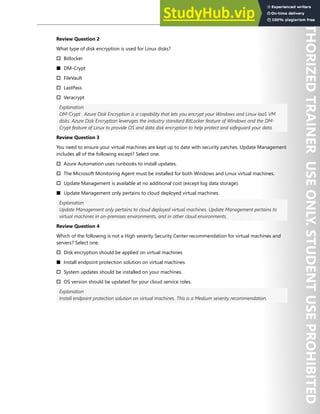
Network traffic can be filtered to and from Azure resources in an Azure virtual network with a network
security group. A network security group contains security rules that allow or deny inbound network
traffic to, or outbound network traffic from, several types of Azure resources
For each rule, you can specify source and destination, port, and protocol.
VMs that you create via the Resource Manager deployment model can have direct connectivity to the
internet by using a public IP address that is directly assigned to the VMs. Only with the host firewall
configured inside the VMs helps protect these VMs from the internet.
VMs that you create by using the classic deployment model communicate with internet resources
through the cloud service that is assigned the public IP address, which is also known as the VIP. VMs that
reside inside the cloud service share that VIP and establish communication with internet resources by
using endpoints. If you remove the VM endpoints that map the public port and public IP address of the
cloud service to the private port and private IP address of the VM, the VM becomes unreachable from the
internet via the public IP address.
Network Security Groups (NSGs) help provide advanced security for the VMs you create via either
deployment model (Resource Manager or classic). NSGs control inbound and outbound traffic passing
through a network adapter (in the Resource Manager deployment model), a VM (in the classic deploy-
ment model), or a subnet (in both deployment models).
Network Security Group rules
NSGs contain rules that specify whether traffic will be approved or denied. Each rule is based on a source
IP address, a source port, a destination IP address, and a destination port. Based on whether the traffic
matches this combination, the rule either allows or denies the traffic. Each rule consists of the following
properties:
● Name. This is a unique identifier for the rule.
● Direction. This specifies whether the traffic is inbound or outbound.
● Priority. If multiple rules match the traffic, rules with a higher priority apply.
● Access. This specifies whether the traffic is allowed or denied.
● Source IP address prefix. This prefix identifies where the traffic originated from. It can be based on a
single IP address; a range of IP addresses in Classless Interdomain Routing (CIDR) notation; or the
asterisk (*), which is a wildcard that matches all possible IP addresses.
● Source port range. This specifies source ports by using either a single port number from 1 through
65,535; a range of ports (for example, 200–400); or the asterisk (*) to denote all possible ports.
● Destination IP address prefix. This identifies the traffic destination based on a single IP address, a
range of IP addresses in CIDR notation, or the asterisk (*) to match all possible IP addresses.
● Destination port range. This specifies destination ports by using either a single port number from 1
through 65,535; a range of ports (for example, 200–400); or the asterisk (*) to denote all possible ports
.
● Protocol. This specifies a protocol that matches the rule. It can be UDP, TCP, or the asterisk (*).
110 Module 2 Implement platform protection
Custom Network Security Group rules
Predefined default rules exist for inbound and outbound traffic. You can’t delete these rules, but you can
override them, because they have the lowest priority. The default rules allow all inbound and outbound
traffic within a virtual network, allow outbound traffic towards the internet, and allow inbound traffic to
an Azure load balancer. A default rule with the lowest priority also exists in both the inbound and out-
bound sets of rules that denies all network communication.
When you create a custom rule, you can use default tags in the source and destination IP address prefixes
to specify predefined categories of IP addresses. These default tags are:
● Internet. This tag represents internet IP addresses.
● Virtual_network. This tag identifies all IP addresses that the IP range for the virtual network defines. It
also includes IP address ranges from on-premises networks when they are defined as local network to
virtual network.
● Azure_loadbalancer. This tag specifies the default Azure load balancer destination.
Planning Network Security Groups
You can design NSGs to isolate virtual networks in security zones, like the model used by on-premises
infrastructure does. You can apply NSGs to subnets, which allows you to create protected screened
subnets, or DMZs, that can restrict traffic flow to all the machines residing within that subnet. With the
classic deployment model, you can also assign NSGs to individual computers to control traffic that is both
destined for and leaving the VM. With the Resource Manager deployment model, you can assign NSGs to
a network adapter so that NSG rules control only the traffic that flows through that network adapter. If
the VM has multiple network adapters, NSG rules won’t automatically be applied to traffic that is desig-
nated for other network adapters.
You create NSGs as resources in a resource group, but you can share them with other resource groups in
your subscription.
NSG Implementation
When implementing NSGs, keep these important limits in
mind:
● By default, you can create 100 NSGs per region per subscription. You can raise this limit to 400 by
contacting Azure support.
● You can apply only one NSG to a VM, subnet, or network adapter.
● By default, you can have up to 200 rules in a single NSG. You can raise this limit to 500 by contacting
Azure support.
● You can apply an NSG to multiple resources.
An individual subnet can have zero, or one, associated NSG. An individual network interface can also have
zero, or one, associated NSG. So, you can effectively have dual traffic restriction for a virtual machine by
associating an NSG first to a subnet, and then another NSG to the VM's network interface. The applica-
tion of NSG rules in this case depends on the direction of traffic and priority of applied security rules.
Consider a simple example with one virtual machine as follows:
● The virtual machine is placed inside the Contoso Subnet.
Network Security 111
● Contoso Subnet is associated with Subnet NSG.
● The VM network interface is additionally associated with VM NSG.
In this example, for inbound traffic, the Subnet NSG is evaluated first. Any traffic allowed through Subnet
NSG is then evaluated by VM NSG. The reverse is applicable for outbound traffic, with VM NSG being
evaluated first. Any traffic allowed through VM NSG is then evaluated by Subnet NSG.
This allows for granular security rule application. For example, you might want to allow inbound internet
access to a few application VMs (such as frontend VMs) under a subnet but restrict inbound internet
access to other VMs (such as database and other backend VMs). In this case you can have a more lenient
rule on the Subnet NSG, allowing internet traffic, and restrict access to specific VMs by denying access on
VM NSG. The same can be applied for outbound traffic.
To help secure and protect your Azure resources, make sure NSG planning is standard operating proce-
dure (SOP) for your deployments.
How traffic is evaluated
Several resources from Azure services can be deployed into an Azure virtual network. You can associate
zero, or one, network security group to each virtual network subnet and network interface in a virtual
machine. The same network security group can be associated to as many subnets and network interfaces
as you choose.
The following picture illustrates different scenarios for how network security groups might be deployed
to allow network traffic to and from the internet over TCP port 80:
112 Module 2 Implement platform protection
Reference the above diagram, along with the following text, to understand how Azure processes inbound
and outbound rules for network security groups:
Inbound traffic
For inbound traffic, Azure processes the rules in a network security group associated to a subnet first, if
there is one, and then the rules in a network security group associated to the network interface, if there is
one.
● VM1: The security rules in NSG1 are processed, since it is associated to Subnet1 and VM1 is in
Subnet1. Unless you've created a rule that allows port 80 inbound, the traffic is denied by the Deny-
AllInbound default security rule, and never evaluated by NSG2, since NSG2 is associated to the
network interface. If NSG1 has a security rule that allows port 80, the traffic is then processed by
NSG2. To allow port 80 to the virtual machine, both NSG1 and NSG2 must have a rule that allows port
80 from the internet.
● VM2: The rules in NSG1 are processed because VM2 is also in Subnet1. Since VM2 does not have a
network security group associated to its network interface, it receives all traffic allowed through NSG1
or is denied all traffic denied by NSG1. Traffic is either allowed or denied to all resources in the same
subnet when a network security group is associated to a subnet.
● VM3: Since there is no network security group associated to Subnet2, traffic is allowed into the
subnet and processed by NSG2, because NSG2 is associated to the network interface attached to
VM3.
● VM4: Traffic is allowed to VM4, because a network security group isn't associated to Subnet3, or the
network interface in the virtual machine. All network traffic is allowed through a subnet and network
interface if they don't have a network security group associated to them.
Outbound traffic
For outbound traffic, Azure processes the rules in a network security group associated to a network
interface first, if there is one, and then the rules in a network security group associated to the subnet, if
there is one.
● VM1: The security rules in NSG2 are processed. Unless you create a security rule that denies port 80
outbound to the internet, the traffic is allowed by the AllowInternetOutbound default security rule in
both NSG1 and NSG2. If NSG2 has a security rule that denies port 80, the traffic is denied, and never
evaluated by NSG1. To deny port 80 from the virtual machine, either, or both of the network security
groups must have a rule that denies port 80 to the internet.
● VM2: All traffic is sent through the network interface to the subnet, since the network interface
attached to VM2 does not have a network security group associated to it. The rules in NSG1 are
processed.
● VM3: If NSG2 has a security rule that denies port 80, the traffic is denied. If NSG2 has a security rule
that allows port 80, then port 80 is allowed outbound to the internet, since a network security group is
not associated to Subnet2.
● VM4: All network traffic is allowed from VM4, because a network security group isn't associated to the
network interface attached to the virtual machine, or to Subnet3.
Network Security 113
Intra-Subnet traffic
It's important to note that security rules in an NSG associated to a subnet can affect connectivity between
VM's within it. For example, if a rule is added to NSG1 which denies all inbound and outbound traffic,
VM1 and VM2 will no longer be able to communicate with each other. Another rule would have to be
added specifically to allow this.
General guidelines
Unless you have a specific reason to, we recommended that you associate a network security group to a
subnet, or a network interface, but not both. Since rules in a network security group associated to a
subnet can conflict with rules in a network security group associated to a network interface, you can have
unexpected communication problems that require troubleshooting.
Application Security Groups
In this topic we look at Application Security Groups (ASGs), which are built on network security groups. A
quick review of Security groups reminds us that you can filter network traffic to and from Azure resources
in an Azure virtual network with a network security group. A network security group contains security
rules that allow or deny inbound network traffic to, or outbound network traffic from, several types of
Azure resources.
For each rule, you can specify source and destination, port, and protocol. You can enable network security
group flow logs to analyze network traffic to and from resources that have an associated network security
group.
ASGs
ASGs enable you to configure network security as a natural extension of an application's structure. You
then can group VMs and define network security policies based on those groups.
You also can reuse your security policy at scale without manual maintenance of explicit IP addresses. The
platform manages the complexity of explicit IP addresses and multiple rule sets, allowing you to focus on
your business logic. Consider the following illustration.
114 Module 2 Implement platform protection
In the illustration, NIC1 and NIC2 are members of the AsgWeb ASG. NIC3 is a member of the AsgLogic
ASG. NIC4 is a member of the AsgDb ASG. Though each network interface in this example is a member of
only one ASG, a network interface can be a member of multiple ASGs, up to the Azure limits. None of the
network interfaces have an associated network security group. NSG1 is associated to both subnets and
contains the following rules:
● Allow-HTTP-Inbound-Internet
● Deny-Database-All
● Allow-Database-BusinessLogic
The rules that specify an ASG as the source or destination are only applied to the network interfaces that
are members of the ASG. If the network interface is not a member of an ASG, the rule is not applied to
the network interface even though the network security group is associated to the subnet.
ASGs have the following constraints
● There are limits to the number of ASGs you can have in a subscription, in addition to other limits relat-
ed to ASGs.
● You can specify one ASG as the source and destination in a security rule. You cannot specify multiple
ASGs in the source or destination.
● All network interfaces assigned to an ASG must exist in the same virtual network that the first network
interface assigned to the ASG is in. For example, if the first network interface assigned to an ASG
named AsgWeb is in the virtual network named VNet1, then all subsequent network interfaces
assigned to ASGWeb must exist in VNet1. You cannot add network interfaces from different virtual
networks to the same ASG.
● If you specify an ASG as the source and destination in a security rule, the network interfaces in both
ASGs must exist in the same virtual network. For example, if AsgLogic contained network interfaces
from VNet1, and AsgDb contained network interfaces from VNet2, you could not assign AsgLogic as
the source and AsgDb as the destination in a rule. All network interfaces for both the source and
destination ASGs need to exist in the same virtual network.
Summary
Application Security Groups along with NSGs, have brought multiple benefits on the network security
area:
● A single management experience
● Increased limits on multiple dimensions
● A great level of simplification
● A seamless integration with your architecture
Service Endpoints
A virtual network service endpoint provides the identity of your virtual network to the Azure service. Once
service endpoints are enabled in your virtual network, you can secure Azure service resources to your
virtual network by adding a virtual network rule to the resources.
Today, Azure service traffic from a virtual network uses public IP addresses as source IP addresses. With
service endpoints, service traffic switches to use virtual network private addresses as the source IP
Network Security 115
addresses when accessing the Azure service from a virtual network. This switch allows you to access the
services without the need for reserved, public IP addresses used in IP firewalls.
A common usage case for service endpoints is a virtual machine accessing storage. The storage account
restricts access to the virtual machines private IP address.
Why use a service endpoint?
● Improved security for your Azure service resources. VNet private address space can be overlap-
ping and so, cannot be used to uniquely identify traffic originating from your VNet. Service endpoints
provide the ability to secure Azure service resources to your virtual network, by extending VNet
identity to the service. Once service endpoints are enabled in your virtual network, you can secure
Azure service resources to your virtual network by adding a virtual network rule to the resources. This
provides improved security by fully removing public Internet access to resources, and allowing traffic
only from your virtual network.
● Optimal routing for Azure service traffic from your virtual network. Today, any routes in your
virtual network that force Internet traffic to your premises and/or virtual appliances, known as
forced-tunneling, also force Azure service traffic to take the same route as the Internet traffic. Service
endpoints provide optimal routing for Azure traffic.
● Endpoints always take service traffic directly from your virtual network to the service on the
Microsoft Azure backbone network. Keeping traffic on the Azure backbone network allows you to
continue auditing and monitoring outbound Internet traffic from your virtual networks, through
forced-tunneling, without impacting service traffic.
● Simple to set up with less management overhead. You no longer need reserved, public IP address-
es in your virtual networks to secure Azure resources through IP firewall. There are no NAT or gateway
devices required to set up the service endpoints. Service endpoints are configured through a simple
click on a subnet. There is no additional overhead to maintaining the endpoints.
✔️ With service endpoints, the source IP addresses of the virtual machines in the subnet for service traffic
switches from using public IPv4 addresses to using private IPv4 addresses. Existing Azure service firewall
rules using Azure public IP addresses will stop working with this switch. Please ensure Azure service
firewall rules allow for this switch before setting up service endpoints. You may also experience temporary
interruption to service traffic from this subnet while configuring service endpoints.
116 Module 2 Implement platform protection
Service Endpoint Services
Servcie endpoints would provide benefits in the following Scenarios.
Scenarios
● Peered, connected, or multiple virtual networks: To secure Azure services to multiple subnets
within a virtual network or across multiple virtual networks, you can enable service endpoints on each
of the subnets independently, and secure Azure service resources to all of the subnets.
● Filtering outbound traffic from a virtual network to Azure services: If you want to inspect or filter
the traffic sent to an Azure service from a virtual network, you can deploy a network virtual appliance
within the virtual network. You can then apply service endpoints to the subnet where the network
virtual appliance is deployed, and secure Azure service resources only to this subnet. This scenario
might be helpful if you want use network virtual appliance filtering to restrict Azure service access
from your virtual network only to specific Azure resources.
● Securing Azure resources to services deployed directly into virtual networks: You can directly
deploy various Azure services into specific subnets in a virtual network. You can secure Azure service
resources to managed service subnets by setting up a service endpoint on the managed service
subnet.
● Disk traffic from an Azure virtual machine: Virtual Machine Disk traffic for managed and unman-
aged disks isn't affected by service endpoints routing changes for Azure Storage. This traffic includes
diskIO as well as mount and unmount. You can limit REST access to page blobs to select networks
through service endpoints and Azure Storage network rules.
Network Security 117
Private Links
Azure Private Link works on an approval call flow model wherein the Private Link service consumer can
request a connection to the service provider for consuming the service. The service provider can then
decide whether to allow the consumer to connect or not. Azure Private Link enables the service providers
to manage the private endpoint connection on their resources
118 Module 2 Implement platform protection
There are two connection approval methods that a Private Link service consumer can choose from:
● Automatic: If the service consumer has RBAC permissions on the service provider resource, the
consumer can choose the automatic approval method. In this case, when the request reaches the
service provider resource, no action is required from the service provider and the connection is
automatically approved.
● Manual: On the contrary, if the service consumer doesn’t have RBAC permissions on the service
provider resource, the consumer can choose the manual approval method. In this case, the connec-
tion request appears on the service resources as Pending. The service provider has to manually
approve the request before connections can be established. In manual cases, service consumer can
also specify a message with the request to provide more context to the service provider.
The service provider has following options to choose from for all Private Endpoint connections:
● Approved
● Reject
● Remove
Manage Private Endpoint Connections on Azure PaaS re-
sources
Portal is the preferred method for managing private endpoint connections on Azure PaaS resources.
Azure Application Gateway
Azure Application Gateway is a web traffic load balancer that enables you to manage traffic to your web
applications. Traditional load balancers operate at the transport layer (OSI layer 4 - TCP and UDP) and
route traffic based on source IP address and port, to a destination IP address and port. Azure Load
Balancer works that way.
Application Gateway can make routing decisions based on additional attributes of an HTTP request, for
example URI path or host headers. For example, you can route traffic based on the incoming URL. So if /
images is in the incoming URL, you can route traffic to a specific set of servers (known as a pool) config-
ured for images. If /video is in the URL, that traffic is routed to another pool that's optimized for videos.
Network Security 119
Application Gateway includes the following features:
● Secure Sockets Layer (SSL/TLS) termination - Application gateway supports SSL/TLS termination at
the gateway, after which traffic typically flows unencrypted to the backend servers. This feature allows
web servers to be unburdened from costly encryption and decryption overhead.
● Autoscaling - Application Gateway Standard_v2 supports autoscaling and can scale up or down
based on changing traffic load patterns. Autoscaling also removes the requirement to choose a
deployment size or instance count during provisioning.
● Zone redundancy - A Standard_v2 Application Gateway can span multiple Availability Zones, offering
better fault resiliency and removing the need to provision separate Application Gateways in each
zone.
● Static VIP - The application gateway Standard_v2 SKU supports static VIP type exclusively. This
ensures that the VIP associated with application gateway doesn't change even over the lifetime of the
Application Gateway.
● Web Application Firewall - Web Application Firewall (WAF) is a service that provides centralized
protection of your web applications from common exploits and vulnerabilities. WAF is based on rules
from the OWASP (Open Web Application Security Project) core rule sets 3.1 (WAF_v2 only), 3.0, and
2.2.9.
● Ingress Controller for AKS - Application Gateway Ingress Controller (AGIC) allows you to use
Application Gateway as the ingress for an Azure Kubernetes Service (AKS) cluster.
● URL-based routing - URL Path Based Routing allows you to route traffic to back-end server pools
based on URL Paths of the request. One of the scenarios is to route requests for different content
types to different pool.
● Multiple-site hosting - Multiple-site hosting enables you to configure more than one web site on the
same application gateway instance. This feature allows you to configure a more efficient topology for
your deployments by adding up to 100 web sites to one Application Gateway (for optimal perfor-
mance).
● Redirection - A common scenario for many web applications is to support automatic HTTP to HTTPS
redirection to ensure all communication between an application and its users occurs over an encrypt-
ed path.
● Session affinity - The cookie-based session affinity feature is useful when you want to keep a user
session on the same server.
● Websocket and HTTP/2 traffic - Application Gateway provides native support for the WebSocket
and HTTP/2 protocols. There's no user-configurable setting to selectively enable or disable WebSock-
et support.
120 Module 2 Implement platform protection
● Connection draining - Connection draining helps you achieve graceful removal of backend pool
members during planned service updates.
● Custom error pages - Application Gateway allows you to create custom error pages instead of
displaying default error pages. You can use your own branding and layout using a custom error page.
● Rewrite HTTP headers - HTTP headers allow the client and server to pass additional information with
the request or the response.
● Sizing - Application Gateway Standard_v2 can be configured for autoscaling or fixed size deploy-
ments. This SKU doesn't offer different instance sizes.
New Application Gateway v1 SKU deployments can take up to 20 minutes to provision. Changes to
instance size or count aren't disruptive, and the gateway remains active during this time.
Most deployments that use the v2 SKU take around 6 minutes to provision. However it can take longer
depending on the type of deployment. For example, deployments across multiple Availability Zones with
many instances can take more than 6 minutes.
Web Application Firewall
Web Application Firewall (WAF) provides centralized protection of your web applications from common
exploits and vulnerabilities. Web applications are increasingly targeted by malicious attacks that exploit
commonly known vulnerabilities. SQL injection and cross-site scripting are among the most common
attacks.
Preventing such attacks in application code is challenging. It can require rigorous maintenance, patching,
and monitoring at multiple layers of the application topology. A centralized web application firewall helps
make security management much simpler. A WAF also gives application administrators better assurance
of protection against threats and intrusions.
A WAF solution can react to a security threat faster by centrally patching a known vulnerability, instead of
securing each individual web application.
Supported service
WAF can be deployed with Azure Application Gateway, Azure Front Door, and Azure Content Delivery
Network (CDN) service from Microsoft. WAF on Azure CDN is currently under public preview. WAF has
features that are customized for each specific service.
Network Security 121
Azure Front Door
Azure Front Door enables you to define, manage, and monitor the global routing for your web traffic by
optimizing for best performance and instant global failover for high availability. With Front Door, you can
transform your global (multi-region) consumer and enterprise applications into robust, high-performance
personalized modern applications, APIs, and content that reaches a global audience with Azure.
Front Door works at Layer 7 or HTTP/HTTPS layer and uses split TCP-based anycast protocol. Front
Door ensures that your end users promptly connect to the nearest Front Door POP (Point of Presence).
So, per your routing method selection in the configuration, you can ensure that Front Door is routing
your client requests to the fastest and most available application backend. An application backend is any
Internet-facing service hosted inside or outside of Azure. Front Door provides a range of traffic-routing
methods and backend health monitoring options to suit different application needs and automatic
failover models. Like Traffic Manager, Front Door is resilient to failures, including the failure of an entire
Azure region.
The following features are included with Front Door:
● Accelerate application performance - Using split TCP-based anycast protocol, Front Door ensures
that your end users promptly connect to the nearest Front Door POP (Point of Presence).
● Increase application availability with smart health probes - Front Door delivers high availability for
your critical applications using its smart health probes, monitoring your backends for both latency and
availability and providing instant automatic failover when a backend goes down.
● URL-based routing - URL Path Based Routing allows you to route traffic to backend pools based on
URL paths of the request. One of the scenarios is to route requests for different content types to
different backend pools.
● Multiple-site hosting - Multiple-site hosting enables you to configure more than one web site on the
same Front Door configuration.
● Session affinity - The cookie-based session affinity feature is useful when you want to keep a user
session on the same application backend.
● TLS termination - Front Door supports TLS termination at the edge that is, individual users can set up
a TLS connection with Front Door environments instead of establishing it over long haul connections
with the application backend.
● Custom domains and certificate management - When you use Front Door to deliver content, a
custom domain is necessary if you would like your own domain name to be visible in your Front Door
URL.
122 Module 2 Implement platform protection
● Application layer security - Azure Front Door allows you to author custom Web Application Firewall
(WAF) rules for access control to protect your HTTP/HTTPS workload from exploitation based on client
IP addresses, country code, and http parameters.
● URL redirection - With the strong industry push on supporting only secure communication, web
applications are expected to automatically redirect any HTTP traffic to HTTPS.
● URL rewrite - Front Door supports URL rewrite by allowing you to configure an optional Custom
Forwarding Path to use when constructing the request to forward to the backend.
● Protocol support - IPv6 and HTTP/2 traffic - Azure Front Door natively supports end-to-end IPv6
connectivity and HTTP/2 protocol.
As mentioned above, routing to the Azure Front Door environments leverages Anycast for both DNS
(Domain Name System) and HTTP (Hypertext Transfer Protocol) traffic, so user traffic will go to the closest
environment in terms of network topology (fewest hops). This architecture typically offers better round-
trip times for end users (maximizing the benefits of Split TCP). Front Door organizes its environments into
primary and fallback “rings”. The outer ring has environments that are closer to users, offering lower
latencies. The inner ring has environments that can handle the failover for the outer ring environment in
case an issue happens. The outer ring is the preferred target for all traffic, but the inner ring is necessary
to handle traffic overflow from the outer ring. In terms of VIPs (Virtual Internet Protocol addresses), each
frontend host, or domain served by Front Door is assigned a primary VIP, which is announced by environ-
ments in both the inner and outer ring, as well as a fallback VIP, which is only announced by environ-
ments in the inner ring.
This overall strategy ensures that requests from your end users always reach the closest Front Door
environment and that even if the preferred Front Door environment is unhealthy then traffic automatical-
ly moves to the next closest environment.
User Defined Routes and Network Virtual Appli-
ances
User Defined Routes
A User Defined Routes (UDR) is a custom route in Azure that overrides Azure's default system routes or
adds routes to a subnet's route table. In Azure, you create a route table and then associate that route
table with zero or more virtual network subnets. Each subnet can have zero or one route table associated
with it. If you create a route table and associate it to a subnet, Azure either combines its routes with the
default routes that Azure adds to a subnet or overrides those default routes.
In this diagram UDRs are used to direct traffic from the Gateway subnet and the Web tier to the Network
Virtual Appliance (NVA).
Network Security 123
Network Virtual Appliances
You can deploy an NVA to a perimeter network in many architectures. In the previous diagram, the NVA
helps provide a secure network boundary by checking all inbound and outbound network traffic and then
passing only the traffic that meets the network security rules. However, the fact that all network traffic
passes through the NVA means that the NVA is a single point of failure in the network. If the NVA fails, no
other path will exist for network traffic, and all the back-end subnets will become unavailable.
To make an NVA highly available, deploy more than one NVA into an availability set.
The following figure shows a high-availability architecture that implements an ingress perimeter network
behind an internet-facing load balancer. This architecture is designed to provide connectivity to Azure
workloads for layer 7 traffic, such as HTTP or HTTPS traffic.
124 Module 2 Implement platform protection
The benefit of this architecture is that all NVAs are active, and if one fails, the load balancer directs
network traffic to the other NVA. Both NVAs route traffic to the internal load balancer, so if one NVA is
active, traffic will continue to flow. The NVAs are required to terminate SSL traffic intended for the web
tier VMs. These NVAs can’t be extended to handle on-premises traffic, because on-premises traffic
requires another dedicated set of NVAs with their own network.
UDRs and NSGs help provide layer 3 and layer 4 (of the OSI model) security. NVAs help provide layer 7,
application layer, security.
ExpressRoute and ExpressRoute Direct
Expressroute
ExpressRoute is a direct, private connection from your WAN (not over the public Internet) to Microsoft
Services, including Azure. Site-to-Site VPN traffic travels encrypted over the public Internet. Being able to
configure Site-to-Site VPN and ExpressRoute connections for the same virtual network has several
advantages.
You can configure a Site-to-Site VPN as a secure failover path for ExpressRoute, or use Site-to-Site VPNs
to connect to sites that are not part of your network, but that are connected through ExpressRoute.
Notice that this configuration requires two virtual network gateways for the same virtual network, one
using the gateway type ‘Vpn’, and the other using the gateway type 'ExpressRoute'.
Network Security 125
ExpressRoute encryption
IPsec over ExpressRoute for Virtual WAN
Azure Virtual WAN uses an Internet Protocol Security (IPsec) Internet Key Exchange (IKE) VPN connection
from your on-premises network to Azure over the private peering of an Azure ExpressRoute circuit. This
technique can provide an encrypted transit between the on-premises networks and Azure virtual net-
works over ExpressRoute, without going over the public internet or using public IP addresses.
The following diagram shows an example of VPN connectivity over ExpressRoute private peering.
The diagram shows a network within the on-premises network connected to the Azure hub VPN gateway
over ExpressRoute private peering. The connectivity establishment is straightforward:
1. Establish ExpressRoute connectivity with an ExpressRoute circuit and private peering.
2. Establish the VPN connectivity.
An important aspect of this configuration is routing between the on-premises networks and Azure over
both the ExpressRoute and VPN paths.
ExpressRoute supports a couple of encryption technologies to ensure confidentiality and integrity of the
data traversing between your network and Microsoft's network.
126 Module 2 Implement platform protection
Point-to-point encryption by MACsec
MACsec is an IEEE standard. It encrypts data at the Media Access control (MAC) level or Network Layer 2.
You can use MACsec to encrypt the physical links between your network devices and Microsoft's network
devices when you connect to Microsoft via ExpressRoute Direct. MACsec is disabled on ExpressRoute
Direct ports by default. You bring your own MACsec key for encryption and store it in Azure Key Vault.
You decide when to rotate the key.
End-to-end encryption by IPsec and MACsec
IPsec is an IETF standard. It encrypts data at the Internet Protocol (IP) level or Network Layer 3. You can
use IPsec to encrypt an end-to-end connection between your on-premises network and your virtual
network (VNET) on Azure.
MACsec secures the physical connections between you and Microsoft. IPsec secures the end-to-end
connection between you and your virtual networks on Azure. You can enable them independently.
ExpressRoute Direct
ExpressRoute Direct gives you the ability to connect directly into Microsoft’s global network at peering
locations strategically distributed across the world. ExpressRoute Direct provides dual 100 Gbps or 10
Gbps connectivity, which supports Active/Active connectivity at scale
Key features that ExpressRoute Direct provides include, but aren't limited to:
● Massive Data Ingestion into services like Storage and Cosmos DB
● Physical isolation for industries that are regulated and require dedicated and isolated connectivity like:
Banking, Government, and Retail
● Granular control of circuit distribution based on business unit
ExpressRoute Direct supports massive data ingestion scenarios into Azure storage and other big data
services. ExpressRoute circuits on 100 Gbps ExpressRoute Direct now also support 40 Gbps and 100 Gbps
circuit SKUs. The physical port pairs are 100 or 10 Gbps only and can have multiple virtual circuits.
ExpressRoute Direct supports both QinQ and Dot1Q VLAN tagging.
● QinQ VLAN Tagging allows for isolated routing domains on a per ExpressRoute circuit basis. Azure
dynamically allocates an S-Tag at circuit creation and cannot be changed. Each peering on the circuit
(Private and Microsoft) will utilize a unique C-Tag as the VLAN. The C-Tag is not required to be unique
across circuits on the ExpressRoute Direct ports.
● Dot1Q VLAN Tagging allows for a single tagged VLAN on a per ExpressRoute Direct port pair basis.
A C-Tag used on a peering must be unique across all circuits and peerings on the ExpressRoute Direct
port pair.
ExpressRoute Direct provides the same enterprise-grade SLA with Active/Active redundant connections
into the Microsoft Global Network. ExpressRoute infrastructure is redundant and connectivity into the
Microsoft Global Network is redundant and diverse and scales accordingly with customer requirements.
Network Security 127
Demonstration - Network Connectivity
Task 1 - Network Security Groups
Note: This task requires a Windows virtual machine associated with a network security group. The NSG
should have an inbound security rule that allows RDP. The virtual machine should be in a running state
and have a public IP address.
In this task, we will review networking rules, confirm the public IP page does not display, configure an
inbound NSG rule, and confirm the public IP page now displays.
Review networking rules
1. In the Portal, navigate to your virtual machine.
2. Under Settings, click Networking.
3. Discuss the default inbound and outbound rules.
4. Review the inbound rules and ensure RDP is allowed.
5. Make a note of the public IP address.
Connect to the virtual machine and test the public IP address
1. From the Overview blade, click Connect and RDP in to the virtual machine.
2. On the virtual machine, open a browser.
3. Test the default localhost IIS HTML page: http://localhost/default.htm. This page should
appear.
4. Test the default public IP IIS HTML page: http://public_IP_address/default.htm. This page
should not display.
Configure an inbound rule to allow public access on port 80
1. Return to the Portal and the Networking blade.
2. Make a note of the virtual machines private IP address.
3. On the Inbound port rules tab, click Add inbound port rule. This rule will only allow certain IP
address on port 80. As you go through the configuration settings be sure to discuss each one.
● Source: Service Tag
● Source service tag: Internet
● Destination: IP addresses
● Destination IP addresses/CIDR range: private_IP_address/32
● Destination port range: 80
● Protocol: TCP
● Action: Allow
● Name: Allow_Port_80
● Click Add
4. Wait for your new inbound rule to be added.
128 Module 2 Implement platform protection
Retest the public IP address
1. On the virtual machine return to the browser.
2. Refresh the default public IP IIS HTML page: http://public_IP_address/default.htm. This
page should now display.
Task 2 - Application Service Groups
Note: This task requires a Windows virtual machines with IIS installed. These steps use VM1. Your ma-
chine name may be different.
In this task, we will connect to a virtual machine, create an inbound deny rule, configure and application
security group, and test connectivity.
Connect to the virtual machine
1. In the Portal, navigate to VM1.
2. On the Networking blade, make a note of the private IP address.
3. Ensure there is an Inbound port rule that allows RDP.
4. From the Overview blade, ensure VM1 is running.
5. Click Connect and RDP into the VM1.
6. On VM1, open a browser.
7. Ensure the default IIS page display for the private IP address: http://private_IP_address/
default.htm.
Add an inbound deny rule and test the rule
1. Continue in the Portal from the Networking blade.
2. On the Inbound port rules tab, click Add inbound port rule. Add a rule that denies all inbound
traffic.
● Destination port ranges: *
● Action: Deny
● Name: Deny_All
● Click Add
3. Wait for your new inbound rule to be added.
4. On VM1, refresh the browser page: http://private_IP_address/default.htm.
5. Verify that the page does not display.
Configure an application security group
1. In the Portal, search for and select Application security groups.
2. Create a new Application security group.
3. Provide the required information: subscription, resource group, name, and region.
4. Wait for the ASG to deploy.
5. In the Portal, return to VM1.
6. On the Networking blade, select the Application security groups tab.
Network Security 129
7. Click Configure the application security groups.
8. Select your new application security group, and Save your changes.
9. From the Inbound port rules tab, click Add inbound rule. This will allow the ASG.
● Source: Application security group
● Source application security group: your_ASG
● Destination: IP addresses
● Destination IP addresses: private_IP_address/32
● Destination port range: 80
● Priority: 250
● Name: Allow_ASG
● Click Add
10. Wait for your new inbound rule to be added.
Test the application security group
1. On VM1, refresh the browser page: http://private_IP_address/default.htm.
2. Verify that the page now displays.
Task 3 - Storage Endpoints (you could do this in the Stor-
age lesson)
Note: This task requires a storage account and virtual network with subnet. Storage Explorer is also
required.
In this task, we will secure a storage endpoint.
1. In the Portal.
2. Locate your storage account.
3. Create a file share, and upload a file.
4. Use the Shared Access Signature blade to Generate SAS and connection string.
5. Use Storage Explorer and the connection string to access the file share.
6. Ensure you can view your uploaded file.
7. Locate your virtual network, and then select a subnet in the virtual network.
8. Under Service Endpoints, view the Services drop-down and the different services that can be
secured with an endpoint.
9. Check the Microsoft.Storage option.
10. Save your changes.
11. Return to your storage account.
12. Select Firewalls and virtual networks.
13. Change to Selected networks.
14. Add your virtual network and verify your subnet with the new service endpoint is listed.
130 Module 2 Implement platform protection
15. Save your changes.
16. Return to the Storage Explorer.
17. Refresh the storage account.
18. Verify you can no longer access the file share.
Additional Study
Microsoft Learn9
provides a large number of self-paced learning paths. For this lesson, we recommend
the following modules. You may search and find other modules that are of interest to you.
● Encrypt network traffic end to end with Azure Application Gateway10
● Connect your on-premises network to the Microsoft global network by using ExpressRoute11
● Design a hybrid network architecture on Azure12
● Secure and isolate access to Azure resources by using network security groups and service
endpoints13
Review Questions
Review Question 1
You are deploying the Azure Application Gateway and want to ensure incoming requests are checked for
common security threats like cross-site scripting and crawlers. To address your concerns what should you
do?
† Install an external load balancer
† Install an internal load balancer
† Install Azure Firewall
† Install the Web Application Firewall
Review Question 2
Which services below are features of Azure Application Gateway? Select three.
† Authentication
† Layer 7 load balancing
† Offloading of CPU intensive SSL terminations
† Round robin distribution of incoming traffic
† Vulnerability assessments
9 https://docs.microsoft.com/en-us/learn/
10 https://docs.microsoft.com/en-us/learn/modules/end-to-end-encryption-with-app-gateway/
11 https://docs.microsoft.com/en-us/learn/modules/connect-on-premises-network-with-expressroute/
12 https://docs.microsoft.com/en-us/learn/modules/design-a-hybrid-network-architecture/
13 https://docs.microsoft.com/en-us/learn/modules/secure-and-isolate-with-nsg-and-service-endpoints/
Network Security 131
Review Question 3
You are configuring a Network Security Group. All the following are default rules, except?
† Allow all virtual networks inbound and outbound
† Allow Azure load balancer inbound
† Allow Internet inbound
† Allow Internet outbound
Review Question 4
Your organization has web servers in different regions and you want to optimize the availability of the
servers. Which of the following is best suited for this purposed? Select one.
† Azure Application Gateway
† Azure Front Door
† Custom routing
† Web Application Firewall
132 Module 2 Implement platform protection
Host Security
Endpoint Protection
Computer systems that interact directly with users are considered endpoint systems. Systems on devices,
such as laptops, smartphones, tablets, and computers, all need to be secured to help prevent them from
acting as gateways for security attacks on an organization’s networked systems.
Earlier, we discussed the shared responsibilities of helping secure services in Azure. IaaS involves more
customer responsibility than PaaS and SaaS did, and Azure Security Center provides the tools you need to
harden your network, help secure your services, and stay on top of your security posture.
First step: Help protect against malware
Install antimalware to help identify and remove viruses, spyware, and other malicious software. You can
install Microsoft Antimalware or an endpoint protection solution from a Microsoft Partner.
Second Step: Monitor the status of the antimalware
Next, integrate your antimalware solution with Azure Security Center to monitor the status of the anti-
malware protection. Security Center reports this on the Endpoint protection issues blade. Security
Center highlights issues, such as detected threats and insufficient protection, which might make your
VMs and computers vulnerable to malware threats. By using the information on Endpoint protection
issues, you can make a plan to address any identified issues.
Focusing just on the endpoint recommendation, what does Azure Security Center report as issues?
By using the information under Endpoint protection issues, you can identify a plan to address any issues
identified.
Security Center reports the following endpoint protection issues:
● Endpoint protection not installed on Azure VMs - A supported antimalware solution isn’t installed
on these Azure VMs.
● Endpoint protection not installed on non-Azure computers - A supported antimalware solution
isn’t installed on these non-Azure computers.
● Endpoint protection health issues:
● Signature out of date. An antimalware solution is installed on these VMs and computers, but the
solution doesn’t have the latest antimalware signatures.
● No real time protection. An antimalware solution is installed on these VMs and computers, but it
isn’t configured for real-time protection. The service might be disabled, or Security Center might
be unable to obtain the status because the solution isn’t supported.
● Not reporting. An antimalware solution is installed but not reporting data.
● Unknown. An antimalware solution is installed, but either its status is unknown or it’s reporting an
unknown error.
Privileged Access Workstations
Privileged Access Workstations (PAWs) provide a dedicated system for sensitive tasks that is protected
from Internet attacks and threat vectors. Separating these sensitive tasks and accounts from the daily use
Host Security 133
workstations and devices provides very strong protection from phishing attacks, application and OS
vulnerabilities,
various impersonation attacks, and credential theft attacks such as keystroke logging, Pass-the-Hash, and
Pass-The-Ticket.
PAW workstations
PAW is a hardened and locked down workstation designed to provide high security assurances for
sensitive accounts and tasks. PAWs are recommended for administration of identity systems, cloud
services, and private cloud fabric as well as sensitive business functions.
In order to provide the greatest security, PAWs should always run the most up-to-date and secure
operating system available: Microsoft strongly recommends Windows 10 Enterprise, which includes
several additional security features not available in other editions (in particular, Credential Guard and
Device Guard).
The PAW security controls are focused on mitigating high impact and high probability risks of compro-
mise. These include mitigating attacks on the environment and risks that can decrease the effectiveness
of PAW controls over time:
● Internet attacks - Isolating the PAW from the open internet is a key element to ensuring the PAW is
not compromised.
● Usability risk - If a PAW is too difficult to use for daily tasks, administrators will be motivated to
create workarounds to make their jobs easier.
● Environment risks - Minimizing the use of management tools and accounts that have access to the
PAWs to secure and monitor these specialized workstations.
● Supply chain tampering - Taking a few key actions can mitigate critical attack vectors that are readily
available to attackers. This includes validating the integrity of all installation media (Clean Source
Principle) and using a trusted and reputable supplier for hardware and software.
● Physical attacks - Because PAWs can be physically mobile and used outside of physically secure
facilities, they must be protected against attacks that leverage unauthorized physical access to the
computer.
Architecture overview
The diagram below depicts a separate “channel” for administration (a highly sensitive task) that is created
by maintaining separate dedicated administrative accounts and workstations.
This architectural approach builds on the protections found in the Windows 10 Credential Guard and
Device Guard features and goes beyond those protections for sensitive accounts and tasks.
134 Module 2 Implement platform protection
This methodology is appropriate for accounts with access to high value assets:
● Administrative Privileges - PAWs provide increased security for high impact IT administrative roles
and tasks. This architecture can be applied to administration of many types of systems including
Active Directory Domains and Forests, Microsoft Azure Active Directory tenants, Office 365 tenants,
Process Control Networks (PCN), Supervisory Control and Data Acquisition (SCADA) systems, Auto-
mated Teller Machines (ATMs), and Point of Sale (PoS) devices.
● High Sensitivity Information workers - The approach used in a PAW can also provide protection for
highly sensitive information worker tasks and personnel such as those involving pre-announcement
Merger and Acquisition activity, pre-release financial reports, organizational social media presence,
executive communications, unpatented trade secrets, sensitive research, or other proprietary or
sensitive data. This guidance does not discuss the configuration
of these information worker scenarios in depth or include this scenario in the technical instructions.
Securing privileged access is a critical first step to establishing security assurances for business assets in a
modern organization. The security of most or all business assets in an IT organization depends on the
integrity of the privileged accounts used to administer, manage, and develop.
Jump Box
Administrative “Jump Box” architectures set up a small number administrative console servers and restrict
personnel to using them for administrative tasks. This is typically based on remote desktop services, a
3rd-party presentation virtualization solution, or a Virtual Desktop Infrastructure (VDI) technology.
This approach is frequently proposed to mitigate risk to administration and does provide some security
assurances, but the jump box approach by itself is vulnerable to certain attacks because it violates the
clean source principle. The clean source principle requires all security dependencies to be as trustworthy
as the object being secured.
This figure depicts a simple control relationship. Any subject in control of an object is a security depend-
ency of that object. If an adversary can control a security dependency of a target object (subject), they
can control that object.
The administrative session on the jump server relies on the integrity of the local computer accessing it. If
this computer is a user workstation subject to phishing attacks and other internet-based attack vectors,
then the administrative session is also subject to those risks.
While some advanced security controls like multi-factor authentication can increase the difficulty of an
attacker taking over this administrative session from the user workstation, no security feature can fully
protect against technical attacks when an attacker has administrative access of the source computer (e.g.
injecting illicit commands into a legitimate session, hijacking legitimate processes, and so on.)
The default configuration in this PAW guidance installs administrative tools on the PAW, but a jump server
architecture can also be added if required.
Host Security 135
This above figure shows how reversing the control relationship and accessing user apps from an admin
workstation gives the attacker no path to the targeted object. The user jump box is still exposed to risk so
appropriate protective controls, detective controls, and response processes should still be applied for that
internet-facing computer.
Virtual Machine Templates
Before diving into configuring VM policies and templates, you need to understand the features and
functionality of Azure Resource Manager.
Resource Manager is the deployment and management service for your Azure subscription. It provides a
consistent management layer that allows you to create, update, and delete resources in your Azure
subscription. You can use its access control, auditing, and tagging features to help secure and organize
your resources after deployment.
When you take actions through the Azure Portal, Azure PowerShell, the Azure CLI, REST APIs, or client
SDKs, the Resource Manager API handles your request. Because the same API handles all requests, you
get consistent results and capabilities in all the different tools.
Here are some additional terms to know when using Resource Manager:
● Resource provider. A service that supplies Azure resources. For example, a common resource
provider is Microsoft.Compute, which supplies the VM resource. Microsoft.Storage is another common
resource provider.
● Resource Manager template. A JSON file that defines one or more resources to deploy to a resource
group or subscription. You can use the template to consistently and repeatedly deploy the resources.
● Declarative syntax. Syntax that lets you state, “Here’s what I intend to create” without having to write
the sequence of programming commands to create it. The Resource Manager template is an example
of declarative syntax. In the file, you define the properties for the infrastructure to deploy to Azure.
You can use the Resource Manager template to define your VMs. After they are defined you can easily
deploy and redeploy them. We recommend periodically redeploying your VMs to force the deployment
of a freshly updated and security-enhanced VM OS.
Template design
How you define templates and resource groups is entirely up to you and how you want to manage your
solution. For example, you can deploy your three tier application through a single template to a single
resource group.
136 Module 2 Implement platform protection
But, you don't have to define your entire infrastructure in a single template. Often, it makes sense to
divide your deployment requirements into a set of targeted, purpose-specific templates. You can easily
reuse these templates for different solutions. To deploy a particular solution, you create a master tem-
plate that links all the required templates.
If you envision your tiers having separate lifecycles, you can deploy your three tiers to separate resource
groups. Notice the resources can still be linked to resources in other resource groups.
✔️ When you deploy a template, Resource Manager converts the template into REST API operations.
Remote Access Management
This topic explains how to connect to and sign into the virtual machines (VMs) you created on Azure.
Once you've successfully connected, you can work with the VM as if you were locally logged on to its
host server.
Connect to a Windows VM
The most common way to connect to a Windows based VM running in Azure is by using Remote Desktop
Protocol (RDP). . Most versions of Windows natively contain support for the remote desktop protocol
(RDP).
If you are connecting to a WIndows VM from a Mac, you will need to install an RDP client for Mac.
If you are using PowerShell and have the Azure PowerShell module installed you may also connect using
the Get-AzRemoteDesktopFile cmdlet.
Connect to a Linux-based VM
To connect the Linux-based VM, you need a secure shell protocol (SSH) client. Thie most used free tool is
PuTTY SHH terminal.
The following shows the PuTTY configuration dialog.
Host Security 137
Azure Bastion
The Azure Bastion service is a fully platform-managed PaaS service that you provision inside your virtual
network. It provides secure and seamless RDP/SSH connectivity to your virtual machines directly in the
Azure portal over TLS. When you connect using Azure Bastion, your virtual machines do not need a public
IP address.
Bastion provides secure RDP and SSH connectivity to all the VMs in the virtual network in which it is
provisioned. Using Azure Bastion protects your virtual machines from exposing RDP/SSH ports to the
outside world, while still providing secure access using RDP/SSH. With Azure Bastion, you connect to the
virtual machine directly from the Azure portal.
Architecture
Azure Bastion deployment is per virtual network, not per subscription/account or virtual machine. Once
you provision an Azure Bastion service in your virtual network, the RDP/SSH experience is available to all
your VMs in the same virtual network.
RDP and SSH are some of the fundamental means through which you can connect to your workloads
running in Azure. Exposing RDP/SSH ports over the Internet isn't desired and is seen as a significant
threat surface. This is often due to protocol vulnerabilities. To contain this threat surface, you can deploy
bastion hosts (also known as jump-servers) at the public side of your perimeter network. Bastion host
servers are designed and configured to withstand attacks. Bastion servers also provide RDP and SSH
connectivity to the workloads sitting behind the bastion, as well as further inside the network.
138 Module 2 Implement platform protection
This figure shows the architecture of an Azure Bastion deployment. In this diagram:
● The Bastion host is deployed in the virtual network.
● The user connects to the Azure portal using any HTML5 browser.
● The user selects the virtual machine to connect to.
● With a single click, the RDP/SSH session opens in the browser.
● No public IP is required on the Azure VM.
Key features
The following features are available:
● RDP and SSH directly in Azure portal: You can directly get to the RDP and SSH session directly in
the Azure portal using a single click seamless experience.
● Remote Session over TLS and firewall traversal for RDP/SSH: Azure Bastion uses an HTML5 based
web client that is automatically streamed to your local device, so that you get your RDP/SSH session
over TLS on port 443 enabling you to traverse corporate firewalls securely.
● No Public IP required on the Azure VM: Azure Bastion opens the RDP/SSH connection to your
Azure virtual machine using private IP on your VM. You don't need a public IP on your virtual machine.
● No hassle of managing NSGs: Azure Bastion is a fully managed platform PaaS service from Azure
that is hardened internally to provide you secure RDP/SSH connectivity. You don't need to apply any
NSGs on Azure Bastion subnet. Because Azure Bastion connects to your virtual machines over private
IP, you can configure your NSGs to allow RDP/SSH from Azure Bastion only.
Host Security 139
● Protection against port scanning: Because you do not need to expose your virtual machines to
public Internet, your VMs are protected against port scanning by rogue and malicious users located
outside your virtual network.
● Protect against zero-day exploits. Hardening in one place only: Azure Bastion is a fully plat-
form-managed PaaS service. Because it sits at the perimeter of your virtual network, you don’t need to
worry about hardening each of the virtual machines in your virtual network.
Virtual Machine Updates
Azure Update Management is a service included as part of your Azure subscription. With Update Man-
agement, you can assess your update status across your environment and manage your Windows Server
and Linux server updates from a single location—for both your on-premises and Azure environments.
Update Management is available at no additional cost (you pay only for the log data that Azure Log
Analytics stores), and you can easily enable it for Azure and on-premises VMs. To try it, navigate to your
VM tab in Azure, and then enable Update Management for one or more of your VMs. You can also
enable Update Management for VMs directly from your Azure Automation account. Making updates
easy, is one of the key factors in maintaining good security hygiene.
Azure Update Management overview
Computers that Update Management manages use the following configurations to perform assessment
and update deployments:
● Microsoft Monitoring Agent (MMA) for Windows or Linux
● Desired State Configuration (DSC) in Windows PowerShell for Linux
● Hybrid Runbook Worker in Azure Automation
● Microsoft Update or Windows Server Update Services (WSUS) for Windows computers
Azure Automation uses runbooks to install updates. You can't view these runbooks, and they don’t
require any configuration. When an update deployment is created, it creates a schedule that starts a
master update runbook at the specified time for the included computers. The master runbook starts a
child runbook on each agent to install the required updates.
The following diagram is a conceptual depiction of the behavior and data flow together with how the
solution assesses and applies security updates to all connected Windows Server and Linux computers in a
workspace.
140 Module 2 Implement platform protection
Manage updates for multiple machines
You can use the Update Management solution to manage updates and patches for your Windows and
Linux virtual machines. From your Azure Automation account, you can:
● Onboard virtual machines
● Assess the status of available updates
● Schedule installation of required updates
● Review deployment results to verify that updates were applied successfully to all virtual machines for
which Update Management is enabled
The Log Analytics agent for Windows and Linux needs to be installed on the VMs that are running on
your corporate network or other cloud environment in order to enable them with Update Management.
After you enable Update Management for your machines, you can view machine information by selecting
Computers. You can view information about machine name, compliance status, environment, OS type,
critical and security updates installed, other updates installed, and update agent readiness for your
computers.
Host Security 141
Computers that have recently been enabled for Update Management might not have been assessed yet.
The compliance state status for those computers is Not assessed.
Update inclusion
Azure Update Management provides the ability to deploy patches based on classifications. However,
there are scenarios where you may want to explicitly list the exact set of patches. Common scenarios
include allowing specific patches after canary environment testing and zero-day patch rollouts.
With update inclusion lists you can choose exactly which patches you want to deploy instead of relying
on patch classifications.
Disk Encryption
Azure disk encryption for Windows VMs
Azure Disk Encryption helps protect and safeguard your data to meet your organizational security and
compliance commitments. It uses the Bitlocker feature of Windows to provide volume encryption for the
OS and data disks of Azure virtual machines (VMs), and is integrated with Azure Key Vault to help you
control and manage the disk encryption keys and secrets.
If you use Azure Security Center, you're be alerted if you have VMs that aren't encrypted. The alerts show
as High Severity and the recommendation is to encrypt these VMs.
Supported VMs and operating systems
Supported VMs
Windows VMs are available in a range of sizes. Azure Disk Encryption is not available on Basic, A-series
VMs, or on virtual machines with a less than 2 GB of memory.
Azure Disk Encryption is also available for VMs with premium storage.
Azure Disk Encryption is not available on Generation 2 VMs and Lsv2-series VMs.
Supported operating systems
● Windows client: Windows 8 and later.
● Windows Server: Windows Server 2008 R2 and later.
142 Module 2 Implement platform protection
Networking requirements
To enable Azure Disk Encryption, the VMs must meet the following network endpoint configuration
requirements:
● To get a token to connect to your key vault, the Windows VM must be able to connect to an Azure
Active Directory endpoint, [login.microsoftonline.com].
● To write the encryption keys to your key vault, the Windows VM must be able to connect to the key
vault endpoint.
● The Windows VM must be able to connect to an Azure storage endpoint that hosts the Azure exten-
sion repository and an Azure storage account that hosts the VHD files.
● If your security policy limits access from Azure VMs to the Internet, you can resolve the preceding URI
and configure a specific rule to allow outbound connectivity to the IPs.
Group Policy requirements
Azure Disk Encryption uses the BitLocker external key protector for Windows VMs. For domain joined
VMs, don't push any group policies that enforce TPM protectors.
BitLocker policy on domain joined virtual machines with custom group policy must include the following
setting: Configure user storage of BitLocker recovery information -> Allow 256-bit recovery key. Azure
Disk Encryption will fail when custom group policy settings for BitLocker are incompatible. On machines
that didn't have the correct policy setting, apply the new policy, force the new policy to update (gpup-
date.exe /force), and then restarting may be required.
Azure Disk Encryption will fail if domain level group policy blocks the AES-CBC algorithm, which is used
by BitLocker.
Encryption key storage requirements
Azure Disk Encryption requires an Azure Key Vault to control and manage disk encryption keys and
secrets. Your key vault and VMs must reside in the same Azure region and subscription.
Azure Disk Encryption for Linux VMs
Azure Disk Encryption helps protect and safeguard your data to meet your organizational security and
compliance commitments. It uses the DM-Crypt feature of Linux to provide volume encryption for the OS
and data disks of Azure virtual machines (VMs), and is integrated with Azure Key Vault to help you control
and manage the disk encryption keys and secrets.
As for Windows VMs, if you use Azure Security Center, you're alerted if you have VMs that aren't encrypt-
ed. The alerts show as High Severity and the recommendation is to encrypt these VMs
Supported VMs and operating systems
Supported VMs
Linux VMs are available in a range of sizes. Azure Disk Encryption is not available on Basic, A-series VMs,
or on virtual machines that do not meet these minimum memory requirements
Virtual machine Minimum memory requirement
Linux VMs when only encrypting data volumes 2 GB
Host Security 143
Virtual machine Minimum memory requirement
Linux VMs when encrypting both data and OS
volumes, and where the root (/) file system usage
is 4GB or less
8 GB
Linux VMs when encrypting both data and OS
volumes, and where the root (/) file system usage
is greater than 4GB
The root file system usage * 2. For instance, a 16
GB of root file system usage requires at least 32GB
of RAM
Once the OS disk encryption process is complete on Linux virtual machines, the VM can be configured to
run with less memory.
Azure Disk Encryption is also available for VMs with premium storage.
Azure Disk Encryption is not available on Generation 2 VMs and Lsv2-series VMs.
Azure Disk Encryption requires the dm-crypt and vfat modules to be present on the system. Removing or
disabling vfat from the default image will prevent the system from reading the key volume and obtaining
the key needed to unlock the disks on subsequent reboots. System hardening steps that remove the vfat
module from the system are not compatible with Azure Disk Encryption
Windows Defender
Windows 10, Windows Server 2019, and Windows Server 2016 include key security features. They are
Windows Defender Credential Guard, Windows Defender Device Guard, and Windows Defender Applica-
tion Control.
Windows Defender Credential Guard
Introduced in Windows 10 Enterprise and Windows Server 2016, Windows Defender Credential Guard
uses virtualization-based security enhancement to isolate secrets so that only privileged system software
can access them. Unauthorized access to these secrets might lead to credential theft attacks, such as
Pass-the-Hash or pass-the-ticket attacks. Windows Defender Credential Guard helps prevent these
attacks by helping protect Integrated Windows Authentication (NTLM) password hashes, Kerberos
authentication ticket-granting tickets, and credentials that applications store as domain credentials.
By enabling Windows Defender Credential Guard, you get the following features and solutions:
● Hardware security enhancement. NTLM, Kerberos, and Credential Manager take advantage of plat-
form security features, including Secure Boot and virtualization, to help protect credentials.
● Virtualization-based security enhancement. NTLM-derived credentials, Kerberos-derived credentials,
and other secrets run in a protected environment that is isolated from the running operating system.
● Better protection against advanced persistent threats. When virtualization-based security enhance-
ment helps protect Credential Manager domain credentials, NTLM-derived credentials, and Kerber-
os-derived credentials, the credential theft attack techniques and tools that many targeted attacks use
are blocked. Malware running in the OS with administrative privileges can’t extract secrets that
virtualization-based security helps protect. Although Windows Defender Credential Guard provides
powerful mitigation, persistent threat attacks will likely shift to new attack techniques, so you should
also incorporate Windows Defender Device Guard and other security strategies and architectures.
144 Module 2 Implement platform protection
Windows Defender Device Guard and Windows Defender
Application Control
The configuration state of Windows Defender Device Guard was originally designed with a specific securi-
ty idea in mind. Although no direct dependencies existed between the two main OS features of the
Windows Defender Device Guard configuration—that is, between configurable code integrity and
Hypervisor-protected code integrity (HVCI)—the discussion intentionally focused on the Windows
Defender Device Guard lockdown state that can be achieved when they’re deployed together.
However, the use of the term device guard to describe this configuration state has unintentionally left
many IT pros with the impression that the two features are inexorably linked and can’t be separately
deployed. Additionally, because HVCI relies on security based on Windows virtualization, it comes with
additional hardware, firmware, and kernel driver compatibility requirements that some older systems
can’t meet.
As a result, many IT pros assumed that because some systems couldn't use HVCI, they couldn’t use
configurable code integrity, either. But configurable code integrity has no specific hardware or software
requirements other than running Windows 10, which means that many IT pros were wrongly denied the
benefits of this powerful application control capability.
Since the initial release of Windows 10, the world has witnessed numerous hacking and malware attacks
where application control alone might have prevented the attack altogether. Configurable code integrity
is now documented as an independent technology within the Microsoft security stack and given a name
of its own: Windows Defender Application Control.
Application control is a crucial line of defense for helping protect enterprises given today’s threat land-
scape, and it has an inherent advantage over traditional antivirus solutions. Specifically, application
control moves away from the traditional application trust model, in which all applications are assumed
trustworthy by default, to one where applications must earn trust to run. Many organizations understand
this and frequently cite application control as one of the most effective means for addressing the threat
of malware based on executable files (such as .exe and .dll files).
Windows Defender Application Control helps mitigate these types of threats by restricting the applica-
tions that users can run and the code that runs in the system core, or kernel. Policies in Windows Defend-
er Application Control also block unsigned scripts and MSIs, and Windows PowerShell runs in Con-
strained language mode.
Does this mean the Windows Defender Device Guard configuration state is going away? Not at all. The
term device guard will continue to describe the fully locked down state achieved using Windows Defend-
er Application Control, HVCI, and hardware and firmware security features. It will also allow Microsoft to
work with its original equipment manufacturer (OEM) partners to identify specifications for devices that
are device guard capable—so that joint customers can easily purchase devices that meet all the hardware
and firmware requirements of the original locked down scenario of Windows Defender Device Guard for
Windows 10 devices.
Security Center Recommendations
Azure Security Center helps you prevent, detect, and respond to threats with increased visibility into and
control over the security of your Azure resources. Security Center helps you safeguard VM data in Azure
by providing visibility into the security settings of your VMs. When Security Center helps safeguard your
VMs, the following capabilities are available:
● OS security settings with the recommended configuration rules
● System security updates and critical updates that are missing
Host Security 145
● Endpoint protection recommendations
● Disk encryption validation
● Vulnerability assessment and remediation
● Threat detection
Set security policies to manage vulnerabilities for VMs
You need to enable data collection so that Azure Security Center can gather the information it needs to
provide recommendations and alerts based on the security policy you configure. In the following figure,
data collection has been turned on.
A security policy defines the set of controls recommended for resources within the specified subscription
or resource group. Before enabling a security policy, you need to enable data collection. Security Center
collects data from your VMs to assess their security state, provide security recommendations, and alert
you to threats. In Security Center, you define policies for your Azure subscriptions or resource groups
according to your company’s security needs and the types of applications or sensitivity of data in each
subscription.
Security Center analyzes the security state of your Azure resources. When Security Center identifies
potential security vulnerabilities, it creates recommendations. The recommendations guide you through
the process of configuring the needed controls.
After setting a security policy, Security Center analyzes the security state of your resources to identify
potential vulnerabilities. It depicts recommendations in a table format, where each line represents one
recommendation. The table here14
has examples of recommendations for Azure VMs and what each will
do if you apply it. When you select a recommendation, Security Center provides information about how
you can implement that recommendation.
Security Center also monitors and analyzes the enabled security policies to identify potential vulnerabili-
ties. On the Resource security health blade, you can check the security state of your resources along
with any issues. When you select Virtual machines in Resource security health, the Virtual machines
blade opens with recommendations for your VMs, as the following figure depicts.
14 https://docs.microsoft.com/azure/governance/policy/how-to/get-compliance-data
146 Module 2 Implement platform protection
Security Center threat detection works by automatically collecting security information from your Azure
resources, the network, and connected partner solutions. It analyzes this information, often correlating
information from multiple sources, to identify threats. Security Center prioritizes alerts along with recom-
mendations on how to remediate the threats.
Security Center employs advanced security analytics that go far beyond signature-based approaches.
Security Center takes advantage of breakthroughs in big data and machine learning technologies to
evaluate events across the entire cloud fabric—detecting threats that would be impossible to identify via
manual approaches and predicting the evolution of attacks. These security analytics include:
● Integrated threat intelligence. Seeks known malicious hackers by taking advantage of global threat
intelligence from Microsoft products and services, the Microsoft Digital Crimes Unit, the Microsoft
Security Response Center, and external feeds.
● Behavioral analytics. Applies known patterns to discover malicious behavior.
Host Security 147
● Anomaly detection. Uses statistical profiling to build a historical baseline. It sends alerts on deviations
from established baselines that conform to potential attack vectors.
Using these analytics, Security Center can help disrupt the kill chain by adding detection in different
phases of the kill chain, as the following figure depicts.
The preceding figure depicts some common alerts for each phase, and several more types of alerts15
exist. Security Center also correlates alerts and creates a security incident16
. Security incidents give you a
better view of which alerts belong to the same attack campaign.
Securing Azure Workloads with CIS Benchmark
Microsoft's cybersecurity group in conjunction with the Center for Internet Security (CIS) has developed
best practices to help establish security baselines for the Azure platform. A security baseline is:
● A set of basic security objectives which must be met by any given service or system.
● Establishes what you need to do and not how to do it.
The CIS Microsoft Azure Foundations Security Benchmark17
guide provides prescriptive guidance for
establishing a secure baseline configuration for Azure. This guide was tested against the listed Azure
services as of March 2018. The scope of this benchmark is to establish the foundational level of security
for anyone adopting Azure.
Create a platform security baseline
A variety of security standards can help cloud service customers to achieve workload security when using
cloud services. The following are recommended technology groupings to help create secure cloud-ena-
bled workloads. These recommendations should not be considered an exhaustive list of all possible
security configurations and architectures but just as a starting point.
15 https://docs.microsoft.com/azure/governance/policy/overview
16 https://docs.microsoft.com/azure/virtual-network/security-overview
17 https://azure.microsoft.com/resources/cis-microsoft-azure-foundations-security-benchmark/
148 Module 2 Implement platform protection
CIS has two implementation levels, and several categories of recommendations.
Level 1 - Recommended minimum security settings
● These should be configured on all systems.
● These should cause little or no interruption of services nor reduced functionality.
Level 2 - Recommendations for highly secure environments
● These might result in reduced functionality.
The following table provides the categories and number of recommendations made for each.
Technology group Description # of recommendations
Identity & Access Manage-
ment (IAM)
Recommendations related to
IAM policies
23
Azure Security Center Recommendations related to the
configuration and use of Azure
Security Center
19
Storage accounts Recommendations for setting
storage account policies
7
Azure SQL Database Recommendations for helping
secure Azure SQL databases
8
Logging and monitoring Recommendations for setting
logging and monitoring policies
for your Azure subscriptions
13
Networking Recommendations for helping to
securely configure Azure net-
working settings and policies
5
VMs Recommendations for setting
security policies for Azure
compute services - specifically
VMs
6
Host Security 149
Technology group Description # of recommendations
Other Recommendations regarding
general security and operational
controls, including those related
to Azure Key Vault and resource
locks
3
Total recommended 84
Demonstration- Host Security
In this demonstration, we will configure the Bastion service, virtual machine updates, virtual machine
extensions, and disk encryption. Optionally, we will use RDP to connect to a Windows virtual machine and
SSH to connect to a Linux machine.
Task 1 - Use the Bastion service
Note: This task requires a virtual machine. If you are doing the next task, virtual machine updates, use a
Windows virtual machine and keep the session running.
In this task, we will configure the Bastion service and connect to a virtual machine with service.
Configure the Bastion service
1. In the Portal navigate to your Windows virtual machine.
2. Ensure the virtual machine is Running.
3. Click Connect and select Bastion.
4. Click Use Bastion. Note installing the service is only required once.
5. Because you are creating the Bastion service from the target virtual machine, mention that most of
the networking information has automatically been filled in. Note the Bastion service will be assigned
a public IP address.
6. To create the Bastion subnet in the virtual network, click Manage subnet configuration.
7. On the virtual network subnet blade, click + Subnet.
8. On the Add subnet page, type AzureBastionSubnet as the subnet name. Note this name cannot be
changed.
9. Specify the address range in CIDR notation. For example, 10.1.1.0/27.
10. Click Ok, then click Create. It will take a few minutes for the service to deploy.
Connect to the virtual machine using Bastion
1. From the target virtual machine’s Overview blade, select Connect and then Bastion
2. On the Connect to Bastion page, enter the virtual machine login credentials.
3. Notice the checkbox to open the session in a new window.
4. Click Connect. If you receive a message that popup windows are blocked, allow the session.
5. Once your session is connected, launch the Bastion clipboard access tool palette by selecting the two
arrows. The arrows are located on the left center of the session. Explain this copy and paste feature.
6. In the Portal, navigate to the Basion host and under Settings select Sessions.
7. Review the session management experience and the ability to delete a session.
150 Module 2 Implement platform protection
8. As you have time, review the Bastion components and how this provides a secure way to access your
virtual machines.
Task 2 - Virtual Machine Updates
Note: This task requires a virtual machine in the running state. You may want to enable Update man-
agement prior to this lesson.
In this task, we will review virtual machine update management.
1. In the Portal, navigate to your virtual machine.
2. Under Operations select Update management.
3. Select the Azure Log Analytics workspace and Automation account, and then click Enable.
4. Wait for update management to deploy. It can take up to 15 minutes for the deployment and longer
for results to be provided.
5. Select Missing Updates and use the Information link to open the support article for the update.
6. Select Schedule update deployment.
7. Review the various options including maintenance windows, reboot options, scheduling, classifica-
tions, kbs to include and exclude.
8. You can view the status for the deployment on the Update deployments tab. The available values are
not attempted, succeeded, and failed.
Task 3 - Virtual Machine Extensions
In this task, we will install the IaaSAntimalware extension.
1. In the Portal, select your virtual machine.
2. Under Settings, click Extensions. Review how extensions are used.
3. On the Extensions page, click + Add.
4. Scroll through the available extensions and review what extensions are available.
5. Select Microsoft Antimalware. Discuss the features of this extension.
6. Click Create.
7. On the Install extension page use the informational icons to explain Excluded files and locations,
Excluded file extensions, and Excluded processes.
8. Review Real-time protection and Run a scheduled scan.
9. Review other options of interest.
10. After the extension is deployed, the extensions page will show the IaaSAntimalware extension.
Task 4 - Disk Encryption
Note: This task requires a storage account.
In this task, we will enable disk encryption for a storage account.
Review encryption key options
1. In the Portal, access your storage account.
Host Security 151
2. Under Settings select Encryption.
3. Review Storage Service Encryption and why it is used.
4. Review the two types of keys: Microsoft Managed Keys and Customer Managed Keys.
5. Select Customer Managed Keys.
Create the customer managed key
1. For Encryption key choose Select from key vault.
2. Click Select a key vault and key.
3. You will now create a new key vault. If you already had a key vault you could use that.
4. For Key vault select Create new.
● Notice the key vault will be created in the same region as the storage account.
● Give your key vault a name.
● Click Review + create.
● Once the validation passes, click Create.
● Wait for the key vault to be created.
5. You will now create a key in the key vault. If you already had a key you could use that.
6. On the Select key from Azure key vault page, for Key select Create new.
● Review the options for creating a key.
● Give your key a name.
● Notice the activation and expiration options.
● Click Create.
7. Now that you have created a key vault and key, Select the key vault and key.
8. Save your changes on the Encryption page.
9. Review the information that is now available: Current key, Automated key rotation, and Key version
in use.
Review the key options
1. Return to the resource group that includes your storage account.
2. Refresh the page and ensure your new key vault is listed as a resource.
3. Select the key vault.
4. Under Settings click Keys.
5. Ensure your new key is Enabled. Notice the ability to regenerate the key.
6. Select the key and review the current version information.
7. Return to the key vault page.
8. Under Settings select Access policies.
9. Under Current access policies your storage account will be listed.
10. Notice the drop-downs for Key Permissions, Secret Permissions, and Certificate Permissions.
152 Module 2 Implement platform protection
11. Select Key Permissions and notice the properties that are checked (Get, Unwrap key, and Wrap key).
Task 5 - Use RDP to connect to a Windows VM (optional)
Note: This task requires a Windows VM with a public IP address. You also need the login credentials for
the machine.
In this task, we will use RDP to connect to a Windows virtual machine.
1. In the Portal navigate to your Windows virtual machine.
2. Ensure the virtual machine is Running.
3. From the Overview blade select Connect and then RDP.
4. In the Connect to virtual machine page, keep the default options to connect by DNS name over port
3389 and click Download RDP file.
5. Mention that if the VM has a just-in-time policy set, you first need to select the Request access
button to request access before you can download the RDP file.
6. Open the downloaded RDP file and then click Connect.
7. In the Windows Security window, select More choices and then Use a different account.
8. Type the username as localhostusername, enter password you created for the virtual machine, and
then select OK.
9. You may receive a certificate warning during the sign-in process. Select Yes or Continue to create the
connection.
10. Explain how RDP is different from the Bastion service.
Task 6 - Use SSH to connect to a Linux VM (optional)
Note: This task requires a Linux VM. Ensure port 22 is open.
In this task, we will create a SSH private key with PuTTYgen, and then use SSH to connect to a Linux
virtual machine.
Create the SSH Keys
1. Download the PuTTY tool. This will include PuTTYgen - https://putty.org/.
2. Once installed, locate and open the PuTTYgen program.
3. In the Parameters option group choose RSA.
4. Click the Generate button.
5. Move your mouse around the blank area in the window to generate some randomness.
6. Copy the text of the Public key for pasting into authorized keys file.
7. Optionally you can specify a Key passphrase and then Confirm passphrase. You will be prompted for
the passphrase when you authenticate to the VM with your private SSH key. Without a passphrase, if
someone obtains your private key, they can sign in to any VM or service that uses that key. We recom-
mend you create a passphrase. However, if you forget the passphrase, there is no way to recover it.
8. Click Save private key.
9. Choose a location and filename and click Save. You will need this file to access the VM.
Host Security 153
Create the Linux machine and assign the public SSH key
1. In the portal navigate to your Linux machine.
2. Choose SSH Public Key for the Authentication type (instead of Password ).
3. Provide a Username.
4. Paste the public SSH key from PuTTY into the SSH public key text area. Ensure the key validates with
a checkmark.
5. Create the VM. Wait for it to deploy.
6. Access the running VM.
7. From the Overview blade, click Connect.
8. Make a note of your login information including user and public IP address.
Access the server using SSH
1. Open the PuTTY tool.
2. Enter username@publicIpAddress where username is the value you assigned when creating the VM
and publicIpAddress is the value you obtained from the Azure portal.
3. Specify 22 for the Port.
4. Choose SSH in the Connection Type option group.
5. Navigate to SSH in the Category panel, then click Auth.
6. Click the Browse button next to Private key file for authentication.
7. Navigate to the private key file saved when you generated the SSH keys and click Open.
8. From the main PuTTY screen click Open.
9. You will now be connected to your server command line.
10. Explain how SSH is different from the Bastion service.
Additional Study
Microsoft Learn18
provides a large number of self-paced learning paths. For this lesson, we recommend
the following modules. You may search and find other modules that are of interest to you.
● Build Azure Resource Manager templates19
● Secure your Azure virtual machine disks20
● Protect against threats with Microsoft Defender Advanced Threat Protection21
● Introduction to Azure virtual machines22
● Keep your virtual machines updated23
● Create a Windows virtual machine in Azure24
18 https://docs.microsoft.com/en-us/learn/
19 https://docs.microsoft.com/en-us/learn/modules/build-azure-vm-templates/
20 https://docs.microsoft.com/en-us/learn/modules/secure-your-azure-virtual-machine-disks/
21 https://docs.microsoft.com/en-us/learn/modules/m365-security-threat-protect/
22 https://docs.microsoft.com/en-us/learn/modules/intro-to-azure-virtual-machines/
23 https://docs.microsoft.com/en-us/learn/modules/keep-your-virtual-machines-updated/
24 https://docs.microsoft.com/en-us/learn/modules/create-windows-virtual-machine-in-azure/
154 Module 2 Implement platform protection
● Create a Linux virtual machine in Azure25
Review Questions
Review Question 1
Your organization has a security policy that prohibits exposing SSH ports to the outside world. You need to
connect to an Azure Linux virtual machine to install software. What should you do? Select one.
† Configure the Bastion service
† Configure a Guest configuration on the virtual machine
† Create a custom script extension
† Work offline and then reimage the virtual machine.
Review Question 2
What type of disk encryption is used for Linux disks?
† Bitlocker
† DM-Crypt
† FileVault
† LastPass
† Veracrypt
Review Question 3
You need to ensure your virtual machines are kept up to date with security patches. Update Management
includes all of the following except? Select one.
† Azure Automation uses runbooks to install updates.
† The Microsoft Monitoring Agent must be installed for both Windows and Linux virtual machines.
† Update Management is available at no additional cost (except log data storage).
† Update Management only pertains to cloud deployed virtual machines.
Review Question 4
Which of the following is not a High severity Security Center recommendation for virtual machines and
servers? Select one.
† Disk encryption should be applied on virtual machines
† Install endpoint protection solution on virtual machines
† System updates should be installed on your machines.
† OS version should be updated for your cloud service roles.
25 https://docs.microsoft.com/en-us/learn/modules/create-linux-virtual-machine-in-azure/
Host Security 155
Review Question 5
Privileged access workstations provide all the following, except? Select one.
† Protects against attackers who have gained adminstrative access.
† Protects against phishing attacks, various impersonation attacks, and credential theft attacks such as
keystroke logging.
† Protects high impact IT administrative roles and tasks.
† Protects highly sensitive information worker tasks.
156 Module 2 Implement platform protection
Container Security
Containers
A container is an isolated, lightweight silo for running an application on the host operating system.
Containers build on top of the host operating system's kernel (which can be thought of as the buried
plumbing of the operating system), and contain only apps and some lightweight operating system APIs
and services that run in user mode.
While a container shares the host operating system's kernel, the container doesn't get unfettered access
to it. Instead, the container gets an isolated–and in some cases virtualized–view of the system. For
example, a container can access a virtualized version of the file system and registry, but any changes
affect only the container and are discarded when it stops. To save data, the container can mount persis-
tent storage such as an Azure Disk or a file share (including Azure Files).
You need Docker26
in order to work with Windows Containers. Docker consists of the Docker Engine
(dockerd.exe), and the Docker client (docker.exe).
How it works
A container builds on top of the kernel, but the kernel doesn't provide all of the APIs and services an app
needs to run–most of these are provided by system files (libraries) that run above the kernel in user
mode. Because a container is isolated from the host's user mode environment, the container needs its
own copy of these user mode system files, which are packaged into something known as a base image.
The base image serves as the foundational layer upon which your container is built, providing it with
operating system services not provided by the kernel.
Because containers require far fewer resources (for example, they don't need a full OS), they're easy to
deploy and they start fast. This allows you to have higher density, meaning that it allows you to run more
services on the same hardware unit, thereby reducing costs.
As a side effect of running on the same kernel, you get less isolation than VMs.
26 https://www.docker.com/
Container Security 157
Features of Containers
Features Description
Isolation Typically provides lightweight isolation from the
host and other containers, but doesn't provide as
strong a security boundary as a VM. (You can
increase the security by using Hyper-V isolation
mode to isolate each container in a lightweight
VM).
Operating System Runs the user mode portion of an operating
system, and can be tailored to contain just the
needed services for your app, using fewer system
resources.
Deployment Deploy individual containers by using Docker via
command line; deploy multiple containers by
using an orchestrator such as Azure Kubernetes
Service.
Persistent storage Use Azure Disks for local storage for a single node,
or Azure Files (SMB shares) for storage shared by
multiple nodes or servers.
Fault tolerance If a cluster node fails, any containers running on it
are rapidly recreated by the orchestrator on
another cluster node.
Networking Uses an isolated view of a virtual network adapter,
providing a little less virtualization–the host's
firewall is shared with containers–while using less
resources.
In Docker, each layer is the resulting set of changes that happen to the filesystem after executing a
command, such as, installing a program.
So, when you view the filesystem after the layer has been copied, you can view all the files, includeing the
layer when the program was installed.
You can think of an image as an auxiliary read-only hard disk ready to be installed in a “computer” where
the operating system is already installed.
Similarly, you can think of a container as the "computer" with the image hard disk installed. The contain-
er, just like a computer, can be powered on or off.
ACI Security
Security recommendations for Azure Container Instances
Use a private registry
Containers are built from images that are stored in one or more repositories. These repositories can
belong to a public registry, like Docker Hub, or to a private registry. An example of a private registry is
the Docker Trusted Registry, which can be installed on-premises or in a virtual private cloud. You can also
use cloud-based private container registry services, including Azure Container Registry.
158 Module 2 Implement platform protection
A publicly available container image does not guarantee security. Container images consist of multiple
software layers, and each software layer might have vulnerabilities. To help reduce the threat of attacks,
you should store and retrieve images from a private registry, such as Azure Container Registry or Docker
Trusted Registry. In addition to providing a managed private registry, Azure Container Registry supports
service principal-based authentication through Azure Active Directory for basic authentication flows. This
authentication includes role-based access for read-only (pull), write (push), and other permissions.
Monitor and scan container images continuosly
Take advantage of solutions to scan container images in a private registry and identify potential vulnera-
bilities. It’s important to understand the depth of threat detection that the different solutions provide.
For example, Azure Container Registry optionally integrates with Azure Security Center to automatically
scan all Linux images pushed to a registry. Azure Security Center's integrated Qualys scanner detects
image vulnerabilities, classifies them, and provides remediation guidance.
Protect credentials
Containers can spread across several clusters and Azure regions. So, you must secure credentials required
for logins or API access, such as passwords or tokens. Ensure that only privileged users can access those
containers in transit and at rest. Inventory all credential secrets, and then require developers to use
emerging secrets-management tools that are designed for container platforms. Make sure that your
solution includes encrypted databases, TLS encryption for secrets data in transit, and least-privilege
role-based access control. Azure Key Vault is a cloud service that safeguards encryption keys and secrets
(such as certificates, connection strings, and passwords) for containerized applications. Because this data
is sensitive and business critical, secure access to your key vaults so that only authorized applications and
users can access them.
Use vulnerability management as part of your container de-
velopment lifecycle
By using effective vulnerability management throughout the container development lifecycle, you
improve the odds that you identify and resolve security concerns before they become a more serious
problem.
Scan for vulnerabilities
New vulnerabilities are discovered all the time, so scanning for and identifying vulnerabilities is a continu-
ous process. Incorporate vulnerability scanning throughout the container lifecycle:
● As a final check in your development pipeline, you should perform a vulnerability scan on containers
before pushing the images to a public or private registry.
● Continue to scan container images in the registry both to identify any flaws that were somehow
missed during development and to address any newly discovered vulnerabilities that might exist in
the code used in the container images.
Map image vulnerabilities to running containers
You need to have a means of mapping vulnerabilities identified in container images to running
containers, so security issues can be mitigated or resolved.
Container Security 159
Ensure that only approved images are used in your environ-
ment
There’s enough change and volatility in a container ecosystem without allowing unknown containers as
well. Allow only approved container images. Have tools and processes in place to monitor for and
prevent the use of unapproved container images.
An effective way of reducing the attack surface and preventing developers from making critical security
mistakes is to control the flow of container images into your development environment. For example, you
might sanction a single Linux distribution as a base image, preferably one that is lean (Alpine or CoreOS
rather than Ubuntu), to minimize the surface for potential attacks.
Image signing or fingerprinting can provide a chain of custody that enables you to verify the integrity of
the containers. For example, Azure Container Registry supports Docker's content trust model, which
allows image publishers to sign images that are pushed to a registry, and image consumers to pull only
signed images.
Enforce least privileges in runtime
The concept of least privileges is a basic security best practice that also applies to containers. When a
vulnerability is exploited, it generally gives the attacker access and privileges equal to those of the
compromised application or process. Ensuring that containers operate with the lowest privileges and
access required to get the job done reduces your exposure to risk.
Reduce the container attack surface by removing unneeded
privileges
You can also minimize the potential attack surface by removing any unused or unnecessary processes or
privileges from the container runtime. Privileged containers run as root. If a malicious user or workload
escapes in a privileged container, the container will then run as root on that system.
Log all container administrative user access for auditing
Maintain an accurate audit trail of administrative access to your container ecosystem, including your
Kubernetes cluster, container registry, and container images. These logs might be necessary for auditing
purposes and will be useful as forensic evidence after any security incident. Azure solutions include:
● Integration of Azure Kubernetes Service with Azure Security Center to monitor the security configura-
tion of the cluster environment and generate security recommendations
● Azure Container Monitoring solution
● Resource logs for Azure Container Instances and Azure Container Registry
Azure Container Instances
Azure Container Instances (ACI), is a PaaS service for scenario that can operate in isolated containers,
including simple applications, task automation, and build jobs. For scenarios where you need full contain-
er orchestration, including service discovery across multiple containers, automatic scaling, and coordinat-
ed application upgrades,
we recommend Azure Kubernetes Service (which will be covered later on in this lesson).
160 Module 2 Implement platform protection
Features of ACI
Fast startup times
Containers offer significant startup benefits over virtual machines (VMs). Azure Container Instances can
start containers in Azure in seconds, without the need to provision and manage VMs.
Container access
● Azure Container Instances enables exposing your container groups directly to the internet with an IP
address and a fully qualified domain name (FQDN). When you create a container instance, you can
specify a custom DNS name label so your application is reachable at customlabel.azureregion.
azurecontainer.io.
● Azure Container Instances also supports executing a command in a running container by providing an
interactive shell to help with application development and troubleshooting. Access takes places over
HTTPS, using TLS to secure client connections.
Container deployment
Deploy containers from DockerHub or Azure Container Registry.
Hypervisor-level security
Historically, containers have offered application dependency isolation and resource governance but have
not been considered sufficiently hardened for hostile multi-tenant usage. Azure Container Instances
guarantees your application is as isolated in a container as it would be in a VM.
Custom sizes
Containers are typically optimized to run just a single application, but the exact needs of those applica-
tions can differ greatly. Azure Container Instances provides optimum utilization by allowing exact specifi-
cations of CPU cores and memory. You pay based on what you need and get billed by the second, so you
can fine-tune your spending based on actual need.
For compute-intensive jobs such as machine learning, Azure Container Instances can schedule Linux
containers to use NVIDIA Tesla GPU resources.
Persistent storage
To retrieve and persist state with Azure Container Instances, we offer direct mounting of Azure Files
shares backed by Azure Storage.
Flexible billing
Supports per-GB, per-CPU, and per-second billing.
Linux and Windows containers
Azure Container Instances can schedule both Windows and Linux containers with the same API. Simply
specify the OS type when you create your container groups.
Some features are currently restricted to Linux containers:
● Multiple containers per container group
● Volume mounting (Azure Files, emptyDir, GitRepo, secret)
● Resource usage metrics with Azure Monitor
● Virtual network deployment
● GPU resources (preview)
For Windows container deployments, use images based on common Windows base images.
Co-scheduled groups
Azure Container Instances supports scheduling of multi-container groups that share a host machine, local
Container Security 161
network, storage, and lifecycle. This enables you to combine your main application container with other
supporting role containers, such as logging sidecars.
Virtual network deployment
Currently available for production workloads in a subset of Azure regions, this feature of Azure Container
Instances enables deployment of container instances into an Azure virtual network. By deploying contain-
er instances into a subnet within your virtual network, they can communicate securely with other resourc-
es in the virtual network, including those that are on premises (through VPN gateway or ExpressRoute).
Azure Container Registry (ACR)
Registry
A container registry is a service that stores and distributes container images. Docker Hub is a public
container registry that supports the open source community and serves as a general catalog of images.
Azure Container Registry provides users with direct control of their images, with integrated authentica-
tion, geo-replication supporting global distribution and reliability for network-close deployments, virtual
network and firewall configuration, tag locking, and many other enhanced features.
In addition to Docker container images, Azure Container Registry supports related content artifacts
including Open Container Initiative (OCI) image formats.
Security and access
You log in to a registry using the Azure CLI or the standard docker login command. Azure Container
Registry transfers container images over HTTPS, and supports TLS to secure client connections.
Azure Container Registry requires all secure connections from servers and applications to use TLS 1.2.
Enable TLS 1.2 by using any recent docker client (version 18.03.0 or later).
You control access to a container registry using an Azure identity, an Azure Active Directory-backed
162 Module 2 Implement platform protection
service principal, or a provided admin account. Use role-based access control (RBAC) to assign users or
systems fine-grained permissions to a registry.
Security features of the Premium SKU include content trust for image tag signing, and firewalls and
virtual networks to restrict access to the registry. Azure Security Center optionally integrates with Azure
Container Registry to scan images whenever an image is pushed to a registry.
Repository
Container registries manage repositories, collections of container images or other artifacts with the same
name, but different tags. For example, the following three images are in the “acr-helloworld” repository:
● acr-helloworld:latest
● acr-helloworld:v1
● acr-helloworld:v2
Image
A container image or other artifact within a registry is associated with one or more tags, has one or more
layers, and is identified by a manifest. Understanding how these components relate to each other can
help you manage your registry effectively.
Monitor container activity and user access
As with any IT environment, you should consistently monitor activity and user access to your container
ecosystem to quickly identify any suspicious or malicious activity. The container monitoring solution in
Log Analytics can help you view and manage your Docker and Windows container hosts in a single
location.
By using Log Analytics, you can:
● View detailed audit information that shows commands used with containers.
● Troubleshoot containers by viewing and searching centralized logs without having to remotely view
Docker or Windows hosts.
● Find containers that may be noisy and consuming excess resources on a host.
● View centralized CPU, memory, storage, and network usage and performance information for contain-
ers.
On computers running Windows, you can centralize and compare logs from Windows Server, Hyper-V,
and Docker containers. The solution supports container orchestrators such as Docker Swarm, DC/OS,
Kubernetes, Service Fabric, and Red Hat OpenShift.
Container technology is causing a structural change in the cloud-computing world. Containers make it
possible to run multiple instances of an application on a single instance of an operating system, thereby
using resources more efficiently. Containers give organizations consistency and flexibility. They enable
continuous deployment because the application can be developed on a desktop, tested in a virtual
machine, and then deployed for production in the cloud. Containers provide agility, streamlined opera-
tions, scalability, and reduced costs due to resource optimization.
Container Security 163
Authenticate with an Azure Container Registry
There are several ways to authenticate with an Azure container registry, each of which is applicable to one
or more registry usage scenarios.
Recommended ways include authenticating to a registry directly via individual login, or your applications
and container orchestrators can perform unattended, or “headless,” authentication by using an Azure
Active Directory (Azure AD) service principal.
Authentication options
The following table lists available authentication methods and recommended scenarios.
Identity Usage scenario Details
Azure AD identities including
user and service principals
Unattended push from DevOps,
unattended pull to Azure or
external services
Role-based access control -
Reader, Contributor, Owner
Individual AD Identity Interactive push/pull by develop-
ers and testers
Admin user Interactive push/pull by individu-
al developers and testers
By default, disabled.
Individual login with Azure AD
When working with your registry directly, such as pulling images to and pushing images from a develop-
ment workstation, authenticate by using the az acr login command in the Azure CLI.
When you log in with az acr login, the CLI uses the token created when you executed az login to seam-
lessly authenticate your session with your registry. To complete the authentication flow, Docker must be
installed and running in your environment. az acr login uses the Docker client to set an Azure Active
Directory token in the docker.config file. Once you've logged in this way, your credentials are cached, and
subsequent docker commands in your session do not require a username or password.
Service principal
If you assign a service principal to your registry, your application or service can use it for headless
authentication. Service principals allow role-based access to a registry, and you can assign multiple
service principals to a registry. Multiple service principals allow you to define different access for different
applications.
The available roles for a container registry include:
● AcrPull: pull
● AcrPush: pull and push
● Owner: pull, push, and assign roles to other users
Admin account
Each container registry includes an admin user account, which is disabled by default. You can enable the
admin user and manage its credentials in the Azure portal, or by using the Azure CLI or other Azure tools.
The admin account is provided with two passwords, both of which can be regenerated. Two passwords
allow you to maintain connection to the registry by using one password while you regenerate the other.
164 Module 2 Implement platform protection
If the admin account is enabled, you can pass the username and either password to the docker login
command when prompted for basic authentication to the registry.
Azure Kubernetes Service (AKS)
As application development moves towards a container-based approach, the need to orchestrate and
manage resources is important. Kubernetes is the leading platform that provides the ability to provide
reliable scheduling of fault-tolerant application workloads. Azure Kubernetes Service (AKS) is a managed
Kubernetes offering that further simplifies container-based application deployment and management.
Kubernetes is ...
Kubernetes is a rapidly evolving platform that manages container-based applications and their associated
networking and storage components. The focus is on the application workloads, not the underlying
infrastructure components. Kubernetes provides a declarative approach to deployments, backed by a
robust set of APIs for management operations.
You can build and run modern, portable, microservices-based applications that benefit from Kubernetes
orchestrating and managing the availability of those application components. Kubernetes supports both
stateless and stateful applications as teams progress through the adoption of microservices-based
applications.
As an open platform, Kubernetes allows you to build your applications with your preferred programming
language, OS, libraries, or messaging bus. Existing continuous integration and continuous delivery (CI/
CD) tools can integrate with Kubernetes to schedule and deploy releases.
Azure Kubernetes Service (AKS) provides a managed Kubernetes service that reduces the complexity for
deployment and core management tasks, including coordinating upgrades. The AKS control plane is
managed by the Azure platform, and you only pay for the AKS nodes that run your applications. AKS is
built on top of the open-source Azure Kubernetes Service Engine (aks-engine).
Kubernetes cluster architecture
A Kubernetes cluster is divided into two components:
● Control plane nodes provide the core Kubernetes services and orchestration of application workloads.
● Nodes run your application workloads.
Features of Azure Kubernetes Service
● Fully managed
● Public IP and FQDN (Private IP option)
Container Security 165
● Accessed with RBAC or Azure AD
● Deployment of containers
● Dynamic scale containers
● Automation of rolling updates and rollbacks of containers
● Management of storage, network traffic, and sensitive information
AKS Architecture
Kubernetes cluster architecture
Cluster master
When you create an AKS cluster, a cluster master is automatically created and configured. This cluster
master is provided as a managed Azure resource abstracted from the user. There is no cost for the cluster
master, only the nodes that are part of the AKS cluster.
The cluster master includes the following core Kubernetes components:
● kube-apiserver - The API server is how the underlying Kubernetes APIs are exposed. This component
provides the interaction for management tools, such as kubectl or the Kubernetes dashboard.
● etcd - To maintain the state of your Kubernetes cluster and configuration, the highly available etcd is a
key value store within Kubernetes.
● kube-scheduler - When you create or scale applications, the Scheduler determines what nodes can
run the workload and starts them.
● kube-controller-manager - The Controller Manager oversees a number of smaller Controllers that
perform actions such as replicating pods and handling node operations.
AKS provides a single-tenant cluster master, with a dedicated API server, Scheduler, etc. You define the
number and size of the nodes, and the Azure platform configures the secure communication between the
cluster master and nodes. Interaction with the cluster master occurs through Kubernetes APIs, such as
kubectl or the Kubernetes dashboard.
This managed cluster master means that you do not need to configure components like a highly available
store, but it also means that you cannot access the cluster master directly. Upgrades to Kubernetes are
orchestrated through the Azure CLI or Azure portal, which upgrades the cluster master and then the
nodes. To troubleshoot possible issues, you can review the cluster master logs through Azure Log
Analytics.
If you need to configure the cluster master in a particular way or need direct access to them, you can
deploy your own Kubernetes cluster using aks-engine.
Nodes and node pools
To run your applications and supporting services, you need a Kubernetes node. An AKS cluster has one or
more nodes, which is an Azure virtual machine (VM) that runs the Kubernetes node components and con-
tainer runtime:
● The kubelet is the Kubernetes agent that processes the orchestration requests from the control plane
and scheduling of running the requested containers.
166 Module 2 Implement platform protection
● Virtual networking is handled by the kube-proxy on each node. The proxy routes network traffic and
manages IP addressing for services and pods.
● The container runtime is the component that allows containerized applications to run and interact
with additional resources such as the virtual network and storage. In AKS, Moby is used as the
container runtime.
The Azure VM size for your nodes defines how many CPUs, how much memory, and the size and type of
storage available (such as high-performance SSD or regular HDD). If you anticipate a need for applica-
tions that require large amounts of CPU and memory or high-performance storage, plan the node size
accordingly. You can also scale out the number of nodes in your AKS cluster to meet demand.
In AKS, the VM image for the nodes in your cluster is currently based on Ubuntu Linux or Windows Server
2019. When you create an AKS cluster or scale out the number of nodes, the Azure platform creates the
requested number of VMs and configures them. There's no manual configuration for you to perform.
Agent nodes are billed as standard virtual machines, so any discounts you have on the VM size you're
using (including Azure reservations) are automatically applied.
If you need to use a different host OS, container runtime, or include custom packages, you can deploy
your own Kubernetes cluster using aks-engine. The upstream aks-engine releases features and provides
configuration options before they are officially supported in AKS clusters. For example, if you wish to use
a container runtime other than Moby, you can use aks-engine to configure and deploy a Kubernetes
cluster that meets your current needs.
AKS Terminology
Term Description
Pools Group of nodes with identical configuration
Node Individual VM running containerized applications
Pods Single instance of an application. A pod can
contain multiple containers
Deployment One or more identical pods managed by Kuber-
netes
Manifest YAML file describing a deployment
Container Security 167
Cluster master nodes provide the core Kubernetes services and orchestration of application workloads
Nodes (virtual machines) run your application workloads
Master security
In AKS, the Kubernetes master components are part of the managed service provided by Microsoft. Each
AKS cluster has its own single-tenanted, dedicated Kubernetes master to provide the API Server, Schedul-
er, etc. This master is managed and maintained by Microsoft.
By default, the Kubernetes API server uses a public IP address and a fully qualified domain name (FQDN).
You can control access to the API server using Kubernetes role-based access controls and Azure Active
Directory.
Node security
AKS nodes are Azure virtual machines that you manage and maintain. Linux nodes run an optimized
Ubuntu distribution using the Moby container runtime. Windows Server nodes run an optimized Win-
dows Server 2019 release and also use the Moby container runtime. When an AKS cluster is created or
scaled up, the nodes are automatically deployed with the latest OS security updates and configurations.
The Azure platform automatically applies OS security patches to Linux nodes on a nightly basis. If a Linux
OS security update requires a host reboot, that reboot is not automatically performed. You can manually
reboot the Linux nodes, or a common approach is to use Kured, an open-source reboot daemon for
Kubernetes. Kured runs as a DaemonSet and monitors each node for the presence of a file indicating that
a reboot is required. Reboots are managed across the cluster using the same cordon and drain process as
a cluster upgrade.
For Windows Server nodes, Windows Update does not automatically run and apply the latest updates. On
a regular schedule around the Windows Update release cycle and your own validation process, you
should perform an upgrade on the Windows Server node pool(s) in your AKS cluster. This upgrade
process creates nodes that run the latest Windows Server image and patches, then removes the older
nodes.
Nodes are deployed into a private virtual network subnet, with no public IP addresses assigned. For
troubleshooting and management purposes, SSH is enabled by default. This SSH access is only available
using the internal IP address.
To provide storage, the nodes use Azure Managed Disks. For most VM node sizes, these are Premium
disks backed by high-performance SSDs. The data stored on managed disks is automatically encrypted at
rest within the Azure platform. To improve redundancy, these disks are also securely replicated within the
Azure datacenter.
168 Module 2 Implement platform protection
Kubernetes environments, in AKS or elsewhere, currently aren't completely safe for hostile multi-tenant
usage. Additional security features such as Pod Security Policies or more fine-grained role-based access
controls (RBAC) for nodes make exploits more difficult. However, for true security when running hostile
multi-tenant workloads, a hypervisor is the only level of security that you should trust. The security
domain for Kubernetes becomes the entire cluster, not an individual node. For these types of hostile
multi-tenant workloads, you should use physically isolated cluster
To protect your customer data as you run application workloads in Azure Kubernetes Service (AKS), the
security of your cluster is a key consideration.
AKS Networking
To allow access to your applications, or for application components to communicate with each other,
Kubernetes provides an abstraction layer to virtual networking. Kubernetes nodes are connected to a
virtual network, and can provide inbound and outbound connectivity for pods. The kube-proxy compo-
nent runs on each node to provide these network features.
In Kubernetes, Services logically group pods to allow for direct access via an IP address or DNS name and
on a specific port. You can also distribute traffic using a load balancer. More complex routing of applica-
tion traffic can also be achieved with Ingress Controllers. Security and filtering of the network traffic for
pods is possible with Kubernetes network policies.
The Azure platform also helps to simplify virtual networking for AKS clusters. When you create a Kuber-
netes load balancer, the underlying Azure load balancer resource is created and configured. As you open
network ports to pods, the corresponding Azure network security group rules are configured. For HTTP
application routing, Azure can also configure external DNS as new ingress routes are configured.
Services
To simplify the network configuration for application workloads, Kubernetes uses Services to logically
group a set of pods together and provide network connectivity. The following Service types are available:
● Cluster IP - Creates an internal IP address for use within the AKS cluster. Good for internal-only
applications that support other workloads within the cluster.
● NodePort - Creates a port mapping on the underlying node that allows the application to be ac-
cessed directly with the node IP address and port.
● LoadBalancer - Creates an Azure load balancer resource, configures an external IP address, and
connects the requested pods to the load balancer backend pool. To allow customers' traffic to reach
the application, load balancing rules are created on the desired ports.
● ExternalName - Creates a specific DNS entry for easier application access.
Container Security 169
When you run modern, microservices-based applications in Kubernetes, you often want to control which
components can communicate with each other. The principle of least privilege should be applied to
how traffic can flow between pods in an Azure Kubernetes Service (AKS) cluster. Let's say you likely want
to block traffic directly to back-end applications. The Network Policy feature in Kubernetes lets you define
rules for ingress and egress traffic between pods in a cluster.
AKS Storage
Applications that run in Azure Kubernetes Service (AKS) may need to store and retrieve data. For some
application workloads, this data storage can use local, fast storage on the node that is no longer needed
when the pods are deleted. Other application workloads may require storage that persists on more
regular data volumes within the Azure platform. Multiple pods may need to share the same data volumes,
or reattach data volumes if the pod is rescheduled on a different node. Finally, you may need to inject
sensitive data or application configuration information into pods.
Volumes
Applications often need to be able to store and retrieve data. As Kubernetes typically treats individual
pods as ephemeral, disposable resources, different approaches are available for applications to use and
persist data as necessary. A volume represents a way to store, retrieve, and persist data across pods
and through the application lifecycle.
Traditional volumes to store and retrieve data are created as Kubernetes resources backed by Azure
Storage. You can manually create these data volumes to be assigned to pods directly, or have Kubernetes
automatically create them. These data volumes can use Azure Disks or Azure Files:
● Azure Disks can be used to create a Kubernetes DataDisk resource. Disks can use Azure Premium
storage, backed by high-performance SSDs, or Azure Standard storage, backed by regular HDDs. For
most production and development workloads, use Premium storage. Azure Disks are mounted as
ReadWriteOnce, so are only available to a single pod. For storage volumes that can be accessed by
multiple pods simultaneously, use Azure Files.
● Azure Files can be used to mount an SMB 3.0 share backed by an Azure Storage account to pods.
Files let you share data across multiple nodes and pods. Files can use Azure Standard storage backed
by regular HDDs, or Azure Premium storage, backed by high-performance SSDs.
Persistent volumes
Volumes that are defined and created as part of the pod lifecycle only exist until the pod is deleted. Pods
often expect their storage to remain if a pod is rescheduled on a different host during a maintenance
170 Module 2 Implement platform protection
event, especially in StatefulSets. A persistent volume (PV) is a storage resource created and managed by
the Kubernetes API that can exist beyond the lifetime of an individual pod.
Azure Disks or Files are used to provide the PersistentVolume. As noted in the previous section on
Volumes, the choice of Disks or Files is often determined by the need for concurrent access to the data or
the performance tier.
A PersistentVolume can be statically created by a cluster administrator, or dynamically created by the
Kubernetes API server. If a pod is scheduled and requests storage that is not currently available, Kuber-
netes can create the underlying Azure Disk or Files storage and attach it to the pod. Dynamic provision-
ing uses a StorageClass to identify what type of Azure storage needs to be created
Storage classes
To define different tiers of storage, such as Premium and Standard, you can create a StorageClass. The
StorageClass also defines the reclaimPolicy. This reclaimPolicy controls the behavior of the underlying
Azure storage resource when the pod is deleted and the persistent volume may no longer be required.
The underlying storage resource can be deleted, or retained for use with a future pod.
In AKS, two initial StorageClasses are created:
● default - Uses Azure Standard storage to create a Managed Disk. The reclaim policy indicates that the
underlying Azure Disk is deleted when the persistent volume that used it is deleted.
● managed-premium - Uses Azure Premium storage to create Managed Disk. The reclaim policy again
indicates that the underlying Azure Disk is deleted when the persistent volume that used it is deleted.
If no StorageClass is specified for a persistent volume, the default StorageClass is used.
Persistent volume claims
A PersistentVolumeClaim requests either Disk or File storage of a particular StorageClass, access mode,
and size. The Kubernetes API server can dynamically provision the underlying storage resource in Azure if
there is no existing resource to fulfill the claim based on the defined StorageClass. The pod definition
includes the volume mount once the volume has been connected to the pod.
A PersistentVolume is bound to a PersistentVolumeClaim once an available storage resource has been
assigned to the pod requesting it. There is a 1:1 mapping of persistent volumes to claims.
AKS and Active Directory
There are different ways to authenticate with and secure Kubernetes clusters. Using role-based access
controls (RBAC), you can grant users or groups access to only the resources they need. With Azure
Kubernetes Service (AKS), you can further enhance the security and permissions structure by using Azure
Active Directory. These approaches help you secure your application workloads and customer data.
Container Security 171
Kubernetes service accounts
One of the primary user types in Kubernetes is a service account. A service account exists in, and is
managed by, the Kubernetes API. The credentials for service accounts are stored as Kubernetes secrets,
which allows them to be used by authorized pods to communicate with the API Server. Most API requests
provide an authentication token for a service account or a normal user account.
Normal user accounts allow more traditional access for human administrators or developers, not just
services and processes. Kubernetes itself doesn't provide an identity management solution where regular
user accounts and passwords are stored. Instead, external identity solutions can be integrated into
Kubernetes. For AKS clusters, this integrated identity solution is Azure Active Directory.
Azure Active Directory integration
The security of AKS clusters can be enhanced with the integration of Azure Active Directory (AD). Built on
decades of enterprise identity management, Azure AD is a multi-tenant, cloud-based directory, and
identity management service that combines core directory services, application access management, and
identity protection. With Azure AD, you can integrate on-premises identities into AKS clusters to provide
a single source for account management and security.
With Azure AD-integrated AKS clusters, you can grant users or groups access to Kubernetes resources
within a namespace or across the cluster. To obtain a kubectl configuration context, a user can run the az
aks get-credentials command. When a user then interacts with the AKS cluster with kubectl, they are
prompted to sign in with their Azure AD credentials. This approach provides a single source for user
account management and password credentials. The user can only access the resources as defined by the
cluster administrator.
Azure AD authentication in AKS clusters uses OpenID Connect, an identity layer built on top of the OAuth
2.0 protocol. OAuth 2.0 defines mechanisms to obtain and use access tokens to access protected resourc-
es, and OpenID Connect implements authentication as an extension to the OAuth 2.0 authorization
process.
AKS and RBAC
One additional mechanism for controlling access to resources is Azure role-based access controls (RBAC).
Kubernetes RBAC is designed to work on resources within your AKS cluster, and Azure RBAC is designed
to work on resources within your Azure subscription. With Azure RBAC, you create a role definition that
outlines the permissions to be applied. A user or group is then assigned this role definition for a particu-
lar scope, which could be an individual resource, a resource group, or across the subscription.
172 Module 2 Implement platform protection
Roles and ClusterRoles
Before you assign permissions to users with Kubernetes RBAC, you first define those permissions as a
Role. Kubernetes roles grant permissions. There is no concept of a deny permission.
Roles are used to grant permissions within a namespace. If you need to grant permissions across the
entire cluster, or to cluster resources outside a given namespace, you can instead use ClusterRoles.
A ClusterRole works in the same way to grant permissions to resources, but can be applied to resources
across the entire cluster, not a specific namespace.
RoleBindings and ClusterRoleBindings
Once roles are defined to grant permissions to resources, you assign those Kubernetes RBAC permissions
with a RoleBinding. If your AKS cluster integrates with Azure Active Directory, bindings are how those
Azure AD users are granted permissions to perform actions within the cluster.
Role bindings are used to assign roles for a given namespace. This approach lets you logically segregate
a single AKS cluster, with users only able to access the application resources in their assigned namespace.
If you need to bind roles across the entire cluster, or to cluster resources outside a given namespace, you
can instead use ClusterRoleBindings.
A ClusterRoleBinding works in the same way to bind roles to users, but can be applied to resources across
the entire cluster, not a specific namespace. This approach lets you grant administrators or support
engineers access to all resources in the AKS cluster.
Kubernetes Secrets
A Kubernetes Secret is used to inject sensitive data into pods, such as access credentials or keys. You first
create a Secret using the Kubernetes API. When you define your pod or deployment, a specific Secret can
be requested. Secrets are only provided to nodes that have a scheduled pod that requires it, and the
Secret is stored in tmpfs, not written to disk. When the last pod on a node that requires a Secret is
deleted, the Secret is deleted from the node's tmpfs. Secrets are stored within a given namespace and
can only be accessed by pods within the same namespace.
The use of Secrets reduces the sensitive information that is defined in the pod or service YAML manifest.
Instead, you request the Secret stored in Kubernetes API Server as part of your YAML manifest. This
approach only provides the specific pod access to the Secret. Please note: the raw secret manifest files
contains the secret data in base64 format. Therefore, this file should be treated as sensitive information,
and never committed to source control.
Windows containers
Secrets are written in clear text on the node’s volume (as compared to tmpfs/in-memory on linux). This
means customers have to do two things
● Use file ACLs to secure the secrets file location
● Use volume-level encryption using BitLocker
Container Security 173
Additional Study
Microsoft Learn27
provides a large number of self-paced learning paths. For this lesson, we recommend
the following modules. You may search and find other modules that are of interest to you.
● Core Cloud Services - Azure compute options28
● Build and store container images with Azure Container Registry29
● Build a containerized web application with Docker30
● Introduction to Docker containers31
● Run Docker containers with Azure Container Instances32
● Azure Kubernetes Service Workshop33
Review Questions
Review Question 1
To interact with Azure APIs, an Azure Kubernetes Service (AKS) cluster requires which of following? Select
two.
† AKS contributor
† Azure AD service principal
† Global Administrator permissions
† Managed identity
Review Question 2
You are using Azure Kubernetes Service (AKS) and need to control the flow of traffic between pods and block
traffic directly to the backend application. What should you do? Select one.
† Create a AKS network policy
† Create an application gateway
† Create a Azure firewall
† Create a network security group
27 https://docs.microsoft.com/en-us/learn/
28 https://docs.microsoft.com/en-us/learn/modules/intro-to-azure-compute/
29 https://docs.microsoft.com/en-us/learn/modules/build-and-store-container-images/
30 https://docs.microsoft.com/en-us/learn/modules/intro-to-containers/
31 https://docs.microsoft.com/en-us/learn/modules/intro-to-docker-containers/
32 https://docs.microsoft.com/en-us/learn/modules/run-docker-with-azure-container-instances/
33 https://docs.microsoft.com/en-us/learn/modules/aks-workshop/
174 Module 2 Implement platform protection
Review Question 3
You are defining RBAC rules for the Azure Kubernetes security team. You need to grant permissions across
the entire cluster. Which two items would you define? Select two.
† ClusterRoles
† ClusterRoleBindings
† Roles
† RoleBindings
Hands-on Labs 175
Hands-on Labs
Lab 07: Network Security Groups and Applica-
tion Security Groups
Lab scenario
You have been asked to implement your organization's virtual networking infrastructure and test to
ensure it is working correctly. In particular:
● The organization has two groups of servers: Web Servers and Management Servers.
● Each group of servers should be in its own Application Security Group.
● You should be able to RDP into the Management Servers, but not the Web Servers.
● The Web Servers should display the IIS web page when accessed from the internet.
● Network security group rules should be used to control network access.
Lab exercises
● Exercise 1: Create the virtual networking infrastructure
● Exercise 2: Deploy virtual machines and test the network filters
For all the resources in this lab, we are using the East US region. Verify with your instructor this is the
region to use for class.
Also, ask your instructor how to access the lab environment and the detailed lab instructions.
176 Module 2 Implement platform protection
Lab 08: Azure Firewall
Lab scenario
You have been asked to install Azure Firewall. This will help your organization control inbound and
outbound network access which is an important part of an overall network security plan. Specifically, you
would like to create and test the following infrastructure components:
● A virtual network with a workload subnet and a jump host subnet.
● A virtual machine is each subnet.
● A custom route that ensures all outbound workload traffic from the workload subnet must use the
firewall.
● Firewall Application rules that only allow outbound traffic to www.bing.com.
● Firewall Network rules that allow external DNS server lookups.
Lab exercises
In this lab, you will complete the following exercise:
● Exercise 1: Deploy and test an Azure Firewall
For all the resources in this lab, we are using the East US region. Verify with your instructor this is the
region to use for class.
Also, ask your instructor how to access the lab environment and the detailed lab instructions.
Hands-on Labs 177
Lab 09: Configuring and Securing ACR and AKS
Lab scenario
You have been asked to deploy a proof of concept with Azure Container Registry and Azure Kubernetes
Service. Specifically, the proof of concept should demonstrate:
● Using Dockerfile to build an image.
● Using Azure Container Registry to store images.
● Configuring an Azure Kubernetes Service.
● Securing and accessing container applications both internally and externally.
Lab exercises
● Exercise 1: Configuring and Securing ACR and AKS
For all the resources in this lab, we are using the East US region. Verify with your instructor this is the
region to use for class.
Also, ask your instructor how to access the lab environment and the detailed lab instructions.
178 Module 2 Implement platform protection
Answers
Review Question 1
Which of the following two features of Azure networking provide the ability to redirect all Internet traffic
back to your company's on-premises servers for packet inspection? Select two.
■ User Defined Routes
† Cross-premises network connectivity
† Traffic Manager
■ Forced Tunneling
† System Routes
Explanation
User defined routes and forced tunneling. You can use forced tunneling to redirect internet bound traffic
back to the company's on-premises infrastructure. Forced tunneling is commonly used in scenarios where
organizations want to implement packet inspection or corporate audits. Forced tunneling in Azure is
configured via virtual network user defined routes (UDR).
Review Question 2
You are configuring Azure Firewall. You need to allow Windows Update network traffic through the
firewall. Which of the following should you use?
■ Application rules
† Destination inbound rules
† NAT rules
† Network rules
Explanation
Application rules. Application rules define fully qualified domain names (FQDNs) that can be accessed from
a subnet. That would be appropriate to allow Windows Update network traffic.
Review Question 3
You would like to limit outbound Internet traffic from a subnet. Which product should you install and
configure?
■ Azure Firewall
† Azure Web Application Firewall
† Load Balancer
† Sentinel
Explanation
Azure Firewall. Azure Firewall will let you limit the outbound IP addresses and ports that can be accessed.
You can define network rules that define source address, protocol, destination port, and destination address.
Hands-on Labs 179
Review Question 4
Your organization has a web application and is concerned about attacks that flood the network layer with
a substantial amount of seemingly legitimate traffic. What should you do?
† Add a Web Application Firewall
† Add an Azure Firewall
■ Create a DDoS policy
† Create Network Security Group
Explanation
Create a DDoS policy to provide defense against the exhaustion resources. This exhaustion could make an
application unavailable to legitimate users for example.
Review Question 1
You are deploying the Azure Application Gateway and want to ensure incoming requests are checked for
common security threats like cross-site scripting and crawlers. To address your concerns what should you
do?
† Install an external load balancer
† Install an internal load balancer
† Install Azure Firewall
■ Install the Web Application Firewall
Explanation
Install the Web Application Firewall. The web application firewall (WAF) is an optional component that
handles incoming requests before they reach a listener. The web application firewall checks each request for
many common threats, based on the Open Web Application Security Project (OWASP).
Review Question 2
Which services below are features of Azure Application Gateway? Select three.
† Authentication
■ Layer 7 load balancing
■ Offloading of CPU intensive SSL terminations
■ Round robin distribution of incoming traffic
† Vulnerability assessments
Explanation
Layer 7 load balancing, Offloading of CPUT intensive SSL termination, Round robin distribution of incoming
traffic. Azure Application Gateway is a dedicated virtual offering various layer 7 load balancing capabilities
for your application. It lets customers to optimize web farm productivity by offloading CPU intensive SSL
termination to the application gateway, round robin distribution of incoming traffic, cookie-based session
affinity, URL path-based routing, and the ability to host multiple websites behind a single Application
Gateway.
180 Module 2 Implement platform protection
Review Question 3
You are configuring a Network Security Group. All the following are default rules, except?
† Allow all virtual networks inbound and outbound
† Allow Azure load balancer inbound
■ Allow Internet inbound
† Allow Internet outbound
Explanation
Allow Internet inbound. NSGs have default inbound and outbound rules. There is a default allow Internet
outbound rule, but not an allow Internet inbound rule.
Review Question 4
Your organization has web servers in different regions and you want to optimize the availability of the
servers. Which of the following is best suited for this purposed? Select one.
† Azure Application Gateway
■ Azure Front Door
† Custom routing
† Web Application Firewall
Explanation
Azure Front Door. Azure Front Door lets you define, manage, and monitor the global routing for your web
traffic by optimizing for best performance and instant global failover for high availability.
Review Question 1
Your organization has a security policy that prohibits exposing SSH ports to the outside world. You need
to connect to an Azure Linux virtual machine to install software. What should you do? Select one.
■ Configure the Bastion service
† Configure a Guest configuration on the virtual machine
† Create a custom script extension
† Work offline and then reimage the virtual machine.
Explanation
Configure the Bastion service. The Azure Bastion service provides secure and seamless RDP and SSH
connectivity to your virtual machines directly in the Azure portal over SSL. When you connect via Azure
Bastion, your virtual machines do not need a public IP address.
Hands-on Labs 181
Review Question 2
What type of disk encryption is used for Linux disks?
† Bitlocker
■ DM-Crypt
† FileVault
† LastPass
† Veracrypt
Explanation
DM-Crypt . Azure Disk Encryption is a capability that lets you encrypt your Windows and Linux IaaS VM
disks. Azure Disk Encryption leverages the industry standard BitLocker feature of Windows and the DM-
Crypt feature of Linux to provide OS and data disk encryption to help protect and safeguard your data.
Review Question 3
You need to ensure your virtual machines are kept up to date with security patches. Update Management
includes all of the following except? Select one.
† Azure Automation uses runbooks to install updates.
† The Microsoft Monitoring Agent must be installed for both Windows and Linux virtual machines.
† Update Management is available at no additional cost (except log data storage).
■ Update Management only pertains to cloud deployed virtual machines.
Explanation
Update Management only pertains to cloud deployed virtual machines. Update Management pertains to
virtual machines in on-premises environments, and in other cloud environments.
Review Question 4
Which of the following is not a High severity Security Center recommendation for virtual machines and
servers? Select one.
† Disk encryption should be applied on virtual machines
■ Install endpoint protection solution on virtual machines
† System updates should be installed on your machines.
† OS version should be updated for your cloud service roles.
Explanation
Install endpoint protection solution on virtual machines. This is a Medium severity recommendation.
182 Module 2 Implement platform protection
Review Question 5
Privileged access workstations provide all the following, except? Select one.
■ Protects against attackers who have gained adminstrative access.
† Protects against phishing attacks, various impersonation attacks, and credential theft attacks such as
keystroke logging.
† Protects high impact IT administrative roles and tasks.
† Protects highly sensitive information worker tasks.
Explanation
Protects against attackers who have gained adminstrative access. PAWs cannot protect against an attacker
that has already gained access.
Review Question 1
To interact with Azure APIs, an Azure Kubernetes Service (AKS) cluster requires which of following? Select
two.
† AKS contributor
■ Azure AD service principal
† Global Administrator permissions
■ Managed identity
Explanation
Service principal, managed identity. To interact with Azure APIs, an AKS cluster requires either an Azure
Active Directory (AD) service principal or a managed identity. A service principal or managed identity is
needed to dynamically create and manage other Azure resources such as an Azure load balancer or Azure
container registry.
Review Question 2
You are using Azure Kubernetes Service (AKS) and need to control the flow of traffic between pods and
block traffic directly to the backend application. What should you do? Select one.
■ Create a AKS network policy
† Create an application gateway
† Create a Azure firewall
† Create a network security group
Explanation
Create a AKS network policy. The principle of least privilege should be applied to how traffic can flow
between pods in an Azure Kubernetes Service (AKS) cluster. The Network Policy feature in Kubernetes lets
you define rules for ingress and egress traffic between pods in a cluster.
Hands-on Labs 183
Review Question 3
You are defining RBAC rules for the Azure Kubernetes security team. You need to grant permissions
across the entire cluster. Which two items would you define? Select two.
■ ClusterRoles
■ ClusterRoleBindings
† Roles
† RoleBindings
Explanation
ClusterRole, ClusterRoleBinding. Roles are used to grant permissions within a namespace. If you need to
grant permissions across the entire cluster, or to cluster resources outside a given namespace, you can
instead use a ClusterRole. Once roles are defined to grant permissions to resources, you assign those
Kubernetes RBAC permissions with a RoleBinding. Role bindings are used to assign roles for a given
namespace. If you need to bind roles across the entire cluster, or to cluster resources outside a given
namespace, you can instead use ClusterRoleBindings.
Module 3 Secure data and applications
Azure Key Vault
Azure Key Vault
Protecting your keys is essential to protecting your identity and data in the cloud.
Azure Key Vault helps safeguard cryptographic keys and secrets that cloud applications and services use.
Key Vault streamlines the key management process and enables you to maintain control of keys that
access and encrypt your data. Developers can create keys for development and testing in minutes, and
then migrate them to production keys. Security administrators can grant (and revoke) permission to keys,
as needed.
You can use Key Vault to create multiple secure containers, called vaults. Vaults help reduce the chances
of accidental loss of security information by centralizing application secrets storage. Key vaults also
control and log the access to anything stored in them.
Azure Key Vault can manage requesting and renewing TLS certificates. It provides features for a robust
solution for certificate lifecycle management.
Azure Key Vault helps address the following issues:
● Secrets management. You can use Azure Key Vault to securely store and tightly control access to
tokens, passwords, certificates, API keys, and other secrets.
● Key management. You use Azure Key Vault as a key management solution, making it easier to create
and control the encryption keys used to encrypt your data.
● Certificate management. Azure Key Vault is also a service that lets you easily provision, manage, and
deploy public and private SSL/TLS certificates for use with Azure and your internal connected resourc-
es.
● Store secrets backed by hardware security modules (HSMs). The secrets and keys can be protected
either by software, or FIPS 140-2 Level 2 validates HSMs.
Azure Key Vault is designed to support application keys and secrets. Key Vault is not intended as storage
for user passwords.
The following table lists security best practices for using Key Vault.
186 Module 3 Secure data and applications
Best practice Solution
Grant access to users, groups, and applications at
a specific scope.
Use RBAC’s predefined roles. For example, to grant
access to a user to manage key vaults, you would
assign the predefined role Key Vault Contributor
to this user at a specific scope. The scope in this
case would be a subscription, a resource group, or
just a specific key vault. If the predefined roles
don’t fit your needs, you can define your own
roles.
Control what users have access to. Access to a key vault is controlled through two
separate interfaces: management plane, and data
plane. The management plane and data plane
access controls work independently. Use RBAC to
control what users have access to. For example, if
you want to grant an application access to use
keys in a key vault, you only need to grant data
plane access permissions by using key vault access
policies, and no management plane access is
needed for this application. Conversely, if you
want a user to be able to read vault properties and
tags but not have any access to keys, secrets, or
certificates, you can grant this user read access by
using RBAC, and no access to the data plane is
required.
Store certificates in your key vault. Azure Resource Manager can securely deploy
certificates stored in Azure Key Vault to Azure VMs
when the VMs are deployed. By setting appropri-
ate access policies for the key vault, you also
control who gets access to your certificate.
Another benefit is that you manage all your
certificates in one place in Azure Key Vault.
Ensure that you can recover a deletion of key
vaults or key vault objects.
Deletion of key vaults or key vault objects can be
either inadvertent or malicious. Enable the soft
delete and purge protection features of Key Vault,
particularly for keys that are used to encrypt data
at rest. Deletion of these keys is equivalent to data
loss, so you can recover deleted vaults and vault
objects if needed. Practice Key Vault recovery
operations on a regular basis.
Azure Key Vault is offered in two service tiers—standard
and premium
The main difference between Standard and Premium is that Premium supports HSM-protected keys.
✔️ If a user has contributor permissions (RBAC) to a key vault management plane, they can grant them-
selves access to the data plane by setting a key vault access policy. We recommend that you tightly
control who has contributor access to your key vaults, to ensure that only authorized persons can access
and manage your key vaults, keys, secrets, and certificates.
Azure Key Vault 187
Key Vault Access
Access to a key vault is controlled through two interfaces: the management plane, and the data plane.
The management plane is where you manage Key Vault itself. Operations in this plane include creating
and deleting key vaults, retrieving Key Vault properties, and updating access policies. The data plane is
where you work with the data stored in a key vault. You can add, delete, and modify keys, secrets, and
certificates from here.
To access a key vault in either plane, all callers (users or applications) must have proper authentication
and authorization. Authentication establishes the identity of the caller. Authorization determines which
operations the caller can execute.
Both planes use Azure AD for authentication. For authorization, the management plane uses RBAC, and
the data plane uses a Key Vault access policy.
Active Directory authentication
When you create a key vault in an Azure subscription, its automatically associated with the Azure AD
tenant of the subscription. All callers in both planes must register in this tenant and authenticate to
access the key vault. In both cases, applications can access Key Vault in two ways:
● User plus application access. The application accesses Key Vault on behalf of a signed-in user.
Examples of this type of access include Azure PowerShell and the Azure portal. User access is granted
in two ways. They can either access Key Vault from any application, or they must use a specific
application (referred to as compound identity).
● Application-only access. The application runs as a daemon service or background job. The applica-
tion identity is granted access to the key vault.
For both types of access, the application authenticates with Azure AD. The application uses any support-
ed authentication method based on the application type. The application acquires a token for a resource
in the plane to grant access. The resource is an endpoint in the management or data plane, based on the
Azure environment. The application uses the token and sends a REST API request to Key Vault. To learn
more, review the whole authentication flow.
188 Module 3 Secure data and applications
Benefits
The model of a single mechanism for authentication to both planes has several benefits:
● Organizations can centrally control access to all key vaults in their organization.
● If a user leaves, they instantly lose access to all key vaults in the organization.
● Organizations can customize authentication by using the options in Azure AD, such as to enable
multi-factor authentication for added security.
Key Vault Example
In this example, we're developing an application that uses a certificate for SSL, Azure Storage to store
data, and an RSA 2,048-bit key for sign operations. Our application runs in an Azure virtual machine (VM)
(or a virtual machine scale set). We can use a key vault to store the application secrets. We can store the
bootstrap certificate that's used by the application to authenticate with Azure AD.
We need access to the following stored keys and secrets:
● SSL certificate - Used for SSL.
● Storage key - Used to access the Storage account.
● RSA 2,048-bit key - Used for sign operations.
● Bootstrap certificate - Used to authenticate with Azure AD. After access is granted, we can fetch the
storage key and use the RSA key for signing.
We need to define the following roles to specify who can manage, deploy, and audit our application:
● Security team - IT staff from the office of the CSO (Chief Security Officer) or similar contributors. The
security team is responsible for the proper safekeeping of secrets. The secrets can include SSL certifi-
cates, RSA keys for signing, connection strings, and storage account keys.
● Developers and operators - The staff who develop the application and deploy it in Azure. The
members of this team aren't part of the security staff. They shouldn't have access to sensitive data like
SSL certificates and RSA keys. Only the application that they deploy should have access to sensitive
data.
● Auditors - This role is for contributors who aren't members of the development or general IT staff.
They review the use and maintenance of certificates, keys, and secrets to ensure compliance with
security standards.
There is another role that is outside the scope of our application: the subscription (or resource group)
administrator. The subscription admin sets up initial access permissions for the security team. They grant
access to the security team by using a resource group that has the resources required by the application.
Security team
● Create key vaults.
● Turn on Key Vault logging.
● Add keys and secrets.
● Create backups of keys for disaster recovery.
● Set Key Vault access policies to grant permissions to users and applications for specific operations.
● Roll the keys and secrets periodically.
Azure Key Vault 189
Developers and operators
● Get references from the security team for the bootstrap and SSL certificates (thumbprints), storage
key (secret URI), and RSA key (key URI) for signing.
● Develop and deploy the application to access keys and secrets programmatically.
Auditors
● Review the Key Vault logs to confirm proper use of keys and secrets, and compliance with data
security standards.
The following table summarizes the access permissions for our roles and application.
Role Management plane permissions Data plane permissions
Security team Key Vault Contributor Keys: backup, create, delete, get,
import, list, restore. Secrets: all
operations
Developers and operators Key Vault deploy permission
Note: This permission allows
deployed VMs to fetch secrets
from a key vault.
None
Auditors None Keys: list Secrets: list. Note: This
permission enables auditors to
inspect attributes (tags, activa-
tion dates, expiration dates) for
keys and secrets not emitted in
the logs.
Application None Keys: sign Secrets: get
The three team roles need access to other resources along with Key Vault permissions. To deploy VMs (or
the Web Apps feature of Azure App Service), developers and operators need Contributor access to those
resource types. Auditors need read access to the Storage account where the Key Vault logs are stored.
Key Vault Certificates
Key Vault certificates support provides for management of your x509 certificates and enables:
● A certificate owner to create a certificate through a Key Vault creation process or through the import
of an existing certificate. Includes both self-signed and CA-generated certificates.
● A Key Vault certificate owner to implement secure storage and management of X509 certificates
without interaction with private key material.
● A certificate owner to create a policy that directs Key Vault to manage the life-cycle of a certificate.
● Certificate owners to provide contact information for notification about lifecycle events of expiration
and renewal of certificate.
● Automatic renewal with selected issuers - Key Vault partner X509 certificate providers and CAs.
When a Key Vault certificate is created, an addressable key and secret are also created with the same
name. The Key Vault key allows key operations and the Key Vault secret allows retrieval of the certificate
value as a secret. A Key Vault certificate also contains public x509 certificate metadata.
190 Module 3 Secure data and applications
The identifier and version of certificates is similar to that of keys and secrets. A specific version of an
addressable key and secret created with the Key Vault certificate version is available in the Key Vault
certificate response.
When a Key Vault certificate is created, it can be retrieved from the addressable secret with the private
key in either PFX or PEM format. However, the policy used to create the certificate must indicate that the
key is exportable. If the policy indicates non-exportable, then the private key isn't a part of the value
when retrieved as a secret.
The addressable key becomes more relevant with non-exportable Key Vault certificates. The addressable
Key Vault key’s operations are mapped from the keyusage field of the Key Vault certificate policy used to
create the Key Vault certificate. If a Key Vault certificate expires, it’s addressable key and secret become
inoperable.
Two types of key are supported – RSA or RSA HSM with certificates. Exportable is only allowed with RSA,
and is not supported by RSA HSM.
Certificate policy
A certificate policy contains information on how to create and manage the Key Vault certificate lifecycle.
When a certificate with private key is imported into the Key Vault, a default policy is created by reading
the x509 certificate.
When a Key Vault certificate is created from scratch, a policy needs to be supplied. This policy specifies
how to create the Key Vault certificate version, or the next Key Vault certificate version. After a policy has
been established, it’s not required with successive create operations for future versions. There's only one
instance of a policy for all the versions of a Key Vault certificate.
Azure Key Vault 191
At a high level, a certificate policy contains the following information:
● X509 certificate properties. Contains subject name, subject alternate names, and other properties used
to create an x509 certificate request.
● Key Properties. Contains key type, key length, exportable, and reuse key fields. These fields instruct
key vault on how to generate a key.
● Secret properties. Contains secret properties such as content type of addressable secret to generate
the secret value, for retrieving certificate as a secret.
● Lifetime Actions. Contains lifetime actions for the Key Vault certificate. Each lifetime action contains:
● Trigger, which specifies via days before expiry or lifetime span percentage.
● Action, which specifies the action type: emailContacts, or autoRenew.
● Issuer: Contains the parameters about the certificate issuer to use to issue x509 certificates.
● Policy attributes: Contains attributes associated with the policy.
Certificate Issuer
Before you can create a certificate issuer in a Key Vault, the following two prerequisite steps must be
completed successfully:
1. Onboard to CA providers:
● An organization administrator must onboard their company with at least one CA provider.
2. Admin creates requester credentials for Key Vault to enroll (and renew) SSL certificates:
● Provides the configuration to be used to create an issuer object of the provider in the key vault.
Certificate contacts
Certificate contacts contain contact information to send notifications triggered by certificate lifetime
events. The contacts information is shared by all the certificates in the key vault. A notification is sent to
all the specified contacts for an event for any certificate in the key vault.
If a certificate's policy is set to auto renewal, then a notification is sent for the following events:
● Before certificate renewal
● After certificate renewal, and stating if the certificate was successfully renewed, or if there was an
error, requiring manual renewal of the certificate
● When it’s time to renew a certificate for a certificate policy that is set to manually renew (email only)
Certificate access control
The Key Vault that contains certificates manages access control for those same certificates. The access
control policy for certificates is distinct from the access control policies for keys and secrets in the same
Key Vault. Users might create one or more vaults to hold certificates, to maintain scenario appropriate
segmentation and management of certificates.
192 Module 3 Secure data and applications
The following permissions closely mirror the operations allowed on a secret object, and can be used on a
per-principal basis in the secrets access control entry on a key vault:
● Permissions for certificate management operations:
● get: Get the current certificate version, or any version of a certificate.
● list: List the current certificates, or versions of a certificate.
● update: Update a certificate.
● create: Create a Key Vault certificate.
● import: Import certificate material into a Key Vault certificate.
● delete: Delete a certificate, its policy, and all of its versions.
● recover: Recover a deleted certificate.
● backup: Back up a certificate in a key vault.
● restore: Restore a backed-up certificate to a key vault.
● managecontacts: Manage Key Vault certificate contacts.
● manageissuers: Manage Key Vault certificate authorities/issuers.
● getissuers: Get a certificate's authorities/issuers.
● listissuers: List a certificate's authorities/issuers.
● setissuers: Create or update a Key Vault certificate's authorities/issuers.
● deleteissuers: Delete a Key Vault certificate's authorities/issuers.
● Permissions for privileged operations:
● purge: Purge (permanently delete) a deleted certificate.
Key Vault Keys
Cryptographic keys in Key Vault are represented as JSON Web Key (JWK) objects. There are two types of
keys, depending on how they were created.
● Soft keys: A key processed in software by Key Vault, but is encrypted at rest using a system key that is
in an Hardware Security Module (HSM). Clients may import an existing RSA or EC (Elliptic Curve) key,
or request that Key Vault generate one.
● Hard keys: A key processed in an HSM (Hardware Security Module). These keys are protected in one
of the Key Vault HSM Security Worlds (there's one Security World per geography to maintain isola-
tion). Clients may import an RSA or EC key, in soft form or by exporting from a compatible HSM
device. Clients may also request Key Vault to generate a key.
Key Operations
Key Vault supports many operations on key objects. Here are a few:
● Create: Allows a client to create a key in Key Vault. The value of the key is generated by Key Vault and
stored, and isn't released to the client. Asymmetric keys may be created in Key Vault.
● Import: Allows a client to import an existing key to Key Vault. Asymmetric keys may be imported to
Key Vault using a number of different packaging methods within a JWK construct.
Azure Key Vault 193
● Update: Allows a client with sufficient permissions to modify the metadata (key attributes) associated
with a key previously stored within Key Vault.
● Delete: Allows a client with sufficient permissions to delete a key from Key Vaul
Cryptographic operations
Once a key has been created in Key Vault, the following cryptographic operations may be performed
using the key. For best application performance, verify that operations are performed locally.
● Sign and Verify: Strictly, this operation is “sign hash” or "verify hash", as Key Vault doesn't support
hashing of content as part of signature creation. Applications should hash the data to be signed
locally, then request that Key Vault sign the hash. Verification of signed hashes is supported as a
convenience operation for applications that may not have access to [public] key material.
● Key Encryption / Wrapping: A key stored in Key Vault may be used to protect another key, typically
a symmetric content encryption key (CEK). When the key in Key Vault is asymmetric, key encryption is
used. When the key in Key Vault is symmetric, key wrapping is used.
● Encrypt and Decrypt: A key stored in Key Vault may be used to encrypt or decrypt a single block of
data. The size of the block is determined by the key type and selected encryption algorithm. The
Encrypt operation is provided for convenience, for applications that may not have access to [public]
key material.
Application Services Plan
More and more organizations are adopting secrets management policies, where secrets are stored
centrally with expectations around expiration and access control. Azure Key Vault provides these manage-
ment capabilities to your applications in Azure, but some applications can’t easily take on code changes
to start integrating with it. Key Vault references are a way to introduce secrets management into your app
without code changes.
Apps hosted in App Service and Azure Functions can now simply define a reference to a secret managed
in Key Vault as part of their application settings. The app’s system-assigned identity is used to securely
fetch the secret and make it available to the app as an environment variable. This means that teams can
just replace existing secrets stored in app settings with references to the same secret in Key Vault, and the
app will continue to operate as normal.
Configure a Hardware Security Module Key-generation
Solution
For added assurance, when you use Azure Key Vault, you can import or generate keys in hardware
security modules (HSMs) that never leave the HSM boundary. This scenario is often referred to as Bring
Your Own Key (BYOK). The HSMs are FIPS 140-2 Level 2 validated. Azure Key Vault uses Thales nShield
family of HSMs to protect your keys. (This functionality is not available for Azure China.)
Generating and transferring an HSM-protected key over the Internet:
1. You generate the key from an offline workstation, which reduces the attack surface.
2. The key is encrypted with a Key Exchange Key (KEK), which stays encrypted until transferred to the
Azure Key Vault HSMs. Only the encrypted version of your key leaves the original workstation.
194 Module 3 Secure data and applications
3. The toolset sets properties on your tenant key that binds your key to the Azure Key Vault security
world. After the Azure Key Vault HSMs receive and decrypt your key, only these HSMs can use it. Your
key cannot be exported. This binding is enforced by the Thales HSMs.
4. The KEK that encrypts your key is generated inside the Azure Key Vault HSMs, and is not exportable.
The HSMs enforce that there can be no clear version of the KEK outside the HSMs. In addition, the
toolset includes attestation from Thales that the KEK is not exportable and was generated inside a
genuine HSM that was manufactured by Thales.
5. The toolset includes attestation from Thales that the Azure Key Vault security world was also generat-
ed on a genuine HSM manufactured by Thales.
6. Microsoft uses separate KEKs and separate security worlds in each geographical region. This separa-
tion ensures that your key can be used only in data centers in the region in which you encrypted it.
For example, a key from a European customer cannot be used in data centers in North American or
Asia.
If you have access to Thales HSM, smartcards, and support software you can walk through an exercise
detailed at the link above. It is suggested to review the steps even if you cannot perform the exercise.
For more information,
Implementing bring your own key for Azure Key Vault1
.
Customer Managed Keys
Once you have created your Key Vault and have populated it with keys and secrets. The next step is to set
up a rotation strategy for the values you store as Key Vault secrets. Secrets can be rotated in several ways:
● As part of a manual process
● Programmatically by using REST API calls
● Through an Azure Automation script
Example is Storage Service Encryption with Customer
Managed Keys.
This service uses Azure Key Vault that provides highly available and scalable secure storage for RSA
cryptographic keys backed by FIPS 140-2 Level 2 validated HSMs (Hardware Security Modules). Key Vault
streamlines the key management process and enables customers to fully maintain control of keys that are
used to encrypt data, manage, and audit their key usage, in order to protect sensitive data as part of their
regulatory or compliance needs, HIPAA and BAA compliant.
1 https://docs.microsoft.com/azure/key-vault/key-vault-hsm-protected-keys
Azure Key Vault 195
Customers can generate/import their RSA key to Azure Key Vault and enable Storage Service Encryption.
Azure Storage handles the encryption and decryption in a fully transparent fashion using envelope
encryption in which data is encrypted using an AES based key, which is in turn protected using the
Customer Managed Key stored in Azure Key Vault.
Customers can rotate their key in Azure Key Vault as per their compliance policies. When they rotate their
key, Azure Storage detects the new key version and re-encrypts the Account Encryption Key for that
storage account. This does not result in re-encryption of all data and there is no other action required
from user.
Customers can also revoke access to the storage account by revoking access on their key in Azure Key
Vault. There are several ways to revoke access to your keys. Please refer to Azure Key Vault PowerShell
and Azure Key Vault CLI for more details. Revoking access will effectively block access to all blobs in the
storage account as the Account Encryption Key is inaccessible by Azure Storage.
Customers can enable this feature on all available redundancy types of Azure Blob storage including
premium storage and can toggle from using Microsoft managed to using customer managed keys. There
is no additional charge for enabling this feature.
You can enable this feature on any Azure Resource Manager storage account using the Azure Portal,
Azure PowerShell, Azure CLI, or the Microsoft Azure Storage Resource Provider API.
Key Vault Secrets
Key Vault provides secure storage of secrets, such as passwords and database connection strings.
From a developer's perspective, Key Vault APIs accept and return secret values as strings. Internally, Key
Vault stores and manages secrets as sequences of octets (8-bit bytes), with a maximum size of 25k bytes
each. The Key Vault service doesn't provide semantics for secrets. It merely accepts the data, encrypts it,
stores it, and returns a secret identifier (“id”). The identifier can be used to retrieve the secret at a later
time.
For highly sensitive data, clients should consider additional layers of protection for data. Encrypting data
using a separate protection key prior to storage in Key Vault is one example.
Key Vault also supports a contentType field for secrets. Clients may specify the content type of a secret to
assist in interpreting the secret data when it's retrieved. The maximum length of this field is 255 charac-
ters. There are no pre-defined values. The suggested usage is as a hint for interpreting the secret data.
For instance, an implementation may store both passwords and certificates as secrets, then use this field
to differentiate. There are no predefined values.
196 Module 3 Secure data and applications
As shown above, the values for Key Vault Secrets are:
● Name-vaule pair - Name must be unique in the Vault
● Value can ve any UTF-8 string - max of 25 KB in size
● Manual or certificate creation
● Activation date
● Expiration date
Encryption
All secrets in your Key Vault are stored encrypted. This encryption is transparent, and requires no action
from the user. The Azure Key Vault service encrypts your secrets when you add them, and decrypts them
automatically when you read them. The encryption key is unique to each key vault.
Azure Storage account key management
Key Vault can manage Azure storage account keys:
● Internally, Key Vault can list (sync) keys with an Azure storage account.
● Key Vault regenerates (rotates) the keys periodically.
● Key values are never returned in response to caller.
● Key Vault manages keys of both storage accounts and classic storage accounts.
Storage account access control
The following permissions can be used when authorizing a user or application principal to perform
operations on a managed storage account:
Azure Key Vault 197
Permissions for managed storage account and SaS-definition operations:
● get: Gets information about a storage account
● list: List storage accounts managed by a Key Vault
● update: Update a storage account
● delete: Delete a storage account
● recover: Recover a deleted storage account
● backup: Back up a storage account
● restore: Restore a backed-up storage account to a Key Vault
● set: Create or update a storage account
● regeneratekey: Regenerate a specified key value for a storage account
● getsas: Get information about a SAS definition for a storage account
● listsas: List storage SAS definitions for a storage account
● deletesas: Delete a SAS definition from a storage account
● setsas: Create or update a new SAS definition/attributes for a storage account
Permissions for privileged operations
● purge: Purge (permanently delete) a managed storage account
Key and Secret Rotation
Once you have keys and secrets stored in the key vault it is very important to think about a rotation
strategy. There are several ways to rotate the values:
● As part of a manual process
● Programmatically by using API calls
● Through an Azure Automation script
This diagram shows how Event Grid and Logic Apps can be used to automate the process.
198 Module 3 Secure data and applications
1. Thirty days before the expiration date of a secret, Key Vault publishes the “near expiry” event to Event
Grid.
2. Event Grid checks the event subscriptions and uses HTTP POST to call the function app endpoint
subscribed to the event.
3. The function app receives the secret information, generates a new random password, and creates a
new version for the secret with the new password in Key Vault.
4. The function app updates SQL Server with the new password.
Demonstrations - Key Vault
In this demonstration, we will explore the Azure Key Vault.
Task 1: Create a key vault
In this task, we will create a key vault.
1. Sign in the to the Azure portal and search for Key Vaults.
2. On the Virtual Networks page, click + Add.
3. On the Basics tab, fill out the required information.
● Discuss the Pricing tier selections, Standard and Premium. Premium supports HSM backed keys.
● Discuss Soft delete and Retention period.
4. Click Review and Create and then Create.
5. Wait for the new key vault to be created, or move to a key vault that has already been created.
Task 2: Review key vault settings
In this task, we will review key vault settings.
1. In the Portal, navigate to the key vault.
Azure Key Vault 199
2. Under Settings, click Keys.
3. Click Generate/Import and review the Keys configuration information.
4. Under Settings, click Secrets.
5. Click Generate/Import, review the Secrets configuration information and click Create.
6. View the new Secret and note that keys support versioning.
7. Under Settings, click Certificates.
8. Click Generate/Import and review the Certificates configuration information.
Task 3: Configure access policies
Note: To complete this demonstration you will need a non-privileged test user.
In this task, we will configure access policies and test access.
1. Continue in the Portal with your key vault.
2. Under Settings, click Access Policies.
3. Review the Enable access to choices: Azure Virtual Machines for deployment, Azure Resource Manag-
er for template deployment, and Azure Disk Encryption for volume encryption.
4. Review the creator account Key Permissions. Note the Cryptographic operation permissions are not
assigned.
5. Review the creator account Secret Permissions. Note the Purge permission.
6. Review the creator account Certificate Permissions.
7. Open the Cloud Shell with the Bash option. You should be signed in as a Global Administrator.
8. Use your key information to verify the secret you created in the previous task displays successfully for
this role.
az keyvault secret show --name <secret_name> --vault-name <keyvault_name>'
9. In another browser tab, open the portal, and sign-in as the test user.
10. Open the Cloud Shell with the Bash option.
11. Verify that the secret does not display for the test user. Access is denied.
az keyvault secret show --name <secret_name> --vault-name <keyvault_name>
12. Return to the Global Administrator account in the portal.
13. Add the Key Vault Contributor role to you test user.
14. Try the test user's access. Access is denied.
az keyvault secret show --name <secret_name> --vault-name <keyvault_name>
15. Explain that adding the RBAC role grants access to the Key Vault control plane. It does not grant
access to the date in the Key Vault.
16. Return to your Key Vault and create an access policy.
200 Module 3 Secure data and applications
17. Under Settings, select Access policies and then Add Access Policy.
● Configure from template (optional): Key, Secret, & Certificate Management
● Key permissions: none
● Secret permissions: Get, List
● Certificate permissions: none
● Select principal: select your test user
18. Be sure to Add your new access policy. And to Save your changes.
19. Try the test user's access. The user should now have access and the key should display.
az keyvault secret show --name <secret_name> --vault-name <keyvault_name>
20. As you have time, return to the Secret configuration settings and change Enabled to No. Be sure to
save your changes, then try access the key again.
Additional Study
Microsoft Learn2
provides a large number of self-paced learning paths. For this lesson, we recommend
the following modules. You may search and find other modules that are of interest to you.
● Introduction to securing data at rest on Azure3
● Configure and manage secrets in Azure Key Vault4
● Manage secrets in your server apps with Azure Key Vault5
Review Questions
Review Question 1
Which one of the following should not be stored in Azure Key Vault? What are the differences between these
items? Select one.
† Key management
† Secret management
† Certificate management
† Identity management
2 https://docs.microsoft.com/en-us/learn/
3 https://docs.microsoft.com/en-us/learn/modules/secure-data-at-rest/
4 https://docs.microsoft.com/en-us/learn/modules/configure-and-manage-azure-key-vault/
5 https://docs.microsoft.com/en-us/learn/modules/manage-secrets-with-azure-key-vault/
Azure Key Vault 201
Review Question 2
A select group of users must be able to create and delete keys in the key vault. How should you grant these
permissions?
† Service identities
† Azure AD authentication
† Key vault access policies
† Role-based Access Control
Review Question 3
Which of these statements best describes Azure Key Vault's authentication and authorization process? Select
one.
† Applications authenticate to a vault with the username and password of the lead developer and have
full access to all secrets in the vault.
† Applications and users authenticate to a vault with their Azure Active Directory identities and are
authorized to perform actions on all secrets in the vault.
† Applications and users authenticate to a vault with a Microsoft account and are authorized to access
specific secrets.
† Applications authenticate to a vault with the username and password of a user that signs in to the
web app, and is granted access to secrets owned by that user.
Review Question 4
How does Azure Key Vault help protect your secrets after they have been loaded by your app? Select one.
† Azure Key Vault automatically generates a new secret after every use.
† The Azure Key Vault client library protects regions of memory used by your application to prevent
accidental secret exposure.
† Azure Key Vault double-encrypts secrets, requiring your app to decrypt them locally every time they're
used.
† It doesn't protect your secrets. Secrets are unprotected once they're loaded by your application.
Review Question 5
Your manager wants to know more about software-protected keys and hardware-protected keys. You discuss
which three of the following statements? Select three.
† Only hardware-protected keys are encrypted at rest.
† Software-protected keys are not isolated from the application.
† Software-protected cryptographic operations are performed in software
† Hardware-protected cryptographic operations are performed within the HSM
† Only hardware-protected keys offer FIPS 140-2 Level 2 assurance.
202 Module 3 Secure data and applications
Application Security
Microsoft Identity Platform
Microsoft identity platform is an evolution of the Azure Active Directory (Azure AD) developer platform. It
allows developers to build applications that sign in users, get tokens to call APIs, such as Microsoft Graph,
or APIs that developers have built. It consists of an authentication service, open-source libraries, applica-
tion registration, and configuration (through a developer portal and application API), full developer
documentation, quickstart samples, code samples, tutorials, how-to guides, and other developer content.
The Microsoft identity platform supports industry standard protocols such as OAuth 2.0 and OpenID Con-
nect.
Up until now, most developers have worked with the Azure AD v1.0 platform to authenticate work and
school accounts (provisioned by Azure AD) by requesting tokens from the Azure AD v1.0 endpoint, using
Azure AD Authentication Library (ADAL), Azure portal for application registration and configuration, and
the Microsoft Graph API for programmatic application configuration.
With the unified Microsoft identity platform (v2.0), you can write code once and authenticate any Micro-
soft identity into your application. For several platforms, the fully supported open-source Microsoft
Authentication Library (MSAL) is recommended for use against the identity platform endpoints. MSAL is
simple to use, provides great single sign-on (SSO) experiences for your users, helps you achieve high
reliability and performance, and is developed using Microsoft Secure Development Lifecycle (SDL). When
calling APIs, you can configure your application to take advantage of incremental consent, which allows
you to delay the request for consent for more invasive scopes until the application’s usage warrants this
at runtime. MSAL also supports Azure Active Directory B2C, so your customers use their preferred social,
enterprise, or local account identities to get single sign-on access to your applications and APIs.
With Microsoft identity platform, one can expand their reach to these kinds of users:
● Work and school accounts (Azure AD provisioned accounts)
● Personal accounts (such as Outlook.com or Hotmail.com)
● Your customers who bring their own email or social identity (such as LinkedIn, Facebook, Google) via
MSAL and Azure AD B2C
You can use the Azure portal to register and configure your application, and use the Microsoft Graph API
for programmatic application configuration.
Update your application at your own pace. Applications built with ADAL libraries continue to be support-
ed. Mixed application portfolios, that consist of applications built with ADAL and applications built with
MSAL libraries, are also supported. This means that applications using the latest ADAL and the latest
MSAL will deliver SSO across the portfolio, provided by the shared token cache between these libraries.
Applications updated from ADAL to MSAL will maintain user sign-in state upon upgrade.
Microsoft identity platform
The following diagram depicts the Microsoft identity experience at a high level, including the app
registration experience, software development kits (SDKs), endpoints, and supported identities.
Application Security 203
The Microsoft identity platform has two endpoints (v1.0 and v2.0) and two sets of client libraries to
handle these endpoints. When developing a new application, consider the advantages and the current
state of the endpoints and the authentication libraries. Also consider that:
● The supported platforms are as follows:
● The Azure AD Authentication Library (ADAL) supports Microsoft .NET, JavaScript, iOS, Android,
Java, and Python.
● The Microsoft Authentication Library (MSAL) supports .NET, JavaScript, and in preview iOS, and
Android.
● Other endpoints support .NET and Node.js server middleware for protecting APIs and sign-in.
● The bulk of innovation, such as dynamic consent and incremental consent, is happening on the v2.0
endpoint and MSAL while Microsoft continues to support v1.0 and ADAL.
These are the five primary application scenarios that Azure AD supports:
● Single-page application (SPA) - A user needs to sign in to a single-page application that Azure AD
helps secure.
● Web browser to web application - A user needs to sign in to a web application that Azure AD helps
secure.
● Native application to web API - A native application that runs on a phone, tablet, or computer needs
to authenticate a user to get resources from a web API that Azure AD helps secure.
● Web application to web API - A web application needs to get resources from a web API that Azure
AD helps secure.
● Daemon or server application to web API] - A daemon application or a server application with no web
user interface needs to get resources from a web API that Azure AD helps secure.
Microsoft identity platform endpoint
Microsoft identity platform (v2.0) endpoint is now OIDC certified. It works with the Microsoft Authentica-
tion Libraries (MSAL) or any other standards-compliant library. It implements human readable scopes, in
accordance with industry standards.
204 Module 3 Secure data and applications
Azure AD Application Scenarios
Any application that outsources authentication to Azure AD needs to be registered in a directory. This
step involves telling Azure AD about your application:, including:
Azure AD application scenarios
Frontend Authentication Backend
Single page application are
frontends that run in a browser
Azure AD Authorization Endpoint Web API
Web apps are applications that
authenticate a user in a web
browser to a web application
Azure AD WS-Federation or
SAML Endpoint
Web application
Native apps are applications that
call a web API on behalf of a user
Azure AD Authorization Endpoint
and Azure AD Token Endpoint
Web API
Web API apps are web applica-
tions that need to get resources
from a web API
Azure AD Authorization Endpoint
and Azure AD Token Endpoint
Web application and Web API
Service-to-service applications
are daemon or server application
that needs to get resources from
a web API
Azure AD Authorization Endpoint
and Azure AD Token Endpoint
Web API
Azure AD represents applications following a specific model that's designed to fulfill two main functions:
● Identify the app according to the authentication protocols it supports. This involves enumerating all
the identifiers, URLs, secrets, and related information that Azure AD needs at authentication time.
Here, Azure AD:
● Holds all the data needed to support authentication at run time.
● Holds all the data for deciding which resources an app might need to access, whether it should
fulfill a particular request, and under what circumstances it should fulfill the request.
● Supplies the infrastructure for implementing app provisioning both within the app developer's
tenant and to any other Azure AD tenant.
● Handle user consent during token request time and facilitate the dynamic provisioning of apps across
tenants. Here, Azure AD:
● Enables users and administrators to dynamically grant or deny consent for the app to access
resources on their behalf.
● Enables administrators to ultimately decide what apps are allowed to do, which users can use
specific apps, and how directory resources are accessed.
In Azure AD, an application object describes an application as an abstract entity. Developers work with
applications. At deployment time, Azure AD uses a specific application object as a blueprint to create a
service principal, which represents a concrete instance of an application within a directory or tenant. It's
the service principal that defines what the app can do in a specific target directory, who can use it, what
resources it has access to, and so on. Azure AD creates a service principal from an application object
through consent.
Application Security 205
The following diagram depicts a simplified Azure AD provisioning flow driven by consent.
In this provisioning flow:
1. A user from B tries to sign in with the app.
2. Azure AD gets and verifies the user credentials.
3. Azure AD prompts the user to consent for the app to gain access to tenant B.
4. Azure AD uses the application object in A as a blueprint for creating a service principal in B.
5. The user receives the requested token.
You can repeat this process as many times as you want for other tenants (C, D, and so on). Directory A
keeps the blueprint for the app (application object). Users and admins of all the other tenants where the
app is given consent to retain control over what the application can do through the corresponding
service principal object in each tenant.
When an application is given permission to access resources in a tenant (upon registration or consent), a
service principal object is created. The Microsoft Graph ServicePrincipal entity defines the schema for a
service principal object's properties.
206 Module 3 Secure data and applications
App Registration
Register your app with the Microsoft identity platform
Before your app can get a token from the Microsoft identity platform, it must be registered in the Azure
portal. Registration integrates your app with the Microsoft identity platform and establishes the informa-
tion that it uses to get tokens, including:
● Application ID: A unique identifier assigned by the Microsoft identity platform.
● Redirect URI/URL: One or more endpoints at which your app will receive responses from the Micro-
soft identity platform. (For native and mobile apps, this is a URI assigned by the Microsoft identity
platform.)
● Application Secret: A password or a public/private key pair that your app uses to authenticate with
the Microsoft identity platform. (Not needed for native or mobile apps.)
Getting an access token
Like most developers, you will probably use authentication libraries to manage your token interactions
with the Microsoft identity platform. Authentication libraries abstract many protocol details, like valida-
tion, cookie handling, token caching, and maintaining secure connections, away from the developer and
let you focus your development on your app. Microsoft publishes open source client libraries and server
middleware.
For the Microsoft identity platform endpoint:
● Microsoft Authentication Library (MSAL) client libraries are available for .NET, JavaScript, Android, and
Objective-c. All platforms are in production-supported preview, and, in the event breaking changes
are introduced, Microsoft guarantees a path to upgrade.
Application Security 207
● Server middleware from Microsoft is available for .NET core and ASP.NET (OWIN OpenID Connect and
OAuth) and for Node.js (Microsoft the Microsoft identity platform Passport.js).
● The Microsoft identity platform is compatible with many third-party authentication libraries.
Microsoft Graph Permissions
Microsoft Graph exposes granular permissions that control the access that apps have to resources, like
users, groups, and mail. As a developer, you decide which permissions to request for Microsoft Graph.
When a user signs in to your app they, or, in some cases, an administrator, are given a chance to consent
to these permissions. If the user consents, your app is given access to the resources and APIs that it has
requested. For apps that don't take a signed-in user, permissions can be pre-consented to by an adminis-
trator when the app is installed.
Microsoft Graph has two types of permissions:
● Delegated permissions are used by apps that have a signed-in user present. For these apps, either
the user or an administrator consents to the permissions that the app requests and the app can act as
the signed-in user when making calls to Microsoft Graph. Some delegated permissions can be
consented by non-administrative users, but some higher-privileged permissions require administrator
consent.
● Application permissions are used by apps that run without a signed-in user present; for example,
apps that run as background services or daemons. Application permissions can only be consented by
an administrator.
Effective permissions are the permissions that your app will have when making requests to Microsoft
Graph. It is important to understand the difference between the delegated and application permissions
that your app is granted and its effective permissions when making calls to Microsoft Graph.
For delegated permissions, the effective permissions of your app will be the intersection of the delegated
permissions the app has been granted (via consent) and the privileges of the currently signed-in user.
Your app can never have more privileges than the signed-in user. Within organizations, the privileges of
the signed-in user can be determined by policy or by membership in one or more administrator roles.
For example, assume your app has been granted the User.ReadWrite.All delegated permission. This
permission nominally grants your app permission to read and update the profile of every user in an
organization. If the signed-in user is a global administrator, your app will be able to update the profile of
every user in the organization. However, if the signed-in user is not in an administrator role, your app will
be able to update only the profile of the signed-in user. It will not be able to update the profiles of other
users in the organization because the user that it has permission to act on behalf of does not have those
privileges.
For application permissions, the effective permissions of your app will be the full level of privileges
implied by the permission. For example, an app that has the User.ReadWrite.All application permission
can update the profile of every user in the organization.
208 Module 3 Secure data and applications
Microsoft Graph API
You can use the Microsoft Graph Security API to connect Microsoft security products, services, and
partners to streamline security operations and improve threat protection, detection, and response
capabilities. The Microsoft Graph Security API is an intermediary service (or broker) that provides a single
programmatic interface to connect multiple Microsoft Graph Security providers (also called security
providers or providers).
The Microsoft Graph Security API federates requests to all providers in the Microsoft Graph Security
ecosystem. This is based on the security provider consent provided by the application, as shown in the
following diagram. The consent workflow only applies to non-Microsoft providers.
Application Security 209
The following is a description of the flow:
1. The application user signs in to the provider application to view the consent form from the provider.
This consent form experience or UI is owned by the provider and applies to non-Microsoft providers
only to get explicit consent from their customers to send requests to Microsoft Graph Security API.
2. The client consent is stored on the provider side.
3. The provider consent service calls the Microsoft Graph Security API to inform consent approval for the
respective customer.
4. The application sends a request to the Microsoft Graph Security API.
5. The Microsoft Graph Security API checks for the consent information for this customer mapped to
various providers.
6. The Microsoft Graph Security API calls all those providers the customer has given explicit consent to
via the provider consent experience.
7. The response is returned from all the consented providers for that client.
8. The result set response is returned to the application.
210 Module 3 Secure data and applications
9. If the customer has not consented to any provider, no results from those providers are included in the
response.
The Microsoft Graph Security API makes it easy to connect with security solutions from Microsoft and
partners. It allows you to more readily realize and enrich the value of these solutions. You can connect
easily with the Microsoft Graph Security API by using one of the following approaches, depending on
your requirements:
Why use the Microsoft Graph Security API?
● Write code – Find code samples in C#, Java, NodeJS, and more.
● Connect using scripts – Find PowerShell samples.
● Drag and drop into workflows and playbooks – Use Microsoft Graph Security connectors for Azure
Logic Apps, Microsoft Flow, and PowerApps.
● Get data into reports and dashboards – Use the Microsoft Graph Security connector for Power BI.
● Connect using Jupyter notebooks – Find Jupyter notebook samples.
Unify and standardize alert tracking
Connect once to integrate alerts from any Microsoft Graph-integrated security solution and keep alert
status and assignments in sync across all solutions. You can also stream alerts to security information and
event management (SIEM) solutions, such as Splunk using Microsoft Graph Security API connectors.
Correlate security alerts to improve threat protection and
response
Correlate alerts across security solutions more easily with a unified alert schema. This not only allows you
to receive actionable alert information but allows security analysts to pivot and enrich alerts with asset
and user information, enabling faster response to threats and asset protection.
Update alert tags, status, and assignments
Tag alerts with additional context or threat intelligence to inform response and remediation. Ensure that
comments and feedback on alerts are captured for visibility to all workflows. Keep alert status and
assignments in sync so that all integrated solutions reflect the current state. Use webhook subscriptions
to get notified of changes.
Unlock security context to drive investigation
Dive deep into related security-relevant inventory (like users, hosts, and apps), then add organizational
context from other Microsoft Graph providers (Azure AD, Microsoft Intune, Office 365) to bring business
and security contexts together and improve threat response.
Managed Identities
A common challenge when building cloud applications is how to manage the credentials in your code for
authenticating to cloud services. Keeping the credentials secure is an important task. Ideally, the creden-
tials never appear on developer workstations and aren't checked into source control. Azure Key Vault pro-
Application Security 211
vides a way to securely store credentials, secrets, and other keys, but your code has to authenticate to
Key Vault to retrieve them.
Managed Identities for Azure resources is the new name for the service formerly known as Managed
Service Identity (MSI) for Azure resources feature in Azure Active Directory (Azure AD) solves the above
noted problem. The feature provides Azure services with an automatically managed identity in Azure AD.
You can use the identity to authenticate to any service that supports Azure AD authentication, including
Key Vault, without any credentials in your code.
The managed identities for Azure resources feature is free with Azure AD for Azure subscriptions. There's
no additional cost.
Terminology
The following terms are used throughout the managed identities for Azure resources documentation set:
● Client ID - a unique identifier generated by Azure AD that is tied to an application and service
principal during its initial provisioning.
● Principal ID - the object ID of the service principal object for your managed identity that is used to
grant role-based access to an Azure resource.
● Azure Instance Metadata Service (IMDS) - a REST endpoint accessible to all IaaS VMs created via
the Azure Resource Manager. The endpoint is available at a well-known non-routable IP address
(169.254.169.254) that can be accessed only from within the VM.
How managed identities for Azure resources works
There are two types of managed identities:
● A system-assigned managed identity is enabled directly on an Azure service instance. When the
identity is enabled, Azure creates an identity for the instance in the Azure AD tenant that's trusted by
the subscription of the instance. After the identity is created, the credentials are provisioned onto the
instance. The lifecycle of a system-assigned identity is directly tied to the Azure service instance that
it's enabled on. If the instance is deleted, Azure automatically cleans up the credentials and the
identity in Azure AD.
● A user-assigned managed identity is created as a standalone Azure resource. Through a create
process, Azure creates an identity in the Azure AD tenant that's trusted by the subscription in use.
After the identity is created, the identity can be assigned to one or more Azure service instances. The
lifecycle of a user-assigned identity is managed separately from the lifecycle of the Azure service
instances to which it's assigned.
Internally, managed identities are service principals of a special type, which are locked to only be used
with Azure resources. When the managed identity is deleted, the corresponding service principal is
automatically removed. Also, when a User-Assigned or System-Assigned Identity is created, the Managed
Identity Resource Provider (MSRP) issues a certificate internally to that identity.
Your code can use a managed identity to request access tokens for services that support Azure AD
authentication. Azure takes care of rolling the credentials that are used by the service instance.
Credential Rotation
Credential rotation is controlled by the resource provider that hosts the Azure resource. The default
rotation of the credential occurs every 46 days. It's up to the resource provider to call for new credentials,
so the resource provider could wait longer than 46 days.
212 Module 3 Secure data and applications
The following diagram shows how managed service identities work with Azure virtual machines (VMs):
How a system-assigned managed identity works with an
Azure VM
1. Azure Resource Manager receives a request to enable the system-assigned managed identity on a
VM.
2. Azure Resource Manager creates a service principal in Azure AD for the identity of the VM. The service
principal is created in the Azure AD tenant that's trusted by the subscription.
3. Azure Resource Manager configures the identity on the VM by updating the Azure Instance Metadata
Service identity endpoint with the service principal client ID and certificate.
4. After the VM has an identity, use the service principal information to grant the VM access to Azure
resources. To call Azure Resource Manager, use role-based access control (RBAC) in Azure AD to
assign the appropriate role to the VM service principal. To call Key Vault, grant your code access to the
specific secret or key in Key Vault.
5. Your code that's running on the VM can request a token from the Azure Instance Metadata service
endpoint, accessible only from within the VM: http://169.254.169.254/metadata/identity/oauth2/token
● The resource parameter specifies the service to which the token is sent. To authenticate to Azure
Resource Manager, use resource=https://management.azure.com/.
● API version parameter specifies the IMDS version, use api-version=2018-02-01 or greater.
6. A call is made to Azure AD to request an access token (as specified in step 5) by using the client ID
and certificate configured in step 3. Azure AD returns a JSON Web Token (JWT) access token.
7. Your code sends the access token on a call to a service that supports Azure AD authentication
Web App Certificates
You can restrict access to your Azure App Service app by enabling different types of authentication for it.
One way to do it is to request a client certificate when the client request is over TLS/SSL and validate the
certificate. This mechanism is called TLS mutual authentication or client certificate authentication. This
article shows how to set up your app to use client certificate authentication
Application Security 213
If you access your site over HTTP and not HTTPS, you will not receive any client certificate. So if your
application requires client certificates, you should not allow requests to your application over HTTP.
Enable client certificates
To set up your app to require client certificates, you can switch On the Require incoming certificate by
selecting Configuration > General Settings from the Azure Portal or you need to set the clientCertEnabled
setting for your app to true.
Exclude paths from requiring authentication
When you enable mutual auth for your application, all paths under the root of your app will require a
client certificate for access. To allow certain paths to remain open for anonymous access, you can define
exclusion paths as part of your application configuration.
Exclusion paths can be configured by selecting Configuration > General Settings and defining an
exclusion path. In this example, anything under /public path for your application would not request a
client certificate
Access client certificate
In App Service, TLS termination of the request happens at the frontend load balancer. When forwarding
the request to your app code with client certificates enabled, App Service injects an X-ARR-ClientCert
request header with the client certificate. App Service does not do anything with this client certificate oth-
er than forwarding it to your app. Your app code is responsible for validating the client certificate.
214 Module 3 Secure data and applications
Demonstration - App Registration
In this demonstration, we will configure and test an app registration.
Task 1 - Configure an App registration via the Azure Portal
Note: The application registration process is constantly being updated and improved. Validate before
your demo
In this task, we will demo how to register an application.
1. In the Portal search for and select Azure Active Directory.
2. Under Manage select App registrations.
3. Click New registration.
● Name: AZ500 app
● Review the Supported app types
● Select Accounts in this organizational directory only (Single tenant)
● Redirect URL > Web: http://localhost
● Click Register
4. Wait for the application to register.
5. On the Overview tab, review the Application (Client ID), Directory (tenant ID), and Object ID.
6. Under Manage click Certificates and Secrets.
7. Review the use of client secrets that an application uses to prove its identity when requesting a token.
8. Click New client secret.
● Description: key1
● Expires: In 1 year
● Click Add
9. Wait for the application credentials to update.
10. Create a txt file using Notepad.
11. Note the key1 value. Copy the value to your file.
12. On the Overview tab, copy the Application (Client ID) and Directory (tenant ID) to your file.
Task 2 - Test the Application
Note: You will need the information from Task 1, and Microsoft Graph Postman (https://www.postman.
com) or you can use Microsoft Graph (https://developer.microsoft.com/en-us/graph/graph-explorer/
preview) before you can complete testing the application registration.
In this task, we will test the app registration.
1. In the Postman application sign in if needed.
Application Security 215
2. Set to POST and the URL to ‘https://login.microsoftonline.com/[Insert_Tenant_(Directory)_ID]/oauth2/
v2.0/token’
3. Click the Body tab,
● Copy from notepad (from Task1) and Paste Client (App ID) under client_id and the VALUE
column
● Copy from notepad (from Task1) and Paste Client (App) Secret under client_secret and the
VALUE column
● Click Send on the top right corner of the window
4. Wait for it to execution to finish
5. Click Params tab, and review the access_token value (usually displayed on line 5)
6. Switch to the Azure portal and in Az500 app (same place you finished on Task 1), under Manage
select API Permissions on the left column
7. Click Add a permission, and Resquest API permissions blade will come up
● Inside the Resquest API permissions blade, select Microsoft Graph
● Select Application permissions
● Scroll down inside the same blade and select User category
● Checkbox by User.Read.All
● Click Add permissions
8. Once the change has been commited click on User.Read.All entry
● Show that Admin consent required is set to “Yes”
● Close that window
● Select Grant admin consent for az500…
● Read the pop up banner
● After reviewing the banner, click Yes
9. Switch back to postman, copy the access_token value from the previous query
● Click on the left pane Get https…. .../users
● Validate the Get URL is set to https://graph.microsoft.com/v1.0/users
● In the Headers tab, under Authorization, replace everything in value column except for Bearer
value.
● Click Send in to the right of the window
● Validate a Status of green 200 OK is displayed in middle right of the window
10. Review the Body of the token that was provided
216 Module 3 Secure data and applications
Additional Study
Microsoft Learn6
provides a large number of self-paced learning paths. For this lesson, we recommend
the following modules. You may search and find other modules that are of interest to you.
● Authenticate apps to Azure services by using service principals and managed identities for
Azure resources7
● Secure your application by using OpenID Connect and Azure AD8
● Permissions and Consent Framework9
● Application types in Microsoft identity10
Review Questions
Review Question 1
What method does Microsoft Azure App Service use to obtain credentials for users attempting to access an
app? Select one.
† Credentials that are stored in the browser
† Pass-through authentication
† Redirection to a provider endpoint
† synchronization of accounts across providers
Review Question 2
What type of Managed Service Identities can you create? Select two.
† Application-assigned
† Database-assigned
† System-assigned
† User-assigned
† VM-assigned
Review Question 3
Your App Service application stores page graphics in an Azure storage account. The app needs to authenti-
cate programmatically to the storage account. What should you do? Select one.
† Create an Azure AD system user
† Create a managed identity
† Create a RBAC role assignment
† Create a service principal
6 https://docs.microsoft.com/en-us/learn/
7 https://docs.microsoft.com/en-us/learn/modules/authenticate-apps-with-managed-identities/
8 https://docs.microsoft.com/en-us/learn/modules/secure-app-with-oidc-and-azure-ad/
9 https://docs.microsoft.com/en-us/learn/modules/identity-permissions-consent/
10 https://docs.microsoft.com/en-us/learn/modules/identity-application-types/
Application Security 217
Review Question 4
How does using managed identities for Azure resources change the way an app authenticates to Azure Key
Vault? Select one.
† Each user of the app must enter a password.
† The app gets tokens from a token service instead of Azure Active Directory.
† The app uses a certificate to authenticate instead of a secret.
† Managed identities are automatically recognized by Azure Key Vault and authenticated automatically.
218 Module 3 Secure data and applications
Storage Security
Data Sovereignty
What is Data Sovereignty?
Data sovereignty is the concept that information which has been converted and stored in binary digital
form is subject to the laws of the country or region in which it is located. Many of the current concerns
that surround data sovereignty relate to enforcing privacy regulations and preventing data that is stored
in a foreign country or region from being subpoenaed by the host country or region’s government.
In Azure, customer data might be replicated within a selected geographic area for enhanced data
durability in case of a major data center disaster, and in some cases will not be replicated outside it.
Paired regions
Azure operates in multiple geographies around the world. An Azure geography is a defined area of the
world that contains at least one Azure Region. An Azure region is an area within a geography, containing
one or more datacenters.
Each Azure region is paired with another region within the same geography, forming a regional pair. The
exception is Brazil South, which is paired with a region outside its geography. Across the region pairs
Azure serializes platform updates (or planned maintenance), so that only one paired region is updated at
a time. In the event of an outage affecting multiple regions, one region in each pair will be prioritized for
recovery.
We recommend that you configure business continuity and disaster recovery (BCDR) across regional pairs
to benefit from Azure’s isolation and VM policies. For applications that support multiple active regions,
we recommend using both regions in a region pair where possible. This will ensure optimal availability for
applications and minimized recovery time in the event of a disaster.
Benefits of Azure paired regions
● Physical isolation - When possible, Azure services prefers at least 300 miles of separation between
datacenters in a regional pair (although this isn't practical or possible in all geographies). Physical
Storage Security 219
datacenter separation reduces the likelihood of both regions being affected simultaneously as a result
of natural disasters, civil unrest, power outages, or physical network outages. Isolation is subject to the
constraints within the geography, such as geography size, power and network infrastructure availabili-
ty, and regulations.
● Platform-provided replication - Some services such as geo-redundant storage provide automatic
replication to the paired region.
● Region recovery order - In the event of a broad outage, recovery of one region is prioritized out of
every pair. Applications that are deployed across paired regions are guaranteed to have one of the
regions recovered with priority. If an application is deployed across regions that are not paired,
recovery might be delayed. In the worst case the chosen regions might be the last two to be recov-
ered.
● Sequential updates - Planned Azure system updates are rolled out to paired regions sequentially, not
at the same time. This helps minimize downtime, the effect of bugs, and logical failures in the rare
event of a bad update.
● Data residency - To meet data residency requirements for tax and law enforcement jurisdiction
purposes, a region resides within the same geography as its pair (with the exception of Brazil South).
Microsoft also complies with international data protection laws regarding transfers of customer data
across borders. For example, to accommodate the continuous flow of information required by interna-
tional business (including the cross-border transfer of personal data), many Microsoft business cloud
services offer customers European Union Model Clauses that provide additional contractual guarantees
around transfers of personal data for in-scope cloud services. European Union data protection authorities
have validated the Microsoft implementation of the EU Model Clauses as being in line with the rigorous
privacy standards that regulate international data transfers by companies operating in its member states.
In addition to our commitments under the Standard Contractual Clauses and other model contracts,
Microsoft is certified to the EU-U.S. Privacy Shield framework as set forth by the U.S. Department of
Commerce regarding the collection, use, and retention of personal information transferred from the
European Union to the United States. Microsoft participation in the EU-U.S. Privacy Shield applies to all
personal data that is subject to the Microsoft Privacy Statement, and is received from the EU, European
Economic Area, and Switzerland. Microsoft also abides by Swiss data protection law regarding the
processing of personal data from the European Economic Area and Switzerland.
Microsoft will not transfer to any third party (not even for storage purposes) data that you provide to
Microsoft through the use of our business cloud services, and that are covered under the Microsoft
Online Services Terms.
Note: No matter where customer data is stored, Microsoft does not control or limit the locations from
which customers, or their end users might access their data.
Azure Storage Access
Overview of Access Control for Storage Accounts
Every request made against a secured resource in the Blob, File, Queue, or Table service must be author-
ized. Authorization ensures that resources in your storage account are accessible only when you want
them to be, and only to those users or applications to whom you grant access.
220 Module 3 Secure data and applications
Options for authorizing requests to Azure Storage include
● Azure AD - Azure Storage provides integration with Azure Active Directory (Azure AD) for identi-
ty-based authorization of requests to the Blob and Queue services. With Azure AD, you can use
role-based access control (RBAC) to grant access to blob and queue resources to users, groups, or
applications. You can grant permissions that are scoped to the level of an individual container or
queue. Authorizing access to blob and queue data with Azure AD provides superior security and ease
of use over other authorization options. When you use Azure AD to authorize requests make from
your applications, you avoid having to store your account access key with your code, as you do with
Shared Key authorization. While you can continue to use Shared Key authorization with your blob and
queue applications, Microsoft recommends moving to Azure AD where possible.
● Azure Active Directory Domain Services (Azure AD DS) authorization for Azure Files. Azure Files
supports identity-based authorization over Server Message Block (SMB) through Azure AD DS. You
can use RBAC for fine-grained control over a client's access to Azure Files resources in a storage
account
● Shared Key - Shared Key authorization relies on your account access keys and other parameters to
produce an encrypted signature string that is passed on via the request in the Authorization header.
● Shared Access Signatures - A shared access signature (SAS) is a URI that grants restricted access
rights to Azure Storage resources. You can provide a shared access signature to clients who should
not be trusted with your storage account key but to whom you wish to delegate access to certain
storage account resources. By distributing a shared access signature URI to these clients, you can
grant them access to a resource for a specified period of time, with a specified set of permissions. The
URI query parameters comprising the SAS token incorporate all of the information necessary to grant
controlled access to a storage resource. A client who is in possession of the SAS can make a request
against Azure Storage with just the SAS URI, and the information contained in the SAS token is used
to authorize the request.
● Anonymous access to containers and blobs - You can enable anonymous, public read access to a
container and its blobs in Azure Blob storage. By doing so, you can grant read-only access to these
resources without sharing your account key, and without requiring a shared access signature (SAS).
Public read access is best for scenarios where you want certain blobs to always be available for
anonymous read access. For more fine-grained control, look to using the shared access signature,
described above.
Authenticating and authorizing access to blob and queue data with Azure AD provides superior security
and ease of use over other authorization options. For example, by using Azure AD, you avoid having to
store your account access key with your code, as you do with Shared Key authorization. While you can
continue to use Shared Key authorization with your blob and queue applications, Microsoft recommends
moving to Azure AD where possible.
Similarly, you can continue to use shared access signatures (SAS) to grant fine-grained access to resourc-
es in your storage account, but Azure AD offers similar capabilities without the need to manage SAS
tokens or worry about revoking a compromised SAS.
✔️ Where possible use authorizing applications that access Azure Storage using Azure AD. It provides
better security and ease of use over other authorization options.
Shared Access Signatures
As a best practice, you shouldn't share storage account keys with external third-party applications. If
these apps need access to your data, you'll need to secure their connections without using storage
account keys.
Storage Security 221
For untrusted clients, use a shared access signature (SAS). A shared access signature is a string that
contains a security token that can be attached to a URI. Use a shared access signature to delegate access
to storage objects and specify constraints, such as the permissions and the time range of access.
You can give a customer a shared access signature token, for example, so they can upload pictures to a
file system in Blob storage. Separately, you can give a web application permission to read those pictures.
In both cases, you allow only the access that the application needs to do the task.
Types of shared access signatures
● You can use a service-level shared access signature to allow access to specific resources in a storage
account. You'd use this type of shared access signature, for example, to allow an app to retrieve a list
of files in a file system or to download a file.
● Use an account-level shared access signature to allow access to anything that a service-level shared
access signature can allow, plus additional resources and abilities. For example, you can use an
account-level shared access signature to allow the ability to create file systems.
● A user delegation SAS, introduced with version 2018-11-09. A user delegation SAS is secured with
Azure AD credentials. This type of SAS is supported for the Blob service only and can be used to grant
access to containers and blobs.
Additionally, a service SAS can reference a stored access policy that provides an additional level of control
over a set of signatures, including the ability to modify or revoke access to the resource if necessary.
One would typically use a shared access signature for a service where users read and write their data to
your storage account. Accounts that store user data have two typical designs:
● Clients upload and download data through a front-end proxy service, which performs authentication.
This front-end proxy service has the advantage of allowing validation of business rules. But if the
service must handle large amounts of data or high-volume transactions, you might find it complicated
or expensive to scale this service to match demand.
● A lightweight service authenticates the client as needed. Then it generates a shared access signature.
After receiving the shared access signature, the client can access storage account resources directly.
The shared access signature defines the client's permissions and access interval. The shared access
signature reduces the need to route all data through the front-end proxy service.
222 Module 3 Secure data and applications
Azure AD Storage Authentication
In addition to Shared Key and Shared Access Signatures, Azure Blob and Queue storage support using
Azure Active Directory (Azure AD) to authorize storage requests. With Azure AD, you can use role-based
access control (RBAC) to grant permissions to a security principal, which may be a user, group, or applica-
tion service principal. The security principal is authenticated by Azure AD to return an OAuth 2.0 token.
The token can then be used to authorize a request against Blob or Queue storage.
● Authorization with Azure AD is available for all general-purpose and Blob storage accounts in all
public regions and national clouds.
● Built-in storage roles are provided including Owner, Contributor, and Reader.
● The role can be scoped from Management Group to individual blob or queue. Best practices dictate
granting only the narrowest possible scope.
● RBAC role assignments may take up to five minutes to propagate.
A few more details
When a security principal (a user, group, or application) attempts to access a blob or queue resource, the
request must be authorized, unless it is a blob available for anonymous access. This is a two-step process,
authentication and authorization.
First, the authentication step requires that an application request an OAuth 2.0 access token at runtime. If
an application is running from within an Azure entity such as an Azure VM, a virtual machine scale set, or
an Azure Functions app, it can use a managed identity to access blobs or queues.
Second, the authorization step requires that one or more RBAC roles be assigned to the security principal.
Azure Storage provides RBAC roles that encompass common sets of permissions for blob and queue
data. The roles that are assigned to a security principal determine the permissions that the principal will
have.
For more information,
Storage Security 223
Authorize access to blobs and queues using Azure Active Directory11
Storage Service Encryption
Azure Storage security
Azure Storage provides a comprehensive set of security capabilities that together enable developers to
build secure applications:
● All data (including metadata) written to Azure Storage is automatically encrypted using Storage
Service Encryption (SSE).
● Azure Active Directory (Azure AD) and Role-Based Access Control (RBAC) are supported for Azure
Storage for both resource management operations and data operations, as follows:
● You can assign RBAC roles scoped to the storage account to security principals and use Azure AD
to authorize resource management operations such as key management.
● Azure AD integration is supported for blob and queue data operations. You can assign RBAC roles
scoped to a subscription, resource group, storage account, or an individual container or queue to
a security principal or a managed identity for Azure resources.
● Data can be secured in transit between an application and Azure by using Client-Side Encryption,
HTTPS, or SMB 3.0.
● OS and data disks used by Azure virtual machines can be encrypted using Azure Disk Encryption.
● Delegated access to the data objects in Azure Storage can be granted using a shared access signature.
Azure Storage encryption for data at rest
Azure Storage automatically encrypts your data when persisting it to the cloud. Encryption protects your
data and to help you to meet your organizational security and compliance commitments. Data in Azure
Storage is encrypted and decrypted transparently using 256-bit AES encryption, one of the strongest
block ciphers available, and is FIPS 140-2 compliant. Azure Storage encryption is similar to BitLocker
encryption on Windows.
Azure Storage encryption is enabled for all new and existing storage accounts and cannot be disabled.
Because your data is secured by default, you don't need to modify your code or applications to take
advantage of Azure Storage encryption.
Storage accounts are encrypted regardless of their performance tier (standard or premium) or deploy-
ment model (Azure Resource Manager or classic). All Azure Storage redundancy options support encryp-
tion, and all copies of a storage account are encrypted. All Azure Storage resources are encrypted,
including blobs, disks, files, queues, and tables. All object metadata is also encrypted.
Encryption does not affect Azure Storage performance. There is no additional cost for Azure Storage
encryption.
11 https://docs.microsoft.com/en-us/azure/storage/common/storage-auth-aad
224 Module 3 Secure data and applications
Encryption key management
You can rely on Microsoft-managed keys for the encryption of your storage account, or you can manage
encryption with your own keys. If you choose to manage encryption with your own keys, you have two
options:
● You can specify a customer-managed key to use for encrypting and decrypting all data in the storage
account. A customer-managed key is used to encrypt all data in all services in your storage account.
● You can specify a customer-provided key on Blob storage operations. A client making a read or write
request against Blob storage can include an encryption key on the request for granular control over
how blob data is encrypted and decrypted.
The following table compares key management options for Azure Storage encryption.
Microsoft-managed
keys
Customer-managed
keys
Customer-provided
keys
Encryption/decryption
operations
Azure Azure Azure
Azure Storage services
supported
All Blob storage, Azure Files Blob storage
Key storage Microsoft key store Azure Key Vault Azure Key Vault or any
other key store
Key rotation responsi-
bility
Microsoft Customer Customer
Storage Security 225
Microsoft-managed
keys
Customer-managed
keys
Customer-provided
keys
Key usage Microsoft Azure portal, Storage
Resource Provider REST
API, Azure Storage
management libraries,
PowerShell, CLI
Azure Storage REST API
(Blob storage), Azure
Storage client libraries
Key access Microsoft only Microsoft, Customer Customer only
Blob Data Retention Policies
Immutable storage for Azure Blob storage enables users to store business-critical data objects in a
WORM (Write Once, Read Many) state. This state makes the data non-erasable and non-modifiable for a
user-specified interval. For the duration of the retention interval, blobs can be created and read, but
cannot be modified or deleted. Immutable storage is available for general-purpose v2 and Blob storage
accounts in all Azure regions.
Time-based vs Legal hold policies
● Time-based retention policy support: Users can set policies to store data for a specified interval.
When a time-based retention policy is set, blobs can be created and read, but not modified or
deleted. After the retention period has expired, blobs can be deleted but not overwritten. When a
time-based retention policy is applied on a container, all blobs in the container will stay in the im-
mutable state for the duration of the effective retention period. The effective retention period for
blobs is equal to the difference between the blob's creation time and the user-specified retention
interval. Because users can extend the retention interval, immutable storage uses the most recent
value of the user-specified retention interval to calculate the effective retention period.
● Legal hold policy support: If the retention interval is not known, users can set legal holds to store
immutable data until the legal hold is cleared. When a legal hold policy is set, blobs can be created
and read, but not modified or deleted. Each legal hold is associated with a user-defined alphanumeric
tag (such as a case ID, event name, etc.) that is used as an identifier string. Legal holds are temporary
holds that can be used for legal investigation purposes or general protection policies. Each legal hold
policy needs to be associated with one or more tags. Tags are used as a named identifier, such as a
case ID or event, to categorize and describe the purpose of the hold.
226 Module 3 Secure data and applications
Other immutable storage features
● Support for all blob tiers: WORM policies are independent of the Azure Blob storage tier and apply
to all the tiers: hot, cool, and archive. Users can transition data to the most cost-optimized tier for
their workloads while maintaining data immutability.
● Container-level configuration: Users can configure time-based retention policies and legal hold tags
at the container level. By using simple container-level settings, users can create and lock time-based
retention policies, extend retention intervals, set and clear legal holds, and more. These policies apply
to all the blobs in the container, both existing and new.
● Audit logging support: Each container includes a policy audit log. It shows up to seven time-based
retention commands for locked time-based retention policies and contains the user ID, command
type, time stamps, and retention interval. For legal holds, the log contains the user ID, command type,
time stamps, and legal hold tags. This log is retained for the lifetime of the policy, in accordance with
the SEC 17a-4(f) regulatory guidelines. The Azure Activity Log shows a more comprehensive log of all
the control plane activities; while enabling Azure Resource Logs retains and shows data plane opera-
tions. It is the user's responsibility to store those logs persistently, as might be required for regulatory
or other purposes.
✔️ A container can have both a legal hold and a time-based retention policy at the same time. All blobs
in that container stay in the immutable state until all legal holds are cleared, even if their effective
retention period has expired. Conversely, a blob stays in an immutable state until the effective retention
period expires, even though all legal holds have been cleared.
Azure Files Authentication
Azure Files supports identity-based authentication over Server Message Block (SMB) through on-premis-
es Active Directory Domain Services (AD DS) (preview) and Azure Active Directory Domain Services (Azure
AD DS). This article focuses on how Azure file shares can use domain services, either on-premises or in
Azure, to support identity-based access to Azure file shares over SMB. Enabling identity-based access for
your Azure file shares allows you to replace existing file servers with Azure file shares without replacing
your existing directory service, maintaining seamless user access to shares.
Azure Files enforces authorization on user access to both the share and the directory/file levels.
Share-level permission assignment can be performed on Azure Active Directory (Azure AD) users or
groups managed through the role-based access control (RBAC) model. With RBAC, the credentials you
use for file access should be available or synced to Azure AD. You can assign built-in RBAC roles like
Storage File Data SMB Share Reader to users or groups in Azure AD to grant read access to an Azure file
share.
At the directory/file level, Azure Files supports preserving, inheriting, and enforcing Windows DACLs just
like any Windows file servers. You can choose to keep Windows DACLs when copying data over SMB
between your existing file share and your Azure file shares. Whether you plan to enforce authorization or
not, you can use Azure file shares to back up ACLs along with your data.
Advantages of identity-based authentication
Identity-based authentication for Azure Files offers several benefits over using Shared Key authentication:
● Extend the traditional identity-based file share access experience to the cloud with on-premises AD
DS and Azure AD DS. If you plan to lift and shift your application to the cloud, replacing traditional file
servers with Azure file shares, then you may want your application to authenticate with either
on-premises AD DS or Azure AD DS credentials to access file data. Azure Files supports using both
Storage Security 227
on-premises AD DS or Azure AD DS credentials to access Azure file shares over SMB from either
on-premises AD DS or Azure AD DS domain-joined VMs.
● Enforce granular access control on Azure file shares. You can grant permissions to a specific identity at
the share, directory, or file level. For example, suppose that you have several teams using a single
Azure file share for project collaboration. You can grant all teams access to non-sensitive directories,
while limiting access to directories containing sensitive financial data to your Finance team only.
● Back up Windows ACLs (also known as NTFS) along with your data. You can use Azure file shares to
back up your existing on-premises file shares. Azure Files preserves your ACLs along with your data
when you back up a file share to Azure file shares over SMB.
Identity-based authentication data flow
1. Before you can enable authentication on Azure file shares, you must first set up your domain environ-
ment. For Azure AD DS authentication, you should enable Azure AD Domain Services and domain join
the VMs you plan to access file data from. Your domain-joined VM must reside in the same virtual
network (VNET) as your Azure AD DS. Similarly, for on-premises AD DS (preview) authentication, you
need to set up your domain controller and domain join your machines or VMs.
2. When an identity associated with an application running on a VM attempts to access data in Azure file
shares, the request is sent to Azure AD DS to authenticate the identity.
3. If authentication is successful, Azure AD DS returns a Kerberos token.
4. The application sends a request that includes the Kerberos token, and Azure file shares use that token
to authorize the request. Azure file shares receive the token only and does not persist Azure AD DS
credentials.
Azure file shares supports Kerberos authentication for integration with either Azure AD DS or on-premis-
es AD DS (preview). Before you can enable authentication on Azure file shares, you must first set up your
domain environment. For Azure AD DS authentication, you should enable Azure AD Domain Services and
domain join the VMs you plan to access file data from. Your domain-joined VM must reside in the same
virtual network (VNET) as your Azure AD DS. Similarly, for on-premises AD DS (preview) authentication,
you need to set up your domain controller and domain join your machines or VMs.
228 Module 3 Secure data and applications
When an identity associated with an application running on a VM attempts to access data in Azure file
shares, the request is sent to Azure AD DS to authenticate the identity. If authentication is successful,
Azure AD DS returns a Kerberos token. The application sends a request that includes the Kerberos token,
and Azure file shares use that token to authorize the request. Azure file shares receive the token only and
does not persist Azure AD DS credentials. On-premises AD DS authentication works in a similar fashion,
where your AD DS provides the Kerberos token
Preserve directory and file ACLs when importing data to
Azure file shares
Azure Files supports preserving directory or file level ACLs when copying data to Azure file shares. You
can copy ACLs on a directory or file to Azure file shares using either Azure File Sync or common file
movement toolsets. For example, you can use robocopy with the /copy:s flag to copy data as well as ACLs
to an Azure file share. ACLs are preserved by default, you are not required to enable identity-based
authentication on your storage account to preserve ACLs.
Secure Transfer Required
You can configure your storage account to accept requests from secure connections only by setting the
Secure transfer required property for the storage account. When you require secure transfer, any requests
originating from an insecure connection are rejected. Microsoft recommends that you always require
secure transfer for all of your storage accounts.
When secure transfer is required, a call to an Azure Storage REST API operation must be made over
HTTPS. Any request made over HTTP is rejected.
Connecting to an Azure File share over SMB without encryption fails when secure transfer is required for
the storage account. Examples of insecure connections include those made over SMB 2.1, SMB 3.0
without encryption, or some versions of the Linux SMB client.
By default, the Secure transfer required property is enabled when you create a storage account.
Azure Storage doesn't support HTTPS for custom domain names, this option is not applied when you're
using a custom domain name.
Require secure transfer for a new storage account
Storage Security 229
✔️ Azure Files connections require encryption (SMB)
Demonstration- Storage Security
In this demonstration, we will explore storage security configurations.
Task 1: Generate SAS tokens
Note: This demonstration requires a storage account, with a blob container, and an uploaded file. For the
best results upload a PNG or JPEG file.
In this task, we will generate and test a Shared Access Signature.
1. Open the Azure portal.
2. Navigate to your Storage Account.
3. Under Settings select Access keys.
4. Explain how Storage Account access keys can be used. Review regenerating keys.
5. Under Settings select Shared access signature.
6. Explain how an account level SAS can be used. Review the configuration settings including Allowed
services, Allowed resource type, Allowed permissions, and Start and expiry date/times.
7. Back at the Storage Account page, under Blob service select Containers.
8. Right-click the blob file that you want to share and select Generate SAS.
9. Click Generate SAS token and URL.
10. Copy the Blob SAS URL. There is a clipboard icon on the far right of the text box.
11. Copy the URL into a browser and your file should display.
Task 2: Key Rollover
Note: Always use the latest version of Azure Storage Explorer.
In this task, we will use Storage Explorer to test key rollover.
1. Download and install Azure Storage Explorer - https://azure.microsoft.com/en-us/features/
storage-explorer/
2. After the installation, launch the tool.
3. Review the Release Notes and menu options.
4. If this is the first time using the tool, you will need to Reenter your credentials.
5. After you have been authenticated you can select the subscriptions of interest. Explain Storage
Explorer can also be used for Local and attached accounts.
6. Right click Storage Accounts and select Connect to Azure storage. Discuss the various connection
options.
7. Select Use a storage account name and key.
8. In the portal select your storage account.
9. Under Settings select Access Keys. Retrieve the Storage account name and key1 key.
10. In Storage Explorer, provide the account and key information then click Connect.
230 Module 3 Secure data and applications
11. Verify that you can browser your storage account content.
12. In the portal and your storage account.
13. Under Settings select Access Keys.
14. Next to key1 click the Regenerate icon.
15. Acknowledge the message that the current key will become immediately invalid and is not recovera-
ble.
16. In Storage Explorer refresh the storage account.
17. You should receive an error that the server failed to authenticate the request.
18. Reconnect so you can continue with the demonstration.
Task 3: Storage Access Policies
In this task, we will create a blob storage access policy.
1. In the Portal, navigate to your Blob container.
2. Under Settings, select Access Policy.
3. Review the two policies: Storage access policies and Blob immutable storage.
4. Under Stored access polices click Add policy.
5. Create a policy with Read and List permissions and usable for a restricted period of time.
6. Under Blob immutable storage click Add policy.
7. Review the two policy types: Time-based retention and Legal hold.
8. Create a policy based on the time-based retention.
9. Be sure to Save your changes.
10. In Storage Explorer, right-click your container and select Get shared access signature.
11. Notice the Access Policy drop-down lets you create a the SAS based on a pre-defined configuration.
12. As you have time, show how Storage Explorer can be used to perform security tasks.
Task 4: Azure AD User Account Authentication
In this task, we will configure Azure AD user account authentication for storage.
1. In the portal, navigate to and select your blob container.
2. Notice at the top the authentication method. There are two choices: Access key and Azure AD User
Account. Explain the differences between the two methods.
3. Switch to Azure AD User Account.
4. You should receive an error stating you do not have access permissions.
5. Click Access Control (IAM).
6. Select Add role assignment.
7. Select the Storage Blob Data Owner role. Discuss the other storage roles that are shown.
8. Assign the role to your account and Save your changes.
9. Return to the Overview blade.
Storage Security 231
10. Switch to Azure AD User Account.
11. Notice that you are now able to view the container.
12. Take a minute to select Change access level and review the Public access level choices.
Task 5: Storage Endpoints (if you haven't already done this
in the Network lesson)
Note: This task requires a storage account and virtual network with subnet. Storage Explorer is also
required.
In this task, we will secure a storage endpoint.
1. In the Portal.
2. Locate your storage account.
3. Create a file share, and upload a file.
4. Use the Shared Access Signature blade to Generate SAS and connection string.
5. Use Storage Explorer and the connection string to access the file share.
6. Ensure you can view your uploaded file.
7. Locate your virtual network, and then select a subnet in the virtual network.
8. Under Service Endpoints, view the Services drop-down and the different services that can be
secured with an endpoint.
9. Check the Microsoft.Storage option.
10. Save your changes.
11. Return to your storage account.
12. Select Firewalls and virtual networks.
13. Change to Selected networks.
14. Add your virtual network and verify your subnet with the new service endpoint is listed.
15. Save your changes.
16. Return to the Storage Explorer.
17. Refresh the storage account.
18. Verify you can no longer access the file share.
Additional Study
Microsoft Learn12
provides a large number of self-paced learning paths. For this lesson, we recommend
the following modules. You may search and find other modules that are of interest to you.
● Core Cloud Services - Azure data storage options13
● Create an Azure Storage account14
12 https://docs.microsoft.com/en-us/learn/
13 https://docs.microsoft.com/en-us/learn/modules/intro-to-data-in-azure/
14 https://docs.microsoft.com/en-us/learn/modules/create-azure-storage-account/
232 Module 3 Secure data and applications
● Store and share files in your application with Azure Files15
● Secure your Azure Storage accounts16
● Control access to Azure Storage with shared access signatures17
Review Questions
Review Question 1
You need to provide a contingent staff employee temporary read-only access to the contents of an Azure
storage account container named “Media”. It is important that you grant access while adhering to the
security principle of least-privilege. What should you do? Select one.
† Set the public access level to container.
† Generate a shared access signature (SAS) token for the container.
† Share the container entity tag (Etag) with the contingent staff member.
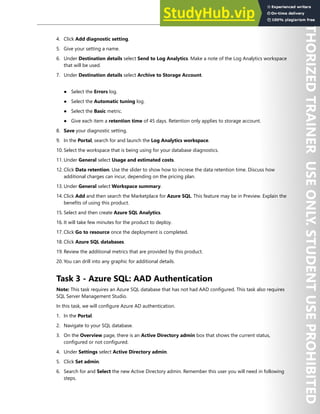
† Configure a Cross-Origin Resource Sharing (CORS) rule for the storage account.
Review Question 2
Your company has both a development and production environment. The development environment needs
time-limited access to storage. The production environment needs unrestricted access to storage resources.
You need to configure storage access to meet the requirements. What should you do? Each answer presents
part of the solution. Select two.
† Use shared access signatures for the development apps.
† Use shared access signatures for the production apps.
† Use access keys for the development apps.
† Use access keys for the production apps.
† Use Stored Access Policies for the production apps.
† Use Cross Origin Resource Sharing for the development apps.
Review Question 3
Your company is being audited. It is not known how long the audit will take, but during that time files must
not be changed or removed. It is okay to read or create new files. What should you do? Select two. Each
correct answer is required for the solution.
† Add a time-based retention policy to the blob container.
† Add legal hold retention policy to the blob container.
† Configure a retention time period of 2 weeks with an option to renew.
† Identify a tag for the items that are being protected.
15 https://docs.microsoft.com/en-us/learn/modules/store-and-share-with-azure-files/
16 https://docs.microsoft.com/en-us/learn/modules/secure-azure-storage-account/
17 https://docs.microsoft.com/en-us/learn/modules/control-access-to-azure-storage-with-sas/
Storage Security 233
Review Question 4
You are configuring an Azure File share for the business group. Which of the following is not true? Select
one?
† Azure Files can authenticate to Azure Active Directory Domain Services.
† Azure Files can authenticate to on-premises Active Directory Domain Services.
† Azure Files can use RBAC for share-level or directory/file permissions.
† Azure Files uses SMB.
Review Question 5
You are configuring Secure transfer required. Your Compliance office wants to more about this feature. You
provide all the following information, except? Select one.
† Requests to storage can be HTTPS or HTTP.
† Requests to storage must be SMB with encryption.
† By default, new storage accounts have secure transfer required enabled.
† Azure storage doesn't support HTTPS for custom domain names
234 Module 3 Secure data and applications
Database Security
SQL Database Authentication
Authentication and authorization
Authentication is the process of proving the user is who they claim to be. A user connects to a database
using a user account. When a user attempts to connect to a database, they provide a user account and
authentication information. The user is authenticated using one of the following two authentication
methods:
● SQL authentication - With this authentication method, the user submits a user account name and
associated password to establish a connection. This password is stored in the master database for
user accounts linked to a login or stored in the database containing the user accounts not linked to a
login.
● Azure Active Directory Authentication - With this authentication method, the user submits a user
account name and requests that the service use the credential information stored in Azure Active
Directory.
You can create user accounts in the master database, and grant permissions in all databases on the
server, or you can create them in the database itself (called contained database users). By using contained
databases, you obtain enhance portability and scalability.
Logins and users: In Azure SQL, a user account in a database can be associated with a login that is
stored in the master database or can be a user name that is stored in an individual database.
● A login is an individual account in the master database, to which a user account in one or more
databases can be linked. With a login, the credential information for the user account is stored with
the login.
● A user account is an individual account in any database that may be but does not have to be linked
to a login. With a user account that is not linked to a login, the credential information is stored with
the user account.
Authorization to access data and perform various actions are managed using database roles and explicit
permissions. Authorization refers to the permissions assigned to a user, and determines what that user is
allowed to do. Authorization is controlled by your user account's database role memberships and
object-level permissions. As a best practice, you should grant users the least privileges necessary.
As a best practice, your application should use a dedicated account to authenticate. This way, you can
limit the permissions granted to the application and reduce the risks of malicious activity in case the
application code is vulnerable to a SQL injection attack. The recommended approach is to create a
contained database user, which allows your app to authenticate directly to the database.
Database Security 235
✔️ Use Azure Active Directory authentication to centrally manage identities of database users and as an
alternative to SQL Server authentication.
SQL Database Firewalls
Configure a SQL Database firewall
Azure SQL Database and Azure Synapse Analytics, previously SQL Data Warehouse, (both referred to as
SQL Database in this lesson) provide a relational database service for Azure and other internet-based
applications. To help protect your data, firewalls prevent all access to your database server until you
specify which computers have permission. The firewall grants access to databases based on the originat-
ing IP address of each request.
In addition to IP rules, the firewall also manages virtual network rules. Virtual network rules are based on
virtual network service endpoints. Virtual network rules might be preferable to IP rules in some cases.
Overview
Initially, all access to your Azure SQL Database is blocked by the SQL Database firewall. To access a
database server, you must specify one or more server-level IP firewall rules that enable access to your
Azure SQL Database. Use the IP firewall rules to specify which IP address ranges from the internet are
allowed, and whether Azure applications can attempt to connect to your Azure SQL Database.
To selectively grant access to just one of the databases in your Azure SQL Database, you must create a
database-level rule for the required database. Specify an IP address range for the database IP firewall rule
that is beyond the IP address range specified in the server-level IP firewall rule, and ensure that the IP
address of the client falls in the range specified in the database-level rule.
Note: Azure Synapse Analytics only supports server-level IP firewall rules, and not database-level IP
firewall rules.
236 Module 3 Secure data and applications
Connecting from the internet
When a computer attempts to connect to your database server from the internet, the firewall first checks
the originating IP address of the request against the database-level IP firewall rules for the database that
the connection is requesting:
● If the IP address of the request is within one of the ranges specified in the database-level IP firewall
rules, the connection is granted to the SQL Database containing the rule.
● If the IP address of the request is not within one of the ranges specified in the database-level IP
firewall rules, the firewall checks the server-level IP firewall rules. If the IP address of the request is
within one of the ranges specified in the server-level IP firewall rules, the connection is granted.
Server-level IP firewall rules apply to all SQL databases on the Azure SQL Database.
● If the IP address of the request is not within the ranges specified in any of the database-level or
server-level IP firewall rules, the connection request fails.
Connecting from Azure
To allow applications from Azure to connect to your Azure SQL Database, Azure connections must be
enabled. When an application from Azure attempts to connect to your database server, the firewall
verifies that Azure connections are allowed. A firewall setting with starting and ending addresses equal to
Database Security 237
0.0.0.0 indicates Azure connections are allowed. If the connection attempt is not allowed, the request
does not reach the Azure SQL Database server.
This option configures the firewall to allow all connections from Azure including connections from the
subscriptions of other customers. When selecting this option, make sure your sign-in and user permis-
sions limit access to authorized users only.
Server-level IP firewall rules
Server-level IP firewall rules enable clients to access your entire Azure SQL Database—that is, all the
databases within the same SQL Database server. These rules are stored in the master database.
You can configure server-level IP firewall rules using the Azure portal, PowerShell, or by using Trans-
act-SQL statements. To create server-level IP firewall rules using the Azure portal or PowerShell, you must
be the subscription owner or a subscription contributor. To create a server-level IP firewall rule using
Transact-SQL, you must connect to the SQL Database instance as the server-level principal login or the
Azure Active Directory (Azure AD) administrator (which means that a server-level IP firewall rule must
have first been created by a user with Azure-level permissions).
Database-level IP firewall rules
Database-level IP firewall rules enable clients to access certain secure databases within the same SQL
Database server. You can create these rules for each database (including the master database), and they
are stored in the individual databases. You can only create and manage database-level IP firewall rules for
master databases and user databases by using Transact-SQL statements, and only after you have config-
ured the first server-level firewall. If you specify an IP address range in the database-level IP firewall rule
that is outside the range specified in the server-level IP firewall rule, only those clients that have IP
addresses in the database-level range can access the database. You can have a maximum of 128 data-
base-level IP firewall rules for a database.
✔️ Whenever possible, as a best practice, use database-level IP firewall rules to enhance security and to
make your database more portable. Use server-level IP firewall rules for administrators and when you
have several databases with the same access requirements, and you don't want to spend time configuring
each database individually.
Azure Database Auditing
Auditing for Azure SQL Database and Azure Synapse Analytics tracks database events and writes them to
an audit log in your Azure storage account, Log Analytics workspace or Event Hubs.
Auditing also:
● Helps you maintain regulatory compliance, understand database activity, and gain insight into
discrepancies and anomalies that could indicate business concerns or suspected security violations.
● Enables and facilitates adherence to compliance standards, although it doesn't guarantee compli-
ance.
Overview
You can use SQL database auditing to:
● Retain an audit trail of selected events. You can define categories of database actions to be audited.
238 Module 3 Secure data and applications
● Report on database activity. You can use pre-configured reports and a dashboard to get started
quickly with activity and event reporting.
● Analyze reports. You can find suspicious events, unusual activity, and trends.
Define server-level vs. database-level auditing policy
An auditing policy can be defined for a specific database or as a default server policy:
● A server policy applies to all existing and newly created databases on the server.
● If server auditing is enabled, it always applies to the database. The database will be audited, regard-
less of the database auditing settings.
● Enabling auditing on the database or data warehouse, in addition to enabling it on the server, does
not override or change any of the settings of the server auditing. Both audits will exist side by side. In
other words, the database is audited twice in parallel; once by the server policy and once by the
database policy.
Shown below is the configuration of auditing using the Azure portal.
Summary of database auditing
● Retain an audit trail of selected events
● Report on database activity and analyze results
● Configure policies for the server or database level
● Configure audit log destination
Database Security 239
● A new server policy applies to all existing and newly created databases
Data Discovery and Classification
Data Discovery & Classification is built into Azure SQL Database. It provides advanced capabilities for
discovering, classifying, labeling, and reporting the sensitive data in your databases.
Your most sensitive data might include business, financial, healthcare, or personal information. Discover-
ing and classifying this data can play a pivotal role in your organization's information-protection ap-
proach. It can serve as infrastructure for:
● Helping to meet standards for data privacy and requirements for regulatory compliance.
● Various security scenarios, such as monitoring (auditing) and alerting on anomalous access to sensi-
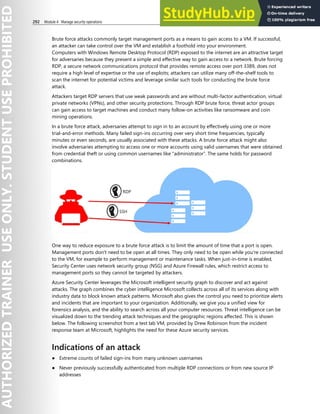
tive data.
● Controlling access to and hardening the security of databases that contain highly sensitive data.
Data Discovery & Classification is part of the Advanced Data Security offering, which is a unified package
for advanced SQL security capabilities. You can access and manage Data Discovery & Classification via the
central SQL Advanced Data Security section of the Azure portal.
Classifying your data and identifying your data protection needs helps you select the right cloud solution
for your organization. Data classification enables organizations to find storage optimizations that might
not be possible when all data is assigned the same value. Classifying (or categorizing) stored data by
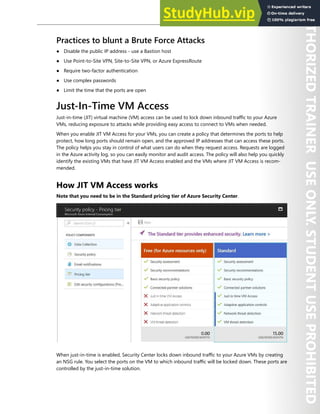
sensitivity and business impact helps organizations determine the risks associated with the data. After
your data has been classified, organizations can manage their data in ways that reflect their internal value
instead of treating all data the same way.
Data classification can yield benefits such as compliance efficiencies, improved ways to manage the
organization’s resources, and facilitation of migration to the cloud. Some data protection solutions—such
240 Module 3 Secure data and applications
as encryption, rights management, and data loss prevention—have moved to the cloud and can help
mitigate cloud risks. However, organization must be sure to address data classification rules for data
retention when moving to the cloud.
Data exists in one of three basic states: at rest, in process, and in transit. All three states require unique
technical solutions for data classification, but the applied principles of data classification should be the
same for each. Data that is classified as confidential needs to stay confidential when at rest, in process, or
in transit.
Data can also be either structured or unstructured. Typical classification processes for structured data
found in databases and spreadsheets are less complex and time-consuming to manage than those for
unstructured data such as documents, source code, and email. Generally, organizations will have more
unstructured data than structured data.
Regardless of whether data is structured or unstructured, it’s important for organizations to manage data
sensitivity. When properly implemented, data classification helps ensure that sensitive or confidential
data assets are managed with greater oversight than data assets that are considered public distribution.
Protect data at rest
Data encryption at rest is a mandatory step toward data privacy, compliance, and data sovereignty.
Best practice Solution
Apply disk encryption to help safeguard your data. Use Microsoft Azure Disk Encryption, which
enables IT administrators to encrypt both Win-
dows infrastructure as a service (IaaS) and Linux
IaaS virtual machine (VM) disks. Disk encryption
combines the industry-standard BitLocker feature
and the Linux DM-Crypt feature to provide volume
encryption for the operating system (OS) and the
data disks. ‎Azure Storage and Azure SQL Database
encrypt data at rest by default, and many services
offer encryption as an option. You can use Azure
Key Vault to maintain control of keys that access
and encrypt your data.
Use encryption to help mitigate risks related to
unauthorized data access.
Encrypt your drives before you write sensitive data
to them.
Organizations that don’t enforce data encryption are risk greater exposure to data-integrity issues. For
example, unauthorized users or malicious hackers might steal data in compromised accounts or gain
unauthorized access to data coded in Clear Format. To comply with industry regulations, companies also
must prove that they are diligent and using correct security controls to enhance their data security.
Protect data in transit
Protecting data in transit should be an essential part of your data protection strategy. Because data is
moving back and forth from many locations, we generally recommend that you always use SSL/TLS
protocols to exchange data across different locations. In some circumstances, you might want to isolate
the entire communication channel between your on-premises and cloud infrastructures by using a VPN.
For data moving between your on-premises infrastructure and Azure, consider appropriate safeguards
such as HTTPS or VPN. When sending encrypted traffic between an Azure virtual network and an
on-premises location over the public internet, use Azure VPN Gateway.
Database Security 241
The following table lists best practices specific to using Azure VPN Gateway, SSL/TLS, and HTTPS.
Best practice Solution
Secure access from multiple workstations located
on-premises to an Azure virtual network
Use site-to-site VPN.
Secure access from an individual workstation
located on-premises to an Azure virtual network
Use point-to-site VPN.
Move larger data sets over a dedicated high-speed
wide area network (WAN) link
Use Azure ExpressRoute. If you choose to use
ExpressRoute, you can also encrypt the data at the
application level by using SSL/TLS or other
protocols for added protection.
Interact with Azure Storage through the Azure
portal
All transactions occur via HTTPS. You can also use
Storage REST API over HTTPS to interact with
Azure Storage and Azure SQL Database.
Organizations that fail to protect data in transit are more susceptible to man-in-the-middle attacks,
eavesdropping, and session hijacking. These attacks can be the first step in gaining access to confidential
data.
Now that we’ve covered the physical aspects of data classification, let’s look at the classification based on
discovery and classification.
Data Discovery
Data discovery and classification provides advanced capabilities built into Azure SQL Database for
discovering, classifying, labeling and protecting sensitive data (such as business, personal data (PII), and
financial information) in your databases. Discovering and classifying this data can play a pivotal role in
your organizational information protection stature. It can serve as infrastructure for:
● Helping meet data privacy standards and regulatory compliance requirements.
● Addressing various security scenarios such as monitoring, auditing, and alerting on anomalous access
to sensitive data.
● Controlling access to and hardening the security of databases containing highly sensitive data.
Data discovery and classification is part of the Advanced Data Security offering, which is a unified pack-
age for advanced Microsoft SQL Server security capabilities. You access and manage data discovery and
classification via the central SQL Advanced Data Security portal.
Data discovery and classification introduces a set of advanced services and SQL capabilities, forming a
SQL Information Protection paradigm aimed at protecting the data, not just the database:
● Discovery and recommendations - The classification engine scans your database and identifies
columns containing potentially sensitive data. It then provides you with an easier way to review and
apply the appropriate classification recommendations via the Azure portal.
● Labeling - Sensitivity classification labels can be persistently tagged on columns using new classifica-
tion metadata attributes introduced into the SQL Server Engine. This metadata can then be utilized for
advanced sensitivity-based auditing and protection scenarios.
● Query result set sensitivity - The sensitivity of the query result set is calculated in real time for
auditing purposes.
● Visibility - You can view the database classification state in a detailed dashboard in the Azure portal.
Additionally, you can download a report (in Microsoft Excel format) that you can use for compliance
and auditing purposes, in addition to other needs.
242 Module 3 Secure data and applications
Steps for discovery, classification, and labeling
Classifications have two metadata attributes:
● Labels - These are the main classification attributes used to define the sensitivity level of the data
stored in the column.
● Information Types - These provide additional granularity into the type of data stored in the column.
SQL data discovery and classification comes with a built-in set of sensitivity labels and information types,
and discovery logic. You can now customize this taxonomy and define a set and ranking of classification
constructs specifically for your environment.
Definition and customization of your classification taxonomy takes place in one central location for your
entire Azure Tenant. That location is in Azure Security Center, as part of your Security Policy. Only a user
with administrative rights on the Tenant root management group can perform this task.
As part of Azure Information Protection policy management, you can define custom labels, rank them,
and associate them with a selected set of information types. You can also add your own custom informa-
tion types and configure them with string patterns, which are added to the discovery logic for identifying
this type of data in your databases. Learn more about customizing and managing your policy in the
Information Protection policy how-to guide.
After you’ve defined the tenant-wide policy, you can continue with classifying individual databases using
your customized policy.
Vulnerability Assessment
SQL Vulnerability Assessment is an easy-to-configure service that can discover, track, and help you
remediate potential database vulnerabilities. Use it to proactively improve your database security.
Vulnerability Assessment is part of the Advanced Data Security offering, which is a unified package for
advanced SQL security capabilities. Vulnerability Assessment can be accessed and managed via the
central SQL Advanced Data Security portal.
Vulnerability Assessment
SQL Vulnerability Assessment is a service that provides visibility into your security state. Vulnerability
Assessment includes actionable steps to resolve security issues and enhance your database security. It
can help you:
● Meet compliance requirements that require database scan reports.
● Meet data privacy standards.
● Monitor a dynamic database environment where changes are difficult to track.
Vulnerability Assessment is a scanning service built into Azure SQL Database. The service employs a
knowledge base of rules that flag security vulnerabilities. It highlights deviations from best practices, such
as misconfigurations, excessive permissions, and unprotected sensitive data.
The rules are based on Microsoft's best practices and focus on the security issues that present the biggest
risks to your database and its valuable data. They cover database-level issues and server-level security
issues, like server firewall settings and server-level permissions. These rules also represent many of the
requirements from various regulatory bodies to meet their compliance standards.
Database Security 243
Results of the scan include actionable steps to resolve each issue and provide customized remediation
scripts where applicable. You can customize an assessment report for your environment by setting an
acceptable baseline for:
● Permission configurations.
● Feature configurations.
● Database settings.
View the report
When your scan is finished, your scan report is automatically displayed in the Azure portal. The report
presents an overview of your security state. It lists how many issues were found and their respective
severities. Results include warnings on deviations from best practices and a snapshot of your security-re-
lated settings, such as database principals and roles and their associated permissions. The scan report
also provides a map of sensitive data discovered in your database. It includes recommendations to
classify that data by using data discovery and classification.
Scan results shown below:
Set your baseline
As you review your assessment results, you can mark specific results as being an acceptable baseline in
your environment. The baseline is essentially a customization of how the results are reported. Results that
match the baseline are considered as passing in subsequent scans. After you've established your baseline
security state, Vulnerability Assessment only reports on deviations from the baseline. In this way, you can
focus your attention on the relevant issues.
Advanced Threat Protection
Advanced Threat Protection (ATP) for single and pooled databases detects anomalous activities indicating
unusual and potentially harmful attempts to access or exploit databases. Advanced Threat Protection can
244 Module 3 Secure data and applications
identify Potential SQL injection, Access from unusual location or data center, Access from unfamil-
iar principal or potentially harmful application, and Brute force SQL credentials.
Advanced Threat Protection is part of the advanced data security (ADS) offering, which is a unified
package for advanced SQL security capabilities. Advanced Threat Protection can be accessed and man-
aged via the central SQL ADS portal.
ATP provides a new layer of security, which enables customers to detect and respond to potential threats
as they occur by providing security alerts on anomalous activities.
Advanced Threat Protection alerts
Advanced Threat Protection for Azure SQL Database detects anomalous activities indicating unusual and
potentially harmful attempts to access or exploit databases and it can trigger the following alerts:
● Vulnerability to SQL injection: This alert is triggered when an application generates a faulty SQL
statement in the database. This alert may indicate a possible vulnerability to SQL injection attacks.
There are two possible reasons for the generation of a faulty statement:
● A defect in application code that constructs the faulty SQL statement
● Application code or stored procedures don't sanitize user input when constructing the faulty SQL
statement, which may be exploited for SQL Injection
● Potential SQL injection: This alert is triggered when an active exploit happens against an identified
application vulnerability to SQL injection. This means the attacker is trying to inject malicious SQL
statements using the vulnerable application code or stored procedures.
● Access from unusual location: This alert is triggered when there is a change in the access pattern to
SQL server, where someone has logged on to the SQL server from an unusual geographical location.
In some cases, the alert detects a legitimate action (a new application or developer maintenance). In
other cases, the alert detects a malicious action (former employee, external attacker).
● Access from unusual Azure data center: This alert is triggered when there is a change in the access
pattern to SQL server, where someone has logged on to the SQL server from an unusual Azure data
center that was seen on this server during the recent period. In some cases, the alert detects a
legitimate action (your new application in Azure, Power BI, Azure SQL Query Editor). In other cases,
the alert detects a malicious action from an Azure resource/service (former employee, external
attacker).
● Access from unfamiliar principal: This alert is triggered when there is a change in the access pattern
to SQL server, where someone has logged on to the SQL server using an unusual principal (SQL user).
In some cases, the alert detects a legitimate action (new application, developer maintenance). In other
cases, the alert detects a malicious action (former employee, external attacker).
● Access from a potentially harmful application: This alert is triggered when a potentially harmful
application is used to access the database. In some cases, the alert detects penetration testing in
action. In other cases, the alert detects an attack using common attack tools.
● Brute force SQL credentials: This alert is triggered when there is an abnormal high number of failed
logins with different credentials. In some cases, the alert detects penetration testing in action. In other
cases, the alert detects brute force attack.
Database Security 245
ATP is integrated with Azure Security Center to detect and respond to potential threats as they occur.
Dynamic Data Masking
SQL Database dynamic data masking (DDM) limits sensitive data exposure by masking it to non-privi-
leged users.
Dynamic data masking helps prevent unauthorized access to sensitive data by enabling customers to
designate how much of the sensitive data to reveal with minimal impact on the application layer. It’s a
policy-based security feature that hides the sensitive data in the result set of a query over designated
database fields, while the data in the database is not changed.
For example, a service representative at a call center may identify callers by several digits of their credit
card number, but those data items should not be fully exposed to the service representative. A masking
rule can be defined that masks all but the last four digits of any credit card number in the result set of
any query. As another example, an appropriate data mask can be defined to protect personally identifia-
ble information (PII) data, so that a developer can query production environments for troubleshooting
purposes without violating compliance regulations.
Dynamic data masking basics
You set up a dynamic data masking policy in the Azure portal by selecting the dynamic data masking
operation in your SQL Database configuration blade or settings blade. This feature cannot be set by using
portal for Azure Synapse
Dynamic data masking policy
● SQL users excluded from masking - A set of SQL users or AAD identities that get unmasked data in
the SQL query results. Users with administrator privileges are always excluded from masking, and view
the original data without any mask.
● Masking rules - A set of rules that define the designated fields to be masked and the masking
function that is used. The designated fields can be defined using a database schema name, table
name, and column name.
● Masking functions - A set of methods that control the exposure of data for different scenarios.
246 Module 3 Secure data and applications
Recommended fields to mask
The DDM recommendations engine, flags certain fields from your database as potentially sensitive fields,
which may be good candidates for masking. In the Dynamic Data Masking blade in the portal, you can
review the recommended columns for your database. All you need to do is click Add Mask for one or
more columns and then Save to apply a mask for these fields.
Transparent Data Encryption
Transparent data encryption (TDE) helps protect Azure SQL Database, Azure SQL Managed Instance, and
Synapse SQL in Azure Synapse Analytics against the threat of malicious offline activity by encrypting data
at rest. It performs real-time encryption and decryption of the database, associated backups, and transac-
tion log files at rest without requiring changes to the application. By default, TDE is enabled for all
newly deployed Azure SQL databases and needs to be manually enabled for older databases of Azure
SQL Database, Azure SQL Managed Instance, or Azure Synapse.
TDE performs real-time I/O encryption and decryption of the data at the page level. Each page is decrypt-
ed when it's read into memory and then encrypted before being written to disk. TDE encrypts the storage
of an entire database by using a symmetric key called the Database Encryption Key (DEK). On database
startup, the encrypted DEK is decrypted and then used for decryption and re-encryption of the database
files in the SQL Server Database Engine process. DEK is protected by the TDE protector. TDE protector is
either a service-managed certificate (service-managed transparent data encryption) or an asymmetric key
stored in Azure Key Vault (customer-managed transparent data encryption).
For Azure SQL Database and Azure Synapse, the TDE protector is set at the logical SQL server level and is
inherited by all databases associated with that server. For Azure SQL Managed Instance (BYOK feature in
preview), the TDE protector is set at the instance level and it is inherited by all encrypted databases on
that instance. The term server refers both to server and instance throughout this document, unless stated
differently.
Service-managed transparent data encryption
In Azure, the default setting for TDE is that the DEK is protected by a built-in server certificate. The
built-in server certificate is unique for each server and the encryption algorithm used is AES 256. If a data-
base is in a geo-replication relationship, both the primary and geo-secondary databases are protected by
the primary database's parent server key. If two databases are connected to the same server, they also
share the same built-in certificate. Microsoft automatically rotates these certificates in compliance with
the internal security policy and the root key is protected by a Microsoft internal secret store. Customers
can verify SQL Database compliance with internal security policies in independent third-party audit
reports available on the Microsoft Trust Center.
Microsoft also seamlessly moves and manages the keys as needed for geo-replication and restores.
Database Security 247
Customer-managed transparent data encryption - Bring
Your Own Key
Customer-managed TDE is also referred to as Bring Your Own Key (BYOK) support for TDE. In this scenar-
io, the TDE Protector that encrypts the DEK is a customer-managed asymmetric key, which is stored in a
customer-owned and managed Azure Key Vault (Azure's cloud-based external key management system)
and never leaves the key vault. The TDE Protector can be generated by the key vault or transferred to the
key vault from an on premises hardware security module (HSM) device. SQL Database needs to be
granted permissions to the customer-owned key vault to decrypt and encrypt the DEK. If permissions of
the logical SQL server to the key vault are revoked, a database will be inaccessible, and all data is encrypt-
ed
With TDE with Azure Key Vault integration, users can control key management tasks including key
rotations, key vault permissions, key backups, and enable auditing/reporting on all TDE protectors using
Azure Key Vault functionality. Key Vault provides central key management, leverages tightly monitored
HSMs, and enables separation of duties between management of keys and data to help meet compliance
with security policies.
Manage TDE in the Azure portal
To configure TDE through the Azure portal, you must be connected as the Azure Owner, Contributor, or
SQL Security Manager.
248 Module 3 Secure data and applications
You turn TDE on and off on the database level. To enable TDE on a database, go to the Azure portal and
sign in with your Azure Administrator or Contributor account. Find the TDE settings under your user
database. By default, service-managed transparent data encryption is used. A TDE certificate is automati-
cally generated for the server that contains the database. For Azure SQL Managed Instance use T-SQL to
turn TDE on and off on a database.
Always Encrypted
SQL Database Always Encrypted
Always Encrypted is a feature designed to protect sensitive data, such as credit card numbers or national
identification numbers (for example, U.S. social security numbers), stored in Azure SQL Database or SQL
Server databases. Always Encrypted allows clients to encrypt sensitive data inside client applications and
never reveal the encryption keys to the Database Engine ( SQL Database or SQL Server). As a result,
Always Encrypted provides a separation between those who own the data (and can view it) and those
who manage the data (but should have no access). By ensuring on-premises database administrators,
cloud database operators, or other high-privileged, but unauthorized users, cannot access the
encrypted data. Always Encrypted enables customers to confidently store sensitive data outside of their
direct control. This allows organizations to encrypt data at rest and in use for storage in Azure, to enable
delegation of on-premises database administration to third parties, or to reduce security clearance
requirements for their own DBA staff.
Always Encrypted makes encryption transparent to applications. An Always Encrypted-enabled driver
installed on the client computer achieves this by automatically encrypting and decrypting sensitive data
in the client application. The driver encrypts the data in sensitive columns before passing the data to the
Database Engine, and automatically rewrites queries so that the semantics to the application are pre-
served. Similarly, the driver transparently decrypts data, stored in encrypted database columns, contained
in query results.
Example usage scenarios
Client On-Premises with Data in Azure
A customer has an on-premises client application at their business location. The application operates on
sensitive data stored in a database hosted in Azure ( SQL Database or SQL Server running in a virtual
machine on Microsoft Azure). The customer uses Always Encrypted and stores Always Encrypted keys in a
trusted key store hosted on-premises, to ensure Microsoft cloud administrators have no access to
sensitive data.
Client and Data in Azure
A customer has a client application, hosted in Microsoft Azure (for example, in a worker role or a web
role), which operates on sensitive data stored in a database hosted in Azure (SQL Database or SQL Server
running in a virtual machine on Microsoft Azure). Although Always Encrypted does not provide complete
isolation of data from cloud administrators, as both the data and keys are exposed to cloud administra-
tors of the platform hosting the client tier, the customer still benefits from reducing the security attack
surface area (the data is always encrypted in the database).
Database Security 249
Always Encrypted Features
The Database Engine never operates on plaintext data stored in encrypted columns, but it still supports
some queries on encrypted data,depending on the encryption type for the column. Always Encrypted
supports two types of encryption: randomized encryption and deterministic encryption.
● Deterministic encryption always generates the same encrypted value for any given plain text value.
Using deterministic encryption allows point lookups, equality joins, grouping and indexing on en-
crypted columns. However, it may also allow unauthorized users to guess information about encrypt-
ed values by examining patterns in the encrypted column, especially if there is a small set of possible
encrypted values, such as True/False, or North/South/East/West region. Deterministic encryption must
use a column collation with a binary2 sort order for character columns.
● Randomized encryption uses a method that encrypts data in a less predictable manner. Randomized
encryption is more secure, but prevents searching, grouping, indexing, and joining on encrypted
columns.
Use deterministic encryption for columns that will be used as search or grouping parameters, for example
a government ID number. Use randomized encryption, for data such as confidential investigation com-
ments, which are not grouped with other records and are not used to join tables.
Always Encrypted - Implementation
Configuring Always Encrypted
The initial setup of Always Encrypted in a database involves generating Always Encrypted keys, creating
key metadata, configuring encryption properties of selected database columns, and/or encrypting data
that may already exist in columns that need to be encrypted. Please note that some of these tasks are not
supported in Transact-SQL and require the use of client-side tools. As Always Encrypted keys and protect-
ed sensitive data are never revealed in plaintext to the server, the Database Engine cannot be involved in
key provisioning and perform data encryption or decryption operations. You can use SQL Server Manage-
ment Studio (SSMS) or PowerShell to accomplish such tasks.
250 Module 3 Secure data and applications
Task SSMS PowerShell SQL
Provisioning column
master keys, column
encryption keys and
encrypted column
encryption keys with
their corresponding
column master keys
Yes Yes No
Creating key metadata
in the database
Yes Yes Yes
Creating new tables
with encrypted columns
Yes Yes Yes
Encrypting existing data
in selected database
columns
Yes Yes No
When setting up encryption for a column, you specify the information about the encryption algorithm
and cryptographic keys used to protect the data in the column. Always Encrypted uses two types of keys:
column encryption keys and column master keys. A column encryption key is used to encrypt data in an
encrypted column. A column master key is a key-protecting key that encrypts one or more column
encryption keys.
The Database Engine stores encryption configuration for each column in database metadata. Note,
however, the Database Engine never stores or uses the keys of either type in plaintext. It only stores
encrypted values of column encryption keys and the information about the location of column master
keys, which are stored in external trusted key stores, such as Azure Key Vault, Windows Certificate Store
on a client machine, or a hardware security module.
To access data stored in an encrypted column in plaintext, an application must use an Always Encrypted
enabled client driver. When an application issues a parameterized query, the driver transparently collabo-
rates with the Database Engine to determine which parameters target encrypted columns and, thus,
should be encrypted. For each parameter that needs to be encrypted, the driver obtains the information
about the encryption algorithm and the encrypted value of the column encryption key for the column,
the parameter targets, as well as the location of its corresponding column master key.
Database Security 251
Next, the driver contacts the key store, containing the column master key, in order to decrypt the en-
crypted column encryption key value and then, it uses the plaintext column encryption key to encrypt the
parameter. The resultant plaintext column encryption key is cached to reduce the number of round trips
to the key store on subsequent uses of the same column encryption key. The driver substitutes the
plaintext values of the parameters targeting encrypted columns with their encrypted values, and it sends
the query to the server for processing.
The server computes the result set, and for any encrypted columns included in the result set, the driver
attaches the encryption metadata for the column, including the information about the encryption
algorithm and the corresponding keys. The driver first tries to find the plaintext column encryption key in
the local cache, and only makes a round to the column master key if it can't find the key in the cache.
Next, the driver decrypts the results and returns plaintext values to the application.
A client driver interacts with a key store, containing a column master key, using a column master key
store provider, which is a client-side software component that encapsulates a key store containing the
column master key. Providers for common types of key stores are available in client-side driver libraries
from Microsoft or as standalone downloads. You can also implement your own provider. Always Encrypt-
ed capabilities, including built-in column master key store providers vary by a driver library and its
version.
Demonstration - Database Security
Note: These demonstrations requires an Azure SQL database with sample data. In Task 1, there are
instructions to install the AdventureWorks sample database. Also, Task 3 requires SQL Server Manage-
ment Studio.
Task 1 - Azure SQL: Advanced Data Security and Auditing
In this task, we will explore vulnerability assessments, data dicscovery and classification, and audting.
Install the AdventureWorks sample database
Skip this section if you already have a database to work with.
1. In the Portal, search for and a select SQL databases.
2. On the Basics tab, give you database a name, and create a new server.
3. On the Additional settings tab, select Sample for Use existing data. Also, Enable advanced data
security and Start free trial.
4. Review & create, and then Create.
5. Wait for the database to deploy.
Review Vulnerability Assessments
1. Navigate to your SQL database.
2. Under Security select Advanced Data Security.
3. Select Vulnerability Assessment.
4. Review vulnerability assessments and the risk levels.
5. Click Scan.
6. The scan does not need to fully complete for results to show.
7. Review the Findings.
252 Module 3 Secure data and applications
8. Click any Security Check to get more details.
9. Review the Passed checks.
10. Notice Export Scan Results and Scan History
Review Data Discovery and Classification
1. Return to the Advanced data security blade.
2. Select Data Discovery & Classification.
3. On the Classification tab, select Add classification.
● Schema name: SalesLT
● Table name: Customer
● Column name: Phone
● Information type: Contact Info
● Sensitivity label: Confidential
4. When finished click Add classification.
5. Click the blue bar columns with classification recommendations.
6. Notice the data that has been recommended for classification.
7. Select the data of interest and then click Accept selected recommendations.
8. Save your changes.
Review Auditing
1. Return to your SQL database.
2. Under Security select Auditing.
● Select On for auditing.
● Click Storage for the destination.
● Select on the Storage account for logs.
● Set Retention day to 45 days.
● Set storage access key to Primary.
3. Save your changes.
4. Discuss Server level auditing and when how it could be used.
Task 2 - Azure SQL: Diagnostics
Note: This demonstration requires an Azure SQL database.
In this task, we will review and configure SQL database diagnostics.
1. In the Portal, search for and launch SQL databases.
2. From the Overview blade, review the Compute utilization data graphic. Data is available for different
time frames (1 hour, 24 hours, 7 days).
3. Under Monitoring select Diagnostic settings.
Database Security 253
4. Click Add diagnostic setting.
5. Give your setting a name.
6. Under Destination details select Send to Log Analytics. Make a note of the Log Analytics workspace
that will be used.
7. Under Destination details select Archive to Storage Account.
● Select the Errors log.
● Select the Automatic tuning log.
● Select the Basic metric.
● Give each item a retention time of 45 days. Retention only applies to storage account.
8. Save your diagnostic setting.
9. In the Portal, search for and launch the Log Analytics workspace.
10. Select the workspace that is being using for your database diagnostics.
11. Under General select Usage and estimated costs.
12. Click Data retention. Use the slider to show how to increse the data retention time. Discuss how
additional charges can incur, depending on the pricing plan.
13. Under General select Workspace summary.
14. Click Add and then search the Marketplace for Azure SQL. This feature may be in Preview. Explain the
benefits of using this product.
15. Select and then create Azure SQL Analytics.
16. It will take few minutes for the product to deploy.
17. Click Go to resource once the deployment is completed.
18. Click Azure SQL databases.
19. Review the additional metrics that are provided by this product.
20. You can drill into any graphic for additional details.
Task 3 - Azure SQL: AAD Authentication
Note: This task requires an Azure SQL database that has not had AAD configured. This task also requires
SQL Server Management Studio.
In this task, we will configure Azure AD authentication.
1. In the Portal.
2. Navigate to your SQL database.
3. On the Overview page, there is an Active Directory admin box that shows the current status,
configured or not configured.
4. Under Settings select Active Directory admin.
5. Click Set admin.
6. Search for and Select the new Active Directory admin. Remember this user you will need in following
steps.
254 Module 3 Secure data and applications
7. Be sure to Save your changes.
8. In SQL Server Management Studio connect to the database server using your credentials.
9. Select the SQL database you configured with a new Active Directory admin.
10. Construct a query to create a new user. Insert the admin user and domain. For example, user@
contoso.com
● Create user [user@contoso.com] from external provider;
11. Run the query and ensure it completes successfully.
12. In the Object Explorer navigate your database and Security and Users folder.
13. Verify that the new admin user is shown.
14. Connect to the new database with the new admin credentials.
15. Verify that you can successfully access the database.
Additional Study
Microsoft Learn18
provides a large number of self-paced learning paths. For this lesson, we recommend
the following modules. You may search and find other modules that are of interest to you.
● Provision an Azure SQL database to store application data19
● Secure your Azure SQL Database20
● Configure security policies to manage data21
● Migrate your relational data stored in SQL Server to Azure SQL Database22
Review Questions
Review Question 1
Your SQL database administrator has recently read about SQL injection attacks. They ask you what can be
done to minimize the risk of this type of attack. You suggest implementing which of the following features?
† Advanced Threat Protection
† Data Discovery and Classification
† Dynamic Data Masking
† Transparent Data Encryption
18 https://docs.microsoft.com/en-us/learn/
19 https://docs.microsoft.com/en-us/learn/modules/provision-azure-sql-db/
20 https://docs.microsoft.com/en-us/learn/modules/secure-your-azure-sql-database/
21 https://docs.microsoft.com/en-us/learn/modules/configure-security-policies-to-manage-data/
22 https://docs.microsoft.com/en-us/learn/modules/migrate-sql-server-relational-data/
Database Security 255
Review Question 2
Your organization provides a Help Desk for its customers. Service representatives need to identify callers
using the last four numbers of their credit card. You need to ensure the complete credit card number is not
fully exposed to the service representatives. Which of the following features do you implement?
† Always Encrypted
† Data Classification
† Dynamic Data Masking
† Transparent Data Encryption
Review Question 3
Your organization auditors need to be assured that sensitive database data always remains encrypted at
rest, in transit, and in use. You assure the auditors this is being done because you have configured which
feature?
† Always Encrypted
† Disk Encryption
† Dynamic Data Masking
† Transparent Data Encryption
Review Question 4
You have an App Service web application uses a SQL database. Users need to authenticate to the database
with their Azure AD credentials. You perform all the following tasks, except? Select one.
† Create a SQL Database Administrator
† Create an Azure AD Database Administrator
† Create users in the Master db
† Map database users to Azure AD identities
Review Question 5
What type of firewall rules can you configure for an Azure SQL database? Select two.
† Datacenter-level firewall rules
† Server-level firewall rules
† Azure-level firewall rules
† Table-level firewall rules
† Database-level firewall rules
256 Module 3 Secure data and applications
Hands-on Labs
Lab 10: Key Vault (Implementing Secure Data by
setting up Always Encrypted)
Lab scenario
You have been asked to create a proof of concept application that makes use of the Azure SQL Database
support for Always Encrypted functionality. All of the secrets and keys used in this scenario should be
stored in the key vault. The application should be registered in Azure Active Directory (Azure AD) in order
to enhance its security posture. To accomplish these objectives, the proof of concept should include:
● Creating an Azure key vault and storing keys and secrets in the vault.
● Create a SQL Database and encrypting content of columns in database tables by using Always
Encrypted.
Lab objectives
In this lab, you will complete the following exercises:
● Exercise 1: Configure the key vault with a key and a secret
● Exercise 2: Create an application to demonstrate using the key vault for encryption
For all the resources in this lab, we are using the East US region. Verify with your instructor this is the
region to use for class.
Also, ask your instructor how to access the lab environment and the detailed lab instructions.
Hands-on Labs 257
Lab 11: Securing Azure SQL Database
Lab scenario
You have been asked to review security features for Azure SQL database. Specifically, you are interested
in:
● Protection against attacks such as SQL injection and data exfiltration.
● Ability to discover and classify database information into categories such as Confidential.
● Ability to audit database server and database queries and log events.
Lab exercises
● Exercise 1: Implement SQL Database security features
For all the resources in this lab, we are using the East US region. Verify with your instructor this is the
region to use for class.
Also, ask your instructor how to access the lab environment and the detailed lab instructions.
Lab 12: Service Endpoints and Securing Storage
258 Module 3 Secure data and applications
Lab scenario
You have been asked to create a proof of concept to demonstrate securing Azure file shares. Specifically,
you want to:
● Create a storage endpoint so traffic destined to Azure Storage always stays within the Azure backbone
network.
● Configure the storage endpoint so only resources from a specific subnet can access the storage.
● Confirm that resources outside of the specific subnet cannot access the storage.
Lab exercises
● Exercise 1: Service endpoints and security storage
For all the resources in this lab, we are using the East US region. Verify with your instructor this is the
region to use for class.
Also, ask your instructor how to access the lab environment and the detailed lab instructions.
Hands-on Labs 259
Answers
Review Question 1
Which one of the following should not be stored in Azure Key Vault? What are the differences between
these items? Select one.
† Key management
† Secret management
† Certificate management
■ Identity management
Explanation
Identity management. Azure Key Vault can be used for keys, secrets, and certificates. Keys are cryptographic
objects. The key vault supports multiple key types and algorithms and enables the use of Hardware Security
Modules (HSM) for high value keys. Secrets provide secure storage of passwords and database connection
strings. Certificates are built on top of keys and secrets and add an automated renewal feature.
Review Question 2
A select group of users must be able to create and delete keys in the key vault. How should you grant
these permissions?
† Service identities
† Azure AD authentication
■ Key vault access policies
† Role-based Access Control
Explanation
Role-based Access Control. To create and delete key vaults the management plane uses RBAC. For example,
Key Vault Contributor.
Review Question 3
Which of these statements best describes Azure Key Vault's authentication and authorization process?
Select one.
† Applications authenticate to a vault with the username and password of the lead developer and have
full access to all secrets in the vault.
■ Applications and users authenticate to a vault with their Azure Active Directory identities and are
authorized to perform actions on all secrets in the vault.
† Applications and users authenticate to a vault with a Microsoft account and are authorized to access
specific secrets.
† Applications authenticate to a vault with the username and password of a user that signs in to the
web app, and is granted access to secrets owned by that user.
Explanation
Authentication to Key Vault uses Azure Active Directory identities. Access policies are used to provide
authorization for actions that apply to every secret in the vault.
260 Module 3 Secure data and applications
Review Question 4
How does Azure Key Vault help protect your secrets after they have been loaded by your app? Select one.
† Azure Key Vault automatically generates a new secret after every use.
† The Azure Key Vault client library protects regions of memory used by your application to prevent
accidental secret exposure.
† Azure Key Vault double-encrypts secrets, requiring your app to decrypt them locally every time they're
used.
■ It doesn't protect your secrets. Secrets are unprotected once they're loaded by your application.
Explanation
It doesn't protect your secrets. Once secrets have been loaded by an app, they are unprotected. Make sure to
not log them, store them, or return them in client responses.
Review Question 5
Your manager wants to know more about software-protected keys and hardware-protected keys. You
discuss which three of the following statements? Select three.
† Only hardware-protected keys are encrypted at rest.
† Software-protected keys are not isolated from the application.
■ Software-protected cryptographic operations are performed in software
■ Hardware-protected cryptographic operations are performed within the HSM
■ Only hardware-protected keys offer FIPS 140-2 Level 2 assurance.
Explanation
Cryptographic operations are performed within each module. HSM keys offer FIPS 140-2 Level 2 assurance.
The primary difference (besides price) with a software-protected key is when cryptographic operations are
performed, they are done in software using Azure compute services while for HSM-protected keys the
cryptographic operations are performed within the HSM.
Review Question 1
What method does Microsoft Azure App Service use to obtain credentials for users attempting to access
an app? Select one.
† Credentials that are stored in the browser
† Pass-through authentication
■ Redirection to a provider endpoint
† synchronization of accounts across providers
Explanation
Redirection to a provider endpoint. Microsoft Azure App Service apps redirect requests to an end-
point that signs in users for that provider. The App Service can automatically direct all unauthenticated us-
ers to the endpoint that signs in users.
Hands-on Labs 261
Review Question 2
What type of Managed Service Identities can you create? Select two.
† Application-assigned
† Database-assigned
■ System-assigned
■ User-assigned
† VM-assigned
Explanation
System-assigned, user assigned. There are two types of managed identities: A system-assigned managed
identity is enabled directly on an Azure service instance. When the identity is enabled, Azure creates an
identity for the instance in the Azure AD tenant that's trusted by the subscription of the instance. Creating
an app with a user-assigned identity requires that you create the identity and then add its resource identifier
to your app config.
Review Question 3
Your App Service application stores page graphics in an Azure storage account. The app needs to
authenticate programmatically to the storage account. What should you do? Select one.
† Create an Azure AD system user
■ Create a managed identity
† Create a RBAC role assignment
† Create a service principal
Explanation
Create a managed identity. A managed identity is an Azure AD security principal that represents the
resource (app). Managed identities can be user or system managed.
Review Question 4
How does using managed identities for Azure resources change the way an app authenticates to Azure
Key Vault? Select one.
† Each user of the app must enter a password.
■ The app gets tokens from a token service instead of Azure Active Directory.
† The app uses a certificate to authenticate instead of a secret.
† Managed identities are automatically recognized by Azure Key Vault and authenticated automatically.
Explanation
The app gets tokens from a token service instead of Azure Active Directory. When you enable managed
identity on your web app, Azure activates a separate token-granting REST service specifically for use by your
app. Your app will request tokens from this service instead of Azure Active Directory.
262 Module 3 Secure data and applications
Review Question 1
You need to provide a contingent staff employee temporary read-only access to the contents of an Azure
storage account container named “Media”. It is important that you grant access while adhering to the
security principle of least-privilege. What should you do? Select one.
† Set the public access level to container.
■ Generate a shared access signature (SAS) token for the container.
† Share the container entity tag (Etag) with the contingent staff member.
† Configure a Cross-Origin Resource Sharing (CORS) rule for the storage account.
Explanation
You should generate a SAS token for the container. The SAS can provide read-only access.
Review Question 2
Your company has both a development and production environment. The development environment
needs time-limited access to storage. The production environment needs unrestricted access to storage
resources. You need to configure storage access to meet the requirements. What should you do? Each
answer presents part of the solution. Select two.
■ Use shared access signatures for the development apps.
† Use shared access signatures for the production apps.
† Use access keys for the development apps.
■ Use access keys for the production apps.
† Use Stored Access Policies for the production apps.
† Use Cross Origin Resource Sharing for the development apps.
Explanation
Shared access signatures provide a way to provide more granular storage access than access keys. For
example, you can limit access to “read only” and you can limit the services and types of resources. Shared
access signatures can be configured for a specified amount of time, which meets the scenario’s require-
ments. Access keys provide unrestricted access to the storage resources, which is the requirement for
production apps in this scenario.
Review Question 3
Your company is being audited. It is not known how long the audit will take, but during that time files
must not be changed or removed. It is okay to read or create new files. What should you do? Select two.
Each correct answer is required for the solution.
† Add a time-based retention policy to the blob container.
■ Add legal hold retention policy to the blob container.
† Configure a retention time period of 2 weeks with an option to renew.
■ Identify a tag for the items that are being protected.
Explanation
Add legal hold retention policy to the blob container. Identify a tag for the items that are being protected. If
the retention interval is not known, users can set legal holds to store immutable data until the legal hold is
cleared. When a legal hold policy is set, blobs can be created and read, but not modified or deleted. Each
legal hold is associated with a user-defined alphanumeric tag (such as a case ID, event name, etc.) that is
used as an identifier string.
Hands-on Labs 263
Review Question 4
You are configuring an Azure File share for the business group. Which of the following is not true? Select
one?
† Azure Files can authenticate to Azure Active Directory Domain Services.
† Azure Files can authenticate to on-premises Active Directory Domain Services.
■ Azure Files can use RBAC for share-level or directory/file permissions.
† Azure Files uses SMB.
Explanation
Azure Files can use RBAC for share-level or directory/file permissions. Only share-level permissions can use
RBAC. Directory or file level permissions can use Windows DACLs, or not.
Review Question 5
You are configuring Secure transfer required. Your Compliance office wants to more about this feature.
You provide all the following information, except? Select one.
■ Requests to storage can be HTTPS or HTTP.
† Requests to storage must be SMB with encryption.
† By default, new storage accounts have secure transfer required enabled.
† Azure storage doesn't support HTTPS for custom domain names
Explanation
Requests to storage can be HTTPS or HTTP. When Secure transfer required is enabled all requests must be
HTTPS.
Review Question 1
Your SQL database administrator has recently read about SQL injection attacks. They ask you what can be
done to minimize the risk of this type of attack. You suggest implementing which of the following
features?
■ Advanced Threat Protection
† Data Discovery and Classification
† Dynamic Data Masking
† Transparent Data Encryption
Explanation
Advanced Threat Protection. Advanced Threat Protection is an Advanced Data Security feature for databas-
es. The feature provides alerts when a potential attack, like SQL injection, occurs.
264 Module 3 Secure data and applications
Review Question 2
Your organization provides a Help Desk for its customers. Service representatives need to identify callers
using the last four numbers of their credit card. You need to ensure the complete credit card number is
not fully exposed to the service representatives. Which of the following features do you implement?
† Always Encrypted
† Data Classification
■ Dynamic Data Masking
† Transparent Data Encryption
Explanation
Dynamic Data Masking. Dynamic data masking limits sensitive data exposure by masking it to non-privi-
leged users. This feature enables customers to designate how much of the sensitive data to reveal.
Review Question 3
Your organization auditors need to be assured that sensitive database data always remains encrypted at
rest, in transit, and in use. You assure the auditors this is being done because you have configured which
feature?
■ Always Encrypted
† Disk Encryption
† Dynamic Data Masking
† Transparent Data Encryption
Explanation
Always Encrypted. Always Encrypted helps protect sensitive data at rest on the server, during movement
between client and server, and while the data is in use. Always Encrypted ensures that sensitive data never
appears as plaintext inside the database system. After you configure data encryption, only client applica-
tions or app servers that have access to the keys can access plaintext data. Always Encrypted uses the
AEAD_AES_256_CBC_HMAC_SHA_256 algorithm to encrypt data in the database.
Review Question 4
You have an App Service web application uses a SQL database. Users need to authenticate to the data-
base with their Azure AD credentials. You perform all the following tasks, except? Select one.
† Create a SQL Database Administrator
† Create an Azure AD Database Administrator
■ Create users in the Master db
† Map database users to Azure AD identities
Explanation
Create users in the Master db. You could not create users in the Master db. Instead, contained users should
be created on each database.
Hands-on Labs 265
Review Question 5
What type of firewall rules can you configure for an Azure SQL database? Select two.
† Datacenter-level firewall rules
■ Server-level firewall rules
† Azure-level firewall rules
† Table-level firewall rules
■ Database-level firewall rules
Explanation
Server-level firewall rules, Database-level firewall rules. Server-level IP firewall rules enable clients to access
your entire Azure SQL Database—that is, all the databases within the same SQL Database server. These
rules are stored in the master database. Database-level IP firewall rules enable clients to access certain
secure databases within the same SQL Database server. You can create these rules for each database
(including the master database), and they are stored in the individual databases.
Module 4 Manage security operations
Azure Monitor
Azure Monitor
Earlier, this course discussed Microsoft Azure Monitor. The following high-level diagram depicts the two
fundamental data types that Azure Monitor uses, Metrics and Logs.
On the left side of the figure are the sources of monitoring data that populate these data stores. On the
right side are the different functions that Azure Monitor performs with this collected data, such as
analysis, alerting, and streaming to external systems.
For many Azure resources, you’ll find the data that Azure Monitor collects right in the resource’s Over-
view page in the Azure portal. Check out any virtual machine (VM). for example, and you'll notice several
268 Module 4 Manage security operations
charts displaying performance metrics. Select any of the graphs to open the data in Metrics Explorer,
which allows you to chart the values of multiple metrics over time. You can view the charts interactively or
pin them to a dashboard to view them with other visualizations.
You can analyze log data that Azure Monitor collects by using queries to quickly retrieve, consolidate, and
analyze the collected data. You can create and test queries by using log analytics in the Azure portal and
then either directly analyze the data by using these tools or save queries for use with visualizations or
alert rules.
This module will discuss streaming the collected monitor data to external Security Information and Event
Management (SIEM) solutions via Azure Security Center. The forwarding or streaming is typically done
directly from monitored resources through Azure Event Hubs.
Exporting data to a SIEM
Processed events that Azure Security Center produces are published to the Azure activity log, one of the
log types available through Azure Monitor. Azure Monitor offers a consolidated pipeline for routing any
of your monitoring data into a SIEM tool. This is done by streaming that data to an event hub, where it
can then be pulled into a partner tool.
This pipe uses the Azure Monitor single pipeline for getting access to the monitoring data from your
Azure environment. This allows you to easily set up SIEMs and monitoring tools to consume the data.
Currently, the exposed security data from Azure Security Center to a SIEM consists of security alerts.
Azure Security Center security alerts
Security Center automatically collects, analyzes, and integrates log data from your Azure resources; the
network; and connected partner solutions, like firewall and endpoint protection solutions, to detect real
threats and reduce false positives. Security Center displays a list of prioritized security alerts along with
the information you need to quickly investigate the problem and recommendations for how to remediate
an attack.
The following sections describe how you can configure data to be streamed to an event hub. The steps
assume that you already have Azure Security Center configured in your Azure subscription.
Azure Event Hubs
Azure Event Hubs is a streaming platform and event ingestion service that can transform and store data
by using any real-time analytics provider or batching/storage adapters. Use Event Hubs to stream log
data from Azure Monitor to a Azure Sentinel or a partner SIEM and monitoring tools.
Azure Monitor 269
What data can be sent into a event hub?
Within your Azure environment, there are several ‘tiers’ of monitoring data, and the method of accessing
data from each tier varies slightly. Typically, these tiers can be described as:
● Application monitoring data - Data about the performance and functionality of the code you have
written and are running on Azure. Examples of application monitoring data include performance
traces, application logs, and user telemetry. Application monitoring data is usually collected in one of
the following ways:
● By instrumenting your code with an SDK such as the Application Insights SDK.
● By running a monitoring agent that listens for new application logs on the machine running your
application, such as the Windows Azure Diagnostic Agent or Linux Azure Diagnostic Agent.
● Guest OS monitoring data - Data about the operating system on which your application is running.
Examples of guest OS monitoring data would be Linux syslog or Windows system events. To collect
this type of data, you need to install an agent such as the Windows Azure Diagnostic Agent or
Linux Azure Diagnostic Agent.
● Azure resource monitoring data - Data about the operation of an Azure resource. For some Azure
resource types, such as virtual machines, there is a guest OS and application(s) to monitor inside of
that Azure service. For other Azure resources, such as Network Security Groups, the resource monitor-
ing data is the highest tier of data available (since there is no guest OS or application running in those
resources). This data can be collected using resource diagnostic settings.
● Azure subscription monitoring data - Data about the operation and management of an Azure
subscription, as well as data about the health and operation of Azure itself. The activity log contains
most subscription monitoring data, such as service health incidents and Azure Resource Manager
audits. You can collect this data using a Log Profile.
● Azure tenant monitoring data - Data about the operation of tenant-level Azure services, such as
Azure Active Directory. The Azure Active Directory audits and sign-ins are examples of tenant moni-
toring data. This data can be collected using a tenant diagnostic setting.
Data from any tier can be sent into an event hub, where it can be pulled into a tool. Some sources can be
configured to send data directly to an event hub while another process such as a Logic App may be
required to retrieve the required data.
Connecting to Azure Sentinel
Azure Sentinel is now generally available. With Azure Sentinel, enterprises worldwide can now keep pace
with the exponential growth in security data, improve security outcomes without adding analyst resourc-
es, and reduce hardware and operational costs. Azure Sentinel brings together the power of Azure and AI
to enable Security Operations Centers to achieve more.
Some of the features of Azure Sentinel are:
● More than 100 built-in alert rules
● Sentinel's alert rule wizard to create your own.
● Alerts can be triggered by a single event or based on a threshold, or by correlating different
datasets or by using built-in machine learning algorithms.
● Jupyter Notebooks that use a growing collection of hunting queries, exploratory queries, and python
libraries.
270 Module 4 Manage security operations
● Investigation graph for visualizing and traversing the connections between entities like users, assets,
applications, or URLs and related activities like logins, data transfers, or application usage to rapidly
understand the scope and impact of an incident.
The Azure Sentinel GitHub repository has grown to over 400 detection, exploratory, and hunting queries,
plus Azure Notebooks samples and related Python libraries, playbooks samples, and parsers. The bulk of
these were developed by Microsoft's security researchers based on their vast global security experience
and threat intelligence.
To on-board Azure Sentinel, you first need to enable Azure Sentinel, and then connect your data sources.
Azure Sentinel comes with a number of connectors for Microsoft solutions, available out of the box and
providing real-time integration, including Microsoft Threat Protection solutions, Microsoft 365
sources, including Office 365, Azure AD, Azure ATP, and Microsoft Cloud App Security, and more. In
addition, there are built-in connectors to the broader security ecosystem for non-Microsoft solutions. You
can also use common event format, Syslog or REST-API to connect your data sources with Azure Sentinel.
After you connect your data sources, choose from a gallery of expertly created dashboards that surface
insights based on your data. These dashboards can be easily customized to your needs.
Metrics and Logs
All data that Azure Monitor collects fits into one of two fundamental types: metrics or logs.
What are metrics?
Metrics are numerical values that describe some aspect of a system at a particular time. Metrics are
collected at regular intervals and are useful for alerting because they can be sampled frequently, and an
alert can be fired quickly with relatively simple logic.
The following is a lists of the different ways that you can
use metric data in Azure Monitor.
● Analyze - Use metrics explorer to analyze collected metrics on a chart and compare metrics from
different resources.
● Visualize - Pin a chart from metrics explorer to an Azure dashboard. Create a workbook to combine
with multiple sets of data in an interactive report. Export the results of a query to Grafana to leverage
its dashboarding and combine with other data sources.
● Alert - Configure a metric alert rule that sends a notification or takes automated action when
the metric value crosses a threshold.
● Automate - Use Autoscale to increase or decrease resources based on a metric value crossing a
threshold.
● Export - Route Metrics to Logs to analyze data in Azure Monitor Metrics together with data in
Azure Monitor Logs and to store metric values for longer than 93 days.
Stream Metrics to an Event Hub to route them to external systems.
● Retrieve - Access metric values from a command line using PowerShell cmdlets
Access metric values from custom application using REST API.
Access metric values from a command line using CLI.
● Archive - Archive the performance or health history of your resource for compliance, auditing, or
offline reporting purposes.
Azure Monitor 271
Interacting with Azure Monitor Metrics
Use Metrics Explorer to interactively analyze the data in your metric database and chart the values of
multiple metrics over time. You can pin the charts to a dashboard to view them with other visualizations.
You can also retrieve metrics by using the Azure monitoring REST API.
Behind the scene, log-based metrics translate into log queries. Their retention matches the retention of
events in underlying logs. For Application Insights resources, logs are stored for 90 days.
What are Azure Monitor Logs?
Logs in Azure Monitor contain different kinds of data organized into records with different sets of
properties for each type. Logs can contain numeric values like Azure Monitor Metrics but typically contain
text data with detailed descriptions. They further differ from metric data in that they vary in their structure
and are often not collected at regular intervals. Telemetry such as events and traces are stored Azure
Monitor Logs in addition to performance data so that it can all be combined for analysis.
A common type of log entry is an event, which is collected sporadically. Events are created by an applica-
tion or service and typically include enough information to provide complete context on their own. For
example, an event can indicate that a particular resource was created or modified, a new host started in
response to increased traffic, or an error was detected in an application.
Because the format of the data can vary, applications can create custom logs by using the structure that
they need. Metric data can even be stored in Logs to combine them with other monitoring data for
trending and other data analysis.
The following is a lists of the different ways that you can use
Logs in Azure Monitor.
● Analyze - Use Log Analytics in the Azure portal to write log queries and interactively analyze log
data using the powerful Data Explorer analysis engine.
Use the Application Insights analytics console in the Azure portal to write log queries and interactively
analyze log data from Application Insights.
272 Module 4 Manage security operations
● Visualize - Pin query results rendered as tables or charts to an Azure dashboard.
Create a workbook to combine with multiple sets of data in an interactive report.
Export the results of a query to Power BI to use different visualizations and share with users outside of
Azure.
Export the results of a query to Grafana to leverage its dashboarding and combine with other data
sources.
● *Alert - Configure a log alert rule that sends a notification or takes automated action when the
results of the query match a particular result.
Configure a metric alert rule on certain log data logs extracted as metrics.
● Retrieve - Access log query results from a command line using Azure CLI.
Access log query results from a command line using PowerShell cmdlets.
Access log query results from a custom application using REST API.
● Export - Build a workflow to retrieve log data and copy it to an external location using Logic
Apps.
Log queries
Data in Azure Monitor Logs is retrieved using a log query written with the Kusto query language, which
allows you to quickly retrieve, consolidate, and analyze collected data. Use Log Analytics to write and test
log queries in the Azure portal. It allows you to work with results interactively or pin them to a dashboard
to view them with other visualizations.
Security tools use of Monitor logs
● Azure Security Center stores data that it collects in a Log Analytics workspace where it can be
analyzed with other log data.
● Azure Sentinel stores data from data sources into a Log Analytics workspace.
Azure Monitor 273
Log Analytics
Log Analytics is part of Microsoft Azure's overall monitoring solution. Log Analytics helps you monitors
cloud and on-premises environments to maintain availability and performance.
Log Analytics is the primary tool in the Azure portal for writing log queries and interactively analyzing
their results. Even if a log query is used elsewhere in Azure Monitor, you'll typically write and test the
query first using Log Analytics.
You can start Log Analytics from several places in the Azure portal. The scope of the data available to Log
Analytics is determined by how you start it.
● Select Logs from the Azure Monitor menu or Log Analytics workspaces menu.
● Select Analytics from the Overview page of an Application Insights application.
● Select Logs from the menu of an Azure resource.
In addition to interactively working with log queries and their results in Log Analytics, areas in Azure
Monitor where you will use queries include the following:
● Alert rules. Alert rules proactively identify issues from data in your workspace. Each alert rule is based
on a log search that is automatically run at regular intervals. The results are inspected to determine if
an alert should be created.
● Dashboards. You can pin the results of any query into an Azure dashboard which allow you to
visualize log and metric data together and optionally share with other Azure users.
● Views. You can create visualizations of data to be included in user dashboards with View Designer.
Log queries provide the data used by tiles and visualization parts in each view.
● Export. When you import log data from Azure Monitor into Excel or Power BI, you create a log query
to define the data to export.
● PowerShell. You can run a PowerShell script from a command line or an Azure Automation runbook
that uses Get-AzOperationalInsightsSearchResults to retrieve log data from Azure Monitor. This
cmdlet requires a query to determine the data to retrieve.
274 Module 4 Manage security operations
● Azure Monitor Logs API. The Azure Monitor Logs API allows any REST API client to retrieve log data
from the workspace. The API request includes a query that is run against Azure Monitor to determine
the data to retrieve.
At the center of Log Analytics is the Log Analytics workspace, which is hosted in Azure. Log Analytics
collects data in the workspace from connected sources by configuring data sources and adding solutions
to your subscription. Data sources and solutions each create different record types, each with its own set
of properties.
But you can still analyze sources and solutions together in queries to the workspace. This capability allows
you to use the same tools and methods to work with a variety of data collected by a variety of sources.
Use the Log Analytics workspaces menu to create a Log Analytics workspace using the Azure portal. A
Log Analytics workspace is a unique environment for Azure Monitor log data. Each workspace has its own
data repository and configuration, and data sources and solutions are configured to store their data in a
particular workspace. You require a Log Analytics workspace if you intend on collecting data from the
following sources:
● Azure resources in your subscription
● On-premises computers monitored by System Center Operations Manager
● Device collections from Configuration Manager
● Diagnostics or log data from Azure storage
Connected Sources
The Azure Log Analytics agent was developed for comprehensive management across virtual machines in
any cloud, on-premises machines, and those monitored by System Center Operations Manager. The
Windows and Linux agents send collected data from different sources to your Log Analytics workspace in
Azure Monitor, as well as any unique logs or metrics as defined in a monitoring solution. The Log Analyt-
ics agent also supports insights and other services in Azure Monitor such as Azure Monitor for VMs,
Azure Security Center, and Azure Automation.
Comparison to Azure diagnostics extension
The Azure diagnostics extension in Azure Monitor can also be used to collect monitoring data from the
guest operating system of Azure virtual machines. You may choose to use either or both depending on
your requirements.
The key differences to consider are:
● Azure Diagnostics Extension can be used only with Azure virtual machines. The Log Analytics agent
can be used with virtual machines in Azure, other clouds, and on-premises.
● Azure Diagnostics extension sends data to Azure Storage, Azure Monitor Metrics (Windows only) and
Event Hubs. The Log Analytics agent collects data to Azure Monitor Logs.
● The Log Analytics agent is required for solutions, Azure Monitor for VMs, and other services such as
Azure Security Center.
Azure Monitor 275
Data destinations
The Log Analytics agent sends data to a Log Analytics workspace in Azure Monitor. The Windows agent
can be multihomed to send data to multiple workspaces and System Center Operations Manager man-
agement groups. The Linux agent can send to only a single destination.
Other services
The agent for Linux and Windows isn't only for connecting to Azure Monitor, it also supports Azure
Automation to host the Hybrid Runbook worker role and other services such as Change Tracking, Update
Management, and Azure Security Center.
Azure Monitor Alerts
As discussed already, Azure monitor has metrics, logging, and analytics features. Another feature is
Monitor Alerts.
Responding to critical situations
In addition to allowing you to interactively analyze monitoring data, an effective monitoring solution
must be able to proactively respond to critical conditions identified in the data that it collects. This could
be sending a text or mail to an administrator responsible for investigating an issue. Or you could launch
an automated process that attempts to correct an error condition.
Alerts
Alerts in Azure Monitor proactively notify you of critical conditions and potentially attempt to take
corrective action. Alert rules based on metrics provide near real time alerting based on numeric values,
while rules based on logs allow for complex logic across data from multiple sources.
Alert rules in Azure Monitor use action groups, which contain unique sets of recipients and actions that
can be shared across multiple rules. Based on your requirements, action groups can perform such actions
as using webhooks to have alerts start external actions or to integrate with your ITSM tools.
The unified alert experience in Azure Monitor includes alerts that were previously managed by Log
Analytics and Application Insights. In the past, Azure Monitor, Application Insights, Log Analytics, and
Service Health had separate alerting capabilities. Over time, Azure improved and combined both the user
interface and different methods of alerting. The consolidation is still in process.
276 Module 4 Manage security operations
Overview of Alerts in Azure
The diagram below represents the flow of alerts.
Alert rules are separated from alerts and the actions taken when an alert fires. The alert rule captures the
target and criteria for alerting. The alert rule can be in an enabled or a disabled state. Alerts only fire
when enabled.
The following are key attributes of an alert rule as shown:
● Target Resource: Defines the scope and signals available for alerting. A target can be any Azure
resource. Example targets: a virtual machine, a storage account, a virtual machine scale set, a Log
Azure Monitor 277
Analytics workspace, or an Application Insights resource. For certain resources (like virtual machines),
you can specify multiple resources as the target of the alert rule.
● Signal: Emitted by the target resource. Signals can be of the following types: metric, activity log,
Application Insights, and log.
● Criteria: A combination of signal and logic applied on a target resource. Examples:
● Percentage CPU > 70%
● Server Response Time > 4 ms
● Result count of a log query > 100
● Alert Name: A specific name for the alert rule configured by the user.
● Alert Description: A description for the alert rule configured by the user.
● Severity: The severity of the alert after the criteria specified in the alert rule is met. Severity can range
from 0 to 4.
● Sev 0 = Critical
● Sev 1 = Error
● Sev 2 = Warning
● Sev 3 = Informational
● Sev 4 = Verbose
● Action: A specific action taken when the alert is fired.
What You Can Alert On
You can alert on metrics and logs. These include but are not limited to:
● Metric values
● Log search queries
● Activity log events
● Health of the underlying Azure platform
● Tests for website availability
With the consolidation of alerting services still in process, there are some alerting capabilities that are not
yet in the new alerts system.
Monitor source Signal type Description
Service health Activity log Not supported. View Create
activity log alerts on service
notifications.
Application Insights Web availability tests Not supported. View Web test
alerts. Available to any website
that's instrumented to send data
to Application Insights. Receive a
notification when availability or
responsiveness of a website is
below expectations.
278 Module 4 Manage security operations
Diagnostic logging
Azure Monitor diagnostic logs are logs produced by an Azure service that provide rich, frequently
collected data about the operation of that service. Azure Monitor makes two types of diagnostic logs
available:
● Tenant logs. These logs come from tenant-level services that exist outside an Azure subscription, such
as Azure Active Directory (Azure AD).
● Resource logs. These logs come from Azure services that deploy resources within an Azure subscrip-
tion, such as Network Security Groups (NSGs) or storage accounts.
The content of these logs varies by Azure service and resource type. For example, NSG rule counters and
Azure Key Vault audits are two types of diagnostic logs.
These logs differ from the activity log. The activity log provides insight into the operations, such as
creating a VM or deleting a logic app, that Azure Resource Manager performed on resources in your
subscription using. The activity log is a subscription-level log. Resource-level diagnostic logs provide
insight into operations that were performed within that resource itself, such as getting a secret from a key
vault.
These logs also differ from guest operating system (OS)–level diagnostic logs. Guest OS diagnostic
logs are those collected by an agent running inside a VM or other supported resource type. Resource-lev-
el diagnostic logs require no agent and capture resource-specific data from the Azure platform itself,
whereas guest OS–level diagnostic logs capture data from the OS and applications running on a VM.
Create diagnostic settings in Azure portal
You can configure diagnostic settings in the Azure portal either from the Azure Monitor menu or from
the menu for the resource.
Azure Monitor 279
Uses for diagnostic logs
Here are some of the things you can do with diagnostic logs:
● Save them to a storage account for auditing or manual inspection. You can specify the retention time
(in days) by using resource diagnostic settings.
● Stream them to event hubs for ingestion by a third-party service or custom analytics solution, such as
Power BI.
280 Module 4 Manage security operations
● Analyze them with Azure Monitor, such that the data is immediately written to Azure Monitor with no
need to first write the data to storage.
Streaming of diagnostic logs can be enabled programmatically, via the portal, or using the Azure Monitor
REST APIs. Either way, you create a diagnostic setting in which you specify an Event Hubs namespace and
the log categories and metrics you want to send in to the namespace. An event hub is created in the
namespace for each log category you enable. A diagnostic log category is a type of log that a resource
may collect.
Demonstration- Azure Monitor
Task 1 - Activity Logs and Alerts
In this task, we will configure an alert.
1. Sign into the Portal.
2. Search for and launch Monitor.
3. Review the capabilities of Monitor: Monitor & Visualize Metrics, Query & Analyze Logs, and Setup
Alerts & Actions.
4. Select Activity log.
5. Under the filters, click Timespan and review the drop-down choices.
6. Open an event and discuss.
7. Back in the Monitor main page, click Alerts then click + New alert rule.
8. Under Resource click Select.
9. Discuss how alerts can be scoped by subscription, resource type, and location.
10. Select a resource for the alert and then click Done.
11. Under Condition click Add.
12. Select a signal, such as All Administrative operations, and then click Done.
13. Under Action group, click Create. Review how action groups are used.
14. Under Select an action type review the various ways the action group can be alerted.
15. Select Email/SMS/Push/Voice.
16. Review the configuration choices and finish creating your action group.
17. Complete the Alert details and click Create alert rule.
18. On the Alerts page, review how you can search your alerts by resource and time range.
Task 2 - Log Analytics
Note: This lab requires a virtual machine in a running state.
In this task, we will configure Log Analytics and run a query.
1. Sign into the Portal.
2. Search for and launch Log Analytics workspaces.
3. Click Add or Create.
Azure Monitor 281
4. On the Basics tab, review and complete the required information.
5. On the Pricing tier tab, review the choices.
6. Finish creating the workspace and wait for it to deploy.
7. Go to resource and discuss how Log Analytics is used and configured.
8. Under Workspace Data Sources select Virtual machines.
9. Select a virtual machine and click Connect.
10. While you wait for the connection, under Settings click Advanced settings.
11. Click Connected sources. Discuss the possible sources like virtual machines and storage accounts.
12. Click Data. Review the different data sources.
13. Show how Windows event logs can be collected.
14. Save any changes you make.
15. Back at the Log Analytics workspace, Under General select Logs.
16. Review how log data is stored in tables and can be queried.
17. Select the Event table and then click Run.
18. Review the results.
19. There is a Log Analytics Querying Demonstration1
page.
20. This page provides a live demonstration workspace where you can run and test queries.
21. As you have time, review the log query demonstration environment.
Additional Study
Microsoft Learn2
provides a large number of self-paced learning paths. For this lesson, we recommend
the following modules. You may search and find other modules that are of interest to you.
● Analyze your Azure infrastructure by using Azure Monitor logs3
● Manage security operations in Azure4
● Design a holistic monitoring strategy on Azure5
● Monitor and report on security events in Azure AD6
1 https://portal.loganalytics.io/demo
2 https://docs.microsoft.com/en-us/learn/
3 https://docs.microsoft.com/en-us/learn/modules/analyze-infrastructure-with-azure-monitor-logs/
4 https://docs.microsoft.com/en-us/learn/paths/manage-security-operations/
5 https://docs.microsoft.com/en-us/learn/modules/design-monitoring-strategy-on-azure/
6 https://docs.microsoft.com/en-us/learn/modules/monitor-report-aad-security-events/
282 Module 4 Manage security operations
Review Questions
Review Question 1
Data collected by Azure Monitor collects fits into which two fundamental? types What are differences in
those types of data? Select two.
† Events
† Logs
† Metrics
† Records
Review Question 2
You can query Log Analytics workspace with which of the following? Select one.
† Contextual Query Language
† Embedded SQL
† Graph API
† Kusto Query Language
Review Question 3
You want to be notified when any virtual machine in the production resource group is deleted. What should
you configure? Select one.
† Activity log alert
† Application alert
† Log alert
† Metric alert
Review Question 4
The IT managers would like to use a visualization tool for the Azure Monitor results. You suggest all the
following, except?
† Dashboard
† Logic Apps
† Power BI
† Workbook
Azure Security Center 283
Azure Security Center
Cyber Kill Chain
In the information security lexicon, a kill chain describes the structure of an attack against an objective.
The series of steps that describe the progression of a cyberattack from reconnaissance to data exfiltra-
tion.
Understanding the intention of an attack can help you investigate and report the event more easily.
Azure Security Center alerts include the ‘intent’ field to help with these efforts.
Protect against threats
Security Center's threat protection enables you to detect and prevent threats at the Infrastructure as a
Service (IaaS) layer, non-Azure servers as well as for Platforms as a Service (PaaS) in Azure.
Security Center's threat protection includes fusion kill-chain analysis, which automatically correlates alerts
in your environment based on cyber kill-chain analysis, to help you better understand the full story of an
attack campaign, where it started and what kind of impact it had on your resources.
Security Center's supported kill chain intents are based on the MITRE ATT&CK™ framework.
As illustrated below, the typical steps that trace the stages of a cyberattack.
● Reconnaissance: The observation stage where attackers assess your network and services to identify
possible targets and techniques to gain entry.
● Intrusion: Attackers use knowledge gained in the reconnaissance phase to get access to a part of
your network. This often involves exploring a flaw or security hole.
● Exploitation: This phase involves exploiting vulnerabilities and inserting malicious code onto the
system to get more access.
● Privilege Escalation: Attackers often try to gain administrative access to compromised systems so
they can get access to more critical data and move into other connected systems.
● Lateral Movement: This is the act of moving laterally to connected servers and gain greater access to
potential data.
● Obfuscation / Anti-forensics: To successfully pull off a cyberattack, attackers need to cover their
entry. They will often compromise data and clear audit logs to try to prevent detection by any security
team.
● Denial of Service: This phase involves disruption of normal access for users and systems to keep the
attack from being monitored, tracked, or blocked.
● Exfiltration: The final extraction stage: getting valuable data out of the compromised systems.
284 Module 4 Manage security operations
Different types of attacks are associated with each stage, and they target various subsystems.
Azure Security Center
Azure Security Center (ASC) is a unified infrastructure security management system that strengthens the
security posture of your data centers, and provides advanced threat protection across your hybrid
workloads in the cloud - whether they're in Azure or not - as well as on premises.
Keeping your resources safe is a joint effort between your cloud provider, Azure, and you, the customer.
You have to make sure your workloads are secure as you move to the cloud, and at the same time, when
you move to IaaS (infrastructure as a service) there is more customer responsibility than there was in PaaS
(platform as a service), and SaaS (software as a service). Azure Security Center provides you the tools
needed to harden your network, secure your services and make sure you're on top of your security
posture.
Azure Security Center addresses the three most urgent security challenges:
● Rapidly changing workloads – It's both a strength and a challenge of the cloud. On the one hand,
end users are empowered to do more. On the other, how do you make sure that the ever-changing
services people are using and creating are up to your security standards and follow security best
practices?
● Increasingly sophisticated attacks - Wherever you run your workloads, the attacks keep getting
more sophisticated. You have to secure your public cloud workloads, which are, in effect, an Internet
facing workload that can leave you even more vulnerable if you don't follow security best practices.
● Security skills are in short supply - The number of security alerts and alerting systems far outnum-
bers the number of administrators with the necessary background and experience to make sure your
environments are protected. Staying up-to-date with the latest attacks is a constant challenge, making
it impossible to stay in place while the world of security is an ever-changing front.
To help you protect yourself against these challenges, Security Center provides you with the tools to:
● Strengthen security posture: Security Center assesses your environment and enables you to under-
stand the status of your resources, and whether they are secure.
● Protect against threats: Security Center assesses your workloads and raises threat prevention
recommendations and security alerts.
● Get secure faster: In Security Center, everything is done in cloud speed. Because it is natively inte-
grated, deployment of Security Center is easy, providing you with autoprovisioning and protection
with Azure services.
Architecture
Because Security Center is natively part of Azure, PaaS services in Azure - including Service Fabric, SQL
databases, and storage accounts - are monitored and protected by Security Center without necessitating
any deployment.
In addition, Security Center protects non-Azure servers and virtual machines in the cloud or on premises,
for both Windows and Linux servers, by installing the Log Analytics agent on them. Azure virtual ma-
chines are auto-provisioned in Security Center.
The events collected from the agents and from Azure are correlated in the security analytics engine to
provide you tailored recommendations (hardening tasks), that you should follow to make sure your
workloads are secure, and security alerts. You should investigate such alerts as soon as possible to make
sure malicious attacks aren't taking place on your workloads.
Azure Security Center 285
When you enable Security Center, the security policy built-in to Security Center is reflected in Azure Policy
as a built in initiative under Security Center category. The built-in initiative is automatically assigned to all
Security Center registered subscriptions (Free or Standard tiers). The built-in initiative contains only Audit
policies.
Security Center makes mitigating your security alerts one step easier, by adding a Secure Score. The
Secure Scores are now associated with each recommendation you receive to help you understand how
important each recommendation is to your overall security posture. This is crucial in enabling you to
prioritize your security work.
Azure Security Cener recommendations
The heart of Azure Security Center's value lies in its recommendations. The recommendations are tailored
to the particular security concerns found on your workloads, and Security Center does the security admin
work for you, by not only finding your vulnerabilities, but providing you with specific instructions for how
to get rid of them.
In this way, Security Center enables you not just to set security policies, but to apply secure configuration
standards across your resources.
The recommendations help you to reduce the attack surface across each of your resources. That includes
Azure virtual machines, non-Azure servers, and Azure PaaS services such as SQL and Storage accounts
and more - where each type of resource is assessed differently and has its own standards.
Scan container images in Azure Container Registry for
vulnerabilities
Azure Security Center can scan container images in Azure Container Registry (ACR) for vulnerabilities.
The image scanning works by parsing through the packages or other dependencies defined in the
container image file, then checking to determine whether there are any known vulnerabilities in those
packages or dependencies (powered by a Qualys vulnerability assessment database).
The scan is automatically triggered when pushing new container images to Azure Container Registry.
Found vulnerabilities will surface as Security Center recommendations and be included in the Secure
Score together with information on how to patch them to reduce the attack surface they allowed.
ASC shows scanning status to reflect the progress of the scan (Unscanned, Scan in progress, Scan error,
and Completed).
286 Module 4 Manage security operations
Protect PaaS
Security Center helps you detect threats across Azure PaaS services. You can detect threats targeting
Azure services including Azure App Service, Azure SQL, Azure Storage Account, and more data services.
You can also take advantage of the native integration with Microsoft Cloud App Security's User and Entity
Behavioral Analytics (UEBA) to perform anomaly detection on your Azure activity logs.
Licensing
● Security Center's free pricing tier is enabled on all your current Azure subscriptions once you visit
the Azure Security Center dashboard in the Azure Portal for the first time, or if enabled programmati-
cally via API.
● Standard tier To take advantage of advanced security management and threat detection capabilities,
you must upgrade to the standard pricing tier.
The standard tier can be tried for free for 30 days.
Azure Security Center Policies
By default, all prevention policies are turned on. Prevention policies and recommendations are tied to
each other. In other words, if you enable a prevention policy, such as OS vulnerabilities, that enables
recommendations for that policy. In most situations, you want to enable all policies even though some
might be more important to you than others, depending on the Azure resource you’ve deployed.
Security Center automatically creates a default security policy for each of your Azure subscriptions. You
can edit Azure policies:
● Create new policy definitions.
● Assign policies across management groups and subscriptions, which can represent an entire organiza-
tion or a business unit within the organization.
● Monitor policy compliance.
An Azure policy consists of the following components:
● A policy is a rule.
● An initiative is a collection of policies.
● An assignment is the application of an initiative or a policy to a specific scope (management group,
subscription, or resource group).
The following is a generated list of the types of recommendations. The recommendations help provide
full visibility into the security health of your environment.
Azure Security Center 287
● System updates. Retrieves a daily list of available security updates and critical updates from Windows
Update or Windows Server Update Services (WSUS).
● OS vulnerabilities. Analyzes OS configurations daily to determine issues that might make the VM
vulnerable to attack.
● Endpoint protection. Recommends endpoint protection to be provisioned for all Windows VMs to
help identify and remove viruses, spyware, and other malicious software.
● Disk encryption. Recommends enabling disk encryption in all VMs to enhance data protection at rest.
● Network security groups. Recommends that NSGs be configured to control inbound and outbound
traffic to VMs that have public endpoints. In addition to checking that an NSG has been configured,
this policy assesses inbound security rules.
● Web application firewall. Extends network protections beyond NSGs, which are built in to Azure.
Security Center will discover deployments for which a next generation firewall is recommended and
allow you to provision a virtual appliance.
288 Module 4 Manage security operations
● Next Generation firewall. Azure Security Center may recommend that you add a partner’s next
generation firewall (NGFW) from a Microsoft partner to increase your security protections.
● Vulnerability Assessment. Recommends that you install a vulnerability assessment solution on your
VM.
● SQL auditing & Threat detection. Recommends that you enable the auditing of access to Azure SQL
Database for compliance and advanced threat detection—for investigation purposes.
● SQL Encryption. Recommends that you enable encryption at rest for your Azure SQL database,
associated backups, and transaction log files. This helps prevent your data from being readable even if
it’s breached.
Who can edit security policies?
Security Center uses Role-Based Access Control (RBAC), which provides built-in roles that can be assigned
to users, groups, and services in Azure. When users open Security Center, they can only view information
that's related to resources they have access to. Which means that users are assigned the role of owner,
contributor, or reader to the subscription or resource group that a resource belongs to. In addition to
these roles, there are two specific Security Center roles:
● Security reader: Have view rights to Security Center, which includes recommendations, alerts, policy,
and health, but they can't make changes.
● Security admin: Have the same view rights as security reader, and they can also update the security
policy and dismiss recommendations and alerts.
Security Center Recommendations
You can reduce the chances of a significant security event by configuring a security policy and then
implementing the recommendations provided by Azure Security
Security Center automatically runs continuous scans to analyze the security state of your Azure resources.
When Security Center identifies potential security vulnerabilities, it creates recommendations that guide
you through the process of configuring the needed security controls. Security Center updates its recom-
mendations within 24 hours, with the following exceptions:
● Operating system security configuration recommendations are updated within 48 hours
● Endpoint Protection issues recommendations are updated within 8 hours
● Recommendations are grouped by Severity
Each recommendation provides you with:
● A short description of what is being recommended.
● The remediation steps to carry out in order to implement the recommendation.
● Which resources are in need of you performing the recommended action on them.
● The Secure Score impact, which is the amount that your Secure Score will go up if you implement
this recommendation.
Monitor recommendations
Security Center analyzes the security state of your resources to identify potential vulnerabilities. The
Recommendations tile under Overview shows the total number of recommendations identified by
Security Center.
Azure Security Center 289
Recommendations can be filtered. The Filter blade opens and you select the severity and state values you
wish to display.
● RECOMMENDATIONS: The recommendation.
● SECURE SCORE IMPACT: A score generated by Security Center using your security recommendations,
and applying advanced algorithms to determine how crucial each recommendation is.
● RESOURCE: Lists the resources to which this recommendation applies.
● STATUS BARS: Describes the severity of that particular recommendation:
● High (Red): A vulnerability exists with a meaningful resource (such as an application, a VM, or a
network security group) and requires attention.
● Medium (Orange): A vulnerability exists and non-critical or additional steps are required to
eliminate it or to complete a process.
● Low (Blue): A vulnerability exists that should be addressed but does not require immediate
attention. (By default, low recommendations aren't presented, but you can filter on low recom-
mendations if you want to view them.)
● Healthy (Green):
● Not Available (Grey):
List of areas of ASC recommendations
1. Network recommendations
2. Container recommendations
290 Module 4 Manage security operations
3. App Service recommendations
4. Compute and app recommendations
5. Virtual machine scale set recommendations
6. Data and storage recommendations
7. Identity and access recommendations
Secure Score
Introduction to secure score
Azure Security Center has two main goals: to help you understand your current security situation, and to
help you efficiently and effectively improve your security. The central aspect of Security Center that
enables you to achieve those goals is secure score.
Security Center continually assesses your resources, subscriptions, and organization for security issues. It
then aggregates all the findings into a single score so that you can tell, at a glance, your current security
situation: the higher the score, the lower the identified risk level. Use the score to track security efforts
and projects in your organization.
The secure score page of Security Center includes:
● The score - The secure score is shown as a percentage value, but the underlying values are also clear:
● Security controls - Each control is a logical group of related security recommendations, and reflects
your vulnerable attack surfaces. A control is a set of security recommendations, with instructions that
help you implement those recommendations. Your score only improves when you remediate all of the
recommendations for a single resource within a control.
The higher the score, the lower the identified risk level.
To immediately determine how well your organization is securing each individual attack surface, review
the scores for each security control.
How the secure score is calculated
The contribution of each security control towards the overall secure score is shown clearly on the recom-
mendations page.
Azure Security Center 291
To get all the possible points for a security control, all your resources must comply with all of the security
recommendations within the security control. For example, Security Center has multiple recommenda-
tions regarding how to secure your management ports. In the past, you could remediate some of those
related and interdependent recommendations while leaving others unsolved, and your secure score
would improve. When looked at objectively, it's easy to argue that your security hadn't improved until
you had resolved them all. Now, you must remediate them all to make a difference to your secure score.
Improving your secure score
To improve your secure score, remediate security recommendations from your recommendations list. You
can remediate each recommendation manually for each resource, or by using the Quick Fix! option (when
available) to apply a remediation for a recommendation to a group of resources quickly.
Brute Force Attacks
Attack scenario
Brute force is targeted. The hacker goes after specific users and cycles through as many passwords as
possible using either a full dictionary or one that’s edited to common passwords. An even more targeted
password guessing attack is when the hacker selects a person and conducts research to determine if they
can guess the user’s password—discovering family names through social media posts, for example. And
then trying those variants against an account to gain access.
292 Module 4 Manage security operations
Brute force attacks commonly target management ports as a means to gain access to a VM. If successful,
an attacker can take control over the VM and establish a foothold into your environment.
Computers with Windows Remote Desktop Protocol (RDP) exposed to the internet are an attractive target
for adversaries because they present a simple and effective way to gain access to a network. Brute forcing
RDP, a secure network communications protocol that provides remote access over port 3389, does not
require a high level of expertise or the use of exploits; attackers can utilize many off-the-shelf tools to
scan the internet for potential victims and leverage similar such tools for conducting the brute force
attack.
Attackers target RDP servers that use weak passwords and are without multi-factor authentication, virtual
private networks (VPNs), and other security protections. Through RDP brute force, threat actor groups
can gain access to target machines and conduct many follow-on activities like ransomware and coin
mining operations.
In a brute force attack, adversaries attempt to sign in to an account by effectively using one or more
trial-and-error methods. Many failed sign-ins occurring over very short time frequencies, typically
minutes or even seconds, are usually associated with these attacks. A brute force attack might also
involve adversaries attempting to access one or more accounts using valid usernames that were obtained
from credential theft or using common usernames like “administrator”. The same holds for password
combinations.
One way to reduce exposure to a brute force attack is to limit the amount of time that a port is open.
Management ports don't need to be open at all times. They only need to be open while you're connected
to the VM, for example to perform management or maintenance tasks. When just-in-time is enabled,
Security Center uses network security group (NSG) and Azure Firewall rules, which restrict access to
management ports so they cannot be targeted by attackers.
Azure Security Center leverages the Microsoft intelligent security graph to discover and act against
attacks. The graph combines the cyber intelligence Microsoft collects across all of its services along with
industry data to block known attack patterns. Microsoft also gives the control you need to prioritize alerts
and incidents that are important to your organization. Additionally, we give you a unified view for
forensics analysis, and the ability to search across all your computer resources. Threat intelligence can be
visualized down to the trending attack techniques and the geographic regions affected. This is shown
below. The following screenshot from a test lab VM, provided by Drew Robinson from the incident
response team at Microsoft, highlights the need for these Azure security services.
Indications of an attack
● Extreme counts of failed sign-ins from many unknown usernames
● Never previously successfully authenticated from multiple RDP connections or from new source IP
addresses
Azure Security Center 293
Practices to blunt a Brute Force Attacks
● Disable the public IP address - use a Bastion host
● Use Point-to-Site VPN, Site-to-Site VPN, or Azure ExpressRoute
● Require two-factor authentication
● Use complex passwords
● Limit the time that the ports are open
Just-In-Time VM Access
Just-in-time (JIT) virtual machine (VM) access can be used to lock down inbound traffic to your Azure
VMs, reducing exposure to attacks while providing easy access to connect to VMs when needed.
When you enable JIT VM Access for your VMs, you can create a policy that determines the ports to help
protect, how long ports should remain open, and the approved IP addresses that can access these ports.
The policy helps you stay in control of what users can do when they request access. Requests are logged
in the Azure activity log, so you can easily monitor and audit access. The policy will also help you quickly
identify the existing VMs that have JIT VM Access enabled and the VMs where JIT VM Access is recom-
mended.
How JIT VM Access works
Note that you need to be in the Standard pricing tier of Azure Security Center.
When just-in-time is enabled, Security Center locks down inbound traffic to your Azure VMs by creating
an NSG rule. You select the ports on the VM to which inbound traffic will be locked down. These ports are
controlled by the just-in-time solution.
294 Module 4 Manage security operations
When a user requests access to a VM, Security Center checks that the user has Role-Based Access Control
(RBAC) permissions for that VM. If the request is approved, Security Center automatically configures the
Network Security Groups (NSGs) and Azure Firewall to allow inbound traffic to the selected ports and
requested source IP addresses or ranges, for the amount of time that was specified. After the time has
expired, Security Center restores the NSGs to their previous states. Those connections that are already
established are not being interrupted, however.
Configure JIT access on a VM in Security Center
Using the Security Center dashboard, select the Just-in-time VM access.
The Just-in-time VM access window opens and shows information on the state of your VMs:
● Configured - VMs that have been configured to support just-in-time VM access. The data presented
is for the last week and includes for each VM the number of approved requests, last access date and
time, and last user.
● Recommended - VMs that can support just-in-time VM access but haven't been configured to. We
recommend that you enable just-in-time VM access control for these VMs.
● No recommendation - Reasons that can cause a VM not to be recommended are:
● Missing NSG - The just-in-time solution requires an NSG to be in place.
● Classic VM - Security Center just-in-time VM access currently supports only VMs deployed
through Azure Resource Manager. A classic deployment is not supported by the just-in-time
solution.
● Other - A VM is in this category if the just-in-time solution is turned off in the security policy of
the subscription or the resource group, or if the VM is missing a public IP and doesn't have an NSG
in place.
When JIT VM Access is enabled for a VM, Azure Security Center creates “deny all inbound traffic” rules for
the selected ports in the network security groups associated and Azure Firewall with it. If other rules had
been created for the selected ports, then the existing rules take priority over the new "deny all inbound
traffic" rules. If there are no existing rules on the selected ports, then the new “deny all inbound traffic”
rules take top priority in the Network Security Groups and Azure Firewall.
Azure Security Center 295
Note Activity log provides a filtered view of previous operations for that VM along with time, date, and
subscription.
In the Azure portal, when you try to connect to a VM, Azure checks to determine if you have a just-in-
time access policy configured on that VM.
If you have a JIT policy configured on the VM, you can click Request access to grant access in accordance
with the JIT policy set for the VM.
296 Module 4 Manage security operations
After a request is approved for a VM protected by Azure Firewall, Security Center provides the user with
the proper connection details (the port mapping from the DNAT table) to use to connect to the VM.
Demonstration - Azure Security Center
Task 1: Security Center Recommendations
In this task, you will review Security Center Reommendations.
1. In the Portal, navigate to Security Center.
2. Under, Resource Security Hygiene, select Recommendations.
3. Review Secure Score, Recommendations status, and Resource Health.
4. Scroll down and under Controls review several recommendations. For example, Enable encryption at
rest, Manage access and permissions, and Enable endpoint protection.
5. Discuss how implementing the recommendations improves the Secure Score.
6. Under, Resource Security Hygiene, select Compute & Apps. Notice the tabs along the top to focus
in on VM servers, VM Scale Sets, and Containers.
Azure Security Center 297
7. Under, Resource Security Hygiene, select Networking. Review the Network map and Recommen-
dations.
8. As you have time continue to explore.
Task 2: Security Center Policy
In this task, you will review effective security policies.
1. You can control what Security Center recommends.
2. Under Policy & Compliance select Security policy.
3. Select your subscription and then click View effective policy.
4. At the top, click the assignment you want to modify.
5. Move to the Parameters tab.
6. Review several different parameter settings by hovering over the information icon. For example,
System updates should be installed on your machines. Notice parameters can be disabled.
7. As you have time continue to explore.
8. Cancel any changes you made.
Task 3: Security Center Regulatory Compliance
In this task, you will review regulatory compliance.
1. You can review what regulatory compliance tasks Security Center is checking for you.
2. Under Policy & Compliance select Regulatory compliance.
3. Notice the tabs for different regulations. For example, HIPAA.
4. Select a regulation of interest and review where regulatory compliance is applicable.
5. As you have time continue to explore.
Additional Study
Microsoft Learn7
provides a large number of self-paced learning paths. For this lesson, we recommend
the following modules. You may search and find other modules that are of interest to you.
● Identify security threats with Azure Security Center8
● Resolve security threats with Azure Security Center9
● Protect your servers and VMs from brute-force and malware attacks with Azure Security
Center10
● Create security baselines11
● Top 5 security items to consider before pushing to production12
7 https://docs.microsoft.com/en-us/learn/
8 https://docs.microsoft.com/en-us/learn/modules/identify-threats-with-azure-security-center/
9 https://docs.microsoft.com/en-us/learn/modules/resolve-threats-with-azure-security-center
10 https://docs.microsoft.com/en-us/learn/modules/secure-vms-with-azure-security-center/
11 https://docs.microsoft.com/en-us/learn/modules/create-security-baselines/
12 https://docs.microsoft.com/en-us/learn/modules/top-5-security-items-to-consider/
298 Module 4 Manage security operations
Review Questions
Review Question 1
Which of following is not included in the Security Center free tier? Select one.
† Monitor identity and access on the key vault
† Monitor IoT hubs and resources
† Monitor network access and endpoint security
† Monitor non-Azure resources
Review Question 2
Your organization compliance group requires client authentication use Azure AD, and Key Vault diagnostic
logs to be enabled. What is the easiest way to accomplish this? Select one.
† Create Desired Configuration State scripts
† Create resource groups and locks
† Configure management groups
† Implement Security Center policies
Review Question 3
Your Azure Security Center dashboard presents a Secure Score. How would you describe that score? Select
one.
† The Secure Score is a calculation based on the ratio of healthy resources vs. total resources.
† The Secure Score is a count of recommendations made against your monitored resources.
† The Secure Score is a machine-learning based prediction of how likely your resources are to be
infiltrated by a hacker.
† The Secure Score changes only when premium features are purchased.
Review Question 4
Your organization is working with an outside agency that needs to access a virtual machine. There is a real
concern about brute-force login attacks targeted at virtual machine management ports. Which of the
following can be used to open the management ports for a defined time range? Select one.
† Azure Firewall
† Bastion service
† Just-in-Time virtual machine access
† Azure Sentinel
Azure Security Center 299
Review Question 5
You are using Azure Security Center (ASC) to provide visibility into your virtual machine security settings.
With ASC monitoring you can be notified of all the following, except? Select one.
† A newer operating system version is available.
† System security updates and critical updates that are missing.
† Disk encryption should be applied on virtual machines.
† Endpoint protections services need to be installed.
300 Module 4 Manage security operations
Azure Sentinel
Azure Sentinel
Microsoft Azure Sentinel is a scalable, cloud-native, security information event management (SIEM) and
security orchestration automated response (SOAR) solution.
Azure Sentinel delivers intelligent security analytics and threat intelligence across the enterprise, provid-
ing a single solution for alert detection, threat visibility, proactive hunting, and threat response.
The Value of a Security Information and Event Manage-
ment Tool
Security Operations (SecOps) teams are inundated with a high volume of alerts and spend far too much
time in tasks like infrastructure set up and maintenance. As a result, many legitimate threats go unno-
ticed. According to the “Cybersecurity Jobs Report 2018-2021” by Cybersecurity Ventures, An
expected shortfall of 3.5M security professionals by 2021 will further increase the challenges for security
operations teams. Alert fatigue is real. Security analysts face a huge burden of triage as they not only
have to sift through a sea of alerts, but also correlate alerts from different products manually or using a
traditional correlation engine.
Microsoft Azure Sentinel
Microsoft Azure Sentinel offers nearly limitless cloud scale and speed to address your security needs.
Think of Azure Sentinel as the first SIEM-as-a-service that brings the power of the cloud and artificial
intelligence to help security operations teams efficiently identify and stop cyber-attacks before they
cause harm. Azure Sentinel enriches your investigation and detection by providing both Microsoft's
threat intelligence stream as well as external threat intelligence streams.
Azure Sentinel integrates with Microsoft 365 solution and correlates millions of signals from different
products such as Azure Identity Protection, Microsoft Cloud App Security, and soon Azure Advanced
Threat Protection, Windows Advanced Threat Protection, O365 Advanced Threat Protection, Intune, and
Azure Information Protection. It enables the following services:
● Collect data at cloud scale across all users, devices, applications, and infrastructure, both on-premis-
es and in multiple clouds.
● Detect previously undetected threats, and minimize false positives using Microsoft's analytics and
unparalleled threat intelligence.
● Investigate threats with artificial intelligence, and hunt for suspicious activities at scale, tapping
into years of cyber security work at Microsoft.
● Respond to incidents rapidly with built-in orchestration and automation of common tasks.
Azure Sentinel 301
Building on the full range of existing Azure services, Azure Sentinel natively incorporates proven founda-
tions, like Log Analytics, and Logic Apps. Azure Sentinel enriches your investigation and detection with AI,
and provides Microsoft's threat intelligence stream and enables you to bring your own threat intelligence.
Data Connections
To on-board Azure Sentinel, you first need to connect to your security sources. Azure Sentinel comes with
a number of connectors for Microsoft solutions, available out of the box and providing real-time integra-
tion, including Microsoft Threat Protection solutions, and Microsoft 365 sources, including Office 365,
Azure AD, Azure ATP, and Microsoft Cloud App Security, and more. In addition, there are built-in connec-
tors to the broader security ecosystem for non-Microsoft solutions. You can also use common event
format,
Syslog or REST-API to connect your data sources with Azure Sentinel as well.
302 Module 4 Manage security operations
Data connection methods
The following data connection methods are supported by Azure Sentinel:
● Service to service integration:
Some services are connected natively, such as AWS and Microsoft services, these services leverage the
Azure foundation for out-of-the box integration, the following solutions can be connected in a few
clicks:
● Amazon Web Services - CloudTrail
● Azure Activity
● Azure AD audit logs and sign-ins
● Azure AD Identity Protection
● Azure Advanced Threat Protection
● Azure Information Protection
● Azure Security Center
● Cloud App Security
● Domain name server
● Office 365
● Microsoft Defender ATP
● Microsoft web application firewall
● Windows firewall
● Windows security events
Azure Sentinel 303
External solutions via API
Some data sources are connected using APIs that are provided by the connected data source. Typically,
most security technologies provide a set of APIs through which event logs can be retrieved.The APIs
connect to Azure Sentinel and gather specific data types and send them to Azure Log Analytics
External solutions via agent
Azure Sentinel can be connected to all other data sources that can perform real-time log streaming using
the Syslog protocol, via an agent.
The Azure Sentinel agent, which is based on the Log Analytics agent, converts CEF formatted logs into a
format that can be ingested by Log Analytics. Depending on the appliance type, the agent is installed
either directly on the appliance, or on a dedicated Linux server.
Agent connection options
To connect your external appliance to Azure Sentinel, the agent must be deployed on a dedicated
machine (VM or on premises) to support the communication between the appliance and Azure Sentinel.
You can deploy the agent automatically or manually. Automatic deployment is only available if your
dedicated machine is a new VM you are creating in Azure.
Alternatively, you can deploy the agent manually on an existing Azure VM, on a VM in another cloud, or
on an on-premises machine.
Global prerequisites
● Active Azure Subscription
● Log Analytics workspace.
● To enable Azure Sentinel, you need contributor permissions to the subscription in which the Azure
Sentinel workspace resides.
● To use Azure Sentinel, you need either contributor or reader permissions on the resource group that
the workspace belongs to.
304 Module 4 Manage security operations
● Additional permissions may be needed to connect specific data sources.
● Azure Sentinel is a paid service.
Workbooks
After you connected your data sources to Azure Sentinel, you can monitor the data using the Azure
Sentinel integration with Azure Monitor Workbooks, which provides versatility in creating custom work-
books. While Workbooks are displayed differently in Azure Sentinel, it may be useful for you to determine
how to Create interactive reports with Azure Monitor Workbooks. Azure Sentinel allows you to create
custom workbooks across your data, and also comes with built-in workbook templates to allow you to
quickly gain insights across your data as soon as you connect a data source.
Workbooks combine text, Analytics queries, Azure Metrics, and parameters into rich interactive reports.
Workbooks are editable by any other team members who have access to the same Azure resources.
Workbooks are helpful for scenarios like:
● Exploring the usage of your app when you don't know the metrics of interest in advance: numbers of
users, retention rates, conversion rates, etc. Unlike other usage analytics tools, workbooks let you
combine multiple kinds of visualizations and analyses, making them great for this kind of free-form
exploration.
● Explaining to your team how a newly released feature is performing, by showing user counts for key
interactions and other metrics.
● Sharing the results of an A/B experiment in your app with other members of your team. You can
explain the goals for the experiment with text, then show each usage metric and Analytics query used
to evaluate the experiment, along with clear call-outs for whether each metric was above- or be-
low-target.
● Reporting the impact of an outage on the usage of your app, combining data, text explanation, and a
discussion of next steps to prevent outages in the future.
Azure Sentinel 305
Saving and sharing workbooks with your team
Workbooks are saved within an Application Insights resource, either in the My Reports section that's
private to you or in the Shared Reports section that's accessible to everyone with access to the Applica-
tion Insights resource.
A workbook can be shared with a link or via email. Keep in mind that recipients of the link need access to
this resource in the Azure portal to view the workbook. To make edits, recipients need at least Contribu-
tor permissions for the resource.
Analytics
To help you reduce noise and minimize the number of alerts you have to review and investigate, Azure
Sentinel uses analytics to correlate alerts into incidents. Incidents are groups of related alerts that
together create an actionable possible-threat that you can investigate and resolve. Use the built-in
correlation rules as-is, or use them as a starting point to build your own. Azure Sentinel also provides
machine learning rules to map your network behavior and then look for anomalies across your resources.
These analytics connect the dots, by combining low fidelity alerts about different entities into potential
high-fidelity security incidents.
Incidents
Alerts triggered in Microsoft security solutions that are connected to Azure Sentinel, such as Microsoft
Cloud App Security and Azure Advanced Threat Protection, do not automatically create incidents in Azure
Sentinel. By default, when you connect a Microsoft solution to Azure Sentinel, any alert generated in that
service will be stored as raw data in Azure Sentinel, in the Security Alert table in your Azure Sentinel
workspace. You can then use that data like any other raw data you connect into Sentinel
Using Microsoft Security incident creation analytic rules
Use the built-in rules available in Azure Sentinel to choose which connected Microsoft security solutions
should create Azure Sentinel incidents automatically in real time. You can also edit the rules to define
more specific options for filtering which of the alerts generated by the Microsoft security solution should
create incidents in Azure Sentinel.
For example, you can choose to create Azure Sentinel incidents automatically only from high-severity
Azure Security Center alerts.
306 Module 4 Manage security operations
You can create more than one Microsoft Security analytic rule per Microsoft security service type. This
does not create duplicate incidents, since each rule is used as a filter. Even if an alert matches more than
one Microsoft Security analytic rule, it creates just one Azure Sentinel incident.
When you connect a Microsoft security solution, you can select whether you want the alerts from the
security solution to automatically generate incidents in Azure Sentinel automatically.
Playbooks
Security automation & orchestration
Automate your common tasks and simplify security orchestration with playbooks that integrate with
Azure services as well as your existing tools. Built on the foundation of Azure Logic Apps, Azure Sentinel's
automation and orchestration solution provides a highly-extensible architecture that enables scalable
automation as new technologies and threats emerge. To build playbooks with Azure Logic Apps, you can
choose from a growing gallery of built-in playbooks. These include 200+ connectors for services such as
Azure functions. The connectors allow you to apply any custom logic in code, ServiceNow, Jira, Zendesk,
HTTP requests, Microsoft Teams, Slack, Windows Defender ATP, and Cloud App Security.
For example, if you use the ServiceNow ticketing system, you can use the tools provided to use Azure
Logic Apps to automate your workflows and open a ticket in ServiceNow each time a particular event is
detected.
Azure Sentinel 307
Investigation and Hunting
Currently in preview, Azure Sentinel deep investigation tools help you to understand the scope and find
the root cause, of a potential security threat. You can choose an entity on the interactive graph to ask
interesting questions for a specific entity, and drill down into that entity and its connections to get to the
root cause of the threat.
An incident can include multiple alerts. It's an aggregation of all the relevant evidence for a specific
investigation. An incident is created based on analytic rules that you created in the Analytics page. The
properties related to the alerts, such as severity, and status, are set at the incident level. After you let
Azure Sentinel know what kinds of threats you're looking for and how to find them, you can monitor
detected threats by investigating incidents.
Use the investigation graph to deep dive
The investigation graph enables analysts to ask the right questions for each investigation. The investiga-
tion graph helps you understand the scope, and identify the root cause, of a potential security threat by
correlating relevant data with any involved entity. You can dive deeper and investigate any entity present-
ed in the graph by selecting it and choosing between different expansion options.
The investigation graph provides you with:
● Visual context from raw data: The live, visual graph displays entity relationships extracted automati-
cally from the raw data. This enables you to easily view connections across different data sources.
● Full investigation scope discovery: Expand your investigation scope using built-in exploration
queries to surface the full scope of a breach.
● Built-in investigation steps: Use predefined exploration options to make sure you are asking the
right questions in the face of a threat.
To use the investigation graph:
Select an incident, then select Investigate. This takes you to the investigation graph. The graph provides
an illustrative map of the entities directly connected to the alert and each resource connected further.
308 Module 4 Manage security operations
You'll only be able to investigate the incident if you used the entity mapping fields when you set up your
analytic rule. The investigation graph requires that your original incident includes entities.
Hunting
Use Azure Sentinel's powerful hunting search-and-query tools, based on the MITRE framework, which
enable you to proactively hunt for security threats across your organization’s data sources, before an alert
is triggered. After you discover which hunting query provides high-value insights into possible attacks,
you can also create custom detection rules based on your query, and surface those insights as alerts to
your security incident responders. While hunting, you can create bookmarks for interesting events,
enabling you to return to them later, share them with others, and group them with other correlating
events to create a compelling incident for investigation.
For example, one built-in query provides data about the most uncommon processes running on your
infrastructure. You may not want an alert each time they are run.
With Azure Sentinel hunting, you can take advantage of the following capabilities:
● Built-in queries: To get you started, a starting page provides preloaded query examples designed to
get you started and get you familiar with the tables and the query language. These built-in hunting
queries are developed by Microsoft security researchers on a continuous basis, adding new queries,
and fine-tuning existing queries to provide you with an entry point to look for new detections and
figure out where to start hunting for the beginnings of new attacks.
● Powerful query language with IntelliSense: Built on top of a query language that gives you the flex-
ibility you need to take hunting to the next level.
● Create your own bookmarks: During the hunting process, you may come across matches or findings,
dashboards, or activities that look unusual or suspicious. In order to mark those items so you can
come back to them in the future, use the bookmark functionality. Bookmarks let you save items for
later, to be used to create an incident for investigation.
Azure Sentinel 309
● Use notebooks to automate investigation: Notebooks are like step-by-step playbooks that you can
build to walk through the steps of an investigation and hunt. Notebooks encapsulate all the hunting
steps in a reusable playbook that can be shared with others in your organization.
● Query the stored data: The data is accessible in tables for you to query. For example, you can query
process creation, DNS events, and many other event types.
● Links to community: Leverage the power of the greater community to find additional queries and
data sources.
Community
The Azure Sentinel community is a powerful resource for threat detection and automation. Our Microsoft
security analysts constantly create and add new workbooks, playbooks, hunting queries, and more,
posting them to the community for you to use in your environment. You can download sample content
from the private community GitHub repository13
to create custom workbooks, hunting queries, note-
books, and playbooks for Azure Sentinel.
Additional Study
Microsoft Learn14
provides a large number of self-paced learning paths. For this lesson, we recommend
the following modules. You may search and find other modules that are of interest to you.
● Introduction to threat modeling15
● Use a framework to identify threats and find ways to reduce or eliminate risk16
● Create a threat model using data-flow diagram elements17
13 https://aka.ms/asicommunity
14 https://docs.microsoft.com/en-us/learn/
15 https://docs.microsoft.com/en-us/learn/modules/tm-introduction-to-threat-modeling/
16 https://docs.microsoft.com/en-us/learn/modules/tm-use-a-framework-to-identify-threats-and-find-ways-to-reduce-or-eliminate-risk/
17 https://docs.microsoft.com/en-us/learn/modules/tm-create-a-threat-model-using-foundational-data-flow-diagram-elements/
310 Module 4 Manage security operations
Review Questions
Review Question 1
Where can you create and manage custom security alerts?
† Azure Security Center
† Azure Sentinel
† Azure Storage
† Application Security Groups
Review Question 2
You are explaining what an Azure Sentinel playbook is and how it can be used? You cover all the following,
except? Select one.
† A Sentinel playbook is a collection of procedures that can be run in response to an alert.
† A Sentinel playbook can help automate and orchestrate an incident response.
† A Sentinel playbook be run manually or set to run automatically when specific alerts are triggered.
† A Sentinel playbook be created to handle several subscriptions at once.
Review Question 3
You are using Sentinel to investigate an incident. When you view the incident detailed information you see
all of the following, except? Select one.
† Incident ID
† Incident owner
† Number of entities involved
† Raw events that triggered the incident
† Severity
Review Question 4
You are creating roles within your security operations team to grant appropriate access to Azure Sentinel.
All the following are built-in Azure Sentinel roles, except? Select one.
† Azure Sentinel contributor
† Azure Sentinel reader
† Azure Sentinel responder
† Azure Sentinel owner
Azure Sentinel 311
Review Question 5
You are an investigator who wants to be proactive about looking for security threats. You have read about
Sentinel’s hunting capabilities and notebooks. What is an Azure Sentinel notebook? Select one.
† A built-in query to provide you with an entry point to look for new detections and figure out where to
start hunting for the beginnings of new attacks.
† A saved item you can come back to create an incident for investigation.
† A step-by-step playbook where you can walk through to the steps of an investigation and hunt.
† A table you can query to locate actions like DNS events.
312 Module 4 Manage security operations
Hands-on Labs
Lab 13: Azure Monitor
Lab scenario
You have been asked to create a proof of concept of monitoring virtual machine performance. Specifical-
ly, you want to:
● Configure a virtual machine such that telemetry and logs can be collected.
● Show what telemetry and logs can be collected.
● Show how the data can be used and queried.
Lab exercises
● Exercise 1: Collect data from an Azure virtual machine with Azure Monitor
For all the resources in this lab, we are using the East US region. Verify with your instructor this is the
region to use for class.
Also, ask your instructor how to access the lab environment and the detailed lab instructions.
Hands-on Labs 313
Lab 14: Azure Security Center
Lab scenario
You have been asked to create a proof of concept of Security Center-based environment. Specifically, you
want to:
● Configure Security Center to monitor a virtual machine.
● Review Security Center recommendations for the virtual machine.
● Implement recommendations for guest configuration and Just in time VM access.
● Review how the Secure Score can be used to determine progress toward creating a more secure
infrastructure.
Lab exercises
● Exercise 1: Implement Security Center
For all the resources in this lab, we are using the East US region. Verify with your instructor this is the
region to use for class.
Also, ask your instructor how to access the lab environment and the detailed lab instructions.
314 Module 4 Manage security operations
Lab 15: Azure Sentinel
Lab scenario
You have been asked to create a proof of concept of Azure Sentinel-based threat detection and response.
Specifically, you want to:
● Start collecting data from Azure Activity and Security Center.
● Add built in and custom alerts
● Review how Playbooks can be used to automate a response to an incident.
Lab objectives
In this lab, you will complete the following exercise:
● Exercise 1: Implement Azure Sentinel
For all the resources in this lab, we are using the East US region. Verify with your instructor this is the
region to use for class.
Also, ask your instructor how to access the lab environment and the detailed lab instructions.
Hands-on Labs 315
Microsoft Cloud Workshops (optional)
Microsoft Cloud Workshop (MCW)18
is a hands-on community-based development experience. The
Workshops package Microsoft's Intelligent Cloud Architect Boot Camp and makes the materials available
to the learning community.
Each Workshop introduces a white board design session with a specific scenario and then follows up with
a solution. Step-by-step lab instructions can be completed individually or in a small group environment.
Several Workshops may be of interest:
● Enterprise-ready cloud. Design a governance plan for a manufacturing company to showcase the
security and governance features of Azure and control costs.
● Hybrid identity. Plan and design virtual networks in Azure with multiple subnets to filter and control
network traffic. Learn to provision subnets, create route tables with required routes, build a manage-
ment jumpbox, configure firewalls to control traffic flow, and configure site-to-site connectivity.
● Security baseline on Azure. Implement Azure Security Center and Microsoft Compliance Manager to
ensure a secure and privacy-focused cloud-based architecture that follows compliance standards.
18 https://microsoftcloudworkshop.com/
316 Module 4 Manage security operations
Answers
Review Question 1
Data collected by Azure Monitor collects fits into which two fundamental? types What are differences in
those types of data? Select two.
† Events
■ Logs
■ Metrics
† Records
Explanation
Logs, Metrics. All data collected by Azure Monitor fits into one of two fundamental types, metrics and
logs. Metrics are numerical values that describe some aspect of a system at a point in time. They are
lightweight and capable of supporting near real-time scenarios. Logs contain different kinds of data
organized into records with different sets of properties for each type. Telemetry such as events and traces
are stored as logs in addition to performance data so that it can all be combined for analysis.
Review Question 2
You can query Log Analytics workspace with which of the following? Select one.
† Contextual Query Language
† Embedded SQL
† Graph API
■ Kusto Query Language
Explanation
Kusto Query Language. All data is retrieved from a Log Analytics workspace using a log query written using
Kusto Query Language (KQL). You can write your own queries or use solutions and insights that include log
queries for an application or service.
Review Question 3
You want to be notified when any virtual machine in the production resource group is deleted. What
should you configure? Select one.
■ Activity log alert
† Application alert
† Log alert
† Metric alert
Explanation
Activity log alert. An activity log alert to receive notifications when specific changes occur to resources in
your Azure subscription.
Hands-on Labs 317
Review Question 4
The IT managers would like to use a visualization tool for the Azure Monitor results. You suggest all the
following, except?
† Dashboard
■ Logic Apps
† Power BI
† Workbook
Explanation
Logic Apps. Logic apps would be used for integration activities. Workbooks are interactive documents that
provide deep insights into your data, investigation, and collaboration inside the team. Specific examples
where workbooks are useful are troubleshooting guides and incident postmortem. Dashboards and Power BI
allow you to quickly identify important issues.
Review Question 1
Which of following is not included in the Security Center free tier? Select one.
† Monitor identity and access on the key vault
† Monitor IoT hubs and resources
† Monitor network access and endpoint security
■ Monitor non-Azure resources
Explanation
Monitor non-Azure resources. The Security Center free tier does not support monitoring external cloud or
non-Azure resources, JIT VM access, regulatory compliance reports, adaptive network hardening recom-
mendations, and several other features.
Review Question 2
Your organization compliance group requires client authentication use Azure AD, and Key Vault diagnos-
tic logs to be enabled. What is the easiest way to accomplish this? Select one.
† Create Desired Configuration State scripts
† Create resource groups and locks
† Configure management groups
■ Implement Security Center policies
Explanation
Implement Security Center policies. Security Center can monitor policy compliance across all your subscrip-
tions using a default set of security policies. A security policy defines the set of controls that are recommend-
ed for resources within the specified subscription or resource group.
318 Module 4 Manage security operations
Review Question 3
Your Azure Security Center dashboard presents a Secure Score. How would you describe that score?
Select one.
■ The Secure Score is a calculation based on the ratio of healthy resources vs. total resources.
† The Secure Score is a count of recommendations made against your monitored resources.
† The Secure Score is a machine-learning based prediction of how likely your resources are to be
infiltrated by a hacker.
† The Secure Score changes only when premium features are purchased.
Explanation
The Secure Score is a calculation based on the ratio of healthy resources vs. total resources.
Security Center reviews your security recommendations across all workloads, uses algorithms to determine
how critical each recommendation is, and calculates a Secure Score which is displayed on the Overview
page.
Review Question 4
Your organization is working with an outside agency that needs to access a virtual machine. There is a
real concern about brute-force login attacks targeted at virtual machine management ports. Which of the
following can be used to open the management ports for a defined time range? Select one.
† Azure Firewall
† Bastion service
■ Just-in-Time virtual machine access
† Azure Sentinel
Explanation
Just-in-Time VM access. Azure Security Center supports Just-in-time (JIT) virtual machine (VM) access.
When just-in-time access is enabled, Security Center uses network security group (NSG) rules to restrict
access to management ports when they are not in use so they cannot be targeted by attackers. Protected
ports are the SSH and RDP ports.
Review Question 5
You are using Azure Security Center (ASC) to provide visibility into your virtual machine security settings.
With ASC monitoring you can be notified of all the following, except? Select one.
■ A newer operating system version is available.
† System security updates and critical updates that are missing.
† Disk encryption should be applied on virtual machines.
† Endpoint protections services need to be installed.
Explanation
A newer operating system version is available. ASC examines OS-level settings using a monitor service that
it installs into each Windows and Linux VM. In addition to the choices above, ASC can provide a vulnerabili-
ty assessment with remediation recommendations.
Hands-on Labs 319
Review Question 1
Where can you create and manage custom security alerts?
† Azure Security Center
■ Azure Sentinel
† Azure Storage
† Application Security Groups
Explanation
Azure Sentinel. Custom alert rules were retired from Azure Security Center on June 30, 2019 because its
underlying infrastructure was retired. We recommend that you enable Azure Sentinel and re-create your
custom alerts there. Alternatively, you can create your alerts with Azure Monitor log alerts.
Review Question 2
You are explaining what an Azure Sentinel playbook is and how it can be used? You cover all the follow-
ing, except? Select one.
† A Sentinel playbook is a collection of procedures that can be run in response to an alert.
† A Sentinel playbook can help automate and orchestrate an incident response.
† A Sentinel playbook be run manually or set to run automatically when specific alerts are triggered.
■ A Sentinel playbook be created to handle several subscriptions at once.
Explanation
A security playbook is a collection of procedures that can be run from Azure Sentinel in response to an alert.
A security playbook can help automate and orchestrate your response and can be run manually or set to
run automatically when specific alerts are triggered. Each playbook is created for a specific subscription you
choose.
Review Question 3
You are using Sentinel to investigate an incident. When you view the incident detailed information you
see all of the following, except? Select one.
† Incident ID
■ Incident owner
† Number of entities involved
† Raw events that triggered the incident
† Severity
Explanation
Incident owner. The incident detailed information includes its severity, summary of the number of entities
involved, the raw events that triggered this incident, and the incident’s unique ID. All incidents start as
unassigned. For each incident you can assign an owner, by setting the Incident owner field. You can also
add comments so that other analysts will be able to understand what you investigated and what your
concerns are around the incident.
320 Module 4 Manage security operations
Review Question 4
You are creating roles within your security operations team to grant appropriate access to Azure Sentinel.
All the following are built-in Azure Sentinel roles, except? Select one.
† Azure Sentinel contributor
† Azure Sentinel reader
† Azure Sentinel responder
■ Azure Sentinel owner
Explanation
Azure Sentinel owner. The Sentinel built-in roles are reader, responder, and contributor.
Review Question 5
You are an investigator who wants to be proactive about looking for security threats. You have read about
Sentinel’s hunting capabilities and notebooks. What is an Azure Sentinel notebook? Select one.
† A built-in query to provide you with an entry point to look for new detections and figure out where to
start hunting for the beginnings of new attacks.
† A saved item you can come back to create an incident for investigation.
■ A step-by-step playbook where you can walk through to the steps of an investigation and hunt.
† A table you can query to locate actions like DNS events.
Explanation
A step-by-step playbook. A notebook is a step-by-step playbook where you can walk through to the steps of
an investigation and hunt. Other hunting techniques are described by the other choices: built-in query,
bookmarks, and event tables.

AZ-500T00 Microsoft Azure Security Technologies.pdf

  • 1.
  • 2.
  • 3.
    II Disclaimer Information inthis document, including URL and other Internet Web site references, is subject to change without notice. Unless otherwise noted, the example companies, organizations, products, domain names, e-mail addresses, logos, people, places, and events depicted herein are fictitious, and no association with any real company, organization, product, domain name, e-mail address, logo, person, place or event is intended or should be inferred. Complying with all applicable copyright laws is the responsibility of the user. Without limiting the rights under copyright, no part of this document may be reproduced, stored in or introduced into a retrieval system, or transmitted in any form or by any means (electronic, mechanical, photocopying, recording, or otherwise), or for any purpose, without the express written permission of Microsoft Corporation. Microsoft may have patents, patent applications, trademarks, copyrights, or other intellectual property rights covering subject matter in this document. Except as expressly provided in any written license agreement from Microsoft, the furnishing of this document does not give you any license to these patents, trademarks, copyrights, or other intellectual property. The names of manufacturers, products, or URLs are provided for informational purposes only and Microsoft makes no representations and warranties, either expressed, implied, or statutory, regarding these manufacturers or the use of the products with any Microsoft technologies. The inclusion of a manufacturer or product does not imply endorsement of Microsoft of the manufacturer or product. Links may be provided to third party sites. Such sites are not under the control of Microsoft and Microsoft is not responsible for the contents of any linked site or any link contained in a linked site, or any changes or updates to such sites. Microsoft is not responsible for webcasting or any other form of transmission received from any linked site. Microsoft is providing these links to you only as a convenience, and the inclusion of any link does not imply endorsement of Microsoft of the site or the products contained therein. © 2019 Microsoft Corporation. All rights reserved. Microsoft and the trademarks listed at http://www.microsoft.com/trademarks 1 are trademarks of the Microsoft group of companies. All other trademarks are property of their respective owners. 1 http://www.microsoft.com/trademarks
  • 4.
    EULA III MICROSOFT LICENSETERMS MICROSOFT INSTRUCTOR-LED COURSEWARE These license terms are an agreement between Microsoft Corporation (or based on where you live, one of its affiliates) and you. Please read them. They apply to your use of the content accompanying this agreement which includes the media on which you received it, if any. These license terms also apply to Trainer Content and any updates and supplements for the Licensed Content unless other terms accompa- ny those items. If so, those terms apply. BY ACCESSING, DOWNLOADING OR USING THE LICENSED CONTENT, YOU ACCEPT THESE TERMS. IF YOU DO NOT ACCEPT THEM, DO NOT ACCESS, DOWNLOAD OR USE THE LICENSED CONTENT. If you comply with these license terms, you have the rights below for each license you acquire. 1. DEFINITIONS. 1. “Authorized Learning Center” means a Microsoft Imagine Academy (MSIA) Program Member, Microsoft Learning Competency Member, or such other entity as Microsoft may designate from time to time. 2. “Authorized Training Session” means the instructor-led training class using Microsoft Instruc- tor-Led Courseware conducted by a Trainer at or through an Authorized Learning Center. 3. “Classroom Device” means one (1) dedicated, secure computer that an Authorized Learning Center owns or controls that is located at an Authorized Learning Center’s training facilities that meets or exceeds the hardware level specified for the particular Microsoft Instructor-Led Courseware. 4. “End User” means an individual who is (i) duly enrolled in and attending an Authorized Training Session or Private Training Session, (ii) an employee of an MPN Member (defined below), or (iii) a Microsoft full-time employee, a Microsoft Imagine Academy (MSIA) Program Member, or a Microsoft Learn for Educators – Validated Educator. 5. “Licensed Content” means the content accompanying this agreement which may include the Microsoft Instructor-Led Courseware or Trainer Content. 6. “Microsoft Certified Trainer” or “MCT” means an individual who is (i) engaged to teach a training session to End Users on behalf of an Authorized Learning Center or MPN Member, and (ii) current- ly certified as a Microsoft Certified Trainer under the Microsoft Certification Program. 7. “Microsoft Instructor-Led Courseware” means the Microsoft-branded instructor-led training course that educates IT professionals, developers, students at an academic institution, and other learners on Microsoft technologies. A Microsoft Instructor-Led Courseware title may be branded as MOC, Microsoft Dynamics, or Microsoft Business Group courseware. 8. “Microsoft Imagine Academy (MSIA) Program Member” means an active member of the Microsoft Imagine Academy Program. 9. “Microsoft Learn for Educators – Validated Educator” means an educator who has been validated through the Microsoft Learn for Educators program as an active educator at a college, university, community college, polytechnic or K-12 institution. 10. “Microsoft Learning Competency Member” means an active member of the Microsoft Partner Network program in good standing that currently holds the Learning Competency status. 11. “MOC” means the “Official Microsoft Learning Product” instructor-led courseware known as Microsoft Official Course that educates IT professionals, developers, students at an academic institution, and other learners on Microsoft technologies. 12. “MPN Member” means an active Microsoft Partner Network program member in good standing.
  • 5.
    IV EULA 13. “PersonalDevice” means one (1) personal computer, device, workstation or other digital electronic device that you personally own or control that meets or exceeds the hardware level specified for the particular Microsoft Instructor-Led Courseware. 14. “Private Training Session” means the instructor-led training classes provided by MPN Members for corporate customers to teach a predefined learning objective using Microsoft Instructor-Led Courseware. These classes are not advertised or promoted to the general public and class attend- ance is restricted to individuals employed by or contracted by the corporate customer. 15. “Trainer” means (i) an academically accredited educator engaged by a Microsoft Imagine Academy Program Member to teach an Authorized Training Session, (ii) an academically accredited educator validated as a Microsoft Learn for Educators – Validated Educator, and/or (iii) a MCT. 16. “Trainer Content” means the trainer version of the Microsoft Instructor-Led Courseware and additional supplemental content designated solely for Trainers’ use to teach a training session using the Microsoft Instructor-Led Courseware. Trainer Content may include Microsoft PowerPoint presentations, trainer preparation guide, train the trainer materials, Microsoft One Note packs, classroom setup guide and Pre-release course feedback form. To clarify, Trainer Content does not include any software, virtual hard disks or virtual machines. 2. USE RIGHTS. The Licensed Content is licensed, not sold. The Licensed Content is licensed on a one copy per user basis, such that you must acquire a license for each individual that accesses or uses the Licensed Content. ● 2.1 Below are five separate sets of use rights. Only one set of rights apply to you. 1. If you are a Microsoft Imagine Academy (MSIA) Program Member: 1. Each license acquired on behalf of yourself may only be used to review one (1) copy of the Microsoft Instructor-Led Courseware in the form provided to you. If the Microsoft Instruc- tor-Led Courseware is in digital format, you may install one (1) copy on up to three (3) Personal Devices. You may not install the Microsoft Instructor-Led Courseware on a device you do not own or control. 2. For each license you acquire on behalf of an End User or Trainer, you may either: 1. distribute one (1) hard copy version of the Microsoft Instructor-Led Courseware to one (1) End User who is enrolled in the Authorized Training Session, and only immediately prior to the commencement of the Authorized Training Session that is the subject matter of the Microsoft Instructor-Led Courseware being provided, or 2. provide one (1) End User with the unique redemption code and instructions on how they can access one (1) digital version of the Microsoft Instructor-Led Courseware, or 3. provide one (1) Trainer with the unique redemption code and instructions on how they can access one (1) Trainer Content. 3. For each license you acquire, you must comply with the following: 1. you will only provide access to the Licensed Content to those individuals who have acquired a valid license to the Licensed Content, 2. you will ensure each End User attending an Authorized Training Session has their own valid licensed copy of the Microsoft Instructor-Led Courseware that is the subject of the Authorized Training Session, 3. you will ensure that each End User provided with the hard-copy version of the Microsoft Instructor-Led Courseware will be presented with a copy of this agreement and each End
  • 6.
    EULA V User willagree that their use of the Microsoft Instructor-Led Courseware will be subject to the terms in this agreement prior to providing them with the Microsoft Instructor-Led Courseware. Each individual will be required to denote their acceptance of this agree- ment in a manner that is enforceable under local law prior to their accessing the Micro- soft Instructor-Led Courseware, 4. you will ensure that each Trainer teaching an Authorized Training Session has their own valid licensed copy of the Trainer Content that is the subject of the Authorized Training Session, 5. you will only use qualified Trainers who have in-depth knowledge of and experience with the Microsoft technology that is the subject of the Microsoft Instructor-Led Courseware being taught for all your Authorized Training Sessions, 6. you will only deliver a maximum of 15 hours of training per week for each Authorized Training Session that uses a MOC title, and 7. you acknowledge that Trainers that are not MCTs will not have access to all of the trainer resources for the Microsoft Instructor-Led Courseware. 2. If you are a Microsoft Learning Competency Member: 1. Each license acquire may only be used to review one (1) copy of the Microsoft Instruc- tor-Led Courseware in the form provided to you. If the Microsoft Instructor-Led Course- ware is in digital format, you may install one (1) copy on up to three (3) Personal Devices. You may not install the Microsoft Instructor-Led Courseware on a device you do not own or control. 2. For each license you acquire on behalf of an End User or MCT, you may either: 1. distribute one (1) hard copy version of the Microsoft Instructor-Led Courseware to one (1) End User attending the Authorized Training Session and only immediately prior to the commencement of the Authorized Training Session that is the subject matter of the Microsoft Instructor-Led Courseware provided, or 2. provide one (1) End User attending the Authorized Training Session with the unique redemption code and instructions on how they can access one (1) digital version of the Microsoft Instructor-Led Courseware, or 3. you will provide one (1) MCT with the unique redemption code and instructions on how they can access one (1) Trainer Content. 3. For each license you acquire, you must comply with the following: 1. you will only provide access to the Licensed Content to those individuals who have acquired a valid license to the Licensed Content, 2. you will ensure that each End User attending an Authorized Training Session has their own valid licensed copy of the Microsoft Instructor-Led Courseware that is the subject of the Authorized Training Session, 3. you will ensure that each End User provided with a hard-copy version of the Microsoft Instructor-Led Courseware will be presented with a copy of this agreement and each End User will agree that their use of the Microsoft Instructor-Led Courseware will be subject to the terms in this agreement prior to providing them with the Microsoft Instructor-Led Courseware. Each individual will be required to denote their acceptance of this agree- ment in a manner that is enforceable under local law prior to their accessing the Micro- soft Instructor-Led Courseware,
  • 7.
    VI EULA 4. youwill ensure that each MCT teaching an Authorized Training Session has their own valid licensed copy of the Trainer Content that is the subject of the Authorized Training Session, 5. you will only use qualified MCTs who also hold the applicable Microsoft Certification credential that is the subject of the MOC title being taught for all your Authorized Training Sessions using MOC, 6. you will only provide access to the Microsoft Instructor-Led Courseware to End Users, and 7. you will only provide access to the Trainer Content to MCTs. 3. If you are a MPN Member: 1. Each license acquired on behalf of yourself may only be used to review one (1) copy of the Microsoft Instructor-Led Courseware in the form provided to you. If the Microsoft Instruc- tor-Led Courseware is in digital format, you may install one (1) copy on up to three (3) Personal Devices. You may not install the Microsoft Instructor-Led Courseware on a device you do not own or control. 2. For each license you acquire on behalf of an End User or Trainer, you may either: 1. distribute one (1) hard copy version of the Microsoft Instructor-Led Courseware to one (1) End User attending the Private Training Session, and only immediately prior to the commencement of the Private Training Session that is the subject matter of the Micro- soft Instructor-Led Courseware being provided, or 2. provide one (1) End User who is attending the Private Training Session with the unique redemption code and instructions on how they can access one (1) digital version of the Microsoft Instructor-Led Courseware, or 3. you will provide one (1) Trainer who is teaching the Private Training Session with the unique redemption code and instructions on how they can access one (1) Trainer Content. 3. For each license you acquire, you must comply with the following: 1. you will only provide access to the Licensed Content to those individuals who have acquired a valid license to the Licensed Content, 2. you will ensure that each End User attending an Private Training Session has their own valid licensed copy of the Microsoft Instructor-Led Courseware that is the subject of the Private Training Session, 3. you will ensure that each End User provided with a hard copy version of the Microsoft Instructor-Led Courseware will be presented with a copy of this agreement and each End User will agree that their use of the Microsoft Instructor-Led Courseware will be subject to the terms in this agreement prior to providing them with the Microsoft Instructor-Led Courseware. Each individual will be required to denote their acceptance of this agree- ment in a manner that is enforceable under local law prior to their accessing the Micro- soft Instructor-Led Courseware, 4. you will ensure that each Trainer teaching an Private Training Session has their own valid licensed copy of the Trainer Content that is the subject of the Private Training Session,
  • 8.
    EULA VII 5. youwill only use qualified Trainers who hold the applicable Microsoft Certification credential that is the subject of the Microsoft Instructor-Led Courseware being taught for all your Private Training Sessions, 6. you will only use qualified MCTs who hold the applicable Microsoft Certification creden- tial that is the subject of the MOC title being taught for all your Private Training Sessions using MOC, 7. you will only provide access to the Microsoft Instructor-Led Courseware to End Users, and 8. you will only provide access to the Trainer Content to Trainers. 4. If you are an End User: For each license you acquire, you may use the Microsoft Instructor-Led Courseware solely for your personal training use. If the Microsoft Instructor-Led Courseware is in digital format, you may access the Microsoft Instructor-Led Courseware online using the unique redemption code provided to you by the training provider and install and use one (1) copy of the Microsoft Instructor-Led Courseware on up to three (3) Personal Devices. You may also print one (1) copy of the Microsoft Instructor-Led Courseware. You may not install the Microsoft Instructor-Led Courseware on a device you do not own or control. 5. If you are a Trainer. 1. For each license you acquire, you may install and use one (1) copy of the Trainer Content in the form provided to you on one (1) Personal Device solely to prepare and deliver an Authorized Training Session or Private Training Session, and install one (1) additional copy on another Personal Device as a backup copy, which may be used only to reinstall the Trainer Content. You may not install or use a copy of the Trainer Content on a device you do not own or control. You may also print one (1) copy of the Trainer Content solely to prepare for and deliver an Authorized Training Session or Private Training Session. 2. If you are an MCT, you may customize the written portions of the Trainer Content that are logically associated with instruction of a training session in accordance with the most recent version of the MCT agreement. 3. If you elect to exercise the foregoing rights, you agree to comply with the following: (i) customizations may only be used for teaching Authorized Training Sessions and Private Training Sessions, and (ii) all customizations will comply with this agreement. For clarity, any use of “customize” refers only to changing the order of slides and content, and/or not using all the slides or content, it does not mean changing or modifying any slide or content. ● 2.2 Separation of Components. The Licensed Content is licensed as a single unit and you may not separate their components and install them on different devices. ● 2.3 Redistribution of Licensed Content. Except as expressly provided in the use rights above, you may not distribute any Licensed Content or any portion thereof (including any permit- ted modifications) to any third parties without the express written permission of Microsoft. ● 2.4 Third Party Notices. The Licensed Content may include third party code that Micro- soft, not the third party, licenses to you under this agreement. Notices, if any, for the third party code are included for your information only. ● 2.5 Additional Terms. Some Licensed Content may contain components with additional terms, conditions, and licenses regarding its use. Any non-conflicting terms in those conditions and licenses also apply to your use of that respective component and supplements the terms described in this agreement.
  • 9.
    VIII EULA 3. LICENSEDCONTENT BASED ON PRE-RELEASE TECHNOLOGY. If the Licensed Content’s subject matter is based on a pre-release version of Microsoft technology (“Pre-release”), then in addition to the other provisions in this agreement, these terms also apply: 1. Pre-Release Licensed Content. This Licensed Content subject matter is on the Pre-release version of the Microsoft technology. The technology may not work the way a final version of the technology will and we may change the technology for the final version. We also may not release a final version. Licensed Content based on the final version of the technology may not contain the same information as the Licensed Content based on the Pre-release version. Microsoft is under no obligation to provide you with any further content, including any Licensed Content based on the final version of the technology. 2. Feedback. If you agree to give feedback about the Licensed Content to Microsoft, either directly or through its third party designee, you give to Microsoft without charge, the right to use, share and commercialize your feedback in any way and for any purpose. You also give to third parties, without charge, any patent rights needed for their products, technologies and services to use or interface with any specific parts of a Microsoft technology, Microsoft product, or service that includes the feedback. You will not give feedback that is subject to a license that requires Micro- soft to license its technology, technologies, or products to third parties because we include your feedback in them. These rights survive this agreement. 3. Pre-release Term. If you are an Microsoft Imagine Academy Program Member, Microsoft Learn- ing Competency Member, MPN Member, Microsoft Learn for Educators – Validated Educator, or Trainer, you will cease using all copies of the Licensed Content on the Pre-release technology upon (i) the date which Microsoft informs you is the end date for using the Licensed Content on the Pre-release technology, or (ii) sixty (60) days after the commercial release of the technology that is the subject of the Licensed Content, whichever is earliest (“Pre-release term”). Upon expiration or termination of the Pre-release term, you will irretrievably delete and destroy all copies of the Licensed Content in your possession or under your control. 4. SCOPE OF LICENSE. The Licensed Content is licensed, not sold. This agreement only gives you some rights to use the Licensed Content. Microsoft reserves all other rights. Unless applicable law gives you more rights despite this limitation, you may use the Licensed Content only as expressly permitted in this agreement. In doing so, you must comply with any technical limitations in the Licensed Content that only allows you to use it in certain ways. Except as expressly permitted in this agreement, you may not: ● access or allow any individual to access the Licensed Content if they have not acquired a valid license for the Licensed Content, ● alter, remove or obscure any copyright or other protective notices (including watermarks), brand- ing or identifications contained in the Licensed Content, ● modify or create a derivative work of any Licensed Content, ● publicly display, or make the Licensed Content available for others to access or use, ● copy, print, install, sell, publish, transmit, lend, adapt, reuse, link to or post, make available or distribute the Licensed Content to any third party, ● work around any technical limitations in the Licensed Content, or ● reverse engineer, decompile, remove or otherwise thwart any protections or disassemble the Licensed Content except and only to the extent that applicable law expressly permits, despite this limitation. 5. RESERVATION OF RIGHTS AND OWNERSHIP. Microsoft reserves all rights not expressly granted to you in this agreement. The Licensed Content is protected by copyright and other intellectual property
  • 10.
    EULA IX laws andtreaties. Microsoft or its suppliers own the title, copyright, and other intellectual property rights in the Licensed Content. 6. EXPORT RESTRICTIONS. The Licensed Content is subject to United States export laws and regula- tions. You must comply with all domestic and international export laws and regulations that apply to the Licensed Content. These laws include restrictions on destinations, end users and end use. For additional information, see www.microsoft.com/exporting. 7. SUPPORT SERVICES. Because the Licensed Content is provided “as is”, we are not obligated to provide support services for it. 8. TERMINATION. Without prejudice to any other rights, Microsoft may terminate this agreement if you fail to comply with the terms and conditions of this agreement. Upon termination of this agreement for any reason, you will immediately stop all use of and delete and destroy all copies of the Licensed Content in your possession or under your control. 9. LINKS TO THIRD PARTY SITES. You may link to third party sites through the use of the Licensed Content. The third party sites are not under the control of Microsoft, and Microsoft is not responsible for the contents of any third party sites, any links contained in third party sites, or any changes or updates to third party sites. Microsoft is not responsible for webcasting or any other form of trans- mission received from any third party sites. Microsoft is providing these links to third party sites to you only as a convenience, and the inclusion of any link does not imply an endorsement by Microsoft of the third party site. 10. ENTIRE AGREEMENT. This agreement, and any additional terms for the Trainer Content, updates and supplements are the entire agreement for the Licensed Content, updates and supplements. 11. APPLICABLE LAW. 1. United States. If you acquired the Licensed Content in the United States, Washington state law governs the interpretation of this agreement and applies to claims for breach of it, regardless of conflict of laws principles. The laws of the state where you live govern all other claims, including claims under state consumer protection laws, unfair competition laws, and in tort. 2. Outside the United States. If you acquired the Licensed Content in any other country, the laws of that country apply. 12. LEGAL EFFECT. This agreement describes certain legal rights. You may have other rights under the laws of your country. You may also have rights with respect to the party from whom you acquired the Licensed Content. This agreement does not change your rights under the laws of your country if the laws of your country do not permit it to do so. 13. DISCLAIMER OF WARRANTY. THE LICENSED CONTENT IS LICENSED "AS-IS" AND "AS AVAILA- BLE." YOU BEAR THE RISK OF USING IT. MICROSOFT AND ITS RESPECTIVE AFFILIATES GIVES NO EXPRESS WARRANTIES, GUARANTEES, OR CONDITIONS. YOU MAY HAVE ADDITIONAL CON- SUMER RIGHTS UNDER YOUR LOCAL LAWS WHICH THIS AGREEMENT CANNOT CHANGE. TO THE EXTENT PERMITTED UNDER YOUR LOCAL LAWS, MICROSOFT AND ITS RESPECTIVE AFFILI- ATES EXCLUDES ANY IMPLIED WARRANTIES OF MERCHANTABILITY, FITNESS FOR A PARTICU- LAR PURPOSE AND NON-INFRINGEMENT. 14. LIMITATION ON AND EXCLUSION OF REMEDIES AND DAMAGES. YOU CAN RECOVER FROM MICROSOFT, ITS RESPECTIVE AFFILIATES AND ITS SUPPLIERS ONLY DIRECT DAMAGES UP TO US$5.00. YOU CANNOT RECOVER ANY OTHER DAMAGES, INCLUDING CONSEQUENTIAL, LOST PROFITS, SPECIAL, INDIRECT OR INCIDENTAL DAMAGES.
  • 11.
    X EULA This limitationapplies to ● anything related to the Licensed Content, services, content (including code) on third party Internet sites or third-party programs; and ● claims for breach of contract, breach of warranty, guarantee or condition, strict liability, negligence, or other tort to the extent permitted by applicable law. It also applies even if Microsoft knew or should have known about the possibility of the damages. The above limitation or exclusion may not apply to you because your country may not allow the exclusion or limitation of incidental, consequential, or other damages. Please note: As this Licensed Content is distributed in Quebec, Canada, some of the clauses in this agreement are provided below in French. Remarque : Ce le contenu sous licence étant distribué au Québec, Canada, certaines des clauses dans ce contrat sont fournies ci-dessous en français. EXONÉRATION DE GARANTIE. Le contenu sous licence visé par une licence est offert « tel quel ». Toute utilisation de ce contenu sous licence est à votre seule risque et péril. Microsoft n’accorde aucune autre garantie expresse. Vous pouvez bénéficier de droits additionnels en vertu du droit local sur la protection dues consommateurs, que ce contrat ne peut modifier. La ou elles sont permises par le droit locale, les garanties implicites de qualité marchande, d’adéquation à un usage particulier et d’absence de contre- façon sont exclues. LIMITATION DES DOMMAGES-INTÉRÊTS ET EXCLUSION DE RESPONSABILITÉ POUR LES DOMMAG- ES. Vous pouvez obtenir de Microsoft et de ses fournisseurs une indemnisation en cas de dommages directs uniquement à hauteur de 5,00 $ US. Vous ne pouvez prétendre à aucune indemnisation pour les autres dommages, y compris les dommages spéciaux, indirects ou accessoires et pertes de bénéfices. Cette limitation concerne: ● tout ce qui est relié au le contenu sous licence, aux services ou au contenu (y compris le code) figurant sur des sites Internet tiers ou dans des programmes tiers; et. ● les réclamations au titre de violation de contrat ou de garantie, ou au titre de responsabilité stricte, de négligence ou d’une autre faute dans la limite autorisée par la loi en vigueur. Elle s’applique également, même si Microsoft connaissait ou devrait connaître l’éventualité d’un tel dommage. Si votre pays n’autorise pas l’exclusion ou la limitation de responsabilité pour les dommages indirects, accessoires ou de quelque nature que ce soit, il se peut que la limitation ou l’exclusion ci-dessus ne s’appliquera pas à votre égard. EFFET JURIDIQUE. Le présent contrat décrit certains droits juridiques. Vous pourriez avoir d’autres droits prévus par les lois de votre pays. Le présent contrat ne modifie pas les droits que vous confèrent les lois de votre pays si celles-ci ne le permettent pas. Revised April 2019
  • 12.
    Contents ■ Module 0Welcome . . . . . . . . . . . . . . . . . . . . . . . . . . . . . . . . . . . . . . . . . . . . . . . . . . . . . . . . . . . . . . . . 1 Start Here . . . . . . . . . . . . . . . . . . . . . . . . . . . . . . . . . . . . . . . . . . . . . . . . . . . . . . . . . . . . . . . . . . . . . . . . . . 1 ■ Module 1 Manage identity and access . . . . . . . . . . . . . . . . . . . . . . . . . . . . . . . . . . . . . . . . . . . . . . . 7 Azure Active Directory . . . . . . . . . . . . . . . . . . . . . . . . . . . . . . . . . . . . . . . . . . . . . . . . . . . . . . . . . . . . . . . . 7 Azure AD Identity Protection . . . . . . . . . . . . . . . . . . . . . . . . . . . . . . . . . . . . . . . . . . . . . . . . . . . . . . . . . . . 22 Enterprise Governance . . . . . . . . . . . . . . . . . . . . . . . . . . . . . . . . . . . . . . . . . . . . . . . . . . . . . . . . . . . . . . . . 35 Azure AD Privileged Identity Management . . . . . . . . . . . . . . . . . . . . . . . . . . . . . . . . . . . . . . . . . . . . . . . 53 Hybrid Identity . . . . . . . . . . . . . . . . . . . . . . . . . . . . . . . . . . . . . . . . . . . . . . . . . . . . . . . . . . . . . . . . . . . . . . 69 Hands-on Labs . . . . . . . . . . . . . . . . . . . . . . . . . . . . . . . . . . . . . . . . . . . . . . . . . . . . . . . . . . . . . . . . . . . . . . 78 ■ Module 2 Implement platform protection . . . . . . . . . . . . . . . . . . . . . . . . . . . . . . . . . . . . . . . . . . . . 91 Perimeter Security . . . . . . . . . . . . . . . . . . . . . . . . . . . . . . . . . . . . . . . . . . . . . . . . . . . . . . . . . . . . . . . . . . . . 91 Network Security . . . . . . . . . . . . . . . . . . . . . . . . . . . . . . . . . . . . . . . . . . . . . . . . . . . . . . . . . . . . . . . . . . . . 109 Host Security . . . . . . . . . . . . . . . . . . . . . . . . . . . . . . . . . . . . . . . . . . . . . . . . . . . . . . . . . . . . . . . . . . . . . . . . 132 Container Security . . . . . . . . . . . . . . . . . . . . . . . . . . . . . . . . . . . . . . . . . . . . . . . . . . . . . . . . . . . . . . . . . . . 156 Hands-on Labs . . . . . . . . . . . . . . . . . . . . . . . . . . . . . . . . . . . . . . . . . . . . . . . . . . . . . . . . . . . . . . . . . . . . . . 175 ■ Module 3 Secure data and applications . . . . . . . . . . . . . . . . . . . . . . . . . . . . . . . . . . . . . . . . . . . . . . 185 Azure Key Vault . . . . . . . . . . . . . . . . . . . . . . . . . . . . . . . . . . . . . . . . . . . . . . . . . . . . . . . . . . . . . . . . . . . . . . 185 Application Security . . . . . . . . . . . . . . . . . . . . . . . . . . . . . . . . . . . . . . . . . . . . . . . . . . . . . . . . . . . . . . . . . . 202 Storage Security . . . . . . . . . . . . . . . . . . . . . . . . . . . . . . . . . . . . . . . . . . . . . . . . . . . . . . . . . . . . . . . . . . . . . 218 Database Security . . . . . . . . . . . . . . . . . . . . . . . . . . . . . . . . . . . . . . . . . . . . . . . . . . . . . . . . . . . . . . . . . . . . 234 Hands-on Labs . . . . . . . . . . . . . . . . . . . . . . . . . . . . . . . . . . . . . . . . . . . . . . . . . . . . . . . . . . . . . . . . . . . . . . 256 ■ Module 4 Manage security operations . . . . . . . . . . . . . . . . . . . . . . . . . . . . . . . . . . . . . . . . . . . . . . . 267 Azure Monitor . . . . . . . . . . . . . . . . . . . . . . . . . . . . . . . . . . . . . . . . . . . . . . . . . . . . . . . . . . . . . . . . . . . . . . . 267 Azure Security Center . . . . . . . . . . . . . . . . . . . . . . . . . . . . . . . . . . . . . . . . . . . . . . . . . . . . . . . . . . . . . . . . 283 Azure Sentinel . . . . . . . . . . . . . . . . . . . . . . . . . . . . . . . . . . . . . . . . . . . . . . . . . . . . . . . . . . . . . . . . . . . . . . . 300 Hands-on Labs . . . . . . . . . . . . . . . . . . . . . . . . . . . . . . . . . . . . . . . . . . . . . . . . . . . . . . . . . . . . . . . . . . . . . . 312
  • 14.
    Module 0 Welcome StartHere About this Course Course Description This course provides IT Security Professionals with the knowledge and skills needed to implement security controls, maintain an organization’s security posture, and identify and remediate security vulner- abilities. This course includes security for identity and access, platform protection, data and applications, and security operations. Topics include Azure Active Directory, Azure AD Identity Protection, Azure AD Privileged Identity Management, Perimeter Security, Network Security, Host Security, Container Security, Key Vault, Application Security, Storage Security, Database Security, Azure Monitor, Azure Security Center, and Azure Sentinel. Certification Exam This course is associated with a certification exam. Certification exams measure your ability to accomplish certain technical tasks for a job role. Each study area has a percentage indicating the relative weight of the area on the exam. The higher the percentage, the more questions you are likely to have in that area. Study Area Percentage Manage identity and access 20-25% Implement platform protection 35-40% Secure data and applications 30-35% Manage security operations 15-20% Audience This course is for Azure Security Engineers who are planning to take the associated certification exam, or who are performing security tasks in their day-to-day job. This course would also be helpful to an engineer that wants to specialize in providing security for Azure-based digital platforms and plays an integral role in protecting an organization's data. Azure Security Engineers
  • 15.
    2 Module 0Welcome The courseware and associated certification exam are based on the Azure Security Engineer role. Azure Security Engineers: ● Implement security controls, maintain the organization’s security posture, manage identity and access, and protect data, applications, and networks. ● Identify and remediate vulnerabilities by using a variety of security tools, implement threat protection, and respond to security incident escalations. ● Work as part of a larger team dedicated to cloud-based management and security and may also secure hybrid environments as part of an end-to-end infrastructure. ● Are familiar with scripting and automation, and have a deep understanding of networking, and virtual- ization. ● Have some experience with cloud capabilities and Azure products and services. Prerequisites To get the most out of this course students should: ● Understand security best practices and industry security requirements such as defense in depth, least privileged access, role-based access control, multi-factor authentication, shared responsibility, and zero trust model. ● Be familiar with security protocols such as Virtual Private Networks (VPN), Internet Security Protocol (IPSec), Secure Socket Layer (SSL), disk and data encryption methods. ● Have some experience deploying Azure workloads. This course does not cover the basics of Azure administration, instead the course content builds on that knowledge by adding security specific information. ● Have experience with Windows and Linux operating systems and scripting languages. This course will use PowerShell and the CLI. Course Objectives After completing the course, students will be able to: ● Implement enterprise governance strategies including role-based access control, Azure policies, and resource locks. ● Implement an Azure AD infrastructure including users, groups, and multi-factor authentication. ● Implement Azure AD Identity Protection including risk policies, conditional access, and access reviews. ● Implement Azure AD Privileged Identity Management including Azure AD roles and Azure resources. ● Implement Azure AD Connect including authentication methods and on-premises directory synchro- nization. ● Implement perimeter security strategies including Azure Firewall. ● Implement network security strategies including Network Security Groups and Application Security Groups. ● Implement host security strategies including endpoint protection, remote access management, update management, and disk encryption. ● Implement container security strategies including Azure Container Instances, Azure Container Regis- try, and Azure Kubernetes. ● Implement Azure Key Vault including certificates, keys, and secretes.
  • 16.
    Start Here 3 ●Implement application security strategies including app registration, managed identities, and service endpoints. ● Implement storage security strategies including shared access signatures, blob retention policies, and Azure Files authentication. ● Implement database security strategies including authentication, data classification, dynamic data masking, and always encrypted. ● Implement Azure Monitor including connected sources, log analytics, and alerts. ● Implement Azure Security Center including policies, recommendations, and just in time virtual machine access. ● Implement Azure Sentinel including workbooks, incidents, and playbooks. ✔️ For more information, on the skills measured in the exam, please visit the AZ-500 Microsoft Azure Administrator certification page1 . Course Syllabus Module 01: Manage Identity and Access In this module, you will learn about Azure security features for identity and access. Identity Security ● Azure Active Directory (AD). Implement an Azure AD infrastructure including users, groups, and multi-factor authentication. ● Azure Identity Protection. Implement Azure AD Identity Protection including risk policies, condition- al access, and access reviews. ● Labs: Identity Security (MFA, Conditional Access, Identity Protection) Access Security ● Enterprise Governance. Implement enterprise governance strategies including role-based access control, Azure policies, and resource locks. ● Azure AD Privileged Identity Management. Implement Azure AD Privileged Identity Management including Azure AD roles and Azure resources. ● Hybrid Identity. Implement Azure AD Connect including authentication methods and on-premises directory synchronization. ● Labs: RBAC, Azure Policy, Resource Manager Locks, Privileged Identity Management, Implement Directory Synchronization Module 02: Implement Platform Protection In this module, you will learn about virtual networking and compute security strategies. Virtual Networking Security ● Perimeter Security. Implement perimeter security strategies including Azure Firewall. ● Network Security. Implement network security strategies including Network Security Groups and Application Security Groups. 1 https://docs.microsoft.com/en-us/learn/certifications/exams/az-500
  • 17.
    4 Module 0Welcome ● Labs: Azure Firewall, Network and Application Security Groups Compute Security ● Host Security. Implement host security strategies including endpoint protection, remote access management, update management, and disk encryption. ● Container Security. Implement container security strategies including Azure Container Instances, Azure Container Registry, and Azure Kubernetes. ● Lab: Azure Container Registry and Azure Kubernetes Service Module 03: Secure Data and Applications In this module, you will learn about application and data security. Application security ● Key Vault. Implement Azure Key Vault including certificates, keys, and secretes. ● App security. Implement application security strategies including app registration, managed identi- ties, and service endpoints. ● Lab: Key Vault and App registration Data Security ● Storage Security. Implement storage security strategies including shared access signatures, blob retention policies, and Azure Files authentication. ● Database Security. Implement database security strategies including authentication, data classifica- tion, dynamic data masking, and always encrypted. ● Labs: Storage Security, Database Security Module 04: Manage Security Operations In this module, you will learn about monitoring and threat assessment. Monitoring ● Azure Monitor. Implement Azure Monitor including connected sources, log analytics, and alerts. ● Azure Security Center. Implement Azure Security Center including policies, recommendations, and just in time virtual machine access. ● Labs: Azure Monitor, Azure Security Center Threat assessment ● Sentinel. Implement Azure Sentinel including workbooks, incidents, and playbooks ● Lab: Sentinel Additional resources There are a lot of additional resources to help you learn about Azure. We recommend you bookmark these pages. ● MS Learn2 provides searchable learning paths and modules for a variety of roles and levels. 2 https://docs.microsoft.com/en-us/learn/
  • 18.
    Start Here 5 ●Azure Documentation3 . Stay informed on the latest products, tools, and features. Get information on pricing, partners, support, and solutions. ● Azure forums4 . The Azure forums are very active. You can search the threads for a specific area of interest. You can also browse categories like Azure Storage, Pricing and Billing, Azure Virtual Machines, and Azure Migrate. ● Microsoft Learning Community Blog5 . Get the latest information about the certification tests and exam study groups. ● Channel 96 . Channel 9 provides a wealth of informational videos, shows, and events. ● Azure Tuesdays with Corey7 . Corey Sanders answers your questions about Microsoft Azure - Virtual Machines, Web Sites, Mobile Services, Dev/Test etc. ● Azure Fridays8 . Join Scott Hanselman as he engages one-on-one with the engineers who build the services that power Microsoft Azure, as they demo capabilities, answer Scott's questions, and share their insights. ● Microsoft Azure Blog9 . Keep current on what's happening in Azure, including what's now in preview, generally available, news & updates, and more. 3 https://docs.microsoft.com/en-us/azure/ 4 https://social.msdn.microsoft.com/Forums/en-US/home?category=windowsazureplatform 5 https://www.microsoft.com/en-us/learning/community-blog.aspx 6 https://channel9.msdn.com/ 7 https://channel9.msdn.com/Shows/Tuesdays-With-Corey/ 8 https://channel9.msdn.com/Shows/Azure-Friday 9 https://azure.microsoft.com/en-us/blog/
  • 20.
    Module 1 Manageidentity and access Azure Active Directory Azure Active Directory (Azure AD) Azure Active Directory (Azure AD) is Microsoft’s multi-tenant cloud-based directory and identity management service. For IT Admins, Azure AD provides an affordable, easy to use solution to give employees and business partners single sign-on (SSO) access to thousands of cloud SaaS Applications like Office365, Salesforce, DropBox, and Concur. For application developers, Azure AD lets you focus on building your application by making it fast and simple to integrate with a world class identity management solution used by millions of organizations around the world. Identity manage capabilities and integration Azure AD also includes a full suite of identity management capabilities including multi-factor authentica- tion, device registration, self-service password management, self-service group management, privileged account management, role-based access control, application usage monitoring, rich auditing and security monitoring, and alerting. These capabilities can help secure cloud-based applications, streamline IT processes, cut costs, and help assure corporate compliance goals are met. Additionally, Azure AD can be integrated with an existing Windows Server Active Directory, giving organizations the ability to leverage their existing on-premises identity investments to manage access to cloud based SaaS applications.
  • 21.
    8 Module 1Manage identity and access Azure AD Editions Azure Active Directory comes in four editions—Free, Office 365 Apps, Premium P1, and Premium P2. The Free edition is included with an Azure subscription. The Premium editions are available through a Microsoft Enterprise Agreement, the Open Volume License Program, and the Cloud Solution Providers program. Azure and Office 365 subscribers can also buy Azure Active Directory Premium P1 and P2 online. Feature Free Office 365 Apps Premium P1 Premium P2 Directory Objects 500,000 Unlimited Unlimited Unlimited Single Sign-On Up to 10 apps Up to 10 apps Unlimited Unlimited Core Identity and Access Manage- ment X X X X Business to Business Collabo- ration X X X X Identity & Access Management for Office 365 apps X X X Premium Features X Hybrid Identities X Advanced Group Access Manage- ment X X Conditional Access Identity Protection Identity Govern- ance ● Azure Active Directory Free – Provides user and group management, on-premises directory syn- chronization, basic reports, and single sign-on across Azure, Office 365, and many popular SaaS apps. ● Azure Active Directory Office 365 Apps - This edition is included with O365. In addition to the Free features, this edition provides Identity & Access Management for Office 365 apps including branding, MFA, group access management, and self-service password reset for cloud users. ● Azure Active Directory Premium P1 - In addition to the Free features, P1 also lets your hybrid users access both on-premises and cloud resources. It also supports advanced administration, such as dynamic groups, self-service group management, Microsoft Identity Manager (an on-premises identity and access management suite) and cloud write-back capabilities, which allow self-service password reset for your on-premises users. ● Azure Active Directory Premium P2 - In addition to the Free and P1 features, P2 also offers Azure Active Directory Identity Protection to help provide risk-based Conditional Access to your apps and critical company data and Privileged Identity Management to help discover, restrict, and monitor administrators and their access to resources and to provide just-in-time access when needed. ✔️ The Azure Active Directory Pricing1 page has detailed information on what is included in each of the editions. Based on the feature list which edition does your organization need? 1 https://azure.microsoft.com/pricing/details/active-directory
  • 22.
    Azure Active Directory9 Note: If you are an Office365, Azure or Dynamics CRM Online customer, you might not realize that you are already using Azure AD. Every Office365, Azure and Dynamics CRM tenant is already an Azure AD tenant. Whenever you want you can start using that tenant to manage access to thousands of other cloud applications Azure AD integrates with. ✔️ There is an Azure Active Directory Admin Center2 . Azure AD vs AD DS Azure AD is different from AD DS Although Azure AD has many similarities to AD DS, there are also many differences. It is important to realize that using Azure AD is different from deploying an Active Directory domain controller on an Azure virtual machine and adding it to your on-premises domain. Here are some characteristics of Azure AD that make it different. ● Identity solution. Azure AD is primarily an identity solution, and it is designed for Internet-based applications by using HTTP and HTTPS communications. ● REST API Querying. Because Azure AD is HTTP/HTTPS based, it cannot be queried through LDAP. Instead, Azure AD uses the REST API over HTTP and HTTPS. ● Communication Protocols. Because Azure AD is HTTP/HTTPS based, it does not use Kerberos authentication. Instead, it uses HTTP and HTTPS protocols such as SAML, WS-Federation, and OpenID Connect for authentication (and OAuth for authorization). ● Authentication Services. Include SAML, WS-Federation, or OpenID. ● Authorization Service. Uses OAuth. ● Federation Services. Azure AD includes federation services, and many third-party services (such as Facebook). ● Flat structure. Azure AD users and groups are created in a flat structure, and there are no Organiza- tional Units (OUs) or Group Policy Objects (GPOs). The following table summarizes the differences: Azure Active Directory Active Directory Cloud On-Premises Designed for HTTP & HTTPS Query via LDAP Queried via REST API's Used Kerberos for Authentication Uses SAML, WS-Federation, or OpenID for authen- tication No Federated Services Uses OAuth for autheration Organizational Units (OU's) Includes federation services Group Policy (GPO's) Flat Structure ✔️ Azure AD is a managed service. You only manage the users, groups, and policies. Deploying AD DS with virtual machines using Azure is a PaaS deployment. Meaning that you manage the deployment, configuration, virtual machines, patching, and other backend tasks. 2 https://aad.portal.azure.com
  • 23.
    10 Module 1Manage identity and access Azure AD Administrator Roles Using Azure Active Directory (Azure AD), you can designate limited administrators to manage identity tasks in less-privileged roles. Administrators can be assigned for such purposes as adding or changing users, assigning administrative roles, resetting user passwords, managing user licenses, and managing domain names. The default user permissions can be changed only in user settings in Azure AD. Limit use of Global administrators Users who are assigned to the Global administrator role can read and modify every administrative setting in your Azure AD organization. By default, the person who signs up for an Azure subscription is assigned the Global administrator role for the Azure AD organization. Only Global administrators and Privileged Role administrators can delegate administrator roles. To reduce the risk to your business, we recommend that you assign this role to the fewest possible people in your organization. As a best practice, we recommend that you assign this role to fewer than five people in your organization. If you have more than five admins assigned to the Global Administrator role in your organization, here are some ways to reduce its use. Available roles ● Application Administrator - Users in this role can create and manage all aspects of enterprise applications, application registrations, and application proxy settings. ● Application Developer - Users in this role can create application registrations when the “Users can register applications” setting is set to No. ● Authentication Administrator - Users with this role can set or reset non-password credentials for some users and can update passwords for all users. ● Azure DevOps Administrator - Users with this role can manage the Azure DevOps policy to restrict new Azure DevOps organization creation to a set of configurable users or groups. ● Azure Information Protection Administrator - Users with this role have all permissions in the Azure Information Protection service. ● B2C User Flow Administrator - Users with this role can create and manage B2C User Flows (also called “built-in” policies) in the Azure portal. ● B2C User Flow Attribute Administrator - Users with this role add or delete custom attributes available to all user flows in the tenant. ● B2C IEF Keyset Administrator - User can create and manage policy keys and secrets for token encryption, token signatures, and claim encryption/decryption. ● B2C IEF Policy Administrator - Users in this role can create, read, update, and delete all custom policies in Azure AD B2C and therefore have full control over the Identity Experience Framework in the relevant Azure AD B2C tenant. ● Billing Administrator - Makes purchases, manages subscriptions, manages support tickets, and monitors service health. ● Cloud Application Administrator - Users in this role have the same permissions as the Application Administrator role, excluding the ability to manage application proxy. ● Cloud Device Administrator - Users in this role can enable, disable, and delete devices in Azure AD and read Windows 10 BitLocker keys (if present) in the Azure portal.
  • 24.
    Azure Active Directory11 ● Compliance Administrator - Users with this role have permissions to manage compliance-related features in the Microsoft 365 compliance center, Microsoft 365 admin center, Azure, and Office 365 Security & Compliance Center. ● Compliance Data Administrator - Users with this role have permissions to track data in the Micro- soft 365 compliance center, Microsoft 365 admin center, and Azure. Users can also track compliance data within the Exchange admin center, ● Conditional Access Administrator - Users with this role have the ability to manage Azure Active Directory Conditional Access settings ● Exchange Administrator - Users with this role have global permissions within Microsoft Exchange Online, when the service is present. ● Directory Readers - Users in this role can read basic directory information. ● Global Administrator / Company Administrator - Users with this role have access to all administra- tive features in Azure Active Directory, as well as services that use Azure Active Directory identities like Microsoft 365 security center, Microsoft 365 compliance center, Exchange Online, SharePoint Online, and Skype for Business Online. ● Groups Administrator - Users in this role can create/manage groups and its settings like naming and expiration policies. ● Security Administrator - Users with this role have permissions to manage security-related features in the Microsoft 365 security center, Azure Active Directory Identity Protection, Azure Information Protection, and Office 365 Security & Compliance Center. For most organizations, the security of business assets depends on the integrity of the privileged ac- counts that administer and manage IT systems. Cyber-attackers focus on privileged access to infrastruc- ture systems (such as Active Directory and Azure Active Directory) to gain access to an organization’s sensitive data. Traditional approaches that focus on securing the entrance and exit points of a network as the primary security perimeter are less effective due to the rise in the use of SaaS apps and personal devices on the Internet. The natural replacement for the network security perimeter in a complex modern enterprise is the authentication and authorization controls in an organization's identity layer. Privileged administrative accounts are effectively in control of this new security perimeter. It's critical to protect privileged access, regardless of whether the environment is on-premises, cloud, or hybrid on-premises and cloud hosted services. Protecting administrative access against determined adversaries requires you to take a complete and thoughtful approach to isolating your organization’s systems from risks. Azure Active Directory Domain Services Azure Active Directory Domain Services (Azure AD DS) provides managed domain services such as domain join, group policy, lightweight directory access protocol (LDAP), and Kerberos / NTLM authentica- tion that is fully compatible with Windows Server Active Directory. You use these domain services without the need to deploy, manage, and patch domain controllers in the cloud. Azure AD DS integrates with your existing Azure AD tenant, which makes it possible for users to sign in using their existing credentials. You can also use existing groups and user accounts to secure access to resources, which provides a smoother lift-and-shift of on-premises resources to Azure.
  • 25.
    12 Module 1Manage identity and access Azure AD DS replicates identity information from Azure AD, so it works with Azure AD tenants that are cloud-only, or synchronized with an on-premises Active Directory Domain Services (AD DS) environment. The same set of Azure AD DS features exist for both environments. ● If you have an existing on-premises AD DS environment, you can synchronize user account informa- tion to provide a consistent identity for users. ● For cloud-only environments, you don't need a traditional on-premises AD DS environment to use the centralized identity services of Azure AD DS. Azure AD DS features and benefits To provide identity services to applications and VMs in the cloud, Azure AD DS is fully compatible with a traditional AD DS environment for operations such as domain-join, secure LDAP (LDAPS), Group Policy and DNS management, and LDAP bind and read support. LDAP write support is available for objects created in the Azure AD DS managed domain, but not resources synchronized from Azure AD. The following features of Azure AD DS simplify deployment and management operations: ● Simplified deployment experience: Azure AD DS is enabled for your Azure AD tenant using a single wizard in the Azure portal. ● Integrated with Azure AD: User accounts, group memberships, and credentials are automatically available from your Azure AD tenant. New users, groups, or changes to attributes from your Azure AD tenant or your on-premises AD DS environment are automatically synchronized to Azure AD DS. ● Use your corporate credentials/passwords: Passwords for users in Azure AD DS are the same as in your Azure AD tenant. Users can use their corporate credentials to domain-join machines, sign in interactively or over remote desktop, and authenticate against the Azure AD DS managed domain. ● NTLM and Kerberos authentication: With support for NTLM and Kerberos authentication, you can deploy applications that rely on Windows-integrated authentication. ● High availability: Azure AD DS includes multiple domain controllers, which provide high availability for your managed domain. This high availability guarantees service uptime and resilience to failures. In regions that support Azure Availability Zones, these domain controllers are also distributed across zones for additional resiliency. ✔️ Azure AD DS integrates with Azure AD, which itself can synchronize with an on-premises AD DS environment. This ability extends central identity use cases to traditional web applications that run in Azure as part of a lift-and-shift strategy.
  • 26.
    Azure Active Directory13 Azure AD User Accounts In Azure AD, every user who needs access to resources needs a user account. A user account is a synced Active Directory Domain Services (AD DS) object or an Azure AD user object that contains all the informa- tion needed to authenticate and authorize the user during the sign-on process and to build the user's access token. To view the Azure AD users, access the All users blade. Take a minute to access the portal and view your users. Notice the USER TYPE and SOURCE columns, as the following figure depicts. Typically, Azure AD defines users in three ways: ● Cloud identities - These users exist only in Azure AD. Examples are administrator accounts and users that you manage yourself. Their source is Azure AD. ● Directory-synchronized identities - These users exist in on-premises Active Directory. A synchroni- zation activity that occurs via Azure AD Connect brings these users in to Azure. ● Guest users - These users exist outside Azure. Examples are accounts from other cloud providers and Microsoft accounts. ✔️ What types of users you will need? Azure AD Group Accounts Azure AD allows you to define two different types of groups. ● Security groups. These are the most common and are used to manage member and computer access to shared resources for a group of users. For example, you can create a security group for a specific security policy. By doing it this way, you can give a set of permissions to all the members at once, instead of having to add permissions to each member individually. This option requires an Azure AD administrator. ● Office 365 groups. These groups provide collaboration opportunities by giving members access to a shared mailbox, calendar, files, SharePoint site, and more. This option also lets you give people outside of your organization access to the group. This option is available to users as well as admins.
  • 27.
    14 Module 1Manage identity and access There are different ways you can assign group access rights: ● Assigned. Lets you add specific users to be members of this group and to have unique permissions. ● Dynamic User. Lets you use dynamic membership rules to automatically add and remove members. If a member's attributes change, the system reviews your dynamic group rules for the directory to determine if the member meets the rule requirements (is added) or no longer meets the rules require- ments (is removed). ● Dynamic Device (Security groups only). Lets you use dynamic group rules to automatically add and remove devices. If a device's attributes change, the system reviews your dynamic group rules for the directory to determine if the device meets the rule requirements (is added) or no longer meets the rules requirements (is removed). ✔️ Have you given any thought to which groups you need to create? Would you directly assign or dynamically assign membership? Azure Multi-Factor Authentication Azure Multi-Factor Authentication (MFA) helps safeguard access to data and applications while maintain- ing simplicity for users. It provides additional security by requiring a second form of authentication and delivers strong authentication through a range of easy to use authentication methods. For organizations that need to be compliant with industry standards, such as the Payment Card Industry (PCI) Data Security Standard (DSS) version 3.2, MFA is a must have capability to authenticate users. Beyond being compliant with industry standards, enforcing MFA to authenticate users can also help organizations to mitigate credential theft attacks.
  • 28.
    Azure Active Directory15 The security of MFA two-step verification lies in its layered approach. Compromising multiple authentica- tion factors presents a significant challenge for attackers. Even if an attacker manages to learn the user's password, it is useless without also having possession of the additional authentication method. Authenti- cation methods include: ● Something you know (typically a password) ● Something you have (a trusted device that is not easily duplicated, like a phone) ● Something you are (biometrics) MFA Features ● Get more security with less complexity. Azure MFA helps safeguard access to data and applications and helps to meet customer demand for a simple sign-in process. Get strong authentication with a range of easy verification options—phone call, text message, or mobile app notification—and allow customers to choose the method they prefer. ● Mitigate threats with real-time monitoring and alerts. MFA helps protect your business with security monitoring and machine-learning-based reports that identify inconsistent sign-in patterns. To help mitigate potential threats, real-time alerts notify your IT department of suspicious account credentials. ● Deploy on-premises or on Azure. Use MFA Server on your premises to help secure VPNs, Active Directory Federation Services, IIS web applications, Remote Desktop, and other remote access applica- tions using RADIUS and LDAP authentication. Add an extra verification step to your cloud-based applications and services by turning on Multi-Factor Authentication in Azure Active Directory. ● Use with Office 365, Salesforce, and more. MFA for Office 365 helps secure access to Office 365 applications at no additional cost. Multi-Factor Authentication is also available with Azure Active Directory Premium and thousands of software-as-a-service (SaaS) applications, including Salesforce, Dropbox, and other popular services. ● Add protection for Azure administrator accounts. MFA adds a layer of security to your Azure administrator account at no additional cost. When it's turned on, you need to confirm your identity to create a virtual machine, manage storage, or use other Azure services.
  • 29.
    16 Module 1Manage identity and access MFA Authentication Options Method Description Call to phone Places an automated voice call. The user answers the call and presses # in the phone keypad to authenticate. The phone number is not synchro- nized to on-premises Active Directory. A voice call to phone is important because it persists through a phone handset upgrade, allowing the user to register the mobile app on the new device. Text message to phone Sends a text message that contains a verification code. The user is prompted to enter the verifica- tion code into the sign-in interface. This process is called one-way SMS. Two-way SMS means that the user must text back a particular code. Two-way SMS is deprecated and not supported after November 14, 2018. Users who are configured for two-way SMS are automatically switched to call to phone verification at that time. Notification through mobile app Sends a push notification to your phone or registered device. The user views the notification and selects Approve to complete verification. The Microsoft Authenticator app is available for Windows Phone, Android, and iOS. Push notifica- tions through the mobile app provide the best user experience. Verification code from mobile app The Microsoft Authenticator app generates a new OATH verification code every 30 seconds. The user enters the verification code into the sign-in interface. The Microsoft Authenticator app is available for Windows Phone, Android, and iOS. Verification code from mobile app can be used when the phone has no data connection or cellular signal. ✔️ There is also a selection to cache passwords so that users do not have to authenticate on trusted devices. The number of days before a user must re-authenticate on trusted devices can also be config- ured with the value from 1 to 60 days. The default is 14 days.
  • 30.
    Azure Active Directory17 MFA Settings Account lockout To prevent repeated MFA attempts as part of an attack, the account lockout settings let you specify how many failed attempts to allow before the account becomes locked out for a period of time. The account lockout settings are only applied when a pin code is entered for the MFA prompt. The following settings are available: ● Number of MFA denials to trigger account lockout ● Minutes until account lockout counter is reset ● Minutes until account is automatically unblocked Block and unblock users If a user's device has been lost or stolen, you can block authentication attempts for the associated account. Fraud Alerts ● Block user when fraud is reported - Configure the fraud alert feature so that your users can report fraudulent attempts to access their resources. Users can report fraud attempts by using the mobile app or through their phone. Block user when fraud is reported: If a user reports fraud, their account is blocked for 90 days or until an administrator unblocks their account. An administrator can review sign-ins by using the sign-in report and take appropriate action to prevent future fraud. An adminis- trator can then unblock the user's account. ● Code to report fraud during initial greeting - Code to report fraud during initial greeting: When users receive a phone call to perform two-step verification, they normally press # to confirm their sign-in. To report fraud, the user enters a code before pressing #. This code is 0 by default, but you can customize it.
  • 31.
    18 Module 1Manage identity and access Notifications Email notifications can be configured when users report fraud alerts. These notifications are typically sent to identity administrators, as the user's account credentials are likely compromised. OATH tokens Azure AD supports the use of OATH-TOTP SHA-1 tokens that refresh codes every 30 or 60 seconds. Customers can purchase these tokens from the vendor of their choice. Trusted IPs Trusted IPs is a feature to allow federated users or IP address ranges to bypass two-step authentication. Notice there are two selections in this screenshot. Which selections you can make depends on whether you have managed or federated tenants. ● Managed tenants. For managed tenants, you can specify IP ranges that can skip MFA. ● Federated tenants. For federated tenants, you can specify IP ranges and you can also exempt AD FS claims users. ✔️ The Trusted IPs bypass works only from inside of the company intranet. If you select the All Federated Users option and a user signs in from outside the company intranet, the user must authenticate by using two-step verification. The process is the same even if the user presents an AD FS claim. Demonstrations – Azure Active Directory Task 1: Review Azure AD In this task, we will review Azure Active Directory licensing and tenants. 1. In the Portal, search for and select Azure Active Directory. 2. On the Overview page, locate the license information. 3. Got to the Azure AD pricing page3 and review the features and pricing for each edition. 4. On the Overview page, discuss creating directories and how to switch between directories. 5. Review the Licenses blade information. Task 2: Manage Users and Groups Note: This task requires some users and groups to be populated. Dynamic groups requires a Premium P1 license. In this task, we will create users and groups. 1. Under Manage click Users. 2. Review the different Sources such as Windows Server AD, Invited User, Microsoft Account, and External Azure Active Directory. 3. Notice the choice for New guest user. 3 https://azure.microsoft.com/en-us/pricing/details/active-directory/
  • 32.
    Azure Active Directory19 4. Click New user. 5. Review the two ways to create a user: Create user and Invite user. 6. Create a new user. Review Identity, Groups and roles, Settings, and Job Info. 7. Going back to Azure AD, under Manage click Groups. 8. Review the Group types: Security and Office 365. 9. Create a new group by clicking “New Group” with the Membership type as Assigned. 10. Add a user to the same group. 11. Create another new group with Membership type as Dynamic user. 12. Review the details to construct dynamic group membership rules. Task 3 - Multi-Factor Authentication Note: This task requires a user account, AZ500User1. In this demonstration, we will configure and test MFA. Configure MFA In this task, we will enable MFA for a user. 1. In the Portal, search for and select Azure Active Directory. 2. Under Manage select Security. 3. Under Manage select MFA. 4. In the center pane, under Configure select Additional cloud-based MFA settings. 5. Select the Users tab. 6. Select AZ500User1. Make a note of their user name in the form user@domain.com. 7. On the far right click Enable. 8. Read the information about enabling multi-factor authentication. 9. Click enable multi-factor auth. 10. Wait for update. AZ500User1 will not be required to provide two factor authentication. Test MFA Note: To test MFA a phone number is required. In this task, we will test the MFA requirement. 1. Sign in to the Portal as AZ500User1. Use their user name from a previous step. 2. Provide the password, click Next. 3. Note that more information is required. Click Next. 4. Review the **Additional security verification page. 5. In Step 1, enter your phone number and ensure the send me a code by text message is selected. 6. Click Next. 7. In Step 2, enter the verification code from the text message. 8. Click Verify.
  • 33.
    20 Module 1Manage identity and access 9. In Step 3, read about how to keep your existing applications working. 10. Click Get started with this app password. 11. If prompted, Allow access. 12. Click Done. 13. On the Update password screen provide and confirm a new password. 14. Click Sign-in. 15. Confirm that you can now access the Portal. Additional Study Microsoft Learn4 provides a large number of self-paced learning paths. For this lesson, we recommend the following modules. You may search and find other modules that are of interest to you. ● Secure your identities by using Azure Active Directory5 ● Manage users and groups in Azure Active Directory6 ● Create Azure users and groups in Azure Active Directory7 ● Secure Azure Active Directory users with Multi-Factor Authentication8 ● Secure your cloud resources with access control9 Review Questions Review Question 1 Your organization is considering Azure Multi-Factor Authentication. Your manager asks about secondary verification methods. Which of the following options is not valid? Select one. † Automated phone call. † Emailed link to verification website. † Microsoft Authenticator app with OATH verification code. † Push notification to the phone. † Text message with authentication code. 4 https://docs.microsoft.com/en-us/learn/ 5 https://docs.microsoft.com/en-us/learn/modules/intro-to-azure-ad/ 6 https://docs.microsoft.com/en-us/learn/modules/manage-users-and-groups-in-aad/ 7 https://docs.microsoft.com/en-us/learn/modules/create-users-and-groups-in-azure-active-directory/ 8 https://docs.microsoft.com/en-us/learn/modules/secure-aad-users-with-mfa/ 9 https://docs.microsoft.com/en-us/learn/modules/cmu-secure-cloud-resources/
  • 34.
    Azure Active Directory21 Review Question 2 Your organization has implemented Azure Multi-Factor Authentication. You need to provide a status report by user account. Which of the following is not a valid MFA status? Select one. † Disabled † Enabled † Enforced † Required Review Question 3 You are configuring Azure Multi-Factor Authentication. You can configure all the following options, except? Select one. † Block a user if fraud is suspected. † Configure IP addresses outside the company intranet that should be blocked. † One time bypass for a user that is locked out. † User self-reporting for fraud attempts on their account. Review Question 4 You are assigning Azure AD roles. Which role will allow the user to manage all the groups in a tenant, and would be able to assign other admin roles? Select one. † Global administrator † Password administrator † Security administrator † User administrator Review Question 5 You are creating an Azure AD security group. All the following are ways you can assign group membership, except? Select one. † Assigned † Dynamic device † Dynamic user † Office 365 user
  • 35.
    22 Module 1Manage identity and access Azure AD Identity Protection Azure AD Identity Protection Identity Protection is a tool that allows organizations to accomplish three key tasks: ● Automate the detection and remediation of identity-based risks. ● Investigate risks using data in the portal. ● Export risk detection data to third-party utilities for further analysis. Identity Protection uses the learnings Microsoft has acquired from their position in organizations with Azure AD, the consumer space with Microsoft Accounts, and in gaming with Xbox to protect your users. Microsoft analyses 6.5 trillion signals per day to identify and protect customers from threats. Risk detections in Azure AD Identity Protection include any identified suspicious actions related to user accounts in the directory. The signals generated that are fed to Identity Protection, can be further fed into tools like Conditional Access to make access decisions, or fed back to a security information and event management (SIEM) tool for further investigation based on your organization's enforced policies. Identity Protection provides organizations access to powerful resources so they can quickly respond to suspicious activities. Identity Protection policies Azure Active Directory Identity Protection includes three default policies that administrators can choose to enable. These policies include limited customization but are applicable to most organizations. All the policies allow for excluding users such as your emergency access or break-glass administrator accounts. Azure MFA registration policy Identity Protection can help organizations roll out Azure Multi-Factor Authentication (MFA) using a Conditional Access policy requiring registration at sign-in. Enabling this policy is a great way to ensure
  • 36.
    Azure AD IdentityProtection 23 new users in your organization have registered for MFA on their first day. Multi-factor authentication is one of the self-remediation methods for risk events within Identity Protection. Self-remediation allows your users to act on their own to reduce helpdesk call volume. Sign-in risk policy Identity Protection analyzes signals from each sign-in, both real-time and offline, and calculates a risk score based on the probability that the sign-in wasn't performed by the user. Administrators can decide based on this risk score signal to enforce organizational requirements. Administrators can choose to block access, allow access, or allow access but require multi-factor authentication. If risk is detected, users can perform multi-factor authentication to self-remediate and close the risky sign-in event to prevent unnecessary noise for administrators. Custom Conditional Access policy Administrators can also choose to create a custom Conditional Access policy including sign-in risk as an assignment condition. Risk Events The majority of security breaches take place when attackers gain access to an environment by stealing a user’s identity. Discovering compromised identities is no easy task. Azure Active Directory uses adaptive machine learning algorithms and heuristics to detect suspicious actions that are related to your user accounts. Each detected suspicious action is stored in a record called a risk detection. There are two places where you review reported risk detections: ● Azure AD reporting - Risk detections are part of Azure AD's security reports. ● Azure AD Identity Protection - Risk detections are also part of the reporting capabilities of Azure Active Directory Identity Protection. In addition, you can use the Identity Protection risk detections API to gain programmatic access to security detections using Microsoft Graph. Currently, Azure Active Directory detects six types of risk detections: ● Users with leaked credentials - When cybercriminals compromise valid passwords of legitimate users, they often share those credentials. ● Sign-ins from anonymous IP addresses - This risk detection type identifies users who have success- fully signed in from an IP address that has been identified as an anonymous proxy IP address. ● Impossible travel to atypical locations - This risk detection type identifies two sign-ins originating from geographically distant locations, where at least one of the locations may also be atypical for the user, given past behavior. ● Sign-ins from infected devices - This risk detection type identifies sign-ins from devices infected with malware, that are known to actively communicate with a bot server. ● Sign-in from unfamiliar locations - This risk detection type considers past sign-in locations (IP, Latitude / Longitude and ASN) to determine new / unfamiliar locations. ● Sign-ins from IP addresses with suspicious activity - This risk detection type identifies IP addresses from which a high number of failed sign-in attempts were seen, across multiple user accounts, over a short period of time.
  • 37.
    24 Module 1Manage identity and access The insight you get for a detected risk detection is tied to your Azure AD subscription. ● With the Azure AD Premium P2 edition, you get the most detailed information about all underlying detections. ● With the Azure AD Premium P1 edition, advanced detections (such as unfamiliar sign-in properties) are not covered by your license, and will appear under the name Sign-in with additional risk detected. Additionally, the risk level and risk detail fields are hidden. ✔️ While the detection of risk detections already represents an important aspect of protecting your identities, you also have the option to either manually address them or implement automated responses by configuring Conditional Access policies. User Risk Policy Identity Protection can calculate what it believes is normal for a user's behavior and use that to base decisions for their risk. User risk is a calculation of probability that an identity has been compromised. Ad- ministrators can decide based on this risk score signal to enforce organizational requirements. Adminis- trators can choose to block access, allow access, or allow access but require a password change using Azure AD self-service password reset. The above image shows the configuration of User Risk Policy applied ● To user sign-ins ● Automatically respond based on a specific user’s risk level ● Provide the condition (risk level) and action (block or allow) ● Use a high threshold during policy roll out ● Use a low threshold for greater security
  • 38.
    Azure AD IdentityProtection 25 Risky users With the information provided by the risky users report, administrators can find: ● Which users are at risk, have had risk remediated, or have had risk dismissed? ● Details about detections ● History of all risky sign-ins ● Risk history Administrators can then choose to act on these events. Administrators can choose to: ● Reset the user password ● Confirm user compromise ● Dismiss user risk ● Block user from signing in ● Investigate further using Azure ATP Sign-in Risk Policy Sign-in risk represents the probability that a given authentication request isn't authorized by the identity owner. For users of Azure Identity Protection, sign-in risk can be evaluated as part of a Conditional Access policy. Sign-in Risk Policy supports the following conditions: Location When configuring location as a condition, organizations can choose to include or exclude locations. These named locations may include the public IPv4 network information, country or region, or even unknown areas that don't map to specific countries or regions. Only IP ranges can be marked as a trusted location. When including any location, this option includes any IP address on the internet not just configured named locations. When selecting any location, administrators can choose to exclude all trusted or selected locations. Client apps Conditional Access policies by default apply to browser-based applications and applications that utilize modern authentication protocols. In addition to these applications, administrators can choose to include Exchange ActiveSync clients and other clients that utilize legacy protocols. ● Browser - These include web-based applications that use protocols like SAML, WS-Federation, OpenID Connect, or services registered as an OAuth confidential client. ● Mobile apps and desktop clients - These access policies are commonly used when requiring a managed device, blocking legacy authentication, and blocking web applications but allowing mobile or desktop app. Risky sign-ins The risky sign-ins report contains filterable data for up to the past 30 days (1 month).
  • 39.
    26 Module 1Manage identity and access With the information provided by the risky sign-ins report, administrators can find: ● Which sign-ins are classified as at risk, confirmed compromised, confirmed safe, dismissed, or remedi- ated. ● Real-time and aggregate risk levels associated with sign-in attempts. ● Detection types triggered ● Conditional Access policies applied ● MFA details ● Device information ● Application information ● Location information Administrators can then choose to take action on these events. Administrators can choose to: ● Confirm sign-in compromise ● Confirm sign-in safe Azure AD Conditional Access The old world of security behind a corporate firewall, having your secure network perimeter just doesn’t work anymore, not with people wanting to work from anywhere, being able to connect to all sorts of cloud applications. Conditional Access is the tool used by Azure Active Directory to bring signals together, to make deci- sions, and enforce organizational policies. Conditional Access is at the heart of the new identity driven control plane. Conditional access policy is really a next generation policy that’s built for the cloud. It’s able to consider massive amounts of data, as well as contextual data from a user sign in flow and make sure that the right controls are enforced. Identity as a Service—the new control plane What is the basis for saying that identity management is the new control plane? First, what is the control plane? In a switch or router, the control plane is the part that controls where the traffic is to go, but it’s not responsible for the movement of the traffic. The control plane learns the routes, either static or dynamic. The part responsible for moving the traffic is the forwarding plane. The following figure depicts a simple switch diagram.
  • 40.
    Azure AD IdentityProtection 27 A user’s identity is like a control plane, because it controls which protocols the user will interact with, which organizational programs the user can access, and which devices the user can employ to access those programs. Identity is what helps protect user and corporate data. For example, should that data be encrypted, deleted, or ignored when an issue occurs? Now, everything pivots around that user identity. You know what their activities are, and where they are located. You know what devices they’re using. Then we leverage that information in conditional access policy to be able to enforce things like multi-factor authentication or require a compliant device. There are the conditions, which indicate when the policy is going to apply. This can be, again, the location, type of application that you’re on, any detected risk. How is the risk determined? It is deter- mined from all the analysis and Intel that we have across organizations using Azure Active Directory, as well as Microsoft consumer identity offerings. Conditional Access is the tool used by Azure Active Directory to bring signals together, to make deci- sions, and enforce organizational policies. Conditional Access policies at their simplest are if-then statements, if a user wants to access a resource, then they must complete an action. Example: A payroll manager wants to access the payroll application and is required to perform multi-factor authentication to access it. Administrators are faced with two primary goals: ● Empower users to be productive wherever and whenever ● Protect the organization's assets By using Conditional Access policies, you can apply the right access controls when needed to keep your organization secure and stay out of your user’s way when not needed. Conditional Access policies are enforced after the first-factor authentication has been completed. Condi- tional Access is not intended as an organization's first line of defense for scenarios like denial-of-service (DoS) attacks but can use signals from these events to determine access. ✔️ Conditional Access is an effective way to enable access to resources after specific conditions have been met. Conditional Access Conditions Conditional access is a capability of Azure AD (with an Azure AD Premium license) that enables you to enforce controls on the access to apps in your environment based on specific conditions from a central location. With Azure AD conditional access, you can factor how a resource is being accessed into an
  • 41.
    28 Module 1Manage identity and access access control decision. By using conditional access policies, you can apply the correct access controls under the required conditions. Conditional access comes with six conditions: user/group, cloud application, device state, location (IP range), client application, and sign-in risk. You can use combinations of these conditions to get the exact conditional access policy you need. Notice on this image the conditions determine the access control from the previous topic. With access controls, you can either Block Access altogether or Grant Access with additional requirements by selecting the desired controls. You can have several options: ● Require MFA from Azure AD or an on-premises MFA (combined with AD FS). ● Grant access to only trusted devices. ● Require a domain-joined device. ● Require mobile devices to use Intune app protection policies. Requiring additional account verification through MFA is a common conditional access scenario. While users may be able to sign-in to most of your organization’s cloud apps, you may want that additional verification for things like your email system, or apps that contain personnel records or sensitive informa- tion. In Azure AD, you can accomplish this with a conditional access policy ✔️ The Users and Groups condition is mandatory in a conditional access policy. In your policy, you can either select All users or select specific users and groups. Azure AD Access Reviews Azure Active Directory (Azure AD) access reviews enable organizations to efficiently manage group memberships, access to enterprise applications, and role assignments. User's access can be reviewed on a regular basis to make sure only the right people have continued access. Why are access reviews important? Azure AD enables you to collaborate internally within your organization and with users from external organizations, such as partners. Users can join groups, invite guests, connect to cloud apps, and work
  • 42.
    Azure AD IdentityProtection 29 remotely from their work or personal devices. The convenience of leveraging the power of self-service has led to a need for better access management capabilities. ● As new employees join, how do you ensure they have the right access to be productive? ● As people move teams or leave the company, how do you ensure their old access is removed, espe- cially when it involves guests? ● Excessive access rights can lead to audit findings and compromises as they indicate a lack of control over access. ● You must proactively engage with resource owners to ensure they regularly review who has access to their resources. Use access reviews in the following cases ● Too many users in privileged roles: It's a good idea to check how many users have administrative access, how many of them are Global Administrators, and if there are any invited guests or partners that have not been removed after being assigned to do an administrative task. You can recertify the role assignment users in Azure AD roles such as Global Administrators, or Azure resources roles such as User Access Administrator in the Azure AD Privileged Identity Management (PIM) experience. ● When automation is infeasible: You can create rules for dynamic membership on security groups or Office 365 Groups, but what if the HR data is not in Azure AD or if users still need access after leaving the group to train their replacement? You can then create a review on that group to ensure those who still need access should have continued access. ● When a group is used for a new purpose: If you have a group that is going to be synced to Azure AD, or if you plan to enable a sales management application for everyone in the Sales team group, it would be useful to ask the group owner to review the group membership prior to the group being used in a different risk content. ● Business critical data access: for certain resources, it might be required to ask people outside of IT to regularly sign out and give a justification on why they need access for auditing purposes. ● To maintain a policy's exception list: In an ideal world, all users would follow the access policies to secure access to your organization's resources. However, sometimes there are business cases that require you to make exceptions. As the IT admin, you can manage this task, avoid oversight of policy exceptions, and provide auditors with proof that these exceptions are reviewed regularly. ● Ask group owners to confirm they still need guests in their groups: Employee access might be automated with some on premises IAM, but not invited guests. If a group gives guests access to business sensitive content, then it's the group owner's responsibility to confirm the guests still have a legitimate business need for access. ● Have reviews recur periodically: You can set up recurring access reviews of users at set frequencies such as weekly, monthly, quarterly or annually, and the reviewers will be notified at the start of each review. Reviewers can approve or deny access with a friendly interface and with the help of smart recommendations. Depending on what you want to review, you will create your access review in Azure AD access reviews, Azure AD enterprise apps (in preview), or Azure AD PIM. Using this feature requires an Azure AD Premium P2 license. ✔️ Azure AD Premium P2 licenses are not required for users with the Global Administrator or User Administrator roles that set up access reviews, configure settings, or apply the decisions from the reviews.
  • 43.
    30 Module 1Manage identity and access Demonstrations – Azure AD Identity Protection In this demonstration, we will test conditonal access. Task 1 - Configure Conditional Access (require MFA) Note: This task requires a user account, AZ500User. This user requires xxx permissions. If you want to show the MFA verification, the user account must have a phone number. In this task, we will review conditional access policy settings and create a policy that requires MFA when signing in to the Portal. Configure the policy 1. In the Portal search for and select Azure Active Directory. 2. Under Manage select Security. 3. Under Protect select Conditional access. 4. Click New Policy. ● Name: AZ500Policy1 ● Users and groups > Select users and groups > Users and Groups > Select: AZ500User1 ● Cloud apps or actions > Select apps > Select: Microsoft Azure Management ● Review the warning that this policy impacts Portal access. ● Conditions > Sign-in risk > Review the risk levels ● Device platforms > Review the devices that can included, such as Android and iOS. ● Locations > Review the physical location selections. ● Under Access controls click Grant. ● Review the Grant options such as MFA. You may require one or more of the controls. ● Select Require multi-factor authentication. ● For Enable policy select On. 5. Click Create. Test the policy 1. Sign-in to the Portal as the AZ500User1. 2. Before you can sign in a second authentication is required. 3. If you have a phone number associated with the user, provide and verify the text code. You should be able to successfully sign in to the Portal. 4. If you do not have a phone number associated with the user, this demonstrates that MFA is in effect. 5. You may want to return to the AZ500Policy1 and turn the policy Off. Task 2 - Access Review In this task, we will configure an access review.
  • 44.
    Azure AD IdentityProtection 31 Configure an access review 1. In the Portal, search for and select Identity Governance. 2. Under Access Reviews select Access Reviews. 3. Click New Access Review. 4. We will create an access review to ensure the validate the AZ500Admin group membership. 5. Complete the required information and discuss each setting. Configuration settings are added as you make your selections. For example, if you select a weekly access review, you will be prompted for the duration. ● Review name: AZ500Review ● Start date: current date ● Frequency: One-time ● Users to review: Members of a group ● Scope: Everyone ● Select a group: AZ500Admins ● Reviewers: Selected user ● Select reviewers: *add yourself as a reviewer ● Review the Upon completion settings, specifically the action if a reviewer doesn't respond. ● Review Advanced settings. 6. Start the access review. 7. On the Access review page ensure the new access review is listed. 8. The Status will change from Not started to Initializing. Conduct an access review In this task, we will conduct an access review. 1. When the access review is complete you will receive an email. This is the email associated with your reviewer account. 2. View the email and discuss the review instructions. Note when the review period will end. 3. In the email, click Start review. 4. On the Access reviews page, click the AZ500Review. 5. Notice you are reviewing the AZ500Admin group members. There are two members. 6. Use the Details link to view information about the user. 7. Select Approve for one user and Deny for the other. Be sure to provide a Reason. 8. Submit your reviews. Review the access review results In this task, we will review the access review results. 1. Return to the Portal. 2. Click the AZ500Review.
  • 45.
    32 Module 1Manage identity and access 3. From the Overview blade review the results. 4. There should be one member approved and one member denied. 5. Click Results for more detailed information about the reviewer and their reasons. 6. From the Overview blade, click Stop and confirm you want to stop the review. 7. The Review status should now be Complete. Apply the access review In this task, we will apply the review results. 1. In the Portal, search for and select Azure Active Directory. 2. Under Manage select Groups. 3. Locate the AZ500Admins group. 4. Review the members of the group. 5. Confirm there are two members. 6. Return to the AZ500Review. 7. Click Apply. 8. Confirm that you want to remove the denied member. 9. The Review status will change from Applying to Result applied. 10. Verify the AZ500Admins group now only has one member. Additional Study Microsoft Learn10 provides a large number of self-paced learning paths. For this lesson, we recommend the following modules. You may search and find other modules that are of interest to you. ● Overview of identity and access management in Microsoft 36511 ● Secure Azure Active Directory users with Multi-Factor Authentication12 ● Protect your identities with Azure AD Identity Protection13 10 https://docs.microsoft.com/en-us/learn/ 11 https://docs.microsoft.com/en-us/learn/modules/m365-identity-overview/ 12 https://docs.microsoft.com/en-us/learn/modules/secure-aad-users-with-mfa/ 13 https://docs.microsoft.com/en-us/learn/modules/protect-identities-with-aad-idp/
  • 46.
    Azure AD IdentityProtection 33 Review Questions Review Question 1 Your Compliance auditors wants to ensure as employees change jobs or leave the company that their privileges are also changed or revoked. They are especially concerned about the Administrator group. To address their concerns. you implement which of the following? Select one. † Access reviews † Azure time-based policies † JIT virtual machine access † Management groups Review Question 2 Identity Protection has reported that a user’s credentials have been leaked. According to policy, the user’s password must be reset. Which Azure AD role can reset the password? Select one. † Global Administrator † Security Administrator † Security Operator † Security Reader Review Question 3 Identity Protection identifies risks in the following classifications, except? Select one. † Anonymous IP address † Atypical travel † Unfamiliar sign-in properties † Unregistered device Review Question 4 You have implemented Identity Protection and are reviewing the Risky users report. For each reported event you can choose any of the following actions, except? Select one. † Block user from signing in † Confirm user compromise † Delete the risk event † Dismiss user risk
  • 47.
    34 Module 1Manage identity and access Review Question 5 Conditional access policies can help with all the following, except? Select one. † Block or grant access from specific locations † Designate privileged user accounts. † Require multi-factor authentication. † Require trusted locations. Review Question 6 Which licensing plan supports Identity Protection? † Azure Active Directory Free † Azure Active Directory Premium P1 † Azure Active Directory Premium P2
  • 48.
    Enterprise Governance 35 EnterpriseGovernance The Shared Responsibility Model Organizations face many challenges with securing their datacenters, including recruiting and keeping security experts, using many security tools, and keeping pace with the volume and complexity of threats. As computing environments move from customer-controlled datacenters to the cloud, the responsibility of security also shifts. Security of the operational environment is now a concern shared by both cloud providers and customers. By shifting these responsibilities to a cloud service like Azure, organizations can reduce focus on activities that aren't core business competencies. Depending on the specific technology choices, some security protections will be built into the service, while others will remain the customer’s responsibility. To ensure that the proper security controls are provided, a careful evaluation of the services and technology choices becomes necessary. The first thing to understand about cloud security is that different scopes of responsibility exist, depend- ing on the kinds of services you use. For example, if you use virtual machines (VMs) in Azure, which provide Infrastructure as a Service (IaaS), Microsoft will be responsible for helping secure the physical network, physical storage, and virtualization platform, which includes updating the virtualization hosts. But you’ll need to take care of helping secure your virtual network and public endpoints and updating the guest operating system (OS) of your VMs. The following figure depicts the various responsibility zones. For all cloud deployment types, you own your data and identities. You are responsible for helping secure your data and identities, your on-premises resources, and the cloud components you control (which vary by service type). Regardless of the deployment type, you always retain responsibility for the following: ● Data ● Endpoints ● Accounts ● Access management
  • 49.
    36 Module 1Manage identity and access ✔️ It’s important to understand the division of responsibility between you and Microsoft in a Software as a Service (SaaS), Platform as a Service (PaaS), or Infrastructure as a Service (IaaS) deployment. Azure Cloud Security Advantages The cloud offers significant advantages for solving long standing information security challenges. In an on-premises environment, organizations likely have unmet responsibilities and limited resources available to invest in security, which creates an environment where attackers can exploit vulnerabilities at all layers. The following diagram shows a traditional approach where many security responsibilities are unmet due to limited resources. In the cloud-enabled approach, you can shift day to day security responsibilities to your cloud provider and reallocate your resources. In the cloud-enabled approach, you are also able to leverage cloud-based security capabilities for more effectiveness and use cloud intelligence to improve your threat detection and response time. By shifting responsibilities to the cloud provider, organizations can get more security coverage, which enables them to reallocate security resources and budget to other business priorities. ✔️ What security advantages are you expecting from leveraging the cloud? Azure Hierarchy Azure Resource Manager Azure Resource Manager (ARM) is the deployment and management service for Azure. It provides a consistent management layer that allows you to create, update, and delete resources in your Azure subscription. You can use its access control, auditing, and tagging features to help secure and organize your resources after deployment. When you take actions through the portal, Azure PowerShell, the Azure CLI, REST APIs, or client software development kits (SDKs), the Resource Manager API handles your request. Because the same API handles all requests, you get consistent results and capabilities from all the different tools. Functionality initially released through APIs should be represented in the portal within 180 days of the initial release.
  • 50.
    Enterprise Governance 37 TheAzure Resource Manager uses APIs and authentication to allow access to resources. Understand Scope Azure provides four levels of scope: management groups, subscriptions, resource groups, and resources. The following image shows an example of these layers. Though not labeled as such, the blue cubes are resources. You apply management settings at any of these levels of scope. The level you select determines how widely the setting is applied. Lower levels inherit settings from higher levels. For example, when you apply a policy to the subscription, the policy is applied to all resource groups and resources in your subscrip- tion. When you apply a policy on the resource group, that policy is applied to the resource group and all its resources. However, another resource group doesn't have that policy assignment. You can deploy templates to management groups, subscriptions, or resource groups. Resource Groups There are some important factors to consider when defining your resource group: ● All the resources in your group should share the same lifecycle. You deploy, update, and delete them together. If one resource, such as a database server, needs to exist on a different deployment cycle it should be in another resource group. ● Each resource can only exist in one resource group.
  • 51.
    38 Module 1Manage identity and access ● You can add or remove a resource to a resource group at any time. ● You can move a resource from one resource group to another group. ● A resource group can contain resources that are located in different regions. ● A resource group can be used to scope access control for administrative actions. ● A resource can interact with resources in other resource groups. This interaction is common when the two resources are related but don't share the same lifecycle (for example, web apps connecting to a database). When creating a resource group, you need to provide a location for that resource group. You may be wondering, "Why does a resource group need a location? And, if the resources can have different locations than the resource group, why does the resource group location matter at all?" The resource group stores metadata about the resources. Therefore, when you specify a location for the resource group, you're specifying where that metadata is stored. For compliance reasons, you may need to ensure that your data is stored in a particular region. If the resource group's region is temporarily unavailable, you can't update resources in the resource group because the metadata is unavailable. The resources in other regions will still function as expected, but you can't update them. Management Groups Management groups are an Azure resource to create flexible and very maintainable hierarchies within the structure of your environment. Management groups exist above the subscription level thus allowing subscriptions to be grouped together. This grouping facilitates applying policies and RBAC permissions to those management groups. Policies and RBAC permissions are inherited to all resources in the man- agement group. Management groups give you enterprise-grade management at a large scale no matter what type of subscriptions you might have. All subscriptions within a single management group must trust the same Azure Active Directory tenant. Management group hierarchies can be up to six levels deep. This provides you with the flexibility to create a hierarchy that combines several of these strategies to meet your organizational needs. For example, the diagram below shows an organizational hierarchy that combines a business unit strategy with a geographic strategy.
  • 52.
    Enterprise Governance 39 Thevalue of management groups Group your subscriptions. ● Provide user access to multiple subscriptions ● Allows for new organizational models and logically grouping of resources. ● Allows for single assignment of controls that applies to all subscriptions. ● Provides aggregated views above the subscription level. Mirror your organization's structure. ● Create a flexible hierarchy that can be updated quickly. ● The hierarchy does not need to model the organization's billing hierarchy. ● The structure can easily scale up or down depending on your needs. Apply policies or access controls to any service. ● Create one RBAC assignment on the management group, which will inherit that access to all the subscriptions. ● Use Azure Resource Manager (ARM) integrations that allow integrations with other Azure services: Azure Cost Management, Privleged Identity Management, and Azure Security Center.
  • 53.
    40 Module 1Manage identity and access ✔️ By using management groups, you can reduce your workload and reduce the risk of error by avoiding duplicate assignments. Instead of applying multiple assignments across numerous resources and sub- scriptions, you can apply the one assignment on the one management group that contains the target resources. This will save time in the application of assignments, creates one point for maintenance, and allows for better controls on who can control the assignment. Azure Policies Azure Policy is a service you use to create, assign, and manage policies. These policies enforce different rules and effects over your resources so that those resources stay compliant with your corporate stand- ards and service level agreements. Azure Policy meets this need by evaluating your resources for non- compliance with assigned policies. For example, you might have a policy that allows virtual machines of only a certain size in your environment. After this policy is implemented, new and existing resources are evaluated for compliance. With the right type of policy, existing resources can be brought into compli- ance. There are three main pillars in the functionalities of Azure policy. The first pillar is around real-time enforcement and compliance assessment. For example, a policy would block the creation of resources that are located outside of US regions. Each policy also provides compliance assessment on all your existing resources to bring a state of compliance for each resource. The data then powers the compliance view which aggregates results across all of the applied policies. Policies can be used to ensure that resource groups are getting tagged properly and automatically inheriting those tags from the resource group down to the resources. The second pillar of policy is applying policies at scale by leveraging Management Groups. By assign- ing policy to a management group one can impact hundreds of subscriptions and all its reach resources through a single policy assignment. There also is the concept called policy initiative that allows you to group policies together so that you can view the aggregated compliance result. At the initiative level there's also a concept called exclusion where one can exclude either the child management group subscription resource group or resources from the policy assignment. The third pillar of your policy is remediation by leveraging a remediation policy that will automatical- ly remediate the non-compliant resource so that your environment always stays compliant. For existing resources, they will be flagged as non-compliant but they won't automatically be changed because there can be impact to the environment. For these cases you can create a remediation task to bring these resources to compliance. Azure policy is a free service to use.
  • 54.
    Enterprise Governance 41 Policypermissions and custom policies Azure Policy has several permissions, known as operations, in two resource providers: ● Microsoft.Authorization ● Microsoft.PolicyInsights Many built-in roles grant permissions to Azure Policy resources. The Resource Policy Contributor role includes most Azure Policy operations. The Owner role has full rights. Both Contributor and Reader can use all Azure Policy read operations, but Contributor can also trigger remediation. If none of the built-in roles have the required permissions, create a custom role. Azure has by default, security policies that work across subscriptions or on management groups. If these policies need to be augmented with your own organizational policies, new policies can be created. Whatever the business driver for creating a custom policy, the steps are the same for defining the new custom policy. Before creating a custom policy, check the policy samples to determine if a policy that matches your needs already exists. The approach to creating a custom policy follows these steps: ● Identify your business requirements ● Map each requirement to an Azure resource property ● Map the property to an alias ● Determine which effect to use ● Compose the policy definition Composing an Azure Policy The steps for composing an implementing a policy in Azure Policy begins with creating: ● Policy definition - Every policy definition has conditions under which it's enforced. And, it has a defined effect that takes place if the conditions are met. ● Policy assignment - A policy definition that has been assigned to take place within a specific scope. This scope could range from a management group to an individual resource. The term scope refers to all the resources, resource groups, subscriptions, or management groups that the policy definition is assigned to. ● Policy parameters - They help simplify your policy management by reducing the number of policy definitions you must create. You can define parameters when creating a policy definition to make it more generic. Create and assign an Initiative definition In order to easily track compliance for multiple resources, create and assign an Initiative definition. With an initiative definition, you can group several policy definitions to achieve one overarching goal. An initiative evaluates resources within scope of the assignment for compliance to the included policies. To implement these policy definitions (both built-in and custom definitions), you'll need to assign them. You can assign any of these policies through the Azure portal, PowerShell, or Azure CLI.
  • 55.
    42 Module 1Manage identity and access Azure Role Based Access Control (RBAC) When it comes to identity and access, most organizations that are considering using the public cloud are concerned about two things: ● Ensuring that when people leave the organization, they lose access to resources in the cloud. ● Striking the right balance between autonomy and central governance—for example, giving project teams the ability to create and manage virtual machines in the cloud while centrally controlling the networks to which those virtual machines connect. RBAC is an authorization system built on Azure Resource Manager that provides fine-grained access management of Azure resources. Azure AD and Role Based Access Control (RBAC) make it simple for you to carry out these goals. After you extend your on-premises Active Directory to the cloud by using Azure AD Connect, your employees can use and manage their Azure subscriptions by using their existing work identities. These Azure subscriptions automatically connect to Azure AD for SSO and access management. When you disable an on-premises Active Directory account, it automatically loses access to all Azure subscriptions connected with Azure AD. Additionally, synchronizing passwords to the cloud to support these checks also add resiliency during some attacks. Customers affected by (Not)Petya attacks were able to continue business operations when password hashes were synced to Azure AD (vs. near zero communications and IT services for customers affected organizations that had not synchronized passwords). RBAC enables fine-grained access management for Azure. Using RBAC, you can grant just the amount of access that users need to perform their jobs. For example, you can use RBAC to let one employee manage virtual machines in a subscription while another manages SQL databases within the same subscription. Each Azure subscription is associated with one Azure AD directory. Users, groups, and applications in that directory can manage resources in the Azure subscription. Grant access by assigning the appropriate RBAC role to users, groups, and applications at a certain scope. The scope of a role assignment can be a subscription, a resource group, or a single resource. A role assigned at a parent scope also grants access to the child scopes contained within it. For example, a user with access to a resource group can manage all the resources it contains, like websites, virtual machines, and subnets. The RBAC role that you assign dictates what resources the user, group, or application can manage within that scope. The following diagram depicts how the classic subscription administrator roles, RBAC roles, and Azure AD administrator roles are related at a high level. Roles assigned at a higher scope, like a subscription, are inherited by child scopes, like service instances.
  • 56.
    Enterprise Governance 43 ✔️Note that a subscription is associated with only one Azure AD tenant. Also note that a resource group can have multiple resources but is associated with only one subscription. Lastly, a resource can be bound to only one resource group. For more information: Azure Resource Manager14 Azure RBAC vs Azure Policies A few key differences between Azure Policy and RBAC exist. RBAC focuses on user actions at different scopes. You might be added to the contributor role for a resource group, allowing you to make changes to that resource group. Azure Policy focuses on resource properties during deployment and for al- ready-existing resources. Azure Policy controls properties such as the types or locations of resources. Unlike RBAC, Azure Policy is a default-allow-and-explicit-deny system. RBAC Azure Role Based Access Control and Azure Policies play an important role in governance to ensure everyone and every resource stays within the required boundaries. They are controls put in place to meet an organizations standards for resource utilization and creation. RBAC manages who has access to Azure resources, what areas they have access to and what they can do with those resources. RBAC can be used to assign duties within a team and grant only the amount of access needed to allow the assigned user the ability to perform their job instead of giving everybody unrestricted permissions in an Azure subscription or resource. Examples of Role Based Access Control (RBAC) include: ● Allowing a user, the ability to only manage virtual machines in a subscription and not the ability to manage virtual networks 14 https://docs.microsoft.com/azure/azure-resource-manager/management/overview
  • 57.
    44 Module 1Manage identity and access ● Allowing a user, the ability to manage all resources, such as virtual machines, websites, and subnets, within a specified resource group ● Allowing an app, to access all resources in a resource group ● Allowing a DBA group, to manage SQL databases in a subscription RBAC achieves the ability to grant users the least amount privilege to get their work done without affecting other aspects of an instance or subscription as set by the governance plan Policies Policies on the other hand play a slightly different role in governance. Azure Policies focus on resource properties during deployment and for already existing resources. As an example, a policy can be issued to ensure users can only deploy DS series VMs within a specified resource should the user have the permission to deploy the VMs. In an existing resource, a policy could be implemented to add or append tags to resources that do not currently have tags to make reporting on costs easier and provide a better way to assign resources to business cost centers. ✔️ RBAC and Polices in Azure play a vital role in a governance strategy. While different, they both work together to ensure organizational business rules are followed be ensuring proper access and resource creation guidelines are met. Azure Built-in Roles Azure role-based access control (RBAC) has several Azure built-in roles that you can assign to users, groups, service principals, and managed identities. Role assignments are the way you control access to Azure resources. If the built-in roles don't meet the specific needs of your organization, you can create your own Azure custom roles. The four general built-in roles are:
  • 58.
    Enterprise Governance 45 Built-inRole Description Contributor Lets you manage everything except granting access to resources. Owner Lets you manage everything, including access to resources. Reader Lets you view everything, but not make any changes. User Access Administrator Lets you manage user access to Azure resources. Custom roles for Azure resources If the built-in roles for Azure resources don't meet the specific needs of your organization, you can create your own custom roles. Just like built-in roles, you can assign custom roles to users, groups, and service principals at management group, subscription, and resource group scopes. Custom roles can be shared between subscriptions that trust the same Azure AD directory. There is a limit of 5,000 custom roles per directory. (For Azure Germany and Azure China 21Vianet, the limit is 2,000 custom roles.) Custom roles can be created using the Azure portal, Azure PowerShell, Azure CLI, or the REST API. Custom role limits The following list describes the limits for custom roles. ● Each directory can have up to 5000 custom roles. ● Azure Germany and Azure China 21Vianet can have up to 2000 custom roles for each directory. ● You cannot set AssignableScopes to the root scope ("/"). ● You can only define one management group in AssignableScopes of a custom role. Adding a manage- ment group to AssignableScopes is currently in preview. ● Custom roles with DataActions cannot be assigned at the management group scope. ● Azure Resource Manager doesn't validate the management group's existence in the role definition's assignable scope. Resource Locks As an administrator, you may need to lock a subscription, resource group, or resource to prevent other users in your organization from accidentally deleting or modifying critical resources. You can set the lock level to CanNotDelete or ReadOnly. In the portal, the locks are called Delete and Read-only respective- ly.
  • 59.
    46 Module 1Manage identity and access ● CanNotDelete means authorized users can still read and modify a resource, but they can't delete the resource. ● ReadOnly means authorized users can read a resource, but they can't delete or update the resource. Applying this lock is similar to restricting all authorized users to the permissions granted by the Reader role. Once a resource has been locked, the resource lock must first be removed before the resource can be modified or deleted. ✔️ Not every Azure user should have permission to create or remove locks. The role a user is a member of should have permission to set and remove locks. This requires access to one of the following RBAC permissions: Microsoft.Authorization/, Microsoft.Authorization/locks/ action. The Owner and User Access Administrator roles have access to those actions. However, these actions can be added to custom roles as required. Azure Blueprints Just as a blueprint allows an engineer or an architect to sketch a project's design parameters, Azure Blueprints enables cloud architects and central information technology groups to define a repeatable set of Azure resources that implements and adheres to an organization's standards, patterns, and require- ments. Azure Blueprints makes it possible for development teams to rapidly build and stand up new environments with trust they're building within organizational compliance with a set of built-in compo- nents – such as networking – to speed up development and delivery. Blueprints are a declarative way to orchestrate the deployment of various resource templates and other artifacts such as: ● Role Assignments ● Policy Assignments ● Azure Resource Manager templates ● Resource Groups The Azure Blueprints service is backed by the globally distributed Azure Cosmos DB. Blueprint objects are replicated to multiple Azure regions. This replication provides low latency, high availability, and consistent access to your blueprint objects, regardless of which region Blueprints deploys your resources to.
  • 60.
    Enterprise Governance 47 Howis it different from Resource Manager templates? The service is designed to help with environment setup. This setup often consists of a set of resource groups, policies, role assignments, and Resource Manager template deployments. A blueprint is a package to bring each of these artifact types together and allow you to compose and version that package – including through a CI/CD pipeline. Ultimately, each is assigned to a subscription in a single operation that can be audited and tracked. Nearly everything that you want to include for deployment in Blueprints can be accomplished with a Resource Manager template. However, a Resource Manager template is a document that doesn't exist natively in Azure – each is stored either locally or in source control. The template gets used for deploy- ments of one or more Azure resources, but once those resources deploy there's no active connection or relationship to the template. With Blueprints, the relationship between the blueprint definition (what should be deployed) and the blueprint assignment (what was deployed) is preserved. This connection supports improved tracking and auditing of deployments. Blueprints can also upgrade several subscriptions at once that are governed by the same blueprint. There's no need to choose between a Resource Manager template and a blueprint. Each blueprint can consist of zero or more Resource Manager template artifacts. This support means that previous efforts to develop and maintain a library of Resource Manager templates are reusable in Blueprints. How it's different from Azure Policy A blueprint is a package or container for composing focus-specific sets of standards, patterns, and requirements related to the implementation of Azure cloud services, security, and design that can be reused to maintain consistency and compliance. A policy is a default allow and explicit deny system focused on resource properties during deployment and for already existing resources. It supports cloud governance by validating that resources within a subscription adhere to requirements and standards. Including a policy in a blueprint enables the creation of the right pattern or design during assignment of the blueprint. The policy inclusion makes sure that only approved or expected changes can be made to the environment to protect ongoing compliance to the intent of the blueprint. A policy can be included as one of many artifacts in a blueprint definition. Blueprints also support using parameters with policies and initiatives. Example The following example illustrates the power of Azure Blueprints to deploy a complex solution and secure it. Azure Security and Compliance Blueprint: PaaS Web Ap- plication for PCI DSS ● This Azure Security and Compliance Blueprint Automation provides guidance for the deployment of a Payment Card Industry Data Security Standards (PCI DSS 3.2) compliant platform as a service (PaaS) environment suitable for the collection, storage, and retrieval of cardholder data. ● This Azure Security and Compliance Blueprint Automation automatically deploys a PaaS web applica- tion reference architecture with pre-configured security controls to help customers achieve compli-
  • 61.
    48 Module 1Manage identity and access ance with PCI DSS 3.2 requirements. The solution consists of Azure Resource Manager templates and PowerShell scripts that guide resource deployment and configuration. ● This Blueprint uses Azure Resource Manager, Bastion Host, App Service Environment, Azrue Web App, Network Security Groups, Subnets, Azure DNS, Azure Load Balancer, Azure encryption, Azure Storage, Azure SQL DB, Identity Management, Azure Key Vault, Azure Security Center, Azure Application Gateway, Azure Monitor logs, Azure Monitor, Azure Automation, and Application Insights. ● This Azure Security and Compliance Blueprint Automation is comprised of JSON configuration files and PowerShell scripts that are handled by Azure Resource Manager's API service to deploy resources within Azure. Azure Subscription Management An Azure Active Directory (AD) tenant is created for you when you sign up for Azure. The tenant repre- sents your account. You use the tenant to manage access to your subscriptions and resources. When you create a new subscription, it's hosted in your account's Azure AD tenant. If you want to give others access to your subscription or its resources, you need to invite them to join your tenant. Doing so helps you control access to your subscriptions and resources. You can create additional subscriptions for your account in Azure. You might want an additional subscrip- tion to avoid reaching subscription limits, to create separate environments for billing and security, or to isolate data for compliance reasons. If you want to create Azure subscriptions under your organization's Enterprise Agreement (EA), you need to have the Account Owner role for your organization. If you need to transfer billing ownership of your Azure subscription if you're leaving your organization, or you want your subscription to be billed to another account. Transferring billing ownership to another account provides the administrators in the new account permission for billing tasks. They can change the payment method, view charges, and cancel the subscription. An Azure Active Directory (AD) tenant is created for you when you sign up for Azure. The tenant repre- sents your account. You use the tenant to manage access to your subscriptions and resources. Manage API access to Azure subscriptions and resources When you publish APIs through API Management, it's easy and common to gain access to those APIs by using subscription keys. Client applications that consume the published APIs need to include a valid subscription key in HTTP requests when they make calls to those APIs. To get a subscription key for accessing APIs, a subscription is required. A subscription is essentially a named container for a pair of subscription keys. Developers who need to consume the published APIs can get subscriptions, and they don't need approval from API publishers. API publishers can also directly create subscriptions for API consumers. API Management supports additional mechanisms for gaining access to APIs, including: ● OAuth 2.0 ● Client certificates ● IP allow lists Azure policies encapsulate common API management functions, like those for access control, protection, transformation, and caching. You can chain these policies together into a pipeline that mutates a re- quest’s context or changes the API behavior. You can apply these policies to a variety of scopes, trigger them on an error, and set them in the inbound and outbound directions.
  • 62.
    Enterprise Governance 49 Whocan transfer a subscription? A billing administrator or the account administrator is a person who has permission to manage billing for an account. They're authorized to access billing on the Azure portal and do various billing tasks like create subscriptions, view and pay invoices, or update payment methods. If you're an Enterprise Agreement (EA) customer, your enterprise administrators can transfer billing ownership of your subscriptions between accounts. To identify accounts for which you're a billing administrator, use the following steps: ● Visit the Cost Management + Billing page in Azure portal. ● Select All billing scopes from the left-hand pane. ● The subscriptions page lists all subscriptions where you're a billing administrator. Demonstrations - Enterprise Governance Task 1 - Navigating Azure In this task, you will learn how to access and use the Azure portal. Locate the Azure portal In this task, you will access the lab environment and the Azure portal. 1. Ask your instructor how to access the lab environment. 2. After accessing the lab environment, navigate to the Azure Portal15 . 3. Bookmark this page. You will use the Portal throughout the course labs and demonstrations. 4. In the top right corner of the Portal, select your user account. 5. Notice you can View account and Switch directory. 6. Switch directory lets you view My permissions and View my bill. 7. Select the Settings icon (top right menu bar - cog icon). 8. Review the Portal settings including the General and Language & region settings. 9. Use the Search resources, services, and docs textbox to search for Virtual machines. 10. You can search for not only general Azure resources but specifically named resources. 11. Select Use the Portal menu (left corner three bars icon). 12. Notice you can Create a resource, view All services, and view All resources. 13. Take some time to browse around the interface, search and explore different areas. 14. Launch the Cloud Shell (first icon top menu bar). 15. Notice the drop-down for PowerShell or Bash. Task 2 - Azure RBAC Role Assignments In this task, we will learn about role assignments. 15 https://portal.azure.com
  • 63.
    50 Module 1Manage identity and access Locate Access Control blade 1. Access the Azure portal, and select a resource group. Make a note of what resource group you use. 2. Select the Access Control (IAM) blade. 3. This blade will be available for many different resources so you can control access. Review role permissions 1. Select the Roles tab (top). 2. Review the large number of built-in roles that are available. 3. Double-click a role, and then select Permissions (top). 4. Continue drilling into the role until you can view the Read, Write, and Delete actions for that role. 5. Return to the Access Control (IAM) blade. Task 3 - Manage resource locks Note: This task requires a resource group. In this task, we will create resource locks. 1. In the Portal navigate to a resource group. 2. In the Settings section, click Locks, and then click + Add. 3. Discuss the different types of locks and applying the locks at different levels. 4. Create a new lock with a Lock type of Delete. 5. From the Overview blade, click **Delete resource group. Type the name of the resource group and click OK. 6. You should receive an error message stating the resource group is locked and can't be deleted. 7. Add a Storage Account to the resource group. 8. After the storage account is created, try to delete the storage account. 9. You receive an error message stating the resource or its parent has a delete lock. 10. Review how the storage account inherits the lock from the parent and cannot be deleted. 11. Return to the resource group blade and, in the Settings section, click Locks. 12. Scroll all the way to the right, then click the Delete link to the right of the lock. 13. Return to the storage account and confirm you can now delete the resource. Additional Study Microsoft Learn16 provides a large number of self-paced learning paths. For this lesson, we recommend the following modules. You may search and find other modules that are of interest to you. ● Control and organize Azure resources with Azure Resource Manager17 ● Secure your Azure resources with role-based access control18 16 https://docs.microsoft.com/en-us/learn/ 17 https://docs.microsoft.com/en-us/learn/modules/control-and-organize-with-azure-resource-manager/ 18 https://docs.microsoft.com/en-us/learn/modules/secure-azure-resources-with-rbac/
  • 64.
    Enterprise Governance 51 ●Create custom roles for Azure resources with role-based access control19 ● Apply and monitor infrastructure standards with Azure Policy20 ● Manage access to an Azure subscription by using Azure role-based access control21 ● Control and organize Azure resources with Azure Resource Manager22 Review Questions Review Question 1 You hire a new administrator and you create a new Azure AD user account for them. The new hire must be able to: ● Read/write resource deployments they are responsible for. ● Read Azure AD access permissions They should not be able to view Azure subscription information. What should you do? Select one. † Assign the user the Contributor role at the resource group level. † Assign the user the Owner role at the resource level. † Assign the user the Global Administrator role. † Assign the user the Virtual Machine contributor role at the subscription level. Review Question 2 Which of the following would be good example of when to use a resource lock? Select one. † An ExpressRoute circuit with connectivity back to your on-premises network. † A virtual machine used to test occasional application builds. † A storage account used to store images processed in a development environment. † A resource group for a new branch office that is just starting up. Review Question 3 You have three virtual machines (VM1, VM2, and VM3) in a resource group. The Helpdesk hires a new employee. The new employee must be able to modify the settings on VM3, but not on VM1 and VM2. Your solution must minimize administrative overhead. What should you do? Select one. † Assign the user to the Contributor role on the resource group. † Assign the user to the Contributor role on VM3. † Move VM3 to a new resource group and assign the user to the Contributor role on VM3. † Assign the user to the Contributor role on the resource group, then assign the user to the Own- er role on VM3. 19 https://docs.microsoft.com/en-us/learn/modules/create-custom-azure-roles-with-rbac/ 20 https://docs.microsoft.com/en-us/learn/modules/intro-to-governance/ 21 https://docs.microsoft.com/en-us/learn/modules/manage-subscription-access-azure-rbac/ 22 https://docs.microsoft.com/en-us/learn/modules/control-and-organize-with-azure-resource-manager/
  • 65.
    52 Module 1Manage identity and access Review Question 4 You need to target policies and review spend budgets across several subscriptions you manage. What should you create for the subscriptions? Select one. † A billing group † A management group † A nested resource group † A policy initiative Review Question 5 Your manager asks you to explain how Azure uses resource groups. You can provide all of the following information, except? Select one. † Resources can be in only one resource group. † Resources can be moved from one resource group to another resource group. † Resource groups can be nested. † Role-based access control can be applied to the resource group.
  • 66.
    Azure AD PrivilegedIdentity Management 53 Azure AD Privileged Identity Management Zero Trust Model Gone are the days when security focused on a strong perimeter defense to keep malicious hackers out. Anything outside the perimeter was treated as hostile, whereas inside the wall, an organization’s systems were trusted. Today's security posture is to assume breach and use the Zero Trust model. Security professionals no longer focus on perimeter defense. Modern organizations have to support access to data and services evenly from both inside and outside the corporate firewall. This course will serve as your roadmap as you create and move applications and data to Microsoft Azure. Understanding the security services offered by Azure is key in implementing security-enhanced services. What does Zero Trust Mean The analyst Zero Trust model, states that you should never assume trust but instead continually validate trust. When users, devices, and data all resided inside the organization’s firewall, they were assumed to be trusted. This assumed trust allowed for easy lateral movement after a malicious hacker compromised an endpoint device. Instead of assuming everything behind the corporate firewall is safe, the Zero Trust model assumes breach and verifies each request as though it originates from an open network. Regardless of where the request originates or what resource it accesses, Zero Trust teaches us to never trust, always verify. Every access request is fully authenticated, authorized, and encrypted before granting access. Microseg- mentation and least privileged access principles are applied to minimize lateral movement. Rich intelli- gence and analytics are utilized to detect and respond to anomalies in real time. With most users now accessing applications and data from the internet, most of the components of the transactions—that is, the users, network, and devices—are no longer under organizational control. The Zero Trust model relies on verifiable user and device trust claims to grant access to organizational resources. No longer is trust assumed based on the location inside an organization's perimeter. The following figure depicts the basic components of the Zero Trust model. Notice the trust determination components: ● Identity provider. Establishes a user’s identity and related information. ● Device directory. Validates a device and the device integrity. ● Policy evaluation service. Determines whether the user and device conform to security policies. ● Access proxy. Determines which organizational resources can be accessed.
  • 67.
    54 Module 1Manage identity and access Implementing a Zero Trust Security model Migrating to a Zero Trust security model provides for a simultaneously improvement of security over conventional network-based approaches, and to better enable users where they need access. A Zero Trust model requires signals to inform decisions, policies to make access decisions, and enforcement capa- bilities to implement those decisions effectively. Signal - to make an informed decision. Decision - based on organiza- tional policy. Enforcement - of the policy across resources. Zero Trust consider many signal sources - from identity systems to device management and device security tools - to create context-rich insights that help make informed decisions. The access request and signal are analyzed to deliver a decision based on finely-tuned access policies, delivering granular, organization-centric access control. Decisions are then enforced across the entire digital estate - such as read-only access to SaaS app or remediating com- promised passwords with a self-service password reset. The user is the common denominator of these components. As previously discussed, that is why a user’s identity and how that identity is managed is now called the control plane. If you can’t determine who the user is, you can’t establish a trust relationship for other transactions. Guiding principles of Zero Trust 1. Verify explicitly. Always authenticate and authorize based on all available data points, including user identity, location, device health, service or workload, data classification, and anomalies. 2. Use least privileged access. Limit user access with Just In Time and Just Enough Access (JIT/JEA), risk based adaptive polices, and data protection to protect both data and productivity. 3. Assume breach. Minimize blast radius for breaches and prevent lateral movement by segmenting access by network, user, devices, and application awareness. Verify all sessions are encrypted end to end. Use analytics to get visibility, drive threat detection, and improve defenses. Microsoft's Zero Trust architecture Below is a simplified reference architecture for our approach to implementing Zero Trust. The primary components of this process are Intune for device management and device security policy configuration, Azure AD conditional access for device health validation, and Azure AD for user and device inventory.
  • 68.
    Azure AD PrivilegedIdentity Management 55 The system works with Intune, pushing device configuration requirements to the managed devices. The device then generates a statement of health, which is stored in Azure AD. When the device user requests access to a resource, the device health state is verified as part of the authentication exchange with Azure AD. ✔️ The National Institute of Standards and Technology has a Zero Trust Architecture, NIST 800-207, publication. Microsoft Identity Management Microsoft Identity Manager or MIM helps organizations manage the users, credentials, policies, and access within their organizations and hybrid environments. With MIM, organizations can simplify identity lifecycle management with automated workflows, business rules, and easy integration with heterogenous platforms across the datacenter. MIM enables Active Directory to have the right users and access rights for on-premises apps. Azure AD Connect can then make those users and permissions available in Azure AD for Office 365 and cloud-hosted apps. On-premises Active Directory, Azure Active Directory (Azure AD), or a hybrid combination of the two all offer services for user and device authentication, identity and role management, and provisioning.
  • 69.
    56 Module 1Manage identity and access Identity has become the common factor among many services, like Microsoft Office 365 and Xbox Live, where the person is the center of the services. Identity is now the security boundary, the new firewall, the control plane—whichever comparison you prefer. Your digital identity is the combination of who you are and what you’re allowed to do. That is: Credentials + privileges = digital identity First step, you need to help protect your privileged accounts. These identities have more than the normal user rights and, if compromised, allow a malicious hacker to access sensitive corporate assets. Helping secure these privileged identities is a critical step to establish- ing security assurances for business assets in a modern organization. Cybercriminals target these ac- counts and other privileged services in their kill chain to carry out their objectives. Evolution of identities Identity management approaches have evolved from traditional, to advanced, to optimal. Traditional identity approaches ● On-premises identity providers. ● No single sign-on is present between on-premises and cloud apps. ● Visibility into identity risk is very limited. Advanced identity approaches ● Cloud identity federates with cloud identity systems. ● Conditional access policies gate access and provide remediation actions. ● Analytics improve visibility into identity risk. Optimal identity approaches ● Passwordless authentication is enabled. ● User, location, devices, and behavior are analyzed in real time. ● Continuous protection to identity risk.
  • 70.
    Azure AD PrivilegedIdentity Management 57 Steps for a passwordless world ● Enforce MFA — Conform to the fast identity online (FIDO) 2.0 standard, so you can require a PIN and a biometric for authentication rather than a password. Windows Hello is one good example, but choose the MFA method that works for your organization. ● Reduce legacy authentication workflows — Place apps that require passwords into a separate user access portal and migrate users to modern authentication flows most of the time. At Microsoft only 10 percent of our users enter a password on a given day. ● Remove passwords — Create consistency across Active Directory and Azure Active Directory (Azure AD) to enable administrators to remove passwords from identity directory. ✔️ We recommend Azure AD Privileged Identity Management as the service to help protect your privileged accounts. Azure AD Privileged Identity Management (PIM) With the Azure AD Privileged Identity Management (PIM) service, you can manage, control, and monitor access to important resources in your organization. This includes access to resources in Azure AD; Azure; and other Microsoft Online Services, like Office 365 and Microsoft Intune. This control does not eliminate the need for users to carry out privileged operations in Azure AD, Azure, Office 365, and Software as a Service (SaaS) apps. Organizations can give users just-in-time (JIT) privileged access to Azure resources and Azure AD. Oversight is needed for what those users do with their administrator privileges. PIM helps mitigate the risk of excessive, unnecessary, or misused access rights. Key PIM features ● Providing just-in-time privileged access to Azure AD and Azure resources. IT adminstrators can pick an activation period between 0 and 24 hours. They will only receive the privilege for that period of time. After the activation period admins will have to go through the activation process again. ● Assigning time-bound access to resources by using start and end dates. PIM allows you to set an end time for the role. This is particularly useful in a guest scenario. If your organization has guests that are working for a specific time the role privilege will expire automatically. ● Requiring approval to activate privileged roles. You can designate one or more approvers. These approvers will receive an email once a request is made. Approval is required to active the privilege. ● Enforcing Azure Multi-Factor Authentication (MFA) to activate any role. If your organization already has MFA enabled, PIM will not ask the user to sign in again. ● Using justification to understand why users activate. This benefits both internal and external auditors understanding why the role was activated. You can also require a service ticket number from whatever service product you are using. ● Getting notifications when a user is assigned a privilege and when that privilege is activated. ● Conducting access reviews to know which users have privileged roles in the organization and if they still need them. ● Downloading an audit history for an internal or external audit. This keeps tracks of all PIM events. Ways to use PIM
  • 71.
    58 Module 1Manage identity and access We use Azure AD PIM in the following ways: ● View which users are assigned privileged roles to manage Azure resources, as well as which users are assigned administrative roles in Azure AD. ● Enable on-demand, “just in time” administrative access to Microsoft Online Services like Office 365 and Intune, and to Azure resources of subscriptions, resource groups, and individual resources such as Virtual Machines. ● Review a history of administrator activation, including what changes administrators made to Azure resources. ● Get alerts about changes in administrator assignments. ● Require approval to activate Azure AD privileged admin roles. ● Review membership of administrative roles and require users to provide a justification for continued membership. PIM Scope ● Azure AD roles. These roles are all in Azure Active Directory (such as Global Administrator, Exchange Administrator, and Security Administrator). You can read more about the roles and their functionality in Administrator role permissions in Azure Active Directory. ● Azure resource roles. These roles are linked to an Azure resource, resource group, subscription, or management group. Privileged Identity Management provides just-in-time access to both built-in roles like Owner, User Access Administrator, and Contributor, as well as custom roles. Azure AD roles Uers can be assigned to different administrative roles in Azure AD. These role assignments control which tasks, such as adding or removing users or changing service settings, the users are able to perform on Azure AD, Office 365 and other Microsoft Online Services and connected applications. A global administrator can update which users are permanently assigned to roles in Azure AD, using PowerShell cmdlets such as Add-MsolRoleMember and Remove-MsolRoleMember, or through the Azure portal. Azure AD Privileged Identity Management (PIM) manages policies for privileged access for users in Azure AD. PIM assigns users to one or more roles in Azure AD, and you can assign someone to be permanently in the role, or eligible for the role. When a user is permanently assigned to a role, or activates an eligible role assignment, then they can manage Azure Active Directory, Office 365, and other applications with the permissions assigned to their roles. There's no difference in the access given to someone with a permanent versus an eligible role assign- ment. The only difference is that some people don't need that access all the time. They are made eligible for the role, and can turn it on and off whenever they need to.
  • 72.
    Azure AD PrivilegedIdentity Management 59 Roles managed in PIM Privileged Identity Management lets you assign users to common administrator roles, including: ● Global administrator (also known as Company administrator) has access to all administrative features. You can have more than one global admin in your organization. The person who signs up to purchase Office 365 automatically becomes a global admin. ● Privileged role administrator manages Azure AD PIM and updates role assignments for other users. ● Billing administrator makes purchases, manages subscriptions, manages support tickets, and monitors service health. ● Password administrator resets passwords, manages service requests, and monitors service health. Password admins are limited to resetting passwords for users. ● Service administrator manages service requests and monitors service health. Note: If you are using Office 365, then before assigning the service admin role to a user, first assign the user administrative permissions to a service, such as Exchange Online. ● User management administrator resets passwords, monitors service health, and manages user accounts, user groups, and service requests. The user management admin can’t delete a global admin, create other admin roles, or reset passwords for billing, global, and service admins. ● Exchange administrator has administrative access to Exchange Online through the Exchange admin center (EAC), and can perform almost any task in Exchange Online. ● SharePoint administrator has administrative access to SharePoint Online through the SharePoint On- line admin center, and can perform almost any task in SharePoint Online. ● Skype for Business administrator has administrative access to Skype for Business through the Skype for Business admin center, and can perform almost any task in Skype for Business Online. Roles not managed in PIM Roles within Exchange Online or SharePoint Online, except for those mentioned above, are not represent- ed in Azure AD and so are not visible in PIM. Azure subscriptions and resource groups are also not represented in Azure AD. Azure resources When you first set up Privileged Identity Management for Azure resources, you need to discover and select the resources to protect with Privileged Identity Management. There's no limit to the number of resources that you can manage with Privileged Identity Management. However, we recommend starting with your most critical (production) resources. PIM Onboarding To use PIM, you need one of the following paid or trial licenses: Azure AD Premium P2, Enterprise Mobility + Security (EMS) E5, or Microsoft 365 M5. PIM Access
  • 73.
    60 Module 1Manage identity and access The first Global Administrator to use PIM in your instance of Azure AD is automatically assigned the Secu- rity Administrator and Privileged Role Administrator roles in the directory. This person must be an eligible Azure AD user. Only privileged role administrators can manage the Azure AD directory role assignments of users. In addition, you can choose to run the security wizard that walks you through the initial discov- ery and assignment experience. Users or members of a group assigned to the Owner or User Access Administrator roles, and Global Administrators that enable subscription management in Azure AD, are Resource Administrators. These administrators can assign roles, configure role settings, and review access by using PIM for Azure re- sources. No one else in your Azure Active Directory (Azure AD) organization gets write access by default, though, including other Global administrators. Other Global administrators, Security administrators, and Security readers have read-only access to Privileged Identity Management. To grant access to Privileged Identity Management, the first user can assign others to the Privileged Role Administrator role. ✔️ Make sure there are always at least two users in a Privileged Role Administrator role, in case one user is locked out or their account is deleted. PIM Configuration Settings Activation settings ● Activation duration. Set the maximum time, in hours, that a role stays active before it expires. This value can be from one to 24 hours.
  • 74.
    Azure AD PrivilegedIdentity Management 61 ● Require Multi-Factor Authentication on activation. You can require users who are eligible for a role to prove who they are using Azure Multi-Factor Authentication before they can activate. Multi-factor authentication ensures that the user is who they say they are with reasonable certainty. Enforcing this option protects critical resources in situations when the user account might have been compromised. ● Require justification. You can require that users enter a business justification when they activate. ● Require approval to activate. If setting multiple approvers, approval completes as soon as one of them approves or denies. You can't require approval from at least two users. Assignment settings ● Allow permanent eligible assignment. Global admins and Privileged role admins can assign perma- nent eligible assignment. They can also require that all eligible assignments have a specified start and end date. ● Allow permanent active assignment. Global admins and Privileged role admins can assign active eligible assignment. They can also require that all active assignments have a specified start and end date. In some cases, you might want to assign a user to a role for a short duration (one day, for example). In this case, the assigned users don't need to request activation. In this scenario, Privileged Identity Man- agement can't enforce multi-factor authentication when the user uses their role assignment because they are already active in the role from the time that it is assigned. Notification settings ● Notifications can be sent when members are assigned as eligible in a role, assigned as active in a role, and when the role is activated. ● Notifications can be sent to Admins, Requestors, and Approvers. Azure AD PIM Workflow Elevated workflow By configuring Azure AD PIM to manage our elevated access roles in Azure AD, we now have JIT access for more than 28 configurable privileged roles. We can also monitor access, audit account elevations, and receive additional alerts through a management dashboard in the Azure portal. Elevated access includes job roles that need greater access, including support, resource administrators, resource owners, service administrators, and global administrators. We manage role-based access at the resource level. Because elevated access accounts could be misused if they’re compromised, we rationalize new requests for elevated access and perform regular re-attestation for elevated roles. The following diagram of the elevated access workflow.
  • 75.
    62 Module 1Manage identity and access JIT administrator access Historically, we could assign an employee to an administrative role through the Azure portal or through Windows PowerShell and that employee would be a permanent administrator; their elevated access would remain active in the assigned role. Azure AD PIM introduced the concept of permanent and eligible administrators in Azure AD and Azure. Permanent administrators have persistent elevated role connections; whereas eligible administrators have privileged access only when they need it. The eligible administrator role is inactive until the employee needs access, then they complete an activation process and become an active administrator for a set amount of time. We’ve stopped using permanent administrators for named individual accounts, although we do have some automated service accounts that still use the role. Role activation in Azure Active Directory Azure AD PIM uses administrative roles, such as tenant admin and global admin, to manage temporary access to various roles. With Azure AD PIM, you can manage the administrators by adding or removing permanent or eligible administrators to each role. Azure AD PIM includes several built-in Azure AD roles as well as Azure that we manage. To activate a role, an eligible admin will initialize Azure AD PIM in the Azure portal and request a time-limited role activation. The activation is requested using the Activate my role option in Azure AD PIM. Users requesting activation must satisfy conditional access policies to ensure that they are coming from authorized devices and locations, and their identities must be verified through multi-factor authen- tication. To help secure transactions while enabling mobility, we use Azure AD PIM to customize role activation variables in Azure, including the number of sign-in attempts, the length of time the role is activated after sign-in, and the type of credentials required (such as single sign-in or multifactor authentication). At Microsoft, when an individual joins a team or changes teams, they might need administrative rights for their new business role. For example, someone might join a team in which their user account will require Exchange Online Administrator privileged access rights in the future. That user makes a request, then their manager validates that user’s request, as does a service owner. With those approvals, Core Services Engineering and Operations (CSEO, formerly Microsoft IT) administrators in the Privileged Role Adminis-
  • 76.
    Azure AD PrivilegedIdentity Management 63 trator role are notified. A CSEO administrator uses Azure AD PIM via the Azure Portal to make that user eligible for that role. The user can then use Azure AD PIM to activate that role. Tracking the use of privileged roles using the dashboard A dashboard through the Azure portal gives a centralized view of: ● Alerts that point out opportunities to improve security. ● The number of users who are assigned to each privileged role. ● The number of eligible and permanent admins. ● Ongoing access reviews. We can track how employees and admins are using their privileged roles by viewing the audit history or by setting up a regular access review. Both options are available through the PIM dashboard in the Azure portal. The PIM audit log tracks changes in privileged role assignments and role activation history. We use the audit log to view all user assignments and activations within a specified period. The audit history helps us determine, in real time, which accounts haven’t signed in recently, or if employees have changed roles. Access reviews can be performed by an assigned reviewer, or employees can review themselves. This is an effective way to monitor who still needs access, and who can be removed. We’re looking at the data that’s collected, and the monitoring team is assessing the best way to configure monitoring alerts to notify us about out-of-band changes—for example, if too many administrator roles are being created for an Azure resource. The information also helps us determine whether our current elevation time settings are appropriate for the various privileged admin roles. Like all organizations, we want to minimize the number of people who have access to our secure infor- mation or resources, because that reduces the chance of a malicious user getting access or an authorized user inadvertently impacting a sensitive resource. However, our people still need to carry out privileged operations in Azure AD, Azure, Office 365, and SaaS apps. We can give users privileged access to Azure resources like Subscriptions, and Azure AD. Oversight is needed for what our users are doing with their admin privileges. We use Azure AD PIM to mitigate the risk of excessive, unnecessary, and misused access rights. In Azure AD, we use Azure AD PIM to manage the users we assign to built-in Azure AD organizational roles, such as Global Administrator. In Azure, we use Azure AD PIM to manage our users and groups that we assign via Azure RBAC roles, including Owner and Contributor. Demonstrations – Azure AD PIM Task 1: Azure AD PIM for roles In this task, we will configure PIM activation settings, add the Billing Administrator as a PIM role, activate the role, and test activation. Configure PIM settings Note: This task requires a AZ500User1 account with no assigned roles. In this task, we will review and configure the basic PIM settings. 1. In the Portal, search for and select Azure AD Privileged Identity Management. 2. Under Manage select Azure AD Roles.
  • 77.
    64 Module 1Manage identity and access 3. Under Manage select Settings. 4. Select the Billing Administrator role. 5. Click Edit. 6. Notice the Activation, Assignment, and Notification tabs. 7. Be default, MFA is required on activation. For this demonstration, change the requirement to None. 8. Check the box to Require approval to activate. 9. Discuss the other possible settings including Activation maximum duration and Require approval to activate. 10. Switch to the Assignment tab and require the settings. 11. Notice the ability to expire eligible and active assignments. 12. Switch to the Notifications tab and discuss the settings. 13. Notice you can send notifications when member are assigned and activated. 14. Click Update. Configure PIM for Roles In this task, we will add the Billing Administrator role to PIM. 1. In the Portal, search for and select Azure AD Privileged Identity Management. 2. Under Manage select Azure AD Roles. 3. UnderManage select Roles. 4. Review the list of roles. 5. Select the Billing Administrator role. 6. Review Eligible roles and Active roles. 7. Click Add member. 8. Click Select member and Select the AZ500User1 user. You are now a Billing Administrator. 9. Select Set membership settings. Notice the settings can be permanent or limited in time. ● Assignment type: Eligible ● Permanently eligible: check the box. 10. Save your changes and Add the assignment. 11. Verify the Billing Administrator is listed as an eligible role. Activate a role In this task, we will activate the Billing Adminstrator role. 1. In the Portal, search for and select Azure Active Directory. 2. Under Manage click Users. 3. Select AZ500User1. 4. Under Manage click Assigned roles. 5. Verify the user is not assigned to any roles.
  • 78.
    Azure AD PrivilegedIdentity Management 65 6. Sign in the Portal as AZ500User1. 7. Search for and select Azure AD Privileged Identity Management. 8. Under Tasks select My roles. 9. Under Activate select Azure AD Roles. 10. Select the Active roles and verify there are no roles listed. 11. On the Eligible roles tab notice the Billing Administrator role. 12. Under the Action column, select Activate. 13. Assignment details are shown in the Portal. This includes start and end times, and the ability to add a reason. 14. Add a reason and then click Activate. 15. The Activation status should show all the activation stages have been completed. 16. Use the link to Sign out. 17. You must sign out and log back in to start using your newly activated role. Test the role access In this task, test the Billing Administrator role. 1. Sign in to the Portal as AZ500User1. 2. Search for and select Azure AD Privileged Identity Management. 3. Under Activate select Azure AD Roles. 4. Select the Active roles tab and verify the Billing Administrator role has been activated. 5. The role should show Activated. 6. Notice the ability to Deactivate the role. Task 2: Azure AD PIM for resources In this task, we will configure PIM for Azure resources, activate the Virtual Machine Contributor role, and test the role access. Configure PIM for Azure resources In this task, we will add the subscription to PIM, then add the Virtual Machine Contributor role as a Active role. 1. In the Portal, search for and select Azure AD Privileged Identity Management. 2. Under Manage select Azure Resources. 3. Click Discover resources. 4. Notice the Resource state is Unmanaged. 5. Select the subscription you want to manage. 6. Click Manage resource. 7. Click Yes to confirm that PIM will manage all child objects for the selected resource. 8. Return to the Azure resources blade. 9. Select your subscription.
  • 79.
    66 Module 1Manage identity and access 10. Under Manage click Roles. 11. Search for and select the Virtual machine contributor role. 12. Click Add assignments, then click Select member(s) and add the AZ500User1 to the group. 13. On the Membership settings page set the Assignment type is Active. Also, note the start and end times. 14. Add the role and Save your changes. 15. Sign out of the Portal. Activate the role In this task, we will sign-in as a user and activate the role. 1. Sign in to the Portal and AZUser1. 2. Dearch for and select Azure AD Privileged Identity Management. 3. Under Tasks select My roles. 4. Under Activate select Azure resources. 5. On the Active roles tab notice you have no assigned roles. 6. On the Eligible roles tab scroll to the right and Activate the role. 7. Notice the Start time and Duration. 8. Provide a reason for the activation. For example, ‘Need to add a NIC’. 9. Click Activate. 10. The Activation status should show all the activation stages have been completed. 11. Use the link to Sign out. 12. You must sign out and log back in to start using your newly activated role. Test the role access In this task, we will check to ensure the role has been assigned. 1. Sign in to the Portal as AZ500User1. 2. Search for and select Azure AD Privileged Identity Management. 3. Under Activate select Azure resources. 4. Select the Active roles tab and verify the Virtual Machine Contributor role has been activated. 5. Sign out of the Portal. 6. Sign in to the Portal using a Global Admin account. 7. Search for and select Azure Active Directory. 8. Under Manage click Users. 9. Select AZ500User1. 10. Under Manage click Assigned roles. 11. Verify there are no roles listed. 12. Under Manage select Azure role assignments. 13. Verify the Virtual machine contributor role is listed.
  • 80.
    Azure AD PrivilegedIdentity Management 67 Additional Study Microsoft Learn23 provides a large number of self-paced learning paths. For this lesson, we recommend the following modules. You may search and find other modules that are of interest to you. ● Protect identity and access with Microsoft 36524 ● PIM Documentation25 Review Questions Review Question 1 You wish to enable Azure AD PIM for your directory. What Azure AD Role do you need to enable PIM? Select one. † PIM Administrator † Office 365 Admin † Co-Administrator † Global Admin Review Question 2 You company has implemented Azure AD PIM. You need to ensure a new hires request elevation before they make any changes in Azure. What should you do? Select one. † Activate the new hire. † Assign the new hire the Eligible role membership type. † Include the new hire in a an access review. † Require the new hire to use MFA. Review Question 3 Azure AD PIM is used to manage which two of the following? Select two. † Azure privileged users † Azure resource groups † Azure AD roles † Azure resource roles 23 https://docs.microsoft.com/en-us/learn/ 24 https://docs.microsoft.com/en-us/learn/paths/m365-identity/ 25 https://docs.microsoft.com/en-us/azure/active-directory/privileged-identity-management/
  • 81.
    68 Module 1Manage identity and access Review Question 4 Your organization has enabled Azure AD PIM. The senior IT manager does not want to perform any action to use a role. What should you do? Select one. † Give the manager JIT access to the role. † Make the manager Permanent Active in the role. † Make the manager Assigned to a role. † Make the manager Permanent Eligible in the role.
  • 82.
    Hybrid Identity 69 HybridIdentity Azure AD Connect Azure AD Connect will integrate your on-premises directories with Azure Active Directory. This allows you to provide a common identity for your users for Office 365, Azure, and SaaS applications integrated with Azure AD. Azure AD Connect provides the following features: ● Password hash synchronization. A sign-in method that synchronizes a hash of a users on-premises AD password with Azure AD. ● Pass-through authentication. A sign-in method that allows users to use the same password on-premises and in the cloud, but doesn't require the additional infrastructure of a federated environ- ment. ● Federation integration. Federation is an optional part of Azure AD Connect and can be used to configure a hybrid environment using an on-premises AD FS infrastructure. It also provides AD FS management capabilities such as certificate renewal and additional AD FS server deployments. ● Synchronization. Responsible for creating users, groups, and other objects. As well as, making sure identity information for your on-premises users and groups is matching the cloud. This synchroniza- tion also includes password hashes. ● Health Monitoring. Azure AD Connect Health can provide robust monitoring and provide a central location in the Azure portal to view this activity. When you integrate your on-premises directories with Azure AD, your users are more productive because there's a common identity to access both cloud and on-premises resources. However, this integration creates the challenge of ensuring that this environment is healthy so that users can reliably access resources both on premises and in the cloud from any device. Azure Active Directory (Azure AD) Connect Health provides robust monitoring of your on-premises identity infrastructure. It enables you to maintain a reliable connection to Office 365 and Microsoft Online Services. This reliability is achieved by providing monitoring capabilities for your key identity components.
  • 83.
    70 Module 1Manage identity and access Also, it makes the key data points about these components easily accessible. Azure AD Connect Health helps you: ● Monitor and gain insights into AD FS servers, Azure AD Connect, and AD domain controllers. ● Monitor and gain insights into the synchronizations that occur between your on-premises AD DS and Azure AD. ● Monitor and gain insights into your on-premises identity infrastructure that is used to access Office 365 or other Azure AD applications With Azure AD Connect the key data you need is easily accessible. You can view and act on alerts, setup email notifications for critical alerts, and view performance data. ✔️ Using AD Connect Health works by installing an agent on each of your on-premises sync servers. Authentication Options Choosing an Azure AD Authentication method is important as it is one of the first important decisions when moving to the cloud as it will be the foundation of your cloud environment and is difficult to change at a later date. You can choose cloud authentication which includes: Azure AD password hash synchronization and Azure AD Pass-through Authentication. You can also choose federated authentication where Azure AD hands off the authentication process to a separate trusted authentication system, such as on-premises Active Directory Federation Services (AD FS), to validate the user’s password. Summary 1. Do you need on-premises Active Directory integration? If the answer is No, then you would use Cloud-Only authentication. 2. If you do need on-premises Active Directory integration, then do you need to use cloud authentica- tion, password protection, and your authentication requirements are natively supported by Azure AD? If the answer is Yes, Then you would use Password Hash Sync + Seamless SSO.
  • 84.
    Hybrid Identity 71 3.If you do need on-premises Active Directory integration, but you do not need to use cloud authenti- cation, password protection, and your authentication requirements are natively supported by Azure AD, then you would use Pass-through Authentication Seamless SSO. 4. if you need on-premises Active Directory integration, have an existing federation provider and your authentication requirements are NOT natively supported by Azure AD, then you would use Federa- tion authentication. Password Hash Synchronization (PHS) The probability that you're blocked from getting your work done due to a forgotten password is related to the number of different passwords you need to remember. The more passwords you need to remem- ber, the higher the probability to forget one. Questions and calls about password resets and other password-related issues demand the most helpdesk resources. Password hash synchronization (PHS) is a feature used to synchronize user passwords from an on-premises Active Directory instance to a cloud-based Azure AD instance. Use this feature to sign in to Azure AD services like Office 365, Microsoft Intune, CRM Online, and Azure Active Directory Domain Services (Azure AD DS). You sign in to the service by using the same password you use to sign in to your on-premises Active Directory instance. Password hash synchronization helps you to: ● Improve the productivity of your users. ● Reduce your helpdesk costs. How does this work? In the background, the password synchronization component takes the user’s password hash from on-premises Active Directory, encrypts it, and passes it as a string to Azure. Azure decrypts the encrypted hash and stores the password hash as a user attribute in Azure AD. When the user signs in to an Azure service, the sign-in challenge dialog box generates a hash of the user’s password and passes that hash back to Azure. Azure then compares the hash with the one in that user’s account. If the two hashes match, then the two passwords must also match and the user receives access to the resource. The dialog box provides the facility to save the credentials so that the next time the user accesses the Azure resource, the user will not be prompted. ✔️ It is important to understand that this is same sign-in, not single sign-on. The user still authenticates against two separate directory services, albeit with the same user name and password. This solution provides a simple alternative to an AD FS implementation. Pass-through Authentication (PTA) Azure AD Pass-through Authentication (PTA) is an alternative to Azure AD Password Hash Synchroniza- tion, and provides the same benefit of cloud authentication to organizations. PTA allows users to sign in to both on-premises and cloud-based applications using the same user account and passwords. When
  • 85.
    72 Module 1Manage identity and access users sign-in using Azure AD, Pass-through authentication validates the users’ passwords directly against an organizations on-premise Active Directory. Feature benefits ● Supports user sign-in into all web browser-based applications and into Microsoft Office client applica- tions that use modern authentication. ● Sign-in usernames can be either the on-premises default username (userPrincipalName) or another attribute configured in Azure AD Connect (known as Alternate ID). ● Works seamlessly with conditional access features such as Multi-Factor Authentication to help secure your users. ● Integrated with cloud-based self-service password management, including password writeback to on-premises Active Directory and password protection by banning commonly used passwords. ● Multi-forest environments are supported if there are forest trusts between your AD forests and if name suffix routing is correctly configured. ● PTA is a free feature, and you don't need any paid editions of Azure AD to use it. ● PTA can be enabled via Azure AD Connect. ● PTA uses a lightweight on-premises agent that listens for and responds to password validation requests. ● Installing multiple agents provides high availability of sign-in requests. ● PTA protects your on-premises accounts against brute force password attacks in the cloud. ✔️ This feature can be configured without using a federation service so that any organization, regardless of size, can implement a hybrid identity solution. Pass-through authentication is not only for user sign-in but allows an organization to use other Azure AD features, such as password management, role-based access control, published applications, and conditional access policies. Federation with Azure AD Federation is a collection of domains that have established trust. The level of trust may vary, but typically includes authentication and almost always includes authorization. A typical federation might include a number of organizations that have established trust for shared access to a set of resources.
  • 86.
    Hybrid Identity 73 Youcan federate your on-premises environment with Azure AD and use this federation for authentication and authorization. This sign-in method ensures that all user authentication occurs on-premises. This method allows administrators to implement more rigorous levels of access control. ✔️ If you decide to use Federation with Active Directory Federation Services (AD FS), you can optionally set up password hash synchronization as a backup in case your AD FS infrastructure fails. Password Writeback Having a cloud-based password reset utility is great but most companies still have an on-premises directory where their users exist. How does Microsoft support keeping traditional on-premises Active Directory (AD) in sync with password changes in the cloud? Password writeback is a feature enabled with Azure AD Connect that allows password changes in the cloud to be written back to an existing on-premises directory in real time. Password writeback provides: ● Enforcement of on-premises Active Directory password policies. When a user resets their pass- word, it is checked to ensure it meets your on-premises Active Directory policy before committing it to that directory. This review includes checking the history, complexity, age, password filters, and any other password restrictions that you have defined in local Active Directory. ● Zero-delay feedback. Password writeback is a synchronous operation. Your users are notified imme- diately if their password did not meet the policy or could not be reset or changed for any reason. ● Supports password changes from the access panel and Office 365. When federated or password hash synchronized users come to change their expired or non-expired passwords, those passwords are written back to your local Active Directory environment.
  • 87.
    74 Module 1Manage identity and access ● Supports password writeback when an admin resets them from the Azure portal. Whenever an admin resets a user’s password in the Azure portal, if that user is federated or password hash synchro- nized, the password is written back to on-premises. This functionality is currently not supported in the Office admin portal. ● Doesn’t require any inbound firewall rules. Password writeback uses an Azure Service Bus relay as an underlying communication channel. All communication is outbound over port 443. ✔️ To use SSPR you must have already configured Azure AD Connect in your environment. Azure Active Directory External Identities Deci- sion Tree There are a number of flavors of Azure Active Directory (Azure AD) that allow you to work with “external identities”, i.e. users that are outside of your own organization: ● Azure AD (sometimes also referred to as Azure AD B2E - Business to Enterprise) When writing applications for Azure AD, you can target users from a single organization (single tenant), or users from any organization that already has an Azure AD tenant (called multi-tenant applications). ● Azure AD B2B (Business to Business) This isn't so much a different directory service, it's an extension on top of Azure AD that allows you to work with external identities, mainly for collaboration scenarios using Microsoft applications (e.g. Office 365, Microsoft Teams, PowerBI, ...). In Azure AD B2B, you invite external users into your own tenant as “guest” users that you can then assign permissions to (for authorization) while still allowing them to keep using their existing creden- tials (for authentication) inside their own organization. ● Azure AD B2C (Business to Consumer, Customer or even Citizen) This is a separate directory service (but still built on top of the global Azure AD infrastructure) which enables you to customize and control how customers sign up, sign in, and manage their profiles when using your applications. To choose the appropriate Azure AD flavor for your project, there are a number of decision factors that come into play. This topic provides a decision tree and guidance to help you make the right choice.
  • 88.
    Hybrid Identity 75 DecisionTree Here are some additional considerations for a few of these decision points: ● Should any user from any and all existing Azure AD tenants be able to sign in? - Covers the scenario where all three of the following conditions are met: The users will be defined in a regular Azure AD tenant (not in Azure AD B2C) or have a personal Microsoft Account.
  • 89.
    76 Module 1Manage identity and access The Azure AD tenants that contain the users already exist. You accept users to sign in from any existing Azure AD tenant (in practice you can of course still reject users inside the application itself depending on the tenant that they signed in through. ● Do you prefer to view the users in your own Azure AD tenant (as guests)? - This is an important decision factor to check if Azure AD B2B is suitable for your scenario because B2B users are represented as guest users inside your own Azure AD tenant. This has implications around trust and security, e.g. guest users can be browsed in your directory and granted permissions to your resources (e.g. SharePoint documents, Outlook calendars, PowerBI dashboards, even your Azure subscriptions). Guest users are also able to get information about users in your directory (which they are now a guest of), and depending on the permissions you've granted these guest users they can also browse users and groups, view application definitions and more. This may be exactly what you want in a situation where you trust these users to collaborate with your organization (e.g. business partners or vendors); it may also be something you explicitly want to avoid (e.g. to prevent someone from inadvertently or maliciously granting these guest users permissions to corporate resources or your Azure subscriptions). Think of it this way: would you invite these users into your physical office building? If so, then B2B guest user access may be a great choice. ● Do you need extensive support for branding/customization? - Azure AD (and by extension, Azure AD B2B) allow for branding of the sign-in page, but this is more limited than what Azure AD B2C offers. For now, fully customized user experiences can only be achieved in Azure AD B2C. ● Is creating a just-in-time (unmanaged) Azure AD tenant acceptable? - This refers to the Azure AD capability where users can perform a self-service signup in Azure AD with their email address and an Azure AD tenant corresponding to their email domain will automatically and transparently be created for them behind the scenes (a so-called unmanaged or just-in-time directory, sometimes also referred to as a viral tenant). Note that customers can still take control of this unmanaged directory, but depending on your user base having this directory created for them may or may not be acceptable. ✔️ This decision tree is intended as a starting point to understand your options, but there can be others or even combinations of different options. For example, you can use Azure AD B2C and configure it to allow user sign-in for multi-tenant Azure AD tenants - with or without the traditional support for self-ser- vice sign up and social identity providers. Additional Study Microsoft Learn26 provides a large number of self-paced learning paths. For this lesson, we recommend the following modules. You may search and find other modules that are of interest to you. ● Understand hybrid connectivity27 26 https://docs.microsoft.com/en-us/learn/ 27 https://docs.microsoft.com/en-us/learn/modules/m365-teams-upgrade-hybrid/
  • 90.
    Hybrid Identity 77 ReviewQuestions Review Question 1 Your IT helpdesk wants to reduce password reset support tickets. You suggest having users sign-in to both on-premises and cloud-based applications using the same password. Your organization does not plan on using Azure AD Identity Protection, so which feature would be easiest to implement given the requirements? † Federation † Pass-through authentication † Password hash synchronization † Password writeback Review Question 2 Which tool can you use to synchronize Active AD passwords with on-premises Active Directory? † Azure AD Connect † Azure AD Health † Active Directory Federation Services † Password writeback Review Question 3 Azure AD does not use which of the following security protocols? Select one. † Kerberos † OAuth † OpenID † SAML † WS-Federation Review Question 4 Which of the following is not a passwordless authentication option that integrates with Azure Active Directory? Select one. † FIDO2 security keys † Microsoft Authenticator app † Multi-Factor Authentication † Windows Hello for Business
  • 91.
    78 Module 1Manage identity and access Hands-on Labs Lab 01: Role-Based Access Control Lab scenario You have been asked to create a proof of concept showing how Azure users and groups are created. Also, how role-based access control is used to assign roles to groups. Specifically, you need to: ● Create a Senior Admins group containing the user account of Joseph Price as its member. ● Create a Junior Admins group containing the user account of Isabel Garcia as its member. ● Create a Service Desk group containing the user account of Dylan Williams as its member. ● Assign the Virtual Machine Contributor role to the Service Desk group. Lab exercises ● Exercise 1: Create the Senior Admins group with the user account Joseph Price as its member (the Azure portal). ● Exercise 2: Create the Junior Admins group with the user account Isabel Garcia as its member (Power- Shell). ● Exercise 3: Create the Service Desk group with the user Dylan Williams as its member (Azure CLI). ● Exercise 4: Assign the Virtual Machine Contributor role to the Service Desk group. For all the resources in this lab, we are using the East US region. Verify with your instructor this is the region to use for class. Also, ask your instructor how to access the lab environment and the detailed lab instructions.
  • 92.
    Hands-on Labs 79 Lab02: Azure Policy Lab scenario You have been asked to create a proof of concept showing how Azure policy can be used. Specifically, you need to: ● Create an Allowed Locations policy that ensures resource are only created in a specific region. ● Test to ensure resources are only created in the Allowed location Lab exercises ● Exercise 1: Implement Azure Policy. For all the resources in this lab, we are using the East US region. Verify with your instructor this is the region to use for class. Also, ask your instructor how to access the lab environment and the detailed lab instructions. Lab 03: Resource Manager Locks Lab scenario You have been asked to create a proof of concept showing how resource locks can be used to prevent accidental deletion or changes. Specifically, you need to: ● Create a ReadOnly lock ● Create a Delete lock
  • 93.
    80 Module 1Manage identity and access Lab exercises ● Exercise 1: Resource Manager Locks For all the resources in this lab, we are using the East US region. Verify with your instructor this is the region to use for class. Also, ask your instructor how to access the lab environment and the detailed lab instructions. Lab 04: MFA, Conditional Access and AAD Iden- tity Protection Lab scenario You have been asked to create a proof of concept of features that enhance Azure Active Directory (Azure AD) authentication. Specifically, you want to evaluate: ● Azure AD multi-factor authentication ● Azure AD conditional access ● Azure AD Identity Protection Lab exercises ● Exercise 0: Deploy an Azure VM by using an Azure Resource Manager template ● Exercise 1: Implement Azure MFA ● Exercise 2: Implement Azure AD Conditional Access Policies ● Exercise 3: Implement Azure AD Identity Protection For all the resources in this lab, we are using the East US region. Verify with your instructor this is the region to use for class. Also, ask your instructor how to access the lab environment and the detailed lab instructions.
  • 94.
    Hands-on Labs 81 Lab05: Azure AD Privileged Identity Manage- ment Lab scenario You have been asked to create a proof of concept that uses Azure Privileged Identity Management (PIM) to enable just-in-time administration and control the number of users who can perform privileged operations. The specific requirements are: ● Create a permanent assignment of the aaduser2 Azure AD user to the Security Administrator role. ● Configure the aaduser2 Azure AD user to be eligible for the Billing Administrator and Global Reader roles. ● Configure the Global Reader role activation to require an approval of the aaduser3 Azure AD user ● Configure an access review of the Global Reader role and review auditing capabilities. Lab exercises ● Exercise 1: Configure PIM users and roles. ● Exercise 2: Activate PIM roles with and without approval. ● Exercise 3: Create an Access Review and review PIM auditing features. For all the resources in this lab, we are using the East US region. Verify with your instructor this is the region to use for class. Before you proceed, ensure that you have completed Lab 04: MFA, Conditional Access and AAD Identity Protection . You will need the Azure AD tenant, AdatumLab500-04, and the aaduser1, aaduser2, and aaduser3 user accounts. Also, ask your instructor how to access the lab environment and the detailed lab instructions.
  • 95.
    82 Module 1Manage identity and access Lab 06: Implement Directory Synchronization Lab scenario You have been asked to create a proof of concept demonstrating how to integrate on-premises Active Directory Domain Services (AD DS) environment with an Azure Active Directory (Azure AD) tenant. Specifically, you want to: ● Implement a single-domain AD DS forest by deploying an Azure VM hosting an AD DS domain controller ● Create and configure an Azure AD tenant ● Synchronize the AD DS forest with the Azure AD tenant Lab exercises ● Exercise 1: Deploy an Azure VM hosting an Active Directory domain controller ● Exercise 2: Create and configure an Azure Active Directory tenant ● Exercise 3: Synchronize Active Directory forest with an Azure Active Directory tenant For all the resources in this lab, we are using the East US region. Verify with your instructor this is the region to use for class. Before you proceed, ensure that you have completed Lab 04: MFA, Conditional Access and AAD Identity Protection . You will need the Azure AD tenant, AdatumLab500-04, and the aaduser1, aaduser2, and aaduser3 user accounts.
  • 96.
    Hands-on Labs 83 Answers ReviewQuestion 1 Your organization is considering Azure Multi-Factor Authentication. Your manager asks about secondary verification methods. Which of the following options is not valid? Select one. † Automated phone call. ■ Emailed link to verification website. † Microsoft Authenticator app with OATH verification code. † Push notification to the phone. † Text message with authentication code. Explanation Emailed link to verification website. This is not a validation method used by Azure MFA. Review Question 2 Your organization has implemented Azure Multi-Factor Authentication. You need to provide a status report by user account. Which of the following is not a valid MFA status? Select one. † Disabled † Enabled † Enforced ■ Required Explanation Required is not valid. MFA has three user states: Enabled, Enforced, and Disabled. Review Question 3 You are configuring Azure Multi-Factor Authentication. You can configure all the following options, except? Select one. † Block a user if fraud is suspected. ■ Configure IP addresses outside the company intranet that should be blocked. † One time bypass for a user that is locked out. † User self-reporting for fraud attempts on their account. Explanation Configure IP addresses outside the company intranet that should be blocked. Trusted IPs is a feature to allow federated users or IP address ranges to bypass two-step authentication. The Trusted IPs bypass works only from inside of the company intranet. Azure Conditional Access provides additional options if needed.
  • 97.
    84 Module 1Manage identity and access Review Question 4 You are assigning Azure AD roles. Which role will allow the user to manage all the groups in a tenant, and would be able to assign other admin roles? Select one. ■ Global administrator † Password administrator † Security administrator † User administrator Explanation Global administrator. Only the global administrator can manage groups across tenants and assign other administrator roles. Review Question 5 You are creating an Azure AD security group. All the following are ways you can assign group member- ship, except? Select one. † Assigned † Dynamic device † Dynamic user ■ Office 365 user Explanation Office 365 User. When you create an Azure AD group you can select: Assigned, Dynamic device, or Dynamic user. Assigned lets you add members directly to the group. Dynamic device uses rules to automatically add and remove devices. Dynamic user uses rules to automatically add and remove members. Review Question 1 Your Compliance auditors wants to ensure as employees change jobs or leave the company that their privileges are also changed or revoked. They are especially concerned about the Administrator group. To address their concerns. you implement which of the following? Select one. ■ Access reviews † Azure time-based policies † JIT virtual machine access † Management groups Explanation Access reviews. Access reviews enable organizations to efficiently manage group memberships, access to enterprise applications, and role assignments. User's access can be reviewed on a regular basis to make sure only the right people have continued access.
  • 98.
    Hands-on Labs 85 ReviewQuestion 2 Identity Protection has reported that a user’s credentials have been leaked. According to policy, the user’s password must be reset. Which Azure AD role can reset the password? Select one. ■ Global Administrator † Security Administrator † Security Operator † Security Reader Explanation Global Administrator. To use Identity Protection a user must bein one of these roles. Each role has different privileges but only the Global Administrator can reset a user’s password. Review Question 3 Identity Protection identifies risks in the following classifications, except? Select one. † Anonymous IP address † Atypical travel † Unfamiliar sign-in properties ■ Unregistered device Explanation Unregistered device. Valid Identity Protection risks include all choices except Unregistered device. Other risks classifications are Malware linked IP address, Leaked credentials, and Azure AD threat intelligence. https:// docs.microsoft.com/en-us/azure/active-directory/identity-protection/overview-identity-protection#risk-de- tection-and-remediation Review Question 4 You have implemented Identity Protection and are reviewing the Risky users report. For each reported event you can choose any of the following actions, except? Select one. † Block user from signing in † Confirm user compromise ■ Delete the risk event † Dismiss user risk Explanation Delete the risk event. When reviewing risk events, you should evaluate each risk and then take action to block the user, confirm the compromise, dismiss the risk, reset the user password, or investigate further using Azure Advanced Threat Protection.
  • 99.
    86 Module 1Manage identity and access Review Question 5 Conditional access policies can help with all the following, except? Select one. † Block or grant access from specific locations ■ Designate privileged user accounts. † Require multi-factor authentication. † Require trusted locations. Explanation Designate privileged user accounts. Conditional Access policies at their simplest are if-then statements, if a user wants to access a resource, then they must complete an action. Review Question 6 Which licensing plan supports Identity Protection? † Azure Active Directory Free † Azure Active Directory Premium P1 ■ Azure Active Directory Premium P2 Explanation Identity Protection helps you configure risk-based conditional access for your applications to protect them from identity-based risks. Review Question 1 You hire a new administrator and you create a new Azure AD user account for them. The new hire must be able to: They should not be able to view Azure subscription information. What should you do? Select one. ■ Assign the user the Contributor role at the resource group level. † Assign the user the Owner role at the resource level. † Assign the user the Global Administrator role. † Assign the user the Virtual Machine contributor role at the subscription level. Explanation Assign the user the Contributor role at the resource group level. This will give the new hire the least privileg- es necessary for the role. Review Question 2 Which of the following would be good example of when to use a resource lock? Select one. ■ An ExpressRoute circuit with connectivity back to your on-premises network. † A virtual machine used to test occasional application builds. † A storage account used to store images processed in a development environment. † A resource group for a new branch office that is just starting up. Explanation An ExpressRoute circuit with connectivity back to your on-premises network. Resource locks prevent other users in your organization from accidentally deleting or modifying critical resources.
  • 100.
    Hands-on Labs 87 ReviewQuestion 3 You have three virtual machines (VM1, VM2, and VM3) in a resource group. The Helpdesk hires a new employee. The new employee must be able to modify the settings on VM3, but not on VM1 and VM2. Your solution must minimize administrative overhead. What should you do? Select one. † Assign the user to the Contributor role on the resource group. ■ Assign the user to the Contributor role on VM3. † Move VM3 to a new resource group and assign the user to the Contributor role on VM3. † Assign the user to the Contributor role on the resource group, then assign the user to the Own- er role on VM3. Explanation Assign the user to the Contributor role on VM3. This means the user will not have access to VM1 or VM2. By assigning the Contributor role to the current resource group is incorrect, as it would the new hire to change the settings on VM1 and VM2 and therefore would meet the requirements. Review Question 4 You need to target policies and review spend budgets across several subscriptions you manage. What should you create for the subscriptions? Select one. † A billing group ■ A management group † A nested resource group † A policy initiative Explanation A management groups. Management groups can be used to organize and manage subscriptions. Review Question 5 Your manager asks you to explain how Azure uses resource groups. You can provide all of the following information, except? Select one. † Resources can be in only one resource group. † Resources can be moved from one resource group to another resource group. ■ Resource groups can be nested. † Role-based access control can be applied to the resource group. Explanation Resource groups cannot be nested.
  • 101.
    88 Module 1Manage identity and access Review Question 1 You wish to enable Azure AD PIM for your directory. What Azure AD Role do you need to enable PIM? Select one. † PIM Administrator † Office 365 Admin † Co-Administrator ■ Global Admin Explanation Global Admin. Of the options listed only the Global Admin role has the permission to enable PIM. Review Question 2 You company has implemented Azure AD PIM. You need to ensure a new hires request elevation before they make any changes in Azure. What should you do? Select one. † Activate the new hire. ■ Assign the new hire the Eligible role membership type. † Include the new hire in a an access review. † Require the new hire to use MFA. Explanation Assign the new hire the Eligible role membership type. When someone is Eligible for role membership, they must request activation before they can use the role. Review Question 3 Azure AD PIM is used to manage which two of the following? Select two. † Azure privileged users † Azure resource groups ■ Azure AD roles ■ Azure resource roles Explanation Azure AD roles and Azure resource roles. Review Question 4 Your organization has enabled Azure AD PIM. The senior IT manager does not want to perform any action to use a role. What should you do? Select one. † Give the manager JIT access to the role. ■ Make the manager Permanent Active in the role. † Make the manager Assigned to a role. † Make the manager Permanent Eligible in the role. Explanation Make the manager Permanent Active in the role. This type of role assignment doesn't require a user to perform any action to use the role.
  • 102.
    Hands-on Labs 89 ReviewQuestion 1 Your IT helpdesk wants to reduce password reset support tickets. You suggest having users sign-in to both on-premises and cloud-based applications using the same password. Your organization does not plan on using Azure AD Identity Protection, so which feature would be easiest to implement given the requirements? † Federation ■ Pass-through authentication † Password hash synchronization † Password writeback Explanation Pass-through authentication. Pass-through Authentication (PTA) allows your users to sign-in to both on-premises and cloud-based applications by using the same passwords. PTA signs users in by validating their passwords directly against on-premises Active Directory. PTA does not provide Azure AD Identity Protection leaked credential reports. Review Question 2 Which tool can you use to synchronize Active AD passwords with on-premises Active Directory? ■ Azure AD Connect † Azure AD Health † Active Directory Federation Services † Password writeback Explanation Azure AD Connect. Azure AD Connect sync is a main component of Azure AD Connect. It takes care of all the operations that are related to synchronize identity data between your on-premises environment and Azure AD. Review Question 3 Azure AD does not use which of the following security protocols? Select one. ■ Kerberos † OAuth † OpenID † SAML † WS-Federation Explanation Kerberos. Because Azure AD is HTTP/HTTPS based, it does not use Kerberos authentication. Instead, it uses HTTP and HTTPS protocols such as SAML, WS-Federation, and OpenID Connect for authentication (and OAuth for authorization).
  • 103.
    90 Module 1Manage identity and access Review Question 4 Which of the following is not a passwordless authentication option that integrates with Azure Active Directory? Select one. † FIDO2 security keys † Microsoft Authenticator app ■ Multi-Factor Authentication † Windows Hello for Business Explanation Multi-Factor Authentication. Multi-factor authentication (MFA) is a great way to secure your organization, but users often get frustrated with the additional security layer on top of having to remember their pass- words. Passwordless authentication methods are more convenient because the password is removed and replaced with something you have, plus something you are or something you know. The other choices are passwordless authentication options that integrate with Azure AD. Azure AD DS) enables the use of ciphers such as NTLM v1 and TLS v1.
  • 104.
    Module 2 Implementplatform protection Perimeter Security Defense in Depth The Defense in depth approach includes additional controls in the design to mitigate risk to the organi- zation in the event a primary security control fails. This design should consider how likely the primary control is to fail, the potential organizational risk if it does, and the effectiveness of the additional control (especially in the likely cases that would cause the primary control to fail). During this module we will explore the defense-in-depth design of Azure services and capabilities to help you securely manage and monitor your cloud data and infrastructure as a managed service. Microsoft designs and operates its cloud services with security at the core and provides you built-in controls and tools to meet your security needs. In addition, with Machine Learning (ML) and Microsoft's significant investments in cyber defense you can benefit from unique intelligence and proactive measures to protect you from threats. Azure offers unified security management and advanced threat protection for your resources whether they're in the cloud, your data center, or both. Services in Azure are built with security in mind from the ground up to host your infrastructure apps and data. All services are designed and operated to support multiple layers of defense, spanning your data apps, virtual machines, network perimeter related policies, and, of course, physical security within our data centers. This includes how the data sensors and systems that run Azure are architected and operated to the controls you can leverage as part of your defense in-depth security management. This strategy is illustrated in the following image.
  • 105.
    92 Module 2Implement platform protection As more and more of a company’s digital resources reside outside the corporate network, in the cloud and on personal devices, it becomes obvious that a perimeter only based security, i.e. firewalls, DMZ, VNets, are no longer adequate. The adoption of software-defined networking (SDN) and software-defined data center (SDDC) technolo- gies are driving Network Segmentation concepts to be more granular, i.e. Network Micro-Segmentation. Network Micro-Segmentation Micro-segmentation is a way to create secure zones in data centers and Azure deployments that allow you to isolate workloads and protect them individually. Security policies in a virtual environment can be assigned to virtual connections that can move with an application if the network is reconfigured – making the security policy persistent. A best practice recommendation is to adopt a Zero Trust strategy based on user, device, and application identities. In contrast to network access controls that are based on elements such as source and destination IP address, protocols, and port numbers, Zero Trust enforces and validates access control at “access time”. This avoids the need to play a prediction game for an entire deployment, network, or subnet – only the destination resource needs to provide the necessary access controls. ● Azure Network Security Groups can be used for basic layer 3 & 4 access controls between Azure Virtual Networks, their subnets, and the Internet. ● Application Security Groups enable you to define fine-grained network security policies based on workloads, centralized on applications, instead of explicit IP addresses. ● Azure Web Application Firewall and the Azure Firewall can be used for more advanced network access controls that require application layer support. ● Local Admin Password Solution (LAPS) or a third-party Privileged Access Management can set strong local admin passwords and just in time access to them. Additionally, third parties offer micro-segmentation approaches that may enhance your network controls by applying zero trust principles to networks you control with legacy assets on them.
  • 106.
    Perimeter Security 93 VirtualNetwork Security Azure Networking Components The following sections define key terminology for Azure networking. Later, this course will cover each of these areas in more detail. Azure Virtual Networks are a key component of Azure security services. The Azure network infrastructure enables you to securely connect Azure resources to each other with virtual networks (VNets). A VNet is a representation of your own network in the cloud. A VNet is a logical isolation of the Azure cloud network dedicated to your subscription. You can connect VNets to your on-premises networks. Azure supports dedicated WAN link connectivity to your on-premises network and an Azure Virtual Network with ExpressRoute. The link between Azure and your site uses a dedicated connection that does not go over the public Internet. If your Azure application is running in multiple datacenters, you can use Azure Traffic Manager to route requests from users intelligently across instances of the application. You can also route traffic to services not running in Azure if they are accessible from the Internet. Virtual networks Organizations can use virtual networks to connect resources. Virtual networks in Azure are network overlays that you can use to configure and control the connectivity among Azure resources, such as VMs and load balancers. Azure Virtual Network enables many types of Azure resources, such as Azure Virtual Machines (VM), to securely communicate with each other, the internet, and on-premises networks. A virtual network is scoped to a single Azure region. An Azure region is a set of datacenters deployed within a latency-de- fined perimeter and connected through a dedicated regional low-latency network. Virtual networks are made up of subnets. A subnet is a range of IP addresses within your virtual network. Subnets, like virtual networks, are scoped to a single Azure region. You can implement multiple virtual networks within each Azure subscription and Azure region. Each virtual network is isolated from other virtual networks. For each virtual network you can: ● Specify a custom private IP address space using public and private addresses. Azure assigns resources in a virtual network a private IP address from the address space that you assign. ● Segment the virtual network into one or more subnets and allocate a portion of the virtual network's address space to each subnet.
  • 107.
    94 Module 2Implement platform protection ● Use Azure-provided name resolution, or specify your own DNS server, for use by resources in a virtual network. IP addresses VMs, Azure load balancers, and application gateways in a single virtual network require unique Internet Protocol (IP) addresses the same way that clients in an on-premises subnet do. This enables these resources to communicate with each other. A virtual network uses two types of IP addresses: ● Private - A private IP address is dynamically or statically allocated to a VM from the defined scope of IP addresses in the virtual network. VMs use these addresses to communicate with other VMs in the same or connected virtual networks through a gateway / Azure ExpressRoute connection. These private IP addresses, or non-routable IP addresses, conform to RFC 1918. ● Public - Public IP addresses, which allow Azure resources to communicate with external clients, are assigned directly at the virtual network adapter of the VM or to the load balancer. Public IP address can also be added to Azure-only virtual networks. All IP blocks in the virtual network will be routable only within the customer's network, and they won't be reachable from outside. Virtual network packets travel through the high-speed Azure backplane. You can control the dynamic IP addresses assigned to VMs and cloud services within an Azure virtual network by specifying an IP addressing scheme. Planning an IP addressing scheme within an Azure virtual network is much like planning an IP addressing scheme on-premises. The same ranges are often used, and the same rules applied. However, conditions exist that are unique to Azure virtual networks. Subnets You can further divide your network by using subnets for the logical and security-related isolation of Azure resources. Each subnet contains a range of IP addresses that fall within the virtual network address space. Subnetting hides the details of internal network organization from external routers. Subnetting also segments the host within the network, making it easier to apply network security at the interconnec- tions between subnets. Network adapters VMs communicate with other VMs and other resources on the network by using virtual network adapters. Virtual network adapters configure VMs with private and, optionally, public IP address. A VM can have more than one network adapter for different network configurations. Distributed Denial of Service (DDoS) Protection Best Practices A denial of service attack (DoS) is an attack that has the goal of preventing access to services or systems. If the attack originates from one location, it is called a DoS. If the attack originates from multiple net- works and systems, it is called distributed denial of service (DDoS). Before learning more about DDoS, you need to know what botnets are. Botnets are collections of internet-connected systems that an individual controls and uses without their owners’ knowledge. Botnet owners use them to perform various actions of their choosing. Often, they use them for spamming, data storage, DDoS, or various other actions that are up to the person in control of the botnet. In the past, botnets were made up just of compromised computers, but
  • 108.
    Perimeter Security 95 now,botnets are also made up of Internet of Things (IoT) devices. Malicious hackers can get these poorly secured security cameras, digital video recorders, thermostats, and other internet-connected devices under their control. So, DDoS is a collection of attack types aimed at disrupting the availability of a target. These attacks involve a coordinated effort that uses multiple internet-connected systems to launch many network requests against DNS, web services, email, and more. Pretty much any application that the malicious hacker can access might become the target of a DDoS. The malicious hacker’s goal is to overwhelm system resources on targeted servers so they can no longer process legitimate traffic, effectively making the system inaccessible. A DDoS generally involves many systems sending traffic to targets as part of a botnet. In most cases, the owners of the systems in a botnet don’t know that their devices are compromised and participating in an attack. Botnets are becoming a bigger problem than before because of the increasing numbers of connected devices. Designing and building for DDoS resiliency requires planning and designing for a variety of failure modes. The following table lists the best practices for building DDoS-resilient services in Azure. Best practice 1 Ensure that security is a priority throughout the entire lifecycle of an application, from design and implementation to deployment and operations. Applications might have bugs that allow a relatively low volume of requests to use a lot of resources, resulting in a service outage. Solution 1 To help protect a service running in Azure, understand your application architecture, and focus on the five pillars of software quality. They are: Pillar Description Scalability The ability of a system to handle increased load Availability The proportion of time that a system is functional and working Resiliency The ability of a system to recover from failures and continue to function Management Operations processes that keep a system running in production Security Protecting applications and data from threats You should know typical traffic volumes, the connectivity model between the application and other applications, and the service endpoints that are exposed to the public internet. ‎Helping ensure that an application is resilient enough to handle a DoS targeted at the application itself is most important. Security and privacy features are built in to the Azure platform, beginning with the Microsoft Security Development Lifecycle (SDL). The SDL addresses security at every development phase and ensures that Azure is continually updated to make it even more secure. We will look at SDL later in this course.
  • 109.
    96 Module 2Implement platform protection Best practice 2 Design your applications to scale horizontally to meet the demands of an amplified load—specifically, in the event of a DDoS. If your application depends on a single instance of a service, it creates a single point of failure. Provisioning multiple instances makes your system more resilient and more scalable. Solution 2 For Azure App Service, select an App Service plan that offers multiple instances. For Azure Cloud Services, configure each of your roles to use multiple instances. ‎For Azure Virtual Machines, ensure that your VM architecture includes more than one VM and that each VM is included in an availability set. We recommend using virtual machine scale sets for autoscaling capabilities. Best practice 3 Layer security defenses in an application to reduce the chance of a successful attack. Implement securi- ty-enhanced designs for your applications by using the built-in capabilities of the Azure platform. Solution 3 Be aware that the risk of attack increases with the size, or surface area, of the application. You can reduce the surface area by using IP allow lists to close down the exposed IP address space and listening ports that aren’t needed on the load balancers (for Azure Load Balancer and Azure Application Gateway). ‎You can also use NSGs to reduce the attack surface. You can use service tags and application security groups as a natural extension of an application’s structure to minimize complexity for creating security rules and configuring network security. DDoS Implementation Azure DDoS protection, combined with application design best practices, provide defense against DDoS attacks. Azure DDoS protection provides the following service tiers: ● Basic: Automatically enabled as part of the Azure platform. Always-on traffic monitoring, and re- al-time mitigation of common network-level attacks, provide the same defenses utilized by Micro- soft's online services. The entire scale of Azure's global network can be used to distribute and mitigate attack traffic across regions. Protection is provided for IPv4 and IPv6 Azure public IP addresses. ● Standard: Provides additional mitigation capabilities over the Basic service tier that are tuned specifi- cally to Azure Virtual Network resources. DDoS Protection Standard is simple to enable, and requires no application changes. Protection policies are tuned through dedicated traffic monitoring and machine learning algorithms. Policies are applied to public IP addresses associated to resources deployed in virtual networks, such as Azure Load Balancer, Azure Application Gateway, and Azure Service Fabric instances, but this protection does not apply to App Service Environments. Real-time telemetry is available through Azure Monitor views during an attack, and for history. Rich attack mitigation analytics are available via diagnostic settings. Application layer protection can be added through the Azure Application Gateway Web Application Firewall or by installing a 3rd party firewall from Azure Marketplace. Protection is provided for IPv4 and IPv6 Azure public IP addresses.
  • 110.
    Perimeter Security 97 HowAzure DDoS Protection works DDoS Protection Standard monitors actual traffic utilization and constantly compares it against the thresholds defined in the DDoS policy. When the traffic threshold is exceeded, DDoS mitigation is automatically initiated. When traffic returns to a level below the threshold, the mitigation is removed. During mitigation, DDoS Protection redirects traffic sent to the protected resource and performs several checks, including: ● Helping ensure that packets conform to internet specifications and aren’t malformed. ● Interacting with the client to determine if the traffic might be a spoofed packet (for example, using SYN Auth or SYN Cookie or dropping a packet for the source to retransmit it). ● Using rate-limit packets if it can’t perform any other enforcement method. DDoS Protection blocks attack traffic and forwards the remaining traffic to its intended destination. Within a few minutes of attack detection, you’ll be notified with Azure Monitor metrics. By configuring logging on DDoS Protection Standard telemetry, you can write the logs to available options for future analysis. Azure Monitor retains metric data for DDoS Protection Standard for 30 days. Types of DDoS attacks that DDoS Protection Standard mit- igates DDoS Protection Standard can mitigate the following types of attacks: ● Volumetric attacks: The attack's goal is to flood the network layer with a substantial amount of seemingly legitimate traffic. It includes UDP floods, amplification floods, and other spoofed-packet floods. DDoS Protection Standard mitigates these potential multi-gigabyte attacks by absorbing and scrubbing them, with Azure's global network scale, automatically. ● Protocol attacks: These attacks render a target inaccessible, by exploiting a weakness in the layer 3 and layer 4 protocol stack. It includes, SYN flood attacks, reflection attacks, and other protocol attacks. DDoS Protection Standard mitigates these attacks, differentiating between malicious and legitimate traffic, by interacting with the client, and blocking malicious traffic. ● Resource (application) layer attacks: These attacks target web application packets, to disrupt the transmission of data between hosts. The attacks include HTTP protocol violations, SQL injection, cross- site scripting, and other layer 7 attacks. Use a Web Application Firewall, such as the Azure Application Gateway web application firewall, as well as DDoS Protection Standard to provide defense against
  • 111.
    98 Module 2Implement platform protection these attacks. There are also third-party web application firewall offerings available in the Azure Marketplace. ✔️ DDoS Protection Standard protects resources in a virtual network including public IP addresses associ- ated with virtual machines, load balancers, and application gateways. When coupled with the Application Gateway web application firewall, or a third-party web application firewall deployed in a virtual network with a public IP, DDoS Protection Standard can provide full layer 3 to layer 7 mitigation capability. Azure Firewall Azure Firewall is a managed, cloud-based network security service that protects your Azure Virtual Network resources. It’s a fully stateful firewall-as-a-service with built-in high availability and unrestricted cloud scalability. By default, Azure Firewall blocks traffic. The Azure Firewall features include ● Built-in high availability - Because high availability is built in, no additional load balancers are required and there’s nothing you need to configure. ● Unrestricted cloud scalability - Azure Firewall can scale up as much as you need, to accommodate changing network traffic flows so you don't need to budget for your peak traffic. ● Application FQDN filtering rules - You can limit outbound HTTP/S traffic to a specified list of FQDNs, including wild cards. This feature does not require SSL termination. ● Network traffic filtering rules - You can centrally create allow or deny network filtering rules by source and destination IP address, port, and protocol. Azure Firewall is fully stateful, so it can distin-
  • 112.
    Perimeter Security 99 guishlegitimate packets for different types of connections. Rules are enforced and logged across multiple subscriptions and virtual networks. ● FQDN tags - Fully Qualifies Domain Names (FQDN) tags make it easier for you to allow well known Azure service network traffic through your firewall. For example, say you want to allow Windows Update network traffic through your firewall. You create an application rule and include the Windows Update tag. Now network traffic from Windows Update can flow through your firewall. ● Outbound Source Network Address Translation (OSNAT) support - All outbound virtual network traffic IP addresses are translated to the Azure Firewall public IP. You can identify and allow traffic originating from your virtual network to remote internet destinations. ● Inbound Destination Network Address Translation (DNAT) support - Inbound network traffic to your firewall public IP address is translated and filtered to the private IP addresses on your virtual networks. ● Azure Monitor logging - All events are integrated with Azure Monitor, allowing you to archive logs to a storage account, stream events to your Event Hub, or send them to Azure Monitor logs. Grouping the features above into logical groups reveals that Azure Firewall has three rule types: NAT rules, network rules, and application rules. The application order precedence for the rules are that network rules are applied first, then application rules. Rules are terminating, which means if a match is found in network rules, then application rules are not processed. If there’s no network rule match, and if the packet protocol is HTTP/HTTPS, the packet is then evaluated by the application rules. If no match continues to be found, then the packet is evaluated against the infrastructure rule collection. If there’s still no match, then the packet is denied by default. NAT rules You can configure inbound connectivity by configuring Destination Network Address Translation (DNAT) as described in: Filter inbound traffic with Azure Firewall DNAT using the Azure portal. DNAT rules are applied first. If a match is found, an implicit corresponding network rule to allow the translated traffic is added. You can override this behavior by explicitly adding a network rule collection with deny rules that match the translated traffic. No application rules are applied for these connections. Firewall rules to secure Azure Storage Azure Storage provides a layered security model, which enables you to secure your storage accounts to a specific set of supported networks. When network rules are configured, only applications requesting data from over the specified set of networks can access a storage account. An application that accesses a storage account when network rules are in effect requires proper authori- zation on the request. Authorization is supported with Azure AD credentials for blobs and queues, a valid account access key, or a SAS token. By default, storage accounts accept connections from clients on any network. To limit access to selected networks, you must first change the default action. Making changes to network rules can impact your applications' ability to connect to Azure Storage. Setting the default network rule to Deny blocks all access to the data unless specific network rules that grant access are also applied. Be sure to grant access to any allowed networks using network rules before you change the default rule to deny access. Grant access from a virtual network You can configure storage accounts to allow access only from specific VNets.
  • 113.
    100 Module 2Implement platform protection You enable a service endpoint for Azure Storage within the VNet. This endpoint gives traffic an optimal route to the Azure Storage service. The identities of the virtual network and the subnet are also transmit- ted with each request. Administrators can then configure network rules for the storage account that allow requests to be received from specific subnets in the VNet. Clients granted access via these network rules must continue to meet the authorization requirements of the storage account to access the data. Each storage account supports up to 100 virtual network rules, which could be combined with IP network rules. Controlling outbound and inbound network access is an important part of an overall network security plan. Network traffic is subjected to the configured firewall rules when you route your network traffic to the firewall as the default gateway. Azure Firewall Implementation Controlling outbound network access is an important part of an overall network security plan. For example, you may want to limit access to web sites. Or, you may want to limit the outbound IP addresses and ports that can be accessed. One way you can control outbound network access from an Azure subnet is with Azure Firewall. With Azure Firewall, you can configure: ● Application rules that define fully qualified domain names (FQDNs) that can be accessed from a subnet. ● Network rules that define source address, protocol, destination port, and destination address. Network traffic is subjected to the configured firewall rules when you route your network traffic to the firewall as the subnet default gateway. Firewall Concepts Controlling outbound network access is an important part of an overall network security plan. For example, you may want to limit access to web sites. Or, you may want to limit the outbound IP addresses and ports that can be accessed. One way you can control outbound network access from an Azure subnet is with Azure Firewall. With Azure Firewall, you can configure: Application rules that define fully qualified domain names (FQDNs) that can be accessed from a subnet. Network rules that define source address, protocol, destination port, and destination address.
  • 114.
    Perimeter Security 101 Networktraffic is subjected to the configured firewall rules when you route your network traffic to the firewall as the subnet default gateway. FQDN tages An FQDN tag represents a group of fully qualified domain names (FQDNs) associated with well known Microsoft services. You can use an FQDN tag in application rules to allow the required outbound network traffic through your firewall. For example, to manually allow Windows Update network traffic through your firewall, you need to create multiple application rules per the Microsoft documentation. Using FQDN tags, you can create an application rule, include the Windows Updates tag, and now network traffic to Microsoft Windows Update endpoints can flow through your firewall. Infrastructure FQDNs Azure Firewall includes a built-in rule collection for infrastructure FQDNs that are allowed by default. These FQDNs are specific for the platform and can't be used for other purposes. The following services are included in the built-in rule collection: ● Compute access to storage Platform Image Repository (PIR) ● Managed disks status storage access ● Azure Diagnostics and Logging (MDS) Logs and Metrics You can monitor Azure Firewall using firewall logs. You can also use activity logs to audit operations on Azure Firewall resources. You can access some of these logs through the portal. Logs can be sent to Azure Monitor logs, Storage, and Event Hubs and analyzed in Azure Monitor logs or by different tools such as Excel and Power BI. Metrics are lightweight and can support near real-time scenarios making them useful for alerting and fast issue detection. Threat intelligence-based filtering Threat intelligence-based filtering can be enabled for your firewall to alert and deny traffic from/to known malicious IP addresses and domains. The IP addresses and domains are sourced from the Micro- soft Threat Intelligence feed. Intelligent Security Graph powers Microsoft threat intelligence and is used by multiple services including Azure Security Center. If you've enabled threat intelligence-based filtering, the associated rules are processed before any of the NAT rules, network rules, or application rules. You can choose to just log an alert when a rule is triggered, or you can choose alert and deny mode. By default, threat intelligence-based filtering is enabled in alert mode. Rule processing logic You can configure NAT rules, network rules, and applications rules on Azure Firewall. Rule collections are processed according to the rule type in priority order, lower numbers to higher numbers from 100 to 65,000. A rule collection name can have only letters, numbers, underscores, periods, or hyphens. It must
  • 115.
    102 Module 2Implement platform protection begin with a letter or number, and end with a letter, number or underscore. The maximum name length is 80 characters. It's best to initially space your rule collection priority numbers in 100 increments (100, 200, 300, and so on) so you have room to add more rule collections if needed. Service tags A service tag represents a group of IP address prefixes to help minimize complexity for security rule creation. You cannot create your own service tag, nor specify which IP addresses are included within a tag. Microsoft manages the address prefixes encompassed by the service tag, and automatically updates the service tag as addresses change. Azure Firewall service tags can be used in the network rules destination field. You can use them in place of specific IP addresses. Remote work support VDI Work from home policies requires many IT organizations to address fundamental changes in capacity, network, security, and governance. Employees aren't protected by the layered security policies associated with on-premises services while working from home. Virtual Desktop Infrastructure (VDI) deployments on Azure can help organizations rapidly respond to this changing environment. However, you need a way to protect inbound/outbound Internet access to and from these VDI deployments. You can use Azure Firewall DNAT rules along with its threat intelligence-based filtering capabilities to protect your VDI deployments. Virtual Desktop support Windows Virtual Desktop is a comprehensive desktop and app virtualization service running in Azure. It’s the only virtual desktop infrastructure (VDI) that delivers simplified management, multi-session Windows 10, optimizations for Office 365 ProPlus, and support for Remote Desktop Services (RDS) environments. You can deploy and scale your Windows desktops and apps on Azure in minutes and get built-in security and compliance features. Windows Virtual Desktop doesn't require you to open any inbound access to your virtual network. However, you must allow a set of outbound network connections for the Windows Virtual Desktop virtual machines that run in your virtual network. VPN Forced Tunneling Why do some cases require forced tunneling? A virtual private network (VPN) consists of remote peers sending private data securely to one another over an unsecured network, such as the Internet. This is called Internet tunneling. Site-to-site (S2) VPNs use tunnels to encapsulate data packets within normal IP packets for forwarding over IP-based networks, using encryption to ensure privacy and authentication to ensure integrity of data. Forced tunneling lets you redirect, or force, all internet-bound traffic back to your on-premises location via a site-to-site VPN tunnel for inspection and auditing. This is a critical security requirement for most enterprise IT policies. Without forced tunneling, internet-bound traffic from your VMs in Azure always traverses from the Azure network infrastructure directly to the internet—without the option to allow you to inspect or audit the traffic. Unauthorized internet access potentially leads to information disclosure or other types of security breaches.
  • 116.
    Perimeter Security 103 Asstated earlier, Azure currently works with two deployment models: The Resource Manager deployment model and the classic deployment model. The two models aren’t completely compatible with each other. The following exercise goes through configuring tunneling for virtual networks that were created via the Resource Manager deployment model. If you want to configure forced tunneling in the classic deploy- ment model, go here1 . The following figure depicts how forced tunneling works. In the preceding figure, the front-end subnet doesn’t use forced tunneling. The workloads in the front- end subnet can continue to accept and respond to customer requests that come directly from the internet. The mid-tier and back-end subnets use forced tunneling. Any outbound connections from these two subnets to the internet are forced back to an on-premises site via one of the S2S VPN tunnels. This allows you to restrict and inspect internet access from your VMs or cloud services in Azure while continuing to enable your multi-tier service architecture. If no internet-facing workloads exist in your VMs, you can also apply forced tunneling to the entire virtual network. You configure forced tunneling in Azure via virtual network User Defined Routes (UDR). Redirecting traffic to an on-premises site is expressed as a default route to the Azure VPN gateway. This example uses UDRs to create a routing table to first add a default route and then associate the routing table with your virtual network subnets to enable forced tunneling on those subnets. Demonstrations: Perimeter Security VNet Peering Note: This lab requires two virtual machines.Each virtual machine should be in a different virtual network. For these instructions, we have AZ500vm01, AZ500vm02, AZ500-vnet, AZ500-vnet1, and az500-rg. Note: To save time, you can connect to each virtual machine. Also, it might helpful to edit the default.htm page on each machine, so the page provides the virtual machine name. For example, This is AZ500vm01. In this demonstration, you will configure and test VNet peering. 1 https://docs.microsoft.com/azure/vpn-gateway/vpn-gateway-about-forced-tunneling
  • 117.
    104 Module 2Implement platform protection Review the infrastructure setup In this task, you will review the infrastructure that has been configured for this demonstration. 1. In the Portal, navigate to Virtual Machines. 2. Show there are two virtual machines, AZ500vm01 and AZ500vm02. 3. Select AZ500vm01 and review the IP addresses. 4. Select AZ500vm02 and review the IP addresses. Make a note of the private IP address. 5. Based on the addressing, discuss how each machine is in a different subnet. 6. In the Portal navigate to Virtual networks. 7. Show there are two virtual networks, AZ500-vnet and AZ500-vnet1. Test the virtual machine connections In this task, you will test connecting from AZ500vm01 to AZ500vm02's private IP address. This connection will not work. The virtual machines are in different virtual networks. 1. Use RDP to connect to AZ500vm01. 2. In a browser, view the http://localhost.default.htm page. 3. This page should display without error. 4. Use RDP to connect to AZ500vm02 5. In a browser, view the http://localhost.default.htm page. 6. This page should display without error. 7. The above steps show that IIS is working on the virtual machines. 8. Return to your AZ500vm01 RDP session. 9. We will now try to access AZ500vm02. 10. In a browser, view the http://private_IP_address_of_AZ500vm02/default.htm page. 11. The page will not display. 12. AZ500vm01 cannot access AZ500vm02 using the private address. Configure VNet peering and test the connections In this task, you will configure VNet peering and test the previous connection. The connection will now work. 1. In the Portal, navigate to the AZ500-vnet virtual network. 2. Under Settings select Peerings. 3. + Add a virtual network peering. The page adapts as you make selections. ● Name of the peering from az500-vnet to remote virtual network: Peering-A-to-B ● Virtual network: AZ500-vnet1 (az500-rg) ● Name of the peering from az500-vnet1 to az500-vnet: Peering-B-to-A ● Discuss the other configuration options. ● Click OK. 4. Follow the notifications while the virtual network peerings are deployed.
  • 118.
    Perimeter Security 105 5.Return to your AZ500vm01 RDP session. 6. In the browser, refresh the http://private_IP_address_of_AZ500vm02/default.htm page. 7. This page should now display. Azure Firewall Note: This task requires a virtual network with two subnets, Subnet1 and Jumpnet. Subnet1 has the 10.0.0.0/24 address range. Jumpnet has the 10.0.1.0/24 address range. Subnet1 includes a Windows virtual machine. Your resource names may be different. Configure the firewall subnet 1. In the Portal, select your virtual network. 2. Under Settings, select Subnets. 3. Click + Subnet to add a new subnet for the firewall. ● Name: AzureFirewallSubnet ● Address range: 10.0.2.0/24 ● There is not need for a NAT Gateway, NSG, Route table, or services. ● Click Add. 4. Wait for the subnet to deploy. Add and configure the firewall 1. Search for and select Firewalls. 2. Discuss the benefits of a firewall and how it can be used to increase perimeter security. 3. Click + Add. 4. Complete the required configuration information: subscription, resource group, name, and region. 5. Select your Virtual network. 6. Add a new Firewall public IP address. 7. Create the firewall and wait for it to deploy. 8. Navigate to your new firewall. 9. On the Overview blade, locate the Firewall private IP. 10. Copy the address to the clipboard. Create a route table and route that uses the firewall 1. Search for and select Route tables. 2. Add a new route table. 3. Complete the required configuration information: name, subscription, resource group, and location. 4. Disable Virtual network gateway route propagation. Review what this means. 5. Create the route table and wait for it to deploy. 6. Navigate to the new route table. 7. Under Settings, click Routes.
  • 119.
    106 Module 2Implement platform protection 8. Add a new route. This route will ensure traffic goes through the firewall. Discuss the different next hop types. ● Route name: your choice ● Address prefix: 0.0.0.0/0/ ● Next hop type: Virtual appliance ● Next hope address: Firewall_private_IP_address 9. When finished click Ok and wait for the new route to deploy. Associate the route table with Subnet1 1. Still in the route table resource, under Settings click Subnets. 2. Associate your virtual network and Subnet1. This will ensure Subnet1 uses the route table. 3. When you are finished click Ok and wait for the association to complete. Test the firewall 1. In the Portal, navigate to a virtual machine in Subnet1. 2. From the Overview blade, ensure the VM is running. 3. Click Connect and RDP into the VM. 4. On the virtual machine, open a browser. 5. Try to access: www.msn.com. 6. Notice the error. Action denied. No rule matches. Add a firewall application rule 1. In the Portal, navigate to your firewall. 2. Under Settings select Rules. 3. Select the Application rule selection tab. 4. Click Add application rule collection. 5. Review how application rules work and complete the required information. ● Name: your choice ● Priority: 300 ● Action: Allow 6. Continue completing the rule, under Target FQDNs. This will allow Subnet1 IP address to traverse the firewall. ● Name: Allow-MSN ● Source type: IP address ● Source: 10.0.0.0/24 ● Protocol:Port: http,https ● Target FQDNs: www.msn.com
  • 120.
    Perimeter Security 107 7.Click **Add and wait for the firewall to be updated. Test the firewall again 1. In your VM RDP session, refresh the browser page. 2. The MSN.com page should now display. Addtional Study Microsoft Learn2 provides a large number of self-paced learning paths. For this lesson, we recommend the following modules. You may search and find other modules that are of interest to you. ● Fundamentals of Computer Networking3 ● Fundamentals of Network Security4 ● Manage and control traffic flow in your Azure deployment with routes5 ● Distribute your services across Azure virtual networks and integrate them by using virtual network peering6 ● Microsoft Azure Well-Architected Framework (Security)7 ● Configure the network for your virtual machines8 Review Questions Review Question 1 Which of the following two features of Azure networking provide the ability to redirect all Internet traffic back to your company's on-premises servers for packet inspection? Select two. † User Defined Routes † Cross-premises network connectivity † Traffic Manager † Forced Tunneling † System Routes 2 https://docs.microsoft.com/en-us/learn/ 3 https://docs.microsoft.com/en-us/learn/modules/network-fundamentals/ 4 https://docs.microsoft.com/en-us/learn/modules/network-fundamentals-2/ 5 https://docs.microsoft.com/en-us/learn/modules/control-network-traffic-flow-with-routes/ 6 https://docs.microsoft.com/en-us/learn/modules/integrate-vnets-with-vnet-peering/ 7 https://docs.microsoft.com/en-us/learn/modules/azure-well-architected-security/ 8 https://docs.microsoft.com/en-us/learn/modules/configure-network-for-azure-virtual-machines/
  • 121.
    108 Module 2Implement platform protection Review Question 2 You are configuring Azure Firewall. You need to allow Windows Update network traffic through the firewall. Which of the following should you use? † Application rules † Destination inbound rules † NAT rules † Network rules Review Question 3 You would like to limit outbound Internet traffic from a subnet. Which product should you install and configure? † Azure Firewall † Azure Web Application Firewall † Load Balancer † Sentinel Review Question 4 Your organization has a web application and is concerned about attacks that flood the network layer with a substantial amount of seemingly legitimate traffic. What should you do? † Add a Web Application Firewall † Add an Azure Firewall † Create a DDoS policy † Create Network Security Group
  • 122.
    Network Security 109 NetworkSecurity Network Security Groups (NSGs)) Network traffic can be filtered to and from Azure resources in an Azure virtual network with a network security group. A network security group contains security rules that allow or deny inbound network traffic to, or outbound network traffic from, several types of Azure resources For each rule, you can specify source and destination, port, and protocol. VMs that you create via the Resource Manager deployment model can have direct connectivity to the internet by using a public IP address that is directly assigned to the VMs. Only with the host firewall configured inside the VMs helps protect these VMs from the internet. VMs that you create by using the classic deployment model communicate with internet resources through the cloud service that is assigned the public IP address, which is also known as the VIP. VMs that reside inside the cloud service share that VIP and establish communication with internet resources by using endpoints. If you remove the VM endpoints that map the public port and public IP address of the cloud service to the private port and private IP address of the VM, the VM becomes unreachable from the internet via the public IP address. Network Security Groups (NSGs) help provide advanced security for the VMs you create via either deployment model (Resource Manager or classic). NSGs control inbound and outbound traffic passing through a network adapter (in the Resource Manager deployment model), a VM (in the classic deploy- ment model), or a subnet (in both deployment models). Network Security Group rules NSGs contain rules that specify whether traffic will be approved or denied. Each rule is based on a source IP address, a source port, a destination IP address, and a destination port. Based on whether the traffic matches this combination, the rule either allows or denies the traffic. Each rule consists of the following properties: ● Name. This is a unique identifier for the rule. ● Direction. This specifies whether the traffic is inbound or outbound. ● Priority. If multiple rules match the traffic, rules with a higher priority apply. ● Access. This specifies whether the traffic is allowed or denied. ● Source IP address prefix. This prefix identifies where the traffic originated from. It can be based on a single IP address; a range of IP addresses in Classless Interdomain Routing (CIDR) notation; or the asterisk (*), which is a wildcard that matches all possible IP addresses. ● Source port range. This specifies source ports by using either a single port number from 1 through 65,535; a range of ports (for example, 200–400); or the asterisk (*) to denote all possible ports. ● Destination IP address prefix. This identifies the traffic destination based on a single IP address, a range of IP addresses in CIDR notation, or the asterisk (*) to match all possible IP addresses. ● Destination port range. This specifies destination ports by using either a single port number from 1 through 65,535; a range of ports (for example, 200–400); or the asterisk (*) to denote all possible ports . ● Protocol. This specifies a protocol that matches the rule. It can be UDP, TCP, or the asterisk (*).
  • 123.
    110 Module 2Implement platform protection Custom Network Security Group rules Predefined default rules exist for inbound and outbound traffic. You can’t delete these rules, but you can override them, because they have the lowest priority. The default rules allow all inbound and outbound traffic within a virtual network, allow outbound traffic towards the internet, and allow inbound traffic to an Azure load balancer. A default rule with the lowest priority also exists in both the inbound and out- bound sets of rules that denies all network communication. When you create a custom rule, you can use default tags in the source and destination IP address prefixes to specify predefined categories of IP addresses. These default tags are: ● Internet. This tag represents internet IP addresses. ● Virtual_network. This tag identifies all IP addresses that the IP range for the virtual network defines. It also includes IP address ranges from on-premises networks when they are defined as local network to virtual network. ● Azure_loadbalancer. This tag specifies the default Azure load balancer destination. Planning Network Security Groups You can design NSGs to isolate virtual networks in security zones, like the model used by on-premises infrastructure does. You can apply NSGs to subnets, which allows you to create protected screened subnets, or DMZs, that can restrict traffic flow to all the machines residing within that subnet. With the classic deployment model, you can also assign NSGs to individual computers to control traffic that is both destined for and leaving the VM. With the Resource Manager deployment model, you can assign NSGs to a network adapter so that NSG rules control only the traffic that flows through that network adapter. If the VM has multiple network adapters, NSG rules won’t automatically be applied to traffic that is desig- nated for other network adapters. You create NSGs as resources in a resource group, but you can share them with other resource groups in your subscription. NSG Implementation When implementing NSGs, keep these important limits in mind: ● By default, you can create 100 NSGs per region per subscription. You can raise this limit to 400 by contacting Azure support. ● You can apply only one NSG to a VM, subnet, or network adapter. ● By default, you can have up to 200 rules in a single NSG. You can raise this limit to 500 by contacting Azure support. ● You can apply an NSG to multiple resources. An individual subnet can have zero, or one, associated NSG. An individual network interface can also have zero, or one, associated NSG. So, you can effectively have dual traffic restriction for a virtual machine by associating an NSG first to a subnet, and then another NSG to the VM's network interface. The applica- tion of NSG rules in this case depends on the direction of traffic and priority of applied security rules. Consider a simple example with one virtual machine as follows: ● The virtual machine is placed inside the Contoso Subnet.
  • 124.
    Network Security 111 ●Contoso Subnet is associated with Subnet NSG. ● The VM network interface is additionally associated with VM NSG. In this example, for inbound traffic, the Subnet NSG is evaluated first. Any traffic allowed through Subnet NSG is then evaluated by VM NSG. The reverse is applicable for outbound traffic, with VM NSG being evaluated first. Any traffic allowed through VM NSG is then evaluated by Subnet NSG. This allows for granular security rule application. For example, you might want to allow inbound internet access to a few application VMs (such as frontend VMs) under a subnet but restrict inbound internet access to other VMs (such as database and other backend VMs). In this case you can have a more lenient rule on the Subnet NSG, allowing internet traffic, and restrict access to specific VMs by denying access on VM NSG. The same can be applied for outbound traffic. To help secure and protect your Azure resources, make sure NSG planning is standard operating proce- dure (SOP) for your deployments. How traffic is evaluated Several resources from Azure services can be deployed into an Azure virtual network. You can associate zero, or one, network security group to each virtual network subnet and network interface in a virtual machine. The same network security group can be associated to as many subnets and network interfaces as you choose. The following picture illustrates different scenarios for how network security groups might be deployed to allow network traffic to and from the internet over TCP port 80:
  • 125.
    112 Module 2Implement platform protection Reference the above diagram, along with the following text, to understand how Azure processes inbound and outbound rules for network security groups: Inbound traffic For inbound traffic, Azure processes the rules in a network security group associated to a subnet first, if there is one, and then the rules in a network security group associated to the network interface, if there is one. ● VM1: The security rules in NSG1 are processed, since it is associated to Subnet1 and VM1 is in Subnet1. Unless you've created a rule that allows port 80 inbound, the traffic is denied by the Deny- AllInbound default security rule, and never evaluated by NSG2, since NSG2 is associated to the network interface. If NSG1 has a security rule that allows port 80, the traffic is then processed by NSG2. To allow port 80 to the virtual machine, both NSG1 and NSG2 must have a rule that allows port 80 from the internet. ● VM2: The rules in NSG1 are processed because VM2 is also in Subnet1. Since VM2 does not have a network security group associated to its network interface, it receives all traffic allowed through NSG1 or is denied all traffic denied by NSG1. Traffic is either allowed or denied to all resources in the same subnet when a network security group is associated to a subnet. ● VM3: Since there is no network security group associated to Subnet2, traffic is allowed into the subnet and processed by NSG2, because NSG2 is associated to the network interface attached to VM3. ● VM4: Traffic is allowed to VM4, because a network security group isn't associated to Subnet3, or the network interface in the virtual machine. All network traffic is allowed through a subnet and network interface if they don't have a network security group associated to them. Outbound traffic For outbound traffic, Azure processes the rules in a network security group associated to a network interface first, if there is one, and then the rules in a network security group associated to the subnet, if there is one. ● VM1: The security rules in NSG2 are processed. Unless you create a security rule that denies port 80 outbound to the internet, the traffic is allowed by the AllowInternetOutbound default security rule in both NSG1 and NSG2. If NSG2 has a security rule that denies port 80, the traffic is denied, and never evaluated by NSG1. To deny port 80 from the virtual machine, either, or both of the network security groups must have a rule that denies port 80 to the internet. ● VM2: All traffic is sent through the network interface to the subnet, since the network interface attached to VM2 does not have a network security group associated to it. The rules in NSG1 are processed. ● VM3: If NSG2 has a security rule that denies port 80, the traffic is denied. If NSG2 has a security rule that allows port 80, then port 80 is allowed outbound to the internet, since a network security group is not associated to Subnet2. ● VM4: All network traffic is allowed from VM4, because a network security group isn't associated to the network interface attached to the virtual machine, or to Subnet3.
  • 126.
    Network Security 113 Intra-Subnettraffic It's important to note that security rules in an NSG associated to a subnet can affect connectivity between VM's within it. For example, if a rule is added to NSG1 which denies all inbound and outbound traffic, VM1 and VM2 will no longer be able to communicate with each other. Another rule would have to be added specifically to allow this. General guidelines Unless you have a specific reason to, we recommended that you associate a network security group to a subnet, or a network interface, but not both. Since rules in a network security group associated to a subnet can conflict with rules in a network security group associated to a network interface, you can have unexpected communication problems that require troubleshooting. Application Security Groups In this topic we look at Application Security Groups (ASGs), which are built on network security groups. A quick review of Security groups reminds us that you can filter network traffic to and from Azure resources in an Azure virtual network with a network security group. A network security group contains security rules that allow or deny inbound network traffic to, or outbound network traffic from, several types of Azure resources. For each rule, you can specify source and destination, port, and protocol. You can enable network security group flow logs to analyze network traffic to and from resources that have an associated network security group. ASGs ASGs enable you to configure network security as a natural extension of an application's structure. You then can group VMs and define network security policies based on those groups. You also can reuse your security policy at scale without manual maintenance of explicit IP addresses. The platform manages the complexity of explicit IP addresses and multiple rule sets, allowing you to focus on your business logic. Consider the following illustration.
  • 127.
    114 Module 2Implement platform protection In the illustration, NIC1 and NIC2 are members of the AsgWeb ASG. NIC3 is a member of the AsgLogic ASG. NIC4 is a member of the AsgDb ASG. Though each network interface in this example is a member of only one ASG, a network interface can be a member of multiple ASGs, up to the Azure limits. None of the network interfaces have an associated network security group. NSG1 is associated to both subnets and contains the following rules: ● Allow-HTTP-Inbound-Internet ● Deny-Database-All ● Allow-Database-BusinessLogic The rules that specify an ASG as the source or destination are only applied to the network interfaces that are members of the ASG. If the network interface is not a member of an ASG, the rule is not applied to the network interface even though the network security group is associated to the subnet. ASGs have the following constraints ● There are limits to the number of ASGs you can have in a subscription, in addition to other limits relat- ed to ASGs. ● You can specify one ASG as the source and destination in a security rule. You cannot specify multiple ASGs in the source or destination. ● All network interfaces assigned to an ASG must exist in the same virtual network that the first network interface assigned to the ASG is in. For example, if the first network interface assigned to an ASG named AsgWeb is in the virtual network named VNet1, then all subsequent network interfaces assigned to ASGWeb must exist in VNet1. You cannot add network interfaces from different virtual networks to the same ASG. ● If you specify an ASG as the source and destination in a security rule, the network interfaces in both ASGs must exist in the same virtual network. For example, if AsgLogic contained network interfaces from VNet1, and AsgDb contained network interfaces from VNet2, you could not assign AsgLogic as the source and AsgDb as the destination in a rule. All network interfaces for both the source and destination ASGs need to exist in the same virtual network. Summary Application Security Groups along with NSGs, have brought multiple benefits on the network security area: ● A single management experience ● Increased limits on multiple dimensions ● A great level of simplification ● A seamless integration with your architecture Service Endpoints A virtual network service endpoint provides the identity of your virtual network to the Azure service. Once service endpoints are enabled in your virtual network, you can secure Azure service resources to your virtual network by adding a virtual network rule to the resources. Today, Azure service traffic from a virtual network uses public IP addresses as source IP addresses. With service endpoints, service traffic switches to use virtual network private addresses as the source IP
  • 128.
    Network Security 115 addresseswhen accessing the Azure service from a virtual network. This switch allows you to access the services without the need for reserved, public IP addresses used in IP firewalls. A common usage case for service endpoints is a virtual machine accessing storage. The storage account restricts access to the virtual machines private IP address. Why use a service endpoint? ● Improved security for your Azure service resources. VNet private address space can be overlap- ping and so, cannot be used to uniquely identify traffic originating from your VNet. Service endpoints provide the ability to secure Azure service resources to your virtual network, by extending VNet identity to the service. Once service endpoints are enabled in your virtual network, you can secure Azure service resources to your virtual network by adding a virtual network rule to the resources. This provides improved security by fully removing public Internet access to resources, and allowing traffic only from your virtual network. ● Optimal routing for Azure service traffic from your virtual network. Today, any routes in your virtual network that force Internet traffic to your premises and/or virtual appliances, known as forced-tunneling, also force Azure service traffic to take the same route as the Internet traffic. Service endpoints provide optimal routing for Azure traffic. ● Endpoints always take service traffic directly from your virtual network to the service on the Microsoft Azure backbone network. Keeping traffic on the Azure backbone network allows you to continue auditing and monitoring outbound Internet traffic from your virtual networks, through forced-tunneling, without impacting service traffic. ● Simple to set up with less management overhead. You no longer need reserved, public IP address- es in your virtual networks to secure Azure resources through IP firewall. There are no NAT or gateway devices required to set up the service endpoints. Service endpoints are configured through a simple click on a subnet. There is no additional overhead to maintaining the endpoints. ✔️ With service endpoints, the source IP addresses of the virtual machines in the subnet for service traffic switches from using public IPv4 addresses to using private IPv4 addresses. Existing Azure service firewall rules using Azure public IP addresses will stop working with this switch. Please ensure Azure service firewall rules allow for this switch before setting up service endpoints. You may also experience temporary interruption to service traffic from this subnet while configuring service endpoints.
  • 129.
    116 Module 2Implement platform protection Service Endpoint Services Servcie endpoints would provide benefits in the following Scenarios. Scenarios ● Peered, connected, or multiple virtual networks: To secure Azure services to multiple subnets within a virtual network or across multiple virtual networks, you can enable service endpoints on each of the subnets independently, and secure Azure service resources to all of the subnets. ● Filtering outbound traffic from a virtual network to Azure services: If you want to inspect or filter the traffic sent to an Azure service from a virtual network, you can deploy a network virtual appliance within the virtual network. You can then apply service endpoints to the subnet where the network virtual appliance is deployed, and secure Azure service resources only to this subnet. This scenario might be helpful if you want use network virtual appliance filtering to restrict Azure service access from your virtual network only to specific Azure resources. ● Securing Azure resources to services deployed directly into virtual networks: You can directly deploy various Azure services into specific subnets in a virtual network. You can secure Azure service resources to managed service subnets by setting up a service endpoint on the managed service subnet. ● Disk traffic from an Azure virtual machine: Virtual Machine Disk traffic for managed and unman- aged disks isn't affected by service endpoints routing changes for Azure Storage. This traffic includes diskIO as well as mount and unmount. You can limit REST access to page blobs to select networks through service endpoints and Azure Storage network rules.
  • 130.
    Network Security 117 PrivateLinks Azure Private Link works on an approval call flow model wherein the Private Link service consumer can request a connection to the service provider for consuming the service. The service provider can then decide whether to allow the consumer to connect or not. Azure Private Link enables the service providers to manage the private endpoint connection on their resources
  • 131.
    118 Module 2Implement platform protection There are two connection approval methods that a Private Link service consumer can choose from: ● Automatic: If the service consumer has RBAC permissions on the service provider resource, the consumer can choose the automatic approval method. In this case, when the request reaches the service provider resource, no action is required from the service provider and the connection is automatically approved. ● Manual: On the contrary, if the service consumer doesn’t have RBAC permissions on the service provider resource, the consumer can choose the manual approval method. In this case, the connec- tion request appears on the service resources as Pending. The service provider has to manually approve the request before connections can be established. In manual cases, service consumer can also specify a message with the request to provide more context to the service provider. The service provider has following options to choose from for all Private Endpoint connections: ● Approved ● Reject ● Remove Manage Private Endpoint Connections on Azure PaaS re- sources Portal is the preferred method for managing private endpoint connections on Azure PaaS resources. Azure Application Gateway Azure Application Gateway is a web traffic load balancer that enables you to manage traffic to your web applications. Traditional load balancers operate at the transport layer (OSI layer 4 - TCP and UDP) and route traffic based on source IP address and port, to a destination IP address and port. Azure Load Balancer works that way. Application Gateway can make routing decisions based on additional attributes of an HTTP request, for example URI path or host headers. For example, you can route traffic based on the incoming URL. So if / images is in the incoming URL, you can route traffic to a specific set of servers (known as a pool) config- ured for images. If /video is in the URL, that traffic is routed to another pool that's optimized for videos.
  • 132.
    Network Security 119 ApplicationGateway includes the following features: ● Secure Sockets Layer (SSL/TLS) termination - Application gateway supports SSL/TLS termination at the gateway, after which traffic typically flows unencrypted to the backend servers. This feature allows web servers to be unburdened from costly encryption and decryption overhead. ● Autoscaling - Application Gateway Standard_v2 supports autoscaling and can scale up or down based on changing traffic load patterns. Autoscaling also removes the requirement to choose a deployment size or instance count during provisioning. ● Zone redundancy - A Standard_v2 Application Gateway can span multiple Availability Zones, offering better fault resiliency and removing the need to provision separate Application Gateways in each zone. ● Static VIP - The application gateway Standard_v2 SKU supports static VIP type exclusively. This ensures that the VIP associated with application gateway doesn't change even over the lifetime of the Application Gateway. ● Web Application Firewall - Web Application Firewall (WAF) is a service that provides centralized protection of your web applications from common exploits and vulnerabilities. WAF is based on rules from the OWASP (Open Web Application Security Project) core rule sets 3.1 (WAF_v2 only), 3.0, and 2.2.9. ● Ingress Controller for AKS - Application Gateway Ingress Controller (AGIC) allows you to use Application Gateway as the ingress for an Azure Kubernetes Service (AKS) cluster. ● URL-based routing - URL Path Based Routing allows you to route traffic to back-end server pools based on URL Paths of the request. One of the scenarios is to route requests for different content types to different pool. ● Multiple-site hosting - Multiple-site hosting enables you to configure more than one web site on the same application gateway instance. This feature allows you to configure a more efficient topology for your deployments by adding up to 100 web sites to one Application Gateway (for optimal perfor- mance). ● Redirection - A common scenario for many web applications is to support automatic HTTP to HTTPS redirection to ensure all communication between an application and its users occurs over an encrypt- ed path. ● Session affinity - The cookie-based session affinity feature is useful when you want to keep a user session on the same server. ● Websocket and HTTP/2 traffic - Application Gateway provides native support for the WebSocket and HTTP/2 protocols. There's no user-configurable setting to selectively enable or disable WebSock- et support.
  • 133.
    120 Module 2Implement platform protection ● Connection draining - Connection draining helps you achieve graceful removal of backend pool members during planned service updates. ● Custom error pages - Application Gateway allows you to create custom error pages instead of displaying default error pages. You can use your own branding and layout using a custom error page. ● Rewrite HTTP headers - HTTP headers allow the client and server to pass additional information with the request or the response. ● Sizing - Application Gateway Standard_v2 can be configured for autoscaling or fixed size deploy- ments. This SKU doesn't offer different instance sizes. New Application Gateway v1 SKU deployments can take up to 20 minutes to provision. Changes to instance size or count aren't disruptive, and the gateway remains active during this time. Most deployments that use the v2 SKU take around 6 minutes to provision. However it can take longer depending on the type of deployment. For example, deployments across multiple Availability Zones with many instances can take more than 6 minutes. Web Application Firewall Web Application Firewall (WAF) provides centralized protection of your web applications from common exploits and vulnerabilities. Web applications are increasingly targeted by malicious attacks that exploit commonly known vulnerabilities. SQL injection and cross-site scripting are among the most common attacks. Preventing such attacks in application code is challenging. It can require rigorous maintenance, patching, and monitoring at multiple layers of the application topology. A centralized web application firewall helps make security management much simpler. A WAF also gives application administrators better assurance of protection against threats and intrusions. A WAF solution can react to a security threat faster by centrally patching a known vulnerability, instead of securing each individual web application. Supported service WAF can be deployed with Azure Application Gateway, Azure Front Door, and Azure Content Delivery Network (CDN) service from Microsoft. WAF on Azure CDN is currently under public preview. WAF has features that are customized for each specific service.
  • 134.
    Network Security 121 AzureFront Door Azure Front Door enables you to define, manage, and monitor the global routing for your web traffic by optimizing for best performance and instant global failover for high availability. With Front Door, you can transform your global (multi-region) consumer and enterprise applications into robust, high-performance personalized modern applications, APIs, and content that reaches a global audience with Azure. Front Door works at Layer 7 or HTTP/HTTPS layer and uses split TCP-based anycast protocol. Front Door ensures that your end users promptly connect to the nearest Front Door POP (Point of Presence). So, per your routing method selection in the configuration, you can ensure that Front Door is routing your client requests to the fastest and most available application backend. An application backend is any Internet-facing service hosted inside or outside of Azure. Front Door provides a range of traffic-routing methods and backend health monitoring options to suit different application needs and automatic failover models. Like Traffic Manager, Front Door is resilient to failures, including the failure of an entire Azure region. The following features are included with Front Door: ● Accelerate application performance - Using split TCP-based anycast protocol, Front Door ensures that your end users promptly connect to the nearest Front Door POP (Point of Presence). ● Increase application availability with smart health probes - Front Door delivers high availability for your critical applications using its smart health probes, monitoring your backends for both latency and availability and providing instant automatic failover when a backend goes down. ● URL-based routing - URL Path Based Routing allows you to route traffic to backend pools based on URL paths of the request. One of the scenarios is to route requests for different content types to different backend pools. ● Multiple-site hosting - Multiple-site hosting enables you to configure more than one web site on the same Front Door configuration. ● Session affinity - The cookie-based session affinity feature is useful when you want to keep a user session on the same application backend. ● TLS termination - Front Door supports TLS termination at the edge that is, individual users can set up a TLS connection with Front Door environments instead of establishing it over long haul connections with the application backend. ● Custom domains and certificate management - When you use Front Door to deliver content, a custom domain is necessary if you would like your own domain name to be visible in your Front Door URL.
  • 135.
    122 Module 2Implement platform protection ● Application layer security - Azure Front Door allows you to author custom Web Application Firewall (WAF) rules for access control to protect your HTTP/HTTPS workload from exploitation based on client IP addresses, country code, and http parameters. ● URL redirection - With the strong industry push on supporting only secure communication, web applications are expected to automatically redirect any HTTP traffic to HTTPS. ● URL rewrite - Front Door supports URL rewrite by allowing you to configure an optional Custom Forwarding Path to use when constructing the request to forward to the backend. ● Protocol support - IPv6 and HTTP/2 traffic - Azure Front Door natively supports end-to-end IPv6 connectivity and HTTP/2 protocol. As mentioned above, routing to the Azure Front Door environments leverages Anycast for both DNS (Domain Name System) and HTTP (Hypertext Transfer Protocol) traffic, so user traffic will go to the closest environment in terms of network topology (fewest hops). This architecture typically offers better round- trip times for end users (maximizing the benefits of Split TCP). Front Door organizes its environments into primary and fallback “rings”. The outer ring has environments that are closer to users, offering lower latencies. The inner ring has environments that can handle the failover for the outer ring environment in case an issue happens. The outer ring is the preferred target for all traffic, but the inner ring is necessary to handle traffic overflow from the outer ring. In terms of VIPs (Virtual Internet Protocol addresses), each frontend host, or domain served by Front Door is assigned a primary VIP, which is announced by environ- ments in both the inner and outer ring, as well as a fallback VIP, which is only announced by environ- ments in the inner ring. This overall strategy ensures that requests from your end users always reach the closest Front Door environment and that even if the preferred Front Door environment is unhealthy then traffic automatical- ly moves to the next closest environment. User Defined Routes and Network Virtual Appli- ances User Defined Routes A User Defined Routes (UDR) is a custom route in Azure that overrides Azure's default system routes or adds routes to a subnet's route table. In Azure, you create a route table and then associate that route table with zero or more virtual network subnets. Each subnet can have zero or one route table associated with it. If you create a route table and associate it to a subnet, Azure either combines its routes with the default routes that Azure adds to a subnet or overrides those default routes. In this diagram UDRs are used to direct traffic from the Gateway subnet and the Web tier to the Network Virtual Appliance (NVA).
  • 136.
    Network Security 123 NetworkVirtual Appliances You can deploy an NVA to a perimeter network in many architectures. In the previous diagram, the NVA helps provide a secure network boundary by checking all inbound and outbound network traffic and then passing only the traffic that meets the network security rules. However, the fact that all network traffic passes through the NVA means that the NVA is a single point of failure in the network. If the NVA fails, no other path will exist for network traffic, and all the back-end subnets will become unavailable. To make an NVA highly available, deploy more than one NVA into an availability set. The following figure shows a high-availability architecture that implements an ingress perimeter network behind an internet-facing load balancer. This architecture is designed to provide connectivity to Azure workloads for layer 7 traffic, such as HTTP or HTTPS traffic.
  • 137.
    124 Module 2Implement platform protection The benefit of this architecture is that all NVAs are active, and if one fails, the load balancer directs network traffic to the other NVA. Both NVAs route traffic to the internal load balancer, so if one NVA is active, traffic will continue to flow. The NVAs are required to terminate SSL traffic intended for the web tier VMs. These NVAs can’t be extended to handle on-premises traffic, because on-premises traffic requires another dedicated set of NVAs with their own network. UDRs and NSGs help provide layer 3 and layer 4 (of the OSI model) security. NVAs help provide layer 7, application layer, security. ExpressRoute and ExpressRoute Direct Expressroute ExpressRoute is a direct, private connection from your WAN (not over the public Internet) to Microsoft Services, including Azure. Site-to-Site VPN traffic travels encrypted over the public Internet. Being able to configure Site-to-Site VPN and ExpressRoute connections for the same virtual network has several advantages. You can configure a Site-to-Site VPN as a secure failover path for ExpressRoute, or use Site-to-Site VPNs to connect to sites that are not part of your network, but that are connected through ExpressRoute. Notice that this configuration requires two virtual network gateways for the same virtual network, one using the gateway type ‘Vpn’, and the other using the gateway type 'ExpressRoute'.
  • 138.
    Network Security 125 ExpressRouteencryption IPsec over ExpressRoute for Virtual WAN Azure Virtual WAN uses an Internet Protocol Security (IPsec) Internet Key Exchange (IKE) VPN connection from your on-premises network to Azure over the private peering of an Azure ExpressRoute circuit. This technique can provide an encrypted transit between the on-premises networks and Azure virtual net- works over ExpressRoute, without going over the public internet or using public IP addresses. The following diagram shows an example of VPN connectivity over ExpressRoute private peering. The diagram shows a network within the on-premises network connected to the Azure hub VPN gateway over ExpressRoute private peering. The connectivity establishment is straightforward: 1. Establish ExpressRoute connectivity with an ExpressRoute circuit and private peering. 2. Establish the VPN connectivity. An important aspect of this configuration is routing between the on-premises networks and Azure over both the ExpressRoute and VPN paths. ExpressRoute supports a couple of encryption technologies to ensure confidentiality and integrity of the data traversing between your network and Microsoft's network.
  • 139.
    126 Module 2Implement platform protection Point-to-point encryption by MACsec MACsec is an IEEE standard. It encrypts data at the Media Access control (MAC) level or Network Layer 2. You can use MACsec to encrypt the physical links between your network devices and Microsoft's network devices when you connect to Microsoft via ExpressRoute Direct. MACsec is disabled on ExpressRoute Direct ports by default. You bring your own MACsec key for encryption and store it in Azure Key Vault. You decide when to rotate the key. End-to-end encryption by IPsec and MACsec IPsec is an IETF standard. It encrypts data at the Internet Protocol (IP) level or Network Layer 3. You can use IPsec to encrypt an end-to-end connection between your on-premises network and your virtual network (VNET) on Azure. MACsec secures the physical connections between you and Microsoft. IPsec secures the end-to-end connection between you and your virtual networks on Azure. You can enable them independently. ExpressRoute Direct ExpressRoute Direct gives you the ability to connect directly into Microsoft’s global network at peering locations strategically distributed across the world. ExpressRoute Direct provides dual 100 Gbps or 10 Gbps connectivity, which supports Active/Active connectivity at scale Key features that ExpressRoute Direct provides include, but aren't limited to: ● Massive Data Ingestion into services like Storage and Cosmos DB ● Physical isolation for industries that are regulated and require dedicated and isolated connectivity like: Banking, Government, and Retail ● Granular control of circuit distribution based on business unit ExpressRoute Direct supports massive data ingestion scenarios into Azure storage and other big data services. ExpressRoute circuits on 100 Gbps ExpressRoute Direct now also support 40 Gbps and 100 Gbps circuit SKUs. The physical port pairs are 100 or 10 Gbps only and can have multiple virtual circuits. ExpressRoute Direct supports both QinQ and Dot1Q VLAN tagging. ● QinQ VLAN Tagging allows for isolated routing domains on a per ExpressRoute circuit basis. Azure dynamically allocates an S-Tag at circuit creation and cannot be changed. Each peering on the circuit (Private and Microsoft) will utilize a unique C-Tag as the VLAN. The C-Tag is not required to be unique across circuits on the ExpressRoute Direct ports. ● Dot1Q VLAN Tagging allows for a single tagged VLAN on a per ExpressRoute Direct port pair basis. A C-Tag used on a peering must be unique across all circuits and peerings on the ExpressRoute Direct port pair. ExpressRoute Direct provides the same enterprise-grade SLA with Active/Active redundant connections into the Microsoft Global Network. ExpressRoute infrastructure is redundant and connectivity into the Microsoft Global Network is redundant and diverse and scales accordingly with customer requirements.
  • 140.
    Network Security 127 Demonstration- Network Connectivity Task 1 - Network Security Groups Note: This task requires a Windows virtual machine associated with a network security group. The NSG should have an inbound security rule that allows RDP. The virtual machine should be in a running state and have a public IP address. In this task, we will review networking rules, confirm the public IP page does not display, configure an inbound NSG rule, and confirm the public IP page now displays. Review networking rules 1. In the Portal, navigate to your virtual machine. 2. Under Settings, click Networking. 3. Discuss the default inbound and outbound rules. 4. Review the inbound rules and ensure RDP is allowed. 5. Make a note of the public IP address. Connect to the virtual machine and test the public IP address 1. From the Overview blade, click Connect and RDP in to the virtual machine. 2. On the virtual machine, open a browser. 3. Test the default localhost IIS HTML page: http://localhost/default.htm. This page should appear. 4. Test the default public IP IIS HTML page: http://public_IP_address/default.htm. This page should not display. Configure an inbound rule to allow public access on port 80 1. Return to the Portal and the Networking blade. 2. Make a note of the virtual machines private IP address. 3. On the Inbound port rules tab, click Add inbound port rule. This rule will only allow certain IP address on port 80. As you go through the configuration settings be sure to discuss each one. ● Source: Service Tag ● Source service tag: Internet ● Destination: IP addresses ● Destination IP addresses/CIDR range: private_IP_address/32 ● Destination port range: 80 ● Protocol: TCP ● Action: Allow ● Name: Allow_Port_80 ● Click Add 4. Wait for your new inbound rule to be added.
  • 141.
    128 Module 2Implement platform protection Retest the public IP address 1. On the virtual machine return to the browser. 2. Refresh the default public IP IIS HTML page: http://public_IP_address/default.htm. This page should now display. Task 2 - Application Service Groups Note: This task requires a Windows virtual machines with IIS installed. These steps use VM1. Your ma- chine name may be different. In this task, we will connect to a virtual machine, create an inbound deny rule, configure and application security group, and test connectivity. Connect to the virtual machine 1. In the Portal, navigate to VM1. 2. On the Networking blade, make a note of the private IP address. 3. Ensure there is an Inbound port rule that allows RDP. 4. From the Overview blade, ensure VM1 is running. 5. Click Connect and RDP into the VM1. 6. On VM1, open a browser. 7. Ensure the default IIS page display for the private IP address: http://private_IP_address/ default.htm. Add an inbound deny rule and test the rule 1. Continue in the Portal from the Networking blade. 2. On the Inbound port rules tab, click Add inbound port rule. Add a rule that denies all inbound traffic. ● Destination port ranges: * ● Action: Deny ● Name: Deny_All ● Click Add 3. Wait for your new inbound rule to be added. 4. On VM1, refresh the browser page: http://private_IP_address/default.htm. 5. Verify that the page does not display. Configure an application security group 1. In the Portal, search for and select Application security groups. 2. Create a new Application security group. 3. Provide the required information: subscription, resource group, name, and region. 4. Wait for the ASG to deploy. 5. In the Portal, return to VM1. 6. On the Networking blade, select the Application security groups tab.
  • 142.
    Network Security 129 7.Click Configure the application security groups. 8. Select your new application security group, and Save your changes. 9. From the Inbound port rules tab, click Add inbound rule. This will allow the ASG. ● Source: Application security group ● Source application security group: your_ASG ● Destination: IP addresses ● Destination IP addresses: private_IP_address/32 ● Destination port range: 80 ● Priority: 250 ● Name: Allow_ASG ● Click Add 10. Wait for your new inbound rule to be added. Test the application security group 1. On VM1, refresh the browser page: http://private_IP_address/default.htm. 2. Verify that the page now displays. Task 3 - Storage Endpoints (you could do this in the Stor- age lesson) Note: This task requires a storage account and virtual network with subnet. Storage Explorer is also required. In this task, we will secure a storage endpoint. 1. In the Portal. 2. Locate your storage account. 3. Create a file share, and upload a file. 4. Use the Shared Access Signature blade to Generate SAS and connection string. 5. Use Storage Explorer and the connection string to access the file share. 6. Ensure you can view your uploaded file. 7. Locate your virtual network, and then select a subnet in the virtual network. 8. Under Service Endpoints, view the Services drop-down and the different services that can be secured with an endpoint. 9. Check the Microsoft.Storage option. 10. Save your changes. 11. Return to your storage account. 12. Select Firewalls and virtual networks. 13. Change to Selected networks. 14. Add your virtual network and verify your subnet with the new service endpoint is listed.
  • 143.
    130 Module 2Implement platform protection 15. Save your changes. 16. Return to the Storage Explorer. 17. Refresh the storage account. 18. Verify you can no longer access the file share. Additional Study Microsoft Learn9 provides a large number of self-paced learning paths. For this lesson, we recommend the following modules. You may search and find other modules that are of interest to you. ● Encrypt network traffic end to end with Azure Application Gateway10 ● Connect your on-premises network to the Microsoft global network by using ExpressRoute11 ● Design a hybrid network architecture on Azure12 ● Secure and isolate access to Azure resources by using network security groups and service endpoints13 Review Questions Review Question 1 You are deploying the Azure Application Gateway and want to ensure incoming requests are checked for common security threats like cross-site scripting and crawlers. To address your concerns what should you do? † Install an external load balancer † Install an internal load balancer † Install Azure Firewall † Install the Web Application Firewall Review Question 2 Which services below are features of Azure Application Gateway? Select three. † Authentication † Layer 7 load balancing † Offloading of CPU intensive SSL terminations † Round robin distribution of incoming traffic † Vulnerability assessments 9 https://docs.microsoft.com/en-us/learn/ 10 https://docs.microsoft.com/en-us/learn/modules/end-to-end-encryption-with-app-gateway/ 11 https://docs.microsoft.com/en-us/learn/modules/connect-on-premises-network-with-expressroute/ 12 https://docs.microsoft.com/en-us/learn/modules/design-a-hybrid-network-architecture/ 13 https://docs.microsoft.com/en-us/learn/modules/secure-and-isolate-with-nsg-and-service-endpoints/
  • 144.
    Network Security 131 ReviewQuestion 3 You are configuring a Network Security Group. All the following are default rules, except? † Allow all virtual networks inbound and outbound † Allow Azure load balancer inbound † Allow Internet inbound † Allow Internet outbound Review Question 4 Your organization has web servers in different regions and you want to optimize the availability of the servers. Which of the following is best suited for this purposed? Select one. † Azure Application Gateway † Azure Front Door † Custom routing † Web Application Firewall
  • 145.
    132 Module 2Implement platform protection Host Security Endpoint Protection Computer systems that interact directly with users are considered endpoint systems. Systems on devices, such as laptops, smartphones, tablets, and computers, all need to be secured to help prevent them from acting as gateways for security attacks on an organization’s networked systems. Earlier, we discussed the shared responsibilities of helping secure services in Azure. IaaS involves more customer responsibility than PaaS and SaaS did, and Azure Security Center provides the tools you need to harden your network, help secure your services, and stay on top of your security posture. First step: Help protect against malware Install antimalware to help identify and remove viruses, spyware, and other malicious software. You can install Microsoft Antimalware or an endpoint protection solution from a Microsoft Partner. Second Step: Monitor the status of the antimalware Next, integrate your antimalware solution with Azure Security Center to monitor the status of the anti- malware protection. Security Center reports this on the Endpoint protection issues blade. Security Center highlights issues, such as detected threats and insufficient protection, which might make your VMs and computers vulnerable to malware threats. By using the information on Endpoint protection issues, you can make a plan to address any identified issues. Focusing just on the endpoint recommendation, what does Azure Security Center report as issues? By using the information under Endpoint protection issues, you can identify a plan to address any issues identified. Security Center reports the following endpoint protection issues: ● Endpoint protection not installed on Azure VMs - A supported antimalware solution isn’t installed on these Azure VMs. ● Endpoint protection not installed on non-Azure computers - A supported antimalware solution isn’t installed on these non-Azure computers. ● Endpoint protection health issues: ● Signature out of date. An antimalware solution is installed on these VMs and computers, but the solution doesn’t have the latest antimalware signatures. ● No real time protection. An antimalware solution is installed on these VMs and computers, but it isn’t configured for real-time protection. The service might be disabled, or Security Center might be unable to obtain the status because the solution isn’t supported. ● Not reporting. An antimalware solution is installed but not reporting data. ● Unknown. An antimalware solution is installed, but either its status is unknown or it’s reporting an unknown error. Privileged Access Workstations Privileged Access Workstations (PAWs) provide a dedicated system for sensitive tasks that is protected from Internet attacks and threat vectors. Separating these sensitive tasks and accounts from the daily use
  • 146.
    Host Security 133 workstationsand devices provides very strong protection from phishing attacks, application and OS vulnerabilities, various impersonation attacks, and credential theft attacks such as keystroke logging, Pass-the-Hash, and Pass-The-Ticket. PAW workstations PAW is a hardened and locked down workstation designed to provide high security assurances for sensitive accounts and tasks. PAWs are recommended for administration of identity systems, cloud services, and private cloud fabric as well as sensitive business functions. In order to provide the greatest security, PAWs should always run the most up-to-date and secure operating system available: Microsoft strongly recommends Windows 10 Enterprise, which includes several additional security features not available in other editions (in particular, Credential Guard and Device Guard). The PAW security controls are focused on mitigating high impact and high probability risks of compro- mise. These include mitigating attacks on the environment and risks that can decrease the effectiveness of PAW controls over time: ● Internet attacks - Isolating the PAW from the open internet is a key element to ensuring the PAW is not compromised. ● Usability risk - If a PAW is too difficult to use for daily tasks, administrators will be motivated to create workarounds to make their jobs easier. ● Environment risks - Minimizing the use of management tools and accounts that have access to the PAWs to secure and monitor these specialized workstations. ● Supply chain tampering - Taking a few key actions can mitigate critical attack vectors that are readily available to attackers. This includes validating the integrity of all installation media (Clean Source Principle) and using a trusted and reputable supplier for hardware and software. ● Physical attacks - Because PAWs can be physically mobile and used outside of physically secure facilities, they must be protected against attacks that leverage unauthorized physical access to the computer. Architecture overview The diagram below depicts a separate “channel” for administration (a highly sensitive task) that is created by maintaining separate dedicated administrative accounts and workstations. This architectural approach builds on the protections found in the Windows 10 Credential Guard and Device Guard features and goes beyond those protections for sensitive accounts and tasks.
  • 147.
    134 Module 2Implement platform protection This methodology is appropriate for accounts with access to high value assets: ● Administrative Privileges - PAWs provide increased security for high impact IT administrative roles and tasks. This architecture can be applied to administration of many types of systems including Active Directory Domains and Forests, Microsoft Azure Active Directory tenants, Office 365 tenants, Process Control Networks (PCN), Supervisory Control and Data Acquisition (SCADA) systems, Auto- mated Teller Machines (ATMs), and Point of Sale (PoS) devices. ● High Sensitivity Information workers - The approach used in a PAW can also provide protection for highly sensitive information worker tasks and personnel such as those involving pre-announcement Merger and Acquisition activity, pre-release financial reports, organizational social media presence, executive communications, unpatented trade secrets, sensitive research, or other proprietary or sensitive data. This guidance does not discuss the configuration of these information worker scenarios in depth or include this scenario in the technical instructions. Securing privileged access is a critical first step to establishing security assurances for business assets in a modern organization. The security of most or all business assets in an IT organization depends on the integrity of the privileged accounts used to administer, manage, and develop. Jump Box Administrative “Jump Box” architectures set up a small number administrative console servers and restrict personnel to using them for administrative tasks. This is typically based on remote desktop services, a 3rd-party presentation virtualization solution, or a Virtual Desktop Infrastructure (VDI) technology. This approach is frequently proposed to mitigate risk to administration and does provide some security assurances, but the jump box approach by itself is vulnerable to certain attacks because it violates the clean source principle. The clean source principle requires all security dependencies to be as trustworthy as the object being secured. This figure depicts a simple control relationship. Any subject in control of an object is a security depend- ency of that object. If an adversary can control a security dependency of a target object (subject), they can control that object. The administrative session on the jump server relies on the integrity of the local computer accessing it. If this computer is a user workstation subject to phishing attacks and other internet-based attack vectors, then the administrative session is also subject to those risks. While some advanced security controls like multi-factor authentication can increase the difficulty of an attacker taking over this administrative session from the user workstation, no security feature can fully protect against technical attacks when an attacker has administrative access of the source computer (e.g. injecting illicit commands into a legitimate session, hijacking legitimate processes, and so on.) The default configuration in this PAW guidance installs administrative tools on the PAW, but a jump server architecture can also be added if required.
  • 148.
    Host Security 135 Thisabove figure shows how reversing the control relationship and accessing user apps from an admin workstation gives the attacker no path to the targeted object. The user jump box is still exposed to risk so appropriate protective controls, detective controls, and response processes should still be applied for that internet-facing computer. Virtual Machine Templates Before diving into configuring VM policies and templates, you need to understand the features and functionality of Azure Resource Manager. Resource Manager is the deployment and management service for your Azure subscription. It provides a consistent management layer that allows you to create, update, and delete resources in your Azure subscription. You can use its access control, auditing, and tagging features to help secure and organize your resources after deployment. When you take actions through the Azure Portal, Azure PowerShell, the Azure CLI, REST APIs, or client SDKs, the Resource Manager API handles your request. Because the same API handles all requests, you get consistent results and capabilities in all the different tools. Here are some additional terms to know when using Resource Manager: ● Resource provider. A service that supplies Azure resources. For example, a common resource provider is Microsoft.Compute, which supplies the VM resource. Microsoft.Storage is another common resource provider. ● Resource Manager template. A JSON file that defines one or more resources to deploy to a resource group or subscription. You can use the template to consistently and repeatedly deploy the resources. ● Declarative syntax. Syntax that lets you state, “Here’s what I intend to create” without having to write the sequence of programming commands to create it. The Resource Manager template is an example of declarative syntax. In the file, you define the properties for the infrastructure to deploy to Azure. You can use the Resource Manager template to define your VMs. After they are defined you can easily deploy and redeploy them. We recommend periodically redeploying your VMs to force the deployment of a freshly updated and security-enhanced VM OS. Template design How you define templates and resource groups is entirely up to you and how you want to manage your solution. For example, you can deploy your three tier application through a single template to a single resource group.
  • 149.
    136 Module 2Implement platform protection But, you don't have to define your entire infrastructure in a single template. Often, it makes sense to divide your deployment requirements into a set of targeted, purpose-specific templates. You can easily reuse these templates for different solutions. To deploy a particular solution, you create a master tem- plate that links all the required templates. If you envision your tiers having separate lifecycles, you can deploy your three tiers to separate resource groups. Notice the resources can still be linked to resources in other resource groups. ✔️ When you deploy a template, Resource Manager converts the template into REST API operations. Remote Access Management This topic explains how to connect to and sign into the virtual machines (VMs) you created on Azure. Once you've successfully connected, you can work with the VM as if you were locally logged on to its host server. Connect to a Windows VM The most common way to connect to a Windows based VM running in Azure is by using Remote Desktop Protocol (RDP). . Most versions of Windows natively contain support for the remote desktop protocol (RDP). If you are connecting to a WIndows VM from a Mac, you will need to install an RDP client for Mac. If you are using PowerShell and have the Azure PowerShell module installed you may also connect using the Get-AzRemoteDesktopFile cmdlet. Connect to a Linux-based VM To connect the Linux-based VM, you need a secure shell protocol (SSH) client. Thie most used free tool is PuTTY SHH terminal. The following shows the PuTTY configuration dialog.
  • 150.
    Host Security 137 AzureBastion The Azure Bastion service is a fully platform-managed PaaS service that you provision inside your virtual network. It provides secure and seamless RDP/SSH connectivity to your virtual machines directly in the Azure portal over TLS. When you connect using Azure Bastion, your virtual machines do not need a public IP address. Bastion provides secure RDP and SSH connectivity to all the VMs in the virtual network in which it is provisioned. Using Azure Bastion protects your virtual machines from exposing RDP/SSH ports to the outside world, while still providing secure access using RDP/SSH. With Azure Bastion, you connect to the virtual machine directly from the Azure portal. Architecture Azure Bastion deployment is per virtual network, not per subscription/account or virtual machine. Once you provision an Azure Bastion service in your virtual network, the RDP/SSH experience is available to all your VMs in the same virtual network. RDP and SSH are some of the fundamental means through which you can connect to your workloads running in Azure. Exposing RDP/SSH ports over the Internet isn't desired and is seen as a significant threat surface. This is often due to protocol vulnerabilities. To contain this threat surface, you can deploy bastion hosts (also known as jump-servers) at the public side of your perimeter network. Bastion host servers are designed and configured to withstand attacks. Bastion servers also provide RDP and SSH connectivity to the workloads sitting behind the bastion, as well as further inside the network.
  • 151.
    138 Module 2Implement platform protection This figure shows the architecture of an Azure Bastion deployment. In this diagram: ● The Bastion host is deployed in the virtual network. ● The user connects to the Azure portal using any HTML5 browser. ● The user selects the virtual machine to connect to. ● With a single click, the RDP/SSH session opens in the browser. ● No public IP is required on the Azure VM. Key features The following features are available: ● RDP and SSH directly in Azure portal: You can directly get to the RDP and SSH session directly in the Azure portal using a single click seamless experience. ● Remote Session over TLS and firewall traversal for RDP/SSH: Azure Bastion uses an HTML5 based web client that is automatically streamed to your local device, so that you get your RDP/SSH session over TLS on port 443 enabling you to traverse corporate firewalls securely. ● No Public IP required on the Azure VM: Azure Bastion opens the RDP/SSH connection to your Azure virtual machine using private IP on your VM. You don't need a public IP on your virtual machine. ● No hassle of managing NSGs: Azure Bastion is a fully managed platform PaaS service from Azure that is hardened internally to provide you secure RDP/SSH connectivity. You don't need to apply any NSGs on Azure Bastion subnet. Because Azure Bastion connects to your virtual machines over private IP, you can configure your NSGs to allow RDP/SSH from Azure Bastion only.
  • 152.
    Host Security 139 ●Protection against port scanning: Because you do not need to expose your virtual machines to public Internet, your VMs are protected against port scanning by rogue and malicious users located outside your virtual network. ● Protect against zero-day exploits. Hardening in one place only: Azure Bastion is a fully plat- form-managed PaaS service. Because it sits at the perimeter of your virtual network, you don’t need to worry about hardening each of the virtual machines in your virtual network. Virtual Machine Updates Azure Update Management is a service included as part of your Azure subscription. With Update Man- agement, you can assess your update status across your environment and manage your Windows Server and Linux server updates from a single location—for both your on-premises and Azure environments. Update Management is available at no additional cost (you pay only for the log data that Azure Log Analytics stores), and you can easily enable it for Azure and on-premises VMs. To try it, navigate to your VM tab in Azure, and then enable Update Management for one or more of your VMs. You can also enable Update Management for VMs directly from your Azure Automation account. Making updates easy, is one of the key factors in maintaining good security hygiene. Azure Update Management overview Computers that Update Management manages use the following configurations to perform assessment and update deployments: ● Microsoft Monitoring Agent (MMA) for Windows or Linux ● Desired State Configuration (DSC) in Windows PowerShell for Linux ● Hybrid Runbook Worker in Azure Automation ● Microsoft Update or Windows Server Update Services (WSUS) for Windows computers Azure Automation uses runbooks to install updates. You can't view these runbooks, and they don’t require any configuration. When an update deployment is created, it creates a schedule that starts a master update runbook at the specified time for the included computers. The master runbook starts a child runbook on each agent to install the required updates. The following diagram is a conceptual depiction of the behavior and data flow together with how the solution assesses and applies security updates to all connected Windows Server and Linux computers in a workspace.
  • 153.
    140 Module 2Implement platform protection Manage updates for multiple machines You can use the Update Management solution to manage updates and patches for your Windows and Linux virtual machines. From your Azure Automation account, you can: ● Onboard virtual machines ● Assess the status of available updates ● Schedule installation of required updates ● Review deployment results to verify that updates were applied successfully to all virtual machines for which Update Management is enabled The Log Analytics agent for Windows and Linux needs to be installed on the VMs that are running on your corporate network or other cloud environment in order to enable them with Update Management. After you enable Update Management for your machines, you can view machine information by selecting Computers. You can view information about machine name, compliance status, environment, OS type, critical and security updates installed, other updates installed, and update agent readiness for your computers.
  • 154.
    Host Security 141 Computersthat have recently been enabled for Update Management might not have been assessed yet. The compliance state status for those computers is Not assessed. Update inclusion Azure Update Management provides the ability to deploy patches based on classifications. However, there are scenarios where you may want to explicitly list the exact set of patches. Common scenarios include allowing specific patches after canary environment testing and zero-day patch rollouts. With update inclusion lists you can choose exactly which patches you want to deploy instead of relying on patch classifications. Disk Encryption Azure disk encryption for Windows VMs Azure Disk Encryption helps protect and safeguard your data to meet your organizational security and compliance commitments. It uses the Bitlocker feature of Windows to provide volume encryption for the OS and data disks of Azure virtual machines (VMs), and is integrated with Azure Key Vault to help you control and manage the disk encryption keys and secrets. If you use Azure Security Center, you're be alerted if you have VMs that aren't encrypted. The alerts show as High Severity and the recommendation is to encrypt these VMs. Supported VMs and operating systems Supported VMs Windows VMs are available in a range of sizes. Azure Disk Encryption is not available on Basic, A-series VMs, or on virtual machines with a less than 2 GB of memory. Azure Disk Encryption is also available for VMs with premium storage. Azure Disk Encryption is not available on Generation 2 VMs and Lsv2-series VMs. Supported operating systems ● Windows client: Windows 8 and later. ● Windows Server: Windows Server 2008 R2 and later.
  • 155.
    142 Module 2Implement platform protection Networking requirements To enable Azure Disk Encryption, the VMs must meet the following network endpoint configuration requirements: ● To get a token to connect to your key vault, the Windows VM must be able to connect to an Azure Active Directory endpoint, [login.microsoftonline.com]. ● To write the encryption keys to your key vault, the Windows VM must be able to connect to the key vault endpoint. ● The Windows VM must be able to connect to an Azure storage endpoint that hosts the Azure exten- sion repository and an Azure storage account that hosts the VHD files. ● If your security policy limits access from Azure VMs to the Internet, you can resolve the preceding URI and configure a specific rule to allow outbound connectivity to the IPs. Group Policy requirements Azure Disk Encryption uses the BitLocker external key protector for Windows VMs. For domain joined VMs, don't push any group policies that enforce TPM protectors. BitLocker policy on domain joined virtual machines with custom group policy must include the following setting: Configure user storage of BitLocker recovery information -> Allow 256-bit recovery key. Azure Disk Encryption will fail when custom group policy settings for BitLocker are incompatible. On machines that didn't have the correct policy setting, apply the new policy, force the new policy to update (gpup- date.exe /force), and then restarting may be required. Azure Disk Encryption will fail if domain level group policy blocks the AES-CBC algorithm, which is used by BitLocker. Encryption key storage requirements Azure Disk Encryption requires an Azure Key Vault to control and manage disk encryption keys and secrets. Your key vault and VMs must reside in the same Azure region and subscription. Azure Disk Encryption for Linux VMs Azure Disk Encryption helps protect and safeguard your data to meet your organizational security and compliance commitments. It uses the DM-Crypt feature of Linux to provide volume encryption for the OS and data disks of Azure virtual machines (VMs), and is integrated with Azure Key Vault to help you control and manage the disk encryption keys and secrets. As for Windows VMs, if you use Azure Security Center, you're alerted if you have VMs that aren't encrypt- ed. The alerts show as High Severity and the recommendation is to encrypt these VMs Supported VMs and operating systems Supported VMs Linux VMs are available in a range of sizes. Azure Disk Encryption is not available on Basic, A-series VMs, or on virtual machines that do not meet these minimum memory requirements Virtual machine Minimum memory requirement Linux VMs when only encrypting data volumes 2 GB
  • 156.
    Host Security 143 Virtualmachine Minimum memory requirement Linux VMs when encrypting both data and OS volumes, and where the root (/) file system usage is 4GB or less 8 GB Linux VMs when encrypting both data and OS volumes, and where the root (/) file system usage is greater than 4GB The root file system usage * 2. For instance, a 16 GB of root file system usage requires at least 32GB of RAM Once the OS disk encryption process is complete on Linux virtual machines, the VM can be configured to run with less memory. Azure Disk Encryption is also available for VMs with premium storage. Azure Disk Encryption is not available on Generation 2 VMs and Lsv2-series VMs. Azure Disk Encryption requires the dm-crypt and vfat modules to be present on the system. Removing or disabling vfat from the default image will prevent the system from reading the key volume and obtaining the key needed to unlock the disks on subsequent reboots. System hardening steps that remove the vfat module from the system are not compatible with Azure Disk Encryption Windows Defender Windows 10, Windows Server 2019, and Windows Server 2016 include key security features. They are Windows Defender Credential Guard, Windows Defender Device Guard, and Windows Defender Applica- tion Control. Windows Defender Credential Guard Introduced in Windows 10 Enterprise and Windows Server 2016, Windows Defender Credential Guard uses virtualization-based security enhancement to isolate secrets so that only privileged system software can access them. Unauthorized access to these secrets might lead to credential theft attacks, such as Pass-the-Hash or pass-the-ticket attacks. Windows Defender Credential Guard helps prevent these attacks by helping protect Integrated Windows Authentication (NTLM) password hashes, Kerberos authentication ticket-granting tickets, and credentials that applications store as domain credentials. By enabling Windows Defender Credential Guard, you get the following features and solutions: ● Hardware security enhancement. NTLM, Kerberos, and Credential Manager take advantage of plat- form security features, including Secure Boot and virtualization, to help protect credentials. ● Virtualization-based security enhancement. NTLM-derived credentials, Kerberos-derived credentials, and other secrets run in a protected environment that is isolated from the running operating system. ● Better protection against advanced persistent threats. When virtualization-based security enhance- ment helps protect Credential Manager domain credentials, NTLM-derived credentials, and Kerber- os-derived credentials, the credential theft attack techniques and tools that many targeted attacks use are blocked. Malware running in the OS with administrative privileges can’t extract secrets that virtualization-based security helps protect. Although Windows Defender Credential Guard provides powerful mitigation, persistent threat attacks will likely shift to new attack techniques, so you should also incorporate Windows Defender Device Guard and other security strategies and architectures.
  • 157.
    144 Module 2Implement platform protection Windows Defender Device Guard and Windows Defender Application Control The configuration state of Windows Defender Device Guard was originally designed with a specific securi- ty idea in mind. Although no direct dependencies existed between the two main OS features of the Windows Defender Device Guard configuration—that is, between configurable code integrity and Hypervisor-protected code integrity (HVCI)—the discussion intentionally focused on the Windows Defender Device Guard lockdown state that can be achieved when they’re deployed together. However, the use of the term device guard to describe this configuration state has unintentionally left many IT pros with the impression that the two features are inexorably linked and can’t be separately deployed. Additionally, because HVCI relies on security based on Windows virtualization, it comes with additional hardware, firmware, and kernel driver compatibility requirements that some older systems can’t meet. As a result, many IT pros assumed that because some systems couldn't use HVCI, they couldn’t use configurable code integrity, either. But configurable code integrity has no specific hardware or software requirements other than running Windows 10, which means that many IT pros were wrongly denied the benefits of this powerful application control capability. Since the initial release of Windows 10, the world has witnessed numerous hacking and malware attacks where application control alone might have prevented the attack altogether. Configurable code integrity is now documented as an independent technology within the Microsoft security stack and given a name of its own: Windows Defender Application Control. Application control is a crucial line of defense for helping protect enterprises given today’s threat land- scape, and it has an inherent advantage over traditional antivirus solutions. Specifically, application control moves away from the traditional application trust model, in which all applications are assumed trustworthy by default, to one where applications must earn trust to run. Many organizations understand this and frequently cite application control as one of the most effective means for addressing the threat of malware based on executable files (such as .exe and .dll files). Windows Defender Application Control helps mitigate these types of threats by restricting the applica- tions that users can run and the code that runs in the system core, or kernel. Policies in Windows Defend- er Application Control also block unsigned scripts and MSIs, and Windows PowerShell runs in Con- strained language mode. Does this mean the Windows Defender Device Guard configuration state is going away? Not at all. The term device guard will continue to describe the fully locked down state achieved using Windows Defend- er Application Control, HVCI, and hardware and firmware security features. It will also allow Microsoft to work with its original equipment manufacturer (OEM) partners to identify specifications for devices that are device guard capable—so that joint customers can easily purchase devices that meet all the hardware and firmware requirements of the original locked down scenario of Windows Defender Device Guard for Windows 10 devices. Security Center Recommendations Azure Security Center helps you prevent, detect, and respond to threats with increased visibility into and control over the security of your Azure resources. Security Center helps you safeguard VM data in Azure by providing visibility into the security settings of your VMs. When Security Center helps safeguard your VMs, the following capabilities are available: ● OS security settings with the recommended configuration rules ● System security updates and critical updates that are missing
  • 158.
    Host Security 145 ●Endpoint protection recommendations ● Disk encryption validation ● Vulnerability assessment and remediation ● Threat detection Set security policies to manage vulnerabilities for VMs You need to enable data collection so that Azure Security Center can gather the information it needs to provide recommendations and alerts based on the security policy you configure. In the following figure, data collection has been turned on. A security policy defines the set of controls recommended for resources within the specified subscription or resource group. Before enabling a security policy, you need to enable data collection. Security Center collects data from your VMs to assess their security state, provide security recommendations, and alert you to threats. In Security Center, you define policies for your Azure subscriptions or resource groups according to your company’s security needs and the types of applications or sensitivity of data in each subscription. Security Center analyzes the security state of your Azure resources. When Security Center identifies potential security vulnerabilities, it creates recommendations. The recommendations guide you through the process of configuring the needed controls. After setting a security policy, Security Center analyzes the security state of your resources to identify potential vulnerabilities. It depicts recommendations in a table format, where each line represents one recommendation. The table here14 has examples of recommendations for Azure VMs and what each will do if you apply it. When you select a recommendation, Security Center provides information about how you can implement that recommendation. Security Center also monitors and analyzes the enabled security policies to identify potential vulnerabili- ties. On the Resource security health blade, you can check the security state of your resources along with any issues. When you select Virtual machines in Resource security health, the Virtual machines blade opens with recommendations for your VMs, as the following figure depicts. 14 https://docs.microsoft.com/azure/governance/policy/how-to/get-compliance-data
  • 159.
    146 Module 2Implement platform protection Security Center threat detection works by automatically collecting security information from your Azure resources, the network, and connected partner solutions. It analyzes this information, often correlating information from multiple sources, to identify threats. Security Center prioritizes alerts along with recom- mendations on how to remediate the threats. Security Center employs advanced security analytics that go far beyond signature-based approaches. Security Center takes advantage of breakthroughs in big data and machine learning technologies to evaluate events across the entire cloud fabric—detecting threats that would be impossible to identify via manual approaches and predicting the evolution of attacks. These security analytics include: ● Integrated threat intelligence. Seeks known malicious hackers by taking advantage of global threat intelligence from Microsoft products and services, the Microsoft Digital Crimes Unit, the Microsoft Security Response Center, and external feeds. ● Behavioral analytics. Applies known patterns to discover malicious behavior.
  • 160.
    Host Security 147 ●Anomaly detection. Uses statistical profiling to build a historical baseline. It sends alerts on deviations from established baselines that conform to potential attack vectors. Using these analytics, Security Center can help disrupt the kill chain by adding detection in different phases of the kill chain, as the following figure depicts. The preceding figure depicts some common alerts for each phase, and several more types of alerts15 exist. Security Center also correlates alerts and creates a security incident16 . Security incidents give you a better view of which alerts belong to the same attack campaign. Securing Azure Workloads with CIS Benchmark Microsoft's cybersecurity group in conjunction with the Center for Internet Security (CIS) has developed best practices to help establish security baselines for the Azure platform. A security baseline is: ● A set of basic security objectives which must be met by any given service or system. ● Establishes what you need to do and not how to do it. The CIS Microsoft Azure Foundations Security Benchmark17 guide provides prescriptive guidance for establishing a secure baseline configuration for Azure. This guide was tested against the listed Azure services as of March 2018. The scope of this benchmark is to establish the foundational level of security for anyone adopting Azure. Create a platform security baseline A variety of security standards can help cloud service customers to achieve workload security when using cloud services. The following are recommended technology groupings to help create secure cloud-ena- bled workloads. These recommendations should not be considered an exhaustive list of all possible security configurations and architectures but just as a starting point. 15 https://docs.microsoft.com/azure/governance/policy/overview 16 https://docs.microsoft.com/azure/virtual-network/security-overview 17 https://azure.microsoft.com/resources/cis-microsoft-azure-foundations-security-benchmark/
  • 161.
    148 Module 2Implement platform protection CIS has two implementation levels, and several categories of recommendations. Level 1 - Recommended minimum security settings ● These should be configured on all systems. ● These should cause little or no interruption of services nor reduced functionality. Level 2 - Recommendations for highly secure environments ● These might result in reduced functionality. The following table provides the categories and number of recommendations made for each. Technology group Description # of recommendations Identity & Access Manage- ment (IAM) Recommendations related to IAM policies 23 Azure Security Center Recommendations related to the configuration and use of Azure Security Center 19 Storage accounts Recommendations for setting storage account policies 7 Azure SQL Database Recommendations for helping secure Azure SQL databases 8 Logging and monitoring Recommendations for setting logging and monitoring policies for your Azure subscriptions 13 Networking Recommendations for helping to securely configure Azure net- working settings and policies 5 VMs Recommendations for setting security policies for Azure compute services - specifically VMs 6
  • 162.
    Host Security 149 Technologygroup Description # of recommendations Other Recommendations regarding general security and operational controls, including those related to Azure Key Vault and resource locks 3 Total recommended 84 Demonstration- Host Security In this demonstration, we will configure the Bastion service, virtual machine updates, virtual machine extensions, and disk encryption. Optionally, we will use RDP to connect to a Windows virtual machine and SSH to connect to a Linux machine. Task 1 - Use the Bastion service Note: This task requires a virtual machine. If you are doing the next task, virtual machine updates, use a Windows virtual machine and keep the session running. In this task, we will configure the Bastion service and connect to a virtual machine with service. Configure the Bastion service 1. In the Portal navigate to your Windows virtual machine. 2. Ensure the virtual machine is Running. 3. Click Connect and select Bastion. 4. Click Use Bastion. Note installing the service is only required once. 5. Because you are creating the Bastion service from the target virtual machine, mention that most of the networking information has automatically been filled in. Note the Bastion service will be assigned a public IP address. 6. To create the Bastion subnet in the virtual network, click Manage subnet configuration. 7. On the virtual network subnet blade, click + Subnet. 8. On the Add subnet page, type AzureBastionSubnet as the subnet name. Note this name cannot be changed. 9. Specify the address range in CIDR notation. For example, 10.1.1.0/27. 10. Click Ok, then click Create. It will take a few minutes for the service to deploy. Connect to the virtual machine using Bastion 1. From the target virtual machine’s Overview blade, select Connect and then Bastion 2. On the Connect to Bastion page, enter the virtual machine login credentials. 3. Notice the checkbox to open the session in a new window. 4. Click Connect. If you receive a message that popup windows are blocked, allow the session. 5. Once your session is connected, launch the Bastion clipboard access tool palette by selecting the two arrows. The arrows are located on the left center of the session. Explain this copy and paste feature. 6. In the Portal, navigate to the Basion host and under Settings select Sessions. 7. Review the session management experience and the ability to delete a session.
  • 163.
    150 Module 2Implement platform protection 8. As you have time, review the Bastion components and how this provides a secure way to access your virtual machines. Task 2 - Virtual Machine Updates Note: This task requires a virtual machine in the running state. You may want to enable Update man- agement prior to this lesson. In this task, we will review virtual machine update management. 1. In the Portal, navigate to your virtual machine. 2. Under Operations select Update management. 3. Select the Azure Log Analytics workspace and Automation account, and then click Enable. 4. Wait for update management to deploy. It can take up to 15 minutes for the deployment and longer for results to be provided. 5. Select Missing Updates and use the Information link to open the support article for the update. 6. Select Schedule update deployment. 7. Review the various options including maintenance windows, reboot options, scheduling, classifica- tions, kbs to include and exclude. 8. You can view the status for the deployment on the Update deployments tab. The available values are not attempted, succeeded, and failed. Task 3 - Virtual Machine Extensions In this task, we will install the IaaSAntimalware extension. 1. In the Portal, select your virtual machine. 2. Under Settings, click Extensions. Review how extensions are used. 3. On the Extensions page, click + Add. 4. Scroll through the available extensions and review what extensions are available. 5. Select Microsoft Antimalware. Discuss the features of this extension. 6. Click Create. 7. On the Install extension page use the informational icons to explain Excluded files and locations, Excluded file extensions, and Excluded processes. 8. Review Real-time protection and Run a scheduled scan. 9. Review other options of interest. 10. After the extension is deployed, the extensions page will show the IaaSAntimalware extension. Task 4 - Disk Encryption Note: This task requires a storage account. In this task, we will enable disk encryption for a storage account. Review encryption key options 1. In the Portal, access your storage account.
  • 164.
    Host Security 151 2.Under Settings select Encryption. 3. Review Storage Service Encryption and why it is used. 4. Review the two types of keys: Microsoft Managed Keys and Customer Managed Keys. 5. Select Customer Managed Keys. Create the customer managed key 1. For Encryption key choose Select from key vault. 2. Click Select a key vault and key. 3. You will now create a new key vault. If you already had a key vault you could use that. 4. For Key vault select Create new. ● Notice the key vault will be created in the same region as the storage account. ● Give your key vault a name. ● Click Review + create. ● Once the validation passes, click Create. ● Wait for the key vault to be created. 5. You will now create a key in the key vault. If you already had a key you could use that. 6. On the Select key from Azure key vault page, for Key select Create new. ● Review the options for creating a key. ● Give your key a name. ● Notice the activation and expiration options. ● Click Create. 7. Now that you have created a key vault and key, Select the key vault and key. 8. Save your changes on the Encryption page. 9. Review the information that is now available: Current key, Automated key rotation, and Key version in use. Review the key options 1. Return to the resource group that includes your storage account. 2. Refresh the page and ensure your new key vault is listed as a resource. 3. Select the key vault. 4. Under Settings click Keys. 5. Ensure your new key is Enabled. Notice the ability to regenerate the key. 6. Select the key and review the current version information. 7. Return to the key vault page. 8. Under Settings select Access policies. 9. Under Current access policies your storage account will be listed. 10. Notice the drop-downs for Key Permissions, Secret Permissions, and Certificate Permissions.
  • 165.
    152 Module 2Implement platform protection 11. Select Key Permissions and notice the properties that are checked (Get, Unwrap key, and Wrap key). Task 5 - Use RDP to connect to a Windows VM (optional) Note: This task requires a Windows VM with a public IP address. You also need the login credentials for the machine. In this task, we will use RDP to connect to a Windows virtual machine. 1. In the Portal navigate to your Windows virtual machine. 2. Ensure the virtual machine is Running. 3. From the Overview blade select Connect and then RDP. 4. In the Connect to virtual machine page, keep the default options to connect by DNS name over port 3389 and click Download RDP file. 5. Mention that if the VM has a just-in-time policy set, you first need to select the Request access button to request access before you can download the RDP file. 6. Open the downloaded RDP file and then click Connect. 7. In the Windows Security window, select More choices and then Use a different account. 8. Type the username as localhostusername, enter password you created for the virtual machine, and then select OK. 9. You may receive a certificate warning during the sign-in process. Select Yes or Continue to create the connection. 10. Explain how RDP is different from the Bastion service. Task 6 - Use SSH to connect to a Linux VM (optional) Note: This task requires a Linux VM. Ensure port 22 is open. In this task, we will create a SSH private key with PuTTYgen, and then use SSH to connect to a Linux virtual machine. Create the SSH Keys 1. Download the PuTTY tool. This will include PuTTYgen - https://putty.org/. 2. Once installed, locate and open the PuTTYgen program. 3. In the Parameters option group choose RSA. 4. Click the Generate button. 5. Move your mouse around the blank area in the window to generate some randomness. 6. Copy the text of the Public key for pasting into authorized keys file. 7. Optionally you can specify a Key passphrase and then Confirm passphrase. You will be prompted for the passphrase when you authenticate to the VM with your private SSH key. Without a passphrase, if someone obtains your private key, they can sign in to any VM or service that uses that key. We recom- mend you create a passphrase. However, if you forget the passphrase, there is no way to recover it. 8. Click Save private key. 9. Choose a location and filename and click Save. You will need this file to access the VM.
  • 166.
    Host Security 153 Createthe Linux machine and assign the public SSH key 1. In the portal navigate to your Linux machine. 2. Choose SSH Public Key for the Authentication type (instead of Password ). 3. Provide a Username. 4. Paste the public SSH key from PuTTY into the SSH public key text area. Ensure the key validates with a checkmark. 5. Create the VM. Wait for it to deploy. 6. Access the running VM. 7. From the Overview blade, click Connect. 8. Make a note of your login information including user and public IP address. Access the server using SSH 1. Open the PuTTY tool. 2. Enter username@publicIpAddress where username is the value you assigned when creating the VM and publicIpAddress is the value you obtained from the Azure portal. 3. Specify 22 for the Port. 4. Choose SSH in the Connection Type option group. 5. Navigate to SSH in the Category panel, then click Auth. 6. Click the Browse button next to Private key file for authentication. 7. Navigate to the private key file saved when you generated the SSH keys and click Open. 8. From the main PuTTY screen click Open. 9. You will now be connected to your server command line. 10. Explain how SSH is different from the Bastion service. Additional Study Microsoft Learn18 provides a large number of self-paced learning paths. For this lesson, we recommend the following modules. You may search and find other modules that are of interest to you. ● Build Azure Resource Manager templates19 ● Secure your Azure virtual machine disks20 ● Protect against threats with Microsoft Defender Advanced Threat Protection21 ● Introduction to Azure virtual machines22 ● Keep your virtual machines updated23 ● Create a Windows virtual machine in Azure24 18 https://docs.microsoft.com/en-us/learn/ 19 https://docs.microsoft.com/en-us/learn/modules/build-azure-vm-templates/ 20 https://docs.microsoft.com/en-us/learn/modules/secure-your-azure-virtual-machine-disks/ 21 https://docs.microsoft.com/en-us/learn/modules/m365-security-threat-protect/ 22 https://docs.microsoft.com/en-us/learn/modules/intro-to-azure-virtual-machines/ 23 https://docs.microsoft.com/en-us/learn/modules/keep-your-virtual-machines-updated/ 24 https://docs.microsoft.com/en-us/learn/modules/create-windows-virtual-machine-in-azure/
  • 167.
    154 Module 2Implement platform protection ● Create a Linux virtual machine in Azure25 Review Questions Review Question 1 Your organization has a security policy that prohibits exposing SSH ports to the outside world. You need to connect to an Azure Linux virtual machine to install software. What should you do? Select one. † Configure the Bastion service † Configure a Guest configuration on the virtual machine † Create a custom script extension † Work offline and then reimage the virtual machine. Review Question 2 What type of disk encryption is used for Linux disks? † Bitlocker † DM-Crypt † FileVault † LastPass † Veracrypt Review Question 3 You need to ensure your virtual machines are kept up to date with security patches. Update Management includes all of the following except? Select one. † Azure Automation uses runbooks to install updates. † The Microsoft Monitoring Agent must be installed for both Windows and Linux virtual machines. † Update Management is available at no additional cost (except log data storage). † Update Management only pertains to cloud deployed virtual machines. Review Question 4 Which of the following is not a High severity Security Center recommendation for virtual machines and servers? Select one. † Disk encryption should be applied on virtual machines † Install endpoint protection solution on virtual machines † System updates should be installed on your machines. † OS version should be updated for your cloud service roles. 25 https://docs.microsoft.com/en-us/learn/modules/create-linux-virtual-machine-in-azure/
  • 168.
    Host Security 155 ReviewQuestion 5 Privileged access workstations provide all the following, except? Select one. † Protects against attackers who have gained adminstrative access. † Protects against phishing attacks, various impersonation attacks, and credential theft attacks such as keystroke logging. † Protects high impact IT administrative roles and tasks. † Protects highly sensitive information worker tasks.
  • 169.
    156 Module 2Implement platform protection Container Security Containers A container is an isolated, lightweight silo for running an application on the host operating system. Containers build on top of the host operating system's kernel (which can be thought of as the buried plumbing of the operating system), and contain only apps and some lightweight operating system APIs and services that run in user mode. While a container shares the host operating system's kernel, the container doesn't get unfettered access to it. Instead, the container gets an isolated–and in some cases virtualized–view of the system. For example, a container can access a virtualized version of the file system and registry, but any changes affect only the container and are discarded when it stops. To save data, the container can mount persis- tent storage such as an Azure Disk or a file share (including Azure Files). You need Docker26 in order to work with Windows Containers. Docker consists of the Docker Engine (dockerd.exe), and the Docker client (docker.exe). How it works A container builds on top of the kernel, but the kernel doesn't provide all of the APIs and services an app needs to run–most of these are provided by system files (libraries) that run above the kernel in user mode. Because a container is isolated from the host's user mode environment, the container needs its own copy of these user mode system files, which are packaged into something known as a base image. The base image serves as the foundational layer upon which your container is built, providing it with operating system services not provided by the kernel. Because containers require far fewer resources (for example, they don't need a full OS), they're easy to deploy and they start fast. This allows you to have higher density, meaning that it allows you to run more services on the same hardware unit, thereby reducing costs. As a side effect of running on the same kernel, you get less isolation than VMs. 26 https://www.docker.com/
  • 170.
    Container Security 157 Featuresof Containers Features Description Isolation Typically provides lightweight isolation from the host and other containers, but doesn't provide as strong a security boundary as a VM. (You can increase the security by using Hyper-V isolation mode to isolate each container in a lightweight VM). Operating System Runs the user mode portion of an operating system, and can be tailored to contain just the needed services for your app, using fewer system resources. Deployment Deploy individual containers by using Docker via command line; deploy multiple containers by using an orchestrator such as Azure Kubernetes Service. Persistent storage Use Azure Disks for local storage for a single node, or Azure Files (SMB shares) for storage shared by multiple nodes or servers. Fault tolerance If a cluster node fails, any containers running on it are rapidly recreated by the orchestrator on another cluster node. Networking Uses an isolated view of a virtual network adapter, providing a little less virtualization–the host's firewall is shared with containers–while using less resources. In Docker, each layer is the resulting set of changes that happen to the filesystem after executing a command, such as, installing a program. So, when you view the filesystem after the layer has been copied, you can view all the files, includeing the layer when the program was installed. You can think of an image as an auxiliary read-only hard disk ready to be installed in a “computer” where the operating system is already installed. Similarly, you can think of a container as the "computer" with the image hard disk installed. The contain- er, just like a computer, can be powered on or off. ACI Security Security recommendations for Azure Container Instances Use a private registry Containers are built from images that are stored in one or more repositories. These repositories can belong to a public registry, like Docker Hub, or to a private registry. An example of a private registry is the Docker Trusted Registry, which can be installed on-premises or in a virtual private cloud. You can also use cloud-based private container registry services, including Azure Container Registry.
  • 171.
    158 Module 2Implement platform protection A publicly available container image does not guarantee security. Container images consist of multiple software layers, and each software layer might have vulnerabilities. To help reduce the threat of attacks, you should store and retrieve images from a private registry, such as Azure Container Registry or Docker Trusted Registry. In addition to providing a managed private registry, Azure Container Registry supports service principal-based authentication through Azure Active Directory for basic authentication flows. This authentication includes role-based access for read-only (pull), write (push), and other permissions. Monitor and scan container images continuosly Take advantage of solutions to scan container images in a private registry and identify potential vulnera- bilities. It’s important to understand the depth of threat detection that the different solutions provide. For example, Azure Container Registry optionally integrates with Azure Security Center to automatically scan all Linux images pushed to a registry. Azure Security Center's integrated Qualys scanner detects image vulnerabilities, classifies them, and provides remediation guidance. Protect credentials Containers can spread across several clusters and Azure regions. So, you must secure credentials required for logins or API access, such as passwords or tokens. Ensure that only privileged users can access those containers in transit and at rest. Inventory all credential secrets, and then require developers to use emerging secrets-management tools that are designed for container platforms. Make sure that your solution includes encrypted databases, TLS encryption for secrets data in transit, and least-privilege role-based access control. Azure Key Vault is a cloud service that safeguards encryption keys and secrets (such as certificates, connection strings, and passwords) for containerized applications. Because this data is sensitive and business critical, secure access to your key vaults so that only authorized applications and users can access them. Use vulnerability management as part of your container de- velopment lifecycle By using effective vulnerability management throughout the container development lifecycle, you improve the odds that you identify and resolve security concerns before they become a more serious problem. Scan for vulnerabilities New vulnerabilities are discovered all the time, so scanning for and identifying vulnerabilities is a continu- ous process. Incorporate vulnerability scanning throughout the container lifecycle: ● As a final check in your development pipeline, you should perform a vulnerability scan on containers before pushing the images to a public or private registry. ● Continue to scan container images in the registry both to identify any flaws that were somehow missed during development and to address any newly discovered vulnerabilities that might exist in the code used in the container images. Map image vulnerabilities to running containers You need to have a means of mapping vulnerabilities identified in container images to running containers, so security issues can be mitigated or resolved.
  • 172.
    Container Security 159 Ensurethat only approved images are used in your environ- ment There’s enough change and volatility in a container ecosystem without allowing unknown containers as well. Allow only approved container images. Have tools and processes in place to monitor for and prevent the use of unapproved container images. An effective way of reducing the attack surface and preventing developers from making critical security mistakes is to control the flow of container images into your development environment. For example, you might sanction a single Linux distribution as a base image, preferably one that is lean (Alpine or CoreOS rather than Ubuntu), to minimize the surface for potential attacks. Image signing or fingerprinting can provide a chain of custody that enables you to verify the integrity of the containers. For example, Azure Container Registry supports Docker's content trust model, which allows image publishers to sign images that are pushed to a registry, and image consumers to pull only signed images. Enforce least privileges in runtime The concept of least privileges is a basic security best practice that also applies to containers. When a vulnerability is exploited, it generally gives the attacker access and privileges equal to those of the compromised application or process. Ensuring that containers operate with the lowest privileges and access required to get the job done reduces your exposure to risk. Reduce the container attack surface by removing unneeded privileges You can also minimize the potential attack surface by removing any unused or unnecessary processes or privileges from the container runtime. Privileged containers run as root. If a malicious user or workload escapes in a privileged container, the container will then run as root on that system. Log all container administrative user access for auditing Maintain an accurate audit trail of administrative access to your container ecosystem, including your Kubernetes cluster, container registry, and container images. These logs might be necessary for auditing purposes and will be useful as forensic evidence after any security incident. Azure solutions include: ● Integration of Azure Kubernetes Service with Azure Security Center to monitor the security configura- tion of the cluster environment and generate security recommendations ● Azure Container Monitoring solution ● Resource logs for Azure Container Instances and Azure Container Registry Azure Container Instances Azure Container Instances (ACI), is a PaaS service for scenario that can operate in isolated containers, including simple applications, task automation, and build jobs. For scenarios where you need full contain- er orchestration, including service discovery across multiple containers, automatic scaling, and coordinat- ed application upgrades, we recommend Azure Kubernetes Service (which will be covered later on in this lesson).
  • 173.
    160 Module 2Implement platform protection Features of ACI Fast startup times Containers offer significant startup benefits over virtual machines (VMs). Azure Container Instances can start containers in Azure in seconds, without the need to provision and manage VMs. Container access ● Azure Container Instances enables exposing your container groups directly to the internet with an IP address and a fully qualified domain name (FQDN). When you create a container instance, you can specify a custom DNS name label so your application is reachable at customlabel.azureregion. azurecontainer.io. ● Azure Container Instances also supports executing a command in a running container by providing an interactive shell to help with application development and troubleshooting. Access takes places over HTTPS, using TLS to secure client connections. Container deployment Deploy containers from DockerHub or Azure Container Registry. Hypervisor-level security Historically, containers have offered application dependency isolation and resource governance but have not been considered sufficiently hardened for hostile multi-tenant usage. Azure Container Instances guarantees your application is as isolated in a container as it would be in a VM. Custom sizes Containers are typically optimized to run just a single application, but the exact needs of those applica- tions can differ greatly. Azure Container Instances provides optimum utilization by allowing exact specifi- cations of CPU cores and memory. You pay based on what you need and get billed by the second, so you can fine-tune your spending based on actual need. For compute-intensive jobs such as machine learning, Azure Container Instances can schedule Linux containers to use NVIDIA Tesla GPU resources. Persistent storage To retrieve and persist state with Azure Container Instances, we offer direct mounting of Azure Files shares backed by Azure Storage. Flexible billing Supports per-GB, per-CPU, and per-second billing. Linux and Windows containers Azure Container Instances can schedule both Windows and Linux containers with the same API. Simply specify the OS type when you create your container groups. Some features are currently restricted to Linux containers: ● Multiple containers per container group ● Volume mounting (Azure Files, emptyDir, GitRepo, secret) ● Resource usage metrics with Azure Monitor ● Virtual network deployment ● GPU resources (preview) For Windows container deployments, use images based on common Windows base images. Co-scheduled groups Azure Container Instances supports scheduling of multi-container groups that share a host machine, local
  • 174.
    Container Security 161 network,storage, and lifecycle. This enables you to combine your main application container with other supporting role containers, such as logging sidecars. Virtual network deployment Currently available for production workloads in a subset of Azure regions, this feature of Azure Container Instances enables deployment of container instances into an Azure virtual network. By deploying contain- er instances into a subnet within your virtual network, they can communicate securely with other resourc- es in the virtual network, including those that are on premises (through VPN gateway or ExpressRoute). Azure Container Registry (ACR) Registry A container registry is a service that stores and distributes container images. Docker Hub is a public container registry that supports the open source community and serves as a general catalog of images. Azure Container Registry provides users with direct control of their images, with integrated authentica- tion, geo-replication supporting global distribution and reliability for network-close deployments, virtual network and firewall configuration, tag locking, and many other enhanced features. In addition to Docker container images, Azure Container Registry supports related content artifacts including Open Container Initiative (OCI) image formats. Security and access You log in to a registry using the Azure CLI or the standard docker login command. Azure Container Registry transfers container images over HTTPS, and supports TLS to secure client connections. Azure Container Registry requires all secure connections from servers and applications to use TLS 1.2. Enable TLS 1.2 by using any recent docker client (version 18.03.0 or later). You control access to a container registry using an Azure identity, an Azure Active Directory-backed
  • 175.
    162 Module 2Implement platform protection service principal, or a provided admin account. Use role-based access control (RBAC) to assign users or systems fine-grained permissions to a registry. Security features of the Premium SKU include content trust for image tag signing, and firewalls and virtual networks to restrict access to the registry. Azure Security Center optionally integrates with Azure Container Registry to scan images whenever an image is pushed to a registry. Repository Container registries manage repositories, collections of container images or other artifacts with the same name, but different tags. For example, the following three images are in the “acr-helloworld” repository: ● acr-helloworld:latest ● acr-helloworld:v1 ● acr-helloworld:v2 Image A container image or other artifact within a registry is associated with one or more tags, has one or more layers, and is identified by a manifest. Understanding how these components relate to each other can help you manage your registry effectively. Monitor container activity and user access As with any IT environment, you should consistently monitor activity and user access to your container ecosystem to quickly identify any suspicious or malicious activity. The container monitoring solution in Log Analytics can help you view and manage your Docker and Windows container hosts in a single location. By using Log Analytics, you can: ● View detailed audit information that shows commands used with containers. ● Troubleshoot containers by viewing and searching centralized logs without having to remotely view Docker or Windows hosts. ● Find containers that may be noisy and consuming excess resources on a host. ● View centralized CPU, memory, storage, and network usage and performance information for contain- ers. On computers running Windows, you can centralize and compare logs from Windows Server, Hyper-V, and Docker containers. The solution supports container orchestrators such as Docker Swarm, DC/OS, Kubernetes, Service Fabric, and Red Hat OpenShift. Container technology is causing a structural change in the cloud-computing world. Containers make it possible to run multiple instances of an application on a single instance of an operating system, thereby using resources more efficiently. Containers give organizations consistency and flexibility. They enable continuous deployment because the application can be developed on a desktop, tested in a virtual machine, and then deployed for production in the cloud. Containers provide agility, streamlined opera- tions, scalability, and reduced costs due to resource optimization.
  • 176.
    Container Security 163 Authenticatewith an Azure Container Registry There are several ways to authenticate with an Azure container registry, each of which is applicable to one or more registry usage scenarios. Recommended ways include authenticating to a registry directly via individual login, or your applications and container orchestrators can perform unattended, or “headless,” authentication by using an Azure Active Directory (Azure AD) service principal. Authentication options The following table lists available authentication methods and recommended scenarios. Identity Usage scenario Details Azure AD identities including user and service principals Unattended push from DevOps, unattended pull to Azure or external services Role-based access control - Reader, Contributor, Owner Individual AD Identity Interactive push/pull by develop- ers and testers Admin user Interactive push/pull by individu- al developers and testers By default, disabled. Individual login with Azure AD When working with your registry directly, such as pulling images to and pushing images from a develop- ment workstation, authenticate by using the az acr login command in the Azure CLI. When you log in with az acr login, the CLI uses the token created when you executed az login to seam- lessly authenticate your session with your registry. To complete the authentication flow, Docker must be installed and running in your environment. az acr login uses the Docker client to set an Azure Active Directory token in the docker.config file. Once you've logged in this way, your credentials are cached, and subsequent docker commands in your session do not require a username or password. Service principal If you assign a service principal to your registry, your application or service can use it for headless authentication. Service principals allow role-based access to a registry, and you can assign multiple service principals to a registry. Multiple service principals allow you to define different access for different applications. The available roles for a container registry include: ● AcrPull: pull ● AcrPush: pull and push ● Owner: pull, push, and assign roles to other users Admin account Each container registry includes an admin user account, which is disabled by default. You can enable the admin user and manage its credentials in the Azure portal, or by using the Azure CLI or other Azure tools. The admin account is provided with two passwords, both of which can be regenerated. Two passwords allow you to maintain connection to the registry by using one password while you regenerate the other.
  • 177.
    164 Module 2Implement platform protection If the admin account is enabled, you can pass the username and either password to the docker login command when prompted for basic authentication to the registry. Azure Kubernetes Service (AKS) As application development moves towards a container-based approach, the need to orchestrate and manage resources is important. Kubernetes is the leading platform that provides the ability to provide reliable scheduling of fault-tolerant application workloads. Azure Kubernetes Service (AKS) is a managed Kubernetes offering that further simplifies container-based application deployment and management. Kubernetes is ... Kubernetes is a rapidly evolving platform that manages container-based applications and their associated networking and storage components. The focus is on the application workloads, not the underlying infrastructure components. Kubernetes provides a declarative approach to deployments, backed by a robust set of APIs for management operations. You can build and run modern, portable, microservices-based applications that benefit from Kubernetes orchestrating and managing the availability of those application components. Kubernetes supports both stateless and stateful applications as teams progress through the adoption of microservices-based applications. As an open platform, Kubernetes allows you to build your applications with your preferred programming language, OS, libraries, or messaging bus. Existing continuous integration and continuous delivery (CI/ CD) tools can integrate with Kubernetes to schedule and deploy releases. Azure Kubernetes Service (AKS) provides a managed Kubernetes service that reduces the complexity for deployment and core management tasks, including coordinating upgrades. The AKS control plane is managed by the Azure platform, and you only pay for the AKS nodes that run your applications. AKS is built on top of the open-source Azure Kubernetes Service Engine (aks-engine). Kubernetes cluster architecture A Kubernetes cluster is divided into two components: ● Control plane nodes provide the core Kubernetes services and orchestration of application workloads. ● Nodes run your application workloads. Features of Azure Kubernetes Service ● Fully managed ● Public IP and FQDN (Private IP option)
  • 178.
    Container Security 165 ●Accessed with RBAC or Azure AD ● Deployment of containers ● Dynamic scale containers ● Automation of rolling updates and rollbacks of containers ● Management of storage, network traffic, and sensitive information AKS Architecture Kubernetes cluster architecture Cluster master When you create an AKS cluster, a cluster master is automatically created and configured. This cluster master is provided as a managed Azure resource abstracted from the user. There is no cost for the cluster master, only the nodes that are part of the AKS cluster. The cluster master includes the following core Kubernetes components: ● kube-apiserver - The API server is how the underlying Kubernetes APIs are exposed. This component provides the interaction for management tools, such as kubectl or the Kubernetes dashboard. ● etcd - To maintain the state of your Kubernetes cluster and configuration, the highly available etcd is a key value store within Kubernetes. ● kube-scheduler - When you create or scale applications, the Scheduler determines what nodes can run the workload and starts them. ● kube-controller-manager - The Controller Manager oversees a number of smaller Controllers that perform actions such as replicating pods and handling node operations. AKS provides a single-tenant cluster master, with a dedicated API server, Scheduler, etc. You define the number and size of the nodes, and the Azure platform configures the secure communication between the cluster master and nodes. Interaction with the cluster master occurs through Kubernetes APIs, such as kubectl or the Kubernetes dashboard. This managed cluster master means that you do not need to configure components like a highly available store, but it also means that you cannot access the cluster master directly. Upgrades to Kubernetes are orchestrated through the Azure CLI or Azure portal, which upgrades the cluster master and then the nodes. To troubleshoot possible issues, you can review the cluster master logs through Azure Log Analytics. If you need to configure the cluster master in a particular way or need direct access to them, you can deploy your own Kubernetes cluster using aks-engine. Nodes and node pools To run your applications and supporting services, you need a Kubernetes node. An AKS cluster has one or more nodes, which is an Azure virtual machine (VM) that runs the Kubernetes node components and con- tainer runtime: ● The kubelet is the Kubernetes agent that processes the orchestration requests from the control plane and scheduling of running the requested containers.
  • 179.
    166 Module 2Implement platform protection ● Virtual networking is handled by the kube-proxy on each node. The proxy routes network traffic and manages IP addressing for services and pods. ● The container runtime is the component that allows containerized applications to run and interact with additional resources such as the virtual network and storage. In AKS, Moby is used as the container runtime. The Azure VM size for your nodes defines how many CPUs, how much memory, and the size and type of storage available (such as high-performance SSD or regular HDD). If you anticipate a need for applica- tions that require large amounts of CPU and memory or high-performance storage, plan the node size accordingly. You can also scale out the number of nodes in your AKS cluster to meet demand. In AKS, the VM image for the nodes in your cluster is currently based on Ubuntu Linux or Windows Server 2019. When you create an AKS cluster or scale out the number of nodes, the Azure platform creates the requested number of VMs and configures them. There's no manual configuration for you to perform. Agent nodes are billed as standard virtual machines, so any discounts you have on the VM size you're using (including Azure reservations) are automatically applied. If you need to use a different host OS, container runtime, or include custom packages, you can deploy your own Kubernetes cluster using aks-engine. The upstream aks-engine releases features and provides configuration options before they are officially supported in AKS clusters. For example, if you wish to use a container runtime other than Moby, you can use aks-engine to configure and deploy a Kubernetes cluster that meets your current needs. AKS Terminology Term Description Pools Group of nodes with identical configuration Node Individual VM running containerized applications Pods Single instance of an application. A pod can contain multiple containers Deployment One or more identical pods managed by Kuber- netes Manifest YAML file describing a deployment
  • 180.
    Container Security 167 Clustermaster nodes provide the core Kubernetes services and orchestration of application workloads Nodes (virtual machines) run your application workloads Master security In AKS, the Kubernetes master components are part of the managed service provided by Microsoft. Each AKS cluster has its own single-tenanted, dedicated Kubernetes master to provide the API Server, Schedul- er, etc. This master is managed and maintained by Microsoft. By default, the Kubernetes API server uses a public IP address and a fully qualified domain name (FQDN). You can control access to the API server using Kubernetes role-based access controls and Azure Active Directory. Node security AKS nodes are Azure virtual machines that you manage and maintain. Linux nodes run an optimized Ubuntu distribution using the Moby container runtime. Windows Server nodes run an optimized Win- dows Server 2019 release and also use the Moby container runtime. When an AKS cluster is created or scaled up, the nodes are automatically deployed with the latest OS security updates and configurations. The Azure platform automatically applies OS security patches to Linux nodes on a nightly basis. If a Linux OS security update requires a host reboot, that reboot is not automatically performed. You can manually reboot the Linux nodes, or a common approach is to use Kured, an open-source reboot daemon for Kubernetes. Kured runs as a DaemonSet and monitors each node for the presence of a file indicating that a reboot is required. Reboots are managed across the cluster using the same cordon and drain process as a cluster upgrade. For Windows Server nodes, Windows Update does not automatically run and apply the latest updates. On a regular schedule around the Windows Update release cycle and your own validation process, you should perform an upgrade on the Windows Server node pool(s) in your AKS cluster. This upgrade process creates nodes that run the latest Windows Server image and patches, then removes the older nodes. Nodes are deployed into a private virtual network subnet, with no public IP addresses assigned. For troubleshooting and management purposes, SSH is enabled by default. This SSH access is only available using the internal IP address. To provide storage, the nodes use Azure Managed Disks. For most VM node sizes, these are Premium disks backed by high-performance SSDs. The data stored on managed disks is automatically encrypted at rest within the Azure platform. To improve redundancy, these disks are also securely replicated within the Azure datacenter.
  • 181.
    168 Module 2Implement platform protection Kubernetes environments, in AKS or elsewhere, currently aren't completely safe for hostile multi-tenant usage. Additional security features such as Pod Security Policies or more fine-grained role-based access controls (RBAC) for nodes make exploits more difficult. However, for true security when running hostile multi-tenant workloads, a hypervisor is the only level of security that you should trust. The security domain for Kubernetes becomes the entire cluster, not an individual node. For these types of hostile multi-tenant workloads, you should use physically isolated cluster To protect your customer data as you run application workloads in Azure Kubernetes Service (AKS), the security of your cluster is a key consideration. AKS Networking To allow access to your applications, or for application components to communicate with each other, Kubernetes provides an abstraction layer to virtual networking. Kubernetes nodes are connected to a virtual network, and can provide inbound and outbound connectivity for pods. The kube-proxy compo- nent runs on each node to provide these network features. In Kubernetes, Services logically group pods to allow for direct access via an IP address or DNS name and on a specific port. You can also distribute traffic using a load balancer. More complex routing of applica- tion traffic can also be achieved with Ingress Controllers. Security and filtering of the network traffic for pods is possible with Kubernetes network policies. The Azure platform also helps to simplify virtual networking for AKS clusters. When you create a Kuber- netes load balancer, the underlying Azure load balancer resource is created and configured. As you open network ports to pods, the corresponding Azure network security group rules are configured. For HTTP application routing, Azure can also configure external DNS as new ingress routes are configured. Services To simplify the network configuration for application workloads, Kubernetes uses Services to logically group a set of pods together and provide network connectivity. The following Service types are available: ● Cluster IP - Creates an internal IP address for use within the AKS cluster. Good for internal-only applications that support other workloads within the cluster. ● NodePort - Creates a port mapping on the underlying node that allows the application to be ac- cessed directly with the node IP address and port. ● LoadBalancer - Creates an Azure load balancer resource, configures an external IP address, and connects the requested pods to the load balancer backend pool. To allow customers' traffic to reach the application, load balancing rules are created on the desired ports. ● ExternalName - Creates a specific DNS entry for easier application access.
  • 182.
    Container Security 169 Whenyou run modern, microservices-based applications in Kubernetes, you often want to control which components can communicate with each other. The principle of least privilege should be applied to how traffic can flow between pods in an Azure Kubernetes Service (AKS) cluster. Let's say you likely want to block traffic directly to back-end applications. The Network Policy feature in Kubernetes lets you define rules for ingress and egress traffic between pods in a cluster. AKS Storage Applications that run in Azure Kubernetes Service (AKS) may need to store and retrieve data. For some application workloads, this data storage can use local, fast storage on the node that is no longer needed when the pods are deleted. Other application workloads may require storage that persists on more regular data volumes within the Azure platform. Multiple pods may need to share the same data volumes, or reattach data volumes if the pod is rescheduled on a different node. Finally, you may need to inject sensitive data or application configuration information into pods. Volumes Applications often need to be able to store and retrieve data. As Kubernetes typically treats individual pods as ephemeral, disposable resources, different approaches are available for applications to use and persist data as necessary. A volume represents a way to store, retrieve, and persist data across pods and through the application lifecycle. Traditional volumes to store and retrieve data are created as Kubernetes resources backed by Azure Storage. You can manually create these data volumes to be assigned to pods directly, or have Kubernetes automatically create them. These data volumes can use Azure Disks or Azure Files: ● Azure Disks can be used to create a Kubernetes DataDisk resource. Disks can use Azure Premium storage, backed by high-performance SSDs, or Azure Standard storage, backed by regular HDDs. For most production and development workloads, use Premium storage. Azure Disks are mounted as ReadWriteOnce, so are only available to a single pod. For storage volumes that can be accessed by multiple pods simultaneously, use Azure Files. ● Azure Files can be used to mount an SMB 3.0 share backed by an Azure Storage account to pods. Files let you share data across multiple nodes and pods. Files can use Azure Standard storage backed by regular HDDs, or Azure Premium storage, backed by high-performance SSDs. Persistent volumes Volumes that are defined and created as part of the pod lifecycle only exist until the pod is deleted. Pods often expect their storage to remain if a pod is rescheduled on a different host during a maintenance
  • 183.
    170 Module 2Implement platform protection event, especially in StatefulSets. A persistent volume (PV) is a storage resource created and managed by the Kubernetes API that can exist beyond the lifetime of an individual pod. Azure Disks or Files are used to provide the PersistentVolume. As noted in the previous section on Volumes, the choice of Disks or Files is often determined by the need for concurrent access to the data or the performance tier. A PersistentVolume can be statically created by a cluster administrator, or dynamically created by the Kubernetes API server. If a pod is scheduled and requests storage that is not currently available, Kuber- netes can create the underlying Azure Disk or Files storage and attach it to the pod. Dynamic provision- ing uses a StorageClass to identify what type of Azure storage needs to be created Storage classes To define different tiers of storage, such as Premium and Standard, you can create a StorageClass. The StorageClass also defines the reclaimPolicy. This reclaimPolicy controls the behavior of the underlying Azure storage resource when the pod is deleted and the persistent volume may no longer be required. The underlying storage resource can be deleted, or retained for use with a future pod. In AKS, two initial StorageClasses are created: ● default - Uses Azure Standard storage to create a Managed Disk. The reclaim policy indicates that the underlying Azure Disk is deleted when the persistent volume that used it is deleted. ● managed-premium - Uses Azure Premium storage to create Managed Disk. The reclaim policy again indicates that the underlying Azure Disk is deleted when the persistent volume that used it is deleted. If no StorageClass is specified for a persistent volume, the default StorageClass is used. Persistent volume claims A PersistentVolumeClaim requests either Disk or File storage of a particular StorageClass, access mode, and size. The Kubernetes API server can dynamically provision the underlying storage resource in Azure if there is no existing resource to fulfill the claim based on the defined StorageClass. The pod definition includes the volume mount once the volume has been connected to the pod. A PersistentVolume is bound to a PersistentVolumeClaim once an available storage resource has been assigned to the pod requesting it. There is a 1:1 mapping of persistent volumes to claims. AKS and Active Directory There are different ways to authenticate with and secure Kubernetes clusters. Using role-based access controls (RBAC), you can grant users or groups access to only the resources they need. With Azure Kubernetes Service (AKS), you can further enhance the security and permissions structure by using Azure Active Directory. These approaches help you secure your application workloads and customer data.
  • 184.
    Container Security 171 Kubernetesservice accounts One of the primary user types in Kubernetes is a service account. A service account exists in, and is managed by, the Kubernetes API. The credentials for service accounts are stored as Kubernetes secrets, which allows them to be used by authorized pods to communicate with the API Server. Most API requests provide an authentication token for a service account or a normal user account. Normal user accounts allow more traditional access for human administrators or developers, not just services and processes. Kubernetes itself doesn't provide an identity management solution where regular user accounts and passwords are stored. Instead, external identity solutions can be integrated into Kubernetes. For AKS clusters, this integrated identity solution is Azure Active Directory. Azure Active Directory integration The security of AKS clusters can be enhanced with the integration of Azure Active Directory (AD). Built on decades of enterprise identity management, Azure AD is a multi-tenant, cloud-based directory, and identity management service that combines core directory services, application access management, and identity protection. With Azure AD, you can integrate on-premises identities into AKS clusters to provide a single source for account management and security. With Azure AD-integrated AKS clusters, you can grant users or groups access to Kubernetes resources within a namespace or across the cluster. To obtain a kubectl configuration context, a user can run the az aks get-credentials command. When a user then interacts with the AKS cluster with kubectl, they are prompted to sign in with their Azure AD credentials. This approach provides a single source for user account management and password credentials. The user can only access the resources as defined by the cluster administrator. Azure AD authentication in AKS clusters uses OpenID Connect, an identity layer built on top of the OAuth 2.0 protocol. OAuth 2.0 defines mechanisms to obtain and use access tokens to access protected resourc- es, and OpenID Connect implements authentication as an extension to the OAuth 2.0 authorization process. AKS and RBAC One additional mechanism for controlling access to resources is Azure role-based access controls (RBAC). Kubernetes RBAC is designed to work on resources within your AKS cluster, and Azure RBAC is designed to work on resources within your Azure subscription. With Azure RBAC, you create a role definition that outlines the permissions to be applied. A user or group is then assigned this role definition for a particu- lar scope, which could be an individual resource, a resource group, or across the subscription.
  • 185.
    172 Module 2Implement platform protection Roles and ClusterRoles Before you assign permissions to users with Kubernetes RBAC, you first define those permissions as a Role. Kubernetes roles grant permissions. There is no concept of a deny permission. Roles are used to grant permissions within a namespace. If you need to grant permissions across the entire cluster, or to cluster resources outside a given namespace, you can instead use ClusterRoles. A ClusterRole works in the same way to grant permissions to resources, but can be applied to resources across the entire cluster, not a specific namespace. RoleBindings and ClusterRoleBindings Once roles are defined to grant permissions to resources, you assign those Kubernetes RBAC permissions with a RoleBinding. If your AKS cluster integrates with Azure Active Directory, bindings are how those Azure AD users are granted permissions to perform actions within the cluster. Role bindings are used to assign roles for a given namespace. This approach lets you logically segregate a single AKS cluster, with users only able to access the application resources in their assigned namespace. If you need to bind roles across the entire cluster, or to cluster resources outside a given namespace, you can instead use ClusterRoleBindings. A ClusterRoleBinding works in the same way to bind roles to users, but can be applied to resources across the entire cluster, not a specific namespace. This approach lets you grant administrators or support engineers access to all resources in the AKS cluster. Kubernetes Secrets A Kubernetes Secret is used to inject sensitive data into pods, such as access credentials or keys. You first create a Secret using the Kubernetes API. When you define your pod or deployment, a specific Secret can be requested. Secrets are only provided to nodes that have a scheduled pod that requires it, and the Secret is stored in tmpfs, not written to disk. When the last pod on a node that requires a Secret is deleted, the Secret is deleted from the node's tmpfs. Secrets are stored within a given namespace and can only be accessed by pods within the same namespace. The use of Secrets reduces the sensitive information that is defined in the pod or service YAML manifest. Instead, you request the Secret stored in Kubernetes API Server as part of your YAML manifest. This approach only provides the specific pod access to the Secret. Please note: the raw secret manifest files contains the secret data in base64 format. Therefore, this file should be treated as sensitive information, and never committed to source control. Windows containers Secrets are written in clear text on the node’s volume (as compared to tmpfs/in-memory on linux). This means customers have to do two things ● Use file ACLs to secure the secrets file location ● Use volume-level encryption using BitLocker
  • 186.
    Container Security 173 AdditionalStudy Microsoft Learn27 provides a large number of self-paced learning paths. For this lesson, we recommend the following modules. You may search and find other modules that are of interest to you. ● Core Cloud Services - Azure compute options28 ● Build and store container images with Azure Container Registry29 ● Build a containerized web application with Docker30 ● Introduction to Docker containers31 ● Run Docker containers with Azure Container Instances32 ● Azure Kubernetes Service Workshop33 Review Questions Review Question 1 To interact with Azure APIs, an Azure Kubernetes Service (AKS) cluster requires which of following? Select two. † AKS contributor † Azure AD service principal † Global Administrator permissions † Managed identity Review Question 2 You are using Azure Kubernetes Service (AKS) and need to control the flow of traffic between pods and block traffic directly to the backend application. What should you do? Select one. † Create a AKS network policy † Create an application gateway † Create a Azure firewall † Create a network security group 27 https://docs.microsoft.com/en-us/learn/ 28 https://docs.microsoft.com/en-us/learn/modules/intro-to-azure-compute/ 29 https://docs.microsoft.com/en-us/learn/modules/build-and-store-container-images/ 30 https://docs.microsoft.com/en-us/learn/modules/intro-to-containers/ 31 https://docs.microsoft.com/en-us/learn/modules/intro-to-docker-containers/ 32 https://docs.microsoft.com/en-us/learn/modules/run-docker-with-azure-container-instances/ 33 https://docs.microsoft.com/en-us/learn/modules/aks-workshop/
  • 187.
    174 Module 2Implement platform protection Review Question 3 You are defining RBAC rules for the Azure Kubernetes security team. You need to grant permissions across the entire cluster. Which two items would you define? Select two. † ClusterRoles † ClusterRoleBindings † Roles † RoleBindings
  • 188.
    Hands-on Labs 175 Hands-onLabs Lab 07: Network Security Groups and Applica- tion Security Groups Lab scenario You have been asked to implement your organization's virtual networking infrastructure and test to ensure it is working correctly. In particular: ● The organization has two groups of servers: Web Servers and Management Servers. ● Each group of servers should be in its own Application Security Group. ● You should be able to RDP into the Management Servers, but not the Web Servers. ● The Web Servers should display the IIS web page when accessed from the internet. ● Network security group rules should be used to control network access. Lab exercises ● Exercise 1: Create the virtual networking infrastructure ● Exercise 2: Deploy virtual machines and test the network filters For all the resources in this lab, we are using the East US region. Verify with your instructor this is the region to use for class. Also, ask your instructor how to access the lab environment and the detailed lab instructions.
  • 189.
    176 Module 2Implement platform protection Lab 08: Azure Firewall Lab scenario You have been asked to install Azure Firewall. This will help your organization control inbound and outbound network access which is an important part of an overall network security plan. Specifically, you would like to create and test the following infrastructure components: ● A virtual network with a workload subnet and a jump host subnet. ● A virtual machine is each subnet. ● A custom route that ensures all outbound workload traffic from the workload subnet must use the firewall. ● Firewall Application rules that only allow outbound traffic to www.bing.com. ● Firewall Network rules that allow external DNS server lookups. Lab exercises In this lab, you will complete the following exercise: ● Exercise 1: Deploy and test an Azure Firewall For all the resources in this lab, we are using the East US region. Verify with your instructor this is the region to use for class. Also, ask your instructor how to access the lab environment and the detailed lab instructions.
  • 190.
    Hands-on Labs 177 Lab09: Configuring and Securing ACR and AKS Lab scenario You have been asked to deploy a proof of concept with Azure Container Registry and Azure Kubernetes Service. Specifically, the proof of concept should demonstrate: ● Using Dockerfile to build an image. ● Using Azure Container Registry to store images. ● Configuring an Azure Kubernetes Service. ● Securing and accessing container applications both internally and externally. Lab exercises ● Exercise 1: Configuring and Securing ACR and AKS For all the resources in this lab, we are using the East US region. Verify with your instructor this is the region to use for class. Also, ask your instructor how to access the lab environment and the detailed lab instructions.
  • 191.
    178 Module 2Implement platform protection Answers Review Question 1 Which of the following two features of Azure networking provide the ability to redirect all Internet traffic back to your company's on-premises servers for packet inspection? Select two. ■ User Defined Routes † Cross-premises network connectivity † Traffic Manager ■ Forced Tunneling † System Routes Explanation User defined routes and forced tunneling. You can use forced tunneling to redirect internet bound traffic back to the company's on-premises infrastructure. Forced tunneling is commonly used in scenarios where organizations want to implement packet inspection or corporate audits. Forced tunneling in Azure is configured via virtual network user defined routes (UDR). Review Question 2 You are configuring Azure Firewall. You need to allow Windows Update network traffic through the firewall. Which of the following should you use? ■ Application rules † Destination inbound rules † NAT rules † Network rules Explanation Application rules. Application rules define fully qualified domain names (FQDNs) that can be accessed from a subnet. That would be appropriate to allow Windows Update network traffic. Review Question 3 You would like to limit outbound Internet traffic from a subnet. Which product should you install and configure? ■ Azure Firewall † Azure Web Application Firewall † Load Balancer † Sentinel Explanation Azure Firewall. Azure Firewall will let you limit the outbound IP addresses and ports that can be accessed. You can define network rules that define source address, protocol, destination port, and destination address.
  • 192.
    Hands-on Labs 179 ReviewQuestion 4 Your organization has a web application and is concerned about attacks that flood the network layer with a substantial amount of seemingly legitimate traffic. What should you do? † Add a Web Application Firewall † Add an Azure Firewall ■ Create a DDoS policy † Create Network Security Group Explanation Create a DDoS policy to provide defense against the exhaustion resources. This exhaustion could make an application unavailable to legitimate users for example. Review Question 1 You are deploying the Azure Application Gateway and want to ensure incoming requests are checked for common security threats like cross-site scripting and crawlers. To address your concerns what should you do? † Install an external load balancer † Install an internal load balancer † Install Azure Firewall ■ Install the Web Application Firewall Explanation Install the Web Application Firewall. The web application firewall (WAF) is an optional component that handles incoming requests before they reach a listener. The web application firewall checks each request for many common threats, based on the Open Web Application Security Project (OWASP). Review Question 2 Which services below are features of Azure Application Gateway? Select three. † Authentication ■ Layer 7 load balancing ■ Offloading of CPU intensive SSL terminations ■ Round robin distribution of incoming traffic † Vulnerability assessments Explanation Layer 7 load balancing, Offloading of CPUT intensive SSL termination, Round robin distribution of incoming traffic. Azure Application Gateway is a dedicated virtual offering various layer 7 load balancing capabilities for your application. It lets customers to optimize web farm productivity by offloading CPU intensive SSL termination to the application gateway, round robin distribution of incoming traffic, cookie-based session affinity, URL path-based routing, and the ability to host multiple websites behind a single Application Gateway.
  • 193.
    180 Module 2Implement platform protection Review Question 3 You are configuring a Network Security Group. All the following are default rules, except? † Allow all virtual networks inbound and outbound † Allow Azure load balancer inbound ■ Allow Internet inbound † Allow Internet outbound Explanation Allow Internet inbound. NSGs have default inbound and outbound rules. There is a default allow Internet outbound rule, but not an allow Internet inbound rule. Review Question 4 Your organization has web servers in different regions and you want to optimize the availability of the servers. Which of the following is best suited for this purposed? Select one. † Azure Application Gateway ■ Azure Front Door † Custom routing † Web Application Firewall Explanation Azure Front Door. Azure Front Door lets you define, manage, and monitor the global routing for your web traffic by optimizing for best performance and instant global failover for high availability. Review Question 1 Your organization has a security policy that prohibits exposing SSH ports to the outside world. You need to connect to an Azure Linux virtual machine to install software. What should you do? Select one. ■ Configure the Bastion service † Configure a Guest configuration on the virtual machine † Create a custom script extension † Work offline and then reimage the virtual machine. Explanation Configure the Bastion service. The Azure Bastion service provides secure and seamless RDP and SSH connectivity to your virtual machines directly in the Azure portal over SSL. When you connect via Azure Bastion, your virtual machines do not need a public IP address.
  • 194.
    Hands-on Labs 181 ReviewQuestion 2 What type of disk encryption is used for Linux disks? † Bitlocker ■ DM-Crypt † FileVault † LastPass † Veracrypt Explanation DM-Crypt . Azure Disk Encryption is a capability that lets you encrypt your Windows and Linux IaaS VM disks. Azure Disk Encryption leverages the industry standard BitLocker feature of Windows and the DM- Crypt feature of Linux to provide OS and data disk encryption to help protect and safeguard your data. Review Question 3 You need to ensure your virtual machines are kept up to date with security patches. Update Management includes all of the following except? Select one. † Azure Automation uses runbooks to install updates. † The Microsoft Monitoring Agent must be installed for both Windows and Linux virtual machines. † Update Management is available at no additional cost (except log data storage). ■ Update Management only pertains to cloud deployed virtual machines. Explanation Update Management only pertains to cloud deployed virtual machines. Update Management pertains to virtual machines in on-premises environments, and in other cloud environments. Review Question 4 Which of the following is not a High severity Security Center recommendation for virtual machines and servers? Select one. † Disk encryption should be applied on virtual machines ■ Install endpoint protection solution on virtual machines † System updates should be installed on your machines. † OS version should be updated for your cloud service roles. Explanation Install endpoint protection solution on virtual machines. This is a Medium severity recommendation.
  • 195.
    182 Module 2Implement platform protection Review Question 5 Privileged access workstations provide all the following, except? Select one. ■ Protects against attackers who have gained adminstrative access. † Protects against phishing attacks, various impersonation attacks, and credential theft attacks such as keystroke logging. † Protects high impact IT administrative roles and tasks. † Protects highly sensitive information worker tasks. Explanation Protects against attackers who have gained adminstrative access. PAWs cannot protect against an attacker that has already gained access. Review Question 1 To interact with Azure APIs, an Azure Kubernetes Service (AKS) cluster requires which of following? Select two. † AKS contributor ■ Azure AD service principal † Global Administrator permissions ■ Managed identity Explanation Service principal, managed identity. To interact with Azure APIs, an AKS cluster requires either an Azure Active Directory (AD) service principal or a managed identity. A service principal or managed identity is needed to dynamically create and manage other Azure resources such as an Azure load balancer or Azure container registry. Review Question 2 You are using Azure Kubernetes Service (AKS) and need to control the flow of traffic between pods and block traffic directly to the backend application. What should you do? Select one. ■ Create a AKS network policy † Create an application gateway † Create a Azure firewall † Create a network security group Explanation Create a AKS network policy. The principle of least privilege should be applied to how traffic can flow between pods in an Azure Kubernetes Service (AKS) cluster. The Network Policy feature in Kubernetes lets you define rules for ingress and egress traffic between pods in a cluster.
  • 196.
    Hands-on Labs 183 ReviewQuestion 3 You are defining RBAC rules for the Azure Kubernetes security team. You need to grant permissions across the entire cluster. Which two items would you define? Select two. ■ ClusterRoles ■ ClusterRoleBindings † Roles † RoleBindings Explanation ClusterRole, ClusterRoleBinding. Roles are used to grant permissions within a namespace. If you need to grant permissions across the entire cluster, or to cluster resources outside a given namespace, you can instead use a ClusterRole. Once roles are defined to grant permissions to resources, you assign those Kubernetes RBAC permissions with a RoleBinding. Role bindings are used to assign roles for a given namespace. If you need to bind roles across the entire cluster, or to cluster resources outside a given namespace, you can instead use ClusterRoleBindings.
  • 198.
    Module 3 Securedata and applications Azure Key Vault Azure Key Vault Protecting your keys is essential to protecting your identity and data in the cloud. Azure Key Vault helps safeguard cryptographic keys and secrets that cloud applications and services use. Key Vault streamlines the key management process and enables you to maintain control of keys that access and encrypt your data. Developers can create keys for development and testing in minutes, and then migrate them to production keys. Security administrators can grant (and revoke) permission to keys, as needed. You can use Key Vault to create multiple secure containers, called vaults. Vaults help reduce the chances of accidental loss of security information by centralizing application secrets storage. Key vaults also control and log the access to anything stored in them. Azure Key Vault can manage requesting and renewing TLS certificates. It provides features for a robust solution for certificate lifecycle management. Azure Key Vault helps address the following issues: ● Secrets management. You can use Azure Key Vault to securely store and tightly control access to tokens, passwords, certificates, API keys, and other secrets. ● Key management. You use Azure Key Vault as a key management solution, making it easier to create and control the encryption keys used to encrypt your data. ● Certificate management. Azure Key Vault is also a service that lets you easily provision, manage, and deploy public and private SSL/TLS certificates for use with Azure and your internal connected resourc- es. ● Store secrets backed by hardware security modules (HSMs). The secrets and keys can be protected either by software, or FIPS 140-2 Level 2 validates HSMs. Azure Key Vault is designed to support application keys and secrets. Key Vault is not intended as storage for user passwords. The following table lists security best practices for using Key Vault.
  • 199.
    186 Module 3Secure data and applications Best practice Solution Grant access to users, groups, and applications at a specific scope. Use RBAC’s predefined roles. For example, to grant access to a user to manage key vaults, you would assign the predefined role Key Vault Contributor to this user at a specific scope. The scope in this case would be a subscription, a resource group, or just a specific key vault. If the predefined roles don’t fit your needs, you can define your own roles. Control what users have access to. Access to a key vault is controlled through two separate interfaces: management plane, and data plane. The management plane and data plane access controls work independently. Use RBAC to control what users have access to. For example, if you want to grant an application access to use keys in a key vault, you only need to grant data plane access permissions by using key vault access policies, and no management plane access is needed for this application. Conversely, if you want a user to be able to read vault properties and tags but not have any access to keys, secrets, or certificates, you can grant this user read access by using RBAC, and no access to the data plane is required. Store certificates in your key vault. Azure Resource Manager can securely deploy certificates stored in Azure Key Vault to Azure VMs when the VMs are deployed. By setting appropri- ate access policies for the key vault, you also control who gets access to your certificate. Another benefit is that you manage all your certificates in one place in Azure Key Vault. Ensure that you can recover a deletion of key vaults or key vault objects. Deletion of key vaults or key vault objects can be either inadvertent or malicious. Enable the soft delete and purge protection features of Key Vault, particularly for keys that are used to encrypt data at rest. Deletion of these keys is equivalent to data loss, so you can recover deleted vaults and vault objects if needed. Practice Key Vault recovery operations on a regular basis. Azure Key Vault is offered in two service tiers—standard and premium The main difference between Standard and Premium is that Premium supports HSM-protected keys. ✔️ If a user has contributor permissions (RBAC) to a key vault management plane, they can grant them- selves access to the data plane by setting a key vault access policy. We recommend that you tightly control who has contributor access to your key vaults, to ensure that only authorized persons can access and manage your key vaults, keys, secrets, and certificates.
  • 200.
    Azure Key Vault187 Key Vault Access Access to a key vault is controlled through two interfaces: the management plane, and the data plane. The management plane is where you manage Key Vault itself. Operations in this plane include creating and deleting key vaults, retrieving Key Vault properties, and updating access policies. The data plane is where you work with the data stored in a key vault. You can add, delete, and modify keys, secrets, and certificates from here. To access a key vault in either plane, all callers (users or applications) must have proper authentication and authorization. Authentication establishes the identity of the caller. Authorization determines which operations the caller can execute. Both planes use Azure AD for authentication. For authorization, the management plane uses RBAC, and the data plane uses a Key Vault access policy. Active Directory authentication When you create a key vault in an Azure subscription, its automatically associated with the Azure AD tenant of the subscription. All callers in both planes must register in this tenant and authenticate to access the key vault. In both cases, applications can access Key Vault in two ways: ● User plus application access. The application accesses Key Vault on behalf of a signed-in user. Examples of this type of access include Azure PowerShell and the Azure portal. User access is granted in two ways. They can either access Key Vault from any application, or they must use a specific application (referred to as compound identity). ● Application-only access. The application runs as a daemon service or background job. The applica- tion identity is granted access to the key vault. For both types of access, the application authenticates with Azure AD. The application uses any support- ed authentication method based on the application type. The application acquires a token for a resource in the plane to grant access. The resource is an endpoint in the management or data plane, based on the Azure environment. The application uses the token and sends a REST API request to Key Vault. To learn more, review the whole authentication flow.
  • 201.
    188 Module 3Secure data and applications Benefits The model of a single mechanism for authentication to both planes has several benefits: ● Organizations can centrally control access to all key vaults in their organization. ● If a user leaves, they instantly lose access to all key vaults in the organization. ● Organizations can customize authentication by using the options in Azure AD, such as to enable multi-factor authentication for added security. Key Vault Example In this example, we're developing an application that uses a certificate for SSL, Azure Storage to store data, and an RSA 2,048-bit key for sign operations. Our application runs in an Azure virtual machine (VM) (or a virtual machine scale set). We can use a key vault to store the application secrets. We can store the bootstrap certificate that's used by the application to authenticate with Azure AD. We need access to the following stored keys and secrets: ● SSL certificate - Used for SSL. ● Storage key - Used to access the Storage account. ● RSA 2,048-bit key - Used for sign operations. ● Bootstrap certificate - Used to authenticate with Azure AD. After access is granted, we can fetch the storage key and use the RSA key for signing. We need to define the following roles to specify who can manage, deploy, and audit our application: ● Security team - IT staff from the office of the CSO (Chief Security Officer) or similar contributors. The security team is responsible for the proper safekeeping of secrets. The secrets can include SSL certifi- cates, RSA keys for signing, connection strings, and storage account keys. ● Developers and operators - The staff who develop the application and deploy it in Azure. The members of this team aren't part of the security staff. They shouldn't have access to sensitive data like SSL certificates and RSA keys. Only the application that they deploy should have access to sensitive data. ● Auditors - This role is for contributors who aren't members of the development or general IT staff. They review the use and maintenance of certificates, keys, and secrets to ensure compliance with security standards. There is another role that is outside the scope of our application: the subscription (or resource group) administrator. The subscription admin sets up initial access permissions for the security team. They grant access to the security team by using a resource group that has the resources required by the application. Security team ● Create key vaults. ● Turn on Key Vault logging. ● Add keys and secrets. ● Create backups of keys for disaster recovery. ● Set Key Vault access policies to grant permissions to users and applications for specific operations. ● Roll the keys and secrets periodically.
  • 202.
    Azure Key Vault189 Developers and operators ● Get references from the security team for the bootstrap and SSL certificates (thumbprints), storage key (secret URI), and RSA key (key URI) for signing. ● Develop and deploy the application to access keys and secrets programmatically. Auditors ● Review the Key Vault logs to confirm proper use of keys and secrets, and compliance with data security standards. The following table summarizes the access permissions for our roles and application. Role Management plane permissions Data plane permissions Security team Key Vault Contributor Keys: backup, create, delete, get, import, list, restore. Secrets: all operations Developers and operators Key Vault deploy permission Note: This permission allows deployed VMs to fetch secrets from a key vault. None Auditors None Keys: list Secrets: list. Note: This permission enables auditors to inspect attributes (tags, activa- tion dates, expiration dates) for keys and secrets not emitted in the logs. Application None Keys: sign Secrets: get The three team roles need access to other resources along with Key Vault permissions. To deploy VMs (or the Web Apps feature of Azure App Service), developers and operators need Contributor access to those resource types. Auditors need read access to the Storage account where the Key Vault logs are stored. Key Vault Certificates Key Vault certificates support provides for management of your x509 certificates and enables: ● A certificate owner to create a certificate through a Key Vault creation process or through the import of an existing certificate. Includes both self-signed and CA-generated certificates. ● A Key Vault certificate owner to implement secure storage and management of X509 certificates without interaction with private key material. ● A certificate owner to create a policy that directs Key Vault to manage the life-cycle of a certificate. ● Certificate owners to provide contact information for notification about lifecycle events of expiration and renewal of certificate. ● Automatic renewal with selected issuers - Key Vault partner X509 certificate providers and CAs. When a Key Vault certificate is created, an addressable key and secret are also created with the same name. The Key Vault key allows key operations and the Key Vault secret allows retrieval of the certificate value as a secret. A Key Vault certificate also contains public x509 certificate metadata.
  • 203.
    190 Module 3Secure data and applications The identifier and version of certificates is similar to that of keys and secrets. A specific version of an addressable key and secret created with the Key Vault certificate version is available in the Key Vault certificate response. When a Key Vault certificate is created, it can be retrieved from the addressable secret with the private key in either PFX or PEM format. However, the policy used to create the certificate must indicate that the key is exportable. If the policy indicates non-exportable, then the private key isn't a part of the value when retrieved as a secret. The addressable key becomes more relevant with non-exportable Key Vault certificates. The addressable Key Vault key’s operations are mapped from the keyusage field of the Key Vault certificate policy used to create the Key Vault certificate. If a Key Vault certificate expires, it’s addressable key and secret become inoperable. Two types of key are supported – RSA or RSA HSM with certificates. Exportable is only allowed with RSA, and is not supported by RSA HSM. Certificate policy A certificate policy contains information on how to create and manage the Key Vault certificate lifecycle. When a certificate with private key is imported into the Key Vault, a default policy is created by reading the x509 certificate. When a Key Vault certificate is created from scratch, a policy needs to be supplied. This policy specifies how to create the Key Vault certificate version, or the next Key Vault certificate version. After a policy has been established, it’s not required with successive create operations for future versions. There's only one instance of a policy for all the versions of a Key Vault certificate.
  • 204.
    Azure Key Vault191 At a high level, a certificate policy contains the following information: ● X509 certificate properties. Contains subject name, subject alternate names, and other properties used to create an x509 certificate request. ● Key Properties. Contains key type, key length, exportable, and reuse key fields. These fields instruct key vault on how to generate a key. ● Secret properties. Contains secret properties such as content type of addressable secret to generate the secret value, for retrieving certificate as a secret. ● Lifetime Actions. Contains lifetime actions for the Key Vault certificate. Each lifetime action contains: ● Trigger, which specifies via days before expiry or lifetime span percentage. ● Action, which specifies the action type: emailContacts, or autoRenew. ● Issuer: Contains the parameters about the certificate issuer to use to issue x509 certificates. ● Policy attributes: Contains attributes associated with the policy. Certificate Issuer Before you can create a certificate issuer in a Key Vault, the following two prerequisite steps must be completed successfully: 1. Onboard to CA providers: ● An organization administrator must onboard their company with at least one CA provider. 2. Admin creates requester credentials for Key Vault to enroll (and renew) SSL certificates: ● Provides the configuration to be used to create an issuer object of the provider in the key vault. Certificate contacts Certificate contacts contain contact information to send notifications triggered by certificate lifetime events. The contacts information is shared by all the certificates in the key vault. A notification is sent to all the specified contacts for an event for any certificate in the key vault. If a certificate's policy is set to auto renewal, then a notification is sent for the following events: ● Before certificate renewal ● After certificate renewal, and stating if the certificate was successfully renewed, or if there was an error, requiring manual renewal of the certificate ● When it’s time to renew a certificate for a certificate policy that is set to manually renew (email only) Certificate access control The Key Vault that contains certificates manages access control for those same certificates. The access control policy for certificates is distinct from the access control policies for keys and secrets in the same Key Vault. Users might create one or more vaults to hold certificates, to maintain scenario appropriate segmentation and management of certificates.
  • 205.
    192 Module 3Secure data and applications The following permissions closely mirror the operations allowed on a secret object, and can be used on a per-principal basis in the secrets access control entry on a key vault: ● Permissions for certificate management operations: ● get: Get the current certificate version, or any version of a certificate. ● list: List the current certificates, or versions of a certificate. ● update: Update a certificate. ● create: Create a Key Vault certificate. ● import: Import certificate material into a Key Vault certificate. ● delete: Delete a certificate, its policy, and all of its versions. ● recover: Recover a deleted certificate. ● backup: Back up a certificate in a key vault. ● restore: Restore a backed-up certificate to a key vault. ● managecontacts: Manage Key Vault certificate contacts. ● manageissuers: Manage Key Vault certificate authorities/issuers. ● getissuers: Get a certificate's authorities/issuers. ● listissuers: List a certificate's authorities/issuers. ● setissuers: Create or update a Key Vault certificate's authorities/issuers. ● deleteissuers: Delete a Key Vault certificate's authorities/issuers. ● Permissions for privileged operations: ● purge: Purge (permanently delete) a deleted certificate. Key Vault Keys Cryptographic keys in Key Vault are represented as JSON Web Key (JWK) objects. There are two types of keys, depending on how they were created. ● Soft keys: A key processed in software by Key Vault, but is encrypted at rest using a system key that is in an Hardware Security Module (HSM). Clients may import an existing RSA or EC (Elliptic Curve) key, or request that Key Vault generate one. ● Hard keys: A key processed in an HSM (Hardware Security Module). These keys are protected in one of the Key Vault HSM Security Worlds (there's one Security World per geography to maintain isola- tion). Clients may import an RSA or EC key, in soft form or by exporting from a compatible HSM device. Clients may also request Key Vault to generate a key. Key Operations Key Vault supports many operations on key objects. Here are a few: ● Create: Allows a client to create a key in Key Vault. The value of the key is generated by Key Vault and stored, and isn't released to the client. Asymmetric keys may be created in Key Vault. ● Import: Allows a client to import an existing key to Key Vault. Asymmetric keys may be imported to Key Vault using a number of different packaging methods within a JWK construct.
  • 206.
    Azure Key Vault193 ● Update: Allows a client with sufficient permissions to modify the metadata (key attributes) associated with a key previously stored within Key Vault. ● Delete: Allows a client with sufficient permissions to delete a key from Key Vaul Cryptographic operations Once a key has been created in Key Vault, the following cryptographic operations may be performed using the key. For best application performance, verify that operations are performed locally. ● Sign and Verify: Strictly, this operation is “sign hash” or "verify hash", as Key Vault doesn't support hashing of content as part of signature creation. Applications should hash the data to be signed locally, then request that Key Vault sign the hash. Verification of signed hashes is supported as a convenience operation for applications that may not have access to [public] key material. ● Key Encryption / Wrapping: A key stored in Key Vault may be used to protect another key, typically a symmetric content encryption key (CEK). When the key in Key Vault is asymmetric, key encryption is used. When the key in Key Vault is symmetric, key wrapping is used. ● Encrypt and Decrypt: A key stored in Key Vault may be used to encrypt or decrypt a single block of data. The size of the block is determined by the key type and selected encryption algorithm. The Encrypt operation is provided for convenience, for applications that may not have access to [public] key material. Application Services Plan More and more organizations are adopting secrets management policies, where secrets are stored centrally with expectations around expiration and access control. Azure Key Vault provides these manage- ment capabilities to your applications in Azure, but some applications can’t easily take on code changes to start integrating with it. Key Vault references are a way to introduce secrets management into your app without code changes. Apps hosted in App Service and Azure Functions can now simply define a reference to a secret managed in Key Vault as part of their application settings. The app’s system-assigned identity is used to securely fetch the secret and make it available to the app as an environment variable. This means that teams can just replace existing secrets stored in app settings with references to the same secret in Key Vault, and the app will continue to operate as normal. Configure a Hardware Security Module Key-generation Solution For added assurance, when you use Azure Key Vault, you can import or generate keys in hardware security modules (HSMs) that never leave the HSM boundary. This scenario is often referred to as Bring Your Own Key (BYOK). The HSMs are FIPS 140-2 Level 2 validated. Azure Key Vault uses Thales nShield family of HSMs to protect your keys. (This functionality is not available for Azure China.) Generating and transferring an HSM-protected key over the Internet: 1. You generate the key from an offline workstation, which reduces the attack surface. 2. The key is encrypted with a Key Exchange Key (KEK), which stays encrypted until transferred to the Azure Key Vault HSMs. Only the encrypted version of your key leaves the original workstation.
  • 207.
    194 Module 3Secure data and applications 3. The toolset sets properties on your tenant key that binds your key to the Azure Key Vault security world. After the Azure Key Vault HSMs receive and decrypt your key, only these HSMs can use it. Your key cannot be exported. This binding is enforced by the Thales HSMs. 4. The KEK that encrypts your key is generated inside the Azure Key Vault HSMs, and is not exportable. The HSMs enforce that there can be no clear version of the KEK outside the HSMs. In addition, the toolset includes attestation from Thales that the KEK is not exportable and was generated inside a genuine HSM that was manufactured by Thales. 5. The toolset includes attestation from Thales that the Azure Key Vault security world was also generat- ed on a genuine HSM manufactured by Thales. 6. Microsoft uses separate KEKs and separate security worlds in each geographical region. This separa- tion ensures that your key can be used only in data centers in the region in which you encrypted it. For example, a key from a European customer cannot be used in data centers in North American or Asia. If you have access to Thales HSM, smartcards, and support software you can walk through an exercise detailed at the link above. It is suggested to review the steps even if you cannot perform the exercise. For more information, Implementing bring your own key for Azure Key Vault1 . Customer Managed Keys Once you have created your Key Vault and have populated it with keys and secrets. The next step is to set up a rotation strategy for the values you store as Key Vault secrets. Secrets can be rotated in several ways: ● As part of a manual process ● Programmatically by using REST API calls ● Through an Azure Automation script Example is Storage Service Encryption with Customer Managed Keys. This service uses Azure Key Vault that provides highly available and scalable secure storage for RSA cryptographic keys backed by FIPS 140-2 Level 2 validated HSMs (Hardware Security Modules). Key Vault streamlines the key management process and enables customers to fully maintain control of keys that are used to encrypt data, manage, and audit their key usage, in order to protect sensitive data as part of their regulatory or compliance needs, HIPAA and BAA compliant. 1 https://docs.microsoft.com/azure/key-vault/key-vault-hsm-protected-keys
  • 208.
    Azure Key Vault195 Customers can generate/import their RSA key to Azure Key Vault and enable Storage Service Encryption. Azure Storage handles the encryption and decryption in a fully transparent fashion using envelope encryption in which data is encrypted using an AES based key, which is in turn protected using the Customer Managed Key stored in Azure Key Vault. Customers can rotate their key in Azure Key Vault as per their compliance policies. When they rotate their key, Azure Storage detects the new key version and re-encrypts the Account Encryption Key for that storage account. This does not result in re-encryption of all data and there is no other action required from user. Customers can also revoke access to the storage account by revoking access on their key in Azure Key Vault. There are several ways to revoke access to your keys. Please refer to Azure Key Vault PowerShell and Azure Key Vault CLI for more details. Revoking access will effectively block access to all blobs in the storage account as the Account Encryption Key is inaccessible by Azure Storage. Customers can enable this feature on all available redundancy types of Azure Blob storage including premium storage and can toggle from using Microsoft managed to using customer managed keys. There is no additional charge for enabling this feature. You can enable this feature on any Azure Resource Manager storage account using the Azure Portal, Azure PowerShell, Azure CLI, or the Microsoft Azure Storage Resource Provider API. Key Vault Secrets Key Vault provides secure storage of secrets, such as passwords and database connection strings. From a developer's perspective, Key Vault APIs accept and return secret values as strings. Internally, Key Vault stores and manages secrets as sequences of octets (8-bit bytes), with a maximum size of 25k bytes each. The Key Vault service doesn't provide semantics for secrets. It merely accepts the data, encrypts it, stores it, and returns a secret identifier (“id”). The identifier can be used to retrieve the secret at a later time. For highly sensitive data, clients should consider additional layers of protection for data. Encrypting data using a separate protection key prior to storage in Key Vault is one example. Key Vault also supports a contentType field for secrets. Clients may specify the content type of a secret to assist in interpreting the secret data when it's retrieved. The maximum length of this field is 255 charac- ters. There are no pre-defined values. The suggested usage is as a hint for interpreting the secret data. For instance, an implementation may store both passwords and certificates as secrets, then use this field to differentiate. There are no predefined values.
  • 209.
    196 Module 3Secure data and applications As shown above, the values for Key Vault Secrets are: ● Name-vaule pair - Name must be unique in the Vault ● Value can ve any UTF-8 string - max of 25 KB in size ● Manual or certificate creation ● Activation date ● Expiration date Encryption All secrets in your Key Vault are stored encrypted. This encryption is transparent, and requires no action from the user. The Azure Key Vault service encrypts your secrets when you add them, and decrypts them automatically when you read them. The encryption key is unique to each key vault. Azure Storage account key management Key Vault can manage Azure storage account keys: ● Internally, Key Vault can list (sync) keys with an Azure storage account. ● Key Vault regenerates (rotates) the keys periodically. ● Key values are never returned in response to caller. ● Key Vault manages keys of both storage accounts and classic storage accounts. Storage account access control The following permissions can be used when authorizing a user or application principal to perform operations on a managed storage account:
  • 210.
    Azure Key Vault197 Permissions for managed storage account and SaS-definition operations: ● get: Gets information about a storage account ● list: List storage accounts managed by a Key Vault ● update: Update a storage account ● delete: Delete a storage account ● recover: Recover a deleted storage account ● backup: Back up a storage account ● restore: Restore a backed-up storage account to a Key Vault ● set: Create or update a storage account ● regeneratekey: Regenerate a specified key value for a storage account ● getsas: Get information about a SAS definition for a storage account ● listsas: List storage SAS definitions for a storage account ● deletesas: Delete a SAS definition from a storage account ● setsas: Create or update a new SAS definition/attributes for a storage account Permissions for privileged operations ● purge: Purge (permanently delete) a managed storage account Key and Secret Rotation Once you have keys and secrets stored in the key vault it is very important to think about a rotation strategy. There are several ways to rotate the values: ● As part of a manual process ● Programmatically by using API calls ● Through an Azure Automation script This diagram shows how Event Grid and Logic Apps can be used to automate the process.
  • 211.
    198 Module 3Secure data and applications 1. Thirty days before the expiration date of a secret, Key Vault publishes the “near expiry” event to Event Grid. 2. Event Grid checks the event subscriptions and uses HTTP POST to call the function app endpoint subscribed to the event. 3. The function app receives the secret information, generates a new random password, and creates a new version for the secret with the new password in Key Vault. 4. The function app updates SQL Server with the new password. Demonstrations - Key Vault In this demonstration, we will explore the Azure Key Vault. Task 1: Create a key vault In this task, we will create a key vault. 1. Sign in the to the Azure portal and search for Key Vaults. 2. On the Virtual Networks page, click + Add. 3. On the Basics tab, fill out the required information. ● Discuss the Pricing tier selections, Standard and Premium. Premium supports HSM backed keys. ● Discuss Soft delete and Retention period. 4. Click Review and Create and then Create. 5. Wait for the new key vault to be created, or move to a key vault that has already been created. Task 2: Review key vault settings In this task, we will review key vault settings. 1. In the Portal, navigate to the key vault.
  • 212.
    Azure Key Vault199 2. Under Settings, click Keys. 3. Click Generate/Import and review the Keys configuration information. 4. Under Settings, click Secrets. 5. Click Generate/Import, review the Secrets configuration information and click Create. 6. View the new Secret and note that keys support versioning. 7. Under Settings, click Certificates. 8. Click Generate/Import and review the Certificates configuration information. Task 3: Configure access policies Note: To complete this demonstration you will need a non-privileged test user. In this task, we will configure access policies and test access. 1. Continue in the Portal with your key vault. 2. Under Settings, click Access Policies. 3. Review the Enable access to choices: Azure Virtual Machines for deployment, Azure Resource Manag- er for template deployment, and Azure Disk Encryption for volume encryption. 4. Review the creator account Key Permissions. Note the Cryptographic operation permissions are not assigned. 5. Review the creator account Secret Permissions. Note the Purge permission. 6. Review the creator account Certificate Permissions. 7. Open the Cloud Shell with the Bash option. You should be signed in as a Global Administrator. 8. Use your key information to verify the secret you created in the previous task displays successfully for this role. az keyvault secret show --name <secret_name> --vault-name <keyvault_name>' 9. In another browser tab, open the portal, and sign-in as the test user. 10. Open the Cloud Shell with the Bash option. 11. Verify that the secret does not display for the test user. Access is denied. az keyvault secret show --name <secret_name> --vault-name <keyvault_name> 12. Return to the Global Administrator account in the portal. 13. Add the Key Vault Contributor role to you test user. 14. Try the test user's access. Access is denied. az keyvault secret show --name <secret_name> --vault-name <keyvault_name> 15. Explain that adding the RBAC role grants access to the Key Vault control plane. It does not grant access to the date in the Key Vault. 16. Return to your Key Vault and create an access policy.
  • 213.
    200 Module 3Secure data and applications 17. Under Settings, select Access policies and then Add Access Policy. ● Configure from template (optional): Key, Secret, & Certificate Management ● Key permissions: none ● Secret permissions: Get, List ● Certificate permissions: none ● Select principal: select your test user 18. Be sure to Add your new access policy. And to Save your changes. 19. Try the test user's access. The user should now have access and the key should display. az keyvault secret show --name <secret_name> --vault-name <keyvault_name> 20. As you have time, return to the Secret configuration settings and change Enabled to No. Be sure to save your changes, then try access the key again. Additional Study Microsoft Learn2 provides a large number of self-paced learning paths. For this lesson, we recommend the following modules. You may search and find other modules that are of interest to you. ● Introduction to securing data at rest on Azure3 ● Configure and manage secrets in Azure Key Vault4 ● Manage secrets in your server apps with Azure Key Vault5 Review Questions Review Question 1 Which one of the following should not be stored in Azure Key Vault? What are the differences between these items? Select one. † Key management † Secret management † Certificate management † Identity management 2 https://docs.microsoft.com/en-us/learn/ 3 https://docs.microsoft.com/en-us/learn/modules/secure-data-at-rest/ 4 https://docs.microsoft.com/en-us/learn/modules/configure-and-manage-azure-key-vault/ 5 https://docs.microsoft.com/en-us/learn/modules/manage-secrets-with-azure-key-vault/
  • 214.
    Azure Key Vault201 Review Question 2 A select group of users must be able to create and delete keys in the key vault. How should you grant these permissions? † Service identities † Azure AD authentication † Key vault access policies † Role-based Access Control Review Question 3 Which of these statements best describes Azure Key Vault's authentication and authorization process? Select one. † Applications authenticate to a vault with the username and password of the lead developer and have full access to all secrets in the vault. † Applications and users authenticate to a vault with their Azure Active Directory identities and are authorized to perform actions on all secrets in the vault. † Applications and users authenticate to a vault with a Microsoft account and are authorized to access specific secrets. † Applications authenticate to a vault with the username and password of a user that signs in to the web app, and is granted access to secrets owned by that user. Review Question 4 How does Azure Key Vault help protect your secrets after they have been loaded by your app? Select one. † Azure Key Vault automatically generates a new secret after every use. † The Azure Key Vault client library protects regions of memory used by your application to prevent accidental secret exposure. † Azure Key Vault double-encrypts secrets, requiring your app to decrypt them locally every time they're used. † It doesn't protect your secrets. Secrets are unprotected once they're loaded by your application. Review Question 5 Your manager wants to know more about software-protected keys and hardware-protected keys. You discuss which three of the following statements? Select three. † Only hardware-protected keys are encrypted at rest. † Software-protected keys are not isolated from the application. † Software-protected cryptographic operations are performed in software † Hardware-protected cryptographic operations are performed within the HSM † Only hardware-protected keys offer FIPS 140-2 Level 2 assurance.
  • 215.
    202 Module 3Secure data and applications Application Security Microsoft Identity Platform Microsoft identity platform is an evolution of the Azure Active Directory (Azure AD) developer platform. It allows developers to build applications that sign in users, get tokens to call APIs, such as Microsoft Graph, or APIs that developers have built. It consists of an authentication service, open-source libraries, applica- tion registration, and configuration (through a developer portal and application API), full developer documentation, quickstart samples, code samples, tutorials, how-to guides, and other developer content. The Microsoft identity platform supports industry standard protocols such as OAuth 2.0 and OpenID Con- nect. Up until now, most developers have worked with the Azure AD v1.0 platform to authenticate work and school accounts (provisioned by Azure AD) by requesting tokens from the Azure AD v1.0 endpoint, using Azure AD Authentication Library (ADAL), Azure portal for application registration and configuration, and the Microsoft Graph API for programmatic application configuration. With the unified Microsoft identity platform (v2.0), you can write code once and authenticate any Micro- soft identity into your application. For several platforms, the fully supported open-source Microsoft Authentication Library (MSAL) is recommended for use against the identity platform endpoints. MSAL is simple to use, provides great single sign-on (SSO) experiences for your users, helps you achieve high reliability and performance, and is developed using Microsoft Secure Development Lifecycle (SDL). When calling APIs, you can configure your application to take advantage of incremental consent, which allows you to delay the request for consent for more invasive scopes until the application’s usage warrants this at runtime. MSAL also supports Azure Active Directory B2C, so your customers use their preferred social, enterprise, or local account identities to get single sign-on access to your applications and APIs. With Microsoft identity platform, one can expand their reach to these kinds of users: ● Work and school accounts (Azure AD provisioned accounts) ● Personal accounts (such as Outlook.com or Hotmail.com) ● Your customers who bring their own email or social identity (such as LinkedIn, Facebook, Google) via MSAL and Azure AD B2C You can use the Azure portal to register and configure your application, and use the Microsoft Graph API for programmatic application configuration. Update your application at your own pace. Applications built with ADAL libraries continue to be support- ed. Mixed application portfolios, that consist of applications built with ADAL and applications built with MSAL libraries, are also supported. This means that applications using the latest ADAL and the latest MSAL will deliver SSO across the portfolio, provided by the shared token cache between these libraries. Applications updated from ADAL to MSAL will maintain user sign-in state upon upgrade. Microsoft identity platform The following diagram depicts the Microsoft identity experience at a high level, including the app registration experience, software development kits (SDKs), endpoints, and supported identities.
  • 216.
    Application Security 203 TheMicrosoft identity platform has two endpoints (v1.0 and v2.0) and two sets of client libraries to handle these endpoints. When developing a new application, consider the advantages and the current state of the endpoints and the authentication libraries. Also consider that: ● The supported platforms are as follows: ● The Azure AD Authentication Library (ADAL) supports Microsoft .NET, JavaScript, iOS, Android, Java, and Python. ● The Microsoft Authentication Library (MSAL) supports .NET, JavaScript, and in preview iOS, and Android. ● Other endpoints support .NET and Node.js server middleware for protecting APIs and sign-in. ● The bulk of innovation, such as dynamic consent and incremental consent, is happening on the v2.0 endpoint and MSAL while Microsoft continues to support v1.0 and ADAL. These are the five primary application scenarios that Azure AD supports: ● Single-page application (SPA) - A user needs to sign in to a single-page application that Azure AD helps secure. ● Web browser to web application - A user needs to sign in to a web application that Azure AD helps secure. ● Native application to web API - A native application that runs on a phone, tablet, or computer needs to authenticate a user to get resources from a web API that Azure AD helps secure. ● Web application to web API - A web application needs to get resources from a web API that Azure AD helps secure. ● Daemon or server application to web API] - A daemon application or a server application with no web user interface needs to get resources from a web API that Azure AD helps secure. Microsoft identity platform endpoint Microsoft identity platform (v2.0) endpoint is now OIDC certified. It works with the Microsoft Authentica- tion Libraries (MSAL) or any other standards-compliant library. It implements human readable scopes, in accordance with industry standards.
  • 217.
    204 Module 3Secure data and applications Azure AD Application Scenarios Any application that outsources authentication to Azure AD needs to be registered in a directory. This step involves telling Azure AD about your application:, including: Azure AD application scenarios Frontend Authentication Backend Single page application are frontends that run in a browser Azure AD Authorization Endpoint Web API Web apps are applications that authenticate a user in a web browser to a web application Azure AD WS-Federation or SAML Endpoint Web application Native apps are applications that call a web API on behalf of a user Azure AD Authorization Endpoint and Azure AD Token Endpoint Web API Web API apps are web applica- tions that need to get resources from a web API Azure AD Authorization Endpoint and Azure AD Token Endpoint Web application and Web API Service-to-service applications are daemon or server application that needs to get resources from a web API Azure AD Authorization Endpoint and Azure AD Token Endpoint Web API Azure AD represents applications following a specific model that's designed to fulfill two main functions: ● Identify the app according to the authentication protocols it supports. This involves enumerating all the identifiers, URLs, secrets, and related information that Azure AD needs at authentication time. Here, Azure AD: ● Holds all the data needed to support authentication at run time. ● Holds all the data for deciding which resources an app might need to access, whether it should fulfill a particular request, and under what circumstances it should fulfill the request. ● Supplies the infrastructure for implementing app provisioning both within the app developer's tenant and to any other Azure AD tenant. ● Handle user consent during token request time and facilitate the dynamic provisioning of apps across tenants. Here, Azure AD: ● Enables users and administrators to dynamically grant or deny consent for the app to access resources on their behalf. ● Enables administrators to ultimately decide what apps are allowed to do, which users can use specific apps, and how directory resources are accessed. In Azure AD, an application object describes an application as an abstract entity. Developers work with applications. At deployment time, Azure AD uses a specific application object as a blueprint to create a service principal, which represents a concrete instance of an application within a directory or tenant. It's the service principal that defines what the app can do in a specific target directory, who can use it, what resources it has access to, and so on. Azure AD creates a service principal from an application object through consent.
  • 218.
    Application Security 205 Thefollowing diagram depicts a simplified Azure AD provisioning flow driven by consent. In this provisioning flow: 1. A user from B tries to sign in with the app. 2. Azure AD gets and verifies the user credentials. 3. Azure AD prompts the user to consent for the app to gain access to tenant B. 4. Azure AD uses the application object in A as a blueprint for creating a service principal in B. 5. The user receives the requested token. You can repeat this process as many times as you want for other tenants (C, D, and so on). Directory A keeps the blueprint for the app (application object). Users and admins of all the other tenants where the app is given consent to retain control over what the application can do through the corresponding service principal object in each tenant. When an application is given permission to access resources in a tenant (upon registration or consent), a service principal object is created. The Microsoft Graph ServicePrincipal entity defines the schema for a service principal object's properties.
  • 219.
    206 Module 3Secure data and applications App Registration Register your app with the Microsoft identity platform Before your app can get a token from the Microsoft identity platform, it must be registered in the Azure portal. Registration integrates your app with the Microsoft identity platform and establishes the informa- tion that it uses to get tokens, including: ● Application ID: A unique identifier assigned by the Microsoft identity platform. ● Redirect URI/URL: One or more endpoints at which your app will receive responses from the Micro- soft identity platform. (For native and mobile apps, this is a URI assigned by the Microsoft identity platform.) ● Application Secret: A password or a public/private key pair that your app uses to authenticate with the Microsoft identity platform. (Not needed for native or mobile apps.) Getting an access token Like most developers, you will probably use authentication libraries to manage your token interactions with the Microsoft identity platform. Authentication libraries abstract many protocol details, like valida- tion, cookie handling, token caching, and maintaining secure connections, away from the developer and let you focus your development on your app. Microsoft publishes open source client libraries and server middleware. For the Microsoft identity platform endpoint: ● Microsoft Authentication Library (MSAL) client libraries are available for .NET, JavaScript, Android, and Objective-c. All platforms are in production-supported preview, and, in the event breaking changes are introduced, Microsoft guarantees a path to upgrade.
  • 220.
    Application Security 207 ●Server middleware from Microsoft is available for .NET core and ASP.NET (OWIN OpenID Connect and OAuth) and for Node.js (Microsoft the Microsoft identity platform Passport.js). ● The Microsoft identity platform is compatible with many third-party authentication libraries. Microsoft Graph Permissions Microsoft Graph exposes granular permissions that control the access that apps have to resources, like users, groups, and mail. As a developer, you decide which permissions to request for Microsoft Graph. When a user signs in to your app they, or, in some cases, an administrator, are given a chance to consent to these permissions. If the user consents, your app is given access to the resources and APIs that it has requested. For apps that don't take a signed-in user, permissions can be pre-consented to by an adminis- trator when the app is installed. Microsoft Graph has two types of permissions: ● Delegated permissions are used by apps that have a signed-in user present. For these apps, either the user or an administrator consents to the permissions that the app requests and the app can act as the signed-in user when making calls to Microsoft Graph. Some delegated permissions can be consented by non-administrative users, but some higher-privileged permissions require administrator consent. ● Application permissions are used by apps that run without a signed-in user present; for example, apps that run as background services or daemons. Application permissions can only be consented by an administrator. Effective permissions are the permissions that your app will have when making requests to Microsoft Graph. It is important to understand the difference between the delegated and application permissions that your app is granted and its effective permissions when making calls to Microsoft Graph. For delegated permissions, the effective permissions of your app will be the intersection of the delegated permissions the app has been granted (via consent) and the privileges of the currently signed-in user. Your app can never have more privileges than the signed-in user. Within organizations, the privileges of the signed-in user can be determined by policy or by membership in one or more administrator roles. For example, assume your app has been granted the User.ReadWrite.All delegated permission. This permission nominally grants your app permission to read and update the profile of every user in an organization. If the signed-in user is a global administrator, your app will be able to update the profile of every user in the organization. However, if the signed-in user is not in an administrator role, your app will be able to update only the profile of the signed-in user. It will not be able to update the profiles of other users in the organization because the user that it has permission to act on behalf of does not have those privileges. For application permissions, the effective permissions of your app will be the full level of privileges implied by the permission. For example, an app that has the User.ReadWrite.All application permission can update the profile of every user in the organization.
  • 221.
    208 Module 3Secure data and applications Microsoft Graph API You can use the Microsoft Graph Security API to connect Microsoft security products, services, and partners to streamline security operations and improve threat protection, detection, and response capabilities. The Microsoft Graph Security API is an intermediary service (or broker) that provides a single programmatic interface to connect multiple Microsoft Graph Security providers (also called security providers or providers). The Microsoft Graph Security API federates requests to all providers in the Microsoft Graph Security ecosystem. This is based on the security provider consent provided by the application, as shown in the following diagram. The consent workflow only applies to non-Microsoft providers.
  • 222.
    Application Security 209 Thefollowing is a description of the flow: 1. The application user signs in to the provider application to view the consent form from the provider. This consent form experience or UI is owned by the provider and applies to non-Microsoft providers only to get explicit consent from their customers to send requests to Microsoft Graph Security API. 2. The client consent is stored on the provider side. 3. The provider consent service calls the Microsoft Graph Security API to inform consent approval for the respective customer. 4. The application sends a request to the Microsoft Graph Security API. 5. The Microsoft Graph Security API checks for the consent information for this customer mapped to various providers. 6. The Microsoft Graph Security API calls all those providers the customer has given explicit consent to via the provider consent experience. 7. The response is returned from all the consented providers for that client. 8. The result set response is returned to the application.
  • 223.
    210 Module 3Secure data and applications 9. If the customer has not consented to any provider, no results from those providers are included in the response. The Microsoft Graph Security API makes it easy to connect with security solutions from Microsoft and partners. It allows you to more readily realize and enrich the value of these solutions. You can connect easily with the Microsoft Graph Security API by using one of the following approaches, depending on your requirements: Why use the Microsoft Graph Security API? ● Write code – Find code samples in C#, Java, NodeJS, and more. ● Connect using scripts – Find PowerShell samples. ● Drag and drop into workflows and playbooks – Use Microsoft Graph Security connectors for Azure Logic Apps, Microsoft Flow, and PowerApps. ● Get data into reports and dashboards – Use the Microsoft Graph Security connector for Power BI. ● Connect using Jupyter notebooks – Find Jupyter notebook samples. Unify and standardize alert tracking Connect once to integrate alerts from any Microsoft Graph-integrated security solution and keep alert status and assignments in sync across all solutions. You can also stream alerts to security information and event management (SIEM) solutions, such as Splunk using Microsoft Graph Security API connectors. Correlate security alerts to improve threat protection and response Correlate alerts across security solutions more easily with a unified alert schema. This not only allows you to receive actionable alert information but allows security analysts to pivot and enrich alerts with asset and user information, enabling faster response to threats and asset protection. Update alert tags, status, and assignments Tag alerts with additional context or threat intelligence to inform response and remediation. Ensure that comments and feedback on alerts are captured for visibility to all workflows. Keep alert status and assignments in sync so that all integrated solutions reflect the current state. Use webhook subscriptions to get notified of changes. Unlock security context to drive investigation Dive deep into related security-relevant inventory (like users, hosts, and apps), then add organizational context from other Microsoft Graph providers (Azure AD, Microsoft Intune, Office 365) to bring business and security contexts together and improve threat response. Managed Identities A common challenge when building cloud applications is how to manage the credentials in your code for authenticating to cloud services. Keeping the credentials secure is an important task. Ideally, the creden- tials never appear on developer workstations and aren't checked into source control. Azure Key Vault pro-
  • 224.
    Application Security 211 videsa way to securely store credentials, secrets, and other keys, but your code has to authenticate to Key Vault to retrieve them. Managed Identities for Azure resources is the new name for the service formerly known as Managed Service Identity (MSI) for Azure resources feature in Azure Active Directory (Azure AD) solves the above noted problem. The feature provides Azure services with an automatically managed identity in Azure AD. You can use the identity to authenticate to any service that supports Azure AD authentication, including Key Vault, without any credentials in your code. The managed identities for Azure resources feature is free with Azure AD for Azure subscriptions. There's no additional cost. Terminology The following terms are used throughout the managed identities for Azure resources documentation set: ● Client ID - a unique identifier generated by Azure AD that is tied to an application and service principal during its initial provisioning. ● Principal ID - the object ID of the service principal object for your managed identity that is used to grant role-based access to an Azure resource. ● Azure Instance Metadata Service (IMDS) - a REST endpoint accessible to all IaaS VMs created via the Azure Resource Manager. The endpoint is available at a well-known non-routable IP address (169.254.169.254) that can be accessed only from within the VM. How managed identities for Azure resources works There are two types of managed identities: ● A system-assigned managed identity is enabled directly on an Azure service instance. When the identity is enabled, Azure creates an identity for the instance in the Azure AD tenant that's trusted by the subscription of the instance. After the identity is created, the credentials are provisioned onto the instance. The lifecycle of a system-assigned identity is directly tied to the Azure service instance that it's enabled on. If the instance is deleted, Azure automatically cleans up the credentials and the identity in Azure AD. ● A user-assigned managed identity is created as a standalone Azure resource. Through a create process, Azure creates an identity in the Azure AD tenant that's trusted by the subscription in use. After the identity is created, the identity can be assigned to one or more Azure service instances. The lifecycle of a user-assigned identity is managed separately from the lifecycle of the Azure service instances to which it's assigned. Internally, managed identities are service principals of a special type, which are locked to only be used with Azure resources. When the managed identity is deleted, the corresponding service principal is automatically removed. Also, when a User-Assigned or System-Assigned Identity is created, the Managed Identity Resource Provider (MSRP) issues a certificate internally to that identity. Your code can use a managed identity to request access tokens for services that support Azure AD authentication. Azure takes care of rolling the credentials that are used by the service instance. Credential Rotation Credential rotation is controlled by the resource provider that hosts the Azure resource. The default rotation of the credential occurs every 46 days. It's up to the resource provider to call for new credentials, so the resource provider could wait longer than 46 days.
  • 225.
    212 Module 3Secure data and applications The following diagram shows how managed service identities work with Azure virtual machines (VMs): How a system-assigned managed identity works with an Azure VM 1. Azure Resource Manager receives a request to enable the system-assigned managed identity on a VM. 2. Azure Resource Manager creates a service principal in Azure AD for the identity of the VM. The service principal is created in the Azure AD tenant that's trusted by the subscription. 3. Azure Resource Manager configures the identity on the VM by updating the Azure Instance Metadata Service identity endpoint with the service principal client ID and certificate. 4. After the VM has an identity, use the service principal information to grant the VM access to Azure resources. To call Azure Resource Manager, use role-based access control (RBAC) in Azure AD to assign the appropriate role to the VM service principal. To call Key Vault, grant your code access to the specific secret or key in Key Vault. 5. Your code that's running on the VM can request a token from the Azure Instance Metadata service endpoint, accessible only from within the VM: http://169.254.169.254/metadata/identity/oauth2/token ● The resource parameter specifies the service to which the token is sent. To authenticate to Azure Resource Manager, use resource=https://management.azure.com/. ● API version parameter specifies the IMDS version, use api-version=2018-02-01 or greater. 6. A call is made to Azure AD to request an access token (as specified in step 5) by using the client ID and certificate configured in step 3. Azure AD returns a JSON Web Token (JWT) access token. 7. Your code sends the access token on a call to a service that supports Azure AD authentication Web App Certificates You can restrict access to your Azure App Service app by enabling different types of authentication for it. One way to do it is to request a client certificate when the client request is over TLS/SSL and validate the certificate. This mechanism is called TLS mutual authentication or client certificate authentication. This article shows how to set up your app to use client certificate authentication
  • 226.
    Application Security 213 Ifyou access your site over HTTP and not HTTPS, you will not receive any client certificate. So if your application requires client certificates, you should not allow requests to your application over HTTP. Enable client certificates To set up your app to require client certificates, you can switch On the Require incoming certificate by selecting Configuration > General Settings from the Azure Portal or you need to set the clientCertEnabled setting for your app to true. Exclude paths from requiring authentication When you enable mutual auth for your application, all paths under the root of your app will require a client certificate for access. To allow certain paths to remain open for anonymous access, you can define exclusion paths as part of your application configuration. Exclusion paths can be configured by selecting Configuration > General Settings and defining an exclusion path. In this example, anything under /public path for your application would not request a client certificate Access client certificate In App Service, TLS termination of the request happens at the frontend load balancer. When forwarding the request to your app code with client certificates enabled, App Service injects an X-ARR-ClientCert request header with the client certificate. App Service does not do anything with this client certificate oth- er than forwarding it to your app. Your app code is responsible for validating the client certificate.
  • 227.
    214 Module 3Secure data and applications Demonstration - App Registration In this demonstration, we will configure and test an app registration. Task 1 - Configure an App registration via the Azure Portal Note: The application registration process is constantly being updated and improved. Validate before your demo In this task, we will demo how to register an application. 1. In the Portal search for and select Azure Active Directory. 2. Under Manage select App registrations. 3. Click New registration. ● Name: AZ500 app ● Review the Supported app types ● Select Accounts in this organizational directory only (Single tenant) ● Redirect URL > Web: http://localhost ● Click Register 4. Wait for the application to register. 5. On the Overview tab, review the Application (Client ID), Directory (tenant ID), and Object ID. 6. Under Manage click Certificates and Secrets. 7. Review the use of client secrets that an application uses to prove its identity when requesting a token. 8. Click New client secret. ● Description: key1 ● Expires: In 1 year ● Click Add 9. Wait for the application credentials to update. 10. Create a txt file using Notepad. 11. Note the key1 value. Copy the value to your file. 12. On the Overview tab, copy the Application (Client ID) and Directory (tenant ID) to your file. Task 2 - Test the Application Note: You will need the information from Task 1, and Microsoft Graph Postman (https://www.postman. com) or you can use Microsoft Graph (https://developer.microsoft.com/en-us/graph/graph-explorer/ preview) before you can complete testing the application registration. In this task, we will test the app registration. 1. In the Postman application sign in if needed.
  • 228.
    Application Security 215 2.Set to POST and the URL to ‘https://login.microsoftonline.com/[Insert_Tenant_(Directory)_ID]/oauth2/ v2.0/token’ 3. Click the Body tab, ● Copy from notepad (from Task1) and Paste Client (App ID) under client_id and the VALUE column ● Copy from notepad (from Task1) and Paste Client (App) Secret under client_secret and the VALUE column ● Click Send on the top right corner of the window 4. Wait for it to execution to finish 5. Click Params tab, and review the access_token value (usually displayed on line 5) 6. Switch to the Azure portal and in Az500 app (same place you finished on Task 1), under Manage select API Permissions on the left column 7. Click Add a permission, and Resquest API permissions blade will come up ● Inside the Resquest API permissions blade, select Microsoft Graph ● Select Application permissions ● Scroll down inside the same blade and select User category ● Checkbox by User.Read.All ● Click Add permissions 8. Once the change has been commited click on User.Read.All entry ● Show that Admin consent required is set to “Yes” ● Close that window ● Select Grant admin consent for az500… ● Read the pop up banner ● After reviewing the banner, click Yes 9. Switch back to postman, copy the access_token value from the previous query ● Click on the left pane Get https…. .../users ● Validate the Get URL is set to https://graph.microsoft.com/v1.0/users ● In the Headers tab, under Authorization, replace everything in value column except for Bearer value. ● Click Send in to the right of the window ● Validate a Status of green 200 OK is displayed in middle right of the window 10. Review the Body of the token that was provided
  • 229.
    216 Module 3Secure data and applications Additional Study Microsoft Learn6 provides a large number of self-paced learning paths. For this lesson, we recommend the following modules. You may search and find other modules that are of interest to you. ● Authenticate apps to Azure services by using service principals and managed identities for Azure resources7 ● Secure your application by using OpenID Connect and Azure AD8 ● Permissions and Consent Framework9 ● Application types in Microsoft identity10 Review Questions Review Question 1 What method does Microsoft Azure App Service use to obtain credentials for users attempting to access an app? Select one. † Credentials that are stored in the browser † Pass-through authentication † Redirection to a provider endpoint † synchronization of accounts across providers Review Question 2 What type of Managed Service Identities can you create? Select two. † Application-assigned † Database-assigned † System-assigned † User-assigned † VM-assigned Review Question 3 Your App Service application stores page graphics in an Azure storage account. The app needs to authenti- cate programmatically to the storage account. What should you do? Select one. † Create an Azure AD system user † Create a managed identity † Create a RBAC role assignment † Create a service principal 6 https://docs.microsoft.com/en-us/learn/ 7 https://docs.microsoft.com/en-us/learn/modules/authenticate-apps-with-managed-identities/ 8 https://docs.microsoft.com/en-us/learn/modules/secure-app-with-oidc-and-azure-ad/ 9 https://docs.microsoft.com/en-us/learn/modules/identity-permissions-consent/ 10 https://docs.microsoft.com/en-us/learn/modules/identity-application-types/
  • 230.
    Application Security 217 ReviewQuestion 4 How does using managed identities for Azure resources change the way an app authenticates to Azure Key Vault? Select one. † Each user of the app must enter a password. † The app gets tokens from a token service instead of Azure Active Directory. † The app uses a certificate to authenticate instead of a secret. † Managed identities are automatically recognized by Azure Key Vault and authenticated automatically.
  • 231.
    218 Module 3Secure data and applications Storage Security Data Sovereignty What is Data Sovereignty? Data sovereignty is the concept that information which has been converted and stored in binary digital form is subject to the laws of the country or region in which it is located. Many of the current concerns that surround data sovereignty relate to enforcing privacy regulations and preventing data that is stored in a foreign country or region from being subpoenaed by the host country or region’s government. In Azure, customer data might be replicated within a selected geographic area for enhanced data durability in case of a major data center disaster, and in some cases will not be replicated outside it. Paired regions Azure operates in multiple geographies around the world. An Azure geography is a defined area of the world that contains at least one Azure Region. An Azure region is an area within a geography, containing one or more datacenters. Each Azure region is paired with another region within the same geography, forming a regional pair. The exception is Brazil South, which is paired with a region outside its geography. Across the region pairs Azure serializes platform updates (or planned maintenance), so that only one paired region is updated at a time. In the event of an outage affecting multiple regions, one region in each pair will be prioritized for recovery. We recommend that you configure business continuity and disaster recovery (BCDR) across regional pairs to benefit from Azure’s isolation and VM policies. For applications that support multiple active regions, we recommend using both regions in a region pair where possible. This will ensure optimal availability for applications and minimized recovery time in the event of a disaster. Benefits of Azure paired regions ● Physical isolation - When possible, Azure services prefers at least 300 miles of separation between datacenters in a regional pair (although this isn't practical or possible in all geographies). Physical
  • 232.
    Storage Security 219 datacenterseparation reduces the likelihood of both regions being affected simultaneously as a result of natural disasters, civil unrest, power outages, or physical network outages. Isolation is subject to the constraints within the geography, such as geography size, power and network infrastructure availabili- ty, and regulations. ● Platform-provided replication - Some services such as geo-redundant storage provide automatic replication to the paired region. ● Region recovery order - In the event of a broad outage, recovery of one region is prioritized out of every pair. Applications that are deployed across paired regions are guaranteed to have one of the regions recovered with priority. If an application is deployed across regions that are not paired, recovery might be delayed. In the worst case the chosen regions might be the last two to be recov- ered. ● Sequential updates - Planned Azure system updates are rolled out to paired regions sequentially, not at the same time. This helps minimize downtime, the effect of bugs, and logical failures in the rare event of a bad update. ● Data residency - To meet data residency requirements for tax and law enforcement jurisdiction purposes, a region resides within the same geography as its pair (with the exception of Brazil South). Microsoft also complies with international data protection laws regarding transfers of customer data across borders. For example, to accommodate the continuous flow of information required by interna- tional business (including the cross-border transfer of personal data), many Microsoft business cloud services offer customers European Union Model Clauses that provide additional contractual guarantees around transfers of personal data for in-scope cloud services. European Union data protection authorities have validated the Microsoft implementation of the EU Model Clauses as being in line with the rigorous privacy standards that regulate international data transfers by companies operating in its member states. In addition to our commitments under the Standard Contractual Clauses and other model contracts, Microsoft is certified to the EU-U.S. Privacy Shield framework as set forth by the U.S. Department of Commerce regarding the collection, use, and retention of personal information transferred from the European Union to the United States. Microsoft participation in the EU-U.S. Privacy Shield applies to all personal data that is subject to the Microsoft Privacy Statement, and is received from the EU, European Economic Area, and Switzerland. Microsoft also abides by Swiss data protection law regarding the processing of personal data from the European Economic Area and Switzerland. Microsoft will not transfer to any third party (not even for storage purposes) data that you provide to Microsoft through the use of our business cloud services, and that are covered under the Microsoft Online Services Terms. Note: No matter where customer data is stored, Microsoft does not control or limit the locations from which customers, or their end users might access their data. Azure Storage Access Overview of Access Control for Storage Accounts Every request made against a secured resource in the Blob, File, Queue, or Table service must be author- ized. Authorization ensures that resources in your storage account are accessible only when you want them to be, and only to those users or applications to whom you grant access.
  • 233.
    220 Module 3Secure data and applications Options for authorizing requests to Azure Storage include ● Azure AD - Azure Storage provides integration with Azure Active Directory (Azure AD) for identi- ty-based authorization of requests to the Blob and Queue services. With Azure AD, you can use role-based access control (RBAC) to grant access to blob and queue resources to users, groups, or applications. You can grant permissions that are scoped to the level of an individual container or queue. Authorizing access to blob and queue data with Azure AD provides superior security and ease of use over other authorization options. When you use Azure AD to authorize requests make from your applications, you avoid having to store your account access key with your code, as you do with Shared Key authorization. While you can continue to use Shared Key authorization with your blob and queue applications, Microsoft recommends moving to Azure AD where possible. ● Azure Active Directory Domain Services (Azure AD DS) authorization for Azure Files. Azure Files supports identity-based authorization over Server Message Block (SMB) through Azure AD DS. You can use RBAC for fine-grained control over a client's access to Azure Files resources in a storage account ● Shared Key - Shared Key authorization relies on your account access keys and other parameters to produce an encrypted signature string that is passed on via the request in the Authorization header. ● Shared Access Signatures - A shared access signature (SAS) is a URI that grants restricted access rights to Azure Storage resources. You can provide a shared access signature to clients who should not be trusted with your storage account key but to whom you wish to delegate access to certain storage account resources. By distributing a shared access signature URI to these clients, you can grant them access to a resource for a specified period of time, with a specified set of permissions. The URI query parameters comprising the SAS token incorporate all of the information necessary to grant controlled access to a storage resource. A client who is in possession of the SAS can make a request against Azure Storage with just the SAS URI, and the information contained in the SAS token is used to authorize the request. ● Anonymous access to containers and blobs - You can enable anonymous, public read access to a container and its blobs in Azure Blob storage. By doing so, you can grant read-only access to these resources without sharing your account key, and without requiring a shared access signature (SAS). Public read access is best for scenarios where you want certain blobs to always be available for anonymous read access. For more fine-grained control, look to using the shared access signature, described above. Authenticating and authorizing access to blob and queue data with Azure AD provides superior security and ease of use over other authorization options. For example, by using Azure AD, you avoid having to store your account access key with your code, as you do with Shared Key authorization. While you can continue to use Shared Key authorization with your blob and queue applications, Microsoft recommends moving to Azure AD where possible. Similarly, you can continue to use shared access signatures (SAS) to grant fine-grained access to resourc- es in your storage account, but Azure AD offers similar capabilities without the need to manage SAS tokens or worry about revoking a compromised SAS. ✔️ Where possible use authorizing applications that access Azure Storage using Azure AD. It provides better security and ease of use over other authorization options. Shared Access Signatures As a best practice, you shouldn't share storage account keys with external third-party applications. If these apps need access to your data, you'll need to secure their connections without using storage account keys.
  • 234.
    Storage Security 221 Foruntrusted clients, use a shared access signature (SAS). A shared access signature is a string that contains a security token that can be attached to a URI. Use a shared access signature to delegate access to storage objects and specify constraints, such as the permissions and the time range of access. You can give a customer a shared access signature token, for example, so they can upload pictures to a file system in Blob storage. Separately, you can give a web application permission to read those pictures. In both cases, you allow only the access that the application needs to do the task. Types of shared access signatures ● You can use a service-level shared access signature to allow access to specific resources in a storage account. You'd use this type of shared access signature, for example, to allow an app to retrieve a list of files in a file system or to download a file. ● Use an account-level shared access signature to allow access to anything that a service-level shared access signature can allow, plus additional resources and abilities. For example, you can use an account-level shared access signature to allow the ability to create file systems. ● A user delegation SAS, introduced with version 2018-11-09. A user delegation SAS is secured with Azure AD credentials. This type of SAS is supported for the Blob service only and can be used to grant access to containers and blobs. Additionally, a service SAS can reference a stored access policy that provides an additional level of control over a set of signatures, including the ability to modify or revoke access to the resource if necessary. One would typically use a shared access signature for a service where users read and write their data to your storage account. Accounts that store user data have two typical designs: ● Clients upload and download data through a front-end proxy service, which performs authentication. This front-end proxy service has the advantage of allowing validation of business rules. But if the service must handle large amounts of data or high-volume transactions, you might find it complicated or expensive to scale this service to match demand. ● A lightweight service authenticates the client as needed. Then it generates a shared access signature. After receiving the shared access signature, the client can access storage account resources directly. The shared access signature defines the client's permissions and access interval. The shared access signature reduces the need to route all data through the front-end proxy service.
  • 235.
    222 Module 3Secure data and applications Azure AD Storage Authentication In addition to Shared Key and Shared Access Signatures, Azure Blob and Queue storage support using Azure Active Directory (Azure AD) to authorize storage requests. With Azure AD, you can use role-based access control (RBAC) to grant permissions to a security principal, which may be a user, group, or applica- tion service principal. The security principal is authenticated by Azure AD to return an OAuth 2.0 token. The token can then be used to authorize a request against Blob or Queue storage. ● Authorization with Azure AD is available for all general-purpose and Blob storage accounts in all public regions and national clouds. ● Built-in storage roles are provided including Owner, Contributor, and Reader. ● The role can be scoped from Management Group to individual blob or queue. Best practices dictate granting only the narrowest possible scope. ● RBAC role assignments may take up to five minutes to propagate. A few more details When a security principal (a user, group, or application) attempts to access a blob or queue resource, the request must be authorized, unless it is a blob available for anonymous access. This is a two-step process, authentication and authorization. First, the authentication step requires that an application request an OAuth 2.0 access token at runtime. If an application is running from within an Azure entity such as an Azure VM, a virtual machine scale set, or an Azure Functions app, it can use a managed identity to access blobs or queues. Second, the authorization step requires that one or more RBAC roles be assigned to the security principal. Azure Storage provides RBAC roles that encompass common sets of permissions for blob and queue data. The roles that are assigned to a security principal determine the permissions that the principal will have. For more information,
  • 236.
    Storage Security 223 Authorizeaccess to blobs and queues using Azure Active Directory11 Storage Service Encryption Azure Storage security Azure Storage provides a comprehensive set of security capabilities that together enable developers to build secure applications: ● All data (including metadata) written to Azure Storage is automatically encrypted using Storage Service Encryption (SSE). ● Azure Active Directory (Azure AD) and Role-Based Access Control (RBAC) are supported for Azure Storage for both resource management operations and data operations, as follows: ● You can assign RBAC roles scoped to the storage account to security principals and use Azure AD to authorize resource management operations such as key management. ● Azure AD integration is supported for blob and queue data operations. You can assign RBAC roles scoped to a subscription, resource group, storage account, or an individual container or queue to a security principal or a managed identity for Azure resources. ● Data can be secured in transit between an application and Azure by using Client-Side Encryption, HTTPS, or SMB 3.0. ● OS and data disks used by Azure virtual machines can be encrypted using Azure Disk Encryption. ● Delegated access to the data objects in Azure Storage can be granted using a shared access signature. Azure Storage encryption for data at rest Azure Storage automatically encrypts your data when persisting it to the cloud. Encryption protects your data and to help you to meet your organizational security and compliance commitments. Data in Azure Storage is encrypted and decrypted transparently using 256-bit AES encryption, one of the strongest block ciphers available, and is FIPS 140-2 compliant. Azure Storage encryption is similar to BitLocker encryption on Windows. Azure Storage encryption is enabled for all new and existing storage accounts and cannot be disabled. Because your data is secured by default, you don't need to modify your code or applications to take advantage of Azure Storage encryption. Storage accounts are encrypted regardless of their performance tier (standard or premium) or deploy- ment model (Azure Resource Manager or classic). All Azure Storage redundancy options support encryp- tion, and all copies of a storage account are encrypted. All Azure Storage resources are encrypted, including blobs, disks, files, queues, and tables. All object metadata is also encrypted. Encryption does not affect Azure Storage performance. There is no additional cost for Azure Storage encryption. 11 https://docs.microsoft.com/en-us/azure/storage/common/storage-auth-aad
  • 237.
    224 Module 3Secure data and applications Encryption key management You can rely on Microsoft-managed keys for the encryption of your storage account, or you can manage encryption with your own keys. If you choose to manage encryption with your own keys, you have two options: ● You can specify a customer-managed key to use for encrypting and decrypting all data in the storage account. A customer-managed key is used to encrypt all data in all services in your storage account. ● You can specify a customer-provided key on Blob storage operations. A client making a read or write request against Blob storage can include an encryption key on the request for granular control over how blob data is encrypted and decrypted. The following table compares key management options for Azure Storage encryption. Microsoft-managed keys Customer-managed keys Customer-provided keys Encryption/decryption operations Azure Azure Azure Azure Storage services supported All Blob storage, Azure Files Blob storage Key storage Microsoft key store Azure Key Vault Azure Key Vault or any other key store Key rotation responsi- bility Microsoft Customer Customer
  • 238.
    Storage Security 225 Microsoft-managed keys Customer-managed keys Customer-provided keys Keyusage Microsoft Azure portal, Storage Resource Provider REST API, Azure Storage management libraries, PowerShell, CLI Azure Storage REST API (Blob storage), Azure Storage client libraries Key access Microsoft only Microsoft, Customer Customer only Blob Data Retention Policies Immutable storage for Azure Blob storage enables users to store business-critical data objects in a WORM (Write Once, Read Many) state. This state makes the data non-erasable and non-modifiable for a user-specified interval. For the duration of the retention interval, blobs can be created and read, but cannot be modified or deleted. Immutable storage is available for general-purpose v2 and Blob storage accounts in all Azure regions. Time-based vs Legal hold policies ● Time-based retention policy support: Users can set policies to store data for a specified interval. When a time-based retention policy is set, blobs can be created and read, but not modified or deleted. After the retention period has expired, blobs can be deleted but not overwritten. When a time-based retention policy is applied on a container, all blobs in the container will stay in the im- mutable state for the duration of the effective retention period. The effective retention period for blobs is equal to the difference between the blob's creation time and the user-specified retention interval. Because users can extend the retention interval, immutable storage uses the most recent value of the user-specified retention interval to calculate the effective retention period. ● Legal hold policy support: If the retention interval is not known, users can set legal holds to store immutable data until the legal hold is cleared. When a legal hold policy is set, blobs can be created and read, but not modified or deleted. Each legal hold is associated with a user-defined alphanumeric tag (such as a case ID, event name, etc.) that is used as an identifier string. Legal holds are temporary holds that can be used for legal investigation purposes or general protection policies. Each legal hold policy needs to be associated with one or more tags. Tags are used as a named identifier, such as a case ID or event, to categorize and describe the purpose of the hold.
  • 239.
    226 Module 3Secure data and applications Other immutable storage features ● Support for all blob tiers: WORM policies are independent of the Azure Blob storage tier and apply to all the tiers: hot, cool, and archive. Users can transition data to the most cost-optimized tier for their workloads while maintaining data immutability. ● Container-level configuration: Users can configure time-based retention policies and legal hold tags at the container level. By using simple container-level settings, users can create and lock time-based retention policies, extend retention intervals, set and clear legal holds, and more. These policies apply to all the blobs in the container, both existing and new. ● Audit logging support: Each container includes a policy audit log. It shows up to seven time-based retention commands for locked time-based retention policies and contains the user ID, command type, time stamps, and retention interval. For legal holds, the log contains the user ID, command type, time stamps, and legal hold tags. This log is retained for the lifetime of the policy, in accordance with the SEC 17a-4(f) regulatory guidelines. The Azure Activity Log shows a more comprehensive log of all the control plane activities; while enabling Azure Resource Logs retains and shows data plane opera- tions. It is the user's responsibility to store those logs persistently, as might be required for regulatory or other purposes. ✔️ A container can have both a legal hold and a time-based retention policy at the same time. All blobs in that container stay in the immutable state until all legal holds are cleared, even if their effective retention period has expired. Conversely, a blob stays in an immutable state until the effective retention period expires, even though all legal holds have been cleared. Azure Files Authentication Azure Files supports identity-based authentication over Server Message Block (SMB) through on-premis- es Active Directory Domain Services (AD DS) (preview) and Azure Active Directory Domain Services (Azure AD DS). This article focuses on how Azure file shares can use domain services, either on-premises or in Azure, to support identity-based access to Azure file shares over SMB. Enabling identity-based access for your Azure file shares allows you to replace existing file servers with Azure file shares without replacing your existing directory service, maintaining seamless user access to shares. Azure Files enforces authorization on user access to both the share and the directory/file levels. Share-level permission assignment can be performed on Azure Active Directory (Azure AD) users or groups managed through the role-based access control (RBAC) model. With RBAC, the credentials you use for file access should be available or synced to Azure AD. You can assign built-in RBAC roles like Storage File Data SMB Share Reader to users or groups in Azure AD to grant read access to an Azure file share. At the directory/file level, Azure Files supports preserving, inheriting, and enforcing Windows DACLs just like any Windows file servers. You can choose to keep Windows DACLs when copying data over SMB between your existing file share and your Azure file shares. Whether you plan to enforce authorization or not, you can use Azure file shares to back up ACLs along with your data. Advantages of identity-based authentication Identity-based authentication for Azure Files offers several benefits over using Shared Key authentication: ● Extend the traditional identity-based file share access experience to the cloud with on-premises AD DS and Azure AD DS. If you plan to lift and shift your application to the cloud, replacing traditional file servers with Azure file shares, then you may want your application to authenticate with either on-premises AD DS or Azure AD DS credentials to access file data. Azure Files supports using both
  • 240.
    Storage Security 227 on-premisesAD DS or Azure AD DS credentials to access Azure file shares over SMB from either on-premises AD DS or Azure AD DS domain-joined VMs. ● Enforce granular access control on Azure file shares. You can grant permissions to a specific identity at the share, directory, or file level. For example, suppose that you have several teams using a single Azure file share for project collaboration. You can grant all teams access to non-sensitive directories, while limiting access to directories containing sensitive financial data to your Finance team only. ● Back up Windows ACLs (also known as NTFS) along with your data. You can use Azure file shares to back up your existing on-premises file shares. Azure Files preserves your ACLs along with your data when you back up a file share to Azure file shares over SMB. Identity-based authentication data flow 1. Before you can enable authentication on Azure file shares, you must first set up your domain environ- ment. For Azure AD DS authentication, you should enable Azure AD Domain Services and domain join the VMs you plan to access file data from. Your domain-joined VM must reside in the same virtual network (VNET) as your Azure AD DS. Similarly, for on-premises AD DS (preview) authentication, you need to set up your domain controller and domain join your machines or VMs. 2. When an identity associated with an application running on a VM attempts to access data in Azure file shares, the request is sent to Azure AD DS to authenticate the identity. 3. If authentication is successful, Azure AD DS returns a Kerberos token. 4. The application sends a request that includes the Kerberos token, and Azure file shares use that token to authorize the request. Azure file shares receive the token only and does not persist Azure AD DS credentials. Azure file shares supports Kerberos authentication for integration with either Azure AD DS or on-premis- es AD DS (preview). Before you can enable authentication on Azure file shares, you must first set up your domain environment. For Azure AD DS authentication, you should enable Azure AD Domain Services and domain join the VMs you plan to access file data from. Your domain-joined VM must reside in the same virtual network (VNET) as your Azure AD DS. Similarly, for on-premises AD DS (preview) authentication, you need to set up your domain controller and domain join your machines or VMs.
  • 241.
    228 Module 3Secure data and applications When an identity associated with an application running on a VM attempts to access data in Azure file shares, the request is sent to Azure AD DS to authenticate the identity. If authentication is successful, Azure AD DS returns a Kerberos token. The application sends a request that includes the Kerberos token, and Azure file shares use that token to authorize the request. Azure file shares receive the token only and does not persist Azure AD DS credentials. On-premises AD DS authentication works in a similar fashion, where your AD DS provides the Kerberos token Preserve directory and file ACLs when importing data to Azure file shares Azure Files supports preserving directory or file level ACLs when copying data to Azure file shares. You can copy ACLs on a directory or file to Azure file shares using either Azure File Sync or common file movement toolsets. For example, you can use robocopy with the /copy:s flag to copy data as well as ACLs to an Azure file share. ACLs are preserved by default, you are not required to enable identity-based authentication on your storage account to preserve ACLs. Secure Transfer Required You can configure your storage account to accept requests from secure connections only by setting the Secure transfer required property for the storage account. When you require secure transfer, any requests originating from an insecure connection are rejected. Microsoft recommends that you always require secure transfer for all of your storage accounts. When secure transfer is required, a call to an Azure Storage REST API operation must be made over HTTPS. Any request made over HTTP is rejected. Connecting to an Azure File share over SMB without encryption fails when secure transfer is required for the storage account. Examples of insecure connections include those made over SMB 2.1, SMB 3.0 without encryption, or some versions of the Linux SMB client. By default, the Secure transfer required property is enabled when you create a storage account. Azure Storage doesn't support HTTPS for custom domain names, this option is not applied when you're using a custom domain name. Require secure transfer for a new storage account
  • 242.
    Storage Security 229 ✔️Azure Files connections require encryption (SMB) Demonstration- Storage Security In this demonstration, we will explore storage security configurations. Task 1: Generate SAS tokens Note: This demonstration requires a storage account, with a blob container, and an uploaded file. For the best results upload a PNG or JPEG file. In this task, we will generate and test a Shared Access Signature. 1. Open the Azure portal. 2. Navigate to your Storage Account. 3. Under Settings select Access keys. 4. Explain how Storage Account access keys can be used. Review regenerating keys. 5. Under Settings select Shared access signature. 6. Explain how an account level SAS can be used. Review the configuration settings including Allowed services, Allowed resource type, Allowed permissions, and Start and expiry date/times. 7. Back at the Storage Account page, under Blob service select Containers. 8. Right-click the blob file that you want to share and select Generate SAS. 9. Click Generate SAS token and URL. 10. Copy the Blob SAS URL. There is a clipboard icon on the far right of the text box. 11. Copy the URL into a browser and your file should display. Task 2: Key Rollover Note: Always use the latest version of Azure Storage Explorer. In this task, we will use Storage Explorer to test key rollover. 1. Download and install Azure Storage Explorer - https://azure.microsoft.com/en-us/features/ storage-explorer/ 2. After the installation, launch the tool. 3. Review the Release Notes and menu options. 4. If this is the first time using the tool, you will need to Reenter your credentials. 5. After you have been authenticated you can select the subscriptions of interest. Explain Storage Explorer can also be used for Local and attached accounts. 6. Right click Storage Accounts and select Connect to Azure storage. Discuss the various connection options. 7. Select Use a storage account name and key. 8. In the portal select your storage account. 9. Under Settings select Access Keys. Retrieve the Storage account name and key1 key. 10. In Storage Explorer, provide the account and key information then click Connect.
  • 243.
    230 Module 3Secure data and applications 11. Verify that you can browser your storage account content. 12. In the portal and your storage account. 13. Under Settings select Access Keys. 14. Next to key1 click the Regenerate icon. 15. Acknowledge the message that the current key will become immediately invalid and is not recovera- ble. 16. In Storage Explorer refresh the storage account. 17. You should receive an error that the server failed to authenticate the request. 18. Reconnect so you can continue with the demonstration. Task 3: Storage Access Policies In this task, we will create a blob storage access policy. 1. In the Portal, navigate to your Blob container. 2. Under Settings, select Access Policy. 3. Review the two policies: Storage access policies and Blob immutable storage. 4. Under Stored access polices click Add policy. 5. Create a policy with Read and List permissions and usable for a restricted period of time. 6. Under Blob immutable storage click Add policy. 7. Review the two policy types: Time-based retention and Legal hold. 8. Create a policy based on the time-based retention. 9. Be sure to Save your changes. 10. In Storage Explorer, right-click your container and select Get shared access signature. 11. Notice the Access Policy drop-down lets you create a the SAS based on a pre-defined configuration. 12. As you have time, show how Storage Explorer can be used to perform security tasks. Task 4: Azure AD User Account Authentication In this task, we will configure Azure AD user account authentication for storage. 1. In the portal, navigate to and select your blob container. 2. Notice at the top the authentication method. There are two choices: Access key and Azure AD User Account. Explain the differences between the two methods. 3. Switch to Azure AD User Account. 4. You should receive an error stating you do not have access permissions. 5. Click Access Control (IAM). 6. Select Add role assignment. 7. Select the Storage Blob Data Owner role. Discuss the other storage roles that are shown. 8. Assign the role to your account and Save your changes. 9. Return to the Overview blade.
  • 244.
    Storage Security 231 10.Switch to Azure AD User Account. 11. Notice that you are now able to view the container. 12. Take a minute to select Change access level and review the Public access level choices. Task 5: Storage Endpoints (if you haven't already done this in the Network lesson) Note: This task requires a storage account and virtual network with subnet. Storage Explorer is also required. In this task, we will secure a storage endpoint. 1. In the Portal. 2. Locate your storage account. 3. Create a file share, and upload a file. 4. Use the Shared Access Signature blade to Generate SAS and connection string. 5. Use Storage Explorer and the connection string to access the file share. 6. Ensure you can view your uploaded file. 7. Locate your virtual network, and then select a subnet in the virtual network. 8. Under Service Endpoints, view the Services drop-down and the different services that can be secured with an endpoint. 9. Check the Microsoft.Storage option. 10. Save your changes. 11. Return to your storage account. 12. Select Firewalls and virtual networks. 13. Change to Selected networks. 14. Add your virtual network and verify your subnet with the new service endpoint is listed. 15. Save your changes. 16. Return to the Storage Explorer. 17. Refresh the storage account. 18. Verify you can no longer access the file share. Additional Study Microsoft Learn12 provides a large number of self-paced learning paths. For this lesson, we recommend the following modules. You may search and find other modules that are of interest to you. ● Core Cloud Services - Azure data storage options13 ● Create an Azure Storage account14 12 https://docs.microsoft.com/en-us/learn/ 13 https://docs.microsoft.com/en-us/learn/modules/intro-to-data-in-azure/ 14 https://docs.microsoft.com/en-us/learn/modules/create-azure-storage-account/
  • 245.
    232 Module 3Secure data and applications ● Store and share files in your application with Azure Files15 ● Secure your Azure Storage accounts16 ● Control access to Azure Storage with shared access signatures17 Review Questions Review Question 1 You need to provide a contingent staff employee temporary read-only access to the contents of an Azure storage account container named “Media”. It is important that you grant access while adhering to the security principle of least-privilege. What should you do? Select one. † Set the public access level to container. † Generate a shared access signature (SAS) token for the container. † Share the container entity tag (Etag) with the contingent staff member. † Configure a Cross-Origin Resource Sharing (CORS) rule for the storage account. Review Question 2 Your company has both a development and production environment. The development environment needs time-limited access to storage. The production environment needs unrestricted access to storage resources. You need to configure storage access to meet the requirements. What should you do? Each answer presents part of the solution. Select two. † Use shared access signatures for the development apps. † Use shared access signatures for the production apps. † Use access keys for the development apps. † Use access keys for the production apps. † Use Stored Access Policies for the production apps. † Use Cross Origin Resource Sharing for the development apps. Review Question 3 Your company is being audited. It is not known how long the audit will take, but during that time files must not be changed or removed. It is okay to read or create new files. What should you do? Select two. Each correct answer is required for the solution. † Add a time-based retention policy to the blob container. † Add legal hold retention policy to the blob container. † Configure a retention time period of 2 weeks with an option to renew. † Identify a tag for the items that are being protected. 15 https://docs.microsoft.com/en-us/learn/modules/store-and-share-with-azure-files/ 16 https://docs.microsoft.com/en-us/learn/modules/secure-azure-storage-account/ 17 https://docs.microsoft.com/en-us/learn/modules/control-access-to-azure-storage-with-sas/
  • 246.
    Storage Security 233 ReviewQuestion 4 You are configuring an Azure File share for the business group. Which of the following is not true? Select one? † Azure Files can authenticate to Azure Active Directory Domain Services. † Azure Files can authenticate to on-premises Active Directory Domain Services. † Azure Files can use RBAC for share-level or directory/file permissions. † Azure Files uses SMB. Review Question 5 You are configuring Secure transfer required. Your Compliance office wants to more about this feature. You provide all the following information, except? Select one. † Requests to storage can be HTTPS or HTTP. † Requests to storage must be SMB with encryption. † By default, new storage accounts have secure transfer required enabled. † Azure storage doesn't support HTTPS for custom domain names
  • 247.
    234 Module 3Secure data and applications Database Security SQL Database Authentication Authentication and authorization Authentication is the process of proving the user is who they claim to be. A user connects to a database using a user account. When a user attempts to connect to a database, they provide a user account and authentication information. The user is authenticated using one of the following two authentication methods: ● SQL authentication - With this authentication method, the user submits a user account name and associated password to establish a connection. This password is stored in the master database for user accounts linked to a login or stored in the database containing the user accounts not linked to a login. ● Azure Active Directory Authentication - With this authentication method, the user submits a user account name and requests that the service use the credential information stored in Azure Active Directory. You can create user accounts in the master database, and grant permissions in all databases on the server, or you can create them in the database itself (called contained database users). By using contained databases, you obtain enhance portability and scalability. Logins and users: In Azure SQL, a user account in a database can be associated with a login that is stored in the master database or can be a user name that is stored in an individual database. ● A login is an individual account in the master database, to which a user account in one or more databases can be linked. With a login, the credential information for the user account is stored with the login. ● A user account is an individual account in any database that may be but does not have to be linked to a login. With a user account that is not linked to a login, the credential information is stored with the user account. Authorization to access data and perform various actions are managed using database roles and explicit permissions. Authorization refers to the permissions assigned to a user, and determines what that user is allowed to do. Authorization is controlled by your user account's database role memberships and object-level permissions. As a best practice, you should grant users the least privileges necessary. As a best practice, your application should use a dedicated account to authenticate. This way, you can limit the permissions granted to the application and reduce the risks of malicious activity in case the application code is vulnerable to a SQL injection attack. The recommended approach is to create a contained database user, which allows your app to authenticate directly to the database.
  • 248.
    Database Security 235 ✔️Use Azure Active Directory authentication to centrally manage identities of database users and as an alternative to SQL Server authentication. SQL Database Firewalls Configure a SQL Database firewall Azure SQL Database and Azure Synapse Analytics, previously SQL Data Warehouse, (both referred to as SQL Database in this lesson) provide a relational database service for Azure and other internet-based applications. To help protect your data, firewalls prevent all access to your database server until you specify which computers have permission. The firewall grants access to databases based on the originat- ing IP address of each request. In addition to IP rules, the firewall also manages virtual network rules. Virtual network rules are based on virtual network service endpoints. Virtual network rules might be preferable to IP rules in some cases. Overview Initially, all access to your Azure SQL Database is blocked by the SQL Database firewall. To access a database server, you must specify one or more server-level IP firewall rules that enable access to your Azure SQL Database. Use the IP firewall rules to specify which IP address ranges from the internet are allowed, and whether Azure applications can attempt to connect to your Azure SQL Database. To selectively grant access to just one of the databases in your Azure SQL Database, you must create a database-level rule for the required database. Specify an IP address range for the database IP firewall rule that is beyond the IP address range specified in the server-level IP firewall rule, and ensure that the IP address of the client falls in the range specified in the database-level rule. Note: Azure Synapse Analytics only supports server-level IP firewall rules, and not database-level IP firewall rules.
  • 249.
    236 Module 3Secure data and applications Connecting from the internet When a computer attempts to connect to your database server from the internet, the firewall first checks the originating IP address of the request against the database-level IP firewall rules for the database that the connection is requesting: ● If the IP address of the request is within one of the ranges specified in the database-level IP firewall rules, the connection is granted to the SQL Database containing the rule. ● If the IP address of the request is not within one of the ranges specified in the database-level IP firewall rules, the firewall checks the server-level IP firewall rules. If the IP address of the request is within one of the ranges specified in the server-level IP firewall rules, the connection is granted. Server-level IP firewall rules apply to all SQL databases on the Azure SQL Database. ● If the IP address of the request is not within the ranges specified in any of the database-level or server-level IP firewall rules, the connection request fails. Connecting from Azure To allow applications from Azure to connect to your Azure SQL Database, Azure connections must be enabled. When an application from Azure attempts to connect to your database server, the firewall verifies that Azure connections are allowed. A firewall setting with starting and ending addresses equal to
  • 250.
    Database Security 237 0.0.0.0indicates Azure connections are allowed. If the connection attempt is not allowed, the request does not reach the Azure SQL Database server. This option configures the firewall to allow all connections from Azure including connections from the subscriptions of other customers. When selecting this option, make sure your sign-in and user permis- sions limit access to authorized users only. Server-level IP firewall rules Server-level IP firewall rules enable clients to access your entire Azure SQL Database—that is, all the databases within the same SQL Database server. These rules are stored in the master database. You can configure server-level IP firewall rules using the Azure portal, PowerShell, or by using Trans- act-SQL statements. To create server-level IP firewall rules using the Azure portal or PowerShell, you must be the subscription owner or a subscription contributor. To create a server-level IP firewall rule using Transact-SQL, you must connect to the SQL Database instance as the server-level principal login or the Azure Active Directory (Azure AD) administrator (which means that a server-level IP firewall rule must have first been created by a user with Azure-level permissions). Database-level IP firewall rules Database-level IP firewall rules enable clients to access certain secure databases within the same SQL Database server. You can create these rules for each database (including the master database), and they are stored in the individual databases. You can only create and manage database-level IP firewall rules for master databases and user databases by using Transact-SQL statements, and only after you have config- ured the first server-level firewall. If you specify an IP address range in the database-level IP firewall rule that is outside the range specified in the server-level IP firewall rule, only those clients that have IP addresses in the database-level range can access the database. You can have a maximum of 128 data- base-level IP firewall rules for a database. ✔️ Whenever possible, as a best practice, use database-level IP firewall rules to enhance security and to make your database more portable. Use server-level IP firewall rules for administrators and when you have several databases with the same access requirements, and you don't want to spend time configuring each database individually. Azure Database Auditing Auditing for Azure SQL Database and Azure Synapse Analytics tracks database events and writes them to an audit log in your Azure storage account, Log Analytics workspace or Event Hubs. Auditing also: ● Helps you maintain regulatory compliance, understand database activity, and gain insight into discrepancies and anomalies that could indicate business concerns or suspected security violations. ● Enables and facilitates adherence to compliance standards, although it doesn't guarantee compli- ance. Overview You can use SQL database auditing to: ● Retain an audit trail of selected events. You can define categories of database actions to be audited.
  • 251.
    238 Module 3Secure data and applications ● Report on database activity. You can use pre-configured reports and a dashboard to get started quickly with activity and event reporting. ● Analyze reports. You can find suspicious events, unusual activity, and trends. Define server-level vs. database-level auditing policy An auditing policy can be defined for a specific database or as a default server policy: ● A server policy applies to all existing and newly created databases on the server. ● If server auditing is enabled, it always applies to the database. The database will be audited, regard- less of the database auditing settings. ● Enabling auditing on the database or data warehouse, in addition to enabling it on the server, does not override or change any of the settings of the server auditing. Both audits will exist side by side. In other words, the database is audited twice in parallel; once by the server policy and once by the database policy. Shown below is the configuration of auditing using the Azure portal. Summary of database auditing ● Retain an audit trail of selected events ● Report on database activity and analyze results ● Configure policies for the server or database level ● Configure audit log destination
  • 252.
    Database Security 239 ●A new server policy applies to all existing and newly created databases Data Discovery and Classification Data Discovery & Classification is built into Azure SQL Database. It provides advanced capabilities for discovering, classifying, labeling, and reporting the sensitive data in your databases. Your most sensitive data might include business, financial, healthcare, or personal information. Discover- ing and classifying this data can play a pivotal role in your organization's information-protection ap- proach. It can serve as infrastructure for: ● Helping to meet standards for data privacy and requirements for regulatory compliance. ● Various security scenarios, such as monitoring (auditing) and alerting on anomalous access to sensi- tive data. ● Controlling access to and hardening the security of databases that contain highly sensitive data. Data Discovery & Classification is part of the Advanced Data Security offering, which is a unified package for advanced SQL security capabilities. You can access and manage Data Discovery & Classification via the central SQL Advanced Data Security section of the Azure portal. Classifying your data and identifying your data protection needs helps you select the right cloud solution for your organization. Data classification enables organizations to find storage optimizations that might not be possible when all data is assigned the same value. Classifying (or categorizing) stored data by sensitivity and business impact helps organizations determine the risks associated with the data. After your data has been classified, organizations can manage their data in ways that reflect their internal value instead of treating all data the same way. Data classification can yield benefits such as compliance efficiencies, improved ways to manage the organization’s resources, and facilitation of migration to the cloud. Some data protection solutions—such
  • 253.
    240 Module 3Secure data and applications as encryption, rights management, and data loss prevention—have moved to the cloud and can help mitigate cloud risks. However, organization must be sure to address data classification rules for data retention when moving to the cloud. Data exists in one of three basic states: at rest, in process, and in transit. All three states require unique technical solutions for data classification, but the applied principles of data classification should be the same for each. Data that is classified as confidential needs to stay confidential when at rest, in process, or in transit. Data can also be either structured or unstructured. Typical classification processes for structured data found in databases and spreadsheets are less complex and time-consuming to manage than those for unstructured data such as documents, source code, and email. Generally, organizations will have more unstructured data than structured data. Regardless of whether data is structured or unstructured, it’s important for organizations to manage data sensitivity. When properly implemented, data classification helps ensure that sensitive or confidential data assets are managed with greater oversight than data assets that are considered public distribution. Protect data at rest Data encryption at rest is a mandatory step toward data privacy, compliance, and data sovereignty. Best practice Solution Apply disk encryption to help safeguard your data. Use Microsoft Azure Disk Encryption, which enables IT administrators to encrypt both Win- dows infrastructure as a service (IaaS) and Linux IaaS virtual machine (VM) disks. Disk encryption combines the industry-standard BitLocker feature and the Linux DM-Crypt feature to provide volume encryption for the operating system (OS) and the data disks. ‎Azure Storage and Azure SQL Database encrypt data at rest by default, and many services offer encryption as an option. You can use Azure Key Vault to maintain control of keys that access and encrypt your data. Use encryption to help mitigate risks related to unauthorized data access. Encrypt your drives before you write sensitive data to them. Organizations that don’t enforce data encryption are risk greater exposure to data-integrity issues. For example, unauthorized users or malicious hackers might steal data in compromised accounts or gain unauthorized access to data coded in Clear Format. To comply with industry regulations, companies also must prove that they are diligent and using correct security controls to enhance their data security. Protect data in transit Protecting data in transit should be an essential part of your data protection strategy. Because data is moving back and forth from many locations, we generally recommend that you always use SSL/TLS protocols to exchange data across different locations. In some circumstances, you might want to isolate the entire communication channel between your on-premises and cloud infrastructures by using a VPN. For data moving between your on-premises infrastructure and Azure, consider appropriate safeguards such as HTTPS or VPN. When sending encrypted traffic between an Azure virtual network and an on-premises location over the public internet, use Azure VPN Gateway.
  • 254.
    Database Security 241 Thefollowing table lists best practices specific to using Azure VPN Gateway, SSL/TLS, and HTTPS. Best practice Solution Secure access from multiple workstations located on-premises to an Azure virtual network Use site-to-site VPN. Secure access from an individual workstation located on-premises to an Azure virtual network Use point-to-site VPN. Move larger data sets over a dedicated high-speed wide area network (WAN) link Use Azure ExpressRoute. If you choose to use ExpressRoute, you can also encrypt the data at the application level by using SSL/TLS or other protocols for added protection. Interact with Azure Storage through the Azure portal All transactions occur via HTTPS. You can also use Storage REST API over HTTPS to interact with Azure Storage and Azure SQL Database. Organizations that fail to protect data in transit are more susceptible to man-in-the-middle attacks, eavesdropping, and session hijacking. These attacks can be the first step in gaining access to confidential data. Now that we’ve covered the physical aspects of data classification, let’s look at the classification based on discovery and classification. Data Discovery Data discovery and classification provides advanced capabilities built into Azure SQL Database for discovering, classifying, labeling and protecting sensitive data (such as business, personal data (PII), and financial information) in your databases. Discovering and classifying this data can play a pivotal role in your organizational information protection stature. It can serve as infrastructure for: ● Helping meet data privacy standards and regulatory compliance requirements. ● Addressing various security scenarios such as monitoring, auditing, and alerting on anomalous access to sensitive data. ● Controlling access to and hardening the security of databases containing highly sensitive data. Data discovery and classification is part of the Advanced Data Security offering, which is a unified pack- age for advanced Microsoft SQL Server security capabilities. You access and manage data discovery and classification via the central SQL Advanced Data Security portal. Data discovery and classification introduces a set of advanced services and SQL capabilities, forming a SQL Information Protection paradigm aimed at protecting the data, not just the database: ● Discovery and recommendations - The classification engine scans your database and identifies columns containing potentially sensitive data. It then provides you with an easier way to review and apply the appropriate classification recommendations via the Azure portal. ● Labeling - Sensitivity classification labels can be persistently tagged on columns using new classifica- tion metadata attributes introduced into the SQL Server Engine. This metadata can then be utilized for advanced sensitivity-based auditing and protection scenarios. ● Query result set sensitivity - The sensitivity of the query result set is calculated in real time for auditing purposes. ● Visibility - You can view the database classification state in a detailed dashboard in the Azure portal. Additionally, you can download a report (in Microsoft Excel format) that you can use for compliance and auditing purposes, in addition to other needs.
  • 255.
    242 Module 3Secure data and applications Steps for discovery, classification, and labeling Classifications have two metadata attributes: ● Labels - These are the main classification attributes used to define the sensitivity level of the data stored in the column. ● Information Types - These provide additional granularity into the type of data stored in the column. SQL data discovery and classification comes with a built-in set of sensitivity labels and information types, and discovery logic. You can now customize this taxonomy and define a set and ranking of classification constructs specifically for your environment. Definition and customization of your classification taxonomy takes place in one central location for your entire Azure Tenant. That location is in Azure Security Center, as part of your Security Policy. Only a user with administrative rights on the Tenant root management group can perform this task. As part of Azure Information Protection policy management, you can define custom labels, rank them, and associate them with a selected set of information types. You can also add your own custom informa- tion types and configure them with string patterns, which are added to the discovery logic for identifying this type of data in your databases. Learn more about customizing and managing your policy in the Information Protection policy how-to guide. After you’ve defined the tenant-wide policy, you can continue with classifying individual databases using your customized policy. Vulnerability Assessment SQL Vulnerability Assessment is an easy-to-configure service that can discover, track, and help you remediate potential database vulnerabilities. Use it to proactively improve your database security. Vulnerability Assessment is part of the Advanced Data Security offering, which is a unified package for advanced SQL security capabilities. Vulnerability Assessment can be accessed and managed via the central SQL Advanced Data Security portal. Vulnerability Assessment SQL Vulnerability Assessment is a service that provides visibility into your security state. Vulnerability Assessment includes actionable steps to resolve security issues and enhance your database security. It can help you: ● Meet compliance requirements that require database scan reports. ● Meet data privacy standards. ● Monitor a dynamic database environment where changes are difficult to track. Vulnerability Assessment is a scanning service built into Azure SQL Database. The service employs a knowledge base of rules that flag security vulnerabilities. It highlights deviations from best practices, such as misconfigurations, excessive permissions, and unprotected sensitive data. The rules are based on Microsoft's best practices and focus on the security issues that present the biggest risks to your database and its valuable data. They cover database-level issues and server-level security issues, like server firewall settings and server-level permissions. These rules also represent many of the requirements from various regulatory bodies to meet their compliance standards.
  • 256.
    Database Security 243 Resultsof the scan include actionable steps to resolve each issue and provide customized remediation scripts where applicable. You can customize an assessment report for your environment by setting an acceptable baseline for: ● Permission configurations. ● Feature configurations. ● Database settings. View the report When your scan is finished, your scan report is automatically displayed in the Azure portal. The report presents an overview of your security state. It lists how many issues were found and their respective severities. Results include warnings on deviations from best practices and a snapshot of your security-re- lated settings, such as database principals and roles and their associated permissions. The scan report also provides a map of sensitive data discovered in your database. It includes recommendations to classify that data by using data discovery and classification. Scan results shown below: Set your baseline As you review your assessment results, you can mark specific results as being an acceptable baseline in your environment. The baseline is essentially a customization of how the results are reported. Results that match the baseline are considered as passing in subsequent scans. After you've established your baseline security state, Vulnerability Assessment only reports on deviations from the baseline. In this way, you can focus your attention on the relevant issues. Advanced Threat Protection Advanced Threat Protection (ATP) for single and pooled databases detects anomalous activities indicating unusual and potentially harmful attempts to access or exploit databases. Advanced Threat Protection can
  • 257.
    244 Module 3Secure data and applications identify Potential SQL injection, Access from unusual location or data center, Access from unfamil- iar principal or potentially harmful application, and Brute force SQL credentials. Advanced Threat Protection is part of the advanced data security (ADS) offering, which is a unified package for advanced SQL security capabilities. Advanced Threat Protection can be accessed and man- aged via the central SQL ADS portal. ATP provides a new layer of security, which enables customers to detect and respond to potential threats as they occur by providing security alerts on anomalous activities. Advanced Threat Protection alerts Advanced Threat Protection for Azure SQL Database detects anomalous activities indicating unusual and potentially harmful attempts to access or exploit databases and it can trigger the following alerts: ● Vulnerability to SQL injection: This alert is triggered when an application generates a faulty SQL statement in the database. This alert may indicate a possible vulnerability to SQL injection attacks. There are two possible reasons for the generation of a faulty statement: ● A defect in application code that constructs the faulty SQL statement ● Application code or stored procedures don't sanitize user input when constructing the faulty SQL statement, which may be exploited for SQL Injection ● Potential SQL injection: This alert is triggered when an active exploit happens against an identified application vulnerability to SQL injection. This means the attacker is trying to inject malicious SQL statements using the vulnerable application code or stored procedures. ● Access from unusual location: This alert is triggered when there is a change in the access pattern to SQL server, where someone has logged on to the SQL server from an unusual geographical location. In some cases, the alert detects a legitimate action (a new application or developer maintenance). In other cases, the alert detects a malicious action (former employee, external attacker). ● Access from unusual Azure data center: This alert is triggered when there is a change in the access pattern to SQL server, where someone has logged on to the SQL server from an unusual Azure data center that was seen on this server during the recent period. In some cases, the alert detects a legitimate action (your new application in Azure, Power BI, Azure SQL Query Editor). In other cases, the alert detects a malicious action from an Azure resource/service (former employee, external attacker). ● Access from unfamiliar principal: This alert is triggered when there is a change in the access pattern to SQL server, where someone has logged on to the SQL server using an unusual principal (SQL user). In some cases, the alert detects a legitimate action (new application, developer maintenance). In other cases, the alert detects a malicious action (former employee, external attacker). ● Access from a potentially harmful application: This alert is triggered when a potentially harmful application is used to access the database. In some cases, the alert detects penetration testing in action. In other cases, the alert detects an attack using common attack tools. ● Brute force SQL credentials: This alert is triggered when there is an abnormal high number of failed logins with different credentials. In some cases, the alert detects penetration testing in action. In other cases, the alert detects brute force attack.
  • 258.
    Database Security 245 ATPis integrated with Azure Security Center to detect and respond to potential threats as they occur. Dynamic Data Masking SQL Database dynamic data masking (DDM) limits sensitive data exposure by masking it to non-privi- leged users. Dynamic data masking helps prevent unauthorized access to sensitive data by enabling customers to designate how much of the sensitive data to reveal with minimal impact on the application layer. It’s a policy-based security feature that hides the sensitive data in the result set of a query over designated database fields, while the data in the database is not changed. For example, a service representative at a call center may identify callers by several digits of their credit card number, but those data items should not be fully exposed to the service representative. A masking rule can be defined that masks all but the last four digits of any credit card number in the result set of any query. As another example, an appropriate data mask can be defined to protect personally identifia- ble information (PII) data, so that a developer can query production environments for troubleshooting purposes without violating compliance regulations. Dynamic data masking basics You set up a dynamic data masking policy in the Azure portal by selecting the dynamic data masking operation in your SQL Database configuration blade or settings blade. This feature cannot be set by using portal for Azure Synapse Dynamic data masking policy ● SQL users excluded from masking - A set of SQL users or AAD identities that get unmasked data in the SQL query results. Users with administrator privileges are always excluded from masking, and view the original data without any mask. ● Masking rules - A set of rules that define the designated fields to be masked and the masking function that is used. The designated fields can be defined using a database schema name, table name, and column name. ● Masking functions - A set of methods that control the exposure of data for different scenarios.
  • 259.
    246 Module 3Secure data and applications Recommended fields to mask The DDM recommendations engine, flags certain fields from your database as potentially sensitive fields, which may be good candidates for masking. In the Dynamic Data Masking blade in the portal, you can review the recommended columns for your database. All you need to do is click Add Mask for one or more columns and then Save to apply a mask for these fields. Transparent Data Encryption Transparent data encryption (TDE) helps protect Azure SQL Database, Azure SQL Managed Instance, and Synapse SQL in Azure Synapse Analytics against the threat of malicious offline activity by encrypting data at rest. It performs real-time encryption and decryption of the database, associated backups, and transac- tion log files at rest without requiring changes to the application. By default, TDE is enabled for all newly deployed Azure SQL databases and needs to be manually enabled for older databases of Azure SQL Database, Azure SQL Managed Instance, or Azure Synapse. TDE performs real-time I/O encryption and decryption of the data at the page level. Each page is decrypt- ed when it's read into memory and then encrypted before being written to disk. TDE encrypts the storage of an entire database by using a symmetric key called the Database Encryption Key (DEK). On database startup, the encrypted DEK is decrypted and then used for decryption and re-encryption of the database files in the SQL Server Database Engine process. DEK is protected by the TDE protector. TDE protector is either a service-managed certificate (service-managed transparent data encryption) or an asymmetric key stored in Azure Key Vault (customer-managed transparent data encryption). For Azure SQL Database and Azure Synapse, the TDE protector is set at the logical SQL server level and is inherited by all databases associated with that server. For Azure SQL Managed Instance (BYOK feature in preview), the TDE protector is set at the instance level and it is inherited by all encrypted databases on that instance. The term server refers both to server and instance throughout this document, unless stated differently. Service-managed transparent data encryption In Azure, the default setting for TDE is that the DEK is protected by a built-in server certificate. The built-in server certificate is unique for each server and the encryption algorithm used is AES 256. If a data- base is in a geo-replication relationship, both the primary and geo-secondary databases are protected by the primary database's parent server key. If two databases are connected to the same server, they also share the same built-in certificate. Microsoft automatically rotates these certificates in compliance with the internal security policy and the root key is protected by a Microsoft internal secret store. Customers can verify SQL Database compliance with internal security policies in independent third-party audit reports available on the Microsoft Trust Center. Microsoft also seamlessly moves and manages the keys as needed for geo-replication and restores.
  • 260.
    Database Security 247 Customer-managedtransparent data encryption - Bring Your Own Key Customer-managed TDE is also referred to as Bring Your Own Key (BYOK) support for TDE. In this scenar- io, the TDE Protector that encrypts the DEK is a customer-managed asymmetric key, which is stored in a customer-owned and managed Azure Key Vault (Azure's cloud-based external key management system) and never leaves the key vault. The TDE Protector can be generated by the key vault or transferred to the key vault from an on premises hardware security module (HSM) device. SQL Database needs to be granted permissions to the customer-owned key vault to decrypt and encrypt the DEK. If permissions of the logical SQL server to the key vault are revoked, a database will be inaccessible, and all data is encrypt- ed With TDE with Azure Key Vault integration, users can control key management tasks including key rotations, key vault permissions, key backups, and enable auditing/reporting on all TDE protectors using Azure Key Vault functionality. Key Vault provides central key management, leverages tightly monitored HSMs, and enables separation of duties between management of keys and data to help meet compliance with security policies. Manage TDE in the Azure portal To configure TDE through the Azure portal, you must be connected as the Azure Owner, Contributor, or SQL Security Manager.
  • 261.
    248 Module 3Secure data and applications You turn TDE on and off on the database level. To enable TDE on a database, go to the Azure portal and sign in with your Azure Administrator or Contributor account. Find the TDE settings under your user database. By default, service-managed transparent data encryption is used. A TDE certificate is automati- cally generated for the server that contains the database. For Azure SQL Managed Instance use T-SQL to turn TDE on and off on a database. Always Encrypted SQL Database Always Encrypted Always Encrypted is a feature designed to protect sensitive data, such as credit card numbers or national identification numbers (for example, U.S. social security numbers), stored in Azure SQL Database or SQL Server databases. Always Encrypted allows clients to encrypt sensitive data inside client applications and never reveal the encryption keys to the Database Engine ( SQL Database or SQL Server). As a result, Always Encrypted provides a separation between those who own the data (and can view it) and those who manage the data (but should have no access). By ensuring on-premises database administrators, cloud database operators, or other high-privileged, but unauthorized users, cannot access the encrypted data. Always Encrypted enables customers to confidently store sensitive data outside of their direct control. This allows organizations to encrypt data at rest and in use for storage in Azure, to enable delegation of on-premises database administration to third parties, or to reduce security clearance requirements for their own DBA staff. Always Encrypted makes encryption transparent to applications. An Always Encrypted-enabled driver installed on the client computer achieves this by automatically encrypting and decrypting sensitive data in the client application. The driver encrypts the data in sensitive columns before passing the data to the Database Engine, and automatically rewrites queries so that the semantics to the application are pre- served. Similarly, the driver transparently decrypts data, stored in encrypted database columns, contained in query results. Example usage scenarios Client On-Premises with Data in Azure A customer has an on-premises client application at their business location. The application operates on sensitive data stored in a database hosted in Azure ( SQL Database or SQL Server running in a virtual machine on Microsoft Azure). The customer uses Always Encrypted and stores Always Encrypted keys in a trusted key store hosted on-premises, to ensure Microsoft cloud administrators have no access to sensitive data. Client and Data in Azure A customer has a client application, hosted in Microsoft Azure (for example, in a worker role or a web role), which operates on sensitive data stored in a database hosted in Azure (SQL Database or SQL Server running in a virtual machine on Microsoft Azure). Although Always Encrypted does not provide complete isolation of data from cloud administrators, as both the data and keys are exposed to cloud administra- tors of the platform hosting the client tier, the customer still benefits from reducing the security attack surface area (the data is always encrypted in the database).
  • 262.
    Database Security 249 AlwaysEncrypted Features The Database Engine never operates on plaintext data stored in encrypted columns, but it still supports some queries on encrypted data,depending on the encryption type for the column. Always Encrypted supports two types of encryption: randomized encryption and deterministic encryption. ● Deterministic encryption always generates the same encrypted value for any given plain text value. Using deterministic encryption allows point lookups, equality joins, grouping and indexing on en- crypted columns. However, it may also allow unauthorized users to guess information about encrypt- ed values by examining patterns in the encrypted column, especially if there is a small set of possible encrypted values, such as True/False, or North/South/East/West region. Deterministic encryption must use a column collation with a binary2 sort order for character columns. ● Randomized encryption uses a method that encrypts data in a less predictable manner. Randomized encryption is more secure, but prevents searching, grouping, indexing, and joining on encrypted columns. Use deterministic encryption for columns that will be used as search or grouping parameters, for example a government ID number. Use randomized encryption, for data such as confidential investigation com- ments, which are not grouped with other records and are not used to join tables. Always Encrypted - Implementation Configuring Always Encrypted The initial setup of Always Encrypted in a database involves generating Always Encrypted keys, creating key metadata, configuring encryption properties of selected database columns, and/or encrypting data that may already exist in columns that need to be encrypted. Please note that some of these tasks are not supported in Transact-SQL and require the use of client-side tools. As Always Encrypted keys and protect- ed sensitive data are never revealed in plaintext to the server, the Database Engine cannot be involved in key provisioning and perform data encryption or decryption operations. You can use SQL Server Manage- ment Studio (SSMS) or PowerShell to accomplish such tasks.
  • 263.
    250 Module 3Secure data and applications Task SSMS PowerShell SQL Provisioning column master keys, column encryption keys and encrypted column encryption keys with their corresponding column master keys Yes Yes No Creating key metadata in the database Yes Yes Yes Creating new tables with encrypted columns Yes Yes Yes Encrypting existing data in selected database columns Yes Yes No When setting up encryption for a column, you specify the information about the encryption algorithm and cryptographic keys used to protect the data in the column. Always Encrypted uses two types of keys: column encryption keys and column master keys. A column encryption key is used to encrypt data in an encrypted column. A column master key is a key-protecting key that encrypts one or more column encryption keys. The Database Engine stores encryption configuration for each column in database metadata. Note, however, the Database Engine never stores or uses the keys of either type in plaintext. It only stores encrypted values of column encryption keys and the information about the location of column master keys, which are stored in external trusted key stores, such as Azure Key Vault, Windows Certificate Store on a client machine, or a hardware security module. To access data stored in an encrypted column in plaintext, an application must use an Always Encrypted enabled client driver. When an application issues a parameterized query, the driver transparently collabo- rates with the Database Engine to determine which parameters target encrypted columns and, thus, should be encrypted. For each parameter that needs to be encrypted, the driver obtains the information about the encryption algorithm and the encrypted value of the column encryption key for the column, the parameter targets, as well as the location of its corresponding column master key.
  • 264.
    Database Security 251 Next,the driver contacts the key store, containing the column master key, in order to decrypt the en- crypted column encryption key value and then, it uses the plaintext column encryption key to encrypt the parameter. The resultant plaintext column encryption key is cached to reduce the number of round trips to the key store on subsequent uses of the same column encryption key. The driver substitutes the plaintext values of the parameters targeting encrypted columns with their encrypted values, and it sends the query to the server for processing. The server computes the result set, and for any encrypted columns included in the result set, the driver attaches the encryption metadata for the column, including the information about the encryption algorithm and the corresponding keys. The driver first tries to find the plaintext column encryption key in the local cache, and only makes a round to the column master key if it can't find the key in the cache. Next, the driver decrypts the results and returns plaintext values to the application. A client driver interacts with a key store, containing a column master key, using a column master key store provider, which is a client-side software component that encapsulates a key store containing the column master key. Providers for common types of key stores are available in client-side driver libraries from Microsoft or as standalone downloads. You can also implement your own provider. Always Encrypt- ed capabilities, including built-in column master key store providers vary by a driver library and its version. Demonstration - Database Security Note: These demonstrations requires an Azure SQL database with sample data. In Task 1, there are instructions to install the AdventureWorks sample database. Also, Task 3 requires SQL Server Manage- ment Studio. Task 1 - Azure SQL: Advanced Data Security and Auditing In this task, we will explore vulnerability assessments, data dicscovery and classification, and audting. Install the AdventureWorks sample database Skip this section if you already have a database to work with. 1. In the Portal, search for and a select SQL databases. 2. On the Basics tab, give you database a name, and create a new server. 3. On the Additional settings tab, select Sample for Use existing data. Also, Enable advanced data security and Start free trial. 4. Review & create, and then Create. 5. Wait for the database to deploy. Review Vulnerability Assessments 1. Navigate to your SQL database. 2. Under Security select Advanced Data Security. 3. Select Vulnerability Assessment. 4. Review vulnerability assessments and the risk levels. 5. Click Scan. 6. The scan does not need to fully complete for results to show. 7. Review the Findings.
  • 265.
    252 Module 3Secure data and applications 8. Click any Security Check to get more details. 9. Review the Passed checks. 10. Notice Export Scan Results and Scan History Review Data Discovery and Classification 1. Return to the Advanced data security blade. 2. Select Data Discovery & Classification. 3. On the Classification tab, select Add classification. ● Schema name: SalesLT ● Table name: Customer ● Column name: Phone ● Information type: Contact Info ● Sensitivity label: Confidential 4. When finished click Add classification. 5. Click the blue bar columns with classification recommendations. 6. Notice the data that has been recommended for classification. 7. Select the data of interest and then click Accept selected recommendations. 8. Save your changes. Review Auditing 1. Return to your SQL database. 2. Under Security select Auditing. ● Select On for auditing. ● Click Storage for the destination. ● Select on the Storage account for logs. ● Set Retention day to 45 days. ● Set storage access key to Primary. 3. Save your changes. 4. Discuss Server level auditing and when how it could be used. Task 2 - Azure SQL: Diagnostics Note: This demonstration requires an Azure SQL database. In this task, we will review and configure SQL database diagnostics. 1. In the Portal, search for and launch SQL databases. 2. From the Overview blade, review the Compute utilization data graphic. Data is available for different time frames (1 hour, 24 hours, 7 days). 3. Under Monitoring select Diagnostic settings.
  • 266.
    Database Security 253 4.Click Add diagnostic setting. 5. Give your setting a name. 6. Under Destination details select Send to Log Analytics. Make a note of the Log Analytics workspace that will be used. 7. Under Destination details select Archive to Storage Account. ● Select the Errors log. ● Select the Automatic tuning log. ● Select the Basic metric. ● Give each item a retention time of 45 days. Retention only applies to storage account. 8. Save your diagnostic setting. 9. In the Portal, search for and launch the Log Analytics workspace. 10. Select the workspace that is being using for your database diagnostics. 11. Under General select Usage and estimated costs. 12. Click Data retention. Use the slider to show how to increse the data retention time. Discuss how additional charges can incur, depending on the pricing plan. 13. Under General select Workspace summary. 14. Click Add and then search the Marketplace for Azure SQL. This feature may be in Preview. Explain the benefits of using this product. 15. Select and then create Azure SQL Analytics. 16. It will take few minutes for the product to deploy. 17. Click Go to resource once the deployment is completed. 18. Click Azure SQL databases. 19. Review the additional metrics that are provided by this product. 20. You can drill into any graphic for additional details. Task 3 - Azure SQL: AAD Authentication Note: This task requires an Azure SQL database that has not had AAD configured. This task also requires SQL Server Management Studio. In this task, we will configure Azure AD authentication. 1. In the Portal. 2. Navigate to your SQL database. 3. On the Overview page, there is an Active Directory admin box that shows the current status, configured or not configured. 4. Under Settings select Active Directory admin. 5. Click Set admin. 6. Search for and Select the new Active Directory admin. Remember this user you will need in following steps.
  • 267.
    254 Module 3Secure data and applications 7. Be sure to Save your changes. 8. In SQL Server Management Studio connect to the database server using your credentials. 9. Select the SQL database you configured with a new Active Directory admin. 10. Construct a query to create a new user. Insert the admin user and domain. For example, user@ contoso.com ● Create user [user@contoso.com] from external provider; 11. Run the query and ensure it completes successfully. 12. In the Object Explorer navigate your database and Security and Users folder. 13. Verify that the new admin user is shown. 14. Connect to the new database with the new admin credentials. 15. Verify that you can successfully access the database. Additional Study Microsoft Learn18 provides a large number of self-paced learning paths. For this lesson, we recommend the following modules. You may search and find other modules that are of interest to you. ● Provision an Azure SQL database to store application data19 ● Secure your Azure SQL Database20 ● Configure security policies to manage data21 ● Migrate your relational data stored in SQL Server to Azure SQL Database22 Review Questions Review Question 1 Your SQL database administrator has recently read about SQL injection attacks. They ask you what can be done to minimize the risk of this type of attack. You suggest implementing which of the following features? † Advanced Threat Protection † Data Discovery and Classification † Dynamic Data Masking † Transparent Data Encryption 18 https://docs.microsoft.com/en-us/learn/ 19 https://docs.microsoft.com/en-us/learn/modules/provision-azure-sql-db/ 20 https://docs.microsoft.com/en-us/learn/modules/secure-your-azure-sql-database/ 21 https://docs.microsoft.com/en-us/learn/modules/configure-security-policies-to-manage-data/ 22 https://docs.microsoft.com/en-us/learn/modules/migrate-sql-server-relational-data/
  • 268.
    Database Security 255 ReviewQuestion 2 Your organization provides a Help Desk for its customers. Service representatives need to identify callers using the last four numbers of their credit card. You need to ensure the complete credit card number is not fully exposed to the service representatives. Which of the following features do you implement? † Always Encrypted † Data Classification † Dynamic Data Masking † Transparent Data Encryption Review Question 3 Your organization auditors need to be assured that sensitive database data always remains encrypted at rest, in transit, and in use. You assure the auditors this is being done because you have configured which feature? † Always Encrypted † Disk Encryption † Dynamic Data Masking † Transparent Data Encryption Review Question 4 You have an App Service web application uses a SQL database. Users need to authenticate to the database with their Azure AD credentials. You perform all the following tasks, except? Select one. † Create a SQL Database Administrator † Create an Azure AD Database Administrator † Create users in the Master db † Map database users to Azure AD identities Review Question 5 What type of firewall rules can you configure for an Azure SQL database? Select two. † Datacenter-level firewall rules † Server-level firewall rules † Azure-level firewall rules † Table-level firewall rules † Database-level firewall rules
  • 269.
    256 Module 3Secure data and applications Hands-on Labs Lab 10: Key Vault (Implementing Secure Data by setting up Always Encrypted) Lab scenario You have been asked to create a proof of concept application that makes use of the Azure SQL Database support for Always Encrypted functionality. All of the secrets and keys used in this scenario should be stored in the key vault. The application should be registered in Azure Active Directory (Azure AD) in order to enhance its security posture. To accomplish these objectives, the proof of concept should include: ● Creating an Azure key vault and storing keys and secrets in the vault. ● Create a SQL Database and encrypting content of columns in database tables by using Always Encrypted. Lab objectives In this lab, you will complete the following exercises: ● Exercise 1: Configure the key vault with a key and a secret ● Exercise 2: Create an application to demonstrate using the key vault for encryption For all the resources in this lab, we are using the East US region. Verify with your instructor this is the region to use for class. Also, ask your instructor how to access the lab environment and the detailed lab instructions.
  • 270.
    Hands-on Labs 257 Lab11: Securing Azure SQL Database Lab scenario You have been asked to review security features for Azure SQL database. Specifically, you are interested in: ● Protection against attacks such as SQL injection and data exfiltration. ● Ability to discover and classify database information into categories such as Confidential. ● Ability to audit database server and database queries and log events. Lab exercises ● Exercise 1: Implement SQL Database security features For all the resources in this lab, we are using the East US region. Verify with your instructor this is the region to use for class. Also, ask your instructor how to access the lab environment and the detailed lab instructions. Lab 12: Service Endpoints and Securing Storage
  • 271.
    258 Module 3Secure data and applications Lab scenario You have been asked to create a proof of concept to demonstrate securing Azure file shares. Specifically, you want to: ● Create a storage endpoint so traffic destined to Azure Storage always stays within the Azure backbone network. ● Configure the storage endpoint so only resources from a specific subnet can access the storage. ● Confirm that resources outside of the specific subnet cannot access the storage. Lab exercises ● Exercise 1: Service endpoints and security storage For all the resources in this lab, we are using the East US region. Verify with your instructor this is the region to use for class. Also, ask your instructor how to access the lab environment and the detailed lab instructions.
  • 272.
    Hands-on Labs 259 Answers ReviewQuestion 1 Which one of the following should not be stored in Azure Key Vault? What are the differences between these items? Select one. † Key management † Secret management † Certificate management ■ Identity management Explanation Identity management. Azure Key Vault can be used for keys, secrets, and certificates. Keys are cryptographic objects. The key vault supports multiple key types and algorithms and enables the use of Hardware Security Modules (HSM) for high value keys. Secrets provide secure storage of passwords and database connection strings. Certificates are built on top of keys and secrets and add an automated renewal feature. Review Question 2 A select group of users must be able to create and delete keys in the key vault. How should you grant these permissions? † Service identities † Azure AD authentication ■ Key vault access policies † Role-based Access Control Explanation Role-based Access Control. To create and delete key vaults the management plane uses RBAC. For example, Key Vault Contributor. Review Question 3 Which of these statements best describes Azure Key Vault's authentication and authorization process? Select one. † Applications authenticate to a vault with the username and password of the lead developer and have full access to all secrets in the vault. ■ Applications and users authenticate to a vault with their Azure Active Directory identities and are authorized to perform actions on all secrets in the vault. † Applications and users authenticate to a vault with a Microsoft account and are authorized to access specific secrets. † Applications authenticate to a vault with the username and password of a user that signs in to the web app, and is granted access to secrets owned by that user. Explanation Authentication to Key Vault uses Azure Active Directory identities. Access policies are used to provide authorization for actions that apply to every secret in the vault.
  • 273.
    260 Module 3Secure data and applications Review Question 4 How does Azure Key Vault help protect your secrets after they have been loaded by your app? Select one. † Azure Key Vault automatically generates a new secret after every use. † The Azure Key Vault client library protects regions of memory used by your application to prevent accidental secret exposure. † Azure Key Vault double-encrypts secrets, requiring your app to decrypt them locally every time they're used. ■ It doesn't protect your secrets. Secrets are unprotected once they're loaded by your application. Explanation It doesn't protect your secrets. Once secrets have been loaded by an app, they are unprotected. Make sure to not log them, store them, or return them in client responses. Review Question 5 Your manager wants to know more about software-protected keys and hardware-protected keys. You discuss which three of the following statements? Select three. † Only hardware-protected keys are encrypted at rest. † Software-protected keys are not isolated from the application. ■ Software-protected cryptographic operations are performed in software ■ Hardware-protected cryptographic operations are performed within the HSM ■ Only hardware-protected keys offer FIPS 140-2 Level 2 assurance. Explanation Cryptographic operations are performed within each module. HSM keys offer FIPS 140-2 Level 2 assurance. The primary difference (besides price) with a software-protected key is when cryptographic operations are performed, they are done in software using Azure compute services while for HSM-protected keys the cryptographic operations are performed within the HSM. Review Question 1 What method does Microsoft Azure App Service use to obtain credentials for users attempting to access an app? Select one. † Credentials that are stored in the browser † Pass-through authentication ■ Redirection to a provider endpoint † synchronization of accounts across providers Explanation Redirection to a provider endpoint. Microsoft Azure App Service apps redirect requests to an end- point that signs in users for that provider. The App Service can automatically direct all unauthenticated us- ers to the endpoint that signs in users.
  • 274.
    Hands-on Labs 261 ReviewQuestion 2 What type of Managed Service Identities can you create? Select two. † Application-assigned † Database-assigned ■ System-assigned ■ User-assigned † VM-assigned Explanation System-assigned, user assigned. There are two types of managed identities: A system-assigned managed identity is enabled directly on an Azure service instance. When the identity is enabled, Azure creates an identity for the instance in the Azure AD tenant that's trusted by the subscription of the instance. Creating an app with a user-assigned identity requires that you create the identity and then add its resource identifier to your app config. Review Question 3 Your App Service application stores page graphics in an Azure storage account. The app needs to authenticate programmatically to the storage account. What should you do? Select one. † Create an Azure AD system user ■ Create a managed identity † Create a RBAC role assignment † Create a service principal Explanation Create a managed identity. A managed identity is an Azure AD security principal that represents the resource (app). Managed identities can be user or system managed. Review Question 4 How does using managed identities for Azure resources change the way an app authenticates to Azure Key Vault? Select one. † Each user of the app must enter a password. ■ The app gets tokens from a token service instead of Azure Active Directory. † The app uses a certificate to authenticate instead of a secret. † Managed identities are automatically recognized by Azure Key Vault and authenticated automatically. Explanation The app gets tokens from a token service instead of Azure Active Directory. When you enable managed identity on your web app, Azure activates a separate token-granting REST service specifically for use by your app. Your app will request tokens from this service instead of Azure Active Directory.
  • 275.
    262 Module 3Secure data and applications Review Question 1 You need to provide a contingent staff employee temporary read-only access to the contents of an Azure storage account container named “Media”. It is important that you grant access while adhering to the security principle of least-privilege. What should you do? Select one. † Set the public access level to container. ■ Generate a shared access signature (SAS) token for the container. † Share the container entity tag (Etag) with the contingent staff member. † Configure a Cross-Origin Resource Sharing (CORS) rule for the storage account. Explanation You should generate a SAS token for the container. The SAS can provide read-only access. Review Question 2 Your company has both a development and production environment. The development environment needs time-limited access to storage. The production environment needs unrestricted access to storage resources. You need to configure storage access to meet the requirements. What should you do? Each answer presents part of the solution. Select two. ■ Use shared access signatures for the development apps. † Use shared access signatures for the production apps. † Use access keys for the development apps. ■ Use access keys for the production apps. † Use Stored Access Policies for the production apps. † Use Cross Origin Resource Sharing for the development apps. Explanation Shared access signatures provide a way to provide more granular storage access than access keys. For example, you can limit access to “read only” and you can limit the services and types of resources. Shared access signatures can be configured for a specified amount of time, which meets the scenario’s require- ments. Access keys provide unrestricted access to the storage resources, which is the requirement for production apps in this scenario. Review Question 3 Your company is being audited. It is not known how long the audit will take, but during that time files must not be changed or removed. It is okay to read or create new files. What should you do? Select two. Each correct answer is required for the solution. † Add a time-based retention policy to the blob container. ■ Add legal hold retention policy to the blob container. † Configure a retention time period of 2 weeks with an option to renew. ■ Identify a tag for the items that are being protected. Explanation Add legal hold retention policy to the blob container. Identify a tag for the items that are being protected. If the retention interval is not known, users can set legal holds to store immutable data until the legal hold is cleared. When a legal hold policy is set, blobs can be created and read, but not modified or deleted. Each legal hold is associated with a user-defined alphanumeric tag (such as a case ID, event name, etc.) that is used as an identifier string.
  • 276.
    Hands-on Labs 263 ReviewQuestion 4 You are configuring an Azure File share for the business group. Which of the following is not true? Select one? † Azure Files can authenticate to Azure Active Directory Domain Services. † Azure Files can authenticate to on-premises Active Directory Domain Services. ■ Azure Files can use RBAC for share-level or directory/file permissions. † Azure Files uses SMB. Explanation Azure Files can use RBAC for share-level or directory/file permissions. Only share-level permissions can use RBAC. Directory or file level permissions can use Windows DACLs, or not. Review Question 5 You are configuring Secure transfer required. Your Compliance office wants to more about this feature. You provide all the following information, except? Select one. ■ Requests to storage can be HTTPS or HTTP. † Requests to storage must be SMB with encryption. † By default, new storage accounts have secure transfer required enabled. † Azure storage doesn't support HTTPS for custom domain names Explanation Requests to storage can be HTTPS or HTTP. When Secure transfer required is enabled all requests must be HTTPS. Review Question 1 Your SQL database administrator has recently read about SQL injection attacks. They ask you what can be done to minimize the risk of this type of attack. You suggest implementing which of the following features? ■ Advanced Threat Protection † Data Discovery and Classification † Dynamic Data Masking † Transparent Data Encryption Explanation Advanced Threat Protection. Advanced Threat Protection is an Advanced Data Security feature for databas- es. The feature provides alerts when a potential attack, like SQL injection, occurs.
  • 277.
    264 Module 3Secure data and applications Review Question 2 Your organization provides a Help Desk for its customers. Service representatives need to identify callers using the last four numbers of their credit card. You need to ensure the complete credit card number is not fully exposed to the service representatives. Which of the following features do you implement? † Always Encrypted † Data Classification ■ Dynamic Data Masking † Transparent Data Encryption Explanation Dynamic Data Masking. Dynamic data masking limits sensitive data exposure by masking it to non-privi- leged users. This feature enables customers to designate how much of the sensitive data to reveal. Review Question 3 Your organization auditors need to be assured that sensitive database data always remains encrypted at rest, in transit, and in use. You assure the auditors this is being done because you have configured which feature? ■ Always Encrypted † Disk Encryption † Dynamic Data Masking † Transparent Data Encryption Explanation Always Encrypted. Always Encrypted helps protect sensitive data at rest on the server, during movement between client and server, and while the data is in use. Always Encrypted ensures that sensitive data never appears as plaintext inside the database system. After you configure data encryption, only client applica- tions or app servers that have access to the keys can access plaintext data. Always Encrypted uses the AEAD_AES_256_CBC_HMAC_SHA_256 algorithm to encrypt data in the database. Review Question 4 You have an App Service web application uses a SQL database. Users need to authenticate to the data- base with their Azure AD credentials. You perform all the following tasks, except? Select one. † Create a SQL Database Administrator † Create an Azure AD Database Administrator ■ Create users in the Master db † Map database users to Azure AD identities Explanation Create users in the Master db. You could not create users in the Master db. Instead, contained users should be created on each database.
  • 278.
    Hands-on Labs 265 ReviewQuestion 5 What type of firewall rules can you configure for an Azure SQL database? Select two. † Datacenter-level firewall rules ■ Server-level firewall rules † Azure-level firewall rules † Table-level firewall rules ■ Database-level firewall rules Explanation Server-level firewall rules, Database-level firewall rules. Server-level IP firewall rules enable clients to access your entire Azure SQL Database—that is, all the databases within the same SQL Database server. These rules are stored in the master database. Database-level IP firewall rules enable clients to access certain secure databases within the same SQL Database server. You can create these rules for each database (including the master database), and they are stored in the individual databases.
  • 280.
    Module 4 Managesecurity operations Azure Monitor Azure Monitor Earlier, this course discussed Microsoft Azure Monitor. The following high-level diagram depicts the two fundamental data types that Azure Monitor uses, Metrics and Logs. On the left side of the figure are the sources of monitoring data that populate these data stores. On the right side are the different functions that Azure Monitor performs with this collected data, such as analysis, alerting, and streaming to external systems. For many Azure resources, you’ll find the data that Azure Monitor collects right in the resource’s Over- view page in the Azure portal. Check out any virtual machine (VM). for example, and you'll notice several
  • 281.
    268 Module 4Manage security operations charts displaying performance metrics. Select any of the graphs to open the data in Metrics Explorer, which allows you to chart the values of multiple metrics over time. You can view the charts interactively or pin them to a dashboard to view them with other visualizations. You can analyze log data that Azure Monitor collects by using queries to quickly retrieve, consolidate, and analyze the collected data. You can create and test queries by using log analytics in the Azure portal and then either directly analyze the data by using these tools or save queries for use with visualizations or alert rules. This module will discuss streaming the collected monitor data to external Security Information and Event Management (SIEM) solutions via Azure Security Center. The forwarding or streaming is typically done directly from monitored resources through Azure Event Hubs. Exporting data to a SIEM Processed events that Azure Security Center produces are published to the Azure activity log, one of the log types available through Azure Monitor. Azure Monitor offers a consolidated pipeline for routing any of your monitoring data into a SIEM tool. This is done by streaming that data to an event hub, where it can then be pulled into a partner tool. This pipe uses the Azure Monitor single pipeline for getting access to the monitoring data from your Azure environment. This allows you to easily set up SIEMs and monitoring tools to consume the data. Currently, the exposed security data from Azure Security Center to a SIEM consists of security alerts. Azure Security Center security alerts Security Center automatically collects, analyzes, and integrates log data from your Azure resources; the network; and connected partner solutions, like firewall and endpoint protection solutions, to detect real threats and reduce false positives. Security Center displays a list of prioritized security alerts along with the information you need to quickly investigate the problem and recommendations for how to remediate an attack. The following sections describe how you can configure data to be streamed to an event hub. The steps assume that you already have Azure Security Center configured in your Azure subscription. Azure Event Hubs Azure Event Hubs is a streaming platform and event ingestion service that can transform and store data by using any real-time analytics provider or batching/storage adapters. Use Event Hubs to stream log data from Azure Monitor to a Azure Sentinel or a partner SIEM and monitoring tools.
  • 282.
    Azure Monitor 269 Whatdata can be sent into a event hub? Within your Azure environment, there are several ‘tiers’ of monitoring data, and the method of accessing data from each tier varies slightly. Typically, these tiers can be described as: ● Application monitoring data - Data about the performance and functionality of the code you have written and are running on Azure. Examples of application monitoring data include performance traces, application logs, and user telemetry. Application monitoring data is usually collected in one of the following ways: ● By instrumenting your code with an SDK such as the Application Insights SDK. ● By running a monitoring agent that listens for new application logs on the machine running your application, such as the Windows Azure Diagnostic Agent or Linux Azure Diagnostic Agent. ● Guest OS monitoring data - Data about the operating system on which your application is running. Examples of guest OS monitoring data would be Linux syslog or Windows system events. To collect this type of data, you need to install an agent such as the Windows Azure Diagnostic Agent or Linux Azure Diagnostic Agent. ● Azure resource monitoring data - Data about the operation of an Azure resource. For some Azure resource types, such as virtual machines, there is a guest OS and application(s) to monitor inside of that Azure service. For other Azure resources, such as Network Security Groups, the resource monitor- ing data is the highest tier of data available (since there is no guest OS or application running in those resources). This data can be collected using resource diagnostic settings. ● Azure subscription monitoring data - Data about the operation and management of an Azure subscription, as well as data about the health and operation of Azure itself. The activity log contains most subscription monitoring data, such as service health incidents and Azure Resource Manager audits. You can collect this data using a Log Profile. ● Azure tenant monitoring data - Data about the operation of tenant-level Azure services, such as Azure Active Directory. The Azure Active Directory audits and sign-ins are examples of tenant moni- toring data. This data can be collected using a tenant diagnostic setting. Data from any tier can be sent into an event hub, where it can be pulled into a tool. Some sources can be configured to send data directly to an event hub while another process such as a Logic App may be required to retrieve the required data. Connecting to Azure Sentinel Azure Sentinel is now generally available. With Azure Sentinel, enterprises worldwide can now keep pace with the exponential growth in security data, improve security outcomes without adding analyst resourc- es, and reduce hardware and operational costs. Azure Sentinel brings together the power of Azure and AI to enable Security Operations Centers to achieve more. Some of the features of Azure Sentinel are: ● More than 100 built-in alert rules ● Sentinel's alert rule wizard to create your own. ● Alerts can be triggered by a single event or based on a threshold, or by correlating different datasets or by using built-in machine learning algorithms. ● Jupyter Notebooks that use a growing collection of hunting queries, exploratory queries, and python libraries.
  • 283.
    270 Module 4Manage security operations ● Investigation graph for visualizing and traversing the connections between entities like users, assets, applications, or URLs and related activities like logins, data transfers, or application usage to rapidly understand the scope and impact of an incident. The Azure Sentinel GitHub repository has grown to over 400 detection, exploratory, and hunting queries, plus Azure Notebooks samples and related Python libraries, playbooks samples, and parsers. The bulk of these were developed by Microsoft's security researchers based on their vast global security experience and threat intelligence. To on-board Azure Sentinel, you first need to enable Azure Sentinel, and then connect your data sources. Azure Sentinel comes with a number of connectors for Microsoft solutions, available out of the box and providing real-time integration, including Microsoft Threat Protection solutions, Microsoft 365 sources, including Office 365, Azure AD, Azure ATP, and Microsoft Cloud App Security, and more. In addition, there are built-in connectors to the broader security ecosystem for non-Microsoft solutions. You can also use common event format, Syslog or REST-API to connect your data sources with Azure Sentinel. After you connect your data sources, choose from a gallery of expertly created dashboards that surface insights based on your data. These dashboards can be easily customized to your needs. Metrics and Logs All data that Azure Monitor collects fits into one of two fundamental types: metrics or logs. What are metrics? Metrics are numerical values that describe some aspect of a system at a particular time. Metrics are collected at regular intervals and are useful for alerting because they can be sampled frequently, and an alert can be fired quickly with relatively simple logic. The following is a lists of the different ways that you can use metric data in Azure Monitor. ● Analyze - Use metrics explorer to analyze collected metrics on a chart and compare metrics from different resources. ● Visualize - Pin a chart from metrics explorer to an Azure dashboard. Create a workbook to combine with multiple sets of data in an interactive report. Export the results of a query to Grafana to leverage its dashboarding and combine with other data sources. ● Alert - Configure a metric alert rule that sends a notification or takes automated action when the metric value crosses a threshold. ● Automate - Use Autoscale to increase or decrease resources based on a metric value crossing a threshold. ● Export - Route Metrics to Logs to analyze data in Azure Monitor Metrics together with data in Azure Monitor Logs and to store metric values for longer than 93 days. Stream Metrics to an Event Hub to route them to external systems. ● Retrieve - Access metric values from a command line using PowerShell cmdlets Access metric values from custom application using REST API. Access metric values from a command line using CLI. ● Archive - Archive the performance or health history of your resource for compliance, auditing, or offline reporting purposes.
  • 284.
    Azure Monitor 271 Interactingwith Azure Monitor Metrics Use Metrics Explorer to interactively analyze the data in your metric database and chart the values of multiple metrics over time. You can pin the charts to a dashboard to view them with other visualizations. You can also retrieve metrics by using the Azure monitoring REST API. Behind the scene, log-based metrics translate into log queries. Their retention matches the retention of events in underlying logs. For Application Insights resources, logs are stored for 90 days. What are Azure Monitor Logs? Logs in Azure Monitor contain different kinds of data organized into records with different sets of properties for each type. Logs can contain numeric values like Azure Monitor Metrics but typically contain text data with detailed descriptions. They further differ from metric data in that they vary in their structure and are often not collected at regular intervals. Telemetry such as events and traces are stored Azure Monitor Logs in addition to performance data so that it can all be combined for analysis. A common type of log entry is an event, which is collected sporadically. Events are created by an applica- tion or service and typically include enough information to provide complete context on their own. For example, an event can indicate that a particular resource was created or modified, a new host started in response to increased traffic, or an error was detected in an application. Because the format of the data can vary, applications can create custom logs by using the structure that they need. Metric data can even be stored in Logs to combine them with other monitoring data for trending and other data analysis. The following is a lists of the different ways that you can use Logs in Azure Monitor. ● Analyze - Use Log Analytics in the Azure portal to write log queries and interactively analyze log data using the powerful Data Explorer analysis engine. Use the Application Insights analytics console in the Azure portal to write log queries and interactively analyze log data from Application Insights.
  • 285.
    272 Module 4Manage security operations ● Visualize - Pin query results rendered as tables or charts to an Azure dashboard. Create a workbook to combine with multiple sets of data in an interactive report. Export the results of a query to Power BI to use different visualizations and share with users outside of Azure. Export the results of a query to Grafana to leverage its dashboarding and combine with other data sources. ● *Alert - Configure a log alert rule that sends a notification or takes automated action when the results of the query match a particular result. Configure a metric alert rule on certain log data logs extracted as metrics. ● Retrieve - Access log query results from a command line using Azure CLI. Access log query results from a command line using PowerShell cmdlets. Access log query results from a custom application using REST API. ● Export - Build a workflow to retrieve log data and copy it to an external location using Logic Apps. Log queries Data in Azure Monitor Logs is retrieved using a log query written with the Kusto query language, which allows you to quickly retrieve, consolidate, and analyze collected data. Use Log Analytics to write and test log queries in the Azure portal. It allows you to work with results interactively or pin them to a dashboard to view them with other visualizations. Security tools use of Monitor logs ● Azure Security Center stores data that it collects in a Log Analytics workspace where it can be analyzed with other log data. ● Azure Sentinel stores data from data sources into a Log Analytics workspace.
  • 286.
    Azure Monitor 273 LogAnalytics Log Analytics is part of Microsoft Azure's overall monitoring solution. Log Analytics helps you monitors cloud and on-premises environments to maintain availability and performance. Log Analytics is the primary tool in the Azure portal for writing log queries and interactively analyzing their results. Even if a log query is used elsewhere in Azure Monitor, you'll typically write and test the query first using Log Analytics. You can start Log Analytics from several places in the Azure portal. The scope of the data available to Log Analytics is determined by how you start it. ● Select Logs from the Azure Monitor menu or Log Analytics workspaces menu. ● Select Analytics from the Overview page of an Application Insights application. ● Select Logs from the menu of an Azure resource. In addition to interactively working with log queries and their results in Log Analytics, areas in Azure Monitor where you will use queries include the following: ● Alert rules. Alert rules proactively identify issues from data in your workspace. Each alert rule is based on a log search that is automatically run at regular intervals. The results are inspected to determine if an alert should be created. ● Dashboards. You can pin the results of any query into an Azure dashboard which allow you to visualize log and metric data together and optionally share with other Azure users. ● Views. You can create visualizations of data to be included in user dashboards with View Designer. Log queries provide the data used by tiles and visualization parts in each view. ● Export. When you import log data from Azure Monitor into Excel or Power BI, you create a log query to define the data to export. ● PowerShell. You can run a PowerShell script from a command line or an Azure Automation runbook that uses Get-AzOperationalInsightsSearchResults to retrieve log data from Azure Monitor. This cmdlet requires a query to determine the data to retrieve.
  • 287.
    274 Module 4Manage security operations ● Azure Monitor Logs API. The Azure Monitor Logs API allows any REST API client to retrieve log data from the workspace. The API request includes a query that is run against Azure Monitor to determine the data to retrieve. At the center of Log Analytics is the Log Analytics workspace, which is hosted in Azure. Log Analytics collects data in the workspace from connected sources by configuring data sources and adding solutions to your subscription. Data sources and solutions each create different record types, each with its own set of properties. But you can still analyze sources and solutions together in queries to the workspace. This capability allows you to use the same tools and methods to work with a variety of data collected by a variety of sources. Use the Log Analytics workspaces menu to create a Log Analytics workspace using the Azure portal. A Log Analytics workspace is a unique environment for Azure Monitor log data. Each workspace has its own data repository and configuration, and data sources and solutions are configured to store their data in a particular workspace. You require a Log Analytics workspace if you intend on collecting data from the following sources: ● Azure resources in your subscription ● On-premises computers monitored by System Center Operations Manager ● Device collections from Configuration Manager ● Diagnostics or log data from Azure storage Connected Sources The Azure Log Analytics agent was developed for comprehensive management across virtual machines in any cloud, on-premises machines, and those monitored by System Center Operations Manager. The Windows and Linux agents send collected data from different sources to your Log Analytics workspace in Azure Monitor, as well as any unique logs or metrics as defined in a monitoring solution. The Log Analyt- ics agent also supports insights and other services in Azure Monitor such as Azure Monitor for VMs, Azure Security Center, and Azure Automation. Comparison to Azure diagnostics extension The Azure diagnostics extension in Azure Monitor can also be used to collect monitoring data from the guest operating system of Azure virtual machines. You may choose to use either or both depending on your requirements. The key differences to consider are: ● Azure Diagnostics Extension can be used only with Azure virtual machines. The Log Analytics agent can be used with virtual machines in Azure, other clouds, and on-premises. ● Azure Diagnostics extension sends data to Azure Storage, Azure Monitor Metrics (Windows only) and Event Hubs. The Log Analytics agent collects data to Azure Monitor Logs. ● The Log Analytics agent is required for solutions, Azure Monitor for VMs, and other services such as Azure Security Center.
  • 288.
    Azure Monitor 275 Datadestinations The Log Analytics agent sends data to a Log Analytics workspace in Azure Monitor. The Windows agent can be multihomed to send data to multiple workspaces and System Center Operations Manager man- agement groups. The Linux agent can send to only a single destination. Other services The agent for Linux and Windows isn't only for connecting to Azure Monitor, it also supports Azure Automation to host the Hybrid Runbook worker role and other services such as Change Tracking, Update Management, and Azure Security Center. Azure Monitor Alerts As discussed already, Azure monitor has metrics, logging, and analytics features. Another feature is Monitor Alerts. Responding to critical situations In addition to allowing you to interactively analyze monitoring data, an effective monitoring solution must be able to proactively respond to critical conditions identified in the data that it collects. This could be sending a text or mail to an administrator responsible for investigating an issue. Or you could launch an automated process that attempts to correct an error condition. Alerts Alerts in Azure Monitor proactively notify you of critical conditions and potentially attempt to take corrective action. Alert rules based on metrics provide near real time alerting based on numeric values, while rules based on logs allow for complex logic across data from multiple sources. Alert rules in Azure Monitor use action groups, which contain unique sets of recipients and actions that can be shared across multiple rules. Based on your requirements, action groups can perform such actions as using webhooks to have alerts start external actions or to integrate with your ITSM tools. The unified alert experience in Azure Monitor includes alerts that were previously managed by Log Analytics and Application Insights. In the past, Azure Monitor, Application Insights, Log Analytics, and Service Health had separate alerting capabilities. Over time, Azure improved and combined both the user interface and different methods of alerting. The consolidation is still in process.
  • 289.
    276 Module 4Manage security operations Overview of Alerts in Azure The diagram below represents the flow of alerts. Alert rules are separated from alerts and the actions taken when an alert fires. The alert rule captures the target and criteria for alerting. The alert rule can be in an enabled or a disabled state. Alerts only fire when enabled. The following are key attributes of an alert rule as shown: ● Target Resource: Defines the scope and signals available for alerting. A target can be any Azure resource. Example targets: a virtual machine, a storage account, a virtual machine scale set, a Log
  • 290.
    Azure Monitor 277 Analyticsworkspace, or an Application Insights resource. For certain resources (like virtual machines), you can specify multiple resources as the target of the alert rule. ● Signal: Emitted by the target resource. Signals can be of the following types: metric, activity log, Application Insights, and log. ● Criteria: A combination of signal and logic applied on a target resource. Examples: ● Percentage CPU > 70% ● Server Response Time > 4 ms ● Result count of a log query > 100 ● Alert Name: A specific name for the alert rule configured by the user. ● Alert Description: A description for the alert rule configured by the user. ● Severity: The severity of the alert after the criteria specified in the alert rule is met. Severity can range from 0 to 4. ● Sev 0 = Critical ● Sev 1 = Error ● Sev 2 = Warning ● Sev 3 = Informational ● Sev 4 = Verbose ● Action: A specific action taken when the alert is fired. What You Can Alert On You can alert on metrics and logs. These include but are not limited to: ● Metric values ● Log search queries ● Activity log events ● Health of the underlying Azure platform ● Tests for website availability With the consolidation of alerting services still in process, there are some alerting capabilities that are not yet in the new alerts system. Monitor source Signal type Description Service health Activity log Not supported. View Create activity log alerts on service notifications. Application Insights Web availability tests Not supported. View Web test alerts. Available to any website that's instrumented to send data to Application Insights. Receive a notification when availability or responsiveness of a website is below expectations.
  • 291.
    278 Module 4Manage security operations Diagnostic logging Azure Monitor diagnostic logs are logs produced by an Azure service that provide rich, frequently collected data about the operation of that service. Azure Monitor makes two types of diagnostic logs available: ● Tenant logs. These logs come from tenant-level services that exist outside an Azure subscription, such as Azure Active Directory (Azure AD). ● Resource logs. These logs come from Azure services that deploy resources within an Azure subscrip- tion, such as Network Security Groups (NSGs) or storage accounts. The content of these logs varies by Azure service and resource type. For example, NSG rule counters and Azure Key Vault audits are two types of diagnostic logs. These logs differ from the activity log. The activity log provides insight into the operations, such as creating a VM or deleting a logic app, that Azure Resource Manager performed on resources in your subscription using. The activity log is a subscription-level log. Resource-level diagnostic logs provide insight into operations that were performed within that resource itself, such as getting a secret from a key vault. These logs also differ from guest operating system (OS)–level diagnostic logs. Guest OS diagnostic logs are those collected by an agent running inside a VM or other supported resource type. Resource-lev- el diagnostic logs require no agent and capture resource-specific data from the Azure platform itself, whereas guest OS–level diagnostic logs capture data from the OS and applications running on a VM. Create diagnostic settings in Azure portal You can configure diagnostic settings in the Azure portal either from the Azure Monitor menu or from the menu for the resource.
  • 292.
    Azure Monitor 279 Usesfor diagnostic logs Here are some of the things you can do with diagnostic logs: ● Save them to a storage account for auditing or manual inspection. You can specify the retention time (in days) by using resource diagnostic settings. ● Stream them to event hubs for ingestion by a third-party service or custom analytics solution, such as Power BI.
  • 293.
    280 Module 4Manage security operations ● Analyze them with Azure Monitor, such that the data is immediately written to Azure Monitor with no need to first write the data to storage. Streaming of diagnostic logs can be enabled programmatically, via the portal, or using the Azure Monitor REST APIs. Either way, you create a diagnostic setting in which you specify an Event Hubs namespace and the log categories and metrics you want to send in to the namespace. An event hub is created in the namespace for each log category you enable. A diagnostic log category is a type of log that a resource may collect. Demonstration- Azure Monitor Task 1 - Activity Logs and Alerts In this task, we will configure an alert. 1. Sign into the Portal. 2. Search for and launch Monitor. 3. Review the capabilities of Monitor: Monitor & Visualize Metrics, Query & Analyze Logs, and Setup Alerts & Actions. 4. Select Activity log. 5. Under the filters, click Timespan and review the drop-down choices. 6. Open an event and discuss. 7. Back in the Monitor main page, click Alerts then click + New alert rule. 8. Under Resource click Select. 9. Discuss how alerts can be scoped by subscription, resource type, and location. 10. Select a resource for the alert and then click Done. 11. Under Condition click Add. 12. Select a signal, such as All Administrative operations, and then click Done. 13. Under Action group, click Create. Review how action groups are used. 14. Under Select an action type review the various ways the action group can be alerted. 15. Select Email/SMS/Push/Voice. 16. Review the configuration choices and finish creating your action group. 17. Complete the Alert details and click Create alert rule. 18. On the Alerts page, review how you can search your alerts by resource and time range. Task 2 - Log Analytics Note: This lab requires a virtual machine in a running state. In this task, we will configure Log Analytics and run a query. 1. Sign into the Portal. 2. Search for and launch Log Analytics workspaces. 3. Click Add or Create.
  • 294.
    Azure Monitor 281 4.On the Basics tab, review and complete the required information. 5. On the Pricing tier tab, review the choices. 6. Finish creating the workspace and wait for it to deploy. 7. Go to resource and discuss how Log Analytics is used and configured. 8. Under Workspace Data Sources select Virtual machines. 9. Select a virtual machine and click Connect. 10. While you wait for the connection, under Settings click Advanced settings. 11. Click Connected sources. Discuss the possible sources like virtual machines and storage accounts. 12. Click Data. Review the different data sources. 13. Show how Windows event logs can be collected. 14. Save any changes you make. 15. Back at the Log Analytics workspace, Under General select Logs. 16. Review how log data is stored in tables and can be queried. 17. Select the Event table and then click Run. 18. Review the results. 19. There is a Log Analytics Querying Demonstration1 page. 20. This page provides a live demonstration workspace where you can run and test queries. 21. As you have time, review the log query demonstration environment. Additional Study Microsoft Learn2 provides a large number of self-paced learning paths. For this lesson, we recommend the following modules. You may search and find other modules that are of interest to you. ● Analyze your Azure infrastructure by using Azure Monitor logs3 ● Manage security operations in Azure4 ● Design a holistic monitoring strategy on Azure5 ● Monitor and report on security events in Azure AD6 1 https://portal.loganalytics.io/demo 2 https://docs.microsoft.com/en-us/learn/ 3 https://docs.microsoft.com/en-us/learn/modules/analyze-infrastructure-with-azure-monitor-logs/ 4 https://docs.microsoft.com/en-us/learn/paths/manage-security-operations/ 5 https://docs.microsoft.com/en-us/learn/modules/design-monitoring-strategy-on-azure/ 6 https://docs.microsoft.com/en-us/learn/modules/monitor-report-aad-security-events/
  • 295.
    282 Module 4Manage security operations Review Questions Review Question 1 Data collected by Azure Monitor collects fits into which two fundamental? types What are differences in those types of data? Select two. † Events † Logs † Metrics † Records Review Question 2 You can query Log Analytics workspace with which of the following? Select one. † Contextual Query Language † Embedded SQL † Graph API † Kusto Query Language Review Question 3 You want to be notified when any virtual machine in the production resource group is deleted. What should you configure? Select one. † Activity log alert † Application alert † Log alert † Metric alert Review Question 4 The IT managers would like to use a visualization tool for the Azure Monitor results. You suggest all the following, except? † Dashboard † Logic Apps † Power BI † Workbook
  • 296.
    Azure Security Center283 Azure Security Center Cyber Kill Chain In the information security lexicon, a kill chain describes the structure of an attack against an objective. The series of steps that describe the progression of a cyberattack from reconnaissance to data exfiltra- tion. Understanding the intention of an attack can help you investigate and report the event more easily. Azure Security Center alerts include the ‘intent’ field to help with these efforts. Protect against threats Security Center's threat protection enables you to detect and prevent threats at the Infrastructure as a Service (IaaS) layer, non-Azure servers as well as for Platforms as a Service (PaaS) in Azure. Security Center's threat protection includes fusion kill-chain analysis, which automatically correlates alerts in your environment based on cyber kill-chain analysis, to help you better understand the full story of an attack campaign, where it started and what kind of impact it had on your resources. Security Center's supported kill chain intents are based on the MITRE ATT&CK™ framework. As illustrated below, the typical steps that trace the stages of a cyberattack. ● Reconnaissance: The observation stage where attackers assess your network and services to identify possible targets and techniques to gain entry. ● Intrusion: Attackers use knowledge gained in the reconnaissance phase to get access to a part of your network. This often involves exploring a flaw or security hole. ● Exploitation: This phase involves exploiting vulnerabilities and inserting malicious code onto the system to get more access. ● Privilege Escalation: Attackers often try to gain administrative access to compromised systems so they can get access to more critical data and move into other connected systems. ● Lateral Movement: This is the act of moving laterally to connected servers and gain greater access to potential data. ● Obfuscation / Anti-forensics: To successfully pull off a cyberattack, attackers need to cover their entry. They will often compromise data and clear audit logs to try to prevent detection by any security team. ● Denial of Service: This phase involves disruption of normal access for users and systems to keep the attack from being monitored, tracked, or blocked. ● Exfiltration: The final extraction stage: getting valuable data out of the compromised systems.
  • 297.
    284 Module 4Manage security operations Different types of attacks are associated with each stage, and they target various subsystems. Azure Security Center Azure Security Center (ASC) is a unified infrastructure security management system that strengthens the security posture of your data centers, and provides advanced threat protection across your hybrid workloads in the cloud - whether they're in Azure or not - as well as on premises. Keeping your resources safe is a joint effort between your cloud provider, Azure, and you, the customer. You have to make sure your workloads are secure as you move to the cloud, and at the same time, when you move to IaaS (infrastructure as a service) there is more customer responsibility than there was in PaaS (platform as a service), and SaaS (software as a service). Azure Security Center provides you the tools needed to harden your network, secure your services and make sure you're on top of your security posture. Azure Security Center addresses the three most urgent security challenges: ● Rapidly changing workloads – It's both a strength and a challenge of the cloud. On the one hand, end users are empowered to do more. On the other, how do you make sure that the ever-changing services people are using and creating are up to your security standards and follow security best practices? ● Increasingly sophisticated attacks - Wherever you run your workloads, the attacks keep getting more sophisticated. You have to secure your public cloud workloads, which are, in effect, an Internet facing workload that can leave you even more vulnerable if you don't follow security best practices. ● Security skills are in short supply - The number of security alerts and alerting systems far outnum- bers the number of administrators with the necessary background and experience to make sure your environments are protected. Staying up-to-date with the latest attacks is a constant challenge, making it impossible to stay in place while the world of security is an ever-changing front. To help you protect yourself against these challenges, Security Center provides you with the tools to: ● Strengthen security posture: Security Center assesses your environment and enables you to under- stand the status of your resources, and whether they are secure. ● Protect against threats: Security Center assesses your workloads and raises threat prevention recommendations and security alerts. ● Get secure faster: In Security Center, everything is done in cloud speed. Because it is natively inte- grated, deployment of Security Center is easy, providing you with autoprovisioning and protection with Azure services. Architecture Because Security Center is natively part of Azure, PaaS services in Azure - including Service Fabric, SQL databases, and storage accounts - are monitored and protected by Security Center without necessitating any deployment. In addition, Security Center protects non-Azure servers and virtual machines in the cloud or on premises, for both Windows and Linux servers, by installing the Log Analytics agent on them. Azure virtual ma- chines are auto-provisioned in Security Center. The events collected from the agents and from Azure are correlated in the security analytics engine to provide you tailored recommendations (hardening tasks), that you should follow to make sure your workloads are secure, and security alerts. You should investigate such alerts as soon as possible to make sure malicious attacks aren't taking place on your workloads.
  • 298.
    Azure Security Center285 When you enable Security Center, the security policy built-in to Security Center is reflected in Azure Policy as a built in initiative under Security Center category. The built-in initiative is automatically assigned to all Security Center registered subscriptions (Free or Standard tiers). The built-in initiative contains only Audit policies. Security Center makes mitigating your security alerts one step easier, by adding a Secure Score. The Secure Scores are now associated with each recommendation you receive to help you understand how important each recommendation is to your overall security posture. This is crucial in enabling you to prioritize your security work. Azure Security Cener recommendations The heart of Azure Security Center's value lies in its recommendations. The recommendations are tailored to the particular security concerns found on your workloads, and Security Center does the security admin work for you, by not only finding your vulnerabilities, but providing you with specific instructions for how to get rid of them. In this way, Security Center enables you not just to set security policies, but to apply secure configuration standards across your resources. The recommendations help you to reduce the attack surface across each of your resources. That includes Azure virtual machines, non-Azure servers, and Azure PaaS services such as SQL and Storage accounts and more - where each type of resource is assessed differently and has its own standards. Scan container images in Azure Container Registry for vulnerabilities Azure Security Center can scan container images in Azure Container Registry (ACR) for vulnerabilities. The image scanning works by parsing through the packages or other dependencies defined in the container image file, then checking to determine whether there are any known vulnerabilities in those packages or dependencies (powered by a Qualys vulnerability assessment database). The scan is automatically triggered when pushing new container images to Azure Container Registry. Found vulnerabilities will surface as Security Center recommendations and be included in the Secure Score together with information on how to patch them to reduce the attack surface they allowed. ASC shows scanning status to reflect the progress of the scan (Unscanned, Scan in progress, Scan error, and Completed).
  • 299.
    286 Module 4Manage security operations Protect PaaS Security Center helps you detect threats across Azure PaaS services. You can detect threats targeting Azure services including Azure App Service, Azure SQL, Azure Storage Account, and more data services. You can also take advantage of the native integration with Microsoft Cloud App Security's User and Entity Behavioral Analytics (UEBA) to perform anomaly detection on your Azure activity logs. Licensing ● Security Center's free pricing tier is enabled on all your current Azure subscriptions once you visit the Azure Security Center dashboard in the Azure Portal for the first time, or if enabled programmati- cally via API. ● Standard tier To take advantage of advanced security management and threat detection capabilities, you must upgrade to the standard pricing tier. The standard tier can be tried for free for 30 days. Azure Security Center Policies By default, all prevention policies are turned on. Prevention policies and recommendations are tied to each other. In other words, if you enable a prevention policy, such as OS vulnerabilities, that enables recommendations for that policy. In most situations, you want to enable all policies even though some might be more important to you than others, depending on the Azure resource you’ve deployed. Security Center automatically creates a default security policy for each of your Azure subscriptions. You can edit Azure policies: ● Create new policy definitions. ● Assign policies across management groups and subscriptions, which can represent an entire organiza- tion or a business unit within the organization. ● Monitor policy compliance. An Azure policy consists of the following components: ● A policy is a rule. ● An initiative is a collection of policies. ● An assignment is the application of an initiative or a policy to a specific scope (management group, subscription, or resource group). The following is a generated list of the types of recommendations. The recommendations help provide full visibility into the security health of your environment.
  • 300.
    Azure Security Center287 ● System updates. Retrieves a daily list of available security updates and critical updates from Windows Update or Windows Server Update Services (WSUS). ● OS vulnerabilities. Analyzes OS configurations daily to determine issues that might make the VM vulnerable to attack. ● Endpoint protection. Recommends endpoint protection to be provisioned for all Windows VMs to help identify and remove viruses, spyware, and other malicious software. ● Disk encryption. Recommends enabling disk encryption in all VMs to enhance data protection at rest. ● Network security groups. Recommends that NSGs be configured to control inbound and outbound traffic to VMs that have public endpoints. In addition to checking that an NSG has been configured, this policy assesses inbound security rules. ● Web application firewall. Extends network protections beyond NSGs, which are built in to Azure. Security Center will discover deployments for which a next generation firewall is recommended and allow you to provision a virtual appliance.
  • 301.
    288 Module 4Manage security operations ● Next Generation firewall. Azure Security Center may recommend that you add a partner’s next generation firewall (NGFW) from a Microsoft partner to increase your security protections. ● Vulnerability Assessment. Recommends that you install a vulnerability assessment solution on your VM. ● SQL auditing & Threat detection. Recommends that you enable the auditing of access to Azure SQL Database for compliance and advanced threat detection—for investigation purposes. ● SQL Encryption. Recommends that you enable encryption at rest for your Azure SQL database, associated backups, and transaction log files. This helps prevent your data from being readable even if it’s breached. Who can edit security policies? Security Center uses Role-Based Access Control (RBAC), which provides built-in roles that can be assigned to users, groups, and services in Azure. When users open Security Center, they can only view information that's related to resources they have access to. Which means that users are assigned the role of owner, contributor, or reader to the subscription or resource group that a resource belongs to. In addition to these roles, there are two specific Security Center roles: ● Security reader: Have view rights to Security Center, which includes recommendations, alerts, policy, and health, but they can't make changes. ● Security admin: Have the same view rights as security reader, and they can also update the security policy and dismiss recommendations and alerts. Security Center Recommendations You can reduce the chances of a significant security event by configuring a security policy and then implementing the recommendations provided by Azure Security Security Center automatically runs continuous scans to analyze the security state of your Azure resources. When Security Center identifies potential security vulnerabilities, it creates recommendations that guide you through the process of configuring the needed security controls. Security Center updates its recom- mendations within 24 hours, with the following exceptions: ● Operating system security configuration recommendations are updated within 48 hours ● Endpoint Protection issues recommendations are updated within 8 hours ● Recommendations are grouped by Severity Each recommendation provides you with: ● A short description of what is being recommended. ● The remediation steps to carry out in order to implement the recommendation. ● Which resources are in need of you performing the recommended action on them. ● The Secure Score impact, which is the amount that your Secure Score will go up if you implement this recommendation. Monitor recommendations Security Center analyzes the security state of your resources to identify potential vulnerabilities. The Recommendations tile under Overview shows the total number of recommendations identified by Security Center.
  • 302.
    Azure Security Center289 Recommendations can be filtered. The Filter blade opens and you select the severity and state values you wish to display. ● RECOMMENDATIONS: The recommendation. ● SECURE SCORE IMPACT: A score generated by Security Center using your security recommendations, and applying advanced algorithms to determine how crucial each recommendation is. ● RESOURCE: Lists the resources to which this recommendation applies. ● STATUS BARS: Describes the severity of that particular recommendation: ● High (Red): A vulnerability exists with a meaningful resource (such as an application, a VM, or a network security group) and requires attention. ● Medium (Orange): A vulnerability exists and non-critical or additional steps are required to eliminate it or to complete a process. ● Low (Blue): A vulnerability exists that should be addressed but does not require immediate attention. (By default, low recommendations aren't presented, but you can filter on low recom- mendations if you want to view them.) ● Healthy (Green): ● Not Available (Grey): List of areas of ASC recommendations 1. Network recommendations 2. Container recommendations
  • 303.
    290 Module 4Manage security operations 3. App Service recommendations 4. Compute and app recommendations 5. Virtual machine scale set recommendations 6. Data and storage recommendations 7. Identity and access recommendations Secure Score Introduction to secure score Azure Security Center has two main goals: to help you understand your current security situation, and to help you efficiently and effectively improve your security. The central aspect of Security Center that enables you to achieve those goals is secure score. Security Center continually assesses your resources, subscriptions, and organization for security issues. It then aggregates all the findings into a single score so that you can tell, at a glance, your current security situation: the higher the score, the lower the identified risk level. Use the score to track security efforts and projects in your organization. The secure score page of Security Center includes: ● The score - The secure score is shown as a percentage value, but the underlying values are also clear: ● Security controls - Each control is a logical group of related security recommendations, and reflects your vulnerable attack surfaces. A control is a set of security recommendations, with instructions that help you implement those recommendations. Your score only improves when you remediate all of the recommendations for a single resource within a control. The higher the score, the lower the identified risk level. To immediately determine how well your organization is securing each individual attack surface, review the scores for each security control. How the secure score is calculated The contribution of each security control towards the overall secure score is shown clearly on the recom- mendations page.
  • 304.
    Azure Security Center291 To get all the possible points for a security control, all your resources must comply with all of the security recommendations within the security control. For example, Security Center has multiple recommenda- tions regarding how to secure your management ports. In the past, you could remediate some of those related and interdependent recommendations while leaving others unsolved, and your secure score would improve. When looked at objectively, it's easy to argue that your security hadn't improved until you had resolved them all. Now, you must remediate them all to make a difference to your secure score. Improving your secure score To improve your secure score, remediate security recommendations from your recommendations list. You can remediate each recommendation manually for each resource, or by using the Quick Fix! option (when available) to apply a remediation for a recommendation to a group of resources quickly. Brute Force Attacks Attack scenario Brute force is targeted. The hacker goes after specific users and cycles through as many passwords as possible using either a full dictionary or one that’s edited to common passwords. An even more targeted password guessing attack is when the hacker selects a person and conducts research to determine if they can guess the user’s password—discovering family names through social media posts, for example. And then trying those variants against an account to gain access.
  • 305.
    292 Module 4Manage security operations Brute force attacks commonly target management ports as a means to gain access to a VM. If successful, an attacker can take control over the VM and establish a foothold into your environment. Computers with Windows Remote Desktop Protocol (RDP) exposed to the internet are an attractive target for adversaries because they present a simple and effective way to gain access to a network. Brute forcing RDP, a secure network communications protocol that provides remote access over port 3389, does not require a high level of expertise or the use of exploits; attackers can utilize many off-the-shelf tools to scan the internet for potential victims and leverage similar such tools for conducting the brute force attack. Attackers target RDP servers that use weak passwords and are without multi-factor authentication, virtual private networks (VPNs), and other security protections. Through RDP brute force, threat actor groups can gain access to target machines and conduct many follow-on activities like ransomware and coin mining operations. In a brute force attack, adversaries attempt to sign in to an account by effectively using one or more trial-and-error methods. Many failed sign-ins occurring over very short time frequencies, typically minutes or even seconds, are usually associated with these attacks. A brute force attack might also involve adversaries attempting to access one or more accounts using valid usernames that were obtained from credential theft or using common usernames like “administrator”. The same holds for password combinations. One way to reduce exposure to a brute force attack is to limit the amount of time that a port is open. Management ports don't need to be open at all times. They only need to be open while you're connected to the VM, for example to perform management or maintenance tasks. When just-in-time is enabled, Security Center uses network security group (NSG) and Azure Firewall rules, which restrict access to management ports so they cannot be targeted by attackers. Azure Security Center leverages the Microsoft intelligent security graph to discover and act against attacks. The graph combines the cyber intelligence Microsoft collects across all of its services along with industry data to block known attack patterns. Microsoft also gives the control you need to prioritize alerts and incidents that are important to your organization. Additionally, we give you a unified view for forensics analysis, and the ability to search across all your computer resources. Threat intelligence can be visualized down to the trending attack techniques and the geographic regions affected. This is shown below. The following screenshot from a test lab VM, provided by Drew Robinson from the incident response team at Microsoft, highlights the need for these Azure security services. Indications of an attack ● Extreme counts of failed sign-ins from many unknown usernames ● Never previously successfully authenticated from multiple RDP connections or from new source IP addresses
  • 306.
    Azure Security Center293 Practices to blunt a Brute Force Attacks ● Disable the public IP address - use a Bastion host ● Use Point-to-Site VPN, Site-to-Site VPN, or Azure ExpressRoute ● Require two-factor authentication ● Use complex passwords ● Limit the time that the ports are open Just-In-Time VM Access Just-in-time (JIT) virtual machine (VM) access can be used to lock down inbound traffic to your Azure VMs, reducing exposure to attacks while providing easy access to connect to VMs when needed. When you enable JIT VM Access for your VMs, you can create a policy that determines the ports to help protect, how long ports should remain open, and the approved IP addresses that can access these ports. The policy helps you stay in control of what users can do when they request access. Requests are logged in the Azure activity log, so you can easily monitor and audit access. The policy will also help you quickly identify the existing VMs that have JIT VM Access enabled and the VMs where JIT VM Access is recom- mended. How JIT VM Access works Note that you need to be in the Standard pricing tier of Azure Security Center. When just-in-time is enabled, Security Center locks down inbound traffic to your Azure VMs by creating an NSG rule. You select the ports on the VM to which inbound traffic will be locked down. These ports are controlled by the just-in-time solution.
  • 307.
    294 Module 4Manage security operations When a user requests access to a VM, Security Center checks that the user has Role-Based Access Control (RBAC) permissions for that VM. If the request is approved, Security Center automatically configures the Network Security Groups (NSGs) and Azure Firewall to allow inbound traffic to the selected ports and requested source IP addresses or ranges, for the amount of time that was specified. After the time has expired, Security Center restores the NSGs to their previous states. Those connections that are already established are not being interrupted, however. Configure JIT access on a VM in Security Center Using the Security Center dashboard, select the Just-in-time VM access. The Just-in-time VM access window opens and shows information on the state of your VMs: ● Configured - VMs that have been configured to support just-in-time VM access. The data presented is for the last week and includes for each VM the number of approved requests, last access date and time, and last user. ● Recommended - VMs that can support just-in-time VM access but haven't been configured to. We recommend that you enable just-in-time VM access control for these VMs. ● No recommendation - Reasons that can cause a VM not to be recommended are: ● Missing NSG - The just-in-time solution requires an NSG to be in place. ● Classic VM - Security Center just-in-time VM access currently supports only VMs deployed through Azure Resource Manager. A classic deployment is not supported by the just-in-time solution. ● Other - A VM is in this category if the just-in-time solution is turned off in the security policy of the subscription or the resource group, or if the VM is missing a public IP and doesn't have an NSG in place. When JIT VM Access is enabled for a VM, Azure Security Center creates “deny all inbound traffic” rules for the selected ports in the network security groups associated and Azure Firewall with it. If other rules had been created for the selected ports, then the existing rules take priority over the new "deny all inbound traffic" rules. If there are no existing rules on the selected ports, then the new “deny all inbound traffic” rules take top priority in the Network Security Groups and Azure Firewall.
  • 308.
    Azure Security Center295 Note Activity log provides a filtered view of previous operations for that VM along with time, date, and subscription. In the Azure portal, when you try to connect to a VM, Azure checks to determine if you have a just-in- time access policy configured on that VM. If you have a JIT policy configured on the VM, you can click Request access to grant access in accordance with the JIT policy set for the VM.
  • 309.
    296 Module 4Manage security operations After a request is approved for a VM protected by Azure Firewall, Security Center provides the user with the proper connection details (the port mapping from the DNAT table) to use to connect to the VM. Demonstration - Azure Security Center Task 1: Security Center Recommendations In this task, you will review Security Center Reommendations. 1. In the Portal, navigate to Security Center. 2. Under, Resource Security Hygiene, select Recommendations. 3. Review Secure Score, Recommendations status, and Resource Health. 4. Scroll down and under Controls review several recommendations. For example, Enable encryption at rest, Manage access and permissions, and Enable endpoint protection. 5. Discuss how implementing the recommendations improves the Secure Score. 6. Under, Resource Security Hygiene, select Compute & Apps. Notice the tabs along the top to focus in on VM servers, VM Scale Sets, and Containers.
  • 310.
    Azure Security Center297 7. Under, Resource Security Hygiene, select Networking. Review the Network map and Recommen- dations. 8. As you have time continue to explore. Task 2: Security Center Policy In this task, you will review effective security policies. 1. You can control what Security Center recommends. 2. Under Policy & Compliance select Security policy. 3. Select your subscription and then click View effective policy. 4. At the top, click the assignment you want to modify. 5. Move to the Parameters tab. 6. Review several different parameter settings by hovering over the information icon. For example, System updates should be installed on your machines. Notice parameters can be disabled. 7. As you have time continue to explore. 8. Cancel any changes you made. Task 3: Security Center Regulatory Compliance In this task, you will review regulatory compliance. 1. You can review what regulatory compliance tasks Security Center is checking for you. 2. Under Policy & Compliance select Regulatory compliance. 3. Notice the tabs for different regulations. For example, HIPAA. 4. Select a regulation of interest and review where regulatory compliance is applicable. 5. As you have time continue to explore. Additional Study Microsoft Learn7 provides a large number of self-paced learning paths. For this lesson, we recommend the following modules. You may search and find other modules that are of interest to you. ● Identify security threats with Azure Security Center8 ● Resolve security threats with Azure Security Center9 ● Protect your servers and VMs from brute-force and malware attacks with Azure Security Center10 ● Create security baselines11 ● Top 5 security items to consider before pushing to production12 7 https://docs.microsoft.com/en-us/learn/ 8 https://docs.microsoft.com/en-us/learn/modules/identify-threats-with-azure-security-center/ 9 https://docs.microsoft.com/en-us/learn/modules/resolve-threats-with-azure-security-center 10 https://docs.microsoft.com/en-us/learn/modules/secure-vms-with-azure-security-center/ 11 https://docs.microsoft.com/en-us/learn/modules/create-security-baselines/ 12 https://docs.microsoft.com/en-us/learn/modules/top-5-security-items-to-consider/
  • 311.
    298 Module 4Manage security operations Review Questions Review Question 1 Which of following is not included in the Security Center free tier? Select one. † Monitor identity and access on the key vault † Monitor IoT hubs and resources † Monitor network access and endpoint security † Monitor non-Azure resources Review Question 2 Your organization compliance group requires client authentication use Azure AD, and Key Vault diagnostic logs to be enabled. What is the easiest way to accomplish this? Select one. † Create Desired Configuration State scripts † Create resource groups and locks † Configure management groups † Implement Security Center policies Review Question 3 Your Azure Security Center dashboard presents a Secure Score. How would you describe that score? Select one. † The Secure Score is a calculation based on the ratio of healthy resources vs. total resources. † The Secure Score is a count of recommendations made against your monitored resources. † The Secure Score is a machine-learning based prediction of how likely your resources are to be infiltrated by a hacker. † The Secure Score changes only when premium features are purchased. Review Question 4 Your organization is working with an outside agency that needs to access a virtual machine. There is a real concern about brute-force login attacks targeted at virtual machine management ports. Which of the following can be used to open the management ports for a defined time range? Select one. † Azure Firewall † Bastion service † Just-in-Time virtual machine access † Azure Sentinel
  • 312.
    Azure Security Center299 Review Question 5 You are using Azure Security Center (ASC) to provide visibility into your virtual machine security settings. With ASC monitoring you can be notified of all the following, except? Select one. † A newer operating system version is available. † System security updates and critical updates that are missing. † Disk encryption should be applied on virtual machines. † Endpoint protections services need to be installed.
  • 313.
    300 Module 4Manage security operations Azure Sentinel Azure Sentinel Microsoft Azure Sentinel is a scalable, cloud-native, security information event management (SIEM) and security orchestration automated response (SOAR) solution. Azure Sentinel delivers intelligent security analytics and threat intelligence across the enterprise, provid- ing a single solution for alert detection, threat visibility, proactive hunting, and threat response. The Value of a Security Information and Event Manage- ment Tool Security Operations (SecOps) teams are inundated with a high volume of alerts and spend far too much time in tasks like infrastructure set up and maintenance. As a result, many legitimate threats go unno- ticed. According to the “Cybersecurity Jobs Report 2018-2021” by Cybersecurity Ventures, An expected shortfall of 3.5M security professionals by 2021 will further increase the challenges for security operations teams. Alert fatigue is real. Security analysts face a huge burden of triage as they not only have to sift through a sea of alerts, but also correlate alerts from different products manually or using a traditional correlation engine. Microsoft Azure Sentinel Microsoft Azure Sentinel offers nearly limitless cloud scale and speed to address your security needs. Think of Azure Sentinel as the first SIEM-as-a-service that brings the power of the cloud and artificial intelligence to help security operations teams efficiently identify and stop cyber-attacks before they cause harm. Azure Sentinel enriches your investigation and detection by providing both Microsoft's threat intelligence stream as well as external threat intelligence streams. Azure Sentinel integrates with Microsoft 365 solution and correlates millions of signals from different products such as Azure Identity Protection, Microsoft Cloud App Security, and soon Azure Advanced Threat Protection, Windows Advanced Threat Protection, O365 Advanced Threat Protection, Intune, and Azure Information Protection. It enables the following services: ● Collect data at cloud scale across all users, devices, applications, and infrastructure, both on-premis- es and in multiple clouds. ● Detect previously undetected threats, and minimize false positives using Microsoft's analytics and unparalleled threat intelligence. ● Investigate threats with artificial intelligence, and hunt for suspicious activities at scale, tapping into years of cyber security work at Microsoft. ● Respond to incidents rapidly with built-in orchestration and automation of common tasks.
  • 314.
    Azure Sentinel 301 Buildingon the full range of existing Azure services, Azure Sentinel natively incorporates proven founda- tions, like Log Analytics, and Logic Apps. Azure Sentinel enriches your investigation and detection with AI, and provides Microsoft's threat intelligence stream and enables you to bring your own threat intelligence. Data Connections To on-board Azure Sentinel, you first need to connect to your security sources. Azure Sentinel comes with a number of connectors for Microsoft solutions, available out of the box and providing real-time integra- tion, including Microsoft Threat Protection solutions, and Microsoft 365 sources, including Office 365, Azure AD, Azure ATP, and Microsoft Cloud App Security, and more. In addition, there are built-in connec- tors to the broader security ecosystem for non-Microsoft solutions. You can also use common event format, Syslog or REST-API to connect your data sources with Azure Sentinel as well.
  • 315.
    302 Module 4Manage security operations Data connection methods The following data connection methods are supported by Azure Sentinel: ● Service to service integration: Some services are connected natively, such as AWS and Microsoft services, these services leverage the Azure foundation for out-of-the box integration, the following solutions can be connected in a few clicks: ● Amazon Web Services - CloudTrail ● Azure Activity ● Azure AD audit logs and sign-ins ● Azure AD Identity Protection ● Azure Advanced Threat Protection ● Azure Information Protection ● Azure Security Center ● Cloud App Security ● Domain name server ● Office 365 ● Microsoft Defender ATP ● Microsoft web application firewall ● Windows firewall ● Windows security events
  • 316.
    Azure Sentinel 303 Externalsolutions via API Some data sources are connected using APIs that are provided by the connected data source. Typically, most security technologies provide a set of APIs through which event logs can be retrieved.The APIs connect to Azure Sentinel and gather specific data types and send them to Azure Log Analytics External solutions via agent Azure Sentinel can be connected to all other data sources that can perform real-time log streaming using the Syslog protocol, via an agent. The Azure Sentinel agent, which is based on the Log Analytics agent, converts CEF formatted logs into a format that can be ingested by Log Analytics. Depending on the appliance type, the agent is installed either directly on the appliance, or on a dedicated Linux server. Agent connection options To connect your external appliance to Azure Sentinel, the agent must be deployed on a dedicated machine (VM or on premises) to support the communication between the appliance and Azure Sentinel. You can deploy the agent automatically or manually. Automatic deployment is only available if your dedicated machine is a new VM you are creating in Azure. Alternatively, you can deploy the agent manually on an existing Azure VM, on a VM in another cloud, or on an on-premises machine. Global prerequisites ● Active Azure Subscription ● Log Analytics workspace. ● To enable Azure Sentinel, you need contributor permissions to the subscription in which the Azure Sentinel workspace resides. ● To use Azure Sentinel, you need either contributor or reader permissions on the resource group that the workspace belongs to.
  • 317.
    304 Module 4Manage security operations ● Additional permissions may be needed to connect specific data sources. ● Azure Sentinel is a paid service. Workbooks After you connected your data sources to Azure Sentinel, you can monitor the data using the Azure Sentinel integration with Azure Monitor Workbooks, which provides versatility in creating custom work- books. While Workbooks are displayed differently in Azure Sentinel, it may be useful for you to determine how to Create interactive reports with Azure Monitor Workbooks. Azure Sentinel allows you to create custom workbooks across your data, and also comes with built-in workbook templates to allow you to quickly gain insights across your data as soon as you connect a data source. Workbooks combine text, Analytics queries, Azure Metrics, and parameters into rich interactive reports. Workbooks are editable by any other team members who have access to the same Azure resources. Workbooks are helpful for scenarios like: ● Exploring the usage of your app when you don't know the metrics of interest in advance: numbers of users, retention rates, conversion rates, etc. Unlike other usage analytics tools, workbooks let you combine multiple kinds of visualizations and analyses, making them great for this kind of free-form exploration. ● Explaining to your team how a newly released feature is performing, by showing user counts for key interactions and other metrics. ● Sharing the results of an A/B experiment in your app with other members of your team. You can explain the goals for the experiment with text, then show each usage metric and Analytics query used to evaluate the experiment, along with clear call-outs for whether each metric was above- or be- low-target. ● Reporting the impact of an outage on the usage of your app, combining data, text explanation, and a discussion of next steps to prevent outages in the future.
  • 318.
    Azure Sentinel 305 Savingand sharing workbooks with your team Workbooks are saved within an Application Insights resource, either in the My Reports section that's private to you or in the Shared Reports section that's accessible to everyone with access to the Applica- tion Insights resource. A workbook can be shared with a link or via email. Keep in mind that recipients of the link need access to this resource in the Azure portal to view the workbook. To make edits, recipients need at least Contribu- tor permissions for the resource. Analytics To help you reduce noise and minimize the number of alerts you have to review and investigate, Azure Sentinel uses analytics to correlate alerts into incidents. Incidents are groups of related alerts that together create an actionable possible-threat that you can investigate and resolve. Use the built-in correlation rules as-is, or use them as a starting point to build your own. Azure Sentinel also provides machine learning rules to map your network behavior and then look for anomalies across your resources. These analytics connect the dots, by combining low fidelity alerts about different entities into potential high-fidelity security incidents. Incidents Alerts triggered in Microsoft security solutions that are connected to Azure Sentinel, such as Microsoft Cloud App Security and Azure Advanced Threat Protection, do not automatically create incidents in Azure Sentinel. By default, when you connect a Microsoft solution to Azure Sentinel, any alert generated in that service will be stored as raw data in Azure Sentinel, in the Security Alert table in your Azure Sentinel workspace. You can then use that data like any other raw data you connect into Sentinel Using Microsoft Security incident creation analytic rules Use the built-in rules available in Azure Sentinel to choose which connected Microsoft security solutions should create Azure Sentinel incidents automatically in real time. You can also edit the rules to define more specific options for filtering which of the alerts generated by the Microsoft security solution should create incidents in Azure Sentinel. For example, you can choose to create Azure Sentinel incidents automatically only from high-severity Azure Security Center alerts.
  • 319.
    306 Module 4Manage security operations You can create more than one Microsoft Security analytic rule per Microsoft security service type. This does not create duplicate incidents, since each rule is used as a filter. Even if an alert matches more than one Microsoft Security analytic rule, it creates just one Azure Sentinel incident. When you connect a Microsoft security solution, you can select whether you want the alerts from the security solution to automatically generate incidents in Azure Sentinel automatically. Playbooks Security automation & orchestration Automate your common tasks and simplify security orchestration with playbooks that integrate with Azure services as well as your existing tools. Built on the foundation of Azure Logic Apps, Azure Sentinel's automation and orchestration solution provides a highly-extensible architecture that enables scalable automation as new technologies and threats emerge. To build playbooks with Azure Logic Apps, you can choose from a growing gallery of built-in playbooks. These include 200+ connectors for services such as Azure functions. The connectors allow you to apply any custom logic in code, ServiceNow, Jira, Zendesk, HTTP requests, Microsoft Teams, Slack, Windows Defender ATP, and Cloud App Security. For example, if you use the ServiceNow ticketing system, you can use the tools provided to use Azure Logic Apps to automate your workflows and open a ticket in ServiceNow each time a particular event is detected.
  • 320.
    Azure Sentinel 307 Investigationand Hunting Currently in preview, Azure Sentinel deep investigation tools help you to understand the scope and find the root cause, of a potential security threat. You can choose an entity on the interactive graph to ask interesting questions for a specific entity, and drill down into that entity and its connections to get to the root cause of the threat. An incident can include multiple alerts. It's an aggregation of all the relevant evidence for a specific investigation. An incident is created based on analytic rules that you created in the Analytics page. The properties related to the alerts, such as severity, and status, are set at the incident level. After you let Azure Sentinel know what kinds of threats you're looking for and how to find them, you can monitor detected threats by investigating incidents. Use the investigation graph to deep dive The investigation graph enables analysts to ask the right questions for each investigation. The investiga- tion graph helps you understand the scope, and identify the root cause, of a potential security threat by correlating relevant data with any involved entity. You can dive deeper and investigate any entity present- ed in the graph by selecting it and choosing between different expansion options. The investigation graph provides you with: ● Visual context from raw data: The live, visual graph displays entity relationships extracted automati- cally from the raw data. This enables you to easily view connections across different data sources. ● Full investigation scope discovery: Expand your investigation scope using built-in exploration queries to surface the full scope of a breach. ● Built-in investigation steps: Use predefined exploration options to make sure you are asking the right questions in the face of a threat. To use the investigation graph: Select an incident, then select Investigate. This takes you to the investigation graph. The graph provides an illustrative map of the entities directly connected to the alert and each resource connected further.
  • 321.
    308 Module 4Manage security operations You'll only be able to investigate the incident if you used the entity mapping fields when you set up your analytic rule. The investigation graph requires that your original incident includes entities. Hunting Use Azure Sentinel's powerful hunting search-and-query tools, based on the MITRE framework, which enable you to proactively hunt for security threats across your organization’s data sources, before an alert is triggered. After you discover which hunting query provides high-value insights into possible attacks, you can also create custom detection rules based on your query, and surface those insights as alerts to your security incident responders. While hunting, you can create bookmarks for interesting events, enabling you to return to them later, share them with others, and group them with other correlating events to create a compelling incident for investigation. For example, one built-in query provides data about the most uncommon processes running on your infrastructure. You may not want an alert each time they are run. With Azure Sentinel hunting, you can take advantage of the following capabilities: ● Built-in queries: To get you started, a starting page provides preloaded query examples designed to get you started and get you familiar with the tables and the query language. These built-in hunting queries are developed by Microsoft security researchers on a continuous basis, adding new queries, and fine-tuning existing queries to provide you with an entry point to look for new detections and figure out where to start hunting for the beginnings of new attacks. ● Powerful query language with IntelliSense: Built on top of a query language that gives you the flex- ibility you need to take hunting to the next level. ● Create your own bookmarks: During the hunting process, you may come across matches or findings, dashboards, or activities that look unusual or suspicious. In order to mark those items so you can come back to them in the future, use the bookmark functionality. Bookmarks let you save items for later, to be used to create an incident for investigation.
  • 322.
    Azure Sentinel 309 ●Use notebooks to automate investigation: Notebooks are like step-by-step playbooks that you can build to walk through the steps of an investigation and hunt. Notebooks encapsulate all the hunting steps in a reusable playbook that can be shared with others in your organization. ● Query the stored data: The data is accessible in tables for you to query. For example, you can query process creation, DNS events, and many other event types. ● Links to community: Leverage the power of the greater community to find additional queries and data sources. Community The Azure Sentinel community is a powerful resource for threat detection and automation. Our Microsoft security analysts constantly create and add new workbooks, playbooks, hunting queries, and more, posting them to the community for you to use in your environment. You can download sample content from the private community GitHub repository13 to create custom workbooks, hunting queries, note- books, and playbooks for Azure Sentinel. Additional Study Microsoft Learn14 provides a large number of self-paced learning paths. For this lesson, we recommend the following modules. You may search and find other modules that are of interest to you. ● Introduction to threat modeling15 ● Use a framework to identify threats and find ways to reduce or eliminate risk16 ● Create a threat model using data-flow diagram elements17 13 https://aka.ms/asicommunity 14 https://docs.microsoft.com/en-us/learn/ 15 https://docs.microsoft.com/en-us/learn/modules/tm-introduction-to-threat-modeling/ 16 https://docs.microsoft.com/en-us/learn/modules/tm-use-a-framework-to-identify-threats-and-find-ways-to-reduce-or-eliminate-risk/ 17 https://docs.microsoft.com/en-us/learn/modules/tm-create-a-threat-model-using-foundational-data-flow-diagram-elements/
  • 323.
    310 Module 4Manage security operations Review Questions Review Question 1 Where can you create and manage custom security alerts? † Azure Security Center † Azure Sentinel † Azure Storage † Application Security Groups Review Question 2 You are explaining what an Azure Sentinel playbook is and how it can be used? You cover all the following, except? Select one. † A Sentinel playbook is a collection of procedures that can be run in response to an alert. † A Sentinel playbook can help automate and orchestrate an incident response. † A Sentinel playbook be run manually or set to run automatically when specific alerts are triggered. † A Sentinel playbook be created to handle several subscriptions at once. Review Question 3 You are using Sentinel to investigate an incident. When you view the incident detailed information you see all of the following, except? Select one. † Incident ID † Incident owner † Number of entities involved † Raw events that triggered the incident † Severity Review Question 4 You are creating roles within your security operations team to grant appropriate access to Azure Sentinel. All the following are built-in Azure Sentinel roles, except? Select one. † Azure Sentinel contributor † Azure Sentinel reader † Azure Sentinel responder † Azure Sentinel owner
  • 324.
    Azure Sentinel 311 ReviewQuestion 5 You are an investigator who wants to be proactive about looking for security threats. You have read about Sentinel’s hunting capabilities and notebooks. What is an Azure Sentinel notebook? Select one. † A built-in query to provide you with an entry point to look for new detections and figure out where to start hunting for the beginnings of new attacks. † A saved item you can come back to create an incident for investigation. † A step-by-step playbook where you can walk through to the steps of an investigation and hunt. † A table you can query to locate actions like DNS events.
  • 325.
    312 Module 4Manage security operations Hands-on Labs Lab 13: Azure Monitor Lab scenario You have been asked to create a proof of concept of monitoring virtual machine performance. Specifical- ly, you want to: ● Configure a virtual machine such that telemetry and logs can be collected. ● Show what telemetry and logs can be collected. ● Show how the data can be used and queried. Lab exercises ● Exercise 1: Collect data from an Azure virtual machine with Azure Monitor For all the resources in this lab, we are using the East US region. Verify with your instructor this is the region to use for class. Also, ask your instructor how to access the lab environment and the detailed lab instructions.
  • 326.
    Hands-on Labs 313 Lab14: Azure Security Center Lab scenario You have been asked to create a proof of concept of Security Center-based environment. Specifically, you want to: ● Configure Security Center to monitor a virtual machine. ● Review Security Center recommendations for the virtual machine. ● Implement recommendations for guest configuration and Just in time VM access. ● Review how the Secure Score can be used to determine progress toward creating a more secure infrastructure. Lab exercises ● Exercise 1: Implement Security Center For all the resources in this lab, we are using the East US region. Verify with your instructor this is the region to use for class. Also, ask your instructor how to access the lab environment and the detailed lab instructions.
  • 327.
    314 Module 4Manage security operations Lab 15: Azure Sentinel Lab scenario You have been asked to create a proof of concept of Azure Sentinel-based threat detection and response. Specifically, you want to: ● Start collecting data from Azure Activity and Security Center. ● Add built in and custom alerts ● Review how Playbooks can be used to automate a response to an incident. Lab objectives In this lab, you will complete the following exercise: ● Exercise 1: Implement Azure Sentinel For all the resources in this lab, we are using the East US region. Verify with your instructor this is the region to use for class. Also, ask your instructor how to access the lab environment and the detailed lab instructions.
  • 328.
    Hands-on Labs 315 MicrosoftCloud Workshops (optional) Microsoft Cloud Workshop (MCW)18 is a hands-on community-based development experience. The Workshops package Microsoft's Intelligent Cloud Architect Boot Camp and makes the materials available to the learning community. Each Workshop introduces a white board design session with a specific scenario and then follows up with a solution. Step-by-step lab instructions can be completed individually or in a small group environment. Several Workshops may be of interest: ● Enterprise-ready cloud. Design a governance plan for a manufacturing company to showcase the security and governance features of Azure and control costs. ● Hybrid identity. Plan and design virtual networks in Azure with multiple subnets to filter and control network traffic. Learn to provision subnets, create route tables with required routes, build a manage- ment jumpbox, configure firewalls to control traffic flow, and configure site-to-site connectivity. ● Security baseline on Azure. Implement Azure Security Center and Microsoft Compliance Manager to ensure a secure and privacy-focused cloud-based architecture that follows compliance standards. 18 https://microsoftcloudworkshop.com/
  • 329.
    316 Module 4Manage security operations Answers Review Question 1 Data collected by Azure Monitor collects fits into which two fundamental? types What are differences in those types of data? Select two. † Events ■ Logs ■ Metrics † Records Explanation Logs, Metrics. All data collected by Azure Monitor fits into one of two fundamental types, metrics and logs. Metrics are numerical values that describe some aspect of a system at a point in time. They are lightweight and capable of supporting near real-time scenarios. Logs contain different kinds of data organized into records with different sets of properties for each type. Telemetry such as events and traces are stored as logs in addition to performance data so that it can all be combined for analysis. Review Question 2 You can query Log Analytics workspace with which of the following? Select one. † Contextual Query Language † Embedded SQL † Graph API ■ Kusto Query Language Explanation Kusto Query Language. All data is retrieved from a Log Analytics workspace using a log query written using Kusto Query Language (KQL). You can write your own queries or use solutions and insights that include log queries for an application or service. Review Question 3 You want to be notified when any virtual machine in the production resource group is deleted. What should you configure? Select one. ■ Activity log alert † Application alert † Log alert † Metric alert Explanation Activity log alert. An activity log alert to receive notifications when specific changes occur to resources in your Azure subscription.
  • 330.
    Hands-on Labs 317 ReviewQuestion 4 The IT managers would like to use a visualization tool for the Azure Monitor results. You suggest all the following, except? † Dashboard ■ Logic Apps † Power BI † Workbook Explanation Logic Apps. Logic apps would be used for integration activities. Workbooks are interactive documents that provide deep insights into your data, investigation, and collaboration inside the team. Specific examples where workbooks are useful are troubleshooting guides and incident postmortem. Dashboards and Power BI allow you to quickly identify important issues. Review Question 1 Which of following is not included in the Security Center free tier? Select one. † Monitor identity and access on the key vault † Monitor IoT hubs and resources † Monitor network access and endpoint security ■ Monitor non-Azure resources Explanation Monitor non-Azure resources. The Security Center free tier does not support monitoring external cloud or non-Azure resources, JIT VM access, regulatory compliance reports, adaptive network hardening recom- mendations, and several other features. Review Question 2 Your organization compliance group requires client authentication use Azure AD, and Key Vault diagnos- tic logs to be enabled. What is the easiest way to accomplish this? Select one. † Create Desired Configuration State scripts † Create resource groups and locks † Configure management groups ■ Implement Security Center policies Explanation Implement Security Center policies. Security Center can monitor policy compliance across all your subscrip- tions using a default set of security policies. A security policy defines the set of controls that are recommend- ed for resources within the specified subscription or resource group.
  • 331.
    318 Module 4Manage security operations Review Question 3 Your Azure Security Center dashboard presents a Secure Score. How would you describe that score? Select one. ■ The Secure Score is a calculation based on the ratio of healthy resources vs. total resources. † The Secure Score is a count of recommendations made against your monitored resources. † The Secure Score is a machine-learning based prediction of how likely your resources are to be infiltrated by a hacker. † The Secure Score changes only when premium features are purchased. Explanation The Secure Score is a calculation based on the ratio of healthy resources vs. total resources. Security Center reviews your security recommendations across all workloads, uses algorithms to determine how critical each recommendation is, and calculates a Secure Score which is displayed on the Overview page. Review Question 4 Your organization is working with an outside agency that needs to access a virtual machine. There is a real concern about brute-force login attacks targeted at virtual machine management ports. Which of the following can be used to open the management ports for a defined time range? Select one. † Azure Firewall † Bastion service ■ Just-in-Time virtual machine access † Azure Sentinel Explanation Just-in-Time VM access. Azure Security Center supports Just-in-time (JIT) virtual machine (VM) access. When just-in-time access is enabled, Security Center uses network security group (NSG) rules to restrict access to management ports when they are not in use so they cannot be targeted by attackers. Protected ports are the SSH and RDP ports. Review Question 5 You are using Azure Security Center (ASC) to provide visibility into your virtual machine security settings. With ASC monitoring you can be notified of all the following, except? Select one. ■ A newer operating system version is available. † System security updates and critical updates that are missing. † Disk encryption should be applied on virtual machines. † Endpoint protections services need to be installed. Explanation A newer operating system version is available. ASC examines OS-level settings using a monitor service that it installs into each Windows and Linux VM. In addition to the choices above, ASC can provide a vulnerabili- ty assessment with remediation recommendations.
  • 332.
    Hands-on Labs 319 ReviewQuestion 1 Where can you create and manage custom security alerts? † Azure Security Center ■ Azure Sentinel † Azure Storage † Application Security Groups Explanation Azure Sentinel. Custom alert rules were retired from Azure Security Center on June 30, 2019 because its underlying infrastructure was retired. We recommend that you enable Azure Sentinel and re-create your custom alerts there. Alternatively, you can create your alerts with Azure Monitor log alerts. Review Question 2 You are explaining what an Azure Sentinel playbook is and how it can be used? You cover all the follow- ing, except? Select one. † A Sentinel playbook is a collection of procedures that can be run in response to an alert. † A Sentinel playbook can help automate and orchestrate an incident response. † A Sentinel playbook be run manually or set to run automatically when specific alerts are triggered. ■ A Sentinel playbook be created to handle several subscriptions at once. Explanation A security playbook is a collection of procedures that can be run from Azure Sentinel in response to an alert. A security playbook can help automate and orchestrate your response and can be run manually or set to run automatically when specific alerts are triggered. Each playbook is created for a specific subscription you choose. Review Question 3 You are using Sentinel to investigate an incident. When you view the incident detailed information you see all of the following, except? Select one. † Incident ID ■ Incident owner † Number of entities involved † Raw events that triggered the incident † Severity Explanation Incident owner. The incident detailed information includes its severity, summary of the number of entities involved, the raw events that triggered this incident, and the incident’s unique ID. All incidents start as unassigned. For each incident you can assign an owner, by setting the Incident owner field. You can also add comments so that other analysts will be able to understand what you investigated and what your concerns are around the incident.
  • 333.
    320 Module 4Manage security operations Review Question 4 You are creating roles within your security operations team to grant appropriate access to Azure Sentinel. All the following are built-in Azure Sentinel roles, except? Select one. † Azure Sentinel contributor † Azure Sentinel reader † Azure Sentinel responder ■ Azure Sentinel owner Explanation Azure Sentinel owner. The Sentinel built-in roles are reader, responder, and contributor. Review Question 5 You are an investigator who wants to be proactive about looking for security threats. You have read about Sentinel’s hunting capabilities and notebooks. What is an Azure Sentinel notebook? Select one. † A built-in query to provide you with an entry point to look for new detections and figure out where to start hunting for the beginnings of new attacks. † A saved item you can come back to create an incident for investigation. ■ A step-by-step playbook where you can walk through to the steps of an investigation and hunt. † A table you can query to locate actions like DNS events. Explanation A step-by-step playbook. A notebook is a step-by-step playbook where you can walk through to the steps of an investigation and hunt. Other hunting techniques are described by the other choices: built-in query, bookmarks, and event tables.