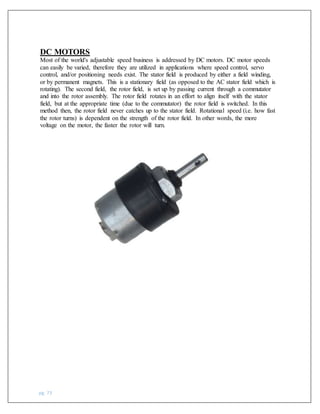
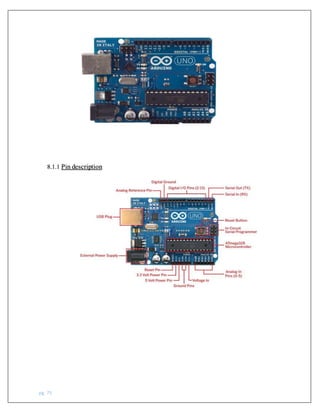
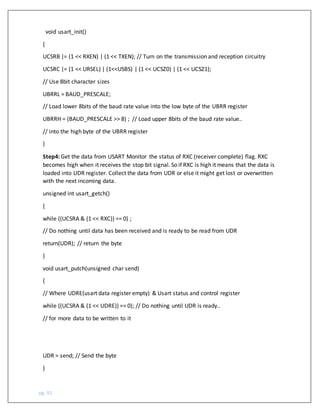
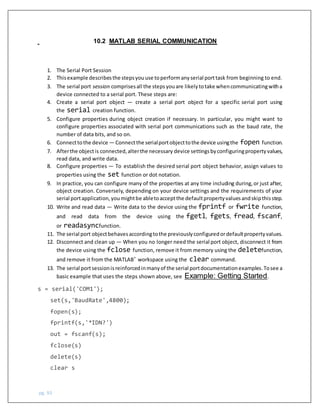
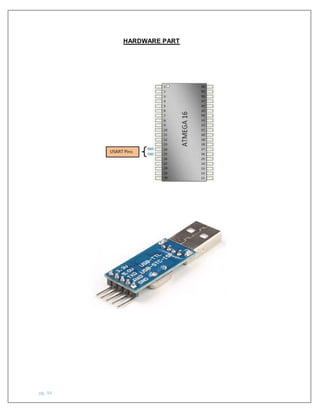
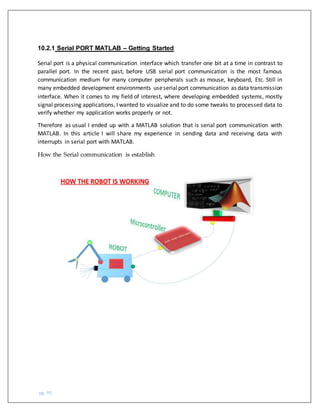
pg. 1
INDEX
TOPICS PAGE NO.
1.Abstract……………………………………………………………………………………………………………..2
2.Introduction……………………………………………………………………………………………………3-4
3.Classification………………………………………………………………………………………………………5
4.Component…………………………………………………………………………………………………….6-7
5.Matlab……………………………………………………………………………………………………………….8
6.ImageProcessing………………………………………………………………………………………….9-23
6.Camera…………………………………………………………………………………………………………….24
7.Access camera in Matlab.…………………………………………………………………………..25-26
8.Robotic vision using Matlab………………………………………………………………………..27-28
9.Detection of red object……………………………………………………………………………….29-30
10.Plotting the position…………………………………………………………………………………31-32
11.Setting the RGB threshold value………………………………………………………………..32-33
12.Caution……………………………………………………………………………………………………..33-34
13.Motion control of the robot………………………………………………………………………35-36
14.Testing step………………………………………………………………………………………………36-37
15.Coding……………………………………………………………………………………………………..38-40
16.ATMEGA 16…………………………………………………………………………………………….41-46
17.PCB…………………………………………………………………………………………………………..47-55
18.L293D……………………………………………………………………………………………………….56-57
19.LCD……………………………………………………………………………………………………………57-61
20.Robotic Hand…………………………………………………………………………………………………62
21.Servo………………………………………………………………………………………………………..63-72
22.DCMotor …………………………………………………………………………………………………72-73
23.Arduino UNO…………………………………………………………………………………………….74-85
24.Gripper…………………………………………………………………………………………………………..86
25.SerialCommunication……………………………………………………………………………….87-95
26.USB-TTL………………………………………………………………………………………….………..96-98
27.Serialcommunication Coding…………………………………………………………………99-103
25.Conclusion……………………………………………………………………………………………………..87
26.Reference………………………………………………………………………………………………………88
pg. 2
Abstract
This paper gives anapproach to identify the work of Autonomous robot using image processing
technique with the help of the MATLAB, Microcontroller working using serial communication
and Robotics hand working using the Aurduino. Image processing include the detection of
color, finding the shape , position of object, following the red ball and giving the response
through the serial communication. The algorithm involves conversion of RGB image to grey
scale image and then to black and white image. This is achieved by thresholding concept, the
dominant color pixels present helps to determine the color of the object. Serialcommunication
is working as mediator between the software and the Microcontroller, Microcontroller perform
task as it receive data form the software through serial communication and driving the motor
and give the instruction to Arduino to perform the Robotic hand task. The practical aspects of
this include reducing the manual labor in industries used to segregatethe products, performing
such task which men can’t complete or can’t go at that place easily and providing real time
vision to the robots.
pg. 3
Introduction
As we progress and develop technology changes rapidly. New methods are being employed in
industrial manufacture and inspection every day. There was a time when manual labor was in
much demand in the industries for jobs like packaging inspection etc. which are a repetitive
process. Now it is time for automated machines to take over these simple jobs and make them
more efficient.
The sensors are one of the most important part of automation. They provide inputs for the
controllers to take action based upon the inputs received. Various kinds of sensors like
temperature sensor, humidity sensor, infrared, ultrasonic sensor, camera etc. are easily
available in market.
High precision is required for better feedback. Cameras are used for Image Processing which
finds huge application in the field of automation industry. It captures the images or streams
live video and then they are processed as per the needs of the application.
Now a day image processing has its own role in automation, for making efficient work many
industries are using Robotic arms and these robotics arms works with the help of image
processing and microcontroller. For working on the automation using image processing all
work should be on real time processing.
Where men can’t go easily these Autonomous robot can go easily and can work more
efficiently.
pg. 4
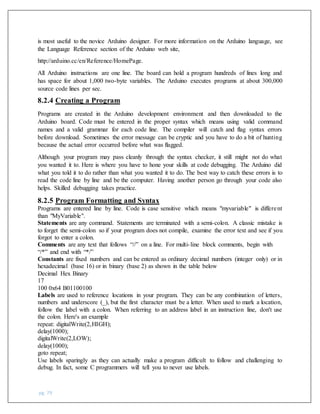
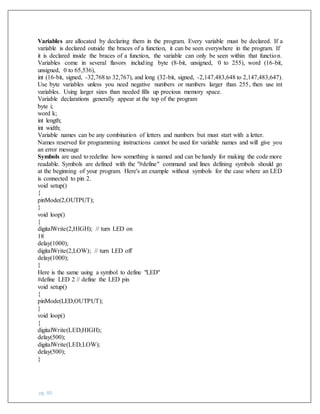
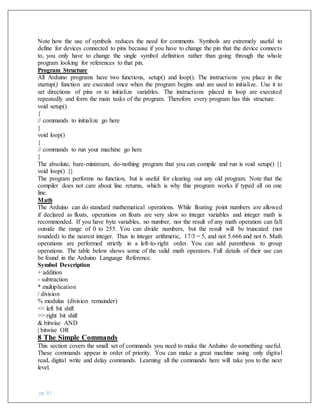
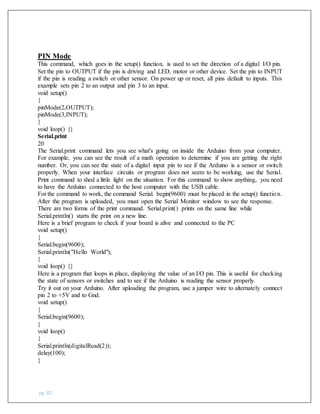
0.1 AUTONOMOUS ROBOT
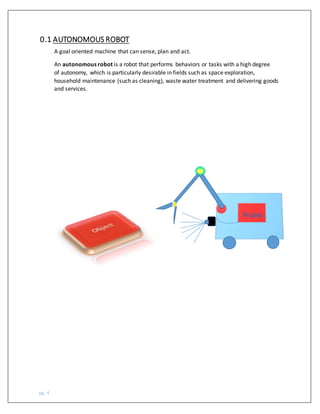
A goal oriented machine that can sense, plan and act.
An autonomous robot is a robot that performs behaviors or tasks with a high degree
of autonomy, which is particularly desirable in fields such as space exploration,
household maintenance (such as cleaning), waste water treatment and delivering goods
and services.
Proces
sing
pg. 5
Processi
ng unit
COMPUTER
ROBOT
Microcontroller
0.2 Classification
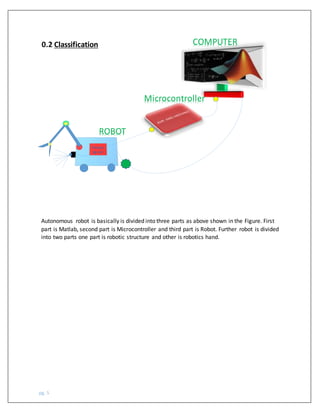
Autonomous robot is basically is divided into three parts as above shown in the Figure. First
part is Matlab, second part is Microcontroller and third part is Robot. Further robot is divided
into two parts one part is robotic structure and other is robotics hand.
pg. 6
0.3 Component Use-
0.3.1 Hardware-
1-Microcontroller
(a)AVR (Atmega 16)
(b) Arduino UNO
2-LCD
3-Crystal Oscillator(16MHz)
4-Capacitor (20pf)
5-Resistor(220 ohm, 1kohm, 2kohm, 10kohm)
6-USB-TTL Converter
7-Battery (6 Volt)
8-Jump wire (Male & Female)
9-Wire
10-General PCB
11-Laptop
12-Laptop camera
13-Motors
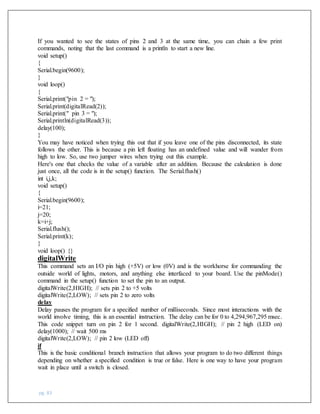
(a) Servo Motor
(b) DC Motor
14- Robot Structure
(a) Glass
(b) Wheel
pg. 7
15-Robotic Structure
0.3.2 Software
1-Avr Studio4
2-Matlab
3-Proteous
4-Hyperterminal
5-Arduino
pg. 8
Matlab
MATLAB (matrix laboratory) is a multi-paradigm numerical computing environment
and fourth-generation programming language. A proprietary programming
language developed by MathWorks, MATLAB allows matrix manipulations, plotting
of functions and data, implementation of algorithms, creation of user interfaces, and
interfacing with programs written in other languages,
including C, C++, Java, Fortran and Python.
Although MATLAB is intended primarily for numerical computing, an optional toolbox uses
the MuPAD symbolic engine, allowing access to symbolic computing abilities. An
additional package, Simulink, adds graphical multi-domain simulation and model-based
design for dynamic and embedded systems.
This paper deals with the implementation of various MATLAB functions present in image
processing toolbox of MATLAB and using the same to create a basic image processor having
different features like, viewing the red, green and blue components of a color image separately,
color detection and various other features (noise addition and removal, edge detection,
cropping, resizing, rotation, histogram adjust, brightness control, etc.) that is used in a basic
image editor along with object detection and tracking.
In Matlab we deal with the matrix and we know that the matrix is formed with the ROW and
Column element. Matlab very easily deal with Matrix. And we are seeing with example.
a= [1, 2, 3; 4, 7, 9; 9, 6, 5]
a =
1 2 3
4 7 9
9 6 5
>> a (2:3)=6
a =
1 2 3
6 7 9
6 6 5
>> a(2:3,2:3)=6
a =
1 2 3
6 6 6
6 6 6
pg. 9
What is an image?
It is a two dimensional array which having pixel value from 0 to 255.
Resolution is define how many pixel are in the image.
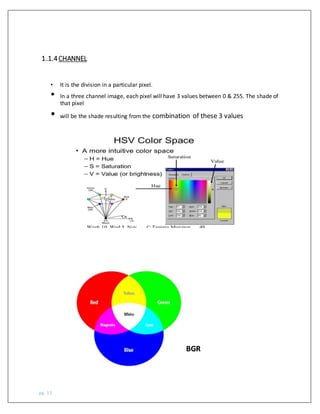
In 3 Channel image , each pixel will have 3 value between 0 and 255. The shade of that
combination of thes 3 value Example BGR image
pg. 10
The analysis and manipulation of a digitized image, especially in order to improve its quality.
Image processing is a method to convert an image into digital form and perform some
operations on it, in order to get an enhanced image or to extract some useful information
from it. It is a type of signal dispensation in which input is image, like video frame or
photograph and output may be image or characteristics associated with that image. Usually
Image Processing systemincludes treating images as two dimensional signals while applying
already set signal processing methods to them. It is among rapidly growing technologies
today, with its applications in various aspects of a business. Image Processing forms core
research area within engineering and computer science disciplines too.
Image processing basically includes the following three steps.
Importing the image with optical scanner or by digital photography.
Analyzing and manipulating the image which includes data compression and image
enhancement and spotting patterns that are not to human eyes like satellite photographs.
Output is the last stage in which result can be altered image or report that is based on image
analysis.
Image retrieval - Seek for the image of interest.
4. Measurement of pattern – Measures various objects in an image.
5. Image Recognition – Distinguish the objects in an image
1.1.2 Purpose of Image processing
The purpose of image processing is divided into 5 groups. They are:
1. Visualization - Observe the objects that are not visible.
2. Image sharpening and restoration - To create a better image.
3. Image retrieval - Seek for the image of interest.
4. Measurement of pattern – Measures various objects in an image.
5. Image Recognition – Distinguish the objects in an image.
1.1Image Processing
pg. 11
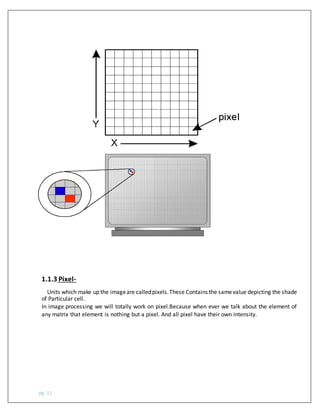
1.1.3 Pixel-
Units which make up the imageare calledpixels.These Contains the samevalue depicting the shade
of Particular cell.
In image processing we will totally work on pixel.Because when ever we talk about the element of
any matrix that element is nothing but a pixel. And all pixel have their own intensity.
pg. 12
• It is the division in a particular pixel.
• In a three channel image, each pixel will have 3 values between 0 & 255. The shade of
that pixel
• will be the shade resulting from the combination of these 3 values
1.1.4CHANNEL
BGR
pg. 13
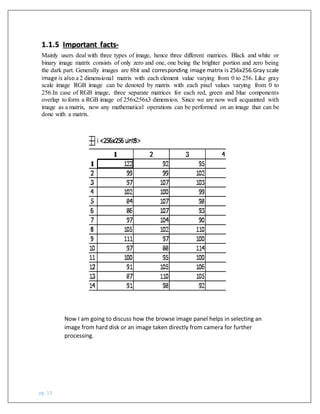
Mainly users deal with three types of image, hence three different matrices. Black and white or
binary image matrix consists of only zero and one, one being the brighter portion and zero being
the dark part. Generally images are 8bit and corresponding image matrix is 256x256.Gray scale
image is also a 2 dimensional matrix with each element value varying from 0 to 256. Like gray
scale image RGB image can be denoted by matrix with each pixel values varying from 0 to
256.In case of RGB image, three separate matrices for each red, green and blue components
overlap to form a RGB image of 256x256x3 dimension. Since we are now well acquainted with
image as a matrix, now any mathematical operations can be performed on an image that can be
done with a matrix.
1.1.5 Important facts-
Now I am going to discuss how the browse image panel helps in selecting an
image from hard disk or an image taken directly from camera for further
processing.
pg. 14
1.1.6 How to read an image in a Matlab?
Here we are reading an image from our hard disk or any file because when we are trying to do
image processing on any image, firstly we have to read image after it we do further process.
A = imread(filename)readsthe image fromthe file specifiedbyfilename,inferringthe format
of the file fromitscontents.If filename isa multi-image file,thenimreadreadsthe firstimage in
the file
Read a sample image.
A = imread ('ngc6543a.jpg');
Imread returns a 650-by-600-by-3 array, A.
Display the image.
image(A)
pg. 15
1.1.7 GrayConversion
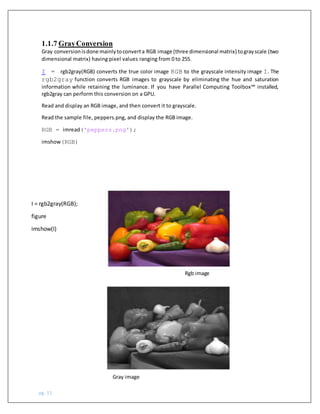
Gray conversionisdone mainlytoconverta RGB image (three dimensional matrix) tograyscale (two
dimensional matrix) having pixel values ranging from 0 to 255.
I = rgb2gray(RGB) converts the true color image RGB to the grayscale intensity image I. The
rgb2gray function converts RGB images to grayscale by eliminating the hue and saturation
information while retaining the luminance. If you have Parallel Computing Toolbox™ installed,
rgb2gray can perform this conversion on a GPU.
Read and display an RGB image, and then convert it to grayscale.
Read the sample file, peppers.png, and display the RGB image.
RGB = imread('peppers.png');
imshow(RGB)
I = rgb2gray(RGB);
figure
imshow(I)
Rgb image
Gray image
pg. 16
1.1.8 Noise AdditionandRemoval-
Various types of noise get added to an image when a snapshot is taken. In order to get
rid of these noises various types of filters are used. To illustrate this authors have added a noise
to an image externally and then applied various filters to get rid of it and evaluated the results.
Since noises are two dimensional and RGB images are three dimensional, dimensional
mismatch has to be avoided while adding the noises. For this reason
RGB image is converted to gray image and then noise addition and removal is performed.
When we talk about the noise in the image then noise is a also a great problem. It is unwanted
part in image.
Noisyimage
For removing noise we have to apply filter. Filter basicaly is used to remove the unwanted
part.
B=imopen(I,se);% these are only use to remove unwanted part
final= imclose(B,se);% it is also use to remove unwanted part or we can say it fill the part
which is unwanted or blank.
diff_im = medfilt2(diff_im, [3 3]);
%Use a median filter to filter out noise.
Here the medfilt2(,[]) use for removing noise. This command take the median of the element
of the matrix and other point ,what is dimensional you are taking. And this median value apply
for the all noise area or on the pixel.
In the above command we have taken [3X3] dimension, and this dimension will be applicable
for all the entire dimension of image, So we can remove the noise.
pg. 17
1.1.9 Colordetection
Flow chart
pg. 18
1.1.10 ALGORITHM
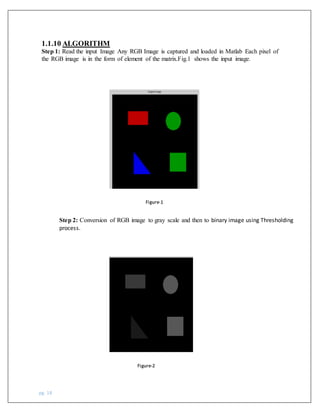
Step 1: Read the input Image Any RGB Image is captured and loaded in Matlab Each pixel of
the RGB image is in the form of element of the matrix.Fig.1 shows the input image.
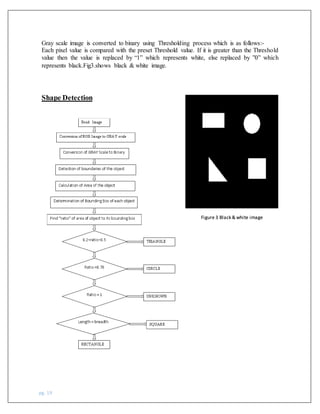
Step 2: Conversion of RGB image to gray scale and then to binary image using Thresholding
process.
Figure-2
Figure-1
pg. 19
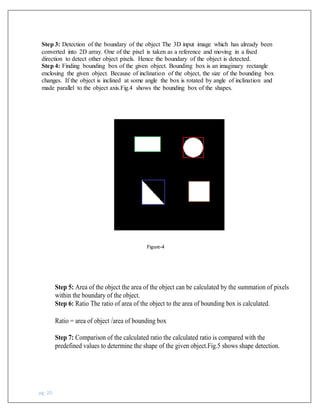
Gray scale image is converted to binary using Thresholding process which is as follows:-
Each pixel value is compared with the preset Threshold value. If it is greater than the Threshold
value then the value is replaced by “1” which represents white, else replaced by ”0” which
represents black.Fig3.shows black & white image.
Shape Detection
Figure 3 Black & white image
pg. 20
Step 3: Detection of the boundary of the object The 3D input image which has already been
converted into 2D array. One of the pixel is taken as a reference and moving in a fixed
direction to detect other object pixels. Hence the boundary of the object is detected.
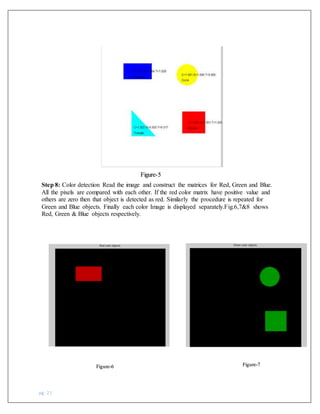
Step 4: Finding bounding box of the given object. Bounding box is an imaginary rectangle
enclosing the given object. Because of inclination of the object, the size of the bounding box
changes. If the object is inclined at some angle the box is rotated by angle of inclination and
made parallel to the object axis.Fig.4 shows the bounding box of the shapes.
Figure-4
Step 5: Area of the object the area of the object can be calculated by the summation of pixels
within the boundary of the object.
Step 6: Ratio The ratio of area of the object to the area of bounding box is calculated.
Ratio = area of object /area of bounding box
Step 7: Comparison of the calculated ratio the calculated ratio is compared with the
predefined values to determine the shape of the given object.Fig.5 shows shape detection.
pg. 21
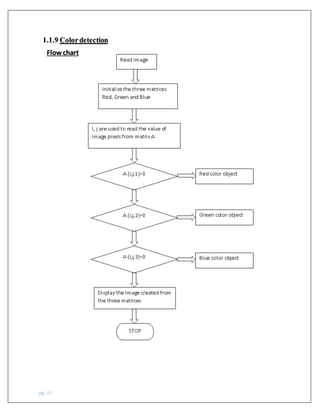
Step 8: Color detection Read the image and construct the matrices for Red, Green and Blue.
All the pixels are compared with each other. If the red color matrix have positive value and
others are zero then that object is detected as red. Similarly the procedure is repeated for
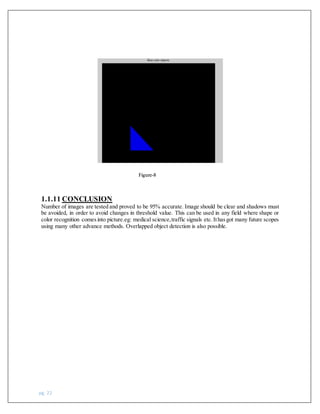
Green and Blue objects. Finally each color Image is displayed separately.Fig.6,7&8 shows
Red, Green & Blue objects respectively.
Figure-5
Figure-6 Figure-7
pg. 22
Figure-8
1.1.11 CONCLUSION
Number of images are tested and proved to be 95% accurate. Image should be clear and shadows must
be avoided, in order to avoid changes in threshold value. This can be used in any field where shape or
color recognition comesinto picture.eg: medical science,traffic signals etc.Ithasgot many future scopes
using many other advance methods. Overlapped object detection is also possible.
pg. 23
• clc; clear all; close all;
• s=imread('Image1.jpg');
• imshow(s);
• diff_im = imsubtract(s(:,:,1), rgb2gray(s));
• diff_im = medfilt2(diff_im, [8 8]);
• bw = im2bw(diff_im,0.18);
• figure, imshow(bw);
• [L,N] = bwlabel(bw, 8);
• pre=regionprops(L);% here Lcontains the matrix of diffrent pixelof & bw contains the
the number of blob.
• figure, imshow(bw);
• hold on
• for n=1:size(pre,1)
• rectangle('Position',pre(n).BoundingBox,'EdgeColor','r','LineWidth',2);
• End
This program is very helpful in finding the position of object.
Here one conflict occurs, how we can find the position of object in the image, in the
above discussion, I have discussed how we can find the color of object.
You have to follow all these step unless you get binary image and when you will have
the binary image then apply the “regionprops()” command ,this command basically
help us to find where the pixel intensity is greater than the 0 , as we know that if there
is different intensity of related pixel in gray scale image then we apply the one
command that is “bwlabel()” this command can help us, in order to find how many
different type of pixel are present and it contains the matrix for all the different pixel.
After applying the command, we can find the maximum and minimum value of the
row and column respectively. And with the help of it we can draw a bow around it.
1.1.12Howto plota box
pg. 24
Camera
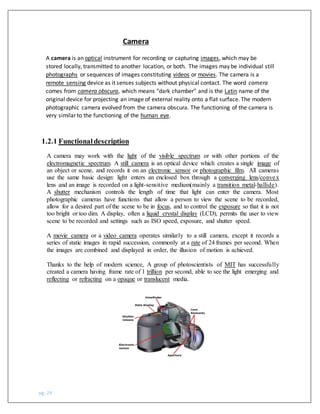
A camera is an optical instrument for recording or capturing images, which may be
stored locally, transmitted to another location, or both. The images may be individual still
photographs or sequences of images constituting videos or movies. The camera is a
remote sensing device as it senses subjects without physical contact. The word camera
comes from camera obscura, which means "dark chamber" and is the Latin name of the
original device for projecting an image of external reality onto a flat surface. The modern
photographic camera evolved from the camera obscura. The functioning of the camera is
very similar to the functioning of the human eye.
1.2.1 Functionaldescription
A camera may work with the light of the visible spectrum or with other portions of the
electromagnetic spectrum. A still camera is an optical device which creates a single image of
an object or scene, and records it on an electronic sensor or photographic film. All cameras
use the same basic design: light enters an enclosed box through a converging lens/convex
lens and an image is recorded on a light-sensitive medium(mainly a transition metal-hallide).
A shutter mechanism controls the length of time that light can enter the camera. Most
photographic cameras have functions that allow a person to view the scene to be recorded,
allow for a desired part of the scene to be in focus, and to control the exposure so that it is not
too bright or too dim. A display, often a liquid crystal display (LCD), permits the user to view
scene to be recorded and settings such as ISO speed, exposure, and shutter speed.
A movie camera or a video camera operates similarly to a still camera, except it records a
series of static images in rapid succession, commonly at a rate of 24 frames per second. When
the images are combined and displayed in order, the illusion of motion is achieved.
Thanks to the help of modern science, A group of photoscientists of MIT has successfully
created a camera having frame rate of 1 trillion per second, able to see the light emerging and
reflecting or refracting on a opaque or translucent media.
pg. 25
Matlab has built-in adaptors to access the camera. At the Matlab command prompt, write
the ‘imaqhwinfo’ instruction and press ‘Enter’ key. This instruction returns information
about all the adaptors available in the system: ans = InstalledAdaptors:
{‘winvideo’}
MATLABVersion: ‘7.0.1 (R14SP1)’
ToolboxName: ‘Image Acquisition
Toolbox’
ToolboxVersion: ‘1.7 (R14SP1)’
The ‘info=imaqhwinfo’ instruction returns information about a specific device accessible
through a particular adaptor.
The output of the ‘info = imaqhwinfo(‘winvideo’)’ instruction is: info
=AdaptorDllName:G:MATLAB701toolboximaqimaqadaptorswin32
mwwinvideoimaq.dll’ AdaptorDllVersion: ‘1.7 (R14SP1)’
AdaptorName: ‘winvideo’
DeviceIDs: {1x0 cell}
DeviceInfo: [1x0 struct]
The output of the ‘dev_info = imaqhwinfo(‘winvideo’, 1)’ instruction is:
dev_info =
DefaultFormat: ‘RGB24_640x480’
DeviceFileSupported: 0
DeviceName: ‘WebCam Vista #2’
DeviceID: 1
ObjectConstructor:
‘videoinput(‘winvideo’, 1)’
SupportedFormats: {1x11 cell}
Again, the ‘obj = videoinput(‘adaptorname’, deviceID,’ format’)’ instruction constructs a
video input object where the ‘adaptorname’ string specifies the name of the device adaptor
that the object ‘obj’ is associated with. ‘deviceID’ is the identifier of the device in numerical
number. If ‘deviceID’ is not specified, the first available device ID is used. The ‘format’ string
specifies the video format for the object. If the format is not specified, the device default
format is used. For example, the output of the ‘obj= videoinput
(‘winvideo’, 1,’RGB24_640×480')’ instruction will be:
1.2.2 How to access camera in Matlab?
pg. 26
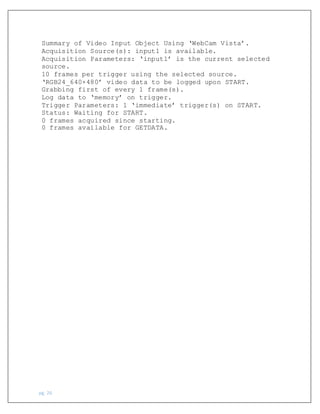
Summary of Video Input Object Using ‘WebCam Vista’.
Acquisition Source(s): input1 is available.
Acquisition Parameters: ‘input1’ is the current selected
source.
10 frames per trigger using the selected source.
‘RGB24_640×480’ video data to be logged upon START.
Grabbing first of every 1 frame(s).
Log data to ‘memory’ on trigger.
Trigger Parameters: 1 ‘immediate’ trigger(s) on START.
Status: Waiting for START.
0 frames acquired since starting.
0 frames available for GETDATA.
pg. 27
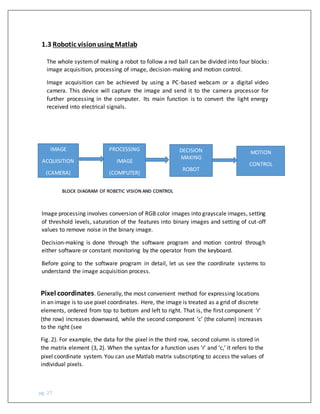
The whole systemof making a robot to follow a red ball can be divided into four blocks:
image acquisition, processing of image, decision-making and motion control.
Image acquisition can be achieved by using a PC-based webcam or a digital video
camera. This device will capture the image and send it to the camera processor for
further processing in the computer. Its main function is to convert the light energy
received into electrical signals.
IMAGE
ACQUISITION
(CAMERA)
MOTION
CONTROL
DECISION
MAKING
ROBOT
PROCESSING
IMAGE
(COMPUTER)
BLOCK DIAGRAM OF ROBETIC VISION AND CONTROL
Image processing involves conversion of RGB color images into grayscale images, setting
of threshold levels, saturation of the features into binary images and setting of cut-off
values to remove noise in the binary image.
Decision-making is done through the software program and motion control through
either software or constant monitoring by the operator from the keyboard.
Before going to the software program in detail, let us see the coordinate systems to
understand the image acquisition process.
Pixel coordinates. Generally, the most convenient method for expressing locations
in an image is to use pixel coordinates. Here, the image is treated as a grid of discrete
elements, ordered from top to bottom and left to right. That is, the first component ‘r’
(the row) increases downward, while the second component ‘c’ (the column) increases
to the right (see
Fig. 2). For example, the data for the pixel in the third row, second column is stored in
the matrix element (3, 2). When the syntax for a function uses ‘r’ and ‘c,’ it refers to the
pixel coordinate system. You can use Matlab matrix subscripting to access the values of
individual pixels.
1.3 Robotic visionusing Matlab
pg. 28
Spatial coordinates. Consider a pixel as a square patch. From this perspective, a location
such as (3.3, 2.2) is a spatial coordinate. Here, locations in an image on a plane are described
in terms of ‘x’ and ‘y.’ When the syntax uses ‘x’ and ‘y,’ it refers to the spatial coordinate
system. Fig. 2 shows the coordinate convention of the spatial coordinate system. Notice that
‘y’ increases downward. An image may be defined as a two dimensional f(x, y) function,
where ‘x’ and ‘y’ are spatial coordinates, and the amplitude of ‘f’ at any pair of coordinates
(x, y) is called the intensity or gray level of the image at the point. The finite discrete values
of the coordinates (x, y) and amplitude of ‘f’ are the digital images.
An intensity image is a data matrix whose values have been scaled to represent intensities.
When the elements of an intensity image are of class ‘uint8’or class ‘uint16,’ they have
integervaluesinthe range [0,255] and [0, 65535], respectively.The classof the elements used in
this program is ‘uint8.’
pg. 29
1.3.1 Detectionof redobject
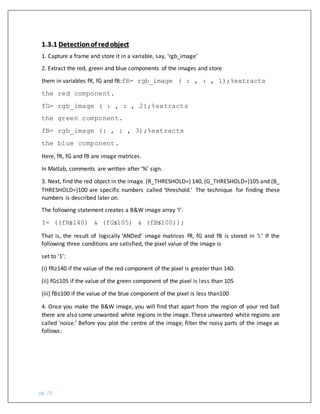
1. Capture a frame and store it in a variable, say, ‘rgb_image’
2. Extract the red, green and blue components of the images and store
them in variables fR, fG and fB:fR= rgb_image ( : , : , 1);%extracts
the red component.
fG= rgb_image ( : , : , 2);%extracts
the green component.
fB= rgb_image (: , : , 3);%extracts
the blue component.
Here, fR, fG and fB are image matrices.
In Matlab, comments are written after ‘%’ sign.
3. Next, find the red object in the image. (R_THRESHOLD=) 140, (G_THRESHOLD=)105 and (B_
THRESHOLD=)100 are specific numbers called ‘threshold.’ The technique for finding these
numbers is described later on.
The following statement creates a B&W image array ‘I’:
I= ((fR≥140) & (fG≤105) & (fB≤100));
That is, the result of logically ‘ANDed’ image matrices fR, fG and fB is stored in ‘I.’ If the
following three conditions are satisfied, the pixel value of the image is
set to ‘1’:
(i) fR≥140 if the value of the red component of the pixel is greater than 140.
(ii) fG≤105 if the value of the green component of the pixel is less than 105
(iii) fB≤100 if the value of the blue component of the pixel is less than100
4. Once you make the B&W image, you will find that apart from the region of your red ball
there are also some unwanted white regions in the image. These unwanted white regions are
called ‘noise.’ Before you plot the centre of the image, filter the noisy parts of the image as
follows:
pg. 30
Se = strel (‘disk’, 20); % creates a flat, disk-shaped
structuring element with radius 20
B= imopen (I, se);
%morphological opening Final= imclose (B, se);
%morphological closing
Morphological opening removes those regions of an object which cannot contain the
structuring element, smoothest object contours, breaks thin connections and removes thin
protrusions. Morphological closing also tends to smooth the contours of objects besides
joining narrow breaks and filling long, thin gulfs and holes smaller than the structuring
element:
5. Once you obtain the desired part, find the Centre of the ball. The following statement
computes all the connected components in a binary image:
[L, n]= bwlabel(Final),
Here ‘n’ is the total number of connected components and ‘L’ is the label matrix. (Each
connected component is given a unique number.)
The following statement:
[r, c]= find (L= = K) % K= 1, 2 …n returns the row and column indices
for all pixels belonging to the Kth object:
rbar= mean (n);
cbar= mean(c);
Variables ‘rbar’ and ‘cbar’ are the coordinates of the Centre of mass. As you have already
filtered the image, the final image contains only one white region. But in case there is a
computational fault due to excessive noise, you might have two connected components. So
form a loop from ‘1’ to ‘n’ using ‘for’ statement, thus calculating the Centre of mass for all
objects. The syntax is:
for K=1:n
If there are no components in a frame, the control doesn’t enter the loop and ‘rbar’ and ‘cbar’
remain initialized to zero. For checking the output on the computer, use the following
instructions:
imshow (rgb_image);
hold on
plot (cbar, rbar, ‘marker’, ‘ * ’, ‘MarkerEdgeColor’, B );
These statements pop-up a window where a ‘blue’ mark is plotted on the detected Centre of
mass of the red ball. They have been commented out in the main program for testing.
pg. 31
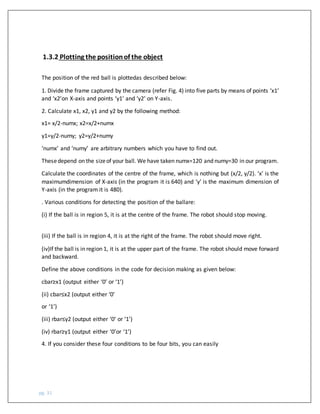
1.3.2 Plotting the positionof the object
The position of the red ball is plottedas described below:
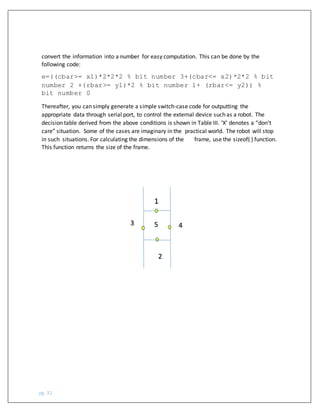
1. Divide the frame captured by the camera (refer Fig. 4) into five parts by means of points ‘x1’
and ‘x2’on X-axis and points ‘y1’ and ‘y2’ on Y-axis.
2. Calculate x1, x2, y1 and y2 by the following method:
x1= x/2-numx; x2=x/2+numx
y1=y/2-numy; y2=y/2+numy
‘numx’ and ‘numy’ are arbitrary numbers which you have to find out.
Thesedepend on the sizeof your ball. We have taken numx=120 and numy=30 in our program.
Calculate the coordinates of the centre of the frame, which is nothing but (x/2, y/2). ‘x’ is the
maximumdimension of X-axis (in the program it is 640) and ‘y’ is the maximum dimension of
Y-axis (in the program it is 480).
. Various conditions for detecting the position of the ballare:
(i) If the ball is in region 5, it is at the centre of the frame. The robot should stop moving.
(iii) If the ball is in region 4, it is at the right of the frame. The robot should move right.
(iv)If the ball is in region 1, it is at the upper part of the frame. The robot should move forward
and backward.
Define the above conditions in the code for decision making as given below:
cbar≥x1 (output either ‘0’ or ‘1’)
(ii) cbar≤x2 (output either ‘0’
or ‘1’)
(iii) rbar≤y2 (output either ‘0’ or ‘1’)
(iv) rbar≥y1 (output either ‘0’or ‘1’)
4. If you consider these four conditions to be four bits, you can easily
pg. 32
convert the information into a number for easy computation. This can be done by the
following code:
e=((cbar>= x1)*2*2*2 % bit number 3+(cbar<= x2)*2*2 % bit
number 2 +(rbar>= y1)*2 % bit number 1+ (rbar<= y2)) %
bit number 0
Thereafter, you can simply generate a simple switch-case code for outputting the
appropriate data through serial port, to control the external device such as a robot. The
decision table derived from the above conditions is shown in Table III. ‘X’ denotes a “don’t
care” situation. Some of the cases are imaginary in the practical world. The robot will stop
in such situations. For calculating the dimensions of the frame, use the sizeof( ) function.
This function returns the size of the frame.
1
2
3 4
5
pg. 33
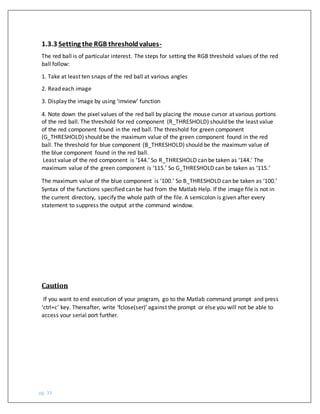
The red ball is of particular interest. The steps for setting the RGB threshold values of the red
ball follow:
1. Take at least ten snaps of the red ball at various angles
2. Read each image
3. Display the image by using ‘imview’ function
4. Note down the pixel values of the red ball by placing the mouse cursor at various portions
of the red ball. The threshold for red component (R_THRESHOLD) should be the least value
of the red component found in the red ball. The threshold for green component
(G_THRESHOLD) should be the maximum value of the green component found in the red
ball. The threshold for blue component (B_THRESHOLD) should be the maximum value of
the blue component found in the red ball.
Least value of the red component is ‘144.’ So R_THRESHOLD can be taken as ‘144.’ The
maximum value of the green component is ‘115.’ So G_THRESHOLD can be taken as ‘115.’
The maximum value of the blue component is ‘100.’ So B_THRESHOLD can be taken as ‘100.’
Syntax of the functions specified can be had from the Matlab Help. If the image file is not in
the current directory, specify the whole path of the file. A semicolon is given after every
statement to suppress the output at the command window.
Caution
If you want to end execution of your program, go to the Matlab command prompt and press
‘ctrl+c’ key. Thereafter, write ‘fclose(ser)’ against the prompt or else you will not be able to
access your serial port further.
1.3.3 Setting the RGB thresholdvalues-
pg. 34
The computer processes the image of the red balland sends out five different data through
its serial COMport. The data depends on the location of the red ball, viz, upper, lower, left,
right and Centre of the frame, as captured by the camera. Place the PC-based (USB-based)
camera in front of the robot, so that it acts as a visual sensor. You have to design a robot
that connects to the serial port of your PC.
Program the serial port as follows:
1. obj = serial(‘port’); creates a serial-port object associated with the serial port
specified by the port. If the port does not exist or if it is in use, you will not be able
to connect the serial-port object to the device. The syntax is:
>>ser=serial(‘COM1’);
2. obj = serial(‘port’, ’Property Name’ ,PropertyValue,...); creates a serial-port object with
the specified property names and property values. If an invalid property name or property
value is specified, an error is returned and the serial-port object is not created.
The syntax is:
>> ser= serial(‘COM1’,’BaudRate’, 9600,’DataBits’,8);
>> ser= serial(‘COM1’,’BaudRate’,
9600,’DataBits’,8);
3. fopen(obj); before you can perform a read or write operation,‘obj’ must be connected
to the device with the fopen function. The syntax is:
>>fopen(ser); 4. fprintf(ser,’data’); sends data to
the serial port. The syntax is:
>>fprintf(ser,’F’);
5. fclose(obj); disconnects ‘obj’ from the device. The syntax is:
>>fclose(ser); Here the robot will be controlled by seding the following codes to
the serial port:
pg. 35
1.3.4 Motioncontrol of the robot
The computer processes the image of the red balland sends out five different data throug h
its serial COMport. The data depends on the location of the red ball, viz, upper, lower, left,
right and Centre of the frame, as captured by the camera. Place the PC-based (USB-based)
camera in front of the robot, so that it acts as a visual sensor. You have to design a robot
that connects to the serial port of your PC.
Program the serial port as follows:
2. obj = serial(‘port’); creates a serial-port object associated with the serial port
specified by the port. If the port does not exist or if it is in use, you will not be able
to connect the serial-port object to the device. The syntax is:
>>ser=serial(‘COM1’);
2. obj = serial(‘port’, ’Property Name’ ,PropertyValue,...); creates a serial-port object with
the specified property names and property values. If an invalid property name or property
value is specified, an error is returned and the serial-port object is not created.
The syntax is:
>> ser= serial(‘COM1’,’BaudRate’, 9600,’DataBits’,8);
>> ser= serial(‘COM1’,’BaudRate’,
9600,’DataBits’,8);
3. fopen(obj); before you can perform a read or write operation,‘obj’ must be connected
to the device with the fopen function. The syntax is:
>>fopen(ser); 4. fprintf(ser,’data’); sends data to
the serial port. The syntax is:
>>fprintf(ser,’F’);
5. fclose(obj); disconnects ‘obj’ from the device. The syntax is:
>>fclose(ser); Here the robot will be controlled by seding the following codes to
the serial port:
pg. 36
1. Key ‘F’ for forward movement
2. Key ‘L’ for left movement
3. Key ‘R’ for right movement
4. Key ‘B’ for backward movement
Any other code will make the robot stop. The code for implementing motion control of the
robot is given at the end of this article.
1. Install Matlab (minimum version: Matlab 7.0.1(R14))
2. Install the camera along with related software
3. Restart your computer
4. Run your camera software and check the image captured by it
5. Take snaps of the red ball from various angles and set the threshold values
6. When all is right, open Matlab software, go to ‘m.file’ from ‘file’menu bar, type the code
‘Robotvision. m’ (given at the end of the article) and save it.
7. Click ‘run’ button in ‘Debug’ option
8. Hold the red ball in your hand near the camera lens
9. Move the ball left, right, forward and backward. This information will be displayed on
your screen. For example, if you move the ball left, you can see ‘move left’ command on
the screen
10. Now, place your camera on top of your robot. The robot will trace the
red ball by itself To check the serial-port data communication, you can use a serial-port
monitor, which can be freely downloaded from ‘www.download. com/Free-Serial-Port-
Monitor/3000- 2212_4-70394.html’
pg. 37
1.3.5 Testing steps-
1. Install Matlab (minimum version: Matlab 7.0.1(R14))
2. Install the camera along with related software
3. Restart your computer
4. Run your camera software and check the image captured by it
5. Take snaps of the red ball from various angles and set the threshold values
6. When all is right, open Matlab software, go to ‘m.file’ from ‘file’ menu bar, type the
code ‘Robotvision. m’ (given at the end of the article) and save it.
7. Click ‘run’ button in ‘Debug’ option
8. Hold the red ball in your hand near the camera lens
9. Move the ball left, right, forward and backward. This information will be displayed on
your screen. For example, if you move the ball left, you can see ‘move left’ command on
the screen
10. Now, place your camera on top of your robot. The robot will trace the red ball by
itself To check the serial-port data communication, you can use a serial-port monitor,
which can be freely downloaded from ‘www.download. com/Free-Serial-Port-
Monitor/3000- 2212_4-70394.html’
pg. 38
1.3.6 Detectionof the color and performing task-(code)
clc;clear all; close all;
% Capture the video frames using the videoinput function
% You have to replace the resolution & your installed adaptor
name.
vid = videoinput('winvideo',1,'YUY2_320X240');
% Set the properties of the video object
set(vid, 'FramesPerTrigger', Inf);
set(vid, 'ReturnedColorspace', 'rgb')
vid.FrameGrabInterval = 5;
%start the video aquisition here
start(vid)
k=0;
z=1
s=serial('COM3','Baudrate',9600,'databits',8);
fopen(s);
% Set a loop that stop after 100 frames of aquisition
while(vid.FramesAcquired<=200)
% Get the snapshot of the current frame
data = getsnapshot(vid);
% Now to track red objects in real time
% we have to subtract the red component
% from the grayscale image to extract the red components
in the image.
diff_im = imsubtract(data(:,:,1), rgb2gray(data));
%Use a median filter to filter out noise
diff_im = medfilt2(diff_im, [3 3]);
% Convert the resulting grayscale image into a binary image.
diff_im = im2bw(diff_im,0.18);
% Remove all those pixels less than 300px
diff_im = bwareaopen(diff_im,200);
% Label all the connected components in the image.
bw = bwlabel(diff_im, 8);% here L contains the matrix of
diffrent pixel of & bw contains the the number of blob.
% Here we do the image blob analysis.
% We get a set of properties for each labeled region.
stats = regionprops(bw,'BoundingBox', 'Centroid');% here
stats tell about all the properties of the image.
% Display the image
pg. 39
imshow(data)
hold on
%This is a loop to bound the red objects in a rectangular
box.
for object = 1:length(stats)% here length status tell
about how many blob matrix is available here.
bb = stats(object).BoundingBox;% here bb draw a
boundribox around the blob.
bc = stats(object).Centroid;% bc is use to draw the
centroid.
rectangle('Position',bb,'EdgeColor','r','LineWidth',2)
plot(bc(1),bc(2), '-m+')
a=text(bc(1)+15,bc(2), strcat('X: ',
num2str(round(bc(1))), ' Y: ', num2str(round(bc(2)))));
BoundingBox;% here bb draw a boundribox around the blob.
bc = stats(object).Centroid;% bc is use to draw the
centroid.
rectangle('Position',bb,'EdgeColor','r','LineWidth',2)
plot(bc(1),bc(2), '-m+')
a=text(bc(1)+15,bc(2), strcat('X: ',
num2str(round(bc(1))), ' Y: ', num2str(round(bc(2)))));
set(a, 'FontName', 'Arial', 'FontWeight', 'bold',
'FontSize', 12, 'Color', 'yellow');
if(length(stats)==1)
a=text(500,60,strcat('one'));
set(a, 'FontName', 'Arial', 'FontWeight', 'bold',
'FontSize', 12, 'Color', 'yellow');
fprintf(s,'L');
end
if(length(stats)==2)
a=text(500,60,strcat('two'));
set(a, 'FontName', 'Arial', 'FontWeight', 'bold',
'FontSize', 12, 'Color', 'yellow');
fprintf(s,'R');
end
if(length(stats)==3)
a=text(500,60,strcat('four'));
set(a, 'FontName', 'Arial', 'FontWeight', 'bold',
'FontSize', 12, 'Color', 'yellow');
fprintf(s,'F');
end
if(length(stats)= =4)
a=text(500,60,strcat('five'));
set(a, 'FontName', 'Arial', 'FontWeight', 'bold',
'FontSize', 12, 'Color', 'yellow');
fprintf(s,'B');
end
end
pg. 40
z=z+1;
hold off
end
fclose(s);
% Both the loops end here.
% Stop the video aquisition.
stop(vid);
% Flush all the image data stored in the memory buffer.
flushdata(vid);
% Clear all variables
clear all
sprintf('%s','That was all about Image tracking, Guess that
was pretty easy :) ')
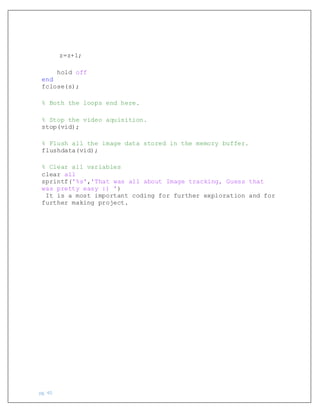
It is a most important coding for further exploration and for
further making project.
pg. 41
ATMEGA 16
The ATmega16 is a low-power CMOS 8-bit microcontroller based on the AVR enhanced RISC
architecture. By executing powerful instructions in a single clock cycle, the ATmega16 achieves
throughputs approaching 1 MIPS per MHz allowing the system designed to optimize power
consumption versus processing speed.
The AVR core combines a rich instruction set with 32 general purpose working registers. All the
32 registers are directly connected to the Arithmetic Logic Unit (ALU), allowing two independent
registers to be accessed in one single instruction executed in one clock cycle. The resulting
architecture is more code efficient while achieving throughputs up to ten times faster than
conventional CISC microcontrollers.
The ATmega16 provides the following features: 16K bytes of In-System Programmable Flash
Program memory with Read-While-Write capabilities, 512 bytes EEPROM, 1K byte SRAM, 32
general purpose I/O lines, 32 general purpose working registers, a JTAG interface for Boundary-
scan,On-chip Debugging support and programming, three flexible Timer/Counters with compare
pg. 42
modes, Internal and External Interrupts, a serial programmable USART, a byte oriented Two-wire
Serial Interface, an 8-channel, 10-bit
ADC with optional differential input stage with programmable gain (TQFP package only), a
programmable Watchdog Timer with Internal Oscillator, an SPI serial port, and six software
selectable power saving modes. The Idle mode stops the CPU while allowing the USART, Two-
wire interface, A/D Converter, SRAM, Timer/Counters, SPI port, and interrupt systemto continue
functioning. The Power-down mode saves the register contents but freezes the Oscillator,
disabling all other chip functions until the next External Interrupt or Hardware Reset. In Power-
save mode, the Asynchronous Timer continues to run, allowing the user to maintain a timer base
while the rest of the device is sleeping. The ADC Noise Reduction mode stops the CPU and all I/O
modules except Asynchronous
Timer and ADC, to minimize switching noise during ADC conversions. In Standby mode, the
crystal/resonator Oscillator is running while the rest of the device is sleeping. This allows very
fast start-up combined with low-power consumption. In Extended Standby mode, both the main
Oscillatorand the Asynchronous Timer continue to run. The device is manufactured using Atmel’s
high density nonvolatile memory technology.
The On-chip ISP Flash allows the program memory to be reprogrammed in-systemthrough an SPI
serial interface, by a conventional nonvolatile memory programmer, or by an On-chip Boot
program running on the AVR core. The boot program can use any interface to download the
application program in the Application Flash memory. Software in the Boot Flash section will
continue to run while the Application Flash section is updated, providing true Read-While-Write
operation. By combining an 8-bit RISC CPU with In-System Self-Programmable Flash on a
monolithic chip, the Atmel ATmega16 is a powerful microcontroller that provides ahighly-flexible
and cost-effective solution to many embedded control applications.
The ATmega16 AVR is supported with a full suite of program and system development tools
including: C compilers, macro assemblers, program debugger/simulators, in-circuit emulators,
and evaluation kits.
pg. 43
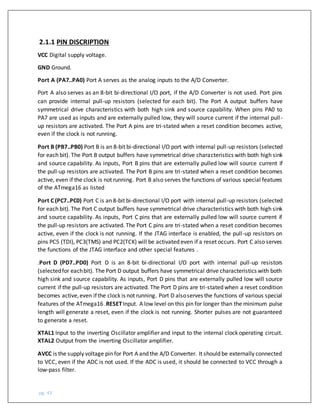
2.1.1 PIN DISCRIPTION
VCC Digital supply voltage.
GND Ground.
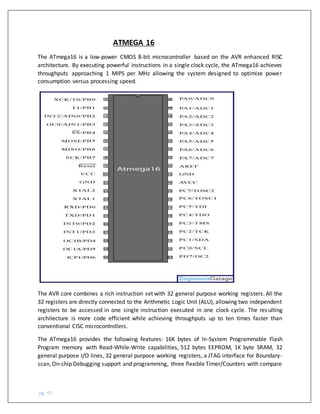
Port A (PA7..PA0) Port A serves as the analog inputs to the A/D Converter.
Port A also serves as an 8-bit bi-directional I/O port, if the A/D Converter is not used. Port pins
can provide internal pull-up resistors (selected for each bit). The Port A output buffers have
symmetrical drive characteristics with both high sink and source capability. When pins PA0 to
PA7 are used as inputs and are externally pulled low, they will source current if the internal pull-
up resistors are activated. The Port A pins are tri-stated when a reset condition becomes active,
even if the clock is not running.
Port B (PB7..PB0) Port B is an 8-bit bi-directional I/O port with internal pull-up resistors (selected
for each bit). The Port B output buffers have symmetrical drive characteristics with both high sink
and source capability. As inputs, Port B pins that are externally pulled low will source current if
the pull-up resistors are activated. The Port B pins are tri-stated when a reset condition becomes
active, even if the clock is not running. Port B also serves the functions of various special features
of the ATmega16 as listed
Port C (PC7..PC0) Port C is an 8-bit bi-directional I/O port with internal pull-up resistors (selected
for each bit). The Port C output buffers have symmetrical drive characteristics with both high sink
and source capability. As inputs, Port C pins that are externally pulled low will source current if
the pull-up resistors are activated. The Port C pins are tri-stated when a reset condition becomes
active, even if the clock is not running. If the JTAG interface is enabled, the pull-up resistors on
pins PC5 (TDI), PC3(TMS) and PC2(TCK) will be activated even if a reset occurs. Port C also serves
the functions of the JTAG interface and other special features .
.Port D (PD7..PD0) Port D is an 8-bit bi-directional I/O port with internal pull-up resistors
(selectedfor eachbit). The Port D output buffers have symmetrical drive characteristics with both
high sink and source capability. As inputs, Port D pins that are externally pulled low will source
current if the pull-up resistors are activated. The Port D pins are tri-stated when a reset condition
becomes active,even ifthe clock is not running. Port D alsoserves the functions of various special
features of the ATmega16 .RESETInput. A low level on this pin for longer than the minimum pulse
length will generate a reset, even if the clock is not running. Shorter pulses are not guaranteed
to generate a reset.
XTAL1 Input to the inverting Oscillator amplifier and input to the internal clock operating circuit.
XTAL2 Output from the inverting Oscillator amplifier.
AVCC is the supply voltage pin for Port A and the A/D Converter. It should be externally connected
to VCC, even if the ADC is not used. If the ADC is used, it should be connected to VCC through a
low-pass filter.
pg. 44
AREF AREF is the analog reference pin for the A/D Converter.
2.1.2 Features
• High-performance, Low-power AVR® 8-bit Microcontroller
• Advanced RISC Architecture
– 131 Powerful Instructions – Most Single-clock Cycle Execution
– 32 x 8 General Purpose Working Registers
– Fully Static Operation
– Up to 16 MIPS Throughput at 16 MHz
– On-chip 2-cycle Multiplier
• Nonvolatile Program and Data Memories
– 16K Bytes of In-System Self-Programmable Flash
Endurance: 10,000 Write/Erase Cycles
– Optional Boot Code Section with Independent Lock Bits
In-System Programming by On-chip Boot Program
True Read-While-Write Operation
– 512 Bytes EEPROM
Endurance: 100,000 Write/Erase Cycles
– 1K Byte Internal SRAM
– Programming Lock for Software Security
• JTAG (IEEE std. 1149.1 Compliant) Interface
– Boundary-scan Capabilities According to the JTAG Standard
– Extensive On-chip Debug Support
– Programming of Flash, EEPROM, Fuses, and Lock Bits through the JTAG Interface
• Peripheral Features
– Two 8-bit Timer/Counters with Separate Prescalers and Compare Modes
– One 16-bit Timer/Counter with Separate Prescaler, Compare Mode, and Capture
Mode
pg. 45
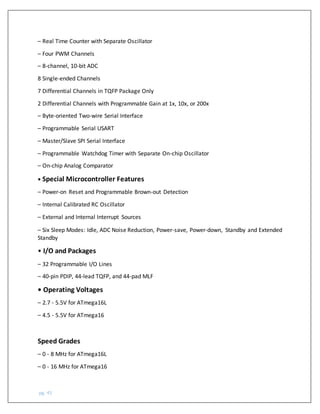
– Real Time Counter with Separate Oscillator
– Four PWM Channels
– 8-channel, 10-bit ADC
8 Single-ended Channels
7 Differential Channels in TQFP Package Only
2 Differential Channels with Programmable Gain at 1x, 10x, or 200x
– Byte-oriented Two-wire Serial Interface
– Programmable Serial USART
– Master/Slave SPI Serial Interface
– Programmable Watchdog Timer with Separate On-chip Oscillator
– On-chip Analog Comparator
• Special Microcontroller Features
– Power-on Reset and Programmable Brown-out Detection
– Internal Calibrated RC Oscillator
– External and Internal Interrupt Sources
– Six Sleep Modes: Idle, ADC Noise Reduction, Power-save, Power-down, Standby and Extended
Standby
• I/O and Packages
– 32 Programmable I/O Lines
– 40-pin PDIP, 44-lead TQFP, and 44-pad MLF
• Operating Voltages
– 2.7 - 5.5V for ATmega16L
– 4.5 - 5.5V for ATmega16
Speed Grades
– 0 - 8 MHz for ATmega16L
– 0 - 16 MHz for ATmega16
pg. 46
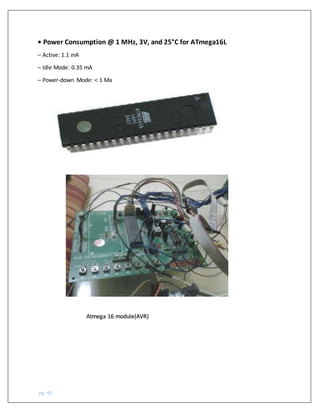
• Power Consumption @ 1 MHz, 3V, and 25°C for ATmega16L
– Active: 1.1 mA
– Idle Mode: 0.35 mA
– Power-down Mode: < 1 Μa
Atmega 16 module(AVR)
pg. 47
PRINTED CIRCUIT BOARD (PCB)
3.1.1 Introduction
Printed circuit boards (PCBs) are by far the most common method of assembling modern
electronic circuits. Comprised of a sandwich of one or more insulating layers and one or more
copper layers which contain the signal traces and the powers and grounds, the design of the
layout of printed circuit boards can be as demanding as the design of the electrical circuit.
Most modern systems consist of multilayer boards of anywhere up to eight layers (or sometimes
even more). Traditionally, components were mounted on the top layer in holes which extended
through all layers. These are referred as through whole components. More recently, with the
near universal adoption of surface mount components, you commonly find components
mounted on both the top and the bottom layers.
The design of the printed circuit board can be as important as the circuit design to the overall
performance of the final system. We shall discuss in this chapter the partitioning of the circuitry,
the problem of interconnecting traces, parasitic components, grounding schemes, and
decoupling. All of these are important in the success of a total design.
PCB effects that are harmful to precision circuit performance include leakage resistances,
IR voltage dropsintrace foils,vias,andgroundplanes,the influence of straycapacitance,anddielectric
absorption(DA).Inaddition,the tendencyof PCBstoabsorbatmosphericmoisture (hygroscopicity)
meansthat changesinhumidityoftencause the contributionsof some parasiticeffectstovaryfrom day
to day.
In general, PCB effects can be divided into two broad categories—those that most noticeably
affect the static or dc operation of the circuit, and those that most noticeably affect dynamic or
ac circuit operation, especially at high frequencies.
pg. 48
Another very broad area of PCB design is the topic of grounding. Grounding is a problem area in
itself for all analog and mixed signal designs, and it can be said that simply implementing a PCB
based circuit doesn’t change the fact that proper techniques are required. Fortunately, certain
principles of quality grounding, namely the use of ground planes, are intrinsic to the PCB
environment. This factor is one of the more significant advantages to PCB based analog designs,
and appreciable discussion of this section is focused on this issue.
Some other aspects of grounding that must be managed include the control of spurious ground
and signal return voltages that can degrade performance. These voltages can be due to external
signal coupling, common currents, or simply excessive IR drops in ground conductors. Proper
conductor routing and sizing, as well as differential signal handling and ground isolation
techniques enables control of such parasiticvoltages.One final area of grounding to be discussed
is grounding appropriate for a mixed-signal, analog/digital environment. Indeed, the single issue
of quality grounding can influence the entire layout philosophy of a high performance mixed
signal PCB design—as it well should.
PARTITIONING
Any subsystem or circuit layout operating at high frequency and/or high precision with both
analog and digital signals should like to have those signals physically separated as much as
possible to prevent crosstalk. This is typically difficult to accomplish in practice. Crosstalk can be
minimized by paying attention to the system layout and preventing different signals from
interfering with each other. High level analog signals should be separated from low level analog
signals,andboth should be kept away from digitalsignals.TTLand CMOS digitalsignals havehigh
edge rates, implying frequency components starting with the system clock and going up form
pg. 49
there. And most logic families are saturation logic, which has uneven current flow (high transient
currents) which can modulate the ground. We have seen elsewhere that in waveform sampling
and reconstruction systems the sampling clock (which is a digital signal) is as vulnerable to noise
as any analog signal. Noise on the sampling clock manifests itself as phase jitter, which as we
have seen in a previous section, translates directly to reduce SNR of the sampled signal. If clock
driver packages are used in clock distribution, only one frequency clockshould be passedthrough
a single package. Sharing drivers between clocks of different frequencies in the same package
will produce excess jitter and crosstalk and degrade performance. The ground plane can act as a
shield where sensitive signals cross. good layout for a data acquisition board where all sensitive
areas are isolated from each other and signal paths are kept as short as possible. While real life
is rarely as simple as this, the principle remains a valid one. There are a number of important
points to be considered when making signal and power connections. First of all a connector is
one of the few places in the system where all signal conductors must run in parallel—it is
therefore imperative to separate them with ground pins (creating a Faraday shield) to reduce
coupling between them. Multiple ground pins are important for another reason: they keep down
the ground impedance at the junction between the board and the backplane. The contact
resistance of a single pin of a PCB connector is quite low (typically on the order of 10 mΩ) when
the board is new—as the board gets older the contact resistance is likely to rise, and the board's
performance may be compromised. It is therefore well worthwhile to allocate extra PCB
connector pins so that there are many ground connections (perhaps 30% to 40% of all the pins
on the PCB connector should be ground pins). For similar reasons there should be several pins
for each power connection.
Manufacturers of high performance mixed-signal ICs, like Analog Devices, often offer evaluation
boards to assistcustomers in their initialevaluations and layout. ADC evaluation boards generally
contain an on-board low jitter sampling clock oscillator, output registers, and appropriate power
and signal connectors. They also may have additional support circuitry such as the ADC input
buffer amplifier and external reference.
Design PCBs Thoughtfully
Once the system's critical paths and circuits have been identified, the next step in implementing
sound PCB layout is to partition the printed circuit board according to circuit function. This
involves the appropriate use of power, ground, and signal planes. Good PCB layouts also isolate
critical analog paths from sources of high interference (I/O lines and connectors, for example).
High frequency circuits (analog and digital) should be separated from low frequency ones.
Furthermore, automatic signalrouting CAD layout software should be used with extreme caution.
Critical signal paths should be routed by hand, to avoid undesired coupling and/or emissions.
Properly designed multilayer PCBs can reduce EMI emissions and increase immunity to RF fields,
by a factor of 10 or more, compared to double-sided boards. A multilayer board allows a
complete layer to be used for the ground plane, whereas the ground plane sideof adouble-sided
board is often disrupted with signal crossovers, etc. If the system has separate analog and digital
pg. 50
ground and power planes, the analog ground plane should be underneath the analog power
plane, and similarly,the digitalground plane should be underneath the digitalpower plane. There
should be no overlap between analog and digital ground planes, nor analog and digital power
planes.
pg. 51
GROUNDING
In this section we discuss grounding. This is undoubtedly one of the most difficult subjects in
system design. While the basic concepts are relatively simple, implementation is very involved.
For linear systems the ground is the reference against which we base our signal. Unfortunately,
it has also become the return path for the power supply current in unipolar supply systems.
Improper application of grounding strategies can destroy high accuracy linear system
performance. Grounding is an issue for all analog designs, and it can be said that implementing a
PCB based circuit doesn’t change the fact that proper implementation is essential. Fortunately,
certain principles of quality grounding, namely the use of ground planes, are intrinsic to the PCB
environment. This factor is one of the more significant advantages to PCB based analog designs,
and appreciable discussion of this section is focused on this issue. Some other aspects of
grounding that must be managed include the control of spurious ground and signal return
voltages that can degrade performance. These voltages can be due to external signal coupling,
common currents, or simply excessive IR drops in ground conductors. Proper conductor routing
and sizing, as well as differential signal handling and ground isolation techniques enable control
of such parasitic voltages. One final area of grounding to be discussed is grounding appropriate
for a mixed-signal, analog/digital environment. Indeed, the single issue of quality grounding can
influence the entire layout philosophy of a high performance mixed signal PCB design—as it well
should.
3.1.2 Process of design PCB
Once you have decided which electronic circuit is to be made on a PCB, you will have to make
the design for the board on your PC. You can use different PCB designing CAD software like
EAGLE. The most important point to note is that everything has to be designedin reverse because
you are watching the board from above. If you need the circuit to be designed on a PCB, the
layout must have a 360 degree flip.
The next step is to print out the layout using a laser printer. You must take special care in the
type of paper that you are going to use. Though a little expensive, photo basic gloss transparent
papers are known to be the most suitable for the process.
You must also make sure that you are able to fit all your components on to the print. First take a
copy of the print on ordinary paper and lay down all the IC’s and other components. The size of
the layout must alsofit the size of the PCB. Try to get the highest resolution when you are printing
i on the paper. Always use black ink to take the layout. Increase the contrast and make the print
pg. 52
more dark and thick. Do not take the print as soon as it comes out. Wait for some time for the
ink to dry out.
The above said method is a little unprofessional, and thus the color may not b dark enough that
you may be able to see through it. There might also be a few spots here and there. But this is
more than enough as long as it can block UV light compared to the blank area.
Cut the layout by leaving a generous amount of blank space. Place the paper layout on the PCB
and apply some heat by pressing an iron box on top of the paper on to the printed circuit board.
Apply pressure for some time and keep the PCB intact for a few minutes. Now the layout is
attached to both the board and the paper. We have to get rid of the paper, so that it gets
permanently attached to the board. The only way to do this is to soak it in water. After two
minutes, peel off the first layer of paper. After two to three hours of soaking, take it out and rub
it with your finger to remove all the paper bits off.
PCB Etching Process
All PCB’s are made by bonding a layer of copper over the entire substrate, sometimes on both
sides. Etching process has to be done to remove unnecessary copper after applying a temporary
mask, leaving only the desired copper traces.
Though there are many methods available for etching, the most common method used by
electronics hobbyists is etching using ferric chloride ir hydrochloric acid. Both are abundant and
cheap. Dip the PCB inside the solution and keep it moving inside. Take it out at times and stop
the process as soon as the copper layer has gone. After etching, rub the PCB with a little acetone
to remove the black color, thus giving the PCB a shining attractive look. The PCB layout is now
complete.
PCB Drilling
The components that have to be attached to the multi-layered PCB can be done only by VIAS
drilling. That is, a pated-through hole is drilled in the shape of annular rings. Small drill bits that
are made out of tungsten carbide is used for the drilling. A dremel drill press is normally used to
punch the holes. Usually, a 0.035 inch drill bit is used. For high volume production automated
drilling machines are used.
Sometimes, very small holes may have to be drilled, and mechanical methods may permanently
damage the PCB. In such cases, laser drilled VIAS may be used to produce an interior surface
finish inside the holes.
Conductor Plating
pg. 53
The outer layer of the PCB contains copper connections (the part where the components are
placed) which do not allow solder ability of the components. To make it solder able , the surface
of the material has to be plated with gold, tin, or nickel.
Solder Resist
The other areas which are not to be solderable are covered with a solder resist material. It is
basically a polymer coating that prevents the solder from bringing traces and possibly creating
shortcuts to nearby component leads.
PCB Testing
In industrial applications, PCB’s are tested by different methods such as Bed of Nails Test, Rigid
Needle adaptor, CT scanning test, and so on. The basic of all tests include a computer program
which willinstruct the electricaltestunit to apply a smallvoltage to eachcontact point, and verify
that a certain voltage appears at the appropriate contact points.
PCB Assembling
PCB assembling includes the assembling of the electronic components on to the respective holes
in the PCB. This can be done by through-hole construction or surface-mount construction. In the
former method, the component leads are inserted into the holes drilled in the PCB. In the latter
method, a pad having the legs similarto the PCBdesign is inserted and the IC’s are placed or fixed
on top of them. The common aspect in both the methods is that the component leads are
electrically and mechanically fixed to the board with a molten metal solder. To know more about
basic soldering tips and the materials used for soldering.
pg. 54
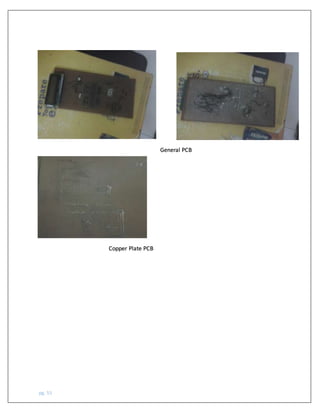
My PCB
Generally We have made both type of PCB –
1-general PCB
2-Copper Plate PCB
Due to technihal fault,we are not able to use Copper PCB and instead of it,we have
prefered General PCB.
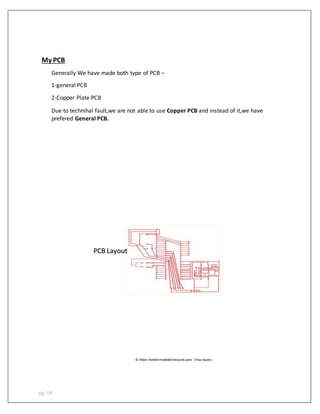
PCB Layout
pg. 55
General PCB
Copper Plate PCB
pg. 56
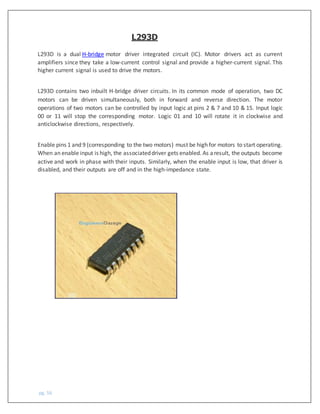
L293D is a dual H-bridge motor driver integrated circuit (IC). Motor drivers act as current
amplifiers since they take a low-current control signal and provide a higher-current signal. This
higher current signal is used to drive the motors.
L293D contains two inbuilt H-bridge driver circuits. In its common mode of operation, two DC
motors can be driven simultaneously, both in forward and reverse direction. The motor
operations of two motors can be controlled by input logic at pins 2 & 7 and 10 & 15. Input logic
00 or 11 will stop the corresponding motor. Logic 01 and 10 will rotate it in clockwise and
anticlockwise directions, respectively.
Enable pins 1 and 9 (corresponding to the two motors) must be high for motors to start operating.
When an enable input is high, the associateddriver gets enabled. As aresult, the outputs become
active and work in phase with their inputs. Similarly, when the enable input is low, that driver is
disabled, and their outputs are off and in the high-impedance state.
L293D
pg. 57
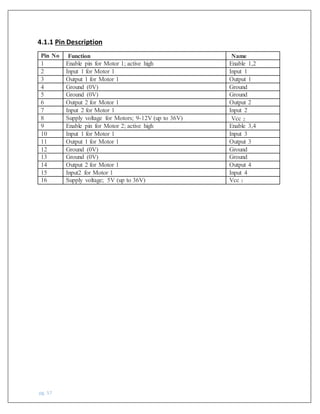
4.1.1 Pin Description
Pin No Function Name
1 Enable pin for Motor 1; active high Enable 1,2
2 Input 1 for Motor 1 Input 1
3 Output 1 for Motor 1 Output 1
4 Ground (0V) Ground
5 Ground (0V) Ground
6 Output 2 for Motor 1 Output 2
7 Input 2 for Motor 1 Input 2
8 Supply voltage for Motors; 9-12V (up to 36V) Vcc 2
9 Enable pin for Motor 2; active high Enable 3,4
10 Input 1 for Motor 1 Input 3
11 Output 1 for Motor 1 Output 3
12 Ground (0V) Ground
13 Ground (0V) Ground
14 Output 2 for Motor 1 Output 4
15 Input2 for Motor 1 Input 4
16 Supply voltage; 5V (up to 36V) Vcc 1
pg. 58
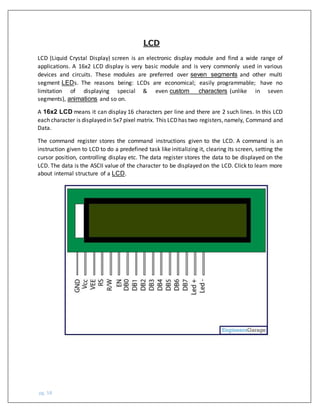
LCD
LCD (Liquid Crystal Display) screen is an electronic display module and find a wide range of
applications. A 16x2 LCD display is very basic module and is very commonly used in various
devices and circuits. These modules are preferred over seven segments and other multi
segment LEDs. The reasons being: LCDs are economical; easily programmable; have no
limitation of displaying special & even custom characters (unlike in seven
segments), animations and so on.
A 16x2 LCD means it can display 16 characters per line and there are 2 such lines. In this LCD
each character is displayedin 5x7 pixel matrix. This LCDhas two registers,namely, Command and
Data.
The command register stores the command instructions given to the LCD. A command is an
instruction given to LCD to do a predefined task like initializing it, clearing its screen, setting the
cursor position, controlling display etc. The data register stores the data to be displayed on the
LCD. The data is the ASCII value of the character to be displayed on the LCD. Click to learn more
about internal structure of a LCD.
pg. 59
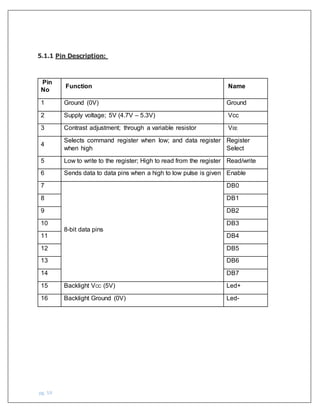
5.1.1 Pin Description:
Pin
No
Function Name
1 Ground (0V) Ground
2 Supply voltage; 5V (4.7V – 5.3V) Vcc
3 Contrast adjustment; through a variable resistor VEE
4
Selects command register when low; and data register
when high
Register
Select
5 Low to write to the register; High to read from the register Read/write
6 Sends data to data pins when a high to low pulse is given Enable
7
8-bit data pins
DB0
8 DB1
9 DB2
10 DB3
11 DB4
12 DB5
13 DB6
14 DB7
15 Backlight VCC (5V) Led+
16 Backlight Ground (0V) Led-
pg. 60
5.2.1 CODE
#include<avr/io.h>
#include<util/delay.h>
#define LCD_DATA PORTA // LCD data port
#define ctrl PORTB
#define en PB2 // enable signal
#define rw PB1 // read/write signal
#define rs PB0 // register select signal
void LCD_cmd(unsigned char cmd);
void init_LCD(void);
void LCD_write(unsigned char data);
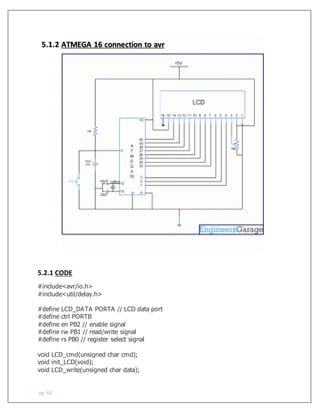
5.1.2 ATMEGA 16 connection to avr
pg. 61
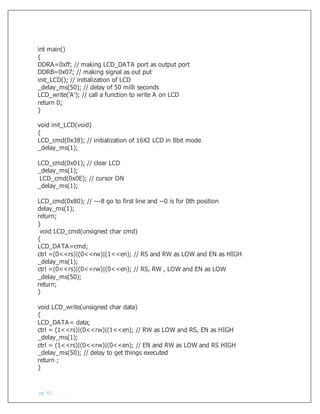
int main()
{
DDRA=0xff; // making LCD_DATA port as output port
DDRB=0x07; // making signal as out put
init_LCD(); // initialization of LCD
_delay_ms(50); // delay of 50 milli seconds
LCD_write('A'); // call a function to write A on LCD
return 0;
}
void init_LCD(void)
{
LCD_cmd(0x38); // initialization of 16X2 LCD in 8bit mode
_delay_ms(1);
LCD_cmd(0x01); // clear LCD
_delay_ms(1);
LCD_cmd(0x0E); // cursor ON
_delay_ms(1);
LCD_cmd(0x80); // ---8 go to first line and --0 is for 0th position
delay_ms(1);
return;
}
void LCD_cmd(unsigned char cmd)
{
LCD_DATA=cmd;
ctrl =(0<<rs)|(0<<rw)|(1<<en); // RS and RW as LOW and EN as HIGH
_delay_ms(1);
ctrl =(0<<rs)|(0<<rw)|(0<<en); // RS, RW , LOW and EN as LOW
_delay_ms(50);
return;
}
void LCD_write(unsigned char data)
{
LCD_DATA= data;
ctrl = (1<<rs)|(0<<rw)|(1<<en); // RW as LOW and RS, EN as HIGH
_delay_ms(1);
ctrl = (1<<rs)|(0<<rw)|(0<<en); // EN and RW as LOW and RS HIGH
_delay_ms(50); // delay to get things executed
return ;
}
pg. 62
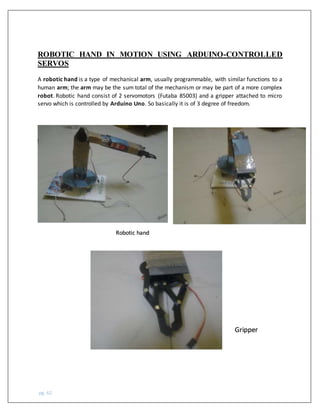
ROBOTIC HAND IN MOTION USING ARDUINO-CONTROLLED
SERVOS
A robotic hand is a type of mechanical arm, usually programmable, with similar functions to a
human arm; the arm may be the sum total of the mechanism or may be part of a more complex
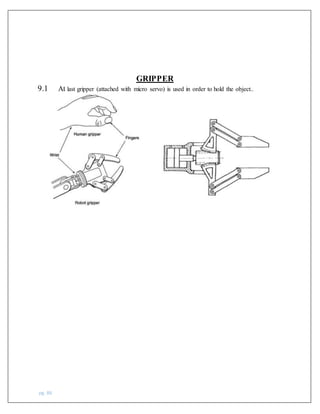
robot. Robotic hand consist of 2 servomotors (Futaba 85003) and a gripper attached to micro
servo which is controlled by Arduino Uno. So basically it is of 3 degree of freedom.
Robotic hand
Gripper
pg. 63
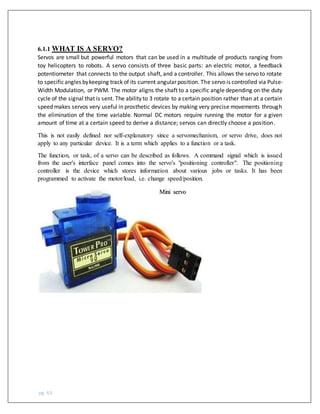
6.1.1 WHAT IS A SERVO?
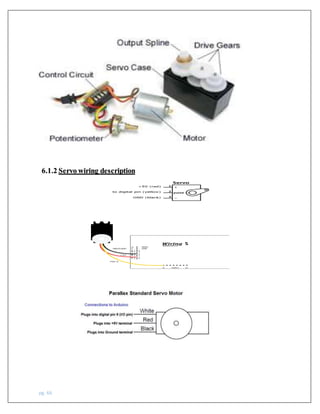
Servos are small but powerful motors that can be used in a multitude of products ranging from
toy helicopters to robots. A servo consists of three basic parts: an electric motor, a feedback
potentiometer that connects to the output shaft, and a controller. This allows the servo to rotate
to specificangles bykeeping track of its current angular position. The servo is controlled via Pulse-
Width Modulation, or PWM. The motor aligns the shaft to a specific angle depending on the duty
cycle of the signal that is sent. The ability to 3 rotate to a certain position rather than at a certain
speed makes servos very useful in prosthetic devices by making very precise movements through
the elimination of the time variable. Normal DC motors require running the motor for a given
amount of time at a certain speed to derive a distance; servos can directly choose a position.
This is not easily defined nor self-explanatory since a servomechanism, or servo drive, does not
apply to any particular device. It is a term which applies to a function or a task.
The function, or task, of a servo can be described as follows. A command signal which is issued
from the user's interface panel comes into the servo's "positioning controller". The positioning
controller is the device which stores information about various jobs or tasks. It has been
programmed to activate the motor/load, i.e. change speed/position.
Mini servo
pg. 64
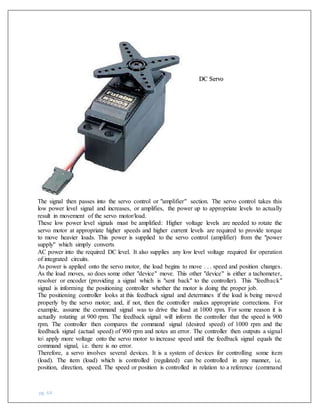
The signal then passes into the servo control or "amplifier" section. The servo control takes this
low power level signal and increases, or amplifies, the power up to appropriate levels to actually
result in movement of the servo motor/load.
These low power level signals must be amplified: Higher voltage levels are needed to rotate the
servo motor at appropriate higher speeds and higher current levels are required to provide torque
to move heavier loads. This power is supplied to the servo control (amplifier) from the "power
supply" which simply converts
AC power into the required DC level. It also supplies any low level voltage required for operation
of integrated circuits.
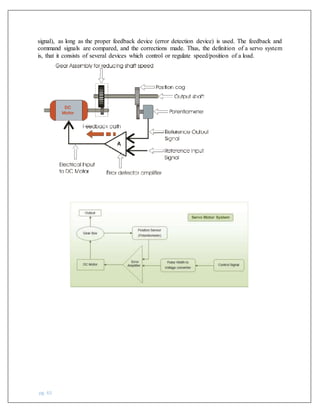
As power is applied onto the servo motor, the load begins to move . . . speed and position changes.
As the load moves, so does some other "device" move. This other "device" is either a tachometer,
resolver or encoder (providing a signal which is "sent back" to the controller). This "feedback"
signal is informing the positioning controller whether the motor is doing the proper job.
The positioning controller looks at this feedback signal and determines if the load is being moved
properly by the servo motor; and, if not, then the controller makes appropriate corrections. For
example, assume the command signal was to drive the load at 1000 rpm. For some reason it is
actually rotating at 900 rpm. The feedback signal will inform the controller that the speed is 900
rpm. The controller then compares the command signal (desired speed) of 1000 rpm and the
feedback signal (actual speed) of 900 rpm and notes an error. The controller then outputs a signal
to apply more voltage onto the servo motor to increase speed until the feedback signal equals the
command signal, i.e. there is no error.
Therefore, a servo involves several devices. It is a system of devices for controlling some item
(load). The item (load) which is controlled (regulated) can be controlled in any manner, i.e.
position, direction, speed. The speed or position is controlled in relation to a reference (command
DC Servo
pg. 65
signal), as long as the proper feedback device (error detection device) is used. The feedback and
command signals are compared, and the corrections made. Thus, the definition of a servo system
is, that it consists of several devices which control or regulate speed/position of a load.
pg. 66
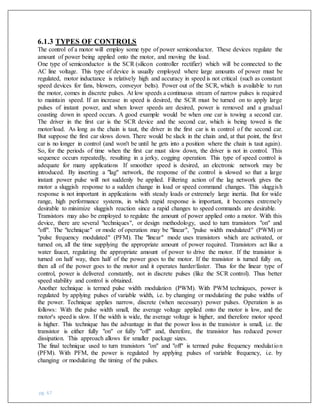
6.1.2 Servo wiring description
pg. 67
6.1.3 TYPES OF CONTROLS
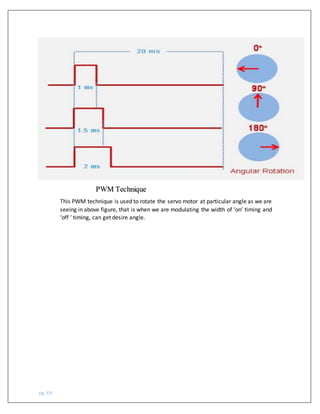
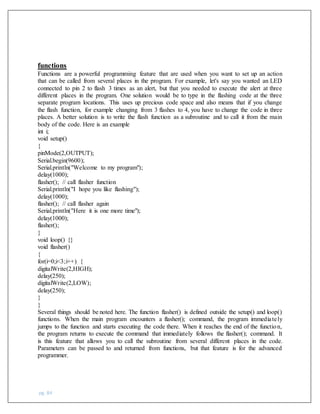
The control of a motor will employ some type of power semiconductor. These devices regulate the
amount of power being applied onto the motor, and moving the load.
One type of semiconductor is the SCR (silicon controller rectifier) which will be connected to the
AC line voltage. This type of device is usually employed where large amounts of power must be
regulated, motor inductance is relatively high and accuracy in speed is not critical (such as constant
speed devices for fans, blowers, conveyor belts). Power out of the SCR, which is available to run
the motor, comes in discrete pulses. At low speeds a continuous stream of narrow pulses is required
to maintain speed. If an increase in speed is desired, the SCR must be turned on to apply large
pulses of instant power, and when lower speeds are desired, power is removed and a gradual
coasting down in speed occurs. A good example would be when one car is towing a second car.
The driver in the first car is the SCR device and the second car, which is being towed is the
motor/load. As long as the chain is taut, the driver in the first car is in control of the second car.
But suppose the first car slows down. There would be slack in the chain and, at that point, the first
car is no longer in control (and won't be until he gets into a position where the chain is taut again).
So, for the periods of time when the first car must slow down, the driver is not in control. This
sequence occurs repeatedly, resulting in a jerky, cogging operation. This type of speed control is
adequate for many applications If smoother speed is desired, an electronic network may be
introduced. By inserting a "lag" network, the response of the control is slowed so that a large
instant power pulse will not suddenly be applied. Filtering action of the lag network gives the
motor a sluggish response to a sudden change in load or speed command changes. This sluggish
response is not important in applications with steady loads or extremely large inertia. But for wide
range, high performance systems, in which rapid response is important, it becomes extremely
desirable to minimize sluggish reaction since a rapid changes to speed commands are desirable.
Transistors may also be employed to regulate the amount of power applied onto a motor. With this
device, there are several "techniques", or design methodology, used to turn transistors "on" and
"off". The "technique" or mode of operation may be "linear", "pulse width modulated" (PWM) or
"pulse frequency modulated" (PFM). The "linear" mode uses transistors which are activated, or
turned on, all the time supplying the appropriate amount of power required. Transistors act like a
water faucet, regulating the appropriate amount of power to drive the motor. If the transistor is
turned on half way, then half of the power goes to the motor. If the transistor is turned fully on,
then all of the power goes to the motor and it operates harder/faster. Thus for the linear type of
control, power is delivered constantly, not in discrete pulses (like the SCR control). Thus better
speed stability and control is obtained.
Another technique is termed pulse width modulation (PWM). With PWM techniques, power is
regulated by applying pulses of variable width, i.e. by changing or modulating the pulse widths of
the power. Technique applies narrow, discrete (when necessary) power pulses. Operation is as
follows: With the pulse width small, the average voltage applied onto the motor is low, and the
motor's speed is slow. If the width is wide, the average voltage is higher, and therefore motor speed
is higher. This technique has the advantage in that the power loss in the transistor is small, i.e. the
transistor is either fully "on" or fully "off" and, therefore, the transistor has reduced power
dissipation. This approach allows for smaller package sizes.
The final technique used to turn transistors "on" and "off" is termed pulse frequency modulation
(PFM). With PFM, the power is regulated by applying pulses of variable frequency, i.e. by
changing or modulating the timing of the pulses.
pg. 68
The system operates as follows: With very few pulses, the average voltage applied onto the motor
is low, and motor speed is slow. With many pulses, the average voltage is increased, and motor
speed is higher.
6.1.4 TYPES OF ACTUATORS
The basic actuators for controlling motion (which involve control of either speed, torque or
positional accuracy) would include:
• Air Motors
• Hydraulic Motors
• Clutch/Brake
• Stepper Motors
• AC Induction Motors
• Servomotors
The following presents a synopsis, of the strengths and weaknesses of each basic motion control
technique.
Servomotors – A motor with a "feedback" device. Electronic packages control speed and
position accuracy.
Principle strengths:
1. High performance
2. Small size
3. Wide variety of components
4. High speeds available with specialized controls
Principle weaknesses:
1. Slightly higher cost
2. High performance limited by controls
3. High speed torque limited by commutator or electronic
pg. 69
PWM Technique
This PWM technique is used to rotate the servo motor at particular angle as we are
seeing in above figure, that is when we are modulating the width of ‘on’ timing and
‘off ’ timing, can get desire angle.
pg. 70
6.2.1 CODING
#include <Servo.h>
const int buttonPin =2;
const int ledPin = 13;
Servo myservo; // create servo object to control a servo
// twelve servo objects can be created on most boards
Servo myservo1;
Servo myservo2;
int pos = 0; // variable to store the servo position
int buttonState=0;
void setup() {
pinMode(buttonPin, INPUT);
pinMode(ledPin, OUTPUT);
myservo.attach(9); // attaches the servo on pin 9 to the servo object
myservo1.attach(10);
myservo2.attach(11);
}
void loop() {
buttonState=digitalRead(buttonPin);
if(buttonState==HIGH){
for (pos = 0; pos <= 120; pos += 1) { // goes from 0 degrees to 120 degrees
// in steps of 1 degree
pg. 71
myservo2.write(pos); // tell servo to go to position in variable 'pos'
delay(20); // waits 20ms for the servo to reach the position
}
delay(1000);
for (pos = 0; pos <= 55; pos += 1) { // goes from 0 degrees to 55 degrees
// in steps of 1 degree
myservo.write(pos); // tell servo to go to position in variable 'pos'
delay(20); // waits 20ms for the servo to reach the position
}
delay(1000);
for (pos = 180; pos >= 0; pos -= 1) { // goes from 180 degrees to 0 degrees
// in steps of 1 degree
myservo1.write(pos); // tell servo to go to position in variable 'pos'
delay(20); // waits 15ms for the servo to reach the position
}
delay(1000);
for (pos = 55; pos >= 0; pos -= 1) { // goes from 55 degrees to 0 degrees
// in steps of 1 degree
myservo.write(pos); // tell servo to go to position in variable 'pos'
delay(20); // waits 20ms for the servo to reach the position
}
delay(1000);
pg. 72
for (pos = 120; pos >= 0; pos -= 1) { // goes from 120 degrees to 0 degrees
// in steps of 1 degree
myservo2.write(pos); // tell servo to go to position in variable 'pos'
delay(20); // waits 20ms for the servo to reach the position
}
for (pos =0 ; pos <= 180; pos += 1) { // goes from 0 degrees to 180 degrees
// in steps of 1 degree
myservo1.write(pos); // tell servo to go to position in variable 'pos'
delay(20); // waits 20ms for the servo to reach the position
}
delay(1000);
}
else{
digitalWrite(ledPin, HIGH);
delay(20);
}
}
pg. 73
DC MOTORS
Most of the world's adjustable speed business is addressed by DC motors. DC motor speeds
can easily be varied, therefore they are utilized in applications where speed control, servo
control, and/or positioning needs exist. The stator field is produced by either a field winding,
or by permanent magnets. This is a stationary field (as opposed to the AC stator field which is
rotating). The second field, the rotor field, is set up by passing current through a commutator
and into the rotor assembly. The rotor field rotates in an effort to align itself with the stator
field, but at the appropriate time (due to the commutator) the rotor field is switched. In this
method then, the rotor field never catches up to the stator field. Rotational speed (i.e. how fast
the rotor turns) is dependent on the strength of the rotor field. In other words, the more
voltage on the motor, the faster the rotor will turn.
pg. 74
Arduino UNO
Arduino is a brand of open-source microcontrollers frequently used in at-home. It can be
programmed in a version of C, and the Arduino website contains software for programming the
device. There are also a host of straightforward online tutorials that make it easy and quick to
learn. A variety of electronic components can be connected viabreadboard as inputs and outputs
for the code, making Arduinos incredibly versatile. Arduino microcontrollers are intuitive,
inexpensive8, and readily available—three factors critical to accessible, easy-to-use prosthetics.
The Arduino microcontroller is an easy to use yet powerful single board computer that has gained
considerable traction in the hobby and professional market. The Arduino is open-source, which
means hardware is reasonably priced and development software is free. This guide is for students
in ME 2011, or students anywhere who are confronting the Arduino for the first time.
For advanced Arduino users, prowl the web; there are lots of resources.
The Arduino project was started in Italy to develop low cost hardware for interaction design. An
overview is on the Wikipedia entry for Arduino.
The Arduino hardware comes in several flavors, sparkfun is a good source for Arduino hardware.
This guide covers the Arduino Uno board (Sparkfun DEV-09950, $29.95), a good choice for
students and educators. With the Arduino board, you can write programs and create interface
circuits to read switches and other sensors, and to control motors and lights with very little effort.
Many of the pictures and drawings in this guide were taken from the documentation on the Arduino
site, the place to turn if you need more information. The Arduino section on the ME. This is what
the Arduino board looks like.
pg. 75
8.1.1 Pin description
pg. 76
8.1.2 Arduino Programming
The Arduino was programmed using the development environment available on the Arduino
website. The most important aspect of this project’s code was setting the position of the servos,
which determined the fingers’ movement. The servo library, which contained functions for
attaching the servos to pins and setting their angles, established fine control over the servo
positioning. The attach() function associated a certain pin on the Arduino with each servo, and
the write() function set the angular position of the servo to a value between 0 and 180 degrees.
The position of the servo determined how far the finger that it controls would bend, with a lower
angle leaving the finger more relaxed and a higher angle bending the finger in toward the palm
of the hand. Gestures were made by setting each servo to a specific angle that corresponded to
how far the finger was bent.
The UNO board features an Atmel ATmega328 microcontroller operating at 5 V with 2 Kb of
RAM, 32 Kb of flash memory for storing programs and 1 Kb of EEPROM for storing parameters.
The clock speed is 16 MHz, which translates to about executing about 300,000 lines of C source
code per second. The board has 14 digital I/O pins and 6 analog input pins. There is a USB
connector for talking to the host computer and a DC power jack for connecting an external 6-20 V
power source, for example a 9 V battery, when running a program while not connected to the host
computer. Headers are provided for interfacing to the I/O pins using 22 g solid wire or header
connectors. For additional information on the hardware, The Arduino programming language is a
simplified version of C/C++. If you know C, programming the Arduino will be familiar. If you do
not know C, no need to worry as only a few commands are needed to perform useful functions.
An important feature of the Arduino is that you can create a control program on the host PC,
download it to the Arduino and it will run automatically. Remove the USB cable connection to
the PC, and the program will still run from the top each time you push the reset button. Remove
the battery and put the Arduino board in a closet for six months. When you reconnect the
battery, the last program you stored will run. This means that you connect the board to the host
PC to develop and debug your program, but once that is done, you no longer need the PC to run
the program.
pg. 77
8.2.1 What You Need for a Working System
1. Arduino UNO board
2. USB programming cable (A to B)
3. 9V battery or external power supply (for stand-alone operation)
4. Solderless breadboard for external circuits, and 22 g solid wire for connections
5. Host PC running the Arduino development environment. Versions exist for Windows, Mac and
Linux
8.2.2 Installing the Software
Follow the instructions on the Getting Started section of the Arduino web
site,http://arduino.cc/en/Guide/HomePage. Go all the way through the steps to where you see
the pin 13 LED blinking. This is the indication that you have all software and drivers successfully
installed and can start exploring with your own programs.
8.2.3 Basics of Programming Languages
All sequential programming languages have four categories of instructions. First are operation
commands that evaluate an expression, perform arithmetic, toggle states of I/O lines, and many
other operations. Second are jump commands that cause the program to jump immediately to
another part of the program that is tagged with a label. Jumps are one way to break out of the
normal line-by-lineprocessing mode. For example, ifyou want a program to repeat over and over
without stopping, have the last line of the program be a jump command that takes the program
back to its first line. Third are branch commands that evaluate a condition and jump if the
condition is true. For example, you might want to jump only if a number is greater than zero.
Or, you might want to jump only if the state of an i/o line is low. Fourth are loop commands that
repeat a section of code a specified number of times. For example, with a loop you can have a
light flash on and off exactly six times.
Most programming languages contain a relatively small number of commands. The complexity
of computers comes from combining and repeating the instructions several million times a
second.
Here's a generic program.
1. Do this
2. Do that
3. Jump to instruction 6
pg. 78
4. Do the other thing
5. All done, sleep
6. If switch closed, do that thing you do
7. Jump to instruction 4
The computer will execute this line by line. The art of programming is simply a matter of
translating your intent into a sequence of instructions that match. Here is an example of a for
loop command followed by a branch command that uses an IF
Statement
for (i=0;i<6,i++) {
instructions
}
if (j > 4) goto label instructions
The commands inside the loop will be repeated six times. Following this, if the value of the
variable j is greater than 4, the program will skip to the instruction tagged with the specified label,
and if not, the line following the if statement will be executed.
In addition to the basic commands, languages have the ability to call functions which are
independent sections of code that perform a specific task. Functions are a way of calling a section
of code from a number of different places in the program and then returning from that section to
the line that follows the calling line. Here's an example
apples(); instructions
apples();
more instructions
void apples() {
instructions
}
The function apples is everything between the set of braces that follows “apples()”. When the
function completes, the program jumps back to the line following the line that called the function.
The Arduino runs a simplified version of the C programming language, with some extensions for
accessing the hardware. In this guide, we will cover the subset of the programming language that
pg. 79
is most useful to the novice Arduino designer. For more information on the Arduino language, see
the Language Reference section of the Arduino web site,
http://arduino.cc/en/Reference/HomePage.
All Arduino instructions are one line. The board can hold a program hundreds of lines long and
has space for about 1,000 two-byte variables. The Arduino executes programs at about 300,000
source code lines per sec.
8.2.4 Creating a Program
Programs are created in the Arduino development environment and then downloaded to the
Arduino board. Code must be entered in the proper syntax which means using valid command
names and a valid grammar for each code line. The compiler will catch and flag syntax errors
before download. Sometimes the error message can be cryptic and you have to do a bit of hunting
because the actual error occurred before what was flagged.
Although your program may pass cleanly through the syntax checker, it still might not do what
you wanted it to. Here is where you have to hone your skills at code debugging. The Arduino did
what you told it to do rather than what you wanted it to do. The best way to catch these errors is to
read the code line by line and be the computer. Having another person go through your code also
helps. Skilled debugging takes practice.
8.2.5 Program Formatting and Syntax
Programs are entered line by line. Code is case sensitive which means "myvariable" is different
than "MyVariable".
Statements are any command. Statements are terminated with a semi-colon. A classic mistake is
to forget the semi-colon so if your program does not compile, examine the error text and see if you
forgot to enter a colon.
Comments are any text that follows “//” on a line. For multi-line block comments, begin with
“/*” and end with “*/”
Constants are fixed numbers and can be entered as ordinary decimal numbers (integer only) or in
hexadecimal (base 16) or in binary (base 2) as shown in the table below
Decimal Hex Binary
17
100 0x64 B01100100
Labels are used to reference locations in your program. They can be any combination of letters,
numbers and underscore (_), but the first character must be a letter. When used to mark a location,
follow the label with a colon. When referring to an address label in an instruction line, don't use
the colon. Here's an example
repeat: digitalWrite(2,HIGH);
delay(1000);
digitalWrite(2,LOW);
delay(1000);
goto repeat;
Use labels sparingly as they can actually make a program difficult to follow and challenging to
debug. In fact, some C programmers will tell you to never use labels.
pg. 80
Variables are allocated by declaring them in the program. Every variable must be declared. If a
variable is declared outside the braces of a function, it can be seen everywhere in the program. If
it is declared inside the braces of a function, the variable can only be seen within that function.
Variables come in several flavors including byte (8-bit, unsigned, 0 to 255), word (16-bit,
unsigned, 0 to 65,536),
int (16-bit, signed, -32,768 to 32,767), and long (32-bit, signed, -2,147,483,648 to 2,147,483,647).
Use byte variables unless you need negative numbers or numbers larger than 255, then use int
variables. Using larger sizes than needed fills up precious memory space.
Variable declarations generally appear at the top of the program
byte i;
word k;
int length;
int width;
Variable names can be any combination of letters and numbers but must start with a letter.
Names reserved for programming instructions cannot be used for variable names and will give you
an error message
Symbols are used to redefine how something is named and can be handy for making the code more
readable. Symbols are defined with the "#define" command and lines defining symbols should go
at the beginning of your program. Here's an example without symbols for the case where an LED
is connected to pin 2.
void setup()
{
pinMode(2,OUTPUT);
}
void loop()
{
digitalWrite(2,HIGH); // turn LED on
18
delay(1000);
digitalWrite(2,LOW); // turn LED off
delay(1000);
}
Here is the same using a symbol to define "LED"
#define LED 2 // define the LED pin
void setup()
{
pinMode(LED,OUTPUT);
}
void loop()
{
digitalWrite(LED,HIGH);
delay(500);
digitalWrite(LED,LOW);
delay(500);
}
pg. 81
Note how the use of symbols reduces the need for comments. Symbols are extremely useful to
define for devices connected to pins because if you have to change the pin that the device connects
to, you only have to change the single symbol definition rather than going through the whole
program looking for references to that pin.
Program Structure
All Arduino programs have two functions, setup() and loop(). The instructions you place in the
startup() function are executed once when the program begins and are used to initialize. Use it to
set directions of pins or to initialize variables. The instructions placed in loop are executed
repeatedly and form the main tasks of the program. Therefore every program has this structure
void setup()
{
// commands to initialize go here
}
void loop()
{
// commands to run your machine go here
}
The absolute, bare-minimum, do-nothing program that you can compile and run is void setup() {}
void loop() {}
The program performs no function, but is useful for clearing out any old program. Note that the
compiler does not care about line returns, which is why this program works if typed all on one
line.
Math
The Arduino can do standard mathematical operations. While floating point numbers are allowed
if declared as floats, operations on floats are very slow so integer variables and integer math is
recommended. If you have byte variables, no number, nor the result of any math operation can fall
outside the range of 0 to 255. You can divide numbers, but the result will be truncated (not
rounded) to the nearest integer. Thus in integer arithmetic, 17/3 = 5, and not 5.666 and not 6. Math
operations are performed strictly in a left-to-right order. You can add parenthesis to group
operations. The table below shows some of the valid math operators. Full details of their use can
be found in the Arduino Language Reference.
Symbol Description
+ addition
- subtraction
* multiplication
/ division
% modulus (division remainder)
<< left bit shift
>> right bit shift
& bitwise AND
| bitwise OR
8 The Simple Commands
This section covers the small set of commands you need to make the Arduino do something useful.
These commands appear in order of priority. You can make a great machine using only digital
read, digital write and delay commands. Learning all the commands here will take you to the next
level.
pg. 82
PIN Mode
This command, which goes in the setup() function, is used to set the direction of a digital I/O pin.
Set the pin to OUTPUT if the pin is driving and LED, motor or other device. Set the pin to INPUT
if the pin is reading a switch or other sensor. On power up or reset, all pins default to inputs. This
example sets pin 2 to an output and pin 3 to an input.
void setup()
{
pinMode(2,OUTPUT);
pinMode(3,INPUT);
}
void loop() {}
Serial.print
20
The Serial.print command lets you see what's going on inside the Arduino from your computer.
For example, you can see the result of a math operation to determine if you are getting the right
number. Or, you can see the state of a digital input pin to see if the Arduino is a sensor or switch
properly. When your interface circuits or program does not seem to be working, use the Serial.
Print command to shed a little light on the situation. For this command to show anything, you need
to have the Arduino connected to the host computer with the USB cable.
For the command to work, the command Serial. begin(9600) must be placed in the setup() function.
After the program is uploaded, you must open the Serial Monitor window to see the response.
There are two forms of the print command. Serial.print() prints on the same line while
Serial.println() starts the print on a new line.
Here is a brief program to check if your board is alive and connected to the PC
void setup()
{
Serial.begin(9600);
Serial.println("Hello World");
}
void loop() {}
Here is a program that loops in place, displaying the value of an I/O pin. This is useful for checking
the state of sensors or switches and to see if the Arduino is reading the sensor properly.
Try it out on your Arduino. After uploading the program, use a jumper wire to alternately connect
pin 2 to +5V and to Gnd.
void setup()
{
Serial.begin(9600);
}
void loop()
{
Serial.println(digitalRead(2));
delay(100);
}
pg. 83
If you wanted to see the states of pins 2 and 3 at the same time, you can chain a few print
commands, noting that the last command is a println to start a new line.
void setup()
{
Serial.begin(9600);
}
void loop()
{
Serial.print("pin 2 = ");
Serial.print(digitalRead(2));
Serial.print(" pin 3 = ");
Serial.println(digitalRead(3));
delay(100);
}
You may have noticed when trying this out that if you leave one of the pins disconnected, its state
follows the other. This is because a pin left floating has an undefined value and will wander from
high to low. So, use two jumper wires when trying out this example.
Here's one that checks the value of a variable after an addition. Because the calculation is done
just once, all the code is in the setup() function. The Serial.flush()
int i,j,k;
void setup()
{
Serial.begin(9600);
i=21;
j=20;
k=i+j;
Serial.flush();
Serial.print(k);
}
void loop() {}
digitalWrite
This command sets an I/O pin high (+5V) or low (0V) and is the workhorse for commanding the
outside world of lights, motors, and anything else interfaced to your board. Use the pinMode()
command in the setup() function to set the pin to an output.
digitalWrite(2,HIGH); // sets pin 2 to +5 volts
digitalWrite(2,LOW); // sets pin 2 to zero volts
delay
Delay pauses the program for a specified number of milliseconds. Since most interactions with the
world involve timing, this is an essential instruction. The delay can be for 0 to 4,294,967,295 msec.
This code snippet turn on pin 2 for 1 second. digitalWrite(2,HIGH); // pin 2 high (LED on)
delay(1000); // wait 500 ms
digitalWrite(2,LOW); // pin 2 low (LED off)
if
This is the basic conditional branch instruction that allows your program to do two different things
depending on whether a specified condition is true or false. Here is one way to have your program
wait in place until a switch is closed.
pg. 84
functions
Functions are a powerful programming feature that are used when you want to set up an action
that can be called from several places in the program. For example, let's say you wanted an LED
connected to pin 2 to flash 3 times as an alert, but that you needed to execute the alert at three
different places in the program. One solution would be to type in the flashing code at the three
separate program locations. This uses up precious code space and also means that if you change
the flash function, for example changing from 3 flashes to 4, you have to change the code in three
places. A better solution is to write the flash function as a subroutine and to call it from the main
body of the code. Here is an example
int i;
void setup()
{
pinMode(2,OUTPUT);
Serial.begin(9600);
Serial.println("Welcome to my program");
delay(1000);
flasher(); // call flasher function
Serial.println("I hope you like flashing");
delay(1000);
flasher(); // call flasher again
Serial.println("Here it is one more time");
delay(1000);
flasher();
}
void loop() {}
void flasher()
{
for(i=0;i<3;i++) {
digitalWrite(2,HIGH);
delay(250);
digitalWrite(2,LOW);
delay(250);
}
}
Several things should be noted here. The function flasher() is defined outside the setup() and loop()
functions. When the main program encounters a flasher(); command, the program immediately
jumps to the function and starts executing the code there. When it reaches the end of the function,
the program returns to execute the command that immediately follows the flasher(); command. It
is this feature that allows you to call the subroutine from several different places in the code.
Parameters can be passed to and returned from functions, but that feature is for the advanced
programmer.
pg. 85
This concludes the section on basic program commands. You can write some awesome programs
using just what was described here. There is much more that the Arduino can do and you are urged
to read through the complete Arduino Language Reference page on-line
9 Coding Style
Style refers to your own particular style for creating code and includes layout, conventions for
using case, headers, and use of comments. All code must follow correct syntax, but there are many
different styles you can use. Here are some suggestions:
description of what the program does.
in multiples of 2 or 4 to mark code chunks, things inside loops and so on.
nt header line or two
knows the programming language so have the comment be instructive. Here is an example of an
instructive comment
digitalWrite(4,HIGH) // turn on motor and here is a useless comment
digitalWrite(4,HIGH) // set pin 4 HIGH
You need not comment every line. In fact, commenting every line is generally bad practice.
comments
when the code is finished", you will never do it.
10 Common Coding Errors
-colon at the end of a statement
omitting opening or closing braces
Please send comments, suggestions and typo alerts about this guide to wkdurfee@umn.edu
pg. 86
GRIPPER
9.1 At last gripper (attached with micro servo) is used in order to hold the object..
pg. 87
10.1 Serial communication in avr atmega16 microcontroller
I will not waste my time in taking about the waste topics such like that half duplex and full duplex
as well simple communication. Because it is quite simple topics.
There are two type of communication-
SYNCRONOUS COMMUNICATION-
In Synchronous communication method complete block (characters) is sent at a time. It
doesn’t require any additional bits (start, stop or parity) to be added for the
synchronization of frame. The devices are synchronized by clock.
ASYNCRONOUS COMMUNICATION-
In asynchronous communication data transmission is done byte by byte i.e., one byte at
a time. The additional bits are added to complete a frame.
USART REGISTER
There are some register,which is use to serial communication-
UCSR- Usart control & status register. It is basically devided into three part UCSRA,
UCSRB & UCSRC. These register is basically is used to configured the USART.
UBRR- Usart Baud Rate register. It is basically is use to set the baud rate of usart.
UDR – USART DATA REGISTER
pg. 88
UCSRA(USART CONTROL AND STATUS REGISTER)
RXC TXC UDRE FE DOR PE U2X MPCM
0 0 1 0 0 0 0 0
RXC (USART Receive Complete): RXC flag is set to 1 if unread data exists in receive
buffer, and set to 0 if receive buffer is empty.
TXC (USART Transmit complete): TXC flag is set to 1 when data is completely
transmitted to Transmit shift register and no data is present in the buffer register UDR.
UDRE(USART Data Register Empty): This flag is set to logic 1 when the transmit buffer
is empty, indicating it is ready to receive new data. UDRE bit is cleared by writing to the
UDR register.
UCSRB: (USART Control and Status Register B)-
RXCIE TXCIE UDRIE RXEN TXEN UCSZ2 RXB8 TXB8
0 0 0 0 0 0 0 0
RXCIE: RX Complete Interrupt Enable, When 1 > RX complete interrupt is enabled.
When 0 > RX complete interrupt is disabled.
TXCIE: TX Complete Interrupt Enable,
When 1 > TX complete interrupt is enabled
When 0> TX complete interrupt is disabled
UDRIE: USART Data Register Empty Interrupt Enable,
When 1 > UDRE flag interrupt is enabled.
When 0 > UDRE flag interrupt is disabled.
RXEN: Receiver Enabled,
When 1 > USART Receiver is enabled.
When 0 > USART Receiver is disabled.
TXEN: Transmitter Enabled,
pg. 89
When 1 >USART Transmitter is enabled.
When 0 > USART Transmitter is disabled.
iii. UCSRC: (USART Control and Status Register C)
The transmitter and receiver are configured with the same data features as
configured in this register for proper data
URSEL UMSEL UPM1 UPM0 USBS UCZ1 UCZ0 UCPOL
0 0 0 0 0 0 0 0
URSEL: USART Register select. This bit must be set due to sharing of I/O location by UBRRH and
UCSRC.
UMSEL: USART Mode Select,
When 1 > Synchronous Operation.
When 0 > Asynchronous Operation UPM [0:1]: USART Parity Mode, Parity mode selection bits.
USBS: USART Stop Select Bit, When 0>1 Stop Bit
When 1 >2 Stop Bits
UCSZ [0:1]: The UCSZ [1:0] bits combined with the UCSZ2 bit in UCSRB sets size of data frame
i.e., the number of data bits. The table shows the bit combinations with respective character
size
UCSZ2 UCSZ1 UCSZ0 Character size
0 0 0 5-bit
0 0 1 6-bit
0 1 0 7-bit
0 1 1 8-bit
1 0 0 Reserved
1 0 1 Reserved
1 1 0 Reserved
1 1 1 9-bit
pg. 90
UDR: (USART Data Register)-
The USART Data receive and data transmit buffer registers share the same address
referred as USART UDR register, when data is written to the register it is written in
transmit data buffer register (TXB). Received data is read from the Receive data buffer
register (RXB).
The UBRRH register shares the same I/O address with the UCSRC register, The differentiation is
done on the basis of value of URSEL bit.
When URSEL=0; Write operation is done on UBRRH register.
When URSEL=1; Write operation is done on UCSRC register.
The UBRRH and UBRRL register together stores the 12bit value of baud rate, UBRRH contains
the 4 most significant bits and UBRRL contains the other 8 least significant bits. Baud rates of
the transmitting and receiving bodies must match for successful communication to take place.
UBRR register value is calculated by the following formula:
UBRR = (((System clock frequency)/(16UL* Baud Rate)) -1)
Bit15 Bit14 Bit13 Bit12 Bit11 Bit10 Bit9 Bit8
URSEL UBRR11 UBRR10 UBRR9 UBRR8
UBRR7 UBRR6 UBRR5 UBRR4 UBRR3 UBRR2 UBRR1 UBRR0
Bit6 Bit5 Bit4 Bit3 Bit2 Bit1 Bit0
RXB7 RXB6 RXB5 RXB4 RXB3 RXB2 RXB1 RXB0
TXB7 TXB6 TXB5 TXB4 TXB3 TXB2 TXB1 TXB0
UDR(read)
UDR(Write)
Bit7
pg. 91
Code Explanation
Step 1: First step is to select the Baud rate. Baud rate of two devices must match or else they
will not be able to synchronize with each other.
#define USART_BAUDRATE 9600
Step2: To set a particular Baud Rate in ATmega16, write the corresponding UDRR value. The
UDRR value is calculated by using the formula
#define BAUD_PRESCALE (((F_CPU / (USART_BAUDRATE * 16UL))) -1)
For example –
XTAL Frequency- 12 MHz
Baud Rate -9600
UBRR= ((12000000)/ (16UL*9600))-1)
UBRR= 77(Decimal approx.)
= 4D(Hex decimal approx.)
Step3: To initialize the USART
i. Turn on transmission and reception circuitry.
ii. Select the number of stop bits.
iii. Set the size of data.
iv. Load the value of UBRR to set the baud rate.
pg. 92
void usart_init()
{
UCSRB |= (1 << RXEN) | (1 << TXEN); // Turn on the transmission and reception circuitry
UCSRC |= (1 << URSEL) | (1<<USBS) | (1 << UCSZ0) | (1 << UCSZ1);
// Use 8bit character sizes
UBRRL = BAUD_PRESCALE;
// Load lower 8bits of the baud rate value into the low byte of the UBRR register
UBRRH = (BAUD_PRESCALE >> 8) ; // Load upper 8bits of the baud rate value..
// into the high byte of the UBRR register
}
Step4: Get the data from USART Monitor the status of RXC (receiver complete) flag. RXC
becomes high when it receives the stop bit signal. So if RXC is high it means that the data is
loaded into UDR register. Collect the data from UDR or else it might get lost or overwritten
with the next incoming data.
unsigned int usart_getch()
{
while ((UCSRA & (1 << RXC)) == 0) ;
// Do nothing until data has been received and is ready to be read from UDR
return(UDR); // return the byte
}
void usart_putch(unsigned char send)
{
// Where UDRE(usart data register empty) & Usart status and control register
while ((UCSRA & (1 << UDRE)) == 0); // Do nothing until UDR is ready..
// for more data to be written to it
UDR = send; // Send the byte
}
pg. 93
10.2 MATLAB SERIAL COMMUNICATION
1. The Serial Port Session
2. Thisexample describesthe stepsyouuse toperformanyserial porttask from beginning to end.
3. The serial port session comprisesall the stepsyouare likelytotake whencommunicatingwitha
device connected to a serial port. These steps are:
4. Create a serial port object — create a serial port object for a specific serial port using
the serial creation function.
5. Configure properties during object creation if necessary. In particular, you might want to
configure properties associated with serial port communications such as the baud rate, the
number of data bits, and so on.
6. Connecttothe device — Connectthe serialportobjecttothe device usingthe fopen function.
7. Afterthe objectis connected,alterthe necessary device settingsbyconfiguringpropertyvalues,
read data, and write data.
8. Configure properties — To establish the desired serial port object behavior, assign values to
properties using the set function or dot notation.
9. In practice, you can configure many of the properties at any time including during,or just after,
object creation. Conversely, depending on your device settings and the requirements of your
serial portapplication,youmightbe abletoacceptthe defaultpropertyvaluesandskipthisstep.
10. Write and read data — Write data to the device using the fprintf or fwrite function,
and read data from the device using the fgetl, fgets, fread, fscanf,
or readasyncfunction.
11. The serial port objectbehavesaccordingtothe previouslyconfiguredordefaultpropertyvalues.
12. Disconnect and clean up — When you no longer need the serial port object, disconnect it from
the device using the fclose function, remove it from memory using the deletefunction,
and remove it from the MATLAB®
workspace using the clear command.
13. The serial portsessionisreinforcedinmanyof the serial portdocumentationexamples.Tosee a
basic example that uses the steps shown above, see Example: Getting Started.
s = serial('COM1');
set(s,'BaudRate',4800);
fopen(s);
fprintf(s,'*IDN?')
out = fscanf(s);
fclose(s)
delete(s)
clear s
pg. 94
HARDWARE PART
pg. 95
10.2.1 Serial PORT MATLAB – Getting Started
Serial port is a physical communication interface which transfer one bit at a time in contrast to
parallel port. In the recent past, before USB serial port communication is the most famous
communication medium for many computer peripherals such as mouse, keyboard, Etc. Still in
many embedded development environments useserialport communication as data transmission
interface. When it comes to my field of interest, where developing embedded systems, mostly
signal processing applications, I wanted to visualize and to do some tweaks to processed data to
verify whether my application works properly or not.
Therefore as usual I ended up with a MATLAB solution that is serial port communication with
MATLAB. In this article I will share my experience in sending data and receiving data with
interrupts in serial port with MATLAB.
How the Serial communication is establish
pg. 96
USB-TTL
A USB adapter is a type of protocol converter which is used for converting USB data signals
to and from other communications standards. Commonly, USB adaptors are used to convert
USB data to standard serial port data and vice versa.
Most commonly the USB data signals are converted to
either RS232, RS485, RS422 or TTL serial data. The older serial RS423 protocol is rarely
used anymore, so USB to RS423 adapters are less common.
It's a small USB to TTL serial tool, using the PL2303 chip. You can use it to connect some serial
device to your PC via USB port.
Practical veiw
11.1 Important facts
In image, I have shown that how we have made connection between the AVR and
Computer(Matlab).
When we brought it from market, There was problem stillarises.Thatproblem How to install
its driver then we have taken help of the Internet and we have download driver directly from
there.
pg. 97
USB-TTL(PL-2303HX)
11.2 Introduction
PL-2303HX (Chip Rev D) or PL-2303HXD provides a convenient solution for connecting an
RS232-like full-duplex asynchronous serial device to any Universal Serial Bus (USB) capable
host. PL-2303HXD highly compatible drivers could simulate the traditional COMport on most
operating systems allowing the existing applications based on COMport to easily migrate and
be made USB ready.
By taking advantage of USB bulk transfer mode, largedata buffers, and automatic flow control,
PL-2303HXD is capable of achieving higher throughput compared to traditional UART
(Universal Asynchronous Receiver Transmitter) ports. When real RS232 signaling is not
required, baud rate higher than 115200 bps could be used for even higher performance. The
flexible baud rate generator of PL-2303HXD could be programmed to generate any rate
between 75 bps to 12M bps.
PL-2303HXD is exclusively designed for mobile and embedded solutions in mind, providing a
smallfootprint that could easilyfit in to any connectors and handheld devices.With very small
power consumption in either operating or suspend mode, PL-2303HXD is perfect for bus
powered operation with plenty of power left for the attached devices. Flexible signal level
requirement on the RS232-like serial port side also allows PL-2303HXD to connect directly to
any 3.3V~1.8V range devices.
pg. 98
Items Ratings
Power Supply Voltage - VDD_5 -0.3 to 6.5 V
Input Voltage of 3.3V I/O -0.3 to VO_33+0.3 V
Input Voltage of 3.3V I/O with 5V
Tolerance I/O
-0.3 to VDD_5+0.3V
Output Voltage of 3.3V I/O -0.3 to VDD_5 +0.3 V
Storage Temperature -40 to 150C
Parameter Symbol Min Typ Max Unit
Operating Voltage
Range
VDD_5 4.5 5 6.5 V
Output Voltage of
Regulator
VO_33 2.97 3.3 3.63 V
Operating Current IDD 20 25 mA
Suspend Current ISUS 260 450 uA
DC & TemperatureCharacteristics-
Absolute Maximum Ratings
Operating Voltage and Suspend Current
DC Characteristics
pg. 99
Serialcommunicationcoding
#define F_CPU 8000000UL
#define USART_BAUDRATE 9600
#define BAUD_PRESCALE (((F_CPU / (USART_BAUDRATE * 16UL))) -1)
#include<avr/io.h>
#include<util/delay.h>
#include<avr/interrupt.h>
#define LCD_DATA PORTA // LCD data port
#define ctrl PORTB
#define en PB2 // enable signal
#define rw PB1 // read/write signal
#define rs PB0 // register select signal
void LCD_cmd(unsigned char cmd);
void init_LCD(void);
void LCD_write(unsigned char data);
void LCD_clear();
void usart_init();
void robo( unsigned char );
void usart_putch(unsigned char send);
unsigned int usart_getch();
int main()
{
unsigned char value;
unsigned int i=0;
DDRA=0xFF;
DDRB=0x07;
pg. 100
DDRC=0xFF;
init_LCD(); //initialization of LCD
_delay_ms(50); // delay of 50 mili seconds
usart_init(); // initialization of USART
while(1)
{
value=usart_getch(); // get data from serial port
robo(value);
LCD_cmd(0xC0);
LCD_write(value); // write data to LCD
usart_putch(value); // send data back to the PC (HyperTerminal)
}
return 0;
}
void init_LCD(void)
{
LCD_cmd(0x38); //initialization of 16X2 LCD in 8bit mode
_delay_ms(1);
LCD_cmd(0x01); // clear LCD
_delay_ms(1);
LCD_cmd(0x0E); // cursor ON
_delay_ms(1);
LCD_cmd(0x80); // 8 go to first line and 0 for 0th position
_delay_ms(1);
return;
}
void LCD_cmd(unsigned char cmd)
pg. 101
{
LCD_DATA=cmd;
ctrl =(0<<rs)|(0<<rw)|(1<<en);
_delay_ms(1);
ctrl =(0<<rs)|(0<<rw)|(0<<en);
_delay_ms(50);
return;
}
void LCD_write(unsigned char data)
{
LCD_DATA= data;
ctrl = (1<<rs)|(0<<rw)|(1<<en);
_delay_ms(1);
ctrl = (1<<rs)|(0<<rw)|(0<<en);
_delay_ms(50);
return ;
}
void usart_init()
{
UCSRB |= (1 << RXEN) | (1 << TXEN);
// Turn on the transmission and reception circuitry
UCSRC |= (1 << URSEL) | (1<<USBS) | (1 << UCSZ0) | (1 << UCSZ1);
// Use 8bit character sizes
UBRRL = BAUD_PRESCALE; // Load lower 8bits of the baud rate value..
// into the low byte of the UBRR register
UBRRH =(BAUD_PRESCALE >> 8); // Load upper 8bits of the baud rate value..
pg. 102
// into the high byte of the UBRRregister( HEREwe are seeing UBRRLContains 12 bits and UBRRH
contains 4 bits)
}
void usart_putch(unsigned char send)
{
// Where UDRE(usart data register empty) & Usart status and control register
while ((UCSRA & (1 << UDRE)) == 0); // Do nothing until UDR is ready..
// for more data to be written to it
UDR = send; // Send the byte
}
unsigned int usart_getch()
{
while ((UCSRA & (1 << RXC)) == 0);// Here RXC is kept to be one because there may be unread
data in buffer and is kept to be 0 when buffer is empty.
return(UDR);// Do nothing until data have been received and is ready to be read from UDR
// return the byte
}
void robo(unsigned char r)
{
while ((UCSRA & (1 << UDRE)) == 0);
if(r=='R')
{
PORTC=0x01;
}
else if(r=='L')
{
PORTC=0x10;
pg. 103
_delay_ms(100);
}
else if(r=='F')
{
PORTC=0x11;
_delay_ms(100);
}
else if(r=='B')
{
PORTC=0x22;
_delay_ms(100);
}
else if(r=='P'){
PORTC=0x21;
}
else if(r=='S'){
PORTC=0x80;
_delay_ms(1000);
}
else
{
PORTC=0x80;
_delay_ms(100);
}
}
pg. 104
Conclusion
Number of Experiment are tested and proved to be 95% accurate. Image should be clear and
shadows must be avoided, in order to avoid changes in threshold value. For image processing all
the testing command should be neglected in algorithm and the coding because these thing may
take some times and create some hurdle in fast processing.
This project will be very helpful in the automation area , in research area, defense area, plant area
and etc. This can be used in any field where shape or color recognition comes into picture.eg:
medical science, traffic signals etc. It has got many future scopes using many other advance
methods. Overlapped object detection is also possible.
pg. 105
References
1. Digital image processing using Matlab –Gonzalez woods & Eddins.
2. M.Hagedoom,”Pattern matching using similarity measures”, PhD thesis, Universiteit
Utrecht, 2000.
3. Shalinee Patel,Pinal Trivedi and Vrundali Gandhi,”2D Basic Shape Detection Using Region
Properties”, International Journal of Engineering Research & Technology,
Vol.2,no.5,pp.1147-1153,May 2013.
4. Justyna Inglot, ‘Advanced Image Processing with Matlab’, in Bachelor’s Thesis Information
Technology, May 2012, Date of the bachelor's thesis 07.05.2010 ,Mikkeli University of
Applied Sciences.
5. http://www.mathworks.in/help/images/index.html
6. http://www.mathworks.in/discovery/matlab-gui.html
7. http://www.mathworks.in/videos/creating-a-gui-with-guide- 68979.html
8. http://www.mathworks.in/help/images/ref/regionprops.html
9. DC MOTOR- Wikipedia
10. Robotic vision and control- Electronics For you
11. 2D geometric shape and color recognition using digital image processing, International
Journal of Advanced Research in Electrical, Electronics and Instrumentation Engineering
Vol 2,Issue 6,June 2013.
12. Color image processing using principle component analysis by Arash Abadpour.
13. LCD,L293D,ATMEGA-16-Electronics garage
pg. 106
pg. 107
pg. 108
pg. 109
pg. 110
pg. 111

Autonomous robot

  • 1.
    pg. 1 INDEX TOPICS PAGENO. 1.Abstract……………………………………………………………………………………………………………..2 2.Introduction……………………………………………………………………………………………………3-4 3.Classification………………………………………………………………………………………………………5 4.Component…………………………………………………………………………………………………….6-7 5.Matlab……………………………………………………………………………………………………………….8 6.ImageProcessing………………………………………………………………………………………….9-23 6.Camera…………………………………………………………………………………………………………….24 7.Access camera in Matlab.…………………………………………………………………………..25-26 8.Robotic vision using Matlab………………………………………………………………………..27-28 9.Detection of red object……………………………………………………………………………….29-30 10.Plotting the position…………………………………………………………………………………31-32 11.Setting the RGB threshold value………………………………………………………………..32-33 12.Caution……………………………………………………………………………………………………..33-34 13.Motion control of the robot………………………………………………………………………35-36 14.Testing step………………………………………………………………………………………………36-37 15.Coding……………………………………………………………………………………………………..38-40 16.ATMEGA 16…………………………………………………………………………………………….41-46 17.PCB…………………………………………………………………………………………………………..47-55 18.L293D……………………………………………………………………………………………………….56-57 19.LCD……………………………………………………………………………………………………………57-61 20.Robotic Hand…………………………………………………………………………………………………62 21.Servo………………………………………………………………………………………………………..63-72 22.DCMotor …………………………………………………………………………………………………72-73 23.Arduino UNO…………………………………………………………………………………………….74-85 24.Gripper…………………………………………………………………………………………………………..86 25.SerialCommunication……………………………………………………………………………….87-95 26.USB-TTL………………………………………………………………………………………….………..96-98 27.Serialcommunication Coding…………………………………………………………………99-103 25.Conclusion……………………………………………………………………………………………………..87 26.Reference………………………………………………………………………………………………………88
  • 2.
    pg. 2 Abstract This papergives anapproach to identify the work of Autonomous robot using image processing technique with the help of the MATLAB, Microcontroller working using serial communication and Robotics hand working using the Aurduino. Image processing include the detection of color, finding the shape , position of object, following the red ball and giving the response through the serial communication. The algorithm involves conversion of RGB image to grey scale image and then to black and white image. This is achieved by thresholding concept, the dominant color pixels present helps to determine the color of the object. Serialcommunication is working as mediator between the software and the Microcontroller, Microcontroller perform task as it receive data form the software through serial communication and driving the motor and give the instruction to Arduino to perform the Robotic hand task. The practical aspects of this include reducing the manual labor in industries used to segregatethe products, performing such task which men can’t complete or can’t go at that place easily and providing real time vision to the robots.
  • 3.
    pg. 3 Introduction As weprogress and develop technology changes rapidly. New methods are being employed in industrial manufacture and inspection every day. There was a time when manual labor was in much demand in the industries for jobs like packaging inspection etc. which are a repetitive process. Now it is time for automated machines to take over these simple jobs and make them more efficient. The sensors are one of the most important part of automation. They provide inputs for the controllers to take action based upon the inputs received. Various kinds of sensors like temperature sensor, humidity sensor, infrared, ultrasonic sensor, camera etc. are easily available in market. High precision is required for better feedback. Cameras are used for Image Processing which finds huge application in the field of automation industry. It captures the images or streams live video and then they are processed as per the needs of the application. Now a day image processing has its own role in automation, for making efficient work many industries are using Robotic arms and these robotics arms works with the help of image processing and microcontroller. For working on the automation using image processing all work should be on real time processing. Where men can’t go easily these Autonomous robot can go easily and can work more efficiently.
  • 4.
    pg. 4 0.1 AUTONOMOUSROBOT A goal oriented machine that can sense, plan and act. An autonomous robot is a robot that performs behaviors or tasks with a high degree of autonomy, which is particularly desirable in fields such as space exploration, household maintenance (such as cleaning), waste water treatment and delivering goods and services. Proces sing
  • 5.
    pg. 5 Processi ng unit COMPUTER ROBOT Microcontroller 0.2Classification Autonomous robot is basically is divided into three parts as above shown in the Figure. First part is Matlab, second part is Microcontroller and third part is Robot. Further robot is divided into two parts one part is robotic structure and other is robotics hand.
  • 6.
    pg. 6 0.3 ComponentUse- 0.3.1 Hardware- 1-Microcontroller (a)AVR (Atmega 16) (b) Arduino UNO 2-LCD 3-Crystal Oscillator(16MHz) 4-Capacitor (20pf) 5-Resistor(220 ohm, 1kohm, 2kohm, 10kohm) 6-USB-TTL Converter 7-Battery (6 Volt) 8-Jump wire (Male & Female) 9-Wire 10-General PCB 11-Laptop 12-Laptop camera 13-Motors (a) Servo Motor (b) DC Motor 14- Robot Structure (a) Glass (b) Wheel
  • 7.
    pg. 7 15-Robotic Structure 0.3.2Software 1-Avr Studio4 2-Matlab 3-Proteous 4-Hyperterminal 5-Arduino
  • 8.
    pg. 8 Matlab MATLAB (matrixlaboratory) is a multi-paradigm numerical computing environment and fourth-generation programming language. A proprietary programming language developed by MathWorks, MATLAB allows matrix manipulations, plotting of functions and data, implementation of algorithms, creation of user interfaces, and interfacing with programs written in other languages, including C, C++, Java, Fortran and Python. Although MATLAB is intended primarily for numerical computing, an optional toolbox uses the MuPAD symbolic engine, allowing access to symbolic computing abilities. An additional package, Simulink, adds graphical multi-domain simulation and model-based design for dynamic and embedded systems. This paper deals with the implementation of various MATLAB functions present in image processing toolbox of MATLAB and using the same to create a basic image processor having different features like, viewing the red, green and blue components of a color image separately, color detection and various other features (noise addition and removal, edge detection, cropping, resizing, rotation, histogram adjust, brightness control, etc.) that is used in a basic image editor along with object detection and tracking. In Matlab we deal with the matrix and we know that the matrix is formed with the ROW and Column element. Matlab very easily deal with Matrix. And we are seeing with example. a= [1, 2, 3; 4, 7, 9; 9, 6, 5] a = 1 2 3 4 7 9 9 6 5 >> a (2:3)=6 a = 1 2 3 6 7 9 6 6 5 >> a(2:3,2:3)=6 a = 1 2 3 6 6 6 6 6 6
  • 9.
    pg. 9 What isan image? It is a two dimensional array which having pixel value from 0 to 255. Resolution is define how many pixel are in the image. In 3 Channel image , each pixel will have 3 value between 0 and 255. The shade of that combination of thes 3 value Example BGR image
  • 10.
    pg. 10 The analysisand manipulation of a digitized image, especially in order to improve its quality. Image processing is a method to convert an image into digital form and perform some operations on it, in order to get an enhanced image or to extract some useful information from it. It is a type of signal dispensation in which input is image, like video frame or photograph and output may be image or characteristics associated with that image. Usually Image Processing systemincludes treating images as two dimensional signals while applying already set signal processing methods to them. It is among rapidly growing technologies today, with its applications in various aspects of a business. Image Processing forms core research area within engineering and computer science disciplines too. Image processing basically includes the following three steps. Importing the image with optical scanner or by digital photography. Analyzing and manipulating the image which includes data compression and image enhancement and spotting patterns that are not to human eyes like satellite photographs. Output is the last stage in which result can be altered image or report that is based on image analysis. Image retrieval - Seek for the image of interest. 4. Measurement of pattern – Measures various objects in an image. 5. Image Recognition – Distinguish the objects in an image 1.1.2 Purpose of Image processing The purpose of image processing is divided into 5 groups. They are: 1. Visualization - Observe the objects that are not visible. 2. Image sharpening and restoration - To create a better image. 3. Image retrieval - Seek for the image of interest. 4. Measurement of pattern – Measures various objects in an image. 5. Image Recognition – Distinguish the objects in an image. 1.1Image Processing
  • 11.
    pg. 11 1.1.3 Pixel- Unitswhich make up the imageare calledpixels.These Contains the samevalue depicting the shade of Particular cell. In image processing we will totally work on pixel.Because when ever we talk about the element of any matrix that element is nothing but a pixel. And all pixel have their own intensity.
  • 12.
    pg. 12 • Itis the division in a particular pixel. • In a three channel image, each pixel will have 3 values between 0 & 255. The shade of that pixel • will be the shade resulting from the combination of these 3 values 1.1.4CHANNEL BGR
  • 13.
    pg. 13 Mainly usersdeal with three types of image, hence three different matrices. Black and white or binary image matrix consists of only zero and one, one being the brighter portion and zero being the dark part. Generally images are 8bit and corresponding image matrix is 256x256.Gray scale image is also a 2 dimensional matrix with each element value varying from 0 to 256. Like gray scale image RGB image can be denoted by matrix with each pixel values varying from 0 to 256.In case of RGB image, three separate matrices for each red, green and blue components overlap to form a RGB image of 256x256x3 dimension. Since we are now well acquainted with image as a matrix, now any mathematical operations can be performed on an image that can be done with a matrix. 1.1.5 Important facts- Now I am going to discuss how the browse image panel helps in selecting an image from hard disk or an image taken directly from camera for further processing.
  • 14.
    pg. 14 1.1.6 Howto read an image in a Matlab? Here we are reading an image from our hard disk or any file because when we are trying to do image processing on any image, firstly we have to read image after it we do further process. A = imread(filename)readsthe image fromthe file specifiedbyfilename,inferringthe format of the file fromitscontents.If filename isa multi-image file,thenimreadreadsthe firstimage in the file Read a sample image. A = imread ('ngc6543a.jpg'); Imread returns a 650-by-600-by-3 array, A. Display the image. image(A)
  • 15.
    pg. 15 1.1.7 GrayConversion Grayconversionisdone mainlytoconverta RGB image (three dimensional matrix) tograyscale (two dimensional matrix) having pixel values ranging from 0 to 255. I = rgb2gray(RGB) converts the true color image RGB to the grayscale intensity image I. The rgb2gray function converts RGB images to grayscale by eliminating the hue and saturation information while retaining the luminance. If you have Parallel Computing Toolbox™ installed, rgb2gray can perform this conversion on a GPU. Read and display an RGB image, and then convert it to grayscale. Read the sample file, peppers.png, and display the RGB image. RGB = imread('peppers.png'); imshow(RGB) I = rgb2gray(RGB); figure imshow(I) Rgb image Gray image
  • 16.
    pg. 16 1.1.8 NoiseAdditionandRemoval- Various types of noise get added to an image when a snapshot is taken. In order to get rid of these noises various types of filters are used. To illustrate this authors have added a noise to an image externally and then applied various filters to get rid of it and evaluated the results. Since noises are two dimensional and RGB images are three dimensional, dimensional mismatch has to be avoided while adding the noises. For this reason RGB image is converted to gray image and then noise addition and removal is performed. When we talk about the noise in the image then noise is a also a great problem. It is unwanted part in image. Noisyimage For removing noise we have to apply filter. Filter basicaly is used to remove the unwanted part. B=imopen(I,se);% these are only use to remove unwanted part final= imclose(B,se);% it is also use to remove unwanted part or we can say it fill the part which is unwanted or blank. diff_im = medfilt2(diff_im, [3 3]); %Use a median filter to filter out noise. Here the medfilt2(,[]) use for removing noise. This command take the median of the element of the matrix and other point ,what is dimensional you are taking. And this median value apply for the all noise area or on the pixel. In the above command we have taken [3X3] dimension, and this dimension will be applicable for all the entire dimension of image, So we can remove the noise.
  • 17.
  • 18.
    pg. 18 1.1.10 ALGORITHM Step1: Read the input Image Any RGB Image is captured and loaded in Matlab Each pixel of the RGB image is in the form of element of the matrix.Fig.1 shows the input image. Step 2: Conversion of RGB image to gray scale and then to binary image using Thresholding process. Figure-2 Figure-1
  • 19.
    pg. 19 Gray scaleimage is converted to binary using Thresholding process which is as follows:- Each pixel value is compared with the preset Threshold value. If it is greater than the Threshold value then the value is replaced by “1” which represents white, else replaced by ”0” which represents black.Fig3.shows black & white image. Shape Detection Figure 3 Black & white image
  • 20.
    pg. 20 Step 3:Detection of the boundary of the object The 3D input image which has already been converted into 2D array. One of the pixel is taken as a reference and moving in a fixed direction to detect other object pixels. Hence the boundary of the object is detected. Step 4: Finding bounding box of the given object. Bounding box is an imaginary rectangle enclosing the given object. Because of inclination of the object, the size of the bounding box changes. If the object is inclined at some angle the box is rotated by angle of inclination and made parallel to the object axis.Fig.4 shows the bounding box of the shapes. Figure-4 Step 5: Area of the object the area of the object can be calculated by the summation of pixels within the boundary of the object. Step 6: Ratio The ratio of area of the object to the area of bounding box is calculated. Ratio = area of object /area of bounding box Step 7: Comparison of the calculated ratio the calculated ratio is compared with the predefined values to determine the shape of the given object.Fig.5 shows shape detection.
  • 21.
    pg. 21 Step 8:Color detection Read the image and construct the matrices for Red, Green and Blue. All the pixels are compared with each other. If the red color matrix have positive value and others are zero then that object is detected as red. Similarly the procedure is repeated for Green and Blue objects. Finally each color Image is displayed separately.Fig.6,7&8 shows Red, Green & Blue objects respectively. Figure-5 Figure-6 Figure-7
  • 22.
    pg. 22 Figure-8 1.1.11 CONCLUSION Numberof images are tested and proved to be 95% accurate. Image should be clear and shadows must be avoided, in order to avoid changes in threshold value. This can be used in any field where shape or color recognition comesinto picture.eg: medical science,traffic signals etc.Ithasgot many future scopes using many other advance methods. Overlapped object detection is also possible.
  • 23.
    pg. 23 • clc;clear all; close all; • s=imread('Image1.jpg'); • imshow(s); • diff_im = imsubtract(s(:,:,1), rgb2gray(s)); • diff_im = medfilt2(diff_im, [8 8]); • bw = im2bw(diff_im,0.18); • figure, imshow(bw); • [L,N] = bwlabel(bw, 8); • pre=regionprops(L);% here Lcontains the matrix of diffrent pixelof & bw contains the the number of blob. • figure, imshow(bw); • hold on • for n=1:size(pre,1) • rectangle('Position',pre(n).BoundingBox,'EdgeColor','r','LineWidth',2); • End This program is very helpful in finding the position of object. Here one conflict occurs, how we can find the position of object in the image, in the above discussion, I have discussed how we can find the color of object. You have to follow all these step unless you get binary image and when you will have the binary image then apply the “regionprops()” command ,this command basically help us to find where the pixel intensity is greater than the 0 , as we know that if there is different intensity of related pixel in gray scale image then we apply the one command that is “bwlabel()” this command can help us, in order to find how many different type of pixel are present and it contains the matrix for all the different pixel. After applying the command, we can find the maximum and minimum value of the row and column respectively. And with the help of it we can draw a bow around it. 1.1.12Howto plota box
  • 24.
    pg. 24 Camera A camerais an optical instrument for recording or capturing images, which may be stored locally, transmitted to another location, or both. The images may be individual still photographs or sequences of images constituting videos or movies. The camera is a remote sensing device as it senses subjects without physical contact. The word camera comes from camera obscura, which means "dark chamber" and is the Latin name of the original device for projecting an image of external reality onto a flat surface. The modern photographic camera evolved from the camera obscura. The functioning of the camera is very similar to the functioning of the human eye. 1.2.1 Functionaldescription A camera may work with the light of the visible spectrum or with other portions of the electromagnetic spectrum. A still camera is an optical device which creates a single image of an object or scene, and records it on an electronic sensor or photographic film. All cameras use the same basic design: light enters an enclosed box through a converging lens/convex lens and an image is recorded on a light-sensitive medium(mainly a transition metal-hallide). A shutter mechanism controls the length of time that light can enter the camera. Most photographic cameras have functions that allow a person to view the scene to be recorded, allow for a desired part of the scene to be in focus, and to control the exposure so that it is not too bright or too dim. A display, often a liquid crystal display (LCD), permits the user to view scene to be recorded and settings such as ISO speed, exposure, and shutter speed. A movie camera or a video camera operates similarly to a still camera, except it records a series of static images in rapid succession, commonly at a rate of 24 frames per second. When the images are combined and displayed in order, the illusion of motion is achieved. Thanks to the help of modern science, A group of photoscientists of MIT has successfully created a camera having frame rate of 1 trillion per second, able to see the light emerging and reflecting or refracting on a opaque or translucent media.
  • 25.
    pg. 25 Matlab hasbuilt-in adaptors to access the camera. At the Matlab command prompt, write the ‘imaqhwinfo’ instruction and press ‘Enter’ key. This instruction returns information about all the adaptors available in the system: ans = InstalledAdaptors: {‘winvideo’} MATLABVersion: ‘7.0.1 (R14SP1)’ ToolboxName: ‘Image Acquisition Toolbox’ ToolboxVersion: ‘1.7 (R14SP1)’ The ‘info=imaqhwinfo’ instruction returns information about a specific device accessible through a particular adaptor. The output of the ‘info = imaqhwinfo(‘winvideo’)’ instruction is: info =AdaptorDllName:G:MATLAB701toolboximaqimaqadaptorswin32 mwwinvideoimaq.dll’ AdaptorDllVersion: ‘1.7 (R14SP1)’ AdaptorName: ‘winvideo’ DeviceIDs: {1x0 cell} DeviceInfo: [1x0 struct] The output of the ‘dev_info = imaqhwinfo(‘winvideo’, 1)’ instruction is: dev_info = DefaultFormat: ‘RGB24_640x480’ DeviceFileSupported: 0 DeviceName: ‘WebCam Vista #2’ DeviceID: 1 ObjectConstructor: ‘videoinput(‘winvideo’, 1)’ SupportedFormats: {1x11 cell} Again, the ‘obj = videoinput(‘adaptorname’, deviceID,’ format’)’ instruction constructs a video input object where the ‘adaptorname’ string specifies the name of the device adaptor that the object ‘obj’ is associated with. ‘deviceID’ is the identifier of the device in numerical number. If ‘deviceID’ is not specified, the first available device ID is used. The ‘format’ string specifies the video format for the object. If the format is not specified, the device default format is used. For example, the output of the ‘obj= videoinput (‘winvideo’, 1,’RGB24_640×480')’ instruction will be: 1.2.2 How to access camera in Matlab?
  • 26.
    pg. 26 Summary ofVideo Input Object Using ‘WebCam Vista’. Acquisition Source(s): input1 is available. Acquisition Parameters: ‘input1’ is the current selected source. 10 frames per trigger using the selected source. ‘RGB24_640×480’ video data to be logged upon START. Grabbing first of every 1 frame(s). Log data to ‘memory’ on trigger. Trigger Parameters: 1 ‘immediate’ trigger(s) on START. Status: Waiting for START. 0 frames acquired since starting. 0 frames available for GETDATA.
  • 27.
    pg. 27 The wholesystemof making a robot to follow a red ball can be divided into four blocks: image acquisition, processing of image, decision-making and motion control. Image acquisition can be achieved by using a PC-based webcam or a digital video camera. This device will capture the image and send it to the camera processor for further processing in the computer. Its main function is to convert the light energy received into electrical signals. IMAGE ACQUISITION (CAMERA) MOTION CONTROL DECISION MAKING ROBOT PROCESSING IMAGE (COMPUTER) BLOCK DIAGRAM OF ROBETIC VISION AND CONTROL Image processing involves conversion of RGB color images into grayscale images, setting of threshold levels, saturation of the features into binary images and setting of cut-off values to remove noise in the binary image. Decision-making is done through the software program and motion control through either software or constant monitoring by the operator from the keyboard. Before going to the software program in detail, let us see the coordinate systems to understand the image acquisition process. Pixel coordinates. Generally, the most convenient method for expressing locations in an image is to use pixel coordinates. Here, the image is treated as a grid of discrete elements, ordered from top to bottom and left to right. That is, the first component ‘r’ (the row) increases downward, while the second component ‘c’ (the column) increases to the right (see Fig. 2). For example, the data for the pixel in the third row, second column is stored in the matrix element (3, 2). When the syntax for a function uses ‘r’ and ‘c,’ it refers to the pixel coordinate system. You can use Matlab matrix subscripting to access the values of individual pixels. 1.3 Robotic visionusing Matlab
  • 28.
    pg. 28 Spatial coordinates.Consider a pixel as a square patch. From this perspective, a location such as (3.3, 2.2) is a spatial coordinate. Here, locations in an image on a plane are described in terms of ‘x’ and ‘y.’ When the syntax uses ‘x’ and ‘y,’ it refers to the spatial coordinate system. Fig. 2 shows the coordinate convention of the spatial coordinate system. Notice that ‘y’ increases downward. An image may be defined as a two dimensional f(x, y) function, where ‘x’ and ‘y’ are spatial coordinates, and the amplitude of ‘f’ at any pair of coordinates (x, y) is called the intensity or gray level of the image at the point. The finite discrete values of the coordinates (x, y) and amplitude of ‘f’ are the digital images. An intensity image is a data matrix whose values have been scaled to represent intensities. When the elements of an intensity image are of class ‘uint8’or class ‘uint16,’ they have integervaluesinthe range [0,255] and [0, 65535], respectively.The classof the elements used in this program is ‘uint8.’
  • 29.
    pg. 29 1.3.1 Detectionofredobject 1. Capture a frame and store it in a variable, say, ‘rgb_image’ 2. Extract the red, green and blue components of the images and store them in variables fR, fG and fB:fR= rgb_image ( : , : , 1);%extracts the red component. fG= rgb_image ( : , : , 2);%extracts the green component. fB= rgb_image (: , : , 3);%extracts the blue component. Here, fR, fG and fB are image matrices. In Matlab, comments are written after ‘%’ sign. 3. Next, find the red object in the image. (R_THRESHOLD=) 140, (G_THRESHOLD=)105 and (B_ THRESHOLD=)100 are specific numbers called ‘threshold.’ The technique for finding these numbers is described later on. The following statement creates a B&W image array ‘I’: I= ((fR≥140) & (fG≤105) & (fB≤100)); That is, the result of logically ‘ANDed’ image matrices fR, fG and fB is stored in ‘I.’ If the following three conditions are satisfied, the pixel value of the image is set to ‘1’: (i) fR≥140 if the value of the red component of the pixel is greater than 140. (ii) fG≤105 if the value of the green component of the pixel is less than 105 (iii) fB≤100 if the value of the blue component of the pixel is less than100 4. Once you make the B&W image, you will find that apart from the region of your red ball there are also some unwanted white regions in the image. These unwanted white regions are called ‘noise.’ Before you plot the centre of the image, filter the noisy parts of the image as follows:
  • 30.
    pg. 30 Se =strel (‘disk’, 20); % creates a flat, disk-shaped structuring element with radius 20 B= imopen (I, se); %morphological opening Final= imclose (B, se); %morphological closing Morphological opening removes those regions of an object which cannot contain the structuring element, smoothest object contours, breaks thin connections and removes thin protrusions. Morphological closing also tends to smooth the contours of objects besides joining narrow breaks and filling long, thin gulfs and holes smaller than the structuring element: 5. Once you obtain the desired part, find the Centre of the ball. The following statement computes all the connected components in a binary image: [L, n]= bwlabel(Final), Here ‘n’ is the total number of connected components and ‘L’ is the label matrix. (Each connected component is given a unique number.) The following statement: [r, c]= find (L= = K) % K= 1, 2 …n returns the row and column indices for all pixels belonging to the Kth object: rbar= mean (n); cbar= mean(c); Variables ‘rbar’ and ‘cbar’ are the coordinates of the Centre of mass. As you have already filtered the image, the final image contains only one white region. But in case there is a computational fault due to excessive noise, you might have two connected components. So form a loop from ‘1’ to ‘n’ using ‘for’ statement, thus calculating the Centre of mass for all objects. The syntax is: for K=1:n If there are no components in a frame, the control doesn’t enter the loop and ‘rbar’ and ‘cbar’ remain initialized to zero. For checking the output on the computer, use the following instructions: imshow (rgb_image); hold on plot (cbar, rbar, ‘marker’, ‘ * ’, ‘MarkerEdgeColor’, B ); These statements pop-up a window where a ‘blue’ mark is plotted on the detected Centre of mass of the red ball. They have been commented out in the main program for testing.
  • 31.
    pg. 31 1.3.2 Plottingthe positionof the object The position of the red ball is plottedas described below: 1. Divide the frame captured by the camera (refer Fig. 4) into five parts by means of points ‘x1’ and ‘x2’on X-axis and points ‘y1’ and ‘y2’ on Y-axis. 2. Calculate x1, x2, y1 and y2 by the following method: x1= x/2-numx; x2=x/2+numx y1=y/2-numy; y2=y/2+numy ‘numx’ and ‘numy’ are arbitrary numbers which you have to find out. Thesedepend on the sizeof your ball. We have taken numx=120 and numy=30 in our program. Calculate the coordinates of the centre of the frame, which is nothing but (x/2, y/2). ‘x’ is the maximumdimension of X-axis (in the program it is 640) and ‘y’ is the maximum dimension of Y-axis (in the program it is 480). . Various conditions for detecting the position of the ballare: (i) If the ball is in region 5, it is at the centre of the frame. The robot should stop moving. (iii) If the ball is in region 4, it is at the right of the frame. The robot should move right. (iv)If the ball is in region 1, it is at the upper part of the frame. The robot should move forward and backward. Define the above conditions in the code for decision making as given below: cbar≥x1 (output either ‘0’ or ‘1’) (ii) cbar≤x2 (output either ‘0’ or ‘1’) (iii) rbar≤y2 (output either ‘0’ or ‘1’) (iv) rbar≥y1 (output either ‘0’or ‘1’) 4. If you consider these four conditions to be four bits, you can easily
  • 32.
    pg. 32 convert theinformation into a number for easy computation. This can be done by the following code: e=((cbar>= x1)*2*2*2 % bit number 3+(cbar<= x2)*2*2 % bit number 2 +(rbar>= y1)*2 % bit number 1+ (rbar<= y2)) % bit number 0 Thereafter, you can simply generate a simple switch-case code for outputting the appropriate data through serial port, to control the external device such as a robot. The decision table derived from the above conditions is shown in Table III. ‘X’ denotes a “don’t care” situation. Some of the cases are imaginary in the practical world. The robot will stop in such situations. For calculating the dimensions of the frame, use the sizeof( ) function. This function returns the size of the frame. 1 2 3 4 5
  • 33.
    pg. 33 The redball is of particular interest. The steps for setting the RGB threshold values of the red ball follow: 1. Take at least ten snaps of the red ball at various angles 2. Read each image 3. Display the image by using ‘imview’ function 4. Note down the pixel values of the red ball by placing the mouse cursor at various portions of the red ball. The threshold for red component (R_THRESHOLD) should be the least value of the red component found in the red ball. The threshold for green component (G_THRESHOLD) should be the maximum value of the green component found in the red ball. The threshold for blue component (B_THRESHOLD) should be the maximum value of the blue component found in the red ball. Least value of the red component is ‘144.’ So R_THRESHOLD can be taken as ‘144.’ The maximum value of the green component is ‘115.’ So G_THRESHOLD can be taken as ‘115.’ The maximum value of the blue component is ‘100.’ So B_THRESHOLD can be taken as ‘100.’ Syntax of the functions specified can be had from the Matlab Help. If the image file is not in the current directory, specify the whole path of the file. A semicolon is given after every statement to suppress the output at the command window. Caution If you want to end execution of your program, go to the Matlab command prompt and press ‘ctrl+c’ key. Thereafter, write ‘fclose(ser)’ against the prompt or else you will not be able to access your serial port further. 1.3.3 Setting the RGB thresholdvalues-
  • 34.
    pg. 34 The computerprocesses the image of the red balland sends out five different data through its serial COMport. The data depends on the location of the red ball, viz, upper, lower, left, right and Centre of the frame, as captured by the camera. Place the PC-based (USB-based) camera in front of the robot, so that it acts as a visual sensor. You have to design a robot that connects to the serial port of your PC. Program the serial port as follows: 1. obj = serial(‘port’); creates a serial-port object associated with the serial port specified by the port. If the port does not exist or if it is in use, you will not be able to connect the serial-port object to the device. The syntax is: >>ser=serial(‘COM1’); 2. obj = serial(‘port’, ’Property Name’ ,PropertyValue,...); creates a serial-port object with the specified property names and property values. If an invalid property name or property value is specified, an error is returned and the serial-port object is not created. The syntax is: >> ser= serial(‘COM1’,’BaudRate’, 9600,’DataBits’,8); >> ser= serial(‘COM1’,’BaudRate’, 9600,’DataBits’,8); 3. fopen(obj); before you can perform a read or write operation,‘obj’ must be connected to the device with the fopen function. The syntax is: >>fopen(ser); 4. fprintf(ser,’data’); sends data to the serial port. The syntax is: >>fprintf(ser,’F’); 5. fclose(obj); disconnects ‘obj’ from the device. The syntax is: >>fclose(ser); Here the robot will be controlled by seding the following codes to the serial port:
  • 35.
    pg. 35 1.3.4 Motioncontrolof the robot The computer processes the image of the red balland sends out five different data throug h its serial COMport. The data depends on the location of the red ball, viz, upper, lower, left, right and Centre of the frame, as captured by the camera. Place the PC-based (USB-based) camera in front of the robot, so that it acts as a visual sensor. You have to design a robot that connects to the serial port of your PC. Program the serial port as follows: 2. obj = serial(‘port’); creates a serial-port object associated with the serial port specified by the port. If the port does not exist or if it is in use, you will not be able to connect the serial-port object to the device. The syntax is: >>ser=serial(‘COM1’); 2. obj = serial(‘port’, ’Property Name’ ,PropertyValue,...); creates a serial-port object with the specified property names and property values. If an invalid property name or property value is specified, an error is returned and the serial-port object is not created. The syntax is: >> ser= serial(‘COM1’,’BaudRate’, 9600,’DataBits’,8); >> ser= serial(‘COM1’,’BaudRate’, 9600,’DataBits’,8); 3. fopen(obj); before you can perform a read or write operation,‘obj’ must be connected to the device with the fopen function. The syntax is: >>fopen(ser); 4. fprintf(ser,’data’); sends data to the serial port. The syntax is: >>fprintf(ser,’F’); 5. fclose(obj); disconnects ‘obj’ from the device. The syntax is: >>fclose(ser); Here the robot will be controlled by seding the following codes to the serial port:
  • 36.
    pg. 36 1. Key‘F’ for forward movement 2. Key ‘L’ for left movement 3. Key ‘R’ for right movement 4. Key ‘B’ for backward movement Any other code will make the robot stop. The code for implementing motion control of the robot is given at the end of this article. 1. Install Matlab (minimum version: Matlab 7.0.1(R14)) 2. Install the camera along with related software 3. Restart your computer 4. Run your camera software and check the image captured by it 5. Take snaps of the red ball from various angles and set the threshold values 6. When all is right, open Matlab software, go to ‘m.file’ from ‘file’menu bar, type the code ‘Robotvision. m’ (given at the end of the article) and save it. 7. Click ‘run’ button in ‘Debug’ option 8. Hold the red ball in your hand near the camera lens 9. Move the ball left, right, forward and backward. This information will be displayed on your screen. For example, if you move the ball left, you can see ‘move left’ command on the screen 10. Now, place your camera on top of your robot. The robot will trace the red ball by itself To check the serial-port data communication, you can use a serial-port monitor, which can be freely downloaded from ‘www.download. com/Free-Serial-Port- Monitor/3000- 2212_4-70394.html’
  • 37.
    pg. 37 1.3.5 Testingsteps- 1. Install Matlab (minimum version: Matlab 7.0.1(R14)) 2. Install the camera along with related software 3. Restart your computer 4. Run your camera software and check the image captured by it 5. Take snaps of the red ball from various angles and set the threshold values 6. When all is right, open Matlab software, go to ‘m.file’ from ‘file’ menu bar, type the code ‘Robotvision. m’ (given at the end of the article) and save it. 7. Click ‘run’ button in ‘Debug’ option 8. Hold the red ball in your hand near the camera lens 9. Move the ball left, right, forward and backward. This information will be displayed on your screen. For example, if you move the ball left, you can see ‘move left’ command on the screen 10. Now, place your camera on top of your robot. The robot will trace the red ball by itself To check the serial-port data communication, you can use a serial-port monitor, which can be freely downloaded from ‘www.download. com/Free-Serial-Port- Monitor/3000- 2212_4-70394.html’
  • 38.
    pg. 38 1.3.6 Detectionofthe color and performing task-(code) clc;clear all; close all; % Capture the video frames using the videoinput function % You have to replace the resolution & your installed adaptor name. vid = videoinput('winvideo',1,'YUY2_320X240'); % Set the properties of the video object set(vid, 'FramesPerTrigger', Inf); set(vid, 'ReturnedColorspace', 'rgb') vid.FrameGrabInterval = 5; %start the video aquisition here start(vid) k=0; z=1 s=serial('COM3','Baudrate',9600,'databits',8); fopen(s); % Set a loop that stop after 100 frames of aquisition while(vid.FramesAcquired<=200) % Get the snapshot of the current frame data = getsnapshot(vid); % Now to track red objects in real time % we have to subtract the red component % from the grayscale image to extract the red components in the image. diff_im = imsubtract(data(:,:,1), rgb2gray(data)); %Use a median filter to filter out noise diff_im = medfilt2(diff_im, [3 3]); % Convert the resulting grayscale image into a binary image. diff_im = im2bw(diff_im,0.18); % Remove all those pixels less than 300px diff_im = bwareaopen(diff_im,200); % Label all the connected components in the image. bw = bwlabel(diff_im, 8);% here L contains the matrix of diffrent pixel of & bw contains the the number of blob. % Here we do the image blob analysis. % We get a set of properties for each labeled region. stats = regionprops(bw,'BoundingBox', 'Centroid');% here stats tell about all the properties of the image. % Display the image
  • 39.
    pg. 39 imshow(data) hold on %Thisis a loop to bound the red objects in a rectangular box. for object = 1:length(stats)% here length status tell about how many blob matrix is available here. bb = stats(object).BoundingBox;% here bb draw a boundribox around the blob. bc = stats(object).Centroid;% bc is use to draw the centroid. rectangle('Position',bb,'EdgeColor','r','LineWidth',2) plot(bc(1),bc(2), '-m+') a=text(bc(1)+15,bc(2), strcat('X: ', num2str(round(bc(1))), ' Y: ', num2str(round(bc(2))))); BoundingBox;% here bb draw a boundribox around the blob. bc = stats(object).Centroid;% bc is use to draw the centroid. rectangle('Position',bb,'EdgeColor','r','LineWidth',2) plot(bc(1),bc(2), '-m+') a=text(bc(1)+15,bc(2), strcat('X: ', num2str(round(bc(1))), ' Y: ', num2str(round(bc(2))))); set(a, 'FontName', 'Arial', 'FontWeight', 'bold', 'FontSize', 12, 'Color', 'yellow'); if(length(stats)==1) a=text(500,60,strcat('one')); set(a, 'FontName', 'Arial', 'FontWeight', 'bold', 'FontSize', 12, 'Color', 'yellow'); fprintf(s,'L'); end if(length(stats)==2) a=text(500,60,strcat('two')); set(a, 'FontName', 'Arial', 'FontWeight', 'bold', 'FontSize', 12, 'Color', 'yellow'); fprintf(s,'R'); end if(length(stats)==3) a=text(500,60,strcat('four')); set(a, 'FontName', 'Arial', 'FontWeight', 'bold', 'FontSize', 12, 'Color', 'yellow'); fprintf(s,'F'); end if(length(stats)= =4) a=text(500,60,strcat('five')); set(a, 'FontName', 'Arial', 'FontWeight', 'bold', 'FontSize', 12, 'Color', 'yellow'); fprintf(s,'B'); end end
  • 40.
    pg. 40 z=z+1; hold off end fclose(s); %Both the loops end here. % Stop the video aquisition. stop(vid); % Flush all the image data stored in the memory buffer. flushdata(vid); % Clear all variables clear all sprintf('%s','That was all about Image tracking, Guess that was pretty easy :) ') It is a most important coding for further exploration and for further making project.
  • 41.
    pg. 41 ATMEGA 16 TheATmega16 is a low-power CMOS 8-bit microcontroller based on the AVR enhanced RISC architecture. By executing powerful instructions in a single clock cycle, the ATmega16 achieves throughputs approaching 1 MIPS per MHz allowing the system designed to optimize power consumption versus processing speed. The AVR core combines a rich instruction set with 32 general purpose working registers. All the 32 registers are directly connected to the Arithmetic Logic Unit (ALU), allowing two independent registers to be accessed in one single instruction executed in one clock cycle. The resulting architecture is more code efficient while achieving throughputs up to ten times faster than conventional CISC microcontrollers. The ATmega16 provides the following features: 16K bytes of In-System Programmable Flash Program memory with Read-While-Write capabilities, 512 bytes EEPROM, 1K byte SRAM, 32 general purpose I/O lines, 32 general purpose working registers, a JTAG interface for Boundary- scan,On-chip Debugging support and programming, three flexible Timer/Counters with compare
  • 42.
    pg. 42 modes, Internaland External Interrupts, a serial programmable USART, a byte oriented Two-wire Serial Interface, an 8-channel, 10-bit ADC with optional differential input stage with programmable gain (TQFP package only), a programmable Watchdog Timer with Internal Oscillator, an SPI serial port, and six software selectable power saving modes. The Idle mode stops the CPU while allowing the USART, Two- wire interface, A/D Converter, SRAM, Timer/Counters, SPI port, and interrupt systemto continue functioning. The Power-down mode saves the register contents but freezes the Oscillator, disabling all other chip functions until the next External Interrupt or Hardware Reset. In Power- save mode, the Asynchronous Timer continues to run, allowing the user to maintain a timer base while the rest of the device is sleeping. The ADC Noise Reduction mode stops the CPU and all I/O modules except Asynchronous Timer and ADC, to minimize switching noise during ADC conversions. In Standby mode, the crystal/resonator Oscillator is running while the rest of the device is sleeping. This allows very fast start-up combined with low-power consumption. In Extended Standby mode, both the main Oscillatorand the Asynchronous Timer continue to run. The device is manufactured using Atmel’s high density nonvolatile memory technology. The On-chip ISP Flash allows the program memory to be reprogrammed in-systemthrough an SPI serial interface, by a conventional nonvolatile memory programmer, or by an On-chip Boot program running on the AVR core. The boot program can use any interface to download the application program in the Application Flash memory. Software in the Boot Flash section will continue to run while the Application Flash section is updated, providing true Read-While-Write operation. By combining an 8-bit RISC CPU with In-System Self-Programmable Flash on a monolithic chip, the Atmel ATmega16 is a powerful microcontroller that provides ahighly-flexible and cost-effective solution to many embedded control applications. The ATmega16 AVR is supported with a full suite of program and system development tools including: C compilers, macro assemblers, program debugger/simulators, in-circuit emulators, and evaluation kits.
  • 43.
    pg. 43 2.1.1 PINDISCRIPTION VCC Digital supply voltage. GND Ground. Port A (PA7..PA0) Port A serves as the analog inputs to the A/D Converter. Port A also serves as an 8-bit bi-directional I/O port, if the A/D Converter is not used. Port pins can provide internal pull-up resistors (selected for each bit). The Port A output buffers have symmetrical drive characteristics with both high sink and source capability. When pins PA0 to PA7 are used as inputs and are externally pulled low, they will source current if the internal pull- up resistors are activated. The Port A pins are tri-stated when a reset condition becomes active, even if the clock is not running. Port B (PB7..PB0) Port B is an 8-bit bi-directional I/O port with internal pull-up resistors (selected for each bit). The Port B output buffers have symmetrical drive characteristics with both high sink and source capability. As inputs, Port B pins that are externally pulled low will source current if the pull-up resistors are activated. The Port B pins are tri-stated when a reset condition becomes active, even if the clock is not running. Port B also serves the functions of various special features of the ATmega16 as listed Port C (PC7..PC0) Port C is an 8-bit bi-directional I/O port with internal pull-up resistors (selected for each bit). The Port C output buffers have symmetrical drive characteristics with both high sink and source capability. As inputs, Port C pins that are externally pulled low will source current if the pull-up resistors are activated. The Port C pins are tri-stated when a reset condition becomes active, even if the clock is not running. If the JTAG interface is enabled, the pull-up resistors on pins PC5 (TDI), PC3(TMS) and PC2(TCK) will be activated even if a reset occurs. Port C also serves the functions of the JTAG interface and other special features . .Port D (PD7..PD0) Port D is an 8-bit bi-directional I/O port with internal pull-up resistors (selectedfor eachbit). The Port D output buffers have symmetrical drive characteristics with both high sink and source capability. As inputs, Port D pins that are externally pulled low will source current if the pull-up resistors are activated. The Port D pins are tri-stated when a reset condition becomes active,even ifthe clock is not running. Port D alsoserves the functions of various special features of the ATmega16 .RESETInput. A low level on this pin for longer than the minimum pulse length will generate a reset, even if the clock is not running. Shorter pulses are not guaranteed to generate a reset. XTAL1 Input to the inverting Oscillator amplifier and input to the internal clock operating circuit. XTAL2 Output from the inverting Oscillator amplifier. AVCC is the supply voltage pin for Port A and the A/D Converter. It should be externally connected to VCC, even if the ADC is not used. If the ADC is used, it should be connected to VCC through a low-pass filter.
  • 44.
    pg. 44 AREF AREFis the analog reference pin for the A/D Converter. 2.1.2 Features • High-performance, Low-power AVR® 8-bit Microcontroller • Advanced RISC Architecture – 131 Powerful Instructions – Most Single-clock Cycle Execution – 32 x 8 General Purpose Working Registers – Fully Static Operation – Up to 16 MIPS Throughput at 16 MHz – On-chip 2-cycle Multiplier • Nonvolatile Program and Data Memories – 16K Bytes of In-System Self-Programmable Flash Endurance: 10,000 Write/Erase Cycles – Optional Boot Code Section with Independent Lock Bits In-System Programming by On-chip Boot Program True Read-While-Write Operation – 512 Bytes EEPROM Endurance: 100,000 Write/Erase Cycles – 1K Byte Internal SRAM – Programming Lock for Software Security • JTAG (IEEE std. 1149.1 Compliant) Interface – Boundary-scan Capabilities According to the JTAG Standard – Extensive On-chip Debug Support – Programming of Flash, EEPROM, Fuses, and Lock Bits through the JTAG Interface • Peripheral Features – Two 8-bit Timer/Counters with Separate Prescalers and Compare Modes – One 16-bit Timer/Counter with Separate Prescaler, Compare Mode, and Capture Mode
  • 45.
    pg. 45 – RealTime Counter with Separate Oscillator – Four PWM Channels – 8-channel, 10-bit ADC 8 Single-ended Channels 7 Differential Channels in TQFP Package Only 2 Differential Channels with Programmable Gain at 1x, 10x, or 200x – Byte-oriented Two-wire Serial Interface – Programmable Serial USART – Master/Slave SPI Serial Interface – Programmable Watchdog Timer with Separate On-chip Oscillator – On-chip Analog Comparator • Special Microcontroller Features – Power-on Reset and Programmable Brown-out Detection – Internal Calibrated RC Oscillator – External and Internal Interrupt Sources – Six Sleep Modes: Idle, ADC Noise Reduction, Power-save, Power-down, Standby and Extended Standby • I/O and Packages – 32 Programmable I/O Lines – 40-pin PDIP, 44-lead TQFP, and 44-pad MLF • Operating Voltages – 2.7 - 5.5V for ATmega16L – 4.5 - 5.5V for ATmega16 Speed Grades – 0 - 8 MHz for ATmega16L – 0 - 16 MHz for ATmega16
  • 46.
    pg. 46 • PowerConsumption @ 1 MHz, 3V, and 25°C for ATmega16L – Active: 1.1 mA – Idle Mode: 0.35 mA – Power-down Mode: < 1 Μa Atmega 16 module(AVR)
  • 47.
    pg. 47 PRINTED CIRCUITBOARD (PCB) 3.1.1 Introduction Printed circuit boards (PCBs) are by far the most common method of assembling modern electronic circuits. Comprised of a sandwich of one or more insulating layers and one or more copper layers which contain the signal traces and the powers and grounds, the design of the layout of printed circuit boards can be as demanding as the design of the electrical circuit. Most modern systems consist of multilayer boards of anywhere up to eight layers (or sometimes even more). Traditionally, components were mounted on the top layer in holes which extended through all layers. These are referred as through whole components. More recently, with the near universal adoption of surface mount components, you commonly find components mounted on both the top and the bottom layers. The design of the printed circuit board can be as important as the circuit design to the overall performance of the final system. We shall discuss in this chapter the partitioning of the circuitry, the problem of interconnecting traces, parasitic components, grounding schemes, and decoupling. All of these are important in the success of a total design. PCB effects that are harmful to precision circuit performance include leakage resistances, IR voltage dropsintrace foils,vias,andgroundplanes,the influence of straycapacitance,anddielectric absorption(DA).Inaddition,the tendencyof PCBstoabsorbatmosphericmoisture (hygroscopicity) meansthat changesinhumidityoftencause the contributionsof some parasiticeffectstovaryfrom day to day. In general, PCB effects can be divided into two broad categories—those that most noticeably affect the static or dc operation of the circuit, and those that most noticeably affect dynamic or ac circuit operation, especially at high frequencies.
  • 48.
    pg. 48 Another verybroad area of PCB design is the topic of grounding. Grounding is a problem area in itself for all analog and mixed signal designs, and it can be said that simply implementing a PCB based circuit doesn’t change the fact that proper techniques are required. Fortunately, certain principles of quality grounding, namely the use of ground planes, are intrinsic to the PCB environment. This factor is one of the more significant advantages to PCB based analog designs, and appreciable discussion of this section is focused on this issue. Some other aspects of grounding that must be managed include the control of spurious ground and signal return voltages that can degrade performance. These voltages can be due to external signal coupling, common currents, or simply excessive IR drops in ground conductors. Proper conductor routing and sizing, as well as differential signal handling and ground isolation techniques enables control of such parasiticvoltages.One final area of grounding to be discussed is grounding appropriate for a mixed-signal, analog/digital environment. Indeed, the single issue of quality grounding can influence the entire layout philosophy of a high performance mixed signal PCB design—as it well should. PARTITIONING Any subsystem or circuit layout operating at high frequency and/or high precision with both analog and digital signals should like to have those signals physically separated as much as possible to prevent crosstalk. This is typically difficult to accomplish in practice. Crosstalk can be minimized by paying attention to the system layout and preventing different signals from interfering with each other. High level analog signals should be separated from low level analog signals,andboth should be kept away from digitalsignals.TTLand CMOS digitalsignals havehigh edge rates, implying frequency components starting with the system clock and going up form
  • 49.
    pg. 49 there. Andmost logic families are saturation logic, which has uneven current flow (high transient currents) which can modulate the ground. We have seen elsewhere that in waveform sampling and reconstruction systems the sampling clock (which is a digital signal) is as vulnerable to noise as any analog signal. Noise on the sampling clock manifests itself as phase jitter, which as we have seen in a previous section, translates directly to reduce SNR of the sampled signal. If clock driver packages are used in clock distribution, only one frequency clockshould be passedthrough a single package. Sharing drivers between clocks of different frequencies in the same package will produce excess jitter and crosstalk and degrade performance. The ground plane can act as a shield where sensitive signals cross. good layout for a data acquisition board where all sensitive areas are isolated from each other and signal paths are kept as short as possible. While real life is rarely as simple as this, the principle remains a valid one. There are a number of important points to be considered when making signal and power connections. First of all a connector is one of the few places in the system where all signal conductors must run in parallel—it is therefore imperative to separate them with ground pins (creating a Faraday shield) to reduce coupling between them. Multiple ground pins are important for another reason: they keep down the ground impedance at the junction between the board and the backplane. The contact resistance of a single pin of a PCB connector is quite low (typically on the order of 10 mΩ) when the board is new—as the board gets older the contact resistance is likely to rise, and the board's performance may be compromised. It is therefore well worthwhile to allocate extra PCB connector pins so that there are many ground connections (perhaps 30% to 40% of all the pins on the PCB connector should be ground pins). For similar reasons there should be several pins for each power connection. Manufacturers of high performance mixed-signal ICs, like Analog Devices, often offer evaluation boards to assistcustomers in their initialevaluations and layout. ADC evaluation boards generally contain an on-board low jitter sampling clock oscillator, output registers, and appropriate power and signal connectors. They also may have additional support circuitry such as the ADC input buffer amplifier and external reference. Design PCBs Thoughtfully Once the system's critical paths and circuits have been identified, the next step in implementing sound PCB layout is to partition the printed circuit board according to circuit function. This involves the appropriate use of power, ground, and signal planes. Good PCB layouts also isolate critical analog paths from sources of high interference (I/O lines and connectors, for example). High frequency circuits (analog and digital) should be separated from low frequency ones. Furthermore, automatic signalrouting CAD layout software should be used with extreme caution. Critical signal paths should be routed by hand, to avoid undesired coupling and/or emissions. Properly designed multilayer PCBs can reduce EMI emissions and increase immunity to RF fields, by a factor of 10 or more, compared to double-sided boards. A multilayer board allows a complete layer to be used for the ground plane, whereas the ground plane sideof adouble-sided board is often disrupted with signal crossovers, etc. If the system has separate analog and digital
  • 50.
    pg. 50 ground andpower planes, the analog ground plane should be underneath the analog power plane, and similarly,the digitalground plane should be underneath the digitalpower plane. There should be no overlap between analog and digital ground planes, nor analog and digital power planes.
  • 51.
    pg. 51 GROUNDING In thissection we discuss grounding. This is undoubtedly one of the most difficult subjects in system design. While the basic concepts are relatively simple, implementation is very involved. For linear systems the ground is the reference against which we base our signal. Unfortunately, it has also become the return path for the power supply current in unipolar supply systems. Improper application of grounding strategies can destroy high accuracy linear system performance. Grounding is an issue for all analog designs, and it can be said that implementing a PCB based circuit doesn’t change the fact that proper implementation is essential. Fortunately, certain principles of quality grounding, namely the use of ground planes, are intrinsic to the PCB environment. This factor is one of the more significant advantages to PCB based analog designs, and appreciable discussion of this section is focused on this issue. Some other aspects of grounding that must be managed include the control of spurious ground and signal return voltages that can degrade performance. These voltages can be due to external signal coupling, common currents, or simply excessive IR drops in ground conductors. Proper conductor routing and sizing, as well as differential signal handling and ground isolation techniques enable control of such parasitic voltages. One final area of grounding to be discussed is grounding appropriate for a mixed-signal, analog/digital environment. Indeed, the single issue of quality grounding can influence the entire layout philosophy of a high performance mixed signal PCB design—as it well should. 3.1.2 Process of design PCB Once you have decided which electronic circuit is to be made on a PCB, you will have to make the design for the board on your PC. You can use different PCB designing CAD software like EAGLE. The most important point to note is that everything has to be designedin reverse because you are watching the board from above. If you need the circuit to be designed on a PCB, the layout must have a 360 degree flip. The next step is to print out the layout using a laser printer. You must take special care in the type of paper that you are going to use. Though a little expensive, photo basic gloss transparent papers are known to be the most suitable for the process. You must also make sure that you are able to fit all your components on to the print. First take a copy of the print on ordinary paper and lay down all the IC’s and other components. The size of the layout must alsofit the size of the PCB. Try to get the highest resolution when you are printing i on the paper. Always use black ink to take the layout. Increase the contrast and make the print
  • 52.
    pg. 52 more darkand thick. Do not take the print as soon as it comes out. Wait for some time for the ink to dry out. The above said method is a little unprofessional, and thus the color may not b dark enough that you may be able to see through it. There might also be a few spots here and there. But this is more than enough as long as it can block UV light compared to the blank area. Cut the layout by leaving a generous amount of blank space. Place the paper layout on the PCB and apply some heat by pressing an iron box on top of the paper on to the printed circuit board. Apply pressure for some time and keep the PCB intact for a few minutes. Now the layout is attached to both the board and the paper. We have to get rid of the paper, so that it gets permanently attached to the board. The only way to do this is to soak it in water. After two minutes, peel off the first layer of paper. After two to three hours of soaking, take it out and rub it with your finger to remove all the paper bits off. PCB Etching Process All PCB’s are made by bonding a layer of copper over the entire substrate, sometimes on both sides. Etching process has to be done to remove unnecessary copper after applying a temporary mask, leaving only the desired copper traces. Though there are many methods available for etching, the most common method used by electronics hobbyists is etching using ferric chloride ir hydrochloric acid. Both are abundant and cheap. Dip the PCB inside the solution and keep it moving inside. Take it out at times and stop the process as soon as the copper layer has gone. After etching, rub the PCB with a little acetone to remove the black color, thus giving the PCB a shining attractive look. The PCB layout is now complete. PCB Drilling The components that have to be attached to the multi-layered PCB can be done only by VIAS drilling. That is, a pated-through hole is drilled in the shape of annular rings. Small drill bits that are made out of tungsten carbide is used for the drilling. A dremel drill press is normally used to punch the holes. Usually, a 0.035 inch drill bit is used. For high volume production automated drilling machines are used. Sometimes, very small holes may have to be drilled, and mechanical methods may permanently damage the PCB. In such cases, laser drilled VIAS may be used to produce an interior surface finish inside the holes. Conductor Plating
  • 53.
    pg. 53 The outerlayer of the PCB contains copper connections (the part where the components are placed) which do not allow solder ability of the components. To make it solder able , the surface of the material has to be plated with gold, tin, or nickel. Solder Resist The other areas which are not to be solderable are covered with a solder resist material. It is basically a polymer coating that prevents the solder from bringing traces and possibly creating shortcuts to nearby component leads. PCB Testing In industrial applications, PCB’s are tested by different methods such as Bed of Nails Test, Rigid Needle adaptor, CT scanning test, and so on. The basic of all tests include a computer program which willinstruct the electricaltestunit to apply a smallvoltage to eachcontact point, and verify that a certain voltage appears at the appropriate contact points. PCB Assembling PCB assembling includes the assembling of the electronic components on to the respective holes in the PCB. This can be done by through-hole construction or surface-mount construction. In the former method, the component leads are inserted into the holes drilled in the PCB. In the latter method, a pad having the legs similarto the PCBdesign is inserted and the IC’s are placed or fixed on top of them. The common aspect in both the methods is that the component leads are electrically and mechanically fixed to the board with a molten metal solder. To know more about basic soldering tips and the materials used for soldering.
  • 54.
    pg. 54 My PCB GenerallyWe have made both type of PCB – 1-general PCB 2-Copper Plate PCB Due to technihal fault,we are not able to use Copper PCB and instead of it,we have prefered General PCB. PCB Layout
  • 55.
  • 56.
    pg. 56 L293D isa dual H-bridge motor driver integrated circuit (IC). Motor drivers act as current amplifiers since they take a low-current control signal and provide a higher-current signal. This higher current signal is used to drive the motors. L293D contains two inbuilt H-bridge driver circuits. In its common mode of operation, two DC motors can be driven simultaneously, both in forward and reverse direction. The motor operations of two motors can be controlled by input logic at pins 2 & 7 and 10 & 15. Input logic 00 or 11 will stop the corresponding motor. Logic 01 and 10 will rotate it in clockwise and anticlockwise directions, respectively. Enable pins 1 and 9 (corresponding to the two motors) must be high for motors to start operating. When an enable input is high, the associateddriver gets enabled. As aresult, the outputs become active and work in phase with their inputs. Similarly, when the enable input is low, that driver is disabled, and their outputs are off and in the high-impedance state. L293D
  • 57.
    pg. 57 4.1.1 PinDescription Pin No Function Name 1 Enable pin for Motor 1; active high Enable 1,2 2 Input 1 for Motor 1 Input 1 3 Output 1 for Motor 1 Output 1 4 Ground (0V) Ground 5 Ground (0V) Ground 6 Output 2 for Motor 1 Output 2 7 Input 2 for Motor 1 Input 2 8 Supply voltage for Motors; 9-12V (up to 36V) Vcc 2 9 Enable pin for Motor 2; active high Enable 3,4 10 Input 1 for Motor 1 Input 3 11 Output 1 for Motor 1 Output 3 12 Ground (0V) Ground 13 Ground (0V) Ground 14 Output 2 for Motor 1 Output 4 15 Input2 for Motor 1 Input 4 16 Supply voltage; 5V (up to 36V) Vcc 1
  • 58.
    pg. 58 LCD LCD (LiquidCrystal Display) screen is an electronic display module and find a wide range of applications. A 16x2 LCD display is very basic module and is very commonly used in various devices and circuits. These modules are preferred over seven segments and other multi segment LEDs. The reasons being: LCDs are economical; easily programmable; have no limitation of displaying special & even custom characters (unlike in seven segments), animations and so on. A 16x2 LCD means it can display 16 characters per line and there are 2 such lines. In this LCD each character is displayedin 5x7 pixel matrix. This LCDhas two registers,namely, Command and Data. The command register stores the command instructions given to the LCD. A command is an instruction given to LCD to do a predefined task like initializing it, clearing its screen, setting the cursor position, controlling display etc. The data register stores the data to be displayed on the LCD. The data is the ASCII value of the character to be displayed on the LCD. Click to learn more about internal structure of a LCD.
  • 59.
    pg. 59 5.1.1 PinDescription: Pin No Function Name 1 Ground (0V) Ground 2 Supply voltage; 5V (4.7V – 5.3V) Vcc 3 Contrast adjustment; through a variable resistor VEE 4 Selects command register when low; and data register when high Register Select 5 Low to write to the register; High to read from the register Read/write 6 Sends data to data pins when a high to low pulse is given Enable 7 8-bit data pins DB0 8 DB1 9 DB2 10 DB3 11 DB4 12 DB5 13 DB6 14 DB7 15 Backlight VCC (5V) Led+ 16 Backlight Ground (0V) Led-
  • 60.
    pg. 60 5.2.1 CODE #include<avr/io.h> #include<util/delay.h> #defineLCD_DATA PORTA // LCD data port #define ctrl PORTB #define en PB2 // enable signal #define rw PB1 // read/write signal #define rs PB0 // register select signal void LCD_cmd(unsigned char cmd); void init_LCD(void); void LCD_write(unsigned char data); 5.1.2 ATMEGA 16 connection to avr
  • 61.
    pg. 61 int main() { DDRA=0xff;// making LCD_DATA port as output port DDRB=0x07; // making signal as out put init_LCD(); // initialization of LCD _delay_ms(50); // delay of 50 milli seconds LCD_write('A'); // call a function to write A on LCD return 0; } void init_LCD(void) { LCD_cmd(0x38); // initialization of 16X2 LCD in 8bit mode _delay_ms(1); LCD_cmd(0x01); // clear LCD _delay_ms(1); LCD_cmd(0x0E); // cursor ON _delay_ms(1); LCD_cmd(0x80); // ---8 go to first line and --0 is for 0th position delay_ms(1); return; } void LCD_cmd(unsigned char cmd) { LCD_DATA=cmd; ctrl =(0<<rs)|(0<<rw)|(1<<en); // RS and RW as LOW and EN as HIGH _delay_ms(1); ctrl =(0<<rs)|(0<<rw)|(0<<en); // RS, RW , LOW and EN as LOW _delay_ms(50); return; } void LCD_write(unsigned char data) { LCD_DATA= data; ctrl = (1<<rs)|(0<<rw)|(1<<en); // RW as LOW and RS, EN as HIGH _delay_ms(1); ctrl = (1<<rs)|(0<<rw)|(0<<en); // EN and RW as LOW and RS HIGH _delay_ms(50); // delay to get things executed return ; }
  • 62.
    pg. 62 ROBOTIC HANDIN MOTION USING ARDUINO-CONTROLLED SERVOS A robotic hand is a type of mechanical arm, usually programmable, with similar functions to a human arm; the arm may be the sum total of the mechanism or may be part of a more complex robot. Robotic hand consist of 2 servomotors (Futaba 85003) and a gripper attached to micro servo which is controlled by Arduino Uno. So basically it is of 3 degree of freedom. Robotic hand Gripper
  • 63.
    pg. 63 6.1.1 WHATIS A SERVO? Servos are small but powerful motors that can be used in a multitude of products ranging from toy helicopters to robots. A servo consists of three basic parts: an electric motor, a feedback potentiometer that connects to the output shaft, and a controller. This allows the servo to rotate to specificangles bykeeping track of its current angular position. The servo is controlled via Pulse- Width Modulation, or PWM. The motor aligns the shaft to a specific angle depending on the duty cycle of the signal that is sent. The ability to 3 rotate to a certain position rather than at a certain speed makes servos very useful in prosthetic devices by making very precise movements through the elimination of the time variable. Normal DC motors require running the motor for a given amount of time at a certain speed to derive a distance; servos can directly choose a position. This is not easily defined nor self-explanatory since a servomechanism, or servo drive, does not apply to any particular device. It is a term which applies to a function or a task. The function, or task, of a servo can be described as follows. A command signal which is issued from the user's interface panel comes into the servo's "positioning controller". The positioning controller is the device which stores information about various jobs or tasks. It has been programmed to activate the motor/load, i.e. change speed/position. Mini servo
  • 64.
    pg. 64 The signalthen passes into the servo control or "amplifier" section. The servo control takes this low power level signal and increases, or amplifies, the power up to appropriate levels to actually result in movement of the servo motor/load. These low power level signals must be amplified: Higher voltage levels are needed to rotate the servo motor at appropriate higher speeds and higher current levels are required to provide torque to move heavier loads. This power is supplied to the servo control (amplifier) from the "power supply" which simply converts AC power into the required DC level. It also supplies any low level voltage required for operation of integrated circuits. As power is applied onto the servo motor, the load begins to move . . . speed and position changes. As the load moves, so does some other "device" move. This other "device" is either a tachometer, resolver or encoder (providing a signal which is "sent back" to the controller). This "feedback" signal is informing the positioning controller whether the motor is doing the proper job. The positioning controller looks at this feedback signal and determines if the load is being moved properly by the servo motor; and, if not, then the controller makes appropriate corrections. For example, assume the command signal was to drive the load at 1000 rpm. For some reason it is actually rotating at 900 rpm. The feedback signal will inform the controller that the speed is 900 rpm. The controller then compares the command signal (desired speed) of 1000 rpm and the feedback signal (actual speed) of 900 rpm and notes an error. The controller then outputs a signal to apply more voltage onto the servo motor to increase speed until the feedback signal equals the command signal, i.e. there is no error. Therefore, a servo involves several devices. It is a system of devices for controlling some item (load). The item (load) which is controlled (regulated) can be controlled in any manner, i.e. position, direction, speed. The speed or position is controlled in relation to a reference (command DC Servo
  • 65.
    pg. 65 signal), aslong as the proper feedback device (error detection device) is used. The feedback and command signals are compared, and the corrections made. Thus, the definition of a servo system is, that it consists of several devices which control or regulate speed/position of a load.
  • 66.
    pg. 66 6.1.2 Servowiring description
  • 67.
    pg. 67 6.1.3 TYPESOF CONTROLS The control of a motor will employ some type of power semiconductor. These devices regulate the amount of power being applied onto the motor, and moving the load. One type of semiconductor is the SCR (silicon controller rectifier) which will be connected to the AC line voltage. This type of device is usually employed where large amounts of power must be regulated, motor inductance is relatively high and accuracy in speed is not critical (such as constant speed devices for fans, blowers, conveyor belts). Power out of the SCR, which is available to run the motor, comes in discrete pulses. At low speeds a continuous stream of narrow pulses is required to maintain speed. If an increase in speed is desired, the SCR must be turned on to apply large pulses of instant power, and when lower speeds are desired, power is removed and a gradual coasting down in speed occurs. A good example would be when one car is towing a second car. The driver in the first car is the SCR device and the second car, which is being towed is the motor/load. As long as the chain is taut, the driver in the first car is in control of the second car. But suppose the first car slows down. There would be slack in the chain and, at that point, the first car is no longer in control (and won't be until he gets into a position where the chain is taut again). So, for the periods of time when the first car must slow down, the driver is not in control. This sequence occurs repeatedly, resulting in a jerky, cogging operation. This type of speed control is adequate for many applications If smoother speed is desired, an electronic network may be introduced. By inserting a "lag" network, the response of the control is slowed so that a large instant power pulse will not suddenly be applied. Filtering action of the lag network gives the motor a sluggish response to a sudden change in load or speed command changes. This sluggish response is not important in applications with steady loads or extremely large inertia. But for wide range, high performance systems, in which rapid response is important, it becomes extremely desirable to minimize sluggish reaction since a rapid changes to speed commands are desirable. Transistors may also be employed to regulate the amount of power applied onto a motor. With this device, there are several "techniques", or design methodology, used to turn transistors "on" and "off". The "technique" or mode of operation may be "linear", "pulse width modulated" (PWM) or "pulse frequency modulated" (PFM). The "linear" mode uses transistors which are activated, or turned on, all the time supplying the appropriate amount of power required. Transistors act like a water faucet, regulating the appropriate amount of power to drive the motor. If the transistor is turned on half way, then half of the power goes to the motor. If the transistor is turned fully on, then all of the power goes to the motor and it operates harder/faster. Thus for the linear type of control, power is delivered constantly, not in discrete pulses (like the SCR control). Thus better speed stability and control is obtained. Another technique is termed pulse width modulation (PWM). With PWM techniques, power is regulated by applying pulses of variable width, i.e. by changing or modulating the pulse widths of the power. Technique applies narrow, discrete (when necessary) power pulses. Operation is as follows: With the pulse width small, the average voltage applied onto the motor is low, and the motor's speed is slow. If the width is wide, the average voltage is higher, and therefore motor speed is higher. This technique has the advantage in that the power loss in the transistor is small, i.e. the transistor is either fully "on" or fully "off" and, therefore, the transistor has reduced power dissipation. This approach allows for smaller package sizes. The final technique used to turn transistors "on" and "off" is termed pulse frequency modulation (PFM). With PFM, the power is regulated by applying pulses of variable frequency, i.e. by changing or modulating the timing of the pulses.
  • 68.
    pg. 68 The systemoperates as follows: With very few pulses, the average voltage applied onto the motor is low, and motor speed is slow. With many pulses, the average voltage is increased, and motor speed is higher. 6.1.4 TYPES OF ACTUATORS The basic actuators for controlling motion (which involve control of either speed, torque or positional accuracy) would include: • Air Motors • Hydraulic Motors • Clutch/Brake • Stepper Motors • AC Induction Motors • Servomotors The following presents a synopsis, of the strengths and weaknesses of each basic motion control technique. Servomotors – A motor with a "feedback" device. Electronic packages control speed and position accuracy. Principle strengths: 1. High performance 2. Small size 3. Wide variety of components 4. High speeds available with specialized controls Principle weaknesses: 1. Slightly higher cost 2. High performance limited by controls 3. High speed torque limited by commutator or electronic
  • 69.
    pg. 69 PWM Technique ThisPWM technique is used to rotate the servo motor at particular angle as we are seeing in above figure, that is when we are modulating the width of ‘on’ timing and ‘off ’ timing, can get desire angle.
  • 70.
    pg. 70 6.2.1 CODING #include<Servo.h> const int buttonPin =2; const int ledPin = 13; Servo myservo; // create servo object to control a servo // twelve servo objects can be created on most boards Servo myservo1; Servo myservo2; int pos = 0; // variable to store the servo position int buttonState=0; void setup() { pinMode(buttonPin, INPUT); pinMode(ledPin, OUTPUT); myservo.attach(9); // attaches the servo on pin 9 to the servo object myservo1.attach(10); myservo2.attach(11); } void loop() { buttonState=digitalRead(buttonPin); if(buttonState==HIGH){ for (pos = 0; pos <= 120; pos += 1) { // goes from 0 degrees to 120 degrees // in steps of 1 degree
  • 71.
    pg. 71 myservo2.write(pos); //tell servo to go to position in variable 'pos' delay(20); // waits 20ms for the servo to reach the position } delay(1000); for (pos = 0; pos <= 55; pos += 1) { // goes from 0 degrees to 55 degrees // in steps of 1 degree myservo.write(pos); // tell servo to go to position in variable 'pos' delay(20); // waits 20ms for the servo to reach the position } delay(1000); for (pos = 180; pos >= 0; pos -= 1) { // goes from 180 degrees to 0 degrees // in steps of 1 degree myservo1.write(pos); // tell servo to go to position in variable 'pos' delay(20); // waits 15ms for the servo to reach the position } delay(1000); for (pos = 55; pos >= 0; pos -= 1) { // goes from 55 degrees to 0 degrees // in steps of 1 degree myservo.write(pos); // tell servo to go to position in variable 'pos' delay(20); // waits 20ms for the servo to reach the position } delay(1000);
  • 72.
    pg. 72 for (pos= 120; pos >= 0; pos -= 1) { // goes from 120 degrees to 0 degrees // in steps of 1 degree myservo2.write(pos); // tell servo to go to position in variable 'pos' delay(20); // waits 20ms for the servo to reach the position } for (pos =0 ; pos <= 180; pos += 1) { // goes from 0 degrees to 180 degrees // in steps of 1 degree myservo1.write(pos); // tell servo to go to position in variable 'pos' delay(20); // waits 20ms for the servo to reach the position } delay(1000); } else{ digitalWrite(ledPin, HIGH); delay(20); } }
  • 73.
    pg. 73 DC MOTORS Mostof the world's adjustable speed business is addressed by DC motors. DC motor speeds can easily be varied, therefore they are utilized in applications where speed control, servo control, and/or positioning needs exist. The stator field is produced by either a field winding, or by permanent magnets. This is a stationary field (as opposed to the AC stator field which is rotating). The second field, the rotor field, is set up by passing current through a commutator and into the rotor assembly. The rotor field rotates in an effort to align itself with the stator field, but at the appropriate time (due to the commutator) the rotor field is switched. In this method then, the rotor field never catches up to the stator field. Rotational speed (i.e. how fast the rotor turns) is dependent on the strength of the rotor field. In other words, the more voltage on the motor, the faster the rotor will turn.
  • 74.
    pg. 74 Arduino UNO Arduinois a brand of open-source microcontrollers frequently used in at-home. It can be programmed in a version of C, and the Arduino website contains software for programming the device. There are also a host of straightforward online tutorials that make it easy and quick to learn. A variety of electronic components can be connected viabreadboard as inputs and outputs for the code, making Arduinos incredibly versatile. Arduino microcontrollers are intuitive, inexpensive8, and readily available—three factors critical to accessible, easy-to-use prosthetics. The Arduino microcontroller is an easy to use yet powerful single board computer that has gained considerable traction in the hobby and professional market. The Arduino is open-source, which means hardware is reasonably priced and development software is free. This guide is for students in ME 2011, or students anywhere who are confronting the Arduino for the first time. For advanced Arduino users, prowl the web; there are lots of resources. The Arduino project was started in Italy to develop low cost hardware for interaction design. An overview is on the Wikipedia entry for Arduino. The Arduino hardware comes in several flavors, sparkfun is a good source for Arduino hardware. This guide covers the Arduino Uno board (Sparkfun DEV-09950, $29.95), a good choice for students and educators. With the Arduino board, you can write programs and create interface circuits to read switches and other sensors, and to control motors and lights with very little effort. Many of the pictures and drawings in this guide were taken from the documentation on the Arduino site, the place to turn if you need more information. The Arduino section on the ME. This is what the Arduino board looks like.
  • 75.
    pg. 75 8.1.1 Pindescription
  • 76.
    pg. 76 8.1.2 ArduinoProgramming The Arduino was programmed using the development environment available on the Arduino website. The most important aspect of this project’s code was setting the position of the servos, which determined the fingers’ movement. The servo library, which contained functions for attaching the servos to pins and setting their angles, established fine control over the servo positioning. The attach() function associated a certain pin on the Arduino with each servo, and the write() function set the angular position of the servo to a value between 0 and 180 degrees. The position of the servo determined how far the finger that it controls would bend, with a lower angle leaving the finger more relaxed and a higher angle bending the finger in toward the palm of the hand. Gestures were made by setting each servo to a specific angle that corresponded to how far the finger was bent. The UNO board features an Atmel ATmega328 microcontroller operating at 5 V with 2 Kb of RAM, 32 Kb of flash memory for storing programs and 1 Kb of EEPROM for storing parameters. The clock speed is 16 MHz, which translates to about executing about 300,000 lines of C source code per second. The board has 14 digital I/O pins and 6 analog input pins. There is a USB connector for talking to the host computer and a DC power jack for connecting an external 6-20 V power source, for example a 9 V battery, when running a program while not connected to the host computer. Headers are provided for interfacing to the I/O pins using 22 g solid wire or header connectors. For additional information on the hardware, The Arduino programming language is a simplified version of C/C++. If you know C, programming the Arduino will be familiar. If you do not know C, no need to worry as only a few commands are needed to perform useful functions. An important feature of the Arduino is that you can create a control program on the host PC, download it to the Arduino and it will run automatically. Remove the USB cable connection to the PC, and the program will still run from the top each time you push the reset button. Remove the battery and put the Arduino board in a closet for six months. When you reconnect the battery, the last program you stored will run. This means that you connect the board to the host PC to develop and debug your program, but once that is done, you no longer need the PC to run the program.
  • 77.
    pg. 77 8.2.1 WhatYou Need for a Working System 1. Arduino UNO board 2. USB programming cable (A to B) 3. 9V battery or external power supply (for stand-alone operation) 4. Solderless breadboard for external circuits, and 22 g solid wire for connections 5. Host PC running the Arduino development environment. Versions exist for Windows, Mac and Linux 8.2.2 Installing the Software Follow the instructions on the Getting Started section of the Arduino web site,http://arduino.cc/en/Guide/HomePage. Go all the way through the steps to where you see the pin 13 LED blinking. This is the indication that you have all software and drivers successfully installed and can start exploring with your own programs. 8.2.3 Basics of Programming Languages All sequential programming languages have four categories of instructions. First are operation commands that evaluate an expression, perform arithmetic, toggle states of I/O lines, and many other operations. Second are jump commands that cause the program to jump immediately to another part of the program that is tagged with a label. Jumps are one way to break out of the normal line-by-lineprocessing mode. For example, ifyou want a program to repeat over and over without stopping, have the last line of the program be a jump command that takes the program back to its first line. Third are branch commands that evaluate a condition and jump if the condition is true. For example, you might want to jump only if a number is greater than zero. Or, you might want to jump only if the state of an i/o line is low. Fourth are loop commands that repeat a section of code a specified number of times. For example, with a loop you can have a light flash on and off exactly six times. Most programming languages contain a relatively small number of commands. The complexity of computers comes from combining and repeating the instructions several million times a second. Here's a generic program. 1. Do this 2. Do that 3. Jump to instruction 6
  • 78.
    pg. 78 4. Dothe other thing 5. All done, sleep 6. If switch closed, do that thing you do 7. Jump to instruction 4 The computer will execute this line by line. The art of programming is simply a matter of translating your intent into a sequence of instructions that match. Here is an example of a for loop command followed by a branch command that uses an IF Statement for (i=0;i<6,i++) { instructions } if (j > 4) goto label instructions The commands inside the loop will be repeated six times. Following this, if the value of the variable j is greater than 4, the program will skip to the instruction tagged with the specified label, and if not, the line following the if statement will be executed. In addition to the basic commands, languages have the ability to call functions which are independent sections of code that perform a specific task. Functions are a way of calling a section of code from a number of different places in the program and then returning from that section to the line that follows the calling line. Here's an example apples(); instructions apples(); more instructions void apples() { instructions } The function apples is everything between the set of braces that follows “apples()”. When the function completes, the program jumps back to the line following the line that called the function. The Arduino runs a simplified version of the C programming language, with some extensions for accessing the hardware. In this guide, we will cover the subset of the programming language that
  • 79.
    pg. 79 is mostuseful to the novice Arduino designer. For more information on the Arduino language, see the Language Reference section of the Arduino web site, http://arduino.cc/en/Reference/HomePage. All Arduino instructions are one line. The board can hold a program hundreds of lines long and has space for about 1,000 two-byte variables. The Arduino executes programs at about 300,000 source code lines per sec. 8.2.4 Creating a Program Programs are created in the Arduino development environment and then downloaded to the Arduino board. Code must be entered in the proper syntax which means using valid command names and a valid grammar for each code line. The compiler will catch and flag syntax errors before download. Sometimes the error message can be cryptic and you have to do a bit of hunting because the actual error occurred before what was flagged. Although your program may pass cleanly through the syntax checker, it still might not do what you wanted it to. Here is where you have to hone your skills at code debugging. The Arduino did what you told it to do rather than what you wanted it to do. The best way to catch these errors is to read the code line by line and be the computer. Having another person go through your code also helps. Skilled debugging takes practice. 8.2.5 Program Formatting and Syntax Programs are entered line by line. Code is case sensitive which means "myvariable" is different than "MyVariable". Statements are any command. Statements are terminated with a semi-colon. A classic mistake is to forget the semi-colon so if your program does not compile, examine the error text and see if you forgot to enter a colon. Comments are any text that follows “//” on a line. For multi-line block comments, begin with “/*” and end with “*/” Constants are fixed numbers and can be entered as ordinary decimal numbers (integer only) or in hexadecimal (base 16) or in binary (base 2) as shown in the table below Decimal Hex Binary 17 100 0x64 B01100100 Labels are used to reference locations in your program. They can be any combination of letters, numbers and underscore (_), but the first character must be a letter. When used to mark a location, follow the label with a colon. When referring to an address label in an instruction line, don't use the colon. Here's an example repeat: digitalWrite(2,HIGH); delay(1000); digitalWrite(2,LOW); delay(1000); goto repeat; Use labels sparingly as they can actually make a program difficult to follow and challenging to debug. In fact, some C programmers will tell you to never use labels.
  • 80.
    pg. 80 Variables areallocated by declaring them in the program. Every variable must be declared. If a variable is declared outside the braces of a function, it can be seen everywhere in the program. If it is declared inside the braces of a function, the variable can only be seen within that function. Variables come in several flavors including byte (8-bit, unsigned, 0 to 255), word (16-bit, unsigned, 0 to 65,536), int (16-bit, signed, -32,768 to 32,767), and long (32-bit, signed, -2,147,483,648 to 2,147,483,647). Use byte variables unless you need negative numbers or numbers larger than 255, then use int variables. Using larger sizes than needed fills up precious memory space. Variable declarations generally appear at the top of the program byte i; word k; int length; int width; Variable names can be any combination of letters and numbers but must start with a letter. Names reserved for programming instructions cannot be used for variable names and will give you an error message Symbols are used to redefine how something is named and can be handy for making the code more readable. Symbols are defined with the "#define" command and lines defining symbols should go at the beginning of your program. Here's an example without symbols for the case where an LED is connected to pin 2. void setup() { pinMode(2,OUTPUT); } void loop() { digitalWrite(2,HIGH); // turn LED on 18 delay(1000); digitalWrite(2,LOW); // turn LED off delay(1000); } Here is the same using a symbol to define "LED" #define LED 2 // define the LED pin void setup() { pinMode(LED,OUTPUT); } void loop() { digitalWrite(LED,HIGH); delay(500); digitalWrite(LED,LOW); delay(500); }
  • 81.
    pg. 81 Note howthe use of symbols reduces the need for comments. Symbols are extremely useful to define for devices connected to pins because if you have to change the pin that the device connects to, you only have to change the single symbol definition rather than going through the whole program looking for references to that pin. Program Structure All Arduino programs have two functions, setup() and loop(). The instructions you place in the startup() function are executed once when the program begins and are used to initialize. Use it to set directions of pins or to initialize variables. The instructions placed in loop are executed repeatedly and form the main tasks of the program. Therefore every program has this structure void setup() { // commands to initialize go here } void loop() { // commands to run your machine go here } The absolute, bare-minimum, do-nothing program that you can compile and run is void setup() {} void loop() {} The program performs no function, but is useful for clearing out any old program. Note that the compiler does not care about line returns, which is why this program works if typed all on one line. Math The Arduino can do standard mathematical operations. While floating point numbers are allowed if declared as floats, operations on floats are very slow so integer variables and integer math is recommended. If you have byte variables, no number, nor the result of any math operation can fall outside the range of 0 to 255. You can divide numbers, but the result will be truncated (not rounded) to the nearest integer. Thus in integer arithmetic, 17/3 = 5, and not 5.666 and not 6. Math operations are performed strictly in a left-to-right order. You can add parenthesis to group operations. The table below shows some of the valid math operators. Full details of their use can be found in the Arduino Language Reference. Symbol Description + addition - subtraction * multiplication / division % modulus (division remainder) << left bit shift >> right bit shift & bitwise AND | bitwise OR 8 The Simple Commands This section covers the small set of commands you need to make the Arduino do something useful. These commands appear in order of priority. You can make a great machine using only digital read, digital write and delay commands. Learning all the commands here will take you to the next level.
  • 82.
    pg. 82 PIN Mode Thiscommand, which goes in the setup() function, is used to set the direction of a digital I/O pin. Set the pin to OUTPUT if the pin is driving and LED, motor or other device. Set the pin to INPUT if the pin is reading a switch or other sensor. On power up or reset, all pins default to inputs. This example sets pin 2 to an output and pin 3 to an input. void setup() { pinMode(2,OUTPUT); pinMode(3,INPUT); } void loop() {} Serial.print 20 The Serial.print command lets you see what's going on inside the Arduino from your computer. For example, you can see the result of a math operation to determine if you are getting the right number. Or, you can see the state of a digital input pin to see if the Arduino is a sensor or switch properly. When your interface circuits or program does not seem to be working, use the Serial. Print command to shed a little light on the situation. For this command to show anything, you need to have the Arduino connected to the host computer with the USB cable. For the command to work, the command Serial. begin(9600) must be placed in the setup() function. After the program is uploaded, you must open the Serial Monitor window to see the response. There are two forms of the print command. Serial.print() prints on the same line while Serial.println() starts the print on a new line. Here is a brief program to check if your board is alive and connected to the PC void setup() { Serial.begin(9600); Serial.println("Hello World"); } void loop() {} Here is a program that loops in place, displaying the value of an I/O pin. This is useful for checking the state of sensors or switches and to see if the Arduino is reading the sensor properly. Try it out on your Arduino. After uploading the program, use a jumper wire to alternately connect pin 2 to +5V and to Gnd. void setup() { Serial.begin(9600); } void loop() { Serial.println(digitalRead(2)); delay(100); }
  • 83.
    pg. 83 If youwanted to see the states of pins 2 and 3 at the same time, you can chain a few print commands, noting that the last command is a println to start a new line. void setup() { Serial.begin(9600); } void loop() { Serial.print("pin 2 = "); Serial.print(digitalRead(2)); Serial.print(" pin 3 = "); Serial.println(digitalRead(3)); delay(100); } You may have noticed when trying this out that if you leave one of the pins disconnected, its state follows the other. This is because a pin left floating has an undefined value and will wander from high to low. So, use two jumper wires when trying out this example. Here's one that checks the value of a variable after an addition. Because the calculation is done just once, all the code is in the setup() function. The Serial.flush() int i,j,k; void setup() { Serial.begin(9600); i=21; j=20; k=i+j; Serial.flush(); Serial.print(k); } void loop() {} digitalWrite This command sets an I/O pin high (+5V) or low (0V) and is the workhorse for commanding the outside world of lights, motors, and anything else interfaced to your board. Use the pinMode() command in the setup() function to set the pin to an output. digitalWrite(2,HIGH); // sets pin 2 to +5 volts digitalWrite(2,LOW); // sets pin 2 to zero volts delay Delay pauses the program for a specified number of milliseconds. Since most interactions with the world involve timing, this is an essential instruction. The delay can be for 0 to 4,294,967,295 msec. This code snippet turn on pin 2 for 1 second. digitalWrite(2,HIGH); // pin 2 high (LED on) delay(1000); // wait 500 ms digitalWrite(2,LOW); // pin 2 low (LED off) if This is the basic conditional branch instruction that allows your program to do two different things depending on whether a specified condition is true or false. Here is one way to have your program wait in place until a switch is closed.
  • 84.
    pg. 84 functions Functions area powerful programming feature that are used when you want to set up an action that can be called from several places in the program. For example, let's say you wanted an LED connected to pin 2 to flash 3 times as an alert, but that you needed to execute the alert at three different places in the program. One solution would be to type in the flashing code at the three separate program locations. This uses up precious code space and also means that if you change the flash function, for example changing from 3 flashes to 4, you have to change the code in three places. A better solution is to write the flash function as a subroutine and to call it from the main body of the code. Here is an example int i; void setup() { pinMode(2,OUTPUT); Serial.begin(9600); Serial.println("Welcome to my program"); delay(1000); flasher(); // call flasher function Serial.println("I hope you like flashing"); delay(1000); flasher(); // call flasher again Serial.println("Here it is one more time"); delay(1000); flasher(); } void loop() {} void flasher() { for(i=0;i<3;i++) { digitalWrite(2,HIGH); delay(250); digitalWrite(2,LOW); delay(250); } } Several things should be noted here. The function flasher() is defined outside the setup() and loop() functions. When the main program encounters a flasher(); command, the program immediately jumps to the function and starts executing the code there. When it reaches the end of the function, the program returns to execute the command that immediately follows the flasher(); command. It is this feature that allows you to call the subroutine from several different places in the code. Parameters can be passed to and returned from functions, but that feature is for the advanced programmer.
  • 85.
    pg. 85 This concludesthe section on basic program commands. You can write some awesome programs using just what was described here. There is much more that the Arduino can do and you are urged to read through the complete Arduino Language Reference page on-line 9 Coding Style Style refers to your own particular style for creating code and includes layout, conventions for using case, headers, and use of comments. All code must follow correct syntax, but there are many different styles you can use. Here are some suggestions: description of what the program does. in multiples of 2 or 4 to mark code chunks, things inside loops and so on. nt header line or two knows the programming language so have the comment be instructive. Here is an example of an instructive comment digitalWrite(4,HIGH) // turn on motor and here is a useless comment digitalWrite(4,HIGH) // set pin 4 HIGH You need not comment every line. In fact, commenting every line is generally bad practice. comments when the code is finished", you will never do it. 10 Common Coding Errors -colon at the end of a statement omitting opening or closing braces Please send comments, suggestions and typo alerts about this guide to wkdurfee@umn.edu
  • 86.
    pg. 86 GRIPPER 9.1 Atlast gripper (attached with micro servo) is used in order to hold the object..
  • 87.
    pg. 87 10.1 Serialcommunication in avr atmega16 microcontroller I will not waste my time in taking about the waste topics such like that half duplex and full duplex as well simple communication. Because it is quite simple topics. There are two type of communication- SYNCRONOUS COMMUNICATION- In Synchronous communication method complete block (characters) is sent at a time. It doesn’t require any additional bits (start, stop or parity) to be added for the synchronization of frame. The devices are synchronized by clock. ASYNCRONOUS COMMUNICATION- In asynchronous communication data transmission is done byte by byte i.e., one byte at a time. The additional bits are added to complete a frame. USART REGISTER There are some register,which is use to serial communication- UCSR- Usart control & status register. It is basically devided into three part UCSRA, UCSRB & UCSRC. These register is basically is used to configured the USART. UBRR- Usart Baud Rate register. It is basically is use to set the baud rate of usart. UDR – USART DATA REGISTER
  • 88.
    pg. 88 UCSRA(USART CONTROLAND STATUS REGISTER) RXC TXC UDRE FE DOR PE U2X MPCM 0 0 1 0 0 0 0 0 RXC (USART Receive Complete): RXC flag is set to 1 if unread data exists in receive buffer, and set to 0 if receive buffer is empty. TXC (USART Transmit complete): TXC flag is set to 1 when data is completely transmitted to Transmit shift register and no data is present in the buffer register UDR. UDRE(USART Data Register Empty): This flag is set to logic 1 when the transmit buffer is empty, indicating it is ready to receive new data. UDRE bit is cleared by writing to the UDR register. UCSRB: (USART Control and Status Register B)- RXCIE TXCIE UDRIE RXEN TXEN UCSZ2 RXB8 TXB8 0 0 0 0 0 0 0 0 RXCIE: RX Complete Interrupt Enable, When 1 > RX complete interrupt is enabled. When 0 > RX complete interrupt is disabled. TXCIE: TX Complete Interrupt Enable, When 1 > TX complete interrupt is enabled When 0> TX complete interrupt is disabled UDRIE: USART Data Register Empty Interrupt Enable, When 1 > UDRE flag interrupt is enabled. When 0 > UDRE flag interrupt is disabled. RXEN: Receiver Enabled, When 1 > USART Receiver is enabled. When 0 > USART Receiver is disabled. TXEN: Transmitter Enabled,
  • 89.
    pg. 89 When 1>USART Transmitter is enabled. When 0 > USART Transmitter is disabled. iii. UCSRC: (USART Control and Status Register C) The transmitter and receiver are configured with the same data features as configured in this register for proper data URSEL UMSEL UPM1 UPM0 USBS UCZ1 UCZ0 UCPOL 0 0 0 0 0 0 0 0 URSEL: USART Register select. This bit must be set due to sharing of I/O location by UBRRH and UCSRC. UMSEL: USART Mode Select, When 1 > Synchronous Operation. When 0 > Asynchronous Operation UPM [0:1]: USART Parity Mode, Parity mode selection bits. USBS: USART Stop Select Bit, When 0>1 Stop Bit When 1 >2 Stop Bits UCSZ [0:1]: The UCSZ [1:0] bits combined with the UCSZ2 bit in UCSRB sets size of data frame i.e., the number of data bits. The table shows the bit combinations with respective character size UCSZ2 UCSZ1 UCSZ0 Character size 0 0 0 5-bit 0 0 1 6-bit 0 1 0 7-bit 0 1 1 8-bit 1 0 0 Reserved 1 0 1 Reserved 1 1 0 Reserved 1 1 1 9-bit
  • 90.
    pg. 90 UDR: (USARTData Register)- The USART Data receive and data transmit buffer registers share the same address referred as USART UDR register, when data is written to the register it is written in transmit data buffer register (TXB). Received data is read from the Receive data buffer register (RXB). The UBRRH register shares the same I/O address with the UCSRC register, The differentiation is done on the basis of value of URSEL bit. When URSEL=0; Write operation is done on UBRRH register. When URSEL=1; Write operation is done on UCSRC register. The UBRRH and UBRRL register together stores the 12bit value of baud rate, UBRRH contains the 4 most significant bits and UBRRL contains the other 8 least significant bits. Baud rates of the transmitting and receiving bodies must match for successful communication to take place. UBRR register value is calculated by the following formula: UBRR = (((System clock frequency)/(16UL* Baud Rate)) -1) Bit15 Bit14 Bit13 Bit12 Bit11 Bit10 Bit9 Bit8 URSEL UBRR11 UBRR10 UBRR9 UBRR8 UBRR7 UBRR6 UBRR5 UBRR4 UBRR3 UBRR2 UBRR1 UBRR0 Bit6 Bit5 Bit4 Bit3 Bit2 Bit1 Bit0 RXB7 RXB6 RXB5 RXB4 RXB3 RXB2 RXB1 RXB0 TXB7 TXB6 TXB5 TXB4 TXB3 TXB2 TXB1 TXB0 UDR(read) UDR(Write) Bit7
  • 91.
    pg. 91 Code Explanation Step1: First step is to select the Baud rate. Baud rate of two devices must match or else they will not be able to synchronize with each other. #define USART_BAUDRATE 9600 Step2: To set a particular Baud Rate in ATmega16, write the corresponding UDRR value. The UDRR value is calculated by using the formula #define BAUD_PRESCALE (((F_CPU / (USART_BAUDRATE * 16UL))) -1) For example – XTAL Frequency- 12 MHz Baud Rate -9600 UBRR= ((12000000)/ (16UL*9600))-1) UBRR= 77(Decimal approx.) = 4D(Hex decimal approx.) Step3: To initialize the USART i. Turn on transmission and reception circuitry. ii. Select the number of stop bits. iii. Set the size of data. iv. Load the value of UBRR to set the baud rate.
  • 92.
    pg. 92 void usart_init() { UCSRB|= (1 << RXEN) | (1 << TXEN); // Turn on the transmission and reception circuitry UCSRC |= (1 << URSEL) | (1<<USBS) | (1 << UCSZ0) | (1 << UCSZ1); // Use 8bit character sizes UBRRL = BAUD_PRESCALE; // Load lower 8bits of the baud rate value into the low byte of the UBRR register UBRRH = (BAUD_PRESCALE >> 8) ; // Load upper 8bits of the baud rate value.. // into the high byte of the UBRR register } Step4: Get the data from USART Monitor the status of RXC (receiver complete) flag. RXC becomes high when it receives the stop bit signal. So if RXC is high it means that the data is loaded into UDR register. Collect the data from UDR or else it might get lost or overwritten with the next incoming data. unsigned int usart_getch() { while ((UCSRA & (1 << RXC)) == 0) ; // Do nothing until data has been received and is ready to be read from UDR return(UDR); // return the byte } void usart_putch(unsigned char send) { // Where UDRE(usart data register empty) & Usart status and control register while ((UCSRA & (1 << UDRE)) == 0); // Do nothing until UDR is ready.. // for more data to be written to it UDR = send; // Send the byte }
  • 93.
    pg. 93 10.2 MATLABSERIAL COMMUNICATION 1. The Serial Port Session 2. Thisexample describesthe stepsyouuse toperformanyserial porttask from beginning to end. 3. The serial port session comprisesall the stepsyouare likelytotake whencommunicatingwitha device connected to a serial port. These steps are: 4. Create a serial port object — create a serial port object for a specific serial port using the serial creation function. 5. Configure properties during object creation if necessary. In particular, you might want to configure properties associated with serial port communications such as the baud rate, the number of data bits, and so on. 6. Connecttothe device — Connectthe serialportobjecttothe device usingthe fopen function. 7. Afterthe objectis connected,alterthe necessary device settingsbyconfiguringpropertyvalues, read data, and write data. 8. Configure properties — To establish the desired serial port object behavior, assign values to properties using the set function or dot notation. 9. In practice, you can configure many of the properties at any time including during,or just after, object creation. Conversely, depending on your device settings and the requirements of your serial portapplication,youmightbe abletoacceptthe defaultpropertyvaluesandskipthisstep. 10. Write and read data — Write data to the device using the fprintf or fwrite function, and read data from the device using the fgetl, fgets, fread, fscanf, or readasyncfunction. 11. The serial port objectbehavesaccordingtothe previouslyconfiguredordefaultpropertyvalues. 12. Disconnect and clean up — When you no longer need the serial port object, disconnect it from the device using the fclose function, remove it from memory using the deletefunction, and remove it from the MATLAB® workspace using the clear command. 13. The serial portsessionisreinforcedinmanyof the serial portdocumentationexamples.Tosee a basic example that uses the steps shown above, see Example: Getting Started. s = serial('COM1'); set(s,'BaudRate',4800); fopen(s); fprintf(s,'*IDN?') out = fscanf(s); fclose(s) delete(s) clear s
  • 94.
  • 95.
    pg. 95 10.2.1 SerialPORT MATLAB – Getting Started Serial port is a physical communication interface which transfer one bit at a time in contrast to parallel port. In the recent past, before USB serial port communication is the most famous communication medium for many computer peripherals such as mouse, keyboard, Etc. Still in many embedded development environments useserialport communication as data transmission interface. When it comes to my field of interest, where developing embedded systems, mostly signal processing applications, I wanted to visualize and to do some tweaks to processed data to verify whether my application works properly or not. Therefore as usual I ended up with a MATLAB solution that is serial port communication with MATLAB. In this article I will share my experience in sending data and receiving data with interrupts in serial port with MATLAB. How the Serial communication is establish
  • 96.
    pg. 96 USB-TTL A USBadapter is a type of protocol converter which is used for converting USB data signals to and from other communications standards. Commonly, USB adaptors are used to convert USB data to standard serial port data and vice versa. Most commonly the USB data signals are converted to either RS232, RS485, RS422 or TTL serial data. The older serial RS423 protocol is rarely used anymore, so USB to RS423 adapters are less common. It's a small USB to TTL serial tool, using the PL2303 chip. You can use it to connect some serial device to your PC via USB port. Practical veiw 11.1 Important facts In image, I have shown that how we have made connection between the AVR and Computer(Matlab). When we brought it from market, There was problem stillarises.Thatproblem How to install its driver then we have taken help of the Internet and we have download driver directly from there.
  • 97.
    pg. 97 USB-TTL(PL-2303HX) 11.2 Introduction PL-2303HX(Chip Rev D) or PL-2303HXD provides a convenient solution for connecting an RS232-like full-duplex asynchronous serial device to any Universal Serial Bus (USB) capable host. PL-2303HXD highly compatible drivers could simulate the traditional COMport on most operating systems allowing the existing applications based on COMport to easily migrate and be made USB ready. By taking advantage of USB bulk transfer mode, largedata buffers, and automatic flow control, PL-2303HXD is capable of achieving higher throughput compared to traditional UART (Universal Asynchronous Receiver Transmitter) ports. When real RS232 signaling is not required, baud rate higher than 115200 bps could be used for even higher performance. The flexible baud rate generator of PL-2303HXD could be programmed to generate any rate between 75 bps to 12M bps. PL-2303HXD is exclusively designed for mobile and embedded solutions in mind, providing a smallfootprint that could easilyfit in to any connectors and handheld devices.With very small power consumption in either operating or suspend mode, PL-2303HXD is perfect for bus powered operation with plenty of power left for the attached devices. Flexible signal level requirement on the RS232-like serial port side also allows PL-2303HXD to connect directly to any 3.3V~1.8V range devices.
  • 98.
    pg. 98 Items Ratings PowerSupply Voltage - VDD_5 -0.3 to 6.5 V Input Voltage of 3.3V I/O -0.3 to VO_33+0.3 V Input Voltage of 3.3V I/O with 5V Tolerance I/O -0.3 to VDD_5+0.3V Output Voltage of 3.3V I/O -0.3 to VDD_5 +0.3 V Storage Temperature -40 to 150C Parameter Symbol Min Typ Max Unit Operating Voltage Range VDD_5 4.5 5 6.5 V Output Voltage of Regulator VO_33 2.97 3.3 3.63 V Operating Current IDD 20 25 mA Suspend Current ISUS 260 450 uA DC & TemperatureCharacteristics- Absolute Maximum Ratings Operating Voltage and Suspend Current DC Characteristics
  • 99.
    pg. 99 Serialcommunicationcoding #define F_CPU8000000UL #define USART_BAUDRATE 9600 #define BAUD_PRESCALE (((F_CPU / (USART_BAUDRATE * 16UL))) -1) #include<avr/io.h> #include<util/delay.h> #include<avr/interrupt.h> #define LCD_DATA PORTA // LCD data port #define ctrl PORTB #define en PB2 // enable signal #define rw PB1 // read/write signal #define rs PB0 // register select signal void LCD_cmd(unsigned char cmd); void init_LCD(void); void LCD_write(unsigned char data); void LCD_clear(); void usart_init(); void robo( unsigned char ); void usart_putch(unsigned char send); unsigned int usart_getch(); int main() { unsigned char value; unsigned int i=0; DDRA=0xFF; DDRB=0x07;
  • 100.
    pg. 100 DDRC=0xFF; init_LCD(); //initializationof LCD _delay_ms(50); // delay of 50 mili seconds usart_init(); // initialization of USART while(1) { value=usart_getch(); // get data from serial port robo(value); LCD_cmd(0xC0); LCD_write(value); // write data to LCD usart_putch(value); // send data back to the PC (HyperTerminal) } return 0; } void init_LCD(void) { LCD_cmd(0x38); //initialization of 16X2 LCD in 8bit mode _delay_ms(1); LCD_cmd(0x01); // clear LCD _delay_ms(1); LCD_cmd(0x0E); // cursor ON _delay_ms(1); LCD_cmd(0x80); // 8 go to first line and 0 for 0th position _delay_ms(1); return; } void LCD_cmd(unsigned char cmd)
  • 101.
    pg. 101 { LCD_DATA=cmd; ctrl =(0<<rs)|(0<<rw)|(1<<en); _delay_ms(1); ctrl=(0<<rs)|(0<<rw)|(0<<en); _delay_ms(50); return; } void LCD_write(unsigned char data) { LCD_DATA= data; ctrl = (1<<rs)|(0<<rw)|(1<<en); _delay_ms(1); ctrl = (1<<rs)|(0<<rw)|(0<<en); _delay_ms(50); return ; } void usart_init() { UCSRB |= (1 << RXEN) | (1 << TXEN); // Turn on the transmission and reception circuitry UCSRC |= (1 << URSEL) | (1<<USBS) | (1 << UCSZ0) | (1 << UCSZ1); // Use 8bit character sizes UBRRL = BAUD_PRESCALE; // Load lower 8bits of the baud rate value.. // into the low byte of the UBRR register UBRRH =(BAUD_PRESCALE >> 8); // Load upper 8bits of the baud rate value..
  • 102.
    pg. 102 // intothe high byte of the UBRRregister( HEREwe are seeing UBRRLContains 12 bits and UBRRH contains 4 bits) } void usart_putch(unsigned char send) { // Where UDRE(usart data register empty) & Usart status and control register while ((UCSRA & (1 << UDRE)) == 0); // Do nothing until UDR is ready.. // for more data to be written to it UDR = send; // Send the byte } unsigned int usart_getch() { while ((UCSRA & (1 << RXC)) == 0);// Here RXC is kept to be one because there may be unread data in buffer and is kept to be 0 when buffer is empty. return(UDR);// Do nothing until data have been received and is ready to be read from UDR // return the byte } void robo(unsigned char r) { while ((UCSRA & (1 << UDRE)) == 0); if(r=='R') { PORTC=0x01; } else if(r=='L') { PORTC=0x10;
  • 103.
    pg. 103 _delay_ms(100); } else if(r=='F') { PORTC=0x11; _delay_ms(100); } elseif(r=='B') { PORTC=0x22; _delay_ms(100); } else if(r=='P'){ PORTC=0x21; } else if(r=='S'){ PORTC=0x80; _delay_ms(1000); } else { PORTC=0x80; _delay_ms(100); } }
  • 104.
    pg. 104 Conclusion Number ofExperiment are tested and proved to be 95% accurate. Image should be clear and shadows must be avoided, in order to avoid changes in threshold value. For image processing all the testing command should be neglected in algorithm and the coding because these thing may take some times and create some hurdle in fast processing. This project will be very helpful in the automation area , in research area, defense area, plant area and etc. This can be used in any field where shape or color recognition comes into picture.eg: medical science, traffic signals etc. It has got many future scopes using many other advance methods. Overlapped object detection is also possible.
  • 105.
    pg. 105 References 1. Digitalimage processing using Matlab –Gonzalez woods & Eddins. 2. M.Hagedoom,”Pattern matching using similarity measures”, PhD thesis, Universiteit Utrecht, 2000. 3. Shalinee Patel,Pinal Trivedi and Vrundali Gandhi,”2D Basic Shape Detection Using Region Properties”, International Journal of Engineering Research & Technology, Vol.2,no.5,pp.1147-1153,May 2013. 4. Justyna Inglot, ‘Advanced Image Processing with Matlab’, in Bachelor’s Thesis Information Technology, May 2012, Date of the bachelor's thesis 07.05.2010 ,Mikkeli University of Applied Sciences. 5. http://www.mathworks.in/help/images/index.html 6. http://www.mathworks.in/discovery/matlab-gui.html 7. http://www.mathworks.in/videos/creating-a-gui-with-guide- 68979.html 8. http://www.mathworks.in/help/images/ref/regionprops.html 9. DC MOTOR- Wikipedia 10. Robotic vision and control- Electronics For you 11. 2D geometric shape and color recognition using digital image processing, International Journal of Advanced Research in Electrical, Electronics and Instrumentation Engineering Vol 2,Issue 6,June 2013. 12. Color image processing using principle component analysis by Arash Abadpour. 13. LCD,L293D,ATMEGA-16-Electronics garage
  • 106.
  • 107.
  • 108.
  • 109.
  • 110.
  • 111.