AUTOCAD AND DESIGN
AUTOCAD INTERFACE
INTRODUCTION TO CAD
Computer Aided Design (CAD) is the use of computer systems (or
workstations) to aid in the creation, modification, analysis, or
optimization of a design.
CAD software is used to increase the productivity of the
designer, improve the quality of design, and improve
communications through documentation.
CAD output is often in the form of electronic files for print,
machining, or other manufacturing operations.
CAD may be used to design curves and figures in two-
dimensional (2D) space; or curves, surfaces, and solids in three-
dimensional (3D) space.
HISTORY OF CAD
The beginnings of CAD can be traced to the
year 1957, when Dr. Patrick J. Hanratty developed
PRONTO, the first commercial numerical-control
programming system. In 1960, Ivan Sutherland
MIT's Lincoln Laboratory created SKETCHPAD,
which demonstrated the basic principles and
feasibility of computer technical drawing.
HISTORY OF CAD
2D Time
The first CAD systems served as mere replacements of
drawing boards. The design engineers still worked in 2D to create
technical drawings consisting from 2D wire-frame primitives (line,
arc, B spline ...). Productivity of design increased, but many
argue that only marginally due to overhead – design engineers
had to learn how to use computers and CAD. Nevertheless,
modifications and revisions were easier, and over time CAD
software and hardware became cheaper and affordable for
mid-size companies. CAD programs grew in functionality and
user friendliness.
HISTORY OF CAD
3D Time
3D wireframe features were developed in the
beginning of the sixties, and in 1969 MAGI released
Syntha Vision, the first commercially available solid
modeler program. Solid modeling further enhanced the
3D capabilities of CAD systems. NURBS, mathematical
representation of freeform surfaces, appeared in 1989 --
first on Silicon Graphics workstations. In 1993 CAS Berlin
developed an interactive NURBS modeler for PCs, called
NöRBS.
DIFFERENCE BETWEEN MANUAL AND CAD
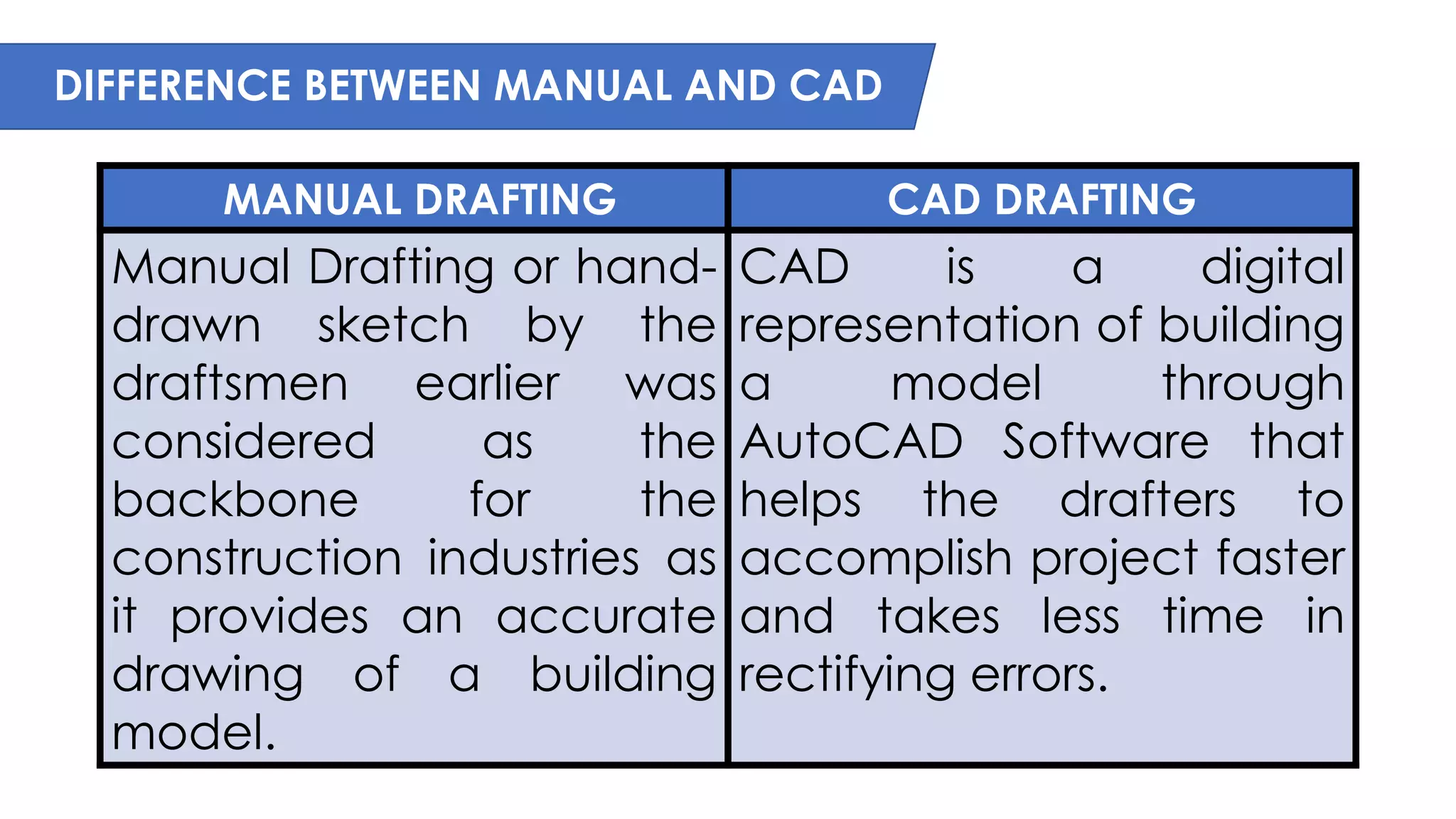
MANUAL DRAFTING CAD DRAFTING
Manual Drafting or hand-
drawn sketch by the
draftsmen earlier was
considered as the
backbone for the
construction industries as
it provides an accurate
drawing of a building
model.
CAD is a digital
representation of building
a model through
AutoCAD Software that
helps the drafters to
accomplish project faster
and takes less time in
rectifying errors.
DIFFERENCE BETWEEN MANUAL AND CAD
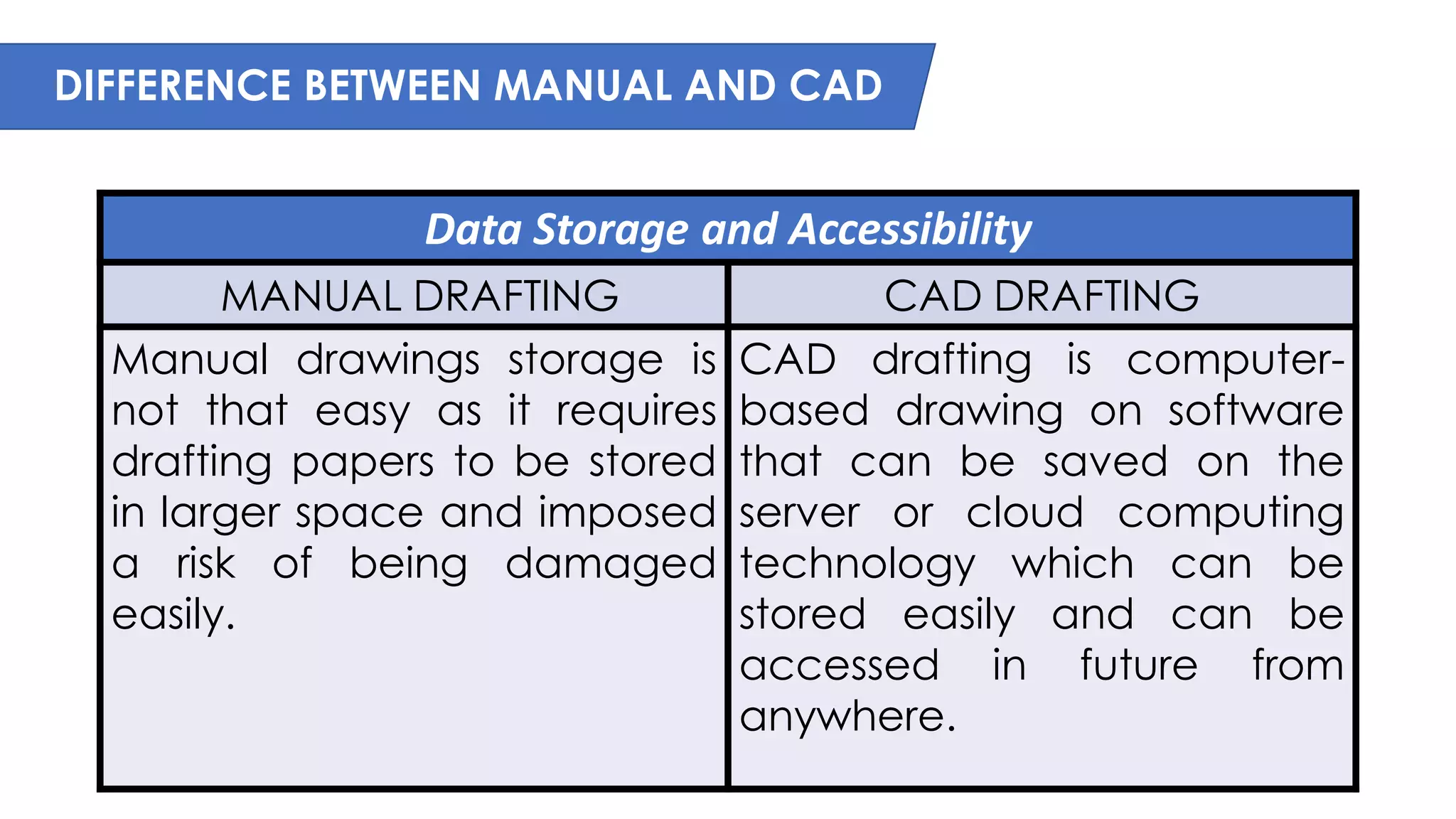
Data Storage and Accessibility
MANUAL DRAFTING CAD DRAFTING
Manual drawings storage is
not that easy as it requires
drafting papers to be stored
in larger space and imposed
a risk of being damaged
easily.
CAD drafting is computer-
based drawing on software
that can be saved on the
server or cloud computing
technology which can be
stored easily and can be
accessed in future from
anywhere.
DIFFERENCE BETWEEN MANUAL AND CAD
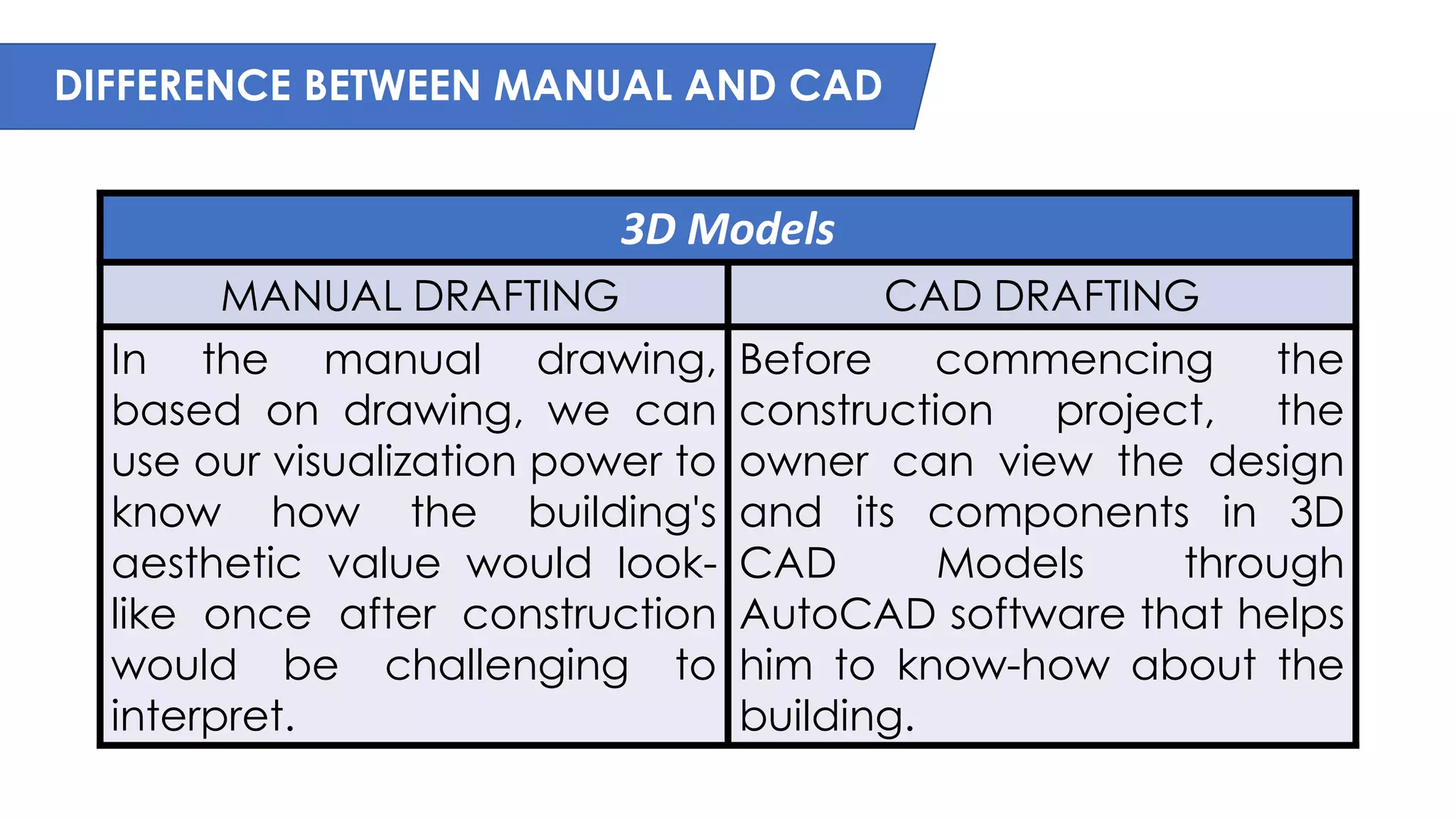
3D Models
MANUAL DRAFTING CAD DRAFTING
In the manual drawing,
based on drawing, we can
use our visualization power to
know how the building's
aesthetic value would look-
like once after construction
would be challenging to
interpret.
Before commencing the
construction project, the
owner can view the design
and its components in 3D
CAD Models through
AutoCAD software that helps
him to know-how about the
building.
DIFFERENCE BETWEEN MANUAL AND CAD
Revisions
MANUAL DRAFTING CAD DRAFTING
Manual drafting method
requires the need for
redrawing and erasing some
aspect of drawings that is
not correct hence revision is
at times crucial in the hand-
drawn model.
Editing tools can be
accessed in CAD software
that eases the process of
modification in the drawings.
DIFFERENCE BETWEEN MANUAL AND CAD
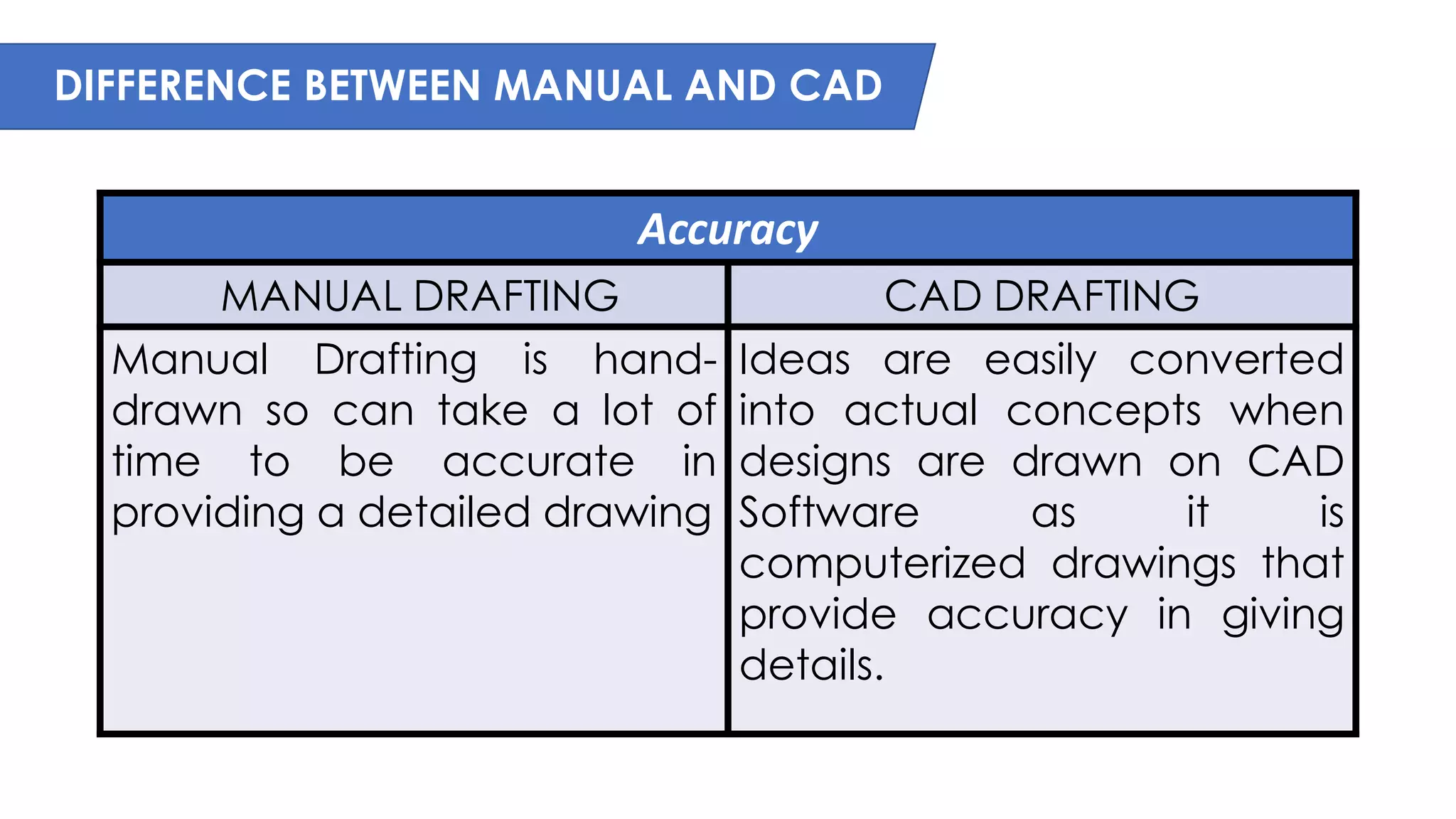
Accuracy
MANUAL DRAFTING CAD DRAFTING
Manual Drafting is hand-
drawn so can take a lot of
time to be accurate in
providing a detailed drawing
Ideas are easily converted
into actual concepts when
designs are drawn on CAD
Software as it is
computerized drawings that
provide accuracy in giving
details.
DIFFERENCE BETWEEN MANUAL AND CAD
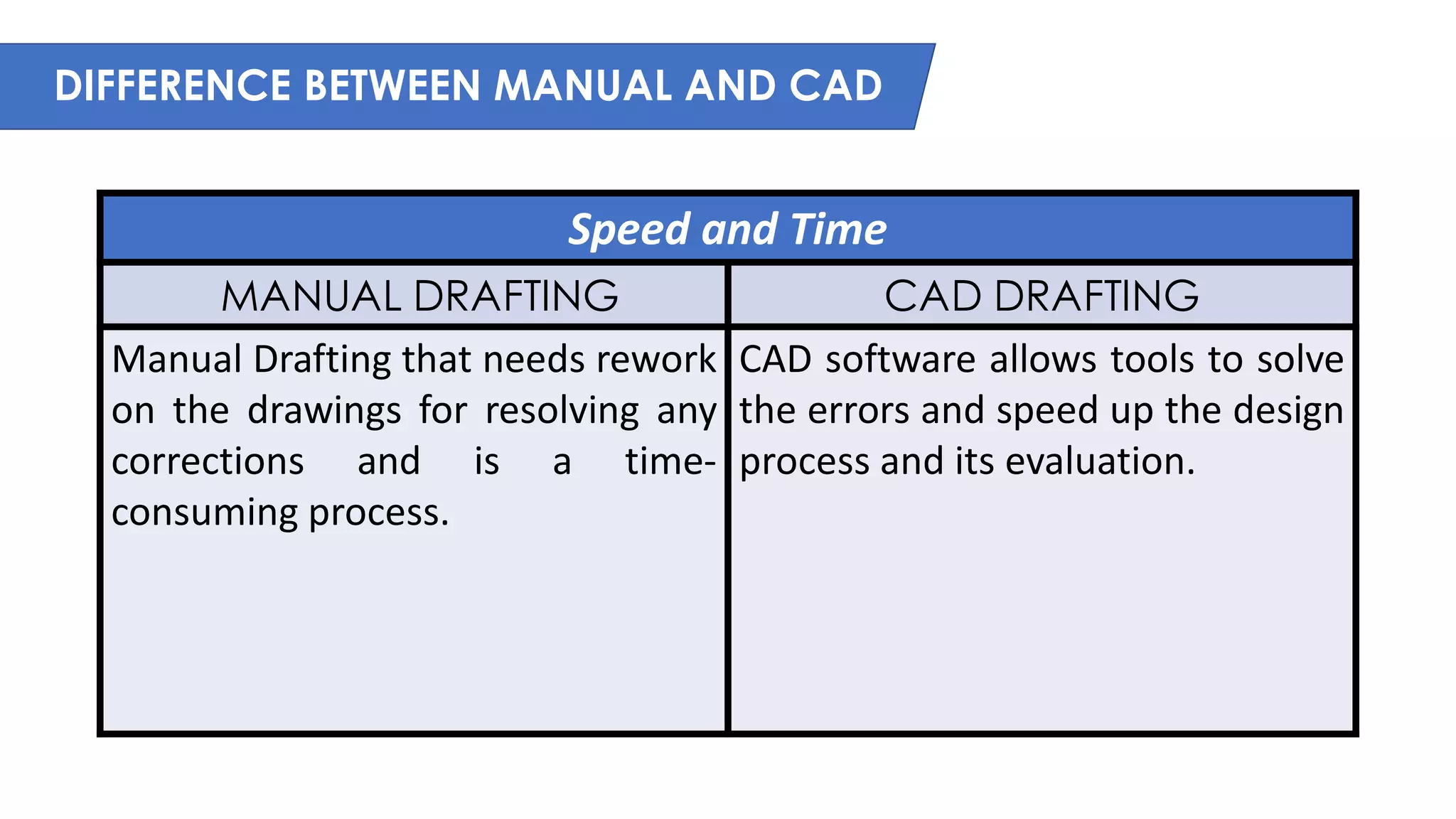
Speed and Time
MANUAL DRAFTING CAD DRAFTING
Manual Drafting that needs rework
on the drawings for resolving any
corrections and is a time-
consuming process.
CAD software allows tools to solve
the errors and speed up the design
process and its evaluation.
DIFFERENCE BETWEEN MANUAL AND CAD
Better Quality Designs
MANUAL DRAFTING CAD DRAFTING
The manual drawing would
need redrawing of
components or part of
building a structure to
improvise any changes in the
model.
Better tools are available in
the CAD software for the
design professionals to carry
out design and proposed
design analysis easily. It aids
in achieving high quality and
accuracy bringing fewer
errors.
TYPES OF CAD
1. Two-dimensional (2D)
• Create simple shapes in the X and Y directions.
• Does not show the Z direction (depth).
• Can be used for drawing, pattern drafting and
for drawing images that appear to have three
dimensions but are still in a 2D format.
TYPES OF CAD
2. 3D Modeling
• Creates shapes in three dimensions (x, y and z).
• Uses intuitive tools such as dimensioning, extruding and
rounding edges to create wireframe and solid models.
• Wireframe models show the product as a coat hanger model
with no solid surfaces, so the features behind and on the rear
of the product are visible.
• Solid modelling shows the product with a skin over the top of
the wireframe. Solid models are easier to visualize because
they look like the real product.
BENEFITS OF CAD SOFTWARE
1. Increase in the productivity of the
designer
2. Improve the quality of the design
3. Better communications
4. Creating documentation of the designing
5. Creating the database for manufacturing
6. Saving of design data and drawings
EXPLORING CAD INTERFACE
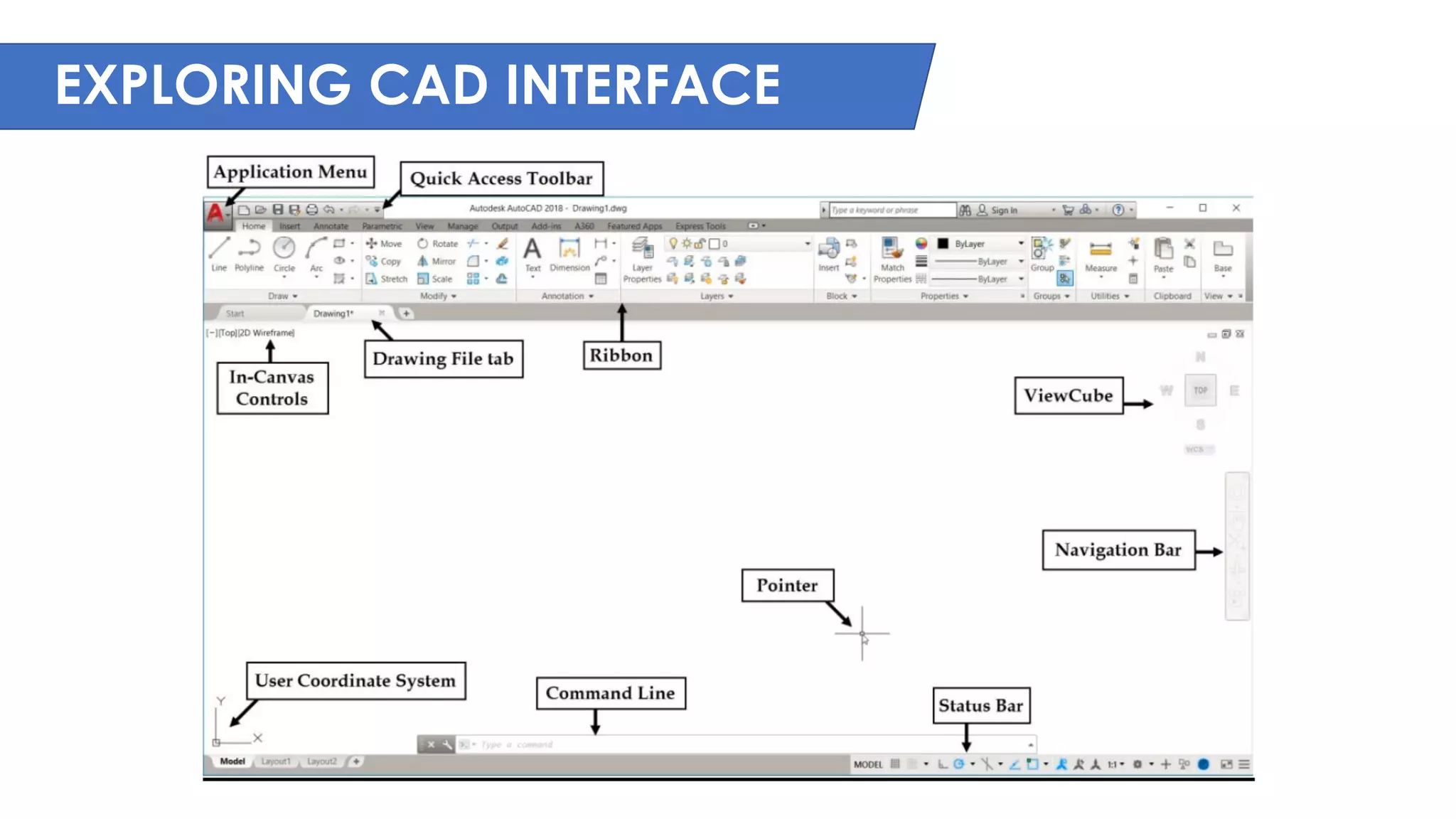
APPLICATION MENU/BROWSER – used to search for commands, as well as
access tools to create, open, and publish a file.
QUICK ACCESS TOOLBAR – it display frequently used tools with the Quick
Access toolbar.
WORKSPACE – control the display and order in which user interface
elements are displayed.
Different types of workspace -Drafting and Annotation
-3D Basic
-3D Modeling
DRAWING TITLE/ FILE NAME – shows the file name.
APPLICATION EXCHANGE/ SEARCH BOX – Autodesk Exchange provides a
web-based experience directly within the product. Included are tabs that
access the sources information. Internet is mandatory for this.
EXPLORING CAD INTERFACE
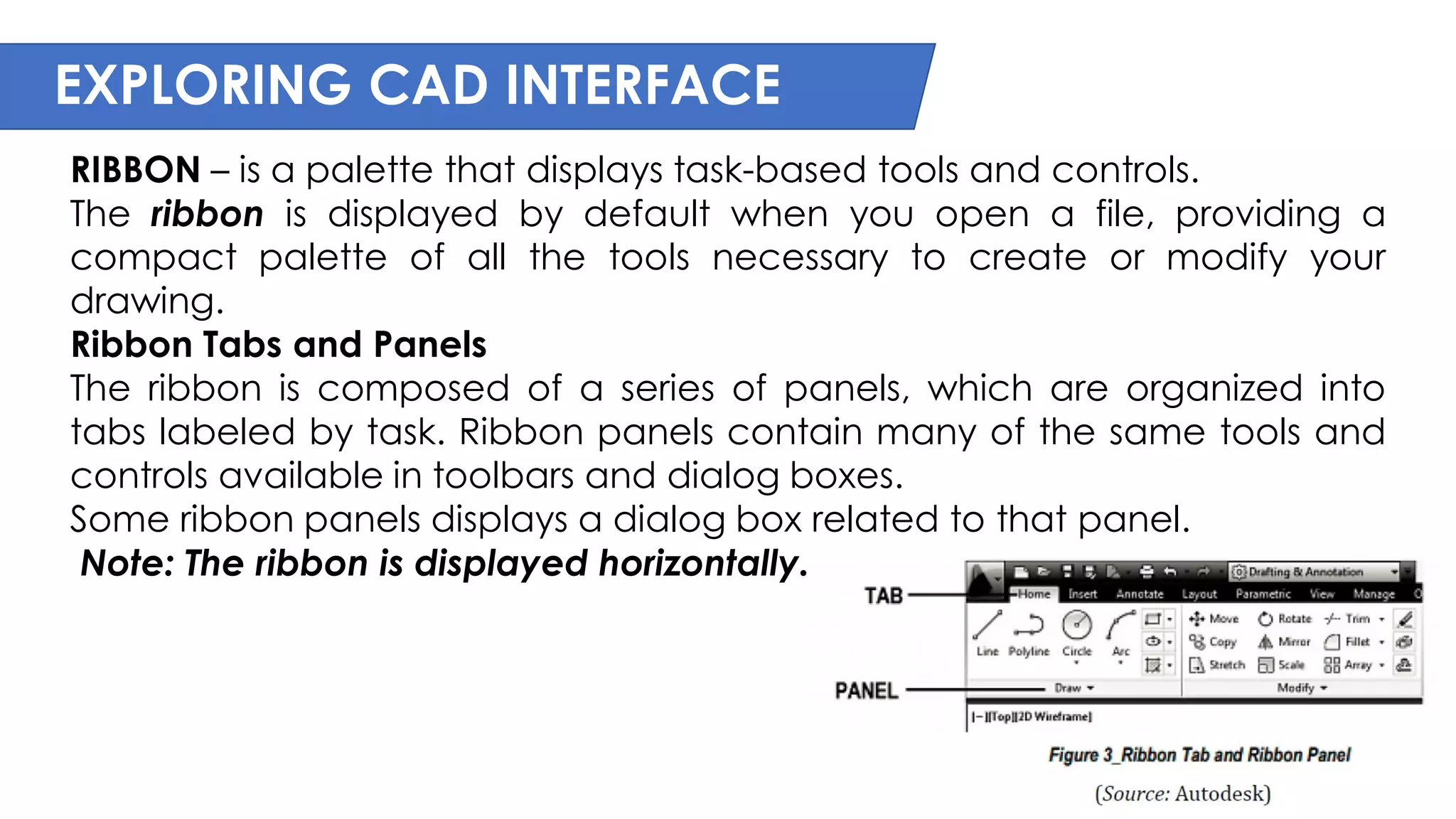
RIBBON – is a palette that displays task-based tools and controls.
The ribbon is displayed by default when you open a file, providing a
compact palette of all the tools necessary to create or modify your
drawing.
Ribbon Tabs and Panels
The ribbon is composed of a series of panels, which are organized into
tabs labeled by task. Ribbon panels contain many of the same tools and
controls available in toolbars and dialog boxes.
Some ribbon panels displays a dialog box related to that panel.
Note: The ribbon is displayed horizontally.
EXPLORING CAD INTERFACE
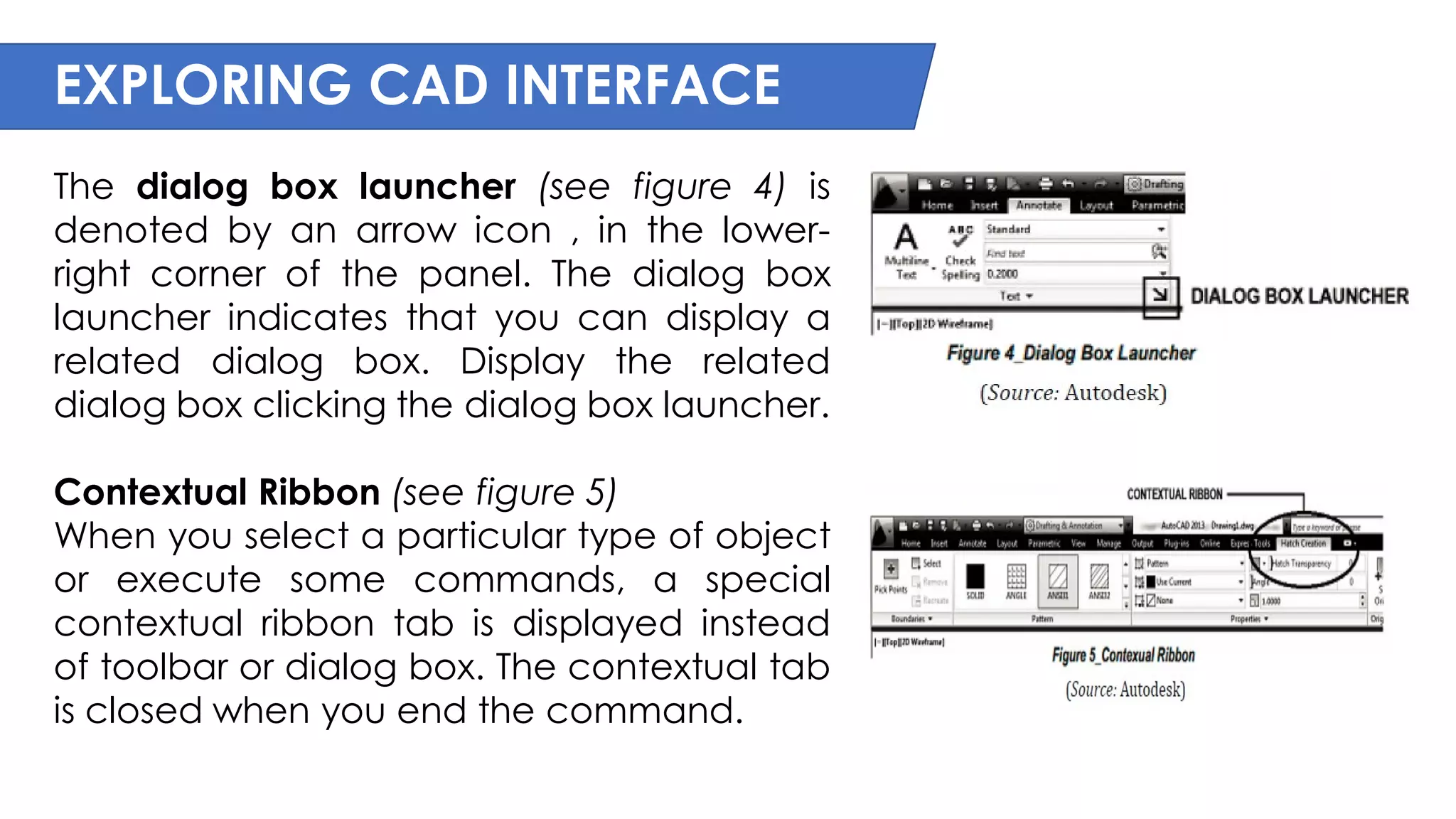
The dialog box launcher (see figure 4) is
denoted by an arrow icon , in the lower-
right corner of the panel. The dialog box
launcher indicates that you can display a
related dialog box. Display the related
dialog box clicking the dialog box launcher.
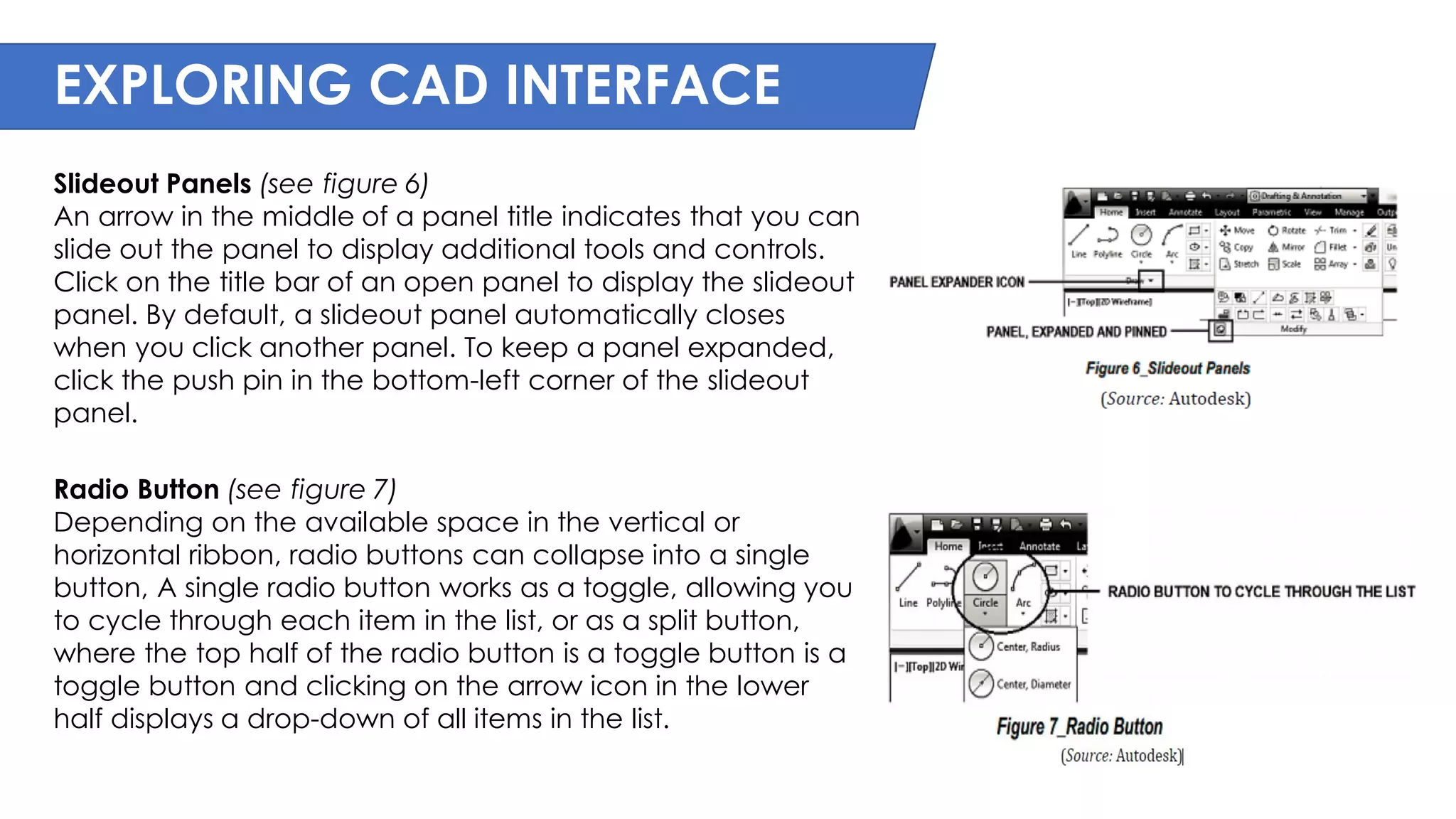
Contextual Ribbon (see figure 5)
When you select a particular type of object
or execute some commands, a special
contextual ribbon tab is displayed instead
of toolbar or dialog box. The contextual tab
is closed when you end the command.
EXPLORING CAD INTERFACE
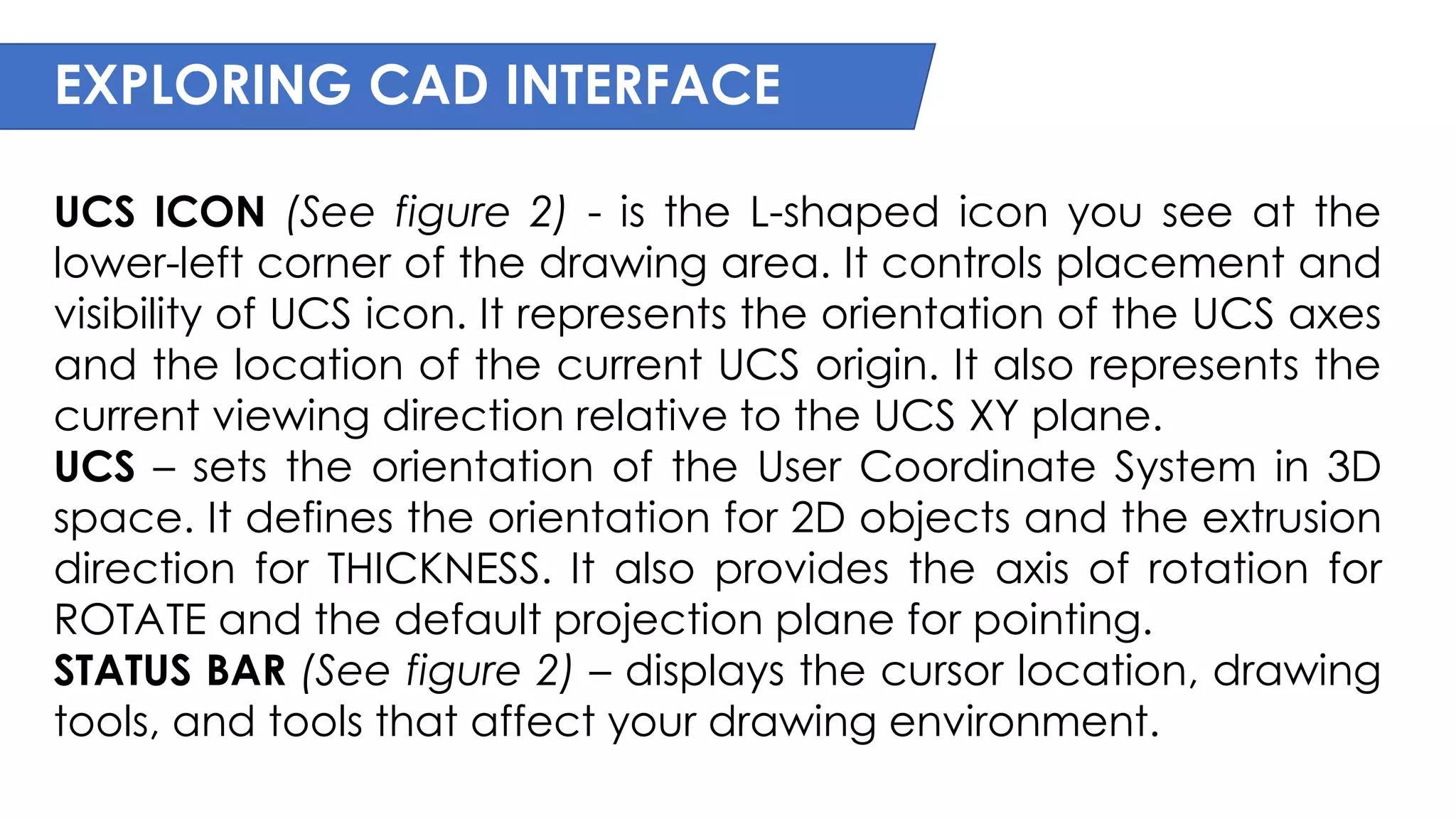
Slideout Panels (see figure 6)
An arrow in the middle of a panel title indicates that you can
slide out the panel to display additional tools and controls.
Click on the title bar of an open panel to display the slideout
panel. By default, a slideout panel automatically closes
when you click another panel. To keep a panel expanded,
click the push pin in the bottom-left corner of the slideout
panel.
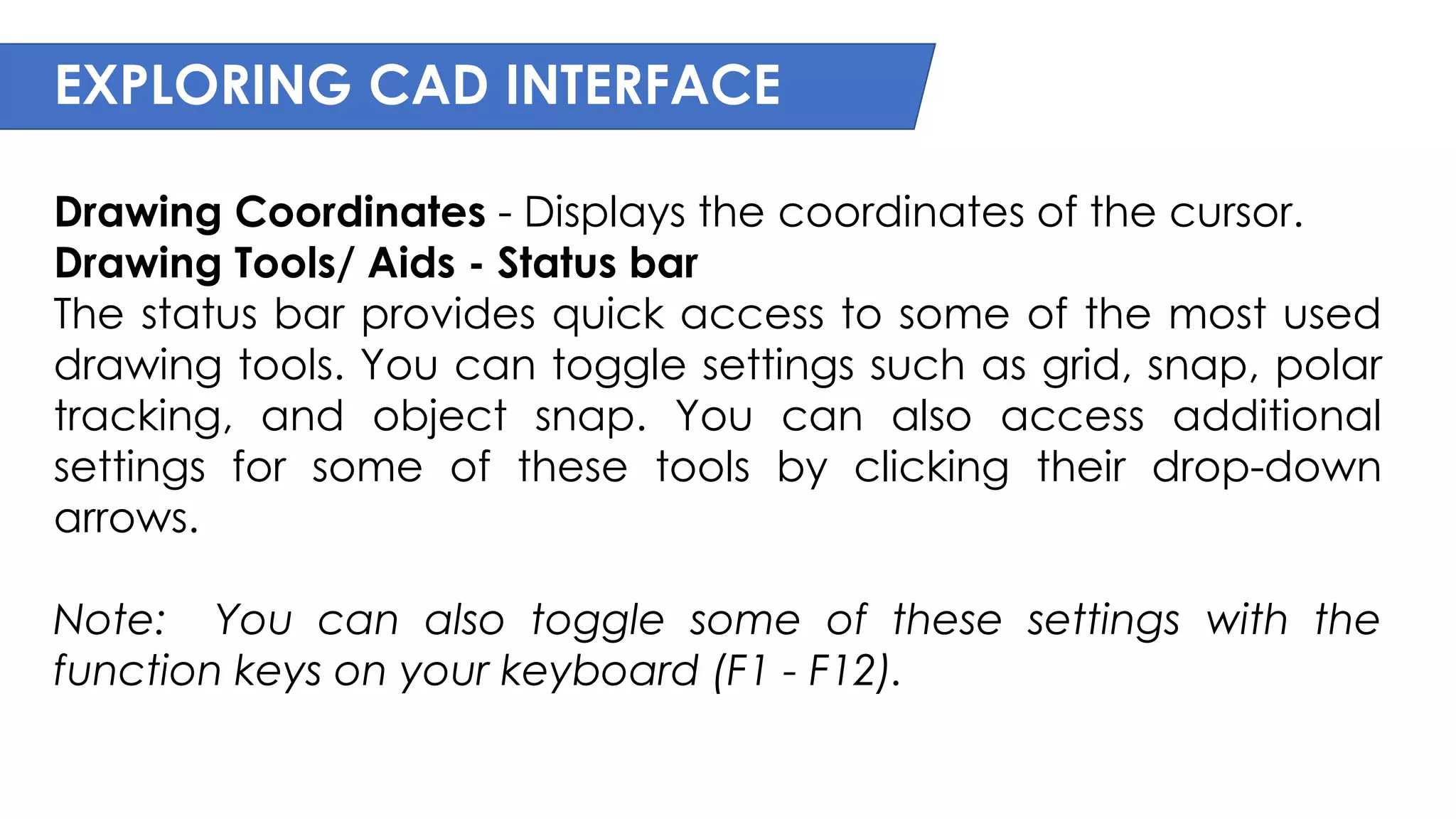
Radio Button (see figure 7)
Depending on the available space in the vertical or
horizontal ribbon, radio buttons can collapse into a single
button, A single radio button works as a toggle, allowing you
to cycle through each item in the list, or as a split button,
where the top half of the radio button is a toggle button is a
toggle button and clicking on the arrow icon in the lower
half displays a drop-down of all items in the list.
EXPLORING CAD INTERFACE
DRAWING AREA/WORK PLANE – where the actual drawing is made. The
color is black to help with the visibility of lines on the computer
screen.(See figure 2)
Note: You can resize the window to any rectangular shape you need. This
is helpful when you have multiple AutoCAD Drawing files open.
CROSSHAIR – a type of cursor consisting of two lines that intersect. It lets
you point to portions of the drawing area. (See figure 2)
Note: Use OPTIONS command to customize the program settings for
Drawing Area, Crosshair, Command Window and other settings.
TWO TYPES OF AUTOCAD ENVIRONMENTS (See figure 2)
Model tab –is an endless drawing area for any scale ratio of an object. It is
where you do most of your drawing and editing.
Layout tab – specifies a certain sheet size of a paper for plotting purposes.
All model drawings with a specified scale factor are placed here. It
provides a way to set up your drawing for printing.
EXPLORING CAD INTERFACE
COMMAND WINDOW (See figure 2) – is the horizontal window
at the bottom of the AutoCAD window. It provides feedback
as you work with AutoCAD commands. It is where you can
type commands and command options. It also lists information
when you query AutoCAD for certain types of information.
(Press Ctrl 9 to turn ON/OFF the command line window)
NAVIGATION BAR – it provides access to navigation and
orientation tools from a single interface. (See figure 2 for
location and 8 for content.)
EXPLORING CAD INTERFACE
View cube/ WCS (World Coordinate System) – Indicates
the current orientation of a model and is reorient the
current view of a model.
Full Navigation Wheel – provides access to the general
and specialized navigation tools.
Pan – moves the view to the screen. (3 way to use pan: 1.
by typing PAN or P in the command window, 2. from the
navigation bar, and 3. Long press your mouse scroll.)
Zoom – Increases or decreases the magnification of the
view in the current viewport.
Orbit – rotates the view in 3D space, but constrained to
(Source: Autodesk) horizontal and vertical orbit only.
Show Motion – provides an on-screen display for creating
and playing back cinematic animations for design
review, presentation, and bookmark-style navigation.
EXPLORING CAD INTERFACE
MODEL SPACE VIEWPORT CONTROLS - are displayed at the top-
left corner of each viewport, and provide a convenient way of
changing views, visual styles, and other settings. (See figure 2)
You can click within each of the three bracketed areas to
change the settings.
[+] [Top] [2D Wireframe]
• Click + to display options for maximizing the viewport,
changing the viewport configuration, or controlling the display
of navigation tools.
• Click Top to choose between several standard and custom
views.
• Click 2D Wireframe to choose one of several visual styles. Most
of the other visual styles are used for 3D visualization
EXPLORING CAD INTERFACE
UCS ICON (See figure 2) - is the L-shaped icon you see at the
lower-left corner of the drawing area. It controls placement and
visibility of UCS icon. It represents the orientation of the UCS axes
and the location of the current UCS origin. It also represents the
current viewing direction relative to the UCS XY plane.
UCS – sets the orientation of the User Coordinate System in 3D
space. It defines the orientation for 2D objects and the extrusion
direction for THICKNESS. It also provides the axis of rotation for
ROTATE and the default projection plane for pointing.
STATUS BAR (See figure 2) – displays the cursor location, drawing
tools, and tools that affect your drawing environment.
EXPLORING CAD INTERFACE
Drawing Coordinates - Displays the coordinates of the cursor.
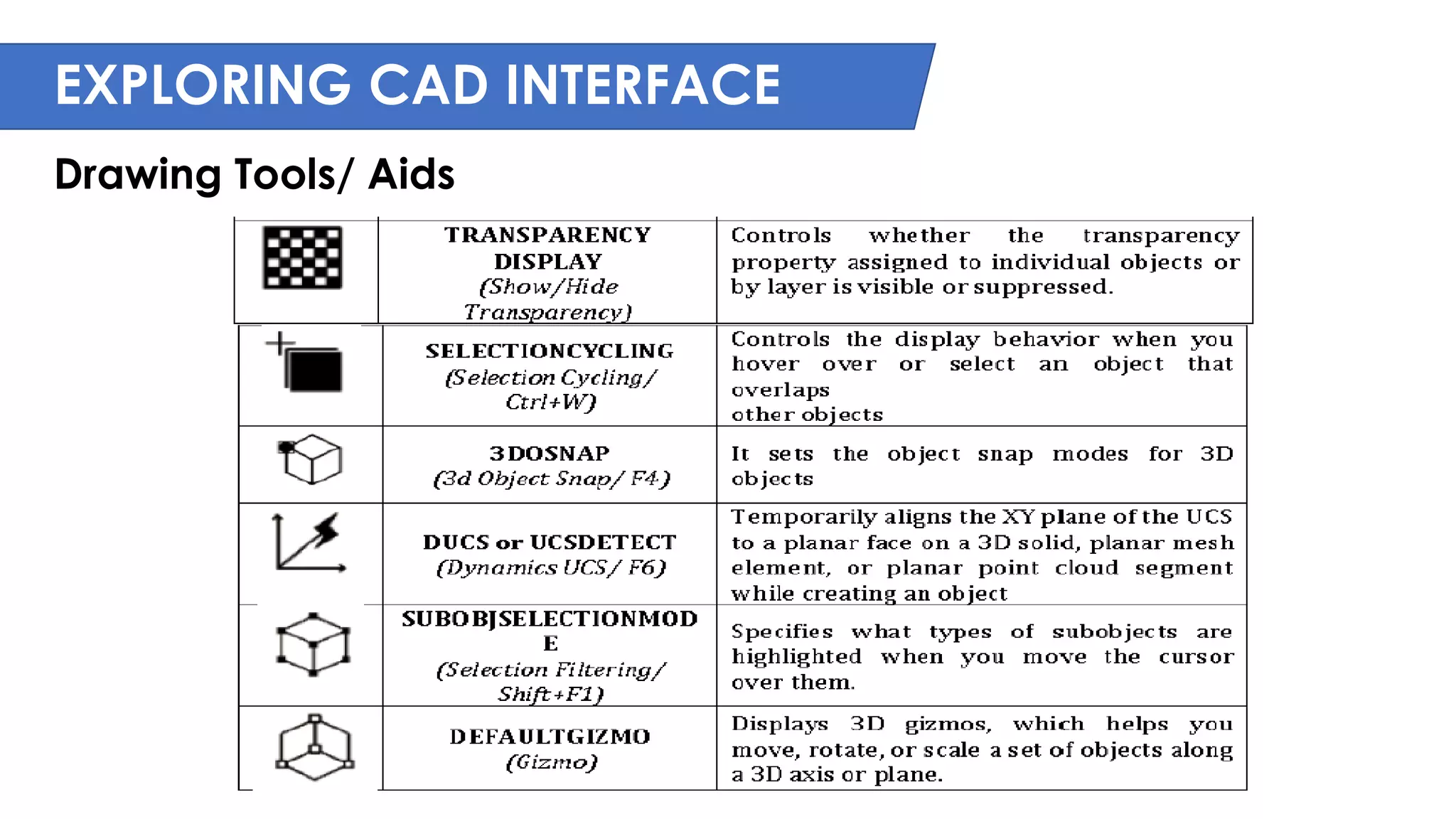
Drawing Tools/ Aids - Status bar
The status bar provides quick access to some of the most used
drawing tools. You can toggle settings such as grid, snap, polar
tracking, and object snap. You can also access additional
settings for some of these tools by clicking their drop-down
arrows.
Note: You can also toggle some of these settings with the
function keys on your keyboard (F1 - F12).
EXPLORING CAD INTERFACE
Drawing Tools/ Aids
EXPLORING CAD INTERFACE
Drawing Tools/ Aids
EXPLORING CAD INTERFACE
Drawing Tools/ Aids
EXPLORING CAD INTERFACE
Drafting Settings Dialog Box (DSETTINGS or DS)
- It specifies drafting settings organized for drawing aids such as snap and
grid, tracking, object snaps, dynamic input, quick properties, and
selection cycling.
Toolbars – are collections of buttons or tools that show icons that
represent commands.
Tool Tips – are short descriptions that help you understand what the icons
represent.
Tool Palettes – let you keep your favorite tools and drawing components
in one convenient place for quick access.
Docked position – is the default location of the toolbars, which just means
that they are merged with the outer edge of the window to save space.
Floating toolbars – when toolbars are moved away from the edge of the
window and appear “free floating” as opposed to docked.
EXPLORING CAD INTERFACE
Using Button Functions of a Mouse
1. Left Button
- Pick or Point button to specify a point location/position
- To select objects/commands/menu
2. Right Button/Right Click Shortcut
- Frequently opens a menu that contains options that
are context sensitive.
- If there are no applicable options at the time of the
right-click, AutoCAD treats the right-click as Enter
button.
3. Scroll
- Pan
- Zoom in
- Zoom out
EXPLORING CAD INTERFACE
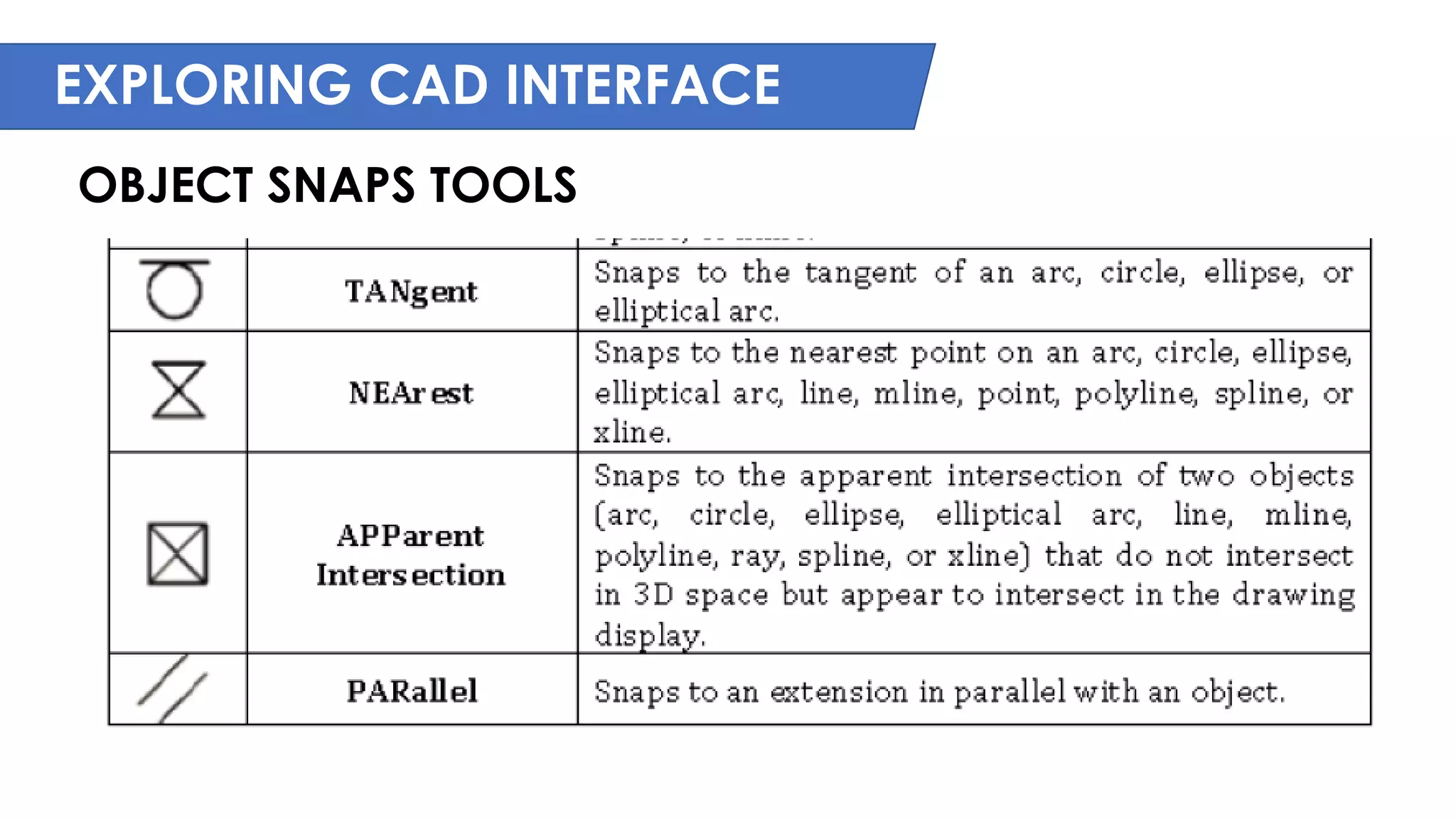
OBJECT SNAPS TOOLS
- An object snap mode specifies a point at an exact
location on an object.
- You can use an object snap once in the middle of
a command, or you can set running object snaps.
- Running object snap modes can be toggled on
and off with the OSNAP button on the status bar or
the function key F3.
EXPLORING CAD INTERFACE
OBJECT SNAPS TOOLS
EXPLORING CAD INTERFACE
OBJECT SNAPS TOOLS
EXPLORING CAD INTERFACE
OBJECT SNAPS TOOLS
EXPLORING CAD INTERFACE
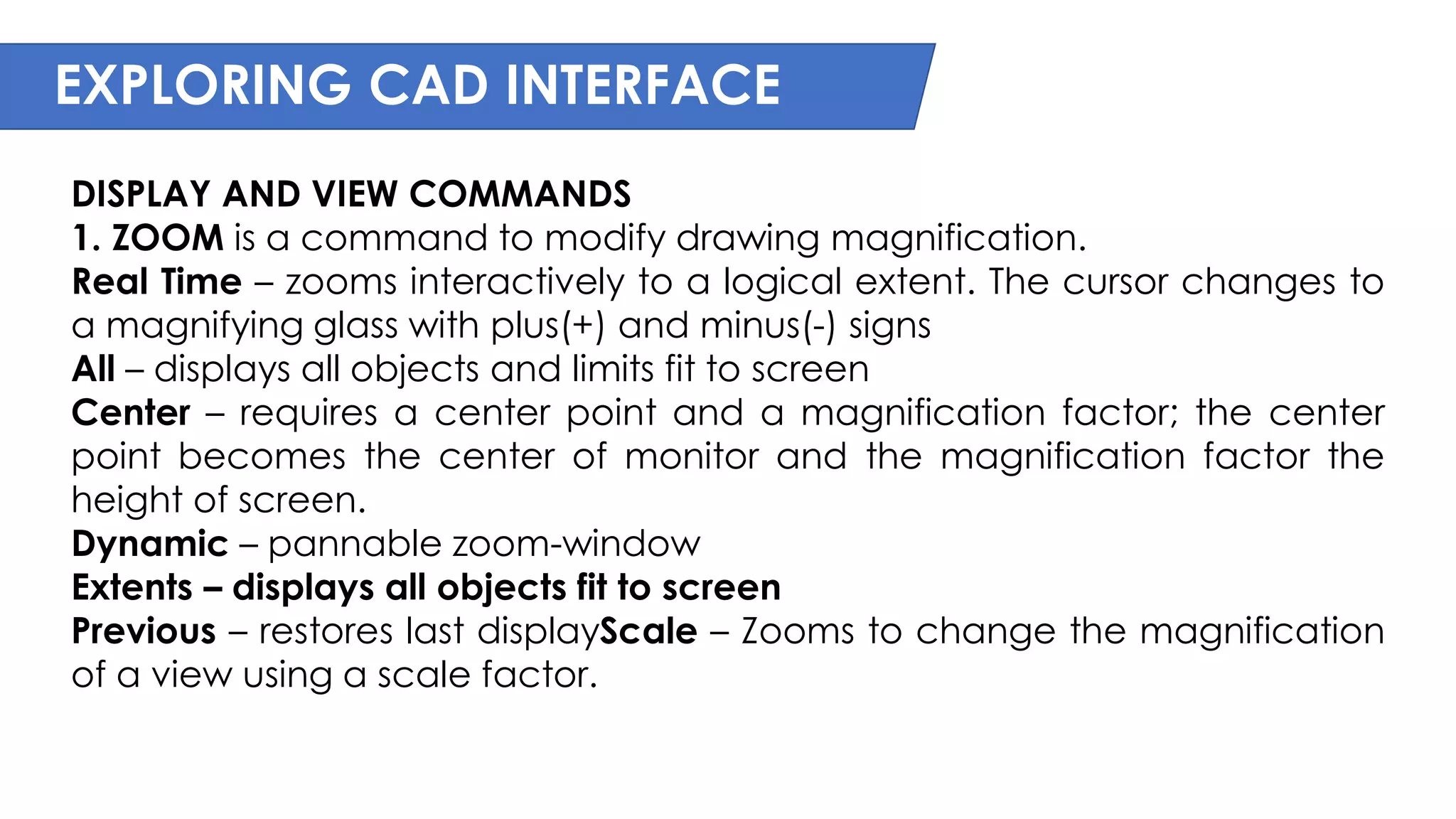
DISPLAY AND VIEW COMMANDS
1. ZOOM is a command to modify drawing magnification.
Real Time – zooms interactively to a logical extent. The cursor changes to
a magnifying glass with plus(+) and minus(-) signs
All – displays all objects and limits fit to screen
Center – requires a center point and a magnification factor; the center
point becomes the center of monitor and the magnification factor the
height of screen.
Dynamic – pannable zoom-window
Extents – displays all objects fit to screen
Previous – restores last displayScale – Zooms to change the magnification
of a view using a scale factor.
EXPLORING CAD INTERFACE
Window – windowed area is shown fit onscreen
Object – display selected object and fit to screen.
2. VTOPTIONS is to control the animated behavior of Zoom and
Pan
3. PAN shifts drawing display without changing drawing
magnification
4. REDRAW removes blips
5. REGEN forces a complete drawing regeneration. It can be
used after FILL=ON/OFF or TEXTFILL=1/0 or QTEXT
6. VIEWRES control fast zoom mode and screen resolution of
curves
EXPLORING CAD INTERFACE
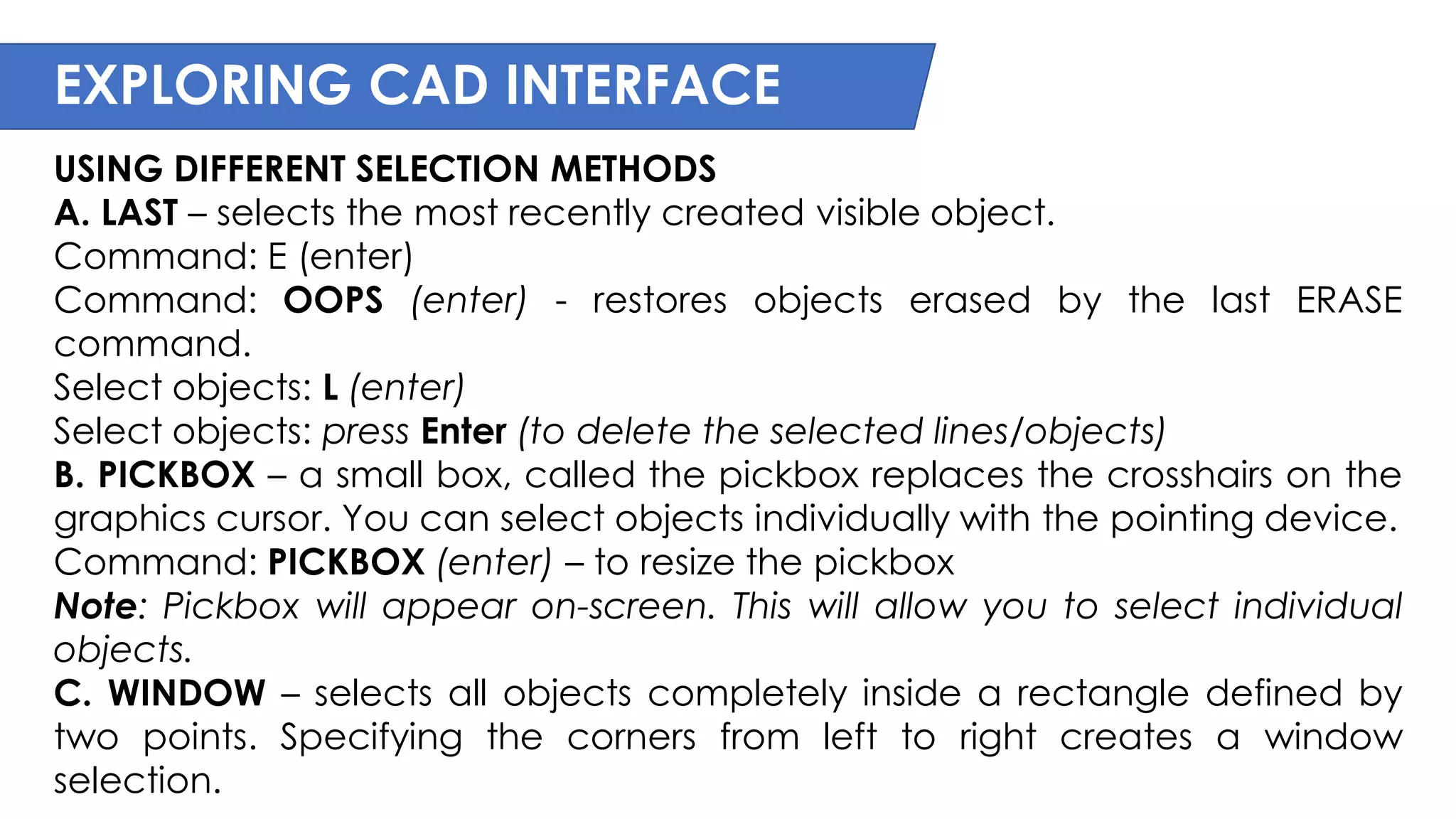
USING DIFFERENT SELECTION METHODS
A. LAST – selects the most recently created visible object.
Command: E (enter)
Command: OOPS (enter) - restores objects erased by the last ERASE
command.
Select objects: L (enter)
Select objects: press Enter (to delete the selected lines/objects)
B. PICKBOX – a small box, called the pickbox replaces the crosshairs on the
graphics cursor. You can select objects individually with the pointing device.
Command: PICKBOX (enter) – to resize the pickbox
Note: Pickbox will appear on-screen. This will allow you to select individual
objects.
C. WINDOW – selects all objects completely inside a rectangle defined by
two points. Specifying the corners from left to right creates a window
selection.
EXPLORING CAD INTERFACE
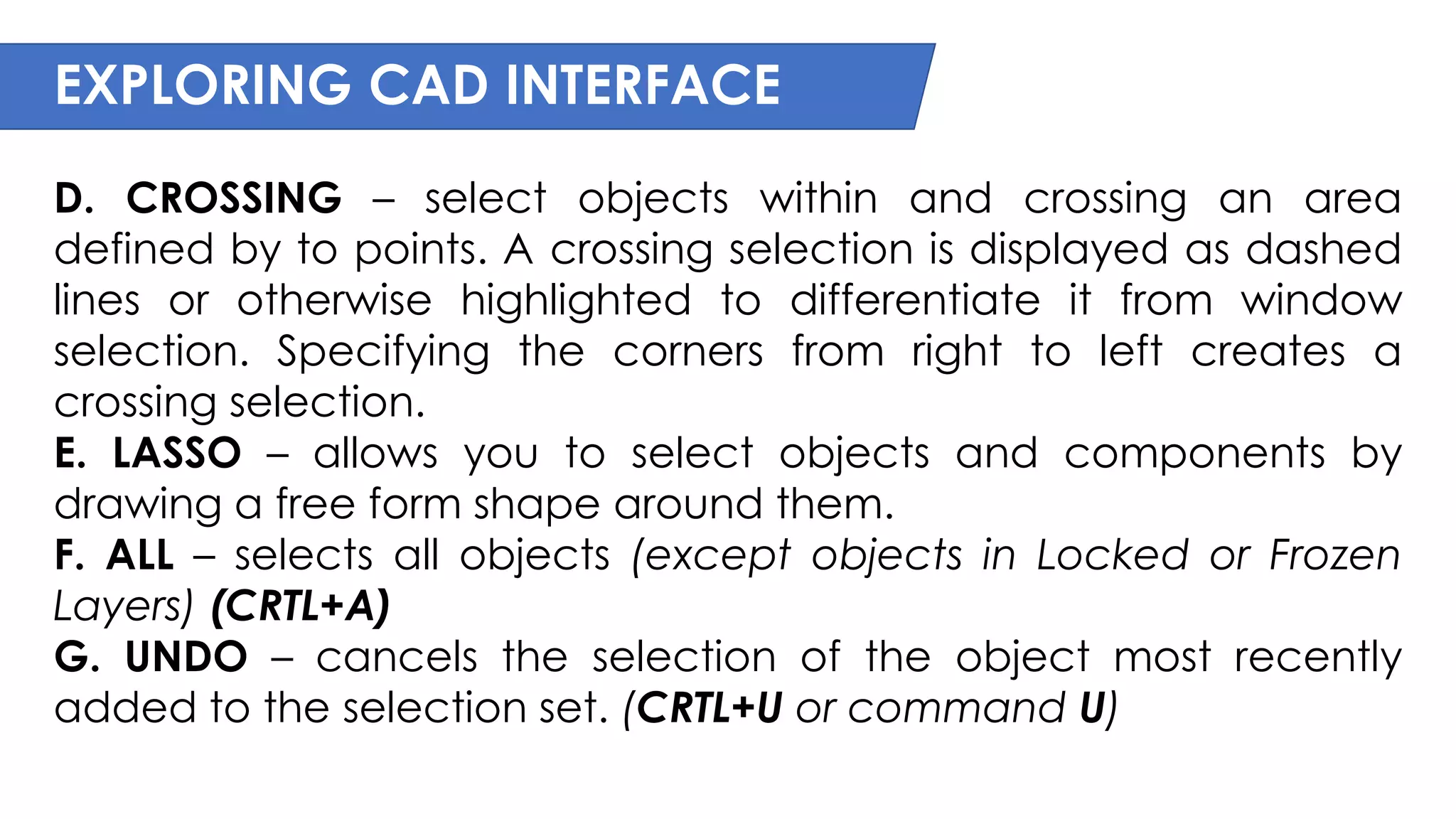
D. CROSSING – select objects within and crossing an area
defined by to points. A crossing selection is displayed as dashed
lines or otherwise highlighted to differentiate it from window
selection. Specifying the corners from right to left creates a
crossing selection.
E. LASSO – allows you to select objects and components by
drawing a free form shape around them.
F. ALL – selects all objects (except objects in Locked or Frozen
Layers) (CRTL+A)
G. UNDO – cancels the selection of the object most recently
added to the selection set. (CRTL+U or command U)
AUTOCAD AND DESIGN
DRAWING AND MODIFYING COMMANDS
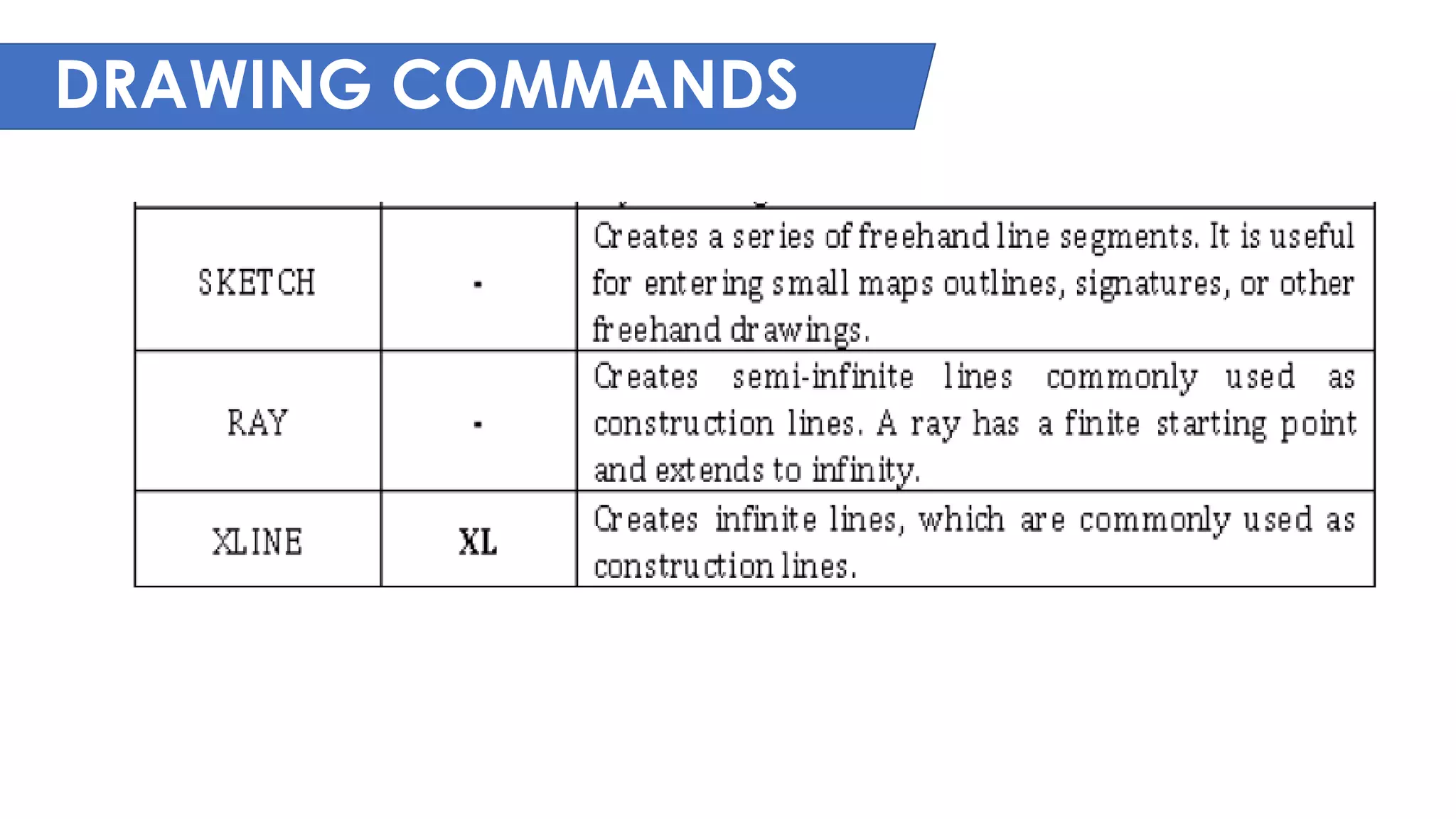
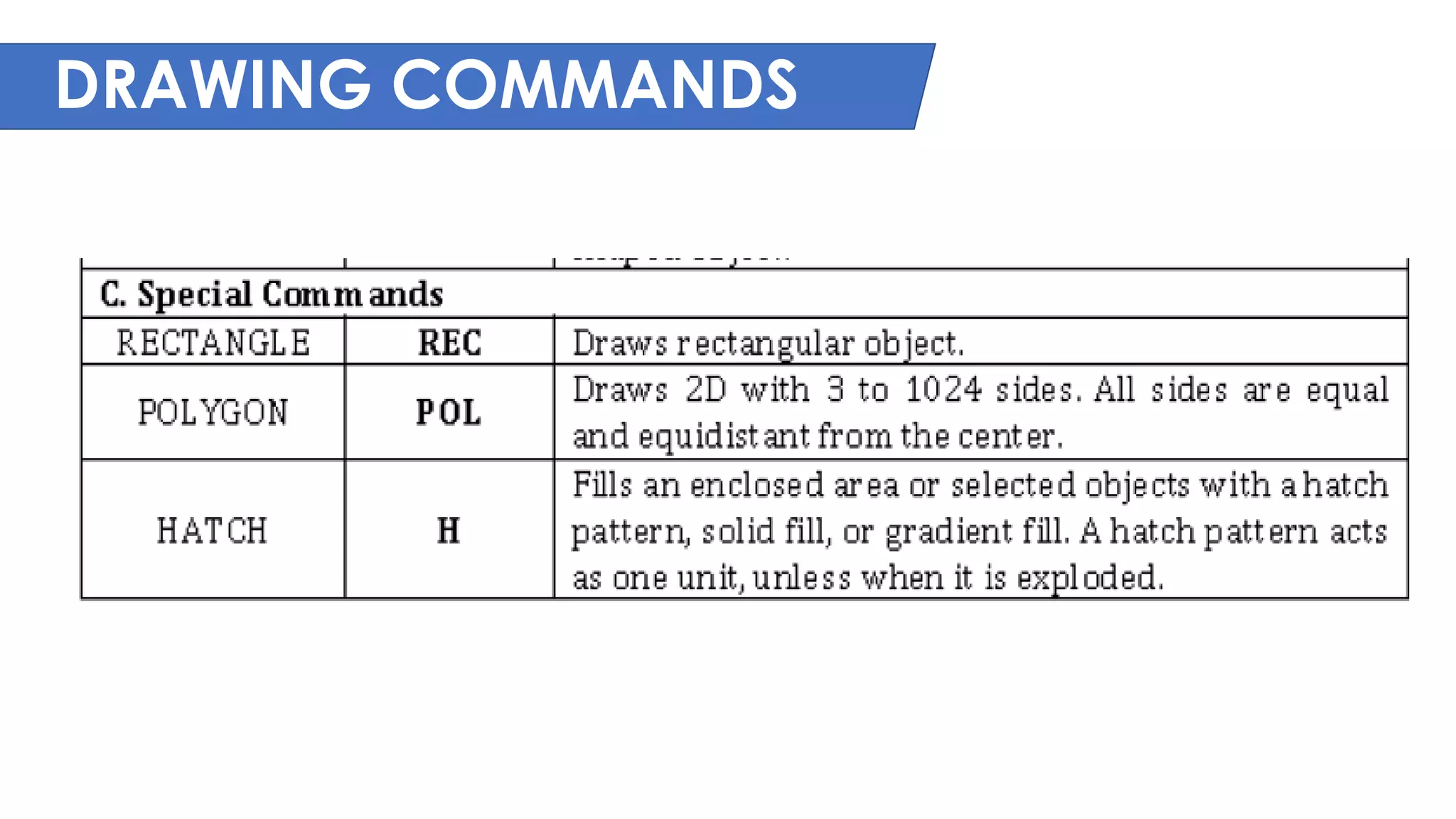
DRAWING COMMANDS
2D AUTOCAD COMMANDS
DRAW COMMANDS – Commands for creating
common objects, including lines, arcs, circles,
curves, ellipses, and text.
DRAWING COMMANDS
DRAWING COMMANDS
DRAWING COMMANDS
DRAWING COMMANDS
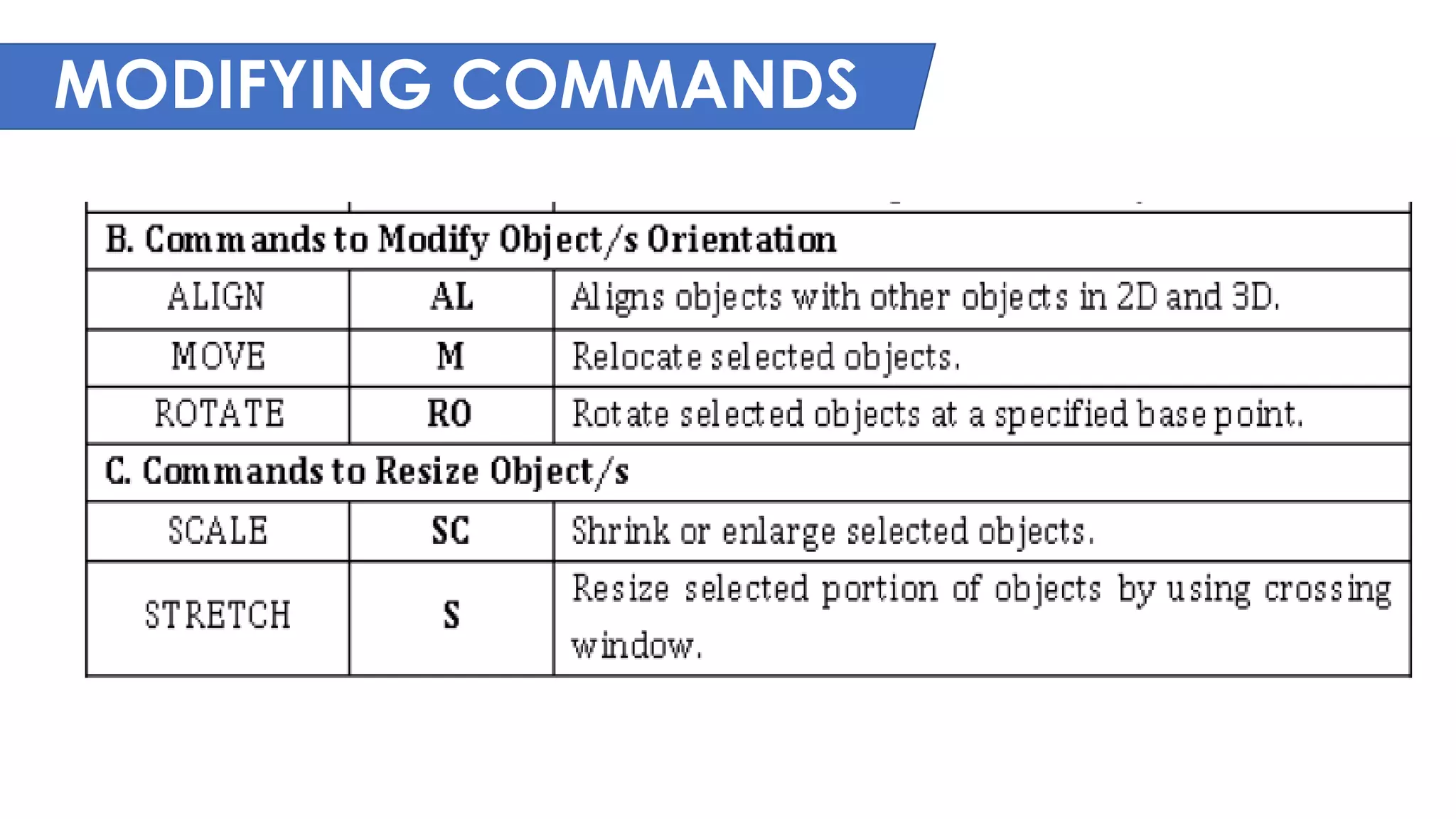
MODIFYING COMMANDS
MODIFY COMMANDS – Commands for editing
existing objects
MODIFYING COMMANDS
MODIFYING COMMANDS
MODIFYING COMMANDS
MODIFYING COMMANDS
DRAW AND MODIFY COMMANDS
EDITING DRAW AND MODIFY COMMANDS
A. Command to edit polylines and splines: PEDIT, EXPLODE
and SPLINEDIT
B. Command to change position of endpoints: TRIM, EXTEND,
LENGTHEN, JOIN and GRIP
C. Command to mark /measure linear and curve: POINT,
DIVIDE and DISTANCE
D. Use of grips: STRETCH, MOVE, ROTATE, COPY, SCALE and
MIRROR
E. Deleting and undeleting objects: ERASE, OOPS, UNDO and
REDO/MREDO
EDITING COMMANDS
EDITING COMMANDS

AUTOCAD-REVIEW-2.pdf

  • 1.
  • 2.
    INTRODUCTION TO CAD ComputerAided Design (CAD) is the use of computer systems (or workstations) to aid in the creation, modification, analysis, or optimization of a design. CAD software is used to increase the productivity of the designer, improve the quality of design, and improve communications through documentation. CAD output is often in the form of electronic files for print, machining, or other manufacturing operations. CAD may be used to design curves and figures in two- dimensional (2D) space; or curves, surfaces, and solids in three- dimensional (3D) space.
  • 3.
    HISTORY OF CAD Thebeginnings of CAD can be traced to the year 1957, when Dr. Patrick J. Hanratty developed PRONTO, the first commercial numerical-control programming system. In 1960, Ivan Sutherland MIT's Lincoln Laboratory created SKETCHPAD, which demonstrated the basic principles and feasibility of computer technical drawing.
  • 4.
    HISTORY OF CAD 2DTime The first CAD systems served as mere replacements of drawing boards. The design engineers still worked in 2D to create technical drawings consisting from 2D wire-frame primitives (line, arc, B spline ...). Productivity of design increased, but many argue that only marginally due to overhead – design engineers had to learn how to use computers and CAD. Nevertheless, modifications and revisions were easier, and over time CAD software and hardware became cheaper and affordable for mid-size companies. CAD programs grew in functionality and user friendliness.
  • 5.
    HISTORY OF CAD 3DTime 3D wireframe features were developed in the beginning of the sixties, and in 1969 MAGI released Syntha Vision, the first commercially available solid modeler program. Solid modeling further enhanced the 3D capabilities of CAD systems. NURBS, mathematical representation of freeform surfaces, appeared in 1989 -- first on Silicon Graphics workstations. In 1993 CAS Berlin developed an interactive NURBS modeler for PCs, called NöRBS.
  • 6.
    DIFFERENCE BETWEEN MANUALAND CAD MANUAL DRAFTING CAD DRAFTING Manual Drafting or hand- drawn sketch by the draftsmen earlier was considered as the backbone for the construction industries as it provides an accurate drawing of a building model. CAD is a digital representation of building a model through AutoCAD Software that helps the drafters to accomplish project faster and takes less time in rectifying errors.
  • 7.
    DIFFERENCE BETWEEN MANUALAND CAD Data Storage and Accessibility MANUAL DRAFTING CAD DRAFTING Manual drawings storage is not that easy as it requires drafting papers to be stored in larger space and imposed a risk of being damaged easily. CAD drafting is computer- based drawing on software that can be saved on the server or cloud computing technology which can be stored easily and can be accessed in future from anywhere.
  • 8.
    DIFFERENCE BETWEEN MANUALAND CAD 3D Models MANUAL DRAFTING CAD DRAFTING In the manual drawing, based on drawing, we can use our visualization power to know how the building's aesthetic value would look- like once after construction would be challenging to interpret. Before commencing the construction project, the owner can view the design and its components in 3D CAD Models through AutoCAD software that helps him to know-how about the building.
  • 9.
    DIFFERENCE BETWEEN MANUALAND CAD Revisions MANUAL DRAFTING CAD DRAFTING Manual drafting method requires the need for redrawing and erasing some aspect of drawings that is not correct hence revision is at times crucial in the hand- drawn model. Editing tools can be accessed in CAD software that eases the process of modification in the drawings.
  • 10.
    DIFFERENCE BETWEEN MANUALAND CAD Accuracy MANUAL DRAFTING CAD DRAFTING Manual Drafting is hand- drawn so can take a lot of time to be accurate in providing a detailed drawing Ideas are easily converted into actual concepts when designs are drawn on CAD Software as it is computerized drawings that provide accuracy in giving details.
  • 11.
    DIFFERENCE BETWEEN MANUALAND CAD Speed and Time MANUAL DRAFTING CAD DRAFTING Manual Drafting that needs rework on the drawings for resolving any corrections and is a time- consuming process. CAD software allows tools to solve the errors and speed up the design process and its evaluation.
  • 12.
    DIFFERENCE BETWEEN MANUALAND CAD Better Quality Designs MANUAL DRAFTING CAD DRAFTING The manual drawing would need redrawing of components or part of building a structure to improvise any changes in the model. Better tools are available in the CAD software for the design professionals to carry out design and proposed design analysis easily. It aids in achieving high quality and accuracy bringing fewer errors.
  • 13.
    TYPES OF CAD 1.Two-dimensional (2D) • Create simple shapes in the X and Y directions. • Does not show the Z direction (depth). • Can be used for drawing, pattern drafting and for drawing images that appear to have three dimensions but are still in a 2D format.
  • 14.
    TYPES OF CAD 2.3D Modeling • Creates shapes in three dimensions (x, y and z). • Uses intuitive tools such as dimensioning, extruding and rounding edges to create wireframe and solid models. • Wireframe models show the product as a coat hanger model with no solid surfaces, so the features behind and on the rear of the product are visible. • Solid modelling shows the product with a skin over the top of the wireframe. Solid models are easier to visualize because they look like the real product.
  • 15.
    BENEFITS OF CADSOFTWARE 1. Increase in the productivity of the designer 2. Improve the quality of the design 3. Better communications 4. Creating documentation of the designing 5. Creating the database for manufacturing 6. Saving of design data and drawings
  • 16.
  • 17.
    EXPLORING CAD INTERFACE APPLICATIONMENU/BROWSER – used to search for commands, as well as access tools to create, open, and publish a file. QUICK ACCESS TOOLBAR – it display frequently used tools with the Quick Access toolbar. WORKSPACE – control the display and order in which user interface elements are displayed. Different types of workspace -Drafting and Annotation -3D Basic -3D Modeling DRAWING TITLE/ FILE NAME – shows the file name. APPLICATION EXCHANGE/ SEARCH BOX – Autodesk Exchange provides a web-based experience directly within the product. Included are tabs that access the sources information. Internet is mandatory for this.
  • 18.
    EXPLORING CAD INTERFACE RIBBON– is a palette that displays task-based tools and controls. The ribbon is displayed by default when you open a file, providing a compact palette of all the tools necessary to create or modify your drawing. Ribbon Tabs and Panels The ribbon is composed of a series of panels, which are organized into tabs labeled by task. Ribbon panels contain many of the same tools and controls available in toolbars and dialog boxes. Some ribbon panels displays a dialog box related to that panel. Note: The ribbon is displayed horizontally.
  • 19.
    EXPLORING CAD INTERFACE Thedialog box launcher (see figure 4) is denoted by an arrow icon , in the lower- right corner of the panel. The dialog box launcher indicates that you can display a related dialog box. Display the related dialog box clicking the dialog box launcher. Contextual Ribbon (see figure 5) When you select a particular type of object or execute some commands, a special contextual ribbon tab is displayed instead of toolbar or dialog box. The contextual tab is closed when you end the command.
  • 20.
    EXPLORING CAD INTERFACE SlideoutPanels (see figure 6) An arrow in the middle of a panel title indicates that you can slide out the panel to display additional tools and controls. Click on the title bar of an open panel to display the slideout panel. By default, a slideout panel automatically closes when you click another panel. To keep a panel expanded, click the push pin in the bottom-left corner of the slideout panel. Radio Button (see figure 7) Depending on the available space in the vertical or horizontal ribbon, radio buttons can collapse into a single button, A single radio button works as a toggle, allowing you to cycle through each item in the list, or as a split button, where the top half of the radio button is a toggle button is a toggle button and clicking on the arrow icon in the lower half displays a drop-down of all items in the list.
  • 21.
    EXPLORING CAD INTERFACE DRAWINGAREA/WORK PLANE – where the actual drawing is made. The color is black to help with the visibility of lines on the computer screen.(See figure 2) Note: You can resize the window to any rectangular shape you need. This is helpful when you have multiple AutoCAD Drawing files open. CROSSHAIR – a type of cursor consisting of two lines that intersect. It lets you point to portions of the drawing area. (See figure 2) Note: Use OPTIONS command to customize the program settings for Drawing Area, Crosshair, Command Window and other settings. TWO TYPES OF AUTOCAD ENVIRONMENTS (See figure 2) Model tab –is an endless drawing area for any scale ratio of an object. It is where you do most of your drawing and editing. Layout tab – specifies a certain sheet size of a paper for plotting purposes. All model drawings with a specified scale factor are placed here. It provides a way to set up your drawing for printing.
  • 22.
    EXPLORING CAD INTERFACE COMMANDWINDOW (See figure 2) – is the horizontal window at the bottom of the AutoCAD window. It provides feedback as you work with AutoCAD commands. It is where you can type commands and command options. It also lists information when you query AutoCAD for certain types of information. (Press Ctrl 9 to turn ON/OFF the command line window) NAVIGATION BAR – it provides access to navigation and orientation tools from a single interface. (See figure 2 for location and 8 for content.)
  • 23.
    EXPLORING CAD INTERFACE Viewcube/ WCS (World Coordinate System) – Indicates the current orientation of a model and is reorient the current view of a model. Full Navigation Wheel – provides access to the general and specialized navigation tools. Pan – moves the view to the screen. (3 way to use pan: 1. by typing PAN or P in the command window, 2. from the navigation bar, and 3. Long press your mouse scroll.) Zoom – Increases or decreases the magnification of the view in the current viewport. Orbit – rotates the view in 3D space, but constrained to (Source: Autodesk) horizontal and vertical orbit only. Show Motion – provides an on-screen display for creating and playing back cinematic animations for design review, presentation, and bookmark-style navigation.
  • 24.
    EXPLORING CAD INTERFACE MODELSPACE VIEWPORT CONTROLS - are displayed at the top- left corner of each viewport, and provide a convenient way of changing views, visual styles, and other settings. (See figure 2) You can click within each of the three bracketed areas to change the settings. [+] [Top] [2D Wireframe] • Click + to display options for maximizing the viewport, changing the viewport configuration, or controlling the display of navigation tools. • Click Top to choose between several standard and custom views. • Click 2D Wireframe to choose one of several visual styles. Most of the other visual styles are used for 3D visualization
  • 25.
    EXPLORING CAD INTERFACE UCSICON (See figure 2) - is the L-shaped icon you see at the lower-left corner of the drawing area. It controls placement and visibility of UCS icon. It represents the orientation of the UCS axes and the location of the current UCS origin. It also represents the current viewing direction relative to the UCS XY plane. UCS – sets the orientation of the User Coordinate System in 3D space. It defines the orientation for 2D objects and the extrusion direction for THICKNESS. It also provides the axis of rotation for ROTATE and the default projection plane for pointing. STATUS BAR (See figure 2) – displays the cursor location, drawing tools, and tools that affect your drawing environment.
  • 26.
    EXPLORING CAD INTERFACE DrawingCoordinates - Displays the coordinates of the cursor. Drawing Tools/ Aids - Status bar The status bar provides quick access to some of the most used drawing tools. You can toggle settings such as grid, snap, polar tracking, and object snap. You can also access additional settings for some of these tools by clicking their drop-down arrows. Note: You can also toggle some of these settings with the function keys on your keyboard (F1 - F12).
  • 27.
  • 28.
  • 29.
  • 30.
    EXPLORING CAD INTERFACE DraftingSettings Dialog Box (DSETTINGS or DS) - It specifies drafting settings organized for drawing aids such as snap and grid, tracking, object snaps, dynamic input, quick properties, and selection cycling. Toolbars – are collections of buttons or tools that show icons that represent commands. Tool Tips – are short descriptions that help you understand what the icons represent. Tool Palettes – let you keep your favorite tools and drawing components in one convenient place for quick access. Docked position – is the default location of the toolbars, which just means that they are merged with the outer edge of the window to save space. Floating toolbars – when toolbars are moved away from the edge of the window and appear “free floating” as opposed to docked.
  • 31.
    EXPLORING CAD INTERFACE UsingButton Functions of a Mouse 1. Left Button - Pick or Point button to specify a point location/position - To select objects/commands/menu 2. Right Button/Right Click Shortcut - Frequently opens a menu that contains options that are context sensitive. - If there are no applicable options at the time of the right-click, AutoCAD treats the right-click as Enter button. 3. Scroll - Pan - Zoom in - Zoom out
  • 32.
  • 33.
    EXPLORING CAD INTERFACE OBJECTSNAPS TOOLS - An object snap mode specifies a point at an exact location on an object. - You can use an object snap once in the middle of a command, or you can set running object snaps. - Running object snap modes can be toggled on and off with the OSNAP button on the status bar or the function key F3.
  • 34.
  • 35.
  • 36.
  • 37.
    EXPLORING CAD INTERFACE DISPLAYAND VIEW COMMANDS 1. ZOOM is a command to modify drawing magnification. Real Time – zooms interactively to a logical extent. The cursor changes to a magnifying glass with plus(+) and minus(-) signs All – displays all objects and limits fit to screen Center – requires a center point and a magnification factor; the center point becomes the center of monitor and the magnification factor the height of screen. Dynamic – pannable zoom-window Extents – displays all objects fit to screen Previous – restores last displayScale – Zooms to change the magnification of a view using a scale factor.
  • 38.
    EXPLORING CAD INTERFACE Window– windowed area is shown fit onscreen Object – display selected object and fit to screen. 2. VTOPTIONS is to control the animated behavior of Zoom and Pan 3. PAN shifts drawing display without changing drawing magnification 4. REDRAW removes blips 5. REGEN forces a complete drawing regeneration. It can be used after FILL=ON/OFF or TEXTFILL=1/0 or QTEXT 6. VIEWRES control fast zoom mode and screen resolution of curves
  • 39.
    EXPLORING CAD INTERFACE USINGDIFFERENT SELECTION METHODS A. LAST – selects the most recently created visible object. Command: E (enter) Command: OOPS (enter) - restores objects erased by the last ERASE command. Select objects: L (enter) Select objects: press Enter (to delete the selected lines/objects) B. PICKBOX – a small box, called the pickbox replaces the crosshairs on the graphics cursor. You can select objects individually with the pointing device. Command: PICKBOX (enter) – to resize the pickbox Note: Pickbox will appear on-screen. This will allow you to select individual objects. C. WINDOW – selects all objects completely inside a rectangle defined by two points. Specifying the corners from left to right creates a window selection.
  • 40.
    EXPLORING CAD INTERFACE D.CROSSING – select objects within and crossing an area defined by to points. A crossing selection is displayed as dashed lines or otherwise highlighted to differentiate it from window selection. Specifying the corners from right to left creates a crossing selection. E. LASSO – allows you to select objects and components by drawing a free form shape around them. F. ALL – selects all objects (except objects in Locked or Frozen Layers) (CRTL+A) G. UNDO – cancels the selection of the object most recently added to the selection set. (CRTL+U or command U)
  • 41.
    AUTOCAD AND DESIGN DRAWINGAND MODIFYING COMMANDS
  • 42.
    DRAWING COMMANDS 2D AUTOCADCOMMANDS DRAW COMMANDS – Commands for creating common objects, including lines, arcs, circles, curves, ellipses, and text.
  • 43.
  • 44.
  • 45.
  • 46.
  • 47.
    MODIFYING COMMANDS MODIFY COMMANDS– Commands for editing existing objects
  • 48.
  • 49.
  • 50.
  • 51.
  • 52.
    DRAW AND MODIFYCOMMANDS EDITING DRAW AND MODIFY COMMANDS A. Command to edit polylines and splines: PEDIT, EXPLODE and SPLINEDIT B. Command to change position of endpoints: TRIM, EXTEND, LENGTHEN, JOIN and GRIP C. Command to mark /measure linear and curve: POINT, DIVIDE and DISTANCE D. Use of grips: STRETCH, MOVE, ROTATE, COPY, SCALE and MIRROR E. Deleting and undeleting objects: ERASE, OOPS, UNDO and REDO/MREDO
  • 53.
  • 54.