© Forsk 2012 Slide 1Confidential – Do not share without prior permission
Automatic Cell Planning Module
Atoll 3.1.2
1. Introduction
2. Parameters Used by ACP
3. Network Reconfiguration Process
4. Site Selection Process
5. Other Topics
© Forsk 2012 Slide 2Confidential – Do not share without prior permission
Training Programme
1. Introduction
Automatic optimisation tool for GSM, UMTS, CDMA, LTE and WIMAX networks
To improve existing networks by tuning parameters that can be easily changed remotely
• Antenna electrical tilt
• Power (BCCH for GSM, Pilot for UMTS, Reference Signal for LTE, Preamble for WiMAX)
To optimise a network still in the planning phase by:
• Selecting antennas
• Changing the antenna azimuth
• Changing the mechanical downtilt of the antenna
• Changing the antenna height
• Selecting sites among a list of candidate sites
Combined GSM/UMTS/LTE optimisation can be performed
© Forsk 2012 Slide 3Confidential – Do not share without prior permission
1. Introduction
Principle
Optimisation of quality indicators
By automatic adjustments of network parameters
• Power (BCCH for GSM, Pilot for UMTS/CDMA, RS for LTE and Preamble for WiMAX)
• Antenna parameters:
• Type of antenna
• Azimuth
• Mechanical downtilt
• Electrical downtilt
• Height
© Forsk 2012 Slide 4Confidential – Do not share without prior permission
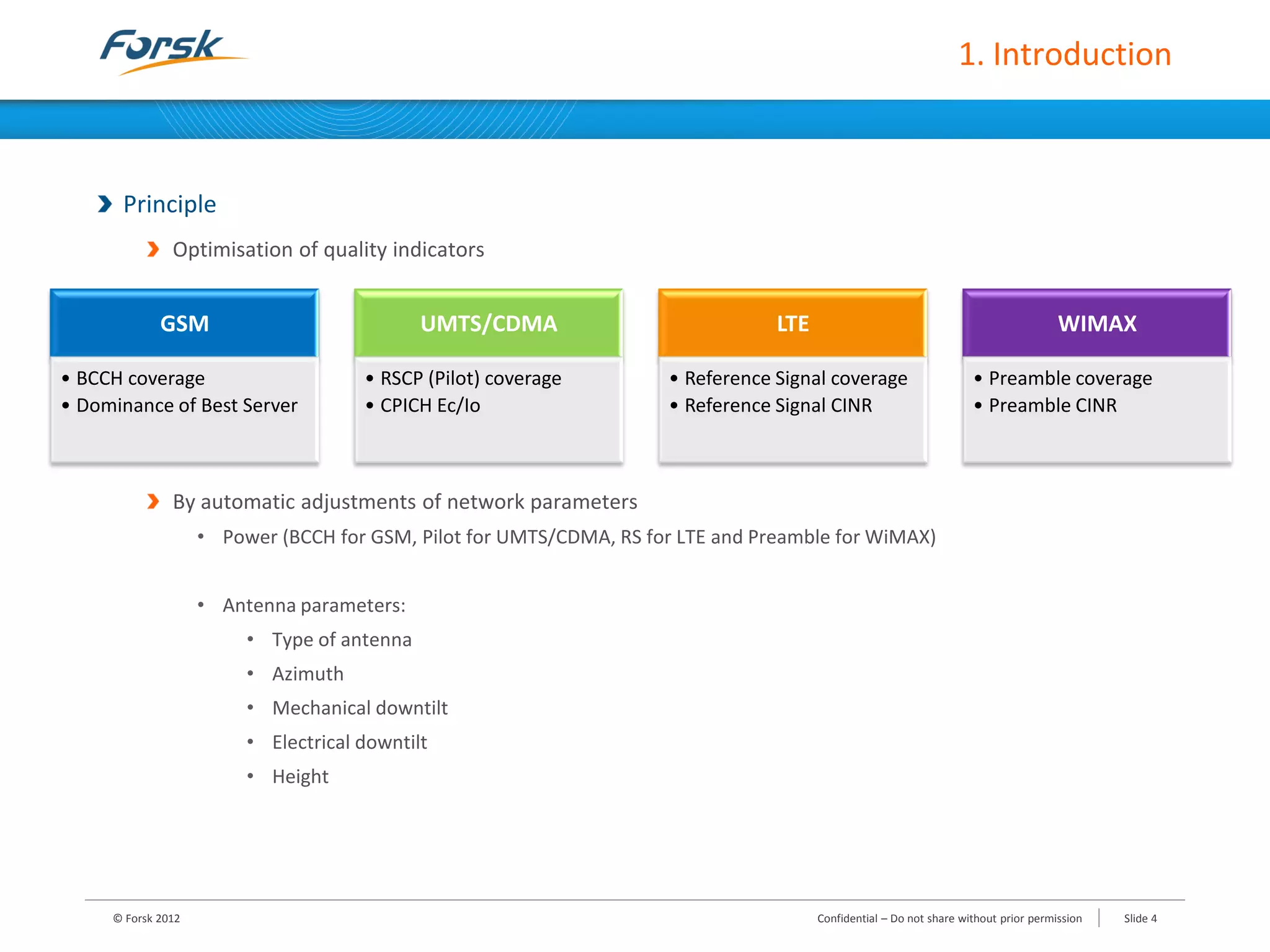
GSM
• BCCH coverage
• Dominance of Best Server
UMTS/CDMA
• RSCP (Pilot) coverage
• CPICH Ec/Io
LTE
• Reference Signal coverage
• Reference Signal CINR
WIMAX
• Preamble coverage
• Preamble CINR
1. Introduction
Principle
Optimisation process based on a cost function
The cost function depends on quality figures
• In GSM: the cost decreases when the BCCH coverage and the Best Server’s dominance increase
• In UMTS/CDMA: the cost decreases when the Pilot coverage and Pilot quality increase
• In LTE: the cost decreases when the RS coverage and RS CINR increase
• In WIMAX: the cost decreases when the Preamble coverage and Preamble CINR increase
Iterative algorithm is used
• Each iteration corresponds to one network parameter change
• Then, changes are ranked from the change with the most benefit to the change with the least benefit
© Forsk 2012 Slide 5Confidential – Do not share without prior permission
1. Introduction
2. Parameters Used by ACP
3. Network Reconfiguration Process
4. Site Selection Process
5. Other Topics
© Forsk 2012 Slide 6Confidential – Do not share without prior permission
Training Programme
2. Parameters used by ACP
Requirements
Existing and valid path loss matrices
Recommendations
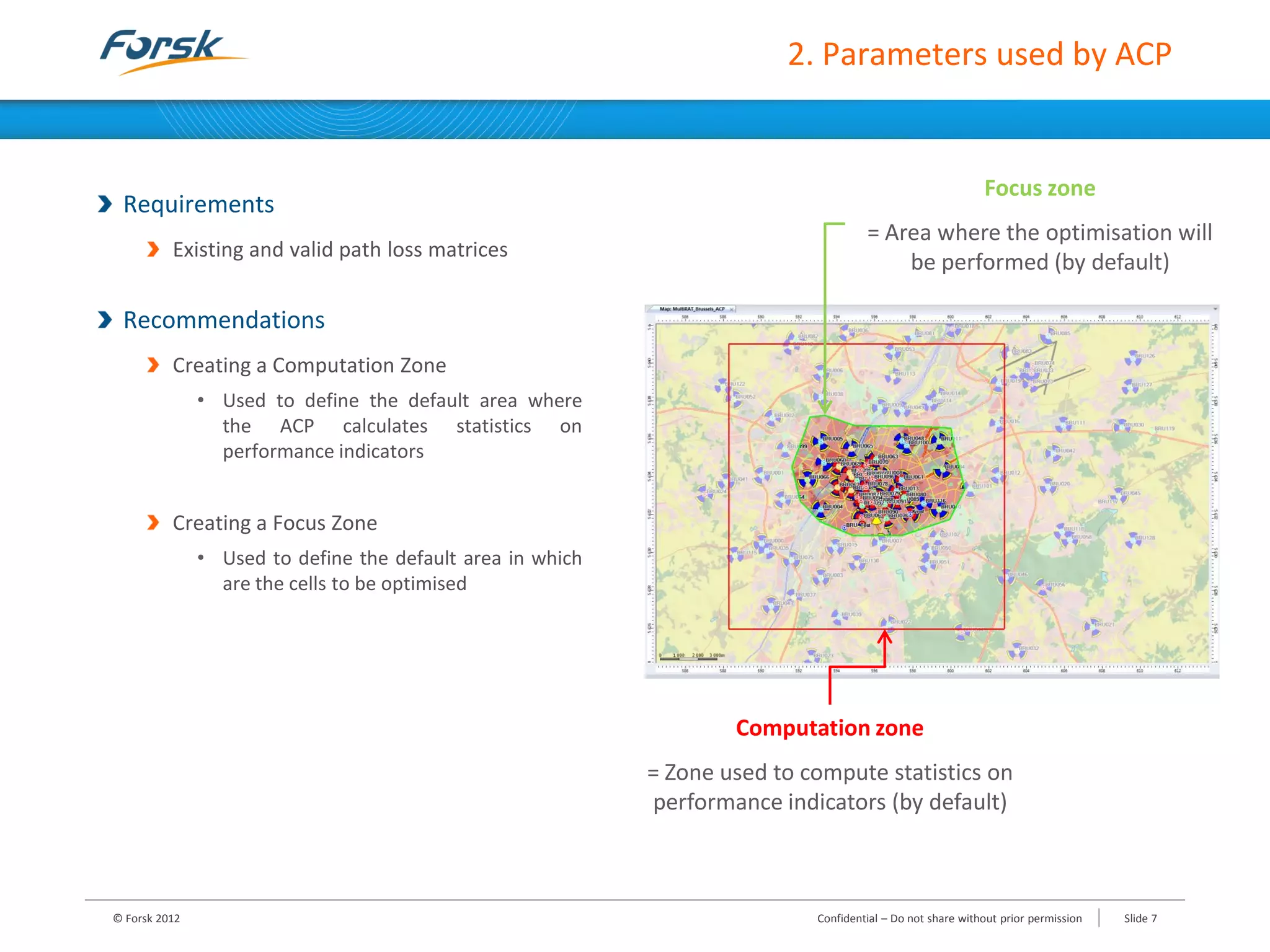
Creating a Computation Zone
• Used to define the default area where
the ACP calculates statistics on
performance indicators
Creating a Focus Zone
• Used to define the default area in which
are the cells to be optimised
© Forsk 2012 Slide 7Confidential – Do not share without prior permission
Computation zone
= Zone used to compute statistics on
performance indicators (by default)
Focus zone
= Area where the optimisation will
be performed (by default)
1. Introduction
2. Parameters Used by ACP
3. Network Reconfiguration Process
4. Site Selection Process
5. Other Topics
© Forsk 2012 Slide 8Confidential – Do not share without prior permission
Training Programme
3. Network Reconfiguration Process
Creating an Optimisation Setup
Defining Optimisation Parameters and Objectives
Running an Optimisation Process
Viewing Optimisation Results
Analysing Optimisation Results
© Forsk 2012 Slide 9Confidential – Do not share without prior permission
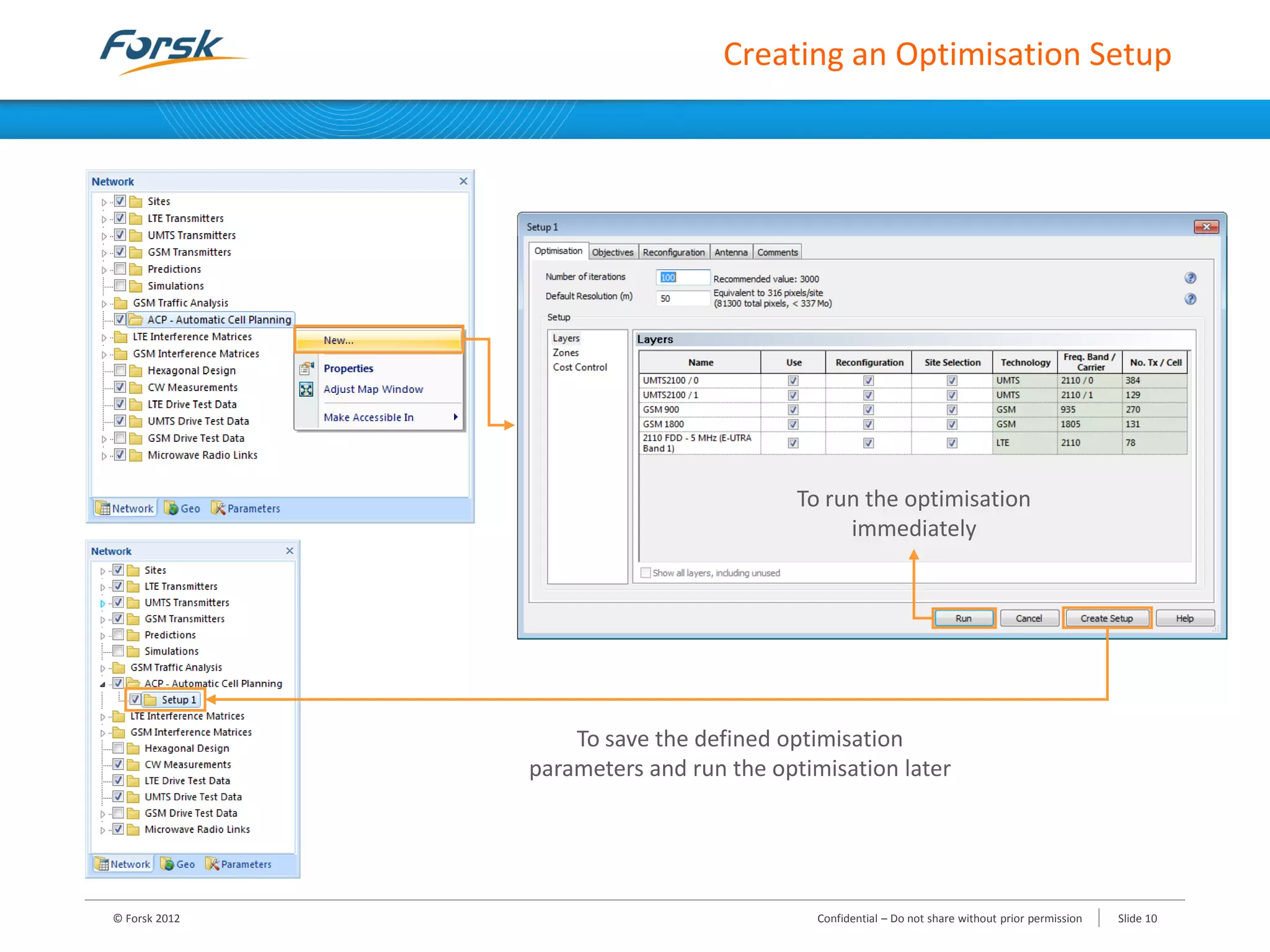
Creating an Optimisation Setup
© Forsk 2012 Slide 10Confidential – Do not share without prior permission
To run the optimisation
immediately
To save the defined optimisation
parameters and run the optimisation later
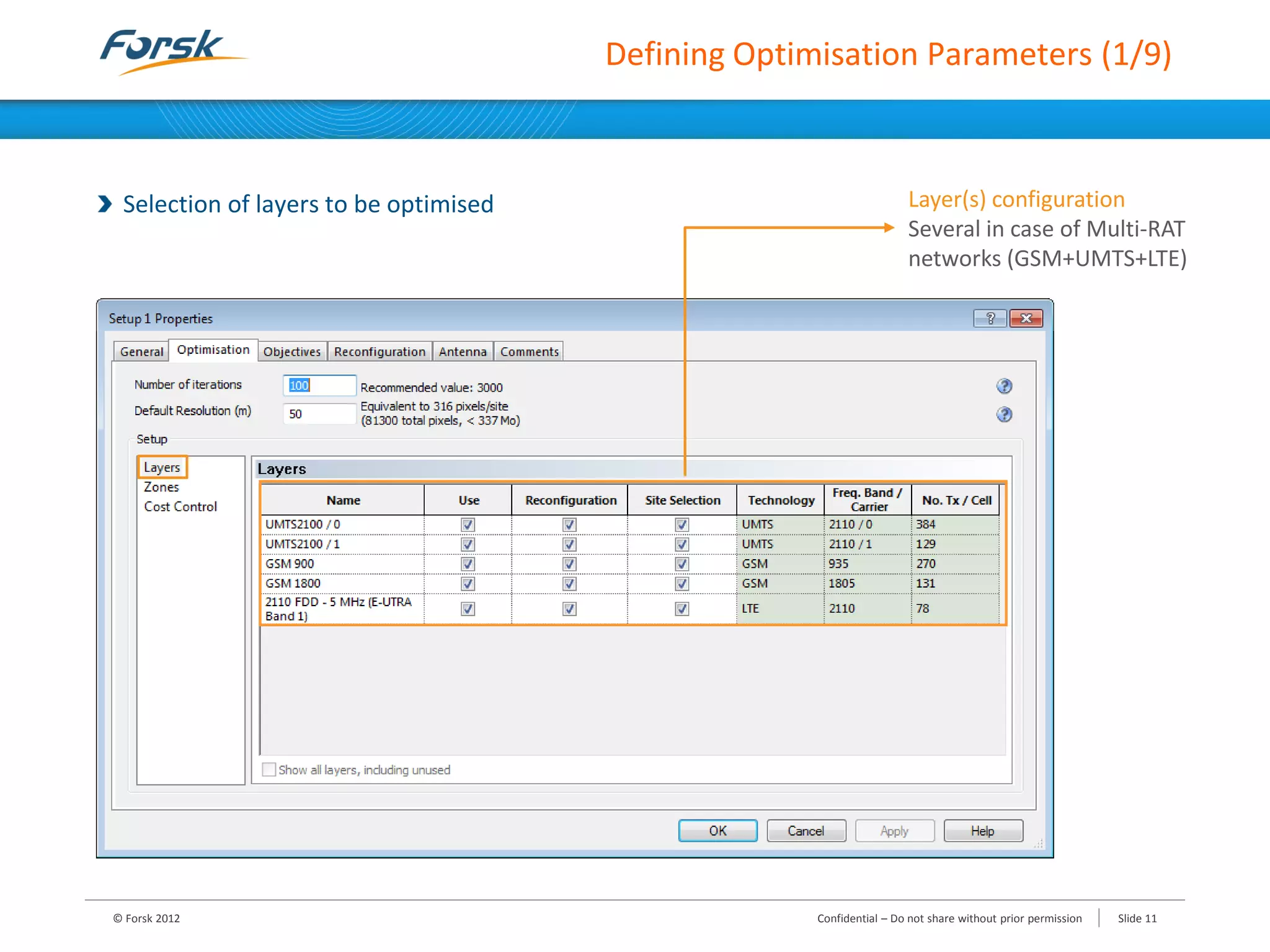
Defining Optimisation Parameters (1/9)
Selection of layers to be optimised
© Forsk 2012 Slide 11Confidential – Do not share without prior permission
Layer(s) configuration
Several in case of Multi-RAT
networks (GSM+UMTS+LTE)
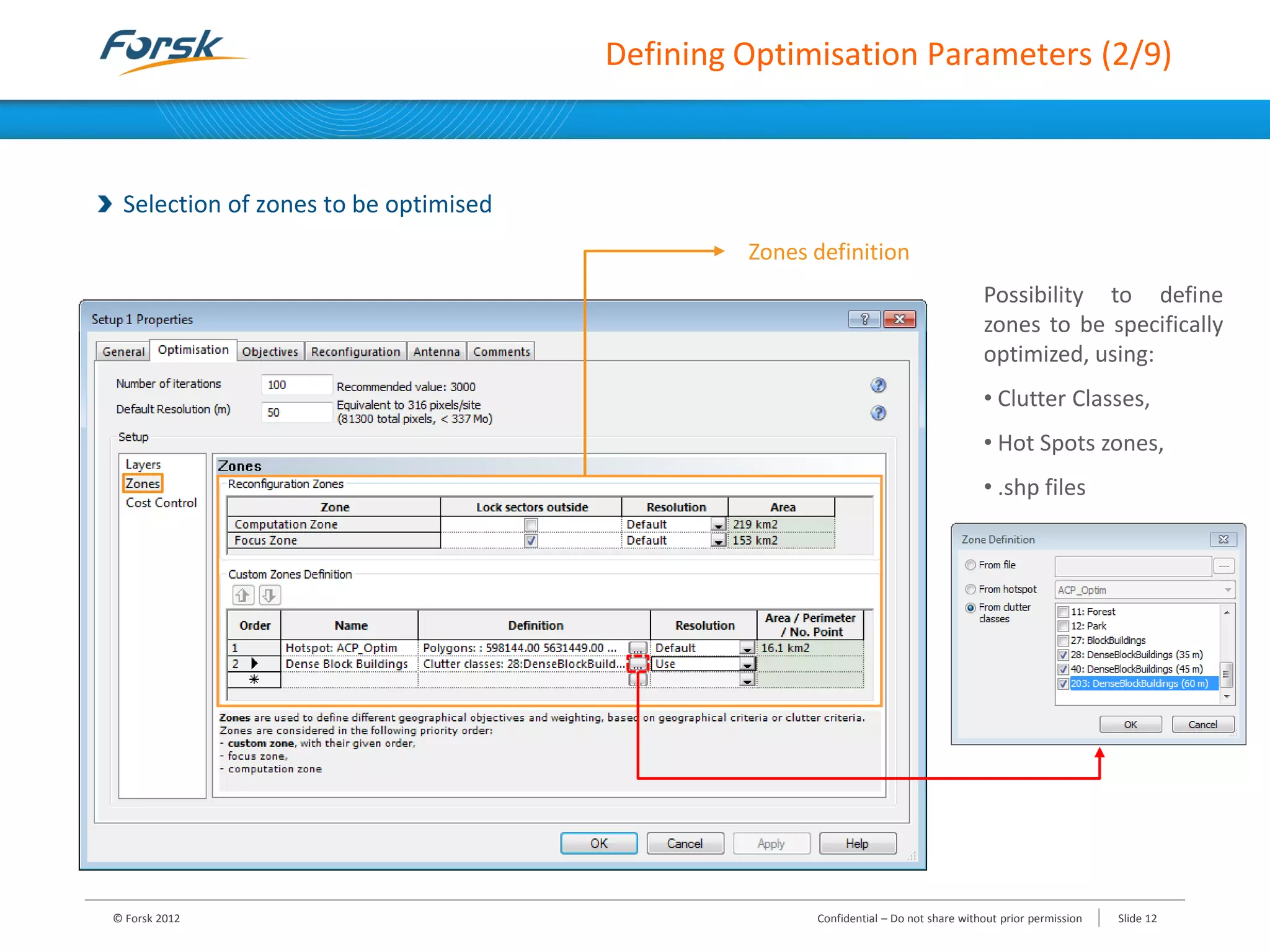
Defining Optimisation Parameters (2/9)
Selection of zones to be optimised
© Forsk 2012 Slide 12Confidential – Do not share without prior permission
Zones definition
Possibility to define
zones to be specifically
optimized, using:
• Clutter Classes,
• Hot Spots zones,
• .shp files
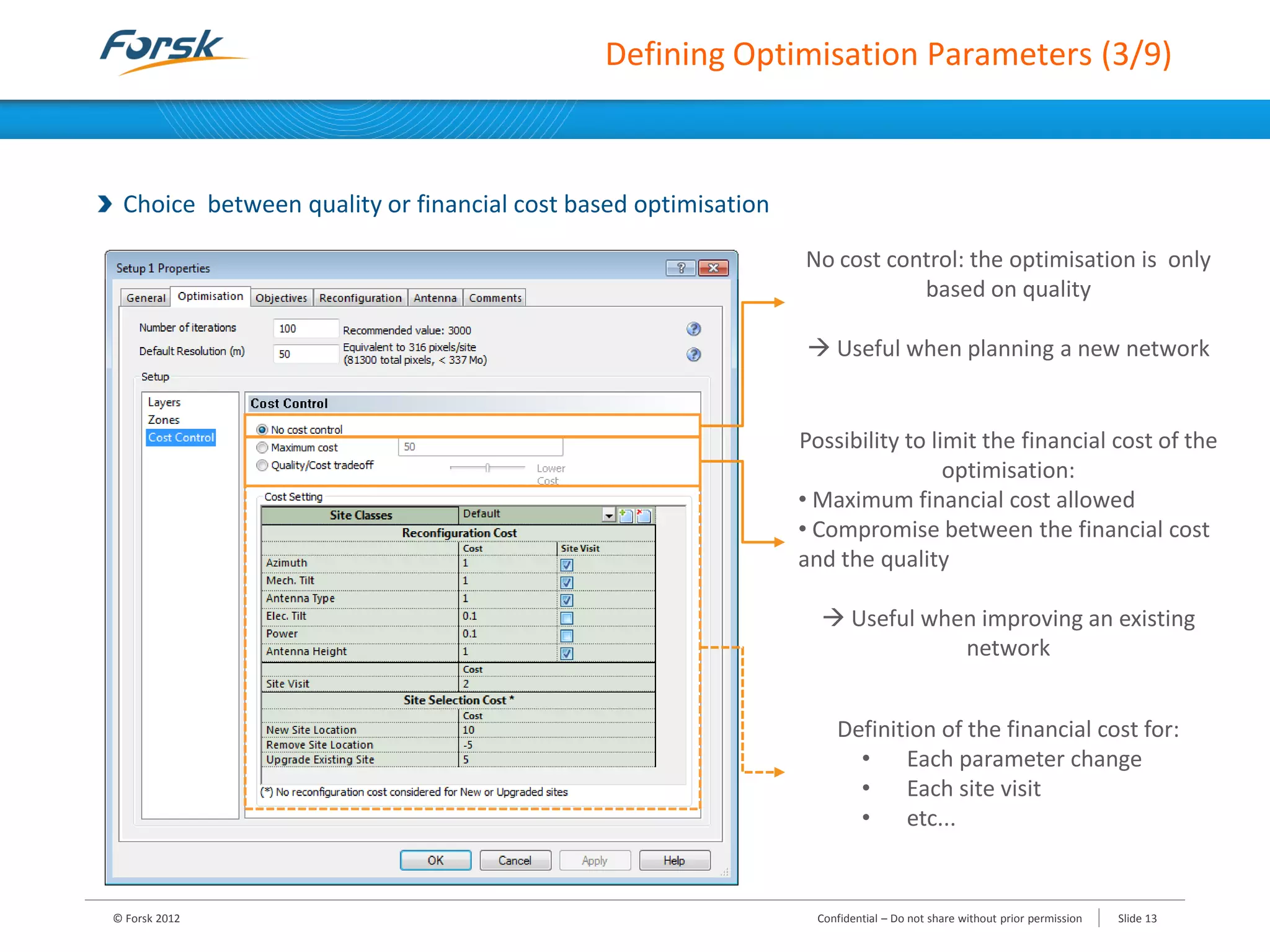
Defining Optimisation Parameters (3/9)
Choice between quality or financial cost based optimisation
© Forsk 2012 Slide 13Confidential – Do not share without prior permission
No cost control: the optimisation is only
based on quality
 Useful when planning a new network
Possibility to limit the financial cost of the
optimisation:
• Maximum financial cost allowed
• Compromise between the financial cost
and the quality
 Useful when improving an existing
network
Definition of the financial cost for:
• Each parameter change
• Each site visit
• etc...
Defining Optimisation Parameters (4/9)
Selection of transmitters/cells to be optimised
Definition of parameters that can be modified by ACP
© Forsk 2012 Slide 14Confidential – Do not share without prior permission
To define Cells’ Optimisation parameters
(Subcells power in GSM, Pilot power in UMTS, RS power in
LTE and Preamble power in WiMAX)
Defining Optimisation Parameters (5/9)
By default, GSM-UMTS-LTE transmitters sharing the same antenna parameters are linked
An auto-Link function based on site coordinates, antenna height, azimuth and mechanical tilt is provided
© Forsk 2012 Slide 15Confidential – Do not share without prior permission
Defining Optimisation Parameters (6/9)
Definition of Antenna Groups
To give some directives when reconfiguring the antenna type or the electrical tilt
© Forsk 2012 Slide 16Confidential – Do not share without prior permission
Multi band “Physical Antenna”
Dual 900 1800 – 65deg17dBi
Multi band “Physical Antenna”
Dual 900 1800 – 36deg20dBi
Antenna Element
65deg17dBi@900
Antenna Element
65deg17dBi@1800
Defining Optimisation Parameters (7/9)
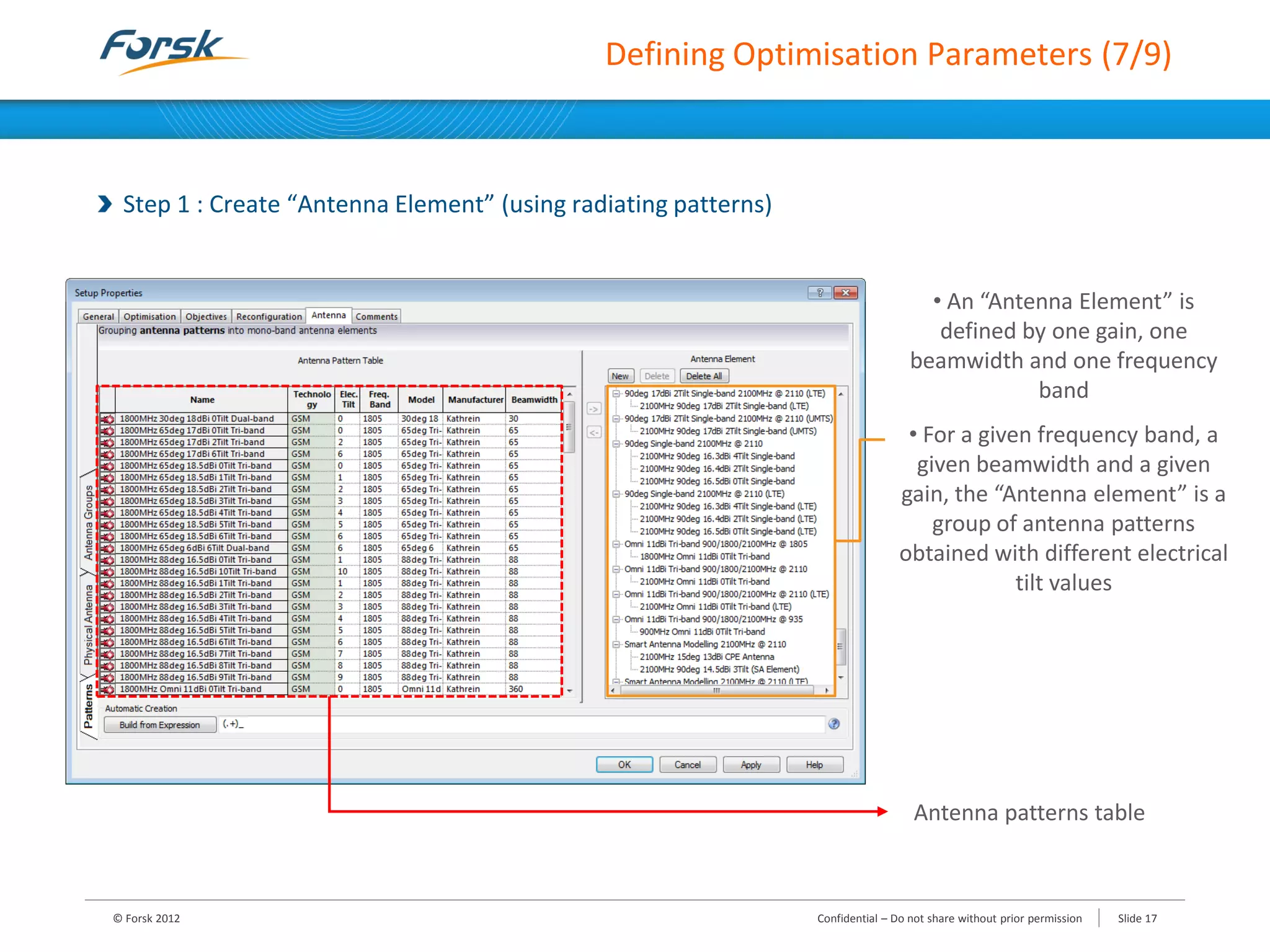
Step 1 : Create “Antenna Element” (using radiating patterns)
© Forsk 2012 Slide 17Confidential – Do not share without prior permission
• An “Antenna Element” is
defined by one gain, one
beamwidth and one frequency
band
• For a given frequency band, a
given beamwidth and a given
gain, the “Antenna element” is a
group of antenna patterns
obtained with different electrical
tilt values
Antenna patterns table
Defining Optimisation Parameters (8/9)
Step 2 : Create “Physical Antennas” (using Antenna Elements)
To define multiband antennas
© Forsk 2012 Slide 18Confidential – Do not share without prior permission
Multi band
“Physical
Antenna”
Antenna Elements
Defining Optimisation Parameters (9/9)
Step 3 : Create “Antenna Groups” (using Physical Antennas)
To define groups of Physical Antennas that will be then assigned to transmitters in the reconfiguration tab
© Forsk 2012 Slide 19Confidential – Do not share without prior permission
Antenna groups to be
assigned to TXs in the
Reconfiguration tab
Created Physical Antennas
Defining Objectives (1/11)
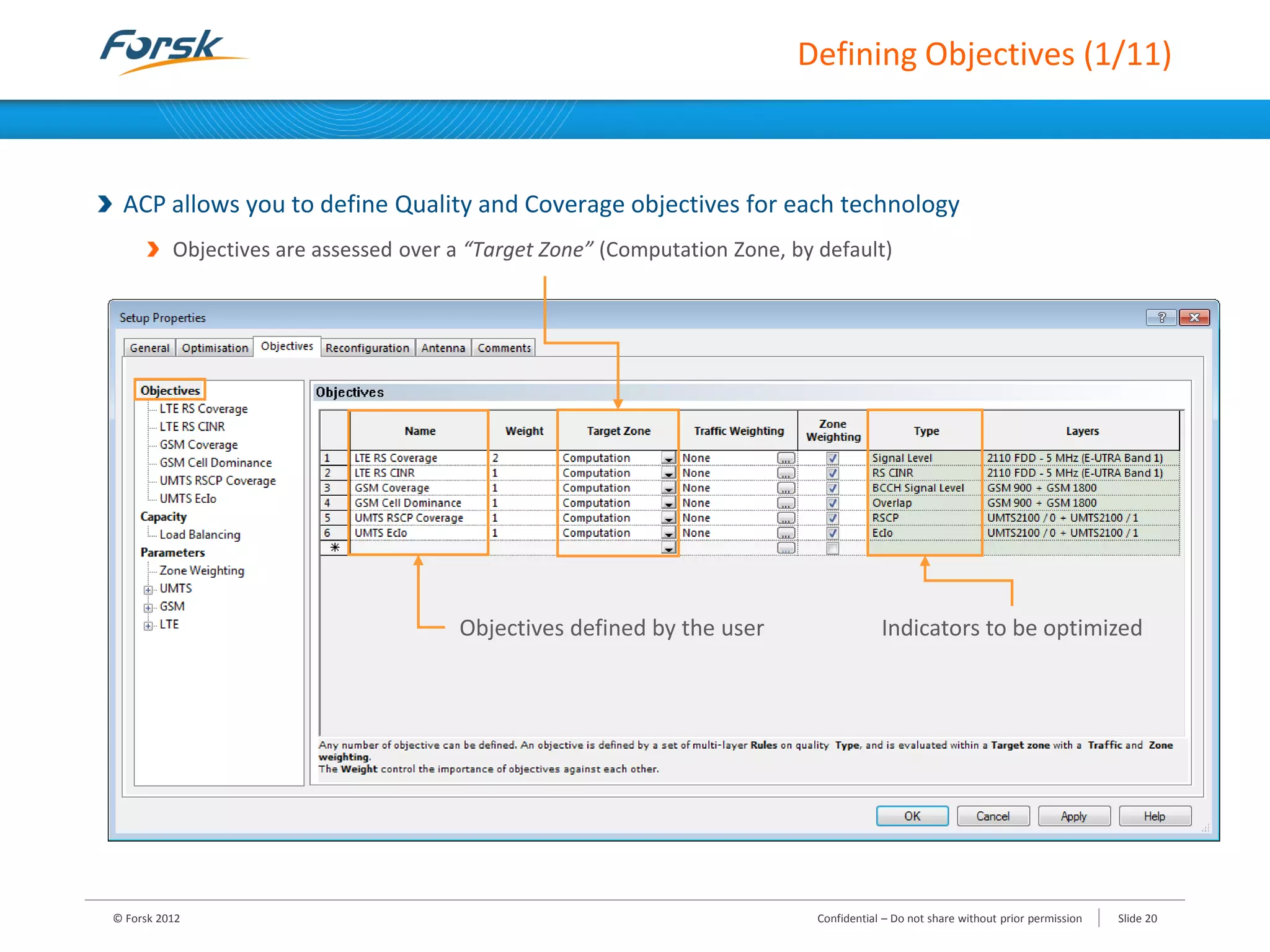
ACP allows you to define Quality and Coverage objectives for each technology
Objectives are assessed over a “Target Zone” (Computation Zone, by default)
© Forsk 2012 Slide 20Confidential – Do not share without prior permission
Objectives defined by the user Indicators to be optimized
Defining Objectives (2/11)
Objective & Zone weighting
Objectives and Zones can be weighted according to their relative importance
© Forsk 2012 Slide 21Confidential – Do not share without prior permission
Give priorities to specific Zones *
(* Priorities only apply if the “Zone Weighting” option is checked)
Give a priority to each objective
Defining Objectives (3/11)
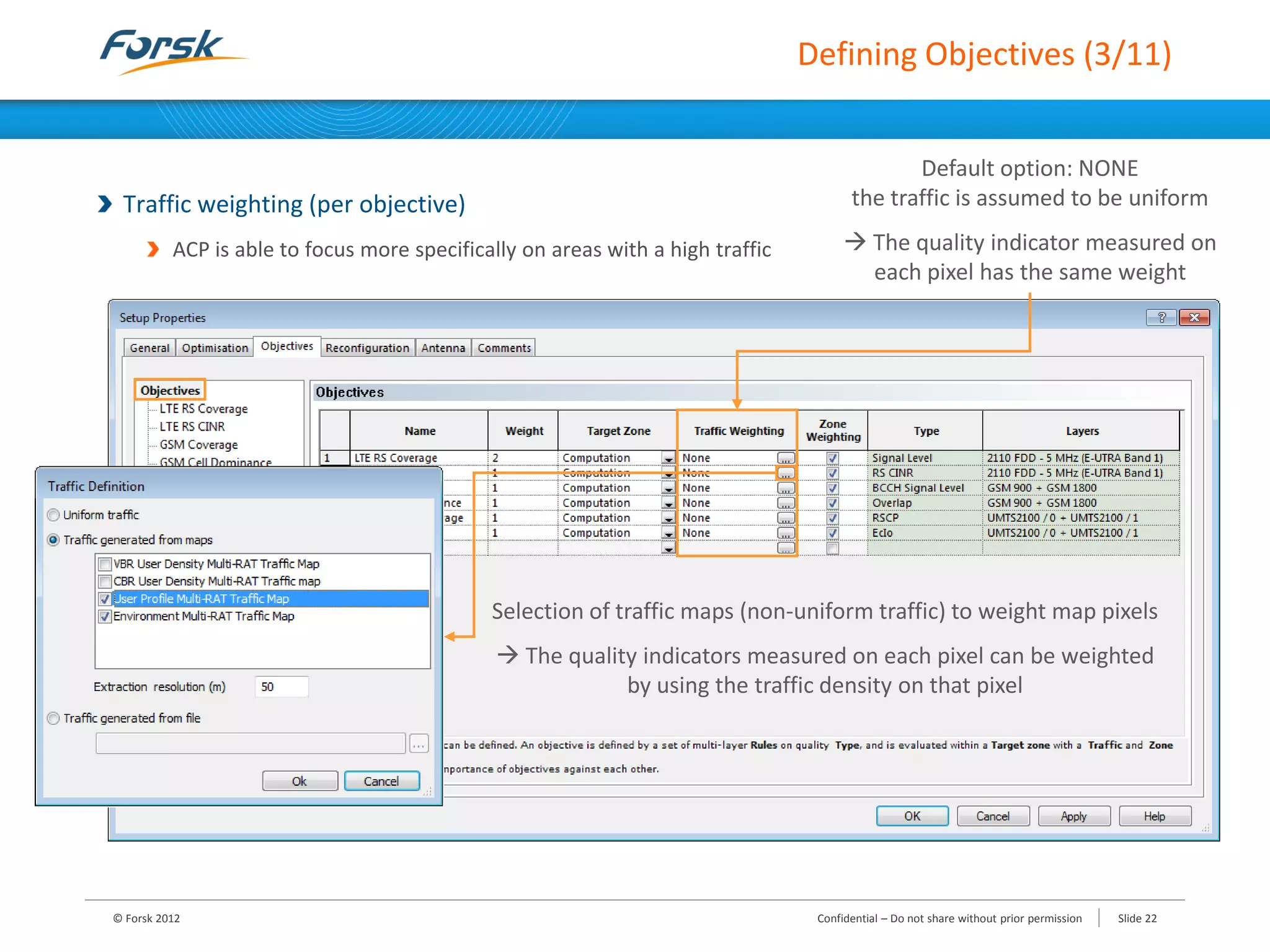
Traffic weighting (per objective)
ACP is able to focus more specifically on areas with a high traffic
© Forsk 2012 Slide 22Confidential – Do not share without prior permission
Default option: NONE
the traffic is assumed to be uniform
 The quality indicator measured on
each pixel has the same weight
Selection of traffic maps (non-uniform traffic) to weight map pixels
 The quality indicators measured on each pixel can be weighted
by using the traffic density on that pixel
Defining Objectives (4/11)
Example: Defining UMTS objectives
Coverage objectives : UMTS RSCP Coverage
© Forsk 2012 Slide 23Confidential – Do not share without prior permission
Define the
Minimum Pilot
Signal Level to
get on each
pixel of the
“Target Zone”
Coverage to be
respected while
meeting the
RSCP coverage
conditions
Defining Objectives (5/11)
Example: Defining UMTS objectives
Quality objectives : UMTS EcIo
© Forsk 2012 Slide 24Confidential – Do not share without prior permission
Define the
Minimum Pilot
Quality to get
on each pixel
of the “Target
Zone”
Coverage to be
respected while
meeting the Pilot
Quality
conditions
Defining Objectives (6/11)
Example: Defining UMTS objectives
UMTS Objectives Parameters
For each indicator to optimize, ACP settings (display configuration, shadowing margin…) can be:
• Either, taken from an existing prediction
• Or, defined manually
© Forsk 2012 Slide 25Confidential – Do not share without prior permission
Defining Objectives (7/11)
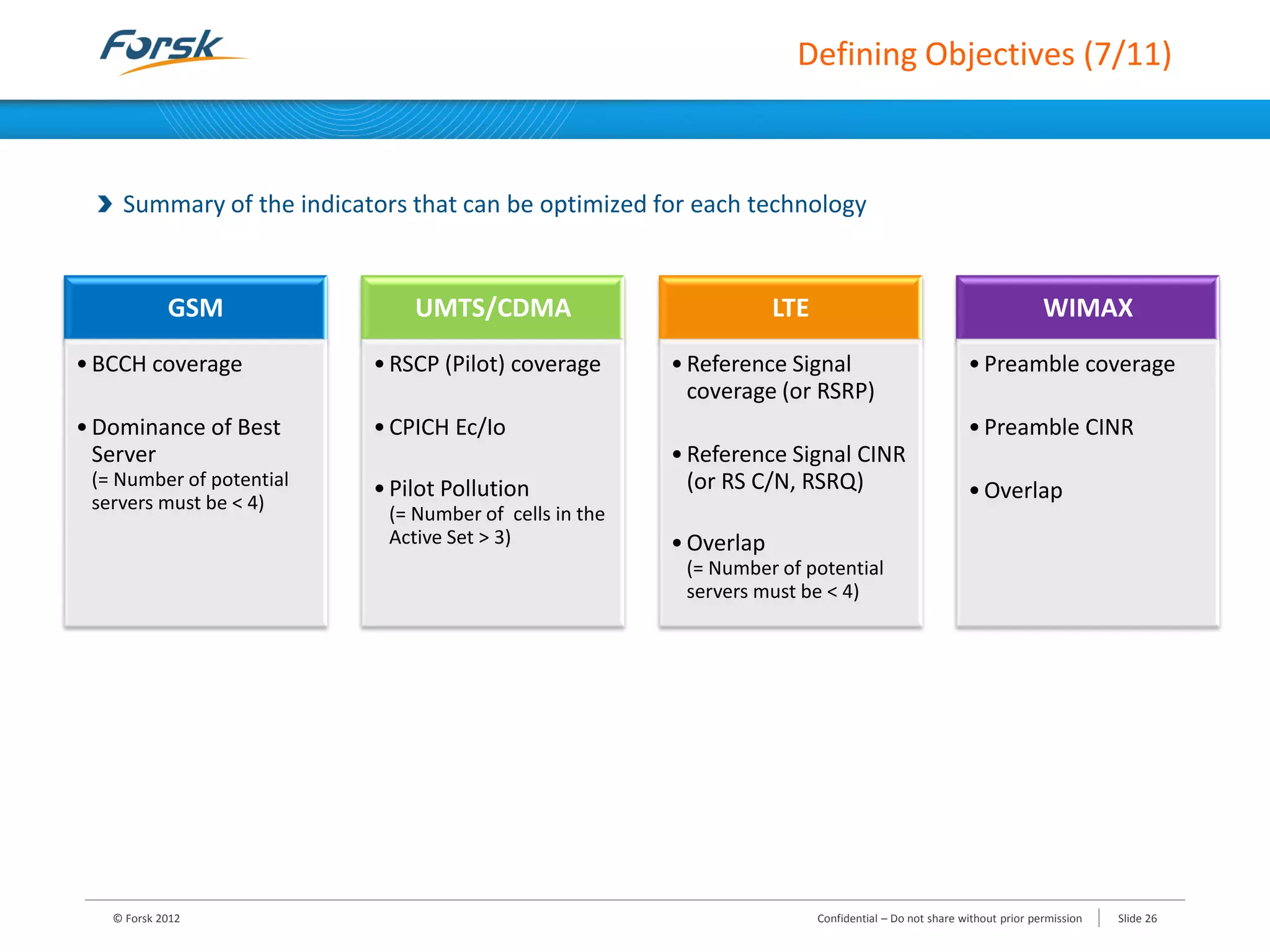
Summary of the indicators that can be optimized for each technology
© Forsk 2012 Slide 26Confidential – Do not share without prior permission
GSM
•BCCH coverage
•Dominance of Best
Server
(= Number of potential
servers must be < 4)
UMTS/CDMA
•RSCP (Pilot) coverage
•CPICH Ec/Io
•Pilot Pollution
(= Number of cells in the
Active Set > 3)
LTE
•Reference Signal
coverage (or RSRP)
•Reference Signal CINR
(or RS C/N, RSRQ)
•Overlap
(= Number of potential
servers must be < 4)
WIMAX
•Preamble coverage
•Preamble CINR
•Overlap
Load balancing (Optional)
ACP enables you to create and manage capacity planning objectives
• To prevent load imbalance between sectors and thus avoid the degradation of some KPIs
Example: Optimisation of a UMTS network by ACP without Load Balancing
The Load balancing feature relies on 2 performance indicators:
• The “Average Load” improvement (%), measures how the average load improves from the initial value
• The “Load Balance” (%), measures the dispersion of cells loads
Defining Objectives (8/11)
© Forsk 2012 Slide 27Confidential – Do not share without prior permission
Cell A: Up-tilt (2°)
Cell B: Down-tilt (1°)
• Traffic served
• Cell load
- DL Total Power
- UL Noise Rise
• Interference
• Risk of congestion
Cell Load A = 75% ; Cell Load B = 60%
Solution: Load Balancing !
Cell A Cell A
Cell B Cell B
Cell Load A = 98% ; Cell Load B = 45%
(Statistics on Cell A)
Defining Objectives (9/11)
Load balancing (Optional)
Can be activated in the “Objectives” tab under “Load Balancing”
© Forsk 2012 Slide 28Confidential – Do not share without prior permission
Recommendation:
Keep the default
configuration
Allows you to select the
layers for which load
balancing is performed
Defining Objectives (10/11)
Load balancing (Optional)
Traffic related to capacity planning can be defined in the “Capacity” tab
© Forsk 2012 Slide 29Confidential – Do not share without prior permission
Traffic can be
considered as uniform
(evenly spread on each
service area) or,
generated from traffic
maps
Defining Objectives (11/11)
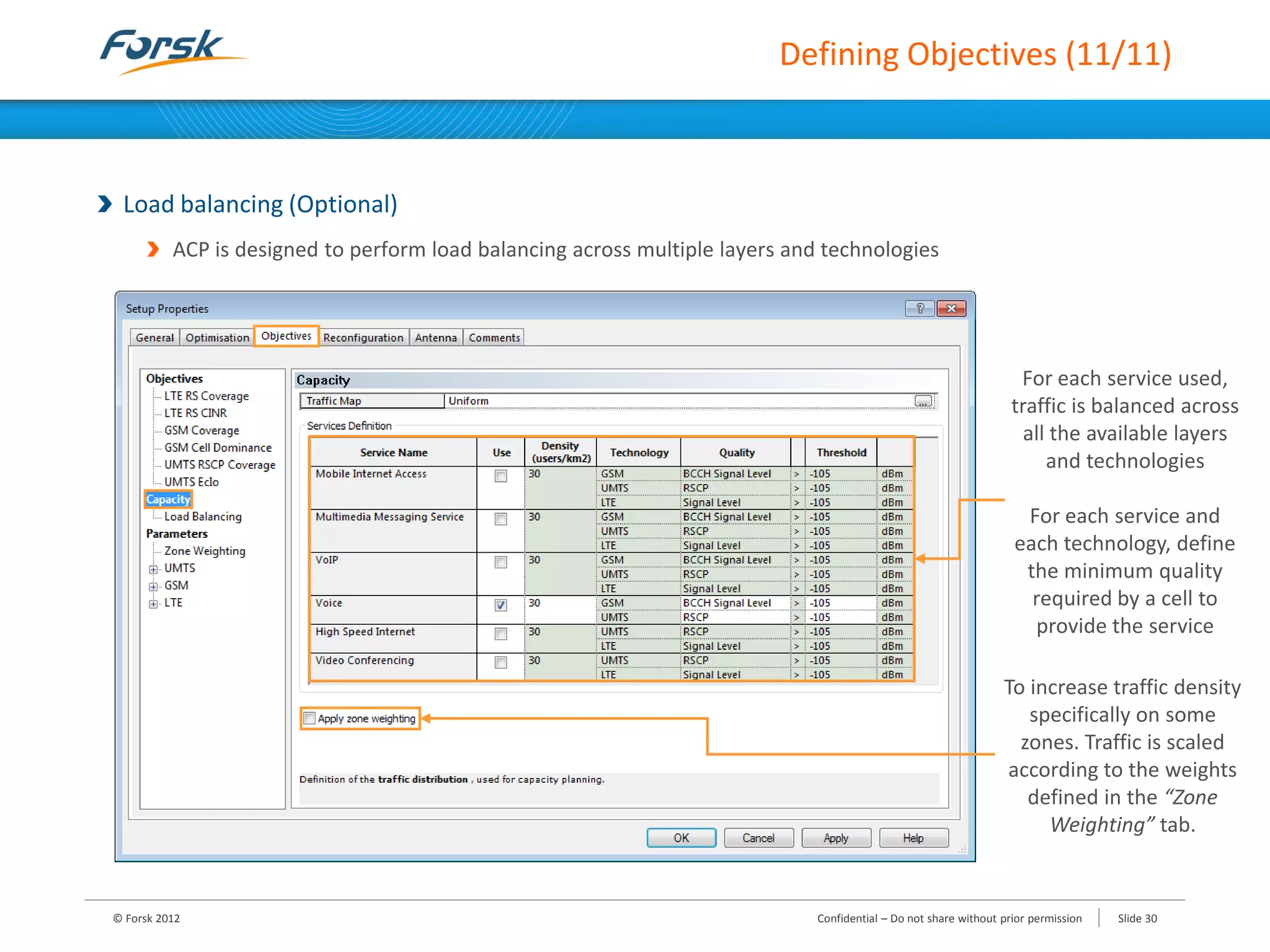
Load balancing (Optional)
ACP is designed to perform load balancing across multiple layers and technologies
© Forsk 2012 Slide 30Confidential – Do not share without prior permission
For each service used,
traffic is balanced across
all the available layers
and technologies
For each service and
each technology, define
the minimum quality
required by a cell to
provide the service
To increase traffic density
specifically on some
zones. Traffic is scaled
according to the weights
defined in the “Zone
Weighting” tab.
Running an Optimisation Process (1/4)
Graphical display of the optimisation progress
“Graphs” tab: Variation of performance objectives in real time with iterations
© Forsk 2012 Slide 31Confidential – Do not share without prior permission
The optimisation process can be
paused or stopped early
Running an Optimisation Process (2/4)
Graphical display of the optimisation progress
“Changes” tab: Type and number of changes
© Forsk 2012 Slide 32Confidential – Do not share without prior permission
Running an Optimisation Process (3/4)
Graphical display of the optimisation progress
“Quality” tab: Coverage and Quality improvements (variations)
© Forsk 2012 Slide 33Confidential – Do not share without prior permission
Running an Optimisation Process (4/4)
Graphical display of the optimisation progress
“Objectives” tab: To see at a glance if the objective is achieved or not
© Forsk 2012 Slide 34Confidential – Do not share without prior permission
Select the
objective to be
analysed
(coverage and
quality
indicators)
Viewing Optimisation Results (1/5)
Optimisation results are stored in the optimisation
folder
Results available in 7 tabs
“Statistics” tab: synthesised view of optimisation
results for each objective
Statistics provided for the “Target zone”
• To get statistics on the other zones select “Show
Detailed Zone Results”
© Forsk 2012 Slide 35Confidential – Do not share without prior permission
Statistics
for each
objective
Global report available
in “Excel” format
Viewing Optimisation Results (2/5)
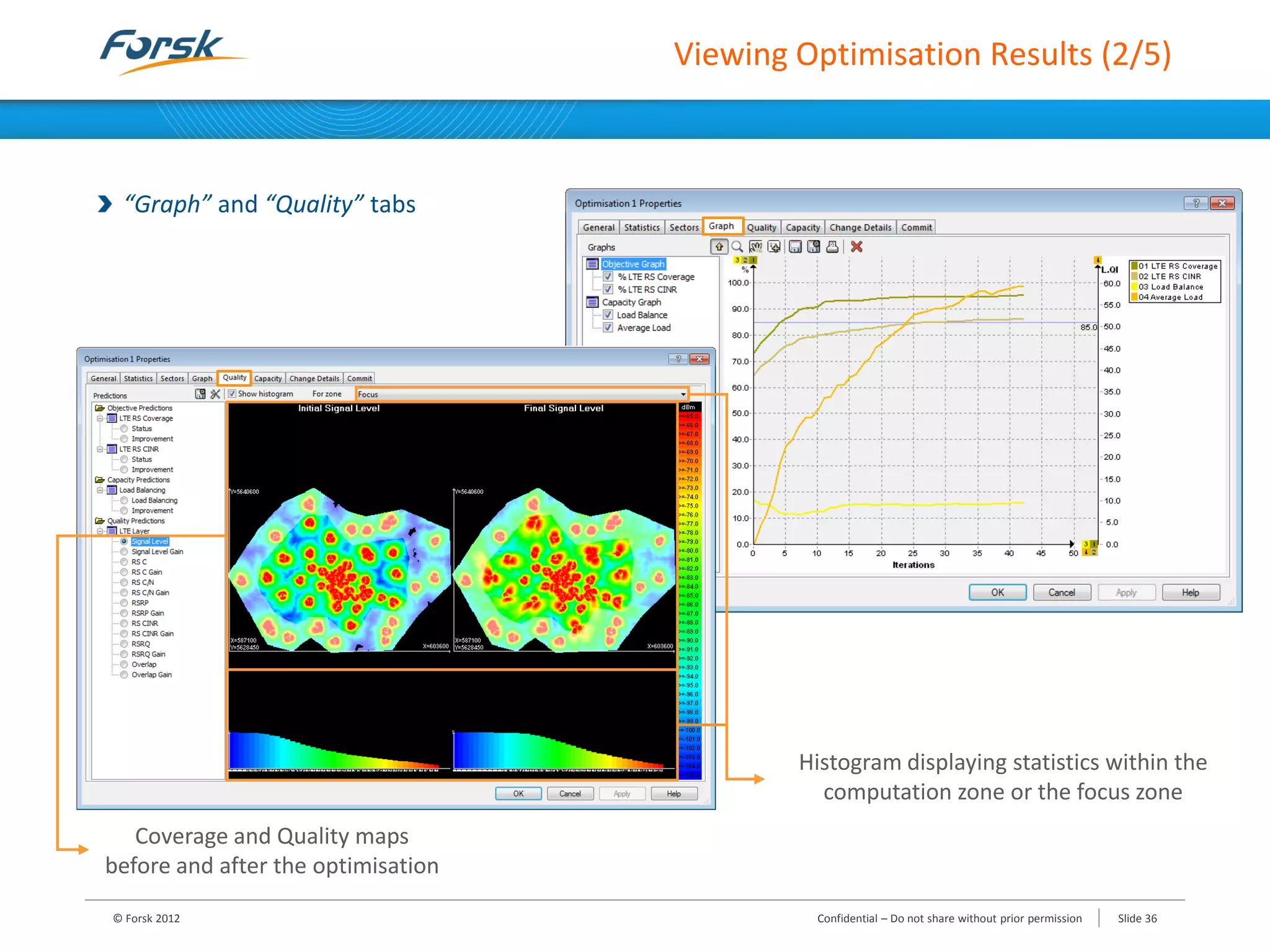
“Graph” and “Quality” tabs
© Forsk 2012 Slide 36Confidential – Do not share without prior permission
Histogram displaying statistics within the
computation zone or the focus zone
Coverage and Quality maps
before and after the optimisation
Viewing Optimisation Results (3/5)
“Capacity” tab
Provides capacity load statistics for the initial and the optimised network
© Forsk 2012 Slide 37Confidential – Do not share without prior permission
The graph shows the ratio of cells
with a capacity load that is smaller
than a given capacity load value (%).
Usually, the best result that you can
get is a final curve (blue curve) on
top of the initial curve (red curve).
Statistics based on the values
displayed in the table (on the right)
Viewing Optimisation Results (4/5)
“Change Details” tab
Analysis of improvements according to the number of changes
Changes are ordered by “profitability”
• The most “profitable” changes will be applied first
© Forsk 2012 Slide 38Confidential – Do not share without prior permission
Slider to select a subset of all
changes and view the corresponding
performance improvement on the
graph (global improvement and
improvement of each objective)
List of changes ranked from the change
with the most effect to the change with
the least effect
Selected changes are displayed in green
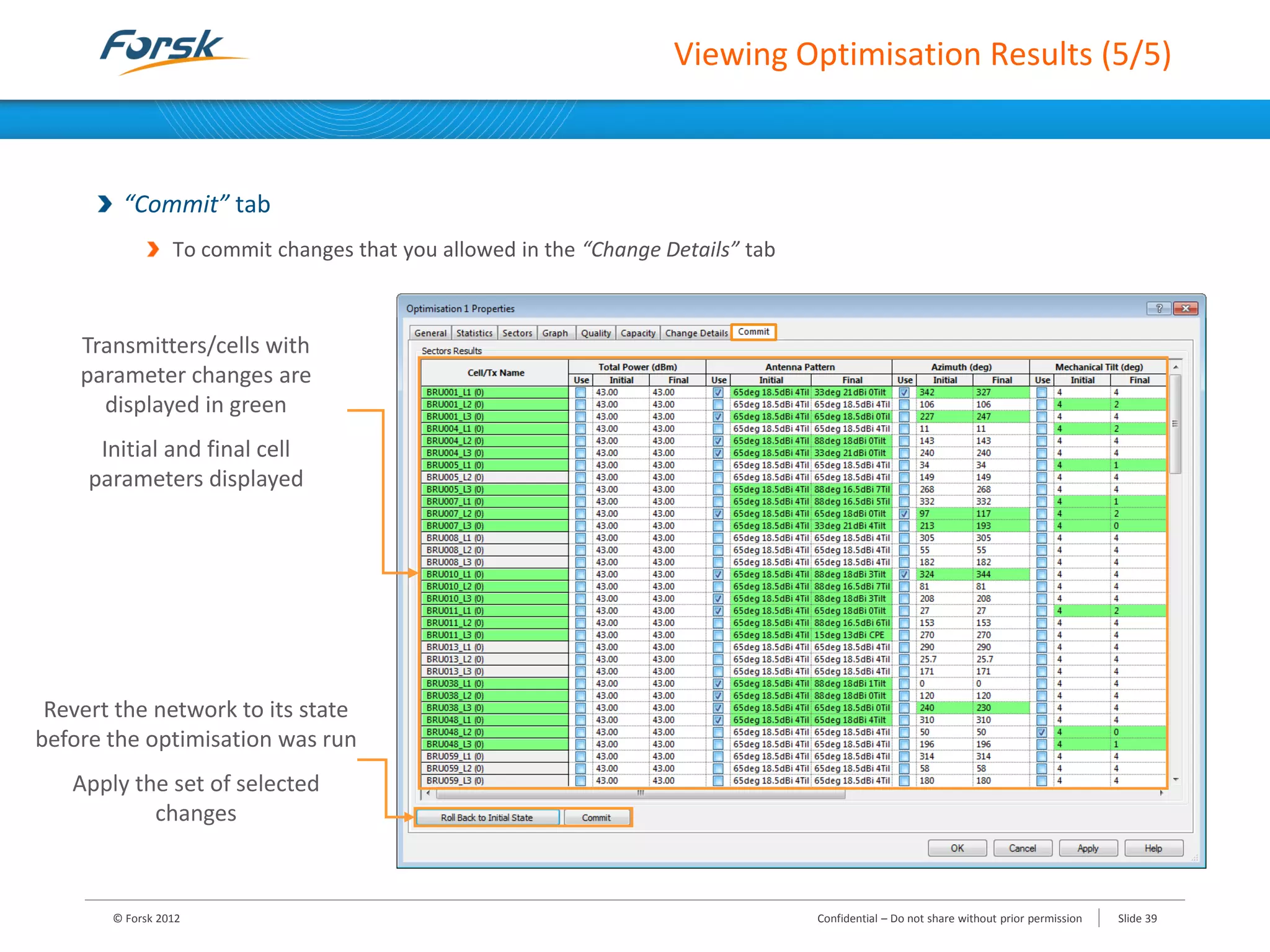
Viewing Optimisation Results (5/5)
“Commit” tab
To commit changes that you allowed in the “Change Details” tab
© Forsk 2012 Slide 39Confidential – Do not share without prior permission
Transmitters/cells with
parameter changes are
displayed in green
Initial and final cell
parameters displayed
Revert the network to its state
before the optimisation was run
Apply the set of selected
changes
Analysing Optimisation Results (1/5)
Process
Quick validation of optimisation results using the ACP maps
• First analysis available without having to commit ACP results
• Based on the entire set of proposed changes
Deeper analysis with coverage predictions available in the predictions folder
• After committing ACP results
ACP Maps Available
Quality analysis maps
• Display of Coverage and Quality maps
Coverage analysis
• Status of the coverage according to the defined objectives used in the optimisation
Change analysis
• Analysis of changes: antenna, tilt, azimuth
Best server analysis
• Absolute values of changed parameters
© Forsk 2012 Slide 40Confidential – Do not share without prior permission
Analysing Optimisation Results (2/5)
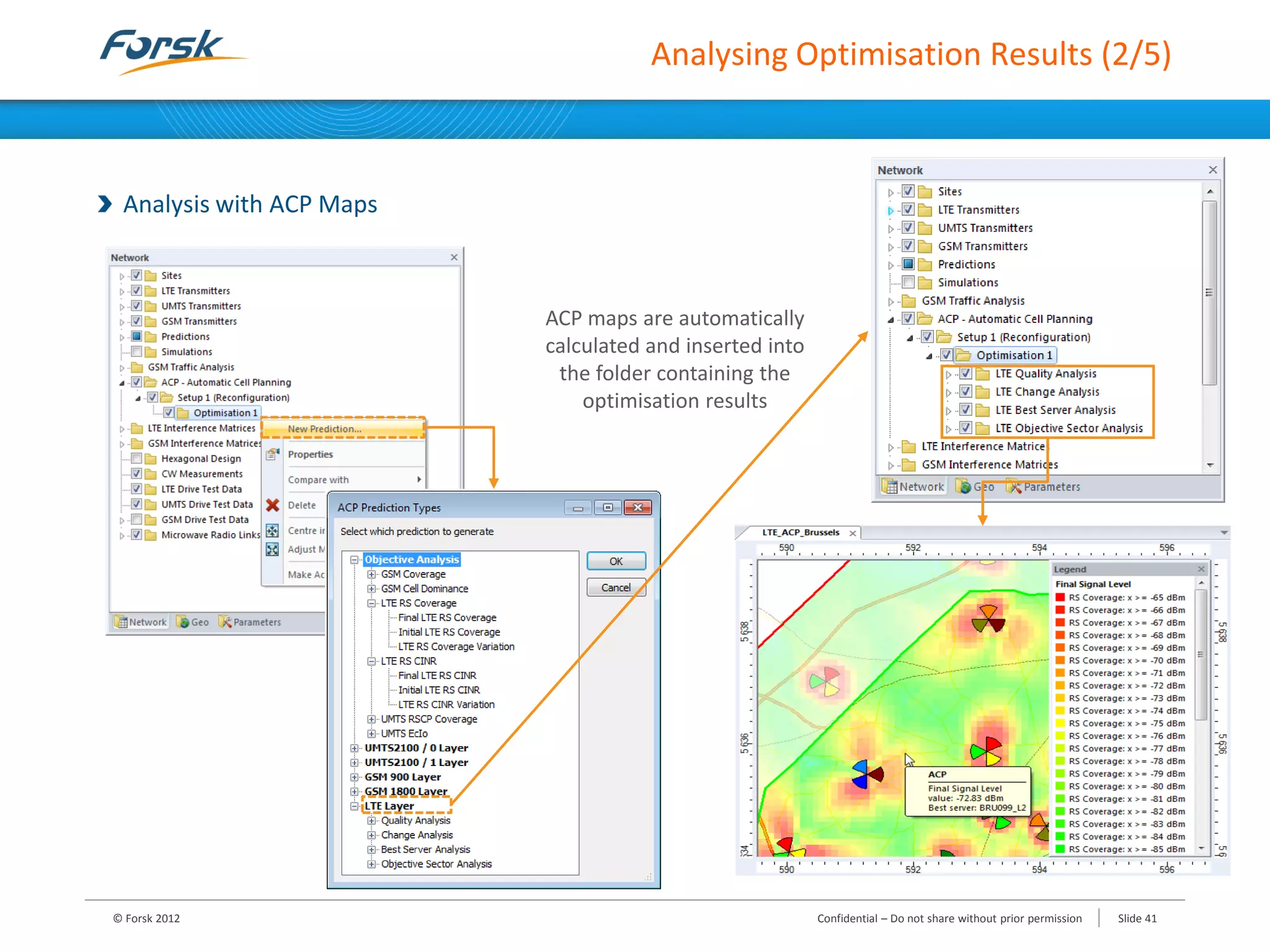
Analysis with ACP Maps
© Forsk 2012 Slide 41Confidential – Do not share without prior permission
ACP maps are automatically
calculated and inserted into
the folder containing the
optimisation results
Analysing Optimisation Results (3/5)
Analysis with ACP Maps
Tiptext available for any ACP map
• The exact calculated value is displayed on each pixel
Display properties of ACP maps
• Automatic update of the ACP map after changing colours or range of values
© Forsk 2012 Slide 42Confidential – Do not share without prior permission
Analysing Optimisation Results (4/5)
Analysis with ACP Maps
Histogram available on ACP maps
Comparison tool
• Available to compare ACP maps from the same optimisation or from a different optimisation
© Forsk 2012 Slide 43Confidential – Do not share without prior permission
Analysing Optimisation Results (5/5)
Analysis with coverage predictions from the predictions folder
Requirement: Commit results of the optimisation
Calculating prediction studies before and after the optimisation
Generating reports on the predictions studies before and after the optimisation in order to check if
network quality figures have been improved
Possibility to “Roll back to Initial State”
© Forsk 2012 Slide 44Confidential – Do not share without prior permission
1. Introduction
2. Parameters Used by ACP
3. Network Reconfiguration Process
4. Site Selection Process
5. Other Topics
© Forsk 2012 Slide 45Confidential – Do not share without prior permission
Training Programme
4. Site Selection Process
Overview
Defining Candidate Sites
Viewing Optimisation Results
© Forsk 2012 Slide 46Confidential – Do not share without prior permission
Overview (1/2)
Examples of Site Selection process
Scenario 1: using ACP to select the best site among several candidates on a given geographical area
• 3 candidate sites available
• Candidate sites are assigned to a group where the minimum and the maximum site occurrence is set to “1”
 Among the 3 candidates, the ACP is forced to select only one site
Scenario 2: using ACP to deploy the LTE technology on a given area using existing UMTS sites
• About 40 UMTS sites (i.e. 40 candidate sites) available on the target area
• Candidate sites are assigned to a group where the minimum site occurrence is set to “10” and the maximum
to “20”
 Among the 40 candidates, the ACP is forced to select between 10 and 20 sites to reach objectives
© Forsk 2012 Slide 47Confidential – Do not share without prior permission
Overview (2/2)
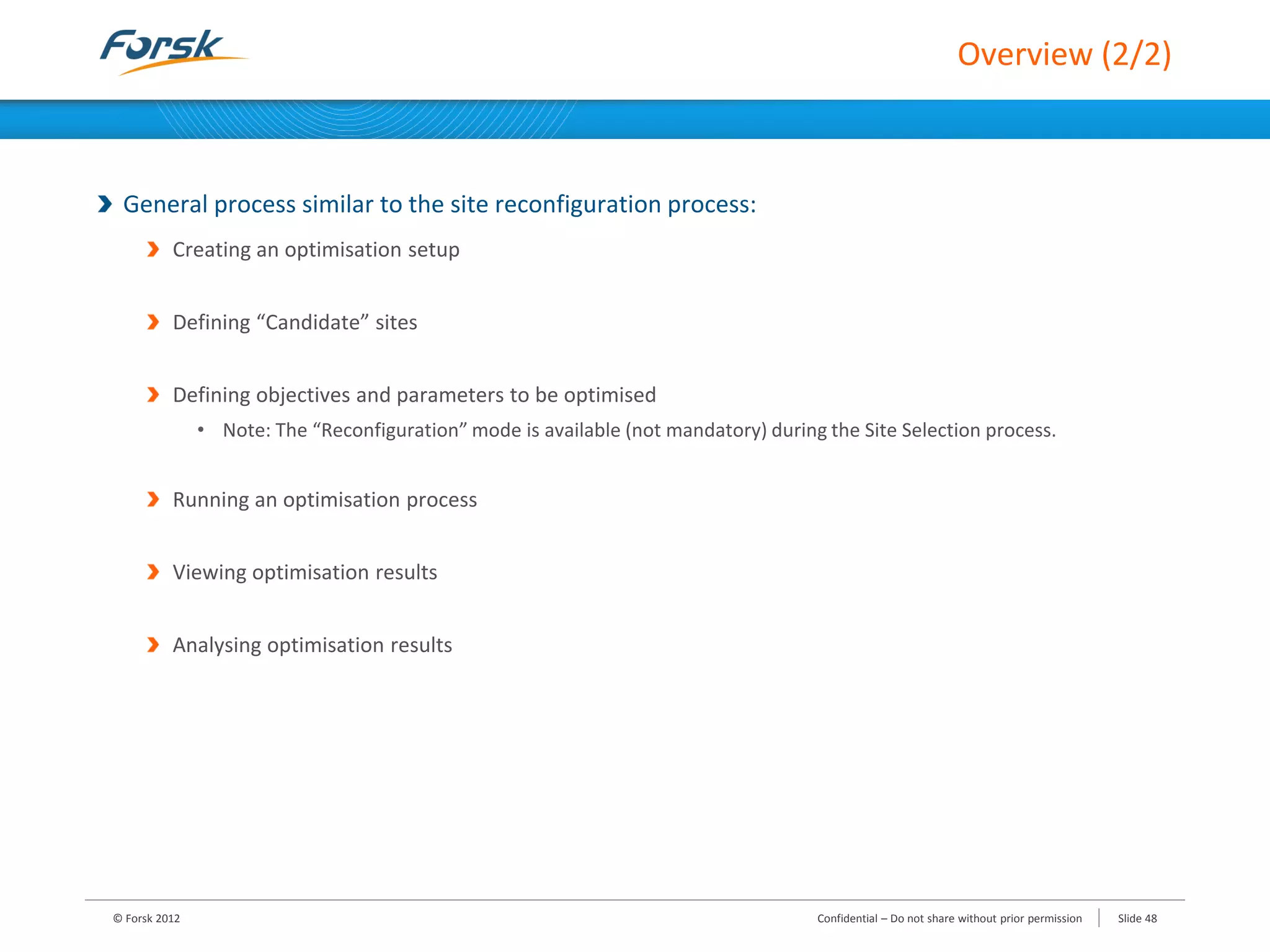
General process similar to the site reconfiguration process:
Creating an optimisation setup
Defining “Candidate” sites
Defining objectives and parameters to be optimised
• Note: The “Reconfiguration” mode is available (not mandatory) during the Site Selection process.
Running an optimisation process
Viewing optimisation results
Analysing optimisation results
© Forsk 2012 Slide 48Confidential – Do not share without prior permission
Defining Candidate Sites (1/3)
By using pre-defined sites
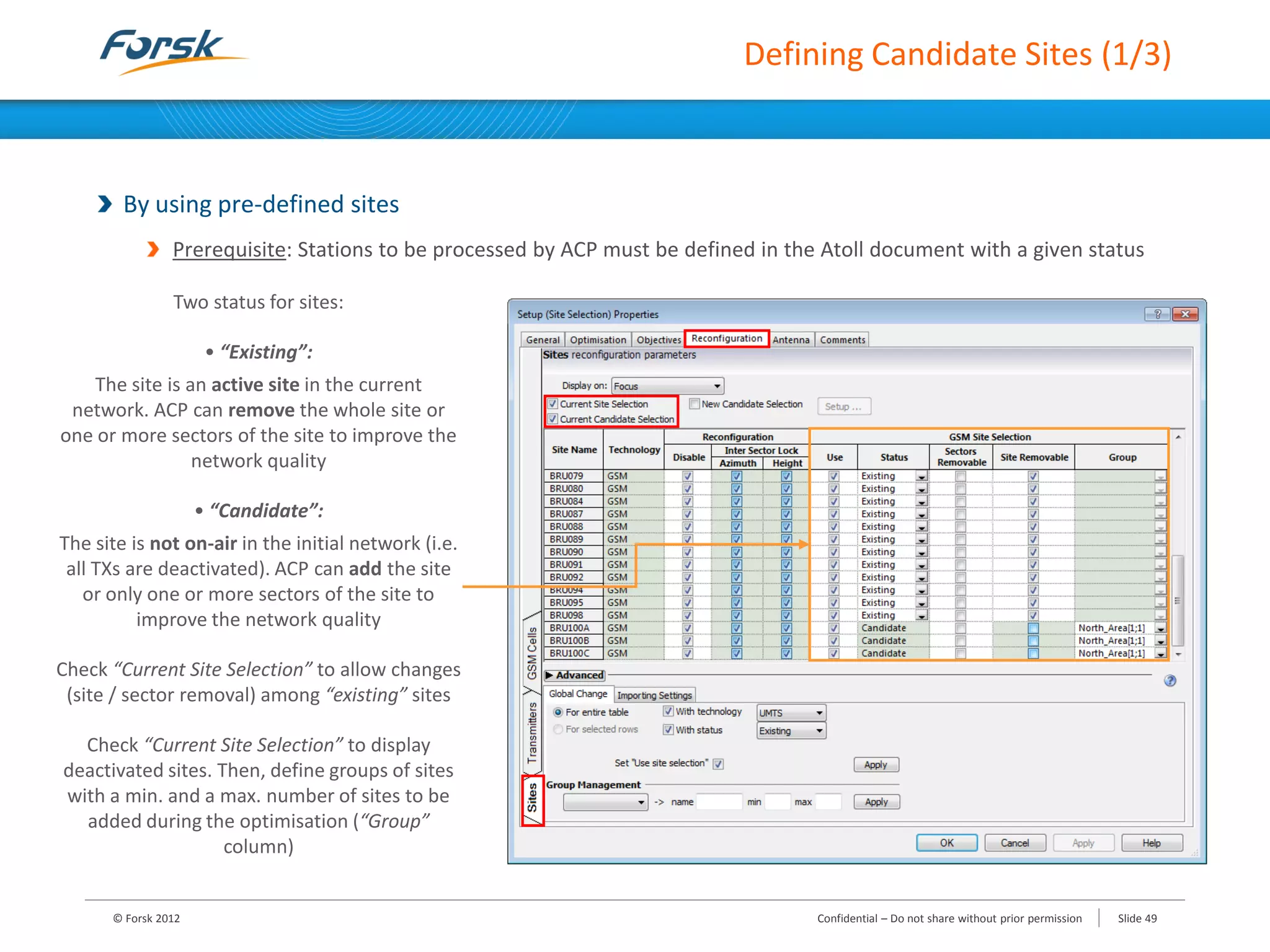
Prerequisite: Stations to be processed by ACP must be defined in the Atoll document with a given status
© Forsk 2012 Slide 49Confidential – Do not share without prior permission
Two status for sites:
• “Existing”:
The site is an active site in the current
network. ACP can remove the whole site or
one or more sectors of the site to improve the
network quality
• “Candidate”:
The site is not on-air in the initial network (i.e.
all TXs are deactivated). ACP can add the site
or only one or more sectors of the site to
improve the network quality
Check “Current Site Selection” to allow changes
(site / sector removal) among “existing” sites
Check “Current Site Selection” to display
deactivated sites. Then, define groups of sites
with a min. and a max. number of sites to be
added during the optimisation (“Group”
column)
Defining Candidate Sites (2/3)
By using pre-defined sites
© Forsk 2012 Slide 50Confidential – Do not share without prior permission
“Advanced” tab:
Allows you to apply the same
locking options to a set of sites,
and to manage groups
“Reconfiguration” column:
Select “Disable” to prevent ACP from making
any changes to the Transmitters or to the Cells,
as defined in the Transmitters and the
[Technology] Cells tabs
In case of network reconfiguration, you can
preserve the current angular separation
between antennas, and the relative height
difference between them
Defining Candidate Sites (3/3)
By importing a list of candidate sites
© Forsk 2012 Slide 51Confidential – Do not share without prior permission
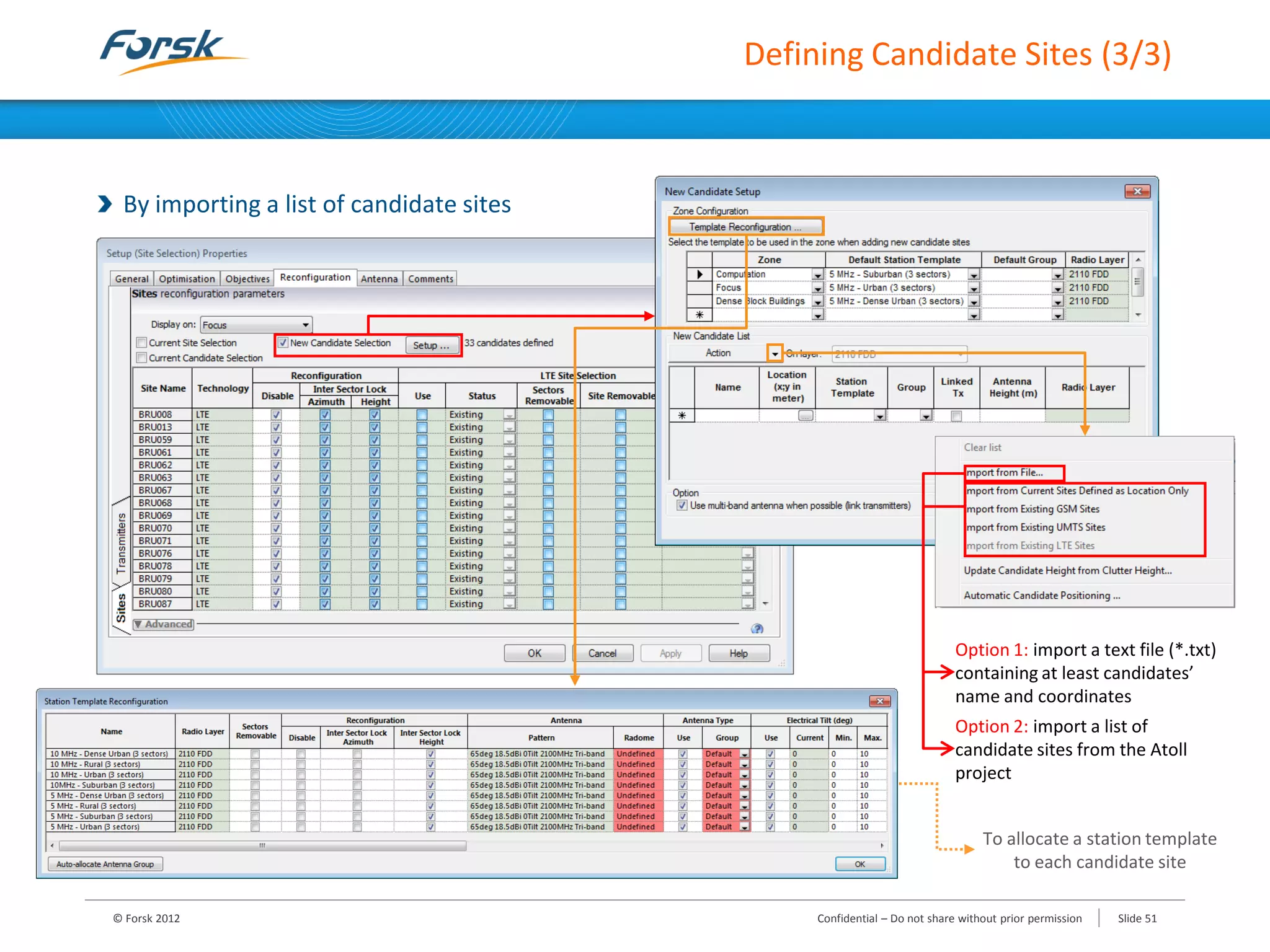
Option 1: import a text file (*.txt)
containing at least candidates’
name and coordinates
Option 2: import a list of
candidate sites from the Atoll
project
To allocate a station template
to each candidate site
Viewing Site Selection Results (1/3)
Statistics Report
© Forsk 2012 Slide 52Confidential – Do not share without prior permission
Statistics and status of the
optimisation (Achieved or
Failed) for each objective
Select “Show Change Statistics” to get
statistics on the sites/sectors added or
removed, and all the changes made
during the optimisation process
Viewing Site Selection Results (2/3)
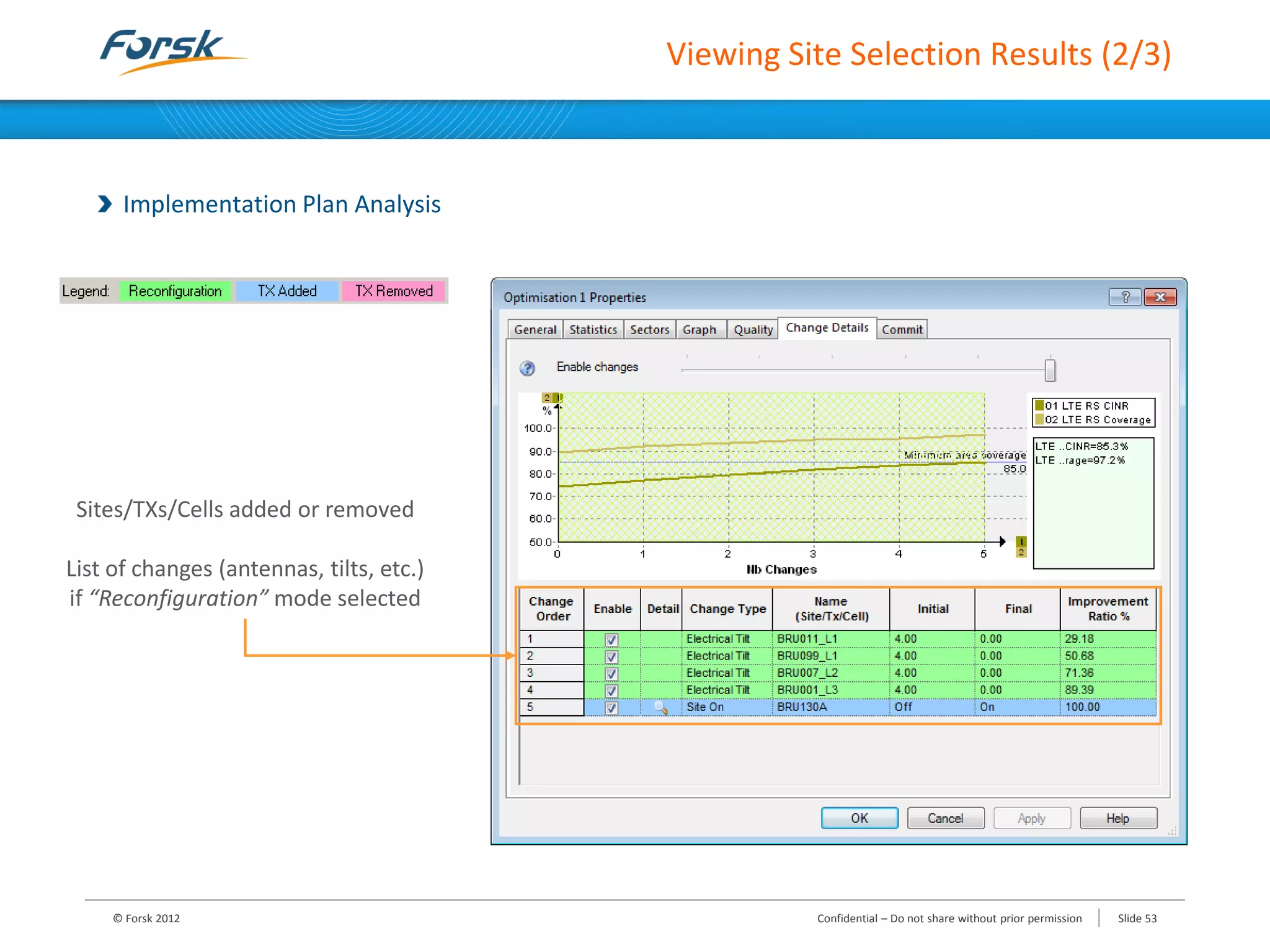
Implementation Plan Analysis
© Forsk 2012 Slide 53Confidential – Do not share without prior permission
Sites/TXs/Cells added or removed
List of changes (antennas, tilts, etc.)
if “Reconfiguration” mode selected
Viewing Site Selection Results (3/3)
Transmitters/Cells Modifications Analysis
© Forsk 2012 Slide 54Confidential – Do not share without prior permission
List of candidate TXs/cells to be
added
List of TXs/cells to be removed
List of changes (antennas, tilts,
etc.), if “Reconfiguration” mode
selected
1. Introduction
2. Parameters Used by ACP
3. Network Reconfiguration Process
4. Site Selection Process
5. Other Topics
© Forsk 2012 Slide 55Confidential – Do not share without prior permission
Training Programme
6. Other Topics
Combined GSM/UMTS/LTE Optimisation (in case of several .atl documents)
Data Loading and Validity Control
Saving Settings to Configuration Files
Configuring Default Settings
© Forsk 2012 Slide 56Confidential – Do not share without prior permission
Combined GSM/UMTS/LTE Optimisation (1/2)
Requirements (in case of several .atl documents)
Several Atoll projects (GSM, UMTS and/or LTE .atl files) that must be opened in the same Atoll session
General process similar to a classic optimisation
Creating the optimisation setup
Defining optimisation parameters
Running the optimisation process
Viewing optimisation results
Analysing optimisation results
© Forsk 2012 Slide 57Confidential – Do not share without prior permission
Combined GSM/UMTS/LTE Optimisation (2/2)
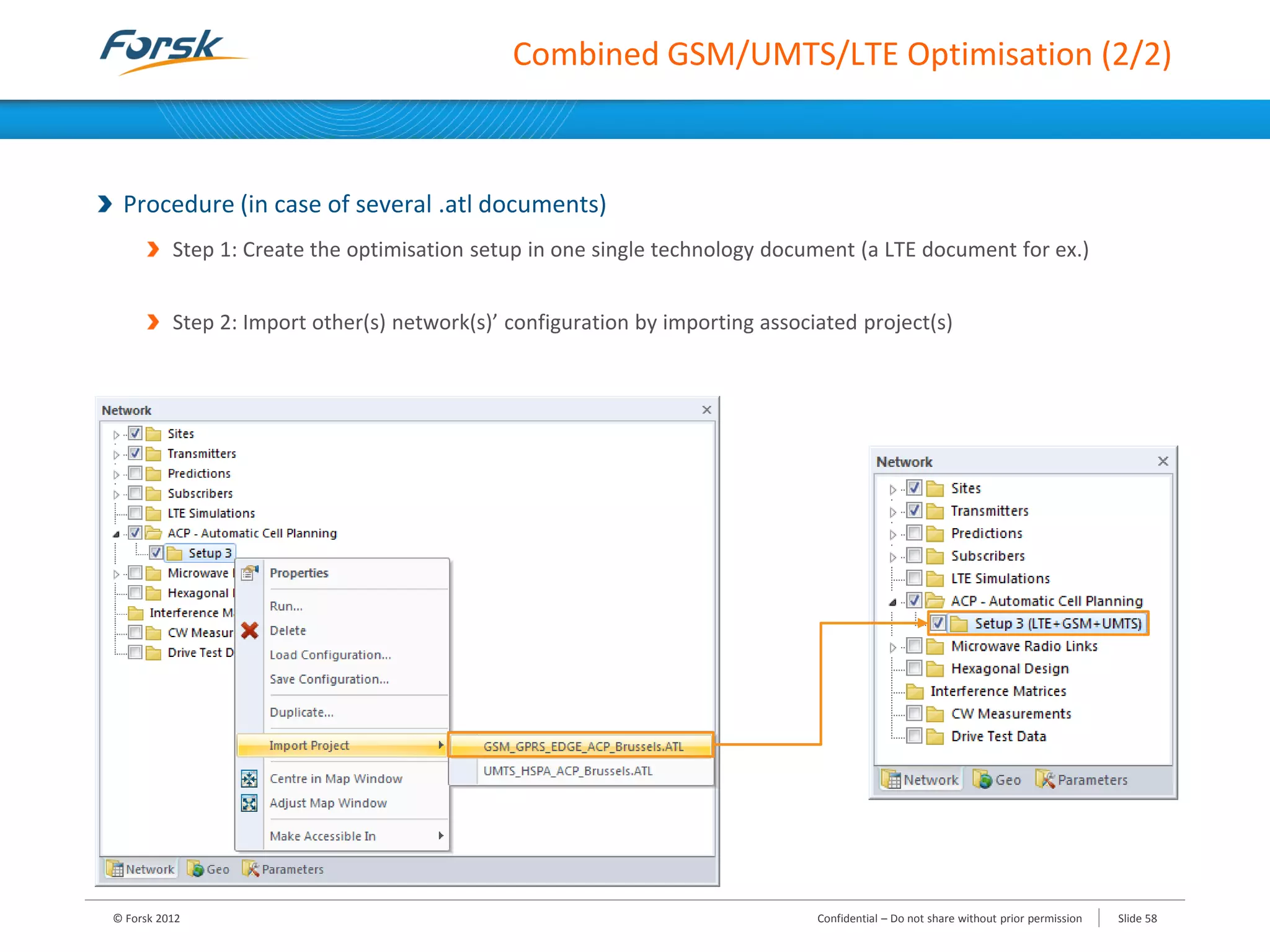
Procedure (in case of several .atl documents)
Step 1: Create the optimisation setup in one single technology document (a LTE document for ex.)
Step 2: Import other(s) network(s)’ configuration by importing associated project(s)
© Forsk 2012 Slide 58Confidential – Do not share without prior permission
Data Loading and Validity Control (1/2)
Data used when running an optimisation process
Radio data (antennas, sites, transmitters)
Traffic parameters (services, terminals, etc.)
Geographic maps (DTM, clutter class and clutter height maps)
Traffic maps
Path loss matrices
© Forsk 2012 Slide 59Confidential – Do not share without prior permission
Loaded when creating an
optimisation setup
Direct access when running the
optimisation process
Data Loading and Validity Control (2/2)
Data validity control when running an optimisation process
Atoll checks the consistency between the optimisation setup, the actual state of the network and path loss
matrices
If inconsistencies => existing optimisation setups are locked and new optimisation process cannot be run
Incoherence with existing setup when:
Data changes are performed after creating the setup (e.g. New transmitter, transmitter deactivated,
different transmitter settings, etc.)
Optimisation results have been committed
Path loss matrices are missing or not valid
© Forsk 2012 Slide 60Confidential – Do not share without prior permission
Saving Settings to Configuration Files
Save or load a given Setup Configuration
© Forsk 2012 Slide 61Confidential – Do not share without prior permission
Optimisation settings saved in a .PRJ file
(objectives per clutter class, lists of cells
to be reconfigured, reconfiguration
settings, etc.)
Import the configuration file containing
optimisation settings
Used to apply the same settings when
you create a new optimisation setup
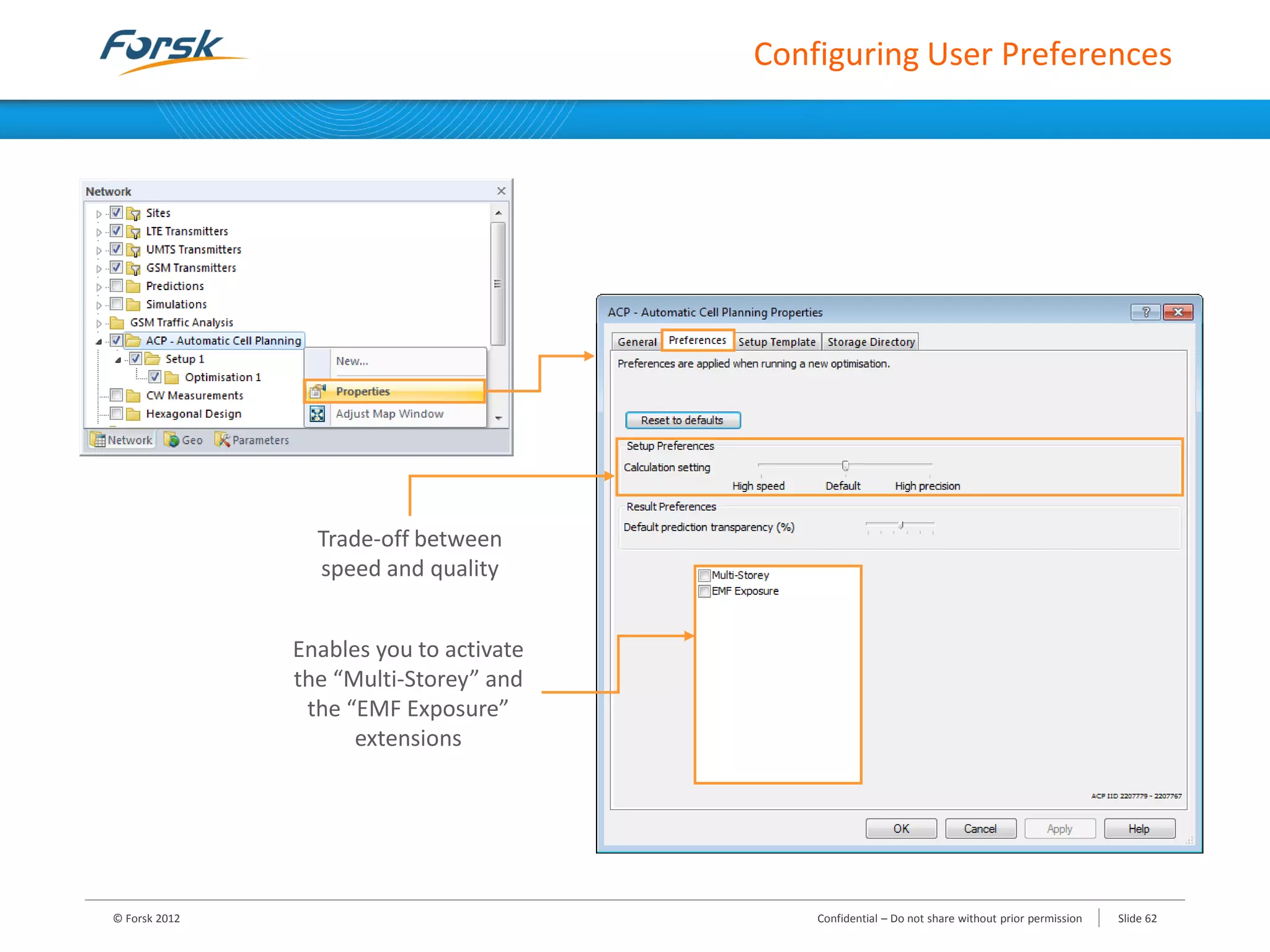
Configuring User Preferences
© Forsk 2012 Slide 62Confidential – Do not share without prior permission
Trade-off between
speed and quality
Enables you to activate
the “Multi-Storey” and
the “EMF Exposure”
extensions
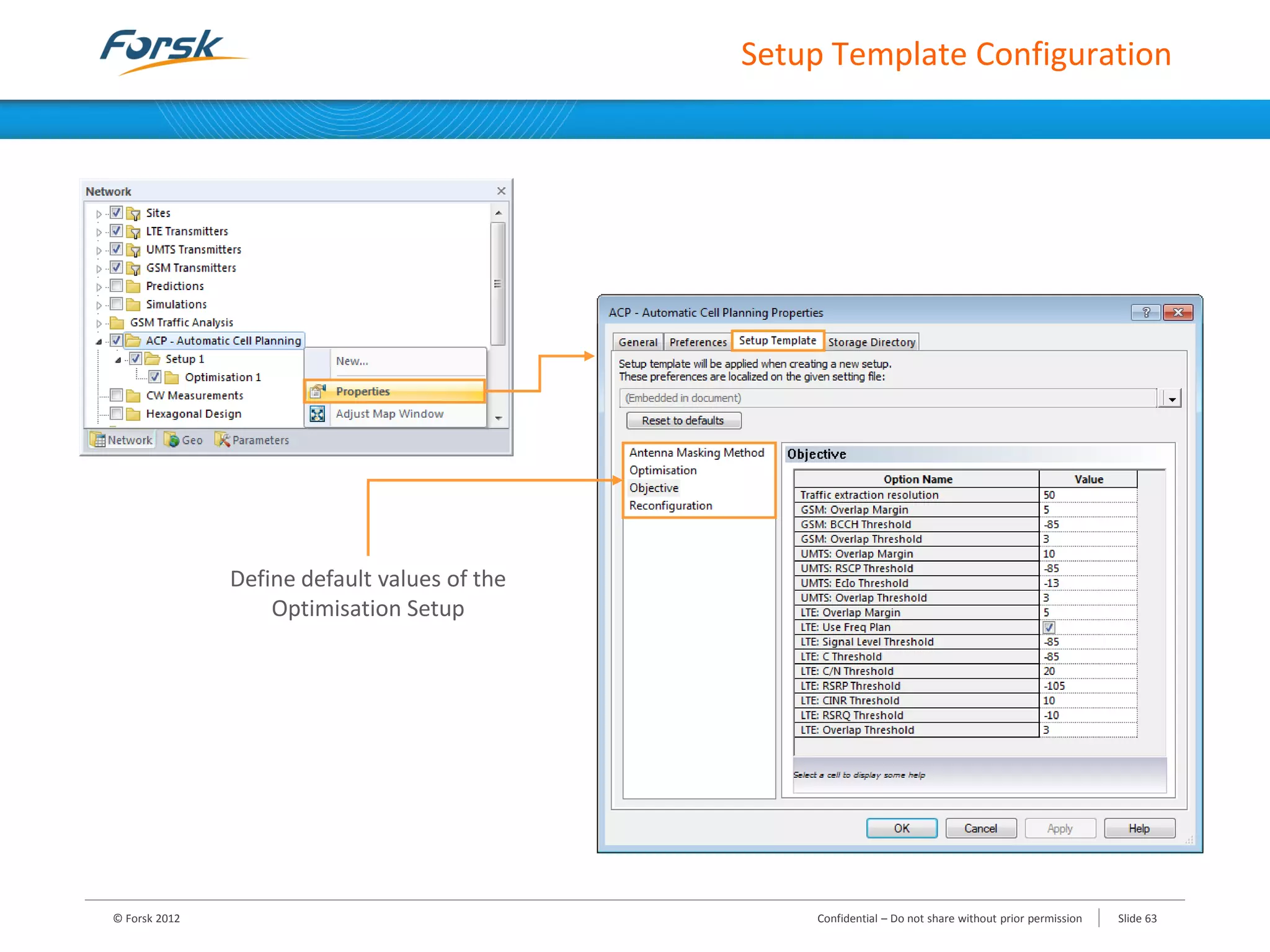
Setup Template Configuration
© Forsk 2012 Slide 63Confidential – Do not share without prior permission
Define default values of the
Optimisation Setup
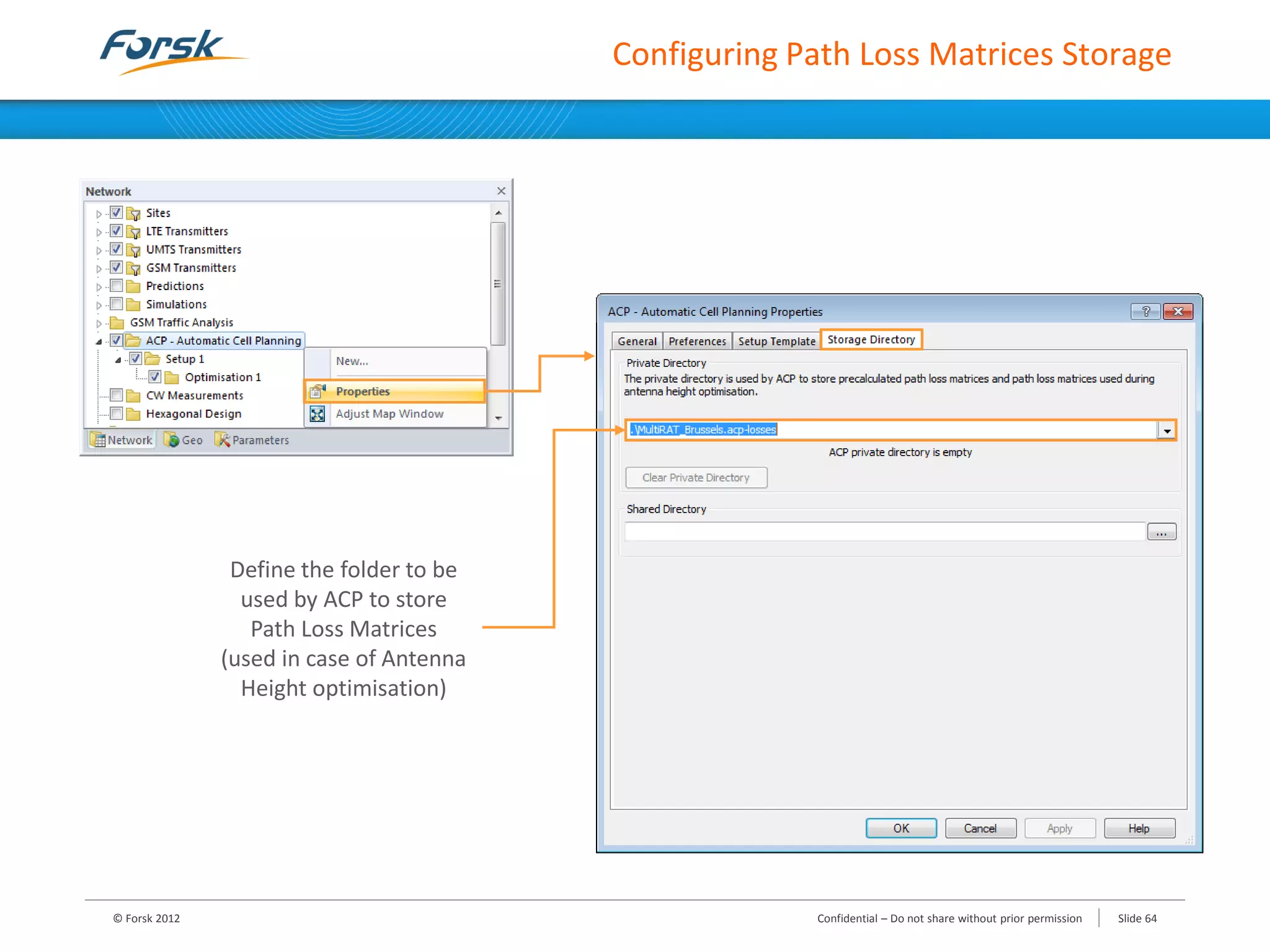
Configuring Path Loss Matrices Storage
© Forsk 2012 Slide 64Confidential – Do not share without prior permission
Define the folder to be
used by ACP to store
Path Loss Matrices
(used in case of Antenna
Height optimisation)
© Forsk 2012 Slide 65Confidential – Do not share without prior permission
Thank you

Atoll 3.1.2 automatic cell planning module

  • 1.
    © Forsk 2012Slide 1Confidential – Do not share without prior permission Automatic Cell Planning Module Atoll 3.1.2
  • 2.
    1. Introduction 2. ParametersUsed by ACP 3. Network Reconfiguration Process 4. Site Selection Process 5. Other Topics © Forsk 2012 Slide 2Confidential – Do not share without prior permission Training Programme
  • 3.
    1. Introduction Automatic optimisationtool for GSM, UMTS, CDMA, LTE and WIMAX networks To improve existing networks by tuning parameters that can be easily changed remotely • Antenna electrical tilt • Power (BCCH for GSM, Pilot for UMTS, Reference Signal for LTE, Preamble for WiMAX) To optimise a network still in the planning phase by: • Selecting antennas • Changing the antenna azimuth • Changing the mechanical downtilt of the antenna • Changing the antenna height • Selecting sites among a list of candidate sites Combined GSM/UMTS/LTE optimisation can be performed © Forsk 2012 Slide 3Confidential – Do not share without prior permission
  • 4.
    1. Introduction Principle Optimisation ofquality indicators By automatic adjustments of network parameters • Power (BCCH for GSM, Pilot for UMTS/CDMA, RS for LTE and Preamble for WiMAX) • Antenna parameters: • Type of antenna • Azimuth • Mechanical downtilt • Electrical downtilt • Height © Forsk 2012 Slide 4Confidential – Do not share without prior permission GSM • BCCH coverage • Dominance of Best Server UMTS/CDMA • RSCP (Pilot) coverage • CPICH Ec/Io LTE • Reference Signal coverage • Reference Signal CINR WIMAX • Preamble coverage • Preamble CINR
  • 5.
    1. Introduction Principle Optimisation processbased on a cost function The cost function depends on quality figures • In GSM: the cost decreases when the BCCH coverage and the Best Server’s dominance increase • In UMTS/CDMA: the cost decreases when the Pilot coverage and Pilot quality increase • In LTE: the cost decreases when the RS coverage and RS CINR increase • In WIMAX: the cost decreases when the Preamble coverage and Preamble CINR increase Iterative algorithm is used • Each iteration corresponds to one network parameter change • Then, changes are ranked from the change with the most benefit to the change with the least benefit © Forsk 2012 Slide 5Confidential – Do not share without prior permission
  • 6.
    1. Introduction 2. ParametersUsed by ACP 3. Network Reconfiguration Process 4. Site Selection Process 5. Other Topics © Forsk 2012 Slide 6Confidential – Do not share without prior permission Training Programme
  • 7.
    2. Parameters usedby ACP Requirements Existing and valid path loss matrices Recommendations Creating a Computation Zone • Used to define the default area where the ACP calculates statistics on performance indicators Creating a Focus Zone • Used to define the default area in which are the cells to be optimised © Forsk 2012 Slide 7Confidential – Do not share without prior permission Computation zone = Zone used to compute statistics on performance indicators (by default) Focus zone = Area where the optimisation will be performed (by default)
  • 8.
    1. Introduction 2. ParametersUsed by ACP 3. Network Reconfiguration Process 4. Site Selection Process 5. Other Topics © Forsk 2012 Slide 8Confidential – Do not share without prior permission Training Programme
  • 9.
    3. Network ReconfigurationProcess Creating an Optimisation Setup Defining Optimisation Parameters and Objectives Running an Optimisation Process Viewing Optimisation Results Analysing Optimisation Results © Forsk 2012 Slide 9Confidential – Do not share without prior permission
  • 10.
    Creating an OptimisationSetup © Forsk 2012 Slide 10Confidential – Do not share without prior permission To run the optimisation immediately To save the defined optimisation parameters and run the optimisation later
  • 11.
    Defining Optimisation Parameters(1/9) Selection of layers to be optimised © Forsk 2012 Slide 11Confidential – Do not share without prior permission Layer(s) configuration Several in case of Multi-RAT networks (GSM+UMTS+LTE)
  • 12.
    Defining Optimisation Parameters(2/9) Selection of zones to be optimised © Forsk 2012 Slide 12Confidential – Do not share without prior permission Zones definition Possibility to define zones to be specifically optimized, using: • Clutter Classes, • Hot Spots zones, • .shp files
  • 13.
    Defining Optimisation Parameters(3/9) Choice between quality or financial cost based optimisation © Forsk 2012 Slide 13Confidential – Do not share without prior permission No cost control: the optimisation is only based on quality  Useful when planning a new network Possibility to limit the financial cost of the optimisation: • Maximum financial cost allowed • Compromise between the financial cost and the quality  Useful when improving an existing network Definition of the financial cost for: • Each parameter change • Each site visit • etc...
  • 14.
    Defining Optimisation Parameters(4/9) Selection of transmitters/cells to be optimised Definition of parameters that can be modified by ACP © Forsk 2012 Slide 14Confidential – Do not share without prior permission To define Cells’ Optimisation parameters (Subcells power in GSM, Pilot power in UMTS, RS power in LTE and Preamble power in WiMAX)
  • 15.
    Defining Optimisation Parameters(5/9) By default, GSM-UMTS-LTE transmitters sharing the same antenna parameters are linked An auto-Link function based on site coordinates, antenna height, azimuth and mechanical tilt is provided © Forsk 2012 Slide 15Confidential – Do not share without prior permission
  • 16.
    Defining Optimisation Parameters(6/9) Definition of Antenna Groups To give some directives when reconfiguring the antenna type or the electrical tilt © Forsk 2012 Slide 16Confidential – Do not share without prior permission Multi band “Physical Antenna” Dual 900 1800 – 65deg17dBi Multi band “Physical Antenna” Dual 900 1800 – 36deg20dBi Antenna Element 65deg17dBi@900 Antenna Element 65deg17dBi@1800
  • 17.
    Defining Optimisation Parameters(7/9) Step 1 : Create “Antenna Element” (using radiating patterns) © Forsk 2012 Slide 17Confidential – Do not share without prior permission • An “Antenna Element” is defined by one gain, one beamwidth and one frequency band • For a given frequency band, a given beamwidth and a given gain, the “Antenna element” is a group of antenna patterns obtained with different electrical tilt values Antenna patterns table
  • 18.
    Defining Optimisation Parameters(8/9) Step 2 : Create “Physical Antennas” (using Antenna Elements) To define multiband antennas © Forsk 2012 Slide 18Confidential – Do not share without prior permission Multi band “Physical Antenna” Antenna Elements
  • 19.
    Defining Optimisation Parameters(9/9) Step 3 : Create “Antenna Groups” (using Physical Antennas) To define groups of Physical Antennas that will be then assigned to transmitters in the reconfiguration tab © Forsk 2012 Slide 19Confidential – Do not share without prior permission Antenna groups to be assigned to TXs in the Reconfiguration tab Created Physical Antennas
  • 20.
    Defining Objectives (1/11) ACPallows you to define Quality and Coverage objectives for each technology Objectives are assessed over a “Target Zone” (Computation Zone, by default) © Forsk 2012 Slide 20Confidential – Do not share without prior permission Objectives defined by the user Indicators to be optimized
  • 21.
    Defining Objectives (2/11) Objective& Zone weighting Objectives and Zones can be weighted according to their relative importance © Forsk 2012 Slide 21Confidential – Do not share without prior permission Give priorities to specific Zones * (* Priorities only apply if the “Zone Weighting” option is checked) Give a priority to each objective
  • 22.
    Defining Objectives (3/11) Trafficweighting (per objective) ACP is able to focus more specifically on areas with a high traffic © Forsk 2012 Slide 22Confidential – Do not share without prior permission Default option: NONE the traffic is assumed to be uniform  The quality indicator measured on each pixel has the same weight Selection of traffic maps (non-uniform traffic) to weight map pixels  The quality indicators measured on each pixel can be weighted by using the traffic density on that pixel
  • 23.
    Defining Objectives (4/11) Example:Defining UMTS objectives Coverage objectives : UMTS RSCP Coverage © Forsk 2012 Slide 23Confidential – Do not share without prior permission Define the Minimum Pilot Signal Level to get on each pixel of the “Target Zone” Coverage to be respected while meeting the RSCP coverage conditions
  • 24.
    Defining Objectives (5/11) Example:Defining UMTS objectives Quality objectives : UMTS EcIo © Forsk 2012 Slide 24Confidential – Do not share without prior permission Define the Minimum Pilot Quality to get on each pixel of the “Target Zone” Coverage to be respected while meeting the Pilot Quality conditions
  • 25.
    Defining Objectives (6/11) Example:Defining UMTS objectives UMTS Objectives Parameters For each indicator to optimize, ACP settings (display configuration, shadowing margin…) can be: • Either, taken from an existing prediction • Or, defined manually © Forsk 2012 Slide 25Confidential – Do not share without prior permission
  • 26.
    Defining Objectives (7/11) Summaryof the indicators that can be optimized for each technology © Forsk 2012 Slide 26Confidential – Do not share without prior permission GSM •BCCH coverage •Dominance of Best Server (= Number of potential servers must be < 4) UMTS/CDMA •RSCP (Pilot) coverage •CPICH Ec/Io •Pilot Pollution (= Number of cells in the Active Set > 3) LTE •Reference Signal coverage (or RSRP) •Reference Signal CINR (or RS C/N, RSRQ) •Overlap (= Number of potential servers must be < 4) WIMAX •Preamble coverage •Preamble CINR •Overlap
  • 27.
    Load balancing (Optional) ACPenables you to create and manage capacity planning objectives • To prevent load imbalance between sectors and thus avoid the degradation of some KPIs Example: Optimisation of a UMTS network by ACP without Load Balancing The Load balancing feature relies on 2 performance indicators: • The “Average Load” improvement (%), measures how the average load improves from the initial value • The “Load Balance” (%), measures the dispersion of cells loads Defining Objectives (8/11) © Forsk 2012 Slide 27Confidential – Do not share without prior permission Cell A: Up-tilt (2°) Cell B: Down-tilt (1°) • Traffic served • Cell load - DL Total Power - UL Noise Rise • Interference • Risk of congestion Cell Load A = 75% ; Cell Load B = 60% Solution: Load Balancing ! Cell A Cell A Cell B Cell B Cell Load A = 98% ; Cell Load B = 45% (Statistics on Cell A)
  • 28.
    Defining Objectives (9/11) Loadbalancing (Optional) Can be activated in the “Objectives” tab under “Load Balancing” © Forsk 2012 Slide 28Confidential – Do not share without prior permission Recommendation: Keep the default configuration Allows you to select the layers for which load balancing is performed
  • 29.
    Defining Objectives (10/11) Loadbalancing (Optional) Traffic related to capacity planning can be defined in the “Capacity” tab © Forsk 2012 Slide 29Confidential – Do not share without prior permission Traffic can be considered as uniform (evenly spread on each service area) or, generated from traffic maps
  • 30.
    Defining Objectives (11/11) Loadbalancing (Optional) ACP is designed to perform load balancing across multiple layers and technologies © Forsk 2012 Slide 30Confidential – Do not share without prior permission For each service used, traffic is balanced across all the available layers and technologies For each service and each technology, define the minimum quality required by a cell to provide the service To increase traffic density specifically on some zones. Traffic is scaled according to the weights defined in the “Zone Weighting” tab.
  • 31.
    Running an OptimisationProcess (1/4) Graphical display of the optimisation progress “Graphs” tab: Variation of performance objectives in real time with iterations © Forsk 2012 Slide 31Confidential – Do not share without prior permission The optimisation process can be paused or stopped early
  • 32.
    Running an OptimisationProcess (2/4) Graphical display of the optimisation progress “Changes” tab: Type and number of changes © Forsk 2012 Slide 32Confidential – Do not share without prior permission
  • 33.
    Running an OptimisationProcess (3/4) Graphical display of the optimisation progress “Quality” tab: Coverage and Quality improvements (variations) © Forsk 2012 Slide 33Confidential – Do not share without prior permission
  • 34.
    Running an OptimisationProcess (4/4) Graphical display of the optimisation progress “Objectives” tab: To see at a glance if the objective is achieved or not © Forsk 2012 Slide 34Confidential – Do not share without prior permission Select the objective to be analysed (coverage and quality indicators)
  • 35.
    Viewing Optimisation Results(1/5) Optimisation results are stored in the optimisation folder Results available in 7 tabs “Statistics” tab: synthesised view of optimisation results for each objective Statistics provided for the “Target zone” • To get statistics on the other zones select “Show Detailed Zone Results” © Forsk 2012 Slide 35Confidential – Do not share without prior permission Statistics for each objective Global report available in “Excel” format
  • 36.
    Viewing Optimisation Results(2/5) “Graph” and “Quality” tabs © Forsk 2012 Slide 36Confidential – Do not share without prior permission Histogram displaying statistics within the computation zone or the focus zone Coverage and Quality maps before and after the optimisation
  • 37.
    Viewing Optimisation Results(3/5) “Capacity” tab Provides capacity load statistics for the initial and the optimised network © Forsk 2012 Slide 37Confidential – Do not share without prior permission The graph shows the ratio of cells with a capacity load that is smaller than a given capacity load value (%). Usually, the best result that you can get is a final curve (blue curve) on top of the initial curve (red curve). Statistics based on the values displayed in the table (on the right)
  • 38.
    Viewing Optimisation Results(4/5) “Change Details” tab Analysis of improvements according to the number of changes Changes are ordered by “profitability” • The most “profitable” changes will be applied first © Forsk 2012 Slide 38Confidential – Do not share without prior permission Slider to select a subset of all changes and view the corresponding performance improvement on the graph (global improvement and improvement of each objective) List of changes ranked from the change with the most effect to the change with the least effect Selected changes are displayed in green
  • 39.
    Viewing Optimisation Results(5/5) “Commit” tab To commit changes that you allowed in the “Change Details” tab © Forsk 2012 Slide 39Confidential – Do not share without prior permission Transmitters/cells with parameter changes are displayed in green Initial and final cell parameters displayed Revert the network to its state before the optimisation was run Apply the set of selected changes
  • 40.
    Analysing Optimisation Results(1/5) Process Quick validation of optimisation results using the ACP maps • First analysis available without having to commit ACP results • Based on the entire set of proposed changes Deeper analysis with coverage predictions available in the predictions folder • After committing ACP results ACP Maps Available Quality analysis maps • Display of Coverage and Quality maps Coverage analysis • Status of the coverage according to the defined objectives used in the optimisation Change analysis • Analysis of changes: antenna, tilt, azimuth Best server analysis • Absolute values of changed parameters © Forsk 2012 Slide 40Confidential – Do not share without prior permission
  • 41.
    Analysing Optimisation Results(2/5) Analysis with ACP Maps © Forsk 2012 Slide 41Confidential – Do not share without prior permission ACP maps are automatically calculated and inserted into the folder containing the optimisation results
  • 42.
    Analysing Optimisation Results(3/5) Analysis with ACP Maps Tiptext available for any ACP map • The exact calculated value is displayed on each pixel Display properties of ACP maps • Automatic update of the ACP map after changing colours or range of values © Forsk 2012 Slide 42Confidential – Do not share without prior permission
  • 43.
    Analysing Optimisation Results(4/5) Analysis with ACP Maps Histogram available on ACP maps Comparison tool • Available to compare ACP maps from the same optimisation or from a different optimisation © Forsk 2012 Slide 43Confidential – Do not share without prior permission
  • 44.
    Analysing Optimisation Results(5/5) Analysis with coverage predictions from the predictions folder Requirement: Commit results of the optimisation Calculating prediction studies before and after the optimisation Generating reports on the predictions studies before and after the optimisation in order to check if network quality figures have been improved Possibility to “Roll back to Initial State” © Forsk 2012 Slide 44Confidential – Do not share without prior permission
  • 45.
    1. Introduction 2. ParametersUsed by ACP 3. Network Reconfiguration Process 4. Site Selection Process 5. Other Topics © Forsk 2012 Slide 45Confidential – Do not share without prior permission Training Programme
  • 46.
    4. Site SelectionProcess Overview Defining Candidate Sites Viewing Optimisation Results © Forsk 2012 Slide 46Confidential – Do not share without prior permission
  • 47.
    Overview (1/2) Examples ofSite Selection process Scenario 1: using ACP to select the best site among several candidates on a given geographical area • 3 candidate sites available • Candidate sites are assigned to a group where the minimum and the maximum site occurrence is set to “1”  Among the 3 candidates, the ACP is forced to select only one site Scenario 2: using ACP to deploy the LTE technology on a given area using existing UMTS sites • About 40 UMTS sites (i.e. 40 candidate sites) available on the target area • Candidate sites are assigned to a group where the minimum site occurrence is set to “10” and the maximum to “20”  Among the 40 candidates, the ACP is forced to select between 10 and 20 sites to reach objectives © Forsk 2012 Slide 47Confidential – Do not share without prior permission
  • 48.
    Overview (2/2) General processsimilar to the site reconfiguration process: Creating an optimisation setup Defining “Candidate” sites Defining objectives and parameters to be optimised • Note: The “Reconfiguration” mode is available (not mandatory) during the Site Selection process. Running an optimisation process Viewing optimisation results Analysing optimisation results © Forsk 2012 Slide 48Confidential – Do not share without prior permission
  • 49.
    Defining Candidate Sites(1/3) By using pre-defined sites Prerequisite: Stations to be processed by ACP must be defined in the Atoll document with a given status © Forsk 2012 Slide 49Confidential – Do not share without prior permission Two status for sites: • “Existing”: The site is an active site in the current network. ACP can remove the whole site or one or more sectors of the site to improve the network quality • “Candidate”: The site is not on-air in the initial network (i.e. all TXs are deactivated). ACP can add the site or only one or more sectors of the site to improve the network quality Check “Current Site Selection” to allow changes (site / sector removal) among “existing” sites Check “Current Site Selection” to display deactivated sites. Then, define groups of sites with a min. and a max. number of sites to be added during the optimisation (“Group” column)
  • 50.
    Defining Candidate Sites(2/3) By using pre-defined sites © Forsk 2012 Slide 50Confidential – Do not share without prior permission “Advanced” tab: Allows you to apply the same locking options to a set of sites, and to manage groups “Reconfiguration” column: Select “Disable” to prevent ACP from making any changes to the Transmitters or to the Cells, as defined in the Transmitters and the [Technology] Cells tabs In case of network reconfiguration, you can preserve the current angular separation between antennas, and the relative height difference between them
  • 51.
    Defining Candidate Sites(3/3) By importing a list of candidate sites © Forsk 2012 Slide 51Confidential – Do not share without prior permission Option 1: import a text file (*.txt) containing at least candidates’ name and coordinates Option 2: import a list of candidate sites from the Atoll project To allocate a station template to each candidate site
  • 52.
    Viewing Site SelectionResults (1/3) Statistics Report © Forsk 2012 Slide 52Confidential – Do not share without prior permission Statistics and status of the optimisation (Achieved or Failed) for each objective Select “Show Change Statistics” to get statistics on the sites/sectors added or removed, and all the changes made during the optimisation process
  • 53.
    Viewing Site SelectionResults (2/3) Implementation Plan Analysis © Forsk 2012 Slide 53Confidential – Do not share without prior permission Sites/TXs/Cells added or removed List of changes (antennas, tilts, etc.) if “Reconfiguration” mode selected
  • 54.
    Viewing Site SelectionResults (3/3) Transmitters/Cells Modifications Analysis © Forsk 2012 Slide 54Confidential – Do not share without prior permission List of candidate TXs/cells to be added List of TXs/cells to be removed List of changes (antennas, tilts, etc.), if “Reconfiguration” mode selected
  • 55.
    1. Introduction 2. ParametersUsed by ACP 3. Network Reconfiguration Process 4. Site Selection Process 5. Other Topics © Forsk 2012 Slide 55Confidential – Do not share without prior permission Training Programme
  • 56.
    6. Other Topics CombinedGSM/UMTS/LTE Optimisation (in case of several .atl documents) Data Loading and Validity Control Saving Settings to Configuration Files Configuring Default Settings © Forsk 2012 Slide 56Confidential – Do not share without prior permission
  • 57.
    Combined GSM/UMTS/LTE Optimisation(1/2) Requirements (in case of several .atl documents) Several Atoll projects (GSM, UMTS and/or LTE .atl files) that must be opened in the same Atoll session General process similar to a classic optimisation Creating the optimisation setup Defining optimisation parameters Running the optimisation process Viewing optimisation results Analysing optimisation results © Forsk 2012 Slide 57Confidential – Do not share without prior permission
  • 58.
    Combined GSM/UMTS/LTE Optimisation(2/2) Procedure (in case of several .atl documents) Step 1: Create the optimisation setup in one single technology document (a LTE document for ex.) Step 2: Import other(s) network(s)’ configuration by importing associated project(s) © Forsk 2012 Slide 58Confidential – Do not share without prior permission
  • 59.
    Data Loading andValidity Control (1/2) Data used when running an optimisation process Radio data (antennas, sites, transmitters) Traffic parameters (services, terminals, etc.) Geographic maps (DTM, clutter class and clutter height maps) Traffic maps Path loss matrices © Forsk 2012 Slide 59Confidential – Do not share without prior permission Loaded when creating an optimisation setup Direct access when running the optimisation process
  • 60.
    Data Loading andValidity Control (2/2) Data validity control when running an optimisation process Atoll checks the consistency between the optimisation setup, the actual state of the network and path loss matrices If inconsistencies => existing optimisation setups are locked and new optimisation process cannot be run Incoherence with existing setup when: Data changes are performed after creating the setup (e.g. New transmitter, transmitter deactivated, different transmitter settings, etc.) Optimisation results have been committed Path loss matrices are missing or not valid © Forsk 2012 Slide 60Confidential – Do not share without prior permission
  • 61.
    Saving Settings toConfiguration Files Save or load a given Setup Configuration © Forsk 2012 Slide 61Confidential – Do not share without prior permission Optimisation settings saved in a .PRJ file (objectives per clutter class, lists of cells to be reconfigured, reconfiguration settings, etc.) Import the configuration file containing optimisation settings Used to apply the same settings when you create a new optimisation setup
  • 62.
    Configuring User Preferences ©Forsk 2012 Slide 62Confidential – Do not share without prior permission Trade-off between speed and quality Enables you to activate the “Multi-Storey” and the “EMF Exposure” extensions
  • 63.
    Setup Template Configuration ©Forsk 2012 Slide 63Confidential – Do not share without prior permission Define default values of the Optimisation Setup
  • 64.
    Configuring Path LossMatrices Storage © Forsk 2012 Slide 64Confidential – Do not share without prior permission Define the folder to be used by ACP to store Path Loss Matrices (used in case of Antenna Height optimisation)
  • 65.
    © Forsk 2012Slide 65Confidential – Do not share without prior permission Thank you