Assistive
Technology
What is Assistive Technology?
● Any item, system, or piece of equipment that is created or
modified to improve capabilities of individuals with disabilities.
● How the item is used is what makes it classified as assistive
technology, not the item itself.
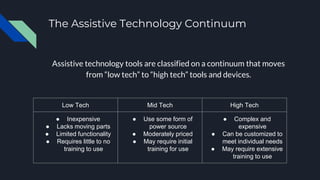
The Assistive Technology Continuum
Assistive technology tools are classified on a continuum that moves
from “low tech” to “high tech” tools and devices.
Low Tech Mid Tech High Tech
● Inexpensive
● Lacks moving parts
● Limited functionality
● Requires little to no
training to use
● Use some form of
power source
● Moderately priced
● May require initial
training for use
● Complex and
expensive
● Can be customized to
meet individual needs
● May require extensive
training to use
Examples of low tech assistive
technology
● Paper clips
● Sticky notes
● Hook and loop tape
● Pencil grips
● Calculators
● Timers
Examples of mid tech assistive
technology
● CD players
● Portable word processors
● Talking dictionaries
● MP3 players
● Electronic organizers
● Hyperlinked multimedia
Examples of High Tech assistive
technology
● Touch screen device for a child who has difficulty using a pen or
pencil
● A computer with voice-recognition software that converts
speech to text to help with writing
● FM amplification systems for individuals with hearing
impairments
● Augmentative and alternative communication devices that
allows individuals to communicate through words, pictures, and
symbols
Adapting hardware and software
As teachers, it is important to educate ourselves on the power assistive technology can
have in our classrooms. Understanding basic adaptations and common accessibility
features that are pre-programmed on familiar hardware and software found in your
classroom can make a huge impact.
Some common accessibility features you may find in your computer operating system
are:
● Sticky keys-provides a way for one-handed or single-finger typists to press 2 keys
at once
● Slow keys- provides a way to adjust the length of time a key must be held down
before the computer interprets a press as input
● Zoom magnifier- makes the computer screen more readable by creating a separate
window that displays a magnified portion of the screen
● VoiceOver narrator- text-to-speech utility that reads what it displayed on the
screen
Adapting hardware and software
Another way teachers can adapt technology to better fit an individual's needs is to make
use of commonly available software.
Examples of this include:
● Document readers such as Adobe Reader and eBooks to help individuals with poor
eyesight
● Word prediction software that helps identify words quickly based on common
usage patterns, arrangement of letters, or suggestions based on grammar
● Augmentative and alternative communication devices allow you to communicate
through pictures, words, and symbols
● FM amplifiers and wireless microphones can be used to project voices to all
students or an individual with hearing impairments
Positioning
A simple way to make an adaptation to assistive technology in the
classroom is to make sure the digital device is positioned
appropriately.
This could be as simple as moving the keyboard or display to better
suit the individual or using a special chair, desk, or table that is
designed to make positioning students and computers easier.
You can also enlist the help of an occupational therapist when
working on positioning issues with a student who has a disability.
Keyboard/mouse adaptations and
touchscreens
Adapting or modifying a keyboard, mouse, and/or touchscreen can often improve access to a
desktop or laptop computer.
Some of these adaptations include:
● Placing large, colored alphabet stickers on they keys to make viewing of the letters easier
● Using stickers or rubber pads to mark the keys that are most commonly used
● Use a one-handed keyboard to provide physical access with one hand
● Add a button, pom pom, or sticker to the left or right mouse button so students will have a
visual reminder of the different buttons
● Using a mouse alternative such as a game controller, trackpad, or joystick
● Using a stylus or pen to navigate touchscreens
Mobile and assistive technologies have brought in a fresh approach
to creating learning opportunities and making it possible for learners
to access digital content in a more personalised manner than ever
before (Kirmani, 2019). Assistive technology has the power to allow
all individuals an equal opportunity in education and it is important
as educators to stay current and knowledgeable on how to use these
technologies in our classrooms.
References
Kirmani, N. F. (2019). Looking through the Crystal Ball. International
School;Woodbridge,21(3), 27-28. Retrieved June 12, 2019, from
http://lib-proxy.jsu.edu/login?url=https://search-proquest-com.lib-proxy.jsu.edu/docview/
2236152065?accountid=11662

Assistive technology

  • 1.
  • 2.
    What is AssistiveTechnology? ● Any item, system, or piece of equipment that is created or modified to improve capabilities of individuals with disabilities. ● How the item is used is what makes it classified as assistive technology, not the item itself.
  • 3.
    The Assistive TechnologyContinuum Assistive technology tools are classified on a continuum that moves from “low tech” to “high tech” tools and devices. Low Tech Mid Tech High Tech ● Inexpensive ● Lacks moving parts ● Limited functionality ● Requires little to no training to use ● Use some form of power source ● Moderately priced ● May require initial training for use ● Complex and expensive ● Can be customized to meet individual needs ● May require extensive training to use
  • 4.
    Examples of lowtech assistive technology ● Paper clips ● Sticky notes ● Hook and loop tape ● Pencil grips ● Calculators ● Timers
  • 5.
    Examples of midtech assistive technology ● CD players ● Portable word processors ● Talking dictionaries ● MP3 players ● Electronic organizers ● Hyperlinked multimedia
  • 6.
    Examples of HighTech assistive technology ● Touch screen device for a child who has difficulty using a pen or pencil ● A computer with voice-recognition software that converts speech to text to help with writing ● FM amplification systems for individuals with hearing impairments ● Augmentative and alternative communication devices that allows individuals to communicate through words, pictures, and symbols
  • 7.
    Adapting hardware andsoftware As teachers, it is important to educate ourselves on the power assistive technology can have in our classrooms. Understanding basic adaptations and common accessibility features that are pre-programmed on familiar hardware and software found in your classroom can make a huge impact. Some common accessibility features you may find in your computer operating system are: ● Sticky keys-provides a way for one-handed or single-finger typists to press 2 keys at once ● Slow keys- provides a way to adjust the length of time a key must be held down before the computer interprets a press as input ● Zoom magnifier- makes the computer screen more readable by creating a separate window that displays a magnified portion of the screen ● VoiceOver narrator- text-to-speech utility that reads what it displayed on the screen
  • 8.
    Adapting hardware andsoftware Another way teachers can adapt technology to better fit an individual's needs is to make use of commonly available software. Examples of this include: ● Document readers such as Adobe Reader and eBooks to help individuals with poor eyesight ● Word prediction software that helps identify words quickly based on common usage patterns, arrangement of letters, or suggestions based on grammar ● Augmentative and alternative communication devices allow you to communicate through pictures, words, and symbols ● FM amplifiers and wireless microphones can be used to project voices to all students or an individual with hearing impairments
  • 9.
    Positioning A simple wayto make an adaptation to assistive technology in the classroom is to make sure the digital device is positioned appropriately. This could be as simple as moving the keyboard or display to better suit the individual or using a special chair, desk, or table that is designed to make positioning students and computers easier. You can also enlist the help of an occupational therapist when working on positioning issues with a student who has a disability.
  • 10.
    Keyboard/mouse adaptations and touchscreens Adaptingor modifying a keyboard, mouse, and/or touchscreen can often improve access to a desktop or laptop computer. Some of these adaptations include: ● Placing large, colored alphabet stickers on they keys to make viewing of the letters easier ● Using stickers or rubber pads to mark the keys that are most commonly used ● Use a one-handed keyboard to provide physical access with one hand ● Add a button, pom pom, or sticker to the left or right mouse button so students will have a visual reminder of the different buttons ● Using a mouse alternative such as a game controller, trackpad, or joystick ● Using a stylus or pen to navigate touchscreens
  • 11.
    Mobile and assistivetechnologies have brought in a fresh approach to creating learning opportunities and making it possible for learners to access digital content in a more personalised manner than ever before (Kirmani, 2019). Assistive technology has the power to allow all individuals an equal opportunity in education and it is important as educators to stay current and knowledgeable on how to use these technologies in our classrooms.
  • 12.
    References Kirmani, N. F.(2019). Looking through the Crystal Ball. International School;Woodbridge,21(3), 27-28. Retrieved June 12, 2019, from http://lib-proxy.jsu.edu/login?url=https://search-proquest-com.lib-proxy.jsu.edu/docview/ 2236152065?accountid=11662