ARTDM 170, Week 6: Using
 Objects + Scripting Motion
          Gilbert Guerrero
         gguerrero@dvc.edu
 gilbertguerrero.com/blog/artdm-170
Adobe Flash
Open Flash and create a new
 ActionScript 3.0 document...
Create an ActionScript class

• Save your ActionScript file, example:
  MyAnimation.fla
• Go to New... > ActionScript File   to
  create a new external AS file
• Save the file using the same name as
  your Flash file, example:

  MyAnimation.as
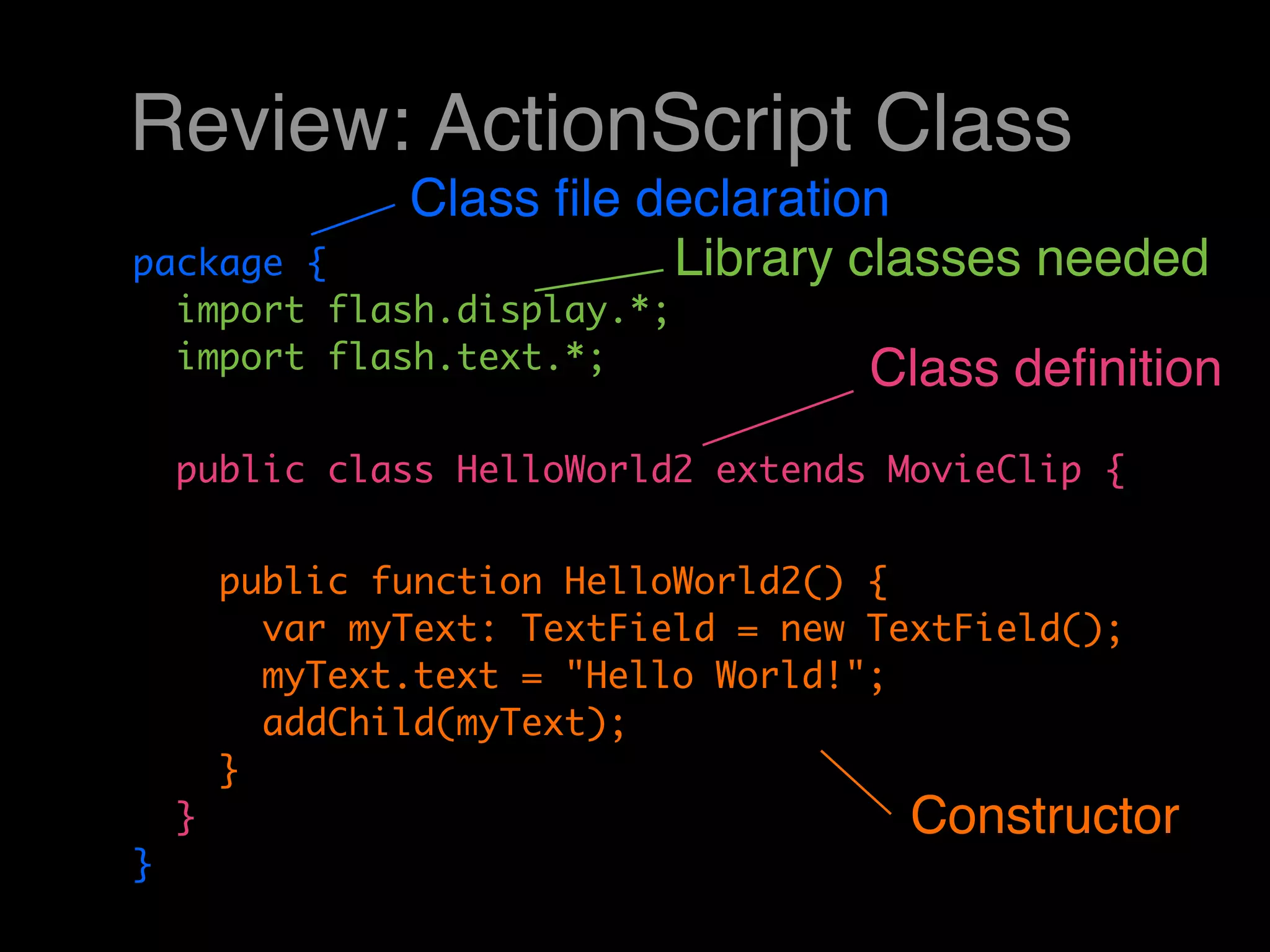
Review: ActionScript Class
                Class file declaration
package {                  Library classes needed
  import flash.display.*;
  import flash.text.*;                Class definition
    public class HelloWorld2 extends MovieClip {


        public function HelloWorld2() {
          var myText: TextField = new TextField();
          myText.text = "Hello World!";
          addChild(myText);
        }
    }                                   Constructor
}
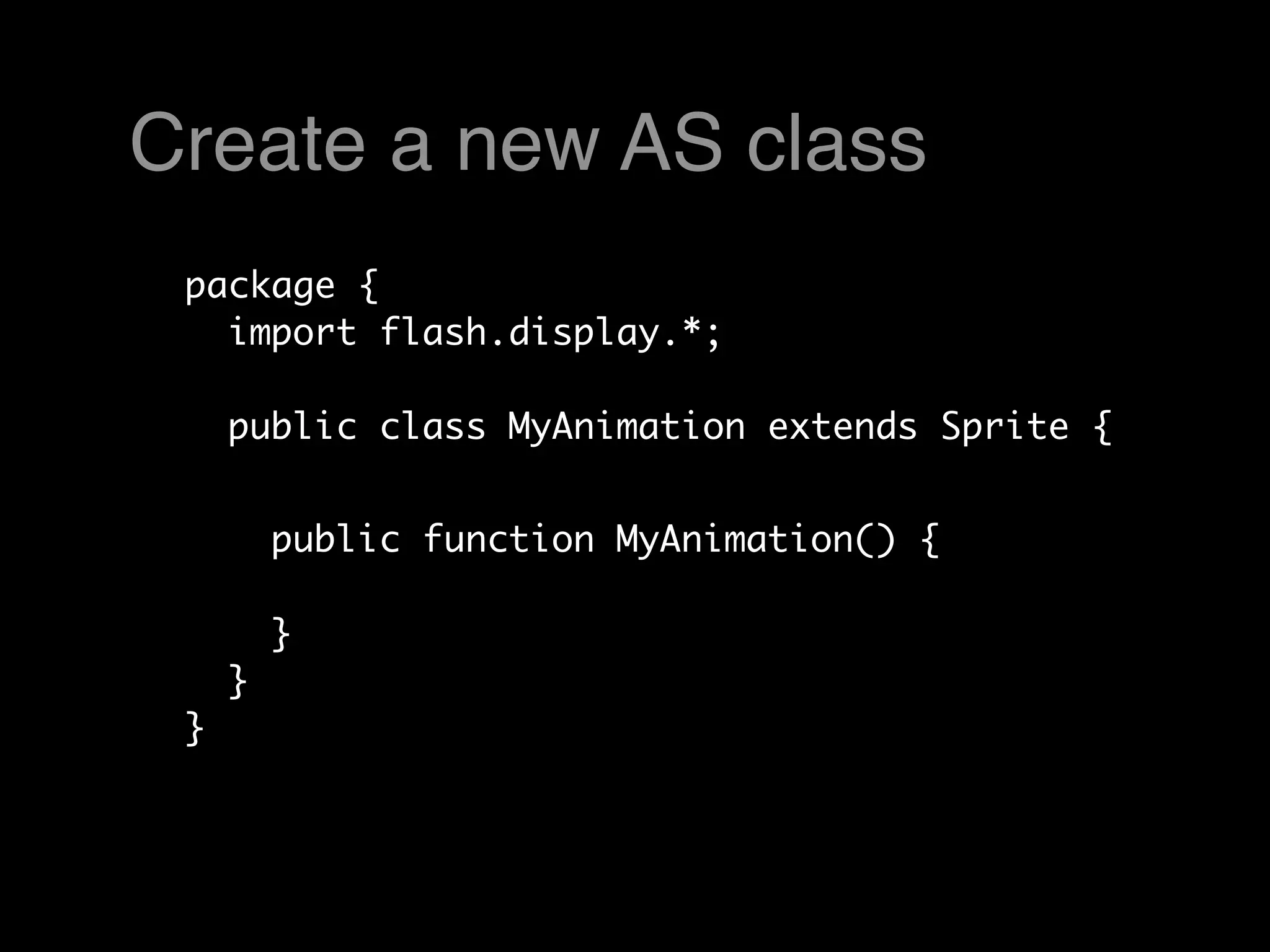
Create a new AS class
 package {
   import flash.display.*;

     public class MyAnimation extends Sprite {


         public function MyAnimation() {

         }
     }
 }
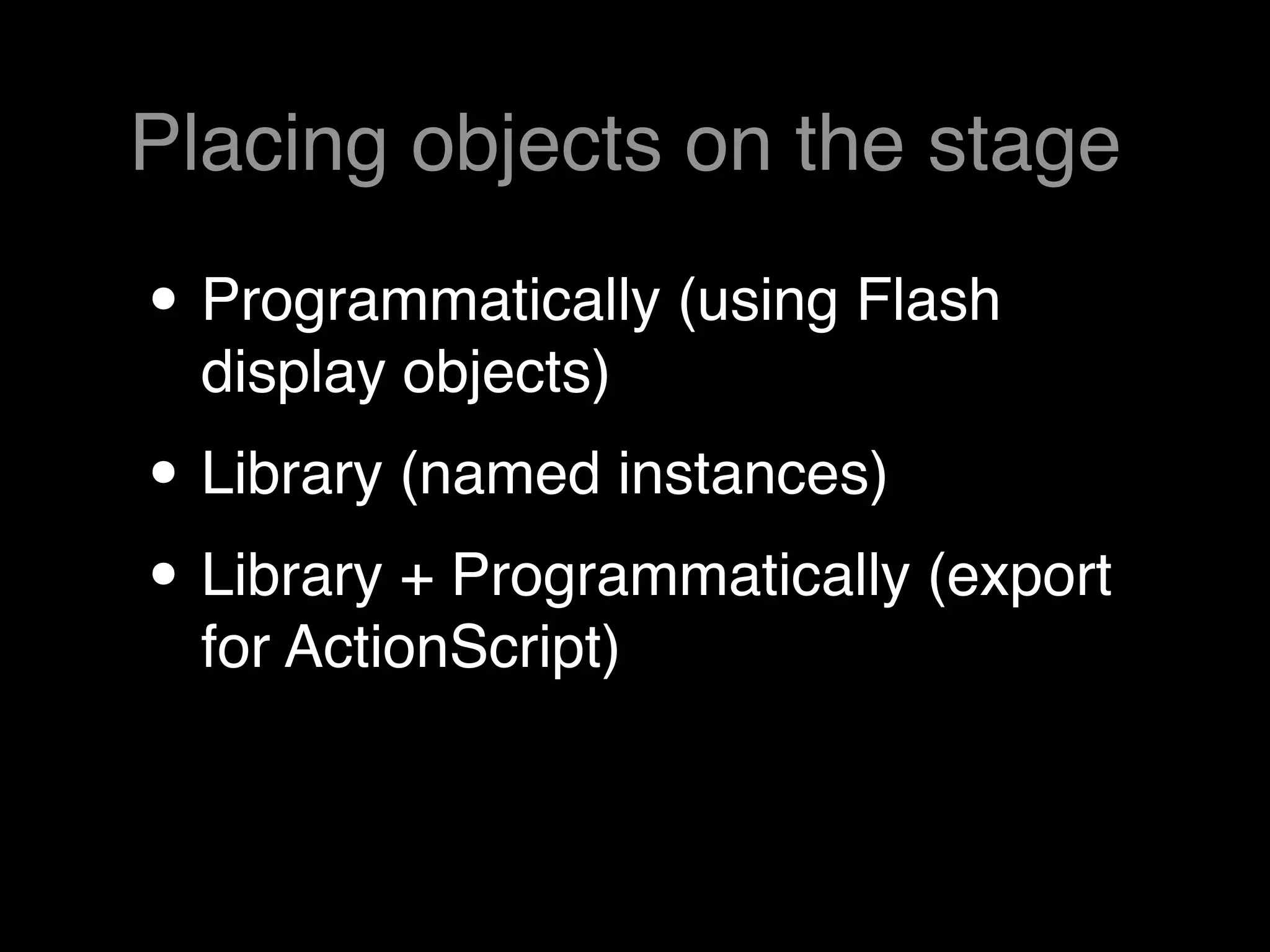
Placing objects on the stage

• Programmatically (using Flash
  display objects)
• Library (named instances)
• Library + Programmatically (export
  for ActionScript)
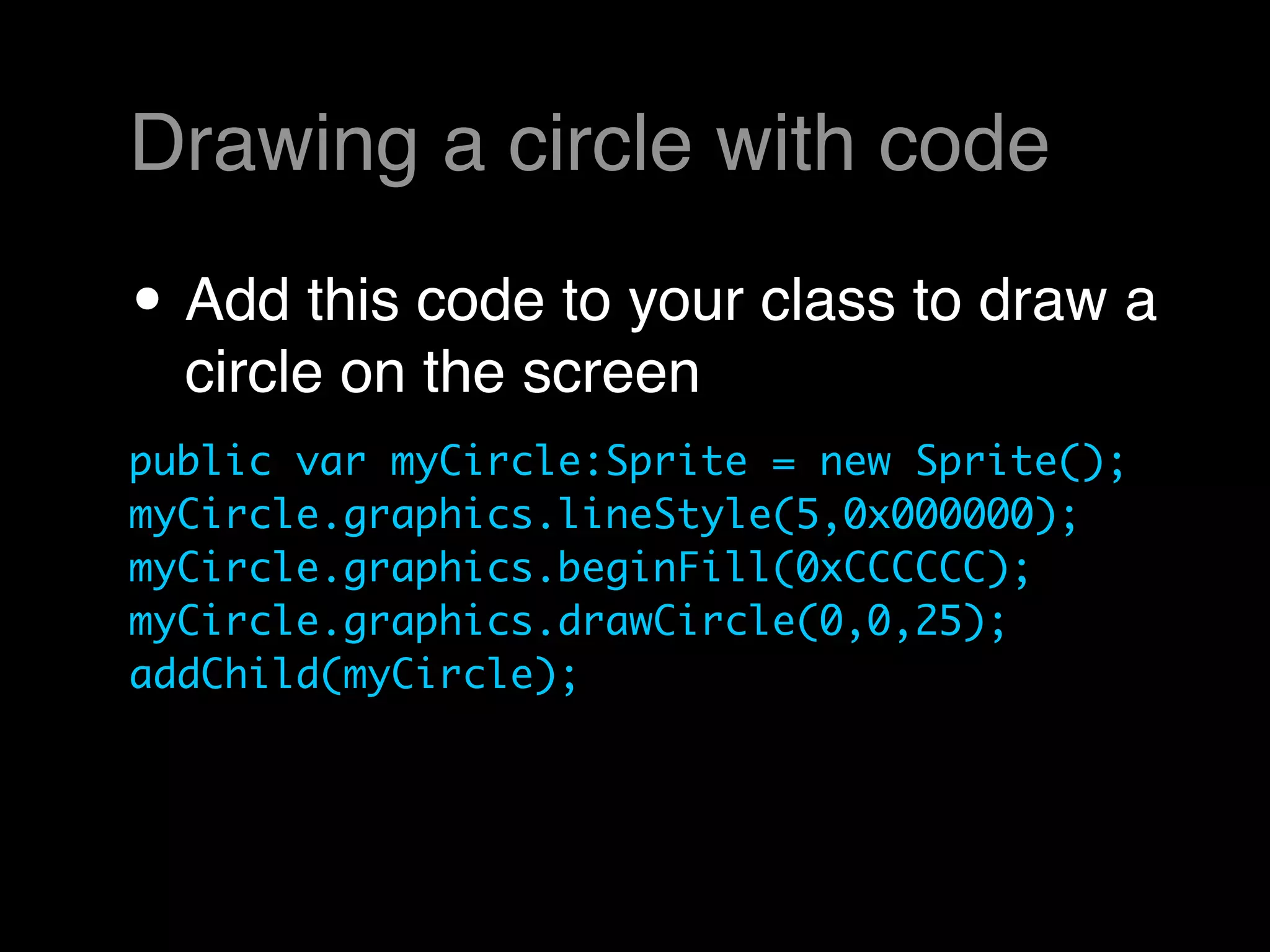
Drawing a circle with code

• Add this code to your class to draw a
  circle on the screen
public var myCircle:Sprite = new Sprite();
myCircle.graphics.lineStyle(5,0x000000);
myCircle.graphics.beginFill(0xCCCCCC);
myCircle.graphics.drawCircle(0,0,25);
addChild(myCircle);
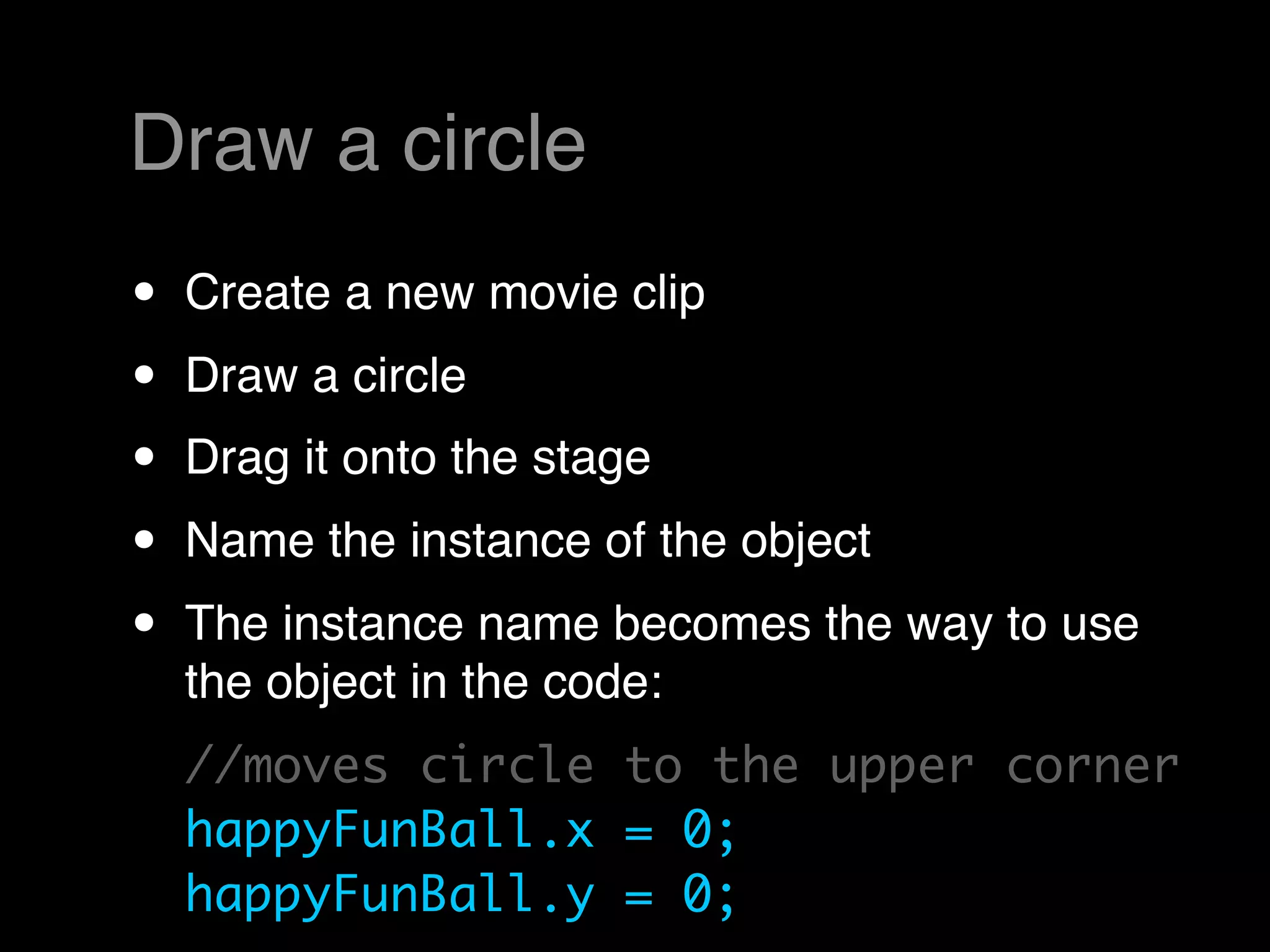
Draw a circle
•   Create a new movie clip
•   Draw a circle
•   Drag it onto the stage
•   Name the instance of the object
•   The instance name becomes the way to use
    the object in the code:
    //moves circle to the upper corner
    happyFunBall.x = 0;
    happyFunBall.y = 0;
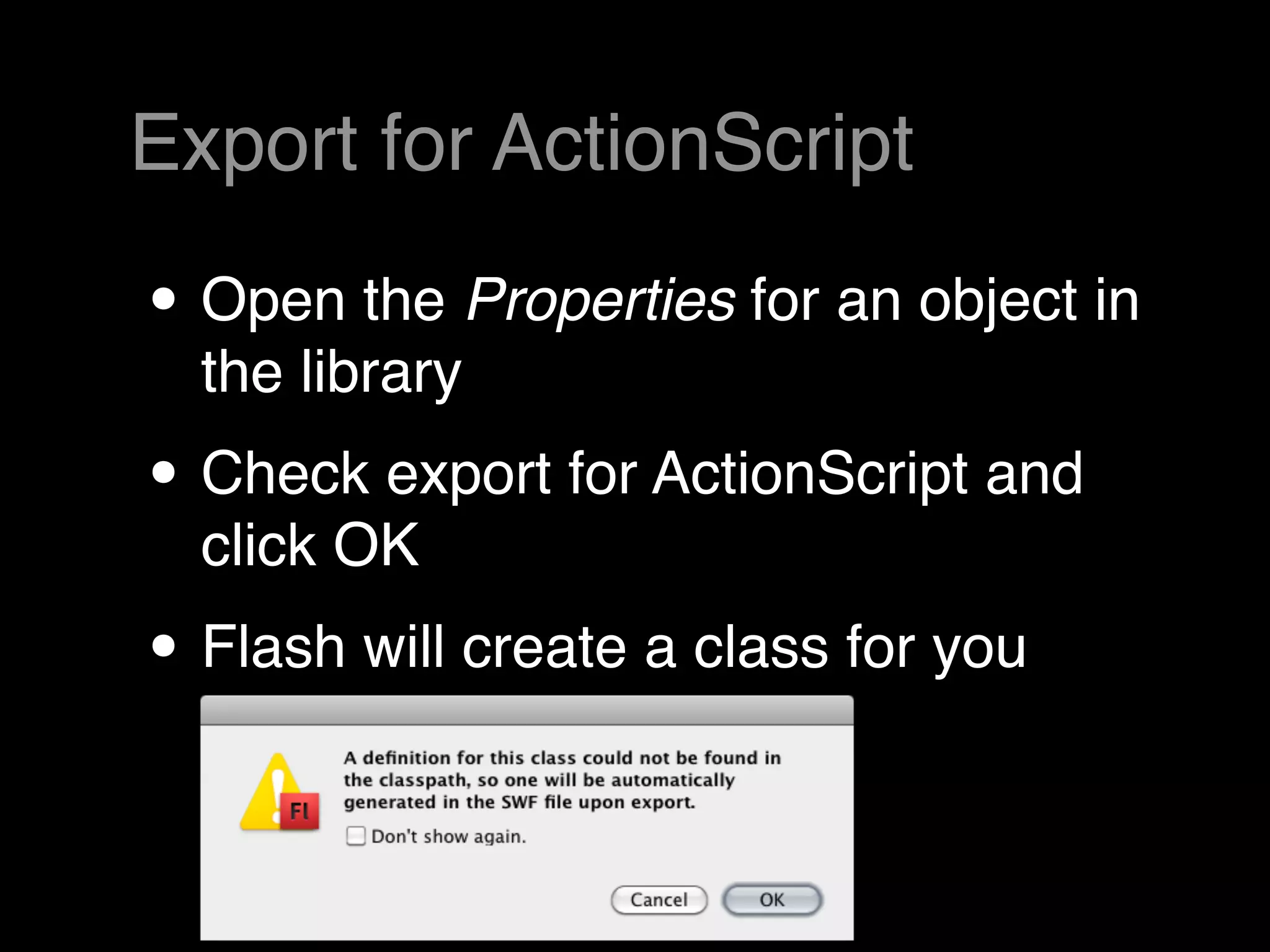
Export for ActionScript

• Open the Properties for an object in
  the library
• Check export for ActionScript and
  click OK
• Flash will create a class for you
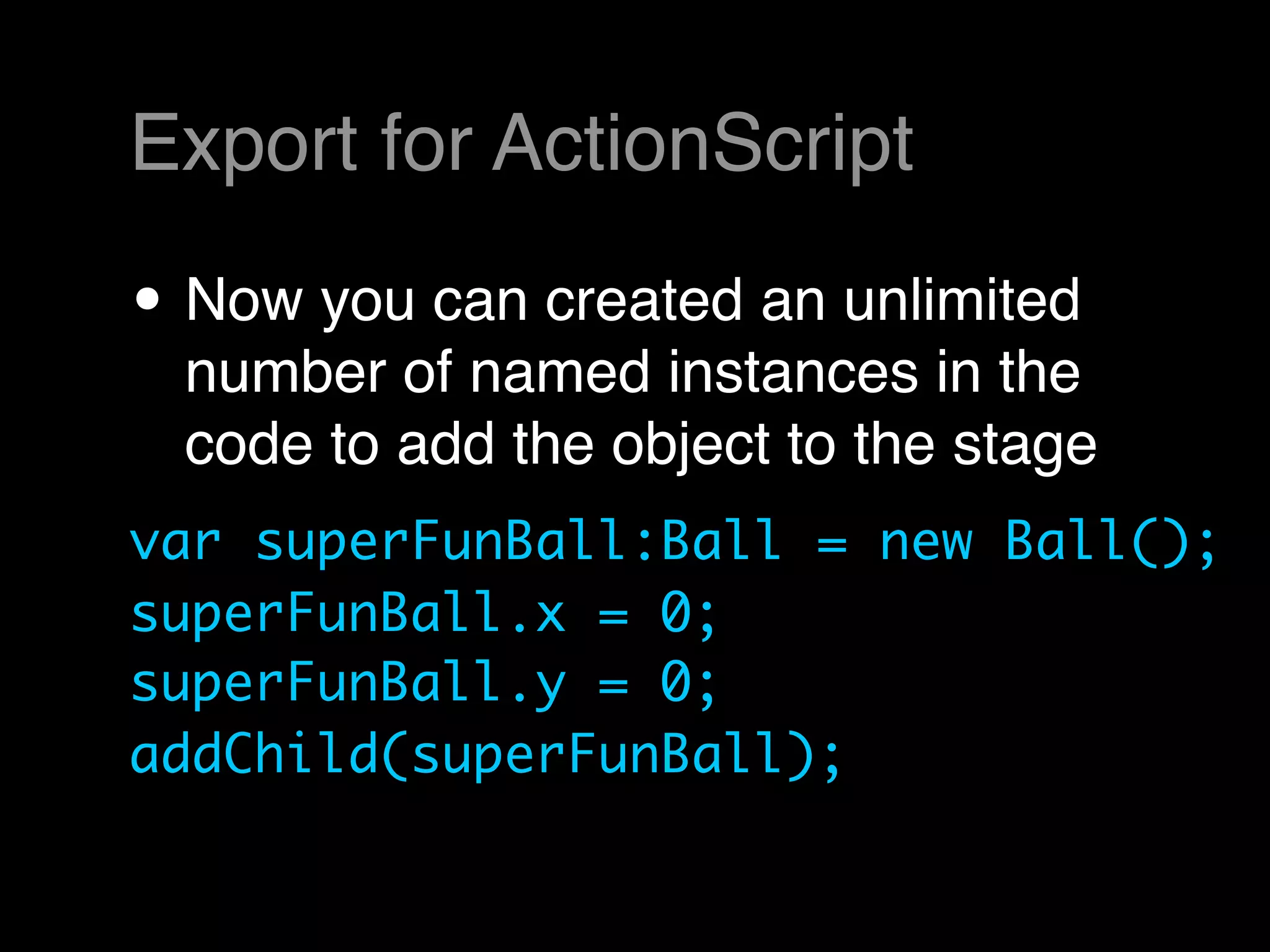
Export for ActionScript

• Now you can created an unlimited
 number of named instances in the
 code to add the object to the stage
var superFunBall:Ball = new Ball();
superFunBall.x = 0;
superFunBall.y = 0;
addChild(superFunBall);
Computer Animation
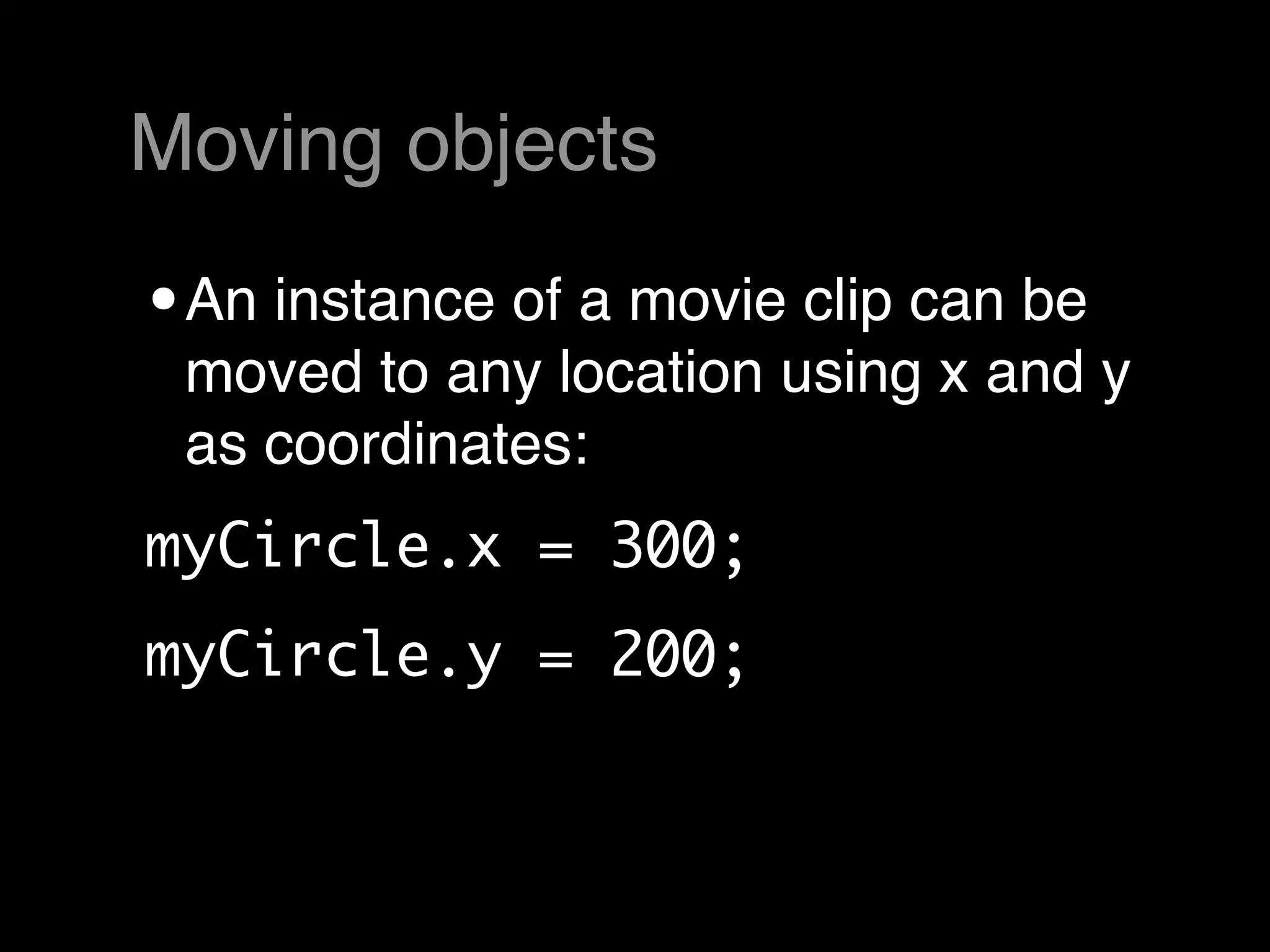
Moving objects

• An instance of a movie clip can be
 moved to any location using x and y
 as coordinates:
myCircle.x = 300;
myCircle.y = 200;
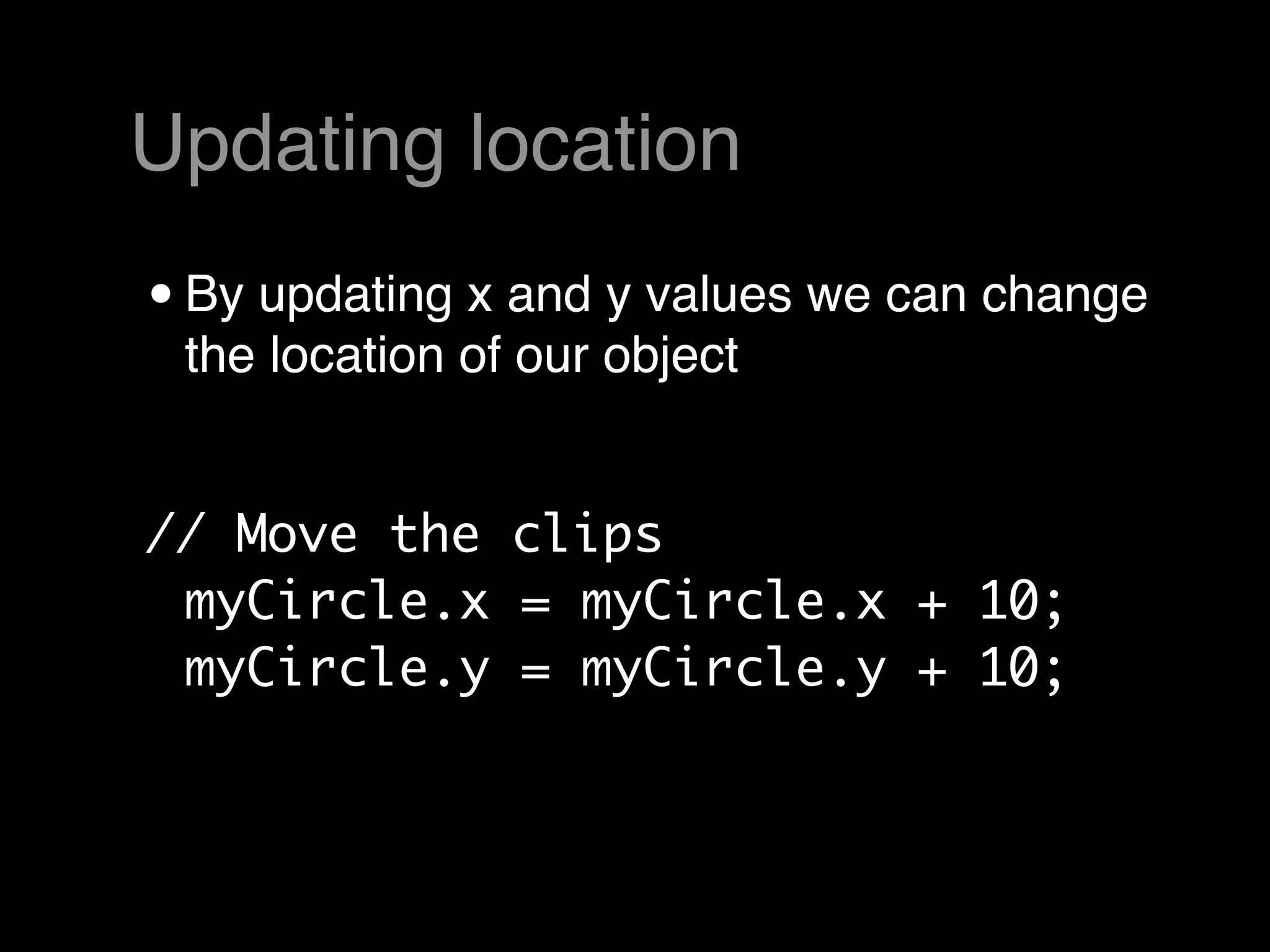
Updating location
• By updating x and y values we can change
 the location of our object


// Move the clips
 myCircle.x = myCircle.x + 10;
 myCircle.y = myCircle.y + 10;
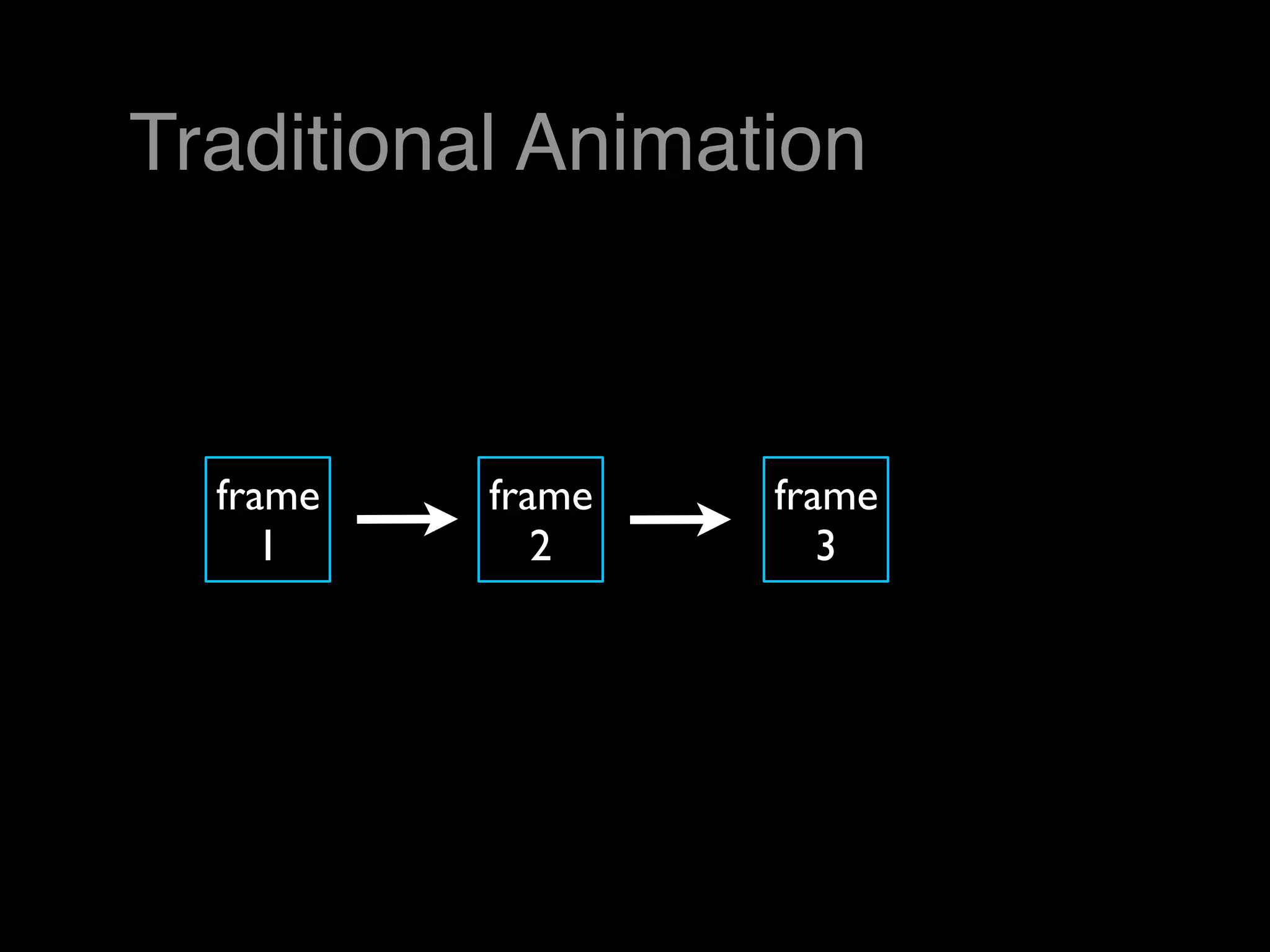
Traditional Animation


  frame   frame   frame
     1       2       3
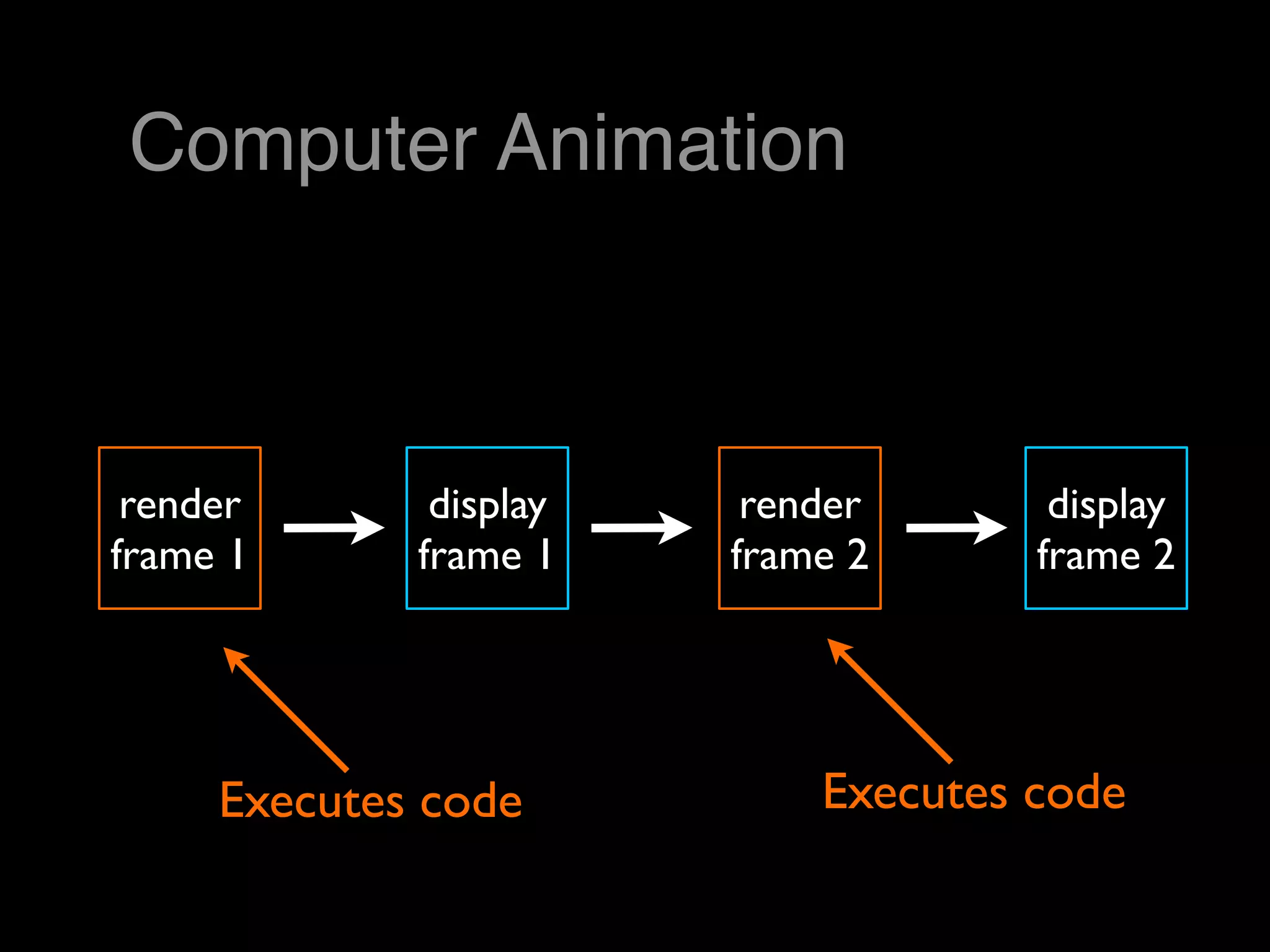
Computer Animation


 render       display    render       display
frame 1      frame 1    frame 2      frame 2


     Executes code          Executes code
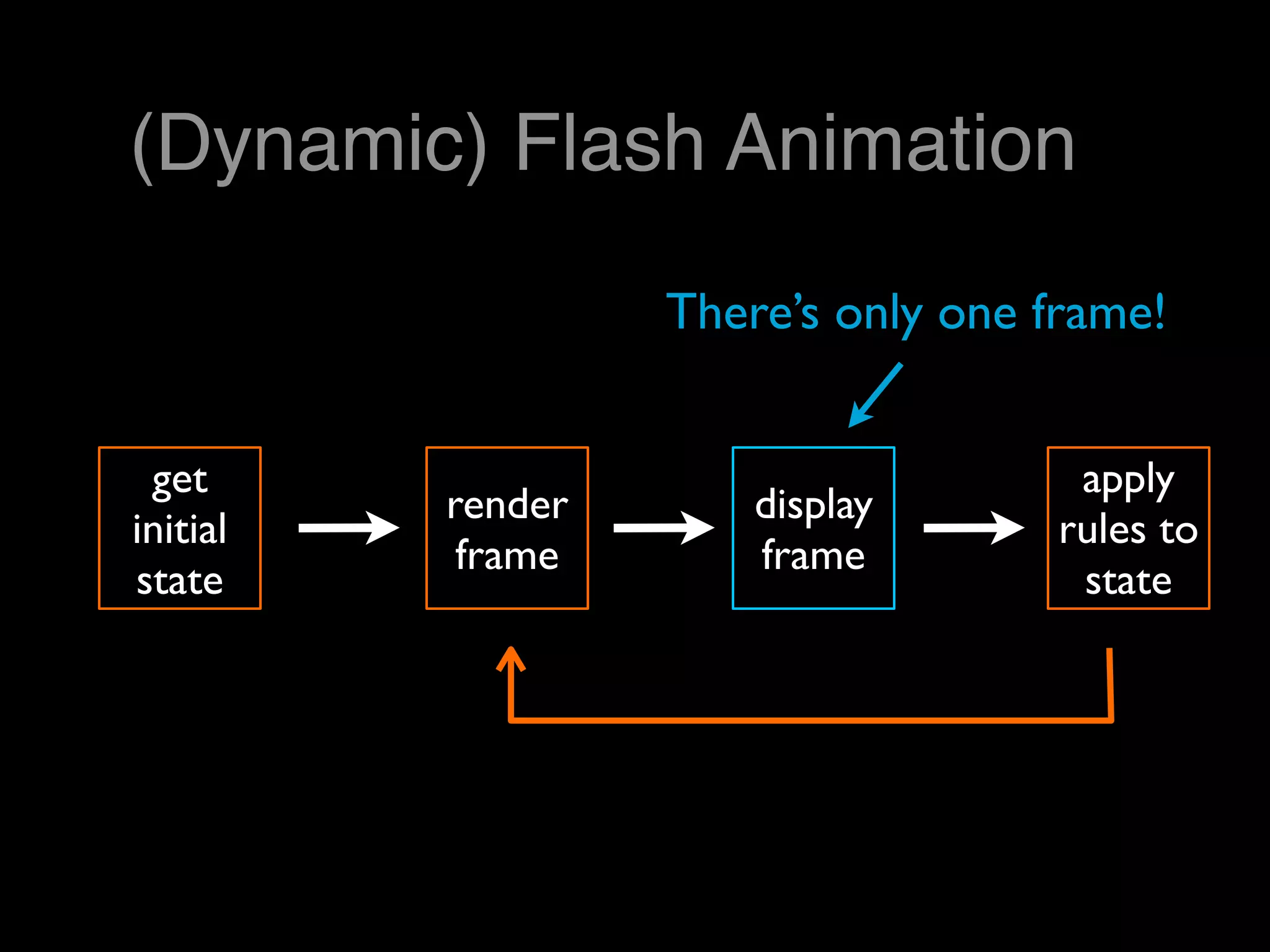
(Dynamic) Flash Animation

                   There’s only one frame!


 get                                  apply
          render       display
initial                              rules to
           frame       frame
state                                 state
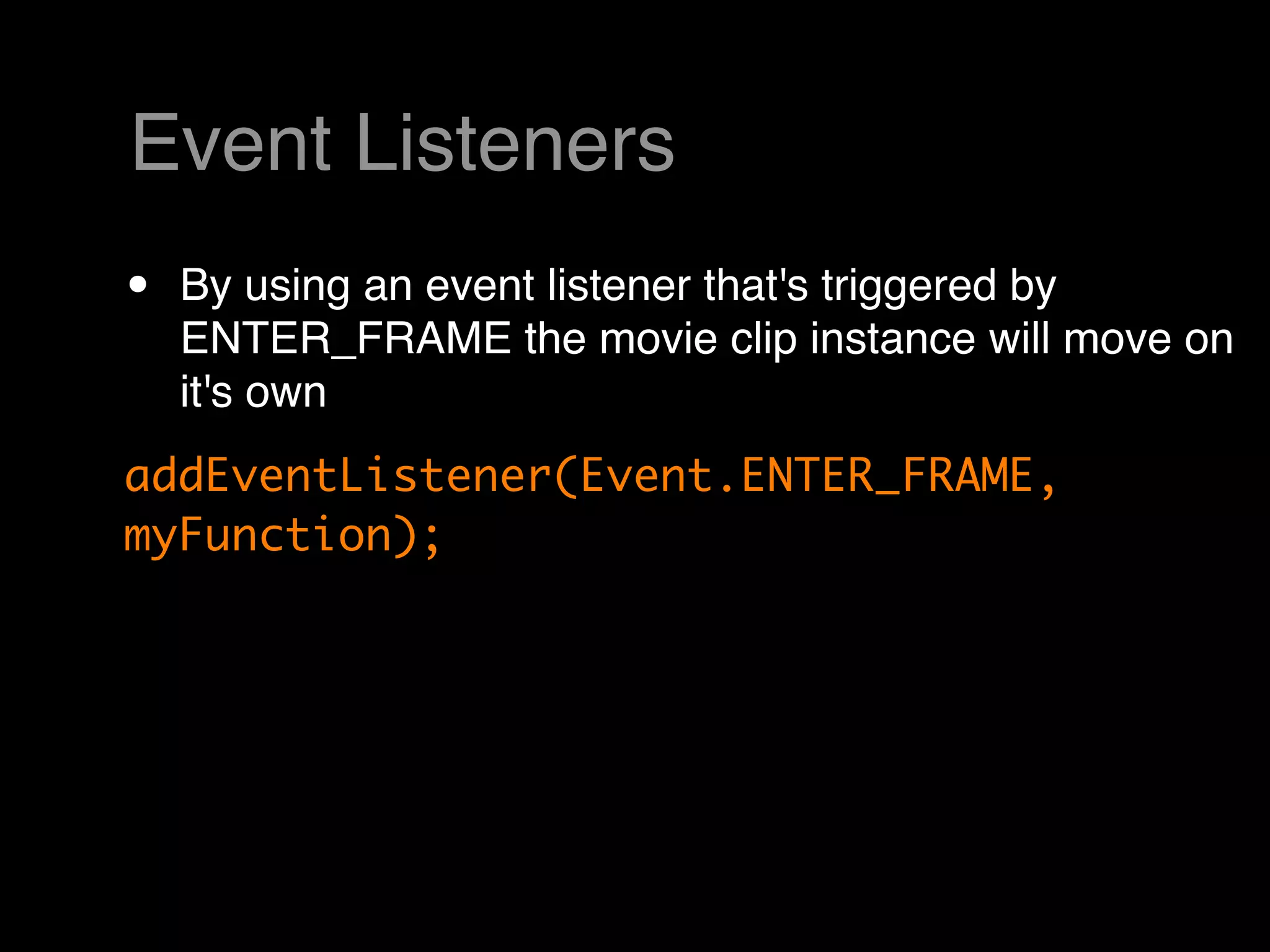
Event Listeners
•   By using an event listener that's triggered by
    ENTER_FRAME the movie clip instance will move on
    it's own
addEventListener(Event.ENTER_FRAME,
myFunction);
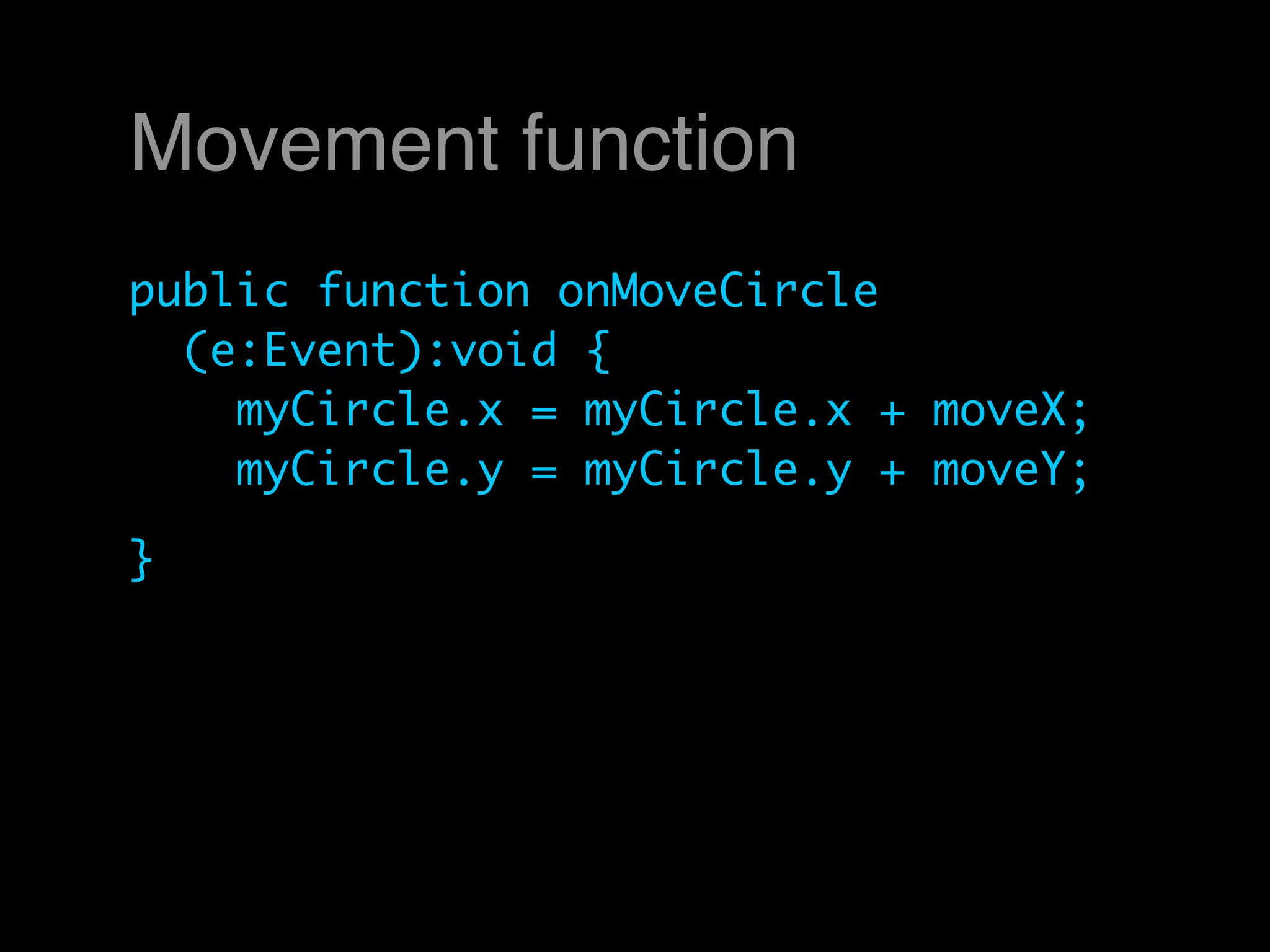
Movement function
public function onMoveCircle
  (e:Event):void {
    myCircle.x = myCircle.x + moveX;
    myCircle.y = myCircle.y + moveY;

}
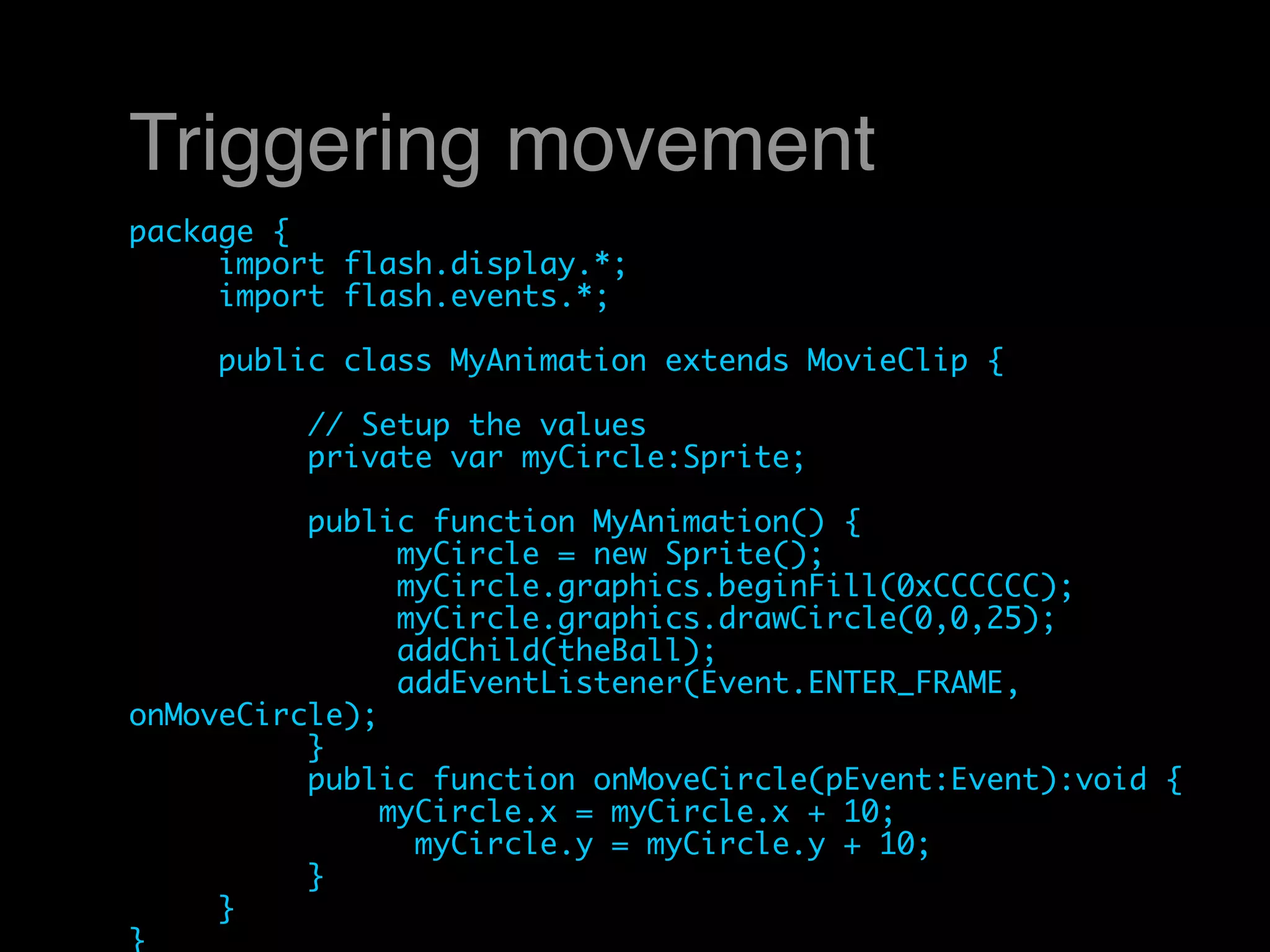
Triggering movement
package {
	    import flash.display.*;
	    import flash.events.*;
	
	    public class MyAnimation extends MovieClip {
	    	
	    	    // Setup the values
	    	    private var myCircle:Sprite;
	    	
	    	    public function MyAnimation() {
	    	    	    myCircle = new Sprite();
	    	    	    myCircle.graphics.beginFill(0xCCCCCC);
	    	    	    myCircle.graphics.drawCircle(0,0,25);
	    	    	    addChild(theBall);
	    	    	    addEventListener(Event.ENTER_FRAME,
onMoveCircle);
	    	    }
	    	    public function onMoveCircle(pEvent:Event):void {
	    	        myCircle.x = myCircle.x + 10;
                myCircle.y = myCircle.y + 10;
	    	    }
	    }
}
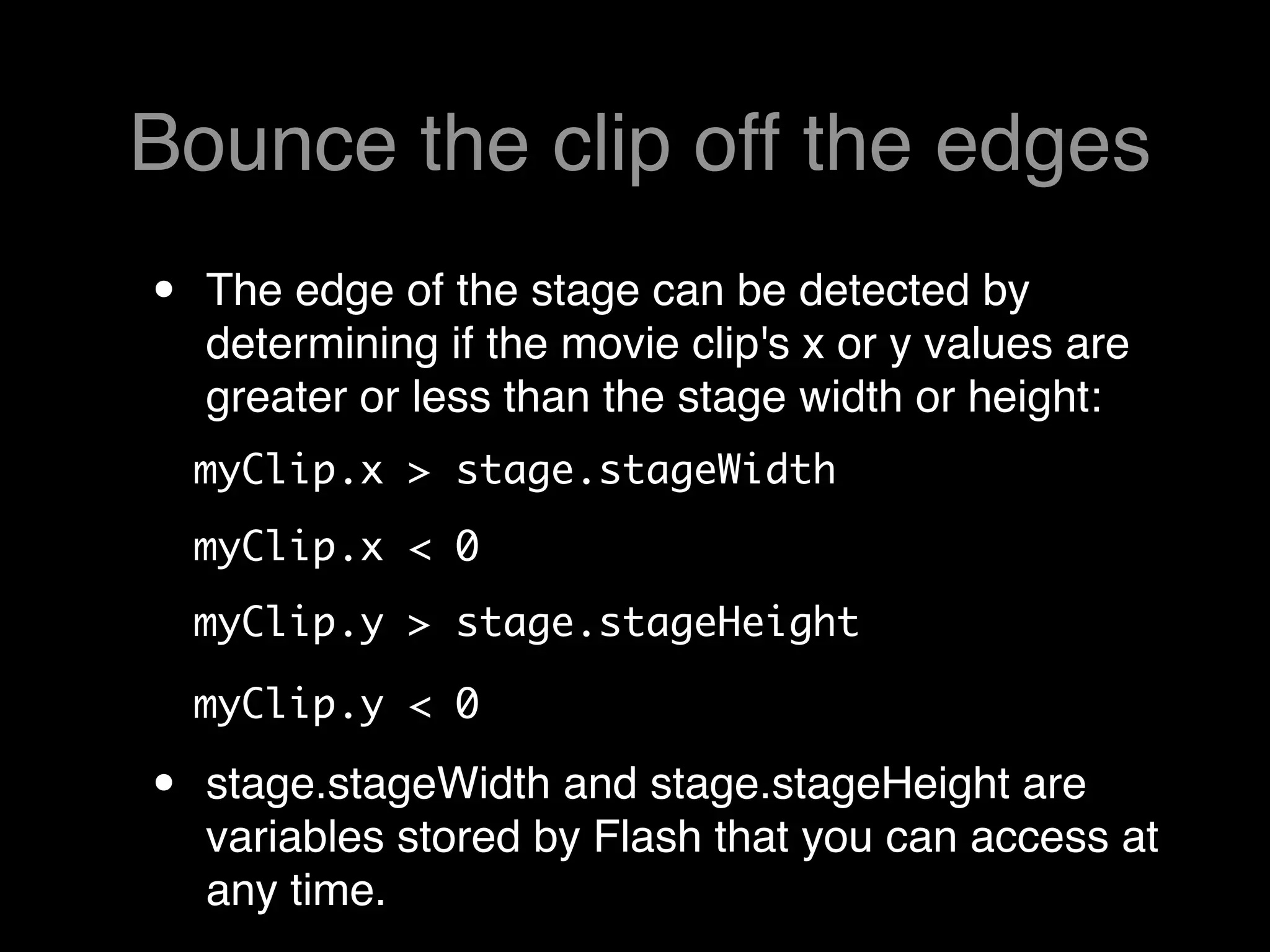
Bounce the clip off the edges
•   The edge of the stage can be detected by
    determining if the movie clip's x or y values are
    greater or less than the stage width or height:
    myClip.x > stage.stageWidth 
    myClip.x < 0 
    myClip.y > stage.stageHeight

    myClip.y < 0  

•   stage.stageWidth and stage.stageHeight are
    variables stored by Flash that you can access at
    any time.
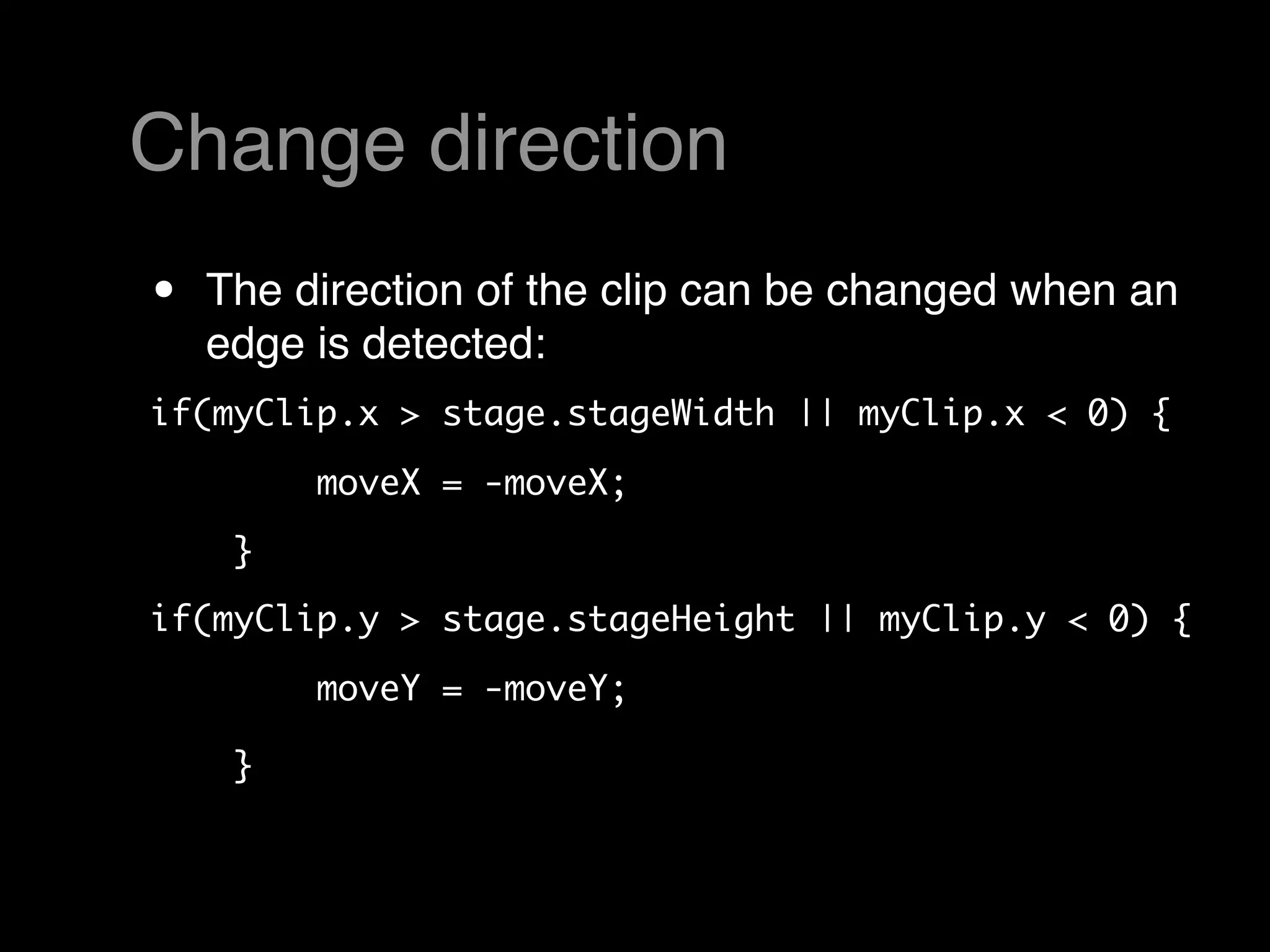
Change direction
•   The direction of the clip can be changed when an
    edge is detected:
if(myClip.x > stage.stageWidth || myClip.x < 0) {

        moveX = -moveX; 
    }  
if(myClip.y > stage.stageHeight || myClip.y < 0) {

        moveY = -moveY; 

    }  
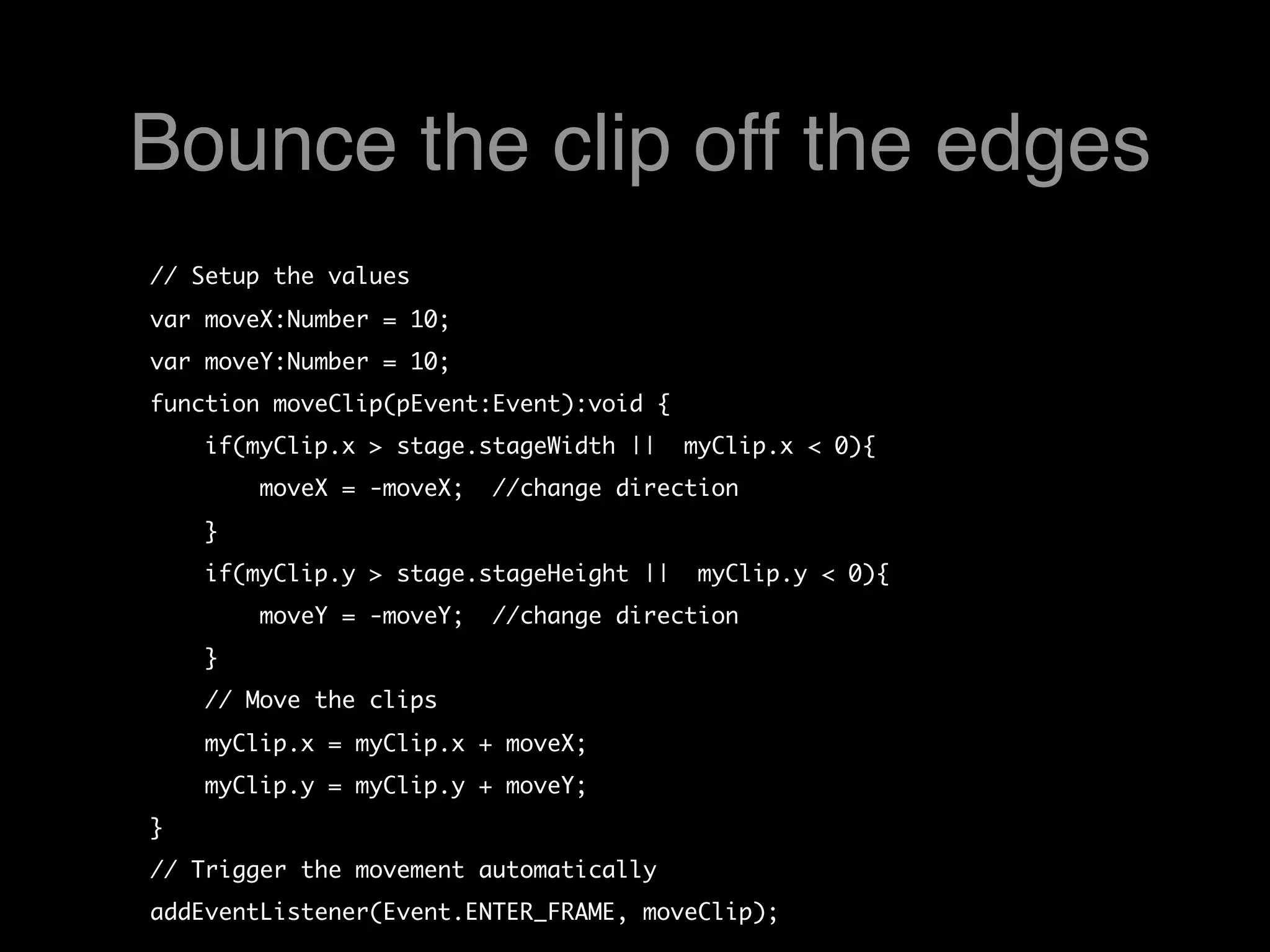
Bounce the clip off the edges
// Setup the values
var moveX:Number = 10;
var moveY:Number = 10;
function moveClip(pEvent:Event):void {
    if(myClip.x > stage.stageWidth ||  myClip.x < 0){
        moveX = -moveX;  //change direction
    }    
    if(myClip.y > stage.stageHeight ||  myClip.y < 0){
        moveY = -moveY;  //change direction
    }    
    // Move the clips 
    myClip.x = myClip.x + moveX;
    myClip.y = myClip.y + moveY;
}
// Trigger the movement automatically
addEventListener(Event.ENTER_FRAME, moveClip);
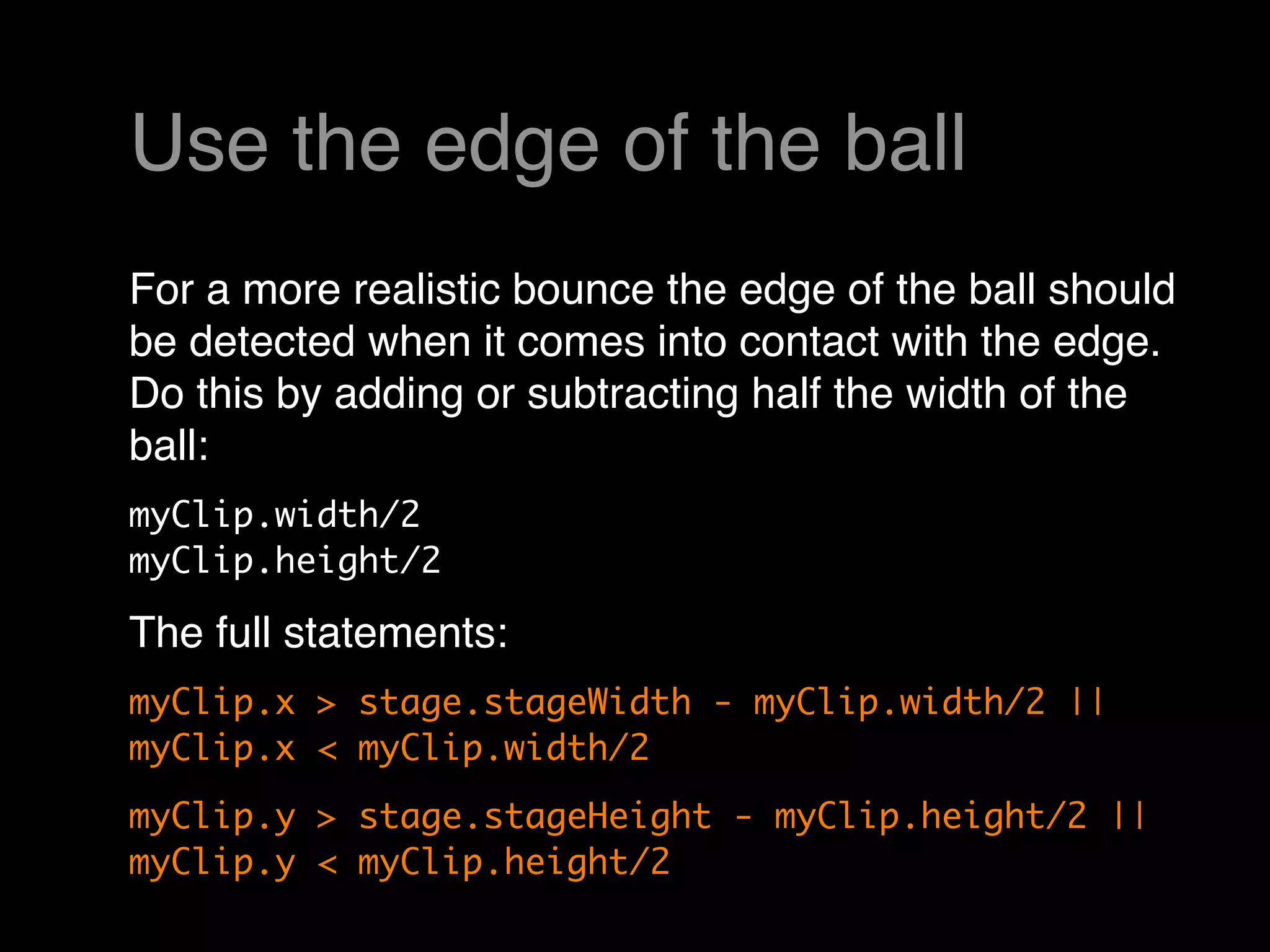
Use the edge of the ball
For a more realistic bounce the edge of the ball should
be detected when it comes into contact with the edge. 
Do this by adding or subtracting half the width of the
ball:
myClip.width/2
myClip.height/2

The full statements:
myClip.x > stage.stageWidth - myClip.width/2 ||
myClip.x < myClip.width/2
myClip.y > stage.stageHeight - myClip.height/2 ||
myClip.y < myClip.height/2
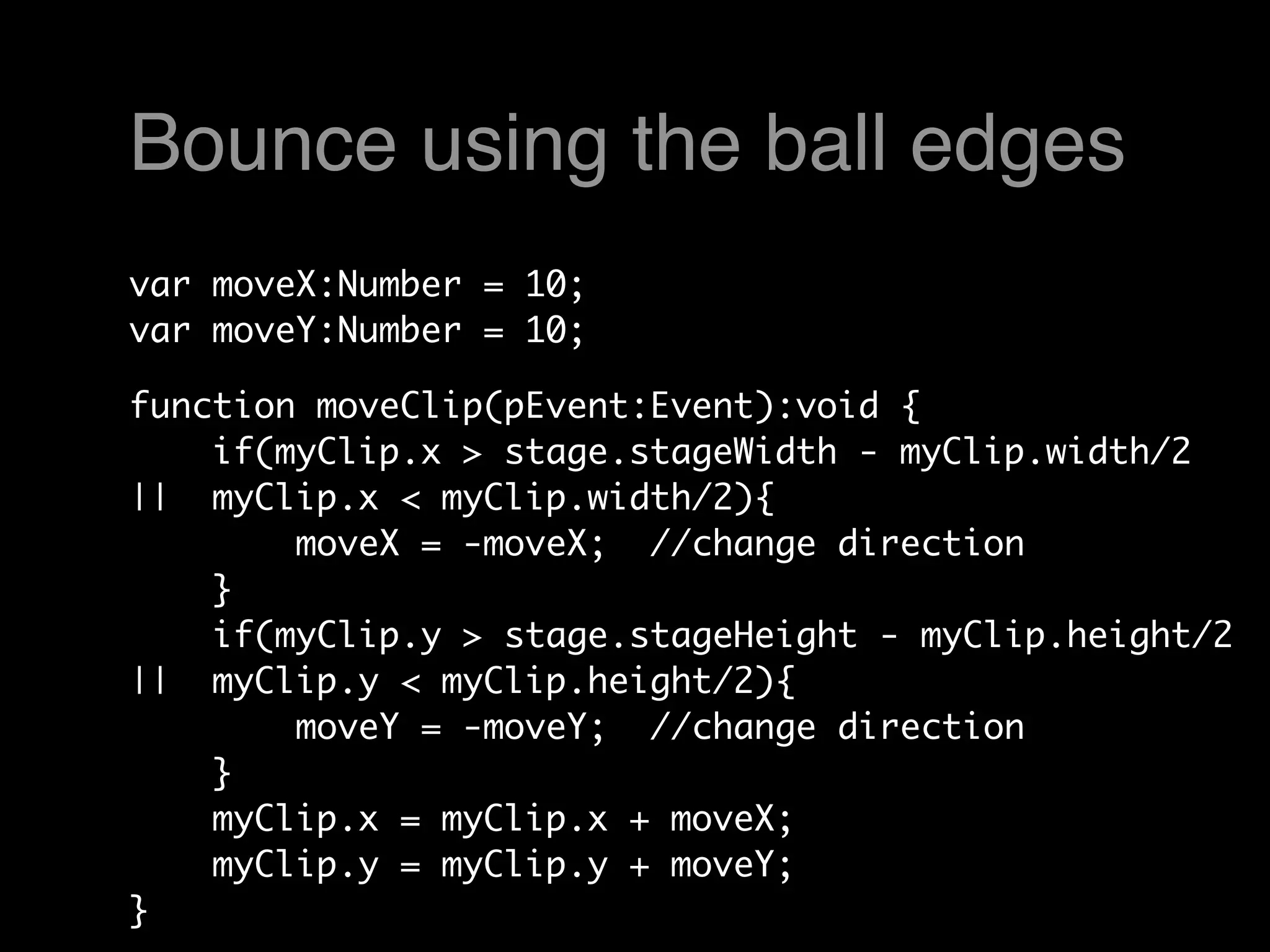
Bounce using the ball edges
var moveX:Number = 10;
var moveY:Number = 10;

function moveClip(pEvent:Event):void {
    if(myClip.x > stage.stageWidth - myClip.width/2
||  myClip.x < myClip.width/2){
        moveX = -moveX;  //change direction
    }    
    if(myClip.y > stage.stageHeight - myClip.height/2
||  myClip.y < myClip.height/2){
        moveY = -moveY;  //change direction
    }   
    myClip.x = myClip.x + moveX;
    myClip.y = myClip.y + moveY;
}
Homework, due March 9

• Read p65-81, Chapter 2:
  ActionScript Game Elements in AS
  3.0 Game Programming University
• Create a Flash movie with scripted
  motion
 • Add an object to the stage
 • Make the object move across the
   screen using ActionScript

Artdm170 Week6 Scripting Motion

  • 1.
    ARTDM 170, Week6: Using Objects + Scripting Motion Gilbert Guerrero gguerrero@dvc.edu gilbertguerrero.com/blog/artdm-170
  • 2.
    Adobe Flash Open Flashand create a new ActionScript 3.0 document...
  • 3.
    Create an ActionScriptclass • Save your ActionScript file, example: MyAnimation.fla • Go to New... > ActionScript File to create a new external AS file • Save the file using the same name as your Flash file, example: MyAnimation.as
  • 4.
    Review: ActionScript Class Class file declaration package { Library classes needed import flash.display.*; import flash.text.*; Class definition public class HelloWorld2 extends MovieClip { public function HelloWorld2() { var myText: TextField = new TextField(); myText.text = "Hello World!"; addChild(myText); } } Constructor }
  • 5.
    Create a newAS class package { import flash.display.*; public class MyAnimation extends Sprite { public function MyAnimation() { } } }
  • 6.
    Placing objects onthe stage • Programmatically (using Flash display objects) • Library (named instances) • Library + Programmatically (export for ActionScript)
  • 7.
    Drawing a circlewith code • Add this code to your class to draw a circle on the screen public var myCircle:Sprite = new Sprite(); myCircle.graphics.lineStyle(5,0x000000); myCircle.graphics.beginFill(0xCCCCCC); myCircle.graphics.drawCircle(0,0,25); addChild(myCircle);
  • 8.
    Draw a circle • Create a new movie clip • Draw a circle • Drag it onto the stage • Name the instance of the object • The instance name becomes the way to use the object in the code: //moves circle to the upper corner happyFunBall.x = 0; happyFunBall.y = 0;
  • 9.
    Export for ActionScript •Open the Properties for an object in the library • Check export for ActionScript and click OK • Flash will create a class for you
  • 10.
    Export for ActionScript •Now you can created an unlimited number of named instances in the code to add the object to the stage var superFunBall:Ball = new Ball(); superFunBall.x = 0; superFunBall.y = 0; addChild(superFunBall);
  • 11.
  • 12.
    Moving objects • Aninstance of a movie clip can be moved to any location using x and y as coordinates: myCircle.x = 300; myCircle.y = 200;
  • 13.
    Updating location • Byupdating x and y values we can change the location of our object // Move the clips myCircle.x = myCircle.x + 10; myCircle.y = myCircle.y + 10;
  • 14.
    Traditional Animation frame frame frame 1 2 3
  • 15.
    Computer Animation render display render display frame 1 frame 1 frame 2 frame 2 Executes code Executes code
  • 16.
    (Dynamic) Flash Animation There’s only one frame! get apply render display initial rules to frame frame state state
  • 17.
    Event Listeners • By using an event listener that's triggered by ENTER_FRAME the movie clip instance will move on it's own addEventListener(Event.ENTER_FRAME, myFunction);
  • 18.
    Movement function public functiononMoveCircle (e:Event):void { myCircle.x = myCircle.x + moveX; myCircle.y = myCircle.y + moveY; }
  • 19.
    Triggering movement package { import flash.display.*; import flash.events.*; public class MyAnimation extends MovieClip { // Setup the values private var myCircle:Sprite; public function MyAnimation() { myCircle = new Sprite(); myCircle.graphics.beginFill(0xCCCCCC); myCircle.graphics.drawCircle(0,0,25); addChild(theBall); addEventListener(Event.ENTER_FRAME, onMoveCircle); } public function onMoveCircle(pEvent:Event):void {     myCircle.x = myCircle.x + 10; myCircle.y = myCircle.y + 10; } } }
  • 20.
    Bounce the clipoff the edges • The edge of the stage can be detected by determining if the movie clip's x or y values are greater or less than the stage width or height: myClip.x > stage.stageWidth  myClip.x < 0  myClip.y > stage.stageHeight myClip.y < 0   • stage.stageWidth and stage.stageHeight are variables stored by Flash that you can access at any time.
  • 21.
    Change direction • The direction of the clip can be changed when an edge is detected: if(myClip.x > stage.stageWidth || myClip.x < 0) {         moveX = -moveX;      }   if(myClip.y > stage.stageHeight || myClip.y < 0) {         moveY = -moveY;      }  
  • 22.
    Bounce the clipoff the edges // Setup the values var moveX:Number = 10; var moveY:Number = 10; function moveClip(pEvent:Event):void {     if(myClip.x > stage.stageWidth ||  myClip.x < 0){         moveX = -moveX;  //change direction     }         if(myClip.y > stage.stageHeight ||  myClip.y < 0){         moveY = -moveY;  //change direction     }         // Move the clips      myClip.x = myClip.x + moveX;     myClip.y = myClip.y + moveY; } // Trigger the movement automatically addEventListener(Event.ENTER_FRAME, moveClip);
  • 23.
    Use the edgeof the ball For a more realistic bounce the edge of the ball should be detected when it comes into contact with the edge.  Do this by adding or subtracting half the width of the ball: myClip.width/2 myClip.height/2 The full statements: myClip.x > stage.stageWidth - myClip.width/2 || myClip.x < myClip.width/2 myClip.y > stage.stageHeight - myClip.height/2 || myClip.y < myClip.height/2
  • 24.
    Bounce using theball edges var moveX:Number = 10; var moveY:Number = 10; function moveClip(pEvent:Event):void {     if(myClip.x > stage.stageWidth - myClip.width/2 ||  myClip.x < myClip.width/2){         moveX = -moveX;  //change direction     }         if(myClip.y > stage.stageHeight - myClip.height/2 ||  myClip.y < myClip.height/2){         moveY = -moveY;  //change direction     }        myClip.x = myClip.x + moveX;     myClip.y = myClip.y + moveY; }
  • 25.
    Homework, due March9 • Read p65-81, Chapter 2: ActionScript Game Elements in AS 3.0 Game Programming University • Create a Flash movie with scripted motion • Add an object to the stage • Make the object move across the screen using ActionScript