Android Wear Apps
Notification Center
www.letsnurture.com
info@letsnurture.com
Creating a Notification
To build handheld notifications that are also sent to
wearables, use NotificationCompat.Builder.
When you build notifications with this class, the
system takes care of displaying notifications
properly, whether they appear on a handheld or
wearable.
• Note: Notifications using RemoteViews are
stripped of custom layouts and the wearable only
displays the text and icons.
• However, you can create create custom
notificationsthat use custom card layouts by
creating a wearable app that runs on the wearable
device.
www.letsnurture.com
info@letsnurture.com
Import the necessary classes
• To import the necessary packages, add this line to
yourbuild.gradlefile:
• compile "com.android.support:support-v4:20.0.+"Now
that your project has access to the necessary
packages, import the necessary classes from the
support library:
import android.support.v4.app.NotificationCompat;
import android.support.v4.app.NotificationManagerCompat;
import android.support.v4.app.NotificationCompat.WearableExtender;
www.letsnurture.com
info@letsnurture.com
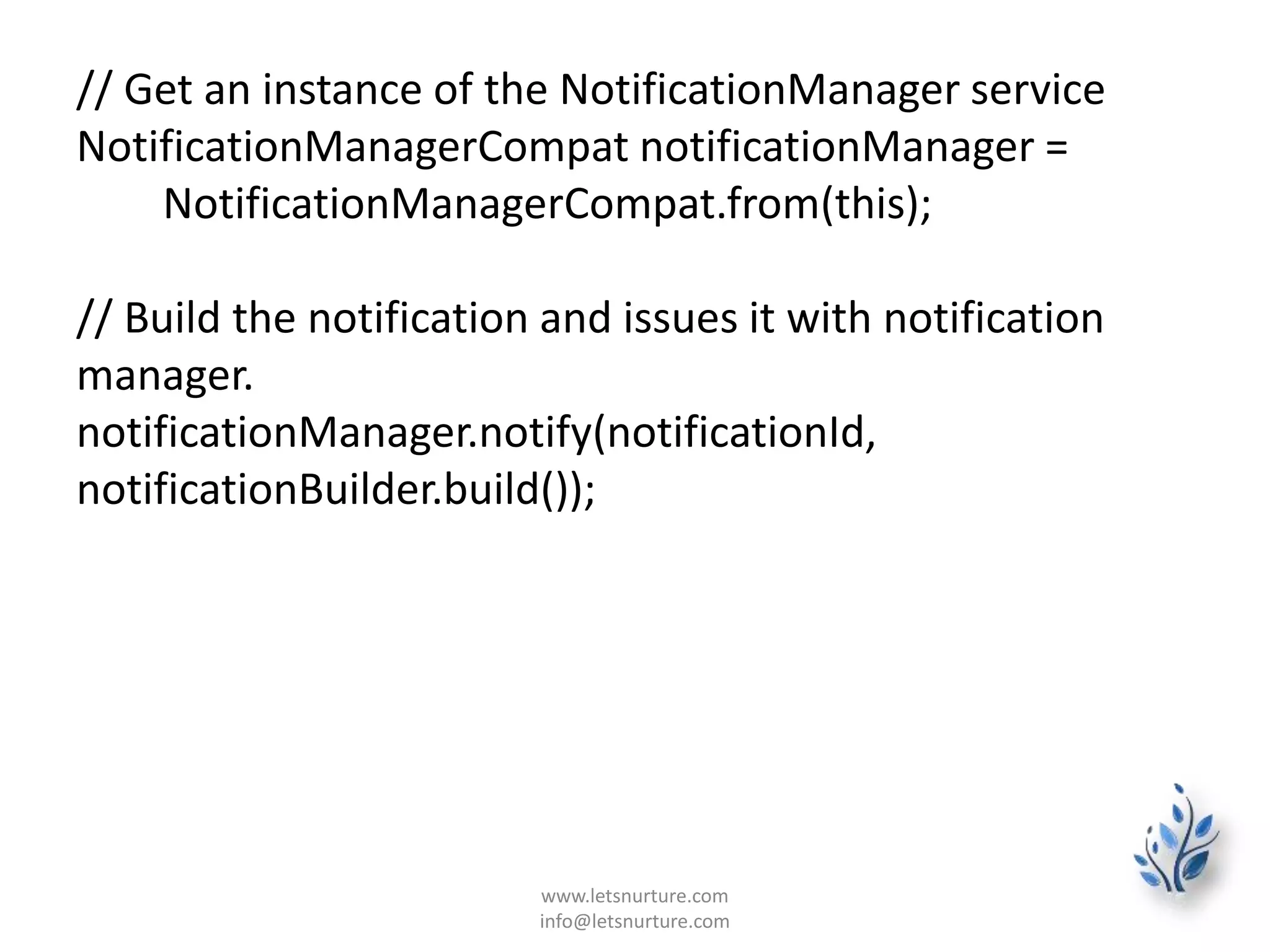
To create a notification with the support library, you create an
instance of NotificationCompat.Builder and issue the
notification by passing it to notify(). For example:
int notificationId = 001;
// Build intent for notification content
Intent viewIntent = new Intent(this, ViewEventActivity.class);
viewIntent.putExtra(EXTRA_EVENT_ID, eventId);
PendingIntent viewPendingIntent =
PendingIntent.getActivity(this, 0, viewIntent, 0);
NotificationCompat.Builder notificationBuilder =
new NotificationCompat.Builder(this)
.setSmallIcon(R.drawable.ic_event)
.setContentTitle(eventTitle)
.setContentText(eventLocation)
.setContentIntent(viewPendingIntent);
www.letsnurture.com
info@letsnurture.com
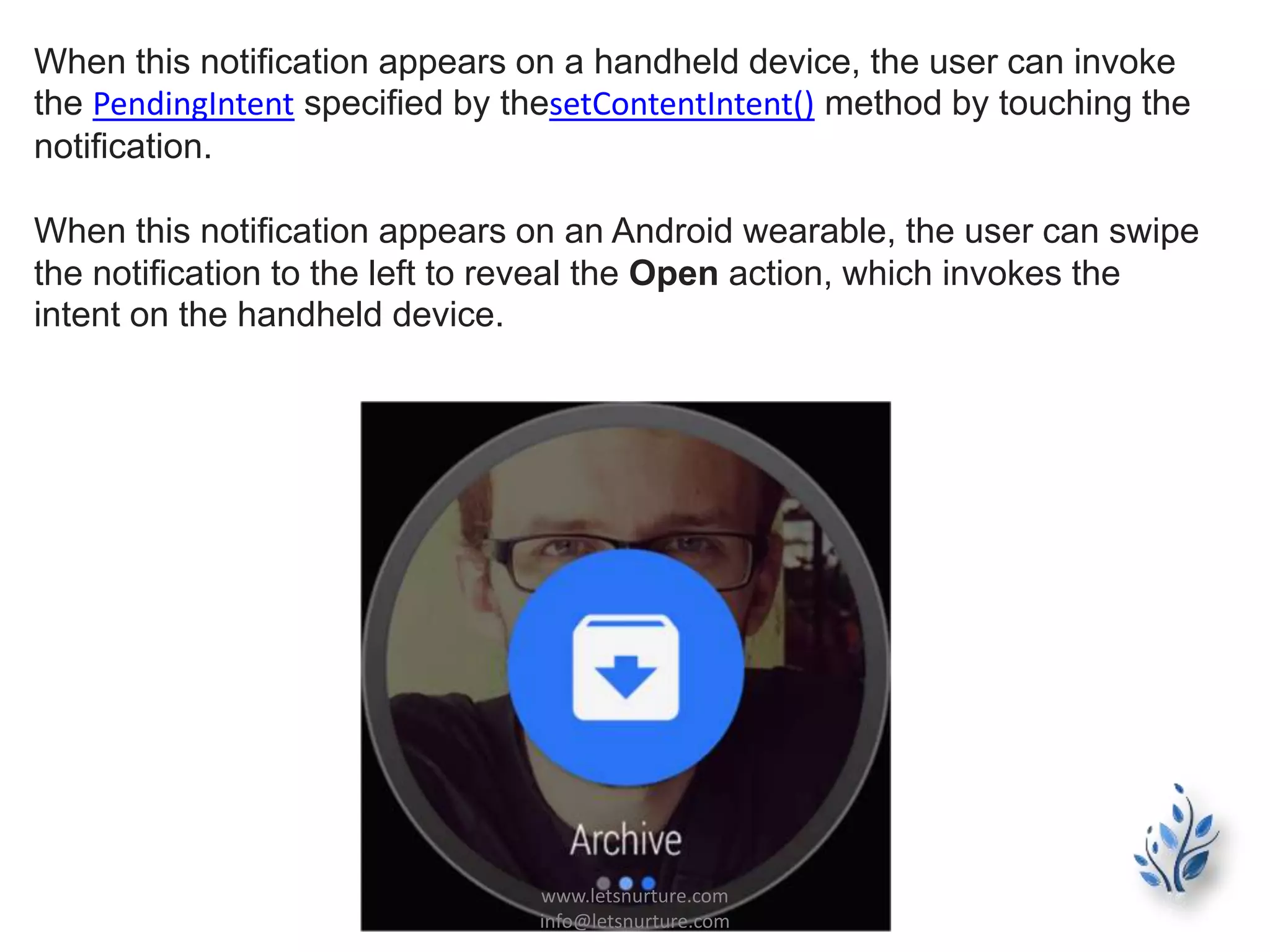
// Get an instance of the NotificationManager service
NotificationManagerCompat notificationManager =
NotificationManagerCompat.from(this);
// Build the notification and issues it with notification
manager.
notificationManager.notify(notificationId,
notificationBuilder.build());
www.letsnurture.com
info@letsnurture.com
When this notification appears on a handheld device, the user can invoke
the PendingIntent specified by thesetContentIntent() method by touching the
notification.
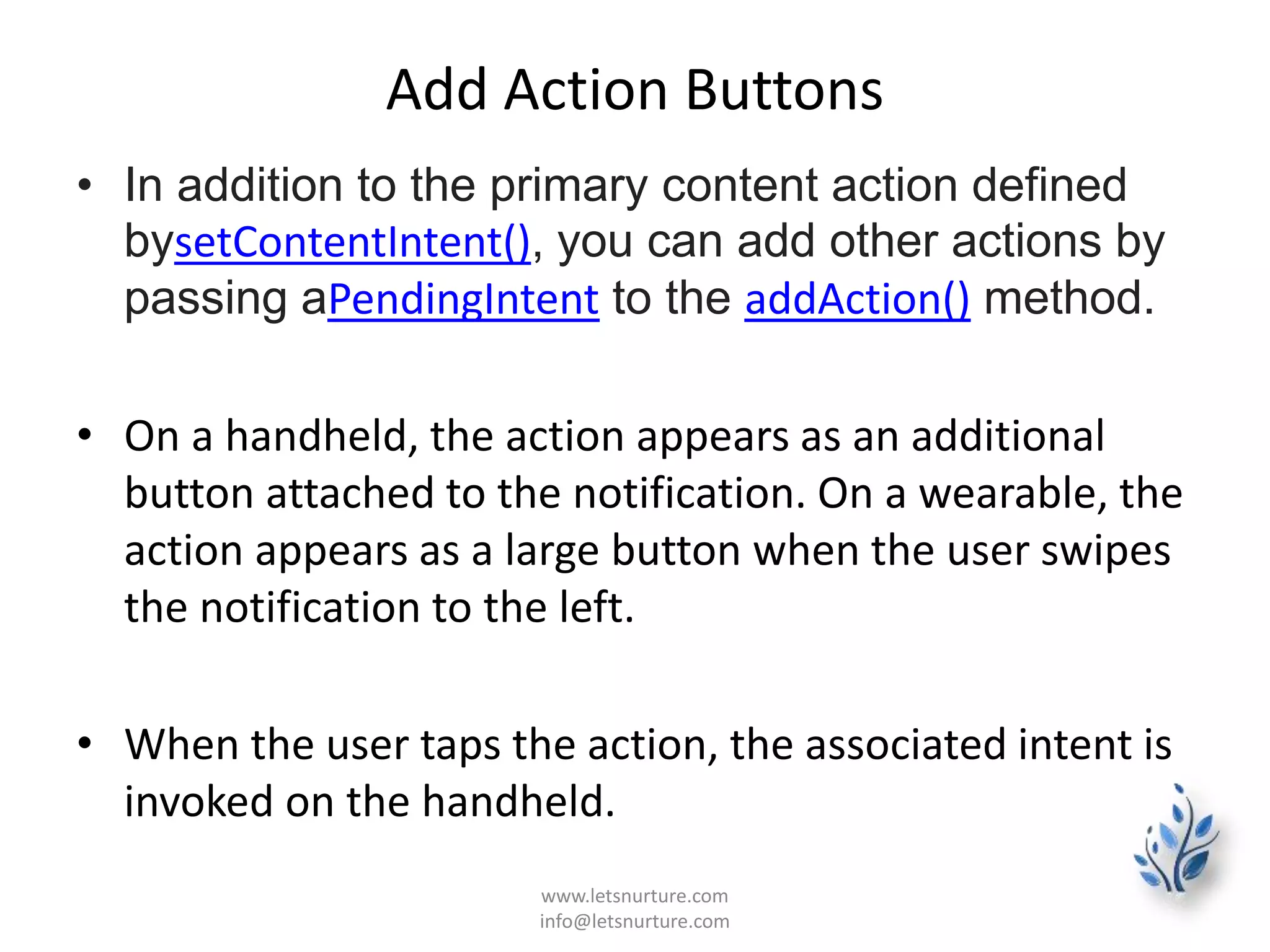
When this notification appears on an Android wearable, the user can swipe
the notification to the left to reveal the Open action, which invokes the
intent on the handheld device.
www.letsnurture.com
info@letsnurture.com
Add Action Buttons
• In addition to the primary content action defined
bysetContentIntent(), you can add other actions by
passing aPendingIntent to the addAction() method.
• On a handheld, the action appears as an additional
button attached to the notification. On a wearable, the
action appears as a large button when the user swipes
the notification to the left.
• When the user taps the action, the associated intent is
invoked on the handheld.
www.letsnurture.com
info@letsnurture.com
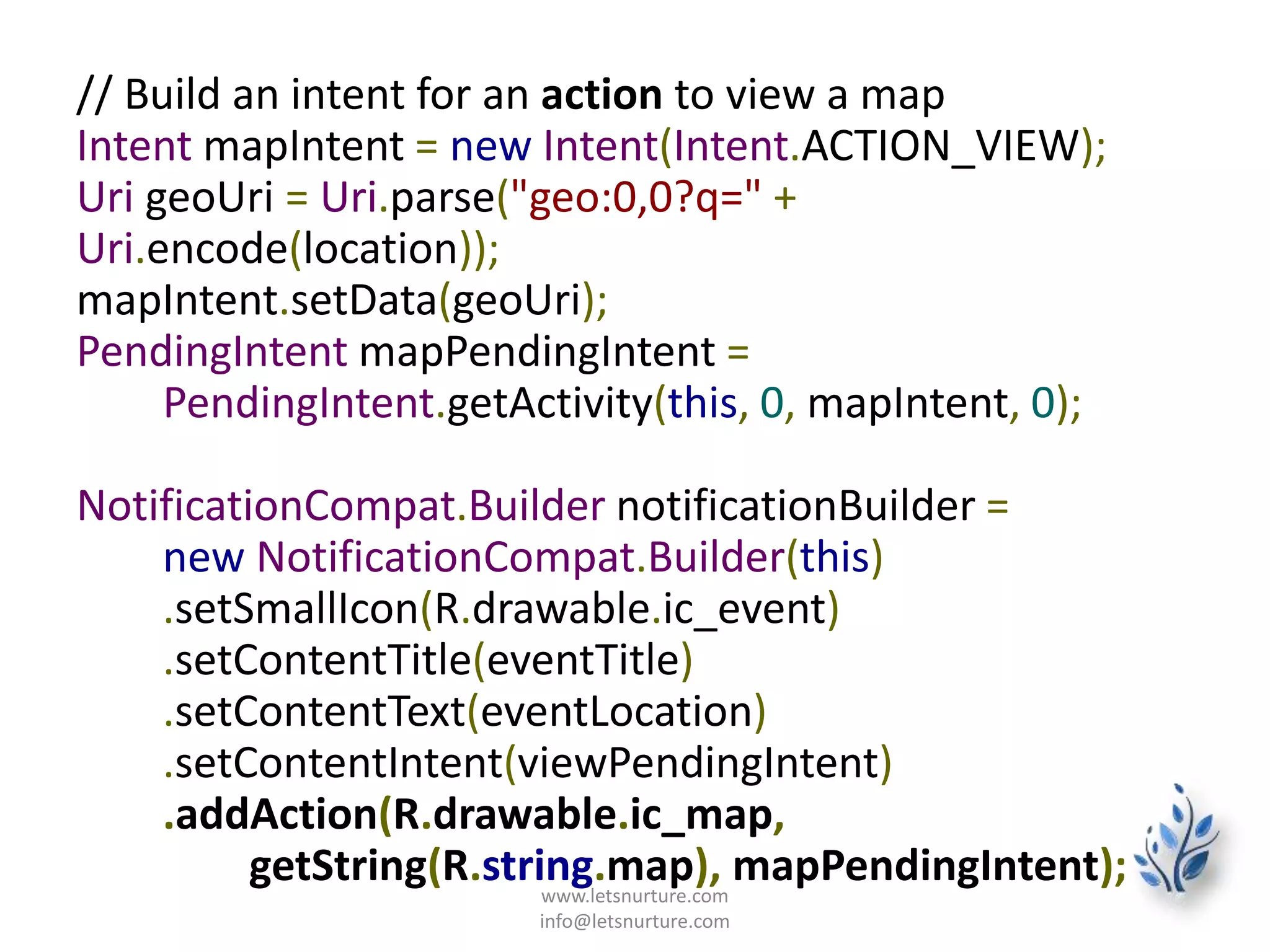
// Build an intent for an action to view a map
Intent mapIntent = new Intent(Intent.ACTION_VIEW);
Uri geoUri = Uri.parse("geo:0,0?q=" +
Uri.encode(location));
mapIntent.setData(geoUri);
PendingIntent mapPendingIntent =
PendingIntent.getActivity(this, 0, mapIntent, 0);
NotificationCompat.Builder notificationBuilder =
new NotificationCompat.Builder(this)
.setSmallIcon(R.drawable.ic_event)
.setContentTitle(eventTitle)
.setContentText(eventLocation)
.setContentIntent(viewPendingIntent)
.addAction(R.drawable.ic_map,
getString(R.string.map), mapPendingIntent);www.letsnurture.com
info@letsnurture.com
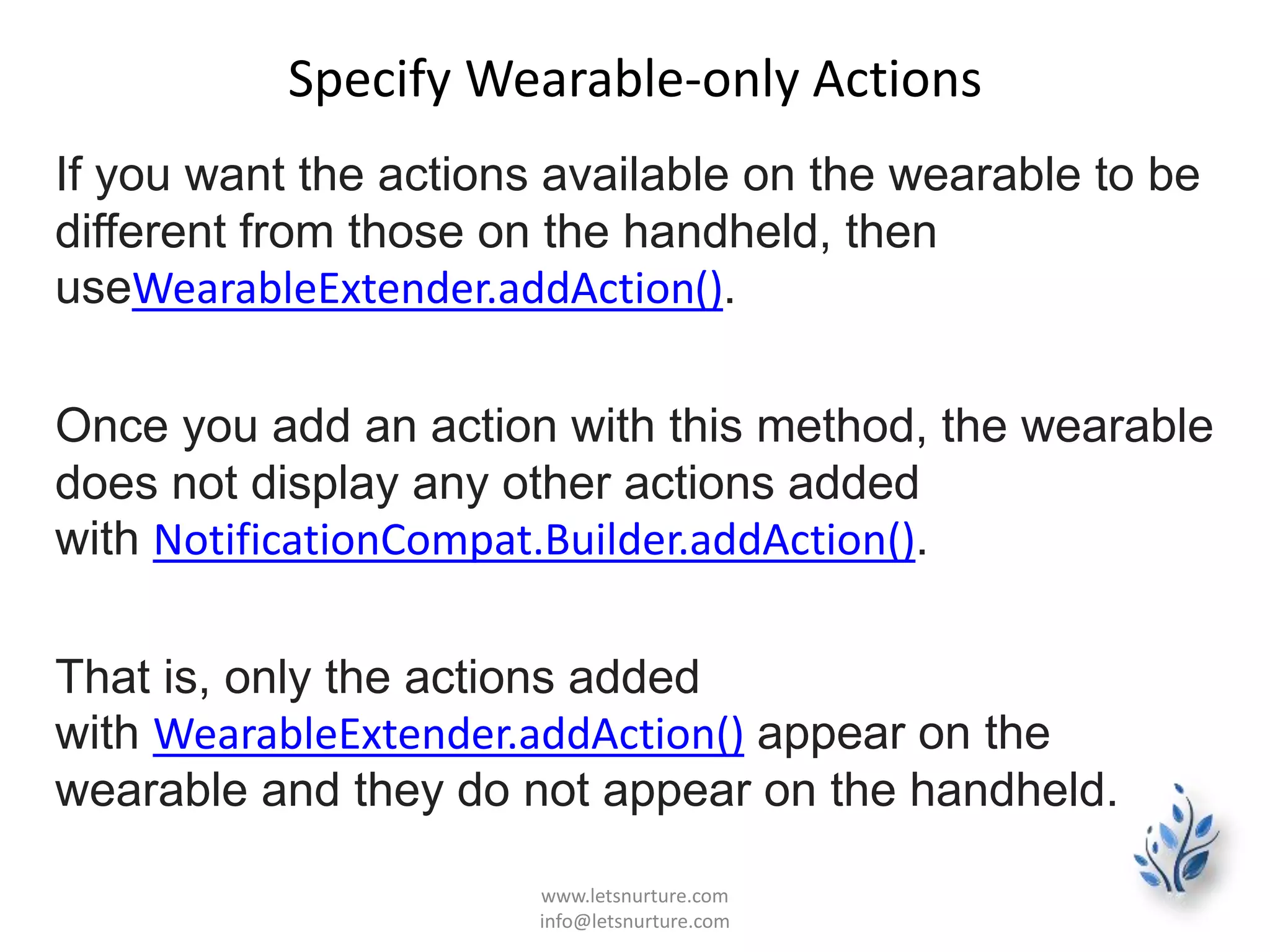
Specify Wearable-only Actions
If you want the actions available on the wearable to be
different from those on the handheld, then
useWearableExtender.addAction().
Once you add an action with this method, the wearable
does not display any other actions added
with NotificationCompat.Builder.addAction().
That is, only the actions added
with WearableExtender.addAction() appear on the
wearable and they do not appear on the handheld.
www.letsnurture.com
info@letsnurture.com
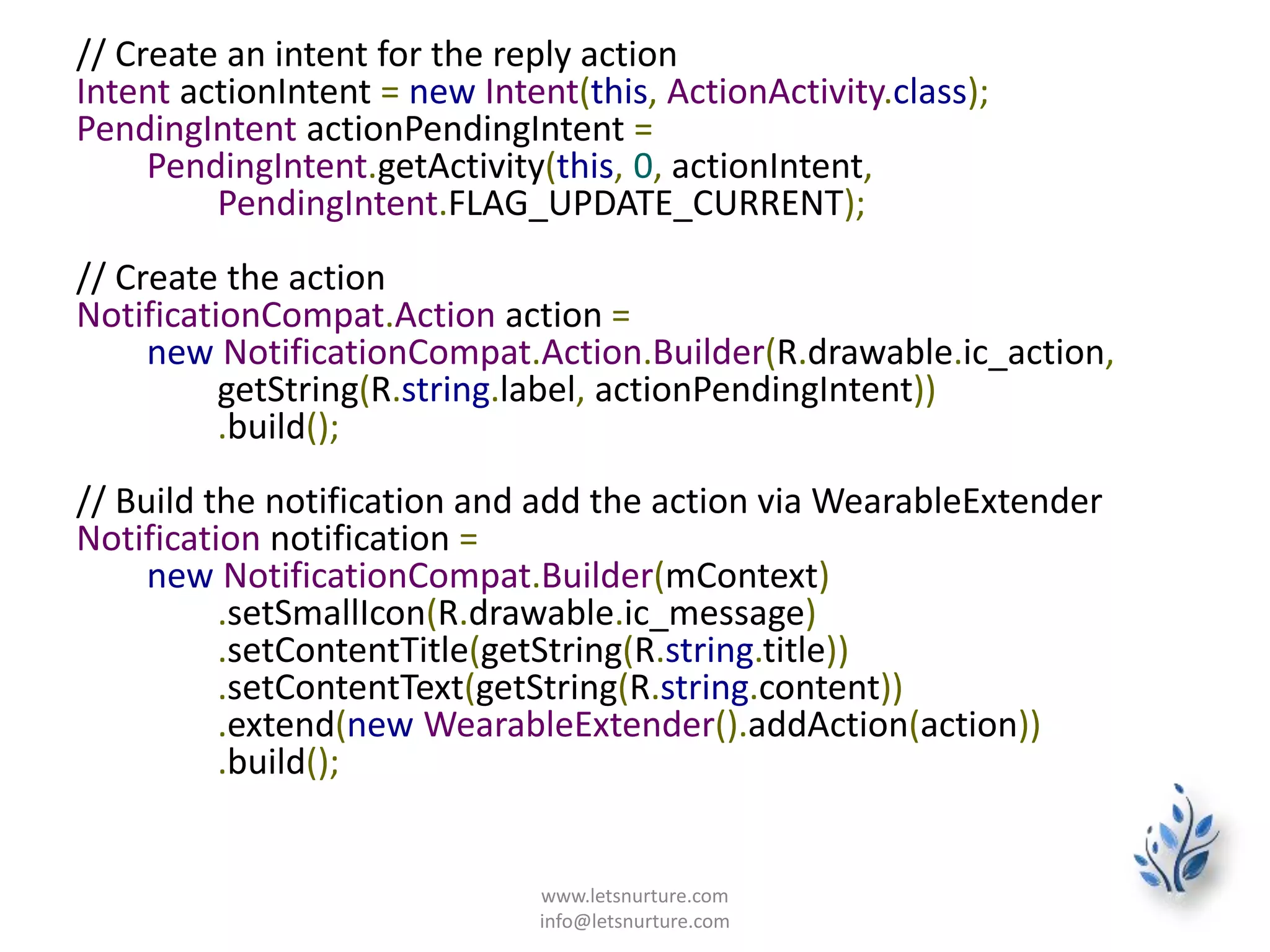
// Create an intent for the reply action
Intent actionIntent = new Intent(this, ActionActivity.class);
PendingIntent actionPendingIntent =
PendingIntent.getActivity(this, 0, actionIntent,
PendingIntent.FLAG_UPDATE_CURRENT);
// Create the action
NotificationCompat.Action action =
new NotificationCompat.Action.Builder(R.drawable.ic_action,
getString(R.string.label, actionPendingIntent))
.build();
// Build the notification and add the action via WearableExtender
Notification notification =
new NotificationCompat.Builder(mContext)
.setSmallIcon(R.drawable.ic_message)
.setContentTitle(getString(R.string.title))
.setContentText(getString(R.string.content))
.extend(new WearableExtender().addAction(action))
.build();
www.letsnurture.com
info@letsnurture.com
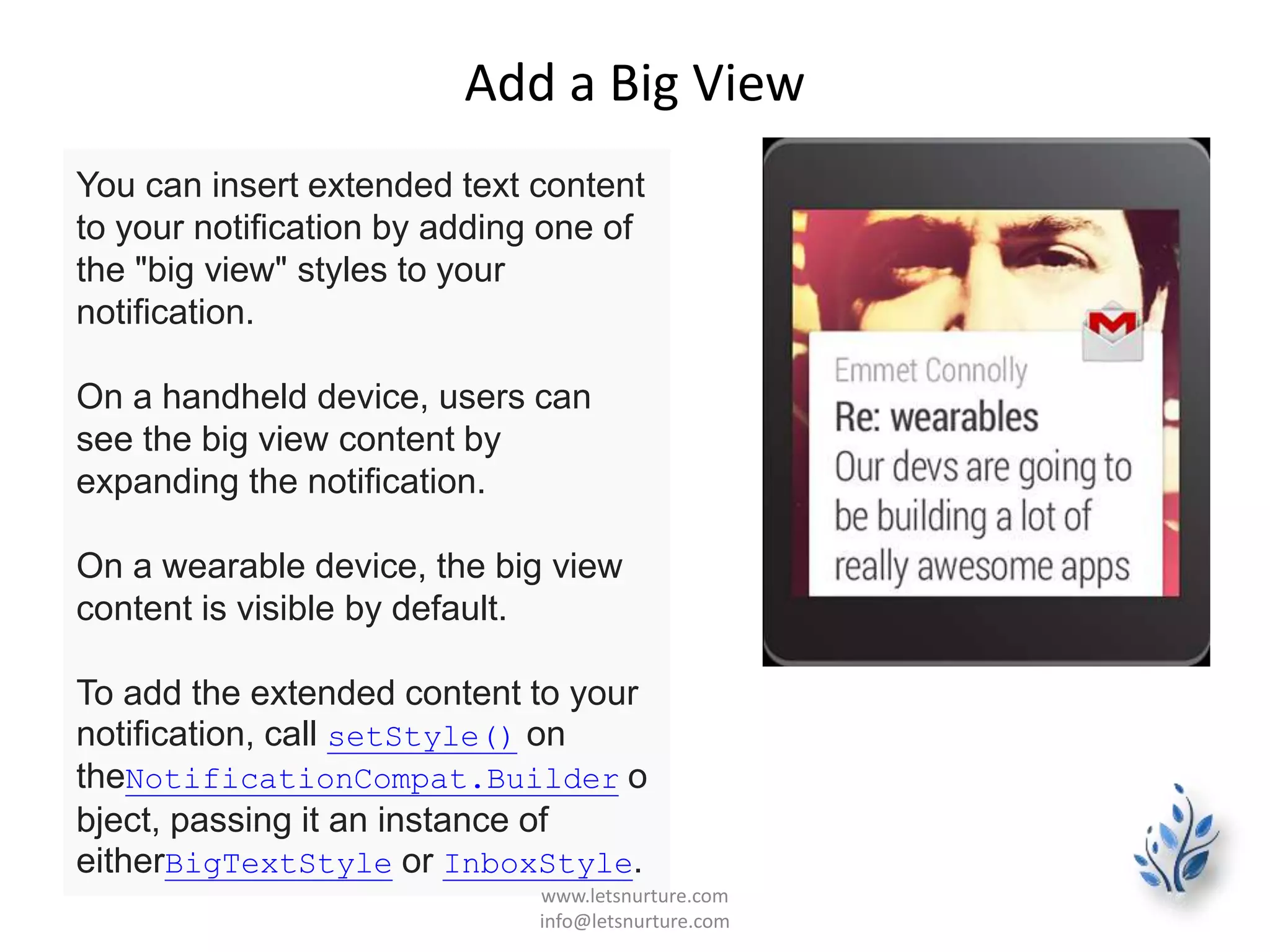
Add a Big View
You can insert extended text content
to your notification by adding one of
the "big view" styles to your
notification.
On a handheld device, users can
see the big view content by
expanding the notification.
On a wearable device, the big view
content is visible by default.
To add the extended content to your
notification, call setStyle() on
theNotificationCompat.Builder o
bject, passing it an instance of
eitherBigTextStyle or InboxStyle.
www.letsnurture.com
info@letsnurture.com
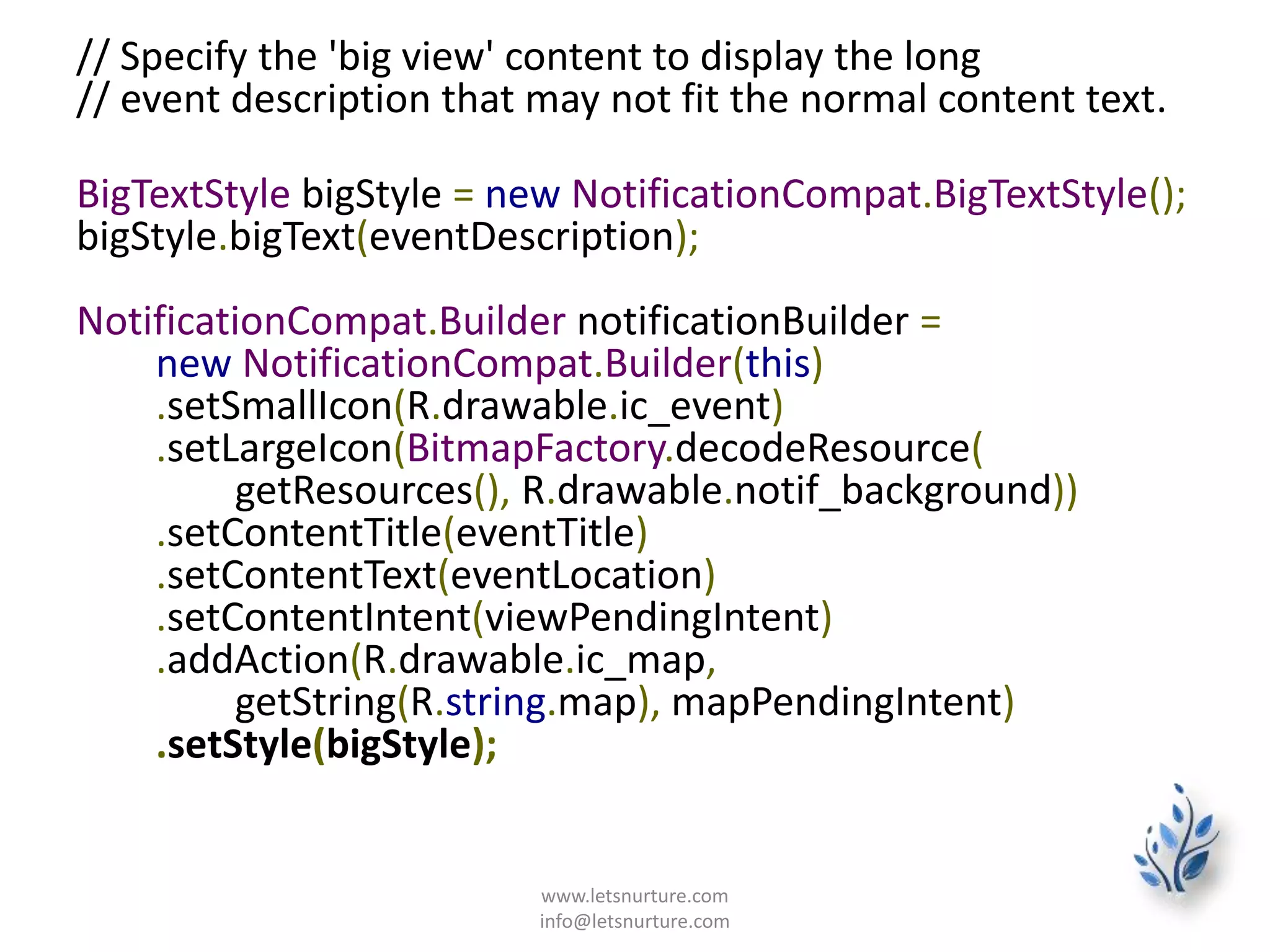
// Specify the 'big view' content to display the long
// event description that may not fit the normal content text.
BigTextStyle bigStyle = new NotificationCompat.BigTextStyle();
bigStyle.bigText(eventDescription);
NotificationCompat.Builder notificationBuilder =
new NotificationCompat.Builder(this)
.setSmallIcon(R.drawable.ic_event)
.setLargeIcon(BitmapFactory.decodeResource(
getResources(), R.drawable.notif_background))
.setContentTitle(eventTitle)
.setContentText(eventLocation)
.setContentIntent(viewPendingIntent)
.addAction(R.drawable.ic_map,
getString(R.string.map), mapPendingIntent)
.setStyle(bigStyle);
www.letsnurture.com
info@letsnurture.com
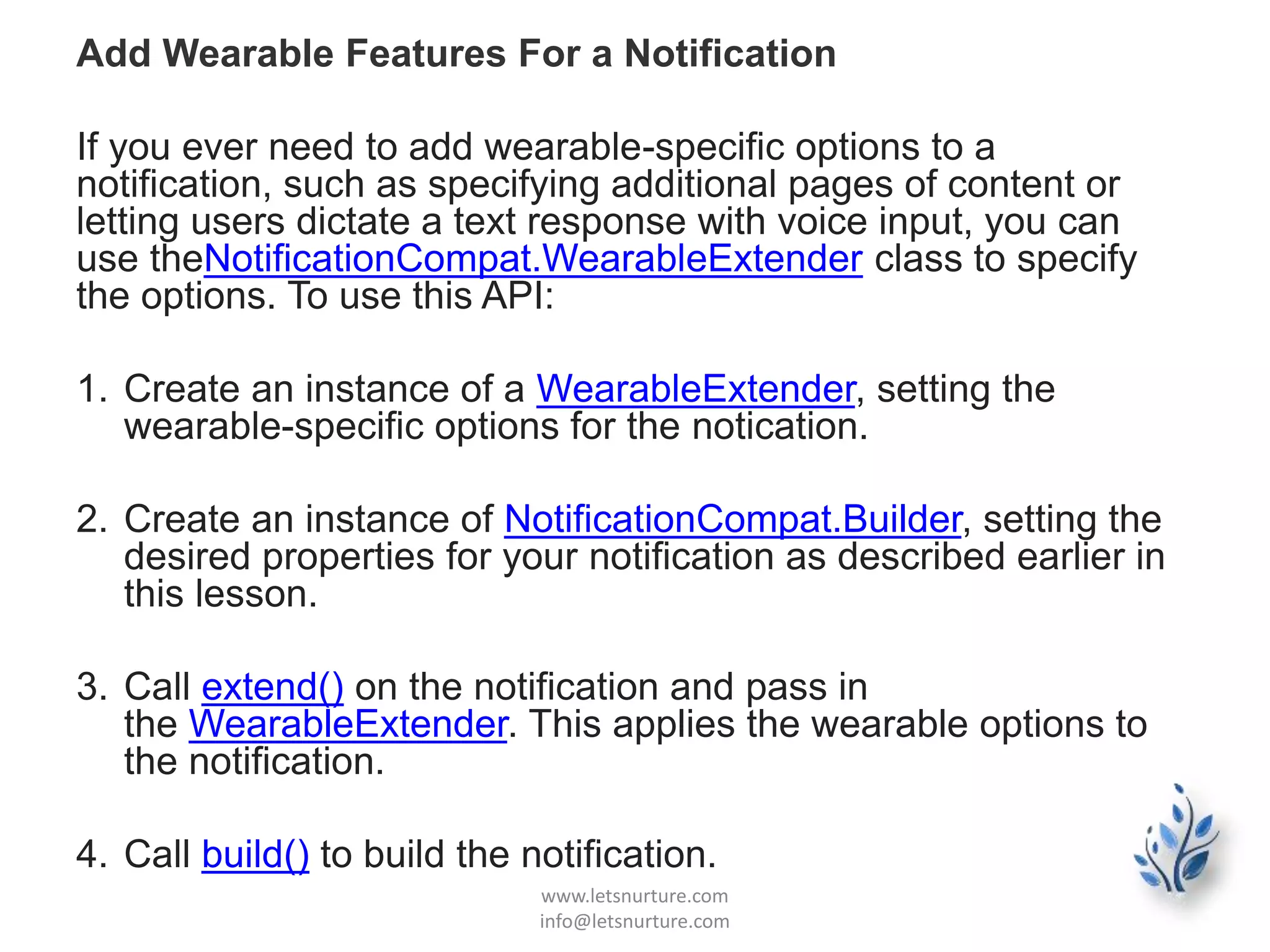
Add Wearable Features For a Notification
If you ever need to add wearable-specific options to a
notification, such as specifying additional pages of content or
letting users dictate a text response with voice input, you can
use theNotificationCompat.WearableExtender class to specify
the options. To use this API:
1. Create an instance of a WearableExtender, setting the
wearable-specific options for the notication.
2. Create an instance of NotificationCompat.Builder, setting the
desired properties for your notification as described earlier in
this lesson.
3. Call extend() on the notification and pass in
the WearableExtender. This applies the wearable options to
the notification.
4. Call build() to build the notification.
www.letsnurture.com
info@letsnurture.com
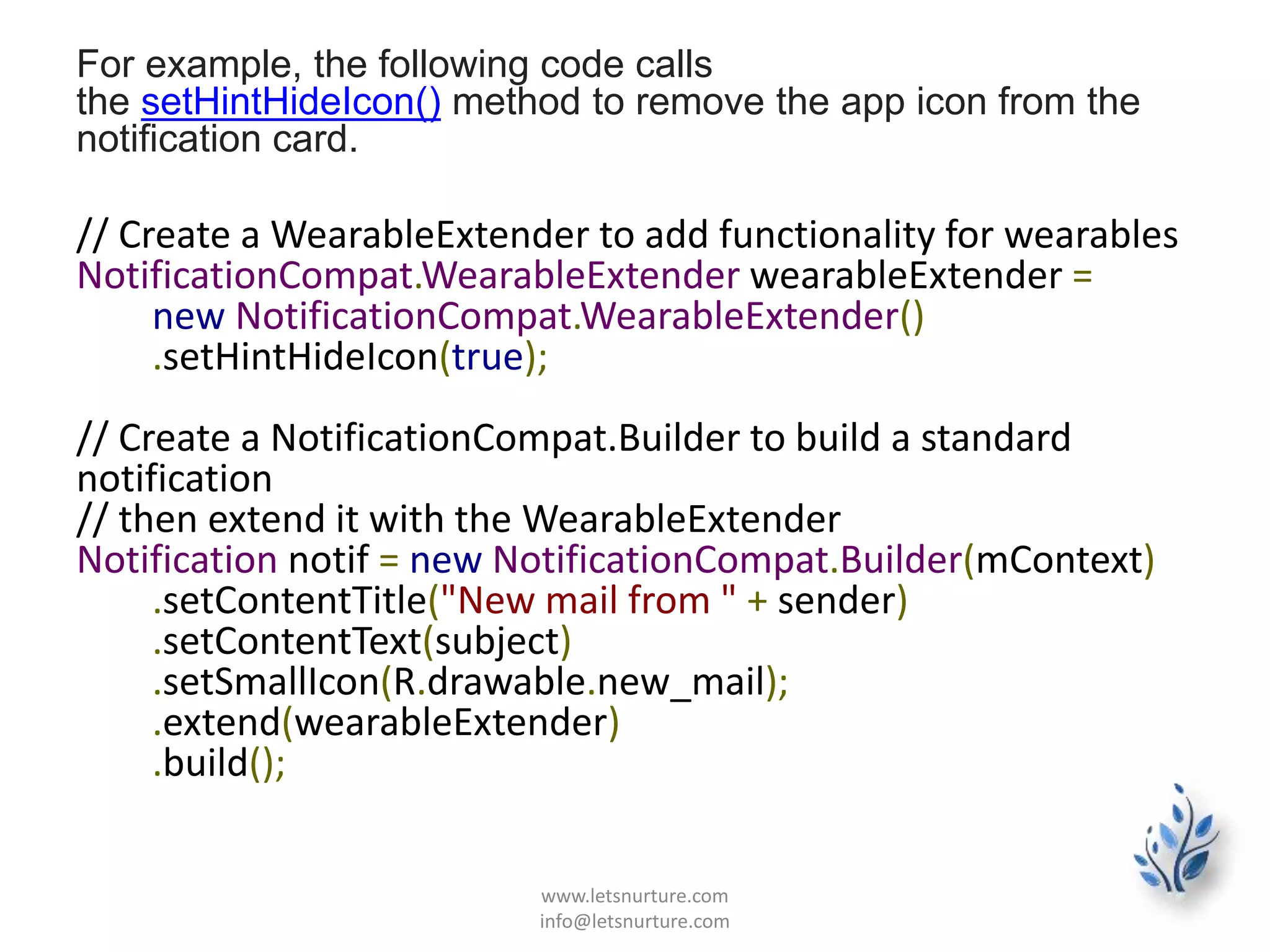
For example, the following code calls
the setHintHideIcon() method to remove the app icon from the
notification card.
// Create a WearableExtender to add functionality for wearables
NotificationCompat.WearableExtender wearableExtender =
new NotificationCompat.WearableExtender()
.setHintHideIcon(true);
// Create a NotificationCompat.Builder to build a standard
notification
// then extend it with the WearableExtender
Notification notif = new NotificationCompat.Builder(mContext)
.setContentTitle("New mail from " + sender)
.setContentText(subject)
.setSmallIcon(R.drawable.new_mail);
.extend(wearableExtender)
.build();
www.letsnurture.com
info@letsnurture.com
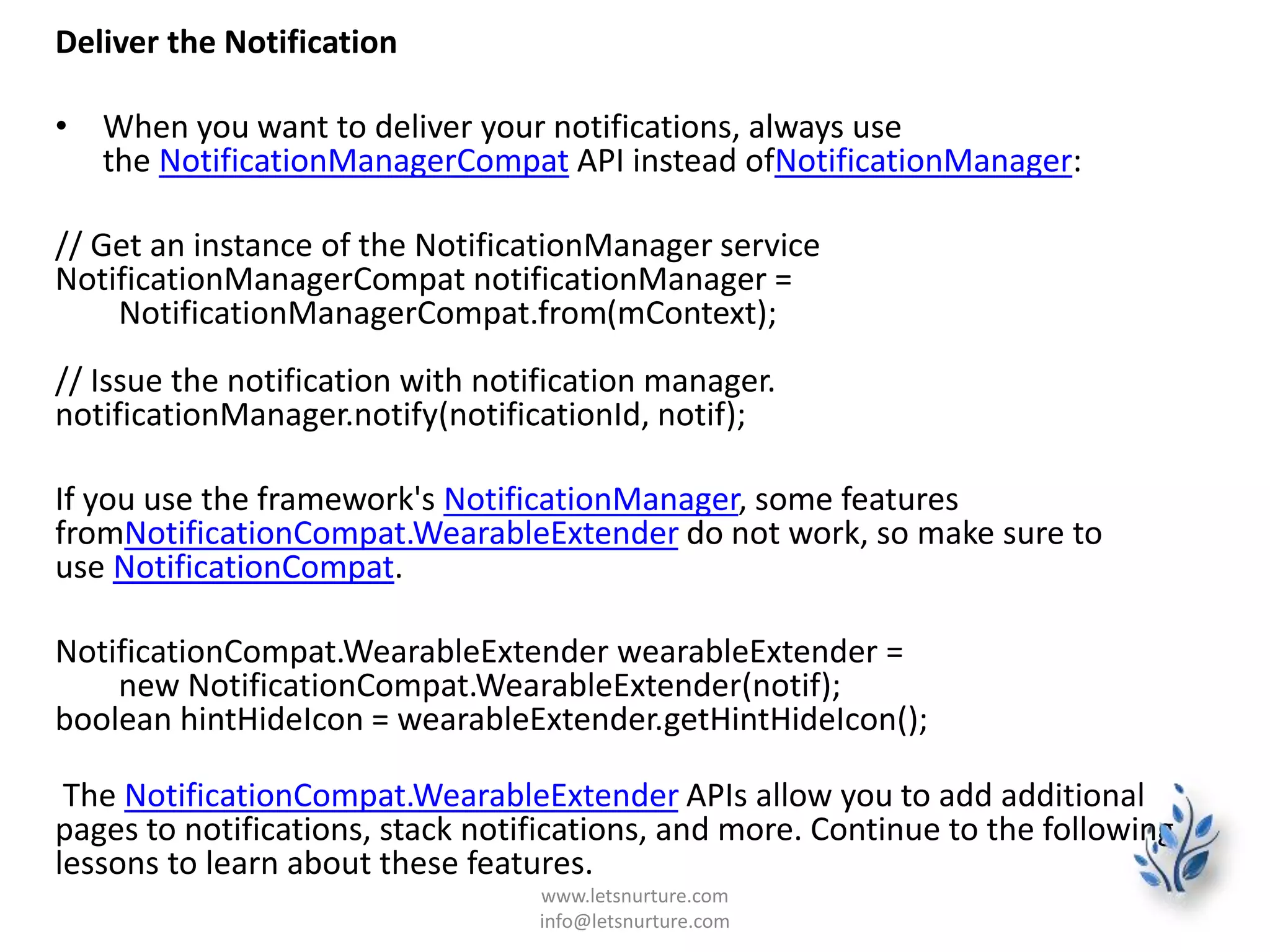
Deliver the Notification
• When you want to deliver your notifications, always use
the NotificationManagerCompat API instead ofNotificationManager:
// Get an instance of the NotificationManager service
NotificationManagerCompat notificationManager =
NotificationManagerCompat.from(mContext);
// Issue the notification with notification manager.
notificationManager.notify(notificationId, notif);
If you use the framework's NotificationManager, some features
fromNotificationCompat.WearableExtender do not work, so make sure to
use NotificationCompat.
NotificationCompat.WearableExtender wearableExtender =
new NotificationCompat.WearableExtender(notif);
boolean hintHideIcon = wearableExtender.getHintHideIcon();
The NotificationCompat.WearableExtender APIs allow you to add additional
pages to notifications, stack notifications, and more. Continue to the following
lessons to learn about these features.
www.letsnurture.com
info@letsnurture.com
Receiving Voice Input in a Notification
• If you have handheld notifications that include an
action to input text, such as reply to an email, it
should normally launch an activity on the handheld
device to input the text.
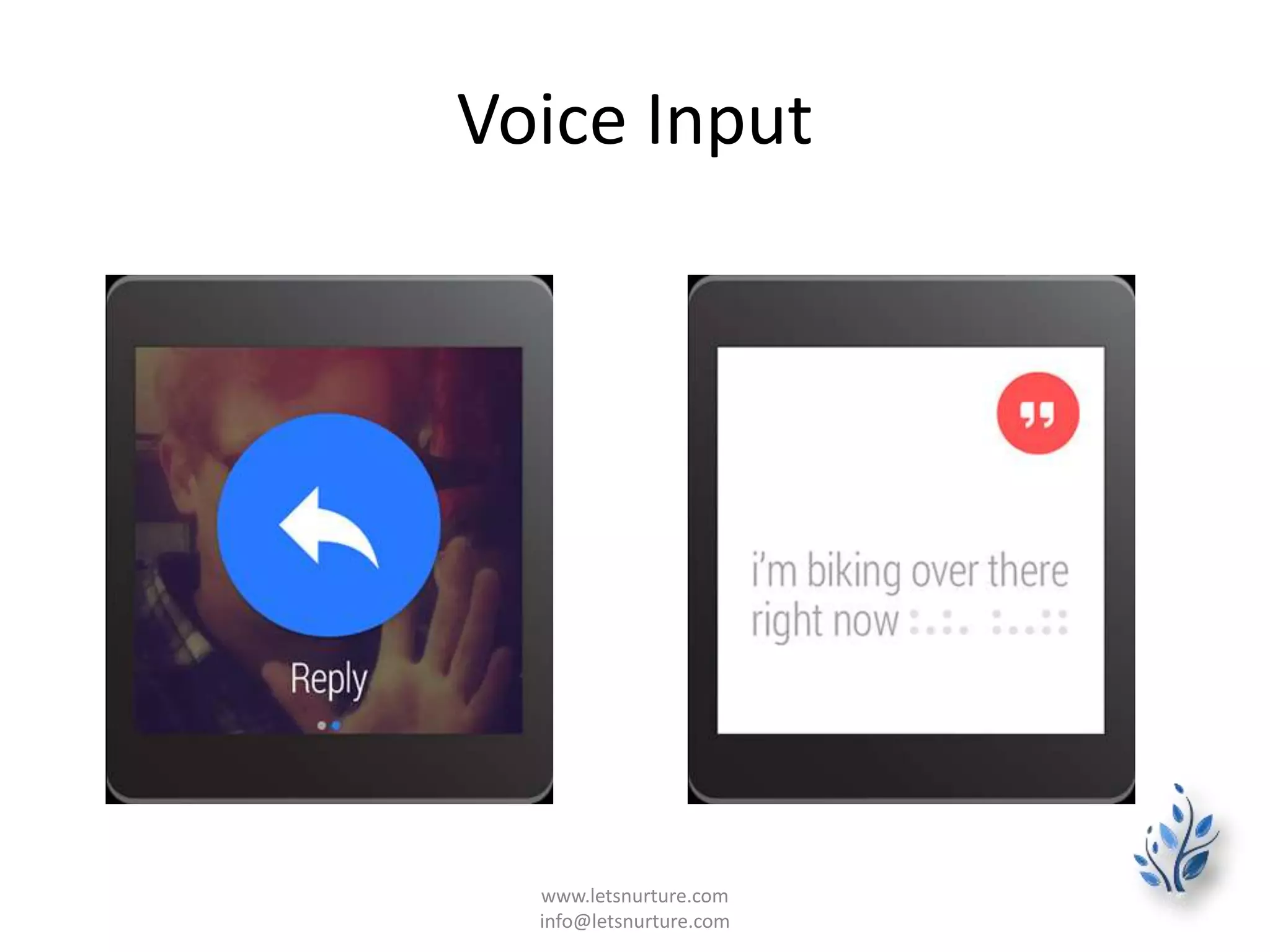
• However, when your notification appears on a
wearable, there is no keyboard input, so you can
let users dictate a reply or provide pre-defined text
messages using RemoteInput.
• When users reply with voice or select one of the
available messages, the system attaches the text
response to the Intentyou specified for the
notification action and sends that intent to your
handheld app.
www.letsnurture.com
info@letsnurture.com
Voice Input
www.letsnurture.com
info@letsnurture.com
Define the Voice Input
• To create an action that supports voice input, create an instance
ofRemoteInput.Builder that you can add to your notification action.
This class's constructor accepts a string that the system uses as the
key for the voice input, which you'll later use to retrieve the text of
the input in your handheld app.
• For example, here's how to create a RemoteInput object that
provides a custom label for the voice input prompt:
// Key for the string that's delivered in the action's intent
private static final String EXTRA_VOICE_REPLY = "extra_voice_reply";
String replyLabel = getResources().getString(R.string.reply_label);
RemoteInput remoteInput = new
RemoteInput.Builder(EXTRA_VOICE_REPLY)
.setLabel(replyLabel)
.build();
www.letsnurture.com
info@letsnurture.com
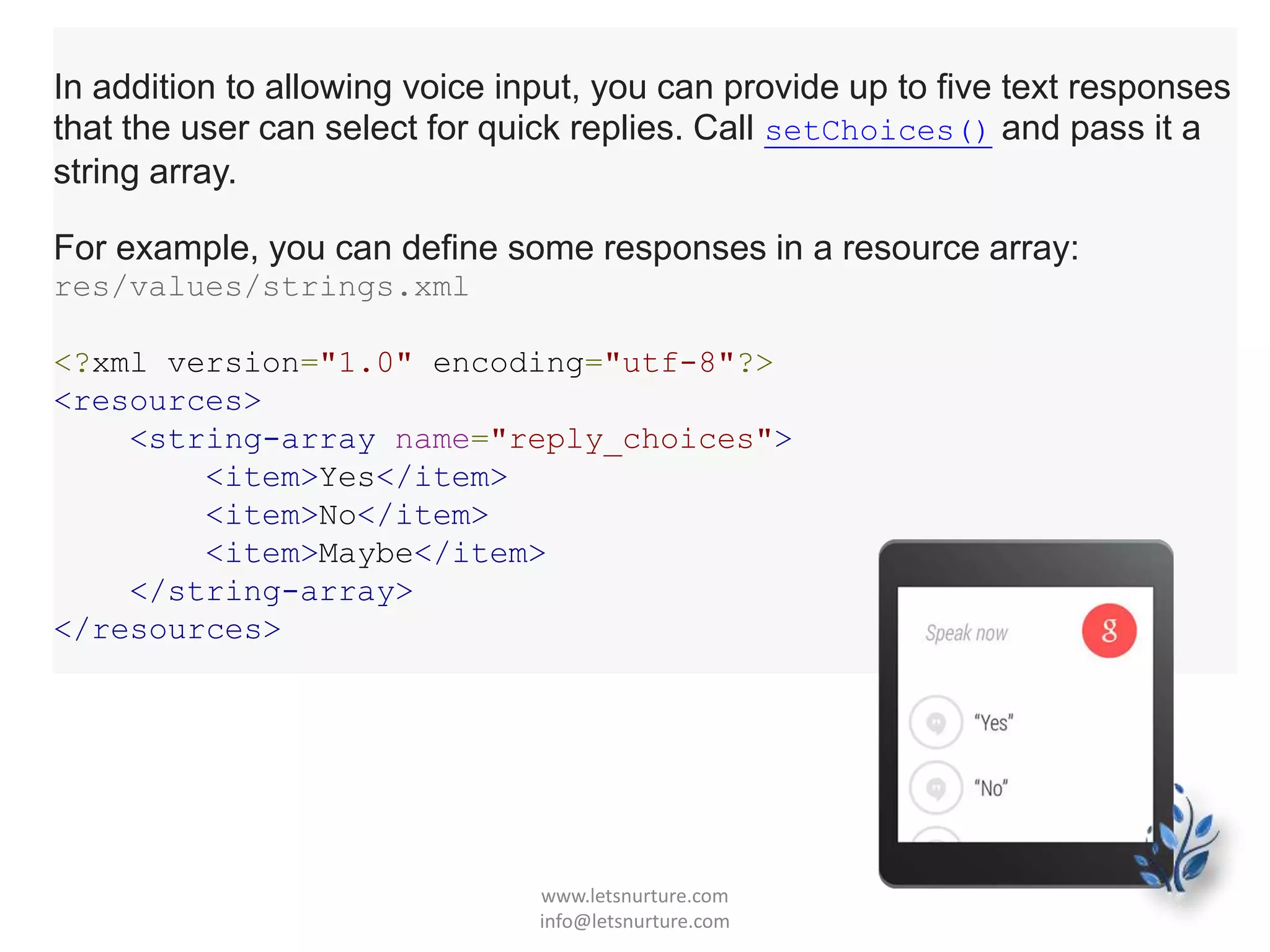
In addition to allowing voice input, you can provide up to five text responses
that the user can select for quick replies. Call setChoices() and pass it a
string array.
For example, you can define some responses in a resource array:
res/values/strings.xml
<?xml version="1.0" encoding="utf-8"?>
<resources>
<string-array name="reply_choices">
<item>Yes</item>
<item>No</item>
<item>Maybe</item>
</string-array>
</resources>
www.letsnurture.com
info@letsnurture.com
Then, inflate the string array and add it to
the RemoteInput:
public static final EXTRA_VOICE_REPLY =
"extra_voice_reply";
...
String replyLabel =
getResources().getString(R.string.reply_label);
String[] replyChoices =
getResources().getStringArray(R.array.reply_choices
);
RemoteInput remoteInput = new
RemoteInput.Builder(EXTRA_VOICE_REPLY)
.setLabel(replyLabel)
.setChoices(replyChoices)
.build();
www.letsnurture.com
info@letsnurture.com
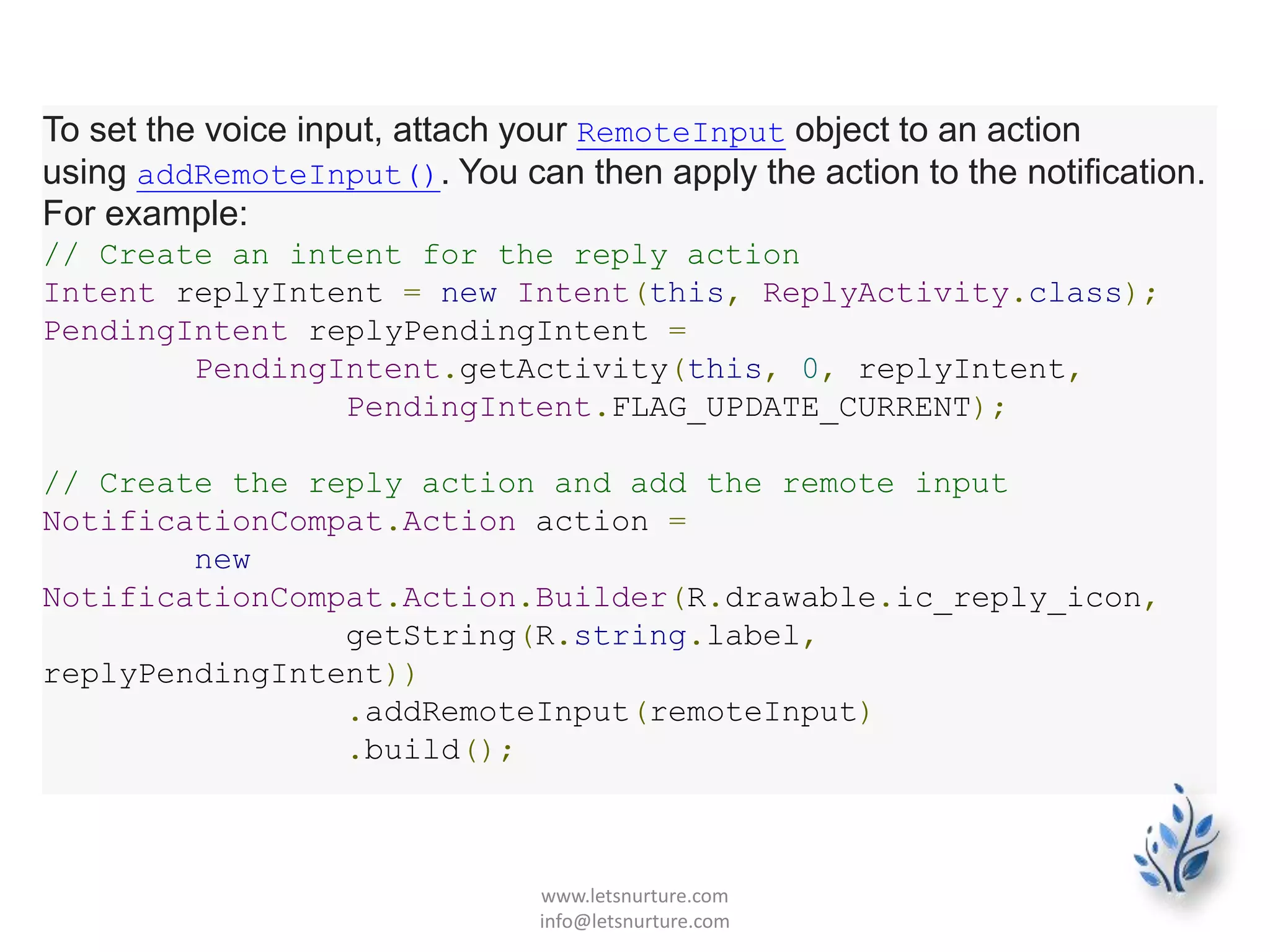
To set the voice input, attach your RemoteInput object to an action
using addRemoteInput(). You can then apply the action to the notification.
For example:
// Create an intent for the reply action
Intent replyIntent = new Intent(this, ReplyActivity.class);
PendingIntent replyPendingIntent =
PendingIntent.getActivity(this, 0, replyIntent,
PendingIntent.FLAG_UPDATE_CURRENT);
// Create the reply action and add the remote input
NotificationCompat.Action action =
new
NotificationCompat.Action.Builder(R.drawable.ic_reply_icon,
getString(R.string.label,
replyPendingIntent))
.addRemoteInput(remoteInput)
.build();
www.letsnurture.com
info@letsnurture.com
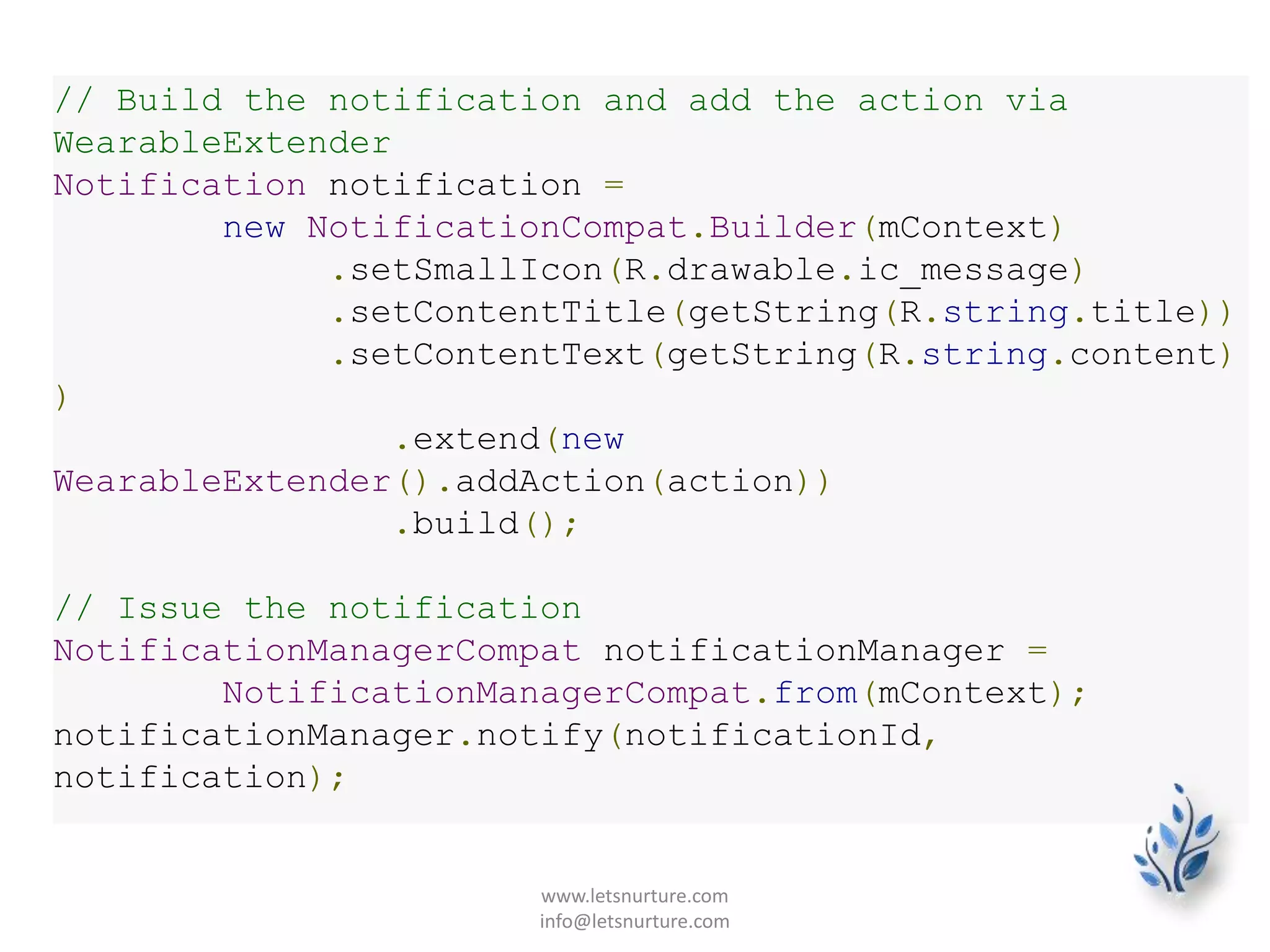
// Build the notification and add the action via
WearableExtender
Notification notification =
new NotificationCompat.Builder(mContext)
.setSmallIcon(R.drawable.ic_message)
.setContentTitle(getString(R.string.title))
.setContentText(getString(R.string.content)
)
.extend(new
WearableExtender().addAction(action))
.build();
// Issue the notification
NotificationManagerCompat notificationManager =
NotificationManagerCompat.from(mContext);
notificationManager.notify(notificationId,
notification);
www.letsnurture.com
info@letsnurture.com
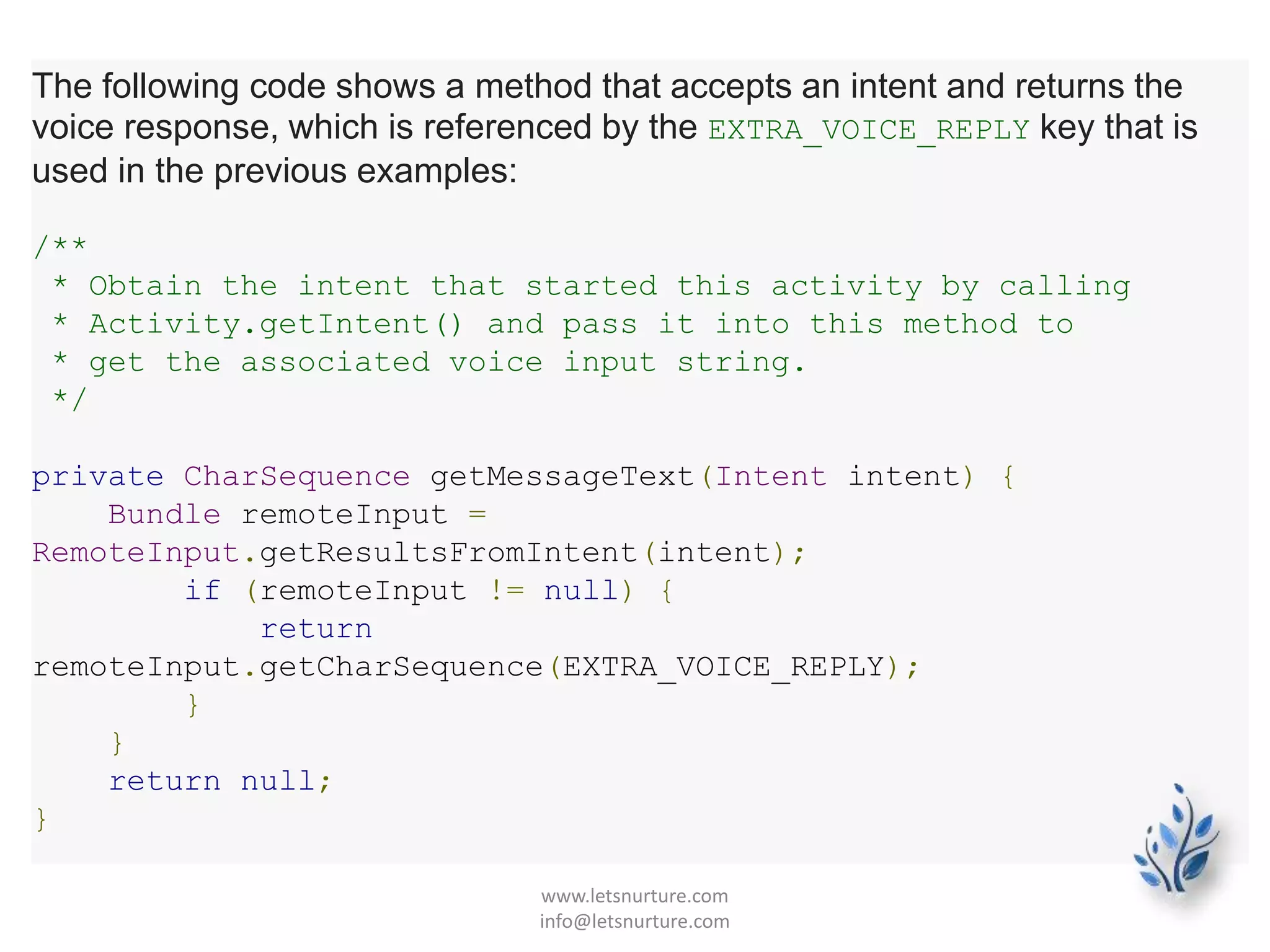
The following code shows a method that accepts an intent and returns the
voice response, which is referenced by the EXTRA_VOICE_REPLY key that is
used in the previous examples:
/**
* Obtain the intent that started this activity by calling
* Activity.getIntent() and pass it into this method to
* get the associated voice input string.
*/
private CharSequence getMessageText(Intent intent) {
Bundle remoteInput =
RemoteInput.getResultsFromIntent(intent);
if (remoteInput != null) {
return
remoteInput.getCharSequence(EXTRA_VOICE_REPLY);
}
}
return null;
}
www.letsnurture.com
info@letsnurture.com
Adding Pages to a Notification
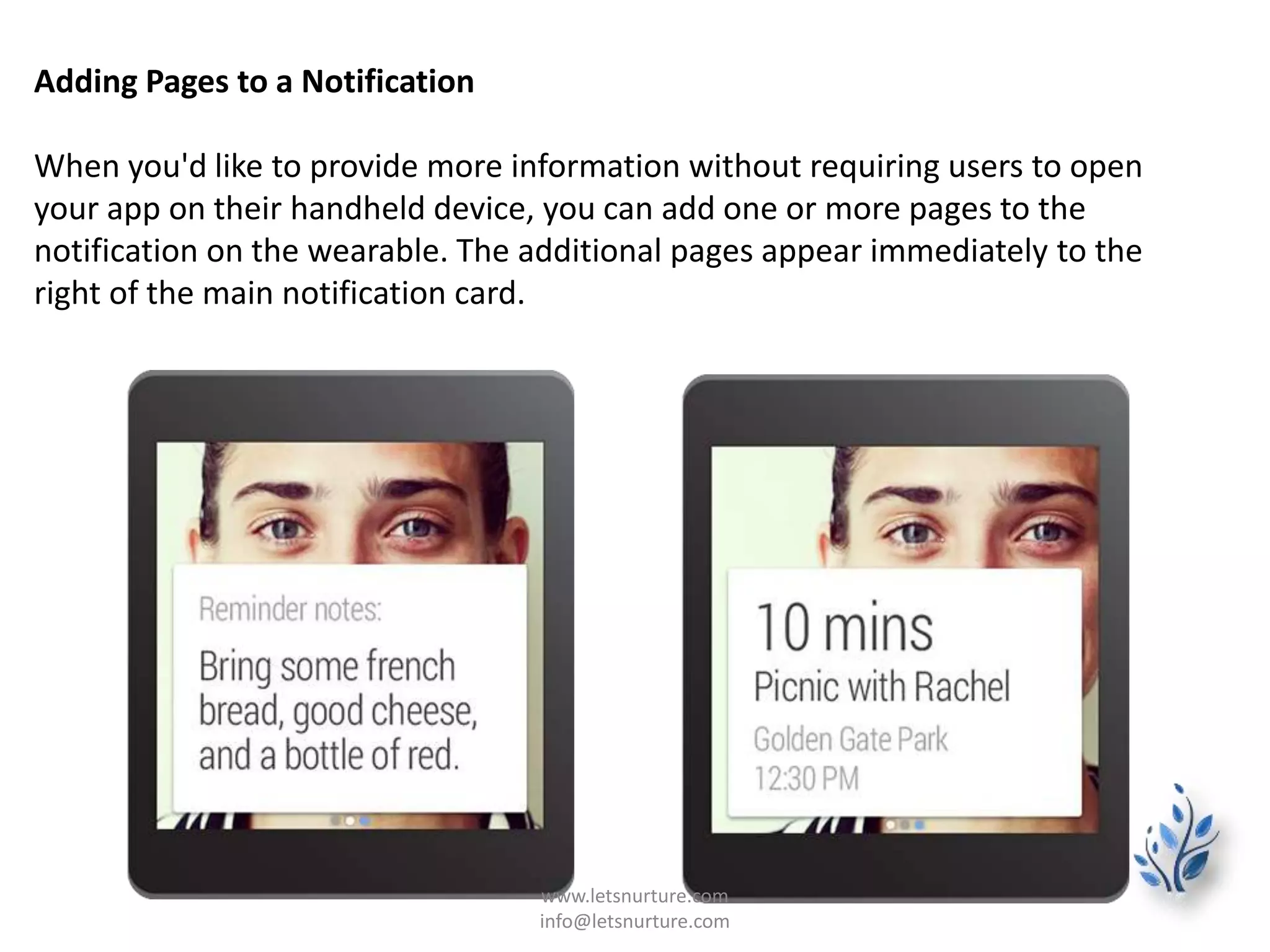
When you'd like to provide more information without requiring users to open
your app on their handheld device, you can add one or more pages to the
notification on the wearable. The additional pages appear immediately to the
right of the main notification card.
www.letsnurture.com
info@letsnurture.com
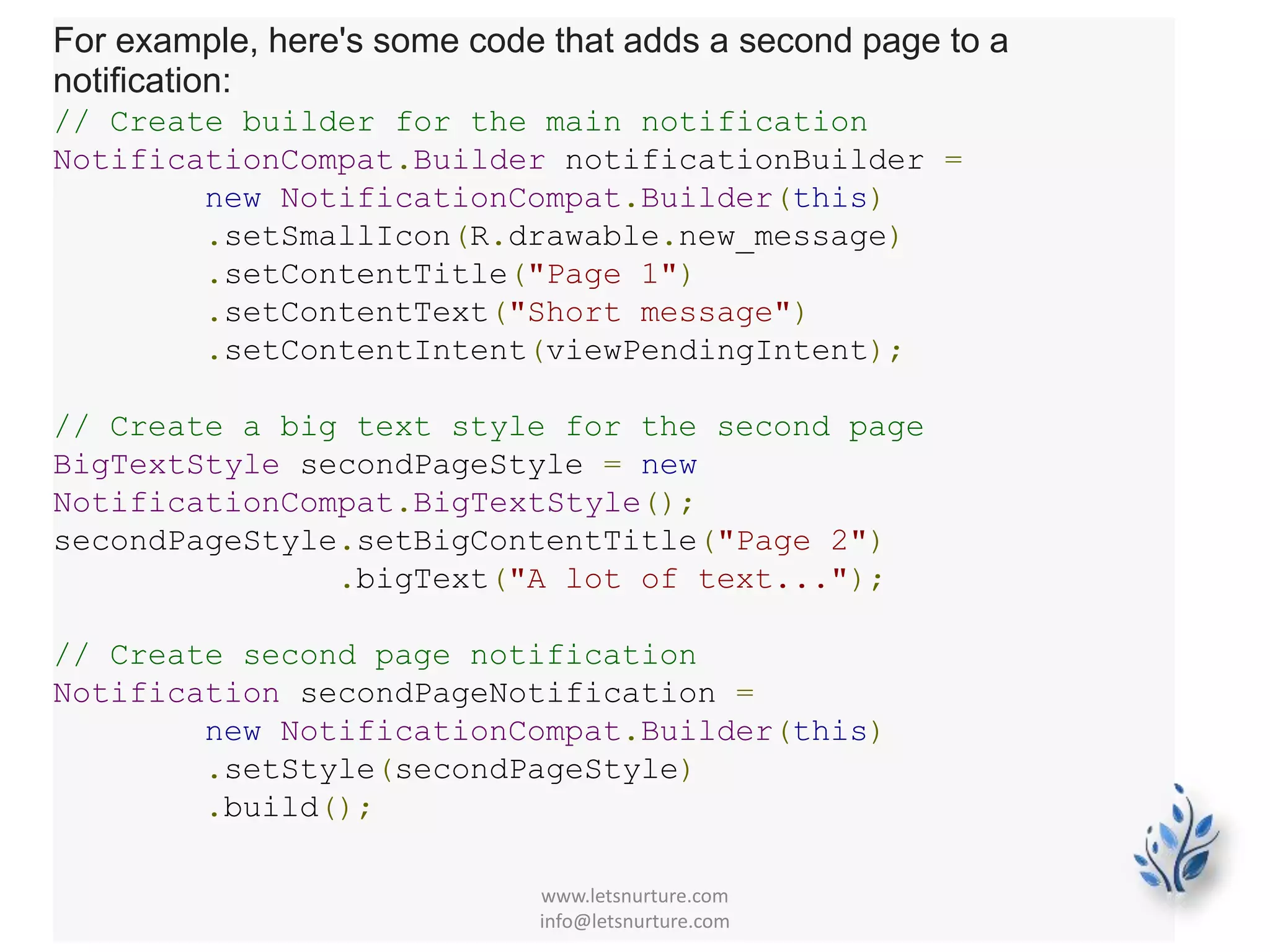
For example, here's some code that adds a second page to a
notification:
// Create builder for the main notification
NotificationCompat.Builder notificationBuilder =
new NotificationCompat.Builder(this)
.setSmallIcon(R.drawable.new_message)
.setContentTitle("Page 1")
.setContentText("Short message")
.setContentIntent(viewPendingIntent);
// Create a big text style for the second page
BigTextStyle secondPageStyle = new
NotificationCompat.BigTextStyle();
secondPageStyle.setBigContentTitle("Page 2")
.bigText("A lot of text...");
// Create second page notification
Notification secondPageNotification =
new NotificationCompat.Builder(this)
.setStyle(secondPageStyle)
.build();
www.letsnurture.com
info@letsnurture.com
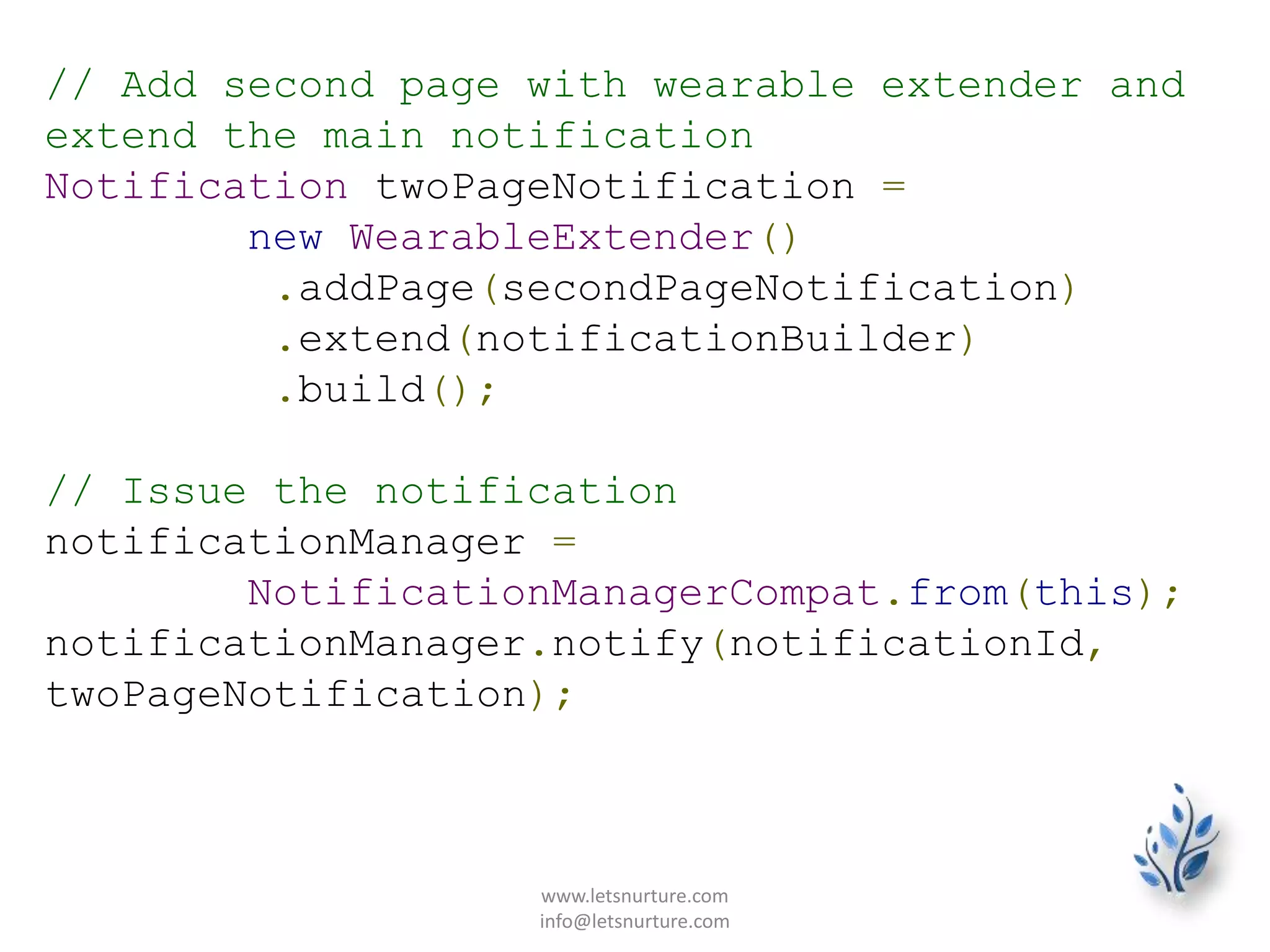
// Add second page with wearable extender and
extend the main notification
Notification twoPageNotification =
new WearableExtender()
.addPage(secondPageNotification)
.extend(notificationBuilder)
.build();
// Issue the notification
notificationManager =
NotificationManagerCompat.from(this);
notificationManager.notify(notificationId,
twoPageNotification);
www.letsnurture.com
info@letsnurture.com
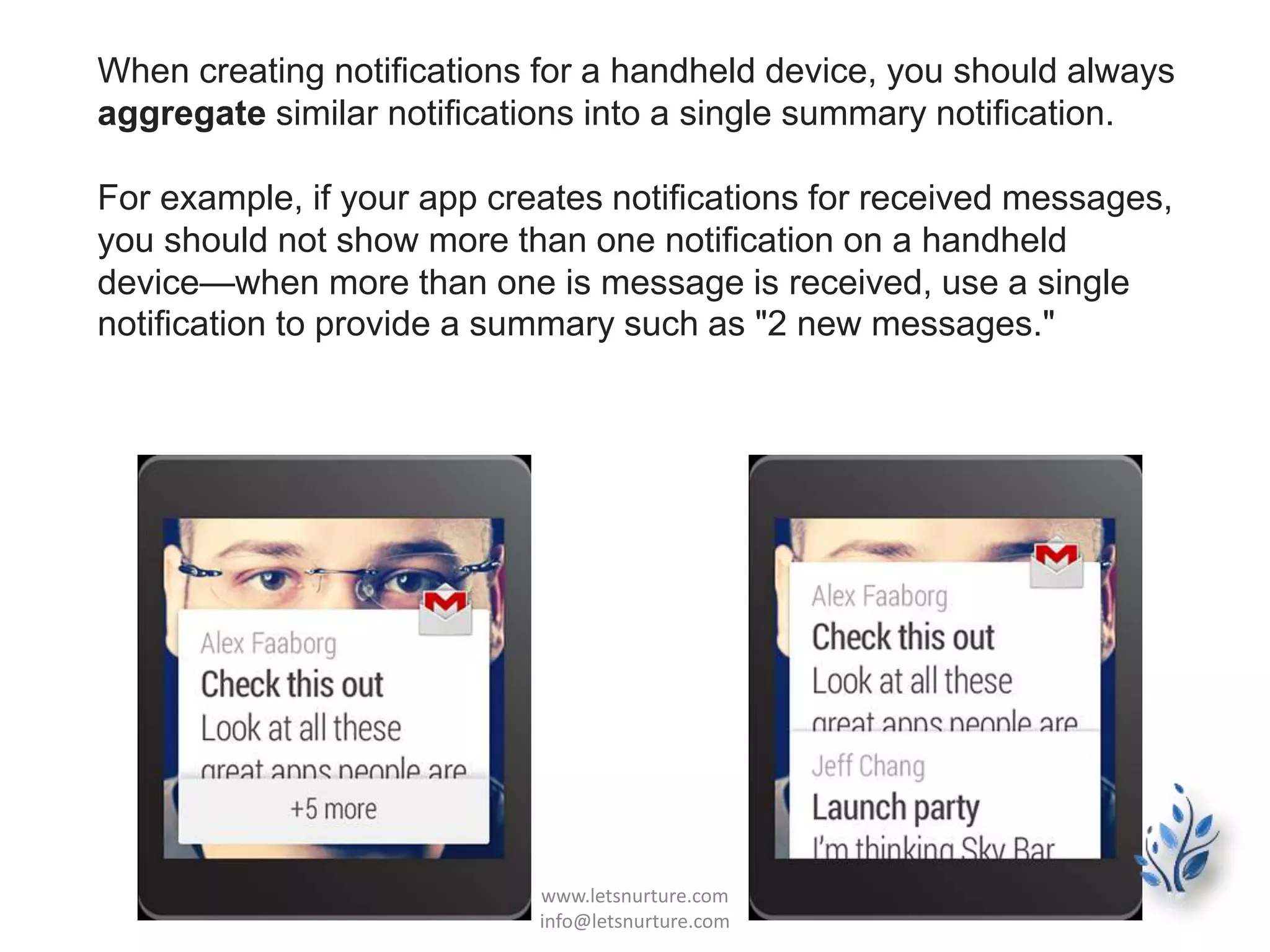
When creating notifications for a handheld device, you should always
aggregate similar notifications into a single summary notification.
For example, if your app creates notifications for received messages,
you should not show more than one notification on a handheld
device—when more than one is message is received, use a single
notification to provide a summary such as "2 new messages."
www.letsnurture.com
info@letsnurture.com
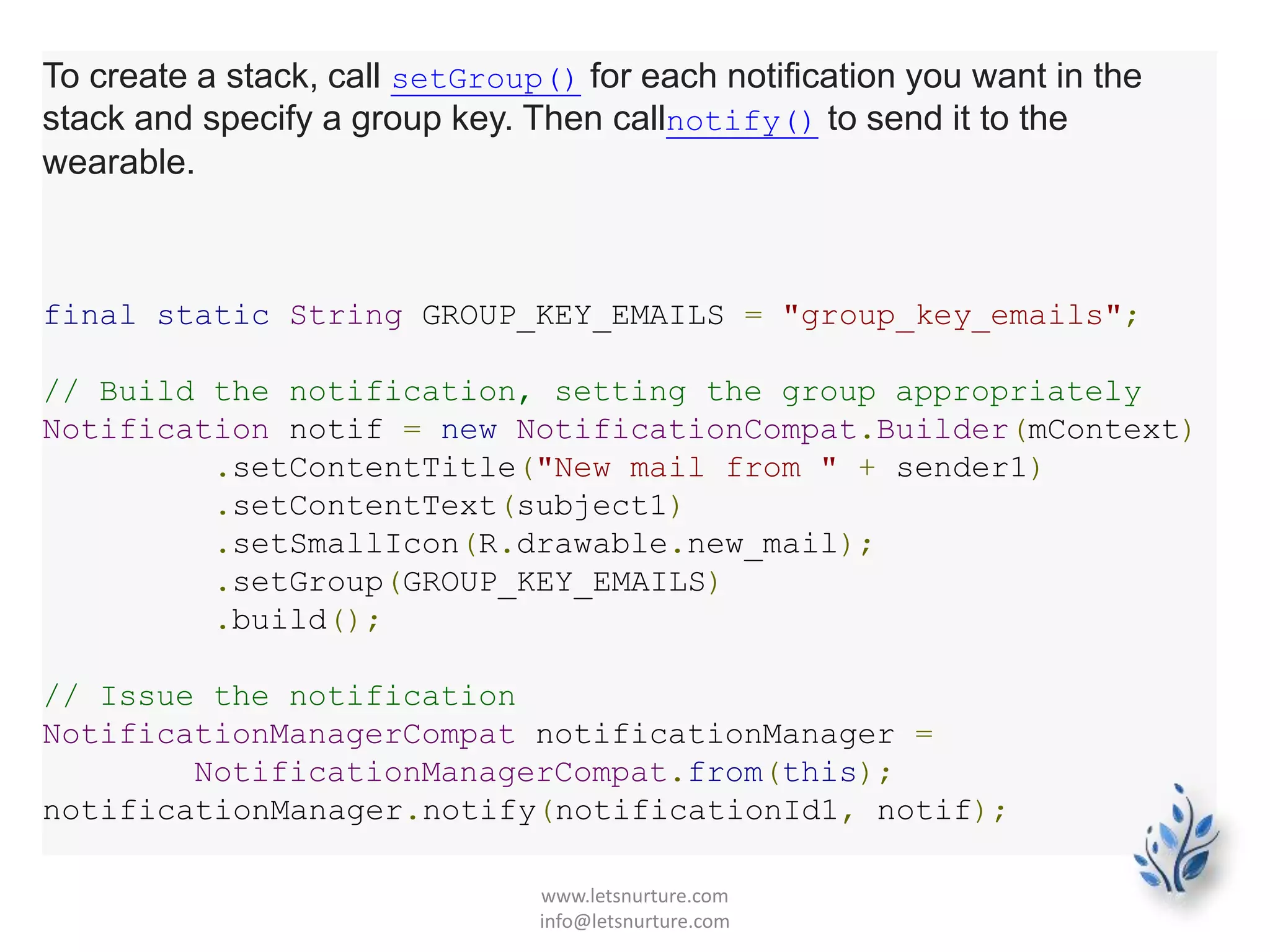
To create a stack, call setGroup() for each notification you want in the
stack and specify a group key. Then callnotify() to send it to the
wearable.
final static String GROUP_KEY_EMAILS = "group_key_emails";
// Build the notification, setting the group appropriately
Notification notif = new NotificationCompat.Builder(mContext)
.setContentTitle("New mail from " + sender1)
.setContentText(subject1)
.setSmallIcon(R.drawable.new_mail);
.setGroup(GROUP_KEY_EMAILS)
.build();
// Issue the notification
NotificationManagerCompat notificationManager =
NotificationManagerCompat.from(this);
notificationManager.notify(notificationId1, notif);
www.letsnurture.com
info@letsnurture.com
Later on, when you create another notification, specify the same
group key. When you call notify(), this notification appears in
the same stack as the previous notification, instead of as a new
card:
Notification notif2 = new
NotificationCompat.Builder(mContext)
.setContentTitle("New mail from " + sender2)
.setContentText(subject2)
.setSmallIcon(R.drawable.new_mail);
.setGroup(GROUP_KEY_EMAILS)
.build();
notificationManager.notify(notificationId2, notif2);
By default, notifications appear in the order in which you added
them, with the most recent notification visible at the top. You can
order notifications in another fashion by calling setSortKey().
www.letsnurture.com
info@letsnurture.com
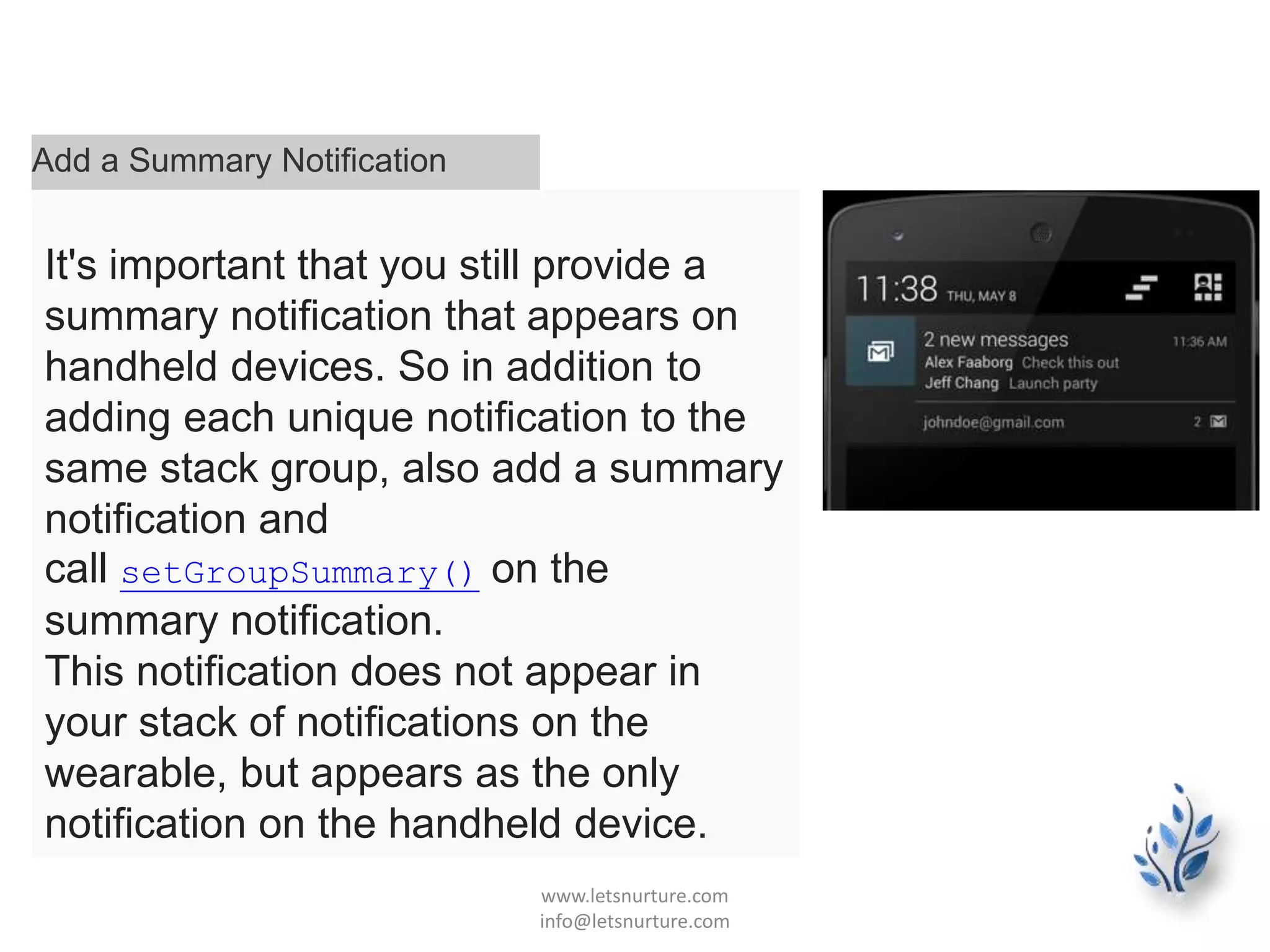
Add a Summary Notification
It's important that you still provide a
summary notification that appears on
handheld devices. So in addition to
adding each unique notification to the
same stack group, also add a summary
notification and
call setGroupSummary() on the
summary notification.
This notification does not appear in
your stack of notifications on the
wearable, but appears as the only
notification on the handheld device.
www.letsnurture.com
info@letsnurture.com
Bitmap largeIcon =
BitmapFactory.decodeResource(getResources(),
R.drawable.ic_large_icon);
// Create an InboxStyle notification
Notification summaryNotification = new
NotificationCompat.Builder(mContext)
.setContentTitle("2 new messages")
.setSmallIcon(R.drawable.ic_small_icon)
.setLargeIcon(largeIcon)
.setStyle(new NotificationCompat.InboxStyle()
.addLine("Alex Faaborg Check this out")
.addLine("Jeff Chang Launch Party")
.setBigContentTitle("2 new messages")
.setSummaryText("johndoe@gmail.com"))
.setGroup(GROUP_KEY_EMAILS)
.setGroupSummary(true)
.build();
notificationManager.notify(notificationId3,
summaryNotification);
www.letsnurture.com
info@letsnurture.com
Summary notifications can also affect notifications on wearables without being displayed on them.
When creating a summary notification, you can use the NotificationCompat.WearableExtender class and call
setBackground() or addAction() to set a background image or an action that applies to the entire stack on the
wearable. For instance, to set the background for an entire stack of notifications:
Bitmap background =
BitmapFactory.decodeResource(getResources(),
R.drawable.ic_background);
NotificationCompat.WearableExtender wearableExtender =
new NotificationCompat.WearableExtender()
.setBackground(background);
// Create an InboxStyle notification
Notification summaryNotificationWithBackground =
new NotificationCompat.Builder(mContext)
.setContentTitle("2 new messages")
...
.extend(wearableExtender)
.setGroup(GROUP_KEY_EMAILS)
.setGroupSummary(true)
.build();
www.letsnurture.com
info@letsnurture.com
Wearables?
Yes, We are ready….
www.letsnurture.com
info@letsnurture.com

Android Wearables ii

  • 1.
    Android Wear Apps NotificationCenter www.letsnurture.com info@letsnurture.com
  • 2.
    Creating a Notification Tobuild handheld notifications that are also sent to wearables, use NotificationCompat.Builder. When you build notifications with this class, the system takes care of displaying notifications properly, whether they appear on a handheld or wearable. • Note: Notifications using RemoteViews are stripped of custom layouts and the wearable only displays the text and icons. • However, you can create create custom notificationsthat use custom card layouts by creating a wearable app that runs on the wearable device. www.letsnurture.com info@letsnurture.com
  • 3.
    Import the necessaryclasses • To import the necessary packages, add this line to yourbuild.gradlefile: • compile "com.android.support:support-v4:20.0.+"Now that your project has access to the necessary packages, import the necessary classes from the support library: import android.support.v4.app.NotificationCompat; import android.support.v4.app.NotificationManagerCompat; import android.support.v4.app.NotificationCompat.WearableExtender; www.letsnurture.com info@letsnurture.com
  • 4.
    To create anotification with the support library, you create an instance of NotificationCompat.Builder and issue the notification by passing it to notify(). For example: int notificationId = 001; // Build intent for notification content Intent viewIntent = new Intent(this, ViewEventActivity.class); viewIntent.putExtra(EXTRA_EVENT_ID, eventId); PendingIntent viewPendingIntent = PendingIntent.getActivity(this, 0, viewIntent, 0); NotificationCompat.Builder notificationBuilder = new NotificationCompat.Builder(this) .setSmallIcon(R.drawable.ic_event) .setContentTitle(eventTitle) .setContentText(eventLocation) .setContentIntent(viewPendingIntent); www.letsnurture.com info@letsnurture.com
  • 5.
    // Get aninstance of the NotificationManager service NotificationManagerCompat notificationManager = NotificationManagerCompat.from(this); // Build the notification and issues it with notification manager. notificationManager.notify(notificationId, notificationBuilder.build()); www.letsnurture.com info@letsnurture.com
  • 6.
    When this notificationappears on a handheld device, the user can invoke the PendingIntent specified by thesetContentIntent() method by touching the notification. When this notification appears on an Android wearable, the user can swipe the notification to the left to reveal the Open action, which invokes the intent on the handheld device. www.letsnurture.com info@letsnurture.com
  • 7.
    Add Action Buttons •In addition to the primary content action defined bysetContentIntent(), you can add other actions by passing aPendingIntent to the addAction() method. • On a handheld, the action appears as an additional button attached to the notification. On a wearable, the action appears as a large button when the user swipes the notification to the left. • When the user taps the action, the associated intent is invoked on the handheld. www.letsnurture.com info@letsnurture.com
  • 8.
    // Build anintent for an action to view a map Intent mapIntent = new Intent(Intent.ACTION_VIEW); Uri geoUri = Uri.parse("geo:0,0?q=" + Uri.encode(location)); mapIntent.setData(geoUri); PendingIntent mapPendingIntent = PendingIntent.getActivity(this, 0, mapIntent, 0); NotificationCompat.Builder notificationBuilder = new NotificationCompat.Builder(this) .setSmallIcon(R.drawable.ic_event) .setContentTitle(eventTitle) .setContentText(eventLocation) .setContentIntent(viewPendingIntent) .addAction(R.drawable.ic_map, getString(R.string.map), mapPendingIntent);www.letsnurture.com info@letsnurture.com
  • 9.
    Specify Wearable-only Actions Ifyou want the actions available on the wearable to be different from those on the handheld, then useWearableExtender.addAction(). Once you add an action with this method, the wearable does not display any other actions added with NotificationCompat.Builder.addAction(). That is, only the actions added with WearableExtender.addAction() appear on the wearable and they do not appear on the handheld. www.letsnurture.com info@letsnurture.com
  • 10.
    // Create anintent for the reply action Intent actionIntent = new Intent(this, ActionActivity.class); PendingIntent actionPendingIntent = PendingIntent.getActivity(this, 0, actionIntent, PendingIntent.FLAG_UPDATE_CURRENT); // Create the action NotificationCompat.Action action = new NotificationCompat.Action.Builder(R.drawable.ic_action, getString(R.string.label, actionPendingIntent)) .build(); // Build the notification and add the action via WearableExtender Notification notification = new NotificationCompat.Builder(mContext) .setSmallIcon(R.drawable.ic_message) .setContentTitle(getString(R.string.title)) .setContentText(getString(R.string.content)) .extend(new WearableExtender().addAction(action)) .build(); www.letsnurture.com info@letsnurture.com
  • 11.
    Add a BigView You can insert extended text content to your notification by adding one of the "big view" styles to your notification. On a handheld device, users can see the big view content by expanding the notification. On a wearable device, the big view content is visible by default. To add the extended content to your notification, call setStyle() on theNotificationCompat.Builder o bject, passing it an instance of eitherBigTextStyle or InboxStyle. www.letsnurture.com info@letsnurture.com
  • 12.
    // Specify the'big view' content to display the long // event description that may not fit the normal content text. BigTextStyle bigStyle = new NotificationCompat.BigTextStyle(); bigStyle.bigText(eventDescription); NotificationCompat.Builder notificationBuilder = new NotificationCompat.Builder(this) .setSmallIcon(R.drawable.ic_event) .setLargeIcon(BitmapFactory.decodeResource( getResources(), R.drawable.notif_background)) .setContentTitle(eventTitle) .setContentText(eventLocation) .setContentIntent(viewPendingIntent) .addAction(R.drawable.ic_map, getString(R.string.map), mapPendingIntent) .setStyle(bigStyle); www.letsnurture.com info@letsnurture.com
  • 13.
    Add Wearable FeaturesFor a Notification If you ever need to add wearable-specific options to a notification, such as specifying additional pages of content or letting users dictate a text response with voice input, you can use theNotificationCompat.WearableExtender class to specify the options. To use this API: 1. Create an instance of a WearableExtender, setting the wearable-specific options for the notication. 2. Create an instance of NotificationCompat.Builder, setting the desired properties for your notification as described earlier in this lesson. 3. Call extend() on the notification and pass in the WearableExtender. This applies the wearable options to the notification. 4. Call build() to build the notification. www.letsnurture.com info@letsnurture.com
  • 14.
    For example, thefollowing code calls the setHintHideIcon() method to remove the app icon from the notification card. // Create a WearableExtender to add functionality for wearables NotificationCompat.WearableExtender wearableExtender = new NotificationCompat.WearableExtender() .setHintHideIcon(true); // Create a NotificationCompat.Builder to build a standard notification // then extend it with the WearableExtender Notification notif = new NotificationCompat.Builder(mContext) .setContentTitle("New mail from " + sender) .setContentText(subject) .setSmallIcon(R.drawable.new_mail); .extend(wearableExtender) .build(); www.letsnurture.com info@letsnurture.com
  • 15.
    Deliver the Notification •When you want to deliver your notifications, always use the NotificationManagerCompat API instead ofNotificationManager: // Get an instance of the NotificationManager service NotificationManagerCompat notificationManager = NotificationManagerCompat.from(mContext); // Issue the notification with notification manager. notificationManager.notify(notificationId, notif); If you use the framework's NotificationManager, some features fromNotificationCompat.WearableExtender do not work, so make sure to use NotificationCompat. NotificationCompat.WearableExtender wearableExtender = new NotificationCompat.WearableExtender(notif); boolean hintHideIcon = wearableExtender.getHintHideIcon(); The NotificationCompat.WearableExtender APIs allow you to add additional pages to notifications, stack notifications, and more. Continue to the following lessons to learn about these features. www.letsnurture.com info@letsnurture.com
  • 16.
    Receiving Voice Inputin a Notification • If you have handheld notifications that include an action to input text, such as reply to an email, it should normally launch an activity on the handheld device to input the text. • However, when your notification appears on a wearable, there is no keyboard input, so you can let users dictate a reply or provide pre-defined text messages using RemoteInput. • When users reply with voice or select one of the available messages, the system attaches the text response to the Intentyou specified for the notification action and sends that intent to your handheld app. www.letsnurture.com info@letsnurture.com
  • 17.
  • 18.
    Define the VoiceInput • To create an action that supports voice input, create an instance ofRemoteInput.Builder that you can add to your notification action. This class's constructor accepts a string that the system uses as the key for the voice input, which you'll later use to retrieve the text of the input in your handheld app. • For example, here's how to create a RemoteInput object that provides a custom label for the voice input prompt: // Key for the string that's delivered in the action's intent private static final String EXTRA_VOICE_REPLY = "extra_voice_reply"; String replyLabel = getResources().getString(R.string.reply_label); RemoteInput remoteInput = new RemoteInput.Builder(EXTRA_VOICE_REPLY) .setLabel(replyLabel) .build(); www.letsnurture.com info@letsnurture.com
  • 19.
    In addition toallowing voice input, you can provide up to five text responses that the user can select for quick replies. Call setChoices() and pass it a string array. For example, you can define some responses in a resource array: res/values/strings.xml <?xml version="1.0" encoding="utf-8"?> <resources> <string-array name="reply_choices"> <item>Yes</item> <item>No</item> <item>Maybe</item> </string-array> </resources> www.letsnurture.com info@letsnurture.com
  • 20.
    Then, inflate thestring array and add it to the RemoteInput: public static final EXTRA_VOICE_REPLY = "extra_voice_reply"; ... String replyLabel = getResources().getString(R.string.reply_label); String[] replyChoices = getResources().getStringArray(R.array.reply_choices ); RemoteInput remoteInput = new RemoteInput.Builder(EXTRA_VOICE_REPLY) .setLabel(replyLabel) .setChoices(replyChoices) .build(); www.letsnurture.com info@letsnurture.com
  • 21.
    To set thevoice input, attach your RemoteInput object to an action using addRemoteInput(). You can then apply the action to the notification. For example: // Create an intent for the reply action Intent replyIntent = new Intent(this, ReplyActivity.class); PendingIntent replyPendingIntent = PendingIntent.getActivity(this, 0, replyIntent, PendingIntent.FLAG_UPDATE_CURRENT); // Create the reply action and add the remote input NotificationCompat.Action action = new NotificationCompat.Action.Builder(R.drawable.ic_reply_icon, getString(R.string.label, replyPendingIntent)) .addRemoteInput(remoteInput) .build(); www.letsnurture.com info@letsnurture.com
  • 22.
    // Build thenotification and add the action via WearableExtender Notification notification = new NotificationCompat.Builder(mContext) .setSmallIcon(R.drawable.ic_message) .setContentTitle(getString(R.string.title)) .setContentText(getString(R.string.content) ) .extend(new WearableExtender().addAction(action)) .build(); // Issue the notification NotificationManagerCompat notificationManager = NotificationManagerCompat.from(mContext); notificationManager.notify(notificationId, notification); www.letsnurture.com info@letsnurture.com
  • 23.
    The following codeshows a method that accepts an intent and returns the voice response, which is referenced by the EXTRA_VOICE_REPLY key that is used in the previous examples: /** * Obtain the intent that started this activity by calling * Activity.getIntent() and pass it into this method to * get the associated voice input string. */ private CharSequence getMessageText(Intent intent) { Bundle remoteInput = RemoteInput.getResultsFromIntent(intent); if (remoteInput != null) { return remoteInput.getCharSequence(EXTRA_VOICE_REPLY); } } return null; } www.letsnurture.com info@letsnurture.com
  • 24.
    Adding Pages toa Notification When you'd like to provide more information without requiring users to open your app on their handheld device, you can add one or more pages to the notification on the wearable. The additional pages appear immediately to the right of the main notification card. www.letsnurture.com info@letsnurture.com
  • 25.
    For example, here'ssome code that adds a second page to a notification: // Create builder for the main notification NotificationCompat.Builder notificationBuilder = new NotificationCompat.Builder(this) .setSmallIcon(R.drawable.new_message) .setContentTitle("Page 1") .setContentText("Short message") .setContentIntent(viewPendingIntent); // Create a big text style for the second page BigTextStyle secondPageStyle = new NotificationCompat.BigTextStyle(); secondPageStyle.setBigContentTitle("Page 2") .bigText("A lot of text..."); // Create second page notification Notification secondPageNotification = new NotificationCompat.Builder(this) .setStyle(secondPageStyle) .build(); www.letsnurture.com info@letsnurture.com
  • 26.
    // Add secondpage with wearable extender and extend the main notification Notification twoPageNotification = new WearableExtender() .addPage(secondPageNotification) .extend(notificationBuilder) .build(); // Issue the notification notificationManager = NotificationManagerCompat.from(this); notificationManager.notify(notificationId, twoPageNotification); www.letsnurture.com info@letsnurture.com
  • 27.
    When creating notificationsfor a handheld device, you should always aggregate similar notifications into a single summary notification. For example, if your app creates notifications for received messages, you should not show more than one notification on a handheld device—when more than one is message is received, use a single notification to provide a summary such as "2 new messages." www.letsnurture.com info@letsnurture.com
  • 28.
    To create astack, call setGroup() for each notification you want in the stack and specify a group key. Then callnotify() to send it to the wearable. final static String GROUP_KEY_EMAILS = "group_key_emails"; // Build the notification, setting the group appropriately Notification notif = new NotificationCompat.Builder(mContext) .setContentTitle("New mail from " + sender1) .setContentText(subject1) .setSmallIcon(R.drawable.new_mail); .setGroup(GROUP_KEY_EMAILS) .build(); // Issue the notification NotificationManagerCompat notificationManager = NotificationManagerCompat.from(this); notificationManager.notify(notificationId1, notif); www.letsnurture.com info@letsnurture.com
  • 29.
    Later on, whenyou create another notification, specify the same group key. When you call notify(), this notification appears in the same stack as the previous notification, instead of as a new card: Notification notif2 = new NotificationCompat.Builder(mContext) .setContentTitle("New mail from " + sender2) .setContentText(subject2) .setSmallIcon(R.drawable.new_mail); .setGroup(GROUP_KEY_EMAILS) .build(); notificationManager.notify(notificationId2, notif2); By default, notifications appear in the order in which you added them, with the most recent notification visible at the top. You can order notifications in another fashion by calling setSortKey(). www.letsnurture.com info@letsnurture.com
  • 30.
    Add a SummaryNotification It's important that you still provide a summary notification that appears on handheld devices. So in addition to adding each unique notification to the same stack group, also add a summary notification and call setGroupSummary() on the summary notification. This notification does not appear in your stack of notifications on the wearable, but appears as the only notification on the handheld device. www.letsnurture.com info@letsnurture.com
  • 31.
    Bitmap largeIcon = BitmapFactory.decodeResource(getResources(), R.drawable.ic_large_icon); //Create an InboxStyle notification Notification summaryNotification = new NotificationCompat.Builder(mContext) .setContentTitle("2 new messages") .setSmallIcon(R.drawable.ic_small_icon) .setLargeIcon(largeIcon) .setStyle(new NotificationCompat.InboxStyle() .addLine("Alex Faaborg Check this out") .addLine("Jeff Chang Launch Party") .setBigContentTitle("2 new messages") .setSummaryText("johndoe@gmail.com")) .setGroup(GROUP_KEY_EMAILS) .setGroupSummary(true) .build(); notificationManager.notify(notificationId3, summaryNotification); www.letsnurture.com info@letsnurture.com
  • 32.
    Summary notifications canalso affect notifications on wearables without being displayed on them. When creating a summary notification, you can use the NotificationCompat.WearableExtender class and call setBackground() or addAction() to set a background image or an action that applies to the entire stack on the wearable. For instance, to set the background for an entire stack of notifications: Bitmap background = BitmapFactory.decodeResource(getResources(), R.drawable.ic_background); NotificationCompat.WearableExtender wearableExtender = new NotificationCompat.WearableExtender() .setBackground(background); // Create an InboxStyle notification Notification summaryNotificationWithBackground = new NotificationCompat.Builder(mContext) .setContentTitle("2 new messages") ... .extend(wearableExtender) .setGroup(GROUP_KEY_EMAILS) .setGroupSummary(true) .build(); www.letsnurture.com info@letsnurture.com
  • 33.
    Wearables? Yes, We areready…. www.letsnurture.com info@letsnurture.com