 Ambarish Hazarnis

 Pawan Sirse
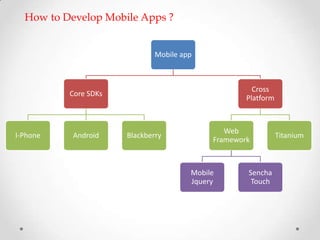
How to Develop Mobile Apps ?


                              Mobile app


                                                      Cross
          Core SDKs
                                                    Platform


                                               Web
I-Phone    Android    Blackberry                               Titanium
                                            Framework


                                       Mobile       Sencha
                                       Jquery        Touch
Web Frameworks for application
development are . . .


                             - Loren Brichter,
                                creator
                     “Twitter for iPhone”/Tweetie
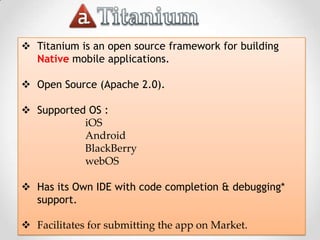
 Titanium is an open source framework for building
  Native mobile applications.

 Open Source (Apache 2.0).

 Supported OS :
           iOS
           Android
           BlackBerry
           webOS

 Has its Own IDE with code completion & debugging*
  support.

 Facilitates for submitting the app on Market.
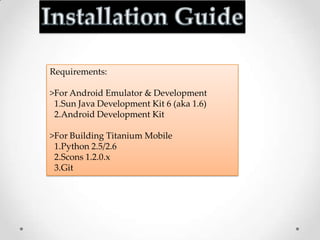
Requirements:

>For Android Emulator & Development
 1.Sun Java Development Kit 6 (aka 1.6)
 2.Android Development Kit

>For Building Titanium Mobile
 1.Python 2.5/2.6
 2.Scons 1.2.0.x
 3.Git
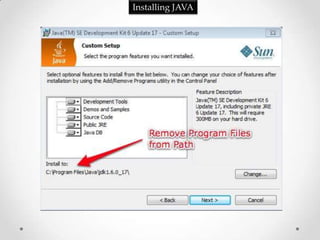
Installing JAVA
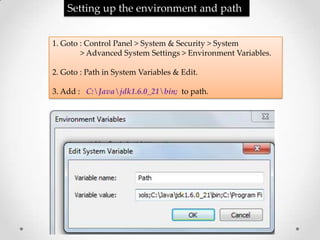
Setting up the environment and path


1. Goto : Control Panel > System & Security > System
        > Advanced System Settings > Environment Variables.

2. Goto : Path in System Variables & Edit.

3. Add : C:Javajdk1.6.0_21bin; to path.
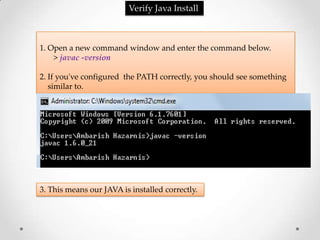
Verify Java Install


1. Open a new command window and enter the command below.
    > javac -version

2. If you've configured the PATH correctly, you should see something
   similar to.


3. This means our JAVA is installed correctly.
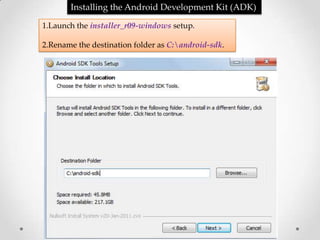
Installing the Android Development Kit (ADK)

1.Launch the installer_r09-windows setup.

2.Rename the destination folder as C:android-sdk.
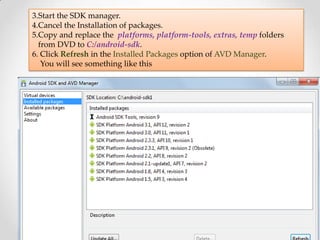
3.Start the SDK manager.
4.Cancel the Installation of packages.
5.Copy and replace the platforms, platform-tools, extras, temp folders
  from DVD to C:/android-sdk.
6. Click Refresh in the Installed Packages option of AVD Manager.
   You will see something like this
7.Add the ADK to the PATH
  1. Add : C:android-sdktools;C:android-sdkplatformsandroid-4tools;
     before the JAVA path.


8.Workaround for a missing adb
  Due to a recent change in the Android SDK file structure, Titanium Developer
  expects the adb.exe executable to be in pathtoandroid-sdk-windowstools
  whereas it currently resides in pathtoandroid-sdk-windowsplatform-tools.

  To resolve this issue:
           >Simply copy adb.exe and AdbWinApi.dll from platform-tools
           to the tools directory.

  NOTE: Remember to repeat this process with adb each time
        Google updates the Platform-Tools package, or Android
        SDK itself.
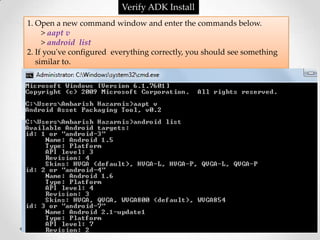
Verify ADK Install
1. Open a new command window and enter the commands below.
     > aapt v
     > android list
2. If you've configured everything correctly, you should see something
   similar to.
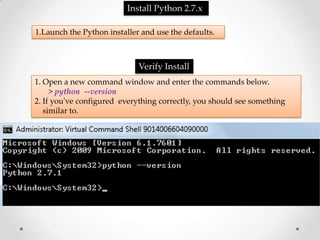
Install Python 2.7.x

1.Launch the Python installer and use the defaults.


                             Verify Install
1. Open a new command window and enter the commands below.
     > python --version
2. If you've configured everything correctly, you should see something
   similar to.
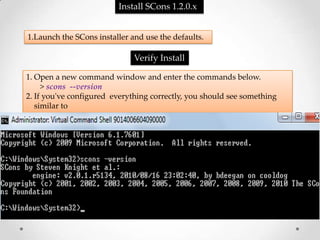
Install SCons 1.2.0.x


1.Launch the SCons installer and use the defaults.

                              Verify Install

1. Open a new command window and enter the commands below.
     > scons --version
2. If you've configured everything correctly, you should see something
   similar to
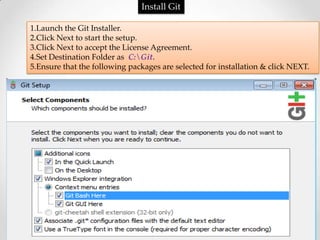
Install Git

1.Launch the Git Installer.
2.Click Next to start the setup.
3.Click Next to accept the License Agreement.
4.Set Destination Folder as C:Git.
5.Ensure that the following packages are selected for installation & click NEXT.
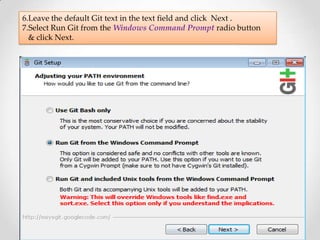
6.Leave the default Git text in the text field and click Next .
7.Select Run Git from the Windows Command Prompt radio button
  & click Next.
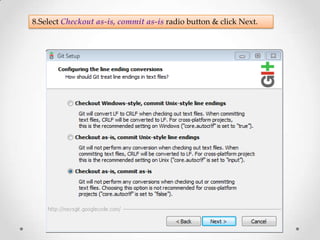
8.Select Checkout as-is, commit as-is radio button & click Next.
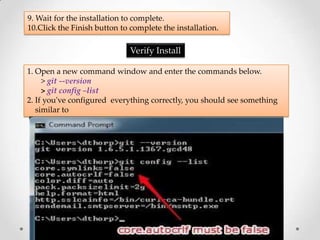
9. Wait for the installation to complete.
10.Click the Finish button to complete the installation.

                              Verify Install

1. Open a new command window and enter the commands below.
     > git --version
     > git config –list
2. If you've configured everything correctly, you should see something
   similar to
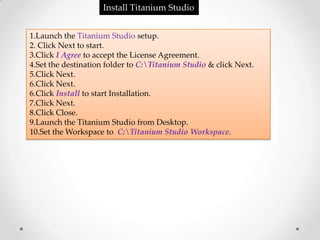
Install Titanium Studio


1.Launch the Titanium Studio setup.
2. Click Next to start.
3.Click I Agree to accept the License Agreement.
4.Set the destination folder to C:Titanium Studio & click Next.
5.Click Next.
6.Click Next.
6.Click Install to start Installation.
7.Click Next.
8.Click Close.
9.Launch the Titanium Studio from Desktop.
10.Set the Workspace to C:Titanium Studio Workspace.
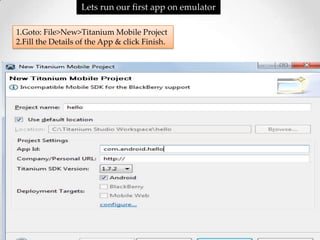
Lets run our first app on emulator

1.Goto: File>New>Titanium Mobile Project
2.Fill the Details of the App & click Finish.
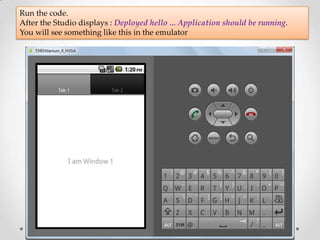
Run the code.
After the Studio displays : Deployed hello ... Application should be running.
You will see something like this in the emulator
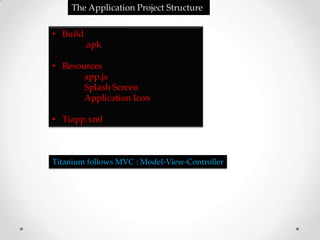
The Application Project Structure

• Build
          .apk

• Resources
       app.js
       Splash Screen
       Application Icon

• Tiapp.xml


Titanium follows MVC : Model-View-Controller
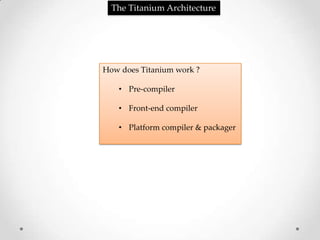
The Titanium Architecture


How does Titanium work ?

   • Pre-compiler

   • Front-end compiler

   • Platform compiler & packager
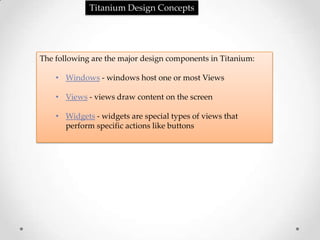
Titanium Design Concepts


The following are the major design components in Titanium:

    • Windows - windows host one or most Views

    • Views - views draw content on the screen

    • Widgets - widgets are special types of views that
      perform specific actions like buttons
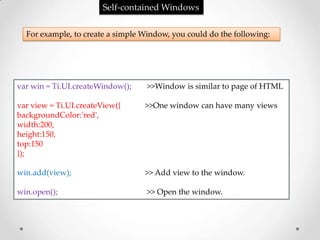
Self-contained Windows

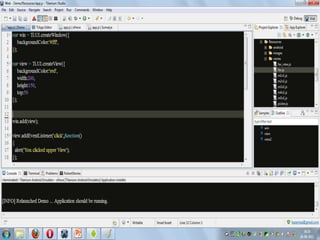
  For example, to create a simple Window, you could do the following:


var win = Ti.UI.createWindow();    >>Window is similar to page of HTML

var view = Ti.UI.createView({     >>One window can have many views
backgroundColor:'red',
width:200,
height:150,
top:150
});

win.add(view);                    >> Add view to the window.

win.open();                        >> Open the window.
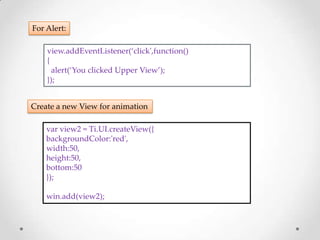
For Alert:

    view.addEventListener(‘click',function()
    {
      alert(‘You clicked Upper View’);
    });


Create a new View for animation

    var view2 = Ti.UI.createView({
    backgroundColor:'red',
    width:50,
    height:50,
    bottom:50
    });

    win.add(view2);
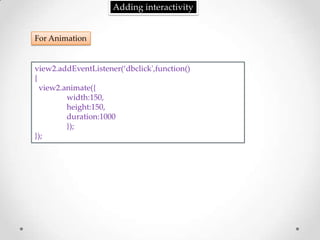
Adding interactivity


For Animation


view2.addEventListener(‘dbclick',function()
{
  view2.animate({
         width:150,
         height:150,
         duration:1000
         });
});
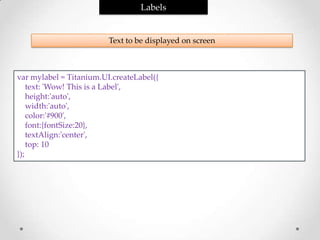
Labels


                         Text to be displayed on screen


var mylabel = Titanium.UI.createLabel({
    text: 'Wow! This is a Label',
    height:'auto',
    width:'auto',
    color:'#900',
    font:{fontSize:20},
    textAlign:'center',
    top: 10
});
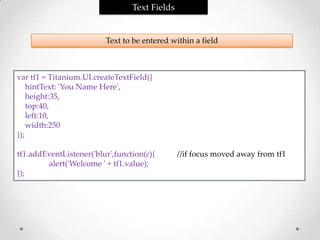
Text Fields


                         Text to be entered within a field


var tf1 = Titanium.UI.createTextField({
    hintText: 'You Name Here',
    height:35,
    top:40,
    left:10,
    width:250
});

tf1.addEventListener('blur',function(e){       //if focus moved away from tf1
        alert('Welcome ' + tf1.value);
});
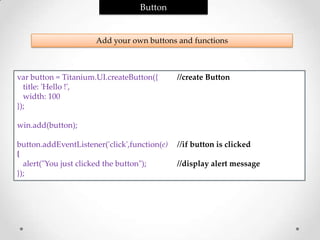
Button


                      Add your own buttons and functions


var button = Titanium.UI.createButton({       //create Button
  title: 'Hello !',
  width: 100
});

win.add(button);

button.addEventListener('click',function(e)   //if button is clicked
{
  alert("You just clicked the button");       //display alert message
});
Picker


                    Add Picker which functions as drop-down box


var picker = Titanium.UI.createPicker();
var data = [];
data[0]=Titanium.UI.createPickerRow({title:'Bananas'});
data[1]=Titanium.UI.createPickerRow({title:'Strawberries'});
data[2]=Titanium.UI.createPickerRow({title:'Mangoes'});
data[3]=Titanium.UI.createPickerRow({title:'Grapes'});

picker.add(data);
win.add(picker);

picker.addEventListener('change',function(e){         //if picker is changed
         alert('You selected '+e.row);
});
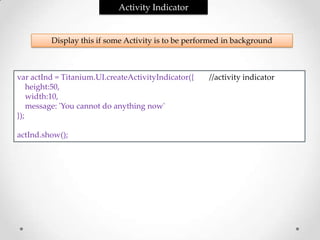
Activity Indicator


         Display this if some Activity is to be performed in background


var actInd = Titanium.UI.createActivityIndicator({   //activity indicator
    height:50,
    width:10,
    message: 'You cannot do anything now'
});

actInd.show();
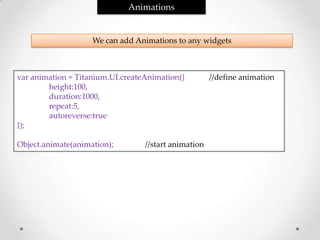
Animations


                    We can add Animations to any widgets


var animation = Titanium.UI.createAnimation({         //define animation
        height:100,
        duration:1000,
        repeat:5,
        autoreverse:true
});

Object.animate(animation);        //start animation
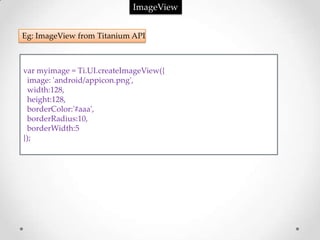
ImageView


Eg: ImageView from Titanium API


var myimage = Ti.UI.createImageView({
 image: 'android/appicon.png',
 width:128,
 height:128,
 borderColor:'#aaa',
 borderRadius:10,
 borderWidth:5
});
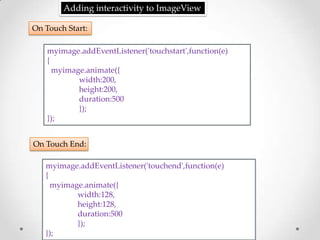
Adding interactivity to ImageView

On Touch Start:

    myimage.addEventListener('touchstart',function(e)
    {
      myimage.animate({
            width:200,
            height:200,
            duration:500
            });
    });


On Touch End:

   myimage.addEventListener('touchend',function(e)
   {
     myimage.animate({
           width:128,
           height:128,
           duration:500
           });
   });
Table View


                         Creation of static or dynamic Tables


var data = [{title:"Row 1"},{title:"Row 2"}];
data.push({title:'Row 3'});

var table = Titanium.UI.createTableView({       //static creation of table
          data:data,
          backgroundColor: 'blue',
          rowHeight: 20,
          separatorColor: 'red'
});

table.appendRow({title:'Row 4'});               //dynamically add rows to table

table.addEventListener('click',function(e){
         alert(e.rowData.title);
});
Titanium Appcelerator - Beginners

Titanium Appcelerator - Beginners

  • 1.
  • 2.
    How to DevelopMobile Apps ? Mobile app Cross Core SDKs Platform Web I-Phone Android Blackberry Titanium Framework Mobile Sencha Jquery Touch
  • 3.
    Web Frameworks forapplication development are . . . - Loren Brichter, creator “Twitter for iPhone”/Tweetie
  • 4.
     Titanium isan open source framework for building Native mobile applications.  Open Source (Apache 2.0).  Supported OS : iOS Android BlackBerry webOS  Has its Own IDE with code completion & debugging* support.  Facilitates for submitting the app on Market.
  • 6.
    Requirements: >For Android Emulator& Development 1.Sun Java Development Kit 6 (aka 1.6) 2.Android Development Kit >For Building Titanium Mobile 1.Python 2.5/2.6 2.Scons 1.2.0.x 3.Git
  • 7.
  • 8.
    Setting up theenvironment and path 1. Goto : Control Panel > System & Security > System > Advanced System Settings > Environment Variables. 2. Goto : Path in System Variables & Edit. 3. Add : C:Javajdk1.6.0_21bin; to path.
  • 9.
    Verify Java Install 1.Open a new command window and enter the command below. > javac -version 2. If you've configured the PATH correctly, you should see something similar to. 3. This means our JAVA is installed correctly.
  • 10.
    Installing the AndroidDevelopment Kit (ADK) 1.Launch the installer_r09-windows setup. 2.Rename the destination folder as C:android-sdk.
  • 11.
    3.Start the SDKmanager. 4.Cancel the Installation of packages. 5.Copy and replace the platforms, platform-tools, extras, temp folders from DVD to C:/android-sdk. 6. Click Refresh in the Installed Packages option of AVD Manager. You will see something like this
  • 12.
    7.Add the ADKto the PATH 1. Add : C:android-sdktools;C:android-sdkplatformsandroid-4tools; before the JAVA path. 8.Workaround for a missing adb Due to a recent change in the Android SDK file structure, Titanium Developer expects the adb.exe executable to be in pathtoandroid-sdk-windowstools whereas it currently resides in pathtoandroid-sdk-windowsplatform-tools. To resolve this issue: >Simply copy adb.exe and AdbWinApi.dll from platform-tools to the tools directory. NOTE: Remember to repeat this process with adb each time Google updates the Platform-Tools package, or Android SDK itself.
  • 13.
    Verify ADK Install 1.Open a new command window and enter the commands below. > aapt v > android list 2. If you've configured everything correctly, you should see something similar to.
  • 14.
    Install Python 2.7.x 1.Launchthe Python installer and use the defaults. Verify Install 1. Open a new command window and enter the commands below. > python --version 2. If you've configured everything correctly, you should see something similar to.
  • 15.
    Install SCons 1.2.0.x 1.Launchthe SCons installer and use the defaults. Verify Install 1. Open a new command window and enter the commands below. > scons --version 2. If you've configured everything correctly, you should see something similar to
  • 16.
    Install Git 1.Launch theGit Installer. 2.Click Next to start the setup. 3.Click Next to accept the License Agreement. 4.Set Destination Folder as C:Git. 5.Ensure that the following packages are selected for installation & click NEXT.
  • 17.
    6.Leave the defaultGit text in the text field and click Next . 7.Select Run Git from the Windows Command Prompt radio button & click Next.
  • 18.
    8.Select Checkout as-is,commit as-is radio button & click Next.
  • 19.
    9. Wait forthe installation to complete. 10.Click the Finish button to complete the installation. Verify Install 1. Open a new command window and enter the commands below. > git --version > git config –list 2. If you've configured everything correctly, you should see something similar to
  • 20.
    Install Titanium Studio 1.Launchthe Titanium Studio setup. 2. Click Next to start. 3.Click I Agree to accept the License Agreement. 4.Set the destination folder to C:Titanium Studio & click Next. 5.Click Next. 6.Click Next. 6.Click Install to start Installation. 7.Click Next. 8.Click Close. 9.Launch the Titanium Studio from Desktop. 10.Set the Workspace to C:Titanium Studio Workspace.
  • 21.
    Lets run ourfirst app on emulator 1.Goto: File>New>Titanium Mobile Project 2.Fill the Details of the App & click Finish.
  • 22.
    Run the code. Afterthe Studio displays : Deployed hello ... Application should be running. You will see something like this in the emulator
  • 23.
    The Application ProjectStructure • Build .apk • Resources app.js Splash Screen Application Icon • Tiapp.xml Titanium follows MVC : Model-View-Controller
  • 24.
    The Titanium Architecture Howdoes Titanium work ? • Pre-compiler • Front-end compiler • Platform compiler & packager
  • 25.
    Titanium Design Concepts Thefollowing are the major design components in Titanium: • Windows - windows host one or most Views • Views - views draw content on the screen • Widgets - widgets are special types of views that perform specific actions like buttons
  • 26.
    Self-contained Windows For example, to create a simple Window, you could do the following: var win = Ti.UI.createWindow(); >>Window is similar to page of HTML var view = Ti.UI.createView({ >>One window can have many views backgroundColor:'red', width:200, height:150, top:150 }); win.add(view); >> Add view to the window. win.open(); >> Open the window.
  • 27.
    For Alert: view.addEventListener(‘click',function() { alert(‘You clicked Upper View’); }); Create a new View for animation var view2 = Ti.UI.createView({ backgroundColor:'red', width:50, height:50, bottom:50 }); win.add(view2);
  • 28.
    Adding interactivity For Animation view2.addEventListener(‘dbclick',function() { view2.animate({ width:150, height:150, duration:1000 }); });
  • 29.
    Labels Text to be displayed on screen var mylabel = Titanium.UI.createLabel({ text: 'Wow! This is a Label', height:'auto', width:'auto', color:'#900', font:{fontSize:20}, textAlign:'center', top: 10 });
  • 30.
    Text Fields Text to be entered within a field var tf1 = Titanium.UI.createTextField({ hintText: 'You Name Here', height:35, top:40, left:10, width:250 }); tf1.addEventListener('blur',function(e){ //if focus moved away from tf1 alert('Welcome ' + tf1.value); });
  • 31.
    Button Add your own buttons and functions var button = Titanium.UI.createButton({ //create Button title: 'Hello !', width: 100 }); win.add(button); button.addEventListener('click',function(e) //if button is clicked { alert("You just clicked the button"); //display alert message });
  • 32.
    Picker Add Picker which functions as drop-down box var picker = Titanium.UI.createPicker(); var data = []; data[0]=Titanium.UI.createPickerRow({title:'Bananas'}); data[1]=Titanium.UI.createPickerRow({title:'Strawberries'}); data[2]=Titanium.UI.createPickerRow({title:'Mangoes'}); data[3]=Titanium.UI.createPickerRow({title:'Grapes'}); picker.add(data); win.add(picker); picker.addEventListener('change',function(e){ //if picker is changed alert('You selected '+e.row); });
  • 33.
    Activity Indicator Display this if some Activity is to be performed in background var actInd = Titanium.UI.createActivityIndicator({ //activity indicator height:50, width:10, message: 'You cannot do anything now' }); actInd.show();
  • 34.
    Animations We can add Animations to any widgets var animation = Titanium.UI.createAnimation({ //define animation height:100, duration:1000, repeat:5, autoreverse:true }); Object.animate(animation); //start animation
  • 35.
    ImageView Eg: ImageView fromTitanium API var myimage = Ti.UI.createImageView({ image: 'android/appicon.png', width:128, height:128, borderColor:'#aaa', borderRadius:10, borderWidth:5 });
  • 36.
    Adding interactivity toImageView On Touch Start: myimage.addEventListener('touchstart',function(e) { myimage.animate({ width:200, height:200, duration:500 }); }); On Touch End: myimage.addEventListener('touchend',function(e) { myimage.animate({ width:128, height:128, duration:500 }); });
  • 37.
    Table View Creation of static or dynamic Tables var data = [{title:"Row 1"},{title:"Row 2"}]; data.push({title:'Row 3'}); var table = Titanium.UI.createTableView({ //static creation of table data:data, backgroundColor: 'blue', rowHeight: 20, separatorColor: 'red' }); table.appendRow({title:'Row 4'}); //dynamically add rows to table table.addEventListener('click',function(e){ alert(e.rowData.title); });