ANDROID STYLES AND
DESIGNS
Sourabh Sahu
STYLES
 A resource that defines format and look for a UI.
 Can be applied to individual entities or to activities as a
whole.
 It is a .XML file.
Defining Styles
 The XML file resides under res/values/ directory
of your project and will have <resources> as the
root node which is mandatory for the style file.
 <style> tag is used to define a style.
 Each style is uniquely identified by it’s name.
 Style attributes can be set using the <item> tag.
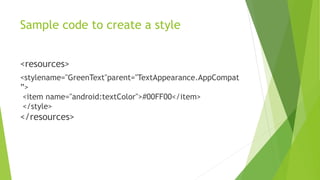
Sample code to create a style
<resources>
<stylename="GreenText"parent="TextAppearance.AppCompat
”>
<item name="android:textColor">#00FF00</item>
</style>
</resources>
Extending a Style
 To create your own style, you should always
extend it from the framework or support library.
 This is to maintain compatibility with platform UI
styles.
 Use the ‘parent’ attribute to extend a style.
 You can also inherit styles by extending a style's
name with a dot notation, instead of using
the parent attribute.
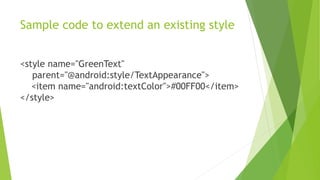
Sample code to extend an existing style
<style name="GreenText"
parent="@android:style/TextAppearance">
<item name="android:textColor">#00FF00</item>
</style>
THEME
 A theme is similar to style, but it is applied to a
layout or an activity as a whole.
 It is applied to child views of each component as
well.
 Use the android:theme attribute on either
the <application>tag or an <activity> tag in
the AndroidManifest.xml file.
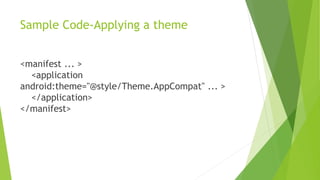
Sample Code-Applying a theme
<manifest ... >
<application
android:theme="@style/Theme.AppCompat" ... >
</application>
</manifest>
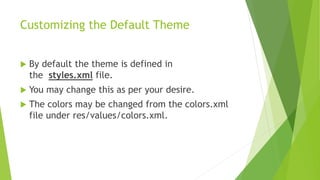
Customizing the Default Theme
 By default the theme is defined in
the styles.xml file.
 You may change this as per your desire.
 The colors may be changed from the colors.xml
file under res/values/colors.xml.
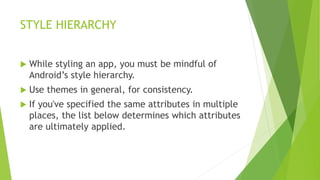
STYLE HIERARCHY
 While styling an app, you must be mindful of
Android’s style hierarchy.
 Use themes in general, for consistency.
 If you've specified the same attributes in multiple
places, the list below determines which attributes
are ultimately applied.
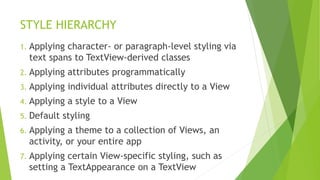
STYLE HIERARCHY
1. Applying character- or paragraph-level styling via
text spans to TextView-derived classes
2. Applying attributes programmatically
3. Applying individual attributes directly to a View
4. Applying a style to a View
5. Default styling
6. Applying a theme to a collection of Views, an
activity, or your entire app
7. Applying certain View-specific styling, such as
setting a TextAppearance on a TextView
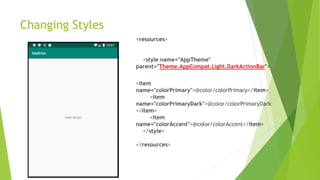
Changing Styles
<resources>
<style name="AppTheme"
parent="Theme.AppCompat.Light.DarkActionBar">
<item
name="colorPrimary">@color/colorPrimary</item>
<item
name="colorPrimaryDark">@color/colorPrimaryDark
</item>
<item
name="colorAccent">@color/colorAccent</item>
</style>
</resources>
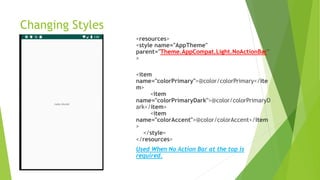
Changing Styles
<resources>
<style name="AppTheme"
parent="Theme.AppCompat.Light.NoActionBar"
>
<item
name="colorPrimary">@color/colorPrimary</ite
m>
<item
name="colorPrimaryDark">@color/colorPrimaryD
ark</item>
<item
name="colorAccent">@color/colorAccent</item
>
</style>
</resources>
Used When No Action Bar at the top is
required.
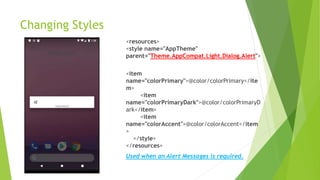
Changing Styles
<resources>
<style name="AppTheme"
parent="Theme.AppCompat.Light.Dialog.Alert">
<item
name="colorPrimary">@color/colorPrimary</ite
m>
<item
name="colorPrimaryDark">@color/colorPrimaryD
ark</item>
<item
name="colorAccent">@color/colorAccent</item
>
</style>
</resources>
Used when an Alert Messages is required.
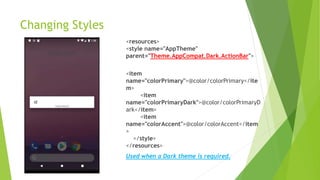
Changing Styles
<resources>
<style name="AppTheme"
parent="Theme.AppCompat.Dark.ActionBar">
<item
name="colorPrimary">@color/colorPrimary</ite
m>
<item
name="colorPrimaryDark">@color/colorPrimaryD
ark</item>
<item
name="colorAccent">@color/colorAccent</item
>
</style>
</resources>
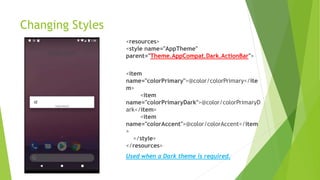
Used when a Dark theme is required.
Changing Styles
<resources>
<style name="AppTheme"
parent="Theme.AppCompat.Dark.ActionBar">
<item
name="colorPrimary">@color/colorPrimary</ite
m>
<item
name="colorPrimaryDark">@color/colorPrimaryD
ark</item>
<item
name="colorAccent">@color/colorAccent</item
>
</style>
</resources>
Used when a Dark theme is required.
Changing Colors
 Colors can be changed using the colors.xml file under res/values.
<resources>
<color name="colorPrimary">#008577</color>
<color name="colorPrimaryDark">#00574B</color>
<color name="colorAccent">#D81B60</color>
</resources>
Changing colors of Different Attributes
 Go to corresponding xml code of
the attribute.
 Use android:background or
android:textcolor to change to
desired colors.
 Sample Code
<Button
android:id="@+id/button"
android:background="@color/colorPr
imaryDark"
android:textColor="@color/colorPrim
aryDark” />

Android styles and themes