
Android Material Design
01 Material Theme
+Anuchit Chalothorn
anuchit@redlinesoft.net
Start with blank activity
● Create new Android project use API 20
● Start with blank activity
● Use appcompat to backward compatible to old
version
● Customized basic theme
Use appcompat-v7
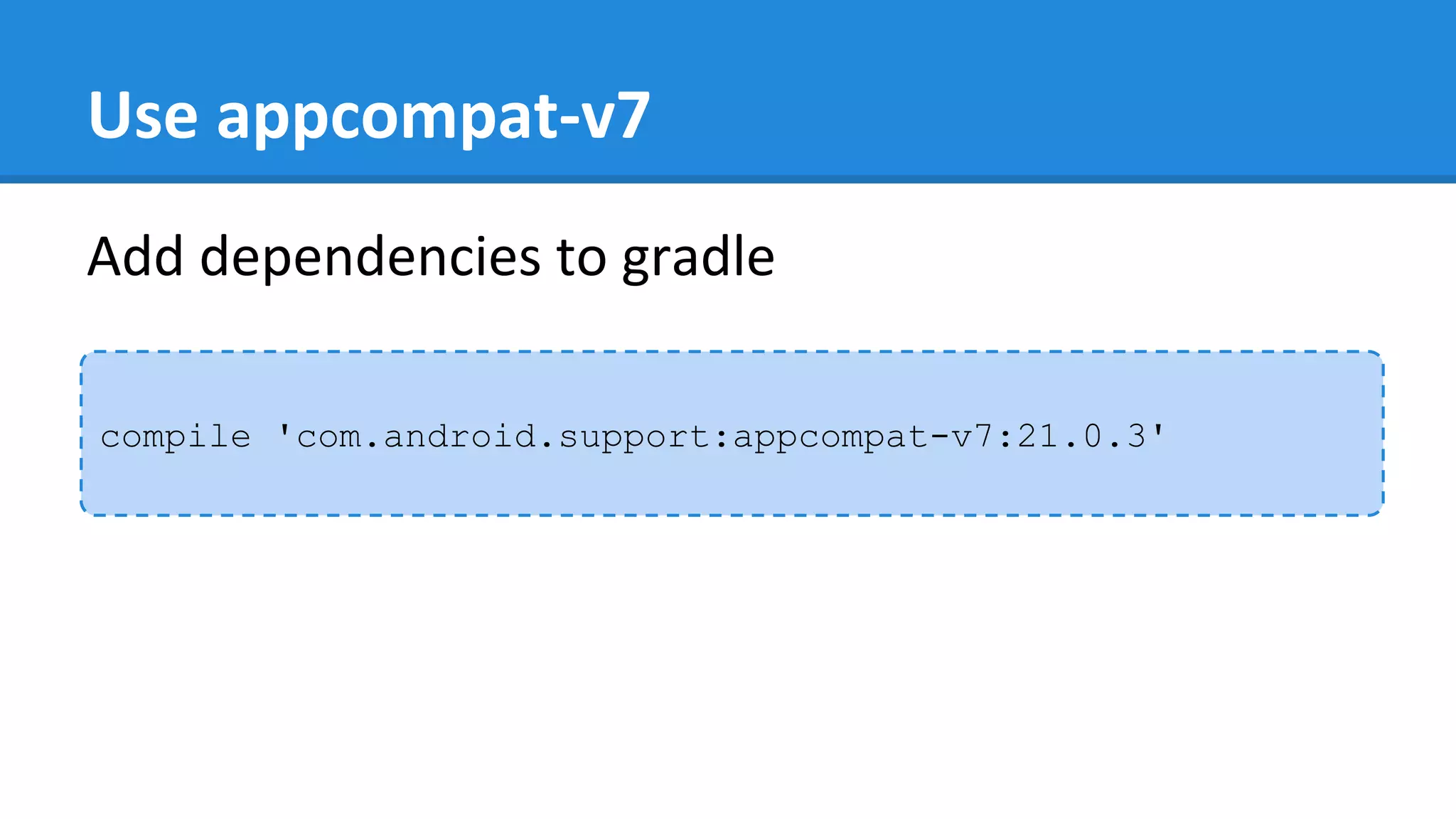
Add dependencies to gradle
compile 'com.android.support:appcompat-v7:21.0.3'
Use ActionBarActivity
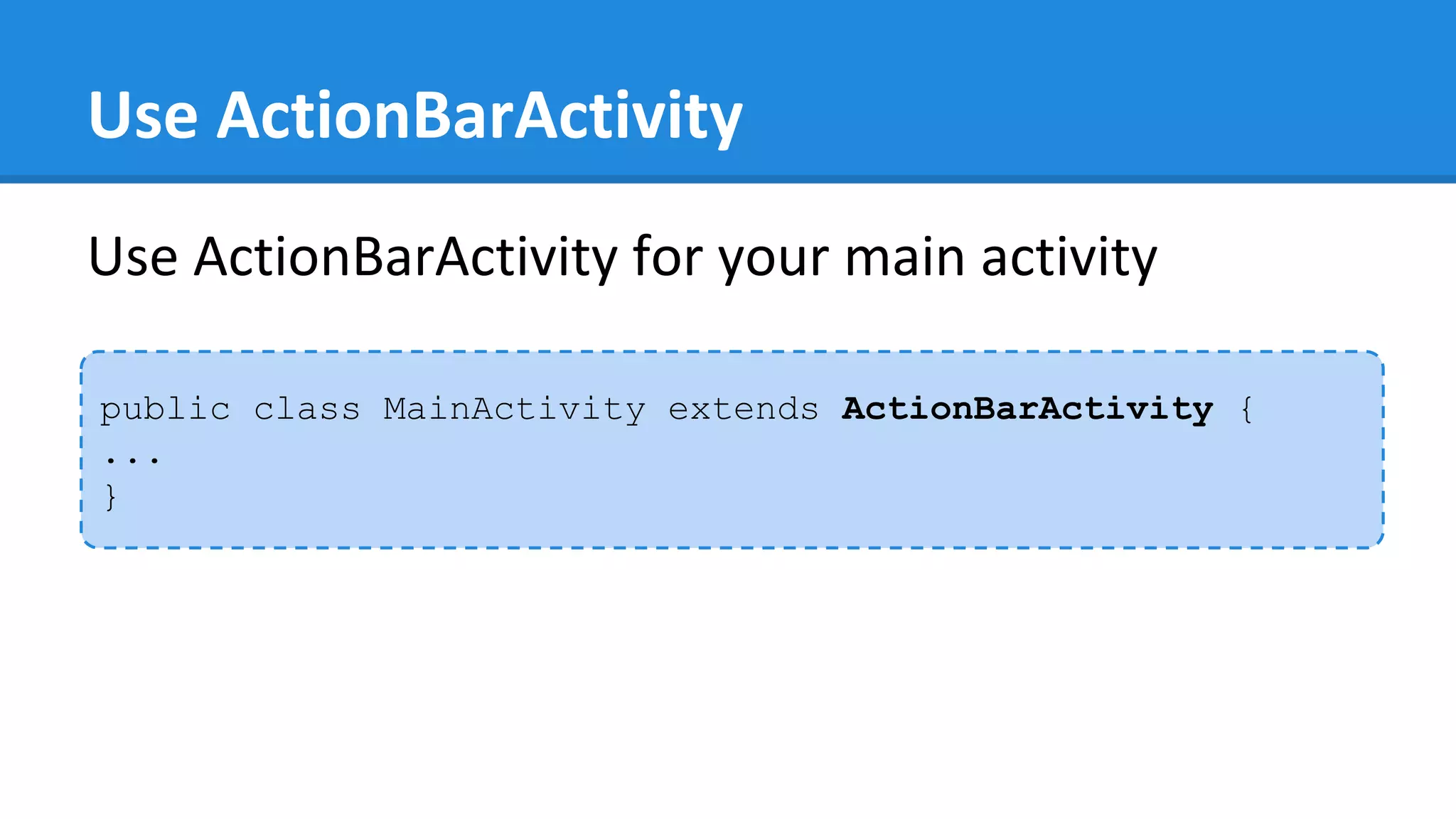
Use ActionBarActivity for your main activity
public class MainActivity extends ActionBarActivity {
...
}
Use Theme AppCompat
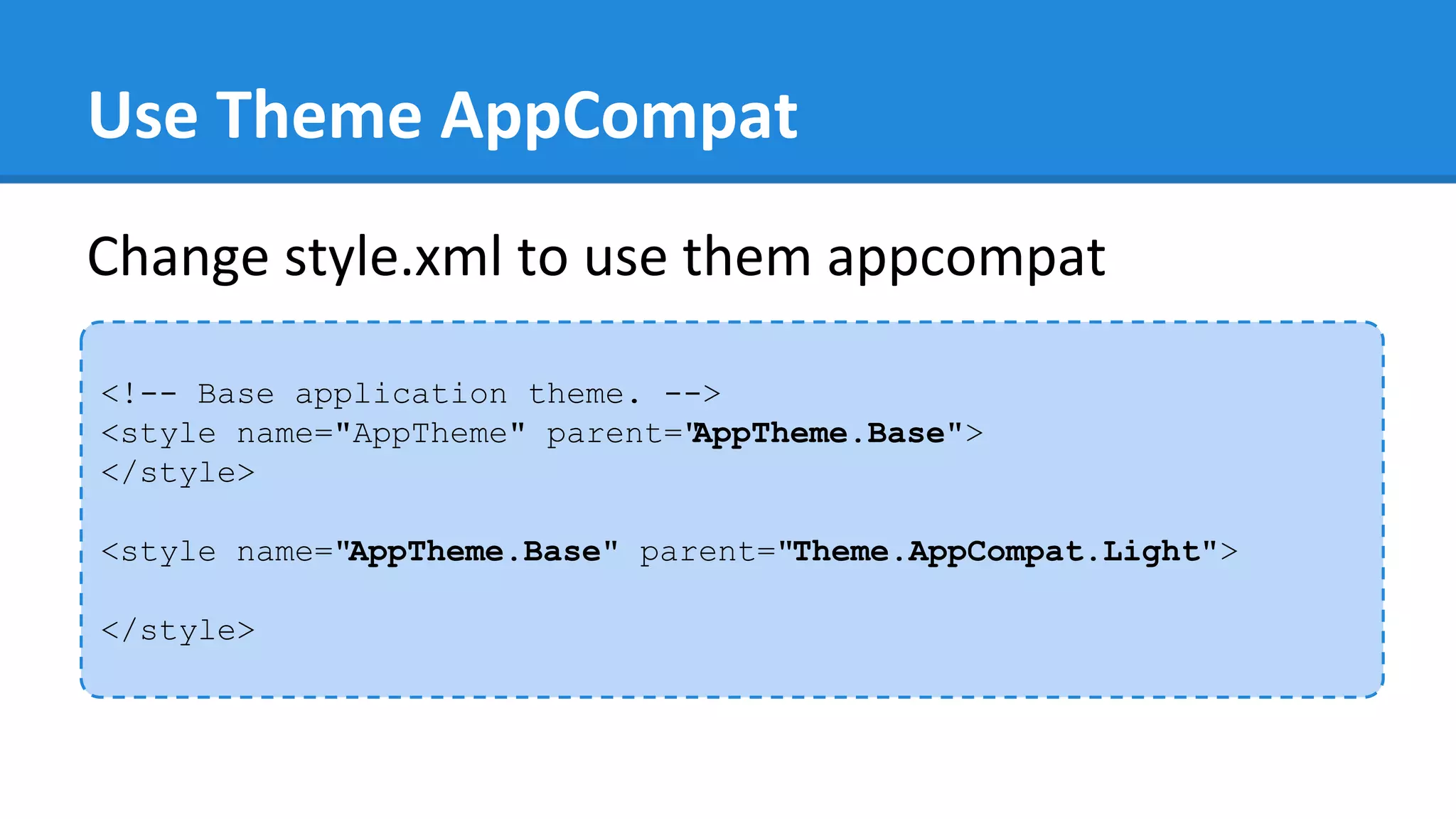
<!-- Base application theme. -->
<style name="AppTheme" parent="AppTheme.Base">
</style>
<style name="AppTheme.Base" parent="Theme.AppCompat.Light">
</style>
Change style.xml to use them appcompat
Use Theme AppCompat
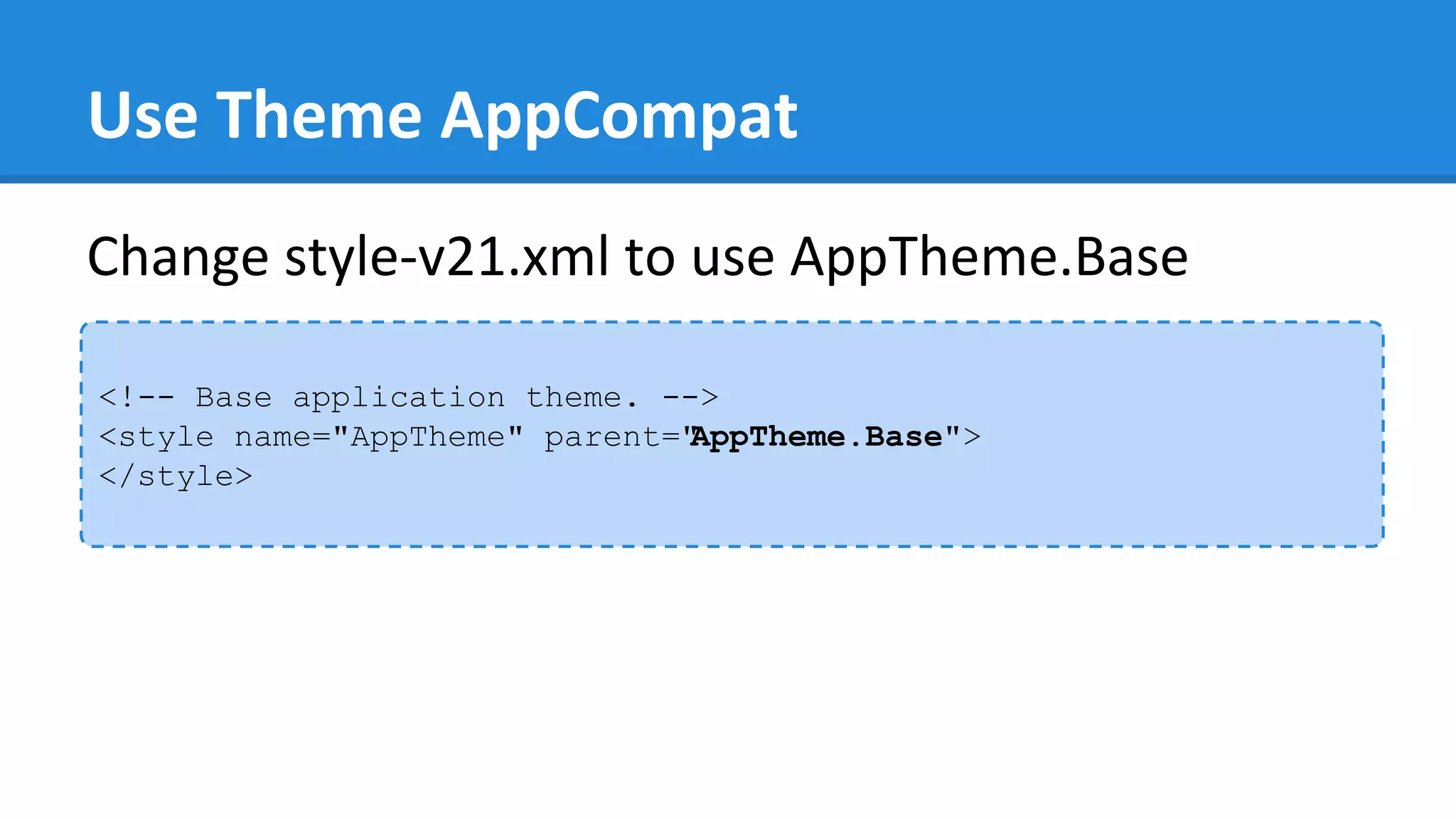
<!-- Base application theme. -->
<style name="AppTheme" parent="AppTheme.Base">
</style>
Change style-v21.xml to use AppTheme.Base
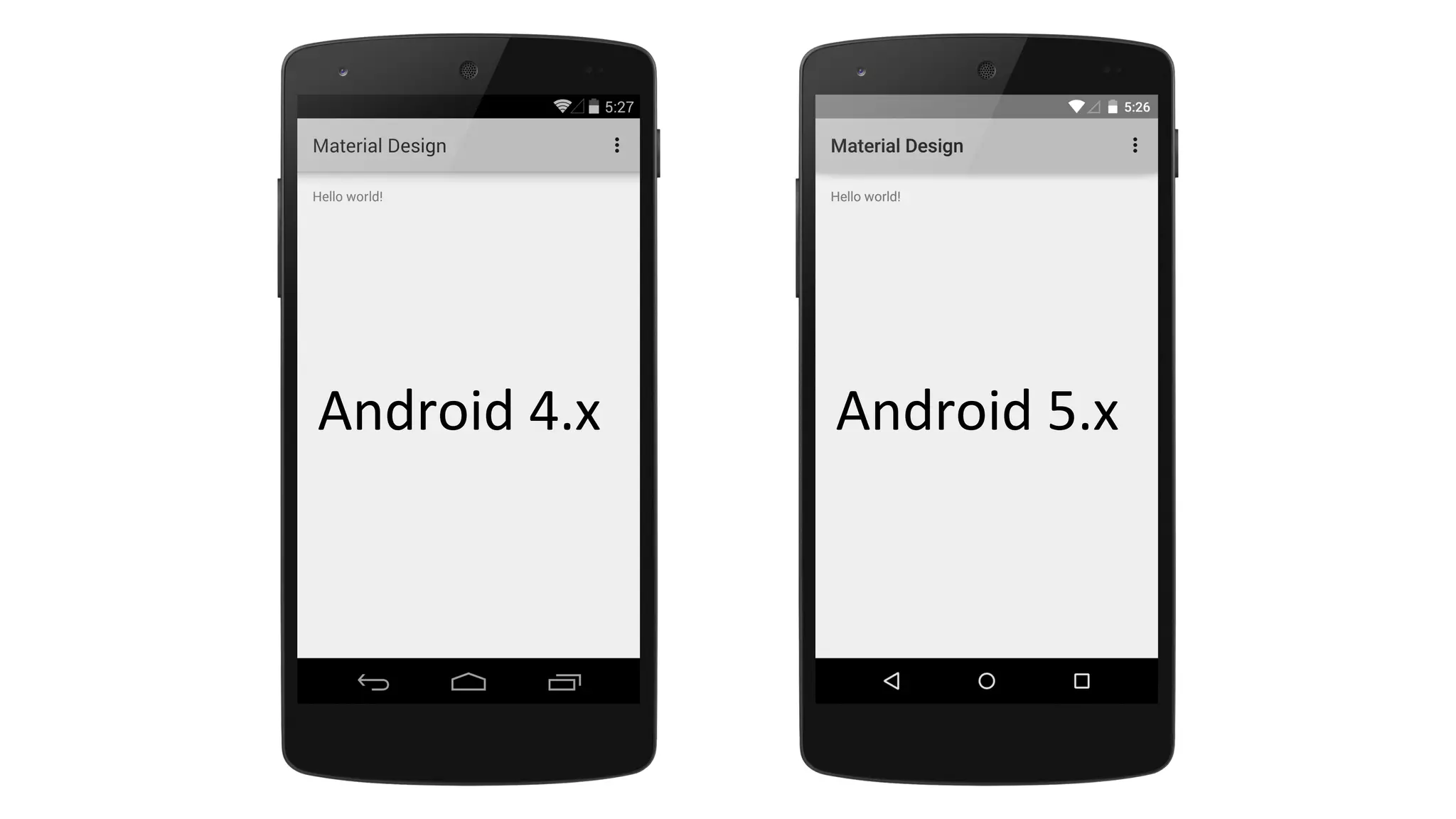
Android 4.x Android 5.x
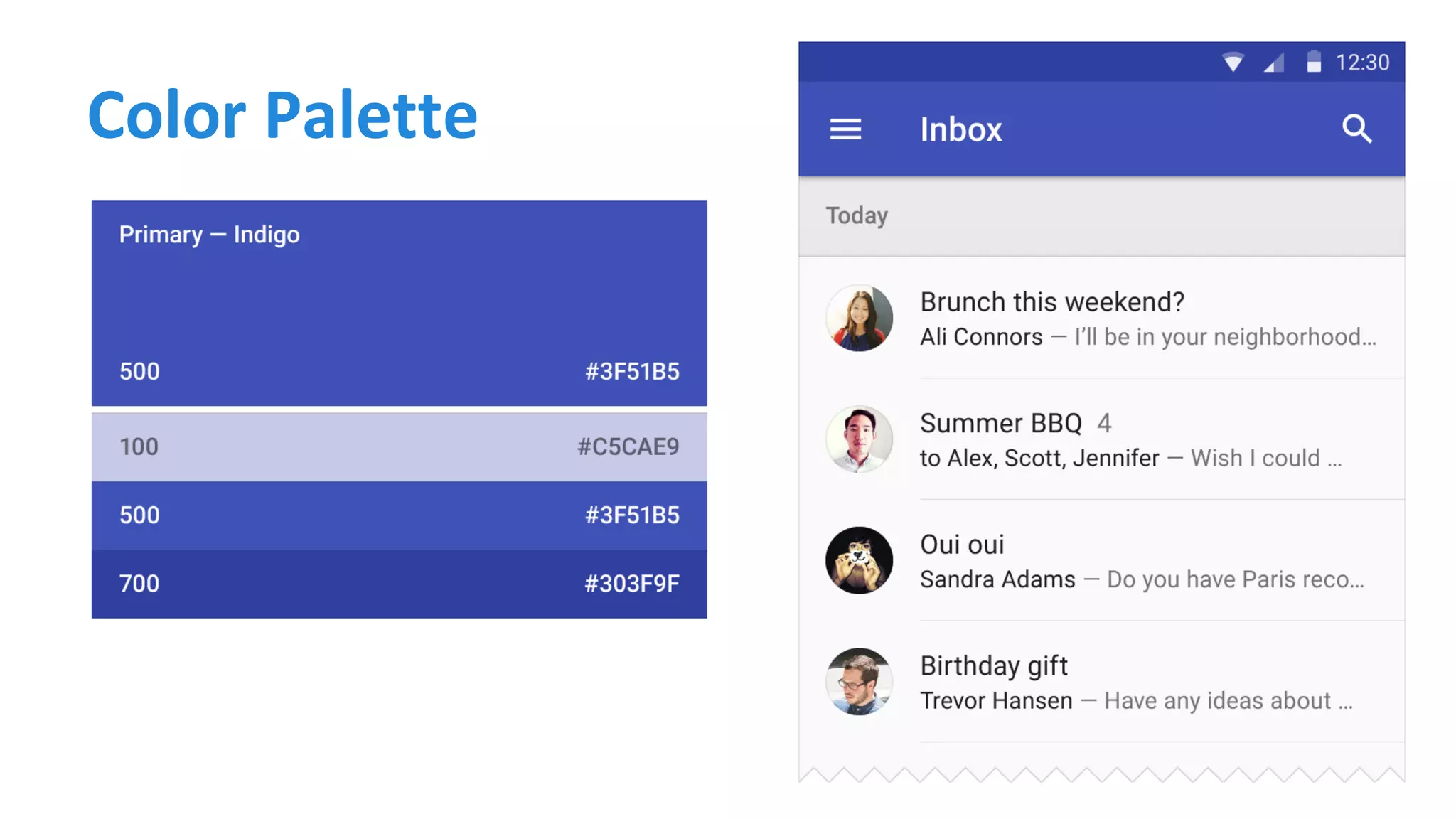
Color Palette
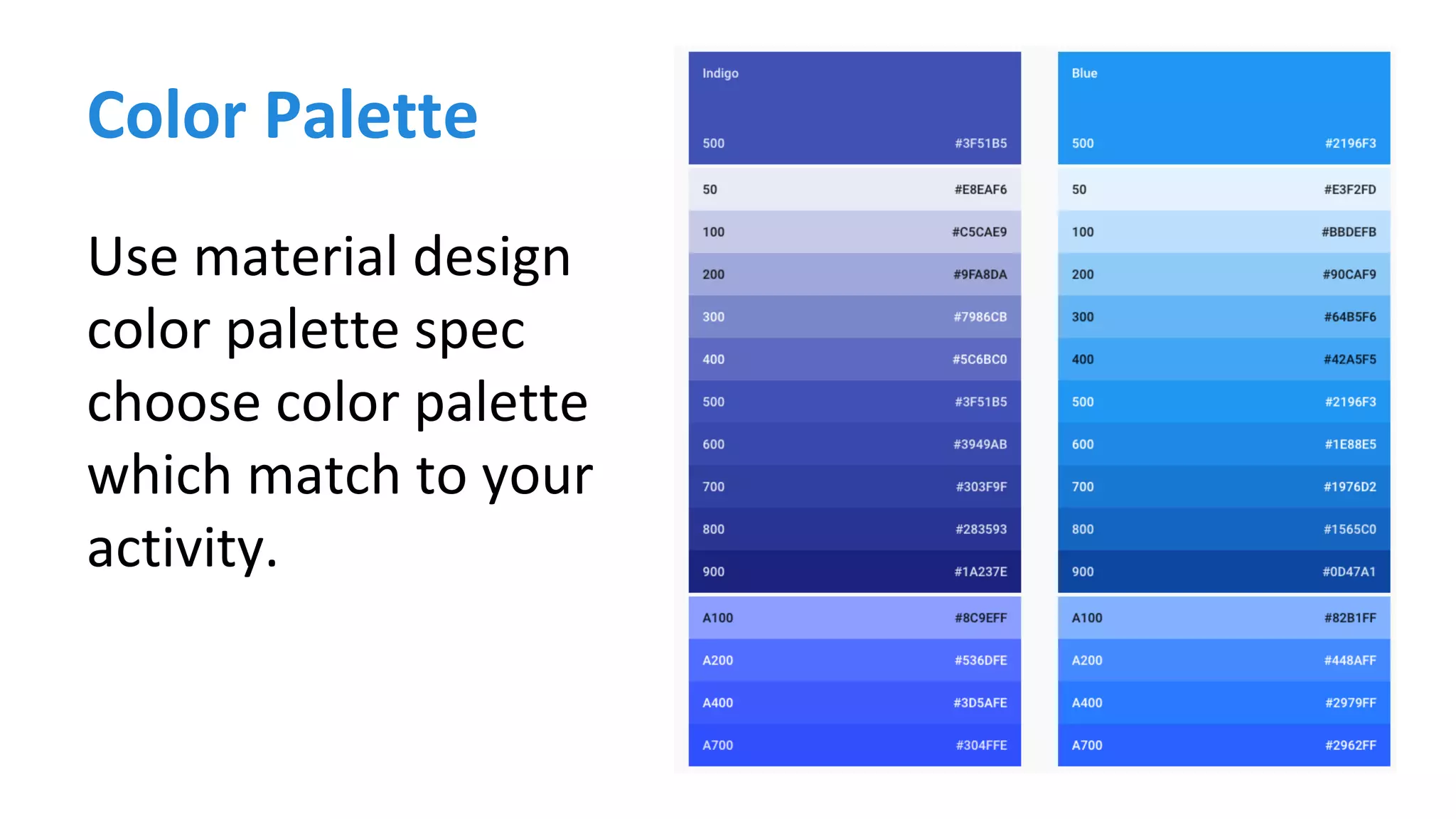
Use material design
color palette spec
choose color palette
which match to your
activity.
Color Palette
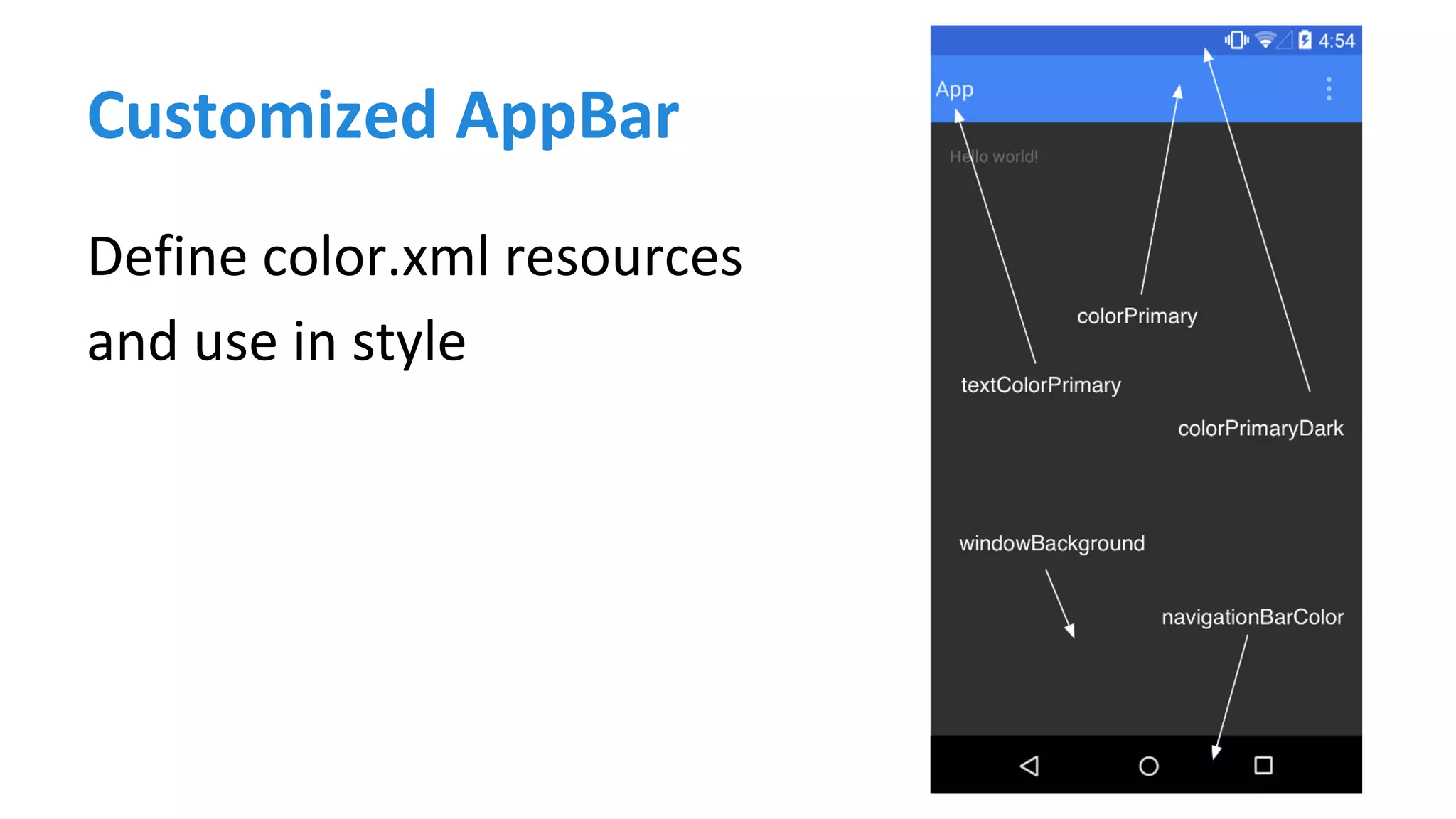
Customized AppBar
Define color.xml resources
and use in style
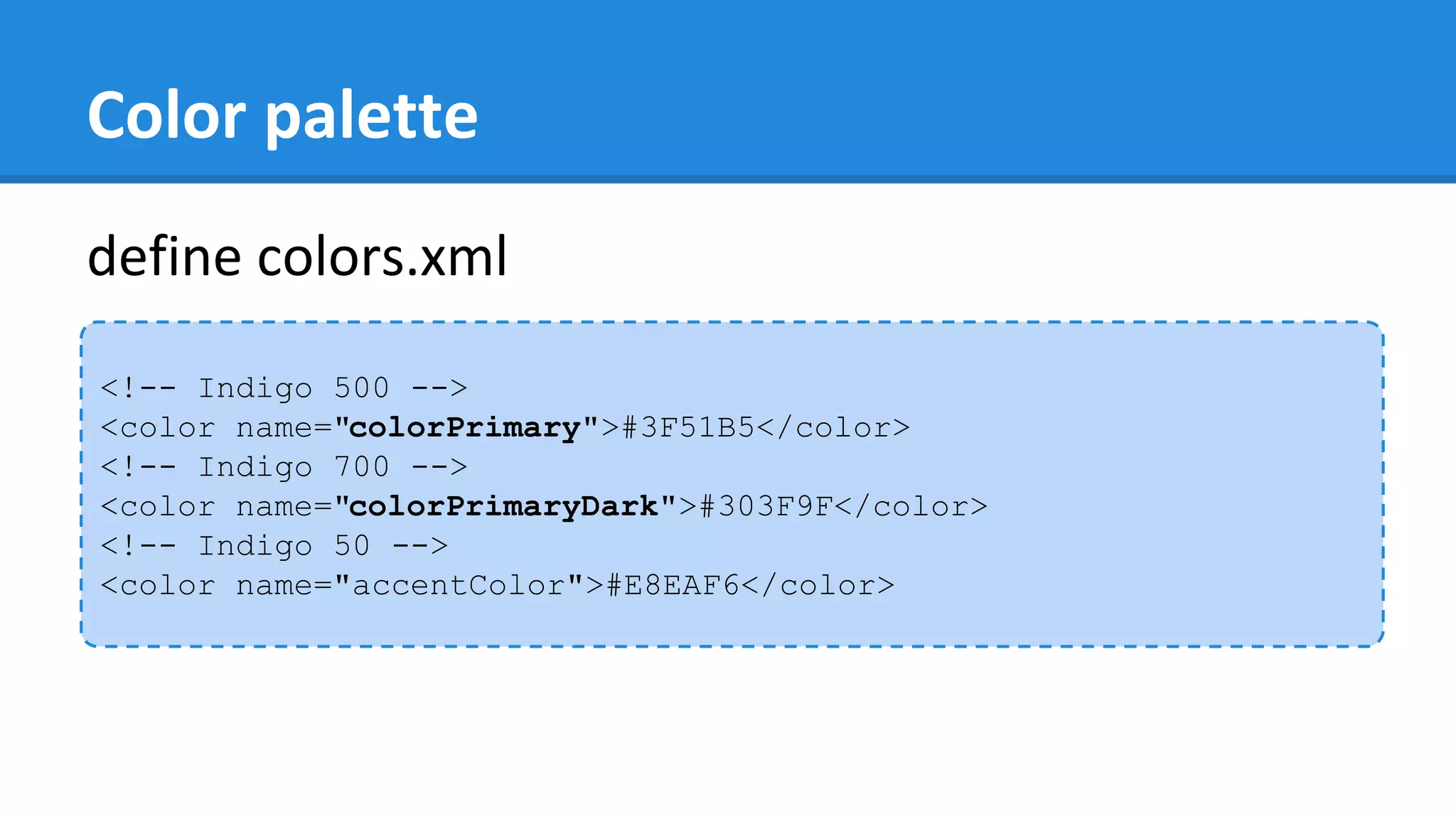
Color palette
<!-- Indigo 500 -->
<color name="colorPrimary">#3F51B5</color>
<!-- Indigo 700 -->
<color name="colorPrimaryDark">#303F9F</color>
<!-- Indigo 50 -->
<color name="accentColor">#E8EAF6</color>
define colors.xml
Customized color
<style name="AppTheme.Base" parent=" Theme.AppCompat.Light.DarkActionBar">
<item name=" colorPrimary">@color/colorPrimary</item>
<item name=" colorPrimaryDark">@color/colorPrimaryDark</item>
<item name=" colorAccent">@color/colorAccent</item>
</style>
Add customized color to style.xml
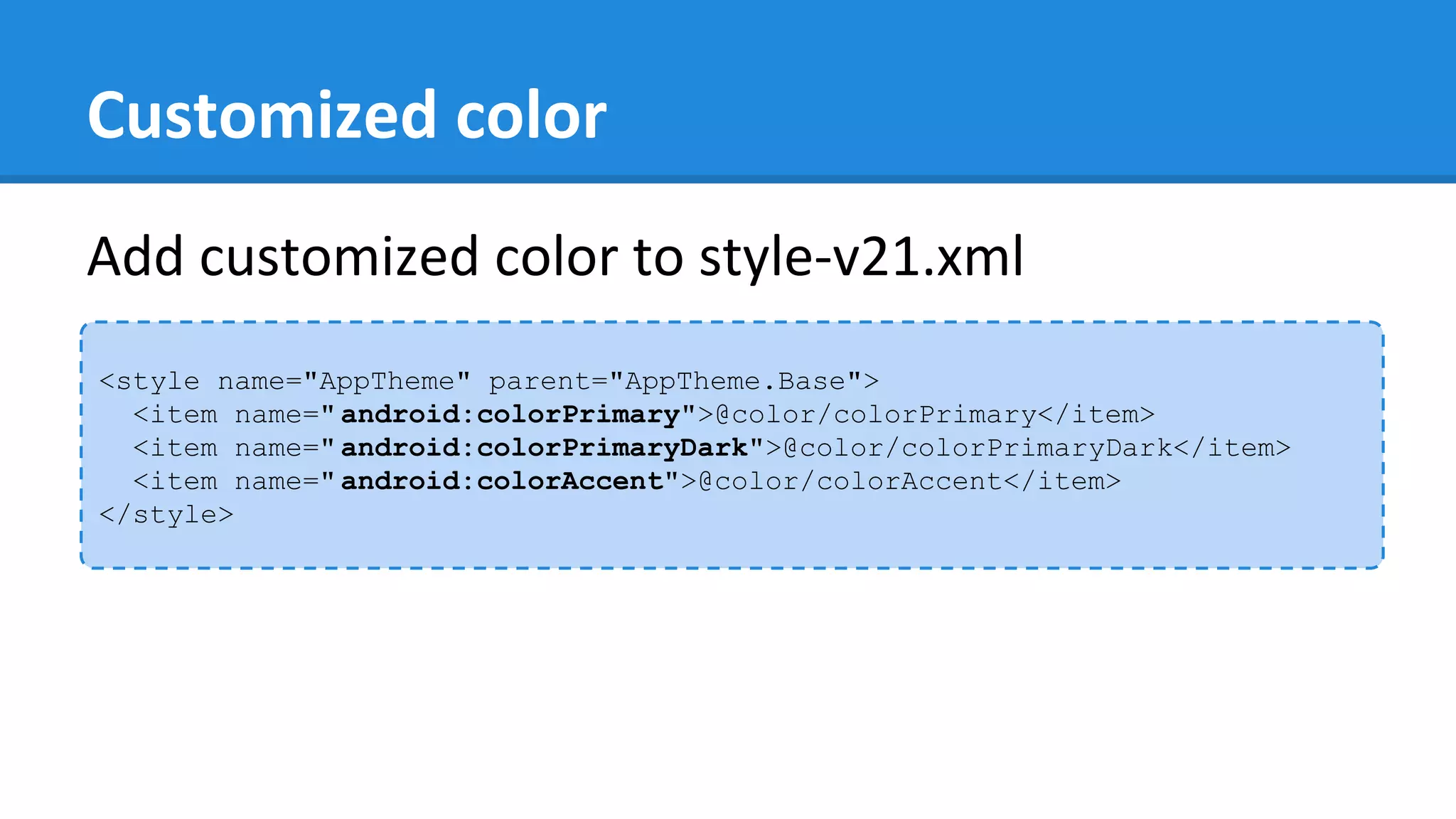
Customized color
<style name="AppTheme" parent="AppTheme.Base">
<item name=" android:colorPrimary">@color/colorPrimary</item>
<item name=" android:colorPrimaryDark">@color/colorPrimaryDark</item>
<item name=" android:colorAccent">@color/colorAccent</item>
</style>
Add customized color to style-v21.xml
Android 4.x Android 5.x
Setup AppBar
● Use Theme.AppCompat.Light.NoActionBar
● Define app_bar.xml for ToolBar
● Use <include> in your layout.xml to add ToolBar
● Instantiate the ToolBar using findViewById inside activity
● Call setSupportActionBar and pass your ToolBar object
inside
● Customize app:theme and app:popupTheme
Mobile Structure
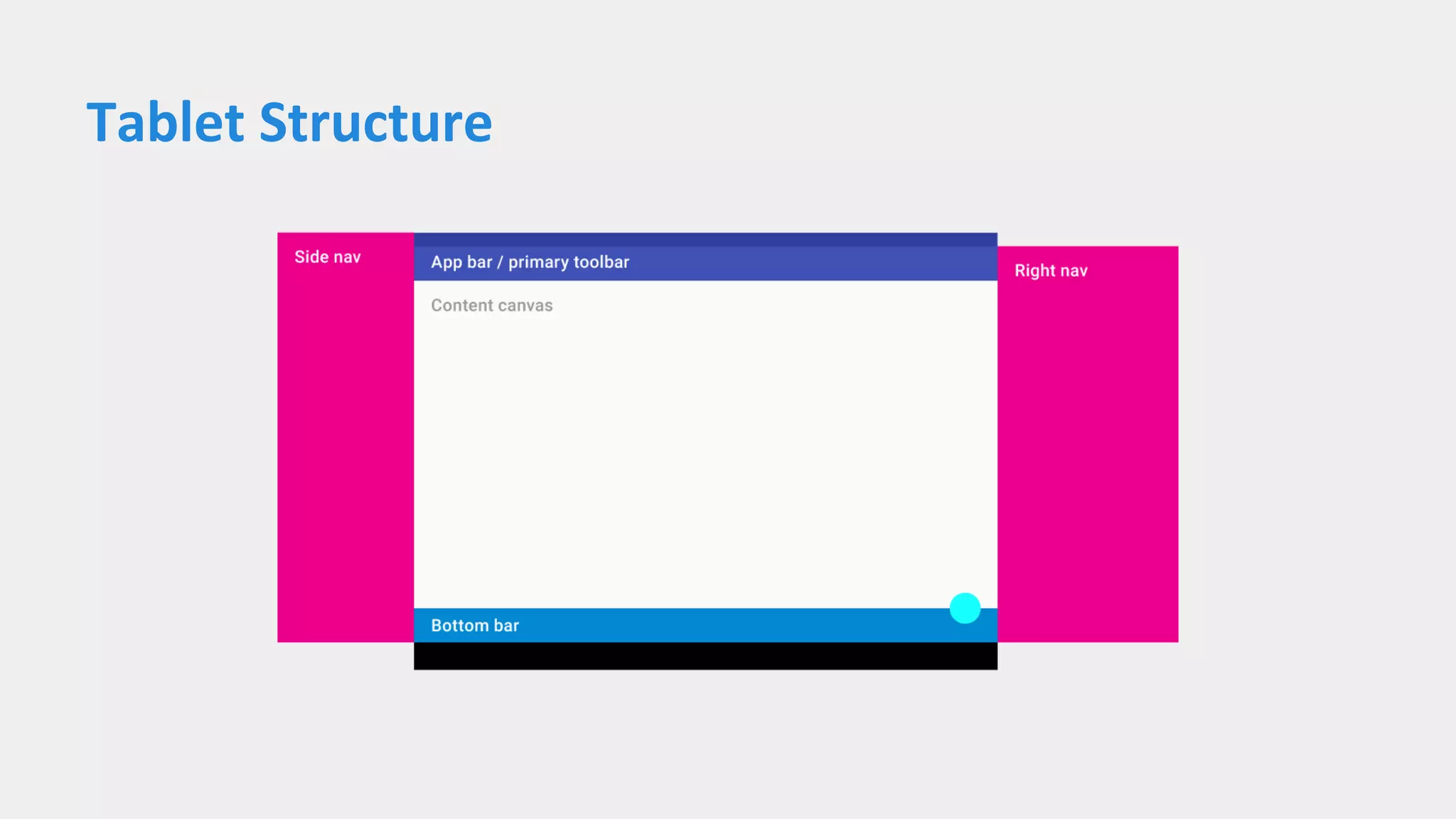
Tablet Structure
Full width default height AppBar
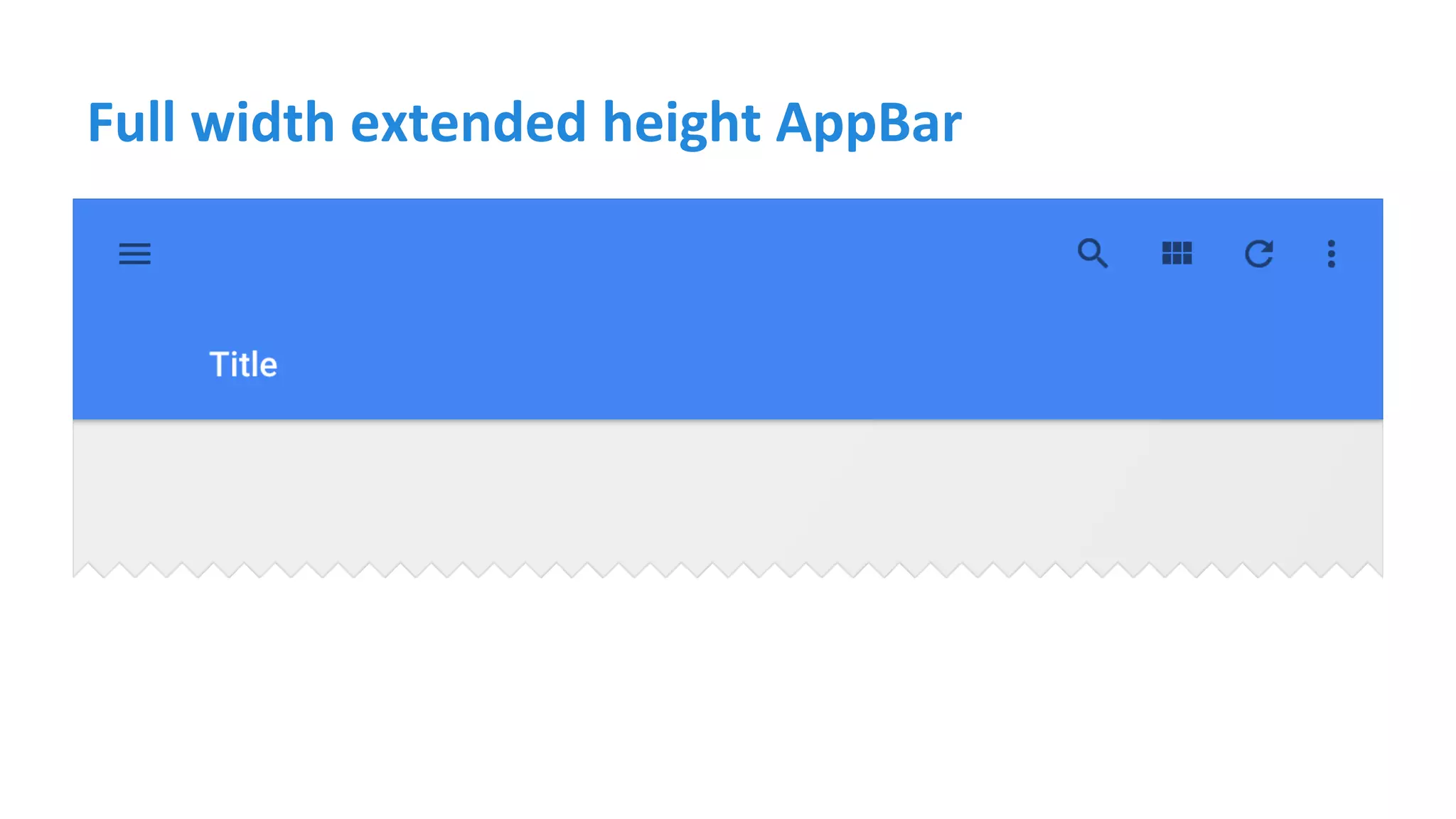
Full width extended height AppBar
Column-width toolbars at multiple levels of hierarchy
Flexible toolbar and card toolbar
Floating toolbar
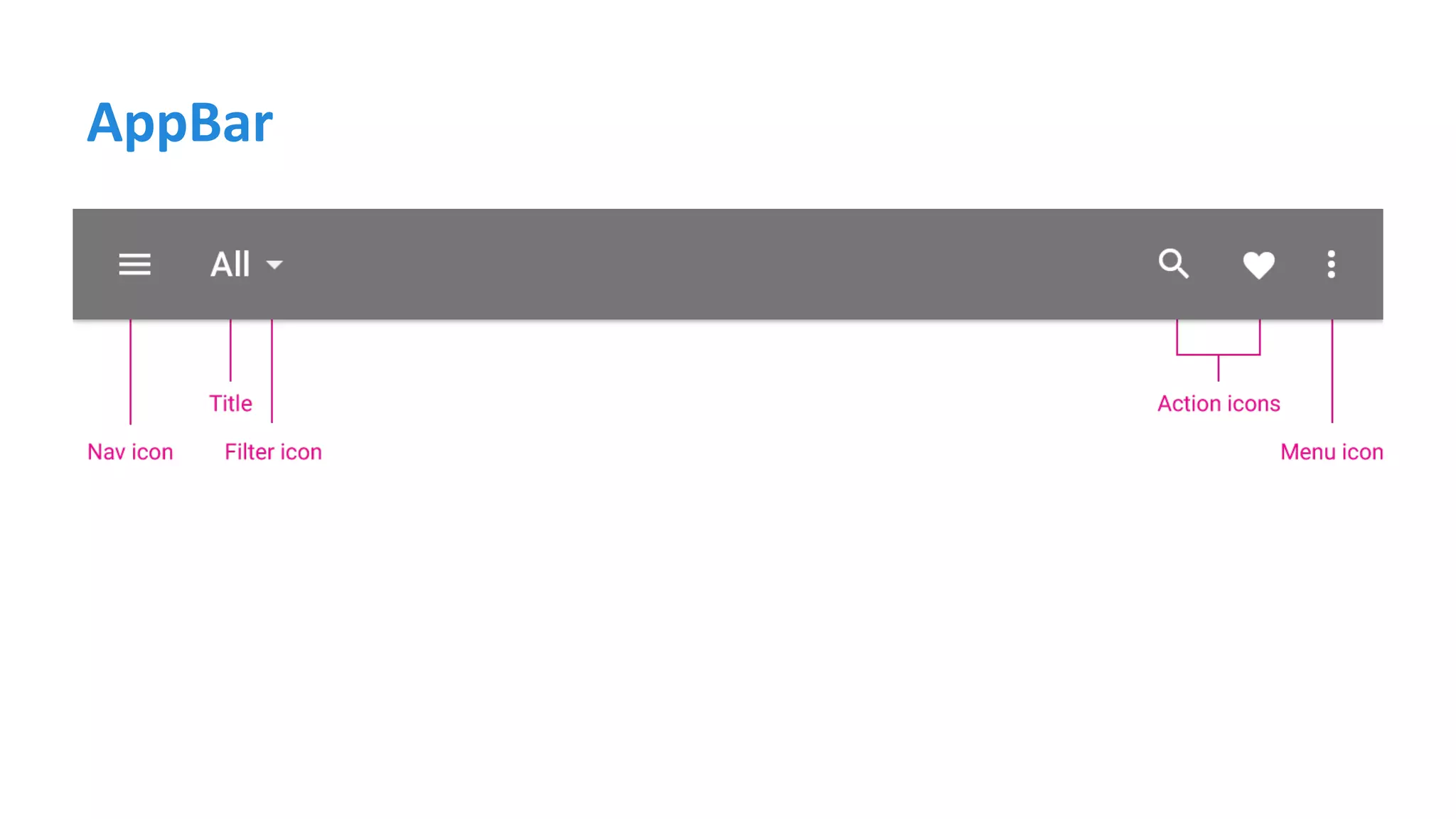
AppBar
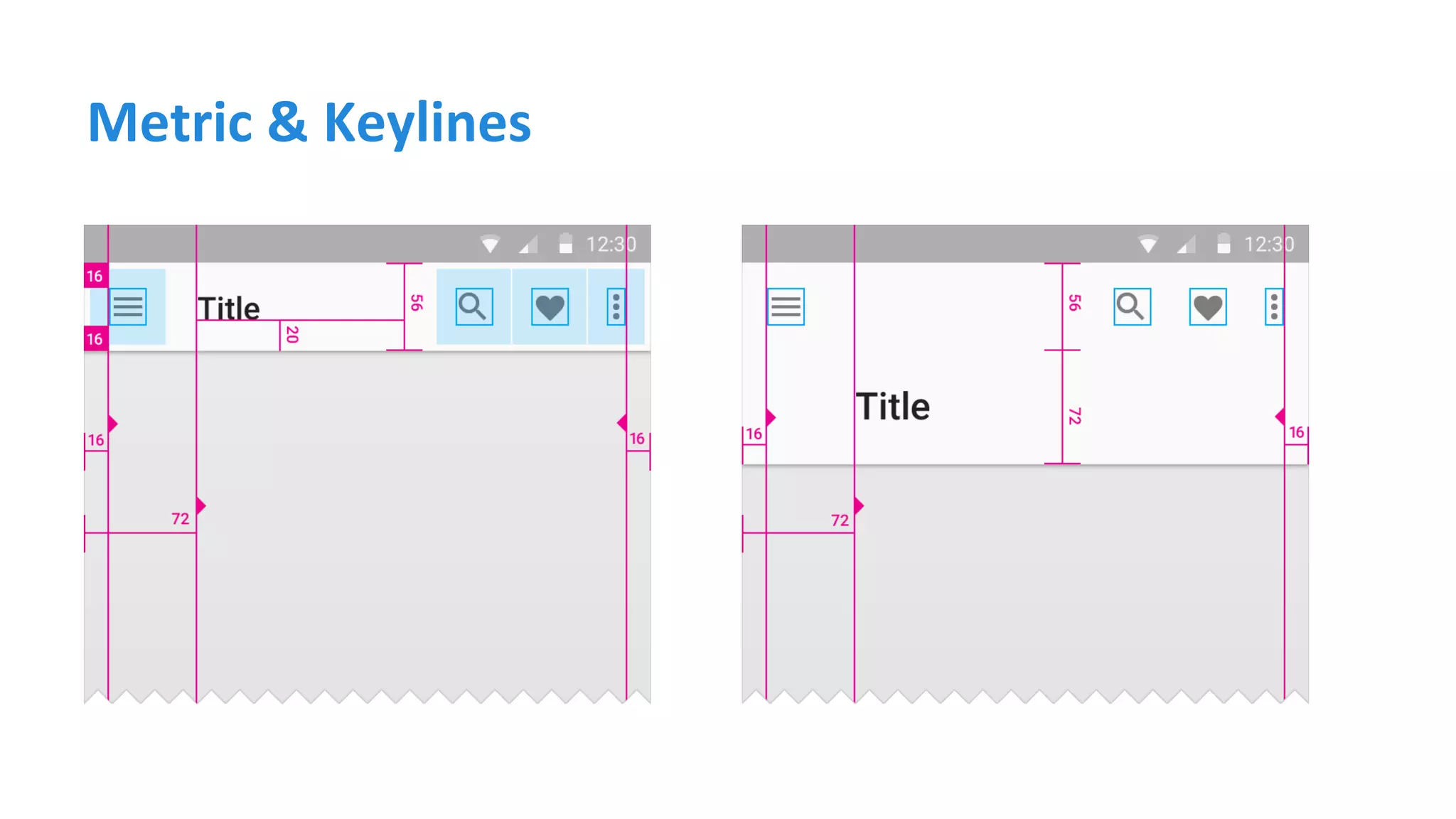
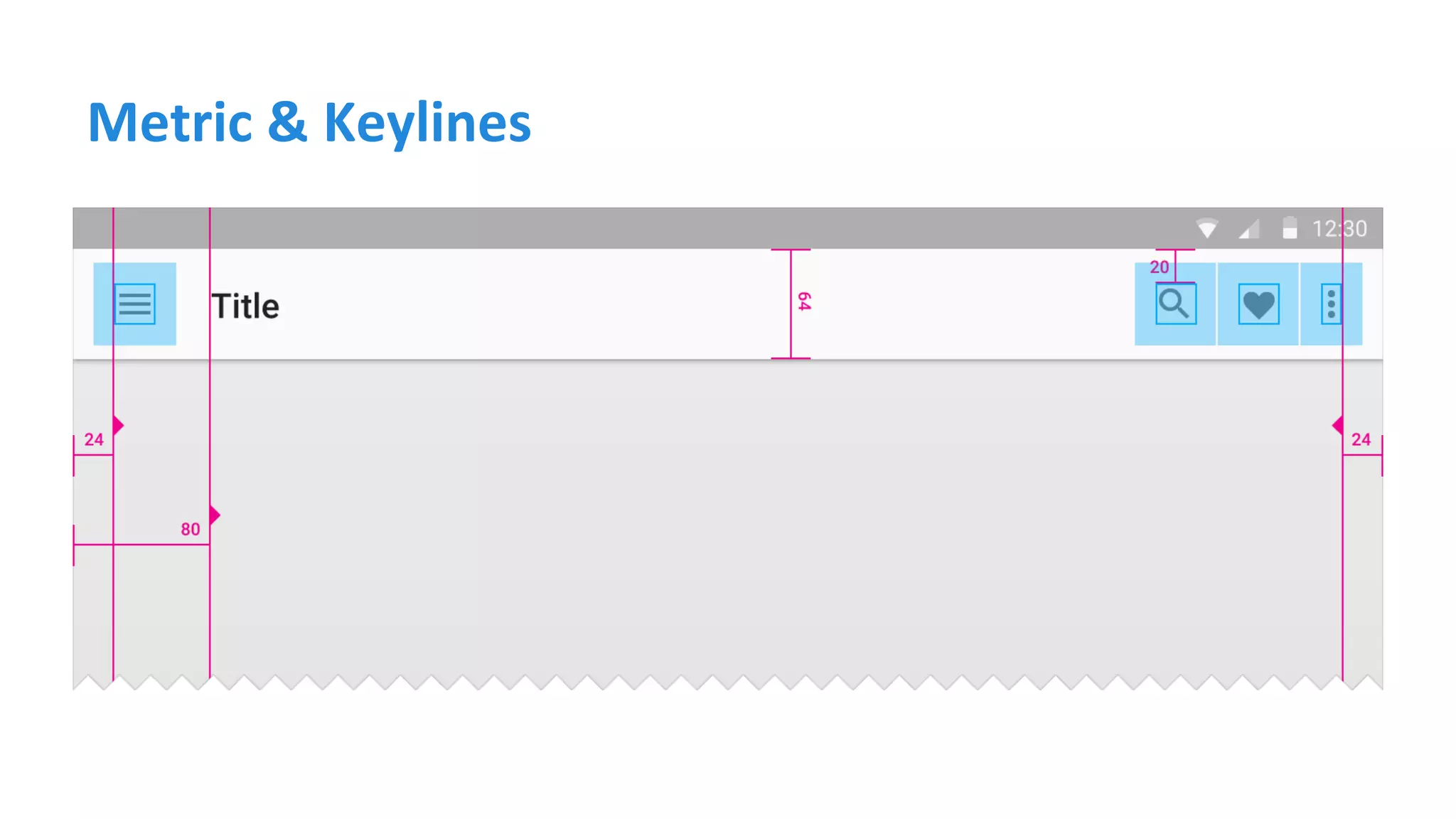
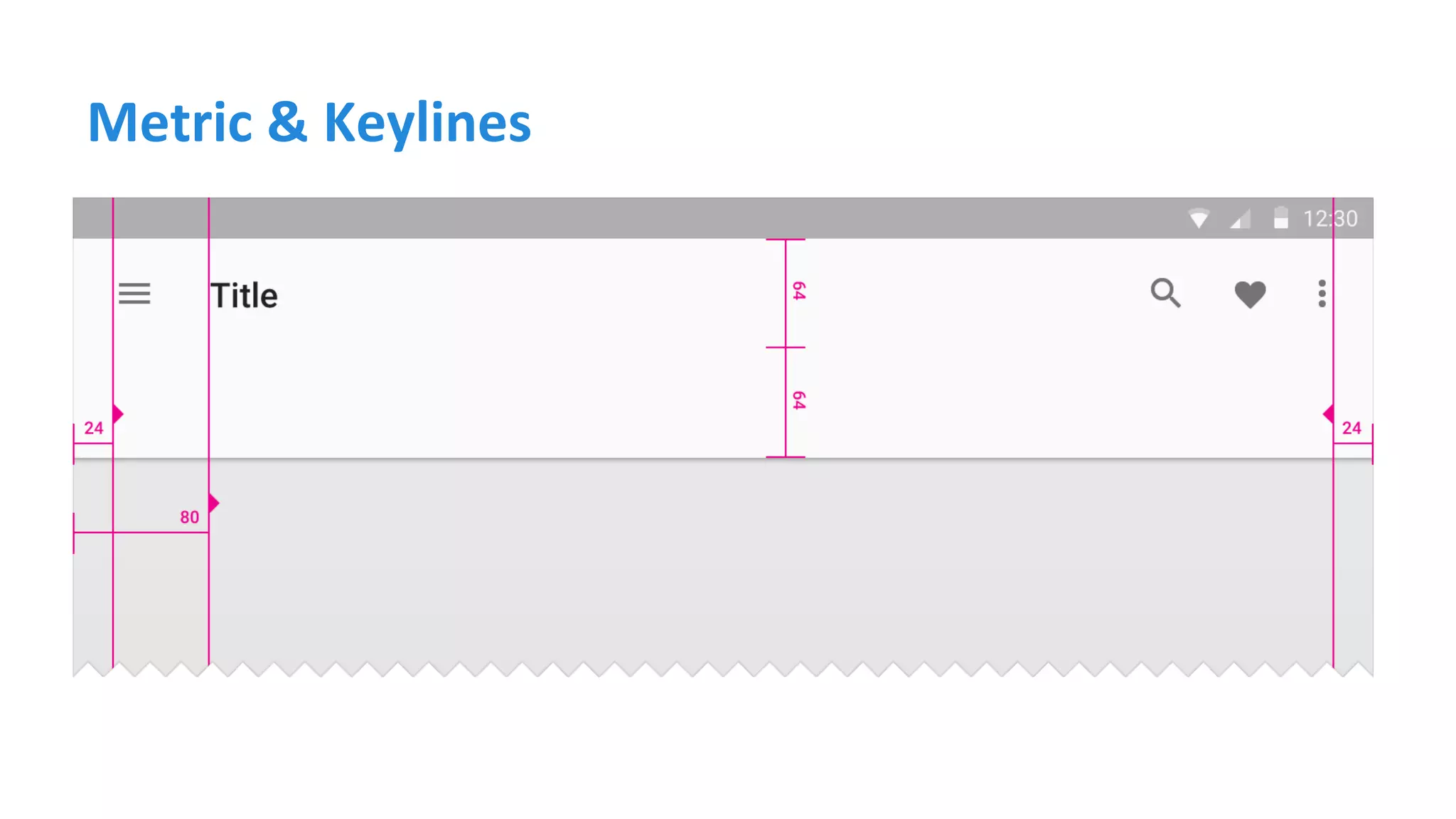
Metric & Keylines
Metric & Keylines
Metric & Keylines
Metric & Keylines
Menu
Hide ActionBar
<style name="AppTheme.Base" parent=" Theme.AppCompat.Light.NoActionBar">
<item name=" colorPrimary">@color/colorPrimary</item>
<item name=" colorPrimaryDark">@color/colorPrimaryDark</item>
</style>
Hide ActionBar using theme with NoActionBar
AppBar layout
<android.support.v7.widget.Toolbar
xmlns:android="http://schemas.android.com/apk/res/android"
android:layout_width="match_parent"
android:layout_height="wrap_content"
android:background="@color/colorPrimary>
</android.support.v7.widget.Toolbar>
Create new app_bar.xml for AppBar layout
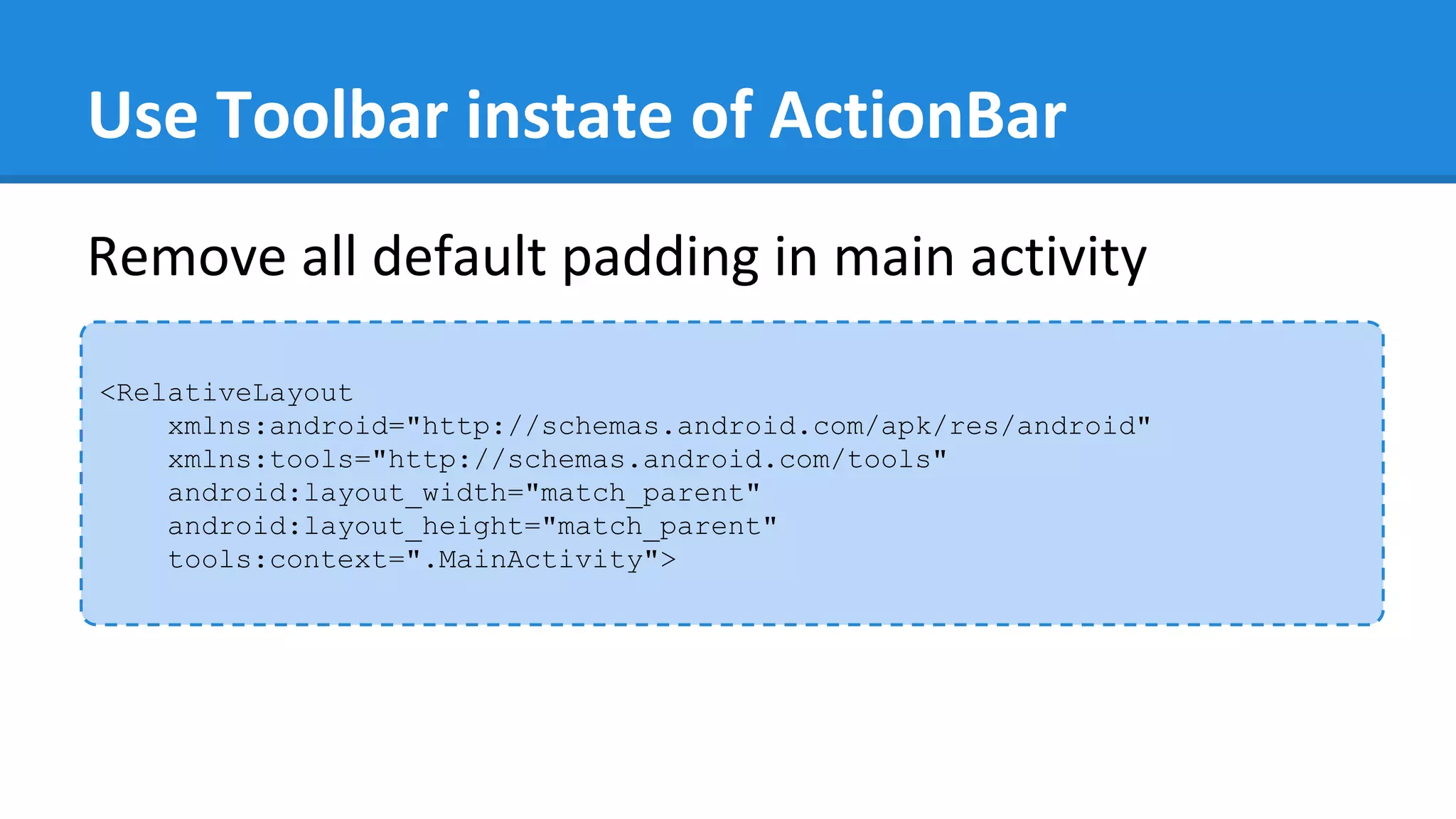
Use Toolbar instate of ActionBar
<RelativeLayout
xmlns:android="http://schemas.android.com/apk/res/android"
xmlns:tools="http://schemas.android.com/tools"
android:layout_width="match_parent"
android:layout_height="match_parent"
tools:context=".MainActivity">
Remove all default padding in main activity
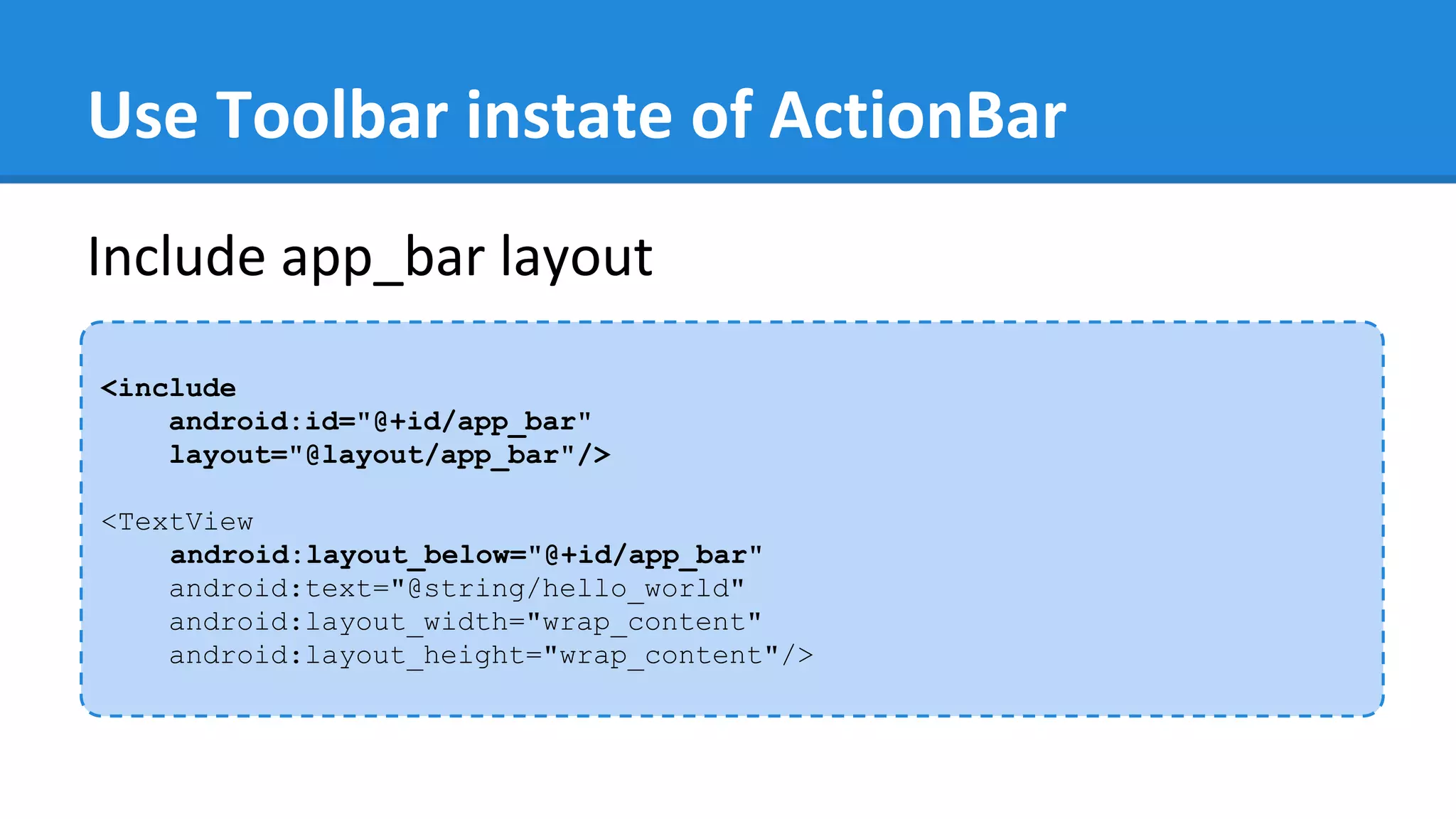
Use Toolbar instate of ActionBar
<include
android:id="@+id/app_bar"
layout="@layout/app_bar"/>
<TextView
android:layout_below="@+id/app_bar"
android:text="@string/hello_world"
android:layout_width="wrap_content"
android:layout_height="wrap_content"/>
Include app_bar layout
Use Toolbar instate of ActionBar
private Toolbar toolbar;
@Override
protected void onCreate(Bundle savedInstanceState) {
super.onCreate(savedInstanceState);
setContentView(R.layout.activity_main);
toolbar = (Toolbar) findViewById(R.id.app_bar);
setSupportActionBar(toolbar);
}
Instantiate new AppBar using toolbar
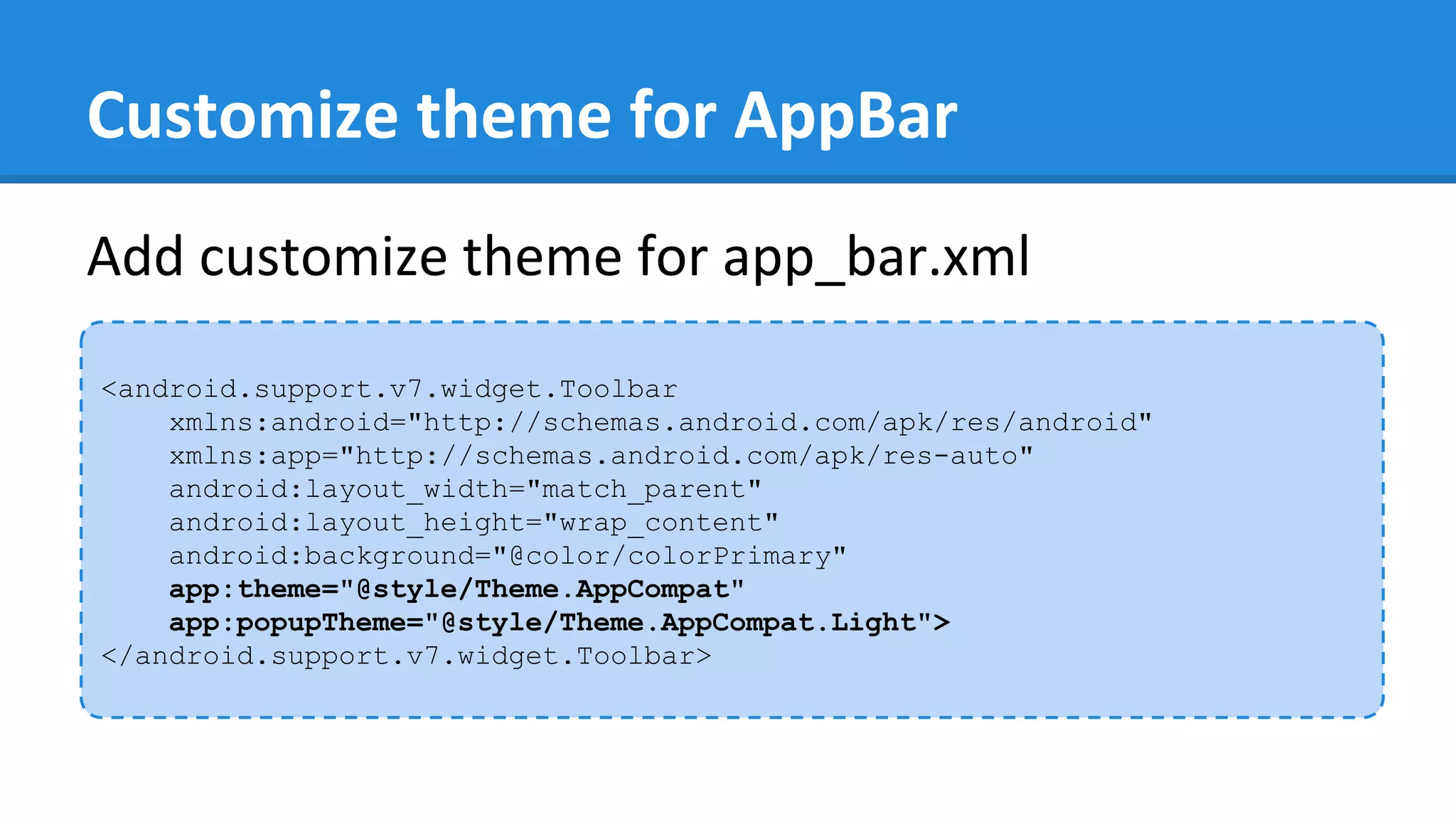
Customize theme for AppBar
<android.support.v7.widget.Toolbar
xmlns:android="http://schemas.android.com/apk/res/android"
xmlns:app="http://schemas.android.com/apk/res-auto"
android:layout_width="match_parent"
android:layout_height="wrap_content"
android:background="@color/colorPrimary"
app:theme="@style/Theme.AppCompat"
app:popupTheme="@style/Theme.AppCompat.Light">
</android.support.v7.widget.Toolbar>
Add customize theme for app_bar.xml
Second Activity
● Add second activity
● Add menu in AppBar intent to second activity
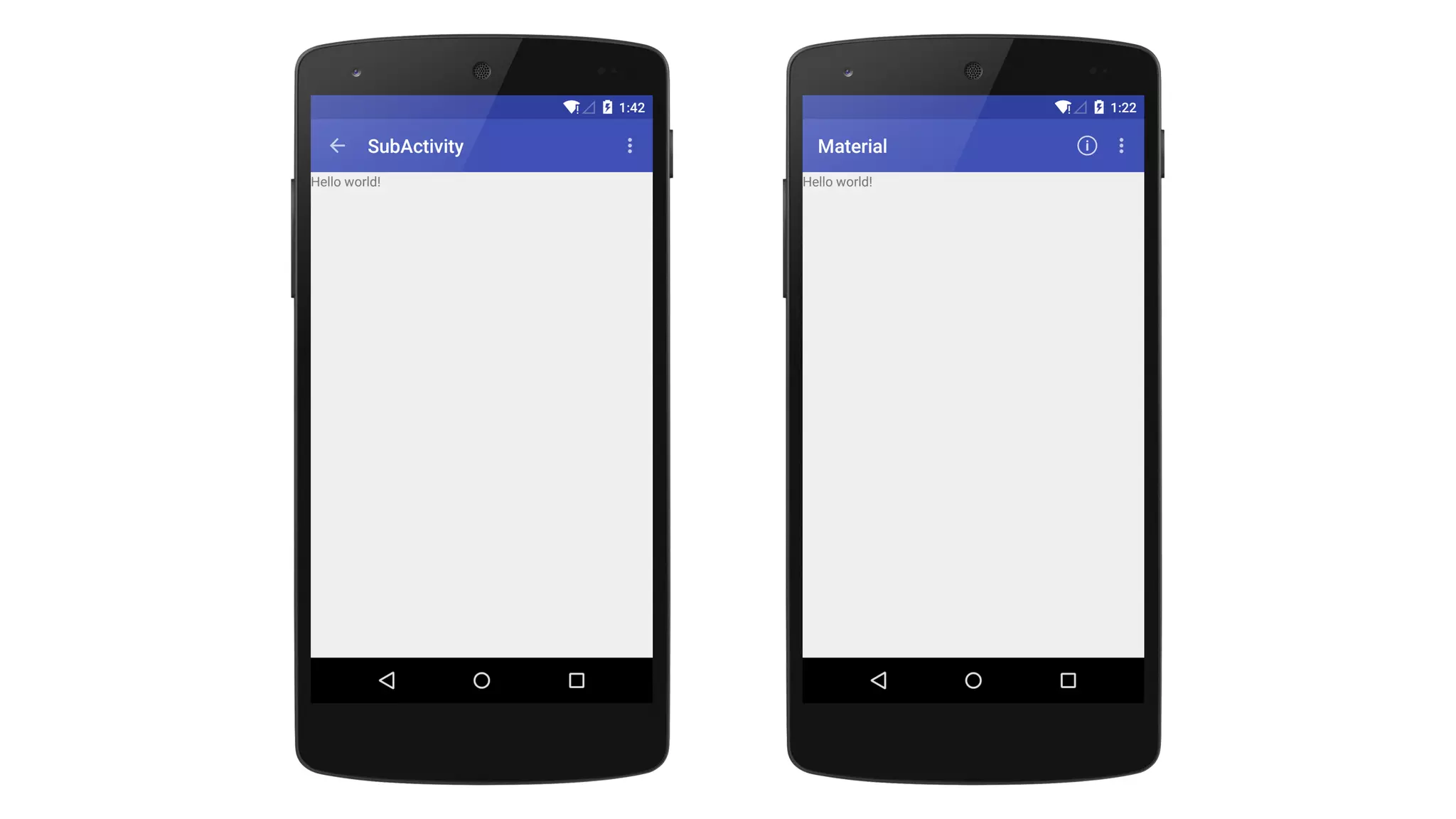
● Enable home button to return to main activity
Include AppBar layout
<include
android:id="@+id/app_bar"
layout="@layout/app_bar"/>
<TextView
android:layout_below="@+id/app_bar"
android:text="@string/hello_world"
android:layout_width="wrap_content"
android:layout_height="wrap_content"/>
Include app_bar layout to sub activity
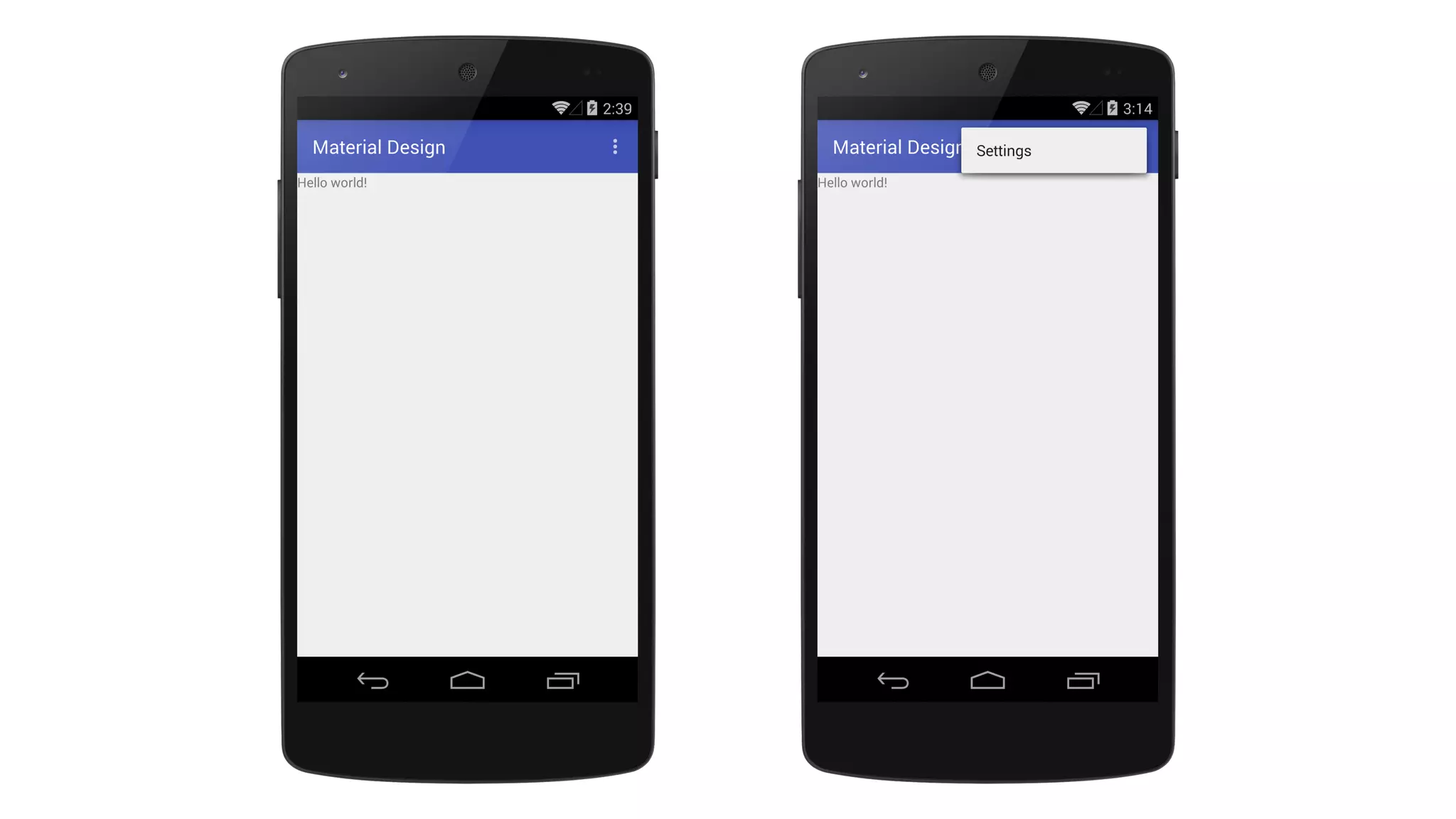
Menu in AppBar
Add menu in AppBar
<item android:id="@+id/action_subactivity"
android:title="@string/action_subactivity"
android:icon="@drawable/ic_subactivity"
android:orderInCategory="100"
app:showAsAction="always"/>
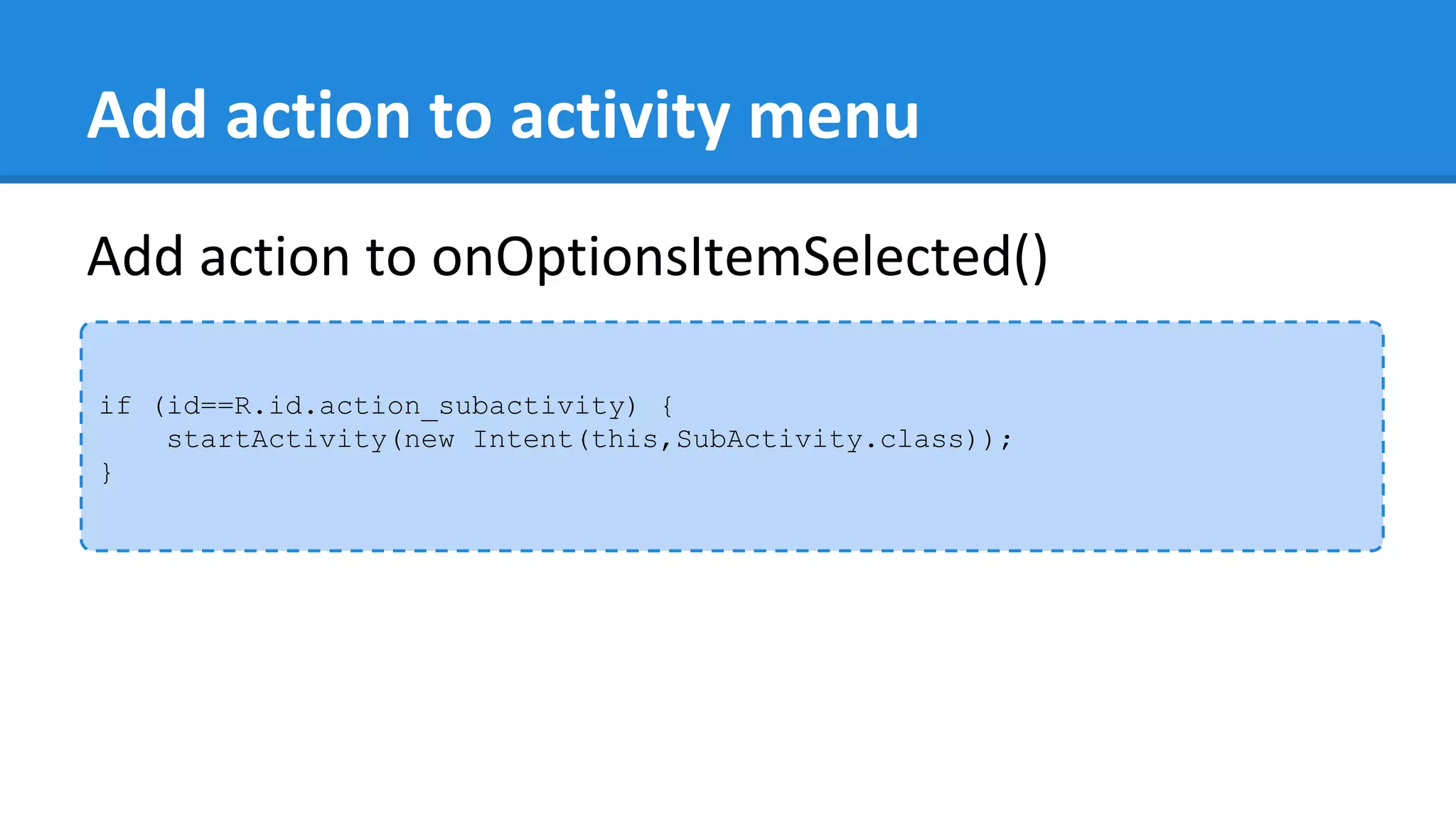
Add action to activity menu
if (id==R.id.action_subactivity) {
startActivity(new Intent(this,SubActivity.class));
}
Add action to onOptionsItemSelected()
Include AppBar layout
instantiate toolbar in sub activity
private Toolbar toolbar;
protected void onCreate(Bundle savedInstanceState) {
...
toolbar = (Toolbar) findViewById(R.id.app_bar);
setSupportActionBar(toolbar);
...
}
Enable Home button
private Toolbar toolbar;
protected void onCreate(Bundle savedInstanceState) {
...
toolbar = (Toolbar) findViewById(R.id.app_bar);
setSupportActionBar(toolbar);
// display home button
getSupportActionBar().setHomeButtonEnabled(true);
getSupportActionBar().setDisplayHomeAsUpEnabled(true);
}
Enable home button
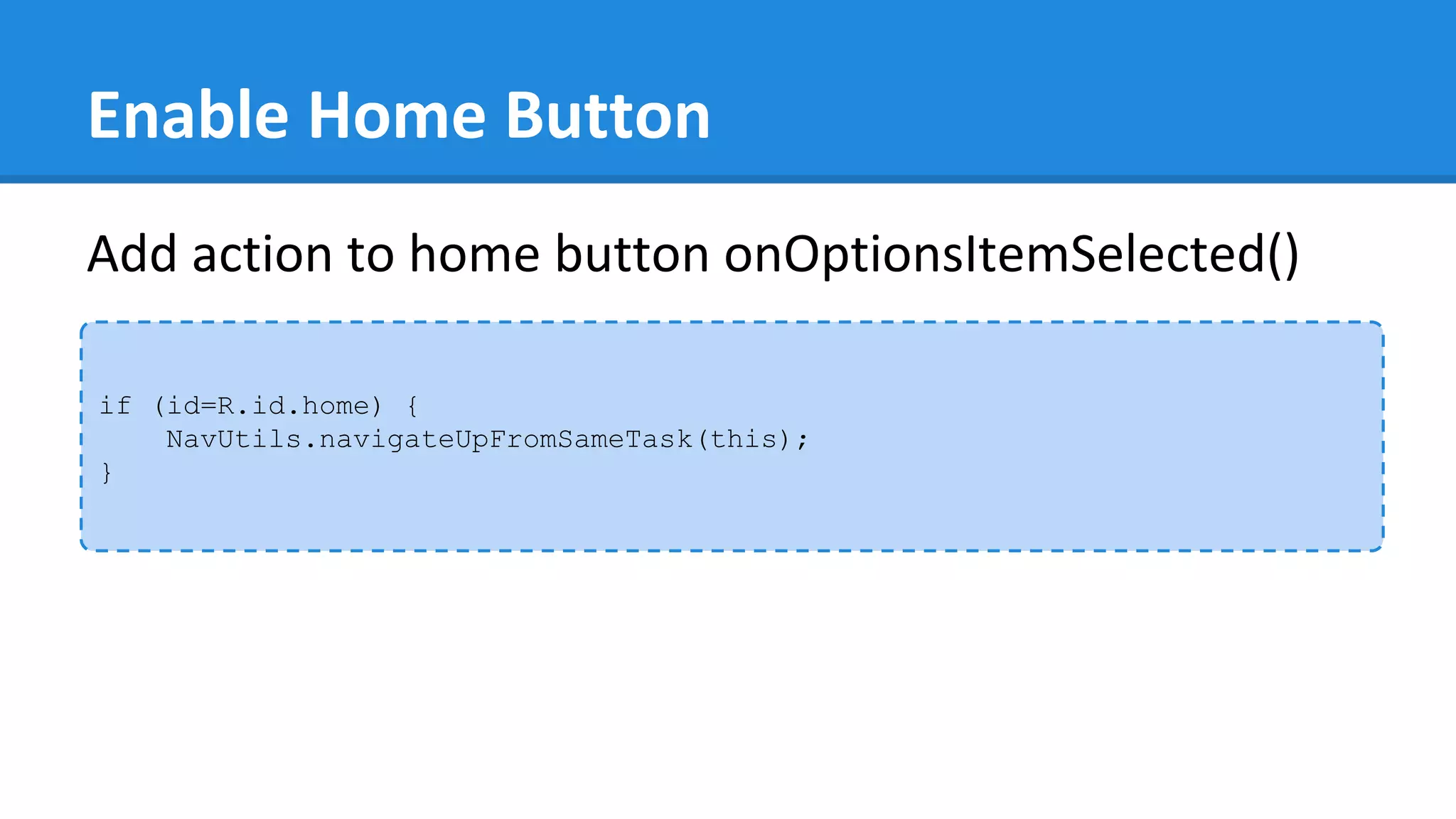
Enable Home Button
if (id=R.id.home) {
NavUtils.navigateUpFromSameTask(this);
}
Add action to home button onOptionsItemSelected()
Enable Home Button
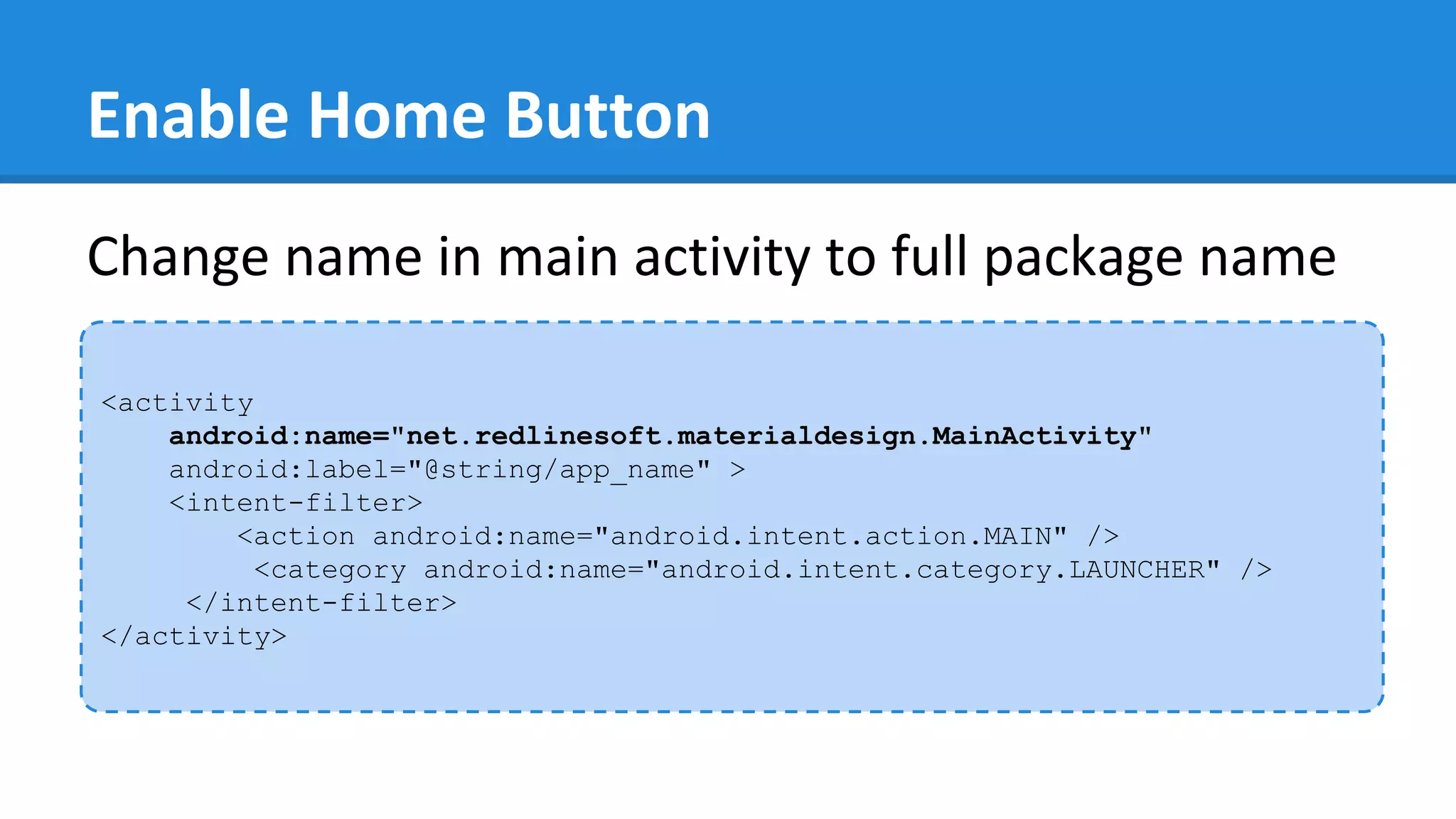
<activity
android:name="net.redlinesoft.materialdesign.MainActivity"
android:label="@string/app_name" >
<intent-filter>
<action android:name="android.intent.action.MAIN" />
<category android:name="android.intent.category.LAUNCHER" />
</intent-filter>
</activity>
Change name in main activity to full package name
Enable Home Button
<activity
android:name="net.redlinesoft.materialdesign.SubActivity"
android:label="@string/title_activity_sub">
<meta-data
android:name="android.support.PARENT_ACTIVITY"
android:value="net.redlinesoft.materialdesign.MainActivity" />
</activity>
Set meta-data to identify parent activity
Reference
● Material Design spec
● Color palette
● Metric & Keylines
Licensed under a Creative Commons Attribution-NonCommercial-ShareAlike 3.0 Unported License.
Thank You

Material Theme