Testing Installation
Sourabh Sahu
Sep 6, 2017
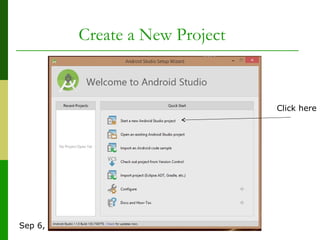
Create a New Project
Click here
Sep 6, 2017
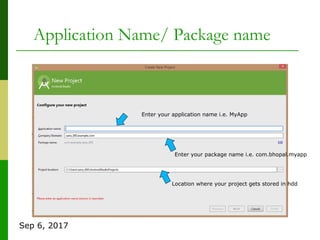
Application Name/ Package name
Enter your application name i.e. MyApp
Enter your package name i.e. com.bhopal.myapp
Location where your project gets stored in hdd
Sep 6, 2017
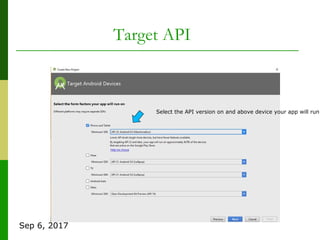
Target API
Select the API version on and above device your app will run
Sep 6, 2017
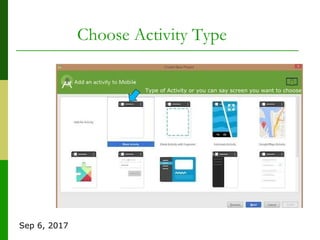
Choose Activity Type
Type of Activity or you can say screen you want to choose in app
Sep 6, 2017
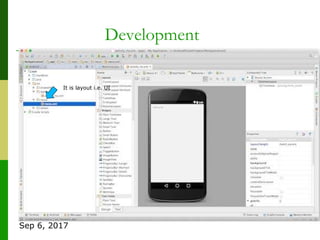
Development
It is layout i.e. UI
Sep 6, 2017
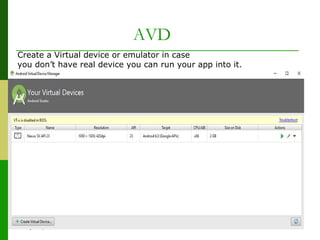
AVD
Create a Virtual device or emulator in case
you don’t have real device you can run your app into it.
Sep 6, 2017
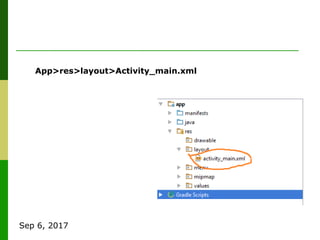
App>res>layout>Activity_main.xml
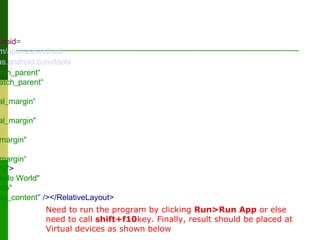
droid=
m/apk/res/android
as.android.com/tools
atch_parent“
atch_parent“
al_margin“
al_margin"
margin"
margin“
ity">
Hello World"
0dp"
ap_content" /></RelativeLayout>
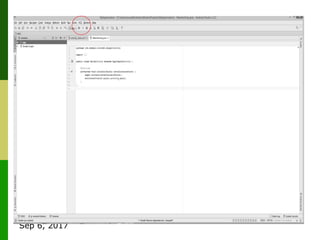
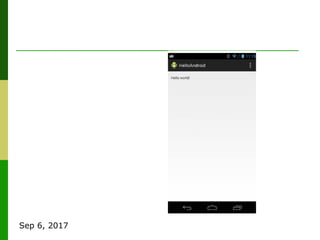
Need to run the program by clicking Run>Run App or else
need to call shift+f10key. Finally, result should be placed at
Virtual devices as shown below
f you own an Android device: –
Ensure drivers are installed – Enable
developer options on device under
Settings, specifically USB Debugging
• Android 4.2+: Go to
Settings About phone, press Build→
number 7 times to enable developer
options
Sep 6, 2017
Android device: –
Ensure drivers are installed –
Enable developer options on device under Settings,
specifically USB Debugging
• Android 4.2+: Go to Settings-- About phone, press
Build number 7 times to enable developer options
Emulator AVD: –
create an Android virtual device •
Emulator is slow.
Try Intel accelerated version, or perhaps
http://www.genymotion.com/ • Run the app: press
“Run”
Running the Application
Sep 6, 2017
Sep 6, 2017
Thank You
Sep 6, 2017

Android Installation Testing