Saving Data
How to save your application data in your device
+RobertoOrgiu
@_tiwiz
+MatteoBonifazi
@mbonifazi
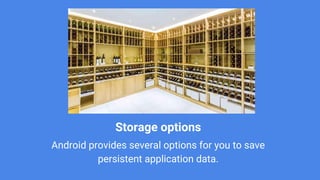
Storage options
Android provides several options for you to save
persistent application data.
Saving Key-Value Sets
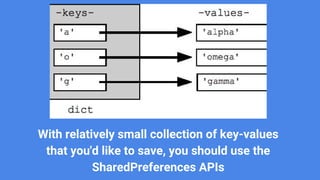
With relatively small collection of key-values
that you'd like to save, you should use the
SharedPreferences APIs
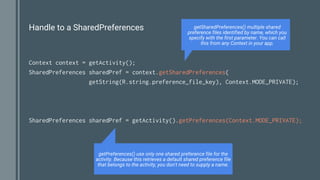
Handle to a SharedPreferences
Context context = getActivity();
SharedPreferences sharedPref = context.getSharedPreferences(
getString(R.string.preference_file_key), Context.MODE_PRIVATE);
SharedPreferences sharedPref = getActivity().getPreferences(Context.MODE_PRIVATE);
getSharedPreferences() multiple shared
preference files identified by name, which you
specify with the first parameter. You can call
this from any Context in your app.
getPreferences() use only one shared preference file for the
activity. Because this retrieves a default shared preference file
that belongs to the activity, you don't need to supply a name.
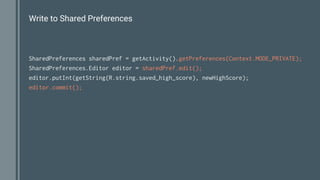
Write to Shared Preferences
SharedPreferences sharedPref = getActivity().getPreferences(Context.MODE_PRIVATE);
SharedPreferences.Editor editor = sharedPref.edit();
editor.putInt(getString(R.string.saved_high_score), newHighScore);
editor.commit();
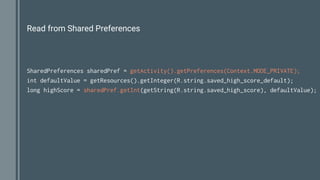
Read from Shared Preferences
SharedPreferences sharedPref = getActivity().getPreferences(Context.MODE_PRIVATE);
int defaultValue = getResources().getInteger(R.string.saved_high_score_default);
long highScore = sharedPref.getInt(getString(R.string.saved_high_score), defaultValue);
Saving files
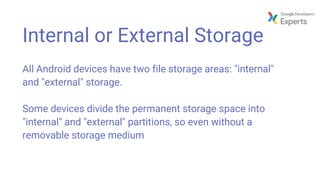
Internal or External Storage
All Android devices have two file storage areas: "internal"
and "external" storage.
Some devices divide the permanent storage space into
"internal" and "external" partitions, so even without a
removable storage medium
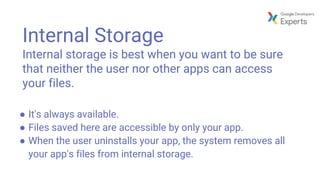
Internal Storage
Internal storage is best when you want to be sure
that neither the user nor other apps can access
your files.
● It's always available.
● Files saved here are accessible by only your app.
● When the user uninstalls your app, the system removes all
your app's files from internal storage.
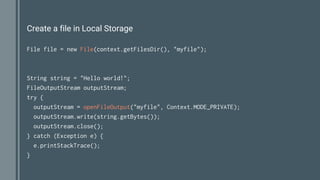
Create a file in Local Storage
File file = new File(context.getFilesDir(), "myfile");
String string = "Hello world!";
FileOutputStream outputStream;
try {
outputStream = openFileOutput("myfile", Context.MODE_PRIVATE);
outputStream.write(string.getBytes());
outputStream.close();
} catch (Exception e) {
e.printStackTrace();
}
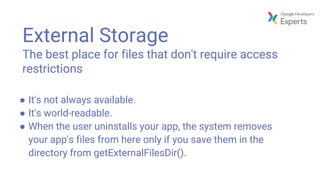
External Storage
The best place for files that don't require access
restrictions
● It's not always available.
● It's world-readable.
● When the user uninstalls your app, the system removes
your app's files from here only if you save them in the
directory from getExternalFilesDir().
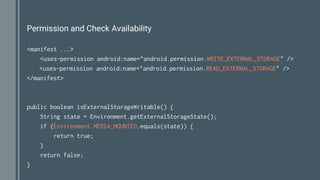
Permission and Check Availability
<manifest ...>
<uses-permission android:name="android.permission.WRITE_EXTERNAL_STORAGE" />
<uses-permission android:name="android.permission.READ_EXTERNAL_STORAGE" />
</manifest>
public boolean isExternalStorageWritable() {
String state = Environment.getExternalStorageState();
if (Environment.MEDIA_MOUNTED.equals(state)) {
return true;
}
return false;
}
Saving Data in SQL Databases
SQLite is a opensource SQL database that stores data to a
text file on a device. Android comes in with built in SQLite
database implementation.
SQLite supports all the relational database features. In order
to access this database, you don't need to establish any
kind of connections for it like JDBC,ODBC, e.t.c
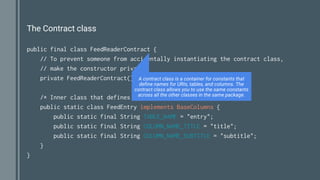
The Contract class
public final class FeedReaderContract {
// To prevent someone from accidentally instantiating the contract class,
// make the constructor private.
private FeedReaderContract() {}
/* Inner class that defines the table contents */
public static class FeedEntry implements BaseColumns {
public static final String TABLE_NAME = "entry";
public static final String COLUMN_NAME_TITLE = "title";
public static final String COLUMN_NAME_SUBTITLE = "subtitle";
}
}
A contract class is a container for constants that
define names for URIs, tables, and columns. The
contract class allows you to use the same constants
across all the other classes in the same package.
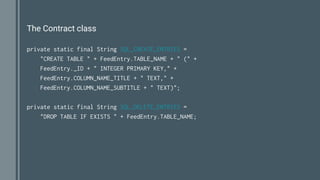
The Contract class
private static final String SQL_CREATE_ENTRIES =
"CREATE TABLE " + FeedEntry.TABLE_NAME + " (" +
FeedEntry._ID + " INTEGER PRIMARY KEY," +
FeedEntry.COLUMN_NAME_TITLE + " TEXT," +
FeedEntry.COLUMN_NAME_SUBTITLE + " TEXT)";
private static final String SQL_DELETE_ENTRIES =
"DROP TABLE IF EXISTS " + FeedEntry.TABLE_NAME;
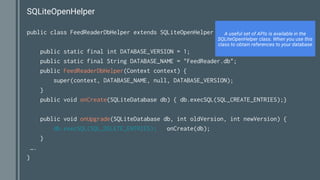
SQLiteOpenHelper
public class FeedReaderDbHelper extends SQLiteOpenHelper {
public static final int DATABASE_VERSION = 1;
public static final String DATABASE_NAME = "FeedReader.db";
public FeedReaderDbHelper(Context context) {
super(context, DATABASE_NAME, null, DATABASE_VERSION);
}
public void onCreate(SQLiteDatabase db) { db.execSQL(SQL_CREATE_ENTRIES);}
public void onUpgrade(SQLiteDatabase db, int oldVersion, int newVersion) {
db.execSQL(SQL_DELETE_ENTRIES); onCreate(db);
}
….
}
A useful set of APIs is available in the
SQLiteOpenHelper class. When you use this
class to obtain references to your database
Put Information into a Database
// Gets the data repository in write mode
SQLiteDatabase db = mDbHelper.getWritableDatabase();
// Create a new map of values, where column names are the keys
ContentValues values = new ContentValues();
values.put(FeedEntry.COLUMN_NAME_TITLE, title);
values.put(FeedEntry.COLUMN_NAME_SUBTITLE, subtitle);
// Insert the new row, returning the primary key value of the new row
long newRowId = db.insert(FeedEntry.TABLE_NAME, null, values);
Read Information from a Database ( 1 / 2 )
SQLiteDatabase db = mDbHelper.getReadableDatabase();
// Define a projection that specifies which columns from the database
String[] projection = { FeedEntry._ID, FeedEntry.COLUMN_NAME_TITLE,
FeedEntry.COLUMN_NAME_SUBTITLE };
String selection = FeedEntry.COLUMN_NAME_TITLE + " = ?";
String[] selectionArgs = { "My Title" }; // Filter results WHERE "title" = 'My Title'
String sortOrder = FeedEntry.COLUMN_NAME_SUBTITLE + " DESC";
Cursor cursor = db.query/ FeedEntry.TABLE_NAME, // The table to query
projection, // The columns to return
selection, // The columns for the WHERE clause
selectionArgs, // The values for the WHERE clause
null, // don't group the rows
null, // don't filter by row groups
sortOrder ); // The sort order
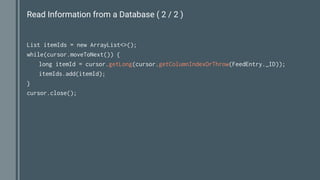
Read Information from a Database ( 2 / 2 )
List itemIds = new ArrayList<>();
while(cursor.moveToNext()) {
long itemId = cursor.getLong(cursor.getColumnIndexOrThrow(FeedEntry._ID));
itemIds.add(itemId);
}
cursor.close();
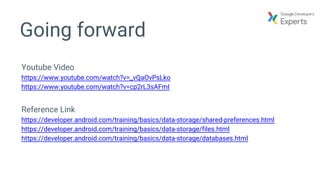
Going forward
Youtube Video
https://www.youtube.com/watch?v=_vQaOvPsLko
https://www.youtube.com/watch?v=cp2rL3sAFmI
Reference Link
https://developer.android.com/training/basics/data-storage/shared-preferences.html
https://developer.android.com/training/basics/data-storage/files.html
https://developer.android.com/training/basics/data-storage/databases.html
There is no ONE SOLUTION!
But there are many other ways
ObjectBox
Website and reference
http://greenrobot.org/announcement/introducing-objectbox-beta/
http://greenrobot.org/objectbox/documentation/how-to-get-started/
Defining objects
@Entity
public class Note {
@Id
private long id;
private String text;
private Date date;
...
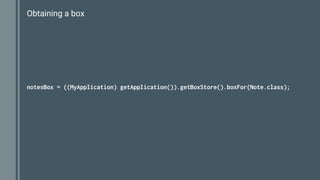
Obtaining a box
notesBox = ((MyApplication) getApplication()).getBoxStore().boxFor(Note.class);
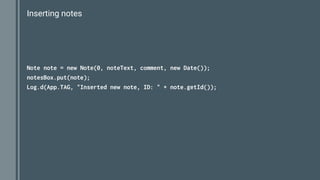
Inserting notes
Note note = new Note(0, noteText, comment, new Date());
notesBox.put(note);
Log.d(App.TAG, "Inserted new note, ID: " + note.getId());
Removing notes
notesBox.remove(note);
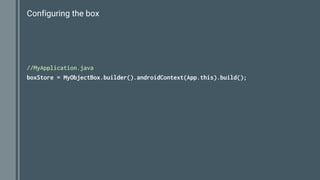
Configuring the box
//MyApplication.java
boxStore = MyObjectBox.builder().androidContext(App.this).build();
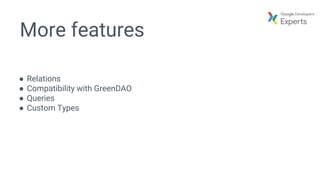
More features
● Relations
● Compatibility with GreenDAO
● Queries
● Custom Types
+MatteoBonifazi
@mbonifazi
Thank You!
+RobertoOrgiu
@_tiwiz

Android - Saving data

  • 1.
    Saving Data How tosave your application data in your device +RobertoOrgiu @_tiwiz +MatteoBonifazi @mbonifazi
  • 2.
    Storage options Android providesseveral options for you to save persistent application data.
  • 3.
  • 4.
    With relatively smallcollection of key-values that you'd like to save, you should use the SharedPreferences APIs
  • 5.
    Handle to aSharedPreferences Context context = getActivity(); SharedPreferences sharedPref = context.getSharedPreferences( getString(R.string.preference_file_key), Context.MODE_PRIVATE); SharedPreferences sharedPref = getActivity().getPreferences(Context.MODE_PRIVATE); getSharedPreferences() multiple shared preference files identified by name, which you specify with the first parameter. You can call this from any Context in your app. getPreferences() use only one shared preference file for the activity. Because this retrieves a default shared preference file that belongs to the activity, you don't need to supply a name.
  • 6.
    Write to SharedPreferences SharedPreferences sharedPref = getActivity().getPreferences(Context.MODE_PRIVATE); SharedPreferences.Editor editor = sharedPref.edit(); editor.putInt(getString(R.string.saved_high_score), newHighScore); editor.commit();
  • 7.
    Read from SharedPreferences SharedPreferences sharedPref = getActivity().getPreferences(Context.MODE_PRIVATE); int defaultValue = getResources().getInteger(R.string.saved_high_score_default); long highScore = sharedPref.getInt(getString(R.string.saved_high_score), defaultValue);
  • 8.
  • 9.
    Internal or ExternalStorage All Android devices have two file storage areas: "internal" and "external" storage. Some devices divide the permanent storage space into "internal" and "external" partitions, so even without a removable storage medium
  • 10.
    Internal Storage Internal storageis best when you want to be sure that neither the user nor other apps can access your files. ● It's always available. ● Files saved here are accessible by only your app. ● When the user uninstalls your app, the system removes all your app's files from internal storage.
  • 11.
    Create a filein Local Storage File file = new File(context.getFilesDir(), "myfile"); String string = "Hello world!"; FileOutputStream outputStream; try { outputStream = openFileOutput("myfile", Context.MODE_PRIVATE); outputStream.write(string.getBytes()); outputStream.close(); } catch (Exception e) { e.printStackTrace(); }
  • 12.
    External Storage The bestplace for files that don't require access restrictions ● It's not always available. ● It's world-readable. ● When the user uninstalls your app, the system removes your app's files from here only if you save them in the directory from getExternalFilesDir().
  • 13.
    Permission and CheckAvailability <manifest ...> <uses-permission android:name="android.permission.WRITE_EXTERNAL_STORAGE" /> <uses-permission android:name="android.permission.READ_EXTERNAL_STORAGE" /> </manifest> public boolean isExternalStorageWritable() { String state = Environment.getExternalStorageState(); if (Environment.MEDIA_MOUNTED.equals(state)) { return true; } return false; }
  • 14.
    Saving Data inSQL Databases
  • 15.
    SQLite is aopensource SQL database that stores data to a text file on a device. Android comes in with built in SQLite database implementation. SQLite supports all the relational database features. In order to access this database, you don't need to establish any kind of connections for it like JDBC,ODBC, e.t.c
  • 16.
    The Contract class publicfinal class FeedReaderContract { // To prevent someone from accidentally instantiating the contract class, // make the constructor private. private FeedReaderContract() {} /* Inner class that defines the table contents */ public static class FeedEntry implements BaseColumns { public static final String TABLE_NAME = "entry"; public static final String COLUMN_NAME_TITLE = "title"; public static final String COLUMN_NAME_SUBTITLE = "subtitle"; } } A contract class is a container for constants that define names for URIs, tables, and columns. The contract class allows you to use the same constants across all the other classes in the same package.
  • 17.
    The Contract class privatestatic final String SQL_CREATE_ENTRIES = "CREATE TABLE " + FeedEntry.TABLE_NAME + " (" + FeedEntry._ID + " INTEGER PRIMARY KEY," + FeedEntry.COLUMN_NAME_TITLE + " TEXT," + FeedEntry.COLUMN_NAME_SUBTITLE + " TEXT)"; private static final String SQL_DELETE_ENTRIES = "DROP TABLE IF EXISTS " + FeedEntry.TABLE_NAME;
  • 18.
    SQLiteOpenHelper public class FeedReaderDbHelperextends SQLiteOpenHelper { public static final int DATABASE_VERSION = 1; public static final String DATABASE_NAME = "FeedReader.db"; public FeedReaderDbHelper(Context context) { super(context, DATABASE_NAME, null, DATABASE_VERSION); } public void onCreate(SQLiteDatabase db) { db.execSQL(SQL_CREATE_ENTRIES);} public void onUpgrade(SQLiteDatabase db, int oldVersion, int newVersion) { db.execSQL(SQL_DELETE_ENTRIES); onCreate(db); } …. } A useful set of APIs is available in the SQLiteOpenHelper class. When you use this class to obtain references to your database
  • 19.
    Put Information intoa Database // Gets the data repository in write mode SQLiteDatabase db = mDbHelper.getWritableDatabase(); // Create a new map of values, where column names are the keys ContentValues values = new ContentValues(); values.put(FeedEntry.COLUMN_NAME_TITLE, title); values.put(FeedEntry.COLUMN_NAME_SUBTITLE, subtitle); // Insert the new row, returning the primary key value of the new row long newRowId = db.insert(FeedEntry.TABLE_NAME, null, values);
  • 20.
    Read Information froma Database ( 1 / 2 ) SQLiteDatabase db = mDbHelper.getReadableDatabase(); // Define a projection that specifies which columns from the database String[] projection = { FeedEntry._ID, FeedEntry.COLUMN_NAME_TITLE, FeedEntry.COLUMN_NAME_SUBTITLE }; String selection = FeedEntry.COLUMN_NAME_TITLE + " = ?"; String[] selectionArgs = { "My Title" }; // Filter results WHERE "title" = 'My Title' String sortOrder = FeedEntry.COLUMN_NAME_SUBTITLE + " DESC"; Cursor cursor = db.query/ FeedEntry.TABLE_NAME, // The table to query projection, // The columns to return selection, // The columns for the WHERE clause selectionArgs, // The values for the WHERE clause null, // don't group the rows null, // don't filter by row groups sortOrder ); // The sort order
  • 21.
    Read Information froma Database ( 2 / 2 ) List itemIds = new ArrayList<>(); while(cursor.moveToNext()) { long itemId = cursor.getLong(cursor.getColumnIndexOrThrow(FeedEntry._ID)); itemIds.add(itemId); } cursor.close();
  • 22.
    Going forward Youtube Video https://www.youtube.com/watch?v=_vQaOvPsLko https://www.youtube.com/watch?v=cp2rL3sAFmI ReferenceLink https://developer.android.com/training/basics/data-storage/shared-preferences.html https://developer.android.com/training/basics/data-storage/files.html https://developer.android.com/training/basics/data-storage/databases.html
  • 23.
    There is noONE SOLUTION! But there are many other ways
  • 24.
  • 25.
    Defining objects @Entity public classNote { @Id private long id; private String text; private Date date; ...
  • 26.
    Obtaining a box notesBox= ((MyApplication) getApplication()).getBoxStore().boxFor(Note.class);
  • 27.
    Inserting notes Note note= new Note(0, noteText, comment, new Date()); notesBox.put(note); Log.d(App.TAG, "Inserted new note, ID: " + note.getId());
  • 28.
  • 29.
    Configuring the box //MyApplication.java boxStore= MyObjectBox.builder().androidContext(App.this).build();
  • 30.
    More features ● Relations ●Compatibility with GreenDAO ● Queries ● Custom Types
  • 31.