Android Data Storage
Srilakshmi.N
Mobile Application Developer
Symbioun Software Pvt Ltd
Agenda
• Android Data Storage Introduction
• Shared Preferences
• Internal Storage
• External Storage
• SQLite Database
• Sample Examples
Introduction
• In order to maintain the essential information across
Application-Executions or Life Time Of the Application .
• Android provides several options for you to save persistent
application data using Android Data Storage .
Shared Preferences
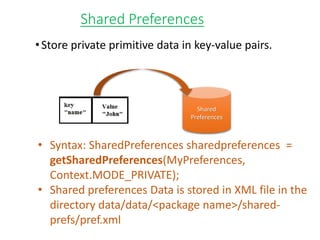
•Store private primitive data in key-value pairs.
Shared
Preferences
• Syntax: SharedPreferences sharedpreferences =
getSharedPreferences(MyPreferences,
Context.MODE_PRIVATE);
• Shared preferences Data is stored in XML file in the
directory data/data/<package name>/shared-
prefs/pref.xml
Shared Preferences
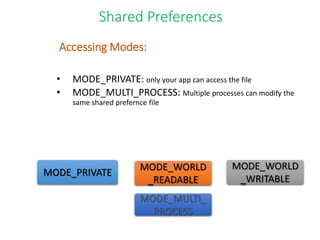
• MODE_PRIVATE: only your app can access the file
• MODE_MULTI_PROCESS: Multiple processes can modify the
same shared prefernce file
MODE_PRIVATE
MODE_WORLD
_READABLE
MODE_WORLD
_WRITABLE
MODE_MULTI_
PROCESS
Accessing Modes:
To get a SharedPreferences object for your application, use
one of two methods:
• getSharedPreferences() - Use this if you need multiple
preferences files identified by name, which you
specify with the first parameter.
• getPreferences() - Use this if you need only one
preferences file for your Activity. Because this will be
the only preferences file for your Activity, you don't
supply a name.
Accessing Shared Preferences
Shared Preferences
To write values:
•Call edit() to get a sharedpreferences.Editor
•Add values with methods such as putBoolean() and
putString()
•Commit the new values with commit()
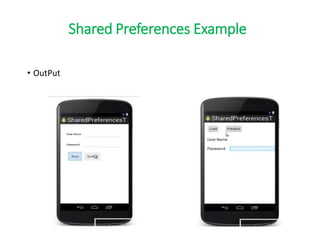
Shared Preferences Example
Shared Preferences Example
• OutPut
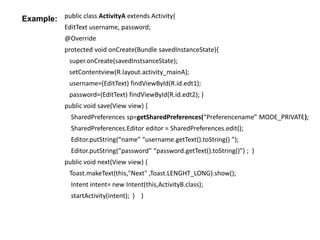
public class ActivityA extends Activity{
EditText username, password;
@Override
protected void onCreate(Bundle savedInstanceState){
super.onCreate(savedInstsanceState);
setContentview(R.layout.activity_mainA);
username=(EditText) findViewById(R.id.edt1);
password=(EditText) findViewById(R.id.edt2); }
public void save(View view) {
SharedPreferences sp=getSharedPreferences(“Preferencename” MODE_PRIVATE);
SharedPreferences.Editor editor = SharedPreferences.edit();
Editor.putString(“name” “username.getText().toString() ”);
Editor.putString(“password” “password.getText().toString()”) ; }
public void next(View view) {
Toast.makeText(this,"Next" ,Toast.LENGHT_LONG).show();
Intent intent= new Intent(this,ActivityB.class);
startActivity(intent); } }
Example:
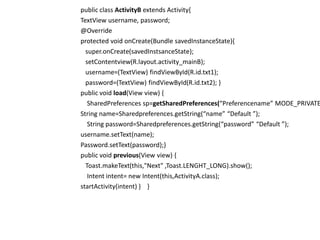
public class ActivityB extends Activity{
TextView username, password;
@Override
protected void onCreate(Bundle savedInstanceState){
super.onCreate(savedInstsanceState);
setContentview(R.layout.activity_mainB);
username=(TextView) findViewById(R.id.txt1);
password=(TextView) findViewById(R.id.txt2); }
public void load(View view) {
SharedPreferences sp=getSharedPreferences(“Preferencename” MODE_PRIVATE
String name=Sharedpreferences.getString(“name” “Default ”);
String password=Sharedpreferences.getString(“password” “Default ”);
username.setText(name);
Password.setText(password);}
public void previous(View view) {
Toast.makeText(this,"Next" ,Toast.LENGHT_LONG).show();
Intent intent= new Intent(this,ActivityA.class);
startActivity(intent) } }
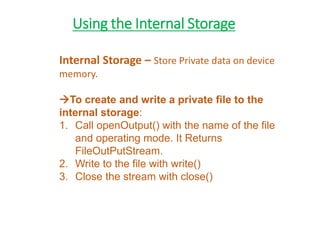
Using the Internal Storage
Internal Storage – Store Private data on device
memory.
To create and write a private file to the
internal storage:
1. Call openOutput() with the name of the file
and operating mode. It Returns
FileOutPutStream.
2. Write to the file with write()
3. Close the stream with close()
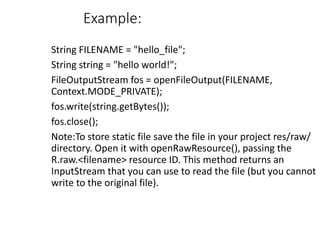
Example:
String FILENAME = "hello_file";
String string = "hello world!";
FileOutputStream fos = openFileOutput(FILENAME,
Context.MODE_PRIVATE);
fos.write(string.getBytes());
fos.close();
Note:To store static file save the file in your project res/raw/
directory. Open it with openRawResource(), passing the
R.raw.<filename> resource ID. This method returns an
InputStream that you can use to read the file (but you cannot
write to the original file).
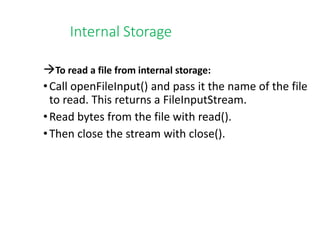
Internal Storage
To read a file from internal storage:
•Call openFileInput() and pass it the name of the file
to read. This returns a FileInputStream.
•Read bytes from the file with read().
•Then close the stream with close().
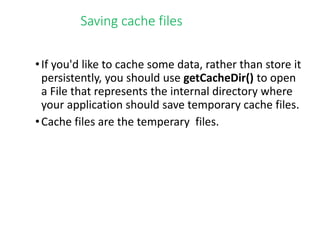
Saving cache files
•If you'd like to cache some data, rather than store it
persistently, you should use getCacheDir() to open
a File that represents the internal directory where
your application should save temporary cache files.
•Cache files are the temperary files.
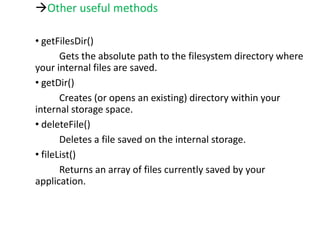
Other useful methods
• getFilesDir()
Gets the absolute path to the filesystem directory where
your internal files are saved.
• getDir()
Creates (or opens an existing) directory within your
internal storage space.
• deleteFile()
Deletes a file saved on the internal storage.
• fileList()
Returns an array of files currently saved by your
application.
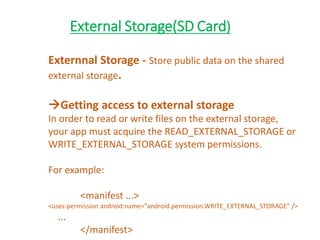
External Storage(SD Card)
Externnal Storage - Store public data on the shared
external storage.
Getting access to external storage
In order to read or write files on the external storage,
your app must acquire the READ_EXTERNAL_STORAGE or
WRITE_EXTERNAL_STORAGE system permissions.
For example:
<manifest ...>
<uses-permission android:name="android.permission.WRITE_EXTERNAL_STORAGE" />
...
</manifest>
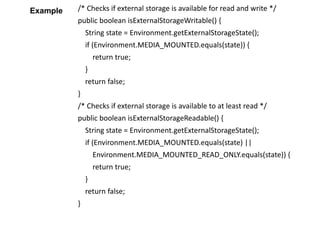
/* Checks if external storage is available for read and write */
public boolean isExternalStorageWritable() {
String state = Environment.getExternalStorageState();
if (Environment.MEDIA_MOUNTED.equals(state)) {
return true;
}
return false;
}
/* Checks if external storage is available to at least read */
public boolean isExternalStorageReadable() {
String state = Environment.getExternalStorageState();
if (Environment.MEDIA_MOUNTED.equals(state) ||
Environment.MEDIA_MOUNTED_READ_ONLY.equals(state)) {
return true;
}
return false;
}
Example
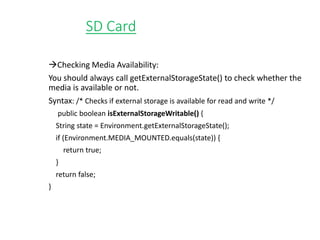
SD Card
Checking Media Availability:
You should always call getExternalStorageState() to check whether the
media is available or not.
Syntax: /* Checks if external storage is available for read and write */
public boolean isExternalStorageWritable() {
String state = Environment.getExternalStorageState();
if (Environment.MEDIA_MOUNTED.equals(state)) {
return true;
}
return false;
}
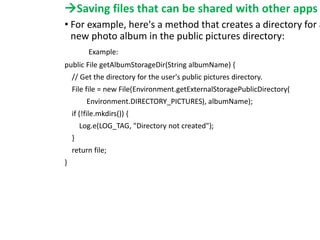
Saving files that can be shared with other apps
• For example, here's a method that creates a directory for a
new photo album in the public pictures directory:
Example:
public File getAlbumStorageDir(String albumName) {
// Get the directory for the user's public pictures directory.
File file = new File(Environment.getExternalStoragePublicDirectory(
Environment.DIRECTORY_PICTURES), albumName);
if (!file.mkdirs()) {
Log.e(LOG_TAG, "Directory not created");
}
return file;
}
SQLite Database
SQLite Database - Store structured data in a private
database.
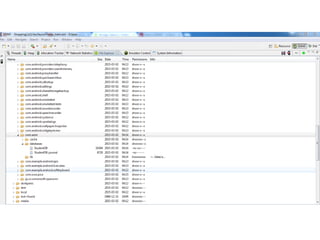
• programmatically created SQLite database of an app is
always stored in /data/data/<package>/databases folder
with ( .db extension).
Saving files that can be shared with other
apps
• To get a File representing the appropriate public directory, call
getExternalStoragePublicDirectory(), passing it the type of
directory you want, such as DIRECTORY_MUSIC,
DIRECTORY_PICTURES, DIRECTORY_RINGTONES, or others.
• Syntax: File file = new
File(Environment.getExternalStoragePublicDirectory(
Environment.DIRECTORY_PICTURES), albumName);
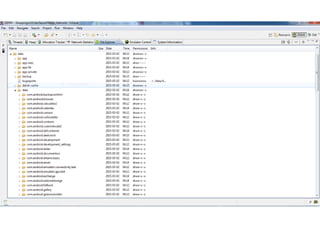
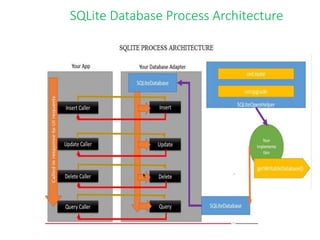
SQLite Database Process Architecture
SQLite Database
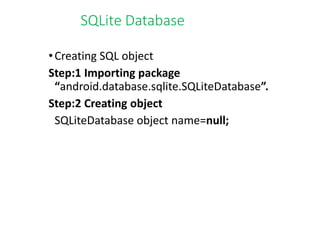
•Creating SQL object
Step:1 Importing package
“android.database.sqlite.SQLiteDatabase”.
Step:2 Creating object
SQLiteDatabase object name=null;
SQLite Database
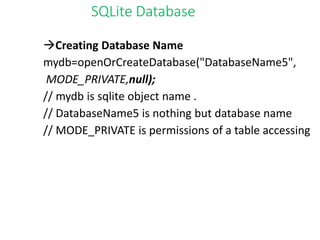
Creating Database Name
mydb=openOrCreateDatabase("DatabaseName5",
MODE_PRIVATE,null);
// mydb is sqlite object name .
// DatabaseName5 is nothing but database name
// MODE_PRIVATE is permissions of a table accessing
SQLite Database
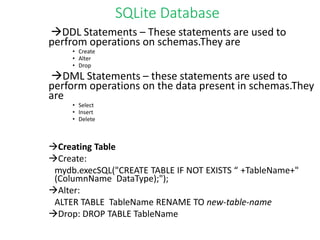
DDL Statements – These statements are used to
perfrom operations on schemas.They are
• Create
• Alter
• Drop
DML Statements – these statements are used to
perform operations on the data present in schemas.They
are
• Select
• Insert
• Delete
Creating Table
Create:
mydb.execSQL("CREATE TABLE IF NOT EXISTS “ +TableName+"
(ColumnName DataType);");
Alter:
ALTER TABLE TableName RENAME TO new-table-name
Drop: DROP TABLE TableName
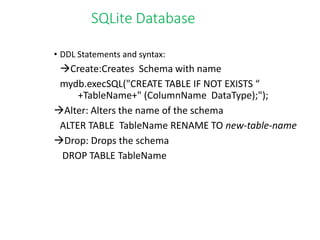
SQLite Database
• DDL Statements and syntax:
Create:Creates Schema with name
mydb.execSQL("CREATE TABLE IF NOT EXISTS “
+TableName+" (ColumnName DataType);");
Alter: Alters the name of the schema
ALTER TABLE TableName RENAME TO new-table-name
Drop: Drops the schema
DROP TABLE TableName
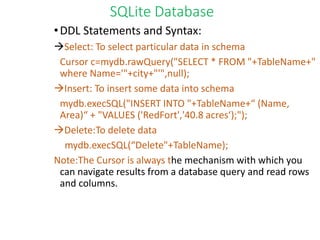
SQLite Database
•DDL Statements and Syntax:
Select: To select particular data in schema
Cursor c=mydb.rawQuery("SELECT * FROM "+TableName+"
where Name='"+city+"'",null);
Insert: To insert some data into schema
mydb.execSQL("INSERT INTO "+TableName+“ (Name,
Area)“ + "VALUES ('RedFort','40.8 acres‘);");
Delete:To delete data
mydb.execSQL(“Delete"+TableName);
Note:The Cursor is always the mechanism with which you
can navigate results from a database query and read rows
and columns.
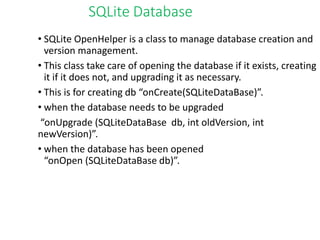
SQLite Database
• SQLite OpenHelper is a class to manage database creation and
version management.
• This class take care of opening the database if it exists, creating
it if it does not, and upgrading it as necessary.
• This is for creating db “onCreate(SQLiteDataBase)”.
• when the database needs to be upgraded
“onUpgrade (SQLiteDataBase db, int oldVersion, int
newVersion)”.
• when the database has been opened
“onOpen (SQLiteDataBase db)”.
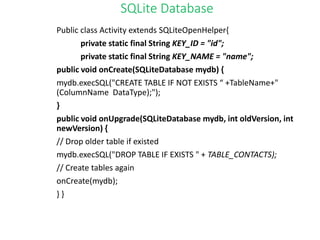
SQLite Database
Public class Activity extends SQLiteOpenHelper{
private static final String KEY_ID = "id";
private static final String KEY_NAME = "name";
public void onCreate(SQLiteDatabase mydb) {
mydb.execSQL("CREATE TABLE IF NOT EXISTS “ +TableName+"
(ColumnName DataType);");
}
public void onUpgrade(SQLiteDatabase mydb, int oldVersion, int
newVersion) {
// Drop older table if existed
mydb.execSQL("DROP TABLE IF EXISTS " + TABLE_CONTACTS);
// Create tables again
onCreate(mydb);
} }
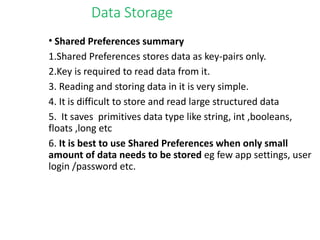
Data Storage
• Shared Preferences summary
1.Shared Preferences stores data as key-pairs only.
2.Key is required to read data from it.
3. Reading and storing data in it is very simple.
4. It is difficult to store and read large structured data
5. It saves primitives data type like string, int ,booleans,
floats ,long etc
6. It is best to use Shared Preferences when only small
amount of data needs to be stored eg few app settings, user
login /password etc.
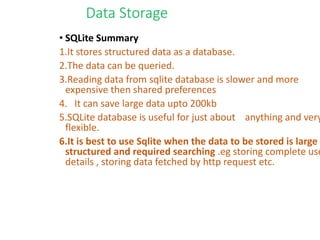
Data Storage
• SQLite Summary
1.It stores structured data as a database.
2.The data can be queried.
3.Reading data from sqlite database is slower and more
expensive then shared preferences
4. It can save large data upto 200kb
5.SQLite database is useful for just about anything and very
flexible.
6.It is best to use Sqlite when the data to be stored is large ,
structured and required searching .eg storing complete use
details , storing data fetched by http request etc.
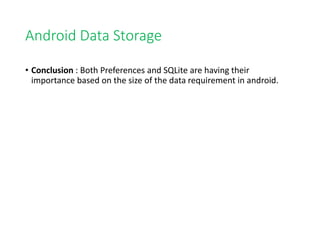
Android Data Storage
• Conclusion : Both Preferences and SQLite are having their
importance based on the size of the data requirement in android.
ANY QUERIES???

Android Data Storagefinal

  • 1.
    Android Data Storage Srilakshmi.N MobileApplication Developer Symbioun Software Pvt Ltd
  • 2.
    Agenda • Android DataStorage Introduction • Shared Preferences • Internal Storage • External Storage • SQLite Database • Sample Examples
  • 3.
    Introduction • In orderto maintain the essential information across Application-Executions or Life Time Of the Application . • Android provides several options for you to save persistent application data using Android Data Storage .
  • 4.
    Shared Preferences •Store privateprimitive data in key-value pairs. Shared Preferences • Syntax: SharedPreferences sharedpreferences = getSharedPreferences(MyPreferences, Context.MODE_PRIVATE); • Shared preferences Data is stored in XML file in the directory data/data/<package name>/shared- prefs/pref.xml
  • 5.
    Shared Preferences • MODE_PRIVATE:only your app can access the file • MODE_MULTI_PROCESS: Multiple processes can modify the same shared prefernce file MODE_PRIVATE MODE_WORLD _READABLE MODE_WORLD _WRITABLE MODE_MULTI_ PROCESS Accessing Modes:
  • 6.
    To get aSharedPreferences object for your application, use one of two methods: • getSharedPreferences() - Use this if you need multiple preferences files identified by name, which you specify with the first parameter. • getPreferences() - Use this if you need only one preferences file for your Activity. Because this will be the only preferences file for your Activity, you don't supply a name. Accessing Shared Preferences
  • 7.
    Shared Preferences To writevalues: •Call edit() to get a sharedpreferences.Editor •Add values with methods such as putBoolean() and putString() •Commit the new values with commit() Shared Preferences Example
  • 8.
  • 9.
    public class ActivityAextends Activity{ EditText username, password; @Override protected void onCreate(Bundle savedInstanceState){ super.onCreate(savedInstsanceState); setContentview(R.layout.activity_mainA); username=(EditText) findViewById(R.id.edt1); password=(EditText) findViewById(R.id.edt2); } public void save(View view) { SharedPreferences sp=getSharedPreferences(“Preferencename” MODE_PRIVATE); SharedPreferences.Editor editor = SharedPreferences.edit(); Editor.putString(“name” “username.getText().toString() ”); Editor.putString(“password” “password.getText().toString()”) ; } public void next(View view) { Toast.makeText(this,"Next" ,Toast.LENGHT_LONG).show(); Intent intent= new Intent(this,ActivityB.class); startActivity(intent); } } Example:
  • 10.
    public class ActivityBextends Activity{ TextView username, password; @Override protected void onCreate(Bundle savedInstanceState){ super.onCreate(savedInstsanceState); setContentview(R.layout.activity_mainB); username=(TextView) findViewById(R.id.txt1); password=(TextView) findViewById(R.id.txt2); } public void load(View view) { SharedPreferences sp=getSharedPreferences(“Preferencename” MODE_PRIVATE String name=Sharedpreferences.getString(“name” “Default ”); String password=Sharedpreferences.getString(“password” “Default ”); username.setText(name); Password.setText(password);} public void previous(View view) { Toast.makeText(this,"Next" ,Toast.LENGHT_LONG).show(); Intent intent= new Intent(this,ActivityA.class); startActivity(intent) } }
  • 11.
    Using the InternalStorage Internal Storage – Store Private data on device memory. To create and write a private file to the internal storage: 1. Call openOutput() with the name of the file and operating mode. It Returns FileOutPutStream. 2. Write to the file with write() 3. Close the stream with close()
  • 12.
    Example: String FILENAME ="hello_file"; String string = "hello world!"; FileOutputStream fos = openFileOutput(FILENAME, Context.MODE_PRIVATE); fos.write(string.getBytes()); fos.close(); Note:To store static file save the file in your project res/raw/ directory. Open it with openRawResource(), passing the R.raw.<filename> resource ID. This method returns an InputStream that you can use to read the file (but you cannot write to the original file).
  • 13.
    Internal Storage To reada file from internal storage: •Call openFileInput() and pass it the name of the file to read. This returns a FileInputStream. •Read bytes from the file with read(). •Then close the stream with close().
  • 14.
    Saving cache files •Ifyou'd like to cache some data, rather than store it persistently, you should use getCacheDir() to open a File that represents the internal directory where your application should save temporary cache files. •Cache files are the temperary files.
  • 15.
    Other useful methods •getFilesDir() Gets the absolute path to the filesystem directory where your internal files are saved. • getDir() Creates (or opens an existing) directory within your internal storage space. • deleteFile() Deletes a file saved on the internal storage. • fileList() Returns an array of files currently saved by your application.
  • 16.
    External Storage(SD Card) ExternnalStorage - Store public data on the shared external storage. Getting access to external storage In order to read or write files on the external storage, your app must acquire the READ_EXTERNAL_STORAGE or WRITE_EXTERNAL_STORAGE system permissions. For example: <manifest ...> <uses-permission android:name="android.permission.WRITE_EXTERNAL_STORAGE" /> ... </manifest>
  • 17.
    /* Checks ifexternal storage is available for read and write */ public boolean isExternalStorageWritable() { String state = Environment.getExternalStorageState(); if (Environment.MEDIA_MOUNTED.equals(state)) { return true; } return false; } /* Checks if external storage is available to at least read */ public boolean isExternalStorageReadable() { String state = Environment.getExternalStorageState(); if (Environment.MEDIA_MOUNTED.equals(state) || Environment.MEDIA_MOUNTED_READ_ONLY.equals(state)) { return true; } return false; } Example
  • 18.
    SD Card Checking MediaAvailability: You should always call getExternalStorageState() to check whether the media is available or not. Syntax: /* Checks if external storage is available for read and write */ public boolean isExternalStorageWritable() { String state = Environment.getExternalStorageState(); if (Environment.MEDIA_MOUNTED.equals(state)) { return true; } return false; }
  • 19.
    Saving files thatcan be shared with other apps • For example, here's a method that creates a directory for a new photo album in the public pictures directory: Example: public File getAlbumStorageDir(String albumName) { // Get the directory for the user's public pictures directory. File file = new File(Environment.getExternalStoragePublicDirectory( Environment.DIRECTORY_PICTURES), albumName); if (!file.mkdirs()) { Log.e(LOG_TAG, "Directory not created"); } return file; }
  • 20.
    SQLite Database SQLite Database- Store structured data in a private database. • programmatically created SQLite database of an app is always stored in /data/data/<package>/databases folder with ( .db extension).
  • 21.
    Saving files thatcan be shared with other apps • To get a File representing the appropriate public directory, call getExternalStoragePublicDirectory(), passing it the type of directory you want, such as DIRECTORY_MUSIC, DIRECTORY_PICTURES, DIRECTORY_RINGTONES, or others. • Syntax: File file = new File(Environment.getExternalStoragePublicDirectory( Environment.DIRECTORY_PICTURES), albumName);
  • 24.
  • 25.
    SQLite Database •Creating SQLobject Step:1 Importing package “android.database.sqlite.SQLiteDatabase”. Step:2 Creating object SQLiteDatabase object name=null;
  • 26.
    SQLite Database Creating DatabaseName mydb=openOrCreateDatabase("DatabaseName5", MODE_PRIVATE,null); // mydb is sqlite object name . // DatabaseName5 is nothing but database name // MODE_PRIVATE is permissions of a table accessing
  • 27.
    SQLite Database DDL Statements– These statements are used to perfrom operations on schemas.They are • Create • Alter • Drop DML Statements – these statements are used to perform operations on the data present in schemas.They are • Select • Insert • Delete Creating Table Create: mydb.execSQL("CREATE TABLE IF NOT EXISTS “ +TableName+" (ColumnName DataType);"); Alter: ALTER TABLE TableName RENAME TO new-table-name Drop: DROP TABLE TableName
  • 28.
    SQLite Database • DDLStatements and syntax: Create:Creates Schema with name mydb.execSQL("CREATE TABLE IF NOT EXISTS “ +TableName+" (ColumnName DataType);"); Alter: Alters the name of the schema ALTER TABLE TableName RENAME TO new-table-name Drop: Drops the schema DROP TABLE TableName
  • 29.
    SQLite Database •DDL Statementsand Syntax: Select: To select particular data in schema Cursor c=mydb.rawQuery("SELECT * FROM "+TableName+" where Name='"+city+"'",null); Insert: To insert some data into schema mydb.execSQL("INSERT INTO "+TableName+“ (Name, Area)“ + "VALUES ('RedFort','40.8 acres‘);"); Delete:To delete data mydb.execSQL(“Delete"+TableName); Note:The Cursor is always the mechanism with which you can navigate results from a database query and read rows and columns.
  • 30.
    SQLite Database • SQLiteOpenHelper is a class to manage database creation and version management. • This class take care of opening the database if it exists, creating it if it does not, and upgrading it as necessary. • This is for creating db “onCreate(SQLiteDataBase)”. • when the database needs to be upgraded “onUpgrade (SQLiteDataBase db, int oldVersion, int newVersion)”. • when the database has been opened “onOpen (SQLiteDataBase db)”.
  • 31.
    SQLite Database Public classActivity extends SQLiteOpenHelper{ private static final String KEY_ID = "id"; private static final String KEY_NAME = "name"; public void onCreate(SQLiteDatabase mydb) { mydb.execSQL("CREATE TABLE IF NOT EXISTS “ +TableName+" (ColumnName DataType);"); } public void onUpgrade(SQLiteDatabase mydb, int oldVersion, int newVersion) { // Drop older table if existed mydb.execSQL("DROP TABLE IF EXISTS " + TABLE_CONTACTS); // Create tables again onCreate(mydb); } }
  • 32.
    Data Storage • SharedPreferences summary 1.Shared Preferences stores data as key-pairs only. 2.Key is required to read data from it. 3. Reading and storing data in it is very simple. 4. It is difficult to store and read large structured data 5. It saves primitives data type like string, int ,booleans, floats ,long etc 6. It is best to use Shared Preferences when only small amount of data needs to be stored eg few app settings, user login /password etc.
  • 33.
    Data Storage • SQLiteSummary 1.It stores structured data as a database. 2.The data can be queried. 3.Reading data from sqlite database is slower and more expensive then shared preferences 4. It can save large data upto 200kb 5.SQLite database is useful for just about anything and very flexible. 6.It is best to use Sqlite when the data to be stored is large , structured and required searching .eg storing complete use details , storing data fetched by http request etc.
  • 34.
    Android Data Storage •Conclusion : Both Preferences and SQLite are having their importance based on the size of the data requirement in android.
  • 35.