1
Activity, Intent & Layout
• Introduction to Activity
• Activity life cycle
• Introduction to Intent
• Types of Intent(Implicit and Explicit Intent)
• Layout Manager
• View and View Group
• Linear Layout
• Relative Layout
• Table Layout
• Grid Layout
• Constraint Layout
• Frame Layout
• Scroll Layout
2
Activity, Intent & Layout
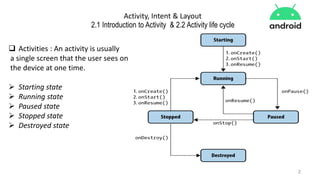
2.1 Introduction to Activity & 2.2 Activity life cycle
 Activities : An activity is usually
a single screen that the user sees on
the device at one time.
 Starting state
 Running state
 Paused state
 Stopped state
 Destroyed state
3
Activity, Intent & Layout
 Intents :
Intents are messages that are sent among the major building blocks. They trigger an
activity to start up, tell a service to start or stop, or are simply broadcasts.
4
Activity, Intent & Layout
Layout Manager
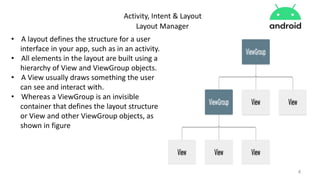
• A layout defines the structure for a user
interface in your app, such as in an activity.
• All elements in the layout are built using a
hierarchy of View and ViewGroup objects.
• A View usually draws something the user
can see and interact with.
• Whereas a ViewGroup is an invisible
container that defines the layout structure
or View and other ViewGroup objects, as
shown in figure
5
Activity, Intent & Layout
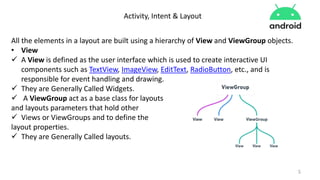
All the elements in a layout are built using a hierarchy of View and ViewGroup objects.
• View
 A View is defined as the user interface which is used to create interactive UI
components such as TextView, ImageView, EditText, RadioButton, etc., and is
responsible for event handling and drawing.
 They are Generally Called Widgets.
 A ViewGroup act as a base class for layouts
and layouts parameters that hold other
 Views or ViewGroups and to define the
layout properties.
 They are Generally Called layouts.
6
Activity, Intent & Layout
Types of Android Layout
1. Android Linear Layout
2. Android Relative Layout
3. Android Constraint Layout
4. Android Frame Layout
5. Android Table Layout
6. Android Web View
7. Android ListView
8. Android Grid View
7
Activity, Intent & Layout
Layout Attributes
Each layout has a set of attributes which define the visual properties of that layout.
1. android:id
2. android:layout_width
3. android:layout_height
4. android:layout_marginTop
5. android:layout_marginBottom
6. android:layout_marginLeft
7. android:layout_marginRight
8. android:layout_gravity
1. android:layout_weight
2. android:layout_x
3. android:layout_y
4. android:layout_width
5. android:paddingLeft
6. android:paddingRight
7. android:paddingTop
8. android:paddingBottom
8
Activity, Intent & Layout
Here width and height are the dimension of the layout/view which can be specified in
terms of dp (Density-independent Pixels), sp ( Scale-independent Pixels), pt ( Points
which is 1/72 of an inch), px( Pixels), mm ( Millimeters) and finally in (inches).
You can specify width and height with exact measurements but more often, you will
use one of these constants to set the width or height −
android:layout_width=wrap_content tells your view to size itself to the dimensions
required by its content.
android:layout_width=fill_parent tells your view to become as big as its parent view.
Prof. Shalmali Randive 9
Activity, Intent & Layout

Android Introduction , Activity, Intent & Layout.pdf

  • 1.
    1 Activity, Intent &Layout • Introduction to Activity • Activity life cycle • Introduction to Intent • Types of Intent(Implicit and Explicit Intent) • Layout Manager • View and View Group • Linear Layout • Relative Layout • Table Layout • Grid Layout • Constraint Layout • Frame Layout • Scroll Layout
  • 2.
    2 Activity, Intent &Layout 2.1 Introduction to Activity & 2.2 Activity life cycle  Activities : An activity is usually a single screen that the user sees on the device at one time.  Starting state  Running state  Paused state  Stopped state  Destroyed state
  • 3.
    3 Activity, Intent &Layout  Intents : Intents are messages that are sent among the major building blocks. They trigger an activity to start up, tell a service to start or stop, or are simply broadcasts.
  • 4.
    4 Activity, Intent &Layout Layout Manager • A layout defines the structure for a user interface in your app, such as in an activity. • All elements in the layout are built using a hierarchy of View and ViewGroup objects. • A View usually draws something the user can see and interact with. • Whereas a ViewGroup is an invisible container that defines the layout structure or View and other ViewGroup objects, as shown in figure
  • 5.
    5 Activity, Intent &Layout All the elements in a layout are built using a hierarchy of View and ViewGroup objects. • View  A View is defined as the user interface which is used to create interactive UI components such as TextView, ImageView, EditText, RadioButton, etc., and is responsible for event handling and drawing.  They are Generally Called Widgets.  A ViewGroup act as a base class for layouts and layouts parameters that hold other  Views or ViewGroups and to define the layout properties.  They are Generally Called layouts.
  • 6.
    6 Activity, Intent &Layout Types of Android Layout 1. Android Linear Layout 2. Android Relative Layout 3. Android Constraint Layout 4. Android Frame Layout 5. Android Table Layout 6. Android Web View 7. Android ListView 8. Android Grid View
  • 7.
    7 Activity, Intent &Layout Layout Attributes Each layout has a set of attributes which define the visual properties of that layout. 1. android:id 2. android:layout_width 3. android:layout_height 4. android:layout_marginTop 5. android:layout_marginBottom 6. android:layout_marginLeft 7. android:layout_marginRight 8. android:layout_gravity 1. android:layout_weight 2. android:layout_x 3. android:layout_y 4. android:layout_width 5. android:paddingLeft 6. android:paddingRight 7. android:paddingTop 8. android:paddingBottom
  • 8.
    8 Activity, Intent &Layout Here width and height are the dimension of the layout/view which can be specified in terms of dp (Density-independent Pixels), sp ( Scale-independent Pixels), pt ( Points which is 1/72 of an inch), px( Pixels), mm ( Millimeters) and finally in (inches). You can specify width and height with exact measurements but more often, you will use one of these constants to set the width or height − android:layout_width=wrap_content tells your view to size itself to the dimensions required by its content. android:layout_width=fill_parent tells your view to become as big as its parent view.
  • 9.
    Prof. Shalmali Randive9 Activity, Intent & Layout