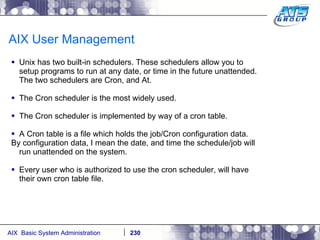
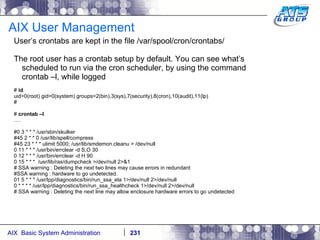
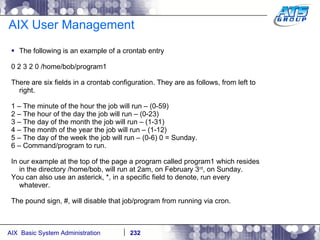
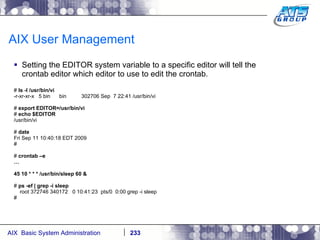
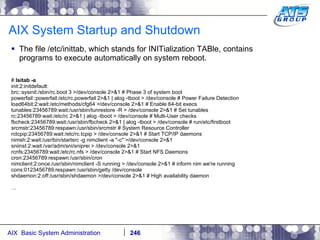
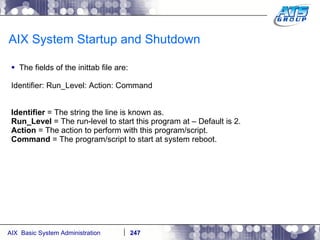
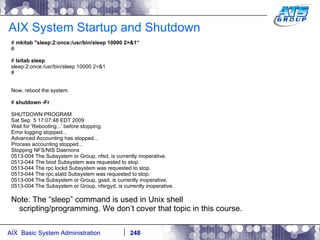
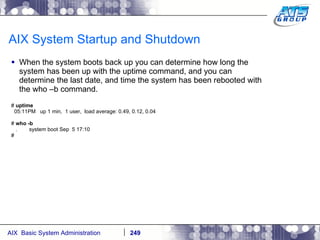
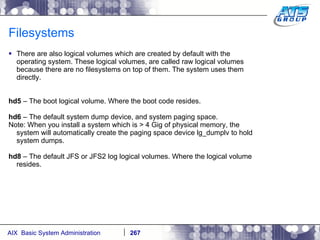
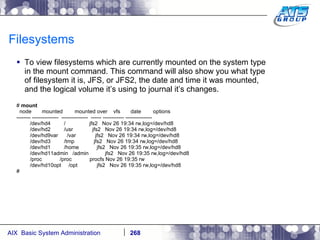
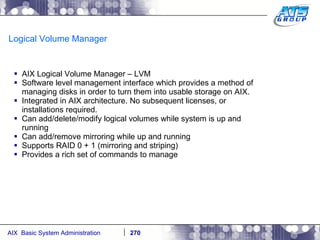
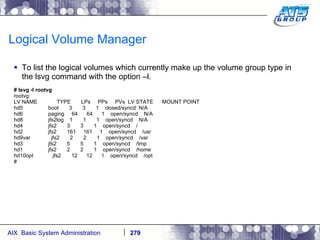
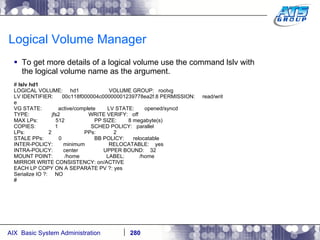
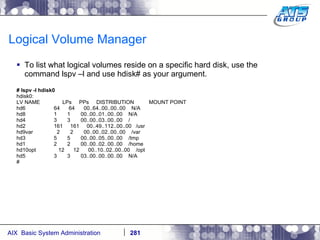
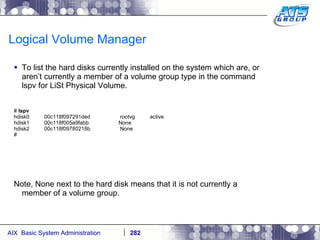
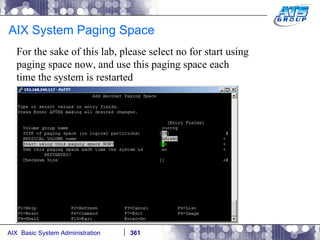
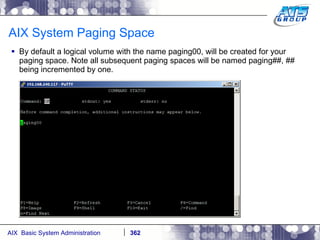
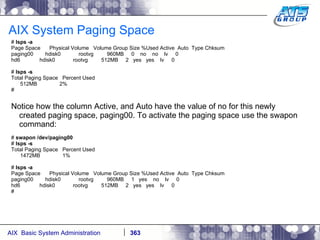
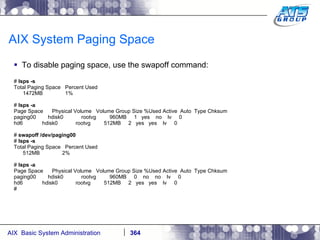
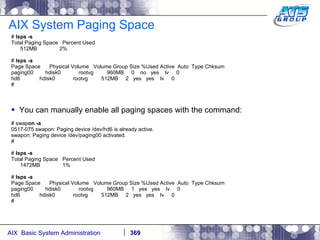
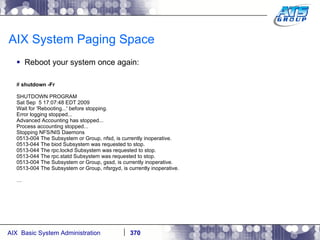
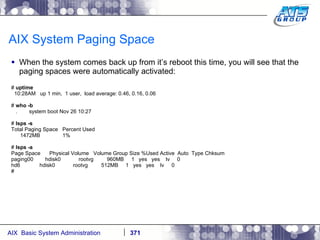
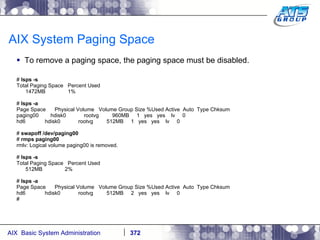
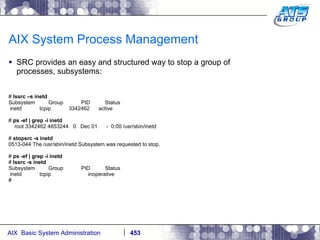
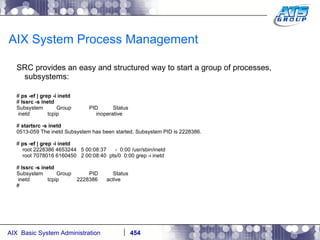
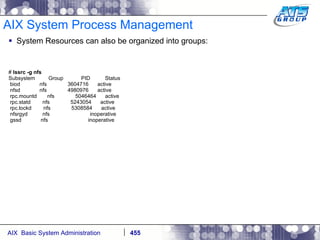
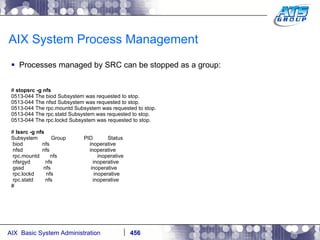
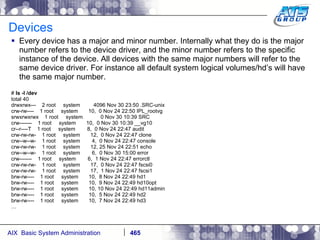
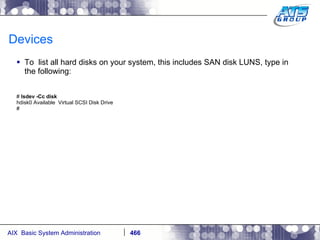
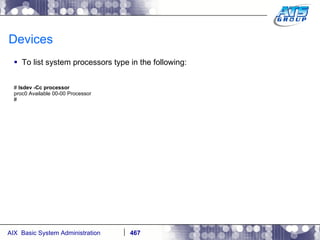
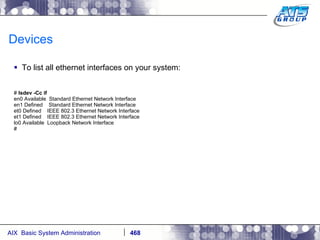
AIX System Administration Class  Justin Richard Bleistein IBM POWER Systems/PowerVM/AIX/PowerHA/TSM/Oracle database/Programmer
Class Syllabus Monday thru Friday – 9:30am to 5:30pm 9:30am  –  Class starts 10:30am  – 15 minute morning break 10:45am  – Class resumes from first break 12:00pm  – Break for lunch 1:00pm  –  Class resumes from lunch 3:00pm  –  15 minute afternoon break 3:15pm  –   Class resumes from second break 5:30pm  –  Class ends for the day Instructor:  Justin Richard Bleistein Phone:  (856) 912 – 0861 Email:  [email_address]
Getting to know you. Going around the room: What is your name? What is your current position with the company? What is your field of technical expertise?
Unix Overview
UNIX Overview Unix is an operating system originally developed by a group of AT&T Bell lab employees. It was developed in 1969. – (Dennis Ritchie, and Ken Thompson were the main developers). The current owner of the UNIX trademark, is the Open Group. The current owner of the UNIX System V code, which AT&T originally wrote is SCO. The UNIX code was licensed to commercial companies such as IBM, Oracle/Sun, and Hewett Packard, so they could create their own version of the UNIX operating system. University of California, Berkeley developed their own versions of the UNIX operating system called Free BSD, and Net BSD. These are not as widely used as the commercial, or Linux like operating systems.
UNIX Overview The history of UNIX goes back to the 1960’s. Massachusetts Institute of Technology (MIT), AT&T Bell Labs, and General Electric (GE) developed an experimental operating system called Multics. (Multiplexed Information and Computing Service). AT&T at some point pulled out of the Multics project. Some of the developers continued to work on it. In the 1970’s a project known as Unics, which later changed to UNIX commenced. The first version was written in assembly language, but in 1973 it was re-written using the C programming language.
AIX Overview
AIX Overview AIX stands for Advanced Interactive eXecutive AIX is IBM’s version of the UNIX operating system. AIX, IBM’s version of UNIX competes with Microsoft Windows server operating systems, and other proprietary UNIX operating systems such as, Oracle’s Sun Solaris, Hewett Packard’s HP-UX, and Tru64 Unix. AIX is mainly used for enterprise business computing. The latest version of AIX, is AIX 6.1. This version was made generally available by IBM in 2007. AIX version 7.1 is currently as of, 2010, available via the IBM Open Beta release program.
AIX Overview AIX comes with an LVM, Logical Volume Manager, integrated into the operating system by default. It has for years. AIX supports LPARS, Logical Partitions. AIX supports both hardware(LPARS) and software(WPARS) virtualization. AIX supports newest hardware offerings such as 10 gig ethernet adapters, and 8 gig fibre channel adapters. AIX is compliant with System V Unix system standards. AIX provides advanced system security features, at many levels. AIX has advanced diagnostic applications for hardware and software errors.
AIX Overview AIX has a lot in common with other proprietary Unix operating systems. Proprietary Unix operating systems typically differ with sysadmin tools, and virtualization technology. AIX comes with a journaled filesystem – JFS2. The older version JFS is still shipped with AIX. JFS2 will allow multi terabyte files, and multi petabyte filesystems. AIX provides integrated security auditing features, allowing you to audit system activity at a very granular level. AIX provides an integrated accounting system, so that you can account for user, and application usage of resources on the system. This is especially useful in chargeback environments.
AIX Overview By default AIX comes with a software component known as WorkLoad Manager – WLM. This software allows you to logically divide a single AIX operating system into multiple classes by resources for applications and users to run it. PowerHA, formerly known as HACMP, provides high availability clustering for AIX systems. This provides automated failover and fallback configurations. This product does not come with AIX by default. You must purchase a separate software license from IBM. By default AIX comes with a system monitoring tool – RMC, Resource Monitoring and Control, which can monitor and react to certain AIX events, and then execute a certain action based on that event, such as automatically email the sysadmin, or some other system based action.
AIX Overview AIX comes with a backup utility known as mksysb – MaKe SYStem Backup. This utility will allow you to create a bootable system backup which you will use for system disaster recovery scenarios. AIX comes with another backup utility, called backup. This command allows you to backup at a file, and/or directory level. The counterpart to this command is the restore command, which allows you to restore the files and/or directories you backed up with the backup command. AIX comes with it’s own software management subsystem, for software. It can manage software inventory for both LPP format software, and RPM format software.
AIX Overview Starting in AIX version 5.1, Linux affinity is integrated into the operating system. Media comes with AIX called, Linux Applications Toolbox for AIX. Contents of media are also available for free download via the internet from IBM. This media contains IBM certified Linux applications compiled to run on POWER systems. The rpm command, which installs Linux software is included by default in AIX. The source code to these applications are also available. Starting in AIX version 5.1, a lot of AIX now contains architecture, which is most commonly found on Linux based systems.
AIX overview AIX version release history: 1986 – AIX version 1.0 – 2.0 1989 – AIX version 1.1 for the PS/2 PC 1989 – AIX version 3.0 for RISC/6000 line of servers 1992 – AIX version 3.2 for RISC/6000 line of servers 1994 – AIX version 4.0 for RISC/6000 line of servers 1995 – AIX version 4.1 for RISC/6000 line of servers 1996 – AIX version 4.2 for RISC/6000 line of servers 1997 – AIX version 4.3 for RISC/6000 line of servers 1999 – AIX version 4.3.3 for RISC/6000 line of servers 2001 – AIX version 5.1 for RISC/6000 and POWER servers 2002 – AIX version 5.2 for POWER servers 2004 – AIX version 5.3 for POWER servers 2007 – AIX version 6.1 for POWER servers 2011 – AIX version 7.1. – TENTATIVE.
AIX overview
A word on Linux Linux is a clone of the UNIX operating system. It is technically not considered UNIX. The first Linux kernel was developed by Linus Trorvalds in 1991. Linux’s origins are found in the MINX operating system project which was a minimal Unix like operating system used for educational purposes, etc. It was released in 1987. Linux actually started because Linus was frustrated with the licensing of the MINIX operating system. There are many different distributions of the Linux operating system, aimed for different things, the two most used in the business computing world however are: Novell Suse Linux and Red Hat Linux used mostly in Europe and in the U.S. respectively.
IBM POWER Servers
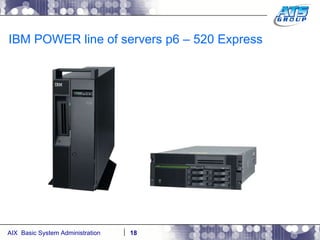
IBM POWER line of servers p6 – 520 Express
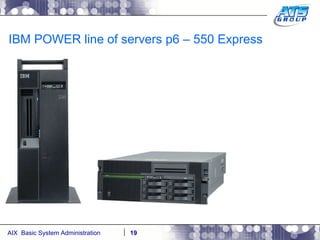
IBM POWER line of servers p6 – 550 Express
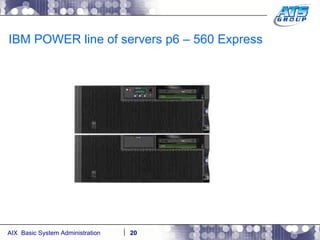
IBM POWER line of servers p6 – 560 Express
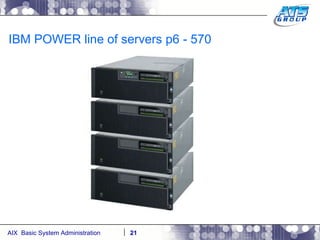
IBM POWER line of servers p6 - 570
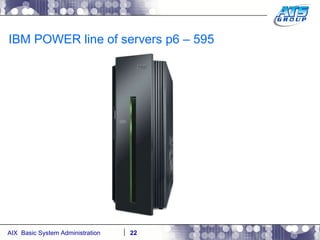
IBM POWER line of servers p6 – 595
IBM POWER Servers
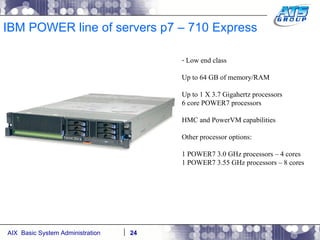
IBM POWER line of servers p7 – 710 Express Low end class Up to 64 GB of memory/RAM Up to 1 X 3.7 Gigahertz processors 6 core POWER7 processors HMC and PowerVM capabilities Other processor options: 1 POWER7 3.0 GHz processors – 4 cores 1 POWER7 3.55 GHz processors – 8 cores
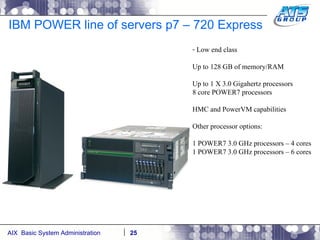
IBM POWER line of servers p7 – 720 Express Low end class Up to 128 GB of memory/RAM Up to 1 X 3.0 Gigahertz processors 8 core POWER7 processors HMC and PowerVM capabilities Other processor options: 1 POWER7 3.0 GHz processors – 4 cores 1 POWER7 3.0 GHz processors – 6 cores
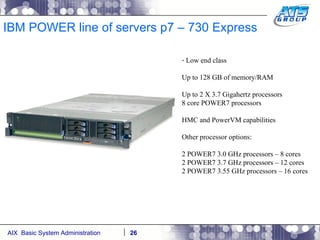
IBM POWER line of servers p7 – 730 Express Low end class Up to 128 GB of memory/RAM Up to 2 X 3.7 Gigahertz processors 8 core POWER7 processors HMC and PowerVM capabilities Other processor options: 2 POWER7 3.0 GHz processors – 8 cores 2 POWER7 3.7 GHz processors – 12 cores 2 POWER7 3.55 GHz processors – 16 cores
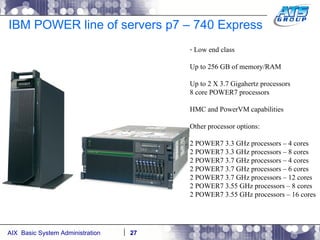
IBM POWER line of servers p7 – 740 Express Low end class Up to 256 GB of memory/RAM Up to 2 X 3.7 Gigahertz processors 8 core POWER7 processors HMC and PowerVM capabilities Other processor options: 2 POWER7 3.3 GHz processors – 4 cores 2 POWER7 3.3 GHz processors – 8 cores 2 POWER7 3.7 GHz processors – 4 cores 2 POWER7 3.7 GHz processors – 6 cores 2 POWER7 3.7 GHz processors – 12 cores 2 POWER7 3.55 GHz processors – 8 cores 2 POWER7 3.55 GHz processors – 16 cores
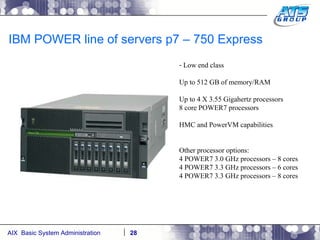
IBM POWER line of servers p7 – 750 Express Low end class Up to 512 GB of memory/RAM Up to 4 X 3.55 Gigahertz processors 8 core POWER7 processors HMC and PowerVM capabilities Other processor options: 4 POWER7 3.0 GHz processors – 8 cores 4 POWER7 3.3 GHz processors – 6 cores 4 POWER7 3.3 GHz processors – 8 cores
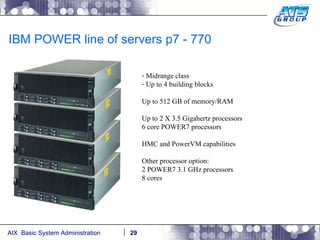
IBM POWER line of servers p7 - 770 Midrange class Up to 4 building blocks Up to 512 GB of memory/RAM Up to 2 X 3.5 Gigahertz processors 6 core POWER7 processors HMC and PowerVM capabilities Other processor option: 2 POWER7 3.1 GHz processors 8 cores
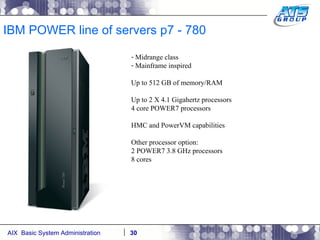
IBM POWER line of servers p7 - 780 Midrange class Mainframe inspired Up to 512 GB of memory/RAM Up to 2 X 4.1 Gigahertz processors 4 core POWER7 processors HMC and PowerVM capabilities Other processor option: 2 POWER7 3.8 GHz processors 8 cores
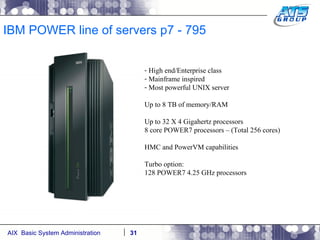
IBM POWER line of servers p7 - 795 High end/Enterprise class Mainframe inspired Most powerful UNIX server Up to 8 TB of memory/RAM Up to 32 X 4 Gigahertz processors 8 core POWER7 processors – (Total 256 cores) HMC and PowerVM capabilities Turbo option: 128 POWER7 4.25 GHz processors
IBM POWER Blade Servers
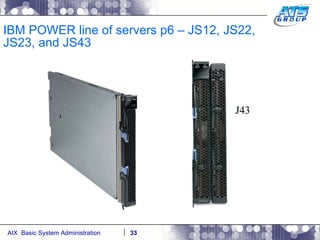
IBM POWER line of servers p6 – JS12, JS22, JS23, and JS43 J43
IBM POWER Blade Servers
IBM POWER line of servers p7 – PS700, PS701, and PS702 PS700 – Single wide blade. Up to 64 GB of memory/RAM Up to 1 X 3.0 Gigahertz processors 4 core POWER7 processors PowerVM capabilities PS701 – Single wide blade. Up to 128 GB of memory/RAM Up to 1 X 3.0 Gigahertz processors 8 core POWER7 processors PowerVM capabilities PS702 – Double wide blade. Up to 256 GB of memory/RAM Up to 2 X 3.0 Gigahertz processors  16 core POWER7 processors PowerVM capabilities
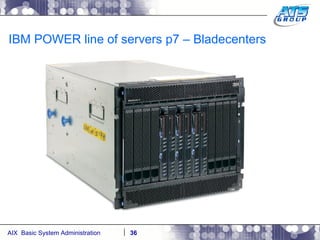
IBM POWER line of servers p7 – Bladecenters
Throughout IBM AIX system history
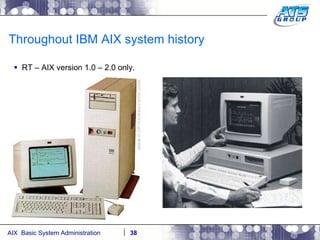
Throughout IBM AIX system history RT – AIX version 1.0 – 2.0 only.
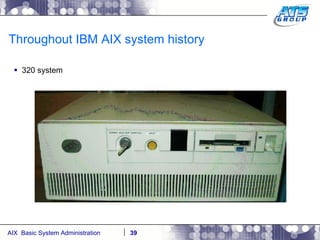
Throughout IBM AIX system history 320 system
Throughout IBM AIX system history 590
Throughout IBM AIX system history RS/6000 43P
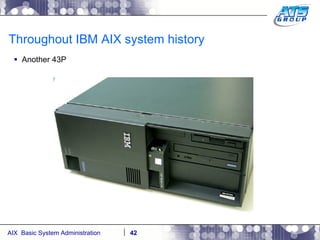
Throughout IBM AIX system history Another 43P
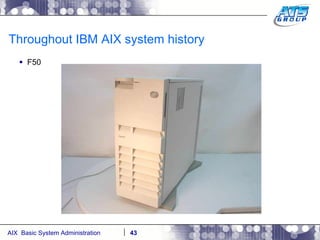
Throughout IBM AIX system history F50
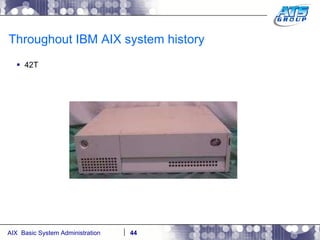
Throughout IBM AIX system history 42T
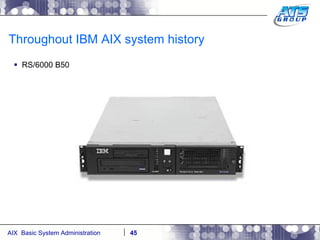
Throughout IBM AIX system history RS/6000 B50
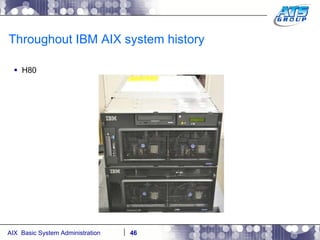
Throughout IBM AIX system history H80
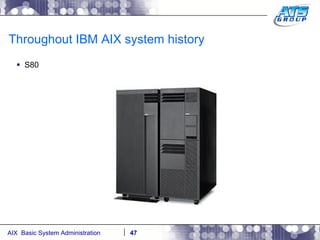
Throughout IBM AIX system history S80
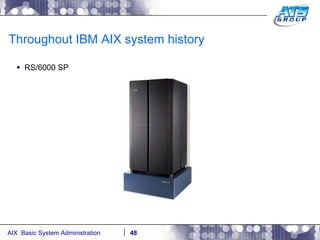
Throughout IBM AIX system history RS/6000 SP
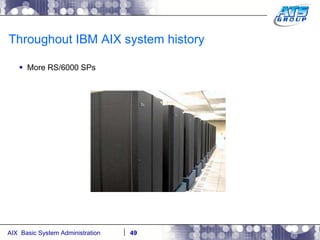
Throughout IBM AIX system history More RS/6000 SPs
Our Lab The configuration of the ATS lab, The Innovation Center, we’ll be using in this week’s class is as follows.  Two POWER7 blades: PS700. They have the following specs: - 4 IBM Power 7 processors. - 32 Gigabytes of real memory/RAM. 2 X 300 Gigabyte internal hard disks.
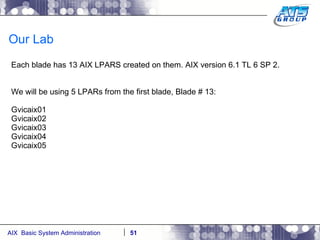
Our Lab Each blade has 13 AIX LPARS created on them. AIX version 6.1 TL 6 SP 2. We will be using 5 LPARs from the first blade, Blade # 13: Gvicaix01 Gvicaix02 Gvicaix03 Gvicaix04 Gvicaix05
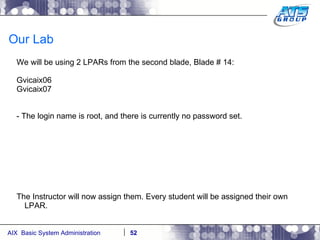
Our Lab We will be using 2 LPARs from the second blade, Blade # 14: Gvicaix06 Gvicaix07 - The login name is root, and there is currently no password set. The Instructor will now assign them. Every student will be assigned their own LPAR.
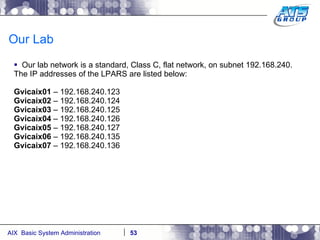
Our Lab Our lab network is a standard, Class C, flat network, on subnet 192.168.240. The IP addresses of the LPARS are listed below: Gvicaix01  – 192.168.240.123 Gvicaix02  – 192.168.240.124 Gvicaix03  – 192.168.240.125 Gvicaix04  – 192.168.240.126 Gvicaix05  – 192.168.240.127 Gvicaix06  – 192.168.240.135 Gvicaix07  – 192.168.240.136
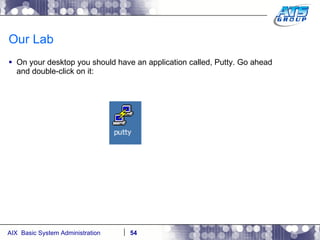
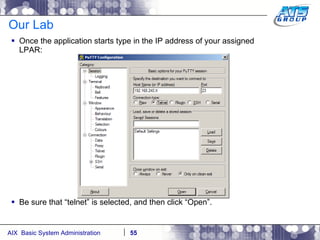
Our Lab On your desktop you should have an application called, Putty. Go ahead and double-click on it:
Our Lab Once the application starts type in the IP address of your assigned LPAR: Be sure that “telnet” is selected, and then click “Open”.
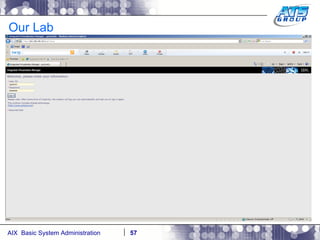
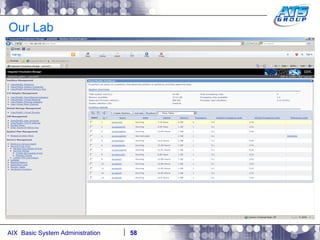
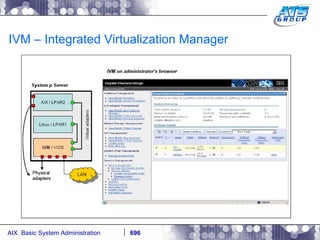
Our Lab The Integrated Virtualization Manager, IVM, is a web interface which allows you to manage a physical system which has virtual AIX operating systems running on it. In this class we will use this interface to gain console access to our LPARS. Open the Microsoft Internet Explorer to the following address: http://192.168.240.101 (For students on LPARS: Gvicaix01, thru Gvicaix05) Or http://192.168.240.102 (For students on LPARS: Gvicaix06, and Gvicaix07) Login for both:  padmin Password for both:  ibmibm After you open it minimize the window, you will need it in later labs.
Our Lab
Our Lab
Installing the AIX Operating System
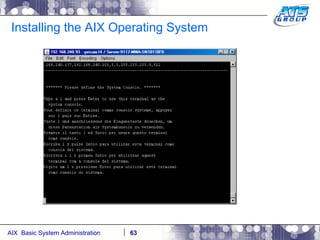
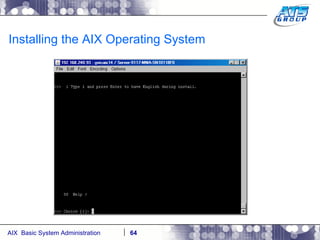
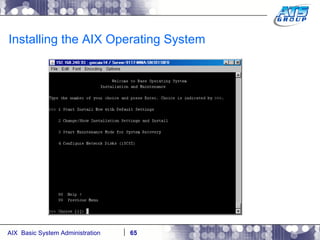
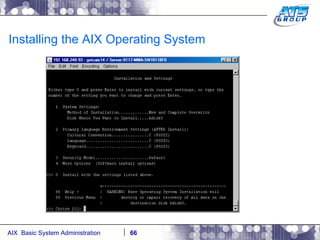
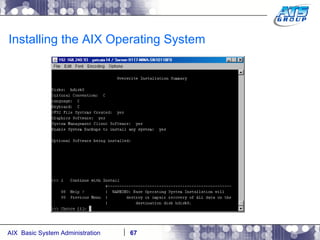
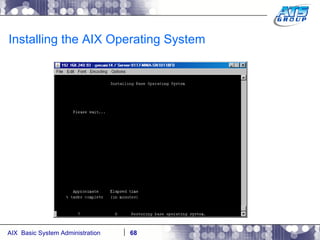
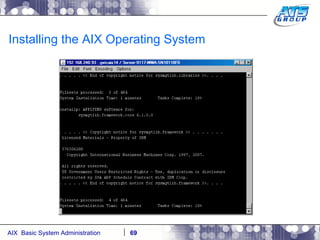
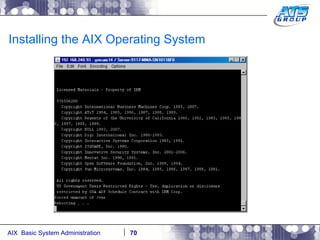
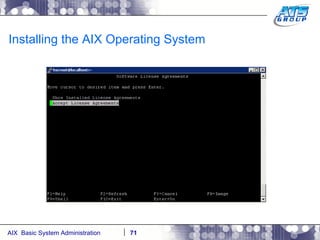
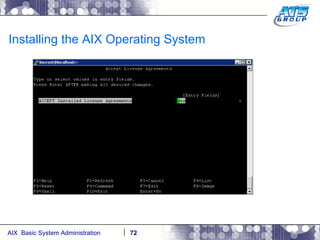
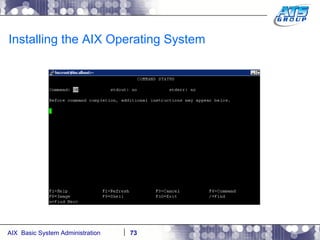
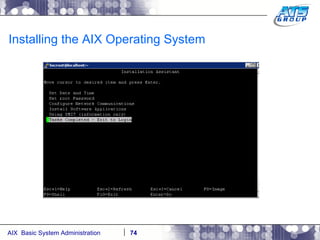
Installing the AIX Operating System The AIX operating system is shipped from IBM traditionally on 8 CDs, or 2 DVDs. When you install the operating system, you are installing what’s referred to as the BOS – Base Operating System. On most systems the operating system installation will take about ~45 minutes to ~1 hour to complete. The AIX Base Operating System requires ~512 MB of memory/RAM, and ~5 GB of disk space. NOTE: Installation of the operating system will not be done in class as a lab, in the interest of time.
Installing the AIX Operating System There are three types of AIX BOS installations. New and Complete Overwrite Migration Preservation
Installing the AIX Operating System BOS installations can be accomplished with the following methods. New install from the DVD media from IBM. Install over the network with NIM – Network Installation Manager. Recovery of a bootable system backup – (Tape, CD, DVD, or NIM). From an ISO file – VIO. Alt_disk_install method/cloning.
Installing the AIX Operating System
Logging into the System
High level Components of a Unix system
AIX – Logging into the system
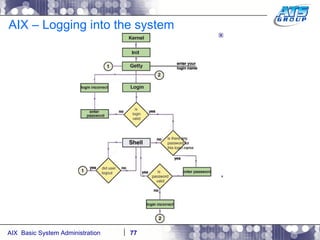
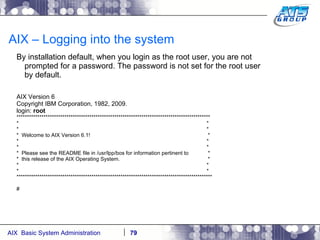
AIX – Logging into the system After the system boots, or anytime you connect to the system you will be presented with a login screen which is known as the herald message. This is prompting you for a login name which will identify you as a valid user to the system. AIX Version 6 Copyright IBM Corporation, 1982, 2009. login: By AIX BOS installation default the only user which is available to log into is the user “root”. Root is the administrator of the system. It’s the most powerful user-id on the system. Note: A synonym for root is Super user.
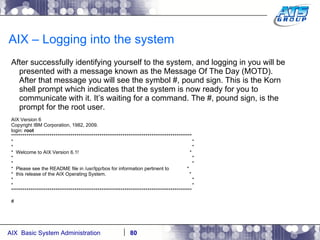
AIX – Logging into the system By installation default, when you login as the root user, you are not prompted for a password. The password is not set for the root user by default. AIX Version 6 Copyright IBM Corporation, 1982, 2009. login:  root ********************************************************************************************* *  * *  * *  Welcome to AIX Version 6.1!  * *  * *  * *  Please see the README file in /usr/lpp/bos for information pertinent to  * *  this release of the AIX Operating System.  * *  * *  * ********************************************************************************************** #
AIX – Logging into the system After successfully identifying yourself to the system, and logging in you will be presented with a message known as the Message Of The Day (MOTD). After that message you will see the symbol #, pound sign. This is the Korn shell prompt which indicates that the system is now ready for you to communicate with it. It’s waiting for a command. The #, pound sign, is the prompt for the root user. AIX Version 6 Copyright IBM Corporation, 1982, 2009. login:  root ********************************************************************************************** *  * *  * *  Welcome to AIX Version 6.1!  * *  * *  * *  Please see the README file in /usr/lpp/bos for information pertinent to  * *  this release of the AIX Operating System.  * *  * *  * ********************************************************************************************** #
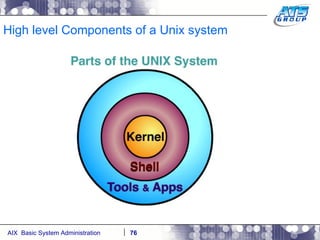
AIX – Logging into the system A shell is how the user/you communicates with the operating system. Think of it as a text version of the Windows Desktop. There are many shells available for Unix systems. They are listed below: Ksh  = Korn Shell (Default shell for AIX). Bsh  = Bourne Shell Bash  = Bourne Again Shell Csh  = C-shell Tsh  = Trusted shell ETC… The Korn shell is the default in AIX. When you install the system, and create regular users, they will be placed into the Korn shell in their home directory automatically when they log into the system.
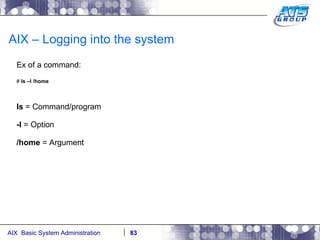
AIX – Logging into the system A user communicates with a Unix system with commands, which are submitted to the system via a shell. A command executes within a shell environment. A command is a program/executable which is used to accomplish tasks on a Unix system. A command obeys rules known as syntax, how the command is to be entered.  A command consists of the following components: Program  Options Arguments
AIX – Logging into the system Ex of a command: #  ls –l /home ls  = Command/program -l  = Option /home  = Argument
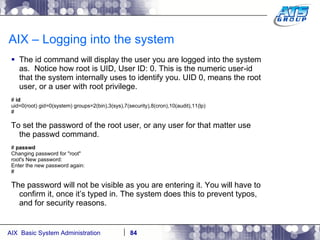
AIX – Logging into the system The id command will display the user you are logged into the system as.  Notice how root is UID, User ID: 0. This is the numeric user-id that the system internally uses to identify you. UID 0, means the root user, or a user with root privilege. #  id uid=0(root) gid=0(system) groups=2(bin),3(sys),7(security),8(cron),10(audit),11(lp) # To set the password of the root user, or any user for that matter use the passwd command. #  passwd Changing password for "root" root's New password: Enter the new password again: # The password will not be visible as you are entering it. You will have to confirm it, once it’s typed in. The system does this to prevent typos, and for security reasons.
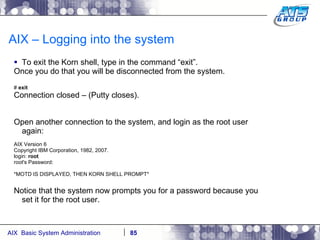
AIX – Logging into the system To exit the Korn shell, type in the command “exit”. Once you do that you will be disconnected from the system. #  exit Connection closed – (Putty closes). Open another connection to the system, and login as the root user again: AIX Version 6 Copyright IBM Corporation, 1982, 2007. login:  root root's Password: *MOTD IS DISPLAYED, THEN KORN SHELL PROMPT* Notice that the system now prompts you for a password because you set it for the root user.
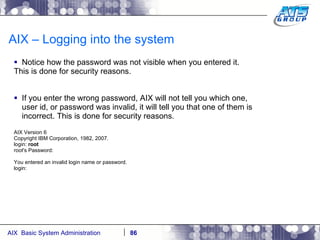
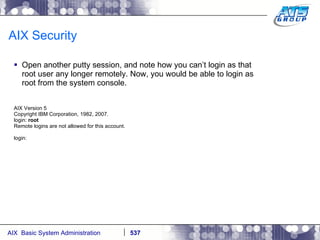
AIX – Logging into the system Notice how the password was not visible when you entered it. This is done for security reasons. If you enter the wrong password, AIX will not tell you which one, user id, or password was invalid, it will tell you that one of them is incorrect. This is done for security reasons. AIX Version 6 Copyright IBM Corporation, 1982, 2007. login:  root root's Password: You entered an invalid login name or password. login:
Interacting with Unix
Interacting with Unix It’s very imperative to understand that Unix is case sensitive. That means that just about everything is lower case. #  id uid=0(root) gid=0(system) groups=2(bin),3(sys),7(security),8(cron),10(audit),11(lp) Not the same as typing: #  ID ksh: ID:  not found #
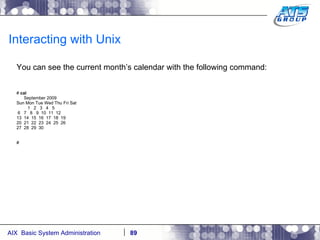
Interacting with Unix You can see the current month’s calendar with the following command: #  cal September 2009 Sun Mon Tue Wed Thu Fri Sat 1  2  3  4  5 6  7  8  9  10  11  12 13  14  15  16  17  18  19 20  21  22  23  24  25  26 27  28  29  30 #
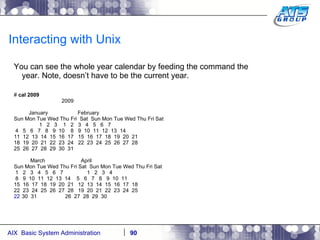
Interacting with Unix You can see the whole year calendar by feeding the command the year. Note, doesn’t have to be the current year. #  cal 2009 2009 January  February Sun Mon Tue Wed Thu Fri  Sat  Sun Mon Tue Wed Thu Fri Sat 1  2  3  1  2  3  4  5  6  7 4  5  6  7  8  9  10  8  9  10  11  12  13  14 11  12  13  14  15  16  17  15  16  17  18  19  20  21 18  19  20  21  22  23  24  22  23  24  25  26  27  28 25  26  27  28  29  30  31 March  April Sun Mon Tue Wed Thu Fri Sat  Sun Mon Tue Wed Thu Fri Sat 1  2  3  4  5  6  7  1  2  3  4 8  9  10  11  12  13  14  5  6  7  8  9  10  11 15  16  17  18  19  20  21  12  13  14  15  16  17  18 22  23  24  25  26  27  28  19  20  21  22  23  24  25 30  31  26  27  28  29  30
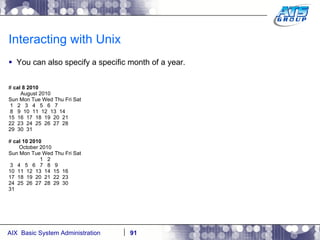
Interacting with Unix You can also specify a specific month of a year. #  cal 8 2010 August 2010 Sun Mon Tue Wed Thu Fri Sat 1  2  3  4  5  6  7 8  9  10  11  12  13  14 15  16  17  18  19  20  21 22  23  24  25  26  27  28 29  30  31 #  cal 10 2010 October 2010 Sun Mon Tue Wed Thu Fri Sat 1  2 3  4  5  6  7  8  9 10  11  12  13  14  15  16 17  18  19  20  21  22  23 24  25  26  27  28  29  30 31
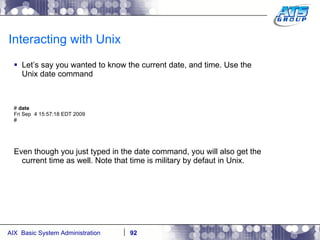
Interacting with Unix Let’s say you wanted to know the current date, and time. Use the Unix date command #  date Fri Sep  4 15:57:18 EDT 2009 # Even though you just typed in the date command, you will also get the current time as well. Note that time is military by defaut in Unix.
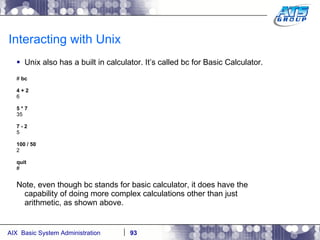
Interacting with Unix Unix also has a built in calculator. It’s called bc for Basic Calculator. #  bc 4 + 2 6 5 * 7 35 7 - 2 5 100 / 50 2 quit # Note, even though bc stands for basic calculator, it does have the capability of doing more complex calculations other than just arithmetic, as shown above.
Interacting with Unix Unix comes with a text editor called vi. This stands for VIsual editor. You can use this editor to create new text files, or edit existing ones.  Note: There are other text editors which are available in Unix such as ed, emacs, etc. However, vi is more widely used. #  vi /file ~ ~ ~ ~ ~ ~ ~ ~ ~ ~ “ /file” [New file] 1. Once in the editor type in a to enter input mode. 2. Start entering text, ex – “This is the best Unix class I have ever been to. <ENTER> <ENTER> I would recommend it to anyone.” 3. Now hit the Escape key to get out of input mode, and to enter command mode. 4. Type in the colon, and type in wq – ( w = write(save) q = quit vi ).
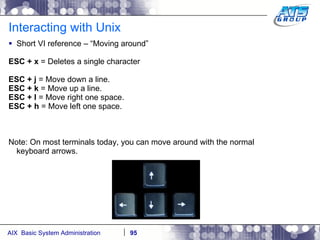
Interacting with Unix Short VI reference – “Moving around” ESC + x  = Deletes a single character ESC + j  = Move down a line. ESC + k  = Move up a line. ESC + l  = Move right one space. ESC + h  = Move left one space. Note: On most terminals today, you can move around with the normal keyboard arrows.
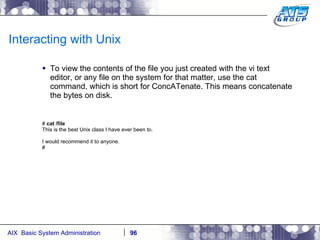
Interacting with Unix To view the contents of the file you just created with the vi text editor, or any file on the system for that matter, use the cat command, which is short for ConcATenate. This means concatenate the bytes on disk. #  cat /file This is the best Unix class I have ever been to. I would recommend it to anyone. #
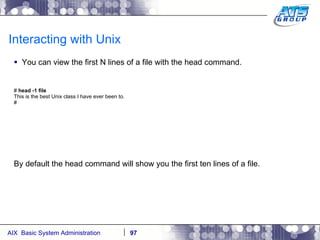
Interacting with Unix You can view the first N lines of a file with the head command. #  head -1 file This is the best Unix class I have ever been to. # By default the head command will show you the first ten lines of a file.
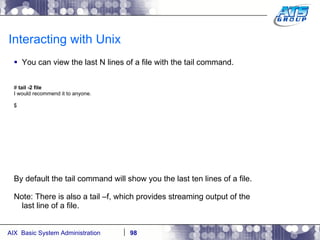
Interacting with Unix You can view the last N lines of a file with the tail command. #  tail -2 file I would recommend it to anyone. $ By default the tail command will show you the last ten lines of a file. Note: There is also a tail –f, which provides streaming output of the last line of a file.
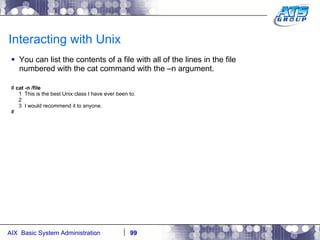
Interacting with Unix You can list the contents of a file with all of the lines in the file numbered with the cat command with the –n argument. #  cat -n /file 1  This is the best Unix class I have ever been to. 2 3  I would recommend it to anyone. #
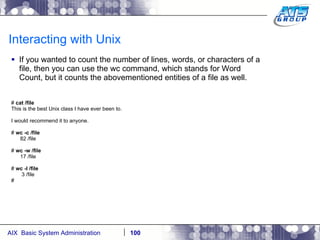
Interacting with Unix If you wanted to count the number of lines, words, or characters of a file, then you can use the wc command, which stands for Word Count, but it counts the abovementioned entities of a file as well. #  cat /file This is the best Unix class I have ever been to. I would recommend it to anyone. #  wc -c /file 82 /file #  wc -w /file 17 /file #  wc -l /file 3 /file #
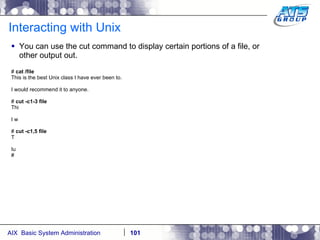
Interacting with Unix You can use the cut command to display certain portions of a file, or other output out. #  cat /file This is the best Unix class I have ever been to. I would recommend it to anyone. #  cut -c1-3 file Thi I w #  cut -c1,5 file T Iu #
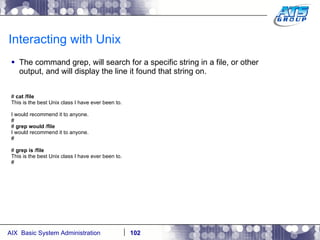
Interacting with Unix The command grep, will search for a specific string in a file, or other output, and will display the line it found that string on. #  cat /file This is the best Unix class I have ever been to. I would recommend it to anyone. # #  grep would /file I would recommend it to anyone. # #  grep is /file This is the best Unix class I have ever been to. #
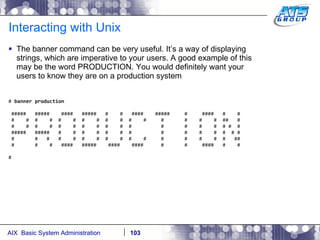
Interacting with Unix The banner command can be very useful. It’s a way of displaying strings, which are imperative to your users. A good example of this may be the word PRODUCTION. You would definitely want your users to know they are on a production system #  banner production #####  #####  ####  #####  #  #  ####  #####  #  ####  #  # #  #  #  #  #  #  #  #  #  #  #  #  #  #  #  #  ##  # #  #  #  #  #  #  #  #  #  #  #  #  #  #  #  # #  # #####  #####  #  #  #  #  #  #  #  #  #  #  #  #  # # #  #  #  #  #  #  #  #  #  #  #  #  #  #  #  #  ## #  #  #  ####  #####  ####  ####  #  #  ####  #  # #
Interacting with Unix Unix has online help available. This is the equivalent of pressing <F1> on a Windows system. The command is man, which is short for MANual, as in manual pages. #  man id Commands Reference, Volume 3, i - m id Command Purpose Displays the system identifications of a specified user. Syntax id [user] id -G  [-n ] [User] id -g  [-n l | [ -n r ] [User] id -u  [-n l | [ -n r ] [User] Description The id command writes to standard output a message containing the system identifications (ID) for a specified user. The system IDs are numbers which identify users and user groups to the system. The id command writes the following information, when applicable: *  User name and real user ID …
Interacting with Unix There is a special symbol called a pipe. The symbol is |, the vertical bar. It’s located right above the <ENTER> key, on the standard American computer keyboard. #  date Fri Sep  4 20:34:11 EDT 2009 #  cut Usage: cut {-b <list> [-n] | -c <list> | -f <list> [-d <char>] [-s]} file ... # Note, the Unix cut command doesn’t do much without this pipe symbol, or feeding a file to it. Let’s say you wanted only to display the first three characters of the date command output. You would have to use the cut command to accomplish this. Let’s say you wanted to accomplish this with one command. What you can do is execute the date command, then tie it to the cut command with a Unix pipe.  #  date Fri Sep  4 20:36:48 EDT 2009 #  date | cut -c1-3 Fri #
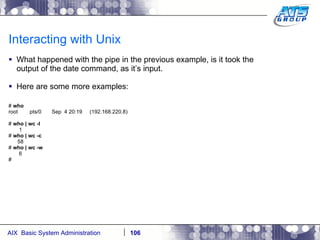
Interacting with Unix What happened with the pipe in the previous example, is it took the output of the date command, as it’s input.  Here are some more examples: #  who root  pts/0  Sep  4 20:19  (192.168.220.8) #  who | wc -l 1 #  who | wc -c 58 #  who | wc -w 6 #
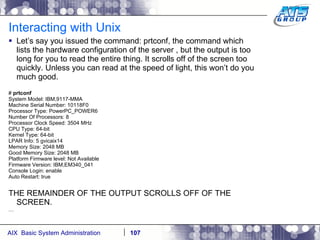
Interacting with Unix Let’s say you issued the command: prtconf, the command which lists the hardware configuration of the server , but the output is too long for you to read the entire thing. It scrolls off of the screen too quickly. Unless you can read at the speed of light, this won’t do you much good.  #  prtconf System Model: IBM,9117-MMA Machine Serial Number: 10118F0 Processor Type: PowerPC_POWER6 Number Of Processors: 8 Processor Clock Speed: 3504 MHz CPU Type: 64-bit Kernel Type: 64-bit LPAR Info: 5 gvicaix14 Memory Size: 2048 MB Good Memory Size: 2048 MB Platform Firmware level: Not Available Firmware Version: IBM,EM340_041 Console Login: enable Auto Restart: true THE REMAINDER OF THE OUTPUT SCROLLS OFF OF THE SCREEN. …
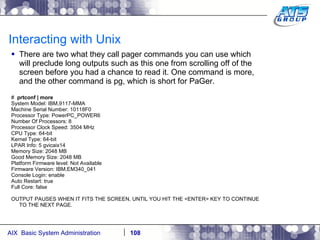
Interacting with Unix There are two what they call pager commands you can use which will preclude long outputs such as this one from scrolling off of the screen before you had a chance to read it. One command is more, and the other command is pg, which is short for PaGer. #  prtconf | more System Model: IBM,9117-MMA Machine Serial Number: 10118F0 Processor Type: PowerPC_POWER6 Number Of Processors: 8 Processor Clock Speed: 3504 MHz CPU Type: 64-bit Kernel Type: 64-bit LPAR Info: 5 gvicaix14 Memory Size: 2048 MB Good Memory Size: 2048 MB Platform Firmware level: Not Available Firmware Version: IBM,EM340_041 Console Login: enable Auto Restart: true Full Core: false OUTPUT PAUSES WHEN IT FITS THE SCREEN, UNTIL YOU HIT THE <ENTER> KEY TO CONTINUE TO THE NEXT PAGE.
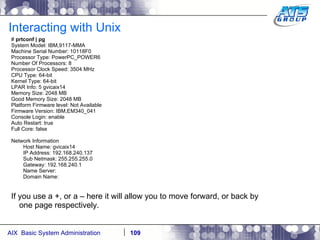
Interacting with Unix #  prtconf | pg System Model: IBM,9117-MMA Machine Serial Number: 10118F0 Processor Type: PowerPC_POWER6 Number Of Processors: 8 Processor Clock Speed: 3504 MHz CPU Type: 64-bit Kernel Type: 64-bit LPAR Info: 5 gvicaix14 Memory Size: 2048 MB Good Memory Size: 2048 MB Platform Firmware level: Not Available Firmware Version: IBM,EM340_041 Console Login: enable Auto Restart: true Full Core: false Network Information Host Name: gvicaix14 IP Address: 192.168.240.137 Sub Netmask: 255.255.255.0 Gateway: 192.168.240.1 Name Server: Domain Name: If you use a +, or a – here it will allow you to move forward, or back by one page respectively.
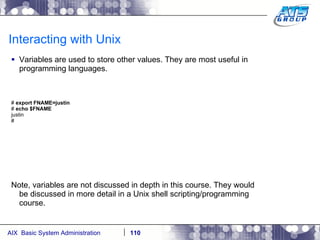
Interacting with Unix Variables are used to store other values. They are most useful in programming languages. #  export FNAME=justin #  echo $FNAME justin # Note, variables are not discussed in depth in this course. They would be discussed in more detail in a Unix shell scripting/programming course.
Interacting with Unix There are some pre-defined variables which come set with the shell. These are sometimes referred to as system variables. #  set AUTHSTATE=compat EDITOR=/usr/bin/vi ERRNO=0 FCEDIT=/usr/bin/ed FNAME=justin HOME=/ IFS=' ' LANG=C LC__FASTMSG=true LINENO=1 LOCPATH=/usr/lib/nls/loc LOGIN=root LOGNAME=root MAIL=/usr/spool/mail/root MAILCHECK=600 MAILMSG='[YOU HAVE NEW MAIL]' NLSPATH=/usr/lib/nls/msg/%L/%N:/usr/lib/nls/msg/%L/%N.cat ODMDIR=/etc/objrepos OPTIND=1 PATH=/usr/bin:/etc:/usr/sbin:/usr/ucb:/usr/bin/X11:/sbin:/usr/java14/jre/bin:/us r/java14/bin PPID=307422 PS1='# ' PS2='> ' PS3='#? '
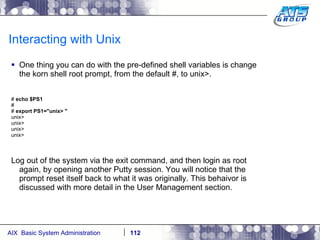
Interacting with Unix One thing you can do with the pre-defined shell variables is change the korn shell root prompt, from the default #, to unix>. #  echo $PS1 # #  export PS1=&quot;unix> &quot; unix> unix> unix> unix> Log out of the system via the exit command, and then login as root again, by opening another Putty session. You will notice that the prompt reset itself back to what it was originally. This behaivor is discussed with more detail in the User Management section.
Navigating around the system
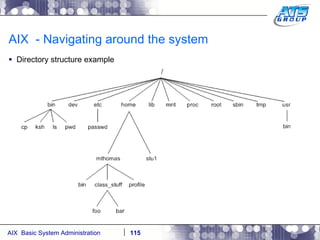
AIX – Navigating around the system UNIX/AIX has a filing system which it uses to organize the data which is stored on the system’s HDD. This organized system is known as a file tree hierarchy. Files are used to store data/information. Files can either have human readable text in them, like an email message, or it can have machine readable binary code, like a compiled program/executable. Files are kept in directories. Directories are a way of organizing files. Think of directories as filing cabinets, for your files. Directories are equivalent to folders in the Windows world. Directories can contain directories as well as files. The directories which reside in another directory is called the sub-directory. Files are a collection of bytes logically grouped together and stored in an object – a file.
AIX  - Navigating around the system Directory structure example
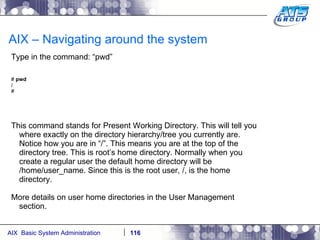
AIX – Navigating around the system Type in the command: “pwd” #  pwd / # This command stands for Present Working Directory. This will tell you where exactly on the directory hierarchy/tree you currently are. Notice how you are in “/”. This means you are at the top of the directory tree. This is root’s home directory. Normally when you create a regular user the default home directory will be /home/user_name. Since this is the root user, /, is the home directory. More details on user home directories in the User Management section.
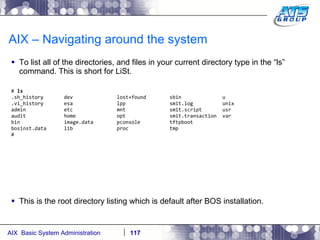
AIX – Navigating around the system To list all of the directories, and files in your current directory type in the “ls” command. This is short for LiSt. #  ls  .sh_history  dev  lost+found  sbin  u .vi_history  esa  lpp  smit.log  unix admin  etc  mnt  smit.script  usr audit  home  opt  smit.transaction  var bin  image.data  pconsole  tftpboot bosinst.data  lib  proc  tmp # This is the root directory listing which is default after BOS installation.
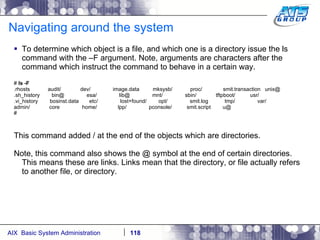
Navigating around the system To determine which object is a file, and which one is a directory issue the ls command with the –F argument. Note, arguments are characters after the command which instruct the command to behave in a certain way. #  ls -F .rhosts  audit/  dev/  image.data  mksysb/  proc/  smit.transaction  unix@ .sh_history  bin@  esa/  lib@  mnt/  sbin/  tftpboot/  usr/ .vi_history  bosinst.data  etc/  lost+found/  opt/  smit.log  tmp/  var/ admin/  core  home/  lpp/  pconsole/  smit.script  u@ # This command added / at the end of the objects which are directories.  Note, this command also shows the @ symbol at the end of certain directories. This means these are links. Links mean that the directory, or file actually refers to another file, or directory.
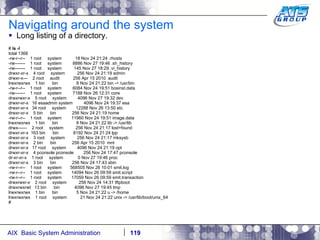
Navigating around the system Long listing of a directory. #  ls -l total 1368 -rw-r--r--  1 root  system  18 Nov 24 21:24 .rhosts -rw-------  1 root  system  8886 Nov 27 19:46 .sh_history -rw-------  1 root  system  145 Nov 27 18:29 .vi_history drwxr-xr-x  4 root  system  256 Nov 24 21:19 admin drwxr-x---  2 root  audit  256 Apr 15 2010  audit lrwxrwxrwx  1 bin  bin  8 Nov 24 21:22 bin -> /usr/bin -rw-r--r--  1 root  system  6084 Nov 24 19:51 bosinst.data -rw-------  1 root  system  7188 Nov 26 12:31 core drwxrwxr-x  5 root  system  4096 Nov 27 19:32 dev drwxr-xr-x  16 esaadmin system  4096 Nov 24 19:37 esa drwxr-xr-x  34 root  system  12288 Nov 26 13:50 etc drwxr-xr-x  5 bin  bin  256 Nov 24 21:19 home -rw-r--r--  1 root  system  11960 Nov 24 19:51 image.data lrwxrwxrwx  1 bin  bin  8 Nov 24 21:22 lib -> /usr/lib drwx------  2 root  system  256 Nov 24 21:17 lost+found drwxr-xr-x  163 bin  bin  8192 Nov 24 21:24 lpp drwxr-xr-x  3 root  system  256 Nov 24 21:17 mksysb drwxr-xr-x  2 bin  bin  256 Apr 15 2010  mnt drwxr-xr-x  17 root  system  4096 Nov 24 21:19 opt drwxr-xr-x  4 pconsole pconsole  256 Nov 24 17:47 pconsole dr-xr-xr-x  1 root  system  0 Nov 27 19:46 proc drwxr-xr-x  3 bin  bin  256 Nov 24 17:43 sbin -rw-r--r--  1 root  system  568505 Nov 26 10:01 smit.log -rw-r--r--  1 root  system  14094 Nov 26 09:59 smit.script -rw-r--r--  1 root  system  17059 Nov 26 09:59 smit.transaction drwxrwxr-x  2 root  system  256 Nov 24 14:31 tftpboot drwxrwxrwt  13 bin  bin  4096 Nov 27 19:45 tmp lrwxrwxrwx  1 bin  bin  5 Nov 24 21:22 u -> /home lrwxrwxrwx  1 root  system  21 Nov 24 21:22 unix -> /usr/lib/boot/unix_64 #
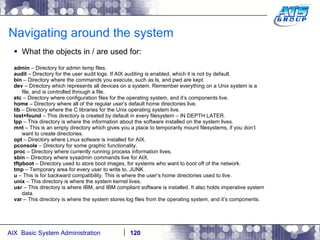
Navigating around the system What the objects in / are used for: admin  – Directory for admin temp files. audit  – Directory for the user audit logs. If AIX auditing is enabled, which it is not by default. bin  – Directory where the commands you execute, such as ls, and pwd are kept. dev  – Directory which represents all devices on a system. Remember everything on a Unix system is a file, and is controlled through a file. etc  – Directory where configuration files for the operating system, and it’s components live. home  – Directory where all of the regular user’s default home directories live. lib  – Directory where the C libraries for the Unix operating system live. lost+found  – This directory is created by default in every filesystem – IN DEPTH LATER. lpp  – This directory is where the information about the software installed on the system lives. mnt  – This is an empty directory which gives you a place to temporarily mount filesystems, if you don’t want to create directories. opt  – Directory where Linux sofware is installed for AIX. pconsole  – Directory for some graphic functionality. proc  – Directory where currently running process information lives. sbin  – Directory where sysadmin commands live for AIX. tftpboot  – Directory used to store boot images, for systems who want to boot off of the network. tmp  – Temporary area for every user to write to. JUNK. u  – This is for backward compatibility. This is where the user’s home directories used to live. unix  – This directory is where the system kernel lives. usr  – This directory is where IBM, and IBM compliant software is installed. It also holds imperative system data. var  – This directory is where the system stores log files from the operating system, and it’s components.
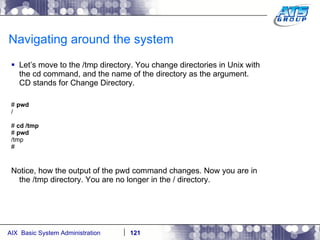
Navigating around the system Let’s move to the /tmp directory. You change directories in Unix with the cd command, and the name of the directory as the argument. CD stands for Change Directory. #  pwd / #  cd /tmp #  pwd /tmp # Notice, how the output of the pwd command changes. Now you are in the /tmp directory. You are no longer in the / directory.
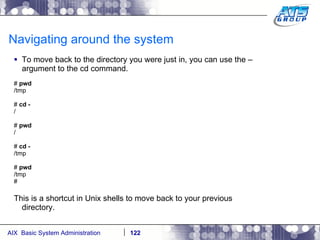
Navigating around the system To move back to the directory you were just in, you can use the – argument to the cd command. #  pwd /tmp #  cd - / #  pwd / #  cd - /tmp #  pwd /tmp # This is a shortcut in Unix shells to move back to your previous directory.
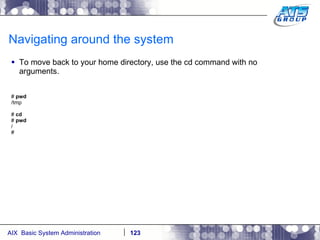
Navigating around the system To move back to your home directory, use the cd command with no arguments. #  pwd /tmp #  cd #  pwd / #
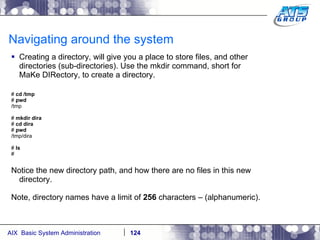
Navigating around the system Creating a directory, will give you a place to store files, and other directories (sub-directories). Use the mkdir command, short for MaKe DIRectory, to create a directory. #  cd /tmp #  pwd /tmp #  mkdir dira #  cd dira #  pwd /tmp/dira #  ls # Notice the new directory path, and how there are no files in this new directory. Note, directory names have a limit of  256  characters – (alphanumeric).
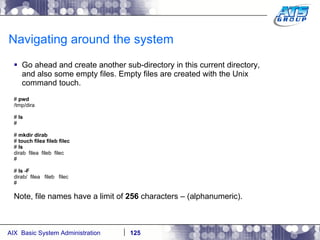
Navigating around the system Go ahead and create another sub-directory in this current directory, and also some empty files. Empty files are created with the Unix command touch. #  pwd /tmp/dira #  ls # #  mkdir dirab #  touch filea fileb filec #  ls dirab  filea  fileb  filec # #  ls -F dirab/  filea  fileb  filec # Note, file names have a limit of  256  characters – (alphanumeric).
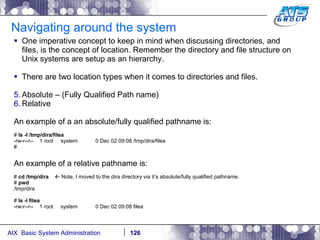
Navigating around the system One imperative concept to keep in mind when discussing directories, and files, is the concept of location. Remember the directory and file structure on Unix systems are setup as an hierarchy. There are two location types when it comes to directories and files.  Absolute – (Fully Qualified Path name) Relative An example of a an absolute/fully qualified pathname is: #  ls -l /tmp/dira/filea -rw-r--r--  1 root  system  0 Dec 02 09:08 /tmp/dira/filea # An example of a relative pathname is: #  cd /tmp/dira    Note, I moved to the dira directory via it’s absolute/fully qualified pathname. #  pwd /tmp/dira #  ls -l filea -rw-r--r--  1 root  system  0 Dec 02 09:08 filea
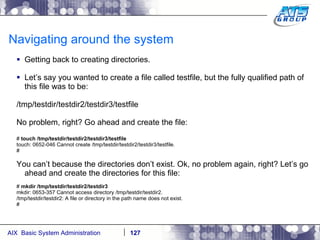
Navigating around the system Getting back to creating directories. Let’s say you wanted to create a file called testfile, but the fully qualified path of this file was to be: /tmp/testdir/testdir2/testdir3/testfile No problem, right? Go ahead and create the file: #  touch /tmp/testdir/testdir2/testdir3/testfile touch: 0652-046 Cannot create /tmp/testdir/testdir2/testdir3/testfile. # You can’t because the directories don’t exist. Ok, no problem again, right? Let’s go ahead and create the directories for this file: #  mkdir /tmp/testdir/testdir2/testdir3 mkdir: 0653-357 Cannot access directory /tmp/testdir/testdir2. /tmp/testdir/testdir2: A file or directory in the path name does not exist. #
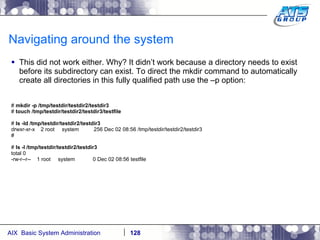
Navigating around the system This did not work either. Why? It didn’t work because a directory needs to exist before its subdirectory can exist. To direct the mkdir command to automatically create all directories in this fully qualified path use the –p option: #  mkdir -p /tmp/testdir/testdir2/testdir3 #  touch /tmp/testdir/testdir2/testdir3/testfile #  ls -ld /tmp/testdir/testdir2/testdir3 drwxr-xr-x  2 root  system  256 Dec 02 08:56 /tmp/testdir/testdir2/testdir3 # #  ls -l /tmp/testdir/testdir2/testdir3 total 0 -rw-r--r--  1 root  system  0 Dec 02 08:56 testfile
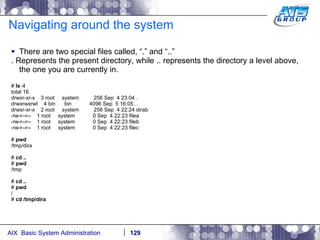
Navigating around the system There are two special files called, “.” and “..” . Represents the present directory, while .. represents the directory a level above, the one you are currently in. #  ls -l total 16 drwxr-xr-x  3 root  system  256 Sep  4 23:04 . drwxrwxrwt  4 bin  bin  4096 Sep  5 16:05 .. drwxr-xr-x  2 root  system  256 Sep  4 22:24 dirab -rw-r--r--  1 root  system  0 Sep  4 22:23 filea -rw-r--r--  1 root  system  0 Sep  4 22:23 fileb -rw-r--r--  1 root  system  0 Sep  4 22:23 filec #  pwd /tmp/dira #  cd .. #  pwd /tmp #  cd .. #  pwd / #  cd /tmp/dira
Navigating around the system You can use wildcards as a way to display files on a Unix system. Wilds cards are a way to list files when you don’t really know the full name of them, and only know a portion of their names. The wildcard characters we use in Unix are: *, ?, and […]. #  ls dirab  filea  fileb  filec #  ls f* filea  fileb  filec #  ls file[a-b] filea  fileb #  ls f????a f????a not found #  ls f??e? filea  fileb  filec #
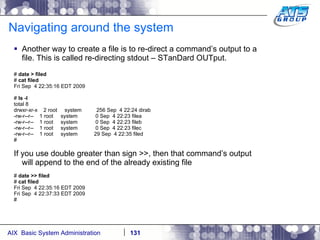
Navigating around the system Another way to create a file is to re-direct a command’s output to a file. This is called re-directing stdout – STanDard OUTput. #  date > filed #  cat filed Fri Sep  4 22:35:16 EDT 2009 #  ls -l total 8 drwxr-xr-x  2 root  system  256 Sep  4 22:24 dirab -rw-r--r--  1 root  system  0 Sep  4 22:23 filea -rw-r--r--  1 root  system  0 Sep  4 22:23 fileb -rw-r--r--  1 root  system  0 Sep  4 22:23 filec -rw-r--r--  1 root  system  29 Sep  4 22:35 filed # If you use double greater than sign >>, then that command’s output will append to the end of the already existing file #  date >> filed #  cat filed Fri Sep  4 22:35:16 EDT 2009 Fri Sep  4 22:37:33 EDT 2009 #
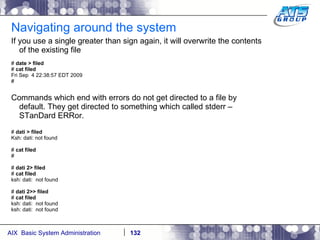
Navigating around the system If you use a single greater than sign again, it will overwrite the contents of the existing file #  date > filed #  cat filed Fri Sep  4 22:38:57 EDT 2009 # Commands which end with errors do not get directed to a file by default. They get directed to something which called stderr – STanDard ERRor. #  dati > filed Ksh: dati: not found #  cat filed # #  dati 2> filed #  cat filed ksh: dati:  not found #  dati 2>> filed #  cat filed ksh: dati:  not found ksh: dati:  not found
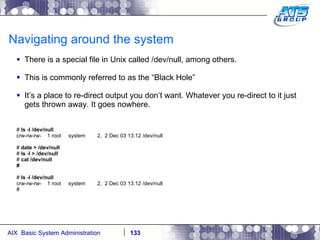
Navigating around the system There is a special file in Unix called /dev/null, among others. This is commonly referred to as the “Black Hole” It’s a place to re-direct output you don’t want. Whatever you re-direct to it just gets thrown away. It goes nowhere. #  ls -l /dev/null crw-rw-rw-  1 root  system  2,  2 Dec 03 13:12 /dev/null #  date > /dev/null #  ls -l > /dev/null #  cat /dev/null # #  ls -l /dev/null crw-rw-rw-  1 root  system  2,  2 Dec 03 13:12 /dev/null #
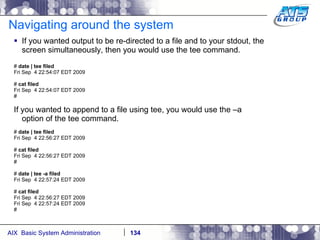
Navigating around the system If you wanted output to be re-directed to a file and to your stdout, the screen simultaneously, then you would use the tee command. #  date | tee filed Fri Sep  4 22:54:07 EDT 2009 #  cat filed Fri Sep  4 22:54:07 EDT 2009 # If you wanted to append to a file using tee, you would use the –a option of the tee command. #  date | tee filed Fri Sep  4 22:56:27 EDT 2009 #  cat filed Fri Sep  4 22:56:27 EDT 2009 # #  date | tee -a filed Fri Sep  4 22:57:24 EDT 2009 #  cat filed Fri Sep  4 22:56:27 EDT 2009 Fri Sep  4 22:57:24 EDT 2009 #
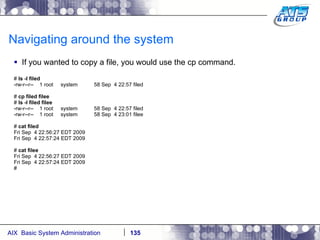
Navigating around the system If you wanted to copy a file, you would use the cp command. #  ls -l filed -rw-r--r--  1 root  system  58 Sep  4 22:57 filed #  cp filed filee #  ls -l filed filee -rw-r--r--  1 root  system  58 Sep  4 22:57 filed -rw-r--r--  1 root  system  58 Sep  4 23:01 filee #  cat filed Fri Sep  4 22:56:27 EDT 2009 Fri Sep  4 22:57:24 EDT 2009 #  cat filee Fri Sep  4 22:56:27 EDT 2009 Fri Sep  4 22:57:24 EDT 2009 #
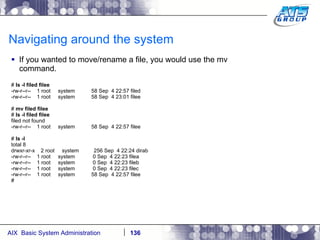
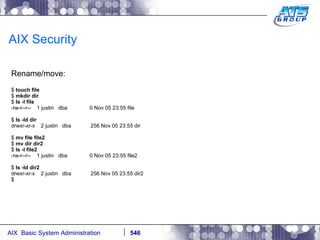
Navigating around the system If you wanted to move/rename a file, you would use the mv command. #  ls -l filed filee -rw-r--r--  1 root  system  58 Sep  4 22:57 filed -rw-r--r--  1 root  system  58 Sep  4 23:01 filee #  mv filed filee #  ls -l filed filee filed not found -rw-r--r--  1 root  system  58 Sep  4 22:57 filee #  ls -l total 8 drwxr-xr-x  2 root  system  256 Sep  4 22:24 dirab -rw-r--r--  1 root  system  0 Sep  4 22:23 filea -rw-r--r--  1 root  system  0 Sep  4 22:23 fileb -rw-r--r--  1 root  system  0 Sep  4 22:23 filec -rw-r--r--  1 root  system  58 Sep  4 22:57 filee #
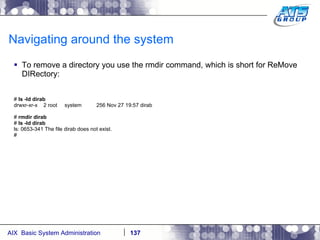
Navigating around the system To remove a directory you use the rmdir command, which is short for ReMove DIRectory: #  ls -ld dirab drwxr-xr-x  2 root  system  256 Nov 27 19:57 dirab #  rmdir dirab #  ls -ld dirab ls: 0653-341 The file dirab does not exist. #
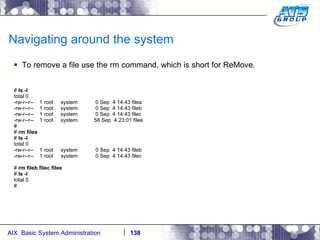
Navigating around the system To remove a file use the rm command, which is short for ReMove. #  ls -l total 0 -rw-r--r--  1 root  system  0 Sep  4 14:43 filea -rw-r--r--  1 root  system  0 Sep  4 14:43 fileb -rw-r--r--  1 root  system  0 Sep  4 14:43 filec -rw-r--r--  1 root  system  58 Sep  4 23:01 filee # #  rm filea #  ls -l total 0 -rw-r--r--  1 root  system  0 Sep  4 14:43 fileb -rw-r--r--  1 root  system  0 Sep  4 14:43 filec #  rm fileb filec filee #  ls -l total 0 #
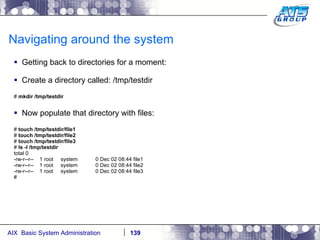
Navigating around the system Getting back to directories for a moment: Create a directory called: /tmp/testdir #  mkdir /tmp/testdir Now populate that directory with files: #  touch /tmp/testdir/file1 #  touch /tmp/testdir/file2 #  touch /tmp/testdir/file3 #  ls -l /tmp/testdir total 0 -rw-r--r--  1 root  system  0 Dec 02 08:44 file1 -rw-r--r--  1 root  system  0 Dec 02 08:44 file2 -rw-r--r--  1 root  system  0 Dec 02 08:44 file3 #
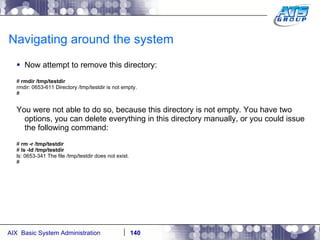
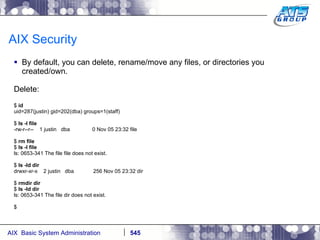
Navigating around the system Now attempt to remove this directory: #  rmdir /tmp/testdir rmdir: 0653-611 Directory /tmp/testdir is not empty. # You were not able to do so, because this directory is not empty. You have two options, you can delete everything in this directory manually, or you could issue the following command: #  rm -r /tmp/testdir #  ls -ld /tmp/testdir ls: 0653-341 The file /tmp/testdir does not exist. #
SMIT – System Management Interface Tool
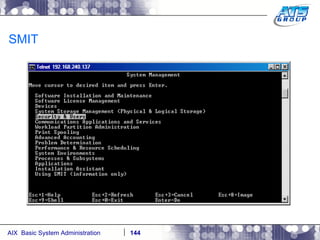
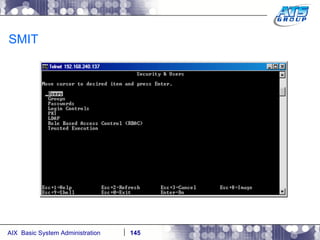
SMIT AIX has the most extensive unix systems management tool – smit SMIT  Systems Management Interface Tool Invoke using the command  smit  or  smitty Logging under user home directory Root this is typically /smit.log Commands run are stored in user home directory Root this is typically /smit.script Used for auditing, building scripts SMIT covers about ~95% of system administration tasks. SMIT executes commands under the covers to accomplish it’s tasks. Configuration entered via SMIT menus are persistent across reboots. SMIT menus can be created, and tailored to any environment.
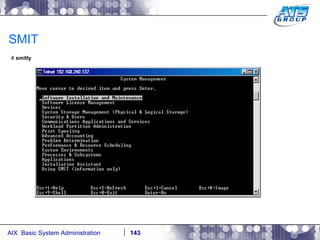
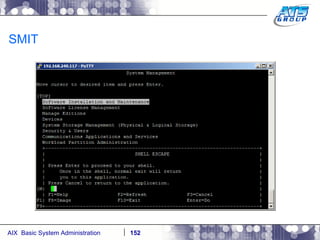
SMIT #  smitty
SMIT
SMIT
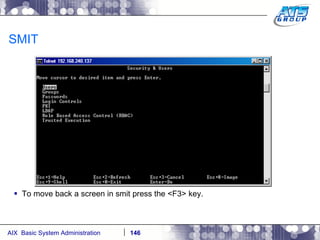
SMIT To move back a screen in smit press the <F3> key.
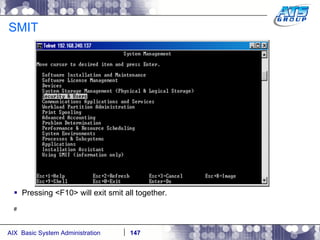
SMIT Pressing <F10> will exit smit all together. #
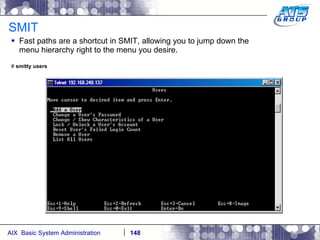
SMIT Fast paths are a shortcut in SMIT, allowing you to jump down the menu hierarchy right to the menu you desire.  #  smitty users
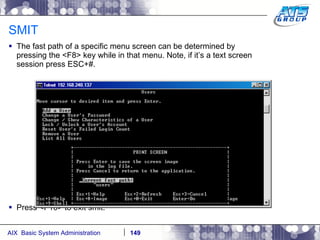
SMIT The fast path of a specific menu screen can be determined by pressing the <F8> key while in that menu. Note, if it’s a text screen session press ESC+#. Press <F10> to exit smit.
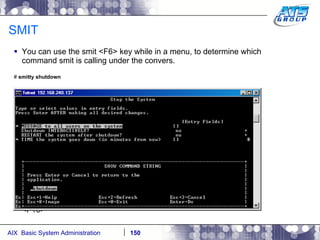
SMIT You can use the smit <F6> key while in a menu, to determine which command smit is calling under the convers. #  smitty shutdown <F10>
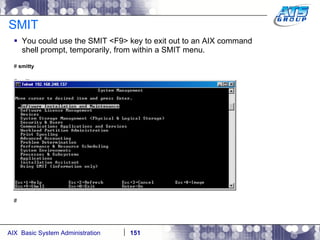
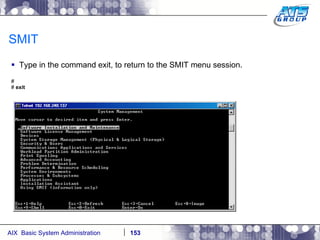
SMIT You could use the SMIT <F9> key to exit out to an AIX command shell prompt, temporarily, from within a SMIT menu. #  smitty  # smitty Press <F9> #
SMIT
SMIT Type in the command exit, to return to the SMIT menu session. # #  exit
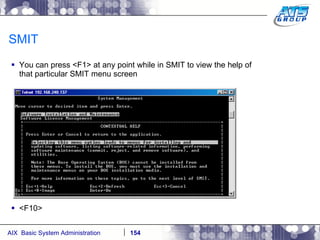
SMIT You can press <F1> at any point while in SMIT to view the help of that particular SMIT menu screen <F10>
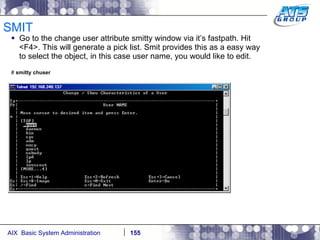
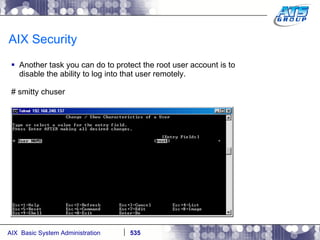
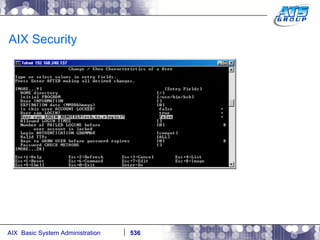
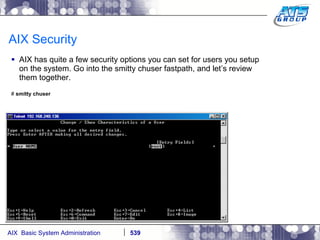
SMIT Go to the change user attribute smitty window via it’s fastpath. Hit <F4>. This will generate a pick list. Smit provides this as a easy way to select the object, in this case user name, you would like to edit. #  smitty chuser
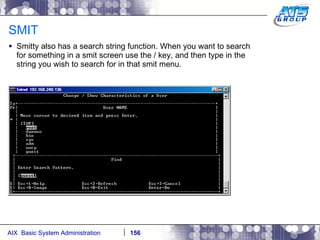
SMIT Smitty also has a search string function. When you want to search for something in a smit screen use the / key, and then type in the string you wish to search for in that smit menu.
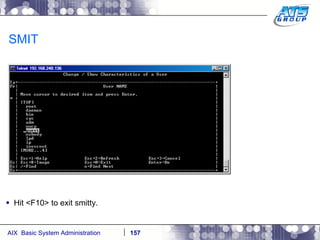
SMIT Hit <F10> to exit smitty.
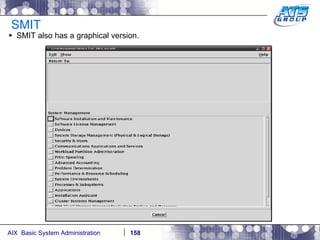
SMIT SMIT also has a graphical version.
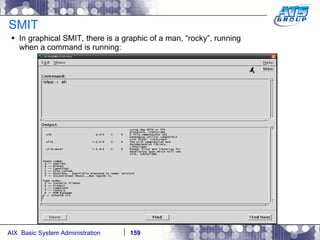
SMIT In graphical SMIT, there is a graphic of a man, “rocky”, running when a command is running:
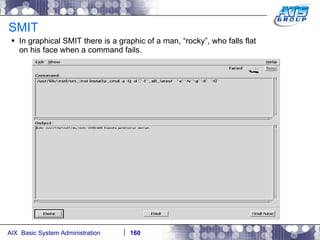
SMIT In graphical SMIT there is a graphic of a man, “rocky”, who falls flat on his face when a command fails.
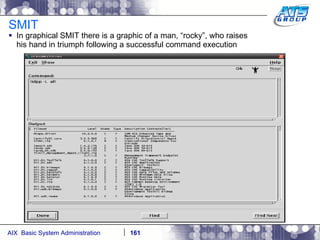
SMIT In graphical SMIT there is a graphic of a man, “rocky”, who raises his hand in triumph following a successful command execution
SMIT
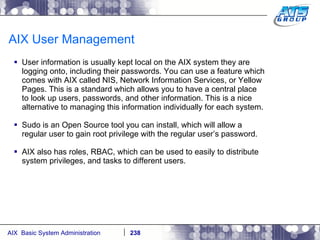
AIX User Management
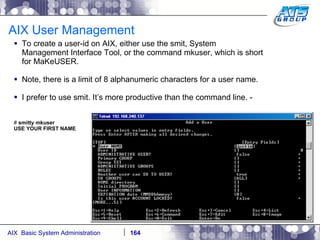
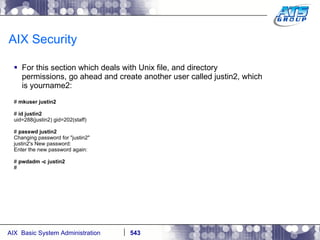
AIX User Management To create a user-id on AIX, either use the smit, System Management Interface Tool, or the command mkuser, which is short for MaKeUSER. Note, there is a limit of 8 alphanumeric characters for a user name. I prefer to use smit. It’s more productive than the command line. - #  smitty mkuser USE YOUR FIRST NAME
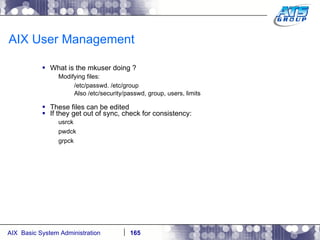
AIX User Management What is the mkuser doing ? Modifying files: /etc/passwd. /etc/group Also /etc/security/passwd, group, users, limits These files can be edited If they get out of sync, check for consistency: usrck pwdck grpck
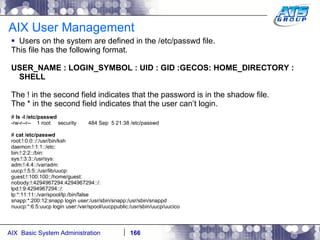
AIX User Management Users on the system are defined in the /etc/passwd file. This file has the following format. USER_NAME : LOGIN_SYMBOL : UID : GID :GECOS: HOME_DIRECTORY : SHELL The ! in the second field indicates that the password is in the shadow file. The * in the second field indicates that the user can’t login. #  ls -l /etc/passwd -rw-r--r--  1 root  security  484 Sep  5 21:38 /etc/passwd #  cat /etc/passwd root:!:0:0::/:/usr/bin/ksh daemon:!:1:1::/etc: bin:!:2:2::/bin: sys:!:3:3::/usr/sys: adm:!:4:4::/var/adm: uucp:!:5:5::/usr/lib/uucp: guest:!:100:100::/home/guest: nobody:!:4294967294:4294967294::/: lpd:!:9:4294967294::/: lp:*:11:11::/var/spool/lp:/bin/false snapp:*:200:12:snapp login user:/usr/sbin/snapp:/usr/sbin/snappd nuucp:*:6:5:uucp login user:/var/spool/uucppublic:/usr/sbin/uucp/uucico
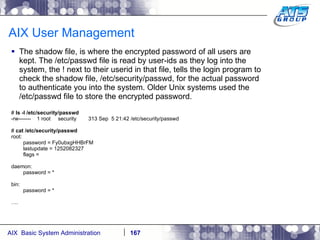
AIX User Management The shadow file, is where the encrypted password of all users are kept. The /etc/passwd file is read by user-ids as they log into the system, the ! next to their userid in that file, tells the login program to check the shadow file, /etc/security/passwd, for the actual password to authenticate you into the system. Older Unix systems used the /etc/passwd file to store the encrypted password.  #  ls -l /etc/security/passwd -rw-------  1 root  security  313 Sep  5 21:42 /etc/security/passwd #  cat /etc/security/passwd root: password = Fy0ubxgHHBrFM lastupdate = 1252082327 flags = daemon: password = * bin: password = * … .
AIX User Management The /etc/group file contains the user/group memberships of all users defined to the system. Note the second field, ! , is not valid anymore. #  ls -l /etc/group -rw-r--r--  1 root  security  327 Sep  5 21:37 /etc/group #  cat /etc/group system:!:0:root,pconsole staff:!:1:justin bin:!:2:root,bin sys:!:3:root,bin,sys adm:!:4:bin,adm uucp:!:5:uucp,nuucp mail:!:6: security:!:7:root cron:!:8:root printq:!:9:lp audit:!:10:root ecs:!:28: nobody:!:4294967294:nobody,lpd usr:!:100:guest perf:!:20: shutdown:!:21: lp:!:11:root,lp snapp:!:12:snapp pconsole:!:13:pconsole
AIX User Management After the user is created you will see it via the id command, or listusers command. #  id justin uid=202(justin) gid=1(staff) #  listusers guest justin lp nobody pconsole snapp  snapp login user # After you create the user id, you as root will have to set that user id’s login password #  passwd justin Changing password for &quot;justin&quot; justin's New password: Re-enter justin's new password: # Note, there is a limit of 8 alphanumeric characters for a user’s password.
AIX User Management Now log off, by typing in exit, and then login again as user justin. #  exit Connection Closed. (Putty closes). Connect to the system again, and login as newly created user justin AIX Version 6 Copyright IBM Corporation, 1982, 2007. login:  justin justin's Password: [compat]: You are required to change your password. Please choose a new one. justin's New password: Re-enter justin's new password: *************************************************************************************** *  * *  * *  Welcome to AIX Version 6.1!  * *  * *  * *  Please see the README file in /usr/lpp/bos for information pertinent to  * *  this release of the AIX Operating System.  * *  * *  * *************************************************************************************** $
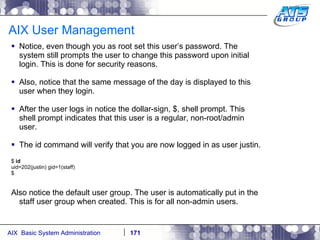
AIX User Management Notice, even though you as root set this user’s password. The system still prompts the user to change this password upon initial login. This is done for security reasons. Also, notice that the same message of the day is displayed to this user when they login. After the user logs in notice the dollar-sign, $, shell prompt. This shell prompt indicates that this user is a regular, non-root/admin user. The id command will verify that you are now logged in as user justin. $  id uid=202(justin) gid=1(staff) $ Also notice the default user group. The user is automatically put in the staff user group when created. This is for all non-admin users.
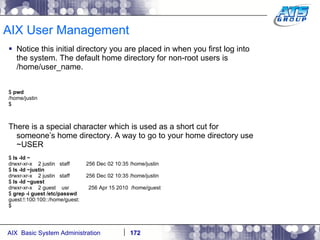
AIX User Management Notice this initial directory you are placed in when you first log into the system. The default home directory for non-root users is /home/user_name. $  pwd /home/justin $ There is a special character which is used as a short cut for someone’s home directory. A way to go to your home directory use ~USER $  ls -ld ~ drwxr-xr-x  2 justin  staff  256 Dec 02 10:35 /home/justin $  ls -ld ~justin drwxr-xr-x  2 justin  staff  256 Dec 02 10:35 /home/justin $  ls -ld ~guest drwxr-xr-x  2 guest  usr  256 Apr 15 2010  /home/guest $  grep -i guest /etc/passwd guest:!:100:100::/home/guest: $
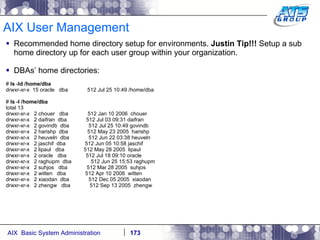
AIX User Management Recommended home directory setup for environments.  Justin Tip!!!  Setup a sub home directory up for each user group within your organization. DBAs’ home directories: #  ls -ld /home/dba drwxr-xr-x  15 oracle  dba  512 Jul 25 10:49 /home/dba #  ls -l /home/dba total 13 drwxr-xr-x  2 chouer  dba  512 Jan 10 2006  chouer drwxr-xr-x  2 daifran  dba  512 Jul 03 09:31 daifran drwxr-xr-x  2 govindb  dba  512 Jul 25 10:49 govindb drwxr-xr-x  2 harishp  dba  512 May 23 2005  harishp drwxr-xr-x  2 heuveln  dba  512 Jun 22 03:38 heuveln drwxr-xr-x  2 jaschif  dba  512 Jun 05 10:58 jaschif drwxr-xr-x  2 lipaul  dba  512 May 28 2005  lipaul drwxr-xr-x  2 oracle  dba  512 Jul 18 09:10 oracle drwxr-xr-x  2 raghupm  dba  512 Jun 25 15:53 raghupm drwxr-xr-x  2 suhjos  dba  512 Mar 28 2005  suhjos drwxr-xr-x  2 witten  dba  512 Apr 10 2006  witten drwxr-xr-x  2 xiaodan  dba  512 Dec 05 2005  xiaodan drwxr-xr-x  2 zhengw  dba  512 Sep 13 2005  zhengw
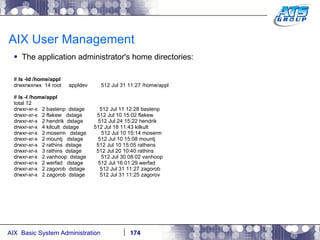
AIX User Management The application administrator's home directories: #  ls -ld /home/appl drwxrwxrwx  14 root  appldev  512 Jul 31 11:27 /home/appl #  ls -l /home/appl total 12 drwxr-xr-x  2 bastenp  dstage  512 Jul 11 12:28 bastenp drwxr-xr-x  2 flakew  dstage  512 Jul 10 15:02 flakew drwxr-xr-x  2 hendrik  dstage  512 Jul 24 15:22 hendrik drwxr-xr-x  4 kilcult  dstage  512 Jul 18 11:43 kilkult drwxr-xr-x  2 moserm  dstage  512 Jul 10 15:14 moserm drwxr-xr-x  2 mountj  dstage  512 Jul 10 15:08 mountj drwxr-xr-x  2 rathins  dstage  512 Jul 10 15:05 rathens drwxr-xr-x  3 rathins  dstage  512 Jul 20 10:40 rathins drwxr-xr-x  2 vanhoop  dstage  512 Jul 30 08:02 vanhoop drwxr-xr-x  2 werfad  dstage  512 Jul 16 01:29 werfad drwxr-xr-x  2 zagorob  dstage  512 Jul 31 11:27 zagorob drwxr-xr-x  2 zagorob  dstage  512 Jul 31 11:25 zagorov
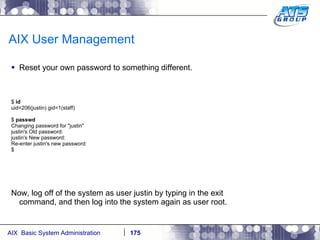
AIX User Management Reset your own password to something different. $  id uid=206(justin) gid=1(staff) $  passwd Changing password for &quot;justin&quot; justin's Old password: justin's New password: Re-enter justin's new password: $ Now, log off of the system as user justin by typing in the exit command, and then log into the system again as user root.
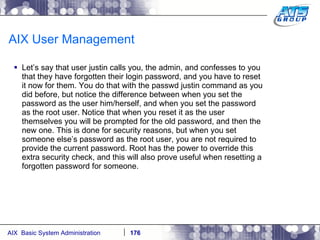
AIX User Management Let’s say that user justin calls you, the admin, and confesses to you that they have forgotten their login password, and you have to reset it now for them. You do that with the passwd justin command as you did before, but notice the difference between when you set the password as the user him/herself, and when you set the password as the root user. Notice that when you reset it as the user themselves you will be prompted for the old password, and then the new one. This is done for security reasons, but when you set someone else’s password as the root user, you are not required to provide the current password. Root has the power to override this extra security check, and this will also prove useful when resetting a forgotten password for someone.
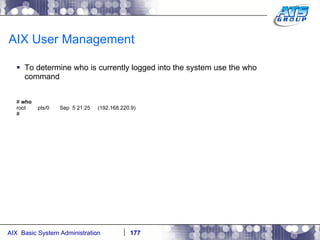
AIX User Management To determine who is currently logged into the system use the who command #  who root  pts/0  Sep  5 21:25  (192.168.220.9) #
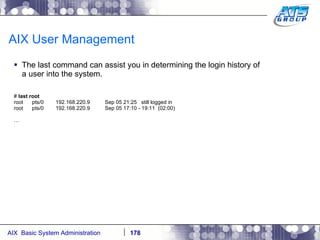
AIX User Management The last command can assist you in determining the login history of a user into the system. #  last root root  pts/0  192.168.220.9  Sep 05 21:25  still logged in root  pts/0  192.168.220.9  Sep 05 17:10 - 19:11  (02:00) …
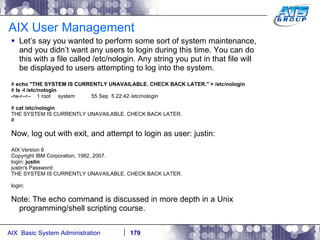
AIX User Management Let’s say you wanted to perform some sort of system maintenance, and you didn’t want any users to login during this time. You can do this with a file called /etc/nologin. Any string you put in that file will be displayed to users attempting to log into the system. #  echo &quot;THE SYSTEM IS CURRENTLY UNAVAILABLE. CHECK BACK LATER.&quot; > /etc/nologin #  ls -l /etc/nologin -rw-r--r--  1 root  system  55 Sep  5 22:42 /etc/nologin #  cat /etc/nologin THE SYSTEM IS CURRENTLY UNAVAILABLE. CHECK BACK LATER. # Now, log out with exit, and attempt to login as user: justin: AIX Version 6 Copyright IBM Corporation, 1982, 2007. login:  justin justin's Password: THE SYSTEM IS CURRENTLY UNAVAILABLE. CHECK BACK LATER. login: Note: The echo command is discussed in more depth in a Unix programming/shell scripting course.
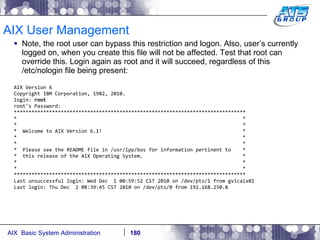
AIX User Management Note, the root user can bypass this restriction and logon. Also, user’s currently logged on, when you create this file will not be affected. Test that root can override this. Login again as root and it will succeed, regardless of this /etc/nologin file being present: AIX Version 6 Copyright IBM Corporation, 1982, 2010. login:  root root's Password: ******************************************************************************* *  * *  * *  Welcome to AIX Version 6.1!  * *  * *  * *  Please see the README file in /usr/lpp/bos for information pertinent to  * *  this release of the AIX Operating System.  * *  * *  * ******************************************************************************* Last unsuccessful login: Wed Dec  1 00:59:52 CST 2010 on /dev/pts/1 from gvicaix01 Last login: Thu Dec  2 08:39:45 CST 2010 on /dev/pts/0 from 192.168.250.8
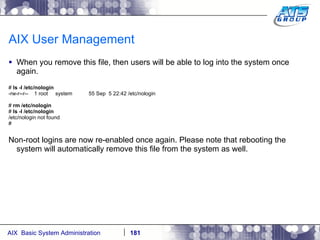
AIX User Management When you remove this file, then users will be able to log into the system once again. #  ls -l /etc/nologin -rw-r--r--  1 root  system  55 Sep  5 22:42 /etc/nologin #  rm /etc/nologin #  ls -l /etc/nologin /etc/nologin not found # Non-root logins are now re-enabled once again. Please note that rebooting the system will automatically remove this file from the system as well.
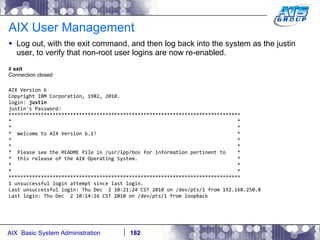
AIX User Management Log out, with the exit command, and then log back into the system as the justin user, to verify that non-root user logins are now re-enabled. #  exit Connection closed AIX Version 6 Copyright IBM Corporation, 1982, 2010. login:  justin justin's Password: ******************************************************************************* *  * *  * *  Welcome to AIX Version 6.1!  * *  * *  * *  Please see the README file in /usr/lpp/bos for information pertinent to  * *  this release of the AIX Operating System.  * *  * *  * ******************************************************************************* 1 unsuccessful login attempt since last login. Last unsuccessful login: Thu Dec  2 10:21:24 CST 2010 on /dev/pts/1 from 192.168.250.8 Last login: Thu Dec  2 10:14:16 CST 2010 on /dev/pts/1 from loopback
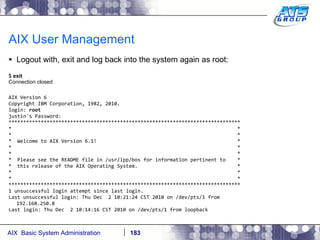
AIX User Management Logout with, exit and log back into the system again as root: $  exit Connection closed AIX Version 6 Copyright IBM Corporation, 1982, 2010. login:  root justin's Password: ******************************************************************************* *  * *  * *  Welcome to AIX Version 6.1!  * *  * *  * *  Please see the README file in /usr/lpp/bos for information pertinent to  * *  this release of the AIX Operating System.  * *  * *  * ******************************************************************************* 1 unsuccessful login attempt since last login. Last unsuccessful login: Thu Dec  2 10:21:24 CST 2010 on /dev/pts/1 from 192.168.250.8 Last login: Thu Dec  2 10:14:16 CST 2010 on /dev/pts/1 from loopback
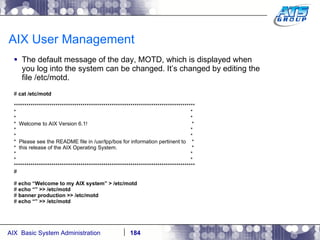
AIX User Management The default message of the day, MOTD, which is displayed when you log into the system can be changed. It’s changed by editing the file /etc/motd. #  cat /etc/motd *************************************************************************************** *  * *  * *  Welcome to AIX Version 6.1!  * *  * *  * *  Please see the README file in /usr/lpp/bos for information pertinent to  * *  this release of the AIX Operating System.  * *  * *  * *************************************************************************************** # #  echo “Welcome to my AIX system” > /etc/motd #  echo “” >> /etc/motd #  banner production >> /etc/motd #  echo “” >> /etc/motd
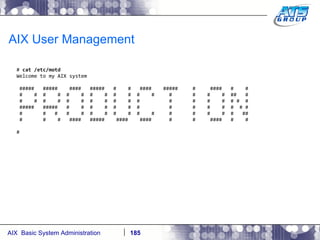
AIX User Management #  cat /etc/motd Welcome to my AIX system #####  #####  ####  #####  #  #  ####  #####  #  ####  #  # #  #  #  #  #  #  #  #  #  #  #  #  #  #  #  #  ##  # #  #  #  #  #  #  #  #  #  #  #  #  #  #  #  # #  # #####  #####  #  #  #  #  #  #  #  #  #  #  #  #  # # #  #  #  #  #  #  #  #  #  #  #  #  #  #  #  #  ## #  #  #  ####  #####  ####  ####  #  #  ####  #  # #
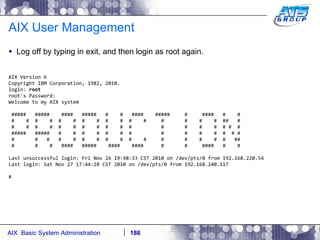
AIX User Management Log off by typing in exit, and then login as root again. AIX Version 6 Copyright IBM Corporation, 1982, 2010. login:  root root's Password: Welcome to my AIX system #####  #####  ####  #####  #  #  ####  #####  #  ####  #  # #  #  #  #  #  #  #  #  #  #  #  #  #  #  #  #  ##  # #  #  #  #  #  #  #  #  #  #  #  #  #  #  #  # #  # #####  #####  #  #  #  #  #  #  #  #  #  #  #  #  # # #  #  #  #  #  #  #  #  #  #  #  #  #  #  #  #  ## #  #  #  ####  #####  ####  ####  #  #  ####  #  # Last unsuccessful login: Fri Nov 26 19:48:33 CST 2010 on /dev/pts/0 from 192.168.220.54 Last login: Sat Nov 27 17:44:28 CST 2010 on /dev/pts/0 from 192.168.240.117 #
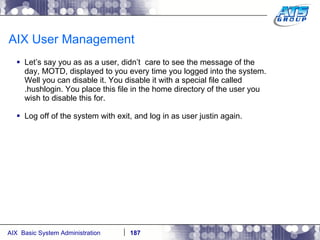
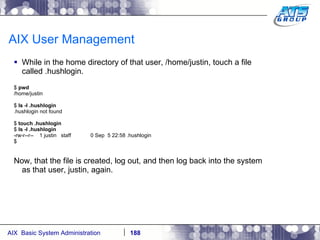
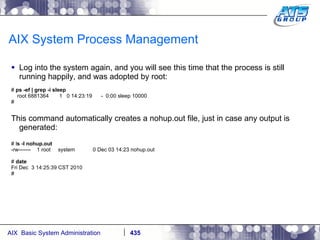
AIX User Management Let’s say you as as a user, didn’t  care to see the message of the day, MOTD, displayed to you every time you logged into the system. Well you can disable it. You disable it with a special file called .hushlogin. You place this file in the home directory of the user you wish to disable this for. Log off of the system with exit, and log in as user justin again.
AIX User Management While in the home directory of that user, /home/justin, touch a file called .hushlogin. $  pwd /home/justin $  ls -l .hushlogin .hushlogin not found $  touch .hushlogin $  ls -l .hushlogin -rw-r--r--  1 justin  staff  0 Sep  5 22:58 .hushlogin $ Now, that the file is created, log out, and then log back into the system as that user, justin, again.
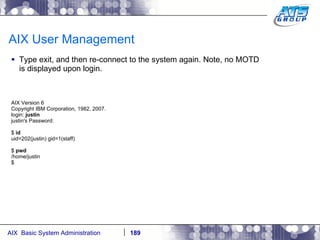
AIX User Management Type exit, and then re-connect to the system again. Note, no MOTD is displayed upon login. AIX Version 6 Copyright IBM Corporation, 1982, 2007. login:  justin justin's Password: $  id uid=202(justin) gid=1(staff) $  pwd /home/justin $
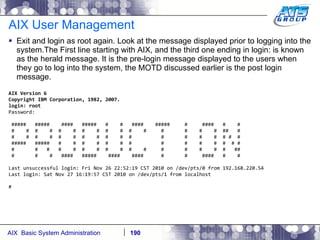
AIX User Management Exit and login as root again. Look at the message displayed prior to logging into the system.The First line starting with AIX, and the third one ending in login: is known as the herald message. It is the pre-login message displayed to the users when they go to log into the system, the MOTD discussed earlier is the post login message. AIX Version 6 Copyright IBM Corporation, 1982, 2007. login: root Password: #####  #####  ####  #####  #  #  ####  #####  #  ####  #  # #  #  #  #  #  #  #  #  #  #  #  #  #  #  #  #  ##  # #  #  #  #  #  #  #  #  #  #  #  #  #  #  #  # #  # #####  #####  #  #  #  #  #  #  #  #  #  #  #  #  # # #  #  #  #  #  #  #  #  #  #  #  #  #  #  #  #  ## #  #  #  ####  #####  ####  ####  #  #  ####  #  # Last unsuccessful login: Fri Nov 26 22:52:19 CST 2010 on /dev/pts/0 from 192.168.220.54 Last login: Sat Nov 27 16:19:57 CST 2010 on /dev/pts/1 from localhost #
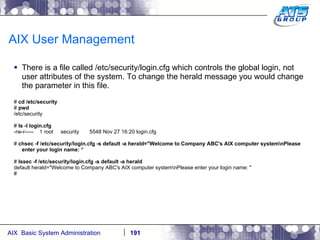
AIX User Management There is a file called /etc/security/login.cfg which controls the global login, not user attributes of the system. To change the herald message you would change the parameter in this file. #  cd /etc/security #  pwd /etc/security #  ls -l login.cfg -rw-r-----  1 root  security  5548 Nov 27 16:20 login.cfg #  chsec -f /etc/security/login.cfg -s default -a herald=&quot;Welcome to Company ABC's AIX computer system\nPlease enter your login name: “ #  lssec -f /etc/security/login.cfg -s default -a herald default herald=&quot;Welcome to Company ABC's AIX computer system\nPlease enter your login name: &quot; #
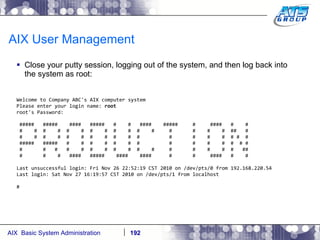
AIX User Management Close your putty session, logging out of the system, and then log back into the system as root: Welcome to Company ABC's AIX computer system Please enter your login name:  root root's Password:  #####  #####  ####  #####  #  #  ####  #####  #  ####  #  # #  #  #  #  #  #  #  #  #  #  #  #  #  #  #  #  ##  # #  #  #  #  #  #  #  #  #  #  #  #  #  #  #  # #  # #####  #####  #  #  #  #  #  #  #  #  #  #  #  #  # # #  #  #  #  #  #  #  #  #  #  #  #  #  #  #  #  ## #  #  #  ####  #####  ####  ####  #  #  ####  #  # Last unsuccessful login: Fri Nov 26 22:52:19 CST 2010 on /dev/pts/0 from 192.168.220.54 Last login: Sat Nov 27 16:19:57 CST 2010 on /dev/pts/1 from localhost #
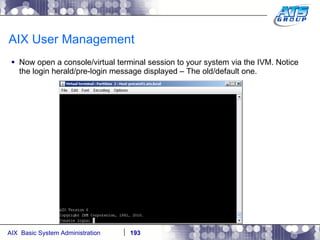
AIX User Management Now open a console/virtual terminal session to your system via the IVM. Notice the login herald/pre-login message displayed – The old/default one.
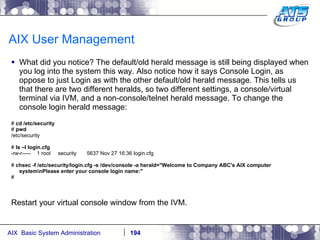
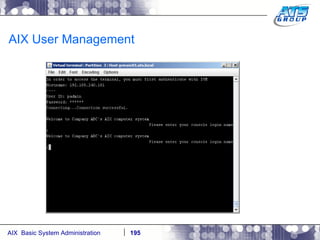
AIX User Management What did you notice? The default/old herald message is still being displayed when you log into the system this way. Also notice how it says Console Login, as oppose to just Login as with the other default/old herald message. This tells us that there are two different heralds, so two different settings, a console/virtual terminal via IVM, and a non-console/telnet herald message. To change the console login herald message: #  cd /etc/security #  pwd /etc/security #  ls –l login.cfg -rw-r-----  1 root  security  5637 Nov 27 16:36 login.cfg #  chsec -f /etc/security/login.cfg -s /dev/console -a herald=&quot;Welcome to Company ABC's AIX computer system\nPlease enter your console login name:&quot; # Restart your virtual console window from the IVM.
AIX User Management
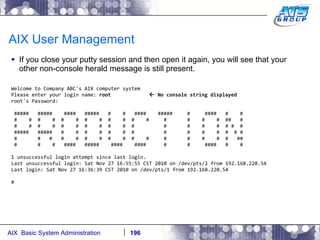
AIX User Management If you close your putty session and then open it again, you will see that your other non-console herald message is still present. Welcome to Company ABC's AIX computer system Please enter your login name:  root    No console string displayed root's Password: #####  #####  ####  #####  #  #  ####  #####  #  ####  #  # #  #  #  #  #  #  #  #  #  #  #  #  #  #  #  #  ##  # #  #  #  #  #  #  #  #  #  #  #  #  #  #  #  # #  # #####  #####  #  #  #  #  #  #  #  #  #  #  #  #  # # #  #  #  #  #  #  #  #  #  #  #  #  #  #  #  #  ## #  #  #  ####  #####  ####  ####  #  #  ####  #  # 1 unsuccessful login attempt since last login. Last unsuccessful login: Sat Nov 27 16:55:55 CST 2010 on /dev/pts/2 from 192.168.220.54 Last login: Sat Nov 27 16:36:39 CST 2010 on /dev/pts/1 from 192.168.220.54 #
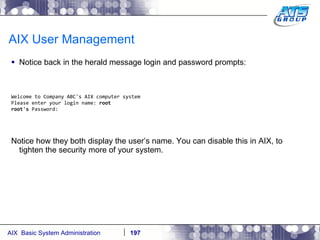
AIX User Management Notice back in the herald message login and password prompts: Welcome to Company ABC's AIX computer system Please enter your login name:  root root's  Password: Notice how they both display the user’s name. You can disable this in AIX, to tighten the security more of your system.
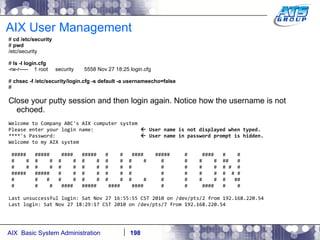
AIX User Management #  cd /etc/security #  pwd /etc/security #  ls -l login.cfg -rw-r-----  1 root  security  5558 Nov 27 18:25 login.cfg #  chsec -f /etc/security/login.cfg -s default -a usernameecho=false # Close your putty session and then login again. Notice how the username is not echoed. Welcome to Company ABC's AIX computer system Please enter your login name:    User name is not displayed when typed. ****'s Password:    User name in password prompt is hidden. Welcome to my AIX system #####  #####  ####  #####  #  #  ####  #####  #  ####  #  # #  #  #  #  #  #  #  #  #  #  #  #  #  #  #  #  ##  # #  #  #  #  #  #  #  #  #  #  #  #  #  #  #  # #  # #####  #####  #  #  #  #  #  #  #  #  #  #  #  #  # # #  #  #  #  #  #  #  #  #  #  #  #  #  #  #  #  ## #  #  #  ####  #####  ####  ####  #  #  ####  #  # Last unsuccessful login: Sat Nov 27 16:55:55 CST 2010 on /dev/pts/2 from 192.168.220.54 Last login: Sat Nov 27 18:29:17 CST 2010 on /dev/pts/7 from 192.168.220.54
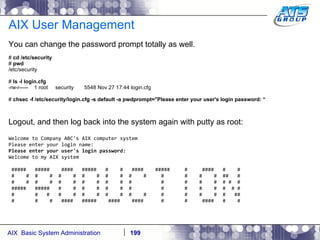
AIX User Management You can change the password prompt totally as well. #  cd /etc/security #  pwd /etc/security #  ls -l login.cfg -rw-r-----  1 root  security  5548 Nov 27 17:44 login.cfg #  chsec -f /etc/security/login.cfg -s default -a pwdprompt=&quot;Please enter your user's login password: “ Logout, and then log back into the system again with putty as root: Welcome to Company ABC's AIX computer system Please enter your login name: Please enter your user's login password: Welcome to my AIX system #####  #####  ####  #####  #  #  ####  #####  #  ####  #  # #  #  #  #  #  #  #  #  #  #  #  #  #  #  #  #  ##  # #  #  #  #  #  #  #  #  #  #  #  #  #  #  #  # #  # #####  #####  #  #  #  #  #  #  #  #  #  #  #  #  # # #  #  #  #  #  #  #  #  #  #  #  #  #  #  #  #  ## #  #  #  ####  #####  ####  ####  #  #  ####  #  #
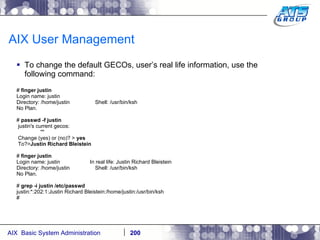
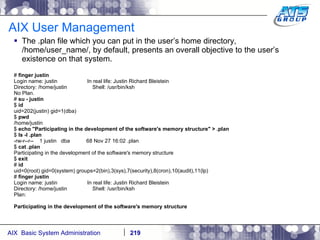
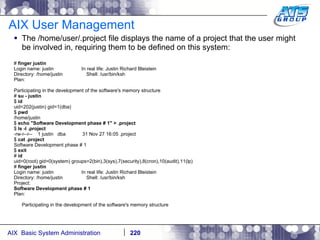
AIX User Management To change the default GECOs, user’s real life information, use the following command: #  finger justin Login name: justin Directory: /home/justin  Shell: /usr/bin/ksh No Plan. #  passwd -f justin justin's current gecos: &quot;&quot; Change (yes) or (no)? >  yes To?> Justin Richard Bleistein #  finger justin Login name: justin  In real life: Justin Richard Bleistein Directory: /home/justin  Shell: /usr/bin/ksh No Plan. #  grep -i justin /etc/passwd justin:*:202:1:Justin Richard Bleistein:/home/justin:/usr/bin/ksh #
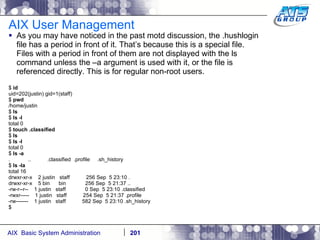
AIX User Management As you may have noticed in the past motd discussion, the .hushlogin file has a period in front of it. That’s because this is a special file. Files with a period in front of them are not displayed with the ls command unless the –a argument is used with it, or the file is referenced directly. This is for regular non-root users. $  id uid=202(justin) gid=1(staff) $  pwd /home/justin $  ls $  ls -l total 0 $  touch .classified $  ls $  ls -l total 0 $  ls -a .  ..  .classified  .profile  .sh_history $  ls -la total 16 drwxr-xr-x  2 justin  staff  256 Sep  5 23:10 . drwxr-xr-x  5 bin  bin  256 Sep  5 21:37 .. -rw-r--r--  1 justin  staff  0 Sep  5 23:10 .classified -rwxr-----  1 justin  staff  254 Sep  5 21:37 .profile -rw-------  1 justin  staff  582 Sep  5 23:10 .sh_history $
AIX User Management You may also have noticed, that there are already two files in your home directory with periods in front of them. These are special files as well. They are put there automatically by the system, when the user was created. .profile  = This is a special file for the Korn shell. This is called an initialization file for the shell. Any code in this file will be executed automatically when you log into the system, starting this shell. .sh_history  = This file will keep a history of all of your command history while using this shell. This file is only valid, for your shell login session.
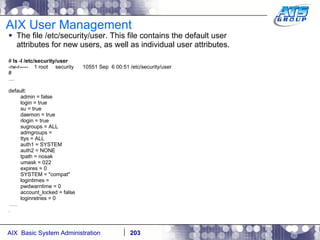
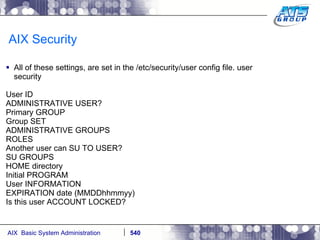
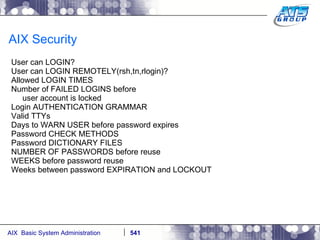
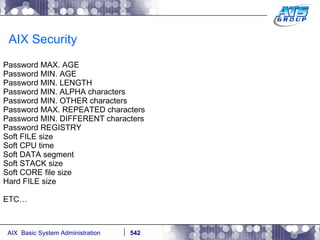
AIX User Management The file /etc/security/user. This file contains the default user attributes for new users, as well as individual user attributes. #  ls -l /etc/security/user -rw-r-----  1 root  security  10551 Sep  6 00:51 /etc/security/user # … default: admin = false login = true su = true daemon = true rlogin = true sugroups = ALL admgroups = ttys = ALL auth1 = SYSTEM auth2 = NONE tpath = nosak umask = 022 expires = 0 SYSTEM = &quot;compat&quot; logintimes = pwdwarntime = 0 account_locked = false loginretries = 0 … .  .
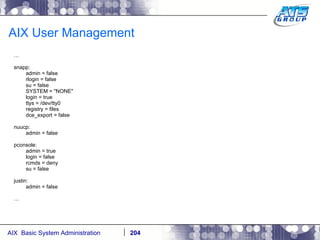
AIX User Management … snapp: admin = false rlogin = false su = false SYSTEM = &quot;NONE&quot; login = true ttys = /dev/tty0 registry = files dce_export = false nuucp: admin = false pconsole: admin = true login = false rcmds = deny su = false justin: admin = false …
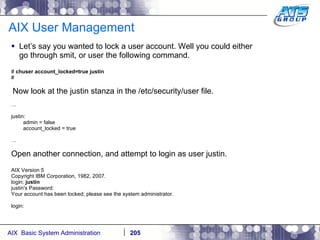
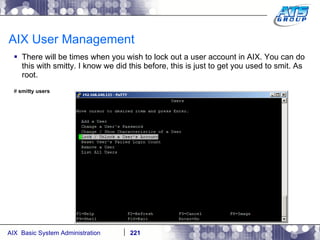
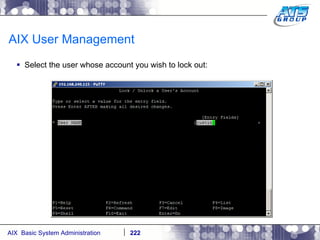
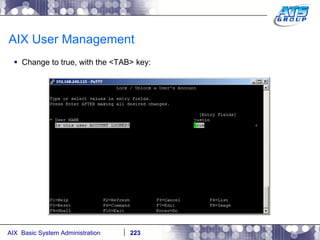
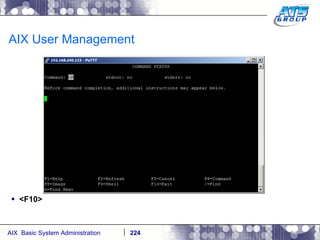
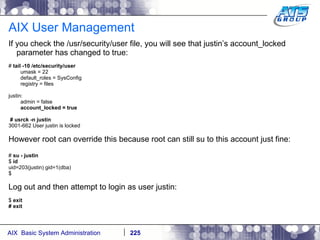
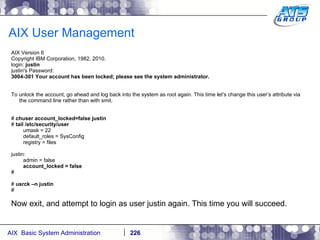
AIX User Management Let’s say you wanted to lock a user account. Well you could either go through smit, or user the following command. #  chuser account_locked=true justin # Now look at the justin stanza in the /etc/security/user file. … justin: admin = false account_locked = true … Open another connection, and attempt to login as user justin. AIX Version 5 Copyright IBM Corporation, 1982, 2007. login:  justin justin's Password: Your account has been locked; please see the system administrator. login:
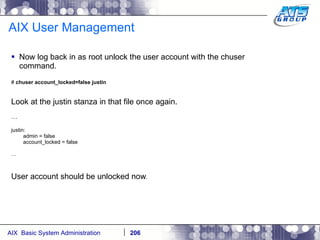
AIX User Management Now log back in as root unlock the user account with the chuser command. #  chuser account_locked=false justin Look at the justin stanza in that file once again. … justin: admin = false account_locked = false … User account should be unlocked now .
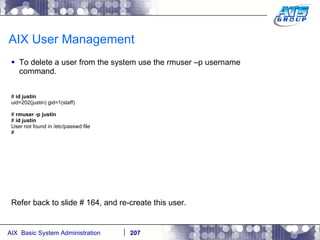
AIX User Management To delete a user from the system use the rmuser –p username command. #  id justin uid=202(justin) gid=1(staff) #  rmuser -p justin #  id justin User not found in /etc/passwd file # Refer back to slide # 164, and re-create this user.
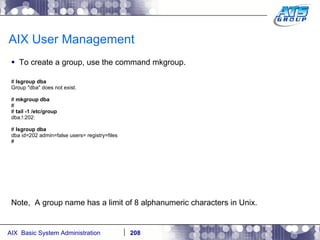
AIX User Management To create a group, use the command mkgroup. #  lsgroup dba Group &quot;dba&quot; does not exist. #  mkgroup dba # #  tail -1 /etc/group dba:!:202: #  lsgroup dba dba id=202 admin=false users= registry=files # Note,  A group name has a limit of 8 alphanumeric characters in Unix.
AIX User Management To delete the group from the system, use the rmgroup command. #  lsgroup dba dba id=202 admin=false users= registry=files #  rmgroup dba #  lsgroup dba Group &quot;dba&quot; does not exist. #  tail -1 /etc/group ipsec:!:200: # Go back to the previous slide # 208, and re-create the user group. 209
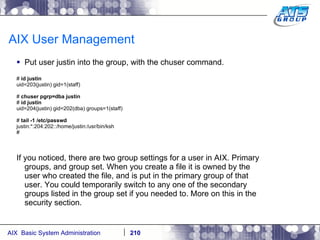
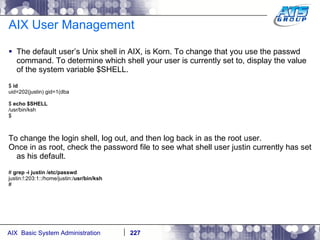
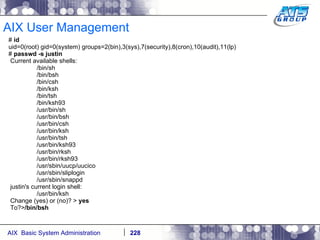
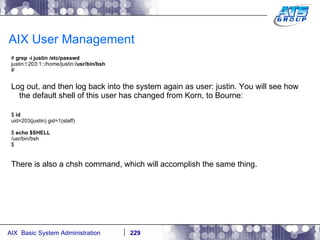
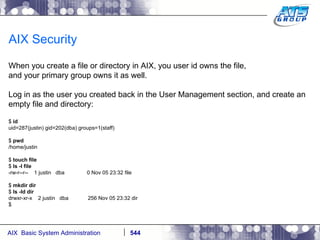
AIX User Management Put user justin into the group, with the chuser command. #  id justin uid=203(justin) gid=1(staff) #  chuser pgrp=dba justin #  id justin uid=204(justin) gid=202(dba) groups=1(staff) #  tail -1 /etc/passwd justin:*:204:202::/home/justin:/usr/bin/ksh # If you noticed, there are two group settings for a user in AIX. Primary groups, and group set. When you create a file it is owned by the user who created the file, and is put in the primary group of that user. You could temporarily switch to any one of the secondary groups listed in the group set if you needed to. More on this in the security section.
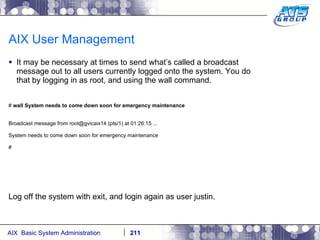
AIX User Management It may be necessary at times to send what’s called a broadcast message out to all users currently logged onto the system. You do that by logging in as root, and using the wall command. #  wall System needs to come down soon for emergency maintenance Broadcast message from root@gvicaix14 (pts/1) at 01:26:15 ... System needs to come down soon for emergency maintenance # Log off the system with exit, and login again as user justin.
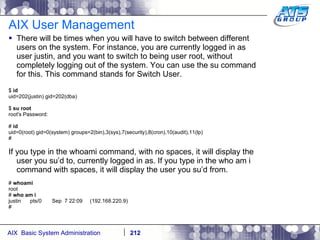
AIX User Management There will be times when you will have to switch between different users on the system. For instance, you are currently logged in as user justin, and you want to switch to being user root, without completely logging out of the system. You can use the su command for this. This command stands for Switch User. $  id uid=202(justin) gid=202(dba) $  su root root's Password: #  id uid=0(root) gid=0(system) groups=2(bin),3(sys),7(security),8(cron),10(audit),11(lp) # If you type in the whoami command, with no spaces, it will display the user you su’d to, currently logged in as. If you type in the who am i command with spaces, it will display the user you su’d from. #  whoami root #  who am i justin  pts/0  Sep  7 22:09  (192.168.220.9) #
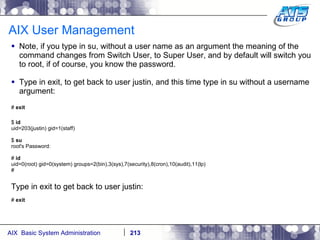
AIX User Management Note, if you type in su, without a user name as an argument the meaning of the command changes from Switch User, to Super User, and by default will switch you to root, if of course, you know the password. Type in exit, to get back to user justin, and this time type in su without a username argument: #  exit $  id uid=203(justin) gid=1(staff) $  su  root's Password: #  id uid=0(root) gid=0(system) groups=2(bin),3(sys),7(security),8(cron),10(audit),11(lp) # Type in exit to get back to user justin: #  exit
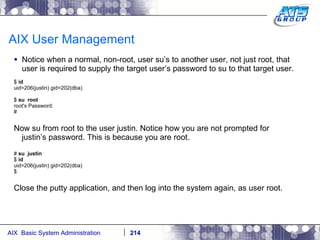
AIX User Management Notice when a normal, non-root, user su’s to another user, not just root, that user is required to supply the target user’s password to su to that target user. $  id uid=206(justin) gid=202(dba) $  su  root root's Password: # Now su from root to the user justin. Notice how you are not prompted for justin’s password. This is because you are root. #  su  justin $  id uid=206(justin) gid=202(dba) $ Close the putty application, and then log into the system again, as user root.
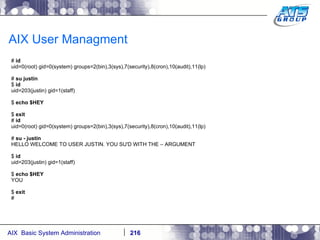
AIX User Management You can also su to a user with a -, hyphen. This means that the user should pick up the entire environment: variables, etc, of the target user. Let’s say we appended the following to justin’s .profile file: #  vi ~justin/.profile … PATH=/usr/bin:/etc:/usr/sbin:/usr/ucb:$HOME/bin:/usr/bin/X11:/sbin:. export PATH if [ -s &quot;$MAIL&quot; ]  # This is at Shell startup.  In normal then echo &quot;$MAILMSG&quot;  # operation, the Shell checks fi  # periodically. HEY=YOU echo &quot;HELLO WELCOME TO USER JUSTIN. YOU SU'D WITH THE - ARGUMENT&quot; #
AIX User Managment #  id uid=0(root) gid=0(system) groups=2(bin),3(sys),7(security),8(cron),10(audit),11(lp) #  su justin $  id uid=203(justin) gid=1(staff) $  echo $HEY $  exit #  id uid=0(root) gid=0(system) groups=2(bin),3(sys),7(security),8(cron),10(audit),11(lp) #  su - justin HELLO WELCOME TO USER JUSTIN. YOU SU'D WITH THE – ARGUMENT $  id uid=203(justin) gid=1(staff) $  echo $HEY YOU $  exit #
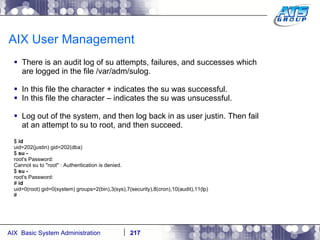
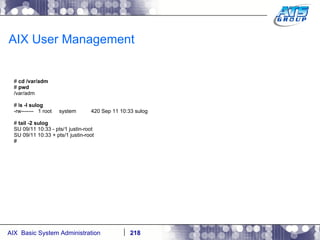
AIX User Management There is an audit log of su attempts, failures, and successes which are logged in the file /var/adm/sulog. In this file the character + indicates the su was successful. In this file the character – indicates the su was unsucessful. Log out of the system, and then log back in as user justin. Then fail at an attempt to su to root, and then succeed. $  id uid=202(justin) gid=202(dba) $  su - root's Password: Cannot su to &quot;root&quot; : Authentication is denied. $  su - root's Password: #  id uid=0(root) gid=0(system) groups=2(bin),3(sys),7(security),8(cron),10(audit),11(lp) #
AIX User Management #  cd /var/adm #  pwd /var/adm # l s -l sulog -rw-------  1 root  system  420 Sep 11 10:33 sulog #  tail -2 sulog SU 09/11 10:33 - pts/1 justin-root SU 09/11 10:33 + pts/1 justin-root #
AIX User Management The .plan file which you can put in the user’s home directory, /home/user_name/, by default, presents an overall objective to the user’s existence on that system. #  finger justin Login name: justin  In real life: Justin Richard Bleistein Directory: /home/justin  Shell: /usr/bin/ksh No Plan. #  su - justin $  id uid=202(justin) gid=1(dba) $  pwd /home/justin $  echo &quot;Participating in the development of the software's memory structure&quot; > .plan $  ls -l .plan -rw-r--r--  1 justin  dba  68 Nov 27 16:02 .plan $  cat .plan Participating in the development of the software's memory structure $  exit #  id uid=0(root) gid=0(system) groups=2(bin),3(sys),7(security),8(cron),10(audit),11(lp) #  finger justin Login name: justin  In real life: Justin Richard Bleistein Directory: /home/justin  Shell: /usr/bin/ksh Plan: Participating in the development of the software's memory structure
AIX User Management The /home/user/.project file displays the name of a project that the user might be involved in, requiring them to be defined on this system: #  finger justin Login name: justin  In real life: Justin Richard Bleistein Directory: /home/justin  Shell: /usr/bin/ksh Plan: Participating in the development of the software's memory structure #  su - justin $  id uid=202(justin) gid=1(dba) $  pwd /home/justin $  echo &quot;Software Development phase # 1&quot; > .project $  ls -l .project -rw-r--r--  1 justin  dba  31 Nov 27 16:05 .project $  cat .project Software Development phase # 1 $  exit #  id uid=0(root) gid=0(system) groups=2(bin),3(sys),7(security),8(cron),10(audit),11(lp) #  finger justin Login name: justin  In real life: Justin Richard Bleistein Directory: /home/justin  Shell: /usr/bin/ksh Project: Software Development phase # 1 Plan: Participating in the development of the software's memory structure
AIX User Management There will be times when you wish to lock out a user account in AIX. You can do this with smitty. I know we did this before, this is just to get you used to smit. As root. #  smitty users
AIX User Management Select the user whose account you wish to lock out:
AIX User Management Change to true, with the <TAB> key:
AIX User Management <F10>
AIX User Management If you check the /usr/security/user file, you will see that justin’s account_locked parameter has changed to true: #  tail -10 /etc/security/user umask = 22 default_roles = SysConfig registry = files justin: admin = false account_locked = true # usrck -n justin 3001-662 User justin is locked However root can override this because root can still su to this account just fine: #  su - justin $  id uid=203(justin) gid=1(dba) $ Log out and then attempt to login as user justin: $  exit # exit
AIX User Management AIX Version 6 Copyright IBM Corporation, 1982, 2010. login:  justin justin's Password: 3004-301 Your account has been locked; please see the system administrator. To unlock the account, go ahead and log back into the system as root again. This time let’s change this user’s attribute via the command line rather than with smit. #  chuser account_locked=false justin #  tail /etc/security/user umask = 22 default_roles = SysConfig registry = files justin: admin = false account_locked = false # #  usrck –n justin # Now exit, and attempt to login as user justin again. This time you will succeed.
AIX User Management The default user’s Unix shell in AIX, is Korn. To change that you use the passwd command. To determine which shell your user is currently set to, display the value of the system variable $SHELL.  $  id uid=202(justin) gid=1(dba $  echo $SHELL /usr/bin/ksh $ To change the login shell, log out, and then log back in as the root user. Once in as root, check the password file to see what shell user justin currently has set as his default. #  grep -i justin /etc/passwd justin:!:203:1::/home/justin:/ usr/bin/ksh #
AIX User Management #  id uid=0(root) gid=0(system) groups=2(bin),3(sys),7(security),8(cron),10(audit),11(lp) #  passwd -s justin Current available shells: /bin/sh /bin/bsh /bin/csh /bin/ksh /bin/tsh /bin/ksh93 /usr/bin/sh /usr/bin/bsh /usr/bin/csh /usr/bin/ksh /usr/bin/tsh /usr/bin/ksh93 /usr/bin/rksh /usr/bin/rksh93 /usr/sbin/uucp/uucico /usr/sbin/sliplogin /usr/sbin/snappd justin's current login shell: /usr/bin/ksh Change (yes) or (no)? >  yes To?> /bin/bsh
AIX User Management #  grep -i justin /etc/passwd justin:!:203:1::/home/justin: /usr/bin/bsh # Log out, and then log back into the system again as user: justin. You will see how the default shell of this user has changed from Korn, to Bourne: $  id uid=203(justin) gid=1(staff) $  echo $SHELL /usr/bin/bsh $ There is also a chsh command, which will accomplish the same thing.
AIX User Management Unix has two built-in schedulers. These schedulers allow you to setup programs to run at any date, or time in the future unattended. The two schedulers are Cron, and At.  The Cron scheduler is the most widely used. The Cron scheduler is implemented by way of a cron table. A Cron table is a file which holds the job/Cron configuration data. By configuration data, I mean the date, and time the schedule/job will run unattended on the system. Every user who is authorized to use the cron scheduler, will have their own cron table file.
AIX User Management User’s crontabs are kept in the file /var/spool/cron/crontabs/ The root user has a crontab setup by default. You can see what’s scheduled to run via the cron scheduler, by using the command crontab –l, while logged  #  id uid=0(root) gid=0(system) groups=2(bin),3(sys),7(security),8(cron),10(audit),11(lp) # #  crontab –l … . #0 3 * * * /usr/sbin/skulker #45 2 * * 0 /usr/lib/spell/compress #45 23 * * * ulimit 5000; /usr/lib/smdemon.cleanu > /dev/null 0 11 * * * /usr/bin/errclear -d S,O 30 0 12 * * * /usr/bin/errclear -d H 90 0 15 * * *  /usr/lib/ras/dumpcheck >/dev/null 2>&1 # SSA warning : Deleting the next two lines may cause errors in redundant #SSA warning : hardware to go undetected. 01 5 * * * /usr/lpp/diagnostics/bin/run_ssa_ela 1>/dev/null 2>/dev/null 0 * * * * /usr/lpp/diagnostics/bin/run_ssa_healthcheck 1>/dev/null 2>/dev/null # SSA warning : Deleting the next line may allow enclosure hardware errors to go undetected
AIX User Management The following is an example of a crontab entry 0 2 3 2 0 /home/bob/program1 There are six fields in a crontab configuration. They are as follows, from left to right. 1 – The minute of the hour the job will run – (0-59) 2 – The hour of the day the job will run – (0-23) 3 – The day of the month the job will run – (1-31) 4 – The month of the year the job will run – (1-12) 5 – The day of the week the job will run – (0-6) 0 = Sunday. 6 – Command/program to run. In our example at the top of the page a program called program1 which resides in the directory /home/bob, will run at 2am, on February 3 rd , on Sunday. You can also use an asterick, *, in a specific field to denote, run every whatever. The pound sign, #, will disable that job/program from running via cron.
AIX User Management Setting the EDITOR system variable to a specific editor will tell the crontab editor which editor to use to edit the crontab. #  ls -l /usr/bin/vi -r-xr-xr-x  5 bin  bin  302706 Sep  7 22:41 /usr/bin/vi #  export EDITOR=/usr/bin/vi #  echo $EDITOR /usr/bin/vi #  date Fri Sep 11 10:40:18 EDT 2009 # #  crontab –e … 45 10 * * * /usr/bin/sleep 60 & #  ps -ef | grep -i sleep root 372746 340172  0 10:41:23  pts/0  0:00 grep -i sleep #
AIX User Management You can view the status of a past cron job by viewing the /var/adm/cron/log file. #  ps -ef | grep -i sleep root 372754  1  0 10:45:00  -  0:00 /usr/bin/sleep 60 #  cd /var/adm/cron #  pwd /var/adm/cron #  ls -l log -rw-rw-r--  1 bin  bin  32059 Sep 11 11:00 log #  tail log root  : CMD ( /usr/lpp/diagnostics/bin/run_ssa_healthcheck 1>/dev/null 2>/de v/null ) : PID ( 372876 ) : Fri Sep 11 10:00:00 2009 Cron Job with pid: 372876 Successful root  : CMD ( /usr/lpp/diagnostics/bin/run_ssa_encl_healthcheck 1>/dev/null 2>/dev/null ) : PID ( 372940 ) : Fri Sep 11 10:30:00 2009 Cron Job with pid: 372940 Successful root  : CMD ( /usr/bin/sleep 1000 & ) : PID ( 393470 ) : Fri Sep 11 10:45:00 2009 Cron Job with pid: 393470 Successful
AIX User Management You can also use the at scheduler to run programs unattended in Unix/AIX. The advantage of using the at scheduler over cron, especially for on-time jobs, is that you do not have to clean up the job from any tab file, when it’s completed. #  date Fri Sep 11 11:09:59 EDT 2009 #  at 11:11 today sleep 60 job root.1252681860.a at Fri Sep 11 11:11:00 2009 #  at -l root.1252681860.a  Fri Sep 11 11:11:00 2009 # … #  ps -ef | grep -i sleep root 393284 372838  0 11:11:00  -  0:00 sleep 60 #  at -l #
AIX User Management At jobs status’ are also logged to the /var/adm/cron/log file. #  tail /var/adm/cron/log root  : CMD ( /usr/lpp/diagnostics/bin/run_ssa_encl_healthcheck 1>/dev/null 2>/dev/null ) : PID ( 372940 ) : Fri Sep 11 10:30:00 2009 Cron Job with pid: 372940 Successful root  : CMD ( /usr/bin/sleep 1000 & ) : PID ( 393470 ) : Fri Sep 11 10:45:00 2009 Cron Job with pid: 393470 Successful root  : CMD ( /usr/bin/errclear -d S,O 30 ) : PID ( 393258 ) : Fri Sep 11 11 :00:00 2009 root  : CMD ( /usr/lpp/diagnostics/bin/run_ssa_healthcheck 1>/dev/null 2>/de v/null ) : PID ( 405614 ) : Fri Sep 11 11:00:00 2009 Cron Job with pid: 405614 Successful Cron Job with pid: 393258 Successful root  : CMD ( root.1252681860.a ) : PID ( 372838 ) : Fri Sep 11 11:11:00 2009 Cron Job with pid: 372838 Successful #
AIX User Management The cron, and at schedulers also have a basic security mechanism. - The file  /var/adm/cron/cron.deny  is used to list users who are not authorized to use cron. - The file  /var/adm/cron/cron.allow  is used to list users who are authorized to use cron. - The file  /var/adm/cron/at.deny  is used to list users who are not authorized to use at. - The file  /var/adm/cron/at.allow  is used to list users who are authorized to use at.
AIX User Management User information is usually kept local on the AIX system they are logging onto, including their passwords. You can use a feature which comes with AIX called NIS, Network Information Services, or Yellow Pages. This is a standard which allows you to have a central place to look up users, passwords, and other information. This is a nice alternative to managing this information individually for each system. Sudo is an Open Source tool you can install, which will allow a regular user to gain root privilege with the regular user’s password. AIX also has roles, RBAC, which can be used to easily to distribute system privileges, and tasks to different users.
AIX System Startup and Shutdown
AIX System Startup and Shutdown Shutting down an AIX system has to be done in a controlled, graceful matter. Forget about a companies’ change management policies, you have to ensure the applications, databases which run on the system come down gracefully, not to mention the operating system itself. #  shutdown  SHUTDOWN PROGRAM Tue Apr 17 09:20:46 CDT 2007 Broadcast message from root@h1 (tty) at 09:20:46 ... shutdown: PLEASE LOG OFF NOW !!! All processes will be killed in 1 minute. Broadcast message from root@h1 (pts/0) at 09:21:46 ... shutdown: THE SYSTEM IS BEING SHUT DOWN NOW Wait for 'Halt completed...' before stopping. Error reporting has stopped. Advanced Accounting has stopped... Process accounting has stopped. nfs_clean: Stopping NFS/NIS Daemons 0513-004 The Subsystem or Group, nfsd, is currently inoperative. 0513-044 The biod Subsystem was requested to stop. 0513-044 The rpc.lockd Subsystem was requested to stop. 0513-044 The rpc.statd Subsystem was requested to stop.
AIX System Startup and Shutdown After the system shuts down, restart it via the IVM. See instructor
AIX System Startup and Shutdown You can also tell the system to reboot, after the graceful shutdown . #  shutdown -Fr SHUTDOWN PROGRAM Tue Apr 17 09:32:25 CDT 2007 Wait for 'Rebooting...' before stopping. Error reporting has stopped. Advanced Accounting has stopped... Process accounting has stopped. nfs_clean: Stopping NFS/NIS Daemons 0513-004 The Subsystem or Group, nfsd, is currently inoperative. 0513-044 The biod Subsystem was requested to stop. 0513-044 The rpc.lockd Subsystem was requested to stop. 0513-044 The rpc.statd Subsystem was requested to stop. 0513-004 The Subsystem or Group, gssd, is currently inoperative. 0513-004 The Subsystem or Group, nfsrgyd, is currently inoperative. 0513-004 The Subsystem or Group, rpc.mountd, is currently inoperative. 0513-004 The Subsystem or Group, ypbind, is currently inoperative. Connection closed.
AIX System Startup and Shutdown Sometimes it maybe useful to fake shutdown the system. For example, to get users off of the system for application maintenance, etc.. #  shutdown -k SHUTDOWN PROGRAM Tue Apr 17 09:39:16 CDT 2007 Broadcast message from root@h1 (tty) at 09:39:16 ... shutdown: PLEASE LOG OFF NOW !!! All processes will be killed in 1 minute. Broadcast message from root@h1 (pts/0) at 09:40:16 ... shutdown: THE SYSTEM IS BEING SHUT DOWN NOW shutdown -k is finished. The system is still up. #
AIX System Startup and Shutdown There is a special file/script you can create called /ec/rc.shutdown. Any code/commands contained within it will be automatically called, and executed by the shutdown command. This is useful for when you need to bring down applications, or databases gracefully, etc.. #  ls -l /etc/rc.shutdown ls: 0653-341 The file /etc/rc.shutdown does not exist. #  vi /etc/rc.shutdown .. # cat /etc/rc.shutdown #System shutdown script written by AIX system admins. #This script will be automatically executed by AIX upon system shutdown #via the shutdown AIX command. # # echo &quot;TEST... THE SHUTDOWN COMMAND HAS BEEN INVOKED ON THIS SYSTEM.&quot; # # #End of script # chmod u+x /etc/rc.shutdown Note: The “echo” command is used in Unix shell scripting/programming. We don’t cover that topic in this course.
AIX System Startup and Shutdown The script is executed, when the shutdown command is ran. #  shutdown -Fr SHUTDOWN PROGRAM Tue Apr 17 08:35:55 CDT 2007 TEST... THE SHUTDOWN COMMAND HAS BEEN INVOKED ON THIS SYSTEM. Wait for 'Rebooting...' before stopping. Error reporting has stopped. Advanced Accounting has stopped... Process accounting has stopped. nfs_clean: Stopping NFS/NIS Daemons 0513-004 The Subsystem or Group, nfsd, is currently inoperative. 0513-044 The biod Subsystem was requested to stop. 0513-044 The rpc.lockd Subsystem was requested to stop. 0513-044 The rpc.statd Subsystem was requested to stop. 0513-004 The Subsystem or Group, gssd, is currently inoperative. 0513-004 The Subsystem or Group, nfsrgyd, is currently inoperative. 0513-004 The Subsystem or Group, rpc.mountd, is currently inoperative. 0513-004 The Subsystem or Group, ypbind, is currently inoperative. Connection closed. Note: The halt command can also shutdown a system, and the reboot command can also restart the system.
AIX System Startup and Shutdown The file /etc/inittab, which stands for INITialization TABle, contains programs to execute automatically on system reboot. #  lsitab -a init:2:initdefault: brc::sysinit:/sbin/rc.boot 3 >/dev/console 2>&1 # Phase 3 of system boot powerfail::powerfail:/etc/rc.powerfail 2>&1 | alog -tboot > /dev/console # Power Failure Detection load64bit:2:wait:/etc/methods/cfg64 >/dev/console 2>&1 # Enable 64-bit execs tunables:23456789:wait:/usr/sbin/tunrestore -R > /dev/console 2>&1 # Set tunables rc:23456789:wait:/etc/rc 2>&1 | alog -tboot > /dev/console # Multi-User checks fbcheck:23456789:wait:/usr/sbin/fbcheck 2>&1 | alog -tboot > /dev/console # run/etc/firstboot srcmstr:23456789:respawn:/usr/sbin/srcmstr # System Resource Controller rctcpip:23456789:wait:/etc/rc.tcpip > /dev/console 2>&1 # Start TCP/IP daemons nimsh:2:wait:/usr/bin/startsrc -g nimclient -a &quot;-c&quot; >/dev/console 2>&1 sniinst:2:wait:/var/adm/sni/sniprei > /dev/console 2>&1 rcnfs:23456789:wait:/etc/rc.nfs > /dev/console 2>&1 # Start NFS Daemons cron:23456789:respawn:/usr/sbin/cron nimclient:2:once:/usr/sbin/nimclient -S running > /dev/console 2>&1 # inform nim we're running cons:0123456789:respawn:/usr/sbin/getty /dev/console shdaemon:2:off:/usr/sbin/shdaemon >/dev/console 2>&1 # High availability daemon …
AIX System Startup and Shutdown  The fields of the inittab file are: Identifier: Run_Level: Action: Command Identifier  = The string the line is known as. Run_Level  = The run-level to start this program at – Default is 2. Action  = The action to perform with this program/script. Command  = The program/script to start at system reboot.
AIX System Startup and Shutdown #  mkitab &quot;sleep:2:once:/usr/bin/sleep 10000 2>&1“ # #  lsitab sleep sleep:2:once:/usr/bin/sleep 10000 2>&1 # Now, reboot the system. #  shutdown -Fr SHUTDOWN PROGRAM Sat Sep  5 17:07:48 EDT 2009 Wait for 'Rebooting...' before stopping. Error logging stopped... Advanced Accounting has stopped... Process accounting stopped... Stopping NFS/NIS Daemons 0513-004 The Subsystem or Group, nfsd, is currently inoperative. 0513-044 The biod Subsystem was requested to stop. 0513-044 The rpc.lockd Subsystem was requested to stop. 0513-044 The rpc.statd Subsystem was requested to stop. 0513-004 The Subsystem or Group, gssd, is currently inoperative. 0513-004 The Subsystem or Group, nfsrgyd, is currently inoperative. Note: The “sleep” command is used in Unix shell scripting/programming. We don’t cover that topic in this course. …
AIX System Startup and Shutdown When the system boots back up you can determine how long the system has been up with the uptime command, and you can determine the last date, and time the system has been rebooted with the who –b command. #  uptime 05:11PM  up 1 min,  1 user,  load average: 0.49, 0.12, 0.04 #  who -b .  system boot Sep  5 17:10 #
AIX System Startup and Shutdown You can also determine the last time the system was rebooted with the last command. #  last reboot reboot  ~  Sep 05 17:10 wtmp begins  Sep 04 12:19 #  last shutdown shutdown  pts/1  Sep 05 17:08 wtmp begins  Sep 04 12:19 #
AIX System Startup and Shutdown You’ll notice after system reboot, that the sleep program/command is running in the background. It was started automatically by the /etc/inittab file which is called by the system – init process. #  ps -ef | grep -i sleep | grep -iv grep root 323742  1  0 17:10:38  -  0:00 /usr/bin/sleep 10000 # To remove an entry from the inittab use the rmitab command. #  lsitab sleep sleep:2:once:/usr/bin/sleep 10000 2>&1 #  rmitab sleep #  lsitab sleep # Note, you could also use the chitab command to change the contents of an inittab entry.
AIX System Startup and Shutdown The SYS V version of startup and shutdown scripts are used to startup and shutdown services automatically on system boot up and shutdown respectively. The /etc/rc.d/ directory contains a sub-directory for each system run-level, a directory for all the scripts for manual execution, and the actual rc Unix shell script which runs the scripts for  each run-level, with the run level as the argument to the shell script. This script is called from the /etc/inittab file: $  more /etc/inittab … l2:2:wait:/etc/rc.d/rc 2 l3:3:wait:/etc/rc.d/rc 3 l4:4:wait:/etc/rc.d/rc 4 l5:5:wait:/etc/rc.d/rc 5 l6:6:wait:/etc/rc.d/rc 6 l7:7:wait:/etc/rc.d/rc 7 l8:8:wait:/etc/rc.d/rc 8 l9:9:wait:/etc/rc.d/rc 9
AIX System Startup and Shutdown #  ls -l /etc/rc.d total 8 drwxr-xr-x  2 root  system  256 Apr 15 2010  init.d -r-xr--r--  1 root  system  1610 Aug 22 2007  rc drwxr-xr-x  2 root  system  256 Nov 24 21:24 rc2.d drwxr-xr-x  2 root  system  256 Nov 24 18:01 rc3.d drwxr-xr-x  2 root  system  256 Apr 15 2010  rc4.d drwxr-xr-x  2 root  system  256 Apr 15 2010  rc5.d drwxr-xr-x  2 root  system  256 Apr 15 2010  rc6.d drwxr-xr-x  2 root  system  256 Apr 15 2010  rc7.d drwxr-xr-x  2 root  system  256 Apr 15 2010  rc8.d drwxr-xr-x  2 root  system  256 Apr 15 2010  rc9.d #
AIX System Startup and Shutdown #  cd /etc/rc.d/init.d #  pwd /etc/rc.d/init.d #  vi script1.ksh … case &quot;$1&quot; in stop) echo &quot;script 1 executed on shutdown&quot; > /var/script1.shutdown.out;sleep 60;; start) echo &quot;script 1 executed on startup&quot; > /var/script1.startup.out;sleep 60;; *) echo &quot;Invalid Option..&quot;;; esac
AIX System Startup and Shutdown #  vi script2.ksh … case &quot;$1&quot; in stop) echo &quot;script 2 executed on shutdown&quot; > /var/script2.shutdown.out;sleep 60;; start) echo &quot;script 2 executed on startup&quot; > /var/script2.startup.out;sleep 60;; *) echo &quot;Invalid Option..&quot;;; esac
AIX System Startup and Shutdown #  vi script3.ksh … case &quot;$1&quot; in stop) echo &quot;script 3 executed on shutdown&quot; > /var/script3.shutdown.out;sleep 60;; start) echo &quot;script 3 executed on startup&quot; > /var/script3.startup.out;sleep 60;; *) echo &quot;Invalid Option..&quot;;; esac
AIX System Startup and Shutdown #  chmod u+x script1.ksh #  chmod u+x script2.ksh #  chmod u+x script3.ksh #  cd .. #  cd rc2.d #  pwd /etc/rc.d/rc2.d #  ls K71itcaTivoliCommonAgent0  K99dbrc.ksh  Kwpars  S00ct_boot  S71itcaTivoliCommonAgent0  S99dbrc.ksh #  ln -s /etc/rc.d/init.d/script2.ksh S1script2.ksh #  ln -s /etc/rc.d/init.d/script1.ksh S2script1.ksh #  ln -s /etc/rc.d/init.d/script3.ksh S3script3.ksh #  ls -l total 16 lrwxrwxrwx  1 root  system  56 Nov 24 21:22 K71itcaTivoliCommonAgent0 -> /var/opt/tivoli/ep/runtime/nonstop/bin/nonstopservice.sh lrwxrwxrwx  1 root  system  25 Nov 25 22:29 K99dbrc.ksh -> /etc/rc.d/init.d/dbrc.ksh -r-x------  1 root  system  2439 Nov 24 18:01 Kwpars -rwxr-xr-x  1 root  system  175 Nov 24 21:24 S00ct_boot lrwxrwxrwx  1 root  system  28 Nov 25 23:17 S1script2.ksh -> /etc/rc.d/init.d/script2.ksh lrwxrwxrwx  1 root  system  28 Nov 25 23:17 S2script1.ksh -> /etc/rc.d/init.d/script1.ksh lrwxrwxrwx  1 root  system  28 Nov 25 23:17 S3script3.ksh -> /etc/rc.d/init.d/script3.ksh lrwxrwxrwx  1 root  system  56 Nov 24 21:22 S71itcaTivoliCommonAgent0 -> /var/opt/tivoli/ep/runtime/nonstop/bin/nonstopservice.sh lrwxrwxrwx  1 root  system  25 Nov 25 22:29 S99dbrc.ksh -> /etc/rc.d/init.d/dbrc.ksh #
AIX System Startup and Shutdown #  ln -s /etc/rc.d/init.d/script3.ksh K1script3.ksh #  ln -s /etc/rc.d/init.d/script1.ksh K2script1.ksh #  ln -s /etc/rc.d/init.d/script2.ksh K3script2.ksh #  ls -l total 16 lrwxrwxrwx  1 root  system  28 Nov 25 23:20 K1script3.ksh -> /etc/rc.d/init.d/script3.ksh lrwxrwxrwx  1 root  system  28 Nov 25 23:20 K2script1.ksh -> /etc/rc.d/init.d/script1.ksh lrwxrwxrwx  1 root  system  28 Nov 25 23:20 K3script2.ksh -> /etc/rc.d/init.d/script2.ksh lrwxrwxrwx  1 root  system  56 Nov 24 21:22 K71itcaTivoliCommonAgent0 -/var/opt/tivoli/ep/runtime/nonstop/bin/nonstopservice.sh lrwxrwxrwx  1 root  system  25 Nov 25 22:29 K99dbrc.ksh -> /etc/rc.d/init.d/dbrc.ksh -r-x------  1 root  system  2439 Nov 24 18:01 Kwpars -rwxr-xr-x  1 root  system  175 Nov 24 21:24 S00ct_boot lrwxrwxrwx  1 root  system  28 Nov 25 23:17 S1script2.ksh -> /etc/rc.d/init.d/script2.ksh lrwxrwxrwx  1 root  system  28 Nov 25 23:17 S2script1.ksh -> /etc/rc.d/init.d/script1.ksh lrwxrwxrwx  1 root  system  28 Nov 25 23:17 S3script3.ksh -> /etc/rc.d/init.d/script3.ksh lrwxrwxrwx  1 root  system  56 Nov 24 21:22 S71itcaTivoliCommonAgent0 -> /var/opt/tivoli/ep/runtime/nonstop/bin/nonstopservice.sh lrwxrwxrwx  1 root  system  25 Nov 25 22:29 S99dbrc.ksh -> /etc/rc.d/init.d/dbrc.ksh #
AIX System Startup and Shutdown #  ls /var/*out #  shutdown -Fr SHUTDOWN PROGRAM Mon May 14 09:39:32 CDT 2007 PAUSES FOR 3 MINUTES… Wait for 'Rebooting...' before stopping. May 14 2007 09:39:32 /usr/es/sbin/cluster/utilities/clstop : called with flags -y -N -s -f -S 0513-004 The Subsystem or Group, clinfoES, is currently inoperative. Error reporting has stopped. Advanced Accounting has stopped... Process accounting has stopped. … #  uptime 11:38PM  up 9 mins,  1 user,  load average: 1.46, 0.67, 0.30 #  who -b .  system boot Nov 25 23:29 #
AIX System Startup and Shutdown Wait 3 minutes after the system comes back up from reboot for the startup scripts to execute. Recap of the script execution sequence: Script3.shutdown was set to execute first on system shutdown. Script1.shutdown was set to execute second on system shutdown. Script2.shutdown was set to execute third/last on system shutdown. #  ls -l /var/*shutdown* -rw-r--r--  1 root  system  30 Dec 01 15:21 /var/script1.shutdown.out (2) -rw-r--r--  1 root  system  30 Dec 01 15:22 /var/script2.shutdown.out (3) -rw-r--r--  1 root  system  30 Dec 01 15:20 /var/script3.shutdown.out (1) Script2.startup was set to execute first on system startup.  Script1.startup was set to execute second on system startup. Script3.startup was set to execute third/last on system startup. #  ls -l /var/*startup* -rw-r--r--  1 root  system  29 Dec 01 15:24 /var/script1.startup.out (2) -rw-r--r--  1 root  system  29 Dec 01 15:23 /var/script2.startup.out (1) -rw-r--r--  1 root  system  29 Dec 01 15:25 /var/script3.startup.out (3) #
AIX System Startup and Shutdown Remove the scripts and log files they created: #  rm /etc/rc.d/init.d/script* #  rm /etc/rc.d/rc2.d/*script* #  rm /var/*out #  ls –l /etc/rc.d/init.d/scrip* ls: 0653-341 The file /etc/rc.d/init.d/script* does not exist. #  ls –l /etc/rc.d/rc2.d/*scrip* ls: 0653-341 The file /etc/rc.d/rc2.d/*scri* does not exist. # ls –l /var/*out ls: 0653-341 The file /var/*out does not exist.
Filesystems
Filesystem Details Filesystems are a mechanism to manage files, and directories on an LV. JFS – Journaled File System. Filesystems are created on top of logical volumes There are two types of filesystems which come with AIX: JFS, and JFS2. – (JFS2 was introduced in AIX version 5.1).  When you install the AIX BOS on a 64-bit system/LPAR, JFS2 filesystem are automatically created for the system. Filesystem data is  journaled for a JFS, and JFS2  filesystem using a JFS, or JFS2 log respectively. Recommend using smitty to create filesystems – many, many arguments to the crfs command Smitty allows creation from a logical volume or creation of fs and lv at same time Supports compressed filesystems
Filesystem Details Note: default creation of filesystem is to not mount at system restart In the newest version of AIX 6.1, filesystems can be encrypted for security. AIX comes with a user space quota system which you implement at the user, and filesystem level to assist in enforcing space constraints. There are snapshot utilities available in AIX, for quick backups of filesystem data. Filesystems can be accessed by more then one node/server, at a time on a shared disk sub-system in a clustered environment using the IBM product GPFS – General Parallel File System.
Filesystem Details The differences between JFS(1), and JFS2 filesystems. Maximum file size for JFS is --> 64 gig. Maximum file size for JFS2 is --> 1 PB Maximum filesystem size for JFS is --> 1 TB. Maximum filesystem size for JFS2 is --> 4 PB Maximum number of inodes for JFS is --> Fixed, set manually at filesystem creation. Maximum number of inodes for JFS2 is --> Dynamic. Limited by disk space capacity.
Filesystems The default logical volumes, and filesystems created on the system are as follows. These filesystems are needed to run the system. hd1     /home hd2       /usr hd3      /tmp hd4      /  - (root) hd9var     /var hd10opt      /opt hd11admin     /admin /proc     /proc The filesystems above, since they are installed by default with the operating system, are nick named “The BIG 8”.  #  df -g Filesystem  GB blocks  Free %Used  Iused %Iused Mounted on /dev/hd4  11.62  1.92  84%  53567  11% / /dev/hd2  13.12  9.95  25%  44923  2% /usr /dev/hd9var  0.38  0.21  44%  18819  28% /var /dev/hd3  3.38  3.37  1%  78  1% /tmp /dev/hd1  30.00  3.68  88%  89546  10% /home /dev/hd11admin  0.12  0.12  1%  5  1% /admin /proc  -  -  -  -  -  /proc /dev/hd10opt  2.00  0.77  62%  33135  16% /opt
Filesystems There are also logical volumes which are created by default with the operating system. These logical volumes, are called raw logical volumes because there are no filesystems on top of them. The system uses them directly. hd5  – The boot logical volume. Where the boot code resides. hd6  – The default system dump device, and system paging space. Note: When you install a system which is > 4 Gig of physical memory, the system will automatically create the paging space device lg_dumplv to hold system dumps. hd8  – The default JFS or JFS2 log logical volumes. Where the logical volume resides.
Filesystems To view filesystems which are currently mounted on the system type in the mount command. This command will also show you what type of filesystem it is, JFS, or JFS2, the date and time it was mounted, and the logical volume it’s using to journal it’s changes. #  mount node  mounted  mounted over  vfs  date  options -------- ---------------  ---------------  ------ ------------ --------------- /dev/hd4  /  jfs2  Nov 26 19:34 rw,log=/dev/hd8 /dev/hd2  /usr  jfs2  Nov 26 19:34 rw,log=/dev/hd8 /dev/hd9var  /var  jfs2  Nov 26 19:34 rw,log=/dev/hd8 /dev/hd3  /tmp  jfs2  Nov 26 19:34 rw,log=/dev/hd8 /dev/hd1  /home  jfs2  Nov 26 19:35 rw,log=/dev/hd8 /dev/hd11admin  /admin  jfs2  Nov 26 19:35 rw,log=/dev/hd8 /proc  /proc  procfs Nov 26 19:35 rw /dev/hd10opt  /opt  jfs2  Nov 26 19:35 rw,log=/dev/hd8 #
AIX Logical Volume Manager
Logical Volume Manager AIX Logical Volume Manager – LVM Software level management interface which provides a method of managing disks in order to turn them into usable storage on AIX. Integrated in AIX architecture. No subsequent licenses, or installations required. Can add/delete/modify logical volumes while system is up and running Can add/remove mirroring while up and running Supports RAID 0 + 1 (mirroring and striping) Provides a rich set of commands to manage
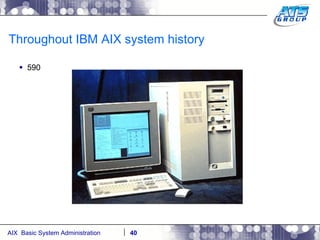
Logical Volume Manager  When a hard disk is installed in the system, scsi disk, or SAN lun, it is given the name hdiskX on the system. Ex: hdisk0, 1, 2, 3, etc.. When a hard disk is made a member of a volume group, vg, it is said to be initialized. When initialized it is called a physical volume – PV. You create logical volumes/partitions on the PVs. These logically divide the hard disk. On top of those LVs are Physical Partitions PPS. These are regions of the logical volume divided into equal size. On top of those PPs, are logical partitions LPS. These sit on top of the PPs and can have one to many relationships with the their PPS. On top of the LPs, sit the filesystems where directories, and files actually reside. LVM information resides in both the system’s ODM, and on the PV itself.
Logical Volume Manager For the LVM information which resides on disk. All of the disks in a vg know about other disks in the same vg. This is accomplished by a special area on disk known as the VGDA – Volume Group Descriptor Area. If there is one disk in a vg, then there are two VGDAs on one disk. If there are two disks in a vg, then there is one VGDA on one disk, and two on the other. If there are three, or more disks in a vg, then there is one VGDA per disk. The same goes for another meta data area of a disk drive in AIX. This area is called the VGSA – Volume Group Status Area. This will provide information regarding mirrored copies of data on disk.
Logical Volume Manager
Logical Volume Manager When the system is installed there is only one volume group defined. This volume group is called rootvg, and contains all of the system logical volumes – hd*. To list the volume groups currently defined to the system type in the lsvg command, which stands for LiSt Volume Group. #  lsvg rootvg #
Logical Volume Manager To get more details about a volume group, such as total used space, free space, etc, use the lsvg command with the volume group name as the argument. # lsvg rootvg VOLUME GROUP:  rootvg  VG IDENTIFIER:  00c118f000004c00000001239778ea2f VG STATE:  active  PP SIZE:  8 megabyte(s) VG PERMISSION:  read/write  TOTAL PPs:  639 (5112 megabytes) MAX LVs:  256  FREE PPs:  386 (3088 megabytes) LVs:  9  USED PPs:  253 (2024 megabytes) OPEN LVs:  8  QUORUM:  2 (Enabled) TOTAL PVs:  1  VG DESCRIPTORS: 2 STALE PVs:  0  STALE PPs:  0 ACTIVE PVs:  1  AUTO ON:  yes MAX PPs per VG:  32512 MAX PPs per PV:  16256  MAX PVs:  2 LTG size (Dynamic): 256 kilobyte(s)  AUTO SYNC:  no HOT SPARE:  no  BB POLICY:  relocatable #
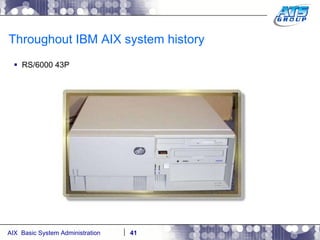
Logical Volume Manager To list the disks which make up the volume group, type in the command lsvg with the option –p, and the vg name. #  lsvg -p rootvg rootvg: PV_NAME  PV STATE  TOTAL PPs  FREE PPs  FREE DISTRIBUTION hdisk0  active  639  386  125..05..00..128..128 #
Logical Volume Manager To get more details about a physical volume type in lspv with the hdisk# name as the argument. #  lspv hdisk0 PHYSICAL VOLUME:  hdisk0  VOLUME GROUP:  rootvg PV IDENTIFIER:  00c118f097291ded VG IDENTIFIER  00c118f000004c00000001239778ea2f PV STATE:  active STALE PARTITIONS:  0  ALLOCATABLE:  yes PP SIZE:  8 megabyte(s)  LOGICAL VOLUMES:  9 TOTAL PPs:  639 (5112 megabytes)  VG DESCRIPTORS:  2 FREE PPs:  386 (3088 megabytes)  HOT SPARE:  no USED PPs:  253 (2024 megabytes)  MAX REQUEST:  256 kilobytes FREE DISTRIBUTION:  125..05..00..128..128 USED DISTRIBUTION:  03..123..127..00..00 #
Logical Volume Manager To list the logical volumes which currently make up the volume group type in the lsvg command with the option –l. # lsvg -l rootvg rootvg: LV NAME  TYPE  LPs  PPs  PVs  LV STATE  MOUNT POINT hd5  boot  3  3  1  closed/syncd  N/A hd6  paging  64  64  1  open/syncd  N/A hd8  jfs2log  1  1  1  open/syncd  N/A hd4  jfs2  3  3  1  open/syncd  / hd2  jfs2  161  161  1  open/syncd  /usr hd9var  jfs2  2  2  1  open/syncd  /var hd3  jfs2  5  5  1  open/syncd  /tmp hd1  jfs2  2  2  1  open/syncd  /home hd10opt  jfs2  12  12  1  open/syncd  /opt #
Logical Volume Manager To get more details of a logical volume use the command lslv with the logical volume name as the argument. #  lslv hd1 LOGICAL VOLUME:  hd1  VOLUME GROUP:  rootvg LV IDENTIFIER:  00c118f000004c00000001239778ea2f.8 PERMISSION:  read/writ e VG STATE:  active/complete  LV STATE:  opened/syncd TYPE:  jfs2  WRITE VERIFY:  off MAX LPs:  512  PP SIZE:  8 megabyte(s) COPIES:  1  SCHED POLICY:  parallel LPs:  2  PPs:  2 STALE PPs:  0  BB POLICY:  relocatable INTER-POLICY:  minimum  RELOCATABLE:  yes INTRA-POLICY:  center  UPPER BOUND:  32 MOUNT POINT:  /home  LABEL:  /home MIRROR WRITE CONSISTENCY: on/ACTIVE EACH LP COPY ON A SEPARATE PV ?: yes Serialize IO ?:  NO #
Logical Volume Manager To list what logical volumes reside on a specific hard disk, use the command lspv –l and use hdisk# as your argument. # lspv -l hdisk0 hdisk0: LV NAME  LPs  PPs  DISTRIBUTION  MOUNT POINT hd6  64  64  00..64..00..00..00  N/A hd8  1  1  00..00..01..00..00  N/A hd4  3  3  00..00..03..00..00  / hd2  161  161  00..49..112..00..00  /usr hd9var  2  2  00..00..02..00..00  /var hd3  5  5  00..00..05..00..00  /tmp hd1  2  2  00..00..02..00..00  /home hd10opt  12  12  00..10..02..00..00  /opt hd5  3  3  03..00..00..00..00  N/A #
Logical Volume Manager To list the hard disks currently installed on the system which are, or aren’t currently a member of a volume group type in the command lspv for LiSt Physical Volume. #  lspv hdisk0  00c118f097291ded  rootvg  active hdisk1  00c118f005a9fabb  None hdisk2  00c118f09780218b  None # Note, None next to the hard disk means that it is not currently a member of a volume group.
Logical Volume Manager Attempt to get detailed information off one of the hard disks which are not a physical volume yet, meaning they are not members of a volume group yet. You will receive an error.  #  lspv hdisk1 0516-320 : Physical volume hdisk1 is not assigned to a volume group. # You will have to make that hdisk a member of a vg, turn it into a physical volume, before you can use it.
Logical Volume Manager To determine the size of a hard disk on the system, use the bootinfo command with the –s, for size, option. #  bootinfo –s hdisk1 10240 #  bootinfo –s hdisk2 5120 This is listed in megabytes. So these disks are 10 gig, and 5 gig respectively.
Logical Volume Manager Volume groups contain hdisks. It concatenates the disks into one. For instance if you have three disks each of 3 gig each, and put them in one volume group, then you’ll have one 9 gig volume group – (3 * 3 = 9). A disk is made into  a PV, so the system can use it, when it becomes a member of a volume group. There are three types of vgs in AIX. 1.) Original or Standard Volume Group – (Maximum of 32 physical volumes). 2.) Big Volume Group – (Maximum of 128 physical volumes). 3.) Scalable Volume Group (Maximum of 1024 physical volumes).
Logical Volume Manager To create a volume group use smitty. There is also a command line version available – mkvg. Volume group names have a limit of 15 characters (alphanumeric) #  smitty mkvg
Logical Volume Manager
Logical Volume Manager Once the vg is created, issue the lsvg command again, and this time you’ll see the newest created vg on the system. Also issue the lspv command, and you’ll see that this hdisk no longer has none next to it, and you’ll also see that it has a PVID number. This is the Physical Volume IDentification number. It’s a 16 character string which is created based on the date, and time the vg was created, and the serial number of the system it was created on. #  lsvg rootvg vg #  lspv hdisk0  00c118f097291ded  rootvg  active hdisk1  00c118f005a9fabb  None hdisk2  00c118f09780218b  vg  active #
Logical Volume Manager Let’s create a logical volume now. We do this via smitty. Again, there is a command to do this as well. To do this you must first decide how big will this logical volume be, which is basically saying, if you will be using a filesystem, how big will my filesystem be? You must specify the size of an lv in LPs. Remember LPs live on top of PPs, and are the same size. Let’s say that the vg was carved up with PPs of all 4 meg each. That means if the disk is 5 gig in size, the whole disk will be made up of 1262 PPs – (1262 * 4 = 5048). So let’s say we wanted our logical volume and/or filesystem to be 2 gig, then it would take 500 LPs to create that logical volume/filesystem – (2000 / 4 = 500).  #  smitty mklv
Logical Volume Manager
Logical Volume Manager Logical volume names have a limit of 15 characters (alphanumeric)
Logical Volume Manager #  lsvg -l vg vg: LV NAME  TYPE  LPs  PPs  PVs  LV STATE  MOUNT POINT mylv1  jfs2  500  500  1  closed/syncd  N/A # Now, do the reverse arithmetic operation to see how big this logical volume is in meg – (Remember 1,000 meg = 1 gig). #  bc 500 * 4 2000 quit #
Logical Volume Manager Now that the logical volume is created, now it’s time to create a filesystem on top of it. #  smitty crfs
Logical Volume Manager
Logical Volume Manger The filesystem is created, notice how a journal log was automatically created for it. #  lsvg -l vg vg: LV NAME  TYPE  LPs  PPs  PVs  LV STATE  MOUNT POINT mylv1  jfs2  500  500  1  closed/syncd  /myfs1 loglv00  jfs2log  1  1  1  closed/syncd  N/A #  lsfs /myfs1 Name  Nodename  Mount Pt  VFS  Size  Options  Auto Accounting /dev/mylv1  --  /myfs1  jfs2  4096000 rw  no no #
Logical Volume Manager Issue the df –g command, and the mount command. Notice this filesystem is not listed. That’s because it hasn’t been mounted. Filesystems have to be mounted before they can be used. Mounting mounts the logical volume/filesystem to the mount point, which is a directory you as the user can create sub-directories, and files in. #  df -g Filesystem  GB blocks  Free %Used  Iused %Iused Mounted on /dev/hd4  0.02  0.01  64%  1682  45% / /dev/hd2  1.26  0.07  95%  30013  61% /usr /dev/hd9var  0.02  0.00  80%  438  34% /var /dev/hd3  0.04  0.04  6%  18  1% /tmp /dev/hd1  0.02  0.02  3%  7  1% /home /dev/hd11admin  0.12  0.12  1%  5  1% /admin /proc  -  -  -  -  -  /proc /dev/hd10opt  0.09  0.02  84%  1538  30% /opt #  mount node  mounted  mounted over  vfs  date  options -------- ---------------  ---------------  ------ ------------ --------------- /dev/hd4  /  jfs2  Sep 09 00:27 rw,log=/dev/hd8 /dev/hd2  /usr  jfs2  Sep 09 00:27 rw,log=/dev/hd8 /dev/hd9var  /var  jfs2  Sep 09 00:28 rw,log=/dev/hd8 /dev/hd3  /tmp  jfs2  Sep 09 00:28 rw,log=/dev/hd8 /dev/hd1  /home  jfs2  Sep 09 00:28 rw,log=/dev/hd8   /dev/hd11admin  /admin  jfs2  Nov 26 19:35 rw,log=/dev/hd8 /proc  /proc  procfs Sep 09 00:28 rw /dev/hd10opt  /opt  jfs2  Sep 09 00:28 rw,log=/dev/hd8 #
Logical Volume Manager Now, issue the command: mount /fs_name to mount the filesystem. #  mount /myfs1 #  df -g Filesystem  GB blocks  Free %Used  Iused %Iused Mounted on /dev/hd4  0.02  0.01  64%  1682  45% / /dev/hd2  1.26  0.07  95%  30013  61% /usr /dev/hd9var  0.02  0.00  80%  438  34% /var /dev/hd3  0.04  0.04  6%  18  1% /tmp /dev/hd1  0.02  0.02  3%  7  1% /home /dev/hd11admin  0.12  0.12  1%  5  1% /admin /proc  -  -  -  -  -  /proc /dev/hd10opt  0.09  0.02  84%  1538  30% /opt /dev/mylv1  1.95  1.95  1%  4  1% /myfs1 #  mount node  mounted  mounted over  vfs  date  options -------- ---------------  ---------------  ------ ------------ --------------- /dev/hd4  /  jfs2  Sep 09 00:27 rw,log=/dev/hd8 /dev/hd2  /usr  jfs2  Sep 09 00:27 rw,log=/dev/hd8 /dev/hd9var  /var  jfs2  Sep 09 00:28 rw,log=/dev/hd8 /dev/hd3  /tmp  jfs2  Sep 09 00:28 rw,log=/dev/hd8 /dev/hd1  /home  jfs2  Sep 09 00:28 rw,log=/dev/hd8   /dev/hd11admin  /admin  jfs2  Nov 26 19:35 rw,log=/dev/hd8 /proc  /proc  procfs Sep 09 00:28 rw /dev/hd10opt  /opt  jfs2  Sep 09 00:28 rw,log=/dev/hd8 /dev/mylv1  /myfs1  jfs2  Sep 09 14:01 rw,log=/dev/loglv00 #
Logical Volume Manager Reboot the system. We’ll use the reboot command this time. #  reboot Rebooting . . . When the system boots back up, log in as root again. AIX Version 6 Copyright IBM Corporation, 1982, 2007. login:  root … .
Logical Volume Manager Issue a df -g, and mount commands again. Notice how the /myfs1 filesystem has not been mounted automatically on system reboot. #  df -g Filesystem  GB blocks  Free %Used  Iused %Iused Mounted on /dev/hd4  0.02  0.01  64%  1686  45% / /dev/hd2  1.26  0.07  95%  30013  61% /usr /dev/hd9var  0.02  0.00  80%  440  34% /var /dev/hd3  0.04  0.04  6%  20  1% /tmp /dev/hd1  0.02  0.02  3%  7  1% /home /dev/hd11admin  0.12  0.12  1%  5  1% /admin /proc  -  -  -  -  -  /proc /dev/hd10opt  0.09  0.02  84%  1538  30% /opt #  mount node  mounted  mounted over  vfs  date  options -------- ---------------  ---------------  ------ ------------ --------------- /dev/hd4  /  jfs2  Sep 09 14:04 rw,log=/dev/hd8 /dev/hd2  /usr  jfs2  Sep 09 14:04 rw,log=/dev/hd8 /dev/hd9var  /var  jfs2  Sep 09 14:04 rw,log=/dev/hd8 /dev/hd3  /tmp  jfs2  Sep 09 14:04 rw,log=/dev/hd8 /dev/hd1  /home  jfs2  Sep 09 14:04 rw,log=/dev/hd8 /dev/hd11admin  /admin  jfs2  Nov 26 19:35 rw,log=/dev/hd8 /proc  /proc  procfs Sep 09 14:04 rw /dev/hd10opt  /opt  jfs2  Sep 09 14:04 rw,log=/dev/hd8 #
Logical Volume Manager To set it so the filesystem will mount automatically on system reboots, you have to edit a file called /etc/filesystems. #  tail /etc/filesystems vol  = /opt free  = false /myfs1: dev  = /dev/mylv1 vfs  = jfs2 log  = /dev/loglv00 mount  = false options  = rw account  = false # Notice how there is the value of false, next to mount. This means that the filesystem will not be mounted automatically on system reboot. We can also see this via the lsfs command.
Logical Volume Manager #  lsfs /myfs1 Name  Nodename  Mount Pt  VFS  Size  Options  Auto Accounting /dev/mylv1  --  /myfs1  jfs2  4096000 rw  no no # #  chfs -a mount=true /myfs1 #  lsfs /myfs1 Name  Nodename  Mount Pt  VFS  Size  Options  Auto Accounting /dev/mylv1  --  /myfs1  jfs2  4096000 rw  yes no #  tail /etc/filesystems vol  = /opt free  = false /myfs1: dev  = /dev/mylv1 vfs  = jfs2 log  = /dev/loglv00 mount  = true options  = rw account  = false # #  reboot Rebooting . . .
Logical Volume Manager The next time the system reboots, log in as root again, and you’ll see the /myfs1 filesystem is now mounted. #  df -g Filesystem  GB blocks  Free %Used  Iused %Iused Mounted on /dev/hd4  0.02  0.01  64%  1684  45% / /dev/hd2  1.26  0.07  95%  30013  61% /usr /dev/hd9var  0.02  0.00  81%  439  34% /var /dev/hd3  0.04  0.04  6%  20  1% /tmp /dev/hd1  0.02  0.02  3%  7  1% /home /dev/hd11admin  0.12  0.12  1%  5  1% /admin /proc  -  -  -  -  -  /proc /dev/hd10opt  0.09  0.02  84%  1538  30% /opt /dev/mylv1  1.95  1.95  1%  4  1% /myfs1 #  mount node  mounted  mounted over  vfs  date  options -------- ---------------  ---------------  ------ ------------ --------------- /dev/hd4  /  jfs2  Sep 09 14:17 rw,log=/dev/hd8 /dev/hd2  /usr  jfs2  Sep 09 14:17 rw,log=/dev/hd8 /dev/hd9var  /var  jfs2  Sep 09 14:17 rw,log=/dev/hd8 /dev/hd3  /tmp  jfs2  Sep 09 14:17 rw,log=/dev/hd8 /dev/hd1  /home  jfs2  Sep 09 14:17 rw,log=/dev/hd8 /dev/hd11admin  /admin  jfs2  Nov 26 19:35 rw,log=/dev/hd8 /proc  /proc  procfs Sep 09 14:17 rw /dev/hd10opt  /opt  jfs2  Sep 09 14:17 rw,log=/dev/hd8 /dev/mylv1  /myfs1  jfs2  Sep 09 14:17 rw,log=/dev/loglv00
Logical Volume Manager To unmount a filesystem use the umount command. Before you do that look at the ls of the directory, notice a lost+found directory. This is created by default for all new filesystems in their root directories. This is for internal system cleanup. #  cd /myfs1 #  pwd /myfs1 #  ls -l total 0 drwxr-xr-x  2 root  system  256 Sep  9 13:56 lost+found #  df -g . Filesystem  GB blocks  Free %Used  Iused %Iused Mounted on /dev/mylv1  1.95  1.95  1%  4  1% /myfs1 #  touch file1 file2 file3 #  ls -l total 0 -rw-r--r--  1 root  system  0 Sep  9 14:20 file1 -rw-r--r--  1 root  system  0 Sep  9 14:20 file2 -rw-r--r--  1 root  system  0 Sep  9 14:20 file3 drwxr-xr-x  2 root  system  256 Sep  9 13:56 lost+found # #  umount /myfs1 umount: error unmounting /dev/mylv1: Device busy #  cd / #  pwd / #  umount /myfs1 #  df -g /myfs1 Filesystem  GB blocks  Free %Used  Iused %Iused Mounted on /dev/hd4  0.02  0.01  64%  1686  45% /
Logical Volume Manager #  cd /myfs1 #  pwd /myfs1 #  df -g . Filesystem  GB blocks  Free %Used  Iused %Iused Mounted on /dev/hd4  0.02  0.01  64%  1686  45% / #  ls -l total 0 #  cd / #  mount /myfs1 #  ls –l /myfs1 total 0 -rw-r--r--  1 root  system  0 Sep  9 14:20 file1 -rw-r--r--  1 root  system  0 Sep  9 14:20 file2 -rw-r--r--  1 root  system  0 Sep  9 14:20 file3 drwxr-xr-x  2 root  system  256 Sep  9 13:56 lost+found #  umount /myfs1 # l s /myfs1 #
Logical Volume Manager To remove a filesystem use the rmfs command. #  rmfs -r /myfs1 rmlv: Logical volume mylv1 is removed. #  lsfs /myfs1 lsfs: No record matching '/myfs1' was found in /etc/filesystems. #  ls -ld /myfs1 /myfs1 not found #  lsvg -l vg vg: LV NAME  TYPE  LPs  PPs  PVs  LV STATE  MOUNT POINT loglv00  jfs2log  1  1  1  closed/syncd  N/A #
Logical Volume Manager To remove a logical volume use the rmlv command. #  rmlv loglv00 Warning, all data contained on logical volume loglv00 will be destroyed. rmlv: Do you wish to continue? y(es) n(o)?  yes rmlv: Logical volume loglv00 is removed. #  lsvg -l vg vg: LV NAME  TYPE  LPs  PPs  PVs  LV STATE  MOUNT POINT #
Logical Volume Manager Create another filesystem, this time allow AIX to create the logical volume for you automatically – (Easier, but less control). #  smitty crfs
Logical Volume Manager
Logical Volume Manager Notice, how AIX figured out the number of LPs it would need automatically. This filesystem is 2 gig as well. #  mount /myfs1 #  df -g /myfs1 Filesystem  GB blocks  Free %Used  Iused %Iused Mounted on /dev/fslv00  1.95  1.95  1%  4  1% /myfs1 #  lsvg -l vg vg: LV NAME  TYPE  LPs  PPs  PVs  LV STATE  MOUNT POINT loglv00  jfs2log  1  1  1  open/syncd  N/A fslv00  jfs2  500  500  1  open/syncd  /myfs1 # Note, when you create an enhanced, JFS2, filesystem and let AIX create the lv, it will automatically select the name fslv##, as the name of the lv. When you create a JFS1 filesystem and let AIX create the lv, it will automatically select the name lv##, as the name of the lv.
Logical Volume Manager Let’s say you wanted to increase the size of a filesystem by 1 gig. You would first check the volume group to see if you had that much space, and then perform the operation. If you didn’t have enough space in the vg, then you would add a disk to the vg. #  lsvg vg | grep -i free MAX LVs:  256  FREE PPs:  761 (3044 megabytes) #  df -m /myfs1 Filesystem  MB blocks  Free %Used  Iused %Iused Mounted on /dev/fslv00  2000.00  1999.37  1%  4  1% /myfs1 #  chfs -a size=+50M /myfs1 Filesystem size changed to 4120576 #  df -m /myfs1 Filesystem  MB blocks  Free %Used  Iused %Iused Mounted on /dev/fslv00  2012.00  2011.37  1%  4  1% /myfs1 #
Logical Volume Manager To reduce the size of a filesystem use the chfs command again, but this time with the – operator. #  df -m /myfs1 Filesystem  MB blocks  Free %Used  Iused %Iused Mounted on /dev/fslv00  2012.00  2011.37  1%  4  1% /myfs1 #  chfs -a size=-50M /myfs1 Filesystem size changed to 4104192 #  df -m /myfs1 Filesystem  MB blocks  Free %Used  Iused %Iused Mounted on /dev/fslv00  2004.00  2003.37  1%  4  1% /myfs1 #
Logical Volume Manager Let’s say you wanted to export a vg from the system. This is done via the following. This is a good feature, because it give you the ability to export the vg, physically remove the disk from the AIX system, physically install the disk into a new AIX system, and then import the vg again. Or logically move the disk around with SAN zoning/mappings, etc. #  lsvg -o vg rootvg #  lsvg -l vg vg: LV NAME  TYPE  LPs  PPs  PVs  LV STATE  MOUNT POINT loglv00  jfs2log  1  1  1  open/syncd  N/A fslv00  jfs2  501  501  1  open/syncd  /myfs1 #  df -g /myfs1 Filesystem  GB blocks  Free %Used  Iused %Iused Mounted on /dev/fslv00  1.96  1.96  1%  4  1% /myfs1 #  umount /myfs1 #  varyoffvg vg #  lsvg -o rootvg #  lsvg rootvg vg #  exportvg vg #  lsvg rootvg
Logical Volume Manager Notice, how the filesystem is gone too, as if it was removed. #  lsfs /myfs1 lsfs: No record matching '/myfs1' was found in /etc/filesystems. # To import the volume group again, either on the same, or different AIX system, use the following. #  importvg -y vg hdisk2 vg #  mount all mount: /dev/hd1 on /home: Device busy mount: /proc on /proc: Device busy mount: /dev/hd10opt on /opt: Device busy #  df -g /myfs1 Filesystem  GB blocks  Free %Used  Iused %Iused Mounted on /dev/fslv00  1.96  1.96  1%  4  1% /myfs1
Logical Volume Manager To remove a volume group use the reducevg command. #  umount /myfs1 #  reducevg vg hdisk2 0516-016 ldeletepv: Cannot delete physical volume with allocated partitions. Use either migratepv to move the partitions or reducevg with the -d option to delete the partitions. 0516-884 reducevg: Unable to remove physical volume hdisk2. #  reducevg -d vg hdisk2 0516-914 rmlv: Warning, all data belonging to logical volume loglv00 on physical volume hdisk2 will be destroyed. rmlv: Do you wish to continue? y(es) n(o)? yes rmlv: Logical volume loglv00 is removed. 0516-914 rmlv: Warning, all data belonging to logical volume fslv00 on physical volume hdisk2 will be destroyed. rmlv: Do you wish to continue? y(es) n(o)? yes rmlv: Logical volume fslv00 is removed. ldeletepv: Volume Group deleted since it contains no physical volumes. #  lsvg rootvg #
Logical Volume Manager Let’s say you wanted to add a disk to a volume group. You do so with the extendvg command. #  bootinfo -s hdisk1 10240 # #  lsvg -p rootvg rootvg: PV_NAME  PV STATE  TOTAL PPs  FREE PPs  FREE DISTRIBUTION hdisk0  active  639  386  125..05..00..128..128 #  lsvg rootvg | grep -i free MAX LVs:  256  FREE PPs:  386 (3088 megabytes) #  lspv hdisk0  00c118f097291ded  rootvg  active hdisk1  00c118f005a9fabb  None hdisk2  00c118f09780218b  None #  extendvg -f rootvg hdisk1 #  lspv hdisk0  00c118f097291ded  rootvg  active hdisk1  00c118f005a9fabb  rootvg  active hdisk2  00c118f09780218b  None #  lsvg rootvg | grep -i free MAX LVs:  256  FREE PPs:  1665 (13320 megabytes) #  lsvg -p rootvg rootvg: PV_NAME  PV STATE  TOTAL PPs  FREE PPs  FREE DISTRIBUTION hdisk0  active  639  386  125..05..00..128..128 hdisk1  active  1279  1279  256..256..255..256..256 #
Logical Volume Manager You can move the contents, of let’s say, the whole operating system from one disk to another if you wanted to, with the migatepv command. You can do this while the system is running. Note, you could also do this when an application, and/or database is running. Disks have to be in the same vg, for migration between them. #  lspv -l hdisk0 hdisk0: LV NAME  LPs  PPs  DISTRIBUTION  MOUNT POINT hd9var  2  2  00..00..02..00..00  /var hd3  5  5  00..00..05..00..00  /tmp hd1  2  2  00..00..02..00..00  /home hd10opt  12  12  00..10..02..00..00  /opt hd5  3  3  03..00..00..00..00  N/A hd6  64  64  00..64..00..00..00  N/A hd8  1  1  00..00..01..00..00  N/A hd4  3  3  00..00..03..00..00  / hd11admin  2  2  00..02..00..00..00  /admin hd2  161  161  00..49..112..00..00  /usr loglv01  1  1  00..01..00..00..00  N/A #  lspv -l hdisk1 #
Logical Volume Manager To move the LPs from one disk to another. #  migratepv hdisk0 hdisk1 0516-1011 migratepv: Logical volume hd5 is labeled as a boot logical volume. 0516-1246 migratepv: If hd5 is the boot logical volume, please run 'chpv -c hdis k0' as root user to clear the boot record and avoid a potential boot off an old boot image that may reside on the disk from which this logical volume is moved/removed. migratepv: boot logical volume hd5 migrated. Please remember to run bosboot, specifying /dev/hdisk1 as the target physical boot device. Also, run bootlist command to modify bootlist to include /dev/hdisk1. #
Logical Volume Manager #  lspv -l hdisk0 # #  lspv -l hdisk1 hdisk1: LV NAME  LPs  PPs  DISTRIBUTION  MOUNT  POINT hd9var  2  2  00..00..02..00..00  /var hd3  5  5  00..00..05..00..00  /tmp hd1  2  2  00..00..02..00..00  /home hd10opt  12  12  00..00..12..00..00  /opt hd5  3  3  03..00..00..00..00  N/A hd6  64  64  00..64..00..00..00  N/A hd8  1  1  00..00..01..00..00  N/A hd4  3  3  00..00..03..00..00  / hd11admin  2  2  00..02..00..00..00  /admin hd2  161  161  00..00..161..00..00  /usr loglv01  1  1  00..01..00..00..00  N/A #
Logical Volume Manager To migrate just one lv, you can use the –l option to the migratepv command. #  lspv -l hdisk0 #  lspv -l hdisk1 hdisk1: LV NAME  LPs  PPs  DISTRIBUTION  MOUNT POINT hd9var  2  2  00..00..02..00..00  /var hd3  5  5  00..00..05..00..00  /tmp hd1  2  2  00..00..02..00..00  /home hd10opt  12  12  00..00..12..00..00  /opt hd5  3  3  03..00..00..00..00  N/A hd6  64  64  00..64..00..00..00  N/A hd8  1  1  00..00..01..00..00  N/A hd4  3  3  00..00..03..00..00  / hd11admin  2  2  00..02..00..00..00  /admin hd2  161  161  00..00..161..00..00  /usr loglv01  1  1  00..01..00..00..00  N/A #  migratepv -l hd1 hdisk1 hdisk0 #  lspv -l hdisk0 hdisk0: LV NAME  LPs  PPs  DISTRIBUTION  MOUNT POINT hd1  2  2  00..00..02..00..00  /home #
Logical Volume Manager Migrate everything from hdisk1, back to hdisk0. #  migratepv hdisk1 hdisk0 0516-1011 migratepv: Logical volume hd5 is labeled as a boot logical volume. 0516-1246 migratepv: If hd5 is the boot logical volume, please run 'chpv -c hdisk1‘ as root user to clear the boot record and avoid a potential boot off an old boot image that may reside on the disk from which this logical volume is moved/removed. #  chpv -c hdisk1 #  bosboot -ad hdisk0 bosboot: Boot image is 35774 512 byte blocks. #  lspv -l hdisk0 hdisk0: LV NAME  LPs  PPs  DISTRIBUTION  MOUNT POINT hd9var  2  2  00..02..00..00..00  /var hd3  5  5  00..05..00..00..00  /tmp hd1  2  2  00..00..02..00..00  /home hd10opt  12  12  00..12..00..00..00  /opt hd5  3  3  03..00..00..00..00  N/A hd6  64  64  00..64..00..00..00  N/A hd8  1  1  00..00..01..00..00  N/A hd4  3  3  00..00..03..00..00  / hd11admin  2  2  00..02..00..00..00  /admin hd2  161  161  00..00..121..40..00  /usr loglv01  1  1  00..01..00..00..00  N/A # #  lspv –l hdisk1 #
Logical Volume Manager If you wanted to remove a disk from a volume group, you would use the reducevg command. #  lsvg rootvg | grep -i free MAX LVs:  256  FREE PPs:  1665 (13320 megabytes) #  lsvg -p rootvg rootvg: PV_NAME  PV STATE  TOTAL PPs  FREE PPs  FREE DISTRIBUTION hdisk0  active  639  386  125..05..00..128..128 hdisk1  active  1279  1279  256..256..255..256..256 #  reducevg rootvg hdisk1 #  lsvg -p rootvg rootvg: PV_NAME  PV STATE  TOTAL PPs  FREE PPs  FREE DISTRIBUTION hdisk0  active  639  386  125..05..00..128..128 #  lsvg rootvg | grep -i free MAX LVs:  256  FREE PPs:  386 (3088 megabytes) #
Logical Volume Manager Mirroring of disks in AIX, which is usually recommended for the rootvg vg, is done at a vg level. The source, and target disk of an AIX disk mirror operation must be in the same vg. You can mirror a disk, a total of 3 ways – 3 copies (1 primary, and 2 secondaries). #  lspv hdisk0  00c118f097291ded  rootvg  active hdisk1  00c118f005a9fabb  None hdisk2  00c118f09780218b  None #  extendvg rootvg hdisk1 #  lspv hdisk0  00c118f097291ded  rootvg  active hdisk1  00c118f005a9fabb  rootvg  active hdisk2  00c118f09780218b  None #  lsvg -l rootvg rootvg: LV NAME  TYPE  LPs  PPs  PVs  LV STATE  MOUNT POINT hd5  boot  3  3  1  closed/syncd  N/A hd6  paging  64  64  1  open/syncd  N/A hd8  jfs2log  1  1  1  open/syncd  N/A hd4  jfs2  3  3  1  open/syncd  / hd2  jfs2  161  161  1  open/syncd  /usr hd9var  jfs2  2  2  1  open/syncd  /var hd3  jfs2  5  5  1  open/syncd  /tmp hd1  jfs2  2  2  1  open/syncd  /home hd11admin  2  2  00..02..00..00..00  /admin hd10opt  jfs2  12  12  1  open/syncd  /opt
Logical Volume Manager #  mirrorvg rootvg hdisk0 hdisk1 0516-1804 chvg: The quorum change takes effect immediately. 0516-1126 mirrorvg: rootvg successfully mirrored, user should perform bosboot of system to initialize boot records.  Then, user must modify bootlist to include:  hdisk1 hdisk0. #  bosboot -ad /dev/hdisk1 bosboot: Boot image is 35774 512 byte blocks. #  bootlist -m normal -o hdisk0 blv=hd5 #  bootlist -m normal hdisk0 hdisk1 #  bootlist -m normal -o hdisk0 blv=hd5 hdisk1 blv=hd5 # #  bootinfo -b hdisk0 #
Logical Volume Manager Notice the one to many, total 3, LP, to PP relationship in the command output below. #  lsvg -l rootvg rootvg: LV NAME  TYPE  LPs  PPs  PVs  LV STATE  MOUNT POINT hd5  boot  3  6  2  closed/syncd  N/A hd6  paging  64  128  2  open/syncd  N/A hd8  jfs2log  1  2  2  open/syncd  N/A hd4  jfs2  3  6  2  open/syncd  / hd2  jfs2  161  322  2  open/syncd  /usr hd9var  jfs2  2  4  2  open/syncd  /var hd3  jfs2  5  10  2  open/syncd  /tmp hd1  jfs2  2  4  2  open/syncd  /home hd11admin  2  2  00..02..00..00..00  /admin hd10opt  jfs2  12  24  2  open/syncd  /opt # #  reboot Rebooting . . .
Logical Volume Manager When the system boots back up, notice how it still booted from your install/source disk – hdisk0. This is because even though you mirrored the disk, it’s still the first boot device listed in the list. Note, you could also boot off of the disk SAN, tape, CDs, DVDs, and the network.  #  bootinfo -b hdisk0 # Now, change the bootlist, so hdisk1, where we mirrored to, will be the disk the system boots off of during next reboot. #  bootlist -m normal -o hdisk0 blv=hd5 hdisk1 blv=hd5 #  bootlist -m normal hdisk1 #  bootlist -m normal -o hdisk1 blv=hd5 #
Logical Volume Manager Reboot the system. Once it’s done rebooting, issue the bootinfo –b, command to determine the last disk the disk booted off of, and it should be hdisk1 now, the target of our rootvg mirror operation. #  reboot Rebooting . . . SYSTEM REBOOTS… #  bootinfo -b hdisk1 #  df -g Filesystem  GB blocks  Free %Used  Iused %Iused Mounted on /dev/hd4  0.02  0.01  59%  1678  42% / /dev/hd2  1.26  0.07  95%  30013  61% /usr /dev/hd9var  0.02  0.00  80%  439  34% /var /dev/hd3  0.04  0.04  6%  19  1% /tmp /dev/hd1  0.02  0.02  3%  7  1% /home /dev/hd11admin  0.12  0.12  1%  5  1% /admin /proc  -  -  -  -  -  /proc /dev/hd10opt  0.09  0.02  84%  1538  30% /opt #  lsvg -l rootvg rootvg: LV NAME  TYPE  LPs  PPs  PVs  LV STATE  MOUNT POINT hd5  boot  3  6  2  closed/syncd  N/A hd6  paging  64  128  2  open/syncd  N/A hd8  jfs2log  1  2  2  open/syncd  N/A hd4  jfs2  3  6  2  open/syncd  / hd2  jfs2  161  322  2  open/syncd  /usr hd9var  jfs2  2  4  2  open/syncd  /var hd3  jfs2  5  10  2  open/syncd  /tmp hd1  jfs2  2  4  2  open/syncd  /home hd11admin  2  2  00..02..00..00..00  /admin hd10opt  jfs2  12  24  2  open/syncd  /opt
Logical Volume Manager Now, change the bootlist back, and reboot so the system boots off of hdisk0, as normal. #  bootlist -m normal -o hdisk1 blv=hd5 #  bootlist -m normal hdisk0 hdisk1 #  bootlist -m normal -o hdisk0 blv=hd5 hdisk1 blv=hd5 #  reboot Rebooting . . . SYSTEM REBOOTS… # bootinfo -b hdisk0 #
Logical Volume Manager To unmirror a volume group, use the unmirrorvg command. #  lsvg -l rootvg rootvg: LV NAME  TYPE  LPs  PPs  PVs  LV STATE  MOUNT POINT hd5  boot  3  6  2  closed/syncd  N/A hd6  paging  64  128  2  open/syncd  N/A hd8  jfs2log  1  2  2  open/syncd  N/A hd4  jfs2  3  6  2  open/syncd  / hd2  jfs2  161  322  2  open/syncd  /usr hd9var  jfs2  2  4  2  open/syncd  /var hd3  jfs2  5  10  2  open/syncd  /tmp hd1  jfs2  2  4  2  open/syncd  /home hd11admin  jfs2  2  2  1  open/syncd  /admin hd10opt  jfs2  12  24  2  open/syncd  /opt #  unmirrorvg rootvg 0516-1246 rmlvcopy: If hd5 is the boot logical volume, please run 'chpv -c <diskname>' as root user to clear the boot record and avoid a potential boot off an old boot image that may reside on the disk from which this logical volume is moved/removed. 0516-1804 chvg: The quorum change takes effect immediately. 0516-1144 unmirrorvg: rootvg successfully unmirrored, user should perform bosboot of system to reinitialize boot records.  Then, user must modify bootlist to just include:  hdisk0. #
Logical Volume Manager #  chpv -c hdisk1 #  bosboot -ad /dev/hdisk0 bosboot: Boot image is 35774 512 byte blocks. #  bootlist -m normal -o hdisk0 blv=hd5 Hdisk1 #  bootlist -m normal hdisk0 #  bootlist -m normal -o hdisk0 blv=hd5 #
Logical Volume Manager Notice the 1 to 1 relationship between the LPs and the PPs once again. #  lsvg -l rootvg rootvg: LV NAME  TYPE  LPs  PPs  PVs  LV STATE  MOUNT POINT hd5  boot  3  3  1  closed/syncd  N/A hd6  paging  64  64  1  open/syncd  N/A hd8  jfs2log  1  1  1  open/syncd  N/A hd4  jfs2  3  3  1  open/syncd  / hd2  jfs2  161  161  1  open/syncd  /usr hd9var  jfs2  2  2  1  open/syncd  /var hd3  jfs2  5  5  1  open/syncd  /tmp hd1  jfs2  2  2  1  open/syncd  /home hd11admin  jfs2  2  2  1  open/syncd  /admin hd10opt  jfs2  12  12  1  open/syncd  /opt #
AIX File Management
AIX File Management Sometimes it is desirable to pack multiple files into one file, which acts as a package. The tar command creates an archived package file which consists of multiple files, and/or directories. These archived packages are known as tar-balls. TAR stands for TApe aRchive. Create a directory in /tmp called junk, and create multiple files, a subdirectory and files under that subdirectory: $  mkdir /tmp/junk $  cd /tmp/junk $  touch filea fileb filec filed filee $ mkdir /tmp/junk/dira $ touch /tmp/junk/dira/filef $ touch /tmp/junk/dira/fileg
AIX File Management $  cd /tmp/junk $  pwd /tmp/junk $  ls -l total 24 drwxr-xr-x  2 justin  staff  256 Nov 24 19:24 dira -rw-r--r--  1 justin  staff  0 Nov 24 19:22 filea -rw-r--r--  1 justin  staff  0 Nov 24 19:22 fileb -rw-r--r--  1 justin  staff  0 Nov 24 19:22 filec -rw-r--r--  1 justin  staff  0 Nov 24 19:22 filed -rw-r--r--  1 justin  staff  0 Nov 24 19:22 filee $  ls -l dira total 0 -rw-r--r--  1 justin  staff  0 Nov 24 19:23 filef -rw-r--r--  1 justin  staff  0 Nov 24 19:24 fileg $  tar -cvf /tmp/files.tar /tmp/junk/* a /tmp/junk/dira a /tmp/junk/dira/filef 0 blocks. a /tmp/junk/dira/fileg 0 blocks. a /tmp/junk/filea 0 blocks. a /tmp/junk/fileb 0 blocks. a /tmp/junk/filec 0 blocks. a /tmp/junk/filed 0 blocks. a /tmp/junk/filee 0 blocks. a /tmp/junk/files.tar 20 blocks.
AIX File Management $  ls -l /tmp/files.tar -rw-r--r--  1 justin  staff  20480 Nov 24 19:26 /tmp/files.tar $ To view the contents of the tar-ball use the following command: $  tar -tvf /tmp/files.tar drwxr-xr-x 202 1  0 Nov 24 19:24:01 2010 /tmp/junk/dira/ -rw-r--r-- 202 1  0 Nov 24 19:23:55 2010 /tmp/junk/dira/filef -rw-r--r-- 202 1  0 Nov 24 19:24:01 2010 /tmp/junk/dira/fileg -rw-r--r-- 202 1  0 Nov 24 19:22:24 2010 /tmp/junk/filea -rw-r--r-- 202 1  0 Nov 24 19:22:24 2010 /tmp/junk/fileb -rw-r--r-- 202 1  0 Nov 24 19:22:24 2010 /tmp/junk/filec -rw-r--r-- 202 1  0 Nov 24 19:22:24 2010 /tmp/junk/filed -rw-r--r-- 202 1  0 Nov 24 19:22:24 2010 /tmp/junk/filee -rw-r--r-- 202 1  10240 Nov 24 19:22:32 2010 /tmp/junk/files.tar $ Delete the /tmp/junk directory: $  rm -r /tmp/junk $  ls -ld /tmp/junk ls: 0653-341 The file /tmp/junk does not exist. $
AIX File Management $  ls -ld /tmp/files.tar -rw-r--r--  1 justin  staff  20480 Nov 24 19:26 /tmp/files.tar $  tar -xvf /tmp/files.tar x /tmp/junk/dira x /tmp/junk/dira/filef, 0 bytes, 0 media blocks. x /tmp/junk/dira/fileg, 0 bytes, 0 media blocks. x /tmp/junk/filea, 0 bytes, 0 media blocks. x /tmp/junk/fileb, 0 bytes, 0 media blocks. x /tmp/junk/filec, 0 bytes, 0 media blocks. x /tmp/junk/filed, 0 bytes, 0 media blocks. x /tmp/junk/filee, 0 bytes, 0 media blocks. x /tmp/junk/files.tar, 10240 bytes, 20 media blocks. $  ls -ld /tmp/junk drwxr-xr-x  3 justin  staff  256 Nov 24 19:28 /tmp/junk $  ls -lR /tmp/junk total 24 drwxr-xr-x  2 justin  staff  256 Nov 24 19:24 dira -rw-r--r--  1 justin  staff  0 Nov 24 19:22 filea -rw-r--r--  1 justin  staff  0 Nov 24 19:22 fileb -rw-r--r--  1 justin  staff  0 Nov 24 19:22 filec -rw-r--r--  1 justin  staff  0 Nov 24 19:22 filed -rw-r--r--  1 justin  staff  0 Nov 24 19:22 filee -rw-r--r--  1 justin  staff  10240 Nov 24 19:22 files.tar /tmp/junk/dira: total 0 -rw-r--r--  1 justin  staff  0 Nov 24 19:23 filef -rw-r--r--  1 justin  staff  0 Nov 24 19:24 fileg
AIX File Management You can extract only a specific file from your archive tar-ball: $  ls -l /tmp/junk/filea -rw-r--r--  1 justin  staff  0 Nov 24 19:22 /tmp/junk/filea $  rm /tmp/junk/filea $  ls -l /tmp/junk/filea ls: 0653-341 The file /tmp/junk/filea does not exist. $  tar -xvf files.tar /tmp/junk/filea x /tmp/junk/filea, 0 bytes, 0 media blocks. $  ls -l /tmp/junk/filea -rw-r--r--  1 justin  staff  0 Nov 24 19:22 /tmp/junk/filea $
AIX File Management To add to the contents of a tar-ball which already exists: $  tar -tvf /tmp/files.tar drwxr-xr-x 202 1  0 Nov 24 19:24:01 2010 /tmp/junk/dira/ -rw-r--r-- 202 1  0 Nov 24 19:23:55 2010 /tmp/junk/dira/filef -rw-r--r-- 202 1  0 Nov 24 19:24:01 2010 /tmp/junk/dira/fileg -rw-r--r-- 202 1  0 Nov 24 19:22:24 2010 /tmp/junk/filea -rw-r--r-- 202 1  0 Nov 24 19:22:24 2010 /tmp/junk/fileb -rw-r--r-- 202 1  0 Nov 24 19:22:24 2010 /tmp/junk/filec -rw-r--r-- 202 1  0 Nov 24 19:22:24 2010 /tmp/junk/filed -rw-r--r-- 202 1  0 Nov 24 19:22:24 2010 /tmp/junk/filee -rw-r--r-- 202 1  10240 Nov 24 19:22:32 2010 /tmp/junk/files.tar $  touch /tmp/FILEA /tmp/FILEB $  tar -rvf /tmp/files.tar /tmp/FILEA /tmp/FILEB a /tmp/FILEA 0 blocks. a /tmp/FILEB 0 blocks. $  tar -tvf /tmp/files.tar drwxr-xr-x 202 1  0 Nov 24 19:24:01 2010 /tmp/junk/dira/ -rw-r--r-- 202 1  0 Nov 24 19:23:55 2010 /tmp/junk/dira/filef -rw-r--r-- 202 1  0 Nov 24 19:24:01 2010 /tmp/junk/dira/fileg -rw-r--r-- 202 1  0 Nov 24 19:22:24 2010 /tmp/junk/filea -rw-r--r-- 202 1  0 Nov 24 19:22:24 2010 /tmp/junk/fileb -rw-r--r-- 202 1  0 Nov 24 19:22:24 2010 /tmp/junk/filec -rw-r--r-- 202 1  0 Nov 24 19:22:24 2010 /tmp/junk/filed -rw-r--r-- 202 1  0 Nov 24 19:22:24 2010 /tmp/junk/filee -rw-r--r-- 202 1  10240 Nov 24 19:22:32 2010 /tmp/junk/files.tar -rw-r--r-- 202 1  0 Nov 24 19:41:21 2010 /tmp/FILEA -rw-r--r-- 202 1  0 Nov 24 19:41:21 2010 /tmp/FILEB $
AIX File Management You can also use the tar command to move files, and subdirectories between systems, etc. Note, the native tar command in AIX can only crate tar-ball archives which are 8 gig in size. To get around this you can download a free version called gtar, which can create tar-ball archives which are greater than 8 gig in size.
AIX File Management You can compress files in Unix with the compress command $  pwd /tmp $  ls -l files.tar -rw-r--r--  1 justin  staff  20480  Nov 24 19:41 files.tar $  compress files.tar $  ls -l files.tar ls: 0653-341 The file files.tar does not exist. $  ls -l files.tar.Z -rw-r--r--  1 justin  staff  886 Nov 24 19:41 files.tar.Z $  tar -xvf files.tar.Z tar: 0511-169 A directory checksum error on media; 0 not equal to 61150. Note, the compress command automatically appends a .Z extension to the end of the file it compresses.
AIX File Management To uncompress a file you use the, you guessed it, uncompress comand: $  ls -l files.tar.Z -rw-r--r--  1 justin  staff  886  Nov 24 19:41 files.tar.Z $  uncompress files.tar.Z $  ls -l files.tar -rw-r--r--  1 justin  staff  20480  Nov 24 19:41 files.tar $  tar –tvf files.tar drwxr-xr-x 202 1  0 Nov 24 19:24:01 2010 /tmp/junk/dira/ -rw-r--r-- 202 1  0 Nov 24 19:23:55 2010 /tmp/junk/dira/filef -rw-r--r-- 202 1  0 Nov 24 19:24:01 2010 /tmp/junk/dira/fileg -rw-r--r-- 202 1  0 Nov 24 19:22:24 2010 /tmp/junk/filea -rw-r--r-- 202 1  0 Nov 24 19:22:24 2010 /tmp/junk/fileb -rw-r--r-- 202 1  0 Nov 24 19:22:24 2010 /tmp/junk/filec -rw-r--r-- 202 1  0 Nov 24 19:22:24 2010 /tmp/junk/filed -rw-r--r-- 202 1  0 Nov 24 19:22:24 2010 /tmp/junk/filee -rw-r--r-- 202 1  10240 Nov 24 19:22:32 2010 /tmp/junk/files.tar -rw-r--r-- 202 1  0 Nov 24 19:41:21 2010 /tmp/FILEA -rw-r--r-- 202 1  0 Nov 24 19:41:21 2010 /tmp/FILEB $ Note the uncompress command will automatically remove the .Z extension of a file it uncompresses.
AIX File Management There is another command which handles compression. It is called gzip.  $  ls -l files.tar -rw-r--r--  1 justin  staff  20480  Nov 24 19:41 files.tar $  gzip files.tar $  ls -l files.tar.gz -rw-r--r--  1 justin  staff  379  Nov 24 19:41 files.tar.gz $  tar -tvf files.tar.gz tar: 0511-164 There is a media read or write block size error. $ The gzip command will append the file extension .gz to any files it compresses. Note, the gzip command achieves a better compression ratio than the compress command.
AIX File Management To uncompress any file you compressed with the gzip command, you use the gunzip command: $  ls -l files.tar.gz -rw-r--r--  1 justin  staff  379  Nov 24 19:41 files.tar.gz $  gunzip files.tar.gz $  ls -l files.tar -rw-r--r--  1 justin  staff  20480  Nov 24 19:41 files.tar $  tar -tvf files.tar drwxr-xr-x 202 1  0 Nov 24 19:24:01 2010 /tmp/junk/dira/ -rw-r--r-- 202 1  0 Nov 24 19:23:55 2010 /tmp/junk/dira/filef -rw-r--r-- 202 1  0 Nov 24 19:24:01 2010 /tmp/junk/dira/fileg -rw-r--r-- 202 1  0 Nov 24 19:22:24 2010 /tmp/junk/filea -rw-r--r-- 202 1  0 Nov 24 19:22:24 2010 /tmp/junk/fileb -rw-r--r-- 202 1  0 Nov 24 19:22:24 2010 /tmp/junk/filec -rw-r--r-- 202 1  0 Nov 24 19:22:24 2010 /tmp/junk/filed -rw-r--r-- 202 1  0 Nov 24 19:22:24 2010 /tmp/junk/filee -rw-r--r-- 202 1  10240 Nov 24 19:22:32 2010 /tmp/junk/files.tar -rw-r--r-- 202 1  0 Nov 24 19:41:21 2010 /tmp/FILEA -rw-r--r-- 202 1  0 Nov 24 19:41:21 2010 /tmp/FILEB $ Notice how the gunzip command removes the .gz file extension from the file you uncompressed.
AIX File Management The checksum of a file can serve as both a security measure and an integrity check for files. There are three sum commands available in AIX: sum  – Two numbers generated. One is a 16-bit checksum. The other is how many 1024-byte blocks the file occupies. cksum - Two numbers are generated. One is a 32-bit checksum, CRC – Cyclic Redundancy Check. The other is the number of bytes the file occupies. csum  – md5 checksum. The most reliable.
AIX File Management $  sum /tmp/files.tar 55502  20 /tmp/files.tar $  sum /tmp/files.tar 55502  20 /tmp/files.tar $ The cksum comand: $  cksum /tmp/files.tar 3203472726 20480 /tmp/files.tar $  cksum /tmp/files.tar 3203472726 20480 /tmp/files.tar $ The csum command: $  csum /tmp/files.tar 3b527c471941b88b516e655a6b2e3476  /tmp/files.tar $  csum /tmp/files.tar 3b527c471941b88b516e655a6b2e3476  /tmp/files.tar $
AIX File Managment Changing the contents of a file in anyway will change the checksum: Previous: 55502  20  $ echo &quot;&quot; >> /tmp/files.tar $ sum /tmp/files.tar 27761  21 /tmp/files.tar Previous :  3203472726 20480   $ cksum /tmp/files.tar 934779789 20481 /tmp/files.tar Previous: 3b527c471941b88b516e655a6b2e3476  $ csum /tmp/files.tar 2983325f6403aedddfe0b44a70dcffed  /tmp/files.tar $
AIX File Management The Unix file command performs a series of tests on an object, and determines the type: files, directory, text file, executable, etc: $  file /tmp /tmp: directory $  file /tmp/files.tar /tmp/files.tar: tar archive $  file /usr/bin/cat /usr/bin/cat: executable (RISC System/6000) or object module $  file /tmp/junk/filea /tmp/junk/filea: empty $ $  file /etc/hosts /etc/hosts: ascii text $
AIX File Management Computer science refresher of how space is calculated. Byte scale: 8 Bits  = 1 Byte 1,000 Bytes  = 1 Kilobyte 1,000 Kilobytes  = 1 Megabyte 1,000 Megabytes  = 1 Gigabyte 1,000 Gigabytes  = 1 Terabyte 1,000 Terabytes  = 1 Petabyte 1,000 Petabytes  = 1 Exabyte 1,000 Exabytes  = 1 Zettabyte 1,000 Zettabytes =  1 Yottabyte
AIX File Management You can create empty files of a certain size in AIX. The command is called lmktemp. To create a 10 meg file called testfile in /tmp: #  pwd /tmp #  lmktemp testfile 10m testfile #  ls -l testfile -rw-r--r--  1 root  system  10485760 Nov 29 11:12 testfile To create a 1 gig file: #  lmktemp testfile2 1000m testfile2 #  ls -l testfile2 -rw-r--r--  1 root  system  1048576000 Nov 29 11:17 testfile2 #
AIX File Management To display the size of a file or directory use the du command. #  du -m testfile 10.00  testfile #  du -g testfile2 0.98  testfile2 #  du -m testfile2 1000.00 testfile2 #
AIX File Management To view the size of an entire directory, you can use the du command against a directory as well as a file.  #  pwd /tmp #  mkdir files #  cd files #  pwd /tmp/files #  mv testfile files #  mv testfile2 files #  ls -l files total 2068488 -rw-r--r--  1 root  system  10485760 Nov 29 11:23 testfile -rw-r--r--  1 root  system  1048576000 Nov 29 11:23 testfile2 # #  du -m files 1010.00 files #  du -g files 0.99  files #  rm –r files
AIX System Paging Space
AIX System Paging Space Paging space allows the system to address more memory then is actually there. If you have 20 gig of real memory/RAM, but also have 5 gig of paging space, you can think of the system as having 25 gig of total memory. Paging space resides on physical disk as a logical volume. It is a special purpose logical volume in AIX which is not intended to have a  filesystem on it. Paging space is also known as swap space.
AIX System Paging Space How it works? When the amount of free physical memory/RAM in the system is low, programs or data that have not been used recently are moved from real physical memory/RAM to paging space on disk to release the real memory/RAM for other activities. By default AIX BOS installation creates a paging space logical volume called hd6 on drive hdisk0, where you installed the operating system. The default paging space size is determined during BOS installation, by the following initial sizing rules: Paging space can use no less than 64 MB. If real memory/RAM is less than 256 MB, paging space is two times real memory. If real memory/RAM is greater than or equal to 256 MB, paging space is 512 MB On all systems today the paging space will be 512MB by default.
AIX System Paging Space You can create multiple paging space logical volumes on a system. Paging space is allocated in a round robin fashion via 4KB pages with multiple paging spaces/lvs. To display the current paging spaces and usage: #  lsps -s Total Paging Space  Percent Used 512MB  2% # To display more info regarding your paging space: #  lsps -a Page Space  Physical Volume  Volume Group Size %Used Active  Auto  Type Chksum hd6  hdisk0  rootvg  512MB  2  yes  yes  lv  0 #
AIX System Paging Space You can dynamically increase the size of paging space with the following command: #  lsvg rootvg | grep -i &quot;pp size&quot; VG STATE:  active  PP SIZE:  64 megabyte(s) #  bc 1000 / 64 15 quit #  chps -s 15 hd6 #  lsps -s Total Paging Space  Percent Used 1472MB  1% #  lsps -a Page Space  Physical Volume  Volume Group Size %Used Active  Auto  Type Chksum hd6  hdisk0  rootvg  1472MB  1  yes  yes  lv  0 #
AIX System Paging Space You can dynamically reduce the size of a paging space: #  lsps -s Total Paging Space  Percent Used 1472MB  1% #  lsps -a Page Space  Physical Volume  Volume Group Size %Used Active  Auto  Type Chksum hd6  hdisk0  rootvg  1472MB  1  yes  yes  lv  0 #  chps -d 15 hd6 shrinkps: Temporary paging space paging00 created. shrinkps: Dump device moved to temporary paging space. shrinkps: Paging space hd6 removed. shrinkps: Paging space hd6 recreated with new size. shrinkps: Resized and original paging space characteristics differ, check the lslv command output. #  lsps -a Page Space  Physical Volume  Volume Group Size %Used Active  Auto  Type Chksum hd6  hdisk0  rootvg  512MB  2  yes  yes  lv  0 #  lsps -s Total Paging Space  Percent Used 512MB  2% #
AIX System Paging Space To create additional paging spaces use smitty: #  smitty mkps
AIX System Paging Space For the sake of this lab, please select no for start using paging space now, and use this paging space each time the system is restarted
AIX System Paging Space By default a logical volume with the name paging00, will be created for your paging space. Note all subsequent paging spaces will be named paging##, ## being incremented by one.
AIX System Paging Space #  lsps -a Page Space  Physical Volume  Volume Group Size %Used Active  Auto  Type Chksum paging00  hdisk0  rootvg  960MB  0  no  no  lv  0 hd6  hdisk0  rootvg  512MB  2  yes  yes  lv  0 #  lsps -s Total Paging Space  Percent Used 512MB  2% # Notice how the column Active, and Auto have the value of no for this newly created paging space, paging00. To activate the paging space use the swapon command: #  swapon /dev/paging00 #  lsps -s Total Paging Space  Percent Used 1472MB  1% #  lsps -a Page Space  Physical Volume  Volume Group Size %Used Active  Auto  Type Chksum paging00  hdisk0  rootvg  960MB  1  yes  no  lv  0 hd6  hdisk0  rootvg  512MB  2  yes  yes  lv  0 #
AIX System Paging Space To disable paging space, use the swapoff command: #  lsps -s Total Paging Space  Percent Used 1472MB  1% #  lsps -a Page Space  Physical Volume  Volume Group Size %Used Active  Auto  Type Chksum paging00  hdisk0  rootvg  960MB  1  yes  no  lv  0 hd6  hdisk0  rootvg  512MB  2  yes  yes  lv  0 #  swapoff /dev/paging00 #  lsps -s Total Paging Space  Percent Used 512MB  2% #  lsps -a Page Space  Physical Volume  Volume Group Size %Used Active  Auto  Type Chksum paging00  hdisk0  rootvg  960MB  0  no  no  lv  0 hd6  hdisk0  rootvg  512MB  2  yes  yes  lv  0 #
AIX System Paging Space Reboot your system: #  shutdown -Fr SHUTDOWN PROGRAM Sat Sep  5 17:07:48 EDT 2009 Wait for 'Rebooting...' before stopping. Error logging stopped... Advanced Accounting has stopped... Process accounting stopped... Stopping NFS/NIS Daemons 0513-004 The Subsystem or Group, nfsd, is currently inoperative. 0513-044 The biod Subsystem was requested to stop. 0513-044 The rpc.lockd Subsystem was requested to stop. 0513-044 The rpc.statd Subsystem was requested to stop. 0513-004 The Subsystem or Group, gssd, is currently inoperative. 0513-004 The Subsystem or Group, nfsrgyd, is currently inoperative. …
AIX System Paging Space When the system comes back up from its reboot, we will see that the paging space we created, paging00, is not activated: #  uptime 10:10AM  up 1 min,  1 user,  load average: 0.06, 0.03, 0.01 #  who -b .  system boot Nov 26 10:09 #  lsps -s Total Paging Space  Percent Used 512MB  2% #  lsps -a Page Space  Physical Volume  Volume Group Size %Used Active  Auto  Type Chksum paging00  hdisk0  rootvg  960MB  0  no  no  lv  0 hd6  hdisk0  rootvg  512MB  2  yes  yes  lv  0 #
AIX System Paging Space It is not activated because it isn’t set to do so in the /etc/swapspaces file. #  ls -l /etc/swapspaces -rw-r--r--  1 root  system  502 Nov 26 09:59 /etc/swapspaces #  cat /etc/swapspaces * /etc/swapspaces * * This file lists all the paging spaces that are automatically put into * service on each system restart (the 'swapon -a' command executed from * /etc/rc swaps on every device listed here). * * WARNING: Only paging space devices should be listed here. * * This file is modified by the chps, mkps and rmps commands and referenced * by the lsps and swapon commands. hd6: dev = /dev/hd6 auto = yes checksum_size = 0 paging00: dev = /dev/paging00 auto = no checksum_size = 0
AIX System Paging Space To set this paging space to activate automatically on system boot up you can either edit this file manually, or you can use the following command which will make the appropriate change to this file. #  chps -ay paging00 #  cat /etc/swapspaces * /etc/swapspaces * * This file lists all the paging spaces that are automatically put into * service on each system restart (the 'swapon -a' command executed from * /etc/rc swaps on every device listed here). * * WARNING: Only paging space devices should be listed here. * * This file is modified by the chps, mkps and rmps commands and referenced * by the lsps and swapon commands. hd6: dev = /dev/hd6 auto = yes checksum_size = 0 paging00: dev = /dev/paging00 auto = yes checksum_size = 0
AIX System Paging Space #  lsps -s Total Paging Space  Percent Used 512MB  2% #  lsps -a Page Space  Physical Volume  Volume Group Size %Used Active  Auto  Type Chksum paging00  hdisk0  rootvg  960MB  0  no  yes  lv  0 hd6  hdisk0  rootvg  512MB  2  yes  yes  lv  0 # You can manually enable all paging spaces with the command: # swap on -a 0517-075 swapon: Paging device /dev/hd6 is already active. swapon: Paging device /dev/paging00 activated. # #  lsps -s Total Paging Space  Percent Used 1472MB  1% #  lsps -a Page Space  Physical Volume  Volume Group Size %Used Active  Auto  Type Chksum paging00  hdisk0  rootvg  960MB  1  yes  yes  lv  0 hd6  hdisk0  rootvg  512MB  2  yes  yes  lv  0 #
AIX System Paging Space Reboot your system once again: #  shutdown -Fr SHUTDOWN PROGRAM Sat Sep  5 17:07:48 EDT 2009 Wait for 'Rebooting...' before stopping. Error logging stopped... Advanced Accounting has stopped... Process accounting stopped... Stopping NFS/NIS Daemons 0513-004 The Subsystem or Group, nfsd, is currently inoperative. 0513-044 The biod Subsystem was requested to stop. 0513-044 The rpc.lockd Subsystem was requested to stop. 0513-044 The rpc.statd Subsystem was requested to stop. 0513-004 The Subsystem or Group, gssd, is currently inoperative. 0513-004 The Subsystem or Group, nfsrgyd, is currently inoperative. …
AIX System Paging Space When the system comes back up from it’s reboot this time, you will see that the paging spaces were automatically activated: #  uptime 10:28AM  up 1 min,  1 user,  load average: 0.46, 0.16, 0.06 #  who -b .  system boot Nov 26 10:27 #  lsps -s Total Paging Space  Percent Used 1472MB  1% #  lsps -a Page Space  Physical Volume  Volume Group Size %Used Active  Auto  Type Chksum paging00  hdisk0  rootvg  960MB  1  yes  yes  lv  0 hd6  hdisk0  rootvg  512MB  1  yes  yes  lv  0 #
AIX System Paging Space To remove a paging space, the paging space must be disabled. #  lsps -s Total Paging Space  Percent Used 1472MB  1% #  lsps -a Page Space  Physical Volume  Volume Group Size %Used Active  Auto  Type Chksum paging00  hdisk0  rootvg  960MB  1  yes  yes  lv  0 hd6  hdisk0  rootvg  512MB  1  yes  yes  lv  0 #  swapoff /dev/paging00 #  rmps paging00 rmlv: Logical volume paging00 is removed. #  lsps -s Total Paging Space  Percent Used 512MB  2% #  lsps -a Page Space  Physical Volume  Volume Group Size %Used Active  Auto  Type Chksum hd6  hdisk0  rootvg  512MB  2  yes  yes  lv  0 #
AIX System Paging Space Guidelines for creating paging spaces. Do not create more than one paging space on one hdisk. Create all paging spaces to be equal size on the system. Do not create a paging space so it spans multiple hdisks. Attempt to keep all paging spaces in rootvg. Do not put paging spaces on currently heavily utilized hdisks.
AIX System Dump Facility
AIX System Dump Facility When the system boots it copies the entire kernel into memory/RAM. When the system experiences a fatal error in it’s kernel, sometimes referred to as a kernel panic, the system dump facility will copy the entire contents of memory/RAM, kernel memory pages, to a special logical volume known as the dump device. By default if your system’s memory/RAM is less than 4 gig, during BOS installation, the system will designate the same logical volume used for paging space as it’s dump device, hd6. However, if the memory/RAM is greater than 4 gig, during BOS installation, then system will create it’s own dedicated dump device, called lg_dumplv, for LarGe DUMP device. When there is a fatal problem which would cause AIX not to function any longer, the entire contents of the kernel will be dumped to this dump device. After that the system will reboot itself, and return to service. You can then either analyze the generated system dump yourself, or send it to IBM technical support for analysis, as some analysis require in depth knowledge of AIX internals, as well as access to it’s source code.
AIX System Dump Facility There are two types of dumps. A system dump which is an entire dump of the kernel’s memory to disk, and a core dump, which is just a dump of a specific program’s memory area. Note, you will need access to the program’s source code to troubleshoot core dumps, usually. You can generate your own via the following commands: #  ps -ef | grep -i sleep #  ls -l core ls: 0653-341 The file core does not exist. #  sleep 1000 & [1]  3080416 #  ps -ef | grep -i sleep root 3080416 5570658  0 12:31:48  pts/1  0:00 sleep 1000 #  kill -11 3080416 #  ls -l core -rw-------  1 root  system  7188 Nov 26 12:31 core [1] + Segmentation fault(coredump) sleep 1000 & #  ls -l core -rw-------  1 root  system  7188 Nov 26 12:31 core
AIX System Dump Facility To view the current system dump device settings use the sysdumpdev command: #  sysdumpdev -l primary  /dev/hd6 secondary  /dev/sysdumpnull copy directory  /var/adm/ras forced copy flag  TRUE always allow dump  FALSE dump compression  ON type of dump  traditional # Due to the fact that our systems in this lab are all under 4 gig of memory/RAM, we do not have a dedicated dump device for the running kernel to dump to. In the event of a system dump/panic, it will dump to /dev/hd6, which is also the default paging space logical volume device. Note: A system dump in AIX version 6.1, and above will always result in a compressed system dump. You cannot disable compression any longer.
AIX System Dump Facility Due to this, if the system were to dump it’s running kernel, due to an error, it will dump to hd6. Now theoretically the system has no need for paging space at this point, because it is in the process of crashing completely. That being the case it uses that space for the running system’s kernel in memory which is currently failing.  After the system dumps the running kernel to the paging space LV, hd6, it will reboot itself. During the system boot following a system dump, the system will copy the dump contained in the logical volume to a file on disk, to clear the space for paging space. This directory is called the copy directory. If your copy directory does not have sufficient space for this copy, to hold the dump in hd6, you will be asked, via the console, to copy the dump off of the paging space to an external device to protect it. You need to protect it from when the system boots and paging space is active, otherwise when paging space is initialized, and written to it will overwrite some of the dump, or all of it, damaging it. Note, the system only prompts you for this copy during system reboot, if the dump device is set to the paging space device.
AIX System Dump Facility On systems that have never experienced a dump/system crash before: #  sysdumpdev -L 0453-019 No previous dumps recorded. Scanning device /dev/hd6 for existing dump.
AIX System Dump Facility To manually start a system dump execute the following command: #  sysdumpstart –p After the system dumps the memory to the dump device, the system will automatically reboot itself. #  uptime 10:06PM  up  1 user,  load average: 0.63, 0.20, 0.07 #  who -b .  system boot Nov 26 22:05 #  sysdumpdev -L 0453-039 Device name:  /dev/hd6 Major device number: 10 Minor device number: 2 Size:  67115008 bytes Uncompressed Size:  644424256 bytes Date/Time:  Fri Nov 26 22:01:53 CST 2010 Dump status:  0 Type of dump:  traditional dump completed successfully Dump copy filename: /var/adm/ras/vmcore.0.BZ #  cd /var/adm/ras #  ls -l vmcore* -rw-------  1 root  system  67115008 Nov 26 22:04 vmcore.0.BZ #
AIX System Dump Facility Kick off another system dump. #  sysdumpstart –p … #  uptime 10:13PM  up 1 min,  2 users,  load average: 0.66, 0.28, 0.11 #  who -b .  system boot Nov 26 22:12 #  sysdumpdev -L 0453-039 Device name:  /dev/hd6 Major device number: 10 Minor device number: 2 Size:  67697664 bytes Uncompressed Size:  652301407 bytes Date/Time:  Fri Nov 26 22:08:02 CST 2010 Dump status:  0 Type of dump:  traditional dump completed successfully Dump copy filename: /var/adm/ras/vmcore.1.BZ #  cd /var/adm/ras #  ls -l vmcore* -rw-------  1 root  system  67697664 Nov 26 22:10 vmcore.1.BZ #
AIX System Dump Facility Go to the /var/adm/ras directory, default copy directory, and create an empty file so it takes up most of the space of that filesystem, as a test to see what will happen when the system reboots after a system dump and discovers that the copy directory is too small to copy the dump on the dump device to. #  cd /var/adm/ras #  pwd /var/adm/ras #  df -m . Filesystem  MB blocks  Free %Used  Iused %Iused Mounted on /dev/hd9var  448.00  114.32  75%  9859  27% /var #  lmktemp file 110000000 File #  du -m file 104.91  file #  df -m . Filesystem  MB blocks  Free %Used  Iused %Iused Mounted on /dev/hd9var  448.00  9.41  98%  9860  73% /var #  sysdumpstart –p
AIX System Dump Facility You will see the following menu appear which is giving you the opportunity to copy this system dump file safely off to removable media such as tape, so the system can start using the paging space device, hd6, again when it fully boots, and your dump will be safe for analysis. Just type 99 to continue the boot process.
AIX System Dump Facility To change the dump copy directory. Create a filesystem called /dump, or whatever, and make it 1 gig: #  smitty crfs
AIX System Dump Facility
AIX System Dump Facility #  mount /dump #  df -m /dump Filesystem  MB blocks  Free %Used  Iused %Iused Mounted on /dev/fslv02  128.00  127.66  1%  4  1% /dump #  ls /dump lost+found #  sysdumpdev -l primary  /dev/hd6 secondary  /dev/sysdumpnull copy directory  /var/adm/ras forced copy flag  TRUE always allow dump  FALSE dump compression  ON type of dump  traditional #  sysdumpdev -d /dump #  sysdumpdev -l primary  /dev/hd6 secondary  /dev/sysdumpnull copy directory  /dump forced copy flag  FALSE always allow dump  FALSE dump compression  ON type of dump  traditional #
AIX System Dump Facility Initiate a system dump again: #  sysdumpstart –p #  uptime 11:03PM  up 1 min,  1 user,  load average: 0.95, 0.32, 0.12 #  who -b .  system boot Nov 26 23:01 #  sysdumpdev -L 0453-039 Device name:  /dev/hd6 Major device number: 10 Minor device number: 2 Size:  67366400 bytes Uncompressed Size:  652640517 bytes Date/Time:  Fri Nov 26 22:57:49 CST 2010 Dump status:  0 Type of dump:  traditional dump completed successfully Dump copy filename: /dump/vmcore.0.BZ #  ls -l /dump total 131584 --w-------  1 root  system  2 Nov 26 23:00 bounds -rw-------  1 root  system  67366400 Nov 26 23:00 vmcore.0.BZ #
AIX System Dump Facility Prior to you creating a dedicated dump device, you need to determine how much space your would need if your system were to crash/dump right now. You should run this command during your system’s most heaviest workload. #  sysdumpdev -e 0453-041 Estimated dump size in bytes: 189372825 #
AIX System Dump Facility To change the primary dump device/LV, so that a copy is not necessary on the subsequent reboot following the system crash: #  lsvg rootvg | grep -i &quot;pp size&quot; VG STATE:  active  PP SIZE:  64 megabyte(s) #  smitty mklv
AIX System Dump Facility Intentionally create it too small
AIX System Dump Facility
AIX System Dump Facility #  sysdumpdev -l primary  /dev/hd6 secondary  /dev/sysdumpnull copy directory  /dump forced copy flag  FALSE always allow dump  FALSE dump compression  ON type of dump  traditional #  sysdumpdev -Pp /dev/dumplv primary  /dev/dumplv secondary  /dev/sysdumpnull copy directory  /dump forced copy flag  FALSE always allow dump  FALSE dump compression  ON type of dump  traditional #
AIX System Dump Facility Create another LV which will be the secondary dump device: #  smitty mklv
AIX System Dump Facility
AIX System Dump Facility #  sysdumpdev -l primary  /dev/dumplv secondary  /dev/sysdumpnull copy directory  /dump forced copy flag  FALSE always allow dump  FALSE dump compression  ON type of dump  traditional #  sysdumpdev -Ps /dev/dumplv2 primary  /dev/dumplv secondary  /dev/dumplv2 copy directory  /dump forced copy flag  FALSE always allow dump  FALSE dump compression  ON type of dump  traditional #
AIX System Dump Facility Initiate another system dump: #  sysdumpstart –p After the system reboot: #  uptime 11:35PM  up  1 user,  load average: 0.43, 0.11, 0.04 #  who -b .  system boot Nov 26 23:35 #  sysdumpdev -L 0453-039 Device name:  /dev/dumplv2 Major device number: 10 Minor device number: 16 Size:  67108352 bytes Uncompressed Size:  644473103 bytes Date/Time:  Fri Nov 26 23:31:22 CST 2010 Dump status:  -2    RETURN CODE INDICATES DUMP DEVICE WAS TOO SMALL. Type of dump:  traditional dump device too small #
AIX System Dump Facility You or IBM support examine’s the dump with the kdb, Kernel DeBugger utility. In version of AIX 4.3 and below the crash utility was used. In AIX version 5.1 and above the kdb utility is used.
AIX System Dump Facility Typically IBM/AIX technical support will have you run the snap command to gather configuration information, as well as the system dump iteself into one package, to send to them for further analysis: #  snap -a Checking space requirement for general information......... … Checking space requirement for tcpip information..................................................... done. Checking space requirement for kernel information............... done. Checking space requirement for printer information.... done. Checking space requirement for dump information........ Attention:  The dump is compressed, and we were not able to verify it is consistent with /unix.  Processing continues. . done. Checking space requirement for sna information.../var/sna not found  done. Checking space requirement for filesys information.................... done. Checking space requirement for async information................ done. Checking space requirement for lang information.......... done. Checking space requirement for XS25 information.................................................................................................done. Checking space requirement for install information... done. Checking space requirement for ssa information.......... done. Checking space requirement for logical volume manager information.........VGs...PVs.. done. Checking space requirement for multicpu  trace files /var/adm/ras/trcfile: No such file or directory …
AIX System Dump Facility #  ls -ld /tmp/ibmsupt drwx------  29 root  system  4096 Dec 08 14:47 /tmp/ibmsupt #  date Wed Dec  1 14:50:52 CST 2010 #  cd /tmp/ibmsupt #  pwd /tmp/ibmsupt #  ls async  dumpdata  getRtasHeap  kernel  nfs  printer  sissas  tcpip  wpars  XS25  client_collect  filesys  hacmp  lang  other  scraid  sna  testcase artex  dump  general  install  lvm  pcixscsi  script.log  ssa  wlm #
AIX System Dump Facility Everything the IBM technician requires to analyze the system dump: #  cd dump #  pwd /tmp/ibmsupt/dump #  ls autoload  dump.BZ  dump.snap  errdead  kdb  kdb_64  livedumpdead  mdmprpt.out  minidump_last  trcdead  unix.Z #
AIX System Dump Facility The kdb is a tool/command for analysing the system dumps. It is used for post-mortem analysis of system dumps, or for monitoring the running kernel. The kdb command has two arguments, when running on the system that did not originally generate the system dump you are analyzing.  The dump file The unix, kernel, file from the failing system. They are both included in that snap /tmp/ibmsupt/dump directory. If you are analyzing the system dump on the system where the dump was generated, then you will not need to explicitly specify the unix, kernel, file as an argument when invoking it. In this example, we’ll invoke it with the unix, kernel, file as if we were IBM/AIX technical support.
AIX System Dump Facility You will have to uncompress the unix, kernel, file and the system dump file before analyzing it: #  uncompress unix.Z #  dmpuncompress dump.BZ -- replaced with dump # Now invoke the kdb command against both: #  kdb dump unix dump mapped from @ 700000000000000 to @ 7000000290f4300 START  END <name> 0000000000001000 0000000004070000 start+000FD8 F00000002FF47600 F00000002FFDF9C0 __ublock+000000 000000002FF22FF4 000000002FF22FF8 environ+000000 000000002FF22FF8 000000002FF22FFC errno+000000 F1000F0A00000000 F1000F0A10000000 pvproc+000000 F1000F0A10000000 F1000F0A18000000 pvthread+000000 Dump analysis on CHRP_SMP_PCI POWER_PC POWER_7 machine with 4 available CPU(s)  (64-bit registers) Processing symbol table... .......................done read vscsi_scsi_ptrs OK, ptr = 0xF1000000C015F398 (0)>
AIX System Dump Facility The first step is always to issue the stat command, this will give you some basic high level information about the system which crashed: (0)>  stat SYSTEM_CONFIGURATION: CHRP_SMP_PCI POWER_PC POWER_7 machine with 4 available CPU(s)  (64-bit registers) SYSTEM STATUS: sysname... AIX nodename.. gvicaix09 release... 1 version... 6 build date Oct  1 2010 build time 18:00:31 label..... 1040A_61L machine... 000B158AD400 nid....... 0B158AD4 time of crash: Wed Dec  1 13:44:09 2010 age of system: 3 day, 23 hr., 4 min., 46 sec. xmalloc debug: enabled FRRs active... 0 FRRs started.. 0 CRASH INFORMATION: CPU -1 CSA 03C372A8 at time of crash, error code for LEDs: 00000000 (0)>
AIX System Dump Facility The kdb utility always opens on the CPU which ran the crashing thread. The prompt of kdb when we started it was 0, meaning any command we issue in this prompt, will be giving us info about the first CPU on the system which crashed. 0>  To switch CPUs, use the kdb cpu # command: 0>  cpu 1 1> Now the kdb prompt changes because we are now looking at CPU 1 – The second CPU.
AIX System Dump Facility Now move to other CPUs: (1)>  cpu 2 (2)>  cpu 3 (3)>  cpu 4 Invalid cpu 4 number Notice how moving to CPU 4 errored. Why? Well let’s exit kdb and find out. Kdb is exited with the exit command: (3)>  exit #
AIX System Dump Facility List the CPUs installed on this system. Each processor core has 4 possible hardware thread execution streams. That is why we have  #  lsdev -Cc processor proc0 Available 00-00 Processor #  lsattr -El proc0 frequency  3000000000  Processor Speed  False smt_enabled true  Processor SMT enabled False smt_threads 4  Processor SMT threads False state  enable  Processor state  False type  PowerPC_POWER7 Processor type  False #  smtctl This system is SMT capable. This system supports up to 4 SMT threads per processor. SMT is currently enabled. SMT boot mode is not set. SMT threads are bound to the same virtual processor. proc0 has 4 SMT threads. Bind processor 0 is bound with proc0 Bind processor 1 is bound with proc0 Bind processor 2 is bound with proc0 Bind processor 3 is bound with proc0
AIX System Dump Facility To see what was running on each processor/CPU at the time of the system crash: (0)>  status CPU  TID  TSLOT  PID  PSLOT  PROC_NAME 0  1860061  390  6000BE  96  sysdumpstart 1  180031  24  E001C  14  wait 2  190033  25  F001E  15  wait 3  1B0037  27  100020  16  wait 4-255  Disabled
AIX System Dump Facility Back to kdb: kdb dump /unix To list filesystems which were mounted on the system that crash, at the time of the crash: (0)>  vfs GFS  DATA TYPE  FLAGS 1 F1000A01000C0510 028A8780 F1000A0180660080 JFS2  DEVMOUNT ... /dev/hd4 mounted over / 2 F1000A01000C0610 028A8780 F1000A0180631C80 JFS2  DEVMOUNT ... /dev/hd2 mounted over /usr 3 F1000A01000C0C10 028A8780 F1000A0180604880 JFS2  DEVMOUNT ... /dev/hd9var mounted over /var 4 F1000A01000C0410 028A8780 F1000A0180695C80 JFS2  DEVMOUNT ... /dev/hd3 mounted over /tmp 5 F1000A01000C0E10 028A8780 F1000A01808AB880 JFS2  DEVMOUNT ... /dev/hd1 mounted over /home 6 F1000A01000C1010 028A8780 F1000A018091B880 JFS2  DEVMOUNT ... /dev/hd11admin mounted over /admin 7 F1000A01000C1110 028A8820 0000000000000000 PROCFS ... /proc mounted over /proc 8 F1000A01000C1210 028A8780 F1000A01808CBC80 JFS2  DEVMOUNT ... /dev/hd10opt mounted over /opt 9 F1000A01000C0D10 028A8780 F1000A018166DC80 JFS2  DEVMOUNT ... /dev/fslv00 mounted over /fs1
AIX System Dump Facility (0)>  p * SLOT NAME  STATE  PID  PPID  ADSPACE  CL #THS pvproc+000000  0 swapper  ACTIVE 0000000 0000000 0000000801001190  0 0001 pvproc+000400  1 init  ACTIVE 0000001 0000000 0000000815095480  0 0001 pvproc+000800  2 wait  ACTIVE 0020004 0000000 0000000803003190  0 0001 pvproc+000C00  3 sched  ACTIVE 0030006 0000000 0000000805005190  0 0001 pvproc+001000  4 lrud  ACTIVE 0040008 0000000 0000000807007190  0 0002 pvproc+001400  5 vmptacrt ACTIVE 005000A 0000000 0000000809009190  0 0001 … pvproc+018000  96*sysdumps ACTIVE 06000BE 07400D4 000000081CDBC480  0 0001 pvproc+018400  97 IBM.CSMA ACTIVE 06100C2 04F00CC 00000008177B7480  0 0016 pvproc+019000  100 IBM.DRMd ACTIVE 064004E 04F00CC 0000000804804480  0 0014 pvproc+019400  101 getty  ACTIVE 0650042 0000001 0000000811B11480  0 0001 pvproc+01A400  105 telnetd  ACTIVE 069009C 03B00AE 000000081ED7E480  0 0001 pvproc+01AC00  107 efs_tkr_ ACTIVE 06B0058 0000001 000000080FB0F190  0 0001 pvproc+01D000  116 ksh  ACTIVE 07400D4 069009C 0000000806D66480  0 0001 (0)>
AIX System Dump Facility To display more info about a particular process in the particular internal process slot table. (0)>  p 96 SLOT NAME  STATE  PID  PPID  ADSPACE  CL #THS pvproc+018000  96*sysdumps ACTIVE 06000BE 07400D4 000000081CDBC480  0 0001 NAME....... sysdumpstart STATE...... stat  :07  .... xstat :0000 FLAGS...... flag  :00200001 LOAD EXECED ........... flag2 :00000000 ........... flag3 :00000000 ........... atomic :00000000 ........... secflag:0001 ROOT LINKS...... child  :0000000000000000 ........... siblings  :0000000000000000 ........... uidinfo  :00000000022A2D68 ........... ganchor  :F1000F0A00018000 <pvproc+018000> THREAD..... threadlist :F1000F0A10018600 <pvthread+018600> DISPATCH... synch  :FFFFFFFFFFFFFFFF AACCT...... projid  :00000000  ........... sprojid  :00000000 ........... subproj  :0000000000000000 ........... file id  :0000000000000000 0000000000000000 00000000 ........... kcid  :00000000 ........... flags  :0000
AIX System Dump Facility Clean up from the lab: #  cd / #  umount /dump #  rmfs –r /dump
AIX System Process Management
AIX System Process Management A program, internally, can run in two modes: User mode System mode User mode means that the system is executing the source code of the program, that  a developer/programmer wrote. System mode means that the system is executing what is known as a system call. A system call is called on behalf of a user process. A system call is a pre-defined “function”. System calls are functions that a programmer can call to perform the services of the operating system. An example of a system call is read(). When the processor sees that the running program code needs to read a file on disk, the user program calls on the kernel to execute the read() system call on it’s behalf because a system call has to run in the kernel’s private/privilege area, and user programs cannot run there.
AIX System Process Management A process is the entity in Unix where a program runs. It describes the program itself, the system resources it uses, etc. Each process has a name, a name which is usually the name of the program, etc. A process is a name given to a program being executed by the operating system Every process has a unique ID which gets assigned to them when you submit them to the system for execution. This ID is called the PID, Process Identifier. This ID is used so you and the system can keep track of this running process, and control it. All process IDs, PID numbers, are even, with the exception of the init process, PID 1. The first system/kernel process ID, PID, is number 0. It is assigned to the swapper process during the boot process. The first user process ID, PID, number is 1. It is assigned to the init process during the boot process.
AIX System Process Management The smallest unit of a process is a thread. Every process has at least one thread. A process can be multi-threaded, meaning that it can run more than one software instruction on multiple processors/CPUs simultaneously. A system with multiple processors/CPUs is known as an SMP, Symmetrical Multi-Processor, system. Every thread adopts many attributes from it’s parent process. Every thread is assigned a unique ID known as the TID, Thread Identifier. There numbers are odd. Each process is made up of one or more threads.  A thread is a single sequential flow of control.
The processor penalty is an integer that is calculated from the recent processor usage of a thread The recent processor usage increases by approximately 1 each time the thread is in control of the processor at the end of a 10 ms clock tick, up to a maximum value of 120. Once per second, the recent processor usage values for all threads are recalculated.
AIX System Process Management
AIX System Process Management To determine what is currently running on a system use the ps –ef command. This command stands for Process Status – EVEN NUMBERS #  ps -ef UID  PID  PPID  C  STIME  TTY  TIME CMD root  1  0  0  Dec 01  -  0:00 /etc/init root  655466 4653244  0  Dec 01  -  0:00 /usr/sbin/portmap root 1507436 4653244  0  Dec 01  -  0:00 sendmail: accepting connect root 1835106 4653244  0  Dec 01  -  0:00 /usr/sbin/nimesis -s root 1966272 5570770  0  Dec 01  -  0:59 /var/opt/tivoli/ep/_jvm/jre root 2031762 4653244  0  Dec 01  -  0:00 /usr/sbin/hostmibd root 2162820 4653244  0  Dec 01  -  0:04 /usr/sbin/syslogd root 2228378 4653244  0  Dec 01  -  0:00 /usr/sbin/tftpd -n root 2293960 4653244  0  Dec 01  -  0:00 /opt/freeware/cimom/pegasus root 2359386  1  0  Dec 01  -  0:00 /usr/ccs/bin/shlap64 root 2752610 4653244  0  Dec 01  -  0:00 /usr/sbin/aixmibd root 2818188 4653244  0  Dec 01  -  0:00 /usr/sbin/snmpmibd root 2949226  1  0  Dec 01  -  0:00 /opt/ibm/icc/cimom/bin/dirs root 3014808 4653244  0  Dec 01  -  0:00 /usr/sbin/writesrv root 3080392  1  0  Dec 01  -  0:00 /usr/sbin/uprintfd pconsole 3145922 5701812  0  Dec 01  -  0:00 /bin/ksh /pconsole/lwi/bin/ root 3342462 4653244  0  Dec 01  -  0:00 /usr/sbin/inetd root 3407994 4653244  0  Dec 01  -  0:00 /usr/sbin/snmpd root 3473652  1  0  Dec 01  -  0:00 /usr/sbin/cron root 3539112  1  1  Dec 01  -  0:31 /usr/sbin/getty /dev/consol root 3604716 4653244  0  Dec 01  -  0:00 /usr/sbin/biod 6 …
AIX System Process Management Threads – ODD NUMBERS #  ps –elmo THREAD USER  PID  PPID  TID ST  CP PRI SC  WCHAN  F  TT BND COMMAND root  1  0  - A  0  60  1  -  200003  -  - /etc/init -  -  -  65539 S  0  60  1  -  410400  -  - - root 1573002  1  - A  0  60  1  -  41001  -  - ./slp_srvreg -D -  -  -  6947061 S  0  60  1  -  418400  -  - - root 1769656  1  - A  0  60  1 f1000a1000a298b0  240001  -  - /opt/ibm/director/cimom/bin/tier1slp -  -  -  5439691 S  0  60  1 f1000a1000a298b0  410400  -  - - root 1966172  1  - A  0  60  1 f1000000a05f9098  240001  -  - /usr/ccs/bin/shlap64 -  -  -  2621547 S  0  60  1 f1000000a05f9098  400  -  - - root 2031736  1  - A  0  60 17  *  240001  -  - /usr/sbin/syncd 60 -  -  -  655417 S  0  60  1 f1000a1000a22bb0  410400  -  - - -  -  -  2097249 S  0  60  1 f1000a1000a21db0  410400  -  - - -  -  -  2228325 S  0  60  1 f1000a1000a206b0  410400  -  - - -  -  -  2556093 S  0  60  1 f1000a0018ad47b0  410400  -  - - -  -  -  3473547 S  0  60  1 f1000a1000a27fb0  410400  -  - - -  -  -  3539111 S  0  60  1 f1000a1000a20bb0  410400  -  - - -  -  -  3604637 S  0  60  1 f1000a1000a26bb0  410400  -  - - -  -  -  3866753 S  0  60  1 f1000a1000a25eb0  410400  -  - - -  -  -  4325513 S  0  60  1 f1000a0018ad4db0  410400  -  - - -  -  -  4522125 S  0  60  1 f1000a1000a270b0  410400  -  - - -  -  -  4587663 S  0  60  1 f1000a1000a290b0  410400  -  - - -  -  -  4653203 S  0  60  1 f1000a1000a251b0  410400  -  - -
AIX System Process Management A process can run in the foreground or the background.  To run a process in the foreground, like a regular command, simply just run it in the shell by typing it in: #  sleep 5 # The problem with the foreground is that you will have to wait until it completes before you gain control of your terminal again. To throw something in the background put an ampersand - & at the end of it. This way you can move on to other things, while this is running. #  sleep 5 & [1]  7405732 # # [1] +  Done  sleep 5 & #
AIX System Process Management Process Management: #  sleep 1000 & [1]  3735750 #  jobs [1] +  Running  sleep 1000 & #  jobs -l [1] + 3735750  Running  sleep 1000 & #  ps -ef | grep -i sleep root 3735750 5898262  0 09:33:38  pts/0  0:00 sleep 1000 #
AIX System Process Management You can take a job which is currently running in the background and move it to the foreground #  fg 3735750 sleep 1000 To send your process to the background/stopping it go ahead and hit CONTROL+Z ^Z [1] + Stopped (SIGTSTP)  sleep 1000 & #  jobs -l [1] + 3735750  Stopped (SIGTSTP)  sleep 1000 & # To re-start it in the background type in the following #  bg 3735750 [1]  sleep 1000 & #  jobs [1] +  Running  sleep 1000 & #  ps -ef | grep -i sleep root 3735750 5898262  0 09:33:38  pts/0  0:00 sleep 1000 #
AIX System Process Management There are many signals you can send to a running process. They can be seen with the following command: #  kill -l 1) HUP  14) ALRM  27) MSG  40) bad trap  53) bad trap 2) INT  15) TERM  28) WINCH  41) bad trap  54) bad trap 3) QUIT  16) URG  29) PWR  42) bad trap  55) bad trap 4) ILL  17) STOP  30) USR1  43) bad trap  56) bad trap 5) TRAP  18) TSTP  31) USR2  44) bad trap  57) bad trap 6) ABRT  19) CONT  32) PROF  45) bad trap  58) RECONFIG 7) EMT  20) CHLD  33) DANGER  46) bad trap  59) CPUFAIL 8) FPE  21) TTIN  34) VTALRM  47) bad trap  60) GRANT 9) KILL  22) TTOU  35) MIGRATE  48) bad trap  61) RETRACT 10) BUS  23) IO  36) PRE  49) bad trap  62) SOUND 11) SEGV  24) XCPU  37) VIRT  50) bad trap  63) SAK 12) SYS  25) XFSZ  38) ALRM1  51) bad trap 13) PIPE  26) bad trap  39) WAITING  52) bad trap #
AIX System Process Management To kill a process from running you can use signal number 9, which as you will recall from the previous slides output is the signal “KILL” #  kill -9 3735750 #  ps -ef | grep -i sleep [1] + Killed  sleep 1000 & #
AIX System Process Management Kick off another sleep command in the background: #  sleep 1000 & [1]  6029312 #  ps -ef | grep -i sleep root 6029312 2294014  0 13:59:39  pts/1  0:00 sleep 1000 # Now look at the second number in the above ps –ef output, which is the third column over. That is the PPID – Parent Process ID. This is the process who is a parent of the process running – sleep. Sleep is the child to 2294014. Now let’s see what 2294014 is? #  ps -ef | grep -i 2294014 | grep -iv grep root 2294014 6881354  1 12:48:49  pts/1  0:00 -ksh root 4849772 2294014  0 14:01:16  pts/1  0:00 ps -ef root 6029312 2294014  0 13:59:39  pts/1  0:00 sleep 1000 # It is the Korn shell process that you logging onto the system launched.
AIX System Process Management Now kill the PPID of the sleep process: #  ps -ef | grep -i sleep root 6029312 2294014  0 13:59:39  pts/1  0:00 sleep 1000 #  kill -9 2294014 That will terminate your putty connection to the system because that is your login session/Korn shell. Log back into the system as root, and you will now see that sleep process has been adopted by it’s grandparent – init PID 1.  #  ps -ef | grep -i 6029312 root 6029312  1  0 13:59:39  -  0:00 sleep 1000 #
AIX System Process Management Normally what happens is when the child/sleep is done running, it will alert the parent process/ksh that it has completed, and it is then the parent’s/ksh responsibility to burry the child properly – release system resources, etc. However if the parent dies before the child, then the child is known as an orphan, and the grandparent is then forced to adopt it. Sometimes something funky happens and the child cannot be killed by the parent or the grandparent. When this happens the child process becomes a zombie when it’s done running. Now you cannot kill a zombie process because you cannot kill a process that is already dead. The only way to get rid of zombies is to reboot the system. A zombie has no negative impact on the system, it just takes up a process slot, in the process table.
AIX System Process Management What Zombies look like on a system: #  ps -k | grep -i def 278720  0:00 <defunct> 405600  0:00 <defunct> 450610  0:00 <defunct> 520274  0:00 <defunct> 565278  0:00 <defunct> 684206  0:00 <defunct>
AIX System Process Management Kick off a sleep process in the background again: #  sleep 10000 & [1]  7405732 # # [1] +  Done  sleep 5 & # Now disconnect from the system with the exit command #  exit There are running jobs. Note how you received the warning above that jobs are currently running under your user name. Ignore that and type in exit a second time, maybe a third time as well. #  exit #  exit Connection Closed.
AIX System Process Management Login again as root. #  ps -ef | grep -i sleep # Note how the process died even though 10000 seconds isn’t up yet. You can tell the system not to kill the process just because you as the user who started it logged out of the system: #  nohup sleep 10000& [1]  6881364 # Sending nohup output to nohup.out. #  ps -ef | grep -i sleep root 6881364 7078006  0 14:23:19  pts/0  0:00 sleep 10000 # jobs [1] +  Running  nohup sleep 10000& #
AIX System Process Management Log into the system again, and you will see this time that the process is still running happily, and was adopted by root: #  ps -ef | grep -i sleep root 6881364  1  0 14:23:19  -  0:00 sleep 10000 # This command automatically creates a nohup.out file, just in case any output is generated: # l s -l nohup.out -rw-------  1 root  system  0 Dec 03 14:23 nohup.out #  date Fri Dec  3 14:25:39 CST 2010 #
AIX System Process Management Only one program/process/thread can run on a system processor at one time. There is an internal mechanism known as the scheduler, swapper, which creates the illusion that multiple processes/threads are running on a system processor simultaneously. It may seem to you that there are more programs/processes/threads running on a system then there are processors/CPUS, but that is not the case.  To understand how this illusion happens we need to understand what happens when you create a program/process/thread.  The algorithm for determining which thread should be run next is called a  scheduling policy.
AIX System Process Management 1.) A user runs a program - (i.e. --> They run a command such as: sleep). 2.) That program becomes a process on the system, which allocates the required system resources to run. 3.) That process dispatches a thread, in this example it is a single threaded program, (although programs can be multi-threaded as well.) 4.) That thread goes into the system global run queue known as RUN-RUN. 5.) That thread is then put on a CPU's run queue where it's priority is governed by a nice value for new processes, and re-nice for already running processes. 6.) That thread is then selected with other competing processes for CPU time, to run on that CPU. 7.) The thread runs on a CPU for 10ms at a time.  8.) At the end of that 10ms time slice, or quantum of time, which is called a clock tick the kernel will interrupt that user thread running on the CPU, and perform some internal system housekeeping routines, as well as update the CPU usage for that running thread. Note: That thread will be charged even for the kernel interrupt. This kernel interrupt is known as an external interrupt. Also during that 10ms interrupt the kernel will check to see if a new, or existing threads have entered that CPU's run queue with a higher priority, then the one currently running.
AIX System Process Management If there is one then that thread takes the place of the currently running thread on that CPU, and the currently running thread gets put back into that CPU's run queue. If no new thread has come in with a higher priority, then the currently running thread on that CPU, will run for another 10 ms. 9.) After 1 second, a clock click, (once every second), this is assuming nothing has preempted the currently running thread, and this thread is taking more than 1 second to run, all of the threads in that CPU's run queue's priorities are re-calculated, and that running thread gets thrown back into that CPU's run-queue to attempt and keep processor affinity for re-dispatchment of it later. You see a thread can only run for 1 second total which is known as a clock click, if it's not interrupted before it gets to that 1 second. After 1 second all threads in that CPU's run queue including that one are re-calculated, and another re-calculated thread could now run on the CPU. This is to give everyone a chance to run on the CPU. How does this work exactly with the priorities? Well every time a thread is still running at every 10ms clock tick when the system wakes up a check, that thread is penalized with it’s priority incrementing by one because of the CPU usage penalty. That’s why at every clock click, we know there is a good chance that our currently running thread will get switch back out to the run queue.
AIX System Process Management The procedure just discussed is known as an external interrupt, because the running thread did not give up the processor/CPU voluntarily, it was an involuntary forfit of the processor/CPU. Each process/thread is given a priority, it’s recent CPU usage, at the conclusion of each interrupt will affect that priority. The higher the number a less of a priority it has, the lower the number the more of a priority it has. Run queues have 256 slots total. Used to be 128. There are internal interrupts as well. This is when the user thread makes a system call, for the kernel to do something on it's behalf. If the system sees that this is an I/O operation which will require some time to complete, it still wants to give other threads in the run queue who maybe ready to run now, a chance to run. That being the case, the user thread interrupts itself by making a system call for the kernel to run in system mode. The user thread will then go back into the queue as a sleeping process, S, waiting for that I/O to complete, while that I/O is running another thread can make use of that CPU. When that I/O is done then that thread will be eligible to re-gain control of a CPU, and run once again continuing it's run.
AIX System Process Management While a thread is running on a CPU, it will be interrupted always by the kernel, if the kernel has to service a h/w request. After a h/w interrupt the kernel will check the run-queue of that CPU, to see if any thread which is runnable has a better priority then then one which was just interrupted by the h/w interrupt. Only one CPU can make a system call to a kernel/access the kernel at one time. The one second clock click where all threads priorities are adjusted is referred to as a major clock cycle.
AIX System Process Management
AIX System Process Management 1.) When a process is initiated/started the first resource to be allocated is a slot in the Unix process table of the system. The process in the state above is in the SNONE state. 2.) While the process is undergoing creation (waiting for resources(memory) to be allocated), it is in the SIDL state. These two states together are known as the I state. 3.) When a process is in the A state, one or more of it's threads are in the R state. This means that they are ready to run. -  If a thread is waiting for an event or for an I/O (system call) the thread is said to be sleeping, or in the S state.  - When the I/O is complete, the thread is awankened and placed in the ready-to-run queue.
AIX System Process Management A process in the following which has a thread in one of the following states, is in an A state: R,S, Running, T If a thread is stopped with a SIGSTOP signal it is in the T state while suspended.
AIX System Process Management To view kernel processes type in the following: #  ps -k PID  TTY  TIME CMD 0  -  0:25 swapper 131076  -  3:26 wait 196614  -  0:00 sched 262152  -  0:00 lrud 327690  -  0:00 vmptacrt 393228  -  0:00 psmd 458766  -  0:00 vmmd 524304  -  0:00 memgrdd 589842  -  0:00 lsareapr 720918  -  0:00 devstatd 786456  -  0:00 pilegc 851994  -  0:01 xmgc 917532  -  2:55 wait 983070  -  0:00 netm 1048608  -  0:22 gil 1114146  -  0:00 wlmsched 1179684  -  0:00 armtrace_kproc 1376348  -  0:00 rtcmd 1572946  -  0:00 n4bg 1638454  -  0:00 vscsi_kproc 1703988  -  0:00 lvmbb 1769532  -  0:00 memp_rbd 1900622  -  0:00 rgsr 2097216  -  0:00 j2pg …
AIX System Process Management There is a special filesystem known as /proc, short for process. This is a special filesystem because it is what is known as a pseudo filesystem. This comes from the Linux world. This filesystem does not physically reside on disk. It is in memory, and offers a portal into the running system kernel. Look under the disk space statistics in the command below, they are null, noted by the -, hyphen. This is because this filesystem and it’s contents are not really on disk. # d f -g /proc Filesystem  GB blocks  Free %Used  Iused %Iused Mounted on /proc  -  -  -  -  -  /proc #
AIX System Process Management Every currently running process on the system has a directory created for it automatically in the /proc filesystem named after it’s PID number: #  ls /proc 0  1179684  1507394  1835120  2031736  2294014  262152  2883672  3145876  3408006  3670158  4128856  4390958  4653228  4915244  5242890  5439662  5701860  5898426  655418  851994  version 1  131076  1573002  1900602  2097262  2359376  2621520  2949278  327690  3473576  393228  4194452  4456666  4718792  4980908  524304  5505226  5767358  5963972  6881354  917532 1048608  1376330  1638454  196614  2162762  2424918  2752666  3014760  3276920  3539052  3932324  4260014  4522128  4784324  5112020  5308652  5570734  5832710  6160586  720918  983070 1114146  1441848  1769656  1966172  2228382  2490468  2818134  3080308  3342546  3604674  4063380  4325516  458766  4849896  5177588  5374126  5636284  589842  6226124  786456  sys #
AIX System Process Management #  ls -l proc total 0 dr-xr-xr-x  1 root  system  0 Dec 03 13:00 0 dr-xr-xr-x  1 root  system  0 Dec 03 13:00 1 dr-xr-xr-x  1 root  system  0 Dec 03 13:00 1048608 dr-xr-xr-x  1 root  system  0 Dec 03 13:00 1114146 dr-xr-xr-x  1 root  system  0 Dec 03 13:00 1179684 dr-xr-xr-x  1 root  system  0 Dec 03 13:00 131076 dr-xr-xr-x  1 root  system  0 Dec 03 13:00 1376330 dr-xr-xr-x  1 root  system  0 Dec 03 13:00 1441848 dr-xr-xr-x  1 root  system  0 Dec 03 13:00 1507394 dr-xr-xr-x  1 root  system  0 Dec 03 13:00 1573002 dr-xr-xr-x  1 root  system  0 Dec 03 13:00 1638454 dr-xr-xr-x  1 root  system  0 Dec 03 13:00 1769656 dr-xr-xr-x  1 root  system  0 Dec 03 13:00 1835120 dr-xr-xr-x  1 root  system  0 Dec 03 13:00 1900602 dr-xr-xr-x  1 root  system  0 Dec 03 13:00 196614 dr-xr-xr-x  1 root  system  0 Dec 03 13:00 1966172 dr-xr-xr-x  1 root  system  0 Dec 03 13:00 2031736 dr-xr-xr-x  1 root  system  0 Dec 03 13:00 2097262 dr-xr-xr-x  1 root  system  0 Dec 03 13:00 2162762 dr-xr-xr-x  1 root  system  0 Dec 03 13:00 2228382 dr-xr-xr-x  1 root  system  0 Dec 03 13:00 2294014 dr-xr-xr-x  1 root  system  0 Dec 03 13:00 2359376 …
AIX System Process Management Start a sleep process: # sleep 10000 & [1]  7405648 # ps -ef | grep -i sleep root 7405648 2294014  0 13:02:32  pts/1  0:00 sleep 10000 #
AIX System Process Management #  cd /proc #  pwd /proc #  ls -ld 7405648 dr-xr-xr-x  1 root  system  0 Dec 03 13:03 7405648 #  cd 7405648 #  pwd /proc/7405648 #  ls -l total 16 -rw-------  1 root  system  0 Dec 03 13:03 as -r--------  1 root  system  128 Dec 03 13:03 cred --w-------  1 root  system  0 Dec 03 13:03 ctl lr-x------  22 root  system  0 Dec 03 10:14 cwd -> / dr-x------  1 root  system  0 Dec 03 13:03 fd dr-xr-xr-x  1 root  system  0 Dec 03 13:03 lwp -r--------  1 root  system  0 Dec 03 13:03 map -r--------  1 root  system  0 Dec 03 13:03 mmap dr-x------  1 root  system  0 Dec 03 13:03 object -r--r--r--  1 root  system  448 Dec 03 13:03 psinfo lr-x------  22 root  system  0 Dec 03 10:14 root -> / -r--------  1 root  system  12288 Dec 03 13:03 sigact -r--------  1 root  system  1520 Dec 03 13:03 status -r--r--r--  1 root  system  0 Dec 03 13:03 sysent
AIX System Process Management #  ls -l lwp total 0 dr-xr-xr-x  1 root  system  0 Dec 03 13:03 5308459 #  cd lwp #  pwd /proc/7405648/lwp #  ls 5308459 #  cd 5308459 #  ls lwpctl  lwpsinfo  lwpstatus #  ls -l total 0 --w-------  1 root  system  0 Dec 03 13:04 lwpctl -r--r--r--  1 root  system  120 Dec 03 13:04 lwpsinfo -r--------  1 root  system  1200 Dec 03 13:04 lwpstatus
AIX System Process Management When you kill the process, or it ends on its own then it’s references in the /proc filesystem will be removed: #  cd / #  ls -ld /proc/7405648 dr-xr-xr-x  1 root  system  0 Dec 03 13:07 /proc/7405648 #  ps -ef | grep -i sleep root 7405648 2294014  0 13:02:32  pts/1  0:00 sleep 10000 #  kill -9 7405648 #  ps -ef | grep -i sleep [1] + Killed  sleep 10000 & #  ls -ld /proc/7405648 ls: 0653-341 The file /proc/7405648 does not exist. #
AIX System Process Management The System Resource Controller, SRC, is a facility in AIX which controls the starting, running, and stopping of critical system programs/daemons: #  lssrc -a Subsystem  Group  PID  Status platform_agent  4587666  active cimsys  2293960  active snmpd  tcpip  3407994  active syslogd  ras  2162820  active portmap  portmap  655466  active sendmail  mail  1507436  active inetd  tcpip  3342462  active hostmibd  tcpip  2031762  active snmpmibd  tcpip  2818188  active aixmibd  tcpip  2752610  active nimesis  nim  1835106  active biod  nfs  3604716  active … .
AIX System Process Management SRC provides an easy and structured way to stop a group of processes, subsystems: #  lssrc –s inetd Subsystem  Group  PID  Status inetd  tcpip  3342462  active #  ps -ef | grep -i inetd root 3342462 4653244  0  Dec 01  -  0:00 /usr/sbin/inetd #  stopsrc -s inetd 0513-044 The /usr/sbin/inetd Subsystem was requested to stop. #  ps -ef | grep -i inetd #  lssrc -s inetd Subsystem  Group  PID  Status inetd  tcpip  inoperative #
AIX System Process Management SRC provides an easy and structured way to start a group of processes, subsystems: #  ps -ef | grep -i inetd #  lssrc -s inetd Subsystem  Group  PID  Status inetd  tcpip  inoperative #  startsrc -s inetd 0513-059 The inetd Subsystem has been started. Subsystem PID is 2228386. #  ps -ef | grep -i inetd root 2228386 4653244  5 00:08:37  -  0:00 /usr/sbin/inetd root 7078016 6160450  2 00:08:40  pts/0  0:00 grep -i inetd #  lssrc -s inetd Subsystem  Group  PID  Status inetd  tcpip  2228386  active #
AIX System Process Management System Resources can also be organized into groups: #  lssrc -g nfs Subsystem  Group  PID  Status biod  nfs  3604716  active nfsd  nfs  4980976  active rpc.mountd  nfs  5046464  active rpc.statd  nfs  5243054  active rpc.lockd  nfs  5308584  active nfsrgyd  nfs  inoperative gssd  nfs  inoperative
AIX System Process Management Processes managed by SRC can be stopped as a group: #  stopsrc -g nfs 0513-044 The biod Subsystem was requested to stop. 0513-044 The nfsd Subsystem was requested to stop. 0513-044 The rpc.mountd Subsystem was requested to stop. 0513-044 The rpc.statd Subsystem was requested to stop. 0513-044 The rpc.lockd Subsystem was requested to stop. #  lssrc -g nfs Subsystem  Group  PID  Status biod  nfs  inoperative nfsd  nfs  inoperative rpc.mountd  nfs  inoperative nfsrgyd  nfs  inoperative gssd  nfs  inoperative rpc.lockd  nfs  inoperative rpc.statd  nfs  inoperative #
AIX System Process Management You can also startup processes as a group: #  startsrc -g nfs 0513-059 The biod Subsystem has been started. Subsystem PID is 5046476. 0513-059 The nfsd Subsystem has been started. Subsystem PID is 5243058. 0513-059 The rpc.mountd Subsystem has been started. Subsystem PID is 5308588. 0513-059 The nfsrgyd Subsystem has been started. Subsystem PID is 4980982. 0513-059 The gssd Subsystem has been started. Subsystem PID is 4456472. 0513-059 The rpc.lockd Subsystem has been started. Subsystem PID is 4980984. 0513-059 The rpc.statd Subsystem has been started. Subsystem PID is 3604718. #  lssrc -g nfs Subsystem  Group  PID  Status biod  nfs  5046476  active nfsd  nfs  5243058  active rpc.mountd  nfs  5308588  active rpc.lockd  nfs  4980984  active rpc.statd  nfs  3604718  active nfsrgyd  nfs  inoperative gssd  nfs  inoperative #
AIX System Process Management You can restart an SRC managed process with the refresh comand: #  lssrc -s inetd Subsystem  Group  PID  Status inetd  tcpip  2228386  active #  refresh -s inetd l0513-095 The request for subsystem refresh was completed successfully. #
Devices
Devices Everything in AIX/Unix is a file, including devices. Every device on the system is accessed via a special device file. The special device files reside in the /dev directory, which is under the root – hd4 partition/lv in the rootvg vg. The special device files in the /dev directory maybe the access points to these devices for the o/s commands, but the actual device attributes are kept in the system’s ODM – Object Data Manager. The ODM is a special proprietary database which is maintained by the operating system. It’s unique to AIX. Some people even compare it to the Registry on Microsoft Windows operating systems – not quite! The ODM is stored in two places on the system, /etc/objrepos, and /usr/lib/objrepos.
Devices The ODM contains the following information: 1.) Device attributes 2.) LVM information 3.) Software inventory information 4.) SMIT menu configuration The ODM is very critical to the overall operation of the system. If the ODM fails, or is removed from the system, that could render the whole system unusable, and it could crash, and not be able to reboot.
Devices Take a look at the ODM files. These files are called classes.  That’s about as far as we’ll be diving into the ODM in this class. #  ls /etc/objrepos ATM_PVC  DAVars  PdAt  config_lock CDiagAtt  DSMOptions  PdAt.vc  crypto_module CDiagAtt.vc  DSMOptions.vc  PdAtXtd  crypto_module.vc CDiagDev  DSMenu  PdAtXtd.vc  errnotify Config_Rules  FRUB  PdCn  history CuAt  FRUB_SRC  PdDv  history.vc CuAt.vc  FRUs  PdDv.vc  inventory CuData  FRUs_src  PdPathAt  inventory.vc CuData.vc  MenuGoal  PdPathAt.vc  lpp  … #  ls /usr/lib/objrepos .sna.anynet.socksna.fail_install  XINPUT.vc CC  crypto_module CC.vc  crypto_module.vc DSMOptions  fix DSMOptions.vc  fix.vc DSMenu  fix_lock FONT  history FONT.vc  history.vc GAI  inventory …
Devices As we’ve mentioned prior Everything in Unix is a file. Special Unix filenames for common devices are as follows: /dev/fd#  - For diskette drive devices. /dev/cd#  - For CD-ROM/DVD drive devices. /dev/hdisk#  - For hard disk devices – including SAN disk LUNS. /dev/ent#  – For physical ethernet NIC adapter. Mac address seen from here. /dev/en#  - For logical ethernet NIC interface – (IP gets configured on this). /dev/fcs#  - For Fibre channel device/HBA interface. WWN is seen from here. /dev/fscsi#  - For ethernet fibre channel device/HBA adapter. SAN switch link status seen from here. /dev/console  – For system console. /dev/proc#  - For CPU, processor. /dev/rmt#  - For tape drive devices – including SAN tape drives. /dev/mem0  – System real/good memory/RAM.
Devices #  ls -ld /dev drwxrwxr-x  5 root  system  4096 Dec 01 00:00 /dev #  ls /dev .SRC-unix  hd11admin  mem  ptyp7  rhd3  sysdumpfile  ttypb IPL_rootvg  hd2  null  ptyp8  rhd4  sysdumpnull  ttypc SRC  hd3  nuls  ptyp9  rhd5  tty  ttypd __vg10  hd4  nvram  ptypa  rhd6  ttyp0  ttype audit  hd5  pmem  ptypb  rhd8  ttyp1  ttypf clone  hd6  ptc  ptypc  rhd9var  ttyp2  urandom console  hd8  pts  ptypd  rhdisk0  ttyp3  vio0 echo  hd9var  ptyp0  ptype  rootvg  ttyp4  vscsi0 error  hdisk0  ptyp1  ptypf  sad  ttyp5  vty0 errorctl  ipl_blv  ptyp2  random  sfw0  ttyp6  xti fscsi0  ipldevice  ptyp3  rhd1  slog  ttyp7  zero fscsi1  iscsi0  ptyp4  rhd10opt  spx  ttyp8 hd1  kmem  ptyp5  rhd11admin  sysdump  ttyp9 hd10opt  log  ptyp6  rhd2  sysdumpctl  ttypa #
Devices Every device has a major and minor number. Internally what they do is the major number refers to the device driver, and the minor number refers to the specific instance of the device. All devices with the same major numbers will refer to the same device driver. For instance all default system logical volumes/hd’s will have the same major number. #  ls -l /dev total 40 drwxrwx---  2 root  system  4096 Nov 30 23:50 .SRC-unix crw-rw----  1 root  system  10,  0 Nov 24 22:50 IPL_rootvg srwxrwxrwx  1 root  system  0 Nov 30 10:39 SRC crw-------  1 root  system  10,  0 Nov 30 10:39 __vg10 cr--r----T  1 root  system  8,  0 Nov 24 22:47 audit crw-rw-rw-  1 root  system  12,  0 Nov 24 22:47 clone crw--w--w-  1 root  system  4,  0 Nov 24 22:47 console crw-rw-rw-  1 root  system  12, 25 Nov 24 22:51 echo crw--w--w-  1 root  system  6,  0 Nov 30 15:00 error crw-------  1 root  system  6,  1 Nov 24 22:47 errorctl crw-rw-rw-  1 root  system  17,  0 Nov 24 22:47 fscsi0 crw-rw-rw-  1 root  system  17,  1 Nov 24 22:47 fscsi1 brw-rw----  1 root  system  10,  8 Nov 24 22:49 hd1 brw-rw----  1 root  system  10,  9 Nov 24 22:49 hd10opt brw-rw----  1 root  system  10, 10 Nov 24 22:49 hd11admin brw-rw----  1 root  system  10,  5 Nov 24 22:49 hd2 brw-rw----  1 root  system  10,  7 Nov 24 22:49 hd3 …
Devices To  list all hard disks on your system, this includes SAN disk LUNS, type in the following: #  lsdev -Cc disk hdisk0 Available  Virtual SCSI Disk Drive #
Devices To list system processors type in the following: #  lsdev -Cc processor proc0 Available 00-00 Processor #
Devices To list all ethernet interfaces on your system: #  lsdev -Cc if en0 Available  Standard Ethernet Network Interface en1 Defined  Standard Ethernet Network Interface et0 Defined  IEEE 802.3 Ethernet Network Interface et1 Defined  IEEE 802.3 Ethernet Network Interface lo0 Available  Loopback Network Interface #
Devices To list all physical devices on your system: #  lsdev -Cc adapter ent0  Available  Logical Host Ethernet Port (lp-hea) ent1  Available  Virtual I/O Ethernet Adapter (l-lan) fcs0  Available C5-T1 Virtual Fibre Channel Client Adapter fcs1  Available C6-T1 Virtual Fibre Channel Client Adapter lhea0  Available  Logical Host Ethernet Adapter (l-hea) vsa0  Available  LPAR Virtual Serial Adapter vscsi0 Available  Virtual SCSI Client Adapter #
Devices To list the memory/RAM installed on your system: #  lsdev -Cc memory L2cache0 Available  L2 Cache mem0  Available  Memory #
Devices To list attributes of a device type in the lsattr –El dev, command. #  lsdev -Cc disk hdisk0 Available  Virtual SCSI Disk Drive hdisk1 Available  Virtual SCSI Disk Drive hdisk2 Available  Virtual SCSI Disk Drive #  lsattr -El hdisk0 PCM  PCM/friend/vscsi  Path Control Module  False algorithm  fail_over  Algorithm  True hcheck_cmd  test_unit_rdy  Health Check Command  True hcheck_interval 0  Health Check Interval  True hcheck_mode  nonactive  Health Check Mode  True max_transfer  0x40000  Maximum TRANSFER Size  True pvid  00c118f0968264400000000000000000 Physical volume identifier False queue_depth  3  Queue DEPTH  True reserve_policy  no_reserve  Reserve Policy  True # A true next to the device attribute indicates that this attribute can be changed with the chdev –a attr=value –l device command. A false next to the device attribute indicates that this attribute cannot be changed.
Devices To list the attributes of your system processor/CPU: #  lsattr -El proc0 frequency  3000000000  Processor Speed  False smt_enabled true  Processor SMT enabled False smt_threads 4  Processor SMT threads False state  enable  Processor state  False type  PowerPC_POWER7 Processor type  False #
Devices To list attributes of your ethernet interfaces: #  lsdev -Cc if en0 Available  Standard Ethernet Network Interface en1 Defined  Standard Ethernet Network Interface et0 Defined  IEEE 802.3 Ethernet Network Interface et1 Defined  IEEE 802.3 Ethernet Network Interface lo0 Available  Loopback Network Interface # lsattr -El en0 alias4  IPv4 Alias including Subnet Mask  True alias6  IPv6 Alias including Prefix Length  True arp  on  Address Resolution Protocol (ARP)  True authority  Authorized Users  True broadcast  Broadcast Address  True mtu  1500  Maximum IP Packet Size for This Device  True netaddr  192.168.240.123 Internet Address  True netaddr6  IPv6 Internet Address  True netmask  255.255.255.0  Subnet Mask  True prefixlen  Prefix Length for IPv6 Internet Address  True remmtu  576  Maximum IP Packet Size for REMOTE Networks True rfc1323  Enable/Disable TCP RFC 1323 Window Scaling True security  none  Security Level  True state  up  Current Interface Status  True tcp_mssdflt  Set TCP Maximum Segment Size  True tcp_nodelay  Enable/Disable TCP_NODELAY Option  True tcp_recvspace  Set Socket Buffer Space for Receiving  True tcp_sendspace  Set Socket Buffer Space for Sending  True #
Devices To list attributes of your ethernet adapters: #  lsattr -El ent0 alt_addr  0x000000000000  Alternate Ethernet address  True flow_ctrl  no  Request Transmit and Receive Flow Control True jumbo_frames  no  Request Transmit and Receive Jumbo Frames True large_receive yes  Enable receive TCP segment aggregation  True large_send  yes  Enable hardware Transmit TCP segmentation True media_speed  Auto_Negotiation Requested media speed  True multicore  yes  Enable Multi-Core Scaling  True rx_cksum  yes  Enable hardware Receive checksum  True rx_cksum_errd yes  Discard RX packets with checksum errors  True rx_clsc  1G  Enable Receive interrupt coalescing  True rx_clsc_usec  95  Receive interrupt coalescing window  True rx_coalesce  16  Receive packet coalescing  True rx_q1_num  8192  Number of Receive queue 1 WQEs  True rx_q2_num  4096  Number of Receive queue 2 WQEs  True rx_q3_num  2048  Number of Receive queue 3 WQEs  True tx_cksum  yes  Enable hardware Transmit checksum  True tx_isb  yes  Use Transmit Interface Specific Buffers  True tx_q_num  512  Number of Transmit WQEs  True tx_que_sz  8192  Software transmit queue size  True use_alt_addr  no  Enable alternate Ethernet address  True #
Devices To list attributes of your fibre channel adapter/HBA: #  lsattr -El fcs0 intr_priority 3  Interrupt priority  False lg_term_dma  0x800000 Long term DMA  True max_xfer_size 0x100000 Maximum Transfer Size  True num_cmd_elems 200  Maximum Number of COMMAND Elements True sw_fc_class  2  FC Class for Fabric  True #
Devices To list attributes of your fibre channel interface: #  lsattr -El fscsi0 attach  none  How this adapter is CONNECTED  False dyntrk  yes  Dynamic Tracking of FC Devices  True fc_err_recov fast_fail FC Fabric Event Error RECOVERY Policy True scsi_id  Adapter SCSI ID  False sw_fc_class  3  FC Class for Fabric  True #
Devices To list the attributes of your memory: #  lsattr -El mem0 ent_mem_cap  I/O memory entitlement in Kbytes  False goodsize  1024 Amount of usable physical memory in Mbytes False mem_exp_factor  Memory expansion factor  False size  1024 Total amount of physical memory in Mbytes  False var_mem_weight  Variable memory capacity weight  False #
Devices To list a specific device attribute: #  lsattr -El hdisk0 -a PCM PCM PCM/friend/vscsi Path Control Module False # #  lsattr -El ent0 -a media_speed media_speed Auto_Negotiation Requested media speed True #
Devices To display the legal, possible values for an attribute type in the following: #  lsattr -Rl ent0 -a media_speed 10_Full_Duplex 100_Full_Duplex 1000_Full_Duplex 10000_Full_Duplex Auto_Negotiation
Devices To display the factory default setting of a device attribute: #  lsattr -Dl ent0 -a media_speed media_speed Auto_Negotiation Requested media speed True #
Devices The value of False next to a device attribute indicates that this device attribute is not modifiable: #  chdev -l hdisk0 -a PCM=friend Method error (/etc/methods/chgdisk): 0514-018 The values specified for the following attributes are not valid: PCM  Path Control Module #
Devices The value of True next to a device attribute indicates that this device attribute is modifiable: #  chdev -l ent0 -a media_speed=1000_Full_Duplex Method error (/usr/lib/methods/chgent): 0514-062 Cannot perform the requested function because the specified device is busy. # We have come across another issue above. We can modify this value, but not when the device is in use. To correct this use the option –P. What is option does is update the ODM database/registry, but not the running device driver. It updates the ODM, so the next time you reboot the system, which will be when the this device, hdisk0, is not in use again because the operating system will be down.
Devices #  lsattr -El ent0 -a media_speed media_speed Auto_Negotiation Requested media speed True #  chdev -l ent0 -a media_speed=1000_Full_Duplex -P ent0 changed #  lsattr -El ent0 -a media_speed media_speed 1000_Full_Duplex Requested media speed True #  entstat -dt ent0 | grep -i speed Media Speed Selected: Autonegotiate Media Speed Running: 1000 Mbps / 1 Gbps, Full Duplex External-Network-Switch (ENS) Port Speed: 1000 Mbps / 1 Gbps, Full Duplex # Reboot the system for the change take affects: #  shutdown -Fr SHUTDOWN PROGRAM Wed Dec  1 01:32:58 CST 2010 Wait for 'Rebooting...' before stopping. Error reporting has stopped. Advanced Accounting has stopped... Process accounting has stopped. nfs_clean: Stopping NFS/NIS Daemons 0513-004 The Subsystem or Group, nfsd, is currently inoperative.
Devices After the system comes back up from its reboot you will notice that this NIC is now running at a 1000 full duplex, as oppose to it’s default – autonegociate: #  entstat -dt ent0 | grep -i speed Media Speed Selected: 1000 Mbps / 1 Gbps, Full Duplex Media Speed Running: 1000 Mbps / 1 Gbps, Full Duplex External-Network-Switch (ENS) Port Speed: 1000 Mbps / 1 Gbps, Full Duplex # #  lsattr -El ent0 -a media_speed media_speed 1000_Full_Duplex Requested media speed True #
Devices The lscfg command displays what is known as vital product data. Information such as the World Wide Name of an HBA port will be here: #  lscfg -vl fcs0 fcs0  U8406.70Y.06B159A-V9-C5-T1  Virtual Fibre Channel Client Adapter Network Address.............C05076030A4A001C ROS Level and ID............ Device Specific.(Z0)........ Device Specific.(Z1)........ Device Specific.(Z2)........ Device Specific.(Z3)........ Device Specific.(Z4)........ Device Specific.(Z5)........ Device Specific.(Z6)........ Device Specific.(Z7)........ Device Specific.(Z8)........C05076030A4A001C Device Specific.(Z9)........ Hardware Location Code......U8406.70Y.06B159A-V9-C5-T1 #
Devices Or information such as the MAC address of a NIC; #  lscfg -vl ent0 ent0  U78A5.001.WIH9DAC-P1-T5  Logical Host Ethernet Port (lp-hea) IBM Host Ethernet Adapter: Network Address.............E41F1320829D #
Devices The entstat command is an ethernet NIC specific command. It can tell you information such as if there is physical link to this NIC from an ethernet switch: #  entstat -dt ent0 | grep -i link Logical Port Link State: Up Physical Port Link State: Up # It can also tell you what speed your NIC is set at, and how fast it is currently running: #  entstat -dt ent0 | grep -i speed Media Speed Selected: Autonegotiate Media Speed Running: 1000 Mbps / 1 Gbps, Full Duplex External-Network-Switch (ENS) Port Speed: 1000 Mbps / 1 Gbps, Full Duplex #
Devices Getting back to the fibre channel/HBA device attributes: #  lsattr -El fscsi0 attach  none  How this adapter is CONNECTED  False dyntrk  yes  Dynamic Tracking of FC Devices  True fc_err_recov fast_fail FC Fabric Event Error RECOVERY Policy True scsi_id  Adapter SCSI ID  False sw_fc_class  3  FC Class for Fabric  True # The attach attribute displays the status of the HBA connection to your SAN: none =   Status if the adapter is not connected to a SAN switch (cable is present, but switch port is not configured. switch =   Status if the adapter is connected to a SAN switch. al   = Status if the adapter has no cable to a switch or you are directly attached to a storage subsystem, “al” means Arbitrary Loop.  In the latter case this Status is acceptable for direct attachment when bypassing a SAN switch.
Devices To remove a device from the system, type in rmdev –dl dev. #  lsdev -Cc disk hdisk0 Available  Virtual SCSI Disk Drive hdisk1 Available  Virtual SCSI Disk Drive hdisk2 Available  Virtual SCSI Disk Drive #  rmdev -dl hdisk1 hdisk1 deleted #  lsdev -Cc disk hdisk0 Available  Virtual SCSI Disk Drive hdisk2 Available  Virtual SCSI Disk Drive #
Devices To add a new device which you just connected to the system, without rebooting, or to bring a device back you just deleted, run the cfgmgr command, which stands for ConFiGuration ManaGeR. #  lsdev -Cc disk hdisk0 Available  Virtual SCSI Disk Drive hdisk2 Available  Virtual SCSI Disk Drive #  cfgmgr #  lsdev -Cc disk hdisk0 Available  Virtual SCSI Disk Drive hdisk1 Available  Virtual SCSI Disk Drive hdisk2 Available  Virtual SCSI Disk Drive #
Devices There are smit menus for managing devices, and there is a smit fast path to get to the relevant menus: #  smitty devices
Devices There is also smit menus to change the attributes of a device. For a disk for instance: #  smitty chgdsk
Devices
Devices Firmware/Flash/Microcode = Microcode is programming/code that is inserted into programmable read-only memory, thus becoming a permanent part of a computing device. POWER5 – (There is only one firmware/microcode stream): SF means “Squadrons Firmware”. POWER6 – (There are different firmware/microcode streams per different classifications of systems) EH is Enterprise High-End EM is Enterprise Mid-Range (formerly Intermediate-High) EL is Enterprise Low-End
Devices On POWER7 servers there are different firmware/microcode streams for the different classifications of systems, just like in p6, with the E… naming conventions. In POWER7 the naming convention is Ax The IBM system type, and model of each current p7 system are as follows: 8231-E2B# - p710 – AL firmware (Low end). 8202-E4B# - p720 – AL firmware (Low end). 8231-E2B# - p730 – AL firmware (Low end). 8205-E6B# - p740 – AL firmware (Low end). 8233-E8B# - p750 – AL firmware (Low end). 9117-MMB# - p770 – AM firmware (Midrange). 9179-MHB# - p780 – AM firmware (Midrange). 9119-FHB# - p795 – AH firmware (High end).
Devices To determine the microcode/firmware of the system type in the following: #  lsmcode -c The current permanent system firmware image is AA710_088 The current temporary system firmware image is AA710_088 The system is currently booted from the temporary firmware image. # When you upgrade the microcode/firmware of a system, you are upgrading the flexible service processor/FSP’s code. There are two sides to the service processor, the  A – Permanent side, and the B – Temporary side. When you apply microcode/firmware to the system it gets applied initially to the Temporary side, while the current/old microcode/firmware remains on the Permanent side. After you allow the system to run for, let’s say a few weeks, with the new microcode/firmware then you commit it by copying the Temporary side/new level it to the permanent side/old level. You can also reject the newly upgrade microcode/firmware if it causes issues with the system, and that is copying the Permanent side/old level over the Temporary side/new level.
Devices Every IBM server has a four digit machine type such as 8406, and a model id such as 70Y. To determine this for your system type in the following: #  uname -M IBM,8406-70Y # Every IBM server has a unique serial number. To determine this for your system type in the following: #  prtconf | grep &quot;Serial Number&quot; Machine Serial Number: 06B159A # The format of the system serial number is: FACTORY_CODE(06)FIVE_DIGIT_SERIAL_NUMBER(B159A)
Devices To determine how much memory/RAM you have installed on your system: #  prtconf -m Memory Size: 1024 MB #  bootinfo -r 1048576 #  lsattr -El mem0 ent_mem_cap  I/O memory entitlement in Kbytes  False goodsize  1024 Amount of usable physical memory in Mbytes False mem_exp_factor  Memory expansion factor  False size  1024 Total amount of physical memory in Mbytes  False var_mem_weight  Variable memory capacity weight  False #
Devices How to display your processor/CPU’s clock speed: #  lsattr -El proc0 frequency  3000000000  Processor Speed  False smt_enabled true  Processor SMT enabled False smt_threads 4  Processor SMT threads False state  enable  Processor state  False type  PowerPC_POWER7 Processor type  False #  prtconf -s Processor Clock Speed: 3000 MHz #
Devices The diagnostics program is mainly used by IBM hardware CEs. It used to run hardware checks on the devices on the system, upgrade microcode/firmware on adapters, etc. #  diag <E NTER>
Devices <ENTER>
Devices <F10>
Devices There is a daemon which runs on all AIX systems known as the error daemon. It is responsible for logging certain software, and hardware errors which occur on the system. Note, not all errors are logged via this facility. #  ps -ef | grep -i err root  655530  1  0 01:43:18  -  0:00 /usr/lib/errdemon # To display the error report type in the following command: #  errpt IDENTIFIER TIMESTAMP  T C RESOURCE_NAME  DESCRIPTION A6DF45AA  1201014310 I O RMCdaemon  The daemon is started. 2BFA76F6  1201014110 T S SYSPROC  SYSTEM SHUTDOWN BY USER 9DBCFDEE  1201014310 T O errdemon  ERROR LOGGING TURNED ON 192AC071  1201013910 T O errdemon  ERROR LOGGING TURNED OFF A6DF45AA  1201013610 I O RMCdaemon  The daemon is started. 2BFA76F6  1201013410 T S SYSPROC  SYSTEM SHUTDOWN BY USER 9DBCFDEE  1201013610 T O errdemon  ERROR LOGGING TURNED ON 192AC071  1201013310 T O errdemon  ERROR LOGGING TURNED OFF …
Devices To display a more detailed error report of the errors type in the following: #  errpt -a | more --------------------------------------------------------------------------- LABEL:  RMCD_INFO_0_ST IDENTIFIER:  A6DF45AA Date/Time:  Wed Dec  1 01:43:38 CST 2010 Sequence Number: 85 Machine Id:  000B159AD400 Node Id:  gvicaix01 Class:  O Type:  INFO WPAR:  Global Resource Name:  RMCdaemon Description The daemon is started. Probable Causes The Resource Monitoring and Control daemon has been started. User Causes The startsrc -s ctrmc command has been executed or the rmcctrl -s command has been executed. Recommended Actions Confirm that the daemon should be started.
Devices To clear the entire error report type in the following: #  errclear 0 #  errpt #
IBM Hardware Information Center http://publib.boulder.ibm.com/infocenter/powersys/v3r1m5/index.jsp
IBM Hardware Information Center
IBM AIX Information Center http://publib.boulder.ibm.com/infocenter/aix/v6r1
IBM AIX Information Center
AIX Networking – TCP/IP
AIX Networking – TCP/IP TCP/IP = Transmission Control Protocol/Internet Protocol. A way to transport data from one system to another. Data is transferred over the network in a transport mechanism known as packets. There are version 4 ip addresses, and version 6 ip address. Version 5 is more widely used. Hubs are used to break up what’s called collision domains. Routers are used to break up what’s called broadcast domains. A route will inform a packet which NIC to use and which router to go to to get to where they have to get.
AIX Networking – TCP/IP Each computer on a network, has a unique IP address with the format ###.###.###.###, for IP version 4, which is the most commonly used. This IP address can, and is often aliased by a symbolic name. So, a system which is referred to as aixdb1, actually will translate to some ###.###.###.### IP address. To display the hostname of your system use either the hostname, or uname –n command #  hostname gvicaix15 # #  uname -n gvicaix15 #
AIX Networking – TCP/IP NICS, Network Interface Card, are physically installed on the system, either on-board, or in PCI slots. They are the physical adapters which provide connection to a network. These are the adapters that the ip address of the system are configured on. To display the ip addresses of the NICs configured your system type in the ifconfig command. #  ifconfig -a en0: flags=1e080863,480<UP,BROADCAST,NOTRAILERS,RUNNING,SIMPLEX,MULTICAST,GROUPR T,64BIT,CHECKSUM_OFFLOAD(ACTIVE),CHAIN> inet 192.168.240.138 netmask 0xffffff00 broadcast 192.168.240.255 tcp_sendspace 262144 tcp_recvspace 262144 rfc1323 1 lo0: flags=e08084b<UP,BROADCAST,LOOPBACK,RUNNING,SIMPLEX,MULTICAST,GROUPRT,64BIT > inet 127.0.0.1 netmask 0xff000000 broadcast 127.255.255.255 inet6 ::1/0 tcp_sendspace 131072 tcp_recvspace 131072 rfc1323 1 #
AIX Networking – TCP/IP Notice there are two interfaces configured for AIX currently. En0, which has our lab’s 192.168.240.X ip address configured on it, and Lo0 which has the standard ip of 127.0.0.1 configured on it. Lo0 is short for loopback. This is not a real NIC interface adapter. This is an internal kernel virtual NIC device. All it does is provide a way to troubleshoot the current system’s TCP/IP stack. It’s ip will always be 127.0.0.1.. This is not just on Unix systems.
AIX Networking – TCP/IP To test if you can communicate with another system on a network use the ping command. A non-response could indicate that the system is down. Note, you can also ping hostnames, if setup. #  ping 192.168.240.138 PING 192.168.240.138 (192.168.240.138): 56 data bytes 64 bytes from 192.168.240.138: icmp_seq=0 ttl=255 time=0 ms 64 bytes from 192.168.240.138: icmp_seq=1 ttl=255 time=0 ms 64 bytes from 192.168.240.138: icmp_seq=2 ttl=255 time=0 ms 64 bytes from 192.168.240.138: icmp_seq=3 ttl=255 time=0 ms 64 bytes from 192.168.240.138: icmp_seq=4 ttl=255 time=0 ms ^C --- 192.168.240.138 ping statistics --- 5 packets transmitted, 5 packets received, 0% packet loss round-trip min/avg/max = 0/0/0 ms # I pressed control ^ C, to exit out of the ping.
AIX Networking – TCP/IP Attempt to ping something which doesn’t exist such as the following hostname: #  ping non_existing_hostname ^C # The above ping output shows an attempt to reach a hostname which is not responding on the network.
AIX Networking - TCPIP Network name resolution is the process of translating ip addresses into hostnames. It’s easier, and more efficient to use symbolic names such as hostnames, rather then several ip addresses.  Name resolution is handled locally on the AIX system with a file called /etc/hosts, which handles local translation, and there is also a standard global translation mechanism known as DNS – Domain Name System.
AIX Networking – TCP/IP The /etc/hosts file is the local method for network name resolution. #  ls -l /etc/hosts -rw-rw-r--  1 root  system  1870 Sep 11 11:26 /etc/hosts # #  tail /etc/hosts # indicates the beginning of a comment; characters up to the end of the # line are not interpreted by routines which search this file.  Blank # lines are allowed. # Internet Address  Hostname  # Comments # 192.9.200.1  net0sample  # ethernet name/address # 128.100.0.1  token0sample  # token ring name/address # 10.2.0.2  x25sample  # x.25 name/address 127.0.0.1  loopback localhost  # loopback (lo0) name/address 192.168.240.123  gvicaix01 #
AIX Networking – TCP/IP Open the /etc/hosts file with the vi editor, and populate this file as follows. Just don’t insert an entry for your server – (This example is on Gvicaix01, so that server is not included in the file below). Format of /etc/hosts file: IP_ADDRESS HOSTNAME ALIAS_2 … #  cat /etc/hosts … 192.168.240.124 gvicaix02 system2 192.168.240.125 gvicaix03 system3 192.168.240.126 gvicaix04 system4 192.168.240.127 gvicaix05 system5 192.168.240.135 gvicaix06 system6 192.168.240.136 gvicaix07 system7
AIX Networking - TCPIP Test that local name resolution is operational. #  ping gvicaix02 PING gvicaix02 (192.168.240.102): 56 data bytes 64 bytes from 192.168.240.102: icmp_seq=0 ttl=255 time=0 ms 64 bytes from 192.168.240.102: icmp_seq=1 ttl=255 time=0 ms ^C --- gvicaix02 ping statistics --- 2 packets transmitted, 2 packets received, 0% packet loss round-trip min/avg/max = 0/0/0 ms #  ping system2 PING gvicaix02 (192.168.240.102): 56 data bytes 64 bytes from 192.168.240.102: icmp_seq=0 ttl=255 time=0 ms 64 bytes from 192.168.240.102: icmp_seq=1 ttl=255 time=0 ms ^C --- gvicaix02 ping statistics --- 2 packets transmitted, 2 packets received, 0% packet loss round-trip min/avg/max = 0/0/0 ms #
AIX Networking - TCPIP Use the telnet command to log into another system.  Student on system Gvicaix01 telnet to Gvicaix02, and vice-versa. Student on system Gvicaix03 telnet to Gvicaix04, and vice-versa. Student on system Gvicaix05 telnet to Gvicaix06, and vice-versa. Student on system Gvicaix07 telnet to Gvicaix06.
AIX Networking - TCPIP To telnet from one system to another, use the telnet command list as follows. #  hostname gvicaix14 #  telnet gvicaix15 Trying... Connected to gvicaix15. Escape character is '^]'. telnet (gvicaix15) AIX Version 5 Copyright IBM Corporation, 1982, 2007. login:  root … . Last login: Fri Sep 11 11:27:07 2009 on /dev/pts/0 from 192.168.240.137 #  hostname gvicaix15 #  who root  pts/0  Sep 11 11:27  (gvicaix14) #  exit Connection closed. #  hostname gvicaix14
AIX Networking – TCP/IP Using the same system partnerships detailed for the telnet lab, we’re going to now transfer a file from system to system via the ftp command, which stands for File Transfer Protocol. A download: #  hostname gvicaix14 #  ftp gvicaix15 Connected to gvicaix15. 220 gvicaix15 FTP server (Version 4.2 Sat Jun 16 07:20:05 CDT 2007) ready. Name (gvicaix15:root):  root 331 Password required for root. Password: 230-Last unsuccessful login: Fri Sep 11 11:45:13 2009 on ftp from gvicaix14 230-Last login: Fri Sep 11 11:45:20 2009 on /dev/pts/0 from gvicaix14 230 User root logged in. ftp>  get (remote-file)  /etc/hosts (local-file)  /tmp/hosts 200 PORT command successful. 150 Opening data connection for /etc/hosts (1896 bytes). 226 Transfer complete. 1951 bytes received in 0.000987 seconds (1930 Kbytes/s) local: /tmp/hosts remote: /etc/hosts ftp>  quit 221 Goodbye. #  ls -l /tmp/hosts -rw-r--r--  1 root  system  1896 Sep 11 11:45 /tmp/hosts
AIX Networking – TCP/IP Upload: #  hostname gvicaix14 #  ftp gvicaix15 Connected to gvicaix15. 220 gvicaix15 FTP server (Version 4.2 Sat Jun 16 07:20:05 CDT 2007) ready. Name (gvicaix15:root):  root 331 Password required for root. Password: 230-Last unsuccessful login: Fri Sep 11 11:45:13 2009 on ftp from gvicaix14 230-Last login: Fri Sep 11 11:45:37 2009 on ftp from gvicaix14 230 User root logged in. ftp>  put (local-file)  /etc/passwd (remote-file) / tmp/passwd 200 PORT command successful. 150 Opening data connection for /tmp/passwd. 226 Transfer complete. 543 bytes sent in 0.001172 seconds (452.5 Kbytes/s) local: /etc/passwd remote: /tmp/passwd ftp>  quit Now, goto the target system, and verify the file was sent there. #  hostname gvicaix15 #  ls -l /tmp/passwd -rw-r-----  1 root  system  528 Sep 11 11:48 /tmp/passwd #
AIX Networking – TCP/IP Global DNS name resolution is handled by another server(s) in the environment holding the ip address, and hostname translation table, rather then it being maintained locally on the AIX systems. The /etc/resolv.conf file, which doesn’t exist by default, points to the ip address of the DNS server, so it knows where to go to resolve an ip address. #  ls -l /etc/resolv.conf /etc/resolv.conf not found # #  nslookup www.ibm.com Server: ^C #
AIX Networking – TCP/IP Once the ip address of the DNS server of the environment, is in the /etc/resolv.conf file, you can now translate ips, such as those from the internet, if setup to do so. #  ls -l /etc/resolv.conf -rw-r--r--  1 root  system  57 Sep 11 11:56 /etc/resolv.conf #  cat /etc/resolv.conf domain  theatsgroup.com nameserver  192.168.240.150 #  nslookup www.ibm.com Server:  atsicdc.ats.local Address:  192.168.240.150 Non-authoritative answer: Name:  www.ibm.com.cs186.net Address:  129.42.58.216 Aliases:  www.ibm.com #
AIX Networking – TCP/IP To view the routing table type in the following: #  netstat -rn Routing tables Destination  Gateway  Flags  Refs  Use  If  Exp  Groups Route Tree for Protocol Family 2 (Internet): default  192.168.240.1  UG  0  4 en0  -  - 127/8  127.0.0.1  U  14  279 lo0  -  - 192.168.240.0  192.168.240.123  UHSb  0  0 en0  -  -  => 192.168.240/24  192.168.240.123  U  6  1071 en0  -  - 192.168.240.123  127.0.0.1  UGHS  4  78 lo0  -  - 192.168.240.255  192.168.240.123  UHSb  2  8 en0  -  - Route Tree for Protocol Family 24 (Internet v6): ::1%1  ::1%1  UH  3  32 lo0  -  - # The route next to default, is the system’s default route/gateway.
AIX Networking – TCP/IP Telnet, and FTP are insecure programs. They transmit passwords in clear text over the network. You should use SSH and SFTP, SCP respectively as an alternative. Data is transferred via SSH in a secured, encrypted fashion. Unix has r-commands. These commands also allow communication over a network. These commands are also insecure, because they also transfer the password over the network in clear text. You can also use SSH as an alternative for these commands. rexec -  rsh rlogin
AIX Security
AIX Security AIX is shipped insecure. However, it has all of the tools to be very secure. The process of securing a system is called hardening a system. Depending upon your corporate IT policy, security can be loose on an AIX system, or very tight. There is a thin line between a secured system, and a non-productive system. Most customers compromise somewhere in the middle as far as security is concerned. This is of course as long as there are no legal regulations, etc..
AIX Security One of the first things you should do to ensure your system is secure, is ensure the root user is protected with a password. We already accomplished this earlier in the class. #  passwd Changing password for &quot;root&quot; root's New password:  <ENTER> Re-enter root's new password:  <ENTER> #  logins -p root  0  system #  passwd Changing password for &quot;root&quot; root's New password: Re-enter root's new password: #  logins -p #
AIX Security Install ssh, and disable telnet. Remember, telnet is insecure because it transmits login passwords in clear text over the network. To disable telnet, you must disable it’s subserver. You do that with the stopsrc –t sub_server command. #  lssrc -t telnet Service  Command  Arguments  Status telnet  /usr/sbin/telnetd  telnetd -a  active #  stopsrc -t telnet 0513-127 The telnet subserver was stopped successfully. #  lssrc -t telnet Service  Command  Arguments  Status # Now attempt to telnet into your partner system. #  telnet gvicaix15 Trying... telnet: connect: Connection refused #
AIX Security FTP should be disabled as well. #  lssrc -t ftp Service  Command  Arguments  Status ftp  /usr/sbin/ftpd  ftpd  active #  stopsrc -t ftp 0513-127 The ftp subserver was stopped successfully. #  lssrc -t ftp Service  Command  Arguments  Status # Now attempt to ftp to your partner system. #  ftp loopback ftp: connect: Connection refused ftp>  quit #
AIX Security Enable telnet, and ftp once again. The last two labs was just to demonstrate how to disable those two services. #  lssrc -t telnet Service  Command  Arguments  Status #  startsrc -t telnet 0513-124 The telnet subserver has been started. #  lssrc -t telnet Service  Command  Arguments  Status telnet  /usr/sbin/telnetd  telnetd -a  active # #  lssrc -t ftp Service  Command  Arguments  Status #  startsrc -t ftp 0513-124 The ftp subserver has been started. #  lssrc -t ftp Service  Command  Arguments  Status ftp  /usr/sbin/ftpd  ftpd  active #
AIX Security Another task you can do to protect the root user account is to disable the ability to log into that user remotely. # smitty chuser
AIX Security
AIX Security Open another putty session, and note how you can’t login as that root user any longer remotely. Now, you would be able to login as root from the system console. AIX Version 5 Copyright IBM Corporation, 1982, 2007. login:  root Remote logins are not allowed for this account. login:
AIX Security After you set this attribute, rlogin=false, note you will still be able to su to the root user, from a normal user id. This is typically done to enforce user accountability.  Go back through smit, and change it back to remote login true.
AIX Security AIX has quite a few security options you can set for users you setup on the system. Go into the smitty chuser fastpath, and let’s review them together. #  smitty chuser
AIX Security All of these settings, are set in the /etc/security/user config file. user security  User ID  ADMINISTRATIVE USER?  Primary GROUP Group SET ADMINISTRATIVE GROUPS ROLES Another user can SU TO USER?  SU GROUPS HOME directory  Initial PROGRAM User INFORMATION  EXPIRATION date (MMDDhhmmyy)  Is this user ACCOUNT LOCKED?
AIX Security User can LOGIN?  User can LOGIN REMOTELY(rsh,tn,rlogin)?  Allowed LOGIN TIMES  Number of FAILED LOGINS before user account is locked Login AUTHENTICATION GRAMMAR Valid TTYs Days to WARN USER before password expires  Password CHECK METHODS  Password DICTIONARY FILES  NUMBER OF PASSWORDS before reuse  WEEKS before password reuse  Weeks between password EXPIRATION and LOCKOUT
AIX Security Password MAX. AGE  Password MIN. AGE  Password MIN. LENGTH Password MIN. ALPHA characters Password MIN. OTHER characters  Password MAX. REPEATED characters  Password MIN. DIFFERENT characters  Password REGISTRY  Soft FILE size  Soft CPU time  Soft DATA segment  Soft STACK size  Soft CORE file size  Hard FILE size  ETC…
AIX Security For this section which deals with Unix file, and directory permissions, go ahead and create another user called justin2, which is yourname2: #  mkuser justin2 #  id justin2 uid=288(justin2) gid=202(staff) #  passwd justin2 Changing password for &quot;justin2&quot; justin2's New password: Enter the new password again: #  pwdadm -c justin2 #
AIX Security When you create a file or directory in AIX, you user id owns the file,  and your primary group owns it as well. Log in as the user you created back in the User Management section, and create an empty file and directory: $  id uid=287(justin) gid=202(dba) groups=1(staff) $  pwd /home/justin $  touch file $  ls -l file -rw-r--r--  1 justin  dba  0 Nov 05 23:32 file $  mkdir dir $  ls -ld dir drwxr-xr-x  2 justin  dba  256 Nov 05 23:32 dir $
AIX Security By default, you can delete, rename/move any files, or directories you created/own. Delete: $  id uid=287(justin) gid=202(dba) groups=1(staff) $  ls -l file -rw-r--r--  1 justin  dba  0 Nov 05 23:32 file $  rm file $  ls -l file ls: 0653-341 The file file does not exist. $  ls -ld dir drwxr-xr-x  2 justin  dba  256 Nov 05 23:32 dir $  rmdir dir $  ls -ld dir ls: 0653-341 The file dir does not exist. $
AIX Security Rename/move: $  touch file $  mkdir dir $  ls -l file -rw-r--r--  1 justin  dba  0 Nov 05 23:55 file $  ls -ld dir drwxr-xr-x  2 justin  dba  256 Nov 05 23:55 dir $  mv file file2 $  mv dir dir2 $  ls -l file2 -rw-r--r--  1 justin  dba  0 Nov 05 23:55 file2 $  ls -ld dir2 drwxr-xr-x  2 justin  dba  256 Nov 05 23:55 dir2 $
AIX Security Populate the file, file with data: $  echo &quot;data in file&quot; > file $  ls   -l file -rw-r--r--  1 justin  dba  13 Nov 06 00:17 file $  cat file data in file $ By default all users on the system have read permission to this file. Also, by default all users who are also members of user justin’s primary group, dba, the group which owns this file, have read permission to this file, meaning if you are logged into the system who is a member of the same group who created a specific file, then you will have permission to read that file, just as the owner does.
AIX Security Now, open another putty session to your system, and login as user justin2, the user you created at the start of this lab section. Once in, attempt to read the file you just created as user justin in user justin’s home directory, you will be able to, but attempt to write to this file as user justin2 who doesn’t own the file, you won’t be able to: $  id uid=288(justin2) gid=1(staff) $  ls -l /home/justin/file -rw-r--r--  1 justin  dba  13 Nov 06 00:17 /home/justin/file $  cat /home/justin/file data in file $  echo &quot;more data in file&quot; >> /home/justin/file The file access permissions do not allow the specified action. ksh: /home/justin/file: 0403-005 Cannot create the specified file. $
AIX Security Switch user, with the Unix su command, to the root user of the system and then change the owner of the /home/justin/file file to justin2. You change the user ownership of a file with the chown comand: $  su – root’s Password:  #  id uid=0(root) gid=0(system) groups=2(bin),3(sys),7(security),8(cron),10(audit),11(lp) #  ls -l /home/justin/file -rw-r--r--  1 justin  dba  13 Nov 06 00:17 /home/justin/file #  chown justin2 /home/justin/file #  ls -l /home/justin/file -rw-r--r--  1 justin2  dba  13 Nov 06 00:17 /home/justin/file #
AIX Security Now, type in the exit command, to become user justin2 again. Attempt to write to the file /home/justin/file again, and now that user justin2 owns this file, justin2 will be able to write to that file. Since user justin2 now owns this file, and by default Unix gives write permission to the owner of a file, justin2 will now be able to write to this file. #  id uid=0(root) gid=0(system) groups=2(bin),3(sys),7(security),8(cron),10(audit),11(lp) #  exit $  id uid=288(justin2) gid=1(staff) $  ls -l /home/justin/file -rw-r--r--  1 justin2  dba  13 Nov 06 00:17 /home/justin/file $  cat /home/justin/file data in file $  echo &quot;more data in file&quot; >> /home/justin/file $  cat /home/justin/file data in file more data in file $
AIX Security Unix file and directory permissions are handled by ten bits set for each file and directory. You see this via the ls –l command. Go ahead and go to your justin Putty session: $  id uid=287(justin) gid=202(dba) groups=1(staff) $  touch filea $  echo &quot;data&quot; > filea $  cat filea data $  ls -l filea -rw-r--r--  1 justin  dba  5 Nov 06 04:07 filea $
AIX Security $  ls -l filea -rw-r--r--  1 justin  dba  5 Nov 06 04:07 filea $ These ten permission bits are grouped together into three permission bit sets, with three permissions each: r, w, and x. There is a permission bit set for the following groups of users: Users which own the file or directory. Users who are members of the same group who owns the file or directory. Others/World. Everyone else on the system. Not the owner or a member of the group who owns the file or directory. There are also three basic permissions you can set for each group – r = Read, w = Write, and x = eXecute. Owner  Group  Other N  Y  Y   N  Y  N  N  Y  N  N Directory? Read? Write? Execute? Read? Write? Execute? Read? Write? Execute?
AIX Security So based on the ls –l output of the file, filea we deduce the following: User justin, the owner, has read, and write permission on filea. Every user on the system who is in the dba group has read permission on filea. Every user on the system who is not the owner or not in the dba group has read permission on filea. Go to the justin2 Putty session, and attempt to read the file, filea: $  id uid=288(justin2) gid=1(staff) $  cat /home/justin/filea data $ Go back to the justin Putty session, and attempt to read the file, filea: $  id uid=287(justin) gid=2978(dba) groups=1(staff) $  cat filea data $
AIX Security Now let’s change the file permission of the file. To change the permission we use the chmod command. In our example we are going to take read permission way from the owner of the file : $  chmod u-r filea $  ls -l filea --w-r--r--  1 justin  dba  5 Nov 06 04:07 filea $  cat filea cat: 0652-050 Cannot open filea. $ For the chmod command you use the following parameters to specify which permission bit set you are setting, and which permission bit you are setting: u = Owner of the file permission bit set. g = Group member of group which owns the file permission bit set. o = Others/World. Non-owners of the file, and non-group members of the group owner of the file permission bit set. You use the +, plus sign to grant, and the minus -, sign to revoke.
AIX Security Go to your justin2 window and attempt to read the file. Note, even though justin2 is not the owner, the third permission bit, other, has the r – read set, this means justin2 can read the file even though justin/owner cannot. $  id uid=288(justin2) gid=1(staff) $  ls -l /home/justin/filea --w-r--r--  1 justin  dba  5 Nov 06 04:07 /home/justin/filea $  cat /home/justin/filea data $
AIX Security Back at the justin user window attempt to edit the file, file, by re-directing output to it from the Unix shell: $  id uid=287(justin) gid=2978(dba) groups=1(staff) $  ls -l filea --w-r--r--  1 justin  dba  5 Nov 06 04:07 filea $  date >> filea $  cat filea cat: 0652-050 Cannot open filea. $  vi filea … &quot;filea&quot; The file access permissions do not allow the specified action. Note, you as the owner still have write permission to filea, so you can re-direct output to that file, however since you as the owner do not have read permission to that file you cannot edit the file with the vi editor, because you need read permission to edit the file with an editor which must read it.
AIX Security  Now go to the justin2 window and cat the file, so you see that even without read permission you were able to append to this file as user justin with the shell re-direction of the date command output: $  id uid=288(justin2) gid=1(staff) $  cat /home/justin/filea data Sat Nov  6 13:15:04 EDT 2010 $ As justin2 attempt to write to this file by re-directing shell output to it: $  id uid=288(justin2) gid=1(staff) $  date >> /home/justin/filea The file access permissions do not allow the specified action. ksh: /home/justin/filea: 0403-005 Cannot create the specified file. $  ls -l /home/justin/filea --w-r--r--  1 justin  dba  34 Nov 06 13:15 /home/justin/filea $
AIX Security Back in the justin window go ahead and give the last permission bit set o for other, write permission to this file. $  id uid=287(justin) gid=2978(dba) groups=1(staff) $  ls -l filea --w-r--r--  1 justin  dba  34 Nov 06 13:15 filea $  chmod o+w filea $  ls -l filea --w-r--rw-  1 justin  dba  34 Nov 06 13:15 filea $ Now in the justin2 window you should be able to write/append to this file, because justin2 now not being the owner or in the dba group has permission to write to this file. This is also known as “world writable”: $  id uid=288(justin2) gid=1(staff) $  date >> /home/justin/filea $  cat /home/justin/filea data Sat Nov  6 13:15:04 EDT 2010 Sat Nov  6 13:25:15 EDT 2010
AIX Security In the justin window give the owner, you, read permission to filea again: $  id uid=287(justin) gid=2978(dba) groups=1(staff) $  ls -l filea --w-r--rw-  1 justin  dba  63 Nov 06 13:25 filea $  chmod u+r filea $  ls -l filea -rw-r--rw-  1 justin  dba  63 Nov 06 13:25 filea $  vi filea … Use ESC+dd three times to delete all three lines within vi. Insert the following comands/lines to the file. This is a simple shell script: #!/usr/bin/ksh echo “Hello” sleep 3 echo “This is a simple shell script in Unix”
AIX Security To run/execute a Unix shell script all you do is enter the name of the file, and the Unix shell will sequentially execute every command in that file. $  ls -l filea -rw-r--rw-  1 justin  dba  82 Nov 06 13:30 filea $  filea ksh: filea: 0403-006 Execute permission denied. $ To be able to run/execute this file go ahead and give the owner of the file execute permission to it. $  chmod u+x filea $  ls -l filea -rwxr--rw-  1 justin  dba  82 Nov 06 13:30 filea $  filea Hello (SHELL SCRIPT PAUSES FOR THREE SECONDS). This is a simple shell script in Unix $
AIX Security Go to the justin2 user window and attempt to execute this shell script: $  id uid=204(justin2) gid=1(staff) $  /home/justin/filea ksh: /home/justin/filea: 0403-006 Execute permission denied. $ $  chmod o+x /home/justin/filea 0481-014 chmod: not all requested changes were made to /home/justin/filea $ Note, only the owner of a file, or directory can change the permission of a file or directory. Back in the justin window: $  id uid=203(justin) gid=204(dba) groups=1(staff) $  chmod o+x filea $  ls -l filea -rwxr--rwx  1 justin  dba  84 Nov 20 13:17 filea $
AIX Security You will now see that back in the justin2 window, that user can now execute this shell script: $  id uid=204(justin2) gid=1(staff) $  /home/justin/filea Hello This is a simple shell script in Unix $
AIX Security For Directory permissions: Read permission is required if a user wishes to view the contents of a directory, like with the ls command. Write permission is required if a user wishes to create a file or sub-directory in a directory, or delete a file or sub-directory in a directory. Execute permission is required if a user wishes to move to a directory with the cd command.
AIX Security Go ahead and revoke read permission from this directory: $  ls -ld dir2 drwxr-xr-x  2 justin  dba  256 Nov 06 14:41 dir2 $  chmod u-r dir2 $  ls -ld dir2 d-wxr-xr-x  2 justin  dba  256 Nov 06 14:41 dir2 $ Also take execute for the owner away: $  chmod u-x dir2 Notice now, how you cannot even view the contents of the directory, let alone cd to it: $  ls dir2 ls: dir2: The file access permissions do not allow the specified action. $  ls -l dir2 ls: dir2: The file access permissions do not allow the specified action. total 0 With the chmod command you can also specify multiple permissions for a permission bit set at once. So now let’s give read, and execute permission only to the owner back for the dir2 directory: $  chmod u+rx dir2 $  ls -ld dir2 drwxr-xr-x  2 justin  dba  256 Nov 06 14:41 dir2
AIX Security Go ahead and create some empty files in the directory dir2: $  pwd /home/justin $  cd dir2 $  pwd /home/justin/dir2 $  ls $  touch filea fileb filec $  ls -l total 0 -rw-r--r--  1 justin  dba  0 Nov 06 14:41 filea -rw-r--r--  1 justin  dba  0 Nov 06 14:41 fileb -rw-r--r--  1 justin  dba  0 Nov 06 14:41 filec $
AIX Security Go ahead and move back to your/justin’s home directory, and take away the execute permission to this directory: $  cd $  pwd /home/justin $  ls -ld dir2 drwxr-xr-x  2 justin  dba  256 Nov 06 14:41 dir2 $  chmod u-x dir2 $  ls -ld dir2 drw-r-xr-x  2 justin  dba  256 Nov 06 14:41 dir2 $  ls dir2 filea  fileb  filec $  cd dir2 ksh: dir2: Permission denied. What can we conclude here? Well a Unix directory needs execute permission on it, for a user to be able to move to it - cd, to it. However as long as there is read permission to the directory, we can still view it’s contents – files, and/or sub-directories.
AIX Security Give full rwx permission back to dir2: $  chmod u+rwx dir2 $  ls -ld dir2 drwxr-xr-x  2 justin  dba  256 Nov 06 14:41 dir2 $ Now, revoke the write permission from this directory for the owner: $  chmod u-w dir2 $  ls -ld dir2 dr-xr-xr-x  2 justin  dba  256 Nov 06 14:41 dir2 $
AIX Security Notice how you cannot create/write anything in this directory, because you revoke your ability to write to it: $  ls dir2 filea  fileb  filec $  ls -l dir2 total 0 -rw-r--r--  1 justin  dba  0 Nov 06 14:41 filea -rw-r--r--  1 justin  dba  0 Nov 06 14:41 fileb -rw-r--r--  1 justin  dba  0 Nov 06 14:41 filec $  cd dir2 $  pwd /home/justin/dir2 $  touch filed touch: 0652-046 Cannot create filed. $ $  mkdir dir2b mkdir: 0653-357 Cannot access directory .. .: The file access permissions do not allow the specified action. $ $  cd
AIX Security BIG GOTCHA. Let’s say you had a directory that you, user justin, created called dirb.  $  id uid=287(justin) gid=2978(dba) groups=1(staff) $  mkdir dirb $ l s -ld dirb drwxr-xr-x  2 justin  dba  256 Nov 16 12:28 dirb $ Now you go into that directory, and create a file called: filea, and a sub-directory called dirc: $  cd dirb $  pwd /home/justin/dirb $  touch filea $  ls -l filea -rw-r--r--  1 justin  dba  0 Nov 16 12:29 filea $  mkdir dirc $  ls -ld dirc drwxr-xr-x  2 justin  dba  256 Nov 16 13:15 dirc $
AIX Security Go to your justin2 login window, and attempt to delete this file: $  id uid=288(justin2) gid=1(staff) $  cd /home/justin/dirb $  ls -l filea -rw-r--r--  1 justin  dba  82 Nov 06 13:30 filea $  rm filea rm: Remove filea?  y rm: 0653-609 Cannot remove filea. The file access permissions do not allow the specified action. $  rmdir dirc rmdir: 0653-609 Cannot remove dirc. The file access permissions do not allow the specified action. $ You can’t, right? Now check this out.
AIX Security Go back to your justin window and change the directory permission of dirb to give others/world write permission to this directory: $  id uid=287(justin) gid=2978(dba) groups=1(staff) $  cd $  ls -ld dirb drwxr-xr-x  2 justin  dba  256 Nov 16 12:29 dirb $  chmod o+w dirb $  ls -ld dirb drwxr-xrwx  2 justin  dba  256 Nov 16 12:29 dirb
AIX Security Return to your justin2 login window, and now attempt to delete the filea file: $  id uid=288(justin2) gid=1(staff) $  cd /home/justin/dirb $  ls -l  drwxr-xr-x  2 justin  dba  256 Nov 16 12:38 dirb -rw-r--r--  1 justin  dba  0 Nov 16 12:29 filea $  rm filea rm: Remove filea?  y $  ls -l filea ls: 0653-341 The file filea does not exist. $  rmdir dirc $  ls –l dirc ls: 0653-341 The file dirb does not exist. You are able to do it, even though you, justin2, do not own this file, but justin does. You can because as long as the directory has write permission on it for a permission bit set, anyone in that set can delete from that directory, even if they do not own the file.
AIX Security So how do you create a public directory where all users can dump their files, and sub-directories, but only the owner of said files, and sub-directories can delete them? This is where a special bit known as the “sticky bit” comes into place. That is exactly what it is for, it makes it so all users can create files, and/or sub-directories in a directory, but only the owner can delete them.  Back in the justin user window: $  id uid=203(justin) gid=204(dba) groups=1(staff) $  ls -ld dirb drwxr-xrwx  2 justin  dba  256 Nov 20 13:25 dirb $  chmod o+t dirb $  ls -ld dirb drwxr-xrwt  2 justin  dba  256 Nov 20 13:25 dirb $
AIX Security Now as user justin create filea and dirc: $  id uid=203(justin) gid=204(dba) groups=1(staff) $  cd dirb $  touch filea $  mkdir dirc $  ls -l total 0 drwxr-xr-x  2 justin  dba  256 Nov 20 13:28 dirc -rw-r--r--  1 justin  dba  0 Nov 20 13:28 filea $
AIX Security Go to user justin2’s window and attempt to delete that file, and directory just created/owned by user justin. You won’t be able to, even though you, everyone/world, has permission to write to this directory. Also while you are there create your own file and directory which will be owned by you, justin2: $  id uid=204(justin2) gid=1(staff) $  cd /home/justin/dirb $  ls -l total 0 drwxr-xr-x  2 justin  dba  256 Nov 20 13:28 dirc -rw-r--r--  1 justin  dba  0 Nov 20 13:28 filea $  rmdir dirc rmdir: 0653-609 Cannot remove dirc. Operation not permitted. $  rm filea rm: Remove filea?  y rm: 0653-609 Cannot remove filea. Operation not permitted. $  touch fileb $  mkdir dird $  ls -l total 0 drwxr-xr-x  2 justin  dba  256 Nov 20 13:28 dirc drwxr-xr-x  2 justin2  staff  256 Nov 20 13:29 dird -rw-r--r--  1 justin  dba  0 Nov 20 13:28 filea -rw-r--r--  1 justin2  staff  0 Nov 20 13:29 fileb
AIX Security Back in the justin window, attempt to delete the file an directory user justin2 just created: $ id uid=203(justin) gid=204(dba) groups=1(staff) $ cd $ cd dirb $ ls -l total 0 drwxr-xr-x  2 justin  dba  256 Nov 20 13:28 dirc drwxr-xr-x  2 justin2  staff  256 Nov 20 13:29 dird -rw-r--r--  1 justin  dba  0 Nov 20 13:28 filea -rw-r--r--  1 justin2  staff  0 Nov 20 13:29 fileb $ rm fileb rm: Remove fileb? y $ rmdir dird rm:dir: A file or directory in the path name does not exist. rm: 0653-603 Cannot remove directory dird. $ rmdir dird $ ls -l total 0 drwxr-xr-x  2 justin  dba  256 Nov 20 13:28 dirc -rw-r--r--  1 justin  dba  0 Nov 20 13:28 filea $
AIX Security Can anyone tell me what happened and why? ANSWER!!! To correct this you use a user who will never use this directory, or who is the project manager, of the project which is using this common directory/repository for multiple user’s files, and directories. We can see an example of this, by default, on all already installed AIX system. This is seen in a filesystem, directory called /tmp. This filesystem, directory is created automatically when the operating system is installed, and look at it’s permissions: $  ls -ld /tmp drwxrwxrwt  7 bin  bin  4096 Nov 20 13:37 /tmp $ As you can see this filesystem, directory has the sticky bit set.
AIX Security As user justin create a file and directory in /tmp: $  id uid=203(justin) gid=204(dba) groups=1(staff) $  cd /tmp $  pwd /tmp $  touch filea $  mkdir dira $  ls -l filea -rw-r--r--  1 justin  dba  0 Nov 20 13:39 filea $  ls -ld dira drwxr-xr-x  2 justin  dba  256 Nov 20 13:39 dira $
AIX Security As user justin2 create a file and directory as well in /tmp: $  id uid=204(justin2) gid=1(staff) $  cd /tmp $  pwd /tmp $  touch fileb $  mkdir dirb $  ls -l fileb -rw-r--r--  1 justin2  staff  0 Nov 20 13:41 fileb $  ls -ld dirb drwxr-xr-x  2 justin2  staff  256 Nov 20 13:41 dirb $ While logged in as justin2, attempt to delete filea and dira created by user justin: $  rm filea rm: Remove filea?  y rm: 0653-609 Cannot remove filea. Operation not permitted. $  rmdir dira rmdir: 0653-609 Cannot remove dira. Operation not permitted. $
AIX Security Now as user justin attempt to delete the file, and directory you created as user justin2: $ id uid=203(justin) gid=204(dba) groups=1(staff) $ cd /tmp $ pwd /tmp $ rm fileb rm: Remove fileb? y rm: 0653-609 Cannot remove fileb. Operation not permitted. $ rmdir dirb rmdir: 0653-609 Cannot remove dirb. Operation not permitted. $
AIX Security As user justin2 delete the file, and directory you, justin2, created: $  id uid=204(justin2) gid=1(staff) $  cd /tmp $  rm fileb $  rmdir dirb $  ls -l fileb ls: 0653-341 The file fileb does not exist. $  ls -ld dirb ls: 0653-341 The file dirb does not exist. $ As user justin delete the file and directory you, justin, created: $  id uid=203(justin) gid=204(dba) groups=1(staff) $  cd /tmp $  rm filea $  rmdir dira $  ls -l filea ls: 0653-341 The file filea does not exist. $  ls -ld dira ls: 0653-341 The file dira does not exist. $
AIX Security You can also revoke multiple permissions simultaneously from a permission group set. Back in justin window: $  pwd /home/justin $  ls -ld dir2 dr-xr-xr-x  2 justin  dba  256 Nov 06 14:41 dir2 $  chmod u-rwx dir2 $  ls -ld dir2 d---r-xr-x  2 justin  dba  256 Nov 06 14:41 dir2 $ As you can do with multiple permission group sets as well simultaneously: $  chmod go-rwx dir2 $  ls -ld dir2 d---------  2 justin  dba  256 Nov 06 14:41 dir2 $ Above we simultaneously revoked the read, write and execute permissions from the group and others/world permission bit set for this directory.
AIX Security To set a file permission for all permission sets, use the a option to the chmod command: $  chmod a=rw filea $  ls -l filea -rw-rw-rw-  1 justin  staff  82 Nov 06 13:30 filea $ Now all permission sets owner, group, and other/world have read write access to the file. To unset all permission sets to all: $  chmod a= filea $  ls -l filea ----------  1 justin  staff  82 Nov 06 13:30 filea $ $  date > filea The file access permissions do not allow the specified action. ksh: filea: 0403-005 Cannot create the specified file. $  cat filea cat: 0652-050 Cannot open filea. $  ./filea ksh: ./filea: 0403-006 Execute permission denied.
AIX Security You can change the permission bit mode of a file using numeric representations of the permission via the chmod command. The chmod command has the following numerical representation for file permissions in Unix: - 0 = No permission bit set - 1 = Execute permission bit - 2 = Write permission bit - 4 = Read permission bit Each permission bit set gets one number, three total for each permission bit set: owner, group, and other/world. See upcoming examples for an elaboration on this statement.
AIX Security To give the owner of filea execute(1) permission only type in: $  ls -l filea ----------  1 justin  staff  82 Nov 06 13:30 filea $  chmod 100 filea $  ls -l filea ---x------  1 justin  staff  82 Nov 06 13:30 filea $ To give the owner of filea write(2) permission only type in:  $  chmod 200 filea $  ls -l filea --w-------  1 justin  staff  82 Nov 06 13:30 filea $
AIX Security To give the owner of filea read(4) permission only: $  ls -l filea --w-------  1 justin  staff  82 Nov 06 13:30 filea $  chmod 400 filea $  ls -l filea -r--------  1 justin  staff  82 Nov 06 13:30 filea $ To give the group of filea execute(1) permission only: $  ls -l filea ------x---  1 justin  staff  82 Nov 06 13:30 filea $  chmod 010 filea $  ls -l filea ------x---  1 justin  staff  82 Nov 06 13:30 filea $
AIX Security To give the group of filea write(2) permission only: $  ls -l filea ------x---  1 justin  staff  82 Nov 06 13:30 filea $  chmod 020 filea $  ls -l filea -----w----  1 justin  staff  82 Nov 06 13:30 filea $ To give the group of filea read(4) permission only: $  ls -l filea -----w----  1 justin  staff  82 Nov 06 13:30 filea $  chmod 040 filea $  ls -l filea ----r-----  1 justin  staff  82 Nov 06 13:30 filea $
AIX Security To give others/world execute(1) permission only on filea $  ls -l filea ----r-----  1 justin  staff  82 Nov 06 13:30 filea $  chmod 001 filea $ l s -l filea ---------x  1 justin  staff  82 Nov 06 13:30 filea $ To give others/world write(2) permission only on filea $  ls -l filea ---------x  1 justin  staff  82 Nov 06 13:30 filea $  chmod 002 filea $  ls -l filea --------w-  1 justin  staff  82 Nov 06 13:30 filea $
AIX Security To give world/others read(4) permission only on filea $ l s -l filea --------w-  1 justin  staff  82 Nov 06 13:30 filea $  chmod 004 filea $  ls -l filea -------r--  1 justin  staff  82 Nov 06 13:30 filea $
AIX Security Note, what happened you lost the ownership of the previous permission bit everytime we did this, so to retain our previous permission bit setting we just include that in the number representation.  Example, first clear out all permission for filea, which would be cleared using 0, since 0 means no permissions, and we do that for all three permission bit sets: $  ls -l filea -------r--  1 justin  staff  82 Nov 06 13:30 filea $  chmod 000 filea $  ls -l filea ----------  1 justin  staff  82 Nov 06 13:30 filea $ Now in this example we want the owner of filea to have read(4) permission, the group to have execute(1) permission, and others/world to have  write(2) permission: $  chmod 412 filea $  ls -l filea -r----x-w-  1 justin  staff  82 Nov 06 13:30 filea $
AIX Security Lets say you wanted each permission group set to have multiple permission, for instance, you wanted the owner of the file to have read(4), write(2), and execute(1) permission: $  chmod 400 filea $  chmod 200 filea $  chmod 100 filea $  ls -l filea ---x------  1 justin  staff  82 Nov 06 13:30 filea $  chmod 42100 filea $  ls -l filea ---x--S---  1 justin  staff  82 Nov 06 13:30 filea $ How do you set multiple permission bits to a permission set with the chmod command using numbers? ANYONE???
AIX Security You sum all of the desired permission bit numerical values up and then just apply that number to the command. So remember, in our first example, we want the owner of the file to have read(4), write(2), and execute(1) permission. Owner –  4 + 2 + 1 = 7 Group –  0 + 0 + 0 = 0 Other/world –  0 + 0 + 0 = 0 Owner  Group  Other Directory? Read? Write? Execute? Read? Write? Execute? Read? Write? Execute? 4 2 1 0 0 0 0 0 0
AIX Security $  ls -l filea ----------  1 justin  staff  82 Nov 06 13:30 filea $  chmod 700 filea $  ls -l filea -rwx------  1 justin  staff  82 Nov 06 13:30 filea To give the group read and execute permission only, 4 + 1 = 5: $  chmod 750 filea $  ls -l filea -rwxr-x---  1 justin  staff  82 Nov 06 13:30 filea $
AIX Security To give the others/world, read, and write permission only, 4 + 2 = 6: $  chmod 756 filea $  ls -l filea -rwxr-xrw-  1 justin  staff  82 Nov 06 13:30 filea $
AIX Security To understand how those numbers: 1 for execute, 2 for write, and 4 for read, are assigned, we must think binary – (1’s and 0’s). To illustrate and example let us say that you wanted a file to have the following permission set: -rwx r-x rw- That is owner: read, write, execute. Group: read, execute, and Others/world: read, and write.
AIX Security To determine which number represents which permission you use a binary chart. You put a 1 under each permission bit set, and a 0 under each – (hypen), which means no permission bit set here.  Remember our desired permission set for a file: -rwx r-x rw- Owner  Group  Other Directory? Read? Write? Execute? Read? Write? Execute? Read? Write? Execute? 0 1 1 1 1 0 1 1 1 0
AIX Security You are just turning on and off bits, and summing up the binary values of those on and off bit positions: Owner:  -rwx Decimal representation of the binary bit count above is:  4 + 2 + 1 = 7. Group:  r-x Decimal representation of the binary bit count above is:  4 + 1 = 5. 4 2 1 1 1 1 4 2 1 1 0 1
AIX Security Owner:  -rw- Decimal representation of the binary bit count above is:  4 + 2 = 6. Q .E.D. $  chmod 000 filea $  ls -l filea ----------  1 justin  staff  82 Nov 06 13:30 filea $  chmod 756 filea $ ls  -l filea -rwxr-xrw-  1 justin  staff  82 Nov 06 13:30 filea $ 4 2 1 1 1 0
AIX Security You can change the group ownership of a file, or directory with the Unix chgrp command.  $  ls -l filea -rwxr--rw-  1 justin  dba  82 Nov 06 13:30 filea $ Notice how the second permission bit set does not have an x, so that means anyone in the same group cannot run this shell script, so let’s give the group permission bit execute permission: $  chmod g+x filea $  ls -l filea -rwxr-xrw-  1 justin  dba  82 Nov 06 13:30 filea $
AIX Security Now go to the justin2 user window and attempt to run the shell script. $  id uid=288(justin2) gid=1(staff) $  /home/justin/filea ksh: /home/justin/filea: 0403-006 Execute permission denied. $ This failed because we gave the group execute permission, and user justin2 is not in the dba group, which is the owner group of the /home/justin/filea shell script. To correct this we can either put user justin2 into the dba group, change the world/other execute permission, or change the shell script’s group ownership to staff, so justin2 can execute it. We do this by becoming the root user, and then using the Unix chgrp command: $  su - root's Password: #  id uid=0(root) gid=0(system) groups=2(bin),3(sys),7(security),8(cron),10(audit),11(lp) #  ls -l /home/justin/filea -rwxr-xrw-  1 justin  dba  82 Nov 06 13:30 /home/justin/filea #  chgrp staff /home/justin/filea #  ls -l /home/justin/filea -rwxr-xrw-  1 justin  staff  82 Nov 06 13:30 /home/justin/filea
AIX Security Type in exit, to get back to user justin2, and then attempt to execute that shell script again. Now the execution attempt will succeed. #  exit $  id uid=288(justin2) gid=1(staff) $  ls -l /home/justin/filea -rwxr-xrw-  1 justin  staff  82 Nov 06 13:30 /home/justin/filea $  /home/justin/filea Hello SHELL SCRIPT PAUSES FOR THREE SECONDS This is a simple shell script in Unix $
AIX Security The umask determines what the default permissions of a file and/or directory will be in Unix.  When you create a file, it’s default permission is rw for the owner, r only for the group, and r only for everyone else/world. Return to user justin: $  id uid=203(justin) gid=204(dba) groups=1(staff) $  cd $  pwd /home/justin $  touch filed $  ls -l filed -rw-r--r--  1 justin  dba  0 Nov 20 13:53 filed $
AIX Security When you create a directory, it’s default permission is rwx for the owner, rx only for the group, and rx only for everyone else/world. $  mkdir dird $  ls -ld dird drwxr-xr-x  2 justin  dba  256 Nov 20 13:55 dird $ Check the current umask value. The following umask value is the default for all users: $  umask 022 $
AIX Security Change the umask so all subsequent files, and directories created in this user’s shell will by default have read permission only for the user permission group, write permission only for the group permission group, and read, write only for the other/world permission group: $  umask u=r,g=w,o=rw $  umask 0351 $  umask -S u=r,g=w,o=rw $  touch filee $  ls -l filee -r---w-rw-  1 justin  dba  0 Nov 20 14:22 filee $  mkdir dire $  ls -ld dire dr---w-rw-  2 justin  dba  256 Nov 20 14:22 dire $
AIX Security $  id uid=203(justin) gid=204(dba) groups=1(staff) $  umask 0351 Go to the user justin2’s window and check the umask. Notice how it is the default Unix umask value, 022. That is  because the umask setting is per user shell session: $  id uid=204(justin2) gid=1(staff) $  umask 022 $  touch filee $  ls -l filee -rw-r--r--  1 justin2  staff  0 Nov 20 14:28 filee $  mkdir dire $  ls -ld dire drwxr-xr-x  2 justin2  staff  256 Nov 20 14:28 dire $
AIX Security Remain in the user justin2’s window. Let’s discuss the umask number: $  umask 022 $ The umask command works with numbers just as the chmod command does, as we have seen earlier, but the difference is the umask command actually subtracts the numbers from 7 – Every permission set (rwx). Default umask: Owner: 7(rwx) – 0 = rwx 4(r)=on, w(2)=on, x(1)=on – x for directories only. Group: 7(rwx) – 2 = 5 4(r)=on, w(2)=off, x(1)=on – x for directories only. Other: 7(rwx) – 2 = 5 4(r)=on, w(2)=off, x(1)=on – x for directories only.
AIX Security Go back to the justin user’s window $  id uid=203(justin) gid=204(dba) groups=1(staff) $  umask 0351 $ Owner: 7(rwx) – 3 = 4(r) 4(r)=on, w(2)=off, x(1)=off – x for directories only. Group: 7(rwx) – 5 = 2(w) 4(r)=off, w(2)=on, x(1)=off – x for directories only. Other: 7(rwx) – 1 = 6 4(r)=on, w(2)=on, x(1)=off – x for directories only.
AIX Security $  umask 0351 $ ls -l filee - r---w-rw-  1 justin  dba  0 Nov 20 14:22 filee $  ls -ld dire dr---w-rw-  2 justin  dba  256 Nov 20 14:22 dire $ Check your subtraction with addition: U  = 4 + 0 + 0 = 4 + 3 = 7  G  = 0 + 2 + 0 = 2 + 5 = 7 O  = 4 + 2 + 0 = 6 + 1 = 7 Owner  Group  Other Directory? Read? Write? Execute? Read? Write? Execute? Read? Write? Execute? 4 0 0 0 2 0 4 2 0
AIX Security One more example, set the umask to 552 – 7-5 = 2(w), 7-5 = 2(w), 7-2 = 5(rx): $  umask 552 $  umask 0552 $  umask -S u=w,g=w,o=rx $  touch filef $  ls -l filef --w--w-r--  1 justin  dba  0 Nov 20 15:20 filef $  mkdir dirf $  ls -ld dirf d-w--w-r-x  2 justin  dba  256 Nov 20 15:20 dirf $ The execute permission is never set for a file by default, and it is set for a directory.
AIX Software Management
Software Management AIX delivers operating system fixes, and new features and hardware support in software packages known as patches. An AIX Technology Level, formally known as Maintenance Levels, provide support for new features and hardware. They are released twice a year, and are supported for two years by IBM. Technology Levels are cumulative, and also contain past Service packs. An AIX Service Pack provides fixes to AIX operating system problems. It is used to address problems between Technology Levels. Service packs are cumulative. APARs – Authorized Program Analysis Report. Is a report of an operating system problem either discovered by customers in the field, or by IBM development themselves. APARs are wrapped up in Service packs, which are wrapped up in Technology Levels, which are ultimately wrapped in up newer AIX versions, and levels.  PTFs = Program Temporary Fixes are what you download between service packs to fix known problems with the operating system which may affect a large number of customers – i.e. problem is with base code of AIX.  e-Fixes, are usually developed by IBM for a particular customer. They usually don’t address common problems. If they do, they are usually emergency fixes which can’t wait for service packs, like security advisories, etc.. The AIX instfix command is used to install APARs, fixes, in AIX. The AIX installp command is used to install IBM, and IBM supported software format, LPP, in AIX.
Software Management These AIX operating system fixes can be obtained from the IBM AIX Fix Central web site, and you can use either FTP, or a Java applet to download them.
Software Management Software which is distributed in LPP format – Licensed Program Product, are installed with the installp command, or smitty installp fast path. Goto a directory where I have staged some software, for this class. It’s in a standard location for staging software on AIX systems at /usr/sys/inst.images #  cd /usr/sys/inst.images #  smitty installp
Software Management Type in a . , dot, here. This will represent the current directory you were in when you started smitty. Typically the software would be on removable software such as a cd. In that case you would type in cd0.
Software Management Press <F4> over the SOFTWARE to install field, to generate a pick list of software, LPPs, on the installation media, this case the directory available to be installed. Move down to a software package we want to install. This one is called tivoli.tsm.devices.aix5.rte. The + sign next to the fileset indicates it is not installed, a @ sign next to the fileset would indicate that it is installed. Press <F7> when you have the fileset highlighted you want to install.
Software Management You should select a Preview first. This won’t actually install the software. This will go through a non-intrusive test run to test if there are any problems, such as missing pre-reqs, etc..
Software Management Don’t forget the accept the license agreement.
Software Management Once the preview goes through ok, then press <F3> to move back to the previous smit menu.
Software Management Now, change the preview to no, and hit enter again to install the software for real this time.
Software Management When it’s done installing hit <F10> to exit smitty, and then let’s verify the software is now installed on the system with an lslpp command.
Software Management #  installp -C installp: No filesets were found in the Software Vital Product Database that could be cleaned up. #  lppchk -v #  lslpp -l tivoli.tsm.devices.aix5.rte Fileset  Level  State  Description ---------------------------------------------------------------------------- Path: /usr/lib/objrepos tivoli.tsm.devices.aix5.rte 5.3.0.0  COMMITTED  IBM Tivoli Storage Manager Device Support runtime Path: /etc/objrepos tivoli.tsm.devices.aix5.rte 5.3.0.0  COMMITTED  IBM Tivoli Storage Manager Device Support runtime #
Software Management If you wanted to learn the date, and time a fileset was installed, use the –h option to the lslpp command. #  date Sat Sep 12 16:32:22 CDT 2009 #  lslpp -h tivoli.tsm.devices.aix5.rte Fileset  Level  Action  Status  Date  Time ---------------------------------------------------------------------------- Path: /usr/lib/objrepos tivoli.tsm.devices.aix5.rte 5.3.0.0  COMMIT  COMPLETE  09/12/09  16:29:58 Path: /etc/objrepos tivoli.tsm.devices.aix5.rte 5.3.0.0  COMMIT  COMPLETE  09/12/09  16:29:59 #
Software Management All filesets have levels referred to as V.R.M.L… Version Release Modification Level. If we wanted to upgrade that tivoli.tsm.devices.aix5.rte level from 5.3.0.0, which is it’s base to 5.3.3.2.. We could install with an APPLY option. What this option will do is it will install the new level,  5.3.3.2, but save a copy of the old level 5.3.0.0. This will give the users, some time to test and verify that the upgrade did not break anything. Once they confirm them you can COMMIT the upgrade. Note, if there was a problem with the upgrade and you have to go back to the base, then you would perform a REJECT of the 5.3.3.2 level, to revert back to the 5.3.0.0 base level. Note, once a level is COMMITTED it cannot be REJECTED.
Software Management To deinstall software from the system. Go back into smitty with the install fastpath like so. #  smitty install
Software Management
Software Management Hit <F4> to generate a pick list of filesets which are currently installed on the system, which you could select to de-install.
Software Management Use the / key to bring up a search box. Type in tivoli.tsm.devices as our search string.
Software Management Press <F7> to select it for de-installation.
Software Management You could also do a preview only for the deinstall just as you could for the install. Change that to no for this lab. Also select REMOVE dependent software was well.
Software Management Press <ENTER> to deinstall the software.
Software Management Now, an lslpp command will verify that the fileset has been deinstalled. #  installp -C installp: No filesets were found in the Software Vital Product Database that could be cleaned up. #  lppchk -v #  lslpp -l tivoli.tsm.devices.aix5.rte lslpp: Fileset tivoli.tsm.devices.aix5.rte not installed. #
AIX System Performance Tuning
AIX System Performance Tuning By AIX BOS installation default AIX is tuned for a mixed workload. There are six major subsystems in AIX when it comes to performance: Disk I/O Memory – Virtual memory RAS – Reliability, Availability, Serviceability. Networking NFS Processor/CPU
AIX System Performance Tuning There are a number of commands and monitoring tools available in AIX for performance monitoring and tuning. vmstat = Performance counter command presenting an overall view of system performance from a CPU and memory perspective. Basic statistics: #  vmstat 1 3 System configuration: lcpu=2 mem=1024MB ent=0.10 kthr  memory  page  faults  cpu ----- ----------- ------------------------ ------------ ----------------------- r  b  avm  fre  re  pi  po  fr  sr  cy  in  sy  cs us sy id wa  pc  ec 3  0 168460 41719  0  0  0  0  0  0  2  303 400  2  5 94  0  0.01  9.9 3  0 168460 41719  0  0  0  0  0  0  1  166 382  0  3 96  0  0.01  6.6 3  0 168460 41719  0  0  0  0  0  0  2  179 386  1  3 97  0  0.01  6.1 #
AIX System Performance Tuning The Sar, System Activity Report, is a tool which concentrates on CPU/processor statistics: #  sar 1 3 AIX gvicaixnim01 1 6 000292D2D700  12/03/10 System configuration: lcpu=2 ent=0.10 mode=Uncapped 10:46:26  %usr  %sys  %wio  %idle  physc  %entc 10:46:27  1  5  0  94  0.01  9.6 10:46:28  1  3  0  96  0.01  6.4 10:46:29  2  4  0  94  0.01  8.7 Average  1  4  0  95  0.01  8.2 #
AIX System Performance Tuning For networking: #  netstat 1 input  (en0)  output  input  (Total)  output packets  errs  packets  errs colls  packets  errs  packets  errs colls 3382  0  1635  0  0  4782  0  3035  0  0 2  0  1  0  0  2  0  1  0  0 1  0  1  0  0  1  0  1  0  0 2  0  2  0  0  2  0  2  0  0 ^C # Control+C to stop the counter.
AIX System Performance Tuning Memory usage statistics: #  svmon size  inuse  free  pin  virtual  mmode memory  262144  220832  41312  65822  168666  Ded pg space  131072  1325 work  pers  clnt  other pin  55231  0  0  10591 in use  168666  0  52166 PageSize  PoolSize  inuse  pgsp  pin  virtual s  4 KB  -  143984  1325  22638  91818 m  64 KB  -  4803  0  2699  4803 #
AIX System Performance Tuning There is a program called Topas, which is a good overall performance tool: #  topas
AIX System Performance Tuning The NMON tool is also a performance tool which comes with AIX.  #  nmon
AIX System Performance Tuning ?
AIX System Performance Tuning Type  p  for realtime LPAR CPU stats:
AIX System Performance Tuning To view standard performance tuning parameters for the system’s memory subsystem: #  vmo -a ame_cpus_per_pool = n/a ame_maxfree_mem = n/a ame_min_ucpool_size = n/a ame_minfree_mem = n/a ams_loan_policy = n/a enhanced_affinity_affin_time = 1 enhanced_affinity_vmpool_limit = 10 force_relalias_lite = 0 kernel_heap_psize = 65536 lgpg_regions = 0 lgpg_size = 0 low_ps_handling = 1 maxfree = 1088 maxperm = 214920 maxpin = 211843 maxpin% = 80 memory_frames = 262144 memplace_data = 2 memplace_mapped_file = 2 memplace_shm_anonymous = 2 memplace_shm_named = 2 memplace_stack = 2 memplace_text = 2 memplace_unmapped_file =
AIX System Performance Tuning To view standard performance tuning parameters for the system’s disk – I/O subsystem: #  ioo -a aio_active = 0 aio_maxreqs = 65536 aio_maxservers = 30 aio_minservers = 3 aio_server_inactivity = 300 j2_atimeUpdateSymlink = 0 j2_dynamicBufferPreallocation = 16 j2_inodeCacheSize = 400 j2_maxPageReadAhead = 128 j2_maxRandomWrite = 0 j2_metadataCacheSize = 400 j2_minPageReadAhead = 2 j2_nPagesPerWriteBehindCluster = 32 j2_nRandomCluster = 0 j2_syncPageCount = 0 j2_syncPageLimit = 16 lvm_bufcnt = 9 maxpgahead = 8 maxrandwrt = 0 numclust = 1 numfsbufs = 196 pd_npages = 65536 posix_aio_active = 0 …
AIX System Performance Tuning To view standard performance tuning parameters for the system’s CPU/processor subsystem: #  schedo -a affinity_lim = 7 big_tick_size = 1 ded_cpu_donate_thresh = 80 fixed_pri_global = 0 force_grq = 0 maxspin = 16384 pacefork = 10 proc_disk_stats = 1 sched_D = 16 sched_R = 16 tb_balance_S0 = 2 tb_balance_S1 = 2 tb_threshold = 100 timeslice = 1 vpm_fold_policy = 1 vpm_xvcpus = 0 #
AIX System Performance Tuning To view standard performance tuning parameters for the system’s networking subsystem: #  no -a arpqsize = 12 arpt_killc = 20 arptab_bsiz = 7 arptab_nb = 149 bcastping = 0 clean_partial_conns = 0 delayack = 0 delayackports = {} dgd_packets_lost = 3 dgd_ping_time = 5 dgd_retry_time = 5 directed_broadcast = 0 fasttimo = 200 icmp6_errmsg_rate = 10 icmpaddressmask = 0 ie5_old_multicast_mapping = 0 ifsize = 256 igmpv2_deliver = 0 ip6_defttl = 64 ip6_prune = 1 ip6forwarding = 0 ip6srcrouteforward = 1 …
AIX System Performance Tuning To view standard performance tuning parameters for the system’s NFS, Network File System subsystem: #  nfso -a client_delegation = 1 nfs_max_read_size = 65536 nfs_max_write_size = 65536 nfs_rfc1323 = 1 nfs_securenfs_authtimeout = 0 nfs_server_base_priority = 0 nfs_server_clread = 1 nfs_use_reserved_ports = 0 nfs_v3_server_readdirplus = 1 nfs_v4_fail_over_timeout = 0 portcheck = 0 server_delegation = 1 utf8_validation = 1 #
AIX System Performance Tuning To view standard performance tuning parameters for the system’s RAS, Reliability Availability and Service: #  raso -a biostat = 0 kern_heap_noexec = 0 kernel_noexec = 1 mbuf_heap_noexec = 0 mtrc_commonbufsize = 547 mtrc_enabled = 1 mtrc_rarebufsize = 27 tprof_cyc_mult = 1 tprof_evt_mult = 1 tprof_evt_system = 1 tprof_inst_threshold = 1000 #
AIX System Performance Tuning Change the VMO parameter maxfree: #  vmo -o maxfree maxfree = 1088 #  vmo -o maxfree=2000 Setting maxfree to 2000 #  vmo -o maxfree maxfree = 2000 # Now reboot the system: #  shutdown -Fr SHUTDOWN PROGRAM Sat Sep  5 17:07:48 EDT 2009 Wait for 'Rebooting...' before stopping. Error logging stopped... Advanced Accounting has stopped... Process accounting stopped... Stopping NFS/NIS Daemons 0513-004 The Subsystem or Group, nfsd, is currently inoperative. 0513-044 The biod Subsystem was requested to stop. 0513-044 The rpc.lockd Subsystem was requested to stop. 0513-044 The rpc.statd Subsystem was requested to stop. 0513-004 The Subsystem or Group, gssd, is currently inoperative. 0513-004 The Subsystem or Group, nfsrgyd, is currently inoperative. …
AIX System Performance Tuning When the system comes back up after reboot check that parameter: #  uptime 10:07AM  up 1 min,  1 user,  load average: 1.24, 0.29, 0.10 #  vmo -o maxfree maxfree = 1088 # Notice how it reverted back to it’s default value 1088, rather than keep the modified value of 2000 persistent. Change it again: #  vmo -o maxfree=2000 Setting maxfree to 2000 # vmo -L maxfree NAME  CUR  DEF  BOOT  MIN  MAX  UNIT  TYPE DEPENDENCIES -------------------------------------------------------------------------------- maxfree  2000  1088  1088  16  209715 4KB pages  D minfree memory_frames -------------------------------------------------------------------------------- # Look at the BOOT value, we much change that to 2000.
AIX System Performance Tuning To change this parameter so it is persistent across all subsequent system reboots, you use the -p option when setting it: #  vmo -po maxfree=2000 Setting maxfree to 2000 in nextboot file Setting maxfree to 2000 #  vmo -L maxfree NAME  CUR  DEF  BOOT  MIN  MAX  UNIT  TYPE DEPENDENCIES -------------------------------------------------------------------------------- maxfree  2000  1088  2000  16  209715 4KB pages  D minfree memory_frames -------------------------------------------------------------------------------- # As you can see it says it appended this value to the nextboot file. The file it is referring to is a file in the directory /etc/tunables. There are three configuration files in that directory which allow you to set these performance parameters to non-default values upon all subsequent system reboots.
AIX System Performance Tuning Performance parameters configuration files: #  cd /etc/tunables #  pwd /etc/tunables #  ls -l total 56 -rw-rw-r--  1 root  system  18950 Dec 03 10:06 lastboot -rw-r--r--  1 root  system  433 Dec 03 10:06 lastboot.log -rw-r--r--  1 root  system  437 Dec 03 10:10 nextboot # #  tail nextboot # COPYRIGHT International Business Machines Corp. 2002 # All Rights Reserved # # US Government Users Restricted Rights - Use, duplication or # disclosure restricted by GSA ADP Schedule Contract with IBM Corp. # # IBM_PROLOG_END_TAG vmo: maxfree = &quot;2000&quot;
AIX System Performance Tuning Reboot the system again: #  shutdown -Fr SHUTDOWN PROGRAM Sat Sep  5 17:07:48 EDT 2009 Wait for 'Rebooting...' before stopping. Error logging stopped... Advanced Accounting has stopped... Process accounting stopped... Stopping NFS/NIS Daemons 0513-004 The Subsystem or Group, nfsd, is currently inoperative. 0513-044 The biod Subsystem was requested to stop. 0513-044 The rpc.lockd Subsystem was requested to stop. 0513-044 The rpc.statd Subsystem was requested to stop. 0513-004 The Subsystem or Group, gssd, is currently inoperative. 0513-004 The Subsystem or Group, nfsrgyd, is currently inoperative. …
AIX System Performance Tuning After the system comes back up from it’s reboot you will see the performance parameter has remained: #  uptime 10:16AM  up 1 min,  1 user,  load average: 1.47, 0.35, 0.12 #  vmo -o maxfree maxfree = 2000 #  cd /etc/tunables #  pwd /etc/tunables #  ls -l total 56 -rw-rw-r--  1 root  system  18919 Dec 03 10:15 lastboot -rw-r--r--  1 root  system  457 Dec 03 10:15 lastboot.log -rw-r--r--  1 root  system  437 Dec 03 10:10 nextboot # The lastboot file provides a backup of how your tuning performance parameters looked prior to your change. - The lastboot.log file provides a log of what was changed from a performance tuning parameter perspective during last system reboot.
AIX System Performance Tuning There are other performance parameters known as restricted tunables, they should only be tuned under the instruction of IBM AIX technical support. #  vmo -aF ame_cpus_per_pool = n/a ame_maxfree_mem = n/a ame_min_ucpool_size = n/a ame_minfree_mem = n/a ams_loan_policy = n/a enhanced_affinity_affin_time = 1 enhanced_affinity_vmpool_limit = 10 force_relalias_lite = 0 kernel_heap_psize = 65536 lgpg_regions = 0 lgpg_size = 0 … . ##Restricted tunables ame_sys_memview = n/a cpu_scale_memp = 8 data_stagger_interval = 161 defps = 1 enhanced_affinity_attach_limit = 100 enhanced_affinity_balance = 100 enhanced_affinity_private = 40 enhanced_memory_affinity = 0 esid_allocator = 0 …
AIX System Performance Tuning #  ioo -aF aio_active = 0 aio_maxreqs = 65536 aio_maxservers = 30 aio_minservers = 3 aio_server_inactivity = 300 j2_atimeUpdateSymlink = 0 j2_dynamicBufferPreallocation = 16 j2_inodeCacheSize = 400 j2_maxPageReadAhead = 128 j2_maxRandomWrite = 0 … ##Restricted tunables aio_fastpath = 1 aio_fsfastpath = 1 aio_kprocprio = 39 aio_multitidsusp = 1 aio_sample_rate = 5 aio_samples_per_cycle = 6 j2_maxUsableMaxTransfer = 512 j2_nBufferPerPagerDevice = 512 …
AIX System Performance Tuning #  schedo -aF affinity_lim = 7 big_tick_size = 1 ded_cpu_donate_thresh = 80 fixed_pri_global = 0 force_grq = 0 maxspin = 16384 pacefork = 10 proc_disk_stats = 1 sched_D = 16 sched_R = 16 tb_balance_S0 = 2 tb_balance_S1 = 2 tb_threshold = 100 timeslice = 1 vpm_fold_policy = 1 vpm_xvcpus = 0 ## Restricted tunables %usDelta = 100 allowMCMmigrate = 0 clk_transition = 12 fast_locks = n/a hotlocks_enable = 0 idle_migration_barrier = 4 intr_stealing = 0 …
AIX System Performance Tuning #  no -aF arpqsize = 12 arpt_killc = 20 arptab_bsiz = 7 arptab_nb = 149 bcastping = 0 clean_partial_conns = 0 delayack = 0 delayackports = {} dgd_packets_lost = 3 dgd_ping_time = 5 dgd_retry_time = 5 … ##Restricted tunables extendednetstats = 0 inet_stack_size = 16 net_malloc_police = 16384 netm_affinity = 0 pseintrstack = 24576 use_isno = 1 …
AIX System Performance Tuning #  raso -aF biostat = 0 kern_heap_noexec = 0 kernel_noexec = 1 mbuf_heap_noexec = 0 mtrc_commonbufsize = 547 mtrc_enabled = 1 mtrc_rarebufsize = 27 tprof_cyc_mult = 1 tprof_evt_mult = 1 tprof_evt_system = 1 tprof_inst_threshold = 1000 ##Restricted tunables recovery_action = 1 recovery_average_threshold = 5 recovery_debugger = 0 recovery_framework = 0 #
AIX System Performance Tuning #  nfso -aF client_delegation = 1 nfs_max_read_size = 65536 nfs_max_write_size = 65536 nfs_rfc1323 = 1 nfs_securenfs_authtimeout = 0 nfs_server_base_priority = 0 nfs_server_clread = 1 nfs_use_reserved_ports = 0 nfs_v3_server_readdirplus = 1 nfs_v4_fail_over_timeout = 0 portcheck = 0 server_delegation = 1 utf8_validation = 1 ##Restricted tunables lockd_debug_level = 0 nfs_allow_all_signals = 0 nfs_auto_rbr_trigger = 0 nfs_dynamic_retrans = 1 nfs_gather_threshold = 4096 nfs_iopace_pages = 0 nfs_max_threads = 3891 nfs_repeat_messages = 0
AIX System Performance Tuning You can modify system performance tuning parameters via the Smit interface as well as command line. #  smitty tuning
AIX System Performance Tuning
AIX System Performance Tuning <F10>
AIX System Performance Tuning To get to the smit interface of the restricted tunable parameters: #  smitty tuningDev
AIX System Performance Tuning
AIX System Backup and Recovery
Backup of System - mksysb mksysb, MaKe SYStem Backup – Utility provided by AIX to backup and restore the operating system Based on backup/restore utility Writes to tape or writable cdrom Provides a bootable system image Does not backup other, non-rootvg, volume groups Savevg and restvg must be run on other non-rootvg volume groups Has the ability to perform incremental level backups. Has the ability to perform advanced tape writing methods. Has the ability to backup and restore raw logical volumes.
Sysback – alternate method Sysback is a separate purchased product Provides all functionality of mksysb plus Can backup alternate volume groups (Non-rootvg volume groups). Can backup to a remote tape drive Can modify and redirect restore to alternate disks or locations Provides a template of volume groups so that data can be restored from another source ( TSM ) Provides a user interface to restore individual files from a backup
Tivoli Storage Manager Enterprise Backup Software – Server/Client network software architecture. Mixed platform/heterogenous environments. Executes incremental forever backups – (No more full backups). Treats all files as data, doesn’t understand how to recreate filesystems, volume groups…
IBM POWER System LPARs
IBM System LPARs LPAR – Logical Partition First introduced on IBM’s mainframe system platform years ago – MVS. Hardware virtualization Each LPAR is its own copy/image of an operating system. IBM POWER systems support LPARs, and each can support the following operating systems on the same physical IBM POWER system: IBM AIX 5.1 and above. IBM i – (Previously known as OS/400) Linux – (Redhat, and Novell Suse distributions) Resources such as PCI adapters, CPUs and memory are allocated on a per LPAR basis.
IBM System LPARs Each LPAR is independent of one another in just about every way. LPARs can be rebooted, deactivated, and activated independently of one another. Each LPAR can have it’s own date and time. An operating system error, or system crash occurring on one LPAR will not affect other LPARs on the same system. Every LPAR on the system will have the same serial number, because it is the same physical system. Every LPAR’s hdisk PVID, Physical Volume IDentifier, in AIX will have similar IDs, due to the fact that they all share the same physical system – serial number.
AIX System LPARS There is a special firmware component of POWER systems, all models, known as the Power Hypervisor – PHYP.  The Power Hypervisor controls virtualization on a POWER system. It is always activated and handles the separation of the different LPARs, as far as resource assignments, etc. It also ensures that one LPAR’s operating system does not interfere with the operating system of another LPAR, etc. When a system first ships from IBM, by default, it’s a standalone system. The Power Hypervisor is active and there is only one LPAR which is named after the serial number of the system itself, and that LPAR owns every resource on the system, i.e. memory, CPUs, and I/O slots. This is known as a full system partition. You can allocate processors/CPUs as a dedicated processor, or a shared processor. Note, you need at least the PowerVM express edition to take advantage of microprocessors. * * Please refer to the PowerVM section for more details.
IBM System LPARs
HMC – Hardware Management Console HMC – Hardware Management Console An appliance rack mounted, or  desktop xSeries PC, running a locked down version of the Linux operating system, and a proprietary Java based application known as the Hardware Management Console. These are pre-loaded by IBM factory default. POWER Systems require an HMC in order to create, and manage LPARs. * When a POWER system does not have an HMC attached to it, that system is known as a standalone system. When a POWER system has an HMC attached to it, that system is known as a managed system. * There are exceptions to this statement. Please refer to the IVM – Integrated Virtualization Manager section for details.
HMC – Hardware Management Console The HMC connects to the managed system via Flexible Service Processors – (FSP). These are special processors which have a locked down, and stripped version of the Linux operating system running on them. The service processor is always running, and is the control point to the firmware/mircrocode of the managed system itself.  The HMC connects to the managed system via an integrated/on-board port labeled – HMC1. You can connect two HMCs to one managed system for redundancy, by connecting the second HMC to the second integrated/on-board port labeled – HMC2. The HMC has an https, secure, user web interface. The HMC can connect to the managed system via a private, or public network connection.
HMC – Hardware Management Console You can have a maximum of 254 LPARs on one managed system – 795. An HMC can manage a mixture of POWER7 managed systems – 710’s, 750’s, a 770.  The mixture of different POWER# managed systems on one HMC is dependent on the HMC software version you are running. An HMC can manage a maximum of 48 managed systems.  An HMC can only have a maximum of 32 795 managed systems. The latest version of the HMC is 7.7.X as of: December 2010. You upgrade the managed system’s firmware/microcode via the HMC.
HMC to managed system connections 1. HMC private network connection to managed system
HMC to managed system connections 2. HMC public network connection to managed system
HMC to managed system connections 3. Redundant HMC private network connection to managed system
HMC to managed system connections 4. Redundant HMC public network connection to managed system
HMC to managed system connections
HMC – Hardware Management Console There are currently two HMC models which are shipped with IBM POWER systems, when ordered. A deskside, and rack mountable system: 7042-C06 desk side HMC  7042-CR4 rack mountable HMC
HMC – Hardware Management Console There are other models with varying resources in them. Note the CR models are the rack models, and the C0 models are the desk side models 7042-CR4 7042-CR5 7042-CR6 7042-C06 7042-C07 7042-C08
HMC – Hardware Management Console - 7042-C06 desk side HMC model:
HMC – Hardware Management Console 7042-CR4 rack mountable HMC model:
HMC – Hardware Management Console To access the HMC web interface. Access the following URL from your web browser:  https://IP_ADDRESS_OR_RESOLVED_HOSTNAME_OF_HMC The IBM factory default login credentials of the HMC are as follows: Login:  hscroot Password:  abc1234 There is very, very limited root access to the Linux operating system on the HMC. IBM technical support will have to assist you in gaining “real” Linux root access, if needed.
HMC – Hardware Management Console
IBM Power System LPARs Managed system view
IBM Power System LPARs LPAR view
IBM POWER Power/VM Virtualization (APV – Advanced Power Virtualization)
IBM PowerVM IBM PowerVM – Licensed software/firmware feature which enables IBM virtualization technology on IBM POWER systems. IBM PowerVM was formerly known as APV – Advanced Power Virtualization. IBM PowerVM is available in three editions: IBM PowerVM Express Edition  IBM PowerVM Standard Edition IBM PowerVM Enterprise Edition Each edition offers specific limitations, or additional features, as relative to one another.
IBM PowerVM Microprocessors, a.k.a. shared processors, allow you to carve up the processor/CPU itself into time slices, and assign those time slices to LPARs, whether than whole dedicated processors/CPUs. Even though you are only carving up a fraction of the processor/CPU for an LPAR. The LPAR sees it as a whole processor. You can carve up a processor/CPU in granuler units of 1/10 th  of the processor/CPU – so one millisecond – (1/10 th  out of one time sice 10 milliseconds). After you staisfy at least the minimum 1/10 th  processor/CPU requirement for an LPAR, you can then go even more granular in processor/CPU slicing, and carve it up in 1/100 th  units. You can have a mixture of dedicated, and shared processors/CPU LPARs on one managed system.
License is required for PowerVM
IVM - Integrated Virtualization Manager IVM – Integrated Virtualization Manager Alternative to the HMC, Hardware Management Console, appliance for low-end systems, which still want to utilize LPARs, and other virtualization capabilities. Lower end systems must purchase at least the PowerVM Express Edition to utilize the IVM. The IVM is only supported on POWER systems – 710 thru 750. The IVM is not supported on POWER systems – 770, 780, and 795. They must have an HMC for LPARs. The IVM is supported on PSXXX blade servers. The IVM uses an interface similar to the HMC.
IVM – Integrated Virtualization Manager
Instructor Presentation on laptop
IBM POWERHA – AIX System Clustering (HACMP) – Whiteboard discussion
GLVM – Geographic Logical Volume Manager - Whiteboard discussion
GPFS – General Parallel File System - Whiteboard discussion
AIX Advanced Topics AIX RBAC, Role Based Access Control, system security. Workload Partitions – WPARs PowerHA – Formerly known as HACMP. AIX system clustering. Encrypted Filesystems. Web/GUI version of the operating system installation, and SMIT interface. Trusted AIX. Standard, and Enterprise Edition of AIX. AIX WLM – Work Load Manager AIX security auditing AIX resource accounting AIX Linux affinity. Performance tools. Unix shell scripting – programming.
Where to Get More Information IBM Education:  1-800-IBM-TEACH IBM Redbooks:  http://www.redbooks.ibm.com IBM System P  Websites: http://www.ibm.com/systems/p http://publib.boulder.ibm.com/infocenter/pseries/v5r3/index.jsp

Aix overview

  • 1.
    AIX System AdministrationClass Justin Richard Bleistein IBM POWER Systems/PowerVM/AIX/PowerHA/TSM/Oracle database/Programmer
  • 2.
    Class Syllabus Mondaythru Friday – 9:30am to 5:30pm 9:30am – Class starts 10:30am – 15 minute morning break 10:45am – Class resumes from first break 12:00pm – Break for lunch 1:00pm – Class resumes from lunch 3:00pm – 15 minute afternoon break 3:15pm – Class resumes from second break 5:30pm – Class ends for the day Instructor: Justin Richard Bleistein Phone: (856) 912 – 0861 Email: [email_address]
  • 3.
    Getting to knowyou. Going around the room: What is your name? What is your current position with the company? What is your field of technical expertise?
  • 4.
  • 5.
    UNIX Overview Unixis an operating system originally developed by a group of AT&T Bell lab employees. It was developed in 1969. – (Dennis Ritchie, and Ken Thompson were the main developers). The current owner of the UNIX trademark, is the Open Group. The current owner of the UNIX System V code, which AT&T originally wrote is SCO. The UNIX code was licensed to commercial companies such as IBM, Oracle/Sun, and Hewett Packard, so they could create their own version of the UNIX operating system. University of California, Berkeley developed their own versions of the UNIX operating system called Free BSD, and Net BSD. These are not as widely used as the commercial, or Linux like operating systems.
  • 6.
    UNIX Overview Thehistory of UNIX goes back to the 1960’s. Massachusetts Institute of Technology (MIT), AT&T Bell Labs, and General Electric (GE) developed an experimental operating system called Multics. (Multiplexed Information and Computing Service). AT&T at some point pulled out of the Multics project. Some of the developers continued to work on it. In the 1970’s a project known as Unics, which later changed to UNIX commenced. The first version was written in assembly language, but in 1973 it was re-written using the C programming language.
  • 7.
  • 8.
    AIX Overview AIXstands for Advanced Interactive eXecutive AIX is IBM’s version of the UNIX operating system. AIX, IBM’s version of UNIX competes with Microsoft Windows server operating systems, and other proprietary UNIX operating systems such as, Oracle’s Sun Solaris, Hewett Packard’s HP-UX, and Tru64 Unix. AIX is mainly used for enterprise business computing. The latest version of AIX, is AIX 6.1. This version was made generally available by IBM in 2007. AIX version 7.1 is currently as of, 2010, available via the IBM Open Beta release program.
  • 9.
    AIX Overview AIXcomes with an LVM, Logical Volume Manager, integrated into the operating system by default. It has for years. AIX supports LPARS, Logical Partitions. AIX supports both hardware(LPARS) and software(WPARS) virtualization. AIX supports newest hardware offerings such as 10 gig ethernet adapters, and 8 gig fibre channel adapters. AIX is compliant with System V Unix system standards. AIX provides advanced system security features, at many levels. AIX has advanced diagnostic applications for hardware and software errors.
  • 10.
    AIX Overview AIXhas a lot in common with other proprietary Unix operating systems. Proprietary Unix operating systems typically differ with sysadmin tools, and virtualization technology. AIX comes with a journaled filesystem – JFS2. The older version JFS is still shipped with AIX. JFS2 will allow multi terabyte files, and multi petabyte filesystems. AIX provides integrated security auditing features, allowing you to audit system activity at a very granular level. AIX provides an integrated accounting system, so that you can account for user, and application usage of resources on the system. This is especially useful in chargeback environments.
  • 11.
    AIX Overview Bydefault AIX comes with a software component known as WorkLoad Manager – WLM. This software allows you to logically divide a single AIX operating system into multiple classes by resources for applications and users to run it. PowerHA, formerly known as HACMP, provides high availability clustering for AIX systems. This provides automated failover and fallback configurations. This product does not come with AIX by default. You must purchase a separate software license from IBM. By default AIX comes with a system monitoring tool – RMC, Resource Monitoring and Control, which can monitor and react to certain AIX events, and then execute a certain action based on that event, such as automatically email the sysadmin, or some other system based action.
  • 12.
    AIX Overview AIXcomes with a backup utility known as mksysb – MaKe SYStem Backup. This utility will allow you to create a bootable system backup which you will use for system disaster recovery scenarios. AIX comes with another backup utility, called backup. This command allows you to backup at a file, and/or directory level. The counterpart to this command is the restore command, which allows you to restore the files and/or directories you backed up with the backup command. AIX comes with it’s own software management subsystem, for software. It can manage software inventory for both LPP format software, and RPM format software.
  • 13.
    AIX Overview Startingin AIX version 5.1, Linux affinity is integrated into the operating system. Media comes with AIX called, Linux Applications Toolbox for AIX. Contents of media are also available for free download via the internet from IBM. This media contains IBM certified Linux applications compiled to run on POWER systems. The rpm command, which installs Linux software is included by default in AIX. The source code to these applications are also available. Starting in AIX version 5.1, a lot of AIX now contains architecture, which is most commonly found on Linux based systems.
  • 14.
    AIX overview AIXversion release history: 1986 – AIX version 1.0 – 2.0 1989 – AIX version 1.1 for the PS/2 PC 1989 – AIX version 3.0 for RISC/6000 line of servers 1992 – AIX version 3.2 for RISC/6000 line of servers 1994 – AIX version 4.0 for RISC/6000 line of servers 1995 – AIX version 4.1 for RISC/6000 line of servers 1996 – AIX version 4.2 for RISC/6000 line of servers 1997 – AIX version 4.3 for RISC/6000 line of servers 1999 – AIX version 4.3.3 for RISC/6000 line of servers 2001 – AIX version 5.1 for RISC/6000 and POWER servers 2002 – AIX version 5.2 for POWER servers 2004 – AIX version 5.3 for POWER servers 2007 – AIX version 6.1 for POWER servers 2011 – AIX version 7.1. – TENTATIVE.
  • 15.
  • 16.
    A word onLinux Linux is a clone of the UNIX operating system. It is technically not considered UNIX. The first Linux kernel was developed by Linus Trorvalds in 1991. Linux’s origins are found in the MINX operating system project which was a minimal Unix like operating system used for educational purposes, etc. It was released in 1987. Linux actually started because Linus was frustrated with the licensing of the MINIX operating system. There are many different distributions of the Linux operating system, aimed for different things, the two most used in the business computing world however are: Novell Suse Linux and Red Hat Linux used mostly in Europe and in the U.S. respectively.
  • 17.
  • 18.
    IBM POWER lineof servers p6 – 520 Express
  • 19.
    IBM POWER lineof servers p6 – 550 Express
  • 20.
    IBM POWER lineof servers p6 – 560 Express
  • 21.
    IBM POWER lineof servers p6 - 570
  • 22.
    IBM POWER lineof servers p6 – 595
  • 23.
  • 24.
    IBM POWER lineof servers p7 – 710 Express Low end class Up to 64 GB of memory/RAM Up to 1 X 3.7 Gigahertz processors 6 core POWER7 processors HMC and PowerVM capabilities Other processor options: 1 POWER7 3.0 GHz processors – 4 cores 1 POWER7 3.55 GHz processors – 8 cores
  • 25.
    IBM POWER lineof servers p7 – 720 Express Low end class Up to 128 GB of memory/RAM Up to 1 X 3.0 Gigahertz processors 8 core POWER7 processors HMC and PowerVM capabilities Other processor options: 1 POWER7 3.0 GHz processors – 4 cores 1 POWER7 3.0 GHz processors – 6 cores
  • 26.
    IBM POWER lineof servers p7 – 730 Express Low end class Up to 128 GB of memory/RAM Up to 2 X 3.7 Gigahertz processors 8 core POWER7 processors HMC and PowerVM capabilities Other processor options: 2 POWER7 3.0 GHz processors – 8 cores 2 POWER7 3.7 GHz processors – 12 cores 2 POWER7 3.55 GHz processors – 16 cores
  • 27.
    IBM POWER lineof servers p7 – 740 Express Low end class Up to 256 GB of memory/RAM Up to 2 X 3.7 Gigahertz processors 8 core POWER7 processors HMC and PowerVM capabilities Other processor options: 2 POWER7 3.3 GHz processors – 4 cores 2 POWER7 3.3 GHz processors – 8 cores 2 POWER7 3.7 GHz processors – 4 cores 2 POWER7 3.7 GHz processors – 6 cores 2 POWER7 3.7 GHz processors – 12 cores 2 POWER7 3.55 GHz processors – 8 cores 2 POWER7 3.55 GHz processors – 16 cores
  • 28.
    IBM POWER lineof servers p7 – 750 Express Low end class Up to 512 GB of memory/RAM Up to 4 X 3.55 Gigahertz processors 8 core POWER7 processors HMC and PowerVM capabilities Other processor options: 4 POWER7 3.0 GHz processors – 8 cores 4 POWER7 3.3 GHz processors – 6 cores 4 POWER7 3.3 GHz processors – 8 cores
  • 29.
    IBM POWER lineof servers p7 - 770 Midrange class Up to 4 building blocks Up to 512 GB of memory/RAM Up to 2 X 3.5 Gigahertz processors 6 core POWER7 processors HMC and PowerVM capabilities Other processor option: 2 POWER7 3.1 GHz processors 8 cores
  • 30.
    IBM POWER lineof servers p7 - 780 Midrange class Mainframe inspired Up to 512 GB of memory/RAM Up to 2 X 4.1 Gigahertz processors 4 core POWER7 processors HMC and PowerVM capabilities Other processor option: 2 POWER7 3.8 GHz processors 8 cores
  • 31.
    IBM POWER lineof servers p7 - 795 High end/Enterprise class Mainframe inspired Most powerful UNIX server Up to 8 TB of memory/RAM Up to 32 X 4 Gigahertz processors 8 core POWER7 processors – (Total 256 cores) HMC and PowerVM capabilities Turbo option: 128 POWER7 4.25 GHz processors
  • 32.
  • 33.
    IBM POWER lineof servers p6 – JS12, JS22, JS23, and JS43 J43
  • 34.
  • 35.
    IBM POWER lineof servers p7 – PS700, PS701, and PS702 PS700 – Single wide blade. Up to 64 GB of memory/RAM Up to 1 X 3.0 Gigahertz processors 4 core POWER7 processors PowerVM capabilities PS701 – Single wide blade. Up to 128 GB of memory/RAM Up to 1 X 3.0 Gigahertz processors 8 core POWER7 processors PowerVM capabilities PS702 – Double wide blade. Up to 256 GB of memory/RAM Up to 2 X 3.0 Gigahertz processors 16 core POWER7 processors PowerVM capabilities
  • 36.
    IBM POWER lineof servers p7 – Bladecenters
  • 37.
    Throughout IBM AIXsystem history
  • 38.
    Throughout IBM AIXsystem history RT – AIX version 1.0 – 2.0 only.
  • 39.
    Throughout IBM AIXsystem history 320 system
  • 40.
    Throughout IBM AIXsystem history 590
  • 41.
    Throughout IBM AIXsystem history RS/6000 43P
  • 42.
    Throughout IBM AIXsystem history Another 43P
  • 43.
    Throughout IBM AIXsystem history F50
  • 44.
    Throughout IBM AIXsystem history 42T
  • 45.
    Throughout IBM AIXsystem history RS/6000 B50
  • 46.
    Throughout IBM AIXsystem history H80
  • 47.
    Throughout IBM AIXsystem history S80
  • 48.
    Throughout IBM AIXsystem history RS/6000 SP
  • 49.
    Throughout IBM AIXsystem history More RS/6000 SPs
  • 50.
    Our Lab Theconfiguration of the ATS lab, The Innovation Center, we’ll be using in this week’s class is as follows. Two POWER7 blades: PS700. They have the following specs: - 4 IBM Power 7 processors. - 32 Gigabytes of real memory/RAM. 2 X 300 Gigabyte internal hard disks.
  • 51.
    Our Lab Eachblade has 13 AIX LPARS created on them. AIX version 6.1 TL 6 SP 2. We will be using 5 LPARs from the first blade, Blade # 13: Gvicaix01 Gvicaix02 Gvicaix03 Gvicaix04 Gvicaix05
  • 52.
    Our Lab Wewill be using 2 LPARs from the second blade, Blade # 14: Gvicaix06 Gvicaix07 - The login name is root, and there is currently no password set. The Instructor will now assign them. Every student will be assigned their own LPAR.
  • 53.
    Our Lab Ourlab network is a standard, Class C, flat network, on subnet 192.168.240. The IP addresses of the LPARS are listed below: Gvicaix01 – 192.168.240.123 Gvicaix02 – 192.168.240.124 Gvicaix03 – 192.168.240.125 Gvicaix04 – 192.168.240.126 Gvicaix05 – 192.168.240.127 Gvicaix06 – 192.168.240.135 Gvicaix07 – 192.168.240.136
  • 54.
    Our Lab Onyour desktop you should have an application called, Putty. Go ahead and double-click on it:
  • 55.
    Our Lab Oncethe application starts type in the IP address of your assigned LPAR: Be sure that “telnet” is selected, and then click “Open”.
  • 56.
    Our Lab TheIntegrated Virtualization Manager, IVM, is a web interface which allows you to manage a physical system which has virtual AIX operating systems running on it. In this class we will use this interface to gain console access to our LPARS. Open the Microsoft Internet Explorer to the following address: http://192.168.240.101 (For students on LPARS: Gvicaix01, thru Gvicaix05) Or http://192.168.240.102 (For students on LPARS: Gvicaix06, and Gvicaix07) Login for both: padmin Password for both: ibmibm After you open it minimize the window, you will need it in later labs.
  • 57.
  • 58.
  • 59.
    Installing the AIXOperating System
  • 60.
    Installing the AIXOperating System The AIX operating system is shipped from IBM traditionally on 8 CDs, or 2 DVDs. When you install the operating system, you are installing what’s referred to as the BOS – Base Operating System. On most systems the operating system installation will take about ~45 minutes to ~1 hour to complete. The AIX Base Operating System requires ~512 MB of memory/RAM, and ~5 GB of disk space. NOTE: Installation of the operating system will not be done in class as a lab, in the interest of time.
  • 61.
    Installing the AIXOperating System There are three types of AIX BOS installations. New and Complete Overwrite Migration Preservation
  • 62.
    Installing the AIXOperating System BOS installations can be accomplished with the following methods. New install from the DVD media from IBM. Install over the network with NIM – Network Installation Manager. Recovery of a bootable system backup – (Tape, CD, DVD, or NIM). From an ISO file – VIO. Alt_disk_install method/cloning.
  • 63.
    Installing the AIXOperating System
  • 64.
    Installing the AIXOperating System
  • 65.
    Installing the AIXOperating System
  • 66.
    Installing the AIXOperating System
  • 67.
    Installing the AIXOperating System
  • 68.
    Installing the AIXOperating System
  • 69.
    Installing the AIXOperating System
  • 70.
    Installing the AIXOperating System
  • 71.
    Installing the AIXOperating System
  • 72.
    Installing the AIXOperating System
  • 73.
    Installing the AIXOperating System
  • 74.
    Installing the AIXOperating System
  • 75.
  • 76.
    High level Componentsof a Unix system
  • 77.
    AIX – Logginginto the system
  • 78.
    AIX – Logginginto the system After the system boots, or anytime you connect to the system you will be presented with a login screen which is known as the herald message. This is prompting you for a login name which will identify you as a valid user to the system. AIX Version 6 Copyright IBM Corporation, 1982, 2009. login: By AIX BOS installation default the only user which is available to log into is the user “root”. Root is the administrator of the system. It’s the most powerful user-id on the system. Note: A synonym for root is Super user.
  • 79.
    AIX – Logginginto the system By installation default, when you login as the root user, you are not prompted for a password. The password is not set for the root user by default. AIX Version 6 Copyright IBM Corporation, 1982, 2009. login: root ********************************************************************************************* * * * * * Welcome to AIX Version 6.1! * * * * * * Please see the README file in /usr/lpp/bos for information pertinent to * * this release of the AIX Operating System. * * * * * ********************************************************************************************** #
  • 80.
    AIX – Logginginto the system After successfully identifying yourself to the system, and logging in you will be presented with a message known as the Message Of The Day (MOTD). After that message you will see the symbol #, pound sign. This is the Korn shell prompt which indicates that the system is now ready for you to communicate with it. It’s waiting for a command. The #, pound sign, is the prompt for the root user. AIX Version 6 Copyright IBM Corporation, 1982, 2009. login: root ********************************************************************************************** * * * * * Welcome to AIX Version 6.1! * * * * * * Please see the README file in /usr/lpp/bos for information pertinent to * * this release of the AIX Operating System. * * * * * ********************************************************************************************** #
  • 81.
    AIX – Logginginto the system A shell is how the user/you communicates with the operating system. Think of it as a text version of the Windows Desktop. There are many shells available for Unix systems. They are listed below: Ksh = Korn Shell (Default shell for AIX). Bsh = Bourne Shell Bash = Bourne Again Shell Csh = C-shell Tsh = Trusted shell ETC… The Korn shell is the default in AIX. When you install the system, and create regular users, they will be placed into the Korn shell in their home directory automatically when they log into the system.
  • 82.
    AIX – Logginginto the system A user communicates with a Unix system with commands, which are submitted to the system via a shell. A command executes within a shell environment. A command is a program/executable which is used to accomplish tasks on a Unix system. A command obeys rules known as syntax, how the command is to be entered. A command consists of the following components: Program Options Arguments
  • 83.
    AIX – Logginginto the system Ex of a command: # ls –l /home ls = Command/program -l = Option /home = Argument
  • 84.
    AIX – Logginginto the system The id command will display the user you are logged into the system as. Notice how root is UID, User ID: 0. This is the numeric user-id that the system internally uses to identify you. UID 0, means the root user, or a user with root privilege. # id uid=0(root) gid=0(system) groups=2(bin),3(sys),7(security),8(cron),10(audit),11(lp) # To set the password of the root user, or any user for that matter use the passwd command. # passwd Changing password for &quot;root&quot; root's New password: Enter the new password again: # The password will not be visible as you are entering it. You will have to confirm it, once it’s typed in. The system does this to prevent typos, and for security reasons.
  • 85.
    AIX – Logginginto the system To exit the Korn shell, type in the command “exit”. Once you do that you will be disconnected from the system. # exit Connection closed – (Putty closes). Open another connection to the system, and login as the root user again: AIX Version 6 Copyright IBM Corporation, 1982, 2007. login: root root's Password: *MOTD IS DISPLAYED, THEN KORN SHELL PROMPT* Notice that the system now prompts you for a password because you set it for the root user.
  • 86.
    AIX – Logginginto the system Notice how the password was not visible when you entered it. This is done for security reasons. If you enter the wrong password, AIX will not tell you which one, user id, or password was invalid, it will tell you that one of them is incorrect. This is done for security reasons. AIX Version 6 Copyright IBM Corporation, 1982, 2007. login: root root's Password: You entered an invalid login name or password. login:
  • 87.
  • 88.
    Interacting with UnixIt’s very imperative to understand that Unix is case sensitive. That means that just about everything is lower case. # id uid=0(root) gid=0(system) groups=2(bin),3(sys),7(security),8(cron),10(audit),11(lp) Not the same as typing: # ID ksh: ID: not found #
  • 89.
    Interacting with UnixYou can see the current month’s calendar with the following command: # cal September 2009 Sun Mon Tue Wed Thu Fri Sat 1 2 3 4 5 6 7 8 9 10 11 12 13 14 15 16 17 18 19 20 21 22 23 24 25 26 27 28 29 30 #
  • 90.
    Interacting with UnixYou can see the whole year calendar by feeding the command the year. Note, doesn’t have to be the current year. # cal 2009 2009 January February Sun Mon Tue Wed Thu Fri Sat Sun Mon Tue Wed Thu Fri Sat 1 2 3 1 2 3 4 5 6 7 4 5 6 7 8 9 10 8 9 10 11 12 13 14 11 12 13 14 15 16 17 15 16 17 18 19 20 21 18 19 20 21 22 23 24 22 23 24 25 26 27 28 25 26 27 28 29 30 31 March April Sun Mon Tue Wed Thu Fri Sat Sun Mon Tue Wed Thu Fri Sat 1 2 3 4 5 6 7 1 2 3 4 8 9 10 11 12 13 14 5 6 7 8 9 10 11 15 16 17 18 19 20 21 12 13 14 15 16 17 18 22 23 24 25 26 27 28 19 20 21 22 23 24 25 30 31 26 27 28 29 30
  • 91.
    Interacting with UnixYou can also specify a specific month of a year. # cal 8 2010 August 2010 Sun Mon Tue Wed Thu Fri Sat 1 2 3 4 5 6 7 8 9 10 11 12 13 14 15 16 17 18 19 20 21 22 23 24 25 26 27 28 29 30 31 # cal 10 2010 October 2010 Sun Mon Tue Wed Thu Fri Sat 1 2 3 4 5 6 7 8 9 10 11 12 13 14 15 16 17 18 19 20 21 22 23 24 25 26 27 28 29 30 31
  • 92.
    Interacting with UnixLet’s say you wanted to know the current date, and time. Use the Unix date command # date Fri Sep 4 15:57:18 EDT 2009 # Even though you just typed in the date command, you will also get the current time as well. Note that time is military by defaut in Unix.
  • 93.
    Interacting with UnixUnix also has a built in calculator. It’s called bc for Basic Calculator. # bc 4 + 2 6 5 * 7 35 7 - 2 5 100 / 50 2 quit # Note, even though bc stands for basic calculator, it does have the capability of doing more complex calculations other than just arithmetic, as shown above.
  • 94.
    Interacting with UnixUnix comes with a text editor called vi. This stands for VIsual editor. You can use this editor to create new text files, or edit existing ones. Note: There are other text editors which are available in Unix such as ed, emacs, etc. However, vi is more widely used. # vi /file ~ ~ ~ ~ ~ ~ ~ ~ ~ ~ “ /file” [New file] 1. Once in the editor type in a to enter input mode. 2. Start entering text, ex – “This is the best Unix class I have ever been to. <ENTER> <ENTER> I would recommend it to anyone.” 3. Now hit the Escape key to get out of input mode, and to enter command mode. 4. Type in the colon, and type in wq – ( w = write(save) q = quit vi ).
  • 95.
    Interacting with UnixShort VI reference – “Moving around” ESC + x = Deletes a single character ESC + j = Move down a line. ESC + k = Move up a line. ESC + l = Move right one space. ESC + h = Move left one space. Note: On most terminals today, you can move around with the normal keyboard arrows.
  • 96.
    Interacting with UnixTo view the contents of the file you just created with the vi text editor, or any file on the system for that matter, use the cat command, which is short for ConcATenate. This means concatenate the bytes on disk. # cat /file This is the best Unix class I have ever been to. I would recommend it to anyone. #
  • 97.
    Interacting with UnixYou can view the first N lines of a file with the head command. # head -1 file This is the best Unix class I have ever been to. # By default the head command will show you the first ten lines of a file.
  • 98.
    Interacting with UnixYou can view the last N lines of a file with the tail command. # tail -2 file I would recommend it to anyone. $ By default the tail command will show you the last ten lines of a file. Note: There is also a tail –f, which provides streaming output of the last line of a file.
  • 99.
    Interacting with UnixYou can list the contents of a file with all of the lines in the file numbered with the cat command with the –n argument. # cat -n /file 1 This is the best Unix class I have ever been to. 2 3 I would recommend it to anyone. #
  • 100.
    Interacting with UnixIf you wanted to count the number of lines, words, or characters of a file, then you can use the wc command, which stands for Word Count, but it counts the abovementioned entities of a file as well. # cat /file This is the best Unix class I have ever been to. I would recommend it to anyone. # wc -c /file 82 /file # wc -w /file 17 /file # wc -l /file 3 /file #
  • 101.
    Interacting with UnixYou can use the cut command to display certain portions of a file, or other output out. # cat /file This is the best Unix class I have ever been to. I would recommend it to anyone. # cut -c1-3 file Thi I w # cut -c1,5 file T Iu #
  • 102.
    Interacting with UnixThe command grep, will search for a specific string in a file, or other output, and will display the line it found that string on. # cat /file This is the best Unix class I have ever been to. I would recommend it to anyone. # # grep would /file I would recommend it to anyone. # # grep is /file This is the best Unix class I have ever been to. #
  • 103.
    Interacting with UnixThe banner command can be very useful. It’s a way of displaying strings, which are imperative to your users. A good example of this may be the word PRODUCTION. You would definitely want your users to know they are on a production system # banner production ##### ##### #### ##### # # #### ##### # #### # # # # # # # # # # # # # # # # # # ## # # # # # # # # # # # # # # # # # # # ##### ##### # # # # # # # # # # # # # # # # # # # # # # # # # # # # # # ## # # # #### ##### #### #### # # #### # # #
  • 104.
    Interacting with UnixUnix has online help available. This is the equivalent of pressing <F1> on a Windows system. The command is man, which is short for MANual, as in manual pages. # man id Commands Reference, Volume 3, i - m id Command Purpose Displays the system identifications of a specified user. Syntax id [user] id -G [-n ] [User] id -g [-n l | [ -n r ] [User] id -u [-n l | [ -n r ] [User] Description The id command writes to standard output a message containing the system identifications (ID) for a specified user. The system IDs are numbers which identify users and user groups to the system. The id command writes the following information, when applicable: * User name and real user ID …
  • 105.
    Interacting with UnixThere is a special symbol called a pipe. The symbol is |, the vertical bar. It’s located right above the <ENTER> key, on the standard American computer keyboard. # date Fri Sep 4 20:34:11 EDT 2009 # cut Usage: cut {-b <list> [-n] | -c <list> | -f <list> [-d <char>] [-s]} file ... # Note, the Unix cut command doesn’t do much without this pipe symbol, or feeding a file to it. Let’s say you wanted only to display the first three characters of the date command output. You would have to use the cut command to accomplish this. Let’s say you wanted to accomplish this with one command. What you can do is execute the date command, then tie it to the cut command with a Unix pipe. # date Fri Sep 4 20:36:48 EDT 2009 # date | cut -c1-3 Fri #
  • 106.
    Interacting with UnixWhat happened with the pipe in the previous example, is it took the output of the date command, as it’s input. Here are some more examples: # who root pts/0 Sep 4 20:19 (192.168.220.8) # who | wc -l 1 # who | wc -c 58 # who | wc -w 6 #
  • 107.
    Interacting with UnixLet’s say you issued the command: prtconf, the command which lists the hardware configuration of the server , but the output is too long for you to read the entire thing. It scrolls off of the screen too quickly. Unless you can read at the speed of light, this won’t do you much good. # prtconf System Model: IBM,9117-MMA Machine Serial Number: 10118F0 Processor Type: PowerPC_POWER6 Number Of Processors: 8 Processor Clock Speed: 3504 MHz CPU Type: 64-bit Kernel Type: 64-bit LPAR Info: 5 gvicaix14 Memory Size: 2048 MB Good Memory Size: 2048 MB Platform Firmware level: Not Available Firmware Version: IBM,EM340_041 Console Login: enable Auto Restart: true THE REMAINDER OF THE OUTPUT SCROLLS OFF OF THE SCREEN. …
  • 108.
    Interacting with UnixThere are two what they call pager commands you can use which will preclude long outputs such as this one from scrolling off of the screen before you had a chance to read it. One command is more, and the other command is pg, which is short for PaGer. # prtconf | more System Model: IBM,9117-MMA Machine Serial Number: 10118F0 Processor Type: PowerPC_POWER6 Number Of Processors: 8 Processor Clock Speed: 3504 MHz CPU Type: 64-bit Kernel Type: 64-bit LPAR Info: 5 gvicaix14 Memory Size: 2048 MB Good Memory Size: 2048 MB Platform Firmware level: Not Available Firmware Version: IBM,EM340_041 Console Login: enable Auto Restart: true Full Core: false OUTPUT PAUSES WHEN IT FITS THE SCREEN, UNTIL YOU HIT THE <ENTER> KEY TO CONTINUE TO THE NEXT PAGE.
  • 109.
    Interacting with Unix# prtconf | pg System Model: IBM,9117-MMA Machine Serial Number: 10118F0 Processor Type: PowerPC_POWER6 Number Of Processors: 8 Processor Clock Speed: 3504 MHz CPU Type: 64-bit Kernel Type: 64-bit LPAR Info: 5 gvicaix14 Memory Size: 2048 MB Good Memory Size: 2048 MB Platform Firmware level: Not Available Firmware Version: IBM,EM340_041 Console Login: enable Auto Restart: true Full Core: false Network Information Host Name: gvicaix14 IP Address: 192.168.240.137 Sub Netmask: 255.255.255.0 Gateway: 192.168.240.1 Name Server: Domain Name: If you use a +, or a – here it will allow you to move forward, or back by one page respectively.
  • 110.
    Interacting with UnixVariables are used to store other values. They are most useful in programming languages. # export FNAME=justin # echo $FNAME justin # Note, variables are not discussed in depth in this course. They would be discussed in more detail in a Unix shell scripting/programming course.
  • 111.
    Interacting with UnixThere are some pre-defined variables which come set with the shell. These are sometimes referred to as system variables. # set AUTHSTATE=compat EDITOR=/usr/bin/vi ERRNO=0 FCEDIT=/usr/bin/ed FNAME=justin HOME=/ IFS=' ' LANG=C LC__FASTMSG=true LINENO=1 LOCPATH=/usr/lib/nls/loc LOGIN=root LOGNAME=root MAIL=/usr/spool/mail/root MAILCHECK=600 MAILMSG='[YOU HAVE NEW MAIL]' NLSPATH=/usr/lib/nls/msg/%L/%N:/usr/lib/nls/msg/%L/%N.cat ODMDIR=/etc/objrepos OPTIND=1 PATH=/usr/bin:/etc:/usr/sbin:/usr/ucb:/usr/bin/X11:/sbin:/usr/java14/jre/bin:/us r/java14/bin PPID=307422 PS1='# ' PS2='> ' PS3='#? '
  • 112.
    Interacting with UnixOne thing you can do with the pre-defined shell variables is change the korn shell root prompt, from the default #, to unix>. # echo $PS1 # # export PS1=&quot;unix> &quot; unix> unix> unix> unix> Log out of the system via the exit command, and then login as root again, by opening another Putty session. You will notice that the prompt reset itself back to what it was originally. This behaivor is discussed with more detail in the User Management section.
  • 113.
  • 114.
    AIX – Navigatingaround the system UNIX/AIX has a filing system which it uses to organize the data which is stored on the system’s HDD. This organized system is known as a file tree hierarchy. Files are used to store data/information. Files can either have human readable text in them, like an email message, or it can have machine readable binary code, like a compiled program/executable. Files are kept in directories. Directories are a way of organizing files. Think of directories as filing cabinets, for your files. Directories are equivalent to folders in the Windows world. Directories can contain directories as well as files. The directories which reside in another directory is called the sub-directory. Files are a collection of bytes logically grouped together and stored in an object – a file.
  • 115.
    AIX -Navigating around the system Directory structure example
  • 116.
    AIX – Navigatingaround the system Type in the command: “pwd” # pwd / # This command stands for Present Working Directory. This will tell you where exactly on the directory hierarchy/tree you currently are. Notice how you are in “/”. This means you are at the top of the directory tree. This is root’s home directory. Normally when you create a regular user the default home directory will be /home/user_name. Since this is the root user, /, is the home directory. More details on user home directories in the User Management section.
  • 117.
    AIX – Navigatingaround the system To list all of the directories, and files in your current directory type in the “ls” command. This is short for LiSt. # ls .sh_history dev lost+found sbin u .vi_history esa lpp smit.log unix admin etc mnt smit.script usr audit home opt smit.transaction var bin image.data pconsole tftpboot bosinst.data lib proc tmp # This is the root directory listing which is default after BOS installation.
  • 118.
    Navigating around thesystem To determine which object is a file, and which one is a directory issue the ls command with the –F argument. Note, arguments are characters after the command which instruct the command to behave in a certain way. # ls -F .rhosts audit/ dev/ image.data mksysb/ proc/ smit.transaction unix@ .sh_history bin@ esa/ lib@ mnt/ sbin/ tftpboot/ usr/ .vi_history bosinst.data etc/ lost+found/ opt/ smit.log tmp/ var/ admin/ core home/ lpp/ pconsole/ smit.script u@ # This command added / at the end of the objects which are directories. Note, this command also shows the @ symbol at the end of certain directories. This means these are links. Links mean that the directory, or file actually refers to another file, or directory.
  • 119.
    Navigating around thesystem Long listing of a directory. # ls -l total 1368 -rw-r--r-- 1 root system 18 Nov 24 21:24 .rhosts -rw------- 1 root system 8886 Nov 27 19:46 .sh_history -rw------- 1 root system 145 Nov 27 18:29 .vi_history drwxr-xr-x 4 root system 256 Nov 24 21:19 admin drwxr-x--- 2 root audit 256 Apr 15 2010 audit lrwxrwxrwx 1 bin bin 8 Nov 24 21:22 bin -> /usr/bin -rw-r--r-- 1 root system 6084 Nov 24 19:51 bosinst.data -rw------- 1 root system 7188 Nov 26 12:31 core drwxrwxr-x 5 root system 4096 Nov 27 19:32 dev drwxr-xr-x 16 esaadmin system 4096 Nov 24 19:37 esa drwxr-xr-x 34 root system 12288 Nov 26 13:50 etc drwxr-xr-x 5 bin bin 256 Nov 24 21:19 home -rw-r--r-- 1 root system 11960 Nov 24 19:51 image.data lrwxrwxrwx 1 bin bin 8 Nov 24 21:22 lib -> /usr/lib drwx------ 2 root system 256 Nov 24 21:17 lost+found drwxr-xr-x 163 bin bin 8192 Nov 24 21:24 lpp drwxr-xr-x 3 root system 256 Nov 24 21:17 mksysb drwxr-xr-x 2 bin bin 256 Apr 15 2010 mnt drwxr-xr-x 17 root system 4096 Nov 24 21:19 opt drwxr-xr-x 4 pconsole pconsole 256 Nov 24 17:47 pconsole dr-xr-xr-x 1 root system 0 Nov 27 19:46 proc drwxr-xr-x 3 bin bin 256 Nov 24 17:43 sbin -rw-r--r-- 1 root system 568505 Nov 26 10:01 smit.log -rw-r--r-- 1 root system 14094 Nov 26 09:59 smit.script -rw-r--r-- 1 root system 17059 Nov 26 09:59 smit.transaction drwxrwxr-x 2 root system 256 Nov 24 14:31 tftpboot drwxrwxrwt 13 bin bin 4096 Nov 27 19:45 tmp lrwxrwxrwx 1 bin bin 5 Nov 24 21:22 u -> /home lrwxrwxrwx 1 root system 21 Nov 24 21:22 unix -> /usr/lib/boot/unix_64 #
  • 120.
    Navigating around thesystem What the objects in / are used for: admin – Directory for admin temp files. audit – Directory for the user audit logs. If AIX auditing is enabled, which it is not by default. bin – Directory where the commands you execute, such as ls, and pwd are kept. dev – Directory which represents all devices on a system. Remember everything on a Unix system is a file, and is controlled through a file. etc – Directory where configuration files for the operating system, and it’s components live. home – Directory where all of the regular user’s default home directories live. lib – Directory where the C libraries for the Unix operating system live. lost+found – This directory is created by default in every filesystem – IN DEPTH LATER. lpp – This directory is where the information about the software installed on the system lives. mnt – This is an empty directory which gives you a place to temporarily mount filesystems, if you don’t want to create directories. opt – Directory where Linux sofware is installed for AIX. pconsole – Directory for some graphic functionality. proc – Directory where currently running process information lives. sbin – Directory where sysadmin commands live for AIX. tftpboot – Directory used to store boot images, for systems who want to boot off of the network. tmp – Temporary area for every user to write to. JUNK. u – This is for backward compatibility. This is where the user’s home directories used to live. unix – This directory is where the system kernel lives. usr – This directory is where IBM, and IBM compliant software is installed. It also holds imperative system data. var – This directory is where the system stores log files from the operating system, and it’s components.
  • 121.
    Navigating around thesystem Let’s move to the /tmp directory. You change directories in Unix with the cd command, and the name of the directory as the argument. CD stands for Change Directory. # pwd / # cd /tmp # pwd /tmp # Notice, how the output of the pwd command changes. Now you are in the /tmp directory. You are no longer in the / directory.
  • 122.
    Navigating around thesystem To move back to the directory you were just in, you can use the – argument to the cd command. # pwd /tmp # cd - / # pwd / # cd - /tmp # pwd /tmp # This is a shortcut in Unix shells to move back to your previous directory.
  • 123.
    Navigating around thesystem To move back to your home directory, use the cd command with no arguments. # pwd /tmp # cd # pwd / #
  • 124.
    Navigating around thesystem Creating a directory, will give you a place to store files, and other directories (sub-directories). Use the mkdir command, short for MaKe DIRectory, to create a directory. # cd /tmp # pwd /tmp # mkdir dira # cd dira # pwd /tmp/dira # ls # Notice the new directory path, and how there are no files in this new directory. Note, directory names have a limit of 256 characters – (alphanumeric).
  • 125.
    Navigating around thesystem Go ahead and create another sub-directory in this current directory, and also some empty files. Empty files are created with the Unix command touch. # pwd /tmp/dira # ls # # mkdir dirab # touch filea fileb filec # ls dirab filea fileb filec # # ls -F dirab/ filea fileb filec # Note, file names have a limit of 256 characters – (alphanumeric).
  • 126.
    Navigating around thesystem One imperative concept to keep in mind when discussing directories, and files, is the concept of location. Remember the directory and file structure on Unix systems are setup as an hierarchy. There are two location types when it comes to directories and files. Absolute – (Fully Qualified Path name) Relative An example of a an absolute/fully qualified pathname is: # ls -l /tmp/dira/filea -rw-r--r-- 1 root system 0 Dec 02 09:08 /tmp/dira/filea # An example of a relative pathname is: # cd /tmp/dira  Note, I moved to the dira directory via it’s absolute/fully qualified pathname. # pwd /tmp/dira # ls -l filea -rw-r--r-- 1 root system 0 Dec 02 09:08 filea
  • 127.
    Navigating around thesystem Getting back to creating directories. Let’s say you wanted to create a file called testfile, but the fully qualified path of this file was to be: /tmp/testdir/testdir2/testdir3/testfile No problem, right? Go ahead and create the file: # touch /tmp/testdir/testdir2/testdir3/testfile touch: 0652-046 Cannot create /tmp/testdir/testdir2/testdir3/testfile. # You can’t because the directories don’t exist. Ok, no problem again, right? Let’s go ahead and create the directories for this file: # mkdir /tmp/testdir/testdir2/testdir3 mkdir: 0653-357 Cannot access directory /tmp/testdir/testdir2. /tmp/testdir/testdir2: A file or directory in the path name does not exist. #
  • 128.
    Navigating around thesystem This did not work either. Why? It didn’t work because a directory needs to exist before its subdirectory can exist. To direct the mkdir command to automatically create all directories in this fully qualified path use the –p option: # mkdir -p /tmp/testdir/testdir2/testdir3 # touch /tmp/testdir/testdir2/testdir3/testfile # ls -ld /tmp/testdir/testdir2/testdir3 drwxr-xr-x 2 root system 256 Dec 02 08:56 /tmp/testdir/testdir2/testdir3 # # ls -l /tmp/testdir/testdir2/testdir3 total 0 -rw-r--r-- 1 root system 0 Dec 02 08:56 testfile
  • 129.
    Navigating around thesystem There are two special files called, “.” and “..” . Represents the present directory, while .. represents the directory a level above, the one you are currently in. # ls -l total 16 drwxr-xr-x 3 root system 256 Sep 4 23:04 . drwxrwxrwt 4 bin bin 4096 Sep 5 16:05 .. drwxr-xr-x 2 root system 256 Sep 4 22:24 dirab -rw-r--r-- 1 root system 0 Sep 4 22:23 filea -rw-r--r-- 1 root system 0 Sep 4 22:23 fileb -rw-r--r-- 1 root system 0 Sep 4 22:23 filec # pwd /tmp/dira # cd .. # pwd /tmp # cd .. # pwd / # cd /tmp/dira
  • 130.
    Navigating around thesystem You can use wildcards as a way to display files on a Unix system. Wilds cards are a way to list files when you don’t really know the full name of them, and only know a portion of their names. The wildcard characters we use in Unix are: *, ?, and […]. # ls dirab filea fileb filec # ls f* filea fileb filec # ls file[a-b] filea fileb # ls f????a f????a not found # ls f??e? filea fileb filec #
  • 131.
    Navigating around thesystem Another way to create a file is to re-direct a command’s output to a file. This is called re-directing stdout – STanDard OUTput. # date > filed # cat filed Fri Sep 4 22:35:16 EDT 2009 # ls -l total 8 drwxr-xr-x 2 root system 256 Sep 4 22:24 dirab -rw-r--r-- 1 root system 0 Sep 4 22:23 filea -rw-r--r-- 1 root system 0 Sep 4 22:23 fileb -rw-r--r-- 1 root system 0 Sep 4 22:23 filec -rw-r--r-- 1 root system 29 Sep 4 22:35 filed # If you use double greater than sign >>, then that command’s output will append to the end of the already existing file # date >> filed # cat filed Fri Sep 4 22:35:16 EDT 2009 Fri Sep 4 22:37:33 EDT 2009 #
  • 132.
    Navigating around thesystem If you use a single greater than sign again, it will overwrite the contents of the existing file # date > filed # cat filed Fri Sep 4 22:38:57 EDT 2009 # Commands which end with errors do not get directed to a file by default. They get directed to something which called stderr – STanDard ERRor. # dati > filed Ksh: dati: not found # cat filed # # dati 2> filed # cat filed ksh: dati: not found # dati 2>> filed # cat filed ksh: dati: not found ksh: dati: not found
  • 133.
    Navigating around thesystem There is a special file in Unix called /dev/null, among others. This is commonly referred to as the “Black Hole” It’s a place to re-direct output you don’t want. Whatever you re-direct to it just gets thrown away. It goes nowhere. # ls -l /dev/null crw-rw-rw- 1 root system 2, 2 Dec 03 13:12 /dev/null # date > /dev/null # ls -l > /dev/null # cat /dev/null # # ls -l /dev/null crw-rw-rw- 1 root system 2, 2 Dec 03 13:12 /dev/null #
  • 134.
    Navigating around thesystem If you wanted output to be re-directed to a file and to your stdout, the screen simultaneously, then you would use the tee command. # date | tee filed Fri Sep 4 22:54:07 EDT 2009 # cat filed Fri Sep 4 22:54:07 EDT 2009 # If you wanted to append to a file using tee, you would use the –a option of the tee command. # date | tee filed Fri Sep 4 22:56:27 EDT 2009 # cat filed Fri Sep 4 22:56:27 EDT 2009 # # date | tee -a filed Fri Sep 4 22:57:24 EDT 2009 # cat filed Fri Sep 4 22:56:27 EDT 2009 Fri Sep 4 22:57:24 EDT 2009 #
  • 135.
    Navigating around thesystem If you wanted to copy a file, you would use the cp command. # ls -l filed -rw-r--r-- 1 root system 58 Sep 4 22:57 filed # cp filed filee # ls -l filed filee -rw-r--r-- 1 root system 58 Sep 4 22:57 filed -rw-r--r-- 1 root system 58 Sep 4 23:01 filee # cat filed Fri Sep 4 22:56:27 EDT 2009 Fri Sep 4 22:57:24 EDT 2009 # cat filee Fri Sep 4 22:56:27 EDT 2009 Fri Sep 4 22:57:24 EDT 2009 #
  • 136.
    Navigating around thesystem If you wanted to move/rename a file, you would use the mv command. # ls -l filed filee -rw-r--r-- 1 root system 58 Sep 4 22:57 filed -rw-r--r-- 1 root system 58 Sep 4 23:01 filee # mv filed filee # ls -l filed filee filed not found -rw-r--r-- 1 root system 58 Sep 4 22:57 filee # ls -l total 8 drwxr-xr-x 2 root system 256 Sep 4 22:24 dirab -rw-r--r-- 1 root system 0 Sep 4 22:23 filea -rw-r--r-- 1 root system 0 Sep 4 22:23 fileb -rw-r--r-- 1 root system 0 Sep 4 22:23 filec -rw-r--r-- 1 root system 58 Sep 4 22:57 filee #
  • 137.
    Navigating around thesystem To remove a directory you use the rmdir command, which is short for ReMove DIRectory: # ls -ld dirab drwxr-xr-x 2 root system 256 Nov 27 19:57 dirab # rmdir dirab # ls -ld dirab ls: 0653-341 The file dirab does not exist. #
  • 138.
    Navigating around thesystem To remove a file use the rm command, which is short for ReMove. # ls -l total 0 -rw-r--r-- 1 root system 0 Sep 4 14:43 filea -rw-r--r-- 1 root system 0 Sep 4 14:43 fileb -rw-r--r-- 1 root system 0 Sep 4 14:43 filec -rw-r--r-- 1 root system 58 Sep 4 23:01 filee # # rm filea # ls -l total 0 -rw-r--r-- 1 root system 0 Sep 4 14:43 fileb -rw-r--r-- 1 root system 0 Sep 4 14:43 filec # rm fileb filec filee # ls -l total 0 #
  • 139.
    Navigating around thesystem Getting back to directories for a moment: Create a directory called: /tmp/testdir # mkdir /tmp/testdir Now populate that directory with files: # touch /tmp/testdir/file1 # touch /tmp/testdir/file2 # touch /tmp/testdir/file3 # ls -l /tmp/testdir total 0 -rw-r--r-- 1 root system 0 Dec 02 08:44 file1 -rw-r--r-- 1 root system 0 Dec 02 08:44 file2 -rw-r--r-- 1 root system 0 Dec 02 08:44 file3 #
  • 140.
    Navigating around thesystem Now attempt to remove this directory: # rmdir /tmp/testdir rmdir: 0653-611 Directory /tmp/testdir is not empty. # You were not able to do so, because this directory is not empty. You have two options, you can delete everything in this directory manually, or you could issue the following command: # rm -r /tmp/testdir # ls -ld /tmp/testdir ls: 0653-341 The file /tmp/testdir does not exist. #
  • 141.
    SMIT – SystemManagement Interface Tool
  • 142.
    SMIT AIX hasthe most extensive unix systems management tool – smit SMIT Systems Management Interface Tool Invoke using the command smit or smitty Logging under user home directory Root this is typically /smit.log Commands run are stored in user home directory Root this is typically /smit.script Used for auditing, building scripts SMIT covers about ~95% of system administration tasks. SMIT executes commands under the covers to accomplish it’s tasks. Configuration entered via SMIT menus are persistent across reboots. SMIT menus can be created, and tailored to any environment.
  • 143.
    SMIT # smitty
  • 144.
  • 145.
  • 146.
    SMIT To moveback a screen in smit press the <F3> key.
  • 147.
    SMIT Pressing <F10>will exit smit all together. #
  • 148.
    SMIT Fast pathsare a shortcut in SMIT, allowing you to jump down the menu hierarchy right to the menu you desire. # smitty users
  • 149.
    SMIT The fastpath of a specific menu screen can be determined by pressing the <F8> key while in that menu. Note, if it’s a text screen session press ESC+#. Press <F10> to exit smit.
  • 150.
    SMIT You canuse the smit <F6> key while in a menu, to determine which command smit is calling under the convers. # smitty shutdown <F10>
  • 151.
    SMIT You coulduse the SMIT <F9> key to exit out to an AIX command shell prompt, temporarily, from within a SMIT menu. # smitty # smitty Press <F9> #
  • 152.
  • 153.
    SMIT Type inthe command exit, to return to the SMIT menu session. # # exit
  • 154.
    SMIT You canpress <F1> at any point while in SMIT to view the help of that particular SMIT menu screen <F10>
  • 155.
    SMIT Go tothe change user attribute smitty window via it’s fastpath. Hit <F4>. This will generate a pick list. Smit provides this as a easy way to select the object, in this case user name, you would like to edit. # smitty chuser
  • 156.
    SMIT Smitty alsohas a search string function. When you want to search for something in a smit screen use the / key, and then type in the string you wish to search for in that smit menu.
  • 157.
    SMIT Hit <F10>to exit smitty.
  • 158.
    SMIT SMIT alsohas a graphical version.
  • 159.
    SMIT In graphicalSMIT, there is a graphic of a man, “rocky”, running when a command is running:
  • 160.
    SMIT In graphicalSMIT there is a graphic of a man, “rocky”, who falls flat on his face when a command fails.
  • 161.
    SMIT In graphicalSMIT there is a graphic of a man, “rocky”, who raises his hand in triumph following a successful command execution
  • 162.
  • 163.
  • 164.
    AIX User ManagementTo create a user-id on AIX, either use the smit, System Management Interface Tool, or the command mkuser, which is short for MaKeUSER. Note, there is a limit of 8 alphanumeric characters for a user name. I prefer to use smit. It’s more productive than the command line. - # smitty mkuser USE YOUR FIRST NAME
  • 165.
    AIX User ManagementWhat is the mkuser doing ? Modifying files: /etc/passwd. /etc/group Also /etc/security/passwd, group, users, limits These files can be edited If they get out of sync, check for consistency: usrck pwdck grpck
  • 166.
    AIX User ManagementUsers on the system are defined in the /etc/passwd file. This file has the following format. USER_NAME : LOGIN_SYMBOL : UID : GID :GECOS: HOME_DIRECTORY : SHELL The ! in the second field indicates that the password is in the shadow file. The * in the second field indicates that the user can’t login. # ls -l /etc/passwd -rw-r--r-- 1 root security 484 Sep 5 21:38 /etc/passwd # cat /etc/passwd root:!:0:0::/:/usr/bin/ksh daemon:!:1:1::/etc: bin:!:2:2::/bin: sys:!:3:3::/usr/sys: adm:!:4:4::/var/adm: uucp:!:5:5::/usr/lib/uucp: guest:!:100:100::/home/guest: nobody:!:4294967294:4294967294::/: lpd:!:9:4294967294::/: lp:*:11:11::/var/spool/lp:/bin/false snapp:*:200:12:snapp login user:/usr/sbin/snapp:/usr/sbin/snappd nuucp:*:6:5:uucp login user:/var/spool/uucppublic:/usr/sbin/uucp/uucico
  • 167.
    AIX User ManagementThe shadow file, is where the encrypted password of all users are kept. The /etc/passwd file is read by user-ids as they log into the system, the ! next to their userid in that file, tells the login program to check the shadow file, /etc/security/passwd, for the actual password to authenticate you into the system. Older Unix systems used the /etc/passwd file to store the encrypted password. # ls -l /etc/security/passwd -rw------- 1 root security 313 Sep 5 21:42 /etc/security/passwd # cat /etc/security/passwd root: password = Fy0ubxgHHBrFM lastupdate = 1252082327 flags = daemon: password = * bin: password = * … .
  • 168.
    AIX User ManagementThe /etc/group file contains the user/group memberships of all users defined to the system. Note the second field, ! , is not valid anymore. # ls -l /etc/group -rw-r--r-- 1 root security 327 Sep 5 21:37 /etc/group # cat /etc/group system:!:0:root,pconsole staff:!:1:justin bin:!:2:root,bin sys:!:3:root,bin,sys adm:!:4:bin,adm uucp:!:5:uucp,nuucp mail:!:6: security:!:7:root cron:!:8:root printq:!:9:lp audit:!:10:root ecs:!:28: nobody:!:4294967294:nobody,lpd usr:!:100:guest perf:!:20: shutdown:!:21: lp:!:11:root,lp snapp:!:12:snapp pconsole:!:13:pconsole
  • 169.
    AIX User ManagementAfter the user is created you will see it via the id command, or listusers command. # id justin uid=202(justin) gid=1(staff) # listusers guest justin lp nobody pconsole snapp snapp login user # After you create the user id, you as root will have to set that user id’s login password # passwd justin Changing password for &quot;justin&quot; justin's New password: Re-enter justin's new password: # Note, there is a limit of 8 alphanumeric characters for a user’s password.
  • 170.
    AIX User ManagementNow log off, by typing in exit, and then login again as user justin. # exit Connection Closed. (Putty closes). Connect to the system again, and login as newly created user justin AIX Version 6 Copyright IBM Corporation, 1982, 2007. login: justin justin's Password: [compat]: You are required to change your password. Please choose a new one. justin's New password: Re-enter justin's new password: *************************************************************************************** * * * * * Welcome to AIX Version 6.1! * * * * * * Please see the README file in /usr/lpp/bos for information pertinent to * * this release of the AIX Operating System. * * * * * *************************************************************************************** $
  • 171.
    AIX User ManagementNotice, even though you as root set this user’s password. The system still prompts the user to change this password upon initial login. This is done for security reasons. Also, notice that the same message of the day is displayed to this user when they login. After the user logs in notice the dollar-sign, $, shell prompt. This shell prompt indicates that this user is a regular, non-root/admin user. The id command will verify that you are now logged in as user justin. $ id uid=202(justin) gid=1(staff) $ Also notice the default user group. The user is automatically put in the staff user group when created. This is for all non-admin users.
  • 172.
    AIX User ManagementNotice this initial directory you are placed in when you first log into the system. The default home directory for non-root users is /home/user_name. $ pwd /home/justin $ There is a special character which is used as a short cut for someone’s home directory. A way to go to your home directory use ~USER $ ls -ld ~ drwxr-xr-x 2 justin staff 256 Dec 02 10:35 /home/justin $ ls -ld ~justin drwxr-xr-x 2 justin staff 256 Dec 02 10:35 /home/justin $ ls -ld ~guest drwxr-xr-x 2 guest usr 256 Apr 15 2010 /home/guest $ grep -i guest /etc/passwd guest:!:100:100::/home/guest: $
  • 173.
    AIX User ManagementRecommended home directory setup for environments. Justin Tip!!! Setup a sub home directory up for each user group within your organization. DBAs’ home directories: # ls -ld /home/dba drwxr-xr-x 15 oracle dba 512 Jul 25 10:49 /home/dba # ls -l /home/dba total 13 drwxr-xr-x 2 chouer dba 512 Jan 10 2006 chouer drwxr-xr-x 2 daifran dba 512 Jul 03 09:31 daifran drwxr-xr-x 2 govindb dba 512 Jul 25 10:49 govindb drwxr-xr-x 2 harishp dba 512 May 23 2005 harishp drwxr-xr-x 2 heuveln dba 512 Jun 22 03:38 heuveln drwxr-xr-x 2 jaschif dba 512 Jun 05 10:58 jaschif drwxr-xr-x 2 lipaul dba 512 May 28 2005 lipaul drwxr-xr-x 2 oracle dba 512 Jul 18 09:10 oracle drwxr-xr-x 2 raghupm dba 512 Jun 25 15:53 raghupm drwxr-xr-x 2 suhjos dba 512 Mar 28 2005 suhjos drwxr-xr-x 2 witten dba 512 Apr 10 2006 witten drwxr-xr-x 2 xiaodan dba 512 Dec 05 2005 xiaodan drwxr-xr-x 2 zhengw dba 512 Sep 13 2005 zhengw
  • 174.
    AIX User ManagementThe application administrator's home directories: # ls -ld /home/appl drwxrwxrwx 14 root appldev 512 Jul 31 11:27 /home/appl # ls -l /home/appl total 12 drwxr-xr-x 2 bastenp dstage 512 Jul 11 12:28 bastenp drwxr-xr-x 2 flakew dstage 512 Jul 10 15:02 flakew drwxr-xr-x 2 hendrik dstage 512 Jul 24 15:22 hendrik drwxr-xr-x 4 kilcult dstage 512 Jul 18 11:43 kilkult drwxr-xr-x 2 moserm dstage 512 Jul 10 15:14 moserm drwxr-xr-x 2 mountj dstage 512 Jul 10 15:08 mountj drwxr-xr-x 2 rathins dstage 512 Jul 10 15:05 rathens drwxr-xr-x 3 rathins dstage 512 Jul 20 10:40 rathins drwxr-xr-x 2 vanhoop dstage 512 Jul 30 08:02 vanhoop drwxr-xr-x 2 werfad dstage 512 Jul 16 01:29 werfad drwxr-xr-x 2 zagorob dstage 512 Jul 31 11:27 zagorob drwxr-xr-x 2 zagorob dstage 512 Jul 31 11:25 zagorov
  • 175.
    AIX User ManagementReset your own password to something different. $ id uid=206(justin) gid=1(staff) $ passwd Changing password for &quot;justin&quot; justin's Old password: justin's New password: Re-enter justin's new password: $ Now, log off of the system as user justin by typing in the exit command, and then log into the system again as user root.
  • 176.
    AIX User ManagementLet’s say that user justin calls you, the admin, and confesses to you that they have forgotten their login password, and you have to reset it now for them. You do that with the passwd justin command as you did before, but notice the difference between when you set the password as the user him/herself, and when you set the password as the root user. Notice that when you reset it as the user themselves you will be prompted for the old password, and then the new one. This is done for security reasons, but when you set someone else’s password as the root user, you are not required to provide the current password. Root has the power to override this extra security check, and this will also prove useful when resetting a forgotten password for someone.
  • 177.
    AIX User ManagementTo determine who is currently logged into the system use the who command # who root pts/0 Sep 5 21:25 (192.168.220.9) #
  • 178.
    AIX User ManagementThe last command can assist you in determining the login history of a user into the system. # last root root pts/0 192.168.220.9 Sep 05 21:25 still logged in root pts/0 192.168.220.9 Sep 05 17:10 - 19:11 (02:00) …
  • 179.
    AIX User ManagementLet’s say you wanted to perform some sort of system maintenance, and you didn’t want any users to login during this time. You can do this with a file called /etc/nologin. Any string you put in that file will be displayed to users attempting to log into the system. # echo &quot;THE SYSTEM IS CURRENTLY UNAVAILABLE. CHECK BACK LATER.&quot; > /etc/nologin # ls -l /etc/nologin -rw-r--r-- 1 root system 55 Sep 5 22:42 /etc/nologin # cat /etc/nologin THE SYSTEM IS CURRENTLY UNAVAILABLE. CHECK BACK LATER. # Now, log out with exit, and attempt to login as user: justin: AIX Version 6 Copyright IBM Corporation, 1982, 2007. login: justin justin's Password: THE SYSTEM IS CURRENTLY UNAVAILABLE. CHECK BACK LATER. login: Note: The echo command is discussed in more depth in a Unix programming/shell scripting course.
  • 180.
    AIX User ManagementNote, the root user can bypass this restriction and logon. Also, user’s currently logged on, when you create this file will not be affected. Test that root can override this. Login again as root and it will succeed, regardless of this /etc/nologin file being present: AIX Version 6 Copyright IBM Corporation, 1982, 2010. login: root root's Password: ******************************************************************************* * * * * * Welcome to AIX Version 6.1! * * * * * * Please see the README file in /usr/lpp/bos for information pertinent to * * this release of the AIX Operating System. * * * * * ******************************************************************************* Last unsuccessful login: Wed Dec 1 00:59:52 CST 2010 on /dev/pts/1 from gvicaix01 Last login: Thu Dec 2 08:39:45 CST 2010 on /dev/pts/0 from 192.168.250.8
  • 181.
    AIX User ManagementWhen you remove this file, then users will be able to log into the system once again. # ls -l /etc/nologin -rw-r--r-- 1 root system 55 Sep 5 22:42 /etc/nologin # rm /etc/nologin # ls -l /etc/nologin /etc/nologin not found # Non-root logins are now re-enabled once again. Please note that rebooting the system will automatically remove this file from the system as well.
  • 182.
    AIX User ManagementLog out, with the exit command, and then log back into the system as the justin user, to verify that non-root user logins are now re-enabled. # exit Connection closed AIX Version 6 Copyright IBM Corporation, 1982, 2010. login: justin justin's Password: ******************************************************************************* * * * * * Welcome to AIX Version 6.1! * * * * * * Please see the README file in /usr/lpp/bos for information pertinent to * * this release of the AIX Operating System. * * * * * ******************************************************************************* 1 unsuccessful login attempt since last login. Last unsuccessful login: Thu Dec 2 10:21:24 CST 2010 on /dev/pts/1 from 192.168.250.8 Last login: Thu Dec 2 10:14:16 CST 2010 on /dev/pts/1 from loopback
  • 183.
    AIX User ManagementLogout with, exit and log back into the system again as root: $ exit Connection closed AIX Version 6 Copyright IBM Corporation, 1982, 2010. login: root justin's Password: ******************************************************************************* * * * * * Welcome to AIX Version 6.1! * * * * * * Please see the README file in /usr/lpp/bos for information pertinent to * * this release of the AIX Operating System. * * * * * ******************************************************************************* 1 unsuccessful login attempt since last login. Last unsuccessful login: Thu Dec 2 10:21:24 CST 2010 on /dev/pts/1 from 192.168.250.8 Last login: Thu Dec 2 10:14:16 CST 2010 on /dev/pts/1 from loopback
  • 184.
    AIX User ManagementThe default message of the day, MOTD, which is displayed when you log into the system can be changed. It’s changed by editing the file /etc/motd. # cat /etc/motd *************************************************************************************** * * * * * Welcome to AIX Version 6.1! * * * * * * Please see the README file in /usr/lpp/bos for information pertinent to * * this release of the AIX Operating System. * * * * * *************************************************************************************** # # echo “Welcome to my AIX system” > /etc/motd # echo “” >> /etc/motd # banner production >> /etc/motd # echo “” >> /etc/motd
  • 185.
    AIX User Management# cat /etc/motd Welcome to my AIX system ##### ##### #### ##### # # #### ##### # #### # # # # # # # # # # # # # # # # # # ## # # # # # # # # # # # # # # # # # # # ##### ##### # # # # # # # # # # # # # # # # # # # # # # # # # # # # # # ## # # # #### ##### #### #### # # #### # # #
  • 186.
    AIX User ManagementLog off by typing in exit, and then login as root again. AIX Version 6 Copyright IBM Corporation, 1982, 2010. login: root root's Password: Welcome to my AIX system ##### ##### #### ##### # # #### ##### # #### # # # # # # # # # # # # # # # # # # ## # # # # # # # # # # # # # # # # # # # ##### ##### # # # # # # # # # # # # # # # # # # # # # # # # # # # # # # ## # # # #### ##### #### #### # # #### # # Last unsuccessful login: Fri Nov 26 19:48:33 CST 2010 on /dev/pts/0 from 192.168.220.54 Last login: Sat Nov 27 17:44:28 CST 2010 on /dev/pts/0 from 192.168.240.117 #
  • 187.
    AIX User ManagementLet’s say you as as a user, didn’t care to see the message of the day, MOTD, displayed to you every time you logged into the system. Well you can disable it. You disable it with a special file called .hushlogin. You place this file in the home directory of the user you wish to disable this for. Log off of the system with exit, and log in as user justin again.
  • 188.
    AIX User ManagementWhile in the home directory of that user, /home/justin, touch a file called .hushlogin. $ pwd /home/justin $ ls -l .hushlogin .hushlogin not found $ touch .hushlogin $ ls -l .hushlogin -rw-r--r-- 1 justin staff 0 Sep 5 22:58 .hushlogin $ Now, that the file is created, log out, and then log back into the system as that user, justin, again.
  • 189.
    AIX User ManagementType exit, and then re-connect to the system again. Note, no MOTD is displayed upon login. AIX Version 6 Copyright IBM Corporation, 1982, 2007. login: justin justin's Password: $ id uid=202(justin) gid=1(staff) $ pwd /home/justin $
  • 190.
    AIX User ManagementExit and login as root again. Look at the message displayed prior to logging into the system.The First line starting with AIX, and the third one ending in login: is known as the herald message. It is the pre-login message displayed to the users when they go to log into the system, the MOTD discussed earlier is the post login message. AIX Version 6 Copyright IBM Corporation, 1982, 2007. login: root Password: ##### ##### #### ##### # # #### ##### # #### # # # # # # # # # # # # # # # # # # ## # # # # # # # # # # # # # # # # # # # ##### ##### # # # # # # # # # # # # # # # # # # # # # # # # # # # # # # ## # # # #### ##### #### #### # # #### # # Last unsuccessful login: Fri Nov 26 22:52:19 CST 2010 on /dev/pts/0 from 192.168.220.54 Last login: Sat Nov 27 16:19:57 CST 2010 on /dev/pts/1 from localhost #
  • 191.
    AIX User ManagementThere is a file called /etc/security/login.cfg which controls the global login, not user attributes of the system. To change the herald message you would change the parameter in this file. # cd /etc/security # pwd /etc/security # ls -l login.cfg -rw-r----- 1 root security 5548 Nov 27 16:20 login.cfg # chsec -f /etc/security/login.cfg -s default -a herald=&quot;Welcome to Company ABC's AIX computer system\nPlease enter your login name: “ # lssec -f /etc/security/login.cfg -s default -a herald default herald=&quot;Welcome to Company ABC's AIX computer system\nPlease enter your login name: &quot; #
  • 192.
    AIX User ManagementClose your putty session, logging out of the system, and then log back into the system as root: Welcome to Company ABC's AIX computer system Please enter your login name: root root's Password: ##### ##### #### ##### # # #### ##### # #### # # # # # # # # # # # # # # # # # # ## # # # # # # # # # # # # # # # # # # # ##### ##### # # # # # # # # # # # # # # # # # # # # # # # # # # # # # # ## # # # #### ##### #### #### # # #### # # Last unsuccessful login: Fri Nov 26 22:52:19 CST 2010 on /dev/pts/0 from 192.168.220.54 Last login: Sat Nov 27 16:19:57 CST 2010 on /dev/pts/1 from localhost #
  • 193.
    AIX User ManagementNow open a console/virtual terminal session to your system via the IVM. Notice the login herald/pre-login message displayed – The old/default one.
  • 194.
    AIX User ManagementWhat did you notice? The default/old herald message is still being displayed when you log into the system this way. Also notice how it says Console Login, as oppose to just Login as with the other default/old herald message. This tells us that there are two different heralds, so two different settings, a console/virtual terminal via IVM, and a non-console/telnet herald message. To change the console login herald message: # cd /etc/security # pwd /etc/security # ls –l login.cfg -rw-r----- 1 root security 5637 Nov 27 16:36 login.cfg # chsec -f /etc/security/login.cfg -s /dev/console -a herald=&quot;Welcome to Company ABC's AIX computer system\nPlease enter your console login name:&quot; # Restart your virtual console window from the IVM.
  • 195.
  • 196.
    AIX User ManagementIf you close your putty session and then open it again, you will see that your other non-console herald message is still present. Welcome to Company ABC's AIX computer system Please enter your login name: root  No console string displayed root's Password: ##### ##### #### ##### # # #### ##### # #### # # # # # # # # # # # # # # # # # # ## # # # # # # # # # # # # # # # # # # # ##### ##### # # # # # # # # # # # # # # # # # # # # # # # # # # # # # # ## # # # #### ##### #### #### # # #### # # 1 unsuccessful login attempt since last login. Last unsuccessful login: Sat Nov 27 16:55:55 CST 2010 on /dev/pts/2 from 192.168.220.54 Last login: Sat Nov 27 16:36:39 CST 2010 on /dev/pts/1 from 192.168.220.54 #
  • 197.
    AIX User ManagementNotice back in the herald message login and password prompts: Welcome to Company ABC's AIX computer system Please enter your login name: root root's Password: Notice how they both display the user’s name. You can disable this in AIX, to tighten the security more of your system.
  • 198.
    AIX User Management# cd /etc/security # pwd /etc/security # ls -l login.cfg -rw-r----- 1 root security 5558 Nov 27 18:25 login.cfg # chsec -f /etc/security/login.cfg -s default -a usernameecho=false # Close your putty session and then login again. Notice how the username is not echoed. Welcome to Company ABC's AIX computer system Please enter your login name:  User name is not displayed when typed. ****'s Password:  User name in password prompt is hidden. Welcome to my AIX system ##### ##### #### ##### # # #### ##### # #### # # # # # # # # # # # # # # # # # # ## # # # # # # # # # # # # # # # # # # # ##### ##### # # # # # # # # # # # # # # # # # # # # # # # # # # # # # # ## # # # #### ##### #### #### # # #### # # Last unsuccessful login: Sat Nov 27 16:55:55 CST 2010 on /dev/pts/2 from 192.168.220.54 Last login: Sat Nov 27 18:29:17 CST 2010 on /dev/pts/7 from 192.168.220.54
  • 199.
    AIX User ManagementYou can change the password prompt totally as well. # cd /etc/security # pwd /etc/security # ls -l login.cfg -rw-r----- 1 root security 5548 Nov 27 17:44 login.cfg # chsec -f /etc/security/login.cfg -s default -a pwdprompt=&quot;Please enter your user's login password: “ Logout, and then log back into the system again with putty as root: Welcome to Company ABC's AIX computer system Please enter your login name: Please enter your user's login password: Welcome to my AIX system ##### ##### #### ##### # # #### ##### # #### # # # # # # # # # # # # # # # # # # ## # # # # # # # # # # # # # # # # # # # ##### ##### # # # # # # # # # # # # # # # # # # # # # # # # # # # # # # ## # # # #### ##### #### #### # # #### # #
  • 200.
    AIX User ManagementTo change the default GECOs, user’s real life information, use the following command: # finger justin Login name: justin Directory: /home/justin Shell: /usr/bin/ksh No Plan. # passwd -f justin justin's current gecos: &quot;&quot; Change (yes) or (no)? > yes To?> Justin Richard Bleistein # finger justin Login name: justin In real life: Justin Richard Bleistein Directory: /home/justin Shell: /usr/bin/ksh No Plan. # grep -i justin /etc/passwd justin:*:202:1:Justin Richard Bleistein:/home/justin:/usr/bin/ksh #
  • 201.
    AIX User ManagementAs you may have noticed in the past motd discussion, the .hushlogin file has a period in front of it. That’s because this is a special file. Files with a period in front of them are not displayed with the ls command unless the –a argument is used with it, or the file is referenced directly. This is for regular non-root users. $ id uid=202(justin) gid=1(staff) $ pwd /home/justin $ ls $ ls -l total 0 $ touch .classified $ ls $ ls -l total 0 $ ls -a . .. .classified .profile .sh_history $ ls -la total 16 drwxr-xr-x 2 justin staff 256 Sep 5 23:10 . drwxr-xr-x 5 bin bin 256 Sep 5 21:37 .. -rw-r--r-- 1 justin staff 0 Sep 5 23:10 .classified -rwxr----- 1 justin staff 254 Sep 5 21:37 .profile -rw------- 1 justin staff 582 Sep 5 23:10 .sh_history $
  • 202.
    AIX User ManagementYou may also have noticed, that there are already two files in your home directory with periods in front of them. These are special files as well. They are put there automatically by the system, when the user was created. .profile = This is a special file for the Korn shell. This is called an initialization file for the shell. Any code in this file will be executed automatically when you log into the system, starting this shell. .sh_history = This file will keep a history of all of your command history while using this shell. This file is only valid, for your shell login session.
  • 203.
    AIX User ManagementThe file /etc/security/user. This file contains the default user attributes for new users, as well as individual user attributes. # ls -l /etc/security/user -rw-r----- 1 root security 10551 Sep 6 00:51 /etc/security/user # … default: admin = false login = true su = true daemon = true rlogin = true sugroups = ALL admgroups = ttys = ALL auth1 = SYSTEM auth2 = NONE tpath = nosak umask = 022 expires = 0 SYSTEM = &quot;compat&quot; logintimes = pwdwarntime = 0 account_locked = false loginretries = 0 … . .
  • 204.
    AIX User Management… snapp: admin = false rlogin = false su = false SYSTEM = &quot;NONE&quot; login = true ttys = /dev/tty0 registry = files dce_export = false nuucp: admin = false pconsole: admin = true login = false rcmds = deny su = false justin: admin = false …
  • 205.
    AIX User ManagementLet’s say you wanted to lock a user account. Well you could either go through smit, or user the following command. # chuser account_locked=true justin # Now look at the justin stanza in the /etc/security/user file. … justin: admin = false account_locked = true … Open another connection, and attempt to login as user justin. AIX Version 5 Copyright IBM Corporation, 1982, 2007. login: justin justin's Password: Your account has been locked; please see the system administrator. login:
  • 206.
    AIX User ManagementNow log back in as root unlock the user account with the chuser command. # chuser account_locked=false justin Look at the justin stanza in that file once again. … justin: admin = false account_locked = false … User account should be unlocked now .
  • 207.
    AIX User ManagementTo delete a user from the system use the rmuser –p username command. # id justin uid=202(justin) gid=1(staff) # rmuser -p justin # id justin User not found in /etc/passwd file # Refer back to slide # 164, and re-create this user.
  • 208.
    AIX User ManagementTo create a group, use the command mkgroup. # lsgroup dba Group &quot;dba&quot; does not exist. # mkgroup dba # # tail -1 /etc/group dba:!:202: # lsgroup dba dba id=202 admin=false users= registry=files # Note, A group name has a limit of 8 alphanumeric characters in Unix.
  • 209.
    AIX User ManagementTo delete the group from the system, use the rmgroup command. # lsgroup dba dba id=202 admin=false users= registry=files # rmgroup dba # lsgroup dba Group &quot;dba&quot; does not exist. # tail -1 /etc/group ipsec:!:200: # Go back to the previous slide # 208, and re-create the user group. 209
  • 210.
    AIX User ManagementPut user justin into the group, with the chuser command. # id justin uid=203(justin) gid=1(staff) # chuser pgrp=dba justin # id justin uid=204(justin) gid=202(dba) groups=1(staff) # tail -1 /etc/passwd justin:*:204:202::/home/justin:/usr/bin/ksh # If you noticed, there are two group settings for a user in AIX. Primary groups, and group set. When you create a file it is owned by the user who created the file, and is put in the primary group of that user. You could temporarily switch to any one of the secondary groups listed in the group set if you needed to. More on this in the security section.
  • 211.
    AIX User ManagementIt may be necessary at times to send what’s called a broadcast message out to all users currently logged onto the system. You do that by logging in as root, and using the wall command. # wall System needs to come down soon for emergency maintenance Broadcast message from root@gvicaix14 (pts/1) at 01:26:15 ... System needs to come down soon for emergency maintenance # Log off the system with exit, and login again as user justin.
  • 212.
    AIX User ManagementThere will be times when you will have to switch between different users on the system. For instance, you are currently logged in as user justin, and you want to switch to being user root, without completely logging out of the system. You can use the su command for this. This command stands for Switch User. $ id uid=202(justin) gid=202(dba) $ su root root's Password: # id uid=0(root) gid=0(system) groups=2(bin),3(sys),7(security),8(cron),10(audit),11(lp) # If you type in the whoami command, with no spaces, it will display the user you su’d to, currently logged in as. If you type in the who am i command with spaces, it will display the user you su’d from. # whoami root # who am i justin pts/0 Sep 7 22:09 (192.168.220.9) #
  • 213.
    AIX User ManagementNote, if you type in su, without a user name as an argument the meaning of the command changes from Switch User, to Super User, and by default will switch you to root, if of course, you know the password. Type in exit, to get back to user justin, and this time type in su without a username argument: # exit $ id uid=203(justin) gid=1(staff) $ su root's Password: # id uid=0(root) gid=0(system) groups=2(bin),3(sys),7(security),8(cron),10(audit),11(lp) # Type in exit to get back to user justin: # exit
  • 214.
    AIX User ManagementNotice when a normal, non-root, user su’s to another user, not just root, that user is required to supply the target user’s password to su to that target user. $ id uid=206(justin) gid=202(dba) $ su root root's Password: # Now su from root to the user justin. Notice how you are not prompted for justin’s password. This is because you are root. # su justin $ id uid=206(justin) gid=202(dba) $ Close the putty application, and then log into the system again, as user root.
  • 215.
    AIX User ManagementYou can also su to a user with a -, hyphen. This means that the user should pick up the entire environment: variables, etc, of the target user. Let’s say we appended the following to justin’s .profile file: # vi ~justin/.profile … PATH=/usr/bin:/etc:/usr/sbin:/usr/ucb:$HOME/bin:/usr/bin/X11:/sbin:. export PATH if [ -s &quot;$MAIL&quot; ] # This is at Shell startup. In normal then echo &quot;$MAILMSG&quot; # operation, the Shell checks fi # periodically. HEY=YOU echo &quot;HELLO WELCOME TO USER JUSTIN. YOU SU'D WITH THE - ARGUMENT&quot; #
  • 216.
    AIX User Managment# id uid=0(root) gid=0(system) groups=2(bin),3(sys),7(security),8(cron),10(audit),11(lp) # su justin $ id uid=203(justin) gid=1(staff) $ echo $HEY $ exit # id uid=0(root) gid=0(system) groups=2(bin),3(sys),7(security),8(cron),10(audit),11(lp) # su - justin HELLO WELCOME TO USER JUSTIN. YOU SU'D WITH THE – ARGUMENT $ id uid=203(justin) gid=1(staff) $ echo $HEY YOU $ exit #
  • 217.
    AIX User ManagementThere is an audit log of su attempts, failures, and successes which are logged in the file /var/adm/sulog. In this file the character + indicates the su was successful. In this file the character – indicates the su was unsucessful. Log out of the system, and then log back in as user justin. Then fail at an attempt to su to root, and then succeed. $ id uid=202(justin) gid=202(dba) $ su - root's Password: Cannot su to &quot;root&quot; : Authentication is denied. $ su - root's Password: # id uid=0(root) gid=0(system) groups=2(bin),3(sys),7(security),8(cron),10(audit),11(lp) #
  • 218.
    AIX User Management# cd /var/adm # pwd /var/adm # l s -l sulog -rw------- 1 root system 420 Sep 11 10:33 sulog # tail -2 sulog SU 09/11 10:33 - pts/1 justin-root SU 09/11 10:33 + pts/1 justin-root #
  • 219.
    AIX User ManagementThe .plan file which you can put in the user’s home directory, /home/user_name/, by default, presents an overall objective to the user’s existence on that system. # finger justin Login name: justin In real life: Justin Richard Bleistein Directory: /home/justin Shell: /usr/bin/ksh No Plan. # su - justin $ id uid=202(justin) gid=1(dba) $ pwd /home/justin $ echo &quot;Participating in the development of the software's memory structure&quot; > .plan $ ls -l .plan -rw-r--r-- 1 justin dba 68 Nov 27 16:02 .plan $ cat .plan Participating in the development of the software's memory structure $ exit # id uid=0(root) gid=0(system) groups=2(bin),3(sys),7(security),8(cron),10(audit),11(lp) # finger justin Login name: justin In real life: Justin Richard Bleistein Directory: /home/justin Shell: /usr/bin/ksh Plan: Participating in the development of the software's memory structure
  • 220.
    AIX User ManagementThe /home/user/.project file displays the name of a project that the user might be involved in, requiring them to be defined on this system: # finger justin Login name: justin In real life: Justin Richard Bleistein Directory: /home/justin Shell: /usr/bin/ksh Plan: Participating in the development of the software's memory structure # su - justin $ id uid=202(justin) gid=1(dba) $ pwd /home/justin $ echo &quot;Software Development phase # 1&quot; > .project $ ls -l .project -rw-r--r-- 1 justin dba 31 Nov 27 16:05 .project $ cat .project Software Development phase # 1 $ exit # id uid=0(root) gid=0(system) groups=2(bin),3(sys),7(security),8(cron),10(audit),11(lp) # finger justin Login name: justin In real life: Justin Richard Bleistein Directory: /home/justin Shell: /usr/bin/ksh Project: Software Development phase # 1 Plan: Participating in the development of the software's memory structure
  • 221.
    AIX User ManagementThere will be times when you wish to lock out a user account in AIX. You can do this with smitty. I know we did this before, this is just to get you used to smit. As root. # smitty users
  • 222.
    AIX User ManagementSelect the user whose account you wish to lock out:
  • 223.
    AIX User ManagementChange to true, with the <TAB> key:
  • 224.
  • 225.
    AIX User ManagementIf you check the /usr/security/user file, you will see that justin’s account_locked parameter has changed to true: # tail -10 /etc/security/user umask = 22 default_roles = SysConfig registry = files justin: admin = false account_locked = true # usrck -n justin 3001-662 User justin is locked However root can override this because root can still su to this account just fine: # su - justin $ id uid=203(justin) gid=1(dba) $ Log out and then attempt to login as user justin: $ exit # exit
  • 226.
    AIX User ManagementAIX Version 6 Copyright IBM Corporation, 1982, 2010. login: justin justin's Password: 3004-301 Your account has been locked; please see the system administrator. To unlock the account, go ahead and log back into the system as root again. This time let’s change this user’s attribute via the command line rather than with smit. # chuser account_locked=false justin # tail /etc/security/user umask = 22 default_roles = SysConfig registry = files justin: admin = false account_locked = false # # usrck –n justin # Now exit, and attempt to login as user justin again. This time you will succeed.
  • 227.
    AIX User ManagementThe default user’s Unix shell in AIX, is Korn. To change that you use the passwd command. To determine which shell your user is currently set to, display the value of the system variable $SHELL. $ id uid=202(justin) gid=1(dba $ echo $SHELL /usr/bin/ksh $ To change the login shell, log out, and then log back in as the root user. Once in as root, check the password file to see what shell user justin currently has set as his default. # grep -i justin /etc/passwd justin:!:203:1::/home/justin:/ usr/bin/ksh #
  • 228.
    AIX User Management# id uid=0(root) gid=0(system) groups=2(bin),3(sys),7(security),8(cron),10(audit),11(lp) # passwd -s justin Current available shells: /bin/sh /bin/bsh /bin/csh /bin/ksh /bin/tsh /bin/ksh93 /usr/bin/sh /usr/bin/bsh /usr/bin/csh /usr/bin/ksh /usr/bin/tsh /usr/bin/ksh93 /usr/bin/rksh /usr/bin/rksh93 /usr/sbin/uucp/uucico /usr/sbin/sliplogin /usr/sbin/snappd justin's current login shell: /usr/bin/ksh Change (yes) or (no)? > yes To?> /bin/bsh
  • 229.
    AIX User Management# grep -i justin /etc/passwd justin:!:203:1::/home/justin: /usr/bin/bsh # Log out, and then log back into the system again as user: justin. You will see how the default shell of this user has changed from Korn, to Bourne: $ id uid=203(justin) gid=1(staff) $ echo $SHELL /usr/bin/bsh $ There is also a chsh command, which will accomplish the same thing.
  • 230.
    AIX User ManagementUnix has two built-in schedulers. These schedulers allow you to setup programs to run at any date, or time in the future unattended. The two schedulers are Cron, and At. The Cron scheduler is the most widely used. The Cron scheduler is implemented by way of a cron table. A Cron table is a file which holds the job/Cron configuration data. By configuration data, I mean the date, and time the schedule/job will run unattended on the system. Every user who is authorized to use the cron scheduler, will have their own cron table file.
  • 231.
    AIX User ManagementUser’s crontabs are kept in the file /var/spool/cron/crontabs/ The root user has a crontab setup by default. You can see what’s scheduled to run via the cron scheduler, by using the command crontab –l, while logged # id uid=0(root) gid=0(system) groups=2(bin),3(sys),7(security),8(cron),10(audit),11(lp) # # crontab –l … . #0 3 * * * /usr/sbin/skulker #45 2 * * 0 /usr/lib/spell/compress #45 23 * * * ulimit 5000; /usr/lib/smdemon.cleanu > /dev/null 0 11 * * * /usr/bin/errclear -d S,O 30 0 12 * * * /usr/bin/errclear -d H 90 0 15 * * * /usr/lib/ras/dumpcheck >/dev/null 2>&1 # SSA warning : Deleting the next two lines may cause errors in redundant #SSA warning : hardware to go undetected. 01 5 * * * /usr/lpp/diagnostics/bin/run_ssa_ela 1>/dev/null 2>/dev/null 0 * * * * /usr/lpp/diagnostics/bin/run_ssa_healthcheck 1>/dev/null 2>/dev/null # SSA warning : Deleting the next line may allow enclosure hardware errors to go undetected
  • 232.
    AIX User ManagementThe following is an example of a crontab entry 0 2 3 2 0 /home/bob/program1 There are six fields in a crontab configuration. They are as follows, from left to right. 1 – The minute of the hour the job will run – (0-59) 2 – The hour of the day the job will run – (0-23) 3 – The day of the month the job will run – (1-31) 4 – The month of the year the job will run – (1-12) 5 – The day of the week the job will run – (0-6) 0 = Sunday. 6 – Command/program to run. In our example at the top of the page a program called program1 which resides in the directory /home/bob, will run at 2am, on February 3 rd , on Sunday. You can also use an asterick, *, in a specific field to denote, run every whatever. The pound sign, #, will disable that job/program from running via cron.
  • 233.
    AIX User ManagementSetting the EDITOR system variable to a specific editor will tell the crontab editor which editor to use to edit the crontab. # ls -l /usr/bin/vi -r-xr-xr-x 5 bin bin 302706 Sep 7 22:41 /usr/bin/vi # export EDITOR=/usr/bin/vi # echo $EDITOR /usr/bin/vi # date Fri Sep 11 10:40:18 EDT 2009 # # crontab –e … 45 10 * * * /usr/bin/sleep 60 & # ps -ef | grep -i sleep root 372746 340172 0 10:41:23 pts/0 0:00 grep -i sleep #
  • 234.
    AIX User ManagementYou can view the status of a past cron job by viewing the /var/adm/cron/log file. # ps -ef | grep -i sleep root 372754 1 0 10:45:00 - 0:00 /usr/bin/sleep 60 # cd /var/adm/cron # pwd /var/adm/cron # ls -l log -rw-rw-r-- 1 bin bin 32059 Sep 11 11:00 log # tail log root : CMD ( /usr/lpp/diagnostics/bin/run_ssa_healthcheck 1>/dev/null 2>/de v/null ) : PID ( 372876 ) : Fri Sep 11 10:00:00 2009 Cron Job with pid: 372876 Successful root : CMD ( /usr/lpp/diagnostics/bin/run_ssa_encl_healthcheck 1>/dev/null 2>/dev/null ) : PID ( 372940 ) : Fri Sep 11 10:30:00 2009 Cron Job with pid: 372940 Successful root : CMD ( /usr/bin/sleep 1000 & ) : PID ( 393470 ) : Fri Sep 11 10:45:00 2009 Cron Job with pid: 393470 Successful
  • 235.
    AIX User ManagementYou can also use the at scheduler to run programs unattended in Unix/AIX. The advantage of using the at scheduler over cron, especially for on-time jobs, is that you do not have to clean up the job from any tab file, when it’s completed. # date Fri Sep 11 11:09:59 EDT 2009 # at 11:11 today sleep 60 job root.1252681860.a at Fri Sep 11 11:11:00 2009 # at -l root.1252681860.a Fri Sep 11 11:11:00 2009 # … # ps -ef | grep -i sleep root 393284 372838 0 11:11:00 - 0:00 sleep 60 # at -l #
  • 236.
    AIX User ManagementAt jobs status’ are also logged to the /var/adm/cron/log file. # tail /var/adm/cron/log root : CMD ( /usr/lpp/diagnostics/bin/run_ssa_encl_healthcheck 1>/dev/null 2>/dev/null ) : PID ( 372940 ) : Fri Sep 11 10:30:00 2009 Cron Job with pid: 372940 Successful root : CMD ( /usr/bin/sleep 1000 & ) : PID ( 393470 ) : Fri Sep 11 10:45:00 2009 Cron Job with pid: 393470 Successful root : CMD ( /usr/bin/errclear -d S,O 30 ) : PID ( 393258 ) : Fri Sep 11 11 :00:00 2009 root : CMD ( /usr/lpp/diagnostics/bin/run_ssa_healthcheck 1>/dev/null 2>/de v/null ) : PID ( 405614 ) : Fri Sep 11 11:00:00 2009 Cron Job with pid: 405614 Successful Cron Job with pid: 393258 Successful root : CMD ( root.1252681860.a ) : PID ( 372838 ) : Fri Sep 11 11:11:00 2009 Cron Job with pid: 372838 Successful #
  • 237.
    AIX User ManagementThe cron, and at schedulers also have a basic security mechanism. - The file /var/adm/cron/cron.deny is used to list users who are not authorized to use cron. - The file /var/adm/cron/cron.allow is used to list users who are authorized to use cron. - The file /var/adm/cron/at.deny is used to list users who are not authorized to use at. - The file /var/adm/cron/at.allow is used to list users who are authorized to use at.
  • 238.
    AIX User ManagementUser information is usually kept local on the AIX system they are logging onto, including their passwords. You can use a feature which comes with AIX called NIS, Network Information Services, or Yellow Pages. This is a standard which allows you to have a central place to look up users, passwords, and other information. This is a nice alternative to managing this information individually for each system. Sudo is an Open Source tool you can install, which will allow a regular user to gain root privilege with the regular user’s password. AIX also has roles, RBAC, which can be used to easily to distribute system privileges, and tasks to different users.
  • 239.
    AIX System Startupand Shutdown
  • 240.
    AIX System Startupand Shutdown Shutting down an AIX system has to be done in a controlled, graceful matter. Forget about a companies’ change management policies, you have to ensure the applications, databases which run on the system come down gracefully, not to mention the operating system itself. # shutdown SHUTDOWN PROGRAM Tue Apr 17 09:20:46 CDT 2007 Broadcast message from root@h1 (tty) at 09:20:46 ... shutdown: PLEASE LOG OFF NOW !!! All processes will be killed in 1 minute. Broadcast message from root@h1 (pts/0) at 09:21:46 ... shutdown: THE SYSTEM IS BEING SHUT DOWN NOW Wait for 'Halt completed...' before stopping. Error reporting has stopped. Advanced Accounting has stopped... Process accounting has stopped. nfs_clean: Stopping NFS/NIS Daemons 0513-004 The Subsystem or Group, nfsd, is currently inoperative. 0513-044 The biod Subsystem was requested to stop. 0513-044 The rpc.lockd Subsystem was requested to stop. 0513-044 The rpc.statd Subsystem was requested to stop.
  • 241.
    AIX System Startupand Shutdown After the system shuts down, restart it via the IVM. See instructor
  • 242.
    AIX System Startupand Shutdown You can also tell the system to reboot, after the graceful shutdown . # shutdown -Fr SHUTDOWN PROGRAM Tue Apr 17 09:32:25 CDT 2007 Wait for 'Rebooting...' before stopping. Error reporting has stopped. Advanced Accounting has stopped... Process accounting has stopped. nfs_clean: Stopping NFS/NIS Daemons 0513-004 The Subsystem or Group, nfsd, is currently inoperative. 0513-044 The biod Subsystem was requested to stop. 0513-044 The rpc.lockd Subsystem was requested to stop. 0513-044 The rpc.statd Subsystem was requested to stop. 0513-004 The Subsystem or Group, gssd, is currently inoperative. 0513-004 The Subsystem or Group, nfsrgyd, is currently inoperative. 0513-004 The Subsystem or Group, rpc.mountd, is currently inoperative. 0513-004 The Subsystem or Group, ypbind, is currently inoperative. Connection closed.
  • 243.
    AIX System Startupand Shutdown Sometimes it maybe useful to fake shutdown the system. For example, to get users off of the system for application maintenance, etc.. # shutdown -k SHUTDOWN PROGRAM Tue Apr 17 09:39:16 CDT 2007 Broadcast message from root@h1 (tty) at 09:39:16 ... shutdown: PLEASE LOG OFF NOW !!! All processes will be killed in 1 minute. Broadcast message from root@h1 (pts/0) at 09:40:16 ... shutdown: THE SYSTEM IS BEING SHUT DOWN NOW shutdown -k is finished. The system is still up. #
  • 244.
    AIX System Startupand Shutdown There is a special file/script you can create called /ec/rc.shutdown. Any code/commands contained within it will be automatically called, and executed by the shutdown command. This is useful for when you need to bring down applications, or databases gracefully, etc.. # ls -l /etc/rc.shutdown ls: 0653-341 The file /etc/rc.shutdown does not exist. # vi /etc/rc.shutdown .. # cat /etc/rc.shutdown #System shutdown script written by AIX system admins. #This script will be automatically executed by AIX upon system shutdown #via the shutdown AIX command. # # echo &quot;TEST... THE SHUTDOWN COMMAND HAS BEEN INVOKED ON THIS SYSTEM.&quot; # # #End of script # chmod u+x /etc/rc.shutdown Note: The “echo” command is used in Unix shell scripting/programming. We don’t cover that topic in this course.
  • 245.
    AIX System Startupand Shutdown The script is executed, when the shutdown command is ran. # shutdown -Fr SHUTDOWN PROGRAM Tue Apr 17 08:35:55 CDT 2007 TEST... THE SHUTDOWN COMMAND HAS BEEN INVOKED ON THIS SYSTEM. Wait for 'Rebooting...' before stopping. Error reporting has stopped. Advanced Accounting has stopped... Process accounting has stopped. nfs_clean: Stopping NFS/NIS Daemons 0513-004 The Subsystem or Group, nfsd, is currently inoperative. 0513-044 The biod Subsystem was requested to stop. 0513-044 The rpc.lockd Subsystem was requested to stop. 0513-044 The rpc.statd Subsystem was requested to stop. 0513-004 The Subsystem or Group, gssd, is currently inoperative. 0513-004 The Subsystem or Group, nfsrgyd, is currently inoperative. 0513-004 The Subsystem or Group, rpc.mountd, is currently inoperative. 0513-004 The Subsystem or Group, ypbind, is currently inoperative. Connection closed. Note: The halt command can also shutdown a system, and the reboot command can also restart the system.
  • 246.
    AIX System Startupand Shutdown The file /etc/inittab, which stands for INITialization TABle, contains programs to execute automatically on system reboot. # lsitab -a init:2:initdefault: brc::sysinit:/sbin/rc.boot 3 >/dev/console 2>&1 # Phase 3 of system boot powerfail::powerfail:/etc/rc.powerfail 2>&1 | alog -tboot > /dev/console # Power Failure Detection load64bit:2:wait:/etc/methods/cfg64 >/dev/console 2>&1 # Enable 64-bit execs tunables:23456789:wait:/usr/sbin/tunrestore -R > /dev/console 2>&1 # Set tunables rc:23456789:wait:/etc/rc 2>&1 | alog -tboot > /dev/console # Multi-User checks fbcheck:23456789:wait:/usr/sbin/fbcheck 2>&1 | alog -tboot > /dev/console # run/etc/firstboot srcmstr:23456789:respawn:/usr/sbin/srcmstr # System Resource Controller rctcpip:23456789:wait:/etc/rc.tcpip > /dev/console 2>&1 # Start TCP/IP daemons nimsh:2:wait:/usr/bin/startsrc -g nimclient -a &quot;-c&quot; >/dev/console 2>&1 sniinst:2:wait:/var/adm/sni/sniprei > /dev/console 2>&1 rcnfs:23456789:wait:/etc/rc.nfs > /dev/console 2>&1 # Start NFS Daemons cron:23456789:respawn:/usr/sbin/cron nimclient:2:once:/usr/sbin/nimclient -S running > /dev/console 2>&1 # inform nim we're running cons:0123456789:respawn:/usr/sbin/getty /dev/console shdaemon:2:off:/usr/sbin/shdaemon >/dev/console 2>&1 # High availability daemon …
  • 247.
    AIX System Startupand Shutdown The fields of the inittab file are: Identifier: Run_Level: Action: Command Identifier = The string the line is known as. Run_Level = The run-level to start this program at – Default is 2. Action = The action to perform with this program/script. Command = The program/script to start at system reboot.
  • 248.
    AIX System Startupand Shutdown # mkitab &quot;sleep:2:once:/usr/bin/sleep 10000 2>&1“ # # lsitab sleep sleep:2:once:/usr/bin/sleep 10000 2>&1 # Now, reboot the system. # shutdown -Fr SHUTDOWN PROGRAM Sat Sep 5 17:07:48 EDT 2009 Wait for 'Rebooting...' before stopping. Error logging stopped... Advanced Accounting has stopped... Process accounting stopped... Stopping NFS/NIS Daemons 0513-004 The Subsystem or Group, nfsd, is currently inoperative. 0513-044 The biod Subsystem was requested to stop. 0513-044 The rpc.lockd Subsystem was requested to stop. 0513-044 The rpc.statd Subsystem was requested to stop. 0513-004 The Subsystem or Group, gssd, is currently inoperative. 0513-004 The Subsystem or Group, nfsrgyd, is currently inoperative. Note: The “sleep” command is used in Unix shell scripting/programming. We don’t cover that topic in this course. …
  • 249.
    AIX System Startupand Shutdown When the system boots back up you can determine how long the system has been up with the uptime command, and you can determine the last date, and time the system has been rebooted with the who –b command. # uptime 05:11PM up 1 min, 1 user, load average: 0.49, 0.12, 0.04 # who -b . system boot Sep 5 17:10 #
  • 250.
    AIX System Startupand Shutdown You can also determine the last time the system was rebooted with the last command. # last reboot reboot ~ Sep 05 17:10 wtmp begins Sep 04 12:19 # last shutdown shutdown pts/1 Sep 05 17:08 wtmp begins Sep 04 12:19 #
  • 251.
    AIX System Startupand Shutdown You’ll notice after system reboot, that the sleep program/command is running in the background. It was started automatically by the /etc/inittab file which is called by the system – init process. # ps -ef | grep -i sleep | grep -iv grep root 323742 1 0 17:10:38 - 0:00 /usr/bin/sleep 10000 # To remove an entry from the inittab use the rmitab command. # lsitab sleep sleep:2:once:/usr/bin/sleep 10000 2>&1 # rmitab sleep # lsitab sleep # Note, you could also use the chitab command to change the contents of an inittab entry.
  • 252.
    AIX System Startupand Shutdown The SYS V version of startup and shutdown scripts are used to startup and shutdown services automatically on system boot up and shutdown respectively. The /etc/rc.d/ directory contains a sub-directory for each system run-level, a directory for all the scripts for manual execution, and the actual rc Unix shell script which runs the scripts for each run-level, with the run level as the argument to the shell script. This script is called from the /etc/inittab file: $ more /etc/inittab … l2:2:wait:/etc/rc.d/rc 2 l3:3:wait:/etc/rc.d/rc 3 l4:4:wait:/etc/rc.d/rc 4 l5:5:wait:/etc/rc.d/rc 5 l6:6:wait:/etc/rc.d/rc 6 l7:7:wait:/etc/rc.d/rc 7 l8:8:wait:/etc/rc.d/rc 8 l9:9:wait:/etc/rc.d/rc 9
  • 253.
    AIX System Startupand Shutdown # ls -l /etc/rc.d total 8 drwxr-xr-x 2 root system 256 Apr 15 2010 init.d -r-xr--r-- 1 root system 1610 Aug 22 2007 rc drwxr-xr-x 2 root system 256 Nov 24 21:24 rc2.d drwxr-xr-x 2 root system 256 Nov 24 18:01 rc3.d drwxr-xr-x 2 root system 256 Apr 15 2010 rc4.d drwxr-xr-x 2 root system 256 Apr 15 2010 rc5.d drwxr-xr-x 2 root system 256 Apr 15 2010 rc6.d drwxr-xr-x 2 root system 256 Apr 15 2010 rc7.d drwxr-xr-x 2 root system 256 Apr 15 2010 rc8.d drwxr-xr-x 2 root system 256 Apr 15 2010 rc9.d #
  • 254.
    AIX System Startupand Shutdown # cd /etc/rc.d/init.d # pwd /etc/rc.d/init.d # vi script1.ksh … case &quot;$1&quot; in stop) echo &quot;script 1 executed on shutdown&quot; > /var/script1.shutdown.out;sleep 60;; start) echo &quot;script 1 executed on startup&quot; > /var/script1.startup.out;sleep 60;; *) echo &quot;Invalid Option..&quot;;; esac
  • 255.
    AIX System Startupand Shutdown # vi script2.ksh … case &quot;$1&quot; in stop) echo &quot;script 2 executed on shutdown&quot; > /var/script2.shutdown.out;sleep 60;; start) echo &quot;script 2 executed on startup&quot; > /var/script2.startup.out;sleep 60;; *) echo &quot;Invalid Option..&quot;;; esac
  • 256.
    AIX System Startupand Shutdown # vi script3.ksh … case &quot;$1&quot; in stop) echo &quot;script 3 executed on shutdown&quot; > /var/script3.shutdown.out;sleep 60;; start) echo &quot;script 3 executed on startup&quot; > /var/script3.startup.out;sleep 60;; *) echo &quot;Invalid Option..&quot;;; esac
  • 257.
    AIX System Startupand Shutdown # chmod u+x script1.ksh # chmod u+x script2.ksh # chmod u+x script3.ksh # cd .. # cd rc2.d # pwd /etc/rc.d/rc2.d # ls K71itcaTivoliCommonAgent0 K99dbrc.ksh Kwpars S00ct_boot S71itcaTivoliCommonAgent0 S99dbrc.ksh # ln -s /etc/rc.d/init.d/script2.ksh S1script2.ksh # ln -s /etc/rc.d/init.d/script1.ksh S2script1.ksh # ln -s /etc/rc.d/init.d/script3.ksh S3script3.ksh # ls -l total 16 lrwxrwxrwx 1 root system 56 Nov 24 21:22 K71itcaTivoliCommonAgent0 -> /var/opt/tivoli/ep/runtime/nonstop/bin/nonstopservice.sh lrwxrwxrwx 1 root system 25 Nov 25 22:29 K99dbrc.ksh -> /etc/rc.d/init.d/dbrc.ksh -r-x------ 1 root system 2439 Nov 24 18:01 Kwpars -rwxr-xr-x 1 root system 175 Nov 24 21:24 S00ct_boot lrwxrwxrwx 1 root system 28 Nov 25 23:17 S1script2.ksh -> /etc/rc.d/init.d/script2.ksh lrwxrwxrwx 1 root system 28 Nov 25 23:17 S2script1.ksh -> /etc/rc.d/init.d/script1.ksh lrwxrwxrwx 1 root system 28 Nov 25 23:17 S3script3.ksh -> /etc/rc.d/init.d/script3.ksh lrwxrwxrwx 1 root system 56 Nov 24 21:22 S71itcaTivoliCommonAgent0 -> /var/opt/tivoli/ep/runtime/nonstop/bin/nonstopservice.sh lrwxrwxrwx 1 root system 25 Nov 25 22:29 S99dbrc.ksh -> /etc/rc.d/init.d/dbrc.ksh #
  • 258.
    AIX System Startupand Shutdown # ln -s /etc/rc.d/init.d/script3.ksh K1script3.ksh # ln -s /etc/rc.d/init.d/script1.ksh K2script1.ksh # ln -s /etc/rc.d/init.d/script2.ksh K3script2.ksh # ls -l total 16 lrwxrwxrwx 1 root system 28 Nov 25 23:20 K1script3.ksh -> /etc/rc.d/init.d/script3.ksh lrwxrwxrwx 1 root system 28 Nov 25 23:20 K2script1.ksh -> /etc/rc.d/init.d/script1.ksh lrwxrwxrwx 1 root system 28 Nov 25 23:20 K3script2.ksh -> /etc/rc.d/init.d/script2.ksh lrwxrwxrwx 1 root system 56 Nov 24 21:22 K71itcaTivoliCommonAgent0 -/var/opt/tivoli/ep/runtime/nonstop/bin/nonstopservice.sh lrwxrwxrwx 1 root system 25 Nov 25 22:29 K99dbrc.ksh -> /etc/rc.d/init.d/dbrc.ksh -r-x------ 1 root system 2439 Nov 24 18:01 Kwpars -rwxr-xr-x 1 root system 175 Nov 24 21:24 S00ct_boot lrwxrwxrwx 1 root system 28 Nov 25 23:17 S1script2.ksh -> /etc/rc.d/init.d/script2.ksh lrwxrwxrwx 1 root system 28 Nov 25 23:17 S2script1.ksh -> /etc/rc.d/init.d/script1.ksh lrwxrwxrwx 1 root system 28 Nov 25 23:17 S3script3.ksh -> /etc/rc.d/init.d/script3.ksh lrwxrwxrwx 1 root system 56 Nov 24 21:22 S71itcaTivoliCommonAgent0 -> /var/opt/tivoli/ep/runtime/nonstop/bin/nonstopservice.sh lrwxrwxrwx 1 root system 25 Nov 25 22:29 S99dbrc.ksh -> /etc/rc.d/init.d/dbrc.ksh #
  • 259.
    AIX System Startupand Shutdown # ls /var/*out # shutdown -Fr SHUTDOWN PROGRAM Mon May 14 09:39:32 CDT 2007 PAUSES FOR 3 MINUTES… Wait for 'Rebooting...' before stopping. May 14 2007 09:39:32 /usr/es/sbin/cluster/utilities/clstop : called with flags -y -N -s -f -S 0513-004 The Subsystem or Group, clinfoES, is currently inoperative. Error reporting has stopped. Advanced Accounting has stopped... Process accounting has stopped. … # uptime 11:38PM up 9 mins, 1 user, load average: 1.46, 0.67, 0.30 # who -b . system boot Nov 25 23:29 #
  • 260.
    AIX System Startupand Shutdown Wait 3 minutes after the system comes back up from reboot for the startup scripts to execute. Recap of the script execution sequence: Script3.shutdown was set to execute first on system shutdown. Script1.shutdown was set to execute second on system shutdown. Script2.shutdown was set to execute third/last on system shutdown. # ls -l /var/*shutdown* -rw-r--r-- 1 root system 30 Dec 01 15:21 /var/script1.shutdown.out (2) -rw-r--r-- 1 root system 30 Dec 01 15:22 /var/script2.shutdown.out (3) -rw-r--r-- 1 root system 30 Dec 01 15:20 /var/script3.shutdown.out (1) Script2.startup was set to execute first on system startup. Script1.startup was set to execute second on system startup. Script3.startup was set to execute third/last on system startup. # ls -l /var/*startup* -rw-r--r-- 1 root system 29 Dec 01 15:24 /var/script1.startup.out (2) -rw-r--r-- 1 root system 29 Dec 01 15:23 /var/script2.startup.out (1) -rw-r--r-- 1 root system 29 Dec 01 15:25 /var/script3.startup.out (3) #
  • 261.
    AIX System Startupand Shutdown Remove the scripts and log files they created: # rm /etc/rc.d/init.d/script* # rm /etc/rc.d/rc2.d/*script* # rm /var/*out # ls –l /etc/rc.d/init.d/scrip* ls: 0653-341 The file /etc/rc.d/init.d/script* does not exist. # ls –l /etc/rc.d/rc2.d/*scrip* ls: 0653-341 The file /etc/rc.d/rc2.d/*scri* does not exist. # ls –l /var/*out ls: 0653-341 The file /var/*out does not exist.
  • 262.
  • 263.
    Filesystem Details Filesystemsare a mechanism to manage files, and directories on an LV. JFS – Journaled File System. Filesystems are created on top of logical volumes There are two types of filesystems which come with AIX: JFS, and JFS2. – (JFS2 was introduced in AIX version 5.1). When you install the AIX BOS on a 64-bit system/LPAR, JFS2 filesystem are automatically created for the system. Filesystem data is journaled for a JFS, and JFS2 filesystem using a JFS, or JFS2 log respectively. Recommend using smitty to create filesystems – many, many arguments to the crfs command Smitty allows creation from a logical volume or creation of fs and lv at same time Supports compressed filesystems
  • 264.
    Filesystem Details Note:default creation of filesystem is to not mount at system restart In the newest version of AIX 6.1, filesystems can be encrypted for security. AIX comes with a user space quota system which you implement at the user, and filesystem level to assist in enforcing space constraints. There are snapshot utilities available in AIX, for quick backups of filesystem data. Filesystems can be accessed by more then one node/server, at a time on a shared disk sub-system in a clustered environment using the IBM product GPFS – General Parallel File System.
  • 265.
    Filesystem Details Thedifferences between JFS(1), and JFS2 filesystems. Maximum file size for JFS is --> 64 gig. Maximum file size for JFS2 is --> 1 PB Maximum filesystem size for JFS is --> 1 TB. Maximum filesystem size for JFS2 is --> 4 PB Maximum number of inodes for JFS is --> Fixed, set manually at filesystem creation. Maximum number of inodes for JFS2 is --> Dynamic. Limited by disk space capacity.
  • 266.
    Filesystems The defaultlogical volumes, and filesystems created on the system are as follows. These filesystems are needed to run the system. hd1  /home hd2  /usr hd3  /tmp hd4  / - (root) hd9var  /var hd10opt  /opt hd11admin  /admin /proc  /proc The filesystems above, since they are installed by default with the operating system, are nick named “The BIG 8”. # df -g Filesystem GB blocks Free %Used Iused %Iused Mounted on /dev/hd4 11.62 1.92 84% 53567 11% / /dev/hd2 13.12 9.95 25% 44923 2% /usr /dev/hd9var 0.38 0.21 44% 18819 28% /var /dev/hd3 3.38 3.37 1% 78 1% /tmp /dev/hd1 30.00 3.68 88% 89546 10% /home /dev/hd11admin 0.12 0.12 1% 5 1% /admin /proc - - - - - /proc /dev/hd10opt 2.00 0.77 62% 33135 16% /opt
  • 267.
    Filesystems There arealso logical volumes which are created by default with the operating system. These logical volumes, are called raw logical volumes because there are no filesystems on top of them. The system uses them directly. hd5 – The boot logical volume. Where the boot code resides. hd6 – The default system dump device, and system paging space. Note: When you install a system which is > 4 Gig of physical memory, the system will automatically create the paging space device lg_dumplv to hold system dumps. hd8 – The default JFS or JFS2 log logical volumes. Where the logical volume resides.
  • 268.
    Filesystems To viewfilesystems which are currently mounted on the system type in the mount command. This command will also show you what type of filesystem it is, JFS, or JFS2, the date and time it was mounted, and the logical volume it’s using to journal it’s changes. # mount node mounted mounted over vfs date options -------- --------------- --------------- ------ ------------ --------------- /dev/hd4 / jfs2 Nov 26 19:34 rw,log=/dev/hd8 /dev/hd2 /usr jfs2 Nov 26 19:34 rw,log=/dev/hd8 /dev/hd9var /var jfs2 Nov 26 19:34 rw,log=/dev/hd8 /dev/hd3 /tmp jfs2 Nov 26 19:34 rw,log=/dev/hd8 /dev/hd1 /home jfs2 Nov 26 19:35 rw,log=/dev/hd8 /dev/hd11admin /admin jfs2 Nov 26 19:35 rw,log=/dev/hd8 /proc /proc procfs Nov 26 19:35 rw /dev/hd10opt /opt jfs2 Nov 26 19:35 rw,log=/dev/hd8 #
  • 269.
  • 270.
    Logical Volume ManagerAIX Logical Volume Manager – LVM Software level management interface which provides a method of managing disks in order to turn them into usable storage on AIX. Integrated in AIX architecture. No subsequent licenses, or installations required. Can add/delete/modify logical volumes while system is up and running Can add/remove mirroring while up and running Supports RAID 0 + 1 (mirroring and striping) Provides a rich set of commands to manage
  • 271.
    Logical Volume Manager When a hard disk is installed in the system, scsi disk, or SAN lun, it is given the name hdiskX on the system. Ex: hdisk0, 1, 2, 3, etc.. When a hard disk is made a member of a volume group, vg, it is said to be initialized. When initialized it is called a physical volume – PV. You create logical volumes/partitions on the PVs. These logically divide the hard disk. On top of those LVs are Physical Partitions PPS. These are regions of the logical volume divided into equal size. On top of those PPs, are logical partitions LPS. These sit on top of the PPs and can have one to many relationships with the their PPS. On top of the LPs, sit the filesystems where directories, and files actually reside. LVM information resides in both the system’s ODM, and on the PV itself.
  • 272.
    Logical Volume ManagerFor the LVM information which resides on disk. All of the disks in a vg know about other disks in the same vg. This is accomplished by a special area on disk known as the VGDA – Volume Group Descriptor Area. If there is one disk in a vg, then there are two VGDAs on one disk. If there are two disks in a vg, then there is one VGDA on one disk, and two on the other. If there are three, or more disks in a vg, then there is one VGDA per disk. The same goes for another meta data area of a disk drive in AIX. This area is called the VGSA – Volume Group Status Area. This will provide information regarding mirrored copies of data on disk.
  • 273.
  • 274.
  • 275.
    Logical Volume ManagerWhen the system is installed there is only one volume group defined. This volume group is called rootvg, and contains all of the system logical volumes – hd*. To list the volume groups currently defined to the system type in the lsvg command, which stands for LiSt Volume Group. # lsvg rootvg #
  • 276.
    Logical Volume ManagerTo get more details about a volume group, such as total used space, free space, etc, use the lsvg command with the volume group name as the argument. # lsvg rootvg VOLUME GROUP: rootvg VG IDENTIFIER: 00c118f000004c00000001239778ea2f VG STATE: active PP SIZE: 8 megabyte(s) VG PERMISSION: read/write TOTAL PPs: 639 (5112 megabytes) MAX LVs: 256 FREE PPs: 386 (3088 megabytes) LVs: 9 USED PPs: 253 (2024 megabytes) OPEN LVs: 8 QUORUM: 2 (Enabled) TOTAL PVs: 1 VG DESCRIPTORS: 2 STALE PVs: 0 STALE PPs: 0 ACTIVE PVs: 1 AUTO ON: yes MAX PPs per VG: 32512 MAX PPs per PV: 16256 MAX PVs: 2 LTG size (Dynamic): 256 kilobyte(s) AUTO SYNC: no HOT SPARE: no BB POLICY: relocatable #
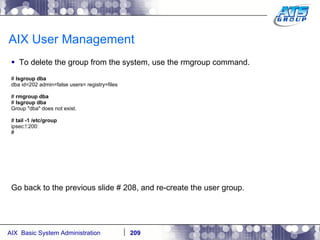
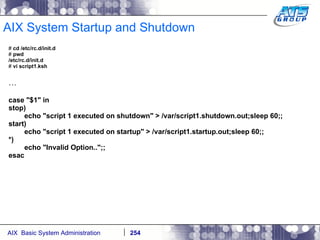
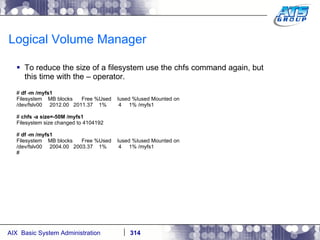
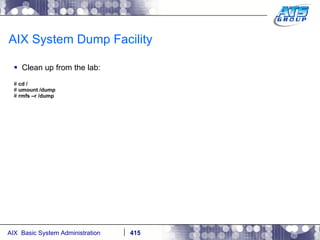
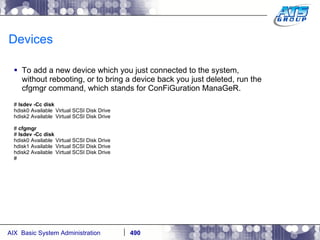
  • 277.
    Logical Volume ManagerTo list the disks which make up the volume group, type in the command lsvg with the option –p, and the vg name. # lsvg -p rootvg rootvg: PV_NAME PV STATE TOTAL PPs FREE PPs FREE DISTRIBUTION hdisk0 active 639 386 125..05..00..128..128 #
  • 278.
    Logical Volume ManagerTo get more details about a physical volume type in lspv with the hdisk# name as the argument. # lspv hdisk0 PHYSICAL VOLUME: hdisk0 VOLUME GROUP: rootvg PV IDENTIFIER: 00c118f097291ded VG IDENTIFIER 00c118f000004c00000001239778ea2f PV STATE: active STALE PARTITIONS: 0 ALLOCATABLE: yes PP SIZE: 8 megabyte(s) LOGICAL VOLUMES: 9 TOTAL PPs: 639 (5112 megabytes) VG DESCRIPTORS: 2 FREE PPs: 386 (3088 megabytes) HOT SPARE: no USED PPs: 253 (2024 megabytes) MAX REQUEST: 256 kilobytes FREE DISTRIBUTION: 125..05..00..128..128 USED DISTRIBUTION: 03..123..127..00..00 #
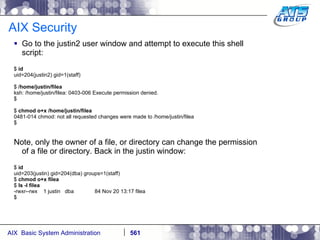
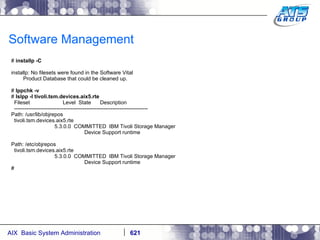
  • 279.
    Logical Volume ManagerTo list the logical volumes which currently make up the volume group type in the lsvg command with the option –l. # lsvg -l rootvg rootvg: LV NAME TYPE LPs PPs PVs LV STATE MOUNT POINT hd5 boot 3 3 1 closed/syncd N/A hd6 paging 64 64 1 open/syncd N/A hd8 jfs2log 1 1 1 open/syncd N/A hd4 jfs2 3 3 1 open/syncd / hd2 jfs2 161 161 1 open/syncd /usr hd9var jfs2 2 2 1 open/syncd /var hd3 jfs2 5 5 1 open/syncd /tmp hd1 jfs2 2 2 1 open/syncd /home hd10opt jfs2 12 12 1 open/syncd /opt #
  • 280.
    Logical Volume ManagerTo get more details of a logical volume use the command lslv with the logical volume name as the argument. # lslv hd1 LOGICAL VOLUME: hd1 VOLUME GROUP: rootvg LV IDENTIFIER: 00c118f000004c00000001239778ea2f.8 PERMISSION: read/writ e VG STATE: active/complete LV STATE: opened/syncd TYPE: jfs2 WRITE VERIFY: off MAX LPs: 512 PP SIZE: 8 megabyte(s) COPIES: 1 SCHED POLICY: parallel LPs: 2 PPs: 2 STALE PPs: 0 BB POLICY: relocatable INTER-POLICY: minimum RELOCATABLE: yes INTRA-POLICY: center UPPER BOUND: 32 MOUNT POINT: /home LABEL: /home MIRROR WRITE CONSISTENCY: on/ACTIVE EACH LP COPY ON A SEPARATE PV ?: yes Serialize IO ?: NO #
  • 281.
    Logical Volume ManagerTo list what logical volumes reside on a specific hard disk, use the command lspv –l and use hdisk# as your argument. # lspv -l hdisk0 hdisk0: LV NAME LPs PPs DISTRIBUTION MOUNT POINT hd6 64 64 00..64..00..00..00 N/A hd8 1 1 00..00..01..00..00 N/A hd4 3 3 00..00..03..00..00 / hd2 161 161 00..49..112..00..00 /usr hd9var 2 2 00..00..02..00..00 /var hd3 5 5 00..00..05..00..00 /tmp hd1 2 2 00..00..02..00..00 /home hd10opt 12 12 00..10..02..00..00 /opt hd5 3 3 03..00..00..00..00 N/A #
  • 282.
    Logical Volume ManagerTo list the hard disks currently installed on the system which are, or aren’t currently a member of a volume group type in the command lspv for LiSt Physical Volume. # lspv hdisk0 00c118f097291ded rootvg active hdisk1 00c118f005a9fabb None hdisk2 00c118f09780218b None # Note, None next to the hard disk means that it is not currently a member of a volume group.
  • 283.
    Logical Volume ManagerAttempt to get detailed information off one of the hard disks which are not a physical volume yet, meaning they are not members of a volume group yet. You will receive an error. # lspv hdisk1 0516-320 : Physical volume hdisk1 is not assigned to a volume group. # You will have to make that hdisk a member of a vg, turn it into a physical volume, before you can use it.
  • 284.
    Logical Volume ManagerTo determine the size of a hard disk on the system, use the bootinfo command with the –s, for size, option. # bootinfo –s hdisk1 10240 # bootinfo –s hdisk2 5120 This is listed in megabytes. So these disks are 10 gig, and 5 gig respectively.
  • 285.
    Logical Volume ManagerVolume groups contain hdisks. It concatenates the disks into one. For instance if you have three disks each of 3 gig each, and put them in one volume group, then you’ll have one 9 gig volume group – (3 * 3 = 9). A disk is made into a PV, so the system can use it, when it becomes a member of a volume group. There are three types of vgs in AIX. 1.) Original or Standard Volume Group – (Maximum of 32 physical volumes). 2.) Big Volume Group – (Maximum of 128 physical volumes). 3.) Scalable Volume Group (Maximum of 1024 physical volumes).
  • 286.
    Logical Volume ManagerTo create a volume group use smitty. There is also a command line version available – mkvg. Volume group names have a limit of 15 characters (alphanumeric) # smitty mkvg
  • 287.
  • 288.
    Logical Volume ManagerOnce the vg is created, issue the lsvg command again, and this time you’ll see the newest created vg on the system. Also issue the lspv command, and you’ll see that this hdisk no longer has none next to it, and you’ll also see that it has a PVID number. This is the Physical Volume IDentification number. It’s a 16 character string which is created based on the date, and time the vg was created, and the serial number of the system it was created on. # lsvg rootvg vg # lspv hdisk0 00c118f097291ded rootvg active hdisk1 00c118f005a9fabb None hdisk2 00c118f09780218b vg active #
  • 289.
    Logical Volume ManagerLet’s create a logical volume now. We do this via smitty. Again, there is a command to do this as well. To do this you must first decide how big will this logical volume be, which is basically saying, if you will be using a filesystem, how big will my filesystem be? You must specify the size of an lv in LPs. Remember LPs live on top of PPs, and are the same size. Let’s say that the vg was carved up with PPs of all 4 meg each. That means if the disk is 5 gig in size, the whole disk will be made up of 1262 PPs – (1262 * 4 = 5048). So let’s say we wanted our logical volume and/or filesystem to be 2 gig, then it would take 500 LPs to create that logical volume/filesystem – (2000 / 4 = 500). # smitty mklv
  • 290.
  • 291.
    Logical Volume ManagerLogical volume names have a limit of 15 characters (alphanumeric)
  • 292.
    Logical Volume Manager# lsvg -l vg vg: LV NAME TYPE LPs PPs PVs LV STATE MOUNT POINT mylv1 jfs2 500 500 1 closed/syncd N/A # Now, do the reverse arithmetic operation to see how big this logical volume is in meg – (Remember 1,000 meg = 1 gig). # bc 500 * 4 2000 quit #
  • 293.
    Logical Volume ManagerNow that the logical volume is created, now it’s time to create a filesystem on top of it. # smitty crfs
  • 294.
  • 295.
  • 296.
    Logical Volume MangerThe filesystem is created, notice how a journal log was automatically created for it. # lsvg -l vg vg: LV NAME TYPE LPs PPs PVs LV STATE MOUNT POINT mylv1 jfs2 500 500 1 closed/syncd /myfs1 loglv00 jfs2log 1 1 1 closed/syncd N/A # lsfs /myfs1 Name Nodename Mount Pt VFS Size Options Auto Accounting /dev/mylv1 -- /myfs1 jfs2 4096000 rw no no #
  • 297.
    Logical Volume ManagerIssue the df –g command, and the mount command. Notice this filesystem is not listed. That’s because it hasn’t been mounted. Filesystems have to be mounted before they can be used. Mounting mounts the logical volume/filesystem to the mount point, which is a directory you as the user can create sub-directories, and files in. # df -g Filesystem GB blocks Free %Used Iused %Iused Mounted on /dev/hd4 0.02 0.01 64% 1682 45% / /dev/hd2 1.26 0.07 95% 30013 61% /usr /dev/hd9var 0.02 0.00 80% 438 34% /var /dev/hd3 0.04 0.04 6% 18 1% /tmp /dev/hd1 0.02 0.02 3% 7 1% /home /dev/hd11admin 0.12 0.12 1% 5 1% /admin /proc - - - - - /proc /dev/hd10opt 0.09 0.02 84% 1538 30% /opt # mount node mounted mounted over vfs date options -------- --------------- --------------- ------ ------------ --------------- /dev/hd4 / jfs2 Sep 09 00:27 rw,log=/dev/hd8 /dev/hd2 /usr jfs2 Sep 09 00:27 rw,log=/dev/hd8 /dev/hd9var /var jfs2 Sep 09 00:28 rw,log=/dev/hd8 /dev/hd3 /tmp jfs2 Sep 09 00:28 rw,log=/dev/hd8 /dev/hd1 /home jfs2 Sep 09 00:28 rw,log=/dev/hd8 /dev/hd11admin /admin jfs2 Nov 26 19:35 rw,log=/dev/hd8 /proc /proc procfs Sep 09 00:28 rw /dev/hd10opt /opt jfs2 Sep 09 00:28 rw,log=/dev/hd8 #
  • 298.
    Logical Volume ManagerNow, issue the command: mount /fs_name to mount the filesystem. # mount /myfs1 # df -g Filesystem GB blocks Free %Used Iused %Iused Mounted on /dev/hd4 0.02 0.01 64% 1682 45% / /dev/hd2 1.26 0.07 95% 30013 61% /usr /dev/hd9var 0.02 0.00 80% 438 34% /var /dev/hd3 0.04 0.04 6% 18 1% /tmp /dev/hd1 0.02 0.02 3% 7 1% /home /dev/hd11admin 0.12 0.12 1% 5 1% /admin /proc - - - - - /proc /dev/hd10opt 0.09 0.02 84% 1538 30% /opt /dev/mylv1 1.95 1.95 1% 4 1% /myfs1 # mount node mounted mounted over vfs date options -------- --------------- --------------- ------ ------------ --------------- /dev/hd4 / jfs2 Sep 09 00:27 rw,log=/dev/hd8 /dev/hd2 /usr jfs2 Sep 09 00:27 rw,log=/dev/hd8 /dev/hd9var /var jfs2 Sep 09 00:28 rw,log=/dev/hd8 /dev/hd3 /tmp jfs2 Sep 09 00:28 rw,log=/dev/hd8 /dev/hd1 /home jfs2 Sep 09 00:28 rw,log=/dev/hd8 /dev/hd11admin /admin jfs2 Nov 26 19:35 rw,log=/dev/hd8 /proc /proc procfs Sep 09 00:28 rw /dev/hd10opt /opt jfs2 Sep 09 00:28 rw,log=/dev/hd8 /dev/mylv1 /myfs1 jfs2 Sep 09 14:01 rw,log=/dev/loglv00 #
  • 299.
    Logical Volume ManagerReboot the system. We’ll use the reboot command this time. # reboot Rebooting . . . When the system boots back up, log in as root again. AIX Version 6 Copyright IBM Corporation, 1982, 2007. login: root … .
  • 300.
    Logical Volume ManagerIssue a df -g, and mount commands again. Notice how the /myfs1 filesystem has not been mounted automatically on system reboot. # df -g Filesystem GB blocks Free %Used Iused %Iused Mounted on /dev/hd4 0.02 0.01 64% 1686 45% / /dev/hd2 1.26 0.07 95% 30013 61% /usr /dev/hd9var 0.02 0.00 80% 440 34% /var /dev/hd3 0.04 0.04 6% 20 1% /tmp /dev/hd1 0.02 0.02 3% 7 1% /home /dev/hd11admin 0.12 0.12 1% 5 1% /admin /proc - - - - - /proc /dev/hd10opt 0.09 0.02 84% 1538 30% /opt # mount node mounted mounted over vfs date options -------- --------------- --------------- ------ ------------ --------------- /dev/hd4 / jfs2 Sep 09 14:04 rw,log=/dev/hd8 /dev/hd2 /usr jfs2 Sep 09 14:04 rw,log=/dev/hd8 /dev/hd9var /var jfs2 Sep 09 14:04 rw,log=/dev/hd8 /dev/hd3 /tmp jfs2 Sep 09 14:04 rw,log=/dev/hd8 /dev/hd1 /home jfs2 Sep 09 14:04 rw,log=/dev/hd8 /dev/hd11admin /admin jfs2 Nov 26 19:35 rw,log=/dev/hd8 /proc /proc procfs Sep 09 14:04 rw /dev/hd10opt /opt jfs2 Sep 09 14:04 rw,log=/dev/hd8 #
  • 301.
    Logical Volume ManagerTo set it so the filesystem will mount automatically on system reboots, you have to edit a file called /etc/filesystems. # tail /etc/filesystems vol = /opt free = false /myfs1: dev = /dev/mylv1 vfs = jfs2 log = /dev/loglv00 mount = false options = rw account = false # Notice how there is the value of false, next to mount. This means that the filesystem will not be mounted automatically on system reboot. We can also see this via the lsfs command.
  • 302.
    Logical Volume Manager# lsfs /myfs1 Name Nodename Mount Pt VFS Size Options Auto Accounting /dev/mylv1 -- /myfs1 jfs2 4096000 rw no no # # chfs -a mount=true /myfs1 # lsfs /myfs1 Name Nodename Mount Pt VFS Size Options Auto Accounting /dev/mylv1 -- /myfs1 jfs2 4096000 rw yes no # tail /etc/filesystems vol = /opt free = false /myfs1: dev = /dev/mylv1 vfs = jfs2 log = /dev/loglv00 mount = true options = rw account = false # # reboot Rebooting . . .
  • 303.
    Logical Volume ManagerThe next time the system reboots, log in as root again, and you’ll see the /myfs1 filesystem is now mounted. # df -g Filesystem GB blocks Free %Used Iused %Iused Mounted on /dev/hd4 0.02 0.01 64% 1684 45% / /dev/hd2 1.26 0.07 95% 30013 61% /usr /dev/hd9var 0.02 0.00 81% 439 34% /var /dev/hd3 0.04 0.04 6% 20 1% /tmp /dev/hd1 0.02 0.02 3% 7 1% /home /dev/hd11admin 0.12 0.12 1% 5 1% /admin /proc - - - - - /proc /dev/hd10opt 0.09 0.02 84% 1538 30% /opt /dev/mylv1 1.95 1.95 1% 4 1% /myfs1 # mount node mounted mounted over vfs date options -------- --------------- --------------- ------ ------------ --------------- /dev/hd4 / jfs2 Sep 09 14:17 rw,log=/dev/hd8 /dev/hd2 /usr jfs2 Sep 09 14:17 rw,log=/dev/hd8 /dev/hd9var /var jfs2 Sep 09 14:17 rw,log=/dev/hd8 /dev/hd3 /tmp jfs2 Sep 09 14:17 rw,log=/dev/hd8 /dev/hd1 /home jfs2 Sep 09 14:17 rw,log=/dev/hd8 /dev/hd11admin /admin jfs2 Nov 26 19:35 rw,log=/dev/hd8 /proc /proc procfs Sep 09 14:17 rw /dev/hd10opt /opt jfs2 Sep 09 14:17 rw,log=/dev/hd8 /dev/mylv1 /myfs1 jfs2 Sep 09 14:17 rw,log=/dev/loglv00
  • 304.
    Logical Volume ManagerTo unmount a filesystem use the umount command. Before you do that look at the ls of the directory, notice a lost+found directory. This is created by default for all new filesystems in their root directories. This is for internal system cleanup. # cd /myfs1 # pwd /myfs1 # ls -l total 0 drwxr-xr-x 2 root system 256 Sep 9 13:56 lost+found # df -g . Filesystem GB blocks Free %Used Iused %Iused Mounted on /dev/mylv1 1.95 1.95 1% 4 1% /myfs1 # touch file1 file2 file3 # ls -l total 0 -rw-r--r-- 1 root system 0 Sep 9 14:20 file1 -rw-r--r-- 1 root system 0 Sep 9 14:20 file2 -rw-r--r-- 1 root system 0 Sep 9 14:20 file3 drwxr-xr-x 2 root system 256 Sep 9 13:56 lost+found # # umount /myfs1 umount: error unmounting /dev/mylv1: Device busy # cd / # pwd / # umount /myfs1 # df -g /myfs1 Filesystem GB blocks Free %Used Iused %Iused Mounted on /dev/hd4 0.02 0.01 64% 1686 45% /
  • 305.
    Logical Volume Manager# cd /myfs1 # pwd /myfs1 # df -g . Filesystem GB blocks Free %Used Iused %Iused Mounted on /dev/hd4 0.02 0.01 64% 1686 45% / # ls -l total 0 # cd / # mount /myfs1 # ls –l /myfs1 total 0 -rw-r--r-- 1 root system 0 Sep 9 14:20 file1 -rw-r--r-- 1 root system 0 Sep 9 14:20 file2 -rw-r--r-- 1 root system 0 Sep 9 14:20 file3 drwxr-xr-x 2 root system 256 Sep 9 13:56 lost+found # umount /myfs1 # l s /myfs1 #
  • 306.
    Logical Volume ManagerTo remove a filesystem use the rmfs command. # rmfs -r /myfs1 rmlv: Logical volume mylv1 is removed. # lsfs /myfs1 lsfs: No record matching '/myfs1' was found in /etc/filesystems. # ls -ld /myfs1 /myfs1 not found # lsvg -l vg vg: LV NAME TYPE LPs PPs PVs LV STATE MOUNT POINT loglv00 jfs2log 1 1 1 closed/syncd N/A #
  • 307.
    Logical Volume ManagerTo remove a logical volume use the rmlv command. # rmlv loglv00 Warning, all data contained on logical volume loglv00 will be destroyed. rmlv: Do you wish to continue? y(es) n(o)? yes rmlv: Logical volume loglv00 is removed. # lsvg -l vg vg: LV NAME TYPE LPs PPs PVs LV STATE MOUNT POINT #
  • 308.
    Logical Volume ManagerCreate another filesystem, this time allow AIX to create the logical volume for you automatically – (Easier, but less control). # smitty crfs
  • 309.
  • 310.
  • 311.
  • 312.
    Logical Volume ManagerNotice, how AIX figured out the number of LPs it would need automatically. This filesystem is 2 gig as well. # mount /myfs1 # df -g /myfs1 Filesystem GB blocks Free %Used Iused %Iused Mounted on /dev/fslv00 1.95 1.95 1% 4 1% /myfs1 # lsvg -l vg vg: LV NAME TYPE LPs PPs PVs LV STATE MOUNT POINT loglv00 jfs2log 1 1 1 open/syncd N/A fslv00 jfs2 500 500 1 open/syncd /myfs1 # Note, when you create an enhanced, JFS2, filesystem and let AIX create the lv, it will automatically select the name fslv##, as the name of the lv. When you create a JFS1 filesystem and let AIX create the lv, it will automatically select the name lv##, as the name of the lv.
  • 313.
    Logical Volume ManagerLet’s say you wanted to increase the size of a filesystem by 1 gig. You would first check the volume group to see if you had that much space, and then perform the operation. If you didn’t have enough space in the vg, then you would add a disk to the vg. # lsvg vg | grep -i free MAX LVs: 256 FREE PPs: 761 (3044 megabytes) # df -m /myfs1 Filesystem MB blocks Free %Used Iused %Iused Mounted on /dev/fslv00 2000.00 1999.37 1% 4 1% /myfs1 # chfs -a size=+50M /myfs1 Filesystem size changed to 4120576 # df -m /myfs1 Filesystem MB blocks Free %Used Iused %Iused Mounted on /dev/fslv00 2012.00 2011.37 1% 4 1% /myfs1 #
  • 314.
    Logical Volume ManagerTo reduce the size of a filesystem use the chfs command again, but this time with the – operator. # df -m /myfs1 Filesystem MB blocks Free %Used Iused %Iused Mounted on /dev/fslv00 2012.00 2011.37 1% 4 1% /myfs1 # chfs -a size=-50M /myfs1 Filesystem size changed to 4104192 # df -m /myfs1 Filesystem MB blocks Free %Used Iused %Iused Mounted on /dev/fslv00 2004.00 2003.37 1% 4 1% /myfs1 #
  • 315.
    Logical Volume ManagerLet’s say you wanted to export a vg from the system. This is done via the following. This is a good feature, because it give you the ability to export the vg, physically remove the disk from the AIX system, physically install the disk into a new AIX system, and then import the vg again. Or logically move the disk around with SAN zoning/mappings, etc. # lsvg -o vg rootvg # lsvg -l vg vg: LV NAME TYPE LPs PPs PVs LV STATE MOUNT POINT loglv00 jfs2log 1 1 1 open/syncd N/A fslv00 jfs2 501 501 1 open/syncd /myfs1 # df -g /myfs1 Filesystem GB blocks Free %Used Iused %Iused Mounted on /dev/fslv00 1.96 1.96 1% 4 1% /myfs1 # umount /myfs1 # varyoffvg vg # lsvg -o rootvg # lsvg rootvg vg # exportvg vg # lsvg rootvg
  • 316.
    Logical Volume ManagerNotice, how the filesystem is gone too, as if it was removed. # lsfs /myfs1 lsfs: No record matching '/myfs1' was found in /etc/filesystems. # To import the volume group again, either on the same, or different AIX system, use the following. # importvg -y vg hdisk2 vg # mount all mount: /dev/hd1 on /home: Device busy mount: /proc on /proc: Device busy mount: /dev/hd10opt on /opt: Device busy # df -g /myfs1 Filesystem GB blocks Free %Used Iused %Iused Mounted on /dev/fslv00 1.96 1.96 1% 4 1% /myfs1
  • 317.
    Logical Volume ManagerTo remove a volume group use the reducevg command. # umount /myfs1 # reducevg vg hdisk2 0516-016 ldeletepv: Cannot delete physical volume with allocated partitions. Use either migratepv to move the partitions or reducevg with the -d option to delete the partitions. 0516-884 reducevg: Unable to remove physical volume hdisk2. # reducevg -d vg hdisk2 0516-914 rmlv: Warning, all data belonging to logical volume loglv00 on physical volume hdisk2 will be destroyed. rmlv: Do you wish to continue? y(es) n(o)? yes rmlv: Logical volume loglv00 is removed. 0516-914 rmlv: Warning, all data belonging to logical volume fslv00 on physical volume hdisk2 will be destroyed. rmlv: Do you wish to continue? y(es) n(o)? yes rmlv: Logical volume fslv00 is removed. ldeletepv: Volume Group deleted since it contains no physical volumes. # lsvg rootvg #
  • 318.
    Logical Volume ManagerLet’s say you wanted to add a disk to a volume group. You do so with the extendvg command. # bootinfo -s hdisk1 10240 # # lsvg -p rootvg rootvg: PV_NAME PV STATE TOTAL PPs FREE PPs FREE DISTRIBUTION hdisk0 active 639 386 125..05..00..128..128 # lsvg rootvg | grep -i free MAX LVs: 256 FREE PPs: 386 (3088 megabytes) # lspv hdisk0 00c118f097291ded rootvg active hdisk1 00c118f005a9fabb None hdisk2 00c118f09780218b None # extendvg -f rootvg hdisk1 # lspv hdisk0 00c118f097291ded rootvg active hdisk1 00c118f005a9fabb rootvg active hdisk2 00c118f09780218b None # lsvg rootvg | grep -i free MAX LVs: 256 FREE PPs: 1665 (13320 megabytes) # lsvg -p rootvg rootvg: PV_NAME PV STATE TOTAL PPs FREE PPs FREE DISTRIBUTION hdisk0 active 639 386 125..05..00..128..128 hdisk1 active 1279 1279 256..256..255..256..256 #
  • 319.
    Logical Volume ManagerYou can move the contents, of let’s say, the whole operating system from one disk to another if you wanted to, with the migatepv command. You can do this while the system is running. Note, you could also do this when an application, and/or database is running. Disks have to be in the same vg, for migration between them. # lspv -l hdisk0 hdisk0: LV NAME LPs PPs DISTRIBUTION MOUNT POINT hd9var 2 2 00..00..02..00..00 /var hd3 5 5 00..00..05..00..00 /tmp hd1 2 2 00..00..02..00..00 /home hd10opt 12 12 00..10..02..00..00 /opt hd5 3 3 03..00..00..00..00 N/A hd6 64 64 00..64..00..00..00 N/A hd8 1 1 00..00..01..00..00 N/A hd4 3 3 00..00..03..00..00 / hd11admin 2 2 00..02..00..00..00 /admin hd2 161 161 00..49..112..00..00 /usr loglv01 1 1 00..01..00..00..00 N/A # lspv -l hdisk1 #
  • 320.
    Logical Volume ManagerTo move the LPs from one disk to another. # migratepv hdisk0 hdisk1 0516-1011 migratepv: Logical volume hd5 is labeled as a boot logical volume. 0516-1246 migratepv: If hd5 is the boot logical volume, please run 'chpv -c hdis k0' as root user to clear the boot record and avoid a potential boot off an old boot image that may reside on the disk from which this logical volume is moved/removed. migratepv: boot logical volume hd5 migrated. Please remember to run bosboot, specifying /dev/hdisk1 as the target physical boot device. Also, run bootlist command to modify bootlist to include /dev/hdisk1. #
  • 321.
    Logical Volume Manager# lspv -l hdisk0 # # lspv -l hdisk1 hdisk1: LV NAME LPs PPs DISTRIBUTION MOUNT POINT hd9var 2 2 00..00..02..00..00 /var hd3 5 5 00..00..05..00..00 /tmp hd1 2 2 00..00..02..00..00 /home hd10opt 12 12 00..00..12..00..00 /opt hd5 3 3 03..00..00..00..00 N/A hd6 64 64 00..64..00..00..00 N/A hd8 1 1 00..00..01..00..00 N/A hd4 3 3 00..00..03..00..00 / hd11admin 2 2 00..02..00..00..00 /admin hd2 161 161 00..00..161..00..00 /usr loglv01 1 1 00..01..00..00..00 N/A #
  • 322.
    Logical Volume ManagerTo migrate just one lv, you can use the –l option to the migratepv command. # lspv -l hdisk0 # lspv -l hdisk1 hdisk1: LV NAME LPs PPs DISTRIBUTION MOUNT POINT hd9var 2 2 00..00..02..00..00 /var hd3 5 5 00..00..05..00..00 /tmp hd1 2 2 00..00..02..00..00 /home hd10opt 12 12 00..00..12..00..00 /opt hd5 3 3 03..00..00..00..00 N/A hd6 64 64 00..64..00..00..00 N/A hd8 1 1 00..00..01..00..00 N/A hd4 3 3 00..00..03..00..00 / hd11admin 2 2 00..02..00..00..00 /admin hd2 161 161 00..00..161..00..00 /usr loglv01 1 1 00..01..00..00..00 N/A # migratepv -l hd1 hdisk1 hdisk0 # lspv -l hdisk0 hdisk0: LV NAME LPs PPs DISTRIBUTION MOUNT POINT hd1 2 2 00..00..02..00..00 /home #
  • 323.
    Logical Volume ManagerMigrate everything from hdisk1, back to hdisk0. # migratepv hdisk1 hdisk0 0516-1011 migratepv: Logical volume hd5 is labeled as a boot logical volume. 0516-1246 migratepv: If hd5 is the boot logical volume, please run 'chpv -c hdisk1‘ as root user to clear the boot record and avoid a potential boot off an old boot image that may reside on the disk from which this logical volume is moved/removed. # chpv -c hdisk1 # bosboot -ad hdisk0 bosboot: Boot image is 35774 512 byte blocks. # lspv -l hdisk0 hdisk0: LV NAME LPs PPs DISTRIBUTION MOUNT POINT hd9var 2 2 00..02..00..00..00 /var hd3 5 5 00..05..00..00..00 /tmp hd1 2 2 00..00..02..00..00 /home hd10opt 12 12 00..12..00..00..00 /opt hd5 3 3 03..00..00..00..00 N/A hd6 64 64 00..64..00..00..00 N/A hd8 1 1 00..00..01..00..00 N/A hd4 3 3 00..00..03..00..00 / hd11admin 2 2 00..02..00..00..00 /admin hd2 161 161 00..00..121..40..00 /usr loglv01 1 1 00..01..00..00..00 N/A # # lspv –l hdisk1 #
  • 324.
    Logical Volume ManagerIf you wanted to remove a disk from a volume group, you would use the reducevg command. # lsvg rootvg | grep -i free MAX LVs: 256 FREE PPs: 1665 (13320 megabytes) # lsvg -p rootvg rootvg: PV_NAME PV STATE TOTAL PPs FREE PPs FREE DISTRIBUTION hdisk0 active 639 386 125..05..00..128..128 hdisk1 active 1279 1279 256..256..255..256..256 # reducevg rootvg hdisk1 # lsvg -p rootvg rootvg: PV_NAME PV STATE TOTAL PPs FREE PPs FREE DISTRIBUTION hdisk0 active 639 386 125..05..00..128..128 # lsvg rootvg | grep -i free MAX LVs: 256 FREE PPs: 386 (3088 megabytes) #
  • 325.
    Logical Volume ManagerMirroring of disks in AIX, which is usually recommended for the rootvg vg, is done at a vg level. The source, and target disk of an AIX disk mirror operation must be in the same vg. You can mirror a disk, a total of 3 ways – 3 copies (1 primary, and 2 secondaries). # lspv hdisk0 00c118f097291ded rootvg active hdisk1 00c118f005a9fabb None hdisk2 00c118f09780218b None # extendvg rootvg hdisk1 # lspv hdisk0 00c118f097291ded rootvg active hdisk1 00c118f005a9fabb rootvg active hdisk2 00c118f09780218b None # lsvg -l rootvg rootvg: LV NAME TYPE LPs PPs PVs LV STATE MOUNT POINT hd5 boot 3 3 1 closed/syncd N/A hd6 paging 64 64 1 open/syncd N/A hd8 jfs2log 1 1 1 open/syncd N/A hd4 jfs2 3 3 1 open/syncd / hd2 jfs2 161 161 1 open/syncd /usr hd9var jfs2 2 2 1 open/syncd /var hd3 jfs2 5 5 1 open/syncd /tmp hd1 jfs2 2 2 1 open/syncd /home hd11admin 2 2 00..02..00..00..00 /admin hd10opt jfs2 12 12 1 open/syncd /opt
  • 326.
    Logical Volume Manager# mirrorvg rootvg hdisk0 hdisk1 0516-1804 chvg: The quorum change takes effect immediately. 0516-1126 mirrorvg: rootvg successfully mirrored, user should perform bosboot of system to initialize boot records. Then, user must modify bootlist to include: hdisk1 hdisk0. # bosboot -ad /dev/hdisk1 bosboot: Boot image is 35774 512 byte blocks. # bootlist -m normal -o hdisk0 blv=hd5 # bootlist -m normal hdisk0 hdisk1 # bootlist -m normal -o hdisk0 blv=hd5 hdisk1 blv=hd5 # # bootinfo -b hdisk0 #
  • 327.
    Logical Volume ManagerNotice the one to many, total 3, LP, to PP relationship in the command output below. # lsvg -l rootvg rootvg: LV NAME TYPE LPs PPs PVs LV STATE MOUNT POINT hd5 boot 3 6 2 closed/syncd N/A hd6 paging 64 128 2 open/syncd N/A hd8 jfs2log 1 2 2 open/syncd N/A hd4 jfs2 3 6 2 open/syncd / hd2 jfs2 161 322 2 open/syncd /usr hd9var jfs2 2 4 2 open/syncd /var hd3 jfs2 5 10 2 open/syncd /tmp hd1 jfs2 2 4 2 open/syncd /home hd11admin 2 2 00..02..00..00..00 /admin hd10opt jfs2 12 24 2 open/syncd /opt # # reboot Rebooting . . .
  • 328.
    Logical Volume ManagerWhen the system boots back up, notice how it still booted from your install/source disk – hdisk0. This is because even though you mirrored the disk, it’s still the first boot device listed in the list. Note, you could also boot off of the disk SAN, tape, CDs, DVDs, and the network. # bootinfo -b hdisk0 # Now, change the bootlist, so hdisk1, where we mirrored to, will be the disk the system boots off of during next reboot. # bootlist -m normal -o hdisk0 blv=hd5 hdisk1 blv=hd5 # bootlist -m normal hdisk1 # bootlist -m normal -o hdisk1 blv=hd5 #
  • 329.
    Logical Volume ManagerReboot the system. Once it’s done rebooting, issue the bootinfo –b, command to determine the last disk the disk booted off of, and it should be hdisk1 now, the target of our rootvg mirror operation. # reboot Rebooting . . . SYSTEM REBOOTS… # bootinfo -b hdisk1 # df -g Filesystem GB blocks Free %Used Iused %Iused Mounted on /dev/hd4 0.02 0.01 59% 1678 42% / /dev/hd2 1.26 0.07 95% 30013 61% /usr /dev/hd9var 0.02 0.00 80% 439 34% /var /dev/hd3 0.04 0.04 6% 19 1% /tmp /dev/hd1 0.02 0.02 3% 7 1% /home /dev/hd11admin 0.12 0.12 1% 5 1% /admin /proc - - - - - /proc /dev/hd10opt 0.09 0.02 84% 1538 30% /opt # lsvg -l rootvg rootvg: LV NAME TYPE LPs PPs PVs LV STATE MOUNT POINT hd5 boot 3 6 2 closed/syncd N/A hd6 paging 64 128 2 open/syncd N/A hd8 jfs2log 1 2 2 open/syncd N/A hd4 jfs2 3 6 2 open/syncd / hd2 jfs2 161 322 2 open/syncd /usr hd9var jfs2 2 4 2 open/syncd /var hd3 jfs2 5 10 2 open/syncd /tmp hd1 jfs2 2 4 2 open/syncd /home hd11admin 2 2 00..02..00..00..00 /admin hd10opt jfs2 12 24 2 open/syncd /opt
  • 330.
    Logical Volume ManagerNow, change the bootlist back, and reboot so the system boots off of hdisk0, as normal. # bootlist -m normal -o hdisk1 blv=hd5 # bootlist -m normal hdisk0 hdisk1 # bootlist -m normal -o hdisk0 blv=hd5 hdisk1 blv=hd5 # reboot Rebooting . . . SYSTEM REBOOTS… # bootinfo -b hdisk0 #
  • 331.
    Logical Volume ManagerTo unmirror a volume group, use the unmirrorvg command. # lsvg -l rootvg rootvg: LV NAME TYPE LPs PPs PVs LV STATE MOUNT POINT hd5 boot 3 6 2 closed/syncd N/A hd6 paging 64 128 2 open/syncd N/A hd8 jfs2log 1 2 2 open/syncd N/A hd4 jfs2 3 6 2 open/syncd / hd2 jfs2 161 322 2 open/syncd /usr hd9var jfs2 2 4 2 open/syncd /var hd3 jfs2 5 10 2 open/syncd /tmp hd1 jfs2 2 4 2 open/syncd /home hd11admin jfs2 2 2 1 open/syncd /admin hd10opt jfs2 12 24 2 open/syncd /opt # unmirrorvg rootvg 0516-1246 rmlvcopy: If hd5 is the boot logical volume, please run 'chpv -c <diskname>' as root user to clear the boot record and avoid a potential boot off an old boot image that may reside on the disk from which this logical volume is moved/removed. 0516-1804 chvg: The quorum change takes effect immediately. 0516-1144 unmirrorvg: rootvg successfully unmirrored, user should perform bosboot of system to reinitialize boot records. Then, user must modify bootlist to just include: hdisk0. #
  • 332.
    Logical Volume Manager# chpv -c hdisk1 # bosboot -ad /dev/hdisk0 bosboot: Boot image is 35774 512 byte blocks. # bootlist -m normal -o hdisk0 blv=hd5 Hdisk1 # bootlist -m normal hdisk0 # bootlist -m normal -o hdisk0 blv=hd5 #
  • 333.
    Logical Volume ManagerNotice the 1 to 1 relationship between the LPs and the PPs once again. # lsvg -l rootvg rootvg: LV NAME TYPE LPs PPs PVs LV STATE MOUNT POINT hd5 boot 3 3 1 closed/syncd N/A hd6 paging 64 64 1 open/syncd N/A hd8 jfs2log 1 1 1 open/syncd N/A hd4 jfs2 3 3 1 open/syncd / hd2 jfs2 161 161 1 open/syncd /usr hd9var jfs2 2 2 1 open/syncd /var hd3 jfs2 5 5 1 open/syncd /tmp hd1 jfs2 2 2 1 open/syncd /home hd11admin jfs2 2 2 1 open/syncd /admin hd10opt jfs2 12 12 1 open/syncd /opt #
  • 334.
  • 335.
    AIX File ManagementSometimes it is desirable to pack multiple files into one file, which acts as a package. The tar command creates an archived package file which consists of multiple files, and/or directories. These archived packages are known as tar-balls. TAR stands for TApe aRchive. Create a directory in /tmp called junk, and create multiple files, a subdirectory and files under that subdirectory: $ mkdir /tmp/junk $ cd /tmp/junk $ touch filea fileb filec filed filee $ mkdir /tmp/junk/dira $ touch /tmp/junk/dira/filef $ touch /tmp/junk/dira/fileg
  • 336.
    AIX File Management$ cd /tmp/junk $ pwd /tmp/junk $ ls -l total 24 drwxr-xr-x 2 justin staff 256 Nov 24 19:24 dira -rw-r--r-- 1 justin staff 0 Nov 24 19:22 filea -rw-r--r-- 1 justin staff 0 Nov 24 19:22 fileb -rw-r--r-- 1 justin staff 0 Nov 24 19:22 filec -rw-r--r-- 1 justin staff 0 Nov 24 19:22 filed -rw-r--r-- 1 justin staff 0 Nov 24 19:22 filee $ ls -l dira total 0 -rw-r--r-- 1 justin staff 0 Nov 24 19:23 filef -rw-r--r-- 1 justin staff 0 Nov 24 19:24 fileg $ tar -cvf /tmp/files.tar /tmp/junk/* a /tmp/junk/dira a /tmp/junk/dira/filef 0 blocks. a /tmp/junk/dira/fileg 0 blocks. a /tmp/junk/filea 0 blocks. a /tmp/junk/fileb 0 blocks. a /tmp/junk/filec 0 blocks. a /tmp/junk/filed 0 blocks. a /tmp/junk/filee 0 blocks. a /tmp/junk/files.tar 20 blocks.
  • 337.
    AIX File Management$ ls -l /tmp/files.tar -rw-r--r-- 1 justin staff 20480 Nov 24 19:26 /tmp/files.tar $ To view the contents of the tar-ball use the following command: $ tar -tvf /tmp/files.tar drwxr-xr-x 202 1 0 Nov 24 19:24:01 2010 /tmp/junk/dira/ -rw-r--r-- 202 1 0 Nov 24 19:23:55 2010 /tmp/junk/dira/filef -rw-r--r-- 202 1 0 Nov 24 19:24:01 2010 /tmp/junk/dira/fileg -rw-r--r-- 202 1 0 Nov 24 19:22:24 2010 /tmp/junk/filea -rw-r--r-- 202 1 0 Nov 24 19:22:24 2010 /tmp/junk/fileb -rw-r--r-- 202 1 0 Nov 24 19:22:24 2010 /tmp/junk/filec -rw-r--r-- 202 1 0 Nov 24 19:22:24 2010 /tmp/junk/filed -rw-r--r-- 202 1 0 Nov 24 19:22:24 2010 /tmp/junk/filee -rw-r--r-- 202 1 10240 Nov 24 19:22:32 2010 /tmp/junk/files.tar $ Delete the /tmp/junk directory: $ rm -r /tmp/junk $ ls -ld /tmp/junk ls: 0653-341 The file /tmp/junk does not exist. $
  • 338.
    AIX File Management$ ls -ld /tmp/files.tar -rw-r--r-- 1 justin staff 20480 Nov 24 19:26 /tmp/files.tar $ tar -xvf /tmp/files.tar x /tmp/junk/dira x /tmp/junk/dira/filef, 0 bytes, 0 media blocks. x /tmp/junk/dira/fileg, 0 bytes, 0 media blocks. x /tmp/junk/filea, 0 bytes, 0 media blocks. x /tmp/junk/fileb, 0 bytes, 0 media blocks. x /tmp/junk/filec, 0 bytes, 0 media blocks. x /tmp/junk/filed, 0 bytes, 0 media blocks. x /tmp/junk/filee, 0 bytes, 0 media blocks. x /tmp/junk/files.tar, 10240 bytes, 20 media blocks. $ ls -ld /tmp/junk drwxr-xr-x 3 justin staff 256 Nov 24 19:28 /tmp/junk $ ls -lR /tmp/junk total 24 drwxr-xr-x 2 justin staff 256 Nov 24 19:24 dira -rw-r--r-- 1 justin staff 0 Nov 24 19:22 filea -rw-r--r-- 1 justin staff 0 Nov 24 19:22 fileb -rw-r--r-- 1 justin staff 0 Nov 24 19:22 filec -rw-r--r-- 1 justin staff 0 Nov 24 19:22 filed -rw-r--r-- 1 justin staff 0 Nov 24 19:22 filee -rw-r--r-- 1 justin staff 10240 Nov 24 19:22 files.tar /tmp/junk/dira: total 0 -rw-r--r-- 1 justin staff 0 Nov 24 19:23 filef -rw-r--r-- 1 justin staff 0 Nov 24 19:24 fileg
  • 339.
    AIX File ManagementYou can extract only a specific file from your archive tar-ball: $ ls -l /tmp/junk/filea -rw-r--r-- 1 justin staff 0 Nov 24 19:22 /tmp/junk/filea $ rm /tmp/junk/filea $ ls -l /tmp/junk/filea ls: 0653-341 The file /tmp/junk/filea does not exist. $ tar -xvf files.tar /tmp/junk/filea x /tmp/junk/filea, 0 bytes, 0 media blocks. $ ls -l /tmp/junk/filea -rw-r--r-- 1 justin staff 0 Nov 24 19:22 /tmp/junk/filea $
  • 340.
    AIX File ManagementTo add to the contents of a tar-ball which already exists: $ tar -tvf /tmp/files.tar drwxr-xr-x 202 1 0 Nov 24 19:24:01 2010 /tmp/junk/dira/ -rw-r--r-- 202 1 0 Nov 24 19:23:55 2010 /tmp/junk/dira/filef -rw-r--r-- 202 1 0 Nov 24 19:24:01 2010 /tmp/junk/dira/fileg -rw-r--r-- 202 1 0 Nov 24 19:22:24 2010 /tmp/junk/filea -rw-r--r-- 202 1 0 Nov 24 19:22:24 2010 /tmp/junk/fileb -rw-r--r-- 202 1 0 Nov 24 19:22:24 2010 /tmp/junk/filec -rw-r--r-- 202 1 0 Nov 24 19:22:24 2010 /tmp/junk/filed -rw-r--r-- 202 1 0 Nov 24 19:22:24 2010 /tmp/junk/filee -rw-r--r-- 202 1 10240 Nov 24 19:22:32 2010 /tmp/junk/files.tar $ touch /tmp/FILEA /tmp/FILEB $ tar -rvf /tmp/files.tar /tmp/FILEA /tmp/FILEB a /tmp/FILEA 0 blocks. a /tmp/FILEB 0 blocks. $ tar -tvf /tmp/files.tar drwxr-xr-x 202 1 0 Nov 24 19:24:01 2010 /tmp/junk/dira/ -rw-r--r-- 202 1 0 Nov 24 19:23:55 2010 /tmp/junk/dira/filef -rw-r--r-- 202 1 0 Nov 24 19:24:01 2010 /tmp/junk/dira/fileg -rw-r--r-- 202 1 0 Nov 24 19:22:24 2010 /tmp/junk/filea -rw-r--r-- 202 1 0 Nov 24 19:22:24 2010 /tmp/junk/fileb -rw-r--r-- 202 1 0 Nov 24 19:22:24 2010 /tmp/junk/filec -rw-r--r-- 202 1 0 Nov 24 19:22:24 2010 /tmp/junk/filed -rw-r--r-- 202 1 0 Nov 24 19:22:24 2010 /tmp/junk/filee -rw-r--r-- 202 1 10240 Nov 24 19:22:32 2010 /tmp/junk/files.tar -rw-r--r-- 202 1 0 Nov 24 19:41:21 2010 /tmp/FILEA -rw-r--r-- 202 1 0 Nov 24 19:41:21 2010 /tmp/FILEB $
  • 341.
    AIX File ManagementYou can also use the tar command to move files, and subdirectories between systems, etc. Note, the native tar command in AIX can only crate tar-ball archives which are 8 gig in size. To get around this you can download a free version called gtar, which can create tar-ball archives which are greater than 8 gig in size.
  • 342.
    AIX File ManagementYou can compress files in Unix with the compress command $ pwd /tmp $ ls -l files.tar -rw-r--r-- 1 justin staff 20480 Nov 24 19:41 files.tar $ compress files.tar $ ls -l files.tar ls: 0653-341 The file files.tar does not exist. $ ls -l files.tar.Z -rw-r--r-- 1 justin staff 886 Nov 24 19:41 files.tar.Z $ tar -xvf files.tar.Z tar: 0511-169 A directory checksum error on media; 0 not equal to 61150. Note, the compress command automatically appends a .Z extension to the end of the file it compresses.
  • 343.
    AIX File ManagementTo uncompress a file you use the, you guessed it, uncompress comand: $ ls -l files.tar.Z -rw-r--r-- 1 justin staff 886 Nov 24 19:41 files.tar.Z $ uncompress files.tar.Z $ ls -l files.tar -rw-r--r-- 1 justin staff 20480 Nov 24 19:41 files.tar $ tar –tvf files.tar drwxr-xr-x 202 1 0 Nov 24 19:24:01 2010 /tmp/junk/dira/ -rw-r--r-- 202 1 0 Nov 24 19:23:55 2010 /tmp/junk/dira/filef -rw-r--r-- 202 1 0 Nov 24 19:24:01 2010 /tmp/junk/dira/fileg -rw-r--r-- 202 1 0 Nov 24 19:22:24 2010 /tmp/junk/filea -rw-r--r-- 202 1 0 Nov 24 19:22:24 2010 /tmp/junk/fileb -rw-r--r-- 202 1 0 Nov 24 19:22:24 2010 /tmp/junk/filec -rw-r--r-- 202 1 0 Nov 24 19:22:24 2010 /tmp/junk/filed -rw-r--r-- 202 1 0 Nov 24 19:22:24 2010 /tmp/junk/filee -rw-r--r-- 202 1 10240 Nov 24 19:22:32 2010 /tmp/junk/files.tar -rw-r--r-- 202 1 0 Nov 24 19:41:21 2010 /tmp/FILEA -rw-r--r-- 202 1 0 Nov 24 19:41:21 2010 /tmp/FILEB $ Note the uncompress command will automatically remove the .Z extension of a file it uncompresses.
  • 344.
    AIX File ManagementThere is another command which handles compression. It is called gzip. $ ls -l files.tar -rw-r--r-- 1 justin staff 20480 Nov 24 19:41 files.tar $ gzip files.tar $ ls -l files.tar.gz -rw-r--r-- 1 justin staff 379 Nov 24 19:41 files.tar.gz $ tar -tvf files.tar.gz tar: 0511-164 There is a media read or write block size error. $ The gzip command will append the file extension .gz to any files it compresses. Note, the gzip command achieves a better compression ratio than the compress command.
  • 345.
    AIX File ManagementTo uncompress any file you compressed with the gzip command, you use the gunzip command: $ ls -l files.tar.gz -rw-r--r-- 1 justin staff 379 Nov 24 19:41 files.tar.gz $ gunzip files.tar.gz $ ls -l files.tar -rw-r--r-- 1 justin staff 20480 Nov 24 19:41 files.tar $ tar -tvf files.tar drwxr-xr-x 202 1 0 Nov 24 19:24:01 2010 /tmp/junk/dira/ -rw-r--r-- 202 1 0 Nov 24 19:23:55 2010 /tmp/junk/dira/filef -rw-r--r-- 202 1 0 Nov 24 19:24:01 2010 /tmp/junk/dira/fileg -rw-r--r-- 202 1 0 Nov 24 19:22:24 2010 /tmp/junk/filea -rw-r--r-- 202 1 0 Nov 24 19:22:24 2010 /tmp/junk/fileb -rw-r--r-- 202 1 0 Nov 24 19:22:24 2010 /tmp/junk/filec -rw-r--r-- 202 1 0 Nov 24 19:22:24 2010 /tmp/junk/filed -rw-r--r-- 202 1 0 Nov 24 19:22:24 2010 /tmp/junk/filee -rw-r--r-- 202 1 10240 Nov 24 19:22:32 2010 /tmp/junk/files.tar -rw-r--r-- 202 1 0 Nov 24 19:41:21 2010 /tmp/FILEA -rw-r--r-- 202 1 0 Nov 24 19:41:21 2010 /tmp/FILEB $ Notice how the gunzip command removes the .gz file extension from the file you uncompressed.
  • 346.
    AIX File ManagementThe checksum of a file can serve as both a security measure and an integrity check for files. There are three sum commands available in AIX: sum – Two numbers generated. One is a 16-bit checksum. The other is how many 1024-byte blocks the file occupies. cksum - Two numbers are generated. One is a 32-bit checksum, CRC – Cyclic Redundancy Check. The other is the number of bytes the file occupies. csum – md5 checksum. The most reliable.
  • 347.
    AIX File Management$ sum /tmp/files.tar 55502 20 /tmp/files.tar $ sum /tmp/files.tar 55502 20 /tmp/files.tar $ The cksum comand: $ cksum /tmp/files.tar 3203472726 20480 /tmp/files.tar $ cksum /tmp/files.tar 3203472726 20480 /tmp/files.tar $ The csum command: $ csum /tmp/files.tar 3b527c471941b88b516e655a6b2e3476 /tmp/files.tar $ csum /tmp/files.tar 3b527c471941b88b516e655a6b2e3476 /tmp/files.tar $
  • 348.
    AIX File ManagmentChanging the contents of a file in anyway will change the checksum: Previous: 55502 20 $ echo &quot;&quot; >> /tmp/files.tar $ sum /tmp/files.tar 27761 21 /tmp/files.tar Previous : 3203472726 20480 $ cksum /tmp/files.tar 934779789 20481 /tmp/files.tar Previous: 3b527c471941b88b516e655a6b2e3476 $ csum /tmp/files.tar 2983325f6403aedddfe0b44a70dcffed /tmp/files.tar $
  • 349.
    AIX File ManagementThe Unix file command performs a series of tests on an object, and determines the type: files, directory, text file, executable, etc: $ file /tmp /tmp: directory $ file /tmp/files.tar /tmp/files.tar: tar archive $ file /usr/bin/cat /usr/bin/cat: executable (RISC System/6000) or object module $ file /tmp/junk/filea /tmp/junk/filea: empty $ $ file /etc/hosts /etc/hosts: ascii text $
  • 350.
    AIX File ManagementComputer science refresher of how space is calculated. Byte scale: 8 Bits = 1 Byte 1,000 Bytes = 1 Kilobyte 1,000 Kilobytes = 1 Megabyte 1,000 Megabytes = 1 Gigabyte 1,000 Gigabytes = 1 Terabyte 1,000 Terabytes = 1 Petabyte 1,000 Petabytes = 1 Exabyte 1,000 Exabytes = 1 Zettabyte 1,000 Zettabytes = 1 Yottabyte
  • 351.
    AIX File ManagementYou can create empty files of a certain size in AIX. The command is called lmktemp. To create a 10 meg file called testfile in /tmp: # pwd /tmp # lmktemp testfile 10m testfile # ls -l testfile -rw-r--r-- 1 root system 10485760 Nov 29 11:12 testfile To create a 1 gig file: # lmktemp testfile2 1000m testfile2 # ls -l testfile2 -rw-r--r-- 1 root system 1048576000 Nov 29 11:17 testfile2 #
  • 352.
    AIX File ManagementTo display the size of a file or directory use the du command. # du -m testfile 10.00 testfile # du -g testfile2 0.98 testfile2 # du -m testfile2 1000.00 testfile2 #
  • 353.
    AIX File ManagementTo view the size of an entire directory, you can use the du command against a directory as well as a file. # pwd /tmp # mkdir files # cd files # pwd /tmp/files # mv testfile files # mv testfile2 files # ls -l files total 2068488 -rw-r--r-- 1 root system 10485760 Nov 29 11:23 testfile -rw-r--r-- 1 root system 1048576000 Nov 29 11:23 testfile2 # # du -m files 1010.00 files # du -g files 0.99 files # rm –r files
  • 354.
  • 355.
    AIX System PagingSpace Paging space allows the system to address more memory then is actually there. If you have 20 gig of real memory/RAM, but also have 5 gig of paging space, you can think of the system as having 25 gig of total memory. Paging space resides on physical disk as a logical volume. It is a special purpose logical volume in AIX which is not intended to have a filesystem on it. Paging space is also known as swap space.
  • 356.
    AIX System PagingSpace How it works? When the amount of free physical memory/RAM in the system is low, programs or data that have not been used recently are moved from real physical memory/RAM to paging space on disk to release the real memory/RAM for other activities. By default AIX BOS installation creates a paging space logical volume called hd6 on drive hdisk0, where you installed the operating system. The default paging space size is determined during BOS installation, by the following initial sizing rules: Paging space can use no less than 64 MB. If real memory/RAM is less than 256 MB, paging space is two times real memory. If real memory/RAM is greater than or equal to 256 MB, paging space is 512 MB On all systems today the paging space will be 512MB by default.
  • 357.
    AIX System PagingSpace You can create multiple paging space logical volumes on a system. Paging space is allocated in a round robin fashion via 4KB pages with multiple paging spaces/lvs. To display the current paging spaces and usage: # lsps -s Total Paging Space Percent Used 512MB 2% # To display more info regarding your paging space: # lsps -a Page Space Physical Volume Volume Group Size %Used Active Auto Type Chksum hd6 hdisk0 rootvg 512MB 2 yes yes lv 0 #
  • 358.
    AIX System PagingSpace You can dynamically increase the size of paging space with the following command: # lsvg rootvg | grep -i &quot;pp size&quot; VG STATE: active PP SIZE: 64 megabyte(s) # bc 1000 / 64 15 quit # chps -s 15 hd6 # lsps -s Total Paging Space Percent Used 1472MB 1% # lsps -a Page Space Physical Volume Volume Group Size %Used Active Auto Type Chksum hd6 hdisk0 rootvg 1472MB 1 yes yes lv 0 #
  • 359.
    AIX System PagingSpace You can dynamically reduce the size of a paging space: # lsps -s Total Paging Space Percent Used 1472MB 1% # lsps -a Page Space Physical Volume Volume Group Size %Used Active Auto Type Chksum hd6 hdisk0 rootvg 1472MB 1 yes yes lv 0 # chps -d 15 hd6 shrinkps: Temporary paging space paging00 created. shrinkps: Dump device moved to temporary paging space. shrinkps: Paging space hd6 removed. shrinkps: Paging space hd6 recreated with new size. shrinkps: Resized and original paging space characteristics differ, check the lslv command output. # lsps -a Page Space Physical Volume Volume Group Size %Used Active Auto Type Chksum hd6 hdisk0 rootvg 512MB 2 yes yes lv 0 # lsps -s Total Paging Space Percent Used 512MB 2% #
  • 360.
    AIX System PagingSpace To create additional paging spaces use smitty: # smitty mkps
  • 361.
    AIX System PagingSpace For the sake of this lab, please select no for start using paging space now, and use this paging space each time the system is restarted
  • 362.
    AIX System PagingSpace By default a logical volume with the name paging00, will be created for your paging space. Note all subsequent paging spaces will be named paging##, ## being incremented by one.
  • 363.
    AIX System PagingSpace # lsps -a Page Space Physical Volume Volume Group Size %Used Active Auto Type Chksum paging00 hdisk0 rootvg 960MB 0 no no lv 0 hd6 hdisk0 rootvg 512MB 2 yes yes lv 0 # lsps -s Total Paging Space Percent Used 512MB 2% # Notice how the column Active, and Auto have the value of no for this newly created paging space, paging00. To activate the paging space use the swapon command: # swapon /dev/paging00 # lsps -s Total Paging Space Percent Used 1472MB 1% # lsps -a Page Space Physical Volume Volume Group Size %Used Active Auto Type Chksum paging00 hdisk0 rootvg 960MB 1 yes no lv 0 hd6 hdisk0 rootvg 512MB 2 yes yes lv 0 #
  • 364.
    AIX System PagingSpace To disable paging space, use the swapoff command: # lsps -s Total Paging Space Percent Used 1472MB 1% # lsps -a Page Space Physical Volume Volume Group Size %Used Active Auto Type Chksum paging00 hdisk0 rootvg 960MB 1 yes no lv 0 hd6 hdisk0 rootvg 512MB 2 yes yes lv 0 # swapoff /dev/paging00 # lsps -s Total Paging Space Percent Used 512MB 2% # lsps -a Page Space Physical Volume Volume Group Size %Used Active Auto Type Chksum paging00 hdisk0 rootvg 960MB 0 no no lv 0 hd6 hdisk0 rootvg 512MB 2 yes yes lv 0 #
  • 365.
    AIX System PagingSpace Reboot your system: # shutdown -Fr SHUTDOWN PROGRAM Sat Sep 5 17:07:48 EDT 2009 Wait for 'Rebooting...' before stopping. Error logging stopped... Advanced Accounting has stopped... Process accounting stopped... Stopping NFS/NIS Daemons 0513-004 The Subsystem or Group, nfsd, is currently inoperative. 0513-044 The biod Subsystem was requested to stop. 0513-044 The rpc.lockd Subsystem was requested to stop. 0513-044 The rpc.statd Subsystem was requested to stop. 0513-004 The Subsystem or Group, gssd, is currently inoperative. 0513-004 The Subsystem or Group, nfsrgyd, is currently inoperative. …
  • 366.
    AIX System PagingSpace When the system comes back up from its reboot, we will see that the paging space we created, paging00, is not activated: # uptime 10:10AM up 1 min, 1 user, load average: 0.06, 0.03, 0.01 # who -b . system boot Nov 26 10:09 # lsps -s Total Paging Space Percent Used 512MB 2% # lsps -a Page Space Physical Volume Volume Group Size %Used Active Auto Type Chksum paging00 hdisk0 rootvg 960MB 0 no no lv 0 hd6 hdisk0 rootvg 512MB 2 yes yes lv 0 #
  • 367.
    AIX System PagingSpace It is not activated because it isn’t set to do so in the /etc/swapspaces file. # ls -l /etc/swapspaces -rw-r--r-- 1 root system 502 Nov 26 09:59 /etc/swapspaces # cat /etc/swapspaces * /etc/swapspaces * * This file lists all the paging spaces that are automatically put into * service on each system restart (the 'swapon -a' command executed from * /etc/rc swaps on every device listed here). * * WARNING: Only paging space devices should be listed here. * * This file is modified by the chps, mkps and rmps commands and referenced * by the lsps and swapon commands. hd6: dev = /dev/hd6 auto = yes checksum_size = 0 paging00: dev = /dev/paging00 auto = no checksum_size = 0
  • 368.
    AIX System PagingSpace To set this paging space to activate automatically on system boot up you can either edit this file manually, or you can use the following command which will make the appropriate change to this file. # chps -ay paging00 # cat /etc/swapspaces * /etc/swapspaces * * This file lists all the paging spaces that are automatically put into * service on each system restart (the 'swapon -a' command executed from * /etc/rc swaps on every device listed here). * * WARNING: Only paging space devices should be listed here. * * This file is modified by the chps, mkps and rmps commands and referenced * by the lsps and swapon commands. hd6: dev = /dev/hd6 auto = yes checksum_size = 0 paging00: dev = /dev/paging00 auto = yes checksum_size = 0
  • 369.
    AIX System PagingSpace # lsps -s Total Paging Space Percent Used 512MB 2% # lsps -a Page Space Physical Volume Volume Group Size %Used Active Auto Type Chksum paging00 hdisk0 rootvg 960MB 0 no yes lv 0 hd6 hdisk0 rootvg 512MB 2 yes yes lv 0 # You can manually enable all paging spaces with the command: # swap on -a 0517-075 swapon: Paging device /dev/hd6 is already active. swapon: Paging device /dev/paging00 activated. # # lsps -s Total Paging Space Percent Used 1472MB 1% # lsps -a Page Space Physical Volume Volume Group Size %Used Active Auto Type Chksum paging00 hdisk0 rootvg 960MB 1 yes yes lv 0 hd6 hdisk0 rootvg 512MB 2 yes yes lv 0 #
  • 370.
    AIX System PagingSpace Reboot your system once again: # shutdown -Fr SHUTDOWN PROGRAM Sat Sep 5 17:07:48 EDT 2009 Wait for 'Rebooting...' before stopping. Error logging stopped... Advanced Accounting has stopped... Process accounting stopped... Stopping NFS/NIS Daemons 0513-004 The Subsystem or Group, nfsd, is currently inoperative. 0513-044 The biod Subsystem was requested to stop. 0513-044 The rpc.lockd Subsystem was requested to stop. 0513-044 The rpc.statd Subsystem was requested to stop. 0513-004 The Subsystem or Group, gssd, is currently inoperative. 0513-004 The Subsystem or Group, nfsrgyd, is currently inoperative. …
  • 371.
    AIX System PagingSpace When the system comes back up from it’s reboot this time, you will see that the paging spaces were automatically activated: # uptime 10:28AM up 1 min, 1 user, load average: 0.46, 0.16, 0.06 # who -b . system boot Nov 26 10:27 # lsps -s Total Paging Space Percent Used 1472MB 1% # lsps -a Page Space Physical Volume Volume Group Size %Used Active Auto Type Chksum paging00 hdisk0 rootvg 960MB 1 yes yes lv 0 hd6 hdisk0 rootvg 512MB 1 yes yes lv 0 #
  • 372.
    AIX System PagingSpace To remove a paging space, the paging space must be disabled. # lsps -s Total Paging Space Percent Used 1472MB 1% # lsps -a Page Space Physical Volume Volume Group Size %Used Active Auto Type Chksum paging00 hdisk0 rootvg 960MB 1 yes yes lv 0 hd6 hdisk0 rootvg 512MB 1 yes yes lv 0 # swapoff /dev/paging00 # rmps paging00 rmlv: Logical volume paging00 is removed. # lsps -s Total Paging Space Percent Used 512MB 2% # lsps -a Page Space Physical Volume Volume Group Size %Used Active Auto Type Chksum hd6 hdisk0 rootvg 512MB 2 yes yes lv 0 #
  • 373.
    AIX System PagingSpace Guidelines for creating paging spaces. Do not create more than one paging space on one hdisk. Create all paging spaces to be equal size on the system. Do not create a paging space so it spans multiple hdisks. Attempt to keep all paging spaces in rootvg. Do not put paging spaces on currently heavily utilized hdisks.
  • 374.
  • 375.
    AIX System DumpFacility When the system boots it copies the entire kernel into memory/RAM. When the system experiences a fatal error in it’s kernel, sometimes referred to as a kernel panic, the system dump facility will copy the entire contents of memory/RAM, kernel memory pages, to a special logical volume known as the dump device. By default if your system’s memory/RAM is less than 4 gig, during BOS installation, the system will designate the same logical volume used for paging space as it’s dump device, hd6. However, if the memory/RAM is greater than 4 gig, during BOS installation, then system will create it’s own dedicated dump device, called lg_dumplv, for LarGe DUMP device. When there is a fatal problem which would cause AIX not to function any longer, the entire contents of the kernel will be dumped to this dump device. After that the system will reboot itself, and return to service. You can then either analyze the generated system dump yourself, or send it to IBM technical support for analysis, as some analysis require in depth knowledge of AIX internals, as well as access to it’s source code.
  • 376.
    AIX System DumpFacility There are two types of dumps. A system dump which is an entire dump of the kernel’s memory to disk, and a core dump, which is just a dump of a specific program’s memory area. Note, you will need access to the program’s source code to troubleshoot core dumps, usually. You can generate your own via the following commands: # ps -ef | grep -i sleep # ls -l core ls: 0653-341 The file core does not exist. # sleep 1000 & [1] 3080416 # ps -ef | grep -i sleep root 3080416 5570658 0 12:31:48 pts/1 0:00 sleep 1000 # kill -11 3080416 # ls -l core -rw------- 1 root system 7188 Nov 26 12:31 core [1] + Segmentation fault(coredump) sleep 1000 & # ls -l core -rw------- 1 root system 7188 Nov 26 12:31 core
  • 377.
    AIX System DumpFacility To view the current system dump device settings use the sysdumpdev command: # sysdumpdev -l primary /dev/hd6 secondary /dev/sysdumpnull copy directory /var/adm/ras forced copy flag TRUE always allow dump FALSE dump compression ON type of dump traditional # Due to the fact that our systems in this lab are all under 4 gig of memory/RAM, we do not have a dedicated dump device for the running kernel to dump to. In the event of a system dump/panic, it will dump to /dev/hd6, which is also the default paging space logical volume device. Note: A system dump in AIX version 6.1, and above will always result in a compressed system dump. You cannot disable compression any longer.
  • 378.
    AIX System DumpFacility Due to this, if the system were to dump it’s running kernel, due to an error, it will dump to hd6. Now theoretically the system has no need for paging space at this point, because it is in the process of crashing completely. That being the case it uses that space for the running system’s kernel in memory which is currently failing. After the system dumps the running kernel to the paging space LV, hd6, it will reboot itself. During the system boot following a system dump, the system will copy the dump contained in the logical volume to a file on disk, to clear the space for paging space. This directory is called the copy directory. If your copy directory does not have sufficient space for this copy, to hold the dump in hd6, you will be asked, via the console, to copy the dump off of the paging space to an external device to protect it. You need to protect it from when the system boots and paging space is active, otherwise when paging space is initialized, and written to it will overwrite some of the dump, or all of it, damaging it. Note, the system only prompts you for this copy during system reboot, if the dump device is set to the paging space device.
  • 379.
    AIX System DumpFacility On systems that have never experienced a dump/system crash before: # sysdumpdev -L 0453-019 No previous dumps recorded. Scanning device /dev/hd6 for existing dump.
  • 380.
    AIX System DumpFacility To manually start a system dump execute the following command: # sysdumpstart –p After the system dumps the memory to the dump device, the system will automatically reboot itself. # uptime 10:06PM up 1 user, load average: 0.63, 0.20, 0.07 # who -b . system boot Nov 26 22:05 # sysdumpdev -L 0453-039 Device name: /dev/hd6 Major device number: 10 Minor device number: 2 Size: 67115008 bytes Uncompressed Size: 644424256 bytes Date/Time: Fri Nov 26 22:01:53 CST 2010 Dump status: 0 Type of dump: traditional dump completed successfully Dump copy filename: /var/adm/ras/vmcore.0.BZ # cd /var/adm/ras # ls -l vmcore* -rw------- 1 root system 67115008 Nov 26 22:04 vmcore.0.BZ #
  • 381.
    AIX System DumpFacility Kick off another system dump. # sysdumpstart –p … # uptime 10:13PM up 1 min, 2 users, load average: 0.66, 0.28, 0.11 # who -b . system boot Nov 26 22:12 # sysdumpdev -L 0453-039 Device name: /dev/hd6 Major device number: 10 Minor device number: 2 Size: 67697664 bytes Uncompressed Size: 652301407 bytes Date/Time: Fri Nov 26 22:08:02 CST 2010 Dump status: 0 Type of dump: traditional dump completed successfully Dump copy filename: /var/adm/ras/vmcore.1.BZ # cd /var/adm/ras # ls -l vmcore* -rw------- 1 root system 67697664 Nov 26 22:10 vmcore.1.BZ #
  • 382.
    AIX System DumpFacility Go to the /var/adm/ras directory, default copy directory, and create an empty file so it takes up most of the space of that filesystem, as a test to see what will happen when the system reboots after a system dump and discovers that the copy directory is too small to copy the dump on the dump device to. # cd /var/adm/ras # pwd /var/adm/ras # df -m . Filesystem MB blocks Free %Used Iused %Iused Mounted on /dev/hd9var 448.00 114.32 75% 9859 27% /var # lmktemp file 110000000 File # du -m file 104.91 file # df -m . Filesystem MB blocks Free %Used Iused %Iused Mounted on /dev/hd9var 448.00 9.41 98% 9860 73% /var # sysdumpstart –p
  • 383.
    AIX System DumpFacility You will see the following menu appear which is giving you the opportunity to copy this system dump file safely off to removable media such as tape, so the system can start using the paging space device, hd6, again when it fully boots, and your dump will be safe for analysis. Just type 99 to continue the boot process.
  • 384.
    AIX System DumpFacility To change the dump copy directory. Create a filesystem called /dump, or whatever, and make it 1 gig: # smitty crfs
  • 385.
  • 386.
  • 387.
  • 388.
  • 389.
    AIX System DumpFacility # mount /dump # df -m /dump Filesystem MB blocks Free %Used Iused %Iused Mounted on /dev/fslv02 128.00 127.66 1% 4 1% /dump # ls /dump lost+found # sysdumpdev -l primary /dev/hd6 secondary /dev/sysdumpnull copy directory /var/adm/ras forced copy flag TRUE always allow dump FALSE dump compression ON type of dump traditional # sysdumpdev -d /dump # sysdumpdev -l primary /dev/hd6 secondary /dev/sysdumpnull copy directory /dump forced copy flag FALSE always allow dump FALSE dump compression ON type of dump traditional #
  • 390.
    AIX System DumpFacility Initiate a system dump again: # sysdumpstart –p # uptime 11:03PM up 1 min, 1 user, load average: 0.95, 0.32, 0.12 # who -b . system boot Nov 26 23:01 # sysdumpdev -L 0453-039 Device name: /dev/hd6 Major device number: 10 Minor device number: 2 Size: 67366400 bytes Uncompressed Size: 652640517 bytes Date/Time: Fri Nov 26 22:57:49 CST 2010 Dump status: 0 Type of dump: traditional dump completed successfully Dump copy filename: /dump/vmcore.0.BZ # ls -l /dump total 131584 --w------- 1 root system 2 Nov 26 23:00 bounds -rw------- 1 root system 67366400 Nov 26 23:00 vmcore.0.BZ #
  • 391.
    AIX System DumpFacility Prior to you creating a dedicated dump device, you need to determine how much space your would need if your system were to crash/dump right now. You should run this command during your system’s most heaviest workload. # sysdumpdev -e 0453-041 Estimated dump size in bytes: 189372825 #
  • 392.
    AIX System DumpFacility To change the primary dump device/LV, so that a copy is not necessary on the subsequent reboot following the system crash: # lsvg rootvg | grep -i &quot;pp size&quot; VG STATE: active PP SIZE: 64 megabyte(s) # smitty mklv
  • 393.
    AIX System DumpFacility Intentionally create it too small
  • 394.
  • 395.
    AIX System DumpFacility # sysdumpdev -l primary /dev/hd6 secondary /dev/sysdumpnull copy directory /dump forced copy flag FALSE always allow dump FALSE dump compression ON type of dump traditional # sysdumpdev -Pp /dev/dumplv primary /dev/dumplv secondary /dev/sysdumpnull copy directory /dump forced copy flag FALSE always allow dump FALSE dump compression ON type of dump traditional #
  • 396.
    AIX System DumpFacility Create another LV which will be the secondary dump device: # smitty mklv
  • 397.
  • 398.
  • 399.
    AIX System DumpFacility # sysdumpdev -l primary /dev/dumplv secondary /dev/sysdumpnull copy directory /dump forced copy flag FALSE always allow dump FALSE dump compression ON type of dump traditional # sysdumpdev -Ps /dev/dumplv2 primary /dev/dumplv secondary /dev/dumplv2 copy directory /dump forced copy flag FALSE always allow dump FALSE dump compression ON type of dump traditional #
  • 400.
    AIX System DumpFacility Initiate another system dump: # sysdumpstart –p After the system reboot: # uptime 11:35PM up 1 user, load average: 0.43, 0.11, 0.04 # who -b . system boot Nov 26 23:35 # sysdumpdev -L 0453-039 Device name: /dev/dumplv2 Major device number: 10 Minor device number: 16 Size: 67108352 bytes Uncompressed Size: 644473103 bytes Date/Time: Fri Nov 26 23:31:22 CST 2010 Dump status: -2  RETURN CODE INDICATES DUMP DEVICE WAS TOO SMALL. Type of dump: traditional dump device too small #
  • 401.
    AIX System DumpFacility You or IBM support examine’s the dump with the kdb, Kernel DeBugger utility. In version of AIX 4.3 and below the crash utility was used. In AIX version 5.1 and above the kdb utility is used.
  • 402.
    AIX System DumpFacility Typically IBM/AIX technical support will have you run the snap command to gather configuration information, as well as the system dump iteself into one package, to send to them for further analysis: # snap -a Checking space requirement for general information......... … Checking space requirement for tcpip information..................................................... done. Checking space requirement for kernel information............... done. Checking space requirement for printer information.... done. Checking space requirement for dump information........ Attention: The dump is compressed, and we were not able to verify it is consistent with /unix. Processing continues. . done. Checking space requirement for sna information.../var/sna not found done. Checking space requirement for filesys information.................... done. Checking space requirement for async information................ done. Checking space requirement for lang information.......... done. Checking space requirement for XS25 information.................................................................................................done. Checking space requirement for install information... done. Checking space requirement for ssa information.......... done. Checking space requirement for logical volume manager information.........VGs...PVs.. done. Checking space requirement for multicpu trace files /var/adm/ras/trcfile: No such file or directory …
  • 403.
    AIX System DumpFacility # ls -ld /tmp/ibmsupt drwx------ 29 root system 4096 Dec 08 14:47 /tmp/ibmsupt # date Wed Dec 1 14:50:52 CST 2010 # cd /tmp/ibmsupt # pwd /tmp/ibmsupt # ls async dumpdata getRtasHeap kernel nfs printer sissas tcpip wpars XS25 client_collect filesys hacmp lang other scraid sna testcase artex dump general install lvm pcixscsi script.log ssa wlm #
  • 404.
    AIX System DumpFacility Everything the IBM technician requires to analyze the system dump: # cd dump # pwd /tmp/ibmsupt/dump # ls autoload dump.BZ dump.snap errdead kdb kdb_64 livedumpdead mdmprpt.out minidump_last trcdead unix.Z #
  • 405.
    AIX System DumpFacility The kdb is a tool/command for analysing the system dumps. It is used for post-mortem analysis of system dumps, or for monitoring the running kernel. The kdb command has two arguments, when running on the system that did not originally generate the system dump you are analyzing. The dump file The unix, kernel, file from the failing system. They are both included in that snap /tmp/ibmsupt/dump directory. If you are analyzing the system dump on the system where the dump was generated, then you will not need to explicitly specify the unix, kernel, file as an argument when invoking it. In this example, we’ll invoke it with the unix, kernel, file as if we were IBM/AIX technical support.
  • 406.
    AIX System DumpFacility You will have to uncompress the unix, kernel, file and the system dump file before analyzing it: # uncompress unix.Z # dmpuncompress dump.BZ -- replaced with dump # Now invoke the kdb command against both: # kdb dump unix dump mapped from @ 700000000000000 to @ 7000000290f4300 START END <name> 0000000000001000 0000000004070000 start+000FD8 F00000002FF47600 F00000002FFDF9C0 __ublock+000000 000000002FF22FF4 000000002FF22FF8 environ+000000 000000002FF22FF8 000000002FF22FFC errno+000000 F1000F0A00000000 F1000F0A10000000 pvproc+000000 F1000F0A10000000 F1000F0A18000000 pvthread+000000 Dump analysis on CHRP_SMP_PCI POWER_PC POWER_7 machine with 4 available CPU(s) (64-bit registers) Processing symbol table... .......................done read vscsi_scsi_ptrs OK, ptr = 0xF1000000C015F398 (0)>
  • 407.
    AIX System DumpFacility The first step is always to issue the stat command, this will give you some basic high level information about the system which crashed: (0)> stat SYSTEM_CONFIGURATION: CHRP_SMP_PCI POWER_PC POWER_7 machine with 4 available CPU(s) (64-bit registers) SYSTEM STATUS: sysname... AIX nodename.. gvicaix09 release... 1 version... 6 build date Oct 1 2010 build time 18:00:31 label..... 1040A_61L machine... 000B158AD400 nid....... 0B158AD4 time of crash: Wed Dec 1 13:44:09 2010 age of system: 3 day, 23 hr., 4 min., 46 sec. xmalloc debug: enabled FRRs active... 0 FRRs started.. 0 CRASH INFORMATION: CPU -1 CSA 03C372A8 at time of crash, error code for LEDs: 00000000 (0)>
  • 408.
    AIX System DumpFacility The kdb utility always opens on the CPU which ran the crashing thread. The prompt of kdb when we started it was 0, meaning any command we issue in this prompt, will be giving us info about the first CPU on the system which crashed. 0> To switch CPUs, use the kdb cpu # command: 0> cpu 1 1> Now the kdb prompt changes because we are now looking at CPU 1 – The second CPU.
  • 409.
    AIX System DumpFacility Now move to other CPUs: (1)> cpu 2 (2)> cpu 3 (3)> cpu 4 Invalid cpu 4 number Notice how moving to CPU 4 errored. Why? Well let’s exit kdb and find out. Kdb is exited with the exit command: (3)> exit #
  • 410.
    AIX System DumpFacility List the CPUs installed on this system. Each processor core has 4 possible hardware thread execution streams. That is why we have # lsdev -Cc processor proc0 Available 00-00 Processor # lsattr -El proc0 frequency 3000000000 Processor Speed False smt_enabled true Processor SMT enabled False smt_threads 4 Processor SMT threads False state enable Processor state False type PowerPC_POWER7 Processor type False # smtctl This system is SMT capable. This system supports up to 4 SMT threads per processor. SMT is currently enabled. SMT boot mode is not set. SMT threads are bound to the same virtual processor. proc0 has 4 SMT threads. Bind processor 0 is bound with proc0 Bind processor 1 is bound with proc0 Bind processor 2 is bound with proc0 Bind processor 3 is bound with proc0
  • 411.
    AIX System DumpFacility To see what was running on each processor/CPU at the time of the system crash: (0)> status CPU TID TSLOT PID PSLOT PROC_NAME 0 1860061 390 6000BE 96 sysdumpstart 1 180031 24 E001C 14 wait 2 190033 25 F001E 15 wait 3 1B0037 27 100020 16 wait 4-255 Disabled
  • 412.
    AIX System DumpFacility Back to kdb: kdb dump /unix To list filesystems which were mounted on the system that crash, at the time of the crash: (0)> vfs GFS DATA TYPE FLAGS 1 F1000A01000C0510 028A8780 F1000A0180660080 JFS2 DEVMOUNT ... /dev/hd4 mounted over / 2 F1000A01000C0610 028A8780 F1000A0180631C80 JFS2 DEVMOUNT ... /dev/hd2 mounted over /usr 3 F1000A01000C0C10 028A8780 F1000A0180604880 JFS2 DEVMOUNT ... /dev/hd9var mounted over /var 4 F1000A01000C0410 028A8780 F1000A0180695C80 JFS2 DEVMOUNT ... /dev/hd3 mounted over /tmp 5 F1000A01000C0E10 028A8780 F1000A01808AB880 JFS2 DEVMOUNT ... /dev/hd1 mounted over /home 6 F1000A01000C1010 028A8780 F1000A018091B880 JFS2 DEVMOUNT ... /dev/hd11admin mounted over /admin 7 F1000A01000C1110 028A8820 0000000000000000 PROCFS ... /proc mounted over /proc 8 F1000A01000C1210 028A8780 F1000A01808CBC80 JFS2 DEVMOUNT ... /dev/hd10opt mounted over /opt 9 F1000A01000C0D10 028A8780 F1000A018166DC80 JFS2 DEVMOUNT ... /dev/fslv00 mounted over /fs1
  • 413.
    AIX System DumpFacility (0)> p * SLOT NAME STATE PID PPID ADSPACE CL #THS pvproc+000000 0 swapper ACTIVE 0000000 0000000 0000000801001190 0 0001 pvproc+000400 1 init ACTIVE 0000001 0000000 0000000815095480 0 0001 pvproc+000800 2 wait ACTIVE 0020004 0000000 0000000803003190 0 0001 pvproc+000C00 3 sched ACTIVE 0030006 0000000 0000000805005190 0 0001 pvproc+001000 4 lrud ACTIVE 0040008 0000000 0000000807007190 0 0002 pvproc+001400 5 vmptacrt ACTIVE 005000A 0000000 0000000809009190 0 0001 … pvproc+018000 96*sysdumps ACTIVE 06000BE 07400D4 000000081CDBC480 0 0001 pvproc+018400 97 IBM.CSMA ACTIVE 06100C2 04F00CC 00000008177B7480 0 0016 pvproc+019000 100 IBM.DRMd ACTIVE 064004E 04F00CC 0000000804804480 0 0014 pvproc+019400 101 getty ACTIVE 0650042 0000001 0000000811B11480 0 0001 pvproc+01A400 105 telnetd ACTIVE 069009C 03B00AE 000000081ED7E480 0 0001 pvproc+01AC00 107 efs_tkr_ ACTIVE 06B0058 0000001 000000080FB0F190 0 0001 pvproc+01D000 116 ksh ACTIVE 07400D4 069009C 0000000806D66480 0 0001 (0)>
  • 414.
    AIX System DumpFacility To display more info about a particular process in the particular internal process slot table. (0)> p 96 SLOT NAME STATE PID PPID ADSPACE CL #THS pvproc+018000 96*sysdumps ACTIVE 06000BE 07400D4 000000081CDBC480 0 0001 NAME....... sysdumpstart STATE...... stat :07 .... xstat :0000 FLAGS...... flag :00200001 LOAD EXECED ........... flag2 :00000000 ........... flag3 :00000000 ........... atomic :00000000 ........... secflag:0001 ROOT LINKS...... child :0000000000000000 ........... siblings :0000000000000000 ........... uidinfo :00000000022A2D68 ........... ganchor :F1000F0A00018000 <pvproc+018000> THREAD..... threadlist :F1000F0A10018600 <pvthread+018600> DISPATCH... synch :FFFFFFFFFFFFFFFF AACCT...... projid :00000000 ........... sprojid :00000000 ........... subproj :0000000000000000 ........... file id :0000000000000000 0000000000000000 00000000 ........... kcid :00000000 ........... flags :0000
  • 415.
    AIX System DumpFacility Clean up from the lab: # cd / # umount /dump # rmfs –r /dump
  • 416.
  • 417.
    AIX System ProcessManagement A program, internally, can run in two modes: User mode System mode User mode means that the system is executing the source code of the program, that a developer/programmer wrote. System mode means that the system is executing what is known as a system call. A system call is called on behalf of a user process. A system call is a pre-defined “function”. System calls are functions that a programmer can call to perform the services of the operating system. An example of a system call is read(). When the processor sees that the running program code needs to read a file on disk, the user program calls on the kernel to execute the read() system call on it’s behalf because a system call has to run in the kernel’s private/privilege area, and user programs cannot run there.
  • 418.
    AIX System ProcessManagement A process is the entity in Unix where a program runs. It describes the program itself, the system resources it uses, etc. Each process has a name, a name which is usually the name of the program, etc. A process is a name given to a program being executed by the operating system Every process has a unique ID which gets assigned to them when you submit them to the system for execution. This ID is called the PID, Process Identifier. This ID is used so you and the system can keep track of this running process, and control it. All process IDs, PID numbers, are even, with the exception of the init process, PID 1. The first system/kernel process ID, PID, is number 0. It is assigned to the swapper process during the boot process. The first user process ID, PID, number is 1. It is assigned to the init process during the boot process.
  • 419.
    AIX System ProcessManagement The smallest unit of a process is a thread. Every process has at least one thread. A process can be multi-threaded, meaning that it can run more than one software instruction on multiple processors/CPUs simultaneously. A system with multiple processors/CPUs is known as an SMP, Symmetrical Multi-Processor, system. Every thread adopts many attributes from it’s parent process. Every thread is assigned a unique ID known as the TID, Thread Identifier. There numbers are odd. Each process is made up of one or more threads. A thread is a single sequential flow of control.
  • 420.
    The processor penaltyis an integer that is calculated from the recent processor usage of a thread The recent processor usage increases by approximately 1 each time the thread is in control of the processor at the end of a 10 ms clock tick, up to a maximum value of 120. Once per second, the recent processor usage values for all threads are recalculated.
  • 421.
  • 422.
    AIX System ProcessManagement To determine what is currently running on a system use the ps –ef command. This command stands for Process Status – EVEN NUMBERS # ps -ef UID PID PPID C STIME TTY TIME CMD root 1 0 0 Dec 01 - 0:00 /etc/init root 655466 4653244 0 Dec 01 - 0:00 /usr/sbin/portmap root 1507436 4653244 0 Dec 01 - 0:00 sendmail: accepting connect root 1835106 4653244 0 Dec 01 - 0:00 /usr/sbin/nimesis -s root 1966272 5570770 0 Dec 01 - 0:59 /var/opt/tivoli/ep/_jvm/jre root 2031762 4653244 0 Dec 01 - 0:00 /usr/sbin/hostmibd root 2162820 4653244 0 Dec 01 - 0:04 /usr/sbin/syslogd root 2228378 4653244 0 Dec 01 - 0:00 /usr/sbin/tftpd -n root 2293960 4653244 0 Dec 01 - 0:00 /opt/freeware/cimom/pegasus root 2359386 1 0 Dec 01 - 0:00 /usr/ccs/bin/shlap64 root 2752610 4653244 0 Dec 01 - 0:00 /usr/sbin/aixmibd root 2818188 4653244 0 Dec 01 - 0:00 /usr/sbin/snmpmibd root 2949226 1 0 Dec 01 - 0:00 /opt/ibm/icc/cimom/bin/dirs root 3014808 4653244 0 Dec 01 - 0:00 /usr/sbin/writesrv root 3080392 1 0 Dec 01 - 0:00 /usr/sbin/uprintfd pconsole 3145922 5701812 0 Dec 01 - 0:00 /bin/ksh /pconsole/lwi/bin/ root 3342462 4653244 0 Dec 01 - 0:00 /usr/sbin/inetd root 3407994 4653244 0 Dec 01 - 0:00 /usr/sbin/snmpd root 3473652 1 0 Dec 01 - 0:00 /usr/sbin/cron root 3539112 1 1 Dec 01 - 0:31 /usr/sbin/getty /dev/consol root 3604716 4653244 0 Dec 01 - 0:00 /usr/sbin/biod 6 …
  • 423.
    AIX System ProcessManagement Threads – ODD NUMBERS # ps –elmo THREAD USER PID PPID TID ST CP PRI SC WCHAN F TT BND COMMAND root 1 0 - A 0 60 1 - 200003 - - /etc/init - - - 65539 S 0 60 1 - 410400 - - - root 1573002 1 - A 0 60 1 - 41001 - - ./slp_srvreg -D - - - 6947061 S 0 60 1 - 418400 - - - root 1769656 1 - A 0 60 1 f1000a1000a298b0 240001 - - /opt/ibm/director/cimom/bin/tier1slp - - - 5439691 S 0 60 1 f1000a1000a298b0 410400 - - - root 1966172 1 - A 0 60 1 f1000000a05f9098 240001 - - /usr/ccs/bin/shlap64 - - - 2621547 S 0 60 1 f1000000a05f9098 400 - - - root 2031736 1 - A 0 60 17 * 240001 - - /usr/sbin/syncd 60 - - - 655417 S 0 60 1 f1000a1000a22bb0 410400 - - - - - - 2097249 S 0 60 1 f1000a1000a21db0 410400 - - - - - - 2228325 S 0 60 1 f1000a1000a206b0 410400 - - - - - - 2556093 S 0 60 1 f1000a0018ad47b0 410400 - - - - - - 3473547 S 0 60 1 f1000a1000a27fb0 410400 - - - - - - 3539111 S 0 60 1 f1000a1000a20bb0 410400 - - - - - - 3604637 S 0 60 1 f1000a1000a26bb0 410400 - - - - - - 3866753 S 0 60 1 f1000a1000a25eb0 410400 - - - - - - 4325513 S 0 60 1 f1000a0018ad4db0 410400 - - - - - - 4522125 S 0 60 1 f1000a1000a270b0 410400 - - - - - - 4587663 S 0 60 1 f1000a1000a290b0 410400 - - - - - - 4653203 S 0 60 1 f1000a1000a251b0 410400 - - -
  • 424.
    AIX System ProcessManagement A process can run in the foreground or the background. To run a process in the foreground, like a regular command, simply just run it in the shell by typing it in: # sleep 5 # The problem with the foreground is that you will have to wait until it completes before you gain control of your terminal again. To throw something in the background put an ampersand - & at the end of it. This way you can move on to other things, while this is running. # sleep 5 & [1] 7405732 # # [1] + Done sleep 5 & #
  • 425.
    AIX System ProcessManagement Process Management: # sleep 1000 & [1] 3735750 # jobs [1] + Running sleep 1000 & # jobs -l [1] + 3735750 Running sleep 1000 & # ps -ef | grep -i sleep root 3735750 5898262 0 09:33:38 pts/0 0:00 sleep 1000 #
  • 426.
    AIX System ProcessManagement You can take a job which is currently running in the background and move it to the foreground # fg 3735750 sleep 1000 To send your process to the background/stopping it go ahead and hit CONTROL+Z ^Z [1] + Stopped (SIGTSTP) sleep 1000 & # jobs -l [1] + 3735750 Stopped (SIGTSTP) sleep 1000 & # To re-start it in the background type in the following # bg 3735750 [1] sleep 1000 & # jobs [1] + Running sleep 1000 & # ps -ef | grep -i sleep root 3735750 5898262 0 09:33:38 pts/0 0:00 sleep 1000 #
  • 427.
    AIX System ProcessManagement There are many signals you can send to a running process. They can be seen with the following command: # kill -l 1) HUP 14) ALRM 27) MSG 40) bad trap 53) bad trap 2) INT 15) TERM 28) WINCH 41) bad trap 54) bad trap 3) QUIT 16) URG 29) PWR 42) bad trap 55) bad trap 4) ILL 17) STOP 30) USR1 43) bad trap 56) bad trap 5) TRAP 18) TSTP 31) USR2 44) bad trap 57) bad trap 6) ABRT 19) CONT 32) PROF 45) bad trap 58) RECONFIG 7) EMT 20) CHLD 33) DANGER 46) bad trap 59) CPUFAIL 8) FPE 21) TTIN 34) VTALRM 47) bad trap 60) GRANT 9) KILL 22) TTOU 35) MIGRATE 48) bad trap 61) RETRACT 10) BUS 23) IO 36) PRE 49) bad trap 62) SOUND 11) SEGV 24) XCPU 37) VIRT 50) bad trap 63) SAK 12) SYS 25) XFSZ 38) ALRM1 51) bad trap 13) PIPE 26) bad trap 39) WAITING 52) bad trap #
  • 428.
    AIX System ProcessManagement To kill a process from running you can use signal number 9, which as you will recall from the previous slides output is the signal “KILL” # kill -9 3735750 # ps -ef | grep -i sleep [1] + Killed sleep 1000 & #
  • 429.
    AIX System ProcessManagement Kick off another sleep command in the background: # sleep 1000 & [1] 6029312 # ps -ef | grep -i sleep root 6029312 2294014 0 13:59:39 pts/1 0:00 sleep 1000 # Now look at the second number in the above ps –ef output, which is the third column over. That is the PPID – Parent Process ID. This is the process who is a parent of the process running – sleep. Sleep is the child to 2294014. Now let’s see what 2294014 is? # ps -ef | grep -i 2294014 | grep -iv grep root 2294014 6881354 1 12:48:49 pts/1 0:00 -ksh root 4849772 2294014 0 14:01:16 pts/1 0:00 ps -ef root 6029312 2294014 0 13:59:39 pts/1 0:00 sleep 1000 # It is the Korn shell process that you logging onto the system launched.
  • 430.
    AIX System ProcessManagement Now kill the PPID of the sleep process: # ps -ef | grep -i sleep root 6029312 2294014 0 13:59:39 pts/1 0:00 sleep 1000 # kill -9 2294014 That will terminate your putty connection to the system because that is your login session/Korn shell. Log back into the system as root, and you will now see that sleep process has been adopted by it’s grandparent – init PID 1. # ps -ef | grep -i 6029312 root 6029312 1 0 13:59:39 - 0:00 sleep 1000 #
  • 431.
    AIX System ProcessManagement Normally what happens is when the child/sleep is done running, it will alert the parent process/ksh that it has completed, and it is then the parent’s/ksh responsibility to burry the child properly – release system resources, etc. However if the parent dies before the child, then the child is known as an orphan, and the grandparent is then forced to adopt it. Sometimes something funky happens and the child cannot be killed by the parent or the grandparent. When this happens the child process becomes a zombie when it’s done running. Now you cannot kill a zombie process because you cannot kill a process that is already dead. The only way to get rid of zombies is to reboot the system. A zombie has no negative impact on the system, it just takes up a process slot, in the process table.
  • 432.
    AIX System ProcessManagement What Zombies look like on a system: # ps -k | grep -i def 278720 0:00 <defunct> 405600 0:00 <defunct> 450610 0:00 <defunct> 520274 0:00 <defunct> 565278 0:00 <defunct> 684206 0:00 <defunct>
  • 433.
    AIX System ProcessManagement Kick off a sleep process in the background again: # sleep 10000 & [1] 7405732 # # [1] + Done sleep 5 & # Now disconnect from the system with the exit command # exit There are running jobs. Note how you received the warning above that jobs are currently running under your user name. Ignore that and type in exit a second time, maybe a third time as well. # exit # exit Connection Closed.
  • 434.
    AIX System ProcessManagement Login again as root. # ps -ef | grep -i sleep # Note how the process died even though 10000 seconds isn’t up yet. You can tell the system not to kill the process just because you as the user who started it logged out of the system: # nohup sleep 10000& [1] 6881364 # Sending nohup output to nohup.out. # ps -ef | grep -i sleep root 6881364 7078006 0 14:23:19 pts/0 0:00 sleep 10000 # jobs [1] + Running nohup sleep 10000& #
  • 435.
    AIX System ProcessManagement Log into the system again, and you will see this time that the process is still running happily, and was adopted by root: # ps -ef | grep -i sleep root 6881364 1 0 14:23:19 - 0:00 sleep 10000 # This command automatically creates a nohup.out file, just in case any output is generated: # l s -l nohup.out -rw------- 1 root system 0 Dec 03 14:23 nohup.out # date Fri Dec 3 14:25:39 CST 2010 #
  • 436.
    AIX System ProcessManagement Only one program/process/thread can run on a system processor at one time. There is an internal mechanism known as the scheduler, swapper, which creates the illusion that multiple processes/threads are running on a system processor simultaneously. It may seem to you that there are more programs/processes/threads running on a system then there are processors/CPUS, but that is not the case. To understand how this illusion happens we need to understand what happens when you create a program/process/thread. The algorithm for determining which thread should be run next is called a scheduling policy.
  • 437.
    AIX System ProcessManagement 1.) A user runs a program - (i.e. --> They run a command such as: sleep). 2.) That program becomes a process on the system, which allocates the required system resources to run. 3.) That process dispatches a thread, in this example it is a single threaded program, (although programs can be multi-threaded as well.) 4.) That thread goes into the system global run queue known as RUN-RUN. 5.) That thread is then put on a CPU's run queue where it's priority is governed by a nice value for new processes, and re-nice for already running processes. 6.) That thread is then selected with other competing processes for CPU time, to run on that CPU. 7.) The thread runs on a CPU for 10ms at a time. 8.) At the end of that 10ms time slice, or quantum of time, which is called a clock tick the kernel will interrupt that user thread running on the CPU, and perform some internal system housekeeping routines, as well as update the CPU usage for that running thread. Note: That thread will be charged even for the kernel interrupt. This kernel interrupt is known as an external interrupt. Also during that 10ms interrupt the kernel will check to see if a new, or existing threads have entered that CPU's run queue with a higher priority, then the one currently running.
  • 438.
    AIX System ProcessManagement If there is one then that thread takes the place of the currently running thread on that CPU, and the currently running thread gets put back into that CPU's run queue. If no new thread has come in with a higher priority, then the currently running thread on that CPU, will run for another 10 ms. 9.) After 1 second, a clock click, (once every second), this is assuming nothing has preempted the currently running thread, and this thread is taking more than 1 second to run, all of the threads in that CPU's run queue's priorities are re-calculated, and that running thread gets thrown back into that CPU's run-queue to attempt and keep processor affinity for re-dispatchment of it later. You see a thread can only run for 1 second total which is known as a clock click, if it's not interrupted before it gets to that 1 second. After 1 second all threads in that CPU's run queue including that one are re-calculated, and another re-calculated thread could now run on the CPU. This is to give everyone a chance to run on the CPU. How does this work exactly with the priorities? Well every time a thread is still running at every 10ms clock tick when the system wakes up a check, that thread is penalized with it’s priority incrementing by one because of the CPU usage penalty. That’s why at every clock click, we know there is a good chance that our currently running thread will get switch back out to the run queue.
  • 439.
    AIX System ProcessManagement The procedure just discussed is known as an external interrupt, because the running thread did not give up the processor/CPU voluntarily, it was an involuntary forfit of the processor/CPU. Each process/thread is given a priority, it’s recent CPU usage, at the conclusion of each interrupt will affect that priority. The higher the number a less of a priority it has, the lower the number the more of a priority it has. Run queues have 256 slots total. Used to be 128. There are internal interrupts as well. This is when the user thread makes a system call, for the kernel to do something on it's behalf. If the system sees that this is an I/O operation which will require some time to complete, it still wants to give other threads in the run queue who maybe ready to run now, a chance to run. That being the case, the user thread interrupts itself by making a system call for the kernel to run in system mode. The user thread will then go back into the queue as a sleeping process, S, waiting for that I/O to complete, while that I/O is running another thread can make use of that CPU. When that I/O is done then that thread will be eligible to re-gain control of a CPU, and run once again continuing it's run.
  • 440.
    AIX System ProcessManagement While a thread is running on a CPU, it will be interrupted always by the kernel, if the kernel has to service a h/w request. After a h/w interrupt the kernel will check the run-queue of that CPU, to see if any thread which is runnable has a better priority then then one which was just interrupted by the h/w interrupt. Only one CPU can make a system call to a kernel/access the kernel at one time. The one second clock click where all threads priorities are adjusted is referred to as a major clock cycle.
  • 441.
  • 442.
    AIX System ProcessManagement 1.) When a process is initiated/started the first resource to be allocated is a slot in the Unix process table of the system. The process in the state above is in the SNONE state. 2.) While the process is undergoing creation (waiting for resources(memory) to be allocated), it is in the SIDL state. These two states together are known as the I state. 3.) When a process is in the A state, one or more of it's threads are in the R state. This means that they are ready to run. - If a thread is waiting for an event or for an I/O (system call) the thread is said to be sleeping, or in the S state. - When the I/O is complete, the thread is awankened and placed in the ready-to-run queue.
  • 443.
    AIX System ProcessManagement A process in the following which has a thread in one of the following states, is in an A state: R,S, Running, T If a thread is stopped with a SIGSTOP signal it is in the T state while suspended.
  • 444.
    AIX System ProcessManagement To view kernel processes type in the following: # ps -k PID TTY TIME CMD 0 - 0:25 swapper 131076 - 3:26 wait 196614 - 0:00 sched 262152 - 0:00 lrud 327690 - 0:00 vmptacrt 393228 - 0:00 psmd 458766 - 0:00 vmmd 524304 - 0:00 memgrdd 589842 - 0:00 lsareapr 720918 - 0:00 devstatd 786456 - 0:00 pilegc 851994 - 0:01 xmgc 917532 - 2:55 wait 983070 - 0:00 netm 1048608 - 0:22 gil 1114146 - 0:00 wlmsched 1179684 - 0:00 armtrace_kproc 1376348 - 0:00 rtcmd 1572946 - 0:00 n4bg 1638454 - 0:00 vscsi_kproc 1703988 - 0:00 lvmbb 1769532 - 0:00 memp_rbd 1900622 - 0:00 rgsr 2097216 - 0:00 j2pg …
  • 445.
    AIX System ProcessManagement There is a special filesystem known as /proc, short for process. This is a special filesystem because it is what is known as a pseudo filesystem. This comes from the Linux world. This filesystem does not physically reside on disk. It is in memory, and offers a portal into the running system kernel. Look under the disk space statistics in the command below, they are null, noted by the -, hyphen. This is because this filesystem and it’s contents are not really on disk. # d f -g /proc Filesystem GB blocks Free %Used Iused %Iused Mounted on /proc - - - - - /proc #
  • 446.
    AIX System ProcessManagement Every currently running process on the system has a directory created for it automatically in the /proc filesystem named after it’s PID number: # ls /proc 0 1179684 1507394 1835120 2031736 2294014 262152 2883672 3145876 3408006 3670158 4128856 4390958 4653228 4915244 5242890 5439662 5701860 5898426 655418 851994 version 1 131076 1573002 1900602 2097262 2359376 2621520 2949278 327690 3473576 393228 4194452 4456666 4718792 4980908 524304 5505226 5767358 5963972 6881354 917532 1048608 1376330 1638454 196614 2162762 2424918 2752666 3014760 3276920 3539052 3932324 4260014 4522128 4784324 5112020 5308652 5570734 5832710 6160586 720918 983070 1114146 1441848 1769656 1966172 2228382 2490468 2818134 3080308 3342546 3604674 4063380 4325516 458766 4849896 5177588 5374126 5636284 589842 6226124 786456 sys #
  • 447.
    AIX System ProcessManagement # ls -l proc total 0 dr-xr-xr-x 1 root system 0 Dec 03 13:00 0 dr-xr-xr-x 1 root system 0 Dec 03 13:00 1 dr-xr-xr-x 1 root system 0 Dec 03 13:00 1048608 dr-xr-xr-x 1 root system 0 Dec 03 13:00 1114146 dr-xr-xr-x 1 root system 0 Dec 03 13:00 1179684 dr-xr-xr-x 1 root system 0 Dec 03 13:00 131076 dr-xr-xr-x 1 root system 0 Dec 03 13:00 1376330 dr-xr-xr-x 1 root system 0 Dec 03 13:00 1441848 dr-xr-xr-x 1 root system 0 Dec 03 13:00 1507394 dr-xr-xr-x 1 root system 0 Dec 03 13:00 1573002 dr-xr-xr-x 1 root system 0 Dec 03 13:00 1638454 dr-xr-xr-x 1 root system 0 Dec 03 13:00 1769656 dr-xr-xr-x 1 root system 0 Dec 03 13:00 1835120 dr-xr-xr-x 1 root system 0 Dec 03 13:00 1900602 dr-xr-xr-x 1 root system 0 Dec 03 13:00 196614 dr-xr-xr-x 1 root system 0 Dec 03 13:00 1966172 dr-xr-xr-x 1 root system 0 Dec 03 13:00 2031736 dr-xr-xr-x 1 root system 0 Dec 03 13:00 2097262 dr-xr-xr-x 1 root system 0 Dec 03 13:00 2162762 dr-xr-xr-x 1 root system 0 Dec 03 13:00 2228382 dr-xr-xr-x 1 root system 0 Dec 03 13:00 2294014 dr-xr-xr-x 1 root system 0 Dec 03 13:00 2359376 …
  • 448.
    AIX System ProcessManagement Start a sleep process: # sleep 10000 & [1] 7405648 # ps -ef | grep -i sleep root 7405648 2294014 0 13:02:32 pts/1 0:00 sleep 10000 #
  • 449.
    AIX System ProcessManagement # cd /proc # pwd /proc # ls -ld 7405648 dr-xr-xr-x 1 root system 0 Dec 03 13:03 7405648 # cd 7405648 # pwd /proc/7405648 # ls -l total 16 -rw------- 1 root system 0 Dec 03 13:03 as -r-------- 1 root system 128 Dec 03 13:03 cred --w------- 1 root system 0 Dec 03 13:03 ctl lr-x------ 22 root system 0 Dec 03 10:14 cwd -> / dr-x------ 1 root system 0 Dec 03 13:03 fd dr-xr-xr-x 1 root system 0 Dec 03 13:03 lwp -r-------- 1 root system 0 Dec 03 13:03 map -r-------- 1 root system 0 Dec 03 13:03 mmap dr-x------ 1 root system 0 Dec 03 13:03 object -r--r--r-- 1 root system 448 Dec 03 13:03 psinfo lr-x------ 22 root system 0 Dec 03 10:14 root -> / -r-------- 1 root system 12288 Dec 03 13:03 sigact -r-------- 1 root system 1520 Dec 03 13:03 status -r--r--r-- 1 root system 0 Dec 03 13:03 sysent
  • 450.
    AIX System ProcessManagement # ls -l lwp total 0 dr-xr-xr-x 1 root system 0 Dec 03 13:03 5308459 # cd lwp # pwd /proc/7405648/lwp # ls 5308459 # cd 5308459 # ls lwpctl lwpsinfo lwpstatus # ls -l total 0 --w------- 1 root system 0 Dec 03 13:04 lwpctl -r--r--r-- 1 root system 120 Dec 03 13:04 lwpsinfo -r-------- 1 root system 1200 Dec 03 13:04 lwpstatus
  • 451.
    AIX System ProcessManagement When you kill the process, or it ends on its own then it’s references in the /proc filesystem will be removed: # cd / # ls -ld /proc/7405648 dr-xr-xr-x 1 root system 0 Dec 03 13:07 /proc/7405648 # ps -ef | grep -i sleep root 7405648 2294014 0 13:02:32 pts/1 0:00 sleep 10000 # kill -9 7405648 # ps -ef | grep -i sleep [1] + Killed sleep 10000 & # ls -ld /proc/7405648 ls: 0653-341 The file /proc/7405648 does not exist. #
  • 452.
    AIX System ProcessManagement The System Resource Controller, SRC, is a facility in AIX which controls the starting, running, and stopping of critical system programs/daemons: # lssrc -a Subsystem Group PID Status platform_agent 4587666 active cimsys 2293960 active snmpd tcpip 3407994 active syslogd ras 2162820 active portmap portmap 655466 active sendmail mail 1507436 active inetd tcpip 3342462 active hostmibd tcpip 2031762 active snmpmibd tcpip 2818188 active aixmibd tcpip 2752610 active nimesis nim 1835106 active biod nfs 3604716 active … .
  • 453.
    AIX System ProcessManagement SRC provides an easy and structured way to stop a group of processes, subsystems: # lssrc –s inetd Subsystem Group PID Status inetd tcpip 3342462 active # ps -ef | grep -i inetd root 3342462 4653244 0 Dec 01 - 0:00 /usr/sbin/inetd # stopsrc -s inetd 0513-044 The /usr/sbin/inetd Subsystem was requested to stop. # ps -ef | grep -i inetd # lssrc -s inetd Subsystem Group PID Status inetd tcpip inoperative #
  • 454.
    AIX System ProcessManagement SRC provides an easy and structured way to start a group of processes, subsystems: # ps -ef | grep -i inetd # lssrc -s inetd Subsystem Group PID Status inetd tcpip inoperative # startsrc -s inetd 0513-059 The inetd Subsystem has been started. Subsystem PID is 2228386. # ps -ef | grep -i inetd root 2228386 4653244 5 00:08:37 - 0:00 /usr/sbin/inetd root 7078016 6160450 2 00:08:40 pts/0 0:00 grep -i inetd # lssrc -s inetd Subsystem Group PID Status inetd tcpip 2228386 active #
  • 455.
    AIX System ProcessManagement System Resources can also be organized into groups: # lssrc -g nfs Subsystem Group PID Status biod nfs 3604716 active nfsd nfs 4980976 active rpc.mountd nfs 5046464 active rpc.statd nfs 5243054 active rpc.lockd nfs 5308584 active nfsrgyd nfs inoperative gssd nfs inoperative
  • 456.
    AIX System ProcessManagement Processes managed by SRC can be stopped as a group: # stopsrc -g nfs 0513-044 The biod Subsystem was requested to stop. 0513-044 The nfsd Subsystem was requested to stop. 0513-044 The rpc.mountd Subsystem was requested to stop. 0513-044 The rpc.statd Subsystem was requested to stop. 0513-044 The rpc.lockd Subsystem was requested to stop. # lssrc -g nfs Subsystem Group PID Status biod nfs inoperative nfsd nfs inoperative rpc.mountd nfs inoperative nfsrgyd nfs inoperative gssd nfs inoperative rpc.lockd nfs inoperative rpc.statd nfs inoperative #
  • 457.
    AIX System ProcessManagement You can also startup processes as a group: # startsrc -g nfs 0513-059 The biod Subsystem has been started. Subsystem PID is 5046476. 0513-059 The nfsd Subsystem has been started. Subsystem PID is 5243058. 0513-059 The rpc.mountd Subsystem has been started. Subsystem PID is 5308588. 0513-059 The nfsrgyd Subsystem has been started. Subsystem PID is 4980982. 0513-059 The gssd Subsystem has been started. Subsystem PID is 4456472. 0513-059 The rpc.lockd Subsystem has been started. Subsystem PID is 4980984. 0513-059 The rpc.statd Subsystem has been started. Subsystem PID is 3604718. # lssrc -g nfs Subsystem Group PID Status biod nfs 5046476 active nfsd nfs 5243058 active rpc.mountd nfs 5308588 active rpc.lockd nfs 4980984 active rpc.statd nfs 3604718 active nfsrgyd nfs inoperative gssd nfs inoperative #
  • 458.
    AIX System ProcessManagement You can restart an SRC managed process with the refresh comand: # lssrc -s inetd Subsystem Group PID Status inetd tcpip 2228386 active # refresh -s inetd l0513-095 The request for subsystem refresh was completed successfully. #
  • 459.
  • 460.
    Devices Everything inAIX/Unix is a file, including devices. Every device on the system is accessed via a special device file. The special device files reside in the /dev directory, which is under the root – hd4 partition/lv in the rootvg vg. The special device files in the /dev directory maybe the access points to these devices for the o/s commands, but the actual device attributes are kept in the system’s ODM – Object Data Manager. The ODM is a special proprietary database which is maintained by the operating system. It’s unique to AIX. Some people even compare it to the Registry on Microsoft Windows operating systems – not quite! The ODM is stored in two places on the system, /etc/objrepos, and /usr/lib/objrepos.
  • 461.
    Devices The ODMcontains the following information: 1.) Device attributes 2.) LVM information 3.) Software inventory information 4.) SMIT menu configuration The ODM is very critical to the overall operation of the system. If the ODM fails, or is removed from the system, that could render the whole system unusable, and it could crash, and not be able to reboot.
  • 462.
    Devices Take alook at the ODM files. These files are called classes. That’s about as far as we’ll be diving into the ODM in this class. # ls /etc/objrepos ATM_PVC DAVars PdAt config_lock CDiagAtt DSMOptions PdAt.vc crypto_module CDiagAtt.vc DSMOptions.vc PdAtXtd crypto_module.vc CDiagDev DSMenu PdAtXtd.vc errnotify Config_Rules FRUB PdCn history CuAt FRUB_SRC PdDv history.vc CuAt.vc FRUs PdDv.vc inventory CuData FRUs_src PdPathAt inventory.vc CuData.vc MenuGoal PdPathAt.vc lpp … # ls /usr/lib/objrepos .sna.anynet.socksna.fail_install XINPUT.vc CC crypto_module CC.vc crypto_module.vc DSMOptions fix DSMOptions.vc fix.vc DSMenu fix_lock FONT history FONT.vc history.vc GAI inventory …
  • 463.
    Devices As we’vementioned prior Everything in Unix is a file. Special Unix filenames for common devices are as follows: /dev/fd# - For diskette drive devices. /dev/cd# - For CD-ROM/DVD drive devices. /dev/hdisk# - For hard disk devices – including SAN disk LUNS. /dev/ent# – For physical ethernet NIC adapter. Mac address seen from here. /dev/en# - For logical ethernet NIC interface – (IP gets configured on this). /dev/fcs# - For Fibre channel device/HBA interface. WWN is seen from here. /dev/fscsi# - For ethernet fibre channel device/HBA adapter. SAN switch link status seen from here. /dev/console – For system console. /dev/proc# - For CPU, processor. /dev/rmt# - For tape drive devices – including SAN tape drives. /dev/mem0 – System real/good memory/RAM.
  • 464.
    Devices # ls -ld /dev drwxrwxr-x 5 root system 4096 Dec 01 00:00 /dev # ls /dev .SRC-unix hd11admin mem ptyp7 rhd3 sysdumpfile ttypb IPL_rootvg hd2 null ptyp8 rhd4 sysdumpnull ttypc SRC hd3 nuls ptyp9 rhd5 tty ttypd __vg10 hd4 nvram ptypa rhd6 ttyp0 ttype audit hd5 pmem ptypb rhd8 ttyp1 ttypf clone hd6 ptc ptypc rhd9var ttyp2 urandom console hd8 pts ptypd rhdisk0 ttyp3 vio0 echo hd9var ptyp0 ptype rootvg ttyp4 vscsi0 error hdisk0 ptyp1 ptypf sad ttyp5 vty0 errorctl ipl_blv ptyp2 random sfw0 ttyp6 xti fscsi0 ipldevice ptyp3 rhd1 slog ttyp7 zero fscsi1 iscsi0 ptyp4 rhd10opt spx ttyp8 hd1 kmem ptyp5 rhd11admin sysdump ttyp9 hd10opt log ptyp6 rhd2 sysdumpctl ttypa #
  • 465.
    Devices Every devicehas a major and minor number. Internally what they do is the major number refers to the device driver, and the minor number refers to the specific instance of the device. All devices with the same major numbers will refer to the same device driver. For instance all default system logical volumes/hd’s will have the same major number. # ls -l /dev total 40 drwxrwx--- 2 root system 4096 Nov 30 23:50 .SRC-unix crw-rw---- 1 root system 10, 0 Nov 24 22:50 IPL_rootvg srwxrwxrwx 1 root system 0 Nov 30 10:39 SRC crw------- 1 root system 10, 0 Nov 30 10:39 __vg10 cr--r----T 1 root system 8, 0 Nov 24 22:47 audit crw-rw-rw- 1 root system 12, 0 Nov 24 22:47 clone crw--w--w- 1 root system 4, 0 Nov 24 22:47 console crw-rw-rw- 1 root system 12, 25 Nov 24 22:51 echo crw--w--w- 1 root system 6, 0 Nov 30 15:00 error crw------- 1 root system 6, 1 Nov 24 22:47 errorctl crw-rw-rw- 1 root system 17, 0 Nov 24 22:47 fscsi0 crw-rw-rw- 1 root system 17, 1 Nov 24 22:47 fscsi1 brw-rw---- 1 root system 10, 8 Nov 24 22:49 hd1 brw-rw---- 1 root system 10, 9 Nov 24 22:49 hd10opt brw-rw---- 1 root system 10, 10 Nov 24 22:49 hd11admin brw-rw---- 1 root system 10, 5 Nov 24 22:49 hd2 brw-rw---- 1 root system 10, 7 Nov 24 22:49 hd3 …
  • 466.
    Devices To list all hard disks on your system, this includes SAN disk LUNS, type in the following: # lsdev -Cc disk hdisk0 Available Virtual SCSI Disk Drive #
  • 467.
    Devices To listsystem processors type in the following: # lsdev -Cc processor proc0 Available 00-00 Processor #
  • 468.
    Devices To listall ethernet interfaces on your system: # lsdev -Cc if en0 Available Standard Ethernet Network Interface en1 Defined Standard Ethernet Network Interface et0 Defined IEEE 802.3 Ethernet Network Interface et1 Defined IEEE 802.3 Ethernet Network Interface lo0 Available Loopback Network Interface #
  • 469.
    Devices To listall physical devices on your system: # lsdev -Cc adapter ent0 Available Logical Host Ethernet Port (lp-hea) ent1 Available Virtual I/O Ethernet Adapter (l-lan) fcs0 Available C5-T1 Virtual Fibre Channel Client Adapter fcs1 Available C6-T1 Virtual Fibre Channel Client Adapter lhea0 Available Logical Host Ethernet Adapter (l-hea) vsa0 Available LPAR Virtual Serial Adapter vscsi0 Available Virtual SCSI Client Adapter #
  • 470.
    Devices To listthe memory/RAM installed on your system: # lsdev -Cc memory L2cache0 Available L2 Cache mem0 Available Memory #
  • 471.
    Devices To listattributes of a device type in the lsattr –El dev, command. # lsdev -Cc disk hdisk0 Available Virtual SCSI Disk Drive hdisk1 Available Virtual SCSI Disk Drive hdisk2 Available Virtual SCSI Disk Drive # lsattr -El hdisk0 PCM PCM/friend/vscsi Path Control Module False algorithm fail_over Algorithm True hcheck_cmd test_unit_rdy Health Check Command True hcheck_interval 0 Health Check Interval True hcheck_mode nonactive Health Check Mode True max_transfer 0x40000 Maximum TRANSFER Size True pvid 00c118f0968264400000000000000000 Physical volume identifier False queue_depth 3 Queue DEPTH True reserve_policy no_reserve Reserve Policy True # A true next to the device attribute indicates that this attribute can be changed with the chdev –a attr=value –l device command. A false next to the device attribute indicates that this attribute cannot be changed.
  • 472.
    Devices To listthe attributes of your system processor/CPU: # lsattr -El proc0 frequency 3000000000 Processor Speed False smt_enabled true Processor SMT enabled False smt_threads 4 Processor SMT threads False state enable Processor state False type PowerPC_POWER7 Processor type False #
  • 473.
    Devices To listattributes of your ethernet interfaces: # lsdev -Cc if en0 Available Standard Ethernet Network Interface en1 Defined Standard Ethernet Network Interface et0 Defined IEEE 802.3 Ethernet Network Interface et1 Defined IEEE 802.3 Ethernet Network Interface lo0 Available Loopback Network Interface # lsattr -El en0 alias4 IPv4 Alias including Subnet Mask True alias6 IPv6 Alias including Prefix Length True arp on Address Resolution Protocol (ARP) True authority Authorized Users True broadcast Broadcast Address True mtu 1500 Maximum IP Packet Size for This Device True netaddr 192.168.240.123 Internet Address True netaddr6 IPv6 Internet Address True netmask 255.255.255.0 Subnet Mask True prefixlen Prefix Length for IPv6 Internet Address True remmtu 576 Maximum IP Packet Size for REMOTE Networks True rfc1323 Enable/Disable TCP RFC 1323 Window Scaling True security none Security Level True state up Current Interface Status True tcp_mssdflt Set TCP Maximum Segment Size True tcp_nodelay Enable/Disable TCP_NODELAY Option True tcp_recvspace Set Socket Buffer Space for Receiving True tcp_sendspace Set Socket Buffer Space for Sending True #
  • 474.
    Devices To listattributes of your ethernet adapters: # lsattr -El ent0 alt_addr 0x000000000000 Alternate Ethernet address True flow_ctrl no Request Transmit and Receive Flow Control True jumbo_frames no Request Transmit and Receive Jumbo Frames True large_receive yes Enable receive TCP segment aggregation True large_send yes Enable hardware Transmit TCP segmentation True media_speed Auto_Negotiation Requested media speed True multicore yes Enable Multi-Core Scaling True rx_cksum yes Enable hardware Receive checksum True rx_cksum_errd yes Discard RX packets with checksum errors True rx_clsc 1G Enable Receive interrupt coalescing True rx_clsc_usec 95 Receive interrupt coalescing window True rx_coalesce 16 Receive packet coalescing True rx_q1_num 8192 Number of Receive queue 1 WQEs True rx_q2_num 4096 Number of Receive queue 2 WQEs True rx_q3_num 2048 Number of Receive queue 3 WQEs True tx_cksum yes Enable hardware Transmit checksum True tx_isb yes Use Transmit Interface Specific Buffers True tx_q_num 512 Number of Transmit WQEs True tx_que_sz 8192 Software transmit queue size True use_alt_addr no Enable alternate Ethernet address True #
  • 475.
    Devices To listattributes of your fibre channel adapter/HBA: # lsattr -El fcs0 intr_priority 3 Interrupt priority False lg_term_dma 0x800000 Long term DMA True max_xfer_size 0x100000 Maximum Transfer Size True num_cmd_elems 200 Maximum Number of COMMAND Elements True sw_fc_class 2 FC Class for Fabric True #
  • 476.
    Devices To listattributes of your fibre channel interface: # lsattr -El fscsi0 attach none How this adapter is CONNECTED False dyntrk yes Dynamic Tracking of FC Devices True fc_err_recov fast_fail FC Fabric Event Error RECOVERY Policy True scsi_id Adapter SCSI ID False sw_fc_class 3 FC Class for Fabric True #
  • 477.
    Devices To listthe attributes of your memory: # lsattr -El mem0 ent_mem_cap I/O memory entitlement in Kbytes False goodsize 1024 Amount of usable physical memory in Mbytes False mem_exp_factor Memory expansion factor False size 1024 Total amount of physical memory in Mbytes False var_mem_weight Variable memory capacity weight False #
  • 478.
    Devices To lista specific device attribute: # lsattr -El hdisk0 -a PCM PCM PCM/friend/vscsi Path Control Module False # # lsattr -El ent0 -a media_speed media_speed Auto_Negotiation Requested media speed True #
  • 479.
    Devices To displaythe legal, possible values for an attribute type in the following: # lsattr -Rl ent0 -a media_speed 10_Full_Duplex 100_Full_Duplex 1000_Full_Duplex 10000_Full_Duplex Auto_Negotiation
  • 480.
    Devices To displaythe factory default setting of a device attribute: # lsattr -Dl ent0 -a media_speed media_speed Auto_Negotiation Requested media speed True #
  • 481.
    Devices The valueof False next to a device attribute indicates that this device attribute is not modifiable: # chdev -l hdisk0 -a PCM=friend Method error (/etc/methods/chgdisk): 0514-018 The values specified for the following attributes are not valid: PCM Path Control Module #
  • 482.
    Devices The valueof True next to a device attribute indicates that this device attribute is modifiable: # chdev -l ent0 -a media_speed=1000_Full_Duplex Method error (/usr/lib/methods/chgent): 0514-062 Cannot perform the requested function because the specified device is busy. # We have come across another issue above. We can modify this value, but not when the device is in use. To correct this use the option –P. What is option does is update the ODM database/registry, but not the running device driver. It updates the ODM, so the next time you reboot the system, which will be when the this device, hdisk0, is not in use again because the operating system will be down.
  • 483.
    Devices # lsattr -El ent0 -a media_speed media_speed Auto_Negotiation Requested media speed True # chdev -l ent0 -a media_speed=1000_Full_Duplex -P ent0 changed # lsattr -El ent0 -a media_speed media_speed 1000_Full_Duplex Requested media speed True # entstat -dt ent0 | grep -i speed Media Speed Selected: Autonegotiate Media Speed Running: 1000 Mbps / 1 Gbps, Full Duplex External-Network-Switch (ENS) Port Speed: 1000 Mbps / 1 Gbps, Full Duplex # Reboot the system for the change take affects: # shutdown -Fr SHUTDOWN PROGRAM Wed Dec 1 01:32:58 CST 2010 Wait for 'Rebooting...' before stopping. Error reporting has stopped. Advanced Accounting has stopped... Process accounting has stopped. nfs_clean: Stopping NFS/NIS Daemons 0513-004 The Subsystem or Group, nfsd, is currently inoperative.
  • 484.
    Devices After thesystem comes back up from its reboot you will notice that this NIC is now running at a 1000 full duplex, as oppose to it’s default – autonegociate: # entstat -dt ent0 | grep -i speed Media Speed Selected: 1000 Mbps / 1 Gbps, Full Duplex Media Speed Running: 1000 Mbps / 1 Gbps, Full Duplex External-Network-Switch (ENS) Port Speed: 1000 Mbps / 1 Gbps, Full Duplex # # lsattr -El ent0 -a media_speed media_speed 1000_Full_Duplex Requested media speed True #
  • 485.
    Devices The lscfgcommand displays what is known as vital product data. Information such as the World Wide Name of an HBA port will be here: # lscfg -vl fcs0 fcs0 U8406.70Y.06B159A-V9-C5-T1 Virtual Fibre Channel Client Adapter Network Address.............C05076030A4A001C ROS Level and ID............ Device Specific.(Z0)........ Device Specific.(Z1)........ Device Specific.(Z2)........ Device Specific.(Z3)........ Device Specific.(Z4)........ Device Specific.(Z5)........ Device Specific.(Z6)........ Device Specific.(Z7)........ Device Specific.(Z8)........C05076030A4A001C Device Specific.(Z9)........ Hardware Location Code......U8406.70Y.06B159A-V9-C5-T1 #
  • 486.
    Devices Or informationsuch as the MAC address of a NIC; # lscfg -vl ent0 ent0 U78A5.001.WIH9DAC-P1-T5 Logical Host Ethernet Port (lp-hea) IBM Host Ethernet Adapter: Network Address.............E41F1320829D #
  • 487.
    Devices The entstatcommand is an ethernet NIC specific command. It can tell you information such as if there is physical link to this NIC from an ethernet switch: # entstat -dt ent0 | grep -i link Logical Port Link State: Up Physical Port Link State: Up # It can also tell you what speed your NIC is set at, and how fast it is currently running: # entstat -dt ent0 | grep -i speed Media Speed Selected: Autonegotiate Media Speed Running: 1000 Mbps / 1 Gbps, Full Duplex External-Network-Switch (ENS) Port Speed: 1000 Mbps / 1 Gbps, Full Duplex #
  • 488.
    Devices Getting backto the fibre channel/HBA device attributes: # lsattr -El fscsi0 attach none How this adapter is CONNECTED False dyntrk yes Dynamic Tracking of FC Devices True fc_err_recov fast_fail FC Fabric Event Error RECOVERY Policy True scsi_id Adapter SCSI ID False sw_fc_class 3 FC Class for Fabric True # The attach attribute displays the status of the HBA connection to your SAN: none =  Status if the adapter is not connected to a SAN switch (cable is present, but switch port is not configured. switch =  Status if the adapter is connected to a SAN switch. al  = Status if the adapter has no cable to a switch or you are directly attached to a storage subsystem, “al” means Arbitrary Loop.  In the latter case this Status is acceptable for direct attachment when bypassing a SAN switch.
  • 489.
    Devices To removea device from the system, type in rmdev –dl dev. # lsdev -Cc disk hdisk0 Available Virtual SCSI Disk Drive hdisk1 Available Virtual SCSI Disk Drive hdisk2 Available Virtual SCSI Disk Drive # rmdev -dl hdisk1 hdisk1 deleted # lsdev -Cc disk hdisk0 Available Virtual SCSI Disk Drive hdisk2 Available Virtual SCSI Disk Drive #
  • 490.
    Devices To adda new device which you just connected to the system, without rebooting, or to bring a device back you just deleted, run the cfgmgr command, which stands for ConFiGuration ManaGeR. # lsdev -Cc disk hdisk0 Available Virtual SCSI Disk Drive hdisk2 Available Virtual SCSI Disk Drive # cfgmgr # lsdev -Cc disk hdisk0 Available Virtual SCSI Disk Drive hdisk1 Available Virtual SCSI Disk Drive hdisk2 Available Virtual SCSI Disk Drive #
  • 491.
    Devices There aresmit menus for managing devices, and there is a smit fast path to get to the relevant menus: # smitty devices
  • 492.
    Devices There isalso smit menus to change the attributes of a device. For a disk for instance: # smitty chgdsk
  • 493.
  • 494.
    Devices Firmware/Flash/Microcode =Microcode is programming/code that is inserted into programmable read-only memory, thus becoming a permanent part of a computing device. POWER5 – (There is only one firmware/microcode stream): SF means “Squadrons Firmware”. POWER6 – (There are different firmware/microcode streams per different classifications of systems) EH is Enterprise High-End EM is Enterprise Mid-Range (formerly Intermediate-High) EL is Enterprise Low-End
  • 495.
    Devices On POWER7servers there are different firmware/microcode streams for the different classifications of systems, just like in p6, with the E… naming conventions. In POWER7 the naming convention is Ax The IBM system type, and model of each current p7 system are as follows: 8231-E2B# - p710 – AL firmware (Low end). 8202-E4B# - p720 – AL firmware (Low end). 8231-E2B# - p730 – AL firmware (Low end). 8205-E6B# - p740 – AL firmware (Low end). 8233-E8B# - p750 – AL firmware (Low end). 9117-MMB# - p770 – AM firmware (Midrange). 9179-MHB# - p780 – AM firmware (Midrange). 9119-FHB# - p795 – AH firmware (High end).
  • 496.
    Devices To determinethe microcode/firmware of the system type in the following: # lsmcode -c The current permanent system firmware image is AA710_088 The current temporary system firmware image is AA710_088 The system is currently booted from the temporary firmware image. # When you upgrade the microcode/firmware of a system, you are upgrading the flexible service processor/FSP’s code. There are two sides to the service processor, the A – Permanent side, and the B – Temporary side. When you apply microcode/firmware to the system it gets applied initially to the Temporary side, while the current/old microcode/firmware remains on the Permanent side. After you allow the system to run for, let’s say a few weeks, with the new microcode/firmware then you commit it by copying the Temporary side/new level it to the permanent side/old level. You can also reject the newly upgrade microcode/firmware if it causes issues with the system, and that is copying the Permanent side/old level over the Temporary side/new level.
  • 497.
    Devices Every IBMserver has a four digit machine type such as 8406, and a model id such as 70Y. To determine this for your system type in the following: # uname -M IBM,8406-70Y # Every IBM server has a unique serial number. To determine this for your system type in the following: # prtconf | grep &quot;Serial Number&quot; Machine Serial Number: 06B159A # The format of the system serial number is: FACTORY_CODE(06)FIVE_DIGIT_SERIAL_NUMBER(B159A)
  • 498.
    Devices To determinehow much memory/RAM you have installed on your system: # prtconf -m Memory Size: 1024 MB # bootinfo -r 1048576 # lsattr -El mem0 ent_mem_cap I/O memory entitlement in Kbytes False goodsize 1024 Amount of usable physical memory in Mbytes False mem_exp_factor Memory expansion factor False size 1024 Total amount of physical memory in Mbytes False var_mem_weight Variable memory capacity weight False #
  • 499.
    Devices How todisplay your processor/CPU’s clock speed: # lsattr -El proc0 frequency 3000000000 Processor Speed False smt_enabled true Processor SMT enabled False smt_threads 4 Processor SMT threads False state enable Processor state False type PowerPC_POWER7 Processor type False # prtconf -s Processor Clock Speed: 3000 MHz #
  • 500.
    Devices The diagnosticsprogram is mainly used by IBM hardware CEs. It used to run hardware checks on the devices on the system, upgrade microcode/firmware on adapters, etc. # diag <E NTER>
  • 501.
  • 502.
  • 503.
    Devices There isa daemon which runs on all AIX systems known as the error daemon. It is responsible for logging certain software, and hardware errors which occur on the system. Note, not all errors are logged via this facility. # ps -ef | grep -i err root 655530 1 0 01:43:18 - 0:00 /usr/lib/errdemon # To display the error report type in the following command: # errpt IDENTIFIER TIMESTAMP T C RESOURCE_NAME DESCRIPTION A6DF45AA 1201014310 I O RMCdaemon The daemon is started. 2BFA76F6 1201014110 T S SYSPROC SYSTEM SHUTDOWN BY USER 9DBCFDEE 1201014310 T O errdemon ERROR LOGGING TURNED ON 192AC071 1201013910 T O errdemon ERROR LOGGING TURNED OFF A6DF45AA 1201013610 I O RMCdaemon The daemon is started. 2BFA76F6 1201013410 T S SYSPROC SYSTEM SHUTDOWN BY USER 9DBCFDEE 1201013610 T O errdemon ERROR LOGGING TURNED ON 192AC071 1201013310 T O errdemon ERROR LOGGING TURNED OFF …
  • 504.
    Devices To displaya more detailed error report of the errors type in the following: # errpt -a | more --------------------------------------------------------------------------- LABEL: RMCD_INFO_0_ST IDENTIFIER: A6DF45AA Date/Time: Wed Dec 1 01:43:38 CST 2010 Sequence Number: 85 Machine Id: 000B159AD400 Node Id: gvicaix01 Class: O Type: INFO WPAR: Global Resource Name: RMCdaemon Description The daemon is started. Probable Causes The Resource Monitoring and Control daemon has been started. User Causes The startsrc -s ctrmc command has been executed or the rmcctrl -s command has been executed. Recommended Actions Confirm that the daemon should be started.
  • 505.
    Devices To clearthe entire error report type in the following: # errclear 0 # errpt #
  • 506.
    IBM Hardware InformationCenter http://publib.boulder.ibm.com/infocenter/powersys/v3r1m5/index.jsp
  • 507.
  • 508.
    IBM AIX InformationCenter http://publib.boulder.ibm.com/infocenter/aix/v6r1
  • 509.
  • 510.
  • 511.
    AIX Networking –TCP/IP TCP/IP = Transmission Control Protocol/Internet Protocol. A way to transport data from one system to another. Data is transferred over the network in a transport mechanism known as packets. There are version 4 ip addresses, and version 6 ip address. Version 5 is more widely used. Hubs are used to break up what’s called collision domains. Routers are used to break up what’s called broadcast domains. A route will inform a packet which NIC to use and which router to go to to get to where they have to get.
  • 512.
    AIX Networking –TCP/IP Each computer on a network, has a unique IP address with the format ###.###.###.###, for IP version 4, which is the most commonly used. This IP address can, and is often aliased by a symbolic name. So, a system which is referred to as aixdb1, actually will translate to some ###.###.###.### IP address. To display the hostname of your system use either the hostname, or uname –n command # hostname gvicaix15 # # uname -n gvicaix15 #
  • 513.
    AIX Networking –TCP/IP NICS, Network Interface Card, are physically installed on the system, either on-board, or in PCI slots. They are the physical adapters which provide connection to a network. These are the adapters that the ip address of the system are configured on. To display the ip addresses of the NICs configured your system type in the ifconfig command. # ifconfig -a en0: flags=1e080863,480<UP,BROADCAST,NOTRAILERS,RUNNING,SIMPLEX,MULTICAST,GROUPR T,64BIT,CHECKSUM_OFFLOAD(ACTIVE),CHAIN> inet 192.168.240.138 netmask 0xffffff00 broadcast 192.168.240.255 tcp_sendspace 262144 tcp_recvspace 262144 rfc1323 1 lo0: flags=e08084b<UP,BROADCAST,LOOPBACK,RUNNING,SIMPLEX,MULTICAST,GROUPRT,64BIT > inet 127.0.0.1 netmask 0xff000000 broadcast 127.255.255.255 inet6 ::1/0 tcp_sendspace 131072 tcp_recvspace 131072 rfc1323 1 #
  • 514.
    AIX Networking –TCP/IP Notice there are two interfaces configured for AIX currently. En0, which has our lab’s 192.168.240.X ip address configured on it, and Lo0 which has the standard ip of 127.0.0.1 configured on it. Lo0 is short for loopback. This is not a real NIC interface adapter. This is an internal kernel virtual NIC device. All it does is provide a way to troubleshoot the current system’s TCP/IP stack. It’s ip will always be 127.0.0.1.. This is not just on Unix systems.
  • 515.
    AIX Networking –TCP/IP To test if you can communicate with another system on a network use the ping command. A non-response could indicate that the system is down. Note, you can also ping hostnames, if setup. # ping 192.168.240.138 PING 192.168.240.138 (192.168.240.138): 56 data bytes 64 bytes from 192.168.240.138: icmp_seq=0 ttl=255 time=0 ms 64 bytes from 192.168.240.138: icmp_seq=1 ttl=255 time=0 ms 64 bytes from 192.168.240.138: icmp_seq=2 ttl=255 time=0 ms 64 bytes from 192.168.240.138: icmp_seq=3 ttl=255 time=0 ms 64 bytes from 192.168.240.138: icmp_seq=4 ttl=255 time=0 ms ^C --- 192.168.240.138 ping statistics --- 5 packets transmitted, 5 packets received, 0% packet loss round-trip min/avg/max = 0/0/0 ms # I pressed control ^ C, to exit out of the ping.
  • 516.
    AIX Networking –TCP/IP Attempt to ping something which doesn’t exist such as the following hostname: # ping non_existing_hostname ^C # The above ping output shows an attempt to reach a hostname which is not responding on the network.
  • 517.
    AIX Networking -TCPIP Network name resolution is the process of translating ip addresses into hostnames. It’s easier, and more efficient to use symbolic names such as hostnames, rather then several ip addresses. Name resolution is handled locally on the AIX system with a file called /etc/hosts, which handles local translation, and there is also a standard global translation mechanism known as DNS – Domain Name System.
  • 518.
    AIX Networking –TCP/IP The /etc/hosts file is the local method for network name resolution. # ls -l /etc/hosts -rw-rw-r-- 1 root system 1870 Sep 11 11:26 /etc/hosts # # tail /etc/hosts # indicates the beginning of a comment; characters up to the end of the # line are not interpreted by routines which search this file. Blank # lines are allowed. # Internet Address Hostname # Comments # 192.9.200.1 net0sample # ethernet name/address # 128.100.0.1 token0sample # token ring name/address # 10.2.0.2 x25sample # x.25 name/address 127.0.0.1 loopback localhost # loopback (lo0) name/address 192.168.240.123 gvicaix01 #
  • 519.
    AIX Networking –TCP/IP Open the /etc/hosts file with the vi editor, and populate this file as follows. Just don’t insert an entry for your server – (This example is on Gvicaix01, so that server is not included in the file below). Format of /etc/hosts file: IP_ADDRESS HOSTNAME ALIAS_2 … # cat /etc/hosts … 192.168.240.124 gvicaix02 system2 192.168.240.125 gvicaix03 system3 192.168.240.126 gvicaix04 system4 192.168.240.127 gvicaix05 system5 192.168.240.135 gvicaix06 system6 192.168.240.136 gvicaix07 system7
  • 520.
    AIX Networking -TCPIP Test that local name resolution is operational. # ping gvicaix02 PING gvicaix02 (192.168.240.102): 56 data bytes 64 bytes from 192.168.240.102: icmp_seq=0 ttl=255 time=0 ms 64 bytes from 192.168.240.102: icmp_seq=1 ttl=255 time=0 ms ^C --- gvicaix02 ping statistics --- 2 packets transmitted, 2 packets received, 0% packet loss round-trip min/avg/max = 0/0/0 ms # ping system2 PING gvicaix02 (192.168.240.102): 56 data bytes 64 bytes from 192.168.240.102: icmp_seq=0 ttl=255 time=0 ms 64 bytes from 192.168.240.102: icmp_seq=1 ttl=255 time=0 ms ^C --- gvicaix02 ping statistics --- 2 packets transmitted, 2 packets received, 0% packet loss round-trip min/avg/max = 0/0/0 ms #
  • 521.
    AIX Networking -TCPIP Use the telnet command to log into another system. Student on system Gvicaix01 telnet to Gvicaix02, and vice-versa. Student on system Gvicaix03 telnet to Gvicaix04, and vice-versa. Student on system Gvicaix05 telnet to Gvicaix06, and vice-versa. Student on system Gvicaix07 telnet to Gvicaix06.
  • 522.
    AIX Networking -TCPIP To telnet from one system to another, use the telnet command list as follows. # hostname gvicaix14 # telnet gvicaix15 Trying... Connected to gvicaix15. Escape character is '^]'. telnet (gvicaix15) AIX Version 5 Copyright IBM Corporation, 1982, 2007. login: root … . Last login: Fri Sep 11 11:27:07 2009 on /dev/pts/0 from 192.168.240.137 # hostname gvicaix15 # who root pts/0 Sep 11 11:27 (gvicaix14) # exit Connection closed. # hostname gvicaix14
  • 523.
    AIX Networking –TCP/IP Using the same system partnerships detailed for the telnet lab, we’re going to now transfer a file from system to system via the ftp command, which stands for File Transfer Protocol. A download: # hostname gvicaix14 # ftp gvicaix15 Connected to gvicaix15. 220 gvicaix15 FTP server (Version 4.2 Sat Jun 16 07:20:05 CDT 2007) ready. Name (gvicaix15:root): root 331 Password required for root. Password: 230-Last unsuccessful login: Fri Sep 11 11:45:13 2009 on ftp from gvicaix14 230-Last login: Fri Sep 11 11:45:20 2009 on /dev/pts/0 from gvicaix14 230 User root logged in. ftp> get (remote-file) /etc/hosts (local-file) /tmp/hosts 200 PORT command successful. 150 Opening data connection for /etc/hosts (1896 bytes). 226 Transfer complete. 1951 bytes received in 0.000987 seconds (1930 Kbytes/s) local: /tmp/hosts remote: /etc/hosts ftp> quit 221 Goodbye. # ls -l /tmp/hosts -rw-r--r-- 1 root system 1896 Sep 11 11:45 /tmp/hosts
  • 524.
    AIX Networking –TCP/IP Upload: # hostname gvicaix14 # ftp gvicaix15 Connected to gvicaix15. 220 gvicaix15 FTP server (Version 4.2 Sat Jun 16 07:20:05 CDT 2007) ready. Name (gvicaix15:root): root 331 Password required for root. Password: 230-Last unsuccessful login: Fri Sep 11 11:45:13 2009 on ftp from gvicaix14 230-Last login: Fri Sep 11 11:45:37 2009 on ftp from gvicaix14 230 User root logged in. ftp> put (local-file) /etc/passwd (remote-file) / tmp/passwd 200 PORT command successful. 150 Opening data connection for /tmp/passwd. 226 Transfer complete. 543 bytes sent in 0.001172 seconds (452.5 Kbytes/s) local: /etc/passwd remote: /tmp/passwd ftp> quit Now, goto the target system, and verify the file was sent there. # hostname gvicaix15 # ls -l /tmp/passwd -rw-r----- 1 root system 528 Sep 11 11:48 /tmp/passwd #
  • 525.
    AIX Networking –TCP/IP Global DNS name resolution is handled by another server(s) in the environment holding the ip address, and hostname translation table, rather then it being maintained locally on the AIX systems. The /etc/resolv.conf file, which doesn’t exist by default, points to the ip address of the DNS server, so it knows where to go to resolve an ip address. # ls -l /etc/resolv.conf /etc/resolv.conf not found # # nslookup www.ibm.com Server: ^C #
  • 526.
    AIX Networking –TCP/IP Once the ip address of the DNS server of the environment, is in the /etc/resolv.conf file, you can now translate ips, such as those from the internet, if setup to do so. # ls -l /etc/resolv.conf -rw-r--r-- 1 root system 57 Sep 11 11:56 /etc/resolv.conf # cat /etc/resolv.conf domain theatsgroup.com nameserver 192.168.240.150 # nslookup www.ibm.com Server: atsicdc.ats.local Address: 192.168.240.150 Non-authoritative answer: Name: www.ibm.com.cs186.net Address: 129.42.58.216 Aliases: www.ibm.com #
  • 527.
    AIX Networking –TCP/IP To view the routing table type in the following: # netstat -rn Routing tables Destination Gateway Flags Refs Use If Exp Groups Route Tree for Protocol Family 2 (Internet): default 192.168.240.1 UG 0 4 en0 - - 127/8 127.0.0.1 U 14 279 lo0 - - 192.168.240.0 192.168.240.123 UHSb 0 0 en0 - - => 192.168.240/24 192.168.240.123 U 6 1071 en0 - - 192.168.240.123 127.0.0.1 UGHS 4 78 lo0 - - 192.168.240.255 192.168.240.123 UHSb 2 8 en0 - - Route Tree for Protocol Family 24 (Internet v6): ::1%1 ::1%1 UH 3 32 lo0 - - # The route next to default, is the system’s default route/gateway.
  • 528.
    AIX Networking –TCP/IP Telnet, and FTP are insecure programs. They transmit passwords in clear text over the network. You should use SSH and SFTP, SCP respectively as an alternative. Data is transferred via SSH in a secured, encrypted fashion. Unix has r-commands. These commands also allow communication over a network. These commands are also insecure, because they also transfer the password over the network in clear text. You can also use SSH as an alternative for these commands. rexec - rsh rlogin
  • 529.
  • 530.
    AIX Security AIXis shipped insecure. However, it has all of the tools to be very secure. The process of securing a system is called hardening a system. Depending upon your corporate IT policy, security can be loose on an AIX system, or very tight. There is a thin line between a secured system, and a non-productive system. Most customers compromise somewhere in the middle as far as security is concerned. This is of course as long as there are no legal regulations, etc..
  • 531.
    AIX Security Oneof the first things you should do to ensure your system is secure, is ensure the root user is protected with a password. We already accomplished this earlier in the class. # passwd Changing password for &quot;root&quot; root's New password: <ENTER> Re-enter root's new password: <ENTER> # logins -p root 0 system # passwd Changing password for &quot;root&quot; root's New password: Re-enter root's new password: # logins -p #
  • 532.
    AIX Security Installssh, and disable telnet. Remember, telnet is insecure because it transmits login passwords in clear text over the network. To disable telnet, you must disable it’s subserver. You do that with the stopsrc –t sub_server command. # lssrc -t telnet Service Command Arguments Status telnet /usr/sbin/telnetd telnetd -a active # stopsrc -t telnet 0513-127 The telnet subserver was stopped successfully. # lssrc -t telnet Service Command Arguments Status # Now attempt to telnet into your partner system. # telnet gvicaix15 Trying... telnet: connect: Connection refused #
  • 533.
    AIX Security FTPshould be disabled as well. # lssrc -t ftp Service Command Arguments Status ftp /usr/sbin/ftpd ftpd active # stopsrc -t ftp 0513-127 The ftp subserver was stopped successfully. # lssrc -t ftp Service Command Arguments Status # Now attempt to ftp to your partner system. # ftp loopback ftp: connect: Connection refused ftp> quit #
  • 534.
    AIX Security Enabletelnet, and ftp once again. The last two labs was just to demonstrate how to disable those two services. # lssrc -t telnet Service Command Arguments Status # startsrc -t telnet 0513-124 The telnet subserver has been started. # lssrc -t telnet Service Command Arguments Status telnet /usr/sbin/telnetd telnetd -a active # # lssrc -t ftp Service Command Arguments Status # startsrc -t ftp 0513-124 The ftp subserver has been started. # lssrc -t ftp Service Command Arguments Status ftp /usr/sbin/ftpd ftpd active #
  • 535.
    AIX Security Anothertask you can do to protect the root user account is to disable the ability to log into that user remotely. # smitty chuser
  • 536.
  • 537.
    AIX Security Openanother putty session, and note how you can’t login as that root user any longer remotely. Now, you would be able to login as root from the system console. AIX Version 5 Copyright IBM Corporation, 1982, 2007. login: root Remote logins are not allowed for this account. login:
  • 538.
    AIX Security Afteryou set this attribute, rlogin=false, note you will still be able to su to the root user, from a normal user id. This is typically done to enforce user accountability. Go back through smit, and change it back to remote login true.
  • 539.
    AIX Security AIXhas quite a few security options you can set for users you setup on the system. Go into the smitty chuser fastpath, and let’s review them together. # smitty chuser
  • 540.
    AIX Security Allof these settings, are set in the /etc/security/user config file. user security User ID ADMINISTRATIVE USER? Primary GROUP Group SET ADMINISTRATIVE GROUPS ROLES Another user can SU TO USER? SU GROUPS HOME directory Initial PROGRAM User INFORMATION EXPIRATION date (MMDDhhmmyy) Is this user ACCOUNT LOCKED?
  • 541.
    AIX Security Usercan LOGIN? User can LOGIN REMOTELY(rsh,tn,rlogin)? Allowed LOGIN TIMES Number of FAILED LOGINS before user account is locked Login AUTHENTICATION GRAMMAR Valid TTYs Days to WARN USER before password expires Password CHECK METHODS Password DICTIONARY FILES NUMBER OF PASSWORDS before reuse WEEKS before password reuse Weeks between password EXPIRATION and LOCKOUT
  • 542.
    AIX Security PasswordMAX. AGE Password MIN. AGE Password MIN. LENGTH Password MIN. ALPHA characters Password MIN. OTHER characters Password MAX. REPEATED characters Password MIN. DIFFERENT characters Password REGISTRY Soft FILE size Soft CPU time Soft DATA segment Soft STACK size Soft CORE file size Hard FILE size ETC…
  • 543.
    AIX Security Forthis section which deals with Unix file, and directory permissions, go ahead and create another user called justin2, which is yourname2: # mkuser justin2 # id justin2 uid=288(justin2) gid=202(staff) # passwd justin2 Changing password for &quot;justin2&quot; justin2's New password: Enter the new password again: # pwdadm -c justin2 #
  • 544.
    AIX Security Whenyou create a file or directory in AIX, you user id owns the file, and your primary group owns it as well. Log in as the user you created back in the User Management section, and create an empty file and directory: $ id uid=287(justin) gid=202(dba) groups=1(staff) $ pwd /home/justin $ touch file $ ls -l file -rw-r--r-- 1 justin dba 0 Nov 05 23:32 file $ mkdir dir $ ls -ld dir drwxr-xr-x 2 justin dba 256 Nov 05 23:32 dir $
  • 545.
    AIX Security Bydefault, you can delete, rename/move any files, or directories you created/own. Delete: $ id uid=287(justin) gid=202(dba) groups=1(staff) $ ls -l file -rw-r--r-- 1 justin dba 0 Nov 05 23:32 file $ rm file $ ls -l file ls: 0653-341 The file file does not exist. $ ls -ld dir drwxr-xr-x 2 justin dba 256 Nov 05 23:32 dir $ rmdir dir $ ls -ld dir ls: 0653-341 The file dir does not exist. $
  • 546.
    AIX Security Rename/move:$ touch file $ mkdir dir $ ls -l file -rw-r--r-- 1 justin dba 0 Nov 05 23:55 file $ ls -ld dir drwxr-xr-x 2 justin dba 256 Nov 05 23:55 dir $ mv file file2 $ mv dir dir2 $ ls -l file2 -rw-r--r-- 1 justin dba 0 Nov 05 23:55 file2 $ ls -ld dir2 drwxr-xr-x 2 justin dba 256 Nov 05 23:55 dir2 $
  • 547.
    AIX Security Populatethe file, file with data: $ echo &quot;data in file&quot; > file $ ls -l file -rw-r--r-- 1 justin dba 13 Nov 06 00:17 file $ cat file data in file $ By default all users on the system have read permission to this file. Also, by default all users who are also members of user justin’s primary group, dba, the group which owns this file, have read permission to this file, meaning if you are logged into the system who is a member of the same group who created a specific file, then you will have permission to read that file, just as the owner does.
  • 548.
    AIX Security Now,open another putty session to your system, and login as user justin2, the user you created at the start of this lab section. Once in, attempt to read the file you just created as user justin in user justin’s home directory, you will be able to, but attempt to write to this file as user justin2 who doesn’t own the file, you won’t be able to: $ id uid=288(justin2) gid=1(staff) $ ls -l /home/justin/file -rw-r--r-- 1 justin dba 13 Nov 06 00:17 /home/justin/file $ cat /home/justin/file data in file $ echo &quot;more data in file&quot; >> /home/justin/file The file access permissions do not allow the specified action. ksh: /home/justin/file: 0403-005 Cannot create the specified file. $
  • 549.
    AIX Security Switchuser, with the Unix su command, to the root user of the system and then change the owner of the /home/justin/file file to justin2. You change the user ownership of a file with the chown comand: $ su – root’s Password: # id uid=0(root) gid=0(system) groups=2(bin),3(sys),7(security),8(cron),10(audit),11(lp) # ls -l /home/justin/file -rw-r--r-- 1 justin dba 13 Nov 06 00:17 /home/justin/file # chown justin2 /home/justin/file # ls -l /home/justin/file -rw-r--r-- 1 justin2 dba 13 Nov 06 00:17 /home/justin/file #
  • 550.
    AIX Security Now,type in the exit command, to become user justin2 again. Attempt to write to the file /home/justin/file again, and now that user justin2 owns this file, justin2 will be able to write to that file. Since user justin2 now owns this file, and by default Unix gives write permission to the owner of a file, justin2 will now be able to write to this file. # id uid=0(root) gid=0(system) groups=2(bin),3(sys),7(security),8(cron),10(audit),11(lp) # exit $ id uid=288(justin2) gid=1(staff) $ ls -l /home/justin/file -rw-r--r-- 1 justin2 dba 13 Nov 06 00:17 /home/justin/file $ cat /home/justin/file data in file $ echo &quot;more data in file&quot; >> /home/justin/file $ cat /home/justin/file data in file more data in file $
  • 551.
    AIX Security Unixfile and directory permissions are handled by ten bits set for each file and directory. You see this via the ls –l command. Go ahead and go to your justin Putty session: $ id uid=287(justin) gid=202(dba) groups=1(staff) $ touch filea $ echo &quot;data&quot; > filea $ cat filea data $ ls -l filea -rw-r--r-- 1 justin dba 5 Nov 06 04:07 filea $
  • 552.
    AIX Security $ ls -l filea -rw-r--r-- 1 justin dba 5 Nov 06 04:07 filea $ These ten permission bits are grouped together into three permission bit sets, with three permissions each: r, w, and x. There is a permission bit set for the following groups of users: Users which own the file or directory. Users who are members of the same group who owns the file or directory. Others/World. Everyone else on the system. Not the owner or a member of the group who owns the file or directory. There are also three basic permissions you can set for each group – r = Read, w = Write, and x = eXecute. Owner Group Other N Y Y N Y N N Y N N Directory? Read? Write? Execute? Read? Write? Execute? Read? Write? Execute?
  • 553.
    AIX Security Sobased on the ls –l output of the file, filea we deduce the following: User justin, the owner, has read, and write permission on filea. Every user on the system who is in the dba group has read permission on filea. Every user on the system who is not the owner or not in the dba group has read permission on filea. Go to the justin2 Putty session, and attempt to read the file, filea: $ id uid=288(justin2) gid=1(staff) $ cat /home/justin/filea data $ Go back to the justin Putty session, and attempt to read the file, filea: $ id uid=287(justin) gid=2978(dba) groups=1(staff) $ cat filea data $
  • 554.
    AIX Security Nowlet’s change the file permission of the file. To change the permission we use the chmod command. In our example we are going to take read permission way from the owner of the file : $ chmod u-r filea $ ls -l filea --w-r--r-- 1 justin dba 5 Nov 06 04:07 filea $ cat filea cat: 0652-050 Cannot open filea. $ For the chmod command you use the following parameters to specify which permission bit set you are setting, and which permission bit you are setting: u = Owner of the file permission bit set. g = Group member of group which owns the file permission bit set. o = Others/World. Non-owners of the file, and non-group members of the group owner of the file permission bit set. You use the +, plus sign to grant, and the minus -, sign to revoke.
  • 555.
    AIX Security Goto your justin2 window and attempt to read the file. Note, even though justin2 is not the owner, the third permission bit, other, has the r – read set, this means justin2 can read the file even though justin/owner cannot. $ id uid=288(justin2) gid=1(staff) $ ls -l /home/justin/filea --w-r--r-- 1 justin dba 5 Nov 06 04:07 /home/justin/filea $ cat /home/justin/filea data $
  • 556.
    AIX Security Backat the justin user window attempt to edit the file, file, by re-directing output to it from the Unix shell: $ id uid=287(justin) gid=2978(dba) groups=1(staff) $ ls -l filea --w-r--r-- 1 justin dba 5 Nov 06 04:07 filea $ date >> filea $ cat filea cat: 0652-050 Cannot open filea. $ vi filea … &quot;filea&quot; The file access permissions do not allow the specified action. Note, you as the owner still have write permission to filea, so you can re-direct output to that file, however since you as the owner do not have read permission to that file you cannot edit the file with the vi editor, because you need read permission to edit the file with an editor which must read it.
  • 557.
    AIX Security Now go to the justin2 window and cat the file, so you see that even without read permission you were able to append to this file as user justin with the shell re-direction of the date command output: $ id uid=288(justin2) gid=1(staff) $ cat /home/justin/filea data Sat Nov 6 13:15:04 EDT 2010 $ As justin2 attempt to write to this file by re-directing shell output to it: $ id uid=288(justin2) gid=1(staff) $ date >> /home/justin/filea The file access permissions do not allow the specified action. ksh: /home/justin/filea: 0403-005 Cannot create the specified file. $ ls -l /home/justin/filea --w-r--r-- 1 justin dba 34 Nov 06 13:15 /home/justin/filea $
  • 558.
    AIX Security Backin the justin window go ahead and give the last permission bit set o for other, write permission to this file. $ id uid=287(justin) gid=2978(dba) groups=1(staff) $ ls -l filea --w-r--r-- 1 justin dba 34 Nov 06 13:15 filea $ chmod o+w filea $ ls -l filea --w-r--rw- 1 justin dba 34 Nov 06 13:15 filea $ Now in the justin2 window you should be able to write/append to this file, because justin2 now not being the owner or in the dba group has permission to write to this file. This is also known as “world writable”: $ id uid=288(justin2) gid=1(staff) $ date >> /home/justin/filea $ cat /home/justin/filea data Sat Nov 6 13:15:04 EDT 2010 Sat Nov 6 13:25:15 EDT 2010
  • 559.
    AIX Security Inthe justin window give the owner, you, read permission to filea again: $ id uid=287(justin) gid=2978(dba) groups=1(staff) $ ls -l filea --w-r--rw- 1 justin dba 63 Nov 06 13:25 filea $ chmod u+r filea $ ls -l filea -rw-r--rw- 1 justin dba 63 Nov 06 13:25 filea $ vi filea … Use ESC+dd three times to delete all three lines within vi. Insert the following comands/lines to the file. This is a simple shell script: #!/usr/bin/ksh echo “Hello” sleep 3 echo “This is a simple shell script in Unix”
  • 560.
    AIX Security Torun/execute a Unix shell script all you do is enter the name of the file, and the Unix shell will sequentially execute every command in that file. $ ls -l filea -rw-r--rw- 1 justin dba 82 Nov 06 13:30 filea $ filea ksh: filea: 0403-006 Execute permission denied. $ To be able to run/execute this file go ahead and give the owner of the file execute permission to it. $ chmod u+x filea $ ls -l filea -rwxr--rw- 1 justin dba 82 Nov 06 13:30 filea $ filea Hello (SHELL SCRIPT PAUSES FOR THREE SECONDS). This is a simple shell script in Unix $
  • 561.
    AIX Security Goto the justin2 user window and attempt to execute this shell script: $ id uid=204(justin2) gid=1(staff) $ /home/justin/filea ksh: /home/justin/filea: 0403-006 Execute permission denied. $ $ chmod o+x /home/justin/filea 0481-014 chmod: not all requested changes were made to /home/justin/filea $ Note, only the owner of a file, or directory can change the permission of a file or directory. Back in the justin window: $ id uid=203(justin) gid=204(dba) groups=1(staff) $ chmod o+x filea $ ls -l filea -rwxr--rwx 1 justin dba 84 Nov 20 13:17 filea $
  • 562.
    AIX Security Youwill now see that back in the justin2 window, that user can now execute this shell script: $ id uid=204(justin2) gid=1(staff) $ /home/justin/filea Hello This is a simple shell script in Unix $
  • 563.
    AIX Security ForDirectory permissions: Read permission is required if a user wishes to view the contents of a directory, like with the ls command. Write permission is required if a user wishes to create a file or sub-directory in a directory, or delete a file or sub-directory in a directory. Execute permission is required if a user wishes to move to a directory with the cd command.
  • 564.
    AIX Security Goahead and revoke read permission from this directory: $ ls -ld dir2 drwxr-xr-x 2 justin dba 256 Nov 06 14:41 dir2 $ chmod u-r dir2 $ ls -ld dir2 d-wxr-xr-x 2 justin dba 256 Nov 06 14:41 dir2 $ Also take execute for the owner away: $ chmod u-x dir2 Notice now, how you cannot even view the contents of the directory, let alone cd to it: $ ls dir2 ls: dir2: The file access permissions do not allow the specified action. $ ls -l dir2 ls: dir2: The file access permissions do not allow the specified action. total 0 With the chmod command you can also specify multiple permissions for a permission bit set at once. So now let’s give read, and execute permission only to the owner back for the dir2 directory: $ chmod u+rx dir2 $ ls -ld dir2 drwxr-xr-x 2 justin dba 256 Nov 06 14:41 dir2
  • 565.
    AIX Security Goahead and create some empty files in the directory dir2: $ pwd /home/justin $ cd dir2 $ pwd /home/justin/dir2 $ ls $ touch filea fileb filec $ ls -l total 0 -rw-r--r-- 1 justin dba 0 Nov 06 14:41 filea -rw-r--r-- 1 justin dba 0 Nov 06 14:41 fileb -rw-r--r-- 1 justin dba 0 Nov 06 14:41 filec $
  • 566.
    AIX Security Goahead and move back to your/justin’s home directory, and take away the execute permission to this directory: $ cd $ pwd /home/justin $ ls -ld dir2 drwxr-xr-x 2 justin dba 256 Nov 06 14:41 dir2 $ chmod u-x dir2 $ ls -ld dir2 drw-r-xr-x 2 justin dba 256 Nov 06 14:41 dir2 $ ls dir2 filea fileb filec $ cd dir2 ksh: dir2: Permission denied. What can we conclude here? Well a Unix directory needs execute permission on it, for a user to be able to move to it - cd, to it. However as long as there is read permission to the directory, we can still view it’s contents – files, and/or sub-directories.
  • 567.
    AIX Security Givefull rwx permission back to dir2: $ chmod u+rwx dir2 $ ls -ld dir2 drwxr-xr-x 2 justin dba 256 Nov 06 14:41 dir2 $ Now, revoke the write permission from this directory for the owner: $ chmod u-w dir2 $ ls -ld dir2 dr-xr-xr-x 2 justin dba 256 Nov 06 14:41 dir2 $
  • 568.
    AIX Security Noticehow you cannot create/write anything in this directory, because you revoke your ability to write to it: $ ls dir2 filea fileb filec $ ls -l dir2 total 0 -rw-r--r-- 1 justin dba 0 Nov 06 14:41 filea -rw-r--r-- 1 justin dba 0 Nov 06 14:41 fileb -rw-r--r-- 1 justin dba 0 Nov 06 14:41 filec $ cd dir2 $ pwd /home/justin/dir2 $ touch filed touch: 0652-046 Cannot create filed. $ $ mkdir dir2b mkdir: 0653-357 Cannot access directory .. .: The file access permissions do not allow the specified action. $ $ cd
  • 569.
    AIX Security BIGGOTCHA. Let’s say you had a directory that you, user justin, created called dirb. $ id uid=287(justin) gid=2978(dba) groups=1(staff) $ mkdir dirb $ l s -ld dirb drwxr-xr-x 2 justin dba 256 Nov 16 12:28 dirb $ Now you go into that directory, and create a file called: filea, and a sub-directory called dirc: $ cd dirb $ pwd /home/justin/dirb $ touch filea $ ls -l filea -rw-r--r-- 1 justin dba 0 Nov 16 12:29 filea $ mkdir dirc $ ls -ld dirc drwxr-xr-x 2 justin dba 256 Nov 16 13:15 dirc $
  • 570.
    AIX Security Goto your justin2 login window, and attempt to delete this file: $ id uid=288(justin2) gid=1(staff) $ cd /home/justin/dirb $ ls -l filea -rw-r--r-- 1 justin dba 82 Nov 06 13:30 filea $ rm filea rm: Remove filea? y rm: 0653-609 Cannot remove filea. The file access permissions do not allow the specified action. $ rmdir dirc rmdir: 0653-609 Cannot remove dirc. The file access permissions do not allow the specified action. $ You can’t, right? Now check this out.
  • 571.
    AIX Security Goback to your justin window and change the directory permission of dirb to give others/world write permission to this directory: $ id uid=287(justin) gid=2978(dba) groups=1(staff) $ cd $ ls -ld dirb drwxr-xr-x 2 justin dba 256 Nov 16 12:29 dirb $ chmod o+w dirb $ ls -ld dirb drwxr-xrwx 2 justin dba 256 Nov 16 12:29 dirb
  • 572.
    AIX Security Returnto your justin2 login window, and now attempt to delete the filea file: $ id uid=288(justin2) gid=1(staff) $ cd /home/justin/dirb $ ls -l drwxr-xr-x 2 justin dba 256 Nov 16 12:38 dirb -rw-r--r-- 1 justin dba 0 Nov 16 12:29 filea $ rm filea rm: Remove filea? y $ ls -l filea ls: 0653-341 The file filea does not exist. $ rmdir dirc $ ls –l dirc ls: 0653-341 The file dirb does not exist. You are able to do it, even though you, justin2, do not own this file, but justin does. You can because as long as the directory has write permission on it for a permission bit set, anyone in that set can delete from that directory, even if they do not own the file.
  • 573.
    AIX Security Sohow do you create a public directory where all users can dump their files, and sub-directories, but only the owner of said files, and sub-directories can delete them? This is where a special bit known as the “sticky bit” comes into place. That is exactly what it is for, it makes it so all users can create files, and/or sub-directories in a directory, but only the owner can delete them. Back in the justin user window: $ id uid=203(justin) gid=204(dba) groups=1(staff) $ ls -ld dirb drwxr-xrwx 2 justin dba 256 Nov 20 13:25 dirb $ chmod o+t dirb $ ls -ld dirb drwxr-xrwt 2 justin dba 256 Nov 20 13:25 dirb $
  • 574.
    AIX Security Nowas user justin create filea and dirc: $ id uid=203(justin) gid=204(dba) groups=1(staff) $ cd dirb $ touch filea $ mkdir dirc $ ls -l total 0 drwxr-xr-x 2 justin dba 256 Nov 20 13:28 dirc -rw-r--r-- 1 justin dba 0 Nov 20 13:28 filea $
  • 575.
    AIX Security Goto user justin2’s window and attempt to delete that file, and directory just created/owned by user justin. You won’t be able to, even though you, everyone/world, has permission to write to this directory. Also while you are there create your own file and directory which will be owned by you, justin2: $ id uid=204(justin2) gid=1(staff) $ cd /home/justin/dirb $ ls -l total 0 drwxr-xr-x 2 justin dba 256 Nov 20 13:28 dirc -rw-r--r-- 1 justin dba 0 Nov 20 13:28 filea $ rmdir dirc rmdir: 0653-609 Cannot remove dirc. Operation not permitted. $ rm filea rm: Remove filea? y rm: 0653-609 Cannot remove filea. Operation not permitted. $ touch fileb $ mkdir dird $ ls -l total 0 drwxr-xr-x 2 justin dba 256 Nov 20 13:28 dirc drwxr-xr-x 2 justin2 staff 256 Nov 20 13:29 dird -rw-r--r-- 1 justin dba 0 Nov 20 13:28 filea -rw-r--r-- 1 justin2 staff 0 Nov 20 13:29 fileb
  • 576.
    AIX Security Backin the justin window, attempt to delete the file an directory user justin2 just created: $ id uid=203(justin) gid=204(dba) groups=1(staff) $ cd $ cd dirb $ ls -l total 0 drwxr-xr-x 2 justin dba 256 Nov 20 13:28 dirc drwxr-xr-x 2 justin2 staff 256 Nov 20 13:29 dird -rw-r--r-- 1 justin dba 0 Nov 20 13:28 filea -rw-r--r-- 1 justin2 staff 0 Nov 20 13:29 fileb $ rm fileb rm: Remove fileb? y $ rmdir dird rm:dir: A file or directory in the path name does not exist. rm: 0653-603 Cannot remove directory dird. $ rmdir dird $ ls -l total 0 drwxr-xr-x 2 justin dba 256 Nov 20 13:28 dirc -rw-r--r-- 1 justin dba 0 Nov 20 13:28 filea $
  • 577.
    AIX Security Cananyone tell me what happened and why? ANSWER!!! To correct this you use a user who will never use this directory, or who is the project manager, of the project which is using this common directory/repository for multiple user’s files, and directories. We can see an example of this, by default, on all already installed AIX system. This is seen in a filesystem, directory called /tmp. This filesystem, directory is created automatically when the operating system is installed, and look at it’s permissions: $ ls -ld /tmp drwxrwxrwt 7 bin bin 4096 Nov 20 13:37 /tmp $ As you can see this filesystem, directory has the sticky bit set.
  • 578.
    AIX Security Asuser justin create a file and directory in /tmp: $ id uid=203(justin) gid=204(dba) groups=1(staff) $ cd /tmp $ pwd /tmp $ touch filea $ mkdir dira $ ls -l filea -rw-r--r-- 1 justin dba 0 Nov 20 13:39 filea $ ls -ld dira drwxr-xr-x 2 justin dba 256 Nov 20 13:39 dira $
  • 579.
    AIX Security Asuser justin2 create a file and directory as well in /tmp: $ id uid=204(justin2) gid=1(staff) $ cd /tmp $ pwd /tmp $ touch fileb $ mkdir dirb $ ls -l fileb -rw-r--r-- 1 justin2 staff 0 Nov 20 13:41 fileb $ ls -ld dirb drwxr-xr-x 2 justin2 staff 256 Nov 20 13:41 dirb $ While logged in as justin2, attempt to delete filea and dira created by user justin: $ rm filea rm: Remove filea? y rm: 0653-609 Cannot remove filea. Operation not permitted. $ rmdir dira rmdir: 0653-609 Cannot remove dira. Operation not permitted. $
  • 580.
    AIX Security Nowas user justin attempt to delete the file, and directory you created as user justin2: $ id uid=203(justin) gid=204(dba) groups=1(staff) $ cd /tmp $ pwd /tmp $ rm fileb rm: Remove fileb? y rm: 0653-609 Cannot remove fileb. Operation not permitted. $ rmdir dirb rmdir: 0653-609 Cannot remove dirb. Operation not permitted. $
  • 581.
    AIX Security Asuser justin2 delete the file, and directory you, justin2, created: $ id uid=204(justin2) gid=1(staff) $ cd /tmp $ rm fileb $ rmdir dirb $ ls -l fileb ls: 0653-341 The file fileb does not exist. $ ls -ld dirb ls: 0653-341 The file dirb does not exist. $ As user justin delete the file and directory you, justin, created: $ id uid=203(justin) gid=204(dba) groups=1(staff) $ cd /tmp $ rm filea $ rmdir dira $ ls -l filea ls: 0653-341 The file filea does not exist. $ ls -ld dira ls: 0653-341 The file dira does not exist. $
  • 582.
    AIX Security Youcan also revoke multiple permissions simultaneously from a permission group set. Back in justin window: $ pwd /home/justin $ ls -ld dir2 dr-xr-xr-x 2 justin dba 256 Nov 06 14:41 dir2 $ chmod u-rwx dir2 $ ls -ld dir2 d---r-xr-x 2 justin dba 256 Nov 06 14:41 dir2 $ As you can do with multiple permission group sets as well simultaneously: $ chmod go-rwx dir2 $ ls -ld dir2 d--------- 2 justin dba 256 Nov 06 14:41 dir2 $ Above we simultaneously revoked the read, write and execute permissions from the group and others/world permission bit set for this directory.
  • 583.
    AIX Security Toset a file permission for all permission sets, use the a option to the chmod command: $ chmod a=rw filea $ ls -l filea -rw-rw-rw- 1 justin staff 82 Nov 06 13:30 filea $ Now all permission sets owner, group, and other/world have read write access to the file. To unset all permission sets to all: $ chmod a= filea $ ls -l filea ---------- 1 justin staff 82 Nov 06 13:30 filea $ $ date > filea The file access permissions do not allow the specified action. ksh: filea: 0403-005 Cannot create the specified file. $ cat filea cat: 0652-050 Cannot open filea. $ ./filea ksh: ./filea: 0403-006 Execute permission denied.
  • 584.
    AIX Security Youcan change the permission bit mode of a file using numeric representations of the permission via the chmod command. The chmod command has the following numerical representation for file permissions in Unix: - 0 = No permission bit set - 1 = Execute permission bit - 2 = Write permission bit - 4 = Read permission bit Each permission bit set gets one number, three total for each permission bit set: owner, group, and other/world. See upcoming examples for an elaboration on this statement.
  • 585.
    AIX Security Togive the owner of filea execute(1) permission only type in: $ ls -l filea ---------- 1 justin staff 82 Nov 06 13:30 filea $ chmod 100 filea $ ls -l filea ---x------ 1 justin staff 82 Nov 06 13:30 filea $ To give the owner of filea write(2) permission only type in: $ chmod 200 filea $ ls -l filea --w------- 1 justin staff 82 Nov 06 13:30 filea $
  • 586.
    AIX Security Togive the owner of filea read(4) permission only: $ ls -l filea --w------- 1 justin staff 82 Nov 06 13:30 filea $ chmod 400 filea $ ls -l filea -r-------- 1 justin staff 82 Nov 06 13:30 filea $ To give the group of filea execute(1) permission only: $ ls -l filea ------x--- 1 justin staff 82 Nov 06 13:30 filea $ chmod 010 filea $ ls -l filea ------x--- 1 justin staff 82 Nov 06 13:30 filea $
  • 587.
    AIX Security Togive the group of filea write(2) permission only: $ ls -l filea ------x--- 1 justin staff 82 Nov 06 13:30 filea $ chmod 020 filea $ ls -l filea -----w---- 1 justin staff 82 Nov 06 13:30 filea $ To give the group of filea read(4) permission only: $ ls -l filea -----w---- 1 justin staff 82 Nov 06 13:30 filea $ chmod 040 filea $ ls -l filea ----r----- 1 justin staff 82 Nov 06 13:30 filea $
  • 588.
    AIX Security Togive others/world execute(1) permission only on filea $ ls -l filea ----r----- 1 justin staff 82 Nov 06 13:30 filea $ chmod 001 filea $ l s -l filea ---------x 1 justin staff 82 Nov 06 13:30 filea $ To give others/world write(2) permission only on filea $ ls -l filea ---------x 1 justin staff 82 Nov 06 13:30 filea $ chmod 002 filea $ ls -l filea --------w- 1 justin staff 82 Nov 06 13:30 filea $
  • 589.
    AIX Security Togive world/others read(4) permission only on filea $ l s -l filea --------w- 1 justin staff 82 Nov 06 13:30 filea $ chmod 004 filea $ ls -l filea -------r-- 1 justin staff 82 Nov 06 13:30 filea $
  • 590.
    AIX Security Note,what happened you lost the ownership of the previous permission bit everytime we did this, so to retain our previous permission bit setting we just include that in the number representation. Example, first clear out all permission for filea, which would be cleared using 0, since 0 means no permissions, and we do that for all three permission bit sets: $ ls -l filea -------r-- 1 justin staff 82 Nov 06 13:30 filea $ chmod 000 filea $ ls -l filea ---------- 1 justin staff 82 Nov 06 13:30 filea $ Now in this example we want the owner of filea to have read(4) permission, the group to have execute(1) permission, and others/world to have write(2) permission: $ chmod 412 filea $ ls -l filea -r----x-w- 1 justin staff 82 Nov 06 13:30 filea $
  • 591.
    AIX Security Letssay you wanted each permission group set to have multiple permission, for instance, you wanted the owner of the file to have read(4), write(2), and execute(1) permission: $ chmod 400 filea $ chmod 200 filea $ chmod 100 filea $ ls -l filea ---x------ 1 justin staff 82 Nov 06 13:30 filea $ chmod 42100 filea $ ls -l filea ---x--S--- 1 justin staff 82 Nov 06 13:30 filea $ How do you set multiple permission bits to a permission set with the chmod command using numbers? ANYONE???
  • 592.
    AIX Security Yousum all of the desired permission bit numerical values up and then just apply that number to the command. So remember, in our first example, we want the owner of the file to have read(4), write(2), and execute(1) permission. Owner – 4 + 2 + 1 = 7 Group – 0 + 0 + 0 = 0 Other/world – 0 + 0 + 0 = 0 Owner Group Other Directory? Read? Write? Execute? Read? Write? Execute? Read? Write? Execute? 4 2 1 0 0 0 0 0 0
  • 593.
    AIX Security $ ls -l filea ---------- 1 justin staff 82 Nov 06 13:30 filea $ chmod 700 filea $ ls -l filea -rwx------ 1 justin staff 82 Nov 06 13:30 filea To give the group read and execute permission only, 4 + 1 = 5: $ chmod 750 filea $ ls -l filea -rwxr-x--- 1 justin staff 82 Nov 06 13:30 filea $
  • 594.
    AIX Security Togive the others/world, read, and write permission only, 4 + 2 = 6: $ chmod 756 filea $ ls -l filea -rwxr-xrw- 1 justin staff 82 Nov 06 13:30 filea $
  • 595.
    AIX Security Tounderstand how those numbers: 1 for execute, 2 for write, and 4 for read, are assigned, we must think binary – (1’s and 0’s). To illustrate and example let us say that you wanted a file to have the following permission set: -rwx r-x rw- That is owner: read, write, execute. Group: read, execute, and Others/world: read, and write.
  • 596.
    AIX Security Todetermine which number represents which permission you use a binary chart. You put a 1 under each permission bit set, and a 0 under each – (hypen), which means no permission bit set here. Remember our desired permission set for a file: -rwx r-x rw- Owner Group Other Directory? Read? Write? Execute? Read? Write? Execute? Read? Write? Execute? 0 1 1 1 1 0 1 1 1 0
  • 597.
    AIX Security Youare just turning on and off bits, and summing up the binary values of those on and off bit positions: Owner: -rwx Decimal representation of the binary bit count above is: 4 + 2 + 1 = 7. Group: r-x Decimal representation of the binary bit count above is: 4 + 1 = 5. 4 2 1 1 1 1 4 2 1 1 0 1
  • 598.
    AIX Security Owner: -rw- Decimal representation of the binary bit count above is: 4 + 2 = 6. Q .E.D. $ chmod 000 filea $ ls -l filea ---------- 1 justin staff 82 Nov 06 13:30 filea $ chmod 756 filea $ ls -l filea -rwxr-xrw- 1 justin staff 82 Nov 06 13:30 filea $ 4 2 1 1 1 0
  • 599.
    AIX Security Youcan change the group ownership of a file, or directory with the Unix chgrp command. $ ls -l filea -rwxr--rw- 1 justin dba 82 Nov 06 13:30 filea $ Notice how the second permission bit set does not have an x, so that means anyone in the same group cannot run this shell script, so let’s give the group permission bit execute permission: $ chmod g+x filea $ ls -l filea -rwxr-xrw- 1 justin dba 82 Nov 06 13:30 filea $
  • 600.
    AIX Security Nowgo to the justin2 user window and attempt to run the shell script. $ id uid=288(justin2) gid=1(staff) $ /home/justin/filea ksh: /home/justin/filea: 0403-006 Execute permission denied. $ This failed because we gave the group execute permission, and user justin2 is not in the dba group, which is the owner group of the /home/justin/filea shell script. To correct this we can either put user justin2 into the dba group, change the world/other execute permission, or change the shell script’s group ownership to staff, so justin2 can execute it. We do this by becoming the root user, and then using the Unix chgrp command: $ su - root's Password: # id uid=0(root) gid=0(system) groups=2(bin),3(sys),7(security),8(cron),10(audit),11(lp) # ls -l /home/justin/filea -rwxr-xrw- 1 justin dba 82 Nov 06 13:30 /home/justin/filea # chgrp staff /home/justin/filea # ls -l /home/justin/filea -rwxr-xrw- 1 justin staff 82 Nov 06 13:30 /home/justin/filea
  • 601.
    AIX Security Typein exit, to get back to user justin2, and then attempt to execute that shell script again. Now the execution attempt will succeed. # exit $ id uid=288(justin2) gid=1(staff) $ ls -l /home/justin/filea -rwxr-xrw- 1 justin staff 82 Nov 06 13:30 /home/justin/filea $ /home/justin/filea Hello SHELL SCRIPT PAUSES FOR THREE SECONDS This is a simple shell script in Unix $
  • 602.
    AIX Security Theumask determines what the default permissions of a file and/or directory will be in Unix. When you create a file, it’s default permission is rw for the owner, r only for the group, and r only for everyone else/world. Return to user justin: $ id uid=203(justin) gid=204(dba) groups=1(staff) $ cd $ pwd /home/justin $ touch filed $ ls -l filed -rw-r--r-- 1 justin dba 0 Nov 20 13:53 filed $
  • 603.
    AIX Security Whenyou create a directory, it’s default permission is rwx for the owner, rx only for the group, and rx only for everyone else/world. $ mkdir dird $ ls -ld dird drwxr-xr-x 2 justin dba 256 Nov 20 13:55 dird $ Check the current umask value. The following umask value is the default for all users: $ umask 022 $
  • 604.
    AIX Security Changethe umask so all subsequent files, and directories created in this user’s shell will by default have read permission only for the user permission group, write permission only for the group permission group, and read, write only for the other/world permission group: $ umask u=r,g=w,o=rw $ umask 0351 $ umask -S u=r,g=w,o=rw $ touch filee $ ls -l filee -r---w-rw- 1 justin dba 0 Nov 20 14:22 filee $ mkdir dire $ ls -ld dire dr---w-rw- 2 justin dba 256 Nov 20 14:22 dire $
  • 605.
    AIX Security $ id uid=203(justin) gid=204(dba) groups=1(staff) $ umask 0351 Go to the user justin2’s window and check the umask. Notice how it is the default Unix umask value, 022. That is because the umask setting is per user shell session: $ id uid=204(justin2) gid=1(staff) $ umask 022 $ touch filee $ ls -l filee -rw-r--r-- 1 justin2 staff 0 Nov 20 14:28 filee $ mkdir dire $ ls -ld dire drwxr-xr-x 2 justin2 staff 256 Nov 20 14:28 dire $
  • 606.
    AIX Security Remainin the user justin2’s window. Let’s discuss the umask number: $ umask 022 $ The umask command works with numbers just as the chmod command does, as we have seen earlier, but the difference is the umask command actually subtracts the numbers from 7 – Every permission set (rwx). Default umask: Owner: 7(rwx) – 0 = rwx 4(r)=on, w(2)=on, x(1)=on – x for directories only. Group: 7(rwx) – 2 = 5 4(r)=on, w(2)=off, x(1)=on – x for directories only. Other: 7(rwx) – 2 = 5 4(r)=on, w(2)=off, x(1)=on – x for directories only.
  • 607.
    AIX Security Goback to the justin user’s window $ id uid=203(justin) gid=204(dba) groups=1(staff) $ umask 0351 $ Owner: 7(rwx) – 3 = 4(r) 4(r)=on, w(2)=off, x(1)=off – x for directories only. Group: 7(rwx) – 5 = 2(w) 4(r)=off, w(2)=on, x(1)=off – x for directories only. Other: 7(rwx) – 1 = 6 4(r)=on, w(2)=on, x(1)=off – x for directories only.
  • 608.
    AIX Security $ umask 0351 $ ls -l filee - r---w-rw- 1 justin dba 0 Nov 20 14:22 filee $ ls -ld dire dr---w-rw- 2 justin dba 256 Nov 20 14:22 dire $ Check your subtraction with addition: U = 4 + 0 + 0 = 4 + 3 = 7 G = 0 + 2 + 0 = 2 + 5 = 7 O = 4 + 2 + 0 = 6 + 1 = 7 Owner Group Other Directory? Read? Write? Execute? Read? Write? Execute? Read? Write? Execute? 4 0 0 0 2 0 4 2 0
  • 609.
    AIX Security Onemore example, set the umask to 552 – 7-5 = 2(w), 7-5 = 2(w), 7-2 = 5(rx): $ umask 552 $ umask 0552 $ umask -S u=w,g=w,o=rx $ touch filef $ ls -l filef --w--w-r-- 1 justin dba 0 Nov 20 15:20 filef $ mkdir dirf $ ls -ld dirf d-w--w-r-x 2 justin dba 256 Nov 20 15:20 dirf $ The execute permission is never set for a file by default, and it is set for a directory.
  • 610.
  • 611.
    Software Management AIXdelivers operating system fixes, and new features and hardware support in software packages known as patches. An AIX Technology Level, formally known as Maintenance Levels, provide support for new features and hardware. They are released twice a year, and are supported for two years by IBM. Technology Levels are cumulative, and also contain past Service packs. An AIX Service Pack provides fixes to AIX operating system problems. It is used to address problems between Technology Levels. Service packs are cumulative. APARs – Authorized Program Analysis Report. Is a report of an operating system problem either discovered by customers in the field, or by IBM development themselves. APARs are wrapped up in Service packs, which are wrapped up in Technology Levels, which are ultimately wrapped in up newer AIX versions, and levels. PTFs = Program Temporary Fixes are what you download between service packs to fix known problems with the operating system which may affect a large number of customers – i.e. problem is with base code of AIX. e-Fixes, are usually developed by IBM for a particular customer. They usually don’t address common problems. If they do, they are usually emergency fixes which can’t wait for service packs, like security advisories, etc.. The AIX instfix command is used to install APARs, fixes, in AIX. The AIX installp command is used to install IBM, and IBM supported software format, LPP, in AIX.
  • 612.
    Software Management TheseAIX operating system fixes can be obtained from the IBM AIX Fix Central web site, and you can use either FTP, or a Java applet to download them.
  • 613.
    Software Management Softwarewhich is distributed in LPP format – Licensed Program Product, are installed with the installp command, or smitty installp fast path. Goto a directory where I have staged some software, for this class. It’s in a standard location for staging software on AIX systems at /usr/sys/inst.images # cd /usr/sys/inst.images # smitty installp
  • 614.
    Software Management Typein a . , dot, here. This will represent the current directory you were in when you started smitty. Typically the software would be on removable software such as a cd. In that case you would type in cd0.
  • 615.
    Software Management Press<F4> over the SOFTWARE to install field, to generate a pick list of software, LPPs, on the installation media, this case the directory available to be installed. Move down to a software package we want to install. This one is called tivoli.tsm.devices.aix5.rte. The + sign next to the fileset indicates it is not installed, a @ sign next to the fileset would indicate that it is installed. Press <F7> when you have the fileset highlighted you want to install.
  • 616.
    Software Management Youshould select a Preview first. This won’t actually install the software. This will go through a non-intrusive test run to test if there are any problems, such as missing pre-reqs, etc..
  • 617.
    Software Management Don’tforget the accept the license agreement.
  • 618.
    Software Management Oncethe preview goes through ok, then press <F3> to move back to the previous smit menu.
  • 619.
    Software Management Now,change the preview to no, and hit enter again to install the software for real this time.
  • 620.
    Software Management Whenit’s done installing hit <F10> to exit smitty, and then let’s verify the software is now installed on the system with an lslpp command.
  • 621.
    Software Management # installp -C installp: No filesets were found in the Software Vital Product Database that could be cleaned up. # lppchk -v # lslpp -l tivoli.tsm.devices.aix5.rte Fileset Level State Description ---------------------------------------------------------------------------- Path: /usr/lib/objrepos tivoli.tsm.devices.aix5.rte 5.3.0.0 COMMITTED IBM Tivoli Storage Manager Device Support runtime Path: /etc/objrepos tivoli.tsm.devices.aix5.rte 5.3.0.0 COMMITTED IBM Tivoli Storage Manager Device Support runtime #
  • 622.
    Software Management Ifyou wanted to learn the date, and time a fileset was installed, use the –h option to the lslpp command. # date Sat Sep 12 16:32:22 CDT 2009 # lslpp -h tivoli.tsm.devices.aix5.rte Fileset Level Action Status Date Time ---------------------------------------------------------------------------- Path: /usr/lib/objrepos tivoli.tsm.devices.aix5.rte 5.3.0.0 COMMIT COMPLETE 09/12/09 16:29:58 Path: /etc/objrepos tivoli.tsm.devices.aix5.rte 5.3.0.0 COMMIT COMPLETE 09/12/09 16:29:59 #
  • 623.
    Software Management Allfilesets have levels referred to as V.R.M.L… Version Release Modification Level. If we wanted to upgrade that tivoli.tsm.devices.aix5.rte level from 5.3.0.0, which is it’s base to 5.3.3.2.. We could install with an APPLY option. What this option will do is it will install the new level, 5.3.3.2, but save a copy of the old level 5.3.0.0. This will give the users, some time to test and verify that the upgrade did not break anything. Once they confirm them you can COMMIT the upgrade. Note, if there was a problem with the upgrade and you have to go back to the base, then you would perform a REJECT of the 5.3.3.2 level, to revert back to the 5.3.0.0 base level. Note, once a level is COMMITTED it cannot be REJECTED.
  • 624.
    Software Management Todeinstall software from the system. Go back into smitty with the install fastpath like so. # smitty install
  • 625.
  • 626.
    Software Management Hit<F4> to generate a pick list of filesets which are currently installed on the system, which you could select to de-install.
  • 627.
    Software Management Usethe / key to bring up a search box. Type in tivoli.tsm.devices as our search string.
  • 628.
    Software Management Press<F7> to select it for de-installation.
  • 629.
    Software Management Youcould also do a preview only for the deinstall just as you could for the install. Change that to no for this lab. Also select REMOVE dependent software was well.
  • 630.
    Software Management Press<ENTER> to deinstall the software.
  • 631.
    Software Management Now,an lslpp command will verify that the fileset has been deinstalled. # installp -C installp: No filesets were found in the Software Vital Product Database that could be cleaned up. # lppchk -v # lslpp -l tivoli.tsm.devices.aix5.rte lslpp: Fileset tivoli.tsm.devices.aix5.rte not installed. #
  • 632.
  • 633.
    AIX System PerformanceTuning By AIX BOS installation default AIX is tuned for a mixed workload. There are six major subsystems in AIX when it comes to performance: Disk I/O Memory – Virtual memory RAS – Reliability, Availability, Serviceability. Networking NFS Processor/CPU
  • 634.
    AIX System PerformanceTuning There are a number of commands and monitoring tools available in AIX for performance monitoring and tuning. vmstat = Performance counter command presenting an overall view of system performance from a CPU and memory perspective. Basic statistics: # vmstat 1 3 System configuration: lcpu=2 mem=1024MB ent=0.10 kthr memory page faults cpu ----- ----------- ------------------------ ------------ ----------------------- r b avm fre re pi po fr sr cy in sy cs us sy id wa pc ec 3 0 168460 41719 0 0 0 0 0 0 2 303 400 2 5 94 0 0.01 9.9 3 0 168460 41719 0 0 0 0 0 0 1 166 382 0 3 96 0 0.01 6.6 3 0 168460 41719 0 0 0 0 0 0 2 179 386 1 3 97 0 0.01 6.1 #
  • 635.
    AIX System PerformanceTuning The Sar, System Activity Report, is a tool which concentrates on CPU/processor statistics: # sar 1 3 AIX gvicaixnim01 1 6 000292D2D700 12/03/10 System configuration: lcpu=2 ent=0.10 mode=Uncapped 10:46:26 %usr %sys %wio %idle physc %entc 10:46:27 1 5 0 94 0.01 9.6 10:46:28 1 3 0 96 0.01 6.4 10:46:29 2 4 0 94 0.01 8.7 Average 1 4 0 95 0.01 8.2 #
  • 636.
    AIX System PerformanceTuning For networking: # netstat 1 input (en0) output input (Total) output packets errs packets errs colls packets errs packets errs colls 3382 0 1635 0 0 4782 0 3035 0 0 2 0 1 0 0 2 0 1 0 0 1 0 1 0 0 1 0 1 0 0 2 0 2 0 0 2 0 2 0 0 ^C # Control+C to stop the counter.
  • 637.
    AIX System PerformanceTuning Memory usage statistics: # svmon size inuse free pin virtual mmode memory 262144 220832 41312 65822 168666 Ded pg space 131072 1325 work pers clnt other pin 55231 0 0 10591 in use 168666 0 52166 PageSize PoolSize inuse pgsp pin virtual s 4 KB - 143984 1325 22638 91818 m 64 KB - 4803 0 2699 4803 #
  • 638.
    AIX System PerformanceTuning There is a program called Topas, which is a good overall performance tool: # topas
  • 639.
    AIX System PerformanceTuning The NMON tool is also a performance tool which comes with AIX. # nmon
  • 640.
  • 641.
    AIX System PerformanceTuning Type p for realtime LPAR CPU stats:
  • 642.
    AIX System PerformanceTuning To view standard performance tuning parameters for the system’s memory subsystem: # vmo -a ame_cpus_per_pool = n/a ame_maxfree_mem = n/a ame_min_ucpool_size = n/a ame_minfree_mem = n/a ams_loan_policy = n/a enhanced_affinity_affin_time = 1 enhanced_affinity_vmpool_limit = 10 force_relalias_lite = 0 kernel_heap_psize = 65536 lgpg_regions = 0 lgpg_size = 0 low_ps_handling = 1 maxfree = 1088 maxperm = 214920 maxpin = 211843 maxpin% = 80 memory_frames = 262144 memplace_data = 2 memplace_mapped_file = 2 memplace_shm_anonymous = 2 memplace_shm_named = 2 memplace_stack = 2 memplace_text = 2 memplace_unmapped_file =
  • 643.
    AIX System PerformanceTuning To view standard performance tuning parameters for the system’s disk – I/O subsystem: # ioo -a aio_active = 0 aio_maxreqs = 65536 aio_maxservers = 30 aio_minservers = 3 aio_server_inactivity = 300 j2_atimeUpdateSymlink = 0 j2_dynamicBufferPreallocation = 16 j2_inodeCacheSize = 400 j2_maxPageReadAhead = 128 j2_maxRandomWrite = 0 j2_metadataCacheSize = 400 j2_minPageReadAhead = 2 j2_nPagesPerWriteBehindCluster = 32 j2_nRandomCluster = 0 j2_syncPageCount = 0 j2_syncPageLimit = 16 lvm_bufcnt = 9 maxpgahead = 8 maxrandwrt = 0 numclust = 1 numfsbufs = 196 pd_npages = 65536 posix_aio_active = 0 …
  • 644.
    AIX System PerformanceTuning To view standard performance tuning parameters for the system’s CPU/processor subsystem: # schedo -a affinity_lim = 7 big_tick_size = 1 ded_cpu_donate_thresh = 80 fixed_pri_global = 0 force_grq = 0 maxspin = 16384 pacefork = 10 proc_disk_stats = 1 sched_D = 16 sched_R = 16 tb_balance_S0 = 2 tb_balance_S1 = 2 tb_threshold = 100 timeslice = 1 vpm_fold_policy = 1 vpm_xvcpus = 0 #
  • 645.
    AIX System PerformanceTuning To view standard performance tuning parameters for the system’s networking subsystem: # no -a arpqsize = 12 arpt_killc = 20 arptab_bsiz = 7 arptab_nb = 149 bcastping = 0 clean_partial_conns = 0 delayack = 0 delayackports = {} dgd_packets_lost = 3 dgd_ping_time = 5 dgd_retry_time = 5 directed_broadcast = 0 fasttimo = 200 icmp6_errmsg_rate = 10 icmpaddressmask = 0 ie5_old_multicast_mapping = 0 ifsize = 256 igmpv2_deliver = 0 ip6_defttl = 64 ip6_prune = 1 ip6forwarding = 0 ip6srcrouteforward = 1 …
  • 646.
    AIX System PerformanceTuning To view standard performance tuning parameters for the system’s NFS, Network File System subsystem: # nfso -a client_delegation = 1 nfs_max_read_size = 65536 nfs_max_write_size = 65536 nfs_rfc1323 = 1 nfs_securenfs_authtimeout = 0 nfs_server_base_priority = 0 nfs_server_clread = 1 nfs_use_reserved_ports = 0 nfs_v3_server_readdirplus = 1 nfs_v4_fail_over_timeout = 0 portcheck = 0 server_delegation = 1 utf8_validation = 1 #
  • 647.
    AIX System PerformanceTuning To view standard performance tuning parameters for the system’s RAS, Reliability Availability and Service: # raso -a biostat = 0 kern_heap_noexec = 0 kernel_noexec = 1 mbuf_heap_noexec = 0 mtrc_commonbufsize = 547 mtrc_enabled = 1 mtrc_rarebufsize = 27 tprof_cyc_mult = 1 tprof_evt_mult = 1 tprof_evt_system = 1 tprof_inst_threshold = 1000 #
  • 648.
    AIX System PerformanceTuning Change the VMO parameter maxfree: # vmo -o maxfree maxfree = 1088 # vmo -o maxfree=2000 Setting maxfree to 2000 # vmo -o maxfree maxfree = 2000 # Now reboot the system: # shutdown -Fr SHUTDOWN PROGRAM Sat Sep 5 17:07:48 EDT 2009 Wait for 'Rebooting...' before stopping. Error logging stopped... Advanced Accounting has stopped... Process accounting stopped... Stopping NFS/NIS Daemons 0513-004 The Subsystem or Group, nfsd, is currently inoperative. 0513-044 The biod Subsystem was requested to stop. 0513-044 The rpc.lockd Subsystem was requested to stop. 0513-044 The rpc.statd Subsystem was requested to stop. 0513-004 The Subsystem or Group, gssd, is currently inoperative. 0513-004 The Subsystem or Group, nfsrgyd, is currently inoperative. …
  • 649.
    AIX System PerformanceTuning When the system comes back up after reboot check that parameter: # uptime 10:07AM up 1 min, 1 user, load average: 1.24, 0.29, 0.10 # vmo -o maxfree maxfree = 1088 # Notice how it reverted back to it’s default value 1088, rather than keep the modified value of 2000 persistent. Change it again: # vmo -o maxfree=2000 Setting maxfree to 2000 # vmo -L maxfree NAME CUR DEF BOOT MIN MAX UNIT TYPE DEPENDENCIES -------------------------------------------------------------------------------- maxfree 2000 1088 1088 16 209715 4KB pages D minfree memory_frames -------------------------------------------------------------------------------- # Look at the BOOT value, we much change that to 2000.
  • 650.
    AIX System PerformanceTuning To change this parameter so it is persistent across all subsequent system reboots, you use the -p option when setting it: # vmo -po maxfree=2000 Setting maxfree to 2000 in nextboot file Setting maxfree to 2000 # vmo -L maxfree NAME CUR DEF BOOT MIN MAX UNIT TYPE DEPENDENCIES -------------------------------------------------------------------------------- maxfree 2000 1088 2000 16 209715 4KB pages D minfree memory_frames -------------------------------------------------------------------------------- # As you can see it says it appended this value to the nextboot file. The file it is referring to is a file in the directory /etc/tunables. There are three configuration files in that directory which allow you to set these performance parameters to non-default values upon all subsequent system reboots.
  • 651.
    AIX System PerformanceTuning Performance parameters configuration files: # cd /etc/tunables # pwd /etc/tunables # ls -l total 56 -rw-rw-r-- 1 root system 18950 Dec 03 10:06 lastboot -rw-r--r-- 1 root system 433 Dec 03 10:06 lastboot.log -rw-r--r-- 1 root system 437 Dec 03 10:10 nextboot # # tail nextboot # COPYRIGHT International Business Machines Corp. 2002 # All Rights Reserved # # US Government Users Restricted Rights - Use, duplication or # disclosure restricted by GSA ADP Schedule Contract with IBM Corp. # # IBM_PROLOG_END_TAG vmo: maxfree = &quot;2000&quot;
  • 652.
    AIX System PerformanceTuning Reboot the system again: # shutdown -Fr SHUTDOWN PROGRAM Sat Sep 5 17:07:48 EDT 2009 Wait for 'Rebooting...' before stopping. Error logging stopped... Advanced Accounting has stopped... Process accounting stopped... Stopping NFS/NIS Daemons 0513-004 The Subsystem or Group, nfsd, is currently inoperative. 0513-044 The biod Subsystem was requested to stop. 0513-044 The rpc.lockd Subsystem was requested to stop. 0513-044 The rpc.statd Subsystem was requested to stop. 0513-004 The Subsystem or Group, gssd, is currently inoperative. 0513-004 The Subsystem or Group, nfsrgyd, is currently inoperative. …
  • 653.
    AIX System PerformanceTuning After the system comes back up from it’s reboot you will see the performance parameter has remained: # uptime 10:16AM up 1 min, 1 user, load average: 1.47, 0.35, 0.12 # vmo -o maxfree maxfree = 2000 # cd /etc/tunables # pwd /etc/tunables # ls -l total 56 -rw-rw-r-- 1 root system 18919 Dec 03 10:15 lastboot -rw-r--r-- 1 root system 457 Dec 03 10:15 lastboot.log -rw-r--r-- 1 root system 437 Dec 03 10:10 nextboot # The lastboot file provides a backup of how your tuning performance parameters looked prior to your change. - The lastboot.log file provides a log of what was changed from a performance tuning parameter perspective during last system reboot.
  • 654.
    AIX System PerformanceTuning There are other performance parameters known as restricted tunables, they should only be tuned under the instruction of IBM AIX technical support. # vmo -aF ame_cpus_per_pool = n/a ame_maxfree_mem = n/a ame_min_ucpool_size = n/a ame_minfree_mem = n/a ams_loan_policy = n/a enhanced_affinity_affin_time = 1 enhanced_affinity_vmpool_limit = 10 force_relalias_lite = 0 kernel_heap_psize = 65536 lgpg_regions = 0 lgpg_size = 0 … . ##Restricted tunables ame_sys_memview = n/a cpu_scale_memp = 8 data_stagger_interval = 161 defps = 1 enhanced_affinity_attach_limit = 100 enhanced_affinity_balance = 100 enhanced_affinity_private = 40 enhanced_memory_affinity = 0 esid_allocator = 0 …
  • 655.
    AIX System PerformanceTuning # ioo -aF aio_active = 0 aio_maxreqs = 65536 aio_maxservers = 30 aio_minservers = 3 aio_server_inactivity = 300 j2_atimeUpdateSymlink = 0 j2_dynamicBufferPreallocation = 16 j2_inodeCacheSize = 400 j2_maxPageReadAhead = 128 j2_maxRandomWrite = 0 … ##Restricted tunables aio_fastpath = 1 aio_fsfastpath = 1 aio_kprocprio = 39 aio_multitidsusp = 1 aio_sample_rate = 5 aio_samples_per_cycle = 6 j2_maxUsableMaxTransfer = 512 j2_nBufferPerPagerDevice = 512 …
  • 656.
    AIX System PerformanceTuning # schedo -aF affinity_lim = 7 big_tick_size = 1 ded_cpu_donate_thresh = 80 fixed_pri_global = 0 force_grq = 0 maxspin = 16384 pacefork = 10 proc_disk_stats = 1 sched_D = 16 sched_R = 16 tb_balance_S0 = 2 tb_balance_S1 = 2 tb_threshold = 100 timeslice = 1 vpm_fold_policy = 1 vpm_xvcpus = 0 ## Restricted tunables %usDelta = 100 allowMCMmigrate = 0 clk_transition = 12 fast_locks = n/a hotlocks_enable = 0 idle_migration_barrier = 4 intr_stealing = 0 …
  • 657.
    AIX System PerformanceTuning # no -aF arpqsize = 12 arpt_killc = 20 arptab_bsiz = 7 arptab_nb = 149 bcastping = 0 clean_partial_conns = 0 delayack = 0 delayackports = {} dgd_packets_lost = 3 dgd_ping_time = 5 dgd_retry_time = 5 … ##Restricted tunables extendednetstats = 0 inet_stack_size = 16 net_malloc_police = 16384 netm_affinity = 0 pseintrstack = 24576 use_isno = 1 …
  • 658.
    AIX System PerformanceTuning # raso -aF biostat = 0 kern_heap_noexec = 0 kernel_noexec = 1 mbuf_heap_noexec = 0 mtrc_commonbufsize = 547 mtrc_enabled = 1 mtrc_rarebufsize = 27 tprof_cyc_mult = 1 tprof_evt_mult = 1 tprof_evt_system = 1 tprof_inst_threshold = 1000 ##Restricted tunables recovery_action = 1 recovery_average_threshold = 5 recovery_debugger = 0 recovery_framework = 0 #
  • 659.
    AIX System PerformanceTuning # nfso -aF client_delegation = 1 nfs_max_read_size = 65536 nfs_max_write_size = 65536 nfs_rfc1323 = 1 nfs_securenfs_authtimeout = 0 nfs_server_base_priority = 0 nfs_server_clread = 1 nfs_use_reserved_ports = 0 nfs_v3_server_readdirplus = 1 nfs_v4_fail_over_timeout = 0 portcheck = 0 server_delegation = 1 utf8_validation = 1 ##Restricted tunables lockd_debug_level = 0 nfs_allow_all_signals = 0 nfs_auto_rbr_trigger = 0 nfs_dynamic_retrans = 1 nfs_gather_threshold = 4096 nfs_iopace_pages = 0 nfs_max_threads = 3891 nfs_repeat_messages = 0
  • 660.
    AIX System PerformanceTuning You can modify system performance tuning parameters via the Smit interface as well as command line. # smitty tuning
  • 661.
  • 662.
  • 663.
    AIX System PerformanceTuning To get to the smit interface of the restricted tunable parameters: # smitty tuningDev
  • 664.
  • 665.
  • 666.
    AIX System Backupand Recovery
  • 667.
    Backup of System- mksysb mksysb, MaKe SYStem Backup – Utility provided by AIX to backup and restore the operating system Based on backup/restore utility Writes to tape or writable cdrom Provides a bootable system image Does not backup other, non-rootvg, volume groups Savevg and restvg must be run on other non-rootvg volume groups Has the ability to perform incremental level backups. Has the ability to perform advanced tape writing methods. Has the ability to backup and restore raw logical volumes.
  • 668.
    Sysback – alternatemethod Sysback is a separate purchased product Provides all functionality of mksysb plus Can backup alternate volume groups (Non-rootvg volume groups). Can backup to a remote tape drive Can modify and redirect restore to alternate disks or locations Provides a template of volume groups so that data can be restored from another source ( TSM ) Provides a user interface to restore individual files from a backup
  • 669.
    Tivoli Storage ManagerEnterprise Backup Software – Server/Client network software architecture. Mixed platform/heterogenous environments. Executes incremental forever backups – (No more full backups). Treats all files as data, doesn’t understand how to recreate filesystems, volume groups…
  • 670.
  • 671.
    IBM System LPARsLPAR – Logical Partition First introduced on IBM’s mainframe system platform years ago – MVS. Hardware virtualization Each LPAR is its own copy/image of an operating system. IBM POWER systems support LPARs, and each can support the following operating systems on the same physical IBM POWER system: IBM AIX 5.1 and above. IBM i – (Previously known as OS/400) Linux – (Redhat, and Novell Suse distributions) Resources such as PCI adapters, CPUs and memory are allocated on a per LPAR basis.
  • 672.
    IBM System LPARsEach LPAR is independent of one another in just about every way. LPARs can be rebooted, deactivated, and activated independently of one another. Each LPAR can have it’s own date and time. An operating system error, or system crash occurring on one LPAR will not affect other LPARs on the same system. Every LPAR on the system will have the same serial number, because it is the same physical system. Every LPAR’s hdisk PVID, Physical Volume IDentifier, in AIX will have similar IDs, due to the fact that they all share the same physical system – serial number.
  • 673.
    AIX System LPARSThere is a special firmware component of POWER systems, all models, known as the Power Hypervisor – PHYP. The Power Hypervisor controls virtualization on a POWER system. It is always activated and handles the separation of the different LPARs, as far as resource assignments, etc. It also ensures that one LPAR’s operating system does not interfere with the operating system of another LPAR, etc. When a system first ships from IBM, by default, it’s a standalone system. The Power Hypervisor is active and there is only one LPAR which is named after the serial number of the system itself, and that LPAR owns every resource on the system, i.e. memory, CPUs, and I/O slots. This is known as a full system partition. You can allocate processors/CPUs as a dedicated processor, or a shared processor. Note, you need at least the PowerVM express edition to take advantage of microprocessors. * * Please refer to the PowerVM section for more details.
  • 674.
  • 675.
    HMC – HardwareManagement Console HMC – Hardware Management Console An appliance rack mounted, or desktop xSeries PC, running a locked down version of the Linux operating system, and a proprietary Java based application known as the Hardware Management Console. These are pre-loaded by IBM factory default. POWER Systems require an HMC in order to create, and manage LPARs. * When a POWER system does not have an HMC attached to it, that system is known as a standalone system. When a POWER system has an HMC attached to it, that system is known as a managed system. * There are exceptions to this statement. Please refer to the IVM – Integrated Virtualization Manager section for details.
  • 676.
    HMC – HardwareManagement Console The HMC connects to the managed system via Flexible Service Processors – (FSP). These are special processors which have a locked down, and stripped version of the Linux operating system running on them. The service processor is always running, and is the control point to the firmware/mircrocode of the managed system itself. The HMC connects to the managed system via an integrated/on-board port labeled – HMC1. You can connect two HMCs to one managed system for redundancy, by connecting the second HMC to the second integrated/on-board port labeled – HMC2. The HMC has an https, secure, user web interface. The HMC can connect to the managed system via a private, or public network connection.
  • 677.
    HMC – HardwareManagement Console You can have a maximum of 254 LPARs on one managed system – 795. An HMC can manage a mixture of POWER7 managed systems – 710’s, 750’s, a 770. The mixture of different POWER# managed systems on one HMC is dependent on the HMC software version you are running. An HMC can manage a maximum of 48 managed systems. An HMC can only have a maximum of 32 795 managed systems. The latest version of the HMC is 7.7.X as of: December 2010. You upgrade the managed system’s firmware/microcode via the HMC.
  • 678.
    HMC to managedsystem connections 1. HMC private network connection to managed system
  • 679.
    HMC to managedsystem connections 2. HMC public network connection to managed system
  • 680.
    HMC to managedsystem connections 3. Redundant HMC private network connection to managed system
  • 681.
    HMC to managedsystem connections 4. Redundant HMC public network connection to managed system
  • 682.
    HMC to managedsystem connections
  • 683.
    HMC – HardwareManagement Console There are currently two HMC models which are shipped with IBM POWER systems, when ordered. A deskside, and rack mountable system: 7042-C06 desk side HMC 7042-CR4 rack mountable HMC
  • 684.
    HMC – HardwareManagement Console There are other models with varying resources in them. Note the CR models are the rack models, and the C0 models are the desk side models 7042-CR4 7042-CR5 7042-CR6 7042-C06 7042-C07 7042-C08
  • 685.
    HMC – HardwareManagement Console - 7042-C06 desk side HMC model:
  • 686.
    HMC – HardwareManagement Console 7042-CR4 rack mountable HMC model:
  • 687.
    HMC – HardwareManagement Console To access the HMC web interface. Access the following URL from your web browser: https://IP_ADDRESS_OR_RESOLVED_HOSTNAME_OF_HMC The IBM factory default login credentials of the HMC are as follows: Login: hscroot Password: abc1234 There is very, very limited root access to the Linux operating system on the HMC. IBM technical support will have to assist you in gaining “real” Linux root access, if needed.
  • 688.
    HMC – HardwareManagement Console
  • 689.
    IBM Power SystemLPARs Managed system view
  • 690.
    IBM Power SystemLPARs LPAR view
  • 691.
    IBM POWER Power/VMVirtualization (APV – Advanced Power Virtualization)
  • 692.
    IBM PowerVM IBMPowerVM – Licensed software/firmware feature which enables IBM virtualization technology on IBM POWER systems. IBM PowerVM was formerly known as APV – Advanced Power Virtualization. IBM PowerVM is available in three editions: IBM PowerVM Express Edition IBM PowerVM Standard Edition IBM PowerVM Enterprise Edition Each edition offers specific limitations, or additional features, as relative to one another.
  • 693.
    IBM PowerVM Microprocessors,a.k.a. shared processors, allow you to carve up the processor/CPU itself into time slices, and assign those time slices to LPARs, whether than whole dedicated processors/CPUs. Even though you are only carving up a fraction of the processor/CPU for an LPAR. The LPAR sees it as a whole processor. You can carve up a processor/CPU in granuler units of 1/10 th of the processor/CPU – so one millisecond – (1/10 th out of one time sice 10 milliseconds). After you staisfy at least the minimum 1/10 th processor/CPU requirement for an LPAR, you can then go even more granular in processor/CPU slicing, and carve it up in 1/100 th units. You can have a mixture of dedicated, and shared processors/CPU LPARs on one managed system.
  • 694.
  • 695.
    IVM - IntegratedVirtualization Manager IVM – Integrated Virtualization Manager Alternative to the HMC, Hardware Management Console, appliance for low-end systems, which still want to utilize LPARs, and other virtualization capabilities. Lower end systems must purchase at least the PowerVM Express Edition to utilize the IVM. The IVM is only supported on POWER systems – 710 thru 750. The IVM is not supported on POWER systems – 770, 780, and 795. They must have an HMC for LPARs. The IVM is supported on PSXXX blade servers. The IVM uses an interface similar to the HMC.
  • 696.
    IVM – IntegratedVirtualization Manager
  • 697.
  • 698.
    IBM POWERHA –AIX System Clustering (HACMP) – Whiteboard discussion
  • 699.
    GLVM – GeographicLogical Volume Manager - Whiteboard discussion
  • 700.
    GPFS – GeneralParallel File System - Whiteboard discussion
  • 701.
    AIX Advanced TopicsAIX RBAC, Role Based Access Control, system security. Workload Partitions – WPARs PowerHA – Formerly known as HACMP. AIX system clustering. Encrypted Filesystems. Web/GUI version of the operating system installation, and SMIT interface. Trusted AIX. Standard, and Enterprise Edition of AIX. AIX WLM – Work Load Manager AIX security auditing AIX resource accounting AIX Linux affinity. Performance tools. Unix shell scripting – programming.
  • 702.
    Where to GetMore Information IBM Education: 1-800-IBM-TEACH IBM Redbooks: http://www.redbooks.ibm.com IBM System P Websites: http://www.ibm.com/systems/p http://publib.boulder.ibm.com/infocenter/pseries/v5r3/index.jsp