ARCHIVES LIBRARIES
MUSEUMS
alm.axiell.com
Adlib version 7.3 David Forster
Introduction
ARCHIVES LIBRARIES MUSEUMS
• Release version 7.3
• Using application version 4.5 to demonstrate examples
• Some provisos
• Applications before version 4.5 may not have required settings
• Download version 7.3 and Designer 7.3 from MyAdlib
• Reverse incompatibility
• http://documentation.axiell.com/
Link Overview
ARCHIVES LIBRARIES MUSEUMS
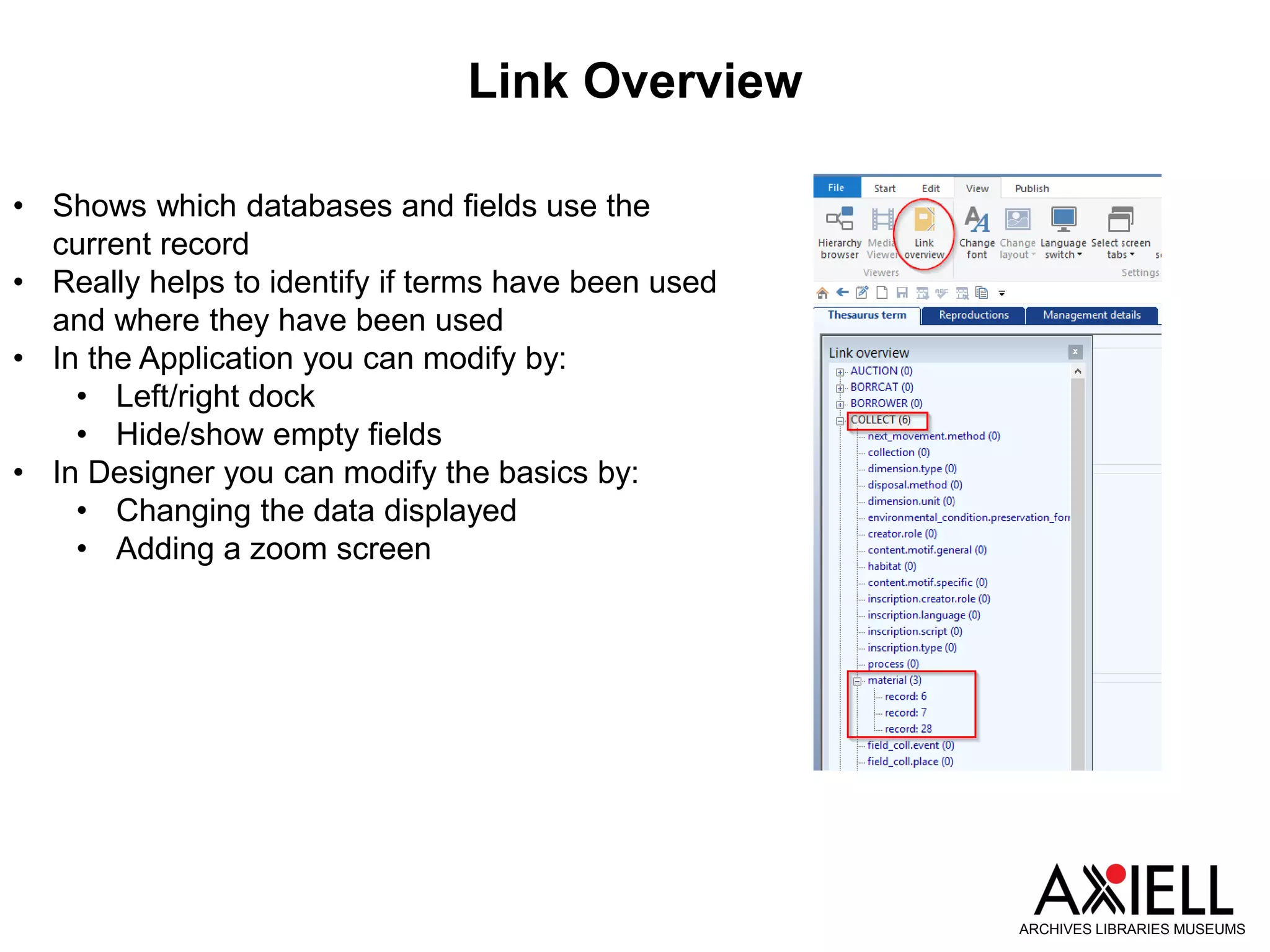
• Shows which databases and fields use the
current record
• Really helps to identify if terms have been used
and where they have been used
• In the Application you can modify by:
• Left/right dock
• Hide/show empty fields
• In Designer you can modify the basics by:
• Changing the data displayed
• Adding a zoom screen
Obsolete and Rejected terms
ARCHIVES LIBRARIES MUSEUMS
• The status field in Thesaurus and Persons
and Institutions has always had the values
of ‘Obsolete’ and ‘Rejected’
• Previously they had no functionality
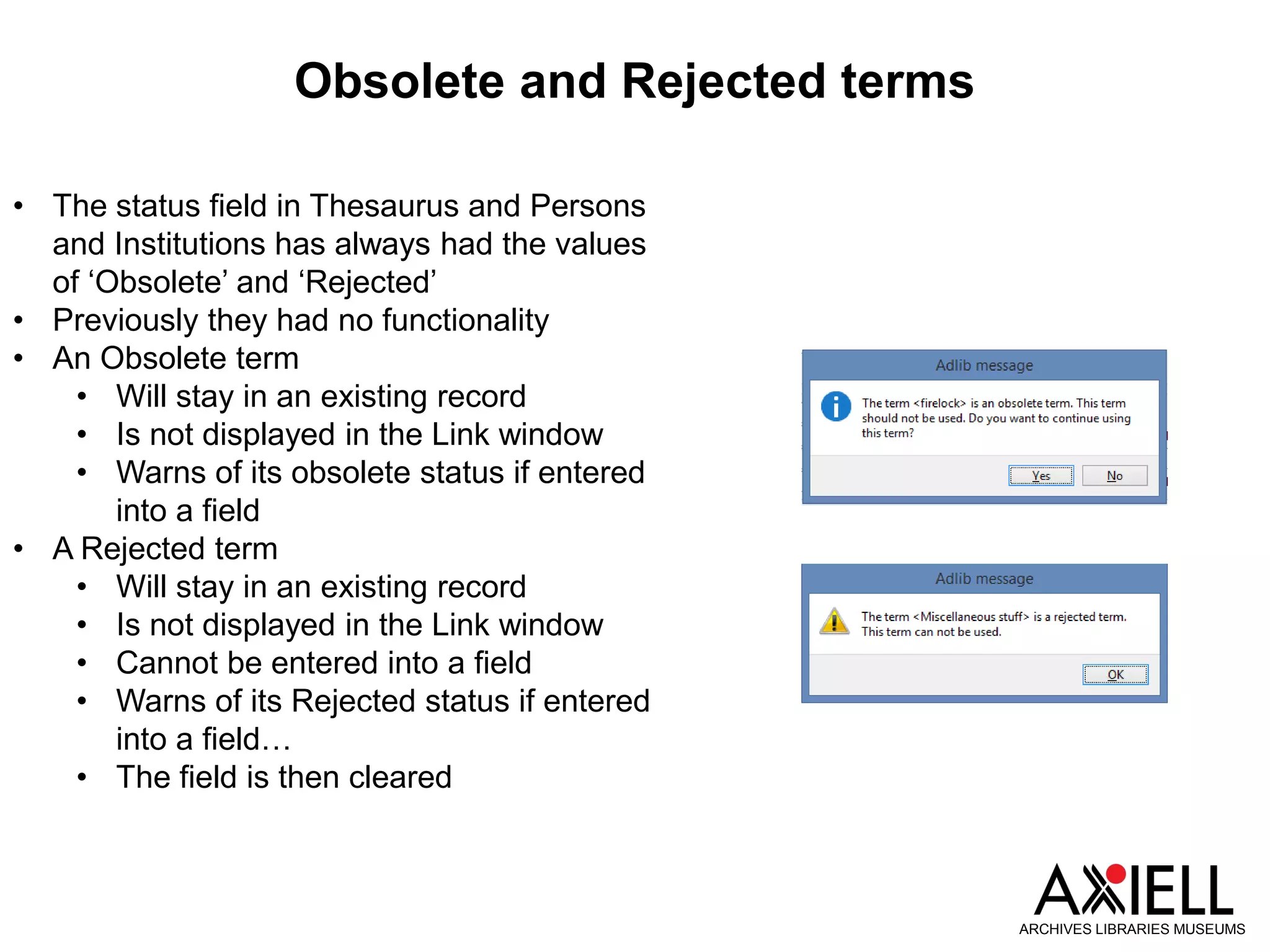
• An Obsolete term
• Will stay in an existing record
• Is not displayed in the Link window
• Warns of its obsolete status if entered
into a field
• A Rejected term
• Will stay in an existing record
• Is not displayed in the Link window
• Cannot be entered into a field
• Warns of its Rejected status if entered
into a field…
• The field is then cleared
New ‘Group’ Status in Authority Databases
ARCHIVES LIBRARIES MUSEUMS
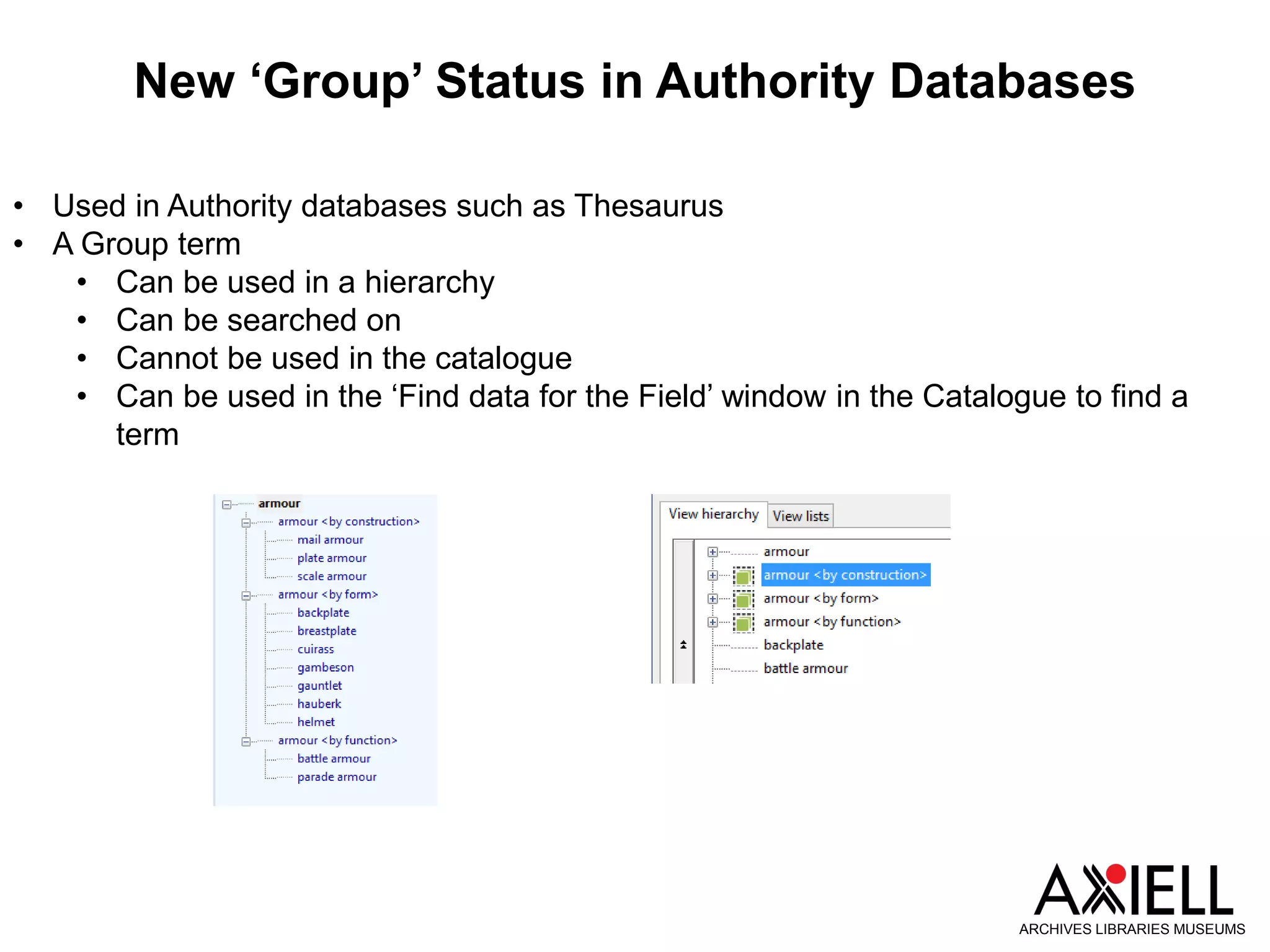
• Used in Authority databases such as Thesaurus
• A Group term
• Can be used in a hierarchy
• Can be searched on
• Cannot be used in the catalogue
• Can be used in the ‘Find data for the Field’ window in the Catalogue to find a
term
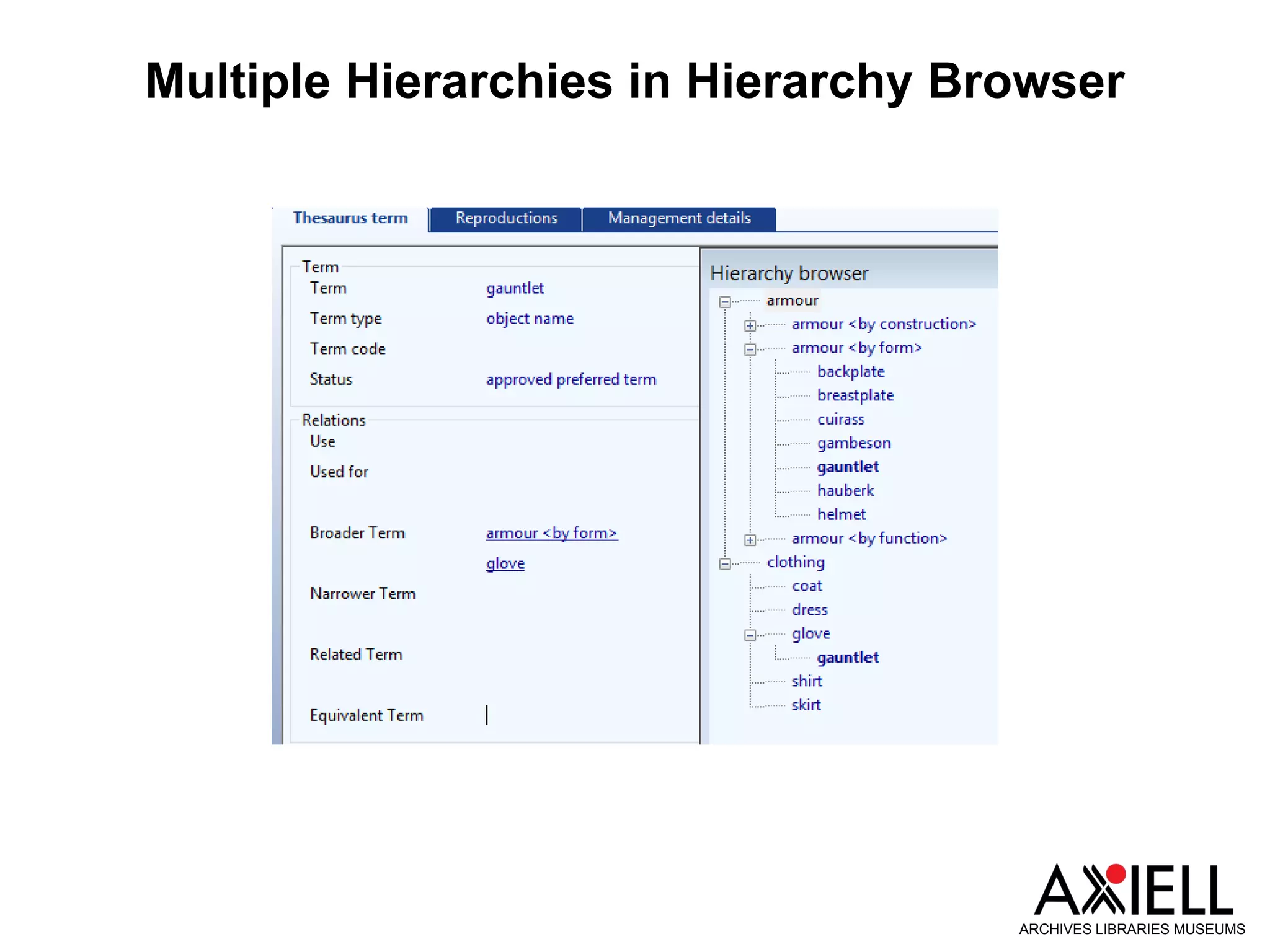
Multiple Hierarchies in Hierarchy Browser
ARCHIVES LIBRARIES MUSEUMS
Inherited fields
ARCHIVES LIBRARIES MUSEUMS
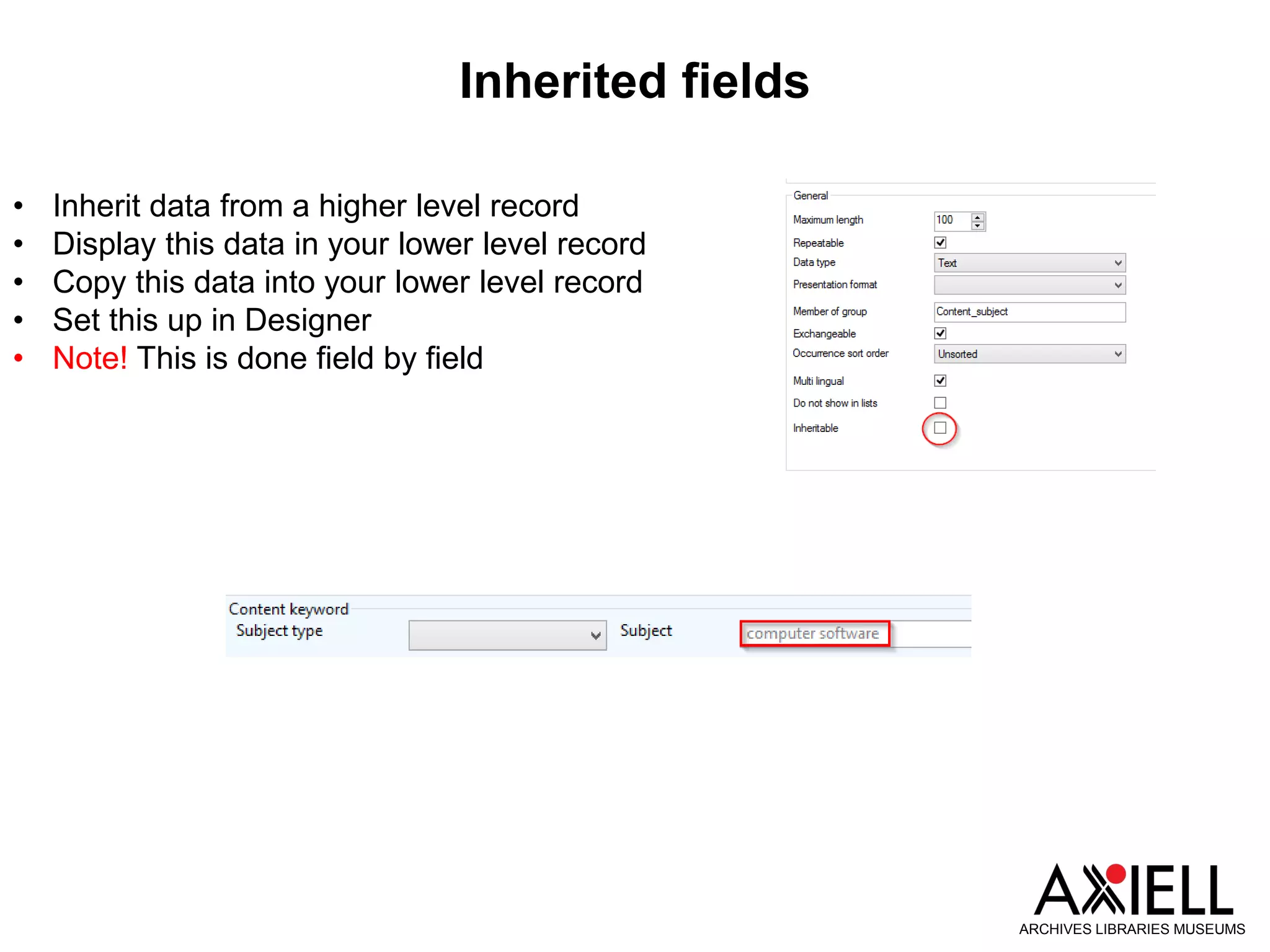
• Inherit data from a higher level record
• Display this data in your lower level record
• Copy this data into your lower level record
• Set this up in Designer
• Note! This is done field by field
Adding Child Records as a Batch
ARCHIVES LIBRARIES MUSEUMS
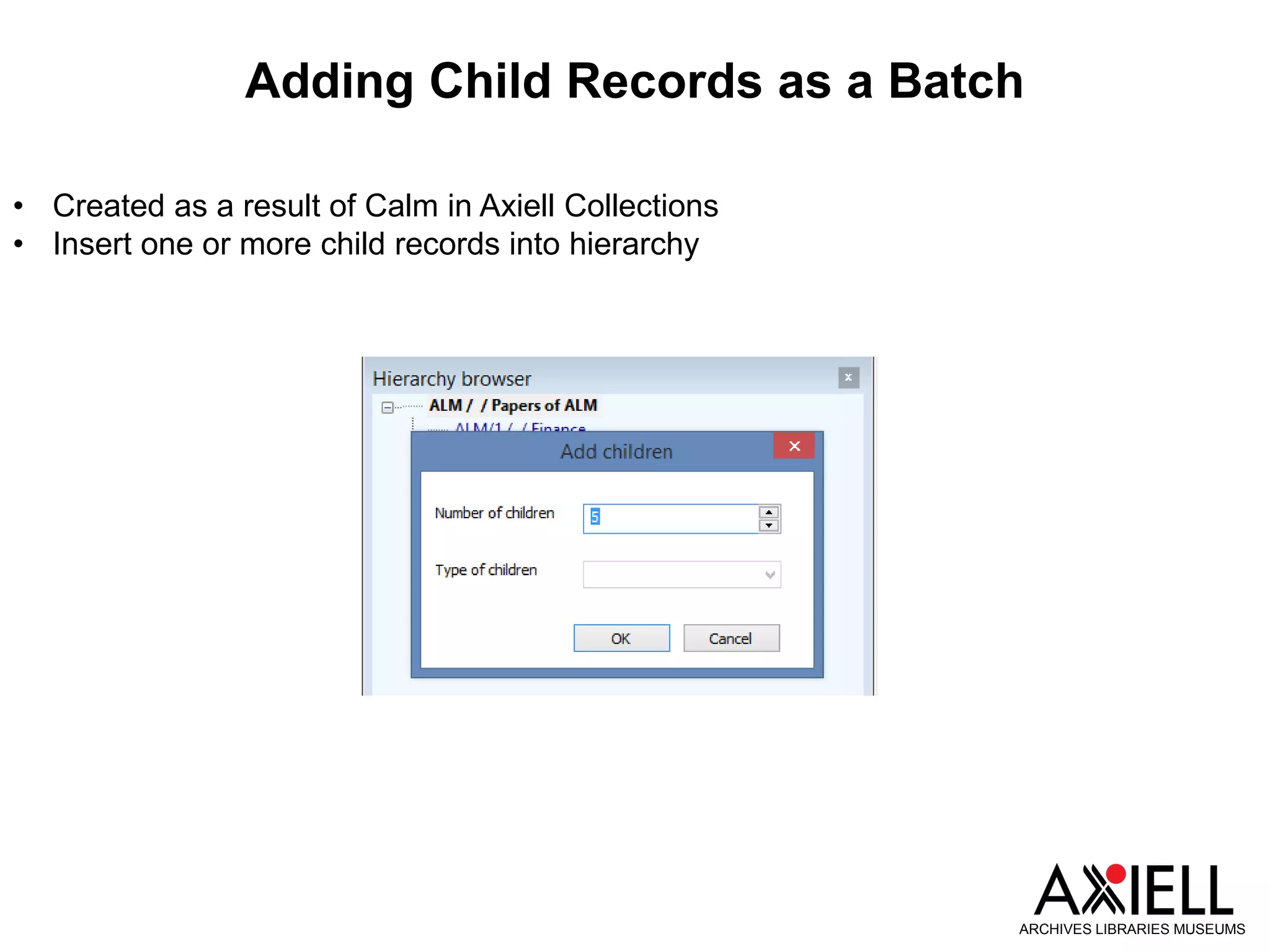
• Created as a result of Calm in Axiell Collections
• Insert one or more child records into hierarchy
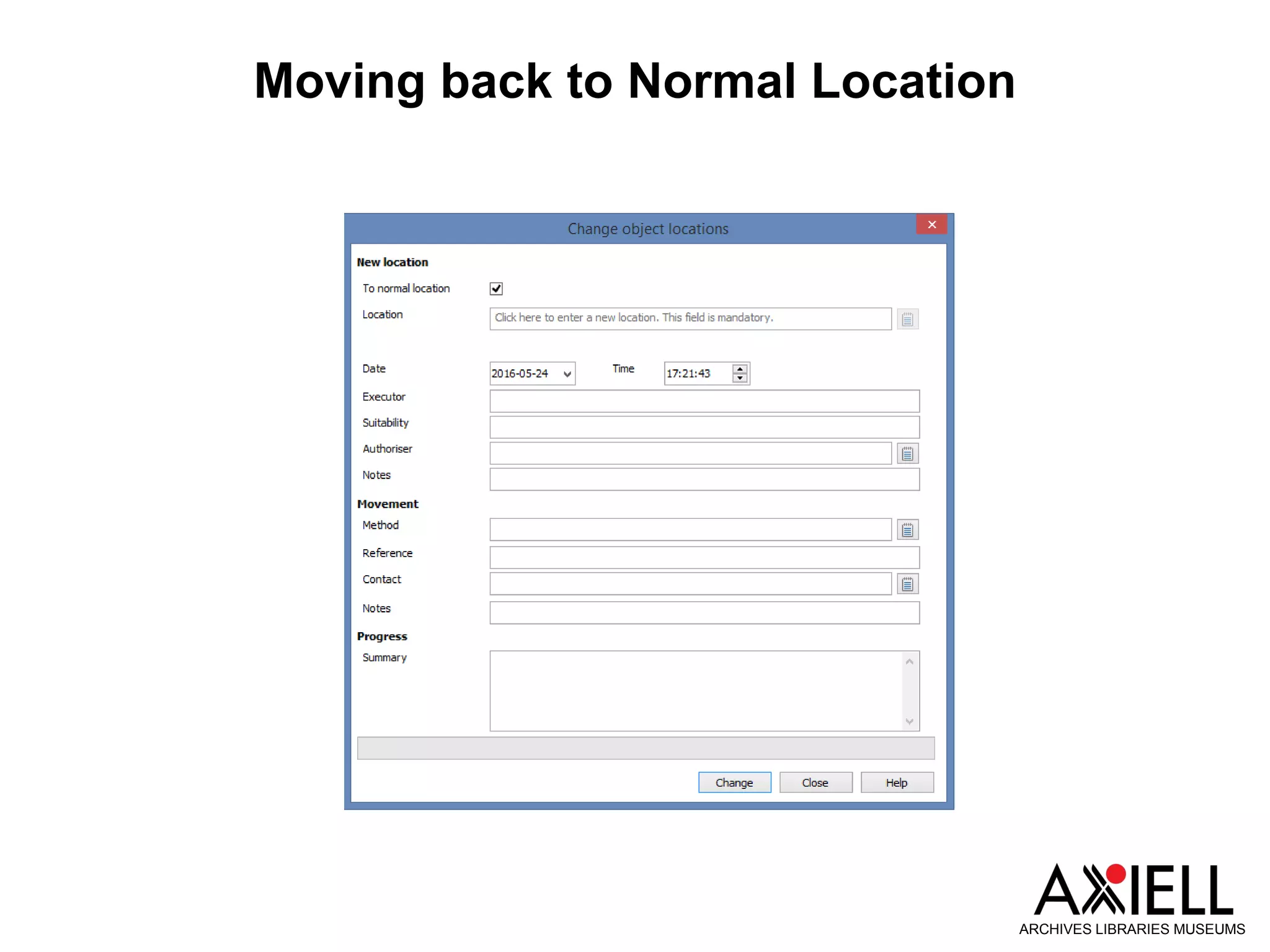
Moving back to Normal Location
ARCHIVES LIBRARIES MUSEUMS
Change Locations
ARCHIVES LIBRARIES MUSEUMS
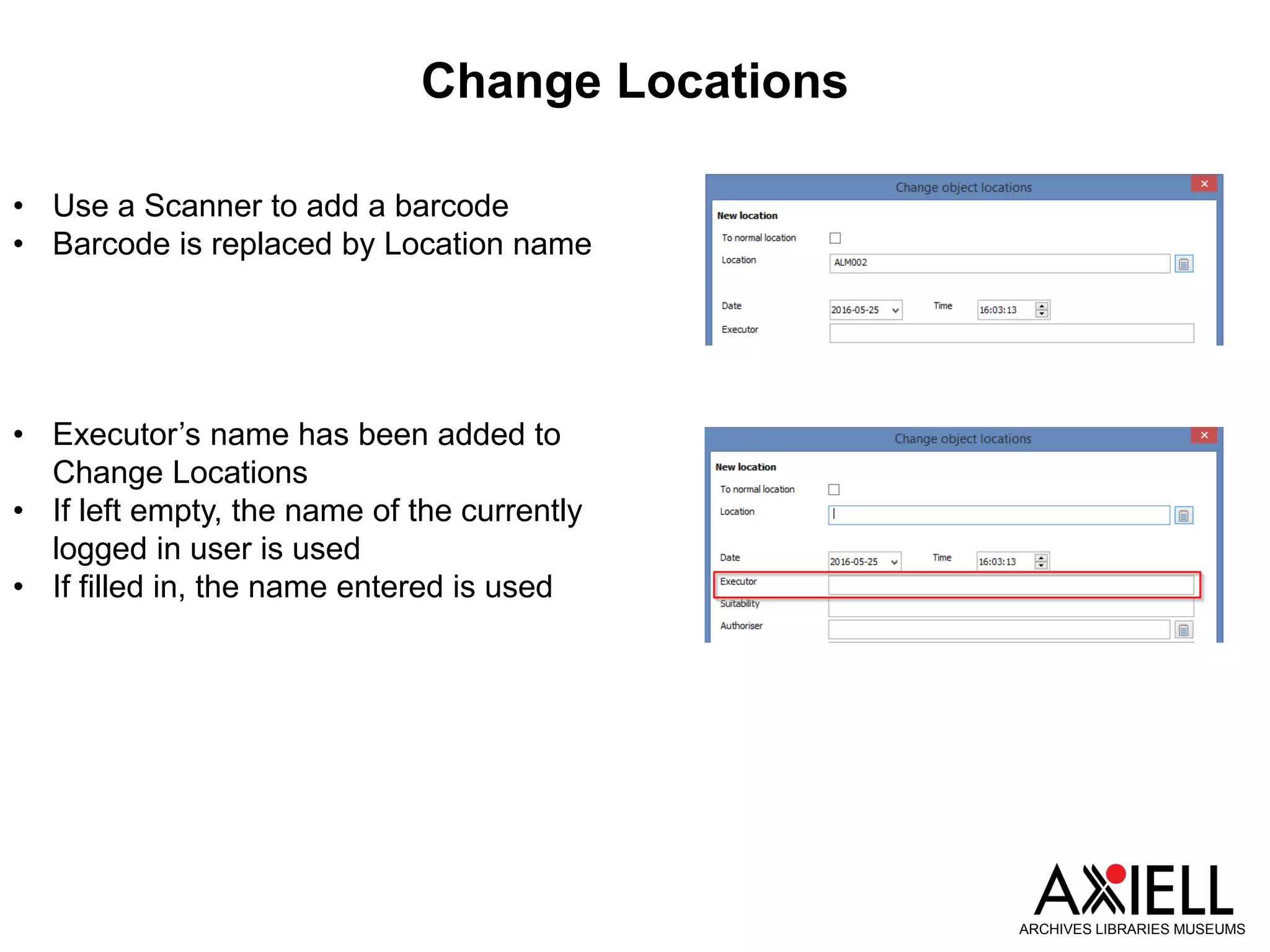
• Use a Scanner to add a barcode
• Barcode is replaced by Location name
• Executor’s name has been added to
Change Locations
• If left empty, the name of the currently
logged in user is used
• If filled in, the name entered is used
Go To Field
ARCHIVES LIBRARIES MUSEUMS
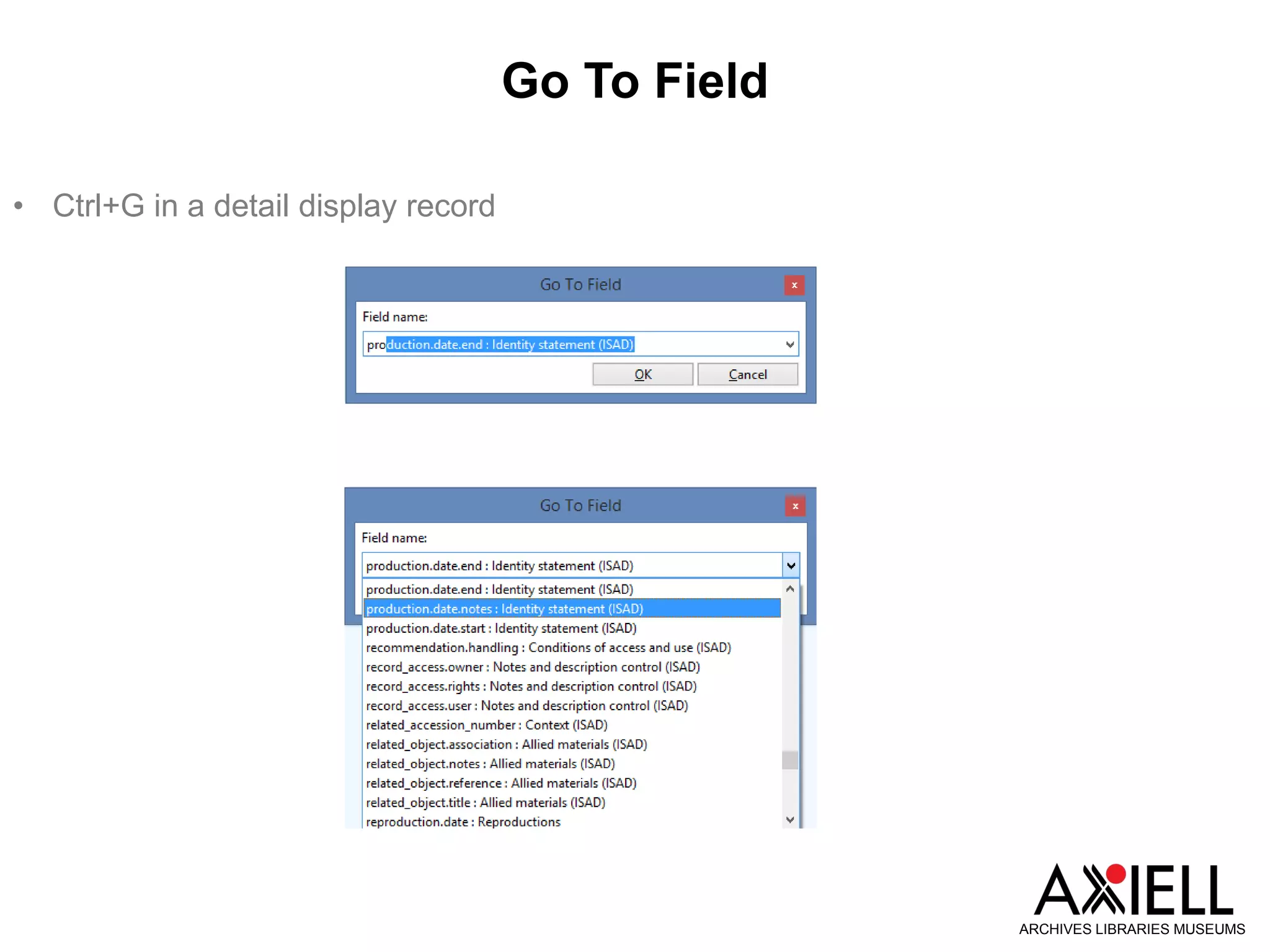
• Ctrl+G in a detail display record
Adlib Designer
ARCHIVES LIBRARIES MUSEUMS
Designer – Defining Field Properties per Dataset
ARCHIVES LIBRARIES MUSEUMS
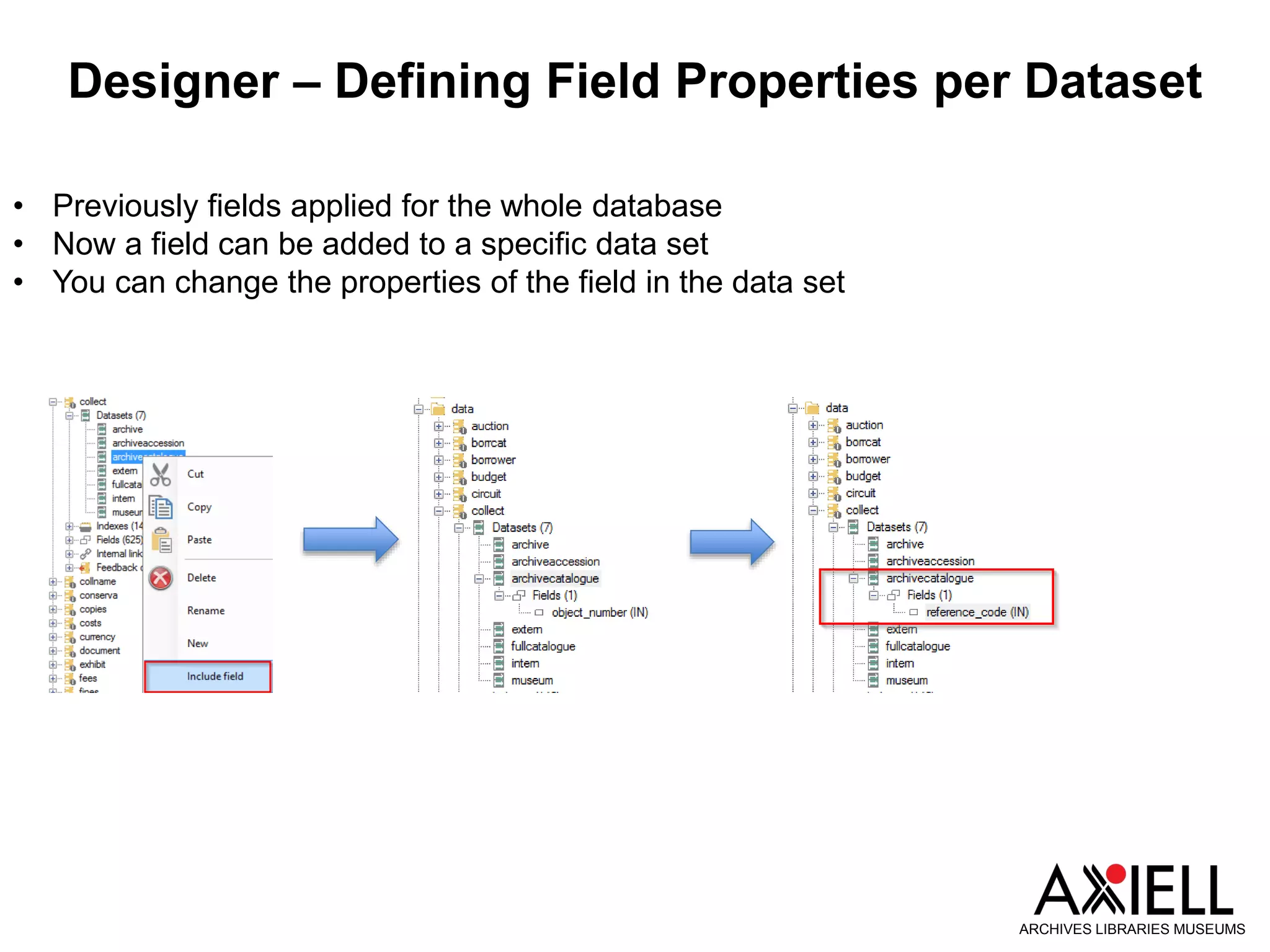
• Previously fields applied for the whole database
• Now a field can be added to a specific data set
• You can change the properties of the field in the data set
Designer – Make Import Jobs Available in
Applications
ARCHIVES LIBRARIES MUSEUMS
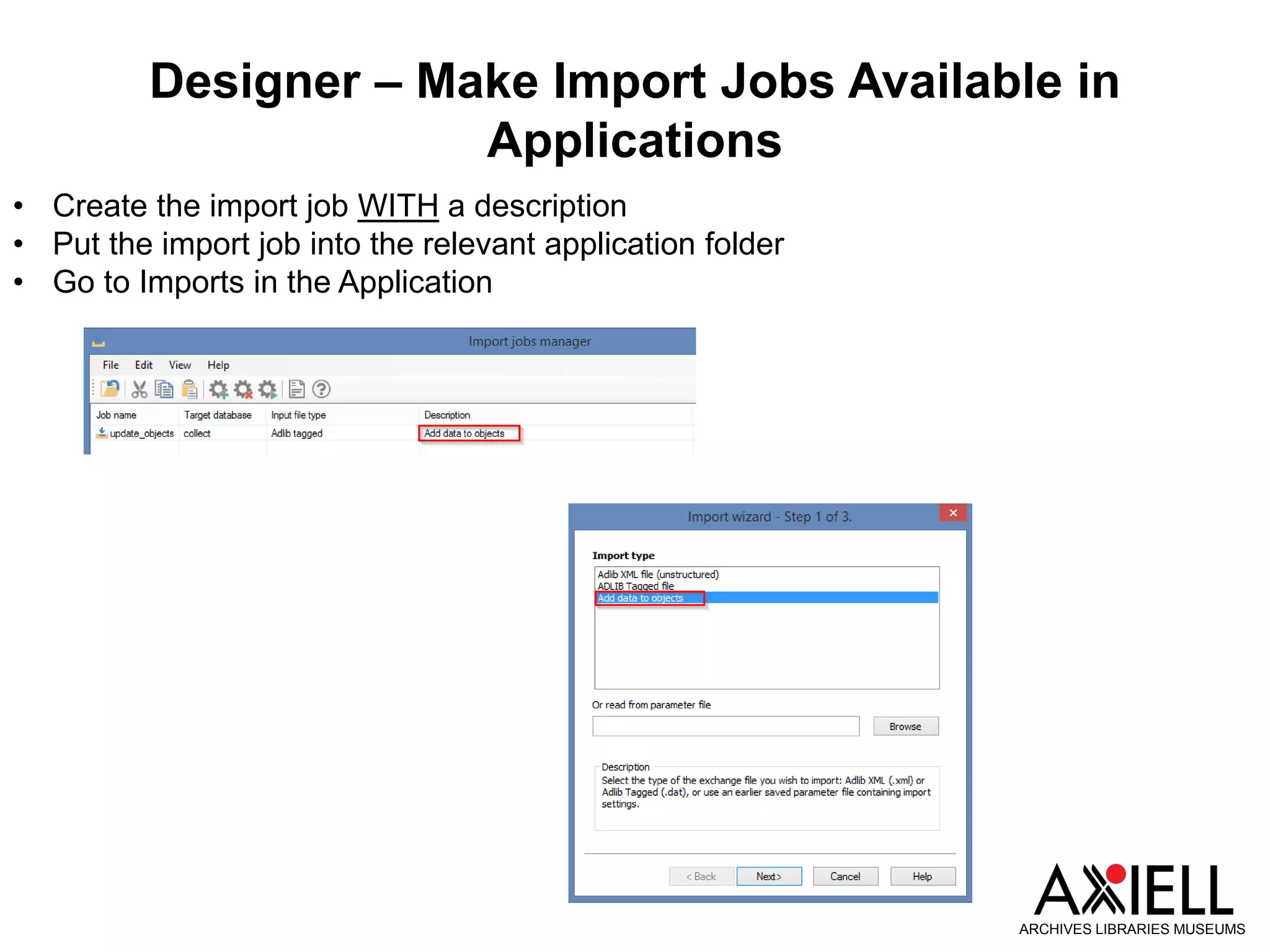
• Create the import job WITH a description
• Put the import job into the relevant application folder
• Go to Imports in the Application
Designer - Another Way of Dividing Data Sources
ARCHIVES LIBRARIES MUSEUMS
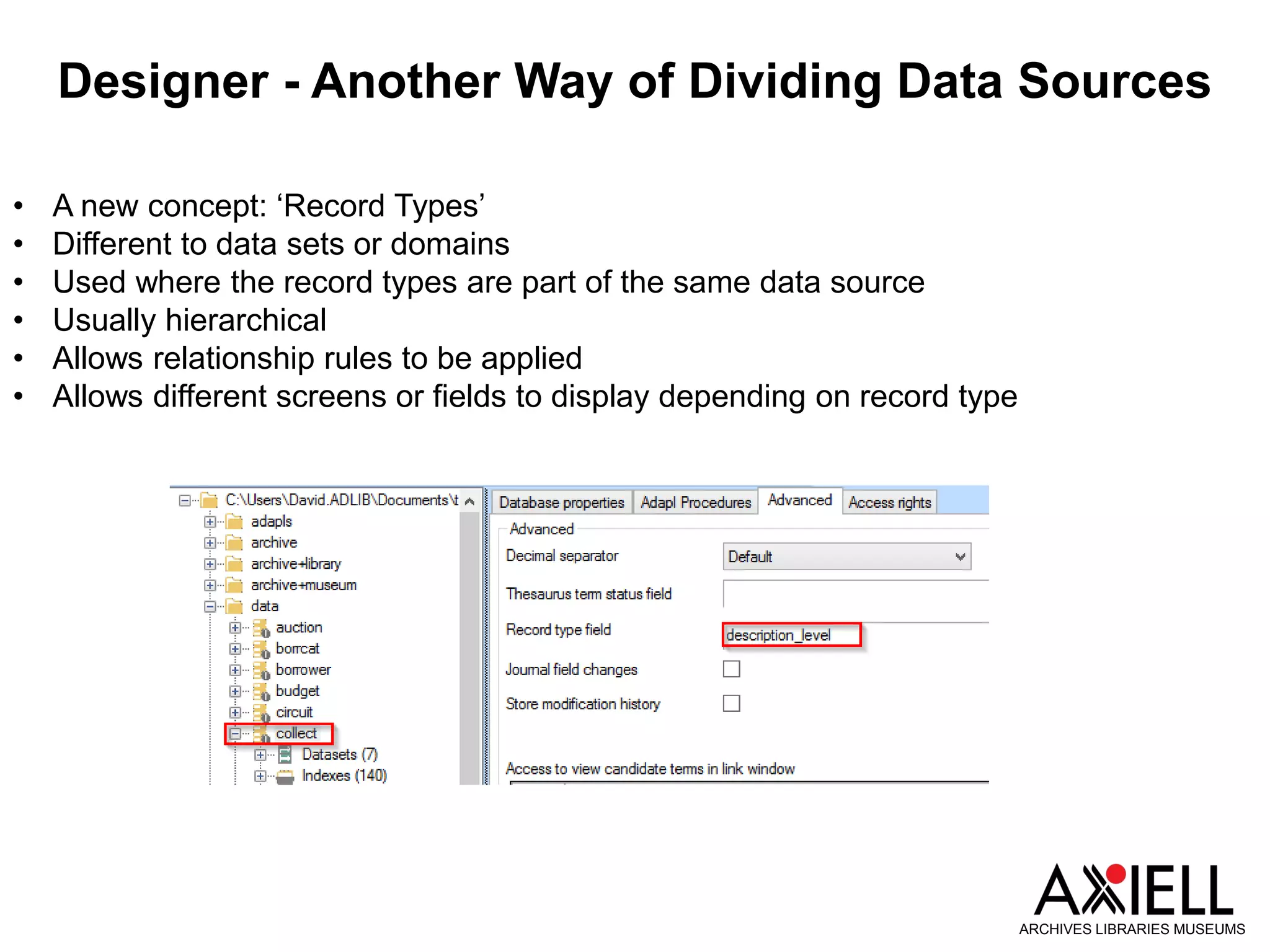
• A new concept: ‘Record Types’
• Different to data sets or domains
• Used where the record types are part of the same data source
• Usually hierarchical
• Allows relationship rules to be applied
• Allows different screens or fields to display depending on record type
Others
ARCHIVES LIBRARIES MUSEUMS
• Play media streams
• Keystroke for empty field
• Word templates can print multilingual data
• Search forms (QBF) can have a pre-set search statement
• A new Advanced search operator – expand
• Record Information Window can now be adjusted in size
• Reset Media Viewer
• Designer – More flexibility in fixed domains
• Designer – Insert a mapping row in import jobs

Adlib Version 7.3 Overview & Introduction

  • 1.
  • 2.
    Introduction ARCHIVES LIBRARIES MUSEUMS •Release version 7.3 • Using application version 4.5 to demonstrate examples • Some provisos • Applications before version 4.5 may not have required settings • Download version 7.3 and Designer 7.3 from MyAdlib • Reverse incompatibility • http://documentation.axiell.com/
  • 3.
    Link Overview ARCHIVES LIBRARIESMUSEUMS • Shows which databases and fields use the current record • Really helps to identify if terms have been used and where they have been used • In the Application you can modify by: • Left/right dock • Hide/show empty fields • In Designer you can modify the basics by: • Changing the data displayed • Adding a zoom screen
  • 4.
    Obsolete and Rejectedterms ARCHIVES LIBRARIES MUSEUMS • The status field in Thesaurus and Persons and Institutions has always had the values of ‘Obsolete’ and ‘Rejected’ • Previously they had no functionality • An Obsolete term • Will stay in an existing record • Is not displayed in the Link window • Warns of its obsolete status if entered into a field • A Rejected term • Will stay in an existing record • Is not displayed in the Link window • Cannot be entered into a field • Warns of its Rejected status if entered into a field… • The field is then cleared
  • 5.
    New ‘Group’ Statusin Authority Databases ARCHIVES LIBRARIES MUSEUMS • Used in Authority databases such as Thesaurus • A Group term • Can be used in a hierarchy • Can be searched on • Cannot be used in the catalogue • Can be used in the ‘Find data for the Field’ window in the Catalogue to find a term
  • 6.
    Multiple Hierarchies inHierarchy Browser ARCHIVES LIBRARIES MUSEUMS
  • 7.
    Inherited fields ARCHIVES LIBRARIESMUSEUMS • Inherit data from a higher level record • Display this data in your lower level record • Copy this data into your lower level record • Set this up in Designer • Note! This is done field by field
  • 8.
    Adding Child Recordsas a Batch ARCHIVES LIBRARIES MUSEUMS • Created as a result of Calm in Axiell Collections • Insert one or more child records into hierarchy
  • 9.
    Moving back toNormal Location ARCHIVES LIBRARIES MUSEUMS
  • 10.
    Change Locations ARCHIVES LIBRARIESMUSEUMS • Use a Scanner to add a barcode • Barcode is replaced by Location name • Executor’s name has been added to Change Locations • If left empty, the name of the currently logged in user is used • If filled in, the name entered is used
  • 11.
    Go To Field ARCHIVESLIBRARIES MUSEUMS • Ctrl+G in a detail display record
  • 12.
  • 13.
    Designer – DefiningField Properties per Dataset ARCHIVES LIBRARIES MUSEUMS • Previously fields applied for the whole database • Now a field can be added to a specific data set • You can change the properties of the field in the data set
  • 14.
    Designer – MakeImport Jobs Available in Applications ARCHIVES LIBRARIES MUSEUMS • Create the import job WITH a description • Put the import job into the relevant application folder • Go to Imports in the Application
  • 15.
    Designer - AnotherWay of Dividing Data Sources ARCHIVES LIBRARIES MUSEUMS • A new concept: ‘Record Types’ • Different to data sets or domains • Used where the record types are part of the same data source • Usually hierarchical • Allows relationship rules to be applied • Allows different screens or fields to display depending on record type
  • 16.
    Others ARCHIVES LIBRARIES MUSEUMS •Play media streams • Keystroke for empty field • Word templates can print multilingual data • Search forms (QBF) can have a pre-set search statement • A new Advanced search operator – expand • Record Information Window can now be adjusted in size • Reset Media Viewer • Designer – More flexibility in fixed domains • Designer – Insert a mapping row in import jobs

Editor's Notes

  • #3 All release notes at http://documentation.axiell.com/
  • #6 Group term in thesaurus speak in a non index preferred term. Aim is to use it to group together terms in a hierarchy but not so you can index with it.
  • #8 58 thesaurus fields alone.
  • #9 Benefit of cross platform development
  • #11 Executor is the person who actually did the move
  • #17 Stream from web Empties a field Ctrl+T Multilingual Can have a preset search put in. Set up in Designer in properties of a screen. Always needs to start with a Boolean operator Expand (search statement) e.g in archive catalogue expand(reference_code = ALM) Ctrl+R View ribbon bar Using record type to identify different values in the same field eg format film and audio film Cinemascope; IMAX) audio (.mp3; .wav) field name_%record_type% Right click Insert