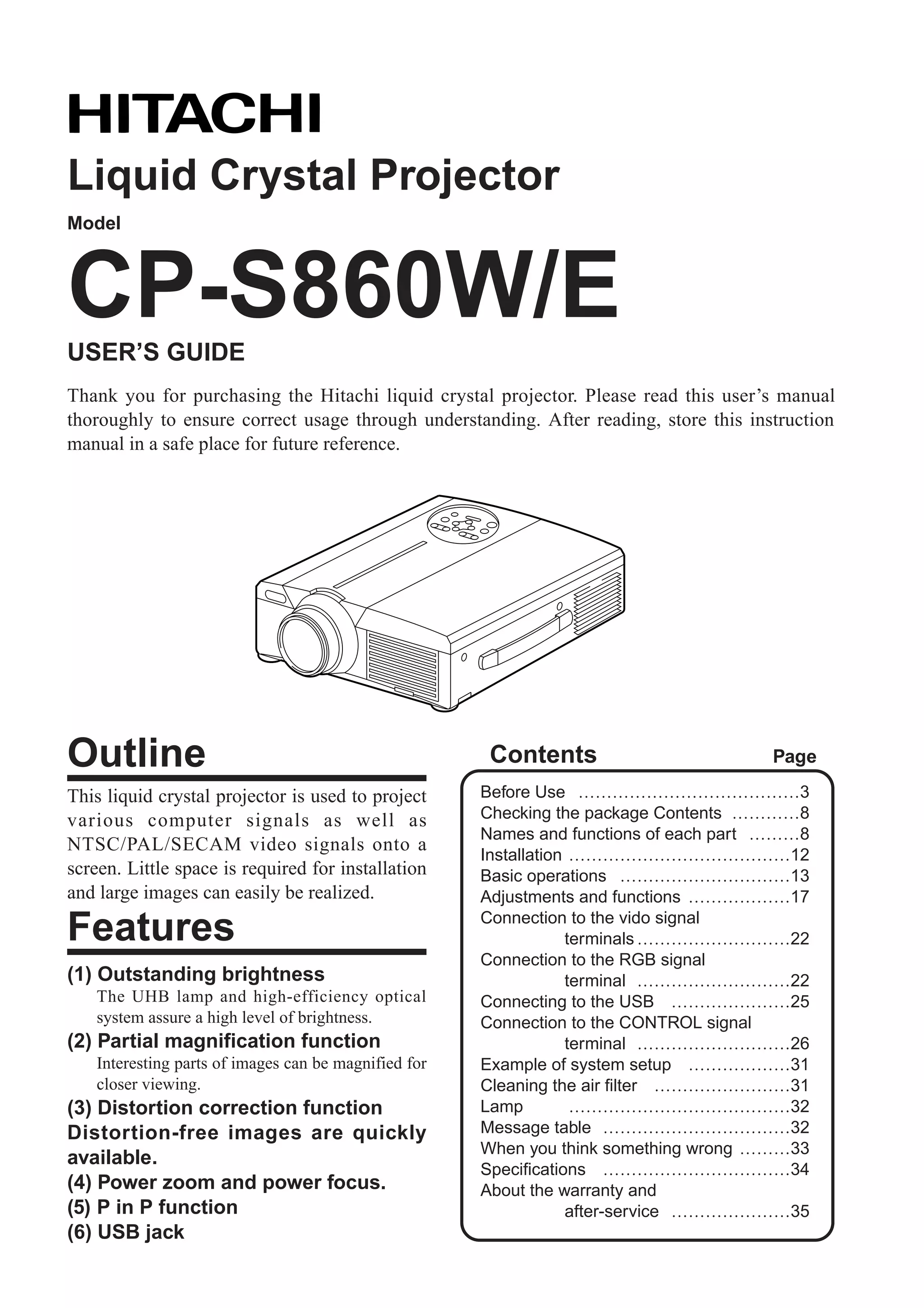
Liquid Crystal Projector
Model


CP-S860W/E
USER’S GUIDE
Thank you for purchasing the Hitachi liquid crystal projector. Please read this user’s manual
thoroughly to ensure correct usage through understanding. After reading, store this instruction
manual in a safe place for future reference.


Outline                                                 Contents                       Page

This liquid crystal projector is used to project       Before Use …………………………………3
various computer signals as well as                    Checking the package Contents …………8
                                                       Names and functions of each part ………8
NTSC/PAL/SECAM video signals onto a
                                                       Installation …………………………………12
screen. Little space is required for installation      Basic operations …………………………13
and large images can easily be realized.               Adjustments and functions ………………17
                                                       Connection to the vido signal
Features                                                           terminals ………………………22
                                                       Connection to the RGB signal
(1) Outstanding brightness                                         terminal ………………………22
    The UHB lamp and high-efficiency optical           Connecting to the USB …………………25
    system assure a high level of brightness.          Connection to the CONTROL signal
(2) Partial magnification function                                 terminal ………………………26
    Interesting parts of images can be magnified for   Example of system setup ………………31
    closer viewing.                                    Cleaning the air filter ……………………31
(3) Distortion correction function                     Lamp         …………………………………32
Distortion-free images are quickly                     Message table ……………………………32
                                                       When you think something wrong ………33
available.
                                                       Specifications ……………………………34
(4) Power zoom and power focus.                        About the warranty and
(5) P in P function                                                after-service …………………35
(6) USB jack
                                                                                                  1
Before Use

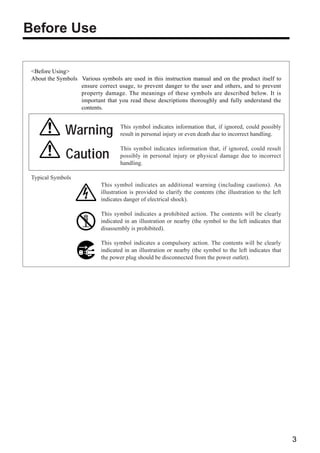
 <Before Using>
 About the Symbols Various symbols are used in this instruction manual and on the product itself to
                   ensure correct usage, to prevent danger to the user and others, and to prevent
                   property damage. The meanings of these symbols are described below. It is
                   important that you read these descriptions thoroughly and fully understand the
                   contents.


              Warning               This symbol indicates information that, if ignored, could possibly
                                    result in personal injury or even death due to incorrect handling.

                                    This symbol indicates information that, if ignored, could result
              Caution               possibly in personal injury or physical damage due to incorrect
                                    handling.

 Typical Symbols
                            This symbol indicates an additional warning (including cautions). An
                            illustration is provided to clarify the contents (the illustration to the left
                            indicates danger of electrical shock).

                            This symbol indicates a prohibited action. The contents will be clearly
                            indicated in an illustration or nearby (the symbol to the left indicates that
                            disassembly is prohibited).

                            This symbol indicates a compulsory action. The contents will be clearly
                            indicated in an illustration or nearby (the symbol to the left indicates that
                            the power plug should be disconnected from the power outlet).


                                                                                                             3
[Safety Precaution]

                                                    Warning
    s If a problem should occur.                                      s Do not insert foreign objects.
      • If smoke or a strange odor arise, continued
        use could result in fire or electrical shock. In
                                                                        • Do not insert metal objects etc., of
                                                                          the ventilation openings,
                                                                                                      through

          such case, immediately turn off the power                         this projector or drop such objects
          switch and then disconnect the power plug                         inside because this could result in
          from the power outlet. After making sure that                     fire or electrical shock.
          the smoke or odor has stopped, contact your
          dealer for repairs. Never attempt to make
                                                                        •   If a foreign object should enter this
                                                                            projector, immediately turn off the power
          repairs yourself because this is dangerous.                       switch, disconnect the
      •   Do not use this projector if
          there is no image or
                                                                            power plug from the
                                                                            power outlet and contact
          sound, or if the sound is                                         your dealer.
                                                                                                             Disconnect the
          distorted. Continued use               Disconnect the             Continued use could result in    plug from the
                                                 plug from the
          could result in fire or                power outlet.              fire or electrical shock. Use    power outlet.
          electrical shock.                                                 special caution in households
          In such case, immediately turn off the power                      where children are present.
          switch, disconnect the power plug from the
          power outlet and contact your dealer.                       s Do not look through the lens
      •   If water should enter the inside of this
          projector, immediately turn off the power
                                                                        when the lamp is on.
                                                                        Never look through the lens when the
          switch, disconnect the power plug from the
                                                                        lamp is on. The powerful light could adversely
          power outlet and contact your dealer.
                                                                        affect vision. Use special caution in households
                                                                        where children are present.
    s Do not install on an unstable surface.
      • Do not install this projectorwobbly
        unstable surface such as a
                                      on an
                                                                      s Avoid shock or impact on the projector.
                                                                        If the projector should fall,
          stand or incline because this could
                                                                        resulting in damage to the
          result in the projector falling and
                                                                        cabinet, immediately turn off
          causing injury.
                                                                        the power switch, disconnect          Disconnect the
                                                                        the power plug from the power         plug from the
    s Do not open the cabinet.                                          outlet and contact your dealer.
                                                                                                              power outlet.

      • Never eis high voltage
        Ther
               open the cabinet.                                        Continued use could result in
                                                                        fire or electrical shock.
          inside which can cause
          electrical shock.           Do not       Do not use
                                                   near water.        s Do not place this projector in
          Contact your dealer for disassemble.
          internal inspection, adjustment and                           a container containng liquid.
          repair.                                                       Do not place flower vases, flower
                                                                        pots, cups, cosmetics, liquids
                                                                        such as water, etc., on top of this projector.
    s Do not modify.                                                    Spillage could result in fire or electrical shock.
      Do not modify this projector because          Do not
                                                    disassemble.
      this could result in fire or electrical shock.
                                                                      s Use only the indicated power
    s Do not use in the bathroom.                                       supply.
                                                                        Use only the indicated power
      Do not use this projector in the
                                                                        supply. The us eof any other power supply
      bathroom because this could result in         Do not use near
                                                    water.              could result in fire or electrical shock.
      fire or electrical shock.


4
Warning
s Handle the power cord with care.
  • Do not twist the power process or
    strongly
             damage, cut,
                           cord. Placing
      heavy objects on the power cord, heating or
      strongly pulling the power cord can result in
      damage as well as fire or electrical shock.
      • Pulling on the power cord
      • Placing heavy objects on the power cord
      • Damaging the cord
      • Placing near heaters
  • Do not position projector. This can
    cord under the
                     the power

      damage the power cord and cause fire or
      electrical shock. Also, do not place a spread,
      cover, etc., over the power cord because this
      could result in the inadvertent placing of
      heavy objects on the concealed power cord.
  •   If the power cord is damaged
      (exposed or broken core wires,
      etc.), contact your dealer for
      replacement; otherwise, fire or
      electrical shock could result.
  •   Make sure there is no dust, etc., on the power
      plug and insert a knife blade to make sure that
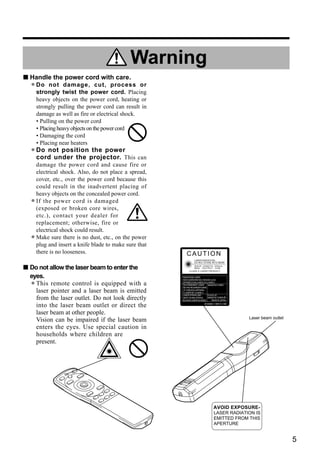
      there is no looseness.                               CAUTION
                                                                 LASER RADIATION-
                                                                 DO NOT STARE INTO BEAM

s Do not allow the laser beam to enter the                      WAVE LENGTH: 650nm
                                                                MAX . OUTPUT: 1mW
                                                             CLASS 2 LASER PRODUCT

  eyes.                                                 RADIAZIONI LASER


  •
                                                        NON GUARDARE NEL RAGGIO LUCE

    This remote control is equipped with a              APPARECCHIO LASER DI CLASSE 2
                                                        RAYONNEMENT LASER
                                                        NE PAS REGARDER DANS
                                                                               MANUFACTURED


    laser pointer and a laser beam is emitted           LE FAISCEAU APPAREIL
                                                        A LASER DE CLASSE 2
                                                        LASER-STRAHLUNG       PLACE OF
    from the laser outlet. Do not look directly         NICHT IN DEN STRAHL   MANUFACTURER:A
                                                        BLICKEN LASER KLASSE2   MADE IN JAPAN

    into the laser beam outlet or direct the                              IEC60825-1:1993+A1:1997


    laser beam at other people.
                                                                                                    Laser beam outlet
    Vision can be impaired if the laser beam
    enters the eyes. Use special caution in
    households where children are
    present.


                                                                                   AVOID EXPOSURE-
                                                                                   LASER RADIATION IS
                                                                                   EMITTED FROM THIS
                                                                                   APERTURE


                                                                                                                        5
Caution
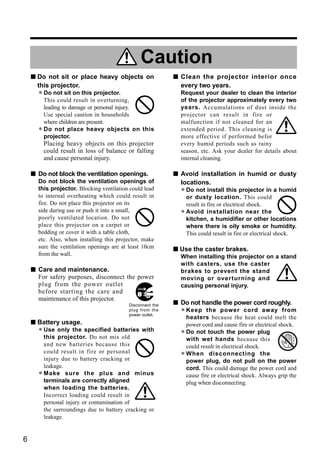
    s Do not sit or place heavy objects on                  s Clean the projector interior once
      this projector.                                         every two years.
      • Thisnot sit on thisinprojector.
        Do
             could result     overturning,
                                                              Request your dealer to clean the interior
                                                              of the projector approximately every two
          leading to damage or personal injury.               years. Accumulations of dust inside the
          Use special caution in households                   projector can result in fire or
          where children are present.                         malfunction if not cleaned for an
      •   Do not place heavy objects on this
          projector.
                                                              extended period. This cleaning is
                                                              more effective if performed befor
          Placing heavy objects on this projector             every humid periods such as rainy
          could result in loss of balance or falling          season, etc. Ask your dealer for details about
          and cause personal injury.                          internal cleaning.

    s Do not block the ventilation openings.                s Avoid installation in humid or dusty
      Do not block the ventilation openings of                locations.
      this projector. Blocking ventilation could lead
      to internal overheating which could result in
                                                              • Do dusty location.projector in a humid
                                                                or
                                                                   not install this
                                                                                    This could
      fire. Do not place this projector on its                    result in fire or electrical shock.
      side during use or push it into a small,
      poorly ventilated location. Do not
                                                              •   Avoid installation near the
                                                                  kitchen, a humidifier or other locations
      place this projector on a carpet or                         where there is oily smoke or humidity.
      bedding or cover it with a table cloth,                     This could result in fire or electrical shock.
      etc. Also, when installing this projector, make
      sure the ventilation openings are at least 10cm       s Use the caster brakes.
      from the wall.                                          When installing this projector on a stand
                                                              with casters, use the caster
    s Care and maintenance.                                   brakes to prevent the stand
      For safety purposes, disconnect the power               moving or over turning and
      plug from the power outlet                              causing personal injury.
      before starting the care and
      maintenance of this projector.
                                           Disconnect the   s Do not handle the power cord roughly.
                                           plug from the
                                           power outlet.
                                                              • Keep the power cordcould melt the
                                                                heaters because the heat
                                                                                         away from

    s Battery usage.                                              power cord and cause fire or electrical shock.
      • Use only the specifiedmix old with
        this projector. Do not
                               batteries
                                                              •   Do not touch the power plug
                                                                  with wet hands because this
          and new batteries because this                          could result in electrical shock.
          could result in fire or personal
          injury due to battery cracking or
                                                              •   When disconnecting the
                                                                  power plug, do not pull on the power
          leakage.                                                cord. This could damage the power cord and
      •   Make sure the plus and minus
          terminals are correctly aligned
                                                                  cause fire or electrical shock. Always grip the
                                                                  plug when disconnecting.
          when loading the batteries.
          Incorrect loading could result in
          personal injury or contamination of
          the surroundings due to battery cracking or
          leakage.


6
Caution
s When the projector is not to be used                     s Moving the projector.
  for an extended period.                                    • When movinglens cover, disconnect
                                                               to close the
                                                                            the projector, be sure
  For safety purposes when the
  projector is not to be used for an                             the power plug from the power outlet
  extended period because of travel,                             and disconnect all external Disconnect the
                                                                                                        plug from the
  etc., always disconnect the power Disconnect the   the         connections. Failure to do this power outlet.
                                           plug from
  plug from the power outlet. Also power outlet.                 could damage the power cord
  close the lens cover to prevent the lens                       and cause fire or electrical shock.
  surface being scratched.                                       Avoid any impact or shock to the projector
                                                                 because this could result in malfunction.
                                                             •   When moving this projector outdoors, protect
                                                                 it from wetting due to rain, etc. If the
                                                                 projector should become wet, dry it
                                                                 thoroughly before further use.
                                                                 Continued use while wet could
                                                                 result in fire or electrical shock.


[General Cautions]
s Avoid excessively hot locations.                         s Cabinet care.
  Do not place this projector in direct
  sunlight or near a hot object such as a
                                                             • The cabinet is madeoccur if wiped with a solvent
                                                               or paint peeling can
                                                                                    of plastic and discoloration

  stove, etc., because the heat could                            such as benzine, thinner, etc.
  have adverse influence on the cabinet
  and other parts.
                                                             •   Before using chemical wipes, be sure to read
                                                                 and observe the instructions.
                                                             •   Do not spray volatile substances such as
                                                                 insect repellent on the cabinet. Also, do not
s Sound volume.
  Set the volume at a suitable level to avoid                    allow long-term close contact with rubber or
  bothering other people. It is also better to keep              vinyl products because this could result in
  the volume level low and close the windows at                  discoloration, peeling paint, etc.
  night to protect the neighborhood environment.             •   Use a soft cloth to clean the cabinet and
                                                                 operation panel. When excessively soiled,
                                                                 dilute a neutral detergent in water, wet and
s Lens care                                                      wring out the cloth and afterward wipe with a
  Use commercially available lens
                                                                 dry cloth. Do not apply undiluted detergent
  tissue to clean the lens (used to clean
                                                                 directly to the projector.
  cameras, eyeglasses, etc.). Be careful
  not to scratch the lens with hard
  objects.                                                 s Extended usage.
                                                             When using this projector for an extended
                                                             period, stop periodically to rest the eyes to
                                                             prevent eye fatigue.


                                                                                                                   7
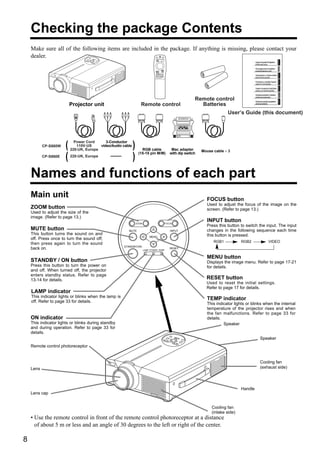
Checking the package Contents
    Make sure all of the following items are included in the package. If anything is missing, please contact your
    dealer.                                                                      VIDEO


                                                                                STANDBY/ON
                                                                                            LASER
                                                                                                       RGB


                                                                                                   POSITION


                                                                                                     RESET

                                                                                  MENU
                                                                                            FREEZE


                                                                                  MAGNIFY            VOLUME
                                                                                             OFF


                                                                                                                               Remote control
                          Projector unit                            Remote control                                               Batteries
                                                                                                                                                User’s Guide (this document)


                            Power Cord      3-Conductor
           CP-S860W   (          a
                             110V-US
                          220-UK, Europe
                                                 b
                                         video/Audio cable   )              c
                                                                    RGB cable                                     Mac adapter
                                                                                                                                         d
                                                                                                                                   Mouse cable × 3
                                                                  (15-15 pin M/M)                                with dip switch
           CP-S860E
                      (   220-UK, Europe
                                                             )
    Names and functions of each part
    Main unit                                                                                                                        FOCUS button
                                                                                                                                     Used to adjust the focus of the image on the
    ZOOM button                                                                                                                      screen. (Refer to page 13.)
    Used to adjust the size of the
    image. (Refer to page 13.)
                                                                 ZOOM                                         FOCUS
                                                                                                                                     INPUT button
                                                                                                                                     Press this button to switch the input. The input
    MUTE button                                          MUTE                                                    INPUT               changes in the following sequence each time
    This button turns the sound on and                                                                                               this button is pressed.
                                                                            MENU
    off. Press once to turn the sound off;
                                                                                                                                         RGB1           RGB2          VIDEO
    then press again to turn the sound
                                                       STANDBY/ON
    back on.                                                            LAMP POWER TEMP
                                                                                                                 RESET


                                                                                                                                     MENU button
    STANDBY / ON button                                                                                                              Displays the image menu. Refer to page 17-21
    Press this button to turn the power on                                                                                           for details.
    and off. When turned off, the projector
    enters standby status. Refer to page
    13-14 for details.                                                                                                               RESET button
                                                                                                                                     Used to reset the initial settings.
                                                                                                                                     Refer to page 17 for details.
    LAMP indicator
    This indicator lights or blinks when the lamp is
    off. Refer to page 33 for details.
                                                                                                                                     TEMP indicator
                                                                                                                                     This indicator lights or blinks when the internal
                                                                                                                                     temperature of the projector rises and when
                                                                                                                                     the fan malfunctions. Refer to page 33 for
    ON indicator                                                                                                                     details.
    This indicator lights or blinks during standby                                                                                            Speaker
    and during operation. Refer to page 33 for
    details.
                                                                                                                                                                  Speaker
    Remote control photoreceptor


                                                                                                                                                                  Cooling fan
    Lens                                                                                                                                                          (exhaust side)


                                                                                                                                                        Handle
    Lens cap


                                                                                                                                        Cooling fan
                                                                                                                                        (intake side)
    • Use the remote control in front of the remote control photoreceptor at a distance
      of about 5 m or less and an angle of 30 degrees to the left or right of the center.

8
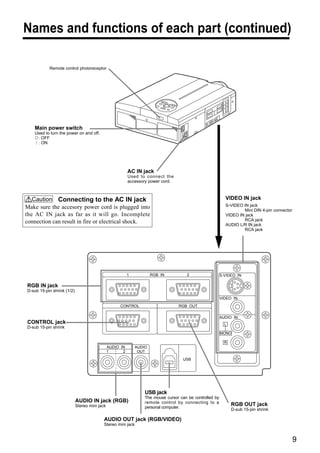
Names and functions of each part (continued)

           Remote control photoreceptor


   Main power switch
   Used to turn the power on and off.
     : OFF
     : ON


                                                          AC IN jack
                                                          Used to connect the
                                                          accessory power cord.


   Caution Connecting to the AC IN jack                                                                     VIDEO IN jack
Make sure the accesory power cord is plugged into                                                           S-VIDEO IN jack
                                                                                                                    Mini DIN 4-pin connector
the AC IN jack as far as it will go. Incomplete                                                             VIDEO IN jack
connection can result in fire or electrical shock.                                                                  RCA jack
                                                                                                            AUDIO L/R IN jack
                                                                                                                    RCA jack


                                                          1           RGB IN           2                  S-VIDEO IN

RGB IN jack
D-sub 15-pin shrink (1/2)
                                                                                                          VIDEO IN

                                                    CONTROL                       RGB OUT

                                                                                                          AUDIO IN
CONTROL jack                                                                                                L
D-sub 15-pin shrink
                                                                                                          MONO

                                                                                                            R
                                               AUDIO IN       AUDIO
                                               1      2        OUT

                                                                                     USB


                                                                  USB jack
                                                                  The mouse cursor can be controlled by
                            AUDIO IN jack (RGB)                   remote control by connecting to a
                            Stereo mini jack                      personal computer.
                                                                                                                RGB OUT jack
                                                                                                                D-sub 15-pin shrink

                                           AUDIO OUT jack (RGB/VIDEO)
                                           Stereo mini jack


                                                                                                                                               9
Names and functions of each part (continued)
   Remote control transmitter

   VIDEO, RGB button                                                                                    LASER button
   Press to switch the input. (Refer to page 13, 19.)             VIDEO                 RGB             Turns the laser beam on and off. Refer to page
                                                                             LASER
                                                                                                        11 cocnerning usage and observe the cautions.
   STANDBY / ON button                                           STANDBY/ON         POSITION
   Used to turn the power on and off.                                                                   POSITION button
   Press for 1 sec. or more to turn the power off                                                       Pressing the top, bottom, left or right of Disk Pad
   (enter standby status).                                                                              after pressing this button causes corresponding
   (Refer to pages13 and 14.)                                                                           movement (effective only for RGB signal output).

   DISK PAD                                                                                             RESET MOUSE / RIGHT button
   (1) Used to select menu items when the menu                                                         (1)Operates as the RESET button when the menu
       screen is displayed (refer to page 16-18).                                                         is displayed. Press this button to return to the
   (2) When the menu is not displayed, the mouse                                      RESET
                                                                                                          initial settings.
       shift function and left click function are active.          MENU                                (2)Used to click the right mouse button when the
*1 (3) After the POSITION button has been                                    FREEZE                       menu is not displayed (refer to page 25,26).
       pressed, the screen can be moved upward,                                                     *1 (3)Pressing this button after scrolling the screen
       downward and to the left and right.                         MAGNIFY            VOLUME              with POSITION returns the screen to the original
                                                                              OFF                         position.
   MENU button
   Used to turn the menu screen display on and off.
                                                                    P in P            MUTE              FREEZE button
   (refer to page 17-21).                                                                               Used to turn the freeze (still) image display on
                                                                   BLANK     AUTO     TIMER
                                                                                                        and off.

   MAGNIFY button                                                                                       VOLUME button
   Used to magnify the displayed image.                                                                 Adjusts the volume of the sound. Press [ ] to
                                                                   FOCUS              ZOOM
                                                                                                        increase the volume and (    ) to decrease the
   P in P button *2                                                                                     volume.
   Used to turn P in P (Picture In Picture: displays sub video
   signal images in the RGB signal) on and off.                                                         MUTE button
   Each time this button is pressed, operation will change in                                           Mutes the sound when pressed and restores the
   the following sequence:                                                                              sound when pressed again.
   (1) Reduce sub screen (2) Magnify sub screen (3)Off.
   (1) ∼ (3)                                                                                            TIMER button
                                                                                                        Turns the time display of the timer displayed on
   BLANK button                                                                                         the menu screen on and off.
   Used to turn blanking on and off.                                                                    The timer is not displayed during blanking.
   (Refer to page 20.)                                                                                  Refer to page 20, 21 concerning the method
                                                                                                        used to set the timer.

   FOCUS button                                                                                         ZOOM button
   Used to adjust the focus of the image on the                                                         Used to adjust the size of the image. (Refer to
   screen. (Refer to page 13.)                                                                          page 13.)

                                                                                                        AUTO button
                                                                                                        Used to execute auto-adjust.*3


     *1 POSITION icon                                                                  *3 Auto adjustment function
   When the POSITION button is pressed, the remote control                            The projector automatically adjusts 4 items (V. POSIT, H. POSIT,
   buttons will light and the moving display icon will appear at the                  H. PHASE, H. SIZE).
   bottom right of the screen.                                                        When you choose AUTO (move the cursor to the right from the
                                                                                      manual operation position), the AUTO confirmation menu shown
                                                                                      below is indicated.


                                                                                          Caution   • Auto adjust requires several tens of seconds.
                                                                                                    • Auto adjust may not operate correctly in some cases,
                                                                                                      depending on the computer connected and the signal.
                                                                                                    • Auto adjust may not operate correctly in some cases,
                                                                                                      depending on the type of image.
   *2                                                                                               • Execute auto adjust with the display of the application
   With the P in P function, signals are input to both RGB and                                        being run by the computer at maximum.
   VIDEO. This function operates only when the RGB signal has                                       • After auto adjust, the image may be slightly dark in
   been selected. There is no display in the case of the no signal and                                some cases due to automatic adjustment of the signal
   when the RGB signal is outside the sync range.                                                     level.
   When P in P is used, audio is automatically switched to video.
   In P in P, audio input can be switched by pressing the VOL and                                   • Auto adjust canot execute when the initial display is
   VOL      keys of the remote control, displaying the audio bar and                                  "NO INPUT IS DETECTED" or "SYNC IS OUT OF
   moving Disk Pad left and right during the display.                                                 RANGE" during FREEZE or MAGNIFY.

                                            RGB/VIDEO

10
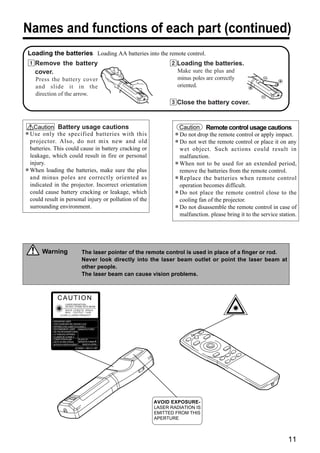
Names and functions of each part (continued)
Loading the batteries Loading AA batteries into the remote control.
1Remove the battery                                                   2Loading the batteries.
 cover.                                                                  Make sure the plus and
      Press the battery cover                                            minus poles are correctly
      and slide it in the                                                oriented.
      direction of the arrow.
                                                                      3Close the battery cover.


      Caution Battery usage cautions                                        Caution Remote control usage cautions
•   Use only the specified batteries with this                          •   Do not drop the remote control or apply impact.
    projector. Also, do not mix new and old
    batteries. This could cause in battery cracking or
                                                                        •   Do not wet the remote control or place it on any
                                                                            wet object. Such actions could result in
    leakage, which could result in fire or personal                         malfunction.
    injury.                                                             •   When not to be used for an extended period,
•   When loading the batteries, make sure the plus                          remove the batteries from the remote control.
    and minus poles are correctly oriented as
    indicated in the projector. Incorrect orientation
                                                                        •   Replace the batteries when remote control
                                                                            operation becomes difficult.
    could cause battery cracking or leakage, which
    could result in personal injury or pollution of the
                                                                        •   Do not place the remote control close to the
                                                                            cooling fan of the projector.
    surrounding environment.                                            •   Do not disassemble the remote control in case of
                                                                            malfunction. please bring it to the service station.


         Warning                      The laser pointer of the remote control is used in place of a finger or rod.
                                      Never look directly into the laser beam outlet or point the laser beam at
                                      other people.
                                      The laser beam can cause vision problems.


                 CAUTION
                       LASER RADIATION-
                       DO NOT STARE INTO BEAM
                      WAVE LENGTH: 650nm
                      MAX . OUTPUT: 1mW
                   CLASS 2 LASER PRODUCT

              RADIAZIONI LASER
              NON GUARDARE NEL RAGGIO LUCE
              APPARECCHIO LASER DI CLASSE 2
              RAYONNEMENT LASER      MANUFACTURED
              NE PAS REGARDER DANS
              LE FAISCEAU APPAREIL
              A LASER DE CLASSE 2
              LASER-STRAHLUNG       PLACE OF
              NICHT IN DEN STRAHL   MANUFACTURER:A
              BLICKEN LASER KLASSE2   MADE IN JAPAN
                                IEC60825-1:1993+A1:1997


                                                                AVOID EXPOSURE-
                                                                LASER RADIATION IS
                                                                EMITTED FROM THIS
                                                                APERTURE


                                                                                                                            11
Installation
     Typical LCD Projector and Screen Installation
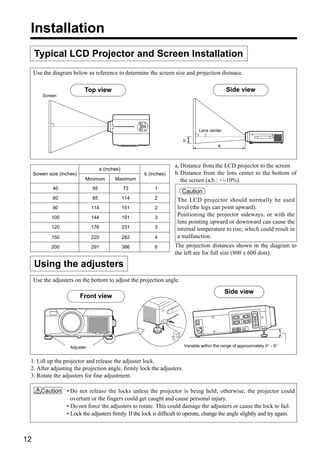
     Use the diagram below as reference to determine the screen size and projection distnace.

                             Top view                                                          Side view
         Screen


                                                                                 Lens center

                                                                         b
                                                                                           a


                                           a
                                                                      a. Distance from the LCD projector to the screen
                                      a (inches)
     Screen size (inches)                                b (inches)   b. Distance from the lens center to the bottom of
                             Minimum         Maximum                     the screen (a,b : +/-10%).
              40                 55                73        1
                                                                        Caution
              60                 85                114       2        The LCD projector should normally be used
              80                 114               151       2        level (the legs can point upward).
             100                 144               191       3
                                                                      Positioning the projector sideways, or with the
                                                                      lens pointing upward or downward can cause the
             120                 176               231       3        internal temperature to rise, which could result in
             150                 220               282       4        a malfunction.
             200                 291               386       6        The projection distances shown in the diagram to
                                                                      the left are for full size (800 x 600 dots).

     Using the adjusters
     Use the adjusters on the bottom to adjust the projection angle.
                                                                                               Side view
                            Front view


                      Adjuster                                           Variable within the range of approximately 0° - 9°


 1. Lift up the projector and release the adjuster lock.
 2. After adjusting the projection angle, firmly lock the adjusters.
 3. Rotate the adjusters for fine adjustment.

        Caution • Do not release the locks unless the projector is being held; otherwise, the projector could
                  overturn or the fingers could get caught and cause personal injury.
                • Do not force the adjusters to rotate. This could damage the adjusters or cause the lock to fail.
                • Lock the adjusters firmly. If the lock is difficult to operate, change the angle slightly and try again.


12
Basic operations
To project                                                                                   VIDEO
                                                                                                        LASER
                                                                                                                   RGB


                                                                                2
                                                                                            STANDBY/ON         POSITION


                                                                                                                            7
                                          5 7 4 2                                                                RESET

                                                                                              MENU
                                                                                                        FREEZE


                                                                                              MAGNIFY            VOLUME
                                                                                                         OFF


                                                                                               P in P            MUTE


                                                                                5             BLANK     AUTO     TIMER


                                                                                                                            4
         1
                                                                                              FOCUS              ZOOM


                       3

1   Turn on the main power switch of the projector [ I: ON].
    • The ON indicator will light orange.


2   Press the STANDBY / ON button.
    • The ON indicator will blink green and then light green.
    • The green blinking indicates warmup.
    • After the power is turned on, the lamp will be cooled for approximately 1 min. and the power cannot
      be turned on even by pressing the STANDBY/ON button.


3   Remove the lens cap.


4   Use the ZOOM button to adjust the screen size.


5   Use the FOCUS button to adjust the focus.
    (1) The display shown to the right will appear when the FOCUS button is pressed.                    +++FOCUS+++
    (2) Use the FOCUS button to adjust the focus until the image is sharp.
    (3) The message "Focus" will disappear if any other button is pressed.


6   Turn on the power to the connected equipment.
    Refer to page 31 concerning the connection of other equipment.


7   Press either the INPUT button of the
    projector or the VIDEO/RGB button of the                                                       Example on-screen display

    remote control to select the signal to be
                                                                                                                          RGB 1
    projected on the screen.
    The selected signal input channel will be displayed in the lower right part of the screen.


                                                                                                                                  13
Basic operations (continued)
     Turning off the power

                                                                              1
                                                                                              VIDEO                 RGB
                                                                                                         LASER

                                                                                             STANDBY/ON         POSITION

                                                                1


                                                                                                                  RESET

                                                                                               MENU
                                                                                                         FREEZE

               2                                                                               MAGNIFY            VOLUME
                                                                                                          OFF


                          3                                                                     P in P            MUTE


                                                                                               BLANK     AUTO     TIMER


 1      Press the STANDBY/ON button for approximately 1 sec.
        • The ON indicator will blink orange, then the lamp will turn off. Approximately 1 sec. after that, the
          lamp will light orange.
        • After the power is turned off, the lamp will be cooled for approximately 1 min. and the power cannot
          be turned off even by pressing the STANDBY/ON button.
        • The standby status will not be entered if the time which the STANDBY/ON button is pressed is too
          short.


 2      Turn off the main power switch of the projector [                                                   : OFF].


 3      Attach the lens cap.


     Caution   The fan will continue running for approximately 1 min. after the STANDBY/ON button is pressed.
               Do not turn off the main power switch while the lamp is on because this will shorten the service life of
               the lamp.


     Plug & Play
 This projector is VESA DDC 1/2B compatible. Plug & play is possible by connecting to a computer that is
 VESA DDC (Display Data Channel) compatible.
 (Plug & play is a system configured with peripheral equipment including a computer and display, and an
 operating system.

     Caution   Use the RGB cable included with this projector when using plug & play. With other cables, pins
               (12) - (15) are sometimes not connected (effective only for RGB).


14
Basic operations (continued)
Freeze function
This function is used to freeze the image being displayed.                          VIDEO
                                                                                               LASER
                                                                                                          RGB

This function can be used together with the MAGNIFY function                       STANDBY/ON         POSITION
(refer to page 10).


                                                                                                        RESET

                                                                                     MENU
                                                                                               FREEZE


                                                                                     MAGNIFY            VOLUME


                                                                        1                       OFF


                                                                                      P in P            MUTE


                                                                                     BLANK     AUTO     TIMER


1    Press the FREEZE button.
     • The image being displayed will freeze.
     • The [ ] mark will be displayed for approximately 3 sec. when the FREEZE function is on.


Cancelling the FREEZE function


1    Press the FREEZE button.
     • The FREEZE function will be cancelled.
     • The [ ] mark will be displayed for approximately 3 sec. when the FREEZE function is cancelled.


 Caution    • Pressing the FREEZE button alternately turns the freeze function on and off.
            • The FREEZE function will be cancelled when the input select button is pressed or the display
              mode of the PC being used for display is changed.
            • The POSITION icon is not displayed while the FREEZE function is being used. The screen cannot
              be moved with DISK PAD.
            • When a still image signal is input when the FREEZE function is on, make sure not to forget to
              cancel the FREEZE function.
            • Cancelled when the menu display is turned on during freeze operation.


                                                                                                                 15
Basic operations (continued)
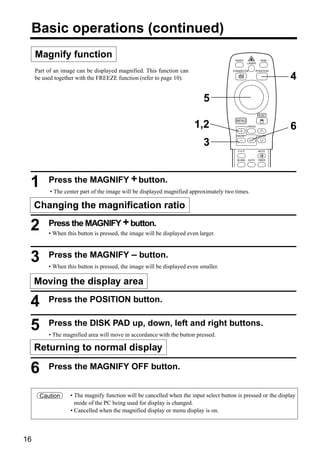
     Magnify function                                                                   VIDEO                 RGB
                                                                                                   LASER


     Part of an image can be displayed magnified. This function can                    STANDBY/ON         POSITION

     be used together with the FREEZE function (refer to page 10).                                                   4

                                                                            5
                                                                                                            RESET

                                                                                         MENU
                                                                        1,2                        FREEZE
                                                                                                                     6
                                                                                         MAGNIFY            VOLUME


                                                                            3                       OFF


                                                                                          P in P            MUTE


                                                                                         BLANK     AUTO     TIMER


          Press the MAGNIFY + button.
 1         • The center part of the image will be displayed magnified approximately two times.

     Changing the magnification ratio
          Press the MAGNIFY + button.
 2        • When this button is pressed, the image will be displayed even larger.


 3        Press the MAGNIFY – button.
          • When this button is pressed, the image will be displayed even smaller.

     Moving the display area

 4        Press the POSITION button.


 5        Press the DISK PAD up, down, left and right buttons.
          • The magnified area will move in accordance with the button pressed.

     Returning to normal display

 6        Press the MAGNIFY OFF button.


      Caution      • The magnify function will be cancelled when the input select button is pressed or the display
                     mode of the PC being used for display is changed.
                   • Cancelled when the magnified display or menu display is on.


16
Adjustments and functions
                                                                                VIDEO                 RGB
                                                                                           LASER


                                                 1, 2, 3                       STANDBY/ON         POSITION


                                                                                                             2, 3

                                                                                                    RESET

                                                                                 MENU
                                                                                           FREEZE


                                                                                 MAGNIFY            VOLUME
                                                                                            OFF

                                MENU                                              P in P            MUTE     3
                                                                           1     BLANK     AUTO     TIMER


                                                                                 FOCUS              ZOOM


    1, 3

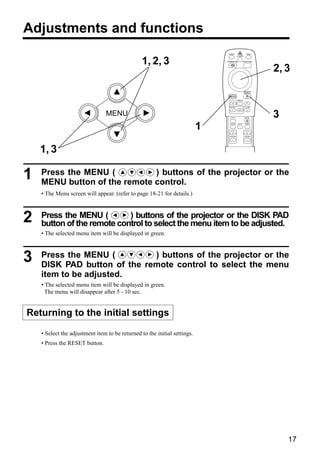
1   Press the MENU (          ) buttons of the projector or the
    MENU button of the remote control.
    • The Menu screen will appear. (refer to page 18-21 for details.)


2   Press the MENU (        ) buttons of the projector or the DISK PAD
    button of the remote control to select the menu item to be adjusted.
    • The selected menu item will be displayed in green.


3   Press the MENU (         ) buttons of the projector or the
    DISK PAD button of the remote control to select the menu
    item to be adjusted.
    • The selected menu item will be displayed in green.
      The menu will disappear after 5 - 10 sec.


Returning to the initial settings

    • Select the adjustment item to be returned to the initial settings.
    • Press the RESET button.


                                                                                                                 17
Adjustments and functions (continued)
     SET UP
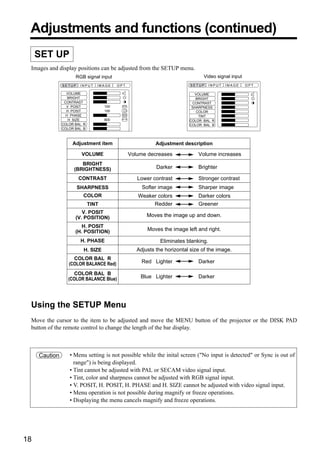
 Images and display positions can be adjusted from the SETUP menu.
                     RGB signal input                                           Video signal input
               SETUP    INPUT   IMAGE     OPT.                             SETUP     INPUT   IMAGE   OPT.

                 VOLUME                                                      VOLUME
                  BRIGHT                                                     BRIGHT
                CONTRAST                                                    CONTRAST
                 V POSIT            100                                    SHARPNESS
                 H POSIT            100                                       COLOR
                 H PHASE                                                       TINT
                  H SIZE            800                                   COLOR BAL R
               COLOR BAL R                                                COLOR BAL B
               COLOR BAL B


                    Adjustment item                         Adjustment description

                        VOLUME                   Volume decreases             Volume increases
                       BRIGHT
                    (BRIGHTNESS)                            Darker            Brighter

                       CONTRAST                     Lower contrast            Stronger contrast
                       SHARPNESS                      Softer image            Sharper image
                         COLOR                      Weaker colors             Darker colors
                             TINT                        Redder               Greener
                        V. POSIT
                     (V. POSITION)                      Moves the image up and down.

                        H. POSIT
                     (H. POSITION)                      Moves the image left and right.

                        H. PHASE                              Eliminates blanking.
                         H. SIZE                    Adjusts the horizontal size of the image.
                    COLOR BAL R
                  (COLOR BALANCE Red)                 Red Lighter             Darker

                    COLOR BAL B
                  (COLOR BALANCE Blue)               Blue Lighter             Darker


 Using the SETUP Menu
 Move the cursor to the item to be adjusted and move the MENU button of the projector or the DISK PAD
 button of the remote control to change the length of the bar display.


     Caution      • Menu setting is not possible while the inital screen ("No input is detected" or Sync is out of
                    range") is being displayed.
                  • Tint cannot be adjusted with PAL or SECAM video signal input.
                  • Tint, color and sharpness cannot be adjusted with RGB signal input.
                  • V. POSIT, H. POSIT, H. PHASE and H. SIZE cannot be adjusted with video signal input.
                  • Menu operation is not possible during magnify or freeze operations.
                  • Displaying the menu cancels magnify and freeze operations.


18
Adjustments and functions (continued)
 INPUT
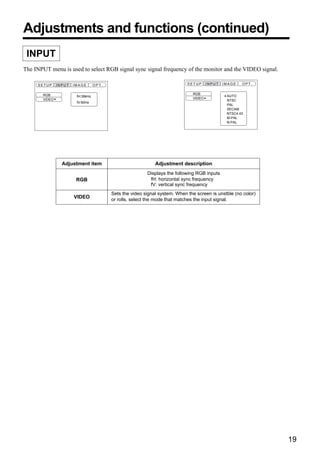
The INPUT menu is used to select RGB signal sync signal frequency of the monitor and the VIDEO signal.

     SETUP     INPUT   IMAGE       OPT.                                      SETUP     INPUT   IMAGE   OPT.


       RGB                                                                     RGB
                        fH:38kHz                                                                AUTO
       VIDEO                                                                   VIDEO
                                                                                                NTSC
                        fV:60Hz
                                                                                                PAL
                                                                                                SECAM
                                                                                                NTSC4.43
                                                                                                M-PAL
                                                                                                N-PAL


                 Adjustment item                              Adjustment description
                                                          Displays the following RGB inputs
                        RGB                                fH: horizontal sync frequency
                                                           fV: vertical sync frequency
                                          Sets the video signal system. When the screen is unstble (no color)
                       VIDEO              or rolls, select the mode that matches the input signal.


                                                                                                                19
Adjustments and functions (continued)
     IMAGE
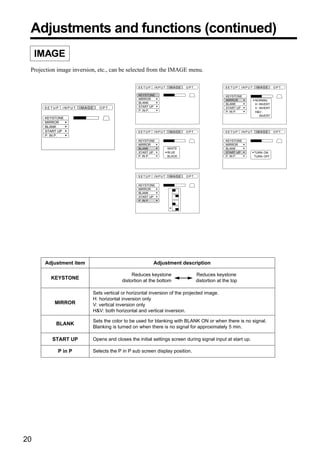
 Projection image inversion, etc., can be selected from the IMAGE menu.

                                                SETUP   INPUT   IMAGE   OPT.                  SETUP    INPUT   IMAGE        OPT.

                                                KEYSTONE                                      KEYSTONE
                                                MIRROR                                        MIRROR           NORMAL
                                                BLANK                                         BLANK            H : INVERT
      SETUP   INPUT   IMAGE   OPT.              START UP                                      START UP         V : INVERT
                                                P. IN P.                                      P. IN P.         H&V :
                                                                                                                   INVERT
      KEYSTONE
      MIRROR
      BLANK
      START UP                                  SETUP   INPUT   IMAGE   OPT.                  SETUP    INPUT   IMAGE        OPT.
      P. IN P.
                                                KEYSTONE                                      KEYSTONE
                                                MIRROR                                        MIRROR
                                                BLANK           WHITE                         BLANK
                                                START UP        BLUE                          START UP         TURN ON
                                                P. IN P.        BLACK                         P. IN P.         TURN OFF


                                                SETUP   INPUT   IMAGE   OPT.

                                                KEYSTONE
                                                MIRROR
                                                BLANK
                                                START UP
                                                P. IN P.


      Adjustment item                                   Adjustment description

                                             Reduces keystone                  Reduces keystone
         KEYSTONE
                                        distortion at the bottom               distortion at the top

                          Sets vertical or horizontal inversion of the projected image.
                          H: horizontal inversion only
          MIRROR          V: vertical inversion only
                          H&V: both horizontal and vertical inversion.

                          Sets the color to be used for blanking with BLANK ON or when there is no signal.
           BLANK
                          Blanking is turned on when there is no signal for approximately 5 min.

         START UP         Opens and closes the initial settings screen during signal input at start up.

            P in P        Selects the P in P sub screen display position.


20
Adjustments and functions (continued)
 OPT
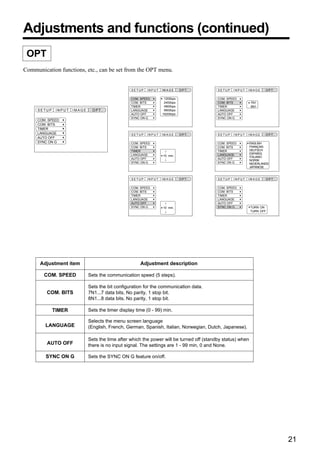
Communication functions, etc., can be set from the OPT menu.


                                                  SETUP   INPUT   IMAGE      OPT.          SETUP   INPUT   IMAGE     OPT.

                                                  COM. SPEED       1200bps                 COM. SPEED
                                                  COM. BITS        2400bps                 COM. BITS         7N1
                                                  TIMER            4800bps                 TIMER             8N1
     SETUP    INPUT   IMAGE     OPT.              LANGUAGE         9600bps                 LANGUAGE
                                                  AUTO OFF        19200bps                 AUTO OFF
                                                  SYNC ON G                                SYNC ON G
     COM. SPEED
     COM. BITS
     TIMER
     LANGUAGE                                     SETUP   INPUT   IMAGE      OPT.          SETUP   INPUT   IMAGE     OPT.
     AUTO OFF
     SYNC ON G                                    COM. SPEED                               COM. SPEED        ENGLISH
                                                  COM. BITS                                COM. BITS         FRANÇAIS
                                                  TIMER                                    TIMER             DEUTSCH
                                                  LANGUAGE                                 LANGUAGE          ESPAÑOL
                                                                  10 min.                                    ITALIANO
                                                  AUTO OFF                                 AUTO OFF
                                                                                                             NORSK
                                                  SYNC ON G                                SYNC ON G         NEDERLANDS
                                                                                                             JAPANESE


                                                  SETUP   INPUT   IMAGE      OPT.          SETUP   INPUT   IMAGE     OPT.

                                                  COM. SPEED                               COM. SPEED
                                                  COM. BITS                                COM. BITS
                                                  TIMER                                    TIMER
                                                  LANGUAGE                                 LANGUAGE
                                                  AUTO OFF                                 AUTO OFF
                                                  SYNC ON G       10 min.                  SYNC ON G         TURN ON
                                                                                                             TURN OFF


      Adjustment item                                  Adjustment description

        COM. SPEED            Sets the communication speed (5 steps).

                              Sets the bit configuration for the communication data.
         COM. BITS            7N1...7 data bits, No parity, 1 stop bit.
                              8N1...8 data bits, No parity, 1 stop bit.

             TIMER            Sets the timer display time (0 - 99) min.

                              Selects the menu screen language
        LANGUAGE              (English, French, German, Spanish, Italian, Norwegian, Dutch, Japanese).

                              Sets the time after which the power will be turned off (standby status) when
         AUTO OFF             there is no input signal. The settings are 1 - 99 min, 0 and None.

         SYNC ON G            Sets the SYNC ON G feature on/off.


                                                                                                                            21
Connection to the video signal terminals
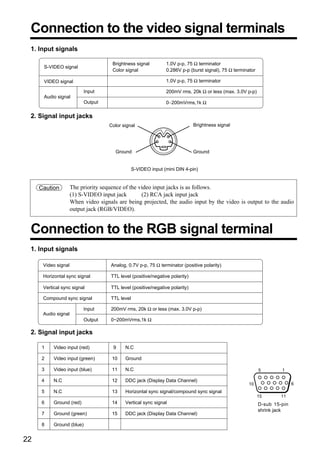
 1. Input signals

                                      Brightness signal         1.0V p-p, 75 Ω terminator
      S-VIDEO signal
                                      Color signal              0.286V p-p (burst signal), 75 Ω terminator

      VIDEO signal                                              1.0V p-p, 75 Ω terminator

                           Input                                200mV rms, 20k Ω or less (max. 3.0V p-p)
      Audio signal
                           Output                               0∼200mVrms,1k Ω

 2. Signal input jacks
                                     Color signal                             Brightness signal


                                       Ground                                 Ground


                                                 S-VIDEO input (mini DIN 4-pin)


     Caution         The priority sequence of the video input jacks is as follows.
                     (1) S-VIDEO input jack        (2) RCA jack input jack
                     When video signals are being projected, the audio input by the video is output to the audio
                     output jack (RGB/VIDEO).


 Connection to the RGB signal terminal
 1. Input signals

      Video signal                   Analog, 0.7V p-p, 75 Ω terminator (positive polarity)

      Horizontal sync signal         TTL level (positive/negative polarity)

      Vertical sync signal           TTL level (positive/negative polarity)

      Compound sync signal           TTL level

                          Input      200mV rms, 20k Ω or less (max. 3.0V p-p)
      Audio signal
                          Output     0~200mVrms,1k Ω

 2. Signal input jacks

     1     Video input (red)          9     N.C

     2     Video input (green)        10    Ground

     3     Video input (blue)         11    N.C

     4     N.C                        12    DDC jack (Display Data Channel)

     5     N.C                        13    Horizontal sync signal/compound sync signal

     6     Ground (red)               14    Vertical sync signal                                             D-sub 15-pin
                                                                                                             shrink jack
     7     Ground (green)             15    DDC jack (Display Data Channel)

     8     Ground (blue)


22
Connection to the RGB signal terminal (continued)
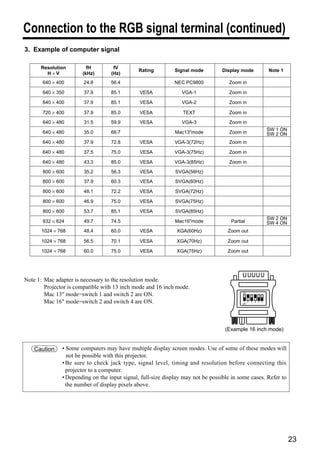
3. Example of computer signal

      Resolution         fH         fV
                                               Rating         Signal mode         Display mode                   Note 1
        H×V            (kHz)       (Hz)
       640 × 400        24.8       56.4                       NEC PC9800            Zoom in

       640 × 350        37.9       85.1        VESA              VGA-1              Zoom in

       640 × 400        37.9       85.1        VESA              VGA-2               Zoom in

       720 × 400        37.9       85.0        VESA              TEXT                Zoom in

       640 × 480        31.5       59.9        VESA              VGA-3               Zoom in
                                                                                                                 SW 1 ON
       640 × 480        35.0       66.7                       Mac13"mode             Zoom in                     SW 2 ON
       640 × 480        37.9       72.8        VESA           VGA-3(72Hz)            Zoom in

       640 × 480        37.5       75.0        VESA           VGA-3(75Hz)            Zoom in

       640 × 480        43.3       85.0        VESA           VGA-3(85Hz)            Zoom in

       800 × 600        35.2       56.3        VESA           SVGA(56Hz)
       800 × 600        37.9       60.3        VESA           SVGA(60Hz)

       800 × 600        48.1       72.2        VESA           SVGA(72Hz)

       800 × 600        46.9       75.0        VESA           SVGA(75Hz)

       800 × 600        53.7       85.1        VESA           SVGA(85Hz)
                                                                                                                 SW 2 ON
       832 × 624        49.7       74.5                       Mac16"mode             Partial                     SW 4 ON
       1024 × 768       48.4       60.0        VESA            XGA(60Hz)            Zoom out

       1024 × 768       56.5       70.1        VESA            XGA(70Hz)            Zoom out

       1024 × 768       60.0       75.0        VESA            XGA(75Hz)            Zoom out


Note 1: Mac adapter is necessary to the resolution mode.
        Projector is compatible with 13 inch mode and 16 inch mode.
        Mac 13" mode=switch 1 and switch 2 are ON.                                         ON


        Mac 16" mode=switch 2 and switch 4 are ON.                                         1 2
                                                                                          OFF
                                                                                                 3   4   5   6


                                                                                   (Example 16 inch mode)


    Caution    • Some computers may have multiple display screen modes. Use of some of these modes will
                 not be possible with this projector.
               • Be sure to check jack type, signal level, timing and resolution before connecting this
                 projector to a computer.
               • Depending on the input signal, full-size display may not be possible in some cases. Refer to
                 the number of display pixels above.


                                                                                                                           23
Connection to the RGB signal terminal (continued)
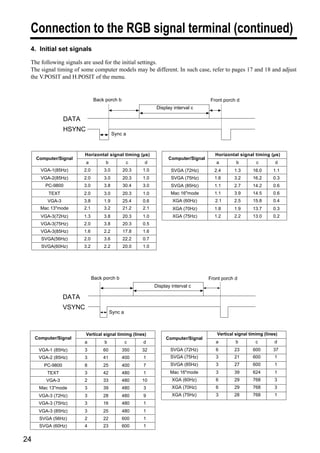
 4. Initial set signals

 The following signals are used for the initial settings.
 The signal timing of some computer models may be different. In such case, refer to pages 17 and 18 and adjust
 the V.POSIT and H.POSIT of the menu.


                               Back porch bb                                        Front porch d d
                                                             Display c
                                                                     interval c

                  DATA
                  HSYNC
                                          Syncaa


                         Horizontal signal timing (µs)                                Horizontal signal timing (µs)
     Computer/Signal                                              Computer/Signal
                          a          b            c    d                               a        b         c        d
       VGA-1(85Hz)       2.0        3.0       20.3    1.0           SVGA (72Hz)       2.4      1.3      16.0      1.1
       VGA-2(85Hz)       2.0        3.0       20.3    1.0           SVGA (75Hz)       1.6      3.2      16.2      0.3
         PC-9800         3.0        3.8       30.4    3.0           SVGA (85Hz)       1.1      2.7      14.2      0.6
          TEXT           2.0        3.0       20.3    1.0           Mac 16"mode       1.1      3.9      14.5      0.6
          VGA-3          3.8        1.9       25.4    0.6           XGA (60Hz)        2.1      2.5      15.8      0.4
       Mac 13"mode       2.1        3.2       21.2    2.1           XGA (70Hz)        1.8      1.9      13.7      0.3
       VGA-3(72Hz)       1.3        3.8       20.3    1.0           XGA (75Hz)        1.2      2.2      13.0      0.2
       VGA-3(75Hz)       2.0        3.8       20.3    0.5
       VGA-3(85Hz)       1.6        2.2       17.8    1.6
       SVGA(56Hz)        2.0        3.6       22.2    0.7
       SVGA(60Hz)        3.2        2.2       20.0    1.0


                               Back porch b b                                       Front porch d d
                                                            Display interval c
                                                                  c

                  DATA
                  VSYNC
                                         Syncaa


                          Vertical signal timimg (lines)                               Vertical signal timimg (lines)
     Computer/Signal                                             Computer/Signal
                         a          b             c   d                                a        b         c        d
      VGA-1 (85Hz)       3          60        350     32           SVGA (72Hz)         6       23       600        37
      VGA-2 (85Hz)       3          41        400     1            SVGA (75Hz)         3       21       600        1
        PC-9800          8          25        400     7            SVGA (85Hz)         3       27       600        1
          TEXT           3          42        480     1            Mac 16"mode         3       39       624        1
         VGA-3           2          33        480     10            XGA (60Hz)         6       29       768        3
      Mac 13"mode        3          39        480     3             XGA (70Hz)         6       29       768        3
      VGA-3 (72Hz)       3          28        480     9             XGA (75Hz)         3       28       768        1
      VGA-3 (75Hz)       3          16        480     1
      VGA-3 (85Hz)       3          25        480     1
      SVGA (56Hz)        2          22        600     1
      SVGA (60Hz)        4          23        600     1


24
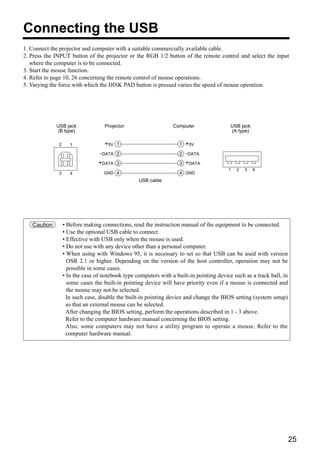
Connecting the USB
1. Connect the projector and computer with a suitable commercially available cable.
2. Press the INPUT button of the projector or the RGB 1/2 button of the remote control and select the input
   where the computer is to be connected.
3. Start the mouse function.
4. Refer to page 10, 26 concerning the remote control of mouse operations.
5. Varying the force with which the DISK PAD button is pressed varies the speed of mouse operation.


             USB jack               Projector                    Computer                 USB jack
             (B type)                                                                     (A type)

              2      1              +5V 1                           1   +5V
                                 –DATA 2                            2 –DATA
                                 +DATA 3                            3   +DATA
                                                                                         1   2   3   4
              3      4             GND 4                            4 GND
                                                  USB cable


   Caution        • Before making connections, read the instruction manual of the equipment to be connected.
                  • Use the optional USB cable to connect.
                  • Effective with USB only when the mouse is used.
                  • Do not use with any device other than a personal computer.
                  • When using with Windows 95, it is necessary to set so that USB can be used with version
                    OSR 2.1 or higher. Depending on the version of the host controller, operation may not be
                    possible in some cases.
                  • In the case of notebook type computers with a built-in pointing device such as a track ball, in
                    some cases the built-in pointing device will have priority even if a mouse is connected and
                    the mouse may not be selected.
                    In such case, disable the built-in pointing device and change the BIOS setting (system setup)
                    so that an external mouse can be selected.
                    After changing the BIOS setting, perform the operations described in 1 - 3 above.
                    Refer to the computer hardware manual concerning the BIOS setting.
                    Also, some computers may not have a utility program to operate a mouse. Refer to the
                    computer hardware manual.


                                                                                                                      25
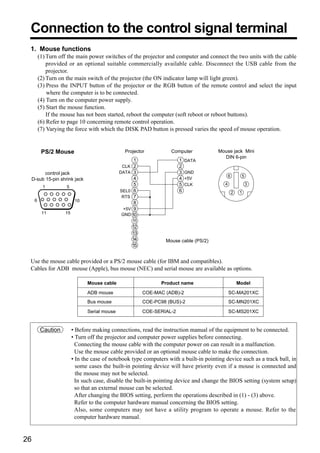
Connection to the control signal terminal
 1. Mouse functions
     (1) Turn off the main power switches of the projector and computer and connect the two units with the cable
         provided or an optional suitable commercially available cable. Disconnect the USB cable from the
         projector.
     (2) Turn on the main switch of the projector (the ON indicator lamp will light green).
     (3) Press the INPUT button of the projector or the RGB button of the remote control and select the input
         where the computer is to be connected.
     (4) Turn on the computer power supply.
     (5) Start the mouse function.
         If the mouse has not been started, reboot the computer (soft reboot or reboot buttons).
     (6) Refer to page 10 concerning remote control operation.
     (7) Varying the force with which the DISK PAD button is pressed varies the speed of mouse operation.


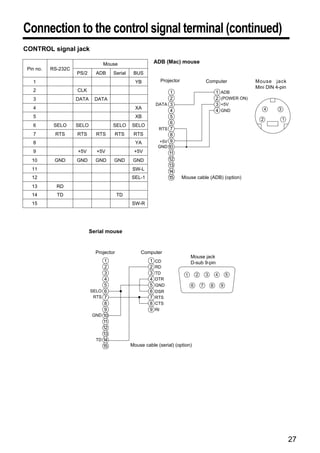
      PS/2 Mouse                             Projector         Computer           Mouse jack Mini
                                                                                    DIN 6-pin
                                                1                   1   DATA
                                            CLK 2                   2
       control jack                        DATA 3                   3   GND
                                                                                         6        5
 D-sub 15-pin shrink jack                        4                  4   +5V
                                                 5                  5   CLK          4                3
                                           SEL0 6                   6                        2    1
                                            RTS 7
                                                 8
                                            +5V 9
                                           GND 10
                                                11
                                                12
                                                13
                                                14           Mouse cable (PS/2)
                                                15


 Use the mouse cable provided or a PS/2 mouse cable (for IBM and compatibles).
 Cables for ADB mouse (Apple), bus mouse (NEC) and serial mouse are available as options.

                            Mouse cable                     Product name                         Model
                            ADB mouse                COE-MAC (ADB)-2                     SC-MA201XC
                            Bus mouse                COE-PC98 (BUS)-2                    SC-MN201XC

                            Serial mouse             COE-SERIAL-2                        SC-MS201XC


     Caution       • Before making connections, read the instruction manual of the equipment to be connected.
                   • Turn off the projector and computer power supplies before connecting.
                     Connecting the mouse cable with the computer power on can result in a malfunction.
                     Use the mouse cable provided or an optional mouse cable to make the connection.
                   • In the case of notebook type computers with a built-in pointing device such as a track ball, in
                     some cases the built-in pointing device will have priority even if a mouse is connected and
                     the mouse may not be selected.
                     In such case, disable the built-in pointing device and change the BIOS setting (system setup)
                     so that an external mouse can be selected.
                     After changing the BIOS setting, perform the operations described in (1) - (3) above.
                     Refer to the computer hardware manual concerning the BIOS setting.
                     Also, some computers may not have a utility program to operate a mouse. Refer to the
                     computer hardware manual.


26
Connection to the control signal terminal (continued)
CONTROL signal jack

                                 Mouse                      ADB (Mac) mouse
 Pin no.   RS-232C
                     PS/2     ADB     Serial    BUS
   1                                             YB           Projector                    Computer                 Mouse jack
                                                                                                                    Mini DIN 4-pin
   2                 CLK                                           1                               1   ADB
   3                 DATA     DATA                                 2                               2   (POWER ON)
                                                            DATA 3                                 3   +5V
   4                                             XA                                                                       4   3
                                                                   4                               4   GND
   5                                             XB                5
                                                                                                                      2           1
                                                                   6
   6        SELO     SELO             SELO     SELO
                                                             RTS 7
   7        RTS      RTS      RTS     RTS       RTS                8
   8                                             YA           +5V 9
                                                             GND 10
   9                 +5V      +5V               +5V               11
   10       GND      GND      GND     GND       GND              12
                                                                  13
   11                                          SW-L               14
   12                                          SEL-1              15      Mouse cable (ADB) (option)
   13        RD
   14        TD                           TD
   15                                          SW-R


                            Serial mouse


                              Projector            Computer
                                                                               Mouse jack
                                  1                     1   CD                 D-sub 9-pin
                                  2                     2   RD
                                  3                     3   TD             1       2       3       4       5
                                  4                     4   DTR
                                  5                     5   GND                6       7       8       9
                            SELO 6                      6   DSR
                             RTS 7                      7   RTS
                                  8                     8   CTS
                                  9                     9   RI
                             GND 10
                                 11
                                 12
                                 13
                              TD 14
                                 15            Mouse cable (serial) (option)


                                                                                                                                      27
Connection to the control signal terminal (continued)
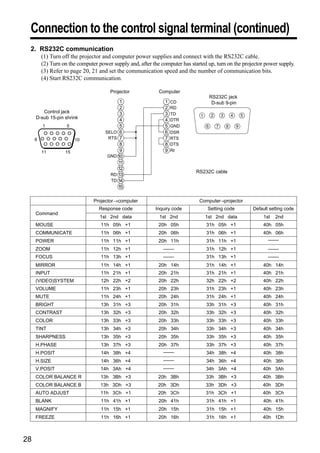
 2. RS232C communication
       (1) Turn off the projector and computer power supplies and connect with the RS232C cable.
       (2) Turn on the computer power supply and, after the computer has started up, turn on the projector power supply.
       (3) Refer to page 20, 21 and set the communication speed and the number of communication bits.
       (4) Start RS232C communication.

                                     Projector             Computer
                                                                                      RS232C jack
                                         1                    1   CD                   D-sub 9-pin
                                         2                    2   RD
        Control jack                     3                    3   TD          1       2       3       4       5
     D-sub 15-pin shrink                 4                    4   DTR
                                         5                    5   GND             6       7       8       9
                                   SELO 6                     6   DSR
                                    RTS 7                     7   RTS
                                         8                    8   DTS
                                         9                    9   RI
                                    GND 10
                                        11
                                        12
                                                                            RS232C cable
                                     RD 13
                                     TD 14
                                        15

                              Projector→computer                             Computer→projector
                                Response code            Inquiry code             Setting code                    Default setting code
     Command
                                 1st 2nd data              1st 2nd                1st 2nd data                         1st   2nd
     MOUSE                       11h 05h +1                20h 05h                31h 05h +1                           40h 05h
     COMMUNICATE                 11h 06h +1                20h 06h                31h 06h +1                           40h 06h
     POWER                       11h 11h +1                20h 11h                31h 11h +1                             –––
                                                                                                                          –––
     ZOOM                        11h 12h +1                  –––
                                                              –––                 31h 12h +1                             –––
                                                                                                                         –––
     FOCUS                       11h 13h +1                  –––
                                                              –––                 31h 13h +1                             –––
                                                                                                                         –––
     MIRROR                      11h 14h +1                20h 14h                31h 14h +1                           40h 14h
     INPUT                       11h 21h +1                20h 21h                31h 21h +1                           40h 21h
     (VIDEO)SYSTEM               12h 22h +2                20h 22h                32h 22h +2                           40h 22h
     VOLUME                      11h 23h +1                20h 23h                31h 23h +1                           40h 23h
     MUTE                        11h 24h +1                20h 24h                31h 24h +1                           40h 24h
     BRIGHT                      13h 31h +3                20h 31h                33h 31h +3                           40h 31h
     CONTRAST                    13h 32h +3                20h 32h                33h 32h +3                           40h 32h
     COLOR                       13h 33h +3                20h 33h                33h 33h +3                           40h 33h
     TINT                        13h 34h +3                20h 34h                33h 34h +3                           40h 34h
     SHARPNESS                   13h 35h +3                20h 35h                33h 35h +3                           40h 35h
     H.PHASE                     13h 37h +3                20h 37h                33h 37h +3                           40h 37h
     H.POSIT                     14h 38h +4                  –––
                                                              –––                 34h 38h +4                           40h 38h
     H.SIZE                      14h 36h +4                  –––
                                                              –––                 34h 36h +4                           40h 36h
     V.POSIT                     14h 3Ah +4                  –––
                                                              –––                 34h 3Ah +4                          40h 3Ah
     COLOR BALANCE R             13h 3Bh +3                20h 3Bh                33h 3Bh +3                          40h 3Bh
     COLOR BALANCE B             13h 3Dh +3                20h 3Dh                33h 3Dh +3                          40h 3Dh
     AUTO ADJUST                 11h 3Ch +1                20h 3Ch                31h 3Ch +1                          40h 3Ch
     BLANK                       11h 41h +1                20h 41h                31h 41h +1                           40h 41h
     MAGNIFY                     11h 15h +1                20h 15h                31h 15h +1                           40h 15h
     FREEZE                      11h 16h +1                20h 16h                31h 16h +1                          40h 1Dh


28
Connection to the control signal terminal (continued)
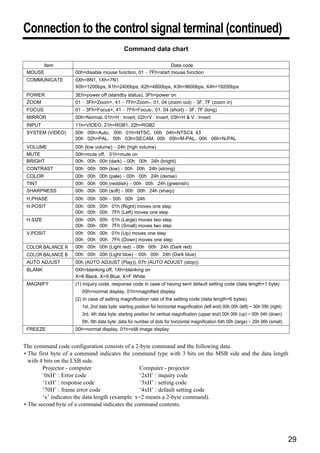
                                              Command data chart

      Item                                                     Data code
 MOUSE              00h=disable mouse function, 01 ∼ 7Fh=start mouse function
 COMMUNICATE        0Xh=8N1, 1Xh=7N1
                    X0h=1200bps, X1h=2400bps, X2h=4800bps, X3h=9600bps, X4h=19200bps
 POWER              3Eh=power off (standby status), 3Fh=power on
 ZOOM               01 ∼ 3Fh=Zoom+, 41 ∼ 7Fh=Zoom-, 01, 04 (zoom out) ∼ 3F, 7F (zoom in)
 FOCUS              01 ∼ 3Fh=Focus+, 41 ∼ 7Fh=Focus-, 01, 04 (short) ∼ 3F, 7F (long)
 MIRROR             00h=Normal, 01h=H : Invert, 02h=V : Invert, 03h=H & V : Invert
 INPUT              11h=VIDEO, 21h=RGB1, 22h=RGB2
 SYSTEM (VIDEO)     00h 00h=Auto, 00h 01h=NTSC, 00h 04h=NTSC4. 43
                    00h 02h=PAL, 00h 03h=SECAM, 00h 05h=M-PAL, 00h 06h=N-PAL
 VOLUME             00h (low volume) ∼ 24h (high volume)
 MUTE               00h=mute off, 01h=mute on
 BRIGHT             00h 00h 00h (dark) ∼ 00h 00h 24h (bright)
 CONTRAST           00h 00h 00h (low) ∼ 00h 00h 24h (strong)
 COLOR              00h 00h 00h (pale) ∼ 00h 00h 24h (dense)
 TINT               00h 00h 00h (reddish) ∼ 00h 00h 24h (greenish)
 SHARPNESS          00h 00h 00h (soft) ∼ 00h 00h 24h (sharp)
 H.PHASE            00h 00h 00h ∼ 00h 00h 24h
 H.POSIT            00h 00h 00h 01h (Right) moves one step
                    00h 00h 00h 7Fh (Left) moves one step
 H.SIZE             00h 00h 00h 01h (Large) moves two step
                    00h 00h 00h 7Fh (Small) moves two step
 V.POSIT            00h 00h 00h 01h (Up) moves one step
                    00h 00h 00h 7Fh (Down) moves one step
 COLOR BALANCE R    00h 00h 00h (Light red) ∼ 00h 00h 24h (Dark red)
 COLOR BALANCE B    00h 00h 00h (Light blue) ∼ 00h 00h 24h (Dark blue)
 AUTO ADJUST        00h (AUTO ADJUST (Play)), 07h (AUTO ADJUST (stop))
 BLANK              0Xh=blanking off, 1Xh=blanking on
                    X=8 Black, X=9 Blue, X=F White
 MAGNIFY            (1) Inquiry code, response code in case of having sent default setting code (data length=1 byte)
                       00h=normal display, 01h=magnified display
                    (2) In case of setting magnification rate of the setting code (data length=6 bytes)
                       1st, 2nd data byte: starting position for horizontal magnification (left end) 00h 00h (left) ~ 30h 05h (right)
                       3rd, 4th data byte: starting position for vertical magnification (upper end) 00h 00h (up) ~ 00h 04h (down)
                       5th, 6th data byte: data for number of dots for horizontal magnification 64h 00h (large) ~ 20h 06h (small)
 FREEZE             00h=normal display, 01h=still image display


The command code configuration consists of a 2-byte command and the following data.
• The first byte of a command indicates the command type with 3 bits on the MSB side and the data length
  with 4 bits on the LSB side.
        Projector - computer                      Computer - projector
        ‘0xH’ : Error code                        ‘2xH’ : inquiry code
        ‘1xH’ : response code                     ‘3xH’ : setting code
        ‘70H’ : frame error code                  ‘4xH’ : default setting code
        ‘x’ indicates the data length (example: x=2 means a 2-byte command).
• The second byte of a command indicates the command contents.


                                                                                                                                        29
Connection to the control signal terminal (continued)
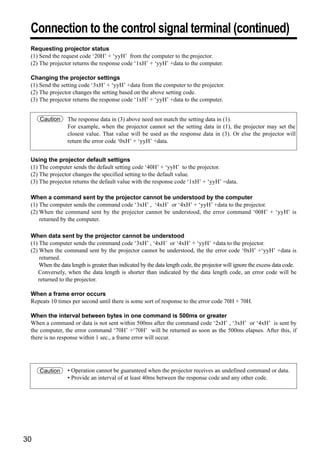
 Requesting projector status
 (1) Send the request code ‘20H’ + ‘yyH’ from the computer to the projector.
 (2) The projector returns the response code ‘1xH’ + ‘yyH’ +data to the computer.

 Changing the projector settings
 (1) Send the setting code ‘3xH’ + ‘yyH’ +data from the computer to the projector.
 (2) The projector changes the setting based on the above setting code.
 (3) The projector returns the response code ‘1xH’ + ‘yyH’ +data to the computer.


     Caution      The response data in (3) above need not match the setting data in (1).
                  For example, when the projector cannot set the setting data in (1), the projector may set the
                  closest value. That value will be used as the response data in (3). Or else the projector will
                  return the error code ‘0xH’ + ‘yyH’ +data.


 Using the projector default settigns
 (1) The computer sends the default setting code ‘40H’ + ‘yyH’ to the projector.
 (2) The projector changes the specified setting to the default value.
 (3) The projector returns the default value with the response code ‘1xH’ + ‘yyH’ =data.

 When a command sent by the projector cannot be understood by the computer
 (1) The computer sends the command code ‘3xH’ , ‘4xH’ or ‘4xH’ + ‘yyH’ +data to the projector.
 (2) When the command sent by the projector cannot be understood, the error command ‘00H’ + ‘yyH’ is
     returned by the computer.

 When data sent by the projector cannot be understood
 (1) The computer sends the command code ‘3xH’ , ‘4xH’ or ‘4xH’ + ‘yyH’ +data to the projector.
 (2) When the command sent by the projector cannot be understood, the the error code ‘0xH’ +‘yyH’ +data is
     returned.
     When the data length is greater than indicated by the data length code, the projector will ignore the excess data code.
    Conversely, when the data length is shorter than indicated by the data length code, an error code will be
    returned to the projector.

 When a frame error occurs
 Repeats 10 times per second until there is some sort of response to the error code 70H + 70H.

 When the interval between bytes in one command is 500ms or greater
 When a command or data is not sent within 500ms after the command code ‘2xH’ , ‘3xH’ or ‘4xH’ is sent by
 the computer, the error command ‘70H’ +‘70H’ will be returned as soon as the 500ms elapses. After this, if
 there is no response within 1 sec., a frame error will occur.


     Caution      • Operation cannot be guaranteed when the projector receives an undefined command or data.
                  • Provide an interval of at least 40ms between the response code and any other code.


30
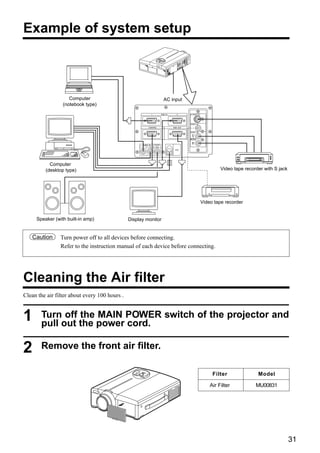
Example of system setup


                    Computer                                                  AC input
                 (notebook type)
                                                                1           RGB IN      2      S-VIDEO IN


                                                                                               VIDEO IN

                                                          CONTROL                    RGB OUT

                                                                                               AUDIO IN
                                                                                                 L

                                                                                               MONO

                                                                                                 R
                                                     AUDIO IN       AUDIO
                                                     1      2        OUT
                                                                                      USB


           Computer
         (desktop type)                                                                                              Video tape recorder with S jack


                                                                                                            Video tape recorder


     Speaker (with built-in amp)               Display monitor


    Caution     Turn power off to all devices before connecting.
                Refer to the instruction manual of each device before connecting.


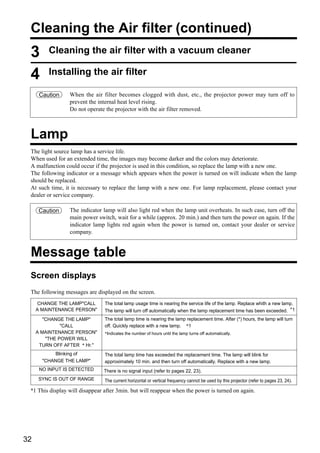
Cleaning the Air filter
Clean the air filter about every 100 hours .


1      Turn off the MAIN POWER switch of the projector and
       pull out the power cord.

2      Remove the front air filter.

                                                                                                                 Filter               Model

                                                                                                                Air Filter           MU00831


                                                                                                                                                       31
Cleaning the Air filter (continued)
 3       Cleaning the air filter with a vacuum cleaner

 4       Installing the air filter

      Caution    When the air filter becomes clogged with dust, etc., the projector power may turn off to
                 prevent the internal heat level rising.
                 Do not operate the projector with the air filter removed.


 Lamp
 The light source lamp has a service life.
 When used for an extended time, the images may become darker and the colors may deteriorate.
 A malfunction could occur if the projector is used in this condition, so replace the lamp with a new one.
 The following indicator or a message which appears when the power is turned on will indicate when the lamp
 should be replaced.
 At such time, it is necessary to replace the lamp with a new one. For lamp replacement, please contact your
 dealer or service company.

      Caution    The indicator lamp will also light red when the lamp unit overheats. In such case, turn off the
                 main power switch, wait for a while (approx. 20 min.) and then turn the power on again. If the
                 indicator lamp lights red again when the power is turned on, contact your dealer or service
                 company.


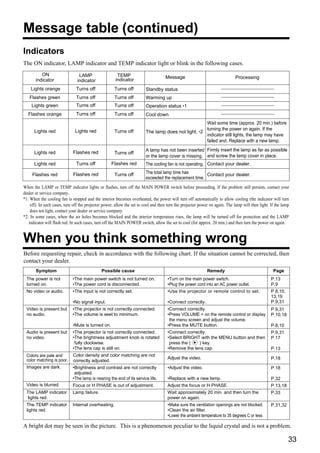
 Message table
 Screen displays
 The following messages are displayed on the screen.
     CHANGE THE LAMP"CALL       The total lamp usage time is nearing the service life of the lamp. Replace whith a new lamp.
     A MAINTENANCE PERSON"      The lamp will turn off automatically when the lamp replacement time has been exceeded. *1
        "CHANGE THE LAMP"       The total lamp time is nearing the lamp replacement time. After (*) hours, the lamp will turn
               "CALL            off. Quickly replace with a new lamp. *1
     A MAINTENANCE PERSON"      *Indicates the number of hours until the lamp turns off automatically.
         "THE POWER WILL
      TURN OFF AFTER * Hr."
            Blinking of         The total lamp time has exceeded the replacement time. The lamp will blink for
       "CHANGE THE LAMP"        approximately 10 min. and then turn off automatically. Replace with a new lamp.
      NO INPUT IS DETECTED      There is no signal input (refer to pages 22, 23).
     SYNC IS OUT OF RANGE       The current horizontal or vertical frequency cannot be used by this projector (refer to pages 23, 24).

 *1 This display will disappear after 3min. but will reappear when the power is turned on again.


32
Message table (continued)
Indicators
The ON indicator, LAMP indicator and TEMP indicator light or blink in the following cases.
          ON                     LAMP                  TEMP                         Message                                   Processing
       indicator                indicator             indicator
    Lights orange              Turns off              Turns off         Standby status
   Flashes green               Turns off              Turns off         Warming up
    Lights green               Turns off              Turns off         Operation status *1
  Flashes orange               Turns off              Turns off         Cool down
                                                                                                    Wait some time (approx. 20 min.) before
                              Lights red                                                            turning the power on again. If the
      Lights red                                      Turns off         The lamp does not light. *2
                                                                                                    indicator still lights, the lamp may have
                                                                                                    failed and. Replace with a new lamp.

                             Flashes red                                A lamp has not been inserted Firmly insert the lamp as far as possible
      Lights red                                      Turns off
                                                                        or the lamp cover is missing. and screw the lamp cover in place.
      Lights red               Turns off            Flashes red         The cooling fan is not operating. Contact your dealer.

     Flashes red             Flashes red              Turns off         The total lamp time has        Contact your dealer.
                                                                        exceeded the replacement time.
When the LAMP or TEMP indicator lights or flashes, turn off the MAIN POWER switch before proceeding. If the problem still persists, contact your
dealer or service company.
*1: When the cooling fan is stopped and the interior becomes overheated, the power will turn off automatically to allow cooling (the indicator will turn
    off). In such cases, turn off the projector power, allow the set to cool and then turn the projector power on again. The lamp will then light. If the lamp
    does not light, contact your dealer or service company.
*2: In some cases, when the air holes becomes blocked and the interior temperature rises, the lamp will be turned off for protection and the LAMP
   indicator will flash red. In such cases, turn off the MAIN POWER switch, allow the set to cool (for approx. 20 min.) and then turn the power on again.


When you think something wrong
Before requesting repair, check in accordance with the following chart. If the situation cannot be corrected, then
contact your dealer.
       Symptom                                Possible cause                                                 Remedy                                 Page
 The power is not            •The main power switch is not turned on.                •Turn on the main power switch.                               P.13
 turned on.                  •The power cord is disconnected.                        •Plug the power cord into an AC power outlet.                 P.9
 No video or audio.          •The input is not correctly set.                        •Use the projector or remote control to set.                  P.8,10,
                                                                                                                                                   13,19
                             •No signal input.                                       •Connect correctly.                                           P.9,31
 Video is present but        •The projector is not correctly connected.              •Connect correctly.                                           P.9,31
 no audio.                   •The volume is seet to minimum.                         •Press VOLUME + on the remote control or display              P.10,18
                                                                                      the menu screen and adjust the volume.
                             •Mute is turned on.                                     •Press the MUTE button.                                       P.8,10
 Audio is present but        •The projector is not correctly connected.              •Connect correctly.                                           P.9,31
 no video.                   •The brightness adjustment knob is rotated              •Select BRIGHT with the MENU button and then                  P.17
                              fully clockwise.                                        press the (   ) key.
                             •The lens cap is still on.                              •Remove the lens cap.                                         P.13
 Colors are pale and         Color density and color matching are not
 color matching is poor.                                                             Adjust the video.                                             P.18
                             correctly adjusted.
 Images are dark.            •Brightness and contrast are not correctly              •Adjust the video.                                            P.18
                              adjusted.
                             •The lamp is nearing the end of its service life.       •Replace with a new lamp.                                     P.32
 Video is blurred.           Focus or H PHASE is out of adjustment.                  Adjust the focus or H PHASE.                                  P.13,18
 The LAMP indicator          Lamp failure.                                           Wait approximately 20 min. and then turn the                  P.33
 lights red.                                                                         power on again.
 The TEMP indicator          Internal overheating.                                   •Make sure the ventilation openings are not blocked.          P.31,32
 lights red.                                                                         •Clean the air filter.
                                                                                     •Lower the ambient temperature to 35 degrees C or less.

A bright dot may be seen in the picture. This is a phenomenon peculiar to the liquid crystal and is not a problem.

                                                                                                                                                             33
· These specifications are subject to change without notice.
                                                       · This liquid crystal projector is designed for use in Japan and
 Specifications                                          cannot be used in any other country.


     Product name                       Liquid crystal projector
     Model                              CP-S860W/E
     Display method                     Three liquid crystal panels, three primary color system.
     Liquid crystal   Panel size        3.3 cm (1.3 type)
     panel            Drive system      TFT active matrix
                      Number of pixels 480,000 pixels ( 600 horizontal × 800 vertical)
     Lens                               Zoom lens F=1.7~2.3 f=49~64mm
     Lamp                               190w UHB
     Speaker                            1.2W+ 1.2W (Stereo)
     Power supply                       AC100 ~ 120V, 3.7A / AC220 ~ 240V, 1.5A.
     Power consumption                  320W
     Operating temperature range        0~35˚C
     Size                               289 ( W ) × 124 ( H ) × 345 ( D )
     Weight (mass)                      13 lbs
                                        S VIDEO: mini DIN 4-pin jack
     VIDEO signal input jacks           VIDEO: RCA jack
                                        AUDIO: RCA jack
     RGB signal input/output jacks      RGB signals: D-sub 15-pin shrink jack
                                        Audio: stereo mini-jack
     CONTROL signal jack                D-sub 15-pin shrink jack


     Dimensional Diagram
        Unit: mm
                                                 345


                                                                     289
                                                                                          124
                                                                                     68


                                                                     31


34
About the warranty and after-service
 About the warranty
A warranty is provided for this product. Fill in the necessary items and store in a safe place.


 About after-service
When a problem occurs, please check first using the Troubleshooting Chart provided in this instruction manual.
If the problem still persists, contact your dealer or service company.


 About repairs during the warranty period
Repairs will be made as described in the warranty.
For details, please read the warranty.


 Repairs after the warranty period has elapsed
paid repairs will be made if desired in the event that the function can be restored by such repairs.
Parts will be made available for a minimum period of 8 years.


                                                                                                             35

Hitachii cp s860e lcd projector manual

  • 1.
    Liquid Crystal Projector Model CP-S860W/E USER’SGUIDE Thank you for purchasing the Hitachi liquid crystal projector. Please read this user’s manual thoroughly to ensure correct usage through understanding. After reading, store this instruction manual in a safe place for future reference. Outline Contents Page This liquid crystal projector is used to project Before Use …………………………………3 various computer signals as well as Checking the package Contents …………8 Names and functions of each part ………8 NTSC/PAL/SECAM video signals onto a Installation …………………………………12 screen. Little space is required for installation Basic operations …………………………13 and large images can easily be realized. Adjustments and functions ………………17 Connection to the vido signal Features terminals ………………………22 Connection to the RGB signal (1) Outstanding brightness terminal ………………………22 The UHB lamp and high-efficiency optical Connecting to the USB …………………25 system assure a high level of brightness. Connection to the CONTROL signal (2) Partial magnification function terminal ………………………26 Interesting parts of images can be magnified for Example of system setup ………………31 closer viewing. Cleaning the air filter ……………………31 (3) Distortion correction function Lamp …………………………………32 Distortion-free images are quickly Message table ……………………………32 When you think something wrong ………33 available. Specifications ……………………………34 (4) Power zoom and power focus. About the warranty and (5) P in P function after-service …………………35 (6) USB jack 1
  • 3.
    Before Use <BeforeUsing> About the Symbols Various symbols are used in this instruction manual and on the product itself to ensure correct usage, to prevent danger to the user and others, and to prevent property damage. The meanings of these symbols are described below. It is important that you read these descriptions thoroughly and fully understand the contents. Warning This symbol indicates information that, if ignored, could possibly result in personal injury or even death due to incorrect handling. This symbol indicates information that, if ignored, could result Caution possibly in personal injury or physical damage due to incorrect handling. Typical Symbols This symbol indicates an additional warning (including cautions). An illustration is provided to clarify the contents (the illustration to the left indicates danger of electrical shock). This symbol indicates a prohibited action. The contents will be clearly indicated in an illustration or nearby (the symbol to the left indicates that disassembly is prohibited). This symbol indicates a compulsory action. The contents will be clearly indicated in an illustration or nearby (the symbol to the left indicates that the power plug should be disconnected from the power outlet). 3
  • 4.
    [Safety Precaution] Warning s If a problem should occur. s Do not insert foreign objects. • If smoke or a strange odor arise, continued use could result in fire or electrical shock. In • Do not insert metal objects etc., of the ventilation openings, through such case, immediately turn off the power this projector or drop such objects switch and then disconnect the power plug inside because this could result in from the power outlet. After making sure that fire or electrical shock. the smoke or odor has stopped, contact your dealer for repairs. Never attempt to make • If a foreign object should enter this projector, immediately turn off the power repairs yourself because this is dangerous. switch, disconnect the • Do not use this projector if there is no image or power plug from the power outlet and contact sound, or if the sound is your dealer. Disconnect the distorted. Continued use Disconnect the Continued use could result in plug from the plug from the could result in fire or power outlet. fire or electrical shock. Use power outlet. electrical shock. special caution in households In such case, immediately turn off the power where children are present. switch, disconnect the power plug from the power outlet and contact your dealer. s Do not look through the lens • If water should enter the inside of this projector, immediately turn off the power when the lamp is on. Never look through the lens when the switch, disconnect the power plug from the lamp is on. The powerful light could adversely power outlet and contact your dealer. affect vision. Use special caution in households where children are present. s Do not install on an unstable surface. • Do not install this projectorwobbly unstable surface such as a on an s Avoid shock or impact on the projector. If the projector should fall, stand or incline because this could resulting in damage to the result in the projector falling and cabinet, immediately turn off causing injury. the power switch, disconnect Disconnect the the power plug from the power plug from the s Do not open the cabinet. outlet and contact your dealer. power outlet. • Never eis high voltage Ther open the cabinet. Continued use could result in fire or electrical shock. inside which can cause electrical shock. Do not Do not use near water. s Do not place this projector in Contact your dealer for disassemble. internal inspection, adjustment and a container containng liquid. repair. Do not place flower vases, flower pots, cups, cosmetics, liquids such as water, etc., on top of this projector. s Do not modify. Spillage could result in fire or electrical shock. Do not modify this projector because Do not disassemble. this could result in fire or electrical shock. s Use only the indicated power s Do not use in the bathroom. supply. Use only the indicated power Do not use this projector in the supply. The us eof any other power supply bathroom because this could result in Do not use near water. could result in fire or electrical shock. fire or electrical shock. 4
  • 5.
    Warning s Handle thepower cord with care. • Do not twist the power process or strongly damage, cut, cord. Placing heavy objects on the power cord, heating or strongly pulling the power cord can result in damage as well as fire or electrical shock. • Pulling on the power cord • Placing heavy objects on the power cord • Damaging the cord • Placing near heaters • Do not position projector. This can cord under the the power damage the power cord and cause fire or electrical shock. Also, do not place a spread, cover, etc., over the power cord because this could result in the inadvertent placing of heavy objects on the concealed power cord. • If the power cord is damaged (exposed or broken core wires, etc.), contact your dealer for replacement; otherwise, fire or electrical shock could result. • Make sure there is no dust, etc., on the power plug and insert a knife blade to make sure that there is no looseness. CAUTION LASER RADIATION- DO NOT STARE INTO BEAM s Do not allow the laser beam to enter the WAVE LENGTH: 650nm MAX . OUTPUT: 1mW CLASS 2 LASER PRODUCT eyes. RADIAZIONI LASER • NON GUARDARE NEL RAGGIO LUCE This remote control is equipped with a APPARECCHIO LASER DI CLASSE 2 RAYONNEMENT LASER NE PAS REGARDER DANS MANUFACTURED laser pointer and a laser beam is emitted LE FAISCEAU APPAREIL A LASER DE CLASSE 2 LASER-STRAHLUNG PLACE OF from the laser outlet. Do not look directly NICHT IN DEN STRAHL MANUFACTURER:A BLICKEN LASER KLASSE2   MADE IN JAPAN into the laser beam outlet or direct the IEC60825-1:1993+A1:1997 laser beam at other people. Laser beam outlet Vision can be impaired if the laser beam enters the eyes. Use special caution in households where children are present. AVOID EXPOSURE- LASER RADIATION IS EMITTED FROM THIS APERTURE 5
  • 6.
    Caution s Do not sit or place heavy objects on s Clean the projector interior once this projector. every two years. • Thisnot sit on thisinprojector. Do could result overturning, Request your dealer to clean the interior of the projector approximately every two leading to damage or personal injury. years. Accumulations of dust inside the Use special caution in households projector can result in fire or where children are present. malfunction if not cleaned for an • Do not place heavy objects on this projector. extended period. This cleaning is more effective if performed befor Placing heavy objects on this projector every humid periods such as rainy could result in loss of balance or falling season, etc. Ask your dealer for details about and cause personal injury. internal cleaning. s Do not block the ventilation openings. s Avoid installation in humid or dusty Do not block the ventilation openings of locations. this projector. Blocking ventilation could lead to internal overheating which could result in • Do dusty location.projector in a humid or not install this This could fire. Do not place this projector on its result in fire or electrical shock. side during use or push it into a small, poorly ventilated location. Do not • Avoid installation near the kitchen, a humidifier or other locations place this projector on a carpet or where there is oily smoke or humidity. bedding or cover it with a table cloth, This could result in fire or electrical shock. etc. Also, when installing this projector, make sure the ventilation openings are at least 10cm s Use the caster brakes. from the wall. When installing this projector on a stand with casters, use the caster s Care and maintenance. brakes to prevent the stand For safety purposes, disconnect the power moving or over turning and plug from the power outlet causing personal injury. before starting the care and maintenance of this projector. Disconnect the s Do not handle the power cord roughly. plug from the power outlet. • Keep the power cordcould melt the heaters because the heat away from s Battery usage. power cord and cause fire or electrical shock. • Use only the specifiedmix old with this projector. Do not batteries • Do not touch the power plug with wet hands because this and new batteries because this could result in electrical shock. could result in fire or personal injury due to battery cracking or • When disconnecting the power plug, do not pull on the power leakage. cord. This could damage the power cord and • Make sure the plus and minus terminals are correctly aligned cause fire or electrical shock. Always grip the plug when disconnecting. when loading the batteries. Incorrect loading could result in personal injury or contamination of the surroundings due to battery cracking or leakage. 6
  • 7.
    Caution s When theprojector is not to be used s Moving the projector. for an extended period. • When movinglens cover, disconnect to close the the projector, be sure For safety purposes when the projector is not to be used for an the power plug from the power outlet extended period because of travel, and disconnect all external Disconnect the plug from the etc., always disconnect the power Disconnect the the connections. Failure to do this power outlet. plug from plug from the power outlet. Also power outlet. could damage the power cord close the lens cover to prevent the lens and cause fire or electrical shock. surface being scratched. Avoid any impact or shock to the projector because this could result in malfunction. • When moving this projector outdoors, protect it from wetting due to rain, etc. If the projector should become wet, dry it thoroughly before further use. Continued use while wet could result in fire or electrical shock. [General Cautions] s Avoid excessively hot locations. s Cabinet care. Do not place this projector in direct sunlight or near a hot object such as a • The cabinet is madeoccur if wiped with a solvent or paint peeling can of plastic and discoloration stove, etc., because the heat could such as benzine, thinner, etc. have adverse influence on the cabinet and other parts. • Before using chemical wipes, be sure to read and observe the instructions. • Do not spray volatile substances such as insect repellent on the cabinet. Also, do not s Sound volume. Set the volume at a suitable level to avoid allow long-term close contact with rubber or bothering other people. It is also better to keep vinyl products because this could result in the volume level low and close the windows at discoloration, peeling paint, etc. night to protect the neighborhood environment. • Use a soft cloth to clean the cabinet and operation panel. When excessively soiled, dilute a neutral detergent in water, wet and s Lens care wring out the cloth and afterward wipe with a Use commercially available lens dry cloth. Do not apply undiluted detergent tissue to clean the lens (used to clean directly to the projector. cameras, eyeglasses, etc.). Be careful not to scratch the lens with hard objects. s Extended usage. When using this projector for an extended period, stop periodically to rest the eyes to prevent eye fatigue. 7
  • 8.
    Checking the packageContents Make sure all of the following items are included in the package. If anything is missing, please contact your dealer. VIDEO STANDBY/ON LASER RGB POSITION RESET MENU FREEZE MAGNIFY VOLUME OFF Remote control Projector unit Remote control Batteries User’s Guide (this document) Power Cord 3-Conductor CP-S860W ( a 110V-US 220-UK, Europe b video/Audio cable ) c RGB cable Mac adapter d Mouse cable × 3 (15-15 pin M/M) with dip switch CP-S860E ( 220-UK, Europe ) Names and functions of each part Main unit FOCUS button Used to adjust the focus of the image on the ZOOM button screen. (Refer to page 13.) Used to adjust the size of the image. (Refer to page 13.) ZOOM FOCUS INPUT button Press this button to switch the input. The input MUTE button MUTE INPUT changes in the following sequence each time This button turns the sound on and this button is pressed. MENU off. Press once to turn the sound off; RGB1 RGB2 VIDEO then press again to turn the sound STANDBY/ON back on. LAMP POWER TEMP RESET MENU button STANDBY / ON button Displays the image menu. Refer to page 17-21 Press this button to turn the power on for details. and off. When turned off, the projector enters standby status. Refer to page 13-14 for details. RESET button Used to reset the initial settings. Refer to page 17 for details. LAMP indicator This indicator lights or blinks when the lamp is off. Refer to page 33 for details. TEMP indicator This indicator lights or blinks when the internal temperature of the projector rises and when the fan malfunctions. Refer to page 33 for ON indicator details. This indicator lights or blinks during standby Speaker and during operation. Refer to page 33 for details. Speaker Remote control photoreceptor Cooling fan Lens (exhaust side) Handle Lens cap Cooling fan (intake side) • Use the remote control in front of the remote control photoreceptor at a distance of about 5 m or less and an angle of 30 degrees to the left or right of the center. 8
  • 9.
    Names and functionsof each part (continued) Remote control photoreceptor Main power switch Used to turn the power on and off. : OFF : ON AC IN jack Used to connect the accessory power cord. Caution Connecting to the AC IN jack VIDEO IN jack Make sure the accesory power cord is plugged into S-VIDEO IN jack Mini DIN 4-pin connector the AC IN jack as far as it will go. Incomplete VIDEO IN jack connection can result in fire or electrical shock. RCA jack AUDIO L/R IN jack RCA jack 1 RGB IN 2 S-VIDEO IN RGB IN jack D-sub 15-pin shrink (1/2) VIDEO IN CONTROL RGB OUT AUDIO IN CONTROL jack L D-sub 15-pin shrink MONO R AUDIO IN AUDIO 1 2 OUT USB USB jack The mouse cursor can be controlled by AUDIO IN jack (RGB) remote control by connecting to a Stereo mini jack personal computer. RGB OUT jack D-sub 15-pin shrink AUDIO OUT jack (RGB/VIDEO) Stereo mini jack 9
  • 10.
    Names and functionsof each part (continued) Remote control transmitter VIDEO, RGB button LASER button Press to switch the input. (Refer to page 13, 19.) VIDEO RGB Turns the laser beam on and off. Refer to page LASER 11 cocnerning usage and observe the cautions. STANDBY / ON button STANDBY/ON POSITION Used to turn the power on and off. POSITION button Press for 1 sec. or more to turn the power off Pressing the top, bottom, left or right of Disk Pad (enter standby status). after pressing this button causes corresponding (Refer to pages13 and 14.) movement (effective only for RGB signal output). DISK PAD RESET MOUSE / RIGHT button (1) Used to select menu items when the menu (1)Operates as the RESET button when the menu screen is displayed (refer to page 16-18). is displayed. Press this button to return to the (2) When the menu is not displayed, the mouse RESET initial settings. shift function and left click function are active. MENU (2)Used to click the right mouse button when the *1 (3) After the POSITION button has been FREEZE menu is not displayed (refer to page 25,26). pressed, the screen can be moved upward, *1 (3)Pressing this button after scrolling the screen downward and to the left and right. MAGNIFY VOLUME with POSITION returns the screen to the original OFF position. MENU button Used to turn the menu screen display on and off. P in P MUTE FREEZE button (refer to page 17-21). Used to turn the freeze (still) image display on BLANK AUTO TIMER and off. MAGNIFY button VOLUME button Used to magnify the displayed image. Adjusts the volume of the sound. Press [ ] to FOCUS ZOOM increase the volume and ( ) to decrease the P in P button *2 volume. Used to turn P in P (Picture In Picture: displays sub video signal images in the RGB signal) on and off. MUTE button Each time this button is pressed, operation will change in Mutes the sound when pressed and restores the the following sequence: sound when pressed again. (1) Reduce sub screen (2) Magnify sub screen (3)Off. (1) ∼ (3) TIMER button Turns the time display of the timer displayed on BLANK button the menu screen on and off. Used to turn blanking on and off. The timer is not displayed during blanking. (Refer to page 20.) Refer to page 20, 21 concerning the method used to set the timer. FOCUS button ZOOM button Used to adjust the focus of the image on the Used to adjust the size of the image. (Refer to screen. (Refer to page 13.) page 13.) AUTO button Used to execute auto-adjust.*3 *1 POSITION icon *3 Auto adjustment function When the POSITION button is pressed, the remote control The projector automatically adjusts 4 items (V. POSIT, H. POSIT, buttons will light and the moving display icon will appear at the H. PHASE, H. SIZE). bottom right of the screen. When you choose AUTO (move the cursor to the right from the manual operation position), the AUTO confirmation menu shown below is indicated. Caution • Auto adjust requires several tens of seconds. • Auto adjust may not operate correctly in some cases, depending on the computer connected and the signal. • Auto adjust may not operate correctly in some cases, depending on the type of image. *2 • Execute auto adjust with the display of the application With the P in P function, signals are input to both RGB and being run by the computer at maximum. VIDEO. This function operates only when the RGB signal has • After auto adjust, the image may be slightly dark in been selected. There is no display in the case of the no signal and some cases due to automatic adjustment of the signal when the RGB signal is outside the sync range. level. When P in P is used, audio is automatically switched to video. In P in P, audio input can be switched by pressing the VOL and • Auto adjust canot execute when the initial display is VOL keys of the remote control, displaying the audio bar and "NO INPUT IS DETECTED" or "SYNC IS OUT OF moving Disk Pad left and right during the display. RANGE" during FREEZE or MAGNIFY. RGB/VIDEO 10
  • 11.
    Names and functionsof each part (continued) Loading the batteries Loading AA batteries into the remote control. 1Remove the battery 2Loading the batteries. cover. Make sure the plus and Press the battery cover minus poles are correctly and slide it in the oriented. direction of the arrow. 3Close the battery cover. Caution Battery usage cautions Caution Remote control usage cautions • Use only the specified batteries with this • Do not drop the remote control or apply impact. projector. Also, do not mix new and old batteries. This could cause in battery cracking or • Do not wet the remote control or place it on any wet object. Such actions could result in leakage, which could result in fire or personal malfunction. injury. • When not to be used for an extended period, • When loading the batteries, make sure the plus remove the batteries from the remote control. and minus poles are correctly oriented as indicated in the projector. Incorrect orientation • Replace the batteries when remote control operation becomes difficult. could cause battery cracking or leakage, which could result in personal injury or pollution of the • Do not place the remote control close to the cooling fan of the projector. surrounding environment. • Do not disassemble the remote control in case of malfunction. please bring it to the service station. Warning The laser pointer of the remote control is used in place of a finger or rod. Never look directly into the laser beam outlet or point the laser beam at other people. The laser beam can cause vision problems. CAUTION LASER RADIATION- DO NOT STARE INTO BEAM WAVE LENGTH: 650nm MAX . OUTPUT: 1mW CLASS 2 LASER PRODUCT RADIAZIONI LASER NON GUARDARE NEL RAGGIO LUCE APPARECCHIO LASER DI CLASSE 2 RAYONNEMENT LASER MANUFACTURED NE PAS REGARDER DANS LE FAISCEAU APPAREIL A LASER DE CLASSE 2 LASER-STRAHLUNG PLACE OF NICHT IN DEN STRAHL MANUFACTURER:A BLICKEN LASER KLASSE2   MADE IN JAPAN IEC60825-1:1993+A1:1997 AVOID EXPOSURE- LASER RADIATION IS EMITTED FROM THIS APERTURE 11
  • 12.
    Installation Typical LCD Projector and Screen Installation Use the diagram below as reference to determine the screen size and projection distnace. Top view Side view Screen Lens center b a a a. Distance from the LCD projector to the screen a (inches) Screen size (inches) b (inches) b. Distance from the lens center to the bottom of Minimum Maximum the screen (a,b : +/-10%). 40 55 73 1 Caution 60 85 114 2 The LCD projector should normally be used 80 114 151 2 level (the legs can point upward). 100 144 191 3 Positioning the projector sideways, or with the lens pointing upward or downward can cause the 120 176 231 3 internal temperature to rise, which could result in 150 220 282 4 a malfunction. 200 291 386 6 The projection distances shown in the diagram to the left are for full size (800 x 600 dots). Using the adjusters Use the adjusters on the bottom to adjust the projection angle. Side view Front view Adjuster Variable within the range of approximately 0° - 9° 1. Lift up the projector and release the adjuster lock. 2. After adjusting the projection angle, firmly lock the adjusters. 3. Rotate the adjusters for fine adjustment. Caution • Do not release the locks unless the projector is being held; otherwise, the projector could overturn or the fingers could get caught and cause personal injury. • Do not force the adjusters to rotate. This could damage the adjusters or cause the lock to fail. • Lock the adjusters firmly. If the lock is difficult to operate, change the angle slightly and try again. 12
  • 13.
    Basic operations To project VIDEO LASER RGB 2 STANDBY/ON POSITION 7 5 7 4 2 RESET MENU FREEZE MAGNIFY VOLUME OFF P in P MUTE 5 BLANK AUTO TIMER 4 1 FOCUS ZOOM 3 1 Turn on the main power switch of the projector [ I: ON]. • The ON indicator will light orange. 2 Press the STANDBY / ON button. • The ON indicator will blink green and then light green. • The green blinking indicates warmup. • After the power is turned on, the lamp will be cooled for approximately 1 min. and the power cannot be turned on even by pressing the STANDBY/ON button. 3 Remove the lens cap. 4 Use the ZOOM button to adjust the screen size. 5 Use the FOCUS button to adjust the focus. (1) The display shown to the right will appear when the FOCUS button is pressed. +++FOCUS+++ (2) Use the FOCUS button to adjust the focus until the image is sharp. (3) The message "Focus" will disappear if any other button is pressed. 6 Turn on the power to the connected equipment. Refer to page 31 concerning the connection of other equipment. 7 Press either the INPUT button of the projector or the VIDEO/RGB button of the Example on-screen display remote control to select the signal to be RGB 1 projected on the screen. The selected signal input channel will be displayed in the lower right part of the screen. 13
  • 14.
    Basic operations (continued) Turning off the power 1 VIDEO RGB LASER STANDBY/ON POSITION 1 RESET MENU FREEZE 2 MAGNIFY VOLUME OFF 3 P in P MUTE BLANK AUTO TIMER 1 Press the STANDBY/ON button for approximately 1 sec. • The ON indicator will blink orange, then the lamp will turn off. Approximately 1 sec. after that, the lamp will light orange. • After the power is turned off, the lamp will be cooled for approximately 1 min. and the power cannot be turned off even by pressing the STANDBY/ON button. • The standby status will not be entered if the time which the STANDBY/ON button is pressed is too short. 2 Turn off the main power switch of the projector [ : OFF]. 3 Attach the lens cap. Caution The fan will continue running for approximately 1 min. after the STANDBY/ON button is pressed. Do not turn off the main power switch while the lamp is on because this will shorten the service life of the lamp. Plug & Play This projector is VESA DDC 1/2B compatible. Plug & play is possible by connecting to a computer that is VESA DDC (Display Data Channel) compatible. (Plug & play is a system configured with peripheral equipment including a computer and display, and an operating system. Caution Use the RGB cable included with this projector when using plug & play. With other cables, pins (12) - (15) are sometimes not connected (effective only for RGB). 14
  • 15.
    Basic operations (continued) Freezefunction This function is used to freeze the image being displayed. VIDEO LASER RGB This function can be used together with the MAGNIFY function STANDBY/ON POSITION (refer to page 10). RESET MENU FREEZE MAGNIFY VOLUME 1 OFF P in P MUTE BLANK AUTO TIMER 1 Press the FREEZE button. • The image being displayed will freeze. • The [ ] mark will be displayed for approximately 3 sec. when the FREEZE function is on. Cancelling the FREEZE function 1 Press the FREEZE button. • The FREEZE function will be cancelled. • The [ ] mark will be displayed for approximately 3 sec. when the FREEZE function is cancelled. Caution • Pressing the FREEZE button alternately turns the freeze function on and off. • The FREEZE function will be cancelled when the input select button is pressed or the display mode of the PC being used for display is changed. • The POSITION icon is not displayed while the FREEZE function is being used. The screen cannot be moved with DISK PAD. • When a still image signal is input when the FREEZE function is on, make sure not to forget to cancel the FREEZE function. • Cancelled when the menu display is turned on during freeze operation. 15
  • 16.
    Basic operations (continued) Magnify function VIDEO RGB LASER Part of an image can be displayed magnified. This function can STANDBY/ON POSITION be used together with the FREEZE function (refer to page 10). 4 5 RESET MENU 1,2 FREEZE 6 MAGNIFY VOLUME 3 OFF P in P MUTE BLANK AUTO TIMER Press the MAGNIFY + button. 1 • The center part of the image will be displayed magnified approximately two times. Changing the magnification ratio Press the MAGNIFY + button. 2 • When this button is pressed, the image will be displayed even larger. 3 Press the MAGNIFY – button. • When this button is pressed, the image will be displayed even smaller. Moving the display area 4 Press the POSITION button. 5 Press the DISK PAD up, down, left and right buttons. • The magnified area will move in accordance with the button pressed. Returning to normal display 6 Press the MAGNIFY OFF button. Caution • The magnify function will be cancelled when the input select button is pressed or the display mode of the PC being used for display is changed. • Cancelled when the magnified display or menu display is on. 16
  • 17.
    Adjustments and functions VIDEO RGB LASER 1, 2, 3 STANDBY/ON POSITION 2, 3 RESET MENU FREEZE MAGNIFY VOLUME OFF MENU P in P MUTE 3 1 BLANK AUTO TIMER FOCUS ZOOM 1, 3 1 Press the MENU ( ) buttons of the projector or the MENU button of the remote control. • The Menu screen will appear. (refer to page 18-21 for details.) 2 Press the MENU ( ) buttons of the projector or the DISK PAD button of the remote control to select the menu item to be adjusted. • The selected menu item will be displayed in green. 3 Press the MENU ( ) buttons of the projector or the DISK PAD button of the remote control to select the menu item to be adjusted. • The selected menu item will be displayed in green. The menu will disappear after 5 - 10 sec. Returning to the initial settings • Select the adjustment item to be returned to the initial settings. • Press the RESET button. 17
  • 18.
    Adjustments and functions(continued) SET UP Images and display positions can be adjusted from the SETUP menu. RGB signal input Video signal input SETUP INPUT IMAGE OPT. SETUP INPUT IMAGE OPT. VOLUME VOLUME BRIGHT BRIGHT CONTRAST CONTRAST V POSIT 100 SHARPNESS H POSIT 100 COLOR H PHASE TINT H SIZE 800 COLOR BAL R COLOR BAL R COLOR BAL B COLOR BAL B Adjustment item Adjustment description VOLUME Volume decreases Volume increases BRIGHT (BRIGHTNESS) Darker Brighter CONTRAST Lower contrast Stronger contrast SHARPNESS Softer image Sharper image COLOR Weaker colors Darker colors TINT Redder Greener V. POSIT (V. POSITION) Moves the image up and down. H. POSIT (H. POSITION) Moves the image left and right. H. PHASE Eliminates blanking. H. SIZE Adjusts the horizontal size of the image. COLOR BAL R (COLOR BALANCE Red) Red Lighter Darker COLOR BAL B (COLOR BALANCE Blue) Blue Lighter Darker Using the SETUP Menu Move the cursor to the item to be adjusted and move the MENU button of the projector or the DISK PAD button of the remote control to change the length of the bar display. Caution • Menu setting is not possible while the inital screen ("No input is detected" or Sync is out of range") is being displayed. • Tint cannot be adjusted with PAL or SECAM video signal input. • Tint, color and sharpness cannot be adjusted with RGB signal input. • V. POSIT, H. POSIT, H. PHASE and H. SIZE cannot be adjusted with video signal input. • Menu operation is not possible during magnify or freeze operations. • Displaying the menu cancels magnify and freeze operations. 18
  • 19.
    Adjustments and functions(continued) INPUT The INPUT menu is used to select RGB signal sync signal frequency of the monitor and the VIDEO signal. SETUP INPUT IMAGE OPT. SETUP INPUT IMAGE OPT. RGB RGB fH:38kHz AUTO VIDEO VIDEO NTSC fV:60Hz PAL SECAM NTSC4.43 M-PAL N-PAL Adjustment item Adjustment description Displays the following RGB inputs RGB fH: horizontal sync frequency fV: vertical sync frequency Sets the video signal system. When the screen is unstble (no color) VIDEO or rolls, select the mode that matches the input signal. 19
  • 20.
    Adjustments and functions(continued) IMAGE Projection image inversion, etc., can be selected from the IMAGE menu. SETUP INPUT IMAGE OPT. SETUP INPUT IMAGE OPT. KEYSTONE KEYSTONE MIRROR MIRROR NORMAL BLANK BLANK H : INVERT SETUP INPUT IMAGE OPT. START UP START UP V : INVERT P. IN P. P. IN P. H&V : INVERT KEYSTONE MIRROR BLANK START UP SETUP INPUT IMAGE OPT. SETUP INPUT IMAGE OPT. P. IN P. KEYSTONE KEYSTONE MIRROR MIRROR BLANK WHITE BLANK START UP BLUE START UP TURN ON P. IN P. BLACK P. IN P. TURN OFF SETUP INPUT IMAGE OPT. KEYSTONE MIRROR BLANK START UP P. IN P. Adjustment item Adjustment description Reduces keystone Reduces keystone KEYSTONE distortion at the bottom distortion at the top Sets vertical or horizontal inversion of the projected image. H: horizontal inversion only MIRROR V: vertical inversion only H&V: both horizontal and vertical inversion. Sets the color to be used for blanking with BLANK ON or when there is no signal. BLANK Blanking is turned on when there is no signal for approximately 5 min. START UP Opens and closes the initial settings screen during signal input at start up. P in P Selects the P in P sub screen display position. 20
  • 21.
    Adjustments and functions(continued) OPT Communication functions, etc., can be set from the OPT menu. SETUP INPUT IMAGE OPT. SETUP INPUT IMAGE OPT. COM. SPEED 1200bps COM. SPEED COM. BITS 2400bps COM. BITS 7N1 TIMER 4800bps TIMER 8N1 SETUP INPUT IMAGE OPT. LANGUAGE 9600bps LANGUAGE AUTO OFF 19200bps AUTO OFF SYNC ON G SYNC ON G COM. SPEED COM. BITS TIMER LANGUAGE SETUP INPUT IMAGE OPT. SETUP INPUT IMAGE OPT. AUTO OFF SYNC ON G COM. SPEED COM. SPEED ENGLISH COM. BITS COM. BITS FRANÇAIS TIMER TIMER DEUTSCH LANGUAGE LANGUAGE ESPAÑOL 10 min. ITALIANO AUTO OFF AUTO OFF NORSK SYNC ON G SYNC ON G NEDERLANDS JAPANESE SETUP INPUT IMAGE OPT. SETUP INPUT IMAGE OPT. COM. SPEED COM. SPEED COM. BITS COM. BITS TIMER TIMER LANGUAGE LANGUAGE AUTO OFF AUTO OFF SYNC ON G 10 min. SYNC ON G TURN ON TURN OFF Adjustment item Adjustment description COM. SPEED Sets the communication speed (5 steps). Sets the bit configuration for the communication data. COM. BITS 7N1...7 data bits, No parity, 1 stop bit. 8N1...8 data bits, No parity, 1 stop bit. TIMER Sets the timer display time (0 - 99) min. Selects the menu screen language LANGUAGE (English, French, German, Spanish, Italian, Norwegian, Dutch, Japanese). Sets the time after which the power will be turned off (standby status) when AUTO OFF there is no input signal. The settings are 1 - 99 min, 0 and None. SYNC ON G Sets the SYNC ON G feature on/off. 21
  • 22.
    Connection to thevideo signal terminals 1. Input signals Brightness signal 1.0V p-p, 75 Ω terminator S-VIDEO signal Color signal 0.286V p-p (burst signal), 75 Ω terminator VIDEO signal 1.0V p-p, 75 Ω terminator Input 200mV rms, 20k Ω or less (max. 3.0V p-p) Audio signal Output 0∼200mVrms,1k Ω 2. Signal input jacks Color signal Brightness signal Ground Ground S-VIDEO input (mini DIN 4-pin) Caution The priority sequence of the video input jacks is as follows. (1) S-VIDEO input jack (2) RCA jack input jack When video signals are being projected, the audio input by the video is output to the audio output jack (RGB/VIDEO). Connection to the RGB signal terminal 1. Input signals Video signal Analog, 0.7V p-p, 75 Ω terminator (positive polarity) Horizontal sync signal TTL level (positive/negative polarity) Vertical sync signal TTL level (positive/negative polarity) Compound sync signal TTL level Input 200mV rms, 20k Ω or less (max. 3.0V p-p) Audio signal Output 0~200mVrms,1k Ω 2. Signal input jacks 1 Video input (red) 9 N.C 2 Video input (green) 10 Ground 3 Video input (blue) 11 N.C 4 N.C 12 DDC jack (Display Data Channel) 5 N.C 13 Horizontal sync signal/compound sync signal 6 Ground (red) 14 Vertical sync signal D-sub 15-pin shrink jack 7 Ground (green) 15 DDC jack (Display Data Channel) 8 Ground (blue) 22
  • 23.
    Connection to theRGB signal terminal (continued) 3. Example of computer signal Resolution fH fV Rating Signal mode Display mode Note 1 H×V (kHz) (Hz) 640 × 400 24.8 56.4 NEC PC9800 Zoom in 640 × 350 37.9 85.1 VESA VGA-1 Zoom in 640 × 400 37.9 85.1 VESA VGA-2 Zoom in 720 × 400 37.9 85.0 VESA TEXT Zoom in 640 × 480 31.5 59.9 VESA VGA-3 Zoom in SW 1 ON 640 × 480 35.0 66.7 Mac13"mode Zoom in SW 2 ON 640 × 480 37.9 72.8 VESA VGA-3(72Hz) Zoom in 640 × 480 37.5 75.0 VESA VGA-3(75Hz) Zoom in 640 × 480 43.3 85.0 VESA VGA-3(85Hz) Zoom in 800 × 600 35.2 56.3 VESA SVGA(56Hz) 800 × 600 37.9 60.3 VESA SVGA(60Hz) 800 × 600 48.1 72.2 VESA SVGA(72Hz) 800 × 600 46.9 75.0 VESA SVGA(75Hz) 800 × 600 53.7 85.1 VESA SVGA(85Hz) SW 2 ON 832 × 624 49.7 74.5 Mac16"mode Partial SW 4 ON 1024 × 768 48.4 60.0 VESA XGA(60Hz) Zoom out 1024 × 768 56.5 70.1 VESA XGA(70Hz) Zoom out 1024 × 768 60.0 75.0 VESA XGA(75Hz) Zoom out Note 1: Mac adapter is necessary to the resolution mode. Projector is compatible with 13 inch mode and 16 inch mode. Mac 13" mode=switch 1 and switch 2 are ON. ON Mac 16" mode=switch 2 and switch 4 are ON. 1 2 OFF 3 4 5 6 (Example 16 inch mode) Caution • Some computers may have multiple display screen modes. Use of some of these modes will not be possible with this projector. • Be sure to check jack type, signal level, timing and resolution before connecting this projector to a computer. • Depending on the input signal, full-size display may not be possible in some cases. Refer to the number of display pixels above. 23
  • 24.
    Connection to theRGB signal terminal (continued) 4. Initial set signals The following signals are used for the initial settings. The signal timing of some computer models may be different. In such case, refer to pages 17 and 18 and adjust the V.POSIT and H.POSIT of the menu. Back porch bb Front porch d d Display c interval c DATA HSYNC Syncaa Horizontal signal timing (µs) Horizontal signal timing (µs) Computer/Signal Computer/Signal a b c d a b c d VGA-1(85Hz) 2.0 3.0 20.3 1.0 SVGA (72Hz) 2.4 1.3 16.0 1.1 VGA-2(85Hz) 2.0 3.0 20.3 1.0 SVGA (75Hz) 1.6 3.2 16.2 0.3 PC-9800 3.0 3.8 30.4 3.0 SVGA (85Hz) 1.1 2.7 14.2 0.6 TEXT 2.0 3.0 20.3 1.0 Mac 16"mode 1.1 3.9 14.5 0.6 VGA-3 3.8 1.9 25.4 0.6 XGA (60Hz) 2.1 2.5 15.8 0.4 Mac 13"mode 2.1 3.2 21.2 2.1 XGA (70Hz) 1.8 1.9 13.7 0.3 VGA-3(72Hz) 1.3 3.8 20.3 1.0 XGA (75Hz) 1.2 2.2 13.0 0.2 VGA-3(75Hz) 2.0 3.8 20.3 0.5 VGA-3(85Hz) 1.6 2.2 17.8 1.6 SVGA(56Hz) 2.0 3.6 22.2 0.7 SVGA(60Hz) 3.2 2.2 20.0 1.0 Back porch b b Front porch d d Display interval c c DATA VSYNC Syncaa Vertical signal timimg (lines) Vertical signal timimg (lines) Computer/Signal Computer/Signal a b c d a b c d VGA-1 (85Hz) 3 60 350 32 SVGA (72Hz) 6 23 600 37 VGA-2 (85Hz) 3 41 400 1 SVGA (75Hz) 3 21 600 1 PC-9800 8 25 400 7 SVGA (85Hz) 3 27 600 1 TEXT 3 42 480 1 Mac 16"mode 3 39 624 1 VGA-3 2 33 480 10 XGA (60Hz) 6 29 768 3 Mac 13"mode 3 39 480 3 XGA (70Hz) 6 29 768 3 VGA-3 (72Hz) 3 28 480 9 XGA (75Hz) 3 28 768 1 VGA-3 (75Hz) 3 16 480 1 VGA-3 (85Hz) 3 25 480 1 SVGA (56Hz) 2 22 600 1 SVGA (60Hz) 4 23 600 1 24
  • 25.
    Connecting the USB 1.Connect the projector and computer with a suitable commercially available cable. 2. Press the INPUT button of the projector or the RGB 1/2 button of the remote control and select the input where the computer is to be connected. 3. Start the mouse function. 4. Refer to page 10, 26 concerning the remote control of mouse operations. 5. Varying the force with which the DISK PAD button is pressed varies the speed of mouse operation. USB jack Projector Computer USB jack (B type) (A type) 2 1 +5V 1 1 +5V –DATA 2 2 –DATA +DATA 3 3 +DATA 1 2 3 4 3 4 GND 4 4 GND USB cable Caution • Before making connections, read the instruction manual of the equipment to be connected. • Use the optional USB cable to connect. • Effective with USB only when the mouse is used. • Do not use with any device other than a personal computer. • When using with Windows 95, it is necessary to set so that USB can be used with version OSR 2.1 or higher. Depending on the version of the host controller, operation may not be possible in some cases. • In the case of notebook type computers with a built-in pointing device such as a track ball, in some cases the built-in pointing device will have priority even if a mouse is connected and the mouse may not be selected. In such case, disable the built-in pointing device and change the BIOS setting (system setup) so that an external mouse can be selected. After changing the BIOS setting, perform the operations described in 1 - 3 above. Refer to the computer hardware manual concerning the BIOS setting. Also, some computers may not have a utility program to operate a mouse. Refer to the computer hardware manual. 25
  • 26.
    Connection to thecontrol signal terminal 1. Mouse functions (1) Turn off the main power switches of the projector and computer and connect the two units with the cable provided or an optional suitable commercially available cable. Disconnect the USB cable from the projector. (2) Turn on the main switch of the projector (the ON indicator lamp will light green). (3) Press the INPUT button of the projector or the RGB button of the remote control and select the input where the computer is to be connected. (4) Turn on the computer power supply. (5) Start the mouse function. If the mouse has not been started, reboot the computer (soft reboot or reboot buttons). (6) Refer to page 10 concerning remote control operation. (7) Varying the force with which the DISK PAD button is pressed varies the speed of mouse operation. PS/2 Mouse Projector Computer Mouse jack Mini DIN 6-pin 1 1 DATA CLK 2 2 control jack DATA 3 3 GND 6 5 D-sub 15-pin shrink jack 4 4 +5V 5 5 CLK 4 3 SEL0 6 6 2 1 RTS 7 8 +5V 9 GND 10 11 12 13 14 Mouse cable (PS/2) 15 Use the mouse cable provided or a PS/2 mouse cable (for IBM and compatibles). Cables for ADB mouse (Apple), bus mouse (NEC) and serial mouse are available as options. Mouse cable Product name Model ADB mouse COE-MAC (ADB)-2 SC-MA201XC Bus mouse COE-PC98 (BUS)-2 SC-MN201XC Serial mouse COE-SERIAL-2 SC-MS201XC Caution • Before making connections, read the instruction manual of the equipment to be connected. • Turn off the projector and computer power supplies before connecting. Connecting the mouse cable with the computer power on can result in a malfunction. Use the mouse cable provided or an optional mouse cable to make the connection. • In the case of notebook type computers with a built-in pointing device such as a track ball, in some cases the built-in pointing device will have priority even if a mouse is connected and the mouse may not be selected. In such case, disable the built-in pointing device and change the BIOS setting (system setup) so that an external mouse can be selected. After changing the BIOS setting, perform the operations described in (1) - (3) above. Refer to the computer hardware manual concerning the BIOS setting. Also, some computers may not have a utility program to operate a mouse. Refer to the computer hardware manual. 26
  • 27.
    Connection to thecontrol signal terminal (continued) CONTROL signal jack Mouse ADB (Mac) mouse Pin no. RS-232C PS/2 ADB Serial BUS 1 YB Projector Computer Mouse jack Mini DIN 4-pin 2 CLK 1 1 ADB 3 DATA DATA 2 2 (POWER ON) DATA 3 3 +5V 4 XA 4 3 4 4 GND 5 XB 5 2 1 6 6 SELO SELO SELO SELO RTS 7 7 RTS RTS RTS RTS RTS 8 8 YA +5V 9 GND 10 9 +5V +5V +5V 11 10 GND GND GND GND GND 12 13 11 SW-L 14 12 SEL-1 15 Mouse cable (ADB) (option) 13 RD 14 TD TD 15 SW-R Serial mouse Projector Computer Mouse jack 1 1 CD D-sub 9-pin 2 2 RD 3 3 TD 1 2 3 4 5 4 4 DTR 5 5 GND 6 7 8 9 SELO 6 6 DSR RTS 7 7 RTS 8 8 CTS 9 9 RI GND 10 11 12 13 TD 14 15 Mouse cable (serial) (option) 27
  • 28.
    Connection to thecontrol signal terminal (continued) 2. RS232C communication (1) Turn off the projector and computer power supplies and connect with the RS232C cable. (2) Turn on the computer power supply and, after the computer has started up, turn on the projector power supply. (3) Refer to page 20, 21 and set the communication speed and the number of communication bits. (4) Start RS232C communication. Projector Computer RS232C jack 1 1 CD D-sub 9-pin 2 2 RD Control jack 3 3 TD 1 2 3 4 5 D-sub 15-pin shrink 4 4 DTR 5 5 GND 6 7 8 9 SELO 6 6 DSR RTS 7 7 RTS 8 8 DTS 9 9 RI GND 10 11 12 RS232C cable RD 13 TD 14 15 Projector→computer Computer→projector Response code Inquiry code Setting code Default setting code Command 1st 2nd data 1st 2nd 1st 2nd data 1st 2nd MOUSE 11h 05h +1 20h 05h 31h 05h +1 40h 05h COMMUNICATE 11h 06h +1 20h 06h 31h 06h +1 40h 06h POWER 11h 11h +1 20h 11h 31h 11h +1 ––– ––– ZOOM 11h 12h +1 ––– ––– 31h 12h +1 ––– ––– FOCUS 11h 13h +1 ––– ––– 31h 13h +1 ––– ––– MIRROR 11h 14h +1 20h 14h 31h 14h +1 40h 14h INPUT 11h 21h +1 20h 21h 31h 21h +1 40h 21h (VIDEO)SYSTEM 12h 22h +2 20h 22h 32h 22h +2 40h 22h VOLUME 11h 23h +1 20h 23h 31h 23h +1 40h 23h MUTE 11h 24h +1 20h 24h 31h 24h +1 40h 24h BRIGHT 13h 31h +3 20h 31h 33h 31h +3 40h 31h CONTRAST 13h 32h +3 20h 32h 33h 32h +3 40h 32h COLOR 13h 33h +3 20h 33h 33h 33h +3 40h 33h TINT 13h 34h +3 20h 34h 33h 34h +3 40h 34h SHARPNESS 13h 35h +3 20h 35h 33h 35h +3 40h 35h H.PHASE 13h 37h +3 20h 37h 33h 37h +3 40h 37h H.POSIT 14h 38h +4 ––– ––– 34h 38h +4 40h 38h H.SIZE 14h 36h +4 ––– ––– 34h 36h +4 40h 36h V.POSIT 14h 3Ah +4 ––– ––– 34h 3Ah +4 40h 3Ah COLOR BALANCE R 13h 3Bh +3 20h 3Bh 33h 3Bh +3 40h 3Bh COLOR BALANCE B 13h 3Dh +3 20h 3Dh 33h 3Dh +3 40h 3Dh AUTO ADJUST 11h 3Ch +1 20h 3Ch 31h 3Ch +1 40h 3Ch BLANK 11h 41h +1 20h 41h 31h 41h +1 40h 41h MAGNIFY 11h 15h +1 20h 15h 31h 15h +1 40h 15h FREEZE 11h 16h +1 20h 16h 31h 16h +1 40h 1Dh 28
  • 29.
    Connection to thecontrol signal terminal (continued) Command data chart Item Data code MOUSE 00h=disable mouse function, 01 ∼ 7Fh=start mouse function COMMUNICATE 0Xh=8N1, 1Xh=7N1 X0h=1200bps, X1h=2400bps, X2h=4800bps, X3h=9600bps, X4h=19200bps POWER 3Eh=power off (standby status), 3Fh=power on ZOOM 01 ∼ 3Fh=Zoom+, 41 ∼ 7Fh=Zoom-, 01, 04 (zoom out) ∼ 3F, 7F (zoom in) FOCUS 01 ∼ 3Fh=Focus+, 41 ∼ 7Fh=Focus-, 01, 04 (short) ∼ 3F, 7F (long) MIRROR 00h=Normal, 01h=H : Invert, 02h=V : Invert, 03h=H & V : Invert INPUT 11h=VIDEO, 21h=RGB1, 22h=RGB2 SYSTEM (VIDEO) 00h 00h=Auto, 00h 01h=NTSC, 00h 04h=NTSC4. 43 00h 02h=PAL, 00h 03h=SECAM, 00h 05h=M-PAL, 00h 06h=N-PAL VOLUME 00h (low volume) ∼ 24h (high volume) MUTE 00h=mute off, 01h=mute on BRIGHT 00h 00h 00h (dark) ∼ 00h 00h 24h (bright) CONTRAST 00h 00h 00h (low) ∼ 00h 00h 24h (strong) COLOR 00h 00h 00h (pale) ∼ 00h 00h 24h (dense) TINT 00h 00h 00h (reddish) ∼ 00h 00h 24h (greenish) SHARPNESS 00h 00h 00h (soft) ∼ 00h 00h 24h (sharp) H.PHASE 00h 00h 00h ∼ 00h 00h 24h H.POSIT 00h 00h 00h 01h (Right) moves one step 00h 00h 00h 7Fh (Left) moves one step H.SIZE 00h 00h 00h 01h (Large) moves two step 00h 00h 00h 7Fh (Small) moves two step V.POSIT 00h 00h 00h 01h (Up) moves one step 00h 00h 00h 7Fh (Down) moves one step COLOR BALANCE R 00h 00h 00h (Light red) ∼ 00h 00h 24h (Dark red) COLOR BALANCE B 00h 00h 00h (Light blue) ∼ 00h 00h 24h (Dark blue) AUTO ADJUST 00h (AUTO ADJUST (Play)), 07h (AUTO ADJUST (stop)) BLANK 0Xh=blanking off, 1Xh=blanking on X=8 Black, X=9 Blue, X=F White MAGNIFY (1) Inquiry code, response code in case of having sent default setting code (data length=1 byte) 00h=normal display, 01h=magnified display (2) In case of setting magnification rate of the setting code (data length=6 bytes) 1st, 2nd data byte: starting position for horizontal magnification (left end) 00h 00h (left) ~ 30h 05h (right) 3rd, 4th data byte: starting position for vertical magnification (upper end) 00h 00h (up) ~ 00h 04h (down) 5th, 6th data byte: data for number of dots for horizontal magnification 64h 00h (large) ~ 20h 06h (small) FREEZE 00h=normal display, 01h=still image display The command code configuration consists of a 2-byte command and the following data. • The first byte of a command indicates the command type with 3 bits on the MSB side and the data length with 4 bits on the LSB side. Projector - computer Computer - projector ‘0xH’ : Error code ‘2xH’ : inquiry code ‘1xH’ : response code ‘3xH’ : setting code ‘70H’ : frame error code ‘4xH’ : default setting code ‘x’ indicates the data length (example: x=2 means a 2-byte command). • The second byte of a command indicates the command contents. 29
  • 30.
    Connection to thecontrol signal terminal (continued) Requesting projector status (1) Send the request code ‘20H’ + ‘yyH’ from the computer to the projector. (2) The projector returns the response code ‘1xH’ + ‘yyH’ +data to the computer. Changing the projector settings (1) Send the setting code ‘3xH’ + ‘yyH’ +data from the computer to the projector. (2) The projector changes the setting based on the above setting code. (3) The projector returns the response code ‘1xH’ + ‘yyH’ +data to the computer. Caution The response data in (3) above need not match the setting data in (1). For example, when the projector cannot set the setting data in (1), the projector may set the closest value. That value will be used as the response data in (3). Or else the projector will return the error code ‘0xH’ + ‘yyH’ +data. Using the projector default settigns (1) The computer sends the default setting code ‘40H’ + ‘yyH’ to the projector. (2) The projector changes the specified setting to the default value. (3) The projector returns the default value with the response code ‘1xH’ + ‘yyH’ =data. When a command sent by the projector cannot be understood by the computer (1) The computer sends the command code ‘3xH’ , ‘4xH’ or ‘4xH’ + ‘yyH’ +data to the projector. (2) When the command sent by the projector cannot be understood, the error command ‘00H’ + ‘yyH’ is returned by the computer. When data sent by the projector cannot be understood (1) The computer sends the command code ‘3xH’ , ‘4xH’ or ‘4xH’ + ‘yyH’ +data to the projector. (2) When the command sent by the projector cannot be understood, the the error code ‘0xH’ +‘yyH’ +data is returned. When the data length is greater than indicated by the data length code, the projector will ignore the excess data code. Conversely, when the data length is shorter than indicated by the data length code, an error code will be returned to the projector. When a frame error occurs Repeats 10 times per second until there is some sort of response to the error code 70H + 70H. When the interval between bytes in one command is 500ms or greater When a command or data is not sent within 500ms after the command code ‘2xH’ , ‘3xH’ or ‘4xH’ is sent by the computer, the error command ‘70H’ +‘70H’ will be returned as soon as the 500ms elapses. After this, if there is no response within 1 sec., a frame error will occur. Caution • Operation cannot be guaranteed when the projector receives an undefined command or data. • Provide an interval of at least 40ms between the response code and any other code. 30
  • 31.
    Example of systemsetup Computer AC input (notebook type) 1 RGB IN 2 S-VIDEO IN VIDEO IN CONTROL RGB OUT AUDIO IN L MONO R AUDIO IN AUDIO 1 2 OUT USB Computer (desktop type) Video tape recorder with S jack Video tape recorder Speaker (with built-in amp) Display monitor Caution Turn power off to all devices before connecting. Refer to the instruction manual of each device before connecting. Cleaning the Air filter Clean the air filter about every 100 hours . 1 Turn off the MAIN POWER switch of the projector and pull out the power cord. 2 Remove the front air filter. Filter Model Air Filter MU00831 31
  • 32.
    Cleaning the Airfilter (continued) 3 Cleaning the air filter with a vacuum cleaner 4 Installing the air filter Caution When the air filter becomes clogged with dust, etc., the projector power may turn off to prevent the internal heat level rising. Do not operate the projector with the air filter removed. Lamp The light source lamp has a service life. When used for an extended time, the images may become darker and the colors may deteriorate. A malfunction could occur if the projector is used in this condition, so replace the lamp with a new one. The following indicator or a message which appears when the power is turned on will indicate when the lamp should be replaced. At such time, it is necessary to replace the lamp with a new one. For lamp replacement, please contact your dealer or service company. Caution The indicator lamp will also light red when the lamp unit overheats. In such case, turn off the main power switch, wait for a while (approx. 20 min.) and then turn the power on again. If the indicator lamp lights red again when the power is turned on, contact your dealer or service company. Message table Screen displays The following messages are displayed on the screen. CHANGE THE LAMP"CALL The total lamp usage time is nearing the service life of the lamp. Replace whith a new lamp. A MAINTENANCE PERSON" The lamp will turn off automatically when the lamp replacement time has been exceeded. *1 "CHANGE THE LAMP" The total lamp time is nearing the lamp replacement time. After (*) hours, the lamp will turn "CALL off. Quickly replace with a new lamp. *1 A MAINTENANCE PERSON" *Indicates the number of hours until the lamp turns off automatically. "THE POWER WILL TURN OFF AFTER * Hr." Blinking of The total lamp time has exceeded the replacement time. The lamp will blink for "CHANGE THE LAMP" approximately 10 min. and then turn off automatically. Replace with a new lamp. NO INPUT IS DETECTED There is no signal input (refer to pages 22, 23). SYNC IS OUT OF RANGE The current horizontal or vertical frequency cannot be used by this projector (refer to pages 23, 24). *1 This display will disappear after 3min. but will reappear when the power is turned on again. 32
  • 33.
    Message table (continued) Indicators TheON indicator, LAMP indicator and TEMP indicator light or blink in the following cases. ON LAMP TEMP Message Processing indicator indicator indicator Lights orange Turns off Turns off Standby status Flashes green Turns off Turns off Warming up Lights green Turns off Turns off Operation status *1 Flashes orange Turns off Turns off Cool down Wait some time (approx. 20 min.) before Lights red turning the power on again. If the Lights red Turns off The lamp does not light. *2 indicator still lights, the lamp may have failed and. Replace with a new lamp. Flashes red A lamp has not been inserted Firmly insert the lamp as far as possible Lights red Turns off or the lamp cover is missing. and screw the lamp cover in place. Lights red Turns off Flashes red The cooling fan is not operating. Contact your dealer. Flashes red Flashes red Turns off The total lamp time has Contact your dealer. exceeded the replacement time. When the LAMP or TEMP indicator lights or flashes, turn off the MAIN POWER switch before proceeding. If the problem still persists, contact your dealer or service company. *1: When the cooling fan is stopped and the interior becomes overheated, the power will turn off automatically to allow cooling (the indicator will turn off). In such cases, turn off the projector power, allow the set to cool and then turn the projector power on again. The lamp will then light. If the lamp does not light, contact your dealer or service company. *2: In some cases, when the air holes becomes blocked and the interior temperature rises, the lamp will be turned off for protection and the LAMP indicator will flash red. In such cases, turn off the MAIN POWER switch, allow the set to cool (for approx. 20 min.) and then turn the power on again. When you think something wrong Before requesting repair, check in accordance with the following chart. If the situation cannot be corrected, then contact your dealer. Symptom Possible cause Remedy Page The power is not •The main power switch is not turned on. •Turn on the main power switch. P.13 turned on. •The power cord is disconnected. •Plug the power cord into an AC power outlet. P.9 No video or audio. •The input is not correctly set. •Use the projector or remote control to set. P.8,10, 13,19 •No signal input. •Connect correctly. P.9,31 Video is present but •The projector is not correctly connected. •Connect correctly. P.9,31 no audio. •The volume is seet to minimum. •Press VOLUME + on the remote control or display P.10,18 the menu screen and adjust the volume. •Mute is turned on. •Press the MUTE button. P.8,10 Audio is present but •The projector is not correctly connected. •Connect correctly. P.9,31 no video. •The brightness adjustment knob is rotated •Select BRIGHT with the MENU button and then P.17 fully clockwise. press the ( ) key. •The lens cap is still on. •Remove the lens cap. P.13 Colors are pale and Color density and color matching are not color matching is poor. Adjust the video. P.18 correctly adjusted. Images are dark. •Brightness and contrast are not correctly •Adjust the video. P.18 adjusted. •The lamp is nearing the end of its service life. •Replace with a new lamp. P.32 Video is blurred. Focus or H PHASE is out of adjustment. Adjust the focus or H PHASE. P.13,18 The LAMP indicator Lamp failure. Wait approximately 20 min. and then turn the P.33 lights red. power on again. The TEMP indicator Internal overheating. •Make sure the ventilation openings are not blocked. P.31,32 lights red. •Clean the air filter. •Lower the ambient temperature to 35 degrees C or less. A bright dot may be seen in the picture. This is a phenomenon peculiar to the liquid crystal and is not a problem. 33
  • 34.
    · These specificationsare subject to change without notice. · This liquid crystal projector is designed for use in Japan and Specifications cannot be used in any other country. Product name Liquid crystal projector Model CP-S860W/E Display method Three liquid crystal panels, three primary color system. Liquid crystal Panel size 3.3 cm (1.3 type) panel Drive system TFT active matrix Number of pixels 480,000 pixels ( 600 horizontal × 800 vertical) Lens Zoom lens F=1.7~2.3 f=49~64mm Lamp 190w UHB Speaker 1.2W+ 1.2W (Stereo) Power supply AC100 ~ 120V, 3.7A / AC220 ~ 240V, 1.5A. Power consumption 320W Operating temperature range 0~35˚C Size 289 ( W ) × 124 ( H ) × 345 ( D ) Weight (mass) 13 lbs S VIDEO: mini DIN 4-pin jack VIDEO signal input jacks VIDEO: RCA jack AUDIO: RCA jack RGB signal input/output jacks RGB signals: D-sub 15-pin shrink jack Audio: stereo mini-jack CONTROL signal jack D-sub 15-pin shrink jack Dimensional Diagram Unit: mm 345 289 124 68 31 34
  • 35.
    About the warrantyand after-service About the warranty A warranty is provided for this product. Fill in the necessary items and store in a safe place. About after-service When a problem occurs, please check first using the Troubleshooting Chart provided in this instruction manual. If the problem still persists, contact your dealer or service company. About repairs during the warranty period Repairs will be made as described in the warranty. For details, please read the warranty. Repairs after the warranty period has elapsed paid repairs will be made if desired in the event that the function can be restored by such repairs. Parts will be made available for a minimum period of 8 years. 35