Introduction to MS Word 2003 Class 1 IST and Peace Academy  are proud to present….
Introduction to MS Word 2003 Welcome Logistics  Course Topics
Welcome Over 15 years experience in Information Technology   Served as lead trainer for major organizations such as Cigna Insurance, Yale Locks, SAIC, Department of Energy, and other major corporations   E-mail address:   [email_address] Instructor:  Sister Linda Jenkins
Logistics Prayer Times – We will break 5 min prior –  Need Volunteer Timekeeper Maghrib Prayer 8:01 p.m. – Library (ladies) Isha Prayer 9:11 p.m. For copies of documents, please provide e-mail address to Brother Mohanad and he will send to you after course is completed Because of time restraints, there will be limited time for questions.  At the end of class each evening there will be a question and answer session where individual questions can also be addressed.  If you still have questions, please feel free to e-mail me or speak directly with me after class.
What is MS Word 2003? MS Word 2003 is the word processing program of the Microsoft Office suite that allows you to create documents and reports.
Topics Menus, Toolbars, Shortcut Menus Working with Files –  Create, Save, Close, Open, Rename and Multiple Documents Open Working with Text -  Formatting and Styles, Copy and Paste vs. Cut and Paste, Spelling and Grammar Mini / Maxi / Close Buttons Revisited Review – Questions & Answers Before working with MS Word 2003 it’s important for you to know the  Fundamentals of working with the program….  In the 1 st  portion of this  Course we will be discussing the following topics….
Menus – Screen Layout
Menus – How they work Dropdown Arrows Expand downward Or that the shortcut Menu has additional Options that are  Available but not shown Right Arrows expands toward the right giving  you more options - meaning it expands
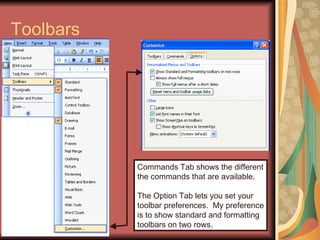
Toolbars Commands Tab shows the different the commands that are available. The Option Tab lets you set your  toolbar preferences.  My preference is to show standard and formatting toolbars on two rows.
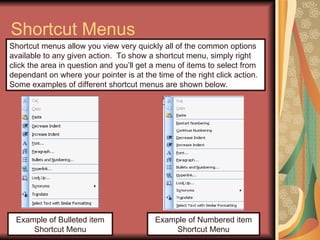
Shortcut Menus Example of Bulleted item Shortcut Menu Shortcut menus allow you view very quickly all of the common options available to any given action.  To show a shortcut menu, simply right click the area in question and you’ll get a menu of items to select from dependant on where your pointer is at the time of the right click action. Some examples of different shortcut menus are shown below. Example of Numbered item Shortcut Menu
Working with Files Creating a Document Saving a Document Closing a Document Opening an Existing Document Renaming a Document Working with Multiple documents
Creating a New Document There are several ways to create new documents, open existing documents, and save documents in Word: Create a New Document  Click the New Document button on the menu bar.  Choose  File > New  from the menu bar.  Press  CTRL+N  (depress the  CTRL  key while pressing "N") on the keyboard.
Example of Creating New Document Example Sentence:  The brown cat ran across the road.  Type the sentence then using the  Edit  >  Copy   and the  Edit  >  Paste   Functions.  Continue pasting until you have 6 copies of the exact sentence.  You only have to type the sentence 1 time. The brown cat ran across the road.    (Type as written 1 time) The  brown  cat ran across the road.   ( Bold  the word brown) The  brown  cat ran across the road.   ( Italicize  the word brown) The  brown  cat ran across the road.  ( Underline  the word brown) The  brown  cat ran across the road.  (Increase the font  size  of brown) The  brown  cat ran across the road.   (Change the font color of the word    brown)
Saving and Closing Save a Document  Click the Save button on the menu bar.  Select  File > Save  from the menu bar.  Press  CTRL+S  on the keyboard.  Close a Document  Click the close button on the document’s Min / Max / Close buttons – bottom row.  Select  File > Close  from the menu bar.
Working with files Open an Existing Document  Click the Open File button on the menu bar.  Choose  File > Open  from the menu bar.  Press  CTRL+O  on the keyboard.  Each method will show the Open dialog box. Choose the file and click the  Open  button.
Opening a document Each method will show the Open dialog box. Choose the file and click the  Open  button.
Renaming Documents Renaming Documents To rename a Word document while using the program, select  File > Open  and find the file you want to rename. Right-click on the document name with the mouse and select  Rename  from the shortcut menu. Type the new name for the file and press the  ENTER  key.
Saving and Renaming Cont. This is the  Save As  dialog box. You can name the file a new name or you can choose the file and click the  Rename  button on the  shortcut menu.
Working with Multiple Documents Word 2003 allows you the ability to work with several documents at any time.  The document with the check mark beside it is the current document you are viewing.
Closing a document Close the current document by selecting  File > Close Example of Full View of File Menu Dropdown.
Mini / Maxi / Close Buttons You’ll notice two rows of Mini / Maxi and Close Buttons. Bottom Row of these Buttons controls the current document you are working. Top Row of these Buttons controls the current program you are working. If you use the Mini / Maxi / Close Method of closing your document –  close the bottom row first (document)  then close the top row of buttons.  This will ensure that the document closes before the program and your document DOES NOT get corrupted.
Review – Questions & Answers Menus, Toolbars, Shortcut Menus Working with Files –  Create, Save, Close, Open, Rename and Multiple Documents Open Working with Text -  Formatting and Styles, Copy and Paste vs. Cut and Paste, Spelling and Grammar Mini / Maxi / Close Buttons Revisited –  Closing the Document vs. Closing the Program
Thank you for attending! I want to thank each of you for your time and attendance tonight.  If you have any questions that haven’t been answered or if any of my explanations have confused you, please submit them to me so that I can address them on Wednesday night’s class.  I look forward to seeing you then for more fun and learning!  If you have a special topic of interest directly related to MS Word 2003 that you would like for us to address on Wednesday’s course, please let me know so I can get it added to the schedule for you. Again, if you need to contact me my e-mail address is …  [email_address]

Introduction To Word Class 1

  • 1.
    Introduction to MSWord 2003 Class 1 IST and Peace Academy are proud to present….
  • 2.
    Introduction to MSWord 2003 Welcome Logistics Course Topics
  • 3.
    Welcome Over 15years experience in Information Technology  Served as lead trainer for major organizations such as Cigna Insurance, Yale Locks, SAIC, Department of Energy, and other major corporations E-mail address: [email_address] Instructor: Sister Linda Jenkins
  • 4.
    Logistics Prayer Times– We will break 5 min prior – Need Volunteer Timekeeper Maghrib Prayer 8:01 p.m. – Library (ladies) Isha Prayer 9:11 p.m. For copies of documents, please provide e-mail address to Brother Mohanad and he will send to you after course is completed Because of time restraints, there will be limited time for questions. At the end of class each evening there will be a question and answer session where individual questions can also be addressed. If you still have questions, please feel free to e-mail me or speak directly with me after class.
  • 5.
    What is MSWord 2003? MS Word 2003 is the word processing program of the Microsoft Office suite that allows you to create documents and reports.
  • 6.
    Topics Menus, Toolbars,Shortcut Menus Working with Files – Create, Save, Close, Open, Rename and Multiple Documents Open Working with Text - Formatting and Styles, Copy and Paste vs. Cut and Paste, Spelling and Grammar Mini / Maxi / Close Buttons Revisited Review – Questions & Answers Before working with MS Word 2003 it’s important for you to know the Fundamentals of working with the program…. In the 1 st portion of this Course we will be discussing the following topics….
  • 7.
  • 8.
    Menus – Howthey work Dropdown Arrows Expand downward Or that the shortcut Menu has additional Options that are Available but not shown Right Arrows expands toward the right giving you more options - meaning it expands
  • 9.
    Toolbars Commands Tabshows the different the commands that are available. The Option Tab lets you set your toolbar preferences. My preference is to show standard and formatting toolbars on two rows.
  • 10.
    Shortcut Menus Exampleof Bulleted item Shortcut Menu Shortcut menus allow you view very quickly all of the common options available to any given action. To show a shortcut menu, simply right click the area in question and you’ll get a menu of items to select from dependant on where your pointer is at the time of the right click action. Some examples of different shortcut menus are shown below. Example of Numbered item Shortcut Menu
  • 11.
    Working with FilesCreating a Document Saving a Document Closing a Document Opening an Existing Document Renaming a Document Working with Multiple documents
  • 12.
    Creating a NewDocument There are several ways to create new documents, open existing documents, and save documents in Word: Create a New Document Click the New Document button on the menu bar. Choose File > New from the menu bar. Press CTRL+N (depress the CTRL key while pressing "N") on the keyboard.
  • 13.
    Example of CreatingNew Document Example Sentence: The brown cat ran across the road. Type the sentence then using the Edit > Copy and the Edit > Paste Functions. Continue pasting until you have 6 copies of the exact sentence. You only have to type the sentence 1 time. The brown cat ran across the road. (Type as written 1 time) The brown cat ran across the road. ( Bold the word brown) The brown cat ran across the road. ( Italicize the word brown) The brown cat ran across the road. ( Underline the word brown) The brown cat ran across the road. (Increase the font size of brown) The brown cat ran across the road. (Change the font color of the word brown)
  • 14.
    Saving and ClosingSave a Document Click the Save button on the menu bar. Select File > Save from the menu bar. Press CTRL+S on the keyboard. Close a Document Click the close button on the document’s Min / Max / Close buttons – bottom row. Select File > Close from the menu bar.
  • 15.
    Working with filesOpen an Existing Document Click the Open File button on the menu bar. Choose File > Open from the menu bar. Press CTRL+O on the keyboard. Each method will show the Open dialog box. Choose the file and click the Open button.
  • 16.
    Opening a documentEach method will show the Open dialog box. Choose the file and click the Open button.
  • 17.
    Renaming Documents RenamingDocuments To rename a Word document while using the program, select File > Open and find the file you want to rename. Right-click on the document name with the mouse and select Rename from the shortcut menu. Type the new name for the file and press the ENTER key.
  • 18.
    Saving and RenamingCont. This is the Save As dialog box. You can name the file a new name or you can choose the file and click the Rename button on the shortcut menu.
  • 19.
    Working with MultipleDocuments Word 2003 allows you the ability to work with several documents at any time. The document with the check mark beside it is the current document you are viewing.
  • 20.
    Closing a documentClose the current document by selecting File > Close Example of Full View of File Menu Dropdown.
  • 21.
    Mini / Maxi/ Close Buttons You’ll notice two rows of Mini / Maxi and Close Buttons. Bottom Row of these Buttons controls the current document you are working. Top Row of these Buttons controls the current program you are working. If you use the Mini / Maxi / Close Method of closing your document – close the bottom row first (document) then close the top row of buttons. This will ensure that the document closes before the program and your document DOES NOT get corrupted.
  • 22.
    Review – Questions& Answers Menus, Toolbars, Shortcut Menus Working with Files – Create, Save, Close, Open, Rename and Multiple Documents Open Working with Text - Formatting and Styles, Copy and Paste vs. Cut and Paste, Spelling and Grammar Mini / Maxi / Close Buttons Revisited – Closing the Document vs. Closing the Program
  • 23.
    Thank you forattending! I want to thank each of you for your time and attendance tonight. If you have any questions that haven’t been answered or if any of my explanations have confused you, please submit them to me so that I can address them on Wednesday night’s class. I look forward to seeing you then for more fun and learning! If you have a special topic of interest directly related to MS Word 2003 that you would like for us to address on Wednesday’s course, please let me know so I can get it added to the schedule for you. Again, if you need to contact me my e-mail address is … [email_address]