Microsoft Office 2007
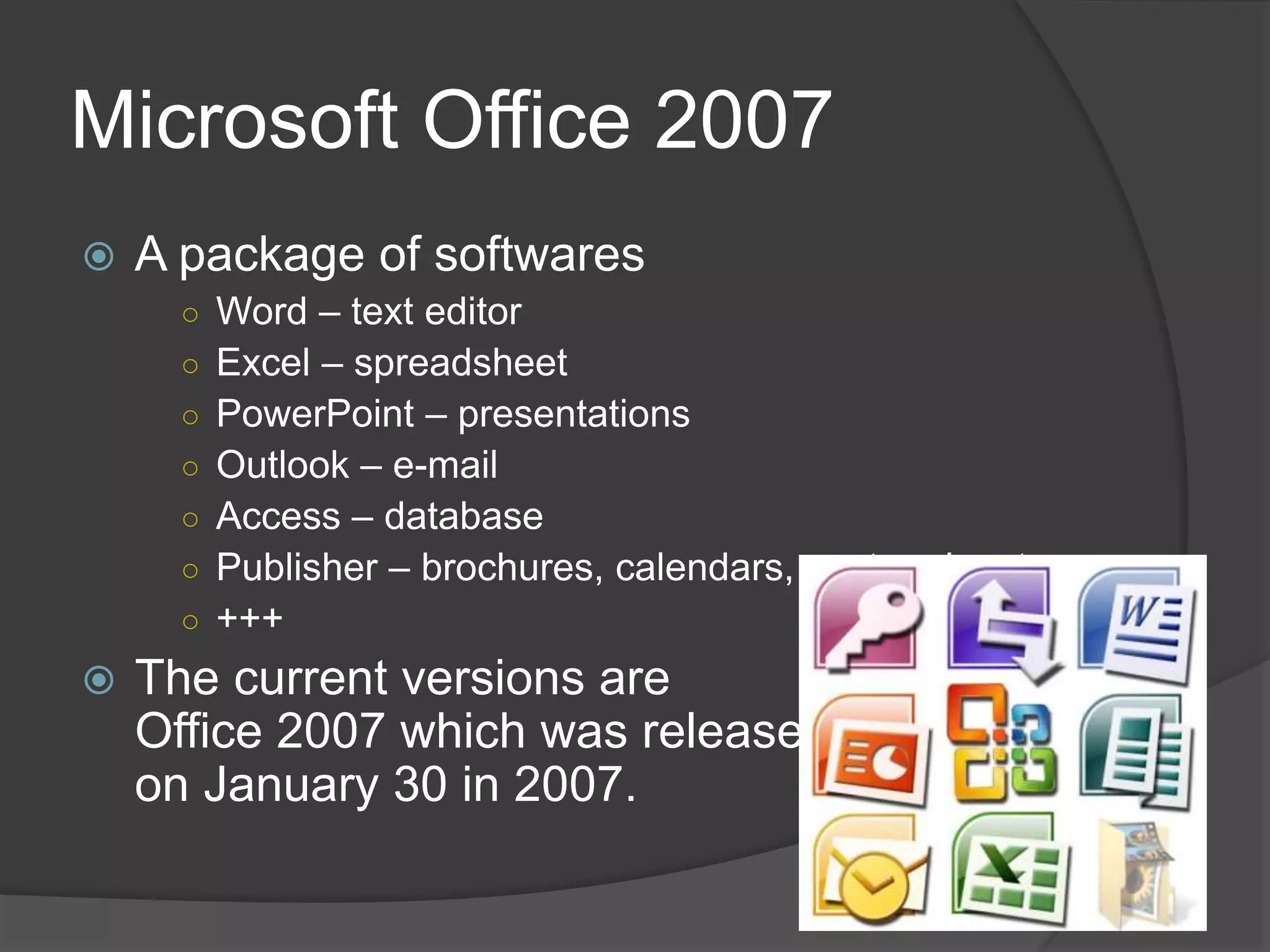
 A package of softwares
○ Word – text editor
○ Excel – spreadsheet
○ PowerPoint – presentations
○ Outlook – e-mail
○ Access – database
○ Publisher – brochures, calendars, postcards, etc.
○ +++
 The current versions are
Office 2007 which was released
on January 30 in 2007.
Microsoft word
 Text processor to create documents
 Templates for different types of
documents
 Web pages
Simple formatting
 Text: Font, size, color,
bold/italic/underline
 Layout: Bullets, numbering, alignment
• Identify the main components of the
user interface.
• Identify the purpose of the
commands on the menu bar.
• Explain the difference between
copy and cut.
• Copy, cut and paste text.
• Work with the buttons on the toolbar.
• Work with the pointer in a program.
• Work with text and characters in
a program.
• Explain the use of primary keyboard
shortcuts and key combinations.
• Perform basic tasks by using a word
processor.
• Edit and format text.
• Work with pictures.
• Work with language tools (spell
check, dictionary, extc…).
• Identify the various benefits of
using word processing software.
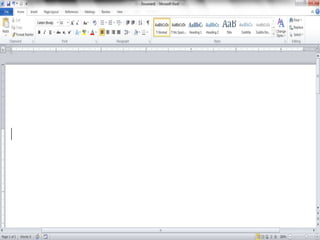
The opening screen for
Microsoft Word 2010 looks like this…
Click here when you are ready to continue…
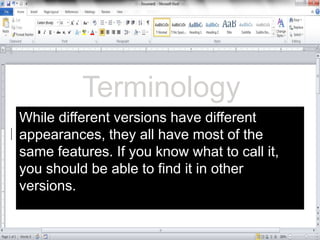
While different versions have different
appearances, they all have most of the
same features. If you know what to call it,
you should be able to find it in other
versions.
Terminology
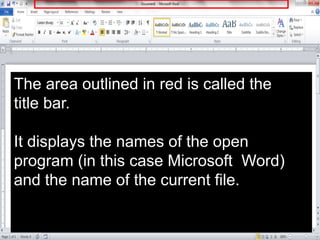
The area outlined in red is called the
title bar.
It displays the names of the open
program (in this case Microsoft Word)
and the name of the current file.
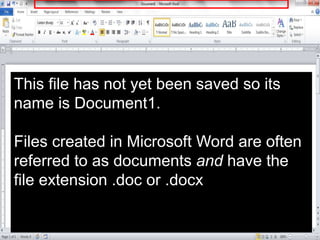
This file has not yet been saved so its
name is Document1.
Files created in Microsoft Word are often
referred to as documents and have the
file extension .doc or .docx
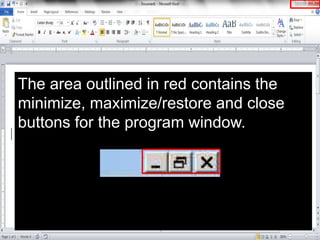
The area outlined in red contains the
minimize, maximize/restore and close
buttons for the program window.
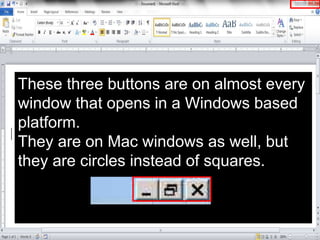
These three buttons are on almost every
window that opens in a Windows based
platform.
They are on Mac windows as well, but
they are circles instead of squares.
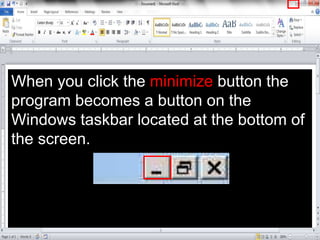
When you click the minimize button the
program becomes a button on the
Windows taskbar located at the bottom of
the screen.
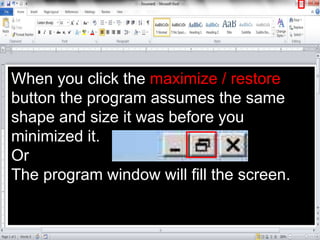
When you click the maximize / restore
button the program assumes the same
shape and size it was before you
minimized it.
Or
The program window will fill the screen.
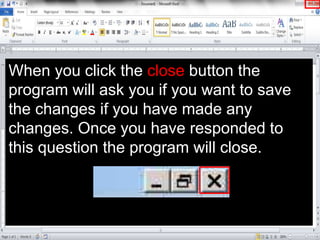
When you click the close button the
program will ask you if you want to save
the changes if you have made any
changes. Once you have responded to
this question the program will close.
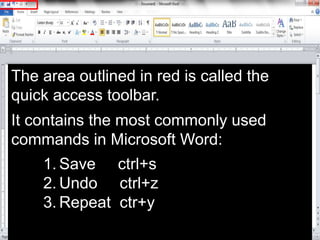
The area outlined in red is called the
quick access toolbar.
It contains the most commonly used
commands in Microsoft Word:
1. Save ctrl+s
2. Undo ctrl+z
3. Repeat ctr+y
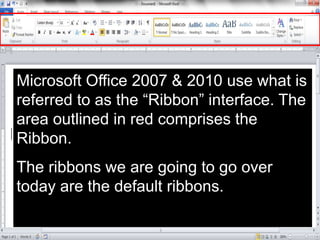
Microsoft Office 2007 & 2010 use what is
referred to as the “Ribbon” interface. The
area outlined in red comprises the
Ribbon.
The ribbons we are going to go over
today are the default ribbons.
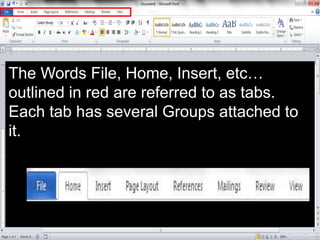
The Words File, Home, Insert, etc…
outlined in red are referred to as tabs.
Each tab has several Groups attached to
it.
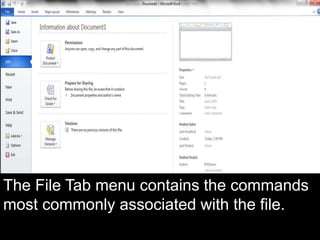
The File Tab menu contains the commands
most commonly associated with the file.
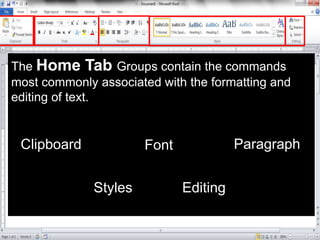
The Home Tab Groups contain the commands
most commonly associated with the formatting and
editing of text.
Clipboard Font Paragraph
Styles Editing
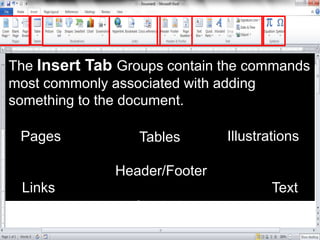
The Insert Tab Groups contain the commands
most commonly associated with adding
something to the document.
Pages Tables Illustrations
Links
Header/Footer
Text
Symbols
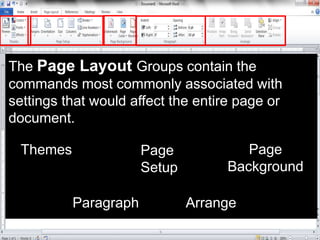
The Page Layout Groups contain the
commands most commonly associated with
settings that would affect the entire page or
document.
Themes Page
Setup
Page
Background
Paragraph Arrange
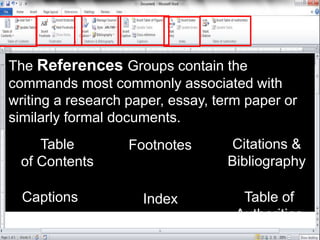
The References Groups contain the
commands most commonly associated with
writing a research paper, essay, term paper or
similarly formal documents.
Table
of Contents
Footnotes Citations &
Bibliography
Captions Index Table of
Authorities
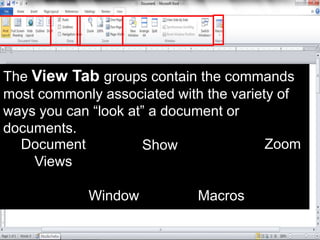
The View Tab groups contain the commands
most commonly associated with the variety of
ways you can “look at” a document or
documents.
Document
Views
Show Zoom
Window Macros
Welcome to this lecture
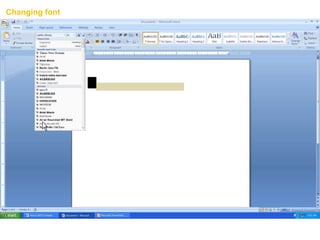
Changing font
Welcome to this lecture
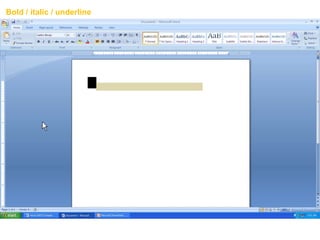
Bold / italic / underline
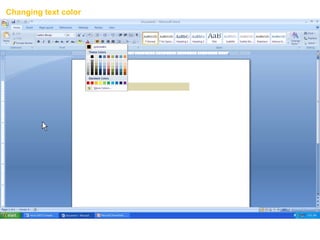
How to change text color
Changing text color
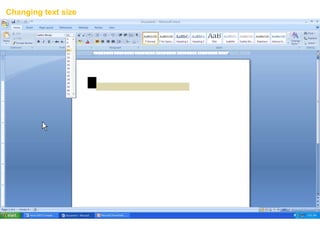
How to change text size
Changing text size
The first impression and view of a document is very
important for the reader. The options listed underneath
are the most important ones. These can make the
document nice looking, but also very bad. A
professional document should have a standard font
(like Times New Roman or Arial), appropriate size
(normal text size 12), and black color.
The layout of the text should make the reader
comfortable – it should be easy to read. In thesis, or
other large documents, the text is often aligned to both
the left and right margins. This creates a clean look at
both sides of the text. Additional extra space are put in
between words as necessary.
The first impression and view of a document is very
important for the reader. The options listed underneath
are the most important ones. These can make the
document nice looking, but also very bad. A
professional document should have a standard font
(like Times New Roman or Arial), appropriate size
(normal text size 12), and black color.
The layout of the text should make the reader
comfortable – it should be easy to read. In thesis, or
other large documents, the text is often aligned to both
the left and right margins. This creates a clean look at
both sides of the text. Additional extra space are put in
between words as necessary.
The first impression and view of a document is very
important for the reader. The options listed underneath
are the most important ones. These can make the
document nice looking, but also very bad. A
professional document should have a standard font
(like Times New Roman or Arial), appropriate size
(normal text size 12), and black color.
The layout of the text should make the reader
comfortable – it should be easy to read. In thesis, or
other large documents, the text is often aligned to both
the left and right margins. This creates a clean look at
both sides of the text. Additional extra space are put in
between words as necessary.
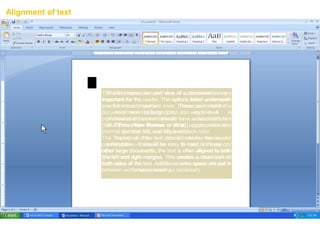
Alignment of text
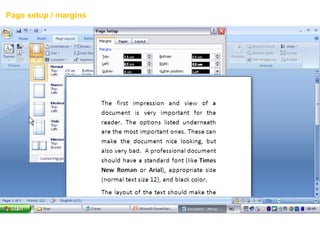
4,0 cm
0 cm
2,5 cm 2,5 cm
4,0 cm
Left
2,5 cm 2,5 cm
Page setup / margins
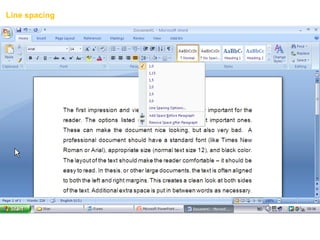
Line spacing
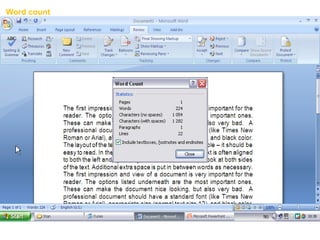
Word count
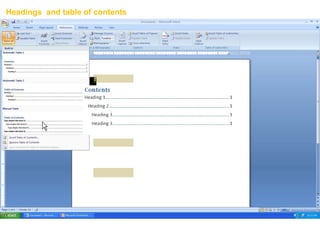
Heading 1
Heading 3
Heading 2
Texttextexttexttexttexttextexttexttextexttex
texttexttexttexttextexttexttext
Texttextexttexttexttexttextexttexttextexttex
texttexttexttexttextexttexttext
Heading 3
Texttextexttexttexttexttextexttexttextexttex
texttexttexttexttextexttexttexttext
Texttextexttexttexttexttextexttexttextexttex
texttexttexttexttextexttexttext
Headings and table of contents
1
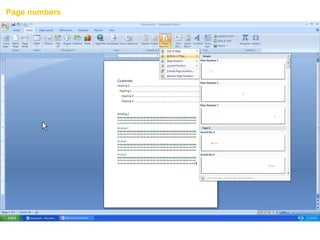
Page numbers
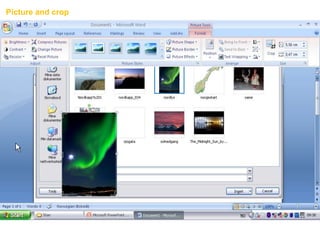
Picture and crop
1
Word lecture
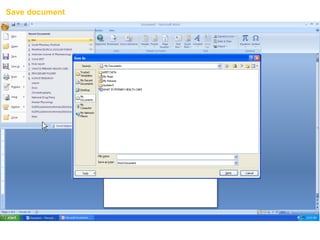
Save document
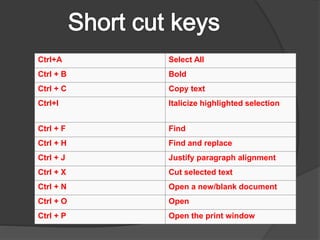
Ctrl+A Select All
Ctrl + B Bold
Ctrl + C Copy text
Ctrl+I Italicize highlighted selection
Ctrl + F Find
Ctrl + H Find and replace
Ctrl + J Justify paragraph alignment
Ctrl + X Cut selected text
Ctrl + N Open a new/blank document
Ctrl + O Open
Ctrl + P Open the print window
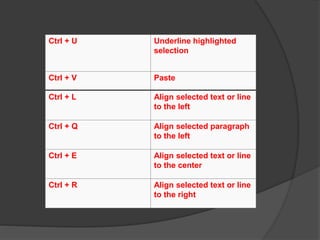
Ctrl + U Underline highlighted
selection
Ctrl + V Paste
Ctrl + L Align selected text or line
to the left
Ctrl + Q Align selected paragraph
to the left
Ctrl + E Align selected text or line
to the center
Ctrl + R Align selected text or line
to the right
word.pptx

word.pptx

  • 1.
    Microsoft Office 2007 A package of softwares ○ Word – text editor ○ Excel – spreadsheet ○ PowerPoint – presentations ○ Outlook – e-mail ○ Access – database ○ Publisher – brochures, calendars, postcards, etc. ○ +++  The current versions are Office 2007 which was released on January 30 in 2007.
  • 3.
    Microsoft word  Textprocessor to create documents  Templates for different types of documents  Web pages
  • 4.
    Simple formatting  Text:Font, size, color, bold/italic/underline  Layout: Bullets, numbering, alignment
  • 5.
    • Identify themain components of the user interface. • Identify the purpose of the commands on the menu bar. • Explain the difference between copy and cut.
  • 6.
    • Copy, cutand paste text. • Work with the buttons on the toolbar. • Work with the pointer in a program. • Work with text and characters in a program.
  • 7.
    • Explain theuse of primary keyboard shortcuts and key combinations. • Perform basic tasks by using a word processor. • Edit and format text.
  • 8.
    • Work withpictures. • Work with language tools (spell check, dictionary, extc…). • Identify the various benefits of using word processing software.
  • 9.
    The opening screenfor Microsoft Word 2010 looks like this… Click here when you are ready to continue…
  • 10.
    While different versionshave different appearances, they all have most of the same features. If you know what to call it, you should be able to find it in other versions. Terminology
  • 11.
    The area outlinedin red is called the title bar. It displays the names of the open program (in this case Microsoft Word) and the name of the current file.
  • 12.
    This file hasnot yet been saved so its name is Document1. Files created in Microsoft Word are often referred to as documents and have the file extension .doc or .docx
  • 13.
    The area outlinedin red contains the minimize, maximize/restore and close buttons for the program window.
  • 14.
    These three buttonsare on almost every window that opens in a Windows based platform. They are on Mac windows as well, but they are circles instead of squares.
  • 15.
    When you clickthe minimize button the program becomes a button on the Windows taskbar located at the bottom of the screen.
  • 16.
    When you clickthe maximize / restore button the program assumes the same shape and size it was before you minimized it. Or The program window will fill the screen.
  • 17.
    When you clickthe close button the program will ask you if you want to save the changes if you have made any changes. Once you have responded to this question the program will close.
  • 18.
    The area outlinedin red is called the quick access toolbar. It contains the most commonly used commands in Microsoft Word: 1. Save ctrl+s 2. Undo ctrl+z 3. Repeat ctr+y
  • 19.
    Microsoft Office 2007& 2010 use what is referred to as the “Ribbon” interface. The area outlined in red comprises the Ribbon. The ribbons we are going to go over today are the default ribbons.
  • 20.
    The Words File,Home, Insert, etc… outlined in red are referred to as tabs. Each tab has several Groups attached to it.
  • 21.
    The File Tabmenu contains the commands most commonly associated with the file.
  • 22.
    The Home TabGroups contain the commands most commonly associated with the formatting and editing of text. Clipboard Font Paragraph Styles Editing
  • 23.
    The Insert TabGroups contain the commands most commonly associated with adding something to the document. Pages Tables Illustrations Links Header/Footer Text Symbols
  • 24.
    The Page LayoutGroups contain the commands most commonly associated with settings that would affect the entire page or document. Themes Page Setup Page Background Paragraph Arrange
  • 25.
    The References Groupscontain the commands most commonly associated with writing a research paper, essay, term paper or similarly formal documents. Table of Contents Footnotes Citations & Bibliography Captions Index Table of Authorities
  • 26.
    The View Tabgroups contain the commands most commonly associated with the variety of ways you can “look at” a document or documents. Document Views Show Zoom Window Macros
  • 27.
    Welcome to thislecture Changing font
  • 28.
    Welcome to thislecture Bold / italic / underline
  • 29.
    How to changetext color Changing text color
  • 30.
    How to changetext size Changing text size
  • 31.
    The first impressionand view of a document is very important for the reader. The options listed underneath are the most important ones. These can make the document nice looking, but also very bad. A professional document should have a standard font (like Times New Roman or Arial), appropriate size (normal text size 12), and black color. The layout of the text should make the reader comfortable – it should be easy to read. In thesis, or other large documents, the text is often aligned to both the left and right margins. This creates a clean look at both sides of the text. Additional extra space are put in between words as necessary. The first impression and view of a document is very important for the reader. The options listed underneath are the most important ones. These can make the document nice looking, but also very bad. A professional document should have a standard font (like Times New Roman or Arial), appropriate size (normal text size 12), and black color. The layout of the text should make the reader comfortable – it should be easy to read. In thesis, or other large documents, the text is often aligned to both the left and right margins. This creates a clean look at both sides of the text. Additional extra space are put in between words as necessary. The first impression and view of a document is very important for the reader. The options listed underneath are the most important ones. These can make the document nice looking, but also very bad. A professional document should have a standard font (like Times New Roman or Arial), appropriate size (normal text size 12), and black color. The layout of the text should make the reader comfortable – it should be easy to read. In thesis, or other large documents, the text is often aligned to both the left and right margins. This creates a clean look at both sides of the text. Additional extra space are put in between words as necessary. Alignment of text
  • 32.
    4,0 cm 0 cm 2,5cm 2,5 cm 4,0 cm Left 2,5 cm 2,5 cm Page setup / margins
  • 33.
  • 34.
  • 35.
    Heading 1 Heading 3 Heading2 Texttextexttexttexttexttextexttexttextexttex texttexttexttexttextexttexttext Texttextexttexttexttexttextexttexttextexttex texttexttexttexttextexttexttext Heading 3 Texttextexttexttexttexttextexttexttextexttex texttexttexttexttextexttexttexttext Texttextexttexttexttexttextexttexttextexttex texttexttexttexttextexttexttext Headings and table of contents
  • 36.
  • 37.
  • 38.
  • 39.
    Ctrl+A Select All Ctrl+ B Bold Ctrl + C Copy text Ctrl+I Italicize highlighted selection Ctrl + F Find Ctrl + H Find and replace Ctrl + J Justify paragraph alignment Ctrl + X Cut selected text Ctrl + N Open a new/blank document Ctrl + O Open Ctrl + P Open the print window
  • 40.
    Ctrl + UUnderline highlighted selection Ctrl + V Paste Ctrl + L Align selected text or line to the left Ctrl + Q Align selected paragraph to the left Ctrl + E Align selected text or line to the center Ctrl + R Align selected text or line to the right

Editor's Notes

  • #5 The first impression and view of a document is very important for the reader. The options listed underneath are the most important ones. These can make the document nice looking, but also very bad. A professional document should have a standard font (like Times New Roman or Arial), appropriate size (normal text size 12), and black color. The layout of the text should make the reader comfortable – it should be easy to read. In thesis, or other large documents, the text is often aligned to both the left and right margins. This creates a clean look at both sides of the text. Additional extra space are put in between words as necessary. Text: Font, size, color, bold/italic/underline Layout: Bullets, numbering, alignment, line spacing Home  [choose formatting]