

WEB TECHNOLOGY
ADVANCED HTML
DR. JYOTI YADAV
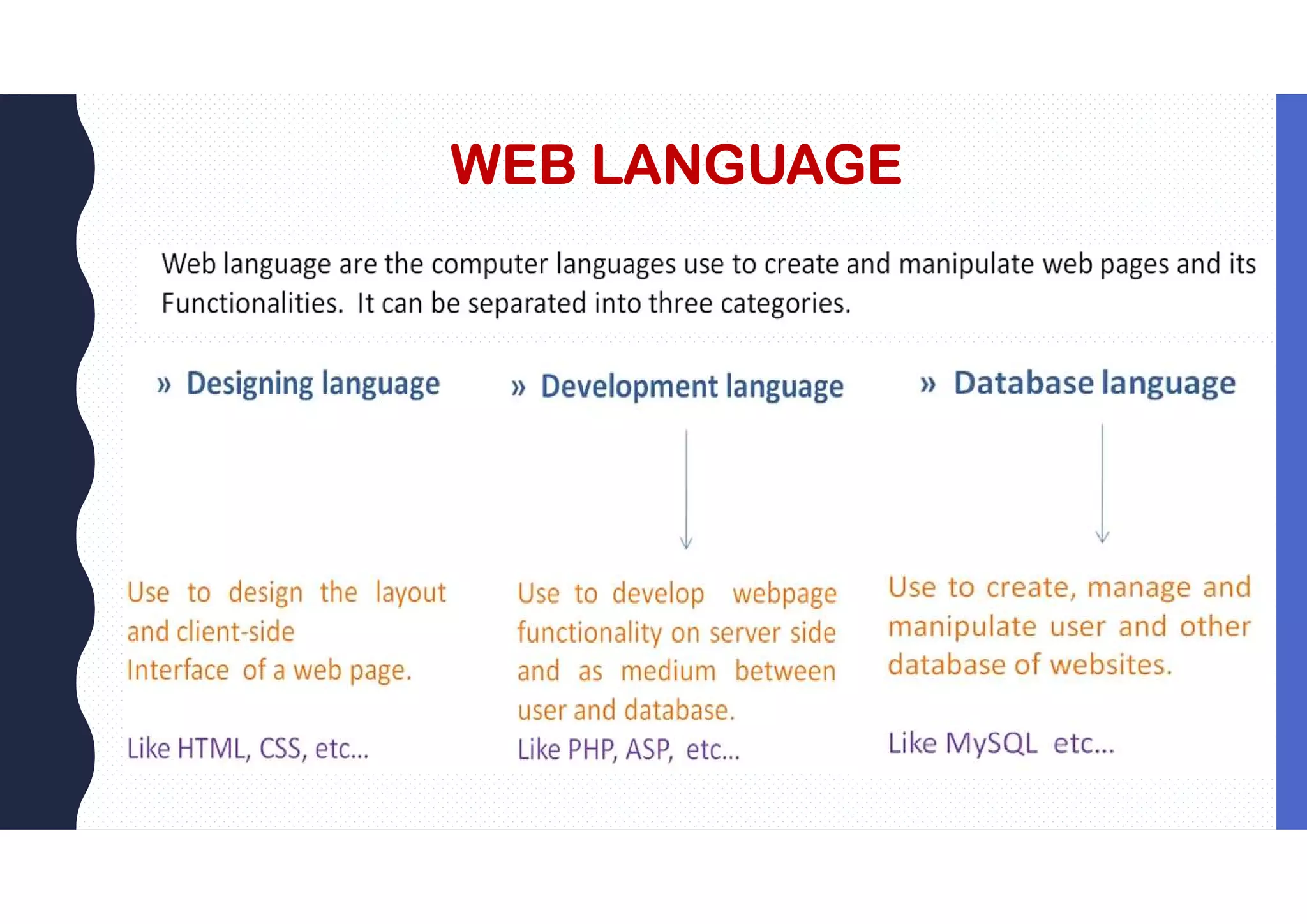
WEB LANGUAGE
3
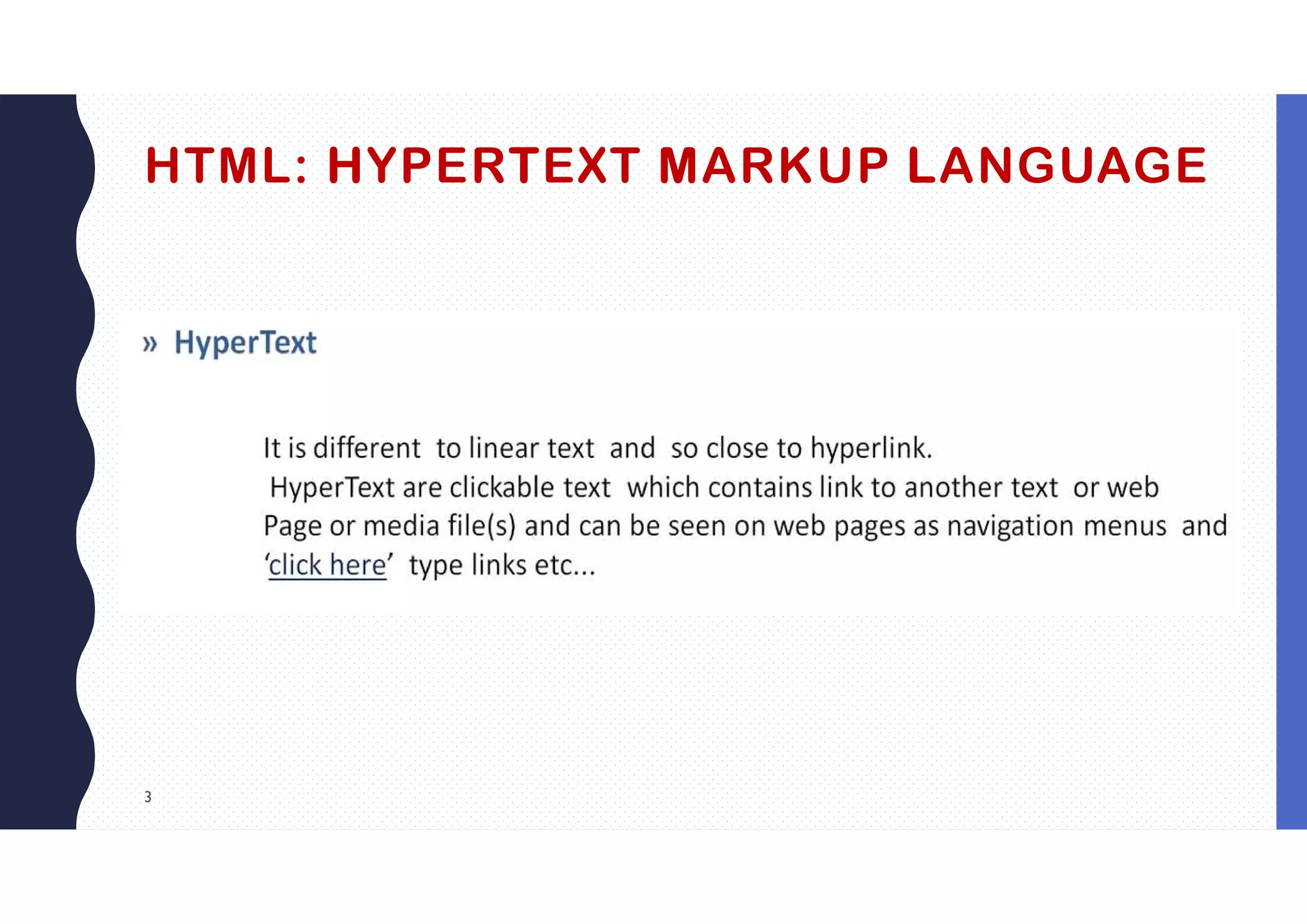
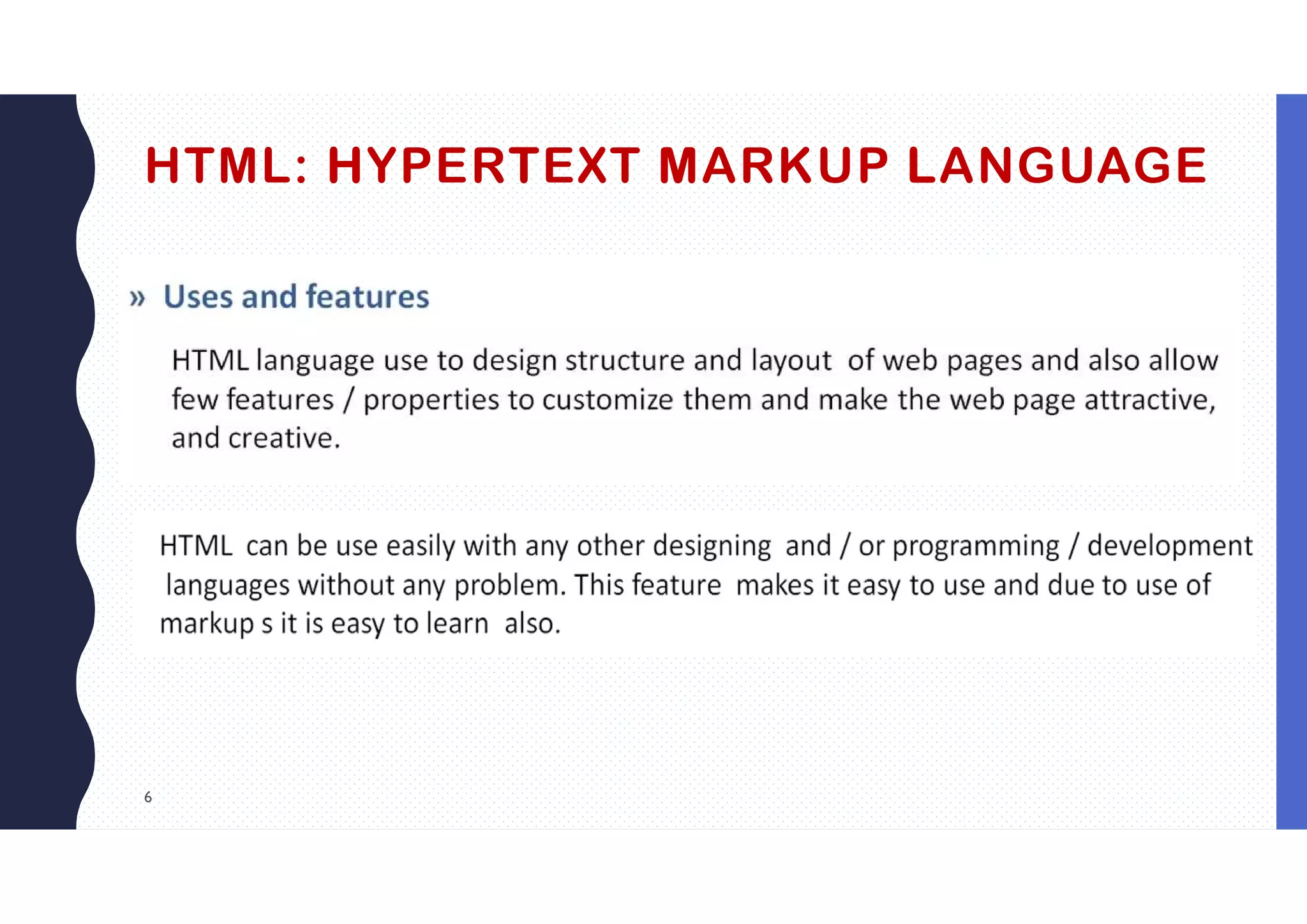
HTML: HYPERTEXT MARKUP LANGUAGE
4
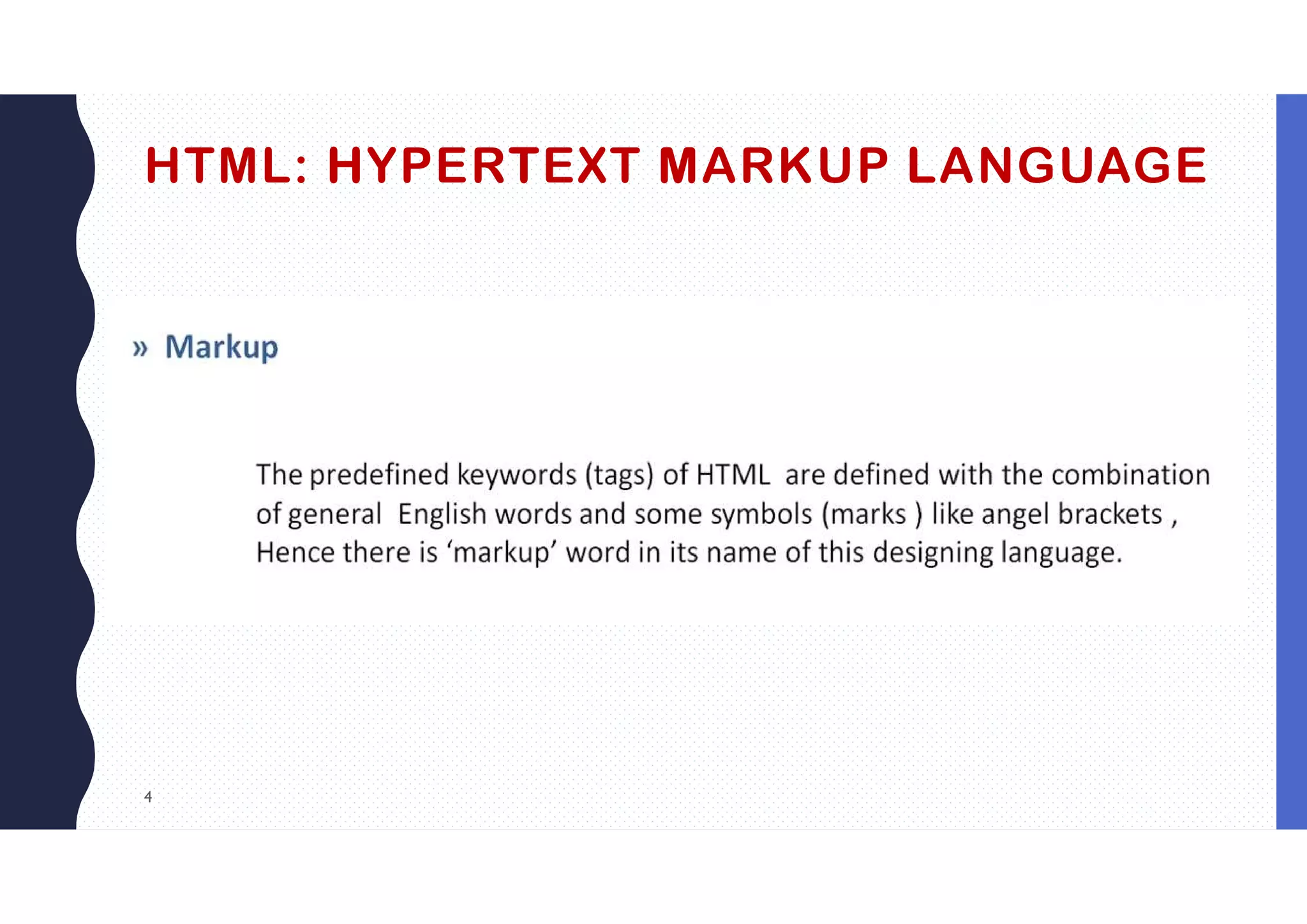
HTML: HYPERTEXT MARKUP LANGUAGE
5
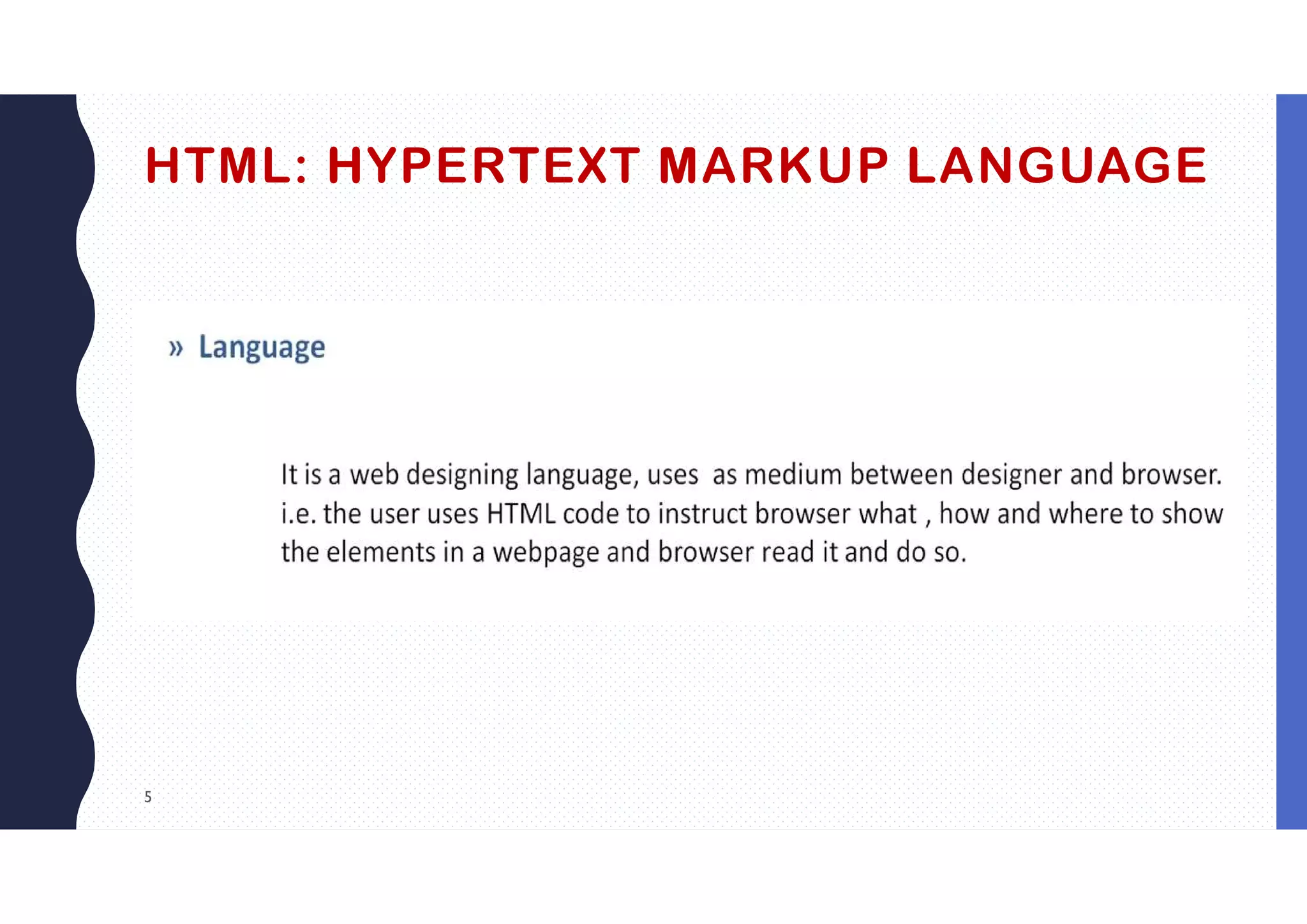
HTML: HYPERTEXT MARKUP LANGUAGE
6
HTML: HYPERTEXT MARKUP LANGUAGE
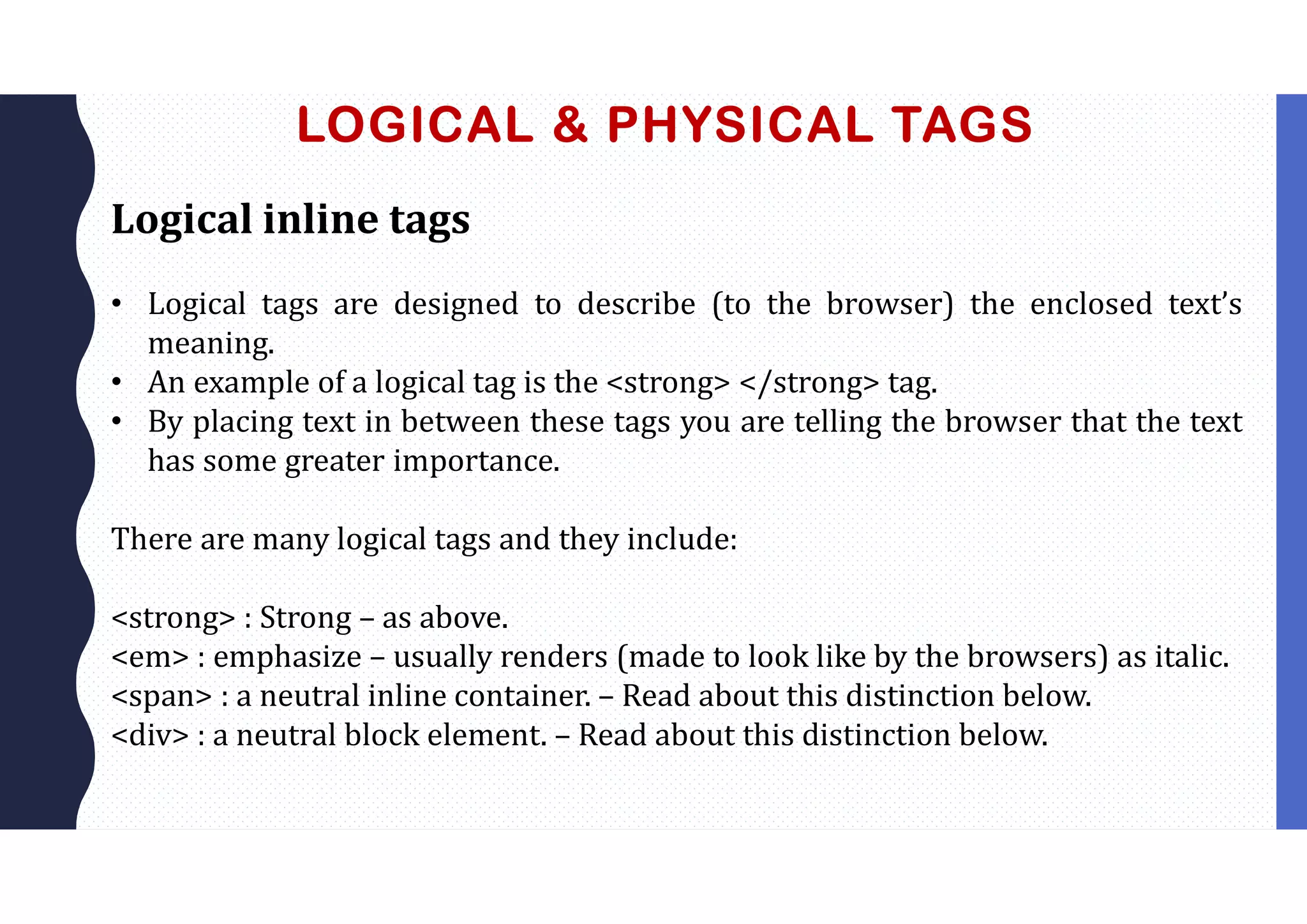
LOGICAL & PHYSICAL TAGS
Logical inline tags
• Logical tags are designed to describe (to the browser) the enclosed text’s
meaning.
• An example of a logical tag is the <strong> </strong> tag.
• By placing text in between these tags you are telling the browser that the text
has some greater importance.
There are many logical tags and they include:
<strong> : Strong – as above.
<em> : emphasize – usually renders (made to look like by the browsers) as italic.
<span> : a neutral inline container. – Read about this distinction below.
<div> : a neutral block element. – Read about this distinction below.
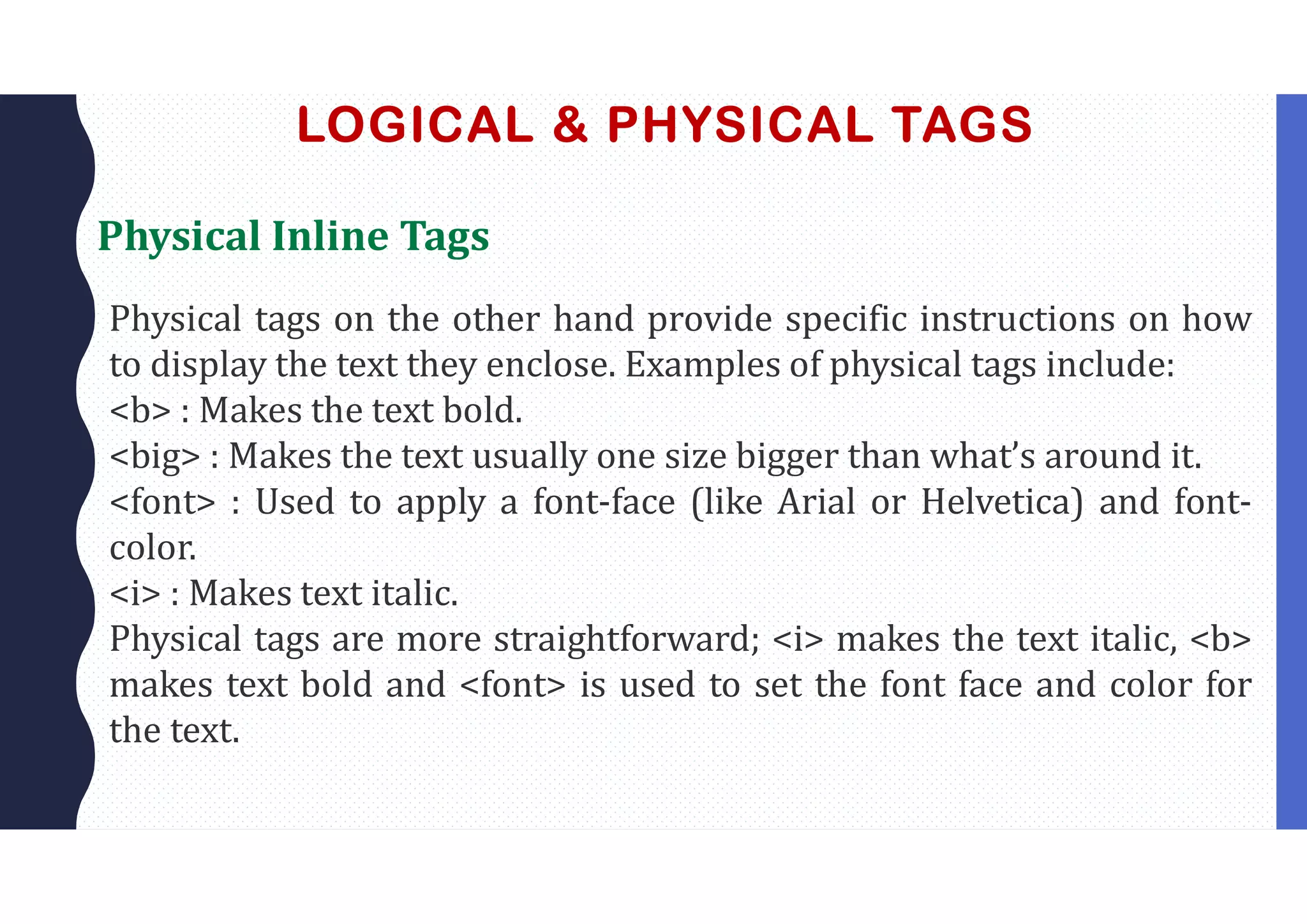
LOGICAL & PHYSICAL TAGS
Physical Inline Tags
Physical tags on the other hand provide specific instructions on how
to display the text they enclose. Examples of physical tags include:
<b> : Makes the text bold.
<big> : Makes the text usually one size bigger than what’s around it.
<font> : Used to apply a font-face (like Arial or Helvetica) and font-
color.
<i> : Makes text italic.
Physical tags are more straightforward; <i> makes the text italic, <b>
makes text bold and <font> is used to set the font face and color for
the text.
9
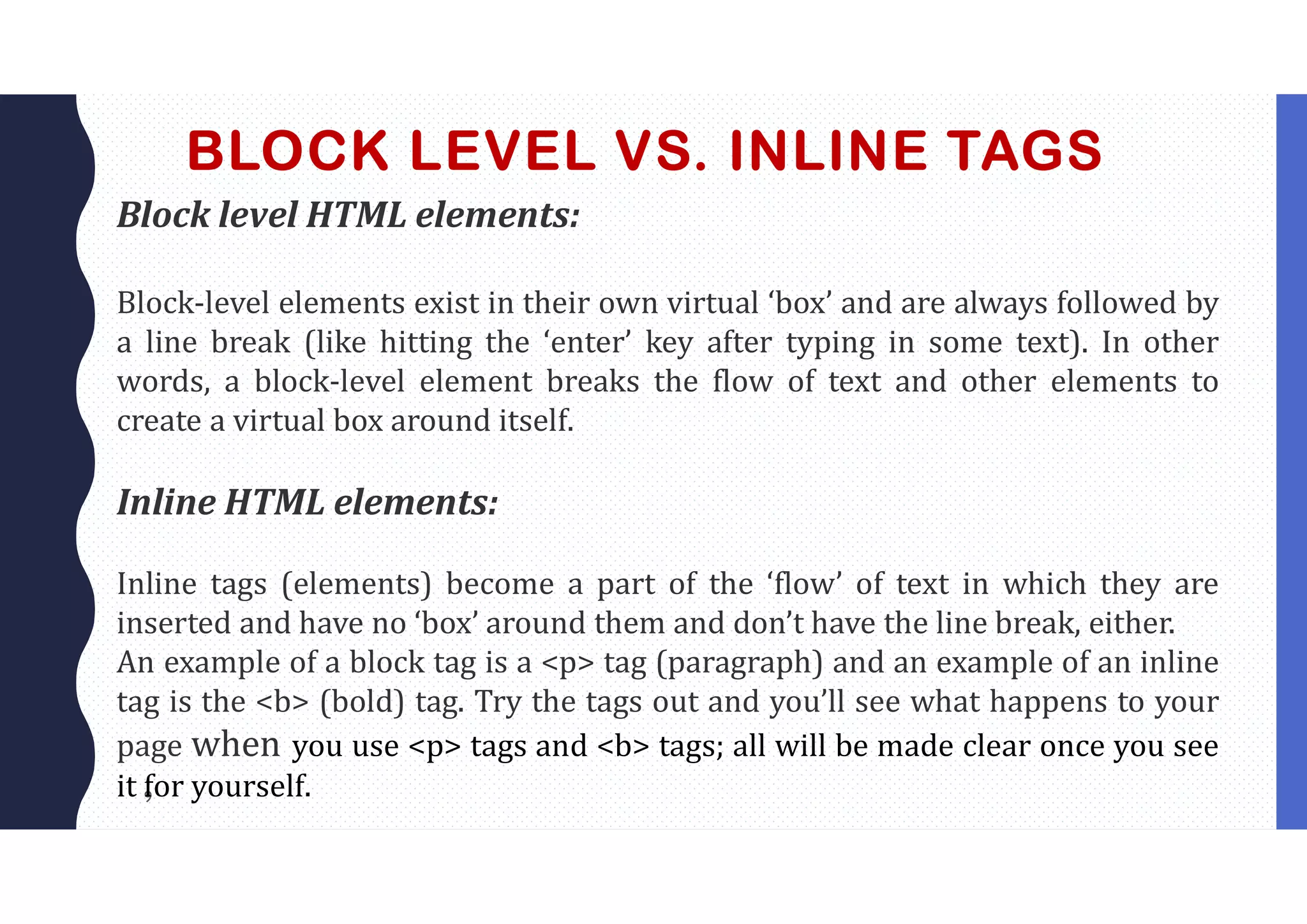
BLOCK LEVEL VS. INLINE TAGS
Block level HTML elements:
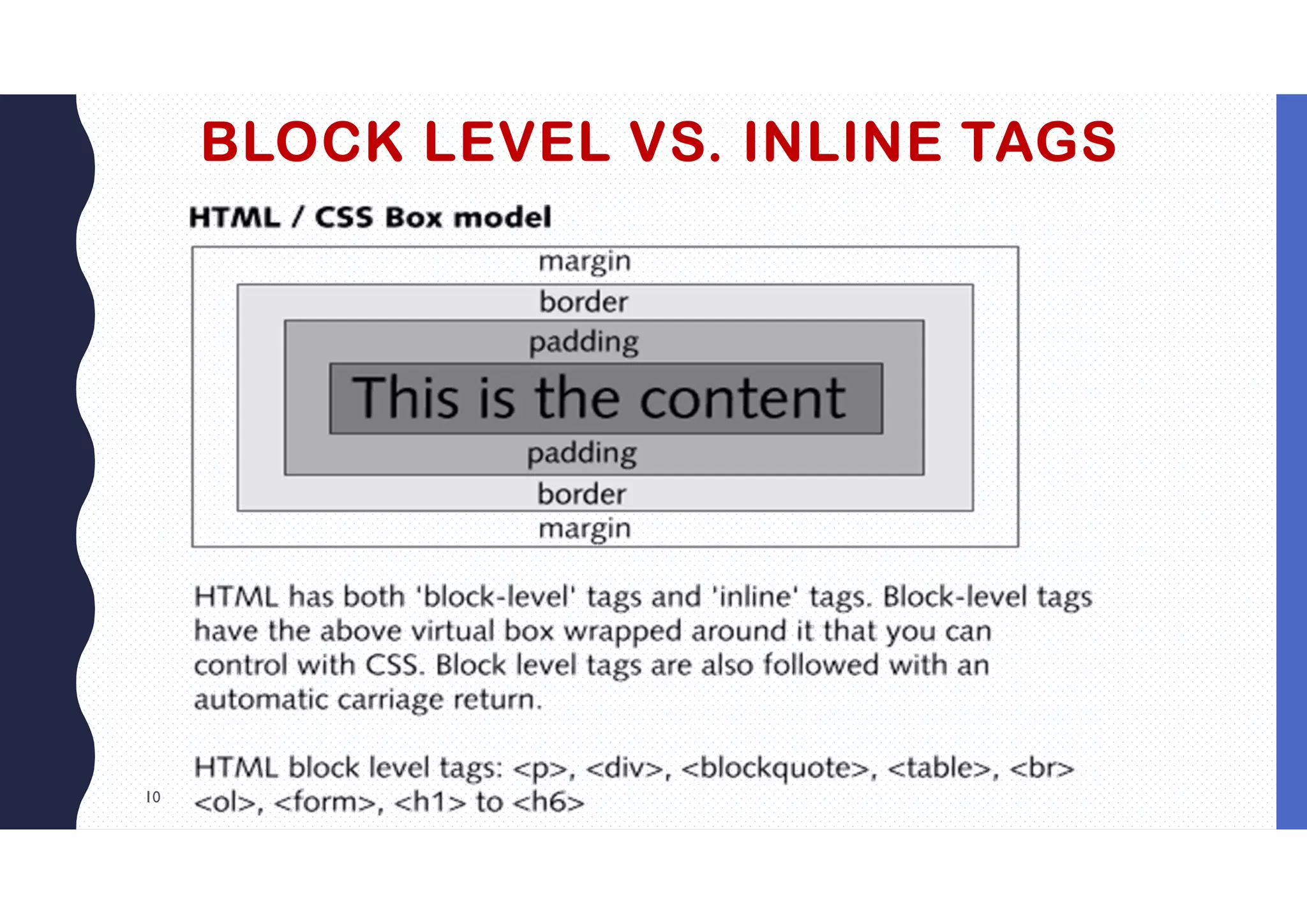
Block-level elements exist in their own virtual ‘box’ and are always followed by
a line break (like hitting the ‘enter’ key after typing in some text). In other
words, a block-level element breaks the flow of text and other elements to
create a virtual box around itself.
Inline HTML elements:
Inline tags (elements) become a part of the ‘flow’ of text in which they are
inserted and have no ‘box’ around them and don’t have the line break, either.
An example of a block tag is a <p> tag (paragraph) and an example of an inline
tag is the <b> (bold) tag. Try the tags out and you’ll see what happens to your
page when you use <p> tags and <b> tags; all will be made clear once you see
it for yourself.
10
BLOCK LEVEL VS. INLINE TAGS
WEB LANGUAGE
HTML Beginner : The HTML Basics
•Tags, Attributes and Elements: The stuff that makes up HTML.
•Page Titles: Titles. For Pages. A difficult concept, we know…
•Paragraphs: Structuring your content with paragraphs.
•Headings: The six levels of headings.
•Lists: How to define ordered and unordered lists.
•Links: How to makes links to other pages, and elsewhere.
•Images: Adding something a bit more than text…
•Tables: How to use tabular data.
•Forms: Text boxes and other user-input thingamajigs.
WEB LANGUAGE
Span and Div: The “meaningless” elements, used with CSS.
Text: Abbreviations, Quotations, and Code (abbr,
blockquote, q, cite, code, var, samp, kbd, pre)
Meta Tags: Bolting on extra information about your web page
(meta, charset, name, http-equiv (link, style), content)
Tables: rowspan and colspan: Expanding on the Tables page,
looking at header-cells and merging cells.
Description Lists: The forgotten lists (dl, dt,dd)
Text: Addresses (Address, article), Definitions (dfn), Bi-
directional (bdo), and Editorial (ins, del)
Sectioning: Greater semantic structures for documents
(article, section, header, footer aside, nav)
ADVANCED HTML
Pushing HTML to its full standards-compliant, semantic, accessible potential.
Text: Time, Mark, and “Presentational: Yet more tags for ultra-specific
textual elements.
Conditional Comments: Targeting inept and misbehaving elderly browsers.
Tables: Columns, Headers, and Footers
Accessible Links: Making hypertext more accessible to users with disabilities
(caption, tabbing , link titles, access keys)
Accessible Forms: Making forms more accessible for users with disabilities
(labels, field sets and legends, option groups, navigating fields).
HTML5 Forms Pt. 1: Input Types: More specific form fields (search,
telephone, URL and email addresses, number and ranges, date and time)
HTML5 Forms Pt. 2: Attributes and Data Lists: Extending the semantics of
input and textarea (placeholder text, autofocus, data lists)
Embedded Content: Video, Audio, and Canvas (video, poster, fall back
content, alternative content)
3. Web Technology Advanced HTML

3. Web Technology Advanced HTML

  • 1.
  • 2.
  • 3.
  • 4.
  • 5.
  • 6.
  • 7.
    LOGICAL & PHYSICALTAGS Logical inline tags • Logical tags are designed to describe (to the browser) the enclosed text’s meaning. • An example of a logical tag is the <strong> </strong> tag. • By placing text in between these tags you are telling the browser that the text has some greater importance. There are many logical tags and they include: <strong> : Strong – as above. <em> : emphasize – usually renders (made to look like by the browsers) as italic. <span> : a neutral inline container. – Read about this distinction below. <div> : a neutral block element. – Read about this distinction below.
  • 8.
    LOGICAL & PHYSICALTAGS Physical Inline Tags Physical tags on the other hand provide specific instructions on how to display the text they enclose. Examples of physical tags include: <b> : Makes the text bold. <big> : Makes the text usually one size bigger than what’s around it. <font> : Used to apply a font-face (like Arial or Helvetica) and font- color. <i> : Makes text italic. Physical tags are more straightforward; <i> makes the text italic, <b> makes text bold and <font> is used to set the font face and color for the text.
  • 9.
    9 BLOCK LEVEL VS.INLINE TAGS Block level HTML elements: Block-level elements exist in their own virtual ‘box’ and are always followed by a line break (like hitting the ‘enter’ key after typing in some text). In other words, a block-level element breaks the flow of text and other elements to create a virtual box around itself. Inline HTML elements: Inline tags (elements) become a part of the ‘flow’ of text in which they are inserted and have no ‘box’ around them and don’t have the line break, either. An example of a block tag is a <p> tag (paragraph) and an example of an inline tag is the <b> (bold) tag. Try the tags out and you’ll see what happens to your page when you use <p> tags and <b> tags; all will be made clear once you see it for yourself.
  • 10.
    10 BLOCK LEVEL VS.INLINE TAGS
  • 11.
    WEB LANGUAGE HTML Beginner: The HTML Basics •Tags, Attributes and Elements: The stuff that makes up HTML. •Page Titles: Titles. For Pages. A difficult concept, we know… •Paragraphs: Structuring your content with paragraphs. •Headings: The six levels of headings. •Lists: How to define ordered and unordered lists. •Links: How to makes links to other pages, and elsewhere. •Images: Adding something a bit more than text… •Tables: How to use tabular data. •Forms: Text boxes and other user-input thingamajigs.
  • 12.
    WEB LANGUAGE Span andDiv: The “meaningless” elements, used with CSS. Text: Abbreviations, Quotations, and Code (abbr, blockquote, q, cite, code, var, samp, kbd, pre) Meta Tags: Bolting on extra information about your web page (meta, charset, name, http-equiv (link, style), content) Tables: rowspan and colspan: Expanding on the Tables page, looking at header-cells and merging cells. Description Lists: The forgotten lists (dl, dt,dd) Text: Addresses (Address, article), Definitions (dfn), Bi- directional (bdo), and Editorial (ins, del) Sectioning: Greater semantic structures for documents (article, section, header, footer aside, nav)
  • 13.
    ADVANCED HTML Pushing HTMLto its full standards-compliant, semantic, accessible potential. Text: Time, Mark, and “Presentational: Yet more tags for ultra-specific textual elements. Conditional Comments: Targeting inept and misbehaving elderly browsers. Tables: Columns, Headers, and Footers Accessible Links: Making hypertext more accessible to users with disabilities (caption, tabbing , link titles, access keys) Accessible Forms: Making forms more accessible for users with disabilities (labels, field sets and legends, option groups, navigating fields). HTML5 Forms Pt. 1: Input Types: More specific form fields (search, telephone, URL and email addresses, number and ranges, date and time) HTML5 Forms Pt. 2: Attributes and Data Lists: Extending the semantics of input and textarea (placeholder text, autofocus, data lists) Embedded Content: Video, Audio, and Canvas (video, poster, fall back content, alternative content)