What is computermemory?
• Computer Memory is any physical device capable of storing
information temporarily, like RAM (Random Access Memory), or
permanently, like ROM (Read-Only Memory). Memory devices utilize
integrated circuits and are used by operating systems, software, and
hardware.
3.
Computer Memory
• Thereare two types of computer memory. Volatile memory (RAM)
and Non-volatile memory (ROM). Computer memory is based on the
two factors that include access time and capacity. The faster the
speed of the memory, the lesser will be the access time.
access time = How fast can the date be transferred
Capacity = How large or how many data can it store temporarily of
permanently.
4.
Volatile memory (RAM)
Themain memory unit that connects directly to the CPU is the primary
memory. Furthermore, there are two types of primary memory:
RAM and ROM
5.
RAM
RAM is avolatile memory which means its data will be erased if there is
no power or electricity.
It is measured by its access time and capacity.
6.
MHz or Megahertz
•This is the unit of measurement to which we measure the speed of
data being transferred in one clock cycle.
7.
Unit of measurementof data
8 Bits - 1 Byte
Bytes (1024) - KiloByte (1KB)
KB (1024) - MegaByte (1MB)
MB (1024) - GigaByte (1GB)
GB (1024) - TeraByte (1TB)
TB (1024) - PetaByte (1PB)
PB (1024) - ExaByte (1EB)
EB (1024) - ZettaByte (1ZB)
ZB (1024) - YottaByte (1YB)
1024 YB - BrontoByte
1024 BrontoByte - 1 GeopByte
In computer memory, bits are the smallest memory. While Geopbyte is the highest memory. 1 bit is the binary
unit.
Binary
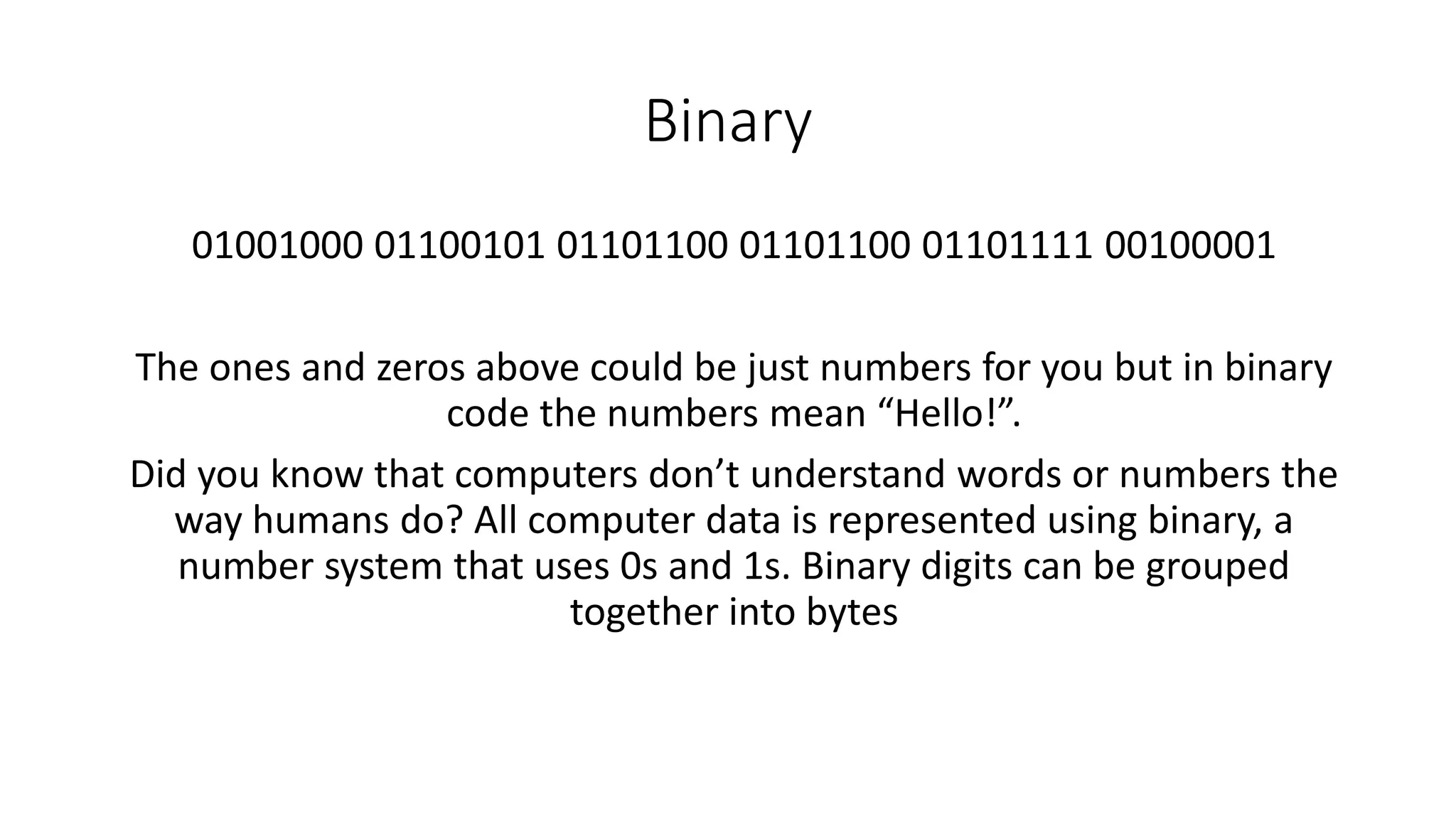
01001000 01100101 0110110001101100 01101111 00100001
The ones and zeros above could be just numbers for you but in binary
code the numbers mean “Hello!”.
Did you know that computers don’t understand words or numbers the
way humans do? All computer data is represented using binary, a
number system that uses 0s and 1s. Binary digits can be grouped
together into bytes
10.
Binary
Computers use binary- the digits 0 and 1 to store data. The smallest unit of
data in computing is called a binary digit, or bit. It is presented by a 0 or 1.
The tiny switch is called a transistor which is activated by the electronic
signals it receives. The circuits in a computer's processor are made up of
billions of transistors. The digits 1 and 0 used in binary reflect on and off
states of a transistor.
Some of your computer files such as software, music, documents, and any
other information that is processed by a computer is also stored using
binary.
11.
Binary
Computers use binarycodes to represent and interpret letters,
numbers, and special characters with bits. A commonly used code is
the American Standard Code for Information Interchange (ASCII).
With ASCII, each character is represented by a string of bits.
For Example:
Capital letter: F = 01000110
Number: 1 = 00110001
Recall
1. What isbinary?
• Computers use binary - the digits 0 and 1 to store data. The smallest unit of
data in computing is called a binary digit, or bit. It is presented by a 0 or 1.
2. How do computers read binary?
• With the use of transistors that turns on and off. It uses the binary as a signal
when it should turn on and off. 0 is off 1 is on.
1101100 01101111 00100001
15.
Short review
Convert thefollowing from text to binary and vise versa.
1. RED
2. BLUE
3. 01001000 – 01100101 – 01101100 – 01101100 – 01101111 – 00100001
4. 01010111 – 01001000 – 01001001 – 01010100 – 01000101
5. 01010100 – 01010111 – 01001111
6. What does the acronym ASCII stand for?
16.
Short review
Convert thefollowing from text to binary and vise versa.
1. RED = 01010010 – 01000101 – 01000100
2. BLUE = 01000010 – 01001100 – 01010101 – 01000101
3. YELLOW
4. WHITE
5. TWO
6. American Standard Code for Information Interchange
17.
Bits and Bytes
•Bits can be grouped together to make them easier to work with. A
group of 8 bits is called a byte. 8 bits (b) is equivalent to 1 byte (B)
1 or 0 = 1 bit
01010010 = 8 bit or 1 Byte
18.
Remember
• Most computerscan process millions of bits every second. A hard drive's
storage capacity is measured in gigabytes or terabytes. RAM is often
measured in megabytes or gigabytes.
• A number base indicates how many digits are available within a numerical
system. The binary system on computers uses combinations of 0s and 1s.
That why it is called Binary
• In everyday life, we use numbers based on combinations of the digits
between 0 and 9. For binary numbers there are only two possible digits
available: 0 or 1. The binary system is also known as base 2. Denary or base
10 in counting system is known as decimal. Denary is known as base 10
because there are ten choices of digits between 0 and 9. That’s why it is
called Denary
19.
Conversion from Decimalto Binary
• 1. Compute the quotient and the remainder.
• 2. Bring down the quotient, divide it by 2, and get the quotient and
remainder again.
• 3. Do it repeatedly until the quotient results to 0.
• 4. Copy the remainder from bottom to top and that is the binary
equivalent.
Conversion from Binaryto Decimal
• Conversion can be done by plotting each binary digit value on each
column corresponding to its decimal digit value. Each column is the
number 2 raised to an exponent. The exponent increases by one from
right to left. To get the total value you add the value of those columns
tagged as ON or equivalent to 1.
22.
Check your understanding
•Convert these binary into decimal.
1. 00101101
2. 01000001
3. 11000111
4. 01010110
5. 00011011
23.
Review
• Convert thefollowing to Binary or from binary.
1. Love
2. Fox
3. Happy
4. 29
5. 19
6. 88
7. 42
8. 111110
9. 1001011
10. 1100001001
Introduction
• This modulecontains unit of competency on “PERFORMING
MENSURATION AND CALCULATION (PMC)”. This covers the
knowledge, skills, attitudes, and values needed in understanding
concepts and underlying principles in performing measurements and
calculations.
Storage device andstorage capacity
• Before deciding what kind or type of storage device you need to use,
it is important to identify the requirements or specification of your
data storage. When deciding on the type of device needed, you
should consider cost, capacity, speed of access, portability,
durability, and reliability.
Answer this onyour notebook
Flash drive Flash 4GB
CD Optical 700MB
Diskette Magnetic 1.44MB
Hard drive Magnetic 1TB
Memory card Flash 64GB
35.
REMEMBER
• The mostcommon unit of digital data storage is a bit. It is also called
as binary and it is considered as the standard unit in which a
computer stores data.
• To increase the size of information stored, bits are clustered into
groups of eight, which equals to a byte. This measurement process
continues exponentially (1 bit = 8 bytes, 1 kilobyte = 1,024 bytes,
etc.).
1 byte = 8 bits
36.
The table belowshows the unit measurement system which helps users
understand the storage process of computers. Here is a basic table to
illustrate how the units increase exponentially.
8 bits
37.
As you cansee, the conversions vary from a standard system such as the
metric system. 1 kilobyte does not convert to 1,000 but instead 1,024
bytes. The process simplifies and allows quick calculations due to the
pattern of growth (1024KB to 1024MB to 1024GB etc.).
8 bits
38.
Calculating Storage Capacity
•Have you ever thought of how many files can be stored in a storage
media? Here are the steps on how to calculate how many files can be
stored in a storage media.
To calculate how much data can be stored within a certain capacity you
need to understand three things:
1. The size of the data being stored.
2. The available space (capacity) for storing the data.
3. How to convert between the relevant units?
41.
Remember
• Most filesin our computer contain thousands of bytes and file sizes
are often measured in kilobytes.
• Larger files, such as images, videos, and audio files, contain millions of
bytes and are measured in megabytes.
• Modern storage devices can store thousands of these files, that is
why storage capacity is typically measured in gigabytes or even
terabytes.
• Being familiar on the process and how the digital unit conversion
measurements helps you understand sizes of storage devices.
42.
Short review
• Situation1
Task: Identify how many file you
can fit in the storage device.
Problem: Jose wants to copy
games from his friends PC. Each
game has an average size of
900MB and Jose only have a hard
drive that is 1TB in capacity. How
many PC games can he copy?
• Situation 2
Task: ✅ Identify how many video
files will fit, ✅Identify how much
storage will be available after
copying the file.
Problem: Maria’s manager told
her that there are 55 video files in
the computer that are
approximately 125MB each and
her task is to copy them to a USB
Flash drive that has 64GB storage.
44.
Test: Storage capacity
Whatto review?
1. Storage capacity units of measurement bits, Bytes, Kilobytes,
Megabytes and so on….
2. How to convert units of measurement from small unit to large unit
(MB to GB) and from large to small (GB to MB).
3. Problem solving. Identifying how many files can fit, how many
storage is needed or in excess.
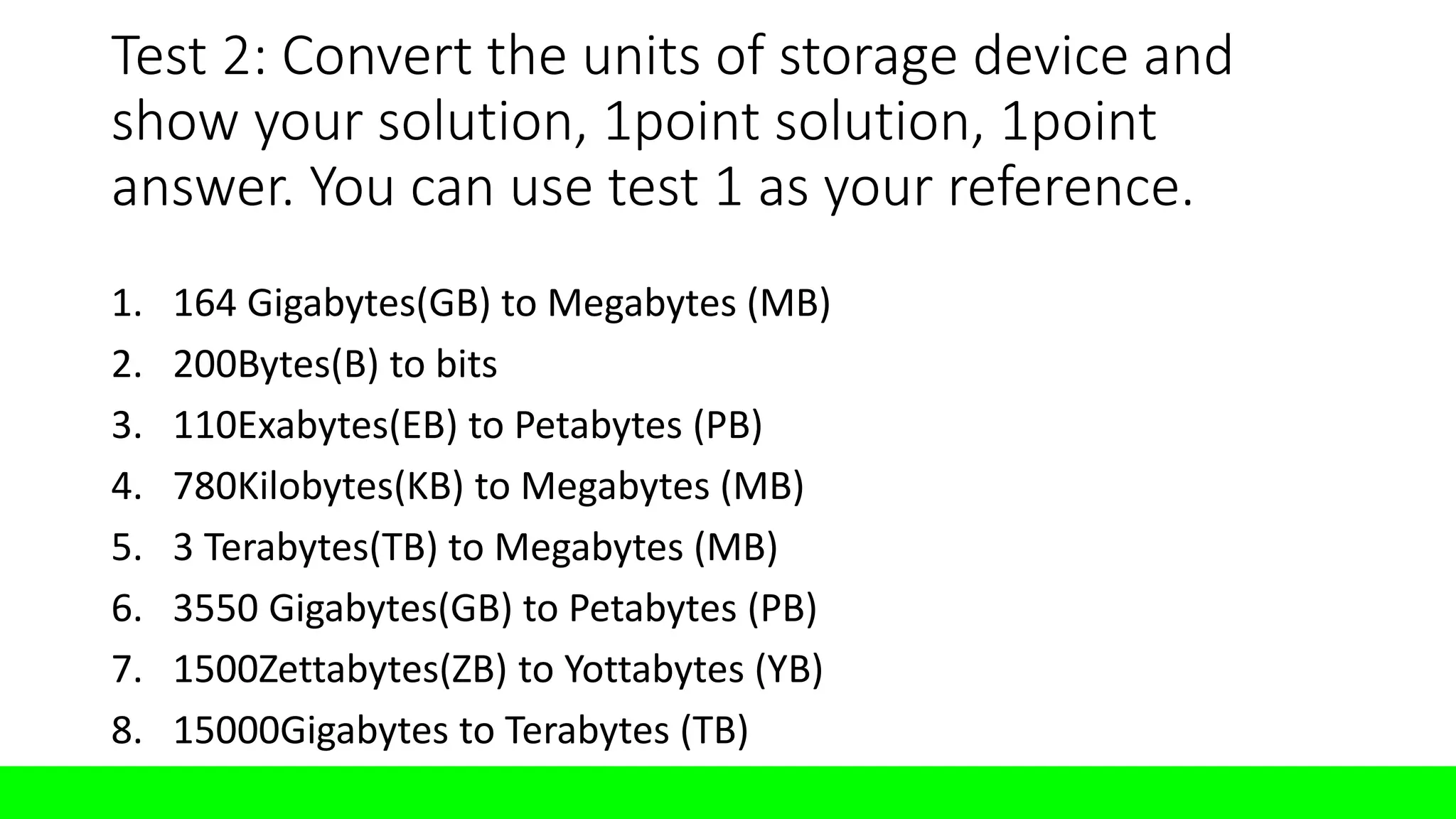
Test 2: Convertthe units of storage device and
show your solution, 1point solution, 1point
answer. You can use test 1 as your reference.
1. 164 Gigabytes(GB) to Megabytes (MB)
2. 200Bytes(B) to bits
3. 110Exabytes(EB) to Petabytes (PB)
4. 780Kilobytes(KB) to Megabytes (MB)
5. 3 Terabytes(TB) to Megabytes (MB)
6. 3550 Gigabytes(GB) to Petabytes (PB)
7. 1500Zettabytes(ZB) to Yottabytes (YB)
8. 15000Gigabytes to Terabytes (TB)
47.
Test 3: Whatis the total size? Identify the
total size of all the files.
1. 250 pictures, 3 MB each
2. 51 Music files, 8 MB each
3. 25 Games, 800MB each
4. 77 MS Word document, 2MB each
48.
Test 4: Problemsolving – Read each problem
carefully, read and understand each task you need
to accomplish. Show your solution, 1point
solution, 1 point answer.
Situation 1:
Problem: Jack is planning to backup all the photos and videos from his phone
to his 5GB flash drive. He has 1500 photos that is approximately 5MB each,
he has 127 videos each video is about 250MB.
Task:
1. Identify the storage capacity in Megabytes
2. Identify the total storage you need to fit all Jack’s photos and videos.
3. Will all Jack’s photo and video fit? Yes or no?
4. How much more does Jack need to fit all his photos and videos? Show
you answer in Gigabytes (GB)
✅
✅
✅
✅
Expectation
• This modulecontains unit of competency on “PREPARING AND
INTERPRETING TECHNICAL DRAWING (PITD)” This covers the
knowledge, skills, attitudes, and values needed in preparing and
interpreting technical drawing.
At the end of this module, you are expected to:
• identify the different types of technical drawing; and
• select technical drawing in accordance with the job requirement.
Remember
• As acomputer technician, one of the important competencies that
you must have is the ability to prepare and interpret technical
drawings.
54.
Remember
• Technical Drawingis an act or discipline of creating models or plans
to build something through designs. It includes blueprints,
schematics, and diagrams that communicate how to construct a
product, device, machine, highway, or home. They also include
sketches and 2D and 3D-models that represent the appearance of a
completed project.
• Technical drawings are used widely throughout many industries by
professionals including architects, engineers, CAD Technicians,
product designers, and mathematicians.
55.
Types of technicaldrawing
A. Schematic diagram
B. Charts
C. Block diagram
D. Lay-out plans/Floor plan
56.
Schematic diagram
• Aschematic is defined as a picture that
shows something in a simple way, using
symbols. A schematic diagram is a
picture that represents the components
of a process, device, or other object
using abstract, often standardized
symbols and lines.
• Schematic diagrams are widely used in
electrical drawing. The main purpose of a
schematic diagram is to emphasize
circuit elements and how their functions
relate to each other.
57.
Charts
• In general,a chart is a graphical
representation of data.
• Charts allow users to see what the results
of data to better understand and predict
current and future data.
58.
Block diagrams
• Ablock diagram is a visual
representation of how
parts of an object relate to
each other and work
together. It is named as
such because blocks
represent each piece of the
design with lines between
them to show their
respective relationships.
59.
Lay-out Plans
• Afloor plan is a scaled diagram of a
room or building viewed from above.
• The floor plan may depict an entire
building, one floor of a building, or a
single room. It may also include
measurements, furniture, appliances,
or anything else necessary to the
purpose of the plan.
60.
Checking your understanding
•Prepare a ½ length wise paper write your name, grade and sec.
• Answers only, read and understand directions to answer the
assessment.
62.
Checking your understanding
•Prepare a ½ length wise paper write your name, grade and sec.
• Answers only, read and understand directions to answer the
assessment.
TRUE
Schematic diagram
Block diagram
TRUE
TRUE
64.
Seatwork
• In a½ length wise, write down the different basic flow chart symbols
used to make a flow chart.
• Write the element, write the name of that symbol, and draw the
symbol.
• You can use your module or internet.
• Please use the template below
Seatwork: Make acomputer shop floor plan
Instruction: Use a 1 whole sheet of paper
(Landscape orientation)
GUIDELINES: Your computer shop should have
the following
1. Entrance and exit
2. Windows for ventilation
3. Area where you want to put all your
computers (10 or more computers)
4. Area where you will stay as the computer
shop operator.
5. Comfort room (CR)
6. Label all the parts of your floor plan
(example: Door, window, toilet, computer,
table…)
Criteria for scoring
1. Following the guidelines –
20%
2. Neatness – 20%
3. Submit on time – 20%
4. Use of drawing materials
such as ruler, pencil, etc… -
20%
5. Labelled all the parts of the
floor plan properly – 20%
68.
Recall
• What isan act or discipline of creating models or plans to build
something through designs?
Technical drawing
• It is defined as a picture that shows something in a simple way, using
symbols. It is widely used in electrical drawing.
Schematic diagram
• It is a graphical representation of data. It allow users to see what the
results of data to better understand and predict current and future
data.
Chart
Chart
At the endof this module, you are expected to:
•recognize the elements of flowchart; and
•identify and interpret symbols used in the
drawing.
71.
Flow chart
•Flowcharts canprovide a step-by-step diagram
for mapping out complex situations such as
programming code or troubleshooting problems
with a computer.
72.
Start
Open your Assignment.docx
Printyour assignment
Did it
print?
No
Yes
Is the
printer
open?
No
Power on the printer
Yes
Is the USB
cable
connected to
the computer?
Turn off the printer
Close assignment.docx
Turn off computer
Call the customer service of
the printer
No
Connect the
USB cable to
the computer
Yes
Assignment.docx
was printed
successfully
End
What is acomputer memory?
A. It is physical device that is capable of storing data
temporarily or permanently.
B. It is a peripheral device that you connect to the computer.
C. It is an input device that you use to put information into
the computer.
D. It is and output device used to get information out of the
computer.
77.
There are 2types of memory, what are they?
A.Solid and magnetic
B.Volatile and non-volatile
C.Small and large
D.Physical and virtual
78.
What is volatilememory?
A. it is a type of memory that stores data
permanently.
B.It is a type of memory that automatically
transfers data to the internet.
C.It is a type of memory that stores data
temporarily when it is supplied with power
D.It is a portable memory.
79.
What is non-volatilememory?
A. it is a type of memory that stores data
permanently.
B.It is a type of memory that automatically
transfers data to the internet.
C.It is a type of memory that stores data
temporarily when it is supplied with power
D.It is a portable memory.
80.
Which of thefollowing is a volatile memory?
A. Hard disk drive
B.USB flash drive
C.Diskette
D.Random access memory
81.
What is thedifference between the computers
Main memory and Secondary Memory?
A. Main mem is a removable storage device while secondary
mem is an internal memory.
B. Main mem is larger than secondary mem.
C. Main mem connects directly to the CPU, secondary mem is
a non-volatile memory that stores data permanently.
D. Main mem is smaller than secondary mem.
82.
Which of theff is the brian of the computer?
A. CPU (Central processing unit)
B. RAM (Random access memory)
C. Motherboard
D.System unit.
83.
What do computersuse to store data?
A. QR code
B. Bard code
C. Morse code
D.Binary code
84.
What is thesmallest unit of data in a
computer?
A. Megabyte
B. Byte
C. Bit
D.Nimble
85.
Convert this decimalto binary: 65
A. 1 1 0 0
B. 1 0 0 0 0 1 0
C. 1 1 0 0 0 0 1
D.1 0 0 0 0 0 1
86.
Convert this decimalto binary: 12
A. 1 1 0 0
B. 1 0 0 0 0 1 0
C. 1 1 0 0 0 0 1
D.1 0 0 0 0 0 1
87.
Convert this decimalto binary: 12
A. 1 1 0 0
B. 1 0 0 0 0 1 0
C. 1 1 0 0 0 0 1
D.1 0 0 0 0 0 1
Make a flowchart about this situation:
1. Turn on the computer
2. Open google chrome
3. Go to fb.com
4. Type your email
5. Type your password
6. Click login
107.
Make a flowchart about this situation:
1. Open “assignment.docx”
2. Is your assignment finished? If yes proceed to
next step, if no finish your assignment first
before you proceed to the next step.
3. Print your assignment
4. Wait for the printer to finish printing
5. Close the “assignment.docx”.
108.
Summative test coverage.Please review these
topics
• Computer memory: Types of memory, categories of memory
• Binary: Conversion of binary to decimal and vice versa
• Types of storage device
• Unit of measurement of storage capacity
• Types of technical drawing
• Flowchart elements
109.
Flow chart activity
•Instruction:Read the flow of data/steps and
make a flow chart. Use the appropriate elements
to make your flow chart understandable.
110.
EXAMPLE
1. Wash therice
2. Measure the rice
3. Add appropriate amount of
water.
4. Wait until the rice is fully
cooked
5. Serve the rice while it is hot
START
Measure
the rice
Add appropriate
amount of water
Wait until the rice
is fully cooked
Serve rice while its
hot
END
111.
Situation 1: howto print your assignment
1. Turn on the computer
2. Log-in
• Input your username and password
• Click Log in button
3. Open “Assignmet.docx”
4. Print the “Assignment.docx”
5. Wait for the printing to be finished
6. Close all the apps
112.
Situation 2: Howto backup files from your
flash drive
1. Plug in your USB flash drive to the computer
2. Open file explorer
3. Open your USB flash drive
4. Select all the files you need to backup
5. In your keyboard press Ctrl+C
6. Create a new folder in your computer
7. Rename the folder by inputting the new name
8. Open the newly created folder
9. Press CTRL + V
10. Go to “This PC”
11. Eject the USB flash drive
113.
Situation 3: Howto connect to a Wifi network
1. Click the wifi setting
2. Look for the wifi network you will connect to
3. Type the password
4. Close the wifi setting.
What is memory?
•To us Humans Memory is the faculty of the mind by which data or
information is encoded, stored, and retrieved when needed.
• To a computer memory is a device or system that is used to store
information for immediate use in a computer or related computer
hardware and digital electronic devices.
116.
What are thedifferent types of memory in a
computer.
Primary memory Secondary Memory
Primary memory is the internal memory
of a computer system. It stores and
retrieves data, instructions, and
information. The CPU directly and
randomly accesses primary memory;
hence primary memory is also referred
to as Random Access Memory or RAM. It
is a volatile memory and loses data and
instructions when the power turns off.
Secondary memory is a storage
device that cannot be accessed
directly by the CPU. It is used as a
permanent storage device.
The CPU accesses these devices
through an input/output channel,
and data is first transferred to
primary memory from secondary
memory before being accessed.
117.
What are thedifference between primary and secondary memory?
Comparison
parameters Primary Memory Secondary Memory
Storage Validity Primary memory is the main memory and
stores data temporarily.
Secondary memory is the external
memory and stores data permanently.
Access
The CPU can directly access the data.
The CPU cannot directly access the
data.
Volatility
Primary memory is volatile. It loses data in
case of a power outage.
Secondary memory is non-volatile, and
data is stored even during a power
failure.
Storage
Data is stored inside costly semiconductor
chips.
Data is stored on external hardware
devices like hard drives, floppy disks,
etc.
Speed Faster Slower
Stored data It saves the data that the computer is
currently using.
It can save various types of data in
various formats and huge sizes.
118.
What are memorydevices and where do they
belong? Primary or secondary?
Prepare for ashort quiz!
•Prep a ¼ sheet of paper
•Write your name grade and section
•And at the top of your paper, write:
Primary and secondary memory quiz
121.
#1 What iscomputer memory?
A. It is the our minds ability to store data and information.
B. It is a device or system that is used to store information for
immediate use in a computer.
C. It is a peripheral device that receives data and outputs
data.
D. It is a cloud storage system that stores you files outside the
computer.
122.
#2 What arethe 2 types of memory?
A.Secondary and primary
B.External and internal
C.Magnetic and optical
D.Flash and cloud
123.
#3 What isa primary memory?
A. It is a memory that the CPU directly access to
retrieve information.
B. It is a memory that we use to store all the
important files of the operating system.
C. it is a memory that stores the data permanently,
it is the computers storage device.
D. It is a memory that receives data from the
internet
124.
#4 What isa secondary memory?
A. It is a memory that the CPU directly access to
retrieve information.
B. It is a memory that we use to store all the
important files of the operating system.
C. it is a memory that stores the data permanently,
it is the computers storage device.
D. It is a memory that receives data from the
internet
125.
#5 Which ofthe following devices is a primary
memory?
A. USB flash drive
B. Hard disk drive
C. CD or DVD
D. Random access memory
126.
#6 Which ofthe following devices is a
secondary memory?
A. USB flash drive
B. Hard disk drive
C. CD or DVD
D. Random access memory
127.
#7 Which ofthe 2 memory is faster?
A. Primary memory
B. Secondary memory
128.
#7 Which ofthe 2 memory is non-volatile?
A. Primary memory
B. Secondary memory
Steps in makinga linear flowchart
1. Define the process to be flowcharted. The purpose for flowcharting
it.
2. Assemble the right people to develop the flowchart. Those
operators, technicians, or office workers who are involved in the
process.
3. Establish process boundaries. The starting and ending points.
• identify the major activities or sub processes that are included in the process.
• determine what is not included in the scope of the process to remove any
doubt or confusion about the boundaries. This may also help establish the
scope of related processes.
139.
Steps in makinga linear flowchart
4. List the steps, activities, and decisions to be charted. If your team
is not sure about a step, mark it to be investigated later.
5. Put the steps in chronological sequence. Sometimes it is easier to
start with the last step and work back to the first step.
6. Assign flowchart symbols such as boxes, diamonds, and triangles.
7. Review and title the flowchart.
Check your understanding:Read and answer
the questions carefully
2. Tiffany is taking notes of the actual steps that is happening in the
flowchart that she will create. Which key steps in creating a
developing a flowchart does she do?
A. Establish process boundaries.
B. Put the steps in chronological order.
C. Assemble the right people to develop the flowchart.
D. List the steps, activities, and decisions to be charted.
142.
Check your understanding:Read and answer
the questions carefully
3. Chelsea is done assigning the flowchart symbols. Which key steps in
developing a flowchart should she do next?
A. Establish process boundaries.
B. Put the steps in chronological order.
C. Assemble the right people to develop the flowchart.
D. List the steps, activities, and decisions to be charted.
143.
Check your understanding:Read and answer
the questions carefully
4. Manny listed the steps, activities, and decisions to be charted.
Which should he do next?
A. Review and Title the flowchart.
B. Put the steps in chronological order.
C. Assemble the right people to develop the flowchart.
D. List the steps, activities, and decisions to be charted.
144.
Check your understanding:Read and answer
the questions carefully
5. Joshua arrange the steps exactly as how they have occurred. Which
steps in developing a successful flowchart did he do?
A. Establish process boundaries.
B. Put the steps in chronological order.
C. Assemble the right people to develop the flowchart.
D. List the steps, activities, and decisions to be charted.
145.
How will interpretingflow chart help?
Flowchart will help you understand your process and uncover
ways to improve if you use it to analyze what is happening.
Interpreting your Flowchart will help you to:
• determine who is involved in the process.
• form theories about root causes.
• identify ways to streamline the process.
• determine how to implement changes to the process.
• locate cost-added-only steps.
• provide training on how the process works or should work.
146.
Below is aSequence of Steps That Will Help You
Through an Orderly Analysis of Your Flowchart
• Step 1 - examine each process step of the following conditions that indicate
a need to improve the process.
• Step 2 - examine each decision symbol. You may want to collect data on
how often there is a "yes" or "no" answer at decision points marked by a
diamond shaped symbol. If most decisions go one way rather than the
other, you may be able to remove this decision point.
• Step 3 - examine each rework loop. Processes with numerous checks
generate rework and waste. Examine the activities preceding the rework
loop and identify those that need to be improved. Look for ways to shorten
or eliminate the loop.
• Step 4 - examine each activity symbol. Does the step help build a key
quality characteristic into the end product? If not, consider eliminating it.
147.
POST-TEST
• Study theflowchart and
answer the following
questions.
• Open your module and answer
week 8 POST-TEST now.
• This output will be submitted
TOMORROW January 25, 2023.
Editor's Notes
#139 #1: Kaylangan nyong I define yung gagawin nyo. Alamin nyo kung bakit kayo gagawa ng flow chart.
#2: Etong step na to ay kaylangan nyong I consider kung mag sasama kayo or may involved na ibang tao sa gagawin nyong process
#3: Dito sa step 3 kaylangan ma identify nyo yung mga Major activities at sub processes dahil pag nalaman nyo na ang mga major activities at sub processes ma lalaman nyo na kung ano anong mga bagay ang kasama lang sa scope ng flow chart nyo. Pwede kayo mang alis or tangal ng activity na hindi naman kaylangan sa flow chart.
#140 #4: After nyong ma identify yung mga Major activities at sub processes pwede nyo nang I lista ngayong yung mga process or steps na I le layout nyo para sa mga Major activities and sub processes na yon. Kung sakali lang na hindi kayo sure sa isang step na nilagay nyo sa flow chart pwede nyong markahan at mag investigate kayo kung yun ba ay kaylangan or kaylangan nyong baguhin.
#5: So sa step 4 na list nyo na lahat ng steps sa flowchart nyo ngayon syempre pag gumagawa tayo ng flowchart dapat tama ang flow nya, chronological ibigsabihin sunod sunod base sa pangyayari. And ang isang tip sa inyo na pwede nyong I try pag gumagawa ng flowchart, pwede nyong subukan na gawin ang flow chart from the last step pabalik sa first step.
#6: Pagtapos nyong I arrange ang mga steps in chronological order (Step 5) mag a assign na kayo ngayon ng symbol. Syempre kaylangan nyong I identify kung anong symbol ang step na yon.
#7: sa step na ito, tapos na ang flow chart nyo. Kaylangan nyong reviewhin ang flow chart nyo para ma check kung may mali ba or may pwedeng I improve and them saka no to bibigyan ng title.
#147 Step 1: I check yung mga process kung yun ba ay kaylangan ng improvement Ex: Baka hindi malinaw ang process, baka kaylangan mag dagdag or mag bawas ng process.
Step 2: Dito kaylangan natin tignan kung gaano karami yung decision points natin. Kung ang isang decision point ay madalas naman na iisa lang ang sagot either yes or no palagi, baka pwedeng alisin na at gawin na lang itong process.
Step 3: Yung rework loop makikita to sa decision points. Kung masyadong marami ang rework loop pwedeng makapag cause yun ng delay or pag haba ng process or waste. I check nyo at kung pwedeng I eliminate yung rework loop mas OK. Etong step 4 ay directly connected sa 3 dahil ang tinutukoy neto ay yung mga decision points.
Step 4: I check natin yung mga symbol kung yun po ba ay makaka tulong para makapag produce tayo ng quality end product. Pwedeng mag dagdag kung kulang or hindi malinaw ang flow chart or pwedeng mag bawas kung masyadong mahaba ang flow, or pwedeng may baguhin kung kayang mas ma improve and flow.






![Performing Computer Operations [Autosaved].pptx](https://cdn.slidesharecdn.com/ss_thumbnails/performingcomputeroperationsautosaved-230213131335-0c4b802d-thumbnail.jpg?width=640&height=640&fit=bounds)


![[1] Data Representation](https://cdn.slidesharecdn.com/ss_thumbnails/1-data-representation-1223301143048751-8-thumbnail.jpg?width=640&height=640&fit=bounds)


