


Shim (Helper) Services 
and Beanshell Services 
Stian Soiland-Reyes and Christian Brenninkmeijer 
University of Manchester 
materials by Katy Wolstencroft and Aleksandra Pawlik 
http://orcid.org/0000-0001-9842-9718 
http://orcid.org/0000-0002-2937-7819 
http://orcid.org/0000-0002-1279-5133 
http://orcid.org/0000-0001-8418-6735 
Bonn University, 2014-09-01 
http://www.taverna.org.uk/ 
This work is licensed under a 
Creative Commons Attribution 3.0 Unported License
Taverna Tutorial 
Building a simple workflow 
Stian Soiland-Reyes and Christian Brennikmeijer 
University of Manchester 
materials by Katy Wolstencroft and Aleksandra Pawlik 
http://orcid.org/0000-0001-9842-9718 
http://orcid.org/0000-0002-2937-7819 
http://orcid.org/0000-0002-1279-5133 
http://orcid.org/0000-0001-8418-6735 
Bonn University, 2014-09-01 
http://www.taverna.org.uk/ 
This work is licensed under a 
Creative Commons Attribution 3.0 Unported License
 Taverna is good way to access lots of 
globally distributed services out there on 
the Web 
 This saves you the considerable trouble of 
installing stuff (e.g. databases, tools etc) 
on your personal machine or laboratory 
server
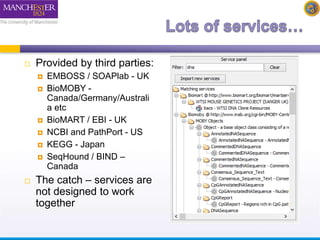
 Provided by third parties: 
 EMBOSS / SOAPlab - UK 
 BioMOBY - 
Canada/Germany/Australi 
a etc 
 BioMART / EBI - UK 
 NCBI and PathPort - US 
 KEGG - Japan 
 SeqHound / BIND – 
Canada 
 The catch – services are 
not designed to work 
together
A two-stage process 
1. Assembly – identifying services that perform 
the scientific functions needed for the 
experiment 
2. Gluing – identifying how (or more usually, if) 
theses services are compatible 
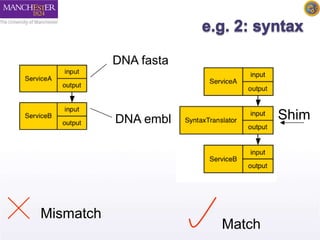
If they are incompatible – we need services 
that convert data formats and act as 
connectors – we call these services Shims (or 
helper services)
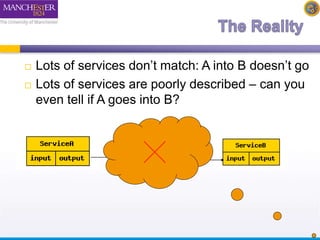
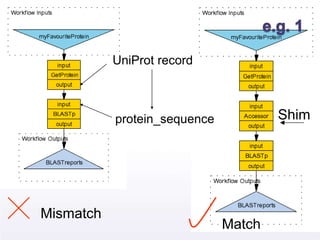
 Lots of services don’t match: A into B doesn’t go 
 Lots of services are poorly described – can you 
even tell if A goes into B?
UniProt record 
Match 
Mismatch 
protein_sequence Shim
DNA fasta 
Match 
Mismatch 
DNA embl Shim
 If you’re lucky someone will have already created a 
service that does what you want and will have 
described / annotated it in a way that lets you find it 
 …if no service exists, one way to solve the problem 
is to create a lightweight BeanShell script 
(essentially a “lighter” version of Java) that runs on 
your local machine (not on a server like the services 
do) 
 These come in two flavours: Ready made “Local 
Java Widgets” and roll-your-own “Local Services’’,
 BioCatalogue – some shims are regular WSDL 
or REST services 
 myExperiment – look for all workflows 
containing the scientific services. Has anyone 
linked them together before?
Exploring Shims 
 A shim is a service that doesn’t perform an experimental 
function, but acts as a connector, or glue, when 2 
experimental services have incompatible outputs and 
inputs 
 A shim can be any type of service – WSDL, soaplab etc. 
Many are simple Beanshell scripts 
 We have already used many shims in these exercises
Shims for Data Input 
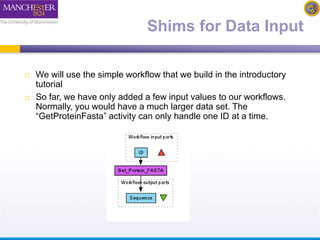
 We will use the simple workflow that we build in the introductory 
tutorial 
 So far, we have only added a few input values to our workflows. 
Normally, you would have a much larger data set. The 
“GetProteinFasta” activity can only handle one ID at a time.
Shims for Data Input 
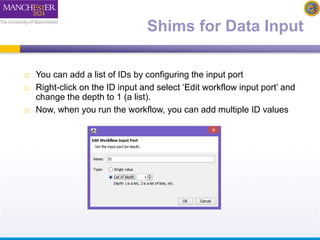
 You can add a list of IDs by configuring the input port 
 Right-click on the ID input and select ‘Edit workflow input port’ and 
change the depth to 1 (a list). 
 Now, when you run the workflow, you can add multiple ID values
Shims for Data Input 
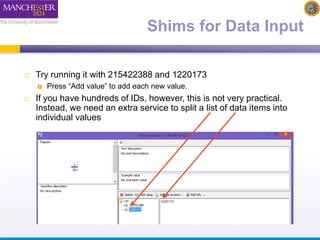
 Try running it with 215422388 and 1220173 
 Press “Add value” to add each new value. 
 If you have hundreds of IDs, however, this is not very practical. 
Instead, we need an extra service to split a list of data items into 
individual values
Shims for Data Input 
 In the services panel, search for “split” 
 Select “Split string into string list by regular expression” 
(a purple local java service) and drag it into the workflow 
 Delete the data link between the “ID” input and 
“GetProteinFasta” by selecting and right-clicking on the 
diagram 
 Connect “ID” to the “string” port of the new “split” activity 
 Hint: Press To Display all Service ports 
 Add “n” as a constant value to the “regex” input on 
“split…” by right-clicking and selecting “Set constant 
value”
Shims for Data Input 
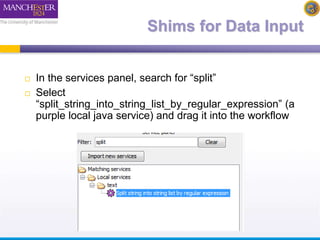
 In the services panel, search for “split” 
 Select 
“split_string_into_string_list_by_regular_expression” (a 
purple local java service) and drag it into the workflow
Shims for Data Input 
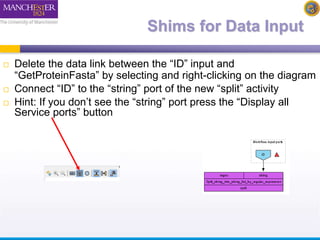
 Delete the data link between the “ID” input and 
“GetProteinFasta” by selecting and right-clicking on the diagram 
 Connect “ID” to the “string” port of the new “split” activity 
 Hint: If you don’t see the “string” port press the “Display all 
Service ports” button
Shims for Data Input 
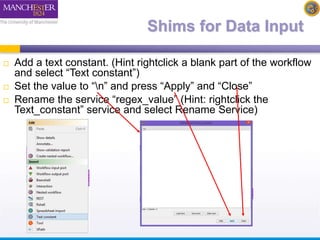
 Add a text constant. (Hint rightclick a blank part of the workflow 
and select “Text constant”) 
 Set the value to “n” and press “Apply” and “Close” 
 Rename the service “regex_value” (Hint: rightclick the 
Text_constant” service and select Rename Service)
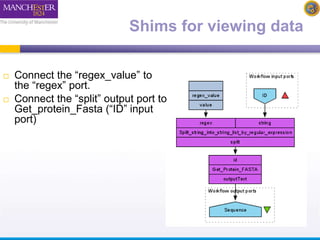
Shims for viewing data 
 Connect the “regex_value” to 
the “regex” port. 
 Connect the “split” output port to 
Get_protein_Fasta (“ID” input 
port)
Shims for Data Input 
 Run the workflow 
 This time, instead of adding individual IDs add a file of 
IDs. If you don’t have one to hand, there is one to 
download here: 
 http://www.myexperiment.org/files/1267/download 
 You can download and add the file, or you can add the 
URL from the input window 
 As the workflow runs, you will see it iterate over the IDs 
in the file
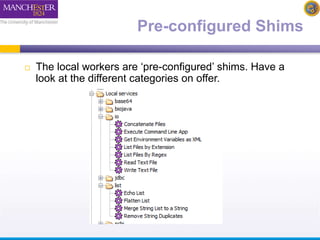
Pre-configured Shims 
 The local workers are ‘pre-configured’ shims. Have a 
look at the different categories on offer.
Writing your own shim services - 
Beanshells 
 Many shims are actually Beanshell scripts. 
 Beanshell scripts allow you to add simple data 
transformation steps into your workflow in an easy way. 
 We will take a brief look at writing Beanshells
Writing your Own Beanshell 
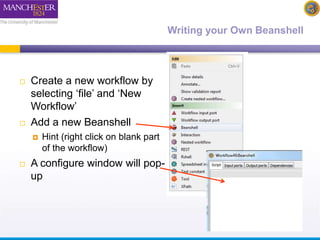
 Create a new workflow by 
selecting ‘file’ and ‘New 
Workflow’ 
 Add a new Beanshell 
 Hint (right click on blank part 
of the workflow) 
 A configure window will pop-up
Writing your Own Beanshell 
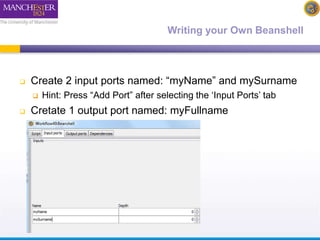
 Create 2 input ports named: “myName” and mySurname 
 Hint: Press “Add Port” after selecting the ‘Input Ports’ tab 
 Cretate 1 output port named: myFullname
Writing your Own Beanshell 
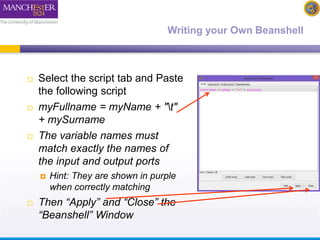
 Select the script tab and Paste 
the following script 
 myFullname = myName + "t" 
+ mySurname 
 The variable names must 
match exactly the names of 
the input and output ports 
 Hint: They are shown in purple 
when correctly matching 
 Then “Apply” and “Close” the 
“Beanshell” Window
Writing your Own Beanshell 
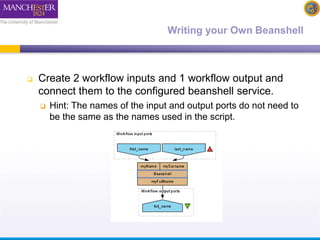
 Create 2 workflow inputs and 1 workflow output and 
connect them to the configured beanshell service. 
 Hint: The names of the input and output ports do not need to 
be the same as the names used in the script.
Writing your Own Beanshell 
 Run the workflow 
 You should get your full name printed in the output. 
This is a very simple example of using helper services to 
format results from your workflow

2014 Taverna tutorial Shims and Beanshell scripts

  • 1.
    Shim (Helper) Services and Beanshell Services Stian Soiland-Reyes and Christian Brenninkmeijer University of Manchester materials by Katy Wolstencroft and Aleksandra Pawlik http://orcid.org/0000-0001-9842-9718 http://orcid.org/0000-0002-2937-7819 http://orcid.org/0000-0002-1279-5133 http://orcid.org/0000-0001-8418-6735 Bonn University, 2014-09-01 http://www.taverna.org.uk/ This work is licensed under a Creative Commons Attribution 3.0 Unported License
  • 2.
    Taverna Tutorial Buildinga simple workflow Stian Soiland-Reyes and Christian Brennikmeijer University of Manchester materials by Katy Wolstencroft and Aleksandra Pawlik http://orcid.org/0000-0001-9842-9718 http://orcid.org/0000-0002-2937-7819 http://orcid.org/0000-0002-1279-5133 http://orcid.org/0000-0001-8418-6735 Bonn University, 2014-09-01 http://www.taverna.org.uk/ This work is licensed under a Creative Commons Attribution 3.0 Unported License
  • 3.
     Taverna isgood way to access lots of globally distributed services out there on the Web  This saves you the considerable trouble of installing stuff (e.g. databases, tools etc) on your personal machine or laboratory server
  • 4.
     Provided bythird parties:  EMBOSS / SOAPlab - UK  BioMOBY - Canada/Germany/Australi a etc  BioMART / EBI - UK  NCBI and PathPort - US  KEGG - Japan  SeqHound / BIND – Canada  The catch – services are not designed to work together
  • 5.
    A two-stage process 1. Assembly – identifying services that perform the scientific functions needed for the experiment 2. Gluing – identifying how (or more usually, if) theses services are compatible If they are incompatible – we need services that convert data formats and act as connectors – we call these services Shims (or helper services)
  • 6.
     Lots ofservices don’t match: A into B doesn’t go  Lots of services are poorly described – can you even tell if A goes into B?
  • 7.
    UniProt record Match Mismatch protein_sequence Shim
  • 8.
    DNA fasta Match Mismatch DNA embl Shim
  • 9.
     If you’relucky someone will have already created a service that does what you want and will have described / annotated it in a way that lets you find it  …if no service exists, one way to solve the problem is to create a lightweight BeanShell script (essentially a “lighter” version of Java) that runs on your local machine (not on a server like the services do)  These come in two flavours: Ready made “Local Java Widgets” and roll-your-own “Local Services’’,
  • 10.
     BioCatalogue –some shims are regular WSDL or REST services  myExperiment – look for all workflows containing the scientific services. Has anyone linked them together before?
  • 11.
    Exploring Shims A shim is a service that doesn’t perform an experimental function, but acts as a connector, or glue, when 2 experimental services have incompatible outputs and inputs  A shim can be any type of service – WSDL, soaplab etc. Many are simple Beanshell scripts  We have already used many shims in these exercises
  • 12.
    Shims for DataInput  We will use the simple workflow that we build in the introductory tutorial  So far, we have only added a few input values to our workflows. Normally, you would have a much larger data set. The “GetProteinFasta” activity can only handle one ID at a time.
  • 13.
    Shims for DataInput  You can add a list of IDs by configuring the input port  Right-click on the ID input and select ‘Edit workflow input port’ and change the depth to 1 (a list).  Now, when you run the workflow, you can add multiple ID values
  • 14.
    Shims for DataInput  Try running it with 215422388 and 1220173  Press “Add value” to add each new value.  If you have hundreds of IDs, however, this is not very practical. Instead, we need an extra service to split a list of data items into individual values
  • 15.
    Shims for DataInput  In the services panel, search for “split”  Select “Split string into string list by regular expression” (a purple local java service) and drag it into the workflow  Delete the data link between the “ID” input and “GetProteinFasta” by selecting and right-clicking on the diagram  Connect “ID” to the “string” port of the new “split” activity  Hint: Press To Display all Service ports  Add “n” as a constant value to the “regex” input on “split…” by right-clicking and selecting “Set constant value”
  • 16.
    Shims for DataInput  In the services panel, search for “split”  Select “split_string_into_string_list_by_regular_expression” (a purple local java service) and drag it into the workflow
  • 17.
    Shims for DataInput  Delete the data link between the “ID” input and “GetProteinFasta” by selecting and right-clicking on the diagram  Connect “ID” to the “string” port of the new “split” activity  Hint: If you don’t see the “string” port press the “Display all Service ports” button
  • 18.
    Shims for DataInput  Add a text constant. (Hint rightclick a blank part of the workflow and select “Text constant”)  Set the value to “n” and press “Apply” and “Close”  Rename the service “regex_value” (Hint: rightclick the Text_constant” service and select Rename Service)
  • 19.
    Shims for viewingdata  Connect the “regex_value” to the “regex” port.  Connect the “split” output port to Get_protein_Fasta (“ID” input port)
  • 20.
    Shims for DataInput  Run the workflow  This time, instead of adding individual IDs add a file of IDs. If you don’t have one to hand, there is one to download here:  http://www.myexperiment.org/files/1267/download  You can download and add the file, or you can add the URL from the input window  As the workflow runs, you will see it iterate over the IDs in the file
  • 21.
    Pre-configured Shims The local workers are ‘pre-configured’ shims. Have a look at the different categories on offer.
  • 22.
    Writing your ownshim services - Beanshells  Many shims are actually Beanshell scripts.  Beanshell scripts allow you to add simple data transformation steps into your workflow in an easy way.  We will take a brief look at writing Beanshells
  • 23.
    Writing your OwnBeanshell  Create a new workflow by selecting ‘file’ and ‘New Workflow’  Add a new Beanshell  Hint (right click on blank part of the workflow)  A configure window will pop-up
  • 24.
    Writing your OwnBeanshell  Create 2 input ports named: “myName” and mySurname  Hint: Press “Add Port” after selecting the ‘Input Ports’ tab  Cretate 1 output port named: myFullname
  • 25.
    Writing your OwnBeanshell  Select the script tab and Paste the following script  myFullname = myName + "t" + mySurname  The variable names must match exactly the names of the input and output ports  Hint: They are shown in purple when correctly matching  Then “Apply” and “Close” the “Beanshell” Window
  • 26.
    Writing your OwnBeanshell  Create 2 workflow inputs and 1 workflow output and connect them to the configured beanshell service.  Hint: The names of the input and output ports do not need to be the same as the names used in the script.
  • 27.
    Writing your OwnBeanshell  Run the workflow  You should get your full name printed in the output. This is a very simple example of using helper services to format results from your workflow