Quick Test Professional Presenter
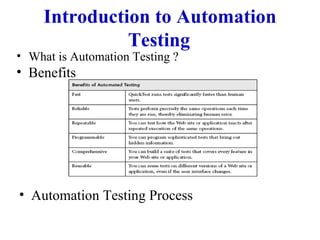
Introduction to Automation Testing What is Automation Testing ? Benefits Automation Testing Process
QTP Testing Process Quick Test testing process consists of 7 main phases Preparing to record Test Environment Test Conditions Recording a session on your application Navigate according to Test Conditions Enhancing your test Adding logic and conditional statements Parameterization Inserting checkpoints Debugging your test Check that it operates smoothly and without interruption .
QTP Testing Process Run Test  Check the behavior of your application Analyzing the test results Reporting defects
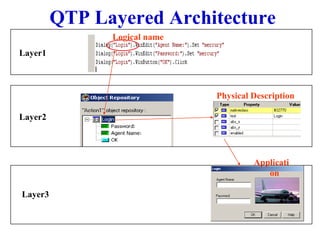
QTP Layered Architecture Logical name Physical Description Application Layer1 Layer2 Layer3
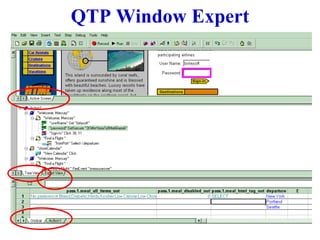
QTP Window Expert
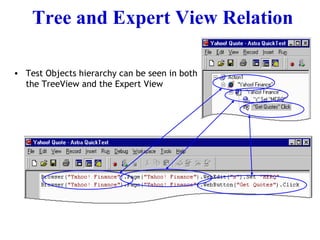
Tree and Expert View Relation Test Objects hierarchy can be seen in both the TreeView and the Expert View
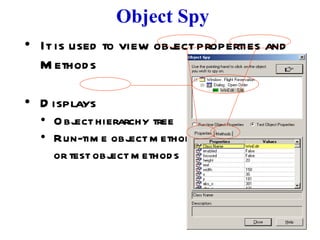
Object Spy It is used to view object properties and Methods Displays  Object hierarchy tree  Run-time object methods  or test object methods
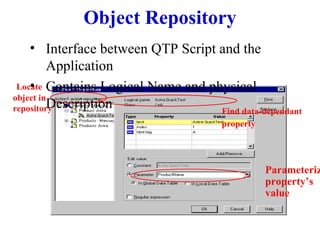
Object Repository Interface between QTP Script and the Application Contains Logical Name and physical Description Locate  object in repository Find data-dependant property   Parameterize  property’s  value
Recording Modes Normal recording Records the objects in your application and the operations performed on them. This mode is the default and takes full advantage of Quick Test’s test object model. Analog Recording Record the exact mouse and keyboard operations you perform in relation to either the screen or the application window. Low-Level Recording Record on any object in your application, whether or not Quick Test recognizes the specific object or the specific operation.
Enhancing Tests Parameterizing Test Regular Expressions Creating Checkpoints Creating Output Values Dividing Tests into Multiple Actions
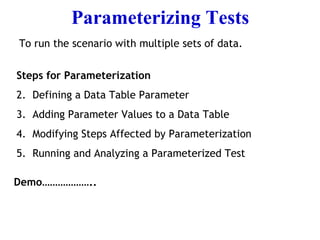
Parameterizing Tests   To run the scenario with multiple sets of data. Steps for Parameterization  Defining a Data Table Parameter Adding Parameter Values to a Data Table Modifying Steps Affected by Parameterization Running and Analyzing a Parameterized Test Demo………………..
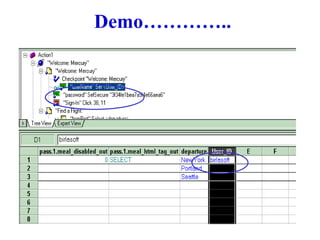
Demo………….. How to provide the data to the respective Parameter through Tree View
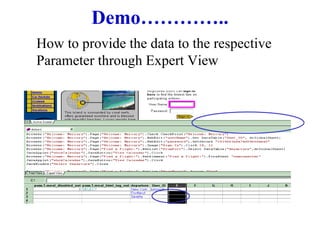
Demo………….. How to provide the data to the respective Parameter through Expert View
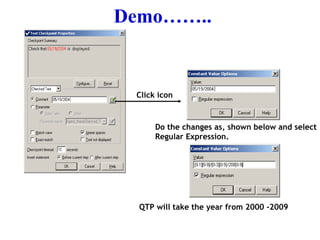
Regular Expressions Regular expressions enable Quick Test to identify Objects and text strings with varying values.  User has to identify the data projected to be change, like dates, so to accepts any dates, user can use regular expression.  Example : Actual Date format  :  05/19/2004  (mm/dd/yyyy) After Regular Expression: [0-1][0-9]/[0-3][0-9]/200[0-9]
Demo……
Demo…….. Click icon Do the changes as, shown below and select Regular Expression. QTP will take the year from 2000 -2009
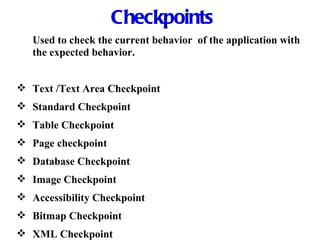
Checkpoints Used to check the current behavior  of the application with the expected behavior. Text /Text Area Checkpoint Standard Checkpoint Table Checkpoint Page checkpoint Database Checkpoint Image Checkpoint   Accessibility Checkpoint Bitmap Checkpoint XML Checkpoint
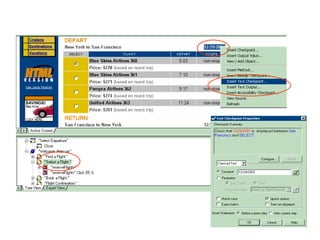
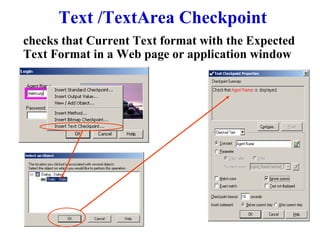
Text /TextArea Checkpoint checks that Current Text format with the Expected Text Format in a Web page or application window
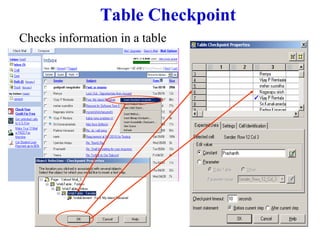
Table Checkpoint Checks information in a table
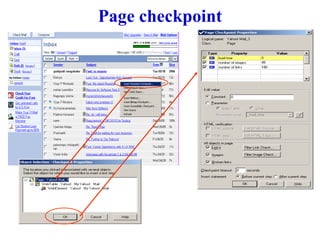
Page checkpoint Checks the characteristics of a page  Check how long a Web page takes to load or if a Web page contains broken links.
Page checkpoint
Database Checkpoint Used to check current Database data with the Expected Database data. Check that the value in a database query is correct. Demo………
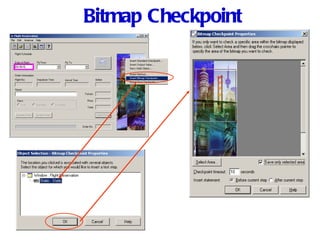
Bitmap Checkpoint Checks an area of a Web page or application after capturing it as a bitmap Check that a Web page (or any portion of it) is displayed as expected. Demo………….
Bitmap Checkpoint
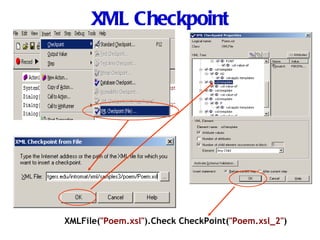
XML Checkpoint Checks the data content of XML documents XML file checkpoints are used to check a specified XML file; XML application checkpoints are used to check an XML document within a Web page. Demo………….
XML Checkpoint XMLFile( "Poem.xsl" ).Check CheckPoint( "Poem.xsl_2" )
Image Checkpoint
Accessibility Checkpoint
Creating Output Values This is just reverse to the Parameterization, In this case QTP takes the data from the application and displays the same in the Data Table.
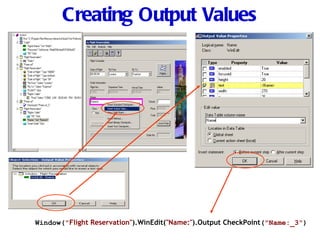
Creating Output Values Window( " Flight Reservation" ).WinEdit( "Name:" ).Output CheckPoint ( "Name:_3" )
Transactions A transaction represents the business process that you are interested in measuring You can measure how long it takes to run a section of your test by defining  transactions . User can Plan the Scenario as transaction and use the Start Transaction and End Transaction while Recording.
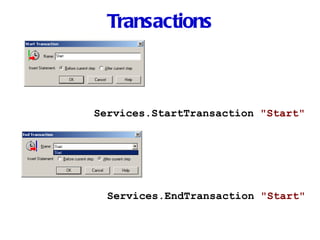
Transactions Services.StartTransaction  "Start" Services.EndTransaction  "Start"
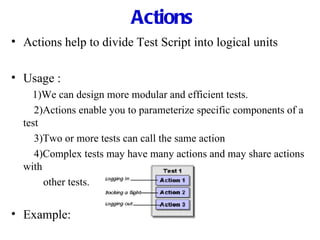
Actions Actions help to divide Test Script into logical units Usage : 1)We can design more modular and efficient tests.   2)Actions enable you to parameterize specific components of a test   3)Two or more tests can call the same action   4)Complex tests may have many actions and may share actions with other tests. Example:
Actions We can divide Test Script into multiple actions by creating new actions or by inserting existing actions. Kinds of actions: Non-Reusable Action :   An action that can be used only in the test in which it was created, and only once. Reusable Action :   An action that can be called multiple times by the test in which it was created (the local test) as well as by other tests. External Action :   A reusable action created in another test. External actions are read-only in the calling test. They can be modified only in the test in which they were created.
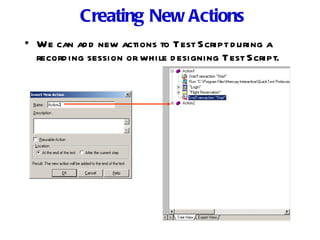
Creating New Actions We can add new actions to Test Script during a recording session or while designing Test Script.
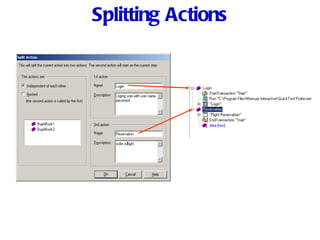
Splitting Actions We can split an existing action into two sibling actions or into parent-child nested actions. We cannot split an action and the option is disabled when an external action is selected when the first line of the action is selected while recording a test while running a test when you are working with a read-only test
Splitting Actions
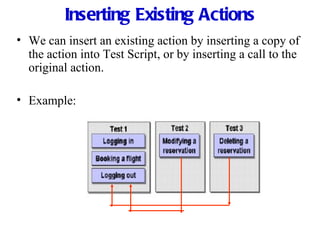
Inserting Existing Actions We can insert an existing action by inserting a copy of the action into Test Script, or by inserting a call to the original action. Example:
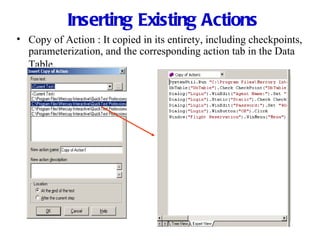
Inserting Existing Actions Copy of Action : It copied in its entirety, including checkpoints, parameterization, and the corresponding action tab in the Data Table .
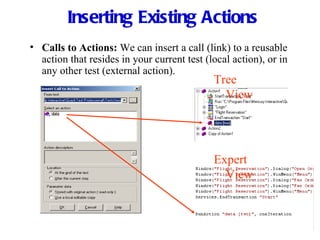
Inserting Existing Actions Calls to Actions:  We can insert a call (link) to a reusable action that resides in your current test (local action), or in any other test (external action). Tree View Expert View
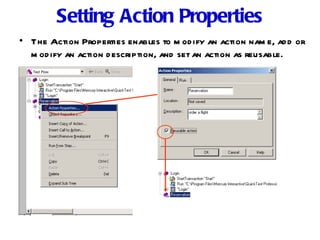
Setting Action Properties The Action Properties enables to modify an action name, add or modify an action description, and set an action as reusable.

Qtp Presentation

  • 1.
  • 2.
    Introduction to AutomationTesting What is Automation Testing ? Benefits Automation Testing Process
  • 3.
    QTP Testing ProcessQuick Test testing process consists of 7 main phases Preparing to record Test Environment Test Conditions Recording a session on your application Navigate according to Test Conditions Enhancing your test Adding logic and conditional statements Parameterization Inserting checkpoints Debugging your test Check that it operates smoothly and without interruption .
  • 4.
    QTP Testing ProcessRun Test Check the behavior of your application Analyzing the test results Reporting defects
  • 5.
    QTP Layered ArchitectureLogical name Physical Description Application Layer1 Layer2 Layer3
  • 6.
  • 7.
    Tree and ExpertView Relation Test Objects hierarchy can be seen in both the TreeView and the Expert View
  • 8.
    Object Spy Itis used to view object properties and Methods Displays Object hierarchy tree Run-time object methods or test object methods
  • 9.
    Object Repository Interfacebetween QTP Script and the Application Contains Logical Name and physical Description Locate object in repository Find data-dependant property Parameterize property’s value
  • 10.
    Recording Modes Normalrecording Records the objects in your application and the operations performed on them. This mode is the default and takes full advantage of Quick Test’s test object model. Analog Recording Record the exact mouse and keyboard operations you perform in relation to either the screen or the application window. Low-Level Recording Record on any object in your application, whether or not Quick Test recognizes the specific object or the specific operation.
  • 11.
    Enhancing Tests ParameterizingTest Regular Expressions Creating Checkpoints Creating Output Values Dividing Tests into Multiple Actions
  • 12.
    Parameterizing Tests To run the scenario with multiple sets of data. Steps for Parameterization Defining a Data Table Parameter Adding Parameter Values to a Data Table Modifying Steps Affected by Parameterization Running and Analyzing a Parameterized Test Demo………………..
  • 13.
    Demo………….. How toprovide the data to the respective Parameter through Tree View
  • 14.
    Demo………….. How toprovide the data to the respective Parameter through Expert View
  • 15.
    Regular Expressions Regularexpressions enable Quick Test to identify Objects and text strings with varying values. User has to identify the data projected to be change, like dates, so to accepts any dates, user can use regular expression. Example : Actual Date format : 05/19/2004 (mm/dd/yyyy) After Regular Expression: [0-1][0-9]/[0-3][0-9]/200[0-9]
  • 16.
  • 17.
    Demo…….. Click iconDo the changes as, shown below and select Regular Expression. QTP will take the year from 2000 -2009
  • 18.
    Checkpoints Used tocheck the current behavior of the application with the expected behavior. Text /Text Area Checkpoint Standard Checkpoint Table Checkpoint Page checkpoint Database Checkpoint Image Checkpoint Accessibility Checkpoint Bitmap Checkpoint XML Checkpoint
  • 19.
    Text /TextArea Checkpointchecks that Current Text format with the Expected Text Format in a Web page or application window
  • 20.
    Table Checkpoint Checksinformation in a table
  • 21.
    Page checkpoint Checksthe characteristics of a page Check how long a Web page takes to load or if a Web page contains broken links.
  • 22.
  • 23.
    Database Checkpoint Usedto check current Database data with the Expected Database data. Check that the value in a database query is correct. Demo………
  • 24.
    Bitmap Checkpoint Checksan area of a Web page or application after capturing it as a bitmap Check that a Web page (or any portion of it) is displayed as expected. Demo………….
  • 25.
  • 26.
    XML Checkpoint Checksthe data content of XML documents XML file checkpoints are used to check a specified XML file; XML application checkpoints are used to check an XML document within a Web page. Demo………….
  • 27.
    XML Checkpoint XMLFile("Poem.xsl" ).Check CheckPoint( "Poem.xsl_2" )
  • 28.
  • 29.
  • 30.
    Creating Output ValuesThis is just reverse to the Parameterization, In this case QTP takes the data from the application and displays the same in the Data Table.
  • 31.
    Creating Output ValuesWindow( " Flight Reservation" ).WinEdit( "Name:" ).Output CheckPoint ( "Name:_3" )
  • 32.
    Transactions A transactionrepresents the business process that you are interested in measuring You can measure how long it takes to run a section of your test by defining transactions . User can Plan the Scenario as transaction and use the Start Transaction and End Transaction while Recording.
  • 33.
    Transactions Services.StartTransaction "Start" Services.EndTransaction "Start"
  • 34.
    Actions Actions helpto divide Test Script into logical units Usage : 1)We can design more modular and efficient tests. 2)Actions enable you to parameterize specific components of a test 3)Two or more tests can call the same action 4)Complex tests may have many actions and may share actions with other tests. Example:
  • 35.
    Actions We candivide Test Script into multiple actions by creating new actions or by inserting existing actions. Kinds of actions: Non-Reusable Action : An action that can be used only in the test in which it was created, and only once. Reusable Action : An action that can be called multiple times by the test in which it was created (the local test) as well as by other tests. External Action : A reusable action created in another test. External actions are read-only in the calling test. They can be modified only in the test in which they were created.
  • 36.
    Creating New ActionsWe can add new actions to Test Script during a recording session or while designing Test Script.
  • 37.
    Splitting Actions Wecan split an existing action into two sibling actions or into parent-child nested actions. We cannot split an action and the option is disabled when an external action is selected when the first line of the action is selected while recording a test while running a test when you are working with a read-only test
  • 38.
  • 39.
    Inserting Existing ActionsWe can insert an existing action by inserting a copy of the action into Test Script, or by inserting a call to the original action. Example:
  • 40.
    Inserting Existing ActionsCopy of Action : It copied in its entirety, including checkpoints, parameterization, and the corresponding action tab in the Data Table .
  • 41.
    Inserting Existing ActionsCalls to Actions: We can insert a call (link) to a reusable action that resides in your current test (local action), or in any other test (external action). Tree View Expert View
  • 42.
    Setting Action PropertiesThe Action Properties enables to modify an action name, add or modify an action description, and set an action as reusable.