Taverna Workflows 
a bio diversity example 
Stian Soiland-Reyes and Christian 
Brenninkmeijer 
University of Manchester 
materials by Katy Wolstencroft and Aleksandra Pawlik 
http://orcid.org/0000-0001-9842-9718 
http://orcid.org/0000-0002-2937-7819 
http://orcid.org/0000-0002-1279-5133 
http://orcid.org/0000-0001-8418-6735 
Bonn University, 2014-09-01 
http://www.taverna.org.uk/ 
This work is licensed under a 
Creative Commons Attribution 3.0 Unported License
 In this example we are going to use Taverna to 
help find the occurrences of Marmota marmot 
 Optionally we will then show the locations using 
google earth. 
 Alternatively a xpath service could be added to 
extract interesting data.
Find the service in Biocatalogue 
 Go to http://biocatalogue.org 
 Search for occurrence 
 Find the GBIF occurrence service and copy the address where 
the web page shows the ‘base URL’ 
 GBIF have several different REST services (or REST endpoints) 
 (It should look like this: 
http://data.gbif.org/ws/rest/occurrence ) 
 Hint: Sometime opening the base URL in a web browser will 
open a useful help page 
 We used this information to get the parameters used on the next slides
Configure the Service 
 In Taverna, paste the GBIF base URL into the REST pop-up 
window (this should already be open – if not, right-click on 
the REST service in the workflow diagram and select 
‘Configure REST Service’ in the drop-down menu). 
 To the end of the address, add 
/list?scientificname={species_name} 
 Make sure the HTTP Method is set to ‘GET’, click ‘apply’ 
and close the pop up window.
Input & Output Ports 
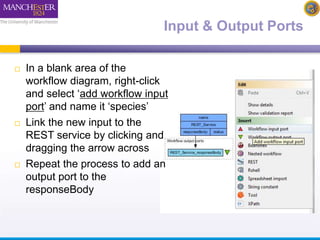
 In a blank area of the 
workflow diagram, right-click 
and select ‘add workflow input 
port’ and name it ‘species’ 
 Link the new input to the 
REST service by clicking and 
dragging the arrow across 
 Repeat the process to add an 
output port to the 
responseBody
Test Run the Workflow 
 Save the workflow by going to ‘file -> save’ 
 Run the workflow by going to ‘file -> run’ 
 In the pop-up ‘run workflow’ window, click-on ‘set value’ and 
type ‘Marmota marmota’ where it says ‘some data goes 
here’ 
As the workflow runs, you can see the progress in the Results 
window, which you are automatically switched to 
 View the results by clicking ‘value’ in the bottom left panel
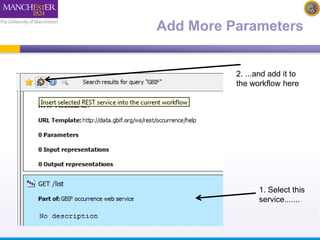
Add More Parameters 
 These results show all the occurrence data. To restrict it to 
a particular geographical area, substitute the simple GBIF 
endpoint for one that will allow you to add latitude and 
longitude values. 
 We do this by adding more parameters to the REST 
service address. 
 You could find this by going to the BioCatalogue web page, 
or by going to the BioCatalogue plugin in Taverna. 
 Go to the top of the workbench and click on ‘Service 
Catalogue’ and search for “occurrence” again.
Add More Parameters 
2. ...and add it to 
the workflow here 
1. Select this 
service.......
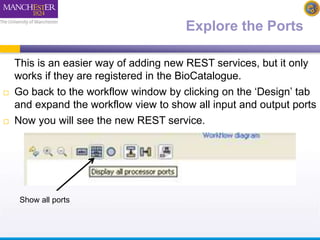
Explore the Ports 
This is an easier way of adding new REST services, but it only 
works if they are registered in the BioCatalogue. 
 Go back to the workflow window by clicking on the ‘Design’ tab 
and expand the workflow view to show all input and output ports 
 Now you will see the new REST service. 
Show all ports
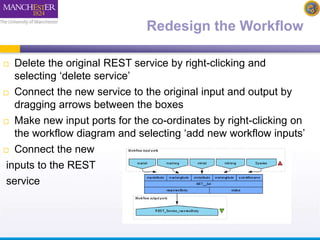
Redesign the Workflow 
 Delete the original REST service by right-clicking and 
selecting ‘delete service’ 
 Connect the new service to the original input and output by 
dragging arrows between the boxes 
 Make new input ports for the co-ordinates by right-clicking on 
the workflow diagram and selecting ‘add new workflow inputs’ 
 Connect the new 
inputs to the REST 
service
Provide co-ordinates 
 Run the workflow, entering Marmota marmota and the 
following co-ordinates: 
 -89 (for minlat) 
 89 (for maxlat) 
 -179.9 (for minlong) 
 179.9 (for maxlong
Handle XML 
 The service returns XML data. This is good for computers, 
but not easy to read. 
 You can plot the data on Google earth to make it easier to 
interpret. We have already written a workflow that does this. 
 See the next 2 slides 
 Alternatively try adding an Xpath service to extract 
some interesting data from the XML
Google Earth Plot 
 In Taverna, go to file -> ‘Open workflow location’ and copy 
the following link into the pop-up box: 
http://www.myexperiment.org/workflows/2592/download?ve 
rsion=1 
It is possible to load workflows from a file, or from a web link 
 This workflow opens a local copy of Google Earth. If you 
don’t, have it, please go to Google Earth and install it: 
http://www.google.com/earth 
 For windows See also 
http://www.myexperiment.org/workflows/2592.html
Google Earth Plot 
 Run this workflow with the same parameters as you used in 
your own workflow (e.g. Marmota marmota and lat, long). 
NOTE: there are some example values in the workflow, but 
you may need to select or change them. 
 You need to specify an additional parameter for the location 
of your local Google Earth program. 
 This time, the results are plotted on Google Earth. 
 Additionally, an interactive step allows you to modify lat/long 
values while the workflow is running.
Test the Workflow with other Species 
 The workflow you ran only has information from one 
species, but selecting species can be complex 
 Re-run the workflow twice, once with the species Abraxas 
sylvatus, and once with Abraxas sylvata. Do you get 
different results? 
 They both represent the same species, but one is simply a 
different spelling. You may need to discover all species 
names and synonyms and combine data before continuing 
with your modelling.

2014 Taverna Tutorial Biodiversity example

  • 1.
    Taverna Workflows abio diversity example Stian Soiland-Reyes and Christian Brenninkmeijer University of Manchester materials by Katy Wolstencroft and Aleksandra Pawlik http://orcid.org/0000-0001-9842-9718 http://orcid.org/0000-0002-2937-7819 http://orcid.org/0000-0002-1279-5133 http://orcid.org/0000-0001-8418-6735 Bonn University, 2014-09-01 http://www.taverna.org.uk/ This work is licensed under a Creative Commons Attribution 3.0 Unported License
  • 2.
     In thisexample we are going to use Taverna to help find the occurrences of Marmota marmot  Optionally we will then show the locations using google earth.  Alternatively a xpath service could be added to extract interesting data.
  • 3.
    Find the servicein Biocatalogue  Go to http://biocatalogue.org  Search for occurrence  Find the GBIF occurrence service and copy the address where the web page shows the ‘base URL’  GBIF have several different REST services (or REST endpoints)  (It should look like this: http://data.gbif.org/ws/rest/occurrence )  Hint: Sometime opening the base URL in a web browser will open a useful help page  We used this information to get the parameters used on the next slides
  • 4.
    Configure the Service  In Taverna, paste the GBIF base URL into the REST pop-up window (this should already be open – if not, right-click on the REST service in the workflow diagram and select ‘Configure REST Service’ in the drop-down menu).  To the end of the address, add /list?scientificname={species_name}  Make sure the HTTP Method is set to ‘GET’, click ‘apply’ and close the pop up window.
  • 5.
    Input & OutputPorts  In a blank area of the workflow diagram, right-click and select ‘add workflow input port’ and name it ‘species’  Link the new input to the REST service by clicking and dragging the arrow across  Repeat the process to add an output port to the responseBody
  • 6.
    Test Run theWorkflow  Save the workflow by going to ‘file -> save’  Run the workflow by going to ‘file -> run’  In the pop-up ‘run workflow’ window, click-on ‘set value’ and type ‘Marmota marmota’ where it says ‘some data goes here’ As the workflow runs, you can see the progress in the Results window, which you are automatically switched to  View the results by clicking ‘value’ in the bottom left panel
  • 7.
    Add More Parameters  These results show all the occurrence data. To restrict it to a particular geographical area, substitute the simple GBIF endpoint for one that will allow you to add latitude and longitude values.  We do this by adding more parameters to the REST service address.  You could find this by going to the BioCatalogue web page, or by going to the BioCatalogue plugin in Taverna.  Go to the top of the workbench and click on ‘Service Catalogue’ and search for “occurrence” again.
  • 8.
    Add More Parameters 2. ...and add it to the workflow here 1. Select this service.......
  • 9.
    Explore the Ports This is an easier way of adding new REST services, but it only works if they are registered in the BioCatalogue.  Go back to the workflow window by clicking on the ‘Design’ tab and expand the workflow view to show all input and output ports  Now you will see the new REST service. Show all ports
  • 10.
    Redesign the Workflow  Delete the original REST service by right-clicking and selecting ‘delete service’  Connect the new service to the original input and output by dragging arrows between the boxes  Make new input ports for the co-ordinates by right-clicking on the workflow diagram and selecting ‘add new workflow inputs’  Connect the new inputs to the REST service
  • 11.
    Provide co-ordinates Run the workflow, entering Marmota marmota and the following co-ordinates:  -89 (for minlat)  89 (for maxlat)  -179.9 (for minlong)  179.9 (for maxlong
  • 12.
    Handle XML The service returns XML data. This is good for computers, but not easy to read.  You can plot the data on Google earth to make it easier to interpret. We have already written a workflow that does this.  See the next 2 slides  Alternatively try adding an Xpath service to extract some interesting data from the XML
  • 13.
    Google Earth Plot  In Taverna, go to file -> ‘Open workflow location’ and copy the following link into the pop-up box: http://www.myexperiment.org/workflows/2592/download?ve rsion=1 It is possible to load workflows from a file, or from a web link  This workflow opens a local copy of Google Earth. If you don’t, have it, please go to Google Earth and install it: http://www.google.com/earth  For windows See also http://www.myexperiment.org/workflows/2592.html
  • 14.
    Google Earth Plot  Run this workflow with the same parameters as you used in your own workflow (e.g. Marmota marmota and lat, long). NOTE: there are some example values in the workflow, but you may need to select or change them.  You need to specify an additional parameter for the location of your local Google Earth program.  This time, the results are plotted on Google Earth.  Additionally, an interactive step allows you to modify lat/long values while the workflow is running.
  • 15.
    Test the Workflowwith other Species  The workflow you ran only has information from one species, but selecting species can be complex  Re-run the workflow twice, once with the species Abraxas sylvatus, and once with Abraxas sylvata. Do you get different results?  They both represent the same species, but one is simply a different spelling. You may need to discover all species names and synonyms and combine data before continuing with your modelling.