Taverna Tutorial 
Building a simple workflow 
Stian Soiland-Reyes and Christian Brenninkmeijer 
University of Manchester 
materials by Katy Wolstencroft and Aleksandra Pawlik 
http://orcid.org/0000-0001-9842-9718 
http://orcid.org/0000-0002-2937-7819 
http://orcid.org/0000-0002-1279-5133 
http://orcid.org/0000-0001-8418-6735 
Bonn University, 2014-09-01 
http://www.taverna.org.uk/ 
This work is licensed under a 
Creative Commons Attribution 3.0 Unported License
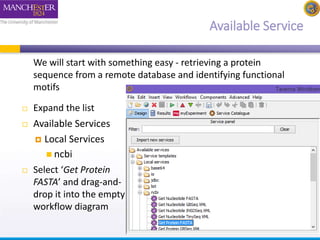
Available Service 
We will start with something easy - retrieving a protein 
sequence from a remote database and identifying functional 
motifs 
 Expand the list 
 Available Services 
 Local Services 
 ncbi 
 Select ‘Get Protein 
FASTA’ and drag-and-drop 
it into the empty 
workflow diagram
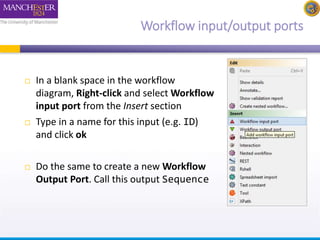
Workflow input/output ports 
 In a blank space in the workflow 
diagram, Right-click and select Workflow 
input port from the Insert section 
 Type in a name for this input (e.g. ID) 
and click ok 
 Do the same to create a new Workflow 
Output Port. Call this output Sequence
Connecting ports 
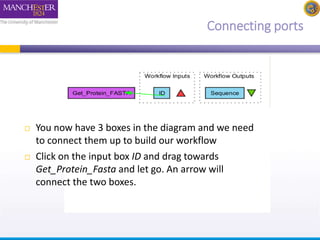
 You now have 3 boxes in the diagram and we need 
to connect them up to build our workflow 
 Click on the input box ID and drag towards 
Get_Protein_Fasta and let go. An arrow will 
connect the two boxes.
Your first workflow 
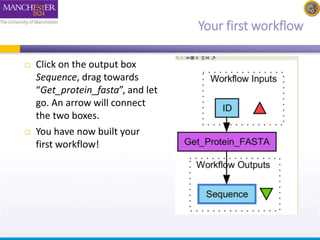
 Click on the output box 
Sequence, drag towards 
“Get_protein_fasta”, and let 
go. An arrow will connect 
the two boxes. 
 You have now built your 
first workflow!
Running workflow 
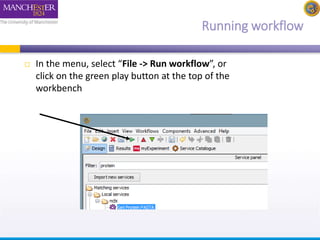
 In the menu, select “File -> Run workflow”, or 
click on the green play button at the top of the 
workbench
Providing workflow inputs 
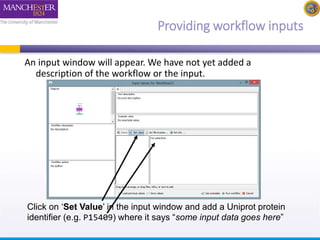
An input window will appear. We have not yet added a 
description of the workflow or the input. 
Click on ‘Set Value’ in the input window and add a Uniprot protein 
identifier (e.g. P15409) where it says “some input data goes here”
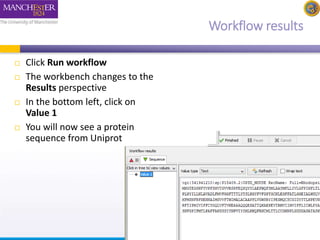
Workflow results 
 Click Run workflow 
 The workbench changes to the 
Results perspective 
 In the bottom left, click on 
Value 1 
 You will now see a protein 
sequence from Uniprot
Validate your Workflow 
 Taverna can check to see that everything is connected properly and 
that all the services in your workflow are available 
 Go to the workflow explorer (“Design” button) and click on 
‘Validation report’ tab 
 See if Taverna has found any problems with the workflow. Errors will 
be displayed in red, warnings in yellow. Workflows with warnings 
often still run. 
 If there are problems, follow the instructions to resolve them by 
clicking on the ‘Solution’ tab 
 Are you able to create a workflow that gives warnings or errors? 
Tip: Try deleting the data link to the workflow output port

2014 Taverna tutorial Simple workflow

  • 1.
    Taverna Tutorial Buildinga simple workflow Stian Soiland-Reyes and Christian Brenninkmeijer University of Manchester materials by Katy Wolstencroft and Aleksandra Pawlik http://orcid.org/0000-0001-9842-9718 http://orcid.org/0000-0002-2937-7819 http://orcid.org/0000-0002-1279-5133 http://orcid.org/0000-0001-8418-6735 Bonn University, 2014-09-01 http://www.taverna.org.uk/ This work is licensed under a Creative Commons Attribution 3.0 Unported License
  • 2.
    Available Service Wewill start with something easy - retrieving a protein sequence from a remote database and identifying functional motifs  Expand the list  Available Services  Local Services  ncbi  Select ‘Get Protein FASTA’ and drag-and-drop it into the empty workflow diagram
  • 3.
    Workflow input/output ports  In a blank space in the workflow diagram, Right-click and select Workflow input port from the Insert section  Type in a name for this input (e.g. ID) and click ok  Do the same to create a new Workflow Output Port. Call this output Sequence
  • 4.
    Connecting ports You now have 3 boxes in the diagram and we need to connect them up to build our workflow  Click on the input box ID and drag towards Get_Protein_Fasta and let go. An arrow will connect the two boxes.
  • 5.
    Your first workflow  Click on the output box Sequence, drag towards “Get_protein_fasta”, and let go. An arrow will connect the two boxes.  You have now built your first workflow!
  • 6.
    Running workflow In the menu, select “File -> Run workflow”, or click on the green play button at the top of the workbench
  • 7.
    Providing workflow inputs An input window will appear. We have not yet added a description of the workflow or the input. Click on ‘Set Value’ in the input window and add a Uniprot protein identifier (e.g. P15409) where it says “some input data goes here”
  • 8.
    Workflow results Click Run workflow  The workbench changes to the Results perspective  In the bottom left, click on Value 1  You will now see a protein sequence from Uniprot
  • 9.
    Validate your Workflow  Taverna can check to see that everything is connected properly and that all the services in your workflow are available  Go to the workflow explorer (“Design” button) and click on ‘Validation report’ tab  See if Taverna has found any problems with the workflow. Errors will be displayed in red, warnings in yellow. Workflows with warnings often still run.  If there are problems, follow the instructions to resolve them by clicking on the ‘Solution’ tab  Are you able to create a workflow that gives warnings or errors? Tip: Try deleting the data link to the workflow output port