Performing Simple Interactions 
Stian Soiland-Reyes and Christian Brenninkmeijer 
University of Manchester 
http://orcid.org/0000-0001-9842-9718 
http://orcid.org/0000-0002-2937-7819 
Bonn University, 2014-09-01 
http://www.taverna.org.uk/ This work is licensed under a 
Creative Commons Attribution 3.0 Unported License
Introduction 
 Taverna has the ability to take data from the workflow 
and pop up webpages asking the user for additional 
input while the workflow is running. 
 This simple Tutorial will show a few of the possible 
Interactions. 
 The interaction services can be found under available 
services/ Interactions
ASK 
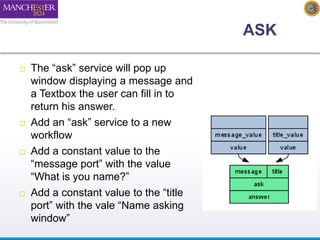
 The “ask” service will pop up 
window displaying a message and 
a Textbox the user can fill in to 
return his answer. 
 Add an “ask” service to a new 
workflow 
 Add a constant value to the 
“message port” with the value 
“What is you name?” 
 Add a constant value to the “title 
port” with the vale “Name asking 
window”
CHOOSE 
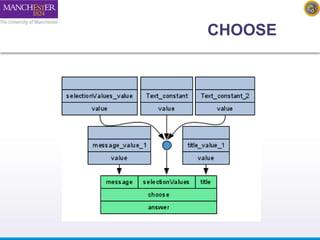
 The “choose” service will pop up window 
displaying a message and a list of options the 
user can choose from. 
 Add an “choose” service to the workflow 
 Add a constant value to the “message port” with 
the value “Which Title shall I use?” 
 Add a constant value to the “title port” with the 
vale “Title asking window”
CHOOSE 
 Add a constant value to the “selectionValues” port with 
the value “Mr” 
 Now create another constant value service with the 
value “Mrs” 
 Connect the “Mrs” constant to the same 
“selectionValues” port 
 Notice how Taverna adds a merge between the two 
constants and the “selectionValues” port 
 You can click on this merge(circle) to see or change the 
order of the constants. 
 Add more title if you like.
CHOOSE
Tell 
 The “tell” service will pop up window displays a message 
 Add an “tell” service to a new workflow 
 Add a constant value to the “title port” with the vale “Result window” 
 Add a “Concatenate_two_strings” service 
 Hint: Local Services / Text 
 Connect the choose to String1 
 Connect the ask to String2 
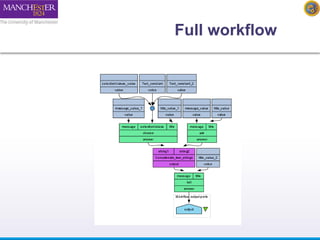
 Add an output to the tell service.
Full workflow
Running the workflow 
 Run the workflow 
 Find in the Title and Name windows 
 They may open at the same time in different tabs. 
 Answer the questions 
 A Result window will appear with your title and name 
 Before selecting OK or Cancel go back to Taverna and look at the 
results view 
 Notice the workflow has NOT finished. 
 There is still a Running displayed and Tell is still a light colour 
 This shows that interactions will block workflows so be carefull 
especially in very long running workflows
Finish the workflow 
 If you select “Cancel” in any of the Interactions including 
the Results/Tell an Error will be passed to the next 
service. 
 Try this by pressing Cancel in the page showing your 
name and title. 
 Notice how the workflow finished but the output is an 
exception.
Conclusion 
 This was a very basic overview of the Interaction 
Services. 
 Where the value are known before the workflow 
starts to run Text constants or input ports will 
always be better. 
 But if the values comes from a previous service, 
then interactions are very useful. 
 For example to pick from a list of results from 
another service.

2014 Taverna Tutorial Interactions

  • 1.
    Performing Simple Interactions Stian Soiland-Reyes and Christian Brenninkmeijer University of Manchester http://orcid.org/0000-0001-9842-9718 http://orcid.org/0000-0002-2937-7819 Bonn University, 2014-09-01 http://www.taverna.org.uk/ This work is licensed under a Creative Commons Attribution 3.0 Unported License
  • 2.
    Introduction  Tavernahas the ability to take data from the workflow and pop up webpages asking the user for additional input while the workflow is running.  This simple Tutorial will show a few of the possible Interactions.  The interaction services can be found under available services/ Interactions
  • 3.
    ASK  The“ask” service will pop up window displaying a message and a Textbox the user can fill in to return his answer.  Add an “ask” service to a new workflow  Add a constant value to the “message port” with the value “What is you name?”  Add a constant value to the “title port” with the vale “Name asking window”
  • 4.
    CHOOSE  The“choose” service will pop up window displaying a message and a list of options the user can choose from.  Add an “choose” service to the workflow  Add a constant value to the “message port” with the value “Which Title shall I use?”  Add a constant value to the “title port” with the vale “Title asking window”
  • 5.
    CHOOSE  Adda constant value to the “selectionValues” port with the value “Mr”  Now create another constant value service with the value “Mrs”  Connect the “Mrs” constant to the same “selectionValues” port  Notice how Taverna adds a merge between the two constants and the “selectionValues” port  You can click on this merge(circle) to see or change the order of the constants.  Add more title if you like.
  • 6.
  • 7.
    Tell  The“tell” service will pop up window displays a message  Add an “tell” service to a new workflow  Add a constant value to the “title port” with the vale “Result window”  Add a “Concatenate_two_strings” service  Hint: Local Services / Text  Connect the choose to String1  Connect the ask to String2  Add an output to the tell service.
  • 8.
  • 9.
    Running the workflow  Run the workflow  Find in the Title and Name windows  They may open at the same time in different tabs.  Answer the questions  A Result window will appear with your title and name  Before selecting OK or Cancel go back to Taverna and look at the results view  Notice the workflow has NOT finished.  There is still a Running displayed and Tell is still a light colour  This shows that interactions will block workflows so be carefull especially in very long running workflows
  • 10.
    Finish the workflow  If you select “Cancel” in any of the Interactions including the Results/Tell an Error will be passed to the next service.  Try this by pressing Cancel in the page showing your name and title.  Notice how the workflow finished but the output is an exception.
  • 11.
    Conclusion  Thiswas a very basic overview of the Interaction Services.  Where the value are known before the workflow starts to run Text constants or input ports will always be better.  But if the values comes from a previous service, then interactions are very useful.  For example to pick from a list of results from another service.