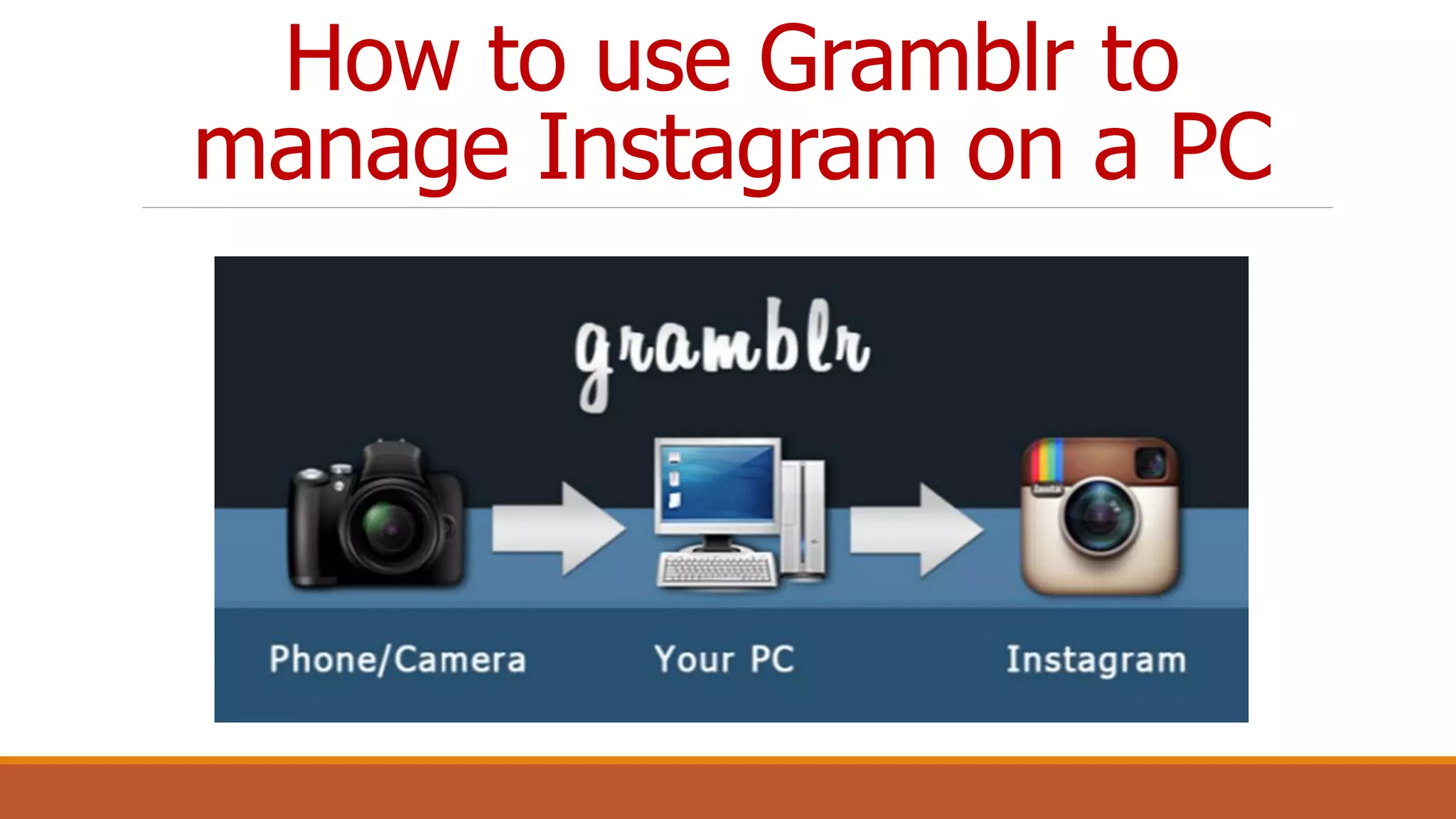
How to use Gramblr to
manage Instagram on a PC
Open your browser
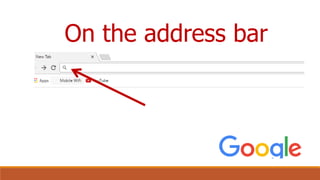
On the address bar
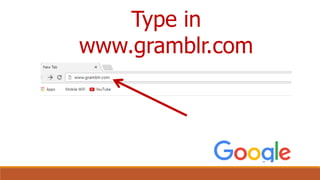
Type in
www.gramblr.com
Press Enter
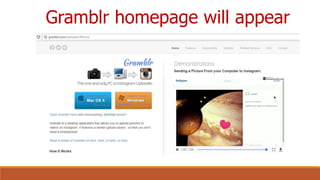
Gramblr homepage will appear
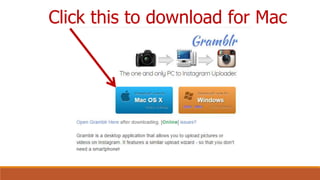
Click this to download for Mac
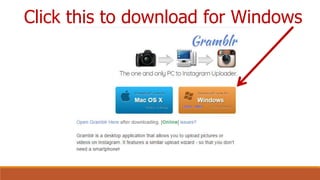
Click this to download for Windows
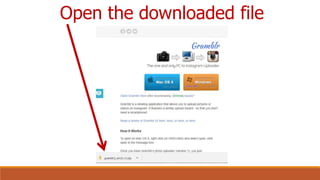
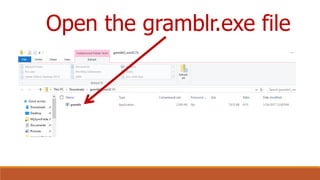
Open the downloaded file
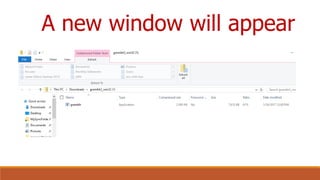
A new window will appear
Open the gramblr.exe file
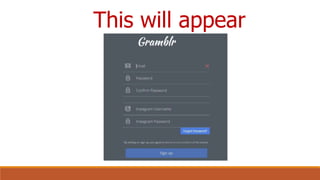
This will appear
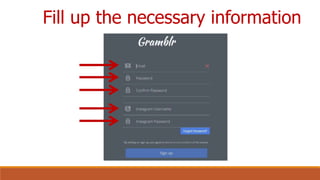
Fill up the necessary information
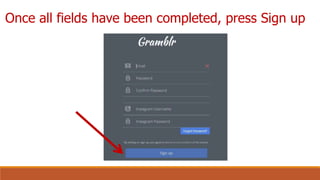
Once all fields have been completed, press Sign up
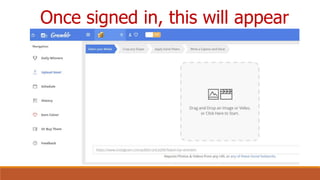
Once signed in, this will appear
We are now ready to
upload images or
videos
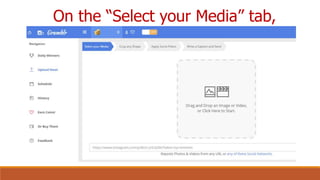
On the “Select your Media” tab,
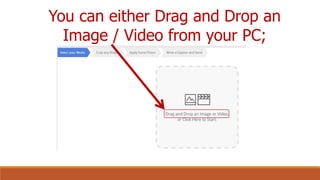
You can either Drag and Drop an
Image / Video from your PC;
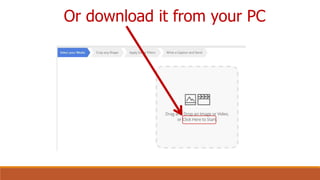
Or download it from your PC
Let’s choose “Click Here to Start” to
download an image from PC
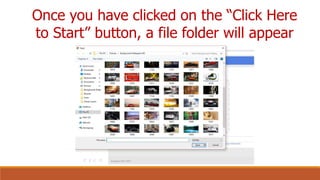
Once you have clicked on the “Click Here
to Start” button, a file folder will appear
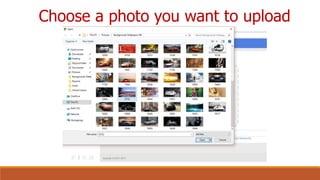
Choose a photo you want to upload
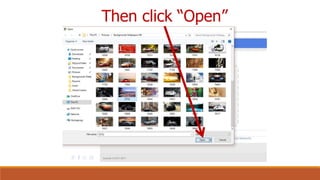
Then click “Open”
The image you chose will be uploaded in
Gramblr
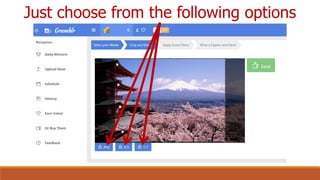
You can opt to resize the
image by cropping it
Just choose from the following options
Once you have decided
on the size of your
image,
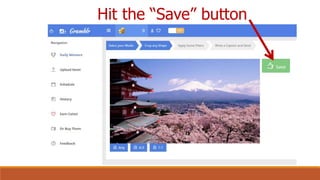
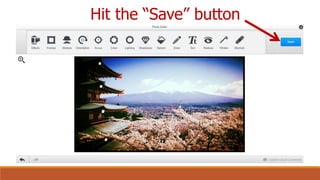
Hit the “Save” button
You can apply filters if
you wish to enhance the
image
By clicking the “Filters” button
Once you clicked the
“Filters” button,
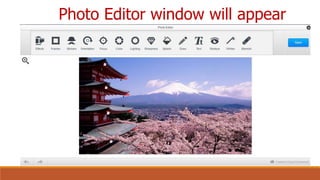
Photo Editor window will appear
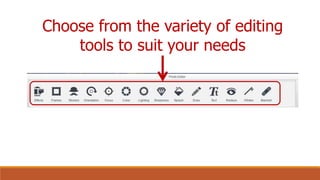
Choose from the variety of editing
tools to suit your needs
Once you are pleased on
the outcome of your
edited image,
Hit the “Save” button
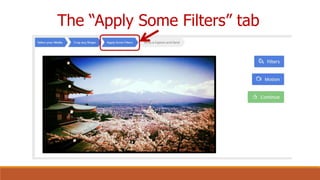
It will bring you back to
The “Apply Some Filters” tab
Again, you can opt to do
editing on your photo or
You can make your
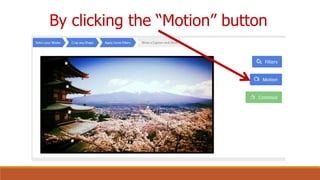
image do some moving
effects
By clicking the “Motion” button
Go ahead try that
“Motion” effect and
you’ll be amazed
If you are now satisfied
with your work,
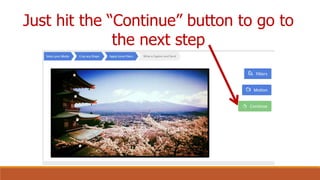
Just hit the “Continue” button to go to
the next step
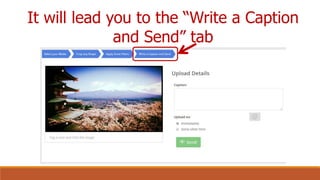
It will lead you to the “Write a Caption
and Send” tab
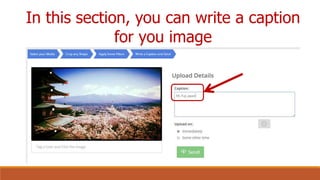
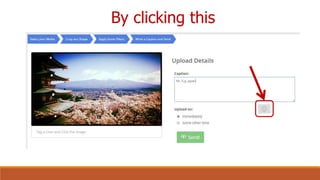
In this section, you can write a caption
for you image
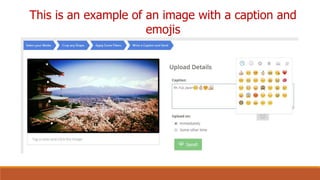
You can even put emojis
By clicking this
This is an example of an image with a caption and
emojis
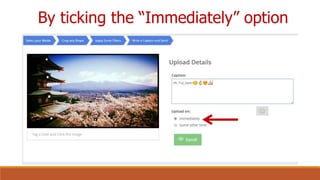
Post the image right
away in Instagram
By ticking the “Immediately” option
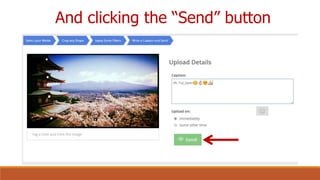
And clicking the “Send” button
Congratulations!!!
You just completed
posting an image in
Instagram using Gramblr
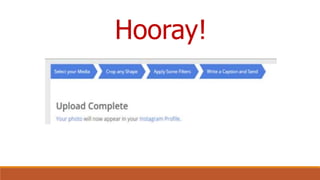
Hooray!
But wait there’s more!
You also have an option
to schedule you posts
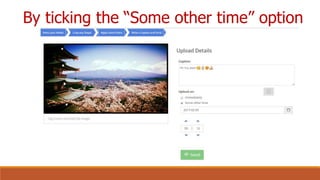
By ticking the “Some other time” option
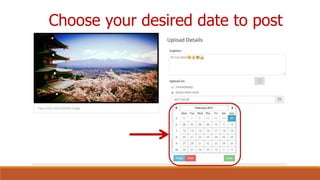
Choose your desired date to post
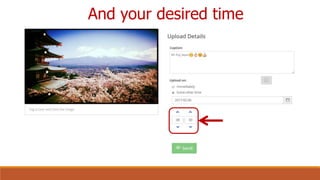
And your desired time
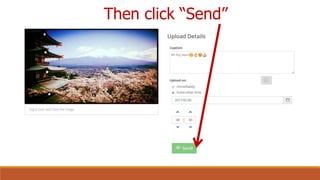
Then click “Send”
A confirmation message
will be displayed
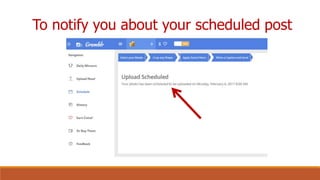
To notify you about your scheduled post
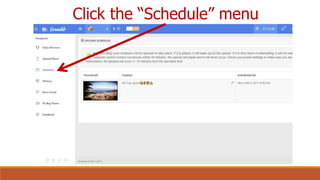
To check on you
scheduled posts,
Click the “Schedule” menu
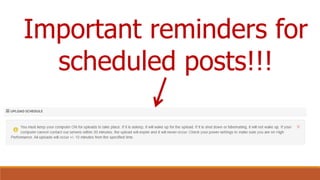
Make sure to always
keep in mind
The following reminders
from Gramblr
When doing the
scheduled postings
Important reminders for
scheduled posts!!!
There you have it!
You just posted an
image / video in
Instagram using Gramblr
With Gramblr…
You can manage
Instagram posts
Edit and schedule them
Right from your desktop
computer
Have a great day ahead!

How to use Gramblr to manage Instagram on a PC