



1
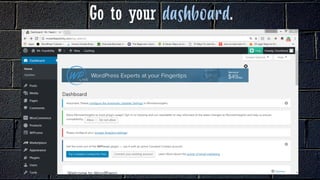
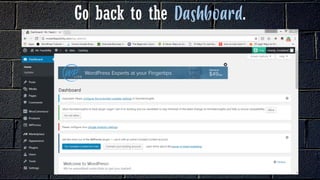
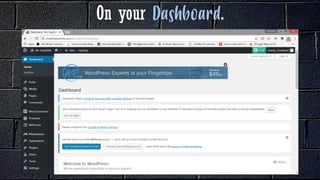
Go to your .
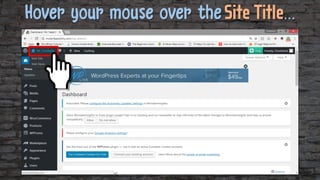
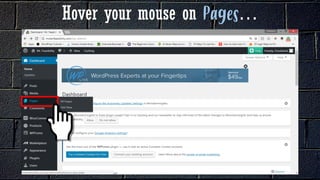
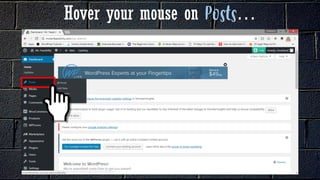
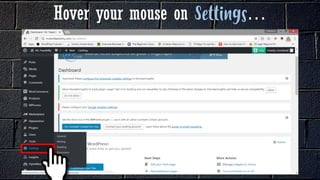
Hover your mouse on …
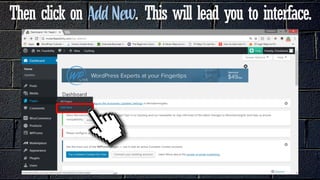
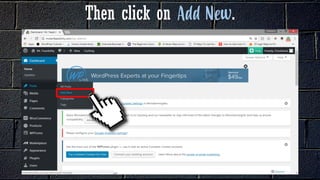
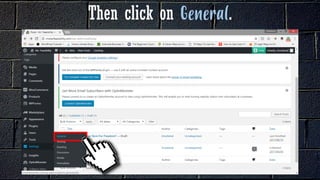
Then click on . This will lead you to interface.
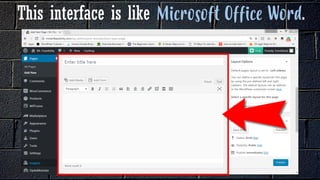
This interface is like .
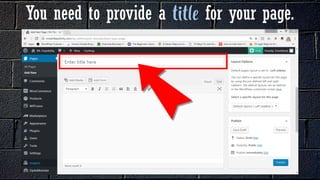
You need to provide a for your page.
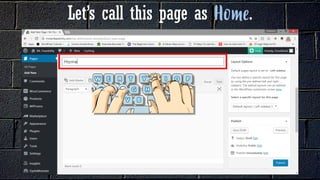
Let’s call this page as .
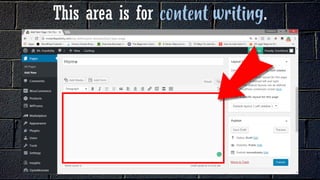
This area is for .
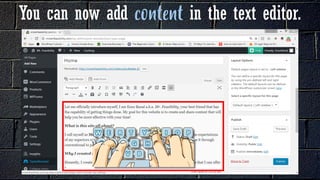
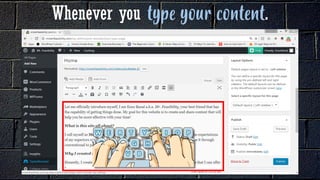
You can now add in the text editor.
Whenever you .
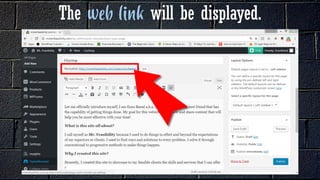
The will be displayed.
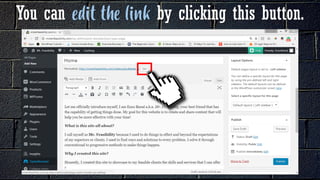
You can by clicking this button.
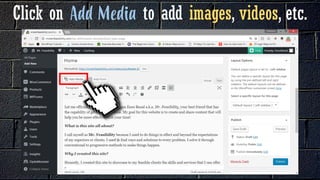
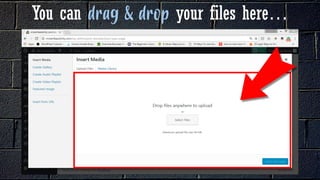
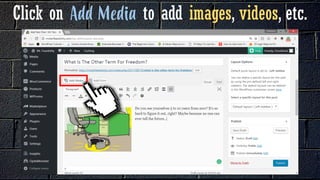
Click on to add images, videos, etc.
You can your files here…
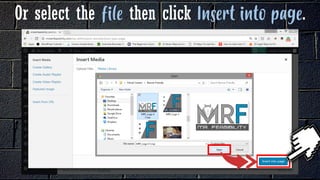
Or select the then click .
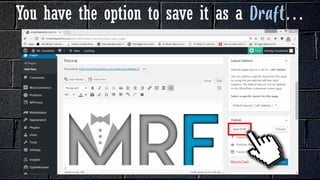
You have the option to save it as a …
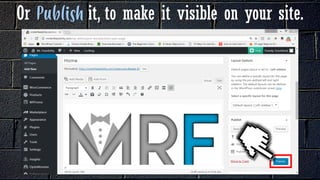
Or it, to make it visible on your site.
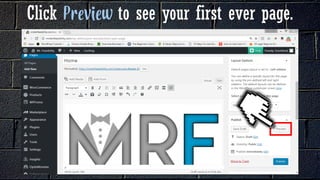
Click to see your first ever page.
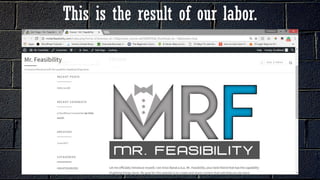
This is the result of our labor.
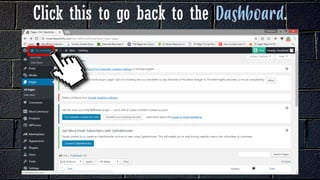
Click this to go back to the .
Hover your mouse on …
Then click on .
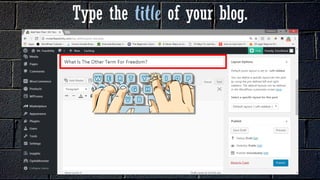
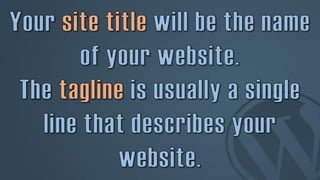
Type the of your blog.
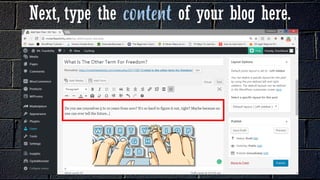
Next, type the of your blog here.
Click on to add images, videos, etc.
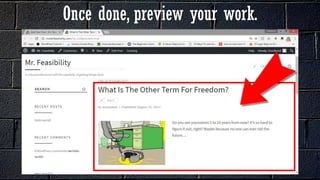
Once done, preview your work.
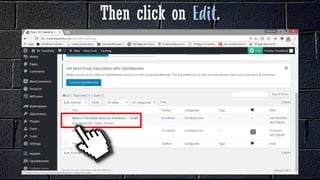
Then click on .
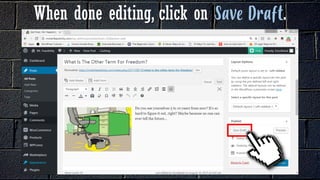
When done editing, click on .
2
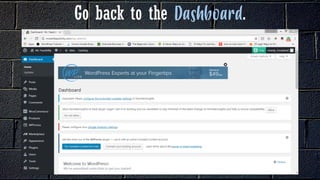
Go back to the .
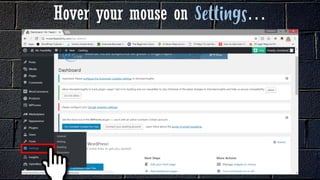
Hover your mouse on …
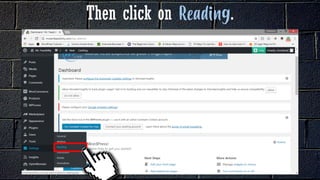
Then click on .
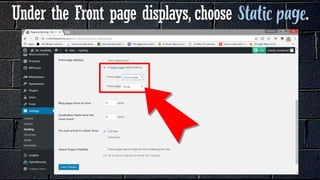
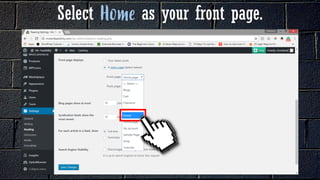
Under the Front page displays, choose .
Select as your front page.
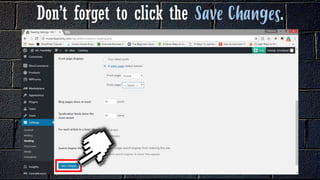
Don’t forget to click the .
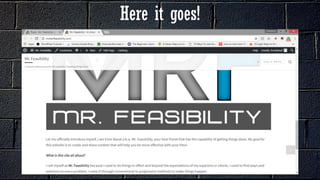
Here it goes!
Go back to the .
Hover your mouse on …
Then click on .
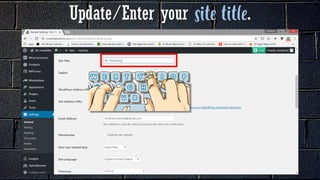
Update/Enter your .
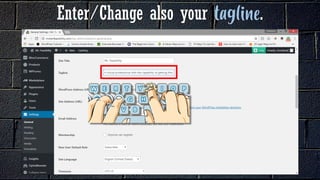
Enter/Change also your .
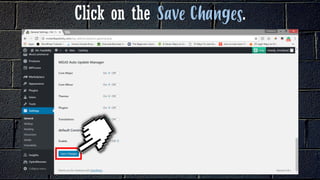
Click on the .
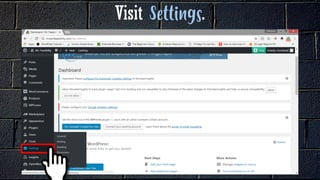
Visit .
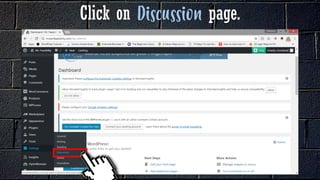
Click on page.
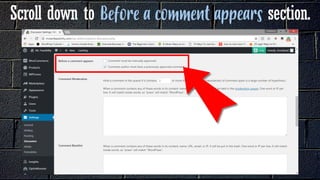
Scroll down to section.
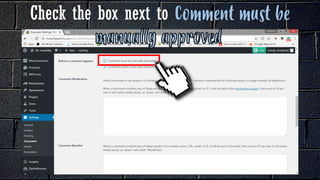
Check the box next to
.
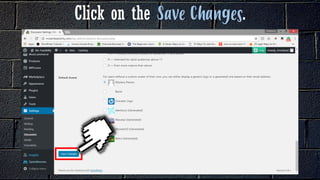
Click on the .
On your .
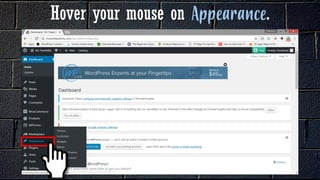
Hover your mouse on .
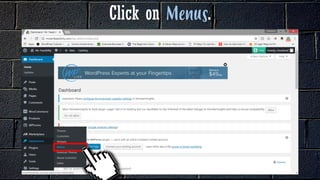
Click on .
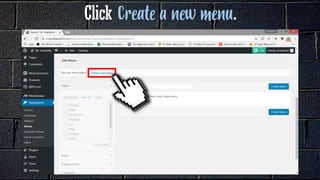
Click .
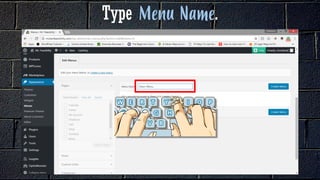
Type .
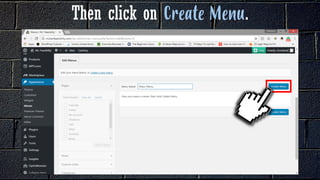
Then click on .
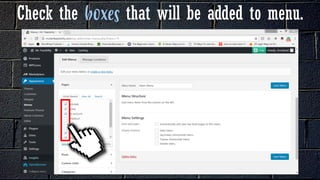
Check the that will be added to menu.
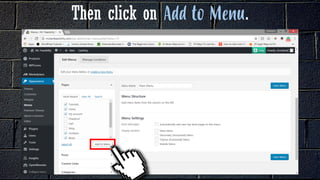
Then click on .
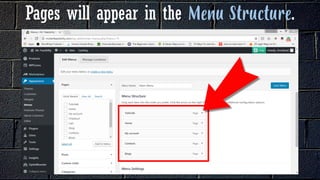
Pages will appear in the .
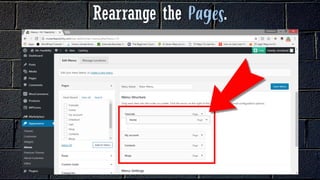
Rearrange the .
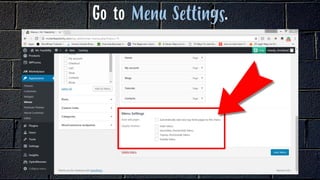
Go to .
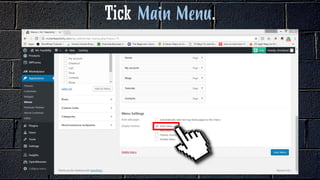
Tick .
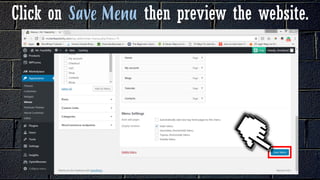
Click on then preview the website.
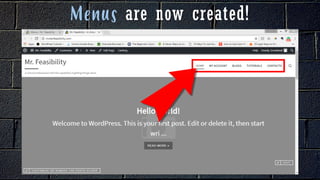
are now created!
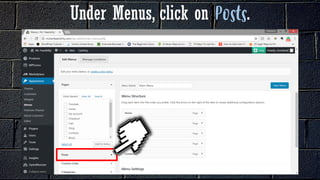
Under Menus, click on .
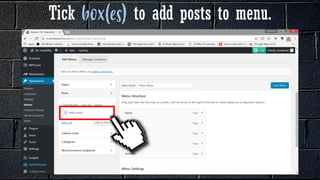
Tick to add posts to menu.
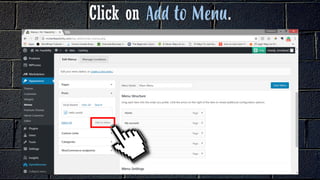
Click on .
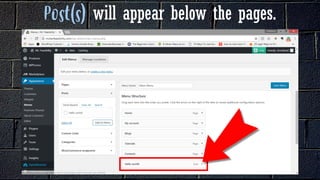
will appear below the pages.
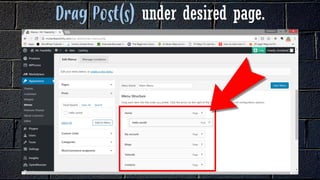
under desired page.
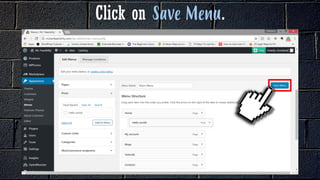
Click on .
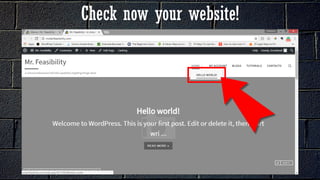
Check now your website!
3
Do not
hesitate to
learn More about it.
Great job!
We’re done!
www.misterfeasibility.com
vp.florenciobanal@gmail.comfb.me/misterfeasibility
https://twitter.com/EnsoBanal www.slideshare.net/FlorencioBanal

How to Make Website Using Wordpress Part 2 - Florencio_Banal - Mr_Feasibility