Setup Skype
Skype is sometimes used in e-learning to
share screens, see each other face to face
over the Internet.
Open a web browser
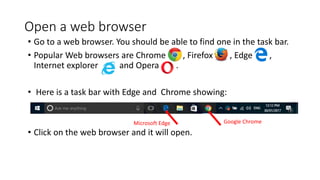
• Go to a web browser. You should be able to find one in the task bar.
• Popular Web browsers are Chrome , Firefox , Edge ,
Internet explorer and Opera .
• Here is a task bar with Edge and Chrome showing:
• Click on the web browser and it will open.
Microsoft Edge Google Chrome
Go to Skype's website
• Now you have the web browser open, you need to go to Skype’s
website
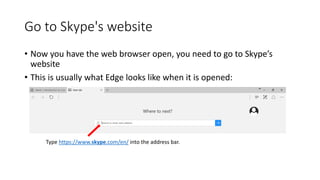
• This is usually what Edge looks like when it is opened:
Type https://www.skype.com/en/ into the address bar.
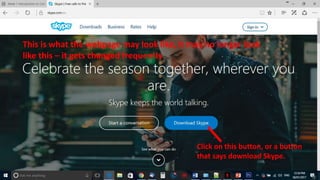
This is what the webpage may look like, it may no longer look
like this – it gets changed frequently
Click on this button, or a button
that says download Skype.
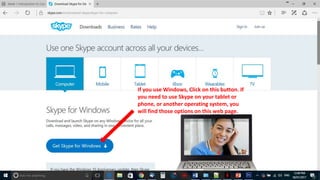
If you use Windows, Click on this button. If
you need to use Skype on your tablet or
phone, or another operating system, you
will find those options on this web page.
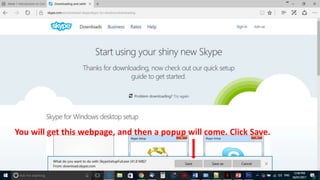
You will get this webpage, and then a popup will come. Click Save.
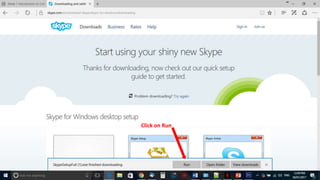
Click on Run
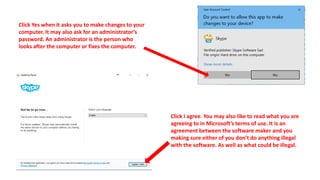
Click Yes when it asks you to make changes to your
computer. It may also ask for an administrator’s
password. An administrator is the person who
looks after the computer or fixes the computer.
Click I agree. You may also like to read what you are
agreeing to in Microsoft’s terms of use. It is an
agreement between the software maker and you
making sure either of you don’t do anything illegal
with the software. As well as what could be illegal.
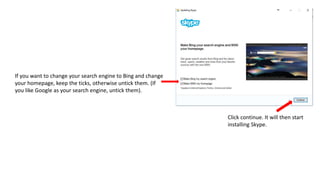
If you want to change your search engine to Bing and change
your homepage, keep the ticks, otherwise untick them. (If
you like Google as your search engine, untick them).
Click continue. It will then start
installing Skype.
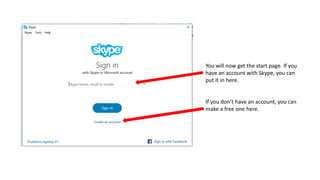
You will now get the start page. If you
have an account with Skype, you can
put it in here.
If you don’t have an account, you can
make a free one here.
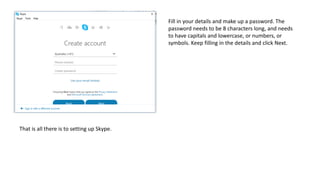
Fill in your details and make up a password. The
password needs to be 8 characters long, and needs
to have capitals and lowercase, or numbers, or
symbols. Keep filling in the details and click Next.
That is all there is to setting up Skype.

Setting up Skype

  • 1.
    Setup Skype Skype issometimes used in e-learning to share screens, see each other face to face over the Internet.
  • 2.
    Open a webbrowser • Go to a web browser. You should be able to find one in the task bar. • Popular Web browsers are Chrome , Firefox , Edge , Internet explorer and Opera . • Here is a task bar with Edge and Chrome showing: • Click on the web browser and it will open. Microsoft Edge Google Chrome
  • 3.
    Go to Skype'swebsite • Now you have the web browser open, you need to go to Skype’s website • This is usually what Edge looks like when it is opened: Type https://www.skype.com/en/ into the address bar.
  • 4.
    This is whatthe webpage may look like, it may no longer look like this – it gets changed frequently Click on this button, or a button that says download Skype.
  • 5.
    If you useWindows, Click on this button. If you need to use Skype on your tablet or phone, or another operating system, you will find those options on this web page.
  • 6.
    You will getthis webpage, and then a popup will come. Click Save.
  • 7.
  • 8.
    Click Yes whenit asks you to make changes to your computer. It may also ask for an administrator’s password. An administrator is the person who looks after the computer or fixes the computer. Click I agree. You may also like to read what you are agreeing to in Microsoft’s terms of use. It is an agreement between the software maker and you making sure either of you don’t do anything illegal with the software. As well as what could be illegal.
  • 9.
    If you wantto change your search engine to Bing and change your homepage, keep the ticks, otherwise untick them. (If you like Google as your search engine, untick them). Click continue. It will then start installing Skype.
  • 10.
    You will nowget the start page. If you have an account with Skype, you can put it in here. If you don’t have an account, you can make a free one here.
  • 11.
    Fill in yourdetails and make up a password. The password needs to be 8 characters long, and needs to have capitals and lowercase, or numbers, or symbols. Keep filling in the details and click Next. That is all there is to setting up Skype.