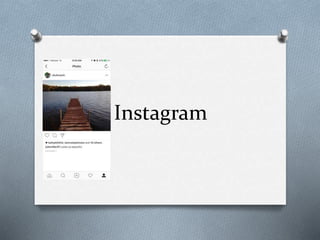
Instagram
To create an Instagram
account from a computer:
O Go to instagram.com.
O Enter your email address, create a username and
password or click Log in with Facebook to sign
up with your Facebook account.
O If you register with an email, click Sign up. If you
register with Facebook, you'll be prompted to log
into your Facebook account if you're currently
logged out.
O Keep in mind, if you sign up with email, make sure
you enter your email address correctly and you
choose an email address that only you can
access. If you log out and forget your password,
you'll need access to your email to get back into
your Instagram account.
To create an Instagram
account from the app:
O Download the Instagram app for iOS from
the App Store, Android from Google Play
Store or Windows Phone from the Windows
Phone Store.
O Once the app is installed, tap to open it.
O Tap Sign Up, then enter your email address
and tap Next or tap Log in with Facebook to
sign up with your Facebook account.
O If you register with email, create
a username and password, fill out your profile
info and then tapDone. If you register with
Facebook, you'll be prompted to log into your
Facebook account if you're currently logged
out.
Syncing Contacts and Finding
People to Follow
O Android
O Go to your profile and then tap in the top right.
O Tap Find Friends to choose to find friends from Facebook, from
your phone's contact list or from a list of suggested Instagrammers.
O Tap Follow next to people whose posts you want to see in your
Feed.
O iPhone/iPad or Windows Phone
O Go to your profile and then tap in the top right.
O Tap Find People to Follow to choose to find friends from Facebook,
from your phone's contact list or from a list of suggested
Instagrammers.
O Tap Follow next to people whose posts you want to see in your
Feed.
O You can also tap at the bottom of your app to see photos, videos
and people that you might like. Use the search bar at the top of
Search & Explore to find people sharing posts you're interested in
(ex: search "knitting" to browse knitting posts people have shared).
Posting Photos
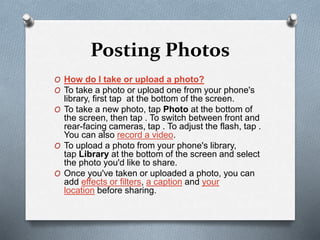
O How do I take or upload a photo?
O To take a photo or upload one from your phone's
library, first tap at the bottom of the screen.
O To take a new photo, tap Photo at the bottom of
the screen, then tap . To switch between front and
rear-facing cameras, tap . To adjust the flash, tap .
You can also record a video.
O To upload a photo from your phone's library,
tap Library at the bottom of the screen and select
the photo you'd like to share.
O Once you've taken or uploaded a photo, you can
add effects or filters, a caption and your
location before sharing.
Adding Captions
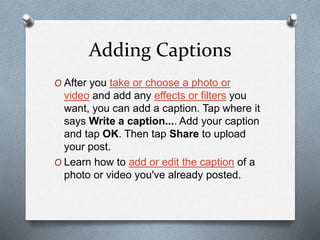
O After you take or choose a photo or
video and add any effects or filters you
want, you can add a caption. Tap where it
says Write a caption.... Add your caption
and tap OK. Then tap Share to upload
your post.
O Learn how to add or edit the caption of a
photo or video you've already posted.
Posting Videos
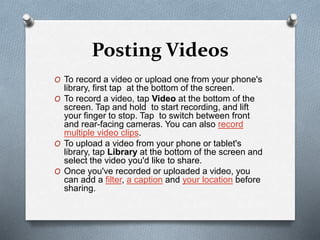
O To record a video or upload one from your phone's
library, first tap at the bottom of the screen.
O To record a video, tap Video at the bottom of the
screen. Tap and hold to start recording, and lift
your finger to stop. Tap to switch between front
and rear-facing cameras. You can also record
multiple video clips.
O To upload a video from your phone or tablet's
library, tap Library at the bottom of the screen and
select the video you'd like to share.
O Once you've recorded or uploaded a video, you
can add a filter, a caption and your location before
sharing.
Sharing to Facebook
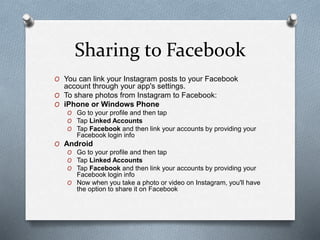
O You can link your Instagram posts to your Facebook
account through your app's settings.
O To share photos from Instagram to Facebook:
O iPhone or Windows Phone
O Go to your profile and then tap
O Tap Linked Accounts
O Tap Facebook and then link your accounts by providing your
Facebook login info
O Android
O Go to your profile and then tap
O Tap Linked Accounts
O Tap Facebook and then link your accounts by providing your
Facebook login info
O Now when you take a photo or video on Instagram, you'll have
the option to share it on Facebook

Instagram

  • 1.
  • 2.
    To create anInstagram account from a computer: O Go to instagram.com. O Enter your email address, create a username and password or click Log in with Facebook to sign up with your Facebook account. O If you register with an email, click Sign up. If you register with Facebook, you'll be prompted to log into your Facebook account if you're currently logged out. O Keep in mind, if you sign up with email, make sure you enter your email address correctly and you choose an email address that only you can access. If you log out and forget your password, you'll need access to your email to get back into your Instagram account.
  • 3.
    To create anInstagram account from the app: O Download the Instagram app for iOS from the App Store, Android from Google Play Store or Windows Phone from the Windows Phone Store. O Once the app is installed, tap to open it. O Tap Sign Up, then enter your email address and tap Next or tap Log in with Facebook to sign up with your Facebook account. O If you register with email, create a username and password, fill out your profile info and then tapDone. If you register with Facebook, you'll be prompted to log into your Facebook account if you're currently logged out.
  • 4.
    Syncing Contacts andFinding People to Follow O Android O Go to your profile and then tap in the top right. O Tap Find Friends to choose to find friends from Facebook, from your phone's contact list or from a list of suggested Instagrammers. O Tap Follow next to people whose posts you want to see in your Feed. O iPhone/iPad or Windows Phone O Go to your profile and then tap in the top right. O Tap Find People to Follow to choose to find friends from Facebook, from your phone's contact list or from a list of suggested Instagrammers. O Tap Follow next to people whose posts you want to see in your Feed. O You can also tap at the bottom of your app to see photos, videos and people that you might like. Use the search bar at the top of Search & Explore to find people sharing posts you're interested in (ex: search "knitting" to browse knitting posts people have shared).
  • 5.
    Posting Photos O Howdo I take or upload a photo? O To take a photo or upload one from your phone's library, first tap at the bottom of the screen. O To take a new photo, tap Photo at the bottom of the screen, then tap . To switch between front and rear-facing cameras, tap . To adjust the flash, tap . You can also record a video. O To upload a photo from your phone's library, tap Library at the bottom of the screen and select the photo you'd like to share. O Once you've taken or uploaded a photo, you can add effects or filters, a caption and your location before sharing.
  • 6.
    Adding Captions O Afteryou take or choose a photo or video and add any effects or filters you want, you can add a caption. Tap where it says Write a caption.... Add your caption and tap OK. Then tap Share to upload your post. O Learn how to add or edit the caption of a photo or video you've already posted.
  • 7.
    Posting Videos O Torecord a video or upload one from your phone's library, first tap at the bottom of the screen. O To record a video, tap Video at the bottom of the screen. Tap and hold to start recording, and lift your finger to stop. Tap to switch between front and rear-facing cameras. You can also record multiple video clips. O To upload a video from your phone or tablet's library, tap Library at the bottom of the screen and select the video you'd like to share. O Once you've recorded or uploaded a video, you can add a filter, a caption and your location before sharing.
  • 8.
    Sharing to Facebook OYou can link your Instagram posts to your Facebook account through your app's settings. O To share photos from Instagram to Facebook: O iPhone or Windows Phone O Go to your profile and then tap O Tap Linked Accounts O Tap Facebook and then link your accounts by providing your Facebook login info O Android O Go to your profile and then tap O Tap Linked Accounts O Tap Facebook and then link your accounts by providing your Facebook login info O Now when you take a photo or video on Instagram, you'll have the option to share it on Facebook