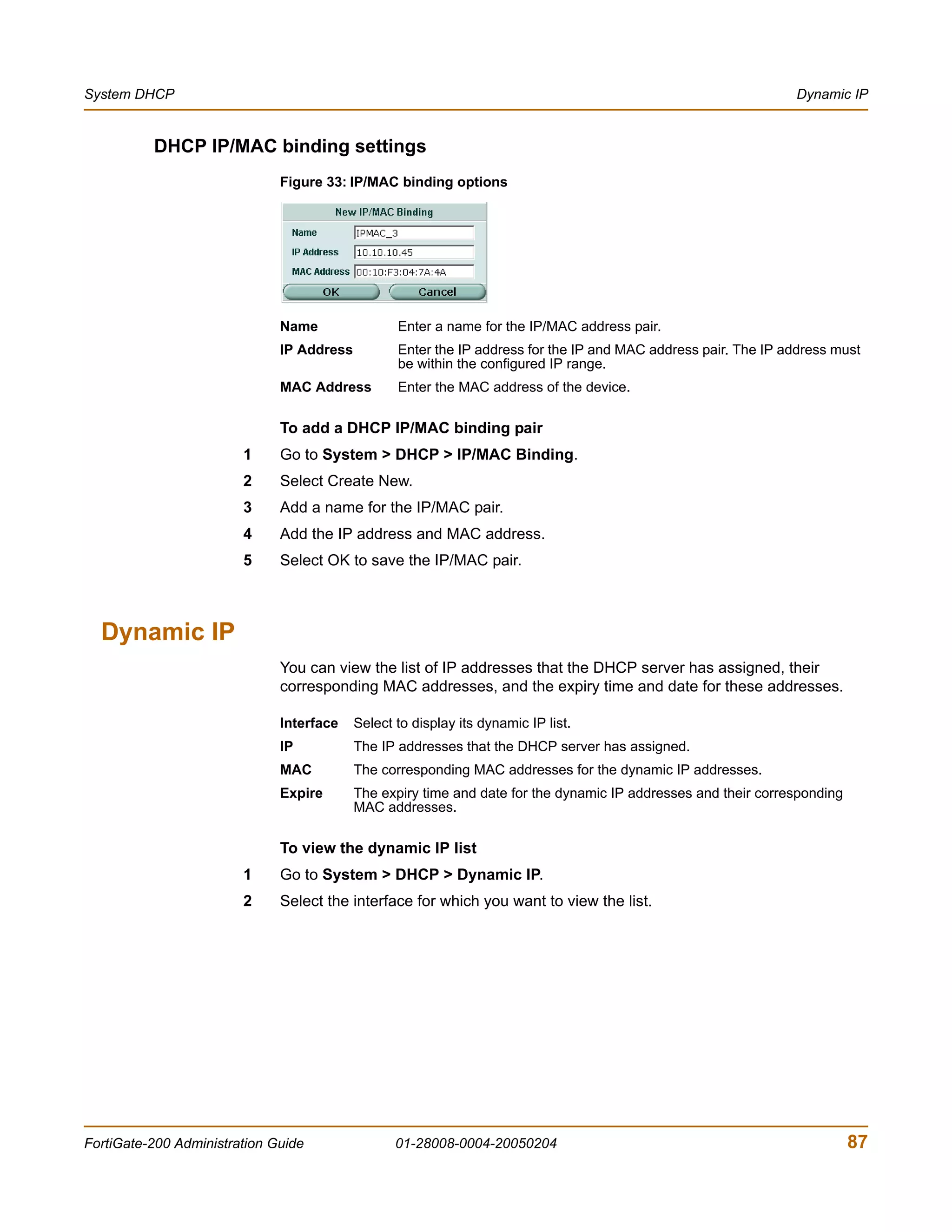
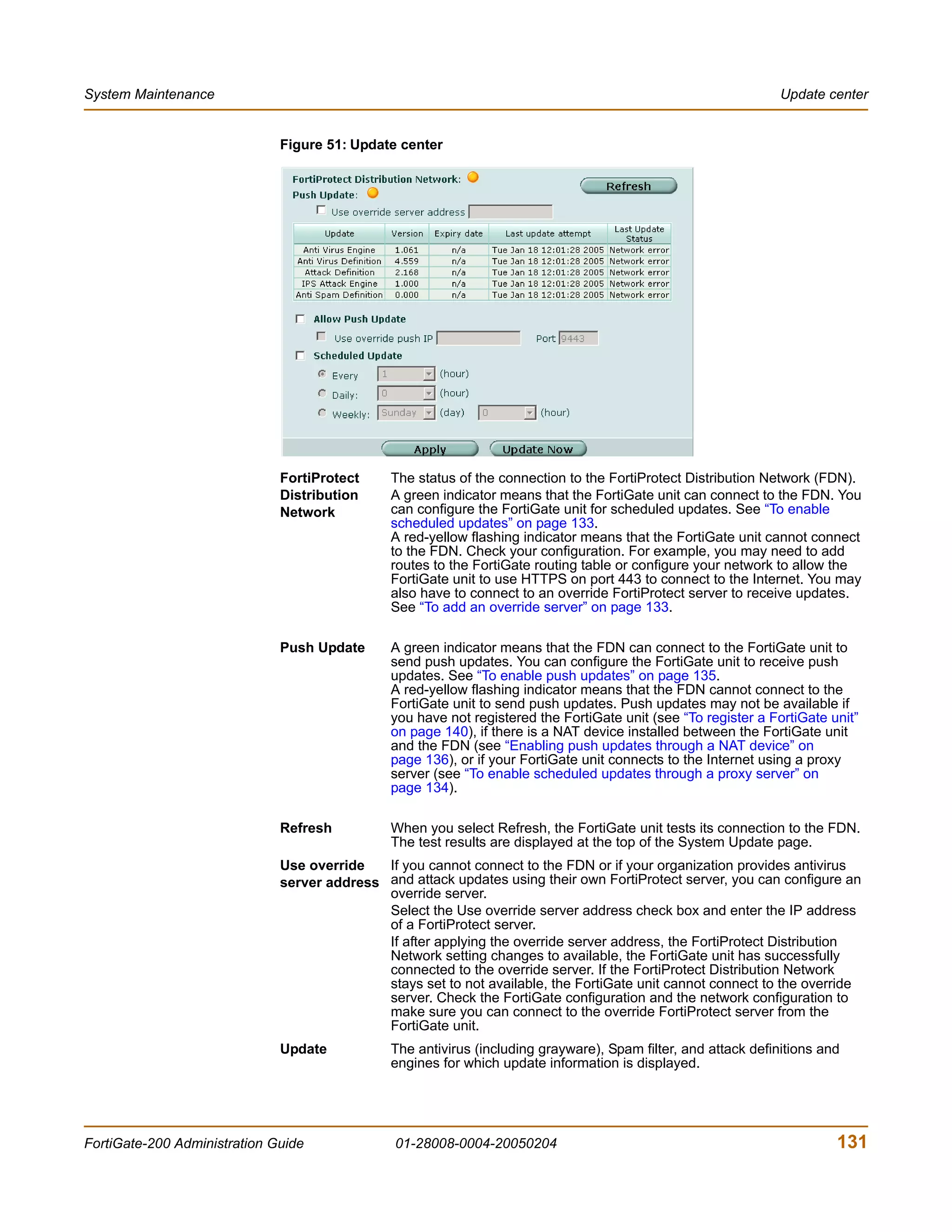
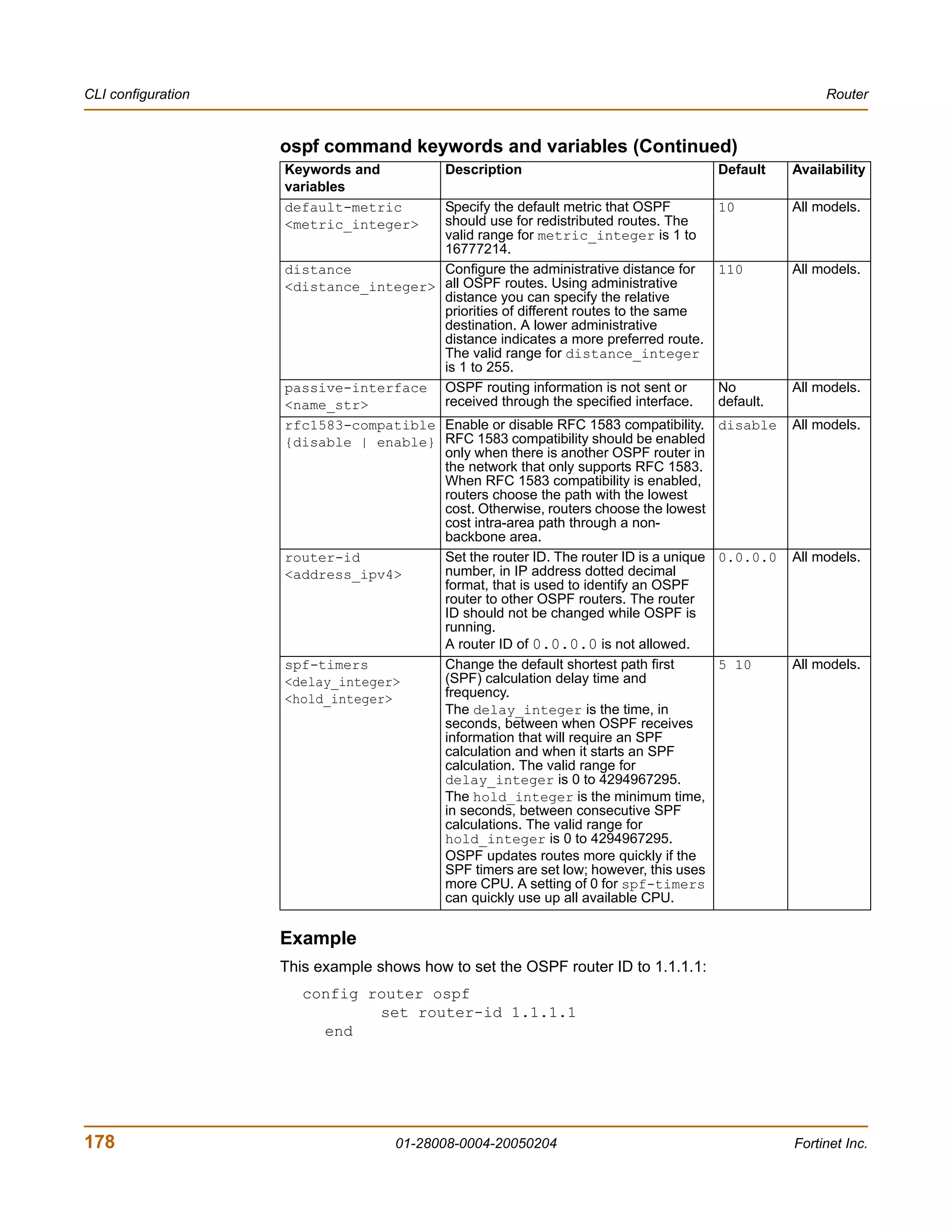
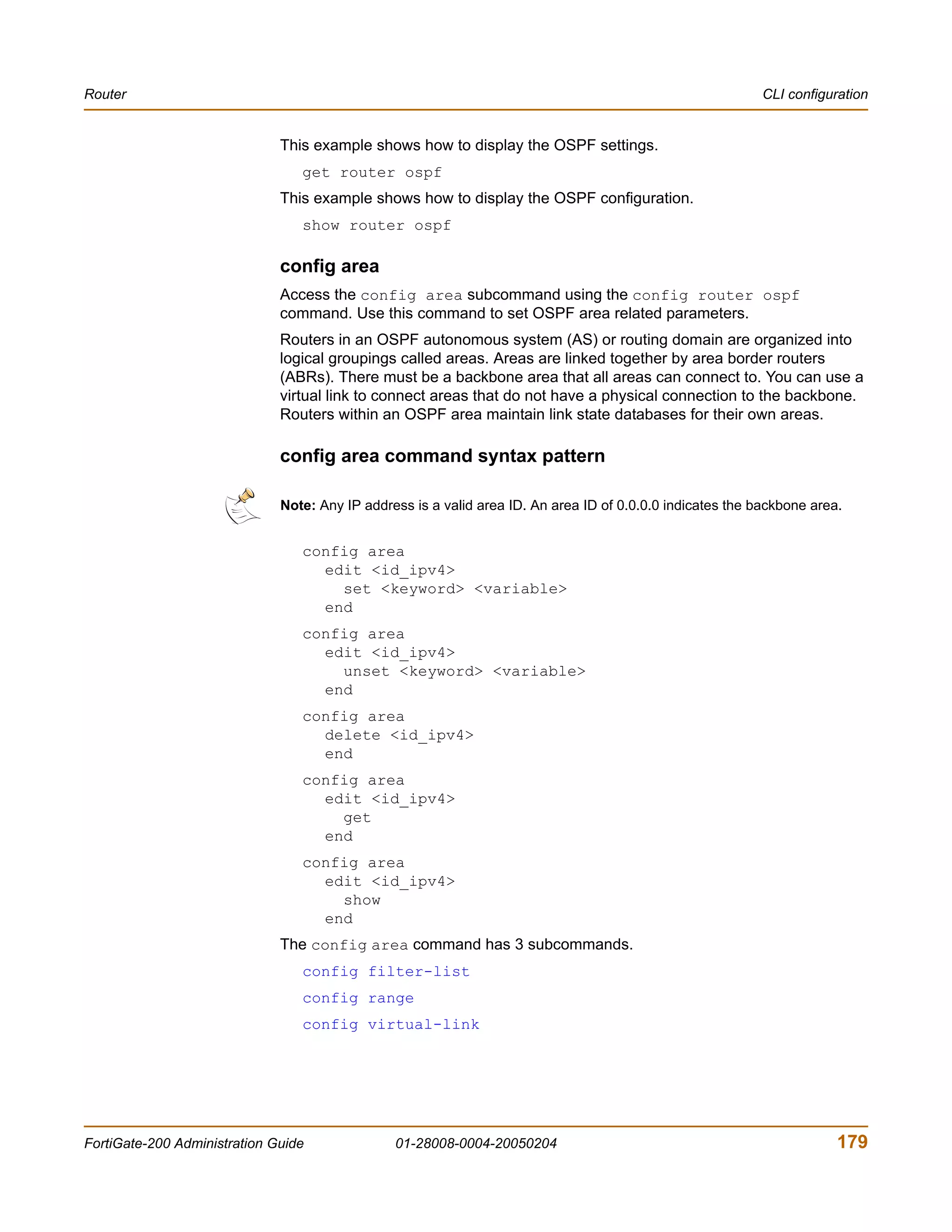
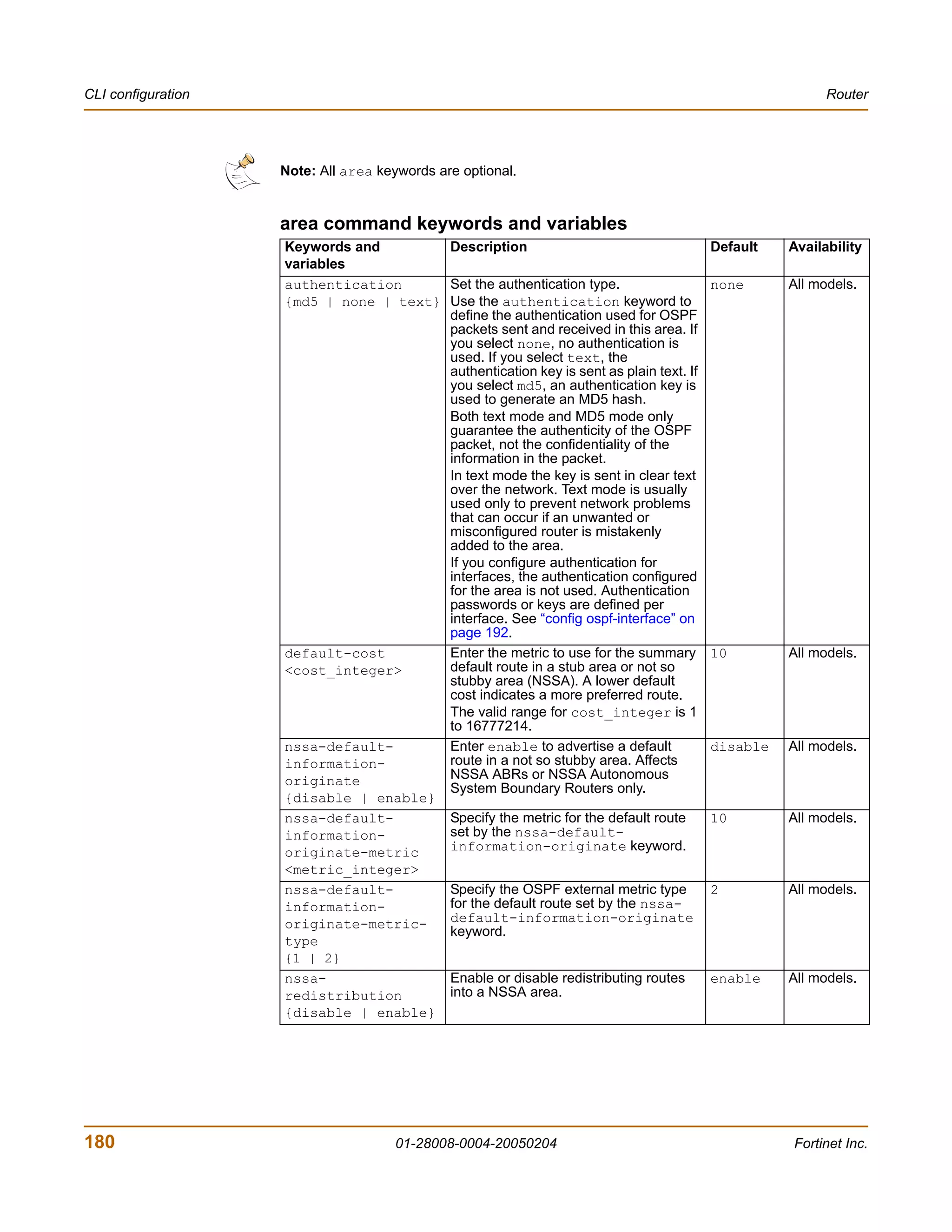
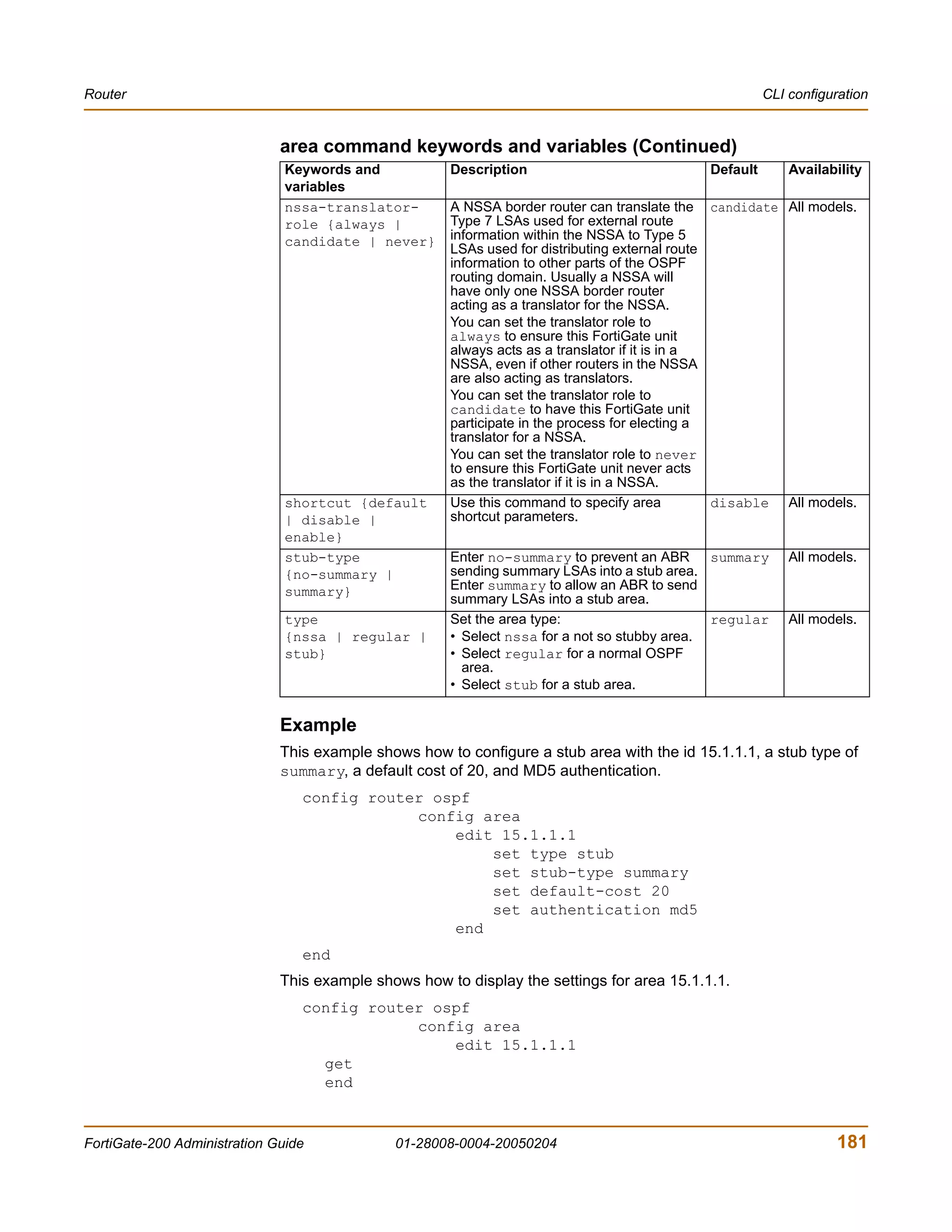
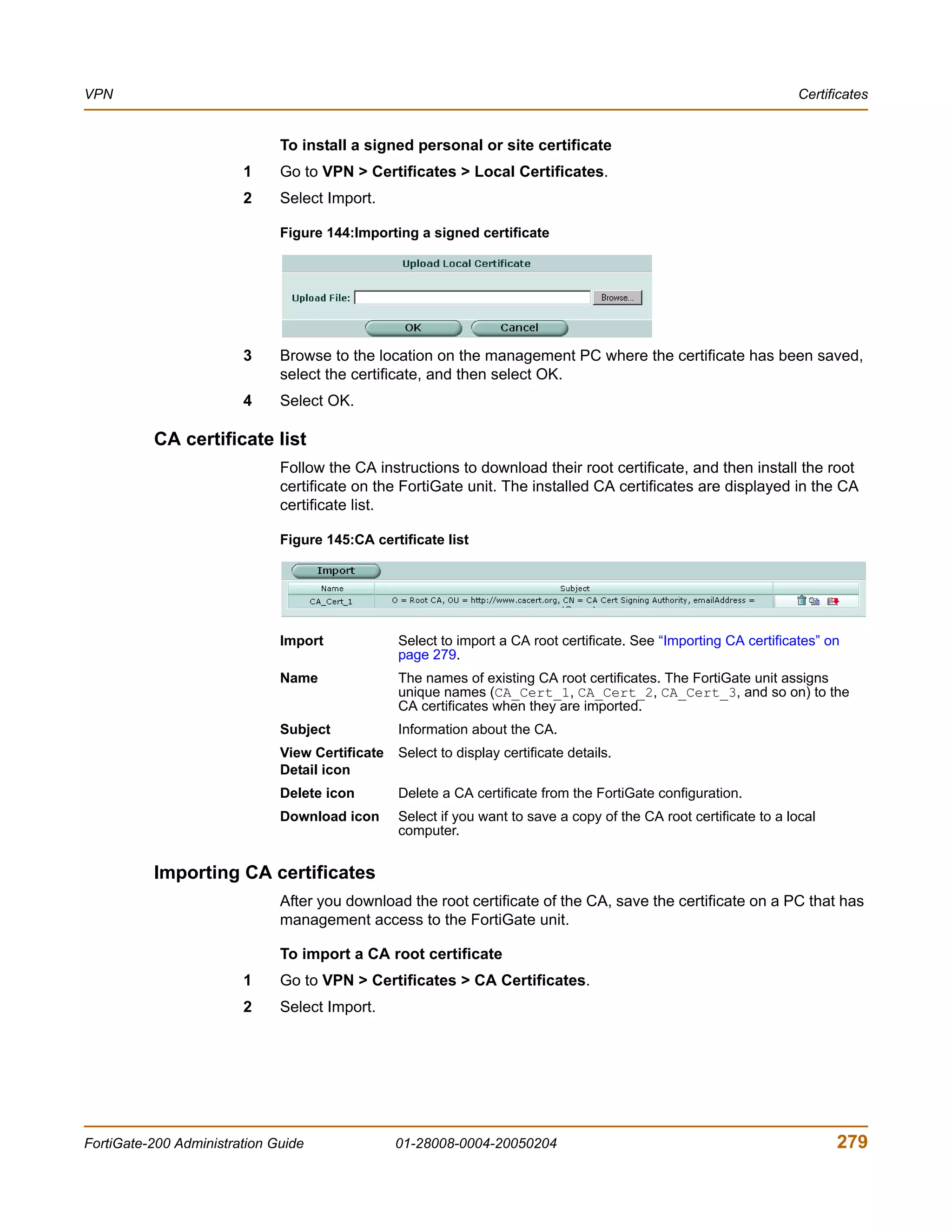
FortiGate 200                                              Administration Guide


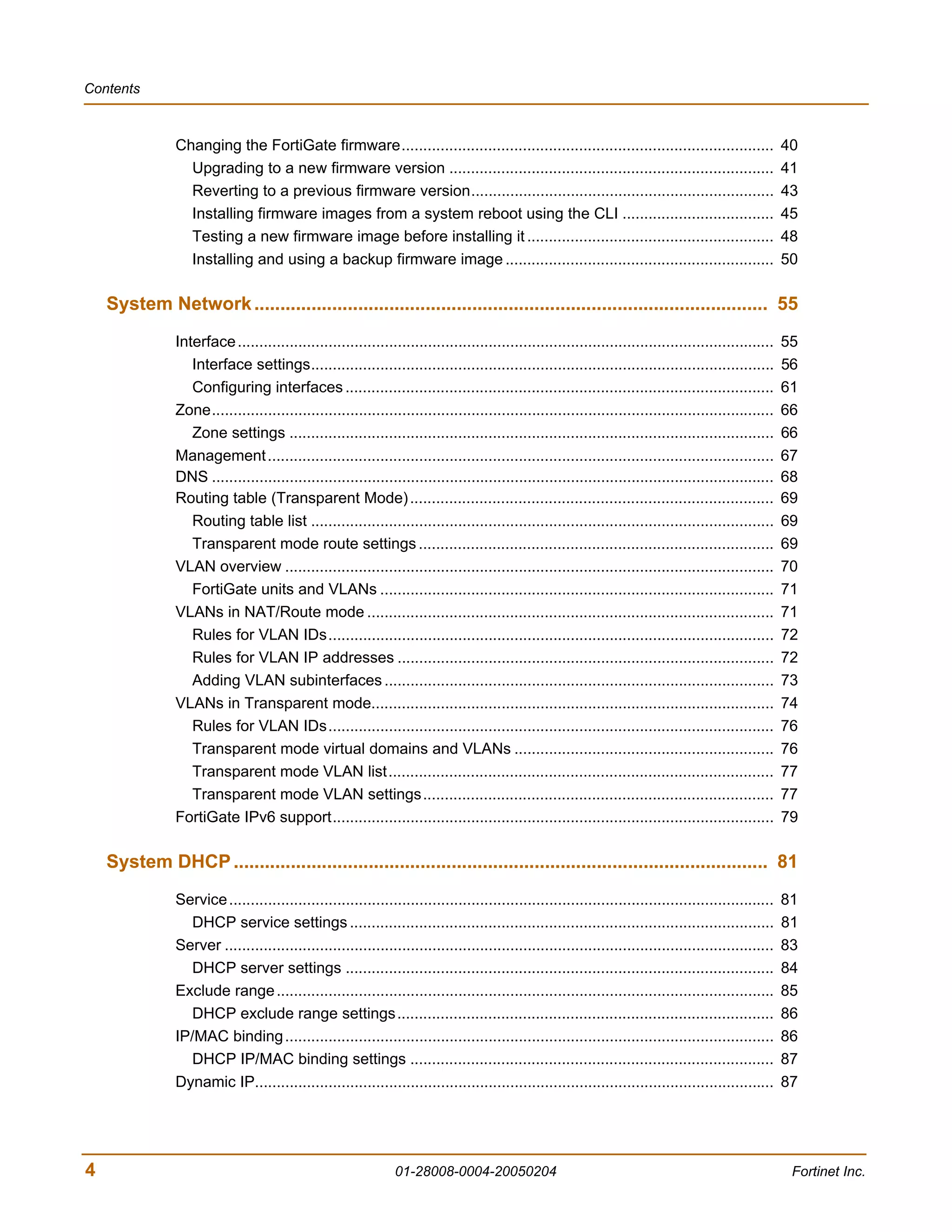
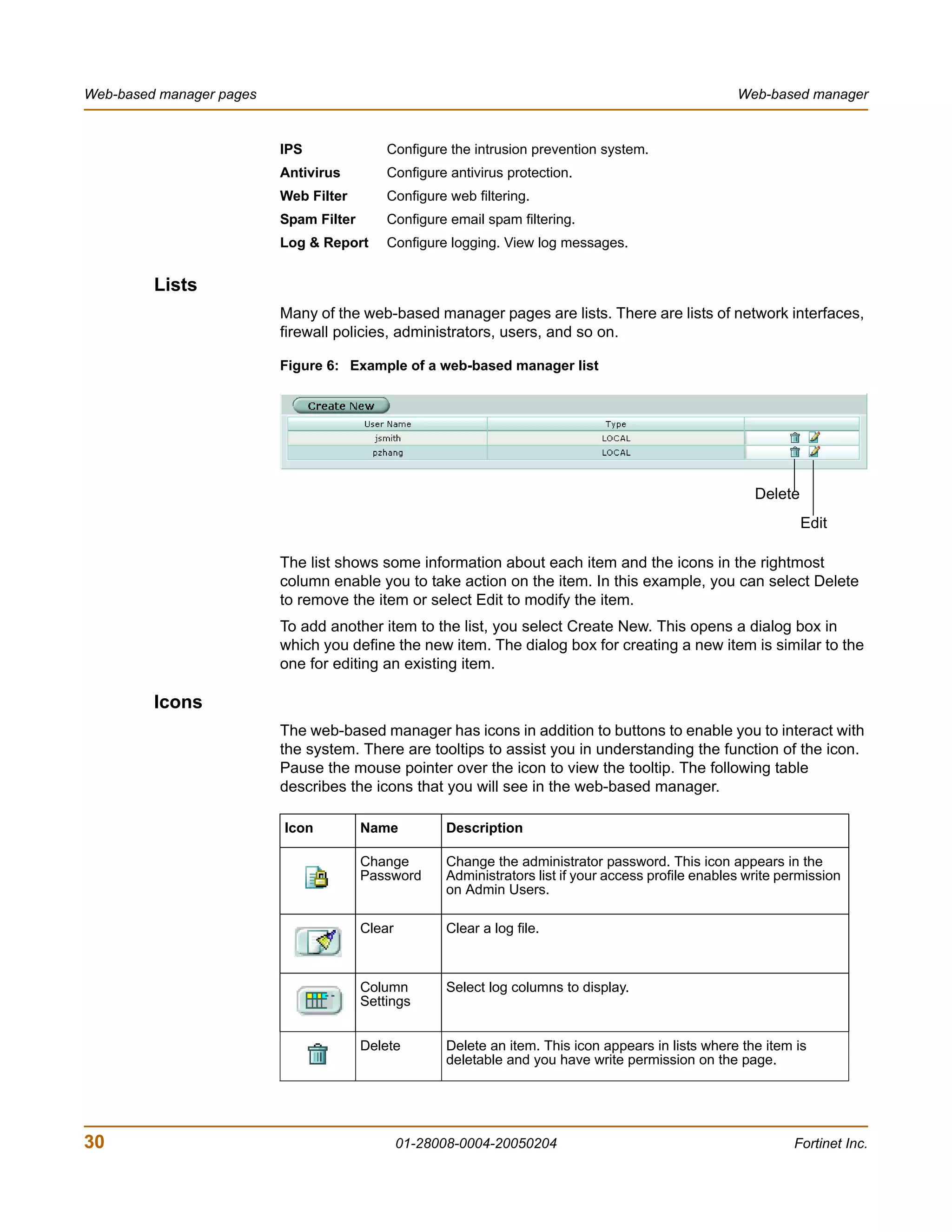
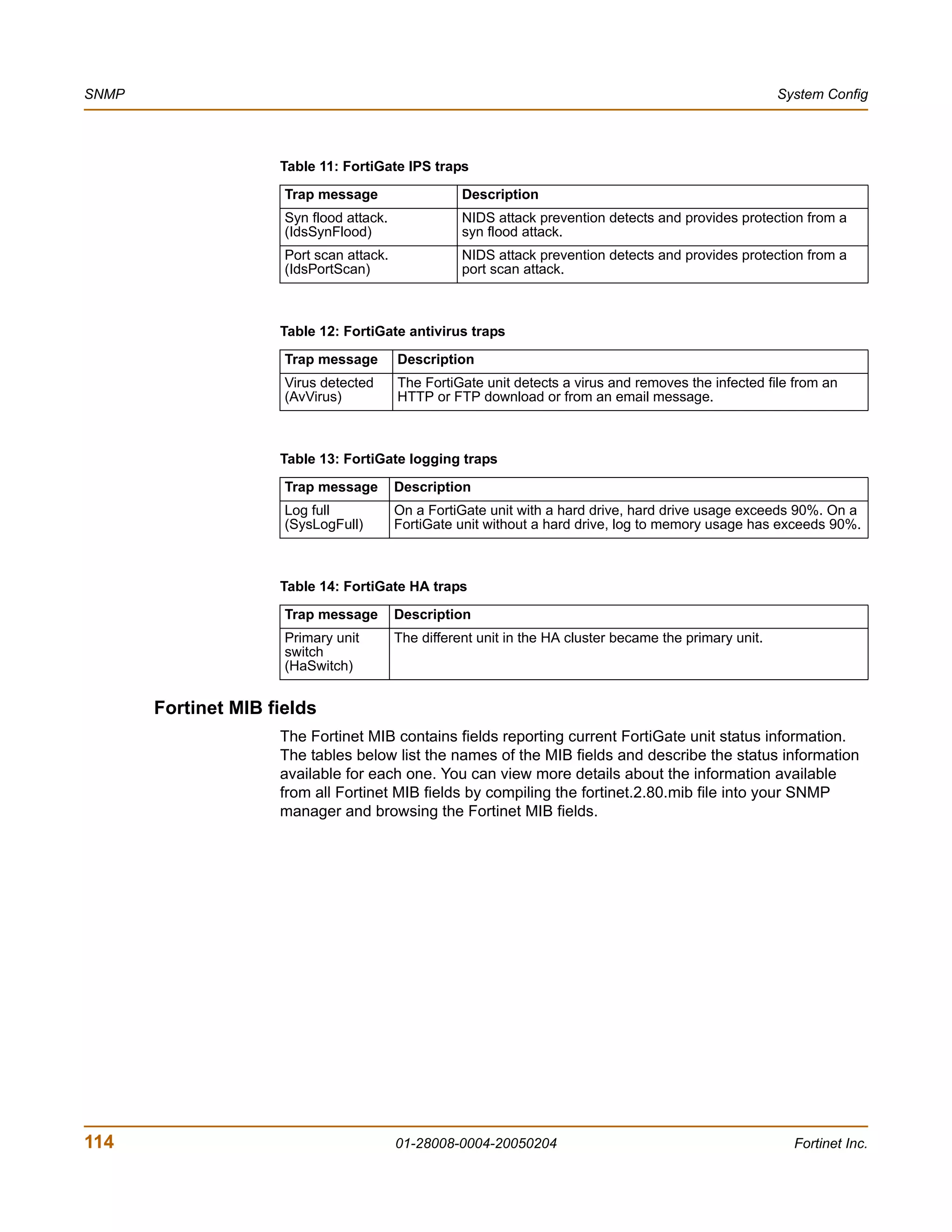
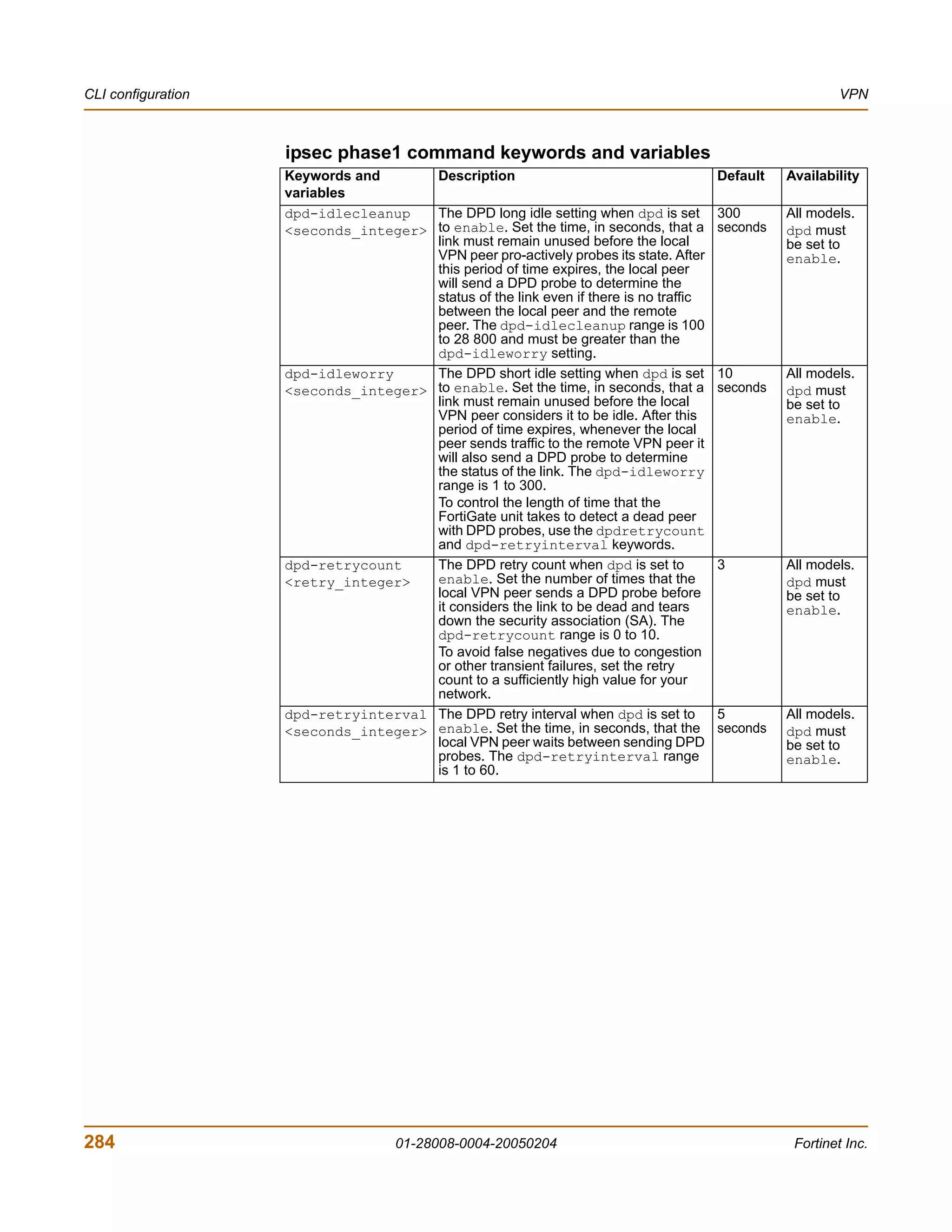
            POWER   STATUS   INTERNAL EXTERNAL   DMZ
                                                                       CONSOLE   INTERNAL   EXTERNAL   DMZ


                             FortiGate-200 Administration Guide

                                                       Version 2.80 MR8
                                                           4 February 2005
                                                       01-28008-0004-20050204
© Copyright 2005 Fortinet Inc. All rights reserved.

No part of this publication including text, examples, diagrams or illustrations may be reproduced,
transmitted, or translated in any form or by any means, electronic, mechanical, manual, optical or
otherwise, for any purpose, without prior written permission of Fortinet Inc.

FortiGate-200 Administration Guide
Version 2.80 MR8
4 February 2005
01-28008-0004-20050204


Trademarks
Products mentioned in this document are trademarks or registered trademarks of their respective
holders.

Regulatory Compliance
FCC Class A Part 15 CSA/CUS

CAUTION: RISK OF EXPLOSION IF BATTERY IS REPLACED BY AN INCORRECT TYPE.
DISPOSE OF USED BATTERIES ACCORDING TO THE INSTRUCTIONS.

For technical support, please visit http://www.fortinet.com.

Send information about errors or omissions in this document or any Fortinet technical documentation to
techdoc@fortinet.com.
Contents


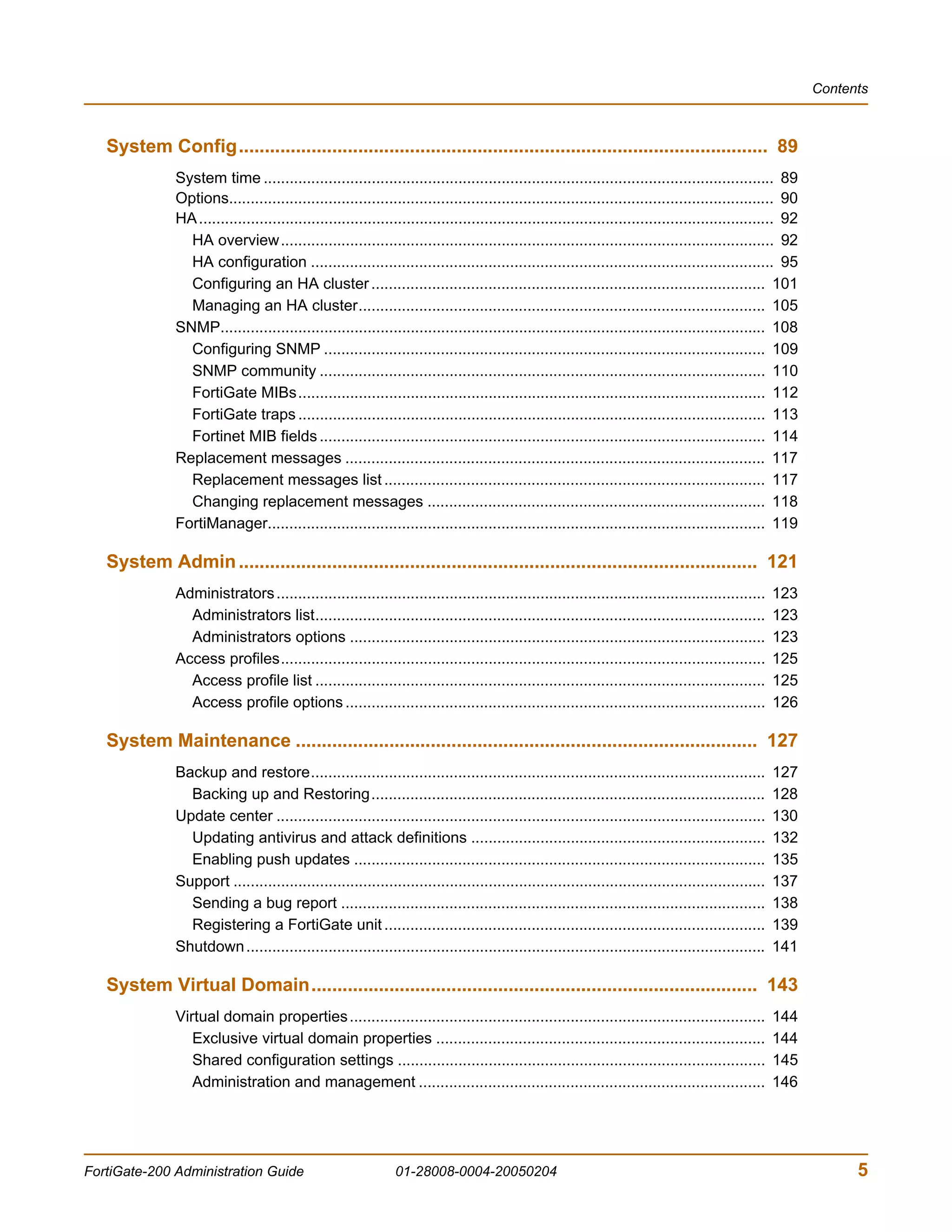
  Table of Contents
   Introduction .......................................................................................................... 13
               About FortiGate Antivirus Firewalls...................................................................................                   13
                 Antivirus protection .......................................................................................................           14
                 Web content filtering .....................................................................................................            14
                 Spam filtering ................................................................................................................        15
                 Firewall..........................................................................................................................     15
                 VLANs and virtual domains...........................................................................................                   17
                 Intrusion Prevention System (IPS)................................................................................                      17
                 VPN...............................................................................................................................     17
                 High availability .............................................................................................................        18
                 Secure installation, configuration, and management ....................................................                                19
               Document conventions .....................................................................................................               20
               FortiGate documentation ..................................................................................................               22
                 Fortinet Knowledge Center ...........................................................................................                  22
                 Comments on Fortinet technical documentation...........................................................                                22
               Related documentation .....................................................................................................              23
                 FortiManager documentation ........................................................................................                    23
                 FortiClient documentation .............................................................................................                23
                 FortiMail documentation................................................................................................                23
                 FortiLog documentation ................................................................................................                24
               Customer service and technical support...........................................................................                        24

   Web-based manager............................................................................................ 25
               Button bar features ...........................................................................................................          26
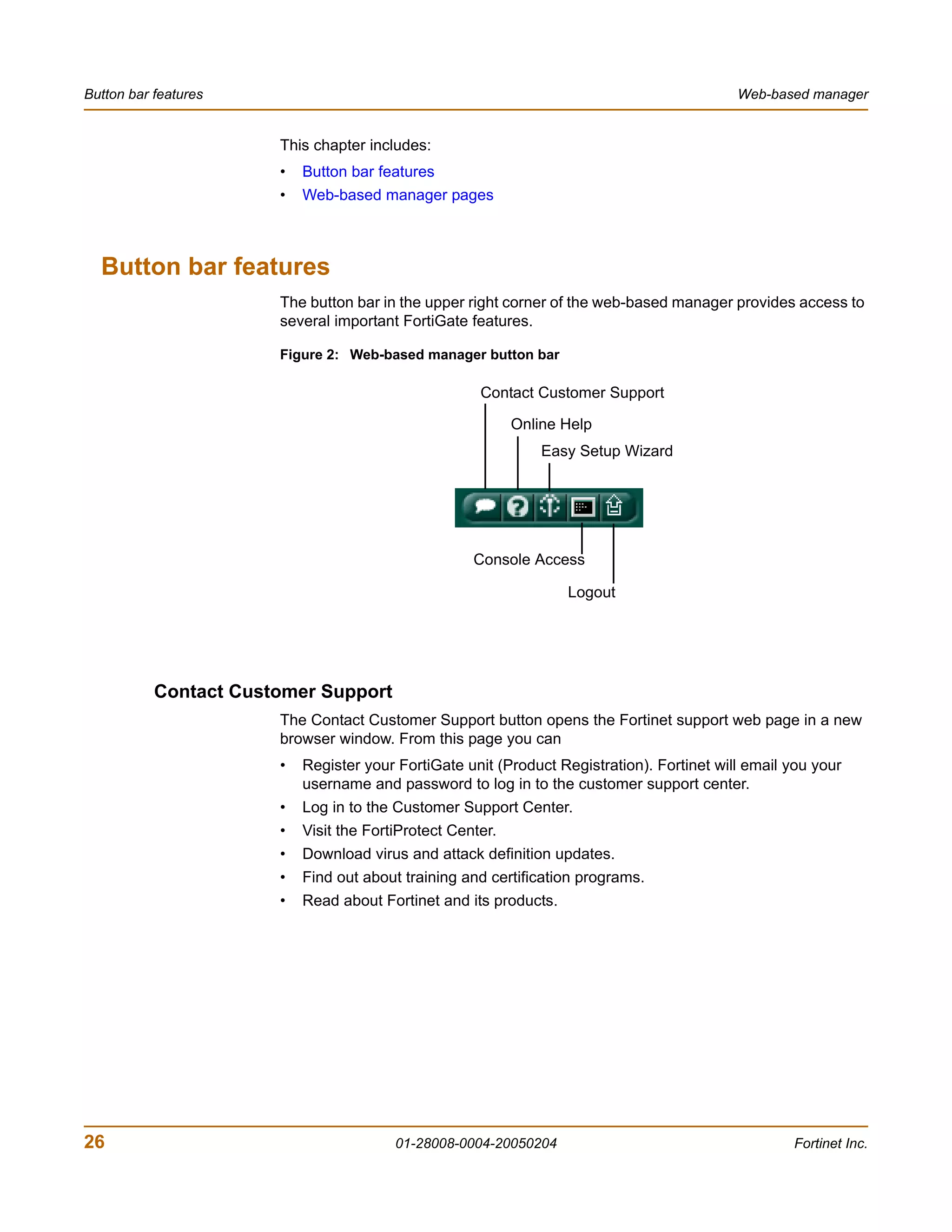
                 Contact Customer Support ...........................................................................................                   26
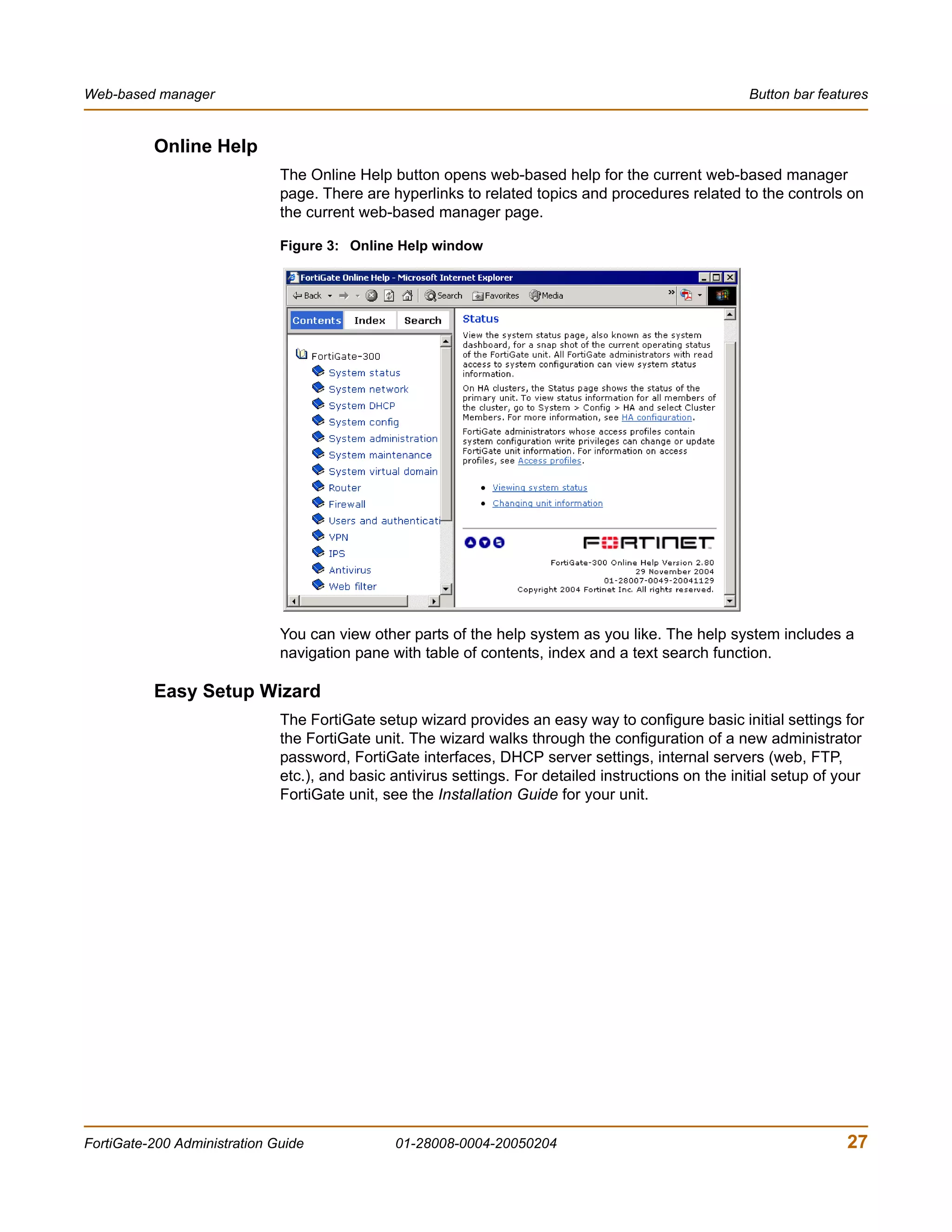
                 Online Help ...................................................................................................................        27
                 Easy Setup Wizard .......................................................................................................              27
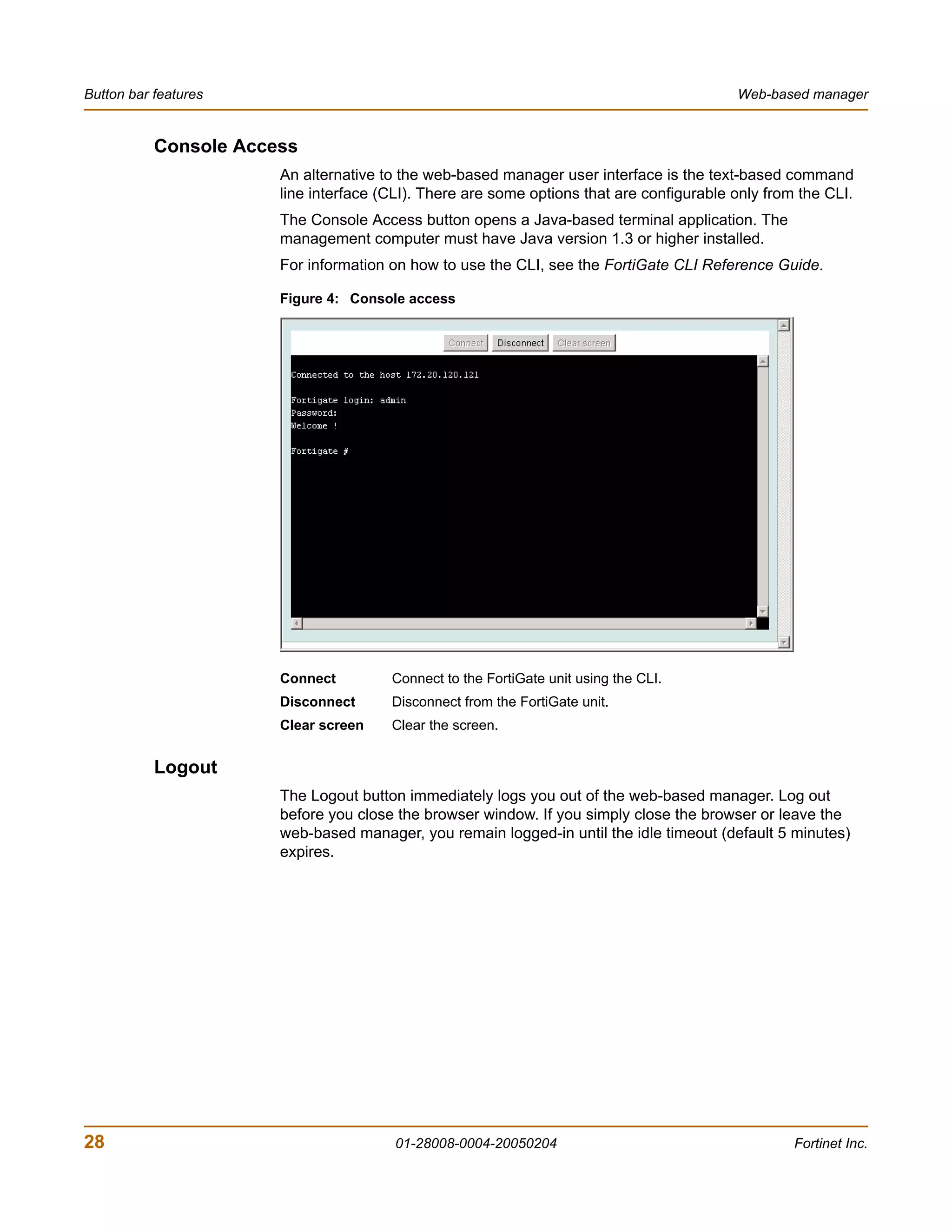
                 Console Access ............................................................................................................            28
                 Logout ...........................................................................................................................     28
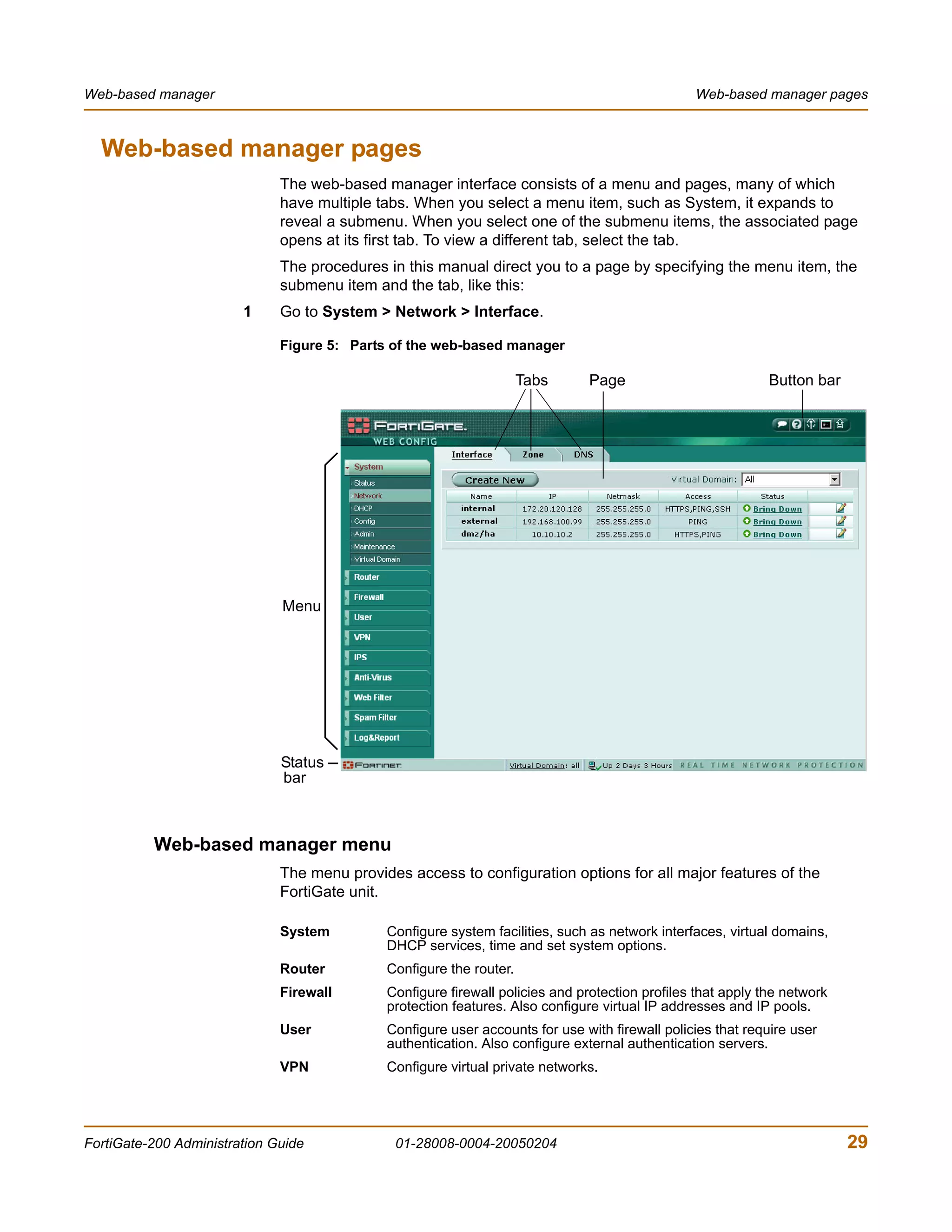
               Web-based manager pages..............................................................................................                    29
                 Web-based manager menu ..........................................................................................                      29
                 Lists...............................................................................................................................   30
                 Icons .............................................................................................................................    30
                 Status bar......................................................................................................................       31
               Organization of this manual ..............................................................................................               32

   System Status ...................................................................................................... 33
               Status................................................................................................................................   33
                 Viewing system status ..................................................................................................               34
                 Changing unit information .............................................................................................                37
               Session list........................................................................................................................     39


FortiGate-200 Administration Guide                              01-28008-0004-20050204                                                                             3
Contents


               Changing the FortiGate firmware......................................................................................                    40
                 Upgrading to a new firmware version ...........................................................................                        41
                 Reverting to a previous firmware version......................................................................                         43
                 Installing firmware images from a system reboot using the CLI ...................................                                      45
                 Testing a new firmware image before installing it .........................................................                            48
                 Installing and using a backup firmware image ..............................................................                            50

    System Network ................................................................................................... 55
               Interface ............................................................................................................................   55
                  Interface settings...........................................................................................................         56
                  Configuring interfaces ...................................................................................................            61
               Zone..................................................................................................................................   66
                  Zone settings ................................................................................................................        66
               Management .....................................................................................................................         67
               DNS ..................................................................................................................................   68
               Routing table (Transparent Mode) ....................................................................................                    69
                  Routing table list ...........................................................................................................        69
                  Transparent mode route settings ..................................................................................                    69
               VLAN overview .................................................................................................................          70
                  FortiGate units and VLANs ...........................................................................................                 71
               VLANs in NAT/Route mode ..............................................................................................                   71
                  Rules for VLAN IDs.......................................................................................................             72
                  Rules for VLAN IP addresses .......................................................................................                   72
                  Adding VLAN subinterfaces ..........................................................................................                  73
               VLANs in Transparent mode.............................................................................................                   74
                  Rules for VLAN IDs.......................................................................................................             76
                  Transparent mode virtual domains and VLANs ............................................................                               76
                  Transparent mode VLAN list.........................................................................................                   77
                  Transparent mode VLAN settings.................................................................................                       77
               FortiGate IPv6 support......................................................................................................             79

    System DHCP ....................................................................................................... 81
               Service ..............................................................................................................................   81
                 DHCP service settings ..................................................................................................               81
               Server ...............................................................................................................................   83
                 DHCP server settings ...................................................................................................               84
               Exclude range ...................................................................................................................        85
                 DHCP exclude range settings.......................................................................................                     86
               IP/MAC binding .................................................................................................................         86
                 DHCP IP/MAC binding settings ....................................................................................                      87
               Dynamic IP........................................................................................................................       87


4                                                               01-28008-0004-20050204                                                                   Fortinet Inc.
Contents


   System Config...................................................................................................... 89
              System time ...................................................................................................................... 89
              Options.............................................................................................................................. 90
              HA ..................................................................................................................................... 92
                HA overview.................................................................................................................. 92
                HA configuration ........................................................................................................... 95
                Configuring an HA cluster ........................................................................................... 101
                Managing an HA cluster.............................................................................................. 105
              SNMP.............................................................................................................................. 108
                Configuring SNMP ...................................................................................................... 109
                SNMP community ....................................................................................................... 110
                FortiGate MIBs............................................................................................................ 112
                FortiGate traps ............................................................................................................ 113
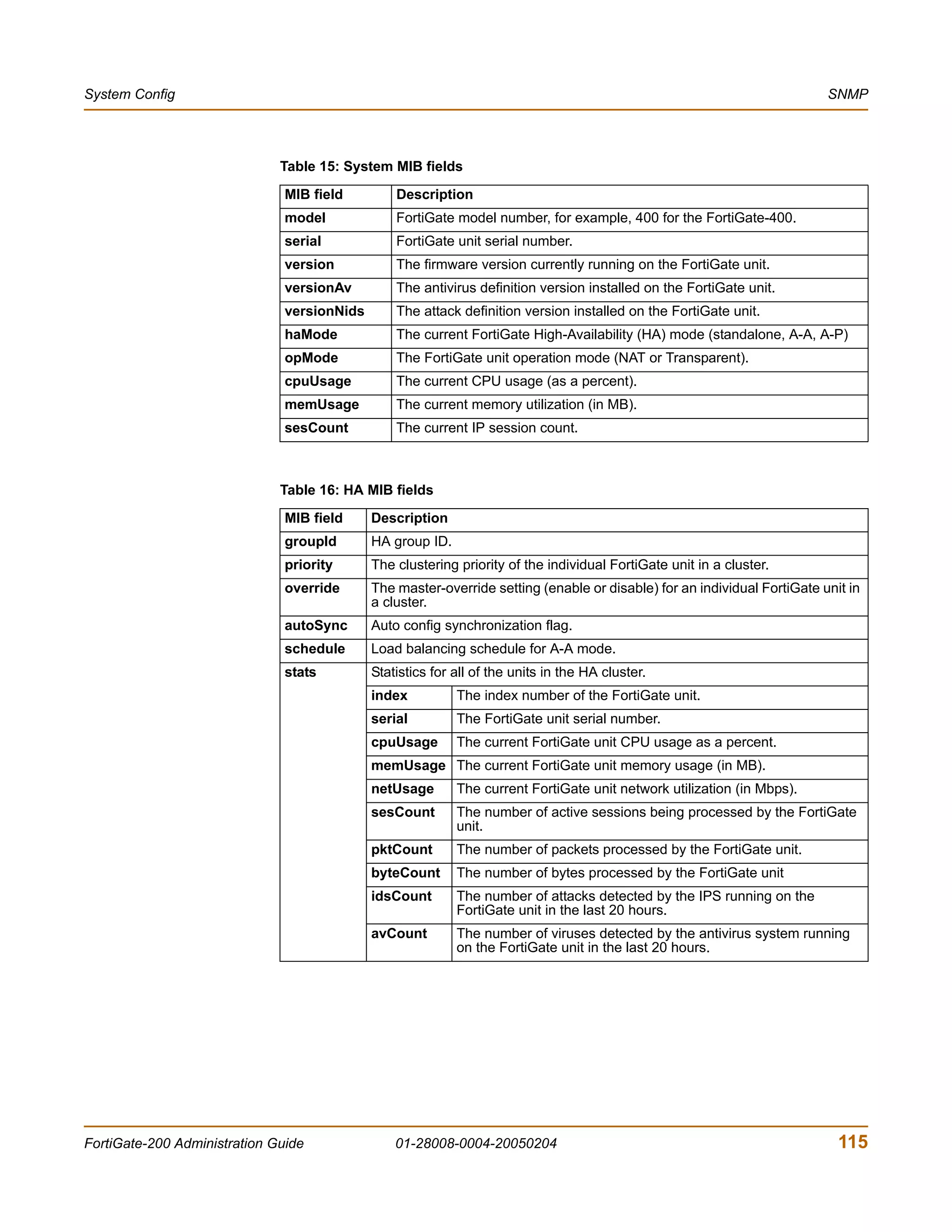
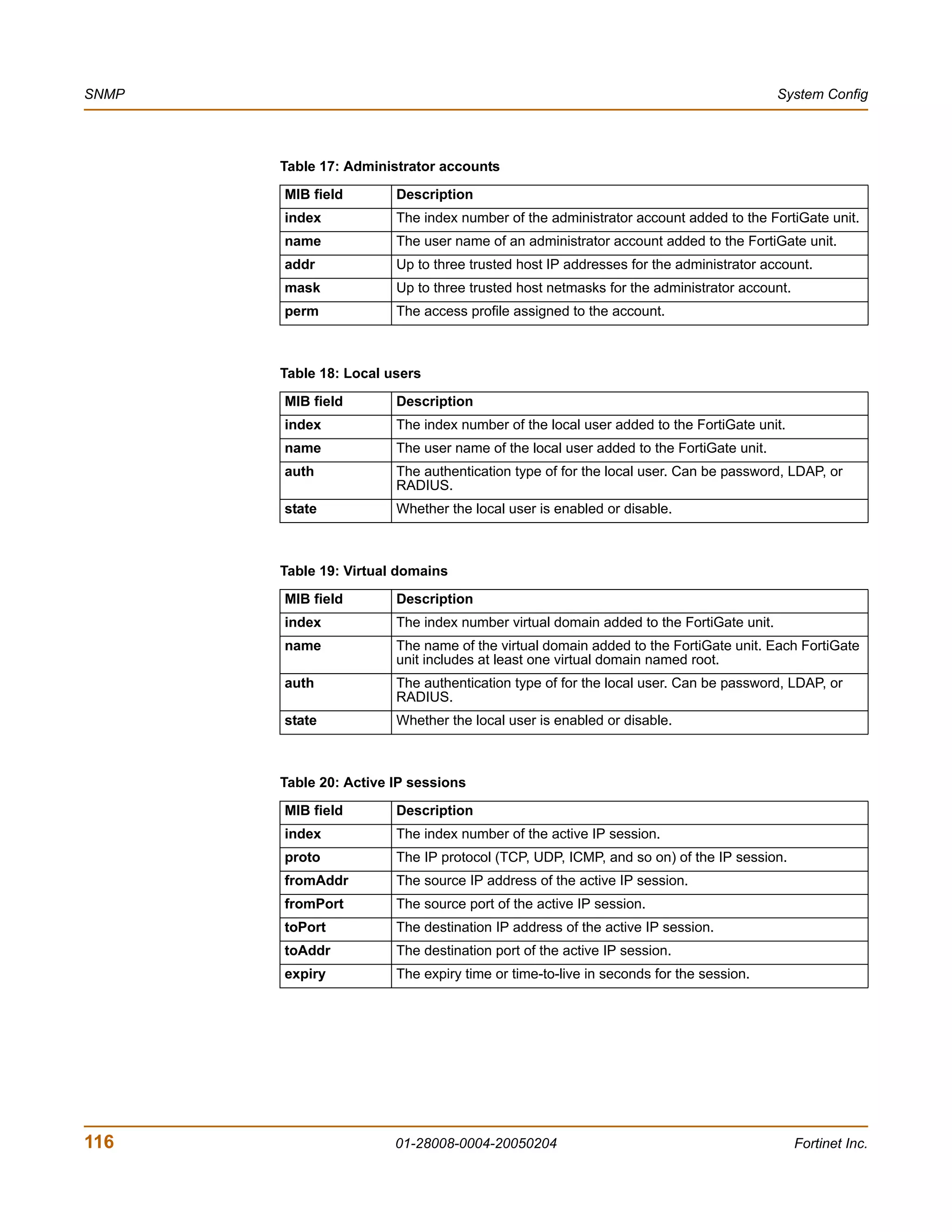
                Fortinet MIB fields ....................................................................................................... 114
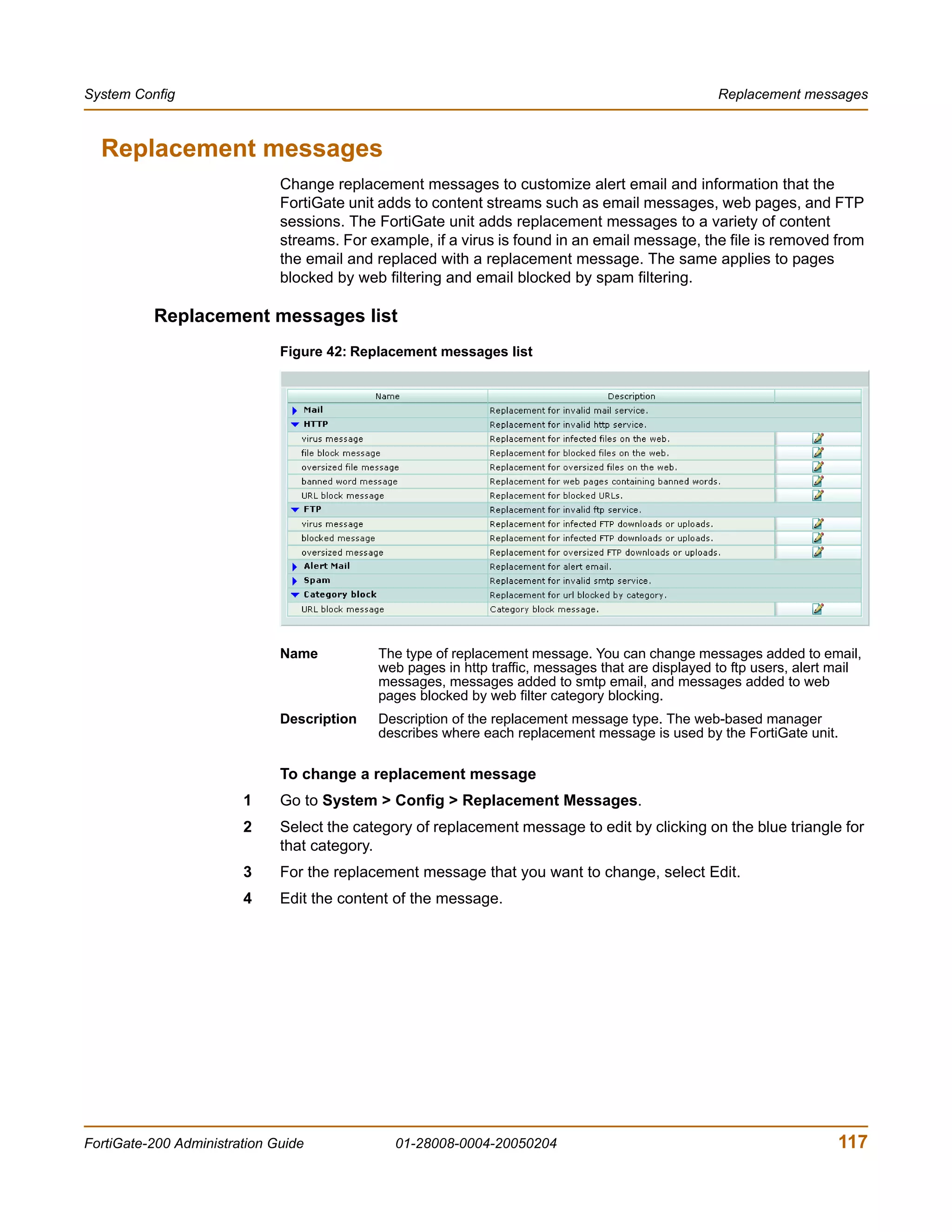
              Replacement messages ................................................................................................. 117
                Replacement messages list ........................................................................................ 117
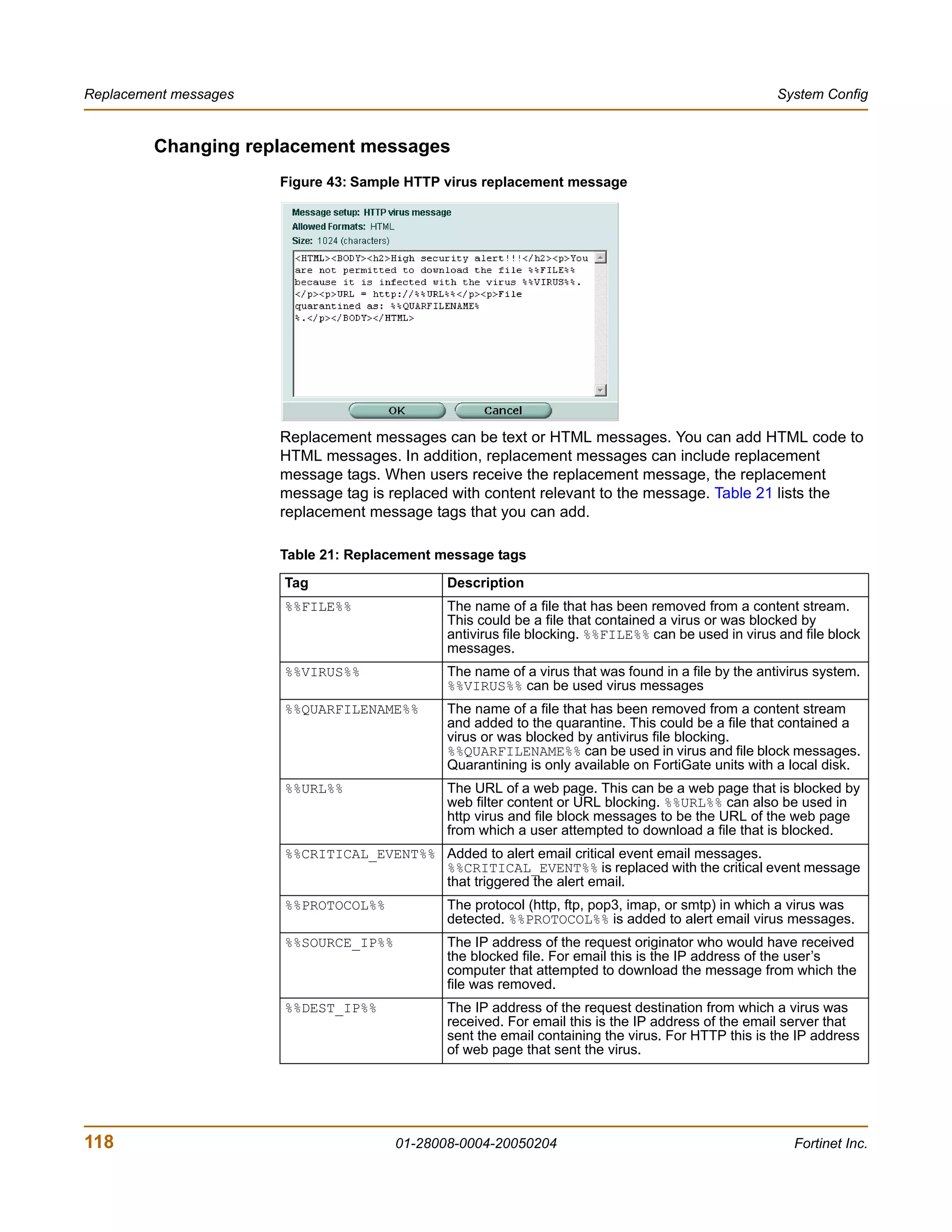
                Changing replacement messages .............................................................................. 118
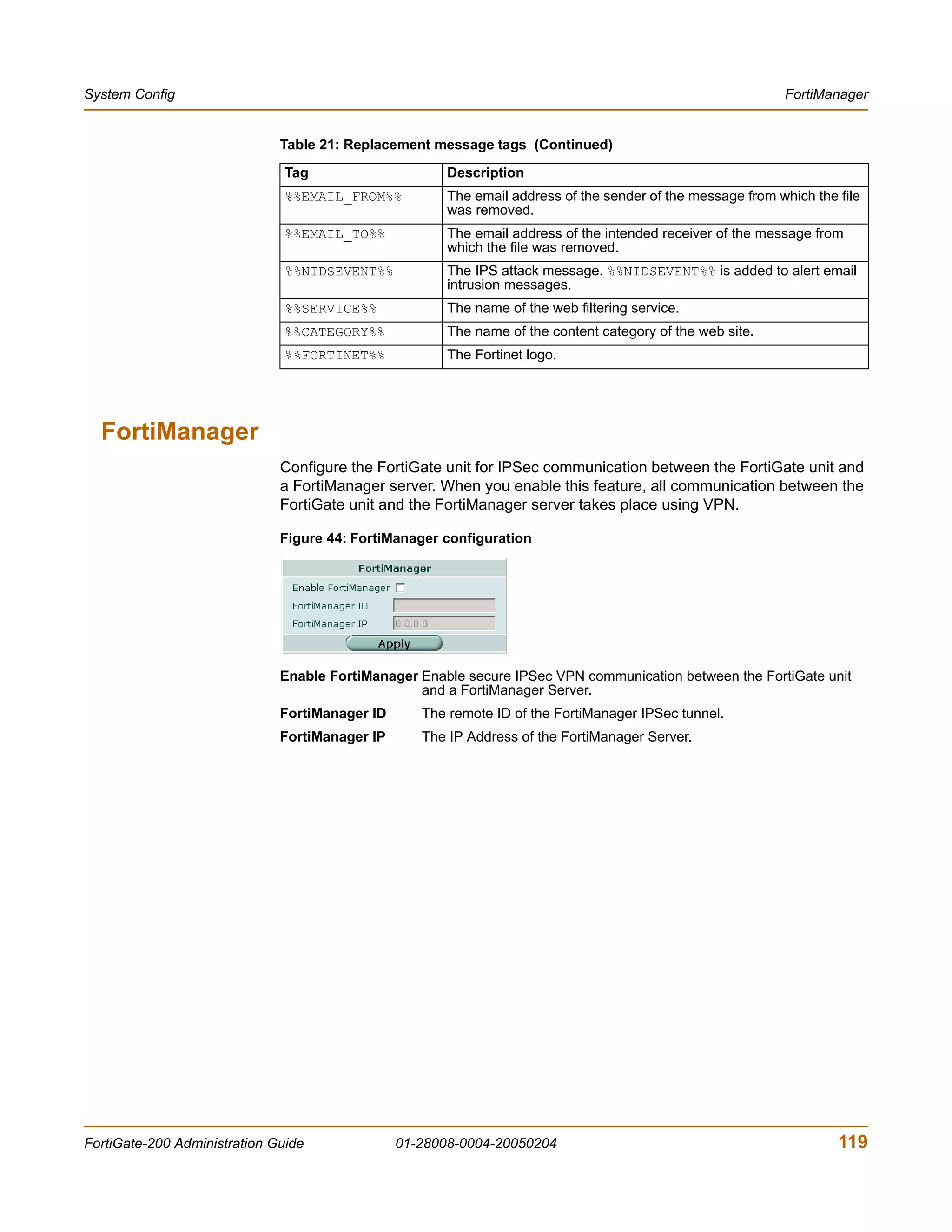
              FortiManager................................................................................................................... 119

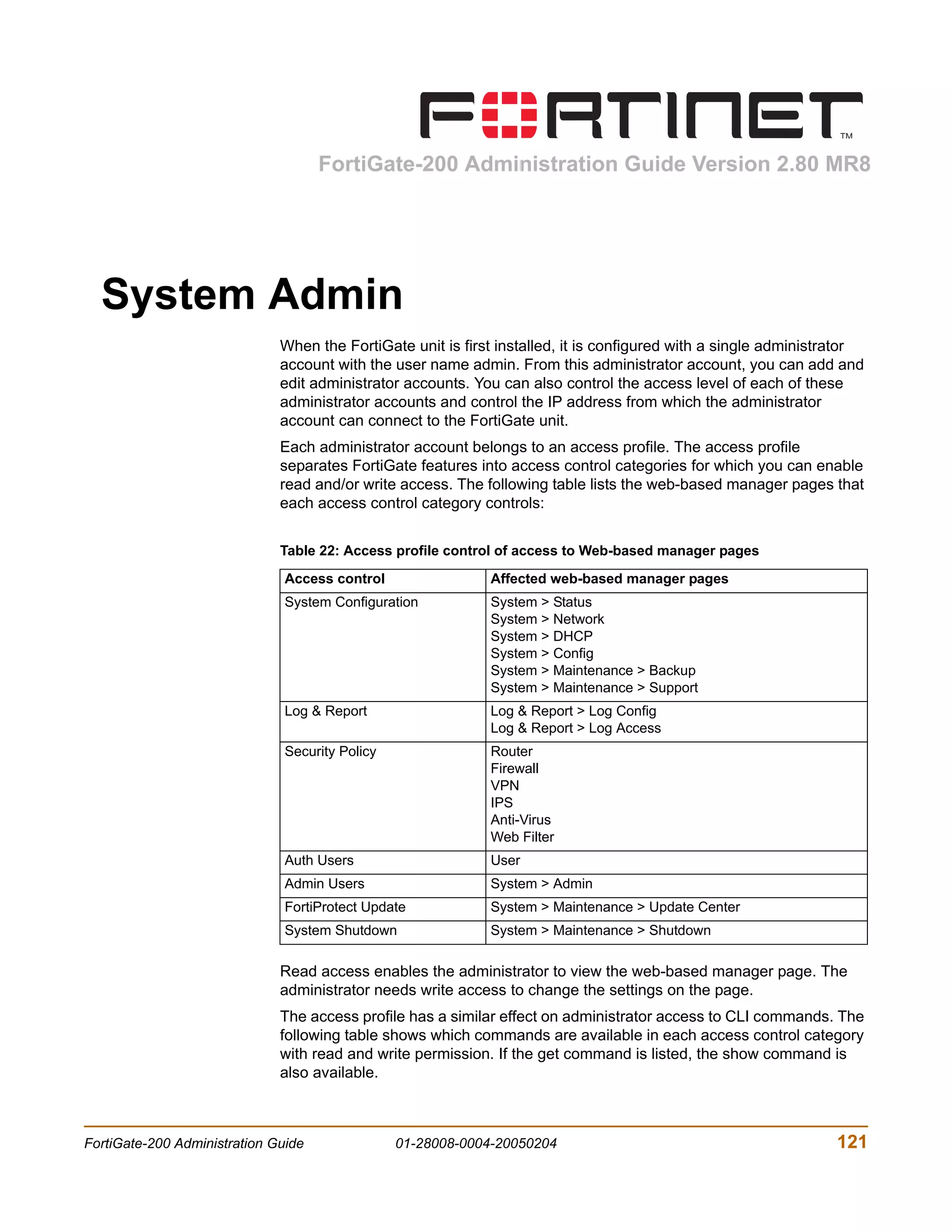
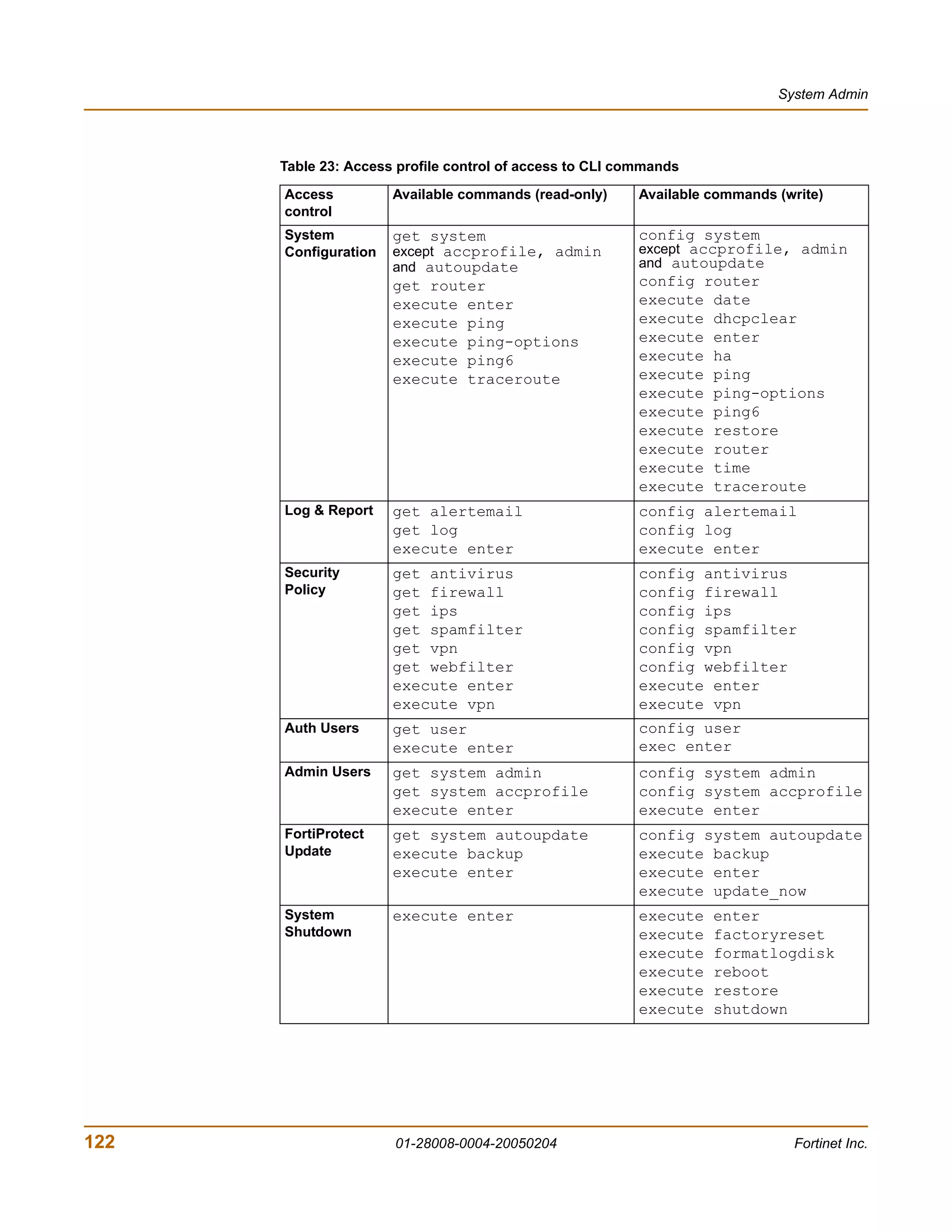
   System Admin .................................................................................................... 121
              Administrators .................................................................................................................      123
                Administrators list........................................................................................................         123
                Administrators options ................................................................................................             123
              Access profiles................................................................................................................       125
                Access profile list ........................................................................................................        125
                Access profile options .................................................................................................            126

   System Maintenance ......................................................................................... 127
              Backup and restore.........................................................................................................           127
                Backing up and Restoring...........................................................................................                 128
              Update center .................................................................................................................       130
                Updating antivirus and attack definitions ....................................................................                      132
                Enabling push updates ...............................................................................................               135
              Support ...........................................................................................................................   137
                Sending a bug report ..................................................................................................             138
                Registering a FortiGate unit ........................................................................................               139
              Shutdown ........................................................................................................................     141

   System Virtual Domain...................................................................................... 143
              Virtual domain properties ................................................................................................            144
                 Exclusive virtual domain properties ............................................................................                   144
                 Shared configuration settings .....................................................................................                145
                 Administration and management ................................................................................                     146


FortiGate-200 Administration Guide                             01-28008-0004-20050204                                                                             5
Contents


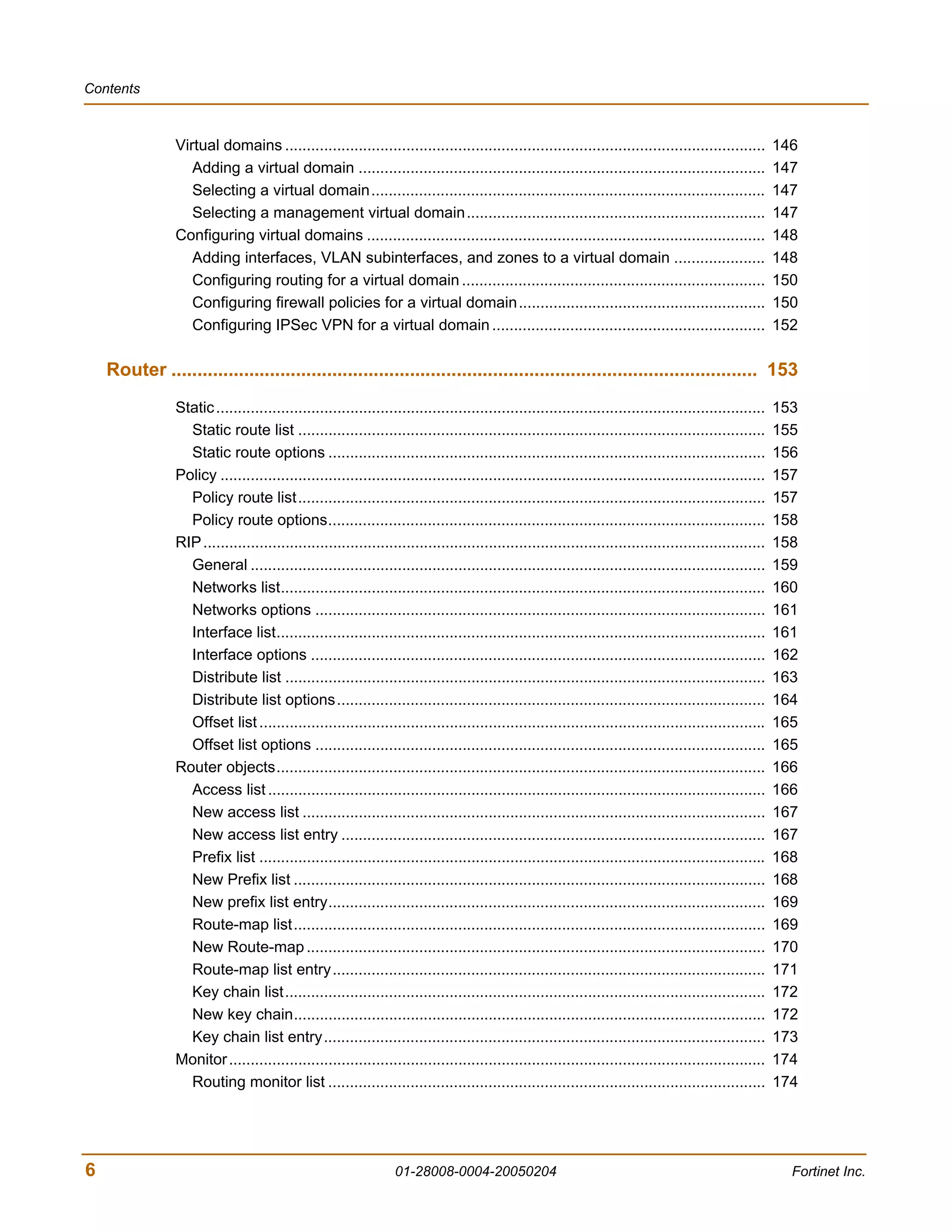
                Virtual domains ...............................................................................................................          146
                   Adding a virtual domain ..............................................................................................                147
                   Selecting a virtual domain...........................................................................................                 147
                   Selecting a management virtual domain.....................................................................                            147
                Configuring virtual domains ............................................................................................                 148
                   Adding interfaces, VLAN subinterfaces, and zones to a virtual domain .....................                                            148
                   Configuring routing for a virtual domain ......................................................................                       150
                   Configuring firewall policies for a virtual domain .........................................................                          150
                   Configuring IPSec VPN for a virtual domain ...............................................................                            152

    Router ................................................................................................................. 153
                Static ...............................................................................................................................   153
                  Static route list ............................................................................................................         155
                  Static route options .....................................................................................................             156
                Policy ..............................................................................................................................    157
                  Policy route list............................................................................................................          157
                  Policy route options.....................................................................................................              158
                RIP ..................................................................................................................................   158
                  General .......................................................................................................................        159
                  Networks list................................................................................................................          160
                  Networks options ........................................................................................................              161
                  Interface list.................................................................................................................        161
                  Interface options .........................................................................................................            162
                  Distribute list ...............................................................................................................        163
                  Distribute list options...................................................................................................             164
                  Offset list .....................................................................................................................      165
                  Offset list options ........................................................................................................           165
                Router objects.................................................................................................................          166
                  Access list ...................................................................................................................        166
                  New access list ...........................................................................................................            167
                  New access list entry ..................................................................................................               167
                  Prefix list .....................................................................................................................      168
                  New Prefix list .............................................................................................................          168
                  New prefix list entry.....................................................................................................             169
                  Route-map list.............................................................................................................            169
                  New Route-map ..........................................................................................................               170
                  Route-map list entry....................................................................................................               171
                  Key chain list...............................................................................................................          172
                  New key chain.............................................................................................................             172
                  Key chain list entry......................................................................................................             173
                Monitor ............................................................................................................................     174
                  Routing monitor list .....................................................................................................             174


6                                                                01-28008-0004-20050204                                                                    Fortinet Inc.
Contents


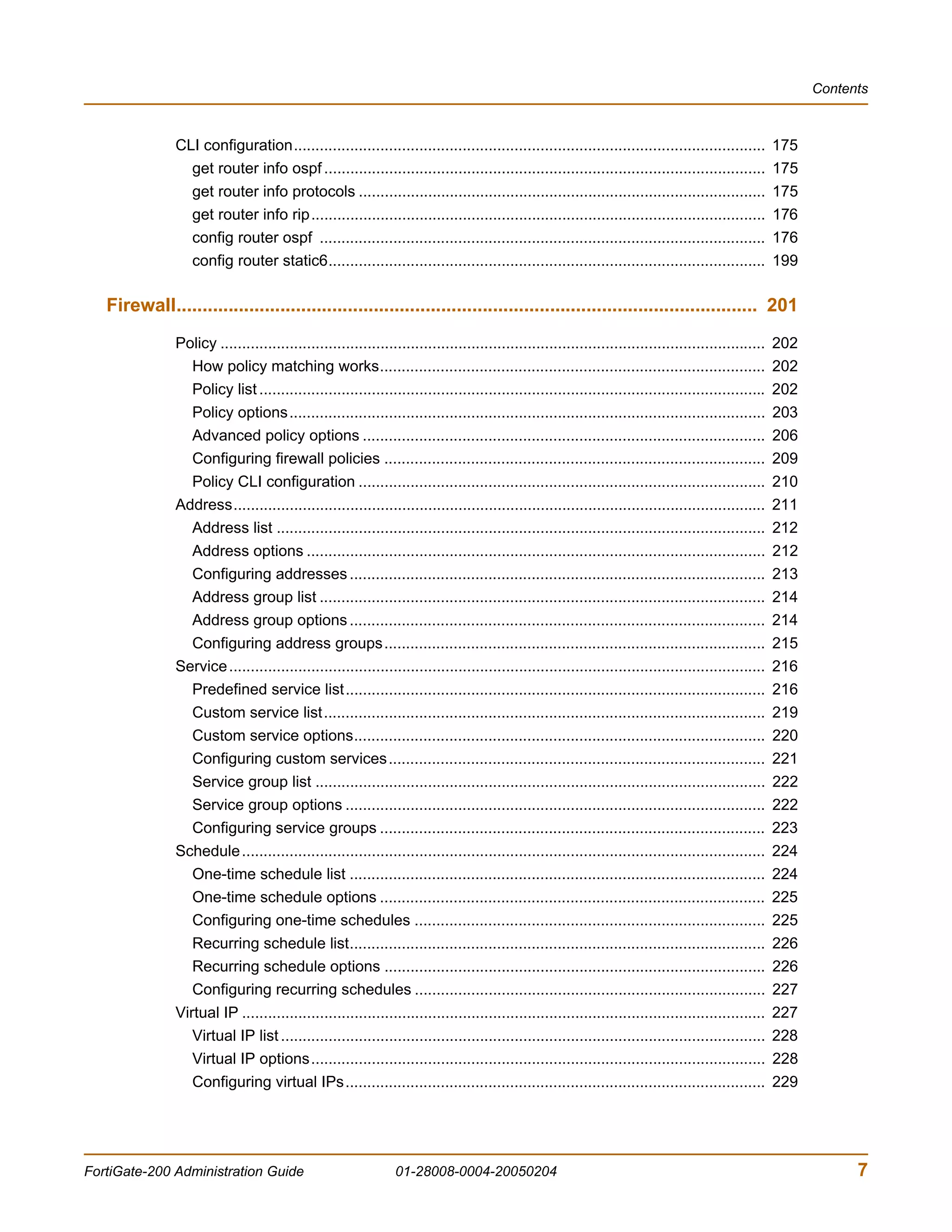
               CLI configuration.............................................................................................................          175
                 get router info ospf ......................................................................................................           175
                 get router info protocols ..............................................................................................              175
                 get router info rip.........................................................................................................          176
                 config router ospf .......................................................................................................            176
                 config router static6.....................................................................................................            199

   Firewall................................................................................................................ 201
               Policy ..............................................................................................................................   202
                  How policy matching works.........................................................................................                   202
                  Policy list .....................................................................................................................    202
                  Policy options..............................................................................................................         203
                  Advanced policy options .............................................................................................                206
                  Configuring firewall policies ........................................................................................               209
                  Policy CLI configuration ..............................................................................................              210
               Address...........................................................................................................................      211
                  Address list .................................................................................................................       212
                  Address options ..........................................................................................................           212
                  Configuring addresses ................................................................................................               213
                  Address group list .......................................................................................................           214
                  Address group options ................................................................................................               214
                  Configuring address groups........................................................................................                   215
               Service ............................................................................................................................    216
                  Predefined service list.................................................................................................             216
                  Custom service list......................................................................................................            219
                  Custom service options...............................................................................................                220
                  Configuring custom services.......................................................................................                   221
                  Service group list ........................................................................................................          222
                  Service group options .................................................................................................              222
                  Configuring service groups .........................................................................................                 223
               Schedule .........................................................................................................................      224
                  One-time schedule list ................................................................................................              224
                  One-time schedule options .........................................................................................                  225
                  Configuring one-time schedules .................................................................................                     225
                  Recurring schedule list................................................................................................              226
                  Recurring schedule options ........................................................................................                  226
                  Configuring recurring schedules .................................................................................                    227
               Virtual IP .........................................................................................................................    227
                  Virtual IP list ................................................................................................................     228
                  Virtual IP options.........................................................................................................          228
                  Configuring virtual IPs.................................................................................................             229


FortiGate-200 Administration Guide                              01-28008-0004-20050204                                                                             7
Contents


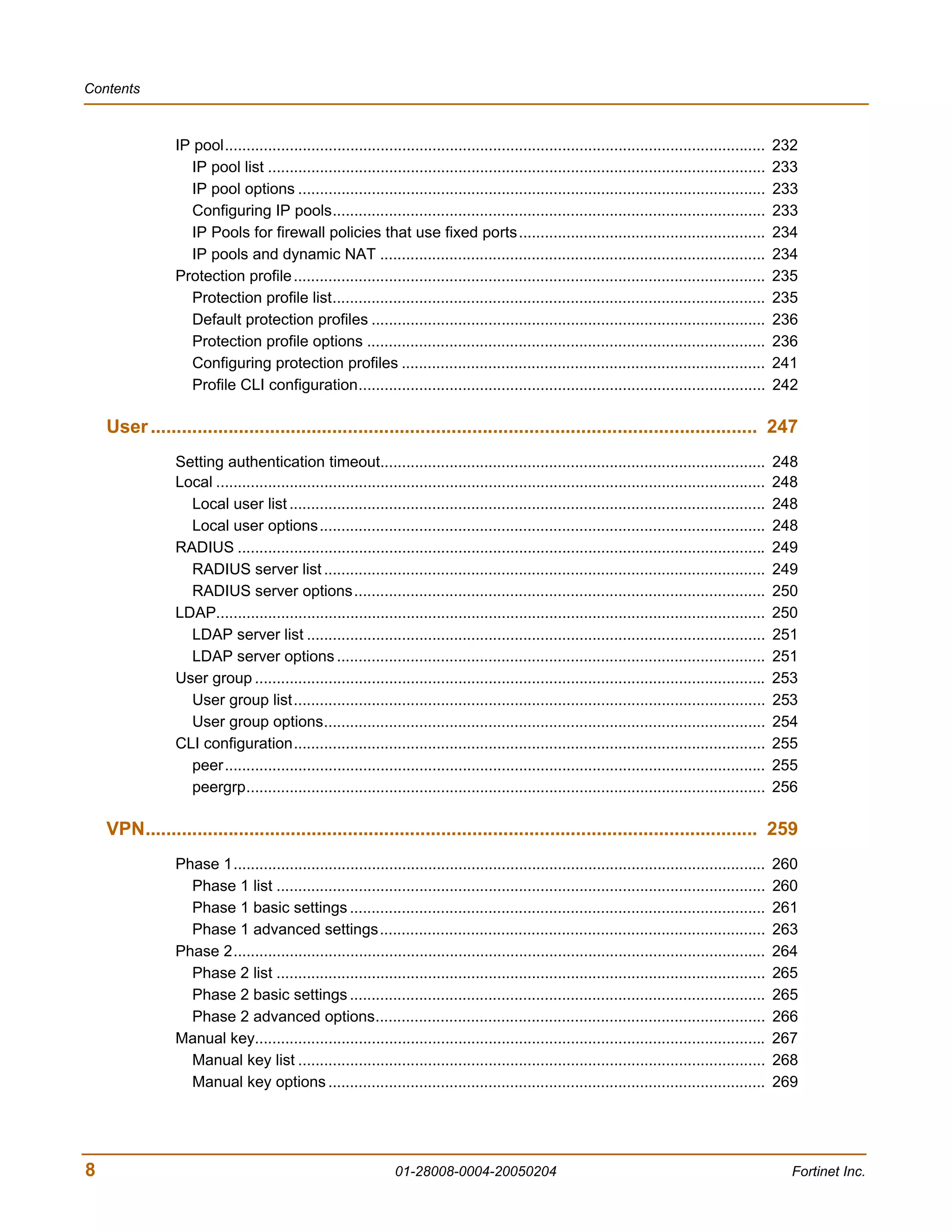
                IP pool.............................................................................................................................    232
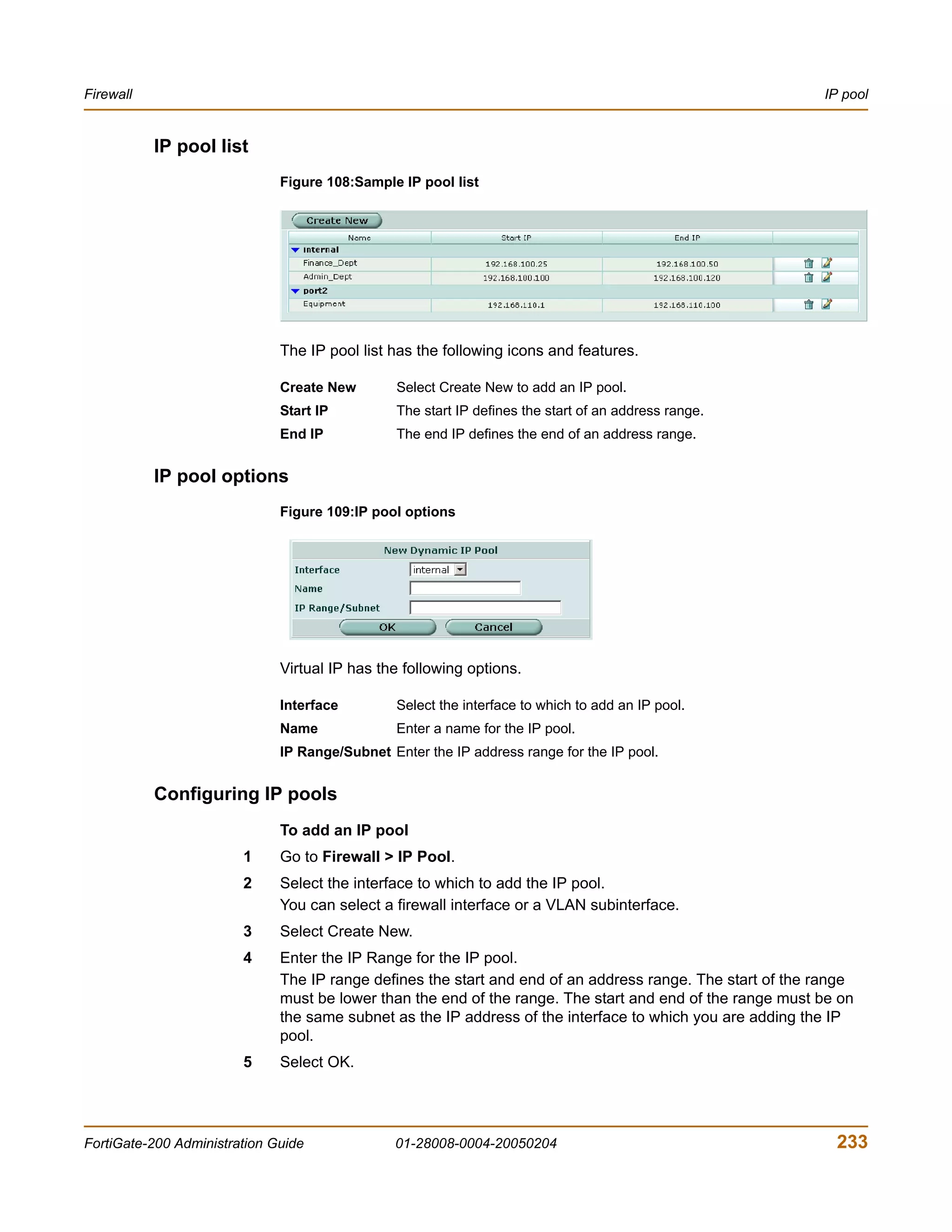
                  IP pool list ...................................................................................................................      233
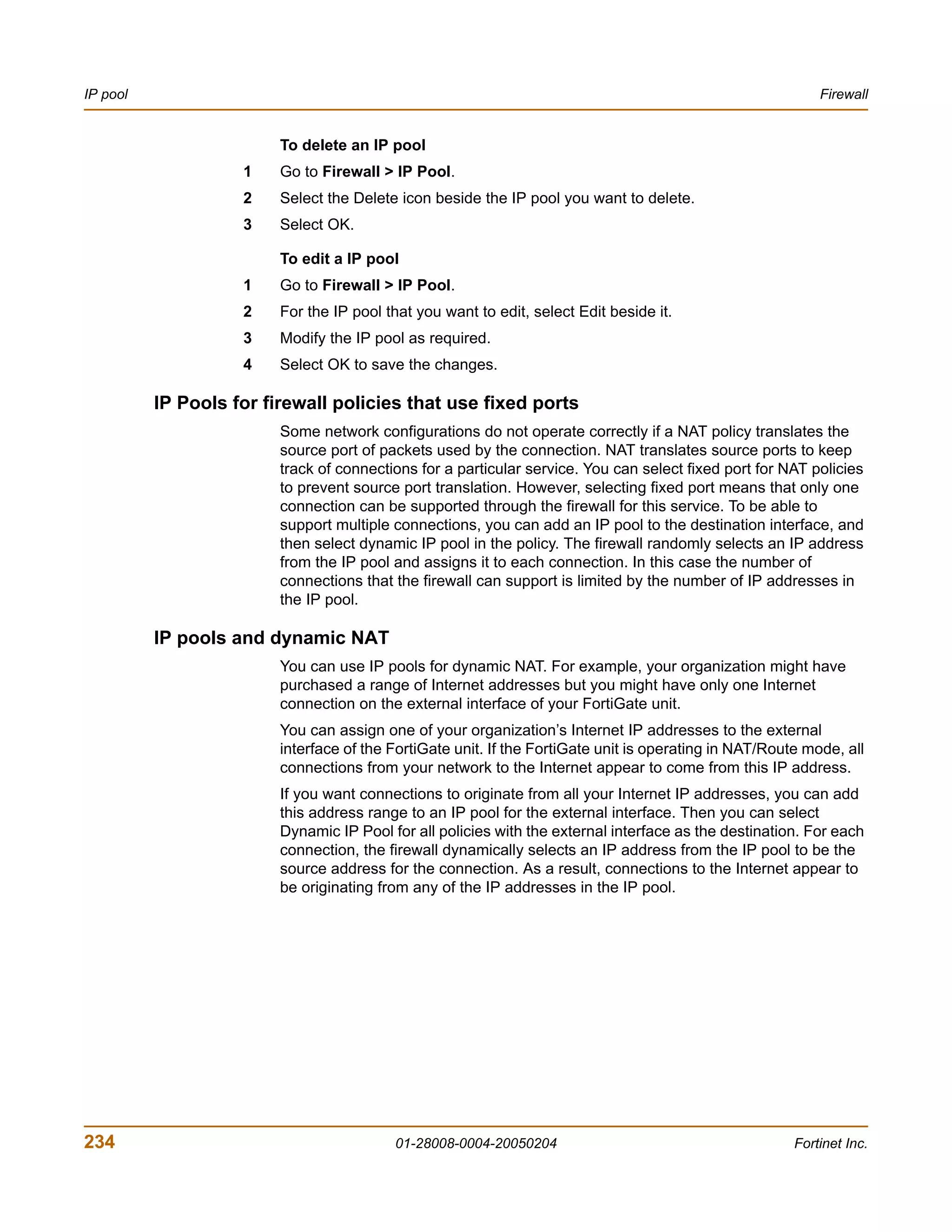
                  IP pool options ............................................................................................................          233
                  Configuring IP pools....................................................................................................              233
                  IP Pools for firewall policies that use fixed ports.........................................................                          234
                  IP pools and dynamic NAT .........................................................................................                    234
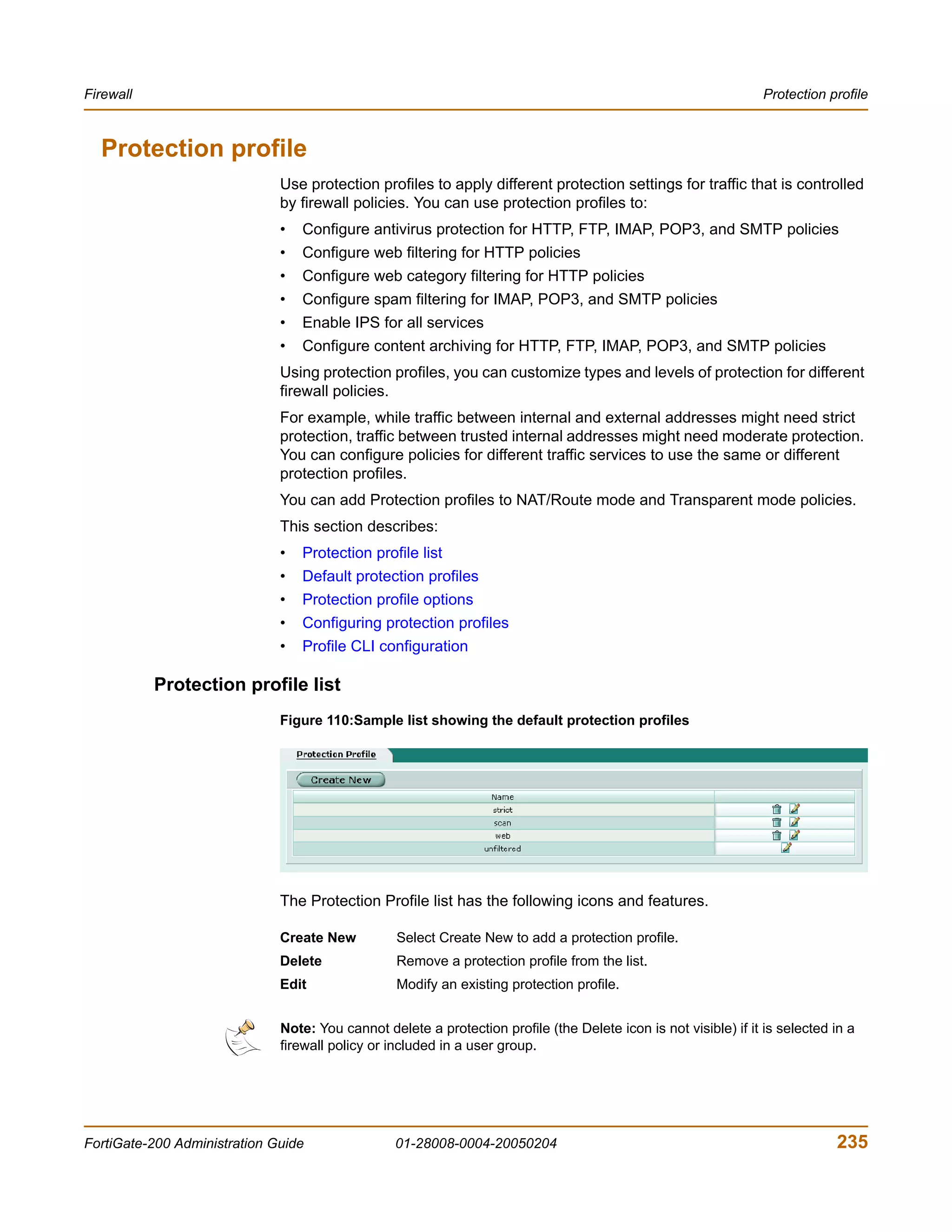
                Protection profile .............................................................................................................        235
                  Protection profile list....................................................................................................           235
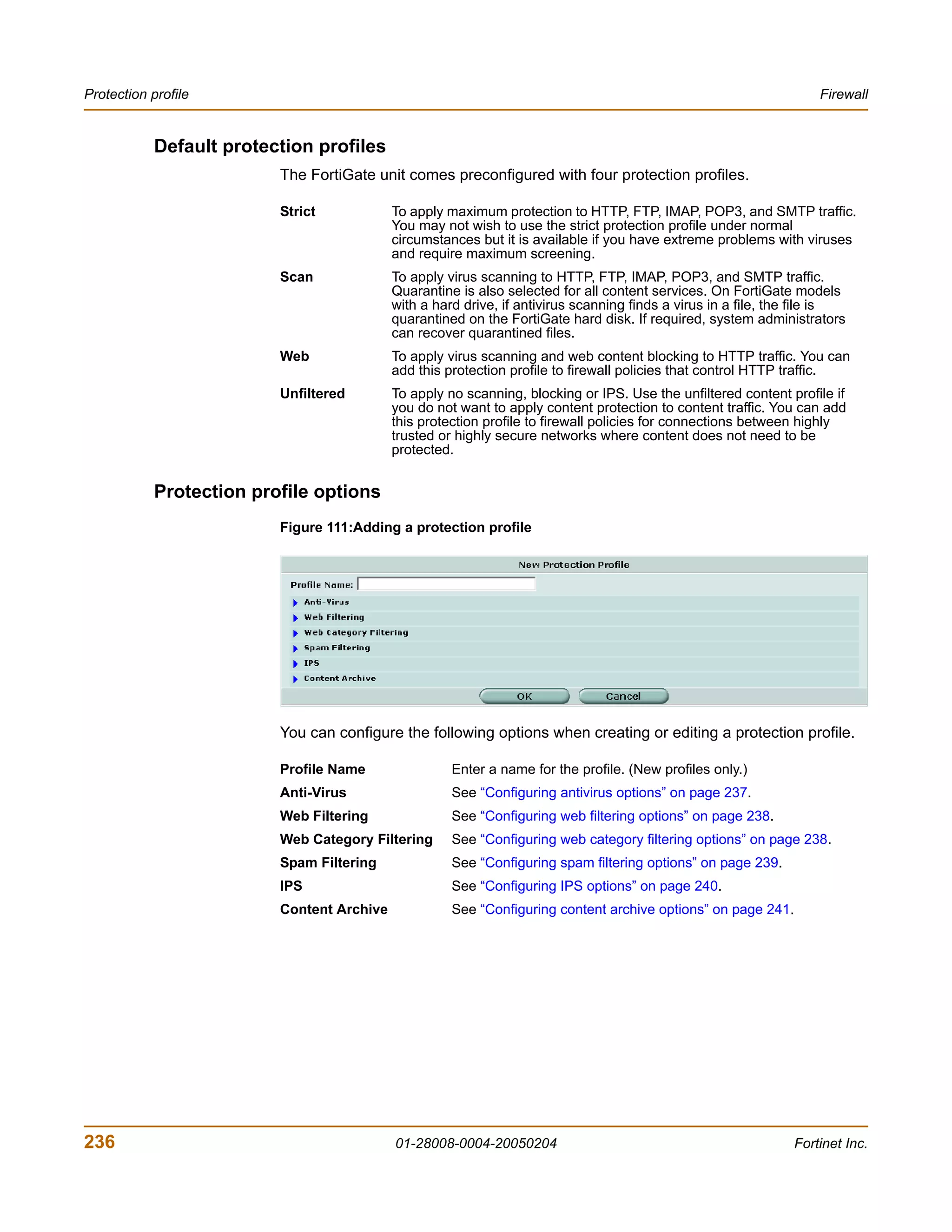
                  Default protection profiles ...........................................................................................               236
                  Protection profile options ............................................................................................               236
                  Configuring protection profiles ....................................................................................                  241
                  Profile CLI configuration..............................................................................................               242

    User ..................................................................................................................... 247
                Setting authentication timeout.........................................................................................                 248
                Local ...............................................................................................................................   248
                  Local user list ..............................................................................................................        248
                  Local user options.......................................................................................................             248
                RADIUS ..........................................................................................................................       249
                  RADIUS server list ......................................................................................................             249
                  RADIUS server options...............................................................................................                  250
                LDAP...............................................................................................................................     250
                  LDAP server list ..........................................................................................................           251
                  LDAP server options ...................................................................................................               251
                User group ......................................................................................................................       253
                  User group list.............................................................................................................          253
                  User group options......................................................................................................              254
                CLI configuration.............................................................................................................          255
                  peer.............................................................................................................................     255
                  peergrp........................................................................................................................       256

    VPN...................................................................................................................... 259
                Phase 1...........................................................................................................................      260
                  Phase 1 list .................................................................................................................        260
                  Phase 1 basic settings ................................................................................................               261
                  Phase 1 advanced settings.........................................................................................                    263
                Phase 2...........................................................................................................................      264
                  Phase 2 list .................................................................................................................        265
                  Phase 2 basic settings ................................................................................................               265
                  Phase 2 advanced options..........................................................................................                    266
                Manual key......................................................................................................................        267
                  Manual key list ............................................................................................................          268
                  Manual key options .....................................................................................................              269


8                                                                01-28008-0004-20050204                                                                   Fortinet Inc.
Contents


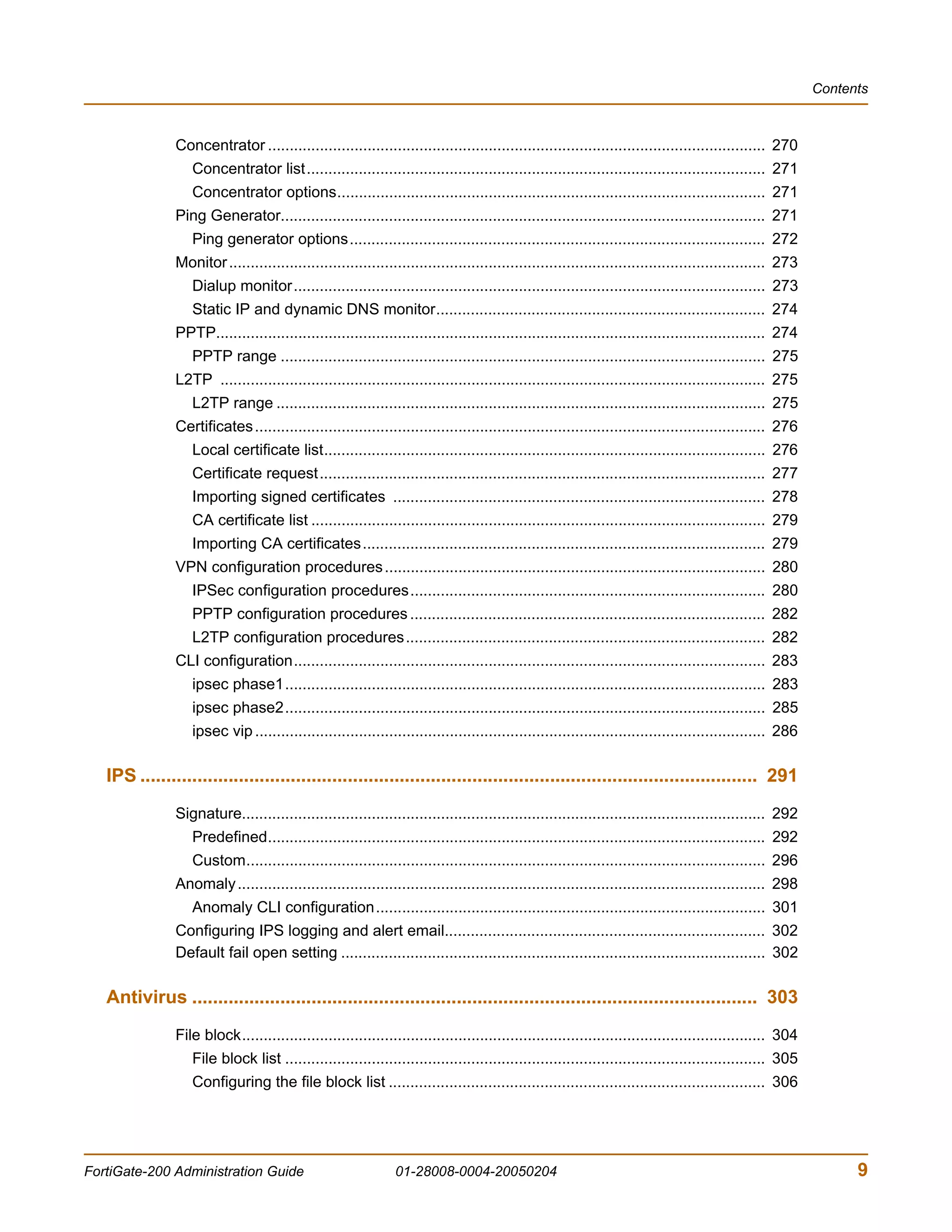
               Concentrator ................................................................................................................... 270
                  Concentrator list.......................................................................................................... 271
                  Concentrator options................................................................................................... 271
               Ping Generator................................................................................................................ 271
                  Ping generator options................................................................................................ 272
               Monitor ............................................................................................................................ 273
                  Dialup monitor............................................................................................................. 273
                  Static IP and dynamic DNS monitor............................................................................ 274
               PPTP............................................................................................................................... 274
                  PPTP range ................................................................................................................ 275
               L2TP .............................................................................................................................. 275
                  L2TP range ................................................................................................................. 275
               Certificates ...................................................................................................................... 276
                  Local certificate list...................................................................................................... 276
                  Certificate request....................................................................................................... 277
                  Importing signed certificates ...................................................................................... 278
                  CA certificate list ......................................................................................................... 279
                  Importing CA certificates............................................................................................. 279
               VPN configuration procedures ........................................................................................ 280
                  IPSec configuration procedures.................................................................................. 280
                  PPTP configuration procedures .................................................................................. 282
                  L2TP configuration procedures................................................................................... 282
               CLI configuration............................................................................................................. 283
                  ipsec phase1............................................................................................................... 283
                  ipsec phase2............................................................................................................... 285
                  ipsec vip ...................................................................................................................... 286

   IPS ....................................................................................................................... 291
               Signature......................................................................................................................... 292
                  Predefined................................................................................................................... 292
                  Custom........................................................................................................................ 296
               Anomaly .......................................................................................................................... 298
                  Anomaly CLI configuration.......................................................................................... 301
               Configuring IPS logging and alert email.......................................................................... 302
               Default fail open setting .................................................................................................. 302

   Antivirus ............................................................................................................. 303
               File block......................................................................................................................... 304
                  File block list ............................................................................................................... 305
                  Configuring the file block list ....................................................................................... 306


FortiGate-200 Administration Guide                            01-28008-0004-20050204                                                                            9
Contents


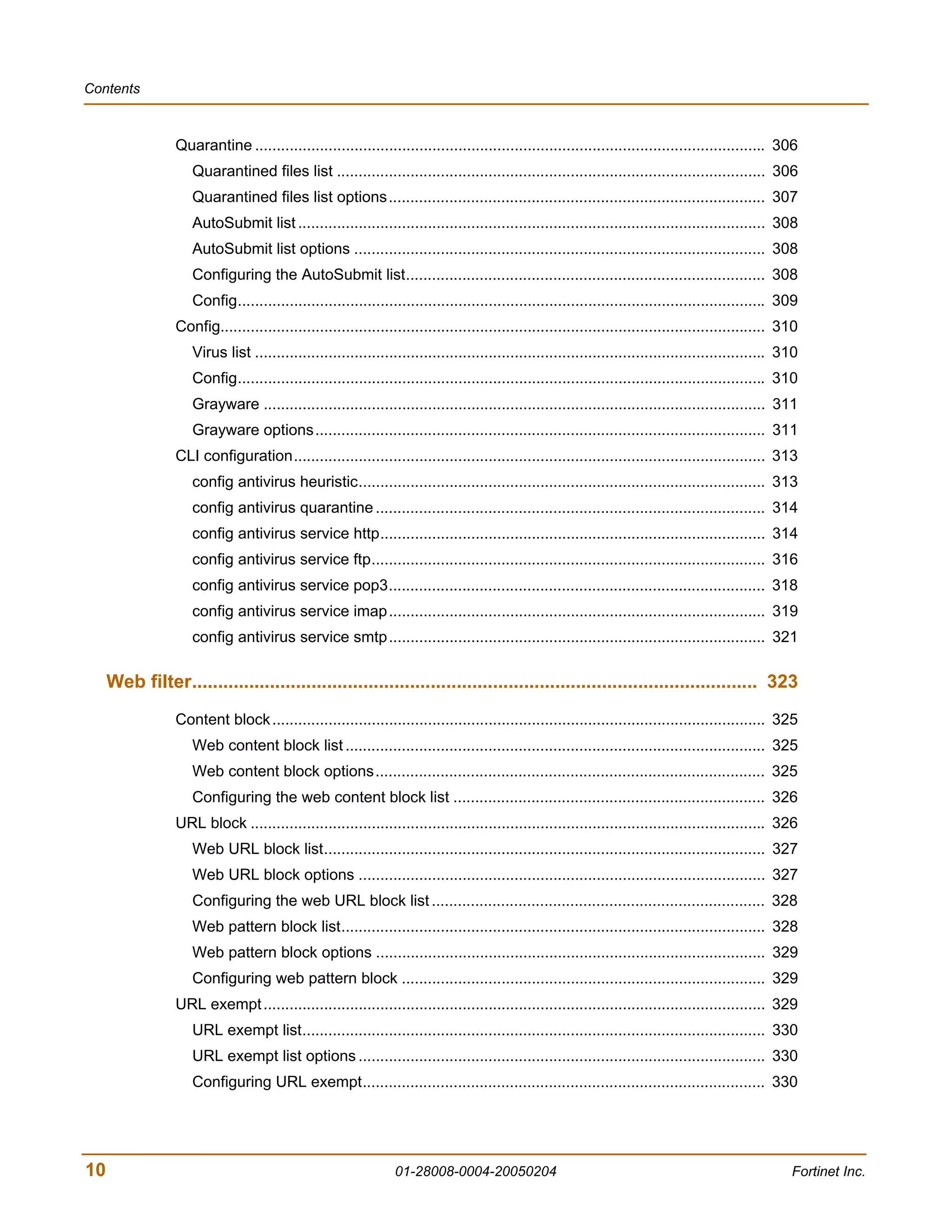
                 Quarantine ...................................................................................................................... 306
                    Quarantined files list ................................................................................................... 306
                    Quarantined files list options....................................................................................... 307
                    AutoSubmit list ............................................................................................................ 308
                    AutoSubmit list options ............................................................................................... 308
                    Configuring the AutoSubmit list................................................................................... 308
                    Config.......................................................................................................................... 309
                 Config.............................................................................................................................. 310
                    Virus list ...................................................................................................................... 310
                    Config.......................................................................................................................... 310
                    Grayware .................................................................................................................... 311
                    Grayware options........................................................................................................ 311
                 CLI configuration............................................................................................................. 313
                    config antivirus heuristic.............................................................................................. 313
                    config antivirus quarantine .......................................................................................... 314
                    config antivirus service http......................................................................................... 314
                    config antivirus service ftp........................................................................................... 316
                    config antivirus service pop3....................................................................................... 318
                    config antivirus service imap ....................................................................................... 319
                    config antivirus service smtp ....................................................................................... 321

     Web filter............................................................................................................. 323
                 Content block .................................................................................................................. 325
                    Web content block list ................................................................................................. 325
                    Web content block options.......................................................................................... 325
                    Configuring the web content block list ........................................................................ 326
                 URL block ....................................................................................................................... 326
                    Web URL block list...................................................................................................... 327
                    Web URL block options .............................................................................................. 327
                    Configuring the web URL block list ............................................................................. 328
                    Web pattern block list.................................................................................................. 328
                    Web pattern block options .......................................................................................... 329
                    Configuring web pattern block .................................................................................... 329
                 URL exempt .................................................................................................................... 329
                    URL exempt list........................................................................................................... 330
                    URL exempt list options .............................................................................................. 330
                    Configuring URL exempt............................................................................................. 330


10                                                              01-28008-0004-20050204                                                                 Fortinet Inc.
Contents


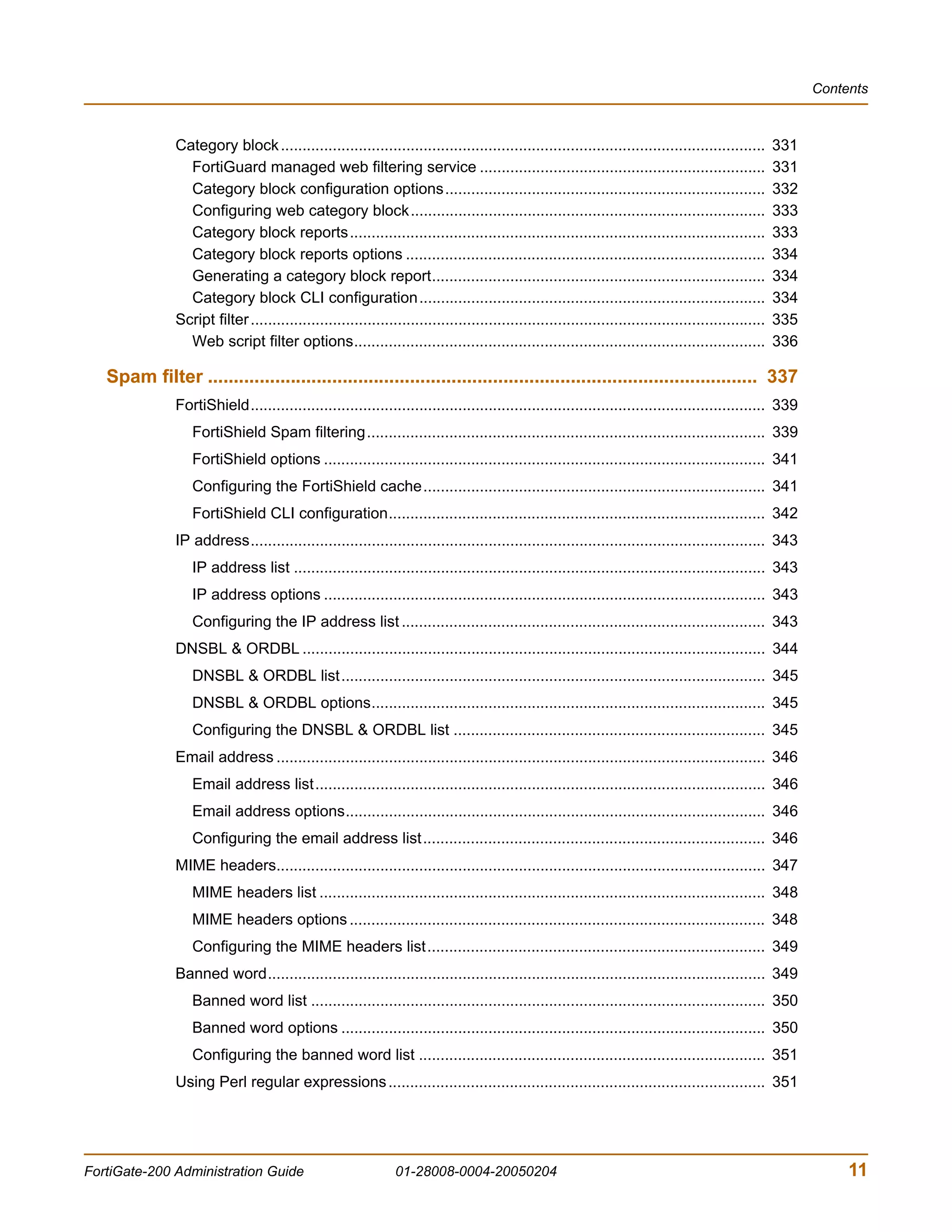
               Category block ................................................................................................................         331
                 FortiGuard managed web filtering service ..................................................................                           331
                 Category block configuration options..........................................................................                        332
                 Configuring web category block..................................................................................                      333
                 Category block reports................................................................................................                333
                 Category block reports options ...................................................................................                    334
                 Generating a category block report.............................................................................                       334
                 Category block CLI configuration................................................................................                      334
               Script filter .......................................................................................................................   335
                 Web script filter options...............................................................................................              336

   Spam filter .......................................................................................................... 337
               FortiShield....................................................................................................................... 339
                  FortiShield Spam filtering............................................................................................ 339
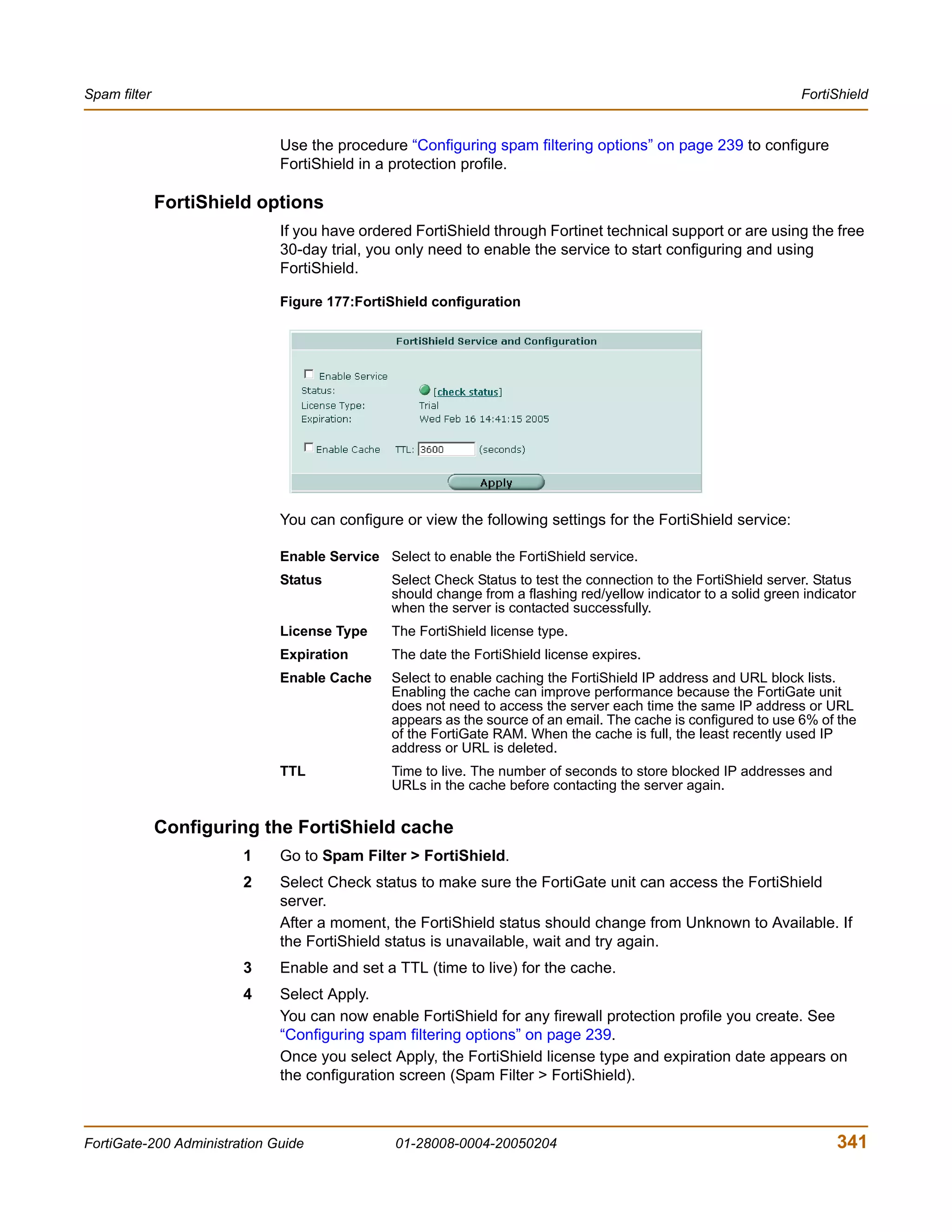
                  FortiShield options ...................................................................................................... 341
                  Configuring the FortiShield cache............................................................................... 341
                  FortiShield CLI configuration....................................................................................... 342
               IP address....................................................................................................................... 343
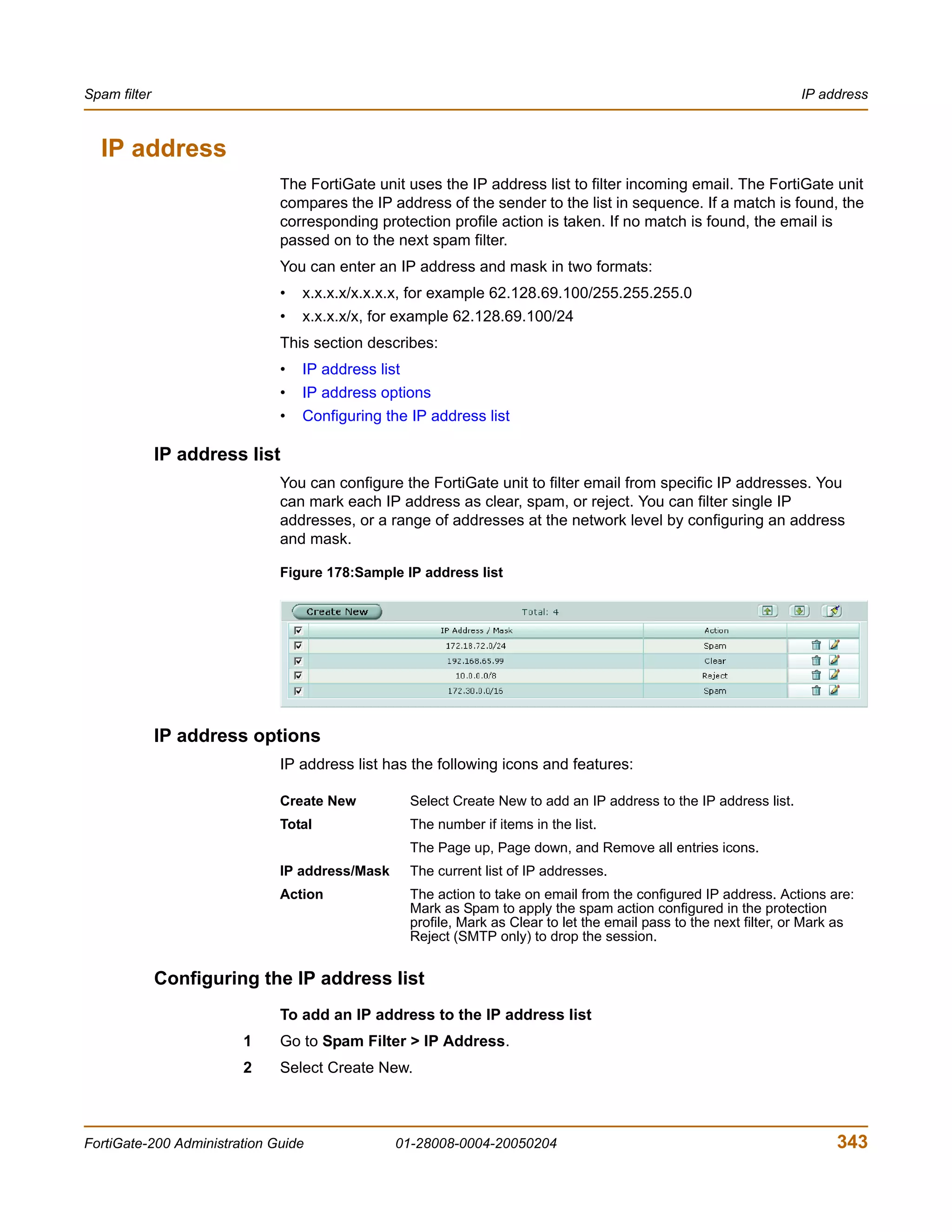
                  IP address list ............................................................................................................. 343
                  IP address options ...................................................................................................... 343
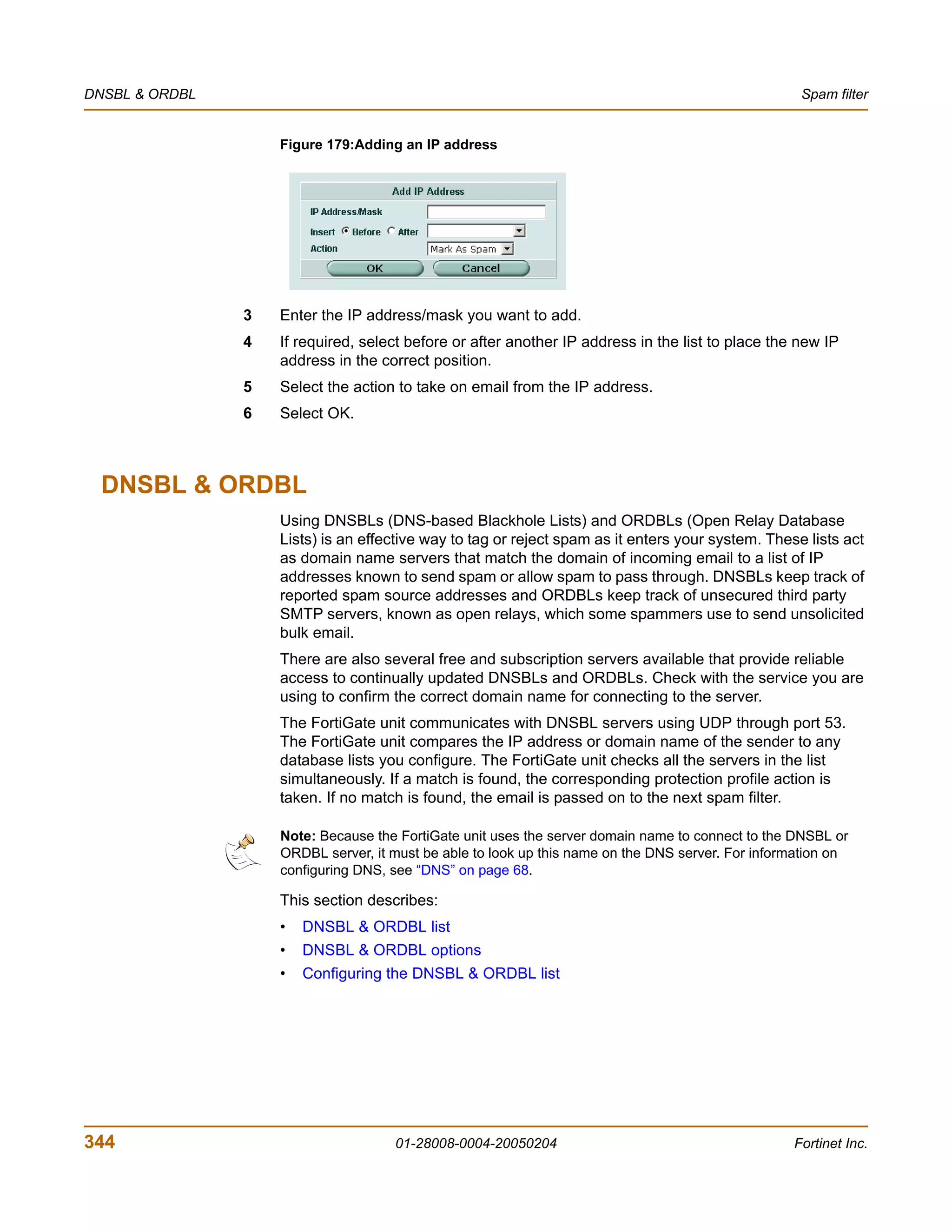
                  Configuring the IP address list .................................................................................... 343
               DNSBL & ORDBL ........................................................................................................... 344
                  DNSBL & ORDBL list.................................................................................................. 345
                  DNSBL & ORDBL options........................................................................................... 345
                  Configuring the DNSBL & ORDBL list ........................................................................ 345
               Email address ................................................................................................................. 346
                  Email address list........................................................................................................ 346
                  Email address options................................................................................................. 346
                  Configuring the email address list............................................................................... 346
               MIME headers................................................................................................................. 347
                  MIME headers list ....................................................................................................... 348
                  MIME headers options ................................................................................................ 348
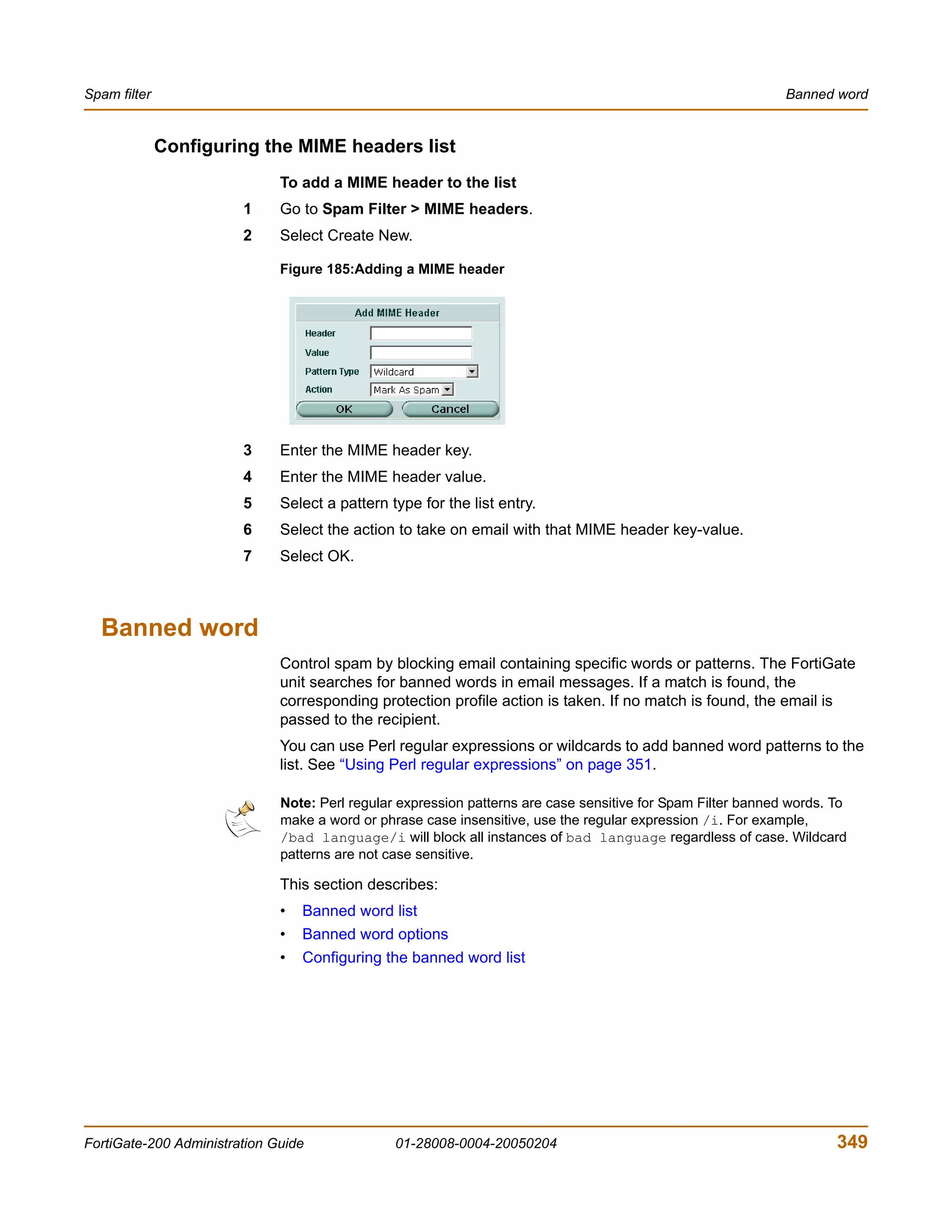
                  Configuring the MIME headers list.............................................................................. 349
               Banned word................................................................................................................... 349
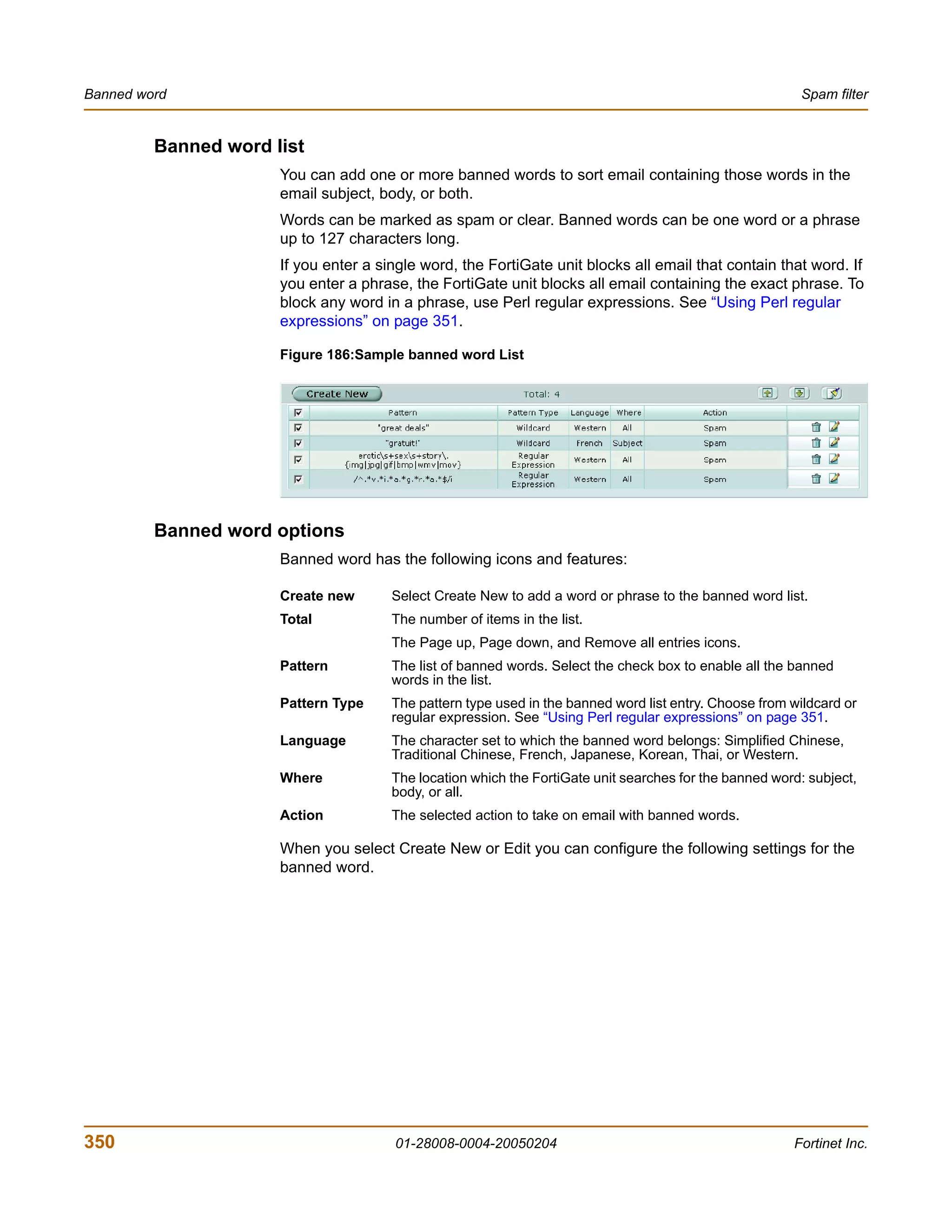
                  Banned word list ......................................................................................................... 350
                  Banned word options .................................................................................................. 350
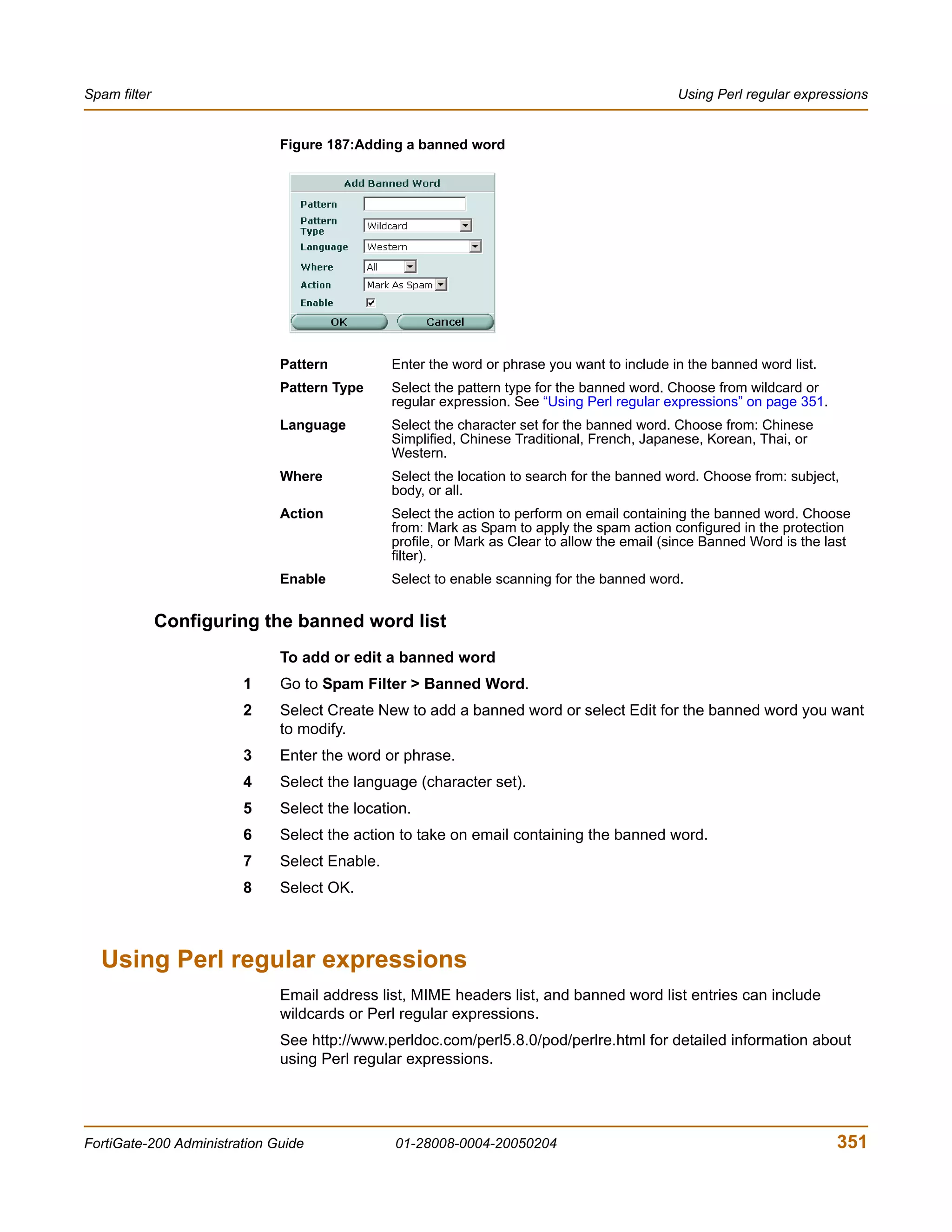
                  Configuring the banned word list ................................................................................ 351
               Using Perl regular expressions ....................................................................................... 351


FortiGate-200 Administration Guide                              01-28008-0004-20050204                                                                            11
Contents


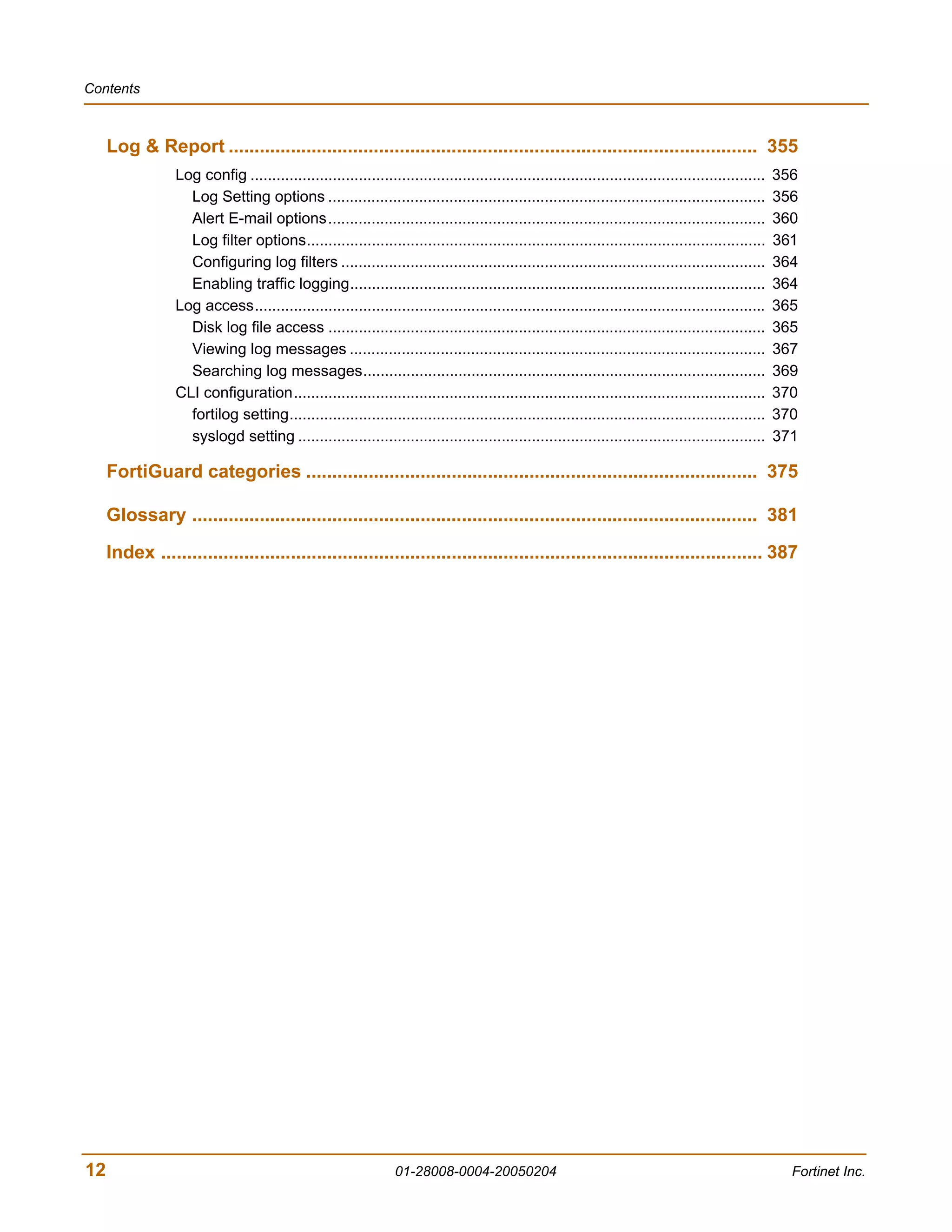
     Log & Report ...................................................................................................... 355
                 Log config .......................................................................................................................   356
                   Log Setting options .....................................................................................................          356
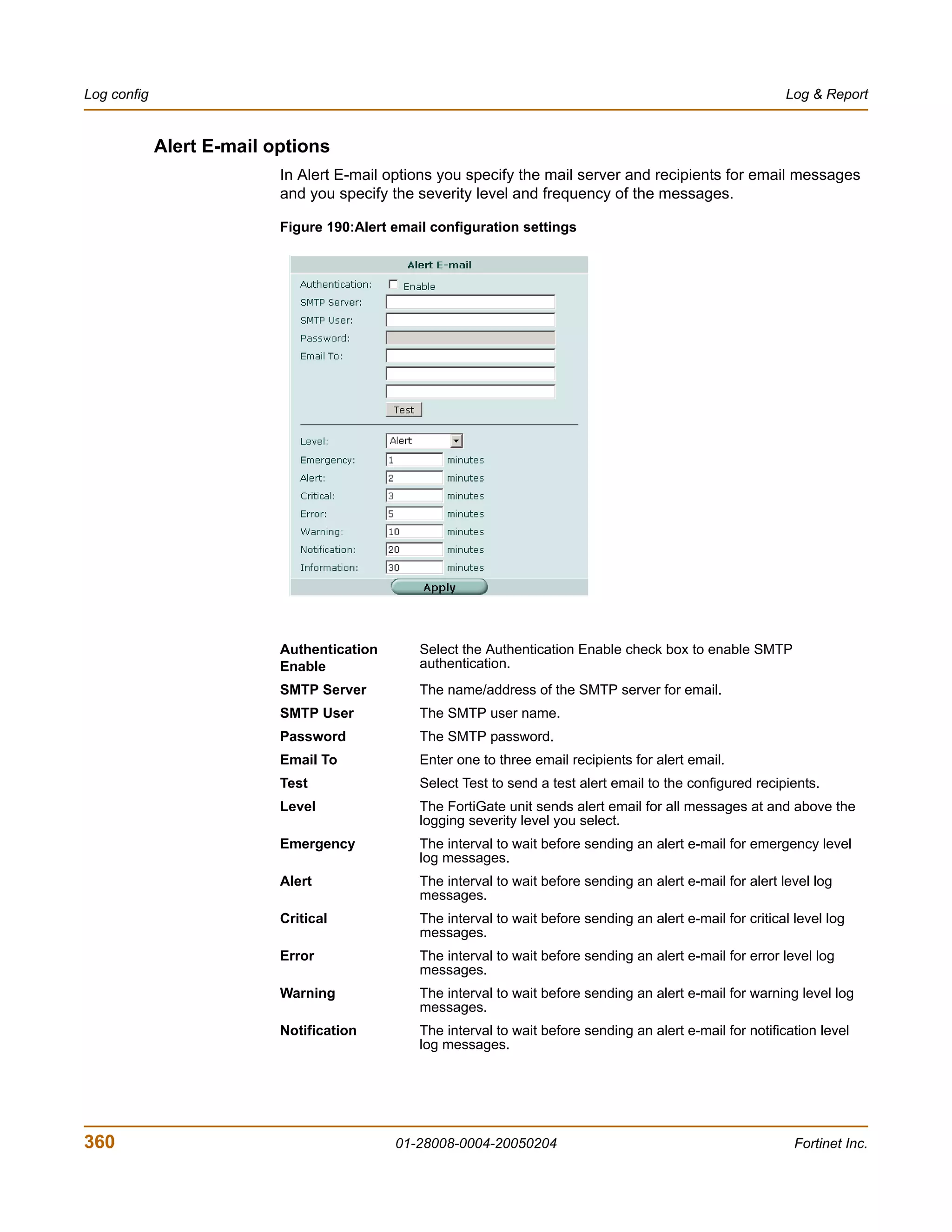
                   Alert E-mail options.....................................................................................................          360
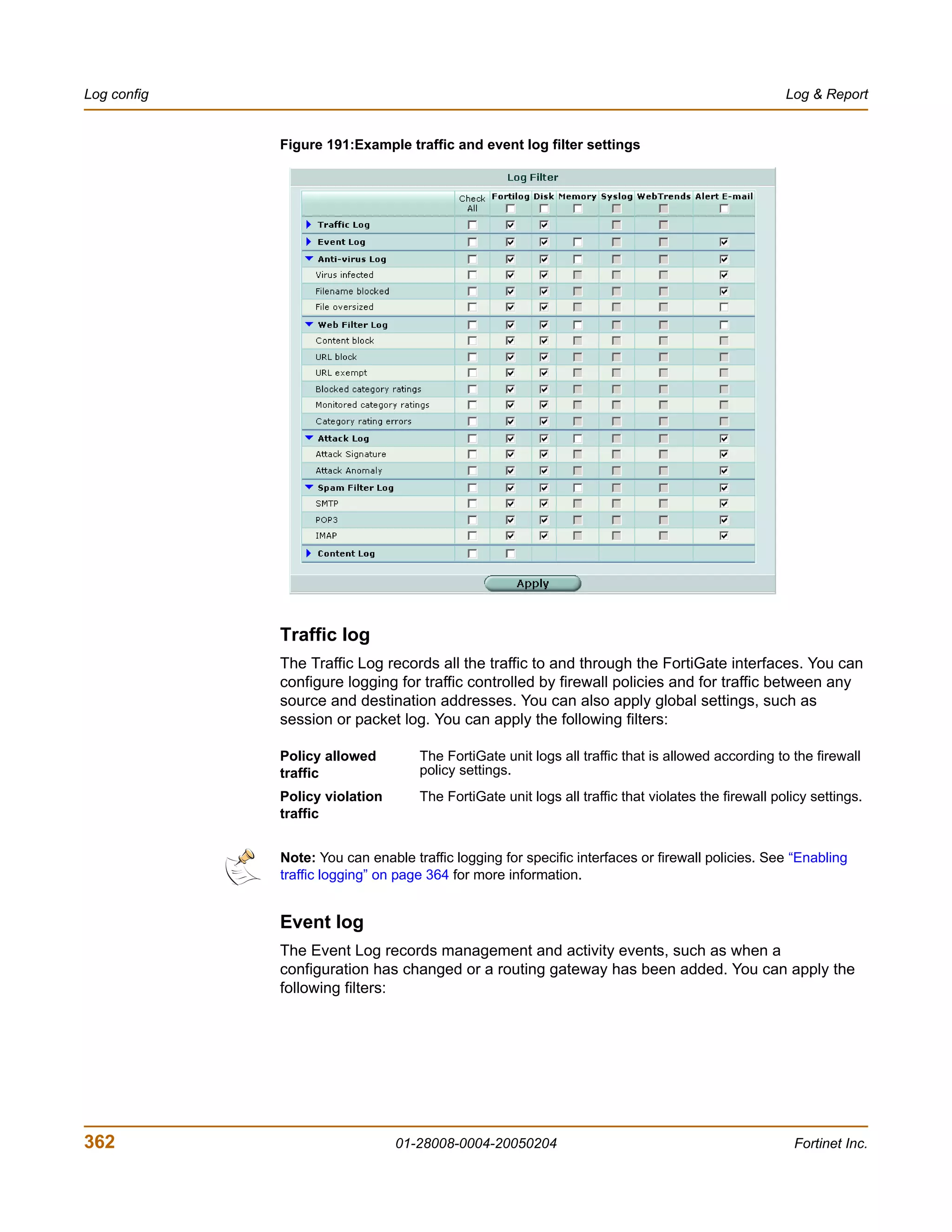
                   Log filter options..........................................................................................................       361
                   Configuring log filters ..................................................................................................         364
                   Enabling traffic logging................................................................................................           364
                 Log access......................................................................................................................     365
                   Disk log file access .....................................................................................................         365
                   Viewing log messages ................................................................................................              367
                   Searching log messages.............................................................................................                369
                 CLI configuration.............................................................................................................       370
                   fortilog setting..............................................................................................................     370
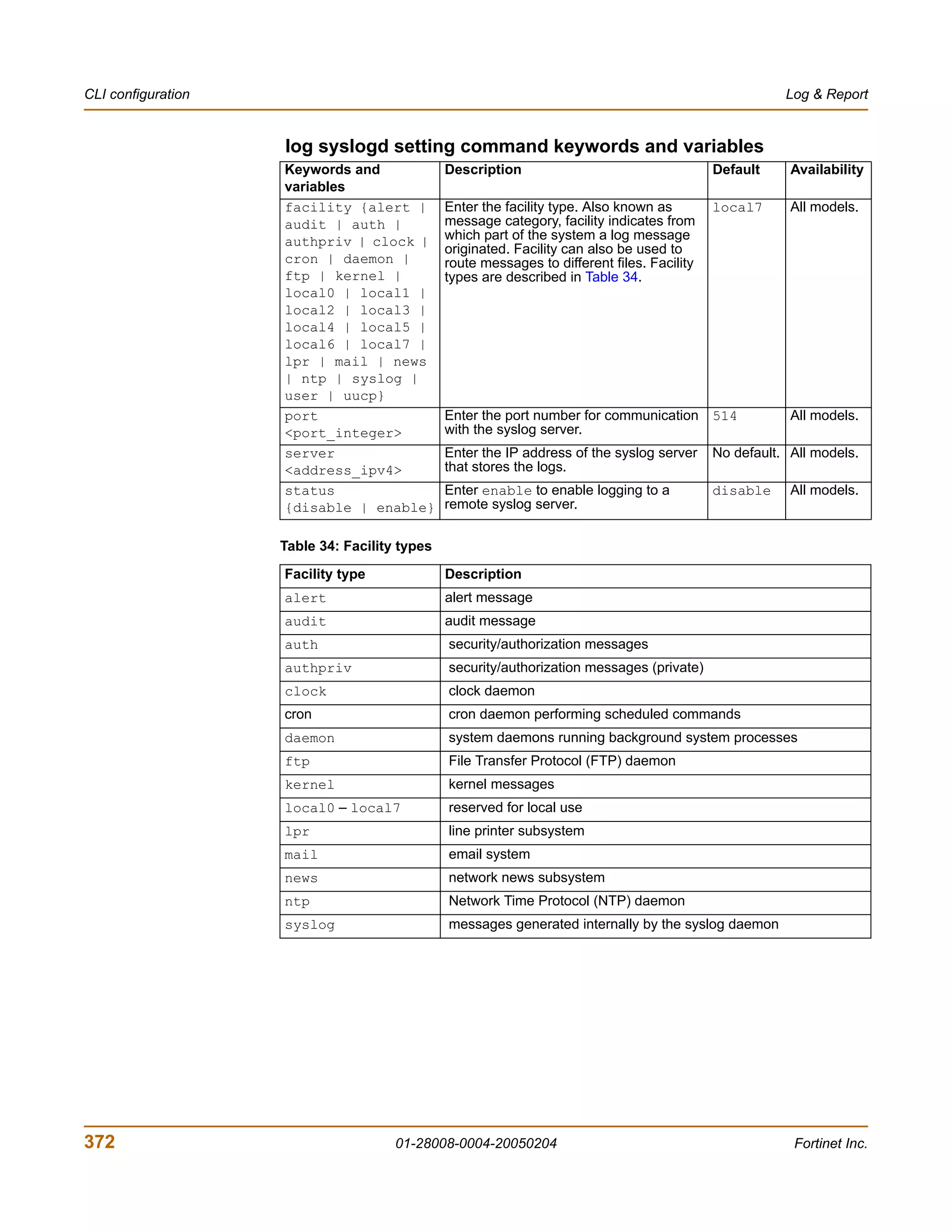
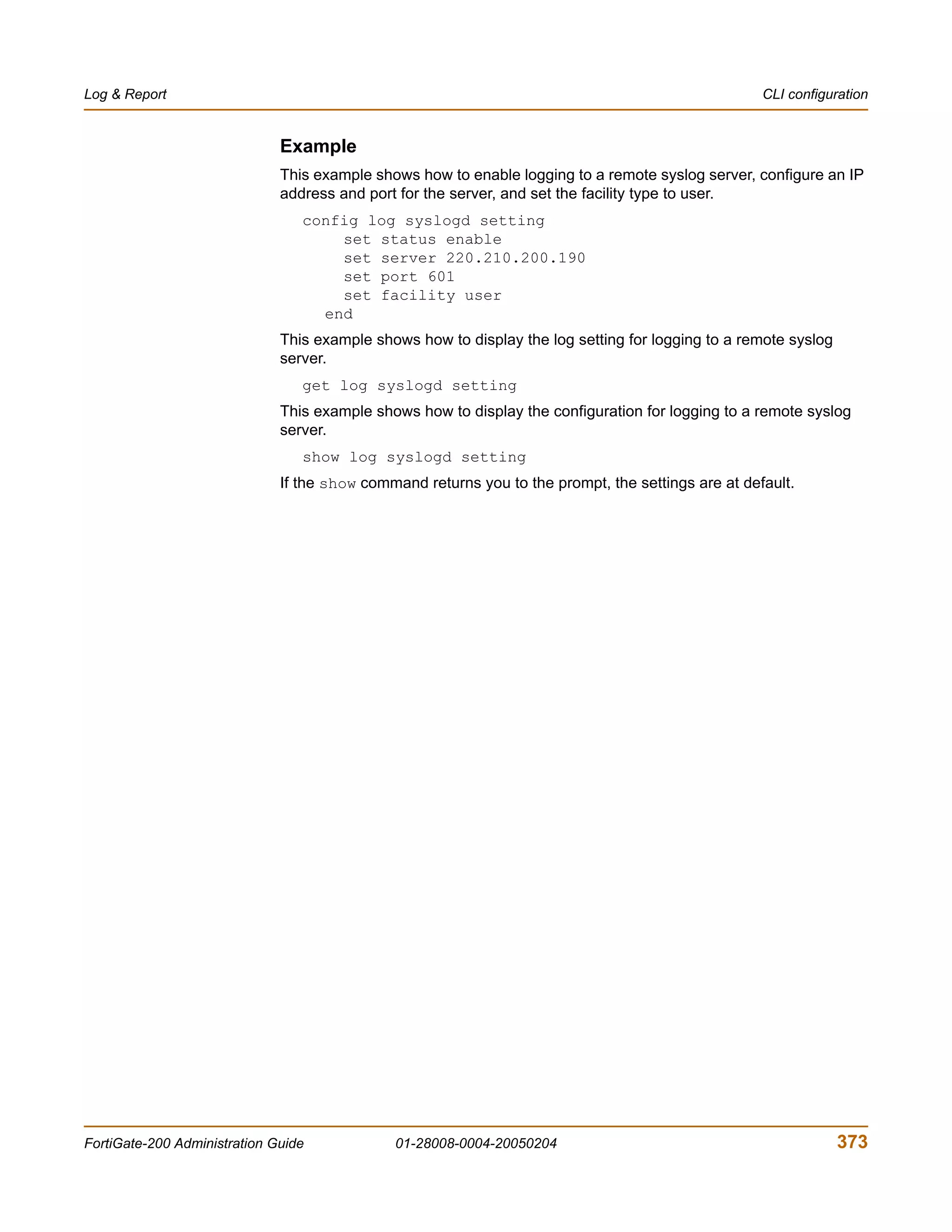
                   syslogd setting ............................................................................................................       371

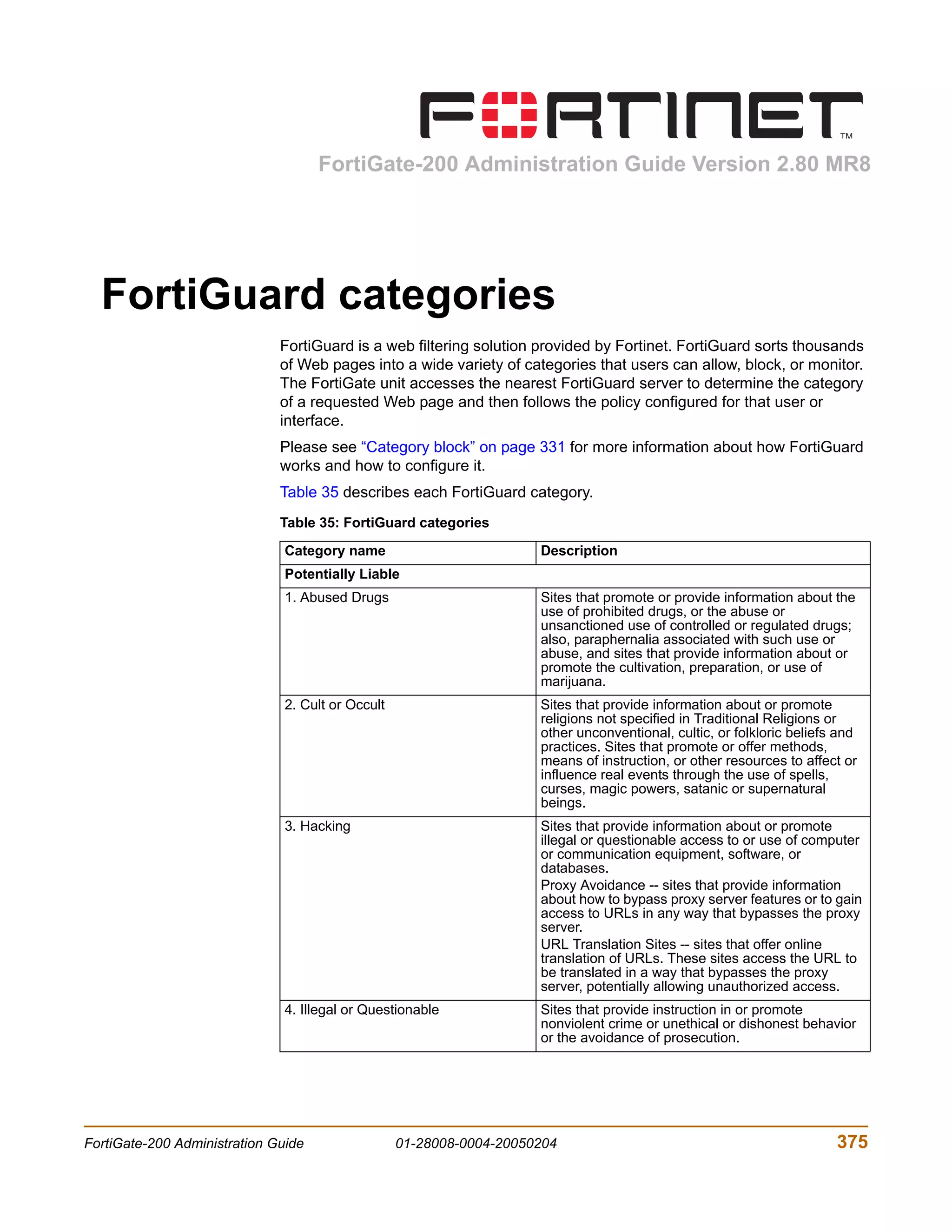
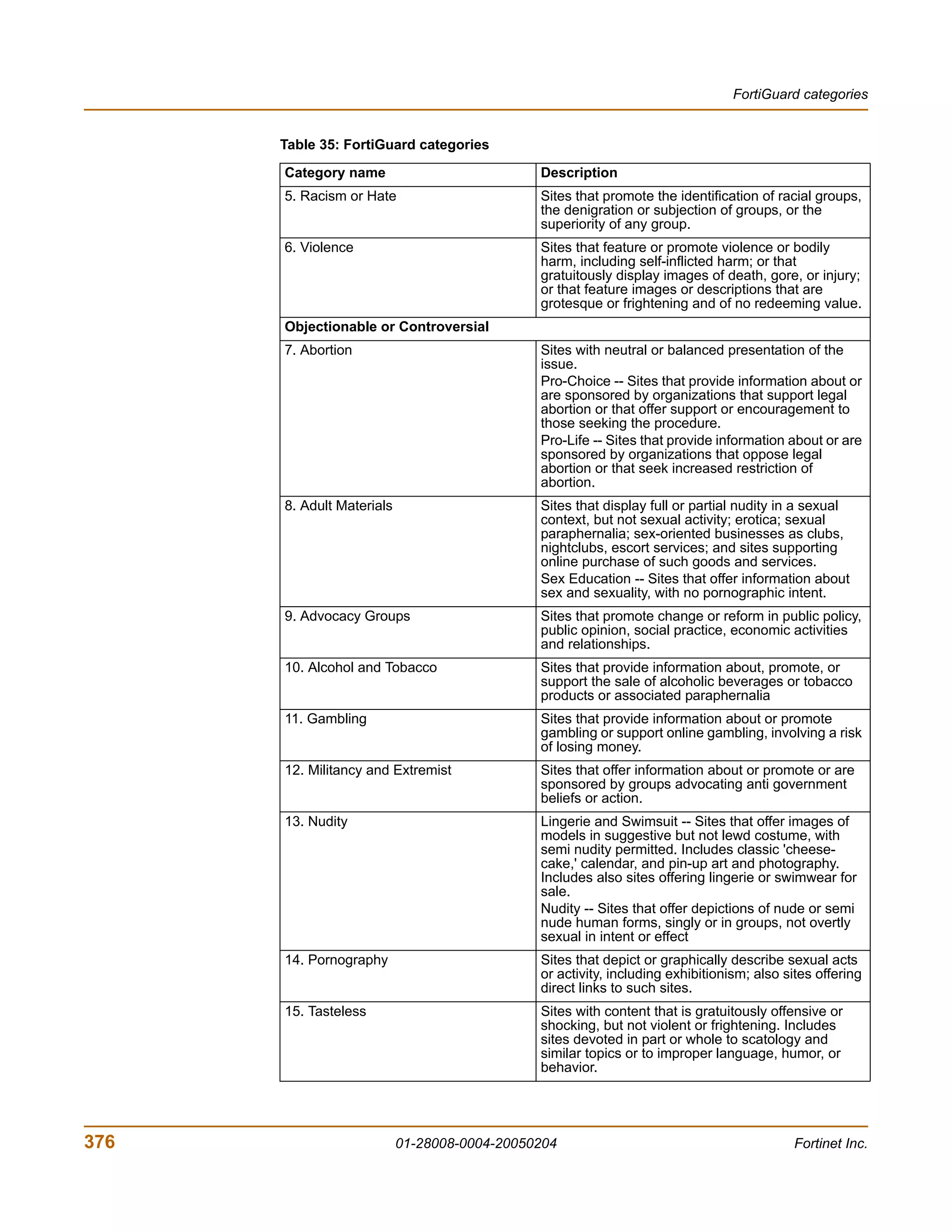
     FortiGuard categories ....................................................................................... 375

     Glossary ............................................................................................................. 381

     Index .................................................................................................................... 387


12                                                               01-28008-0004-20050204                                                                 Fortinet Inc.
FortiGate-200 Administration Guide Version 2.80 MR8


  Introduction
                              FortiGate Antivirus Firewalls support network-based deployment of application-level
                              services, including antivirus protection and full-scan content filtering. FortiGate
                              Antivirus Firewalls improve network security, reduce network misuse and abuse, and
                              help you use communications resources more efficiently without compromising the
                              performance of your network. FortiGate Antivirus Firewalls are ICSA-certified for
                              firewall, IPSec, and antivirus services.
                              This chapter introduces you to FortiGate Antivirus Firewalls and the following topics:
                              •   About FortiGate Antivirus Firewalls
                              •   Document conventions
                              •   FortiGate documentation
                              •   Related documentation
                              •   Customer service and technical support


  About FortiGate Antivirus Firewalls
                              The FortiGate Antivirus Firewall is a dedicated easily managed security device that
                              delivers a full suite of capabilities that include:
                              •   application-level services such as virus protection and content filtering,
                              •   network-level services such as firewall, intrusion detection, VPN, and traffic
                                  shaping.
                              The FortiGate Antivirus Firewall uses Fortinet’s Accelerated Behavior and Content
                              Analysis System (ABACAS™) technology, which leverages breakthroughs in chip
                              design, networking, security, and content analysis. The unique ASIC-based
                              architecture analyzes content and behavior in real-time, enabling key applications to
                              be deployed right at the network edge, where they are most effective at protecting
                              your networks. The FortiGate series complements existing solutions, such as host-
                              based antivirus protection, and enables new applications and services while greatly
                              lowering costs for equipment, administration, and maintenance.
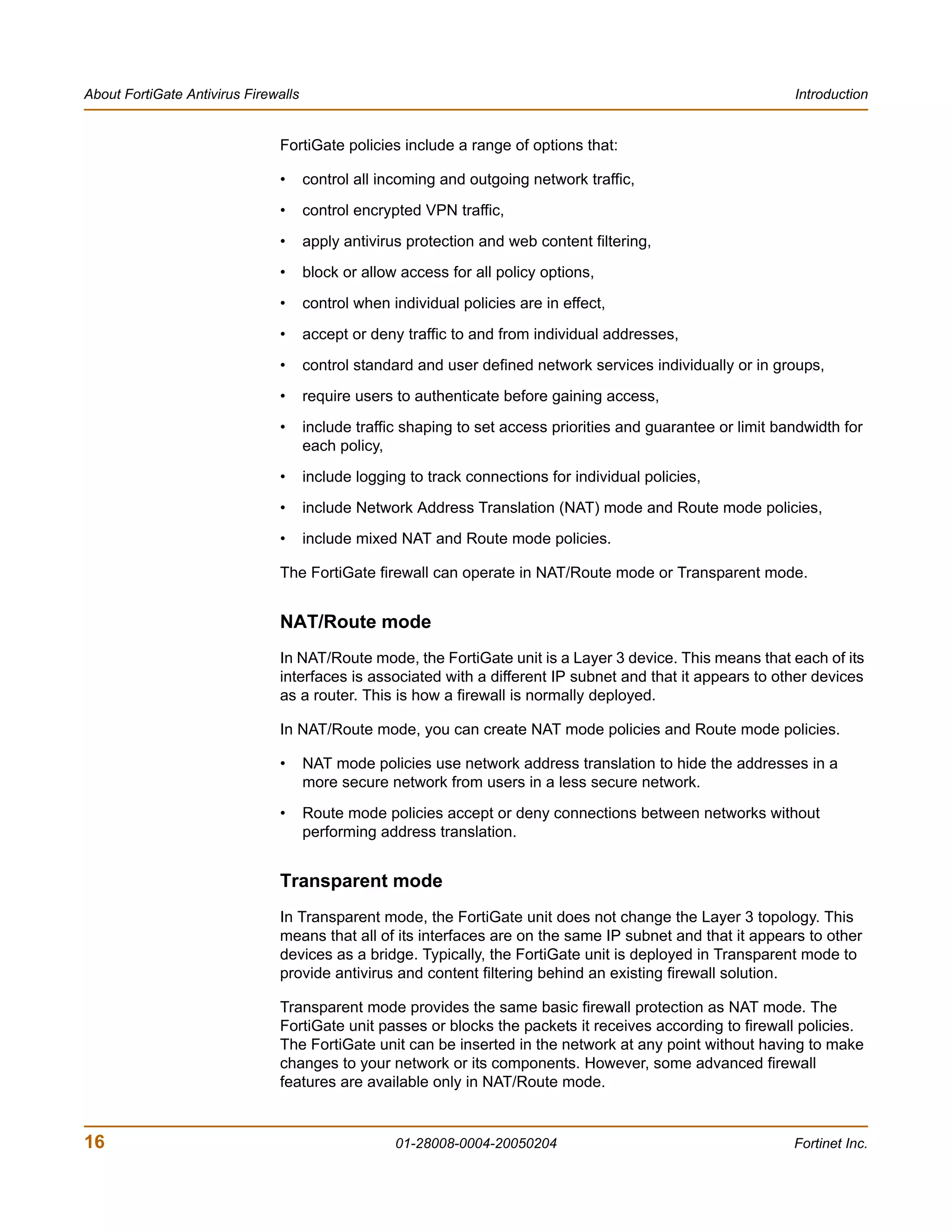
                              The FortiGate-200 model is an easy-to-
                              deploy and easy-to-administer solution
                              that delivers exceptional value and
                                                                               POWER   STATUS   INTERNAL EXTERNAL   DMZ
                                                                                                                          CONSOLE   INTERNAL   EXTERNAL   DMZ


                              performance for small office, home office,
                              and branch office applications. The
                              FortiGate installation wizard guides users through a simple process that enables most
                              installations to be up and running in minutes.


FortiGate-200 Administration Guide              01-28008-0004-20050204                                                                                          13
About FortiGate Antivirus Firewalls                                                                             Introduction


                               The FortiGate-200 also supports advanced features such as 802.1Q VLANs, virtual
                               domains, high availability (HA), and the RIP and OSPF routing protocols.


           Antivirus protection
                               FortiGate ICSA-certified antivirus protection scans web (HTTP), file transfer (FTP),
                               and email (SMTP, POP3, and IMAP) content as it passes through the FortiGate unit.
                               FortiGate antivirus protection uses pattern matching and heuristics to find viruses. If a
                               virus is found, antivirus protection removes the file containing the virus from the
                               content stream and forwards a replacement message to the intended recipient.
                               For extra protection, you can configure antivirus protection to block specified file types
                               from passing through the FortiGate unit. You can use the feature to stop files that
                               might contain new viruses.
                               FortiGate antivirus protection can also identify and remove known grayware
                               programs. Grayware programs are usually unsolicited commercial software programs
                               that get installed on PCs, often without the user’s consent or knowledge. Grayware
                               programs are generally considered an annoyance, but these programs can cause
                               system performance problems or be used for malicious means.
                               If the FortiGate unit contains a hard disk, infected or blocked files and grayware files
                               can be quarantined. The FortiGate administrator can download quarantined files so
                               that they can be virus scanned, cleaned, and forwarded to the intended recipient. You
                               can also configure the FortiGate unit to automatically delete quarantined files after a
                               specified time.
                               The FortiGate unit can send email alerts to system administrators when it detects and
                               removes a virus from a content stream. The web and email content can be in normal
                               network traffic or encrypted IPSec VPN traffic.
                               ICSA Labs has certified that FortiGate Antivirus Firewalls:
                               •      detect 100% of the viruses listed in the current In The Wild List (www.wildlist.org),
                               •      detect viruses in compressed files using the PKZip format,
                               •      detect viruses in email that has been encoded using uuencode format,
                               •      detect viruses in email that has been encoded using MIME encoding,
                               •      log all actions taken while scanning.


           Web content filtering
                               FortiGate web content filtering can scan all HTTP content protocol streams for URLs,
                               URL patterns, and web page content. If there is a match between a URL on the URL
                               block list, or a web page contains a word or phrase that is in the content block list, the
                               FortiGate unit blocks the web page. The blocked web page is replaced with a
                               message that you can edit using the FortiGate web-based manager.
                               FortiGate web content filtering also supports FortiGuard web category blocking. Using
                               web category blocking you can restrict or allow access to web pages based on
                               content ratings of web pages.
                               You can configure URL blocking to block all or some of the pages on a web site. Using
                               this feature, you can deny access to parts of a web site without denying access to it
                               completely.


14                                                  01-28008-0004-20050204                                      Fortinet Inc.
Introduction                                                                           About FortiGate Antivirus Firewalls


                              To prevent unintentionally blocking legitimate web pages, you can add URLs to an
                              exempt list that overrides the URL blocking and content blocking lists. The exempt list
                              also exempts web traffic this address from virus scanning.
                              Web content filtering also includes a script filter feature that can block unsecure web
                              content such as Java applets, cookies, and ActiveX.

           Spam filtering
                              FortiGate spam filtering can scan all POP3, SMTP, and IMAP email content for spam.
                              You can configure spam filtering to filter mail according to IP address, email address,
                              mime headers, and content. Mail messages can be identified as spam or clear.
                              FortiShield is an antispam system from Fortinet that includes an IP address black list,
                              a URL black list, and spam filtering tools. The IP address black list contains IP
                              addresses of email servers known to be used to generate Spam. The URL black list
                              contains URLs of websites found in Spam email.
                              You can also add the names of known third-party DNS-based Blackhole List (DNSBL)
                              and Open Relay Database List (ORDBL) servers. These services contain lists of
                              known spam sources.
                              If an email message is found to be spam, the FortiGate unit adds an email tag to the
                              subject line of the email. The recipient can use their mail client software to filter
                              messages based on the email tag. Spam filtering can also be configured to delete
                              SMTP email messages identified as spam.

           Firewall
                              The FortiGate ICSA-certified firewall protects your computer networks from Internet
                              threats. ICSA has granted FortiGate firewalls version 4.0 firewall certification,
                              providing assurance that FortiGate firewalls successfully screen and secure corporate
                              networks against a range of threats from public or other untrusted networks.
                              After basic installation of the FortiGate unit, the firewall allows users on the protected
                              network to access the Internet while blocking Internet access to internal networks.
                              You can configure the firewall to put controls on access to the Internet from the
                              protected networks and to allow controlled access to internal networks.


FortiGate-200 Administration Guide             01-28008-0004-20050204                                                 15
About FortiGate Antivirus Firewalls                                                                             Introduction


                               FortiGate policies include a range of options that:

                               •      control all incoming and outgoing network traffic,

                               •      control encrypted VPN traffic,
                               •      apply antivirus protection and web content filtering,
                               •      block or allow access for all policy options,

                               •      control when individual policies are in effect,
                               •      accept or deny traffic to and from individual addresses,
                               •      control standard and user defined network services individually or in groups,
                               •      require users to authenticate before gaining access,
                               •      include traffic shaping to set access priorities and guarantee or limit bandwidth for
                                      each policy,
                               •      include logging to track connections for individual policies,

                               •      include Network Address Translation (NAT) mode and Route mode policies,
                               •      include mixed NAT and Route mode policies.

                               The FortiGate firewall can operate in NAT/Route mode or Transparent mode.


                               NAT/Route mode
                               In NAT/Route mode, the FortiGate unit is a Layer 3 device. This means that each of its
                               interfaces is associated with a different IP subnet and that it appears to other devices
                               as a router. This is how a firewall is normally deployed.

                               In NAT/Route mode, you can create NAT mode policies and Route mode policies.

                               •      NAT mode policies use network address translation to hide the addresses in a
                                      more secure network from users in a less secure network.
                               •      Route mode policies accept or deny connections between networks without
                                      performing address translation.


                               Transparent mode
                               In Transparent mode, the FortiGate unit does not change the Layer 3 topology. This
                               means that all of its interfaces are on the same IP subnet and that it appears to other
                               devices as a bridge. Typically, the FortiGate unit is deployed in Transparent mode to
                               provide antivirus and content filtering behind an existing firewall solution.

                               Transparent mode provides the same basic firewall protection as NAT mode. The
                               FortiGate unit passes or blocks the packets it receives according to firewall policies.
                               The FortiGate unit can be inserted in the network at any point without having to make
                               changes to your network or its components. However, some advanced firewall
                               features are available only in NAT/Route mode.


16                                                  01-28008-0004-20050204                                      Fortinet Inc.
Introduction                                                                          About FortiGate Antivirus Firewalls


           VLANs and virtual domains
                              Fortigate Antivirus Firewalls support IEEE 802.1Q-compliant virtual LAN (VLAN) tags.
                              Using VLAN technology, a single FortiGate unit can provide security services to, and
                              control connections between, multiple security domains according to the VLAN IDs
                              added to VLAN packets. The FortiGate unit can recognize VLAN IDs and apply
                              security policies to secure network and IPSec VPN traffic between each security
                              domain. The FortiGate unit can also apply authentication, content filtering, and
                              antivirus protection to VLAN-tagged network and VPN traffic.
                              The FortiGate unit supports VLANs in NAT/Route and Transparent mode. In
                              NAT/Route mode, you enter VLAN subinterfaces to receive and send VLAN packets.
                              FortiGate virtual domains provide multiple logical firewalls and routers in a single
                              FortiGate unit. Using virtual domains, one FortiGate unit can provide exclusive firewall
                              and routing services to multiple networks so that traffic from each network is
                              effectively separated from every other network.
                              You can develop and manage interfaces, VLAN subinterfaces, zones, firewall policies,
                              routing, and VPN configuration for each virtual domain separately. For these
                              configuration settings, each virtual domain is functionally similar to a single FortiGate
                              unit. This separation simplifies configuration because you do not have to manage as
                              many routes or firewall policies at one time.

           Intrusion Prevention System (IPS)
                              The FortiGate Intrusion Prevention System (IPS) combines signature and anomaly
                              based intrusion detection and prevention. The FortiGate unit can record suspicious
                              traffic in logs, can send alert email to system administrators, and can log, pass, drop,
                              reset, or clear suspicious packets or sessions. Both the IPS predefined signatures and
                              the IPS engine are upgradeable through the FortiProtect Distribution Network (FDN).
                              You can also create custom signatures.

           VPN
                              Using FortiGate virtual private networking (VPN), you can provide a secure
                              connection between widely separated office networks or securely link telecommuters
                              or travellers to an office network.


FortiGate-200 Administration Guide             01-28008-0004-20050204                                                17
About FortiGate Antivirus Firewalls                                                                       Introduction


                               FortiGate VPN features include the following:
                               •      Industry standard and ICSA-certified IPSec VPN, including:
                                      •   IPSec VPN in NAT/Route and Transparent mode,
                                      •   IPSec, ESP security in tunnel mode,
                                      •   DES, 3DES (triple-DES), and AES hardware accelerated encryption,
                                      •   HMAC MD5 and HMAC SHA1 authentication and data integrity,
                                      •   AutoIKE key based on pre-shared key tunnels,
                                      •   IPSec VPN using local or CA certificates,
                                      •   Manual Keys tunnels,
                                      •   Diffie-Hellman groups 1, 2, and 5,
                                      •   Aggressive and Main Mode,
                                      •   Replay Detection,
                                      •   Perfect Forward Secrecy,
                                      •   XAuth authentication,
                                      •   Dead peer detection,
                                      •   DHCP over IPSec,
                                      •   Secure Internet browsing.
                               •      PPTP for easy connectivity with the VPN standard supported by the most popular
                                      operating systems.
                               •      L2TP for easy connectivity with a more secure VPN standard, also supported by
                                      many popular operating systems.
                               •      Firewall policy based control of IPSec VPN traffic.
                               •      IPSec NAT traversal so that remote IPSec VPN gateways or clients behind a NAT
                                      can connect to an IPSec VPN tunnel.
                               •      VPN hub and spoke using a VPN concentrator to allow VPN traffic to pass from
                                      one tunnel to another through the FortiGate unit.
                               •      IPSec Redundancy to create a redundant AutoIKE key IPSec VPN connection to a
                                      remote network.


           High availability
                               Fortinet achieves high availability (HA) using redundant hardware and the FortiGate
                               Clustering Protocol (FGCP). Each FortiGate unit in an HA cluster enforces the same
                               overall security policy and shares the same configuration settings. You can add up to
                               32 FortiGate units to an HA cluster. Each FortiGate unit in an HA cluster must be the
                               same model and must be running the same FortiOS firmware image.
                               FortiGate HA supports link redundancy and device redundancy.
                               FortiGate units can be configured to operate in active-passive (A-P) or active-active
                               (A-A) HA mode. Active-active and active-passive clusters can run in either NAT/Route
                               or Transparent mode.
                               An active-passive (A-P) HA cluster, also referred to as hot standby HA, consists of a
                               primary FortiGate unit that processes traffic, and one or more subordinate FortiGate
                               units. The subordinate FortiGate units are connected to the network and to the
                               primary FortiGate unit but do not process traffic.


18                                                 01-28008-0004-20050204                                 Fortinet Inc.
Introduction                                                                          About FortiGate Antivirus Firewalls


                              Active-active (A-A) HA load balances virus scanning among all the FortiGate units in
                              the cluster. An active-active HA cluster consists of a primary FortiGate unit that
                              processes traffic and one or more secondary units that also process traffic. The
                              primary FortiGate unit uses a load balancing algorithm to distribute virus scanning to
                              all the FortiGate units in the HA cluster.

           Secure installation, configuration, and management
                              The first time you power on the FortiGate unit, it is already configured with default IP
                              addresses and security policies. Connect to the web-based manager, set the
                              operating mode, and use the Setup wizard to customize FortiGate IP addresses for
                              your network, and the FortiGate unit is ready to protect your network. You can then
                              use the web-based manager to customize advanced FortiGate features.
                              You can also create a basic configuration using the FortiGate command line interface
                              (CLI).

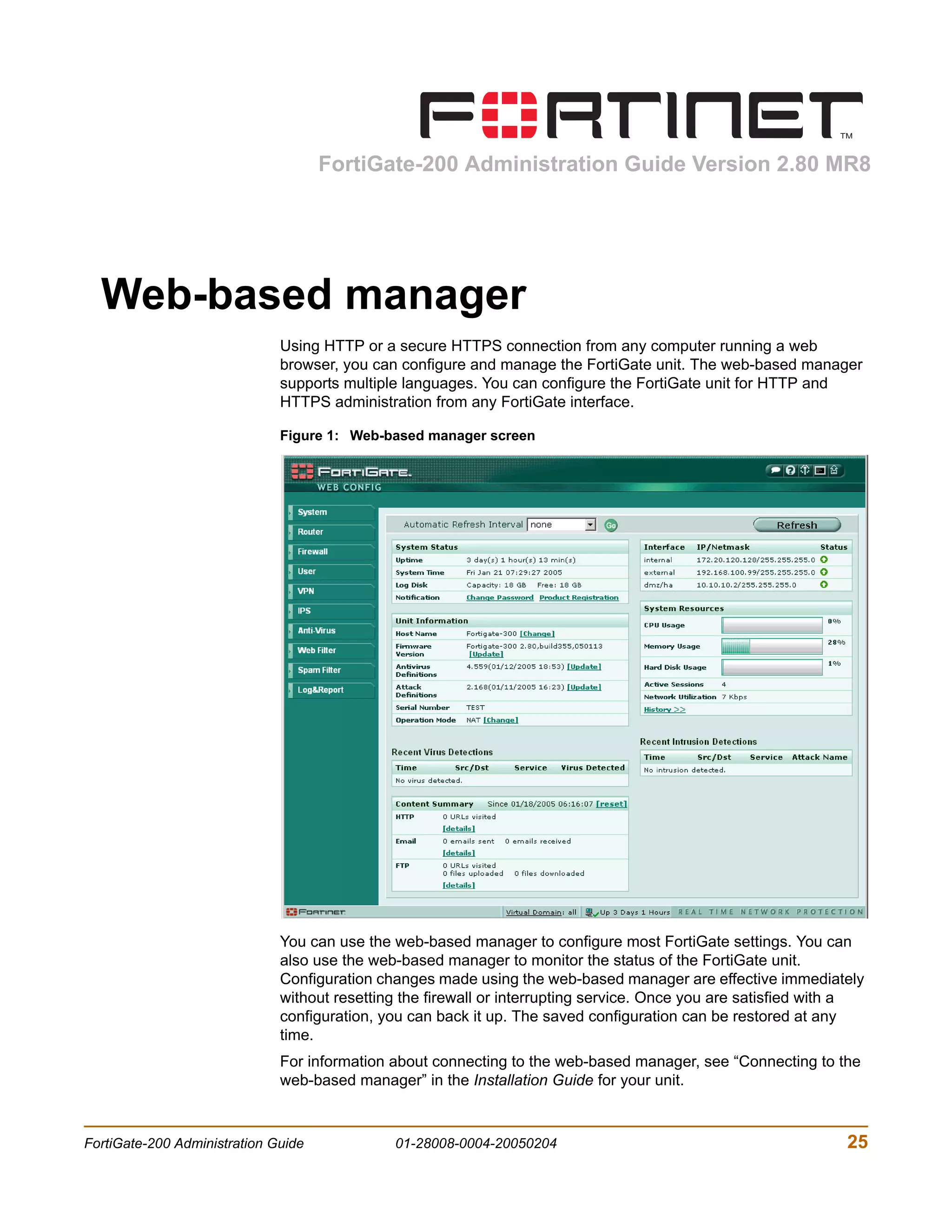
                              Web-based manager
                              Using HTTP or a secure HTTPS connection from any computer running Internet
                              Explorer, you can configure and manage the FortiGate unit. The web-based manager
                              supports multiple languages. You can configure the FortiGate unit for HTTP and
                              HTTPS administration from any FortiGate interface.
                              You can use the web-based manager to configure most FortiGate settings. You can
                              also use the web-based manager to monitor the status of the FortiGate unit.
                              Configuration changes made using the web-based manager are effective immediately
                              without resetting the firewall or interrupting service. Once you are satisfied with a
                              configuration, you can download and save it. The saved configuration can be restored
                              at any time.

                              Command line interface
                              You can access the FortiGate command line interface (CLI) by connecting a
                              management computer serial port to the FortiGate RS-232 serial console connector.
                              You can also use Telnet or a secure SSH connection to connect to the CLI from any
                              network that is connected to the FortiGate unit, including the Internet.
                              The CLI supports the same configuration and monitoring functionality as the
                              web-based manager. In addition, you can use the CLI for advanced configuration
                              options that are not available from the web-based manager.
                              This Administration Guide contains information about basic and advanced CLI
                              commands. For a more complete description about connecting to and using the
                              FortiGate CLI, see the FortiGate CLI Reference Guide.


FortiGate-200 Administration Guide             01-28008-0004-20050204                                                19
Document conventions                                                                                 Introduction


                       Logging and reporting
                       The FortiGate unit supports logging for various categories of traffic and configuration
                       changes. You can configure logging to:
                       •   report traffic that connects to the firewall,
                       •   report network services used,
                       •   report traffic that was permitted by firewall policies,
                       •   report traffic that was denied by firewall policies,
                       •   report events such as configuration changes and other management events,
                           IPSec tunnel negotiation, virus detection, attacks, and web page blocking,
                       •   report attacks detected by the IPS,
                       •   send alert email to system administrators to report virus incidents, intrusions, and
                           firewall or VPN events or violations.
                       Logs can be sent to a remote syslog server or a WebTrends NetIQ Security Reporting
                       Center and Firewall Suite server using the WebTrends enhanced log format. Some
                       models can also save logs to an optional internal hard drive. If a hard drive is not
                       installed, you can configure most FortiGate units to log the most recent events and
                       attacks detected by the IPS to the system memory.


  Document conventions
                       This guide uses the following conventions to describe CLI command syntax.
                       •   Angle brackets < > to indicate variables.
                           For example:
                           execute restore config <filename_str>


20                                        01-28008-0004-20050204                                     Fortinet Inc.
Introduction                                                                                    Document conventions


                              You enter:
                                  execute restore config myfile.bak
                                  <xxx_str> indicates an ASCII string that does not contain new-lines or carriage
                                  returns.
                                  <xxx_integer> indicates an integer string that is a decimal (base 10) number.
                                  <xxx_octet> indicates a hexadecimal string that uses the digits 0-9 and letters
                                  A-F.
                                  <xxx_ipv4> indicates a dotted decimal IPv4 address.
                                  <xxx_v4mask> indicates a dotted decimal IPv4 netmask.
                                  <xxx_ipv4mask> indicates a dotted decimal IPv4 address followed by a dotted
                                  decimal IPv4 netmask.
                                  <xxx_ipv6> indicates a dotted decimal IPv6 address.
                                  <xxx_v6mask> indicates a dotted decimal IPv6 netmask.
                                  <xxx_ipv6mask> indicates a dotted decimal IPv6 address followed by a dotted
                                  decimal IPv6 netmask.
                              •   Vertical bar and curly brackets {|} to separate alternative, mutually exclusive
                                  required keywords.
                                  For example:
                                  set opmode {nat | transparent}
                                  You can enter set opmode nat or set opmode transparent.
                              •   Square brackets [ ] to indicate that a keyword or variable is optional.
                                  For example:
                                  show system interface [<name_str>]
                                  To show the settings for all interfaces, you can enter show system interface.
                                  To show the settings for the internal interface, you can enter show system
                                  interface internal.
                              •   A space to separate options that can be entered in any combination and must be
                                  separated by spaces.
                                  For example:
                                  set allowaccess {ping https ssh snmp http telnet}
                                  You can enter any of the following:
                                  set allowaccess ping
                                  set allowaccess ping https ssh
                                  set allowaccess https ping ssh
                                  set allowaccess snmp
                                  In most cases to make changes to lists that contain options separated by spaces,
                                  you need to retype the whole list including all the options you want to apply and
                                  excluding all the options you want to remove.


FortiGate-200 Administration Guide               01-28008-0004-20050204                                             21
FortiGate documentation                                                                                  Introduction


  FortiGate documentation
                          Information about FortiGate products is available from the following guides:
                          •   FortiGate QuickStart Guide
                              Provides basic information about connecting and installing a FortiGate unit.
                          •   FortiGate Installation Guide
                              Describes how to install a FortiGate unit. Includes a hardware reference, default
                              configuration information, installation procedures, connection procedures, and
                              basic configuration procedures. Choose the guide for your product model number.
                          •   FortiGate Administration Guide
                              Provides basic information about how to configure a FortiGate unit, including how
                              to define FortiGate protection profiles and firewall policies; how to apply intrusion
                              prevention, antivirus protection, web content filtering, and spam filtering; and how
                              to configure a VPN.
                          •   FortiGate online help
                              Provides a context-sensitive and searchable version of the Administration Guide in
                              HTML format. You can access online help from the web-based manager as you
                              work.
                          •   FortiGate CLI Reference Guide
                              Describes how to use the FortiGate CLI and contains a reference to all FortiGate
                              CLI commands.
                          •   FortiGate Log Message Reference Guide
                              Describes the structure of FortiGate log messages and provides information about
                              the log messages that are generated by FortiGate units.
                          •   FortiGate High Availability Guide
                              Contains in-depth information about the FortiGate high availability feature and the
                              FortiGate clustering protocol.
                          •   FortiGate IPS Guide
                              Describes how to configure the FortiGate Intrusion Prevention System settings and
                              how the FortiGate IPS deals with some common attacks.
                          •   FortiGate VPN Guide
                              Explains how to configure VPNs using the web-based manager.

          Fortinet Knowledge Center
                          The most recent Fortinet technical documentation is available from the Fortinet
                          Knowledge Center. The knowledge center contains short how-to articles, FAQs,
                          technical notes, product and feature guides, and much more. Visit the Fortinet
                          Knowledge Center at http://kc.forticare.com.

          Comments on Fortinet technical documentation
                          Please send information about any errors or omissions in this document, or any
                          Fortinet technical documentation, to techdoc@fortinet.com.


22                                          01-28008-0004-20050204                                      Fortinet Inc.
Introduction                                                                                     Related documentation


  Related documentation
                              Additional information about Fortinet products is available from the following related
                              documentation.

           FortiManager documentation
                              •   FortiManager QuickStart Guide
                                  Explains how to install the FortiManager Console, set up the FortiManager Server,
                                  and configure basic settings.
                              •   FortiManager System Administration Guide
                                  Describes how to use the FortiManager System to manage FortiGate devices.
                              •   FortiManager System online help
                                  Provides a searchable version of the Administration Guide in HTML format. You
                                  can access online help from the FortiManager Console as you work.

           FortiClient documentation
                              •   FortiClient Host Security User Guide
                                  Describes how to use FortiClient Host Security software to set up a VPN
                                  connection from your computer to remote networks, scan your computer for
                                  viruses, and restrict access to your computer and applications by setting up firewall
                                  policies.
                              •   FortiClient Host Security online help
                                  Provides information and procedures for using and configuring the FortiClient
                                  software.

           FortiMail documentation
                              •   FortiMail Administration Guide
                                  Describes how to install, configure, and manage a FortiMail unit in gateway mode
                                  and server mode, including how to configure the unit; create profiles and policies;
                                  configure antispam and antivirus filters; create user accounts; and set up logging
                                  and reporting.
                              •   FortiMail online help
                                  Provides a searchable version of the Administration Guide in HTML format. You
                                  can access online help from the web-based manager as you work.
                              •   FortiMail Web Mail Online Help
                                  Describes how to use the FortiMail web-based email client, including how to send
                                  and receive email; how to add, import, and export addresses; and how to configure
                                  message display preferences.


FortiGate-200 Administration Guide              01-28008-0004-20050204                                              23
Customer service and technical support                                                                        Introduction


          FortiLog documentation
                              •   FortiLog Administration Guide
                                  Describes how to install and configure a FortiLog unit to collect FortiGate and
                                  FortiMail log files. It also describes how to view FortiGate and FortiMail log files,
                                  generate and view log reports, and use the FortiLog unit as a NAS server.
                              •   FortiLog online help
                                  Provides a searchable version of the Administration Guide in HTML format. You
                                  can access online help from the web-based manager as you work.


  Customer service and technical support
                              For antivirus and attack definition updates, firmware updates, updated product
                              documentation, technical support information, and other resources, please visit the
                              Fortinet Technical Support web site at http://support.fortinet.com.
                              You can also register Fortinet products and service contracts from
                              http://support.fortinet.com and change your registration information at any time.
                              Technical support is available through email from any of the following addresses.
                              Choose the email address for your region:

                              amer_support@fortinet.com For customers in the United States, Canada, Mexico, Latin
                                                        America and South America.
                              apac_support@fortinet.com For customers in Japan, Korea, China, Hong Kong, Singapore,
                                                        Malaysia, all other Asian countries, and Australia.
                              eu_support@fortinet.com        For customers in the United Kingdom, Scandinavia, Mainland
                                                             Europe, Africa, and the Middle East.

                              For information about our priority support hotline (live support), see
                              http://support.fortinet.com.
                              When requesting technical support, please provide the following information:
                              •   your name
                              •   your company’s name and location
                              •   your email address
                              •   your telephone number
                              •   your support contract number (if applicable)
                              •   the product name and model number
                              •   the product serial number (if applicable)
                              •   the software or firmware version number
                              •   a detailed description of the problem


24                                              01-28008-0004-20050204                                        Fortinet Inc.
FortiGate-200 Administration Guide Version 2.80 MR8


  Web-based manager
                              Using HTTP or a secure HTTPS connection from any computer running a web
                              browser, you can configure and manage the FortiGate unit. The web-based manager
                              supports multiple languages. You can configure the FortiGate unit for HTTP and
                              HTTPS administration from any FortiGate interface.

                              Figure 1: Web-based manager screen


                              You can use the web-based manager to configure most FortiGate settings. You can
                              also use the web-based manager to monitor the status of the FortiGate unit.
                              Configuration changes made using the web-based manager are effective immediately
                              without resetting the firewall or interrupting service. Once you are satisfied with a
                              configuration, you can back it up. The saved configuration can be restored at any
                              time.
                              For information about connecting to the web-based manager, see “Connecting to the
                              web-based manager” in the Installation Guide for your unit.


FortiGate-200 Administration Guide            01-28008-0004-20050204                                            25
Button bar features                                                                         Web-based manager


                       This chapter includes:
                       •   Button bar features
                       •   Web-based manager pages


  Button bar features
                       The button bar in the upper right corner of the web-based manager provides access to
                       several important FortiGate features.

                       Figure 2: Web-based manager button bar

                                                      Contact Customer Support

                                                            Online Help
                                                                Easy Setup Wizard


                                                     Console Access

                                                                   Logout


           Contact Customer Support
                       The Contact Customer Support button opens the Fortinet support web page in a new
                       browser window. From this page you can
                       •   Register your FortiGate unit (Product Registration). Fortinet will email you your
                           username and password to log in to the customer support center.
                       •   Log in to the Customer Support Center.
                       •   Visit the FortiProtect Center.
                       •   Download virus and attack definition updates.
                       •   Find out about training and certification programs.
                       •   Read about Fortinet and its products.


26                                       01-28008-0004-20050204                                     Fortinet Inc.
Web-based manager                                                                                      Button bar features


          Online Help
                              The Online Help button opens web-based help for the current web-based manager
                              page. There are hyperlinks to related topics and procedures related to the controls on
                              the current web-based manager page.

                              Figure 3: Online Help window


                              You can view other parts of the help system as you like. The help system includes a
                              navigation pane with table of contents, index and a text search function.

          Easy Setup Wizard
                              The FortiGate setup wizard provides an easy way to configure basic initial settings for
                              the FortiGate unit. The wizard walks through the configuration of a new administrator
                              password, FortiGate interfaces, DHCP server settings, internal servers (web, FTP,
                              etc.), and basic antivirus settings. For detailed instructions on the initial setup of your
                              FortiGate unit, see the Installation Guide for your unit.


FortiGate-200 Administration Guide             01-28008-0004-20050204                                                 27
Button bar features                                                                       Web-based manager


           Console Access
                       An alternative to the web-based manager user interface is the text-based command
                       line interface (CLI). There are some options that are configurable only from the CLI.
                       The Console Access button opens a Java-based terminal application. The
                       management computer must have Java version 1.3 or higher installed.
                       For information on how to use the CLI, see the FortiGate CLI Reference Guide.

                       Figure 4: Console access


                       Connect         Connect to the FortiGate unit using the CLI.
                       Disconnect      Disconnect from the FortiGate unit.
                       Clear screen    Clear the screen.


           Logout
                       The Logout button immediately logs you out of the web-based manager. Log out
                       before you close the browser window. If you simply close the browser or leave the
                       web-based manager, you remain logged-in until the idle timeout (default 5 minutes)
                       expires.


28                                      01-28008-0004-20050204                                     Fortinet Inc.
Web-based manager                                                                               Web-based manager pages


  Web-based manager pages
                              The web-based manager interface consists of a menu and pages, many of which
                              have multiple tabs. When you select a menu item, such as System, it expands to
                              reveal a submenu. When you select one of the submenu items, the associated page
                              opens at its first tab. To view a different tab, select the tab.
                              The procedures in this manual direct you to a page by specifying the menu item, the
                              submenu item and the tab, like this:
                        1     Go to System > Network > Interface.

                              Figure 5: Parts of the web-based manager

                                                                     Tabs     Page                           Button bar


                              Menu


                              Status
                              bar


          Web-based manager menu
                              The menu provides access to configuration options for all major features of the
                              FortiGate unit.

                              System         Configure system facilities, such as network interfaces, virtual domains,
                                             DHCP services, time and set system options.
                              Router         Configure the router.
                              Firewall       Configure firewall policies and protection profiles that apply the network
                                             protection features. Also configure virtual IP addresses and IP pools.
                              User           Configure user accounts for use with firewall policies that require user
                                             authentication. Also configure external authentication servers.
                              VPN            Configure virtual private networks.


FortiGate-200 Administration Guide            01-28008-0004-20050204                                                      29
Web-based manager pages                                                                                Web-based manager


                          IPS               Configure the intrusion prevention system.
                          Antivirus         Configure antivirus protection.
                          Web Filter        Configure web filtering.
                          Spam Filter       Configure email spam filtering.
                          Log & Report      Configure logging. View log messages.


         Lists
                          Many of the web-based manager pages are lists. There are lists of network interfaces,
                          firewall policies, administrators, users, and so on.

                          Figure 6: Example of a web-based manager list


                                                                                                          Delete
                                                                                                                   Edit

                          The list shows some information about each item and the icons in the rightmost
                          column enable you to take action on the item. In this example, you can select Delete
                          to remove the item or select Edit to modify the item.
                          To add another item to the list, you select Create New. This opens a dialog box in
                          which you define the new item. The dialog box for creating a new item is similar to the
                          one for editing an existing item.

         Icons
                          The web-based manager has icons in addition to buttons to enable you to interact with
                          the system. There are tooltips to assist you in understanding the function of the icon.
                          Pause the mouse pointer over the icon to view the tooltip. The following table
                          describes the icons that you will see in the web-based manager.

                          Icon          Name          Description

                                        Change        Change the administrator password. This icon appears in the
                                        Password      Administrators list if your access profile enables write permission
                                                      on Admin Users.

                                        Clear         Clear a log file.


                                        Column        Select log columns to display.
                                        Settings


                                        Delete        Delete an item. This icon appears in lists where the item is
                                                      deletable and you have write permission on the page.


30                                              01-28008-0004-20050204                                           Fortinet Inc.
Web-based manager                                                                                Web-based manager pages


                                          Download     Download a log file or back up a configuration file.
                                          or Backup


                                          Edit         Edit a configuration. This icon appears in lists where you have
                                                       write permission on the page.

                                          Go           Do a search.


                                          Insert Policy Create a new policy to precede the current one.
                                          before

                                          Move to      Move item in list.


                                          Next page    View next page of list.


                                          Previous     View previous page of list.
                                          page


                                          Restore      Restore a configuration from a file.


                                          View         View a configuration. This icon appears in lists instead of the
                                                       Edit icon when you do not have write permission on that page.


          Status bar
                              The status bar is at the bottom of the web-based manager screen.

                              Figure 7: Status bar


                              The status bar shows
                              •   how long the FortiGate unit has been operating since the last time it was restarted
                              •   the virtual domain to which the current page applies
                                  Virtual domain information is not shown if there is only one virtual domain. For
                                  information about virtual domains, see “System Virtual Domain” on page 143.


FortiGate-200 Administration Guide               01-28008-0004-20050204                                                  31
Organization of this manual                                                                  Web-based manager


  Organization of this manual
                              This manual describes the web-based manager pages in the same order as the web-
                              based manager menu. There is a chapter for each item in the System menu, followed
                              by a chapter for each of the remaining top-level menu items.

                              System Status                    Router                Spam filter
                              System Network                   Firewall              Log & Report
                              System DHCP                      User                  FortiGuard categories
                              System Config                    VPN
                              System Admin                     IPS

                              System Maintenance               Antivirus

                              System Virtual Domain            Web filter


32                                            01-28008-0004-20050204                                 Fortinet Inc.
FortiGate-200 Administration Guide Version 2.80 MR8


  System Status
                              You can connect to the web-based manager and view the current system status of the
                              FortiGate unit. The status information that is displayed includes the system status, unit
                              information, system resources, and session log.
                              This chapter includes:
                              •   Status
                              •   Session list
                              •   Changing the FortiGate firmware


  Status
                              View the system status page, also known as the system dashboard, for a snap shot of
                              the current operating status of the FortiGate unit. All FortiGate administrators with
                              read access to system configuration can view system status information.
                              On HA clusters, the Status page shows the status of the primary unit. To view status
                              information for all members of the cluster, go to System > Config > HA and select
                              Cluster Members. For more information, see “HA configuration” on page 95.
                              FortiGate administrators whose access profiles contain system configuration write
                              privileges can change or update FortiGate unit information. For information on access
                              profiles, see “Access profiles” on page 125.
                              •   Viewing system status
                              •   Changing unit information


FortiGate-200 Administration Guide               01-28008-0004-20050204                                             33
Status                                                                                                  System Status


         Viewing system status
                      Figure 8: System status


                      Automatic Refresh Select to control how often the web-based manager updates the system
                      Interval          status display.
                      Go                 Select to set the selected automatic refresh interval.
                      Refresh            Select to manually update the system status display.


                      System status
                      UP Time          The time in days, hours, and minutes since the FortiGate unit was last
                                       started.
                      System Time      The current time according to the FortiGate unit internal clock.
                      Log Disk         Displays hard disk capacity and free space if the FortiGate unit contains a
                                       hard disk or Not Available if no hard disk is installed. The FortiGate unit uses
                                       the hard disk to store log messages and quarantine files infected with a virus
                                       or blocked by antivirus file blocking.
                      Notification     Contains reminders such as “Change Password” or “Product Registration”.
                                       Select the reminder to see the detailed reminder message.


                      Unit Information
                      Admin users and administrators whose access profiles contain system configuration
                      read and write privileges can change or update the unit information. For information
                      on access profiles, see “Access profiles” on page 125.


34                                     01-28008-0004-20050204                                              Fortinet Inc.
System Status                                                                                                               Status


                              Host Name              The host name of the current FortiGate unit.
                              Firmware Version       The version of the firmware installed on the current FortiGate unit.
                              Antivirus Definitions The current installed version of the FortiGate Antivirus Definitions.
                              Attack Definitions     The current installed version of the FortiGate Attack Definitions used by
                                                     the Intrusion Prevention System (IPS).
                              Serial Number          The serial number of the current FortiGate unit. The serial number is
                                                     specific to the FortiGate unit and does not change with firmware
                                                     upgrades.
                              Operation Mode         The operation mode of the current FortiGate unit.


                              Recent Virus Detections
                              Time                   The time at which the recent virus was detected.
                              Src / Dst              The source and destination addresses of the virus.
                              Service                The service from which the virus was delivered; HTTP, FTP, IMAP,
                                                     POP3, or SMTP.
                              Virus Detected         The name of the virus detected.


                              Content Summary
                              The Content Summary shows information about Content Archiving, configured in
                              firewall protection profiles. The Details pages provide a link to either the FortiLog unit
                              or to the Log & Report > Log Config > Log Setting page where you can configure
                              logging to a FortiLog unit.

                              Reset                  Select to reset the count values in the table to zero.
                              HTTP                   The number of URLs visited. Select Details to see the list of URLs, the
                                                     time they were accessed and the IP address of the host that accessed
                                                     them.
                              Email                  The number of email sent and received. Select Details to see the date
                                                     and time, the sender, the recipient and the subject of each email.
                              FTP                    The number of URLs visited and the number of files uploaded and
                                                     downloaded. Select Details to see the FTP site URL, date, time, user
                                                     and lists of files uploaded and downloaded.


                              Interface Status
                              All interfaces in the FortiGate unit are listed in the table.

                              Interface              The name of the interface.
                              IP / Netmask           The IP address and netmask of the interface (NAT/Route mode only).
                              Status                 The status of the interface; either up (green up arrow) or down (red
                                                     down arrow).


FortiGate-200 Administration Guide               01-28008-0004-20050204                                                       35
Status                                                                                      System Status


         System Resources
         CPU Usage              The current CPU status. The web-based manager displays CPU usage
                                for core processes only. CPU usage for management processes (for
                                example, for HTTPS connections to the web-based manager) is
                                excluded.
         Memory Usage           The current memory status. The web-based manager displays memory
                                usage for core processes only. Memory usage for management
                                processes (for example, for HTTPS connections to the web-based
                                manager) is excluded.
         Hard Disk Usage        The current hard disk (local disk) status. The web-based manager
                                displays hard disk usage for core processes only. CPU usage for
                                management processes (for example, for HTTPS connections to the
                                web-based manager) is excluded.
         Active Sessions        The number of communications sessions being processed by the
                                FortiGate unit.
         Network Utilization    The total network bandwidth being used through all FortiGate interfaces
                                and the percentage of the maximum network bandwidth that can be
                                processed by the FortiGate unit.
         History                Select History to view a graphical representation of the last minute of
                                CPU, memory, sessions, and network usage. This page also shows the
                                virus and intrusion detections over the last 20 hours.

         Figure 9: Sample system resources history


         History
         The history page displays 6 graphs representing the following system resources and
         protection:

         CPU Usage History        CPU usage for the previous minute.
         Memory Usage History Memory usage for the previous minute.
         Session History          Session history for the previous minute.
         Network Utilization      Network utilization for the previous minute.
         History
         Virus History            The virus detection history over the last 20 hours.
         Intrusion History        The intrusion detection history over the last 20 hours.


36                           01-28008-0004-20050204                                           Fortinet Inc.
System Status                                                                                                            Status


                              Recent Intrusion Detections
                              Time                   The time at which the recent intrusion was detected.
                              Src / Dst              The source and destination addresses of the attack.
                              Service                The service from which the attack was delivered; HTTP, FTP, IMAP,
                                                     POP3, or SMTP.
                              Attack Name            The name of the attack.


          Changing unit information
                              Administrators with system configuration write access can use the unit information
                              area of the System Status page:
                              •   To change FortiGate host name
                              •   To update the firmware version
                              •   To update the antivirus definitions manually
                              •   To update the attack definitions manually
                              •   To change to Transparent mode
                              •   To change to NAT/Route mode

                              To change FortiGate host name
                              The FortiGate host name appears on the Status page and in the FortiGate CLI
                              prompt. The host name is also used as the SNMP system name. For information
                              about the SNMP system name, see “SNMP” on page 108.
                              The default host name is FortiGate-200.

                              Note: If the FortiGate unit is part of an HA cluster, you should set a unique name to distinguish
                              the unit from others in the cluster.

                        1     Go to System > Status > Status.
                        2     In the Host Name field of the Unit Information section, select Change.
                        3     In the New Name field, type a new host name.
                        4     Select OK.
                              The new host name is displayed in the Host Name field, and in the CLI prompt, and is
                              added to the SNMP System Name.

                              To update the firmware version
                              For information on updating the firmware, see “Changing the FortiGate firmware” on
                              page 40.

                              To update the antivirus definitions manually

                              Note: For information about configuring the FortiGate unit for automatic antivirus definitions
                              updates, see “Update center” on page 130.

                        1     Download the latest antivirus definitions update file from Fortinet and copy it to the
                              computer that you use to connect to the web-based manager.


FortiGate-200 Administration Guide               01-28008-0004-20050204                                                        37
Status                                                                                         System Status


         2   Start the web-based manager and go to System > Status > Status.
         3   In the Antivirus Definitions field of the Unit Information section, select Update.
         4   In the Update File field, type the path and filename for the antivirus definitions update
             file, or select Browse and locate the antivirus definitions update file.
         5   Select OK to copy the antivirus definitions update file to the FortiGate unit.
             The FortiGate unit updates the antivirus definitions. This takes about 1 minute.
         6   Go to System > Status to confirm that the Antivirus Definitions Version information
             has updated.

             To update the attack definitions manually

             Note: For information about configuring the FortiGate unit for automatic attack definitions
             updates, see “Update center” on page 130.

         1   Download the latest attack definitions update file from Fortinet and copy it to the
             computer that you use to connect to the web-based manager.
         2   Start the web-based manager and go to System > Status > Status.
         3   In the Attack Definitions field of the Unit Information section, select Update.
             The Intrusion Detection System Definitions Update dialog box appears.
         4   In the Update File field, type the path and filename for the attack definitions update
             file, or select Browse and locate the attack definitions update file.
         5   Select OK to copy the attack definitions update file to the FortiGate unit.
             The FortiGate unit updates the attack definitions. This takes about 1 minute.
         6   Go to System > Status > Status to confirm that the Attack Definitions Version
             information has updated.

             To change to Transparent mode
             After you change the FortiGate unit from the NAT/Route mode to Transparent mode,
             most of the configuration resets to Transparent mode factory defaults, except for HA
             settings (see “HA” on page 92).
             To change to Transparent mode:
         1   Go to System > Status > Status.
         2   In the Operation Mode field of the Unit Information section, select Change.
         3   In the Operation Mode field, select Transparent.
         4   Select OK.
             The FortiGate unit changes operation mode.
         5   To reconnect to the web-based manager, connect to the interface configured for
             Transparent mode management access and browse to https:// followed by the
             Transparent mode management IP address.
             By default in Transparent mode, you can connect to the internal interface. The default
             Transparent mode management IP address is 10.10.10.1.


38                              01-28008-0004-20050204                                            Fortinet Inc.
System Status                                                                                                   Session list


                              Note: If the web-based manager IP address was on a different subnet in NAT/Route mode, you
                              may have to change the IP address of your computer to the same subnet as the management
                              IP address.

                              To change to NAT/Route mode
                              After you change the FortiGate unit from the NAT/Route mode to Transparent mode,
                              most of the configuration resets to Transparent mode factory defaults, except for HA
                              settings (see “HA” on page 92).
                              To change to NAT/Route mode:
                        1     Go to System > Status > Status.
                        2     In the Operation Mode field of the Unit Information section, select Change.
                        3     In the Operation Mode field, select NAT/Route.
                        4     Select OK.
                              The FortiGate unit changes operation mode.
                        5     To reconnect to the web-based manager, you must connect to the interface configured
                              by default for management access.
                              By default in NAT/Route mode, you can connect to the internal interface. The default
                              internal interface IP address is 192.168.1.99.

                              Note: If the management IP address was on a different subnet in Transparent mode, you may
                              have to change the IP address of your computer to the same subnet as the interface configured
                              for management access.


  Session list
                              The session list displays information about the communications sessions currently
                              being processed by the FortiGate unit. You can use the session list to view current
                              sessions.

                              Figure 10: Sample session list


                              From IP          Set source IP address for list filtering
                              From Port        Set source port for list filtering
                              To IP            Set destination IP address for list filtering
                              To Port          Set destination port for list filtering
                              Apply Filter     Select to filter session list
                              Virtual Domain Select a virtual domain to list the sessions being processed by that virtual
                                             domain. Select All to view sessions being processed by all virtual domains.


FortiGate-200 Administration Guide              01-28008-0004-20050204                                                  39
Changing the FortiGate firmware                                                                                System Status


                             Total Number of Total number of sessions currently being conducted through the FortiGate
                             Sessions        unit.
                                              Refresh icon. Select to update the session list
                                              Page up icon. Select to view previous page in the session list
                                              Page down icon. Select to view the next page in the session list.
                             Protocol         The service protocol of the connection, for example, udp, tcp, or icmp.
                             From IP          The source IP address of the connection.
                             From Port        The source port of the connection.
                             To IP            The destination IP address of the connection.
                             To Port          The destination port of the connection.
                             Expire           The time, in seconds, before the connection expires.
                             Policy ID        The number of the firewall policy allowing this session or blank if the session
                                              involves only one FortiGate interface (admin session, for example).
                                              Delete icon. Select to stop an active communication session.

                             To view the session list
                        1    Go to System > Status > Session.
                             The web-based manager displays the total number of active sessions in the FortiGate
                             unit session table and lists the top 16.
                        2    To navigate the list of sessions, select Page Up or Page Down.
                        3    Select Refresh to update the session list.
                        4    If you are logged in as an administrative user with read and write privileges or as the
                             admin user, you can select Delete to stop an active session.


  Changing the FortiGate firmware
                             FortiGate administrators whose access profiles contain system configuration read and
                             write privileges and the FortiGate admin user can change the FortiGate firmware.
                             After you download a FortiGate firmware image from Fortinet, you can use the
                             procedures listed in Table 1 to install the firmware image on your FortiGate unit.


40                                            01-28008-0004-20050204                                              Fortinet Inc.
System Status                                                                                  Changing the FortiGate firmware


                              Table 1: Firmware upgrade procedures

                               Procedure                 Description
                               Upgrading to a new        Use the web-based manager or CLI procedure to upgrade to a new
                               firmware version          FortiOS firmware version or to a more recent build of the same
                                                         firmware version.
                               Reverting to a            Use the web-based manager or CLI procedure to revert to a
                               previous firmware         previous firmware version. This procedure reverts the FortiGate
                               version                   unit to its factory default configuration.

                               Installing firmware  Use this procedure to install a new firmware version or revert to a
                               images from a system previous firmware version. To use this procedure you must connect
                               reboot using the CLI to the CLI using the FortiGate console port and a null-modem
                                                    cable. This procedure reverts the FortiGate unit to its factory
                                                    default configuration.
                               Testing a new         Use this procedure to test a new firmware image before installing it.
                               firmware image before To use this procedure you must connect to the CLI using the
                               installing it         FortiGate console port and a null-modem cable. This procedure
                                                     temporarily installs a new firmware image using your current
                                                     configuration. You can test the firmware image before installing it
                                                     permanently. If the firmware image works correctly you can use
                                                     one of the other procedures listed in this table to install it
                                                     permanently.
                               Installing and using a    If the FortiGate unit is running BIOS version v3.x, you can install a
                               backup firmware           backup firmware image. Once the backup firmware image is
                               image                     installed you can switch to this backup image when required.


          Upgrading to a new firmware version
                              Use the following procedures to upgrade the FortiGate unit to a newer firmware
                              version.

                              Upgrading the firmware using the web-based manager
                              Note: Installing firmware replaces the current antivirus and attack definitions with the definitions
                              included with the firmware release that you are installing. After you install new firmware, use the
                              procedure “To update antivirus and attack definitions” on page 132 to make sure that antivirus
                              and attack definitions are up to date.

                              To upgrade the firmware using the web-based manager
                        1     Copy the firmware image file to your management computer.
                        2     Log into the web-based manager as the admin administrative user.

                              Note: To use this procedure you must login using the admin administrator account, or an
                              administrator account that has system configuration read and write privileges.

                        3     Go to System > Status.
                        4     Under Unit Information > Firmware Version, select Update.
                        5     Type the path and filename of the firmware image file, or select Browse and locate the
                              file.


FortiGate-200 Administration Guide               01-28008-0004-20050204                                                        41
Changing the FortiGate firmware                                                                               System Status


                        6    Select OK.
                             The FortiGate unit uploads the firmware image file, upgrades to the new firmware
                             version, restarts, and displays the FortiGate login. This process takes a few minutes.
                        7    Log into the web-based manager.
                        8    Go to System > Status and check the Firmware Version to confirm that the firmware
                             upgrade is successfully installed.
                        9    Update antivirus and attack definitions. For information about updating antivirus and
                             attack definitions, see “Update center” on page 130.

                             Upgrading the firmware using the CLI
                             To use the following procedure you must have a TFTP server that the FortiGate unit
                             can connect to.

                              Note: Installing firmware replaces your current antivirus and attack definitions with the
                              definitions included with the firmware release that you are installing. After you install new
                              firmware, use the procedure “To update antivirus and attack definitions” on page 132 to make
                              sure that antivirus and attack definitions are up to date. You can also use the CLI command
                              execute update_now to update the antivirus and attack definitions.

                             To upgrade the firmware using the CLI
                        1    Make sure that the TFTP server is running.
                        2    Copy the new firmware image file to the root directory of the TFTP server.
                        3    Log into the CLI.

                              Note: To use this procedure you must login using the admin administrator account, or an
                              administrator account that has system configuration read and write privileges.

                        4    Make sure the FortiGate unit can connect to the TFTP server.
                             You can use the following command to ping the computer running the TFTP server.
                             For example, if the IP address of the TFTP server is 192.168.1.168:
                             execute ping 192.168.1.168
                        5    Enter the following command to copy the firmware image from the TFTP server to the
                             FortiGate unit:
                             execute restore image <name_str> <tftp_ipv4>
                             Where <name_str> is the name of the firmware image file and <tftp_ip> is the IP
                             address of the TFTP server. For example, if the firmware image file name is
                             FGT_300-v280-build183-FORTINET.out and the IP address of the TFTP server
                             is 192.168.1.168, enter:
                             execute restore image FGT_300-v280-build183-FORTINET.out
                             192.168.1.168
                             The FortiGate unit responds with the message:
                             This operation will replace the current firmware version!
                             Do you want to continue? (y/n)
                        6    Type y.


42                                               01-28008-0004-20050204                                          Fortinet Inc.
System Status                                                                                  Changing the FortiGate firmware


                              The FortiGate unit uploads the firmware image file, upgrades to the new firmware
                              version, and restarts. This process takes a few minutes.
                        7     Reconnect to the CLI.
                        8     To confirm that the new firmware image is successfully installed, enter:
                              get system status
                        9     Use the procedure “To update antivirus and attack definitions” on page 132 to update
                              antivirus and attack definitions, or from the CLI, enter:
                              execute update_now

          Reverting to a previous firmware version
                              Use the following procedures to revert your FortiGate unit to a previous firmware
                              version.

                              Reverting to a previous firmware version using the web-based
                              manager
                              The following procedures revert the FortiGate unit to its factory default configuration
                              and deletes IPS custom signatures, web content lists, email filtering lists, and changes
                              to replacement messages.
                              Before beginning this procedure you can:
                              •   Back up the FortiGate unit configuration.
                              •   Back up the IPS custom signatures.
                              •   Back up web content and email filtering lists.
                              For information, see “Backing up and Restoring” on page 128.
                              If you are reverting to a previous FortiOS version (for example, reverting from FortiOS
                              v2.80 to FortiOS v2.50), you might not be able to restore the previous configuration
                              from the backup configuration file.

                              Note: Installing firmware replaces the current antivirus and attack definitions with the definitions
                              included with the firmware release that you are installing. After you install new firmware, use the
                              procedure “To update antivirus and attack definitions” on page 132 to make sure that antivirus
                              and attack definitions are up to date.

                              To revert to a previous firmware version using the web-based manager
                        1     Copy the firmware image file to the management computer.
                        2     Log into the FortiGate web-based manager.

                              Note: To use this procedure you must login using the admin administrator account, or an
                              administrator account that has system configuration read and write privileges.

                        3     Go to System > Status.
                        4     Under Unit Information > Firmware Version, select Update.
                        5     Type the path and filename of the firmware image file, or select Browse and locate the
                              file.


FortiGate-200 Administration Guide               01-28008-0004-20050204                                                        43
Changing the FortiGate firmware                                                                                    System Status


                        6    Select OK.
                             The FortiGate unit uploads the firmware image file, reverts to the old firmware version,
                             resets the configuration, restarts, and displays the FortiGate login. This process takes
                             a few minutes.
                        7    Log into the web-based manager.
                        8    Go to System > Status and check the Firmware Version to confirm that the firmware
                             is successfully installed.
                        9    Restore your configuration.
                             For information about restoring your configuration, see “Backup and restore” on
                             page 127.
                       10    Update antivirus and attack definitions.
                             For information about antivirus and attack definitions, see “To update antivirus and
                             attack definitions” on page 132.

                             Reverting to a previous firmware version using the CLI
                             This procedure reverts the FortiGate unit to its factory default configuration and
                             deletes IPS custom signatures, web content lists, email filtering lists, and changes to
                             replacement messages.
                             Before beginning this procedure you can:
                             •    Back up the FortiGate unit system configuration using the command execute
                                  backup config.
                             •    Back up the IPS custom signatures using the command execute backup
                                  ipsuserdefsig
                             •    Back up web content and email filtering lists.
                             For information, see “Backing up and Restoring” on page 128.
                             If you are reverting to a previous FortiOS version (for example, reverting from FortiOS
                             v2.80 to FortiOS v2.50), you might not be able to restore your previous configuration
                             from the backup configuration file.

                              Note: Installing firmware replaces the current antivirus and attack definitions with the definitions
                              included with the firmware release that you are installing. After you install new firmware, use the
                              procedure “To update antivirus and attack definitions” on page 132 to make sure that antivirus
                              and attack definitions are up to date. You can also use the CLI command execute
                              update_now to update the antivirus and attack definitions.

                             To use the following procedure you must have a TFTP server that the FortiGate unit
                             can connect to.

                             To revert to a previous firmware version using the CLI
                        1    Make sure that the TFTP server is running.
                        2    Copy the firmware image file to the root directory of the TFTP server.
                        3    Log into the FortiGate CLI.

                              Note: To use this procedure you must login using the admin administrator account, or an
                              administrator account that has system configuration read and write privileges.


44                                               01-28008-0004-20050204                                              Fortinet Inc.
System Status                                                                               Changing the FortiGate firmware


                        4     Make sure the FortiGate unit can connect to the TFTP server.
                              You can use the following command to ping the computer running the TFTP server.
                              For example, if the TFTP server's IP address is 192.168.1.168:
                              execute ping 192.168.1.168
                        5     Enter the following command to copy the firmware image from the TFTP server to the
                              FortiGate unit:
                              execute restore image <name_str> <tftp_ipv4>
                              Where <name_str> is the name of the firmware image file and <tftp_ip> is the IP
                              address of the TFTP server. For example, if the firmware image file name is
                              FGT_300-v280-build158-FORTINET.out and the IP address of the TFTP server
                              is 192.168.1.168, enter:
                              execute restore image FGT_300-v280-build158-FORTINET.out
                              192.168.1.168
                              The FortiGate unit responds with the message:
                              This operation will replace the current firmware version!
                              Do you want to continue? (y/n)
                        6     Type y.
                              The FortiGate unit uploads the firmware image file. After the file uploads, a message
                              similar to the following is displayed:
                              Get image from tftp server OK.
                              Check image OK.
                              This operation will downgrade the current firmware version!
                              Do you want to continue? (y/n)
                        7     Type y.
                              The FortiGate unit reverts to the old firmware version, resets the configuration to
                              factory defaults, and restarts. This process takes a few minutes.
                        8     Reconnect to the CLI.
                        9     To confirm that the new firmware image has been loaded, enter:
                              get system status
                       10     To restore your previous configuration if needed, use the command:
                              execute restore config <name_str> <tftp_ipv4>
                       11     Update antivirus and attack definitions.
                              For information, see “To update antivirus and attack definitions” on page 132, or from
                              the CLI, enter:
                              execute update_now

          Installing firmware images from a system reboot using the CLI
                              This procedure installs a specified firmware image and resets the FortiGate unit to
                              default settings. You can use this procedure to upgrade to a new firmware version,
                              revert to an older firmware version, or re-install the current firmware version.

                              Note: This procedure varies for different FortiGate BIOS versions. These variations are
                              explained in the procedure steps that are affected. The version of the BIOS running on the
                              FortiGate unit is displayed when you restart the FortiGate unit using the CLI through a console
                              connection.


FortiGate-200 Administration Guide              01-28008-0004-20050204                                                    45
Changing the FortiGate firmware                                                                                    System Status


                             For this procedure you:
                             •    access the CLI by connecting to the FortiGate console port using a null-modem
                                  cable,
                             •    install a TFTP server that you can connect to from the FortiGate internal interface.
                                  The TFTP server should be on the same subnet as the internal interface.
                             Before beginning this procedure you can:
                             •    Back up the FortiGate unit configuration.
                                  For information, see “Backing up and Restoring” on page 128.
                             •    Back up the IPS custom signatures.
                                  For information, see “Backing up and restoring custom signature files” on
                                  page 298.
                             •    Back up web content and email filtering lists.
                                  For information, see “Web filter” on page 323 and “Spam filter” on page 337.
                             If you are reverting to a previous FortiOS version (for example, reverting from FortiOS
                             v2.80 to FortiOS v2.50), you might not be able to restore your previous configuration
                             from the backup configuration file.

                              Note: Installing firmware replaces the current antivirus and attack definitions with the definitions
                              included with the firmware release that you are installing. After you install new firmware, use the
                              procedure “To update antivirus and attack definitions” on page 132 to make sure that antivirus
                              and attack definitions are up to date.

                             To install firmware from a system reboot
                        1    Connect to the CLI using the null-modem cable and FortiGate console port.
                        2    Make sure that the TFTP server is running.
                        3    Copy the new firmware image file to the root directory of the TFTP server.
                        4    Make sure that the internal interface is connected to the same network as the TFTP
                             server.
                        5    To confirm that the FortiGate unit can connect to the TFTP server, use the following
                             command to ping the computer running the TFTP server. For example, if the IP
                             address of the TFTP server is 192.168.1.168, enter:
                             execute ping 192.168.1.168
                        6    Enter the following command to restart the FortiGate unit:
                             execute reboot
                             The FortiGate unit responds with the following message:
                             This operation will reboot the system !
                             Do you want to continue? (y/n)


46                                               01-28008-0004-20050204                                              Fortinet Inc.
System Status                                                                             Changing the FortiGate firmware


                        7     Type y.
                              As the FortiGate units starts, a series of system startup messages is displayed.
                              When one of the following messages appears:
                              •   FortiGate unit running v2.x BIOS
                                  Press Any Key To Download Boot Image.
                                  ...
                              •   FortiGate unit running v3.x BIOS
                                  Press any key to display configuration menu.....
                                  ......
                              Immediately press any key to interrupt the system startup.

                              Note: You have only 3 seconds to press any key. If you do not press a key soon enough, the
                              FortiGate unit reboots and you must log in and repeat the execute reboot command.

                              If you successfully interrupt the startup process, one of the following messages
                              appears:
                              •   FortiGate unit running v2.x BIOS
                                  Enter TFTP Server Address [192.168.1.168]:
                                  Go to step 9.
                              •   FortiGate unit running v3.x BIOS
                                  [G]:    Get firmware image from TFTP server.
                                  [F]:    Format boot device.
                                  [B]:    Boot with backup firmware and set as default.
                                  [Q]:    Quit menu and continue to boot with default firmware.
                                  [H]:    Display this list of options.

                                  Enter G,F,B,Q,or H:
                        8     Type G to get the new firmware image from the TFTP server.
                              The following message appears:
                              Enter TFTP server address [192.168.1.168]:
                        9     Type the address of the TFTP server and press Enter.
                              The following message appears:
                              Enter Local Address [192.168.1.188]:
                       10     Type an IP address that the FortiGate unit can use to connect to the TFTP server.
                              The IP address can be any IP address that is valid for the network that the interface is
                              connected to. Make sure you do not enter the IP address of another device on this
                              network.
                              The following message appears:
                              Enter File Name [image.out]:


FortiGate-200 Administration Guide                01-28008-0004-20050204                                               47
Changing the FortiGate firmware                                                                             System Status


                       11    Enter the firmware image filename and press Enter.
                             The TFTP server uploads the firmware image file to the FortiGate unit and messages
                             similar to the following are displayed:
                             •    FortiGate unit running v2.x BIOS
                                  Do You Want To Save The Image? [Y/n]
                                  Type Y.
                             •    FortiGate unit running v3.x BIOS
                                  Save as Default firmware/Run image without saving:[D/R]
                                  or
                                  Save as Default firmware/Backup firmware/Run image without
                                  saving:[D/B/R]
                       12    Type D.
                             The FortiGate unit installs the new firmware image and restarts. The installation might
                             take a few minutes to complete.

                             Restoring the previous configuration
                             Change the internal interface address if required. You can do this from the CLI using
                             the command:
                             config system interface
                                 edit internal
                                     set ip <address_ipv4mask>
                                     set allowaccess {ping https ssh telnet http}
                                 end
                             After changing the interface address, you can access the FortiGate unit from the
                             web-based manager and restore the configuration.
                             •    To restore the FortiGate unit configuration, see “Backup and restore” on page 127.
                             •    To restore IPS custom signatures, see “Backing up and restoring custom signature
                                  files” on page 298.
                             •    To restore web content filtering lists, see “Backup and restore” on page 127.
                             •    To restore email filtering lists, see “Backup and restore” on page 127.
                             •    To update the virus and attack definitions to the most recent version, see “Updating
                                  antivirus and attack definitions” on page 132.
                             If you are reverting to a previous firmware version (for example, reverting from
                             FortiOS v2.80 to FortiOS v2.50), you might not be able to restore your previous
                             configuration from the backup up configuration file.

          Testing a new firmware image before installing it
                             You can test a new firmware image by installing the firmware image from a system
                             reboot and saving it to system memory. After completing this procedure the FortiGate
                             unit operates using the new firmware image with the current configuration. This new
                             firmware image is not permanently installed. The next time the FortiGate unit restarts,
                             it operates with the originally installed firmware image using the current configuration.
                             If the new firmware image operates successfully, you can install it permanently using
                             the procedure “Upgrading to a new firmware version” on page 41.


48                                             01-28008-0004-20050204                                         Fortinet Inc.
System Status                                                                             Changing the FortiGate firmware


                              For this procedure you:
                              •   access the CLI by connecting to the FortiGate console port using a null-modem
                                  cable,
                              •   install a TFTP server that you can connect to from the FortiGate internal interface.
                                  The TFTP server should be on the same subnet as the internal interface.

                              To test a new firmware image
                        1     Connect to the CLI using a null-modem cable and FortiGate console port.
                        2     Make sure the TFTP server is running.
                        3     Copy the new firmware image file to the root directory of the TFTP server.
                        4     Make sure that the internal interface is connected to the same network as the TFTP
                              server.
                              You can use the following command to ping the computer running the TFTP server.
                              For example, if the TFTP server's IP address is 192.168.1.168:
                              execute ping 192.168.1.168
                        5     Enter the following command to restart the FortiGate unit:
                              execute reboot
                        6     As the FortiGate unit reboots, press any key to interrupt the system startup.
                              As the FortiGate units starts, a series of system startup messages are displayed.
                              When one of the following messages appears:
                              •   FortiGate unit running v2.x BIOS
                                  Press Any Key To Download Boot Image.
                                  ...
                              •   FortiGate unit running v3.x BIOS
                                  Press any key to display configuration menu.....
                                  ......
                        7     Immediately press any key to interrupt the system startup.

                              Note: You have only 3 seconds to press any key. If you do not press a key soon enough, the
                              FortiGate unit reboots and you must log in and repeat the execute reboot command.

                              If you successfully interrupt the startup process, one of the following messages
                              appears:
                              •   FortiGate unit running v2.x BIOS
                                  Enter TFTP Server Address [192.168.1.168]:
                                  Go to step 9.
                              •   FortiGate unit running v3.x BIOS
                                  [G]:    Get firmware image from TFTP server.
                                  [F]:    Format boot device.
                                  [Q]:    Quit menu and continue to boot with default firmware.
                                  [H]:    Display this list of options.

                                  Enter G,F,Q,or H:


FortiGate-200 Administration Guide                01-28008-0004-20050204                                               49
Changing the FortiGate firmware                                                                        System Status


                        8    Type G to get the new firmware image from the TFTP server.
                             The following message appears:
                             Enter TFTP server address [192.168.1.168]:
                        9    Type the address of the TFTP server and press Enter.
                             The following message appears:
                             Enter Local Address [192.168.1.188]:
                       10    Type an IP address that can be used by the FortiGate unit to connect to the FTP
                             server.
                             The IP address must be on the same network as the TFTP server, but make sure you
                             do not use the IP address of another device on this network.
                             The following message appears:
                             Enter File Name [image.out]:
                       11    Enter the firmware image file name and press Enter.
                             The TFTP server uploads the firmware image file to the FortiGate unit and messages
                             similar to the following appear.
                             •    FortiGate unit running v2.x BIOS
                                  Do You Want To Save The Image? [Y/n]
                                  Type N.
                             •    FortiGate unit running v3.x BIOS
                                  Save as Default firmware/Run image without saving:[D/R]
                                  or
                                  Save as Default firmware/Backup firmware/Run image without
                                  saving:[D/B/R]
                       12    Type R.
                             The FortiGate image is installed to system memory and the FortiGate unit starts
                             running the new firmware image but with its current configuration.
                       13    You can log into the CLI or the web-based manager using any administrative account.
                       14    To confirm that the new firmware image has been loaded, from the CLI enter:
                             get system status
                             You can test the new firmware image as required.

          Installing and using a backup firmware image
                             If the FortiGate unit is running BIOS version v3.x, you can install a backup firmware
                             image. Once the backup firmware image is installed you can switch to this backup
                             image when required.
                             •    Installing a backup firmware image
                             •    Switching to the backup firmware image
                             •    Switching back to the default firmware image


50                                             01-28008-0004-20050204                                    Fortinet Inc.
System Status                                                                             Changing the FortiGate firmware


                              Installing a backup firmware image
                              To run this procedure you:
                              •   access the CLI by connecting to the FortiGate console port using a null-modem
                                  cable,
                              •   install a TFTP server that you can connect to from the FortiGate as described in
                                  the procedure “Installing firmware images from a system reboot using the CLI” on
                                  page 45.

                              To install a backup firmware image
                        1     Connect to the CLI using the null-modem cable and FortiGate console port.
                        2     Make sure that the TFTP server is running.
                        3     Copy the new firmware image file to the root directory of your TFTP server.
                        4     To confirm that the FortiGate unit can connect to the TFTP server, use the following
                              command to ping the computer running the TFTP server. For example, if the IP
                              address of the TFTP server is 192.168.1.168:
                              execute ping 192.168.1.168
                        5     Enter the following command to restart the FortiGate unit:
                              execute reboot
                              As the FortiGate unit starts, a series of system startup messages are displayed.
                              When of the following message appears:
                              Press any key to enter configuration menu.....
                              ......
                        6     Immediately press any key to interrupt the system startup.

                              Note: You have only 3 seconds to press any key. If you do not press a key soon enough, the
                              FortiGate unit reboots and you must log in and repeat the execute reboot command.

                              If you successfully interrupt the startup process, the following message appears:
                              [G]: Get firmware image from TFTP server.
                              [F]: Format boot device.
                              [B]: Boot with backup firmware and set as default.
                              [Q]: Quit menu and continue to boot with default firmware.
                              [H]: Display this list of options.

                              Enter G,F,B,Q,or H:
                        7     Type G to get the new firmware image from the TFTP server.
                              The following message appears:
                              Enter TFTP server address [192.168.1.168]:
                        8     Type the address of the TFTP server and press Enter.
                              The following message appears:
                              Enter Local Address [192.168.1.188]:


FortiGate-200 Administration Guide              01-28008-0004-20050204                                                 51
Changing the FortiGate firmware                                                                             System Status


                        9    Type an IP address that can be used by the FortiGate unit to connect to the FTP
                             server.
                             The IP address can be any IP address that is valid for the network that the interface is
                             connected to. Make sure you do not enter the IP address of another device on this
                             network.
                             The following message appears:
                             Enter File Name [image.out]:
                       10    Enter the firmware image file name and press Enter.
                             The TFTP server uploads the firmware image file to the FortiGate unit and the
                             following message is displayed.
                             Save as Default firmware/Backup firmware/Run image without
                             saving:[D/B/R]
                       11    Type B.
                             The FortiGate unit saves the backup firmware image and restarts. When the FortiGate
                             unit restarts it is running the previously installed firmware version.

                             Switching to the backup firmware image
                             Use this procedure to switch the FortiGate unit to operating with a backup firmware
                             image that you previously installed. When you switch the FortiGate unit to the backup
                             firmware image, the FortiGate unit operates using the configuration that was saved
                             with that firmware image.
                             If you install a new backup image from a reboot, the configuration saved with this
                             firmware image is the factory default configuration. If you use the procedure
                             “Switching back to the default firmware image” on page 53 to switch to a backup
                             firmware image that was previously running as the default firmware image, the
                             configuration saved with this firmware image is restored.

                             To switch to the backup firmware image
                        1    Connect to the CLI using the null-modem cable and FortiGate console port.
                        2    Enter the following command to restart the FortiGate unit:
                             execute reboot
                             As the FortiGate units starts, a series of system startup messages are displayed.
                             When the following message appears:
                             Press any key to enter configuration menu.....
                             ......
                        3    Immediately press any key to interrupt the system startup.

                              Note: You have only 3 seconds to press any key. If you do not press a key soon enough, the
                              FortiGate unit reboots and you must log in and repeat the execute reboot command.


52                                              01-28008-0004-20050204                                        Fortinet Inc.
System Status                                                                             Changing the FortiGate firmware


                              If you successfully interrupt the startup process, the following message appears:
                              [G]: Get firmware image from TFTP server.
                              [F]: Format boot device.
                              [B]: Boot with backup firmware and set as default.
                              [Q]: Quit menu and continue to boot with default firmware.
                              [H]: Display this list of options.

                              Enter G,F,B,Q,or H:
                        4     Type B to load the backup firmware image.
                              The FortiGate unit loads the backup firmware image and restarts. When the FortiGate
                              unit restarts, it is running the backup firmware version and the configuration is set to
                              factory default.

                              Switching back to the default firmware image
                              Use this procedure to switch the FortiGate unit to operating with the backup firmware
                              image that had been running as the default firmware image. When you switch to this
                              backup firmware image, the configuration saved with this firmware image is restored.

                              To switch back to the default firmware image
                        1     Connect to the CLI using the null-modem cable and FortiGate console port.
                        2     Enter the following command to restart the FortiGate unit:
                              execute reboot
                              As the FortiGate units starts, a series of system startup messages are displayed.
                              When the following message appears:
                              Press any key to enter configuration menu.....
                              ......
                        3     Immediately press any key to interrupt the system startup.

                              Note: You have only 3 seconds to press any key. If you do not press a key soon enough, the
                              FortiGate unit reboots and you must log in and repeat the execute reboot command.

                              If you successfully interrupt the startup process, the following message appears:
                              [G]: Get firmware image from TFTP server.
                              [F]: Format boot device.
                              [B]: Boot with backup firmware and set as default.
                              [Q]: Quit menu and continue to boot with default firmware.
                              [H]: Display this list of options.

                              Enter G,F,B,Q,or H:
                        4     Type B to load the backup firmware image.
                              The FortiGate unit loads the backup firmware image and restarts. When the FortiGate
                              unit restarts it is running the backup firmware version with a restored configuration.


FortiGate-200 Administration Guide              01-28008-0004-20050204                                                 53
Changing the FortiGate firmware                            System Status


54                                01-28008-0004-20050204     Fortinet Inc.
FortiGate-200 Administration Guide Version 2.80 MR8


  System Network
                              System network settings control how the FortiGate unit connects to and interacts with
                              your network. Basic network settings start with configuring FortiGate interfaces to
                              connect to your network and configuring the FortiGate DNS settings.
                              More advanced network settings include adding VLAN subinterfaces and zones to the
                              FortiGate network configuration.
                              •   Interface
                              •   Zone
                              •   Management
                              •   DNS
                              •   Routing table (Transparent Mode)
                              •   VLAN overview
                              •   VLANs in NAT/Route mode
                              •   VLANs in Transparent mode
                              •   FortiGate IPv6 support


  Interface
                              In NAT/Route mode, go to System > Network > Interface to configure FortiGate
                              interfaces and to add and configure VLAN subinterfaces.

                              Note: Unless stated otherwise, in this section the term interface can refer to a physical
                              FortiGate interface or to a FortiGate VLAN subinterface.

                              •   For information about VLANs in NAT/Route mode, see “VLANs in NAT/Route
                                  mode” on page 71.
                              •   For information about VLANs in Transparent mode, see “VLANs in Transparent
                                  mode” on page 74.


FortiGate-200 Administration Guide               01-28008-0004-20050204                                                   55
Interface                                                                                                  System Network


                          Figure 11: Interface list


                          Create New         Select Create New to create a VLAN.
                          Virtual Domain     Select a virtual domain to display the interfaces added to this virtual domain.
                                             Only available if you have added a virtual domain.
                          Name               The names of the physical interfaces available to your FortiGate unit.
                                             • Interface names indicate the default function of the interface (for
                                             example, internal and external)
                                             If you have added VLAN subinterfaces, they also appear in the name list,
                                             below the physical interface that they have been added to. See “VLAN
                                             overview” on page 70.
                          IP                 The current IP address of the interface.
                          Netmask            The netmask of the interface.
                          Access             The administrative access configuration for the interface.
                                             See “To control administrative access to an interface” on page 65 for
                                             information about administrative access options.
                          Status             The administrative status for the interface.
                                             If the administrative status is a green arrow, the interface is up and can
                                             accept network traffic. If the administrative status is a red arrow, the
                                             interface is administratively down and cannot accept traffic. To change the
                                             administrative status, select Bring Down or Bring Up. For more information,
                                             see “To bring down an interface that is administratively up” on page 62 and
                                             “To start up an interface that is administratively down” on page 62.
                                             Delete, edit, and view icons.

            Interface settings
                          Interface settings displays the current configuration of a selected FortiGate interface
                          or VLAN subinterface. Use interface settings to configure a new VLAN subinterface or
                          to change the configuration of a FortiGate interface or VLAN subinterface.
                          You cannot change the name, interface or VLAN ID of an existing interface.


56                                          01-28008-0004-20050204                                              Fortinet Inc.
System Network                                                                                             Interface


                              Figure 12: Interface settings


                              See the following procedures for configuring interfaces:
                              •   To bring down an interface that is administratively up
                              •   To start up an interface that is administratively down
                              •   To add interfaces to a zone
                              •   To add an interface to a virtual domain
                              •   To change the static IP address of an interface
                              •   To configure an interface for DHCP
                              •   To configure an interface for PPPoE
                              •   To configure support for dynamic DNS services
                              •   To add a secondary IP address
                              •   To add a ping server to an interface
                              •   To control administrative access to an interface
                              •   To change the MTU size of the packets leaving an interface
                              •   To configure traffic logging for connections to an interface

                              Name
                              The name of the Interface.

                              Interface
                              Select the name of the physical interface to add the VLAN subinterface to. All VLAN
                              subinterfaces must be associated with a physical interface. Once created, the VLAN is
                              listed below its physical interface in the Interface list.

                              VLAN ID
                              Enter the VLAN ID that matches the VLAN ID of the packets to be received by this
                              VLAN subinterface. You cannot change the VLAN ID of an existing VLAN
                              subinterface.


FortiGate-200 Administration Guide              01-28008-0004-20050204                                           57
Interface                                                                                  System Network


            The VLAN ID can be any number between 1 and 4096 and must match the VLAN ID
            added by the IEEE 802.1Q-compliant router or switch connected to the VLAN
            subinterface.
            For more information on VLANs, see “VLAN overview” on page 70.

            Virtual Domain
            Select a virtual domain to add the interface or VLAN subinterface to this virtual
            domain. Virtual domain is only available if you have added a virtual domain.
            For more information on virtual domains, see “System Virtual Domain” on page 143.

            Addressing mode
            Select Manual, DHCP, or PPPoE to set the addressing mode for this interface.

            Manual
            Select Manual and enter an IP address and netmask for the interface. The IP address
            of the interface must be on the same subnet as the network the interface is connecting
            to.

            Note: Where you can enter both an IP address and a netmask in the same field, you can use
            the short form of the netmask. For example, 192.168.1.100/255.255.255.0 can also be entered
            as 192.168.1.100/24.

            Two interfaces cannot have the same IP address and cannot have IP addresses on
            the same subnet.

            DHCP
            If you configure the interface to use DHCP, the FortiGate unit automatically
            broadcasts a DHCP request. You can disable Connect to server if you are configuring
            the FortiGate unit offline and you do not want the FortiGate unit to send the DHCP
            request.

            Distance               Enter the administrative distance for the default gateway retrieved from
                                   the DHCP server. The administrative distance, an integer from 1-255,
                                   specifies the relative priority of a route when there are multiple routes
                                   to the same destination. A lower administrative distance indicates a
                                   more preferred route. The default distance for the default gateway is 1.
            Retrieve default       Enable Retrieve default gateway from server to retrieve a default
            gateway from server    gateway IP address from the DHCP server. The default gateway is
                                   added to the static routing table.
            Override internal DNS Enable Override internal DNS to use the DNS addresses retrieved
                                  from the DHCP server instead of the DNS server IP addresses on the
                                  DNS page.

            Connect to server      Enable Connect to Server so that the interface automatically attempts
                                   to connect to a DHCP server. Disable this option if you are configuring
                                   the interface offline.
            Status                 Displays DHCP status messages as the FortiGate unit connects to the
                                   DHCP server and gets addressing information. Select Status to refresh
                                   the addressing mode status message.


58                           01-28008-0004-20050204                                             Fortinet Inc.
System Network                                                                                                            Interface


                                         initializing   No activity.
                                         connecting The interface is attempting to connect to the DHCP server.
                                         connected      The interface retrieves an IP address, netmask, and other settings
                                                        from the DHCP server.
                                         failed         The interface was unable to retrieve an IP address and other
                                                        information from the DHCP server.


                              PPPoE
                              If you configure the interface to use PPPoE, the FortiGate unit automatically
                              broadcasts a PPPoE request. You can disable connect to server if you are configuring
                              the FortiGate unit offline and you do not want the FortiGate unit to send the PPPoE
                              request.
                              FortiGate units support many of the PPPoE RFC features (RFC 2516) including
                              unnumbered IPs, initial discovery timeout that times and PPPoE Active Discovery
                              Terminate (PADT).

                              Figure 13: PPPoE settings


                              User Name            The PPPoE account user name.
                              Password             The PPPoE account password.
                              Unnumbered IP        Specify the IP address for the interface. If your ISP has assigned you a
                                                   block of IP addresses, use one of them. Otherwise, this IP address can be
                                                   the same as the IP address of another interface or can be any IP address.
                              Initial Disc         Initial discovery timeout. The time to wait before retrying to start a PPPoE
                              Timeout              discovery. Set Initial Disc to 0 to disable.
                              Initial PADT         Initial PPPoE Active Discovery Terminate (PADT) timeout in seconds. Use
                              timeout              this timeout to shut down the PPPoE session if it is idle for this number of
                                                   seconds. PADT must be supported by your ISP. Set initial PADT timeout to
                                                   0 to disable.
                              Distance             Enter the administrative distance for the default gateway retrieved from the
                                                   PPPoE server. The administrative distance, an integer from 1-255,
                                                   specifies the relative priority of a route when there are multiple routes to the
                                                   same destination. A lower administrative distance indicates a more
                                                   preferred route. The default distance for the default gateway is 1.
                              Retrieve default     Enable Retrieve default gateway from server to retrieve a default gateway
                              gateway from         IP address from a PPPoE server. The default gateway is added to the static
                              server               routing table.

                              Override internal Enable Override internal DNS to replace the DNS server IP addresses on
                              DNS               the DNS page with the DNS addresses retrieved from the PPPoE server.


FortiGate-200 Administration Guide                01-28008-0004-20050204                                                        59
Interface                                                                                       System Network


            Connect to server Enable Connect to Server so that the interface automatically attempts to
                              connect to a PPPoE server. Disable this option if you are configuring the
                              interface offline.
            Status                 Displays PPPoE status messages as the FortiGate unit connects to the
                                   PPPoE server and gets addressing information. Select Status to refresh the
                                   addressing mode status message.
                   initializing    No activity.
                   connecting The interface is attempting to connect to the PPPoE server.
                   connected       The interface retrieves an IP address, netmask, and other settings from the
                                   PPPoE server.
                   failed          The interface was unable to retrieve an IP address and other information
                                   from the PPPoE server.


            DDNS
            Enable or disable updates to a Dynamic DNS (DDNS) service. When the FortiGate
            unit has a static domain name and a dynamic public IP address, select DDNS Enable
            to force the unit to update the DDNS server each time the address changes. In turn,
            the DDNS service updates Internet DNS servers with the new IP address for the
            domain.
            Dynamic DNS is available only in NAT/Route mode.

            Server          Select a DDNS server to use. The client software for these services is built into the
                            FortiGate firmware. The FortiGate unit can only connect automatically to a DDNS
                            server for the supported clients.
            Domain          The domain name to use for the DDNS service.
            Username The user name to use when connecting to the DDNS server.
            Password The password to use when connecting to the DDNS server.


            Ping server
            Add a ping server to an interface if you want the FortiGate unit to confirm connectivity
            with the next hop router on the network connected to the interface. Adding a ping
            server is required for routing failover. See “To add a ping server to an interface” on
            page 64.
            The FortiGate unit uses dead gateway detection to ping the Ping Server IP address to
            make sure that the FortiGate unit can connect to this IP address. To configure dead
            gateway detection, see “To modify the dead gateway detection settings” on page 92.

            Administrative access
            Configure administrative access to an interface to control how administrators access
            the FortiGate unit and the FortiGate interfaces to which administrators can connect.
            You can select the following administrative access options:

            HTTPS       To allow secure HTTPS connections to the web-based manager through this
                        interface.
            PING        If you want this interface to respond to pings. Use this setting to verify your
                        installation and for testing.


60                                01-28008-0004-20050204                                             Fortinet Inc.
System Network                                                                                                      Interface


                              HTTP       To allow HTTP connections to the web-based manager through this interface.
                                         HTTP connections are not secure and can be intercepted by a third party.
                              SSH        To allow SSH connections to the CLI through this interface.
                              SNMP       To allow a remote SNMP manager to request SNMP information by connecting to
                                         this interface. See “Configuring SNMP” on page 109.
                              TELNET     To allow Telnet connections to the CLI through this interface. Telnet connections
                                         are not secure and can be intercepted by a third party.


                              MTU
                              To improve network performance, you can change the maximum transmission unit
                              (MTU) of the packets that the FortiGate unit transmits from any interface. Ideally, this
                              MTU should be the same as the smallest MTU of all the networks between the
                              FortiGate unit and the destination of the packets. If the packets that the FortiGate unit
                              sends are larger, they are broken up or fragmented, which slows down transmission.
                              Experiment by lowering the MTU to find an MTU size for best network performance.
                              To change the MTU, select Override default MTU value (1500) and enter the
                              maximum packet size. For manual and DHCP addressing mode the MTU size can be
                              from 576 to 1500 bytes. For PPPoE addressing mode the MTU size can be from 576
                              to 1492 bytes.

                              Note: In Transparent mode, if you change the MTU of an interface, you must change the MTU
                              of all interfaces to match the new MTU.


                              Log
                              Select Log to record logs for any traffic to or from the interface. To record logs you
                              must also enable traffic log for a logging location and set the logging severity level to
                              Notification or lower. Go to Log & Report > Log Config to configure logging locations
                              and types. For information about logging see “Log & Report” on page 355.

          Configuring interfaces
                              Use the following procedures to configure FortiGate interfaces and VLAN
                              subinterfaces.
                              •   To bring down an interface that is administratively up
                              •   To add interfaces to a zone
                              •   To add an interface to a virtual domain
                              •   To change the static IP address of an interface
                              •   To configure an interface for DHCP
                              •   To configure an interface for PPPoE
                              •   To add a secondary IP address
                              •   To configure support for dynamic DNS services
                              •   To add a ping server to an interface
                              •   To control administrative access to an interface
                              •   To change the MTU size of the packets leaving an interface
                              •   To configure traffic logging for connections to an interface


FortiGate-200 Administration Guide              01-28008-0004-20050204                                                       61
Interface                                                                                  System Network


                To add a VLAN subinterface
                See “To add a VLAN subinterface in NAT/Route mode” on page 73.

                To bring down an interface that is administratively up
                You can bring down physical interfaces or VLAN subinterfaces. Bringing down a
                physical interface also brings down the VLAN subinterfaces associated with it.
            1   Go to System > Network > Interface.
                The interface list is displayed.
            2   Select Bring Down for the interface that you want to stop.

                To start up an interface that is administratively down
                You can start up physical interfaces and VLAN subinterfaces. Starting a physical
                interface does not start the VLAN subinterfaces added to it.
            1   Go to System > Network > Interface.
                The interface list is displayed.
            2   Select Bring Up for the interface that you want to start.

                To add interfaces to a zone
                If you have added zones to the FortiGate unit, you can use this procedure to add
                interfaces or VLAN subinterfaces to the zone. To add a zone, see “To add a zone” on
                page 67. You cannot add an interface to a zone if you have added firewall policies for
                the interface. Delete firewall policies for the interface and then add the interface to the
                zone.
            1   Go to System > Network > Zone.
            2   Choose the zone to add the interface or VLAN subinterface to and select Edit.
            3   Select the names of the interfaces or VLAN subinterfaces to add to the zone.
            4   Select OK to save the changes.

                To add an interface to a virtual domain
                If you have added virtual domains to the FortiGate unit, you can use this procedure to
                add an interface or VLAN subinterface to a virtual domain. To add a virtual domain,
                see “To add a virtual domain” on page 147. You cannot add an interface to a virtual
                domain if you have added firewall policies for the interface. Delete firewall policies for
                the interface and then add the interface to the virtual domain.
            1   Go to System > Network > Interface.
            2   Choose the interface or VLAN subinterface to add to a virtual domain and select Edit.
            3   From the Virtual Domain list, select the virtual domain that you want to add the
                interface to.
            4   Select OK to save the changes.
            5   Repeat these steps to add more interfaces or VLAN subinterfaces to virtual domains.


62                               01-28008-0004-20050204                                         Fortinet Inc.
System Network                                                                                                  Interface


                              To change the static IP address of an interface
                              You can change the static IP address of any FortiGate interface.
                        1     Go to System > Network > Interface.
                        2     Choose an interface and select Edit.
                        3     Set Addressing Mode to Manual.
                        4     Change the IP address and Netmask as required.
                        5     Select OK to save your changes.
                              If you changed the IP address of the interface to which you are connecting to manage
                              the FortiGate unit, you must reconnect to the web-based manager using the new
                              interface IP address.

                              To configure an interface for DHCP
                              You can configure any FortiGate interface to use DHCP.
                        1     Go to System > Network > Interface.
                        2     Choose an interface and select Edit.
                        3     In the Addressing Mode section, select DHCP.
                        4     Select the Retrieve default gateway and DNS from server check box if you want the
                              FortiGate unit to obtain a default gateway IP address and DNS server IP addresses
                              from the DHCP server.
                        5     Select the Connect to Server check box if you want the FortiGate unit to connect to
                              the DHCP server.
                        6     Select Apply.
                              The FortiGate unit attempts to contact the DHCP server from the interface to set the
                              IP address, netmask, and optionally the default gateway IP address, and DNS server
                              IP addresses.
                        7     Select Status to refresh the addressing mode status message.
                        8     Select OK.

                              To configure an interface for PPPoE
                              Use this procedure to configure any FortiGate interface to use PPPoE. See “PPPoE”
                              on page 59 for information on PPPoE settings.
                        1     Go to System > Network > Interface.
                        2     Choose an interface and select Edit.
                        3     In the Addressing Mode section, select PPPoE.
                        4     Enter your PPPoE account User Name and Password.
                        5     Enter an Unnumbered IP if required by your PPPoE service.
                        6     Set the Initial Disc Timeout and Initial PADT Timeout if supported by your ISP.
                        7     Select the Retrieve default gateway from server check box if you want the FortiGate
                              unit to obtain a default gateway IP address from the PPPoE server.
                        8     Select the Override Internal DNS check box if you want the FortiGate unit to obtain a
                              DNS server IP address from the PPPoE server.


FortiGate-200 Administration Guide             01-28008-0004-20050204                                                63
Interface                                                                                 System Network


            9    Select the Connect to Server check box if you want the FortiGate unit to connect to
                 the PPPoE server.
            10   Select Apply.
                 The FortiGate unit attempts to contact the PPPoE server from the interface to set the
                 IP address, netmask, and optionally default gateway IP address and DNS server IP
                 addresses.
            11   Select Status to refresh the addressing mode status message.
            12   Select OK.

                 To add a secondary IP address
                 You can use the CLI to add a secondary IP address to any FortiGate interface. The
                 secondary IP address cannot be on the same subnet as the primary interface, any
                 other interface or any other secondary IP address.
                 From the FortiGate CLI, enter the following commands:
                 config system interface
                 edit <intf_str>
                 config secondaryip
                 edit 0
                 set ip <second_ip> <netmask_ip>
                 Optionally, you can also configure management access and add a ping server to the
                 secondary IP address:
                 set allowaccess ping https ssh snmp http telnet
                 set gwdetect enable
                 Save the changes:
                 end

                 To configure support for dynamic DNS services
            1    Go to System > Network > Interface.
            2    Select the interface to the Internet and then select Edit.
            3    Select DDNS Enable.
            4    From the Server list, select one of the supported dynamic DNS services.
            5    In the Domain field, type the fully qualified domain name of the FortiGate unit.
            6    In the Username field, type the user name that the FortiGate unit must send when it
                 connects to the dynamic DNS server.
            7    In the Password field, type the associated password.
            8    Select OK.

                 To add a ping server to an interface
            1    Go to System > Network > Interface.
            2    Choose an interface and select Edit.


64                                01-28008-0004-20050204                                      Fortinet Inc.
System Network                                                                                                    Interface


                        3     Set Ping Server to the IP address of the next hop router on the network connected to
                              the interface.
                        4     Select the Enable check box.
                        5     Select OK to save the changes.

                              To control administrative access to an interface
                              For a FortiGate unit running in NAT/Route mode, you can control administrative
                              access to an interface to control how administrators access the FortiGate unit and the
                              FortiGate interfaces to which administrators can connect.
                              Controlling administrative access for an interface connected to the Internet allows
                              remote administration of the FortiGate unit from any location on the Internet. However,
                              allowing remote administration from the Internet could compromise the security of
                              your FortiGate unit. You should avoid allowing administrative access for an interface
                              connected to the Internet unless this is required for your configuration. To improve the
                              security of a FortiGate unit that allows remote administration from the Internet:
                              •   Use secure administrative user passwords,
                              •   Change these passwords regularly,
                              •   Enable secure administrative access to this interface using only HTTPS or SSH,
                              •   Do not change the system idle timeout from the default value of 5 minutes (see “To
                                  set the system idle timeout” on page 91).
                              To configure administrative access in Transparent mode, see “To configure the
                              management interface” on page 68.
                        1     Go to System > Network > Interface.
                        2     Choose an interface and select Edit.
                        3     Select the Administrative Access methods for the interface.
                        4     Select OK to save the changes.

                              To change the MTU size of the packets leaving an interface
                        1     Go to System > Network > Interface.
                        2     Choose an interface and select Edit.
                        3     Select Override default MTU value (1500).
                        4     Set the MTU size.

                              Note: You cannot set the MTU of a VLAN larger than the MTU of its physical interface. Nor can
                              you set the MTU of a physical interface smaller than the MTU of any VLAN on that interface.

                              To configure traffic logging for connections to an interface
                        1     Go to System > Network > Interface.
                        2     Choose an interface and select Edit.
                        3     Select the Log check box to record log messages whenever a firewall policy accepts a
                              connection to this interface.
                        4     Select OK to save the changes.


FortiGate-200 Administration Guide              01-28008-0004-20050204                                                  65
Zone                                                                                                     System Network


  Zone
                       You can use zones to group related interfaces and VLAN subinterfaces. Grouping
                       interfaces and VLAN subinterfaces into zones simplifies policy creation. If you group
                       interfaces and VLAN subinterfaces into a zone, you can configure policies for
                       connections to and from this zone, rather than to and from each interface and VLAN
                       subinterface.
                       You can add zones, rename and edit zones, and delete zones from the zone list.
                       When you add a zone, you select the names of the interfaces and VLAN subinterfaces
                       to add to the zone.
                       Zones are added to virtual domains. If you have added multiple virtual domains to
                       your FortiGate configuration, make sure you are configuring the correct virtual domain
                       before adding or editing zones.

                       Figure 14: Zone list


                       Create New             Select Create New to create a zone.
                       Name                   The names of the zones that you have added.
                       Block intra-zone       Displays Yes if traffic between interfaces in the same zone is blocked and
                       traffic                No if traffic between interfaces in the same zone is not blocked.
                       Interface Members The names of the interfaces added to the zone.


       Zone settings
                       Figure 15: Zone options


                       Name                   Enter the name to identify the zone.
                       Block intra-zone       Select Block intra-zone traffic to block traffic between interfaces or VLAN
                       traffic                subinterfaces in the same zone.
                       Interface members Enable check boxes to select the interfaces that are part of this zone.


66                                        01-28008-0004-20050204                                              Fortinet Inc.
System Network                                                                                             Management


                              To add a zone
                        1     If you have added a virtual domain, go to System > Virtual Domain > Current Virtual
                              Domain and select the virtual domain to which you want to add the zone.
                        2     Go to System > Network > Zone.
                        3     Select Create New.
                        4     In the New Zone dialog box, type a name for the zone.
                        5     Select the Block intra-zone traffic check box if you want to block traffic between
                              interfaces or VLAN subinterfaces in the same zone.
                        6     Select the names of the interfaces or VLAN subinterfaces to add to the zone.
                        7     Select OK.

                              To delete a zone
                              You can only delete zones that have the Delete icon beside them in the zone list.
                        1     If you have added a virtual domain, go to System > Virtual Domain > Current
                              Virtual Domain and select the virtual domain from which to delete the zone.
                        2     Go to System > Network > Zone.
                        3     Select Delete to remove a zone from the list.
                        4     Select OK to delete the zone.

                              To edit a zone
                        1     If you have added a virtual domain, go to System > Virtual Domain > Current
                              Virtual Domain and select the virtual domain in which to edit the zone.
                        2     Go to System > Network > Zone.
                        3     Select Edit to modify a zone.
                        4     Select or deselect Block intra-zone traffic.
                        5     Select the names of the interfaces or VLAN subinterfaces to add to the zone.
                        6     Clear the check box for the names of the interfaces or VLAN subinterfaces to remove
                              from the zone.
                        7     Select OK.


  Management
                              Configure the management interface in Transparent mode to set the management IP
                              address of the FortiGate unit. Administrators connect to this IP address to administer
                              the FortiGate unit. The FortiGate also uses this IP address to connect to the FDN for
                              virus and attack updates (see “Update center” on page 130).
                              You can also configure interfaces to control how administrators connect to the
                              FortiGate unit for administration. See “To control administrative access to an interface”
                              on page 65.


FortiGate-200 Administration Guide             01-28008-0004-20050204                                               67
DNS                                                                                System Network


           Controlling administrative access to a FortiGate interface connected to the Internet
           allows remote administration of the FortiGate unit from any location on the Internet.
           However, allowing remote administration from the Internet could compromise the
           security of the FortiGate unit. You should avoid allowing administrative access for an
           interface connected to the Internet unless this is required for your configuration. To
           improve the security of a FortiGate unit that allows remote administration from the
           Internet:
           •   Use secure administrative user passwords,
           •   Change these passwords regularly,
           •   Enable secure administrative access to this interface using only HTTPS or SSH,
           •   Do not change the system idle timeout from the default value of 5 minutes (see “To
               set the system idle timeout” on page 91).

           Figure 16: Management


           Management     Enter the management IP address and netmask. This must be a valid IP
           IP/Netmask     address for the network that you want to manage the FortiGate unit
                          from.
           Default        Enter the default gateway address.
           Gateway
           Management Select the virtual domain from which you want to perform system
           Virtual Domain management.

           To configure the management interface
       1   Go to System > Network > Management.
       2   Enter the Management IP/Netmask.
       3   Enter the Default Gateway.
       4   Select the Management Virtual Domain.
       5   Select Apply.
           The FortiGate unit displays the following message:
           Management IP address was changed. Click here to redirect.
       6   Click on the message to connect to the new Management IP.


 DNS
           Several FortiGate functions, including Alert E-mail and URL blocking, use DNS. You
           can add the IP addresses of the DNS servers to which your FortiGate unit can
           connect. DNS server IP addresses are usually supplied by your ISP.


68                          01-28008-0004-20050204                                      Fortinet Inc.
System Network                                                                                 Routing table (Transparent Mode)


                              Figure 17: DNS


                              Primary DNS Server      Enter the primary DNS server IP address.
                              Secondary DNS Server Enter the secondary DNS server IP address.

                              To add DNS server IP addresses
                        1     Go to System > Network > DNS.
                        2     Change the primary and secondary DNS server IP addresses as required.
                        3     Select Apply to save the changes.


  Routing table (Transparent Mode)
                              In Transparent mode, you can configure routing to add static routes from the
                              FortiGate unit to local routers.

          Routing table list
                              Figure 18: Routing table


                              Create New Select Create New to add a new route.
                              #           Route number.
                              IP          The destination IP address for this route.
                              Mask        The netmask for this route.
                              Gateway     The IP address of the next hop router to which this route directs traffic.
                              Distance    The the relative preferability of this route. 1 is most preferred.
                              Move To     Select to change the order of a route in the list.


          Transparent mode route settings
                              Figure 19: Transparent mode route options


FortiGate-200 Administration Guide             01-28008-0004-20050204                                                      69
VLAN overview                                                                                            System Network


                    Destination IP Enter the destination IP address and netmask for this route.
                    /Mask
                    Gateway         Enter the IP address of the next hop router to which this route directs traffic
                    Distance        The the relative preferability of this route. 1 is most preferred.

                    To add a Transparent mode route
                1   Go to System > Network > Routing Table.
                2   Select Create New to add a new route.
                3   Set the Destination IP and Mask to 0.0.0.0.
                    For the default route, set the Destination IP and Mask to 0.0.0.0.

                    Note: Only one default route can be active at a time. If two default routes are added to the
                    routing table, only the default route closest to the top of the routing table is active.

                4   Set Gateway to the IP address of the next hop routing gateway.
                    For an Internet connection, the next hop routing gateway routes traffic to the Internet.
                5   Select OK to save the route.


  VLAN overview
                    A VLAN is group of PCs, servers, and other network devices that communicate as if
                    they were on the same LAN segment, even though they may not be. For example, the
                    workstations and servers for an accounting department could be scattered throughout
                    an office, connected to numerous network segments, but they can still belong to the
                    same VLAN.
                    A VLAN segregates devices logically instead of physically. Each VLAN is treated as a
                    broadcast domain. Devices in VLAN 1 can connect with other devices in VLAN 1, but
                    cannot connect with devices in other VLANs. The communication among devices on a
                    VLAN is independent of the physical network.
                    A VLAN segregates devices by adding 802.1Q VLAN tags to all of the packets sent
                    and received by the devices in the VLAN. VLAN tags are 4-byte frame extensions that
                    contain a VLAN identifier as well as other information.
                    VLANs allow highly flexible, efficient network segmentation, enabling users and
                    resources to be grouped logically, regardless of physical locations.


70                                    01-28008-0004-20050204                                                Fortinet Inc.
System Network                                                                                                  VLANs in NAT/Route mode


                              Figure 20: Basic VLAN topology


                                                                           Internet


                                                                       Untagged
                                                                        packets
                                                                             Esc   Enter
                                                                                                  Firewall or
                                                                                                    Router

                                                                                           VLAN trunk
                                                                        VLAN 1
                                                                        VLAN 2

                                                               POWER
                                                                                                        VLAN Switch or router


                                                           VLAN 1                                VLAN 2


                                         VLAN 1 network                                                   VLAN 2 network


          FortiGate units and VLANs
                              In a typical VLAN configuration, 802.1Q-compliant VLAN layer-2 switches or layer-3
                              routers or firewalls add VLAN tags to packets. Packets passing between devices in
                              the same VLAN can be handled by layer 2 switches. Packets passing between
                              devices in different VLANs must be handled by a layer 3 device such as router,
                              firewall, or layer 3 switch.
                              Using VLANs, a single FortiGate unit can provide security services and control
                              connections between multiple security domains. Traffic from each security domain is
                              given a different VLAN ID. The FortiGate unit can recognize VLAN IDs and apply
                              security policies to secure network and IPSec VPN traffic between security domains.
                              The FortiGate unit can also apply authentication, protection profiles, and other firewall
                              policy features for network and VPN traffic that is allowed to pass between security
                              domains.


  VLANs in NAT/Route mode
                              Operating in NAT/Route mode, the FortiGate unit functions as a layer 3 device to
                              control the flow of packets between VLANs. The FortiGate unit can also remove VLAN
                              tags from incoming VLAN packets and forward untagged packets to other networks,
                              such as the Internet.


FortiGate-200 Administration Guide             01-28008-0004-20050204                                                               71
VLANs in NAT/Route mode                                                                                  System Network


                          In NAT/Route mode, the FortiGate units support VLANs for constructing VLAN trunks
                          between an IEEE 802.1Q-compliant switch (or router) and the FortiGate unit. Normally
                          the FortiGate unit internal interface connects to a VLAN trunk on an internal switch,
                          and the external interface connects to an upstream Internet router untagged. The
                          FortiGate unit can then apply different policies for traffic on each VLAN that connects
                          to the internal interface.
                          In this configuration, you add VLAN subinterfaces to the FortiGate internal interface
                          that have VLAN IDs that match the VLAN IDs of packets in the VLAN trunk. The
                          FortiGate unit directs packets with VLAN IDs, to subinterfaces with matching VLAN
                          IDs.
                          You can also define VLAN subinterfaces on all FortiGate interfaces. The FortiGate
                          unit can add VLAN tags to packets leaving a VLAN subinterface or remove VLAN tags
                          from incoming packets and add a different VLAN tags to outgoing packets.

         Rules for VLAN IDs
                          In NAT/Route mode, two VLAN subinterfaces added to the same physical interface
                          cannot have the same VLAN ID. However, you can add two or more VLAN
                          subinterfaces with the same VLAN IDs to different physical interfaces. There is no
                          internal connection or link between two VLAN subinterfaces with same VLAN ID. Their
                          relationship is the same as the relationship between any two FortiGate network
                          interfaces.

         Rules for VLAN IP addresses
                          IP addresses of all FortiGate interfaces cannot overlap. That is, the IP addresses of all
                          interfaces must be on different subnets. This rule applies to both physical interfaces
                          and to VLAN subinterfaces.

                          Note: If you are unable to change your existing configurations to prevent IP overlap, enter the
                          CLI command config system global and set ip-overlap enable to allow IP address
                          overlap. If you enter this command, multiple VLAN interfaces can have an IP address that is
                          part of a subnet used by another interface. This command is recommended for advanced users
                          only.

                          Figure 21 shows a simplified NAT/Route mode VLAN configuration. In this example,
                          FortiGate internal interface connects to a VLAN switch using an 802.1Q trunk and is
                          configured with two VLAN subinterfaces (VLAN 100 and VLAN 200). The external
                          interface connects to the Internet. The external interface is not configured with VLAN
                          subinterfaces.
                          When the VLAN switch receives packets from VLAN 100 and VLAN 200, it applies
                          VLAN tags and forwards the packets to local ports and across the trunk to the
                          FortiGate unit. The FortiGate unit is configured with policies that allow traffic to flow
                          between the VLANs and from the VLANs to the external network.


72                                          01-28008-0004-20050204                                           Fortinet Inc.
System Network                                                                                                  VLANs in NAT/Route mode


                              Figure 21: FortiGate unit in Nat/Route mode
                                                                   VLAN switch                                              FortiGate
                                                   POWER                                                                     Esc   Enter


                                                       Fa0/3         Fa0/9                        Fa0/24                          Internal      External
                                                                                                                          192.168.110.126       172.16.21.2

                                                                                                           802.1Q Trunk


                                              VLAN 100               VLAN 200


                                VLAN 100 network                             VLAN 200 network
                                    10.1.1.0                                     10.1.2.0


                                                                                                                                           Internet
                               10.1.1.2                                                10.1.2.2


          Adding VLAN subinterfaces
                              The VLAN ID of each VLAN subinterface must match the VLAN ID added by the IEEE
                              802.1Q-compliant router. The VLAN ID can be any number between 1 and 4096.
                              Each VLAN subinterface must also be configured with its own IP address and
                              netmask.


                              Note: A VLAN must not have the same name as a virtual domain or zone.


                              You add VLAN subinterfaces to the physical interface that receives VLAN-tagged
                              packets.

                              To add a VLAN subinterface in NAT/Route mode
                        1     Go to System > Network > Interface.
                        2     Select Create New to add a VLAN subinterface.
                        3     Enter a Name to identify the VLAN subinterface.
                        4     Select the physical interface that receives the VLAN packets intended for this VLAN
                              subinterface.
                        5     Enter the VLAN ID that matches the VLAN ID of the packets to be received by this
                              VLAN subinterface.
                        6     Select the virtual domain to which to add this VLAN subinterface.
                              See “System Virtual Domain” on page 143 for information about virtual domains.
                        7     Select the name of a zone if you want this VLAN subinterface to belong to a zone.
                              You can only select a zone that has been added to the virtual domain selected in the
                              previous step. See “Zone” on page 66 for information about zones.
                        8     Configure the VLAN subinterface settings as you would for any FortiGate interface.
                              See “Interface settings” on page 56.
                        9     Select OK to save your changes.
                              The FortiGate unit adds the new VLAN subinterface to the interface that you selected
                              in step 4.


FortiGate-200 Administration Guide                         01-28008-0004-20050204                                                                     73
VLANs in Transparent mode                                                                             System Network


                            To add firewall policies for VLAN subinterfaces
                            Once you have added VLAN subinterfaces you can add firewall policies for
                            connections between VLAN subinterfaces or from a VLAN subinterface to a physical
                            interface.
                      1     Go to Firewall > Address.
                      2     Select Create New to add firewall addresses that match the source and destination IP
                            addresses of VLAN packets.
                            See “Address” on page 211.
                      3     Go to Firewall > Policy.
                      4     Add firewall policies as required.


  VLANs in Transparent mode
                            In Transparent mode, the FortiGate unit can apply firewall policies and services, such
                            as authentication, protection profiles, and other firewall features, to traffic on an IEEE
                            802.1 VLAN trunk. You can insert the FortiGate unit operating in Transparent mode
                            into the trunk without making changes to your network. In a typical configuration, the
                            FortiGate internal interface accepts VLAN packets on a VLAN trunk from a VLAN
                            switch or router connected to internal VLANs. The FortiGate external interface
                            forwards tagged packets through the trunk to an external VLAN switch or router which
                            could be connected to the Internet. The FortiGate unit can be configured to apply
                            different policies for traffic on each VLAN in the trunk.
                            For VLAN traffic to be able to pass between the FortiGate Internal and external
                            interface you would add a VLAN subinterface to the internal interface and another
                            VLAN subinterface to the external interface. If these VLAN subinterfaces have the
                            same VLAN IDs, the FortiGate unit applies firewall policies to the traffic on this VLAN.
                            If these VLAN subinterfaces have different VLAN IDs, or if you add more than two
                            VLAN subinterfaces, you can also use firewall policies to control connections between
                            VLANs.
                            If the network uses IEEE 802.1 VLAN tags to segment your network traffic, you can
                            configure a FortiGate unit operating in Transparent mode to provide security for
                            network traffic passing between different VLANs. To support VLAN traffic in
                            Transparent mode, you add virtual domains to the FortiGate unit configuration. A
                            virtual domain consists of two or more VLAN subinterfaces or zones. In a virtual
                            domain, a zone can contain one or more VLAN subinterfaces.
                            When the FortiGate unit receives a VLAN tagged packet at an interface, the packet is
                            directed to the VLAN subinterface with matching VLAN ID. The VLAN subinterface
                            removes the VLAN tag and assigns a destination interface to the packet based on its
                            destination MAC address. The firewall policies for this source and destination VLAN
                            subinterface pair are applied to the packet. If the packet is accepted by the firewall,
                            the FortiGate unit forwards the packet to the destination VLAN subinterface. The
                            destination VLAN ID is added to the packet by the FortiGate unit and the packet is
                            sent to the VLAN trunk.


74                                           01-28008-0004-20050204                                        Fortinet Inc.
System Network                                                                                           VLANs in Transparent mode


                              Figure 22: FortiGate unit with two virtual domains in Transparent mode
                                         VLAN Switch or router

                                                                             FortiGate unit

                                 VLAN1
                                                          Internal       root virtual domain      External
                                                      VLAN1                                             VLAN1
                                                      VLAN2                               VLAN1         VLAN2
                                                                     VLAN1                              VLAN3 VLAN Switch
                                                      VLAN3
                                 VLAN2                                                                                      Internet
                                                      VLAN trunk        New virtual domain          VLAN trunk or router
                                                                     VLAN2              VLAN2
                                                                     VLAN3              VLAN3

                                 VLAN3


                              Figure 23 shows a FortiGate unit operating in Transparent mode and configured with
                              three VLAN subinterfaces. In this configuration the FortiGate unit could be added to
                              this network to provide virus scanning, web content filtering, and other services to
                              each VLAN.


FortiGate-200 Administration Guide                   01-28008-0004-20050204                                                       75
VLANs in Transparent mode                                                                                               System Network


                            Figure 23: FortiGate unit in Transparent mode

                                  VLAN 1                    VLAN 2                                         VLAN 3
                               VLAN ID = 100             VLAN ID = 200                                  VLAN ID = 300


                                                VLAN     POWER


                                                switch

                                                                                  VLAN    VLAN 1
                                         FortiGate unit                           Trunk   VLAN 2
                                          operating in                                    VLAN 3
                                       Transparent mode                       Internal
                                                            Esc   Enter


                                                                                    External
                                                                                            VLAN 1
                                                                                      VLAN VLAN 2
                                                                                      Trunk VLAN 3

                                                     VLAN                 POWER


                                                     switch
                                                                                      Untagged
                                                                                       packets

                                                                                               Router


                                                                                  Internet


         Rules for VLAN IDs
                            In Transparent mode two VLAN subinterfaces added to the same physical interface
                            cannot have the same VLAN ID. However, you can add two or more VLAN
                            subinterfaces with the same VLAN IDs to different physical interfaces. There is no
                            internal connection or link between two VLAN subinterfaces with same VLAN ID. Their
                            relationship is the same as the relationship between any two FortiGate network
                            interfaces.

         Transparent mode virtual domains and VLANs
                            VLAN subinterfaces are added to and associated with virtual domains. By default the
                            FortiGate configuration includes one virtual domain, named root, and you can add as
                            many VLAN subinterfaces as you require to this virtual domain.
                            You can add more virtual domains if you want to separate groups of VLAN
                            subinterfaces into virtual domains. For information on adding and configuring virtual
                            domains, see “System Virtual Domain” on page 143


76                                             01-28008-0004-20050204                                                      Fortinet Inc.
System Network                                                                                    VLANs in Transparent mode


          Transparent mode VLAN list
                              In Transparent mode, go to System > Network > Interface to add VLAN
                              subinterfaces.

                              Figure 24: Sample Transparent mode VLAN list


                              Create New       Select Create New to add a VLAN subinterface to a FortiGate interface.
                              Virtual Domain Select a virtual domain to display the VLAN interfaces added to this virtual
                                             domain.
                              Name             The name of the interface or VLAN subinterface.
                              Access           The administrative access configuration for the interface. See “To control
                                               administrative access to an interface” on page 65 for information about
                                               administrative access options.
                              Status           The administrative status for the interface.
                                               If the administrative status is a green arrow, the interface is up and can accept
                                               network traffic. If the administrative status is a red arrow, the interface is
                                               administratively down and cannot accept traffic. To change the administrative
                                               status, see “To bring down an interface that is administratively up” on page 62
                                               and “To start up an interface that is administratively down” on page 62.


          Transparent mode VLAN settings
                              VLAN settings displays the current configuration of a selected FortiGate interface or
                              VLAN subinterface. Use VLAN settings to configure a new VLAN subinterface or to
                              change the configuration of a FortiGate interface or VLAN subinterface.

                              Figure 25: VLAN settings


                              See “Interface settings” on page 56 for descriptions of all VLAN settings.


FortiGate-200 Administration Guide              01-28008-0004-20050204                                                       77
VLANs in Transparent mode                                                                           System Network


                            To add a VLAN subinterface in Transparent mode
                            The VLAN ID of each VLAN subinterface must match the VLAN ID added by the IEEE
                            802.1Q-compliant router or switch. The VLAN ID can be any number between 1 and
                            4096. You add VLAN subinterfaces to the physical interface that receives VLAN-
                            tagged packets.

                            Note: A VLAN must not have the same name as a virtual domain or zone.


                      1     Go to System > Network > Interface.
                      2     Select Create New to add a VLAN subinterface.
                      3     Enter a Name to identify the VLAN subinterface.
                      4     Select the physical interface that receives the VLAN packets intended for this VLAN
                            subinterface.
                      5     Enter the VLAN ID that matches the VLAN ID of the packets to be received by this
                            VLAN subinterface.
                      6     Select the virtual domain to which to add this VLAN subinterface.
                            See “System Virtual Domain” on page 143 for information about virtual domains.
                      7     Enable or disable using a Dynamic DNS service (DDNS). If the FortiGate unit uses a
                            dynamic IP address, you can arrange with a DDNS service provider to use a domain
                            name to provide redirection of traffic to your network whenever the IP address
                            changes.
                      8     Configure the administrative access, MTU, and log settings as you would for any
                            FortiGate interface.
                            See “Interface settings” on page 56 for more descriptions of these settings.
                      9     Select OK to save your changes.
                            The FortiGate unit adds the new subinterface to the interface that you selected.
                     10     Select Bring up to start the VLAN subinterface.

                            To add firewall policies for VLAN subinterfaces
                            Once you have added VLAN subinterfaces you can add firewall policies for
                            connections between VLAN subinterfaces or from a VLAN subinterface to a physical
                            interface.
                      1     Go to Firewall > Address.
                      2     Select Create New to add firewall addresses that match the source and destination IP
                            addresses of VLAN packets.
                            See “Address” on page 211.
                      3     Go to Firewall > Policy.
                      4     Add firewall policies as required.


78                                           01-28008-0004-20050204                                    Fortinet Inc.
System Network                                                                                         FortiGate IPv6 support


  FortiGate IPv6 support
                              You can assign both an IPv4 and an IPv6 address to any interface on a FortiGate unit.
                              The interface functions as two interfaces, one for IPv4-addressed packets and
                              another for IPv6-addressed packets.
                              FortiGate units support static routing, periodic router advertisements, and tunneling of
                              IPv6-addressed traffic over an IPv4-addressed network. All of these features must be
                              configured through the Command Line Interface (CLI). See the FortiGate CLI
                              Reference Guide for information on the following commands:


                              Table 2: IPv6 CLI commands

                               Feature                                   CLI Command
                               Interface configuration, including periodic config system interface
                               router advertisements                       See the keywords beginning with “ip6”.
                                                                           config ip6-prefix-list
                               Static routing                            config router static6
                               IPv6 tunneling                            config system ipv6_tunnel


FortiGate-200 Administration Guide              01-28008-0004-20050204                                                   79
FortiGate IPv6 support                            System Network


80                       01-28008-0004-20050204      Fortinet Inc.
FortiGate-200 Administration Guide Version 2.80 MR8


  System DHCP
                              You can configure DHCP server or DHCP relay agent functionality on any FortiGate
                              interface or VLAN subinterface.
                              A FortiGate interface can act as either a DHCP server or as a DHCP relay agent. An
                              interface cannot provide both functions at the same time.

                              Note: To configure DHCP server or DHCP relay functionality on an interface, the FortiGate unit
                              must be in NAT/Route mode and the interface must have a static IP address.

                              This section describes:
                              •   Service
                              •   Server
                              •   Exclude range
                              •   IP/MAC binding
                              •   Dynamic IP


  Service
                              Go to System > DHCP > Service to configure the DHCP service provided by each
                              FortiGate interface. You can configure each interface to be a DHCP relay or a DHCP
                              server or you can turn off DHCP services.

                              Figure 26: DHCP service list


                              Interface         List of FortiGate interfaces.
                              Service           The DHCP service provided by the interface (none, DHCP Relay, or DHCP
                                                Server).


          DHCP service settings
                              Go to System > DHCP > Service and select an edit or view icon to view to modify the
                              DHCP service configuration for an interface.


FortiGate-200 Administration Guide              01-28008-0004-20050204                                                   81
Service                                                                                      System DHCP


              Figure 27: View or edit DHCP service settings for an interface


              Interface          The name of the interface.
              None               No DHCP services provided by the interface.
              DHCP Relay Agent Select to configure the interface to be a DHCP relay agent.
              Type               Select the type of DHCP relay agent.
                     Regular     Configure the interface to be a DHCP relay agent for computers on the
                                 network connected to this interface. See “To configure an interface as a
                                 regular DHCP relay agent” on page 82.
                     IPSEC       Configure the interface to be a DHCP relay agent only for remote VPN
                                 clients with an IPSec VPN connection to this interface that uses DHCP
                                 over IPSec.
              DHCP Server IP     If you select DHCP Relay Agent, enter the IP address of the DHCP server
                                 used by the computers on the network connected to the interface.
              DHCP Server        Select DHCP Server if you want the FortiGate unit to be the DHCP server.
                                 See “To configure an interface to be a DHCP server” on page 82.

              To configure an interface as a regular DHCP relay agent
              In a DHCP relay configuration, the FortiGate interface configured for DHCP relay
              forwards DHCP requests from DHCP clients through the FortiGate unit to a DHCP
              server. The FortiGate unit also returns responses from the DHCP server to the DHCP
              clients. The DHCP server must have a route to the FortiGate unit that is configured as
              the DHCP relay so that the packets sent by the DHCP server to the DHCP client arrive
              at the FortiGate performing DHCP relay.
          1   Go to System > DHCP > Service.
          2   Select Edit for the interface that you want to be a DHCP relay agent.
          3   Select DHCP Relay Agent.
          4   Set type to Regular.
          5   Enter the DHCP Server IP address.
          6   Select OK.

              To configure an interface to be a DHCP server
              You can configure a DHCP server for any FortiGate interface. As a DHCP server, the
              interface dynamically assigns IP addresses to hosts on the network connected to the
              interface. You can also configure a DHCP server for more than one FortiGate
              interface.
          1   Go to System > DHCP > Service.


82                             01-28008-0004-20050204                                           Fortinet Inc.
System DHCP                                                                                                 Server


                        2     Select Edit beside the interface to which you want to add a DHCP server.
                        3     Select DHCP Server.
                        4     Select OK.
                        5     Add a DHCP server configuration for this interface.
                              See “To configure a DHCP server for an interface” on page 84.


  Server
                              You can configure one or more DHCP servers for any FortiGate interface. As a DHCP
                              server, the interface dynamically assigns IP addresses to hosts on a network
                              connected to the interface.
                              You can add more than one DHCP server to a single interface to be able to provide
                              DHCP services to multiple networks. For more information, see “To configure multiple
                              DHCP servers for an interface” on page 85.

                              Figure 28: DHCP Server list


                              Create New           Add a new DHCP server.
                              Name                 Name of the DHCP server.
                              Interface            The interface for which the DHCP server is configured.
                              Default Gateway      The DHCP server configuration default gateway
                              Delete               Delete a DHCP server configuration.
                              Edit/View icon       View or modify a DHCP server configuration.


FortiGate-200 Administration Guide              01-28008-0004-20050204                                         83
Server                                                                                                 System DHCP


         DHCP server settings
                      Figure 29: Server options


                      Name                 Enter a name for the DHCP server configuration.
                      Interface            Select the interface for which to configure the DHCP server.
                      Domain               Enter the domain that the DHCP server assigns to DHCP clients.
                      Default Gateway      Enter the IP address of the default gateway that the DHCP server
                                           assigns to DHCP clients.
                      IP Range             Enter the starting IP and ending IP for the range of IP addresses that this
                                           DHCP server assigns to DHCP clients.
                      Network Mask         Enter the netmask that the DHCP server assigns to DHCP clients.
                      Lease Time           Select Unlimited for an unlimited lease time or enter the interval in days,
                                           hours, and minutes after which a DHCP client must ask the DHCP server
                                           for new settings. The lease time can range from 5 minutes to 100 days.
                      DNS Server           Enter the IP addresses of up to 3 DNS servers that the DHCP server
                                           assigns to DHCP clients.
                      WINS Server          Add the IP addresses of one or two WINS servers that the DHCP server
                                           assigns to DHCP clients.
                      Option               Up to three custom DHCP options that can be sent by the DHCP server.
                                           Code is the DHCP option code in the range 1 to 255. Option is an even
                                           number of hexadecimal characters and is not required for some option
                                           codes. For detailed information about DHCP options, see RFC 2132,
                                           DHCP Options and BOOTP Vendor Extensions.

                      To configure a DHCP server for an interface
                      After configuring an interface to be a DHCP server (using the procedure “To configure
                      an interface to be a DHCP server” on page 82), you must configure a DHCP server for
                      the interface.
                  1   Go to System > DHCP > Server.


84                                      01-28008-0004-20050204                                            Fortinet Inc.
System DHCP                                                                                                Exclude range


                        2     Select Create New.
                        3     Add a name for the DHCP server.
                        4     Select the interface
                        5     Configure the DHCP server.
                              The IP range must match the subnet address of the network from which the DHCP
                              request was received. Usually this would be the subnet connected to the interface for
                              which you are added the DHCP server.
                        6     Select OK to save the DHCP server configuration.

                              To configure multiple DHCP servers for an interface
                              If an interface is connected to a network that includes routers connected to different
                              subnets, you can:
                        1     Configure computers on the subnets to get their IP configuration using DHCP.
                              The IP range of each DHCP server must match the subnet addresses.
                        2     Configure the routers for DHCP relay.
                        3     Add multiple DHCP servers to the interface, one for each subnet.
                              When a computer on one of the connected subnets sends a DHCP request it is
                              relayed to the FortiGate interface by the router, using DHCP relay. The FortiGate unit
                              selects the DHCP server configuration with an IP range that matches the subnet
                              address from which the DHCP request was received and uses this DHCP server to
                              assign an IP configuration to the computer that made the DHCP request. The DHCP
                              configuration packets are sent back to the router and the router relays them to the
                              DHCP client.


  Exclude range
                              Add up to 16 exclude ranges of IP addresses that FortiGate DHCP servers cannot
                              assign to DHCP clients. Exclude ranges apply to all FortiGate DHCP servers.

                              Figure 30: Exclude range list


                              Create New             Select Create New to add an exclude range.
                              #                      The ID number of each exclude range. ID numbers are assigned
                                                     sequentially by the web-based manager. When you add or edit exclude
                                                     ranges from the CLI you must specify the ID number.
                              Starting IP            The starting IP of the exclude range.
                              Ending IP              The ending IP of the exclude range.
                              Delete                 Delete an exclude range.
                              Edit/View icon         View or modify an exclude range.


FortiGate-200 Administration Guide             01-28008-0004-20050204                                                 85
IP/MAC binding                                                                                     System DHCP


          DHCP exclude range settings
                       The range cannot exceed 65536 IP addresses.

                       Figure 31: Exclude range settings


                       Starting IP          Enter the starting IP of an exclude range.
                       Ending IP            Enter the ending IP of an exclude range.

                       To add an exclusion range
                   1   Go to System > DHCP > Exclude Range.
                   2   Select Create New.
                   3   Add the starting IP and ending IP.
                   4   Select OK to save the exclusion range.


  IP/MAC binding
                       If you have added DHCP servers, you can use DHCP IP/MAC binding to reserve an
                       IP address for a particular device on the network according to the MAC address of the
                       device. When you add the MAC address and an IP address to the IP/MAC binding list,
                       the DHCP server always assigns this IP address to the MAC address. IP/MAC binding
                       pairs apply to all FortiGate DHCP servers.

                       Figure 32: IP/MAC binding list


                       Create New      Select Create New to add a DHCP IP/MAC binding pair.
                       Name            The name for the IP and MAC address pair.
                       IP Address      The IP address for the IP and MAC address pair. The IP address must be
                                       within the configured IP range.
                       MAC Address The MAC address of the device.


86                                      01-28008-0004-20050204                                        Fortinet Inc.
System DHCP                                                                                                     Dynamic IP


          DHCP IP/MAC binding settings
                              Figure 33: IP/MAC binding options


                              Name                Enter a name for the IP/MAC address pair.
                              IP Address          Enter the IP address for the IP and MAC address pair. The IP address must
                                                  be within the configured IP range.
                              MAC Address         Enter the MAC address of the device.

                              To add a DHCP IP/MAC binding pair
                        1     Go to System > DHCP > IP/MAC Binding.
                        2     Select Create New.
                        3     Add a name for the IP/MAC pair.
                        4     Add the IP address and MAC address.
                        5     Select OK to save the IP/MAC pair.


  Dynamic IP
                              You can view the list of IP addresses that the DHCP server has assigned, their
                              corresponding MAC addresses, and the expiry time and date for these addresses.

                              Interface    Select to display its dynamic IP list.
                              IP           The IP addresses that the DHCP server has assigned.
                              MAC          The corresponding MAC addresses for the dynamic IP addresses.
                              Expire       The expiry time and date for the dynamic IP addresses and their corresponding
                                           MAC addresses.

                              To view the dynamic IP list
                        1     Go to System > DHCP > Dynamic IP.
                        2     Select the interface for which you want to view the list.


FortiGate-200 Administration Guide                01-28008-0004-20050204                                                   87
Dynamic IP                            System DHCP


88           01-28008-0004-20050204    Fortinet Inc.
FortiGate-200 Administration Guide Version 2.80 MR8


  System Config
                              Use the System Config page to make any of the following changes to the FortiGate
                              system configuration:
                              •   System time
                              •   Options
                              •   HA
                              •   SNMP
                              •   Replacement messages
                              •   FortiManager


  System time
                              Go to System > Config > Time to set the FortiGate system time.
                              For effective scheduling and logging, the FortiGate system time must be accurate.
                              You can either manually set the FortiGate system time or you can configure the
                              FortiGate unit to automatically keep its system time correct by synchronizing with a
                              Network Time Protocol (NTP) server.

                              Figure 34: System time


                              System Time          The current FortiGate system date and time.
                              Refresh              Select Refresh to update the display of the current FortiGate system date
                                                   and time.
                              Time Zone            Select the current FortiGate system time zone.


FortiGate-200 Administration Guide               01-28008-0004-20050204                                                  89
Options                                                                                         System Config


                Automatically        Select the Automatically adjust clock for daylight saving changes check
                adjust clock for     box if you want the FortiGate system clock to be adjusted automatically
                daylight saving      when your time zone changes to daylight saving time and back to
                                     standard time.
                changes
                Set Time             Select Set Time to set the FortiGate system date and time to the correct
                                     date and time.
                Synchronize with     Select Synchronize with NTP Server to configure the FortiGate unit to
                NTP Server           use NTP to automatically set the system date and time. For more
                                     information about NTP and to find the IP address of an NTP server that
                                     you can use, see http://www.ntp.org.
                Server               Enter the IP address or domain name of the NTP server that the
                                     FortiGate unit can use to set its time and date.
                Syn Interval         Specify how often the FortiGate unit should synchronize its time with the
                                     NTP server. A typical Syn Interval would be 1440 minutes for the
                                     FortiGate unit to synchronize its time once a day.

                To manually set the FortiGate date and time
            1   Go to System > Config > Time.
            2   Select Refresh to display the current FortiGate system date and time.
            3   Select your Time Zone from the list.
            4   Optionally, select Automatically adjust clock for daylight saving changes check box.
            5   Select Set Time and set the FortiGate system date and time.
            6   Set the hour, minute, second, month, day, and year as required.
            7   Select Apply.

                To use NTP to set the FortiGate date and time
            1   Go to System > Config > Time.
            2   Select Synchronize with NTP Server to configure the FortiGate unit to use NTP to
                automatically set the system time and date.
            3   Enter the IP address or domain name of the NTP server that the FortiGate unit can
                use to set its time and date.
            4   Specify how often the FortiGate unit should synchronize its time with the NTP server.
            5   Select Apply.


  Options
                Go to System > Config > Options to set the following options:
                •   Timeout settings including the idle timeout and authentication timeout
                •   The language displayed by the web-based manager
                •   Dead gateway detection interval and failover detection


90                                 01-28008-0004-20050204                                          Fortinet Inc.
System Config                                                                                                        Options


                              Figure 35: System config options


                              Idle Timeout         Set the idle time out to control the amount of inactive time before the
                                                   administrator must log in again. The maximum admintimeout is 480
                                                   minutes (8 hours). To improve security keep the idle timeout at the
                                                   default value of 5 minutes.
                              Auth Timeout         Set the firewall user authentication timeout to control how long an
                                                   authenticated connection can be idle before the user must authenticate
                                                   again. The maximum authtimeout is 480 minutes (8 hours). The
                                                   default Auth Timeout is 15 minutes.
                                                   For more information, see “Setting authentication timeout” on page 248.
                              Language             Select a language for the web-based manager to use. Choose from
                                                   English, Simplified Chinese, Japanese, Korean, or French.
                              Detection Interval   Set the dead gateway detection failover interval. Enter a number in
                                                   seconds to specify how often the FortiGate unit pings the target.
                              Fail-over Detection Set the ping server dead gateway detection failover number. Enter the
                                                  number of times that ping fails before the FortiGate unit assumes that the
                                                  gateway is no longer functioning.

                              To set the system idle timeout
                        1     Go to System > Config > Options.
                        2     For Idle Timeout, type a number in minutes.
                        3     Select Apply.

                              To set the Auth timeout
                        1     Go to System > Config > Options.
                        2     For Auth Timeout, type a number in minutes.
                        3     Select Apply.

                              To select a language for the web-based manager
                        1     Go to System > Config > Options.
                        2     From the Languages list, select a language for the web-based manager to use.
                        3     Select Apply.


FortiGate-200 Administration Guide              01-28008-0004-20050204                                                   91
HA                                                                                               System Config


                    Note: You should select the language that the management computer operating system uses.


                    To modify the dead gateway detection settings
                    Modify dead gateway detection to control how the FortiGate unit confirms connectivity
                    with a ping server added to an interface configuration. For information about adding a
                    ping server to an interface, see “To add a ping server to an interface” on page 64.
              1     Go to System > Config > Options.
              2     For Detection Interval, type a number in seconds to specify how often the FortiGate
                    unit tests the connection to the ping target.
              3     For Fail-over Detection, type a number of times that the connection test fails before
                    the FortiGate unit assumes that the gateway is no longer functioning.
              4     Select Apply.


 HA
                    Go to System > Config > HA to configure the FortiGate unit for High Availability (HA)
                    mode operation.
                    •   HA overview
                    •   HA configuration
                    •   Configuring an HA cluster
                    •   Managing an HA cluster

      HA overview
                    FortiGate HA consists of two or more FortiGate units operating as an HA cluster. To
                    the network, the HA cluster appears to function as a single FortiGate unit, processing
                    network traffic and providing normal security services such as firewalling, VPN, IPS,
                    virus scanning, web filtering, and spam filtering services.
                    Inside the cluster the individual FortiGate units are called cluster units. These cluster
                    units share state and configuration information. If one cluster unit fails, the other units
                    in the cluster automatically replace that unit, taking over the work that the failed unit
                    was doing. The cluster continues to process network traffic and provide normal
                    FortiGate services with virtually no interruption.
                    Every cluster contains one primary cluster unit (also called primary units) and one or
                    more subordinate cluster units (also called subordinate units). The primary unit
                    controls how the cluster operates. The roles that the primary and subordinate units
                    play in the cluster depend on the mode in which the cluster operates. See “HA modes”
                    on page 93.
                    The ability of an HA cluster to continue providing firewall services after a failure, is
                    called failover. FortiGate HA failover means that your network does not have to rely on
                    one FortiGate unit to continue functioning. You can install additional units and form an
                    HA cluster. Other units in the cluster will take over if one of the units fails.


92                                    01-28008-0004-20050204                                        Fortinet Inc.
System Config                                                                                                                  HA


                              A second HA feature, called load balancing, can be used to increase firewall
                              performance. A cluster of FortiGate units can increase overall network performance
                              by sharing the load of processing network traffic and providing security services. The
                              cluster appears to your network to be a single device, adding increased performance
                              without changing your network configuration.

                              The FortiGate Clustering Protocol (FGCP)
                              Fortinet achieves high availability (HA) using redundant hardware and the FortiGate
                              Clustering Protocol (FGCP). Each FortiGate unit in an HA cluster enforces the same
                              overall security policy and shares the same configuration settings. You can add up to
                              32 FortiGate units to an HA cluster. Each FortiGate unit in an HA cluster must be the
                              same model and must be running the same FortiOS firmware image.
                              The FortiGate units in the cluster use ethernet interfaces to communicate cluster
                              session information, synchronize the cluster configuration, synchronize the cluster
                              routing table, and report individual cluster member status. In the cluster, these
                              ethernet interfaces are called heartbeat devices and the communication between
                              cluster units is called the HA heartbeat. Using the HA heartbeat, cluster units are
                              constantly communicating HA status information to make sure that the cluster is
                              operating properly.
                              FortiGate HA and the FGCP support link failover, device failover, and HA heartbeat
                              failover.

                              Link failover     If one of the links to a FortiGate unit in an HA cluster fails, all functions, all
                                                established firewall connections, and all IPSec VPN sessionsa are maintained
                                                by the other FortiGate units in the HA cluster. For information about link
                                                failover, see “Monitor priorities” on page 100.
                              Device failover If one of the FortiGate units in an HA cluster fails, all functions, all established
                                              firewall connections, and all IPSec VPN sessions are maintained by the other
                                              FortiGate units in the HA cluster.
                              HA heartbeat      You can configure multiple interfaces to be HA heartbeat devices. If an
                              failover          interface functioning as an HA heartbeat device fails, the HA heartbeat is
                                                transferred to another interface also configured as an HA heartbeat device.

                              a.HA does not provide session failover for PPPoE, DHCP, PPTP, and L2TP services.


                              HA modes
                              FortiGate units can be configured to operate in active-passive (A-P) or active-active
                              (A-A) HA mode. Active-active and active-passive clusters can run in either NAT/Route
                              or Transparent mode.
                              An active-passive (A-P) HA cluster, also referred to as failover HA, consists of a
                              primary unit that processes traffic, and one or more subordinate units. The
                              subordinate units are connected to the network and to the primary unit but do not
                              process traffic.


FortiGate-200 Administration Guide               01-28008-0004-20050204                                                        93
HA                                                                                System Config


     When a cluster is operating in active-passive mode, in addition to the operating mode
     (NAT or Transparent) the front panel LCD of all cluster units displays (a-p). On the
     primary unit the LCD displays primary. One the subordinate units, the LCD displays
     slave <priority_id>. The priority_id is the priority that the subordinate unit
     has in the cluster. If there are three units in the Cluster the LCD displays are:
     • primary (a-p)
     • slave 1 (a-p)
     • slave 2 (a-p)
     Active-active (A-A) HA load balances network traffic to all of the cluster units. An
     active-active HA cluster consists of a primary unit that processes traffic and one or
     more subordinate units that also process traffic. The primary unit uses a load
     balancing algorithm to distribute processing to all of the cluster units in the HA cluster.
     By default a FortiGate HA active-active cluster load balances virus scanning sessions
     among all cluster units. All other traffic is processed by the primary unit. Using the CLI,
     you can configure the cluster to load balance all network traffic among all cluster units.
     See “To switch between load balancing virus scanning sessions and all sessions” on
     page 104.
     When a cluster is operating in active-active mode, in addition to the operating mode
     (NAT or Transparent) the front panel LCD of all cluster units displays (a-a). On the
     primary unit the LCD displays primary. One the subordinate units, the LCD displays
     slave <priority_id>. The priority_id is the priority that the subordinate unit
     has in the cluster. If there are three units in the Cluster the LCD displays are:
     • primary (a-a)
     • slave 1 (a-a)
     • slave 2 (a-a)
     For more information about FortiGate HA and the FGCP, see the FortiGate High
     Availability Guide and the Fortinet Knowledge Center.

     FortiGate HA compatibility with DHCP and PPPoE
     FortiGate HA is not compatible with PPP protocols such as DHCP or PPPoE. If one or
     more FortiGate unit interfaces is dynamically configured using DHCP or PPPoE you
     cannot switch to operating in HA mode. Also, if you are operating a FortiGate HA
     cluster, you cannot change a FortiGate interface in the cluster to be configured
     dynamically using DHCP or PPPoE.
     Configuring a FortiGate interface to be a DHCP server or a DHCP relay agent is not
     affect by HA operation. For information about DHCP server and relay, see “System
     DHCP” on page 81.
     PPTP and L2TP are supported in HA mode. You can configure PPTP and L2TP
     settings (see “PPTP range” on page 275 and “L2TP range” on page 275) you can also
     add firewall policies to allow PPTP and L2TP pass through. However, during an HA
     failover event, any active PPTP and L2TP sessions are lost and must be restarted
     after the failover.


94                    01-28008-0004-20050204                                         Fortinet Inc.
System Config                                                                                                     HA


          HA configuration
                              Go to System > Config > HA and use the options described below to configure HA.
                              •   Standalone Mode
                              •   High Availability
                              •   Cluster Members
                              •   Mode
                              •   Group ID
                              •   Unit Priority
                              •   Override Master
                              •   Password
                              •   Schedule
                              •   Priorities of Heartbeat Device
                              •   Heartbeat device IP addresses
                              •   Monitor priorities

                              Figure 36: HA configuration


                              Standalone Mode
                              Standalone mode is the default operation mode. If Standalone mode is selected the
                              FortiGate unit is not operating in HA mode.
                              Select Standalone Mode if you want to stop a cluster unit from operating in HA mode.

                              High Availability
                              Select High Availability to operate the FortiGate unit in HA mode. After selecting High
                              Availability, complete the remainder of the HA configuration.


FortiGate-200 Administration Guide                01-28008-0004-20050204                                          95
HA                                                                                     System Config


     Cluster Members
     When the cluster is operating, you can select Cluster Members to view the status of all
     FortiGate units in the cluster. Status information includes the cluster ID, status, up
     time, weight, and monitor information. For more information, see “To view the status of
     each cluster member” on page 106.

     Mode
     All members of the HA cluster must be set to the same HA mode.

     Active-Active    Load balancing and failover HA. Each cluster unit actively processes
                      connections and monitors the status of the other cluster units. The primary unit
                      controls load balancing among all of the cluster units.
     Active-Passive Failover HA. The primary unit processes all connections. All other cluster units
                    passively monitor the cluster status and remain synchronized with the primary
                    unit.

     For more information about HA mode, see “HA modes” on page 93.

     Group ID
     The group ID range is from 0 to 63. All cluster units must have the same group ID.
     When the FortiGate units are switched to HA mode, all of the interfaces of all of the
     cluster units acquire the same virtual MAC address. This virtual MAC address is set
     according to the group ID. Table 3 lists the virtual MAC address set for each group ID.

     Table 3: HA group ID and MAC address

     Group ID          MAC Address
     0                 00-09-0f-06-ff-00
     1                 00-09-0f-06-ff-01
     2                 00-09-0f-06-ff-02
     3                 00-09-0f-06-ff-03
     …                 ...
     63                00-09-0f-06-ff-3f

     If you have more than one HA cluster on the same network, each cluster should have
     a different group ID. If two clusters on the same network have the same group ID, the
     duplicate MAC addresses can cause addressing conflicts on the network.

     Unit Priority
     Optionally set the unit priority of the cluster unit. Each cluster unit can have a different
     unit priority. The unit priority is not synchronized among cluster members. Each
     cluster unit can have a different unit priority. During HA negotiation, the unit with the
     highest unit priority becomes the primary unit. The unit priority range is 0 to 255. The
     default unit priority is 128.


96                     01-28008-0004-20050204                                             Fortinet Inc.
System Config                                                                                                          HA


                              You can use the unit priority to control the order in which cluster units become the
                              primary unit when a cluster unit fails. For example, if you have three FortiGate units in
                              a cluster you can set the unit priorities as shown in Table 4. Cluster unit A will always
                              be the primary unit because it has the highest priority. If cluster unit A fails, cluster
                              unit B becomes the primary unit because cluster unit B has a higher unit priority than
                              cluster unit C.


                              Table 4: Example unit priorities for a cluster of three cluster units

                               Cluster unit                  Unit priority
                               A                             200
                               B                             100
                               C                             50

                              In a functioning cluster, if you change the unit priority of the current primary unit to a
                              lower priority, when the cluster renegotiates a different cluster unit becomes the
                              primary unit.

                              Override Master
                              Configure a cluster unit to always override the current primary unit and become the
                              primary unit. Enable override master for the cluster unit that you have given the
                              highest unit priority. Enabling override master means that this cluster unit always
                              becomes the primary unit.
                              In a typical FortiGate cluster configuration, the primary unit is selected automatically.
                              In some situations, you might want to control which unit becomes the primary unit.
                              You can configure a FortiGate unit as the permanent primary unit by setting a high
                              unit priority and by selecting override master. With this configuration, the same cluster
                              unit always becomes the primary unit.
                              If override master is enabled and the primary unit fails, another cluster unit becomes
                              the primary unit. When the cluster unit with override master enabled rejoins the cluster
                              it overrides the current primary unit and becomes the new primary unit. When this
                              override occurs, all communication sessions through the cluster are lost and must be
                              re-established.
                              Override master is not synchronized to all cluster units.
                              In a functioning cluster, if you select override master for a cluster unit the cluster re-
                              negotiates and may select a new primary cluster unit.

                              Password
                              Enter a password for the HA cluster. The password must be the same for all cluster
                              units. The maximum password length is 15 characters.
                              If you have more than one FortiGate HA cluster on the same network, each cluster
                              must have a different password.

                              Schedule
                              If you are configuring an active-active cluster, select a load balancing schedule.


FortiGate-200 Administration Guide              01-28008-0004-20050204                                                 97
HA                                                                                      System Config


     None             No load balancing. Select None when the cluster interfaces are connected
                      to load balancing switches.
     Hub              Load balancing if the cluster interfaces are connected to a hub. Traffic is
                      distributed to cluster units based on the Source IP and Destination IP of
                      each packet processed by the cluster.
     Least-           Least connection load balancing. If the cluster units are connected using
     Connection       switches, select Least Connection to distribute network traffic to the cluster
                      unit currently processing the fewest connections.
     Round-Robin      Round robin load balancing. If the cluster units are connected using
                      switches, select Round-Robin to distribute network traffic to the next
                      available cluster unit.
     Weighted         Weighted round robin load balancing. Similar to round robin, but weighted
     Round-Robin      values are assigned to each of the units in a cluster based on their capacity
                      and on how many connections they are currently processing. For example,
                      the primary unit should have a lower weighted value because it handles
                      scheduling and forwards traffic. Weighted round robin distributes traffic
                      more evenly because units that are not processing traffic will be more likely
                      to receive new connections than units that are very busy. To configure
                      weighted round robin weights, see “To configure weighted-round-robin
                      weights” on page 104.
     Random           Random load balancing. If the cluster units are connected using switches,
                      select Random to randomly distribute traffic to cluster units.
     IP               Load balancing according to IP address. If the cluster units are connected
                      using switches, select IP to distribute traffic to cluster units based on the
                      Source IP and Destination IP of the packet.
     IP Port          Load balancing according to IP address and port. If the cluster units are
                      connected using switches, select IP Port to distribute traffic to cluster units
                      based on the source IP, source port, destination IP, and destination port of
                      the packet.

     By default a FortiGate HA active-active cluster load balances virus scanning sessions
     among all cluster units. All other traffic is processed by the primary unit. Using the CLI,
     you can configure the cluster to load balance all network traffic among all cluster units.
     See “To switch between load balancing virus scanning sessions and all sessions” on
     page 104.

     Priorities of Heartbeat Device
     Enable or disable HA heartbeat communication and set the heartbeat priority for each
     interface in the cluster.
     By default, HA heartbeat communication is set for two interfaces. You can disable the
     HA heartbeat for either of these interfaces or enable HA heartbeat for other interfaces.
     In most cases you can maintain the default heartbeat device configuration as long as
     you can connect the heartbeat device interfaces together.
     The heartbeat priority must be set for at least one cluster interface. If heartbeat
     communication is interrupted the cluster stops processing traffic.
     To enable HA heartbeat communication for an interface, enter a priority for the
     interface. To disable HA heartbeat communication for an interface, delete the priority
     for the interface.
     The HA heartbeat priority range is 0 to 512. The interface with the highest priority
     handles all HA heartbeat traffic. If this interface fails or becomes disconnected, the
     interface with the next highest priority handles all HA heartbeat traffic.


98                    01-28008-0004-20050204                                               Fortinet Inc.
System Config                                                                                                          HA


                              The cluster units use the ethernet interfaces configured with HA heartbeat priorities for
                              HA heartbeat communication. The HA heartbeat communicates cluster session
                              information, synchronizes the cluster configuration, synchronizes the cluster routing
                              table, and reports individual cluster member status. The HA heartbeat constantly
                              communicates HA status information to make sure that the cluster is operating
                              properly.
                              You can enable heartbeat communications for physical interfaces, but not for VLAN
                              subinterfaces.
                              Enabling the HA heartbeat for more interfaces increases reliability. If an interface fails,
                              the HA heartbeat can be diverted to another interface.
                              HA heartbeat traffic can use a considerable amount of network bandwidth. If possible,
                              enable HA heartbeat traffic on interfaces only used for HA heartbeat traffic or on
                              interfaces connected to less busy networks.


                              Table 5: Default heartbeat device configuration

                               FortiGate model             Default heartbeat device     Default priority
                               FortiGate-200               External                     50
                                                           DMZ                          100

                              Change the heartbeat device priorities as required to control the interface that is used
                              for heartbeat traffic and the interface to which heartbeat traffic reverts if the interface
                              with the highest heartbeat priority fails or is disconnected.
                              Setting the heartbeat priority for more interfaces increases the reliability of the cluster.
                              To optimize bandwidth use, you can route most heartbeat traffic to interfaces that
                              handle less network traffic. You can also create a failover path by setting heartbeat
                              priorities so that you can control the order in which interfaces are used for heartbeat
                              traffic.

                              Heartbeat device IP addresses
                              You do not need to assign IP addresses to heartbeat device interfaces for them to be
                              able to process heartbeat packets. The cluster assigns virtual IP addresses to the
                              heartbeat device interfaces. The primary cluster unit heartbeat device interface is
                              assigned the IP address 10.0.0.1 and the subordinate unit heartbeat device interface
                              is assigned the IP address 10.0.0.2. A third cluster unit would be assigned the IP
                              address 10.0.0.3 and so on.
                              For best results, isolate each heartbeat device on its own network. Heartbeat packets
                              contain sensitive information about the cluster configuration. Also, heartbeat packets
                              may use a considerable amount of network bandwidth and it is preferable to isolate
                              this traffic from your user networks. The extra bandwidth used by heartbeat packets
                              could also reduce the capacity of the interface to process network traffic.
                              For most FortiGate models if you do not change the heartbeat device configuration,
                              you would isolate the HA interfaces of all of the cluster units by connecting them all to
                              the same switch. If the cluster consists of two FortiGate units you can connect the
                              heartbeat device interfaces directly using a crossover cable.


FortiGate-200 Administration Guide               01-28008-0004-20050204                                                99
HA                                                                                  System Config


      HA heartbeat and data traffic are supported on the same FortiGate interface. In
      NAT/Route mode, if you decide to use the heartbeat device interfaces for processing
      network traffic or for a management connection, you can assign the interface any IP
      address. This IP address does not affect the heartbeat traffic.
      In Transparent mode, you can connect the interface to your network and enable
      management access. You would then establish a management connection to the
      interface using the Transparent mode management IP address.

      Monitor priorities
      Enable or disable monitoring a FortiGate interface to verify that the interface is
      functioning properly and connected to its network. If a monitored interface fails or is
      disconnected from its network the interface leaves the cluster. The cluster reroutes
      the traffic being processed by that interface to the same interface of another cluster
      unit that still has a connection to the network. This other cluster unit becomes the new
      primary cluster unit.
      If you can re-establish traffic flow through the interface (for example, if you re-connect
      a disconnected network cable) the interface rejoins the cluster. If Override Master is
      enabled for this FortiGate unit (see “Override Master” on page 97), this FortiGate unit
      becomes the primary unit in the cluster again.


      Note: Only monitor interfaces that are connected to networks.


      Note: You can monitor physical interfaces, but not VLAN subinterfaces.


      Increase the priority of interfaces connected to higher priority networks or networks
      with more traffic. The monitor priority range is 0 to 512.
      If a high priority interface on the primary unit fails, one of the other cluster units
      becomes the new primary unit to provide better service to the high priority network.
      If a low priority interface fails on one cluster unit and a high priority interface fails on
      another cluster unit, a unit in the cluster with a working connection to the high priority
      interface would, if it becomes necessary to negotiate a new primary unit, be selected
      instead of a unit with a working connection to the low priority interface.
      •   Configuring an HA cluster
      •   Managing an HA cluster


100                     01-28008-0004-20050204                                         Fortinet Inc.
System Config                                                                                                              HA


          Configuring an HA cluster
                              Use the following procedures to create an HA cluster consisting of two or more
                              FortiGate units. These procedures describe how to configure each of the FortiGate
                              units for HA operation and then how to connect the FortiGate units to form a cluster.
                              Once the cluster is connected you can configure it in the same way as you would
                              configure a standalone FortiGate unit.
                              •   To configure a FortiGate unit for HA operation
                              •   To connect a FortiGate HA cluster
                              •   To add a new unit to a functioning cluster
                              •   To configure weighted-round-robin weights
                              •   To switch between load balancing virus scanning sessions and all sessions

                              To configure a FortiGate unit for HA operation
                              Each FortiGate unit in the cluster must have the same HA configuration. Use the
                              following procedure to configure each FortiGate unit for HA operation.

                              Note: The following procedure does not include steps for configuring heartbeat devices and
                              interface monitoring. Both of these HA settings should be configured after the cluster is up and
                              running.

                        1     Power on the FortiGate unit to be configured.
                        2     Connect to the web-based manager.
                        3     Give the FortiGate unit a unique host name.
                              See “To change FortiGate host name” on page 37. Use host names to identify
                              individual cluster units.
                        4     Go to System > Config > HA.
                        5     Select HA.
                        6     Select the HA mode.
                        7     Select a Group ID for the cluster.
                              The Group ID must be the same for all FortiGate units in the HA cluster.
                        8     Optionally change the Unit Priority.
                              See “Unit Priority” on page 96.
                        9     If required, select Override master.
                              See “Override Master” on page 97.
                       10     Enter and confirm a password for the HA cluster.
                       11     If you are configuring Active-Active HA, select a schedule.
                              See “Schedule” on page 97.
                       12     Select Apply.
                              The FortiGate unit negotiates to establish an HA cluster. When you select apply you
                              may temporarily lose connectivity with the FortiGate unit as the HA cluster negotiates
                              and because the FGCP changes the MAC address of the FortiGate unit interfaces
                              (see “Group ID” on page 96). To be able to reconnect sooner, you can update the ARP
                              table of your management PC by deleting the ARP table entry for the FortiGate unit.


FortiGate-200 Administration Guide              01-28008-0004-20050204                                                   101
HA                                                                                       System Config


      13   If you are configuring a NAT/Route mode cluster, power off the FortiGate unit and
           then repeat this procedure for all the FortiGate units in the cluster. Once all of the units
           are configured, continue with “To connect a FortiGate HA cluster” on page 102.
      14   If you are configuring a Transparent mode cluster, reconnect to the web-based
           manager.
           You may have to wait a few minutes before you can reconnect.
      15   Go to System > Status.
      16   Select Change to Transparent Mode and select OK to switch the FortiGate unit to
           Transparent mode.
      17   Power off the FortiGate unit.
      18   Repeat this procedure for all of the FortiGate units in the cluster then continue with “To
           connect a FortiGate HA cluster” on page 102.

           To connect a FortiGate HA cluster
           Use the following procedure to connect a cluster operating in NAT/Route mode or
           Transparent mode. Connect the cluster units to each other and to your network. You
           must connect all matching interfaces in the cluster to the same hub or switch. Then
           you must connect these interfaces to their networks using the same hub or switch.
           Fortinet recommends using switches for all cluster connections for the best
           performance.
           Inserting an HA cluster into your network temporarily interrupts communications on
           the network because new physical connections are being made to route traffic through
           the cluster. Also, starting the cluster interrupts network traffic until the individual
           cluster units are functioning and the cluster completes negotiation. Cluster negotiation
           normally takes just a few seconds. During system startup and negotiation all network
           traffic is dropped.
      1    Connect the cluster units.
           •   Connect the internal interfaces of each cluster unit to a switch or hub connected to
               your internal network.
           •   Connect the external interfaces of each cluster unit to a switch or hub connected to
               your external network.
           •   Connect the DMZ interfaces of the cluster units to another switch or hub.


102                          01-28008-0004-20050204                                        Fortinet Inc.
System Config                                                                                                                                                       HA


                              Figure 37: HA network configuration

                                        Internal Network


                                                                                                 Internal                                External


                                                      POWER   STATUS   INTERNAL EXTERNAL   DMZ
                                                                                                        CONSOLE   INTERNAL   EXTERNAL   DMZ


                                        Hub or
                                                                                                                                              DMZ      Hub or
                                        Switch                                                                                                         Switch


                                                                                                                                              DMZ

                                                      POWER   STATUS   INTERNAL EXTERNAL   DMZ
                                                                                                        CONSOLE   INTERNAL   EXTERNAL   DMZ                     Router


                                                                                                 Internal                                External


                                                                                                                                                    Internet


                        2     Power on all of the cluster units.
                              As the cluster units start, they negotiate to choose the primary unit and the
                              subordinate units. This negotiation occurs with no user intervention and normally just
                              takes a few seconds.
                              You can now configure the cluster as if it is a single FortiGate unit.

                              To add a new unit to a functioning cluster
                        1     Configure the new cluster unit for HA operation with the same HA configuration as the
                              other units in the cluster.
                        2     If the cluster is running in Transparent mode, change the operating mode of the new
                              cluster unit to Transparent mode.
                        3     Connect the new cluster unit to the cluster.
                        4     Power on the new cluster unit.
                              When the unit starts it negotiates to join the cluster. After it joins the cluster, the cluster
                              synchronizes the new unit configuration with the configuration of the primary unit.


FortiGate-200 Administration Guide               01-28008-0004-20050204                                                                                           103
HA                                                                                System Config


      To configure weighted-round-robin weights
      By default, in active-active HA mode the weighted round-robin schedule assigns the
      same weight to each cluster unit. From the CLI you can use the following command to
      configure a weight value for each cluster unit.
          config system ha
            set weight <priority-id_integer> <weight_integer>
            end
      The weight value sets the maximum number of connections that are sent to a cluster
      unit before a connection can be sent to the next cluster unit. You can set weight values
      to control the number of connections processed by each cluster unit. For example,
      you might want to reduce the number of connections processed by the primary cluster
      unit by increasing the weight assigned to the subordinate units.
      Weight values are entered as two values; the priority order of the unit in the cluster (in
      the range 0 to 31) followed by its weight (also in the range 0 to 31). For example, if you
      have a cluster of three units, you can enter the following commands to configure the
      weight values for each unit:


      Table 6: Example weights for three cluster units

      Cluster unit priority                 Weight
      0                                     1
      1                                     3
      2                                     3

          config system ha
            set weight 0 1
            set weight 1 3
            set weight 2 3
            end
      This command has the following results:
      •   The first connection is processed by the primary unit (priority 0, weight 1)
      •   The next three connections are processed by the first subordinate unit (priority 1,
          weight 3)
      •   The next three connections are processed by the second subordinate unit (priority
          2, weight 3)
      The subordinate units process more connections than the primary unit, and both
      subordinate units, on average, process the same number of connections.

      To switch between load balancing virus scanning sessions and all sessions
      By default a FortiGate HA cluster load balances virus scanning sessions among all of
      the cluster units. All other traffic is processed by the primary unit. Using the CLI, you
      can configure the cluster to load balance all network traffic among all cluster units.
      To configure load balancing all communication sessions, enter the command:


104                     01-28008-0004-20050204                                       Fortinet Inc.
System Config                                                                                                       HA


                                  config system ha
                                    set load-balance-all enable
                                    end

          Managing an HA cluster
                              The configurations of all of the FortiGate units in the cluster are synchronized so that
                              the FortiGate units can function as a cluster. Because of this synchronization, you
                              manage the HA cluster instead of managing the individual cluster units. You manage
                              the cluster by connecting to the web-based manager using any cluster interface
                              configured for HTTPS administrative access. You can also manage the cluster by
                              connecting to the CLI using any cluster interface configured for SSH administrative
                              access.
                              You can also use SNMP to manage the cluster by configuring a cluster interface for
                              SNMP administrative access. Using an SNMP manager you can get cluster
                              configuration information and receive traps. For a list of HA MIB fields, see “HA MIB
                              fields” on page 115 and “FortiGate HA traps” on page 114.
                              You can change the cluster configuration by connecting to the cluster and changing
                              the configuration of the primary unit. The cluster automatically synchronizes all
                              configuration changes to the subordinate units in the cluster as the changes are
                              made.
                              The only configuration change that is not synchronized is the FortiGate host name.
                              You can give each cluster unit a unique host name to help to identify cluster members.
                              Individual cluster units are also identified by their serial number.
                              You can identify the role of a cluster unit from the front panel LCD. On the primary unit
                              the LCD displays primary. One the subordinate units, the LCD displays slave
                              <priority_id>. The priority_id is the priority that the subordinate unit has in
                              the cluster. If there are three units in the Cluster the LCD displays are:
                              • primary (a-a)
                              • slave 1 (a-a)
                              • slave 2 (a-a)
                              You can use the web-based manager to monitor the status and logs of individual
                              cluster members. See “To view the status of each cluster member” on page 106 and
                              “To view and manage logs for individual cluster units” on page 107.
                              You can manage individual cluster units by using SSH to connect to the CLI of the
                              cluster. From the CLI you can use the execute ha manage command to connect to
                              the CLI of each unit in the cluster. You can also manage individual cluster units by
                              using a null-modem cable to connect to the primary cluster unit. From there you can
                              also use the execute ha manage command to connect to the CLI of each unit in the
                              cluster. See “To manage individual cluster units” on page 108 for more information.
                              •   To view the status of each cluster member
                              •   To view and manage logs for individual cluster units
                              •   To monitor cluster units for failover
                              •   To manage individual cluster units


FortiGate-200 Administration Guide              01-28008-0004-20050204                                            105
HA                                                                                          System Config


          To view the status of each cluster member
      1   Connect to the cluster and log into the web-based manager.
      2   Go to System > Config > HA.
      3   Select Cluster Members.
          A list of cluster members appears. The list includes the cluster ID of each cluster
          member as well as status information for each cluster member.

          Figure 38: Example cluster members list (active-active cluster)


          Refresh every        Select to control how often the web-based manager updates the system
                               status display.
          Go                   Select to set the selected refresh interval.
          Back to HA         Close the cluster members list and return to the HA configuration page.
          configuration page
          Cluster ID           Use the cluster ID to identify each FortiGate unit in the cluster. The
                               cluster ID matches the FortiGate unit serial number.
          Status               Indicates the status of each cluster unit. A green check mark indicates
                               that the cluster unit is operating normally. A red X indicates that the
                               cluster unit cannot communicate with the primary unit.
          Up Time              The time in days, hours, minutes, and seconds since the cluster unit was
                               last started.
          Monitor              Displays system status information for each cluster unit.
          CPU Usage            The current CPU status of each cluster unit. The web-based manager
                               displays CPU usage for core processes only. CPU usage for
                               management processes (for example, for HTTPS connections to the
                               web-based manager) is excluded.
          Memory Usage         The current memory status of each cluster unit. The web-based manager
                               displays memory usage for core processes only. Memory usage for
                               management processes (for example, for HTTPS connections to the
                               web-based manager) is excluded.
          Active Sessions      The number of communications sessions being processed by the each
                               cluster unit.
          Total Packets        The number of packets that have been processed by the cluster unit
                               since it last started up.
          Virus Detected       The number of viruses detected by the cluster unit.


106                         01-28008-0004-20050204                                             Fortinet Inc.
System Config                                                                                                            HA


                              Network Utilization The total network bandwidth being used by all of the cluster unit
                                                  interfaces.
                              Total Bytes          The number of bytes that have been processed by the cluster unit since it
                                                   last started up.
                              Intrusion Detected The number of intrusions or attacks detected by the cluster unit.

                              To view and manage logs for individual cluster units
                        1     Connect to the cluster and log into the web-based manager.
                        2     Go to Log&Report > Log Access.
                              The Traffic log, Event log, Attack log, Antivirus log, Web Filter log, and Email Filter log
                              for the primary unit are displayed.
                              The HA Cluster pull-down list displays the serial number of the FortiGate unit for which
                              logs are displayed.
                        3     Select the serial number of one of the cluster units to display the logs for that cluster
                              unit.
                              You can view, search and manage logs saved to memory or logs saved to the hard
                              disk, depending on the configuration of the cluster unit.

                              To monitor cluster units for failover
                              If the primary unit in the cluster fails, the units in the cluster renegotiate to select a new
                              primary unit. Failure of the primary unit results in the following:
                              •   If SNMP is enabled, the new primary FortiGate unit sends the trap message “HA
                                  switch”. This trap indicates that the primary unit in an HA cluster has failed and has
                                  been replaced with a new primary unit.
                              •   The cluster contains fewer FortiGate units. The failed primary unit no longer
                                  appears on the Cluster Members list.
                              •   The host name and serial number of the primary cluster unit changes.
                              •   The new primary unit logs the following messages to the event log:
                                  HA slave became master
                                  Detected HA member dead
                              If a subordinate unit fails, the cluster continues to function normally. Failure of a
                              subordinate unit results in the following:
                              •   The cluster contains fewer FortiGate units. The failed unit no longer appears on the
                                  Cluster Members list.
                              •   The master unit logs the following message to the event log:
                                  Detected HA member dead


FortiGate-200 Administration Guide              01-28008-0004-20050204                                                 107
SNMP                                                                                     System Config


            To manage individual cluster units
            This procedure describes how to log into the primary unit CLI and from there to
            connect to the CLI of subordinate units. You log into the subordinate unit using the
            ha_admin administrator account. This built-in administrator account gives you read
            and write permission on the subordinate unit.
        1   Use SSH to connect to the cluster and log into the CLI.
            Connect to any cluster interface configured for SSH administrative access to log into
            the cluster.
            You can also use a direct cable connection to log into the primary unit CLI. To do this
            you must know which unit is the primary unit.
        2   Enter the following command followed by a space and type a question mark (?):
            execute ha manage
            The CLI displays a list of all the subordinate units in the cluster. Each cluster unit is
            numbered, starting at 1. The information displayed for each cluster unit includes the
            unit serial number and the host name of the unit.
        3   Complete the command with the number of the subordinate unit to log into. For
            example, to log into subordinate unit 1, enter the following command:
            execute ha manage 1
            Press Enter to connect to and log into the CLI of the selected subordinate unit. If this
            subordinate unit has a different host name, the CLI prompt changes to this host name.
            You can use CLI commands to manage this subordinate unit.
        4   Enter the following command to return to the primary unit CLI:
            exit
            You can use the execute ha manage command to log into the CLI of any of the
            other subordinate units in the cluster.


 SNMP
            You can configure the FortiGate SNMP agent to report system information and send
            traps (alarms or event messages) to SNMP managers. Using an SNMP manager, you
            can access SNMP traps and data from any FortiGate interface or VLAN subinterface
            configured for SNMP management access.
            The FortiGate SNMP implementation is read-only. SNMP v1 and v2c compliant SNMP
            managers have read-only access to FortiGate system information and can receive
            FortiGate traps. To monitor FortiGate system information and receive FortiGate traps
            you must compile Fortinet proprietary MIBs as well as Fortinet-supported standard
            MIBs into your SNMP manager.
            RFC support includes support for most of RFC 2665 (Ethernet-like MIB) and most of
            RFC 1213 (MIB II) (for more information, see “FortiGate MIBs” on page 112).


108                          01-28008-0004-20050204                                        Fortinet Inc.
System Config                                                                                                            SNMP


                              This section describes:
                              •   Configuring SNMP
                              •   SNMP community
                              •   FortiGate MIBs
                              •   FortiGate traps
                              •   Fortinet MIB fields

          Configuring SNMP
                              Go to System > Config > SNMP v1/v2c to configure the SNMP agent.

                              Figure 39: Configuring SNMP


                              SNMP Agent            Enable the FortiGate SNMP agent.
                              Description           Enter descriptive information about the FortiGate unit. The description
                                                    can be up to 35 characters long.
                              Location              Enter the physical location of the FortiGate unit. The system location
                                                    description can be up to 35 characters long.
                              Contact               Enter the contact information for the person responsible for this FortiGate
                                                    unit. The contact information can be up to 35 characters long.
                              Apply                 Save changes made to the description, location, and contact information.
                              Create New            Select Create New to add a new SNMP community.
                              Communities           The list of SNMP communities added to the FortiGate configuration. You
                                                    can add up to 3 communities.
                              Name                  The name of the SNMP community.
                              Queries               The status of SNMP queries for each SNMP community. The query
                                                    status can be enabled or disabled.
                              Traps                 The status of SNMP traps for each SNMP community. The trap status
                                                    can be enabled or disabled.
                              Enable                Select Enable to activate an SNMP community.
                              Delete icon           Select Delete to remove an SNMP community.
                              Edit/View icon        View or modify an SNMP community.


FortiGate-200 Administration Guide              01-28008-0004-20050204                                                    109
SNMP                                                                                         System Config


       SNMP community
                  An SNMP community is a grouping of equipment for network administration purposes.
                  Add SNMP communities so that SNMP managers can connect to the FortiGate unit to
                  view system information and receive SNMP traps. You can add up to three SNMP
                  communities. Each community can have a different configuration for SNMP queries
                  and traps. Each community can be configured to monitor the FortiGate unit for a
                  different set of events. You can also add the IP addresses of up to 8 SNMP managers
                  to each community.

                  Figure 40: SNMP community options (part 1)


                  Figure 41: SNMP community options (part 2)


                  Community Name     Enter a name to identify the SNMP community.
                  Hosts              Identify the SNMP managers that can use the settings in this SNMP
                                     community to monitor the FortiGate unit.


110                               01-28008-0004-20050204                                       Fortinet Inc.
System Config                                                                                                        SNMP


                              IP Address         The IP address of an SNMP manager than can use the settings in this
                                                 SNMP community to monitor the FortiGate unit. You can also set the IP
                                                 address to 0.0.0.0 to so that any SNMP manager can use this SNMP
                                                 community.
                              Interface          Optionally select the name of the interface that this SNMP manager uses
                                                 to connect to the FortiGate unit. You only have to select the interface if
                                                 the SNMP manager is not on the same subnet as the FortiGate unit. This
                                                 can occur if the SNMP manager is on the Internet or behind a router.
                              Add                Select Add to add more SNMP managers. You can add up to 8 SNMP
                                                 managers to a single community. Select the Delete icon to remove an
                                                 SNMP manager.
                              Queries            Enter the Port number (161 by default) that the SNMP managers in this
                                                 community use for SNMP v1 and SNMP v2c queries to receive
                                                 configuration information from the FortiGate unit. Select the Enable
                                                 check box to activate queries for each SNMP version.
                              Traps              Enter the Local and Remote port numbers (162 by default) that the
                                                 FortiGate unit uses to send SNMP v1 and SNMP v2c traps to the SNMP
                                                 managers in this community. Select the Enable check box to activate
                                                 traps for each SNMP version.
                              SNMP Event         Enable each SNMP event for which the FortiGate unit should send traps
                                                 to the SNMP managers in this community.

                              To configure SNMP access to an interface in NAT/Route mode
                              Before a remote SNMP manager can connect to the FortiGate agent, you must
                              configure one or more FortiGate interfaces to accept SNMP connections. See “To
                              control administrative access to an interface” on page 65.
                        1     Go to System > Network > Interface.
                        2     Choose an interface that an SNMP manager connects to and select Edit.
                        3     For Administrative Access, select SNMP.
                        4     Select OK.

                              To configure SNMP access to an interface in Transparent mode
                              Before a remote SNMP manager can connect to the FortiGate agent, you must
                              configure one or more FortiGate interfaces to accept SNMP connections. See “To
                              configure the management interface” on page 68.
                        1     Go to System > Network > Management.
                        2     Choose an interface that the SNMP manager connects to and select SNMP.
                        3     Select Apply.

                              To enable SNMP and configure basic SNMP settings
                        1     Go to System > Config > SNMP v1/v2c.
                        2     Select the Enable check box to enable the FortiGate SNMP Agent.
                        3     Configure the following SNMP settings: Description, Location, and Contact.
                        4     Select Apply.
                        5     Add one or more SNMP communities.


FortiGate-200 Administration Guide            01-28008-0004-20050204                                                   111
SNMP                                                                                                  System Config


                    To add an SNMP community
                1   Go to System > Config > SNMP v1/v2c.
                2   Select Create New.
                3   Enter a Community Name to identify the SNMP community.
                4   Configure Hosts, Queries, Traps, and SNMP Events.
                5   Select OK.

       FortiGate MIBs
                    The FortiGate SNMP agent supports FortiGate proprietary MIBs as well as standard
                    RFC 1213 and RFC 2665 MIBs. RFC support includes support for the parts of RFC
                    2665 (Ethernet-like MIB) and the parts of RFC 1213 (MIB II) that apply to FortiGate
                    unit configuration.
                    The FortiGate MIBs are listed in Table 7. You can obtain these MIB files from Fortinet
                    technical support. To be able to communicate with the SNMP agent, you must compile
                    all of these MIBs into your SNMP manager.
                    Your SNMP manager might already include standard and private MIBs in a compiled
                    database that is ready to use. You must add the Fortinet proprietary MIBs to this
                    database. If the standard MIBs used by the Fortinet SNMP agent are already
                    compiled into your SNMP manager you do not have to compile them again.


                    Table 7: FortiGate MIBs

                    MIB file name or RFC Description
                    fortinet.2.80.mib         The Fortinet MIB is a proprietary MIB that includes detailed FortiGate
                                              system configuration information. Add this MIB to your SNMP
                                              manager to monitor all FortiGate configuration settings. For more
                                              information about FortiGate MIB fields, see “FortiGate MIBs” on
                                              page 112.
                    fortinet.trap.2.80.mib    The Fortinet trap MIB is a proprietary MIB that is required for your
                                              SNMP manager to receive traps from the FortiGate SNMP agent. For
                                              more information about FortiGate traps, see “FortiGate traps” on
                                              page 113.
                    RFC-1213 (MIB II)         The FortiGate SNMP agent supports MIB II groups with the following
                                              exceptions.
                                              No support for the EGP group from MIB II (RFC 1213, section 3.11
                                              and 6.10).
                                              Protocol statistics returned for MIB II groups (IP/ICMP/TCP/UDP/etc.)
                                              do not accurately capture all FortiGate traffic activity. More accurate
                                              information can be obtained from the information reported by the
                                              Fortinet MIB.
                    RFC-2665 (Ethernet-       The FortiGate SNMP agent supports Ethernet-like MIB information
                    like MIB)                 with the following exception.
                                              No support for the dot3Tests and dot3Errors groups.


112                                     01-28008-0004-20050204                                           Fortinet Inc.
System Config                                                                                                           SNMP


          FortiGate traps
                              The FortiGate agent can send traps to SNMP managers that you have added to
                              SNMP communities. For SNMP managers to receive traps, you must load and
                              compile the Fortinet trap MIB (file name fortinet.trap.2.80.mib) onto the SNMP
                              manager.
                              All traps include the trap message as well as the FortiGate unit serial number.


                              Table 8: Generic FortiGate traps

                               Trap message              Description
                               ColdStart                 Standard traps as described in RFC 1215.
                               WarmStart
                               LinkUp
                               LinkDown


                              Table 9: FortiGate system traps

                               Trap message              Description
                               CPU usage high            CPU usage exceeds 90%.
                               (SysCpuHigh)
                               Disk low                  On a FortiGate unit with a hard drive, hard drive usage exceeds
                                                         90%.
                               <FortiGate_serial_no>     The configuration of an interface of a FortiGate unit changes. The
                               <interface_name>          trap message includes the name of the interface and the serial
                                                         number of the FortiGate unit.
                               HA state                  HA state changes. The trap message includes the previous state, the
                                                         new state and a flag indicating whether the unit is the master.
                               HA switch                 The primary unit in an HA cluster fails and is replaced with a new
                                                         primary unit.
                               Memory low                Memory usage exceeds 90%.
                               (SysMemLow)
                               The <interface_name>      The IP address of an interface of a FortiGate unit changes. The trap
                               Interface IP is changed   message includes the name of the interface, the new IP address of
                               to <new_IP>               the interface, and the serial number of the FortiGate unit. This trap
                               (Serial No.:              can be used to track interface IP address changes for interfaces
                               <FortiGate_serial_no>)    configured with dynamic IP addresses set using DHCP or PPPoE.
                               (IntfIpChange)


                              Table 10: FortiGate VPN traps

                               Trap message              Description
                               VPN tunnel is up          An IPSec VPN tunnel starts up and begins processing network
                               (VpnTunnelUp)             traffic.
                               VPN tunnel down           An IPSec VPN tunnel shuts down.
                               (VpnTunnelDown)


FortiGate-200 Administration Guide                01-28008-0004-20050204                                                   113
SNMP                                                                                                      System Config


                     Table 11: FortiGate IPS traps

                      Trap message                   Description
                      Syn flood attack.              NIDS attack prevention detects and provides protection from a
                      (IdsSynFlood)                  syn flood attack.
                      Port scan attack.              NIDS attack prevention detects and provides protection from a
                      (IdsPortScan)                  port scan attack.


                     Table 12: FortiGate antivirus traps

                      Trap message        Description
                      Virus detected      The FortiGate unit detects a virus and removes the infected file from an
                      (AvVirus)           HTTP or FTP download or from an email message.


                     Table 13: FortiGate logging traps

                      Trap message        Description
                      Log full            On a FortiGate unit with a hard drive, hard drive usage exceeds 90%. On a
                      (SysLogFull)        FortiGate unit without a hard drive, log to memory usage has exceeds 90%.


                     Table 14: FortiGate HA traps

                      Trap message        Description
                      Primary unit        The different unit in the HA cluster became the primary unit.
                      switch
                      (HaSwitch)


       Fortinet MIB fields
                     The Fortinet MIB contains fields reporting current FortiGate unit status information.
                     The tables below list the names of the MIB fields and describe the status information
                     available for each one. You can view more details about the information available
                     from all Fortinet MIB fields by compiling the fortinet.2.80.mib file into your SNMP
                     manager and browsing the Fortinet MIB fields.


114                                       01-28008-0004-20050204                                            Fortinet Inc.
System Config                                                                                                             SNMP


                              Table 15: System MIB fields

                               MIB field         Description
                               model             FortiGate model number, for example, 400 for the FortiGate-400.
                               serial            FortiGate unit serial number.
                               version           The firmware version currently running on the FortiGate unit.
                               versionAv         The antivirus definition version installed on the FortiGate unit.
                               versionNids       The attack definition version installed on the FortiGate unit.
                               haMode            The current FortiGate High-Availability (HA) mode (standalone, A-A, A-P)
                               opMode            The FortiGate unit operation mode (NAT or Transparent).
                               cpuUsage          The current CPU usage (as a percent).
                               memUsage          The current memory utilization (in MB).
                               sesCount          The current IP session count.


                              Table 16: HA MIB fields

                               MIB field     Description
                               groupId       HA group ID.
                               priority      The clustering priority of the individual FortiGate unit in a cluster.
                               override      The master-override setting (enable or disable) for an individual FortiGate unit in
                                             a cluster.
                               autoSync      Auto config synchronization flag.
                               schedule      Load balancing schedule for A-A mode.
                               stats         Statistics for all of the units in the HA cluster.
                                             index          The index number of the FortiGate unit.
                                             serial         The FortiGate unit serial number.
                                             cpuUsage       The current FortiGate unit CPU usage as a percent.
                                             memUsage The current FortiGate unit memory usage (in MB).
                                             netUsage       The current FortiGate unit network utilization (in Mbps).
                                             sesCount       The number of active sessions being processed by the FortiGate
                                                            unit.
                                             pktCount       The number of packets processed by the FortiGate unit.
                                             byteCount      The number of bytes processed by the FortiGate unit
                                             idsCount       The number of attacks detected by the IPS running on the
                                                            FortiGate unit in the last 20 hours.
                                             avCount        The number of viruses detected by the antivirus system running
                                                            on the FortiGate unit in the last 20 hours.


FortiGate-200 Administration Guide               01-28008-0004-20050204                                                     115
SNMP                                                                                   System Config


       Table 17: Administrator accounts

       MIB field        Description
       index            The index number of the administrator account added to the FortiGate unit.
       name             The user name of an administrator account added to the FortiGate unit.
       addr             Up to three trusted host IP addresses for the administrator account.
       mask             Up to three trusted host netmasks for the administrator account.
       perm             The access profile assigned to the account.


       Table 18: Local users

       MIB field        Description
       index            The index number of the local user added to the FortiGate unit.
       name             The user name of the local user added to the FortiGate unit.
       auth             The authentication type of for the local user. Can be password, LDAP, or
                        RADIUS.
       state            Whether the local user is enabled or disable.


       Table 19: Virtual domains
       MIB field        Description
       index            The index number virtual domain added to the FortiGate unit.
       name             The name of the virtual domain added to the FortiGate unit. Each FortiGate
                        unit includes at least one virtual domain named root.
       auth             The authentication type of for the local user. Can be password, LDAP, or
                        RADIUS.
       state            Whether the local user is enabled or disable.


       Table 20: Active IP sessions

       MIB field        Description
       index            The index number of the active IP session.
       proto            The IP protocol (TCP, UDP, ICMP, and so on) of the IP session.
       fromAddr         The source IP address of the active IP session.
       fromPort         The source port of the active IP session.
       toPort           The destination IP address of the active IP session.
       toAddr           The destination port of the active IP session.
       expiry           The expiry time or time-to-live in seconds for the session.


116                     01-28008-0004-20050204                                             Fortinet Inc.
System Config                                                                                      Replacement messages


  Replacement messages
                              Change replacement messages to customize alert email and information that the
                              FortiGate unit adds to content streams such as email messages, web pages, and FTP
                              sessions. The FortiGate unit adds replacement messages to a variety of content
                              streams. For example, if a virus is found in an email message, the file is removed from
                              the email and replaced with a replacement message. The same applies to pages
                              blocked by web filtering and email blocked by spam filtering.

          Replacement messages list
                              Figure 42: Replacement messages list


                              Name          The type of replacement message. You can change messages added to email,
                                            web pages in http traffic, messages that are displayed to ftp users, alert mail
                                            messages, messages added to smtp email, and messages added to web
                                            pages blocked by web filter category blocking.
                              Description   Description of the replacement message type. The web-based manager
                                            describes where each replacement message is used by the FortiGate unit.

                              To change a replacement message
                        1     Go to System > Config > Replacement Messages.
                        2     Select the category of replacement message to edit by clicking on the blue triangle for
                              that category.
                        3     For the replacement message that you want to change, select Edit.
                        4     Edit the content of the message.


FortiGate-200 Administration Guide             01-28008-0004-20050204                                                  117
Replacement messages                                                                                 System Config


         Changing replacement messages
                       Figure 43: Sample HTTP virus replacement message


                       Replacement messages can be text or HTML messages. You can add HTML code to
                       HTML messages. In addition, replacement messages can include replacement
                       message tags. When users receive the replacement message, the replacement
                       message tag is replaced with content relevant to the message. Table 21 lists the
                       replacement message tags that you can add.

                       Table 21: Replacement message tags

                       Tag                    Description
                       %%FILE%%               The name of a file that has been removed from a content stream.
                                              This could be a file that contained a virus or was blocked by
                                              antivirus file blocking. %%FILE%% can be used in virus and file block
                                              messages.
                       %%VIRUS%%              The name of a virus that was found in a file by the antivirus system.
                                              %%VIRUS%% can be used virus messages
                       %%QUARFILENAME%%       The name of a file that has been removed from a content stream
                                              and added to the quarantine. This could be a file that contained a
                                              virus or was blocked by antivirus file blocking.
                                              %%QUARFILENAME%% can be used in virus and file block messages.
                                              Quarantining is only available on FortiGate units with a local disk.
                       %%URL%%                The URL of a web page. This can be a web page that is blocked by
                                              web filter content or URL blocking. %%URL%% can also be used in
                                              http virus and file block messages to be the URL of the web page
                                              from which a user attempted to download a file that is blocked.
                       %%CRITICAL_EVENT%% Added to alert email critical event email messages.
                                          %%CRITICAL_EVENT%% is replaced with the critical event message
                                          that triggered the alert email.
                       %%PROTOCOL%%           The protocol (http, ftp, pop3, imap, or smtp) in which a virus was
                                              detected. %%PROTOCOL%% is added to alert email virus messages.
                       %%SOURCE_IP%%          The IP address of the request originator who would have received
                                              the blocked file. For email this is the IP address of the user’s
                                              computer that attempted to download the message from which the
                                              file was removed.
                       %%DEST_IP%%            The IP address of the request destination from which a virus was
                                              received. For email this is the IP address of the email server that
                                              sent the email containing the virus. For HTTP this is the IP address
                                              of web page that sent the virus.


118                                    01-28008-0004-20050204                                          Fortinet Inc.
System Config                                                                                               FortiManager


                              Table 21: Replacement message tags (Continued)

                               Tag                     Description
                               %%EMAIL_FROM%%          The email address of the sender of the message from which the file
                                                       was removed.
                               %%EMAIL_TO%%            The email address of the intended receiver of the message from
                                                       which the file was removed.
                               %%NIDSEVENT%%           The IPS attack message. %%NIDSEVENT%% is added to alert email
                                                       intrusion messages.
                               %%SERVICE%%             The name of the web filtering service.
                               %%CATEGORY%%            The name of the content category of the web site.
                               %%FORTINET%%            The Fortinet logo.


  FortiManager
                              Configure the FortiGate unit for IPSec communication between the FortiGate unit and
                              a FortiManager server. When you enable this feature, all communication between the
                              FortiGate unit and the FortiManager server takes place using VPN.

                              Figure 44: FortiManager configuration


                              Enable FortiManager Enable secure IPSec VPN communication between the FortiGate unit
                                                  and a FortiManager Server.
                              FortiManager ID      The remote ID of the FortiManager IPSec tunnel.
                              FortiManager IP      The IP Address of the FortiManager Server.


FortiGate-200 Administration Guide              01-28008-0004-20050204                                               119
FortiManager                            System Config


120            01-28008-0004-20050204     Fortinet Inc.
FortiGate-200 Administration Guide Version 2.80 MR8


  System Admin
                              When the FortiGate unit is first installed, it is configured with a single administrator
                              account with the user name admin. From this administrator account, you can add and
                              edit administrator accounts. You can also control the access level of each of these
                              administrator accounts and control the IP address from which the administrator
                              account can connect to the FortiGate unit.
                              Each administrator account belongs to an access profile. The access profile
                              separates FortiGate features into access control categories for which you can enable
                              read and/or write access. The following table lists the web-based manager pages that
                              each access control category controls:


                              Table 22: Access profile control of access to Web-based manager pages

                               Access control                Affected web-based manager pages
                               System Configuration          System > Status
                                                             System > Network
                                                             System > DHCP
                                                             System > Config
                                                             System > Maintenance > Backup
                                                             System > Maintenance > Support
                               Log & Report                  Log & Report > Log Config
                                                             Log & Report > Log Access
                               Security Policy               Router
                                                             Firewall
                                                             VPN
                                                             IPS
                                                             Anti-Virus
                                                             Web Filter
                               Auth Users                     User
                               Admin Users                   System > Admin
                               FortiProtect Update           System > Maintenance > Update Center
                               System Shutdown               System > Maintenance > Shutdown

                              Read access enables the administrator to view the web-based manager page. The
                              administrator needs write access to change the settings on the page.
                              The access profile has a similar effect on administrator access to CLI commands. The
                              following table shows which commands are available in each access control category
                              with read and write permission. If the get command is listed, the show command is
                              also available.


FortiGate-200 Administration Guide               01-28008-0004-20050204                                          121
System Admin


      Table 23: Access profile control of access to CLI commands

      Access          Available commands (read-only)      Available commands (write)
      control
      System          get system                          config system
      Configuration   except accprofile, admin            except accprofile, admin
                      and autoupdate                      and autoupdate
                      get router                          config router
                      execute enter                       execute date
                      execute ping                        execute dhcpclear
                      execute ping-options                execute enter
                      execute ping6                       execute ha
                      execute traceroute                  execute ping
                                                          execute ping-options
                                                          execute ping6
                                                          execute restore
                                                          execute router
                                                          execute time
                                                          execute traceroute
      Log & Report    get alertemail                      config alertemail
                      get log                             config log
                      execute enter                       execute enter
      Security        get antivirus                       config antivirus
      Policy          get firewall                        config firewall
                      get ips                             config ips
                      get spamfilter                      config spamfilter
                      get vpn                             config vpn
                      get webfilter                       config webfilter
                      execute enter                       execute enter
                      execute vpn                         execute vpn
      Auth Users      get user                            config user
                      execute enter                       exec enter
      Admin Users     get system admin                    config system admin
                      get system accprofile               config system accprofile
                      execute enter                       execute enter
      FortiProtect    get system autoupdate               config system autoupdate
      Update          execute backup                      execute backup
                      execute enter                       execute enter
                                                          execute update_now
      System          execute enter                       execute   enter
      Shutdown                                            execute   factoryreset
                                                          execute   formatlogdisk
                                                          execute   reboot
                                                          execute   restore
                                                          execute   shutdown


122                   01-28008-0004-20050204                                   Fortinet Inc.
System Admin                                                                                                     Administrators


                              This chapter describes:
                              •   Administrators
                              •   Access profiles


  Administrators
                              Use the admin account or an account with system configuration read and write
                              privileges to add new administrator accounts and control their permission levels.

          Administrators list
                              Figure 45: Administrators list


                              Create New            Add an administrator account.
                              Name                  The login name for an administrator account.
                              Trusted hosts         The trusted host IP address and netmask from which the administrator
                                                    can log in.
                              Permission            The permission profile for the administrator.
                              Edit or View icon     Select to edit or view the administrator account.
                              Delete icon           Select to delete the administrator account.
                                                    You cannot delete the default admin administrator account.
                              Change Password Select to change the password for the administrator account.
                              icon


          Administrators options
                              Figure 46: Administrator account configuration


FortiGate-200 Administration Guide                01-28008-0004-20050204                                                  123
Administrators                                                                                         System Admin


                     Administrator    Enter the login name for the administrator account.
                     Password         Type a password for the administrator account.
                                      For improved security, the password should be at least 6 characters long.
                     Confirm          Type the password for the administrator account a second time to confirm
                     Password         that you have typed it correctly.
                     Trusted Host #1 Optionally, type the trusted host IP address and netmask from which the
                     Trusted Host #2 administrator can log in to the FortiGate unit. You can specify up to three
                     Trusted Host #3 trusted hosts.
                                     Setting trusted hosts for all of your administrators can enhance the security of
                                     your system. For more information, see “Using trusted hosts” on page 124.
                     Access Profile The access profile for the administrator. For more information on access
                                    profiles, see “Access profile list” on page 125.

                     To configure an administrator account
                 1   Go to System > Admin > Administrators.
                 2   Select Create New to add an administrator account or select the Edit icon to make
                     changes to an existing administrator account.
                 3   Type a login name for the administrator account.
                 4   Type and confirm a password for the administrator account.
                 5   Optionally type a Trusted Host IP address and netmask from which the administrator
                     can log into the web-based manager.
                 6   Select the access profile for the administrator.
                 7   Select OK.

                     Figure 47: Change an administrator password


                     To change an administrator password
                 1   Go to System > Admin > Administrators.
                 2   Select the Change Password icon next to the administrator account you want to
                     change the password for.
                 3   Enter and confirm the new password.
                 4   Select OK.

                     Using trusted hosts
                     Setting trusted hosts for all of your administrators increases the security of your
                     network by further restricting administrative access. In addition to knowing the
                     password, an administrator must connect only through the subnet or subnets you
                     specify. You can even restrict an administrator to a single IP address if you define only
                     one trusted host IP address with a netmask of 255.255.255.255.


124                                     01-28008-0004-20050204                                           Fortinet Inc.
System Admin                                                                                                 Access profiles


                              When you set trusted hosts for all administrators, the FortiGate unit does not respond
                              to administrative access attempts from any other hosts. This provides the highest
                              security. If you leave even one administrator unrestricted, the unit accepts
                              administrative access attempts on any interface that has administrative access
                              enabled, potentially exposing the unit to attempts to gain unauthorized access.
                              The trusted hosts you define apply both to the web-based manager and to the CLI
                              when accessed through telnet or SSH. CLI access through the console connector is
                              not affected.

                              Note: If you set trusted hosts and want to use the Console Access feature of the web-based
                              manager, you must also set 127.0.0.1/255.255.255.255 as a trusted host. For more
                              information on the Console Access feature, see “Console Access” on page 28.


  Access profiles
                              Go to System > Admin > Access Profile to add access profiles for FortiGate
                              administrators. Each administrator account belongs to an access profile. You can
                              create access profiles that deny access or allow read-only or both read and write
                              access to FortiGate features.
                              When an administrator has only read access to a feature, the administrator can
                              access the web-based manager page for that feature but cannot make changes to the
                              configuration. There are no Create or Apply buttons and lists display only the
                              View (     ) icon instead of icons for Edit, Delete or other modification commands.

          Access profile list
                              Figure 48: Access profile list


                              Create New     Add a new access profile.
                              Profile Name   The name of the access profile.
                              Delete icon    Select to delete the access profile.
                                             You cannot delete an access profile that has administrators assigned to it.
                                             You cannot ever delete the prof_admin access profile.
                              Edit icon      Select to modify the access profile.


FortiGate-200 Administration Guide              01-28008-0004-20050204                                                     125
Access profiles                                                                                            System Admin


           Access profile options
                        Figure 49: Access profile option


                        Profile Name      Enter the name of the access profile.
                        Access Control Access Control lists the items that can be controlled by the access profile.
                        Allow Read All    Select Allow Read All to give an administrator read privilege on all the items
                                          under Access Control.
                        Allow Write All   Select Allow Write All to give an administrator write privilege on all the items
                                          under Access Control.
                        System            Select Read to allow an administrator to view system status, interface, virtual
                        Configuration     domain, HA, routing, option, SNMP, time, and replacement message
                                          features. To allow an administrator to modify these features, enable both
                                          Read and Write.
                        Log & Report      Select Read to allow an administrator to view log setting, log access, and
                                          alert email features. To allow an administrator to modify these features,
                                          enable both Read and Write.
                        Security Policy Select Read to allow an administrator to view the firewall, VPN, IPS, and
                                        antivirus features. To allow an administrator to modify these features, enable
                                        both Read and Write.
                        Auth Users        Select Read to allow an administrator to view the authorized users feature.
                                          To allow an administrator to modify this feature, enable both Read and Write.
                        Admin Users       Select Read to allow an administrator to view the administrative users
                                          feature. To allow an administrator to modify this feature, enable both Read
                                          and Write.
                        FortiProtect      Select Read to allow an administrator to view the FortiProtect Distribution
                        Update            Network update feature. To allow an administrator to modify this feature,
                                          enable both Read and Write.
                        System            Select both Read and Write to allow an administrator to access the system
                        Shutdown          shutdown, reboot and reset to factory default functions.

                        To configure an access profile
                    1   Go to System > Admin > Access Profile.
                    2   Select Create New to add an access profile, or select Edit to modify an existing
                        access profile.
                    3   Enter a name for the access profile.
                    4   Select Read or Read and Write access to features as required.
                    5   Select OK.


126                                       01-28008-0004-20050204                                              Fortinet Inc.
FortiGate-200 Administration Guide Version 2.80 MR8


  System Maintenance
                              Use the web-based manager to maintain the FortiGate unit.


  Backup and restore
                              You can back up system configuration, VPN certificate, web and spam filtering files to
                              the management computer. You can also restore system configuration, VPN
                              certificate, web and spam filtering files from previously downloaded backup files.

                              Figure 50: Backup and restore list


                              Category                  The list of files that can be backed up and restored.
                              Latest Backup             The date and time of the last backup.
                                                        The Restore/Upload, Backup and Reset to factory default icons.
                              All Configuration Files   Restore or back up all the configuration files.


FortiGate-200 Administration Guide             01-28008-0004-20050204                                                127
Backup and restore                                                                                  System Maintenance


                         System settings
                                System             Restore or back up the FortiGate system configuration file.
                                Configuration      Reset the FortiGate unit to factory defaults. This procedure deletes
                                                   all changes that you have made to the FortiGate configuration and
                                                   reverts the system to its original configuration, including resetting
                                                   interface addresses. This procedure does not change the firmware
                                                   version or the antivirus or attack definitions.
                                Debug Log          Download debug log.
                         Web Filtering
                                Web Content        Restore or back up the Web Content Block list.
                                Block
                                Web URL Block      Restore or back up the Web URL Block list.
                                List
                                Web URL            Restore or back up the Web URL Exempt list.
                                Exempt List
                         Spam Filtering
                                IP Address         Restore or back up the spam filter IP Address list.
                                RBL & ORDBL        Restore or back up the spam filter DNSBL and ORDBL list.
                                Email Address      Restore or back up the spam filter Email Address list.
                                MIME Headers       Restore or back up the spam filter MIME Headers list.
                                Banned Word        Restore or back up the spam filter Banned word list.
                         IPS Signatures
                                IPS User-Defined Upload or download IPS signatures.
                                Signatures
                         VPN certificates
                                All Certificates   Restore or back up all VPN certificates in a single password-
                                                   protected file. See “To restore VPN certificates” and “To back up
                                                   VPN certificates” on page 129.


          Backing up and Restoring
                         To back up all configuration files
                     1   Go to System > Maintenance > Backup & Restore.
                     2   For All Configuration Files, select the Backup icon.
                     3   Enter a password.
                     4   Select OK .
                     5   Save the file.

                         To restore all configuration files
                     1   Go to System > Maintenance > Backup & Restore.
                     2   For All Configuration Files, select the Restore icon.
                     3   Enter the password you used when backing up All Configuration Files.
                     4   Enter the path and filename of the configuration file, or select Browse and locate the
                         file.


128                                         01-28008-0004-20050204                                           Fortinet Inc.
System Maintenance                                                                                   Backup and restore


                        5     Select OK to restore all configuration files to the FortiGate unit.
                              The FortiGate unit restarts, loading the new configuration files.
                        6     Reconnect to the web-based manager and review your configuration to confirm that
                              the uploaded configuration files have taken effect.

                              To back up individual categories
                        1     Go to System > Maintenance > Backup & Restore.
                        2     Select the Backup icon for the type of file you want to back up.
                        3     Save the file.

                              To restore individual categories
                        1     Go to System > Maintenance > Backup & Restore.
                        2     Select the Restore icon for the type of file you want to restore.
                        3     Enter the path and filename of the file, or select Browse and locate the file.
                        4     Select OK.
                              If you restore the system configuration, the FortiGate unit restarts, loading the new
                              system settings. You should then reconnect to the web-based manager and review
                              your configuration to confirm that the uploaded system settings have taken effect.
                        5     Select Return. (This step does not apply if you restore the system configuration.)

                              To back up VPN certificates
                        1     Go to System > Maintenance > Backup & Restore.
                        2     For VPN Certificates, All Certificates, select the Backup icon.
                        3     Enter a password and select OK.
                              Retain the password. You will need it to restore the certificates.
                        4     Save the file.

                              To restore VPN certificates
                        1     Go to System > Maintenance > Backup & Restore.
                        2     For VPN Certificates, All Certificates, select the Restore icon.
                        3     Enter the password used when creating the backup file.
                        4     Enter the path and filename of the backup file, or select Browse and locate the file.
                        5     Select OK.


FortiGate-200 Administration Guide             01-28008-0004-20050204                                              129
Update center                                                                          System Maintenance


  Update center
                  You can configure the FortiGate unit to connect to the FortiProtect Distribution
                  Network (FDN) to update the antivirus (including grayware), Spam Filter and attack
                  definitions and engines.
                  Before the FortiGate unit can receive antivirus and attack updates, it must be able to
                  connect to the FortiProtect Distribution Network (FDN). The FortiGate unit uses
                  HTTPS on port 443 to connect to the FDN. The FortiGate unit must be able to route
                  packets to the Internet using port 443. For information about configuring scheduled
                  updates, see “To enable scheduled updates” on page 133.
                  You can also configure the FortiGate unit to allow push updates. Push updates are
                  provided to the FortiGate unit from the FDN using HTTPS on UDP port 9443. To
                  receive push updates, the FDN must be able to route packets to the FortiGate unit
                  using UDP port 9443. For information about configuring push updates, see “To enable
                  push updates” on page 135.
                  The FDN is a world-wide network of FortiProtect Distribution Servers (FDSs). When
                  the FortiGate unit connects to the FDN it connects to the nearest FDS. To do this, all
                  FortiGate units are programmed with a list of FDS addresses sorted by nearest time
                  zone according to the time zone configured for the FortiGate unit.
                  The FortiGate unit supports the following antivirus and attack definition update
                  features:
                  •   User-initiated updates from the FDN,
                  •   Hourly, daily, or weekly scheduled antivirus and attack definition and antivirus
                      engine updates from the FDN,
                  •   Push updates from the FDN,
                  •   Update status including version numbers, expiry dates, and update dates and
                      times,
                  •   Push updates through a NAT device.
                  To receive scheduled updates and push updates, you must register the FortiGate unit
                  on the Fortinet support web page.


130                                 01-28008-0004-20050204                                      Fortinet Inc.
System Maintenance                                                                                              Update center


                              Figure 51: Update center


                              FortiProtect     The status of the connection to the FortiProtect Distribution Network (FDN).
                              Distribution     A green indicator means that the FortiGate unit can connect to the FDN. You
                              Network          can configure the FortiGate unit for scheduled updates. See “To enable
                                               scheduled updates” on page 133.
                                               A red-yellow flashing indicator means that the FortiGate unit cannot connect
                                               to the FDN. Check your configuration. For example, you may need to add
                                               routes to the FortiGate routing table or configure your network to allow the
                                               FortiGate unit to use HTTPS on port 443 to connect to the Internet. You may
                                               also have to connect to an override FortiProtect server to receive updates.
                                               See “To add an override server” on page 133.

                              Push Update      A green indicator means that the FDN can connect to the FortiGate unit to
                                               send push updates. You can configure the FortiGate unit to receive push
                                               updates. See “To enable push updates” on page 135.
                                               A red-yellow flashing indicator means that the FDN cannot connect to the
                                               FortiGate unit to send push updates. Push updates may not be available if
                                               you have not registered the FortiGate unit (see “To register a FortiGate unit”
                                               on page 140), if there is a NAT device installed between the FortiGate unit
                                               and the FDN (see “Enabling push updates through a NAT device” on
                                               page 136), or if your FortiGate unit connects to the Internet using a proxy
                                               server (see “To enable scheduled updates through a proxy server” on
                                               page 134).

                              Refresh          When you select Refresh, the FortiGate unit tests its connection to the FDN.
                                               The test results are displayed at the top of the System Update page.
                              Use override   If you cannot connect to the FDN or if your organization provides antivirus
                              server address and attack updates using their own FortiProtect server, you can configure an
                                             override server.
                                             Select the Use override server address check box and enter the IP address
                                             of a FortiProtect server.
                                             If after applying the override server address, the FortiProtect Distribution
                                             Network setting changes to available, the FortiGate unit has successfully
                                             connected to the override server. If the FortiProtect Distribution Network
                                             stays set to not available, the FortiGate unit cannot connect to the override
                                             server. Check the FortiGate configuration and the network configuration to
                                             make sure you can connect to the override FortiProtect server from the
                                             FortiGate unit.
                              Update           The antivirus (including grayware), Spam filter, and attack definitions and
                                               engines for which update information is displayed.


FortiGate-200 Administration Guide              01-28008-0004-20050204                                                   131
Update center                                                                                    System Maintenance


                        Version         The version numbers of the definition files and engines currently installed on
                                        the FortiGate unit.
                        Expiry date     The expiry date of your license for definition and engine updates.
                        Last update     The date and time on which the FortiGate unit last attempted to download
                        attempt         definition and engine updates.
                        Last update     The result of the last update attempt. No updates means the last update
                        status          attempt was successful but no new updates were available. Update
                                        succeeded or similar messages mean the last update attempt was
                                        successful and new updates were installed. Other messages can indicate
                                        that the FortiGate was not able to connect to the FDN and other error
                                        conditions.
                        Allow Push      Select this check box to allow automatic updates of the FortiGate unit.
                        Update
                        Use override    Select this check box and enter the override IP address and port number.
                        push IP         Override push IP addresses and ports are used when there is a NAT device
                                        between the FortiGate Unit and the FDN.
                                        The FortiGate unit sends the override push IP address and Port to the FDN.
                                        The FDN will now use this IP address and port for push updates to the
                                        FortiGate unit on the internal network. If the External IP Address or External
                                        Service Port change, add the changes to the Use override push configuration
                                        and select Apply to update the push information on the FDN. For more
                                        information, see “Enabling push updates through a NAT device” on page 136.
                        Scheduled       Select this check box to enable scheduled updates.
                        Update
                        Every           Attempt to update once every 1 to 23 hours. Select the number of hours
                                        between each update request.
                        Daily           Attempt to update once a day. You can specify the hour of the day to check
                                        for updates. The update attempt occurs at a randomly determined time within
                                        the selected hour.
                        Weekly          Attempt to update once a week. You can specify the day of the week and the
                                        hour of the day to check for updates. The update attempt occurs at a
                                        randomly determined time within the selected hour.
                        Update Now      Select Update Now to manually initiate an update.
                        Apply           Select Apply to save update settings.


          Updating antivirus and attack definitions
                        Use the following procedures to configure the FortiGate unit to connect to the
                        FortiProtect Distribution Network (FDN) to update the antivirus (including grayware)
                        definitions, attack definitions and engines.

                        To make sure the FortiGate unit can connect to the FDN
                    1   Go to System > Config > Time and make sure the time zone is set to the time zone
                        for the region in which your FortiGate unit is located.
                    2   Go to System > Maintenance > Update center.
                    3   Select Refresh.
                        The FortiGate unit tests its connection to the FDN. The test results are displayed at
                        the top of the System Update page.

                        To update antivirus and attack definitions
                    1   Go to System > Maintenance > Update center.


132                                      01-28008-0004-20050204                                              Fortinet Inc.
System Maintenance                                                                                               Update center


                        2     Select Update Now to update the antivirus and attack definitions and engines.
                              If the connection to the FDN or override server is successful, the web-based manager
                              displays a message similar to the following:
                              Your update request has been sent. Your database will be updated
                              in a few minutes. Please check your update page for the status
                              of the update.
                              After a few minutes, if an update is available, the System Update Center page lists
                              new version information for antivirus definitions, the antivirus engine, attack definitions
                              or the attack engine. The System Status page also displays new dates and version
                              numbers for antivirus and attack definitions. Messages are recorded to the event log
                              indicating whether the update was successful or not.

                              Note: Updating antivirus and attack definitions can cause a very short disruption in traffic
                              currently being scanned while the FortiGate unit applies the new signature database. To
                              minimize this possibility, schedule updates for times of light traffic.

                              To enable scheduled updates
                        1     Go to System > Maintenance > Update center.
                        2     Select the Scheduled Update check box.
                        3     Select one of the following to check for and download updates.

                              Every       Once every 1 to 23 hours. Select the number of hours and minutes between
                                          each update request.
                              Daily       Once a day. You can specify the time of day to check for updates.
                              Weekly      Once a week. You can specify the day of the week and the time of day to check
                                          for updates.

                        4     Select Apply.
                              The FortiGate unit starts the next scheduled update according to the new update
                              schedule.
                              Whenever the FortiGate unit runs a scheduled update, the event is recorded in the
                              FortiGate event log.

                              To add an override server
                              If you cannot connect to the FDN, or if your organization provides antivirus and attack
                              updates using their own FortiProtect server, you can use the following procedure to
                              add the IP address of an override FortiProtect server.
                        1     Go to System > Maintenance > Update center.
                        2     Select the Use override server address check box.
                        3     Type the fully qualified domain name or IP address of a FortiProtect server.


FortiGate-200 Administration Guide               01-28008-0004-20050204                                                      133
Update center                                                                            System Maintenance


                4   Select Apply.
                    The FortiGate unit tests the connection to the override server.
                    If the FortiProtect Distribution Network setting changes to available, the FortiGate unit
                    has successfully connected to the override server.
                    If the FortiProtect Distribution Network stays set to not available, the FortiGate unit
                    cannot connect to the override server. Check the FortiGate configuration and network
                    configuration for settings that would prevent the FortiGate unit from connecting to the
                    override FortiProtect server.

                    To enable scheduled updates through a proxy server
                    If your FortiGate unit must connect to the Internet through a proxy server, you can use
                    the config system autoupdate tunneling command to allow the FortiGate
                    unit to connect (or tunnel) to the FDN using the proxy server. Using this command you
                    can specify the IP address and port of the proxy server. As well, if the proxy server
                    requires authentication, you can add the user name and password required for the
                    proxy server to the autoupdate configuration. The full syntax for enabling updates
                    through a proxy server is:
                       config system autoupdate tunneling
                           set address <proxy-address_ip>
                           set port <proxy-port>
                           set username <username_str>
                           set password <password_str>
                           set status enable
                         end
                    For example, if the IP address of the proxy server is 67.35.50.34, its port is 8080, the
                    user name is proxy_user and the password is proxy_pwd, enter the following
                    command:
                       config system autoupdate tunneling
                           set address 67.35.50.34
                           set port 8080
                           set username proxy_user
                           set password proxy_pwd
                           set status enable
                         end
                    For more information about the config system autoupdate tunneling
                    command, see the FortiGate CLI Reference Guide.
                    The FortiGate unit connects to the proxy server using the HTTP CONNECT method,
                    as described in RFC 2616. The FortiGate unit sends an HTTP CONNECT request to
                    the proxy server (optionally with authentication information) specifying the IP address
                    and port required to connect to the FDN. The proxy server establishes the connection
                    to the FDN and passes information between the FortiGate unit and the FDN.
                    The CONNECT method is used mostly for tunneling SSL traffic. Some proxy servers
                    restrict the CONNECT to well known ports for HTTPS and perhaps some other similar
                    services. FortiGate autoupdates use the standard HTTPS port 443 to connect to the
                    FDN, so your proxy server should not need additional configuration to allow the
                    connection.


134                                  01-28008-0004-20050204                                       Fortinet Inc.
System Maintenance                                                                                           Update center


                              There are no special tunneling requirements if you have configured an override server
                              address to connect to the FDN.


          Enabling push updates
                              The FDN can push updates to FortiGate units to provide the fastest possible response
                              to critical situations. You must register the FortiGate unit before it can receive push
                              updates. See “To register a FortiGate unit” on page 140.
                              When you configure a FortiGate unit to allow push updates, the FortiGate unit sends a
                              SETUP message to the FDN. The next time a new antivirus engine, new antivirus
                              definitions, new attack definitions or new attack engine are released, the FDN notifies
                              all FortiGate units that are configured for push updates that a new update is available.
                              Within 60 seconds of receiving a push notification, the FortiGate unit requests an
                              update from the FDN.

                              Note: Push updates are not supported if the FortiGate unit must use a proxy server to connect
                              to the FDN. For more information, see “To enable scheduled updates through a proxy server” on
                              page 134.

                              When the network configuration permits, configuring push updates is recommended in
                              addition to configuring scheduled updates. On average the FortiGate unit receives
                              new updates sooner through push updates than if the FortiGate unit receives only
                              scheduled updates. However, scheduled updates make sure that the FortiGate unit
                              receives the latest updates.
                              Enabling push updates is not recommended as the only method for obtaining updates.
                              The FortiGate unit might not receive the push notification. Also, when the FortiGate
                              unit receives a push notification it makes only one attempt to connect to the FDN and
                              download updates.

                              To enable push updates
                        1     Go to System > Maintenance > Update center.
                        2     Select Allow Push Update.
                        3     Select Apply.

                              Push updates when FortiGate IP addresses change
                              The SETUP message that the FortiGate unit sends when you enable push updates
                              includes the IP address of the FortiGate interface that the FDN connects to. If your
                              FortiGate unit is running in NAT/Route mode, the SETUP message includes the
                              FortiGate external IP address. If your FortiGate unit is running in Transparent mode,
                              the SETUP message includes the FortiGate management IP address. The FDN must
                              be able to connect to this IP address for your FortiGate unit to be able to receive push
                              update messages. If your FortiGate unit is behind a NAT device, see “Enabling push
                              updates through a NAT device” on page 136.
                              Whenever the external IP address of the FortiGate unit changes, the FortiGate unit
                              sends a new SETUP message to notify the FDN of the address change. As long as
                              the FortiGate unit sends this SETUP message and the FDN receives it, the FDN can
                              maintain the most up-to-date external IP address for the FortiGate unit.


FortiGate-200 Administration Guide              01-28008-0004-20050204                                                135
Update center                                                                                System Maintenance


                    The FortiGate unit sends the SETUP message if you change the external IP address
                    manually or if you have set the external interface addressing mode to DHCP or
                    PPPoE and your DHCP or PPPoE server changes the IP address.
                    If you have redundant connections to the Internet, the FortiGate unit also sends the
                    SETUP message when one Internet connection goes down and the FortiGate unit
                    fails over to the other Internet connection.
                    In Transparent mode if you change the management IP address, the FortiGate unit
                    also sends the SETUP message to notify the FDN of the address change.

                    Enabling push updates through a NAT device
                    If the FDN can connect to the FortiGate unit only through a NAT device, you must
                    configure port forwarding on the NAT device and add the port forwarding information
                    to the push update configuration. Using port forwarding, the FDN connects to the
                    FortiGate unit using either port 9443 or an override push port that you specify.

                    Note: You cannot receive push updates through a NAT device if the external IP address of the
                    NAT device is dynamic (for example, set using PPPoE or DHCP).

                    General procedure
                    Use the following steps to configure the FortiGate NAT device and the FortiGate unit
                    on the internal network so that the FortiGate unit on the internal network can receive
                    push updates:
                1   Add a port forwarding virtual IP to the FortiGate NAT device.
                2   Add a firewall policy to the FortiGate NAT device that includes the port forwarding
                    virtual IP.
                3   Configure the FortiGate unit on the internal network with an override push IP and port.

                    Note: Before completing the following procedure, you should register the internal network
                    FortiGate unit so that it can receive push updates.

                    To add a port forwarding virtual IP to the FortiGate NAT device
                    Configure a FortiGate NAT device to use port forwarding to forward push update
                    connections from the FDN to a FortiGate unit on the internal network.
                1   Go to Firewall > Virtual IP.
                2   Select Create New.
                3   Type a name for the virtual IP.
                4   In the External Interface section, select the external interface that the FDN connects
                    to.
                5   In the Type section, select Port Forwarding.
                6   In the External IP Address section, type the external IP address that the FDN
                    connects to.
                7   Type the External Service Port that the FDN connects to.


136                                   01-28008-0004-20050204                                          Fortinet Inc.
System Maintenance                                                                                             Support


                        8     In the Map to IP section, type the IP address of the FortiGate unit on the internal
                              network.
                              If the FortiGate unit is operating in NAT/Route mode, enter the IP address of the
                              external interface.
                              If the FortiGate unit is operating in Transparent mode, enter the management IP
                              address.
                        9     Set the Map to Port to 9443.
                       10     Select OK.

                              To add a firewall policy to the FortiGate NAT device
                        1     Add a new external to internal firewall policy.
                        2     Configure the policy with the following settings:

                              Source           External_All
                              Destination      The virtual IP added above.
                              Schedule         Always
                              Service          ANY
                              Action           Accept
                              NAT              Selected.

                        3     Select OK.

                              To configure the FortiGate unit on the internal network
                        1     Go to System > Maintenance > Update center.
                        2     Select the Allow Push Update check box.
                        3     Select the Use override push check box.
                        4     Set IP to the external IP address added to the virtual IP.
                        5     Set Port to the external service port added to the virtual IP.
                        6     Select Apply.
                              The FortiGate unit sends the override push IP address and port to the FDN. The FDN
                              now uses this IP address and port for push updates to the FortiGate unit on the
                              internal network.
                              If the external IP address or external service port changes, add the changes to the
                              Use override push configuration and select Apply to update the push information on
                              the FDN.
                        7     You can select Refresh to make sure that push updates work.
                              Push Update changes to Available.


  Support
                              You can use the Support page to report problems with the FortiGate unit to Fortinet
                              Support or to register your FortiGate unit with the FortiProtect Distribution Server
                              (FDS).


FortiGate-200 Administration Guide             01-28008-0004-20050204                                               137
Support                                                                                          System Maintenance


                       Figure 52: Support


                       Report Bug         Select Report Bug to submit problems with the FortiGate unit to Fortinet
                                          Support.
                       FDS Registration Select FDS Registration to register the FortiGate unit with FortiNet.


          Sending a bug report
                       Use the Report Bug form to send bug information to Fortinet support.

                       Figure 53: Bug report


                       Contact            Enter the contact information so that FortiNet support can reply to your bug
                       Information        report. Items marked with an * are required.
                       Bug Description* Enter a description of the problem you have encountered with the FortiGate
                                        unit.
                       Send diagnostic Send diagnostic information about the FortiGate unit, including its current
                       information     configuration, to Fortinet for analysis.
                       Send email by      Submit the bug report using the default mail relay.
                       default mail-relay
                       Test               Test the default mail relay.
                       Send email by    Submit the bug report using a customized mail relay.
                       customized mail-
                       relay
                       SMTP Server        The SMTP server to use for sending bug report email.
                       User Name          A valid user name on the specified SMTP server.
                       Password           If the SMTP server requires authentication, enter the password required.
                       Authentication     Select No if the SMTP server does not require authentication. Select Yes if
                                          the SMTP server does require authentication.

                       To report a bug
                   1   Go to System > Maintenance > Support.


138                                      01-28008-0004-20050204                                            Fortinet Inc.
System Maintenance                                                                                             Support


                        2     Select Report Bug.
                        3     Fill out the Report Bug form.
                        4     Select Submit.

                              To configure a customized mail relay
                        1     Go to System > Maintenance > Support.
                        2     Select Report Bug.
                        3     Select Send email by customized mail-relay.
                        4     Enter the SMTP server information, user name, whether or not to use authentication,
                              and the password if required.

          Registering a FortiGate unit
                              After purchasing and installing a new FortiGate unit, you can register the unit using
                              the web-based manager by going to the System Update Support page, or by using a
                              web browser to connect to http://support.fortinet.com and selecting Product
                              Registration.
                              Registration consists of entering your contact information and the serial numbers of
                              the FortiGate units that you or your organization purchased. You can register multiple
                              FortiGate units in a single session without re-entering your contact information.
                              Once registration is completed, Fortinet sends a Support Login user name and
                              password to your email address. You can use this user name and password to log on
                              to the Fortinet support web site to:
                              •   View your list of registered FortiGate units
                              •   Register additional FortiGate units
                              •   Add or change FortiCare Support Contract numbers for each FortiGate unit
                              •   View and change registration information
                              •   Download virus and attack definitions updates
                              •   Download firmware upgrades
                              •   Modify registration information after an RMA
                              Soon you will also be able to:
                              •   Access Fortinet user documentation
                              •   Access the Fortinet knowledge base
                              All registration information is stored in the Fortinet Customer Support database. This
                              information is used to make sure that your registered FortiGate units can be kept up to
                              date. All information is strictly confidential. Fortinet does not share this information
                              with any third-party organizations for any reason.
                              Owners of a new FortiGate unit are entitled to 90 days of technical support services.
                              To continue receiving support services after the 90-day expiry date, you must
                              purchase a FortiCare Support Contract from an authorized Fortinet reseller or
                              distributor. Different levels of service are available so you can purchase the support
                              that you need. For maximum network protection, Fortinet strongly recommends that
                              all customers purchase a service contract that covers antivirus and attack definition
                              updates. See your Fortinet reseller or distributor for details of packages and pricing.


FortiGate-200 Administration Guide              01-28008-0004-20050204                                           139
Support                                                                            System Maintenance


              To activate the FortiCare Support Contract, you must register the FortiGate unit and
              add the FortiCare Support Contract number to the registration information. You can
              also register the FortiGate unit without purchasing a FortiCare Support Contract. In
              that case, when you purchase a FortiCare Support Contract you can update the
              registration information to add the support contract number.
              A single FortiCare Support Contract can cover multiple FortiGate units. You must
              enter the same service contract number for each of the FortiGate models covered by
              the service contract.

              To register a FortiGate unit
              Before registering a FortiGate unit, you require the following information:
              •   Your contact information including:
                  •   First and last name
                  •   Company name
                  •   Email address (Your Fortinet support login user name and password will be
                      sent to this email address.)
                  •   Address
                  •   Contact phone number
              •   A security question and an answer to the security question.
                  This information is used for password recovery. The security question should be a
                  simple question that only you know the answer to. The answer should not be easy
                  to guess.
              •   The product model and serial number for each FortiGate unit that you want to
                  register.
                  The serial number is located on a label on the bottom of the FortiGate unit.
                  You can view the Serial number from the web-based manager by going to
                  System > Status.
                  The serial number is also available from the CLI using the get system status
                  command.
              FortiCare Support Contract numbers, if you purchased FortiCare Support Contracts
              for the FortiGate units that you want to register.
          1   Go to System > Maintenance > Support.
          2   Select FDS Registration.
          3   Enter your contact information on the product registration form.
          4   Provide a security question and an answer to the security question.
          5   Select the model number of the Product Model to register.
          6   Enter the Serial Number of the FortiGate unit.
          7   If you have purchased a FortiCare Support Contract for this FortiGate unit, enter the
              support contract number.


140                            01-28008-0004-20050204                                       Fortinet Inc.
System Maintenance                                                                                          Shutdown


                        8     Select Finish.
                              If you have not entered a FortiCare Support Contract number (SCN) you can return to
                              the previous page to enter the number. If you do not have a FortiCare Support
                              Contract, you can select Continue to complete the registration.
                              If you have entered a support contract number, a real-time validation is performed to
                              verify that the SCN information matches the FortiGate unit. If the information does not
                              match you can try entering it again.
                              A web page is displayed that contains detailed information about the Fortinet technical
                              support services available to you for the registered FortiGate unit.
                        9     Your Fortinet support user name and password is sent to the email address provided
                              with your contact information.


  Shutdown
                              You can use the Maintenance page to log out, restart and shut down the FortiGate
                              unit.

                              Figure 54: System shut down


                              To log out of the system
                        1     Go to System > Maintenance > Shutdown.
                        2     Select Logout.
                        3     Select Apply.
                              The FortiGate unit logs out.

                              To restart the system
                        1     Go to System > Maintenance > Shutdown.
                        2     Select Reboot.
                        3     Select Apply.
                              The FortiGate unit restarts.

                              To shut down the system
                              You can restart the FortiGate unit after shutdown only by turning the power off and
                              then on.
                        1     Go to System > Maintenance > Shutdown.
                        2     Select Shutdown.
                        3     Select Apply.


FortiGate-200 Administration Guide             01-28008-0004-20050204                                           141
Shutdown                                                                                System Maintenance


               The FortiGate unit shuts down and all traffic flow stops.

               To reset the FortiGate unit to factory defaults
               Use the following procedure to reset system settings to the values set at the factory.
               This procedure does not change the firmware version or the antivirus or attack
               definitions.


               Caution: This procedure deletes all changes that you have made to the FortiGate configuration
           !   and reverts the system to its original configuration, including resetting interface addresses.

           1   Go to System > Maintenance > Shutdown.
           2   Select Reset to factory default.
           3   Select Apply.
               The FortiGate unit restarts with the configuration that it had when it was first powered
               on.
           4   Reconnect to the web-based manager and review the system configuration to confirm
               that it has been reset to the default settings.


142                              01-28008-0004-20050204                                          Fortinet Inc.
FortiGate-200 Administration Guide Version 2.80 MR8


  System Virtual Domain
                              FortiGate virtual domains provide multiple logical firewalls and routers in a single
                              FortiGate unit. Using virtual domains, one FortiGate unit can provide exclusive firewall
                              and routing services to multiple networks so that traffic from each network is
                              effectively separated from every other network.
                              You can develop and manage interfaces, VLAN subinterfaces, zones, firewall policies,
                              routing, and VPN configuration for each virtual domain separately. For these
                              configuration settings, each virtual domain is functionally similar to a single FortiGate
                              unit. This separation simplifies configuration because you do not have to manage as
                              many routes or firewall policies at one time.
                              When a packet enters a virtual domain on the FortiGate unit, it is confined to that
                              virtual domain. In a given domain, you can only create firewall policies for connections
                              between VLAN subinterfaces or zones in the virtual domain. Packets never cross the
                              virtual domain border.
                              The remainder of FortiGate functionality is shared between virtual domains. This
                              means that there is one IPS configuration, one antivirus configuration, one web filter
                              configuration, one protection profile configuration, and so on shared by all virtual
                              domains. As well, virtual domains share firmware versions, antivirus and attack
                              databases, and user databases. For a complete list of shared configuration settings,
                              see “Shared configuration settings” on page 145.
                              Virtual domains are functionally similar in NAT/Route and in Transparent mode. In
                              both cases interfaces, VLAN subinterfaces, zones, firewall policies, routing, and VPN
                              configurations are exclusive to each virtual domain and other configuration settings
                              are shared. A major difference between NAT/Route and Transparent mode is that in
                              Transparent mode, interfaces, and VLAN interfaces do not have IP addresses and
                              routing is much simpler.
                              The FortiGate unit supports 2 virtual domains: root and one addition virtual domain.
                              This chapter describes:
                              •   Virtual domain properties
                              •   Virtual domains
                              •   Configuring virtual domains


FortiGate-200 Administration Guide             01-28008-0004-20050204                                             143
Virtual domain properties                                                                         System Virtual Domain


  Virtual domain properties
                            By default, each FortiGate unit runs a virtual domain named root. This virtual domain
                            includes all of the FortiGate physical interfaces, VLAN subinterfaces, zones, firewall
                            policies, routing settings, and VPN settings.
                            Once you add a virtual domain you can configure it by adding VLAN subinterfaces,
                            zones, firewall policies, routing settings, and VPN settings. You can also move
                            physical interfaces from the root virtual domain to other virtual domains and move
                            VLAN subinterfaces from one virtual domain to another.
                            This process works the same way in NAT/Route and in Transparent mode.

           Exclusive virtual domain properties
                            The following configuration settings are exclusively part of a virtual domain and are
                            not shared between virtual domains.
                            •   System settings
                                •   Physical interfaces (see “To add physical interfaces to a virtual domain” on
                                    page 148)
                                •   VLAN subinterfaces (see “To add VLAN subinterfaces to a virtual domain” on
                                    page 149)
                                •   Zones (see “To add zones to a virtual domain” on page 149)
                                •   Management IP (Transparent mode) (see “To select a management virtual
                                    domain and add a management IP” on page 148)
                            •   Routing configuration
                                •   Router configuration in NAT/Route mode (see “To configure routing for a virtual
                                    domain in NAT/Route mode” on page 150)
                                •   Routing table configuration in Transparent mode (see “To configure the routing
                                    table for a virtual domain in Transparent mode” on page 150)
                            •   Firewall settings
                                •   Policies (see “To add firewall policies to a virtual domain” on page 150)
                                •   Addresses (see “To add firewall addresses to a virtual domain” on page 151)
                                •   Service groups
                                •   IP pools (are associated with an interface) (see “To add IP pools to a virtual
                                    domain” on page 151)
                                •   Virtual IPs (are associated with an interface) (see “To add Virtual IPs to a virtual
                                    domain” on page 151)
                            •   VPN (see “To configure VPN for a virtual domain” on page 152)
                                •   IPSec
                                •   PPTP
                                •   L2TP
                                •   Certificates


144                                           01-28008-0004-20050204                                         Fortinet Inc.
System Virtual Domain                                                                       Virtual domain properties


          Shared configuration settings
                              The following configuration settings are shared by all virtual domains. Even if you
                              have configured multiple virtual domains, there are no changes to how you configure
                              the following settings.
                              •   Unit configuration
                                  •   Host Name
                                  •   Firmware Version
                                  •   Antivirus Definitions and engine
                                  •   Attack Definitions and engine
                                  •   Serial Number
                                  •   Operation Mode
                              •   Network configuration
                                  •   DNS settings
                              •   DHCP configuration
                                  DHCP settings are applied per interface no matter which virtual domain the
                                  interface has been added to
                              •   System Config
                                  •   Time
                                  •   Options
                                  •   HA
                                  •   SNMP v1/v2c
                                  •   Replacement messages
                                  •   FortiManager configuration
                              •   System Admin
                                  •   Administrators
                                  •   Access profiles
                              •   System Maintenance
                                  •   Update Center
                              •   Firewall
                                  •   Services (predefined and custom) but not service groups
                                  •   Schedules
                                  •   Protection Profiles
                              •   Users and authentication
                              •   IPS
                              •   Antivirus
                              •   Web filter
                              •   Spam filter
                              •   Log and report


FortiGate-200 Administration Guide              01-28008-0004-20050204                                          145
Virtual domains                                                                               System Virtual Domain


          Administration and management
                      In addition to the global properties, virtual domains share a common administrative
                      model. Administrators have access to all of the virtual domains on the FortiGate unit.
                      Administrators logging into the CLI or web-based manager always log into the root
                      domain and then must enter the virtual domain that they want to administer.
                      Management systems such as SNMP, logging, alert email, updates using the FDN,
                      and setting system time using NTP use addresses and routing in the root virtual
                      domain to communicate with the network and can only connect to network resources
                      that can communicate with the root virtual domain.
                      You can select a different management virtual domain if you want these systems to
                      communicate with network resources that can connect to a different virtual domain.


  Virtual domains
                      Go to System > Virtual domain > Virtual domains to view and add virtual domains.

                      Figure 55: Virtual domain list


                      Create New     Add a new virtual domain.
                      Current        The name of the current virtual domain. Select Change to choose a different
                                     domain. The default virtual domain is root.
                      Management     The name of the virtual domain used for system management. Select Change
                                     to choose a different domain.
                      Max. Virtual   Shows the maximum number of virtual domains for this FortiGate unit.
                      Domains
                      Name           The name of the virtual domain.
                      Current        A check mark icon in this column indicates that this is the current domain.
                      Management     A check mark icon in this column indicates that this is the domain used for
                                     system management.
                      Delete icon    Selete a virtual domain. You cannot delete the root virtual domain or a domain
                                     that is used for system management.


146                                     01-28008-0004-20050204                                           Fortinet Inc.
System Virtual Domain                                                                                 Virtual domains


                              See the following procedures for configuring virtual domains:
                              •   To add VLAN subinterfaces to a virtual domain
                              •   To view the interfaces in a virtual domain
                              •   To add zones to a virtual domain
                              •   To select a management virtual domain and add a management IP
                              •   To configure routing for a virtual domain in NAT/Route mode
                              •   To configure the routing table for a virtual domain in Transparent mode
                              •   To add firewall policies to a virtual domain
                              •   To add firewall addresses to a virtual domain
                              •   To add IP pools to a virtual domain
                              •   To add Virtual IPs to a virtual domain
                              •   To configure VPN for a virtual domain

          Adding a virtual domain
                              To add a virtual domain
                        1     Go to System > Virtual domain.
                        2     Select Create New.
                        3     Enter a virtual domain Name.
                              The virtual domain must not have the same name as a VLAN or zone.
                        4     Select OK.

          Selecting a virtual domain
                              The following procedure applies to NAT/Route and Transparent mode.

                              To select a virtual domain to configure
                        1     Go to System > Virtual domain > Virtual domains.
                        2     Select Change following the current virtual domain name above the table.
                        3     Choose the virtual domain to configure.
                        4     Select OK.
                              The footer of the web-based manager page displays the selected virtual domain name
                              if the information and configuration options on the page are exclusive to the virtual
                              domain. Otherwise, the footer displays “Virtual Domain: all”. See “Exclusive virtual
                              domain properties” on page 144.

          Selecting a management virtual domain
                              In NAT/Router mode, you select a virtual domain to be used for system management.
                              In Transparent mode, you must also define a management IP. The interface that you
                              want to use for management access must have Administrative Access enabled. See
                              “To control administrative access to an interface” on page 65.


FortiGate-200 Administration Guide              01-28008-0004-20050204                                          147
Configuring virtual domains                                                                         System Virtual Domain


                              To select a management virtual domain
                              The following procedure applies to NAT/Route mode only.
                         1    Go to System > Virtual Domain > Virtual Domains.
                         2    Select Change beside the listed Management virtual domain.
                         3    Choose the management domain and select OK.

                              Note: You cannot delete a management virtual domain. You must first select a different domain
                              for system management.

                              To select a management virtual domain and add a management IP
                              The following procedure applies to Transparent mode only.
                         1    Go to System > Network > Management.
                         2    Enter the Management IP/Netmask.
                         3    Enter the Default Gateway.
                         4    Select the Management Virtual Domain.
                         5    Select Apply.
                              The FortiGate unit displays the following message:
                              Management IP address was changed. Click here to redirect.
                         6    Click on the message to connect to the new Management IP.


  Configuring virtual domains
                              The following procedures explain how to configure virtual domains:
                              •   Adding interfaces, VLAN subinterfaces, and zones to a virtual domain
                              •   Configuring routing for a virtual domain
                              •   Configuring firewall policies for a virtual domain
                              •   Configuring IPSec VPN for a virtual domain

           Adding interfaces, VLAN subinterfaces, and zones to a virtual domain
                              To add physical interfaces to a virtual domain
                              A virtual domain must contain at least two interfaces. These can be physical
                              interfaces or VLAN interfaces.
                              By default all physical interfaces are in the root virtual domain and the following
                              procedure describes how to move a physical interface from one virtual domain to
                              another. You cannot remove a physical interface from a virtual domain if firewall
                              policies have been added for it. Delete the firewall policies or remove the interface
                              from the firewall policies first. If the interface has been added to a zone, it is removed
                              from the zone when you move it to a different virtual domain.
                         1    Go to System > Network > Interface.


148                                             01-28008-0004-20050204                                         Fortinet Inc.
System Virtual Domain                                                                        Configuring virtual domains


                        2     Set Virtual domain to All or to the name of the virtual domain that currently contains
                              the interface.
                        3     Select Edit for the physical interface you want to move.
                        4     Choose the Virtual Domain to which to move the interface.
                        5     Select OK.
                              The physical interface moves to the virtual domain. Firewall IP pools and virtual IP
                              added for this interface are deleted. You should manually delete any routes that
                              include this interface.

                              To add VLAN subinterfaces to a virtual domain
                              A virtual domain must contain at least two interfaces. These can be physical
                              interfaces or VLAN interfaces. VLAN subinterfaces are usually not in the same virtual
                              domain as the physical interfaces that they are added to.
                              To add a new VLAN to a virtual domain in NAT/Route mode, see “To add a VLAN
                              subinterface in NAT/Route mode” on page 73. To add a new VLAN to a virtual domain
                              in Transparent mode, see “To add a VLAN subinterface in Transparent mode” on
                              page 78.
                              The following procedure describes how to move a VLAN subinterface from one virtual
                              domain to another. You cannot remove a VLAN subinterface from a virtual domain if
                              firewall policies have been added for it. Delete the firewall policies or remove the
                              VLAN subinterface from the firewall policies first. If the VLAN subinterface has been
                              added to a zone, it is removed from the zone when you move it to a different virtual
                              domain.
                        1     Go to System > Network > Interface.
                        2     Set Virtual domain to All or to the name of the virtual domain that currently contains
                              the VLAN subinterface.
                        3     Select Edit for the VLAN subinterface you want to move.
                        4     Choose the Virtual Domain to which to move the VLAN subinterface.
                        5     Select OK.
                              The VLAN subinterface moves to the virtual domain. Firewall IP pools and virtual IP
                              added for this VLAN subinterface are deleted. You should manually delete any routes
                              that include this VLAN subinterface.

                              To view the interfaces in a virtual domain
                        1     Go to System > Network > Interface.
                        2     Choose the Virtual domain you want to view.
                              The interfaces added to this virtual domain are listed.

                              To add zones to a virtual domain
                              The following procedure applies to NAT/Route and Transparent mode.
                        1     Go to System > Virtual domain > Virtual domains.
                        2     Select Change following the current virtual domain name above the table.
                        3     Choose the virtual domain to add zones to.


FortiGate-200 Administration Guide             01-28008-0004-20050204                                              149
Configuring virtual domains                                                                         System Virtual Domain


                         4    Select OK.
                         5    Go to System > Network > Zone.
                         6    Select Create new.
                              See “Zone” on page 66. Any zones that you add are added to the current virtual
                              domain.

           Configuring routing for a virtual domain
                              To configure routing for a virtual domain in NAT/Route mode
                         1    Go to System > Virtual domain > Virtual domains.
                         2    Select Change following the current virtual domain name above the table.
                         3    Choose the virtual domain for which to configure routing.
                         4    Select OK.
                         5    Go to Router.
                         6    Configure routing for the current virtual domain as required.
                              See “Router” on page 153. Network traffic entering this virtual domain is routed only
                              by the routing configuration for the current virtual domain.

                              To configure the routing table for a virtual domain in Transparent mode
                         1    Go to System > Virtual domain > Virtual domains.
                         2    Select Change following the current virtual domain name above the table.
                         3    Choose the virtual domain for which to configure routing.
                         4    Select OK.
                         5    Go to System > Network > Routing Table.
                         6    Configure the routing table for the current virtual domain as required.
                              See “Routing table (Transparent Mode)” on page 69. Network traffic entering this
                              virtual domain is routed only by the static routes added to the current virtual domain.

           Configuring firewall policies for a virtual domain
                              To add firewall policies to a virtual domain
                              The following procedure applies to NAT/Route and Transparent mode.
                         1    Go to System > Virtual domain > Virtual domains.
                         2    Select Change following the current virtual domain name above the table.
                         3    Choose the virtual domain for which to configure firewall policies.
                         4    Select OK.
                         5    Go to Firewall > Policy.


150                                            01-28008-0004-20050204                                         Fortinet Inc.
System Virtual Domain                                                                         Configuring virtual domains


                        6     Select Create new to add firewall policies to the current virtual domain.
                              See “Policy” on page 202. You can only add firewall policies for the physical
                              interfaces, VLAN subinterfaces, or zones added to the current virtual domain. The
                              firewall policies that you add are only visible when you are viewing the current virtual
                              domain. Network traffic accepted by the interfaces and VLAN subinterfaces added to
                              this virtual domain is controlled by the firewall policies added to this virtual domain

                              To add firewall addresses to a virtual domain
                              The following procedure applies to NAT/Route and Transparent mode.
                        1     Go to System > Virtual domain > Virtual domains.
                        2     Select Change following the current virtual domain name above the table.
                        3     Choose the virtual domain for which to configure firewall addresses.
                        4     Select OK.
                        5     Go to Firewall > Address.
                        6     Add new firewall addresses, address ranges, and address groups to the current virtual
                              domain. See “Address” on page 211.

                              To add IP pools to a virtual domain
                              The following procedure applies to NAT/Route mode.
                        1     Go to System > Virtual domain > Virtual domains.
                        2     Select Change following the current virtual domain name above the table.
                        3     Choose the virtual domain for which to configure firewall IP pools.
                        4     Select OK.
                        5     Go to Firewall > IP Pool.
                        6     Add new IP pools as required for the current virtual domain. See “IP pool” on
                              page 232.

                              To add Virtual IPs to a virtual domain
                              The following procedure applies to NAT/Route mode.
                        1     Go to System > Virtual domain > Virtual domains.
                        2     Select Change following the current virtual domain name above the table.
                        3     Choose the virtual domain for which to configure virtual IPs.
                        4     Select OK.
                        5     Go to Firewall > Virtual IP.
                        6     Add new virtual IPs as required for the current virtual domain. See “Virtual IP” on
                              page 227.


FortiGate-200 Administration Guide             01-28008-0004-20050204                                               151
Configuring virtual domains                                                                  System Virtual Domain


           Configuring IPSec VPN for a virtual domain
                              To configure VPN for a virtual domain
                              The following procedure applies to NAT/Route and Transparent mode.
                         1    Go to System > Virtual domain > Virtual domains.
                         2    Select Change following the current virtual domain name above the table.
                         3    Choose the virtual domain for which to configure VPN.
                         4    Select OK.
                         5    Go to VPN.
                         6    Configure IPSec VPN, PPTP, L2TP, and certificates as required. See “VPN” on
                              page 259.


152                                           01-28008-0004-20050204                                     Fortinet Inc.
FortiGate-200 Administration Guide Version 2.80 MR8


  Router
                              This chapter describes how to configure FortiGate routing and RIP. It contains the
                              following sections:
                              •   Static
                              •   Policy
                              •   RIP
                              •   Router objects
                              •   Monitor
                              •   CLI configuration


  Static
                              A static route specifies where to forward packets that have a particular destination IP
                              address. Static routes control traffic exiting the FortiGate unit—you can specify
                              through which interface the packet will leave and to which device the packet should be
                              routed.
                              You configure routes by defining the destination IP address and netmask of packets
                              that the FortiGate unit is intended to intercept, and specifying a (gateway) IP address
                              for those packets. The gateway address specifies the next hop router to which traffic
                              will be routed.
                              You can decrease the distance value of a static route to indicate that the route is
                              preferable compared to another static route that specifies a different gateway to the
                              same destination network. Routes having lower administrative distances are
                              preferable and are selected first when two or more routes to the same destination
                              network are available.
                              The FortiGate unit routes packets using a best match algorithm (the order of static
                              routes in the list is ignored). To select a route for a packet, the FortiGate unit checks
                              the destination address of the packet and searches through the routing table for the
                              best matching destination address. If a match is found, the packet is forwarded to the
                              specified gateway. If no match is found, the FortiGate unit routes the packet to the
                              gateway specified in the default route. The value 0.0.0.0/0.0.0.0 (all destinations) is
                              reserved for the default route. To route packets according to the default route, you
                              must specify a gateway address and outbound interface for the default route.


FortiGate-200 Administration Guide             01-28008-0004-20050204                                             153
Static                                                                                    Router


         For example, consider Figure 56, which shows a FortiGate unit connected to a router.
         To ensure that all outbound packets destined to any network beyond the router are
         routed to the correct destination, you must edit the default configuration and make the
         router the default gateway for the FortiGate unit.

         Figure 56: Making a router the default gateway


                                  Internet


                                                   Router

                                192.168.10.1


                                  external
                FortiGate_1          Esc   Enter


                              Internal network
                                192.168.20.0/24


         To route outbound packets from the internal network to destinations that are not on
         network 192.168.20.0/24, you would edit the default static route and include the
         following settings:
         •   Destination IP/mask: 0.0.0.0/0.0.0.0
         •   Gateway: 192.168.10.1
         •   Device: Name of the interface connected to network 192.168.10.0/24 (e.g.
             external).
         •   Distance: 10
         The Gateway setting specifies the IP address of the next hop router interface to the
         FortiGate external interface. The interface behind the router (192.168.10.1) is
         the default gateway for FortiGate_1.
         In some cases, there may be routers behind the FortiGate unit. If the destination IP
         address of a packet is not on the local network but is on a network behind one of those
         routers, the FortiGate routing table must include a static route to that network. For
         example, in Figure 57, the FortiGate unit must be configured with static routes to
         interfaces 192.168.10.1 and 192.168.10.2 in order to forward packets to Network_1
         and Network_2 respectively.


154                         01-28008-0004-20050204                                   Fortinet Inc.
Router                                                                                                                     Static


                              Figure 57: Destinations on networks behind internal routers


                                                                       Internet


                                                                      FortiGate_1
                                                                          Esc   Enter


                                        Router_1                   internal             dmz                  Router_2
                                                    192.168.10.1                              192.168.10.2


                                       Network_1                                                          Network_2
                                      192.168.20.0/24                                                    192.168.30.0/24


                              To route packets from Network_1 to Network_2, Router_1 must be configured to use
                              the FortiGate internal interface as its default gateway. On the FortiGate unit, you
                              would create a new static route with these settings:
                              Destination IP/mask: 192.168.30.0/24
                              Gateway: 192.168.10.2
                              Device: dmz
                              Distance: 10
                              To route packets from Network_2 to Network_1, Router_2 must be configured to use
                              the FortiGate dmz interface as its default gateway. On the FortiGate unit, you would
                              create a new static route with these settings:
                              Destination IP/mask: 192.168.20.0/24
                              Gateway: 192.168.10.1
                              Device: internal
                              Distance: 10

          Static route list
                              Figure 58: Static routes


FortiGate-200 Administration Guide             01-28008-0004-20050204                                                      155
Static                                                                                                                  Router


                       Create New Add a new static route.
                       #             The sequence number for this route.
                       IP            The destination IP address for this route.
                       Mask          The netmask for this route.
                       Gateway       The IP address of the first next hop router to which this route directs traffic.
                       Device        The name of the FortiGate interface through which to route traffic.
                       Distance      The administrative distance for the route.
                       Delete, Edit, Delete, edit, or move a static route in the list.
                       and Move to
                       icons


         Static route options
                       Figure 59: Static route configuration


                       Destination       Enter the destination IP address and netmask for this route. The value
                       IP/Mask           0.0.0.0/0.0.0.0 is reserved for the default route.
                       Gateway           Enter the IP address of the first next hop router to which this route directs
                                         traffic.
                       Device            Select the name of the FortiGate interface through which to route traffic.
                       Distance          Enter the administrative distance for the route. Using administrative distance
                                         you can specify the relative priorities of different routes to the same
                                         destination. A lower administrative distance indicates a more preferred route.
                                         Distance can be an integer from 1-255.

                       To add or edit a static route
                   1   Go to Router > Static > Static Route.
                   2   Select Create New to add a new route or select the edit icon beside an existing route
                       to edit that route.
                   3   Enter the Destination IP address and netmask for the route.
                   4   Add the Gateway IP address.
                   5   For Device, select the FortiGate interface through which to route traffic for this route.
                   6   If required, change the administrative Distance.
                   7   Select OK.

                       To move static routes
                   1   Go to Router > Static > Static Route.


156                                        01-28008-0004-20050204                                              Fortinet Inc.
Router                                                                                                                 Policy


                        2     Select the Move to icon beside the route you want to move.
                              Current Order shows the existing number for this route.

                              Figure 60: Move a static route


                        3     For Move to, select either Before or After and type the number that you want to place
                              this route before or after.
                        4     Select OK.
                              The route is displayed in the new location on the static route list.


  Policy
                              Using policy routing you can configure the FortiGate unit to route packets based on:
                              •   Source address
                              •   Protocol, service type, or port range
                              •   Incoming or source interface
                              The FortiGate unit starts at the top of the policy routing list and attempts to match the
                              packet with a policy. The policy route supplies the next hop gateway as well as the
                              FortiGate interface to be used by the traffic. If no policy route matches the packet, the
                              FortiGate unit routes the packet using the regular routing table.

          Policy route list
                              Figure 61: Policy routes


                              Create New Add a new policy route.
                              #            The sequence number for this policy route.
                              Incoming     The policy route attempts to match packets received on this interface.
                              Outgoing     The policy route sends packets out this interface.
                              Source       The policy route matches packets that have this source IP address and netmask.
                              Destination The policy route matches packets that have this destination IP address and
                                          netmask.
                              Delete and Delete or edit a policy route.
                              Edit icons


FortiGate-200 Administration Guide              01-28008-0004-20050204                                                 157
RIP                                                                                                             Router


        Policy route options
                      Figure 62: Policy route configuration


                      Protocol             Match packets that have this protocol number.
                      Incoming Interface Match packets that are received on this interface.
                      Source Address /     Match packets that have this source IP address and netmask.
                      Mask
                      Destination          Match packets that have this destination IP address and netmask.
                      Address / Mask
                      Destination Ports    Match packets that have this destination port range. To match a single
                                           port, enter the same port number for both From and To.
                      Outgoing Interface Send packets that match this policy route, out this interface.
                      Gateway Address      Send packets that match this policy route to this next hop router.

                      To add a policy route
                 1    Go to Router > Policy Route.
                 2    Select Create New to add a new policy route or select the edit icon beside an existing
                      policy route to edit that policy route.
                 3    Optionally enter a Protocol number.
                 4    Select the Incoming Interface.
                 5    Enter the Source Address / Mask and the Destination Address / Mask.
                 6    Optionally enter the Destination Ports.
                 7    Select the Outgoing Interface.
                 8    Enter the Gateway Address.
                 9    Select OK.


  RIP
                      The FortiGate implementation of the Routing Information Protocol (RIP) supports both
                      RIP version 1 as defined by RFC 1058, and RIP version 2 as defined by RFC 2453.
                      RIP version 2 enables RIP messages to carry more information, and to support simple
                      authentication and subnet masks.


158                                      01-28008-0004-20050204                                           Fortinet Inc.
Router                                                                                                                      RIP


                              RIP is a distance-vector routing protocol intended for small, relatively homogeneous,
                              networks. RIP uses hop count as its routing metric. Each network is usually counted
                              as one hop. The network diameter is limited to 15 hops.

          General
                              Figure 63: RIP General settings


                              RIP Version         Enable sending and receiving RIP version 1 packets, RIP version 2
                                                  packets, or both for all RIP-enabled interfaces. You can override this
                                                  setting on a per interface basis. See “Interface options” on page 162.
                              Default Metric      For non-default routes in the static routing table and directly connected
                                                  networks the default metric is the metric that the FortiGate unit advertises
                                                  to adjacent routers. This metric is added to the metrics of learned routes.
                                                  The default metric can be a number from 1 to 16.
                              Enable Default-     Advertise a default static route into RIP.
                              information-
                              originate
                              RIP Timers:         RIP timer defaults are effective in most configurations. All routers and
                                                  access servers in the network should have the same RIP timer settings.
                              Update              The time interval in seconds between RIP updates.
                              Garbage             The time in seconds that must elapse after the timeout interval for a route
                                                  expires, before RIP deletes the route. If RIP receives an update for the
                                                  route after the timeout timer expires but before the garbage timer expires
                                                  then the entry is switched back to reachable.
                              Timeout             The time interval in seconds after which a route is declared unreachable.
                                                  The route is removed from the routing table. RIP holds the route until the
                                                  garbage timer expires and then deletes the route. If RIP receives an
                                                  update for the route before the timeout timer expires, then the timeout
                                                  timer is restarted. If RIP receives an update for the route after the timeout
                                                  timer expires but before the garbage timer expires then the entry is
                                                  switched back to reachable. The value of the timeout timer should be at
                                                  least three times the value of the update timer.
                              Redistribute:       Advertise routes learned from static routes, or a direct connection to the
                                                  destination network.
                              Connected           Advertise routes learned from directly connected networks.
                              Metric              Enter the metric to be used for the redistributed connected routes.


FortiGate-200 Administration Guide              01-28008-0004-20050204                                                    159
RIP                                                                                                                Router


                      Route-map            Enter the name of the route map to use for the redistributed connected
                                           routes. For information on how to configure route maps, see “Route-map
                                           list” on page 169.
                      Static               Advertise routes learned from static routes.
                      Metric               Enter the metric to be used for the redistributed static routes.
                      Route-map            Enter the name of the route map to use for the redistributed static routes.
                                           For information on how to configure route maps, “Route-map list” on
                                           page 169.

                      To configure RIP general settings
                1     Go to Router > RIP > General.
                2     Select the default RIP Version.
                3     Change the Default Metric if required.
                4     Select Enable Default-information-originate if the configuration requires advertising a
                      default static route into RIP.
                5     Only change the RIP timers if required.
                      RIP timer defaults are effective in most configurations. All routers and access servers
                      in the network should have the same RIP timer settings.
                6     Select Apply.

                      To configure RIP route redistribution
                1     Go to Router > RIP > General.
                2     Select Connected or Static or both.
                3     Enter the Default Metric to be used for the redistributed routes.
                4     Select a Route-map name.
                5     Select Apply.

      Networks list
                      Identify the networks for which to send and receive RIP updates. If a network is not
                      specified, interfaces in that network will not be advertised in RIP updates.

                      Figure 64: RIP Networks list


                      Create New Add a new RIP network.
                      IP/Netmask The IP address and netmask for the RIP network.
                      Delete and Delete or edit a RIP network definition.
                      Edit icons


160                                     01-28008-0004-20050204                                                Fortinet Inc.
Router                                                                                                           RIP


          Networks options
                              Figure 65: RIP Networks configuration


                              To configure a RIP network definition
                        1     Go to Router > RIP > Networks.
                        2     Select Create New to add a new RIP network definition or select the Edit icon to edit
                              an existing RIP network definition.
                        3     Enter the IP address and netmask for the network.
                        4     Select OK.

          Interface list
                              Configure RIP version 2 authentication, RIP version send and receive for the specified
                              interface, and configure and enable split horizon.
                              Authentication is only available for RIP version 2 packets sent and received by an
                              interface. Set authentication to None if Send Version or Receive Version are set to 1
                              or 1 2.

                              Figure 66: RIP interface list


                              Create New           Add a new RIP interface.
                              Interface            The FortiGate interface name.
                              Send Version         The RIP send version for this interface.
                              Receive Version      The RIP receive version for this interface.
                              Split-Horizon        The split horizon type.
                              Authentication       The authentication type.
                              Delete and Edit      Delete or edit a RIP interface definition.
                              icons


FortiGate-200 Administration Guide              01-28008-0004-20050204                                         161
RIP                                                                                                           Router


      Interface options
                    Figure 67: RIP interface configuration


                    Interface           The FortiGate interface name.
                    Send Version        RIP routing messages are UDP packets that use port 520.
                                        Select 1 to configure RIP to send RIP version 1 messages from an
                                        interface.
                                        Select 2 to configure RIP to send RIP version 2 messages from an
                                        interface.
                                        Select Both to configure RIP to send both RIP version 1 and RIP version
                                        2 messages from an interface.
                                        Setting the Send Version here overrides the default RIP version for this
                                        interface.
                    Receive Version     RIP routing messages are UDP packets that use port 520.
                                        Select 1 to configure RIP to listen for RIP version 1 messages on an
                                        interface.
                                        Select 2 to configure RIP to listen for RIP version 2 messages on an
                                        interface.
                                        Select Both to configure RIP to listen for both RIP version 1 and RIP
                                        version 2 messages on an interface.
                                        Setting the Receive Version here overrides the default RIP version for
                                        this interface.
                    Split-Horizon       Configure RIP to use either regular or poisoned reverse split horizon on
                                        this interface.
                                        Select Regular to prevent RIP from sending updates for a route back out
                                        the interface from which it received that route.
                                        Select Poisoned reverse to send updates with routes learned on an
                                        interface back out the same interface but with the routes marked as
                                        unreachable.
                    Authentication      Select the authentication used for RIP version 2 packets sent and
                                        received by this interface. If you select None, no authentication is used. If
                                        you select Text, the authentication key is sent as plain text. If you select
                                        MD5, the authentication key is used to generate an MD5 hash.
                                        Both text mode and MD5 mode only guarantee the authenticity of the
                                        update packet, not the confidentiality of the routing information in the
                                        packet.
                                        In text mode the key is sent in clear text over the network. Text mode is
                                        usually used only to prevent network problems that can occur if an
                                        unwanted or misconfigured router is mistakenly added to the network.


162                                   01-28008-0004-20050204                                             Fortinet Inc.
Router                                                                                                                      RIP


                              Password              Enter a password (key) to use for authentication for RIP version 2
                                                    packets sent and received by this interface. Enter a password here when
                                                    you only want to configure one key. The key can be up to 35 characters
                                                    long.
                              Key-chain             Enter the name of the key chain to use for authentication for RIP version
                                                    2 packets sent and received by this interface. Use key chains when you
                                                    want to configure multiple keys. For information on how to configure key
                                                    chains, see “Key chain list” on page 172.

                              To configure a RIP interface
                        1     Go to Router > RIP > Interface.
                        2     Select the edit icon beside an Interface to configure that interface.
                        3     Select a Send Version if you want to override the default send version for this
                              interface.
                        4     Select a Receive Version if you want to override the default receive version for this
                              interface.
                        5     Select the Split-Horizon check box to enable split horizon.
                        6     Select either Regular or Poisoned reverse to set the split horizon type.
                        7     Select the Authentication mode.
                        8     Select Password and enter a password (key) if this interface is using RIP version 2
                              and if you are configuring only one key for this interface and do not want to use a key
                              chain.
                        9     Select Key-chain and select the key chain to use if this interface is using RIP version 2
                              and you want to use key chains for authentication for this interface.
                       10     Select OK.

          Distribute list
                              Use distribute lists to filter incoming or outgoing updates using an access list or a
                              prefix list. If you do not specify an interface, the filter will be applied to all interfaces in
                              the current virtual domain.

                              Note: By default, all distribute lists for the root virtual domain are displayed. If you create
                              additional virtual domains, the distribute lists belonging to the current virtual domain only are
                              displayed. To view the settings associated with a different virtual domain, go to System > Virtual
                              Domain > Virtual Domains and select the virtual domain.

                              You must configure the access list or prefix list that you want the distribute list to use
                              before you configure the distribute list. For more information on configuring access
                              lists and prefix lists, see “Access list” on page 166 and “Prefix list” on page 168.

                              Figure 68: RIP Distribute list


FortiGate-200 Administration Guide               01-28008-0004-20050204                                                    163
RIP                                                                                                                  Router


                     Create New            Add a new distribute list.
                     Direction             The direction for the filter.
                     Filter                The type of filter and the filter name.
                     Interface             The interface to use this filter on. If no interface name is displayed, this
                                           distribute list is used for all interfaces.
                     Enable                The status of this distribute list.
                     Delete and Edit       Delete or edit a RIP distribute list.
                     icons


      Distribute list options
                     Figure 69: RIP Distribute list configuration


                     Direction             Set the direction for the filter. Select In to filter incoming packets. Select
                                           Out to filter outgoing packets.
                     prefix-list           Select prefix-list to use a prefix list for this distribute list. Select the name
                                           of the prefix list to use for this distribute list.
                     access-list           Select access-list to use an access list for this distribute list. Select the
                                           name of the access list to use for this distribute list.
                     Interface             Select the name of the interface to apply this distribute list to. If you do
                                           not specify an interface, this distribute list will be used for all interfaces.
                     Enable                Select Enable to enable the distribute list.

                     To configure a distribute list
                1    Go to Router > RIP > Distribute List.
                2    Select Create New to add a new distribute list or select the edit icon beside an existing
                     distribute list to edit that distribute list.
                3    Set Direction to In or Out.
                4    Select either prefix-list or access-list.
                5    Select the prefix list or access list to use for this distribute list.
                6    Select an interface to apply this distribute list to, or select the blank entry to apply this
                     distribute list to all interfaces.
                7    Select or clear the Enable check box to enable or disable this distribute list.
                8    Select OK.


164                                     01-28008-0004-20050204                                                 Fortinet Inc.
Router                                                                                                                           RIP


          Offset list
                              Use offset lists to add the specified offset to the metric of a route.

                              Note: By default, all offset lists for the root virtual domain are displayed. If you create additional
                              virtual domains, the offset lists belonging to the current virtual domain only are displayed. To
                              view the settings associated with a different virtual domain, go to System > Virtual Domain >
                              Virtual Domains and select the virtual domain.

                              Figure 70: RIP Offset list


                              Create New             Add a new offset list.
                              Direction              The direction for the offset list.
                              Access-list            The access list to use for this offset list.
                              Offset                 The offset number to add to the metric for this offset list.
                              Interface              The interface to match for this offset list.
                              Enable                 The status of this offset list.
                              Delete and Edit        Delete or edit a RIP offset list.
                              icons


          Offset list options
                              Figure 71: RIP Offset list configuration


                              Direction              Select In to apply the offset to the metrics of incoming routes. Select out
                                                     to apply the offset to the metrics of outgoing routes.
                              Access-list            Select the access list to use for this offset list. The access list is used to
                                                     determine which routes to add the metric to.
                              Offset                 Enter the offset number to add to the metric. Enter a number from 1 to 16.
                              Interface              Select the interface to match for this offset list.
                              Enable                 Select Enable to enable this offset list.

                              To configure an offset list
                        1     Go to Router > RIP > Offset List.


FortiGate-200 Administration Guide                01-28008-0004-20050204                                                       165
Router objects                                                                                                    Router


                    2   Select Create New to add a new offset list or select the edit icon beside an existing
                        offset list to edit that offset list.
                    3   Set Direction to In or Out.
                    4   Enter the offset number.
                    5   Select the interface to match for this offset list.
                    6   Check or clear the Enable check box to enable or disable this offset list.
                    7   Select OK.


  Router objects
                        Router objects are a set of tools used by routing protocols and features.

          Access list
                        Access lists are filters used by FortiGate routing features.
                        Each rule in an access list consists of a prefix (IP address and netmask), the action to
                        take for this prefix (permit or deny), and whether to match the prefix exactly or to
                        match the prefix and any more specific prefix.
                        The FortiGate unit attempts to match a packet against the rules in an access list
                        starting at the top of the list. If it finds a match for the prefix it takes the action specified
                        for that prefix. If no match is found the default action is deny.
                        For an access list to take effect it must be called by another FortiGate routing feature
                        such as RIP or OSPF.

                        Figure 72: Access list


                        Create New             Add a new access list name. An access list and a prefix list cannot have
                                               the same name.
                        Name                   The access list name.
                        Action                 The action to take for the prefix in an access list entry.
                        Prefix                 The prefix in an access list entry.
                        Delete, Add            Delete, add, or edit an access list.
                        access-list entry,
                        and Edit icons


166                                          01-28008-0004-20050204                                          Fortinet Inc.
Router                                                                                                         Router objects


          New access list
                              Figure 73: Access list name configuration


                              To add an access list name
                        1     Go to Router > Router Objects > Access List.
                        2     Select Create New.
                        3     Enter a name for the access list.
                        4     Select OK.

          New access list entry
                              Figure 74: Access list entry configuration


                              list Entry           The access list name and the number of this entry.
                              Action               Set the action to take for this prefix to Permit or Deny.
                              Prefix               Select Match any to match any prefix. Select Match a network address
                                                   and enter the prefix (IP address and netmask) for this access list rule.
                              Exact match          By default, access list rules are matched on the prefix or any more
                                                   specific prefix. Enable Exact match to match only the configured prefix.

                              To configure an access list entry
                        1     Go to Router > Router Objects > Access List.
                        2     Select the Add access-list entry icon to add a new access list entry or select the edit
                              icon beside an existing access list entry to edit that entry.
                        3     Select Permit or Deny for the Action to take for the prefix in this access list entry.
                        4     Select either Match any or Match a network address.
                        5     If you selected Match a network address, enter the IP address and netmask that
                              define the prefix for this access list entry.
                        6     Select Exact match if required.
                        7     Select OK.


FortiGate-200 Administration Guide             01-28008-0004-20050204                                                   167
Router objects                                                                                                           Router


          Prefix list
                            A prefix list is an enhanced version of an access list that allows you to control the
                            length of the prefix netmask.
                            Each rule in a prefix list consists of a prefix (IP address and netmask), the action to
                            take for this prefix (permit or deny), and maximum and minimum prefix length settings.
                            The FortiGate unit attempts to match a packet against the rules in a prefix list starting
                            at the top of the list. If it finds a match for the prefix, it takes the action specified for that
                            prefix. If no match is found the default action is deny.
                            For a prefix list to take effect it must be called by another FortiGate routing feature
                            such as RIP or OSPF.

                            Figure 75: Prefix list


                            Create New               Add a new prefix list name. An access list and a prefix list cannot have
                                                     the same name.
                            Name                     The prefix list name.
                            Action                   The action to take for the prefix in a prefix list entry.
                            Prefix                   The prefix in a prefix list entry.
                            GE                       The greater than or equal to number.
                            LE                       The less than or equal to number.
                            Delete, Add prefix- Delete, add, or edit a prefix list.
                            list entry, and Edit
                            icons


          New Prefix list
                            Figure 76: Prefix list name configuration


                            To add a prefix list name
                        1   Go to Router > Router Objects > Prefix List.
                        2   Select Create New.
                        3   Enter a name for the prefix list.
                        4   Select OK.


168                                            01-28008-0004-20050204                                              Fortinet Inc.
Router                                                                                                           Router objects


          New prefix list entry
                              Figure 77: Prefix list entry configuration


                              list Entry           The prefix list name and the number of this entry.
                              Action               Set the action to take for this prefix to Permit or Deny.
                              Prefix               Select Match any to match any prefix. Select Match a network address
                                                   and enter the prefix (IP address and netmask) for this prefix list entry. The
                                                   length of the netmask should be less than the setting for Greater or equal
                                                   to.
                              Greater or equal to Match prefix lengths that are greater than or equal to this number. The
                                                  setting for Greater or equal to should be less than the setting for Less or
                                                  equal to. The setting for Greater or equal to should be greater than the
                                                  netmask set for Prefix.The number can be from 0 to 32.
                              Less or equal to     Match prefix lengths that are less than or equal to this number. The
                                                   setting for Less or equal to should be greater than the setting for Greater
                                                   or equal to. The number can be from 0 to 32.

                              To configure a prefix list entry
                        1     Go to Router > Router Objects > Prefix List.
                        2     Select the Add prefix-list entry icon to add a new prefix list entry or select the edit icon
                              beside an existing prefix list entry to edit that entry.
                        3     Select Permit or Deny for the Action to take for the prefix in this prefix list entry.
                        4     Select either Match any or Match a network address.
                        5     If you selected Match a network address, enter the IP address and netmask that
                              define the prefix for this prefix list entry.
                        6     Select Greater or equal to and enter a number from 0 to 32 to match prefix lengths
                              that are greater than or equal to this number.
                        7     Select Less or equal to and enter a number from 0 to 32 to match prefix lengths that
                              are less than or equal to this number.
                        8     Select OK.

          Route-map list
                              Route maps are a specialized form of filter. Route maps are similar to access lists, but
                              have enhanced matching criteria, and in addition to permit or deny actions can be
                              configured to make changes as defined by set statements.


FortiGate-200 Administration Guide               01-28008-0004-20050204                                                    169
Router objects                                                                                            Router


                      The FortiGate unit attempts to match the rules in a route map starting at the top of the
                      list. If it finds a match it makes the changes defined in the set statements and then
                      takes the action specified for the rule. If no match is found in the route map the default
                      action is deny. If no match statements are defined in a rule, the default action is to
                      match everything. If multiple match statements are defined in a rule, all the match
                      statements must match before the set statements can be used.
                      For a route map to take effect it must be called by another FortiGate routing feature
                      such as RIP.

                      Figure 78: Route map list


                      Create New           Add a new route map name.
                      Name                 The route map name.
                      Action               The action to take for this entry in the route map.
                      Route-map rules      The rules for a route map entry.
                      Delete, Add route- Delete, add, or edit a route map.
                      map entry, and Edit
                      icons


          New Route-map
                      Figure 79: Route map name configuration


                      To add a route map name
                  1   Go to Router > Router Objects > Route-map.
                  2   Select Create New.
                  3   Enter a name for the route map.
                  4   Select OK.


170                                     01-28008-0004-20050204                                       Fortinet Inc.
Router                                                                                                        Router objects


          Route-map list entry
                              Figure 80: Route map entry configuration


                              Route-map entry     The route map name and the ID number of this route map entry.
                              Action              Select Permit to permit routes that match this entry. Select Deny to deny
                                                  routes that match this entry.
                              Match:              The criteria to match.
                              Interface           Match a route with the selected destination interface.
                              Address             Match a route if the destination address is included in the selected
                                                  access list or prefix list.
                              Next-hop            Match a route that has a next hop router address included in the selected
                                                  access list or prefix list.
                              Metric              Match a route with the specified metric. The metric can be a number from
                                                  1 to 16.
                              Route Type          Match a route that has the external type set to 1 or 2.
                              Tag                 Match a route that has the specified tag.
                              Set:                The set criteria.
                              Next-hop            Set the next hop router address for a matched route.
                              Metric              Set a metric value of 1 to 16 for a matched route.
                              Metric Type         Set a metric value of 1 to 16 for a matched route.
                              Tag                 Set a tag value for a matched route.

                              To configure a route map entry
                        1     Go to Router > Router Objects > Route Map.
                        2     Select the Add route-map entry icon to add a new route map entry or select the edit
                              icon beside an existing route map entry to edit that entry.
                        3     Select Permit or Deny for the Action to take for this route map entry.


FortiGate-200 Administration Guide              01-28008-0004-20050204                                                   171
Router objects                                                                                                    Router


                    4      Under Match, select the criteria to match.
                    5      Under Set, select the criteria to change.
                    6      Select OK.

          Key chain list
                           RIP version 2 uses authentication keys to ensure that the routing information
                           exchanged between routers is reliable. For authentication to work both the sending
                           and receiving routers must be set to use authentication, and must be configured with
                           the same keys.
                           A key chain is a list of one or more keys and the send and receive lifetimes for each
                           key. Keys are used for authenticating routing packets only during the specified
                           lifetimes. The FortiGate unit migrates from one key to the next according to the
                           scheduled send and receive lifetimes. The sending and receiving routers should have
                           their system dates and times synchronized, but overlapping the key lifetimes ensures
                           that a key is always available even if there is some difference in the system times. See
                           “System time” on page 89 for information on setting the FortiGate system date and
                           time.

                           Figure 81: Key chain list


                           Create New           Add a new key chain.
                           Key-chain            The key chain name.
                           Accept Lifetime      The time period in which to accept a key.
                           Send Lifetime        The time period in which to send a key.
                           Start End            The start and end times for the accept and send lifetimes.
                           Delete, Add key-     Delete, add, or edit a key chain.
                           chain entry, and
                           Edit icons


          New key chain
                           Figure 82: Key chain name configuration


                           To add a key chain name
                    1      Go to Router > Router Objects > Key-chain.


172                                           01-28008-0004-20050204                                         Fortinet Inc.
Router                                                                                                          Router objects


                        2     Select Create New.
                        3     Enter a name for the key chain.
                        4     Select OK.

          Key chain list entry
                              Figure 83: Key chain entry configuration


                              Key-chain entry      The key chain name and the ID number for this key chain entry.
                              Key                  The key (password) can be up to 35 characters long.
                              Accept Lifetime      Set the time period during which the key can be received.
                              Send Lifetime        Set the time period during which the key can be sent.
                              Start                For both accept and send lifetimes, set the start time and date for this
                                                   entry in the key chain.
                              End                  For both accept and send lifetimes, set the end time. The end time can be
                                                   a specified date and time, a duration in seconds (1 to 2147483646), or
                                                   infinite for a key that never expires.

                              To configure a key chain entry
                        1     Go to Router > Router Objects > Key-chain.
                        2     Select the Add key-chain entry icon to add a new key chain entry or select the Edit
                              icon beside an existing key chain entry to edit that entry.
                        3     Enter a key.
                        4     Under Accept Lifetime, select the required hour, minute, second, year, month and day
                              to start using this key for received routing updates.


FortiGate-200 Administration Guide              01-28008-0004-20050204                                                    173
Monitor                                                                                                            Router


                    5   Under Accept Lifetime, select Infinite, Duration or End time.
                        •   If you selected Duration, enter the time in seconds that this key should be active.
                        •   If you selected End time, select the required hour, minute, second, year, month
                            and day to stop using this key for received routing updates.
                    6   Under Send Lifetime, select the required hour, minute, second, year, month and day
                        to start using this key for sending routing updates.
                    7   Under Send Lifetime, select Infinite, Duration or End time.
                        •   If you selected Duration, enter the time in seconds that this key should be active.
                        •   If you selected End time, select the required hour, minute, second, year, month
                            and day to stop using this key for sending routing updates.
                    8   Select OK.


  Monitor
                        Display the FortiGate routing table.

          Routing monitor list
                        Figure 84: Routing monitor


                        Type                FIlter the display to show routes of the selected type.
                        Network             FIlter the display to show routes for the specified network.
                        Gateway             FIlter the display to show routes using the specified gateway.
                        Apply Filter        FIlter the routes according to the criteria you have specified.
                        Type                The type of route. Type refers to how the FortiGate unit learned the route.
                        Subtype             The subtype for the route.
                        Network             The network for the route.
                        Distance            The administrative distance of the route.
                        Metric              The metric for the route.
                        Gateway             The gateway used by the route.
                        Interface           The interface used by the route.
                        Up Time             How long the route has been available.

                        To filter the routing monitor display
                    1   Go to Router > Monitor > Routing Monitor.
                    2   Select a type of route to display or select all to display routes of all types.
                        For example, select Connected to display all the directly connected routes, or select
                        RIP to display all the routes learned from RIP.


174                                      01-28008-0004-20050204                                               Fortinet Inc.
Router                                                                                                     CLI configuration


                        3     Specify the network for which to display routes.
                        4     Specify a gateway to display the routes using that gateway.
                        5     Select Apply Filter.


                              Note: You can configure Type, Network, and Gateway filters individually or in any combination.


  CLI configuration
                              This guide only covers Command Line Interface (CLI) commands, keywords, or
                              variables (in bold) that are not represented in the web-based manager. For complete
                              descriptions and examples of how to use CLI commands see the FortiGate CLI
                              Reference Guide.

          get router info ospf
                              Use this command to display information about OSPF.

                              Command syntax
                                 get router info ospf <keyword>

                               router info ospf command keywords and variables
                               Keywords                   Description                                          Availability
                               border-routers             Show OSPF routing table entries that have an Area    All models.
                                                          Border Router (ABR) or Autonomous System
                                                          Boundary Router (ASBR) as a destination.
                               database                   Show the entries in the OSPF routing database.       All models.
                               interface                  Show the status of the FortiGate interfaces and      All models.
                                                          whether OSPF is enabled for each interface.
                               neighbor                   Show information about OSPF neighbors.               All models.
                               route                      Show the OSPF routing table.                         All models.
                               status                     Show the status of the OSPF process.                 All models.
                               virtual-links              Show information about OSPF virtual links.           All models.


                              Examples
                                 get router info ospf database
                                 get router info ospf interface

          get router info protocols
                              Show the current state of active routing protocols.

                              Command syntax
                                 get router info protocols


FortiGate-200 Administration Guide              01-28008-0004-20050204                                                 175
CLI configuration                                                                                           Router


           get router info rip
                          Use this command to display information about RIP.

                          Command syntax
                             get router info rip <keyword>

                           router info rip command keywords and variables
                          Keywords                  Description                                       Availability
                          database                  Show the entries in the RIP routing database.     All models.
                          interface                 Show the status of the FortiGate interfaces and   All models.
                                                    whether RIP is enabled for each interface.


                          Examples
                             get router info rip database
                             get router info rip interface

           config router ospf
                          Use this command to configure open shortest path first (OSPF) on the FortiGate unit.
                          OSPF is an open protocol based on the shortest path first algorithm. OSPF is a link
                          state protocol capable of routing larger networks than the simpler distance vector RIP
                          protocol. An OSPF autonomous system (AS) or routing domain is a group of areas
                          connected to a backbone area. A router connected to more than one area is an area
                          border router (ABR). Routing information is contained in a link state database. Routing
                          information is communicated between routers using link state advertisements (LSAs).
                          More information on OSPF can be found in RFC 2328.

                          Command syntax pattern
                             config router ospf
                                   set <keyword> <variable>
                               end
                             config router ospf
                                   unset <keyword>
                               end
                             get router ospf
                             show router ospf
                          The config router ospf command has 7 subcommands.
                             config area
                             config distribute-list
                             config neighbor
                             config network
                             config ospf-interface
                             config redistribute


176                                        01-28008-0004-20050204                                     Fortinet Inc.
Router                                                                                                          CLI configuration


                                 config summary-address

                              Note: In the following table, only the router-id keyword is required. All other keywords are
                              optional.


                              ospf command keywords and variables
                               Keywords and             Description                                     Default     Availability
                               variables
                               abr-type {cisco |        Specify the behavior of a FortiGate unit        cisco       All models.
                               ibm | shortcut |         acting as an OSPF area border router
                               standard}                (ABR) when it has multiple attached areas
                                                        and has no backbone connection.
                                                        Selecting the ABR type compatible with
                                                        the routers on your network can reduce or
                                                        eliminate the need for configuring and
                                                        maintaining virtual links. For more
                                                        information, see RFC 3509.
                               database-overflow        Enable or disable dynamically limiting link     disable     All models.
                               {disable | enable}       state database size under overflow
                                                        conditions. Enable this command for
                                                        FortiGate units on a network with routers
                                                        that because of limited resources may not
                                                        be able to maintain a complete link state
                                                        database.
                               database-overflow-       If you have enabled database-                   10000       All models.
                               max-lsas                 overflow, set the limit for the number of
                               <lsas_integer>           external link state advertisements (LSAs)
                                                        that the FortiGate unit can keep in its link
                                                        state database before entering the
                                                        overflow state. The lsas_integer must
                                                        be the same on all routers attached to the
                                                        OSPF area and the OSPF backbone. The
                                                        valid range for lsas_integer is 0 to
                                                        4294967294.
                               database-overflow-       Enter the time, in seconds, after which the     300         All models.
                               time-to-recover          FortiGate unit will attempt to leave the
                               <seconds_integer>        overflow state. If seconds_integer is
                                                        set to 0, the FortiGate unit will not leave
                                                        the overflow state until restarted. The valid
                                                        range for seconds_integer is 0 to
                                                        65535.
                               default-                 Specify the metric for the default route set    10          All models.
                               information-metric       by the default-information-
                               <metric_integer>         originate command. The valid range for
                                                        metric_integer is 1 to 16777214.
                               default-                 Specify the OSPF external metric type for       2           All models.
                               information-             the default route set by the default-
                               metric-type {1 | 2}      information-originate command.
                               default-                 Enter enable to advertise a default route       disable     All models.
                               information-             into an OSPF routing domain.
                               originate {always        Use always to advertise a default route
                               | disable |              even if the FortiGate unit does not have a
                                                        default route in its routing table.
                               enable}
                               default-                 If you have set default-information- null                   All models.
                               information-route-       originate to always, and there is no
                               map <name_str>           default route in the routing table, you can
                                                        configure a route map to define the
                                                        parameters that OSPF uses to advertise
                                                        the default route.


FortiGate-200 Administration Guide              01-28008-0004-20050204                                                     177
CLI configuration                                                                                     Router


                    ospf command keywords and variables (Continued)
                    Keywords and            Description                               Default    Availability
                    variables
                    default-metric     Specify the default metric that OSPF           10         All models.
                    <metric_integer>   should use for redistributed routes. The
                                       valid range for metric_integer is 1 to
                                       16777214.
                    distance           Configure the administrative distance for      110        All models.
                    <distance_integer> all OSPF routes. Using administrative
                                       distance you can specify the relative
                                       priorities of different routes to the same
                                       destination. A lower administrative
                                       distance indicates a more preferred route.
                                       The valid range for distance_integer
                                       is 1 to 255.
                    passive-interface OSPF routing information is not sent or         No         All models.
                    <name_str>         received through the specified interface.      default.
                    rfc1583-compatible Enable or disable RFC 1583 compatibility.      disable    All models.
                    {disable | enable} RFC 1583 compatibility should be enabled
                                       only when there is another OSPF router in
                                       the network that only supports RFC 1583.
                                       When RFC 1583 compatibility is enabled,
                                       routers choose the path with the lowest
                                       cost. Otherwise, routers choose the lowest
                                       cost intra-area path through a non-
                                       backbone area.
                    router-id          Set the router ID. The router ID is a unique   0.0.0.0    All models.
                    <address_ipv4>     number, in IP address dotted decimal
                                       format, that is used to identify an OSPF
                                       router to other OSPF routers. The router
                                       ID should not be changed while OSPF is
                                       running.
                                       A router ID of 0.0.0.0 is not allowed.
                    spf-timers         Change the default shortest path first         5 10       All models.
                    <delay_integer>    (SPF) calculation delay time and
                    <hold_integer>     frequency.
                                       The delay_integer is the time, in
                                       seconds, between when OSPF receives
                                       information that will require an SPF
                                       calculation and when it starts an SPF
                                       calculation. The valid range for
                                       delay_integer is 0 to 4294967295.
                                       The hold_integer is the minimum time,
                                       in seconds, between consecutive SPF
                                       calculations. The valid range for
                                       hold_integer is 0 to 4294967295.
                                       OSPF updates routes more quickly if the
                                       SPF timers are set low; however, this uses
                                       more CPU. A setting of 0 for spf-timers
                                       can quickly use up all available CPU.

                    Example
                    This example shows how to set the OSPF router ID to 1.1.1.1:
                       config router ospf
                               set router-id 1.1.1.1
                         end


178                                 01-28008-0004-20050204                                       Fortinet Inc.
Router                                                                                                      CLI configuration


                              This example shows how to display the OSPF settings.
                                 get router ospf
                              This example shows how to display the OSPF configuration.
                                 show router ospf

                              config area
                              Access the config area subcommand using the config router ospf
                              command. Use this command to set OSPF area related parameters.
                              Routers in an OSPF autonomous system (AS) or routing domain are organized into
                              logical groupings called areas. Areas are linked together by area border routers
                              (ABRs). There must be a backbone area that all areas can connect to. You can use a
                              virtual link to connect areas that do not have a physical connection to the backbone.
                              Routers within an OSPF area maintain link state databases for their own areas.

                              config area command syntax pattern

                              Note: Any IP address is a valid area ID. An area ID of 0.0.0.0 indicates the backbone area.


                                 config area
                                   edit <id_ipv4>
                                     set <keyword> <variable>
                                   end
                                 config area
                                   edit <id_ipv4>
                                     unset <keyword> <variable>
                                   end
                                 config area
                                   delete <id_ipv4>
                                   end
                                 config area
                                   edit <id_ipv4>
                                     get
                                   end
                                 config area
                                   edit <id_ipv4>
                                     show
                                   end
                              The config area command has 3 subcommands.
                                 config filter-list
                                 config range
                                 config virtual-link


FortiGate-200 Administration Guide              01-28008-0004-20050204                                                  179
CLI configuration                                                                                      Router


                    Note: All area keywords are optional.


                    area command keywords and variables
                    Keywords and        Description                                    Default   Availability
                    variables
                    authentication      Set the authentication type.                   none      All models.
                    {md5 | none | text} Use the authentication keyword to
                                        define the authentication used for OSPF
                                        packets sent and received in this area. If
                                        you select none, no authentication is
                                        used. If you select text, the
                                        authentication key is sent as plain text. If
                                        you select md5, an authentication key is
                                        used to generate an MD5 hash.
                                        Both text mode and MD5 mode only
                                        guarantee the authenticity of the OSPF
                                        packet, not the confidentiality of the
                                        information in the packet.
                                        In text mode the key is sent in clear text
                                        over the network. Text mode is usually
                                        used only to prevent network problems
                                        that can occur if an unwanted or
                                        misconfigured router is mistakenly
                                        added to the area.
                                        If you configure authentication for
                                        interfaces, the authentication configured
                                        for the area is not used. Authentication
                                        passwords or keys are defined per
                                        interface. See “config ospf-interface” on
                                        page 192.
                    default-cost        Enter the metric to use for the summary        10        All models.
                    <cost_integer>      default route in a stub area or not so
                                        stubby area (NSSA). A lower default
                                        cost indicates a more preferred route.
                                        The valid range for cost_integer is 1
                                        to 16777214.
                    nssa-default-       Enter enable to advertise a default            disable   All models.
                    information-        route in a not so stubby area. Affects
                    originate           NSSA ABRs or NSSA Autonomous
                                        System Boundary Routers only.
                    {disable | enable}
                    nssa-default-       Specify the metric for the default route       10        All models.
                    information-        set by the nssa-default-
                    originate-metric    information-originate keyword.
                    <metric_integer>
                    nssa-default-       Specify the OSPF external metric type          2         All models.
                    information-        for the default route set by the nssa-
                    originate-metric-   default-information-originate
                                        keyword.
                    type
                    {1 | 2}
                    nssa-               Enable or disable redistributing routes        enable    All models.
                    redistribution      into a NSSA area.
                    {disable | enable}


180                                  01-28008-0004-20050204                                      Fortinet Inc.
Router                                                                                                 CLI configuration


                              area command keywords and variables (Continued)
                               Keywords and           Description                            Default       Availability
                               variables
                               nssa-translator-       A NSSA border router can translate the candidate All models.
                               role {always |         Type 7 LSAs used for external route
                               candidate | never}     information within the NSSA to Type 5
                                                      LSAs used for distributing external route
                                                      information to other parts of the OSPF
                                                      routing domain. Usually a NSSA will
                                                      have only one NSSA border router
                                                      acting as a translator for the NSSA.
                                                      You can set the translator role to
                                                      always to ensure this FortiGate unit
                                                      always acts as a translator if it is in a
                                                      NSSA, even if other routers in the NSSA
                                                      are also acting as translators.
                                                      You can set the translator role to
                                                      candidate to have this FortiGate unit
                                                      participate in the process for electing a
                                                      translator for a NSSA.
                                                      You can set the translator role to never
                                                      to ensure this FortiGate unit never acts
                                                      as the translator if it is in a NSSA.
                               shortcut {default      Use this command to specify area          disable All models.
                               | disable |            shortcut parameters.
                               enable}
                               stub-type              Enter no-summary to prevent an ABR summary           All models.
                               {no-summary |          sending summary LSAs into a stub area.
                               summary}               Enter summary to allow an ABR to send
                                                      summary LSAs into a stub area.
                               type                   Set the area type:                      regular      All models.
                               {nssa | regular |      • Select nssa for a not so stubby area.
                               stub}                  • Select regular for a normal OSPF
                                                        area.
                                                      • Select stub for a stub area.


                              Example
                              This example shows how to configure a stub area with the id 15.1.1.1, a stub type of
                              summary, a default cost of 20, and MD5 authentication.
                                 config router ospf
                                             config area
                                                 edit 15.1.1.1
                                                     set type stub
                                                     set stub-type summary
                                                     set default-cost 20
                                                     set authentication md5
                                                 end
                                 end
                              This example shows how to display the settings for area 15.1.1.1.
                                 config router ospf
                                             config area
                                                 edit 15.1.1.1
                                   get
                                   end


FortiGate-200 Administration Guide            01-28008-0004-20050204                                              181
CLI configuration                                                                                          Router


                    This example shows how to display the configuration for area 15.1.1.1.
                       config router ospf
                                   config area
                                       edit 15.1.1.1
                         show
                         end

                    config filter-list
                    Access the config filter-list subcommand using the config area
                    subcommand.
                    Use filter lists to control the import and export of LSAs into and out of an area. You can
                    use access or prefix lists for OSPF area filter lists. For more information, see “Access
                    list” on page 166 and “Prefix list” on page 168.

                    config filter-list command syntax pattern
                       config filter-list
                         edit <id_integer>
                           set <keyword> <variable>
                         end
                       config filter-list
                         edit <id_integer>
                           unset <keyword>
                         end
                       config filter-list
                         delete <id_integer>
                         end
                       config filter-list
                         edit <id_integer>
                           get
                         end
                       config filter-list
                         edit <id_integer>
                           show
                         end


                    Note: Both keywords are required.


                    filter-list command keywords and variables
                    Keywords and     Description                                            Default Availability
                    variables
                    direction        Set the direction for the filter. Enter in to filter    out    All models.
                    {in | out}       incoming packets. Enter out to filter outgoing
                                     packets.
                    list             Enter the name of the access list or prefix list to use null   All models.
                    <name_str>       for this filter list.


182                                  01-28008-0004-20050204                                           Fortinet Inc.
Router                                                                                             CLI configuration


                              Example
                              This example shows how to use an access list named acc_list1 to filter packets
                              entering area 15.1.1.1.
                                 config router ospf
                                             config area
                                                 edit 15.1.1.1
                                                     config filter-list
                                                         edit 1
                                                              set direction in
                                                              set list acc_list1
                                                 end
                                 end
                              This example shows how to display the settings for area 15.1.1.1.
                                 config router ospf
                                             config area
                                                 edit 15.1.1.1
                                   get
                                   end
                              This example shows how to display the configuration for area 15.1.1.1.
                                 config router ospf
                                             config area
                                                 edit 15.1.1.1
                                   show
                                   end

                              config range
                              Access the config range subcommand using the config area command.
                              Use the area range command to summarize routes at an area boundary. If the
                              network numbers in an area are contiguous, the ABR advertises a summary route that
                              includes all the networks within the area that are within the specified range.

                              config range command syntax pattern
                              The range id_integer can be 0 to 4294967295.
                                 config range
                                   edit <id_integer>
                                     set <keyword> <variable>
                                   end
                                 config range
                                   edit <id_integer>
                                     unset <keyword>
                                   end
                                 config range
                                   delete <id_integer>
                                   end


FortiGate-200 Administration Guide            01-28008-0004-20050204                                          183
CLI configuration                                                                                        Router


                       config range
                         edit <id_integer>
                           get
                         end
                       config range
                         edit <id_integer>
                           show
                         end


                    Note: Only the prefix keyword is required. All other keywords are optional.


                    range command keywords and variables
                    Keywords and              Description                                Default   Availability
                    variables
                    advertise                 Enable or disable advertising the specified enable   All models.
                    {disable | enable}        range.
                    prefix                    Specify the range of addresses to          0.0.0.0 All models.
                    <address_ipv4mask>        summarize.                                 0.0.0.0
                    substitute                Enter a prefix to advertise instead of the   0.0.0.0 All models.
                    <address_ipv4mask>        prefix defined for the range. The prefix     0.0.0.0
                                              0.0.0.0 0.0.0.0 is not allowed.
                    substitute-status         Enable or disable using a substitute prefix. disable All models.
                    {disable | enable}


                    Example
                    This example shows how to set the prefix for range 1 of area 15.1.1.1.
                       config router ospf
                                   config area
                                       edit 15.1.1.1
                                           config range
                                               edit 1
                                                    set prefix 1.1.0.0 255.255.0.0
                                       end
                       end
                    This example shows how to display the settings for area 15.1.1.1.
                       config router ospf
                                   config area
                                       edit 15.1.1.1
                         get
                         end


184                                   01-28008-0004-20050204                                        Fortinet Inc.
Router                                                                                                    CLI configuration


                              This example shows how to display the configuration for area 15.1.1.1.
                                 config router ospf
                                             config area
                                                 edit 15.1.1.1
                                   show
                                   end

                              config virtual-link
                              Access the config virtual-link subcommand using the config area
                              command.
                              Use virtual links to connect an area to the backbone when the area has no direct
                              connection to the backbone. A virtual link allows traffic from the area to transit a
                              directly connected area to reach the backbone. The transit area cannot be a stub
                              area. Virtual links can only be set up between two area border routers (ABRs).

                              config virtual link command syntax pattern
                                 config virtual-link
                                   edit <name_str>
                                     set <keyword> <variable>
                                   end
                                 config virtual-link
                                   edit <name_str>
                                     unset <keyword>
                                   end
                                 config virtual-link
                                   delete <name_str>
                                   end
                                 config virtual-link
                                   edit <name_str>
                                     get
                                   end
                                 config virtual-link
                                   edit <name_str>
                                     show
                                   end


                              Note: Only the peer keyword is required. All other keywords are optional.


FortiGate-200 Administration Guide              01-28008-0004-20050204                                               185
CLI configuration                                                                                         Router


                    virtual-link command keywords and variables
                    Keywords and            Description                         Default    Availability
                    variables
                    authentication     Set the authentication type.             none       All models.
                    {md5 | none |      Use the authentication
                    text}              keyword to define the
                                       authentication used for OSPF
                                       packets sent and received over this
                                       virtual link. If you select none, no
                                       authentication is used. If you select
                                       text, the authentication key is
                                       sent as plain text. If you select md5,
                                       an authentication key is used to
                                       generate an MD5 hash.
                                       Both text mode and MD5 mode
                                       only guarantee the authenticity of
                                       the OSPF packet, not the
                                       confidentiality of the information in
                                       the packet.
                                       In text mode the key is sent in clear
                                       text over the network. Text mode is
                                       usually used only to prevent
                                       network problems that can occur if
                                       an unwanted or misconfigured
                                       router is mistakenly added to the
                                       area.
                    authentication-key Enter the password to use for text       No         All models.
                    <password_str>     authentication.                          default.   authentication
                                       The authentication-key must                         must be set to
                                       be the same on both ends of the                     text.
                                       virtual link.
                                       The maximum length for the
                                       authentication-key is 15
                                       characters.
                    dead-interval      The time, in seconds, to wait for a      40         All models.
                    <seconds_integer> hello packet before declaring a
                                       router down. The value of the
                                       dead-interval should be four
                                       times the value of the hello-
                                       interval.
                                       Both ends of the virtual link must
                                       use the same value for dead-
                                       interval.
                                       The valid range for
                                       seconds_integer is 1 to 65535.
                    hello-interval     The time, in seconds, between            10         All models.
                    <seconds_integer> hello packets.
                                       Both ends of the virtual link must
                                       use the same value for hello-
                                       interval.
                                       The valid range for
                                       seconds_integer is 1 to 65535.
                    md5-key            Enter the key ID and password to         No         All models.
                    <id_integer>       use for MD5 authentication. Both         default.   authentication
                    <key_str>          ends of the virtual link must use the               must be set to md5.
                                       same key ID and key.
                                       The valid range for id_integer is
                                       1 to 255. key_str is an
                                       alphanumeric string of up to 16
                                       characters.


186                                 01-28008-0004-20050204                                        Fortinet Inc.
Router                                                                                                CLI configuration


                              virtual-link command keywords and variables (Continued)
                               Keywords and           Description                       Default    Availability
                               variables
                               peer                   The router id of the remote ABR.     0.0.0.0 All models.
                               <address_ipv4>         0.0.0.0 is not allowed.
                               retransmit-            The time, in seconds, to wait before 5       All models.
                               interval               sending a LSA retransmission. The
                               <seconds_integer>      value for the retransmit interval
                                                      must be greater than the expected
                                                      round-trip delay for a packet. The
                                                      valid range for seconds_integer
                                                      is 1 to 65535.
                               transmit-delay         The estimated time, in seconds,      1       All models.
                               <seconds_integer>      required to send a link state update
                                                      packet on this virtual link.
                                                      OSPF increments the age of the
                                                      LSAs in the update packet to
                                                      account for transmission and
                                                      propagation delays on the virtual
                                                      link.
                                                      Increase the value for transmit-
                                                      delay on low speed links.
                                                      The valid range for
                                                      seconds_integer is 1 to 65535.


                              Example
                              This example shows how to configure a virtual link.
                                 config router ospf
                                             config area
                                                 edit 15.1.1.1
                                                     config virtual-link
                                                         edit vlnk1
                                                              set peer 1.1.1.1
                                                 end
                                 end
                              This example shows how to display the settings for area 15.1.1.1.
                                 config router ospf
                                             config area
                                                 edit 15.1.1.1
                                   get
                                   end
                              This example shows how to display the configuration for area 15.1.1.1.
                                 config router ospf
                                             config area
                                                 edit 15.1.1.1
                                   show
                                   end


FortiGate-200 Administration Guide            01-28008-0004-20050204                                              187
CLI configuration                                                                                       Router


                    config distribute-list
                    Access the config distribute-list subcommand using the config router
                    ospf command.
                    Use this command to use an access list to filter the networks in routing updates.
                    Routes not matched by any of the distribute lists will not be advertised.
                    You must configure the access list that you want the distribute list to use before you
                    configure the distribute list. For more information on configuring access lists, see
                    “Access list” on page 166.

                    config distribute-list command syntax pattern
                       config distribute-list
                         edit <id_integer>
                           set <keyword> <variable>
                         end
                       config distribute-list
                         edit <id_integer>
                           unset <keyword>
                         end
                       config distribute-list
                         delete <id_integer>
                         end
                       config distribute-list
                         edit <id_integer>
                           get
                         end
                       config distribute-list
                         edit <id_integer>
                           show
                         end


                    Note: Both keywords are required.


                    distribute-list command keywords and variables
                    Keywords and          Description                                    Default   Availability
                    variables
                    access-list           Enter the name of the access list to use for   null      All models.
                    <name_str>            this distribute list.
                    protocol              Advertise only the routes discovered by the connected    All models.
                    {connected | rip      specified protocol and that are permitted by
                    | static}             the named access list.


188                                  01-28008-0004-20050204                                        Fortinet Inc.
Router                                                                                                CLI configuration


                              Example
                              This example shows how to configure a distribute list numbered 2 to use an access
                              list named acc_list1 for all static routes.
                                 config router ospf
                                             config distribute-list
                                                 edit 2
                                                     set access-list acc_list1
                                                     set protocol static
                                                 end
                                 end
                              This example shows how to display the settings for distribute list 2.
                                 config router ospf
                                             config distribute-list
                                                 edit 2
                                   get
                                   end
                              This example shows how to display the configuration for distribute list 2.
                                 config router ospf
                                             config distribute-list
                                                 edit 2
                                   show
                                   end

                              config neighbor
                              Access the config neighbor subcommand using the config router ospf
                              command.
                              Use this command to manually configure an OSPF neighbor on nonbroadcast
                              networks. OSPF packets are unicast to the specified neighbor address. You can
                              configure multiple neighbors.

                              config neighbor command syntax pattern
                                 config neighbor
                                   edit <id_integer>
                                       set <keyword> <variable>
                                   end
                                 config neighbor
                                   edit <id_integer>
                                       unset <keyword>
                                   end
                                 config neighbor
                                   delete <id_integer>
                                   end


FortiGate-200 Administration Guide             01-28008-0004-20050204                                            189
CLI configuration                                                                                         Router


                       config neighbor
                         edit <id_integer>
                             get
                         end
                       config neighbor
                         edit <id_integer>
                             show
                         end


                    Note: Only the ip keyword is required. All other keywords are optional.


                    neighbor command keywords and variables
                    Keywords and               Description                                Default   Availability
                    variables
                    cost               Enter the cost to use for this neighbor.           10        All models.
                    <cost_integer>     The valid range for cost_integer is 1
                                       to 65535.
                    ip <address_ipv4>  Enter the IP address of the neighbor.              0.0.0.0 All models.
                    poll-interval      Enter the time, in seconds, between hello          10      All models.
                    <seconds_integer>  packets sent to the neighbor in the down
                                       state. The value of the poll interval must
                                       be larger than the value of the hello
                                       interval. The valid range for
                                       seconds_integer is 1 to 65535.
                    priority           Enter a priority number for the neighbor.          1         All models.
                    <priority_integer> The valid range for priority_integer
                                       is 0 to 255.


                    Example
                    This example shows how to manually add a neighbor.
                       config router ospf
                                   config neighbor
                                       edit 1
                                           set ip 192.168.21.63
                                       end
                       end
                    This example shows how to display the settings for neighbor 1.
                       config router ospf
                                   config neighbor
                                       edit 1
                         get
                         end


190                                   01-28008-0004-20050204                                         Fortinet Inc.
Router                                                                                                  CLI configuration


                              This example shows how to display the configuration for neighbor 1.
                                 config router ospf
                                             config neighbor
                                                 edit 1
                                   show
                                   end

                              config network
                              Access the config network subcommand using the config router ospf
                              command.
                              Use this command to identify the interfaces to include in the specified OSPF area. The
                              prefix keyword can define one or multiple interfaces.

                              config network command syntax pattern
                                 config network
                                   edit <id_integer>
                                       set <keyword> <variable>
                                   end
                                 config network
                                   edit <id_integer>
                                       unset <keyword>
                                   end
                                 config network
                                   delete <id_integer>
                                   end
                                 config network
                                   edit <id_integer>
                                       get
                                   end
                                 config network
                                   edit <id_integer>
                                       show
                                   end

                              network command keywords and variables
                               Keywords and            Description                            Default      Availability
                               variables
                               area <id_ipv4>          The ID number of the area to be        0.0.0.0      All models.
                                                       associated with the prefix.
                               prefix                  Enter the IP address and netmask for   0.0.0.0      All models.
                               <address_ipv4mask>      the OSPF network.                      0.0.0.0


FortiGate-200 Administration Guide            01-28008-0004-20050204                                               191
CLI configuration                                                                                        Router


                    Example
                    Use the following command to enable OSPF for the interfaces attached to networks
                    specified by the IP address 10.0.0.0 and the netmask 255.255.255.0 and to add these
                    interfaces to area 10.1.1.1.
                       config router ospf
                                   config network
                                       edit 2
                                           set area 10.1.1.1
                                           set prefix 10.0.0.0 255.255.255.0
                                       end
                       end
                    This example shows how to display the settings for network 2.
                       config router ospf
                                   config network
                                       edit 2
                         get
                         end
                    This example shows how to display the configuration for network 2.
                       config router ospf
                                   config network
                                       edit 2
                         show
                         end

                    config ospf-interface
                    Access the config ospf-interface subcommand using the config router
                    ospf command.
                    Use this command to change interface related OSPF settings.

                    config ospf-interface command syntax pattern
                    Note: The <interface-name_str> variable in the syntax pattern below represents a
                    descriptive name for this OSPF configuration. To set the FortiGate interface that this
                    configuration will apply to, use the interface <name_str> keyword and variable in the table
                    below.

                       config ospf-interface
                         edit <interface-name_str>
                             set <keyword> <variable>
                         end
                       config ospf-interface
                         edit <interface-name_str>
                             unset <keyword>
                         end


192                                  01-28008-0004-20050204                                         Fortinet Inc.
Router                                                                                                  CLI configuration


                                 config ospf-interface
                                   delete <interface-name_str>
                                   end
                                 config ospf-interface
                                   edit <interface-name_str>
                                       get
                                   end
                                 config ospf-interface
                                   edit <interface-name_str>
                                       show
                                   end


                              Note: The interface and ip keywords are required. All other keywords are optional.


                              ospf-interface command keywords and variables
                               Keywords and variables     Description                       Default   Availability
                               authentication             Use the authentication            none      All models.
                               {md5 | none | text}        keyword to define the
                                                          authentication used for OSPF
                                                          packets sent and received by
                                                          this interface. If you select
                                                          none, no authentication is
                                                          used. If you select text, the
                                                          authentication key is sent as
                                                          plain text. If you select md5,
                                                          the authentication key is used
                                                          to generate an MD5 hash.
                                                          Both text mode and MD5
                                                          mode only guarantee the
                                                          authenticity of the update
                                                          packet, not the confidentiality
                                                          of the routing information in the
                                                          packet.
                                                          In text mode the key is sent in
                                                          clear text over the network.
                                                          Text mode is usually used only
                                                          to prevent network problems
                                                          that can occur if an unwanted
                                                          or misconfigured router is
                                                          mistakenly added to the
                                                          network.
                                                          If you configure authentication
                                                          for the interface, authentication
                                                          for areas is not used.
                                                          All routers on the network must
                                                          use the same authentication
                                                          type.
                               authentication-key         Enter the password to use for No default.   All models.
                               <password_str>             text authentication.                        authentication
                                                          The authentication-key                      must be set to
                                                          must be the same on all                     text.
                                                          neighboring routers.
                                                          The maximum length for the
                                                          authentication-key is 15
                                                          characters.


FortiGate-200 Administration Guide             01-28008-0004-20050204                                                193
CLI configuration                                                                                        Router


                    ospf-interface command keywords and variables (Continued)
                    Keywords and variables    Description                       Default   Availability
                    cost <cost_integer>       Specify the cost (metric) of the 10         All models.
                                              link. The cost is used for
                                              shortest path first calculations.
                    database-filter-out       Enable or disable flooding        disable   All models.
                    {disable | enable}        LSAs out of this interface.
                    dead-interval        The time, in seconds, to wait       40           All models.
                    <seconds_integer>    for a hello packet before
                                         declaring a router down. The
                                         value of the dead-interval
                                         should be four times the value
                                         of the hello-interval.
                                         All routers on the network must
                                         use the same value for dead-
                                         interval.
                                         The valid range for
                                         seconds_integer is 1 to
                                         65535.
                    hello-interval       The time, in seconds, between       10           All models.
                    <seconds_integer>    hello packets.
                                         All routers on the network must
                                         use the same value for
                                         hello-interval.
                                         The valid range for
                                         seconds_integer is 1 to
                                         65535.
                    interface <name_str> Enter the name of the interface     null         All models.
                                         to associate with this OSPF
                                         configuration.
                    ip <address_ipv4>    Enter the IP address of the         0.0.0.0      All models.
                                         interface named by the
                                         interface keyword.
                                         It is possible to apply different
                                         OSPF configurations for
                                         different IP addresses defined
                                         on the same interface.
                                         The IP address 0.0.0.0 is
                                         not allowed.
                    md5-key              Enter the key ID and password       No default. All models.
                    <id_integer>         to use for MD5 authentication                   authentication
                    <key_str>            You can add more than one                       must be set to
                                         key ID and key pair per                         md5.
                                         interface. However, you cannot
                                         unset one key without
                                         unsetting all of the keys.
                                         The key ID and key must be
                                         the same on all neighboring
                                         routers.
                                         The valid range for
                                         id_integer is 1 to 255.
                                         key_str is an alphanumeric
                                         string of up to 16 characters.
                    mtu <mtu_integer>    Change the Maximum                  1500         All models.
                                         Transmission Unit (MTU) size
                                         included in database
                                         description packets sent out
                                         this interface. The valid range
                                         for mtu_integer is 576 to
                                         65535.


194                                 01-28008-0004-20050204                                       Fortinet Inc.
Router                                                                                                   CLI configuration


                              ospf-interface command keywords and variables (Continued)
                               Keywords and variables   Description                         Default    Availability
                               mtu-ignore               Use this command to control         disable    All models.
                               {disable | enable}       the way OSPF behaves when
                                                        the MTU in the sent and
                                                        received database description
                                                        packets does not match.
                                                        When mtu-ignore is
                                                        enabled, OSPF will stop
                                                        detecting mismatched MTUs
                                                        and go ahead and form an
                                                        adjacency.
                                                        When mtu-ignore is
                                                        disabled, OSPF will detect
                                                        mismatched MTUs and not
                                                        form an adjacency.
                                                        mtu-ignore should only be
                                                        enabled if it is not possible to
                                                        reconfigure the MTUs so that
                                                        they match.
                               network-type             Specify the type of network to      broadcast All models.
                               {broadcast | non-        which the interface is
                               broadcast                connected.
                               | point-to-              OSPF supports four different
                                                        types of network. This
                               multipoint               command specifies the
                               | point-to-point}        behavior of the OSPF interface
                                                        according to the network type.
                                                        If you specify the non-
                                                        broadcast keyword, you
                                                        must also configure neighbors
                                                        using “config neighbor” on
                                                        page 189.
                               priority                 Set the router priority for this    1          All models.
                               <priority_integer>       interface.
                                                        Router priority is used during
                                                        the election of a designated
                                                        router (DR) and backup
                                                        designated router (BDR).
                                                        An interface with router priority
                                                        set to 0 can not be elected DR
                                                        or BDR. The interface with the
                                                        highest router priority wins the
                                                        election. If there is a tie for
                                                        router priority, router ID is
                                                        used.
                                                        Point-to-point networks do not
                                                        elect a DR or BDR; therefore,
                                                        this setting has no effect on a
                                                        point-to-point network.
                                                        The valid range for
                                                        priority_integer is 0 to
                                                        255.
                               retransmit-interval      The time, in seconds, to wait       5          All models.
                               <seconds_integer>        before sending a LSA
                                                        retransmission. The value for
                                                        the retransmit interval must be
                                                        greater than the expected
                                                        round-trip delay for a packet.
                                                        The valid range for
                                                        seconds_integer is 1 to
                                                        65535.


FortiGate-200 Administration Guide            01-28008-0004-20050204                                                  195
CLI configuration                                                                                      Router


                    ospf-interface command keywords and variables (Continued)
                    Keywords and variables    Description                     Default   Availability
                    status                    Enable or disable OSPF on       enable    All models.
                    {disable | enable}        this interface.
                    transmit-delay            The estimated time, in           1        All models.
                    <seconds_integer>         seconds, required to send a
                                              link state update packet on this
                                              interface.
                                              OSPF increments the age of
                                              the LSAs in the update packet
                                              to account for transmission
                                              and propagation delays on the
                                              interface.
                                              Increase the value for
                                              transmit-delay on low
                                              speed links.
                                              The valid range for
                                              seconds_integer is 1 to
                                              65535.

                    Example
                    This example shows how to assign an OSPF interface configuration named test to
                    the interface named internal and how to configure text authentication for this
                    interface.
                       config router ospf
                                   config ospf-interface
                                       edit test
                                           set interface internal
                                           set ip 192.168.20.3
                                           set authentication text
                                           set authentication-key a2b3c4d5e
                                       end
                       end
                    This example shows how to display the settings for the OSPF interface configuration
                    named test.
                       config router ospf
                                   config ospf-interface
                                       edit test
                         get
                         end
                    This example shows how to display the configuration for the OSPF interface
                    configuration named test.
                       config router ospf
                                   config ospf-interface
                                       edit test
                         show
                         end


196                                 01-28008-0004-20050204                                     Fortinet Inc.
Router                                                                                                  CLI configuration


                              config redistribute
                              Access the config redistribute subcommand using the config router
                              ospf command.
                              Use the config redistribute command to advertise routes learned from RIP,
                              static routes, or a direct connection to the destination network.

                              config redistribute command syntax pattern
                                 config redistribute {connected | static | rip}
                                       set <keyword> <variable>
                                   end
                                 config redistribute {connected | static | rip}
                                       unset <keyword>
                                   end
                                 get router ospf
                                 show router ospf

                              redistribute command keywords and variables
                               Keywords and variables Description                                Default    Availability
                               metric                 Enter the metric to be used for the        10         All models.
                               <metric_integer>       redistributed routes. The
                                                      metric_integer range is from 1 to
                                                      16777214.
                               metric-type {1 | 2} Specify the external link type to be used     2          All models.
                                                      for the redistributed routes.
                               routemap <name_str> Enter the name of the route map to use        null       All models.
                                                      for the redistributed routes. For
                                                      information on how to configure route
                                                      maps, see “Route-map list” on page 169.
                               status {disable |      Enable or disable redistributing routes.   disable All models.
                               enable}
                               tag <tag_integer>      Specify a tag for redistributed routes.    0          All models.
                                                      The valid range for tag_integer is 0 to
                                                      4294967295.


                              Example
                              This example shows how to enable route redistribution from RIP, using a metric of 3
                              and a route map named rtmp2.
                                 config router ospf
                                             config redistribute rip
                                                     set metric 3
                                                     set routemap rtmp2
                                                     set status enable
                                                 end
                                 end
                              This example shows how to display the OSPF settings.
                                 get router ospf


FortiGate-200 Administration Guide             01-28008-0004-20050204                                               197
CLI configuration                                                                                        Router


                    This example shows how to display the OSPF configuration.
                       show router ospf

                    config summary-address
                    Access the config summary-address subcommand using the config router
                    ospf command.
                    Use this command to summarize external routes for redistribution into OSPF. This
                    command works only for summarizing external routes on an Autonomous System
                    Boundary Router (ASBR). For information on summarization between areas, see
                    “config range” on page 183. By replacing the LSAs for each route with one aggregate
                    route, you reduce the size of the OSPF link-state database.

                    config summary-address command syntax pattern
                       config summary-address
                         edit <id_integer>
                             set <keyword> <variable>
                         end
                       config summary-address
                         edit <id_integer>>
                             unset <keyword>
                         end
                       config summary-address
                         delete <id_integer>
                         end
                       get router ospf
                       show router ospf


                    Note: Only the prefix keyword is required. All other keywords are optional.


                    summary-address command keywords and variables
                    Keywords and               Description                               Default   Availability
                    variables
                    advertise                  Advertise or suppress the summary route enable      All models.
                    {disable | enable}         that matches the specified prefix.
                    prefix                     Enter the prefix (IP address and netmask) 0.0.0.0 All models.
                    <address_ipv4mask>         to use for the summary route. The prefix 0.0.0.0
                                               0.0.0.0 0.0.0.0 is not allowed.
                    tag <tag_integer>          Specify a tag for the summary route.      0       All models.
                                               The valid range for tag_integer is 0 to
                                               4294967295.


198                                   01-28008-0004-20050204                                        Fortinet Inc.
Router                                                                                                  CLI configuration


                              Example
                              This example shows how to summarize routes using the prefix 10.0.0.0 255.0.0.0.
                                 config router ospf
                                             config summary-address
                                                 edit 5
                                                     set prefix 10.0.0.0 255.0.0.0
                                                 end
                                 end
                              This example shows how to display the OSPF settings.
                                 get router ospf
                              This example shows how to display the OSPF configuration.
                                 show router ospf

          config router static6
                              Use this command to add, edit, or delete static routes for IPv6 traffic. Add static routes
                              to control the destination of traffic exiting the FortiGate unit. You configure routes by
                              adding destination IP addresses and netmasks and adding gateways for these
                              destination addresses. The gateways are the next hop routers to which to route traffic
                              that matches the destination addresses in the route.
                              The FortiGate unit assigns routes using a best match algorithm. To select a route for a
                              packet, the FortiGate unit searches through the routing table for a route that best
                              matches the destination address of the packet. If a match is not found, the FortiGate
                              unit routes the packet using the default route.

                              Command syntax pattern
                                 config router static6
                                   edit <sequence_integer>
                                       set <keyword> <variable>
                                   end
                                 config router static6
                                   edit <sequence_integer>
                                       unset <keyword>
                                   end
                                 config router static6
                                   delete <sequence_integer>
                                   end
                                 get router static6 [<sequence_integer>]
                                 show router static6 [<sequence_integer>]


FortiGate-200 Administration Guide             01-28008-0004-20050204                                              199
CLI configuration                                                                                         Router


                    static6 command keywords and variables
                    Keywords and variables Description                                      Default Availability
                    device                 The name of the FortiGate interface              null    All models.
                    <interface-name_str> through which to route traffic.                            NAT/Route
                                                                                                    mode only.
                    dst                       The destination IPV6 address and              ::/0    All models.
                    <destination-             netmask for this route.                               NAT/Route
                    address_ipv6mask>         Enter ::/0 for the destination IPV6                   mode only.
                                              address and netmask to add a default
                                              route.
                    gateway                   The IPV6 address of the first next hop        ::      All models.
                    <gateway-                 router to which this route directs traffic.           NAT/Route
                    address_ipv6>                                                                   mode only.


                    Example
                    This example shows how to add an IPV6 static route that has the sequence number 2.
                       config router static6
                           edit 2
                               set dev internal
                               set dst 12AB:0:0:CD30::/60
                               set gateway 12AB:0:0:CD30:123:4567:89AB:CDEF
                         end
                    This example shows how to display the list of IPV6 static route numbers.
                       get router static6
                    This example shows how to display the settings for IPV6 static route 2.
                       get router static6 2
                    This example shows how to display the IPV6 static route configuration.
                       show router static6
                    This example shows how to display the configuration for IPV6 static route 2.
                       show router static6 2


200                                 01-28008-0004-20050204                                           Fortinet Inc.
FortiGate-200 Administration Guide Version 2.80 MR8


  Firewall
                              Firewall policies control all traffic passing through the FortiGate unit. Firewall policies
                              are instructions that the FortiGate unit uses to decide what to do with a connection
                              request. When the firewall receives a connection request in the form of a packet, it
                              analyzes the packet to extract its source address, destination address, and service
                              (by port number).
                              For the packet to be connected through the FortiGate unit, the source address,
                              destination address, and service of the packet must match a firewall policy. The policy
                              directs the firewall action on the packet. The action can be to allow the connection,
                              deny the connection, require authentication before the connection is allowed, or
                              process the packet as an IPSec VPN packet.
                              Each policy can be individually configured to route connections or apply network
                              address translation (NAT) to translate source and destination IP addresses and ports.
                              You can add IP pools to use dynamic NAT when the firewall translates source
                              addresses. You can use policies to configure port address translation (PAT) through
                              the FortiGate.
                              You can add protection profiles to firewall policies to apply different protection settings
                              for traffic that is controlled by firewall policies. You can use protection profiles to:
                              •   Configure antivirus protection for HTTP, FTP, IMAP, POP3, and SMTP policies
                              •   Configure web filtering for HTTP policies
                              •   Configure web category filtering for HTTP policies
                              •   Configure spam filtering for IMAP, POP3, and SMTP policies
                              •   Enable IPS for all services
                              •   Enable content archiving to a FortiLog unit for all services
                              You can also enable traffic logging for a firewall policy so that the FortiGate unit logs
                              all connections that use this policy.
                              This chapter describes:
                              •   Policy
                              •   Address
                              •   Service
                              •   Schedule
                              •   Virtual IP
                              •   IP pool
                              •   Protection profile


FortiGate-200 Administration Guide              01-28008-0004-20050204                                               201
Policy                                                                                                              Firewall


  Policy
                       Go to Firewall > Policy to add firewall policies to control connections and traffic
                       between FortiGate interfaces, zones, and VLAN subinterfaces.
                       The firewall matches policies by searching for a match starting at the top of the policy
                       list and moving down until it finds the first match. You must arrange policies in the
                       policy list from more specific to more general. For example, the default policy is a very
                       general policy because it matches all connection attempts. When you create
                       exceptions to that policy, you must add them to the policy list above the default policy.
                       No policy below the default policy will ever be matched.
                       This section describes:
                       •   How policy matching works
                       •   Policy list
                       •   Policy options
                       •   Advanced policy options
                       •   Configuring firewall policies

         How policy matching works
                       When the FortiGate unit receives a connection attempt at an interface, it selects a
                       policy list to search through for a policy that matches the connection attempt. The
                       FortiGate unit chooses the policy list based on the source and destination addresses
                       of the connection attempt.
                       The FortiGate unit then starts at the top of the selected policy list and searches down
                       the list for the first policy that matches the connection attempt source and destination
                       addresses, service port, and time and date at which the connection attempt was
                       received. The first policy that matches is applied to the connection attempt. If no policy
                        matches, the connection is dropped. So, as a general rule, always order your firewall
                       policies from most specific to most general.

                       Note: Policies that require authentication must be added to the policy list above matching
                       policies that do not; otherwise, the policy that does not require authentication is selected first.


         Policy list
                       You can add, delete, edit, re-order, enable, and disable policies in the policy list.

                       Figure 85: Sample policy list


202                                       01-28008-0004-20050204                                               Fortinet Inc.
Firewall                                                                                                                 Policy


                              The policy list has the following icons and features.

                              Create new                   Select Create New to add a firewall policy.
                              ID                           The policy identifier. Policies are numbered in the order they are
                                                           added to the policy list.
                              Source                       The source address or address group to which the policy applies.
                                                           See “Address” on page 211.
                              Dest                         The destination address or address group to which the policy
                                                           applies. “Address” on page 211.
                              Schedule                     The schedule that controls when the policy should be active. See
                                                           “Schedule” on page 224.
                              Service                      The service to which the policy applies. See “Service” on
                                                           page 216.
                              Action                       The response to make when the policy matches a connection
                                                           attempt.
                              Enable                       Enable or disable the policy. Enabling the policy makes it
                                                           available for the firewall to match it to incoming connections.
                              source -> destination (n) Policy list headings indicating the traffic to which the policy
                                                        applies. The list heading is in the format Source -> Destination (n)
                                                        where n is the number of policies in the list.
                              Insert Policy before icon    Add a new policy above the corresponding policy (the New Policy
                                                           screen appears).
                              Move to icon                 Move the corresponding policy before or after another policy in
                                                           the list.

                              Figure 86: Move to options


           Policy options
                              Policy options are configurable when creating or editing a firewall policy.


FortiGate-200 Administration Guide              01-28008-0004-20050204                                                       203
Policy                                                                                         Firewall


         Figure 87: Standard policy options


         Interface / Zone
         Select the source and destination interface or zone for the firewall policy. Interfaces
         and zones are listed and configured in System > Network. See “Interface” on page 55
         for information about interfaces. See “Zone” on page 66 for information about zones.

         Source          Select the name of the source interface or zone for the policy. The source
                         interface or zone receives the packets to be matched by the policy.
         Destination     Select the name of the destination interface or zone for the policy. Packets
                         matched by the policy exit the FortiGate unit from the destination interface
                         or zone.


         Address Name
         Select the source and destination firewall addresses for the firewall policy. Before
         adding addresses to a policy, you must add them to the FortiGate firewall
         configuration. To add firewall addresses, see “Address” on page 211.

         Source          Select the name of a firewall address or address group that matches the
                         source address of the packets to be matched with this policy.
         Destination     Select the name of a firewall address or address group that matches the
                         destination address of the packets to be matched with this policy.

         For NAT/Route mode policies where the address on the destination network is hidden
         from the source network using NAT, the destination can also be a virtual IP that maps
         the destination address of the packet to a hidden destination address. See “Virtual IP”
         on page 227.

         Schedule
         Select a schedule that controls when the policy is available to be matched with
         connections. See “Schedule” on page 224.


204                       01-28008-0004-20050204                                           Fortinet Inc.
Firewall                                                                                                                     Policy


                              Service
                              Select the name of a service or service group that matches the service or protocol of
                              the packets to be matched with this policy. You can select from a wide range of
                              predefined services or add custom services and service groups. See “Service” on
                              page 216.

                              Action
                              Select how you want the firewall to respond when the policy matches a connection
                              attempt.

                              ACCEPT        Accept connections matched by the policy. You can also configure NAT,
                                            protection profiles, log traffic, traffic shaping, authentication, and differentiated
                                            services. You can also add a comment to the policy.
                              DENY          Select deny to reject connections matched by the policy. The only other policy
                                            options that you can configure are log traffic (to log the connections denied by
                                            this policy) and differentiated services. You can also add a comment to the
                                            policy.
                              ENCRYPT       Select encrypt to make this policy an IPSec VPN policy. An IPSec VPN policy
                                            causes the FortiGate unit to accept IPSec packets. When encrypt is selected
                                            the VPN Tunnel Options appear. You can also configure protection profiles, log
                                            traffic, traffic shaping, and differentiated services. You can also add a comment
                                            to the policy. You cannot configure NAT or add authentication to an encrypt
                                            policy. For more information, see “Adding firewall policies for IPSec VPN
                                            tunnels” on page 281.


                              VPN Tunnel
                              Select a VPN tunnel for an ENCRYPT policy. You can select an AutoIKE key or
                              Manual Key tunnel.

                              Allow Inbound     Select Allow inbound so that traffic from the remote network or host can start
                                                the IPSec VPN tunnel.
                              Allow outbound Select Allow outbound if traffic from the local network can start the tunnel.
                              Inbound NAT       Select Inbound NAT to translate the source address of incoming packets to
                                                the FortiGate internal IP address.
                              Outbound NAT Select Outbound NAT to translate the source address of outgoing packets to
                                           the FortiGate external IP address.


                              NAT
                              Select NAT to enable Network Address Translation for the policy. NAT translates the
                              source address and port of packets accepted by the policy. If you select NAT, you can
                              also select Dynamic IP Pool and Fixed Port. NAT is not available in Transparent
                              mode.


FortiGate-200 Administration Guide              01-28008-0004-20050204                                                        205
Policy                                                                                                       Firewall


                      Dynamic IP Pool Select Dynamic IP Pool to translate the source address to an address
                                      randomly selected from an IP Pool. An IP Pool can be a single IP address or
                                      an IP address range. An IP pool list appears if IP Pool addresses have been
                                      added to the destination interface or zone.
                                      Select ANY IP Pool to cause the FortiGate unit to select any IP address in
                                      any IP Pool added to the destination interface or zone.
                                      Select the name of an IP Pool added to the destination interface or zone
                                      cause the FortiGate unit to translate the source address to one of the
                                      addresses defined by this IP Pool.
                                      You cannot select Dynamic IP Pool if the destination interface, VLAN
                                      subinterface or if one of the interfaces or VLAN subinterfaces in the
                                      destination zone is configured using DHCP or PPPoE.
                                      For information about adding IP Pools, see “IP pool” on page 232.
                      Fixed Port        Select Fixed Port to prevent NAT from translating the source port.
                                        Some applications do not function correctly if the source port is changed. In
                                        most cases, if you select Fixed Port, you would also select Dynamic IP pool.
                                        If you do not select Dynamic IP pool, a policy with Fixed Port selected can
                                        only allow one connection at a time.


                      Protection Profile
                      Select a protection profile to configure how antivirus, web filtering, web category
                      filtering, spam filtering, IPS, and content archiving are applied to a firewall policy. For
                      information about adding and configuring Protection profiles, see “Protection profile”
                      on page 235.
                      If you are configuring authentication in the advanced settings, you do not need to
                      choose a protection profile since the user group chosen for authentication are already
                      tied to protection profiles. For more information about adding authentication to firewall
                      policies, see “Authentication” on page 207.

                      Log Traffic
                      Select Log Traffic to record messages to the traffic log whenever the policy processes
                      a connection. You must also enable traffic log for a logging location (syslog,
                      WebTrends, local disk if available, memory, or FortiLog) and set the logging severity
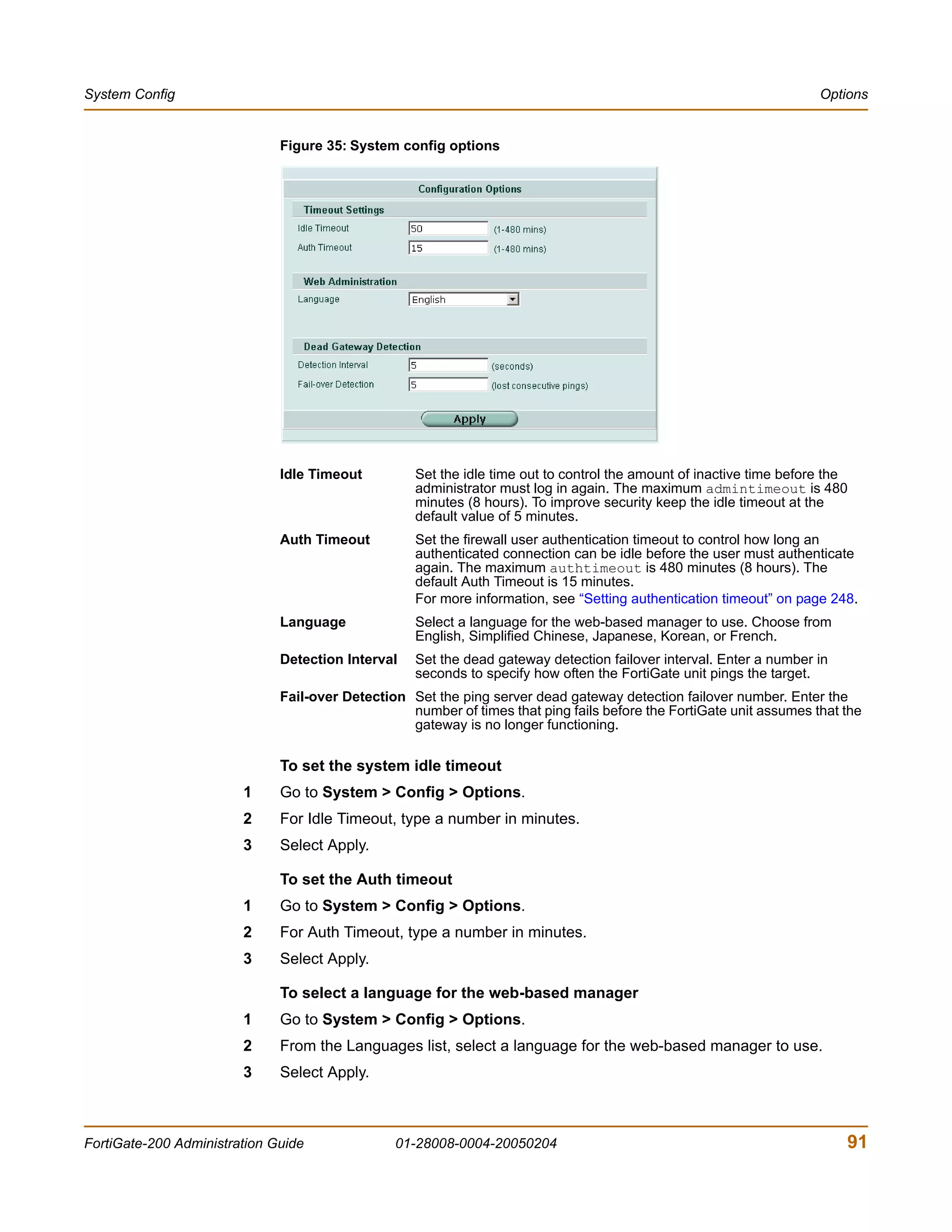
                      level to Notification or lower. For information about logging see “Log & Report” on
                      page 355.

                      Advanced
                      Select advanced to show advanced policy options.


         Advanced policy options
                      When configuring a firewall policy, select Advanced to configure advanced firewall
                      policies.


206                                     01-28008-0004-20050204                                           Fortinet Inc.
Firewall                                                                                                        Policy


                              Figure 88: Advanced policy options


                              Authentication
                              You must add users and a firewall protection profile to a user group before you can
                              select Authentication. For information about adding and configuring user groups, see
                              “User group” on page 253.
                              Select Authentication and select one or more user groups to require users to enter a
                              user name and password before the firewall accepts the connection.

                              Figure 89: Selecting user groups for authentication


                              You can select Authentication for any service. Users can authenticate with the firewall
                              using HTTP, Telnet, or FTP. For users to be able to authenticate you must add an
                              HTTP, Telnet, or FTP policy that is configured for authentication. When users attempt
                              to connect through the firewall using this policy they are prompted to enter a firewall
                              username and password.
                              If you want users to authenticate to use other services (for example POP3 or IMAP)
                              you can create a service group that includes the services for which you want to
                              require authentication, as well as HTTP, Telnet, and FTP. Then users could
                              authenticate with the policy using HTTP, Telnet, or FTP before using the other
                              service.


FortiGate-200 Administration Guide             01-28008-0004-20050204                                           207
Policy                                                                                                Firewall


         In most cases you should make sure that users can use DNS through the firewall
         without authentication. If DNS is not available users cannot connect to a web, FTP, or
         Telnet server using a domain name.

         Note: Policies that require authentication must be added to the policy list above matching
         policies that do not; otherwise, the policy that does not require authentication is selected first.


         Traffic Shaping
         Traffic Shaping controls the bandwidth available to and sets the priority of the traffic
         processed by the policy. Traffic Shaping makes it possible to control which policies
         have the highest priority when large amounts of data are moving through the
         FortiGate device. For example, the policy for the corporate web server might be given
         higher priority than the policies for most employees’ computers. An employee who
         needs unusually high-speed Internet access could have a special outgoing policy set
         up with higher bandwidth.
         If you set both guaranteed bandwidth and maximum bandwidth to 0 (zero), the policy
         does not allow any traffic.

         Guaranteed          You can use traffic shaping to guarantee the amount of bandwidth available
         Bandwidth           through the firewall for a policy. Guarantee bandwidth (in Kbytes) to make
                             sure that there is enough bandwidth available for a high-priority service.
         Maximum             You can also use traffic shaping to limit the amount of bandwidth available
         Bandwidth           through the firewall for a policy. Limit bandwidth to keep less important
                             services from using bandwidth needed for more important services.
         Traffic Priority    Select High, Medium, or Low. Select Traffic Priority so that the FortiGate unit
                             manages the relative priorities of different types of traffic. For example, a
                             policy for connecting to a secure web server needed to support e-commerce
                             traffic should be assigned a high traffic priority. Less important services
                             should be assigned a low priority. The firewall provides bandwidth to low-
                             priority connections only when bandwidth is not needed for high-priority
                             connections.


         Differentiated Services
         Differentiated Services describes a set of end-to-end Quality of Service (QoS)
         capabilities. End-to-end QoS is the ability of a network to deliver service required by
         specific network traffic from one end of the network to another. By configuring
         differentiated services you configure your network to deliver particular levels of service
         for different packets based on the QoS specified by each packet.
         Differentiated Services (also called DiffServ) is defined by RFC 2474 and 2475 as
         enhancements to IP networking to enable scalable service discrimination in the IP
         network without the need for per-flow state and signalling at every hop. Routers that
         can understand differentiated services sort IP traffic into classes by inspecting the DS
         field in IPv4 header or the Traffic Class field in the IPv6 header.
         You can use the FortiGate Differentiated Services feature to change the DSCP
         (Differentiated Services Code Point) value for all packets accepted by a policy. The
         network uses these DSCP values to classify, mark, shape, and police traffic, and to
         perform intelligent queuing. DSCP features are applied to traffic by configuring the
         routers on your network to apply different service levels to packets depending on the
         DSCP value of the packet.


208                         01-28008-0004-20050204                                               Fortinet Inc.
Firewall                                                                                                               Policy


                              You can configure policies to apply DSCP values for both original (or forward) traffic
                              and reverse (or reply) traffic. These values are optional and may be enabled
                              independently from each other. When both are disabled, no changes to the DS field
                              are made.

                              Original           Set the DSCP value for packets accepted by the policy. For example, for an
                              (forward) DSCP     Internal->External policy the value is applied to outgoing packets as they
                              value              exit the external interface and are forwarded to their destination.
                              Reverse (reply)    Set the DSCP value for reply packets. For example, for an
                              DSCP value         Internal->External policy the value is applied to incoming reply packets
                                                 before they exit the internal interface and returned to the originator.


                              Comments
                              You can add a description or other information about the policy. The comment can be
                              up to 63 characters long, including spaces.

           Configuring firewall policies
                              Use the following procedures to add, delete, edit, re-order, disable, and enable a
                              firewall policy.

                              To add a firewall policy
                        1     Go to Firewall > Policy.
                        2     Select Create New.
                              You can also select the Insert Policy before icon beside a policy in the list to add the
                              new policy above that policy.
                        3     Select the source and destination interfaces.
                        4     Select the source and destination addresses.
                        5     Configure the policy.
                              For information about configuring the policy, see “Policy options” on page 203.
                        6     Select OK to add the policy.
                        7     Arrange policies in the policy list so that they have the results that you expect.
                              For information about arranging policies in a policy list, see “How policy matching
                              works” on page 202.

                              To delete a policy
                        1     Go to Firewall > Policy.
                        2     Select the Delete icon beside the policy you want to delete.
                        3     Select OK.

                              To edit a policy
                        1     Go to Firewall > Policy.
                        2     Select the Edit icon beside the policy you want to edit.
                        3     Edit the policy as required.
                        4     Select OK.


FortiGate-200 Administration Guide               01-28008-0004-20050204                                                 209
Policy                                                                                                    Firewall


                       To change the position of a policy in the list
                  1    Go to Firewall > Policy.
                  2    Select the Move To icon beside the policy you want to move.
                  3    Select the position for the policy.
                  4    Select OK.

                       To disable a policy
                       Disable a policy to temporarily prevent the firewall from selecting the policy. Disabling
                       a policy does not stop active communications sessions that have been allowed by the
                       policy.
                  1    Go to Firewall > Policy.
                  2    Clear the Enable check box beside the policy you want to disable.

                       To enable a policy
                  1    Go to Firewall > Policy.
                  2    Select Enable.

         Policy CLI configuration
                       The natip keyword for the firewall policy command is used in encrypted
                       (VPN) policies. A natip address cannot be added using the web-based manager. You
                       can configure complete firewall policies using from the CLI. See the FortiGate CLI
                       Reference Guide for descriptions of all firewall policy keywords.

                       Note: This command has more keywords than are listed in this Guide. See the FortiGate CLI
                       Reference Guide for a complete list of commands and keywords.


                       Command syntax pattern
                          config firewall policy
                              edit <id_integer>
                                  set <keyword> <variable>
                            end


210                                      01-28008-0004-20050204                                       Fortinet Inc.
Firewall                                                                                                        Address


                               firewall policy command keywords and variables
                               Keywords and variables Description                          Default         Availability
                               http_retry_count       Define the number of times to retry  0               All models.
                               <retry_integer>        establishing an HTTP connection when
                                                      the connection fails.

                               natip                    Configure natip for a firewall policy     0.0.0.0 All models.
                               <address_ipv4mask>       with action set to encrypt and with       0.0.0.0 Encrypt
                                                        outbound NAT enabled. Specify the IP              policy, with
                                                        address and subnet mask to translate              outbound
                                                        the source address of outgoing                    NAT
                                                        packets.                                          enabled.
                                                        Set natip for peer to peer VPNs to
                                                        control outbound NAT IP address
                                                        translation for outgoing VPN packets.
                                                        If you do not use natip to translate IP
                                                        addresses, the source addresses of
                                                        outbound VPN packets are translated
                                                        into the IP address of the FortiGate
                                                        external interface. If you use natip, the
                                                        FortiGate unit uses a static mapping
                                                        scheme to translate the source
                                                        addresses of VPN packets into
                                                        corresponding IP addresses on the
                                                        subnet that you specify. For example, if
                                                        the source address in the encryption
                                                        policy is 192.168.1.0/24 and the natip is
                                                        172.16.2.0/24, a source address of
                                                        192.168.1.7 will be translated to
                                                        172.16.2.7


  Address
                              You can add, edit, and delete firewall addresses as required. You can also organize
                              related addresses into address groups to simplify policy creation.
                              A firewall address can be configured with a name, an IP address, and a netmask, or a
                              name and IP address range.
                              You can enter an IP address and netmask using the following formats.
                              •   x.x.x.x/x.x.x.x, for example 64.198.45.0/255.255.255.0
                              •   x.x.x.x/x, for example 64.195.45.0/24
                              You can enter an IP address range using the following formats.
                              •   x.x.x.x-x.x.x.x, for example 192.168.110.100-192.168.110.120
                              •   x.x.x.[x-x], for example 192.168.110.[100-120]
                              •   x.x.x.*, for example 192.168.110.* to represent all addresses on the subnet


FortiGate-200 Administration Guide             01-28008-0004-20050204                                               211
Address                                                                                                         Firewall


                         This section describes:
                         •   Address list
                         •   Address options
                         •   Configuring addresses
                         •   Address group list
                         •   Address group options
                         •   Configuring address groups

          Address list
                         You can add addresses to the list and edit existing addresses. The FortiGate unit
                         comes configured with the default ‘All’ address which represents any IP address on
                         the network.

                         Figure 90: Sample address list


                         The address list has the following icons and features.

                         Create New         Select Create New to add a firewall address.
                         Name               The name of the firewall address.
                         Address            The IP address and mask or IP address range of the firewall.
                                            The Delete and Edit/View icons.


          Address options
                         Add an address representing an IP address and subnet mask or an IP address range.

                         Figure 91: Address options


                         Address has the following options:

                         Address Name       Enter a name to identify the firewall address. Addresses, address groups,
                                            and virtual IPs must all have unique names to avoid confusion in firewall
                                            policies.


212                                         01-28008-0004-20050204                                          Fortinet Inc.
Firewall                                                                                                            Address


                              Type              Select the type of address. Each type reveals the corresponding fields to
                                                configure.
                              IP Range/Subnet Enter the firewall IP address, forward slash, and subnet mask or enter an IP
                                              address range separated by a hyphen
                              An IP/Mask address can represent:
                              •   The address of a subnet (for example, for a class C subnet,
                                  IP address: 192.168.20.0 and Netmask: 255.255.255.0).
                              •   A single IP address (for example, IP Address: 192.168.20.1 and
                                  Netmask: 255.255.255.255)
                              •   All possible IP addresses (represented by IP Address: 0.0.0.0 and Netmask:
                                  0.0.0.0)
                              An IP address can be:
                              •   The IP address of a single computer (for example, 192.45.46.45).
                              •   The IP address of a subnetwork (for example, 192.168.1.0 for a class C subnet).
                              •   0.0.0.0 to represent all possible IP addresses
                              The netmask corresponds to the type of address that you are adding. For example:
                              •   The netmask for the IP address of a single computer should be 255.255.255.255.
                              •   The netmask for a class A subnet should be 255.0.0.0.
                              •   The netmask for a class B subnet should be 255.255.0.0.
                              •   The netmask for a class C subnet should be 255.255.255.0.
                              •   The netmask for all addresses should be 0.0.0.0
                              An IP Range address represents:
                              •   A range of IP addresses in a subnet (for example, 192.168.20.1 to 192.168.20.10)


                              Note: IP address: 0.0.0.0 and Netmask: 255.255.255.255 is not a valid firewall address.


           Configuring addresses
                              To add an address
                        1     Go to Firewall > Address.
                        2     Select Create New.
                        3     Enter a name to identify the address.
                        4     Enter the IP address and netmask or the IP address range.
                        5     Select OK.

                              To edit an address
                              Edit an address to change its IP information. You cannot edit the address name.
                        1     Go to Firewall > Address > Address.
                        2     Select the Edit icon beside the address you want to edit.
                        3     Make any required changes.


FortiGate-200 Administration Guide              01-28008-0004-20050204                                                  213
Address                                                                                                           Firewall


                       Note: To change the address name you must delete the address and add it again with a new
                       name. To avoid confusion in firewall policies, an address and a virtual IP cannot have the same
                       name.

                   4   Select OK.

                       To delete an address
                       Deleting an address removes it from the address list. To delete an address that has
                       been added to a policy, you must first remove the address from the policy.
                   1   Go to Firewall > Address > Address.
                   2   Select the Delete icon beside the address you want to delete.
                       You cannot delete default addresses.
                   3   Select OK.

          Address group list
                       You can organize related addresses into address groups to make it easier to
                       configure policies. For example, if you add three addresses and then configure them
                       in an address group, you can configure a single policy using all three addresses.

                       Note: If an address group is included in a policy, it cannot be deleted unless it is first removed
                       from the policy.

                       Figure 92: Sample address group list


                       The address group list has the following icons and features.

                       Create New         Select Create New to add an address group.
                       Group Name         The name of the address group.
                       Members            The addresses in the address group.
                                          The Delete and Edit/View icons.


          Address group options
                       Address group options are configurable when creating or editing an address group.


214                                       01-28008-0004-20050204                                              Fortinet Inc.
Firewall                                                                                                              Address


                              Figure 93: Address group options


                              Address group has the following options:

                              Group Name        Enter a name to identify the address group. Addresses, address groups, and
                                                virtual IPs must all have unique names to avoid confusion in firewall policies.
                              Available         The list of configured and default firewall addresses. Use the arrows to move
                              Addresses         addresses between the lists.
                              Members           The list of addresses in the group. Use the arrows to move addresses
                                                between the lists.


           Configuring address groups
                              To organize addresses into an address group
                        1     Go to Firewall > Address > Group.
                        2     Select Create New.
                        3     Enter a group name to identify the address group.
                        4     Select an address from the Available Addresses list and select the right arrow to move
                              the address into the group.
                        5     Repeat step 4 as required to add more addresses to the group.
                        6     Select OK.

                              To delete an address group
                              If an address group is included in a policy, it cannot be deleted unless it is first
                              removed from the policy.
                        1     Go to Firewall > Address > Group.
                        2     Select the Delete icon beside the address group you want to delete.
                        3     Select OK.

                              To edit an address group
                        1     Go to Firewall > Address > Group.
                        2     Select the Edit icon beside the address group you want to modify.


FortiGate-200 Administration Guide              01-28008-0004-20050204                                                    215
Service                                                                                                    Firewall


                    3   Make any required changes.

                        Note: To change the address group name you must delete the address group and add it with a
                        new name.

                    4   Select OK.


  Service
                        Use services to determine the types of communication accepted or denied by the
                        firewall. You can add any of the predefined services to a policy. You can also create
                        custom services and add services to service groups.
                        This section describes:
                        •   Predefined service list
                        •   Custom service list
                        •   Custom service options
                        •   Configuring custom services
                        •   Service group list
                        •   Service group options
                        •   Configuring service groups

          Predefined service list
                        Figure 94: Predefined service list


                        The predefined services list has the following icons and features.

                        Name              The name of the predefined services.
                        Detail            The protocol for each predefined service.

                        Table 24 lists the FortiGate predefined firewall services. You can add these services to
                        any policy.


216                                       01-28008-0004-20050204                                       Fortinet Inc.
Firewall                                                                                                            Service


                              Table 24: FortiGate predefined services

                               Service name     Description                                       Protocol   Port
                               ANY              Match connections on any port. A connection all              all
                                                that uses any of the predefined services is
                                                allowed through the firewall.
                               GRE              Generic Routing Encapsulation. A protocol                    47
                                                that allows an arbitrary network protocol to be
                                                transmitted over any other arbitrary network
                                                protocol, by encapsulating the packets of the
                                                protocol within GRE packets.
                               AH               Authentication Header. AH provides source                    51
                                                host authentication and data integrity, but not
                                                secrecy. This protocol is used for
                                                authentication by IPSec remote gateways set
                                                to aggressive mode.
                               ESP              Encapsulating Security Payload. This service                 50
                                                is used by manual key and AutoIKE VPN
                                                tunnels for communicating encrypted data.
                                                AutoIKE key VPN tunnels use ESP after
                                                establishing the tunnel using IKE.
                               AOL              AOL instant messenger protocol.                   tcp        5190-5194
                               BGP              Border Gateway Protocol routing protocol.         tcp        179
                                                BGP is an interior/exterior routing protocol.
                               DHCP             Dynamic Host Configuration Protocol (DHCP) udp               67
                                                allocates network addresses and delivers
                                                configuration parameters from DHCP servers
                                                to hosts.
                               DNS              Domain name service for translating domain        tcp        53
                                                names into IP addresses.
                                                                                                  udp        53
                               FINGER           A network service that provides information       tcp        79
                                                about users.
                               FTP              FTP service for transferring files.               tcp        21
                               GOPHER           Gopher communication service. Gopher              tcp        70
                                                organizes and displays Internet server
                                                contents as a hierarchically structured list of
                                                files.
                               H323             H.323 multimedia protocol. H.323 is a             tcp        1720, 1503
                                                standard approved by the International
                                                Telecommunication Union (ITU) that defines
                                                how audiovisual conferencing data is
                                                transmitted across networks.
                               HTTP             HTTP is the protocol used by the word wide        tcp        80
                                                web for transferring data for web pages.
                               HTTPS            HTTP with secure socket layer (SSL) service tcp              443
                                                for secure communication with web servers.
                               IKE              IKE is the protocol to obtain authenticated       udp        500
                                                keying material for use with ISAKMP for
                                                IPSEC.
                               IMAP             Internet Message Access Protocol is a             tcp        143
                                                protocol used for retrieving email messages.
                               Internet-       Internet Locator Service includes LDAP, User tcp              389
                               Locator-Service Locator Service, and LDAP over TLS/SSL.


FortiGate-200 Administration Guide             01-28008-0004-20050204                                                 217
Service                                                                                           Firewall


          Table 24: FortiGate predefined services (Continued)

          Service name      Description                                       Protocol   Port
          IRC               Internet Relay Chat allows people connected tcp              6660-6669
                            to the Internet to join live discussions.
          L2TP              L2TP is a PPP-based tunnel protocol for           tcp        1701
                            remote access.
          LDAP              Lightweight Directory Access Protocol is a set tcp           389
                            of protocols used to access information
                            directories.
          NetMeeting        NetMeeting allows users to teleconference         tcp        1720
                            using the Internet as the transmission
                            medium.
          NFS               Network File System allows network users to tcp              111, 2049
                            access shared files stored on computers of
                            different types.
          NNTP              Network News Transport Protocol is a              tcp        119
                            protocol used to post, distribute, and retrieve
                            USENET messages.
          NTP               Network time protocol for synchronizing a         tcp        123
                            computer’s time with a time server.
          OSPF              Open Shortest Path First (OSPF) routing                      89
                            protocol. OSPF is a common link state
                            routing protocol.
          PC-Anywhere       PC-Anywhere is a remote control and file          udp        5632
                            transfer protocol.
          ICMP_ANY          Internet Control Message Protocol is a
                            message control and error-reporting protocol
                            between a host and gateway (Internet).
          PING              ICMP echo request/reply for testing               icmp       8
                            connections to other devices.
          TIMESTAMP         ICMP timestamp request messages.                  icmp       13
          INFO_REQUEST ICMP information request messages.                     icmp       15
          INFO_ADDRESS ICMP address mask request messages.                    icmp       17
          POP3              Post office protocol is an email protocol for     tcp        110
                            downloading email from a POP3 server.
          PPTP              Point-to-Point Tunneling Protocol is a            tcp        1723
                            protocol that allows corporations to extend
                            their own corporate network through private
                            tunnels over the public Internet.
          QUAKE             For connections used by the popular Quake         udp        26000,
                            multi-player computer game.                                  27000,
                                                                                         27910,
                                                                                         27960
          RAUDIO            For streaming real audio multimedia traffic.      udp        7070
          RLOGIN            Rlogin service for remotely logging into a        tcp        513
                            server.
          RIP               Routing Information Protocol is a common          udp        520
                            distance vector routing protocol.
          SIP-              Session Initiation Protocol is used by
          MSNmessenger      Microsoft Messenger to initiate an interactive,
                            possibly multimedia session.


218                        01-28008-0004-20050204                                             Fortinet Inc.
Firewall                                                                                                            Service


                              Table 24: FortiGate predefined services (Continued)

                               Service name     Description                                       Protocol   Port
                               SMTP             Simple Mail Transfer Protocol is used to send tcp            25
                                                mail between email servers on the Internet.
                               SNMP             Simple Network Management Protocol is a           tcp        161-162
                                                set of protocols for managing complex
                                                networks                                          udp        161-162

                               SSH              Secure Shell is a service for secure              tcp        22
                                                connections to computers for remote
                                                management.                                       udp        22

                               SYSLOG           Syslog service for remote logging.                udp        514
                               TALK             A protocol supporting conversations between udp              517-518
                                                two or more users.
                               TCP              All TCP ports.                                    tcp        0-65535
                               TELNET           Telnet service for connecting to a remote         tcp        23
                                                computer to run commands.
                               TFTP             Trivial File Transfer Protocol is a simple file   udp        69
                                                transfer protocol similar to FTP but with no
                                                security features.
                               UDP              All UDP ports.                                    udp        0-65535
                               UUCP             Unix to Unix copy utility, a simple file copying udp         540
                                                protocol.
                               VDOLIVE          For VDO Live streaming multimedia traffic.        tcp        7000-7010
                               WAIS             Wide Area Information Server is an Internet       tcp        210
                                                search protocol.
                               WINFRAME         For WinFrame communications between               tcp        1494
                                                computers running Windows NT.
                               X-WINDOWS        For remote communications between an              tcp        6000-6063
                                                X-Window server and X-Window clients.


           Custom service list
                              Add a custom service if you need to create a policy for a service that is not in the
                              predefined service list.

                              Figure 95: Sample custom service list


                              The custom services list has the following icons and features.

                              Create New       Select a protocol and then Create New to add a custom service.
                              Service Name     The name of the custom service.
                              Detail           The protocol and port numbers for each custom service.


FortiGate-200 Administration Guide             01-28008-0004-20050204                                                  219
Service                                                                                                       Firewall


          Custom service options
                       Different options appear depending on the protocol type of custom service you want to
                       define. Choose from TCP, UDP, ICMP, or IP.

                       TCP and UDP custom service options
                       Figure 96: TCP and UDP custom service options


                       Name              The name of the TCP or UDP custom service.
                       Protocol Type     Select the protocol type of the service you are adding: TCP or UDP. TCP
                                         and UDP options are the same.
                       Source Port       Specify the Source Port number range for the service by entering the low
                                         and high port numbers. If the service uses one port number, enter this
                                         number in both the low and high fields.
                       Destination Port Specify the Destination Port number range for the service by entering the
                                        low and high port numbers. If the service uses one port number, enter this
                                        number in both the low and high fields.


                       ICMP custom service options
                       Figure 97: ICMP custom service options


                       Name              The name of the ICMP custom service.
                       Protocol Type     Select the protocol type of the service you are adding (ICMP).
                       Type              Enter the ICMP type number for the service.
                       Code              Enter the ICMP code number for the service if required.


220                                      01-28008-0004-20050204                                           Fortinet Inc.
Firewall                                                                                                     Service


                              IP custom service options
                              Figure 98: IP custom service options


                              Name             The name of the IP custom service.
                              Protocol Type    Select the protocol type of the service you are adding: IP.
                              Protocol Number The IP protocol number for the service.


           Configuring custom services
                              To add a custom TCP or UDP service
                        1     Go to Firewall > Service > Custom.
                        2     Select Create New.
                        3     Enter a name for the new custom TCP or UDP service.
                        4     Select TCP or UDP as the Protocol Type.
                        5     Specify Source and Destination Port number ranges for the service by entering the
                              low and high port numbers. If the service uses one port number, enter this number in
                              both the low and high fields.
                        6     Select OK.
                              You can now add this custom service to a policy.

                              To add a custom ICMP service
                        1     Go to Firewall > Service > Custom.
                        2     Select Create New.
                        3     Enter a name for the new custom ICMP service.
                        4     Select ICMP as the Protocol Type.
                        5     Enter the ICMP type number and code number for the service.
                        6     Select OK.
                              You can now add this custom service to a policy.

                              To add a custom IP service
                        1     Go to Firewall > Service > Custom.
                        2     Select Create New.
                        3     Enter a name for the new custom IP service.
                        4     Select IP as the Protocol Type.
                        5     Enter the IP protocol number for the service.


FortiGate-200 Administration Guide             01-28008-0004-20050204                                          221
Service                                                                                                    Firewall


                    6   Select OK.
                        You can now add this custom service to a policy.

                        To delete a custom service
                    1   Go to Firewall > Service > Custom.
                    2   Select the Delete icon beside the service you want to delete.
                    3   Select OK.

                        To edit a custom service
                    1   Go to Firewall > Service > Custom.
                    2   Select the Edit icon beside the service you want to edit.
                    3   Modify the custom service as required.

                        Note: To change the custom service name you must delete the service and add it with a new
                        name.

                    4   Select OK.

          Service group list
                        To make it easier to add policies, you can create groups of services and then add one
                        policy to allow or block access for all the services in the group. A service group can
                        contain predefined services and custom services in any combination. You cannot add
                        service groups to another service group.

                        Figure 99: Sample service group list


                        The service group list has the following icons and features.

                        Create New        Select Create New to add a service group.
                        Group Name        The name to identify the service group.
                        Members           The services added to the service group.


          Service group options
                        Service group options are configurable when creating or editing a service group.


222                                      01-28008-0004-20050204                                        Fortinet Inc.
Firewall                                                                                                            Service


                              Figure 100:Service group options


                              Service group has the following options.

                              Group Name        Enter a name to identify the address group.
                              Available         The list of configured and predefined services. Use the arrows to move
                              Services          services between the lists.
                              Members           The list of services in the group. Use the arrows to move services between
                                                the lists.


           Configuring service groups
                              To organize services into a service group
                        1     Go to Firewall > Service > Group.
                        2     Select Create New.
                        3     Enter a group name to identify the service group.
                        4     Select a service from the Available Services list and select the right arrow to move the
                              service into the group.
                        5     Select OK.

                              To delete a service group
                              If a service group is included in a policy, it cannot be deleted unless it is first removed
                              from the policy.
                        1     Go to Firewall > Service > Group.
                        2     Select the Delete icon beside the service group you want to delete.
                        3     Select OK.

                              To edit a service group
                        1     Go to Firewall > Service > Group.
                        2     Select the Edit icon beside the service group you want to modify.
                        3     Make any required changes.


FortiGate-200 Administration Guide             01-28008-0004-20050204                                                    223
Schedule                                                                                                    Firewall


                        Note: To change the service group name you must delete the service group and add it with a
                        new name.

                    4   Select OK.


  Schedule
                        Use schedules to control when policies are active or inactive. You can create one-time
                        schedules and recurring schedules.
                        You can use one-time schedules to create policies that are effective once for the
                        period of time specified in the schedule. Recurring schedules repeat weekly. You can
                        use recurring schedules to create policies that are effective only at specified times of
                        the day or on specified days of the week.
                        This section describes:
                        •   One-time schedule list
                        •   One-time schedule options
                        •   Configuring one-time schedules
                        •   Recurring schedule list
                        •   Recurring schedule options
                        •   Configuring recurring schedules

           One-time schedule list
                        You can create a one-time schedule that activates or deactivates a policy for a
                        specified period of time. For example, your firewall might be configured with the
                        default policy that allows access to all services on the Internet at all times. You can
                        add a one-time schedule to block access to the Internet during a holiday period.

                        Figure 101:Sample one-time schedule list


                        The one-time schedule list has the following icons and features.

                        Create New        Select Create New to add a one-time schedule.
                        Name              The name of the one-time schedule.
                        Start             The start date and time for the schedule.
                        Stop              The stop date and time for the schedule.


224                                       01-28008-0004-20050204                                        Fortinet Inc.
Firewall                                                                                                       Schedule


           One-time schedule options
                              Figure 102:One-time schedule options


                              One-time schedule has the following options.

                              Name             Enter the name to identify the one-time schedule.
                              Start            Enter the start date and time for the schedule.
                              Stop             Enter the stop date and time for the schedule.


           Configuring one-time schedules
                              To add a one-time schedule
                        1     Go to Firewall > Schedule > One-time.
                        2     Select Create New.
                        3     Type a name for the schedule.
                        4     Select the start date and time for the schedule.
                              Set start and stop time to 00 for the schedule to be active for the entire day. One-time
                              schedules use a 24-hour clock.
                        5     Set the Stop date and time for the schedule.
                        6     Select OK.

                              To delete a one-time schedule
                        1     Go to Firewall > Schedule > One-time.
                        2     Select the Delete icon beside the one-time schedule you want to delete.
                        3     Select OK.

                              To edit a one-time schedule
                        1     Go to Firewall > Schedule > One-time.
                        2     Select the Edit icon beside the one-time schedule you want to modify.
                        3     Modify the schedule as required.

                              Note: To change the one-time schedule name you must delete the schedule and add it with a
                              new name.

                        4     Select OK to save the changes.


FortiGate-200 Administration Guide             01-28008-0004-20050204                                               225
Schedule                                                                                                            Firewall


           Recurring schedule list
                         You can create a recurring schedule that activates or deactivates policies at specified
                         times of the day or on specified days of the week. For example, you might want to
                         prevent game play during working hours by creating a recurring schedule.

                         Note: If you create a recurring schedule with a stop time that occurs before the start time, the
                         schedule starts at the start time and finishes at the stop time on the next day. You can use this
                         technique to create recurring schedules that run from one day to the next. You can also create a
                         recurring schedule that runs for 24 hours by setting the start and stop times to the same time.

                         Figure 103:Sample recurring schedule list


                         The recurring schedule list has the following icons and features.

                         Create New         Select Create New to add a recurring schedule.
                         Name               The name of the recurring schedule.
                         Day                The initials of the days of the week on which the schedule is active.
                         Start              The start time of the recurring schedule.
                         Stop               The stop time of the recurring schedule.


           Recurring schedule options
                         Figure 104:Recurring schedule options


                         Recurring schedule has the following options.

                         Name               Enter the name to identify the recurring schedule.
                         Select             Select the days of the week that you want the schedule to be active.
                         Start              Select the start time for the recurring schedule.
                         Stop               Select the stop time for the recurring schedule.


226                                         01-28008-0004-20050204                                            Fortinet Inc.
Firewall                                                                                                        Virtual IP


           Configuring recurring schedules
                              To add a recurring schedule
                        1     Go to Firewall > Schedule > Recurring.
                        2     Select Create New.
                        3     Enter a name for the schedule.
                        4     Select the days of the week that you want the schedule to be active.
                        5     Set the Start and Stop time for the recurring schedule.
                              Recurring schedules use a 24-hour clock.
                        6     Select OK.

                              To delete a recurring schedule
                        1     Go to Firewall > Schedule > Recurring.
                        2     Select the Delete icon beside the recurring schedule you want to delete.
                        3     Select OK.

                              To edit a recurring schedule
                        1     Go to Firewall > Schedule > Recurring.
                        2     Select the Edit icon beside the recurring schedule you want to modify.
                        3     Modify the schedule as required.

                              Note: To change the one-time schedule name you must delete the schedule and add it with a
                              new name.

                        4     Select OK.


  Virtual IP
                              Use virtual IPs to access IP addresses on a destination network that are hidden from
                              the source network by NAT security policies. To allow connections between these
                              networks, you must create a mapping between an address on the source network and
                              the real address on the destination network. This mapping is called a virtual IP.
                              For example, if the computer hosting your web server is located on your DMZ
                              network, it could have a private IP address such as 10.10.10.3. To get packets from
                              the Internet to the web server, you must have an external address for the web server
                              on the Internet. You must then add a virtual IP to the firewall that maps the external IP
                              address of the web server to the actual address of the web server on the DMZ
                              network. To allow connections from the Internet to the web server, you must then add
                              an external->DMZ firewall policy and set Destination to the virtual IP.


FortiGate-200 Administration Guide             01-28008-0004-20050204                                               227
Virtual IP                                                                                                                  Firewall


                               You can create three types of virtual IPs:

                               Static NAT              Used to translate an address on a source network to a hidden address on a
                                                       destination network. Static NAT translates the source address of return
                                                       packets to the address on the source network.
                               Port Forwarding         Used to translate an address and a port number on a source network to a
                                                       hidden address and, optionally, a different port number on a destination
                                                       network. Using port forwarding you can also route packets with a specific
                                                       port number and a destination address that matches the IP address of the
                                                       interface that receives the packets. This technique is called port forwarding
                                                       or port address translation (PAT). You can also use port forwarding to
                                                       change the destination port of the forwarded packets.
                               Dynamic port            Similar to port forwarding, dynamic port forwarding is used to translate any
                               forwarding              address and a specific port number on a source network to a hidden
                                                       address and, optionally a different port number on a destination network.


                               Note: The maximum number of virtual IPs is 1024.


                               This section describes:
                               •    Virtual IP list
                               •    Virtual IP options
                               •    Configuring virtual IPs

             Virtual IP list
                               Figure 105:Sample virtual IP list


                               The virtual IP list has the following icons and features.

                               Create New             Select Create New to add a virtual IP.
                               Name                   The name of the virtual IP.
                               IP                     The external IP address mapped to an address on the destination network.
                               Service Port           The external port number of the service from the IP.
                               Map to IP              The real IP address on the destination network.
                               Map to Port            The port number added to packets when they are forwarded (not required).


             Virtual IP options
                               Different options appear depending on the type of virtual IP you want to define.
                               Choose from Static NAT or port forwarding.


228                                                   01-28008-0004-20050204                                            Fortinet Inc.
Firewall                                                                                                             Virtual IP


                              Figure 106:Virtual IP options; static NAT


                              Figure 107:Virtual IP options; port forwarding


                              Virtual IP has the following options.

                              Name                 Enter the name to identify the virtual IP. Addresses, address groups, and
                                                   virtual IPs must all have unique names to avoid confusion in firewall
                                                   policies.
                              External Interface Select the virtual IP external interface from the list.
                              Type                 Select Static NAT or Port Forwarding.
                              External IP          Enter the external IP address that you want to map to an address on the
                              Address              destination network. To configure dynamic port forwarding, set the external
                                                   IP address to 0.0.0.0.
                              External Service     Enter the external service port number that you want to configure port
                              Port                 forwarding for. (Port forwarding only.)
                              Map to IP            Enter the real IP address on the destination network.
                              Map to Port          Enter the port number to be added to packets when they are forwarded.
                                                   (Port forwarding only.)
                              Protocol             Select the protocol (TCP or UDP) that you want the forwarded packets to
                                                   use. (Port forwarding only.)


           Configuring virtual IPs
                              To add a static NAT virtual IP
                        1     Go to Firewall > Virtual IP.
                        2     Select Create New.
                        3     Enter a name for the virtual IP.


FortiGate-200 Administration Guide               01-28008-0004-20050204                                                     229
Virtual IP                                                                                                 Firewall


             4   Select the virtual IP External Interface from the list.
                 The external interface is connected to the source network and receives the packets to
                 be forwarded to the destination network. You can select any firewall interface or a
                 VLAN subinterface. You can set the virtual IP external interface to any FortiGate
                 interface. Table 25 on page 230 contains example virtual IP external interface settings
                 and describes the policies to which you can add the resulting virtual IP.
             5   Select Static NAT.
             6   Enter the External IP Address that you want to map to an address on the destination
                 network.
                 For example, if the virtual IP provides access from the Internet to a web server on a
                 destination network, the external IP address must be a static IP address obtained
                 from your ISP for your web server. This address must be a unique address that is not
                 used by another host and cannot be the same as the IP address of the external
                 interface selected in step 4. However, the external IP address must be routed to the
                 selected interface. The virtual IP address and the external IP address can be on
                 different subnets.
             7   Enter the Map to IP address to which to map the external IP address. For example,
                 the IP address of a web server on an internal network.

                 Note: The firewall translates the source address of outbound packets from the host with the
                 Map to IP address to the virtual IP External IP Address, instead of the firewall external address.

             8   Select OK.
                 You can now add the virtual IP to firewall policies.


                 Table 25: Virtual IP external interface examples

                 External Interface Description
                 internal              To map an internal address to an external or DMZ address. Also to map
                                       an internal address to an address on a network connected to a VLAN
                                       subinterface or connected to a network in a zone. If you select internal,
                                       the static NAT virtual IP can be added to policies for connections from the
                                       internal interface or a zone containing the internal interface to any other
                                       interface, VLAN subinterface, or zone.
                 external              To map an external address to an internal or DMZ address. Also to map
                                       an external address to an address on a network connected to a VLAN
                                       subinterface or connected to a network in a zone. If you select external,
                                       the static NAT virtual IP can be added to policies for connections from the
                                       external interface or a zone containing the external interface to any other
                                       interface, VLAN subinterface, or zone.

                 To add port forwarding virtual IPs
             1   Go to Firewall > Virtual IP.
             2   Select Create New.
             3   Enter a name for the port forwarding virtual IP.


230                                 01-28008-0004-20050204                                            Fortinet Inc.
Firewall                                                                                                     Virtual IP


                        4     Select the virtual IP External Interface from the list.
                              The external interface is connected to the source network and receives the packets to
                              be forwarded to the destination network.
                              You can select any firewall interface or a VLAN subinterface.
                        5     Select Port Forwarding.
                        6     Enter the External IP Address that you want to map to an address on the destination
                              interface.
                              You can set the external IP address to the IP address of the external interface
                              selected in step 4 or to any other address.
                              For example, if the virtual IP provides access from the Internet to a server on your
                              internal network, the external IP address must be a static IP address obtained from
                              your ISP for this server. This address must be a unique address that is not used by
                              another host. However, this address must be routed to the external interface selected
                              in step 4. The virtual IP address and the external IP address can be on different
                              subnets.
                        7     Enter the External Service Port number for which you want to configure port
                              forwarding.
                              The external service port number must match the destination port of the packets to be
                              forwarded. For example, if the virtual IP provides access from the Internet to a web
                              server, the external service port number is 80 (the HTTP port).
                        8     Enter the Map to IP address to which to map the external IP address. For example,
                              the IP address of a web server on an internal network.
                        9     Enter the Map to Port number to be added to packets when they are forwarded.
                              If you do not want to translate the port, enter the same number as the External Service
                              Port.
                       10     Select OK.

                              To add a dynamic port forwarding virtual IP
                        1     Go to Firewall > Virtual IP.
                        2     Select Create New.
                        3     Enter a name for the dynamic port forwarding virtual IP.
                        4     Select the virtual IP External Interface from the list.
                              The external interface is connected to the source network and receives the packets to
                              be forwarded to the destination network.
                              You can select any firewall interface or a VLAN subinterface.
                        5     Select Port Forwarding.
                        6     Set the External IP Address to 0.0.0.0.
                              The 0.0.0.0 External IP Address matches any IP address.
                        7     Enter the External Service Port number for which you want to configure dynamic port
                              forwarding.
                              The external service port number must match the destination port of the packets to be
                              forwarded. For example, if the virtual IP provides PPTP passthrough access from the
                              Internet to a PPTP server, the external service port number should be 1723 (the PPTP
                              port).


FortiGate-200 Administration Guide             01-28008-0004-20050204                                            231
IP pool                                                                                           Firewall


            8    Enter the Map to IP address to which to map the external IP address. For example,
                 the IP address of a PPTP server on an internal network.
            9    Enter the Map to Port number to be added to packets when they are forwarded.
                 If you do not want to translate the port, enter the same number as the External Service
                 Port.
            10   Select OK.

                 To delete a virtual IP
            1    Go to Firewall > Virtual IP.
            2    Select the Delete icon beside the virtual IP you want to delete.
            3    Select OK.

                 To edit a virtual IP
            1    Go to Firewall > Virtual IP.
            2    Select the Edit icon beside the virtual IP you want to modify.
            3    Select OK.


  IP pool
                 An IP pool (also called a dynamic IP pool) is a range of IP addresses added to a
                 firewall interface. You can enable Dynamic IP Pool in a firewall policy to translate the
                 source address of outgoing packets to an address randomly selected from the IP pool.
                 An IP pool list appears when the policy destination interface is the same as the IP pool
                 interface.
                 You can add an IP pool if you want to add NAT mode policies that translate source
                 addresses to addresses randomly selected from the IP pool rather than being limited
                 to the IP address of the destination interface.
                 If you add an IP pool to the internal interface, you can select Dynamic IP pool for
                 policies with the internal interface as the destination. For example, you can add IP
                 pools to External->Internal and DMZ->Internal policies.
                 You can add multiple IP pools to any interface and select the IP pool to use when
                 configuring a firewall policy.
                 You can enter an IP address range using the following formats.
                 •   x.x.x.x-x.x.x.x, for example 192.168.110.100-192.168.110.120
                 •   x.x.x.[x-x], for example 192.168.110.[100-120]
                 This section describes:
                 •   IP pool list
                 •   IP pool options
                 •   Configuring IP pools
                 •   IP Pools for firewall policies that use fixed ports
                 •   IP pools and dynamic NAT


232                                 01-28008-0004-20050204                                    Fortinet Inc.
Firewall                                                                                                   IP pool


           IP pool list
                              Figure 108:Sample IP pool list


                              The IP pool list has the following icons and features.

                              Create New        Select Create New to add an IP pool.
                              Start IP          The start IP defines the start of an address range.
                              End IP            The end IP defines the end of an address range.


           IP pool options
                              Figure 109:IP pool options


                              Virtual IP has the following options.

                              Interface         Select the interface to which to add an IP pool.
                              Name              Enter a name for the IP pool.
                              IP Range/Subnet Enter the IP address range for the IP pool.


           Configuring IP pools
                              To add an IP pool
                        1     Go to Firewall > IP Pool.
                        2     Select the interface to which to add the IP pool.
                              You can select a firewall interface or a VLAN subinterface.
                        3     Select Create New.
                        4     Enter the IP Range for the IP pool.
                              The IP range defines the start and end of an address range. The start of the range
                              must be lower than the end of the range. The start and end of the range must be on
                              the same subnet as the IP address of the interface to which you are adding the IP
                              pool.
                        5     Select OK.


FortiGate-200 Administration Guide             01-28008-0004-20050204                                        233
IP pool                                                                                                     Firewall


                         To delete an IP pool
                    1    Go to Firewall > IP Pool.
                    2    Select the Delete icon beside the IP pool you want to delete.
                    3    Select OK.

                         To edit a IP pool
                    1    Go to Firewall > IP Pool.
                    2    For the IP pool that you want to edit, select Edit beside it.
                    3    Modify the IP pool as required.
                    4    Select OK to save the changes.

          IP Pools for firewall policies that use fixed ports
                         Some network configurations do not operate correctly if a NAT policy translates the
                         source port of packets used by the connection. NAT translates source ports to keep
                         track of connections for a particular service. You can select fixed port for NAT policies
                         to prevent source port translation. However, selecting fixed port means that only one
                         connection can be supported through the firewall for this service. To be able to
                         support multiple connections, you can add an IP pool to the destination interface, and
                         then select dynamic IP pool in the policy. The firewall randomly selects an IP address
                         from the IP pool and assigns it to each connection. In this case the number of
                         connections that the firewall can support is limited by the number of IP addresses in
                         the IP pool.

          IP pools and dynamic NAT
                         You can use IP pools for dynamic NAT. For example, your organization might have
                         purchased a range of Internet addresses but you might have only one Internet
                         connection on the external interface of your FortiGate unit.
                         You can assign one of your organization’s Internet IP addresses to the external
                         interface of the FortiGate unit. If the FortiGate unit is operating in NAT/Route mode, all
                         connections from your network to the Internet appear to come from this IP address.
                         If you want connections to originate from all your Internet IP addresses, you can add
                         this address range to an IP pool for the external interface. Then you can select
                         Dynamic IP Pool for all policies with the external interface as the destination. For each
                         connection, the firewall dynamically selects an IP address from the IP pool to be the
                         source address for the connection. As a result, connections to the Internet appear to
                         be originating from any of the IP addresses in the IP pool.


234                                       01-28008-0004-20050204                                        Fortinet Inc.
Firewall                                                                                                          Protection profile


  Protection profile
                              Use protection profiles to apply different protection settings for traffic that is controlled
                              by firewall policies. You can use protection profiles to:
                              •   Configure antivirus protection for HTTP, FTP, IMAP, POP3, and SMTP policies
                              •   Configure web filtering for HTTP policies
                              •   Configure web category filtering for HTTP policies
                              •   Configure spam filtering for IMAP, POP3, and SMTP policies
                              •   Enable IPS for all services
                              •   Configure content archiving for HTTP, FTP, IMAP, POP3, and SMTP policies
                              Using protection profiles, you can customize types and levels of protection for different
                              firewall policies.
                              For example, while traffic between internal and external addresses might need strict
                              protection, traffic between trusted internal addresses might need moderate protection.
                              You can configure policies for different traffic services to use the same or different
                              protection profiles.
                              You can add Protection profiles to NAT/Route mode and Transparent mode policies.
                              This section describes:
                              •   Protection profile list
                              •   Default protection profiles
                              •   Protection profile options
                              •   Configuring protection profiles
                              •   Profile CLI configuration

           Protection profile list
                              Figure 110:Sample list showing the default protection profiles


                              The Protection Profile list has the following icons and features.

                              Create New          Select Create New to add a protection profile.
                              Delete              Remove a protection profile from the list.
                              Edit                Modify an existing protection profile.


                              Note: You cannot delete a protection profile (the Delete icon is not visible) if it is selected in a
                              firewall policy or included in a user group.


FortiGate-200 Administration Guide               01-28008-0004-20050204                                                       235
Protection profile                                                                                                  Firewall


            Default protection profiles
                          The FortiGate unit comes preconfigured with four protection profiles.

                          Strict            To apply maximum protection to HTTP, FTP, IMAP, POP3, and SMTP traffic.
                                            You may not wish to use the strict protection profile under normal
                                            circumstances but it is available if you have extreme problems with viruses
                                            and require maximum screening.
                          Scan              To apply virus scanning to HTTP, FTP, IMAP, POP3, and SMTP traffic.
                                            Quarantine is also selected for all content services. On FortiGate models
                                            with a hard drive, if antivirus scanning finds a virus in a file, the file is
                                            quarantined on the FortiGate hard disk. If required, system administrators
                                            can recover quarantined files.
                          Web               To apply virus scanning and web content blocking to HTTP traffic. You can
                                            add this protection profile to firewall policies that control HTTP traffic.
                          Unfiltered        To apply no scanning, blocking or IPS. Use the unfiltered content profile if
                                            you do not want to apply content protection to content traffic. You can add
                                            this protection profile to firewall policies for connections between highly
                                            trusted or highly secure networks where content does not need to be
                                            protected.


            Protection profile options
                          Figure 111:Adding a protection profile


                          You can configure the following options when creating or editing a protection profile.

                          Profile Name                Enter a name for the profile. (New profiles only.)
                          Anti-Virus                  See “Configuring antivirus options” on page 237.
                          Web Filtering               See “Configuring web filtering options” on page 238.
                          Web Category Filtering      See “Configuring web category filtering options” on page 238.
                          Spam Filtering              See “Configuring spam filtering options” on page 239.
                          IPS                         See “Configuring IPS options” on page 240.
                          Content Archive             See “Configuring content archive options” on page 241.


236                                         01-28008-0004-20050204                                              Fortinet Inc.
Firewall                                                                                                     Protection profile


                              Configuring antivirus options
                              Figure 112:Protection profile antivirus options


                              The following options are available for antivirus through the protection profile. See
                              “Antivirus” on page 303 for more antivirus configuration options.

                              Virus Scan                Enable or disable virus scanning (for viruses and worms) for each
                                                        protocol (HTTP, FTP, IMAP, POP3, SMTP). Grayware, if enabled in
                                                        Antivirus > Config > Grayware, is included with the Virus Scan.
                                                        Heuristic, if enabled in the CLI, is also included with the Virus Scan.
                              File Block                Enable or disable file pattern blocking for each protocol. You can
                                                        block files by name, by extension, or any other pattern, giving you
                                                        the flexibility to block files that may contain harmful content.
                              Quarantine (log disk      Enable or disable quarantining for each protocol. You can
                              required)                 quarantine suspect files to view them or submit files to Fortinet for
                                                        analysis.
                              Pass fragmented emails Enable or disable passing fragmented email for mail protocols
                                                     (IMAP, POP3, SMTP). Fragmented email cannot be scanned for
                                                     viruses.
                              Oversized file/email      Select block or pass for files and email that exceed configured
                                                        thresholds for each protocol. To configure the oversized file
                                                        threshold, go to Antivirus > Config > Config. The maximum
                                                        threshold for scanning in memory is 10% of the FortiGate unit RAM.
                                                        Note: For email scanning, the oversize threshold refers to the final
                                                        size of the email after encoding by the email client, including
                                                        attachments. Email clients may use a variety of encoding types and
                                                        some encoding types translate into larger file sizes than the original
                                                        attachment. The most common encoding, base64, translates 3
                                                        bytes of binary data into 4 bytes of base64 data. So a file may be
                                                        blocked or logged as oversized even if the attachment is several
                                                        megabytes less than the configured oversize threshold.
                              Add signature to          Create and enable a signature to append to outgoing email (SMTP
                              outgoing emails           only).


FortiGate-200 Administration Guide               01-28008-0004-20050204                                                  237
Protection profile                                                                                          Firewall


                     Configuring web filtering options
                     Figure 113:Protection profile web filtering options


                     The following options are available for web filtering through the protection profile. See
                     “Web filter” on page 323 for more web filter configuration options.

                     Web Content Block          Enable or disable web page blocking for HTTP traffic based on the
                                                banned words and patterns in the content block list.
                     Web URL Block              Enable or disable web page filtering for HTTP traffic based on the
                                                URL block list.
                     Web Exempt List            Enable or disable web page filtering for HTTP traffic based on the
                                                URL exempt list. Exempt URLs are not scanned for viruses.
                     Web Script Filter          Enable or disable blocking scripts from web pages for HTTP traffic.
                     Web resume download        Enable to block downloading parts of a file that have already been
                     block                      partially downloaded. Enabling this option will prevent the
                                                unintentional download of virus files hidden in fragmented files.
                                                Note that some types of files, such as PDF, fragment files to
                                                increase download speed and enabling this option can cause
                                                download interruptions.


                     Configuring web category filtering options
                     Figure 114:Protection profile web category filtering options (FortiGuard)


238                                      01-28008-0004-20050204                                        Fortinet Inc.
Firewall                                                                                                     Protection profile


                              The following options are available for web category filtering through the protection
                              profile. See “Category block” on page 331 for more category blocking configuration
                              options.

                              Enable category block (HTTP Enable FortiGuard category blocking.
                              only)
                              Block unrated websites          Block any web pages that have not been rated by the web
                              (HTTP only)                     filtering service.
                              Provide details for blocked     Display a replacement message for 4xx and 5xx HTTP errors.
                              HTTP 4xx and 5xx errors         If the error is allowed through then malicious or objectionable
                              (HTTP only)                     sites could use these common error pages to circumvent web
                                                              category blocking.
                              Rate images by URL (blocked Enable using FortiGuard to rate images based on the image
                              images will be replaced with URL. Images that should be blocked are replaced with a blank
                              blanks) (HTTP only)          image on the original web page. FortiGuard has ratings for gif,
                                                           jpeg, tiff, png, and bmp images.
                              Allow websites when a rating Allow web pages that return a rating error from the web
                              error occurs (HTTP only)     filtering service.
                              Category                        The FortiGuard web filtering service provides many categories
                                                              by which to filter web traffic. You can set the action to take on
                                                              web pages for each category. Choose from allow, block, or
                                                              monitor. FortiGuard categories are described in “FortiGuard
                                                              categories” on page 375.


                              Configuring spam filtering options
                              Figure 115:Protection profile spam filtering options


                              The following options are available for spam filtering through the protection profile.
                              See “Spam filter” on page 337 for more spam filter configuration options.

                              IP address FortiShield     Enable or disable the FortiShield spam filtering IP address blacklist.
                              check                      FortiShield extracts the SMTP mail server source address and
                                                         sends the IP address to a FortiShield server to see if this IP
                                                         address matches the list of known spammers. If the IP address is
                                                         found, FortiShield terminates the session. If FortiShield does not
                                                         find a match, the mail server sends the email to the recipient.
                                                         See “FortiShield” on page 339 for more information about this
                                                         service.


FortiGate-200 Administration Guide              01-28008-0004-20050204                                                    239
Protection profile                                                                                           Firewall


                     URL FortiShield check      Enable or disable the FortiShield spam filtering URL blacklist.
                                                FortiShield checks the body of email messages to extract any URL
                                                links. These URL links are sent to a FortiShield server to see if any
                                                of them is listed. Typically Spam messages contain URL links to
                                                advertisements (also called spamvertizing). If a URL match is
                                                found, FortiShield terminates the session. If FortiShield does not
                                                find a match, the mail server sends the email to the recipient.
                                                See “FortiShield” on page 339 for more information about this
                                                service.
                     IP address BWL check       Black/white list check. Enable or disable checking incoming IP
                                                addresses against the configured spam filter IP address list. (SMTP
                                                only.)
                     RBL & ORDBL check          Enable or disable checking traffic against configured DNS-based
                                                Blackhole List (DNSBL) and Open Relay Database List servers.
                     HELO DNS lookup            Enable or disable looking up the source domain name (from the
                                                SMTP HELO command) in the Domain Name Server.
                     E-mail address BWL         Enable or disable checking incoming email addresses against the
                     check                      configured spam filter email address list.
                     Return e-mail DNS check Enable or disable checking that the domain specified in the reply-to
                                             or from address has an A or MX record.
                     MIME headers check         Enable or disable checking source MIME headers against the
                                                configured spam filter MIME header list.
                     Banned word check          Enable or disable checking source email against the configured
                                                spam filter banned word list.
                     Spam Action                The action for the spam filter to take. Tagged allows you to append
                                                a custom tag to the subject or header of email identified as spam.
                                                For SMTP, if you have virus scan or splice (CLI) enabled, you will
                                                only be able to discard spam email. (Note that splice is enabled
                                                automatically when you enable virus scanning.) Discard
                                                immediately drops the connection. Without splice or scanning
                                                enabled, you can chose to tag or discard SMTP spam.
                                                You can tag email by adding a custom word or phrase to the subject
                                                or inserting a MIME header and value into the email header. You
                                                can choose to log any spam action in the event log.
                     Append to                  Choose to append the tag to the subject or MIME header of the
                                                email identified as spam.
                     Append with                Enter a word or phrase (tag) to append to email identified as spam.
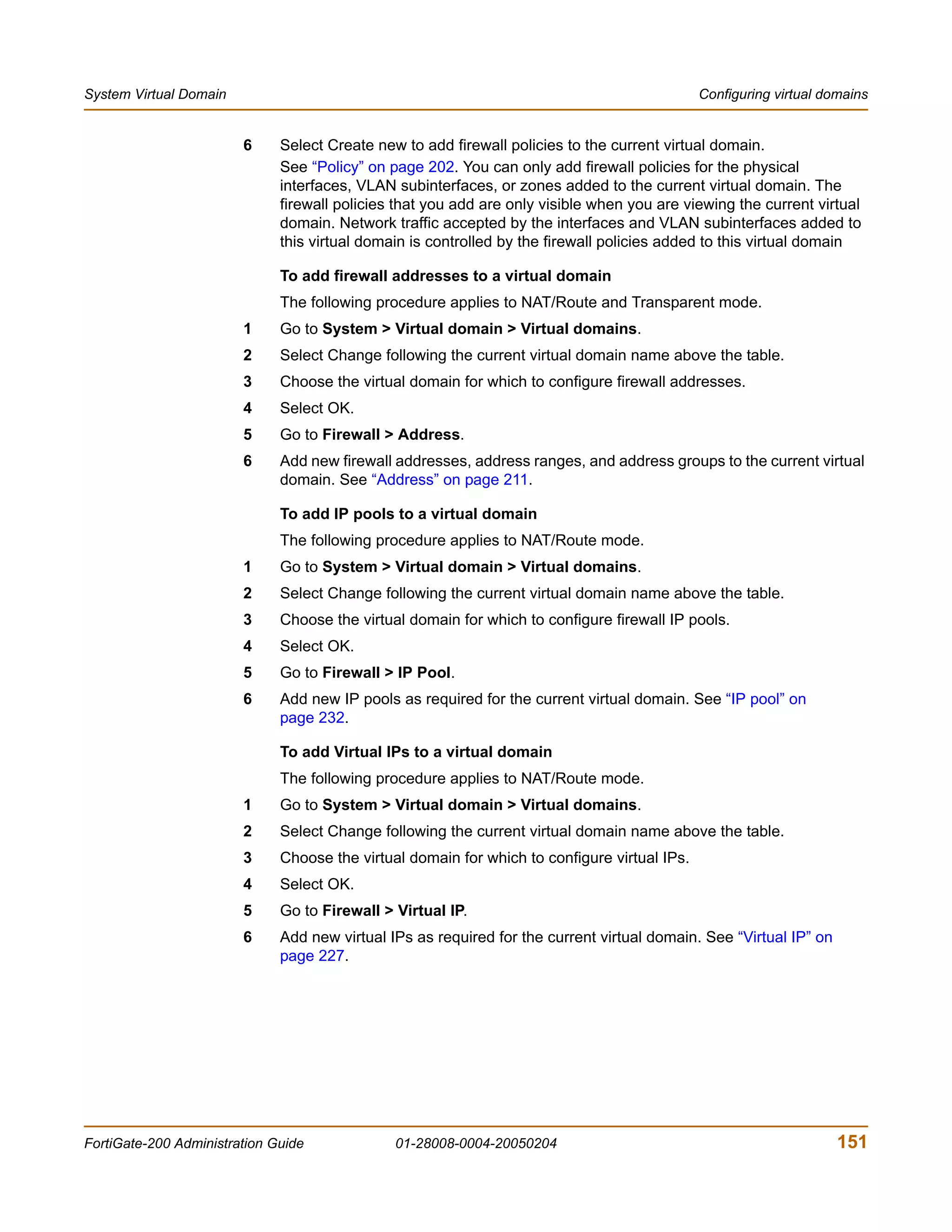
                                                The maximum length is 63 characters.

                     Note: Some popular email clients cannot filter messages based on the MIME header. Check
                     your email client features before deciding how to tag spam.


                     Configuring IPS options
                     Figure 116:Protection profile IPS options


240                                    01-28008-0004-20050204                                            Fortinet Inc.
Firewall                                                                                                     Protection profile


                              The following options are available for IPS through the protection profile. See “IPS” on
                              page 291 for more IPS configuration options.

                              IPS Signature               Enable or disable signature based intrusion detection and
                                                          prevention for all protocols.
                              IPS Anomaly                 Enable or disable anomaly based intrusion detection and
                                                          prevention for all protocols.


                              Configuring content archive options
                              Figure 117:Protection profile content archive options


                              The following options are available for content archive through the protection profile.

                              Display content meta-          Enable to have meta-information for each type of traffic display
                              information on the system      in the Content Summary section of the FortiGate status page.
                              dashboard                      There you can view statistics for HTTP traffic, FTP traffic, and
                                                             Email traffic (IMAP, POP3, and SMTP combined).
                              Archive content                Enable or disable archiving content meta-information to a
                              meta-information               FortiLog unit for each protocol. Content meta-information can
                                                             include date and time, source and destination information,
                                                             request and response size, and scan result. Content archive is
                                                             only available if FortiLog is enabled under Log&Report > Log
                                                             Config > Log Settings.


           Configuring protection profiles
                              To add a protection profile
                              If the default protection profiles do not provide the settings you require, you can create
                              custom protection profiles.
                        1     Go to Firewall > Protection Profile.
                        2     Select Create New.
                        3     Enter a name for the profile.
                        4     Configure the protection profile options.
                        5     Select OK.

                              Note: If both Virus Scan and File Block are enabled, the FortiGate unit blocks files that match
                              enabled file patterns before they are scanned for viruses.

                              To delete a protection profile
                        1     Go to Firewall > Protection Profile.
                        2     Select the Delete icon beside the protection profile you want to delete.
                        3     Select OK.


FortiGate-200 Administration Guide               01-28008-0004-20050204                                                  241
Protection profile                                                                                           Firewall


                          To edit a protection profile
                      1   Go to Firewall > Protection Profile.
                      2   Select the Edit icon beside the protection profile you want to modify.
                      3   Modify the profile as required.

                          Note: To change the one-time schedule name you must delete the schedule and add it with a
                          new name.

                      4   Select OK.

                          To add a protection profile to a policy
                          You can enable protection profiles for firewall policies with action set to allow or
                          encrypt and with service set to ANY, HTTP, FTP, IMAP, POP3, SMTP, or a service
                          group that includes these services.
                      1   Go to Firewall > Policy.
                      2   Select a policy list to which you want to add a protection profile.
                          For example, to enable network protection for files downloaded from the web by
                          internal network users, select an internal to external policy list.
                      3   Select Create New to add a policy or select Edit for the policy you want to modify.
                      4   Select protection profile.
                      5   Select a protection profile from the list.
                      6   Configure the remaining policy settings, if required.
                      7   Select OK.
                      8   Repeat this procedure for any policies for which you want to enable network
                          protection.

            Profile CLI configuration
                          Note: This guide only describes Command Line Interface (CLI) commands, keywords, or
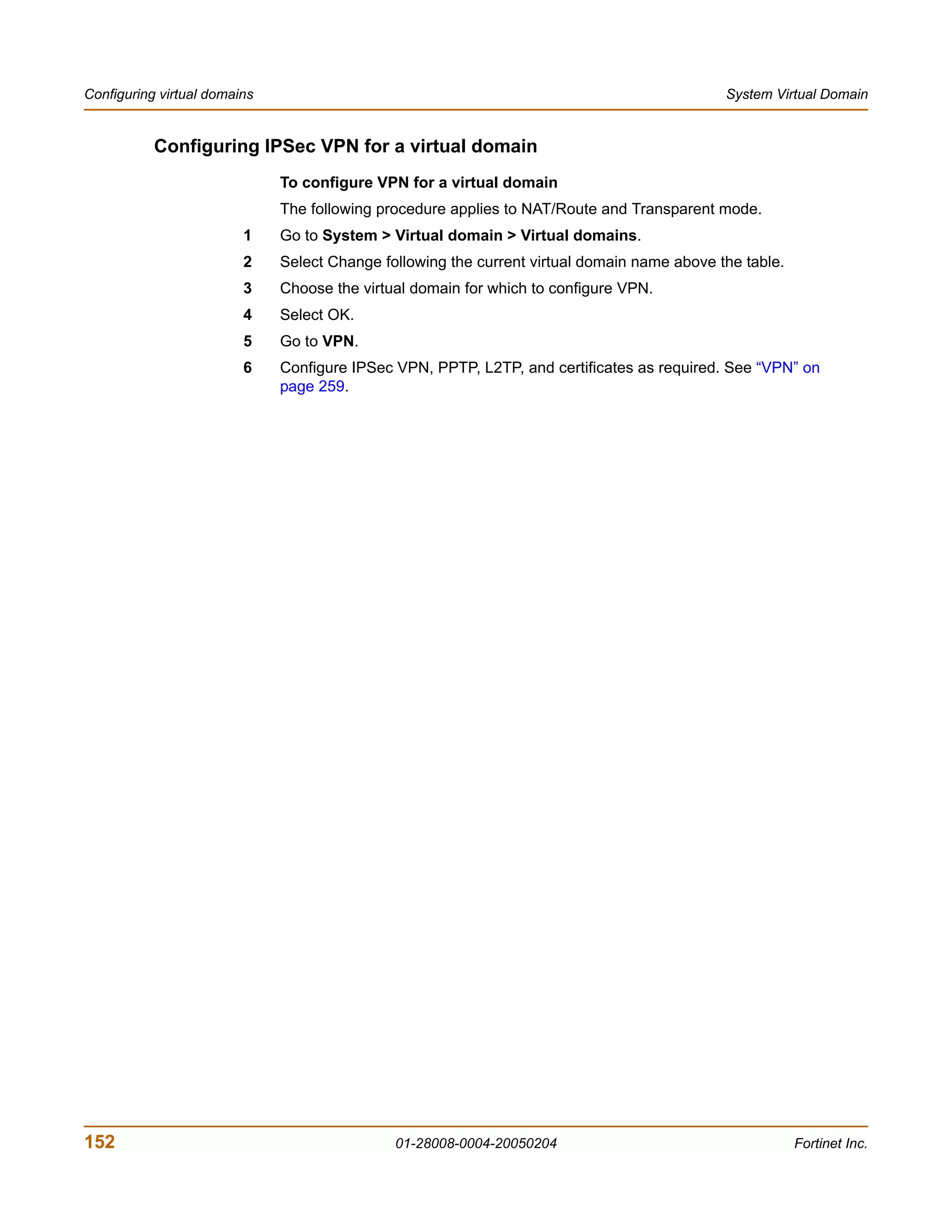
                          variables (in bold) that are not represented in the web-based manager. For complete
                          descriptions and examples of how to use CLI commands see the FortiGate CLI Reference
                          Guide.

                          Use this command to add, edit or delete protection profiles. Use protection profiles to
                          apply different protection settings for traffic controlled by firewall policies.

                          Command syntax pattern
                             config firewall profile
                                 edit <profilename_str>
                                     set <keyword> <variable>
                               end
                             config firewall profile
                                 edit <profilename_str>
                                     unset <keyword>
                               end


242                                         01-28008-0004-20050204                                       Fortinet Inc.
Firewall                                                                                                 Protection profile


                                 config firewall profile
                                     delete <profilename_str>
                                   end
                                 get firewall profile [<profilename_str>]
                                 show firewall profile [<profilename_str>]

                               firewall profile command keywords and variables
                               Keywords and         Description                              Default        Availability
                               variables
                               ftp                  Select the actions that this profile will   splice      All models.
                               {block               use for filtering FTP traffic for a policy.
                               content-archive      • Enter splice to enable the
                               no-content-summary     FortiGate unit to simultaneously
                                                      buffer a file for scanning and upload
                               oversize               the file to an FTP server. If a virus is
                               quarantine scan        detected, the FortiGate unit stops the
                               splice}                upload and attempts to delete the
                                                      partially uploaded file from the FTP
                                                      server. To delete the file successfully,
                                                      the server permissions must be set
                                                      to allow deletes. When downloading
                                                      files from an FTP server the
                                                      FortiGate unit sends 1 byte every 30
                                                      seconds to prevent the client from
                                                      timing out during scanning and
                                                      download. If a virus is detected, the
                                                      FortiGate unit stops the download.
                                                      The user must then delete the
                                                      partially downloaded file. There
                                                      should not be enough content in the
                                                      file to cause any harm. Enabling
                                                      splice reduces timeouts when
                                                      uploading and downloading large
                                                      files. When splice is disabled for ftp,
                                                      the FortiGate unit buffers the file for
                                                      scanning before uploading it to the
                                                      FTP server. If the file is clean, the
                                                      FortiGate unit will allow the upload to
                                                      continue.
                                                    Enter all the actions you want this
                                                    profile to use. Use a space to separate
                                                    the options you enter. If you want to
                                                    remove an option from the list or add
                                                    an option to the list, you must retype
                                                    the list with the option removed or
                                                    added.


FortiGate-200 Administration Guide          01-28008-0004-20050204                                                   243
Protection profile                                                                                     Firewall


                     firewall profile command keywords and variables (Continued)
                     Keywords and         Description                              Default      Availability
                     variables
                     http                 Select the actions that this profile will  No default. All models.
                     {bannedword block    use for filtering HTTP traffic for a
                     catblock             policy.
                     chunkedbypass        • Enter chunkedbypass to allow web
                                            sites that use chunked encoding for
                     content-archive        HTTP to bypass the firewall.
                     no-content-summary     Chunked encoding means the HTTP
                     oversize               message body is altered to allow it to
                     quarantine             be transferred in a series of chunks.
                                            Use this feature at your own risk.
                     rangeblock scan        Malicious content could enter your
                     scriptfilter           network if you allow web content to
                     urlblock               bypass the firewall.
                     urlexempt}           Enter all the actions you want this
                                          profile to use. Use a space to separate
                                          the options you enter. If you want to
                                          remove an option from the list or add
                                          an option to the list, you must retype
                                          the list with the option removed or
                                          added.
                     smtp                 Select the actions that this profile will  fragmail All models.
                     {bannedword block    use for filtering SMTP traffic for a       splice
                     content-archive      policy.
                     fragmail             • Enter splice to enable the
                                            FortiGate unit to simultaneously scan
                     no-content-summary     an email and send it to the SMTP
                     oversize               server. If the FortiGate unit detects a
                     quarantine scan        virus, it terminates the server
                     spamemailbwl           connection and returns an error
                                            message to the sender, listing the
                     spamfsip spamfsurl     virus name and infected file name. In
                     spamhdrcheck           this mode, the SMTP server is not
                     spamhelodns            able to deliver the email if it was sent
                     spamipbwl              with an infected attachment.
                     spamraddrdns           Throughput is higher when splice is
                                            enabled. When splice is disabled, the
                     spamrbl splice}        FortiGate unit scans the email first. If
                                            the FortiGate unit detects a virus, it
                                            removes the infected attachment,
                                            adds a customizable message, and
                                            sends the email to the SMTP server
                                            for delivery. Selecting enable for the
                                            splice keyword returns an error
                                            message to the sender if an
                                            attachment is infected. The receiver
                                            does not receive the email or the
                                            attachment. When splice is disabled
                                            for SMTP, infected attachments are
                                            removed and the email is forwarded
                                            (without the attachment) to the
                                            SMTP server for delivery to the
                                            recipient.
                                          Enter all the actions you want this
                                          profile to use. Use a space to separate
                                          the options you enter. If you want to
                                          remove an option from the list or add
                                          an option to the list, you must retype
                                          the list with the option removed or
                                          added.


244                               01-28008-0004-20050204                                          Fortinet Inc.
Firewall                                                                                          Protection profile


                              This example shows how to display the settings for the firewall profile
                              command.
                                 get firewall profile
                              This example shows how to display the settings for the spammail profile.
                                 get firewall profile spammail
                              This example shows how to display the configuration for the firewall profile
                              command.
                                 show firewall profile
                              This example shows how to display the configuration for the spammail profile.
                                 show firewall profile spammail


FortiGate-200 Administration Guide            01-28008-0004-20050204                                          245
Protection profile                                Firewall


246                  01-28008-0004-20050204   Fortinet Inc.
FortiGate-200 Administration Guide Version 2.80 MR8


  User
                              You can control access to network resources by defining lists of authorized users,
                              called user groups. To use a particular resource, such as a network or a VPN tunnel,
                              the user must belong to one of the user groups that is allowed access. The user then
                              must correctly enter a user name and password to prove his or her identity. This is
                              called authentication.
                              You can configure authentication in:
                              •   any firewall policy with Action set to ACCEPT
                              •   IPSec, PPTP and L2TP VPN configurations
                              When the user attempts to access the resource, the FortiGate unit requests a user
                              name and password. The FortiGate unit can verify the user’s credentials locally or
                              using an external LDAP or RADIUS server.
                              Authentication expires if the user leaves the connection idle for longer than the
                              authentication timeout period.
                              You need to determine the number and membership of your user groups appropriate
                              to your authentication needs.
                              To set up user groups
                        1     If external authentication is needed, configure RADIUS or LDAP servers. See
                              “RADIUS” on page 249 and “LDAP” on page 250.
                        2     Configure local user identities in User > Local. For each user, you can choose
                              whether the password is verified by the FortiGate unit, by a RADIUS server or by an
                              LDAP server. See “Local” on page 248.
                        3     Create user groups in User > User Group. Add local users as appropriate. See “User
                              group” on page 253.
                              You can also add a RADIUS or LDAP server to a user group. In this case, all users in
                              the external server’s database can authenticate.
                              This chapter describes:
                              •   Setting authentication timeout
                              •   Local
                              •   RADIUS
                              •   LDAP
                              •   User group


FortiGate-200 Administration Guide             01-28008-0004-20050204                                             247
Setting authentication timeout                                                                                            User


  Setting authentication timeout
                                 Authentication timeout controls how long an authenticated firewall connection can be
                                 idle before the user must authenticate again.

                                 To set authentication timeout
                         1       Go to System > Config > Options.
                         2       In Auth Timeout, type a number, in minutes.
                                 The default authentication timeout is 15 minutes.


  Local
                                 Go to User > Local to add local user names and configure authentication.

           Local user list
                                 Figure 118:Local user list


                                 Create New        Add a new local username.
                                 User Name         The local user name.
                                 Type              The authentication type to use for this user.


           Local user options
                                 Figure 119:Local user options


                                 User Name         Enter the user name.
                                 Disable           Select Disable to prevent this user from authenticating.
                                 Password          Select Password to require the user to authenticate using a password. Enter
                                                   the password that this user must use to authenticate. The password should
                                                   be at least six characters long.


248                                               01-28008-0004-20050204                                           Fortinet Inc.
User                                                                                                                RADIUS


                              LDAP              Select LDAP to require the user to authenticate to an LDAP server. Select
                                                the name of the LDAP server to which the user must authenticate. You can
                                                only select an LDAP server that has been added to the FortiGate LDAP
                                                configuration. See “LDAP” on page 250.
                              Radius            Select Radius to require the user to authenticate to a RADIUS server. Select
                                                the name of the RADIUS server to which the user must authenticate. You
                                                can only select a RADIUS server that has been added to the FortiGate
                                                RADIUS configuration. See “RADIUS” on page 249.

                              To add a user name and configure authentication
                        1     Go to User > Local.
                        2     Select Create New to add a new user name or select the Edit icon to edit an existing
                              configuration.
                        3     Type the User Name.
                        4     Select the authentication type for this user.
                        5     Select OK.

                              To delete a user name from the internal database
                              You cannot delete user names that have been added to user groups. Remove user
                              names from user groups before deleting them.
                        1     Go to User > Local.
                        2     Select the Delete icon for the user name that you want to delete.
                        3     Select OK.


                              Note: Deleting the user name deletes the authentication configured for the user.


  RADIUS
                              If you have configured RADIUS support and a user is required to authenticate using a
                              RADIUS server, the FortiGate unit contacts the RADIUS server for authentication. The
                              default port for RADIUS traffic is 1812. If your RADIUS server is using port 1645 you
                              can use the CLI to change the default RADIUS port. For more information see the
                              config system global command entry in the FortiGate CLI Reference Guide.

          RADIUS server list
                              Figure 120:RADIUS server list


                              Create New        Add a new RADIUS server.


FortiGate-200 Administration Guide              01-28008-0004-20050204                                                 249
LDAP                                                                                                  User


                    Name             The RADIUS server name.
                    Server Name/IP The domain name or IP address of the RADIUS server.


       RADIUS server options
                    Figure 121:RADIUS configuration


                    Name             Enter a name to identify the RADIUS server.
                    Server Name/IP Enter the domain name or IP address of the RADIUS server.
                    Server Secret    Enter the RADIUS server secret.

                    To configure the FortiGate unit for RADIUS authentication
                1   Go to User > RADIUS.
                2   Select Create New to add a new RADIUS server or select the Edit icon to edit an
                    existing configuration.
                3   Enter the Name of the RADIUS server.
                4   Enter the domain name or IP address of the RADIUS server.
                5   Enter the RADIUS server secret.
                6   Select OK.

                    To delete a RADIUS server
                    You cannot delete a RADIUS server that has been added to a user group.
                1   Go to User > RADIUS.
                2   Select the Delete icon beside the RADIUS server name that you want to delete.
                3   Select OK.


 LDAP
                    If you have configured LDAP support and a user is required to authenticate using an
                    LDAP server, the FortiGate unit contacts the LDAP server for authentication. To
                    authenticate with the FortiGate unit, the user enters a user name and password. The
                    FortiGate unit sends this user name and password to the LDAP server. If the LDAP
                    server can authenticate the user, the user is successfully authenticated with the
                    FortiGate unit. If the LDAP server cannot authenticate the user, the connection is
                    refused by the FortiGate unit.


250                                 01-28008-0004-20050204                                     Fortinet Inc.
User                                                                                                             LDAP


                              The FortiGate unit supports LDAP protocol functionality defined in RFC2251 for
                              looking up and validating user names and passwords. FortiGate LDAP supports all
                              LDAP servers compliant with LDAP v3.
                              FortiGate LDAP support does not extend to proprietary functionality, such as
                              notification of password expiration, that is available from some LDAP servers.
                              FortiGate LDAP support does not supply information to the user about why
                              authentication failed.

          LDAP server list
                              Figure 122:LDAP server list


                              Create New       Add a new LDAP server.
                              Server Name/IP The domain name or IP address of the LDAP server.
                              Port             The port used to communicate with the LDAP server.
                              Common Name The common name identifier for the LDAP server. 20 characters maximum.
                              Identifier  The common name identifier for most LDAP servers is cn. However some
                                          servers use other common name identifiers such as uid.
                              Distinguished    The distinguished name used to look up entries on the LDAP server. It
                              Name             reflects the hierarchy of LDAP database object classes above the Common
                                               Name Identifier.


          LDAP server options
                              Figure 123:LDAP server configuration


                              Name             Enter a name to identify the LDAP server.
                              Server Name/IP Enter the domain name or IP address of the LDAP server.
                              Server Port      Enter the port used to communicate with the LDAP server.
                                               By default LDAP uses port 389.


FortiGate-200 Administration Guide             01-28008-0004-20050204                                             251
LDAP                                                                                                User


           Common Name Enter the common name identifier for the LDAP server.
           Identifier  The common name identifier for most LDAP servers is cn. However some
                       servers use other common name identifiers such as uid.
           Distinguished   Enter the distinguished name used to look up entries on the LDAP server.
           Name            Enter the base distinguished name for the server using the correct X.500 or
                           LDAP format. The FortiGate unit passes this distinguished name unchanged
                           to the server.
                           For example, you could use the following base distinguished name:
                           ou=marketing,dc=fortinet,dc=com
                           where ou is organization unit and dc is domain component.
                           You can also specify multiple instances of the same field in the distinguished
                           name, for example, to specify multiple organization units:
                           ou=accounts,ou=marketing,dc=fortinet,dc=com

           To configure the FortiGate unit for LDAP authentication:
       1   Go to User > LDAP.
       2   Select Create New to add a new LDAP server, or select the Edit icon to edit an
           existing configuration.
       3   Enter the name of the LDAP server.
       4   Enter the domain name or IP address of the LDAP server.
       5   Enter the port used to communicate with the LDAP server.
       6   Enter the common name identifier for the LDAP server.
       7   Enter the distinguished name used to look up entries on the LDAP server.
       8   Select OK.

           To delete an LDAP server
           You cannot delete an LDAP server that has been added to a user group.
       1   Go to User > LDAP.
       2   Select Delete beside the LDAP server name that you want to delete.
       3   Select OK.


252                        01-28008-0004-20050204                                            Fortinet Inc.
User                                                                                                            User group


  User group
                              To enable authentication, you must add user names, RADIUS servers, and LDAP
                              servers to one or more user groups. You can then assign a firewall protection profile
                              to the user group. You can configure authentication as follows:
                              •   Firewall policies that require authentication:
                                  You can choose the user groups that are allowed to authenticate with these
                                  policies.
                              •   IPSec VPN Phase 1 configurations for dialup users:
                                  Only users in the selected user group can authenticate to use the VPN tunnel.
                              •   XAuth for IPSec VPN Phase 1 configurations:
                                  Only user groups in the selected user group can be authenticated using XAuth.
                              •   The FortiGate PPTP configuration:
                                  Only users in the selected user group can use PPTP.
                              •   The FortiGate L2TP configuration:
                                  Only users in the selected user group can use L2TP.
                              When you add user names, RADIUS servers, and LDAP servers to a user group, the
                              order in which they are added determines the order in which the FortiGate unit checks
                              for authentication. If user names are first, then the FortiGate unit checks for a match
                              with these local users. If a match is not found, the FortiGate unit checks the RADIUS
                              or LDAP server. If a RADIUS or LDAP server is added first, the FortiGate unit checks
                              the server and then the local users.

          User group list
                              Figure 124:User group list


                              Create New          Add a new user group.
                              Group Name          The name of the user group.
                              Members             The users, RADIUS servers, or LDAP servers in a user group.
                              Protection Profile The protection profile associated with this user group.


FortiGate-200 Administration Guide              01-28008-0004-20050204                                               253
User group                                                                                                        User


             User group options
                          Figure 125:User group configuration


                          Group Name           Enter the name of the user group.
                          Available Users      The list of users, RADIUS servers, or LDAP servers that can be added to
                                               a user group.
                          Members              The list of users, RADIUS servers, or LDAP servers added to a user
                                               group.
                          Protection Profile   Select a protection profile for this user group.

                          To configure a user group
                      1   Go to User > User Group.
                      2   Select Create New to add a new user group, or select the Edit icon to edit an existing
                          configuration.
                      3   Enter a Group Name to identify the user group.
                      4   To add users to the user group, select a user from the Available Users list and select
                          the right arrow to add the name to the Members list.
                      5   To add a RADIUS server to the user group, select a RADIUS server from the
                          Available Users list and select the right arrow to add the RADIUS server to the
                          Members list.
                      6   To add an LDAP server to the user group, select an LDAP server from the Available
                          Users list and select the right arrow to add the LDAP server to the Members list.
                      7   To remove users, RADIUS servers, or LDAP servers from the user group, select a
                          user, RADIUS server, or LDAP server from the Members list and select the left arrow
                          to remove the name, RADIUS server, or LDAP server from the group.
                      8   Select a protection profile from the Protection Profiles list.
                      9   Select OK.


254                                         01-28008-0004-20050204                                        Fortinet Inc.
User                                                                                                        CLI configuration


                              To delete a user group
                              You cannot delete a user group that is included in a firewall policy, a dialup user
                              phase 1 configuration, or a PPTP or L2TP configuration.
                        1     Go to User > User Group.
                        2     Select Delete beside the user group that you want to delete.
                        3     Select OK.


  CLI configuration
                              This guide only covers Command Line Interface (CLI) commands that are not
                              represented in the web-based manager. For complete descriptions and examples of
                              how to use CLI commands see the FortiGate CLI Reference Guide.

          peer
                              Use this command to add or edit the peer certificate information.

                              Command syntax pattern
                                    config user peer
                                      edit <name_str>
                                         set <keyword> <variable>
                                    config user peer
                                      edit <name_str>
                                         unset <keyword>
                                    config user peer
                                      delete <name_str>
                                    get user peer [<name_str>]
                                    show user peer [<name_str>]

                               radius command keywords and variables
                               Keywords and variables       Description                            Default     Availability
                               ca                           Enter the peer Certificate Authority   No default. All models.
                                                            (CA).
                               cn                           Enter the peer certificate common      No default. All models.
                                                            name.
                               cn-type {FDQN | email        Enter the peer certificate common      string       All models.
                               | ipv4 | string}             name type.
                               subject                      Enter the peer certificate name        No default. All models.
                                                            constraints.


FortiGate-200 Administration Guide             01-28008-0004-20050204                                                  255
CLI configuration                                                                                         User


                     Example
                     This example shows how to add the branch_office peer.
                        config user peer
                            edit branch_office
                                set ca
                                set cn
                                set cn-type
                          end
                     This example shows how to display the list of configured peers.
                        get user peer
                     This example shows how to display the settings for the peer branch_office.
                        get user peer branch_office
                     This example shows how to display the configuration for all the peers.
                        show user peer
                     This example shows how to display the configuration for the peer branch_office.
                        show user peer branch_office

           peergrp
                     Use this command to add or edit a peer group.

                     Command syntax pattern
                        config user peergrp
                          edit <name_str>
                             set <keyword> <variable>
                        config user peergrp
                          edit <name_str>
                             unset <keyword>
                        config user peergrp
                          delete <name_str>
                        get user peergrp [<name_str>]
                        show user peergrp [<name_str>]

                     radius command keywords and variables
                     Keywords and variables        Description                        Default     Availability
                     member <name_str>             Enter the names of peers to add    No default. All models.
                     [<name_str> [<name_str>       to the peer group. Separate
                     [<name_str> ... ]]]           names by spaces. To add or
                                                   remove names from the group
                                                   you must re-enter the whole list
                                                   with the additions or deletions
                                                   required.


256                                  01-28008-0004-20050204                                        Fortinet Inc.
User                                                                                                  CLI configuration


                              Example
                              This example shows how to add peers to the peergrp EU_branches.
                                 config user peergrp
                                     edit EU_branches
                                         set member Sophia_branch Valencia_branch
                                   Cardiff_branch
                                   end
                              This example shows how to display the list of configured peer groups.
                                 get user peergrp
                              This example shows how to display the settings for the peergrp EU_branches.
                                 get user peergrp EU_branches
                              This example shows how to display the configuration for all the peers groups.
                                 show user peergrp
                              This example shows how to display the configuration for the peergrp EU_branches.
                                 show user peergrp EU_branches


FortiGate-200 Administration Guide            01-28008-0004-20050204                                             257
CLI configuration                                   User


258                 01-28008-0004-20050204   Fortinet Inc.
FortiGate-200 Administration Guide Version 2.80 MR8


  VPN
                              FortiGate units support the following protocols to authenticate and encrypt traffic:
                              •   Internet Protocol Security (IPSec)
                              •   Point-to-Point Tunneling Protocol (PPTP)
                              •   Layer Two Tunneling Protocol (L2TP)
                              This chapter contains information about the following VPN topics:
                              •   Phase 1
                              •   Phase 2
                              •   Manual key
                              •   Concentrator
                              •   Ping Generator
                              •   Monitor
                              •   PPTP
                              •   L2TP
                              •   Certificates
                              •   VPN configuration procedures
                              •   CLI configuration


FortiGate-200 Administration Guide               01-28008-0004-20050204                                              259
Phase 1                                                                                                          VPN


  Phase 1
                         The basic phase 1 settings associate IPSec phase 1 parameters with a remote
                         gateway and determine:
                         •   whether the various phase 1 parameters will be exchanged in multiple rounds with
                             encrypted authentication information (main mode) or in a single message with
                             authentication information that is not encrypted (aggressive mode)
                         •   whether a preshared key or digital certificates will be used to authenticate the
                             identities of the two VPN peers
                         •   whether a peer identifier, certificate distinguished name, or group name will be
                             used to identify the remote peer or client when a connection attempt is made
                         In phase 1, the two VPN peers exchange keys to establish a secure communication
                         channel between them. The advanced P1 Proposal parameters select the encryption
                         and authentication algorithms that are used to generate the keys. Additional advanced
                         phase 1 settings can be selected to ensure the smooth operation of phase 1
                         negotiations.

                         To configure phase 1 settings
                    1    Go to VPN > IPSEC > Phase 1.
                    2    Follow the general guidelines in these sections:
                         •   “Phase 1 list” on page 260
                         •   “Phase 1 basic settings” on page 261
                         •   “Phase 1 advanced settings” on page 263
                         For information about how to choose the correct phase 1 settings for your particular
                         situation, refer to the FortiGate VPN Guide.
                         Note: The procedures in this section assume that you want the FortiGate unit to generate
                         unique IPSec encryption and authentication keys automatically. In situations where a remote
                         VPN peer requires a specific IPSec encryption and/or authentication key, you must configure
                         the FortiGate unit to use manual keys instead. For more information, see “Manual key” on
                         page 267.

          Phase 1 list
                         Figure 126:IPSec VPN Phase 1 list


                         Create New            Select Create New to create a new phase 1 configuration.
                         Gateway Name          The names of existing phase 1 configurations.
                         Gateway IP            The IP address or domain name of a remote peer, or Dialup for a dialup
                                               client.
                         Mode                  Main or Aggressive.


260                                        01-28008-0004-20050204                                         Fortinet Inc.
VPN                                                                                                                    Phase 1


                              Encryption               The names of the encryption and authentication algorithms used by each
                              Algorithm                phase 1 configuration.
                              Delete and Edit          Delete or edit a phase 1 configuration.
                              icons


          Phase 1 basic settings
                              Figure 127:Phase 1 basic settings


                              Gateway Name Type a name for the remote VPN peer or client. Enter a name that reflects the
                                           origination of the remote connection.
                              Remote            Select the nature of the remote connection:
                              Gateway           • If a remote peer with a static IP address will be connecting to the FortiGate
                                                   unit, select Static IP Address and type the IP address of the remote VPN
                                                   end point into the IP Address field.
                                                •    If one or more dialup clients with dynamic IP addresses will be connecting
                                                     to the FortiGate unit, select Dialup User.
                                                •    If a remote peer that has a domain name and subscribes to a dynamic
                                                     DNS service will be connecting to the FortiGate unit, select Dynamic DNS
                                                     and type the domain name of the remote peer into the Dynamic DNS field.
                              IP Address        If Static IP Address is selected, type the IP address of the remote peer.
                              Dynamic DNS       If Dynamic DNS is selected, type the domain name of the remote peer.
                              Mode              Select Main or Aggressive.
                                                • In Main mode, the phase 1 parameters are exchanged in multiple rounds
                                                   with encrypted authentication information.
                                                •    In Aggressive mode, the phase 1 parameters are exchanged in single
                                                     message with authentication information that is not encrypted. You must
                                                     select Aggressive if the FortiGate unit participates in a dynamic DNS
                                                     configuration.
                              Authentication Select Preshared Key or RSA Signature.
                              Method


FortiGate-200 Administration Guide                  01-28008-0004-20050204                                                  261
Phase 1                                                                                                  VPN


          Pre-shared Key If Preshared Key is selected, type the preshared key that the FortiGate unit
                         will use to authenticate itself to the remote peer during phase 1 negotiations.
                         You must define the same value at the remote peer. The key must contain at
                         least 6 printable characters and should only be known by network
                         administrators. For optimum protection against currently known attacks, the
                         key should consist of a minimum of 16 randomly chosen alphanumeric
                         characters.
          Certificate      If RSA Signature is selected, select the name of the digital certificate that the
          Name             FortiGate unit will use to authenticate itself to the remote peer during phase 1
                           negotiations.
          Peer Options     These options are available to authenticate remote dialup clients or VPN
                           peers with peer IDs or certificate names, depending on the Remote Gateway
                           and Mode settings.
                           • Select Accept any peer ID to accept the local ID of any remote client or
                              VPN peer.
                           •    If the remote peer has a domain name and subscribes to a dynamic DNS
                                service, select Accept this peer ID and type the fully qualified domain
                                name of the remote peer. This value must be identical to the value in the
                                Local ID field of the phase 1 remote gateway configuration on the remote
                                peer.
                           •    To grant access to selected remote peers or clients based on a peer ID,
                                select Accept this peer ID and type the identifier. This value must be
                                identical to the value in the Local ID field of the phase 1 remote gateway
                                configuration on the remote peer or client.
                           •    To grant access to dialup users based on the name of a dialup group,
                                select Accept peer ID in dialup group and select the name of the group
                                from the list.
                           •    To grant access to selected remote peers or clients based on a certificate
                                distinguished name, select Accept this peer certificate only and select the
                                name of the certificate from the list. The certificate must be added to the
                                FortiGate configuration through the config user peer CLI command
                                before it can be selected. For more information, see the “config user”
                                chapter of the FortiGate CLI Reference Guide.
                           •    To grant access to selected remote peers or clients based on the name of
                                a certificate group, select Accept this peer certificate group only and select
                                the name of the group from the list. The group must be added to the
                                FortiGate configuration through the config user peer and config
                                user peergrp CLI commands before it can be selected. For more
                                information, see the “config user” chapter of the FortiGate CLI Reference
                                Guide.


262                            01-28008-0004-20050204                                             Fortinet Inc.
VPN                                                                                                                 Phase 1


          Phase 1 advanced settings
                              Figure 128:Phase 1 advanced settings


                              P1 Proposal    Select the encryption and authentication algorithms that will be used to
                                             generate keys for protecting negotiations.
                                             Add or delete encryption and authentication algorithms as required. Select a
                                             minimum of one and a maximum of three combinations. The remote peer
                                             must be configured to use at least one of the proposals that you define.
                                             You can select any of the following symmetric-key algorithms:
                                             • DES-Digital Encryption Standard, a 64-bit block algorithm that uses a 56-
                                                bit key.
                                             •    3DES-Triple-DES, in which plain text is encrypted three times by three
                                                  keys.
                                             •    AES128-A 128-bit block algorithm that uses a 128-bit key.
                                             •    AES192-A 128-bit block algorithm that uses a 192-bit key.
                                             • AES256-A 128-bit block algorithm that uses a 256-bit key.
                                             You can select either of the following message digests to check the
                                             authenticity of messages during phase 1 negotiations:
                                             • MD5-Message Digest 5, the hash algorithm developed by RSA Data
                                                Security.
                                             •  SHA1-Secure Hash Algorithm 1, which produces a 160-bit message
                                                digest.
                                             To specify a third combination, use the add button beside the fields for the
                                             second combination.


FortiGate-200 Administration Guide               01-28008-0004-20050204                                                 263
Phase 2                                                                                                     VPN


                DH Group        Select one or more Diffie-Hellman groups from DH group 1, 2, and 5.
                                When using aggressive mode, DH groups cannot be negotiated.
                                • If both VPN peers have static IP addresses and use aggressive mode,
                                   select a single DH group. The setting on the FortiGate unit must be
                                   identical to the setting on the remote peer or client.
                                •    When the VPN peer or client has a dynamic IP address and uses
                                     aggressive mode, select up to three DH groups on the FortiGate unit and
                                     one DH group on the remote peer or dialup client. The setting on the
                                     remote peer or client must be identical to one of the selections on the
                                     FortiGate unit.
                                •    If the VPN peer or client employs main mode, you can select multiple DH
                                     groups. At least one of the settings on the remote peer or client must be
                                     identical to the selections on the FortiGate unit.
                Keylife         Type the amount of time (in seconds) that will be allowed to pass before the
                                IKE encryption key expires. When the key expires, a new key is generated
                                without interrupting service. The keylife can be from 120 to 172800 seconds.
                Local ID        If you are using peer IDs for authentication, enter the peer ID that the local
                                FortiGate unit will use to authenticate itself to remote VPN peers.
                                If you are using certificates for authentication, select the distinguished name
                                (DN) of the local certificate.
                XAuth           If you select Enable as Client, type the user name and password that the
                                FortiGate unit will need to authenticate itself to the remote peer.
                                To select Enable as Server, you must first create user groups to identify the
                                remote peers and dialup clients that need access to the network behind the
                                FortiGate unit. You must also configure the FortiGate unit to forward
                                authentication requests to an external RADIUS or LDAP authentication
                                server. For information about these topics, see the “Users and Authentication”
                                chapter of the FortiGate Administration Guide. Select a Server Type setting to
                                determine the type of encryption method to use between the FortiGate unit,
                                the XAuth client and the external authentication server, and then select the
                                user group from the User Group list.
                Nat-traversal   Enable this option if a NAT device exists between the local FortiGate unit and
                                the VPN peer or client. The local FortiGate unit and the VPN peer or client
                                must have the same NAT traversal setting (both selected or both cleared).
                Keepalive       If you enabled NAT traversal, enter a keepalive frequency setting. The value
                Frequency       represents an interval from 0 to 900 seconds.
                Dead Peer       Enable this option to reestablish VPN tunnels on idle connections and clean
                Detection       up dead IKE peers if required.


  Phase 2
                You configure phase 2 settings to specify the parameters for creating and maintaining
                a VPN tunnel between the FortiGate unit and the remote peer or client. In most cases,
                you only need to configure the basic phase 2 settings.

                To configure phase 2 settings
            1   Go to VPN > IPSEC > Phase 2.


264                                 01-28008-0004-20050204                                          Fortinet Inc.
VPN                                                                                                                    Phase 2


                        2     Follow the general guidelines in these sections:
                              •   “Phase 2 list” on page 265
                              •   “Phase 2 basic settings” on page 265
                              •   “Phase 2 advanced options” on page 266
                              For information about how to choose the correct phase 2 settings for your particular
                              situation, refer to the FortiGate VPN Guide.
                              Note: The procedures in this section assume that you want the FortiGate unit to generate
                              unique IPSec encryption and authentication keys automatically. In situations where a remote
                              VPN peer requires a specific IPSec encryption and/or authentication key, you must configure
                              the FortiGate unit to use manual keys instead. For more information, see “Manual key” on
                              page 267.

          Phase 2 list

                              Figure 129:IPSec VPN Phase 2 list


                              Create New             Select Create New to create a new phase 2 tunnel configuration.
                              Tunnel Name            The names of existing tunnel configurations.
                              Remote Gateway         The names of the phase 1 configurations that are associated with the
                                                     tunnel configurations.
                              Lifetime (sec/kb)      The tunnel key lifetime.
                              Status                 The current status of the tunnel. If Down, the tunnel is not processing
                                                     traffic. If Up, the tunnel is currently processing traffic. Unknown is
                                                     displayed for dialup tunnels.
                              Timeout                If the tunnel is processing VPN traffic, the Timeout value specifies
                                                     amount of time left before the next phase 2 key exchange. When the
                                                     phase 2 key expires, a new key is generated without interrupting service.
                              Delete and Edit        Delete or edit a phase 2 configuration.
                              icons


          Phase 2 basic settings

                              Figure 130:Phase 2 basic settings


FortiGate-200 Administration Guide                01-28008-0004-20050204                                                  265
Phase 2                                                                                                        VPN


                      Tunnel Name    Type a name to identify the tunnel configuration.
                      Remote         Select the phase 1 configuration to assign to this tunnel. See “Phase 1” on
                      Gateway        page 260. The phase 1 configuration describes how remote peers or clients
                                     will be authenticated on this tunnel, and how the connection to the remote
                                     peer or client will be secured.
                      Concentrator   If the tunnel will be included in a hub-and-spoke configuration, you may select
                                     the concentrator from the list. The hub must be added to the FortiGate
                                     configuration before it can be selected here. See “Concentrator” on page 270.


          Phase 2 advanced options
                      Figure 131:Phase 2 advanced settings


                      P2 Proposal    Select the encryption and authentication algorithms that will be used to
                                     change data into encrypted code.
                                     Add or delete encryption and authentication algorithms as required. Select a
                                     minimum of one and a maximum of three combinations. The remote peer
                                     must be configured to use at least one of the proposals that you define.
                                     You can select any of the following symmetric-key algorithms:
                                     • NULL-Do not use an encryption algorithm.
                                     •    DES-Digital Encryption Standard, a 64-bit block algorithm that uses a 56-
                                          bit key.
                                     •    3DES-Triple-DES, in which plain text is encrypted three times by three
                                          keys.
                                     •    AES128-A 128-bit block algorithm that uses a 128-bit key.
                                     •    AES192-A 128-bit block algorithm that uses a 192-bit key.
                                     •    AES256-A 128-bit block algorithm that uses a 256-bit key.


266                                      01-28008-0004-20050204                                         Fortinet Inc.
VPN                                                                                                                  Manual key


                                              You can select either of the following message digests to check the
                                              authenticity of messages during an encrypted session:
                                              • NULL-Do not use a message digest.
                                              •    MD5-Message Digest 5, the hash algorithm developed by RSA Data
                                                   Security.
                                              •   SHA1-Secure Hash Algorithm 1, which produces a 160-bit message
                                                  digest.
                                              To specify one combination only, set the Encryption and Authentication
                                              options of the second combination to NULL. To specify a third combination,
                                              use the add button beside the fields for the second combination.
                              Enable replay   Optionally enable or disable replay detection. Replay attacks occur when an
                              detection       unauthorized party intercepts a series of IPSec packets and replays them
                                              back into the tunnel.
                              Enable perfect Enable or disable PFS. Perfect forward secrecy (PFS) improves security by
                              forward        forcing a new Diffie-Hellman exchange whenever keylife expires.
                              secrecy (PFS)
                              DH Group        Select one Diffie-Hellman group (1, 2, or 5). The remote peer or client must be
                                              configured to use the same group.
                              Keylife         Select the method for determining when the phase 2 key expires: Seconds,
                                              KBytes, or Both. If you select both, the key expires when either the time has
                                              passed or the number of KB have been processed. The range is from 120 to
                                              172800 seconds, or from 5120 to 2147483648 KB.
                              Autokey Keep Enable the option if you want the tunnel to remain active when no data is
                              Alive        being processed.
                              DHCP-IPSec      If the FortiGate unit will relay DHCP requests from dialup clients to an external
                                              DHCP server, you can select DHCP-IPsec Enable to enable DHCP over
                                              IPSec services. The DHCP relay parameters must be configured separately.
                                              For more information, see “System DHCP” on page 81.
                              Internet        If the tunnel will support an Internet-browsing configuration, select the
                              browsing        browsing interface from the list.
                              Quick Mode      Enter the method for choosing selectors for IKE negotiations:
                              Identities      • To choose a selector from a firewall encryption policy, select Use selectors
                                                 from policy.
                                              •    To disable selector negotiation, select Use wildcard selectors.
                                              •    To specify the firewall encryption policy source and destination IP
                                                   addresses, select Specify a selector and then select the names of the
                                                   source and destination addresses from the Source address and Dest
                                                   address lists. You may optionally specify source and destination port
                                                   numbers and/or a protocol number.


  Manual key
                              If required, you can manually define cryptographic keys for establishing an IPSec VPN
                              tunnel. You would define manual keys in situations where:
                              •   Prior knowledge of the encryption and/or authentication key is required (that is,
                                  one of the VPN peers requires a specific IPSec encryption and/or authentication
                                  key).
                              •   Encryption and authentication needs to be disabled.


FortiGate-200 Administration Guide                01-28008-0004-20050204                                                  267
Manual key                                                                                                          VPN


                       In both cases, you do not specify IPSec phase 1 and phase 2 parameters; you define
                       manual keys on the VPN > IPSEC > Manual Key tab instead.
                       If one of the VPN peers uses specific authentication and encryption keys to establish
                       a tunnel, both VPN peers must be configured to use the same encryption and
                       authentication algorithms and keys.
                       Note: It may not be safe or practical to define manual keys because network administrators
                       must be trusted to keep the keys confidential, and propagating changes to remote VPN peers in
                       a secure manner may be difficult.

                       It is essential that both VPN peers be configured with matching encryption and
                       authentication algorithms, matching authentication and encryption keys, and
                       complementary Security Parameter Index (SPI) settings.
                       Each SPI identifies a Security Association (SA). The value is placed in ESP
                       datagrams to link the datagrams to the SA. When an ESP datagram is received, the
                       recipient refers to the SPI to determine which SA applies to the datagram. An SPI
                       must be specified manually for each SA. Because an SA applies to communication in
                       one direction only, you must specify two SPIs per configuration (a local SPI and a
                       remote SPI) to cover bidirectional communications between two VPN peers.

                       Caution: If you are not familiar with the security policies, SAs, selectors, and SA databases for
                  !    your particular installation, do not attempt the following procedure without qualified assistance.


                       To specify manual keys for creating a tunnel
                   1   Go to VPN > IPSEC > Manual Key and select Create New.
                   2   Follow the guidelines in these sections:
                       •   “Manual key list” on page 268
                       •   “Manual key options” on page 269

         Manual key list
                       Figure 132:IPSec VPN Manual Key list


                       Create New             Select Create New to create a new manual key configuration.
                       Remote Gateway         The IP address of the remote peer or client.
                       Encryption             The names of the encryption algorithms used in the configuration.
                       Algorithm
                       Authentication         The names of the authentication algorithms used in the configuration.
                       Algorithm
                       Delete and Edit        Delete or edit a manual key configuration.
                       icons


268                                       01-28008-0004-20050204                                             Fortinet Inc.
VPN                                                                                                              Manual key


          Manual key options
                              VPN Tunnel Name Type a name for the VPN tunnel.
                              Local SPI          Type a hexadecimal number (up to 8 characters, 0-9, a-f) that represents
                                                 the SA that handles outbound traffic on the local FortiGate unit. The valid
                                                 range is from 0xbb8 to 0xffffffff. This value must match the Remote
                                                 SPI value in the manual key configuration at the remote peer.
                              Remote SPI         Type a hexadecimal number (up to 8 characters, 0-9, a-f) that represents
                                                 the SA that handles inbound traffic on the local FortiGate unit. The valid
                                                 range is from 0xbb8 to 0xffffffff. This value must match the Local
                                                 SPI value in the manual key configuration at the remote peer.
                              Remote Gateway     Type the IP address of the public interface to the remote peer. The
                                                 address identifies the recipient of ESP datagrams.
                              Encryption         Select one of the following symmetric-key encryption algorithms:
                              Algorithm          • DES-Digital Encryption Standard, a 64-bit block algorithm that uses a
                                                    56-bit key.
                                                 •   3DES-Triple-DES, in which plain text is encrypted three times by three
                                                     keys.
                                                 •   AES128-A 128-bit block algorithm that uses a 128-bit key.
                                                 •   AES192-A 128-bit block algorithm that uses a 192-bit key.
                                                 •   AES256-A 128-bit block algorithm that uses a 256-bit key.

                              Figure 133:Adding a manual key VPN tunnel


FortiGate-200 Administration Guide             01-28008-0004-20050204                                                  269
Concentrator                                                                                               VPN


                   Encryption Key     If you selected:
                                      • DES, type a 16-character hexadecimal number (0-9, a-f).
                                      •   3DES, type a 48-character hexadecimal number (0-9, a-f) separated
                                          into three segments of 16 characters.
                                      •   AES128, type a 32-character hexadecimal number (0-9, a-f)
                                          separated into two segments of 16 characters.
                                      •   AES192, type a 48-character hexadecimal number (0-9, a-f)
                                          separated into three segments of 16 characters.
                                      •   AES256, type a 64-character hexadecimal number (0-9, a-f)
                                          separated into four segments of 16 characters.
                   Authentication     Select one of the following message digests:
                   Algorithm          • MD5-Message Digest 5 algorithm, which produces a 128-bit message
                                         digest.
                                      •   SHA1-Secure Hash Algorithm 1, which produces a 160-bit message
                                          digest.
                   Authentication Key If you selected:
                                      • MD5, type a 32-character hexadecimal number (0-9, a-f) separated
                                          into two segments of 16 characters.
                                      •   SHA1, type 40-character hexadecimal number (0-9, a-f) separated
                                          into one segment of 16 characters and a second segment of 24
                                          characters.
                   Concentrator       If the tunnel will be included in a hub-and-spoke configuration, you may
                                      select the concentrator from the list. The hub must be added to the
                                      FortiGate configuration before it can be selected here. See
                                      “Concentrator” on page 270.


  Concentrator
                   In a hub-and-spoke configuration, connections to a number of remote peers radiate
                   from a single, central FortiGate unit. Site-to-site connections between the remote
                   peers do not exist; however, VPN tunnels between any two of the remote peers can
                   be established through the FortiGate unit “hub”.
                   In a hub-and-spoke network, all VPN tunnels terminate at the hub. The peers that
                   connect to the hub are known as “spokes”. The hub functions as a concentrator on the
                   network, managing all VPN connections between the spokes. VPN traffic passes from
                   one tunnel to the other through the hub.
                   You define a concentrator to include spokes in the hub-and-spoke configuration.

                   To define a concentrator
               1   Go to VPN > IPSEC > Concentrator.
               2   Follow the guidelines in these sections:
                   •   “Concentrator list” on page 271
                   •   “Concentrator options” on page 271


270                                 01-28008-0004-20050204                                          Fortinet Inc.
VPN                                                                                                             Ping Generator


          Concentrator list

                              Figure 134:IPSec VPN concentrator list


                              Create New            Select Create New to define a new concentrator for an IPSec hub-and-
                                                    spoke configuration.
                              Concentrator Name The names of existing IPSec VPN concentrators.
                              Members               The tunnels that are associated with the concentrator.
                              Delete and Edit       Delete or edit a concentrator configuration.
                              icons


          Concentrator options

                              Figure 135:Creating a concentrator for a hub-and-spoke configuration


                              Concentrator      Type a name for the concentrator.
                              Name
                              Available         A list of defined IPsec VPN tunnels. Select a tunnel from the list and then
                              Tunnels           select the right-pointing arrow. Repeat these steps until all of the tunnels
                                                associated with the spokes are included in the concentrator.
                              Members           A list of tunnels that are members of the concentrator. To remove a tunnel
                                                from the concentrator, select the tunnel and select the left-pointing arrow.


  Ping Generator
                              The ping generator generates traffic in an IPSec VPN tunnel to keep the tunnel
                              connection open when no traffic is being generated inside the tunnel. For example,
                              the ping generator is useful in scenarios where a dialup client or dynamic DNS peer
                              connects from an IP address that changes periodically—traffic may be suspended
                              while the IP address changes. You may also use the ping generator to troubleshoot
                              network connectivity inside a VPN tunnel.


FortiGate-200 Administration Guide              01-28008-0004-20050204                                                     271
Ping Generator                                                                                                      VPN


                       You can configure settings to generate ping commands through two tunnels
                       simultaneously. The ping interval is fixed at 40 seconds.
                       The source and destination IP addresses refer to the source and destination
                       addresses of IP packets that are to be transported through the VPN tunnel. When
                       source and destination addresses of 0.0.0.0 are entered, no ping traffic is
                       generated between the source and destination.

                       To configure the ping generator
                   1   Go to VPN > IPSEC > Ping Generator.
                   2   Select Enable.
                   3   In the Source IP 1 field, type the private IP address or subnet address from which
                       traffic may originate locally (for example, 192.168.20.12 or 192.168.20.0
                       respectively).
                   4   In the Destination IP 1 field, enter the IP address of a remote computer:
                       •   For a peer-to-peer configuration, the destination address is the private IP address
                           of a server or host behind the remote VPN peer (for example, 172.16.5.1/32).
                       •   For a dialup-client or Internet-browsing configuration where the remote VPN client
                           is configured to acquire a virtual IP address, the destination address must
                           correspond to the virtual IP address that can be acquired.
                   5   If you want to enable a second ping generator, repeat Steps 3 and 4 for the Source IP
                       2 and Destination IP 2 settings.
                   6   Select Apply.

          Ping generator options
                       Figure 136:Ping generator


                       Enable               Select the option to ping the specified destination address using the
                                            specified source address.
                       Source IP 1          Enter the IP address from which traffic may originate locally.
                       Destination IP 1     Enter the IP address of the remote computer to ping.
                       Source IP 2          If you want to generate traffic on a second VPN tunnel simultaneously,
                                            enter a second IP address from which traffic may originate locally.
                       Destination IP 2     Enter the IP address of the second computer to ping


272                                       01-28008-0004-20050204                                             Fortinet Inc.
VPN                                                                                                                      Monitor


  Monitor
                              You can use the monitor to view activity on IPSec VPN tunnels and start or stop those
                              tunnels. The display provides a list of addresses, proxy IDs, and timeout information
                              for all active tunnels.

                              To view active tunnels
                        1     Go to VPN > IPSEC > Monitor.
                              To interpret the display, see the following sections:
                              •   “Dialup monitor” on page 273
                              •   “Static IP and dynamic DNS monitor” on page 274

                              To establish or take down a VPN tunnel
                        1     Go to VPN > IPSEC > Monitor.
                        2     In the list of tunnels, select the Bring down tunnel or Bring up tunnel button in the row
                              that corresponds to the tunnel that you want to bring down or up.
                              If you take down an active tunnel while a dialup client such as FortiClient is still
                              connected, FortiClient will continue to show the tunnel connected and idle. The dialup
                              client must disconnect before another tunnel can be initiated.

          Dialup monitor
                              The list of dialup tunnels provides information about the status of tunnels that have
                              been established for dialup clients. The list displays the IP addresses of dialup clients
                              and the names of all active tunnels. The number of tunnels shown in the list can
                              change as dialup clients connect and disconnect.

                              Figure 137:Dialup monitor


                              Flush dialup      Stop all dialup tunnels and stop the traffic passing through all dialup tunnels.
                              tunnels icon      Dialup users may have to reconnect to establish new VPN sessions.
                              Name              The name of the tunnel.
                              Remote gateway The IP address and UDP port of the remote gateway.
                              Username          The peer ID, certificate name, or XAuth user name of the dialup client (if a
                                                peer ID, certificate name, or XAuth user name was assigned to the dialup
                                                client for authentication purposes).
                              Timeout           The time before the next key exchange. The time is calculated by
                                                subtracting the time elapsed since the last key exchange from the keylife.
                              Proxy ID Source The IP address of the host, server, or private network behind the FortiGate
                                              unit. A network range may be displayed if the source address in the firewall
                                              encryption policy was expressed as a range of IP addresses.
                              Proxy ID          The virtual IP (VIP) address of the dialup client. A range of VIP addresses
                              Destination       may be displayed if the destination address in the firewall encryption policy
                                                was expressed as a range of VIP addresses.


FortiGate-200 Administration Guide              01-28008-0004-20050204                                                     273
PPTP                                                                                                            VPN


                    Bring up tunnel Start or stop the current dialup tunnel. If you stop the tunnel, the dialup user
                    and Bring down may have to reconnect to establish a new VPN session.
                    tunnel icons
                    Page up and     Display the previous or next page of dialup-tunnel status listings.
                    Page down icons


       Static IP and dynamic DNS monitor
                    The list of tunnels provides information about VPN connections to remote peers that
                    have static IP addresses or domain names. You can use this list to view status and IP
                    addressing information for each tunnel configuration. You can also start and stop
                    individual tunnels from the list.

                    Figure 138:Static IP and dynamic DNS monitor


                    Name               The name of the tunnel.
                    Remote gateway The IP address and UDP port of the remote gateway. For dynamic DNS
                                   tunnels, the IP address is updated dynamically.
                    Timeout            The time before the next key exchange. The time is calculated by
                                       subtracting the time elapsed since the last key exchange from the keylife.
                    Proxy ID Source The IP address of the host, server, or private network behind the FortiGate
                                    unit. A network range may be displayed if the source address in the firewall
                                    encryption policy was expressed as a range of IP addresses.
                    Proxy ID           The IP address of the remote peer.
                    Destination
                    Bring up tunnel Start or stop the selected VPN tunnel. If you stop the tunnel, the remote
                    and Bring down VPN peer may have to reconnect to establish a new VPN session.
                    tunnel icons
                    Page up and     Display the previous or next page of VPN-tunnel status listings.
                    Page down icons


 PPTP
                    FortiGate units support PPTP to tunnel PPP traffic between two VPN peers. Windows
                    or Linux PPTP clients can establish a PPTP tunnel with a FortiGate unit that has been
                    configured to act as a PPTP server. As an alternative, you can configure the FortiGate
                    unit to forward PPTP packets to a PPTP server on the network behind the FortiGate
                    unit.
                    For information about how to perform these tasks, see “PPTP configuration
                    procedures” on page 282.

                    To enable PPTP and specify the PPTP address range
                1   Go to VPN > PPTP > PPTP Range.


274                                    01-28008-0004-20050204                                           Fortinet Inc.
VPN                                                                                                              L2TP


                        2     Enable PPTP and specify the address range.

          PPTP range
                              The PPTP address range is the range of addresses reserved for remote PPTP clients.
                              When the remote PPTP client connects, the FortiGate unit assigns an IP address from
                              a reserved range of IP addresses to the client PPTP interface. The PPTP client uses
                              the assigned IP address as its source address for the duration of the connection.

                              Figure 139:PPTP range


                              Enable PPTP     You must add a user group before you can select the option.
                              Starting IP     Type the starting address in the range of reserved IP addresses.
                              Ending IP       Type the ending address in the range of reserved IP addresses.
                              User Group      Select the name of the PPTP user group that you defined.
                              Disable PPTP    Select the option to disable PPTP support.


  L2TP
                              A FortiGate unit can be configured to act as an L2TP network server. The FortiGate
                              implementation of L2TP enables a remote dialup client to establish an L2TP tunnel
                              with the FortiGate unit directly.

                              For information about how to perform the related tasks, see “L2TP configuration
                              procedures” on page 282.

                              To enable L2TP and specify the L2TP address range

                        1     Go to VPN > L2TP > L2TP Range.

                        2     Enable L2TP and specify the address range.

          L2TP range
                              The L2TP address range specifies the range of addresses reserved for remote clients.
                              When a remote client connects to the FortiGate unit, the client is assigned an IP
                              address from this range. Afterward, the FortiGate unit uses the assigned address to
                              communicate with the remote client.


FortiGate-200 Administration Guide            01-28008-0004-20050204                                             275
Certificates                                                                                                              VPN


                              Figure 140:L2TP range


                              Enable L2TP       You must add a user group before you can enable the option.
                              Starting IP       Type the starting address in the range of reserved IP addresses.
                              Ending IP         Type the ending address in the range of reserved IP addresses.
                              User Group        Select the name of the L2TP user group that you defined.
                              Disable L2TP      Select the option to disable L2TP support.


  Certificates
                              Digital certificates are downloadable files that you can install on the FortiGate unit and
                              on remote peers and clients for authentication purposes.
                              An X.509 digital certificate contains information that has been digitally signed by a
                              trusted third party known as a certificate authority (CA). Because CAs can be trusted,
                              the certificates issued by a CA are deemed to be trustworthy.

                              To view and manage local certificates
                          1   Go to VPN > Certificates > Local Certificates.
                          2   Follow the guidelines in these sections:
                              •   “Local certificate list” on page 276
                              •   “Certificate request” on page 277
                              •   “Importing signed certificates” on page 278

                              To import and view CA certificates
                          1   Go to VPN > Certificates > CA Certificates.
                          2   For more information, see “CA certificate list” on page 279 and “Importing CA
                              certificates” on page 279.
                              For detailed information and step-by-step procedures related to obtaining and
                              installing digital certificates, see the FortiGate VPN Guide.

               Local certificate list
                              Figure 141:Certificate list


276                                             01-28008-0004-20050204                                             Fortinet Inc.
VPN                                                                                                                   Certificates


                              Generate           Select to generate a local certificate request. See “Certificate request” on
                                                 page 277.
                              Import             Select to import a signed local certificate. See “Importing signed certificates”
                                                 on page 278.
                              Name               The names of existing local certificates and pending certificate requests.
                              Subject            The Distinguished Names (DNs) of local signed certificates.
                              Status             The status of the local certificate. PENDING designates a certificate request
                                                 that should be downloaded and signed.
                              View Certificate   Select to display certificate details such as the certificate name, issuer,
                              Detail icon        subject, and valid certificate dates. See Figure 142.
                              Delete icon        Delete a certificate from the FortiGate configuration.
                              Download icon      Select to save a copy of the certificate request to a local computer. Send the
                                                 request to your CA to obtain a certificate for the FortiGate unit.

                              Figure 142:Certificate details


          Certificate request
                              To obtain a personal or site certificate, you must send a request to a CA that provides
                              digital certificates that adhere to the X.509 standard. The FortiGate unit provides a
                              way for you to generate the request. The generated request includes information such
                              as the FortiGate unit’s public static IP address, domain name, or email address.

                              To generate a certificate request
                        1     Go to VPN > Certificates > Local Certificates.
                        2     Select Generate.


FortiGate-200 Administration Guide               01-28008-0004-20050204                                                        277
Certificates                                                                                                            VPN


                             Figure 143:Generating a certificate signing request


                             Certification Name     Type a certificate name. Typically, this would be the name of the
                                                    FortiGate unit.
                             Subject Information    Enter the information needed to identify the FortiGate unit. Preferably
                                                    use an IP address or domain name. If this is impossible (such as with
                                                    a dialup client), use an email address.
                                                    • For Host IP, enter the public IP address of the FortiGate unit being
                                                        certified.
                                                    •   For Domain name, enter the fully qualified domain name of the
                                                        FortiGate unit being certified. Do not include the protocol
                                                        specification (http://) or any port number or path names.
                                                    •   For E-mail, enter the email address of the owner of the FortiGate
                                                        unit being certified. Typically, email addresses are entered only
                                                        for clients, not gateways.
                             Organization Unit      Name of your department.
                             Organization           Legal name of your company or organization.
                             Locality (City)        Name of the city or town where the FortiGate unit is installed.
                             State/Province         Name of the state or province where the FortiGate unit is installed.
                             Country                Select the country where the FortiGate unit is installed.
                             e-mail                 Contact email address. The CA may choose to deliver the digital
                                                    certificate to this address.
                             Key Type               Only RSA is supported.
                             Key Size               Select 1024 Bit, 1536 Bit or 2048 Bit. Larger keys are slower to
                                                    generate but more secure. Not all IPSec VPN products support all
                                                    three key sizes.


               Importing signed certificates
                             Your CA will provide you with a signed certificate to install on the FortiGate unit. When
                             you receive the signed certificate from the CA, save the certificate on a PC that has
                             management access to the FortiGate unit.


278                                            01-28008-0004-20050204                                           Fortinet Inc.
VPN                                                                                                                  Certificates


                              To install a signed personal or site certificate
                        1     Go to VPN > Certificates > Local Certificates.
                        2     Select Import.

                              Figure 144:Importing a signed certificate


                        3     Browse to the location on the management PC where the certificate has been saved,
                              select the certificate, and then select OK.
                        4     Select OK.

          CA certificate list
                              Follow the CA instructions to download their root certificate, and then install the root
                              certificate on the FortiGate unit. The installed CA certificates are displayed in the CA
                              certificate list.

                              Figure 145:CA certificate list


                              Import             Select to import a CA root certificate. See “Importing CA certificates” on
                                                 page 279.
                              Name               The names of existing CA root certificates. The FortiGate unit assigns
                                                 unique names (CA_Cert_1, CA_Cert_2, CA_Cert_3, and so on) to the
                                                 CA certificates when they are imported.
                              Subject            Information about the CA.
                              View Certificate   Select to display certificate details.
                              Detail icon
                              Delete icon        Delete a CA certificate from the FortiGate configuration.
                              Download icon      Select if you want to save a copy of the CA root certificate to a local
                                                 computer.


          Importing CA certificates
                              After you download the root certificate of the CA, save the certificate on a PC that has
                              management access to the FortiGate unit.

                              To import a CA root certificate
                        1     Go to VPN > Certificates > CA Certificates.
                        2     Select Import.


FortiGate-200 Administration Guide               01-28008-0004-20050204                                                    279
VPN configuration procedures                                                                                           VPN


                               Figure 146:Importing a CA certificate


                       3       Browse to the location on the management PC where the certificate has been saved,
                               select the certificate, and then select OK.
                       4       Select OK.


  VPN configuration procedures
                               The FortiGate VPN Guide uses a task-based approach to provide all of the
                               procedures needed to create different types of VPN configurations. The guide
                               contains the following chapters:
                               •   “Configuring IPSec VPNs” describes how to set up various IPSec VPN
                                   configurations.
                               •   “Configuring PPTP VPNs” describes how to configure a PPTP tunnel between a
                                   FortiGate unit and a PPTP client.
                               •   “Configuring L2TP VPNs” describes how to configure the FortiGate unit to operate
                                   as an L2TP network server.
                               •   “Monitoring and Testing VPN Tunnels” outlines some general monitoring and
                                   testing procedures for VPNs.
                               General high-level procedures are presented here. For details, see the FortiGate VPN
                               Guide.

          IPSec configuration procedures
                               The following configuration procedures are common to all IPSec VPNs:
                       1       Define the phase 1 parameters that the FortiGate unit needs to authenticate remote
                               peers and establish a secure a connection. See “Phase 1” on page 260.
                       2       Define the phase 2 parameters that the FortiGate unit needs to create a VPN tunnel
                               with a remote peer. See “Phase 2” on page 264.
                       3       Define source and destination addresses for the IP packets that are to be transported
                               through the VPN tunnel, and create the firewall encryption policy, which defines the
                               scope of permitted services between the IP source and destination addresses. See
                               “Adding firewall policies for IPSec VPN tunnels” on page 281.

                               Note: Perform Steps 1 and 2 to have the FortiGate unit generate unique IPSec encryption and
                               authentication keys automatically. In situations where a remote VPN peer requires a specific
                               IPSec encryption and/or authentication key, you must configure the FortiGate unit to use
                               manual keys instead of performing Steps 1 and 2. For more information, see “Manual key” on
                               page 267.


280                                              01-28008-0004-20050204                                         Fortinet Inc.
VPN                                                                                             VPN configuration procedures


                              Adding firewall policies for IPSec VPN tunnels
                              Firewall policies control all IP traffic passing between a source address and a
                              destination address. A firewall encryption policy is needed to allow the transmission of
                              encrypted packets, specify the permitted direction of VPN traffic, and select the VPN
                              tunnel that will be subject to the policy. A single encryption policy is needed to control
                              both inbound and outbound IP traffic through a VPN tunnel.
                              Before you define the policy, you must first specify the IP source and destination
                              addresses.

                              To define an IP source address
                        1     Go to Firewall > Address and select Create New.
                        2     In the Address Name field, type a name that represents the local network, server(s),
                              or host(s) from which IP packets may originate on the private network behind the local
                              FortiGate unit.
                        3     In the IP Range/Subnet field, type the corresponding IP address and subnet mask (for
                              example, 172.16.5.0/24 for a subnet, or 172.16.5.1/32 for a server or host) or
                              IP address range (for example, 192.168.10.[80-100]).
                        4     Select OK.

                              To define an IP destination address
                        1     Go to Firewall > Address and select Create New.
                        2     In the Address Name field, type a name that represents the remote network, server(s),
                              or host(s) to which IP packets may be delivered.
                        3     In the IP Range/Subnet field, type the corresponding IP address and subnet mask (for
                              example, 192.168.20.0/24 for a subnet, or 192.168.20.2/32 for a server or
                              host), or IP address range (for example, 192.168.20.[10-25]).
                        4     Select OK.

                              To define the firewall encryption policy
                        1     Go to Firewall > Policy and select Create New.
                        2     Include appropriate entries as follows:

                              Interface/Zone      Source
                                                  Select the local interface to the internal (private) network.
                                                  Destination
                                                  Select the local interface to the external (public) network.
                              Address Name        Source
                                                  Select the name that corresponds to the local network, server(s), or
                                                  host(s) from which IP packets may originate.
                                                  Destination
                                                  Select the name that corresponds to the remote network, server(s), or
                                                  host(s) to which IP packets may be delivered. The name may correspond
                                                  to a VIP-address range for dialup clients.
                              Schedule            Keep the default setting (always) unless changes are needed to meet
                                                  specific requirements.
                              Service             Keep the default setting (ANY) unless changes are needed to meet your
                                                  specific requirements.


FortiGate-200 Administration Guide             01-28008-0004-20050204                                                  281
VPN configuration procedures                                                                                             VPN


                               Action             Select ENCRYPT.
                               VPN Tunnel         Select the name of the phase 2 tunnel configuration to which this policy
                                                  will apply.
                                                  Select Allow inbound if traffic from the remote network will be allowed to
                                                  initiate the tunnel.
                                                  Select Allow outbound if traffic from the local network will be allowed to
                                                  initiate the tunnel.
                                                  Select Inbound NAT to translate the source IP addresses of inbound
                                                  decrypted packets into the IP address of the FortiGate internal interface.
                                                  Select Outbound NAT to translate the source address of outbound
                                                  encrypted packets into the IP address of the FortiGate public interface.

                       3       You may enable a protection profile, and/or event logging, or select advanced settings
                               to shape traffic or differentiate services. See the “Firewall” chapter of the FortiGate
                               Administration Guide.
                       4       Select OK.
                       5       Place the policy in the policy list above any other policies having similar source and
                               destination addresses.

          PPTP configuration procedures
                               If the FortiGate unit will act as a PPTP server, perform the following tasks on the
                               FortiGate unit:
                       1       Create a PPTP user group containing one user for each PPTP client. See “User” on
                               page 247.
                       2       Enable PPTP on the FortiGate unit and specify the range of addresses that can be
                               assigned to PPTP clients when they connect. See “PPTP range” on page 275.
                       3       Configure the PPTP server.
                       4       Configure the PPTP clients.
                               To perform Steps 3 and 4, see the FortiGate VPN Guide.
                               To arrange for PPTP packets to pass through the FortiGate unit to an external PPTP
                               server instead, you must:
                       1       Create a PPTP user group containing one user for each PPTP client. See “User” on
                               page 247.
                       2       Enable PPTP on the FortiGate unit and specify the range of addresses that can be
                               assigned to PPTP clients when they connect. See “PPTP range” on page 275.
                       3       Configure PPTP pass through on the FortiGate unit.
                       4       Configure the PPTP clients.
                               To perform Steps 3 and 4, see the FortiGate VPN Guide.

          L2TP configuration procedures
                               To configure a FortiGate unit to act as an L2TP network server, perform the following
                               tasks on the FortiGate unit:
                       1       Create an L2TP user group containing one user for each remote client. See “User” on
                               page 247.


282                                             01-28008-0004-20050204                                           Fortinet Inc.
VPN                                                                                                    CLI configuration


                        2     Enable L2TP on the FortiGate unit and specify the range of addresses that can be
                              assigned to remote clients when they connect. See “L2TP range” on page 275.
                        3     Configure the L2TP server.
                        4     Configure the remote clients.
                              To perform Steps 3 and 4, see the FortiGate VPN Guide.


  CLI configuration
                              This section provides information about features that must be configured through CLI
                              commands. CLI commands provide additional network options that cannot be
                              configured through the web-based manager. For complete descriptions and examples
                              of how to use CLI commands, see the FortiGate CLI Reference Guide.
                              •   ipsec phase1
                              •   ipsec phase2
                              •   ipsec vip

          ipsec phase1
                              In the web-based manager, the Dead Peer Detection option can be enabled when you
                              define advanced Phase 1 options. The config vpn ipsec phase1 CLI command
                              supports additional options for specifying a long and short idle time, a retry count, and
                              a retry interval.

                              Command syntax pattern
                                  config vpn ipsec phase1
                                    edit <name_str>
                                        set <keyword> <variable>
                                    end
                                  config vpn ipsec phase1
                                    edit <name_str>
                                        unset <keyword>
                                    end


FortiGate-200 Administration Guide               01-28008-0004-20050204                                           283
CLI configuration                                                                                        VPN


                    ipsec phase1 command keywords and variables
                    Keywords and      Description                                      Default   Availability
                    variables
                    dpd-idlecleanup   The DPD long idle setting when dpd is set        300       All models.
                    <seconds_integer> to enable. Set the time, in seconds, that a      seconds   dpd must
                                      link must remain unused before the local                   be set to
                                      VPN peer pro-actively probes its state. After              enable.
                                      this period of time expires, the local peer
                                      will send a DPD probe to determine the
                                      status of the link even if there is no traffic
                                      between the local peer and the remote
                                      peer. The dpd-idlecleanup range is 100
                                      to 28 800 and must be greater than the
                                      dpd-idleworry setting.
                    dpd-idleworry     The DPD short idle setting when dpd is set       10        All models.
                    <seconds_integer> to enable. Set the time, in seconds, that a      seconds   dpd must
                                      link must remain unused before the local                   be set to
                                      VPN peer considers it to be idle. After this               enable.
                                      period of time expires, whenever the local
                                      peer sends traffic to the remote VPN peer it
                                      will also send a DPD probe to determine
                                      the status of the link. The dpd-idleworry
                                      range is 1 to 300.
                                      To control the length of time that the
                                      FortiGate unit takes to detect a dead peer
                                      with DPD probes, use the dpdretrycount
                                      and dpd-retryinterval keywords.
                    dpd-retrycount    The DPD retry count when dpd is set to           3         All models.
                    <retry_integer>   enable. Set the number of times that the                   dpd must
                                      local VPN peer sends a DPD probe before                    be set to
                                      it considers the link to be dead and tears                 enable.
                                      down the security association (SA). The
                                      dpd-retrycount range is 0 to 10.
                                      To avoid false negatives due to congestion
                                      or other transient failures, set the retry
                                      count to a sufficiently high value for your
                                      network.
                    dpd-retryinterval The DPD retry interval when dpd is set to        5         All models.
                    <seconds_integer> enable. Set the time, in seconds, that the       seconds   dpd must
                                      local VPN peer waits between sending DPD                   be set to
                                      probes. The dpd-retryinterval range                        enable.
                                      is 1 to 60.


284                                 01-28008-0004-20050204                                        Fortinet Inc.
VPN                                                                                              CLI configuration


                              Example
                              Use the following command to edit an IPSec VPN phase 1 configuration with the
                              following characteristics:
                              •   Phase 1 configuration name: Simple_GW
                              •   Remote peer address type: Dynamic
                              •   Encryption and authentication proposal: des-md5
                              •   Authentication method: psk
                              •   Pre-shared key: Qf2p3O93jIj2bz7E
                              •   Mode: aggressive
                              •   Dead Peer Detection: enable
                              •   Long idle: 1000
                              •   Short idle: 150
                              •   Retry count: 5
                              •   Retry interval: 30
                                  config vpn ipsec phase1
                                      edit Simple_GW
                                          set Type dynamic
                                          set proposal des-md5
                                          set authmethod psk
                                          set psksecret Qf2p3O93jIj2bz7E
                                          set mode aggressive
                                          set dpd enable
                                          set dpd-idlecleanup 1000
                                          set dpd-idleworry 150
                                          set dpd-retrycount 5
                                          set dpd-retryinterval 30
                                    end


          ipsec phase2
                              Use the config vpn ipsec phase2 CLI command to add or edit an IPSec VPN
                              phase 2 configuration.

                              Command syntax pattern
                                  config vpn ipsec phase2
                                    edit <name_str>
                                        set <keyword> <variable>
                                    end
                                  config vpn ipsec phase2
                                    edit <name_str>
                                        unset <keyword>
                                    end
                                  config vpn ipsec phase2
                                    delete <name_str>
                                    end


FortiGate-200 Administration Guide              01-28008-0004-20050204                                        285
CLI configuration                                                                                                  VPN


                          get vpn ipsec phase2 [<name_str>]
                          show vpn ipsec phase2 [<name_str>]

                       ipsec phase2 command keywords and variables
                       Keywords and variables         Description                               Default    Availability
                       bindtoif                       Bind the tunnel to the specified          null       All models.
                       <interface-name_str>           network interface. Type the name of
                                                      the local FortiGate interface.
                       single-source                  Enable or disable all dialup clients to   disable All models.
                       {disable | enable}             connect using the same phase 2
                                                      tunnel definition.


           ipsec vip
                       A FortiGate unit can act as a proxy by answering ARP requests locally and forwarding
                       the associated traffic to the intended destination host over an IPSec VPN tunnel. The
                       feature is intended to enable IPSec VPN communications between two hosts that
                       coordinate the same private address space on physically separate networks. The IP
                       addresses of both the source host and the destination host must be unique. The
                       ipsec vip command lets you specify the IP addresses that can be accessed at the
                       remote end of the VPN tunnel. You must configure IPSec virtual IP (VIP) addresses at
                       both ends of the IPSec VPN tunnel.
                       Adding an IPSec VIP entry to the VIP table enables a FortiGate unit to respond to
                       ARP requests destined for remote servers and route traffic to the intended
                       destinations automatically. Each IPSec VIP entry is identified by an integer. An entry
                       identifies the name of the FortiGate interface to the destination network, and the IP
                       address of a destination host on the destination network. Specify an IP address for
                       every host that needs to be accessed on the other side of the tunnel—you can define
                       a maximum of 32 IPSec VIP addresses on the same interface.

                       Note: The interface to the destination network must be associated with a VPN tunnel through a
                       firewall encryption policy (action must be set to encrypt). The policy determines which VPN
                       tunnel will be selected to forward traffic to the destination. When you create IPSec VIP entries,
                       check the encryption policy on the FortiGate interface to the destination network to ensure that
                       it meets your requirements.

                       For more information, see “Configuring IPSec virtual IP addresses” on page 287.

                       Command syntax pattern
                          config vpn ipsec vip
                            edit <vip_integer>
                                set <keyword> <variable>
                            end
                          config vpn ipsec vip
                            edit <vip_integer>
                                unset <keyword>
                            end
                          config vpn ipsec vip
                            delete <vip_integer>
                            end


286                                       01-28008-0004-20050204                                            Fortinet Inc.
VPN                                                                                                        CLI configuration


                                 get vpn ipsec vip [<vip_integer>]
                                 show vpn ipsec vip [<vip_integer>]

                              ipsec vip command keywords and variables
                               Keywords and variables
                                                    Description                                    Default    Availability
                               ip <address_ipv4>    The IP address of the destination              0.0.0.0    All models.
                                                    host on the destination network.
                               out-interface        The name of the FortiGate interface            null       All models.
                               <interface-name_str> to the destination network.


                              Example
                              The following commands add IPSec VIP entries for two remote hosts that can be
                              accessed by a FortiGate unit through an IPSec VPN tunnel on the external
                              interface of the FortiGate unit. Similar commands must be entered on the FortiGate
                              unit at the other end of the IPSec VPN tunnel.
                                 config vpn ipsec vip
                                   edit 1
                                      set ip 192.168.12.1
                                      set out-interface external
                                   next
                                   edit 2
                                      set ip 192.168.12.2
                                      set out-interface external
                                 end


                              Note: Typing next lets you define another VIP address without leaving the vip shell.


                              This example shows how to display the settings for the vpn ipsec vip command.
                                 get vpn ipsec vip
                              This example shows how to display the settings for the VIP entry named 1.
                                 get vpn ipsec vip 1
                              This example shows how to display the current configuration of all existing VIP
                              entries.
                                 show vpn ipsec vip

                              Configuring IPSec virtual IP addresses
                              Use the FortiGate unit’s IPSec VIP feature to enable hosts on physically different
                              networks to communicate with each other as if they were connected to the same
                              private network. This feature can be configured manually through CLI commands.
                              When the destination IP address in a local ARP request matches an entry in the
                              FortiGate unit’s virtual IP (VIP) table, the FortiGate unit responds with its own MAC
                              address and forwards traffic to the correct destination at the other end of the VPN
                              tunnel afterward.


FortiGate-200 Administration Guide              01-28008-0004-20050204                                                287
CLI configuration                                                                                                                  VPN


                        Consider the following example, which shows two physically separate networks. The
                        IP addresses of the computers on both networks are in the 192.168.12.0/24 range,
                        but no two IP addresses are the same. An IPSec VPN has been configured between
                        FortiGate_1 and FortiGate_2. The FortiGate configuration permits Host_1 on the
                        Finance network to transmit data to Host_2 on the HR network through the IPSec
                        VPN tunnel.

                        Figure 147:A typical site-to-site configuration using the IPSec VIP feature
                                                                                                         HR Network
                                                                                                        192.168.12.0/24

                                                                                      Host_2
                                                                                    192.168.12.2


                               FortiGate_1
                                                      external                               external
                                                                         Internet
                                    Esc   Enter                                                               Esc   Enter


                                                                                                          FortiGate_2


                                                            Host_1
                                                          192.168.12.1

                           Finance Network
                            192.168.12.0/24

                        When Host_1 attempts to send a packet to Host_2 for the first time, Host_1 issues an
                        ARP request locally for the MAC address of Host_2. However, because Host_2
                        resides on a remote network, it does not respond. Instead, the FortiGate unit
                        responds with its own MAC address. From that point, Host_1 adds the MAC address
                        of the FortiGate unit to its ARP cache and the FortiGate unit will act as a proxy for
                        Host_2.
                        In the above example, the private IP addresses between the two sites have been
                        coordinated to protect against ambiguous routing (no two IP addresses are the same).
                        Setting up a configuration like this involves performing the following tasks at
                        FortiGate_1 and FortiGate_2.
                        To enable IPSec VPN communication between two network hosts that coordinate the
                        same private address space on physically separate networks, perform the following
                        tasks at the local and remote FortiGate units:
                    1   On both FortiGate units, define the gateway/tunnel on which to transmit VPN traffic to
                        the remote location (see “Phase 1” on page 260 and “Phase 2” on page 264).
                    2   On both FortiGate units, define the firewall encrypt policy that is needed to select and
                        enable communication through the defined VPN gateway/tunnel (see “Adding firewall
                        policies for IPSec VPN tunnels” on page 281).
                    3   Using CLI commands to configure the local FortiGate unit, add VIP entries to define
                        which IP addresses can be accessed at the remote end of the VPN tunnel (see “ipsec
                        vip” on page 286). For example, to enable access to Host_2 on the HR network from
                        Host_1 on the Finance network, enter the following CLI commands on FortiGate_1:


288                                               01-28008-0004-20050204                                                    Fortinet Inc.
VPN                                                                                                CLI configuration


                                 config vpn ipsec vip
                                   edit 1
                                       set ip 192.168.12.2
                                       set out-interface external
                                   end
                        4     Using CLI commands to configure the remote FortiGate unit, add VIP entries to define
                              which IP addresses can be accessed at the local end of the VPN tunnel (see “ipsec
                              vip” on page 286). For example, to enable access to Host_1 on the Finance network
                              from Host_2 on the HR network, enter the following CLI commands on FortiGate_2:
                                 config vpn ipsec vip
                                   edit 1
                                       set ip 192.168.12.1
                                       set out-interface external
                                   end


FortiGate-200 Administration Guide            01-28008-0004-20050204                                          289
CLI configuration                                   VPN


290                 01-28008-0004-20050204   Fortinet Inc.
FortiGate-200 Administration Guide Version 2.80 MR8


  IPS
                              The FortiGate Intrusion Prevention System (IPS) combines signature and anomaly
                              intrusion detection and prevention with low latency and excellent reliability. The
                              FortiGate unit can record suspicious traffic in logs, can send alert email to system
                              administrators, and can log, pass, drop, reset, or clear suspicious packets or
                              sessions. You can adjust some IPS anomaly thresholds to work best with the normal
                              traffic on the protected networks. You can also create custom signatures to customize
                              the FortiGate IPS for diverse network environments.
                              You can configure the IPS globally and then enable or disable all signatures or all
                              anomalies in individual firewall protection profiles. Table 26 describes the IPS settings
                              and where to configure and access them. To access protection profile IPS options go
                              to Firewall > Protection Profile, select edit or Create New, and select IPS. See
                              “Protection profile options” on page 236.


                              Table 26: IPS and Protection Profile IPS configuration

                               Protection Profile IPS options              IPS setting
                               IPS Signature                               IPS > Signature
                               Enable or disable IPS signatures for all    View and configure a list of predefined
                               network services.                           signatures.
                                                                           Create custom signatures based on the
                                                                           network requirements.
                               IPS Anomaly                                 IPS > Anomaly
                               Enable or disable IPS anomalies for all     View and configure a list of predefined
                               network services.                           anomalies.


                              Protection profile configuration
                              For information about adding protection profiles to firewall policies, see “To add a
                              protection profile to a policy” on page 242.

                              IPS updates and information
                              FortiProtect services are a valuable customer resource and include automatic updates
                              of virus and IPS (attack) engines and definitions through the FortiProtect Distribution
                              Network (FDN). The FortiProtect Center also provides the FortiProtect virus and
                              attack encyclopedia and the FortiProtect Bulletin.
                              Visit the FortiProtect Center at http://www.fortinet.com/FortiProtectCenter/.
                              To set up automatic and push updates see “Update center” on page 130.


FortiGate-200 Administration Guide               01-28008-0004-20050204                                              291
Signature                                                                                                         IPS


                         This chapter describes:
                         •   Signature
                         •   Anomaly
                         •   Configuring IPS logging and alert email
                         •   Default fail open setting


  Signature
                         The FortiGate IPS matches network traffic against patterns contained in attack
                         signatures. Attack signatures reliably protect your network from known attacks.
                         Fortinet’s FortiProtect infrastructure ensures the rapid identification of new threats and
                         the development of new attack signatures.
                         You can configure the FortiGate unit to automatically check for and download an
                         updated attack definition file containing the latest signatures, or you can manually
                         download the updated attack definition file. You can also configure the FortiGate unit
                         to allow push updates of updated attack definition files as soon as they are available
                         from the FortiProtect Distribution Network. For details, see “Update center” on
                         page 130.
                         When the FortiGate unit installs an updated attack definition file, it checks to see if the
                         default configuration for any existing signatures has changed. If the default
                         configuration has changed, the changes are preserved.
                         In addition to an extensive list of predefined attack signatures, you can also create
                         your own custom attack signatures for the FortiGate unit. See “Adding custom
                         signatures” on page 297.


            Predefined
                         Predefined signatures are arranged into groups based on the type of attack. By
                         default, all signature groups are enabled while some signatures within groups are not.
                         Check the default settings to ensure they meet the requirements of your network
                         traffic.
                         You can enable or disable signature groups or individual signatures. Disabling
                         unneeded signatures can improve system performance and reduce the number of log
                         messages and alert emails that the IPS generates. For example, the IPS detects a
                         large number of web server attacks. If you do not provide access to a web server
                         behind your FortiGate unit, you can disable all web server attack signatures.
                         Some signature groups include configurable parameters. The parameters that are
                         available depend on the type of signatures in the signature group. When you
                         configure these parameters for a signature group, the parameters apply to all of the
                         signatures in the group.
                         For each signature, you can configure the action the FortiGate IPS takes when it
                         detects an attack. The FortiGate IPS can pass, drop, reset or clear packets or
                         sessions.
                         You can also enable or disable logging of the attack.


292                                        01-28008-0004-20050204                                        Fortinet Inc.
IPS                                                                                                                   Signature


                              Predefined signature list
                              You can enable or disable groups of predefined signatures and configure the settings
                              for individual predefined signatures from the predefined signature list.

                              Figure 148:A portion of the predefined signature list


                              Group Name       The signature group names.
                              Enable           The status of the signature group. A white check mark in a green circle
                                               indicates the signature group is enabled. A white X in a grey circle indicates
                                               the signature group is disabled.
                              Logging          The logging status for individual signatures. Click on the blue triangle to
                                               show the signature group members. A white check mark in a green circle
                                               indicates logging is enabled for the signature. A white X in a grey circle
                                               indicates logging is disabled for the signature.
                              Action           The action set for individual signatures. Click on the blue triangle to show
                                               the signature group members. Action can be Pass, Drop, Reset, Reset
                                               Client, Reset Server, Drop Session, Clear Session, or Pass Session. See
                                               Table 27.
                              Revision         The revision number for individual signatures. To show the signature group
                                               members, click on the blue triangle.
                              Modify           The Configure and Reset icons. Reset only appears when the default
                                               settings have been modified. Selecting Reset restores the default settings.

                              Table 27 describes each possible action you can select for predefined signatures.


                              Table 27: Actions to select for each predefined signature
                               Action            Description
                               Pass              The FortiGate unit lets the packet that triggered the signature pass
                                                 through the firewall. If logging is disabled and action is set to Pass, the
                                                 signature is effectively disabled.
                               Drop              The FortiGate unit drops the packet that triggered the signature. Fortinet
                                                 recommends using an action other than Drop for TCP connection based
                                                 attacks.
                               Reset             The FortiGate unit drops the packet that triggered the signature, sends a
                                                 reset to both the client and the server, and removes the session from the
                                                 FortiGate session table. Used for TCP connections only. If you set this
                                                 action for non-TCP connection based attacks, the action will behave as
                                                 Clear Session. If the Reset action is triggered before the TCP connection
                                                 is fully established it acts as Clear Session.


FortiGate-200 Administration Guide             01-28008-0004-20050204                                                      293
Signature                                                                                                    IPS


                Table 27: Actions to select for each predefined signature
                Reset Client       The FortiGate unit drops the packet that triggered the signature, sends a
                                   reset to the client, and removes the session from the FortiGate session
                                   table. Used for TCP connections only. If you set this action for non-TCP
                                   connection based attacks, the action will behave as Clear Session. If the
                                   Reset Client action is triggered before the TCP connection is fully
                                   established it acts as Clear Session.
                Reset Server       The FortiGate unit drops the packet that triggered the signature, sends a
                                   reset to the server, and removes the session from the FortiGate session
                                   table. Used for TCP connections only. If you set this action for non-TCP
                                   connection based attacks, the action will behave as Clear Session. If the
                                   Reset Server action is triggered before the TCP connection is fully
                                   established it acts as Clear Session.
                Drop Session       The FortiGate unit drops the packet that triggered the signature and drops
                                   any other packets in the same session.
                Clear Session      The FortiGate unit drops the packet that triggered the signature, removes
                                   the session from the FortiGate session table, and does not send a reset.
                Pass Session       The FortiGate unit lets the packet that triggered the signature and all other
                                   packets in the session pass through the firewall.


                Configuring predefined signatures
                To enable or disable predefined signature groups
            1   Go to IPS > Signature > Predefined.
            2   Select the Configure icon next to the predefined signature group that you want to
                enable or disable.

                Figure 149:Enabling or disabling a predefined signature group


            3   Select the enable box to enable the predefined signature group or clear the enable
                box to disable the predefined signature group.
            4   Select OK.

                To configure predefined signature settings
            1   Go to IPS > Signature > Predefined.
            2   Select the blue triangle next to a signature group name to display the members of that
                group.
            3   Select the Configure icon for the signature you want to configure.

                Figure 150:Configuring predefined IPS signatures


294                              01-28008-0004-20050204                                             Fortinet Inc.
IPS                                                                                                          Signature


                        4     Select the Enable box to enable the signature or clear the Enable box to disable the
                              signature.
                        5     Select the Logging box to enable logging for this signature or clear the Logging box to
                              disable logging for this signature.
                        6     Select the Action for the FortiGate unit to take when traffic matches this signature.
                              (See Table 27.)
                        7     Select OK.

                              To restore the recommended settings of a signature
                        1     Go to IPS > Signature > Predefined.
                        2     Select the blue triangle next to a signature group name to display the members of that
                              group.
                        3     Select the Reset icon for the signature you want to restore to recommended settings.
                              The Reset icon is displayed only if the settings for the signature have been changed
                              from recommended settings.
                        4     Select OK.

                              Configuring parameters for dissector signatures
                              The following predefined dissector signatures have configurable parameters.
                              •   http_decoder
                              •   im
                              •   p2p
                              •   rpc_decoder
                              •   tcp_reassembler

                              Figure 151:Example of dissector signature parameters: tcp_reassembler


                              Figure 152:Example of dissector signature parameters: p2p


FortiGate-200 Administration Guide               01-28008-0004-20050204                                           295
Signature                                                                                                         IPS


                     idle_timeout     If a session is idle for longer than this number of seconds, the session will
                                      not be maintained by tcp_reassembler.
                     min_ttl          A packet with a higher ttl number in its IP header than the number specified
                                      here is not processed by tcp_reassembler.
                     port_list        A comma separated list of ports. The dissector can decode these TCP ports.
                     bad_flag_list    A comma separated list of bad TCP flags.
                     reassembly_      Valid settings are from-server, from-client, or both.
                     direction
                     codepoint        A number from 0 to 63. Used for differentiated services tagging. When the
                                      action for p2p and im signatures is set to Pass, the FortiGate unit checks the
                                      codepoint. If the codepoint is set to a number from 1 to 63, the codepoint for
                                      the session is changed to the specified value. If the codepoint is set to -1
                                      (the default) no change is made to the codepoint in the IP header.


            Custom
                     You can create custom IPS signatures. The custom signatures you create are added
                     to a single Custom signature group.
                     Custom signatures provide the power and flexibility to customize the FortiGate IPS for
                     diverse network environments. The FortiGate predefined signatures cover common
                     attacks. If you are using an unusual or specialized application or an uncommon
                     platform, you can add custom signatures based on the security alerts released by the
                     application and platform vendors.
                     You can also use custom signatures to block or allow specific traffic. For example to
                     block traffic containing pornography, you can add custom signatures similar to the
                     following:
                     F-SBID (--protocol tcp; --flow established; --content "nude cheerleader"; --no_case)
                     When you add the signature set action to Drop Session.
                     For more information on custom signature syntax see the FortiGate IPS Custom
                     Signatures Technical Bulletin.

                     Note: Custom signatures are an advanced feature. This document assumes the user has
                     previous experience creating intrusion detection signatures.


                     Custom signature list
                     Figure 153:The custom signature group


                     Enable custom Select the Enable custom signature box to enable the custom signature
                     signature     group or clear the Enable custom signature box to disable the custom
                                   signature group.
                     Create New      Select Create New to create a new custom signature.


296                                   01-28008-0004-20050204                                             Fortinet Inc.
IPS                                                                                                                Signature


                              Clear all custom Remove all the custom signatures from the custom signature group.
                              signatures
                              Reset to         Reset all the custom signatures to the recommended settings.
                              recommended
                              settings?
                              Name             The custom signature names.
                              Revision         The revision number for each custom signature. The revision number is a
                                               number you assign to the signature when you create or revise it.
                              Enable           The status of each custom signature. A white check mark in a green circle
                                               indicates the signature is enabled. A white X in a grey circle indicates the
                                               signature is disabled.
                                               Selecting the box at the top of the Enable column enables all the custom
                                               signatures. Clearing the box at the top of the Enable column disables all the
                                               custom signatures.
                              Logging          The logging status of each custom signature. A white check mark in a green
                                               circle indicates logging is enabled for the custom signature. A white X in a
                                               grey circle indicates logging is disabled for the custom signature.
                              Action           The action set for each custom signature. Action can be Pass, Drop, Reset,
                                               Reset Client, Reset Server, Drop Session, Clear Session, or Pass Session.
                              Modify           The Delete and Edit/View icons.


                              Adding custom signatures
                              To add a custom signature
                        1     Go to IPS > Signature > Custom.
                        2     Select Create New to add a new custom signature or select the Edit icon to edit an
                              existing custom signature.

                              Figure 154:Edit custom signature


                        3     Enter a name for the custom signature.
                              You cannot edit the name of an existing custom signature.
                        4     Enter the custom signature.
                        5     Select the action to be taken when a packet triggers this signature. (See Table 27 for
                              action descriptions.)
                        6     Select the Logging box to enable logging for the custom signature or clear the Logging
                              box to disable logging for the custom signature.


FortiGate-200 Administration Guide             01-28008-0004-20050204                                                   297
Anomaly                                                                                                        IPS


                Backing up and restoring custom signature files
                For information on backing up and restoring the custom signature list, see “Backing up
                and Restoring” on page 128.


            !   Caution: Restoring the custom signature list overwrites the existing file.


  Anomaly
                The FortiGate IPS uses anomaly detection to identify network traffic that does not fit
                known or preset traffic patterns. The FortiGate IPS identifies the four statistical
                anomaly types for the TCP, UDP, and ICMP protocols.

                Flooding           If the number of sessions targeting a single destination in one second is
                                   over a threshold, the destination is experiencing flooding.
                Scan               If the number of sessions from a single source in one second is over a
                                   threshold, the source is scanning.
                Source session     If the number of concurrent sessions from a single source is over a
                limit              threshold, the source session limit is reached.
                Destination        If the number of concurrent sessions to a single destination is over a
                session limit      threshold, the destination session limit is reached.

                You can enable or disable logging for each anomaly, and you can control the IPS
                action in response to detecting an anomaly. In many cases you can also configure the
                thresholds that the anomaly uses to detect traffic patterns that could represent an
                attack.


                Note: It is important to know the normal and expected traffic on your network before changing
                the default anomaly thresholds. Setting the thresholds too low could cause false positives, and
                setting the thresholds too high could miss some attacks.

                You can also use the command line interface (CLI) to configure session control based
                on source and destination network address. See “Anomaly CLI configuration” on
                page 301.
                The anomaly detection list can be updated only when the FortiGate firmware image is
                upgraded.


                Anomaly list

                Figure 155:The Anomaly list


298                                01-28008-0004-20050204                                           Fortinet Inc.
IPS                                                                                                                   Anomaly


                              Name            The anomaly names.
                              Enable          The status of the anomaly. A white check mark in a green circle indicates the
                                              anomaly is enabled. A white X in a grey circle indicates the anomaly is
                                              disabled.
                              Logging         The logging status for each anomaly. A white check mark in a green circle
                                              indicates logging is enabled for the anomaly. A white X in a grey circle
                                              indicates logging is disabled for the anomaly.
                              Action          The action set for each anomaly. Action can be Pass, Drop, Reset, Reset
                                              Client, Reset Server, Drop Session, Clear Session, or Pass Session.
                              Modify          The Edit and Reset icons. If you have changed the settings for an anomaly,
                                              you can use the Reset icon to change the settings back to the
                                              recommended settings.


                              Configuring an anomaly
                              Each anomaly is preset with a recommended configuration. By default all anomaly
                              signatures are enabled. You can use the recommended configurations or you can
                              modify the recommended configurations to meet the needs of your network.

                              For more information on minimum, maximum, and recommended thresholds for the
                              anomalies with configurable thresholds, see the FortiGate IPS Anomaly Thresholds
                              and Dissector Values Technical Bulletin.

                              Figure 156:Editing the portscan IPS anomaly


                              Figure 157:Editing the syn_fin IPS anomaly


                              Name                 The anomaly name.
                              Enable               Select the Enable box to enable the anomaly or clear the Enable box to
                                                   disable the anomaly.
                              Logging              Select the Logging box to enable logging for the anomaly or clear the
                                                   Logging box to disable logging for the anomaly.
                              Action               Select an action for the FortiGate unit to take when traffic triggers this
                                                   anomaly.


FortiGate-200 Administration Guide            01-28008-0004-20050204                                                      299
Anomaly                                                                                                      IPS


                           Pass      The FortiGate unit lets the packet that triggered the anomaly pass
                                     through the firewall. If logging is disabled and action is set to Pass, the
                                     anomaly is effectively disabled.
                           Drop      The FortiGate unit drops the packet that triggered the anomaly. Fortinet
                                     recommends using an action other than Drop for TCP connection based
                                     attacks.
                           Reset     The FortiGate unit drops the packet that triggered the anomaly, sends a
                                     reset to both the client and the server, and removes the session from
                                     the FortiGate session table. Used for TCP connections only. If you set
                                     this action for non-TCP connection based attacks, the action will behave
                                     as Clear Session. If the Reset action is triggered before the TCP
                                     connection is fully established it acts as Clear Session.
                           Reset     The FortiGate unit drops the packet that triggered the anomaly, sends a
                           Client    reset to the client, and removes the session from the FortiGate session
                                     table. Used for TCP connections only. If you set this action for non-TCP
                                     connection based attacks, the action will behave as Clear Session. If the
                                     Reset Client action is triggered before the TCP connection is fully
                                     established it acts as Clear Session.
                           Reset     The FortiGate unit drops the packet that triggered the anomaly, sends a
                           Server    reset to the server, and removes the session from the FortiGate session
                                     table. Used for TCP connections only. If you set this action for non-TCP
                                     connection based attacks, the action will behave as Clear Session. If the
                                     Reset Server action is triggered before the TCP connection is fully
                                     established it acts as Clear Session.
                           Drop    The FortiGate unit drops the packet that triggered the anomaly and
                           Session drops any other packets in the same session.
                           Clear   The FortiGate unit drops the packet that triggered the anomaly, removes
                           Session the session from the FortiGate session table, and does not send a reset.
                           Pass    The FortiGate unit lets the packet that triggered the anomaly and all
                           Session other packets in the session pass through the firewall.
              threshold              Traffic over the specified threshold triggers the anomaly.


              To configure the settings of an anomaly
          1   Go to IPS > Anomaly.
          2   Select the Edit icon for the signature you want to configure.
          3   Select the Enable box to enable the anomaly or clear the Enable box to disable the
              anomaly.
          4   Select the Logging box to enable logging for this anomaly or clear the Logging box to
              disable logging for this anomaly.
          5   Select an action for the FortiGate unit to take when traffic triggers this anomaly.
          6   Enter a new threshold value if required.
          7   Select OK.

              To restore the default settings of an anomaly
          1   Go to IPS > Anomaly.
          2   Select the Reset icon for the anomaly you want to restore to defaults.
              The Reset icon is displayed only if the settings for the anomaly have been changed
              from defaults.
          3   Select OK.


300                               01-28008-0004-20050204                                            Fortinet Inc.
IPS                                                                                                             Anomaly


          Anomaly CLI configuration
                              Note: This guide only covers Command Line Interface (CLI) commands that are not
                              represented in the web-based manager. For complete descriptions and examples of how to use
                              CLI commands see the FortiGate CLI Reference Guide.

                              (config ips anomaly) config limit

                              Note: This command has more keywords than are listed in this Guide. See the FortiGate CLI
                              Reference Guide for a complete list of commands and keywords.

                              Access the config limit subcommand using the config ips anomaly
                              <name_str> command. Use this command for session control based on source and
                              destination network address. This command is available for tcp_src_session,
                              tcp_dst_session, icmp_src_session, icmp_dst_session,
                              udp_src_session, udp_dst_session.
                              You cannot edit the default entry. Addresses are matched from more specific to
                              more general. For example, if you define thresholds for 192.168.100.0/24 and
                              192.168.0.0/16, the address with the 24 bit netmask will be matched first.

                              Command syntax pattern
                                 config limit
                                     edit <name_str>
                                         set <keyword> <variable>
                                   end
                                 config limit
                                     edit <name_str>
                                         unset <keyword>
                                   end
                                 config limit
                                   delete <name_str>

                              limit command keywords and variables
                               Keywords and variables      Description                             Default Availability
                               ipaddress                   The ip address and netmask of the       No       All models.
                               <address_ipv4mask>          source or destination network.          default.
                               threshold                   Set the threshold that triggers this    No       All models.
                               <threshold_integer>         anomaly.                                default.


                              Example
                              Use the following command to configure the limit for the tcp_src_session
                              anomaly.
                                 config ips anomaly tcp_src_session
                                             config limit
                                                 edit subnet1
                                                     set ipaddress 1.1.1.0 255.255.255.0
                                                     set threshold 300
                                                 end
                                   end

FortiGate-200 Administration Guide             01-28008-0004-20050204                                               301
Configuring IPS logging and alert email                                                                               IPS


  Configuring IPS logging and alert email
                               Whenever the IPS detects or prevents an attack, it generates an attack message. You
                               can configure the FortiGate unit to add the message to the attack log and to send an
                               alert email to administrators. You can configure how often the FortiGate unit sends
                               alert email. You can also reduce the number of log messages and alerts by disabling
                               signatures for attacks that your system is not vulnerable to (for example, web attacks
                               when you are not running a web server). For more information on FortiGate logging
                               and alert email, see “Log & Report” on page 355.


  Default fail open setting
                               If for any reason the IPS should cease to function, it will fail open by default. This
                               means that crucial network traffic will not be blocked and the Firewall will continue to
                               operate while the problem is resolved.
                               You can change the default fail open setting using the CLI:
                                   config sys global
                                       set ips-open [enable | disable]
                                     end
                               Enable ips_open to cause the IPS to fail open and disable ips_open to cause the
                               IPS to fail closed.


302                                             01-28008-0004-20050204                                       Fortinet Inc.
FortiGate-200 Administration Guide Version 2.80 MR8


  Antivirus
                              Antivirus provides configuration access to most of the antivirus options you enable
                              when you create a firewall protection profile. While antivirus settings are configured for
                              system-wide use, you can implement specific settings on a per profile basis.
                              Table 28 describes the antivirus settings and where to configure and access them. To
                              access protection profile antivirus options go to Firewall > Protection Profile, select
                              edit or Create New, and select Anti-Virus. See “Protection profile options” on
                              page 236.


                              Table 28: Antivirus and Protection Profile antivirus configuration

                               Protection Profile antivirus options            Antivirus setting
                               Virus Scan                                      Antivirus > Config > Virus List
                               Enable or disable virus scanning for each       View a read-only list of current viruses.
                               protocol (HTTP, FTP, IMAP, POP3, SMTP).
                               File Block                                      Antivirus > File Block
                               Enable or disable file blocking for each        Configure file patterns to block, enable or
                               protocol.                                       disable blocking for each protocol.
                               Quarantine                                      Antivirus > Quarantine
                               Enable or disable quarantining for each         View and sort the list of quarantined files,
                               protocol. Quarantine is only available on units configure file patterns to upload automatically
                               with a local disk.                              to Fortinet for analysis, and configure
                                                                               quarantining options in AntiVirus.
                               Pass fragmented emails
                               Enable or disable passing fragmented emails.
                               Fragmented emails cannot be scanned for
                               viruses.
                               Oversized file/email                            Antivirus > Config > Config
                               Configure the FortiGate unit to block or pass   Set the size thresholds for files and emails for
                               oversized files and emails for each protocol.   each protocol in Antivirus. Go to Antivirus >
                                                                               Config > Grayware to enable blocking
                                                                               grayware programs.
                               Add signature to outgoing emails
                               Create and enable a signature to append to
                               outgoing emails (SMTP only).


FortiGate-200 Administration Guide               01-28008-0004-20050204                                                      303
File block                                                                                             Antivirus


               Protection profile configuration
               For information about configuring Protection Profiles, see “Protection profile” on
               page 235. For information about adding protection profiles to firewall policies, see “To
               add a protection profile to a policy” on page 242.

               Order of antivirus operations
               Antivirus processing includes various modules and engines that perform separate
               tasks. The FortiGate unit performs antivirus processing in the order the features
               appear in the web-based manager menu: file block, virus scan, and grayware,
               followed by heuristics, which is configurable only through the CLI.

               Virus list updates and information
               FortiProtect services are an excellent resource and include automatic updates of virus
               and IPS (attack) engines and definitions, as well as the local spam DNSBL, through
               the FortiProtect Distribution Network (FDN). The FortiProtect Center also provides the
               FortiProtect virus and attack encyclopedia and the FortiProtect Bulletin.
               Visit the FortiProtect Center at http://www.fortinet.com/FortiProtectCenter/.
               To set up automatic and push updates see “Update center” on page 130.
               This chapter describes:
               •   File block
               •   Quarantine
               •   Config
               •   CLI configuration


  File block
               Configure file blocking to remove all files that are a potential threat and to prevent
               active computer virus attacks. You can block files by name, by extension, or any other
               pattern, giving you the flexibility to block potentially harmful content.

               Note: File block entries are not case sensitive. For example, adding *.exe to the file block list
               also blocks any files ending in .EXE.

               For standard operation, you can choose to disable file blocking in the Protection
               Profile, and enable it only to temporarily block specific threats as they occur. You can
               also enable or disable file blocking by protocol for each file pattern you configure.
               The FortiGate unit blocks files that match a configured file pattern and displays a
               replacement message instead. The FortiGate unit also writes a message to the virus
               log and sends an alert email if configured to do so.
               If both file block and virus scan are enabled, the FortiGate unit blocks files that match
               enabled file patterns and does not scan these files for viruses.


304                               01-28008-0004-20050204                                            Fortinet Inc.
Antivirus                                                                                                                   File block


                              This section describes:
                              •   File block list
                              •   Configuring the file block list

            File block list
                              The file block list is preconfigured with a default list of file patterns:
                              •   executable files (*.bat, *.com, and *.exe)
                              •   compressed or archive files (*.gz, *.rar, *.tar, *.tgz, and *.zip)
                              •   dynamic link libraries (*.dll)
                              •   HTML application (*.hta)
                              •   Microsoft Office files (*.doc, *.ppt, *.xl?)
                              •   Microsoft Works files (*.wps)
                              •   Visual Basic files (*.vb?)
                              •   screen saver files (*.scr)
                              •   program information files (*.pif)
                              •   control panel files (*.cpl)

                              Figure 158:Default file block list


                              File block list has the following icons and features:

                              Create New              Select Create New to add a new file pattern to the file block list.
                              Apply                   Select Apply to apply any changes to the file block configuration.
                              Pattern                 The current list of blocked file patterns. You can create a pattern by using
                                                      ? or * wildcard characters.
                              Check All               Select a check box beside a file pattern to enable blocking that pattern for
                                                      all types of traffic. Select a check box beside a service (HTTP, FTP, IMAP,
                                                      POP3, and SMTP) to enable blocking all file patterns for that service.


FortiGate-200 Administration Guide                  01-28008-0004-20050204                                                      305
Quarantine                                                                                                             Antivirus


                            HTTP                  Displays a check mark if file blocking is enabled to block the file pattern in
                                                  HTTP traffic.
                            FTP                   Displays a check mark if file blocking is enabled to block the file pattern in
                                                  FTP traffic.
                            IMAP                  Displays a check mark if file blocking is enabled to block the file pattern in
                                                  IMAP traffic.
                            POP3                  Displays a check mark if file blocking is enabled to block the file pattern in
                                                  POP3 traffic.
                            SMTP                  Displays a check mark if file blocking is enabled to block the file pattern in
                                                  SMTP traffic.
                                                  The Delete and Edit/View icons.


             Configuring the file block list
                            To add a file name or file pattern to the file block list
                       1    Go to Anti-Virus > File Block.
                       2    Enter the file name or file pattern you want to add.
                       3    Select Create New.
                       4    Select the protocols for which you want to block the file, or select Check All.
                       5    Select Apply.


  Quarantine
                            FortiGate units with a local disk can quarantine blocked and infected files. You can
                            view the file names and status information about the file in the quarantined file list.
                            You can also submit specific files and add file patterns to the AutoSubmit list so they
                            will automatically be uploaded to Fortinet for analysis.
                            This section describes:
                            •   Quarantined files list
                            •   Quarantined files list options
                            •   AutoSubmit list
                            •   AutoSubmit list options
                            •   Configuring the AutoSubmit list
                            •   Config

             Quarantined files list
                            The quarantined files list displays information about each file that is quarantined
                            because of virus infection or file blocking. You can sort the files by any one of file
                            name, date, service, status, duplicate count (DC), or time to live (TTL). You can also
                            filter the list to view only quarantined files with a specific status or from a specific
                            service.


306                                           01-28008-0004-20050204                                                Fortinet Inc.
Antivirus                                                                                                            Quarantine


                              Figure 159:Sample quarantined files list


            Quarantined files list options
                              The quarantined files list has the following features and displays the following
                              information about each quarantined file:

                              Apply              Select Apply to apply the sorting and filtering selections to the quarantined
                                                 files list.
                              Sort by:           Sort the list. Choose from: status, service, file name, date, TTL, or duplicate
                                                 count. Click apply to complete the sort.
                              Filter:            Filter the list. Choose from status (infected, blocked, or heuristics) or
                                                 service (IMAP, POP3, SMTP, FTP, or HTTP). Click apply to complete the
                                                 filtering. Heuristics mode is configurable through the CLI only. See “CLI
                                                 configuration” on page 313.
                              File Name          The processed file name of the quarantined file. When a file is quarantined,
                                                 all spaces are removed from the file name, and a 32-bit checksum is
                                                 performed on the file. The file is stored on the FortiGate hard disk with the
                                                 following naming convention: <32bit CRC>.<processed filename>
                                                 For example, a file named Over Size.exe is stored as
                                                 3fc155d2.oversize.exe.
                              Date               The date and time that the file was quarantined, in the format dd/mm/yyyy
                                                 hh:mm. This value indicates the time that the first file was quarantined if the
                                                 duplicate count increases.
                              Service            The service from which the file was quarantined (HTTP, FTP, IMAP, POP3,
                                                 SMTP).
                              Status             The reason the file was quarantined: infected, heuristics, or blocked.
                              Status             Specific information related to the status, for example, “File is infected with
                              Description        “W32/Klez.h”” or “File was stopped by file block pattern.”
                              DC                 Duplicate count. A count of how many duplicates of the same file were
                                                 quarantined. A rapidly increasing number can indicate a virus outbreak.
                              TTL                Time to live in the format hh:mm. When the TTL elapses, the FortiGate unit
                                                 labels the file as EXP under the TTL heading. In the case of duplicate files,
                                                 each duplicate found refreshes the TTL.
                              Upload status      Y indicates the file has been uploaded to Fortinet for analysis, N indicates
                                                 the file has not been uploaded.
                                                 The Delete icon.
                                                 The Download icon. Download the corresponding file in its original format.
                                                 The Submit icon. Upload a suspicious file to Fortinet for analysis.


                              Note: Duplicates of files (based on the checksum) are not stored, only counted. The TTL value
                              and the duplicate count are updated each time a duplicate of a file is found.


FortiGate-200 Administration Guide              01-28008-0004-20050204                                                     307
Quarantine                                                                                                          Antivirus


             AutoSubmit list
                          You can configure the FortiGate unit to automatically upload suspicious files to
                          Fortinet for analysis. You can add file patterns to the AutoSubmit list using wildcard
                          characters (* or ?). File patterns are applied for AutoSubmit regardless of file blocking
                          settings.
                          You can also upload files to Fortinet based on status (blocked or heuristics) or submit
                          individual files directly from the quarantined files list. The FortiGate unit uses
                          encrypted email to autosubmit files to an SMTP server through port 25.

                          Figure 160:Sample AutoSubmit list


             AutoSubmit list options
                          AutoSubmit list has the following icons and features:

                          Create New           Select Create New to add a new file pattern to the AutoSubmit list.
                          File Pattern         The current list of file patterns that will be automatically uploaded. You can
                                               create a pattern by using ? or * wildcard characters. Enable the check box
                                               to enable all file patterns in the list.


             Configuring the AutoSubmit list
                          To add a file pattern to the AutoSubmit list
                      1   Go to Anti-Virus > Quarantine > AutoSubmit.
                      2   Select Create New.

                          Figure 161:Adding a file pattern


                      3   Enter the file pattern or file name you want to automatically upload to Fortinet for
                          analysis.
                      4   Select Enable.
                      5   Select OK.

                          Note: To enable automatic uploading of the configured file patterns you must go to Anti-Virus >
                          Quarantine > Config, select Enable AutoSubmit, and select Use File Pattern.


308                                         01-28008-0004-20050204                                               Fortinet Inc.
Antivirus                                                                                                             Quarantine


            Config
                              Go to Config to set quarantine configuration options including whether to quarantine
                              blocked or infected files and from which service. You can also configure the time to
                              live and file size values, and enable AutoSubmit settings.

                              Figure 162:Quarantine configuration


                              Quarantine configuration has the following options:

                              Options           Quarantine Infected Files: Select the protocols from which to quarantine
                                                infected files identified by antivirus scanning.
                                                Quarantine Suspicious Files: Select the protocols from which to quarantine
                                                suspicious files identified by heuristics.
                                                Quarantine Blocked Files. Select the protocols from which to quarantine
                                                blocked files identified by antivirus file blocking. The Quarantine Blocked
                                                Files option is not available for HTTP or FTP because a file name is blocked
                                                before downloading and cannot be quarantined.
                              Age limit         The time limit in hours for which to keep files in quarantine. The age limit is
                                                used to formulate the value in the TTL column of the quarantined files list.
                                                When the limit is reached the TTL column displays EXP. and the file is
                                                deleted (although a record is maintained in the quarantined files list).
                                                Entering an age limit of 0 (zero) means files are stored on disk indefinitely
                                                depending on low disk space action.
                              Max filesize to   The maximum size of quarantined files in MB. Setting the maximum file size
                              quarantine        too large may affect performance.
                              Low disk space Select the action to take when the local disk is full: overwrite the oldest file or
                                             drop the newest file.
                              Enable            Enable AutoSubmit: enables the AutoSubmit feature. Select one or both of
                              AutoSubmit        the options below.
                                                Use file pattern: Enables the automatic upload of files matching the file
                                                patterns in the AutoSubmit list.
                                                Use file status: Enables the automatic upload of quarantined files based on
                                                their status. Select either heuristics or block pattern.
                                                Heuristics is configurable through the CLI only. See “CLI configuration” on
                                                page 313.
                              Apply             Select Apply to save the configuration.


FortiGate-200 Administration Guide               01-28008-0004-20050204                                                     309
Config                                                                                                       Antivirus


  Config
                      Config displays a list of the current viruses blocked by the FortiGate unit. You can also
                      configure file and email size limits, and grayware blocking.
                      This section describes:
                      •   Virus list
                      •   Config
                      •   Grayware
                      •   Grayware options

         Virus list
                      The virus list displays the current viruses blocked in alphabetical order. You can view
                      the entire list or parts of the list by selecting the number or alphabet ranges. You can
                      update this list manually or set up the FortiGate unit to receive automatic updates
                      daily or whenever required. To manually upload a virus list update see “Changing unit
                      information” on page 37. To find out how to use the Fortinet Update Center, see
                      “Update center” on page 130.

                      Figure 163:Virus list (partial)


         Config
                      Oversize threshold configuration refers to the size limits you can apply to scan files
                      and email in memory.
                      The maximum file size allowed in memory is usually 10% of the FortiGate RAM size.
                      For example, a FortiGate unit with 256 MB of RAM could have a memory oversize
                      threshold range of 1 to 25 MB. The range for each FortiGate unit is displayed in the
                      web-based manager as shown in Figure 164.

                      Note: For email scanning, the oversize threshold refers to the final size of the email after
                      encoding by the email client, including attachments. Email clients may use a variety of encoding
                      types and some encoding types translate into larger file sizes than the original attachment. The
                      most common encoding, base64, translates 3 bytes of binary data into 4 bytes of base64 data.
                      So a file may be blocked or logged as oversized even if the attachment is several megabytes
                      less than the configured oversize threshold.


310                                     01-28008-0004-20050204                                            Fortinet Inc.
Antivirus                                                                                                        Config


                              Figure 164:Example threshold configuration


                              You can enable oversized file blocking in a firewall protection profile. To access
                              protection profiles go to Firewall > Protection Profile, select Anti-Virus > Oversized
                              File/Email and choose to pass or block oversized email and files for each protocol.
                              Further file size limits for uncompressed files can be configured as an advanced
                              feature via the CLI. See “CLI configuration” on page 313.

            Grayware
                              Grayware programs are unsolicited commercial software programs that get installed
                              on computers, often without the user’s consent or knowledge. Grayware programs are
                              generally considered an annoyance, but these programs can cause system
                              performance problems or be used for malicious means.
                              The FortiGate unit scans for known grayware executable programs in each category
                              you enable. The category list and contents are added or updated whenever your
                              FortiGate unit receives a virus update package. New categories may be added at any
                              time and will be loaded with the virus updates. By default, all new categories are
                              disabled. Grayware is enabled in a protection profile when Virus Scan is enabled.

            Grayware options
                              Grayware categories are populated with known executable files. Each time the
                              FortiGate unit receives a virus and attack definitions update, the grayware categories
                              and contents are updated.

                              Figure 165:Sample grayware options


FortiGate-200 Administration Guide             01-28008-0004-20050204                                             311
Config                                                                                        Antivirus


         The categories may change or expand when the FortiGate unit receives updates. In
         the example above you can choose to enable the following grayware categories.
         Enabling a grayware category blocks all files listed in the category.

         Adware              Select enable to block adware programs. Adware is usually embedded
                             in freeware programs and causes ads to pop up whenever the program
                             is opened or used.
         Dial                Select enable to block dialer programs. Dialers allow others to use the
                             PC modem to call premium numbers or make long distance calls.
         Game                Select enable to block games. Games are usually joke or nuisance
                             games that you may want to block from network users.
         Joke                Select enable to block joke programs. Joke programs can include
                             custom cursors and programs that appear to affect the system.
         P2P                 Select enable to block peer to peer communications programs. P2P,
                             while a legitimate protocol, is synonymous with file sharing programs
                             that are used to swap music, movies, and other files, often illegally.
         Spy                 Select enable to block spyware programs. Spyware, like adware, is
                             often included with freeware. Spyware is a tracking and analysis
                             program that can report your activities, such as web browsing habits, to
                             the advertiser’s web site where it may be recorded and analyzed.
         Keylog              Select enable to block keylogger programs. Keylogger programs can
                             record every keystroke made on a keyboard including passwords, chat,
                             and instant messages.
         Hijacker            Select enable to block browser hijacking programs. Browser hijacking
                             occurs when a ‘spyware’ type program changes web browser settings,
                             including favorites or bookmarks, start pages, and menu options.
         Plugin              Select enable to block browser plugins. Browser plugins can often be
                             harmless Internet browsing tools that are installed and operate directly
                             from the browser window. Some toolbars and plugins can attempt to
                             control or record and send browsing preferences.
         NMT                 Select enable to block network management tools. Network
                             management tools can be installed and used maliciously to change
                             settings and disrupt network security.
         RAT                 Select enable to block remote administration tools. Remote
                             administration tools allow outside users to remotely change and monitor
                             a computer on a network.
         Misc                Select enable to block any programs included in the miscellaneous
                             grayware category.
         BHO                 Select enable to block browser helper objects. BHOs are DLL files that
                             are often installed as part of a software package so the software can
                             control the behavior of Internet Explorer 4.x and higher. Not all BHOs
                             are malicious, but the potential exists to track surfing habits and gather
                             other information.
         Toolbar             Select enable block custom toolbars. While some toolbars are
                             harmless, spyware developers can use these toolbars to monitor web
                             habits and send information back to the developer.
         Download            Select enable to block download programs. Download components are
                             usually run at Windows startup and are designed to install or download
                             other software, especially advertising and dial software.


312                      01-28008-0004-20050204                                            Fortinet Inc.
Antivirus                                                                                               CLI configuration


  CLI configuration
                              Note: This guide only covers Command Line Interface (CLI) commands that are not
                              represented in the web-based manager. For complete descriptions and examples of how to use
                              CLI commands see the FortiGate CLI Reference Guide.

            config antivirus heuristic
                              The FortiGate heuristic antivirus engine performs tests on files to detect virus-like
                              behavior or known virus indicators. Heuristic scanning is performed last, after file
                              blocking and virus scanning have found no matches. In this way, heuristic scanning
                              may detect new viruses, but may also produce some false positive results.
                              The heuristic engine is enabled by default to pass suspected files to the recipient and
                              send a copy to quarantine. Once configured in the CLI, heuristic is enabled in a
                              protection profile when Virus Scan is enabled.
                              Use the heuristic command to change the heuristic scanning mode.

                              Command syntax pattern
                                 config antivirus heuristic
                                     set <keyword> <variable>
                                   end
                                 config antivirus heuristic
                                     unset <keyword>
                                   end
                                 get antivirus heuristic
                                 show antivirus heuristic

                              Table 29: antivirus heuristic command keywords and variables
                               Keywords and variables          Description                         Default Availability
                               mode                            Enter pass to enable heuristics     pass    All models.
                               {pass | block | disable} but pass detected files to the
                                                               recipient. Suspicious files are
                                                               quarantined if quarantine is
                                                               enabled.
                                                               Enter block to enable heuristics
                                                               and block detected files. A
                                                               replacement message is
                                                               forwarded to the recipient. Blocked
                                                               files are quarantined if quarantine
                                                               is enabled.
                                                               Enter disable to disable
                                                               heuristics.


                              Example
                              This example shows how to disable heuristic scanning.
                                 config antivirus heuristic
                                     set mode disable
                                   end


FortiGate-200 Administration Guide             01-28008-0004-20050204                                              313
CLI configuration                                                                                            Antivirus


                         This example shows how to display the settings for the antivirus heuristic
                         command.
                            get antivirus heuristic
                         This example shows how to display the configuration for the antivirus heuristic
                         command.
                            show antivirus heuristic

           config antivirus quarantine
                         The quarantine command also allows configuration of heuristic related settings.

                         Note: This command has more keywords than are listed in this Guide. See the FortiGate CLI
                         Reference Guide for a complete list of commands and keywords.


                         Command syntax pattern
                            config antivirus quarantine
                                set <keyword> <variable>
                              end
                            config antivirus quarantine
                                unset <keyword>
                              end
                            get antivirus quarantine
                            show antivirus quarantine

                          antivirus quarantine command keywords and variables
                          Keywords and variables    Description                                Default     Availability
                          drop_heuristic            Do not quarantine files found by           imap        FortiGate
                          {ftp http imap pop3 smtp} heuristic scanning in traffic for the      smtp        models
                                                    specified protocols.                       pop3        numbered
                                                                                               http        200 and
                                                                                               ftp         higher.
                          store_heuristic           Quarantine files found by heuristic        No          FortiGate
                          {ftp http imap pop3 smtp} scanning in traffic for the specified      default.    models
                                                    protocols.                                             numbered
                                                                                                           200 and
                                                                                                           higher.

           config antivirus service http
                         Use this command to configure how the FortiGate unit handles antivirus scanning of
                         large files in HTTP traffic and what ports the FortiGate unit scans for HTTP.

                         Command syntax pattern
                            config antivirus service http
                                set <keyword> <variable>
                              end


314                                       01-28008-0004-20050204                                          Fortinet Inc.
Antivirus                                                                                                 CLI configuration


                                 config antivirus service http
                                     unset <keyword>
                                   end
                                 get antivirus service [http]
                                 show antivirus service [http]

                               antivirus service http command keywords and variables
                               Keywords and           Description                                   Default     Availability
                               variables
                               memfilesizelimit       Set the maximum file size (in megabytes)        10 (MB)   All models.
                               <MB_integer>           that can be buffered to memory for virus
                                                      scanning.
                                                      The maximum file size allowed is 10% of the
                                                      FortiGate RAM size. For example, a
                                                      FortiGate unit with 256 MB of RAM could
                                                      have a threshold range of 1 MB to 25 MB.
                                                      Note: For email scanning, the oversize
                                                      threshold refers to the final size of the email
                                                      after encoding by the email client, including
                                                      attachments. Email clients may use a variety
                                                      of encoding types and some encoding types
                                                      translate into larger file sizes than the
                                                      original attachment. The most common
                                                      encoding, base64, translates 3 bytes of
                                                      binary data into 4 bytes of base64 data. So a
                                                      file may be blocked or logged as oversized
                                                      even if the attachment is several megabytes
                                                      less than the configured oversize threshold.
                               port                   Configure antivirus scanning on a               80        All models.
                               <port_integer>         nonstandard port number or multiple port
                                                      numbers for HTTP. You can use ports from
                                                      the range 1-65535. You can add up to 20
                                                      ports.
                               uncompsizelimit        Set the maximum uncompressed file size          10 (MB)   All models.
                               <MB_integer>           that can be buffered to memory for virus
                                                      scanning. Enter a value in megabytes
                                                      between 1 and the total memory size. Enter
                                                      0 for no limit (not recommended).


                              How file size limits work
                              The memfilesizelimit is applied first to all incoming files, compressed or
                              uncompressed. If the file is larger than the limit the file is passed or blocked according
                              to the user configuration in the firewall profile.
                              The uncompsizelimit applies to the uncompressed size of the file. If other files are
                              included within the file, the uncompressed size of each one is checked against the
                              uncompsizelimit value. If any one of the uncompressed files is larger than the
                              limit, the file is passed without scanning, but the total size of all uncompressed files
                              within the original file can be greater than the uncompsizelimit.


FortiGate-200 Administration Guide             01-28008-0004-20050204                                                  315
CLI configuration                                                                                      Antivirus


                         Example
                         This example shows how to set the maximum file size that can be buffered to memory
                         for scanning at 12 MB, the maximum uncompressed file size that can be buffered to
                         memory for scanning at 15 MB, and how to enable antivirus scanning on ports 70, 80,
                         and 443 for HTTP traffic.
                            config antivirus service http
                                set memfilesizelimit 12
                                set uncompsizelimit 15
                                set port 70
                                set port 80
                                set port 443
                              end
                         This example shows how to display the antivirus HTTP traffic settings.
                            get antivirus service http
                         This example shows how to display the configuration for antivirus HTTP traffic.
                            show antivirus service http

           config antivirus service ftp
                         Use this command to configure how the FortiGate unit handles antivirus scanning of
                         large files in FTP traffic and how the FortiGate unit handles the buffering and
                         uploading of files to an FTP server.

                         Command syntax pattern
                            config antivirus service ftp
                                set <keyword> <variable>
                              end
                            config antivirus service ftp
                                unset <keyword>
                              end
                            get antivirus service [ftp]
                            show antivirus service [ftp]


316                                       01-28008-0004-20050204                                    Fortinet Inc.
Antivirus                                                                                               CLI configuration


                               antivirus service ftp command keywords and variables
                               Keywords and     Description                                        Default   Availability
                               variables
                               memfilesizelimit Set the maximum file size that can be              10 (MB) All models.
                               <MB_integer>     buffered to memory for virus scanning.
                                                The maximum file size allowed is 10% of the
                                                FortiGate RAM size. For example, a
                                                FortiGate unit with 256 MB of RAM could
                                                have a threshold range of 1 MB to 25 MB.
                                                Oversized files can be passed or blocked in a
                                                firewall protection profile.
                                                Note: For email scanning, the
                                                memfilesizelimit refers to the final size of the
                                                email after encoding by the email client,
                                                including attachments. Email clients may use
                                                a variety of encoding types and some
                                                encoding types translate into larger file sizes
                                                than the original attachment. The most
                                                common encoding, base64, translates 3
                                                bytes of binary data into 4 bytes of base64
                                                data. So a file may be blocked or logged as
                                                oversized even if the attachment is several
                                                megabytes less than the memfilesizelimit.
                               port             Configure antivirus scanning on a                  21        All models.
                               <port_integer>   nonstandard port number or multiple port
                                                numbers for FTP. You can use ports from the
                                                range 1-65535. You can add up to 20 ports.
                               uncompsizelimit  Set the maximum uncompressed file size that        10 (MB) All models.
                               <MB_integer>     can be buffered to memory for virus scanning.
                                                Enter a value in megabytes between 1 and
                                                the total memory size. Enter 0 for no limit (not
                                                recommended).


                              How file size limits work
                              See “How file size limits work” on page 315.

                              Example
                              This example shows how to set the maximum file size buffered to memory for
                              scanning at 25 MB, the maximum uncompressed file size that can be buffered to
                              memory at 100 MB, and how to enable antivirus scanning on ports 20 and 21 for FTP
                              traffic.
                                 config antivirus service ftp
                                     set memfilesizelimit 25
                                     set uncompsizelimit 100
                                     set port 20 21
                                   end
                              This example shows how to display the antivirus FTP traffic settings.
                                 get antivirus service ftp
                              This example shows how to display the configuration for antivirus FTP traffic.
                                 show antivirus service ftp


FortiGate-200 Administration Guide             01-28008-0004-20050204                                               317
CLI configuration                                                                                             Antivirus


           config antivirus service pop3
                         Use this command to configure how the FortiGate unit handles antivirus scanning of
                         large files in POP3 traffic and what ports the FortiGate unit scans for POP3.

                         Command syntax pattern
                            config antivirus service pop3
                                set <keyword> <variable>
                              end
                            config antivirus service pop3
                                unset <keyword>
                              end
                            get antivirus service [pop3]
                            show antivirus service [pop3]

                         antivirus service pop3 command keywords and variables
                         Keywords and          Description                                    Default     Availability
                         variables
                         memfilesizelimit      Set the maximum file size that can be            10 (MB)   All models.
                         <MB_integer>          buffered to memory for virus scanning.
                                               The maximum file size allowed is 10% of the
                                               FortiGate RAM size. For example, a
                                               FortiGate unit with 256 MB of RAM could
                                               have a threshold range of 1 MB to 25 MB.
                                               Note: For email scanning, the
                                               memfilesizelimit refers to the final size of the
                                               email after encoding by the email client,
                                               including attachments. Email clients may
                                               use a variety of encoding types and some
                                               encoding types translate into larger file sizes
                                               than the original attachment. The most
                                               common encoding, base64, translates 3
                                               bytes of binary data into 4 bytes of base64
                                               data. So a file may be blocked or logged as
                                               oversized even if the attachment is several
                                               megabytes less than the memfilesizelimit.
                         port                  Configure antivirus scanning on a                110       All models.
                         <port_integer>        nonstandard port number or multiple port
                                               numbers for POP3. You can use ports from
                                               the range 1-65535. You can add up to 20
                                               ports.
                         uncompsizelimit       Set the maximum uncompressed file size           10 (MB)   All models.
                         <MB_integer>          that can be buffered to memory for virus
                                               scanning. Enter a value in megabytes
                                               between 1 and the total memory size. Enter
                                               0 for no limit (not recommended).


                         How file size limits work
                         See “How file size limits work” on page 315.


318                                      01-28008-0004-20050204                                           Fortinet Inc.
Antivirus                                                                                              CLI configuration


                              Example
                              This example shows how to set the maximum file size that can be buffered to memory
                              for scanning at 20 MB, the maximum uncompressed file size that can be buffered to
                              memory for scanning at 60 MB, and how to enable antivirus scanning on ports 110,
                              111, and 992 for POP3 traffic.
                                 config antivirus service pop3
                                     set memfilesizelimit 20
                                     set uncompsizelimit 60
                                     set port 110
                                     set port 111
                                     set port 992
                                   end
                              This example shows how to display the antivirus POP3 traffic settings.
                                 get antivirus service pop3
                              This example shows how to display the configuration for antivirus POP3 traffic.
                                 show antivirus service pop3

            config antivirus service imap
                              Use this command to configure how the FortiGate unit handles antivirus scanning of
                              large files in IMAP traffic and what ports the FortiGate unit scans for IMAP.

                              Command syntax pattern
                                 config antivirus service imap
                                     set <keyword> <variable>
                                   end
                                 config antivirus service imap
                                     unset <keyword>
                                   end
                                 get antivirus service [imap]
                                 show antivirus service [imap]


FortiGate-200 Administration Guide            01-28008-0004-20050204                                              319
CLI configuration                                                                                      Antivirus


                    antivirus service imap command keywords and variables
                    Keywords and     Description                                          Default   Availability
                    variables
                    memfilesizelimit Set the maximum file size that can be buffered       10 (MB)   All models.
                    <MB_integer>     to memory for virus scanning.
                                     The maximum file size allowed is 10% of the
                                     FortiGate RAM size. For example, a FortiGate
                                     unit with 256 MB of RAM could have a
                                     threshold range of 1 MB to 25 MB.
                                     Note: For email scanning, the memfilesizelimit
                                     refers to the final size of the email after
                                     encoding by the email client, including
                                     attachments. Email clients may use a variety
                                     of encoding types and some encoding types
                                     translate into larger file sizes than the original
                                     attachment. The most common encoding,
                                     base64, translates 3 bytes of binary data into
                                     4 bytes of base64 data. So a file may be
                                     blocked or logged as oversized even if the
                                     attachment is several megabytes less than the
                                     memfilesizelimit.
                    port             Configure antivirus scanning on a                    143       All models.
                    <port_integer>   nonstandard port number or multiple port
                                     numbers for IMAP. You can use ports from the
                                     range 1-65535. You can add up to 20 ports.
                    uncompsizelimit Set the maximum uncompressed file size that           10 (MB)   All models.
                    <MB_integer>     can be buffered to memory for virus scanning.
                                     Enter a value in megabytes between 1 and the
                                     total memory size. Enter 0 for no limit (not
                                     recommended).


                    How file size limits work
                    See “How file size limits work” on page 315.

                    Example
                    This example shows how to set the maximum file size that can be buffered to memory
                    for scanning at 25 MB, the maximum uncompressed file size that can be buffered to
                    memory for scanning at 50 MB, and how to enable antivirus scanning on ports 143
                    and 993 for IMAP traffic.
                       config antivirus service http
                           set memfilesizelimit 25
                           set uncompsizelimit 50
                           set port 143
                           set port 993
                         end
                    This example shows how to display the antivirus IMAP traffic settings.
                       get antivirus service imap
                    This example shows how to display the configuration for antivirus IMAP traffic.
                       show antivirus service imap


320                                  01-28008-0004-20050204                                         Fortinet Inc.
Antivirus                                                                                                    CLI configuration


            config antivirus service smtp
                              Use this command to configure how the FortiGate unit handles antivirus scanning of
                              large files in SMTP traffic, what ports the FortiGate unit scans for SMTP, and how the
                              FortiGate unit handles interaction with an SMTP server for delivery of email with
                              infected email file attachments.

                              Command syntax pattern
                                 config antivirus service smtp
                                     set <keyword> <variable>
                                   end
                                 config antivirus service smtp
                                     unset <keyword>
                                   end
                                 get antivirus service [smtp]
                                 show antivirus service [smtp]

                               antivirus service smtp command keywords and variables
                               Keywords and     Description                                        Default       Availability
                               variables
                               memfilesizelimit Set the maximum file size that can be              10 (MB)       All models.
                               <MB_integer>     buffered to memory for virus scanning.
                                                The maximum file size allowed is 10% of the
                                                FortiGate RAM size. For example, a
                                                FortiGate unit with 256 MB of RAM could
                                                have a threshold range of 1 MB to 25 MB.
                                                Note: For email scanning, the
                                                memfilesizelimit refers to the final size of the
                                                email after encoding by the email client,
                                                including attachments. Email clients may use
                                                a variety of encoding types and some
                                                encoding types translate into larger file sizes
                                                than the original attachment. The most
                                                common encoding, base64, translates 3
                                                bytes of binary data into 4 bytes of base64
                                                data. So a file may be blocked or logged as
                                                oversized even if the attachment is several
                                                megabytes less than the memfilesizelimit.
                               port             Configure antivirus scanning on a                  143           All models.
                               <port_integer>   nonstandard port number or multiple port
                                                numbers for SMTP. You can use ports from
                                                the range 1-65535. You can add up to 20
                                                ports.
                               uncompsizelimit Set the maximum uncompressed file size              10 (MB)       All models.
                               <MB_integer>     that can be buffered to memory for virus
                                                scanning. Enter a value in megabytes
                                                between 1 and the total memory size. Enter
                                                0 for no limit (not recommended).


                              How file size limits work
                              See “How file size limits work” on page 315.


FortiGate-200 Administration Guide              01-28008-0004-20050204                                                  321
CLI configuration                                                                                 Antivirus


                    Example
                    This example shows how to set the maximum file size that can be buffered to memory
                    for scanning at 100 MB, the maximum uncompressed file size that can be buffered to
                    memory for scanning at 1 GB (1000 MB), and how to enable antivirus scanning on
                    ports 25, and 465 for SMTP traffic.
                       config antivirus service smtp
                           set memfilesizelimit 100
                           set uncompsizelimit 1000
                           set port 25
                           set port 465
                         end
                    This example shows how to display the antivirus SMTP traffic settings.
                       get antivirus service smtp
                    This example shows how to display the configuration for antivirus SMTP traffic.
                       show antivirus service smtp


322                                 01-28008-0004-20050204                                     Fortinet Inc.
FortiGate-200 Administration Guide Version 2.80 MR8


  Web filter
                              Web filter provides configuration access to the Web filtering and Web category filtering
                              options you enable when you create a firewall Protection Profile.
                              To access protection profile web filter options go to Firewall > Protection Profile, select
                              edit or Create New, and select Web Filtering or Web Category Filtering. See
                              “Protection profile options” on page 236.


                              Table 30: Web filter and Protection Profile web filtering configuration

                               Protection Profile web filtering options          Web Filter setting
                               Web Content Block                                 Web Filter > Content Block
                               Enable or disable web page blocking based         Add words and patterns to block web pages
                               on the banned words and patterns in the           containing those words or patterns.
                               content block list for HTTP traffic.
                               Web URL Block                                     Web Filter > URL Block
                               Enable or disable web page filtering for HTTP Add URLs and URL patterns to block web
                               traffic based on the URL block list.          pages from specific sources.
                               Web Exempt List                                   Web Filter > URL Exempt
                               Enable or disable web page filtering for HTTP Add URLs to exempt them from web and virus
                               traffic based on the URL exempt list. Exempt filtering.
                               URLs are not scanned for viruses.
                               Web Script Filter                                 Web Filter > Script Filter
                               Enable or disable blocking scripts from web       Select the scripts to block.
                               pages for HTTP traffic.
                               Web resume download block
                               Enable to block downloading parts of a file
                               that have already been partially downloaded.
                               Enabling this option prevents the unintentional
                               download of virus files, but can cause
                               download interruptions.
                               Enable category block (HTTP only)                 Web Filter > Category Block > Configuration
                               Enable FortiGuard web filtering.                  Enable or disable FortiGuard and enable and
                                                                                 set the size limit for the cache.
                               Block unrated websites (HTTP only)
                               Block any web pages that have not been rated
                               by the FortiGuard.
                               Allow websites when a rating error occurs
                               (HTTP only)
                               Allow web pages that return a rating error
                               from FortiGuard.


FortiGate-200 Administration Guide                 01-28008-0004-20050204                                                323
Web filter


      Table 30: Web filter and Protection Profile web filtering configuration

      Protection Profile web filtering options          Web Filter setting
      Category / Action
      FortiGuard web filtering service provides
      many categories by which to filter web traffic.
      You can set the action to take on web pages
      for each category. Choose from allow,
      monitor, or reject.


      Protection profile configuration
      For information about configuring Protection Profiles, see “Protection profile” on
      page 235. For information about adding protection profiles to firewall policies, see “To
      add a protection profile to a policy” on page 242.

      Order of web filter operations
      Web filtering includes various modules and engines that perform separate tasks. The
      FortiGate unit performs web filtering in the order the filters appear in the web-based
      manager menu: content block, URL block, URL exempt, category block (FortiGuard),
      and script filter.
      This chapter describes:
      •   Content block
      •   URL block
      •   URL exempt
      •   Category block
      •   Script filter


324                       01-28008-0004-20050204                                   Fortinet Inc.
Web filter                                                                                                      Content block


  Content block
                              Control web content by blocking specific words or word patterns. The FortiGate unit
                              blocks web pages containing banned words and displays a replacement message
                              instead.
                              You can use Perl regular expressions or wildcards to add banned word patterns to the
                              list. See “Using Perl regular expressions” on page 351.

                              Note: Perl regular expression patterns are case sensitive for Web Filter content block. To make
                              a word or phrase case insensitive, use the regular expression /i. For example,
                              /bad language/i blocks all instances of bad language regardless of case. Wildcard
                              patterns are not case sensitive.

                              This section describes:
                              •   Web content block list
                              •   Web content block options
                              •   Configuring the web content block list

             Web content block list
                              You can add one or more banned words or patterns to block web pages containing
                              those words. Banned words can be one word or a text string up to 80 characters long.
                              The maximum number of banned words in the list is 32.

                              Figure 166:Sample Web Content Block List, banned words


                              Note: Enable Web filtering > Web Content Block in your firewall Protection Profile to activate
                              the content block settings.


             Web content block options
                              Web content block has the following icons and features:

                              Create new        Select Create New to add a banned word to the web content block list.
                              total             The number of banned words in the web content block list.
                                                Page up, Page down, and Clear banned word list icons.
                              Banned word       The current list of banned words and patterns. Select the check box to
                                                enable all the banned words in the list.
                              Pattern type      The pattern type used in the banned word list entry. Choose from wildcard or
                                                regular expression. See “Using Perl regular expressions” on page 351.
                              Language          The character set to which the banned word belongs: Simplified Chinese,
                                                Traditional Chinese, French, Japanese, Korean, Thai, or Western.


FortiGate-200 Administration Guide              01-28008-0004-20050204                                                   325
URL block                                                                                                       Web filter


            Configuring the web content block list
                          Figure 167:Adding a banned word to the content block list


                          When you select Create New or Edit you can configure the following settings for the
                          banned word.

                          Banned word       Enter the word or pattern you want to include in the banned word list
                          Pattern type      Select the pattern type for the banned word. Choose from wildcard or
                                            regular expression. See “Using Perl regular expressions” on page 351.
                          Language          Select the character set for the banned word. Choose from: Chinese
                                            Simplified, Chinese Traditional, French, Japanese, Korean, Thai, or
                                            Western.
                          Enable            Select Enable to activate the banned word in the list.

                          To add or edit a banned word
                      1   Go to Web Filter > Content Block.
                      2   Select Create New to add a banned word or select Edit for the banned word you want
                          to modify.
                      3   Enter the word or phrase.
                          If you enter a single word, the FortiGate unit blocks all web pages that contain that
                          word. If you enter a phrase, the FortiGate unit blocks all web pages containing any
                          word in the phrase. If you contain the phrase in quotation marks, the FortiGate unit
                          blocks all web pages containing the exact phrase.
                      4   Set the pattern type if required.
                      5   Select the language (character set).
                      6   Select Enable.
                      7   Select OK.


  URL block
                          You can block access to specific URLs by adding them to the URL block list. You can
                          also add patterns using text and regular expressions (or wildcard characters) to block
                          URLs. The FortiGate unit blocks web pages matching any specified URLs or patterns
                          and displays a replacement message instead.

                          Note: Enable Web filtering > Web URL Block in your firewall Protection Profile to activate the
                          URL block settings.


326                                         01-28008-0004-20050204                                            Fortinet Inc.
Web filter                                                                                                         URL block


                              Note: URL blocking does not block access to other services that users can access with a web
                              browser. For example, URL blocking does not block access to ftp://ftp.badsite.com.
                              Instead, you can use firewall policies to deny FTP connections.

                              This section describes:
                              •   Web URL block list
                              •   Web URL block options
                              •   Configuring the web URL block list
                              •   Web pattern block list
                              •   Web pattern block options
                              •   Configuring web pattern block

             Web URL block list
                              You can add your own specific URLs to block or you can obtain one of several publicly
                              available lists of objectionable URLs. You can add the following items to the URL
                              block list:
                              •   complete URLs
                              •   IP addresses
                              •   partial URLs to block all sub-domains
                              If you want to use more than one URL block list, simply combine the lists in a text file
                              and upload them to the FortiGate unit by selecting the Upload URL block list icon.
                              URLs in a text file must be separated by hard returns to upload correctly.

                              Figure 168:Sample Web URL block list


             Web URL block options
                              Web URL block has the following icons and features:

                              Create New           Select Create New to add a URL to the URL block list.
                              total                The number of URLs in the URL block list.
                                                   The Page up, Page down, and Clear URL block list icons.
                              URL                  The current list of blocked URLs. Select the check box to enable all the
                                                   URLs in the list.


FortiGate-200 Administration Guide               01-28008-0004-20050204                                                  327
URL block                                                                                                       Web filter


            Configuring the web URL block list
                          Note: Do not use regular expressions in the web URL block list. You can use regular
                          expressions in the web pattern block list to create URL patterns to block. See “Web pattern
                          block list” on page 328.

                          Note: You can type a top-level domain suffix (for example, “com” without the leading period) to
                          block access to all URLs with this suffix.

                          To add a URL to the web URL block list
                      1   Go to Web Filter > URL Block.
                      2   Select Web URL Block.
                      3   Select Create New.

                          Figure 169:Adding a new URL


                      4   Enter a URL or partial URL to add to the URL block list. (Do not include http://.)
                          Type a top-level URL or IP address to block access to all pages on a web site. For
                          example, www.badsite.com or 122.133.144.155 blocks access to all pages at
                          this web site.
                          Enter a top-level URL followed by the path and filename to block access to a single
                          page on a web site. For example, www.badsite.com/news.html or
                          122.133.144.155/news.html blocks the news page on this web site.
                          To block all pages with a URL that ends with badsite.com, add badsite.com to
                          the block list. For example, adding badsite.com blocks access to
                          www.badsite.com, mail.badsite.com, www.finance.badsite.com, and so
                          on.
                      5   Select Enable.
                      6   Select OK.

            Web pattern block list
                          In addition to blocking specific or partial URLs, you can block all URLs that match
                          patterns you create using text and regular expressions (or wildcard characters). For
                          example, badsite.* matches badsite.com, badsite.org, badsite.net and
                          so on.
                          FortiGate web pattern blocking supports standard regular expressions. You can add
                          up to 20 patterns to the web pattern block list.

                          Note: Enable Web filtering > Web URL Block in your firewall Protection Profile to activate the
                          web pattern block settings.


328                                         01-28008-0004-20050204                                            Fortinet Inc.
Web filter                                                                                                        URL exempt


                              Figure 170:Sample web pattern block list


             Web pattern block options
                              Web pattern block has the following icons and features:

                              Create New        Select Create New to add a new pattern to the web pattern block list.
                              Pattern           The current list of blocked patterns. Select the check box to enable all the
                                                web patterns in the list.


             Configuring web pattern block
                              To add a pattern to the web pattern block list
                        1     Go to Web Filter > URL Block.
                        2     Select Web Pattern Block.
                        3     Select Create New.

                              Figure 171:Adding a new pattern


                        4     Enter a pattern to add to the web pattern block list.
                        5     Select Enable.
                        6     Select OK.


  URL exempt

                              Note: URLs in the URL exempt list bypass all security features, including virus scanning.


                              This section describes:
                              •   URL exempt list
                              •   URL exempt list options
                              •   Configuring URL exempt


FortiGate-200 Administration Guide              01-28008-0004-20050204                                                    329
URL exempt                                                                                                   Web filter


         URL exempt list
                      You can configure specific URLs as exempt from web filtering. URLs on the exempt
                      list are not scanned for viruses. If users on your network download files through the
                      FortiGate unit from trusted website, you can add the URL of this website to the
                      exempt list so that the FortiGate unit does not virus scan files downloaded from this
                      URL.

                      Figure 172:Sample URL exempt list


                      Note: Enable Web filtering > Web Exempt List in your firewall Protection Profile to activate the
                      URL exempt settings.


         URL exempt list options
                      URL exempt list has the following icons and features:

                      Create New           Select Create New to add a URL to the URL exempt list.
                      total                The number of URLs in the URL exempt list.
                      Page up icon         Select this icon to scroll the URL exempt list up.
                      Page down icon       Select this icon to scroll the URL exempt list down.
                      Clear URL exempt Select this icon to delete the entire URL exempt list.
                      list icon
                      URL Exempt List      The current list of exempt URLs. Select the check box to enable all the
                                           URLs in the list.


         Configuring URL exempt
                      To add a URL to the URL exempt list
                  1   Go to Web Filter > URL Exempt.
                  2   Select Create New.

                      Figure 173:Adding a new exempt URL


                  3   Enter the URL to add to the URL exempt list.
                  4   Select Enable.
                  5   Select OK.


330                                      01-28008-0004-20050204                                            Fortinet Inc.
Web filter                                                                                             Category block


  Category block
                              You can filter http content by specific categories using the FortiGuard managed web
                              filtering service.
                              This section describes:
                              •   FortiGuard managed web filtering service
                              •   Category block configuration options
                              •   Category block reports
                              •   Category block reports options
                              •   Generating a category block report
                              •   Category block CLI configuration

             FortiGuard managed web filtering service
                              FortiGuard is a managed web filtering solution provided by Fortinet. FortiGuard sorts
                              hundreds of millions of web pages into a wide range of categories that users can
                              allow, block, or monitor. The FortiGate unit accesses the nearest FortiGuard Service
                              Point to determine the category of a requested web page and then follows the firewall
                              policy configured for that user or interface.

                              FortiGuard categories and ratings
                              FortiGuard includes over 60 million individual ratings of web sites applying to
                              hundreds of millions of pages. Pages are rated into 56 categories that users can
                              allow, block, or monitor. Categories may be added to or updated as the Internet
                              evolves. Users can also choose to allow, block, or monitor entire groups of categories
                              to make configuration simpler. Blocked pages are replaced with a message indicating
                              that the page is not accessible according to the Internet usage policy.
                              FortiGuard ratings are performed by a combination of proprietary methods including
                              text analysis, exploitation of the Web structure, and human raters. Users can notify
                              the FortiGuard Service Points if they feel a web page is not categorized correctly, and
                              new sites are quickly rated as required.
                              See “FortiGuard categories” on page 375 for a complete list and description of the
                              FortiGuard web filter categories.

                              FortiGuard Service Points
                              FortiGuard Service Points provide worldwide coverage. By default, the FortiGate unit
                              communicates with the closest Service Point. If the Service Point becomes
                              unreachable for any reason, the FortiGate unit contacts another Service Point and
                              rating information is available within seconds. FortiGuard Service Points are highly
                              scalable and new Service Points are added as required. The FortiGate unit
                              communicates with the Service Point over UDP on port 8888. You can change the
                              FortiGuard hostname if required, using the CLI. See “Category block CLI
                              configuration” on page 334.


FortiGate-200 Administration Guide             01-28008-0004-20050204                                            331
Category block                                                                                             Web filter


                       FortiGuard licensing
                       Every FortiGate unit comes with a free 30-day FortiGuard trial license. FortiGuard
                       license management is done by Fortinet servers, so there is no need to enter a
                       license number. The FortiGate unit automatically contacts a FortiGuard Service Point
                       when you enable FortiGuard category blocking.
                       When you want to renew your FortiGuard license after the free trial, contact Fortinet
                       Technical Support.

                       FortiGuard configuration
                       Once selected, FortiGuard category blocking is enabled globally. After enabling
                       FortiGuard you can configure different categories for each firewall protection profile.
                       Use the procedure “Configuring web category filtering options” on page 238 to
                       configure FortiGuard category blocking in a protection profile.

          Category block configuration options
                       If you have ordered FortiGuard through Fortinet technical support or are using the free
                       30-day trial, you only need to enable the service to start configuring and using
                       FortiGuard.

                       Figure 174:Category block configuration


                       You can configure the following options to enable and help maintain FortiGuard web
                       filtering:

                       Enable Service Select to enable FortiGuard web filtering.
                       FortiGuard     Status: Select Check Status to test the connection to the FortiGuard server.
                                      Status should change from a flashing red/yellow indicator to a solid green
                                      indicator when the server is contacted successfully.
                                      License Type: The FortiGuard license type.
                                      Expiration: The date the FortiGuard license expires.
                       Enable Cache     Select to enable caching of category ratings for accessed URLs. This
                                        means that the FortiGate unit does not have to contact the server each time
                                        a commonly requested URL is accessed. The cache is configured to use 6%
                                        of the of the FortiGate RAM. When the cache is full, the least recently
                                        accessed URL is deleted.


332                                      01-28008-0004-20050204                                         Fortinet Inc.
Web filter                                                                                                     Category block


                              TTL               Time to live. The number of seconds to store URL ratings in the cache
                                                before contacting the server again.
                              To have a         To have a URL's category rating re-evaluated, please click here. Select the
                              URL’s...          link to have a web site re-evaluated if you think the category rating is
                                                incorrect. You must provide a complete valid URL.


             Configuring web category block
                              To enable FortiGuard web filtering
                        1     Go to Web Filter > Category Block.
                        2     Select Enable Service.
                        3     Select Check status to make sure the FortiGate unit can access the FortiGuard
                              server.
                              After a moment, the FortiGuard status should change from Unknown to Available. If
                              the FortiGuard status is unavailable, wait and try again.
                        4     Enable and set a TTL (time to live) for the cache.
                        5     Select Apply.
                              You can now enable web category blocking and configure categories for any firewall
                              protection profile you create. See “Configuring web category filtering options” on
                              page 238 and “FortiGuard categories” on page 375.
                              Once you select Apply, the FortiGuard license type and expiration date appears on
                              the configuration screen (Web Filter > Category Block).

             Category block reports

                              Note: Category block reports are only available on FortiGate units with a local disk.


                              You can generate a text and pie chart format report on web filtering for any profile.
                              The FortiGate unit maintains statistics for allowed, blocked and monitored web pages
                              for each category. You can view reports for a range of hours or days, or you can view
                              a complete report of all activity.

                              Figure 175:Sample report


FortiGate-200 Administration Guide               01-28008-0004-20050204                                                 333
Category block                                                                                                 Web filter


          Category block reports options
                       The following table describes the options for generating reports:

                       Profile           Select the profile for which you want to generate a report.
                       Report Type       Select the time frame for which you want to generate the report. Choose
                                         from hour, day, or all historical statistics.
                       Report Range      Select the time range (24 hour clock) or day range (from six days ago to
                                         today) for which you want the report. For example, if you select report type
                                         hour and enter the range 13 to 16, the results is a category block report for 1
                                         pm to 4 pm today. If you select report type day and enter range 0 to 3, the
                                         result is a category block report for 3 days ago to today.
                       Get Report        Select Get Report to generate the report.

                       A generated report includes the following information:

                       Category          The category for which the statistic was generated.
                       Allowed           The number of allowed web addresses accessed in the selected time frame.
                       Blocked           The number of blocked web addresses accessed in the selected time frame.
                       Monitored         The number of monitored web addresses accessed in the selected time
                                         frame.


          Generating a category block report
                       To generate a category block report
                   1   Go to Web filter > Category block.
                   2   Select Reports.
                   3   Select a profile for which to generate the report.
                   4   Select a report type.
                   5   Enter a report range.
                   6   Select Get Report.
                       The report is generated, including a pie chart and a list of web pages blocked by
                       category.

          Category block CLI configuration
                       Use the ftgd_hostname keyword for the webfilter catblock command if you
                       ever need to change the default hostname (URL) for the FortiGuard Service Point.
                       The FortiGuard Service Point name cannot be changed using the web-based
                       manager. You can configure all the FortiGuard settings using from the CLI. See the
                       FortiGate CLI Reference Guide for descriptions of all webfilter catblock
                       keywords.

                       Note: This command has more keywords than are listed in this Guide. See the FortiGate CLI
                       Reference Guide for a complete list of commands and keywords.


334                                      01-28008-0004-20050204                                              Fortinet Inc.
Web filter                                                                                                    Script filter


                              Command syntax pattern
                                 config webfilter catblock
                                     set <keyword> <variable>
                                   end
                                 config webfilter catblock
                                     unset <keyword>
                                   end
                                 get webfilter catblock
                                 show webfilter catblock

                               catblock command keywords and variables
                               Keywords and       Description                                   Default
                               variables
                               ftgd_hostname      The hostname of the FortiGuard Service Point. guard.fortinet.com
                               <url_str>          The FortiGate comes preconfigured with the
                                                  host name. Use this command only if you need
                                                  to change the host name.


                              Example
                              This example shows how to change the FortiGuard Service Point name.
                                 config webfilter catblock
                                     set ftgd_hostname guard.example.net
                                     end
                              This example shows how to display the catblock settings.
                                 get webfilter catblock
                              This example shows how to display the configuration for the catblock settings.
                                 show webfilter catblock
                              If the show command returns you to the prompt, the settings are at default.


  Script filter
                              You can configure the FortiGate unit to filter certain web scripts. You can filter Java
                              applets, cookies, and ActiveX controls from web pages.

                              Figure 176:Script filtering options


FortiGate-200 Administration Guide              01-28008-0004-20050204                                              335
Script filter                                                                                                          Web filter


                              Note: Blocking any of these items may prevent some web pages from functioning and
                              displaying correctly.


                              Note: Enable Web filtering > Web Script Filter in your firewall Protection Profile to activate the
                              script filter settings.


                Web script filter options
                              You can configure the following options for script filtering:

                              Javascript        Select Javascript to block all Javascript-based pages or applications.
                              Cookies           Select Cookies to block web sites from placing cookies on individual
                                                computers.
                              ActiveX           Select ActiveX to block all ActiveX applications.


336                                              01-28008-0004-20050204                                              Fortinet Inc.
FortiGate-200 Administration Guide Version 2.80 MR8


  Spam filter
                              Spam filter provides configuration access to the spam filtering options you enable
                              when you create a firewall protection profile. While spam filters are configured for
                              system-wide use, you can enable the filters on a per profile basis. Spam filter can be
                              configured to manage unsolicited commercial email by detecting spam email
                              messages and identifying spam transmissions from known or suspected spam
                              servers.
                              Table 31 describes the spam filter settings and where to configure and access them.
                              To access protection profile spam filter options go to Firewall > Protection Profile, edit
                              or Create New, Spam Filtering. See “Protection profile options” on page 236.


                              Table 31: Spam Filter and Protection Profile spam filtering configuration

                               Protection Profile spam filtering options       Spam filter setting
                               IP address FortiShield check                    Spam Filter > FortiShield
                               Enable or disable Fortinet’s antispam service   Enable FortiShield, check the status of the
                               called FortiShield. FortiShield is Fortinet’s   FortiShield server, view the license type and
                               own DNSBL server that provides spam IP          expiry date, and configure the cache.
                               address and URL blacklists. Fortinet keeps
                               the FortiShield IP and URLs up-to-date as
                               new spam source are found.
                               IP address BWL check                            Spam Filter > IP Address
                               Black/white list check. Enable or disable       Add to and edit IP addresses to the list. You
                               checking incoming IP addresses against the      can configure the action to take as spam,
                               configured spam filter IP address list. (SMTP   clear, or reject for each IP address. You can
                               only.)                                          place an IP address anywhere in the list. The
                                                                               filter checks each IP address in sequence.
                                                                               (SMTP only.)
                               DNSBL & ORDBL check                             Spam Filter > DNSBL & ORDBL
                               Enable or disable checking email traffic        Add or remove DNSBL and ORDBL servers to
                               against configured DNS Blackhole List           and from the list. You can configure the action
                               (DNSBL) and Open Relay Database List            to take as spam or reject for email identified
                               (ORDBL) servers.                                as spam from each server (SMTP only).
                               HELO DNS lookup
                               Enable or disable checking the source domain
                               name against the registered IP address in the
                               Domain Name Server. If the source domain
                               name does not match the IP address the
                               email is marked as spam and the action
                               selected in the protection profile is taken.


FortiGate-200 Administration Guide              01-28008-0004-20050204                                                    337
Spam filter


      Table 31: Spam Filter and Protection Profile spam filtering configuration

      Protection Profile spam filtering options      Spam filter setting
      E-mail address BWL check                       Spam Filter > E-mail Address
      Enable or disable checking incoming email      Add to and edit email addresses to the list,
      addresses against the configured spam filter   with the option of using wildcards and regular
      email address list.                            expressions. You can configure the action to
                                                     take as spam or reject for each email address.
                                                     You can place an email address anywhere in
                                                     the list. The filter checks each email address
                                                     in sequence.
      Return e-mail DNS check
      Enable or disable checking incoming email
      return address domain against the registered
      IP address in the Domain Name Server. If the
      return address domain name does not match
      the IP address the email is marked as spam
      and the action selected in the protection
      profile is taken.
      MIME headers check                             Spam Filter > MIME Headers
      Enable or disable checking source MIME         Add to and edit MIME headers to the list, with
      headers against the configured spam filter     the option of using wildcards and regular
      MIME header list.                              expressions. You can configure the action to
                                                     take as spam or clear for each MIME header.
      Banned word check                              Spam Filter > Banned Word
      Enable or disable checking source email        Add to and edit banned words to the list, with
      against the configured spam filter banned      the option of using wildcards and regular
      word list.                                     expressions. You can configure the language
                                                     and whether to search the email body,
                                                     subject, or both. You can configure the action
                                                     to take as spam or clear for each word.
      Spam Action
      The action to take on email identified as
      spam. POP3 and IMAP messages are tagged.
      Choose Tagged or Discard for SMTP
      messages. You can append a custom word or
      phrase to the subject or MIME header of
      tagged email. You can choose to log any
      spam action in the event log.
      Append to:
      Choose to append the tag to the subject or
      MIME header of the email identified as spam.
      Append with:
      Enter a word or phrase (tag) to append to
      email identified as spam. The maximum
      length is 63 characters.
      Add event into the system log
      Enable or disable logging of spam actions to
      the event log.


      Protection profile configuration
      For information about configuring protection profiles, see “Protection profile” on
      page 235. For information about adding protection profiles to firewall policies, see “To
      add a protection profile to a policy” on page 242.


338                    01-28008-0004-20050204                                           Fortinet Inc.
Spam filter                                                                                                     FortiShield


                              Order of spam filter operations
                              Generally, incoming email is passed through the spam filters in the order the filters
                              appear in the spam filtering options list in a firewall protection profile (and in Table 31):
                              FortiShield, IP address, DNSBL & ORDBL, HELO DNS lookup, email address, return
                              email DNS check, MIME header, and banned word (content block). Each filter passes
                              the email to the next if no matches or problems are found. If the action in the filter is
                              Mark as Spam, the FortiGate unit will tag or discard (SMTP only) the email according
                              to the settings in the protection profile. If the action in the filter is Mark as Clear, the
                              email is exempt from any remaining filters. If the action in the filter is Mark as Reject,
                              the email session is dropped. Rejected SMTP email messages are substituted with a
                              configurable replacement message. See “Replacement messages” on page 117.
                              The order of spam filter operations may vary between SMTP and IMAP or POP3 traffic
                              because some filters only apply to SMTP traffic (IP address and HELO DNS lookup).
                              Also, filters that require a query to a server and a reply (FortiShield and
                              DNSBL/ORDBL) are run simultaneously. To avoid delays, queries are sent while other
                              filters are running. The first reply to trigger a spam action will take effect as soon as
                              the reply is received.
                              This chapter describes:
                              •   FortiShield
                              •   IP address
                              •   DNSBL & ORDBL
                              •   Email address
                              •   MIME headers
                              •   Banned word
                              •   Using Perl regular expressions


  FortiShield
                              You can filter Spam with an IP address black list and a URL black list using the
                              Fortinet FortiShield product.
                              This section describes:
                              •   FortiShield Spam filtering
                              •   FortiShield options
                              •   Configuring the FortiShield cache
                              •   FortiShield CLI configuration

              FortiShield Spam filtering
                              FortiShield is an antispam system from Fortinet that includes an IP address black list,
                              a URL black list, and spam filtering tools. The IP address black list contains IP
                              addresses of email servers known to be used to generate Spam. The URL black list
                              contains URLs of website found in Spam email.


FortiGate-200 Administration Guide              01-28008-0004-20050204                                                339
FortiShield                                                                                  Spam filter


              FortiShield compiles the IP address list and URL list from email captured by spam
              probes located around the world. Spam probes are email addresses purposely
              configured to attract spam and identify known spam sources to create the antispam IP
              address and URL address lists. FortiShield combines IP address checks and URL
              checks with other spam filter techniques in a two-pass process.
              On the first pass, if IP address FortiShield check is selected in the protection profile,
              FortiShield extracts the SMTP mail server source address and sends the IP address
              to a FortiShield server to see if this IP address matches the list of known spammers. If
              URL FortiShield check is selected in the protection profile, FortiShield checks the
              body of email messages to extract any URL links. These URL links will be sent to a
              FortiShield server to see if any of them is listed. Typically Spam messages contain
              URL links to advertisements (also called spamvertizing).
              If an IP address or URL match is found, FortiShield terminates the session. If
              FortiShield does not find a match, the mail server sends the email to the recipient.
              As each email is received, FortiShield performs the second antispam pass by
              checking the header, subject, and body of the email for common spam content. If
              FortiShield finds spam content, the email is tagged or dropped according to the
              configuration in the firewall protection profile.
              Both FortiShield antispam processes are completely automated and configured by
              Fortinet. With constant monitoring and dynamic updates, FortiShield is always current.
              You can enable or disable FortiShield in a firewall protection profile. See “Configuring
              spam filtering options” on page 239.

              FortiShield Service Points
              FortiShield Service Points provide worldwide coverage. By default, the FortiGate unit
              communicates with the closest Service Point. If the Service Point becomes
              unreachable for any reason, the FortiGate unit contacts another Service Point and
              rating information is available within seconds. FortiShield Service Points are highly
              scalable and new Service Points are added as required. The FortiGate unit
              communicates with the Service Point over UDP on port 8889. You can change the
              FortiShield hostname if required, using the CLI. See “FortiShield CLI configuration” on
              page 342.

              FortiShield licensing
              Every FortiGate unit comes with a free 30-day FortiShield trial license. FortiShield
              license management is done by Fortinet servers, so there is no need to enter a
              license number. The FortiGate unit automatically contacts a FortiShield Service Point
              when you enable FortiShield.
              When you want to renew your FortiShield license after the free trial, contact Fortinet
              Technical Support.

              FortiShield configuration
              Once selected, FortiShield is enabled globally. After enabling FortiShield you can
              enable FortiShield IP address checking and URL checking in each firewall protection
              profile.


340                            01-28008-0004-20050204                                       Fortinet Inc.
Spam filter                                                                                                       FortiShield


                              Use the procedure “Configuring spam filtering options” on page 239 to configure
                              FortiShield in a protection profile.

              FortiShield options
                              If you have ordered FortiShield through Fortinet technical support or are using the free
                              30-day trial, you only need to enable the service to start configuring and using
                              FortiShield.

                              Figure 177:FortiShield configuration


                              You can configure or view the following settings for the FortiShield service:

                              Enable Service Select to enable the FortiShield service.
                              Status           Select Check Status to test the connection to the FortiShield server. Status
                                               should change from a flashing red/yellow indicator to a solid green indicator
                                               when the server is contacted successfully.
                              License Type     The FortiShield license type.
                              Expiration       The date the FortiShield license expires.
                              Enable Cache     Select to enable caching the FortiShield IP address and URL block lists.
                                               Enabling the cache can improve performance because the FortiGate unit
                                               does not need to access the server each time the same IP address or URL
                                               appears as the source of an email. The cache is configured to use 6% of the
                                               of the FortiGate RAM. When the cache is full, the least recently used IP
                                               address or URL is deleted.
                              TTL              Time to live. The number of seconds to store blocked IP addresses and
                                               URLs in the cache before contacting the server again.


              Configuring the FortiShield cache
                        1     Go to Spam Filter > FortiShield.
                        2     Select Check status to make sure the FortiGate unit can access the FortiShield
                              server.
                              After a moment, the FortiShield status should change from Unknown to Available. If
                              the FortiShield status is unavailable, wait and try again.
                        3     Enable and set a TTL (time to live) for the cache.
                        4     Select Apply.
                              You can now enable FortiShield for any firewall protection profile you create. See
                              “Configuring spam filtering options” on page 239.
                              Once you select Apply, the FortiShield license type and expiration date appears on
                              the configuration screen (Spam Filter > FortiShield).


FortiGate-200 Administration Guide              01-28008-0004-20050204                                                  341
FortiShield                                                                                                 Spam filter


              FortiShield CLI configuration
                            Use the hostname keyword for the spamfilter fortishield command if you
                            ever need to change the default hostname for the FortiShield Service Point. The
                            FortiShield Service Point name cannot be changed using the web-based manager.
                            You can configure all the FortiShield settings using from the CLI. See the FortiGate
                            CLI Reference Guide for descriptions of all spamfilter fortishield keywords.

                            Note: This command has more keywords than are listed in this Guide. See the FortiGate CLI
                            Reference Guide for a complete list of commands and keywords.


                            Command syntax pattern
                               config spamfilter fortishield
                                   set <keyword> <variable>
                                 end
                               config spamfilter fortishield
                                   unset <keyword>
                                 end
                               get spamfilter fortishield
                               show spamfilter fortishield

                            fortishield command keywords and variables
                            Keywords      Description                                 Default
                            and variables
                            hostname      The hostname of the FortiShield Service     antispam.fortigate.com
                            <url_str>     Point. The FortiGate unit comes
                                          preconfigured with the host name. Use this
                                          command only if you need to change the host
                                          name.


                            Example
                            This example shows how to change the FortiShield Service Point name.
                               config spamfilter fortishield
                                   set hostname shield.example.net
                                   end
                            This example shows how to display the FortiShield settings.
                               get spamfilter fortishield
                            This example shows how to display the configuration for the FortiShield settings.
                               show spamfilter fortishield
                            If the show command returns you to the prompt, the settings are at default.


342                                          01-28008-0004-20050204                                        Fortinet Inc.
Spam filter                                                                                                           IP address


  IP address
                              The FortiGate unit uses the IP address list to filter incoming email. The FortiGate unit
                              compares the IP address of the sender to the list in sequence. If a match is found, the
                              corresponding protection profile action is taken. If no match is found, the email is
                              passed on to the next spam filter.
                              You can enter an IP address and mask in two formats:
                              •   x.x.x.x/x.x.x.x, for example 62.128.69.100/255.255.255.0
                              •   x.x.x.x/x, for example 62.128.69.100/24
                              This section describes:
                              •   IP address list
                              •   IP address options
                              •   Configuring the IP address list

              IP address list
                              You can configure the FortiGate unit to filter email from specific IP addresses. You
                              can mark each IP address as clear, spam, or reject. You can filter single IP
                              addresses, or a range of addresses at the network level by configuring an address
                              and mask.

                              Figure 178:Sample IP address list


              IP address options
                              IP address list has the following icons and features:

                              Create New            Select Create New to add an IP address to the IP address list.
                              Total                 The number if items in the list.
                                                    The Page up, Page down, and Remove all entries icons.
                              IP address/Mask       The current list of IP addresses.
                              Action                The action to take on email from the configured IP address. Actions are:
                                                    Mark as Spam to apply the spam action configured in the protection
                                                    profile, Mark as Clear to let the email pass to the next filter, or Mark as
                                                    Reject (SMTP only) to drop the session.


              Configuring the IP address list
                              To add an IP address to the IP address list
                        1     Go to Spam Filter > IP Address.
                        2     Select Create New.


FortiGate-200 Administration Guide              01-28008-0004-20050204                                                      343
DNSBL & ORDBL                                                                                       Spam filter


                    Figure 179:Adding an IP address


                3   Enter the IP address/mask you want to add.
                4   If required, select before or after another IP address in the list to place the new IP
                    address in the correct position.
                5   Select the action to take on email from the IP address.
                6   Select OK.


 DNSBL & ORDBL
                    Using DNSBLs (DNS-based Blackhole Lists) and ORDBLs (Open Relay Database
                    Lists) is an effective way to tag or reject spam as it enters your system. These lists act
                    as domain name servers that match the domain of incoming email to a list of IP
                    addresses known to send spam or allow spam to pass through. DNSBLs keep track of
                    reported spam source addresses and ORDBLs keep track of unsecured third party
                    SMTP servers, known as open relays, which some spammers use to send unsolicited
                    bulk email.
                    There are also several free and subscription servers available that provide reliable
                    access to continually updated DNSBLs and ORDBLs. Check with the service you are
                    using to confirm the correct domain name for connecting to the server.
                    The FortiGate unit communicates with DNSBL servers using UDP through port 53.
                    The FortiGate unit compares the IP address or domain name of the sender to any
                    database lists you configure. The FortiGate unit checks all the servers in the list
                    simultaneously. If a match is found, the corresponding protection profile action is
                    taken. If no match is found, the email is passed on to the next spam filter.

                    Note: Because the FortiGate unit uses the server domain name to connect to the DNSBL or
                    ORDBL server, it must be able to look up this name on the DNS server. For information on
                    configuring DNS, see “DNS” on page 68.

                    This section describes:
                    •   DNSBL & ORDBL list
                    •   DNSBL & ORDBL options
                    •   Configuring the DNSBL & ORDBL list


344                                  01-28008-0004-20050204                                        Fortinet Inc.
Spam filter                                                                                              DNSBL & ORDBL


              DNSBL & ORDBL list
                              You can configure the FortiGate unit to filter email by accessing DNSBL or ORDBL
                              servers. You can mark a match by each server as spam or reject.

                              Figure 180:Sample DNSBL & ORDBL list


              DNSBL & ORDBL options
                              DNSBL & ORDBL list has the following icons and features:

                              Create New         Select Create New to add a server to the DNSBL & ORDBL list.
                              Total              The number of items in the list.
                                                 The Page up, Page down, and Remove all entries icons.
                              DNSBL Server       The current list of servers. Select the check box to enable all the DNSBL
                                                 and ORDBL servers in the list.
                              Action             The action to take on email matched by the DNSBLs and ORDBLs.
                                                 Actions are: Mark as Spam to apply the spam action configured in the
                                                 protection profile, or Mark as Reject to drop the session.


              Configuring the DNSBL & ORDBL list
                              To add a server to the DNSBL & ORDBL list
                        1     Go to Spam Filter > DNSBL & ORDBL.
                        2     Select Create New.

                              Figure 181:Adding an DNSBL or ORDBL server


                        3     Enter the domain name of the DNSBL or ORDBL server you want to add.
                        4     Select the action to take on email matched by the server.
                        5     Select Enable.
                        6     Select OK.


FortiGate-200 Administration Guide             01-28008-0004-20050204                                                 345
Email address                                                                                             Spam filter


  Email address
                        The FortiGate unit uses the email address list to filter incoming email. The FortiGate
                        unit compares the email address or domain of the sender to the list in sequence. If a
                        match is found, the corresponding protection profile action is taken. If no match is
                        found, the email is passed on to the next spam filter.
                        You can use Perl regular expressions or wildcards to add email address patterns to
                        the list. See “Using Perl regular expressions” on page 351.
                        This section describes:
                        •   Email address list
                        •   Email address options
                        •   Configuring the email address list

          Email address list
                        The FortiGate unit can filter email from specific senders or all email from a domain
                        (such as sample.net). You can mark each email address as clear or spam.

                        Figure 182:Sample email address list


          Email address options
                        Email address list has the following icons and features:

                        Create New         Select Create New to add an email address to the email address list.
                        Total              The number of items in the list.
                                           The Page up, Page down, and Remove all entries icons.
                        Email address      The current list of email addresses.
                        Pattern Type       The pattern type used in the email address entry. Choose from wildcard or
                                           regular expression. See “Using Perl regular expressions” on page 351.
                        Action             The action to take on email from the configured address. Actions are:
                                           Mark as Spam to apply the spam action configured in the protection
                                           profile, or Mark as Clear to let the email pass to the next filter.


          Configuring the email address list
                        To add an email address or domain to the list
                    1   Go to Spam Filter > E-mail Address.
                    2   Select Create New.


346                                      01-28008-0004-20050204                                          Fortinet Inc.
Spam filter                                                                                               MIME headers


                              Figure 183:Adding an email address


                        3     Enter the email address or pattern you want to add.
                        4     Select a pattern type for the list entry.
                        5     If required, select before or after another email address in the list to place the new
                              email address in the correct position.
                        6     Select the action to take on email from the configured address or domain.
                        7     Select OK.


  MIME headers
                              MIME (Multipurpose Internet Mail Extensions) headers are added to email to describe
                              content type and content encoding, such as the type of text in the email body or the
                              program that generated the email. Some examples of MIME headers include:
                              •   X-mailer: outgluck
                              •   X-Distribution: bulk
                              •   Content_Type: text/html
                              •   Content_Type: image/jpg
                              The first part of the MIME header is called the header key, or just header. The second
                              part is called the value. Spammers will often insert comments into header values or
                              leave them blank. These malformed headers can fool some spam and virus filters.
                              You can use the MIME headers list to mark email from certain bulk mail programs or
                              with certain types of content that are common in spam messages. You can choose to
                              mark the email as spam or clear for each header you configure.
                              The FortiGate unit compares the MIME header key-value pair of incoming email to the
                              list pair in sequence. If a match is found, the corresponding protection profile action is
                              taken. If no match is found, the email is passed on to the next spam filter.
                              You can use Perl regular expressions or wildcards to add MIME header patterns to
                              the list. See “Using Perl regular expressions” on page 351.


                              Note: MIME header entries are case sensitive.


FortiGate-200 Administration Guide              01-28008-0004-20050204                                             347
MIME headers                                                                                             Spam filter


                      This section describes:
                      •   MIME headers list
                      •   MIME headers options
                      •   Configuring the MIME headers list

         MIME headers list
                      You can configure the FortiGate unit to filter email with specific MIME header
                      key-value pairs. You can mark each MIME header as clear or spam.

                      Figure 184:Sample MIME headers list


         MIME headers options
                      MIME headers list has the following icons and features:

                      Create New         Select Create New to add a MIME header to the MIME headers list.
                      Total              The number of items in the list.
                                         The Page up, Page down, and Remove all entries icons.
                      Header             The list of MIME headers (keys).
                      Value              The list of MIME header values for each key.
                      Pattern Type       The pattern type used in the MIME header list entry. Choose from wildcard
                                         or regular expression. See “Using Perl regular expressions” on page 351.
                      Action             The action to take on email with the configured MIME header. Actions are:
                                         Mark as Spam to apply the spam action configured in the protection
                                         profile, Mark as Clear to let the email pass to the next filter, or Mark as
                                         Reject (SMTP only) to drop the session.


348                                    01-28008-0004-20050204                                           Fortinet Inc.
Spam filter                                                                                                   Banned word


              Configuring the MIME headers list
                              To add a MIME header to the list
                        1     Go to Spam Filter > MIME headers.
                        2     Select Create New.

                              Figure 185:Adding a MIME header


                        3     Enter the MIME header key.
                        4     Enter the MIME header value.
                        5     Select a pattern type for the list entry.
                        6     Select the action to take on email with that MIME header key-value.
                        7     Select OK.


  Banned word
                              Control spam by blocking email containing specific words or patterns. The FortiGate
                              unit searches for banned words in email messages. If a match is found, the
                              corresponding protection profile action is taken. If no match is found, the email is
                              passed to the recipient.
                              You can use Perl regular expressions or wildcards to add banned word patterns to the
                              list. See “Using Perl regular expressions” on page 351.

                              Note: Perl regular expression patterns are case sensitive for Spam Filter banned words. To
                              make a word or phrase case insensitive, use the regular expression /i. For example,
                              /bad language/i will block all instances of bad language regardless of case. Wildcard
                              patterns are not case sensitive.

                              This section describes:
                              •   Banned word list
                              •   Banned word options
                              •   Configuring the banned word list


FortiGate-200 Administration Guide              01-28008-0004-20050204                                                349
Banned word                                                                                              Spam filter


         Banned word list
                      You can add one or more banned words to sort email containing those words in the
                      email subject, body, or both.
                      Words can be marked as spam or clear. Banned words can be one word or a phrase
                      up to 127 characters long.
                      If you enter a single word, the FortiGate unit blocks all email that contain that word. If
                      you enter a phrase, the FortiGate unit blocks all email containing the exact phrase. To
                      block any word in a phrase, use Perl regular expressions. See “Using Perl regular
                      expressions” on page 351.

                      Figure 186:Sample banned word List


         Banned word options
                      Banned word has the following icons and features:

                      Create new       Select Create New to add a word or phrase to the banned word list.
                      Total            The number of items in the list.
                                       The Page up, Page down, and Remove all entries icons.
                      Pattern          The list of banned words. Select the check box to enable all the banned
                                       words in the list.
                      Pattern Type     The pattern type used in the banned word list entry. Choose from wildcard or
                                       regular expression. See “Using Perl regular expressions” on page 351.
                      Language         The character set to which the banned word belongs: Simplified Chinese,
                                       Traditional Chinese, French, Japanese, Korean, Thai, or Western.
                      Where            The location which the FortiGate unit searches for the banned word: subject,
                                       body, or all.
                      Action           The selected action to take on email with banned words.

                      When you select Create New or Edit you can configure the following settings for the
                      banned word.


350                                    01-28008-0004-20050204                                           Fortinet Inc.
Spam filter                                                                                  Using Perl regular expressions


                              Figure 187:Adding a banned word


                              Pattern          Enter the word or phrase you want to include in the banned word list.
                              Pattern Type     Select the pattern type for the banned word. Choose from wildcard or
                                               regular expression. See “Using Perl regular expressions” on page 351.
                              Language         Select the character set for the banned word. Choose from: Chinese
                                               Simplified, Chinese Traditional, French, Japanese, Korean, Thai, or
                                               Western.
                              Where            Select the location to search for the banned word. Choose from: subject,
                                               body, or all.
                              Action           Select the action to perform on email containing the banned word. Choose
                                               from: Mark as Spam to apply the spam action configured in the protection
                                               profile, or Mark as Clear to allow the email (since Banned Word is the last
                                               filter).
                              Enable           Select to enable scanning for the banned word.


              Configuring the banned word list
                              To add or edit a banned word
                        1     Go to Spam Filter > Banned Word.
                        2     Select Create New to add a banned word or select Edit for the banned word you want
                              to modify.
                        3     Enter the word or phrase.
                        4     Select the language (character set).
                        5     Select the location.
                        6     Select the action to take on email containing the banned word.
                        7     Select Enable.
                        8     Select OK.


  Using Perl regular expressions
                              Email address list, MIME headers list, and banned word list entries can include
                              wildcards or Perl regular expressions.
                              See http://www.perldoc.com/perl5.8.0/pod/perlre.html for detailed information about
                              using Perl regular expressions.


FortiGate-200 Administration Guide             01-28008-0004-20050204                                                  351
Using Perl regular expressions                                                                                          Spam filter


                                 Regular expression vs. wildcard match pattern
                                 In Perl regular expressions, ‘.’ character refers to any single character. It is similar to
                                 the ‘?’ character in wildcard match pattern. As a result:
                                 •   fortinet.com not only matches fortinet.com but also matches fortinetacom,
                                     fortinetbcom, fortinetccom and so on.
                                 To match a special character such as '.' and ‘*’ use the escape character ‘’. For
                                 example:
                                 •   To mach fortinet.com, the regular expression should be: fortinet.com
                                 In Perl regular expressions, ‘*’ means match 0 or more times of the character before it,
                                 not 0 or more times of any character. For example:
                                 •   forti*.com matches fortiiii.com but does not match fortinet.com
                                 To match any character 0 or more times, use ‘.*’ where ‘.’ means any character and
                                 the ‘*’ means 0 or more times. For example, the wildcard match pattern forti*.com
                                 should therefore be fort.*.com.

                                 Word boundary
                                 In Perl regular expressions, the pattern does not have an implicit word boundary. For
                                 example, the regular expression “test” not only matches the word “test” but also
                                 matches any word that contains the “test” such as “atest”, “mytest”, “testimony”,
                                 “atestb”. The notation “b” specifies the word boundary. To match exactly the word
                                 “test”, the expression should be btestb.

                                 Case sensitivity
                                 Regular expression pattern matching is case sensitive in the Web and Spam filters. To
                                 make a word or phrase case insensitive, use the regular expression /i For example,
                                 /bad language/i will block all instances of “bad language” regardless of case.


                                 Table 32: Perl regular expression formats

                                 Expression       Matches
                                 abc              abc (that exact character sequence, but anywhere in the string)
                                 ^abc             abc at the beginning of the string
                                 abc$             abc at the end of the string
                                 a|b              either of a and b
                                 ^abc|abc$        the string abc at the beginning or at the end of the string
                                 ab{2,4}c         an a followed by two, three or four b's followed by a c
                                 ab{2,}c          an a followed by at least two b's followed by a c
                                 ab*c             an a followed by any number (zero or more) of b's followed by a c
                                 ab+c             an a followed by one or more b's followed by a c
                                 ab?c             an a followed by an optional b followed by a c; that is, either abc or ac
                                 a.c              an a followed by any single character (not newline) followed by a c
                                 a.c             a.c exactly
                                 [abc]            any one of a, b and c


352                                                01-28008-0004-20050204                                             Fortinet Inc.
Spam filter                                                                                      Using Perl regular expressions


                              Table 32: Perl regular expression formats
                               [Aa]bc         either of Abc and abc
                               [abc]+         any (nonempty) string of a's, b's and c's (such as a, abba, acbabcacaa)
                               [^abc]+        any (nonempty) string which does not contain any of a, b and c (such as defg)
                               dd           any two decimal digits, such as 42; same as d{2}
                               /i             makes the pattern case insensitive. For example, /bad language/i blocks
                                              any instance of bad language regardless of case.
                               w+            a “word”: a nonempty sequence of alphanumeric characters and low lines
                                              (underscores), such as foo and 12bar8 and foo_1
                               100s*mk       the strin
01 28008-0004-20050204 forti-gate-200_administration guide

01 28008-0004-20050204 forti-gate-200_administration guide

  • 1.
    FortiGate 200 Administration Guide POWER STATUS INTERNAL EXTERNAL DMZ CONSOLE INTERNAL EXTERNAL DMZ FortiGate-200 Administration Guide Version 2.80 MR8 4 February 2005 01-28008-0004-20050204
  • 2.
    © Copyright 2005Fortinet Inc. All rights reserved. No part of this publication including text, examples, diagrams or illustrations may be reproduced, transmitted, or translated in any form or by any means, electronic, mechanical, manual, optical or otherwise, for any purpose, without prior written permission of Fortinet Inc. FortiGate-200 Administration Guide Version 2.80 MR8 4 February 2005 01-28008-0004-20050204 Trademarks Products mentioned in this document are trademarks or registered trademarks of their respective holders. Regulatory Compliance FCC Class A Part 15 CSA/CUS CAUTION: RISK OF EXPLOSION IF BATTERY IS REPLACED BY AN INCORRECT TYPE. DISPOSE OF USED BATTERIES ACCORDING TO THE INSTRUCTIONS. For technical support, please visit http://www.fortinet.com. Send information about errors or omissions in this document or any Fortinet technical documentation to techdoc@fortinet.com.
  • 3.
    Contents Tableof Contents Introduction .......................................................................................................... 13 About FortiGate Antivirus Firewalls................................................................................... 13 Antivirus protection ....................................................................................................... 14 Web content filtering ..................................................................................................... 14 Spam filtering ................................................................................................................ 15 Firewall.......................................................................................................................... 15 VLANs and virtual domains........................................................................................... 17 Intrusion Prevention System (IPS)................................................................................ 17 VPN............................................................................................................................... 17 High availability ............................................................................................................. 18 Secure installation, configuration, and management .................................................... 19 Document conventions ..................................................................................................... 20 FortiGate documentation .................................................................................................. 22 Fortinet Knowledge Center ........................................................................................... 22 Comments on Fortinet technical documentation........................................................... 22 Related documentation ..................................................................................................... 23 FortiManager documentation ........................................................................................ 23 FortiClient documentation ............................................................................................. 23 FortiMail documentation................................................................................................ 23 FortiLog documentation ................................................................................................ 24 Customer service and technical support........................................................................... 24 Web-based manager............................................................................................ 25 Button bar features ........................................................................................................... 26 Contact Customer Support ........................................................................................... 26 Online Help ................................................................................................................... 27 Easy Setup Wizard ....................................................................................................... 27 Console Access ............................................................................................................ 28 Logout ........................................................................................................................... 28 Web-based manager pages.............................................................................................. 29 Web-based manager menu .......................................................................................... 29 Lists............................................................................................................................... 30 Icons ............................................................................................................................. 30 Status bar...................................................................................................................... 31 Organization of this manual .............................................................................................. 32 System Status ...................................................................................................... 33 Status................................................................................................................................ 33 Viewing system status .................................................................................................. 34 Changing unit information ............................................................................................. 37 Session list........................................................................................................................ 39 FortiGate-200 Administration Guide 01-28008-0004-20050204 3
  • 4.
    Contents Changing the FortiGate firmware...................................................................................... 40 Upgrading to a new firmware version ........................................................................... 41 Reverting to a previous firmware version...................................................................... 43 Installing firmware images from a system reboot using the CLI ................................... 45 Testing a new firmware image before installing it ......................................................... 48 Installing and using a backup firmware image .............................................................. 50 System Network ................................................................................................... 55 Interface ............................................................................................................................ 55 Interface settings........................................................................................................... 56 Configuring interfaces ................................................................................................... 61 Zone.................................................................................................................................. 66 Zone settings ................................................................................................................ 66 Management ..................................................................................................................... 67 DNS .................................................................................................................................. 68 Routing table (Transparent Mode) .................................................................................... 69 Routing table list ........................................................................................................... 69 Transparent mode route settings .................................................................................. 69 VLAN overview ................................................................................................................. 70 FortiGate units and VLANs ........................................................................................... 71 VLANs in NAT/Route mode .............................................................................................. 71 Rules for VLAN IDs....................................................................................................... 72 Rules for VLAN IP addresses ....................................................................................... 72 Adding VLAN subinterfaces .......................................................................................... 73 VLANs in Transparent mode............................................................................................. 74 Rules for VLAN IDs....................................................................................................... 76 Transparent mode virtual domains and VLANs ............................................................ 76 Transparent mode VLAN list......................................................................................... 77 Transparent mode VLAN settings................................................................................. 77 FortiGate IPv6 support...................................................................................................... 79 System DHCP ....................................................................................................... 81 Service .............................................................................................................................. 81 DHCP service settings .................................................................................................. 81 Server ............................................................................................................................... 83 DHCP server settings ................................................................................................... 84 Exclude range ................................................................................................................... 85 DHCP exclude range settings....................................................................................... 86 IP/MAC binding ................................................................................................................. 86 DHCP IP/MAC binding settings .................................................................................... 87 Dynamic IP........................................................................................................................ 87 4 01-28008-0004-20050204 Fortinet Inc.
  • 5.
    Contents System Config...................................................................................................... 89 System time ...................................................................................................................... 89 Options.............................................................................................................................. 90 HA ..................................................................................................................................... 92 HA overview.................................................................................................................. 92 HA configuration ........................................................................................................... 95 Configuring an HA cluster ........................................................................................... 101 Managing an HA cluster.............................................................................................. 105 SNMP.............................................................................................................................. 108 Configuring SNMP ...................................................................................................... 109 SNMP community ....................................................................................................... 110 FortiGate MIBs............................................................................................................ 112 FortiGate traps ............................................................................................................ 113 Fortinet MIB fields ....................................................................................................... 114 Replacement messages ................................................................................................. 117 Replacement messages list ........................................................................................ 117 Changing replacement messages .............................................................................. 118 FortiManager................................................................................................................... 119 System Admin .................................................................................................... 121 Administrators ................................................................................................................. 123 Administrators list........................................................................................................ 123 Administrators options ................................................................................................ 123 Access profiles................................................................................................................ 125 Access profile list ........................................................................................................ 125 Access profile options ................................................................................................. 126 System Maintenance ......................................................................................... 127 Backup and restore......................................................................................................... 127 Backing up and Restoring........................................................................................... 128 Update center ................................................................................................................. 130 Updating antivirus and attack definitions .................................................................... 132 Enabling push updates ............................................................................................... 135 Support ........................................................................................................................... 137 Sending a bug report .................................................................................................. 138 Registering a FortiGate unit ........................................................................................ 139 Shutdown ........................................................................................................................ 141 System Virtual Domain...................................................................................... 143 Virtual domain properties ................................................................................................ 144 Exclusive virtual domain properties ............................................................................ 144 Shared configuration settings ..................................................................................... 145 Administration and management ................................................................................ 146 FortiGate-200 Administration Guide 01-28008-0004-20050204 5
  • 6.
    Contents Virtual domains ............................................................................................................... 146 Adding a virtual domain .............................................................................................. 147 Selecting a virtual domain........................................................................................... 147 Selecting a management virtual domain..................................................................... 147 Configuring virtual domains ............................................................................................ 148 Adding interfaces, VLAN subinterfaces, and zones to a virtual domain ..................... 148 Configuring routing for a virtual domain ...................................................................... 150 Configuring firewall policies for a virtual domain ......................................................... 150 Configuring IPSec VPN for a virtual domain ............................................................... 152 Router ................................................................................................................. 153 Static ............................................................................................................................... 153 Static route list ............................................................................................................ 155 Static route options ..................................................................................................... 156 Policy .............................................................................................................................. 157 Policy route list............................................................................................................ 157 Policy route options..................................................................................................... 158 RIP .................................................................................................................................. 158 General ....................................................................................................................... 159 Networks list................................................................................................................ 160 Networks options ........................................................................................................ 161 Interface list................................................................................................................. 161 Interface options ......................................................................................................... 162 Distribute list ............................................................................................................... 163 Distribute list options................................................................................................... 164 Offset list ..................................................................................................................... 165 Offset list options ........................................................................................................ 165 Router objects................................................................................................................. 166 Access list ................................................................................................................... 166 New access list ........................................................................................................... 167 New access list entry .................................................................................................. 167 Prefix list ..................................................................................................................... 168 New Prefix list ............................................................................................................. 168 New prefix list entry..................................................................................................... 169 Route-map list............................................................................................................. 169 New Route-map .......................................................................................................... 170 Route-map list entry.................................................................................................... 171 Key chain list............................................................................................................... 172 New key chain............................................................................................................. 172 Key chain list entry...................................................................................................... 173 Monitor ............................................................................................................................ 174 Routing monitor list ..................................................................................................... 174 6 01-28008-0004-20050204 Fortinet Inc.
  • 7.
    Contents CLI configuration............................................................................................................. 175 get router info ospf ...................................................................................................... 175 get router info protocols .............................................................................................. 175 get router info rip......................................................................................................... 176 config router ospf ....................................................................................................... 176 config router static6..................................................................................................... 199 Firewall................................................................................................................ 201 Policy .............................................................................................................................. 202 How policy matching works......................................................................................... 202 Policy list ..................................................................................................................... 202 Policy options.............................................................................................................. 203 Advanced policy options ............................................................................................. 206 Configuring firewall policies ........................................................................................ 209 Policy CLI configuration .............................................................................................. 210 Address........................................................................................................................... 211 Address list ................................................................................................................. 212 Address options .......................................................................................................... 212 Configuring addresses ................................................................................................ 213 Address group list ....................................................................................................... 214 Address group options ................................................................................................ 214 Configuring address groups........................................................................................ 215 Service ............................................................................................................................ 216 Predefined service list................................................................................................. 216 Custom service list...................................................................................................... 219 Custom service options............................................................................................... 220 Configuring custom services....................................................................................... 221 Service group list ........................................................................................................ 222 Service group options ................................................................................................. 222 Configuring service groups ......................................................................................... 223 Schedule ......................................................................................................................... 224 One-time schedule list ................................................................................................ 224 One-time schedule options ......................................................................................... 225 Configuring one-time schedules ................................................................................. 225 Recurring schedule list................................................................................................ 226 Recurring schedule options ........................................................................................ 226 Configuring recurring schedules ................................................................................. 227 Virtual IP ......................................................................................................................... 227 Virtual IP list ................................................................................................................ 228 Virtual IP options......................................................................................................... 228 Configuring virtual IPs................................................................................................. 229 FortiGate-200 Administration Guide 01-28008-0004-20050204 7
  • 8.
    Contents IP pool............................................................................................................................. 232 IP pool list ................................................................................................................... 233 IP pool options ............................................................................................................ 233 Configuring IP pools.................................................................................................... 233 IP Pools for firewall policies that use fixed ports......................................................... 234 IP pools and dynamic NAT ......................................................................................... 234 Protection profile ............................................................................................................. 235 Protection profile list.................................................................................................... 235 Default protection profiles ........................................................................................... 236 Protection profile options ............................................................................................ 236 Configuring protection profiles .................................................................................... 241 Profile CLI configuration.............................................................................................. 242 User ..................................................................................................................... 247 Setting authentication timeout......................................................................................... 248 Local ............................................................................................................................... 248 Local user list .............................................................................................................. 248 Local user options....................................................................................................... 248 RADIUS .......................................................................................................................... 249 RADIUS server list ...................................................................................................... 249 RADIUS server options............................................................................................... 250 LDAP............................................................................................................................... 250 LDAP server list .......................................................................................................... 251 LDAP server options ................................................................................................... 251 User group ...................................................................................................................... 253 User group list............................................................................................................. 253 User group options...................................................................................................... 254 CLI configuration............................................................................................................. 255 peer............................................................................................................................. 255 peergrp........................................................................................................................ 256 VPN...................................................................................................................... 259 Phase 1........................................................................................................................... 260 Phase 1 list ................................................................................................................. 260 Phase 1 basic settings ................................................................................................ 261 Phase 1 advanced settings......................................................................................... 263 Phase 2........................................................................................................................... 264 Phase 2 list ................................................................................................................. 265 Phase 2 basic settings ................................................................................................ 265 Phase 2 advanced options.......................................................................................... 266 Manual key...................................................................................................................... 267 Manual key list ............................................................................................................ 268 Manual key options ..................................................................................................... 269 8 01-28008-0004-20050204 Fortinet Inc.
  • 9.
    Contents Concentrator ................................................................................................................... 270 Concentrator list.......................................................................................................... 271 Concentrator options................................................................................................... 271 Ping Generator................................................................................................................ 271 Ping generator options................................................................................................ 272 Monitor ............................................................................................................................ 273 Dialup monitor............................................................................................................. 273 Static IP and dynamic DNS monitor............................................................................ 274 PPTP............................................................................................................................... 274 PPTP range ................................................................................................................ 275 L2TP .............................................................................................................................. 275 L2TP range ................................................................................................................. 275 Certificates ...................................................................................................................... 276 Local certificate list...................................................................................................... 276 Certificate request....................................................................................................... 277 Importing signed certificates ...................................................................................... 278 CA certificate list ......................................................................................................... 279 Importing CA certificates............................................................................................. 279 VPN configuration procedures ........................................................................................ 280 IPSec configuration procedures.................................................................................. 280 PPTP configuration procedures .................................................................................. 282 L2TP configuration procedures................................................................................... 282 CLI configuration............................................................................................................. 283 ipsec phase1............................................................................................................... 283 ipsec phase2............................................................................................................... 285 ipsec vip ...................................................................................................................... 286 IPS ....................................................................................................................... 291 Signature......................................................................................................................... 292 Predefined................................................................................................................... 292 Custom........................................................................................................................ 296 Anomaly .......................................................................................................................... 298 Anomaly CLI configuration.......................................................................................... 301 Configuring IPS logging and alert email.......................................................................... 302 Default fail open setting .................................................................................................. 302 Antivirus ............................................................................................................. 303 File block......................................................................................................................... 304 File block list ............................................................................................................... 305 Configuring the file block list ....................................................................................... 306 FortiGate-200 Administration Guide 01-28008-0004-20050204 9
  • 10.
    Contents Quarantine ...................................................................................................................... 306 Quarantined files list ................................................................................................... 306 Quarantined files list options....................................................................................... 307 AutoSubmit list ............................................................................................................ 308 AutoSubmit list options ............................................................................................... 308 Configuring the AutoSubmit list................................................................................... 308 Config.......................................................................................................................... 309 Config.............................................................................................................................. 310 Virus list ...................................................................................................................... 310 Config.......................................................................................................................... 310 Grayware .................................................................................................................... 311 Grayware options........................................................................................................ 311 CLI configuration............................................................................................................. 313 config antivirus heuristic.............................................................................................. 313 config antivirus quarantine .......................................................................................... 314 config antivirus service http......................................................................................... 314 config antivirus service ftp........................................................................................... 316 config antivirus service pop3....................................................................................... 318 config antivirus service imap ....................................................................................... 319 config antivirus service smtp ....................................................................................... 321 Web filter............................................................................................................. 323 Content block .................................................................................................................. 325 Web content block list ................................................................................................. 325 Web content block options.......................................................................................... 325 Configuring the web content block list ........................................................................ 326 URL block ....................................................................................................................... 326 Web URL block list...................................................................................................... 327 Web URL block options .............................................................................................. 327 Configuring the web URL block list ............................................................................. 328 Web pattern block list.................................................................................................. 328 Web pattern block options .......................................................................................... 329 Configuring web pattern block .................................................................................... 329 URL exempt .................................................................................................................... 329 URL exempt list........................................................................................................... 330 URL exempt list options .............................................................................................. 330 Configuring URL exempt............................................................................................. 330 10 01-28008-0004-20050204 Fortinet Inc.
  • 11.
    Contents Category block ................................................................................................................ 331 FortiGuard managed web filtering service .................................................................. 331 Category block configuration options.......................................................................... 332 Configuring web category block.................................................................................. 333 Category block reports................................................................................................ 333 Category block reports options ................................................................................... 334 Generating a category block report............................................................................. 334 Category block CLI configuration................................................................................ 334 Script filter ....................................................................................................................... 335 Web script filter options............................................................................................... 336 Spam filter .......................................................................................................... 337 FortiShield....................................................................................................................... 339 FortiShield Spam filtering............................................................................................ 339 FortiShield options ...................................................................................................... 341 Configuring the FortiShield cache............................................................................... 341 FortiShield CLI configuration....................................................................................... 342 IP address....................................................................................................................... 343 IP address list ............................................................................................................. 343 IP address options ...................................................................................................... 343 Configuring the IP address list .................................................................................... 343 DNSBL & ORDBL ........................................................................................................... 344 DNSBL & ORDBL list.................................................................................................. 345 DNSBL & ORDBL options........................................................................................... 345 Configuring the DNSBL & ORDBL list ........................................................................ 345 Email address ................................................................................................................. 346 Email address list........................................................................................................ 346 Email address options................................................................................................. 346 Configuring the email address list............................................................................... 346 MIME headers................................................................................................................. 347 MIME headers list ....................................................................................................... 348 MIME headers options ................................................................................................ 348 Configuring the MIME headers list.............................................................................. 349 Banned word................................................................................................................... 349 Banned word list ......................................................................................................... 350 Banned word options .................................................................................................. 350 Configuring the banned word list ................................................................................ 351 Using Perl regular expressions ....................................................................................... 351 FortiGate-200 Administration Guide 01-28008-0004-20050204 11
  • 12.
    Contents Log & Report ...................................................................................................... 355 Log config ....................................................................................................................... 356 Log Setting options ..................................................................................................... 356 Alert E-mail options..................................................................................................... 360 Log filter options.......................................................................................................... 361 Configuring log filters .................................................................................................. 364 Enabling traffic logging................................................................................................ 364 Log access...................................................................................................................... 365 Disk log file access ..................................................................................................... 365 Viewing log messages ................................................................................................ 367 Searching log messages............................................................................................. 369 CLI configuration............................................................................................................. 370 fortilog setting.............................................................................................................. 370 syslogd setting ............................................................................................................ 371 FortiGuard categories ....................................................................................... 375 Glossary ............................................................................................................. 381 Index .................................................................................................................... 387 12 01-28008-0004-20050204 Fortinet Inc.
  • 13.
    FortiGate-200 Administration GuideVersion 2.80 MR8 Introduction FortiGate Antivirus Firewalls support network-based deployment of application-level services, including antivirus protection and full-scan content filtering. FortiGate Antivirus Firewalls improve network security, reduce network misuse and abuse, and help you use communications resources more efficiently without compromising the performance of your network. FortiGate Antivirus Firewalls are ICSA-certified for firewall, IPSec, and antivirus services. This chapter introduces you to FortiGate Antivirus Firewalls and the following topics: • About FortiGate Antivirus Firewalls • Document conventions • FortiGate documentation • Related documentation • Customer service and technical support About FortiGate Antivirus Firewalls The FortiGate Antivirus Firewall is a dedicated easily managed security device that delivers a full suite of capabilities that include: • application-level services such as virus protection and content filtering, • network-level services such as firewall, intrusion detection, VPN, and traffic shaping. The FortiGate Antivirus Firewall uses Fortinet’s Accelerated Behavior and Content Analysis System (ABACAS™) technology, which leverages breakthroughs in chip design, networking, security, and content analysis. The unique ASIC-based architecture analyzes content and behavior in real-time, enabling key applications to be deployed right at the network edge, where they are most effective at protecting your networks. The FortiGate series complements existing solutions, such as host- based antivirus protection, and enables new applications and services while greatly lowering costs for equipment, administration, and maintenance. The FortiGate-200 model is an easy-to- deploy and easy-to-administer solution that delivers exceptional value and POWER STATUS INTERNAL EXTERNAL DMZ CONSOLE INTERNAL EXTERNAL DMZ performance for small office, home office, and branch office applications. The FortiGate installation wizard guides users through a simple process that enables most installations to be up and running in minutes. FortiGate-200 Administration Guide 01-28008-0004-20050204 13
  • 14.
    About FortiGate AntivirusFirewalls Introduction The FortiGate-200 also supports advanced features such as 802.1Q VLANs, virtual domains, high availability (HA), and the RIP and OSPF routing protocols. Antivirus protection FortiGate ICSA-certified antivirus protection scans web (HTTP), file transfer (FTP), and email (SMTP, POP3, and IMAP) content as it passes through the FortiGate unit. FortiGate antivirus protection uses pattern matching and heuristics to find viruses. If a virus is found, antivirus protection removes the file containing the virus from the content stream and forwards a replacement message to the intended recipient. For extra protection, you can configure antivirus protection to block specified file types from passing through the FortiGate unit. You can use the feature to stop files that might contain new viruses. FortiGate antivirus protection can also identify and remove known grayware programs. Grayware programs are usually unsolicited commercial software programs that get installed on PCs, often without the user’s consent or knowledge. Grayware programs are generally considered an annoyance, but these programs can cause system performance problems or be used for malicious means. If the FortiGate unit contains a hard disk, infected or blocked files and grayware files can be quarantined. The FortiGate administrator can download quarantined files so that they can be virus scanned, cleaned, and forwarded to the intended recipient. You can also configure the FortiGate unit to automatically delete quarantined files after a specified time. The FortiGate unit can send email alerts to system administrators when it detects and removes a virus from a content stream. The web and email content can be in normal network traffic or encrypted IPSec VPN traffic. ICSA Labs has certified that FortiGate Antivirus Firewalls: • detect 100% of the viruses listed in the current In The Wild List (www.wildlist.org), • detect viruses in compressed files using the PKZip format, • detect viruses in email that has been encoded using uuencode format, • detect viruses in email that has been encoded using MIME encoding, • log all actions taken while scanning. Web content filtering FortiGate web content filtering can scan all HTTP content protocol streams for URLs, URL patterns, and web page content. If there is a match between a URL on the URL block list, or a web page contains a word or phrase that is in the content block list, the FortiGate unit blocks the web page. The blocked web page is replaced with a message that you can edit using the FortiGate web-based manager. FortiGate web content filtering also supports FortiGuard web category blocking. Using web category blocking you can restrict or allow access to web pages based on content ratings of web pages. You can configure URL blocking to block all or some of the pages on a web site. Using this feature, you can deny access to parts of a web site without denying access to it completely. 14 01-28008-0004-20050204 Fortinet Inc.
  • 15.
    Introduction About FortiGate Antivirus Firewalls To prevent unintentionally blocking legitimate web pages, you can add URLs to an exempt list that overrides the URL blocking and content blocking lists. The exempt list also exempts web traffic this address from virus scanning. Web content filtering also includes a script filter feature that can block unsecure web content such as Java applets, cookies, and ActiveX. Spam filtering FortiGate spam filtering can scan all POP3, SMTP, and IMAP email content for spam. You can configure spam filtering to filter mail according to IP address, email address, mime headers, and content. Mail messages can be identified as spam or clear. FortiShield is an antispam system from Fortinet that includes an IP address black list, a URL black list, and spam filtering tools. The IP address black list contains IP addresses of email servers known to be used to generate Spam. The URL black list contains URLs of websites found in Spam email. You can also add the names of known third-party DNS-based Blackhole List (DNSBL) and Open Relay Database List (ORDBL) servers. These services contain lists of known spam sources. If an email message is found to be spam, the FortiGate unit adds an email tag to the subject line of the email. The recipient can use their mail client software to filter messages based on the email tag. Spam filtering can also be configured to delete SMTP email messages identified as spam. Firewall The FortiGate ICSA-certified firewall protects your computer networks from Internet threats. ICSA has granted FortiGate firewalls version 4.0 firewall certification, providing assurance that FortiGate firewalls successfully screen and secure corporate networks against a range of threats from public or other untrusted networks. After basic installation of the FortiGate unit, the firewall allows users on the protected network to access the Internet while blocking Internet access to internal networks. You can configure the firewall to put controls on access to the Internet from the protected networks and to allow controlled access to internal networks. FortiGate-200 Administration Guide 01-28008-0004-20050204 15
  • 16.
    About FortiGate AntivirusFirewalls Introduction FortiGate policies include a range of options that: • control all incoming and outgoing network traffic, • control encrypted VPN traffic, • apply antivirus protection and web content filtering, • block or allow access for all policy options, • control when individual policies are in effect, • accept or deny traffic to and from individual addresses, • control standard and user defined network services individually or in groups, • require users to authenticate before gaining access, • include traffic shaping to set access priorities and guarantee or limit bandwidth for each policy, • include logging to track connections for individual policies, • include Network Address Translation (NAT) mode and Route mode policies, • include mixed NAT and Route mode policies. The FortiGate firewall can operate in NAT/Route mode or Transparent mode. NAT/Route mode In NAT/Route mode, the FortiGate unit is a Layer 3 device. This means that each of its interfaces is associated with a different IP subnet and that it appears to other devices as a router. This is how a firewall is normally deployed. In NAT/Route mode, you can create NAT mode policies and Route mode policies. • NAT mode policies use network address translation to hide the addresses in a more secure network from users in a less secure network. • Route mode policies accept or deny connections between networks without performing address translation. Transparent mode In Transparent mode, the FortiGate unit does not change the Layer 3 topology. This means that all of its interfaces are on the same IP subnet and that it appears to other devices as a bridge. Typically, the FortiGate unit is deployed in Transparent mode to provide antivirus and content filtering behind an existing firewall solution. Transparent mode provides the same basic firewall protection as NAT mode. The FortiGate unit passes or blocks the packets it receives according to firewall policies. The FortiGate unit can be inserted in the network at any point without having to make changes to your network or its components. However, some advanced firewall features are available only in NAT/Route mode. 16 01-28008-0004-20050204 Fortinet Inc.
  • 17.
    Introduction About FortiGate Antivirus Firewalls VLANs and virtual domains Fortigate Antivirus Firewalls support IEEE 802.1Q-compliant virtual LAN (VLAN) tags. Using VLAN technology, a single FortiGate unit can provide security services to, and control connections between, multiple security domains according to the VLAN IDs added to VLAN packets. The FortiGate unit can recognize VLAN IDs and apply security policies to secure network and IPSec VPN traffic between each security domain. The FortiGate unit can also apply authentication, content filtering, and antivirus protection to VLAN-tagged network and VPN traffic. The FortiGate unit supports VLANs in NAT/Route and Transparent mode. In NAT/Route mode, you enter VLAN subinterfaces to receive and send VLAN packets. FortiGate virtual domains provide multiple logical firewalls and routers in a single FortiGate unit. Using virtual domains, one FortiGate unit can provide exclusive firewall and routing services to multiple networks so that traffic from each network is effectively separated from every other network. You can develop and manage interfaces, VLAN subinterfaces, zones, firewall policies, routing, and VPN configuration for each virtual domain separately. For these configuration settings, each virtual domain is functionally similar to a single FortiGate unit. This separation simplifies configuration because you do not have to manage as many routes or firewall policies at one time. Intrusion Prevention System (IPS) The FortiGate Intrusion Prevention System (IPS) combines signature and anomaly based intrusion detection and prevention. The FortiGate unit can record suspicious traffic in logs, can send alert email to system administrators, and can log, pass, drop, reset, or clear suspicious packets or sessions. Both the IPS predefined signatures and the IPS engine are upgradeable through the FortiProtect Distribution Network (FDN). You can also create custom signatures. VPN Using FortiGate virtual private networking (VPN), you can provide a secure connection between widely separated office networks or securely link telecommuters or travellers to an office network. FortiGate-200 Administration Guide 01-28008-0004-20050204 17
  • 18.
    About FortiGate AntivirusFirewalls Introduction FortiGate VPN features include the following: • Industry standard and ICSA-certified IPSec VPN, including: • IPSec VPN in NAT/Route and Transparent mode, • IPSec, ESP security in tunnel mode, • DES, 3DES (triple-DES), and AES hardware accelerated encryption, • HMAC MD5 and HMAC SHA1 authentication and data integrity, • AutoIKE key based on pre-shared key tunnels, • IPSec VPN using local or CA certificates, • Manual Keys tunnels, • Diffie-Hellman groups 1, 2, and 5, • Aggressive and Main Mode, • Replay Detection, • Perfect Forward Secrecy, • XAuth authentication, • Dead peer detection, • DHCP over IPSec, • Secure Internet browsing. • PPTP for easy connectivity with the VPN standard supported by the most popular operating systems. • L2TP for easy connectivity with a more secure VPN standard, also supported by many popular operating systems. • Firewall policy based control of IPSec VPN traffic. • IPSec NAT traversal so that remote IPSec VPN gateways or clients behind a NAT can connect to an IPSec VPN tunnel. • VPN hub and spoke using a VPN concentrator to allow VPN traffic to pass from one tunnel to another through the FortiGate unit. • IPSec Redundancy to create a redundant AutoIKE key IPSec VPN connection to a remote network. High availability Fortinet achieves high availability (HA) using redundant hardware and the FortiGate Clustering Protocol (FGCP). Each FortiGate unit in an HA cluster enforces the same overall security policy and shares the same configuration settings. You can add up to 32 FortiGate units to an HA cluster. Each FortiGate unit in an HA cluster must be the same model and must be running the same FortiOS firmware image. FortiGate HA supports link redundancy and device redundancy. FortiGate units can be configured to operate in active-passive (A-P) or active-active (A-A) HA mode. Active-active and active-passive clusters can run in either NAT/Route or Transparent mode. An active-passive (A-P) HA cluster, also referred to as hot standby HA, consists of a primary FortiGate unit that processes traffic, and one or more subordinate FortiGate units. The subordinate FortiGate units are connected to the network and to the primary FortiGate unit but do not process traffic. 18 01-28008-0004-20050204 Fortinet Inc.
  • 19.
    Introduction About FortiGate Antivirus Firewalls Active-active (A-A) HA load balances virus scanning among all the FortiGate units in the cluster. An active-active HA cluster consists of a primary FortiGate unit that processes traffic and one or more secondary units that also process traffic. The primary FortiGate unit uses a load balancing algorithm to distribute virus scanning to all the FortiGate units in the HA cluster. Secure installation, configuration, and management The first time you power on the FortiGate unit, it is already configured with default IP addresses and security policies. Connect to the web-based manager, set the operating mode, and use the Setup wizard to customize FortiGate IP addresses for your network, and the FortiGate unit is ready to protect your network. You can then use the web-based manager to customize advanced FortiGate features. You can also create a basic configuration using the FortiGate command line interface (CLI). Web-based manager Using HTTP or a secure HTTPS connection from any computer running Internet Explorer, you can configure and manage the FortiGate unit. The web-based manager supports multiple languages. You can configure the FortiGate unit for HTTP and HTTPS administration from any FortiGate interface. You can use the web-based manager to configure most FortiGate settings. You can also use the web-based manager to monitor the status of the FortiGate unit. Configuration changes made using the web-based manager are effective immediately without resetting the firewall or interrupting service. Once you are satisfied with a configuration, you can download and save it. The saved configuration can be restored at any time. Command line interface You can access the FortiGate command line interface (CLI) by connecting a management computer serial port to the FortiGate RS-232 serial console connector. You can also use Telnet or a secure SSH connection to connect to the CLI from any network that is connected to the FortiGate unit, including the Internet. The CLI supports the same configuration and monitoring functionality as the web-based manager. In addition, you can use the CLI for advanced configuration options that are not available from the web-based manager. This Administration Guide contains information about basic and advanced CLI commands. For a more complete description about connecting to and using the FortiGate CLI, see the FortiGate CLI Reference Guide. FortiGate-200 Administration Guide 01-28008-0004-20050204 19
  • 20.
    Document conventions Introduction Logging and reporting The FortiGate unit supports logging for various categories of traffic and configuration changes. You can configure logging to: • report traffic that connects to the firewall, • report network services used, • report traffic that was permitted by firewall policies, • report traffic that was denied by firewall policies, • report events such as configuration changes and other management events, IPSec tunnel negotiation, virus detection, attacks, and web page blocking, • report attacks detected by the IPS, • send alert email to system administrators to report virus incidents, intrusions, and firewall or VPN events or violations. Logs can be sent to a remote syslog server or a WebTrends NetIQ Security Reporting Center and Firewall Suite server using the WebTrends enhanced log format. Some models can also save logs to an optional internal hard drive. If a hard drive is not installed, you can configure most FortiGate units to log the most recent events and attacks detected by the IPS to the system memory. Document conventions This guide uses the following conventions to describe CLI command syntax. • Angle brackets < > to indicate variables. For example: execute restore config <filename_str> 20 01-28008-0004-20050204 Fortinet Inc.
  • 21.
    Introduction Document conventions You enter: execute restore config myfile.bak <xxx_str> indicates an ASCII string that does not contain new-lines or carriage returns. <xxx_integer> indicates an integer string that is a decimal (base 10) number. <xxx_octet> indicates a hexadecimal string that uses the digits 0-9 and letters A-F. <xxx_ipv4> indicates a dotted decimal IPv4 address. <xxx_v4mask> indicates a dotted decimal IPv4 netmask. <xxx_ipv4mask> indicates a dotted decimal IPv4 address followed by a dotted decimal IPv4 netmask. <xxx_ipv6> indicates a dotted decimal IPv6 address. <xxx_v6mask> indicates a dotted decimal IPv6 netmask. <xxx_ipv6mask> indicates a dotted decimal IPv6 address followed by a dotted decimal IPv6 netmask. • Vertical bar and curly brackets {|} to separate alternative, mutually exclusive required keywords. For example: set opmode {nat | transparent} You can enter set opmode nat or set opmode transparent. • Square brackets [ ] to indicate that a keyword or variable is optional. For example: show system interface [<name_str>] To show the settings for all interfaces, you can enter show system interface. To show the settings for the internal interface, you can enter show system interface internal. • A space to separate options that can be entered in any combination and must be separated by spaces. For example: set allowaccess {ping https ssh snmp http telnet} You can enter any of the following: set allowaccess ping set allowaccess ping https ssh set allowaccess https ping ssh set allowaccess snmp In most cases to make changes to lists that contain options separated by spaces, you need to retype the whole list including all the options you want to apply and excluding all the options you want to remove. FortiGate-200 Administration Guide 01-28008-0004-20050204 21
  • 22.
    FortiGate documentation Introduction FortiGate documentation Information about FortiGate products is available from the following guides: • FortiGate QuickStart Guide Provides basic information about connecting and installing a FortiGate unit. • FortiGate Installation Guide Describes how to install a FortiGate unit. Includes a hardware reference, default configuration information, installation procedures, connection procedures, and basic configuration procedures. Choose the guide for your product model number. • FortiGate Administration Guide Provides basic information about how to configure a FortiGate unit, including how to define FortiGate protection profiles and firewall policies; how to apply intrusion prevention, antivirus protection, web content filtering, and spam filtering; and how to configure a VPN. • FortiGate online help Provides a context-sensitive and searchable version of the Administration Guide in HTML format. You can access online help from the web-based manager as you work. • FortiGate CLI Reference Guide Describes how to use the FortiGate CLI and contains a reference to all FortiGate CLI commands. • FortiGate Log Message Reference Guide Describes the structure of FortiGate log messages and provides information about the log messages that are generated by FortiGate units. • FortiGate High Availability Guide Contains in-depth information about the FortiGate high availability feature and the FortiGate clustering protocol. • FortiGate IPS Guide Describes how to configure the FortiGate Intrusion Prevention System settings and how the FortiGate IPS deals with some common attacks. • FortiGate VPN Guide Explains how to configure VPNs using the web-based manager. Fortinet Knowledge Center The most recent Fortinet technical documentation is available from the Fortinet Knowledge Center. The knowledge center contains short how-to articles, FAQs, technical notes, product and feature guides, and much more. Visit the Fortinet Knowledge Center at http://kc.forticare.com. Comments on Fortinet technical documentation Please send information about any errors or omissions in this document, or any Fortinet technical documentation, to techdoc@fortinet.com. 22 01-28008-0004-20050204 Fortinet Inc.
  • 23.
    Introduction Related documentation Related documentation Additional information about Fortinet products is available from the following related documentation. FortiManager documentation • FortiManager QuickStart Guide Explains how to install the FortiManager Console, set up the FortiManager Server, and configure basic settings. • FortiManager System Administration Guide Describes how to use the FortiManager System to manage FortiGate devices. • FortiManager System online help Provides a searchable version of the Administration Guide in HTML format. You can access online help from the FortiManager Console as you work. FortiClient documentation • FortiClient Host Security User Guide Describes how to use FortiClient Host Security software to set up a VPN connection from your computer to remote networks, scan your computer for viruses, and restrict access to your computer and applications by setting up firewall policies. • FortiClient Host Security online help Provides information and procedures for using and configuring the FortiClient software. FortiMail documentation • FortiMail Administration Guide Describes how to install, configure, and manage a FortiMail unit in gateway mode and server mode, including how to configure the unit; create profiles and policies; configure antispam and antivirus filters; create user accounts; and set up logging and reporting. • FortiMail online help Provides a searchable version of the Administration Guide in HTML format. You can access online help from the web-based manager as you work. • FortiMail Web Mail Online Help Describes how to use the FortiMail web-based email client, including how to send and receive email; how to add, import, and export addresses; and how to configure message display preferences. FortiGate-200 Administration Guide 01-28008-0004-20050204 23
  • 24.
    Customer service andtechnical support Introduction FortiLog documentation • FortiLog Administration Guide Describes how to install and configure a FortiLog unit to collect FortiGate and FortiMail log files. It also describes how to view FortiGate and FortiMail log files, generate and view log reports, and use the FortiLog unit as a NAS server. • FortiLog online help Provides a searchable version of the Administration Guide in HTML format. You can access online help from the web-based manager as you work. Customer service and technical support For antivirus and attack definition updates, firmware updates, updated product documentation, technical support information, and other resources, please visit the Fortinet Technical Support web site at http://support.fortinet.com. You can also register Fortinet products and service contracts from http://support.fortinet.com and change your registration information at any time. Technical support is available through email from any of the following addresses. Choose the email address for your region: amer_support@fortinet.com For customers in the United States, Canada, Mexico, Latin America and South America. apac_support@fortinet.com For customers in Japan, Korea, China, Hong Kong, Singapore, Malaysia, all other Asian countries, and Australia. eu_support@fortinet.com For customers in the United Kingdom, Scandinavia, Mainland Europe, Africa, and the Middle East. For information about our priority support hotline (live support), see http://support.fortinet.com. When requesting technical support, please provide the following information: • your name • your company’s name and location • your email address • your telephone number • your support contract number (if applicable) • the product name and model number • the product serial number (if applicable) • the software or firmware version number • a detailed description of the problem 24 01-28008-0004-20050204 Fortinet Inc.
  • 25.
    FortiGate-200 Administration GuideVersion 2.80 MR8 Web-based manager Using HTTP or a secure HTTPS connection from any computer running a web browser, you can configure and manage the FortiGate unit. The web-based manager supports multiple languages. You can configure the FortiGate unit for HTTP and HTTPS administration from any FortiGate interface. Figure 1: Web-based manager screen You can use the web-based manager to configure most FortiGate settings. You can also use the web-based manager to monitor the status of the FortiGate unit. Configuration changes made using the web-based manager are effective immediately without resetting the firewall or interrupting service. Once you are satisfied with a configuration, you can back it up. The saved configuration can be restored at any time. For information about connecting to the web-based manager, see “Connecting to the web-based manager” in the Installation Guide for your unit. FortiGate-200 Administration Guide 01-28008-0004-20050204 25
  • 26.
    Button bar features Web-based manager This chapter includes: • Button bar features • Web-based manager pages Button bar features The button bar in the upper right corner of the web-based manager provides access to several important FortiGate features. Figure 2: Web-based manager button bar Contact Customer Support Online Help Easy Setup Wizard Console Access Logout Contact Customer Support The Contact Customer Support button opens the Fortinet support web page in a new browser window. From this page you can • Register your FortiGate unit (Product Registration). Fortinet will email you your username and password to log in to the customer support center. • Log in to the Customer Support Center. • Visit the FortiProtect Center. • Download virus and attack definition updates. • Find out about training and certification programs. • Read about Fortinet and its products. 26 01-28008-0004-20050204 Fortinet Inc.
  • 27.
    Web-based manager Button bar features Online Help The Online Help button opens web-based help for the current web-based manager page. There are hyperlinks to related topics and procedures related to the controls on the current web-based manager page. Figure 3: Online Help window You can view other parts of the help system as you like. The help system includes a navigation pane with table of contents, index and a text search function. Easy Setup Wizard The FortiGate setup wizard provides an easy way to configure basic initial settings for the FortiGate unit. The wizard walks through the configuration of a new administrator password, FortiGate interfaces, DHCP server settings, internal servers (web, FTP, etc.), and basic antivirus settings. For detailed instructions on the initial setup of your FortiGate unit, see the Installation Guide for your unit. FortiGate-200 Administration Guide 01-28008-0004-20050204 27
  • 28.
    Button bar features Web-based manager Console Access An alternative to the web-based manager user interface is the text-based command line interface (CLI). There are some options that are configurable only from the CLI. The Console Access button opens a Java-based terminal application. The management computer must have Java version 1.3 or higher installed. For information on how to use the CLI, see the FortiGate CLI Reference Guide. Figure 4: Console access Connect Connect to the FortiGate unit using the CLI. Disconnect Disconnect from the FortiGate unit. Clear screen Clear the screen. Logout The Logout button immediately logs you out of the web-based manager. Log out before you close the browser window. If you simply close the browser or leave the web-based manager, you remain logged-in until the idle timeout (default 5 minutes) expires. 28 01-28008-0004-20050204 Fortinet Inc.
  • 29.
    Web-based manager Web-based manager pages Web-based manager pages The web-based manager interface consists of a menu and pages, many of which have multiple tabs. When you select a menu item, such as System, it expands to reveal a submenu. When you select one of the submenu items, the associated page opens at its first tab. To view a different tab, select the tab. The procedures in this manual direct you to a page by specifying the menu item, the submenu item and the tab, like this: 1 Go to System > Network > Interface. Figure 5: Parts of the web-based manager Tabs Page Button bar Menu Status bar Web-based manager menu The menu provides access to configuration options for all major features of the FortiGate unit. System Configure system facilities, such as network interfaces, virtual domains, DHCP services, time and set system options. Router Configure the router. Firewall Configure firewall policies and protection profiles that apply the network protection features. Also configure virtual IP addresses and IP pools. User Configure user accounts for use with firewall policies that require user authentication. Also configure external authentication servers. VPN Configure virtual private networks. FortiGate-200 Administration Guide 01-28008-0004-20050204 29
  • 30.
    Web-based manager pages Web-based manager IPS Configure the intrusion prevention system. Antivirus Configure antivirus protection. Web Filter Configure web filtering. Spam Filter Configure email spam filtering. Log & Report Configure logging. View log messages. Lists Many of the web-based manager pages are lists. There are lists of network interfaces, firewall policies, administrators, users, and so on. Figure 6: Example of a web-based manager list Delete Edit The list shows some information about each item and the icons in the rightmost column enable you to take action on the item. In this example, you can select Delete to remove the item or select Edit to modify the item. To add another item to the list, you select Create New. This opens a dialog box in which you define the new item. The dialog box for creating a new item is similar to the one for editing an existing item. Icons The web-based manager has icons in addition to buttons to enable you to interact with the system. There are tooltips to assist you in understanding the function of the icon. Pause the mouse pointer over the icon to view the tooltip. The following table describes the icons that you will see in the web-based manager. Icon Name Description Change Change the administrator password. This icon appears in the Password Administrators list if your access profile enables write permission on Admin Users. Clear Clear a log file. Column Select log columns to display. Settings Delete Delete an item. This icon appears in lists where the item is deletable and you have write permission on the page. 30 01-28008-0004-20050204 Fortinet Inc.
  • 31.
    Web-based manager Web-based manager pages Download Download a log file or back up a configuration file. or Backup Edit Edit a configuration. This icon appears in lists where you have write permission on the page. Go Do a search. Insert Policy Create a new policy to precede the current one. before Move to Move item in list. Next page View next page of list. Previous View previous page of list. page Restore Restore a configuration from a file. View View a configuration. This icon appears in lists instead of the Edit icon when you do not have write permission on that page. Status bar The status bar is at the bottom of the web-based manager screen. Figure 7: Status bar The status bar shows • how long the FortiGate unit has been operating since the last time it was restarted • the virtual domain to which the current page applies Virtual domain information is not shown if there is only one virtual domain. For information about virtual domains, see “System Virtual Domain” on page 143. FortiGate-200 Administration Guide 01-28008-0004-20050204 31
  • 32.
    Organization of thismanual Web-based manager Organization of this manual This manual describes the web-based manager pages in the same order as the web- based manager menu. There is a chapter for each item in the System menu, followed by a chapter for each of the remaining top-level menu items. System Status Router Spam filter System Network Firewall Log & Report System DHCP User FortiGuard categories System Config VPN System Admin IPS System Maintenance Antivirus System Virtual Domain Web filter 32 01-28008-0004-20050204 Fortinet Inc.
  • 33.
    FortiGate-200 Administration GuideVersion 2.80 MR8 System Status You can connect to the web-based manager and view the current system status of the FortiGate unit. The status information that is displayed includes the system status, unit information, system resources, and session log. This chapter includes: • Status • Session list • Changing the FortiGate firmware Status View the system status page, also known as the system dashboard, for a snap shot of the current operating status of the FortiGate unit. All FortiGate administrators with read access to system configuration can view system status information. On HA clusters, the Status page shows the status of the primary unit. To view status information for all members of the cluster, go to System > Config > HA and select Cluster Members. For more information, see “HA configuration” on page 95. FortiGate administrators whose access profiles contain system configuration write privileges can change or update FortiGate unit information. For information on access profiles, see “Access profiles” on page 125. • Viewing system status • Changing unit information FortiGate-200 Administration Guide 01-28008-0004-20050204 33
  • 34.
    Status System Status Viewing system status Figure 8: System status Automatic Refresh Select to control how often the web-based manager updates the system Interval status display. Go Select to set the selected automatic refresh interval. Refresh Select to manually update the system status display. System status UP Time The time in days, hours, and minutes since the FortiGate unit was last started. System Time The current time according to the FortiGate unit internal clock. Log Disk Displays hard disk capacity and free space if the FortiGate unit contains a hard disk or Not Available if no hard disk is installed. The FortiGate unit uses the hard disk to store log messages and quarantine files infected with a virus or blocked by antivirus file blocking. Notification Contains reminders such as “Change Password” or “Product Registration”. Select the reminder to see the detailed reminder message. Unit Information Admin users and administrators whose access profiles contain system configuration read and write privileges can change or update the unit information. For information on access profiles, see “Access profiles” on page 125. 34 01-28008-0004-20050204 Fortinet Inc.
  • 35.
    System Status Status Host Name The host name of the current FortiGate unit. Firmware Version The version of the firmware installed on the current FortiGate unit. Antivirus Definitions The current installed version of the FortiGate Antivirus Definitions. Attack Definitions The current installed version of the FortiGate Attack Definitions used by the Intrusion Prevention System (IPS). Serial Number The serial number of the current FortiGate unit. The serial number is specific to the FortiGate unit and does not change with firmware upgrades. Operation Mode The operation mode of the current FortiGate unit. Recent Virus Detections Time The time at which the recent virus was detected. Src / Dst The source and destination addresses of the virus. Service The service from which the virus was delivered; HTTP, FTP, IMAP, POP3, or SMTP. Virus Detected The name of the virus detected. Content Summary The Content Summary shows information about Content Archiving, configured in firewall protection profiles. The Details pages provide a link to either the FortiLog unit or to the Log & Report > Log Config > Log Setting page where you can configure logging to a FortiLog unit. Reset Select to reset the count values in the table to zero. HTTP The number of URLs visited. Select Details to see the list of URLs, the time they were accessed and the IP address of the host that accessed them. Email The number of email sent and received. Select Details to see the date and time, the sender, the recipient and the subject of each email. FTP The number of URLs visited and the number of files uploaded and downloaded. Select Details to see the FTP site URL, date, time, user and lists of files uploaded and downloaded. Interface Status All interfaces in the FortiGate unit are listed in the table. Interface The name of the interface. IP / Netmask The IP address and netmask of the interface (NAT/Route mode only). Status The status of the interface; either up (green up arrow) or down (red down arrow). FortiGate-200 Administration Guide 01-28008-0004-20050204 35
  • 36.
    Status System Status System Resources CPU Usage The current CPU status. The web-based manager displays CPU usage for core processes only. CPU usage for management processes (for example, for HTTPS connections to the web-based manager) is excluded. Memory Usage The current memory status. The web-based manager displays memory usage for core processes only. Memory usage for management processes (for example, for HTTPS connections to the web-based manager) is excluded. Hard Disk Usage The current hard disk (local disk) status. The web-based manager displays hard disk usage for core processes only. CPU usage for management processes (for example, for HTTPS connections to the web-based manager) is excluded. Active Sessions The number of communications sessions being processed by the FortiGate unit. Network Utilization The total network bandwidth being used through all FortiGate interfaces and the percentage of the maximum network bandwidth that can be processed by the FortiGate unit. History Select History to view a graphical representation of the last minute of CPU, memory, sessions, and network usage. This page also shows the virus and intrusion detections over the last 20 hours. Figure 9: Sample system resources history History The history page displays 6 graphs representing the following system resources and protection: CPU Usage History CPU usage for the previous minute. Memory Usage History Memory usage for the previous minute. Session History Session history for the previous minute. Network Utilization Network utilization for the previous minute. History Virus History The virus detection history over the last 20 hours. Intrusion History The intrusion detection history over the last 20 hours. 36 01-28008-0004-20050204 Fortinet Inc.
  • 37.
    System Status Status Recent Intrusion Detections Time The time at which the recent intrusion was detected. Src / Dst The source and destination addresses of the attack. Service The service from which the attack was delivered; HTTP, FTP, IMAP, POP3, or SMTP. Attack Name The name of the attack. Changing unit information Administrators with system configuration write access can use the unit information area of the System Status page: • To change FortiGate host name • To update the firmware version • To update the antivirus definitions manually • To update the attack definitions manually • To change to Transparent mode • To change to NAT/Route mode To change FortiGate host name The FortiGate host name appears on the Status page and in the FortiGate CLI prompt. The host name is also used as the SNMP system name. For information about the SNMP system name, see “SNMP” on page 108. The default host name is FortiGate-200. Note: If the FortiGate unit is part of an HA cluster, you should set a unique name to distinguish the unit from others in the cluster. 1 Go to System > Status > Status. 2 In the Host Name field of the Unit Information section, select Change. 3 In the New Name field, type a new host name. 4 Select OK. The new host name is displayed in the Host Name field, and in the CLI prompt, and is added to the SNMP System Name. To update the firmware version For information on updating the firmware, see “Changing the FortiGate firmware” on page 40. To update the antivirus definitions manually Note: For information about configuring the FortiGate unit for automatic antivirus definitions updates, see “Update center” on page 130. 1 Download the latest antivirus definitions update file from Fortinet and copy it to the computer that you use to connect to the web-based manager. FortiGate-200 Administration Guide 01-28008-0004-20050204 37
  • 38.
    Status System Status 2 Start the web-based manager and go to System > Status > Status. 3 In the Antivirus Definitions field of the Unit Information section, select Update. 4 In the Update File field, type the path and filename for the antivirus definitions update file, or select Browse and locate the antivirus definitions update file. 5 Select OK to copy the antivirus definitions update file to the FortiGate unit. The FortiGate unit updates the antivirus definitions. This takes about 1 minute. 6 Go to System > Status to confirm that the Antivirus Definitions Version information has updated. To update the attack definitions manually Note: For information about configuring the FortiGate unit for automatic attack definitions updates, see “Update center” on page 130. 1 Download the latest attack definitions update file from Fortinet and copy it to the computer that you use to connect to the web-based manager. 2 Start the web-based manager and go to System > Status > Status. 3 In the Attack Definitions field of the Unit Information section, select Update. The Intrusion Detection System Definitions Update dialog box appears. 4 In the Update File field, type the path and filename for the attack definitions update file, or select Browse and locate the attack definitions update file. 5 Select OK to copy the attack definitions update file to the FortiGate unit. The FortiGate unit updates the attack definitions. This takes about 1 minute. 6 Go to System > Status > Status to confirm that the Attack Definitions Version information has updated. To change to Transparent mode After you change the FortiGate unit from the NAT/Route mode to Transparent mode, most of the configuration resets to Transparent mode factory defaults, except for HA settings (see “HA” on page 92). To change to Transparent mode: 1 Go to System > Status > Status. 2 In the Operation Mode field of the Unit Information section, select Change. 3 In the Operation Mode field, select Transparent. 4 Select OK. The FortiGate unit changes operation mode. 5 To reconnect to the web-based manager, connect to the interface configured for Transparent mode management access and browse to https:// followed by the Transparent mode management IP address. By default in Transparent mode, you can connect to the internal interface. The default Transparent mode management IP address is 10.10.10.1. 38 01-28008-0004-20050204 Fortinet Inc.
  • 39.
    System Status Session list Note: If the web-based manager IP address was on a different subnet in NAT/Route mode, you may have to change the IP address of your computer to the same subnet as the management IP address. To change to NAT/Route mode After you change the FortiGate unit from the NAT/Route mode to Transparent mode, most of the configuration resets to Transparent mode factory defaults, except for HA settings (see “HA” on page 92). To change to NAT/Route mode: 1 Go to System > Status > Status. 2 In the Operation Mode field of the Unit Information section, select Change. 3 In the Operation Mode field, select NAT/Route. 4 Select OK. The FortiGate unit changes operation mode. 5 To reconnect to the web-based manager, you must connect to the interface configured by default for management access. By default in NAT/Route mode, you can connect to the internal interface. The default internal interface IP address is 192.168.1.99. Note: If the management IP address was on a different subnet in Transparent mode, you may have to change the IP address of your computer to the same subnet as the interface configured for management access. Session list The session list displays information about the communications sessions currently being processed by the FortiGate unit. You can use the session list to view current sessions. Figure 10: Sample session list From IP Set source IP address for list filtering From Port Set source port for list filtering To IP Set destination IP address for list filtering To Port Set destination port for list filtering Apply Filter Select to filter session list Virtual Domain Select a virtual domain to list the sessions being processed by that virtual domain. Select All to view sessions being processed by all virtual domains. FortiGate-200 Administration Guide 01-28008-0004-20050204 39
  • 40.
    Changing the FortiGatefirmware System Status Total Number of Total number of sessions currently being conducted through the FortiGate Sessions unit. Refresh icon. Select to update the session list Page up icon. Select to view previous page in the session list Page down icon. Select to view the next page in the session list. Protocol The service protocol of the connection, for example, udp, tcp, or icmp. From IP The source IP address of the connection. From Port The source port of the connection. To IP The destination IP address of the connection. To Port The destination port of the connection. Expire The time, in seconds, before the connection expires. Policy ID The number of the firewall policy allowing this session or blank if the session involves only one FortiGate interface (admin session, for example). Delete icon. Select to stop an active communication session. To view the session list 1 Go to System > Status > Session. The web-based manager displays the total number of active sessions in the FortiGate unit session table and lists the top 16. 2 To navigate the list of sessions, select Page Up or Page Down. 3 Select Refresh to update the session list. 4 If you are logged in as an administrative user with read and write privileges or as the admin user, you can select Delete to stop an active session. Changing the FortiGate firmware FortiGate administrators whose access profiles contain system configuration read and write privileges and the FortiGate admin user can change the FortiGate firmware. After you download a FortiGate firmware image from Fortinet, you can use the procedures listed in Table 1 to install the firmware image on your FortiGate unit. 40 01-28008-0004-20050204 Fortinet Inc.
  • 41.
    System Status Changing the FortiGate firmware Table 1: Firmware upgrade procedures Procedure Description Upgrading to a new Use the web-based manager or CLI procedure to upgrade to a new firmware version FortiOS firmware version or to a more recent build of the same firmware version. Reverting to a Use the web-based manager or CLI procedure to revert to a previous firmware previous firmware version. This procedure reverts the FortiGate version unit to its factory default configuration. Installing firmware Use this procedure to install a new firmware version or revert to a images from a system previous firmware version. To use this procedure you must connect reboot using the CLI to the CLI using the FortiGate console port and a null-modem cable. This procedure reverts the FortiGate unit to its factory default configuration. Testing a new Use this procedure to test a new firmware image before installing it. firmware image before To use this procedure you must connect to the CLI using the installing it FortiGate console port and a null-modem cable. This procedure temporarily installs a new firmware image using your current configuration. You can test the firmware image before installing it permanently. If the firmware image works correctly you can use one of the other procedures listed in this table to install it permanently. Installing and using a If the FortiGate unit is running BIOS version v3.x, you can install a backup firmware backup firmware image. Once the backup firmware image is image installed you can switch to this backup image when required. Upgrading to a new firmware version Use the following procedures to upgrade the FortiGate unit to a newer firmware version. Upgrading the firmware using the web-based manager Note: Installing firmware replaces the current antivirus and attack definitions with the definitions included with the firmware release that you are installing. After you install new firmware, use the procedure “To update antivirus and attack definitions” on page 132 to make sure that antivirus and attack definitions are up to date. To upgrade the firmware using the web-based manager 1 Copy the firmware image file to your management computer. 2 Log into the web-based manager as the admin administrative user. Note: To use this procedure you must login using the admin administrator account, or an administrator account that has system configuration read and write privileges. 3 Go to System > Status. 4 Under Unit Information > Firmware Version, select Update. 5 Type the path and filename of the firmware image file, or select Browse and locate the file. FortiGate-200 Administration Guide 01-28008-0004-20050204 41
  • 42.
    Changing the FortiGatefirmware System Status 6 Select OK. The FortiGate unit uploads the firmware image file, upgrades to the new firmware version, restarts, and displays the FortiGate login. This process takes a few minutes. 7 Log into the web-based manager. 8 Go to System > Status and check the Firmware Version to confirm that the firmware upgrade is successfully installed. 9 Update antivirus and attack definitions. For information about updating antivirus and attack definitions, see “Update center” on page 130. Upgrading the firmware using the CLI To use the following procedure you must have a TFTP server that the FortiGate unit can connect to. Note: Installing firmware replaces your current antivirus and attack definitions with the definitions included with the firmware release that you are installing. After you install new firmware, use the procedure “To update antivirus and attack definitions” on page 132 to make sure that antivirus and attack definitions are up to date. You can also use the CLI command execute update_now to update the antivirus and attack definitions. To upgrade the firmware using the CLI 1 Make sure that the TFTP server is running. 2 Copy the new firmware image file to the root directory of the TFTP server. 3 Log into the CLI. Note: To use this procedure you must login using the admin administrator account, or an administrator account that has system configuration read and write privileges. 4 Make sure the FortiGate unit can connect to the TFTP server. You can use the following command to ping the computer running the TFTP server. For example, if the IP address of the TFTP server is 192.168.1.168: execute ping 192.168.1.168 5 Enter the following command to copy the firmware image from the TFTP server to the FortiGate unit: execute restore image <name_str> <tftp_ipv4> Where <name_str> is the name of the firmware image file and <tftp_ip> is the IP address of the TFTP server. For example, if the firmware image file name is FGT_300-v280-build183-FORTINET.out and the IP address of the TFTP server is 192.168.1.168, enter: execute restore image FGT_300-v280-build183-FORTINET.out 192.168.1.168 The FortiGate unit responds with the message: This operation will replace the current firmware version! Do you want to continue? (y/n) 6 Type y. 42 01-28008-0004-20050204 Fortinet Inc.
  • 43.
    System Status Changing the FortiGate firmware The FortiGate unit uploads the firmware image file, upgrades to the new firmware version, and restarts. This process takes a few minutes. 7 Reconnect to the CLI. 8 To confirm that the new firmware image is successfully installed, enter: get system status 9 Use the procedure “To update antivirus and attack definitions” on page 132 to update antivirus and attack definitions, or from the CLI, enter: execute update_now Reverting to a previous firmware version Use the following procedures to revert your FortiGate unit to a previous firmware version. Reverting to a previous firmware version using the web-based manager The following procedures revert the FortiGate unit to its factory default configuration and deletes IPS custom signatures, web content lists, email filtering lists, and changes to replacement messages. Before beginning this procedure you can: • Back up the FortiGate unit configuration. • Back up the IPS custom signatures. • Back up web content and email filtering lists. For information, see “Backing up and Restoring” on page 128. If you are reverting to a previous FortiOS version (for example, reverting from FortiOS v2.80 to FortiOS v2.50), you might not be able to restore the previous configuration from the backup configuration file. Note: Installing firmware replaces the current antivirus and attack definitions with the definitions included with the firmware release that you are installing. After you install new firmware, use the procedure “To update antivirus and attack definitions” on page 132 to make sure that antivirus and attack definitions are up to date. To revert to a previous firmware version using the web-based manager 1 Copy the firmware image file to the management computer. 2 Log into the FortiGate web-based manager. Note: To use this procedure you must login using the admin administrator account, or an administrator account that has system configuration read and write privileges. 3 Go to System > Status. 4 Under Unit Information > Firmware Version, select Update. 5 Type the path and filename of the firmware image file, or select Browse and locate the file. FortiGate-200 Administration Guide 01-28008-0004-20050204 43
  • 44.
    Changing the FortiGatefirmware System Status 6 Select OK. The FortiGate unit uploads the firmware image file, reverts to the old firmware version, resets the configuration, restarts, and displays the FortiGate login. This process takes a few minutes. 7 Log into the web-based manager. 8 Go to System > Status and check the Firmware Version to confirm that the firmware is successfully installed. 9 Restore your configuration. For information about restoring your configuration, see “Backup and restore” on page 127. 10 Update antivirus and attack definitions. For information about antivirus and attack definitions, see “To update antivirus and attack definitions” on page 132. Reverting to a previous firmware version using the CLI This procedure reverts the FortiGate unit to its factory default configuration and deletes IPS custom signatures, web content lists, email filtering lists, and changes to replacement messages. Before beginning this procedure you can: • Back up the FortiGate unit system configuration using the command execute backup config. • Back up the IPS custom signatures using the command execute backup ipsuserdefsig • Back up web content and email filtering lists. For information, see “Backing up and Restoring” on page 128. If you are reverting to a previous FortiOS version (for example, reverting from FortiOS v2.80 to FortiOS v2.50), you might not be able to restore your previous configuration from the backup configuration file. Note: Installing firmware replaces the current antivirus and attack definitions with the definitions included with the firmware release that you are installing. After you install new firmware, use the procedure “To update antivirus and attack definitions” on page 132 to make sure that antivirus and attack definitions are up to date. You can also use the CLI command execute update_now to update the antivirus and attack definitions. To use the following procedure you must have a TFTP server that the FortiGate unit can connect to. To revert to a previous firmware version using the CLI 1 Make sure that the TFTP server is running. 2 Copy the firmware image file to the root directory of the TFTP server. 3 Log into the FortiGate CLI. Note: To use this procedure you must login using the admin administrator account, or an administrator account that has system configuration read and write privileges. 44 01-28008-0004-20050204 Fortinet Inc.
  • 45.
    System Status Changing the FortiGate firmware 4 Make sure the FortiGate unit can connect to the TFTP server. You can use the following command to ping the computer running the TFTP server. For example, if the TFTP server's IP address is 192.168.1.168: execute ping 192.168.1.168 5 Enter the following command to copy the firmware image from the TFTP server to the FortiGate unit: execute restore image <name_str> <tftp_ipv4> Where <name_str> is the name of the firmware image file and <tftp_ip> is the IP address of the TFTP server. For example, if the firmware image file name is FGT_300-v280-build158-FORTINET.out and the IP address of the TFTP server is 192.168.1.168, enter: execute restore image FGT_300-v280-build158-FORTINET.out 192.168.1.168 The FortiGate unit responds with the message: This operation will replace the current firmware version! Do you want to continue? (y/n) 6 Type y. The FortiGate unit uploads the firmware image file. After the file uploads, a message similar to the following is displayed: Get image from tftp server OK. Check image OK. This operation will downgrade the current firmware version! Do you want to continue? (y/n) 7 Type y. The FortiGate unit reverts to the old firmware version, resets the configuration to factory defaults, and restarts. This process takes a few minutes. 8 Reconnect to the CLI. 9 To confirm that the new firmware image has been loaded, enter: get system status 10 To restore your previous configuration if needed, use the command: execute restore config <name_str> <tftp_ipv4> 11 Update antivirus and attack definitions. For information, see “To update antivirus and attack definitions” on page 132, or from the CLI, enter: execute update_now Installing firmware images from a system reboot using the CLI This procedure installs a specified firmware image and resets the FortiGate unit to default settings. You can use this procedure to upgrade to a new firmware version, revert to an older firmware version, or re-install the current firmware version. Note: This procedure varies for different FortiGate BIOS versions. These variations are explained in the procedure steps that are affected. The version of the BIOS running on the FortiGate unit is displayed when you restart the FortiGate unit using the CLI through a console connection. FortiGate-200 Administration Guide 01-28008-0004-20050204 45
  • 46.
    Changing the FortiGatefirmware System Status For this procedure you: • access the CLI by connecting to the FortiGate console port using a null-modem cable, • install a TFTP server that you can connect to from the FortiGate internal interface. The TFTP server should be on the same subnet as the internal interface. Before beginning this procedure you can: • Back up the FortiGate unit configuration. For information, see “Backing up and Restoring” on page 128. • Back up the IPS custom signatures. For information, see “Backing up and restoring custom signature files” on page 298. • Back up web content and email filtering lists. For information, see “Web filter” on page 323 and “Spam filter” on page 337. If you are reverting to a previous FortiOS version (for example, reverting from FortiOS v2.80 to FortiOS v2.50), you might not be able to restore your previous configuration from the backup configuration file. Note: Installing firmware replaces the current antivirus and attack definitions with the definitions included with the firmware release that you are installing. After you install new firmware, use the procedure “To update antivirus and attack definitions” on page 132 to make sure that antivirus and attack definitions are up to date. To install firmware from a system reboot 1 Connect to the CLI using the null-modem cable and FortiGate console port. 2 Make sure that the TFTP server is running. 3 Copy the new firmware image file to the root directory of the TFTP server. 4 Make sure that the internal interface is connected to the same network as the TFTP server. 5 To confirm that the FortiGate unit can connect to the TFTP server, use the following command to ping the computer running the TFTP server. For example, if the IP address of the TFTP server is 192.168.1.168, enter: execute ping 192.168.1.168 6 Enter the following command to restart the FortiGate unit: execute reboot The FortiGate unit responds with the following message: This operation will reboot the system ! Do you want to continue? (y/n) 46 01-28008-0004-20050204 Fortinet Inc.
  • 47.
    System Status Changing the FortiGate firmware 7 Type y. As the FortiGate units starts, a series of system startup messages is displayed. When one of the following messages appears: • FortiGate unit running v2.x BIOS Press Any Key To Download Boot Image. ... • FortiGate unit running v3.x BIOS Press any key to display configuration menu..... ...... Immediately press any key to interrupt the system startup. Note: You have only 3 seconds to press any key. If you do not press a key soon enough, the FortiGate unit reboots and you must log in and repeat the execute reboot command. If you successfully interrupt the startup process, one of the following messages appears: • FortiGate unit running v2.x BIOS Enter TFTP Server Address [192.168.1.168]: Go to step 9. • FortiGate unit running v3.x BIOS [G]: Get firmware image from TFTP server. [F]: Format boot device. [B]: Boot with backup firmware and set as default. [Q]: Quit menu and continue to boot with default firmware. [H]: Display this list of options. Enter G,F,B,Q,or H: 8 Type G to get the new firmware image from the TFTP server. The following message appears: Enter TFTP server address [192.168.1.168]: 9 Type the address of the TFTP server and press Enter. The following message appears: Enter Local Address [192.168.1.188]: 10 Type an IP address that the FortiGate unit can use to connect to the TFTP server. The IP address can be any IP address that is valid for the network that the interface is connected to. Make sure you do not enter the IP address of another device on this network. The following message appears: Enter File Name [image.out]: FortiGate-200 Administration Guide 01-28008-0004-20050204 47
  • 48.
    Changing the FortiGatefirmware System Status 11 Enter the firmware image filename and press Enter. The TFTP server uploads the firmware image file to the FortiGate unit and messages similar to the following are displayed: • FortiGate unit running v2.x BIOS Do You Want To Save The Image? [Y/n] Type Y. • FortiGate unit running v3.x BIOS Save as Default firmware/Run image without saving:[D/R] or Save as Default firmware/Backup firmware/Run image without saving:[D/B/R] 12 Type D. The FortiGate unit installs the new firmware image and restarts. The installation might take a few minutes to complete. Restoring the previous configuration Change the internal interface address if required. You can do this from the CLI using the command: config system interface edit internal set ip <address_ipv4mask> set allowaccess {ping https ssh telnet http} end After changing the interface address, you can access the FortiGate unit from the web-based manager and restore the configuration. • To restore the FortiGate unit configuration, see “Backup and restore” on page 127. • To restore IPS custom signatures, see “Backing up and restoring custom signature files” on page 298. • To restore web content filtering lists, see “Backup and restore” on page 127. • To restore email filtering lists, see “Backup and restore” on page 127. • To update the virus and attack definitions to the most recent version, see “Updating antivirus and attack definitions” on page 132. If you are reverting to a previous firmware version (for example, reverting from FortiOS v2.80 to FortiOS v2.50), you might not be able to restore your previous configuration from the backup up configuration file. Testing a new firmware image before installing it You can test a new firmware image by installing the firmware image from a system reboot and saving it to system memory. After completing this procedure the FortiGate unit operates using the new firmware image with the current configuration. This new firmware image is not permanently installed. The next time the FortiGate unit restarts, it operates with the originally installed firmware image using the current configuration. If the new firmware image operates successfully, you can install it permanently using the procedure “Upgrading to a new firmware version” on page 41. 48 01-28008-0004-20050204 Fortinet Inc.
  • 49.
    System Status Changing the FortiGate firmware For this procedure you: • access the CLI by connecting to the FortiGate console port using a null-modem cable, • install a TFTP server that you can connect to from the FortiGate internal interface. The TFTP server should be on the same subnet as the internal interface. To test a new firmware image 1 Connect to the CLI using a null-modem cable and FortiGate console port. 2 Make sure the TFTP server is running. 3 Copy the new firmware image file to the root directory of the TFTP server. 4 Make sure that the internal interface is connected to the same network as the TFTP server. You can use the following command to ping the computer running the TFTP server. For example, if the TFTP server's IP address is 192.168.1.168: execute ping 192.168.1.168 5 Enter the following command to restart the FortiGate unit: execute reboot 6 As the FortiGate unit reboots, press any key to interrupt the system startup. As the FortiGate units starts, a series of system startup messages are displayed. When one of the following messages appears: • FortiGate unit running v2.x BIOS Press Any Key To Download Boot Image. ... • FortiGate unit running v3.x BIOS Press any key to display configuration menu..... ...... 7 Immediately press any key to interrupt the system startup. Note: You have only 3 seconds to press any key. If you do not press a key soon enough, the FortiGate unit reboots and you must log in and repeat the execute reboot command. If you successfully interrupt the startup process, one of the following messages appears: • FortiGate unit running v2.x BIOS Enter TFTP Server Address [192.168.1.168]: Go to step 9. • FortiGate unit running v3.x BIOS [G]: Get firmware image from TFTP server. [F]: Format boot device. [Q]: Quit menu and continue to boot with default firmware. [H]: Display this list of options. Enter G,F,Q,or H: FortiGate-200 Administration Guide 01-28008-0004-20050204 49
  • 50.
    Changing the FortiGatefirmware System Status 8 Type G to get the new firmware image from the TFTP server. The following message appears: Enter TFTP server address [192.168.1.168]: 9 Type the address of the TFTP server and press Enter. The following message appears: Enter Local Address [192.168.1.188]: 10 Type an IP address that can be used by the FortiGate unit to connect to the FTP server. The IP address must be on the same network as the TFTP server, but make sure you do not use the IP address of another device on this network. The following message appears: Enter File Name [image.out]: 11 Enter the firmware image file name and press Enter. The TFTP server uploads the firmware image file to the FortiGate unit and messages similar to the following appear. • FortiGate unit running v2.x BIOS Do You Want To Save The Image? [Y/n] Type N. • FortiGate unit running v3.x BIOS Save as Default firmware/Run image without saving:[D/R] or Save as Default firmware/Backup firmware/Run image without saving:[D/B/R] 12 Type R. The FortiGate image is installed to system memory and the FortiGate unit starts running the new firmware image but with its current configuration. 13 You can log into the CLI or the web-based manager using any administrative account. 14 To confirm that the new firmware image has been loaded, from the CLI enter: get system status You can test the new firmware image as required. Installing and using a backup firmware image If the FortiGate unit is running BIOS version v3.x, you can install a backup firmware image. Once the backup firmware image is installed you can switch to this backup image when required. • Installing a backup firmware image • Switching to the backup firmware image • Switching back to the default firmware image 50 01-28008-0004-20050204 Fortinet Inc.
  • 51.
    System Status Changing the FortiGate firmware Installing a backup firmware image To run this procedure you: • access the CLI by connecting to the FortiGate console port using a null-modem cable, • install a TFTP server that you can connect to from the FortiGate as described in the procedure “Installing firmware images from a system reboot using the CLI” on page 45. To install a backup firmware image 1 Connect to the CLI using the null-modem cable and FortiGate console port. 2 Make sure that the TFTP server is running. 3 Copy the new firmware image file to the root directory of your TFTP server. 4 To confirm that the FortiGate unit can connect to the TFTP server, use the following command to ping the computer running the TFTP server. For example, if the IP address of the TFTP server is 192.168.1.168: execute ping 192.168.1.168 5 Enter the following command to restart the FortiGate unit: execute reboot As the FortiGate unit starts, a series of system startup messages are displayed. When of the following message appears: Press any key to enter configuration menu..... ...... 6 Immediately press any key to interrupt the system startup. Note: You have only 3 seconds to press any key. If you do not press a key soon enough, the FortiGate unit reboots and you must log in and repeat the execute reboot command. If you successfully interrupt the startup process, the following message appears: [G]: Get firmware image from TFTP server. [F]: Format boot device. [B]: Boot with backup firmware and set as default. [Q]: Quit menu and continue to boot with default firmware. [H]: Display this list of options. Enter G,F,B,Q,or H: 7 Type G to get the new firmware image from the TFTP server. The following message appears: Enter TFTP server address [192.168.1.168]: 8 Type the address of the TFTP server and press Enter. The following message appears: Enter Local Address [192.168.1.188]: FortiGate-200 Administration Guide 01-28008-0004-20050204 51
  • 52.
    Changing the FortiGatefirmware System Status 9 Type an IP address that can be used by the FortiGate unit to connect to the FTP server. The IP address can be any IP address that is valid for the network that the interface is connected to. Make sure you do not enter the IP address of another device on this network. The following message appears: Enter File Name [image.out]: 10 Enter the firmware image file name and press Enter. The TFTP server uploads the firmware image file to the FortiGate unit and the following message is displayed. Save as Default firmware/Backup firmware/Run image without saving:[D/B/R] 11 Type B. The FortiGate unit saves the backup firmware image and restarts. When the FortiGate unit restarts it is running the previously installed firmware version. Switching to the backup firmware image Use this procedure to switch the FortiGate unit to operating with a backup firmware image that you previously installed. When you switch the FortiGate unit to the backup firmware image, the FortiGate unit operates using the configuration that was saved with that firmware image. If you install a new backup image from a reboot, the configuration saved with this firmware image is the factory default configuration. If you use the procedure “Switching back to the default firmware image” on page 53 to switch to a backup firmware image that was previously running as the default firmware image, the configuration saved with this firmware image is restored. To switch to the backup firmware image 1 Connect to the CLI using the null-modem cable and FortiGate console port. 2 Enter the following command to restart the FortiGate unit: execute reboot As the FortiGate units starts, a series of system startup messages are displayed. When the following message appears: Press any key to enter configuration menu..... ...... 3 Immediately press any key to interrupt the system startup. Note: You have only 3 seconds to press any key. If you do not press a key soon enough, the FortiGate unit reboots and you must log in and repeat the execute reboot command. 52 01-28008-0004-20050204 Fortinet Inc.
  • 53.
    System Status Changing the FortiGate firmware If you successfully interrupt the startup process, the following message appears: [G]: Get firmware image from TFTP server. [F]: Format boot device. [B]: Boot with backup firmware and set as default. [Q]: Quit menu and continue to boot with default firmware. [H]: Display this list of options. Enter G,F,B,Q,or H: 4 Type B to load the backup firmware image. The FortiGate unit loads the backup firmware image and restarts. When the FortiGate unit restarts, it is running the backup firmware version and the configuration is set to factory default. Switching back to the default firmware image Use this procedure to switch the FortiGate unit to operating with the backup firmware image that had been running as the default firmware image. When you switch to this backup firmware image, the configuration saved with this firmware image is restored. To switch back to the default firmware image 1 Connect to the CLI using the null-modem cable and FortiGate console port. 2 Enter the following command to restart the FortiGate unit: execute reboot As the FortiGate units starts, a series of system startup messages are displayed. When the following message appears: Press any key to enter configuration menu..... ...... 3 Immediately press any key to interrupt the system startup. Note: You have only 3 seconds to press any key. If you do not press a key soon enough, the FortiGate unit reboots and you must log in and repeat the execute reboot command. If you successfully interrupt the startup process, the following message appears: [G]: Get firmware image from TFTP server. [F]: Format boot device. [B]: Boot with backup firmware and set as default. [Q]: Quit menu and continue to boot with default firmware. [H]: Display this list of options. Enter G,F,B,Q,or H: 4 Type B to load the backup firmware image. The FortiGate unit loads the backup firmware image and restarts. When the FortiGate unit restarts it is running the backup firmware version with a restored configuration. FortiGate-200 Administration Guide 01-28008-0004-20050204 53
  • 54.
    Changing the FortiGatefirmware System Status 54 01-28008-0004-20050204 Fortinet Inc.
  • 55.
    FortiGate-200 Administration GuideVersion 2.80 MR8 System Network System network settings control how the FortiGate unit connects to and interacts with your network. Basic network settings start with configuring FortiGate interfaces to connect to your network and configuring the FortiGate DNS settings. More advanced network settings include adding VLAN subinterfaces and zones to the FortiGate network configuration. • Interface • Zone • Management • DNS • Routing table (Transparent Mode) • VLAN overview • VLANs in NAT/Route mode • VLANs in Transparent mode • FortiGate IPv6 support Interface In NAT/Route mode, go to System > Network > Interface to configure FortiGate interfaces and to add and configure VLAN subinterfaces. Note: Unless stated otherwise, in this section the term interface can refer to a physical FortiGate interface or to a FortiGate VLAN subinterface. • For information about VLANs in NAT/Route mode, see “VLANs in NAT/Route mode” on page 71. • For information about VLANs in Transparent mode, see “VLANs in Transparent mode” on page 74. FortiGate-200 Administration Guide 01-28008-0004-20050204 55
  • 56.
    Interface System Network Figure 11: Interface list Create New Select Create New to create a VLAN. Virtual Domain Select a virtual domain to display the interfaces added to this virtual domain. Only available if you have added a virtual domain. Name The names of the physical interfaces available to your FortiGate unit. • Interface names indicate the default function of the interface (for example, internal and external) If you have added VLAN subinterfaces, they also appear in the name list, below the physical interface that they have been added to. See “VLAN overview” on page 70. IP The current IP address of the interface. Netmask The netmask of the interface. Access The administrative access configuration for the interface. See “To control administrative access to an interface” on page 65 for information about administrative access options. Status The administrative status for the interface. If the administrative status is a green arrow, the interface is up and can accept network traffic. If the administrative status is a red arrow, the interface is administratively down and cannot accept traffic. To change the administrative status, select Bring Down or Bring Up. For more information, see “To bring down an interface that is administratively up” on page 62 and “To start up an interface that is administratively down” on page 62. Delete, edit, and view icons. Interface settings Interface settings displays the current configuration of a selected FortiGate interface or VLAN subinterface. Use interface settings to configure a new VLAN subinterface or to change the configuration of a FortiGate interface or VLAN subinterface. You cannot change the name, interface or VLAN ID of an existing interface. 56 01-28008-0004-20050204 Fortinet Inc.
  • 57.
    System Network Interface Figure 12: Interface settings See the following procedures for configuring interfaces: • To bring down an interface that is administratively up • To start up an interface that is administratively down • To add interfaces to a zone • To add an interface to a virtual domain • To change the static IP address of an interface • To configure an interface for DHCP • To configure an interface for PPPoE • To configure support for dynamic DNS services • To add a secondary IP address • To add a ping server to an interface • To control administrative access to an interface • To change the MTU size of the packets leaving an interface • To configure traffic logging for connections to an interface Name The name of the Interface. Interface Select the name of the physical interface to add the VLAN subinterface to. All VLAN subinterfaces must be associated with a physical interface. Once created, the VLAN is listed below its physical interface in the Interface list. VLAN ID Enter the VLAN ID that matches the VLAN ID of the packets to be received by this VLAN subinterface. You cannot change the VLAN ID of an existing VLAN subinterface. FortiGate-200 Administration Guide 01-28008-0004-20050204 57
  • 58.
    Interface System Network The VLAN ID can be any number between 1 and 4096 and must match the VLAN ID added by the IEEE 802.1Q-compliant router or switch connected to the VLAN subinterface. For more information on VLANs, see “VLAN overview” on page 70. Virtual Domain Select a virtual domain to add the interface or VLAN subinterface to this virtual domain. Virtual domain is only available if you have added a virtual domain. For more information on virtual domains, see “System Virtual Domain” on page 143. Addressing mode Select Manual, DHCP, or PPPoE to set the addressing mode for this interface. Manual Select Manual and enter an IP address and netmask for the interface. The IP address of the interface must be on the same subnet as the network the interface is connecting to. Note: Where you can enter both an IP address and a netmask in the same field, you can use the short form of the netmask. For example, 192.168.1.100/255.255.255.0 can also be entered as 192.168.1.100/24. Two interfaces cannot have the same IP address and cannot have IP addresses on the same subnet. DHCP If you configure the interface to use DHCP, the FortiGate unit automatically broadcasts a DHCP request. You can disable Connect to server if you are configuring the FortiGate unit offline and you do not want the FortiGate unit to send the DHCP request. Distance Enter the administrative distance for the default gateway retrieved from the DHCP server. The administrative distance, an integer from 1-255, specifies the relative priority of a route when there are multiple routes to the same destination. A lower administrative distance indicates a more preferred route. The default distance for the default gateway is 1. Retrieve default Enable Retrieve default gateway from server to retrieve a default gateway from server gateway IP address from the DHCP server. The default gateway is added to the static routing table. Override internal DNS Enable Override internal DNS to use the DNS addresses retrieved from the DHCP server instead of the DNS server IP addresses on the DNS page. Connect to server Enable Connect to Server so that the interface automatically attempts to connect to a DHCP server. Disable this option if you are configuring the interface offline. Status Displays DHCP status messages as the FortiGate unit connects to the DHCP server and gets addressing information. Select Status to refresh the addressing mode status message. 58 01-28008-0004-20050204 Fortinet Inc.
  • 59.
    System Network Interface initializing No activity. connecting The interface is attempting to connect to the DHCP server. connected The interface retrieves an IP address, netmask, and other settings from the DHCP server. failed The interface was unable to retrieve an IP address and other information from the DHCP server. PPPoE If you configure the interface to use PPPoE, the FortiGate unit automatically broadcasts a PPPoE request. You can disable connect to server if you are configuring the FortiGate unit offline and you do not want the FortiGate unit to send the PPPoE request. FortiGate units support many of the PPPoE RFC features (RFC 2516) including unnumbered IPs, initial discovery timeout that times and PPPoE Active Discovery Terminate (PADT). Figure 13: PPPoE settings User Name The PPPoE account user name. Password The PPPoE account password. Unnumbered IP Specify the IP address for the interface. If your ISP has assigned you a block of IP addresses, use one of them. Otherwise, this IP address can be the same as the IP address of another interface or can be any IP address. Initial Disc Initial discovery timeout. The time to wait before retrying to start a PPPoE Timeout discovery. Set Initial Disc to 0 to disable. Initial PADT Initial PPPoE Active Discovery Terminate (PADT) timeout in seconds. Use timeout this timeout to shut down the PPPoE session if it is idle for this number of seconds. PADT must be supported by your ISP. Set initial PADT timeout to 0 to disable. Distance Enter the administrative distance for the default gateway retrieved from the PPPoE server. The administrative distance, an integer from 1-255, specifies the relative priority of a route when there are multiple routes to the same destination. A lower administrative distance indicates a more preferred route. The default distance for the default gateway is 1. Retrieve default Enable Retrieve default gateway from server to retrieve a default gateway gateway from IP address from a PPPoE server. The default gateway is added to the static server routing table. Override internal Enable Override internal DNS to replace the DNS server IP addresses on DNS the DNS page with the DNS addresses retrieved from the PPPoE server. FortiGate-200 Administration Guide 01-28008-0004-20050204 59
  • 60.
    Interface System Network Connect to server Enable Connect to Server so that the interface automatically attempts to connect to a PPPoE server. Disable this option if you are configuring the interface offline. Status Displays PPPoE status messages as the FortiGate unit connects to the PPPoE server and gets addressing information. Select Status to refresh the addressing mode status message. initializing No activity. connecting The interface is attempting to connect to the PPPoE server. connected The interface retrieves an IP address, netmask, and other settings from the PPPoE server. failed The interface was unable to retrieve an IP address and other information from the PPPoE server. DDNS Enable or disable updates to a Dynamic DNS (DDNS) service. When the FortiGate unit has a static domain name and a dynamic public IP address, select DDNS Enable to force the unit to update the DDNS server each time the address changes. In turn, the DDNS service updates Internet DNS servers with the new IP address for the domain. Dynamic DNS is available only in NAT/Route mode. Server Select a DDNS server to use. The client software for these services is built into the FortiGate firmware. The FortiGate unit can only connect automatically to a DDNS server for the supported clients. Domain The domain name to use for the DDNS service. Username The user name to use when connecting to the DDNS server. Password The password to use when connecting to the DDNS server. Ping server Add a ping server to an interface if you want the FortiGate unit to confirm connectivity with the next hop router on the network connected to the interface. Adding a ping server is required for routing failover. See “To add a ping server to an interface” on page 64. The FortiGate unit uses dead gateway detection to ping the Ping Server IP address to make sure that the FortiGate unit can connect to this IP address. To configure dead gateway detection, see “To modify the dead gateway detection settings” on page 92. Administrative access Configure administrative access to an interface to control how administrators access the FortiGate unit and the FortiGate interfaces to which administrators can connect. You can select the following administrative access options: HTTPS To allow secure HTTPS connections to the web-based manager through this interface. PING If you want this interface to respond to pings. Use this setting to verify your installation and for testing. 60 01-28008-0004-20050204 Fortinet Inc.
  • 61.
    System Network Interface HTTP To allow HTTP connections to the web-based manager through this interface. HTTP connections are not secure and can be intercepted by a third party. SSH To allow SSH connections to the CLI through this interface. SNMP To allow a remote SNMP manager to request SNMP information by connecting to this interface. See “Configuring SNMP” on page 109. TELNET To allow Telnet connections to the CLI through this interface. Telnet connections are not secure and can be intercepted by a third party. MTU To improve network performance, you can change the maximum transmission unit (MTU) of the packets that the FortiGate unit transmits from any interface. Ideally, this MTU should be the same as the smallest MTU of all the networks between the FortiGate unit and the destination of the packets. If the packets that the FortiGate unit sends are larger, they are broken up or fragmented, which slows down transmission. Experiment by lowering the MTU to find an MTU size for best network performance. To change the MTU, select Override default MTU value (1500) and enter the maximum packet size. For manual and DHCP addressing mode the MTU size can be from 576 to 1500 bytes. For PPPoE addressing mode the MTU size can be from 576 to 1492 bytes. Note: In Transparent mode, if you change the MTU of an interface, you must change the MTU of all interfaces to match the new MTU. Log Select Log to record logs for any traffic to or from the interface. To record logs you must also enable traffic log for a logging location and set the logging severity level to Notification or lower. Go to Log & Report > Log Config to configure logging locations and types. For information about logging see “Log & Report” on page 355. Configuring interfaces Use the following procedures to configure FortiGate interfaces and VLAN subinterfaces. • To bring down an interface that is administratively up • To add interfaces to a zone • To add an interface to a virtual domain • To change the static IP address of an interface • To configure an interface for DHCP • To configure an interface for PPPoE • To add a secondary IP address • To configure support for dynamic DNS services • To add a ping server to an interface • To control administrative access to an interface • To change the MTU size of the packets leaving an interface • To configure traffic logging for connections to an interface FortiGate-200 Administration Guide 01-28008-0004-20050204 61
  • 62.
    Interface System Network To add a VLAN subinterface See “To add a VLAN subinterface in NAT/Route mode” on page 73. To bring down an interface that is administratively up You can bring down physical interfaces or VLAN subinterfaces. Bringing down a physical interface also brings down the VLAN subinterfaces associated with it. 1 Go to System > Network > Interface. The interface list is displayed. 2 Select Bring Down for the interface that you want to stop. To start up an interface that is administratively down You can start up physical interfaces and VLAN subinterfaces. Starting a physical interface does not start the VLAN subinterfaces added to it. 1 Go to System > Network > Interface. The interface list is displayed. 2 Select Bring Up for the interface that you want to start. To add interfaces to a zone If you have added zones to the FortiGate unit, you can use this procedure to add interfaces or VLAN subinterfaces to the zone. To add a zone, see “To add a zone” on page 67. You cannot add an interface to a zone if you have added firewall policies for the interface. Delete firewall policies for the interface and then add the interface to the zone. 1 Go to System > Network > Zone. 2 Choose the zone to add the interface or VLAN subinterface to and select Edit. 3 Select the names of the interfaces or VLAN subinterfaces to add to the zone. 4 Select OK to save the changes. To add an interface to a virtual domain If you have added virtual domains to the FortiGate unit, you can use this procedure to add an interface or VLAN subinterface to a virtual domain. To add a virtual domain, see “To add a virtual domain” on page 147. You cannot add an interface to a virtual domain if you have added firewall policies for the interface. Delete firewall policies for the interface and then add the interface to the virtual domain. 1 Go to System > Network > Interface. 2 Choose the interface or VLAN subinterface to add to a virtual domain and select Edit. 3 From the Virtual Domain list, select the virtual domain that you want to add the interface to. 4 Select OK to save the changes. 5 Repeat these steps to add more interfaces or VLAN subinterfaces to virtual domains. 62 01-28008-0004-20050204 Fortinet Inc.
  • 63.
    System Network Interface To change the static IP address of an interface You can change the static IP address of any FortiGate interface. 1 Go to System > Network > Interface. 2 Choose an interface and select Edit. 3 Set Addressing Mode to Manual. 4 Change the IP address and Netmask as required. 5 Select OK to save your changes. If you changed the IP address of the interface to which you are connecting to manage the FortiGate unit, you must reconnect to the web-based manager using the new interface IP address. To configure an interface for DHCP You can configure any FortiGate interface to use DHCP. 1 Go to System > Network > Interface. 2 Choose an interface and select Edit. 3 In the Addressing Mode section, select DHCP. 4 Select the Retrieve default gateway and DNS from server check box if you want the FortiGate unit to obtain a default gateway IP address and DNS server IP addresses from the DHCP server. 5 Select the Connect to Server check box if you want the FortiGate unit to connect to the DHCP server. 6 Select Apply. The FortiGate unit attempts to contact the DHCP server from the interface to set the IP address, netmask, and optionally the default gateway IP address, and DNS server IP addresses. 7 Select Status to refresh the addressing mode status message. 8 Select OK. To configure an interface for PPPoE Use this procedure to configure any FortiGate interface to use PPPoE. See “PPPoE” on page 59 for information on PPPoE settings. 1 Go to System > Network > Interface. 2 Choose an interface and select Edit. 3 In the Addressing Mode section, select PPPoE. 4 Enter your PPPoE account User Name and Password. 5 Enter an Unnumbered IP if required by your PPPoE service. 6 Set the Initial Disc Timeout and Initial PADT Timeout if supported by your ISP. 7 Select the Retrieve default gateway from server check box if you want the FortiGate unit to obtain a default gateway IP address from the PPPoE server. 8 Select the Override Internal DNS check box if you want the FortiGate unit to obtain a DNS server IP address from the PPPoE server. FortiGate-200 Administration Guide 01-28008-0004-20050204 63
  • 64.
    Interface System Network 9 Select the Connect to Server check box if you want the FortiGate unit to connect to the PPPoE server. 10 Select Apply. The FortiGate unit attempts to contact the PPPoE server from the interface to set the IP address, netmask, and optionally default gateway IP address and DNS server IP addresses. 11 Select Status to refresh the addressing mode status message. 12 Select OK. To add a secondary IP address You can use the CLI to add a secondary IP address to any FortiGate interface. The secondary IP address cannot be on the same subnet as the primary interface, any other interface or any other secondary IP address. From the FortiGate CLI, enter the following commands: config system interface edit <intf_str> config secondaryip edit 0 set ip <second_ip> <netmask_ip> Optionally, you can also configure management access and add a ping server to the secondary IP address: set allowaccess ping https ssh snmp http telnet set gwdetect enable Save the changes: end To configure support for dynamic DNS services 1 Go to System > Network > Interface. 2 Select the interface to the Internet and then select Edit. 3 Select DDNS Enable. 4 From the Server list, select one of the supported dynamic DNS services. 5 In the Domain field, type the fully qualified domain name of the FortiGate unit. 6 In the Username field, type the user name that the FortiGate unit must send when it connects to the dynamic DNS server. 7 In the Password field, type the associated password. 8 Select OK. To add a ping server to an interface 1 Go to System > Network > Interface. 2 Choose an interface and select Edit. 64 01-28008-0004-20050204 Fortinet Inc.
  • 65.
    System Network Interface 3 Set Ping Server to the IP address of the next hop router on the network connected to the interface. 4 Select the Enable check box. 5 Select OK to save the changes. To control administrative access to an interface For a FortiGate unit running in NAT/Route mode, you can control administrative access to an interface to control how administrators access the FortiGate unit and the FortiGate interfaces to which administrators can connect. Controlling administrative access for an interface connected to the Internet allows remote administration of the FortiGate unit from any location on the Internet. However, allowing remote administration from the Internet could compromise the security of your FortiGate unit. You should avoid allowing administrative access for an interface connected to the Internet unless this is required for your configuration. To improve the security of a FortiGate unit that allows remote administration from the Internet: • Use secure administrative user passwords, • Change these passwords regularly, • Enable secure administrative access to this interface using only HTTPS or SSH, • Do not change the system idle timeout from the default value of 5 minutes (see “To set the system idle timeout” on page 91). To configure administrative access in Transparent mode, see “To configure the management interface” on page 68. 1 Go to System > Network > Interface. 2 Choose an interface and select Edit. 3 Select the Administrative Access methods for the interface. 4 Select OK to save the changes. To change the MTU size of the packets leaving an interface 1 Go to System > Network > Interface. 2 Choose an interface and select Edit. 3 Select Override default MTU value (1500). 4 Set the MTU size. Note: You cannot set the MTU of a VLAN larger than the MTU of its physical interface. Nor can you set the MTU of a physical interface smaller than the MTU of any VLAN on that interface. To configure traffic logging for connections to an interface 1 Go to System > Network > Interface. 2 Choose an interface and select Edit. 3 Select the Log check box to record log messages whenever a firewall policy accepts a connection to this interface. 4 Select OK to save the changes. FortiGate-200 Administration Guide 01-28008-0004-20050204 65
  • 66.
    Zone System Network Zone You can use zones to group related interfaces and VLAN subinterfaces. Grouping interfaces and VLAN subinterfaces into zones simplifies policy creation. If you group interfaces and VLAN subinterfaces into a zone, you can configure policies for connections to and from this zone, rather than to and from each interface and VLAN subinterface. You can add zones, rename and edit zones, and delete zones from the zone list. When you add a zone, you select the names of the interfaces and VLAN subinterfaces to add to the zone. Zones are added to virtual domains. If you have added multiple virtual domains to your FortiGate configuration, make sure you are configuring the correct virtual domain before adding or editing zones. Figure 14: Zone list Create New Select Create New to create a zone. Name The names of the zones that you have added. Block intra-zone Displays Yes if traffic between interfaces in the same zone is blocked and traffic No if traffic between interfaces in the same zone is not blocked. Interface Members The names of the interfaces added to the zone. Zone settings Figure 15: Zone options Name Enter the name to identify the zone. Block intra-zone Select Block intra-zone traffic to block traffic between interfaces or VLAN traffic subinterfaces in the same zone. Interface members Enable check boxes to select the interfaces that are part of this zone. 66 01-28008-0004-20050204 Fortinet Inc.
  • 67.
    System Network Management To add a zone 1 If you have added a virtual domain, go to System > Virtual Domain > Current Virtual Domain and select the virtual domain to which you want to add the zone. 2 Go to System > Network > Zone. 3 Select Create New. 4 In the New Zone dialog box, type a name for the zone. 5 Select the Block intra-zone traffic check box if you want to block traffic between interfaces or VLAN subinterfaces in the same zone. 6 Select the names of the interfaces or VLAN subinterfaces to add to the zone. 7 Select OK. To delete a zone You can only delete zones that have the Delete icon beside them in the zone list. 1 If you have added a virtual domain, go to System > Virtual Domain > Current Virtual Domain and select the virtual domain from which to delete the zone. 2 Go to System > Network > Zone. 3 Select Delete to remove a zone from the list. 4 Select OK to delete the zone. To edit a zone 1 If you have added a virtual domain, go to System > Virtual Domain > Current Virtual Domain and select the virtual domain in which to edit the zone. 2 Go to System > Network > Zone. 3 Select Edit to modify a zone. 4 Select or deselect Block intra-zone traffic. 5 Select the names of the interfaces or VLAN subinterfaces to add to the zone. 6 Clear the check box for the names of the interfaces or VLAN subinterfaces to remove from the zone. 7 Select OK. Management Configure the management interface in Transparent mode to set the management IP address of the FortiGate unit. Administrators connect to this IP address to administer the FortiGate unit. The FortiGate also uses this IP address to connect to the FDN for virus and attack updates (see “Update center” on page 130). You can also configure interfaces to control how administrators connect to the FortiGate unit for administration. See “To control administrative access to an interface” on page 65. FortiGate-200 Administration Guide 01-28008-0004-20050204 67
  • 68.
    DNS System Network Controlling administrative access to a FortiGate interface connected to the Internet allows remote administration of the FortiGate unit from any location on the Internet. However, allowing remote administration from the Internet could compromise the security of the FortiGate unit. You should avoid allowing administrative access for an interface connected to the Internet unless this is required for your configuration. To improve the security of a FortiGate unit that allows remote administration from the Internet: • Use secure administrative user passwords, • Change these passwords regularly, • Enable secure administrative access to this interface using only HTTPS or SSH, • Do not change the system idle timeout from the default value of 5 minutes (see “To set the system idle timeout” on page 91). Figure 16: Management Management Enter the management IP address and netmask. This must be a valid IP IP/Netmask address for the network that you want to manage the FortiGate unit from. Default Enter the default gateway address. Gateway Management Select the virtual domain from which you want to perform system Virtual Domain management. To configure the management interface 1 Go to System > Network > Management. 2 Enter the Management IP/Netmask. 3 Enter the Default Gateway. 4 Select the Management Virtual Domain. 5 Select Apply. The FortiGate unit displays the following message: Management IP address was changed. Click here to redirect. 6 Click on the message to connect to the new Management IP. DNS Several FortiGate functions, including Alert E-mail and URL blocking, use DNS. You can add the IP addresses of the DNS servers to which your FortiGate unit can connect. DNS server IP addresses are usually supplied by your ISP. 68 01-28008-0004-20050204 Fortinet Inc.
  • 69.
    System Network Routing table (Transparent Mode) Figure 17: DNS Primary DNS Server Enter the primary DNS server IP address. Secondary DNS Server Enter the secondary DNS server IP address. To add DNS server IP addresses 1 Go to System > Network > DNS. 2 Change the primary and secondary DNS server IP addresses as required. 3 Select Apply to save the changes. Routing table (Transparent Mode) In Transparent mode, you can configure routing to add static routes from the FortiGate unit to local routers. Routing table list Figure 18: Routing table Create New Select Create New to add a new route. # Route number. IP The destination IP address for this route. Mask The netmask for this route. Gateway The IP address of the next hop router to which this route directs traffic. Distance The the relative preferability of this route. 1 is most preferred. Move To Select to change the order of a route in the list. Transparent mode route settings Figure 19: Transparent mode route options FortiGate-200 Administration Guide 01-28008-0004-20050204 69
  • 70.
    VLAN overview System Network Destination IP Enter the destination IP address and netmask for this route. /Mask Gateway Enter the IP address of the next hop router to which this route directs traffic Distance The the relative preferability of this route. 1 is most preferred. To add a Transparent mode route 1 Go to System > Network > Routing Table. 2 Select Create New to add a new route. 3 Set the Destination IP and Mask to 0.0.0.0. For the default route, set the Destination IP and Mask to 0.0.0.0. Note: Only one default route can be active at a time. If two default routes are added to the routing table, only the default route closest to the top of the routing table is active. 4 Set Gateway to the IP address of the next hop routing gateway. For an Internet connection, the next hop routing gateway routes traffic to the Internet. 5 Select OK to save the route. VLAN overview A VLAN is group of PCs, servers, and other network devices that communicate as if they were on the same LAN segment, even though they may not be. For example, the workstations and servers for an accounting department could be scattered throughout an office, connected to numerous network segments, but they can still belong to the same VLAN. A VLAN segregates devices logically instead of physically. Each VLAN is treated as a broadcast domain. Devices in VLAN 1 can connect with other devices in VLAN 1, but cannot connect with devices in other VLANs. The communication among devices on a VLAN is independent of the physical network. A VLAN segregates devices by adding 802.1Q VLAN tags to all of the packets sent and received by the devices in the VLAN. VLAN tags are 4-byte frame extensions that contain a VLAN identifier as well as other information. VLANs allow highly flexible, efficient network segmentation, enabling users and resources to be grouped logically, regardless of physical locations. 70 01-28008-0004-20050204 Fortinet Inc.
  • 71.
    System Network VLANs in NAT/Route mode Figure 20: Basic VLAN topology Internet Untagged packets Esc Enter Firewall or Router VLAN trunk VLAN 1 VLAN 2 POWER VLAN Switch or router VLAN 1 VLAN 2 VLAN 1 network VLAN 2 network FortiGate units and VLANs In a typical VLAN configuration, 802.1Q-compliant VLAN layer-2 switches or layer-3 routers or firewalls add VLAN tags to packets. Packets passing between devices in the same VLAN can be handled by layer 2 switches. Packets passing between devices in different VLANs must be handled by a layer 3 device such as router, firewall, or layer 3 switch. Using VLANs, a single FortiGate unit can provide security services and control connections between multiple security domains. Traffic from each security domain is given a different VLAN ID. The FortiGate unit can recognize VLAN IDs and apply security policies to secure network and IPSec VPN traffic between security domains. The FortiGate unit can also apply authentication, protection profiles, and other firewall policy features for network and VPN traffic that is allowed to pass between security domains. VLANs in NAT/Route mode Operating in NAT/Route mode, the FortiGate unit functions as a layer 3 device to control the flow of packets between VLANs. The FortiGate unit can also remove VLAN tags from incoming VLAN packets and forward untagged packets to other networks, such as the Internet. FortiGate-200 Administration Guide 01-28008-0004-20050204 71
  • 72.
    VLANs in NAT/Routemode System Network In NAT/Route mode, the FortiGate units support VLANs for constructing VLAN trunks between an IEEE 802.1Q-compliant switch (or router) and the FortiGate unit. Normally the FortiGate unit internal interface connects to a VLAN trunk on an internal switch, and the external interface connects to an upstream Internet router untagged. The FortiGate unit can then apply different policies for traffic on each VLAN that connects to the internal interface. In this configuration, you add VLAN subinterfaces to the FortiGate internal interface that have VLAN IDs that match the VLAN IDs of packets in the VLAN trunk. The FortiGate unit directs packets with VLAN IDs, to subinterfaces with matching VLAN IDs. You can also define VLAN subinterfaces on all FortiGate interfaces. The FortiGate unit can add VLAN tags to packets leaving a VLAN subinterface or remove VLAN tags from incoming packets and add a different VLAN tags to outgoing packets. Rules for VLAN IDs In NAT/Route mode, two VLAN subinterfaces added to the same physical interface cannot have the same VLAN ID. However, you can add two or more VLAN subinterfaces with the same VLAN IDs to different physical interfaces. There is no internal connection or link between two VLAN subinterfaces with same VLAN ID. Their relationship is the same as the relationship between any two FortiGate network interfaces. Rules for VLAN IP addresses IP addresses of all FortiGate interfaces cannot overlap. That is, the IP addresses of all interfaces must be on different subnets. This rule applies to both physical interfaces and to VLAN subinterfaces. Note: If you are unable to change your existing configurations to prevent IP overlap, enter the CLI command config system global and set ip-overlap enable to allow IP address overlap. If you enter this command, multiple VLAN interfaces can have an IP address that is part of a subnet used by another interface. This command is recommended for advanced users only. Figure 21 shows a simplified NAT/Route mode VLAN configuration. In this example, FortiGate internal interface connects to a VLAN switch using an 802.1Q trunk and is configured with two VLAN subinterfaces (VLAN 100 and VLAN 200). The external interface connects to the Internet. The external interface is not configured with VLAN subinterfaces. When the VLAN switch receives packets from VLAN 100 and VLAN 200, it applies VLAN tags and forwards the packets to local ports and across the trunk to the FortiGate unit. The FortiGate unit is configured with policies that allow traffic to flow between the VLANs and from the VLANs to the external network. 72 01-28008-0004-20050204 Fortinet Inc.
  • 73.
    System Network VLANs in NAT/Route mode Figure 21: FortiGate unit in Nat/Route mode VLAN switch FortiGate POWER Esc Enter Fa0/3 Fa0/9 Fa0/24 Internal External 192.168.110.126 172.16.21.2 802.1Q Trunk VLAN 100 VLAN 200 VLAN 100 network VLAN 200 network 10.1.1.0 10.1.2.0 Internet 10.1.1.2 10.1.2.2 Adding VLAN subinterfaces The VLAN ID of each VLAN subinterface must match the VLAN ID added by the IEEE 802.1Q-compliant router. The VLAN ID can be any number between 1 and 4096. Each VLAN subinterface must also be configured with its own IP address and netmask. Note: A VLAN must not have the same name as a virtual domain or zone. You add VLAN subinterfaces to the physical interface that receives VLAN-tagged packets. To add a VLAN subinterface in NAT/Route mode 1 Go to System > Network > Interface. 2 Select Create New to add a VLAN subinterface. 3 Enter a Name to identify the VLAN subinterface. 4 Select the physical interface that receives the VLAN packets intended for this VLAN subinterface. 5 Enter the VLAN ID that matches the VLAN ID of the packets to be received by this VLAN subinterface. 6 Select the virtual domain to which to add this VLAN subinterface. See “System Virtual Domain” on page 143 for information about virtual domains. 7 Select the name of a zone if you want this VLAN subinterface to belong to a zone. You can only select a zone that has been added to the virtual domain selected in the previous step. See “Zone” on page 66 for information about zones. 8 Configure the VLAN subinterface settings as you would for any FortiGate interface. See “Interface settings” on page 56. 9 Select OK to save your changes. The FortiGate unit adds the new VLAN subinterface to the interface that you selected in step 4. FortiGate-200 Administration Guide 01-28008-0004-20050204 73
  • 74.
    VLANs in Transparentmode System Network To add firewall policies for VLAN subinterfaces Once you have added VLAN subinterfaces you can add firewall policies for connections between VLAN subinterfaces or from a VLAN subinterface to a physical interface. 1 Go to Firewall > Address. 2 Select Create New to add firewall addresses that match the source and destination IP addresses of VLAN packets. See “Address” on page 211. 3 Go to Firewall > Policy. 4 Add firewall policies as required. VLANs in Transparent mode In Transparent mode, the FortiGate unit can apply firewall policies and services, such as authentication, protection profiles, and other firewall features, to traffic on an IEEE 802.1 VLAN trunk. You can insert the FortiGate unit operating in Transparent mode into the trunk without making changes to your network. In a typical configuration, the FortiGate internal interface accepts VLAN packets on a VLAN trunk from a VLAN switch or router connected to internal VLANs. The FortiGate external interface forwards tagged packets through the trunk to an external VLAN switch or router which could be connected to the Internet. The FortiGate unit can be configured to apply different policies for traffic on each VLAN in the trunk. For VLAN traffic to be able to pass between the FortiGate Internal and external interface you would add a VLAN subinterface to the internal interface and another VLAN subinterface to the external interface. If these VLAN subinterfaces have the same VLAN IDs, the FortiGate unit applies firewall policies to the traffic on this VLAN. If these VLAN subinterfaces have different VLAN IDs, or if you add more than two VLAN subinterfaces, you can also use firewall policies to control connections between VLANs. If the network uses IEEE 802.1 VLAN tags to segment your network traffic, you can configure a FortiGate unit operating in Transparent mode to provide security for network traffic passing between different VLANs. To support VLAN traffic in Transparent mode, you add virtual domains to the FortiGate unit configuration. A virtual domain consists of two or more VLAN subinterfaces or zones. In a virtual domain, a zone can contain one or more VLAN subinterfaces. When the FortiGate unit receives a VLAN tagged packet at an interface, the packet is directed to the VLAN subinterface with matching VLAN ID. The VLAN subinterface removes the VLAN tag and assigns a destination interface to the packet based on its destination MAC address. The firewall policies for this source and destination VLAN subinterface pair are applied to the packet. If the packet is accepted by the firewall, the FortiGate unit forwards the packet to the destination VLAN subinterface. The destination VLAN ID is added to the packet by the FortiGate unit and the packet is sent to the VLAN trunk. 74 01-28008-0004-20050204 Fortinet Inc.
  • 75.
    System Network VLANs in Transparent mode Figure 22: FortiGate unit with two virtual domains in Transparent mode VLAN Switch or router FortiGate unit VLAN1 Internal root virtual domain External VLAN1 VLAN1 VLAN2 VLAN1 VLAN2 VLAN1 VLAN3 VLAN Switch VLAN3 VLAN2 Internet VLAN trunk New virtual domain VLAN trunk or router VLAN2 VLAN2 VLAN3 VLAN3 VLAN3 Figure 23 shows a FortiGate unit operating in Transparent mode and configured with three VLAN subinterfaces. In this configuration the FortiGate unit could be added to this network to provide virus scanning, web content filtering, and other services to each VLAN. FortiGate-200 Administration Guide 01-28008-0004-20050204 75
  • 76.
    VLANs in Transparentmode System Network Figure 23: FortiGate unit in Transparent mode VLAN 1 VLAN 2 VLAN 3 VLAN ID = 100 VLAN ID = 200 VLAN ID = 300 VLAN POWER switch VLAN VLAN 1 FortiGate unit Trunk VLAN 2 operating in VLAN 3 Transparent mode Internal Esc Enter External VLAN 1 VLAN VLAN 2 Trunk VLAN 3 VLAN POWER switch Untagged packets Router Internet Rules for VLAN IDs In Transparent mode two VLAN subinterfaces added to the same physical interface cannot have the same VLAN ID. However, you can add two or more VLAN subinterfaces with the same VLAN IDs to different physical interfaces. There is no internal connection or link between two VLAN subinterfaces with same VLAN ID. Their relationship is the same as the relationship between any two FortiGate network interfaces. Transparent mode virtual domains and VLANs VLAN subinterfaces are added to and associated with virtual domains. By default the FortiGate configuration includes one virtual domain, named root, and you can add as many VLAN subinterfaces as you require to this virtual domain. You can add more virtual domains if you want to separate groups of VLAN subinterfaces into virtual domains. For information on adding and configuring virtual domains, see “System Virtual Domain” on page 143 76 01-28008-0004-20050204 Fortinet Inc.
  • 77.
    System Network VLANs in Transparent mode Transparent mode VLAN list In Transparent mode, go to System > Network > Interface to add VLAN subinterfaces. Figure 24: Sample Transparent mode VLAN list Create New Select Create New to add a VLAN subinterface to a FortiGate interface. Virtual Domain Select a virtual domain to display the VLAN interfaces added to this virtual domain. Name The name of the interface or VLAN subinterface. Access The administrative access configuration for the interface. See “To control administrative access to an interface” on page 65 for information about administrative access options. Status The administrative status for the interface. If the administrative status is a green arrow, the interface is up and can accept network traffic. If the administrative status is a red arrow, the interface is administratively down and cannot accept traffic. To change the administrative status, see “To bring down an interface that is administratively up” on page 62 and “To start up an interface that is administratively down” on page 62. Transparent mode VLAN settings VLAN settings displays the current configuration of a selected FortiGate interface or VLAN subinterface. Use VLAN settings to configure a new VLAN subinterface or to change the configuration of a FortiGate interface or VLAN subinterface. Figure 25: VLAN settings See “Interface settings” on page 56 for descriptions of all VLAN settings. FortiGate-200 Administration Guide 01-28008-0004-20050204 77
  • 78.
    VLANs in Transparentmode System Network To add a VLAN subinterface in Transparent mode The VLAN ID of each VLAN subinterface must match the VLAN ID added by the IEEE 802.1Q-compliant router or switch. The VLAN ID can be any number between 1 and 4096. You add VLAN subinterfaces to the physical interface that receives VLAN- tagged packets. Note: A VLAN must not have the same name as a virtual domain or zone. 1 Go to System > Network > Interface. 2 Select Create New to add a VLAN subinterface. 3 Enter a Name to identify the VLAN subinterface. 4 Select the physical interface that receives the VLAN packets intended for this VLAN subinterface. 5 Enter the VLAN ID that matches the VLAN ID of the packets to be received by this VLAN subinterface. 6 Select the virtual domain to which to add this VLAN subinterface. See “System Virtual Domain” on page 143 for information about virtual domains. 7 Enable or disable using a Dynamic DNS service (DDNS). If the FortiGate unit uses a dynamic IP address, you can arrange with a DDNS service provider to use a domain name to provide redirection of traffic to your network whenever the IP address changes. 8 Configure the administrative access, MTU, and log settings as you would for any FortiGate interface. See “Interface settings” on page 56 for more descriptions of these settings. 9 Select OK to save your changes. The FortiGate unit adds the new subinterface to the interface that you selected. 10 Select Bring up to start the VLAN subinterface. To add firewall policies for VLAN subinterfaces Once you have added VLAN subinterfaces you can add firewall policies for connections between VLAN subinterfaces or from a VLAN subinterface to a physical interface. 1 Go to Firewall > Address. 2 Select Create New to add firewall addresses that match the source and destination IP addresses of VLAN packets. See “Address” on page 211. 3 Go to Firewall > Policy. 4 Add firewall policies as required. 78 01-28008-0004-20050204 Fortinet Inc.
  • 79.
    System Network FortiGate IPv6 support FortiGate IPv6 support You can assign both an IPv4 and an IPv6 address to any interface on a FortiGate unit. The interface functions as two interfaces, one for IPv4-addressed packets and another for IPv6-addressed packets. FortiGate units support static routing, periodic router advertisements, and tunneling of IPv6-addressed traffic over an IPv4-addressed network. All of these features must be configured through the Command Line Interface (CLI). See the FortiGate CLI Reference Guide for information on the following commands: Table 2: IPv6 CLI commands Feature CLI Command Interface configuration, including periodic config system interface router advertisements See the keywords beginning with “ip6”. config ip6-prefix-list Static routing config router static6 IPv6 tunneling config system ipv6_tunnel FortiGate-200 Administration Guide 01-28008-0004-20050204 79
  • 80.
    FortiGate IPv6 support System Network 80 01-28008-0004-20050204 Fortinet Inc.
  • 81.
    FortiGate-200 Administration GuideVersion 2.80 MR8 System DHCP You can configure DHCP server or DHCP relay agent functionality on any FortiGate interface or VLAN subinterface. A FortiGate interface can act as either a DHCP server or as a DHCP relay agent. An interface cannot provide both functions at the same time. Note: To configure DHCP server or DHCP relay functionality on an interface, the FortiGate unit must be in NAT/Route mode and the interface must have a static IP address. This section describes: • Service • Server • Exclude range • IP/MAC binding • Dynamic IP Service Go to System > DHCP > Service to configure the DHCP service provided by each FortiGate interface. You can configure each interface to be a DHCP relay or a DHCP server or you can turn off DHCP services. Figure 26: DHCP service list Interface List of FortiGate interfaces. Service The DHCP service provided by the interface (none, DHCP Relay, or DHCP Server). DHCP service settings Go to System > DHCP > Service and select an edit or view icon to view to modify the DHCP service configuration for an interface. FortiGate-200 Administration Guide 01-28008-0004-20050204 81
  • 82.
    Service System DHCP Figure 27: View or edit DHCP service settings for an interface Interface The name of the interface. None No DHCP services provided by the interface. DHCP Relay Agent Select to configure the interface to be a DHCP relay agent. Type Select the type of DHCP relay agent. Regular Configure the interface to be a DHCP relay agent for computers on the network connected to this interface. See “To configure an interface as a regular DHCP relay agent” on page 82. IPSEC Configure the interface to be a DHCP relay agent only for remote VPN clients with an IPSec VPN connection to this interface that uses DHCP over IPSec. DHCP Server IP If you select DHCP Relay Agent, enter the IP address of the DHCP server used by the computers on the network connected to the interface. DHCP Server Select DHCP Server if you want the FortiGate unit to be the DHCP server. See “To configure an interface to be a DHCP server” on page 82. To configure an interface as a regular DHCP relay agent In a DHCP relay configuration, the FortiGate interface configured for DHCP relay forwards DHCP requests from DHCP clients through the FortiGate unit to a DHCP server. The FortiGate unit also returns responses from the DHCP server to the DHCP clients. The DHCP server must have a route to the FortiGate unit that is configured as the DHCP relay so that the packets sent by the DHCP server to the DHCP client arrive at the FortiGate performing DHCP relay. 1 Go to System > DHCP > Service. 2 Select Edit for the interface that you want to be a DHCP relay agent. 3 Select DHCP Relay Agent. 4 Set type to Regular. 5 Enter the DHCP Server IP address. 6 Select OK. To configure an interface to be a DHCP server You can configure a DHCP server for any FortiGate interface. As a DHCP server, the interface dynamically assigns IP addresses to hosts on the network connected to the interface. You can also configure a DHCP server for more than one FortiGate interface. 1 Go to System > DHCP > Service. 82 01-28008-0004-20050204 Fortinet Inc.
  • 83.
    System DHCP Server 2 Select Edit beside the interface to which you want to add a DHCP server. 3 Select DHCP Server. 4 Select OK. 5 Add a DHCP server configuration for this interface. See “To configure a DHCP server for an interface” on page 84. Server You can configure one or more DHCP servers for any FortiGate interface. As a DHCP server, the interface dynamically assigns IP addresses to hosts on a network connected to the interface. You can add more than one DHCP server to a single interface to be able to provide DHCP services to multiple networks. For more information, see “To configure multiple DHCP servers for an interface” on page 85. Figure 28: DHCP Server list Create New Add a new DHCP server. Name Name of the DHCP server. Interface The interface for which the DHCP server is configured. Default Gateway The DHCP server configuration default gateway Delete Delete a DHCP server configuration. Edit/View icon View or modify a DHCP server configuration. FortiGate-200 Administration Guide 01-28008-0004-20050204 83
  • 84.
    Server System DHCP DHCP server settings Figure 29: Server options Name Enter a name for the DHCP server configuration. Interface Select the interface for which to configure the DHCP server. Domain Enter the domain that the DHCP server assigns to DHCP clients. Default Gateway Enter the IP address of the default gateway that the DHCP server assigns to DHCP clients. IP Range Enter the starting IP and ending IP for the range of IP addresses that this DHCP server assigns to DHCP clients. Network Mask Enter the netmask that the DHCP server assigns to DHCP clients. Lease Time Select Unlimited for an unlimited lease time or enter the interval in days, hours, and minutes after which a DHCP client must ask the DHCP server for new settings. The lease time can range from 5 minutes to 100 days. DNS Server Enter the IP addresses of up to 3 DNS servers that the DHCP server assigns to DHCP clients. WINS Server Add the IP addresses of one or two WINS servers that the DHCP server assigns to DHCP clients. Option Up to three custom DHCP options that can be sent by the DHCP server. Code is the DHCP option code in the range 1 to 255. Option is an even number of hexadecimal characters and is not required for some option codes. For detailed information about DHCP options, see RFC 2132, DHCP Options and BOOTP Vendor Extensions. To configure a DHCP server for an interface After configuring an interface to be a DHCP server (using the procedure “To configure an interface to be a DHCP server” on page 82), you must configure a DHCP server for the interface. 1 Go to System > DHCP > Server. 84 01-28008-0004-20050204 Fortinet Inc.
  • 85.
    System DHCP Exclude range 2 Select Create New. 3 Add a name for the DHCP server. 4 Select the interface 5 Configure the DHCP server. The IP range must match the subnet address of the network from which the DHCP request was received. Usually this would be the subnet connected to the interface for which you are added the DHCP server. 6 Select OK to save the DHCP server configuration. To configure multiple DHCP servers for an interface If an interface is connected to a network that includes routers connected to different subnets, you can: 1 Configure computers on the subnets to get their IP configuration using DHCP. The IP range of each DHCP server must match the subnet addresses. 2 Configure the routers for DHCP relay. 3 Add multiple DHCP servers to the interface, one for each subnet. When a computer on one of the connected subnets sends a DHCP request it is relayed to the FortiGate interface by the router, using DHCP relay. The FortiGate unit selects the DHCP server configuration with an IP range that matches the subnet address from which the DHCP request was received and uses this DHCP server to assign an IP configuration to the computer that made the DHCP request. The DHCP configuration packets are sent back to the router and the router relays them to the DHCP client. Exclude range Add up to 16 exclude ranges of IP addresses that FortiGate DHCP servers cannot assign to DHCP clients. Exclude ranges apply to all FortiGate DHCP servers. Figure 30: Exclude range list Create New Select Create New to add an exclude range. # The ID number of each exclude range. ID numbers are assigned sequentially by the web-based manager. When you add or edit exclude ranges from the CLI you must specify the ID number. Starting IP The starting IP of the exclude range. Ending IP The ending IP of the exclude range. Delete Delete an exclude range. Edit/View icon View or modify an exclude range. FortiGate-200 Administration Guide 01-28008-0004-20050204 85
  • 86.
    IP/MAC binding System DHCP DHCP exclude range settings The range cannot exceed 65536 IP addresses. Figure 31: Exclude range settings Starting IP Enter the starting IP of an exclude range. Ending IP Enter the ending IP of an exclude range. To add an exclusion range 1 Go to System > DHCP > Exclude Range. 2 Select Create New. 3 Add the starting IP and ending IP. 4 Select OK to save the exclusion range. IP/MAC binding If you have added DHCP servers, you can use DHCP IP/MAC binding to reserve an IP address for a particular device on the network according to the MAC address of the device. When you add the MAC address and an IP address to the IP/MAC binding list, the DHCP server always assigns this IP address to the MAC address. IP/MAC binding pairs apply to all FortiGate DHCP servers. Figure 32: IP/MAC binding list Create New Select Create New to add a DHCP IP/MAC binding pair. Name The name for the IP and MAC address pair. IP Address The IP address for the IP and MAC address pair. The IP address must be within the configured IP range. MAC Address The MAC address of the device. 86 01-28008-0004-20050204 Fortinet Inc.
  • 87.
    System DHCP Dynamic IP DHCP IP/MAC binding settings Figure 33: IP/MAC binding options Name Enter a name for the IP/MAC address pair. IP Address Enter the IP address for the IP and MAC address pair. The IP address must be within the configured IP range. MAC Address Enter the MAC address of the device. To add a DHCP IP/MAC binding pair 1 Go to System > DHCP > IP/MAC Binding. 2 Select Create New. 3 Add a name for the IP/MAC pair. 4 Add the IP address and MAC address. 5 Select OK to save the IP/MAC pair. Dynamic IP You can view the list of IP addresses that the DHCP server has assigned, their corresponding MAC addresses, and the expiry time and date for these addresses. Interface Select to display its dynamic IP list. IP The IP addresses that the DHCP server has assigned. MAC The corresponding MAC addresses for the dynamic IP addresses. Expire The expiry time and date for the dynamic IP addresses and their corresponding MAC addresses. To view the dynamic IP list 1 Go to System > DHCP > Dynamic IP. 2 Select the interface for which you want to view the list. FortiGate-200 Administration Guide 01-28008-0004-20050204 87
  • 88.
    Dynamic IP System DHCP 88 01-28008-0004-20050204 Fortinet Inc.
  • 89.
    FortiGate-200 Administration GuideVersion 2.80 MR8 System Config Use the System Config page to make any of the following changes to the FortiGate system configuration: • System time • Options • HA • SNMP • Replacement messages • FortiManager System time Go to System > Config > Time to set the FortiGate system time. For effective scheduling and logging, the FortiGate system time must be accurate. You can either manually set the FortiGate system time or you can configure the FortiGate unit to automatically keep its system time correct by synchronizing with a Network Time Protocol (NTP) server. Figure 34: System time System Time The current FortiGate system date and time. Refresh Select Refresh to update the display of the current FortiGate system date and time. Time Zone Select the current FortiGate system time zone. FortiGate-200 Administration Guide 01-28008-0004-20050204 89
  • 90.
    Options System Config Automatically Select the Automatically adjust clock for daylight saving changes check adjust clock for box if you want the FortiGate system clock to be adjusted automatically daylight saving when your time zone changes to daylight saving time and back to standard time. changes Set Time Select Set Time to set the FortiGate system date and time to the correct date and time. Synchronize with Select Synchronize with NTP Server to configure the FortiGate unit to NTP Server use NTP to automatically set the system date and time. For more information about NTP and to find the IP address of an NTP server that you can use, see http://www.ntp.org. Server Enter the IP address or domain name of the NTP server that the FortiGate unit can use to set its time and date. Syn Interval Specify how often the FortiGate unit should synchronize its time with the NTP server. A typical Syn Interval would be 1440 minutes for the FortiGate unit to synchronize its time once a day. To manually set the FortiGate date and time 1 Go to System > Config > Time. 2 Select Refresh to display the current FortiGate system date and time. 3 Select your Time Zone from the list. 4 Optionally, select Automatically adjust clock for daylight saving changes check box. 5 Select Set Time and set the FortiGate system date and time. 6 Set the hour, minute, second, month, day, and year as required. 7 Select Apply. To use NTP to set the FortiGate date and time 1 Go to System > Config > Time. 2 Select Synchronize with NTP Server to configure the FortiGate unit to use NTP to automatically set the system time and date. 3 Enter the IP address or domain name of the NTP server that the FortiGate unit can use to set its time and date. 4 Specify how often the FortiGate unit should synchronize its time with the NTP server. 5 Select Apply. Options Go to System > Config > Options to set the following options: • Timeout settings including the idle timeout and authentication timeout • The language displayed by the web-based manager • Dead gateway detection interval and failover detection 90 01-28008-0004-20050204 Fortinet Inc.
  • 91.
    System Config Options Figure 35: System config options Idle Timeout Set the idle time out to control the amount of inactive time before the administrator must log in again. The maximum admintimeout is 480 minutes (8 hours). To improve security keep the idle timeout at the default value of 5 minutes. Auth Timeout Set the firewall user authentication timeout to control how long an authenticated connection can be idle before the user must authenticate again. The maximum authtimeout is 480 minutes (8 hours). The default Auth Timeout is 15 minutes. For more information, see “Setting authentication timeout” on page 248. Language Select a language for the web-based manager to use. Choose from English, Simplified Chinese, Japanese, Korean, or French. Detection Interval Set the dead gateway detection failover interval. Enter a number in seconds to specify how often the FortiGate unit pings the target. Fail-over Detection Set the ping server dead gateway detection failover number. Enter the number of times that ping fails before the FortiGate unit assumes that the gateway is no longer functioning. To set the system idle timeout 1 Go to System > Config > Options. 2 For Idle Timeout, type a number in minutes. 3 Select Apply. To set the Auth timeout 1 Go to System > Config > Options. 2 For Auth Timeout, type a number in minutes. 3 Select Apply. To select a language for the web-based manager 1 Go to System > Config > Options. 2 From the Languages list, select a language for the web-based manager to use. 3 Select Apply. FortiGate-200 Administration Guide 01-28008-0004-20050204 91
  • 92.
    HA System Config Note: You should select the language that the management computer operating system uses. To modify the dead gateway detection settings Modify dead gateway detection to control how the FortiGate unit confirms connectivity with a ping server added to an interface configuration. For information about adding a ping server to an interface, see “To add a ping server to an interface” on page 64. 1 Go to System > Config > Options. 2 For Detection Interval, type a number in seconds to specify how often the FortiGate unit tests the connection to the ping target. 3 For Fail-over Detection, type a number of times that the connection test fails before the FortiGate unit assumes that the gateway is no longer functioning. 4 Select Apply. HA Go to System > Config > HA to configure the FortiGate unit for High Availability (HA) mode operation. • HA overview • HA configuration • Configuring an HA cluster • Managing an HA cluster HA overview FortiGate HA consists of two or more FortiGate units operating as an HA cluster. To the network, the HA cluster appears to function as a single FortiGate unit, processing network traffic and providing normal security services such as firewalling, VPN, IPS, virus scanning, web filtering, and spam filtering services. Inside the cluster the individual FortiGate units are called cluster units. These cluster units share state and configuration information. If one cluster unit fails, the other units in the cluster automatically replace that unit, taking over the work that the failed unit was doing. The cluster continues to process network traffic and provide normal FortiGate services with virtually no interruption. Every cluster contains one primary cluster unit (also called primary units) and one or more subordinate cluster units (also called subordinate units). The primary unit controls how the cluster operates. The roles that the primary and subordinate units play in the cluster depend on the mode in which the cluster operates. See “HA modes” on page 93. The ability of an HA cluster to continue providing firewall services after a failure, is called failover. FortiGate HA failover means that your network does not have to rely on one FortiGate unit to continue functioning. You can install additional units and form an HA cluster. Other units in the cluster will take over if one of the units fails. 92 01-28008-0004-20050204 Fortinet Inc.
  • 93.
    System Config HA A second HA feature, called load balancing, can be used to increase firewall performance. A cluster of FortiGate units can increase overall network performance by sharing the load of processing network traffic and providing security services. The cluster appears to your network to be a single device, adding increased performance without changing your network configuration. The FortiGate Clustering Protocol (FGCP) Fortinet achieves high availability (HA) using redundant hardware and the FortiGate Clustering Protocol (FGCP). Each FortiGate unit in an HA cluster enforces the same overall security policy and shares the same configuration settings. You can add up to 32 FortiGate units to an HA cluster. Each FortiGate unit in an HA cluster must be the same model and must be running the same FortiOS firmware image. The FortiGate units in the cluster use ethernet interfaces to communicate cluster session information, synchronize the cluster configuration, synchronize the cluster routing table, and report individual cluster member status. In the cluster, these ethernet interfaces are called heartbeat devices and the communication between cluster units is called the HA heartbeat. Using the HA heartbeat, cluster units are constantly communicating HA status information to make sure that the cluster is operating properly. FortiGate HA and the FGCP support link failover, device failover, and HA heartbeat failover. Link failover If one of the links to a FortiGate unit in an HA cluster fails, all functions, all established firewall connections, and all IPSec VPN sessionsa are maintained by the other FortiGate units in the HA cluster. For information about link failover, see “Monitor priorities” on page 100. Device failover If one of the FortiGate units in an HA cluster fails, all functions, all established firewall connections, and all IPSec VPN sessions are maintained by the other FortiGate units in the HA cluster. HA heartbeat You can configure multiple interfaces to be HA heartbeat devices. If an failover interface functioning as an HA heartbeat device fails, the HA heartbeat is transferred to another interface also configured as an HA heartbeat device. a.HA does not provide session failover for PPPoE, DHCP, PPTP, and L2TP services. HA modes FortiGate units can be configured to operate in active-passive (A-P) or active-active (A-A) HA mode. Active-active and active-passive clusters can run in either NAT/Route or Transparent mode. An active-passive (A-P) HA cluster, also referred to as failover HA, consists of a primary unit that processes traffic, and one or more subordinate units. The subordinate units are connected to the network and to the primary unit but do not process traffic. FortiGate-200 Administration Guide 01-28008-0004-20050204 93
  • 94.
    HA System Config When a cluster is operating in active-passive mode, in addition to the operating mode (NAT or Transparent) the front panel LCD of all cluster units displays (a-p). On the primary unit the LCD displays primary. One the subordinate units, the LCD displays slave <priority_id>. The priority_id is the priority that the subordinate unit has in the cluster. If there are three units in the Cluster the LCD displays are: • primary (a-p) • slave 1 (a-p) • slave 2 (a-p) Active-active (A-A) HA load balances network traffic to all of the cluster units. An active-active HA cluster consists of a primary unit that processes traffic and one or more subordinate units that also process traffic. The primary unit uses a load balancing algorithm to distribute processing to all of the cluster units in the HA cluster. By default a FortiGate HA active-active cluster load balances virus scanning sessions among all cluster units. All other traffic is processed by the primary unit. Using the CLI, you can configure the cluster to load balance all network traffic among all cluster units. See “To switch between load balancing virus scanning sessions and all sessions” on page 104. When a cluster is operating in active-active mode, in addition to the operating mode (NAT or Transparent) the front panel LCD of all cluster units displays (a-a). On the primary unit the LCD displays primary. One the subordinate units, the LCD displays slave <priority_id>. The priority_id is the priority that the subordinate unit has in the cluster. If there are three units in the Cluster the LCD displays are: • primary (a-a) • slave 1 (a-a) • slave 2 (a-a) For more information about FortiGate HA and the FGCP, see the FortiGate High Availability Guide and the Fortinet Knowledge Center. FortiGate HA compatibility with DHCP and PPPoE FortiGate HA is not compatible with PPP protocols such as DHCP or PPPoE. If one or more FortiGate unit interfaces is dynamically configured using DHCP or PPPoE you cannot switch to operating in HA mode. Also, if you are operating a FortiGate HA cluster, you cannot change a FortiGate interface in the cluster to be configured dynamically using DHCP or PPPoE. Configuring a FortiGate interface to be a DHCP server or a DHCP relay agent is not affect by HA operation. For information about DHCP server and relay, see “System DHCP” on page 81. PPTP and L2TP are supported in HA mode. You can configure PPTP and L2TP settings (see “PPTP range” on page 275 and “L2TP range” on page 275) you can also add firewall policies to allow PPTP and L2TP pass through. However, during an HA failover event, any active PPTP and L2TP sessions are lost and must be restarted after the failover. 94 01-28008-0004-20050204 Fortinet Inc.
  • 95.
    System Config HA HA configuration Go to System > Config > HA and use the options described below to configure HA. • Standalone Mode • High Availability • Cluster Members • Mode • Group ID • Unit Priority • Override Master • Password • Schedule • Priorities of Heartbeat Device • Heartbeat device IP addresses • Monitor priorities Figure 36: HA configuration Standalone Mode Standalone mode is the default operation mode. If Standalone mode is selected the FortiGate unit is not operating in HA mode. Select Standalone Mode if you want to stop a cluster unit from operating in HA mode. High Availability Select High Availability to operate the FortiGate unit in HA mode. After selecting High Availability, complete the remainder of the HA configuration. FortiGate-200 Administration Guide 01-28008-0004-20050204 95
  • 96.
    HA System Config Cluster Members When the cluster is operating, you can select Cluster Members to view the status of all FortiGate units in the cluster. Status information includes the cluster ID, status, up time, weight, and monitor information. For more information, see “To view the status of each cluster member” on page 106. Mode All members of the HA cluster must be set to the same HA mode. Active-Active Load balancing and failover HA. Each cluster unit actively processes connections and monitors the status of the other cluster units. The primary unit controls load balancing among all of the cluster units. Active-Passive Failover HA. The primary unit processes all connections. All other cluster units passively monitor the cluster status and remain synchronized with the primary unit. For more information about HA mode, see “HA modes” on page 93. Group ID The group ID range is from 0 to 63. All cluster units must have the same group ID. When the FortiGate units are switched to HA mode, all of the interfaces of all of the cluster units acquire the same virtual MAC address. This virtual MAC address is set according to the group ID. Table 3 lists the virtual MAC address set for each group ID. Table 3: HA group ID and MAC address Group ID MAC Address 0 00-09-0f-06-ff-00 1 00-09-0f-06-ff-01 2 00-09-0f-06-ff-02 3 00-09-0f-06-ff-03 … ... 63 00-09-0f-06-ff-3f If you have more than one HA cluster on the same network, each cluster should have a different group ID. If two clusters on the same network have the same group ID, the duplicate MAC addresses can cause addressing conflicts on the network. Unit Priority Optionally set the unit priority of the cluster unit. Each cluster unit can have a different unit priority. The unit priority is not synchronized among cluster members. Each cluster unit can have a different unit priority. During HA negotiation, the unit with the highest unit priority becomes the primary unit. The unit priority range is 0 to 255. The default unit priority is 128. 96 01-28008-0004-20050204 Fortinet Inc.
  • 97.
    System Config HA You can use the unit priority to control the order in which cluster units become the primary unit when a cluster unit fails. For example, if you have three FortiGate units in a cluster you can set the unit priorities as shown in Table 4. Cluster unit A will always be the primary unit because it has the highest priority. If cluster unit A fails, cluster unit B becomes the primary unit because cluster unit B has a higher unit priority than cluster unit C. Table 4: Example unit priorities for a cluster of three cluster units Cluster unit Unit priority A 200 B 100 C 50 In a functioning cluster, if you change the unit priority of the current primary unit to a lower priority, when the cluster renegotiates a different cluster unit becomes the primary unit. Override Master Configure a cluster unit to always override the current primary unit and become the primary unit. Enable override master for the cluster unit that you have given the highest unit priority. Enabling override master means that this cluster unit always becomes the primary unit. In a typical FortiGate cluster configuration, the primary unit is selected automatically. In some situations, you might want to control which unit becomes the primary unit. You can configure a FortiGate unit as the permanent primary unit by setting a high unit priority and by selecting override master. With this configuration, the same cluster unit always becomes the primary unit. If override master is enabled and the primary unit fails, another cluster unit becomes the primary unit. When the cluster unit with override master enabled rejoins the cluster it overrides the current primary unit and becomes the new primary unit. When this override occurs, all communication sessions through the cluster are lost and must be re-established. Override master is not synchronized to all cluster units. In a functioning cluster, if you select override master for a cluster unit the cluster re- negotiates and may select a new primary cluster unit. Password Enter a password for the HA cluster. The password must be the same for all cluster units. The maximum password length is 15 characters. If you have more than one FortiGate HA cluster on the same network, each cluster must have a different password. Schedule If you are configuring an active-active cluster, select a load balancing schedule. FortiGate-200 Administration Guide 01-28008-0004-20050204 97
  • 98.
    HA System Config None No load balancing. Select None when the cluster interfaces are connected to load balancing switches. Hub Load balancing if the cluster interfaces are connected to a hub. Traffic is distributed to cluster units based on the Source IP and Destination IP of each packet processed by the cluster. Least- Least connection load balancing. If the cluster units are connected using Connection switches, select Least Connection to distribute network traffic to the cluster unit currently processing the fewest connections. Round-Robin Round robin load balancing. If the cluster units are connected using switches, select Round-Robin to distribute network traffic to the next available cluster unit. Weighted Weighted round robin load balancing. Similar to round robin, but weighted Round-Robin values are assigned to each of the units in a cluster based on their capacity and on how many connections they are currently processing. For example, the primary unit should have a lower weighted value because it handles scheduling and forwards traffic. Weighted round robin distributes traffic more evenly because units that are not processing traffic will be more likely to receive new connections than units that are very busy. To configure weighted round robin weights, see “To configure weighted-round-robin weights” on page 104. Random Random load balancing. If the cluster units are connected using switches, select Random to randomly distribute traffic to cluster units. IP Load balancing according to IP address. If the cluster units are connected using switches, select IP to distribute traffic to cluster units based on the Source IP and Destination IP of the packet. IP Port Load balancing according to IP address and port. If the cluster units are connected using switches, select IP Port to distribute traffic to cluster units based on the source IP, source port, destination IP, and destination port of the packet. By default a FortiGate HA active-active cluster load balances virus scanning sessions among all cluster units. All other traffic is processed by the primary unit. Using the CLI, you can configure the cluster to load balance all network traffic among all cluster units. See “To switch between load balancing virus scanning sessions and all sessions” on page 104. Priorities of Heartbeat Device Enable or disable HA heartbeat communication and set the heartbeat priority for each interface in the cluster. By default, HA heartbeat communication is set for two interfaces. You can disable the HA heartbeat for either of these interfaces or enable HA heartbeat for other interfaces. In most cases you can maintain the default heartbeat device configuration as long as you can connect the heartbeat device interfaces together. The heartbeat priority must be set for at least one cluster interface. If heartbeat communication is interrupted the cluster stops processing traffic. To enable HA heartbeat communication for an interface, enter a priority for the interface. To disable HA heartbeat communication for an interface, delete the priority for the interface. The HA heartbeat priority range is 0 to 512. The interface with the highest priority handles all HA heartbeat traffic. If this interface fails or becomes disconnected, the interface with the next highest priority handles all HA heartbeat traffic. 98 01-28008-0004-20050204 Fortinet Inc.
  • 99.
    System Config HA The cluster units use the ethernet interfaces configured with HA heartbeat priorities for HA heartbeat communication. The HA heartbeat communicates cluster session information, synchronizes the cluster configuration, synchronizes the cluster routing table, and reports individual cluster member status. The HA heartbeat constantly communicates HA status information to make sure that the cluster is operating properly. You can enable heartbeat communications for physical interfaces, but not for VLAN subinterfaces. Enabling the HA heartbeat for more interfaces increases reliability. If an interface fails, the HA heartbeat can be diverted to another interface. HA heartbeat traffic can use a considerable amount of network bandwidth. If possible, enable HA heartbeat traffic on interfaces only used for HA heartbeat traffic or on interfaces connected to less busy networks. Table 5: Default heartbeat device configuration FortiGate model Default heartbeat device Default priority FortiGate-200 External 50 DMZ 100 Change the heartbeat device priorities as required to control the interface that is used for heartbeat traffic and the interface to which heartbeat traffic reverts if the interface with the highest heartbeat priority fails or is disconnected. Setting the heartbeat priority for more interfaces increases the reliability of the cluster. To optimize bandwidth use, you can route most heartbeat traffic to interfaces that handle less network traffic. You can also create a failover path by setting heartbeat priorities so that you can control the order in which interfaces are used for heartbeat traffic. Heartbeat device IP addresses You do not need to assign IP addresses to heartbeat device interfaces for them to be able to process heartbeat packets. The cluster assigns virtual IP addresses to the heartbeat device interfaces. The primary cluster unit heartbeat device interface is assigned the IP address 10.0.0.1 and the subordinate unit heartbeat device interface is assigned the IP address 10.0.0.2. A third cluster unit would be assigned the IP address 10.0.0.3 and so on. For best results, isolate each heartbeat device on its own network. Heartbeat packets contain sensitive information about the cluster configuration. Also, heartbeat packets may use a considerable amount of network bandwidth and it is preferable to isolate this traffic from your user networks. The extra bandwidth used by heartbeat packets could also reduce the capacity of the interface to process network traffic. For most FortiGate models if you do not change the heartbeat device configuration, you would isolate the HA interfaces of all of the cluster units by connecting them all to the same switch. If the cluster consists of two FortiGate units you can connect the heartbeat device interfaces directly using a crossover cable. FortiGate-200 Administration Guide 01-28008-0004-20050204 99
  • 100.
    HA System Config HA heartbeat and data traffic are supported on the same FortiGate interface. In NAT/Route mode, if you decide to use the heartbeat device interfaces for processing network traffic or for a management connection, you can assign the interface any IP address. This IP address does not affect the heartbeat traffic. In Transparent mode, you can connect the interface to your network and enable management access. You would then establish a management connection to the interface using the Transparent mode management IP address. Monitor priorities Enable or disable monitoring a FortiGate interface to verify that the interface is functioning properly and connected to its network. If a monitored interface fails or is disconnected from its network the interface leaves the cluster. The cluster reroutes the traffic being processed by that interface to the same interface of another cluster unit that still has a connection to the network. This other cluster unit becomes the new primary cluster unit. If you can re-establish traffic flow through the interface (for example, if you re-connect a disconnected network cable) the interface rejoins the cluster. If Override Master is enabled for this FortiGate unit (see “Override Master” on page 97), this FortiGate unit becomes the primary unit in the cluster again. Note: Only monitor interfaces that are connected to networks. Note: You can monitor physical interfaces, but not VLAN subinterfaces. Increase the priority of interfaces connected to higher priority networks or networks with more traffic. The monitor priority range is 0 to 512. If a high priority interface on the primary unit fails, one of the other cluster units becomes the new primary unit to provide better service to the high priority network. If a low priority interface fails on one cluster unit and a high priority interface fails on another cluster unit, a unit in the cluster with a working connection to the high priority interface would, if it becomes necessary to negotiate a new primary unit, be selected instead of a unit with a working connection to the low priority interface. • Configuring an HA cluster • Managing an HA cluster 100 01-28008-0004-20050204 Fortinet Inc.
  • 101.
    System Config HA Configuring an HA cluster Use the following procedures to create an HA cluster consisting of two or more FortiGate units. These procedures describe how to configure each of the FortiGate units for HA operation and then how to connect the FortiGate units to form a cluster. Once the cluster is connected you can configure it in the same way as you would configure a standalone FortiGate unit. • To configure a FortiGate unit for HA operation • To connect a FortiGate HA cluster • To add a new unit to a functioning cluster • To configure weighted-round-robin weights • To switch between load balancing virus scanning sessions and all sessions To configure a FortiGate unit for HA operation Each FortiGate unit in the cluster must have the same HA configuration. Use the following procedure to configure each FortiGate unit for HA operation. Note: The following procedure does not include steps for configuring heartbeat devices and interface monitoring. Both of these HA settings should be configured after the cluster is up and running. 1 Power on the FortiGate unit to be configured. 2 Connect to the web-based manager. 3 Give the FortiGate unit a unique host name. See “To change FortiGate host name” on page 37. Use host names to identify individual cluster units. 4 Go to System > Config > HA. 5 Select HA. 6 Select the HA mode. 7 Select a Group ID for the cluster. The Group ID must be the same for all FortiGate units in the HA cluster. 8 Optionally change the Unit Priority. See “Unit Priority” on page 96. 9 If required, select Override master. See “Override Master” on page 97. 10 Enter and confirm a password for the HA cluster. 11 If you are configuring Active-Active HA, select a schedule. See “Schedule” on page 97. 12 Select Apply. The FortiGate unit negotiates to establish an HA cluster. When you select apply you may temporarily lose connectivity with the FortiGate unit as the HA cluster negotiates and because the FGCP changes the MAC address of the FortiGate unit interfaces (see “Group ID” on page 96). To be able to reconnect sooner, you can update the ARP table of your management PC by deleting the ARP table entry for the FortiGate unit. FortiGate-200 Administration Guide 01-28008-0004-20050204 101
  • 102.
    HA System Config 13 If you are configuring a NAT/Route mode cluster, power off the FortiGate unit and then repeat this procedure for all the FortiGate units in the cluster. Once all of the units are configured, continue with “To connect a FortiGate HA cluster” on page 102. 14 If you are configuring a Transparent mode cluster, reconnect to the web-based manager. You may have to wait a few minutes before you can reconnect. 15 Go to System > Status. 16 Select Change to Transparent Mode and select OK to switch the FortiGate unit to Transparent mode. 17 Power off the FortiGate unit. 18 Repeat this procedure for all of the FortiGate units in the cluster then continue with “To connect a FortiGate HA cluster” on page 102. To connect a FortiGate HA cluster Use the following procedure to connect a cluster operating in NAT/Route mode or Transparent mode. Connect the cluster units to each other and to your network. You must connect all matching interfaces in the cluster to the same hub or switch. Then you must connect these interfaces to their networks using the same hub or switch. Fortinet recommends using switches for all cluster connections for the best performance. Inserting an HA cluster into your network temporarily interrupts communications on the network because new physical connections are being made to route traffic through the cluster. Also, starting the cluster interrupts network traffic until the individual cluster units are functioning and the cluster completes negotiation. Cluster negotiation normally takes just a few seconds. During system startup and negotiation all network traffic is dropped. 1 Connect the cluster units. • Connect the internal interfaces of each cluster unit to a switch or hub connected to your internal network. • Connect the external interfaces of each cluster unit to a switch or hub connected to your external network. • Connect the DMZ interfaces of the cluster units to another switch or hub. 102 01-28008-0004-20050204 Fortinet Inc.
  • 103.
    System Config HA Figure 37: HA network configuration Internal Network Internal External POWER STATUS INTERNAL EXTERNAL DMZ CONSOLE INTERNAL EXTERNAL DMZ Hub or DMZ Hub or Switch Switch DMZ POWER STATUS INTERNAL EXTERNAL DMZ CONSOLE INTERNAL EXTERNAL DMZ Router Internal External Internet 2 Power on all of the cluster units. As the cluster units start, they negotiate to choose the primary unit and the subordinate units. This negotiation occurs with no user intervention and normally just takes a few seconds. You can now configure the cluster as if it is a single FortiGate unit. To add a new unit to a functioning cluster 1 Configure the new cluster unit for HA operation with the same HA configuration as the other units in the cluster. 2 If the cluster is running in Transparent mode, change the operating mode of the new cluster unit to Transparent mode. 3 Connect the new cluster unit to the cluster. 4 Power on the new cluster unit. When the unit starts it negotiates to join the cluster. After it joins the cluster, the cluster synchronizes the new unit configuration with the configuration of the primary unit. FortiGate-200 Administration Guide 01-28008-0004-20050204 103
  • 104.
    HA System Config To configure weighted-round-robin weights By default, in active-active HA mode the weighted round-robin schedule assigns the same weight to each cluster unit. From the CLI you can use the following command to configure a weight value for each cluster unit. config system ha set weight <priority-id_integer> <weight_integer> end The weight value sets the maximum number of connections that are sent to a cluster unit before a connection can be sent to the next cluster unit. You can set weight values to control the number of connections processed by each cluster unit. For example, you might want to reduce the number of connections processed by the primary cluster unit by increasing the weight assigned to the subordinate units. Weight values are entered as two values; the priority order of the unit in the cluster (in the range 0 to 31) followed by its weight (also in the range 0 to 31). For example, if you have a cluster of three units, you can enter the following commands to configure the weight values for each unit: Table 6: Example weights for three cluster units Cluster unit priority Weight 0 1 1 3 2 3 config system ha set weight 0 1 set weight 1 3 set weight 2 3 end This command has the following results: • The first connection is processed by the primary unit (priority 0, weight 1) • The next three connections are processed by the first subordinate unit (priority 1, weight 3) • The next three connections are processed by the second subordinate unit (priority 2, weight 3) The subordinate units process more connections than the primary unit, and both subordinate units, on average, process the same number of connections. To switch between load balancing virus scanning sessions and all sessions By default a FortiGate HA cluster load balances virus scanning sessions among all of the cluster units. All other traffic is processed by the primary unit. Using the CLI, you can configure the cluster to load balance all network traffic among all cluster units. To configure load balancing all communication sessions, enter the command: 104 01-28008-0004-20050204 Fortinet Inc.
  • 105.
    System Config HA config system ha set load-balance-all enable end Managing an HA cluster The configurations of all of the FortiGate units in the cluster are synchronized so that the FortiGate units can function as a cluster. Because of this synchronization, you manage the HA cluster instead of managing the individual cluster units. You manage the cluster by connecting to the web-based manager using any cluster interface configured for HTTPS administrative access. You can also manage the cluster by connecting to the CLI using any cluster interface configured for SSH administrative access. You can also use SNMP to manage the cluster by configuring a cluster interface for SNMP administrative access. Using an SNMP manager you can get cluster configuration information and receive traps. For a list of HA MIB fields, see “HA MIB fields” on page 115 and “FortiGate HA traps” on page 114. You can change the cluster configuration by connecting to the cluster and changing the configuration of the primary unit. The cluster automatically synchronizes all configuration changes to the subordinate units in the cluster as the changes are made. The only configuration change that is not synchronized is the FortiGate host name. You can give each cluster unit a unique host name to help to identify cluster members. Individual cluster units are also identified by their serial number. You can identify the role of a cluster unit from the front panel LCD. On the primary unit the LCD displays primary. One the subordinate units, the LCD displays slave <priority_id>. The priority_id is the priority that the subordinate unit has in the cluster. If there are three units in the Cluster the LCD displays are: • primary (a-a) • slave 1 (a-a) • slave 2 (a-a) You can use the web-based manager to monitor the status and logs of individual cluster members. See “To view the status of each cluster member” on page 106 and “To view and manage logs for individual cluster units” on page 107. You can manage individual cluster units by using SSH to connect to the CLI of the cluster. From the CLI you can use the execute ha manage command to connect to the CLI of each unit in the cluster. You can also manage individual cluster units by using a null-modem cable to connect to the primary cluster unit. From there you can also use the execute ha manage command to connect to the CLI of each unit in the cluster. See “To manage individual cluster units” on page 108 for more information. • To view the status of each cluster member • To view and manage logs for individual cluster units • To monitor cluster units for failover • To manage individual cluster units FortiGate-200 Administration Guide 01-28008-0004-20050204 105
  • 106.
    HA System Config To view the status of each cluster member 1 Connect to the cluster and log into the web-based manager. 2 Go to System > Config > HA. 3 Select Cluster Members. A list of cluster members appears. The list includes the cluster ID of each cluster member as well as status information for each cluster member. Figure 38: Example cluster members list (active-active cluster) Refresh every Select to control how often the web-based manager updates the system status display. Go Select to set the selected refresh interval. Back to HA Close the cluster members list and return to the HA configuration page. configuration page Cluster ID Use the cluster ID to identify each FortiGate unit in the cluster. The cluster ID matches the FortiGate unit serial number. Status Indicates the status of each cluster unit. A green check mark indicates that the cluster unit is operating normally. A red X indicates that the cluster unit cannot communicate with the primary unit. Up Time The time in days, hours, minutes, and seconds since the cluster unit was last started. Monitor Displays system status information for each cluster unit. CPU Usage The current CPU status of each cluster unit. The web-based manager displays CPU usage for core processes only. CPU usage for management processes (for example, for HTTPS connections to the web-based manager) is excluded. Memory Usage The current memory status of each cluster unit. The web-based manager displays memory usage for core processes only. Memory usage for management processes (for example, for HTTPS connections to the web-based manager) is excluded. Active Sessions The number of communications sessions being processed by the each cluster unit. Total Packets The number of packets that have been processed by the cluster unit since it last started up. Virus Detected The number of viruses detected by the cluster unit. 106 01-28008-0004-20050204 Fortinet Inc.
  • 107.
    System Config HA Network Utilization The total network bandwidth being used by all of the cluster unit interfaces. Total Bytes The number of bytes that have been processed by the cluster unit since it last started up. Intrusion Detected The number of intrusions or attacks detected by the cluster unit. To view and manage logs for individual cluster units 1 Connect to the cluster and log into the web-based manager. 2 Go to Log&Report > Log Access. The Traffic log, Event log, Attack log, Antivirus log, Web Filter log, and Email Filter log for the primary unit are displayed. The HA Cluster pull-down list displays the serial number of the FortiGate unit for which logs are displayed. 3 Select the serial number of one of the cluster units to display the logs for that cluster unit. You can view, search and manage logs saved to memory or logs saved to the hard disk, depending on the configuration of the cluster unit. To monitor cluster units for failover If the primary unit in the cluster fails, the units in the cluster renegotiate to select a new primary unit. Failure of the primary unit results in the following: • If SNMP is enabled, the new primary FortiGate unit sends the trap message “HA switch”. This trap indicates that the primary unit in an HA cluster has failed and has been replaced with a new primary unit. • The cluster contains fewer FortiGate units. The failed primary unit no longer appears on the Cluster Members list. • The host name and serial number of the primary cluster unit changes. • The new primary unit logs the following messages to the event log: HA slave became master Detected HA member dead If a subordinate unit fails, the cluster continues to function normally. Failure of a subordinate unit results in the following: • The cluster contains fewer FortiGate units. The failed unit no longer appears on the Cluster Members list. • The master unit logs the following message to the event log: Detected HA member dead FortiGate-200 Administration Guide 01-28008-0004-20050204 107
  • 108.
    SNMP System Config To manage individual cluster units This procedure describes how to log into the primary unit CLI and from there to connect to the CLI of subordinate units. You log into the subordinate unit using the ha_admin administrator account. This built-in administrator account gives you read and write permission on the subordinate unit. 1 Use SSH to connect to the cluster and log into the CLI. Connect to any cluster interface configured for SSH administrative access to log into the cluster. You can also use a direct cable connection to log into the primary unit CLI. To do this you must know which unit is the primary unit. 2 Enter the following command followed by a space and type a question mark (?): execute ha manage The CLI displays a list of all the subordinate units in the cluster. Each cluster unit is numbered, starting at 1. The information displayed for each cluster unit includes the unit serial number and the host name of the unit. 3 Complete the command with the number of the subordinate unit to log into. For example, to log into subordinate unit 1, enter the following command: execute ha manage 1 Press Enter to connect to and log into the CLI of the selected subordinate unit. If this subordinate unit has a different host name, the CLI prompt changes to this host name. You can use CLI commands to manage this subordinate unit. 4 Enter the following command to return to the primary unit CLI: exit You can use the execute ha manage command to log into the CLI of any of the other subordinate units in the cluster. SNMP You can configure the FortiGate SNMP agent to report system information and send traps (alarms or event messages) to SNMP managers. Using an SNMP manager, you can access SNMP traps and data from any FortiGate interface or VLAN subinterface configured for SNMP management access. The FortiGate SNMP implementation is read-only. SNMP v1 and v2c compliant SNMP managers have read-only access to FortiGate system information and can receive FortiGate traps. To monitor FortiGate system information and receive FortiGate traps you must compile Fortinet proprietary MIBs as well as Fortinet-supported standard MIBs into your SNMP manager. RFC support includes support for most of RFC 2665 (Ethernet-like MIB) and most of RFC 1213 (MIB II) (for more information, see “FortiGate MIBs” on page 112). 108 01-28008-0004-20050204 Fortinet Inc.
  • 109.
    System Config SNMP This section describes: • Configuring SNMP • SNMP community • FortiGate MIBs • FortiGate traps • Fortinet MIB fields Configuring SNMP Go to System > Config > SNMP v1/v2c to configure the SNMP agent. Figure 39: Configuring SNMP SNMP Agent Enable the FortiGate SNMP agent. Description Enter descriptive information about the FortiGate unit. The description can be up to 35 characters long. Location Enter the physical location of the FortiGate unit. The system location description can be up to 35 characters long. Contact Enter the contact information for the person responsible for this FortiGate unit. The contact information can be up to 35 characters long. Apply Save changes made to the description, location, and contact information. Create New Select Create New to add a new SNMP community. Communities The list of SNMP communities added to the FortiGate configuration. You can add up to 3 communities. Name The name of the SNMP community. Queries The status of SNMP queries for each SNMP community. The query status can be enabled or disabled. Traps The status of SNMP traps for each SNMP community. The trap status can be enabled or disabled. Enable Select Enable to activate an SNMP community. Delete icon Select Delete to remove an SNMP community. Edit/View icon View or modify an SNMP community. FortiGate-200 Administration Guide 01-28008-0004-20050204 109
  • 110.
    SNMP System Config SNMP community An SNMP community is a grouping of equipment for network administration purposes. Add SNMP communities so that SNMP managers can connect to the FortiGate unit to view system information and receive SNMP traps. You can add up to three SNMP communities. Each community can have a different configuration for SNMP queries and traps. Each community can be configured to monitor the FortiGate unit for a different set of events. You can also add the IP addresses of up to 8 SNMP managers to each community. Figure 40: SNMP community options (part 1) Figure 41: SNMP community options (part 2) Community Name Enter a name to identify the SNMP community. Hosts Identify the SNMP managers that can use the settings in this SNMP community to monitor the FortiGate unit. 110 01-28008-0004-20050204 Fortinet Inc.
  • 111.
    System Config SNMP IP Address The IP address of an SNMP manager than can use the settings in this SNMP community to monitor the FortiGate unit. You can also set the IP address to 0.0.0.0 to so that any SNMP manager can use this SNMP community. Interface Optionally select the name of the interface that this SNMP manager uses to connect to the FortiGate unit. You only have to select the interface if the SNMP manager is not on the same subnet as the FortiGate unit. This can occur if the SNMP manager is on the Internet or behind a router. Add Select Add to add more SNMP managers. You can add up to 8 SNMP managers to a single community. Select the Delete icon to remove an SNMP manager. Queries Enter the Port number (161 by default) that the SNMP managers in this community use for SNMP v1 and SNMP v2c queries to receive configuration information from the FortiGate unit. Select the Enable check box to activate queries for each SNMP version. Traps Enter the Local and Remote port numbers (162 by default) that the FortiGate unit uses to send SNMP v1 and SNMP v2c traps to the SNMP managers in this community. Select the Enable check box to activate traps for each SNMP version. SNMP Event Enable each SNMP event for which the FortiGate unit should send traps to the SNMP managers in this community. To configure SNMP access to an interface in NAT/Route mode Before a remote SNMP manager can connect to the FortiGate agent, you must configure one or more FortiGate interfaces to accept SNMP connections. See “To control administrative access to an interface” on page 65. 1 Go to System > Network > Interface. 2 Choose an interface that an SNMP manager connects to and select Edit. 3 For Administrative Access, select SNMP. 4 Select OK. To configure SNMP access to an interface in Transparent mode Before a remote SNMP manager can connect to the FortiGate agent, you must configure one or more FortiGate interfaces to accept SNMP connections. See “To configure the management interface” on page 68. 1 Go to System > Network > Management. 2 Choose an interface that the SNMP manager connects to and select SNMP. 3 Select Apply. To enable SNMP and configure basic SNMP settings 1 Go to System > Config > SNMP v1/v2c. 2 Select the Enable check box to enable the FortiGate SNMP Agent. 3 Configure the following SNMP settings: Description, Location, and Contact. 4 Select Apply. 5 Add one or more SNMP communities. FortiGate-200 Administration Guide 01-28008-0004-20050204 111
  • 112.
    SNMP System Config To add an SNMP community 1 Go to System > Config > SNMP v1/v2c. 2 Select Create New. 3 Enter a Community Name to identify the SNMP community. 4 Configure Hosts, Queries, Traps, and SNMP Events. 5 Select OK. FortiGate MIBs The FortiGate SNMP agent supports FortiGate proprietary MIBs as well as standard RFC 1213 and RFC 2665 MIBs. RFC support includes support for the parts of RFC 2665 (Ethernet-like MIB) and the parts of RFC 1213 (MIB II) that apply to FortiGate unit configuration. The FortiGate MIBs are listed in Table 7. You can obtain these MIB files from Fortinet technical support. To be able to communicate with the SNMP agent, you must compile all of these MIBs into your SNMP manager. Your SNMP manager might already include standard and private MIBs in a compiled database that is ready to use. You must add the Fortinet proprietary MIBs to this database. If the standard MIBs used by the Fortinet SNMP agent are already compiled into your SNMP manager you do not have to compile them again. Table 7: FortiGate MIBs MIB file name or RFC Description fortinet.2.80.mib The Fortinet MIB is a proprietary MIB that includes detailed FortiGate system configuration information. Add this MIB to your SNMP manager to monitor all FortiGate configuration settings. For more information about FortiGate MIB fields, see “FortiGate MIBs” on page 112. fortinet.trap.2.80.mib The Fortinet trap MIB is a proprietary MIB that is required for your SNMP manager to receive traps from the FortiGate SNMP agent. For more information about FortiGate traps, see “FortiGate traps” on page 113. RFC-1213 (MIB II) The FortiGate SNMP agent supports MIB II groups with the following exceptions. No support for the EGP group from MIB II (RFC 1213, section 3.11 and 6.10). Protocol statistics returned for MIB II groups (IP/ICMP/TCP/UDP/etc.) do not accurately capture all FortiGate traffic activity. More accurate information can be obtained from the information reported by the Fortinet MIB. RFC-2665 (Ethernet- The FortiGate SNMP agent supports Ethernet-like MIB information like MIB) with the following exception. No support for the dot3Tests and dot3Errors groups. 112 01-28008-0004-20050204 Fortinet Inc.
  • 113.
    System Config SNMP FortiGate traps The FortiGate agent can send traps to SNMP managers that you have added to SNMP communities. For SNMP managers to receive traps, you must load and compile the Fortinet trap MIB (file name fortinet.trap.2.80.mib) onto the SNMP manager. All traps include the trap message as well as the FortiGate unit serial number. Table 8: Generic FortiGate traps Trap message Description ColdStart Standard traps as described in RFC 1215. WarmStart LinkUp LinkDown Table 9: FortiGate system traps Trap message Description CPU usage high CPU usage exceeds 90%. (SysCpuHigh) Disk low On a FortiGate unit with a hard drive, hard drive usage exceeds 90%. <FortiGate_serial_no> The configuration of an interface of a FortiGate unit changes. The <interface_name> trap message includes the name of the interface and the serial number of the FortiGate unit. HA state HA state changes. The trap message includes the previous state, the new state and a flag indicating whether the unit is the master. HA switch The primary unit in an HA cluster fails and is replaced with a new primary unit. Memory low Memory usage exceeds 90%. (SysMemLow) The <interface_name> The IP address of an interface of a FortiGate unit changes. The trap Interface IP is changed message includes the name of the interface, the new IP address of to <new_IP> the interface, and the serial number of the FortiGate unit. This trap (Serial No.: can be used to track interface IP address changes for interfaces <FortiGate_serial_no>) configured with dynamic IP addresses set using DHCP or PPPoE. (IntfIpChange) Table 10: FortiGate VPN traps Trap message Description VPN tunnel is up An IPSec VPN tunnel starts up and begins processing network (VpnTunnelUp) traffic. VPN tunnel down An IPSec VPN tunnel shuts down. (VpnTunnelDown) FortiGate-200 Administration Guide 01-28008-0004-20050204 113
  • 114.
    SNMP System Config Table 11: FortiGate IPS traps Trap message Description Syn flood attack. NIDS attack prevention detects and provides protection from a (IdsSynFlood) syn flood attack. Port scan attack. NIDS attack prevention detects and provides protection from a (IdsPortScan) port scan attack. Table 12: FortiGate antivirus traps Trap message Description Virus detected The FortiGate unit detects a virus and removes the infected file from an (AvVirus) HTTP or FTP download or from an email message. Table 13: FortiGate logging traps Trap message Description Log full On a FortiGate unit with a hard drive, hard drive usage exceeds 90%. On a (SysLogFull) FortiGate unit without a hard drive, log to memory usage has exceeds 90%. Table 14: FortiGate HA traps Trap message Description Primary unit The different unit in the HA cluster became the primary unit. switch (HaSwitch) Fortinet MIB fields The Fortinet MIB contains fields reporting current FortiGate unit status information. The tables below list the names of the MIB fields and describe the status information available for each one. You can view more details about the information available from all Fortinet MIB fields by compiling the fortinet.2.80.mib file into your SNMP manager and browsing the Fortinet MIB fields. 114 01-28008-0004-20050204 Fortinet Inc.
  • 115.
    System Config SNMP Table 15: System MIB fields MIB field Description model FortiGate model number, for example, 400 for the FortiGate-400. serial FortiGate unit serial number. version The firmware version currently running on the FortiGate unit. versionAv The antivirus definition version installed on the FortiGate unit. versionNids The attack definition version installed on the FortiGate unit. haMode The current FortiGate High-Availability (HA) mode (standalone, A-A, A-P) opMode The FortiGate unit operation mode (NAT or Transparent). cpuUsage The current CPU usage (as a percent). memUsage The current memory utilization (in MB). sesCount The current IP session count. Table 16: HA MIB fields MIB field Description groupId HA group ID. priority The clustering priority of the individual FortiGate unit in a cluster. override The master-override setting (enable or disable) for an individual FortiGate unit in a cluster. autoSync Auto config synchronization flag. schedule Load balancing schedule for A-A mode. stats Statistics for all of the units in the HA cluster. index The index number of the FortiGate unit. serial The FortiGate unit serial number. cpuUsage The current FortiGate unit CPU usage as a percent. memUsage The current FortiGate unit memory usage (in MB). netUsage The current FortiGate unit network utilization (in Mbps). sesCount The number of active sessions being processed by the FortiGate unit. pktCount The number of packets processed by the FortiGate unit. byteCount The number of bytes processed by the FortiGate unit idsCount The number of attacks detected by the IPS running on the FortiGate unit in the last 20 hours. avCount The number of viruses detected by the antivirus system running on the FortiGate unit in the last 20 hours. FortiGate-200 Administration Guide 01-28008-0004-20050204 115
  • 116.
    SNMP System Config Table 17: Administrator accounts MIB field Description index The index number of the administrator account added to the FortiGate unit. name The user name of an administrator account added to the FortiGate unit. addr Up to three trusted host IP addresses for the administrator account. mask Up to three trusted host netmasks for the administrator account. perm The access profile assigned to the account. Table 18: Local users MIB field Description index The index number of the local user added to the FortiGate unit. name The user name of the local user added to the FortiGate unit. auth The authentication type of for the local user. Can be password, LDAP, or RADIUS. state Whether the local user is enabled or disable. Table 19: Virtual domains MIB field Description index The index number virtual domain added to the FortiGate unit. name The name of the virtual domain added to the FortiGate unit. Each FortiGate unit includes at least one virtual domain named root. auth The authentication type of for the local user. Can be password, LDAP, or RADIUS. state Whether the local user is enabled or disable. Table 20: Active IP sessions MIB field Description index The index number of the active IP session. proto The IP protocol (TCP, UDP, ICMP, and so on) of the IP session. fromAddr The source IP address of the active IP session. fromPort The source port of the active IP session. toPort The destination IP address of the active IP session. toAddr The destination port of the active IP session. expiry The expiry time or time-to-live in seconds for the session. 116 01-28008-0004-20050204 Fortinet Inc.
  • 117.
    System Config Replacement messages Replacement messages Change replacement messages to customize alert email and information that the FortiGate unit adds to content streams such as email messages, web pages, and FTP sessions. The FortiGate unit adds replacement messages to a variety of content streams. For example, if a virus is found in an email message, the file is removed from the email and replaced with a replacement message. The same applies to pages blocked by web filtering and email blocked by spam filtering. Replacement messages list Figure 42: Replacement messages list Name The type of replacement message. You can change messages added to email, web pages in http traffic, messages that are displayed to ftp users, alert mail messages, messages added to smtp email, and messages added to web pages blocked by web filter category blocking. Description Description of the replacement message type. The web-based manager describes where each replacement message is used by the FortiGate unit. To change a replacement message 1 Go to System > Config > Replacement Messages. 2 Select the category of replacement message to edit by clicking on the blue triangle for that category. 3 For the replacement message that you want to change, select Edit. 4 Edit the content of the message. FortiGate-200 Administration Guide 01-28008-0004-20050204 117
  • 118.
    Replacement messages System Config Changing replacement messages Figure 43: Sample HTTP virus replacement message Replacement messages can be text or HTML messages. You can add HTML code to HTML messages. In addition, replacement messages can include replacement message tags. When users receive the replacement message, the replacement message tag is replaced with content relevant to the message. Table 21 lists the replacement message tags that you can add. Table 21: Replacement message tags Tag Description %%FILE%% The name of a file that has been removed from a content stream. This could be a file that contained a virus or was blocked by antivirus file blocking. %%FILE%% can be used in virus and file block messages. %%VIRUS%% The name of a virus that was found in a file by the antivirus system. %%VIRUS%% can be used virus messages %%QUARFILENAME%% The name of a file that has been removed from a content stream and added to the quarantine. This could be a file that contained a virus or was blocked by antivirus file blocking. %%QUARFILENAME%% can be used in virus and file block messages. Quarantining is only available on FortiGate units with a local disk. %%URL%% The URL of a web page. This can be a web page that is blocked by web filter content or URL blocking. %%URL%% can also be used in http virus and file block messages to be the URL of the web page from which a user attempted to download a file that is blocked. %%CRITICAL_EVENT%% Added to alert email critical event email messages. %%CRITICAL_EVENT%% is replaced with the critical event message that triggered the alert email. %%PROTOCOL%% The protocol (http, ftp, pop3, imap, or smtp) in which a virus was detected. %%PROTOCOL%% is added to alert email virus messages. %%SOURCE_IP%% The IP address of the request originator who would have received the blocked file. For email this is the IP address of the user’s computer that attempted to download the message from which the file was removed. %%DEST_IP%% The IP address of the request destination from which a virus was received. For email this is the IP address of the email server that sent the email containing the virus. For HTTP this is the IP address of web page that sent the virus. 118 01-28008-0004-20050204 Fortinet Inc.
  • 119.
    System Config FortiManager Table 21: Replacement message tags (Continued) Tag Description %%EMAIL_FROM%% The email address of the sender of the message from which the file was removed. %%EMAIL_TO%% The email address of the intended receiver of the message from which the file was removed. %%NIDSEVENT%% The IPS attack message. %%NIDSEVENT%% is added to alert email intrusion messages. %%SERVICE%% The name of the web filtering service. %%CATEGORY%% The name of the content category of the web site. %%FORTINET%% The Fortinet logo. FortiManager Configure the FortiGate unit for IPSec communication between the FortiGate unit and a FortiManager server. When you enable this feature, all communication between the FortiGate unit and the FortiManager server takes place using VPN. Figure 44: FortiManager configuration Enable FortiManager Enable secure IPSec VPN communication between the FortiGate unit and a FortiManager Server. FortiManager ID The remote ID of the FortiManager IPSec tunnel. FortiManager IP The IP Address of the FortiManager Server. FortiGate-200 Administration Guide 01-28008-0004-20050204 119
  • 120.
    FortiManager System Config 120 01-28008-0004-20050204 Fortinet Inc.
  • 121.
    FortiGate-200 Administration GuideVersion 2.80 MR8 System Admin When the FortiGate unit is first installed, it is configured with a single administrator account with the user name admin. From this administrator account, you can add and edit administrator accounts. You can also control the access level of each of these administrator accounts and control the IP address from which the administrator account can connect to the FortiGate unit. Each administrator account belongs to an access profile. The access profile separates FortiGate features into access control categories for which you can enable read and/or write access. The following table lists the web-based manager pages that each access control category controls: Table 22: Access profile control of access to Web-based manager pages Access control Affected web-based manager pages System Configuration System > Status System > Network System > DHCP System > Config System > Maintenance > Backup System > Maintenance > Support Log & Report Log & Report > Log Config Log & Report > Log Access Security Policy Router Firewall VPN IPS Anti-Virus Web Filter Auth Users User Admin Users System > Admin FortiProtect Update System > Maintenance > Update Center System Shutdown System > Maintenance > Shutdown Read access enables the administrator to view the web-based manager page. The administrator needs write access to change the settings on the page. The access profile has a similar effect on administrator access to CLI commands. The following table shows which commands are available in each access control category with read and write permission. If the get command is listed, the show command is also available. FortiGate-200 Administration Guide 01-28008-0004-20050204 121
  • 122.
    System Admin Table 23: Access profile control of access to CLI commands Access Available commands (read-only) Available commands (write) control System get system config system Configuration except accprofile, admin except accprofile, admin and autoupdate and autoupdate get router config router execute enter execute date execute ping execute dhcpclear execute ping-options execute enter execute ping6 execute ha execute traceroute execute ping execute ping-options execute ping6 execute restore execute router execute time execute traceroute Log & Report get alertemail config alertemail get log config log execute enter execute enter Security get antivirus config antivirus Policy get firewall config firewall get ips config ips get spamfilter config spamfilter get vpn config vpn get webfilter config webfilter execute enter execute enter execute vpn execute vpn Auth Users get user config user execute enter exec enter Admin Users get system admin config system admin get system accprofile config system accprofile execute enter execute enter FortiProtect get system autoupdate config system autoupdate Update execute backup execute backup execute enter execute enter execute update_now System execute enter execute enter Shutdown execute factoryreset execute formatlogdisk execute reboot execute restore execute shutdown 122 01-28008-0004-20050204 Fortinet Inc.
  • 123.
    System Admin Administrators This chapter describes: • Administrators • Access profiles Administrators Use the admin account or an account with system configuration read and write privileges to add new administrator accounts and control their permission levels. Administrators list Figure 45: Administrators list Create New Add an administrator account. Name The login name for an administrator account. Trusted hosts The trusted host IP address and netmask from which the administrator can log in. Permission The permission profile for the administrator. Edit or View icon Select to edit or view the administrator account. Delete icon Select to delete the administrator account. You cannot delete the default admin administrator account. Change Password Select to change the password for the administrator account. icon Administrators options Figure 46: Administrator account configuration FortiGate-200 Administration Guide 01-28008-0004-20050204 123
  • 124.
    Administrators System Admin Administrator Enter the login name for the administrator account. Password Type a password for the administrator account. For improved security, the password should be at least 6 characters long. Confirm Type the password for the administrator account a second time to confirm Password that you have typed it correctly. Trusted Host #1 Optionally, type the trusted host IP address and netmask from which the Trusted Host #2 administrator can log in to the FortiGate unit. You can specify up to three Trusted Host #3 trusted hosts. Setting trusted hosts for all of your administrators can enhance the security of your system. For more information, see “Using trusted hosts” on page 124. Access Profile The access profile for the administrator. For more information on access profiles, see “Access profile list” on page 125. To configure an administrator account 1 Go to System > Admin > Administrators. 2 Select Create New to add an administrator account or select the Edit icon to make changes to an existing administrator account. 3 Type a login name for the administrator account. 4 Type and confirm a password for the administrator account. 5 Optionally type a Trusted Host IP address and netmask from which the administrator can log into the web-based manager. 6 Select the access profile for the administrator. 7 Select OK. Figure 47: Change an administrator password To change an administrator password 1 Go to System > Admin > Administrators. 2 Select the Change Password icon next to the administrator account you want to change the password for. 3 Enter and confirm the new password. 4 Select OK. Using trusted hosts Setting trusted hosts for all of your administrators increases the security of your network by further restricting administrative access. In addition to knowing the password, an administrator must connect only through the subnet or subnets you specify. You can even restrict an administrator to a single IP address if you define only one trusted host IP address with a netmask of 255.255.255.255. 124 01-28008-0004-20050204 Fortinet Inc.
  • 125.
    System Admin Access profiles When you set trusted hosts for all administrators, the FortiGate unit does not respond to administrative access attempts from any other hosts. This provides the highest security. If you leave even one administrator unrestricted, the unit accepts administrative access attempts on any interface that has administrative access enabled, potentially exposing the unit to attempts to gain unauthorized access. The trusted hosts you define apply both to the web-based manager and to the CLI when accessed through telnet or SSH. CLI access through the console connector is not affected. Note: If you set trusted hosts and want to use the Console Access feature of the web-based manager, you must also set 127.0.0.1/255.255.255.255 as a trusted host. For more information on the Console Access feature, see “Console Access” on page 28. Access profiles Go to System > Admin > Access Profile to add access profiles for FortiGate administrators. Each administrator account belongs to an access profile. You can create access profiles that deny access or allow read-only or both read and write access to FortiGate features. When an administrator has only read access to a feature, the administrator can access the web-based manager page for that feature but cannot make changes to the configuration. There are no Create or Apply buttons and lists display only the View ( ) icon instead of icons for Edit, Delete or other modification commands. Access profile list Figure 48: Access profile list Create New Add a new access profile. Profile Name The name of the access profile. Delete icon Select to delete the access profile. You cannot delete an access profile that has administrators assigned to it. You cannot ever delete the prof_admin access profile. Edit icon Select to modify the access profile. FortiGate-200 Administration Guide 01-28008-0004-20050204 125
  • 126.
    Access profiles System Admin Access profile options Figure 49: Access profile option Profile Name Enter the name of the access profile. Access Control Access Control lists the items that can be controlled by the access profile. Allow Read All Select Allow Read All to give an administrator read privilege on all the items under Access Control. Allow Write All Select Allow Write All to give an administrator write privilege on all the items under Access Control. System Select Read to allow an administrator to view system status, interface, virtual Configuration domain, HA, routing, option, SNMP, time, and replacement message features. To allow an administrator to modify these features, enable both Read and Write. Log & Report Select Read to allow an administrator to view log setting, log access, and alert email features. To allow an administrator to modify these features, enable both Read and Write. Security Policy Select Read to allow an administrator to view the firewall, VPN, IPS, and antivirus features. To allow an administrator to modify these features, enable both Read and Write. Auth Users Select Read to allow an administrator to view the authorized users feature. To allow an administrator to modify this feature, enable both Read and Write. Admin Users Select Read to allow an administrator to view the administrative users feature. To allow an administrator to modify this feature, enable both Read and Write. FortiProtect Select Read to allow an administrator to view the FortiProtect Distribution Update Network update feature. To allow an administrator to modify this feature, enable both Read and Write. System Select both Read and Write to allow an administrator to access the system Shutdown shutdown, reboot and reset to factory default functions. To configure an access profile 1 Go to System > Admin > Access Profile. 2 Select Create New to add an access profile, or select Edit to modify an existing access profile. 3 Enter a name for the access profile. 4 Select Read or Read and Write access to features as required. 5 Select OK. 126 01-28008-0004-20050204 Fortinet Inc.
  • 127.
    FortiGate-200 Administration GuideVersion 2.80 MR8 System Maintenance Use the web-based manager to maintain the FortiGate unit. Backup and restore You can back up system configuration, VPN certificate, web and spam filtering files to the management computer. You can also restore system configuration, VPN certificate, web and spam filtering files from previously downloaded backup files. Figure 50: Backup and restore list Category The list of files that can be backed up and restored. Latest Backup The date and time of the last backup. The Restore/Upload, Backup and Reset to factory default icons. All Configuration Files Restore or back up all the configuration files. FortiGate-200 Administration Guide 01-28008-0004-20050204 127
  • 128.
    Backup and restore System Maintenance System settings System Restore or back up the FortiGate system configuration file. Configuration Reset the FortiGate unit to factory defaults. This procedure deletes all changes that you have made to the FortiGate configuration and reverts the system to its original configuration, including resetting interface addresses. This procedure does not change the firmware version or the antivirus or attack definitions. Debug Log Download debug log. Web Filtering Web Content Restore or back up the Web Content Block list. Block Web URL Block Restore or back up the Web URL Block list. List Web URL Restore or back up the Web URL Exempt list. Exempt List Spam Filtering IP Address Restore or back up the spam filter IP Address list. RBL & ORDBL Restore or back up the spam filter DNSBL and ORDBL list. Email Address Restore or back up the spam filter Email Address list. MIME Headers Restore or back up the spam filter MIME Headers list. Banned Word Restore or back up the spam filter Banned word list. IPS Signatures IPS User-Defined Upload or download IPS signatures. Signatures VPN certificates All Certificates Restore or back up all VPN certificates in a single password- protected file. See “To restore VPN certificates” and “To back up VPN certificates” on page 129. Backing up and Restoring To back up all configuration files 1 Go to System > Maintenance > Backup & Restore. 2 For All Configuration Files, select the Backup icon. 3 Enter a password. 4 Select OK . 5 Save the file. To restore all configuration files 1 Go to System > Maintenance > Backup & Restore. 2 For All Configuration Files, select the Restore icon. 3 Enter the password you used when backing up All Configuration Files. 4 Enter the path and filename of the configuration file, or select Browse and locate the file. 128 01-28008-0004-20050204 Fortinet Inc.
  • 129.
    System Maintenance Backup and restore 5 Select OK to restore all configuration files to the FortiGate unit. The FortiGate unit restarts, loading the new configuration files. 6 Reconnect to the web-based manager and review your configuration to confirm that the uploaded configuration files have taken effect. To back up individual categories 1 Go to System > Maintenance > Backup & Restore. 2 Select the Backup icon for the type of file you want to back up. 3 Save the file. To restore individual categories 1 Go to System > Maintenance > Backup & Restore. 2 Select the Restore icon for the type of file you want to restore. 3 Enter the path and filename of the file, or select Browse and locate the file. 4 Select OK. If you restore the system configuration, the FortiGate unit restarts, loading the new system settings. You should then reconnect to the web-based manager and review your configuration to confirm that the uploaded system settings have taken effect. 5 Select Return. (This step does not apply if you restore the system configuration.) To back up VPN certificates 1 Go to System > Maintenance > Backup & Restore. 2 For VPN Certificates, All Certificates, select the Backup icon. 3 Enter a password and select OK. Retain the password. You will need it to restore the certificates. 4 Save the file. To restore VPN certificates 1 Go to System > Maintenance > Backup & Restore. 2 For VPN Certificates, All Certificates, select the Restore icon. 3 Enter the password used when creating the backup file. 4 Enter the path and filename of the backup file, or select Browse and locate the file. 5 Select OK. FortiGate-200 Administration Guide 01-28008-0004-20050204 129
  • 130.
    Update center System Maintenance Update center You can configure the FortiGate unit to connect to the FortiProtect Distribution Network (FDN) to update the antivirus (including grayware), Spam Filter and attack definitions and engines. Before the FortiGate unit can receive antivirus and attack updates, it must be able to connect to the FortiProtect Distribution Network (FDN). The FortiGate unit uses HTTPS on port 443 to connect to the FDN. The FortiGate unit must be able to route packets to the Internet using port 443. For information about configuring scheduled updates, see “To enable scheduled updates” on page 133. You can also configure the FortiGate unit to allow push updates. Push updates are provided to the FortiGate unit from the FDN using HTTPS on UDP port 9443. To receive push updates, the FDN must be able to route packets to the FortiGate unit using UDP port 9443. For information about configuring push updates, see “To enable push updates” on page 135. The FDN is a world-wide network of FortiProtect Distribution Servers (FDSs). When the FortiGate unit connects to the FDN it connects to the nearest FDS. To do this, all FortiGate units are programmed with a list of FDS addresses sorted by nearest time zone according to the time zone configured for the FortiGate unit. The FortiGate unit supports the following antivirus and attack definition update features: • User-initiated updates from the FDN, • Hourly, daily, or weekly scheduled antivirus and attack definition and antivirus engine updates from the FDN, • Push updates from the FDN, • Update status including version numbers, expiry dates, and update dates and times, • Push updates through a NAT device. To receive scheduled updates and push updates, you must register the FortiGate unit on the Fortinet support web page. 130 01-28008-0004-20050204 Fortinet Inc.
  • 131.
    System Maintenance Update center Figure 51: Update center FortiProtect The status of the connection to the FortiProtect Distribution Network (FDN). Distribution A green indicator means that the FortiGate unit can connect to the FDN. You Network can configure the FortiGate unit for scheduled updates. See “To enable scheduled updates” on page 133. A red-yellow flashing indicator means that the FortiGate unit cannot connect to the FDN. Check your configuration. For example, you may need to add routes to the FortiGate routing table or configure your network to allow the FortiGate unit to use HTTPS on port 443 to connect to the Internet. You may also have to connect to an override FortiProtect server to receive updates. See “To add an override server” on page 133. Push Update A green indicator means that the FDN can connect to the FortiGate unit to send push updates. You can configure the FortiGate unit to receive push updates. See “To enable push updates” on page 135. A red-yellow flashing indicator means that the FDN cannot connect to the FortiGate unit to send push updates. Push updates may not be available if you have not registered the FortiGate unit (see “To register a FortiGate unit” on page 140), if there is a NAT device installed between the FortiGate unit and the FDN (see “Enabling push updates through a NAT device” on page 136), or if your FortiGate unit connects to the Internet using a proxy server (see “To enable scheduled updates through a proxy server” on page 134). Refresh When you select Refresh, the FortiGate unit tests its connection to the FDN. The test results are displayed at the top of the System Update page. Use override If you cannot connect to the FDN or if your organization provides antivirus server address and attack updates using their own FortiProtect server, you can configure an override server. Select the Use override server address check box and enter the IP address of a FortiProtect server. If after applying the override server address, the FortiProtect Distribution Network setting changes to available, the FortiGate unit has successfully connected to the override server. If the FortiProtect Distribution Network stays set to not available, the FortiGate unit cannot connect to the override server. Check the FortiGate configuration and the network configuration to make sure you can connect to the override FortiProtect server from the FortiGate unit. Update The antivirus (including grayware), Spam filter, and attack definitions and engines for which update information is displayed. FortiGate-200 Administration Guide 01-28008-0004-20050204 131
  • 132.
    Update center System Maintenance Version The version numbers of the definition files and engines currently installed on the FortiGate unit. Expiry date The expiry date of your license for definition and engine updates. Last update The date and time on which the FortiGate unit last attempted to download attempt definition and engine updates. Last update The result of the last update attempt. No updates means the last update status attempt was successful but no new updates were available. Update succeeded or similar messages mean the last update attempt was successful and new updates were installed. Other messages can indicate that the FortiGate was not able to connect to the FDN and other error conditions. Allow Push Select this check box to allow automatic updates of the FortiGate unit. Update Use override Select this check box and enter the override IP address and port number. push IP Override push IP addresses and ports are used when there is a NAT device between the FortiGate Unit and the FDN. The FortiGate unit sends the override push IP address and Port to the FDN. The FDN will now use this IP address and port for push updates to the FortiGate unit on the internal network. If the External IP Address or External Service Port change, add the changes to the Use override push configuration and select Apply to update the push information on the FDN. For more information, see “Enabling push updates through a NAT device” on page 136. Scheduled Select this check box to enable scheduled updates. Update Every Attempt to update once every 1 to 23 hours. Select the number of hours between each update request. Daily Attempt to update once a day. You can specify the hour of the day to check for updates. The update attempt occurs at a randomly determined time within the selected hour. Weekly Attempt to update once a week. You can specify the day of the week and the hour of the day to check for updates. The update attempt occurs at a randomly determined time within the selected hour. Update Now Select Update Now to manually initiate an update. Apply Select Apply to save update settings. Updating antivirus and attack definitions Use the following procedures to configure the FortiGate unit to connect to the FortiProtect Distribution Network (FDN) to update the antivirus (including grayware) definitions, attack definitions and engines. To make sure the FortiGate unit can connect to the FDN 1 Go to System > Config > Time and make sure the time zone is set to the time zone for the region in which your FortiGate unit is located. 2 Go to System > Maintenance > Update center. 3 Select Refresh. The FortiGate unit tests its connection to the FDN. The test results are displayed at the top of the System Update page. To update antivirus and attack definitions 1 Go to System > Maintenance > Update center. 132 01-28008-0004-20050204 Fortinet Inc.
  • 133.
    System Maintenance Update center 2 Select Update Now to update the antivirus and attack definitions and engines. If the connection to the FDN or override server is successful, the web-based manager displays a message similar to the following: Your update request has been sent. Your database will be updated in a few minutes. Please check your update page for the status of the update. After a few minutes, if an update is available, the System Update Center page lists new version information for antivirus definitions, the antivirus engine, attack definitions or the attack engine. The System Status page also displays new dates and version numbers for antivirus and attack definitions. Messages are recorded to the event log indicating whether the update was successful or not. Note: Updating antivirus and attack definitions can cause a very short disruption in traffic currently being scanned while the FortiGate unit applies the new signature database. To minimize this possibility, schedule updates for times of light traffic. To enable scheduled updates 1 Go to System > Maintenance > Update center. 2 Select the Scheduled Update check box. 3 Select one of the following to check for and download updates. Every Once every 1 to 23 hours. Select the number of hours and minutes between each update request. Daily Once a day. You can specify the time of day to check for updates. Weekly Once a week. You can specify the day of the week and the time of day to check for updates. 4 Select Apply. The FortiGate unit starts the next scheduled update according to the new update schedule. Whenever the FortiGate unit runs a scheduled update, the event is recorded in the FortiGate event log. To add an override server If you cannot connect to the FDN, or if your organization provides antivirus and attack updates using their own FortiProtect server, you can use the following procedure to add the IP address of an override FortiProtect server. 1 Go to System > Maintenance > Update center. 2 Select the Use override server address check box. 3 Type the fully qualified domain name or IP address of a FortiProtect server. FortiGate-200 Administration Guide 01-28008-0004-20050204 133
  • 134.
    Update center System Maintenance 4 Select Apply. The FortiGate unit tests the connection to the override server. If the FortiProtect Distribution Network setting changes to available, the FortiGate unit has successfully connected to the override server. If the FortiProtect Distribution Network stays set to not available, the FortiGate unit cannot connect to the override server. Check the FortiGate configuration and network configuration for settings that would prevent the FortiGate unit from connecting to the override FortiProtect server. To enable scheduled updates through a proxy server If your FortiGate unit must connect to the Internet through a proxy server, you can use the config system autoupdate tunneling command to allow the FortiGate unit to connect (or tunnel) to the FDN using the proxy server. Using this command you can specify the IP address and port of the proxy server. As well, if the proxy server requires authentication, you can add the user name and password required for the proxy server to the autoupdate configuration. The full syntax for enabling updates through a proxy server is: config system autoupdate tunneling set address <proxy-address_ip> set port <proxy-port> set username <username_str> set password <password_str> set status enable end For example, if the IP address of the proxy server is 67.35.50.34, its port is 8080, the user name is proxy_user and the password is proxy_pwd, enter the following command: config system autoupdate tunneling set address 67.35.50.34 set port 8080 set username proxy_user set password proxy_pwd set status enable end For more information about the config system autoupdate tunneling command, see the FortiGate CLI Reference Guide. The FortiGate unit connects to the proxy server using the HTTP CONNECT method, as described in RFC 2616. The FortiGate unit sends an HTTP CONNECT request to the proxy server (optionally with authentication information) specifying the IP address and port required to connect to the FDN. The proxy server establishes the connection to the FDN and passes information between the FortiGate unit and the FDN. The CONNECT method is used mostly for tunneling SSL traffic. Some proxy servers restrict the CONNECT to well known ports for HTTPS and perhaps some other similar services. FortiGate autoupdates use the standard HTTPS port 443 to connect to the FDN, so your proxy server should not need additional configuration to allow the connection. 134 01-28008-0004-20050204 Fortinet Inc.
  • 135.
    System Maintenance Update center There are no special tunneling requirements if you have configured an override server address to connect to the FDN. Enabling push updates The FDN can push updates to FortiGate units to provide the fastest possible response to critical situations. You must register the FortiGate unit before it can receive push updates. See “To register a FortiGate unit” on page 140. When you configure a FortiGate unit to allow push updates, the FortiGate unit sends a SETUP message to the FDN. The next time a new antivirus engine, new antivirus definitions, new attack definitions or new attack engine are released, the FDN notifies all FortiGate units that are configured for push updates that a new update is available. Within 60 seconds of receiving a push notification, the FortiGate unit requests an update from the FDN. Note: Push updates are not supported if the FortiGate unit must use a proxy server to connect to the FDN. For more information, see “To enable scheduled updates through a proxy server” on page 134. When the network configuration permits, configuring push updates is recommended in addition to configuring scheduled updates. On average the FortiGate unit receives new updates sooner through push updates than if the FortiGate unit receives only scheduled updates. However, scheduled updates make sure that the FortiGate unit receives the latest updates. Enabling push updates is not recommended as the only method for obtaining updates. The FortiGate unit might not receive the push notification. Also, when the FortiGate unit receives a push notification it makes only one attempt to connect to the FDN and download updates. To enable push updates 1 Go to System > Maintenance > Update center. 2 Select Allow Push Update. 3 Select Apply. Push updates when FortiGate IP addresses change The SETUP message that the FortiGate unit sends when you enable push updates includes the IP address of the FortiGate interface that the FDN connects to. If your FortiGate unit is running in NAT/Route mode, the SETUP message includes the FortiGate external IP address. If your FortiGate unit is running in Transparent mode, the SETUP message includes the FortiGate management IP address. The FDN must be able to connect to this IP address for your FortiGate unit to be able to receive push update messages. If your FortiGate unit is behind a NAT device, see “Enabling push updates through a NAT device” on page 136. Whenever the external IP address of the FortiGate unit changes, the FortiGate unit sends a new SETUP message to notify the FDN of the address change. As long as the FortiGate unit sends this SETUP message and the FDN receives it, the FDN can maintain the most up-to-date external IP address for the FortiGate unit. FortiGate-200 Administration Guide 01-28008-0004-20050204 135
  • 136.
    Update center System Maintenance The FortiGate unit sends the SETUP message if you change the external IP address manually or if you have set the external interface addressing mode to DHCP or PPPoE and your DHCP or PPPoE server changes the IP address. If you have redundant connections to the Internet, the FortiGate unit also sends the SETUP message when one Internet connection goes down and the FortiGate unit fails over to the other Internet connection. In Transparent mode if you change the management IP address, the FortiGate unit also sends the SETUP message to notify the FDN of the address change. Enabling push updates through a NAT device If the FDN can connect to the FortiGate unit only through a NAT device, you must configure port forwarding on the NAT device and add the port forwarding information to the push update configuration. Using port forwarding, the FDN connects to the FortiGate unit using either port 9443 or an override push port that you specify. Note: You cannot receive push updates through a NAT device if the external IP address of the NAT device is dynamic (for example, set using PPPoE or DHCP). General procedure Use the following steps to configure the FortiGate NAT device and the FortiGate unit on the internal network so that the FortiGate unit on the internal network can receive push updates: 1 Add a port forwarding virtual IP to the FortiGate NAT device. 2 Add a firewall policy to the FortiGate NAT device that includes the port forwarding virtual IP. 3 Configure the FortiGate unit on the internal network with an override push IP and port. Note: Before completing the following procedure, you should register the internal network FortiGate unit so that it can receive push updates. To add a port forwarding virtual IP to the FortiGate NAT device Configure a FortiGate NAT device to use port forwarding to forward push update connections from the FDN to a FortiGate unit on the internal network. 1 Go to Firewall > Virtual IP. 2 Select Create New. 3 Type a name for the virtual IP. 4 In the External Interface section, select the external interface that the FDN connects to. 5 In the Type section, select Port Forwarding. 6 In the External IP Address section, type the external IP address that the FDN connects to. 7 Type the External Service Port that the FDN connects to. 136 01-28008-0004-20050204 Fortinet Inc.
  • 137.
    System Maintenance Support 8 In the Map to IP section, type the IP address of the FortiGate unit on the internal network. If the FortiGate unit is operating in NAT/Route mode, enter the IP address of the external interface. If the FortiGate unit is operating in Transparent mode, enter the management IP address. 9 Set the Map to Port to 9443. 10 Select OK. To add a firewall policy to the FortiGate NAT device 1 Add a new external to internal firewall policy. 2 Configure the policy with the following settings: Source External_All Destination The virtual IP added above. Schedule Always Service ANY Action Accept NAT Selected. 3 Select OK. To configure the FortiGate unit on the internal network 1 Go to System > Maintenance > Update center. 2 Select the Allow Push Update check box. 3 Select the Use override push check box. 4 Set IP to the external IP address added to the virtual IP. 5 Set Port to the external service port added to the virtual IP. 6 Select Apply. The FortiGate unit sends the override push IP address and port to the FDN. The FDN now uses this IP address and port for push updates to the FortiGate unit on the internal network. If the external IP address or external service port changes, add the changes to the Use override push configuration and select Apply to update the push information on the FDN. 7 You can select Refresh to make sure that push updates work. Push Update changes to Available. Support You can use the Support page to report problems with the FortiGate unit to Fortinet Support or to register your FortiGate unit with the FortiProtect Distribution Server (FDS). FortiGate-200 Administration Guide 01-28008-0004-20050204 137
  • 138.
    Support System Maintenance Figure 52: Support Report Bug Select Report Bug to submit problems with the FortiGate unit to Fortinet Support. FDS Registration Select FDS Registration to register the FortiGate unit with FortiNet. Sending a bug report Use the Report Bug form to send bug information to Fortinet support. Figure 53: Bug report Contact Enter the contact information so that FortiNet support can reply to your bug Information report. Items marked with an * are required. Bug Description* Enter a description of the problem you have encountered with the FortiGate unit. Send diagnostic Send diagnostic information about the FortiGate unit, including its current information configuration, to Fortinet for analysis. Send email by Submit the bug report using the default mail relay. default mail-relay Test Test the default mail relay. Send email by Submit the bug report using a customized mail relay. customized mail- relay SMTP Server The SMTP server to use for sending bug report email. User Name A valid user name on the specified SMTP server. Password If the SMTP server requires authentication, enter the password required. Authentication Select No if the SMTP server does not require authentication. Select Yes if the SMTP server does require authentication. To report a bug 1 Go to System > Maintenance > Support. 138 01-28008-0004-20050204 Fortinet Inc.
  • 139.
    System Maintenance Support 2 Select Report Bug. 3 Fill out the Report Bug form. 4 Select Submit. To configure a customized mail relay 1 Go to System > Maintenance > Support. 2 Select Report Bug. 3 Select Send email by customized mail-relay. 4 Enter the SMTP server information, user name, whether or not to use authentication, and the password if required. Registering a FortiGate unit After purchasing and installing a new FortiGate unit, you can register the unit using the web-based manager by going to the System Update Support page, or by using a web browser to connect to http://support.fortinet.com and selecting Product Registration. Registration consists of entering your contact information and the serial numbers of the FortiGate units that you or your organization purchased. You can register multiple FortiGate units in a single session without re-entering your contact information. Once registration is completed, Fortinet sends a Support Login user name and password to your email address. You can use this user name and password to log on to the Fortinet support web site to: • View your list of registered FortiGate units • Register additional FortiGate units • Add or change FortiCare Support Contract numbers for each FortiGate unit • View and change registration information • Download virus and attack definitions updates • Download firmware upgrades • Modify registration information after an RMA Soon you will also be able to: • Access Fortinet user documentation • Access the Fortinet knowledge base All registration information is stored in the Fortinet Customer Support database. This information is used to make sure that your registered FortiGate units can be kept up to date. All information is strictly confidential. Fortinet does not share this information with any third-party organizations for any reason. Owners of a new FortiGate unit are entitled to 90 days of technical support services. To continue receiving support services after the 90-day expiry date, you must purchase a FortiCare Support Contract from an authorized Fortinet reseller or distributor. Different levels of service are available so you can purchase the support that you need. For maximum network protection, Fortinet strongly recommends that all customers purchase a service contract that covers antivirus and attack definition updates. See your Fortinet reseller or distributor for details of packages and pricing. FortiGate-200 Administration Guide 01-28008-0004-20050204 139
  • 140.
    Support System Maintenance To activate the FortiCare Support Contract, you must register the FortiGate unit and add the FortiCare Support Contract number to the registration information. You can also register the FortiGate unit without purchasing a FortiCare Support Contract. In that case, when you purchase a FortiCare Support Contract you can update the registration information to add the support contract number. A single FortiCare Support Contract can cover multiple FortiGate units. You must enter the same service contract number for each of the FortiGate models covered by the service contract. To register a FortiGate unit Before registering a FortiGate unit, you require the following information: • Your contact information including: • First and last name • Company name • Email address (Your Fortinet support login user name and password will be sent to this email address.) • Address • Contact phone number • A security question and an answer to the security question. This information is used for password recovery. The security question should be a simple question that only you know the answer to. The answer should not be easy to guess. • The product model and serial number for each FortiGate unit that you want to register. The serial number is located on a label on the bottom of the FortiGate unit. You can view the Serial number from the web-based manager by going to System > Status. The serial number is also available from the CLI using the get system status command. FortiCare Support Contract numbers, if you purchased FortiCare Support Contracts for the FortiGate units that you want to register. 1 Go to System > Maintenance > Support. 2 Select FDS Registration. 3 Enter your contact information on the product registration form. 4 Provide a security question and an answer to the security question. 5 Select the model number of the Product Model to register. 6 Enter the Serial Number of the FortiGate unit. 7 If you have purchased a FortiCare Support Contract for this FortiGate unit, enter the support contract number. 140 01-28008-0004-20050204 Fortinet Inc.
  • 141.
    System Maintenance Shutdown 8 Select Finish. If you have not entered a FortiCare Support Contract number (SCN) you can return to the previous page to enter the number. If you do not have a FortiCare Support Contract, you can select Continue to complete the registration. If you have entered a support contract number, a real-time validation is performed to verify that the SCN information matches the FortiGate unit. If the information does not match you can try entering it again. A web page is displayed that contains detailed information about the Fortinet technical support services available to you for the registered FortiGate unit. 9 Your Fortinet support user name and password is sent to the email address provided with your contact information. Shutdown You can use the Maintenance page to log out, restart and shut down the FortiGate unit. Figure 54: System shut down To log out of the system 1 Go to System > Maintenance > Shutdown. 2 Select Logout. 3 Select Apply. The FortiGate unit logs out. To restart the system 1 Go to System > Maintenance > Shutdown. 2 Select Reboot. 3 Select Apply. The FortiGate unit restarts. To shut down the system You can restart the FortiGate unit after shutdown only by turning the power off and then on. 1 Go to System > Maintenance > Shutdown. 2 Select Shutdown. 3 Select Apply. FortiGate-200 Administration Guide 01-28008-0004-20050204 141
  • 142.
    Shutdown System Maintenance The FortiGate unit shuts down and all traffic flow stops. To reset the FortiGate unit to factory defaults Use the following procedure to reset system settings to the values set at the factory. This procedure does not change the firmware version or the antivirus or attack definitions. Caution: This procedure deletes all changes that you have made to the FortiGate configuration ! and reverts the system to its original configuration, including resetting interface addresses. 1 Go to System > Maintenance > Shutdown. 2 Select Reset to factory default. 3 Select Apply. The FortiGate unit restarts with the configuration that it had when it was first powered on. 4 Reconnect to the web-based manager and review the system configuration to confirm that it has been reset to the default settings. 142 01-28008-0004-20050204 Fortinet Inc.
  • 143.
    FortiGate-200 Administration GuideVersion 2.80 MR8 System Virtual Domain FortiGate virtual domains provide multiple logical firewalls and routers in a single FortiGate unit. Using virtual domains, one FortiGate unit can provide exclusive firewall and routing services to multiple networks so that traffic from each network is effectively separated from every other network. You can develop and manage interfaces, VLAN subinterfaces, zones, firewall policies, routing, and VPN configuration for each virtual domain separately. For these configuration settings, each virtual domain is functionally similar to a single FortiGate unit. This separation simplifies configuration because you do not have to manage as many routes or firewall policies at one time. When a packet enters a virtual domain on the FortiGate unit, it is confined to that virtual domain. In a given domain, you can only create firewall policies for connections between VLAN subinterfaces or zones in the virtual domain. Packets never cross the virtual domain border. The remainder of FortiGate functionality is shared between virtual domains. This means that there is one IPS configuration, one antivirus configuration, one web filter configuration, one protection profile configuration, and so on shared by all virtual domains. As well, virtual domains share firmware versions, antivirus and attack databases, and user databases. For a complete list of shared configuration settings, see “Shared configuration settings” on page 145. Virtual domains are functionally similar in NAT/Route and in Transparent mode. In both cases interfaces, VLAN subinterfaces, zones, firewall policies, routing, and VPN configurations are exclusive to each virtual domain and other configuration settings are shared. A major difference between NAT/Route and Transparent mode is that in Transparent mode, interfaces, and VLAN interfaces do not have IP addresses and routing is much simpler. The FortiGate unit supports 2 virtual domains: root and one addition virtual domain. This chapter describes: • Virtual domain properties • Virtual domains • Configuring virtual domains FortiGate-200 Administration Guide 01-28008-0004-20050204 143
  • 144.
    Virtual domain properties System Virtual Domain Virtual domain properties By default, each FortiGate unit runs a virtual domain named root. This virtual domain includes all of the FortiGate physical interfaces, VLAN subinterfaces, zones, firewall policies, routing settings, and VPN settings. Once you add a virtual domain you can configure it by adding VLAN subinterfaces, zones, firewall policies, routing settings, and VPN settings. You can also move physical interfaces from the root virtual domain to other virtual domains and move VLAN subinterfaces from one virtual domain to another. This process works the same way in NAT/Route and in Transparent mode. Exclusive virtual domain properties The following configuration settings are exclusively part of a virtual domain and are not shared between virtual domains. • System settings • Physical interfaces (see “To add physical interfaces to a virtual domain” on page 148) • VLAN subinterfaces (see “To add VLAN subinterfaces to a virtual domain” on page 149) • Zones (see “To add zones to a virtual domain” on page 149) • Management IP (Transparent mode) (see “To select a management virtual domain and add a management IP” on page 148) • Routing configuration • Router configuration in NAT/Route mode (see “To configure routing for a virtual domain in NAT/Route mode” on page 150) • Routing table configuration in Transparent mode (see “To configure the routing table for a virtual domain in Transparent mode” on page 150) • Firewall settings • Policies (see “To add firewall policies to a virtual domain” on page 150) • Addresses (see “To add firewall addresses to a virtual domain” on page 151) • Service groups • IP pools (are associated with an interface) (see “To add IP pools to a virtual domain” on page 151) • Virtual IPs (are associated with an interface) (see “To add Virtual IPs to a virtual domain” on page 151) • VPN (see “To configure VPN for a virtual domain” on page 152) • IPSec • PPTP • L2TP • Certificates 144 01-28008-0004-20050204 Fortinet Inc.
  • 145.
    System Virtual Domain Virtual domain properties Shared configuration settings The following configuration settings are shared by all virtual domains. Even if you have configured multiple virtual domains, there are no changes to how you configure the following settings. • Unit configuration • Host Name • Firmware Version • Antivirus Definitions and engine • Attack Definitions and engine • Serial Number • Operation Mode • Network configuration • DNS settings • DHCP configuration DHCP settings are applied per interface no matter which virtual domain the interface has been added to • System Config • Time • Options • HA • SNMP v1/v2c • Replacement messages • FortiManager configuration • System Admin • Administrators • Access profiles • System Maintenance • Update Center • Firewall • Services (predefined and custom) but not service groups • Schedules • Protection Profiles • Users and authentication • IPS • Antivirus • Web filter • Spam filter • Log and report FortiGate-200 Administration Guide 01-28008-0004-20050204 145
  • 146.
    Virtual domains System Virtual Domain Administration and management In addition to the global properties, virtual domains share a common administrative model. Administrators have access to all of the virtual domains on the FortiGate unit. Administrators logging into the CLI or web-based manager always log into the root domain and then must enter the virtual domain that they want to administer. Management systems such as SNMP, logging, alert email, updates using the FDN, and setting system time using NTP use addresses and routing in the root virtual domain to communicate with the network and can only connect to network resources that can communicate with the root virtual domain. You can select a different management virtual domain if you want these systems to communicate with network resources that can connect to a different virtual domain. Virtual domains Go to System > Virtual domain > Virtual domains to view and add virtual domains. Figure 55: Virtual domain list Create New Add a new virtual domain. Current The name of the current virtual domain. Select Change to choose a different domain. The default virtual domain is root. Management The name of the virtual domain used for system management. Select Change to choose a different domain. Max. Virtual Shows the maximum number of virtual domains for this FortiGate unit. Domains Name The name of the virtual domain. Current A check mark icon in this column indicates that this is the current domain. Management A check mark icon in this column indicates that this is the domain used for system management. Delete icon Selete a virtual domain. You cannot delete the root virtual domain or a domain that is used for system management. 146 01-28008-0004-20050204 Fortinet Inc.
  • 147.
    System Virtual Domain Virtual domains See the following procedures for configuring virtual domains: • To add VLAN subinterfaces to a virtual domain • To view the interfaces in a virtual domain • To add zones to a virtual domain • To select a management virtual domain and add a management IP • To configure routing for a virtual domain in NAT/Route mode • To configure the routing table for a virtual domain in Transparent mode • To add firewall policies to a virtual domain • To add firewall addresses to a virtual domain • To add IP pools to a virtual domain • To add Virtual IPs to a virtual domain • To configure VPN for a virtual domain Adding a virtual domain To add a virtual domain 1 Go to System > Virtual domain. 2 Select Create New. 3 Enter a virtual domain Name. The virtual domain must not have the same name as a VLAN or zone. 4 Select OK. Selecting a virtual domain The following procedure applies to NAT/Route and Transparent mode. To select a virtual domain to configure 1 Go to System > Virtual domain > Virtual domains. 2 Select Change following the current virtual domain name above the table. 3 Choose the virtual domain to configure. 4 Select OK. The footer of the web-based manager page displays the selected virtual domain name if the information and configuration options on the page are exclusive to the virtual domain. Otherwise, the footer displays “Virtual Domain: all”. See “Exclusive virtual domain properties” on page 144. Selecting a management virtual domain In NAT/Router mode, you select a virtual domain to be used for system management. In Transparent mode, you must also define a management IP. The interface that you want to use for management access must have Administrative Access enabled. See “To control administrative access to an interface” on page 65. FortiGate-200 Administration Guide 01-28008-0004-20050204 147
  • 148.
    Configuring virtual domains System Virtual Domain To select a management virtual domain The following procedure applies to NAT/Route mode only. 1 Go to System > Virtual Domain > Virtual Domains. 2 Select Change beside the listed Management virtual domain. 3 Choose the management domain and select OK. Note: You cannot delete a management virtual domain. You must first select a different domain for system management. To select a management virtual domain and add a management IP The following procedure applies to Transparent mode only. 1 Go to System > Network > Management. 2 Enter the Management IP/Netmask. 3 Enter the Default Gateway. 4 Select the Management Virtual Domain. 5 Select Apply. The FortiGate unit displays the following message: Management IP address was changed. Click here to redirect. 6 Click on the message to connect to the new Management IP. Configuring virtual domains The following procedures explain how to configure virtual domains: • Adding interfaces, VLAN subinterfaces, and zones to a virtual domain • Configuring routing for a virtual domain • Configuring firewall policies for a virtual domain • Configuring IPSec VPN for a virtual domain Adding interfaces, VLAN subinterfaces, and zones to a virtual domain To add physical interfaces to a virtual domain A virtual domain must contain at least two interfaces. These can be physical interfaces or VLAN interfaces. By default all physical interfaces are in the root virtual domain and the following procedure describes how to move a physical interface from one virtual domain to another. You cannot remove a physical interface from a virtual domain if firewall policies have been added for it. Delete the firewall policies or remove the interface from the firewall policies first. If the interface has been added to a zone, it is removed from the zone when you move it to a different virtual domain. 1 Go to System > Network > Interface. 148 01-28008-0004-20050204 Fortinet Inc.
  • 149.
    System Virtual Domain Configuring virtual domains 2 Set Virtual domain to All or to the name of the virtual domain that currently contains the interface. 3 Select Edit for the physical interface you want to move. 4 Choose the Virtual Domain to which to move the interface. 5 Select OK. The physical interface moves to the virtual domain. Firewall IP pools and virtual IP added for this interface are deleted. You should manually delete any routes that include this interface. To add VLAN subinterfaces to a virtual domain A virtual domain must contain at least two interfaces. These can be physical interfaces or VLAN interfaces. VLAN subinterfaces are usually not in the same virtual domain as the physical interfaces that they are added to. To add a new VLAN to a virtual domain in NAT/Route mode, see “To add a VLAN subinterface in NAT/Route mode” on page 73. To add a new VLAN to a virtual domain in Transparent mode, see “To add a VLAN subinterface in Transparent mode” on page 78. The following procedure describes how to move a VLAN subinterface from one virtual domain to another. You cannot remove a VLAN subinterface from a virtual domain if firewall policies have been added for it. Delete the firewall policies or remove the VLAN subinterface from the firewall policies first. If the VLAN subinterface has been added to a zone, it is removed from the zone when you move it to a different virtual domain. 1 Go to System > Network > Interface. 2 Set Virtual domain to All or to the name of the virtual domain that currently contains the VLAN subinterface. 3 Select Edit for the VLAN subinterface you want to move. 4 Choose the Virtual Domain to which to move the VLAN subinterface. 5 Select OK. The VLAN subinterface moves to the virtual domain. Firewall IP pools and virtual IP added for this VLAN subinterface are deleted. You should manually delete any routes that include this VLAN subinterface. To view the interfaces in a virtual domain 1 Go to System > Network > Interface. 2 Choose the Virtual domain you want to view. The interfaces added to this virtual domain are listed. To add zones to a virtual domain The following procedure applies to NAT/Route and Transparent mode. 1 Go to System > Virtual domain > Virtual domains. 2 Select Change following the current virtual domain name above the table. 3 Choose the virtual domain to add zones to. FortiGate-200 Administration Guide 01-28008-0004-20050204 149
  • 150.
    Configuring virtual domains System Virtual Domain 4 Select OK. 5 Go to System > Network > Zone. 6 Select Create new. See “Zone” on page 66. Any zones that you add are added to the current virtual domain. Configuring routing for a virtual domain To configure routing for a virtual domain in NAT/Route mode 1 Go to System > Virtual domain > Virtual domains. 2 Select Change following the current virtual domain name above the table. 3 Choose the virtual domain for which to configure routing. 4 Select OK. 5 Go to Router. 6 Configure routing for the current virtual domain as required. See “Router” on page 153. Network traffic entering this virtual domain is routed only by the routing configuration for the current virtual domain. To configure the routing table for a virtual domain in Transparent mode 1 Go to System > Virtual domain > Virtual domains. 2 Select Change following the current virtual domain name above the table. 3 Choose the virtual domain for which to configure routing. 4 Select OK. 5 Go to System > Network > Routing Table. 6 Configure the routing table for the current virtual domain as required. See “Routing table (Transparent Mode)” on page 69. Network traffic entering this virtual domain is routed only by the static routes added to the current virtual domain. Configuring firewall policies for a virtual domain To add firewall policies to a virtual domain The following procedure applies to NAT/Route and Transparent mode. 1 Go to System > Virtual domain > Virtual domains. 2 Select Change following the current virtual domain name above the table. 3 Choose the virtual domain for which to configure firewall policies. 4 Select OK. 5 Go to Firewall > Policy. 150 01-28008-0004-20050204 Fortinet Inc.
  • 151.
    System Virtual Domain Configuring virtual domains 6 Select Create new to add firewall policies to the current virtual domain. See “Policy” on page 202. You can only add firewall policies for the physical interfaces, VLAN subinterfaces, or zones added to the current virtual domain. The firewall policies that you add are only visible when you are viewing the current virtual domain. Network traffic accepted by the interfaces and VLAN subinterfaces added to this virtual domain is controlled by the firewall policies added to this virtual domain To add firewall addresses to a virtual domain The following procedure applies to NAT/Route and Transparent mode. 1 Go to System > Virtual domain > Virtual domains. 2 Select Change following the current virtual domain name above the table. 3 Choose the virtual domain for which to configure firewall addresses. 4 Select OK. 5 Go to Firewall > Address. 6 Add new firewall addresses, address ranges, and address groups to the current virtual domain. See “Address” on page 211. To add IP pools to a virtual domain The following procedure applies to NAT/Route mode. 1 Go to System > Virtual domain > Virtual domains. 2 Select Change following the current virtual domain name above the table. 3 Choose the virtual domain for which to configure firewall IP pools. 4 Select OK. 5 Go to Firewall > IP Pool. 6 Add new IP pools as required for the current virtual domain. See “IP pool” on page 232. To add Virtual IPs to a virtual domain The following procedure applies to NAT/Route mode. 1 Go to System > Virtual domain > Virtual domains. 2 Select Change following the current virtual domain name above the table. 3 Choose the virtual domain for which to configure virtual IPs. 4 Select OK. 5 Go to Firewall > Virtual IP. 6 Add new virtual IPs as required for the current virtual domain. See “Virtual IP” on page 227. FortiGate-200 Administration Guide 01-28008-0004-20050204 151
  • 152.
    Configuring virtual domains System Virtual Domain Configuring IPSec VPN for a virtual domain To configure VPN for a virtual domain The following procedure applies to NAT/Route and Transparent mode. 1 Go to System > Virtual domain > Virtual domains. 2 Select Change following the current virtual domain name above the table. 3 Choose the virtual domain for which to configure VPN. 4 Select OK. 5 Go to VPN. 6 Configure IPSec VPN, PPTP, L2TP, and certificates as required. See “VPN” on page 259. 152 01-28008-0004-20050204 Fortinet Inc.
  • 153.
    FortiGate-200 Administration GuideVersion 2.80 MR8 Router This chapter describes how to configure FortiGate routing and RIP. It contains the following sections: • Static • Policy • RIP • Router objects • Monitor • CLI configuration Static A static route specifies where to forward packets that have a particular destination IP address. Static routes control traffic exiting the FortiGate unit—you can specify through which interface the packet will leave and to which device the packet should be routed. You configure routes by defining the destination IP address and netmask of packets that the FortiGate unit is intended to intercept, and specifying a (gateway) IP address for those packets. The gateway address specifies the next hop router to which traffic will be routed. You can decrease the distance value of a static route to indicate that the route is preferable compared to another static route that specifies a different gateway to the same destination network. Routes having lower administrative distances are preferable and are selected first when two or more routes to the same destination network are available. The FortiGate unit routes packets using a best match algorithm (the order of static routes in the list is ignored). To select a route for a packet, the FortiGate unit checks the destination address of the packet and searches through the routing table for the best matching destination address. If a match is found, the packet is forwarded to the specified gateway. If no match is found, the FortiGate unit routes the packet to the gateway specified in the default route. The value 0.0.0.0/0.0.0.0 (all destinations) is reserved for the default route. To route packets according to the default route, you must specify a gateway address and outbound interface for the default route. FortiGate-200 Administration Guide 01-28008-0004-20050204 153
  • 154.
    Static Router For example, consider Figure 56, which shows a FortiGate unit connected to a router. To ensure that all outbound packets destined to any network beyond the router are routed to the correct destination, you must edit the default configuration and make the router the default gateway for the FortiGate unit. Figure 56: Making a router the default gateway Internet Router 192.168.10.1 external FortiGate_1 Esc Enter Internal network 192.168.20.0/24 To route outbound packets from the internal network to destinations that are not on network 192.168.20.0/24, you would edit the default static route and include the following settings: • Destination IP/mask: 0.0.0.0/0.0.0.0 • Gateway: 192.168.10.1 • Device: Name of the interface connected to network 192.168.10.0/24 (e.g. external). • Distance: 10 The Gateway setting specifies the IP address of the next hop router interface to the FortiGate external interface. The interface behind the router (192.168.10.1) is the default gateway for FortiGate_1. In some cases, there may be routers behind the FortiGate unit. If the destination IP address of a packet is not on the local network but is on a network behind one of those routers, the FortiGate routing table must include a static route to that network. For example, in Figure 57, the FortiGate unit must be configured with static routes to interfaces 192.168.10.1 and 192.168.10.2 in order to forward packets to Network_1 and Network_2 respectively. 154 01-28008-0004-20050204 Fortinet Inc.
  • 155.
    Router Static Figure 57: Destinations on networks behind internal routers Internet FortiGate_1 Esc Enter Router_1 internal dmz Router_2 192.168.10.1 192.168.10.2 Network_1 Network_2 192.168.20.0/24 192.168.30.0/24 To route packets from Network_1 to Network_2, Router_1 must be configured to use the FortiGate internal interface as its default gateway. On the FortiGate unit, you would create a new static route with these settings: Destination IP/mask: 192.168.30.0/24 Gateway: 192.168.10.2 Device: dmz Distance: 10 To route packets from Network_2 to Network_1, Router_2 must be configured to use the FortiGate dmz interface as its default gateway. On the FortiGate unit, you would create a new static route with these settings: Destination IP/mask: 192.168.20.0/24 Gateway: 192.168.10.1 Device: internal Distance: 10 Static route list Figure 58: Static routes FortiGate-200 Administration Guide 01-28008-0004-20050204 155
  • 156.
    Static Router Create New Add a new static route. # The sequence number for this route. IP The destination IP address for this route. Mask The netmask for this route. Gateway The IP address of the first next hop router to which this route directs traffic. Device The name of the FortiGate interface through which to route traffic. Distance The administrative distance for the route. Delete, Edit, Delete, edit, or move a static route in the list. and Move to icons Static route options Figure 59: Static route configuration Destination Enter the destination IP address and netmask for this route. The value IP/Mask 0.0.0.0/0.0.0.0 is reserved for the default route. Gateway Enter the IP address of the first next hop router to which this route directs traffic. Device Select the name of the FortiGate interface through which to route traffic. Distance Enter the administrative distance for the route. Using administrative distance you can specify the relative priorities of different routes to the same destination. A lower administrative distance indicates a more preferred route. Distance can be an integer from 1-255. To add or edit a static route 1 Go to Router > Static > Static Route. 2 Select Create New to add a new route or select the edit icon beside an existing route to edit that route. 3 Enter the Destination IP address and netmask for the route. 4 Add the Gateway IP address. 5 For Device, select the FortiGate interface through which to route traffic for this route. 6 If required, change the administrative Distance. 7 Select OK. To move static routes 1 Go to Router > Static > Static Route. 156 01-28008-0004-20050204 Fortinet Inc.
  • 157.
    Router Policy 2 Select the Move to icon beside the route you want to move. Current Order shows the existing number for this route. Figure 60: Move a static route 3 For Move to, select either Before or After and type the number that you want to place this route before or after. 4 Select OK. The route is displayed in the new location on the static route list. Policy Using policy routing you can configure the FortiGate unit to route packets based on: • Source address • Protocol, service type, or port range • Incoming or source interface The FortiGate unit starts at the top of the policy routing list and attempts to match the packet with a policy. The policy route supplies the next hop gateway as well as the FortiGate interface to be used by the traffic. If no policy route matches the packet, the FortiGate unit routes the packet using the regular routing table. Policy route list Figure 61: Policy routes Create New Add a new policy route. # The sequence number for this policy route. Incoming The policy route attempts to match packets received on this interface. Outgoing The policy route sends packets out this interface. Source The policy route matches packets that have this source IP address and netmask. Destination The policy route matches packets that have this destination IP address and netmask. Delete and Delete or edit a policy route. Edit icons FortiGate-200 Administration Guide 01-28008-0004-20050204 157
  • 158.
    RIP Router Policy route options Figure 62: Policy route configuration Protocol Match packets that have this protocol number. Incoming Interface Match packets that are received on this interface. Source Address / Match packets that have this source IP address and netmask. Mask Destination Match packets that have this destination IP address and netmask. Address / Mask Destination Ports Match packets that have this destination port range. To match a single port, enter the same port number for both From and To. Outgoing Interface Send packets that match this policy route, out this interface. Gateway Address Send packets that match this policy route to this next hop router. To add a policy route 1 Go to Router > Policy Route. 2 Select Create New to add a new policy route or select the edit icon beside an existing policy route to edit that policy route. 3 Optionally enter a Protocol number. 4 Select the Incoming Interface. 5 Enter the Source Address / Mask and the Destination Address / Mask. 6 Optionally enter the Destination Ports. 7 Select the Outgoing Interface. 8 Enter the Gateway Address. 9 Select OK. RIP The FortiGate implementation of the Routing Information Protocol (RIP) supports both RIP version 1 as defined by RFC 1058, and RIP version 2 as defined by RFC 2453. RIP version 2 enables RIP messages to carry more information, and to support simple authentication and subnet masks. 158 01-28008-0004-20050204 Fortinet Inc.
  • 159.
    Router RIP RIP is a distance-vector routing protocol intended for small, relatively homogeneous, networks. RIP uses hop count as its routing metric. Each network is usually counted as one hop. The network diameter is limited to 15 hops. General Figure 63: RIP General settings RIP Version Enable sending and receiving RIP version 1 packets, RIP version 2 packets, or both for all RIP-enabled interfaces. You can override this setting on a per interface basis. See “Interface options” on page 162. Default Metric For non-default routes in the static routing table and directly connected networks the default metric is the metric that the FortiGate unit advertises to adjacent routers. This metric is added to the metrics of learned routes. The default metric can be a number from 1 to 16. Enable Default- Advertise a default static route into RIP. information- originate RIP Timers: RIP timer defaults are effective in most configurations. All routers and access servers in the network should have the same RIP timer settings. Update The time interval in seconds between RIP updates. Garbage The time in seconds that must elapse after the timeout interval for a route expires, before RIP deletes the route. If RIP receives an update for the route after the timeout timer expires but before the garbage timer expires then the entry is switched back to reachable. Timeout The time interval in seconds after which a route is declared unreachable. The route is removed from the routing table. RIP holds the route until the garbage timer expires and then deletes the route. If RIP receives an update for the route before the timeout timer expires, then the timeout timer is restarted. If RIP receives an update for the route after the timeout timer expires but before the garbage timer expires then the entry is switched back to reachable. The value of the timeout timer should be at least three times the value of the update timer. Redistribute: Advertise routes learned from static routes, or a direct connection to the destination network. Connected Advertise routes learned from directly connected networks. Metric Enter the metric to be used for the redistributed connected routes. FortiGate-200 Administration Guide 01-28008-0004-20050204 159
  • 160.
    RIP Router Route-map Enter the name of the route map to use for the redistributed connected routes. For information on how to configure route maps, see “Route-map list” on page 169. Static Advertise routes learned from static routes. Metric Enter the metric to be used for the redistributed static routes. Route-map Enter the name of the route map to use for the redistributed static routes. For information on how to configure route maps, “Route-map list” on page 169. To configure RIP general settings 1 Go to Router > RIP > General. 2 Select the default RIP Version. 3 Change the Default Metric if required. 4 Select Enable Default-information-originate if the configuration requires advertising a default static route into RIP. 5 Only change the RIP timers if required. RIP timer defaults are effective in most configurations. All routers and access servers in the network should have the same RIP timer settings. 6 Select Apply. To configure RIP route redistribution 1 Go to Router > RIP > General. 2 Select Connected or Static or both. 3 Enter the Default Metric to be used for the redistributed routes. 4 Select a Route-map name. 5 Select Apply. Networks list Identify the networks for which to send and receive RIP updates. If a network is not specified, interfaces in that network will not be advertised in RIP updates. Figure 64: RIP Networks list Create New Add a new RIP network. IP/Netmask The IP address and netmask for the RIP network. Delete and Delete or edit a RIP network definition. Edit icons 160 01-28008-0004-20050204 Fortinet Inc.
  • 161.
    Router RIP Networks options Figure 65: RIP Networks configuration To configure a RIP network definition 1 Go to Router > RIP > Networks. 2 Select Create New to add a new RIP network definition or select the Edit icon to edit an existing RIP network definition. 3 Enter the IP address and netmask for the network. 4 Select OK. Interface list Configure RIP version 2 authentication, RIP version send and receive for the specified interface, and configure and enable split horizon. Authentication is only available for RIP version 2 packets sent and received by an interface. Set authentication to None if Send Version or Receive Version are set to 1 or 1 2. Figure 66: RIP interface list Create New Add a new RIP interface. Interface The FortiGate interface name. Send Version The RIP send version for this interface. Receive Version The RIP receive version for this interface. Split-Horizon The split horizon type. Authentication The authentication type. Delete and Edit Delete or edit a RIP interface definition. icons FortiGate-200 Administration Guide 01-28008-0004-20050204 161
  • 162.
    RIP Router Interface options Figure 67: RIP interface configuration Interface The FortiGate interface name. Send Version RIP routing messages are UDP packets that use port 520. Select 1 to configure RIP to send RIP version 1 messages from an interface. Select 2 to configure RIP to send RIP version 2 messages from an interface. Select Both to configure RIP to send both RIP version 1 and RIP version 2 messages from an interface. Setting the Send Version here overrides the default RIP version for this interface. Receive Version RIP routing messages are UDP packets that use port 520. Select 1 to configure RIP to listen for RIP version 1 messages on an interface. Select 2 to configure RIP to listen for RIP version 2 messages on an interface. Select Both to configure RIP to listen for both RIP version 1 and RIP version 2 messages on an interface. Setting the Receive Version here overrides the default RIP version for this interface. Split-Horizon Configure RIP to use either regular or poisoned reverse split horizon on this interface. Select Regular to prevent RIP from sending updates for a route back out the interface from which it received that route. Select Poisoned reverse to send updates with routes learned on an interface back out the same interface but with the routes marked as unreachable. Authentication Select the authentication used for RIP version 2 packets sent and received by this interface. If you select None, no authentication is used. If you select Text, the authentication key is sent as plain text. If you select MD5, the authentication key is used to generate an MD5 hash. Both text mode and MD5 mode only guarantee the authenticity of the update packet, not the confidentiality of the routing information in the packet. In text mode the key is sent in clear text over the network. Text mode is usually used only to prevent network problems that can occur if an unwanted or misconfigured router is mistakenly added to the network. 162 01-28008-0004-20050204 Fortinet Inc.
  • 163.
    Router RIP Password Enter a password (key) to use for authentication for RIP version 2 packets sent and received by this interface. Enter a password here when you only want to configure one key. The key can be up to 35 characters long. Key-chain Enter the name of the key chain to use for authentication for RIP version 2 packets sent and received by this interface. Use key chains when you want to configure multiple keys. For information on how to configure key chains, see “Key chain list” on page 172. To configure a RIP interface 1 Go to Router > RIP > Interface. 2 Select the edit icon beside an Interface to configure that interface. 3 Select a Send Version if you want to override the default send version for this interface. 4 Select a Receive Version if you want to override the default receive version for this interface. 5 Select the Split-Horizon check box to enable split horizon. 6 Select either Regular or Poisoned reverse to set the split horizon type. 7 Select the Authentication mode. 8 Select Password and enter a password (key) if this interface is using RIP version 2 and if you are configuring only one key for this interface and do not want to use a key chain. 9 Select Key-chain and select the key chain to use if this interface is using RIP version 2 and you want to use key chains for authentication for this interface. 10 Select OK. Distribute list Use distribute lists to filter incoming or outgoing updates using an access list or a prefix list. If you do not specify an interface, the filter will be applied to all interfaces in the current virtual domain. Note: By default, all distribute lists for the root virtual domain are displayed. If you create additional virtual domains, the distribute lists belonging to the current virtual domain only are displayed. To view the settings associated with a different virtual domain, go to System > Virtual Domain > Virtual Domains and select the virtual domain. You must configure the access list or prefix list that you want the distribute list to use before you configure the distribute list. For more information on configuring access lists and prefix lists, see “Access list” on page 166 and “Prefix list” on page 168. Figure 68: RIP Distribute list FortiGate-200 Administration Guide 01-28008-0004-20050204 163
  • 164.
    RIP Router Create New Add a new distribute list. Direction The direction for the filter. Filter The type of filter and the filter name. Interface The interface to use this filter on. If no interface name is displayed, this distribute list is used for all interfaces. Enable The status of this distribute list. Delete and Edit Delete or edit a RIP distribute list. icons Distribute list options Figure 69: RIP Distribute list configuration Direction Set the direction for the filter. Select In to filter incoming packets. Select Out to filter outgoing packets. prefix-list Select prefix-list to use a prefix list for this distribute list. Select the name of the prefix list to use for this distribute list. access-list Select access-list to use an access list for this distribute list. Select the name of the access list to use for this distribute list. Interface Select the name of the interface to apply this distribute list to. If you do not specify an interface, this distribute list will be used for all interfaces. Enable Select Enable to enable the distribute list. To configure a distribute list 1 Go to Router > RIP > Distribute List. 2 Select Create New to add a new distribute list or select the edit icon beside an existing distribute list to edit that distribute list. 3 Set Direction to In or Out. 4 Select either prefix-list or access-list. 5 Select the prefix list or access list to use for this distribute list. 6 Select an interface to apply this distribute list to, or select the blank entry to apply this distribute list to all interfaces. 7 Select or clear the Enable check box to enable or disable this distribute list. 8 Select OK. 164 01-28008-0004-20050204 Fortinet Inc.
  • 165.
    Router RIP Offset list Use offset lists to add the specified offset to the metric of a route. Note: By default, all offset lists for the root virtual domain are displayed. If you create additional virtual domains, the offset lists belonging to the current virtual domain only are displayed. To view the settings associated with a different virtual domain, go to System > Virtual Domain > Virtual Domains and select the virtual domain. Figure 70: RIP Offset list Create New Add a new offset list. Direction The direction for the offset list. Access-list The access list to use for this offset list. Offset The offset number to add to the metric for this offset list. Interface The interface to match for this offset list. Enable The status of this offset list. Delete and Edit Delete or edit a RIP offset list. icons Offset list options Figure 71: RIP Offset list configuration Direction Select In to apply the offset to the metrics of incoming routes. Select out to apply the offset to the metrics of outgoing routes. Access-list Select the access list to use for this offset list. The access list is used to determine which routes to add the metric to. Offset Enter the offset number to add to the metric. Enter a number from 1 to 16. Interface Select the interface to match for this offset list. Enable Select Enable to enable this offset list. To configure an offset list 1 Go to Router > RIP > Offset List. FortiGate-200 Administration Guide 01-28008-0004-20050204 165
  • 166.
    Router objects Router 2 Select Create New to add a new offset list or select the edit icon beside an existing offset list to edit that offset list. 3 Set Direction to In or Out. 4 Enter the offset number. 5 Select the interface to match for this offset list. 6 Check or clear the Enable check box to enable or disable this offset list. 7 Select OK. Router objects Router objects are a set of tools used by routing protocols and features. Access list Access lists are filters used by FortiGate routing features. Each rule in an access list consists of a prefix (IP address and netmask), the action to take for this prefix (permit or deny), and whether to match the prefix exactly or to match the prefix and any more specific prefix. The FortiGate unit attempts to match a packet against the rules in an access list starting at the top of the list. If it finds a match for the prefix it takes the action specified for that prefix. If no match is found the default action is deny. For an access list to take effect it must be called by another FortiGate routing feature such as RIP or OSPF. Figure 72: Access list Create New Add a new access list name. An access list and a prefix list cannot have the same name. Name The access list name. Action The action to take for the prefix in an access list entry. Prefix The prefix in an access list entry. Delete, Add Delete, add, or edit an access list. access-list entry, and Edit icons 166 01-28008-0004-20050204 Fortinet Inc.
  • 167.
    Router Router objects New access list Figure 73: Access list name configuration To add an access list name 1 Go to Router > Router Objects > Access List. 2 Select Create New. 3 Enter a name for the access list. 4 Select OK. New access list entry Figure 74: Access list entry configuration list Entry The access list name and the number of this entry. Action Set the action to take for this prefix to Permit or Deny. Prefix Select Match any to match any prefix. Select Match a network address and enter the prefix (IP address and netmask) for this access list rule. Exact match By default, access list rules are matched on the prefix or any more specific prefix. Enable Exact match to match only the configured prefix. To configure an access list entry 1 Go to Router > Router Objects > Access List. 2 Select the Add access-list entry icon to add a new access list entry or select the edit icon beside an existing access list entry to edit that entry. 3 Select Permit or Deny for the Action to take for the prefix in this access list entry. 4 Select either Match any or Match a network address. 5 If you selected Match a network address, enter the IP address and netmask that define the prefix for this access list entry. 6 Select Exact match if required. 7 Select OK. FortiGate-200 Administration Guide 01-28008-0004-20050204 167
  • 168.
    Router objects Router Prefix list A prefix list is an enhanced version of an access list that allows you to control the length of the prefix netmask. Each rule in a prefix list consists of a prefix (IP address and netmask), the action to take for this prefix (permit or deny), and maximum and minimum prefix length settings. The FortiGate unit attempts to match a packet against the rules in a prefix list starting at the top of the list. If it finds a match for the prefix, it takes the action specified for that prefix. If no match is found the default action is deny. For a prefix list to take effect it must be called by another FortiGate routing feature such as RIP or OSPF. Figure 75: Prefix list Create New Add a new prefix list name. An access list and a prefix list cannot have the same name. Name The prefix list name. Action The action to take for the prefix in a prefix list entry. Prefix The prefix in a prefix list entry. GE The greater than or equal to number. LE The less than or equal to number. Delete, Add prefix- Delete, add, or edit a prefix list. list entry, and Edit icons New Prefix list Figure 76: Prefix list name configuration To add a prefix list name 1 Go to Router > Router Objects > Prefix List. 2 Select Create New. 3 Enter a name for the prefix list. 4 Select OK. 168 01-28008-0004-20050204 Fortinet Inc.
  • 169.
    Router Router objects New prefix list entry Figure 77: Prefix list entry configuration list Entry The prefix list name and the number of this entry. Action Set the action to take for this prefix to Permit or Deny. Prefix Select Match any to match any prefix. Select Match a network address and enter the prefix (IP address and netmask) for this prefix list entry. The length of the netmask should be less than the setting for Greater or equal to. Greater or equal to Match prefix lengths that are greater than or equal to this number. The setting for Greater or equal to should be less than the setting for Less or equal to. The setting for Greater or equal to should be greater than the netmask set for Prefix.The number can be from 0 to 32. Less or equal to Match prefix lengths that are less than or equal to this number. The setting for Less or equal to should be greater than the setting for Greater or equal to. The number can be from 0 to 32. To configure a prefix list entry 1 Go to Router > Router Objects > Prefix List. 2 Select the Add prefix-list entry icon to add a new prefix list entry or select the edit icon beside an existing prefix list entry to edit that entry. 3 Select Permit or Deny for the Action to take for the prefix in this prefix list entry. 4 Select either Match any or Match a network address. 5 If you selected Match a network address, enter the IP address and netmask that define the prefix for this prefix list entry. 6 Select Greater or equal to and enter a number from 0 to 32 to match prefix lengths that are greater than or equal to this number. 7 Select Less or equal to and enter a number from 0 to 32 to match prefix lengths that are less than or equal to this number. 8 Select OK. Route-map list Route maps are a specialized form of filter. Route maps are similar to access lists, but have enhanced matching criteria, and in addition to permit or deny actions can be configured to make changes as defined by set statements. FortiGate-200 Administration Guide 01-28008-0004-20050204 169
  • 170.
    Router objects Router The FortiGate unit attempts to match the rules in a route map starting at the top of the list. If it finds a match it makes the changes defined in the set statements and then takes the action specified for the rule. If no match is found in the route map the default action is deny. If no match statements are defined in a rule, the default action is to match everything. If multiple match statements are defined in a rule, all the match statements must match before the set statements can be used. For a route map to take effect it must be called by another FortiGate routing feature such as RIP. Figure 78: Route map list Create New Add a new route map name. Name The route map name. Action The action to take for this entry in the route map. Route-map rules The rules for a route map entry. Delete, Add route- Delete, add, or edit a route map. map entry, and Edit icons New Route-map Figure 79: Route map name configuration To add a route map name 1 Go to Router > Router Objects > Route-map. 2 Select Create New. 3 Enter a name for the route map. 4 Select OK. 170 01-28008-0004-20050204 Fortinet Inc.
  • 171.
    Router Router objects Route-map list entry Figure 80: Route map entry configuration Route-map entry The route map name and the ID number of this route map entry. Action Select Permit to permit routes that match this entry. Select Deny to deny routes that match this entry. Match: The criteria to match. Interface Match a route with the selected destination interface. Address Match a route if the destination address is included in the selected access list or prefix list. Next-hop Match a route that has a next hop router address included in the selected access list or prefix list. Metric Match a route with the specified metric. The metric can be a number from 1 to 16. Route Type Match a route that has the external type set to 1 or 2. Tag Match a route that has the specified tag. Set: The set criteria. Next-hop Set the next hop router address for a matched route. Metric Set a metric value of 1 to 16 for a matched route. Metric Type Set a metric value of 1 to 16 for a matched route. Tag Set a tag value for a matched route. To configure a route map entry 1 Go to Router > Router Objects > Route Map. 2 Select the Add route-map entry icon to add a new route map entry or select the edit icon beside an existing route map entry to edit that entry. 3 Select Permit or Deny for the Action to take for this route map entry. FortiGate-200 Administration Guide 01-28008-0004-20050204 171
  • 172.
    Router objects Router 4 Under Match, select the criteria to match. 5 Under Set, select the criteria to change. 6 Select OK. Key chain list RIP version 2 uses authentication keys to ensure that the routing information exchanged between routers is reliable. For authentication to work both the sending and receiving routers must be set to use authentication, and must be configured with the same keys. A key chain is a list of one or more keys and the send and receive lifetimes for each key. Keys are used for authenticating routing packets only during the specified lifetimes. The FortiGate unit migrates from one key to the next according to the scheduled send and receive lifetimes. The sending and receiving routers should have their system dates and times synchronized, but overlapping the key lifetimes ensures that a key is always available even if there is some difference in the system times. See “System time” on page 89 for information on setting the FortiGate system date and time. Figure 81: Key chain list Create New Add a new key chain. Key-chain The key chain name. Accept Lifetime The time period in which to accept a key. Send Lifetime The time period in which to send a key. Start End The start and end times for the accept and send lifetimes. Delete, Add key- Delete, add, or edit a key chain. chain entry, and Edit icons New key chain Figure 82: Key chain name configuration To add a key chain name 1 Go to Router > Router Objects > Key-chain. 172 01-28008-0004-20050204 Fortinet Inc.
  • 173.
    Router Router objects 2 Select Create New. 3 Enter a name for the key chain. 4 Select OK. Key chain list entry Figure 83: Key chain entry configuration Key-chain entry The key chain name and the ID number for this key chain entry. Key The key (password) can be up to 35 characters long. Accept Lifetime Set the time period during which the key can be received. Send Lifetime Set the time period during which the key can be sent. Start For both accept and send lifetimes, set the start time and date for this entry in the key chain. End For both accept and send lifetimes, set the end time. The end time can be a specified date and time, a duration in seconds (1 to 2147483646), or infinite for a key that never expires. To configure a key chain entry 1 Go to Router > Router Objects > Key-chain. 2 Select the Add key-chain entry icon to add a new key chain entry or select the Edit icon beside an existing key chain entry to edit that entry. 3 Enter a key. 4 Under Accept Lifetime, select the required hour, minute, second, year, month and day to start using this key for received routing updates. FortiGate-200 Administration Guide 01-28008-0004-20050204 173
  • 174.
    Monitor Router 5 Under Accept Lifetime, select Infinite, Duration or End time. • If you selected Duration, enter the time in seconds that this key should be active. • If you selected End time, select the required hour, minute, second, year, month and day to stop using this key for received routing updates. 6 Under Send Lifetime, select the required hour, minute, second, year, month and day to start using this key for sending routing updates. 7 Under Send Lifetime, select Infinite, Duration or End time. • If you selected Duration, enter the time in seconds that this key should be active. • If you selected End time, select the required hour, minute, second, year, month and day to stop using this key for sending routing updates. 8 Select OK. Monitor Display the FortiGate routing table. Routing monitor list Figure 84: Routing monitor Type FIlter the display to show routes of the selected type. Network FIlter the display to show routes for the specified network. Gateway FIlter the display to show routes using the specified gateway. Apply Filter FIlter the routes according to the criteria you have specified. Type The type of route. Type refers to how the FortiGate unit learned the route. Subtype The subtype for the route. Network The network for the route. Distance The administrative distance of the route. Metric The metric for the route. Gateway The gateway used by the route. Interface The interface used by the route. Up Time How long the route has been available. To filter the routing monitor display 1 Go to Router > Monitor > Routing Monitor. 2 Select a type of route to display or select all to display routes of all types. For example, select Connected to display all the directly connected routes, or select RIP to display all the routes learned from RIP. 174 01-28008-0004-20050204 Fortinet Inc.
  • 175.
    Router CLI configuration 3 Specify the network for which to display routes. 4 Specify a gateway to display the routes using that gateway. 5 Select Apply Filter. Note: You can configure Type, Network, and Gateway filters individually or in any combination. CLI configuration This guide only covers Command Line Interface (CLI) commands, keywords, or variables (in bold) that are not represented in the web-based manager. For complete descriptions and examples of how to use CLI commands see the FortiGate CLI Reference Guide. get router info ospf Use this command to display information about OSPF. Command syntax get router info ospf <keyword> router info ospf command keywords and variables Keywords Description Availability border-routers Show OSPF routing table entries that have an Area All models. Border Router (ABR) or Autonomous System Boundary Router (ASBR) as a destination. database Show the entries in the OSPF routing database. All models. interface Show the status of the FortiGate interfaces and All models. whether OSPF is enabled for each interface. neighbor Show information about OSPF neighbors. All models. route Show the OSPF routing table. All models. status Show the status of the OSPF process. All models. virtual-links Show information about OSPF virtual links. All models. Examples get router info ospf database get router info ospf interface get router info protocols Show the current state of active routing protocols. Command syntax get router info protocols FortiGate-200 Administration Guide 01-28008-0004-20050204 175
  • 176.
    CLI configuration Router get router info rip Use this command to display information about RIP. Command syntax get router info rip <keyword> router info rip command keywords and variables Keywords Description Availability database Show the entries in the RIP routing database. All models. interface Show the status of the FortiGate interfaces and All models. whether RIP is enabled for each interface. Examples get router info rip database get router info rip interface config router ospf Use this command to configure open shortest path first (OSPF) on the FortiGate unit. OSPF is an open protocol based on the shortest path first algorithm. OSPF is a link state protocol capable of routing larger networks than the simpler distance vector RIP protocol. An OSPF autonomous system (AS) or routing domain is a group of areas connected to a backbone area. A router connected to more than one area is an area border router (ABR). Routing information is contained in a link state database. Routing information is communicated between routers using link state advertisements (LSAs). More information on OSPF can be found in RFC 2328. Command syntax pattern config router ospf set <keyword> <variable> end config router ospf unset <keyword> end get router ospf show router ospf The config router ospf command has 7 subcommands. config area config distribute-list config neighbor config network config ospf-interface config redistribute 176 01-28008-0004-20050204 Fortinet Inc.
  • 177.
    Router CLI configuration config summary-address Note: In the following table, only the router-id keyword is required. All other keywords are optional. ospf command keywords and variables Keywords and Description Default Availability variables abr-type {cisco | Specify the behavior of a FortiGate unit cisco All models. ibm | shortcut | acting as an OSPF area border router standard} (ABR) when it has multiple attached areas and has no backbone connection. Selecting the ABR type compatible with the routers on your network can reduce or eliminate the need for configuring and maintaining virtual links. For more information, see RFC 3509. database-overflow Enable or disable dynamically limiting link disable All models. {disable | enable} state database size under overflow conditions. Enable this command for FortiGate units on a network with routers that because of limited resources may not be able to maintain a complete link state database. database-overflow- If you have enabled database- 10000 All models. max-lsas overflow, set the limit for the number of <lsas_integer> external link state advertisements (LSAs) that the FortiGate unit can keep in its link state database before entering the overflow state. The lsas_integer must be the same on all routers attached to the OSPF area and the OSPF backbone. The valid range for lsas_integer is 0 to 4294967294. database-overflow- Enter the time, in seconds, after which the 300 All models. time-to-recover FortiGate unit will attempt to leave the <seconds_integer> overflow state. If seconds_integer is set to 0, the FortiGate unit will not leave the overflow state until restarted. The valid range for seconds_integer is 0 to 65535. default- Specify the metric for the default route set 10 All models. information-metric by the default-information- <metric_integer> originate command. The valid range for metric_integer is 1 to 16777214. default- Specify the OSPF external metric type for 2 All models. information- the default route set by the default- metric-type {1 | 2} information-originate command. default- Enter enable to advertise a default route disable All models. information- into an OSPF routing domain. originate {always Use always to advertise a default route | disable | even if the FortiGate unit does not have a default route in its routing table. enable} default- If you have set default-information- null All models. information-route- originate to always, and there is no map <name_str> default route in the routing table, you can configure a route map to define the parameters that OSPF uses to advertise the default route. FortiGate-200 Administration Guide 01-28008-0004-20050204 177
  • 178.
    CLI configuration Router ospf command keywords and variables (Continued) Keywords and Description Default Availability variables default-metric Specify the default metric that OSPF 10 All models. <metric_integer> should use for redistributed routes. The valid range for metric_integer is 1 to 16777214. distance Configure the administrative distance for 110 All models. <distance_integer> all OSPF routes. Using administrative distance you can specify the relative priorities of different routes to the same destination. A lower administrative distance indicates a more preferred route. The valid range for distance_integer is 1 to 255. passive-interface OSPF routing information is not sent or No All models. <name_str> received through the specified interface. default. rfc1583-compatible Enable or disable RFC 1583 compatibility. disable All models. {disable | enable} RFC 1583 compatibility should be enabled only when there is another OSPF router in the network that only supports RFC 1583. When RFC 1583 compatibility is enabled, routers choose the path with the lowest cost. Otherwise, routers choose the lowest cost intra-area path through a non- backbone area. router-id Set the router ID. The router ID is a unique 0.0.0.0 All models. <address_ipv4> number, in IP address dotted decimal format, that is used to identify an OSPF router to other OSPF routers. The router ID should not be changed while OSPF is running. A router ID of 0.0.0.0 is not allowed. spf-timers Change the default shortest path first 5 10 All models. <delay_integer> (SPF) calculation delay time and <hold_integer> frequency. The delay_integer is the time, in seconds, between when OSPF receives information that will require an SPF calculation and when it starts an SPF calculation. The valid range for delay_integer is 0 to 4294967295. The hold_integer is the minimum time, in seconds, between consecutive SPF calculations. The valid range for hold_integer is 0 to 4294967295. OSPF updates routes more quickly if the SPF timers are set low; however, this uses more CPU. A setting of 0 for spf-timers can quickly use up all available CPU. Example This example shows how to set the OSPF router ID to 1.1.1.1: config router ospf set router-id 1.1.1.1 end 178 01-28008-0004-20050204 Fortinet Inc.
  • 179.
    Router CLI configuration This example shows how to display the OSPF settings. get router ospf This example shows how to display the OSPF configuration. show router ospf config area Access the config area subcommand using the config router ospf command. Use this command to set OSPF area related parameters. Routers in an OSPF autonomous system (AS) or routing domain are organized into logical groupings called areas. Areas are linked together by area border routers (ABRs). There must be a backbone area that all areas can connect to. You can use a virtual link to connect areas that do not have a physical connection to the backbone. Routers within an OSPF area maintain link state databases for their own areas. config area command syntax pattern Note: Any IP address is a valid area ID. An area ID of 0.0.0.0 indicates the backbone area. config area edit <id_ipv4> set <keyword> <variable> end config area edit <id_ipv4> unset <keyword> <variable> end config area delete <id_ipv4> end config area edit <id_ipv4> get end config area edit <id_ipv4> show end The config area command has 3 subcommands. config filter-list config range config virtual-link FortiGate-200 Administration Guide 01-28008-0004-20050204 179
  • 180.
    CLI configuration Router Note: All area keywords are optional. area command keywords and variables Keywords and Description Default Availability variables authentication Set the authentication type. none All models. {md5 | none | text} Use the authentication keyword to define the authentication used for OSPF packets sent and received in this area. If you select none, no authentication is used. If you select text, the authentication key is sent as plain text. If you select md5, an authentication key is used to generate an MD5 hash. Both text mode and MD5 mode only guarantee the authenticity of the OSPF packet, not the confidentiality of the information in the packet. In text mode the key is sent in clear text over the network. Text mode is usually used only to prevent network problems that can occur if an unwanted or misconfigured router is mistakenly added to the area. If you configure authentication for interfaces, the authentication configured for the area is not used. Authentication passwords or keys are defined per interface. See “config ospf-interface” on page 192. default-cost Enter the metric to use for the summary 10 All models. <cost_integer> default route in a stub area or not so stubby area (NSSA). A lower default cost indicates a more preferred route. The valid range for cost_integer is 1 to 16777214. nssa-default- Enter enable to advertise a default disable All models. information- route in a not so stubby area. Affects originate NSSA ABRs or NSSA Autonomous System Boundary Routers only. {disable | enable} nssa-default- Specify the metric for the default route 10 All models. information- set by the nssa-default- originate-metric information-originate keyword. <metric_integer> nssa-default- Specify the OSPF external metric type 2 All models. information- for the default route set by the nssa- originate-metric- default-information-originate keyword. type {1 | 2} nssa- Enable or disable redistributing routes enable All models. redistribution into a NSSA area. {disable | enable} 180 01-28008-0004-20050204 Fortinet Inc.
  • 181.
    Router CLI configuration area command keywords and variables (Continued) Keywords and Description Default Availability variables nssa-translator- A NSSA border router can translate the candidate All models. role {always | Type 7 LSAs used for external route candidate | never} information within the NSSA to Type 5 LSAs used for distributing external route information to other parts of the OSPF routing domain. Usually a NSSA will have only one NSSA border router acting as a translator for the NSSA. You can set the translator role to always to ensure this FortiGate unit always acts as a translator if it is in a NSSA, even if other routers in the NSSA are also acting as translators. You can set the translator role to candidate to have this FortiGate unit participate in the process for electing a translator for a NSSA. You can set the translator role to never to ensure this FortiGate unit never acts as the translator if it is in a NSSA. shortcut {default Use this command to specify area disable All models. | disable | shortcut parameters. enable} stub-type Enter no-summary to prevent an ABR summary All models. {no-summary | sending summary LSAs into a stub area. summary} Enter summary to allow an ABR to send summary LSAs into a stub area. type Set the area type: regular All models. {nssa | regular | • Select nssa for a not so stubby area. stub} • Select regular for a normal OSPF area. • Select stub for a stub area. Example This example shows how to configure a stub area with the id 15.1.1.1, a stub type of summary, a default cost of 20, and MD5 authentication. config router ospf config area edit 15.1.1.1 set type stub set stub-type summary set default-cost 20 set authentication md5 end end This example shows how to display the settings for area 15.1.1.1. config router ospf config area edit 15.1.1.1 get end FortiGate-200 Administration Guide 01-28008-0004-20050204 181
  • 182.
    CLI configuration Router This example shows how to display the configuration for area 15.1.1.1. config router ospf config area edit 15.1.1.1 show end config filter-list Access the config filter-list subcommand using the config area subcommand. Use filter lists to control the import and export of LSAs into and out of an area. You can use access or prefix lists for OSPF area filter lists. For more information, see “Access list” on page 166 and “Prefix list” on page 168. config filter-list command syntax pattern config filter-list edit <id_integer> set <keyword> <variable> end config filter-list edit <id_integer> unset <keyword> end config filter-list delete <id_integer> end config filter-list edit <id_integer> get end config filter-list edit <id_integer> show end Note: Both keywords are required. filter-list command keywords and variables Keywords and Description Default Availability variables direction Set the direction for the filter. Enter in to filter out All models. {in | out} incoming packets. Enter out to filter outgoing packets. list Enter the name of the access list or prefix list to use null All models. <name_str> for this filter list. 182 01-28008-0004-20050204 Fortinet Inc.
  • 183.
    Router CLI configuration Example This example shows how to use an access list named acc_list1 to filter packets entering area 15.1.1.1. config router ospf config area edit 15.1.1.1 config filter-list edit 1 set direction in set list acc_list1 end end This example shows how to display the settings for area 15.1.1.1. config router ospf config area edit 15.1.1.1 get end This example shows how to display the configuration for area 15.1.1.1. config router ospf config area edit 15.1.1.1 show end config range Access the config range subcommand using the config area command. Use the area range command to summarize routes at an area boundary. If the network numbers in an area are contiguous, the ABR advertises a summary route that includes all the networks within the area that are within the specified range. config range command syntax pattern The range id_integer can be 0 to 4294967295. config range edit <id_integer> set <keyword> <variable> end config range edit <id_integer> unset <keyword> end config range delete <id_integer> end FortiGate-200 Administration Guide 01-28008-0004-20050204 183
  • 184.
    CLI configuration Router config range edit <id_integer> get end config range edit <id_integer> show end Note: Only the prefix keyword is required. All other keywords are optional. range command keywords and variables Keywords and Description Default Availability variables advertise Enable or disable advertising the specified enable All models. {disable | enable} range. prefix Specify the range of addresses to 0.0.0.0 All models. <address_ipv4mask> summarize. 0.0.0.0 substitute Enter a prefix to advertise instead of the 0.0.0.0 All models. <address_ipv4mask> prefix defined for the range. The prefix 0.0.0.0 0.0.0.0 0.0.0.0 is not allowed. substitute-status Enable or disable using a substitute prefix. disable All models. {disable | enable} Example This example shows how to set the prefix for range 1 of area 15.1.1.1. config router ospf config area edit 15.1.1.1 config range edit 1 set prefix 1.1.0.0 255.255.0.0 end end This example shows how to display the settings for area 15.1.1.1. config router ospf config area edit 15.1.1.1 get end 184 01-28008-0004-20050204 Fortinet Inc.
  • 185.
    Router CLI configuration This example shows how to display the configuration for area 15.1.1.1. config router ospf config area edit 15.1.1.1 show end config virtual-link Access the config virtual-link subcommand using the config area command. Use virtual links to connect an area to the backbone when the area has no direct connection to the backbone. A virtual link allows traffic from the area to transit a directly connected area to reach the backbone. The transit area cannot be a stub area. Virtual links can only be set up between two area border routers (ABRs). config virtual link command syntax pattern config virtual-link edit <name_str> set <keyword> <variable> end config virtual-link edit <name_str> unset <keyword> end config virtual-link delete <name_str> end config virtual-link edit <name_str> get end config virtual-link edit <name_str> show end Note: Only the peer keyword is required. All other keywords are optional. FortiGate-200 Administration Guide 01-28008-0004-20050204 185
  • 186.
    CLI configuration Router virtual-link command keywords and variables Keywords and Description Default Availability variables authentication Set the authentication type. none All models. {md5 | none | Use the authentication text} keyword to define the authentication used for OSPF packets sent and received over this virtual link. If you select none, no authentication is used. If you select text, the authentication key is sent as plain text. If you select md5, an authentication key is used to generate an MD5 hash. Both text mode and MD5 mode only guarantee the authenticity of the OSPF packet, not the confidentiality of the information in the packet. In text mode the key is sent in clear text over the network. Text mode is usually used only to prevent network problems that can occur if an unwanted or misconfigured router is mistakenly added to the area. authentication-key Enter the password to use for text No All models. <password_str> authentication. default. authentication The authentication-key must must be set to be the same on both ends of the text. virtual link. The maximum length for the authentication-key is 15 characters. dead-interval The time, in seconds, to wait for a 40 All models. <seconds_integer> hello packet before declaring a router down. The value of the dead-interval should be four times the value of the hello- interval. Both ends of the virtual link must use the same value for dead- interval. The valid range for seconds_integer is 1 to 65535. hello-interval The time, in seconds, between 10 All models. <seconds_integer> hello packets. Both ends of the virtual link must use the same value for hello- interval. The valid range for seconds_integer is 1 to 65535. md5-key Enter the key ID and password to No All models. <id_integer> use for MD5 authentication. Both default. authentication <key_str> ends of the virtual link must use the must be set to md5. same key ID and key. The valid range for id_integer is 1 to 255. key_str is an alphanumeric string of up to 16 characters. 186 01-28008-0004-20050204 Fortinet Inc.
  • 187.
    Router CLI configuration virtual-link command keywords and variables (Continued) Keywords and Description Default Availability variables peer The router id of the remote ABR. 0.0.0.0 All models. <address_ipv4> 0.0.0.0 is not allowed. retransmit- The time, in seconds, to wait before 5 All models. interval sending a LSA retransmission. The <seconds_integer> value for the retransmit interval must be greater than the expected round-trip delay for a packet. The valid range for seconds_integer is 1 to 65535. transmit-delay The estimated time, in seconds, 1 All models. <seconds_integer> required to send a link state update packet on this virtual link. OSPF increments the age of the LSAs in the update packet to account for transmission and propagation delays on the virtual link. Increase the value for transmit- delay on low speed links. The valid range for seconds_integer is 1 to 65535. Example This example shows how to configure a virtual link. config router ospf config area edit 15.1.1.1 config virtual-link edit vlnk1 set peer 1.1.1.1 end end This example shows how to display the settings for area 15.1.1.1. config router ospf config area edit 15.1.1.1 get end This example shows how to display the configuration for area 15.1.1.1. config router ospf config area edit 15.1.1.1 show end FortiGate-200 Administration Guide 01-28008-0004-20050204 187
  • 188.
    CLI configuration Router config distribute-list Access the config distribute-list subcommand using the config router ospf command. Use this command to use an access list to filter the networks in routing updates. Routes not matched by any of the distribute lists will not be advertised. You must configure the access list that you want the distribute list to use before you configure the distribute list. For more information on configuring access lists, see “Access list” on page 166. config distribute-list command syntax pattern config distribute-list edit <id_integer> set <keyword> <variable> end config distribute-list edit <id_integer> unset <keyword> end config distribute-list delete <id_integer> end config distribute-list edit <id_integer> get end config distribute-list edit <id_integer> show end Note: Both keywords are required. distribute-list command keywords and variables Keywords and Description Default Availability variables access-list Enter the name of the access list to use for null All models. <name_str> this distribute list. protocol Advertise only the routes discovered by the connected All models. {connected | rip specified protocol and that are permitted by | static} the named access list. 188 01-28008-0004-20050204 Fortinet Inc.
  • 189.
    Router CLI configuration Example This example shows how to configure a distribute list numbered 2 to use an access list named acc_list1 for all static routes. config router ospf config distribute-list edit 2 set access-list acc_list1 set protocol static end end This example shows how to display the settings for distribute list 2. config router ospf config distribute-list edit 2 get end This example shows how to display the configuration for distribute list 2. config router ospf config distribute-list edit 2 show end config neighbor Access the config neighbor subcommand using the config router ospf command. Use this command to manually configure an OSPF neighbor on nonbroadcast networks. OSPF packets are unicast to the specified neighbor address. You can configure multiple neighbors. config neighbor command syntax pattern config neighbor edit <id_integer> set <keyword> <variable> end config neighbor edit <id_integer> unset <keyword> end config neighbor delete <id_integer> end FortiGate-200 Administration Guide 01-28008-0004-20050204 189
  • 190.
    CLI configuration Router config neighbor edit <id_integer> get end config neighbor edit <id_integer> show end Note: Only the ip keyword is required. All other keywords are optional. neighbor command keywords and variables Keywords and Description Default Availability variables cost Enter the cost to use for this neighbor. 10 All models. <cost_integer> The valid range for cost_integer is 1 to 65535. ip <address_ipv4> Enter the IP address of the neighbor. 0.0.0.0 All models. poll-interval Enter the time, in seconds, between hello 10 All models. <seconds_integer> packets sent to the neighbor in the down state. The value of the poll interval must be larger than the value of the hello interval. The valid range for seconds_integer is 1 to 65535. priority Enter a priority number for the neighbor. 1 All models. <priority_integer> The valid range for priority_integer is 0 to 255. Example This example shows how to manually add a neighbor. config router ospf config neighbor edit 1 set ip 192.168.21.63 end end This example shows how to display the settings for neighbor 1. config router ospf config neighbor edit 1 get end 190 01-28008-0004-20050204 Fortinet Inc.
  • 191.
    Router CLI configuration This example shows how to display the configuration for neighbor 1. config router ospf config neighbor edit 1 show end config network Access the config network subcommand using the config router ospf command. Use this command to identify the interfaces to include in the specified OSPF area. The prefix keyword can define one or multiple interfaces. config network command syntax pattern config network edit <id_integer> set <keyword> <variable> end config network edit <id_integer> unset <keyword> end config network delete <id_integer> end config network edit <id_integer> get end config network edit <id_integer> show end network command keywords and variables Keywords and Description Default Availability variables area <id_ipv4> The ID number of the area to be 0.0.0.0 All models. associated with the prefix. prefix Enter the IP address and netmask for 0.0.0.0 All models. <address_ipv4mask> the OSPF network. 0.0.0.0 FortiGate-200 Administration Guide 01-28008-0004-20050204 191
  • 192.
    CLI configuration Router Example Use the following command to enable OSPF for the interfaces attached to networks specified by the IP address 10.0.0.0 and the netmask 255.255.255.0 and to add these interfaces to area 10.1.1.1. config router ospf config network edit 2 set area 10.1.1.1 set prefix 10.0.0.0 255.255.255.0 end end This example shows how to display the settings for network 2. config router ospf config network edit 2 get end This example shows how to display the configuration for network 2. config router ospf config network edit 2 show end config ospf-interface Access the config ospf-interface subcommand using the config router ospf command. Use this command to change interface related OSPF settings. config ospf-interface command syntax pattern Note: The <interface-name_str> variable in the syntax pattern below represents a descriptive name for this OSPF configuration. To set the FortiGate interface that this configuration will apply to, use the interface <name_str> keyword and variable in the table below. config ospf-interface edit <interface-name_str> set <keyword> <variable> end config ospf-interface edit <interface-name_str> unset <keyword> end 192 01-28008-0004-20050204 Fortinet Inc.
  • 193.
    Router CLI configuration config ospf-interface delete <interface-name_str> end config ospf-interface edit <interface-name_str> get end config ospf-interface edit <interface-name_str> show end Note: The interface and ip keywords are required. All other keywords are optional. ospf-interface command keywords and variables Keywords and variables Description Default Availability authentication Use the authentication none All models. {md5 | none | text} keyword to define the authentication used for OSPF packets sent and received by this interface. If you select none, no authentication is used. If you select text, the authentication key is sent as plain text. If you select md5, the authentication key is used to generate an MD5 hash. Both text mode and MD5 mode only guarantee the authenticity of the update packet, not the confidentiality of the routing information in the packet. In text mode the key is sent in clear text over the network. Text mode is usually used only to prevent network problems that can occur if an unwanted or misconfigured router is mistakenly added to the network. If you configure authentication for the interface, authentication for areas is not used. All routers on the network must use the same authentication type. authentication-key Enter the password to use for No default. All models. <password_str> text authentication. authentication The authentication-key must be set to must be the same on all text. neighboring routers. The maximum length for the authentication-key is 15 characters. FortiGate-200 Administration Guide 01-28008-0004-20050204 193
  • 194.
    CLI configuration Router ospf-interface command keywords and variables (Continued) Keywords and variables Description Default Availability cost <cost_integer> Specify the cost (metric) of the 10 All models. link. The cost is used for shortest path first calculations. database-filter-out Enable or disable flooding disable All models. {disable | enable} LSAs out of this interface. dead-interval The time, in seconds, to wait 40 All models. <seconds_integer> for a hello packet before declaring a router down. The value of the dead-interval should be four times the value of the hello-interval. All routers on the network must use the same value for dead- interval. The valid range for seconds_integer is 1 to 65535. hello-interval The time, in seconds, between 10 All models. <seconds_integer> hello packets. All routers on the network must use the same value for hello-interval. The valid range for seconds_integer is 1 to 65535. interface <name_str> Enter the name of the interface null All models. to associate with this OSPF configuration. ip <address_ipv4> Enter the IP address of the 0.0.0.0 All models. interface named by the interface keyword. It is possible to apply different OSPF configurations for different IP addresses defined on the same interface. The IP address 0.0.0.0 is not allowed. md5-key Enter the key ID and password No default. All models. <id_integer> to use for MD5 authentication authentication <key_str> You can add more than one must be set to key ID and key pair per md5. interface. However, you cannot unset one key without unsetting all of the keys. The key ID and key must be the same on all neighboring routers. The valid range for id_integer is 1 to 255. key_str is an alphanumeric string of up to 16 characters. mtu <mtu_integer> Change the Maximum 1500 All models. Transmission Unit (MTU) size included in database description packets sent out this interface. The valid range for mtu_integer is 576 to 65535. 194 01-28008-0004-20050204 Fortinet Inc.
  • 195.
    Router CLI configuration ospf-interface command keywords and variables (Continued) Keywords and variables Description Default Availability mtu-ignore Use this command to control disable All models. {disable | enable} the way OSPF behaves when the MTU in the sent and received database description packets does not match. When mtu-ignore is enabled, OSPF will stop detecting mismatched MTUs and go ahead and form an adjacency. When mtu-ignore is disabled, OSPF will detect mismatched MTUs and not form an adjacency. mtu-ignore should only be enabled if it is not possible to reconfigure the MTUs so that they match. network-type Specify the type of network to broadcast All models. {broadcast | non- which the interface is broadcast connected. | point-to- OSPF supports four different types of network. This multipoint command specifies the | point-to-point} behavior of the OSPF interface according to the network type. If you specify the non- broadcast keyword, you must also configure neighbors using “config neighbor” on page 189. priority Set the router priority for this 1 All models. <priority_integer> interface. Router priority is used during the election of a designated router (DR) and backup designated router (BDR). An interface with router priority set to 0 can not be elected DR or BDR. The interface with the highest router priority wins the election. If there is a tie for router priority, router ID is used. Point-to-point networks do not elect a DR or BDR; therefore, this setting has no effect on a point-to-point network. The valid range for priority_integer is 0 to 255. retransmit-interval The time, in seconds, to wait 5 All models. <seconds_integer> before sending a LSA retransmission. The value for the retransmit interval must be greater than the expected round-trip delay for a packet. The valid range for seconds_integer is 1 to 65535. FortiGate-200 Administration Guide 01-28008-0004-20050204 195
  • 196.
    CLI configuration Router ospf-interface command keywords and variables (Continued) Keywords and variables Description Default Availability status Enable or disable OSPF on enable All models. {disable | enable} this interface. transmit-delay The estimated time, in 1 All models. <seconds_integer> seconds, required to send a link state update packet on this interface. OSPF increments the age of the LSAs in the update packet to account for transmission and propagation delays on the interface. Increase the value for transmit-delay on low speed links. The valid range for seconds_integer is 1 to 65535. Example This example shows how to assign an OSPF interface configuration named test to the interface named internal and how to configure text authentication for this interface. config router ospf config ospf-interface edit test set interface internal set ip 192.168.20.3 set authentication text set authentication-key a2b3c4d5e end end This example shows how to display the settings for the OSPF interface configuration named test. config router ospf config ospf-interface edit test get end This example shows how to display the configuration for the OSPF interface configuration named test. config router ospf config ospf-interface edit test show end 196 01-28008-0004-20050204 Fortinet Inc.
  • 197.
    Router CLI configuration config redistribute Access the config redistribute subcommand using the config router ospf command. Use the config redistribute command to advertise routes learned from RIP, static routes, or a direct connection to the destination network. config redistribute command syntax pattern config redistribute {connected | static | rip} set <keyword> <variable> end config redistribute {connected | static | rip} unset <keyword> end get router ospf show router ospf redistribute command keywords and variables Keywords and variables Description Default Availability metric Enter the metric to be used for the 10 All models. <metric_integer> redistributed routes. The metric_integer range is from 1 to 16777214. metric-type {1 | 2} Specify the external link type to be used 2 All models. for the redistributed routes. routemap <name_str> Enter the name of the route map to use null All models. for the redistributed routes. For information on how to configure route maps, see “Route-map list” on page 169. status {disable | Enable or disable redistributing routes. disable All models. enable} tag <tag_integer> Specify a tag for redistributed routes. 0 All models. The valid range for tag_integer is 0 to 4294967295. Example This example shows how to enable route redistribution from RIP, using a metric of 3 and a route map named rtmp2. config router ospf config redistribute rip set metric 3 set routemap rtmp2 set status enable end end This example shows how to display the OSPF settings. get router ospf FortiGate-200 Administration Guide 01-28008-0004-20050204 197
  • 198.
    CLI configuration Router This example shows how to display the OSPF configuration. show router ospf config summary-address Access the config summary-address subcommand using the config router ospf command. Use this command to summarize external routes for redistribution into OSPF. This command works only for summarizing external routes on an Autonomous System Boundary Router (ASBR). For information on summarization between areas, see “config range” on page 183. By replacing the LSAs for each route with one aggregate route, you reduce the size of the OSPF link-state database. config summary-address command syntax pattern config summary-address edit <id_integer> set <keyword> <variable> end config summary-address edit <id_integer>> unset <keyword> end config summary-address delete <id_integer> end get router ospf show router ospf Note: Only the prefix keyword is required. All other keywords are optional. summary-address command keywords and variables Keywords and Description Default Availability variables advertise Advertise or suppress the summary route enable All models. {disable | enable} that matches the specified prefix. prefix Enter the prefix (IP address and netmask) 0.0.0.0 All models. <address_ipv4mask> to use for the summary route. The prefix 0.0.0.0 0.0.0.0 0.0.0.0 is not allowed. tag <tag_integer> Specify a tag for the summary route. 0 All models. The valid range for tag_integer is 0 to 4294967295. 198 01-28008-0004-20050204 Fortinet Inc.
  • 199.
    Router CLI configuration Example This example shows how to summarize routes using the prefix 10.0.0.0 255.0.0.0. config router ospf config summary-address edit 5 set prefix 10.0.0.0 255.0.0.0 end end This example shows how to display the OSPF settings. get router ospf This example shows how to display the OSPF configuration. show router ospf config router static6 Use this command to add, edit, or delete static routes for IPv6 traffic. Add static routes to control the destination of traffic exiting the FortiGate unit. You configure routes by adding destination IP addresses and netmasks and adding gateways for these destination addresses. The gateways are the next hop routers to which to route traffic that matches the destination addresses in the route. The FortiGate unit assigns routes using a best match algorithm. To select a route for a packet, the FortiGate unit searches through the routing table for a route that best matches the destination address of the packet. If a match is not found, the FortiGate unit routes the packet using the default route. Command syntax pattern config router static6 edit <sequence_integer> set <keyword> <variable> end config router static6 edit <sequence_integer> unset <keyword> end config router static6 delete <sequence_integer> end get router static6 [<sequence_integer>] show router static6 [<sequence_integer>] FortiGate-200 Administration Guide 01-28008-0004-20050204 199
  • 200.
    CLI configuration Router static6 command keywords and variables Keywords and variables Description Default Availability device The name of the FortiGate interface null All models. <interface-name_str> through which to route traffic. NAT/Route mode only. dst The destination IPV6 address and ::/0 All models. <destination- netmask for this route. NAT/Route address_ipv6mask> Enter ::/0 for the destination IPV6 mode only. address and netmask to add a default route. gateway The IPV6 address of the first next hop :: All models. <gateway- router to which this route directs traffic. NAT/Route address_ipv6> mode only. Example This example shows how to add an IPV6 static route that has the sequence number 2. config router static6 edit 2 set dev internal set dst 12AB:0:0:CD30::/60 set gateway 12AB:0:0:CD30:123:4567:89AB:CDEF end This example shows how to display the list of IPV6 static route numbers. get router static6 This example shows how to display the settings for IPV6 static route 2. get router static6 2 This example shows how to display the IPV6 static route configuration. show router static6 This example shows how to display the configuration for IPV6 static route 2. show router static6 2 200 01-28008-0004-20050204 Fortinet Inc.
  • 201.
    FortiGate-200 Administration GuideVersion 2.80 MR8 Firewall Firewall policies control all traffic passing through the FortiGate unit. Firewall policies are instructions that the FortiGate unit uses to decide what to do with a connection request. When the firewall receives a connection request in the form of a packet, it analyzes the packet to extract its source address, destination address, and service (by port number). For the packet to be connected through the FortiGate unit, the source address, destination address, and service of the packet must match a firewall policy. The policy directs the firewall action on the packet. The action can be to allow the connection, deny the connection, require authentication before the connection is allowed, or process the packet as an IPSec VPN packet. Each policy can be individually configured to route connections or apply network address translation (NAT) to translate source and destination IP addresses and ports. You can add IP pools to use dynamic NAT when the firewall translates source addresses. You can use policies to configure port address translation (PAT) through the FortiGate. You can add protection profiles to firewall policies to apply different protection settings for traffic that is controlled by firewall policies. You can use protection profiles to: • Configure antivirus protection for HTTP, FTP, IMAP, POP3, and SMTP policies • Configure web filtering for HTTP policies • Configure web category filtering for HTTP policies • Configure spam filtering for IMAP, POP3, and SMTP policies • Enable IPS for all services • Enable content archiving to a FortiLog unit for all services You can also enable traffic logging for a firewall policy so that the FortiGate unit logs all connections that use this policy. This chapter describes: • Policy • Address • Service • Schedule • Virtual IP • IP pool • Protection profile FortiGate-200 Administration Guide 01-28008-0004-20050204 201
  • 202.
    Policy Firewall Policy Go to Firewall > Policy to add firewall policies to control connections and traffic between FortiGate interfaces, zones, and VLAN subinterfaces. The firewall matches policies by searching for a match starting at the top of the policy list and moving down until it finds the first match. You must arrange policies in the policy list from more specific to more general. For example, the default policy is a very general policy because it matches all connection attempts. When you create exceptions to that policy, you must add them to the policy list above the default policy. No policy below the default policy will ever be matched. This section describes: • How policy matching works • Policy list • Policy options • Advanced policy options • Configuring firewall policies How policy matching works When the FortiGate unit receives a connection attempt at an interface, it selects a policy list to search through for a policy that matches the connection attempt. The FortiGate unit chooses the policy list based on the source and destination addresses of the connection attempt. The FortiGate unit then starts at the top of the selected policy list and searches down the list for the first policy that matches the connection attempt source and destination addresses, service port, and time and date at which the connection attempt was received. The first policy that matches is applied to the connection attempt. If no policy matches, the connection is dropped. So, as a general rule, always order your firewall policies from most specific to most general. Note: Policies that require authentication must be added to the policy list above matching policies that do not; otherwise, the policy that does not require authentication is selected first. Policy list You can add, delete, edit, re-order, enable, and disable policies in the policy list. Figure 85: Sample policy list 202 01-28008-0004-20050204 Fortinet Inc.
  • 203.
    Firewall Policy The policy list has the following icons and features. Create new Select Create New to add a firewall policy. ID The policy identifier. Policies are numbered in the order they are added to the policy list. Source The source address or address group to which the policy applies. See “Address” on page 211. Dest The destination address or address group to which the policy applies. “Address” on page 211. Schedule The schedule that controls when the policy should be active. See “Schedule” on page 224. Service The service to which the policy applies. See “Service” on page 216. Action The response to make when the policy matches a connection attempt. Enable Enable or disable the policy. Enabling the policy makes it available for the firewall to match it to incoming connections. source -> destination (n) Policy list headings indicating the traffic to which the policy applies. The list heading is in the format Source -> Destination (n) where n is the number of policies in the list. Insert Policy before icon Add a new policy above the corresponding policy (the New Policy screen appears). Move to icon Move the corresponding policy before or after another policy in the list. Figure 86: Move to options Policy options Policy options are configurable when creating or editing a firewall policy. FortiGate-200 Administration Guide 01-28008-0004-20050204 203
  • 204.
    Policy Firewall Figure 87: Standard policy options Interface / Zone Select the source and destination interface or zone for the firewall policy. Interfaces and zones are listed and configured in System > Network. See “Interface” on page 55 for information about interfaces. See “Zone” on page 66 for information about zones. Source Select the name of the source interface or zone for the policy. The source interface or zone receives the packets to be matched by the policy. Destination Select the name of the destination interface or zone for the policy. Packets matched by the policy exit the FortiGate unit from the destination interface or zone. Address Name Select the source and destination firewall addresses for the firewall policy. Before adding addresses to a policy, you must add them to the FortiGate firewall configuration. To add firewall addresses, see “Address” on page 211. Source Select the name of a firewall address or address group that matches the source address of the packets to be matched with this policy. Destination Select the name of a firewall address or address group that matches the destination address of the packets to be matched with this policy. For NAT/Route mode policies where the address on the destination network is hidden from the source network using NAT, the destination can also be a virtual IP that maps the destination address of the packet to a hidden destination address. See “Virtual IP” on page 227. Schedule Select a schedule that controls when the policy is available to be matched with connections. See “Schedule” on page 224. 204 01-28008-0004-20050204 Fortinet Inc.
  • 205.
    Firewall Policy Service Select the name of a service or service group that matches the service or protocol of the packets to be matched with this policy. You can select from a wide range of predefined services or add custom services and service groups. See “Service” on page 216. Action Select how you want the firewall to respond when the policy matches a connection attempt. ACCEPT Accept connections matched by the policy. You can also configure NAT, protection profiles, log traffic, traffic shaping, authentication, and differentiated services. You can also add a comment to the policy. DENY Select deny to reject connections matched by the policy. The only other policy options that you can configure are log traffic (to log the connections denied by this policy) and differentiated services. You can also add a comment to the policy. ENCRYPT Select encrypt to make this policy an IPSec VPN policy. An IPSec VPN policy causes the FortiGate unit to accept IPSec packets. When encrypt is selected the VPN Tunnel Options appear. You can also configure protection profiles, log traffic, traffic shaping, and differentiated services. You can also add a comment to the policy. You cannot configure NAT or add authentication to an encrypt policy. For more information, see “Adding firewall policies for IPSec VPN tunnels” on page 281. VPN Tunnel Select a VPN tunnel for an ENCRYPT policy. You can select an AutoIKE key or Manual Key tunnel. Allow Inbound Select Allow inbound so that traffic from the remote network or host can start the IPSec VPN tunnel. Allow outbound Select Allow outbound if traffic from the local network can start the tunnel. Inbound NAT Select Inbound NAT to translate the source address of incoming packets to the FortiGate internal IP address. Outbound NAT Select Outbound NAT to translate the source address of outgoing packets to the FortiGate external IP address. NAT Select NAT to enable Network Address Translation for the policy. NAT translates the source address and port of packets accepted by the policy. If you select NAT, you can also select Dynamic IP Pool and Fixed Port. NAT is not available in Transparent mode. FortiGate-200 Administration Guide 01-28008-0004-20050204 205
  • 206.
    Policy Firewall Dynamic IP Pool Select Dynamic IP Pool to translate the source address to an address randomly selected from an IP Pool. An IP Pool can be a single IP address or an IP address range. An IP pool list appears if IP Pool addresses have been added to the destination interface or zone. Select ANY IP Pool to cause the FortiGate unit to select any IP address in any IP Pool added to the destination interface or zone. Select the name of an IP Pool added to the destination interface or zone cause the FortiGate unit to translate the source address to one of the addresses defined by this IP Pool. You cannot select Dynamic IP Pool if the destination interface, VLAN subinterface or if one of the interfaces or VLAN subinterfaces in the destination zone is configured using DHCP or PPPoE. For information about adding IP Pools, see “IP pool” on page 232. Fixed Port Select Fixed Port to prevent NAT from translating the source port. Some applications do not function correctly if the source port is changed. In most cases, if you select Fixed Port, you would also select Dynamic IP pool. If you do not select Dynamic IP pool, a policy with Fixed Port selected can only allow one connection at a time. Protection Profile Select a protection profile to configure how antivirus, web filtering, web category filtering, spam filtering, IPS, and content archiving are applied to a firewall policy. For information about adding and configuring Protection profiles, see “Protection profile” on page 235. If you are configuring authentication in the advanced settings, you do not need to choose a protection profile since the user group chosen for authentication are already tied to protection profiles. For more information about adding authentication to firewall policies, see “Authentication” on page 207. Log Traffic Select Log Traffic to record messages to the traffic log whenever the policy processes a connection. You must also enable traffic log for a logging location (syslog, WebTrends, local disk if available, memory, or FortiLog) and set the logging severity level to Notification or lower. For information about logging see “Log & Report” on page 355. Advanced Select advanced to show advanced policy options. Advanced policy options When configuring a firewall policy, select Advanced to configure advanced firewall policies. 206 01-28008-0004-20050204 Fortinet Inc.
  • 207.
    Firewall Policy Figure 88: Advanced policy options Authentication You must add users and a firewall protection profile to a user group before you can select Authentication. For information about adding and configuring user groups, see “User group” on page 253. Select Authentication and select one or more user groups to require users to enter a user name and password before the firewall accepts the connection. Figure 89: Selecting user groups for authentication You can select Authentication for any service. Users can authenticate with the firewall using HTTP, Telnet, or FTP. For users to be able to authenticate you must add an HTTP, Telnet, or FTP policy that is configured for authentication. When users attempt to connect through the firewall using this policy they are prompted to enter a firewall username and password. If you want users to authenticate to use other services (for example POP3 or IMAP) you can create a service group that includes the services for which you want to require authentication, as well as HTTP, Telnet, and FTP. Then users could authenticate with the policy using HTTP, Telnet, or FTP before using the other service. FortiGate-200 Administration Guide 01-28008-0004-20050204 207
  • 208.
    Policy Firewall In most cases you should make sure that users can use DNS through the firewall without authentication. If DNS is not available users cannot connect to a web, FTP, or Telnet server using a domain name. Note: Policies that require authentication must be added to the policy list above matching policies that do not; otherwise, the policy that does not require authentication is selected first. Traffic Shaping Traffic Shaping controls the bandwidth available to and sets the priority of the traffic processed by the policy. Traffic Shaping makes it possible to control which policies have the highest priority when large amounts of data are moving through the FortiGate device. For example, the policy for the corporate web server might be given higher priority than the policies for most employees’ computers. An employee who needs unusually high-speed Internet access could have a special outgoing policy set up with higher bandwidth. If you set both guaranteed bandwidth and maximum bandwidth to 0 (zero), the policy does not allow any traffic. Guaranteed You can use traffic shaping to guarantee the amount of bandwidth available Bandwidth through the firewall for a policy. Guarantee bandwidth (in Kbytes) to make sure that there is enough bandwidth available for a high-priority service. Maximum You can also use traffic shaping to limit the amount of bandwidth available Bandwidth through the firewall for a policy. Limit bandwidth to keep less important services from using bandwidth needed for more important services. Traffic Priority Select High, Medium, or Low. Select Traffic Priority so that the FortiGate unit manages the relative priorities of different types of traffic. For example, a policy for connecting to a secure web server needed to support e-commerce traffic should be assigned a high traffic priority. Less important services should be assigned a low priority. The firewall provides bandwidth to low- priority connections only when bandwidth is not needed for high-priority connections. Differentiated Services Differentiated Services describes a set of end-to-end Quality of Service (QoS) capabilities. End-to-end QoS is the ability of a network to deliver service required by specific network traffic from one end of the network to another. By configuring differentiated services you configure your network to deliver particular levels of service for different packets based on the QoS specified by each packet. Differentiated Services (also called DiffServ) is defined by RFC 2474 and 2475 as enhancements to IP networking to enable scalable service discrimination in the IP network without the need for per-flow state and signalling at every hop. Routers that can understand differentiated services sort IP traffic into classes by inspecting the DS field in IPv4 header or the Traffic Class field in the IPv6 header. You can use the FortiGate Differentiated Services feature to change the DSCP (Differentiated Services Code Point) value for all packets accepted by a policy. The network uses these DSCP values to classify, mark, shape, and police traffic, and to perform intelligent queuing. DSCP features are applied to traffic by configuring the routers on your network to apply different service levels to packets depending on the DSCP value of the packet. 208 01-28008-0004-20050204 Fortinet Inc.
  • 209.
    Firewall Policy You can configure policies to apply DSCP values for both original (or forward) traffic and reverse (or reply) traffic. These values are optional and may be enabled independently from each other. When both are disabled, no changes to the DS field are made. Original Set the DSCP value for packets accepted by the policy. For example, for an (forward) DSCP Internal->External policy the value is applied to outgoing packets as they value exit the external interface and are forwarded to their destination. Reverse (reply) Set the DSCP value for reply packets. For example, for an DSCP value Internal->External policy the value is applied to incoming reply packets before they exit the internal interface and returned to the originator. Comments You can add a description or other information about the policy. The comment can be up to 63 characters long, including spaces. Configuring firewall policies Use the following procedures to add, delete, edit, re-order, disable, and enable a firewall policy. To add a firewall policy 1 Go to Firewall > Policy. 2 Select Create New. You can also select the Insert Policy before icon beside a policy in the list to add the new policy above that policy. 3 Select the source and destination interfaces. 4 Select the source and destination addresses. 5 Configure the policy. For information about configuring the policy, see “Policy options” on page 203. 6 Select OK to add the policy. 7 Arrange policies in the policy list so that they have the results that you expect. For information about arranging policies in a policy list, see “How policy matching works” on page 202. To delete a policy 1 Go to Firewall > Policy. 2 Select the Delete icon beside the policy you want to delete. 3 Select OK. To edit a policy 1 Go to Firewall > Policy. 2 Select the Edit icon beside the policy you want to edit. 3 Edit the policy as required. 4 Select OK. FortiGate-200 Administration Guide 01-28008-0004-20050204 209
  • 210.
    Policy Firewall To change the position of a policy in the list 1 Go to Firewall > Policy. 2 Select the Move To icon beside the policy you want to move. 3 Select the position for the policy. 4 Select OK. To disable a policy Disable a policy to temporarily prevent the firewall from selecting the policy. Disabling a policy does not stop active communications sessions that have been allowed by the policy. 1 Go to Firewall > Policy. 2 Clear the Enable check box beside the policy you want to disable. To enable a policy 1 Go to Firewall > Policy. 2 Select Enable. Policy CLI configuration The natip keyword for the firewall policy command is used in encrypted (VPN) policies. A natip address cannot be added using the web-based manager. You can configure complete firewall policies using from the CLI. See the FortiGate CLI Reference Guide for descriptions of all firewall policy keywords. Note: This command has more keywords than are listed in this Guide. See the FortiGate CLI Reference Guide for a complete list of commands and keywords. Command syntax pattern config firewall policy edit <id_integer> set <keyword> <variable> end 210 01-28008-0004-20050204 Fortinet Inc.
  • 211.
    Firewall Address firewall policy command keywords and variables Keywords and variables Description Default Availability http_retry_count Define the number of times to retry 0 All models. <retry_integer> establishing an HTTP connection when the connection fails. natip Configure natip for a firewall policy 0.0.0.0 All models. <address_ipv4mask> with action set to encrypt and with 0.0.0.0 Encrypt outbound NAT enabled. Specify the IP policy, with address and subnet mask to translate outbound the source address of outgoing NAT packets. enabled. Set natip for peer to peer VPNs to control outbound NAT IP address translation for outgoing VPN packets. If you do not use natip to translate IP addresses, the source addresses of outbound VPN packets are translated into the IP address of the FortiGate external interface. If you use natip, the FortiGate unit uses a static mapping scheme to translate the source addresses of VPN packets into corresponding IP addresses on the subnet that you specify. For example, if the source address in the encryption policy is 192.168.1.0/24 and the natip is 172.16.2.0/24, a source address of 192.168.1.7 will be translated to 172.16.2.7 Address You can add, edit, and delete firewall addresses as required. You can also organize related addresses into address groups to simplify policy creation. A firewall address can be configured with a name, an IP address, and a netmask, or a name and IP address range. You can enter an IP address and netmask using the following formats. • x.x.x.x/x.x.x.x, for example 64.198.45.0/255.255.255.0 • x.x.x.x/x, for example 64.195.45.0/24 You can enter an IP address range using the following formats. • x.x.x.x-x.x.x.x, for example 192.168.110.100-192.168.110.120 • x.x.x.[x-x], for example 192.168.110.[100-120] • x.x.x.*, for example 192.168.110.* to represent all addresses on the subnet FortiGate-200 Administration Guide 01-28008-0004-20050204 211
  • 212.
    Address Firewall This section describes: • Address list • Address options • Configuring addresses • Address group list • Address group options • Configuring address groups Address list You can add addresses to the list and edit existing addresses. The FortiGate unit comes configured with the default ‘All’ address which represents any IP address on the network. Figure 90: Sample address list The address list has the following icons and features. Create New Select Create New to add a firewall address. Name The name of the firewall address. Address The IP address and mask or IP address range of the firewall. The Delete and Edit/View icons. Address options Add an address representing an IP address and subnet mask or an IP address range. Figure 91: Address options Address has the following options: Address Name Enter a name to identify the firewall address. Addresses, address groups, and virtual IPs must all have unique names to avoid confusion in firewall policies. 212 01-28008-0004-20050204 Fortinet Inc.
  • 213.
    Firewall Address Type Select the type of address. Each type reveals the corresponding fields to configure. IP Range/Subnet Enter the firewall IP address, forward slash, and subnet mask or enter an IP address range separated by a hyphen An IP/Mask address can represent: • The address of a subnet (for example, for a class C subnet, IP address: 192.168.20.0 and Netmask: 255.255.255.0). • A single IP address (for example, IP Address: 192.168.20.1 and Netmask: 255.255.255.255) • All possible IP addresses (represented by IP Address: 0.0.0.0 and Netmask: 0.0.0.0) An IP address can be: • The IP address of a single computer (for example, 192.45.46.45). • The IP address of a subnetwork (for example, 192.168.1.0 for a class C subnet). • 0.0.0.0 to represent all possible IP addresses The netmask corresponds to the type of address that you are adding. For example: • The netmask for the IP address of a single computer should be 255.255.255.255. • The netmask for a class A subnet should be 255.0.0.0. • The netmask for a class B subnet should be 255.255.0.0. • The netmask for a class C subnet should be 255.255.255.0. • The netmask for all addresses should be 0.0.0.0 An IP Range address represents: • A range of IP addresses in a subnet (for example, 192.168.20.1 to 192.168.20.10) Note: IP address: 0.0.0.0 and Netmask: 255.255.255.255 is not a valid firewall address. Configuring addresses To add an address 1 Go to Firewall > Address. 2 Select Create New. 3 Enter a name to identify the address. 4 Enter the IP address and netmask or the IP address range. 5 Select OK. To edit an address Edit an address to change its IP information. You cannot edit the address name. 1 Go to Firewall > Address > Address. 2 Select the Edit icon beside the address you want to edit. 3 Make any required changes. FortiGate-200 Administration Guide 01-28008-0004-20050204 213
  • 214.
    Address Firewall Note: To change the address name you must delete the address and add it again with a new name. To avoid confusion in firewall policies, an address and a virtual IP cannot have the same name. 4 Select OK. To delete an address Deleting an address removes it from the address list. To delete an address that has been added to a policy, you must first remove the address from the policy. 1 Go to Firewall > Address > Address. 2 Select the Delete icon beside the address you want to delete. You cannot delete default addresses. 3 Select OK. Address group list You can organize related addresses into address groups to make it easier to configure policies. For example, if you add three addresses and then configure them in an address group, you can configure a single policy using all three addresses. Note: If an address group is included in a policy, it cannot be deleted unless it is first removed from the policy. Figure 92: Sample address group list The address group list has the following icons and features. Create New Select Create New to add an address group. Group Name The name of the address group. Members The addresses in the address group. The Delete and Edit/View icons. Address group options Address group options are configurable when creating or editing an address group. 214 01-28008-0004-20050204 Fortinet Inc.
  • 215.
    Firewall Address Figure 93: Address group options Address group has the following options: Group Name Enter a name to identify the address group. Addresses, address groups, and virtual IPs must all have unique names to avoid confusion in firewall policies. Available The list of configured and default firewall addresses. Use the arrows to move Addresses addresses between the lists. Members The list of addresses in the group. Use the arrows to move addresses between the lists. Configuring address groups To organize addresses into an address group 1 Go to Firewall > Address > Group. 2 Select Create New. 3 Enter a group name to identify the address group. 4 Select an address from the Available Addresses list and select the right arrow to move the address into the group. 5 Repeat step 4 as required to add more addresses to the group. 6 Select OK. To delete an address group If an address group is included in a policy, it cannot be deleted unless it is first removed from the policy. 1 Go to Firewall > Address > Group. 2 Select the Delete icon beside the address group you want to delete. 3 Select OK. To edit an address group 1 Go to Firewall > Address > Group. 2 Select the Edit icon beside the address group you want to modify. FortiGate-200 Administration Guide 01-28008-0004-20050204 215
  • 216.
    Service Firewall 3 Make any required changes. Note: To change the address group name you must delete the address group and add it with a new name. 4 Select OK. Service Use services to determine the types of communication accepted or denied by the firewall. You can add any of the predefined services to a policy. You can also create custom services and add services to service groups. This section describes: • Predefined service list • Custom service list • Custom service options • Configuring custom services • Service group list • Service group options • Configuring service groups Predefined service list Figure 94: Predefined service list The predefined services list has the following icons and features. Name The name of the predefined services. Detail The protocol for each predefined service. Table 24 lists the FortiGate predefined firewall services. You can add these services to any policy. 216 01-28008-0004-20050204 Fortinet Inc.
  • 217.
    Firewall Service Table 24: FortiGate predefined services Service name Description Protocol Port ANY Match connections on any port. A connection all all that uses any of the predefined services is allowed through the firewall. GRE Generic Routing Encapsulation. A protocol 47 that allows an arbitrary network protocol to be transmitted over any other arbitrary network protocol, by encapsulating the packets of the protocol within GRE packets. AH Authentication Header. AH provides source 51 host authentication and data integrity, but not secrecy. This protocol is used for authentication by IPSec remote gateways set to aggressive mode. ESP Encapsulating Security Payload. This service 50 is used by manual key and AutoIKE VPN tunnels for communicating encrypted data. AutoIKE key VPN tunnels use ESP after establishing the tunnel using IKE. AOL AOL instant messenger protocol. tcp 5190-5194 BGP Border Gateway Protocol routing protocol. tcp 179 BGP is an interior/exterior routing protocol. DHCP Dynamic Host Configuration Protocol (DHCP) udp 67 allocates network addresses and delivers configuration parameters from DHCP servers to hosts. DNS Domain name service for translating domain tcp 53 names into IP addresses. udp 53 FINGER A network service that provides information tcp 79 about users. FTP FTP service for transferring files. tcp 21 GOPHER Gopher communication service. Gopher tcp 70 organizes and displays Internet server contents as a hierarchically structured list of files. H323 H.323 multimedia protocol. H.323 is a tcp 1720, 1503 standard approved by the International Telecommunication Union (ITU) that defines how audiovisual conferencing data is transmitted across networks. HTTP HTTP is the protocol used by the word wide tcp 80 web for transferring data for web pages. HTTPS HTTP with secure socket layer (SSL) service tcp 443 for secure communication with web servers. IKE IKE is the protocol to obtain authenticated udp 500 keying material for use with ISAKMP for IPSEC. IMAP Internet Message Access Protocol is a tcp 143 protocol used for retrieving email messages. Internet- Internet Locator Service includes LDAP, User tcp 389 Locator-Service Locator Service, and LDAP over TLS/SSL. FortiGate-200 Administration Guide 01-28008-0004-20050204 217
  • 218.
    Service Firewall Table 24: FortiGate predefined services (Continued) Service name Description Protocol Port IRC Internet Relay Chat allows people connected tcp 6660-6669 to the Internet to join live discussions. L2TP L2TP is a PPP-based tunnel protocol for tcp 1701 remote access. LDAP Lightweight Directory Access Protocol is a set tcp 389 of protocols used to access information directories. NetMeeting NetMeeting allows users to teleconference tcp 1720 using the Internet as the transmission medium. NFS Network File System allows network users to tcp 111, 2049 access shared files stored on computers of different types. NNTP Network News Transport Protocol is a tcp 119 protocol used to post, distribute, and retrieve USENET messages. NTP Network time protocol for synchronizing a tcp 123 computer’s time with a time server. OSPF Open Shortest Path First (OSPF) routing 89 protocol. OSPF is a common link state routing protocol. PC-Anywhere PC-Anywhere is a remote control and file udp 5632 transfer protocol. ICMP_ANY Internet Control Message Protocol is a message control and error-reporting protocol between a host and gateway (Internet). PING ICMP echo request/reply for testing icmp 8 connections to other devices. TIMESTAMP ICMP timestamp request messages. icmp 13 INFO_REQUEST ICMP information request messages. icmp 15 INFO_ADDRESS ICMP address mask request messages. icmp 17 POP3 Post office protocol is an email protocol for tcp 110 downloading email from a POP3 server. PPTP Point-to-Point Tunneling Protocol is a tcp 1723 protocol that allows corporations to extend their own corporate network through private tunnels over the public Internet. QUAKE For connections used by the popular Quake udp 26000, multi-player computer game. 27000, 27910, 27960 RAUDIO For streaming real audio multimedia traffic. udp 7070 RLOGIN Rlogin service for remotely logging into a tcp 513 server. RIP Routing Information Protocol is a common udp 520 distance vector routing protocol. SIP- Session Initiation Protocol is used by MSNmessenger Microsoft Messenger to initiate an interactive, possibly multimedia session. 218 01-28008-0004-20050204 Fortinet Inc.
  • 219.
    Firewall Service Table 24: FortiGate predefined services (Continued) Service name Description Protocol Port SMTP Simple Mail Transfer Protocol is used to send tcp 25 mail between email servers on the Internet. SNMP Simple Network Management Protocol is a tcp 161-162 set of protocols for managing complex networks udp 161-162 SSH Secure Shell is a service for secure tcp 22 connections to computers for remote management. udp 22 SYSLOG Syslog service for remote logging. udp 514 TALK A protocol supporting conversations between udp 517-518 two or more users. TCP All TCP ports. tcp 0-65535 TELNET Telnet service for connecting to a remote tcp 23 computer to run commands. TFTP Trivial File Transfer Protocol is a simple file udp 69 transfer protocol similar to FTP but with no security features. UDP All UDP ports. udp 0-65535 UUCP Unix to Unix copy utility, a simple file copying udp 540 protocol. VDOLIVE For VDO Live streaming multimedia traffic. tcp 7000-7010 WAIS Wide Area Information Server is an Internet tcp 210 search protocol. WINFRAME For WinFrame communications between tcp 1494 computers running Windows NT. X-WINDOWS For remote communications between an tcp 6000-6063 X-Window server and X-Window clients. Custom service list Add a custom service if you need to create a policy for a service that is not in the predefined service list. Figure 95: Sample custom service list The custom services list has the following icons and features. Create New Select a protocol and then Create New to add a custom service. Service Name The name of the custom service. Detail The protocol and port numbers for each custom service. FortiGate-200 Administration Guide 01-28008-0004-20050204 219
  • 220.
    Service Firewall Custom service options Different options appear depending on the protocol type of custom service you want to define. Choose from TCP, UDP, ICMP, or IP. TCP and UDP custom service options Figure 96: TCP and UDP custom service options Name The name of the TCP or UDP custom service. Protocol Type Select the protocol type of the service you are adding: TCP or UDP. TCP and UDP options are the same. Source Port Specify the Source Port number range for the service by entering the low and high port numbers. If the service uses one port number, enter this number in both the low and high fields. Destination Port Specify the Destination Port number range for the service by entering the low and high port numbers. If the service uses one port number, enter this number in both the low and high fields. ICMP custom service options Figure 97: ICMP custom service options Name The name of the ICMP custom service. Protocol Type Select the protocol type of the service you are adding (ICMP). Type Enter the ICMP type number for the service. Code Enter the ICMP code number for the service if required. 220 01-28008-0004-20050204 Fortinet Inc.
  • 221.
    Firewall Service IP custom service options Figure 98: IP custom service options Name The name of the IP custom service. Protocol Type Select the protocol type of the service you are adding: IP. Protocol Number The IP protocol number for the service. Configuring custom services To add a custom TCP or UDP service 1 Go to Firewall > Service > Custom. 2 Select Create New. 3 Enter a name for the new custom TCP or UDP service. 4 Select TCP or UDP as the Protocol Type. 5 Specify Source and Destination Port number ranges for the service by entering the low and high port numbers. If the service uses one port number, enter this number in both the low and high fields. 6 Select OK. You can now add this custom service to a policy. To add a custom ICMP service 1 Go to Firewall > Service > Custom. 2 Select Create New. 3 Enter a name for the new custom ICMP service. 4 Select ICMP as the Protocol Type. 5 Enter the ICMP type number and code number for the service. 6 Select OK. You can now add this custom service to a policy. To add a custom IP service 1 Go to Firewall > Service > Custom. 2 Select Create New. 3 Enter a name for the new custom IP service. 4 Select IP as the Protocol Type. 5 Enter the IP protocol number for the service. FortiGate-200 Administration Guide 01-28008-0004-20050204 221
  • 222.
    Service Firewall 6 Select OK. You can now add this custom service to a policy. To delete a custom service 1 Go to Firewall > Service > Custom. 2 Select the Delete icon beside the service you want to delete. 3 Select OK. To edit a custom service 1 Go to Firewall > Service > Custom. 2 Select the Edit icon beside the service you want to edit. 3 Modify the custom service as required. Note: To change the custom service name you must delete the service and add it with a new name. 4 Select OK. Service group list To make it easier to add policies, you can create groups of services and then add one policy to allow or block access for all the services in the group. A service group can contain predefined services and custom services in any combination. You cannot add service groups to another service group. Figure 99: Sample service group list The service group list has the following icons and features. Create New Select Create New to add a service group. Group Name The name to identify the service group. Members The services added to the service group. Service group options Service group options are configurable when creating or editing a service group. 222 01-28008-0004-20050204 Fortinet Inc.
  • 223.
    Firewall Service Figure 100:Service group options Service group has the following options. Group Name Enter a name to identify the address group. Available The list of configured and predefined services. Use the arrows to move Services services between the lists. Members The list of services in the group. Use the arrows to move services between the lists. Configuring service groups To organize services into a service group 1 Go to Firewall > Service > Group. 2 Select Create New. 3 Enter a group name to identify the service group. 4 Select a service from the Available Services list and select the right arrow to move the service into the group. 5 Select OK. To delete a service group If a service group is included in a policy, it cannot be deleted unless it is first removed from the policy. 1 Go to Firewall > Service > Group. 2 Select the Delete icon beside the service group you want to delete. 3 Select OK. To edit a service group 1 Go to Firewall > Service > Group. 2 Select the Edit icon beside the service group you want to modify. 3 Make any required changes. FortiGate-200 Administration Guide 01-28008-0004-20050204 223
  • 224.
    Schedule Firewall Note: To change the service group name you must delete the service group and add it with a new name. 4 Select OK. Schedule Use schedules to control when policies are active or inactive. You can create one-time schedules and recurring schedules. You can use one-time schedules to create policies that are effective once for the period of time specified in the schedule. Recurring schedules repeat weekly. You can use recurring schedules to create policies that are effective only at specified times of the day or on specified days of the week. This section describes: • One-time schedule list • One-time schedule options • Configuring one-time schedules • Recurring schedule list • Recurring schedule options • Configuring recurring schedules One-time schedule list You can create a one-time schedule that activates or deactivates a policy for a specified period of time. For example, your firewall might be configured with the default policy that allows access to all services on the Internet at all times. You can add a one-time schedule to block access to the Internet during a holiday period. Figure 101:Sample one-time schedule list The one-time schedule list has the following icons and features. Create New Select Create New to add a one-time schedule. Name The name of the one-time schedule. Start The start date and time for the schedule. Stop The stop date and time for the schedule. 224 01-28008-0004-20050204 Fortinet Inc.
  • 225.
    Firewall Schedule One-time schedule options Figure 102:One-time schedule options One-time schedule has the following options. Name Enter the name to identify the one-time schedule. Start Enter the start date and time for the schedule. Stop Enter the stop date and time for the schedule. Configuring one-time schedules To add a one-time schedule 1 Go to Firewall > Schedule > One-time. 2 Select Create New. 3 Type a name for the schedule. 4 Select the start date and time for the schedule. Set start and stop time to 00 for the schedule to be active for the entire day. One-time schedules use a 24-hour clock. 5 Set the Stop date and time for the schedule. 6 Select OK. To delete a one-time schedule 1 Go to Firewall > Schedule > One-time. 2 Select the Delete icon beside the one-time schedule you want to delete. 3 Select OK. To edit a one-time schedule 1 Go to Firewall > Schedule > One-time. 2 Select the Edit icon beside the one-time schedule you want to modify. 3 Modify the schedule as required. Note: To change the one-time schedule name you must delete the schedule and add it with a new name. 4 Select OK to save the changes. FortiGate-200 Administration Guide 01-28008-0004-20050204 225
  • 226.
    Schedule Firewall Recurring schedule list You can create a recurring schedule that activates or deactivates policies at specified times of the day or on specified days of the week. For example, you might want to prevent game play during working hours by creating a recurring schedule. Note: If you create a recurring schedule with a stop time that occurs before the start time, the schedule starts at the start time and finishes at the stop time on the next day. You can use this technique to create recurring schedules that run from one day to the next. You can also create a recurring schedule that runs for 24 hours by setting the start and stop times to the same time. Figure 103:Sample recurring schedule list The recurring schedule list has the following icons and features. Create New Select Create New to add a recurring schedule. Name The name of the recurring schedule. Day The initials of the days of the week on which the schedule is active. Start The start time of the recurring schedule. Stop The stop time of the recurring schedule. Recurring schedule options Figure 104:Recurring schedule options Recurring schedule has the following options. Name Enter the name to identify the recurring schedule. Select Select the days of the week that you want the schedule to be active. Start Select the start time for the recurring schedule. Stop Select the stop time for the recurring schedule. 226 01-28008-0004-20050204 Fortinet Inc.
  • 227.
    Firewall Virtual IP Configuring recurring schedules To add a recurring schedule 1 Go to Firewall > Schedule > Recurring. 2 Select Create New. 3 Enter a name for the schedule. 4 Select the days of the week that you want the schedule to be active. 5 Set the Start and Stop time for the recurring schedule. Recurring schedules use a 24-hour clock. 6 Select OK. To delete a recurring schedule 1 Go to Firewall > Schedule > Recurring. 2 Select the Delete icon beside the recurring schedule you want to delete. 3 Select OK. To edit a recurring schedule 1 Go to Firewall > Schedule > Recurring. 2 Select the Edit icon beside the recurring schedule you want to modify. 3 Modify the schedule as required. Note: To change the one-time schedule name you must delete the schedule and add it with a new name. 4 Select OK. Virtual IP Use virtual IPs to access IP addresses on a destination network that are hidden from the source network by NAT security policies. To allow connections between these networks, you must create a mapping between an address on the source network and the real address on the destination network. This mapping is called a virtual IP. For example, if the computer hosting your web server is located on your DMZ network, it could have a private IP address such as 10.10.10.3. To get packets from the Internet to the web server, you must have an external address for the web server on the Internet. You must then add a virtual IP to the firewall that maps the external IP address of the web server to the actual address of the web server on the DMZ network. To allow connections from the Internet to the web server, you must then add an external->DMZ firewall policy and set Destination to the virtual IP. FortiGate-200 Administration Guide 01-28008-0004-20050204 227
  • 228.
    Virtual IP Firewall You can create three types of virtual IPs: Static NAT Used to translate an address on a source network to a hidden address on a destination network. Static NAT translates the source address of return packets to the address on the source network. Port Forwarding Used to translate an address and a port number on a source network to a hidden address and, optionally, a different port number on a destination network. Using port forwarding you can also route packets with a specific port number and a destination address that matches the IP address of the interface that receives the packets. This technique is called port forwarding or port address translation (PAT). You can also use port forwarding to change the destination port of the forwarded packets. Dynamic port Similar to port forwarding, dynamic port forwarding is used to translate any forwarding address and a specific port number on a source network to a hidden address and, optionally a different port number on a destination network. Note: The maximum number of virtual IPs is 1024. This section describes: • Virtual IP list • Virtual IP options • Configuring virtual IPs Virtual IP list Figure 105:Sample virtual IP list The virtual IP list has the following icons and features. Create New Select Create New to add a virtual IP. Name The name of the virtual IP. IP The external IP address mapped to an address on the destination network. Service Port The external port number of the service from the IP. Map to IP The real IP address on the destination network. Map to Port The port number added to packets when they are forwarded (not required). Virtual IP options Different options appear depending on the type of virtual IP you want to define. Choose from Static NAT or port forwarding. 228 01-28008-0004-20050204 Fortinet Inc.
  • 229.
    Firewall Virtual IP Figure 106:Virtual IP options; static NAT Figure 107:Virtual IP options; port forwarding Virtual IP has the following options. Name Enter the name to identify the virtual IP. Addresses, address groups, and virtual IPs must all have unique names to avoid confusion in firewall policies. External Interface Select the virtual IP external interface from the list. Type Select Static NAT or Port Forwarding. External IP Enter the external IP address that you want to map to an address on the Address destination network. To configure dynamic port forwarding, set the external IP address to 0.0.0.0. External Service Enter the external service port number that you want to configure port Port forwarding for. (Port forwarding only.) Map to IP Enter the real IP address on the destination network. Map to Port Enter the port number to be added to packets when they are forwarded. (Port forwarding only.) Protocol Select the protocol (TCP or UDP) that you want the forwarded packets to use. (Port forwarding only.) Configuring virtual IPs To add a static NAT virtual IP 1 Go to Firewall > Virtual IP. 2 Select Create New. 3 Enter a name for the virtual IP. FortiGate-200 Administration Guide 01-28008-0004-20050204 229
  • 230.
    Virtual IP Firewall 4 Select the virtual IP External Interface from the list. The external interface is connected to the source network and receives the packets to be forwarded to the destination network. You can select any firewall interface or a VLAN subinterface. You can set the virtual IP external interface to any FortiGate interface. Table 25 on page 230 contains example virtual IP external interface settings and describes the policies to which you can add the resulting virtual IP. 5 Select Static NAT. 6 Enter the External IP Address that you want to map to an address on the destination network. For example, if the virtual IP provides access from the Internet to a web server on a destination network, the external IP address must be a static IP address obtained from your ISP for your web server. This address must be a unique address that is not used by another host and cannot be the same as the IP address of the external interface selected in step 4. However, the external IP address must be routed to the selected interface. The virtual IP address and the external IP address can be on different subnets. 7 Enter the Map to IP address to which to map the external IP address. For example, the IP address of a web server on an internal network. Note: The firewall translates the source address of outbound packets from the host with the Map to IP address to the virtual IP External IP Address, instead of the firewall external address. 8 Select OK. You can now add the virtual IP to firewall policies. Table 25: Virtual IP external interface examples External Interface Description internal To map an internal address to an external or DMZ address. Also to map an internal address to an address on a network connected to a VLAN subinterface or connected to a network in a zone. If you select internal, the static NAT virtual IP can be added to policies for connections from the internal interface or a zone containing the internal interface to any other interface, VLAN subinterface, or zone. external To map an external address to an internal or DMZ address. Also to map an external address to an address on a network connected to a VLAN subinterface or connected to a network in a zone. If you select external, the static NAT virtual IP can be added to policies for connections from the external interface or a zone containing the external interface to any other interface, VLAN subinterface, or zone. To add port forwarding virtual IPs 1 Go to Firewall > Virtual IP. 2 Select Create New. 3 Enter a name for the port forwarding virtual IP. 230 01-28008-0004-20050204 Fortinet Inc.
  • 231.
    Firewall Virtual IP 4 Select the virtual IP External Interface from the list. The external interface is connected to the source network and receives the packets to be forwarded to the destination network. You can select any firewall interface or a VLAN subinterface. 5 Select Port Forwarding. 6 Enter the External IP Address that you want to map to an address on the destination interface. You can set the external IP address to the IP address of the external interface selected in step 4 or to any other address. For example, if the virtual IP provides access from the Internet to a server on your internal network, the external IP address must be a static IP address obtained from your ISP for this server. This address must be a unique address that is not used by another host. However, this address must be routed to the external interface selected in step 4. The virtual IP address and the external IP address can be on different subnets. 7 Enter the External Service Port number for which you want to configure port forwarding. The external service port number must match the destination port of the packets to be forwarded. For example, if the virtual IP provides access from the Internet to a web server, the external service port number is 80 (the HTTP port). 8 Enter the Map to IP address to which to map the external IP address. For example, the IP address of a web server on an internal network. 9 Enter the Map to Port number to be added to packets when they are forwarded. If you do not want to translate the port, enter the same number as the External Service Port. 10 Select OK. To add a dynamic port forwarding virtual IP 1 Go to Firewall > Virtual IP. 2 Select Create New. 3 Enter a name for the dynamic port forwarding virtual IP. 4 Select the virtual IP External Interface from the list. The external interface is connected to the source network and receives the packets to be forwarded to the destination network. You can select any firewall interface or a VLAN subinterface. 5 Select Port Forwarding. 6 Set the External IP Address to 0.0.0.0. The 0.0.0.0 External IP Address matches any IP address. 7 Enter the External Service Port number for which you want to configure dynamic port forwarding. The external service port number must match the destination port of the packets to be forwarded. For example, if the virtual IP provides PPTP passthrough access from the Internet to a PPTP server, the external service port number should be 1723 (the PPTP port). FortiGate-200 Administration Guide 01-28008-0004-20050204 231
  • 232.
    IP pool Firewall 8 Enter the Map to IP address to which to map the external IP address. For example, the IP address of a PPTP server on an internal network. 9 Enter the Map to Port number to be added to packets when they are forwarded. If you do not want to translate the port, enter the same number as the External Service Port. 10 Select OK. To delete a virtual IP 1 Go to Firewall > Virtual IP. 2 Select the Delete icon beside the virtual IP you want to delete. 3 Select OK. To edit a virtual IP 1 Go to Firewall > Virtual IP. 2 Select the Edit icon beside the virtual IP you want to modify. 3 Select OK. IP pool An IP pool (also called a dynamic IP pool) is a range of IP addresses added to a firewall interface. You can enable Dynamic IP Pool in a firewall policy to translate the source address of outgoing packets to an address randomly selected from the IP pool. An IP pool list appears when the policy destination interface is the same as the IP pool interface. You can add an IP pool if you want to add NAT mode policies that translate source addresses to addresses randomly selected from the IP pool rather than being limited to the IP address of the destination interface. If you add an IP pool to the internal interface, you can select Dynamic IP pool for policies with the internal interface as the destination. For example, you can add IP pools to External->Internal and DMZ->Internal policies. You can add multiple IP pools to any interface and select the IP pool to use when configuring a firewall policy. You can enter an IP address range using the following formats. • x.x.x.x-x.x.x.x, for example 192.168.110.100-192.168.110.120 • x.x.x.[x-x], for example 192.168.110.[100-120] This section describes: • IP pool list • IP pool options • Configuring IP pools • IP Pools for firewall policies that use fixed ports • IP pools and dynamic NAT 232 01-28008-0004-20050204 Fortinet Inc.
  • 233.
    Firewall IP pool IP pool list Figure 108:Sample IP pool list The IP pool list has the following icons and features. Create New Select Create New to add an IP pool. Start IP The start IP defines the start of an address range. End IP The end IP defines the end of an address range. IP pool options Figure 109:IP pool options Virtual IP has the following options. Interface Select the interface to which to add an IP pool. Name Enter a name for the IP pool. IP Range/Subnet Enter the IP address range for the IP pool. Configuring IP pools To add an IP pool 1 Go to Firewall > IP Pool. 2 Select the interface to which to add the IP pool. You can select a firewall interface or a VLAN subinterface. 3 Select Create New. 4 Enter the IP Range for the IP pool. The IP range defines the start and end of an address range. The start of the range must be lower than the end of the range. The start and end of the range must be on the same subnet as the IP address of the interface to which you are adding the IP pool. 5 Select OK. FortiGate-200 Administration Guide 01-28008-0004-20050204 233
  • 234.
    IP pool Firewall To delete an IP pool 1 Go to Firewall > IP Pool. 2 Select the Delete icon beside the IP pool you want to delete. 3 Select OK. To edit a IP pool 1 Go to Firewall > IP Pool. 2 For the IP pool that you want to edit, select Edit beside it. 3 Modify the IP pool as required. 4 Select OK to save the changes. IP Pools for firewall policies that use fixed ports Some network configurations do not operate correctly if a NAT policy translates the source port of packets used by the connection. NAT translates source ports to keep track of connections for a particular service. You can select fixed port for NAT policies to prevent source port translation. However, selecting fixed port means that only one connection can be supported through the firewall for this service. To be able to support multiple connections, you can add an IP pool to the destination interface, and then select dynamic IP pool in the policy. The firewall randomly selects an IP address from the IP pool and assigns it to each connection. In this case the number of connections that the firewall can support is limited by the number of IP addresses in the IP pool. IP pools and dynamic NAT You can use IP pools for dynamic NAT. For example, your organization might have purchased a range of Internet addresses but you might have only one Internet connection on the external interface of your FortiGate unit. You can assign one of your organization’s Internet IP addresses to the external interface of the FortiGate unit. If the FortiGate unit is operating in NAT/Route mode, all connections from your network to the Internet appear to come from this IP address. If you want connections to originate from all your Internet IP addresses, you can add this address range to an IP pool for the external interface. Then you can select Dynamic IP Pool for all policies with the external interface as the destination. For each connection, the firewall dynamically selects an IP address from the IP pool to be the source address for the connection. As a result, connections to the Internet appear to be originating from any of the IP addresses in the IP pool. 234 01-28008-0004-20050204 Fortinet Inc.
  • 235.
    Firewall Protection profile Protection profile Use protection profiles to apply different protection settings for traffic that is controlled by firewall policies. You can use protection profiles to: • Configure antivirus protection for HTTP, FTP, IMAP, POP3, and SMTP policies • Configure web filtering for HTTP policies • Configure web category filtering for HTTP policies • Configure spam filtering for IMAP, POP3, and SMTP policies • Enable IPS for all services • Configure content archiving for HTTP, FTP, IMAP, POP3, and SMTP policies Using protection profiles, you can customize types and levels of protection for different firewall policies. For example, while traffic between internal and external addresses might need strict protection, traffic between trusted internal addresses might need moderate protection. You can configure policies for different traffic services to use the same or different protection profiles. You can add Protection profiles to NAT/Route mode and Transparent mode policies. This section describes: • Protection profile list • Default protection profiles • Protection profile options • Configuring protection profiles • Profile CLI configuration Protection profile list Figure 110:Sample list showing the default protection profiles The Protection Profile list has the following icons and features. Create New Select Create New to add a protection profile. Delete Remove a protection profile from the list. Edit Modify an existing protection profile. Note: You cannot delete a protection profile (the Delete icon is not visible) if it is selected in a firewall policy or included in a user group. FortiGate-200 Administration Guide 01-28008-0004-20050204 235
  • 236.
    Protection profile Firewall Default protection profiles The FortiGate unit comes preconfigured with four protection profiles. Strict To apply maximum protection to HTTP, FTP, IMAP, POP3, and SMTP traffic. You may not wish to use the strict protection profile under normal circumstances but it is available if you have extreme problems with viruses and require maximum screening. Scan To apply virus scanning to HTTP, FTP, IMAP, POP3, and SMTP traffic. Quarantine is also selected for all content services. On FortiGate models with a hard drive, if antivirus scanning finds a virus in a file, the file is quarantined on the FortiGate hard disk. If required, system administrators can recover quarantined files. Web To apply virus scanning and web content blocking to HTTP traffic. You can add this protection profile to firewall policies that control HTTP traffic. Unfiltered To apply no scanning, blocking or IPS. Use the unfiltered content profile if you do not want to apply content protection to content traffic. You can add this protection profile to firewall policies for connections between highly trusted or highly secure networks where content does not need to be protected. Protection profile options Figure 111:Adding a protection profile You can configure the following options when creating or editing a protection profile. Profile Name Enter a name for the profile. (New profiles only.) Anti-Virus See “Configuring antivirus options” on page 237. Web Filtering See “Configuring web filtering options” on page 238. Web Category Filtering See “Configuring web category filtering options” on page 238. Spam Filtering See “Configuring spam filtering options” on page 239. IPS See “Configuring IPS options” on page 240. Content Archive See “Configuring content archive options” on page 241. 236 01-28008-0004-20050204 Fortinet Inc.
  • 237.
    Firewall Protection profile Configuring antivirus options Figure 112:Protection profile antivirus options The following options are available for antivirus through the protection profile. See “Antivirus” on page 303 for more antivirus configuration options. Virus Scan Enable or disable virus scanning (for viruses and worms) for each protocol (HTTP, FTP, IMAP, POP3, SMTP). Grayware, if enabled in Antivirus > Config > Grayware, is included with the Virus Scan. Heuristic, if enabled in the CLI, is also included with the Virus Scan. File Block Enable or disable file pattern blocking for each protocol. You can block files by name, by extension, or any other pattern, giving you the flexibility to block files that may contain harmful content. Quarantine (log disk Enable or disable quarantining for each protocol. You can required) quarantine suspect files to view them or submit files to Fortinet for analysis. Pass fragmented emails Enable or disable passing fragmented email for mail protocols (IMAP, POP3, SMTP). Fragmented email cannot be scanned for viruses. Oversized file/email Select block or pass for files and email that exceed configured thresholds for each protocol. To configure the oversized file threshold, go to Antivirus > Config > Config. The maximum threshold for scanning in memory is 10% of the FortiGate unit RAM. Note: For email scanning, the oversize threshold refers to the final size of the email after encoding by the email client, including attachments. Email clients may use a variety of encoding types and some encoding types translate into larger file sizes than the original attachment. The most common encoding, base64, translates 3 bytes of binary data into 4 bytes of base64 data. So a file may be blocked or logged as oversized even if the attachment is several megabytes less than the configured oversize threshold. Add signature to Create and enable a signature to append to outgoing email (SMTP outgoing emails only). FortiGate-200 Administration Guide 01-28008-0004-20050204 237
  • 238.
    Protection profile Firewall Configuring web filtering options Figure 113:Protection profile web filtering options The following options are available for web filtering through the protection profile. See “Web filter” on page 323 for more web filter configuration options. Web Content Block Enable or disable web page blocking for HTTP traffic based on the banned words and patterns in the content block list. Web URL Block Enable or disable web page filtering for HTTP traffic based on the URL block list. Web Exempt List Enable or disable web page filtering for HTTP traffic based on the URL exempt list. Exempt URLs are not scanned for viruses. Web Script Filter Enable or disable blocking scripts from web pages for HTTP traffic. Web resume download Enable to block downloading parts of a file that have already been block partially downloaded. Enabling this option will prevent the unintentional download of virus files hidden in fragmented files. Note that some types of files, such as PDF, fragment files to increase download speed and enabling this option can cause download interruptions. Configuring web category filtering options Figure 114:Protection profile web category filtering options (FortiGuard) 238 01-28008-0004-20050204 Fortinet Inc.
  • 239.
    Firewall Protection profile The following options are available for web category filtering through the protection profile. See “Category block” on page 331 for more category blocking configuration options. Enable category block (HTTP Enable FortiGuard category blocking. only) Block unrated websites Block any web pages that have not been rated by the web (HTTP only) filtering service. Provide details for blocked Display a replacement message for 4xx and 5xx HTTP errors. HTTP 4xx and 5xx errors If the error is allowed through then malicious or objectionable (HTTP only) sites could use these common error pages to circumvent web category blocking. Rate images by URL (blocked Enable using FortiGuard to rate images based on the image images will be replaced with URL. Images that should be blocked are replaced with a blank blanks) (HTTP only) image on the original web page. FortiGuard has ratings for gif, jpeg, tiff, png, and bmp images. Allow websites when a rating Allow web pages that return a rating error from the web error occurs (HTTP only) filtering service. Category The FortiGuard web filtering service provides many categories by which to filter web traffic. You can set the action to take on web pages for each category. Choose from allow, block, or monitor. FortiGuard categories are described in “FortiGuard categories” on page 375. Configuring spam filtering options Figure 115:Protection profile spam filtering options The following options are available for spam filtering through the protection profile. See “Spam filter” on page 337 for more spam filter configuration options. IP address FortiShield Enable or disable the FortiShield spam filtering IP address blacklist. check FortiShield extracts the SMTP mail server source address and sends the IP address to a FortiShield server to see if this IP address matches the list of known spammers. If the IP address is found, FortiShield terminates the session. If FortiShield does not find a match, the mail server sends the email to the recipient. See “FortiShield” on page 339 for more information about this service. FortiGate-200 Administration Guide 01-28008-0004-20050204 239
  • 240.
    Protection profile Firewall URL FortiShield check Enable or disable the FortiShield spam filtering URL blacklist. FortiShield checks the body of email messages to extract any URL links. These URL links are sent to a FortiShield server to see if any of them is listed. Typically Spam messages contain URL links to advertisements (also called spamvertizing). If a URL match is found, FortiShield terminates the session. If FortiShield does not find a match, the mail server sends the email to the recipient. See “FortiShield” on page 339 for more information about this service. IP address BWL check Black/white list check. Enable or disable checking incoming IP addresses against the configured spam filter IP address list. (SMTP only.) RBL & ORDBL check Enable or disable checking traffic against configured DNS-based Blackhole List (DNSBL) and Open Relay Database List servers. HELO DNS lookup Enable or disable looking up the source domain name (from the SMTP HELO command) in the Domain Name Server. E-mail address BWL Enable or disable checking incoming email addresses against the check configured spam filter email address list. Return e-mail DNS check Enable or disable checking that the domain specified in the reply-to or from address has an A or MX record. MIME headers check Enable or disable checking source MIME headers against the configured spam filter MIME header list. Banned word check Enable or disable checking source email against the configured spam filter banned word list. Spam Action The action for the spam filter to take. Tagged allows you to append a custom tag to the subject or header of email identified as spam. For SMTP, if you have virus scan or splice (CLI) enabled, you will only be able to discard spam email. (Note that splice is enabled automatically when you enable virus scanning.) Discard immediately drops the connection. Without splice or scanning enabled, you can chose to tag or discard SMTP spam. You can tag email by adding a custom word or phrase to the subject or inserting a MIME header and value into the email header. You can choose to log any spam action in the event log. Append to Choose to append the tag to the subject or MIME header of the email identified as spam. Append with Enter a word or phrase (tag) to append to email identified as spam. The maximum length is 63 characters. Note: Some popular email clients cannot filter messages based on the MIME header. Check your email client features before deciding how to tag spam. Configuring IPS options Figure 116:Protection profile IPS options 240 01-28008-0004-20050204 Fortinet Inc.
  • 241.
    Firewall Protection profile The following options are available for IPS through the protection profile. See “IPS” on page 291 for more IPS configuration options. IPS Signature Enable or disable signature based intrusion detection and prevention for all protocols. IPS Anomaly Enable or disable anomaly based intrusion detection and prevention for all protocols. Configuring content archive options Figure 117:Protection profile content archive options The following options are available for content archive through the protection profile. Display content meta- Enable to have meta-information for each type of traffic display information on the system in the Content Summary section of the FortiGate status page. dashboard There you can view statistics for HTTP traffic, FTP traffic, and Email traffic (IMAP, POP3, and SMTP combined). Archive content Enable or disable archiving content meta-information to a meta-information FortiLog unit for each protocol. Content meta-information can include date and time, source and destination information, request and response size, and scan result. Content archive is only available if FortiLog is enabled under Log&Report > Log Config > Log Settings. Configuring protection profiles To add a protection profile If the default protection profiles do not provide the settings you require, you can create custom protection profiles. 1 Go to Firewall > Protection Profile. 2 Select Create New. 3 Enter a name for the profile. 4 Configure the protection profile options. 5 Select OK. Note: If both Virus Scan and File Block are enabled, the FortiGate unit blocks files that match enabled file patterns before they are scanned for viruses. To delete a protection profile 1 Go to Firewall > Protection Profile. 2 Select the Delete icon beside the protection profile you want to delete. 3 Select OK. FortiGate-200 Administration Guide 01-28008-0004-20050204 241
  • 242.
    Protection profile Firewall To edit a protection profile 1 Go to Firewall > Protection Profile. 2 Select the Edit icon beside the protection profile you want to modify. 3 Modify the profile as required. Note: To change the one-time schedule name you must delete the schedule and add it with a new name. 4 Select OK. To add a protection profile to a policy You can enable protection profiles for firewall policies with action set to allow or encrypt and with service set to ANY, HTTP, FTP, IMAP, POP3, SMTP, or a service group that includes these services. 1 Go to Firewall > Policy. 2 Select a policy list to which you want to add a protection profile. For example, to enable network protection for files downloaded from the web by internal network users, select an internal to external policy list. 3 Select Create New to add a policy or select Edit for the policy you want to modify. 4 Select protection profile. 5 Select a protection profile from the list. 6 Configure the remaining policy settings, if required. 7 Select OK. 8 Repeat this procedure for any policies for which you want to enable network protection. Profile CLI configuration Note: This guide only describes Command Line Interface (CLI) commands, keywords, or variables (in bold) that are not represented in the web-based manager. For complete descriptions and examples of how to use CLI commands see the FortiGate CLI Reference Guide. Use this command to add, edit or delete protection profiles. Use protection profiles to apply different protection settings for traffic controlled by firewall policies. Command syntax pattern config firewall profile edit <profilename_str> set <keyword> <variable> end config firewall profile edit <profilename_str> unset <keyword> end 242 01-28008-0004-20050204 Fortinet Inc.
  • 243.
    Firewall Protection profile config firewall profile delete <profilename_str> end get firewall profile [<profilename_str>] show firewall profile [<profilename_str>] firewall profile command keywords and variables Keywords and Description Default Availability variables ftp Select the actions that this profile will splice All models. {block use for filtering FTP traffic for a policy. content-archive • Enter splice to enable the no-content-summary FortiGate unit to simultaneously buffer a file for scanning and upload oversize the file to an FTP server. If a virus is quarantine scan detected, the FortiGate unit stops the splice} upload and attempts to delete the partially uploaded file from the FTP server. To delete the file successfully, the server permissions must be set to allow deletes. When downloading files from an FTP server the FortiGate unit sends 1 byte every 30 seconds to prevent the client from timing out during scanning and download. If a virus is detected, the FortiGate unit stops the download. The user must then delete the partially downloaded file. There should not be enough content in the file to cause any harm. Enabling splice reduces timeouts when uploading and downloading large files. When splice is disabled for ftp, the FortiGate unit buffers the file for scanning before uploading it to the FTP server. If the file is clean, the FortiGate unit will allow the upload to continue. Enter all the actions you want this profile to use. Use a space to separate the options you enter. If you want to remove an option from the list or add an option to the list, you must retype the list with the option removed or added. FortiGate-200 Administration Guide 01-28008-0004-20050204 243
  • 244.
    Protection profile Firewall firewall profile command keywords and variables (Continued) Keywords and Description Default Availability variables http Select the actions that this profile will No default. All models. {bannedword block use for filtering HTTP traffic for a catblock policy. chunkedbypass • Enter chunkedbypass to allow web sites that use chunked encoding for content-archive HTTP to bypass the firewall. no-content-summary Chunked encoding means the HTTP oversize message body is altered to allow it to quarantine be transferred in a series of chunks. Use this feature at your own risk. rangeblock scan Malicious content could enter your scriptfilter network if you allow web content to urlblock bypass the firewall. urlexempt} Enter all the actions you want this profile to use. Use a space to separate the options you enter. If you want to remove an option from the list or add an option to the list, you must retype the list with the option removed or added. smtp Select the actions that this profile will fragmail All models. {bannedword block use for filtering SMTP traffic for a splice content-archive policy. fragmail • Enter splice to enable the FortiGate unit to simultaneously scan no-content-summary an email and send it to the SMTP oversize server. If the FortiGate unit detects a quarantine scan virus, it terminates the server spamemailbwl connection and returns an error message to the sender, listing the spamfsip spamfsurl virus name and infected file name. In spamhdrcheck this mode, the SMTP server is not spamhelodns able to deliver the email if it was sent spamipbwl with an infected attachment. spamraddrdns Throughput is higher when splice is enabled. When splice is disabled, the spamrbl splice} FortiGate unit scans the email first. If the FortiGate unit detects a virus, it removes the infected attachment, adds a customizable message, and sends the email to the SMTP server for delivery. Selecting enable for the splice keyword returns an error message to the sender if an attachment is infected. The receiver does not receive the email or the attachment. When splice is disabled for SMTP, infected attachments are removed and the email is forwarded (without the attachment) to the SMTP server for delivery to the recipient. Enter all the actions you want this profile to use. Use a space to separate the options you enter. If you want to remove an option from the list or add an option to the list, you must retype the list with the option removed or added. 244 01-28008-0004-20050204 Fortinet Inc.
  • 245.
    Firewall Protection profile This example shows how to display the settings for the firewall profile command. get firewall profile This example shows how to display the settings for the spammail profile. get firewall profile spammail This example shows how to display the configuration for the firewall profile command. show firewall profile This example shows how to display the configuration for the spammail profile. show firewall profile spammail FortiGate-200 Administration Guide 01-28008-0004-20050204 245
  • 246.
    Protection profile Firewall 246 01-28008-0004-20050204 Fortinet Inc.
  • 247.
    FortiGate-200 Administration GuideVersion 2.80 MR8 User You can control access to network resources by defining lists of authorized users, called user groups. To use a particular resource, such as a network or a VPN tunnel, the user must belong to one of the user groups that is allowed access. The user then must correctly enter a user name and password to prove his or her identity. This is called authentication. You can configure authentication in: • any firewall policy with Action set to ACCEPT • IPSec, PPTP and L2TP VPN configurations When the user attempts to access the resource, the FortiGate unit requests a user name and password. The FortiGate unit can verify the user’s credentials locally or using an external LDAP or RADIUS server. Authentication expires if the user leaves the connection idle for longer than the authentication timeout period. You need to determine the number and membership of your user groups appropriate to your authentication needs. To set up user groups 1 If external authentication is needed, configure RADIUS or LDAP servers. See “RADIUS” on page 249 and “LDAP” on page 250. 2 Configure local user identities in User > Local. For each user, you can choose whether the password is verified by the FortiGate unit, by a RADIUS server or by an LDAP server. See “Local” on page 248. 3 Create user groups in User > User Group. Add local users as appropriate. See “User group” on page 253. You can also add a RADIUS or LDAP server to a user group. In this case, all users in the external server’s database can authenticate. This chapter describes: • Setting authentication timeout • Local • RADIUS • LDAP • User group FortiGate-200 Administration Guide 01-28008-0004-20050204 247
  • 248.
    Setting authentication timeout User Setting authentication timeout Authentication timeout controls how long an authenticated firewall connection can be idle before the user must authenticate again. To set authentication timeout 1 Go to System > Config > Options. 2 In Auth Timeout, type a number, in minutes. The default authentication timeout is 15 minutes. Local Go to User > Local to add local user names and configure authentication. Local user list Figure 118:Local user list Create New Add a new local username. User Name The local user name. Type The authentication type to use for this user. Local user options Figure 119:Local user options User Name Enter the user name. Disable Select Disable to prevent this user from authenticating. Password Select Password to require the user to authenticate using a password. Enter the password that this user must use to authenticate. The password should be at least six characters long. 248 01-28008-0004-20050204 Fortinet Inc.
  • 249.
    User RADIUS LDAP Select LDAP to require the user to authenticate to an LDAP server. Select the name of the LDAP server to which the user must authenticate. You can only select an LDAP server that has been added to the FortiGate LDAP configuration. See “LDAP” on page 250. Radius Select Radius to require the user to authenticate to a RADIUS server. Select the name of the RADIUS server to which the user must authenticate. You can only select a RADIUS server that has been added to the FortiGate RADIUS configuration. See “RADIUS” on page 249. To add a user name and configure authentication 1 Go to User > Local. 2 Select Create New to add a new user name or select the Edit icon to edit an existing configuration. 3 Type the User Name. 4 Select the authentication type for this user. 5 Select OK. To delete a user name from the internal database You cannot delete user names that have been added to user groups. Remove user names from user groups before deleting them. 1 Go to User > Local. 2 Select the Delete icon for the user name that you want to delete. 3 Select OK. Note: Deleting the user name deletes the authentication configured for the user. RADIUS If you have configured RADIUS support and a user is required to authenticate using a RADIUS server, the FortiGate unit contacts the RADIUS server for authentication. The default port for RADIUS traffic is 1812. If your RADIUS server is using port 1645 you can use the CLI to change the default RADIUS port. For more information see the config system global command entry in the FortiGate CLI Reference Guide. RADIUS server list Figure 120:RADIUS server list Create New Add a new RADIUS server. FortiGate-200 Administration Guide 01-28008-0004-20050204 249
  • 250.
    LDAP User Name The RADIUS server name. Server Name/IP The domain name or IP address of the RADIUS server. RADIUS server options Figure 121:RADIUS configuration Name Enter a name to identify the RADIUS server. Server Name/IP Enter the domain name or IP address of the RADIUS server. Server Secret Enter the RADIUS server secret. To configure the FortiGate unit for RADIUS authentication 1 Go to User > RADIUS. 2 Select Create New to add a new RADIUS server or select the Edit icon to edit an existing configuration. 3 Enter the Name of the RADIUS server. 4 Enter the domain name or IP address of the RADIUS server. 5 Enter the RADIUS server secret. 6 Select OK. To delete a RADIUS server You cannot delete a RADIUS server that has been added to a user group. 1 Go to User > RADIUS. 2 Select the Delete icon beside the RADIUS server name that you want to delete. 3 Select OK. LDAP If you have configured LDAP support and a user is required to authenticate using an LDAP server, the FortiGate unit contacts the LDAP server for authentication. To authenticate with the FortiGate unit, the user enters a user name and password. The FortiGate unit sends this user name and password to the LDAP server. If the LDAP server can authenticate the user, the user is successfully authenticated with the FortiGate unit. If the LDAP server cannot authenticate the user, the connection is refused by the FortiGate unit. 250 01-28008-0004-20050204 Fortinet Inc.
  • 251.
    User LDAP The FortiGate unit supports LDAP protocol functionality defined in RFC2251 for looking up and validating user names and passwords. FortiGate LDAP supports all LDAP servers compliant with LDAP v3. FortiGate LDAP support does not extend to proprietary functionality, such as notification of password expiration, that is available from some LDAP servers. FortiGate LDAP support does not supply information to the user about why authentication failed. LDAP server list Figure 122:LDAP server list Create New Add a new LDAP server. Server Name/IP The domain name or IP address of the LDAP server. Port The port used to communicate with the LDAP server. Common Name The common name identifier for the LDAP server. 20 characters maximum. Identifier The common name identifier for most LDAP servers is cn. However some servers use other common name identifiers such as uid. Distinguished The distinguished name used to look up entries on the LDAP server. It Name reflects the hierarchy of LDAP database object classes above the Common Name Identifier. LDAP server options Figure 123:LDAP server configuration Name Enter a name to identify the LDAP server. Server Name/IP Enter the domain name or IP address of the LDAP server. Server Port Enter the port used to communicate with the LDAP server. By default LDAP uses port 389. FortiGate-200 Administration Guide 01-28008-0004-20050204 251
  • 252.
    LDAP User Common Name Enter the common name identifier for the LDAP server. Identifier The common name identifier for most LDAP servers is cn. However some servers use other common name identifiers such as uid. Distinguished Enter the distinguished name used to look up entries on the LDAP server. Name Enter the base distinguished name for the server using the correct X.500 or LDAP format. The FortiGate unit passes this distinguished name unchanged to the server. For example, you could use the following base distinguished name: ou=marketing,dc=fortinet,dc=com where ou is organization unit and dc is domain component. You can also specify multiple instances of the same field in the distinguished name, for example, to specify multiple organization units: ou=accounts,ou=marketing,dc=fortinet,dc=com To configure the FortiGate unit for LDAP authentication: 1 Go to User > LDAP. 2 Select Create New to add a new LDAP server, or select the Edit icon to edit an existing configuration. 3 Enter the name of the LDAP server. 4 Enter the domain name or IP address of the LDAP server. 5 Enter the port used to communicate with the LDAP server. 6 Enter the common name identifier for the LDAP server. 7 Enter the distinguished name used to look up entries on the LDAP server. 8 Select OK. To delete an LDAP server You cannot delete an LDAP server that has been added to a user group. 1 Go to User > LDAP. 2 Select Delete beside the LDAP server name that you want to delete. 3 Select OK. 252 01-28008-0004-20050204 Fortinet Inc.
  • 253.
    User User group User group To enable authentication, you must add user names, RADIUS servers, and LDAP servers to one or more user groups. You can then assign a firewall protection profile to the user group. You can configure authentication as follows: • Firewall policies that require authentication: You can choose the user groups that are allowed to authenticate with these policies. • IPSec VPN Phase 1 configurations for dialup users: Only users in the selected user group can authenticate to use the VPN tunnel. • XAuth for IPSec VPN Phase 1 configurations: Only user groups in the selected user group can be authenticated using XAuth. • The FortiGate PPTP configuration: Only users in the selected user group can use PPTP. • The FortiGate L2TP configuration: Only users in the selected user group can use L2TP. When you add user names, RADIUS servers, and LDAP servers to a user group, the order in which they are added determines the order in which the FortiGate unit checks for authentication. If user names are first, then the FortiGate unit checks for a match with these local users. If a match is not found, the FortiGate unit checks the RADIUS or LDAP server. If a RADIUS or LDAP server is added first, the FortiGate unit checks the server and then the local users. User group list Figure 124:User group list Create New Add a new user group. Group Name The name of the user group. Members The users, RADIUS servers, or LDAP servers in a user group. Protection Profile The protection profile associated with this user group. FortiGate-200 Administration Guide 01-28008-0004-20050204 253
  • 254.
    User group User User group options Figure 125:User group configuration Group Name Enter the name of the user group. Available Users The list of users, RADIUS servers, or LDAP servers that can be added to a user group. Members The list of users, RADIUS servers, or LDAP servers added to a user group. Protection Profile Select a protection profile for this user group. To configure a user group 1 Go to User > User Group. 2 Select Create New to add a new user group, or select the Edit icon to edit an existing configuration. 3 Enter a Group Name to identify the user group. 4 To add users to the user group, select a user from the Available Users list and select the right arrow to add the name to the Members list. 5 To add a RADIUS server to the user group, select a RADIUS server from the Available Users list and select the right arrow to add the RADIUS server to the Members list. 6 To add an LDAP server to the user group, select an LDAP server from the Available Users list and select the right arrow to add the LDAP server to the Members list. 7 To remove users, RADIUS servers, or LDAP servers from the user group, select a user, RADIUS server, or LDAP server from the Members list and select the left arrow to remove the name, RADIUS server, or LDAP server from the group. 8 Select a protection profile from the Protection Profiles list. 9 Select OK. 254 01-28008-0004-20050204 Fortinet Inc.
  • 255.
    User CLI configuration To delete a user group You cannot delete a user group that is included in a firewall policy, a dialup user phase 1 configuration, or a PPTP or L2TP configuration. 1 Go to User > User Group. 2 Select Delete beside the user group that you want to delete. 3 Select OK. CLI configuration This guide only covers Command Line Interface (CLI) commands that are not represented in the web-based manager. For complete descriptions and examples of how to use CLI commands see the FortiGate CLI Reference Guide. peer Use this command to add or edit the peer certificate information. Command syntax pattern config user peer edit <name_str> set <keyword> <variable> config user peer edit <name_str> unset <keyword> config user peer delete <name_str> get user peer [<name_str>] show user peer [<name_str>] radius command keywords and variables Keywords and variables Description Default Availability ca Enter the peer Certificate Authority No default. All models. (CA). cn Enter the peer certificate common No default. All models. name. cn-type {FDQN | email Enter the peer certificate common string All models. | ipv4 | string} name type. subject Enter the peer certificate name No default. All models. constraints. FortiGate-200 Administration Guide 01-28008-0004-20050204 255
  • 256.
    CLI configuration User Example This example shows how to add the branch_office peer. config user peer edit branch_office set ca set cn set cn-type end This example shows how to display the list of configured peers. get user peer This example shows how to display the settings for the peer branch_office. get user peer branch_office This example shows how to display the configuration for all the peers. show user peer This example shows how to display the configuration for the peer branch_office. show user peer branch_office peergrp Use this command to add or edit a peer group. Command syntax pattern config user peergrp edit <name_str> set <keyword> <variable> config user peergrp edit <name_str> unset <keyword> config user peergrp delete <name_str> get user peergrp [<name_str>] show user peergrp [<name_str>] radius command keywords and variables Keywords and variables Description Default Availability member <name_str> Enter the names of peers to add No default. All models. [<name_str> [<name_str> to the peer group. Separate [<name_str> ... ]]] names by spaces. To add or remove names from the group you must re-enter the whole list with the additions or deletions required. 256 01-28008-0004-20050204 Fortinet Inc.
  • 257.
    User CLI configuration Example This example shows how to add peers to the peergrp EU_branches. config user peergrp edit EU_branches set member Sophia_branch Valencia_branch Cardiff_branch end This example shows how to display the list of configured peer groups. get user peergrp This example shows how to display the settings for the peergrp EU_branches. get user peergrp EU_branches This example shows how to display the configuration for all the peers groups. show user peergrp This example shows how to display the configuration for the peergrp EU_branches. show user peergrp EU_branches FortiGate-200 Administration Guide 01-28008-0004-20050204 257
  • 258.
    CLI configuration User 258 01-28008-0004-20050204 Fortinet Inc.
  • 259.
    FortiGate-200 Administration GuideVersion 2.80 MR8 VPN FortiGate units support the following protocols to authenticate and encrypt traffic: • Internet Protocol Security (IPSec) • Point-to-Point Tunneling Protocol (PPTP) • Layer Two Tunneling Protocol (L2TP) This chapter contains information about the following VPN topics: • Phase 1 • Phase 2 • Manual key • Concentrator • Ping Generator • Monitor • PPTP • L2TP • Certificates • VPN configuration procedures • CLI configuration FortiGate-200 Administration Guide 01-28008-0004-20050204 259
  • 260.
    Phase 1 VPN Phase 1 The basic phase 1 settings associate IPSec phase 1 parameters with a remote gateway and determine: • whether the various phase 1 parameters will be exchanged in multiple rounds with encrypted authentication information (main mode) or in a single message with authentication information that is not encrypted (aggressive mode) • whether a preshared key or digital certificates will be used to authenticate the identities of the two VPN peers • whether a peer identifier, certificate distinguished name, or group name will be used to identify the remote peer or client when a connection attempt is made In phase 1, the two VPN peers exchange keys to establish a secure communication channel between them. The advanced P1 Proposal parameters select the encryption and authentication algorithms that are used to generate the keys. Additional advanced phase 1 settings can be selected to ensure the smooth operation of phase 1 negotiations. To configure phase 1 settings 1 Go to VPN > IPSEC > Phase 1. 2 Follow the general guidelines in these sections: • “Phase 1 list” on page 260 • “Phase 1 basic settings” on page 261 • “Phase 1 advanced settings” on page 263 For information about how to choose the correct phase 1 settings for your particular situation, refer to the FortiGate VPN Guide. Note: The procedures in this section assume that you want the FortiGate unit to generate unique IPSec encryption and authentication keys automatically. In situations where a remote VPN peer requires a specific IPSec encryption and/or authentication key, you must configure the FortiGate unit to use manual keys instead. For more information, see “Manual key” on page 267. Phase 1 list Figure 126:IPSec VPN Phase 1 list Create New Select Create New to create a new phase 1 configuration. Gateway Name The names of existing phase 1 configurations. Gateway IP The IP address or domain name of a remote peer, or Dialup for a dialup client. Mode Main or Aggressive. 260 01-28008-0004-20050204 Fortinet Inc.
  • 261.
    VPN Phase 1 Encryption The names of the encryption and authentication algorithms used by each Algorithm phase 1 configuration. Delete and Edit Delete or edit a phase 1 configuration. icons Phase 1 basic settings Figure 127:Phase 1 basic settings Gateway Name Type a name for the remote VPN peer or client. Enter a name that reflects the origination of the remote connection. Remote Select the nature of the remote connection: Gateway • If a remote peer with a static IP address will be connecting to the FortiGate unit, select Static IP Address and type the IP address of the remote VPN end point into the IP Address field. • If one or more dialup clients with dynamic IP addresses will be connecting to the FortiGate unit, select Dialup User. • If a remote peer that has a domain name and subscribes to a dynamic DNS service will be connecting to the FortiGate unit, select Dynamic DNS and type the domain name of the remote peer into the Dynamic DNS field. IP Address If Static IP Address is selected, type the IP address of the remote peer. Dynamic DNS If Dynamic DNS is selected, type the domain name of the remote peer. Mode Select Main or Aggressive. • In Main mode, the phase 1 parameters are exchanged in multiple rounds with encrypted authentication information. • In Aggressive mode, the phase 1 parameters are exchanged in single message with authentication information that is not encrypted. You must select Aggressive if the FortiGate unit participates in a dynamic DNS configuration. Authentication Select Preshared Key or RSA Signature. Method FortiGate-200 Administration Guide 01-28008-0004-20050204 261
  • 262.
    Phase 1 VPN Pre-shared Key If Preshared Key is selected, type the preshared key that the FortiGate unit will use to authenticate itself to the remote peer during phase 1 negotiations. You must define the same value at the remote peer. The key must contain at least 6 printable characters and should only be known by network administrators. For optimum protection against currently known attacks, the key should consist of a minimum of 16 randomly chosen alphanumeric characters. Certificate If RSA Signature is selected, select the name of the digital certificate that the Name FortiGate unit will use to authenticate itself to the remote peer during phase 1 negotiations. Peer Options These options are available to authenticate remote dialup clients or VPN peers with peer IDs or certificate names, depending on the Remote Gateway and Mode settings. • Select Accept any peer ID to accept the local ID of any remote client or VPN peer. • If the remote peer has a domain name and subscribes to a dynamic DNS service, select Accept this peer ID and type the fully qualified domain name of the remote peer. This value must be identical to the value in the Local ID field of the phase 1 remote gateway configuration on the remote peer. • To grant access to selected remote peers or clients based on a peer ID, select Accept this peer ID and type the identifier. This value must be identical to the value in the Local ID field of the phase 1 remote gateway configuration on the remote peer or client. • To grant access to dialup users based on the name of a dialup group, select Accept peer ID in dialup group and select the name of the group from the list. • To grant access to selected remote peers or clients based on a certificate distinguished name, select Accept this peer certificate only and select the name of the certificate from the list. The certificate must be added to the FortiGate configuration through the config user peer CLI command before it can be selected. For more information, see the “config user” chapter of the FortiGate CLI Reference Guide. • To grant access to selected remote peers or clients based on the name of a certificate group, select Accept this peer certificate group only and select the name of the group from the list. The group must be added to the FortiGate configuration through the config user peer and config user peergrp CLI commands before it can be selected. For more information, see the “config user” chapter of the FortiGate CLI Reference Guide. 262 01-28008-0004-20050204 Fortinet Inc.
  • 263.
    VPN Phase 1 Phase 1 advanced settings Figure 128:Phase 1 advanced settings P1 Proposal Select the encryption and authentication algorithms that will be used to generate keys for protecting negotiations. Add or delete encryption and authentication algorithms as required. Select a minimum of one and a maximum of three combinations. The remote peer must be configured to use at least one of the proposals that you define. You can select any of the following symmetric-key algorithms: • DES-Digital Encryption Standard, a 64-bit block algorithm that uses a 56- bit key. • 3DES-Triple-DES, in which plain text is encrypted three times by three keys. • AES128-A 128-bit block algorithm that uses a 128-bit key. • AES192-A 128-bit block algorithm that uses a 192-bit key. • AES256-A 128-bit block algorithm that uses a 256-bit key. You can select either of the following message digests to check the authenticity of messages during phase 1 negotiations: • MD5-Message Digest 5, the hash algorithm developed by RSA Data Security. • SHA1-Secure Hash Algorithm 1, which produces a 160-bit message digest. To specify a third combination, use the add button beside the fields for the second combination. FortiGate-200 Administration Guide 01-28008-0004-20050204 263
  • 264.
    Phase 2 VPN DH Group Select one or more Diffie-Hellman groups from DH group 1, 2, and 5. When using aggressive mode, DH groups cannot be negotiated. • If both VPN peers have static IP addresses and use aggressive mode, select a single DH group. The setting on the FortiGate unit must be identical to the setting on the remote peer or client. • When the VPN peer or client has a dynamic IP address and uses aggressive mode, select up to three DH groups on the FortiGate unit and one DH group on the remote peer or dialup client. The setting on the remote peer or client must be identical to one of the selections on the FortiGate unit. • If the VPN peer or client employs main mode, you can select multiple DH groups. At least one of the settings on the remote peer or client must be identical to the selections on the FortiGate unit. Keylife Type the amount of time (in seconds) that will be allowed to pass before the IKE encryption key expires. When the key expires, a new key is generated without interrupting service. The keylife can be from 120 to 172800 seconds. Local ID If you are using peer IDs for authentication, enter the peer ID that the local FortiGate unit will use to authenticate itself to remote VPN peers. If you are using certificates for authentication, select the distinguished name (DN) of the local certificate. XAuth If you select Enable as Client, type the user name and password that the FortiGate unit will need to authenticate itself to the remote peer. To select Enable as Server, you must first create user groups to identify the remote peers and dialup clients that need access to the network behind the FortiGate unit. You must also configure the FortiGate unit to forward authentication requests to an external RADIUS or LDAP authentication server. For information about these topics, see the “Users and Authentication” chapter of the FortiGate Administration Guide. Select a Server Type setting to determine the type of encryption method to use between the FortiGate unit, the XAuth client and the external authentication server, and then select the user group from the User Group list. Nat-traversal Enable this option if a NAT device exists between the local FortiGate unit and the VPN peer or client. The local FortiGate unit and the VPN peer or client must have the same NAT traversal setting (both selected or both cleared). Keepalive If you enabled NAT traversal, enter a keepalive frequency setting. The value Frequency represents an interval from 0 to 900 seconds. Dead Peer Enable this option to reestablish VPN tunnels on idle connections and clean Detection up dead IKE peers if required. Phase 2 You configure phase 2 settings to specify the parameters for creating and maintaining a VPN tunnel between the FortiGate unit and the remote peer or client. In most cases, you only need to configure the basic phase 2 settings. To configure phase 2 settings 1 Go to VPN > IPSEC > Phase 2. 264 01-28008-0004-20050204 Fortinet Inc.
  • 265.
    VPN Phase 2 2 Follow the general guidelines in these sections: • “Phase 2 list” on page 265 • “Phase 2 basic settings” on page 265 • “Phase 2 advanced options” on page 266 For information about how to choose the correct phase 2 settings for your particular situation, refer to the FortiGate VPN Guide. Note: The procedures in this section assume that you want the FortiGate unit to generate unique IPSec encryption and authentication keys automatically. In situations where a remote VPN peer requires a specific IPSec encryption and/or authentication key, you must configure the FortiGate unit to use manual keys instead. For more information, see “Manual key” on page 267. Phase 2 list Figure 129:IPSec VPN Phase 2 list Create New Select Create New to create a new phase 2 tunnel configuration. Tunnel Name The names of existing tunnel configurations. Remote Gateway The names of the phase 1 configurations that are associated with the tunnel configurations. Lifetime (sec/kb) The tunnel key lifetime. Status The current status of the tunnel. If Down, the tunnel is not processing traffic. If Up, the tunnel is currently processing traffic. Unknown is displayed for dialup tunnels. Timeout If the tunnel is processing VPN traffic, the Timeout value specifies amount of time left before the next phase 2 key exchange. When the phase 2 key expires, a new key is generated without interrupting service. Delete and Edit Delete or edit a phase 2 configuration. icons Phase 2 basic settings Figure 130:Phase 2 basic settings FortiGate-200 Administration Guide 01-28008-0004-20050204 265
  • 266.
    Phase 2 VPN Tunnel Name Type a name to identify the tunnel configuration. Remote Select the phase 1 configuration to assign to this tunnel. See “Phase 1” on Gateway page 260. The phase 1 configuration describes how remote peers or clients will be authenticated on this tunnel, and how the connection to the remote peer or client will be secured. Concentrator If the tunnel will be included in a hub-and-spoke configuration, you may select the concentrator from the list. The hub must be added to the FortiGate configuration before it can be selected here. See “Concentrator” on page 270. Phase 2 advanced options Figure 131:Phase 2 advanced settings P2 Proposal Select the encryption and authentication algorithms that will be used to change data into encrypted code. Add or delete encryption and authentication algorithms as required. Select a minimum of one and a maximum of three combinations. The remote peer must be configured to use at least one of the proposals that you define. You can select any of the following symmetric-key algorithms: • NULL-Do not use an encryption algorithm. • DES-Digital Encryption Standard, a 64-bit block algorithm that uses a 56- bit key. • 3DES-Triple-DES, in which plain text is encrypted three times by three keys. • AES128-A 128-bit block algorithm that uses a 128-bit key. • AES192-A 128-bit block algorithm that uses a 192-bit key. • AES256-A 128-bit block algorithm that uses a 256-bit key. 266 01-28008-0004-20050204 Fortinet Inc.
  • 267.
    VPN Manual key You can select either of the following message digests to check the authenticity of messages during an encrypted session: • NULL-Do not use a message digest. • MD5-Message Digest 5, the hash algorithm developed by RSA Data Security. • SHA1-Secure Hash Algorithm 1, which produces a 160-bit message digest. To specify one combination only, set the Encryption and Authentication options of the second combination to NULL. To specify a third combination, use the add button beside the fields for the second combination. Enable replay Optionally enable or disable replay detection. Replay attacks occur when an detection unauthorized party intercepts a series of IPSec packets and replays them back into the tunnel. Enable perfect Enable or disable PFS. Perfect forward secrecy (PFS) improves security by forward forcing a new Diffie-Hellman exchange whenever keylife expires. secrecy (PFS) DH Group Select one Diffie-Hellman group (1, 2, or 5). The remote peer or client must be configured to use the same group. Keylife Select the method for determining when the phase 2 key expires: Seconds, KBytes, or Both. If you select both, the key expires when either the time has passed or the number of KB have been processed. The range is from 120 to 172800 seconds, or from 5120 to 2147483648 KB. Autokey Keep Enable the option if you want the tunnel to remain active when no data is Alive being processed. DHCP-IPSec If the FortiGate unit will relay DHCP requests from dialup clients to an external DHCP server, you can select DHCP-IPsec Enable to enable DHCP over IPSec services. The DHCP relay parameters must be configured separately. For more information, see “System DHCP” on page 81. Internet If the tunnel will support an Internet-browsing configuration, select the browsing browsing interface from the list. Quick Mode Enter the method for choosing selectors for IKE negotiations: Identities • To choose a selector from a firewall encryption policy, select Use selectors from policy. • To disable selector negotiation, select Use wildcard selectors. • To specify the firewall encryption policy source and destination IP addresses, select Specify a selector and then select the names of the source and destination addresses from the Source address and Dest address lists. You may optionally specify source and destination port numbers and/or a protocol number. Manual key If required, you can manually define cryptographic keys for establishing an IPSec VPN tunnel. You would define manual keys in situations where: • Prior knowledge of the encryption and/or authentication key is required (that is, one of the VPN peers requires a specific IPSec encryption and/or authentication key). • Encryption and authentication needs to be disabled. FortiGate-200 Administration Guide 01-28008-0004-20050204 267
  • 268.
    Manual key VPN In both cases, you do not specify IPSec phase 1 and phase 2 parameters; you define manual keys on the VPN > IPSEC > Manual Key tab instead. If one of the VPN peers uses specific authentication and encryption keys to establish a tunnel, both VPN peers must be configured to use the same encryption and authentication algorithms and keys. Note: It may not be safe or practical to define manual keys because network administrators must be trusted to keep the keys confidential, and propagating changes to remote VPN peers in a secure manner may be difficult. It is essential that both VPN peers be configured with matching encryption and authentication algorithms, matching authentication and encryption keys, and complementary Security Parameter Index (SPI) settings. Each SPI identifies a Security Association (SA). The value is placed in ESP datagrams to link the datagrams to the SA. When an ESP datagram is received, the recipient refers to the SPI to determine which SA applies to the datagram. An SPI must be specified manually for each SA. Because an SA applies to communication in one direction only, you must specify two SPIs per configuration (a local SPI and a remote SPI) to cover bidirectional communications between two VPN peers. Caution: If you are not familiar with the security policies, SAs, selectors, and SA databases for ! your particular installation, do not attempt the following procedure without qualified assistance. To specify manual keys for creating a tunnel 1 Go to VPN > IPSEC > Manual Key and select Create New. 2 Follow the guidelines in these sections: • “Manual key list” on page 268 • “Manual key options” on page 269 Manual key list Figure 132:IPSec VPN Manual Key list Create New Select Create New to create a new manual key configuration. Remote Gateway The IP address of the remote peer or client. Encryption The names of the encryption algorithms used in the configuration. Algorithm Authentication The names of the authentication algorithms used in the configuration. Algorithm Delete and Edit Delete or edit a manual key configuration. icons 268 01-28008-0004-20050204 Fortinet Inc.
  • 269.
    VPN Manual key Manual key options VPN Tunnel Name Type a name for the VPN tunnel. Local SPI Type a hexadecimal number (up to 8 characters, 0-9, a-f) that represents the SA that handles outbound traffic on the local FortiGate unit. The valid range is from 0xbb8 to 0xffffffff. This value must match the Remote SPI value in the manual key configuration at the remote peer. Remote SPI Type a hexadecimal number (up to 8 characters, 0-9, a-f) that represents the SA that handles inbound traffic on the local FortiGate unit. The valid range is from 0xbb8 to 0xffffffff. This value must match the Local SPI value in the manual key configuration at the remote peer. Remote Gateway Type the IP address of the public interface to the remote peer. The address identifies the recipient of ESP datagrams. Encryption Select one of the following symmetric-key encryption algorithms: Algorithm • DES-Digital Encryption Standard, a 64-bit block algorithm that uses a 56-bit key. • 3DES-Triple-DES, in which plain text is encrypted three times by three keys. • AES128-A 128-bit block algorithm that uses a 128-bit key. • AES192-A 128-bit block algorithm that uses a 192-bit key. • AES256-A 128-bit block algorithm that uses a 256-bit key. Figure 133:Adding a manual key VPN tunnel FortiGate-200 Administration Guide 01-28008-0004-20050204 269
  • 270.
    Concentrator VPN Encryption Key If you selected: • DES, type a 16-character hexadecimal number (0-9, a-f). • 3DES, type a 48-character hexadecimal number (0-9, a-f) separated into three segments of 16 characters. • AES128, type a 32-character hexadecimal number (0-9, a-f) separated into two segments of 16 characters. • AES192, type a 48-character hexadecimal number (0-9, a-f) separated into three segments of 16 characters. • AES256, type a 64-character hexadecimal number (0-9, a-f) separated into four segments of 16 characters. Authentication Select one of the following message digests: Algorithm • MD5-Message Digest 5 algorithm, which produces a 128-bit message digest. • SHA1-Secure Hash Algorithm 1, which produces a 160-bit message digest. Authentication Key If you selected: • MD5, type a 32-character hexadecimal number (0-9, a-f) separated into two segments of 16 characters. • SHA1, type 40-character hexadecimal number (0-9, a-f) separated into one segment of 16 characters and a second segment of 24 characters. Concentrator If the tunnel will be included in a hub-and-spoke configuration, you may select the concentrator from the list. The hub must be added to the FortiGate configuration before it can be selected here. See “Concentrator” on page 270. Concentrator In a hub-and-spoke configuration, connections to a number of remote peers radiate from a single, central FortiGate unit. Site-to-site connections between the remote peers do not exist; however, VPN tunnels between any two of the remote peers can be established through the FortiGate unit “hub”. In a hub-and-spoke network, all VPN tunnels terminate at the hub. The peers that connect to the hub are known as “spokes”. The hub functions as a concentrator on the network, managing all VPN connections between the spokes. VPN traffic passes from one tunnel to the other through the hub. You define a concentrator to include spokes in the hub-and-spoke configuration. To define a concentrator 1 Go to VPN > IPSEC > Concentrator. 2 Follow the guidelines in these sections: • “Concentrator list” on page 271 • “Concentrator options” on page 271 270 01-28008-0004-20050204 Fortinet Inc.
  • 271.
    VPN Ping Generator Concentrator list Figure 134:IPSec VPN concentrator list Create New Select Create New to define a new concentrator for an IPSec hub-and- spoke configuration. Concentrator Name The names of existing IPSec VPN concentrators. Members The tunnels that are associated with the concentrator. Delete and Edit Delete or edit a concentrator configuration. icons Concentrator options Figure 135:Creating a concentrator for a hub-and-spoke configuration Concentrator Type a name for the concentrator. Name Available A list of defined IPsec VPN tunnels. Select a tunnel from the list and then Tunnels select the right-pointing arrow. Repeat these steps until all of the tunnels associated with the spokes are included in the concentrator. Members A list of tunnels that are members of the concentrator. To remove a tunnel from the concentrator, select the tunnel and select the left-pointing arrow. Ping Generator The ping generator generates traffic in an IPSec VPN tunnel to keep the tunnel connection open when no traffic is being generated inside the tunnel. For example, the ping generator is useful in scenarios where a dialup client or dynamic DNS peer connects from an IP address that changes periodically—traffic may be suspended while the IP address changes. You may also use the ping generator to troubleshoot network connectivity inside a VPN tunnel. FortiGate-200 Administration Guide 01-28008-0004-20050204 271
  • 272.
    Ping Generator VPN You can configure settings to generate ping commands through two tunnels simultaneously. The ping interval is fixed at 40 seconds. The source and destination IP addresses refer to the source and destination addresses of IP packets that are to be transported through the VPN tunnel. When source and destination addresses of 0.0.0.0 are entered, no ping traffic is generated between the source and destination. To configure the ping generator 1 Go to VPN > IPSEC > Ping Generator. 2 Select Enable. 3 In the Source IP 1 field, type the private IP address or subnet address from which traffic may originate locally (for example, 192.168.20.12 or 192.168.20.0 respectively). 4 In the Destination IP 1 field, enter the IP address of a remote computer: • For a peer-to-peer configuration, the destination address is the private IP address of a server or host behind the remote VPN peer (for example, 172.16.5.1/32). • For a dialup-client or Internet-browsing configuration where the remote VPN client is configured to acquire a virtual IP address, the destination address must correspond to the virtual IP address that can be acquired. 5 If you want to enable a second ping generator, repeat Steps 3 and 4 for the Source IP 2 and Destination IP 2 settings. 6 Select Apply. Ping generator options Figure 136:Ping generator Enable Select the option to ping the specified destination address using the specified source address. Source IP 1 Enter the IP address from which traffic may originate locally. Destination IP 1 Enter the IP address of the remote computer to ping. Source IP 2 If you want to generate traffic on a second VPN tunnel simultaneously, enter a second IP address from which traffic may originate locally. Destination IP 2 Enter the IP address of the second computer to ping 272 01-28008-0004-20050204 Fortinet Inc.
  • 273.
    VPN Monitor Monitor You can use the monitor to view activity on IPSec VPN tunnels and start or stop those tunnels. The display provides a list of addresses, proxy IDs, and timeout information for all active tunnels. To view active tunnels 1 Go to VPN > IPSEC > Monitor. To interpret the display, see the following sections: • “Dialup monitor” on page 273 • “Static IP and dynamic DNS monitor” on page 274 To establish or take down a VPN tunnel 1 Go to VPN > IPSEC > Monitor. 2 In the list of tunnels, select the Bring down tunnel or Bring up tunnel button in the row that corresponds to the tunnel that you want to bring down or up. If you take down an active tunnel while a dialup client such as FortiClient is still connected, FortiClient will continue to show the tunnel connected and idle. The dialup client must disconnect before another tunnel can be initiated. Dialup monitor The list of dialup tunnels provides information about the status of tunnels that have been established for dialup clients. The list displays the IP addresses of dialup clients and the names of all active tunnels. The number of tunnels shown in the list can change as dialup clients connect and disconnect. Figure 137:Dialup monitor Flush dialup Stop all dialup tunnels and stop the traffic passing through all dialup tunnels. tunnels icon Dialup users may have to reconnect to establish new VPN sessions. Name The name of the tunnel. Remote gateway The IP address and UDP port of the remote gateway. Username The peer ID, certificate name, or XAuth user name of the dialup client (if a peer ID, certificate name, or XAuth user name was assigned to the dialup client for authentication purposes). Timeout The time before the next key exchange. The time is calculated by subtracting the time elapsed since the last key exchange from the keylife. Proxy ID Source The IP address of the host, server, or private network behind the FortiGate unit. A network range may be displayed if the source address in the firewall encryption policy was expressed as a range of IP addresses. Proxy ID The virtual IP (VIP) address of the dialup client. A range of VIP addresses Destination may be displayed if the destination address in the firewall encryption policy was expressed as a range of VIP addresses. FortiGate-200 Administration Guide 01-28008-0004-20050204 273
  • 274.
    PPTP VPN Bring up tunnel Start or stop the current dialup tunnel. If you stop the tunnel, the dialup user and Bring down may have to reconnect to establish a new VPN session. tunnel icons Page up and Display the previous or next page of dialup-tunnel status listings. Page down icons Static IP and dynamic DNS monitor The list of tunnels provides information about VPN connections to remote peers that have static IP addresses or domain names. You can use this list to view status and IP addressing information for each tunnel configuration. You can also start and stop individual tunnels from the list. Figure 138:Static IP and dynamic DNS monitor Name The name of the tunnel. Remote gateway The IP address and UDP port of the remote gateway. For dynamic DNS tunnels, the IP address is updated dynamically. Timeout The time before the next key exchange. The time is calculated by subtracting the time elapsed since the last key exchange from the keylife. Proxy ID Source The IP address of the host, server, or private network behind the FortiGate unit. A network range may be displayed if the source address in the firewall encryption policy was expressed as a range of IP addresses. Proxy ID The IP address of the remote peer. Destination Bring up tunnel Start or stop the selected VPN tunnel. If you stop the tunnel, the remote and Bring down VPN peer may have to reconnect to establish a new VPN session. tunnel icons Page up and Display the previous or next page of VPN-tunnel status listings. Page down icons PPTP FortiGate units support PPTP to tunnel PPP traffic between two VPN peers. Windows or Linux PPTP clients can establish a PPTP tunnel with a FortiGate unit that has been configured to act as a PPTP server. As an alternative, you can configure the FortiGate unit to forward PPTP packets to a PPTP server on the network behind the FortiGate unit. For information about how to perform these tasks, see “PPTP configuration procedures” on page 282. To enable PPTP and specify the PPTP address range 1 Go to VPN > PPTP > PPTP Range. 274 01-28008-0004-20050204 Fortinet Inc.
  • 275.
    VPN L2TP 2 Enable PPTP and specify the address range. PPTP range The PPTP address range is the range of addresses reserved for remote PPTP clients. When the remote PPTP client connects, the FortiGate unit assigns an IP address from a reserved range of IP addresses to the client PPTP interface. The PPTP client uses the assigned IP address as its source address for the duration of the connection. Figure 139:PPTP range Enable PPTP You must add a user group before you can select the option. Starting IP Type the starting address in the range of reserved IP addresses. Ending IP Type the ending address in the range of reserved IP addresses. User Group Select the name of the PPTP user group that you defined. Disable PPTP Select the option to disable PPTP support. L2TP A FortiGate unit can be configured to act as an L2TP network server. The FortiGate implementation of L2TP enables a remote dialup client to establish an L2TP tunnel with the FortiGate unit directly. For information about how to perform the related tasks, see “L2TP configuration procedures” on page 282. To enable L2TP and specify the L2TP address range 1 Go to VPN > L2TP > L2TP Range. 2 Enable L2TP and specify the address range. L2TP range The L2TP address range specifies the range of addresses reserved for remote clients. When a remote client connects to the FortiGate unit, the client is assigned an IP address from this range. Afterward, the FortiGate unit uses the assigned address to communicate with the remote client. FortiGate-200 Administration Guide 01-28008-0004-20050204 275
  • 276.
    Certificates VPN Figure 140:L2TP range Enable L2TP You must add a user group before you can enable the option. Starting IP Type the starting address in the range of reserved IP addresses. Ending IP Type the ending address in the range of reserved IP addresses. User Group Select the name of the L2TP user group that you defined. Disable L2TP Select the option to disable L2TP support. Certificates Digital certificates are downloadable files that you can install on the FortiGate unit and on remote peers and clients for authentication purposes. An X.509 digital certificate contains information that has been digitally signed by a trusted third party known as a certificate authority (CA). Because CAs can be trusted, the certificates issued by a CA are deemed to be trustworthy. To view and manage local certificates 1 Go to VPN > Certificates > Local Certificates. 2 Follow the guidelines in these sections: • “Local certificate list” on page 276 • “Certificate request” on page 277 • “Importing signed certificates” on page 278 To import and view CA certificates 1 Go to VPN > Certificates > CA Certificates. 2 For more information, see “CA certificate list” on page 279 and “Importing CA certificates” on page 279. For detailed information and step-by-step procedures related to obtaining and installing digital certificates, see the FortiGate VPN Guide. Local certificate list Figure 141:Certificate list 276 01-28008-0004-20050204 Fortinet Inc.
  • 277.
    VPN Certificates Generate Select to generate a local certificate request. See “Certificate request” on page 277. Import Select to import a signed local certificate. See “Importing signed certificates” on page 278. Name The names of existing local certificates and pending certificate requests. Subject The Distinguished Names (DNs) of local signed certificates. Status The status of the local certificate. PENDING designates a certificate request that should be downloaded and signed. View Certificate Select to display certificate details such as the certificate name, issuer, Detail icon subject, and valid certificate dates. See Figure 142. Delete icon Delete a certificate from the FortiGate configuration. Download icon Select to save a copy of the certificate request to a local computer. Send the request to your CA to obtain a certificate for the FortiGate unit. Figure 142:Certificate details Certificate request To obtain a personal or site certificate, you must send a request to a CA that provides digital certificates that adhere to the X.509 standard. The FortiGate unit provides a way for you to generate the request. The generated request includes information such as the FortiGate unit’s public static IP address, domain name, or email address. To generate a certificate request 1 Go to VPN > Certificates > Local Certificates. 2 Select Generate. FortiGate-200 Administration Guide 01-28008-0004-20050204 277
  • 278.
    Certificates VPN Figure 143:Generating a certificate signing request Certification Name Type a certificate name. Typically, this would be the name of the FortiGate unit. Subject Information Enter the information needed to identify the FortiGate unit. Preferably use an IP address or domain name. If this is impossible (such as with a dialup client), use an email address. • For Host IP, enter the public IP address of the FortiGate unit being certified. • For Domain name, enter the fully qualified domain name of the FortiGate unit being certified. Do not include the protocol specification (http://) or any port number or path names. • For E-mail, enter the email address of the owner of the FortiGate unit being certified. Typically, email addresses are entered only for clients, not gateways. Organization Unit Name of your department. Organization Legal name of your company or organization. Locality (City) Name of the city or town where the FortiGate unit is installed. State/Province Name of the state or province where the FortiGate unit is installed. Country Select the country where the FortiGate unit is installed. e-mail Contact email address. The CA may choose to deliver the digital certificate to this address. Key Type Only RSA is supported. Key Size Select 1024 Bit, 1536 Bit or 2048 Bit. Larger keys are slower to generate but more secure. Not all IPSec VPN products support all three key sizes. Importing signed certificates Your CA will provide you with a signed certificate to install on the FortiGate unit. When you receive the signed certificate from the CA, save the certificate on a PC that has management access to the FortiGate unit. 278 01-28008-0004-20050204 Fortinet Inc.
  • 279.
    VPN Certificates To install a signed personal or site certificate 1 Go to VPN > Certificates > Local Certificates. 2 Select Import. Figure 144:Importing a signed certificate 3 Browse to the location on the management PC where the certificate has been saved, select the certificate, and then select OK. 4 Select OK. CA certificate list Follow the CA instructions to download their root certificate, and then install the root certificate on the FortiGate unit. The installed CA certificates are displayed in the CA certificate list. Figure 145:CA certificate list Import Select to import a CA root certificate. See “Importing CA certificates” on page 279. Name The names of existing CA root certificates. The FortiGate unit assigns unique names (CA_Cert_1, CA_Cert_2, CA_Cert_3, and so on) to the CA certificates when they are imported. Subject Information about the CA. View Certificate Select to display certificate details. Detail icon Delete icon Delete a CA certificate from the FortiGate configuration. Download icon Select if you want to save a copy of the CA root certificate to a local computer. Importing CA certificates After you download the root certificate of the CA, save the certificate on a PC that has management access to the FortiGate unit. To import a CA root certificate 1 Go to VPN > Certificates > CA Certificates. 2 Select Import. FortiGate-200 Administration Guide 01-28008-0004-20050204 279
  • 280.
    VPN configuration procedures VPN Figure 146:Importing a CA certificate 3 Browse to the location on the management PC where the certificate has been saved, select the certificate, and then select OK. 4 Select OK. VPN configuration procedures The FortiGate VPN Guide uses a task-based approach to provide all of the procedures needed to create different types of VPN configurations. The guide contains the following chapters: • “Configuring IPSec VPNs” describes how to set up various IPSec VPN configurations. • “Configuring PPTP VPNs” describes how to configure a PPTP tunnel between a FortiGate unit and a PPTP client. • “Configuring L2TP VPNs” describes how to configure the FortiGate unit to operate as an L2TP network server. • “Monitoring and Testing VPN Tunnels” outlines some general monitoring and testing procedures for VPNs. General high-level procedures are presented here. For details, see the FortiGate VPN Guide. IPSec configuration procedures The following configuration procedures are common to all IPSec VPNs: 1 Define the phase 1 parameters that the FortiGate unit needs to authenticate remote peers and establish a secure a connection. See “Phase 1” on page 260. 2 Define the phase 2 parameters that the FortiGate unit needs to create a VPN tunnel with a remote peer. See “Phase 2” on page 264. 3 Define source and destination addresses for the IP packets that are to be transported through the VPN tunnel, and create the firewall encryption policy, which defines the scope of permitted services between the IP source and destination addresses. See “Adding firewall policies for IPSec VPN tunnels” on page 281. Note: Perform Steps 1 and 2 to have the FortiGate unit generate unique IPSec encryption and authentication keys automatically. In situations where a remote VPN peer requires a specific IPSec encryption and/or authentication key, you must configure the FortiGate unit to use manual keys instead of performing Steps 1 and 2. For more information, see “Manual key” on page 267. 280 01-28008-0004-20050204 Fortinet Inc.
  • 281.
    VPN VPN configuration procedures Adding firewall policies for IPSec VPN tunnels Firewall policies control all IP traffic passing between a source address and a destination address. A firewall encryption policy is needed to allow the transmission of encrypted packets, specify the permitted direction of VPN traffic, and select the VPN tunnel that will be subject to the policy. A single encryption policy is needed to control both inbound and outbound IP traffic through a VPN tunnel. Before you define the policy, you must first specify the IP source and destination addresses. To define an IP source address 1 Go to Firewall > Address and select Create New. 2 In the Address Name field, type a name that represents the local network, server(s), or host(s) from which IP packets may originate on the private network behind the local FortiGate unit. 3 In the IP Range/Subnet field, type the corresponding IP address and subnet mask (for example, 172.16.5.0/24 for a subnet, or 172.16.5.1/32 for a server or host) or IP address range (for example, 192.168.10.[80-100]). 4 Select OK. To define an IP destination address 1 Go to Firewall > Address and select Create New. 2 In the Address Name field, type a name that represents the remote network, server(s), or host(s) to which IP packets may be delivered. 3 In the IP Range/Subnet field, type the corresponding IP address and subnet mask (for example, 192.168.20.0/24 for a subnet, or 192.168.20.2/32 for a server or host), or IP address range (for example, 192.168.20.[10-25]). 4 Select OK. To define the firewall encryption policy 1 Go to Firewall > Policy and select Create New. 2 Include appropriate entries as follows: Interface/Zone Source Select the local interface to the internal (private) network. Destination Select the local interface to the external (public) network. Address Name Source Select the name that corresponds to the local network, server(s), or host(s) from which IP packets may originate. Destination Select the name that corresponds to the remote network, server(s), or host(s) to which IP packets may be delivered. The name may correspond to a VIP-address range for dialup clients. Schedule Keep the default setting (always) unless changes are needed to meet specific requirements. Service Keep the default setting (ANY) unless changes are needed to meet your specific requirements. FortiGate-200 Administration Guide 01-28008-0004-20050204 281
  • 282.
    VPN configuration procedures VPN Action Select ENCRYPT. VPN Tunnel Select the name of the phase 2 tunnel configuration to which this policy will apply. Select Allow inbound if traffic from the remote network will be allowed to initiate the tunnel. Select Allow outbound if traffic from the local network will be allowed to initiate the tunnel. Select Inbound NAT to translate the source IP addresses of inbound decrypted packets into the IP address of the FortiGate internal interface. Select Outbound NAT to translate the source address of outbound encrypted packets into the IP address of the FortiGate public interface. 3 You may enable a protection profile, and/or event logging, or select advanced settings to shape traffic or differentiate services. See the “Firewall” chapter of the FortiGate Administration Guide. 4 Select OK. 5 Place the policy in the policy list above any other policies having similar source and destination addresses. PPTP configuration procedures If the FortiGate unit will act as a PPTP server, perform the following tasks on the FortiGate unit: 1 Create a PPTP user group containing one user for each PPTP client. See “User” on page 247. 2 Enable PPTP on the FortiGate unit and specify the range of addresses that can be assigned to PPTP clients when they connect. See “PPTP range” on page 275. 3 Configure the PPTP server. 4 Configure the PPTP clients. To perform Steps 3 and 4, see the FortiGate VPN Guide. To arrange for PPTP packets to pass through the FortiGate unit to an external PPTP server instead, you must: 1 Create a PPTP user group containing one user for each PPTP client. See “User” on page 247. 2 Enable PPTP on the FortiGate unit and specify the range of addresses that can be assigned to PPTP clients when they connect. See “PPTP range” on page 275. 3 Configure PPTP pass through on the FortiGate unit. 4 Configure the PPTP clients. To perform Steps 3 and 4, see the FortiGate VPN Guide. L2TP configuration procedures To configure a FortiGate unit to act as an L2TP network server, perform the following tasks on the FortiGate unit: 1 Create an L2TP user group containing one user for each remote client. See “User” on page 247. 282 01-28008-0004-20050204 Fortinet Inc.
  • 283.
    VPN CLI configuration 2 Enable L2TP on the FortiGate unit and specify the range of addresses that can be assigned to remote clients when they connect. See “L2TP range” on page 275. 3 Configure the L2TP server. 4 Configure the remote clients. To perform Steps 3 and 4, see the FortiGate VPN Guide. CLI configuration This section provides information about features that must be configured through CLI commands. CLI commands provide additional network options that cannot be configured through the web-based manager. For complete descriptions and examples of how to use CLI commands, see the FortiGate CLI Reference Guide. • ipsec phase1 • ipsec phase2 • ipsec vip ipsec phase1 In the web-based manager, the Dead Peer Detection option can be enabled when you define advanced Phase 1 options. The config vpn ipsec phase1 CLI command supports additional options for specifying a long and short idle time, a retry count, and a retry interval. Command syntax pattern config vpn ipsec phase1 edit <name_str> set <keyword> <variable> end config vpn ipsec phase1 edit <name_str> unset <keyword> end FortiGate-200 Administration Guide 01-28008-0004-20050204 283
  • 284.
    CLI configuration VPN ipsec phase1 command keywords and variables Keywords and Description Default Availability variables dpd-idlecleanup The DPD long idle setting when dpd is set 300 All models. <seconds_integer> to enable. Set the time, in seconds, that a seconds dpd must link must remain unused before the local be set to VPN peer pro-actively probes its state. After enable. this period of time expires, the local peer will send a DPD probe to determine the status of the link even if there is no traffic between the local peer and the remote peer. The dpd-idlecleanup range is 100 to 28 800 and must be greater than the dpd-idleworry setting. dpd-idleworry The DPD short idle setting when dpd is set 10 All models. <seconds_integer> to enable. Set the time, in seconds, that a seconds dpd must link must remain unused before the local be set to VPN peer considers it to be idle. After this enable. period of time expires, whenever the local peer sends traffic to the remote VPN peer it will also send a DPD probe to determine the status of the link. The dpd-idleworry range is 1 to 300. To control the length of time that the FortiGate unit takes to detect a dead peer with DPD probes, use the dpdretrycount and dpd-retryinterval keywords. dpd-retrycount The DPD retry count when dpd is set to 3 All models. <retry_integer> enable. Set the number of times that the dpd must local VPN peer sends a DPD probe before be set to it considers the link to be dead and tears enable. down the security association (SA). The dpd-retrycount range is 0 to 10. To avoid false negatives due to congestion or other transient failures, set the retry count to a sufficiently high value for your network. dpd-retryinterval The DPD retry interval when dpd is set to 5 All models. <seconds_integer> enable. Set the time, in seconds, that the seconds dpd must local VPN peer waits between sending DPD be set to probes. The dpd-retryinterval range enable. is 1 to 60. 284 01-28008-0004-20050204 Fortinet Inc.
  • 285.
    VPN CLI configuration Example Use the following command to edit an IPSec VPN phase 1 configuration with the following characteristics: • Phase 1 configuration name: Simple_GW • Remote peer address type: Dynamic • Encryption and authentication proposal: des-md5 • Authentication method: psk • Pre-shared key: Qf2p3O93jIj2bz7E • Mode: aggressive • Dead Peer Detection: enable • Long idle: 1000 • Short idle: 150 • Retry count: 5 • Retry interval: 30 config vpn ipsec phase1 edit Simple_GW set Type dynamic set proposal des-md5 set authmethod psk set psksecret Qf2p3O93jIj2bz7E set mode aggressive set dpd enable set dpd-idlecleanup 1000 set dpd-idleworry 150 set dpd-retrycount 5 set dpd-retryinterval 30 end ipsec phase2 Use the config vpn ipsec phase2 CLI command to add or edit an IPSec VPN phase 2 configuration. Command syntax pattern config vpn ipsec phase2 edit <name_str> set <keyword> <variable> end config vpn ipsec phase2 edit <name_str> unset <keyword> end config vpn ipsec phase2 delete <name_str> end FortiGate-200 Administration Guide 01-28008-0004-20050204 285
  • 286.
    CLI configuration VPN get vpn ipsec phase2 [<name_str>] show vpn ipsec phase2 [<name_str>] ipsec phase2 command keywords and variables Keywords and variables Description Default Availability bindtoif Bind the tunnel to the specified null All models. <interface-name_str> network interface. Type the name of the local FortiGate interface. single-source Enable or disable all dialup clients to disable All models. {disable | enable} connect using the same phase 2 tunnel definition. ipsec vip A FortiGate unit can act as a proxy by answering ARP requests locally and forwarding the associated traffic to the intended destination host over an IPSec VPN tunnel. The feature is intended to enable IPSec VPN communications between two hosts that coordinate the same private address space on physically separate networks. The IP addresses of both the source host and the destination host must be unique. The ipsec vip command lets you specify the IP addresses that can be accessed at the remote end of the VPN tunnel. You must configure IPSec virtual IP (VIP) addresses at both ends of the IPSec VPN tunnel. Adding an IPSec VIP entry to the VIP table enables a FortiGate unit to respond to ARP requests destined for remote servers and route traffic to the intended destinations automatically. Each IPSec VIP entry is identified by an integer. An entry identifies the name of the FortiGate interface to the destination network, and the IP address of a destination host on the destination network. Specify an IP address for every host that needs to be accessed on the other side of the tunnel—you can define a maximum of 32 IPSec VIP addresses on the same interface. Note: The interface to the destination network must be associated with a VPN tunnel through a firewall encryption policy (action must be set to encrypt). The policy determines which VPN tunnel will be selected to forward traffic to the destination. When you create IPSec VIP entries, check the encryption policy on the FortiGate interface to the destination network to ensure that it meets your requirements. For more information, see “Configuring IPSec virtual IP addresses” on page 287. Command syntax pattern config vpn ipsec vip edit <vip_integer> set <keyword> <variable> end config vpn ipsec vip edit <vip_integer> unset <keyword> end config vpn ipsec vip delete <vip_integer> end 286 01-28008-0004-20050204 Fortinet Inc.
  • 287.
    VPN CLI configuration get vpn ipsec vip [<vip_integer>] show vpn ipsec vip [<vip_integer>] ipsec vip command keywords and variables Keywords and variables Description Default Availability ip <address_ipv4> The IP address of the destination 0.0.0.0 All models. host on the destination network. out-interface The name of the FortiGate interface null All models. <interface-name_str> to the destination network. Example The following commands add IPSec VIP entries for two remote hosts that can be accessed by a FortiGate unit through an IPSec VPN tunnel on the external interface of the FortiGate unit. Similar commands must be entered on the FortiGate unit at the other end of the IPSec VPN tunnel. config vpn ipsec vip edit 1 set ip 192.168.12.1 set out-interface external next edit 2 set ip 192.168.12.2 set out-interface external end Note: Typing next lets you define another VIP address without leaving the vip shell. This example shows how to display the settings for the vpn ipsec vip command. get vpn ipsec vip This example shows how to display the settings for the VIP entry named 1. get vpn ipsec vip 1 This example shows how to display the current configuration of all existing VIP entries. show vpn ipsec vip Configuring IPSec virtual IP addresses Use the FortiGate unit’s IPSec VIP feature to enable hosts on physically different networks to communicate with each other as if they were connected to the same private network. This feature can be configured manually through CLI commands. When the destination IP address in a local ARP request matches an entry in the FortiGate unit’s virtual IP (VIP) table, the FortiGate unit responds with its own MAC address and forwards traffic to the correct destination at the other end of the VPN tunnel afterward. FortiGate-200 Administration Guide 01-28008-0004-20050204 287
  • 288.
    CLI configuration VPN Consider the following example, which shows two physically separate networks. The IP addresses of the computers on both networks are in the 192.168.12.0/24 range, but no two IP addresses are the same. An IPSec VPN has been configured between FortiGate_1 and FortiGate_2. The FortiGate configuration permits Host_1 on the Finance network to transmit data to Host_2 on the HR network through the IPSec VPN tunnel. Figure 147:A typical site-to-site configuration using the IPSec VIP feature HR Network 192.168.12.0/24 Host_2 192.168.12.2 FortiGate_1 external external Internet Esc Enter Esc Enter FortiGate_2 Host_1 192.168.12.1 Finance Network 192.168.12.0/24 When Host_1 attempts to send a packet to Host_2 for the first time, Host_1 issues an ARP request locally for the MAC address of Host_2. However, because Host_2 resides on a remote network, it does not respond. Instead, the FortiGate unit responds with its own MAC address. From that point, Host_1 adds the MAC address of the FortiGate unit to its ARP cache and the FortiGate unit will act as a proxy for Host_2. In the above example, the private IP addresses between the two sites have been coordinated to protect against ambiguous routing (no two IP addresses are the same). Setting up a configuration like this involves performing the following tasks at FortiGate_1 and FortiGate_2. To enable IPSec VPN communication between two network hosts that coordinate the same private address space on physically separate networks, perform the following tasks at the local and remote FortiGate units: 1 On both FortiGate units, define the gateway/tunnel on which to transmit VPN traffic to the remote location (see “Phase 1” on page 260 and “Phase 2” on page 264). 2 On both FortiGate units, define the firewall encrypt policy that is needed to select and enable communication through the defined VPN gateway/tunnel (see “Adding firewall policies for IPSec VPN tunnels” on page 281). 3 Using CLI commands to configure the local FortiGate unit, add VIP entries to define which IP addresses can be accessed at the remote end of the VPN tunnel (see “ipsec vip” on page 286). For example, to enable access to Host_2 on the HR network from Host_1 on the Finance network, enter the following CLI commands on FortiGate_1: 288 01-28008-0004-20050204 Fortinet Inc.
  • 289.
    VPN CLI configuration config vpn ipsec vip edit 1 set ip 192.168.12.2 set out-interface external end 4 Using CLI commands to configure the remote FortiGate unit, add VIP entries to define which IP addresses can be accessed at the local end of the VPN tunnel (see “ipsec vip” on page 286). For example, to enable access to Host_1 on the Finance network from Host_2 on the HR network, enter the following CLI commands on FortiGate_2: config vpn ipsec vip edit 1 set ip 192.168.12.1 set out-interface external end FortiGate-200 Administration Guide 01-28008-0004-20050204 289
  • 290.
    CLI configuration VPN 290 01-28008-0004-20050204 Fortinet Inc.
  • 291.
    FortiGate-200 Administration GuideVersion 2.80 MR8 IPS The FortiGate Intrusion Prevention System (IPS) combines signature and anomaly intrusion detection and prevention with low latency and excellent reliability. The FortiGate unit can record suspicious traffic in logs, can send alert email to system administrators, and can log, pass, drop, reset, or clear suspicious packets or sessions. You can adjust some IPS anomaly thresholds to work best with the normal traffic on the protected networks. You can also create custom signatures to customize the FortiGate IPS for diverse network environments. You can configure the IPS globally and then enable or disable all signatures or all anomalies in individual firewall protection profiles. Table 26 describes the IPS settings and where to configure and access them. To access protection profile IPS options go to Firewall > Protection Profile, select edit or Create New, and select IPS. See “Protection profile options” on page 236. Table 26: IPS and Protection Profile IPS configuration Protection Profile IPS options IPS setting IPS Signature IPS > Signature Enable or disable IPS signatures for all View and configure a list of predefined network services. signatures. Create custom signatures based on the network requirements. IPS Anomaly IPS > Anomaly Enable or disable IPS anomalies for all View and configure a list of predefined network services. anomalies. Protection profile configuration For information about adding protection profiles to firewall policies, see “To add a protection profile to a policy” on page 242. IPS updates and information FortiProtect services are a valuable customer resource and include automatic updates of virus and IPS (attack) engines and definitions through the FortiProtect Distribution Network (FDN). The FortiProtect Center also provides the FortiProtect virus and attack encyclopedia and the FortiProtect Bulletin. Visit the FortiProtect Center at http://www.fortinet.com/FortiProtectCenter/. To set up automatic and push updates see “Update center” on page 130. FortiGate-200 Administration Guide 01-28008-0004-20050204 291
  • 292.
    Signature IPS This chapter describes: • Signature • Anomaly • Configuring IPS logging and alert email • Default fail open setting Signature The FortiGate IPS matches network traffic against patterns contained in attack signatures. Attack signatures reliably protect your network from known attacks. Fortinet’s FortiProtect infrastructure ensures the rapid identification of new threats and the development of new attack signatures. You can configure the FortiGate unit to automatically check for and download an updated attack definition file containing the latest signatures, or you can manually download the updated attack definition file. You can also configure the FortiGate unit to allow push updates of updated attack definition files as soon as they are available from the FortiProtect Distribution Network. For details, see “Update center” on page 130. When the FortiGate unit installs an updated attack definition file, it checks to see if the default configuration for any existing signatures has changed. If the default configuration has changed, the changes are preserved. In addition to an extensive list of predefined attack signatures, you can also create your own custom attack signatures for the FortiGate unit. See “Adding custom signatures” on page 297. Predefined Predefined signatures are arranged into groups based on the type of attack. By default, all signature groups are enabled while some signatures within groups are not. Check the default settings to ensure they meet the requirements of your network traffic. You can enable or disable signature groups or individual signatures. Disabling unneeded signatures can improve system performance and reduce the number of log messages and alert emails that the IPS generates. For example, the IPS detects a large number of web server attacks. If you do not provide access to a web server behind your FortiGate unit, you can disable all web server attack signatures. Some signature groups include configurable parameters. The parameters that are available depend on the type of signatures in the signature group. When you configure these parameters for a signature group, the parameters apply to all of the signatures in the group. For each signature, you can configure the action the FortiGate IPS takes when it detects an attack. The FortiGate IPS can pass, drop, reset or clear packets or sessions. You can also enable or disable logging of the attack. 292 01-28008-0004-20050204 Fortinet Inc.
  • 293.
    IPS Signature Predefined signature list You can enable or disable groups of predefined signatures and configure the settings for individual predefined signatures from the predefined signature list. Figure 148:A portion of the predefined signature list Group Name The signature group names. Enable The status of the signature group. A white check mark in a green circle indicates the signature group is enabled. A white X in a grey circle indicates the signature group is disabled. Logging The logging status for individual signatures. Click on the blue triangle to show the signature group members. A white check mark in a green circle indicates logging is enabled for the signature. A white X in a grey circle indicates logging is disabled for the signature. Action The action set for individual signatures. Click on the blue triangle to show the signature group members. Action can be Pass, Drop, Reset, Reset Client, Reset Server, Drop Session, Clear Session, or Pass Session. See Table 27. Revision The revision number for individual signatures. To show the signature group members, click on the blue triangle. Modify The Configure and Reset icons. Reset only appears when the default settings have been modified. Selecting Reset restores the default settings. Table 27 describes each possible action you can select for predefined signatures. Table 27: Actions to select for each predefined signature Action Description Pass The FortiGate unit lets the packet that triggered the signature pass through the firewall. If logging is disabled and action is set to Pass, the signature is effectively disabled. Drop The FortiGate unit drops the packet that triggered the signature. Fortinet recommends using an action other than Drop for TCP connection based attacks. Reset The FortiGate unit drops the packet that triggered the signature, sends a reset to both the client and the server, and removes the session from the FortiGate session table. Used for TCP connections only. If you set this action for non-TCP connection based attacks, the action will behave as Clear Session. If the Reset action is triggered before the TCP connection is fully established it acts as Clear Session. FortiGate-200 Administration Guide 01-28008-0004-20050204 293
  • 294.
    Signature IPS Table 27: Actions to select for each predefined signature Reset Client The FortiGate unit drops the packet that triggered the signature, sends a reset to the client, and removes the session from the FortiGate session table. Used for TCP connections only. If you set this action for non-TCP connection based attacks, the action will behave as Clear Session. If the Reset Client action is triggered before the TCP connection is fully established it acts as Clear Session. Reset Server The FortiGate unit drops the packet that triggered the signature, sends a reset to the server, and removes the session from the FortiGate session table. Used for TCP connections only. If you set this action for non-TCP connection based attacks, the action will behave as Clear Session. If the Reset Server action is triggered before the TCP connection is fully established it acts as Clear Session. Drop Session The FortiGate unit drops the packet that triggered the signature and drops any other packets in the same session. Clear Session The FortiGate unit drops the packet that triggered the signature, removes the session from the FortiGate session table, and does not send a reset. Pass Session The FortiGate unit lets the packet that triggered the signature and all other packets in the session pass through the firewall. Configuring predefined signatures To enable or disable predefined signature groups 1 Go to IPS > Signature > Predefined. 2 Select the Configure icon next to the predefined signature group that you want to enable or disable. Figure 149:Enabling or disabling a predefined signature group 3 Select the enable box to enable the predefined signature group or clear the enable box to disable the predefined signature group. 4 Select OK. To configure predefined signature settings 1 Go to IPS > Signature > Predefined. 2 Select the blue triangle next to a signature group name to display the members of that group. 3 Select the Configure icon for the signature you want to configure. Figure 150:Configuring predefined IPS signatures 294 01-28008-0004-20050204 Fortinet Inc.
  • 295.
    IPS Signature 4 Select the Enable box to enable the signature or clear the Enable box to disable the signature. 5 Select the Logging box to enable logging for this signature or clear the Logging box to disable logging for this signature. 6 Select the Action for the FortiGate unit to take when traffic matches this signature. (See Table 27.) 7 Select OK. To restore the recommended settings of a signature 1 Go to IPS > Signature > Predefined. 2 Select the blue triangle next to a signature group name to display the members of that group. 3 Select the Reset icon for the signature you want to restore to recommended settings. The Reset icon is displayed only if the settings for the signature have been changed from recommended settings. 4 Select OK. Configuring parameters for dissector signatures The following predefined dissector signatures have configurable parameters. • http_decoder • im • p2p • rpc_decoder • tcp_reassembler Figure 151:Example of dissector signature parameters: tcp_reassembler Figure 152:Example of dissector signature parameters: p2p FortiGate-200 Administration Guide 01-28008-0004-20050204 295
  • 296.
    Signature IPS idle_timeout If a session is idle for longer than this number of seconds, the session will not be maintained by tcp_reassembler. min_ttl A packet with a higher ttl number in its IP header than the number specified here is not processed by tcp_reassembler. port_list A comma separated list of ports. The dissector can decode these TCP ports. bad_flag_list A comma separated list of bad TCP flags. reassembly_ Valid settings are from-server, from-client, or both. direction codepoint A number from 0 to 63. Used for differentiated services tagging. When the action for p2p and im signatures is set to Pass, the FortiGate unit checks the codepoint. If the codepoint is set to a number from 1 to 63, the codepoint for the session is changed to the specified value. If the codepoint is set to -1 (the default) no change is made to the codepoint in the IP header. Custom You can create custom IPS signatures. The custom signatures you create are added to a single Custom signature group. Custom signatures provide the power and flexibility to customize the FortiGate IPS for diverse network environments. The FortiGate predefined signatures cover common attacks. If you are using an unusual or specialized application or an uncommon platform, you can add custom signatures based on the security alerts released by the application and platform vendors. You can also use custom signatures to block or allow specific traffic. For example to block traffic containing pornography, you can add custom signatures similar to the following: F-SBID (--protocol tcp; --flow established; --content "nude cheerleader"; --no_case) When you add the signature set action to Drop Session. For more information on custom signature syntax see the FortiGate IPS Custom Signatures Technical Bulletin. Note: Custom signatures are an advanced feature. This document assumes the user has previous experience creating intrusion detection signatures. Custom signature list Figure 153:The custom signature group Enable custom Select the Enable custom signature box to enable the custom signature signature group or clear the Enable custom signature box to disable the custom signature group. Create New Select Create New to create a new custom signature. 296 01-28008-0004-20050204 Fortinet Inc.
  • 297.
    IPS Signature Clear all custom Remove all the custom signatures from the custom signature group. signatures Reset to Reset all the custom signatures to the recommended settings. recommended settings? Name The custom signature names. Revision The revision number for each custom signature. The revision number is a number you assign to the signature when you create or revise it. Enable The status of each custom signature. A white check mark in a green circle indicates the signature is enabled. A white X in a grey circle indicates the signature is disabled. Selecting the box at the top of the Enable column enables all the custom signatures. Clearing the box at the top of the Enable column disables all the custom signatures. Logging The logging status of each custom signature. A white check mark in a green circle indicates logging is enabled for the custom signature. A white X in a grey circle indicates logging is disabled for the custom signature. Action The action set for each custom signature. Action can be Pass, Drop, Reset, Reset Client, Reset Server, Drop Session, Clear Session, or Pass Session. Modify The Delete and Edit/View icons. Adding custom signatures To add a custom signature 1 Go to IPS > Signature > Custom. 2 Select Create New to add a new custom signature or select the Edit icon to edit an existing custom signature. Figure 154:Edit custom signature 3 Enter a name for the custom signature. You cannot edit the name of an existing custom signature. 4 Enter the custom signature. 5 Select the action to be taken when a packet triggers this signature. (See Table 27 for action descriptions.) 6 Select the Logging box to enable logging for the custom signature or clear the Logging box to disable logging for the custom signature. FortiGate-200 Administration Guide 01-28008-0004-20050204 297
  • 298.
    Anomaly IPS Backing up and restoring custom signature files For information on backing up and restoring the custom signature list, see “Backing up and Restoring” on page 128. ! Caution: Restoring the custom signature list overwrites the existing file. Anomaly The FortiGate IPS uses anomaly detection to identify network traffic that does not fit known or preset traffic patterns. The FortiGate IPS identifies the four statistical anomaly types for the TCP, UDP, and ICMP protocols. Flooding If the number of sessions targeting a single destination in one second is over a threshold, the destination is experiencing flooding. Scan If the number of sessions from a single source in one second is over a threshold, the source is scanning. Source session If the number of concurrent sessions from a single source is over a limit threshold, the source session limit is reached. Destination If the number of concurrent sessions to a single destination is over a session limit threshold, the destination session limit is reached. You can enable or disable logging for each anomaly, and you can control the IPS action in response to detecting an anomaly. In many cases you can also configure the thresholds that the anomaly uses to detect traffic patterns that could represent an attack. Note: It is important to know the normal and expected traffic on your network before changing the default anomaly thresholds. Setting the thresholds too low could cause false positives, and setting the thresholds too high could miss some attacks. You can also use the command line interface (CLI) to configure session control based on source and destination network address. See “Anomaly CLI configuration” on page 301. The anomaly detection list can be updated only when the FortiGate firmware image is upgraded. Anomaly list Figure 155:The Anomaly list 298 01-28008-0004-20050204 Fortinet Inc.
  • 299.
    IPS Anomaly Name The anomaly names. Enable The status of the anomaly. A white check mark in a green circle indicates the anomaly is enabled. A white X in a grey circle indicates the anomaly is disabled. Logging The logging status for each anomaly. A white check mark in a green circle indicates logging is enabled for the anomaly. A white X in a grey circle indicates logging is disabled for the anomaly. Action The action set for each anomaly. Action can be Pass, Drop, Reset, Reset Client, Reset Server, Drop Session, Clear Session, or Pass Session. Modify The Edit and Reset icons. If you have changed the settings for an anomaly, you can use the Reset icon to change the settings back to the recommended settings. Configuring an anomaly Each anomaly is preset with a recommended configuration. By default all anomaly signatures are enabled. You can use the recommended configurations or you can modify the recommended configurations to meet the needs of your network. For more information on minimum, maximum, and recommended thresholds for the anomalies with configurable thresholds, see the FortiGate IPS Anomaly Thresholds and Dissector Values Technical Bulletin. Figure 156:Editing the portscan IPS anomaly Figure 157:Editing the syn_fin IPS anomaly Name The anomaly name. Enable Select the Enable box to enable the anomaly or clear the Enable box to disable the anomaly. Logging Select the Logging box to enable logging for the anomaly or clear the Logging box to disable logging for the anomaly. Action Select an action for the FortiGate unit to take when traffic triggers this anomaly. FortiGate-200 Administration Guide 01-28008-0004-20050204 299
  • 300.
    Anomaly IPS Pass The FortiGate unit lets the packet that triggered the anomaly pass through the firewall. If logging is disabled and action is set to Pass, the anomaly is effectively disabled. Drop The FortiGate unit drops the packet that triggered the anomaly. Fortinet recommends using an action other than Drop for TCP connection based attacks. Reset The FortiGate unit drops the packet that triggered the anomaly, sends a reset to both the client and the server, and removes the session from the FortiGate session table. Used for TCP connections only. If you set this action for non-TCP connection based attacks, the action will behave as Clear Session. If the Reset action is triggered before the TCP connection is fully established it acts as Clear Session. Reset The FortiGate unit drops the packet that triggered the anomaly, sends a Client reset to the client, and removes the session from the FortiGate session table. Used for TCP connections only. If you set this action for non-TCP connection based attacks, the action will behave as Clear Session. If the Reset Client action is triggered before the TCP connection is fully established it acts as Clear Session. Reset The FortiGate unit drops the packet that triggered the anomaly, sends a Server reset to the server, and removes the session from the FortiGate session table. Used for TCP connections only. If you set this action for non-TCP connection based attacks, the action will behave as Clear Session. If the Reset Server action is triggered before the TCP connection is fully established it acts as Clear Session. Drop The FortiGate unit drops the packet that triggered the anomaly and Session drops any other packets in the same session. Clear The FortiGate unit drops the packet that triggered the anomaly, removes Session the session from the FortiGate session table, and does not send a reset. Pass The FortiGate unit lets the packet that triggered the anomaly and all Session other packets in the session pass through the firewall. threshold Traffic over the specified threshold triggers the anomaly. To configure the settings of an anomaly 1 Go to IPS > Anomaly. 2 Select the Edit icon for the signature you want to configure. 3 Select the Enable box to enable the anomaly or clear the Enable box to disable the anomaly. 4 Select the Logging box to enable logging for this anomaly or clear the Logging box to disable logging for this anomaly. 5 Select an action for the FortiGate unit to take when traffic triggers this anomaly. 6 Enter a new threshold value if required. 7 Select OK. To restore the default settings of an anomaly 1 Go to IPS > Anomaly. 2 Select the Reset icon for the anomaly you want to restore to defaults. The Reset icon is displayed only if the settings for the anomaly have been changed from defaults. 3 Select OK. 300 01-28008-0004-20050204 Fortinet Inc.
  • 301.
    IPS Anomaly Anomaly CLI configuration Note: This guide only covers Command Line Interface (CLI) commands that are not represented in the web-based manager. For complete descriptions and examples of how to use CLI commands see the FortiGate CLI Reference Guide. (config ips anomaly) config limit Note: This command has more keywords than are listed in this Guide. See the FortiGate CLI Reference Guide for a complete list of commands and keywords. Access the config limit subcommand using the config ips anomaly <name_str> command. Use this command for session control based on source and destination network address. This command is available for tcp_src_session, tcp_dst_session, icmp_src_session, icmp_dst_session, udp_src_session, udp_dst_session. You cannot edit the default entry. Addresses are matched from more specific to more general. For example, if you define thresholds for 192.168.100.0/24 and 192.168.0.0/16, the address with the 24 bit netmask will be matched first. Command syntax pattern config limit edit <name_str> set <keyword> <variable> end config limit edit <name_str> unset <keyword> end config limit delete <name_str> limit command keywords and variables Keywords and variables Description Default Availability ipaddress The ip address and netmask of the No All models. <address_ipv4mask> source or destination network. default. threshold Set the threshold that triggers this No All models. <threshold_integer> anomaly. default. Example Use the following command to configure the limit for the tcp_src_session anomaly. config ips anomaly tcp_src_session config limit edit subnet1 set ipaddress 1.1.1.0 255.255.255.0 set threshold 300 end end FortiGate-200 Administration Guide 01-28008-0004-20050204 301
  • 302.
    Configuring IPS loggingand alert email IPS Configuring IPS logging and alert email Whenever the IPS detects or prevents an attack, it generates an attack message. You can configure the FortiGate unit to add the message to the attack log and to send an alert email to administrators. You can configure how often the FortiGate unit sends alert email. You can also reduce the number of log messages and alerts by disabling signatures for attacks that your system is not vulnerable to (for example, web attacks when you are not running a web server). For more information on FortiGate logging and alert email, see “Log & Report” on page 355. Default fail open setting If for any reason the IPS should cease to function, it will fail open by default. This means that crucial network traffic will not be blocked and the Firewall will continue to operate while the problem is resolved. You can change the default fail open setting using the CLI: config sys global set ips-open [enable | disable] end Enable ips_open to cause the IPS to fail open and disable ips_open to cause the IPS to fail closed. 302 01-28008-0004-20050204 Fortinet Inc.
  • 303.
    FortiGate-200 Administration GuideVersion 2.80 MR8 Antivirus Antivirus provides configuration access to most of the antivirus options you enable when you create a firewall protection profile. While antivirus settings are configured for system-wide use, you can implement specific settings on a per profile basis. Table 28 describes the antivirus settings and where to configure and access them. To access protection profile antivirus options go to Firewall > Protection Profile, select edit or Create New, and select Anti-Virus. See “Protection profile options” on page 236. Table 28: Antivirus and Protection Profile antivirus configuration Protection Profile antivirus options Antivirus setting Virus Scan Antivirus > Config > Virus List Enable or disable virus scanning for each View a read-only list of current viruses. protocol (HTTP, FTP, IMAP, POP3, SMTP). File Block Antivirus > File Block Enable or disable file blocking for each Configure file patterns to block, enable or protocol. disable blocking for each protocol. Quarantine Antivirus > Quarantine Enable or disable quarantining for each View and sort the list of quarantined files, protocol. Quarantine is only available on units configure file patterns to upload automatically with a local disk. to Fortinet for analysis, and configure quarantining options in AntiVirus. Pass fragmented emails Enable or disable passing fragmented emails. Fragmented emails cannot be scanned for viruses. Oversized file/email Antivirus > Config > Config Configure the FortiGate unit to block or pass Set the size thresholds for files and emails for oversized files and emails for each protocol. each protocol in Antivirus. Go to Antivirus > Config > Grayware to enable blocking grayware programs. Add signature to outgoing emails Create and enable a signature to append to outgoing emails (SMTP only). FortiGate-200 Administration Guide 01-28008-0004-20050204 303
  • 304.
    File block Antivirus Protection profile configuration For information about configuring Protection Profiles, see “Protection profile” on page 235. For information about adding protection profiles to firewall policies, see “To add a protection profile to a policy” on page 242. Order of antivirus operations Antivirus processing includes various modules and engines that perform separate tasks. The FortiGate unit performs antivirus processing in the order the features appear in the web-based manager menu: file block, virus scan, and grayware, followed by heuristics, which is configurable only through the CLI. Virus list updates and information FortiProtect services are an excellent resource and include automatic updates of virus and IPS (attack) engines and definitions, as well as the local spam DNSBL, through the FortiProtect Distribution Network (FDN). The FortiProtect Center also provides the FortiProtect virus and attack encyclopedia and the FortiProtect Bulletin. Visit the FortiProtect Center at http://www.fortinet.com/FortiProtectCenter/. To set up automatic and push updates see “Update center” on page 130. This chapter describes: • File block • Quarantine • Config • CLI configuration File block Configure file blocking to remove all files that are a potential threat and to prevent active computer virus attacks. You can block files by name, by extension, or any other pattern, giving you the flexibility to block potentially harmful content. Note: File block entries are not case sensitive. For example, adding *.exe to the file block list also blocks any files ending in .EXE. For standard operation, you can choose to disable file blocking in the Protection Profile, and enable it only to temporarily block specific threats as they occur. You can also enable or disable file blocking by protocol for each file pattern you configure. The FortiGate unit blocks files that match a configured file pattern and displays a replacement message instead. The FortiGate unit also writes a message to the virus log and sends an alert email if configured to do so. If both file block and virus scan are enabled, the FortiGate unit blocks files that match enabled file patterns and does not scan these files for viruses. 304 01-28008-0004-20050204 Fortinet Inc.
  • 305.
    Antivirus File block This section describes: • File block list • Configuring the file block list File block list The file block list is preconfigured with a default list of file patterns: • executable files (*.bat, *.com, and *.exe) • compressed or archive files (*.gz, *.rar, *.tar, *.tgz, and *.zip) • dynamic link libraries (*.dll) • HTML application (*.hta) • Microsoft Office files (*.doc, *.ppt, *.xl?) • Microsoft Works files (*.wps) • Visual Basic files (*.vb?) • screen saver files (*.scr) • program information files (*.pif) • control panel files (*.cpl) Figure 158:Default file block list File block list has the following icons and features: Create New Select Create New to add a new file pattern to the file block list. Apply Select Apply to apply any changes to the file block configuration. Pattern The current list of blocked file patterns. You can create a pattern by using ? or * wildcard characters. Check All Select a check box beside a file pattern to enable blocking that pattern for all types of traffic. Select a check box beside a service (HTTP, FTP, IMAP, POP3, and SMTP) to enable blocking all file patterns for that service. FortiGate-200 Administration Guide 01-28008-0004-20050204 305
  • 306.
    Quarantine Antivirus HTTP Displays a check mark if file blocking is enabled to block the file pattern in HTTP traffic. FTP Displays a check mark if file blocking is enabled to block the file pattern in FTP traffic. IMAP Displays a check mark if file blocking is enabled to block the file pattern in IMAP traffic. POP3 Displays a check mark if file blocking is enabled to block the file pattern in POP3 traffic. SMTP Displays a check mark if file blocking is enabled to block the file pattern in SMTP traffic. The Delete and Edit/View icons. Configuring the file block list To add a file name or file pattern to the file block list 1 Go to Anti-Virus > File Block. 2 Enter the file name or file pattern you want to add. 3 Select Create New. 4 Select the protocols for which you want to block the file, or select Check All. 5 Select Apply. Quarantine FortiGate units with a local disk can quarantine blocked and infected files. You can view the file names and status information about the file in the quarantined file list. You can also submit specific files and add file patterns to the AutoSubmit list so they will automatically be uploaded to Fortinet for analysis. This section describes: • Quarantined files list • Quarantined files list options • AutoSubmit list • AutoSubmit list options • Configuring the AutoSubmit list • Config Quarantined files list The quarantined files list displays information about each file that is quarantined because of virus infection or file blocking. You can sort the files by any one of file name, date, service, status, duplicate count (DC), or time to live (TTL). You can also filter the list to view only quarantined files with a specific status or from a specific service. 306 01-28008-0004-20050204 Fortinet Inc.
  • 307.
    Antivirus Quarantine Figure 159:Sample quarantined files list Quarantined files list options The quarantined files list has the following features and displays the following information about each quarantined file: Apply Select Apply to apply the sorting and filtering selections to the quarantined files list. Sort by: Sort the list. Choose from: status, service, file name, date, TTL, or duplicate count. Click apply to complete the sort. Filter: Filter the list. Choose from status (infected, blocked, or heuristics) or service (IMAP, POP3, SMTP, FTP, or HTTP). Click apply to complete the filtering. Heuristics mode is configurable through the CLI only. See “CLI configuration” on page 313. File Name The processed file name of the quarantined file. When a file is quarantined, all spaces are removed from the file name, and a 32-bit checksum is performed on the file. The file is stored on the FortiGate hard disk with the following naming convention: <32bit CRC>.<processed filename> For example, a file named Over Size.exe is stored as 3fc155d2.oversize.exe. Date The date and time that the file was quarantined, in the format dd/mm/yyyy hh:mm. This value indicates the time that the first file was quarantined if the duplicate count increases. Service The service from which the file was quarantined (HTTP, FTP, IMAP, POP3, SMTP). Status The reason the file was quarantined: infected, heuristics, or blocked. Status Specific information related to the status, for example, “File is infected with Description “W32/Klez.h”” or “File was stopped by file block pattern.” DC Duplicate count. A count of how many duplicates of the same file were quarantined. A rapidly increasing number can indicate a virus outbreak. TTL Time to live in the format hh:mm. When the TTL elapses, the FortiGate unit labels the file as EXP under the TTL heading. In the case of duplicate files, each duplicate found refreshes the TTL. Upload status Y indicates the file has been uploaded to Fortinet for analysis, N indicates the file has not been uploaded. The Delete icon. The Download icon. Download the corresponding file in its original format. The Submit icon. Upload a suspicious file to Fortinet for analysis. Note: Duplicates of files (based on the checksum) are not stored, only counted. The TTL value and the duplicate count are updated each time a duplicate of a file is found. FortiGate-200 Administration Guide 01-28008-0004-20050204 307
  • 308.
    Quarantine Antivirus AutoSubmit list You can configure the FortiGate unit to automatically upload suspicious files to Fortinet for analysis. You can add file patterns to the AutoSubmit list using wildcard characters (* or ?). File patterns are applied for AutoSubmit regardless of file blocking settings. You can also upload files to Fortinet based on status (blocked or heuristics) or submit individual files directly from the quarantined files list. The FortiGate unit uses encrypted email to autosubmit files to an SMTP server through port 25. Figure 160:Sample AutoSubmit list AutoSubmit list options AutoSubmit list has the following icons and features: Create New Select Create New to add a new file pattern to the AutoSubmit list. File Pattern The current list of file patterns that will be automatically uploaded. You can create a pattern by using ? or * wildcard characters. Enable the check box to enable all file patterns in the list. Configuring the AutoSubmit list To add a file pattern to the AutoSubmit list 1 Go to Anti-Virus > Quarantine > AutoSubmit. 2 Select Create New. Figure 161:Adding a file pattern 3 Enter the file pattern or file name you want to automatically upload to Fortinet for analysis. 4 Select Enable. 5 Select OK. Note: To enable automatic uploading of the configured file patterns you must go to Anti-Virus > Quarantine > Config, select Enable AutoSubmit, and select Use File Pattern. 308 01-28008-0004-20050204 Fortinet Inc.
  • 309.
    Antivirus Quarantine Config Go to Config to set quarantine configuration options including whether to quarantine blocked or infected files and from which service. You can also configure the time to live and file size values, and enable AutoSubmit settings. Figure 162:Quarantine configuration Quarantine configuration has the following options: Options Quarantine Infected Files: Select the protocols from which to quarantine infected files identified by antivirus scanning. Quarantine Suspicious Files: Select the protocols from which to quarantine suspicious files identified by heuristics. Quarantine Blocked Files. Select the protocols from which to quarantine blocked files identified by antivirus file blocking. The Quarantine Blocked Files option is not available for HTTP or FTP because a file name is blocked before downloading and cannot be quarantined. Age limit The time limit in hours for which to keep files in quarantine. The age limit is used to formulate the value in the TTL column of the quarantined files list. When the limit is reached the TTL column displays EXP. and the file is deleted (although a record is maintained in the quarantined files list). Entering an age limit of 0 (zero) means files are stored on disk indefinitely depending on low disk space action. Max filesize to The maximum size of quarantined files in MB. Setting the maximum file size quarantine too large may affect performance. Low disk space Select the action to take when the local disk is full: overwrite the oldest file or drop the newest file. Enable Enable AutoSubmit: enables the AutoSubmit feature. Select one or both of AutoSubmit the options below. Use file pattern: Enables the automatic upload of files matching the file patterns in the AutoSubmit list. Use file status: Enables the automatic upload of quarantined files based on their status. Select either heuristics or block pattern. Heuristics is configurable through the CLI only. See “CLI configuration” on page 313. Apply Select Apply to save the configuration. FortiGate-200 Administration Guide 01-28008-0004-20050204 309
  • 310.
    Config Antivirus Config Config displays a list of the current viruses blocked by the FortiGate unit. You can also configure file and email size limits, and grayware blocking. This section describes: • Virus list • Config • Grayware • Grayware options Virus list The virus list displays the current viruses blocked in alphabetical order. You can view the entire list or parts of the list by selecting the number or alphabet ranges. You can update this list manually or set up the FortiGate unit to receive automatic updates daily or whenever required. To manually upload a virus list update see “Changing unit information” on page 37. To find out how to use the Fortinet Update Center, see “Update center” on page 130. Figure 163:Virus list (partial) Config Oversize threshold configuration refers to the size limits you can apply to scan files and email in memory. The maximum file size allowed in memory is usually 10% of the FortiGate RAM size. For example, a FortiGate unit with 256 MB of RAM could have a memory oversize threshold range of 1 to 25 MB. The range for each FortiGate unit is displayed in the web-based manager as shown in Figure 164. Note: For email scanning, the oversize threshold refers to the final size of the email after encoding by the email client, including attachments. Email clients may use a variety of encoding types and some encoding types translate into larger file sizes than the original attachment. The most common encoding, base64, translates 3 bytes of binary data into 4 bytes of base64 data. So a file may be blocked or logged as oversized even if the attachment is several megabytes less than the configured oversize threshold. 310 01-28008-0004-20050204 Fortinet Inc.
  • 311.
    Antivirus Config Figure 164:Example threshold configuration You can enable oversized file blocking in a firewall protection profile. To access protection profiles go to Firewall > Protection Profile, select Anti-Virus > Oversized File/Email and choose to pass or block oversized email and files for each protocol. Further file size limits for uncompressed files can be configured as an advanced feature via the CLI. See “CLI configuration” on page 313. Grayware Grayware programs are unsolicited commercial software programs that get installed on computers, often without the user’s consent or knowledge. Grayware programs are generally considered an annoyance, but these programs can cause system performance problems or be used for malicious means. The FortiGate unit scans for known grayware executable programs in each category you enable. The category list and contents are added or updated whenever your FortiGate unit receives a virus update package. New categories may be added at any time and will be loaded with the virus updates. By default, all new categories are disabled. Grayware is enabled in a protection profile when Virus Scan is enabled. Grayware options Grayware categories are populated with known executable files. Each time the FortiGate unit receives a virus and attack definitions update, the grayware categories and contents are updated. Figure 165:Sample grayware options FortiGate-200 Administration Guide 01-28008-0004-20050204 311
  • 312.
    Config Antivirus The categories may change or expand when the FortiGate unit receives updates. In the example above you can choose to enable the following grayware categories. Enabling a grayware category blocks all files listed in the category. Adware Select enable to block adware programs. Adware is usually embedded in freeware programs and causes ads to pop up whenever the program is opened or used. Dial Select enable to block dialer programs. Dialers allow others to use the PC modem to call premium numbers or make long distance calls. Game Select enable to block games. Games are usually joke or nuisance games that you may want to block from network users. Joke Select enable to block joke programs. Joke programs can include custom cursors and programs that appear to affect the system. P2P Select enable to block peer to peer communications programs. P2P, while a legitimate protocol, is synonymous with file sharing programs that are used to swap music, movies, and other files, often illegally. Spy Select enable to block spyware programs. Spyware, like adware, is often included with freeware. Spyware is a tracking and analysis program that can report your activities, such as web browsing habits, to the advertiser’s web site where it may be recorded and analyzed. Keylog Select enable to block keylogger programs. Keylogger programs can record every keystroke made on a keyboard including passwords, chat, and instant messages. Hijacker Select enable to block browser hijacking programs. Browser hijacking occurs when a ‘spyware’ type program changes web browser settings, including favorites or bookmarks, start pages, and menu options. Plugin Select enable to block browser plugins. Browser plugins can often be harmless Internet browsing tools that are installed and operate directly from the browser window. Some toolbars and plugins can attempt to control or record and send browsing preferences. NMT Select enable to block network management tools. Network management tools can be installed and used maliciously to change settings and disrupt network security. RAT Select enable to block remote administration tools. Remote administration tools allow outside users to remotely change and monitor a computer on a network. Misc Select enable to block any programs included in the miscellaneous grayware category. BHO Select enable to block browser helper objects. BHOs are DLL files that are often installed as part of a software package so the software can control the behavior of Internet Explorer 4.x and higher. Not all BHOs are malicious, but the potential exists to track surfing habits and gather other information. Toolbar Select enable block custom toolbars. While some toolbars are harmless, spyware developers can use these toolbars to monitor web habits and send information back to the developer. Download Select enable to block download programs. Download components are usually run at Windows startup and are designed to install or download other software, especially advertising and dial software. 312 01-28008-0004-20050204 Fortinet Inc.
  • 313.
    Antivirus CLI configuration CLI configuration Note: This guide only covers Command Line Interface (CLI) commands that are not represented in the web-based manager. For complete descriptions and examples of how to use CLI commands see the FortiGate CLI Reference Guide. config antivirus heuristic The FortiGate heuristic antivirus engine performs tests on files to detect virus-like behavior or known virus indicators. Heuristic scanning is performed last, after file blocking and virus scanning have found no matches. In this way, heuristic scanning may detect new viruses, but may also produce some false positive results. The heuristic engine is enabled by default to pass suspected files to the recipient and send a copy to quarantine. Once configured in the CLI, heuristic is enabled in a protection profile when Virus Scan is enabled. Use the heuristic command to change the heuristic scanning mode. Command syntax pattern config antivirus heuristic set <keyword> <variable> end config antivirus heuristic unset <keyword> end get antivirus heuristic show antivirus heuristic Table 29: antivirus heuristic command keywords and variables Keywords and variables Description Default Availability mode Enter pass to enable heuristics pass All models. {pass | block | disable} but pass detected files to the recipient. Suspicious files are quarantined if quarantine is enabled. Enter block to enable heuristics and block detected files. A replacement message is forwarded to the recipient. Blocked files are quarantined if quarantine is enabled. Enter disable to disable heuristics. Example This example shows how to disable heuristic scanning. config antivirus heuristic set mode disable end FortiGate-200 Administration Guide 01-28008-0004-20050204 313
  • 314.
    CLI configuration Antivirus This example shows how to display the settings for the antivirus heuristic command. get antivirus heuristic This example shows how to display the configuration for the antivirus heuristic command. show antivirus heuristic config antivirus quarantine The quarantine command also allows configuration of heuristic related settings. Note: This command has more keywords than are listed in this Guide. See the FortiGate CLI Reference Guide for a complete list of commands and keywords. Command syntax pattern config antivirus quarantine set <keyword> <variable> end config antivirus quarantine unset <keyword> end get antivirus quarantine show antivirus quarantine antivirus quarantine command keywords and variables Keywords and variables Description Default Availability drop_heuristic Do not quarantine files found by imap FortiGate {ftp http imap pop3 smtp} heuristic scanning in traffic for the smtp models specified protocols. pop3 numbered http 200 and ftp higher. store_heuristic Quarantine files found by heuristic No FortiGate {ftp http imap pop3 smtp} scanning in traffic for the specified default. models protocols. numbered 200 and higher. config antivirus service http Use this command to configure how the FortiGate unit handles antivirus scanning of large files in HTTP traffic and what ports the FortiGate unit scans for HTTP. Command syntax pattern config antivirus service http set <keyword> <variable> end 314 01-28008-0004-20050204 Fortinet Inc.
  • 315.
    Antivirus CLI configuration config antivirus service http unset <keyword> end get antivirus service [http] show antivirus service [http] antivirus service http command keywords and variables Keywords and Description Default Availability variables memfilesizelimit Set the maximum file size (in megabytes) 10 (MB) All models. <MB_integer> that can be buffered to memory for virus scanning. The maximum file size allowed is 10% of the FortiGate RAM size. For example, a FortiGate unit with 256 MB of RAM could have a threshold range of 1 MB to 25 MB. Note: For email scanning, the oversize threshold refers to the final size of the email after encoding by the email client, including attachments. Email clients may use a variety of encoding types and some encoding types translate into larger file sizes than the original attachment. The most common encoding, base64, translates 3 bytes of binary data into 4 bytes of base64 data. So a file may be blocked or logged as oversized even if the attachment is several megabytes less than the configured oversize threshold. port Configure antivirus scanning on a 80 All models. <port_integer> nonstandard port number or multiple port numbers for HTTP. You can use ports from the range 1-65535. You can add up to 20 ports. uncompsizelimit Set the maximum uncompressed file size 10 (MB) All models. <MB_integer> that can be buffered to memory for virus scanning. Enter a value in megabytes between 1 and the total memory size. Enter 0 for no limit (not recommended). How file size limits work The memfilesizelimit is applied first to all incoming files, compressed or uncompressed. If the file is larger than the limit the file is passed or blocked according to the user configuration in the firewall profile. The uncompsizelimit applies to the uncompressed size of the file. If other files are included within the file, the uncompressed size of each one is checked against the uncompsizelimit value. If any one of the uncompressed files is larger than the limit, the file is passed without scanning, but the total size of all uncompressed files within the original file can be greater than the uncompsizelimit. FortiGate-200 Administration Guide 01-28008-0004-20050204 315
  • 316.
    CLI configuration Antivirus Example This example shows how to set the maximum file size that can be buffered to memory for scanning at 12 MB, the maximum uncompressed file size that can be buffered to memory for scanning at 15 MB, and how to enable antivirus scanning on ports 70, 80, and 443 for HTTP traffic. config antivirus service http set memfilesizelimit 12 set uncompsizelimit 15 set port 70 set port 80 set port 443 end This example shows how to display the antivirus HTTP traffic settings. get antivirus service http This example shows how to display the configuration for antivirus HTTP traffic. show antivirus service http config antivirus service ftp Use this command to configure how the FortiGate unit handles antivirus scanning of large files in FTP traffic and how the FortiGate unit handles the buffering and uploading of files to an FTP server. Command syntax pattern config antivirus service ftp set <keyword> <variable> end config antivirus service ftp unset <keyword> end get antivirus service [ftp] show antivirus service [ftp] 316 01-28008-0004-20050204 Fortinet Inc.
  • 317.
    Antivirus CLI configuration antivirus service ftp command keywords and variables Keywords and Description Default Availability variables memfilesizelimit Set the maximum file size that can be 10 (MB) All models. <MB_integer> buffered to memory for virus scanning. The maximum file size allowed is 10% of the FortiGate RAM size. For example, a FortiGate unit with 256 MB of RAM could have a threshold range of 1 MB to 25 MB. Oversized files can be passed or blocked in a firewall protection profile. Note: For email scanning, the memfilesizelimit refers to the final size of the email after encoding by the email client, including attachments. Email clients may use a variety of encoding types and some encoding types translate into larger file sizes than the original attachment. The most common encoding, base64, translates 3 bytes of binary data into 4 bytes of base64 data. So a file may be blocked or logged as oversized even if the attachment is several megabytes less than the memfilesizelimit. port Configure antivirus scanning on a 21 All models. <port_integer> nonstandard port number or multiple port numbers for FTP. You can use ports from the range 1-65535. You can add up to 20 ports. uncompsizelimit Set the maximum uncompressed file size that 10 (MB) All models. <MB_integer> can be buffered to memory for virus scanning. Enter a value in megabytes between 1 and the total memory size. Enter 0 for no limit (not recommended). How file size limits work See “How file size limits work” on page 315. Example This example shows how to set the maximum file size buffered to memory for scanning at 25 MB, the maximum uncompressed file size that can be buffered to memory at 100 MB, and how to enable antivirus scanning on ports 20 and 21 for FTP traffic. config antivirus service ftp set memfilesizelimit 25 set uncompsizelimit 100 set port 20 21 end This example shows how to display the antivirus FTP traffic settings. get antivirus service ftp This example shows how to display the configuration for antivirus FTP traffic. show antivirus service ftp FortiGate-200 Administration Guide 01-28008-0004-20050204 317
  • 318.
    CLI configuration Antivirus config antivirus service pop3 Use this command to configure how the FortiGate unit handles antivirus scanning of large files in POP3 traffic and what ports the FortiGate unit scans for POP3. Command syntax pattern config antivirus service pop3 set <keyword> <variable> end config antivirus service pop3 unset <keyword> end get antivirus service [pop3] show antivirus service [pop3] antivirus service pop3 command keywords and variables Keywords and Description Default Availability variables memfilesizelimit Set the maximum file size that can be 10 (MB) All models. <MB_integer> buffered to memory for virus scanning. The maximum file size allowed is 10% of the FortiGate RAM size. For example, a FortiGate unit with 256 MB of RAM could have a threshold range of 1 MB to 25 MB. Note: For email scanning, the memfilesizelimit refers to the final size of the email after encoding by the email client, including attachments. Email clients may use a variety of encoding types and some encoding types translate into larger file sizes than the original attachment. The most common encoding, base64, translates 3 bytes of binary data into 4 bytes of base64 data. So a file may be blocked or logged as oversized even if the attachment is several megabytes less than the memfilesizelimit. port Configure antivirus scanning on a 110 All models. <port_integer> nonstandard port number or multiple port numbers for POP3. You can use ports from the range 1-65535. You can add up to 20 ports. uncompsizelimit Set the maximum uncompressed file size 10 (MB) All models. <MB_integer> that can be buffered to memory for virus scanning. Enter a value in megabytes between 1 and the total memory size. Enter 0 for no limit (not recommended). How file size limits work See “How file size limits work” on page 315. 318 01-28008-0004-20050204 Fortinet Inc.
  • 319.
    Antivirus CLI configuration Example This example shows how to set the maximum file size that can be buffered to memory for scanning at 20 MB, the maximum uncompressed file size that can be buffered to memory for scanning at 60 MB, and how to enable antivirus scanning on ports 110, 111, and 992 for POP3 traffic. config antivirus service pop3 set memfilesizelimit 20 set uncompsizelimit 60 set port 110 set port 111 set port 992 end This example shows how to display the antivirus POP3 traffic settings. get antivirus service pop3 This example shows how to display the configuration for antivirus POP3 traffic. show antivirus service pop3 config antivirus service imap Use this command to configure how the FortiGate unit handles antivirus scanning of large files in IMAP traffic and what ports the FortiGate unit scans for IMAP. Command syntax pattern config antivirus service imap set <keyword> <variable> end config antivirus service imap unset <keyword> end get antivirus service [imap] show antivirus service [imap] FortiGate-200 Administration Guide 01-28008-0004-20050204 319
  • 320.
    CLI configuration Antivirus antivirus service imap command keywords and variables Keywords and Description Default Availability variables memfilesizelimit Set the maximum file size that can be buffered 10 (MB) All models. <MB_integer> to memory for virus scanning. The maximum file size allowed is 10% of the FortiGate RAM size. For example, a FortiGate unit with 256 MB of RAM could have a threshold range of 1 MB to 25 MB. Note: For email scanning, the memfilesizelimit refers to the final size of the email after encoding by the email client, including attachments. Email clients may use a variety of encoding types and some encoding types translate into larger file sizes than the original attachment. The most common encoding, base64, translates 3 bytes of binary data into 4 bytes of base64 data. So a file may be blocked or logged as oversized even if the attachment is several megabytes less than the memfilesizelimit. port Configure antivirus scanning on a 143 All models. <port_integer> nonstandard port number or multiple port numbers for IMAP. You can use ports from the range 1-65535. You can add up to 20 ports. uncompsizelimit Set the maximum uncompressed file size that 10 (MB) All models. <MB_integer> can be buffered to memory for virus scanning. Enter a value in megabytes between 1 and the total memory size. Enter 0 for no limit (not recommended). How file size limits work See “How file size limits work” on page 315. Example This example shows how to set the maximum file size that can be buffered to memory for scanning at 25 MB, the maximum uncompressed file size that can be buffered to memory for scanning at 50 MB, and how to enable antivirus scanning on ports 143 and 993 for IMAP traffic. config antivirus service http set memfilesizelimit 25 set uncompsizelimit 50 set port 143 set port 993 end This example shows how to display the antivirus IMAP traffic settings. get antivirus service imap This example shows how to display the configuration for antivirus IMAP traffic. show antivirus service imap 320 01-28008-0004-20050204 Fortinet Inc.
  • 321.
    Antivirus CLI configuration config antivirus service smtp Use this command to configure how the FortiGate unit handles antivirus scanning of large files in SMTP traffic, what ports the FortiGate unit scans for SMTP, and how the FortiGate unit handles interaction with an SMTP server for delivery of email with infected email file attachments. Command syntax pattern config antivirus service smtp set <keyword> <variable> end config antivirus service smtp unset <keyword> end get antivirus service [smtp] show antivirus service [smtp] antivirus service smtp command keywords and variables Keywords and Description Default Availability variables memfilesizelimit Set the maximum file size that can be 10 (MB) All models. <MB_integer> buffered to memory for virus scanning. The maximum file size allowed is 10% of the FortiGate RAM size. For example, a FortiGate unit with 256 MB of RAM could have a threshold range of 1 MB to 25 MB. Note: For email scanning, the memfilesizelimit refers to the final size of the email after encoding by the email client, including attachments. Email clients may use a variety of encoding types and some encoding types translate into larger file sizes than the original attachment. The most common encoding, base64, translates 3 bytes of binary data into 4 bytes of base64 data. So a file may be blocked or logged as oversized even if the attachment is several megabytes less than the memfilesizelimit. port Configure antivirus scanning on a 143 All models. <port_integer> nonstandard port number or multiple port numbers for SMTP. You can use ports from the range 1-65535. You can add up to 20 ports. uncompsizelimit Set the maximum uncompressed file size 10 (MB) All models. <MB_integer> that can be buffered to memory for virus scanning. Enter a value in megabytes between 1 and the total memory size. Enter 0 for no limit (not recommended). How file size limits work See “How file size limits work” on page 315. FortiGate-200 Administration Guide 01-28008-0004-20050204 321
  • 322.
    CLI configuration Antivirus Example This example shows how to set the maximum file size that can be buffered to memory for scanning at 100 MB, the maximum uncompressed file size that can be buffered to memory for scanning at 1 GB (1000 MB), and how to enable antivirus scanning on ports 25, and 465 for SMTP traffic. config antivirus service smtp set memfilesizelimit 100 set uncompsizelimit 1000 set port 25 set port 465 end This example shows how to display the antivirus SMTP traffic settings. get antivirus service smtp This example shows how to display the configuration for antivirus SMTP traffic. show antivirus service smtp 322 01-28008-0004-20050204 Fortinet Inc.
  • 323.
    FortiGate-200 Administration GuideVersion 2.80 MR8 Web filter Web filter provides configuration access to the Web filtering and Web category filtering options you enable when you create a firewall Protection Profile. To access protection profile web filter options go to Firewall > Protection Profile, select edit or Create New, and select Web Filtering or Web Category Filtering. See “Protection profile options” on page 236. Table 30: Web filter and Protection Profile web filtering configuration Protection Profile web filtering options Web Filter setting Web Content Block Web Filter > Content Block Enable or disable web page blocking based Add words and patterns to block web pages on the banned words and patterns in the containing those words or patterns. content block list for HTTP traffic. Web URL Block Web Filter > URL Block Enable or disable web page filtering for HTTP Add URLs and URL patterns to block web traffic based on the URL block list. pages from specific sources. Web Exempt List Web Filter > URL Exempt Enable or disable web page filtering for HTTP Add URLs to exempt them from web and virus traffic based on the URL exempt list. Exempt filtering. URLs are not scanned for viruses. Web Script Filter Web Filter > Script Filter Enable or disable blocking scripts from web Select the scripts to block. pages for HTTP traffic. Web resume download block Enable to block downloading parts of a file that have already been partially downloaded. Enabling this option prevents the unintentional download of virus files, but can cause download interruptions. Enable category block (HTTP only) Web Filter > Category Block > Configuration Enable FortiGuard web filtering. Enable or disable FortiGuard and enable and set the size limit for the cache. Block unrated websites (HTTP only) Block any web pages that have not been rated by the FortiGuard. Allow websites when a rating error occurs (HTTP only) Allow web pages that return a rating error from FortiGuard. FortiGate-200 Administration Guide 01-28008-0004-20050204 323
  • 324.
    Web filter Table 30: Web filter and Protection Profile web filtering configuration Protection Profile web filtering options Web Filter setting Category / Action FortiGuard web filtering service provides many categories by which to filter web traffic. You can set the action to take on web pages for each category. Choose from allow, monitor, or reject. Protection profile configuration For information about configuring Protection Profiles, see “Protection profile” on page 235. For information about adding protection profiles to firewall policies, see “To add a protection profile to a policy” on page 242. Order of web filter operations Web filtering includes various modules and engines that perform separate tasks. The FortiGate unit performs web filtering in the order the filters appear in the web-based manager menu: content block, URL block, URL exempt, category block (FortiGuard), and script filter. This chapter describes: • Content block • URL block • URL exempt • Category block • Script filter 324 01-28008-0004-20050204 Fortinet Inc.
  • 325.
    Web filter Content block Content block Control web content by blocking specific words or word patterns. The FortiGate unit blocks web pages containing banned words and displays a replacement message instead. You can use Perl regular expressions or wildcards to add banned word patterns to the list. See “Using Perl regular expressions” on page 351. Note: Perl regular expression patterns are case sensitive for Web Filter content block. To make a word or phrase case insensitive, use the regular expression /i. For example, /bad language/i blocks all instances of bad language regardless of case. Wildcard patterns are not case sensitive. This section describes: • Web content block list • Web content block options • Configuring the web content block list Web content block list You can add one or more banned words or patterns to block web pages containing those words. Banned words can be one word or a text string up to 80 characters long. The maximum number of banned words in the list is 32. Figure 166:Sample Web Content Block List, banned words Note: Enable Web filtering > Web Content Block in your firewall Protection Profile to activate the content block settings. Web content block options Web content block has the following icons and features: Create new Select Create New to add a banned word to the web content block list. total The number of banned words in the web content block list. Page up, Page down, and Clear banned word list icons. Banned word The current list of banned words and patterns. Select the check box to enable all the banned words in the list. Pattern type The pattern type used in the banned word list entry. Choose from wildcard or regular expression. See “Using Perl regular expressions” on page 351. Language The character set to which the banned word belongs: Simplified Chinese, Traditional Chinese, French, Japanese, Korean, Thai, or Western. FortiGate-200 Administration Guide 01-28008-0004-20050204 325
  • 326.
    URL block Web filter Configuring the web content block list Figure 167:Adding a banned word to the content block list When you select Create New or Edit you can configure the following settings for the banned word. Banned word Enter the word or pattern you want to include in the banned word list Pattern type Select the pattern type for the banned word. Choose from wildcard or regular expression. See “Using Perl regular expressions” on page 351. Language Select the character set for the banned word. Choose from: Chinese Simplified, Chinese Traditional, French, Japanese, Korean, Thai, or Western. Enable Select Enable to activate the banned word in the list. To add or edit a banned word 1 Go to Web Filter > Content Block. 2 Select Create New to add a banned word or select Edit for the banned word you want to modify. 3 Enter the word or phrase. If you enter a single word, the FortiGate unit blocks all web pages that contain that word. If you enter a phrase, the FortiGate unit blocks all web pages containing any word in the phrase. If you contain the phrase in quotation marks, the FortiGate unit blocks all web pages containing the exact phrase. 4 Set the pattern type if required. 5 Select the language (character set). 6 Select Enable. 7 Select OK. URL block You can block access to specific URLs by adding them to the URL block list. You can also add patterns using text and regular expressions (or wildcard characters) to block URLs. The FortiGate unit blocks web pages matching any specified URLs or patterns and displays a replacement message instead. Note: Enable Web filtering > Web URL Block in your firewall Protection Profile to activate the URL block settings. 326 01-28008-0004-20050204 Fortinet Inc.
  • 327.
    Web filter URL block Note: URL blocking does not block access to other services that users can access with a web browser. For example, URL blocking does not block access to ftp://ftp.badsite.com. Instead, you can use firewall policies to deny FTP connections. This section describes: • Web URL block list • Web URL block options • Configuring the web URL block list • Web pattern block list • Web pattern block options • Configuring web pattern block Web URL block list You can add your own specific URLs to block or you can obtain one of several publicly available lists of objectionable URLs. You can add the following items to the URL block list: • complete URLs • IP addresses • partial URLs to block all sub-domains If you want to use more than one URL block list, simply combine the lists in a text file and upload them to the FortiGate unit by selecting the Upload URL block list icon. URLs in a text file must be separated by hard returns to upload correctly. Figure 168:Sample Web URL block list Web URL block options Web URL block has the following icons and features: Create New Select Create New to add a URL to the URL block list. total The number of URLs in the URL block list. The Page up, Page down, and Clear URL block list icons. URL The current list of blocked URLs. Select the check box to enable all the URLs in the list. FortiGate-200 Administration Guide 01-28008-0004-20050204 327
  • 328.
    URL block Web filter Configuring the web URL block list Note: Do not use regular expressions in the web URL block list. You can use regular expressions in the web pattern block list to create URL patterns to block. See “Web pattern block list” on page 328. Note: You can type a top-level domain suffix (for example, “com” without the leading period) to block access to all URLs with this suffix. To add a URL to the web URL block list 1 Go to Web Filter > URL Block. 2 Select Web URL Block. 3 Select Create New. Figure 169:Adding a new URL 4 Enter a URL or partial URL to add to the URL block list. (Do not include http://.) Type a top-level URL or IP address to block access to all pages on a web site. For example, www.badsite.com or 122.133.144.155 blocks access to all pages at this web site. Enter a top-level URL followed by the path and filename to block access to a single page on a web site. For example, www.badsite.com/news.html or 122.133.144.155/news.html blocks the news page on this web site. To block all pages with a URL that ends with badsite.com, add badsite.com to the block list. For example, adding badsite.com blocks access to www.badsite.com, mail.badsite.com, www.finance.badsite.com, and so on. 5 Select Enable. 6 Select OK. Web pattern block list In addition to blocking specific or partial URLs, you can block all URLs that match patterns you create using text and regular expressions (or wildcard characters). For example, badsite.* matches badsite.com, badsite.org, badsite.net and so on. FortiGate web pattern blocking supports standard regular expressions. You can add up to 20 patterns to the web pattern block list. Note: Enable Web filtering > Web URL Block in your firewall Protection Profile to activate the web pattern block settings. 328 01-28008-0004-20050204 Fortinet Inc.
  • 329.
    Web filter URL exempt Figure 170:Sample web pattern block list Web pattern block options Web pattern block has the following icons and features: Create New Select Create New to add a new pattern to the web pattern block list. Pattern The current list of blocked patterns. Select the check box to enable all the web patterns in the list. Configuring web pattern block To add a pattern to the web pattern block list 1 Go to Web Filter > URL Block. 2 Select Web Pattern Block. 3 Select Create New. Figure 171:Adding a new pattern 4 Enter a pattern to add to the web pattern block list. 5 Select Enable. 6 Select OK. URL exempt Note: URLs in the URL exempt list bypass all security features, including virus scanning. This section describes: • URL exempt list • URL exempt list options • Configuring URL exempt FortiGate-200 Administration Guide 01-28008-0004-20050204 329
  • 330.
    URL exempt Web filter URL exempt list You can configure specific URLs as exempt from web filtering. URLs on the exempt list are not scanned for viruses. If users on your network download files through the FortiGate unit from trusted website, you can add the URL of this website to the exempt list so that the FortiGate unit does not virus scan files downloaded from this URL. Figure 172:Sample URL exempt list Note: Enable Web filtering > Web Exempt List in your firewall Protection Profile to activate the URL exempt settings. URL exempt list options URL exempt list has the following icons and features: Create New Select Create New to add a URL to the URL exempt list. total The number of URLs in the URL exempt list. Page up icon Select this icon to scroll the URL exempt list up. Page down icon Select this icon to scroll the URL exempt list down. Clear URL exempt Select this icon to delete the entire URL exempt list. list icon URL Exempt List The current list of exempt URLs. Select the check box to enable all the URLs in the list. Configuring URL exempt To add a URL to the URL exempt list 1 Go to Web Filter > URL Exempt. 2 Select Create New. Figure 173:Adding a new exempt URL 3 Enter the URL to add to the URL exempt list. 4 Select Enable. 5 Select OK. 330 01-28008-0004-20050204 Fortinet Inc.
  • 331.
    Web filter Category block Category block You can filter http content by specific categories using the FortiGuard managed web filtering service. This section describes: • FortiGuard managed web filtering service • Category block configuration options • Category block reports • Category block reports options • Generating a category block report • Category block CLI configuration FortiGuard managed web filtering service FortiGuard is a managed web filtering solution provided by Fortinet. FortiGuard sorts hundreds of millions of web pages into a wide range of categories that users can allow, block, or monitor. The FortiGate unit accesses the nearest FortiGuard Service Point to determine the category of a requested web page and then follows the firewall policy configured for that user or interface. FortiGuard categories and ratings FortiGuard includes over 60 million individual ratings of web sites applying to hundreds of millions of pages. Pages are rated into 56 categories that users can allow, block, or monitor. Categories may be added to or updated as the Internet evolves. Users can also choose to allow, block, or monitor entire groups of categories to make configuration simpler. Blocked pages are replaced with a message indicating that the page is not accessible according to the Internet usage policy. FortiGuard ratings are performed by a combination of proprietary methods including text analysis, exploitation of the Web structure, and human raters. Users can notify the FortiGuard Service Points if they feel a web page is not categorized correctly, and new sites are quickly rated as required. See “FortiGuard categories” on page 375 for a complete list and description of the FortiGuard web filter categories. FortiGuard Service Points FortiGuard Service Points provide worldwide coverage. By default, the FortiGate unit communicates with the closest Service Point. If the Service Point becomes unreachable for any reason, the FortiGate unit contacts another Service Point and rating information is available within seconds. FortiGuard Service Points are highly scalable and new Service Points are added as required. The FortiGate unit communicates with the Service Point over UDP on port 8888. You can change the FortiGuard hostname if required, using the CLI. See “Category block CLI configuration” on page 334. FortiGate-200 Administration Guide 01-28008-0004-20050204 331
  • 332.
    Category block Web filter FortiGuard licensing Every FortiGate unit comes with a free 30-day FortiGuard trial license. FortiGuard license management is done by Fortinet servers, so there is no need to enter a license number. The FortiGate unit automatically contacts a FortiGuard Service Point when you enable FortiGuard category blocking. When you want to renew your FortiGuard license after the free trial, contact Fortinet Technical Support. FortiGuard configuration Once selected, FortiGuard category blocking is enabled globally. After enabling FortiGuard you can configure different categories for each firewall protection profile. Use the procedure “Configuring web category filtering options” on page 238 to configure FortiGuard category blocking in a protection profile. Category block configuration options If you have ordered FortiGuard through Fortinet technical support or are using the free 30-day trial, you only need to enable the service to start configuring and using FortiGuard. Figure 174:Category block configuration You can configure the following options to enable and help maintain FortiGuard web filtering: Enable Service Select to enable FortiGuard web filtering. FortiGuard Status: Select Check Status to test the connection to the FortiGuard server. Status should change from a flashing red/yellow indicator to a solid green indicator when the server is contacted successfully. License Type: The FortiGuard license type. Expiration: The date the FortiGuard license expires. Enable Cache Select to enable caching of category ratings for accessed URLs. This means that the FortiGate unit does not have to contact the server each time a commonly requested URL is accessed. The cache is configured to use 6% of the of the FortiGate RAM. When the cache is full, the least recently accessed URL is deleted. 332 01-28008-0004-20050204 Fortinet Inc.
  • 333.
    Web filter Category block TTL Time to live. The number of seconds to store URL ratings in the cache before contacting the server again. To have a To have a URL's category rating re-evaluated, please click here. Select the URL’s... link to have a web site re-evaluated if you think the category rating is incorrect. You must provide a complete valid URL. Configuring web category block To enable FortiGuard web filtering 1 Go to Web Filter > Category Block. 2 Select Enable Service. 3 Select Check status to make sure the FortiGate unit can access the FortiGuard server. After a moment, the FortiGuard status should change from Unknown to Available. If the FortiGuard status is unavailable, wait and try again. 4 Enable and set a TTL (time to live) for the cache. 5 Select Apply. You can now enable web category blocking and configure categories for any firewall protection profile you create. See “Configuring web category filtering options” on page 238 and “FortiGuard categories” on page 375. Once you select Apply, the FortiGuard license type and expiration date appears on the configuration screen (Web Filter > Category Block). Category block reports Note: Category block reports are only available on FortiGate units with a local disk. You can generate a text and pie chart format report on web filtering for any profile. The FortiGate unit maintains statistics for allowed, blocked and monitored web pages for each category. You can view reports for a range of hours or days, or you can view a complete report of all activity. Figure 175:Sample report FortiGate-200 Administration Guide 01-28008-0004-20050204 333
  • 334.
    Category block Web filter Category block reports options The following table describes the options for generating reports: Profile Select the profile for which you want to generate a report. Report Type Select the time frame for which you want to generate the report. Choose from hour, day, or all historical statistics. Report Range Select the time range (24 hour clock) or day range (from six days ago to today) for which you want the report. For example, if you select report type hour and enter the range 13 to 16, the results is a category block report for 1 pm to 4 pm today. If you select report type day and enter range 0 to 3, the result is a category block report for 3 days ago to today. Get Report Select Get Report to generate the report. A generated report includes the following information: Category The category for which the statistic was generated. Allowed The number of allowed web addresses accessed in the selected time frame. Blocked The number of blocked web addresses accessed in the selected time frame. Monitored The number of monitored web addresses accessed in the selected time frame. Generating a category block report To generate a category block report 1 Go to Web filter > Category block. 2 Select Reports. 3 Select a profile for which to generate the report. 4 Select a report type. 5 Enter a report range. 6 Select Get Report. The report is generated, including a pie chart and a list of web pages blocked by category. Category block CLI configuration Use the ftgd_hostname keyword for the webfilter catblock command if you ever need to change the default hostname (URL) for the FortiGuard Service Point. The FortiGuard Service Point name cannot be changed using the web-based manager. You can configure all the FortiGuard settings using from the CLI. See the FortiGate CLI Reference Guide for descriptions of all webfilter catblock keywords. Note: This command has more keywords than are listed in this Guide. See the FortiGate CLI Reference Guide for a complete list of commands and keywords. 334 01-28008-0004-20050204 Fortinet Inc.
  • 335.
    Web filter Script filter Command syntax pattern config webfilter catblock set <keyword> <variable> end config webfilter catblock unset <keyword> end get webfilter catblock show webfilter catblock catblock command keywords and variables Keywords and Description Default variables ftgd_hostname The hostname of the FortiGuard Service Point. guard.fortinet.com <url_str> The FortiGate comes preconfigured with the host name. Use this command only if you need to change the host name. Example This example shows how to change the FortiGuard Service Point name. config webfilter catblock set ftgd_hostname guard.example.net end This example shows how to display the catblock settings. get webfilter catblock This example shows how to display the configuration for the catblock settings. show webfilter catblock If the show command returns you to the prompt, the settings are at default. Script filter You can configure the FortiGate unit to filter certain web scripts. You can filter Java applets, cookies, and ActiveX controls from web pages. Figure 176:Script filtering options FortiGate-200 Administration Guide 01-28008-0004-20050204 335
  • 336.
    Script filter Web filter Note: Blocking any of these items may prevent some web pages from functioning and displaying correctly. Note: Enable Web filtering > Web Script Filter in your firewall Protection Profile to activate the script filter settings. Web script filter options You can configure the following options for script filtering: Javascript Select Javascript to block all Javascript-based pages or applications. Cookies Select Cookies to block web sites from placing cookies on individual computers. ActiveX Select ActiveX to block all ActiveX applications. 336 01-28008-0004-20050204 Fortinet Inc.
  • 337.
    FortiGate-200 Administration GuideVersion 2.80 MR8 Spam filter Spam filter provides configuration access to the spam filtering options you enable when you create a firewall protection profile. While spam filters are configured for system-wide use, you can enable the filters on a per profile basis. Spam filter can be configured to manage unsolicited commercial email by detecting spam email messages and identifying spam transmissions from known or suspected spam servers. Table 31 describes the spam filter settings and where to configure and access them. To access protection profile spam filter options go to Firewall > Protection Profile, edit or Create New, Spam Filtering. See “Protection profile options” on page 236. Table 31: Spam Filter and Protection Profile spam filtering configuration Protection Profile spam filtering options Spam filter setting IP address FortiShield check Spam Filter > FortiShield Enable or disable Fortinet’s antispam service Enable FortiShield, check the status of the called FortiShield. FortiShield is Fortinet’s FortiShield server, view the license type and own DNSBL server that provides spam IP expiry date, and configure the cache. address and URL blacklists. Fortinet keeps the FortiShield IP and URLs up-to-date as new spam source are found. IP address BWL check Spam Filter > IP Address Black/white list check. Enable or disable Add to and edit IP addresses to the list. You checking incoming IP addresses against the can configure the action to take as spam, configured spam filter IP address list. (SMTP clear, or reject for each IP address. You can only.) place an IP address anywhere in the list. The filter checks each IP address in sequence. (SMTP only.) DNSBL & ORDBL check Spam Filter > DNSBL & ORDBL Enable or disable checking email traffic Add or remove DNSBL and ORDBL servers to against configured DNS Blackhole List and from the list. You can configure the action (DNSBL) and Open Relay Database List to take as spam or reject for email identified (ORDBL) servers. as spam from each server (SMTP only). HELO DNS lookup Enable or disable checking the source domain name against the registered IP address in the Domain Name Server. If the source domain name does not match the IP address the email is marked as spam and the action selected in the protection profile is taken. FortiGate-200 Administration Guide 01-28008-0004-20050204 337
  • 338.
    Spam filter Table 31: Spam Filter and Protection Profile spam filtering configuration Protection Profile spam filtering options Spam filter setting E-mail address BWL check Spam Filter > E-mail Address Enable or disable checking incoming email Add to and edit email addresses to the list, addresses against the configured spam filter with the option of using wildcards and regular email address list. expressions. You can configure the action to take as spam or reject for each email address. You can place an email address anywhere in the list. The filter checks each email address in sequence. Return e-mail DNS check Enable or disable checking incoming email return address domain against the registered IP address in the Domain Name Server. If the return address domain name does not match the IP address the email is marked as spam and the action selected in the protection profile is taken. MIME headers check Spam Filter > MIME Headers Enable or disable checking source MIME Add to and edit MIME headers to the list, with headers against the configured spam filter the option of using wildcards and regular MIME header list. expressions. You can configure the action to take as spam or clear for each MIME header. Banned word check Spam Filter > Banned Word Enable or disable checking source email Add to and edit banned words to the list, with against the configured spam filter banned the option of using wildcards and regular word list. expressions. You can configure the language and whether to search the email body, subject, or both. You can configure the action to take as spam or clear for each word. Spam Action The action to take on email identified as spam. POP3 and IMAP messages are tagged. Choose Tagged or Discard for SMTP messages. You can append a custom word or phrase to the subject or MIME header of tagged email. You can choose to log any spam action in the event log. Append to: Choose to append the tag to the subject or MIME header of the email identified as spam. Append with: Enter a word or phrase (tag) to append to email identified as spam. The maximum length is 63 characters. Add event into the system log Enable or disable logging of spam actions to the event log. Protection profile configuration For information about configuring protection profiles, see “Protection profile” on page 235. For information about adding protection profiles to firewall policies, see “To add a protection profile to a policy” on page 242. 338 01-28008-0004-20050204 Fortinet Inc.
  • 339.
    Spam filter FortiShield Order of spam filter operations Generally, incoming email is passed through the spam filters in the order the filters appear in the spam filtering options list in a firewall protection profile (and in Table 31): FortiShield, IP address, DNSBL & ORDBL, HELO DNS lookup, email address, return email DNS check, MIME header, and banned word (content block). Each filter passes the email to the next if no matches or problems are found. If the action in the filter is Mark as Spam, the FortiGate unit will tag or discard (SMTP only) the email according to the settings in the protection profile. If the action in the filter is Mark as Clear, the email is exempt from any remaining filters. If the action in the filter is Mark as Reject, the email session is dropped. Rejected SMTP email messages are substituted with a configurable replacement message. See “Replacement messages” on page 117. The order of spam filter operations may vary between SMTP and IMAP or POP3 traffic because some filters only apply to SMTP traffic (IP address and HELO DNS lookup). Also, filters that require a query to a server and a reply (FortiShield and DNSBL/ORDBL) are run simultaneously. To avoid delays, queries are sent while other filters are running. The first reply to trigger a spam action will take effect as soon as the reply is received. This chapter describes: • FortiShield • IP address • DNSBL & ORDBL • Email address • MIME headers • Banned word • Using Perl regular expressions FortiShield You can filter Spam with an IP address black list and a URL black list using the Fortinet FortiShield product. This section describes: • FortiShield Spam filtering • FortiShield options • Configuring the FortiShield cache • FortiShield CLI configuration FortiShield Spam filtering FortiShield is an antispam system from Fortinet that includes an IP address black list, a URL black list, and spam filtering tools. The IP address black list contains IP addresses of email servers known to be used to generate Spam. The URL black list contains URLs of website found in Spam email. FortiGate-200 Administration Guide 01-28008-0004-20050204 339
  • 340.
    FortiShield Spam filter FortiShield compiles the IP address list and URL list from email captured by spam probes located around the world. Spam probes are email addresses purposely configured to attract spam and identify known spam sources to create the antispam IP address and URL address lists. FortiShield combines IP address checks and URL checks with other spam filter techniques in a two-pass process. On the first pass, if IP address FortiShield check is selected in the protection profile, FortiShield extracts the SMTP mail server source address and sends the IP address to a FortiShield server to see if this IP address matches the list of known spammers. If URL FortiShield check is selected in the protection profile, FortiShield checks the body of email messages to extract any URL links. These URL links will be sent to a FortiShield server to see if any of them is listed. Typically Spam messages contain URL links to advertisements (also called spamvertizing). If an IP address or URL match is found, FortiShield terminates the session. If FortiShield does not find a match, the mail server sends the email to the recipient. As each email is received, FortiShield performs the second antispam pass by checking the header, subject, and body of the email for common spam content. If FortiShield finds spam content, the email is tagged or dropped according to the configuration in the firewall protection profile. Both FortiShield antispam processes are completely automated and configured by Fortinet. With constant monitoring and dynamic updates, FortiShield is always current. You can enable or disable FortiShield in a firewall protection profile. See “Configuring spam filtering options” on page 239. FortiShield Service Points FortiShield Service Points provide worldwide coverage. By default, the FortiGate unit communicates with the closest Service Point. If the Service Point becomes unreachable for any reason, the FortiGate unit contacts another Service Point and rating information is available within seconds. FortiShield Service Points are highly scalable and new Service Points are added as required. The FortiGate unit communicates with the Service Point over UDP on port 8889. You can change the FortiShield hostname if required, using the CLI. See “FortiShield CLI configuration” on page 342. FortiShield licensing Every FortiGate unit comes with a free 30-day FortiShield trial license. FortiShield license management is done by Fortinet servers, so there is no need to enter a license number. The FortiGate unit automatically contacts a FortiShield Service Point when you enable FortiShield. When you want to renew your FortiShield license after the free trial, contact Fortinet Technical Support. FortiShield configuration Once selected, FortiShield is enabled globally. After enabling FortiShield you can enable FortiShield IP address checking and URL checking in each firewall protection profile. 340 01-28008-0004-20050204 Fortinet Inc.
  • 341.
    Spam filter FortiShield Use the procedure “Configuring spam filtering options” on page 239 to configure FortiShield in a protection profile. FortiShield options If you have ordered FortiShield through Fortinet technical support or are using the free 30-day trial, you only need to enable the service to start configuring and using FortiShield. Figure 177:FortiShield configuration You can configure or view the following settings for the FortiShield service: Enable Service Select to enable the FortiShield service. Status Select Check Status to test the connection to the FortiShield server. Status should change from a flashing red/yellow indicator to a solid green indicator when the server is contacted successfully. License Type The FortiShield license type. Expiration The date the FortiShield license expires. Enable Cache Select to enable caching the FortiShield IP address and URL block lists. Enabling the cache can improve performance because the FortiGate unit does not need to access the server each time the same IP address or URL appears as the source of an email. The cache is configured to use 6% of the of the FortiGate RAM. When the cache is full, the least recently used IP address or URL is deleted. TTL Time to live. The number of seconds to store blocked IP addresses and URLs in the cache before contacting the server again. Configuring the FortiShield cache 1 Go to Spam Filter > FortiShield. 2 Select Check status to make sure the FortiGate unit can access the FortiShield server. After a moment, the FortiShield status should change from Unknown to Available. If the FortiShield status is unavailable, wait and try again. 3 Enable and set a TTL (time to live) for the cache. 4 Select Apply. You can now enable FortiShield for any firewall protection profile you create. See “Configuring spam filtering options” on page 239. Once you select Apply, the FortiShield license type and expiration date appears on the configuration screen (Spam Filter > FortiShield). FortiGate-200 Administration Guide 01-28008-0004-20050204 341
  • 342.
    FortiShield Spam filter FortiShield CLI configuration Use the hostname keyword for the spamfilter fortishield command if you ever need to change the default hostname for the FortiShield Service Point. The FortiShield Service Point name cannot be changed using the web-based manager. You can configure all the FortiShield settings using from the CLI. See the FortiGate CLI Reference Guide for descriptions of all spamfilter fortishield keywords. Note: This command has more keywords than are listed in this Guide. See the FortiGate CLI Reference Guide for a complete list of commands and keywords. Command syntax pattern config spamfilter fortishield set <keyword> <variable> end config spamfilter fortishield unset <keyword> end get spamfilter fortishield show spamfilter fortishield fortishield command keywords and variables Keywords Description Default and variables hostname The hostname of the FortiShield Service antispam.fortigate.com <url_str> Point. The FortiGate unit comes preconfigured with the host name. Use this command only if you need to change the host name. Example This example shows how to change the FortiShield Service Point name. config spamfilter fortishield set hostname shield.example.net end This example shows how to display the FortiShield settings. get spamfilter fortishield This example shows how to display the configuration for the FortiShield settings. show spamfilter fortishield If the show command returns you to the prompt, the settings are at default. 342 01-28008-0004-20050204 Fortinet Inc.
  • 343.
    Spam filter IP address IP address The FortiGate unit uses the IP address list to filter incoming email. The FortiGate unit compares the IP address of the sender to the list in sequence. If a match is found, the corresponding protection profile action is taken. If no match is found, the email is passed on to the next spam filter. You can enter an IP address and mask in two formats: • x.x.x.x/x.x.x.x, for example 62.128.69.100/255.255.255.0 • x.x.x.x/x, for example 62.128.69.100/24 This section describes: • IP address list • IP address options • Configuring the IP address list IP address list You can configure the FortiGate unit to filter email from specific IP addresses. You can mark each IP address as clear, spam, or reject. You can filter single IP addresses, or a range of addresses at the network level by configuring an address and mask. Figure 178:Sample IP address list IP address options IP address list has the following icons and features: Create New Select Create New to add an IP address to the IP address list. Total The number if items in the list. The Page up, Page down, and Remove all entries icons. IP address/Mask The current list of IP addresses. Action The action to take on email from the configured IP address. Actions are: Mark as Spam to apply the spam action configured in the protection profile, Mark as Clear to let the email pass to the next filter, or Mark as Reject (SMTP only) to drop the session. Configuring the IP address list To add an IP address to the IP address list 1 Go to Spam Filter > IP Address. 2 Select Create New. FortiGate-200 Administration Guide 01-28008-0004-20050204 343
  • 344.
    DNSBL & ORDBL Spam filter Figure 179:Adding an IP address 3 Enter the IP address/mask you want to add. 4 If required, select before or after another IP address in the list to place the new IP address in the correct position. 5 Select the action to take on email from the IP address. 6 Select OK. DNSBL & ORDBL Using DNSBLs (DNS-based Blackhole Lists) and ORDBLs (Open Relay Database Lists) is an effective way to tag or reject spam as it enters your system. These lists act as domain name servers that match the domain of incoming email to a list of IP addresses known to send spam or allow spam to pass through. DNSBLs keep track of reported spam source addresses and ORDBLs keep track of unsecured third party SMTP servers, known as open relays, which some spammers use to send unsolicited bulk email. There are also several free and subscription servers available that provide reliable access to continually updated DNSBLs and ORDBLs. Check with the service you are using to confirm the correct domain name for connecting to the server. The FortiGate unit communicates with DNSBL servers using UDP through port 53. The FortiGate unit compares the IP address or domain name of the sender to any database lists you configure. The FortiGate unit checks all the servers in the list simultaneously. If a match is found, the corresponding protection profile action is taken. If no match is found, the email is passed on to the next spam filter. Note: Because the FortiGate unit uses the server domain name to connect to the DNSBL or ORDBL server, it must be able to look up this name on the DNS server. For information on configuring DNS, see “DNS” on page 68. This section describes: • DNSBL & ORDBL list • DNSBL & ORDBL options • Configuring the DNSBL & ORDBL list 344 01-28008-0004-20050204 Fortinet Inc.
  • 345.
    Spam filter DNSBL & ORDBL DNSBL & ORDBL list You can configure the FortiGate unit to filter email by accessing DNSBL or ORDBL servers. You can mark a match by each server as spam or reject. Figure 180:Sample DNSBL & ORDBL list DNSBL & ORDBL options DNSBL & ORDBL list has the following icons and features: Create New Select Create New to add a server to the DNSBL & ORDBL list. Total The number of items in the list. The Page up, Page down, and Remove all entries icons. DNSBL Server The current list of servers. Select the check box to enable all the DNSBL and ORDBL servers in the list. Action The action to take on email matched by the DNSBLs and ORDBLs. Actions are: Mark as Spam to apply the spam action configured in the protection profile, or Mark as Reject to drop the session. Configuring the DNSBL & ORDBL list To add a server to the DNSBL & ORDBL list 1 Go to Spam Filter > DNSBL & ORDBL. 2 Select Create New. Figure 181:Adding an DNSBL or ORDBL server 3 Enter the domain name of the DNSBL or ORDBL server you want to add. 4 Select the action to take on email matched by the server. 5 Select Enable. 6 Select OK. FortiGate-200 Administration Guide 01-28008-0004-20050204 345
  • 346.
    Email address Spam filter Email address The FortiGate unit uses the email address list to filter incoming email. The FortiGate unit compares the email address or domain of the sender to the list in sequence. If a match is found, the corresponding protection profile action is taken. If no match is found, the email is passed on to the next spam filter. You can use Perl regular expressions or wildcards to add email address patterns to the list. See “Using Perl regular expressions” on page 351. This section describes: • Email address list • Email address options • Configuring the email address list Email address list The FortiGate unit can filter email from specific senders or all email from a domain (such as sample.net). You can mark each email address as clear or spam. Figure 182:Sample email address list Email address options Email address list has the following icons and features: Create New Select Create New to add an email address to the email address list. Total The number of items in the list. The Page up, Page down, and Remove all entries icons. Email address The current list of email addresses. Pattern Type The pattern type used in the email address entry. Choose from wildcard or regular expression. See “Using Perl regular expressions” on page 351. Action The action to take on email from the configured address. Actions are: Mark as Spam to apply the spam action configured in the protection profile, or Mark as Clear to let the email pass to the next filter. Configuring the email address list To add an email address or domain to the list 1 Go to Spam Filter > E-mail Address. 2 Select Create New. 346 01-28008-0004-20050204 Fortinet Inc.
  • 347.
    Spam filter MIME headers Figure 183:Adding an email address 3 Enter the email address or pattern you want to add. 4 Select a pattern type for the list entry. 5 If required, select before or after another email address in the list to place the new email address in the correct position. 6 Select the action to take on email from the configured address or domain. 7 Select OK. MIME headers MIME (Multipurpose Internet Mail Extensions) headers are added to email to describe content type and content encoding, such as the type of text in the email body or the program that generated the email. Some examples of MIME headers include: • X-mailer: outgluck • X-Distribution: bulk • Content_Type: text/html • Content_Type: image/jpg The first part of the MIME header is called the header key, or just header. The second part is called the value. Spammers will often insert comments into header values or leave them blank. These malformed headers can fool some spam and virus filters. You can use the MIME headers list to mark email from certain bulk mail programs or with certain types of content that are common in spam messages. You can choose to mark the email as spam or clear for each header you configure. The FortiGate unit compares the MIME header key-value pair of incoming email to the list pair in sequence. If a match is found, the corresponding protection profile action is taken. If no match is found, the email is passed on to the next spam filter. You can use Perl regular expressions or wildcards to add MIME header patterns to the list. See “Using Perl regular expressions” on page 351. Note: MIME header entries are case sensitive. FortiGate-200 Administration Guide 01-28008-0004-20050204 347
  • 348.
    MIME headers Spam filter This section describes: • MIME headers list • MIME headers options • Configuring the MIME headers list MIME headers list You can configure the FortiGate unit to filter email with specific MIME header key-value pairs. You can mark each MIME header as clear or spam. Figure 184:Sample MIME headers list MIME headers options MIME headers list has the following icons and features: Create New Select Create New to add a MIME header to the MIME headers list. Total The number of items in the list. The Page up, Page down, and Remove all entries icons. Header The list of MIME headers (keys). Value The list of MIME header values for each key. Pattern Type The pattern type used in the MIME header list entry. Choose from wildcard or regular expression. See “Using Perl regular expressions” on page 351. Action The action to take on email with the configured MIME header. Actions are: Mark as Spam to apply the spam action configured in the protection profile, Mark as Clear to let the email pass to the next filter, or Mark as Reject (SMTP only) to drop the session. 348 01-28008-0004-20050204 Fortinet Inc.
  • 349.
    Spam filter Banned word Configuring the MIME headers list To add a MIME header to the list 1 Go to Spam Filter > MIME headers. 2 Select Create New. Figure 185:Adding a MIME header 3 Enter the MIME header key. 4 Enter the MIME header value. 5 Select a pattern type for the list entry. 6 Select the action to take on email with that MIME header key-value. 7 Select OK. Banned word Control spam by blocking email containing specific words or patterns. The FortiGate unit searches for banned words in email messages. If a match is found, the corresponding protection profile action is taken. If no match is found, the email is passed to the recipient. You can use Perl regular expressions or wildcards to add banned word patterns to the list. See “Using Perl regular expressions” on page 351. Note: Perl regular expression patterns are case sensitive for Spam Filter banned words. To make a word or phrase case insensitive, use the regular expression /i. For example, /bad language/i will block all instances of bad language regardless of case. Wildcard patterns are not case sensitive. This section describes: • Banned word list • Banned word options • Configuring the banned word list FortiGate-200 Administration Guide 01-28008-0004-20050204 349
  • 350.
    Banned word Spam filter Banned word list You can add one or more banned words to sort email containing those words in the email subject, body, or both. Words can be marked as spam or clear. Banned words can be one word or a phrase up to 127 characters long. If you enter a single word, the FortiGate unit blocks all email that contain that word. If you enter a phrase, the FortiGate unit blocks all email containing the exact phrase. To block any word in a phrase, use Perl regular expressions. See “Using Perl regular expressions” on page 351. Figure 186:Sample banned word List Banned word options Banned word has the following icons and features: Create new Select Create New to add a word or phrase to the banned word list. Total The number of items in the list. The Page up, Page down, and Remove all entries icons. Pattern The list of banned words. Select the check box to enable all the banned words in the list. Pattern Type The pattern type used in the banned word list entry. Choose from wildcard or regular expression. See “Using Perl regular expressions” on page 351. Language The character set to which the banned word belongs: Simplified Chinese, Traditional Chinese, French, Japanese, Korean, Thai, or Western. Where The location which the FortiGate unit searches for the banned word: subject, body, or all. Action The selected action to take on email with banned words. When you select Create New or Edit you can configure the following settings for the banned word. 350 01-28008-0004-20050204 Fortinet Inc.
  • 351.
    Spam filter Using Perl regular expressions Figure 187:Adding a banned word Pattern Enter the word or phrase you want to include in the banned word list. Pattern Type Select the pattern type for the banned word. Choose from wildcard or regular expression. See “Using Perl regular expressions” on page 351. Language Select the character set for the banned word. Choose from: Chinese Simplified, Chinese Traditional, French, Japanese, Korean, Thai, or Western. Where Select the location to search for the banned word. Choose from: subject, body, or all. Action Select the action to perform on email containing the banned word. Choose from: Mark as Spam to apply the spam action configured in the protection profile, or Mark as Clear to allow the email (since Banned Word is the last filter). Enable Select to enable scanning for the banned word. Configuring the banned word list To add or edit a banned word 1 Go to Spam Filter > Banned Word. 2 Select Create New to add a banned word or select Edit for the banned word you want to modify. 3 Enter the word or phrase. 4 Select the language (character set). 5 Select the location. 6 Select the action to take on email containing the banned word. 7 Select Enable. 8 Select OK. Using Perl regular expressions Email address list, MIME headers list, and banned word list entries can include wildcards or Perl regular expressions. See http://www.perldoc.com/perl5.8.0/pod/perlre.html for detailed information about using Perl regular expressions. FortiGate-200 Administration Guide 01-28008-0004-20050204 351
  • 352.
    Using Perl regularexpressions Spam filter Regular expression vs. wildcard match pattern In Perl regular expressions, ‘.’ character refers to any single character. It is similar to the ‘?’ character in wildcard match pattern. As a result: • fortinet.com not only matches fortinet.com but also matches fortinetacom, fortinetbcom, fortinetccom and so on. To match a special character such as '.' and ‘*’ use the escape character ‘’. For example: • To mach fortinet.com, the regular expression should be: fortinet.com In Perl regular expressions, ‘*’ means match 0 or more times of the character before it, not 0 or more times of any character. For example: • forti*.com matches fortiiii.com but does not match fortinet.com To match any character 0 or more times, use ‘.*’ where ‘.’ means any character and the ‘*’ means 0 or more times. For example, the wildcard match pattern forti*.com should therefore be fort.*.com. Word boundary In Perl regular expressions, the pattern does not have an implicit word boundary. For example, the regular expression “test” not only matches the word “test” but also matches any word that contains the “test” such as “atest”, “mytest”, “testimony”, “atestb”. The notation “b” specifies the word boundary. To match exactly the word “test”, the expression should be btestb. Case sensitivity Regular expression pattern matching is case sensitive in the Web and Spam filters. To make a word or phrase case insensitive, use the regular expression /i For example, /bad language/i will block all instances of “bad language” regardless of case. Table 32: Perl regular expression formats Expression Matches abc abc (that exact character sequence, but anywhere in the string) ^abc abc at the beginning of the string abc$ abc at the end of the string a|b either of a and b ^abc|abc$ the string abc at the beginning or at the end of the string ab{2,4}c an a followed by two, three or four b's followed by a c ab{2,}c an a followed by at least two b's followed by a c ab*c an a followed by any number (zero or more) of b's followed by a c ab+c an a followed by one or more b's followed by a c ab?c an a followed by an optional b followed by a c; that is, either abc or ac a.c an a followed by any single character (not newline) followed by a c a.c a.c exactly [abc] any one of a, b and c 352 01-28008-0004-20050204 Fortinet Inc.
  • 353.
    Spam filter Using Perl regular expressions Table 32: Perl regular expression formats [Aa]bc either of Abc and abc [abc]+ any (nonempty) string of a's, b's and c's (such as a, abba, acbabcacaa) [^abc]+ any (nonempty) string which does not contain any of a, b and c (such as defg) dd any two decimal digits, such as 42; same as d{2} /i makes the pattern case insensitive. For example, /bad language/i blocks any instance of bad language regardless of case. w+ a “word”: a nonempty sequence of alphanumeric characters and low lines (underscores), such as foo and 12bar8 and foo_1 100s*mk the strin