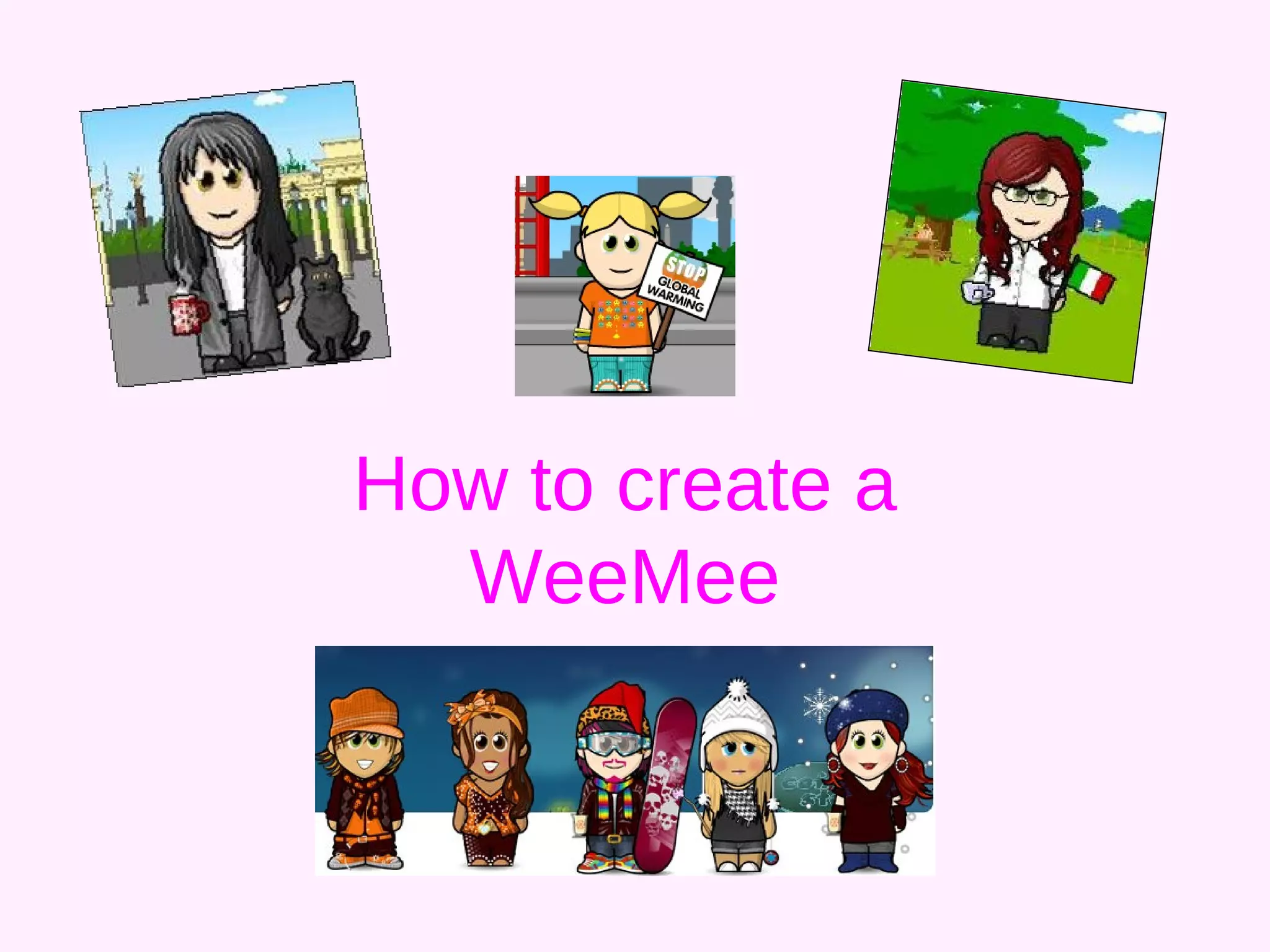
How to create a WeeMee
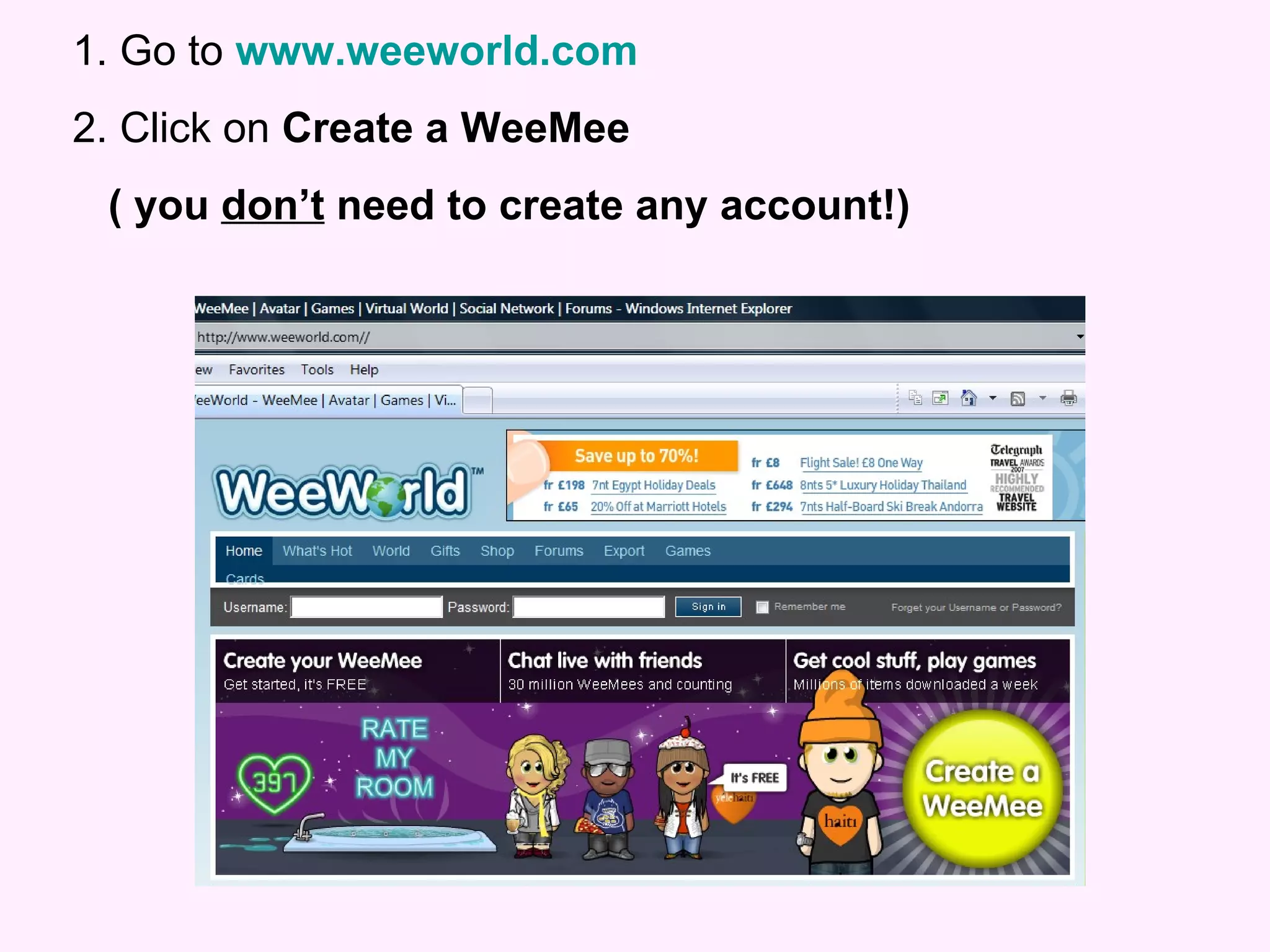
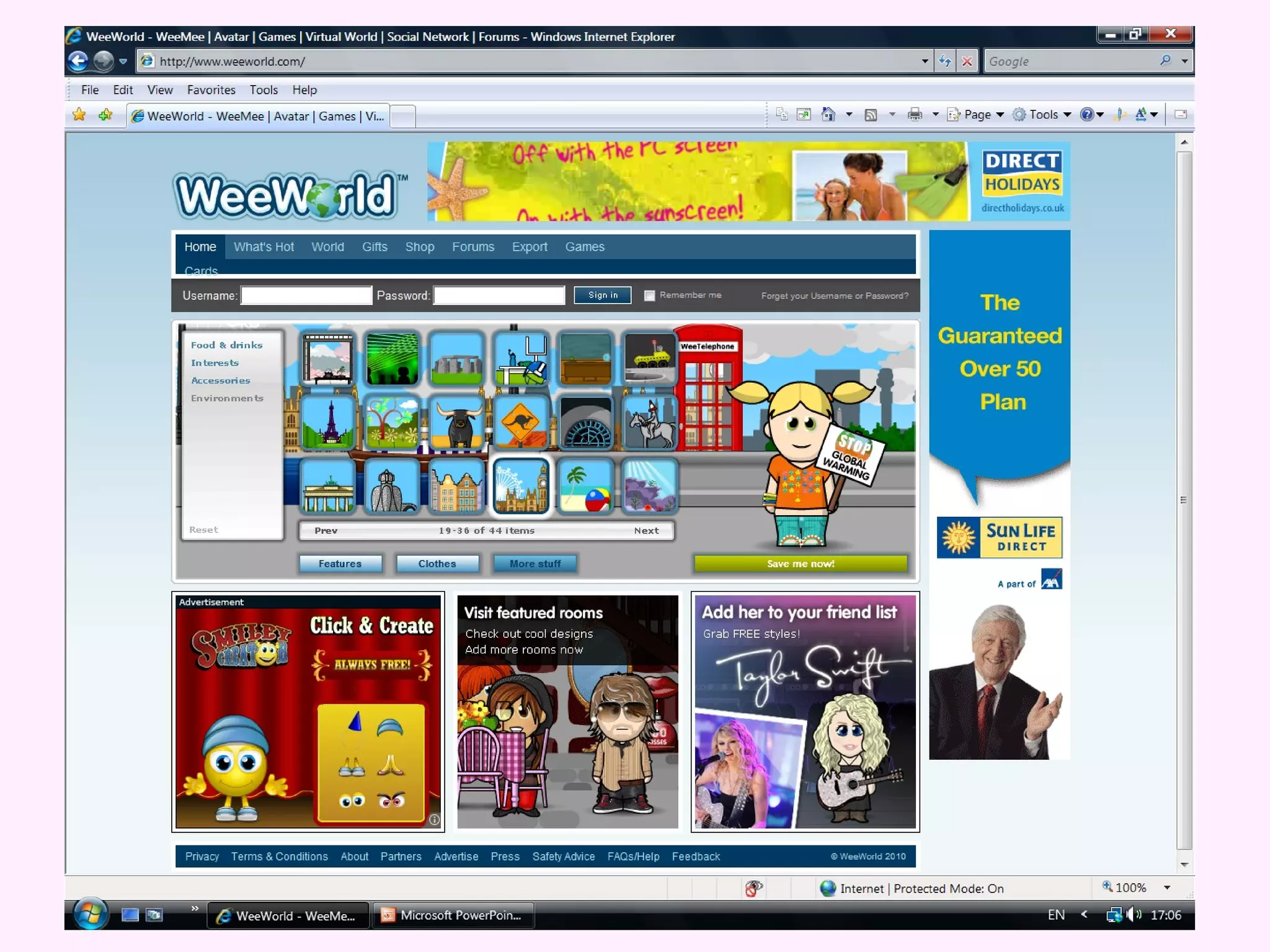
1. Go to  www.weeworld.com   2. Click on  Create a WeeMee  ( you  don’t  need to create any account!)
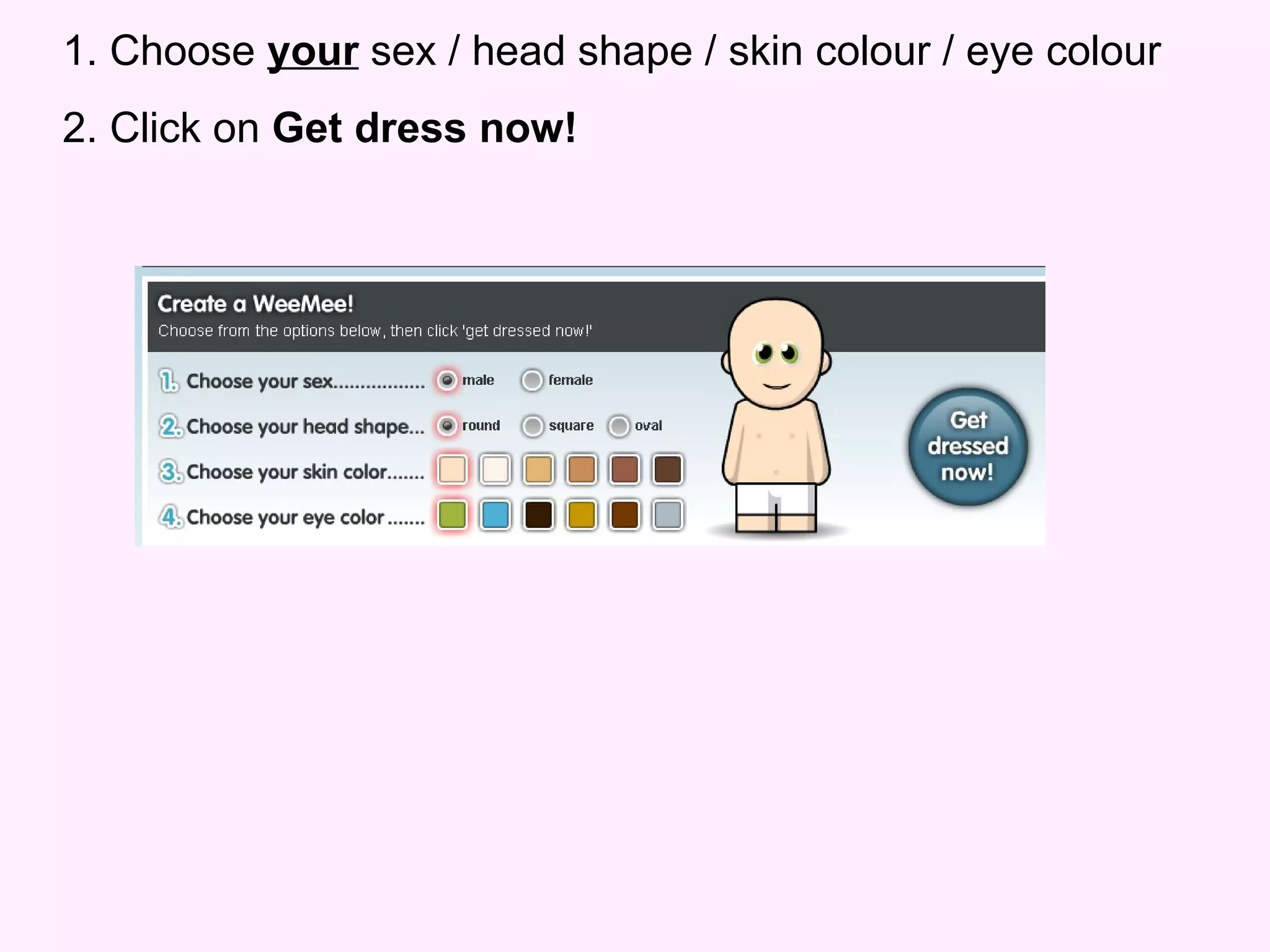
1. Choose  your  sex / head shape / skin colour / eye colour 2. Click on  Get dress now!
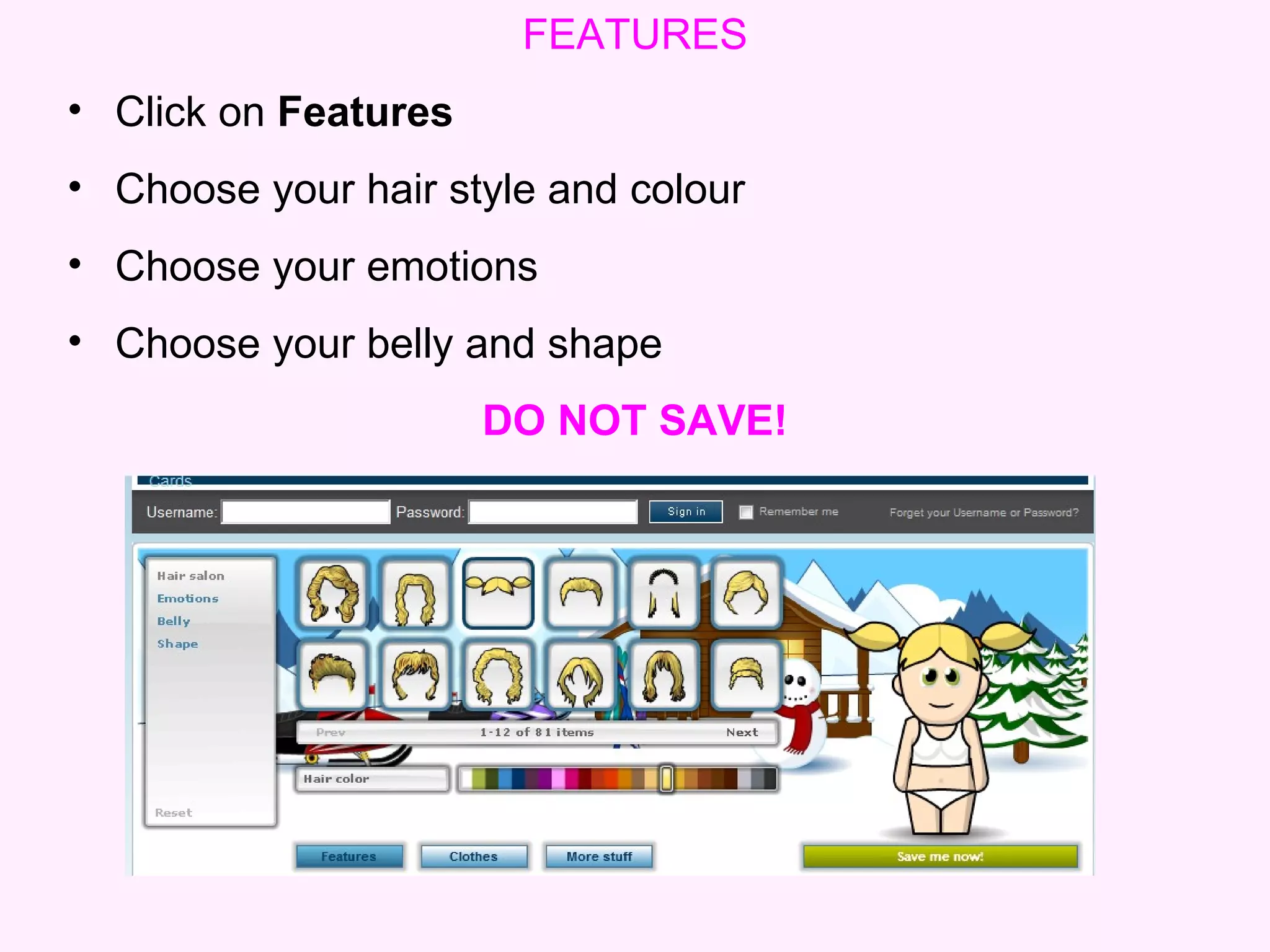
FEATURES Click on  Features   Choose your hair style and colour   Choose your emotions Choose your belly and shape   DO NOT SAVE!
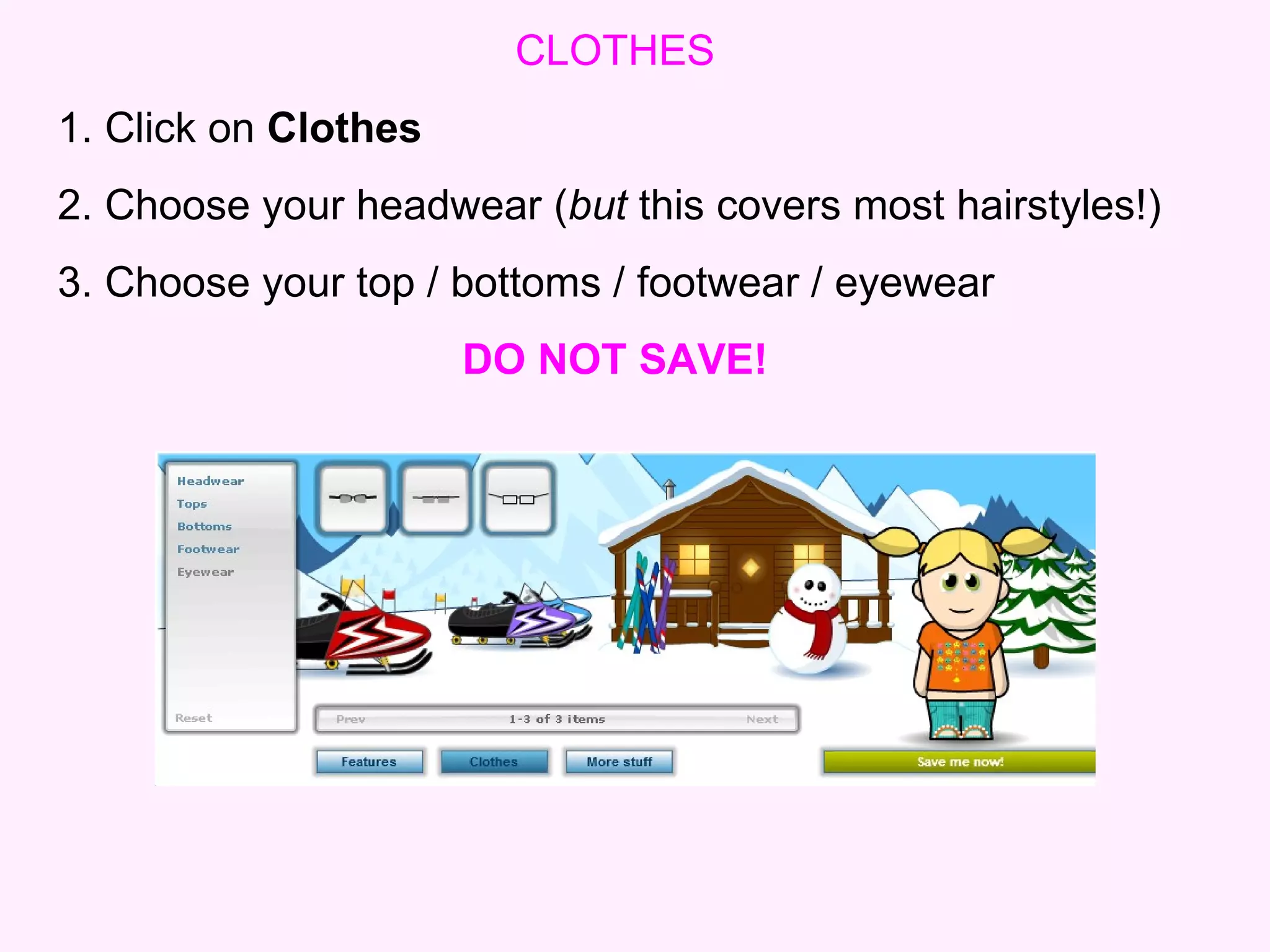
CLOTHES 1. Click on  Clothes 2. Choose your headwear ( but  this covers most hairstyles!)   3. Choose your top / bottoms / footwear / eyewear DO NOT SAVE!
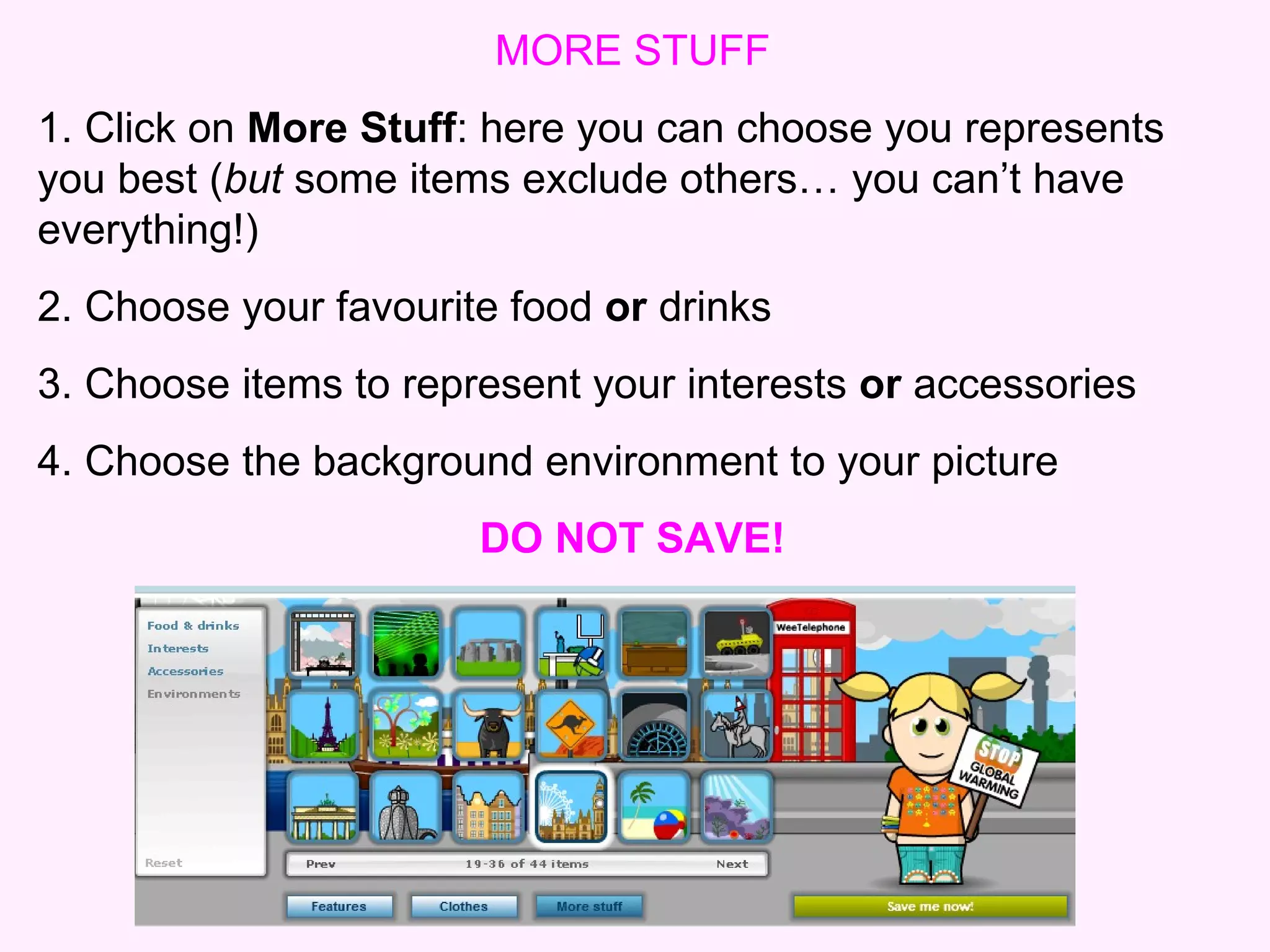
MORE STUFF 1. Click on  More Stuff : here you can choose you represents you best ( but  some items exclude others… you can’t have everything!) 2. Choose your favourite food  or  drinks  3. Choose items to represent your interests  or  accessories 4. Choose the background environment to your picture DO NOT SAVE!
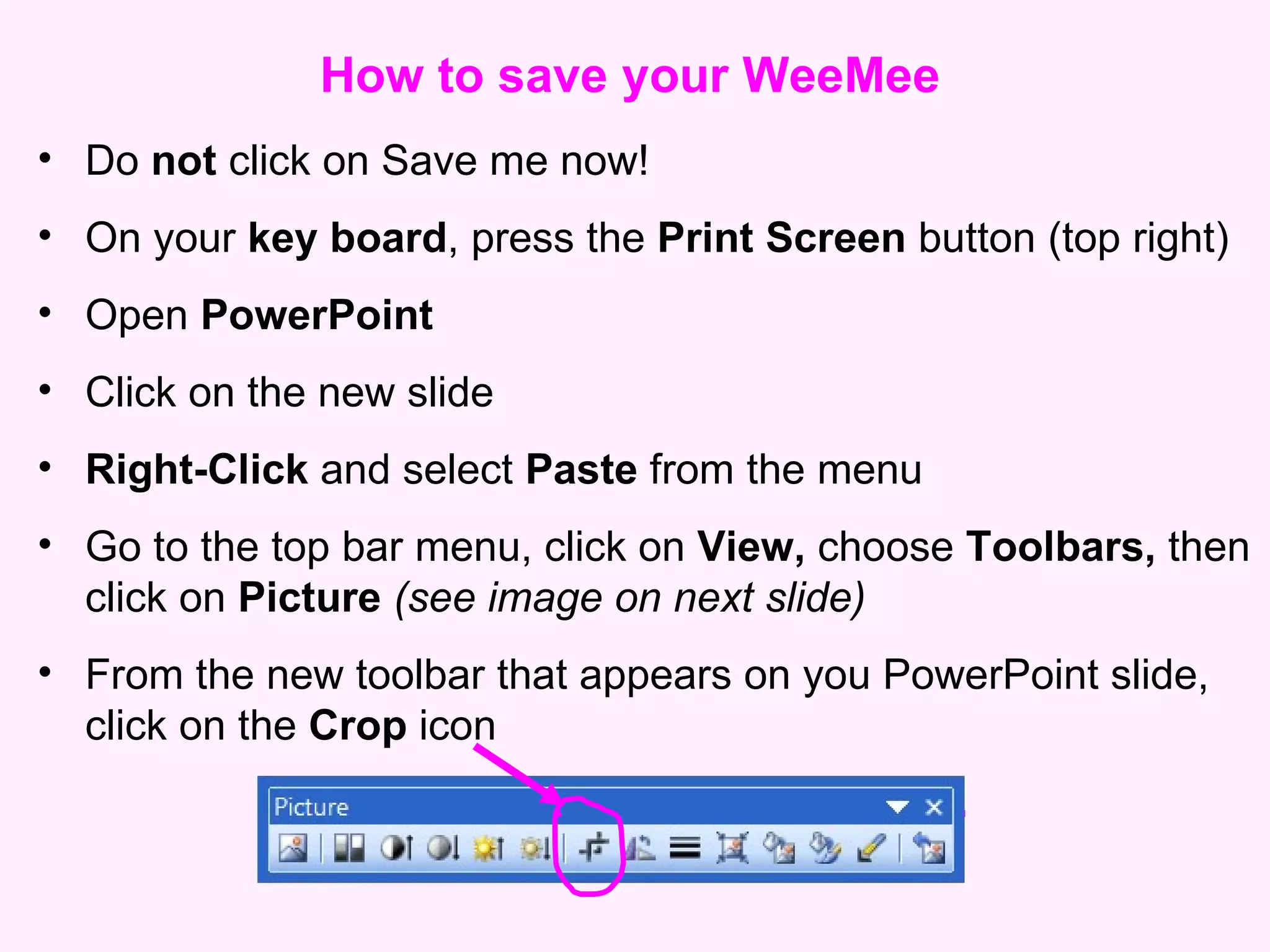
How to save your WeeMee Do  not  click on Save me now! On your  key board , press the  Print Screen  button (top right) Open  PowerPoint  Click on the new slide Right-Click  and select  Paste  from the menu Go to the top bar menu, click on  View,  choose  Toolbars,  then click on  Picture  (see image on next slide) From the new toolbar that appears on you PowerPoint slide, click on the  Crop  icon
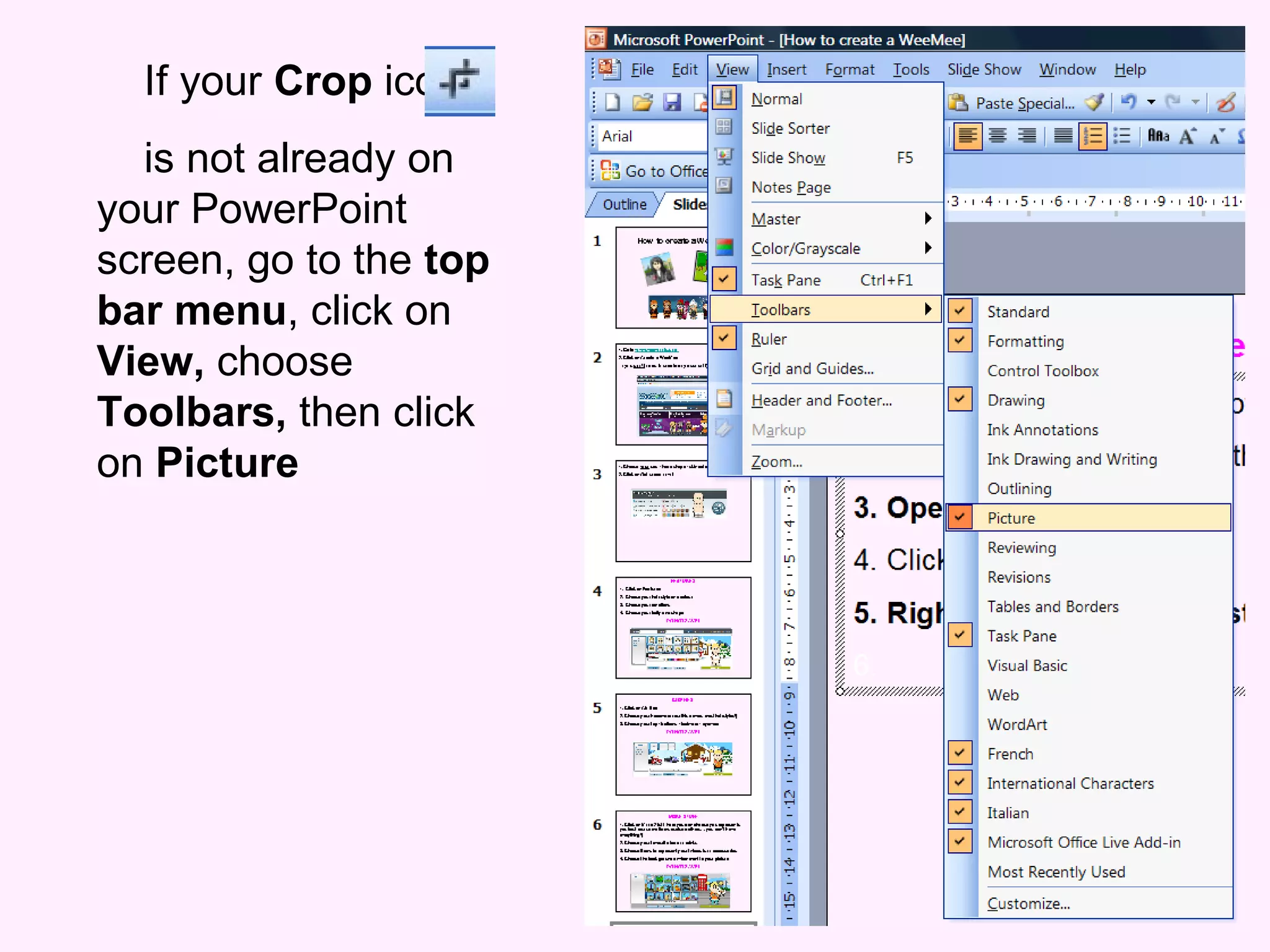
If your  Crop  icon  is not already on your PowerPoint screen, go to the  top bar menu , click on  View,  choose  Toolbars,  then click on  Picture
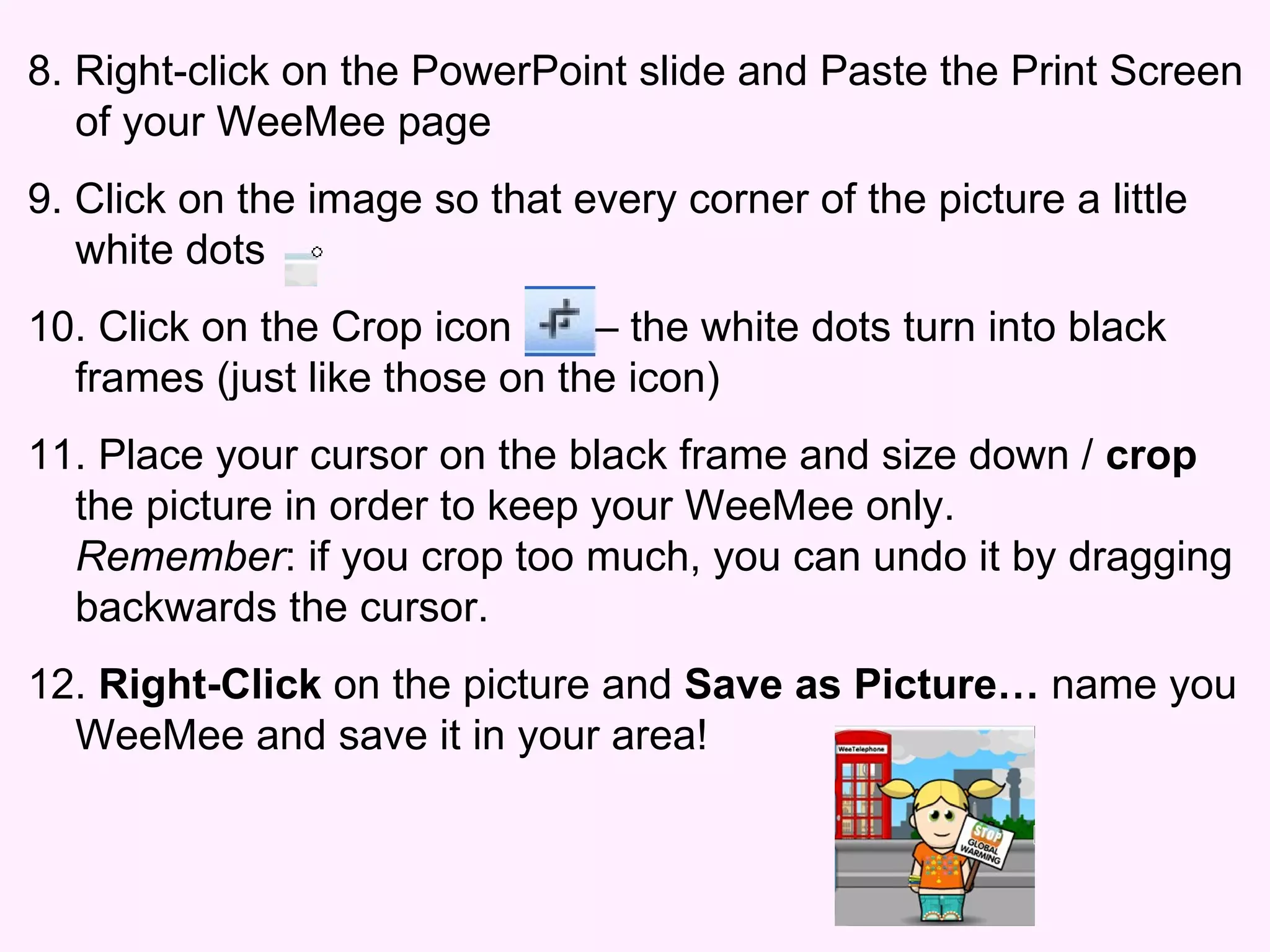
8. Right-click on the PowerPoint slide and Paste the Print Screen of your WeeMee page 9. Click on the image so that every corner of the picture a little white dots 10. Click on the Crop icon  – the white dots turn into black frames (just like those on the icon) 11. Place your cursor on the black frame and size down /  crop  the picture in order to keep your WeeMee only.  Remember : if you crop too much, you can undo it by dragging backwards the cursor. 12.  Right-Click  on the picture and  Save as Picture…  name you WeeMee and save it in your area!
 

How To Create A Wee Mee

  • 1.
    How to createa WeeMee
  • 2.
    1. Go to www.weeworld.com 2. Click on Create a WeeMee ( you don’t need to create any account!)
  • 3.
    1. Choose your sex / head shape / skin colour / eye colour 2. Click on Get dress now!
  • 4.
    FEATURES Click on Features Choose your hair style and colour Choose your emotions Choose your belly and shape DO NOT SAVE!
  • 5.
    CLOTHES 1. Clickon Clothes 2. Choose your headwear ( but this covers most hairstyles!) 3. Choose your top / bottoms / footwear / eyewear DO NOT SAVE!
  • 6.
    MORE STUFF 1.Click on More Stuff : here you can choose you represents you best ( but some items exclude others… you can’t have everything!) 2. Choose your favourite food or drinks 3. Choose items to represent your interests or accessories 4. Choose the background environment to your picture DO NOT SAVE!
  • 7.
    How to saveyour WeeMee Do not click on Save me now! On your key board , press the Print Screen button (top right) Open PowerPoint Click on the new slide Right-Click and select Paste from the menu Go to the top bar menu, click on View, choose Toolbars, then click on Picture (see image on next slide) From the new toolbar that appears on you PowerPoint slide, click on the Crop icon
  • 8.
    If your Crop icon is not already on your PowerPoint screen, go to the top bar menu , click on View, choose Toolbars, then click on Picture
  • 9.
    8. Right-click onthe PowerPoint slide and Paste the Print Screen of your WeeMee page 9. Click on the image so that every corner of the picture a little white dots 10. Click on the Crop icon – the white dots turn into black frames (just like those on the icon) 11. Place your cursor on the black frame and size down / crop the picture in order to keep your WeeMee only. Remember : if you crop too much, you can undo it by dragging backwards the cursor. 12. Right-Click on the picture and Save as Picture… name you WeeMee and save it in your area!
  • 10.