Qwaya
TUTORIAL
Qwaya?
Who, where, what... is that?
Qwaya is a powerful self-service
tool for any business!
It is a tool for any business who
seeks to save time and increase
performance when working with
Facebook ad campaigns.
With Qwaya you can create,
publish, track, optimize and
organize any Facebook ad types
with sophistication and
usability
To start, go to your browser
For today, let us use Chrome and
Google
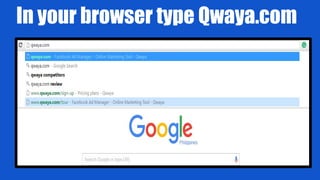
In your browser type Qwaya.com
Then click the ENTER key in your
keyboard
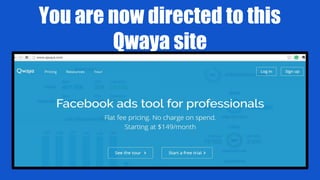
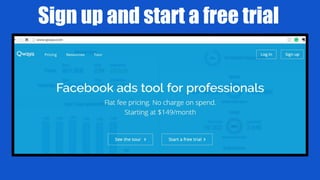
You are now directed to this
Qwaya site
Sign up and start a free trial
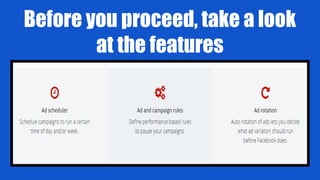
Before you proceed, take a look
at the features
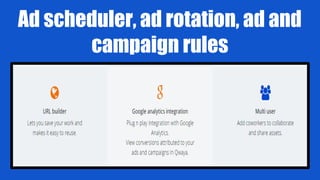
Ad scheduler, ad rotation, ad and
campaign rules
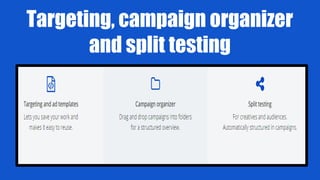
Targeting, campaign organizer
and split testing
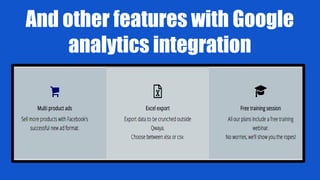
And other features with Google
analytics integration
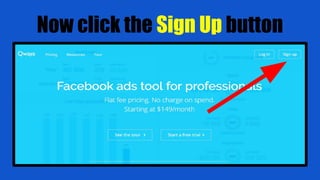
Now click the Sign Up button
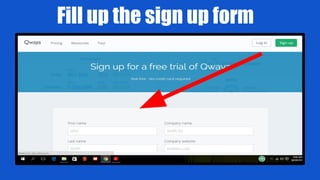
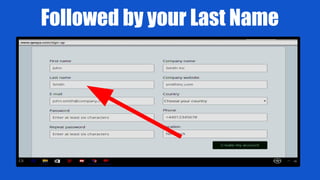
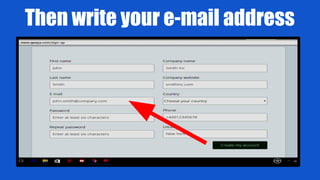
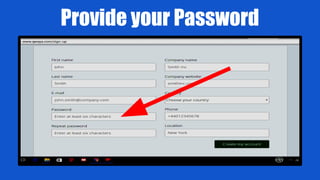
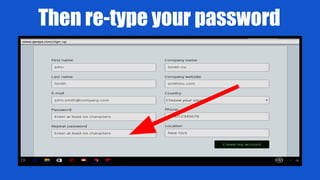
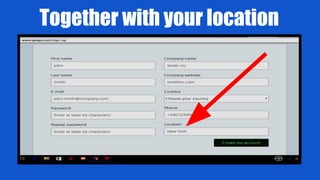
Fill up the sign up form
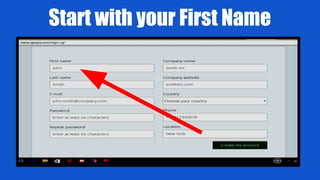
Start with your First Name
Followed by your Last Name
Then write your e-mail address
Provide your Password
Then re-type your password
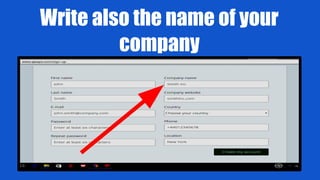
Write also the name of your
company
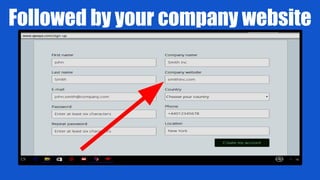
Followed by your company website
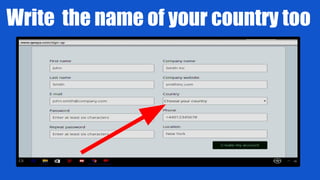
Write the name of your country too
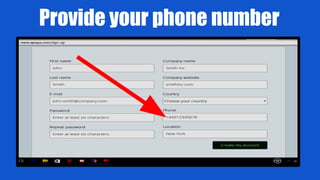
Provide your phone number
Together with your location
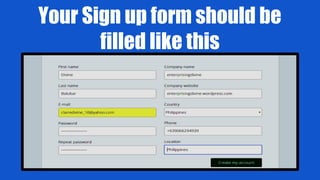
Your Sign up form should be
filled like this
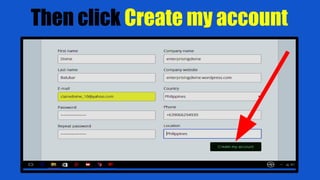
Then click Create my account
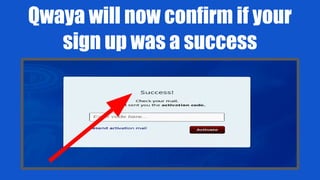
Qwaya will now confirm if your
sign up was a success
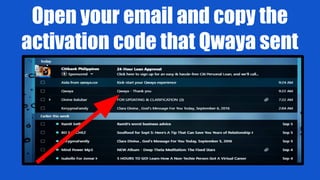
Open your email and copy the
activation code that Qwaya sent
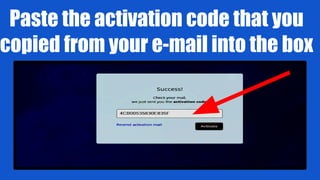
Paste the activation code that you
copied from your e-mail into the box
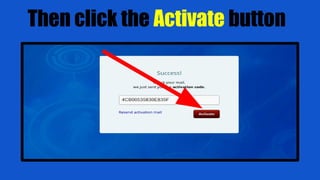
Then click the Activate button
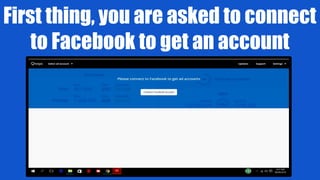
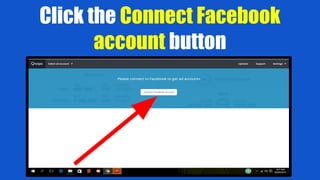
First thing, you are asked to connect
to Facebook to get an account
Click the Connect Facebook
account button
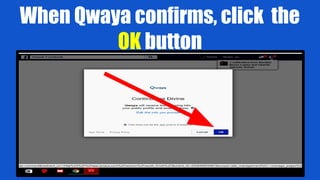
When Qwaya confirms, click the
OK button
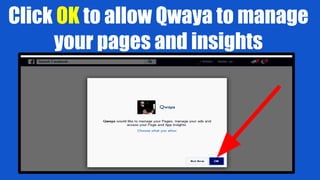
Click OK to allow Qwaya to manage
your pages and insights
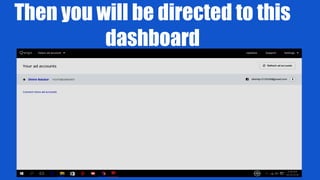
Then you will be directed to this
dashboard
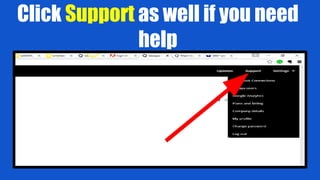
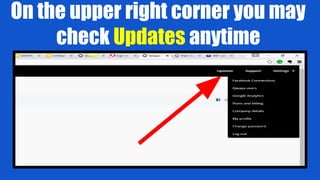
On the upper right corner you may
check Updates anytime
Click Support as well if you need
help
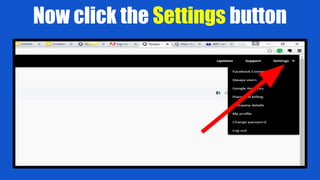
Now click the Settings button
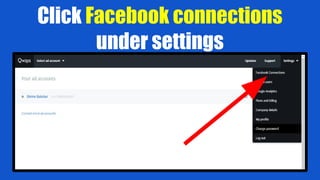
Click Facebook connections
under settings
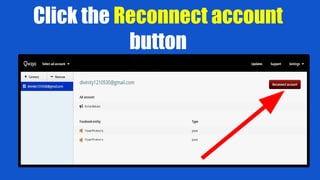
Click the Reconnect account
button
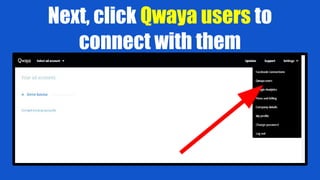
Next, click Qwaya users to
connect with them
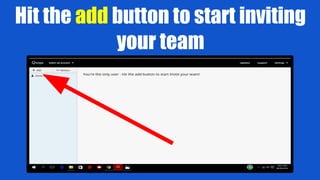
Hit the add button to start inviting
your team
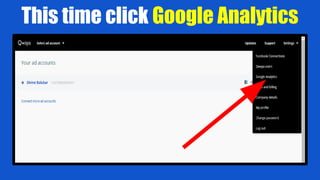
This time click Google Analytics
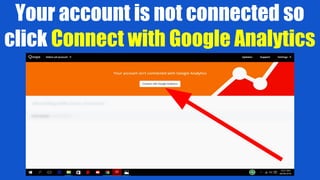
Your account is not connected so
click Connect with Google Analytics
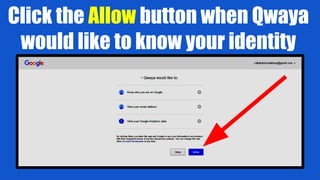
Click the Allow button when Qwaya
would like to know your identity
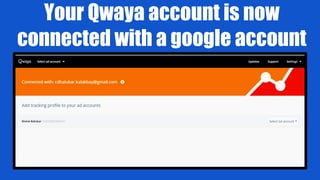
Your Qwaya account is now
connected with a google account
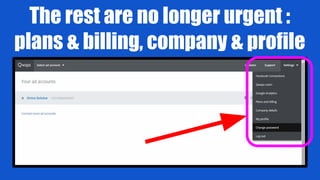
The rest are no longer urgent :
plans & billing, company & profile
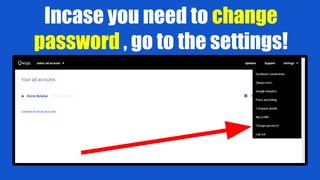
Incase you need to change
password , go to the settings!
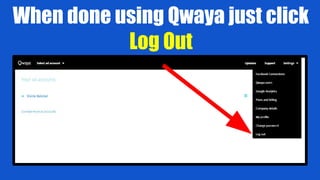
When done using Qwaya just click
Log Out
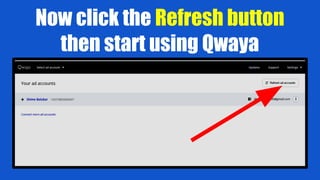
Now click the Refresh button
then start using Qwaya
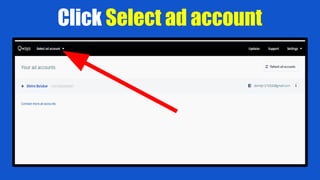
Click Select ad account
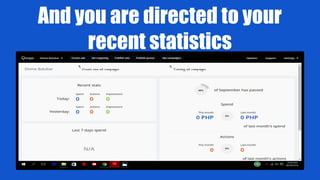
And you are directed to your
recent statistics
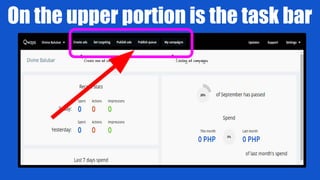
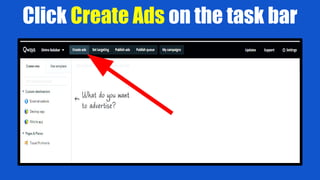
On the upper portion is the task bar
Click Create Ads on the task bar
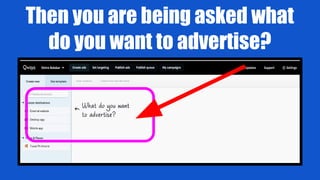
Then you are being asked what
do you want to advertise?
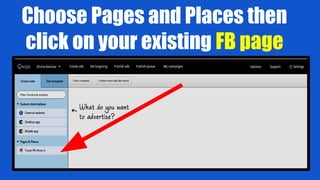
Choose Pages and Places then
click on your existing FB page
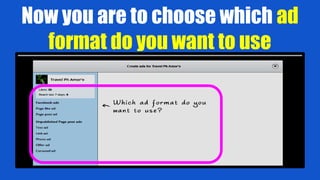
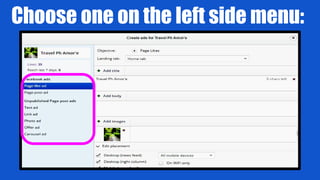
Now you are to choose which ad
format do you want to use
Choose one on the left side menu:
you can
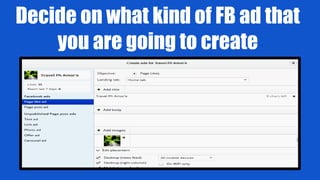
Decide on what kind of FB ad that
you are going to create
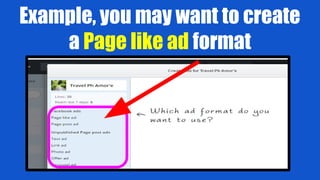
Example, you may want to create
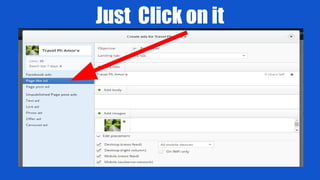
a Page like ad format
Just Click on it
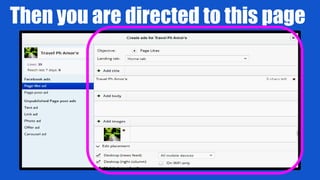
Then you are directed to this page
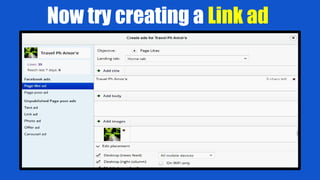
Now try creating a Link ad
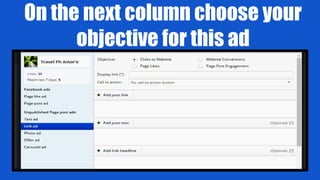
On the next column choose your
objective for this ad
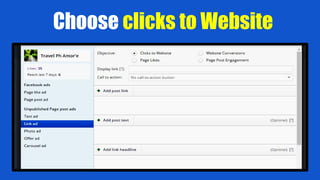
Choose clicks to Website
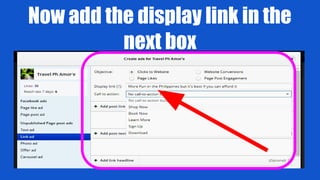
Now add the display link in the
next box
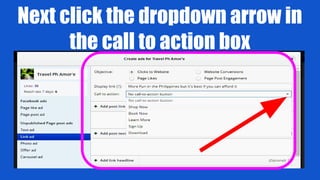
Next click the dropdown arrow in
the call to action box
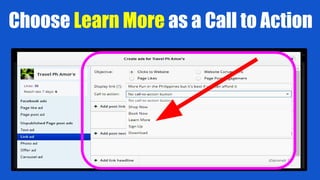
Choose Learn More as a Call to Action
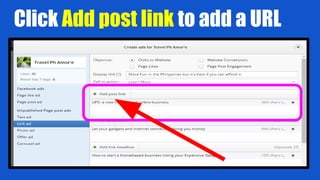
Click Add post link to add a URL
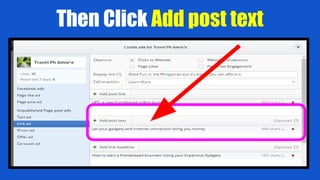
Then Click Add post text
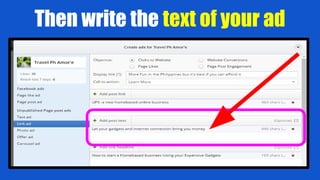
Then write the text of your ad
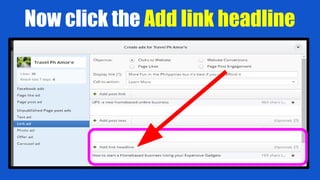
Now click the Add link headline
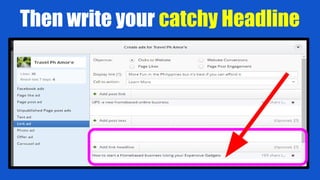
Then write your catchy Headline
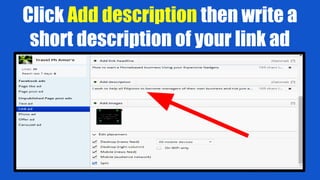
Click Add description then write a
short description of your link ad
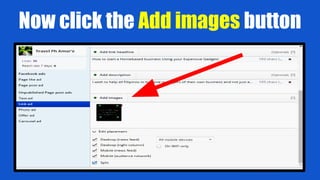
Now click the Add images button
Then you will be directed to this
blank page
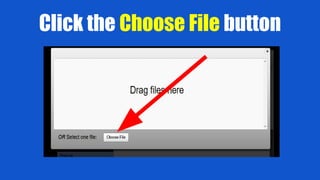
Click the Choose File button
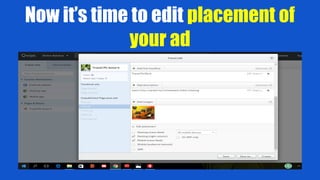
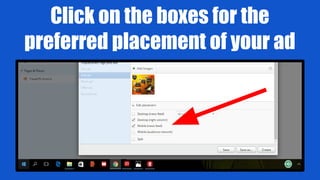
Now it’s time to edit placement of
your ad
Click on the boxes for the
preferred placement of your ad
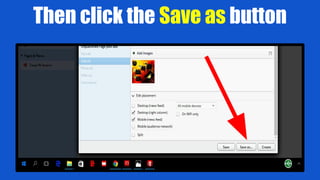
Then click the Save as button
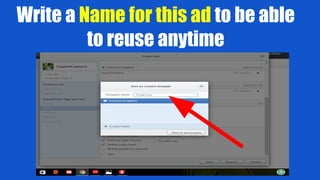
Write a Name for this ad to be able
to reuse anytime
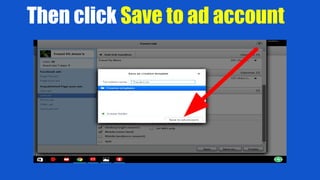
Then click Save to ad account
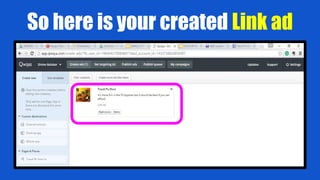
So here is your created Link ad
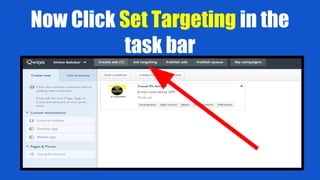
Now Click Set Targeting in the
task bar
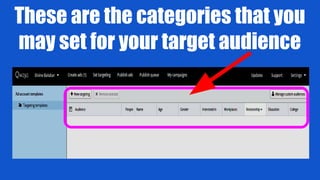
These are the categories that you
may set for your target audience
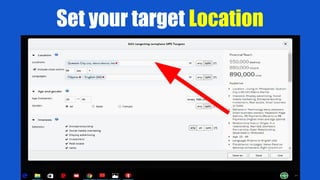
Set your target Location
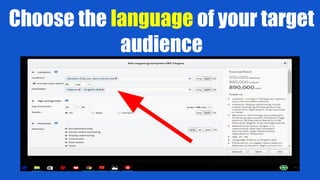
Choose the language of your target
audience
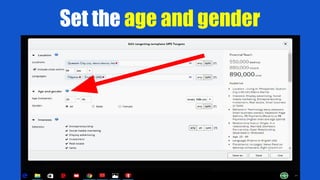
Set the age and gender
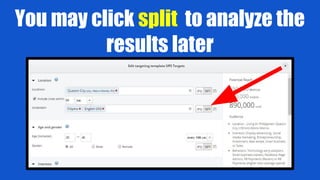
You may click split to analyze the
results later
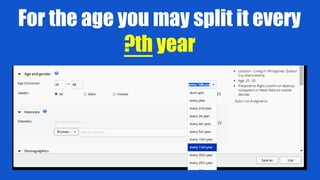
For the age you may split it every
?th year
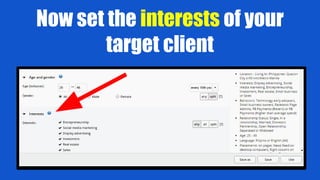
Now set the interests of your
target client
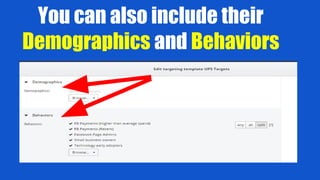
You can also include their
Demographics and Behaviors
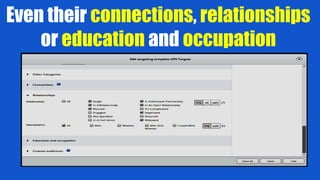
Even their connections, relationships
or education and occupation
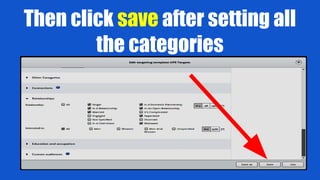
Then click save after setting all
the categories
Come up with a Template name
so you may reuse or revise later
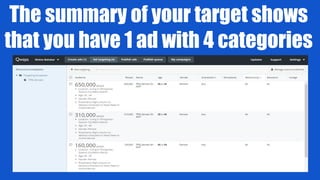
The summary of your target shows
that you have 1 ad with 4 categories
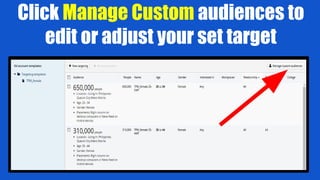
Click Manage Custom audiences to
edit or adjust your set target
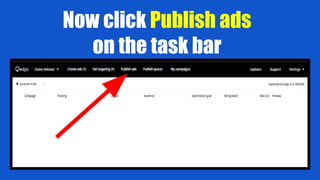
Now click Publish ads
on the task bar
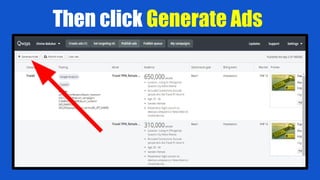
Then click Generate Ads
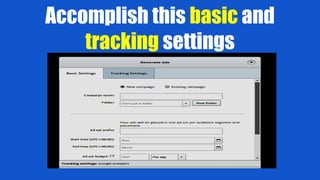
Accomplish this basic and
tracking settings
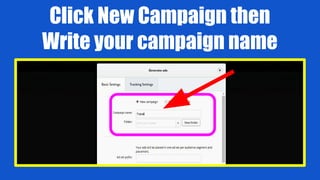
Click New Campaign then
Write your campaign name
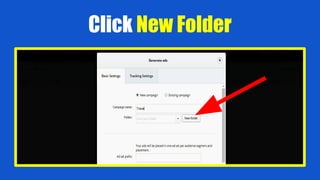
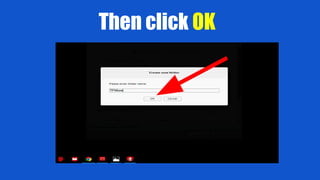
Click New Folder
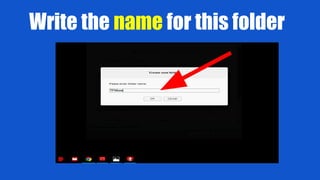
Write the name for this folder
Then click OK
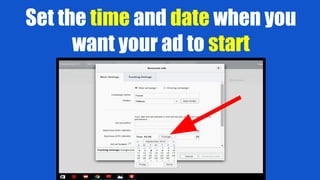
Set the time and date when you
want your ad to start
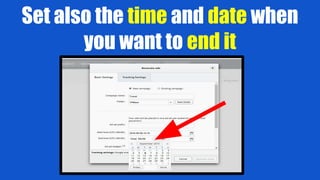
Set also the time and date when
you want to end it
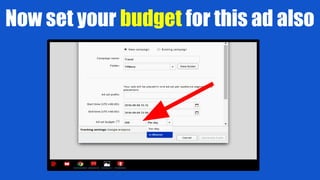
Now set your budget for this ad also
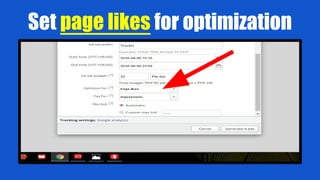
Set page likes for optimization
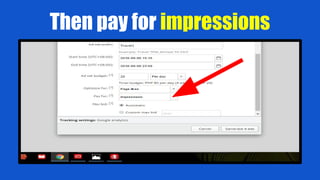
Then pay for impressions
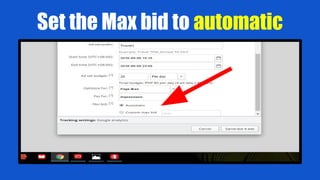
Set the Max bid to automatic
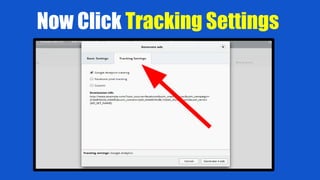
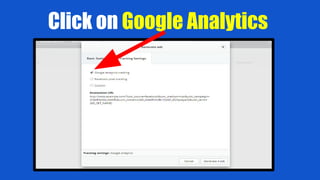
Now Click Tracking Settings
Click on Google Analytics
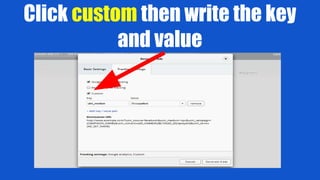
Click custom then write the key
and value
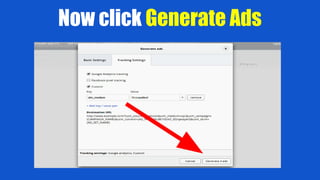
Now click Generate Ads
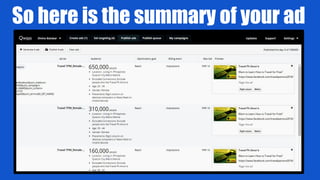
So here is the summary of your ad
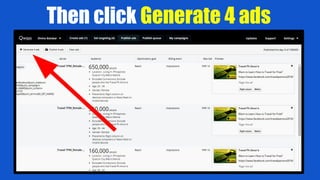
Then click Generate 4 ads
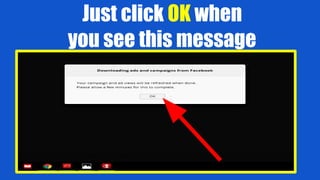
Just click OK when
you see this message
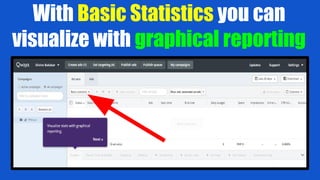
With Basic Statistics you can
visualize with graphical reporting
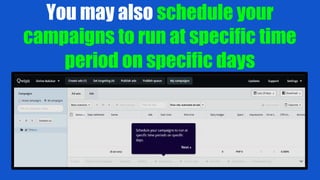
You may also schedule your
campaigns to run at specific time
period on specific days
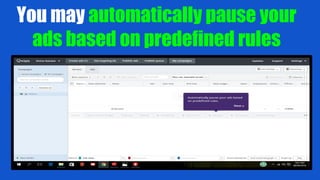
You may automatically pause your
ads based on predefined rules
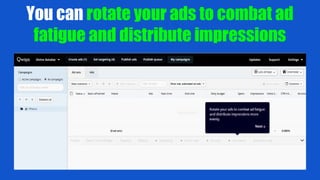
You can rotate your ads to combat ad
fatigue and distribute impressions
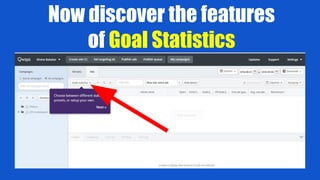
Now discover the features
of Goal Statistics
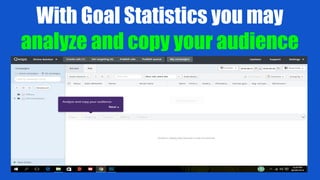
With Goal Statistics you may
analyze and copy your audience
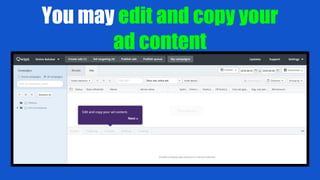
You may edit and copy your
ad content
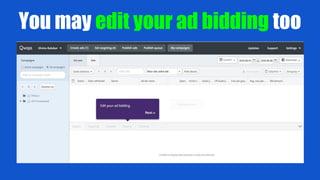
You may edit your ad bidding too
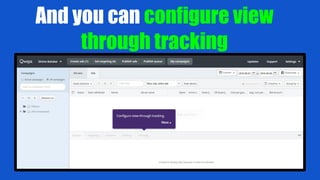
And you can configure view
through tracking
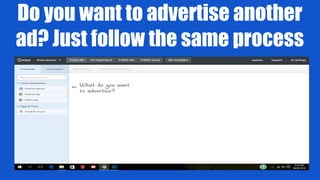
Do you want to advertise another
ad? Just follow the same process
Then do the necessary
adjustments based on your ad
results and analysis!
Need someone to assist you on this?
Contact me and I will gladly help you
grow your business.
How to use Qwaya for a beginner