Using a Graphics Editor http://www.pixlr.com/editor/   And  Big Huge Labs Motivator http://bighugelabs.com/   Creating An Enhanced Wordle Jennifer Wagner jenuinetech.com 2010
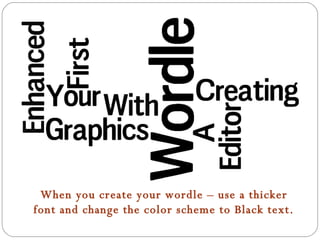
When you create your wordle – use a thicker font and change the color scheme to Black text.
Use a screen capture tool – such as JING (for mac/pc) or Grab (for mac) to capture your wordle Remember to leave some white space around your wordle
Save it as a JPG Then open it in  http://www.pixlr.com/editor/
http://www.pixlr.com/editor/
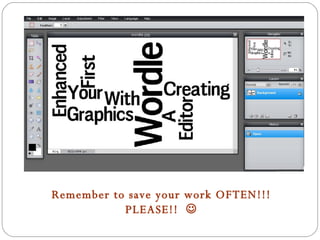
Remember to save your work OFTEN!!! PLEASE!!  
For the first enhancement –we will copy the word WORDLE, recolor WORDLE, and then create a drop shadow.
Use the WAND tool to select the letters in WORDLE.  Hold down SHIFT to choose each letter.
Now, copy the word WORDLE and then paste the word WORDLE
You will now have TWO WORDLES. Use your wand to select the NEW Wordle.
Make sure your wordle is selected and then we will RECOLOR IT
Choose the bucket tool (indented on toolbar) And then  Choose your color  (bottom tool) Then click on each letter to fill with your new color.
We will now place the RED wordle over the BLACK wordle to create a drop shadow effect by using the arrow tool
The placement of over the BLACK wordle will determine the depth of  the drop shadow.
Choose EDIT, deselect all to turn off the selection before you save!!!
You will need to resize your wordle
Save your wordle – to your computer – Format: jpeg, and click OK.
For the second enhancement – we will create a mini poster.
http://bighugelabs.com/education.php
You don’t have to have an account – but if you do, you can save for later use.
Find the MOTIVATOR option
You will first need to upload the WORDLE  you just saved. You will NOT see your final product until you click on  CREATE
Then walk your way through the options of orientation, border, colors, title, and text. You can choose different  fonts for the Title and Text.
Once you click on CREATE you will see your final work.  If you do not like what you see, click on the EDIT button (top center) to change options.
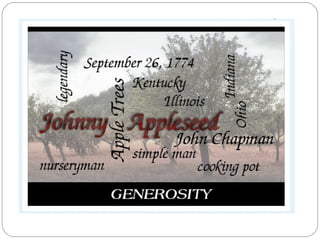
Here is my final result.  You will see that I did NOT leave enough white space.
You can now click on SHARE and post to a variety of sites OR email yourself a copy.
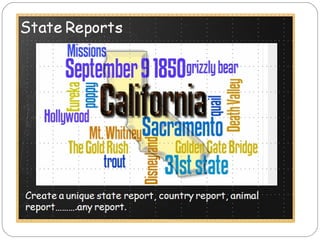
Samples of  OTHER Enhanced Wordles


See more ideas of using Wordles at http://www.slideshare.net/JenniferW/wordle-ideas Or visit Guess The Wordle at http://guessthewordle.pbworks.com/
Using a Graphics Editor http://www.pixlr.com/editor/   And  Big Huge Labs Motivator http://bighugelabs.com/   Creating An Enhanced Wordle Jennifer Wagner jenuinetech.com 2010

Enhanced Wordle

  • 1.
    Using a GraphicsEditor http://www.pixlr.com/editor/ And Big Huge Labs Motivator http://bighugelabs.com/ Creating An Enhanced Wordle Jennifer Wagner jenuinetech.com 2010
  • 2.
    When you createyour wordle – use a thicker font and change the color scheme to Black text.
  • 3.
    Use a screencapture tool – such as JING (for mac/pc) or Grab (for mac) to capture your wordle Remember to leave some white space around your wordle
  • 4.
    Save it asa JPG Then open it in http://www.pixlr.com/editor/
  • 5.
  • 6.
    Remember to saveyour work OFTEN!!! PLEASE!! 
  • 7.
    For the firstenhancement –we will copy the word WORDLE, recolor WORDLE, and then create a drop shadow.
  • 8.
    Use the WANDtool to select the letters in WORDLE. Hold down SHIFT to choose each letter.
  • 9.
    Now, copy theword WORDLE and then paste the word WORDLE
  • 10.
    You will nowhave TWO WORDLES. Use your wand to select the NEW Wordle.
  • 11.
    Make sure yourwordle is selected and then we will RECOLOR IT
  • 12.
    Choose the buckettool (indented on toolbar) And then Choose your color (bottom tool) Then click on each letter to fill with your new color.
  • 13.
    We will nowplace the RED wordle over the BLACK wordle to create a drop shadow effect by using the arrow tool
  • 14.
    The placement ofover the BLACK wordle will determine the depth of the drop shadow.
  • 15.
    Choose EDIT, deselectall to turn off the selection before you save!!!
  • 16.
    You will needto resize your wordle
  • 17.
    Save your wordle– to your computer – Format: jpeg, and click OK.
  • 18.
    For the secondenhancement – we will create a mini poster.
  • 19.
  • 20.
    You don’t haveto have an account – but if you do, you can save for later use.
  • 21.
  • 22.
    You will firstneed to upload the WORDLE you just saved. You will NOT see your final product until you click on CREATE
  • 23.
    Then walk yourway through the options of orientation, border, colors, title, and text. You can choose different fonts for the Title and Text.
  • 24.
    Once you clickon CREATE you will see your final work. If you do not like what you see, click on the EDIT button (top center) to change options.
  • 25.
    Here is myfinal result. You will see that I did NOT leave enough white space.
  • 26.
    You can nowclick on SHARE and post to a variety of sites OR email yourself a copy.
  • 27.
    Samples of OTHER Enhanced Wordles
  • 28.
  • 29.
  • 30.
  • 31.
    See more ideasof using Wordles at http://www.slideshare.net/JenniferW/wordle-ideas Or visit Guess The Wordle at http://guessthewordle.pbworks.com/
  • 32.
    Using a GraphicsEditor http://www.pixlr.com/editor/ And Big Huge Labs Motivator http://bighugelabs.com/ Creating An Enhanced Wordle Jennifer Wagner jenuinetech.com 2010