STUDYBLUE
 Using the Mobile App
Getting Started

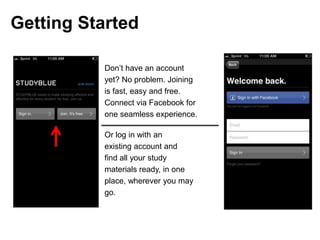
          Don’t have an account
          yet? No problem. Joining
          is fast, easy and free.
          Connect via Facebook for
          one seamless experience.

          Or log in with an
          existing account and
          find all your study
          materials ready, in one
          place, wherever you may
          go.
Digital Backpack
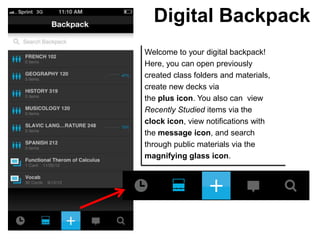
Welcome to your digital backpack!
Here, you can open previously
created class folders and materials,
create new decks via
the plus icon. You also can view
Recently Studied items via the
clock icon, view notifications with
the message icon, and search
through public materials via the
magnifying glass icon.
Class Folder
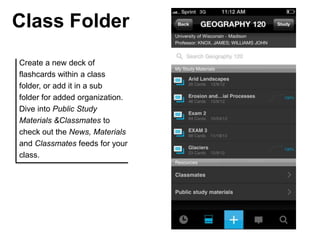
Create a new deck of
flashcards within a class
folder, or add it in a sub
folder for added organization.
Dive into Public Study
Materials &Classmates to
check out the News, Materials
and Classmates feeds for your
class.
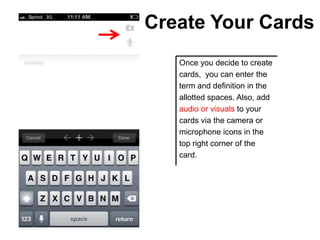
Create Your Cards
   Once you decide to create
   cards, you can enter the
   term and definition in the
   allotted spaces. Also, add
   audio or visuals to your
   cards via the camera or
   microphone icons in the
   top right corner of the
   card.
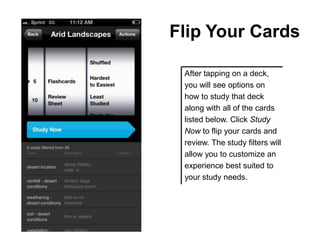
Flip Your Cards

 After tapping on a deck,
 you will see options on
 how to study that deck
 along with all of the cards
 listed below. Click Study
 Now to flip your cards and
 review. The study filters will
 allow you to customize an
 experience best suited to
 your study needs.
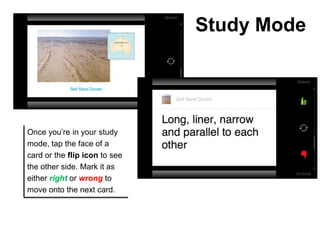
Study Mode


Once you’re in your study
mode, tap the face of a
card or the flip icon to see
the other side. Mark it as
either right or wrong to
move onto the next card.
Download

Visit the iTunes store, download and study on:
 https://itunes.apple.com/ie/app/studyblue/id
                323887414?mt=8

          For support and feedback, visit:
         http://help.studyblue.com/studyblue

Using the Mobile App

  • 1.
  • 2.
    Getting Started Don’t have an account yet? No problem. Joining is fast, easy and free. Connect via Facebook for one seamless experience. Or log in with an existing account and find all your study materials ready, in one place, wherever you may go.
  • 3.
    Digital Backpack Welcome toyour digital backpack! Here, you can open previously created class folders and materials, create new decks via the plus icon. You also can view Recently Studied items via the clock icon, view notifications with the message icon, and search through public materials via the magnifying glass icon.
  • 4.
    Class Folder Create anew deck of flashcards within a class folder, or add it in a sub folder for added organization. Dive into Public Study Materials &Classmates to check out the News, Materials and Classmates feeds for your class.
  • 5.
    Create Your Cards Once you decide to create cards, you can enter the term and definition in the allotted spaces. Also, add audio or visuals to your cards via the camera or microphone icons in the top right corner of the card.
  • 6.
    Flip Your Cards After tapping on a deck, you will see options on how to study that deck along with all of the cards listed below. Click Study Now to flip your cards and review. The study filters will allow you to customize an experience best suited to your study needs.
  • 7.
    Study Mode Once you’rein your study mode, tap the face of a card or the flip icon to see the other side. Mark it as either right or wrong to move onto the next card.
  • 8.
    Download Visit the iTunesstore, download and study on: https://itunes.apple.com/ie/app/studyblue/id 323887414?mt=8 For support and feedback, visit: http://help.studyblue.com/studyblue