REALLY
SIMPLE
COHORT
ANALYSIS*

in Google Sheets

Hugh Hopkins (@hughhopkins) + GoSquared
“Total Sign Ups” is
just a vanity metric.
It doesn’t help you
understand how your
business is
performing.
To really understand
how your business is
performing you need
to use cohorts.
So, what is Cohort Analysis?
Cohort analysis allows you to study a group of people/users who share the
same characteristic, i.e. the same sign up week, and see how they perform
over time.
This enables businesses to compare the effectiveness of a marketing
campaign, a new feature or the impact of increasing prices. Being able to do
this quickly for almost any metric can transform your business.
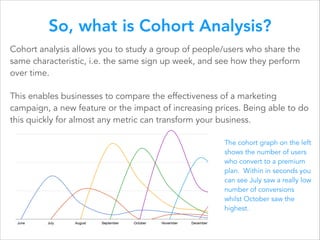
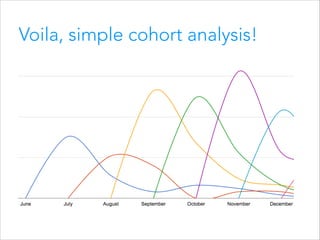
The cohort graph on the left
shows the number of users
who convert to a premium
plan. Within in seconds you
can see July saw a really low
number of conversions
whilst October saw the
highest.
But, calculating cohort
metrics can be really
complicated.
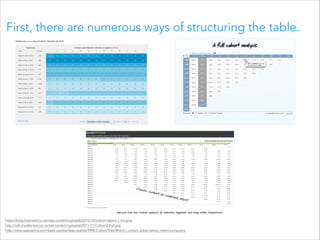
First, there are numerous ways of structuring the table.

https://blog.kissmetrics.com/wp-content/uploads/2012/10/cohort-report-1-sm.png
http://cdn.insideintercom.io/wp-content/uploads/2011/11/Cohort3-Full.jpg
http://www.saasoptics.com/SaaS-opedia/saas-opedia/MRR-Cohort/files/BIGmrr_cohort_subscription_metrics.png.png
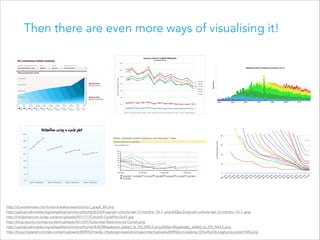
Then there are even more ways of visualising it!

http://s3.amazonaws.com/custora-assets/assets/cohort_graph_B4.png
http://upload.wikimedia.org/wikipedia/commons/thumb/b/b4/Enwp-jan-cohorts-last-12-months--10-1-.png/600px-Enwp-jan-cohorts-last-12-months--10-1-.png
http://insideintercom.io/wp-content/uploads/2011/11/Cohort5-CyclePlot-Dull1.jpg
http://blog.recurly.com/wp-content/uploads/2013/07/Subscriber-Retention-by-Cohort.png
http://upload.wikimedia.org/wikipedia/commons/thumb/4/42/Megabytes_added_to_EN_NS4,5.png/650px-Megabytes_added_to_EN_NS4,5.png
http://blog.mixpanel.com/wp-content/uploads/2009/02/media_httpblogmixpanelcomwpcontentuploads200902picture2png_DDwiEorhikJvqgf.png.scaled1000.png

!
The latest version of Google
Sheets added the =SUMIFS
formula making it easy* for
anyone to quickly create
meaningful cohort analysis.
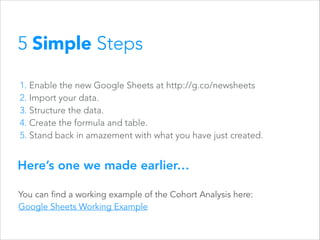
5 Simple Steps
1. Enable the new Google Sheets at http://g.co/newsheets
2. Import your data.
3. Structure the data.
4. Create the formula and table.
5. Stand back in amazement with what you have just created.

Here’s one we made earlier…
You can find a working example of the Cohort Analysis here:
Google Sheets Working Example
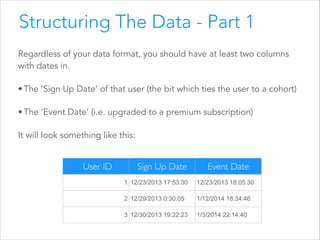
Structuring The Data - Part 1
Regardless of your data format, you should have at least two columns
with dates in.
• The ‘Sign Up Date’ of that user (the bit which ties the user to a cohort)
• The ‘Event Date’ (i.e. upgraded to a premium subscription)
It will look something like this:

`User ID

Sign Up Date

Event Date

1 12/23/2013 17:53:30

12/23/2013 18:05:30

2 12/29/2013 0:30:05

1/12/2014 18:34:46

3 12/30/2013 19:22:23

1/3/2014 22:14:40
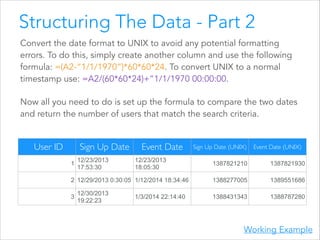
Structuring The Data - Part 2
Convert the date format to UNIX to avoid any potential formatting
errors. To do this, simply create another column and use the following
formula: =(A2-“1/1/1970”)*60*60*24. To convert UNIX to a normal
timestamp use: =A2/(60*60*24)+”1/1/1970 00:00:00.
Now all you need to do is set up the formula to compare the two dates
and return the number of users that match the search criteria.

`User ID

Sign Up Date
1

12/23/2013
17:53:30

Event Date
12/23/2013
18:05:30

2 12/29/2013 0:30:05 1/12/2014 18:34:46
3

12/30/2013
19:22:23

1/3/2014 22:14:40

Sign Up Date (UNIX)

Event Date (UNIX)

1387821210

1387821930

1388277005

1389551686

1388431343

1388787280

Working Example
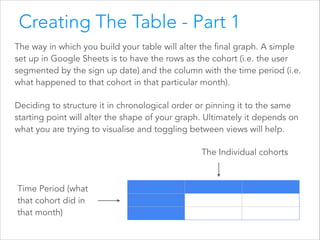
Creating The Table - Part 1
The way in which you build your table will alter the final graph. A simple
set up in Google Sheets is to have the rows as the cohort (i.e. the user
segmented by the sign up date) and the column with the time period (i.e.
what happened to that cohort in that particular month).
Deciding to structure it in chronological order or pinning it to the same
starting point will alter the shape of your graph. Ultimately it depends on
what you are trying to visualise and toggling between views will help.
The Individual cohorts

Time Period (what
that cohort did in
that month)
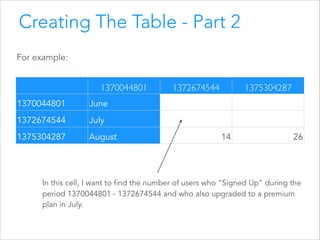
Creating The Table - Part 2
For example:

1370044801
1370044801

July

1375304287

August

1375304287

June

1372674544

1372674544

14

26

In this cell, I want to find the number of users who “Signed Up” during the
period 1370044801 - 1372674544 and who also upgraded to a premium
plan in July.
How to use the formula
The SUMIFS formula sums the range depending on multiple
criteria. This is how it works:
=SUMIFS(sum_range, criteria_range1, criterion1, [criteria_range2,
criterion2, …])
And in plain english that means:
sum_range = The column to be added together
criteria_range1 = The search criteria area / range
criterion1 = The search term
criteria_range2 & criterion2 = Allow you to repeat with as many
conditions as you like
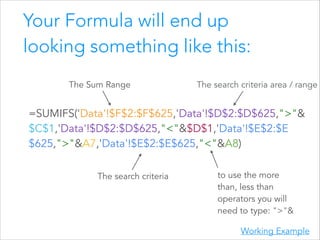
Your Formula will end up
looking something like this:
!

The Sum Range

The search criteria area / range

=SUMIFS('Data'!$F$2:$F$625,'Data'!$D$2:$D$625,">"&
$C$1,'Data'!$D$2:$D$625,"<"&$D$1,'Data'!$E$2:$E
$625,">"&A7,'Data'!$E$2:$E$625,"<"&A8)
The search criteria

to use the more
than, less than
operators you will
need to type: ">"&
Working Example
* OK, maybe I lied, it’s a little complicated
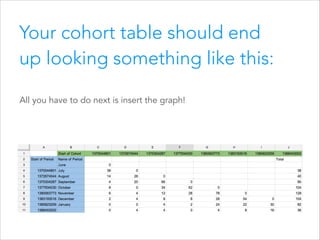
Your cohort table should end
up looking something like this:
All you have to do next is insert the graph!
Voila, simple cohort analysis!
!

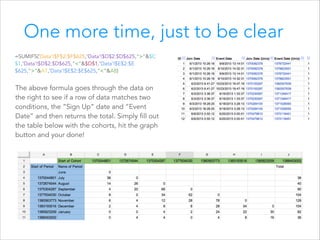
One more time, just to be clear

=SUMIFS('Data'!$F$2:$F$625,'Data'!$D$2:$D$625,">"&$C
$1,'Data'!$D$2:$D$625,"<"&$D$1,'Data'!$E$2:$E
$625,">"&A7,'Data'!$E$2:$E$625,"<"&A8)

The above formula goes through the data on
the right to see if a row of data matches two
conditions, the “Sign Up” date and “Event
Date” and then returns the total. Simply fill out
the table below with the cohorts, hit the graph
button and your done!
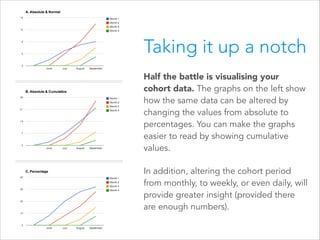
Taking it up a notch
Half the battle is visualising your
cohort data. The graphs on the left show
how the same data can be altered by
changing the values from absolute to
percentages. You can make the graphs
easier to read by showing cumulative
values.
In addition, altering the cohort period
from monthly, to weekly, or even daily, will
provide greater insight (provided there
are enough numbers).
Little Tips
-

This is only really effective for quick cohort analysis, if
you’re wanting to do this regularly for multiple metrics
it’s best to get a developer involved and code it up.

-

Adding a config with a cell that sets the cohort length
will enable you to quickly give a different perspectives
on the same data by switching between weekly and
monthly cohorts.
Live Example Sheet

!

This has everything you need to get started and understand how
the cohorts are formed.
Enjoy!
You’ve been viewing

Really Simple Cohort Analysis
by

Hugh Hopkins (@hughhopkins) + GoSquared

Simple Cohort Analysis in Google Sheets

  • 1.
    REALLY SIMPLE COHORT ANALYSIS* in Google Sheets HughHopkins (@hughhopkins) + GoSquared
  • 2.
    “Total Sign Ups”is just a vanity metric. It doesn’t help you understand how your business is performing. To really understand how your business is performing you need to use cohorts.
  • 3.
    So, what isCohort Analysis? Cohort analysis allows you to study a group of people/users who share the same characteristic, i.e. the same sign up week, and see how they perform over time. This enables businesses to compare the effectiveness of a marketing campaign, a new feature or the impact of increasing prices. Being able to do this quickly for almost any metric can transform your business. The cohort graph on the left shows the number of users who convert to a premium plan. Within in seconds you can see July saw a really low number of conversions whilst October saw the highest.
  • 4.
    But, calculating cohort metricscan be really complicated.
  • 5.
    First, there arenumerous ways of structuring the table. https://blog.kissmetrics.com/wp-content/uploads/2012/10/cohort-report-1-sm.png http://cdn.insideintercom.io/wp-content/uploads/2011/11/Cohort3-Full.jpg http://www.saasoptics.com/SaaS-opedia/saas-opedia/MRR-Cohort/files/BIGmrr_cohort_subscription_metrics.png.png
  • 6.
    Then there areeven more ways of visualising it! http://s3.amazonaws.com/custora-assets/assets/cohort_graph_B4.png http://upload.wikimedia.org/wikipedia/commons/thumb/b/b4/Enwp-jan-cohorts-last-12-months--10-1-.png/600px-Enwp-jan-cohorts-last-12-months--10-1-.png http://insideintercom.io/wp-content/uploads/2011/11/Cohort5-CyclePlot-Dull1.jpg http://blog.recurly.com/wp-content/uploads/2013/07/Subscriber-Retention-by-Cohort.png http://upload.wikimedia.org/wikipedia/commons/thumb/4/42/Megabytes_added_to_EN_NS4,5.png/650px-Megabytes_added_to_EN_NS4,5.png http://blog.mixpanel.com/wp-content/uploads/2009/02/media_httpblogmixpanelcomwpcontentuploads200902picture2png_DDwiEorhikJvqgf.png.scaled1000.png !
  • 9.
    The latest versionof Google Sheets added the =SUMIFS formula making it easy* for anyone to quickly create meaningful cohort analysis.
  • 10.
    5 Simple Steps 1.Enable the new Google Sheets at http://g.co/newsheets 2. Import your data. 3. Structure the data. 4. Create the formula and table. 5. Stand back in amazement with what you have just created. Here’s one we made earlier… You can find a working example of the Cohort Analysis here: Google Sheets Working Example
  • 11.
    Structuring The Data- Part 1 Regardless of your data format, you should have at least two columns with dates in. • The ‘Sign Up Date’ of that user (the bit which ties the user to a cohort) • The ‘Event Date’ (i.e. upgraded to a premium subscription) It will look something like this: `User ID Sign Up Date Event Date 1 12/23/2013 17:53:30 12/23/2013 18:05:30 2 12/29/2013 0:30:05 1/12/2014 18:34:46 3 12/30/2013 19:22:23 1/3/2014 22:14:40
  • 12.
    Structuring The Data- Part 2 Convert the date format to UNIX to avoid any potential formatting errors. To do this, simply create another column and use the following formula: =(A2-“1/1/1970”)*60*60*24. To convert UNIX to a normal timestamp use: =A2/(60*60*24)+”1/1/1970 00:00:00. Now all you need to do is set up the formula to compare the two dates and return the number of users that match the search criteria. `User ID Sign Up Date 1 12/23/2013 17:53:30 Event Date 12/23/2013 18:05:30 2 12/29/2013 0:30:05 1/12/2014 18:34:46 3 12/30/2013 19:22:23 1/3/2014 22:14:40 Sign Up Date (UNIX) Event Date (UNIX) 1387821210 1387821930 1388277005 1389551686 1388431343 1388787280 Working Example
  • 13.
    Creating The Table- Part 1 The way in which you build your table will alter the final graph. A simple set up in Google Sheets is to have the rows as the cohort (i.e. the user segmented by the sign up date) and the column with the time period (i.e. what happened to that cohort in that particular month). Deciding to structure it in chronological order or pinning it to the same starting point will alter the shape of your graph. Ultimately it depends on what you are trying to visualise and toggling between views will help. The Individual cohorts Time Period (what that cohort did in that month)
  • 14.
    Creating The Table- Part 2 For example: 1370044801 1370044801 July 1375304287 August 1375304287 June 1372674544 1372674544 14 26 In this cell, I want to find the number of users who “Signed Up” during the period 1370044801 - 1372674544 and who also upgraded to a premium plan in July.
  • 15.
    How to usethe formula The SUMIFS formula sums the range depending on multiple criteria. This is how it works: =SUMIFS(sum_range, criteria_range1, criterion1, [criteria_range2, criterion2, …]) And in plain english that means: sum_range = The column to be added together criteria_range1 = The search criteria area / range criterion1 = The search term criteria_range2 & criterion2 = Allow you to repeat with as many conditions as you like
  • 16.
    Your Formula willend up looking something like this: ! The Sum Range The search criteria area / range =SUMIFS('Data'!$F$2:$F$625,'Data'!$D$2:$D$625,">"& $C$1,'Data'!$D$2:$D$625,"<"&$D$1,'Data'!$E$2:$E $625,">"&A7,'Data'!$E$2:$E$625,"<"&A8) The search criteria to use the more than, less than operators you will need to type: ">"& Working Example
  • 17.
    * OK, maybeI lied, it’s a little complicated
  • 18.
    Your cohort tableshould end up looking something like this: All you have to do next is insert the graph!
  • 19.
  • 21.
    ! One more time,just to be clear =SUMIFS('Data'!$F$2:$F$625,'Data'!$D$2:$D$625,">"&$C $1,'Data'!$D$2:$D$625,"<"&$D$1,'Data'!$E$2:$E $625,">"&A7,'Data'!$E$2:$E$625,"<"&A8) The above formula goes through the data on the right to see if a row of data matches two conditions, the “Sign Up” date and “Event Date” and then returns the total. Simply fill out the table below with the cohorts, hit the graph button and your done!
  • 23.
    Taking it upa notch Half the battle is visualising your cohort data. The graphs on the left show how the same data can be altered by changing the values from absolute to percentages. You can make the graphs easier to read by showing cumulative values. In addition, altering the cohort period from monthly, to weekly, or even daily, will provide greater insight (provided there are enough numbers).
  • 24.
    Little Tips - This isonly really effective for quick cohort analysis, if you’re wanting to do this regularly for multiple metrics it’s best to get a developer involved and code it up. - Adding a config with a cell that sets the cohort length will enable you to quickly give a different perspectives on the same data by switching between weekly and monthly cohorts.
  • 25.
    Live Example Sheet ! Thishas everything you need to get started and understand how the cohorts are formed. Enjoy!
  • 26.
    You’ve been viewing ReallySimple Cohort Analysis by Hugh Hopkins (@hughhopkins) + GoSquared